

N999 – Premier Integration with ControlLogix, 
PowerFlex Drives and FactoryTalk View 
Presenter: <<Your name>> 
Rockwell Automation Drives Business 
For Classroom Use Only!
Premier Integration with ControlLogix, PowerFlex 
Drives, and FactoryTalk View 
3 of 134 
Contents 
About this lab ................................................................................................................................... 4 
About Integrated Drive Profiles and Premier Integration .................................................................. 5 
Tools & Prerequisites ....................................................................................................................... 5 
Document Conventions .................................................................................................................... 7 
Connecting and Energizing the Demo .............................................................................................. 8 
Disabling Safe Speed Monitoring Module – IF INSTALLED............................................................. 11 
Disabling DeviceLogix Program – IF LOADED & RUNNING ............................................................ 14 
Creating an RSLogix 5000 project with a PowerFlex Integrated Drive Profile ................................. 17 
Downloading and Verifying the Network I/O is Operational ............................................................ 67 
Using an FactoryTalk View PowerFlex Faceplate with a PowerFlex AOI to Control/Monitor the 
Drive ............................................................................................................................................... 78 
Importing a PowerFlex AOI and Going Online..................................................................................... 79 
Importing a FactoryTalk View ME PowerFlex Faceplate ...................................................................... 88 
Optional Lab Materials (Time Permitting)...................................................................................... 110 
Using Explicit Messaging (Optional ) ................................................................................................. 111 
Viewing the 20-COMM-E’s Web Pages (Optional) ............................................................................. 126 
Chall enge! “Conveyor Application” (Optional)................................................................................... 127 
Using a Non-AB Drive with ControlLogix (Optional ) ........................................................................... 128 
Notes ............................................................................................................................................ 134
4 of 134 
About this lab 
This lab provides an in-depth look at the Integrated Drive Add-On Profiles included with RSLogix 5000 
v16 (or higher). 
Also shown, is a lab section that provides a sneak preview of the new PowerFlex Accelerator Toolkit Add- 
On Instructions and Faceplates. All of the toolkit materials (including the Quick Start Guide) are available 
for download from the following link: 
http://www.rockwellautomation.com/solutions/integratedarchitecture/resources5.html 
This lab takes approximately ~100 minutes to complete. Additional optional materials are provided for 
those that finish early.
About Integrated Drive Profiles and Premier Integration 
Integrated Drive Profiles were designed to save system development time and to make systems easier to 
maintain. 
Integrated Drive Profiles in RSLogix 5000 v16 (or higher) can reduce drive system development time by 
as much as 70% (figure obtained from timed side-by-side drive configuration comparison testing) by: 
 Providing one software tool to configure the entire Logix / drive system. 
 Configuring both controller and drive network connections from a single location - eliminating 
5 of 134 
I/O mismatch errors. 
 Allowing the dynamic selection of drive parameters transmitted as network I/O – 
communicating only what is needed for the application. 
 Auto-generating descriptive tag names - eliminating the need to enter individual tag 
descriptions. 
 Auto-generating respective tag data types - eliminating the need to convert from one data 
type to another. 
 Saving all drive configurations in the RSLogix project file and in the Logix controller – 
providing a single source of drive configuration data. 
 Providing Copy & Paste capability when creating additional duplicate drives – also duplicates 
the drive configuration settings so all the new drive needs is a different node addres s. 
 Allowing use of the same easy-to-use drive configuration Wizards used in DriveTools SP and 
DriveExplorer. 
Systems using the Integrated Drive Profiles in RSLogix 5000 v16 (or higher) are also easier to maintain: 
 Drive diagnostic, fault, alarm and event information is integral to RSLogix 5000. 
 Drive Tech Support Wizard can be run from RSLogix 5000 to collect all pertinent information 
about a drive, it's peripherals, various software components, and PC operating system. 
 Drives can be flash updated from RSLogix 5000. 
Having a single repository of drive configuration data (in RSLogix project file) speeds drive replacement. 
Integrated Drive Profiles are "Add-On" Profiles, meaning new profiles can be introduced at any time (not 
tied to a specific RSLogix 5000 release) and utilized by v16 and higher versions of RSLogix 5000. 
Tools & Prerequisites 
Here is a list of hardware and software you will need to perform this lab. 
 PowerFlex 755 (v1.9) demo 
 ControlLogix demo with: 
­1756- 
L63 controller (v17.0) in slot 0
6 of 134 
­1756- 
ENBT EtherNet/IP bridge module (v4.7 or higher) in slot 1 
­Ethernet 
switch 
 Computer installed with: 
­Windows 
XP SP2 OS 
­RSLogix 
5000 v16 (or higher) with Integrated Drive Profiles 
­RSLinx 
2.52.00.17 (or higher) 
­FactoryTalk 
View Studio v5.00.00.55 (or higher) 
­DriveExecutive 
v5.01 (or higher) or DriveExplorer v6.01 (or higher) 
­Internet 
Explorer v6 (or higher)
7 of 134 
Document Conventions 
Throughout this workbook, we have used the following conventions to help guide you through the lab 
materials. 
This style or symbol: Indicates: 
ATTENTION: Identifies information about practices or 
circumstances that can lead to personal injury or death, property 
damage, or economic loss. Attentions help you: 
 identify a hazard 
 avoid the hazard 
 recognize the consequences 
! 
Words shown in bold (e.g., 
RSLogix 5000 or OK) 
Any item or button that you must click on, or a menu name from 
which you must choose an option or command. This will be an 
actual name of an item that you see on your screen or in an 
example. 
Words shown in bold italics, 
enclosed in single quotes (e.g., 
'Controller1') 
An item that you must type in the specified field. This is information 
that you must supply based on your application (e.g., a variable). 
Note: When you type the text in the field, remember that you do 
not need to type the quotes; simply type the words that are 
contained within them (e.g., Controller1). 
The text that appears inside of this gray box is supplemental 
information regarding the lab materials, but not information that is 
required reading in order for you to complete the lab exercises. 
The text that follows this symbol may provide you with helpful hints 
that can make it easier for you to use this product. Most often, 
authors use this “Tip Text” style for important information they want 
their students to see. 
Note: If the mouse button is not specified in the text, you should click on the left mouse button.
Connecting and Energizing the Demo 
ATTENTION: Hazardous voltages exist beneath the 
product covers. Contact with circuits under the cover 
can result in death or serious injury by electric shock. 
Do NOT remove the product covers. 
! 
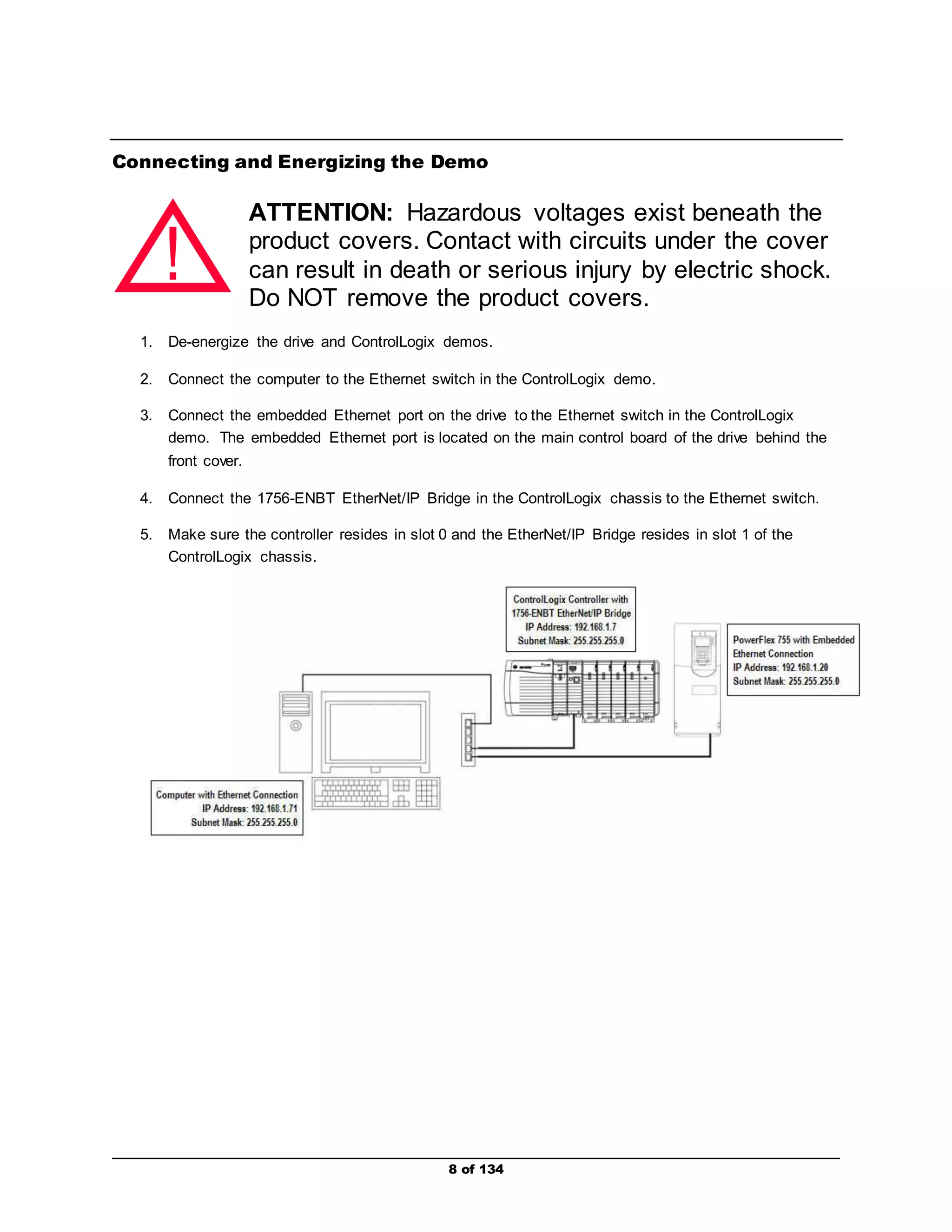
1. De-energize the drive and ControlLogix demos. 
2. Connect the computer to the Ethernet switch in the ControlLogix demo. 
3. Connect the embedded Ethernet port on the drive to the Ethernet switch in the ControlLogix 
demo. The embedded Ethernet port is located on the main control board of the drive behind the 
front cover. 
4. Connect the 1756-ENBT EtherNet/IP Bridge in the ControlLogix chassis to the Ethernet switch. 
5. Make sure the controller resides in slot 0 and the EtherNet/IP Bridge resides in slot 1 of the 
8 of 134 
ControlLogix chassis.
9 of 134 
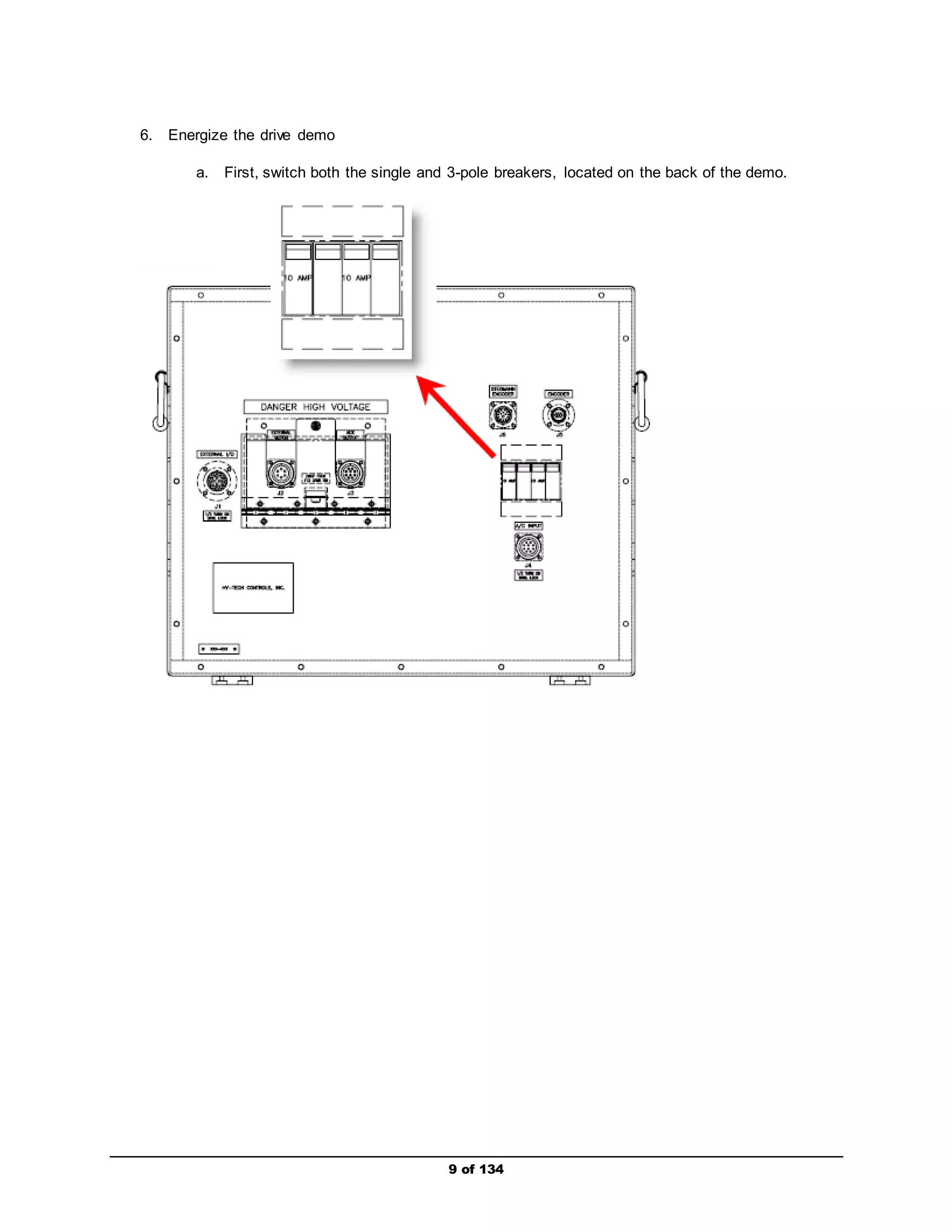
6. Energize the drive demo 
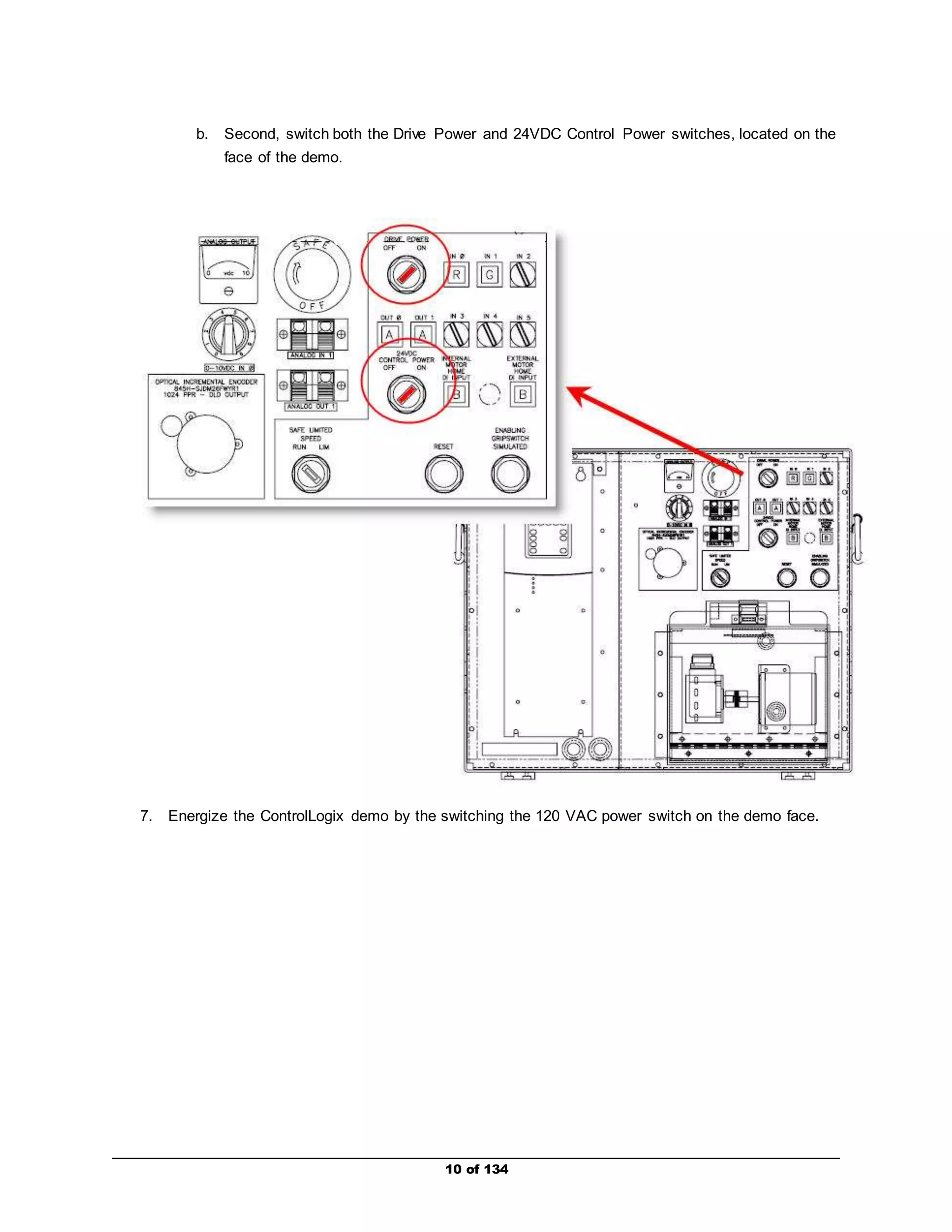
a. First, switch both the single and 3-pole breakers, located on the back of the demo.
b. Second, switch both the Drive Power and 24VDC Control Power switches, located on the 
10 of 134 
face of the demo. 
7. Energize the ControlLogix demo by the switching the 120 VAC power switch on the demo face.
Disabling Safe Speed Monitoring Module – IF INSTALLED 
If the Safe Speed Monitoring module is installed in the PowerFlex 755 demo (typically slot 4), the safety 
mode needs to be disabled prior to conducting the lab. If the safety mode has not been disabled, the 
drive will not operate according to the lab procedure. 
Consult with your instructor before performing the following procedure: 
1. If using Drive Explorer or Drive Executive, connect to the drive. 
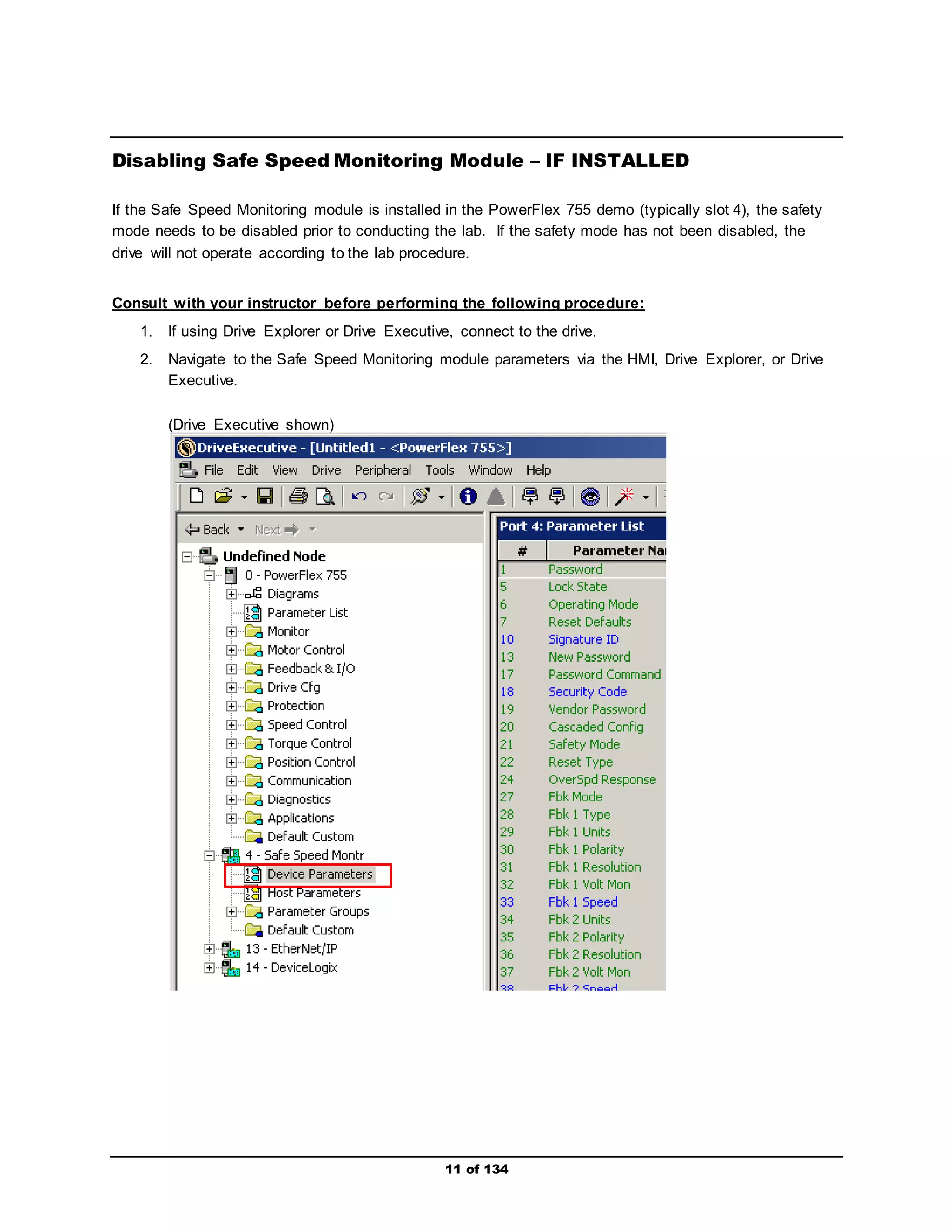
2. Navigate to the Safe Speed Monitoring module parameters via the HMI, Drive Explorer, or Drive 
11 of 134 
Executive. 
(Drive Executive shown)
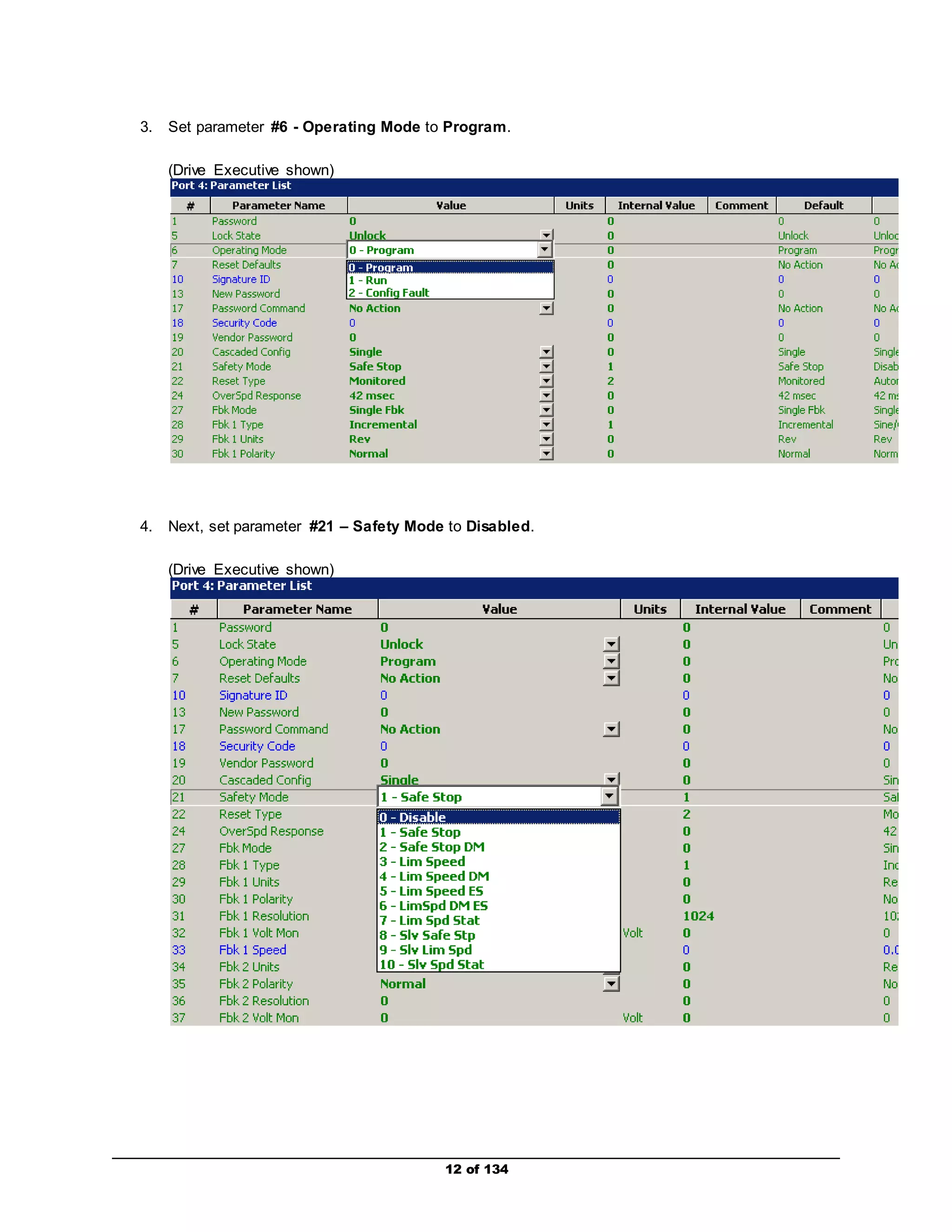
3. Set parameter #6 - Operating Mode to Program. 
12 of 134 
(Drive Executive shown) 
4. Next, set parameter #21 – Safety Mode to Disabled. 
(Drive Executive shown)
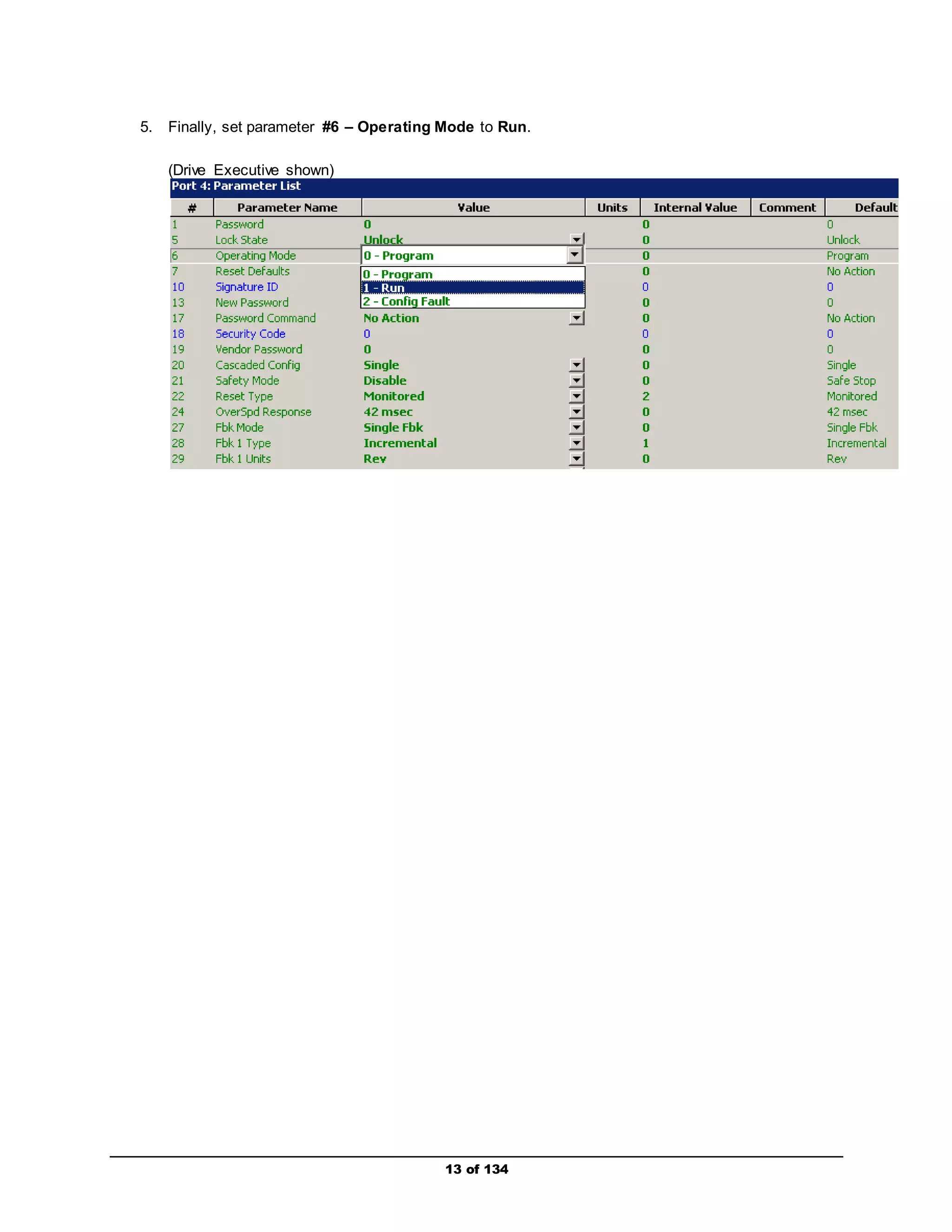
5. Finally, set parameter #6 – Operating Mode to Run. 
13 of 134 
(Drive Executive shown)
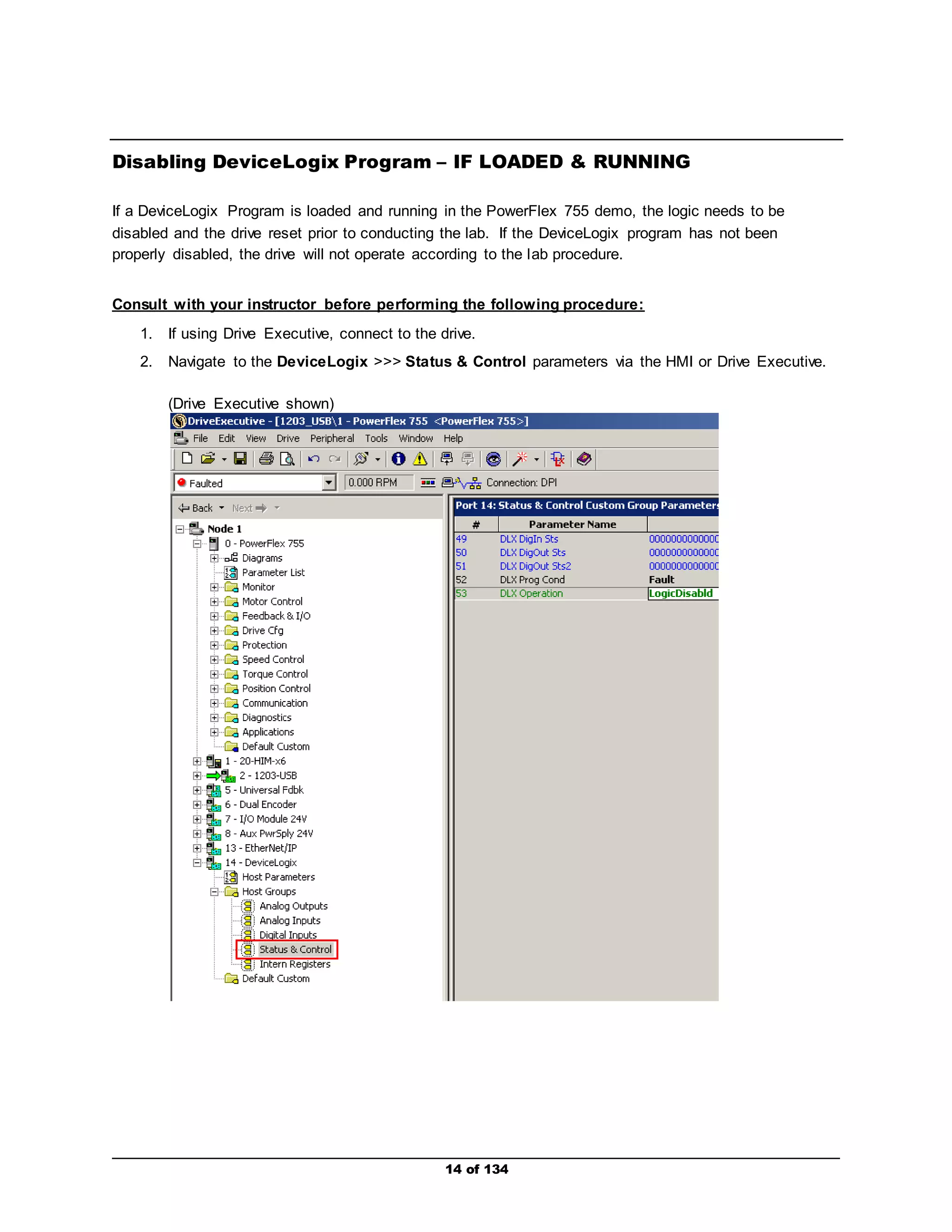
Disabling DeviceLogix Program – IF LOADED & RUNNING 
If a DeviceLogix Program is loaded and running in the PowerFlex 755 demo, the logic needs to be 
disabled and the drive reset prior to conducting the lab. If the DeviceLogix program has not been 
properly disabled, the drive will not operate according to the lab procedure. 
Consult with your instructor before performing the following procedure: 
1. If using Drive Executive, connect to the drive. 
2. Navigate to the DeviceLogix >>> Status & Control parameters via the HMI or Drive Executive. 
14 of 134 
(Drive Executive shown)
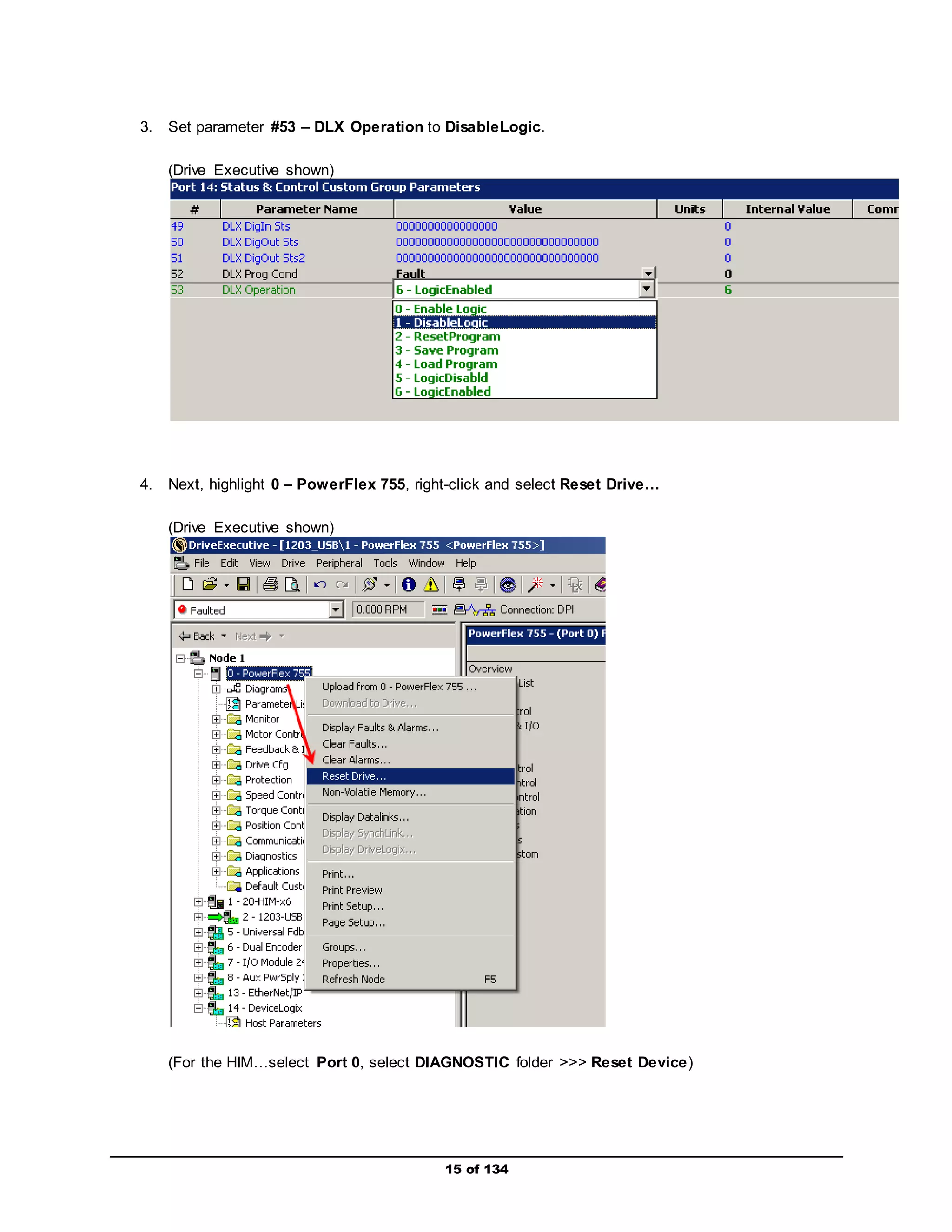
3. Set parameter #53 – DLX Operation to DisableLogic. 
15 of 134 
(Drive Executive shown) 
4. Next, highlight 0 – PowerFlex 755, right-click and select Reset Drive… 
(Drive Executive shown) 
(For the HIM…select Port 0, select DIAGNOSTIC folder >>> Reset Device)
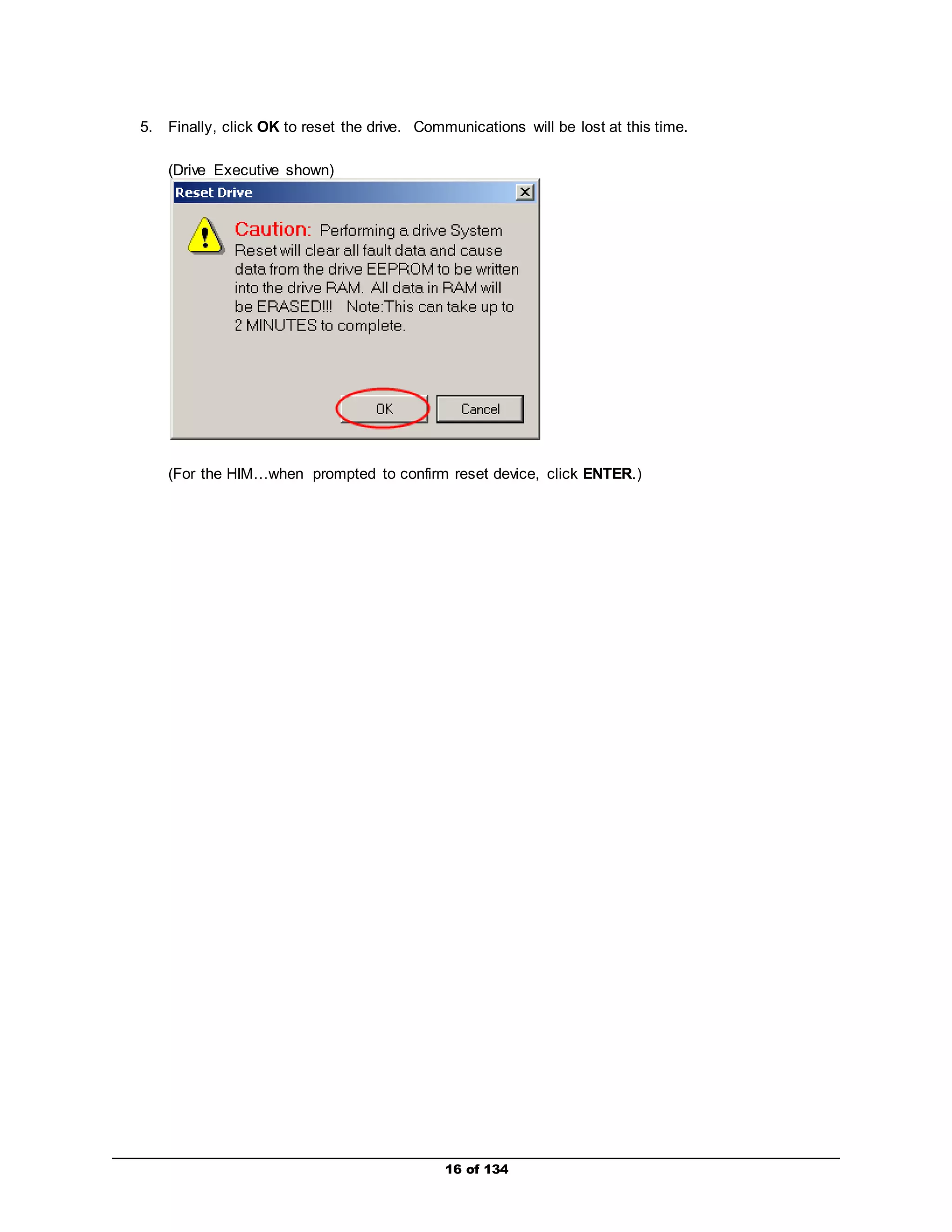
5. Finally, click OK to reset the drive. Communications will be lost at this time. 
16 of 134 
(Drive Executive shown) 
(For the HIM…when prompted to confirm reset device, click ENTER.)
Creating an RSLogix 5000 project with a PowerFlex Integrated Drive 
17 of 134 
Profile 
1. Start the program. 
Double-click the RSLogix 5000 icon on the desktop, or from the Start menu, select 
All Programs > Rockwell Software > RSLogix 5000 Enterprise Series > RSLogix 5000. 
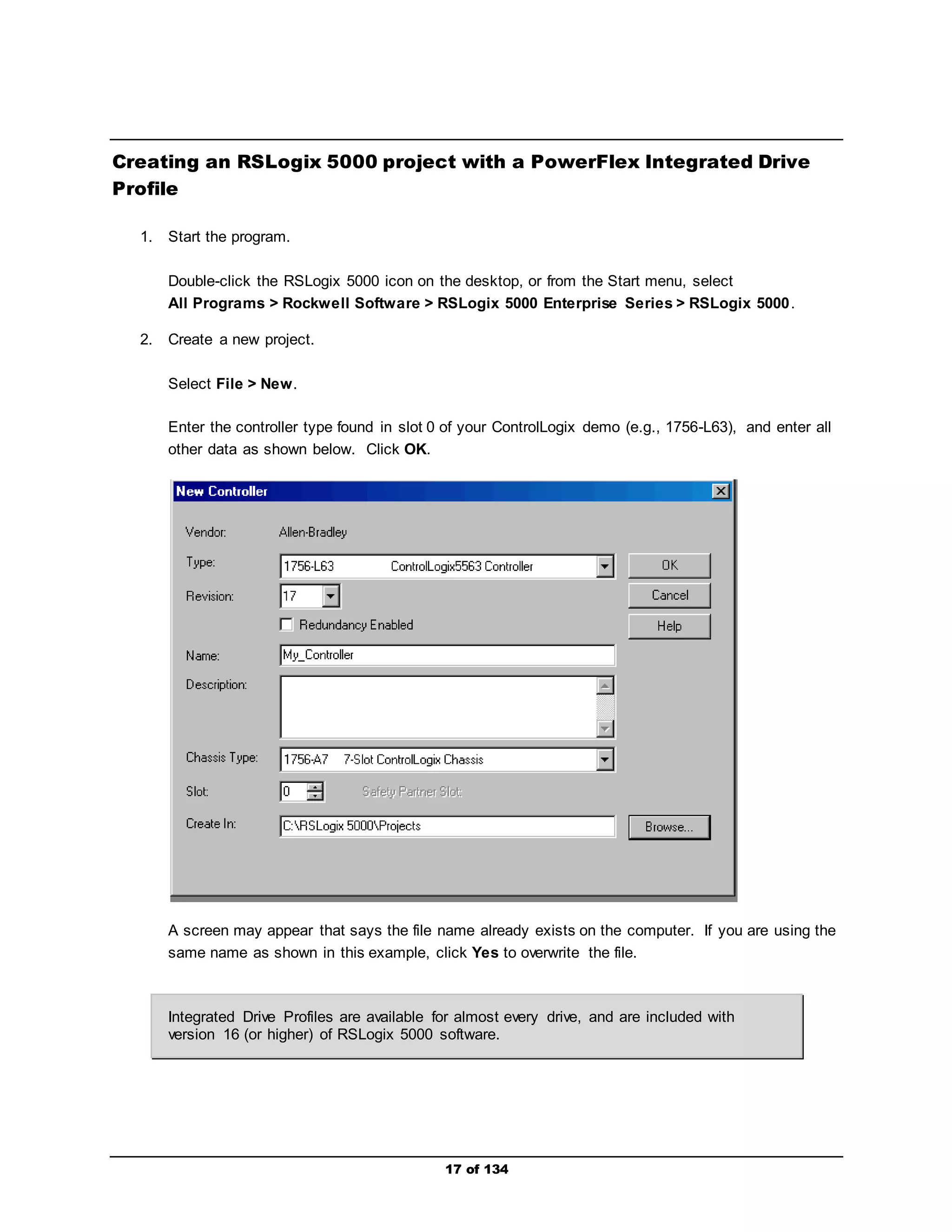
2. Create a new project. 
Select File > New. 
Enter the controller type found in slot 0 of your ControlLogix demo (e.g., 1756-L63), and enter all 
other data as shown below. Click OK. 
A screen may appear that says the file name already exists on the computer. If you are using the 
same name as shown in this example, click Yes to overwrite the file. 
Integrated Drive Profiles are available for almost every drive, and are included with 
version 16 (or higher) of RSLogix 5000 software.
18 of 134 
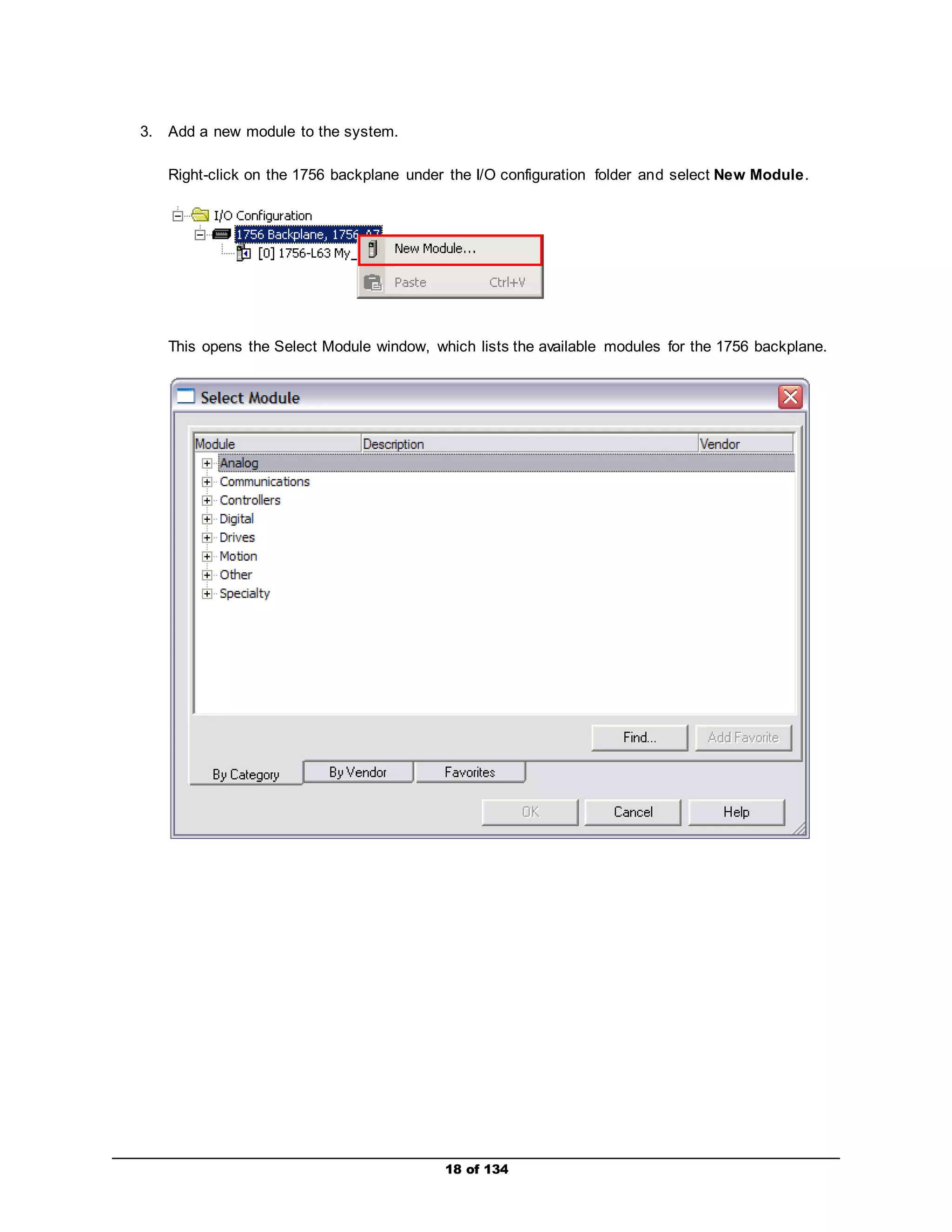
3. Add a new module to the system. 
Right-click on the 1756 backplane under the I/O configuration folder and select New Module. 
This opens the Select Module window, which lists the available modules for the 1756 backplane.
19 of 134 
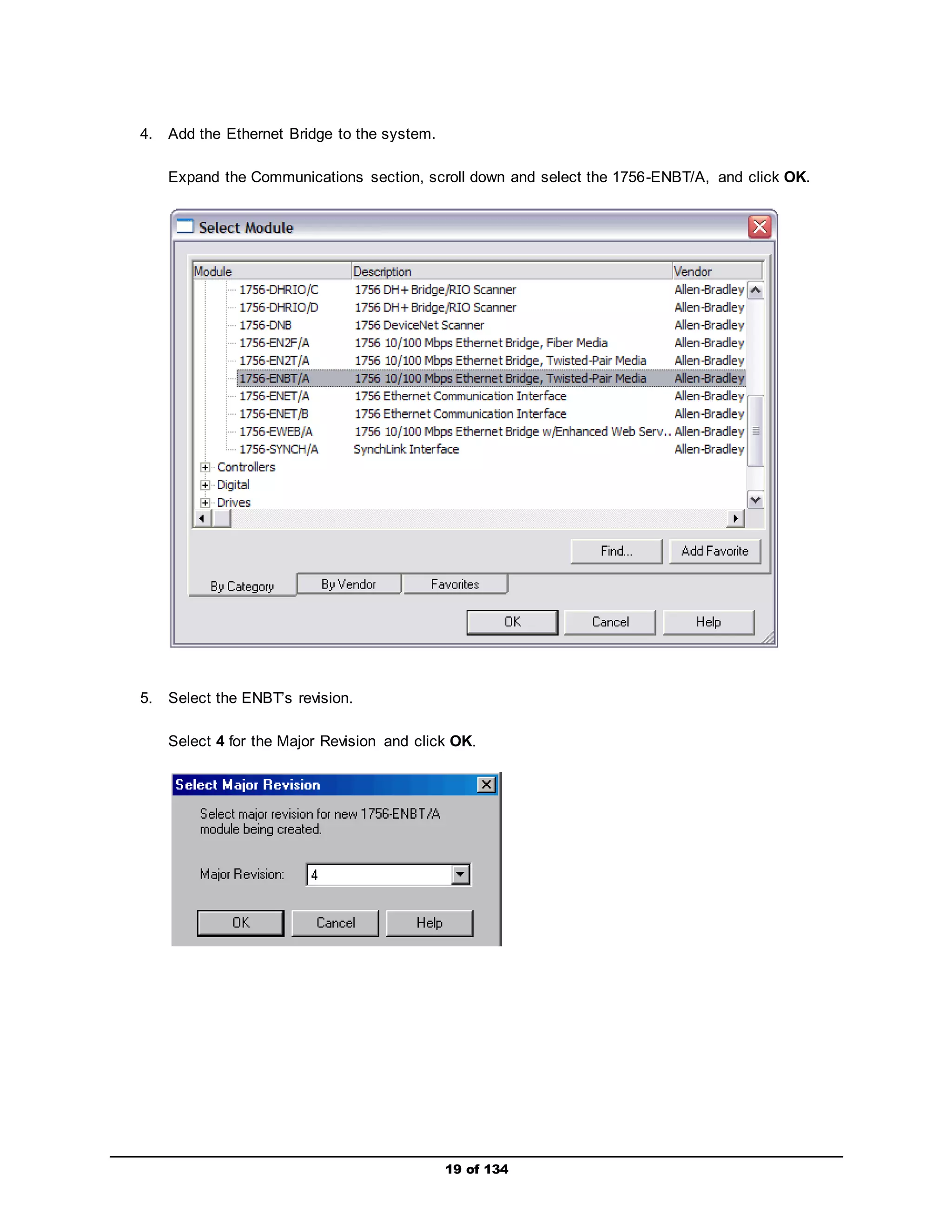
4. Add the Ethernet Bridge to the system. 
Expand the Communications section, scroll down and select the 1756-ENBT/A, and click OK. 
5. Select the ENBT’s revision. 
Select 4 for the Major Revision and click OK.
20 of 134 
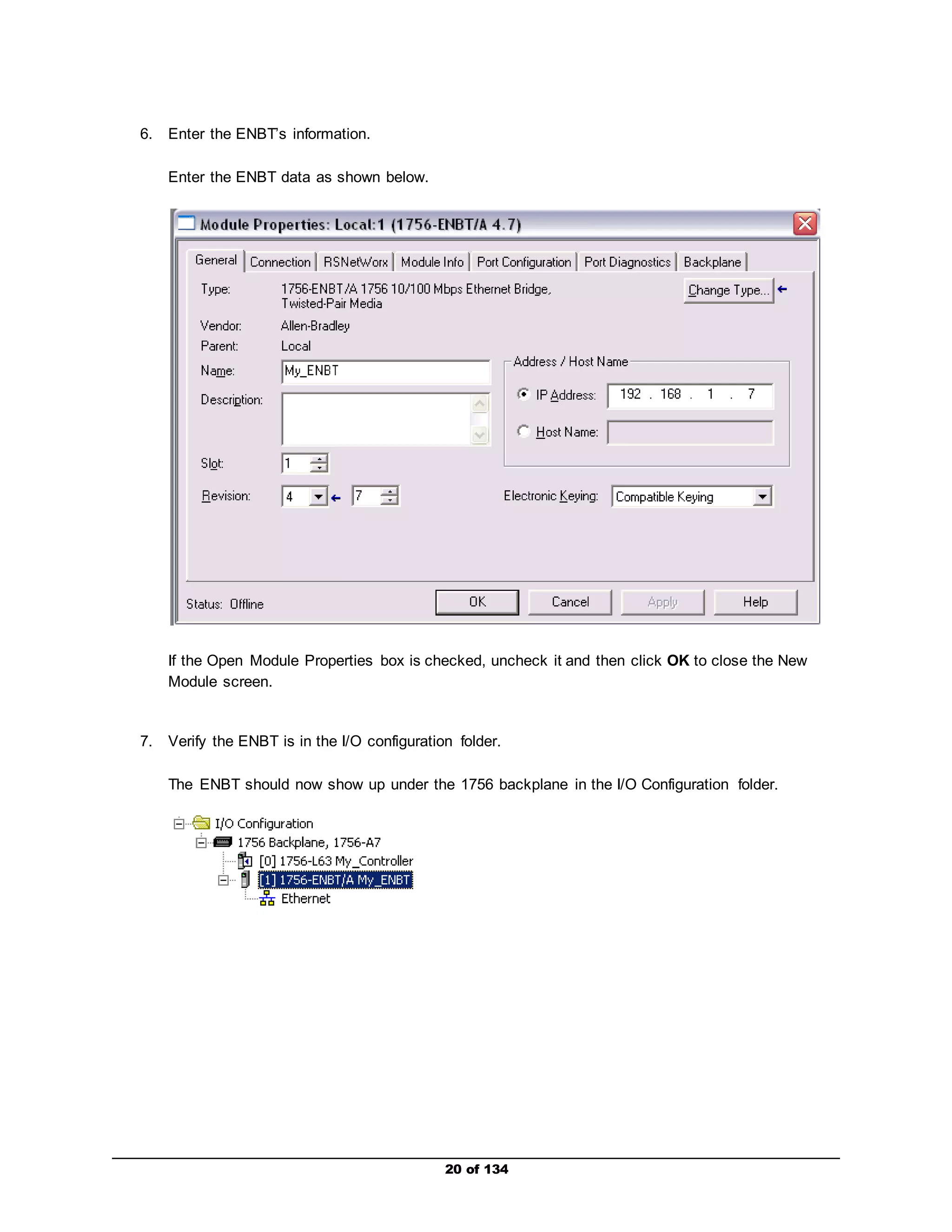
6. Enter the ENBT’s information. 
Enter the ENBT data as shown below. 
If the Open Module Properties box is checked, uncheck it and then click OK to close the New 
Module screen. 
7. Verify the ENBT is in the I/O configuration folder. 
The ENBT should now show up under the 1756 backplane in the I/O Configuration folder.
21 of 134 
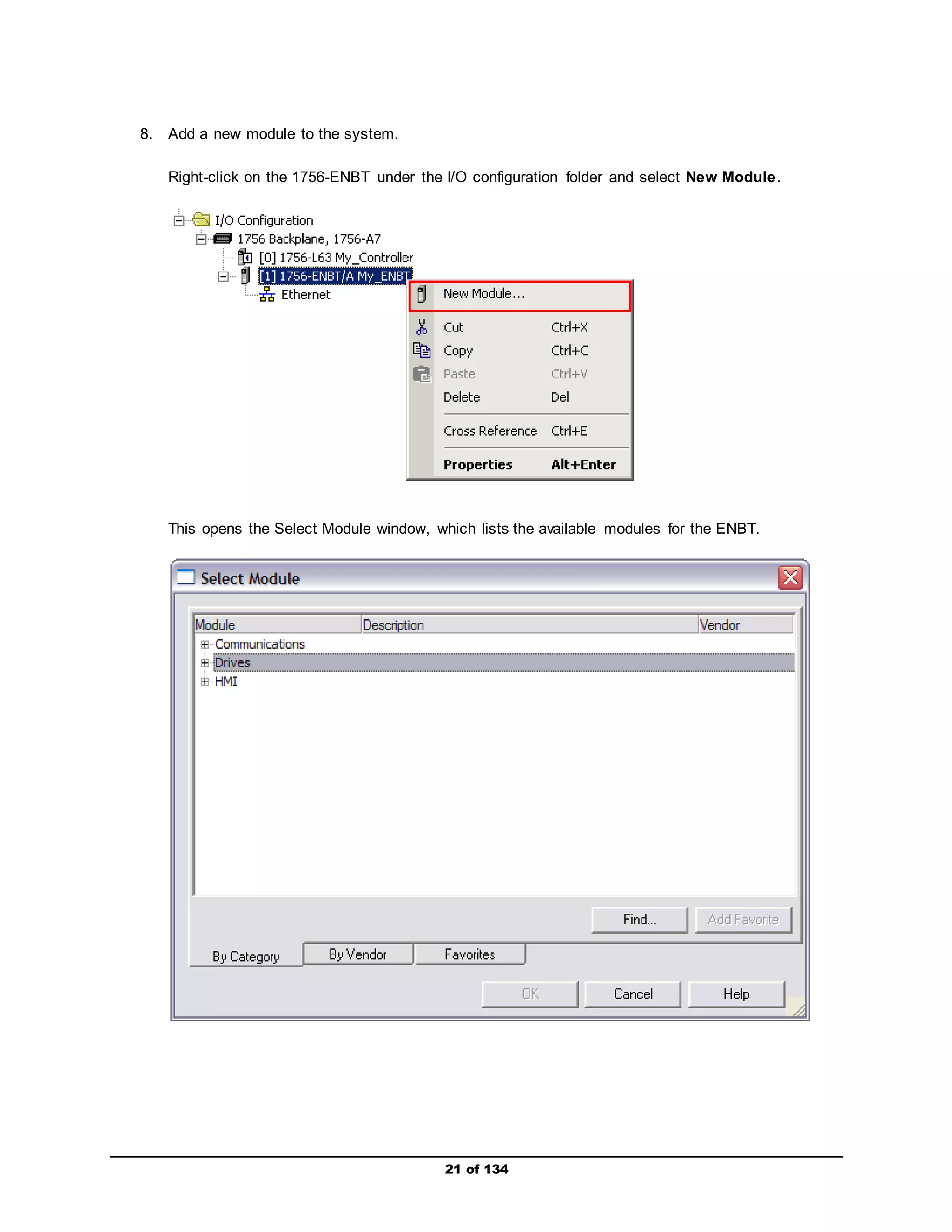
8. Add a new module to the system. 
Right-click on the 1756-ENBT under the I/O configuration folder and select New Module. 
This opens the Select Module window, which lists the available modules for the ENBT.
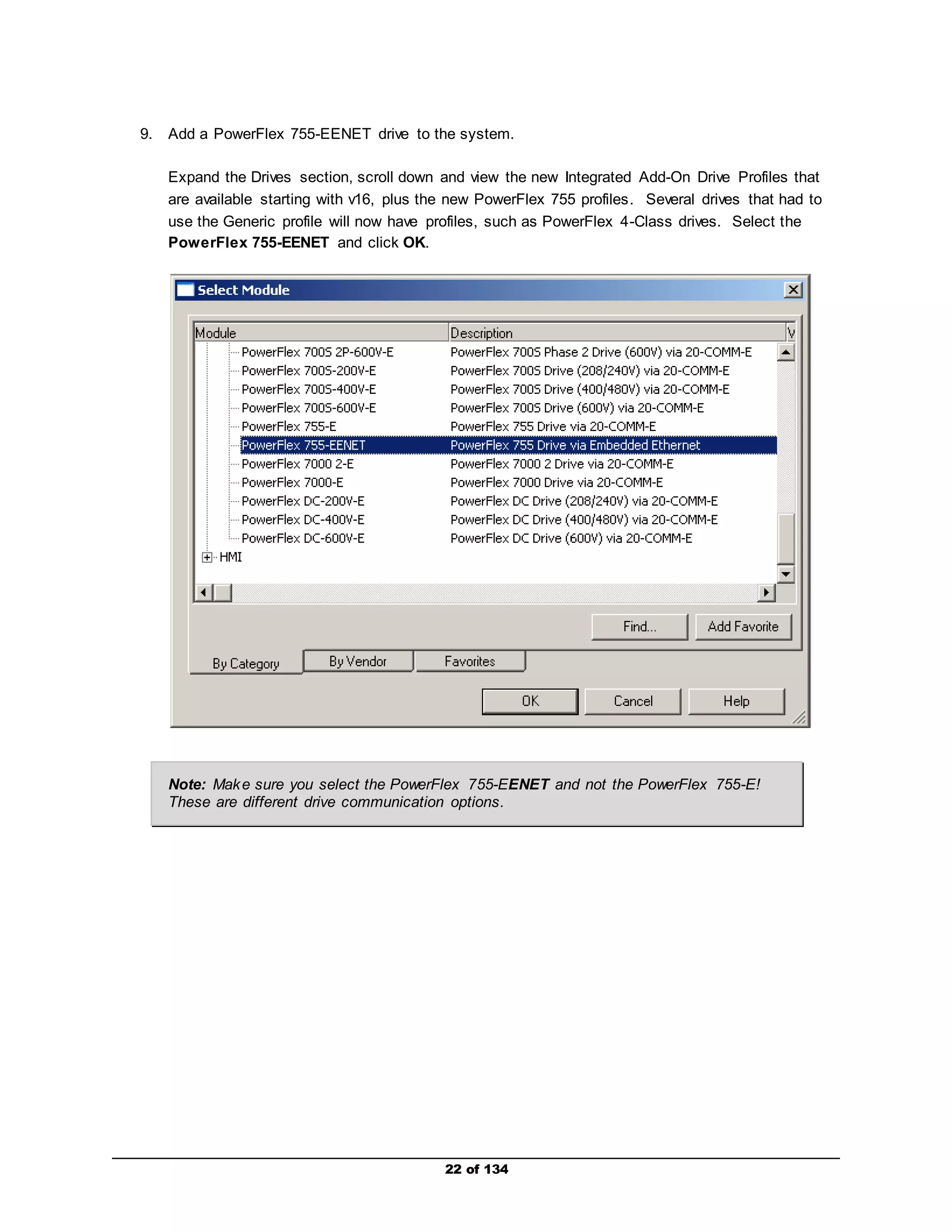
9. Add a PowerFlex 755-EENET drive to the system. 
Expand the Drives section, scroll down and view the new Integrated Add-On Drive Profiles that 
are available starting with v16, plus the new PowerFlex 755 profiles. Several drives that had to 
use the Generic profile will now have profiles, such as PowerFlex 4-Class drives. Select the 
PowerFlex 755-EENET and click OK. 
Note: Make sure you select the PowerFlex 755-EENET and not the PowerFlex 755-E! 
These are different drive communication options. 
22 of 134
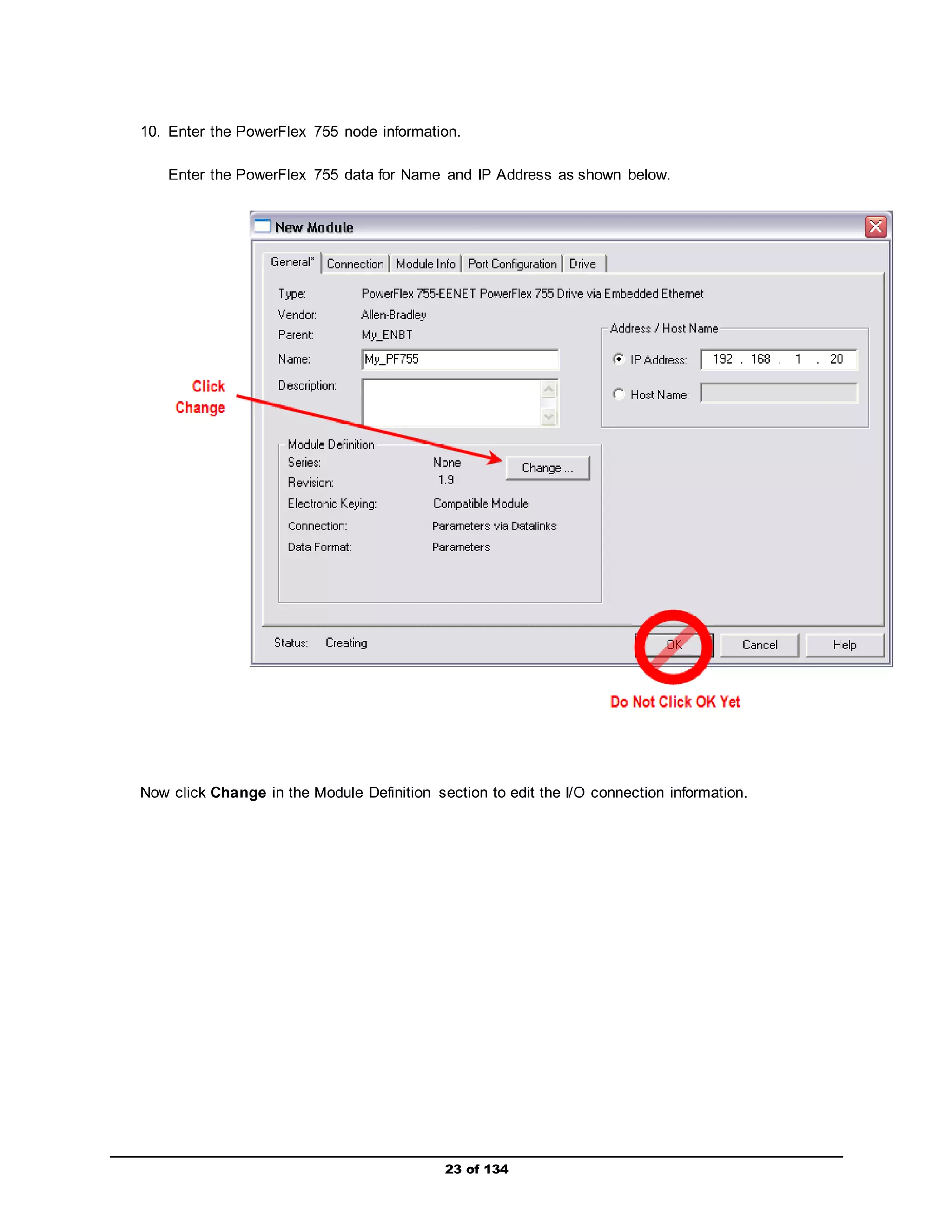
10. Enter the PowerFlex 755 node information. 
Enter the PowerFlex 755 data for Name and IP Address as shown below. 
Now click Change in the Module Definition section to edit the I/O connection information. 
23 of 134
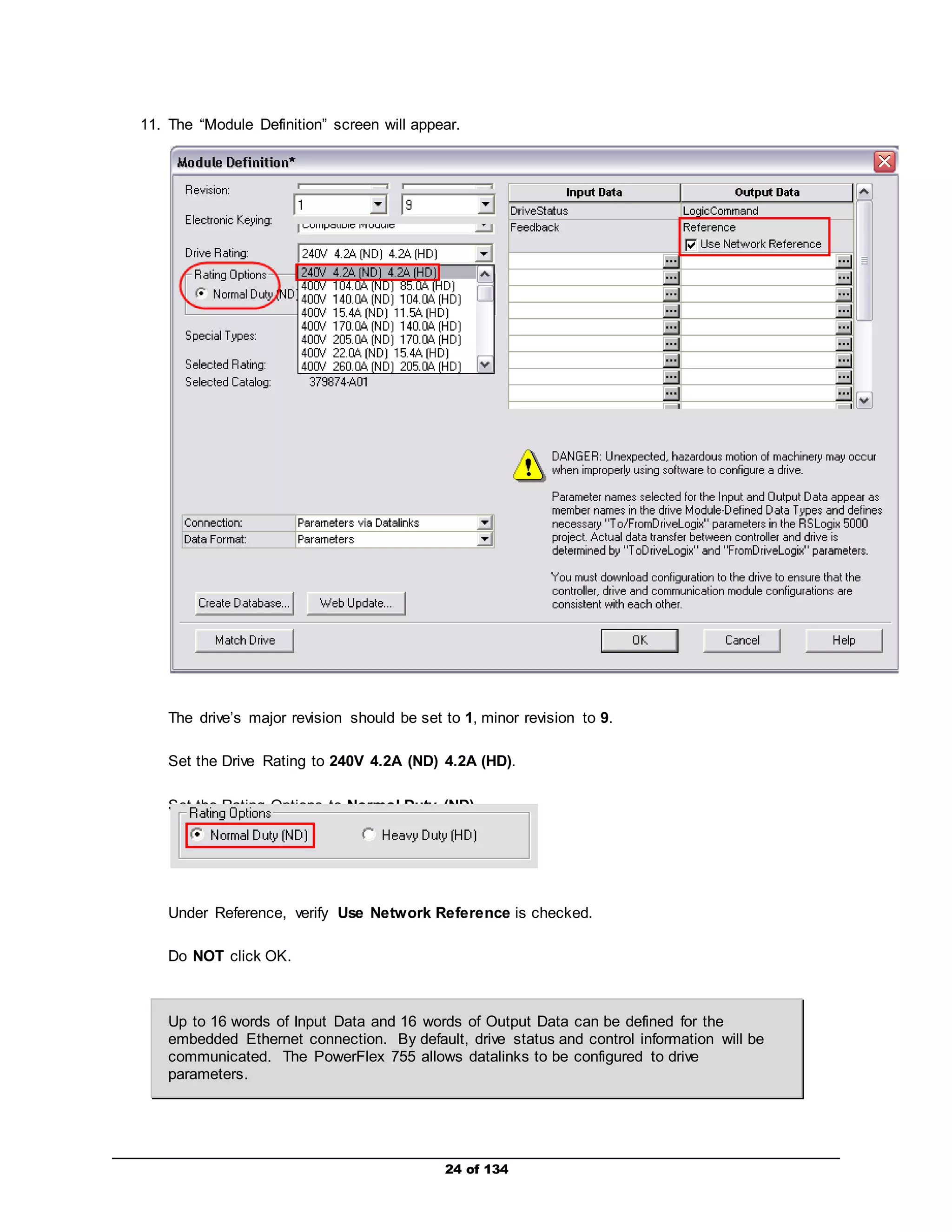
11. The “Module Definition” screen will appear. 
The drive’s major revision should be set to 1, minor revision to 9. 
Set the Drive Rating to 240V 4.2A (ND) 4.2A (HD). 
Set the Rating Options to Normal Duty (ND). 
Under Reference, verify Use Network Reference is checked. 
24 of 134 
Do NOT click OK. 
Up to 16 words of Input Data and 16 words of Output Data can be defined for the 
embedded Ethernet connection. By default, drive status and control information will be 
communicated. The PowerFlex 755 allows datalinks to be configured to drive 
parameters.
In addition to the drive parameters, the PowerFlex 755 allows datalinks to be 
configured to port 14-DeviceLogix. For example, configuring a datalink to port 14- 
DeviceLogix, will allow direct access to parameters inside the drive’s internal 
DeviceLogix program. The drive itself is designated as port 0-PowerFlex 755, 
datalinks configured to access port 13-EntherNetIP are NOT valid. 
Status Information 
The “DriveStatus” word contains the Logic Status bit information, such as Ready, Alarm, 
Fault, and At Reference. The “Feedback” word contains the speed feedback information, 
which shows the actual operating frequency (Hz) and/or speed (RPM) of the drive. 
Control Information 
The “LogicCommand” word contains command bit information, such as Stop, Start, 
Forward, Reverse, and ClearFaults. The “Reference” word contains the commanded 
reference value for the drive to run. 
Datalinks 
Datalinks are pointers to drive and/or other port parameters. Instead of offering fixed I/O 
assemblies where what-you-see-is-what-you-get, our drive I/O assembly is dynamic and 
gives the programmer the ability to pick & choose the desired parameters to 
communicate as network I/O. 
Note that the PowerFlex 755 reads reference and writes feedback values as real or 
float type data structures, removing the need for conversion between counts and 
engineering units or vice versa. For example, entering a value of 32.1 in the 
“Reference” word will provide a speed reference of 32.1Hz to drive. This is a 
significant difference between the PowerFlex 755 and previous drives in the 
PowerFlex 7 series family. 
25 of 134
26 of 134 
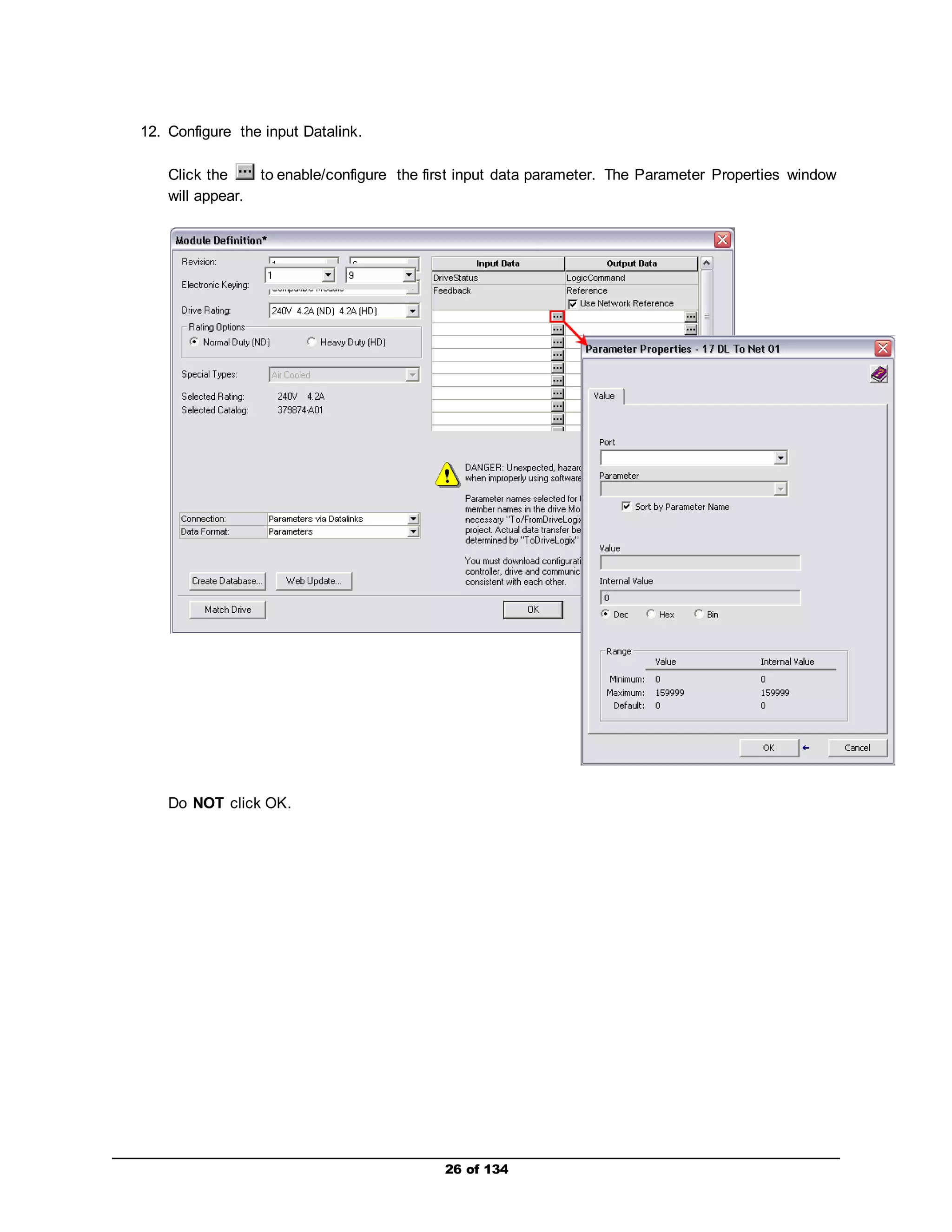
12. Configure the input Datalink. 
Click the to enable/configure the first input data parameter. The Parameter Properties window 
will appear. 
Do NOT click OK.
27 of 134 
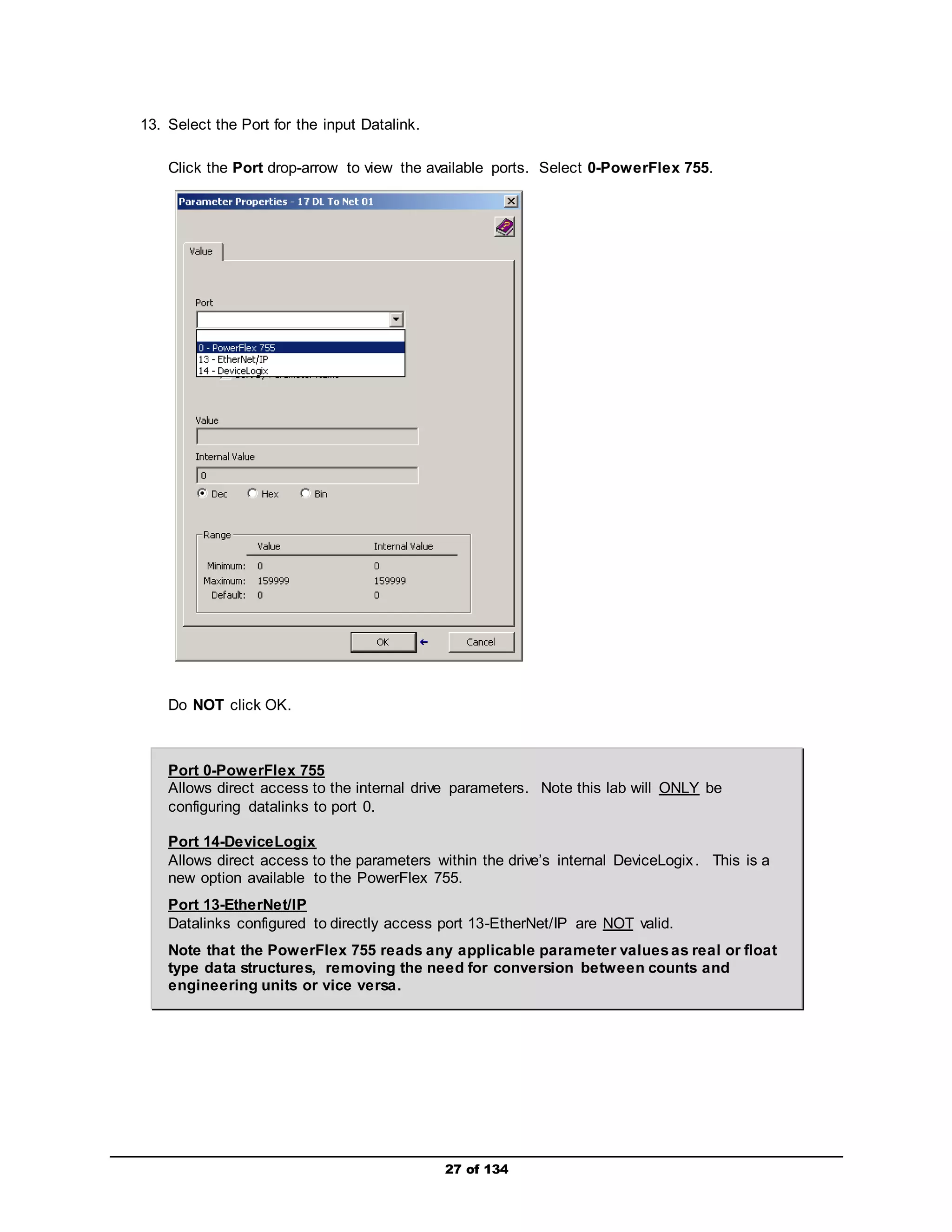
13. Select the Port for the input Datalink. 
Click the Port drop-arrow to view the available ports. Select 0-PowerFlex 755. 
Do NOT click OK. 
Port 0-PowerFlex 755 
Allows direct access to the internal drive parameters. Note this lab will ONLY be 
configuring datalinks to port 0. 
Port 14-DeviceLogix 
Allows direct access to the parameters within the drive’s internal DeviceLogix . This is a 
new option available to the PowerFlex 755. 
Port 13-EtherNet/IP 
Datalinks configured to directly access port 13-EtherNet/IP are NOT valid. 
Note that the PowerFlex 755 reads any applicable parameter values as real or float 
type data structures, removing the need for conversion between counts and 
engineering units or vice versa.
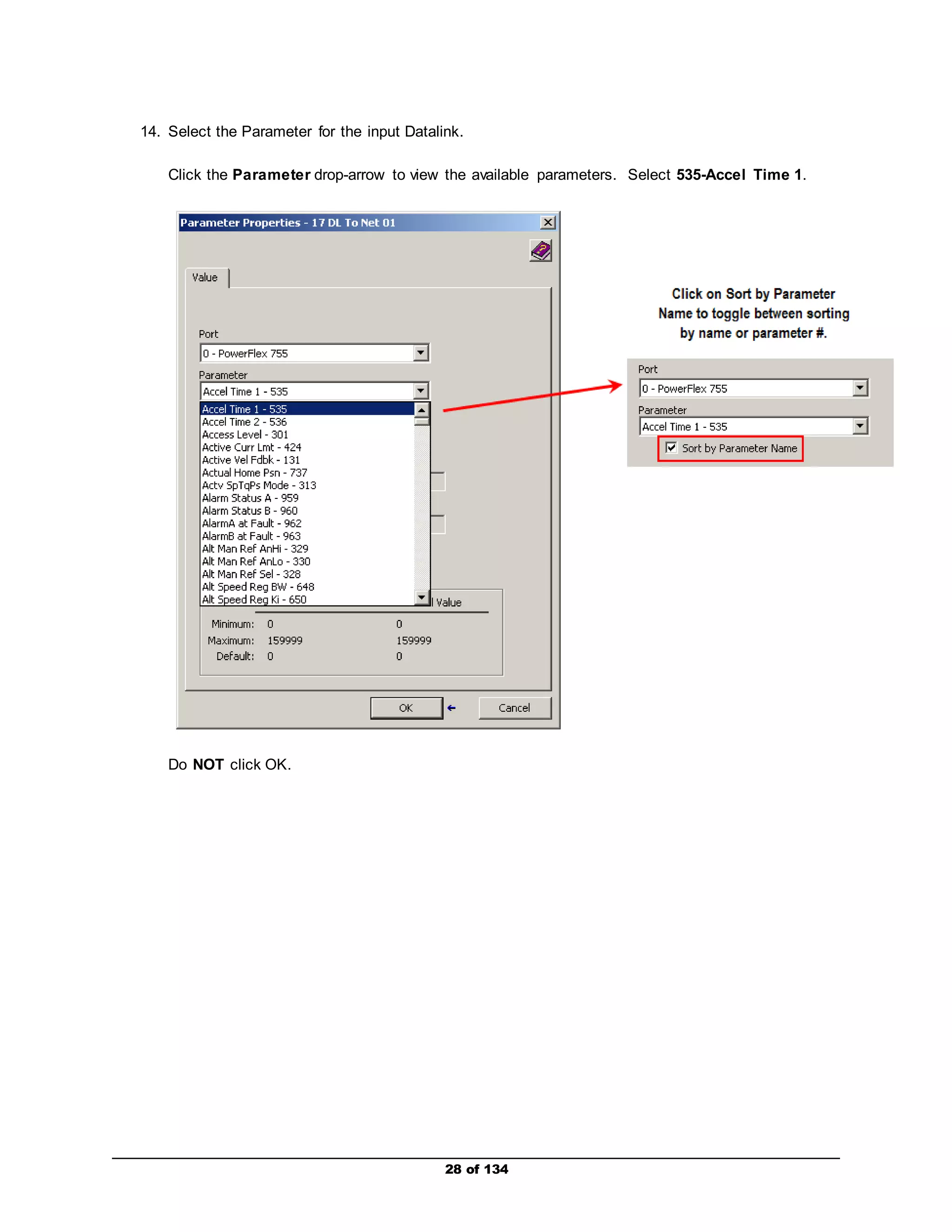
14. Select the Parameter for the input Datalink. 
Click the Parameter drop-arrow to view the available parameters. Select 535-Accel Time 1. 
28 of 134 
Do NOT click OK.
29 of 134 
15. Observe the configured input Datalink. 
You may now Click OK on the Parameter Properties window and return to module definition 
screen. 
Entering the input Datalink configuration automatically set the following parameter for the 
Embedded EtheNet/IP module (internal to drive): 
 Parameter 17 [DL To Net 01] – set to Port 0: Accel Time 1 
This highlights one of the benefits of the PowerFlex 755 Integrated Add-On Drive Profile: 
ease-of-use. In this example, by simply selecting the desired drive parameter eliminates 
the need for further configuration steps.
30 of 134 
16. Configure the remaining Datalinks. 
Repeat the previous steps for all of the remaining Datalinks, configure each in the order shown 
below. 
a. Input Data, Port: 0-PowerFlex 755, Parameter: Decel Time 1 – 537 
Entering the input Datalink configuration automatically set the following parameter for the 
Embedded EtheNet/IP module (internal to drive): 
 Parameter 18 [DL To Net 02] – set to Port 0: Decel Time 1
b. Input Data, Port: 0-PowerFlex 755, Parameter: Last Fault Code – 951 
Entering the input Datalink configuration automatically set the following parameter for the 
Embedded EtheNet/IP module (internal to drive): 
 Parameter 19 [DL To Net 03] – set to Port 0: Last Fault Code 
31 of 134
c. Input Data, Port: 0-PowerFlex 755, Parameter: DC Bus Volts – 11 
Entering the input Datalink configuration automatically set the following parameter for the 
Embedded EtheNet/IP module (internal to drive): 
 Parameter 20 [DL To Net 04] – set to Port 0: DC Bus Volts 
32 of 134
d. Input Data, Port: 0-PowerFlex 755, Parameter: Output Current – 7 
Entering the input Datalink configuration automatically set the following parameter for the 
Embedded EtheNet/IP module (internal to drive): 
 Parameter 21 [DL To Net 05] – set to Port 0: Output Current 
33 of 134
e. Output Data, Port: 0-PowerFlex 755, Parameter: Accel Time 1 – 535 
Entering the input Datalink configuration automatically set the following parameter for the 
Embedded EtheNet/IP module (internal to drive): 
 Parameter 1 [DL From Net 01] – set to Port 0: Accel Time 1 
34 of 134
f. Output Data, Port: 0-PowerFlex 755, Parameter: Decel Time 1 – 537 
Entering the input Datalink configuration automatically set the following parameter for the 
Embedded EtheNet/IP module (internal to drive): 
 Parameter 1 [DL From Net 02] – set to Port 0: Decel Time 1 
35 of 134
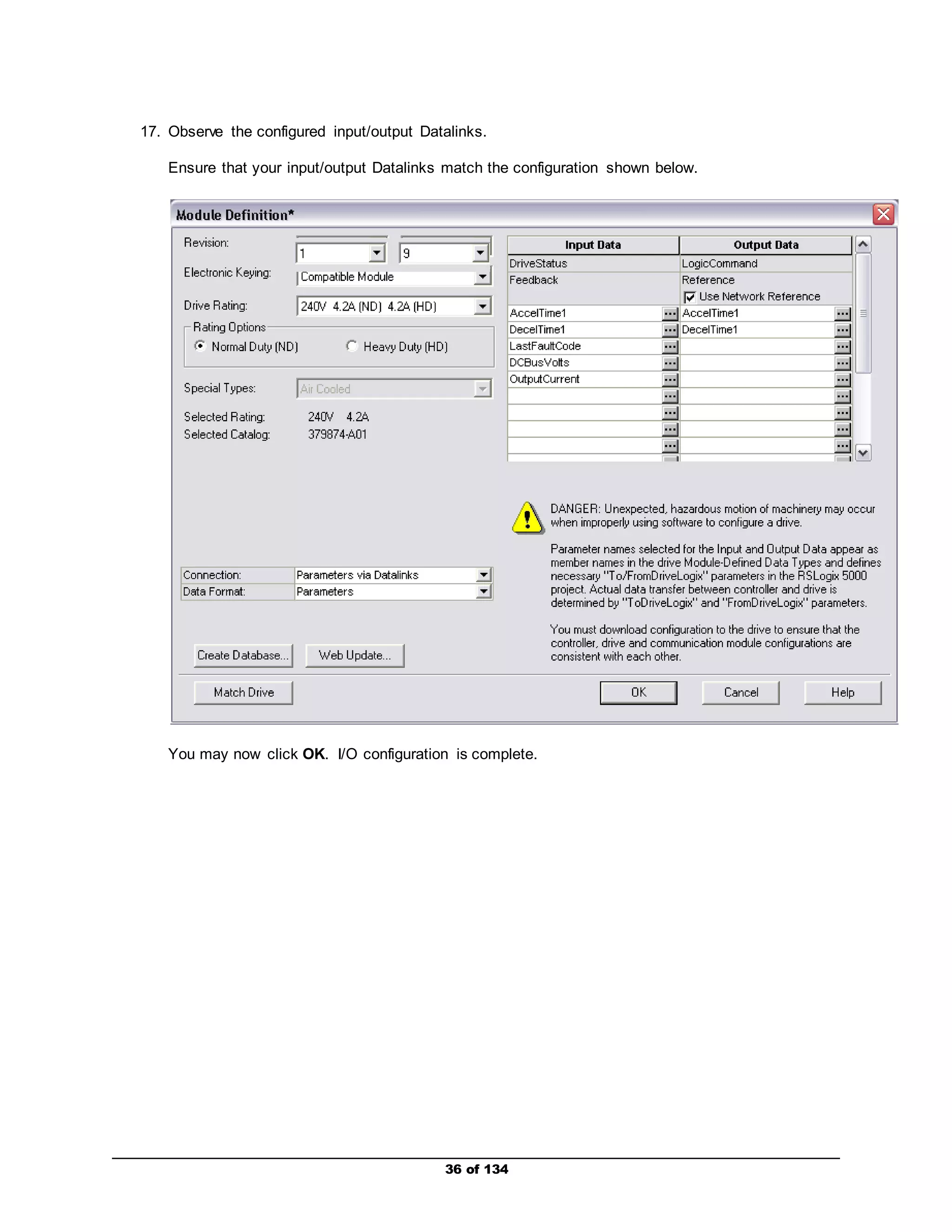
17. Observe the configured input/output Datalinks. 
Ensure that your input/output Datalinks match the configuration shown below. 
You may now click OK. I/O configuration is complete. 
36 of 134
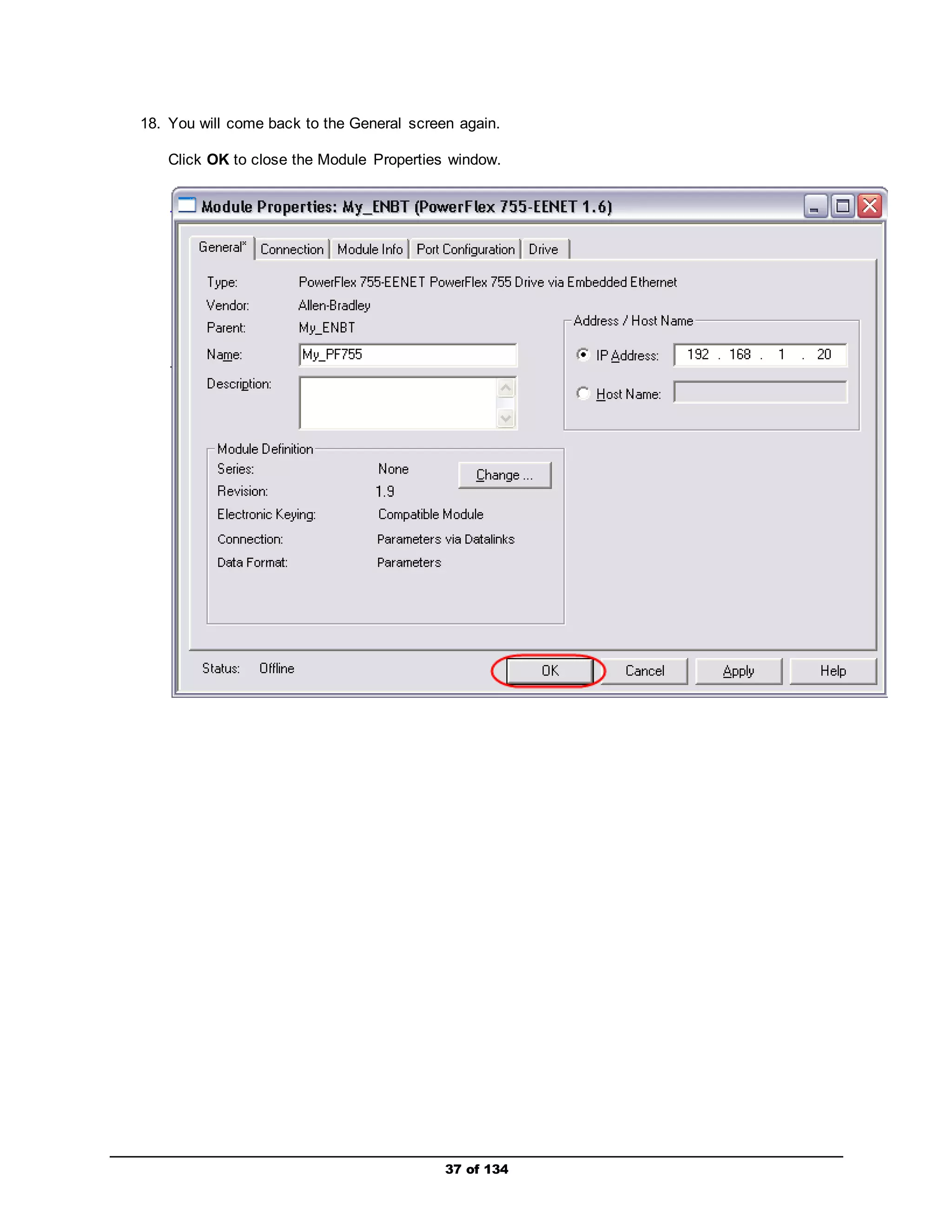
18. You will come back to the General screen again. 
Click OK to close the Module Properties window. 
37 of 134
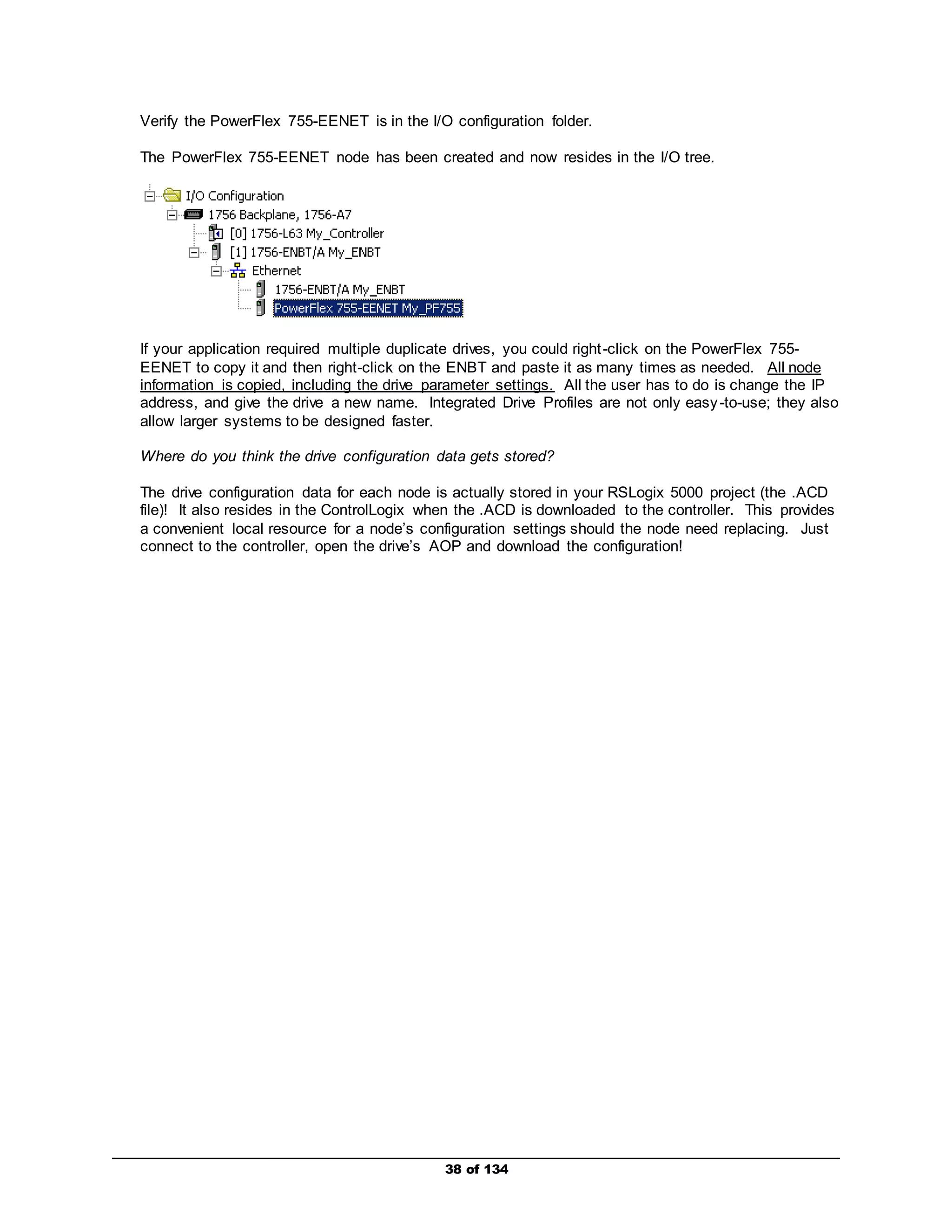
Verify the PowerFlex 755-EENET is in the I/O configuration folder. 
The PowerFlex 755-EENET node has been created and now resides in the I/O tree. 
If your application required multiple duplicate drives, you could right -click on the PowerFlex 755- 
EENET to copy it and then right-click on the ENBT and paste it as many times as needed. All node 
information is copied, including the drive parameter settings. All the user has to do is change the IP 
address, and give the drive a new name. Integrated Drive Profiles are not only easy -to-use; they also 
allow larger systems to be designed faster. 
Where do you think the drive configuration data gets stored? 
The drive configuration data for each node is actually stored in your RSLogix 5000 project (the .ACD 
file)! It also resides in the ControlLogix when the .ACD is downloaded to the controller. This provides 
a convenient local resource for a node’s configuration settings should the node need replacing. Just 
connect to the controller, open the drive’s AOP and download the configuration! 
38 of 134
39 of 134 
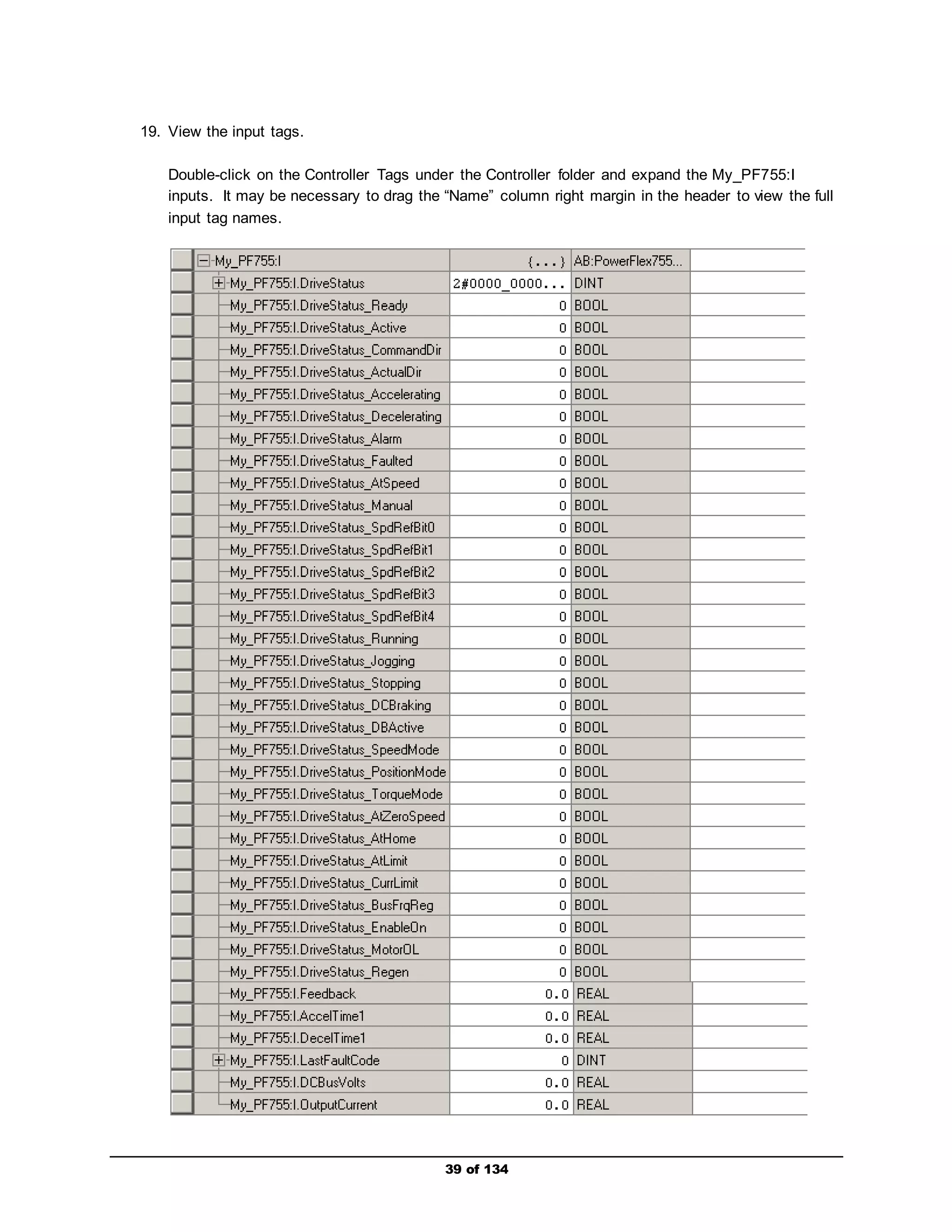
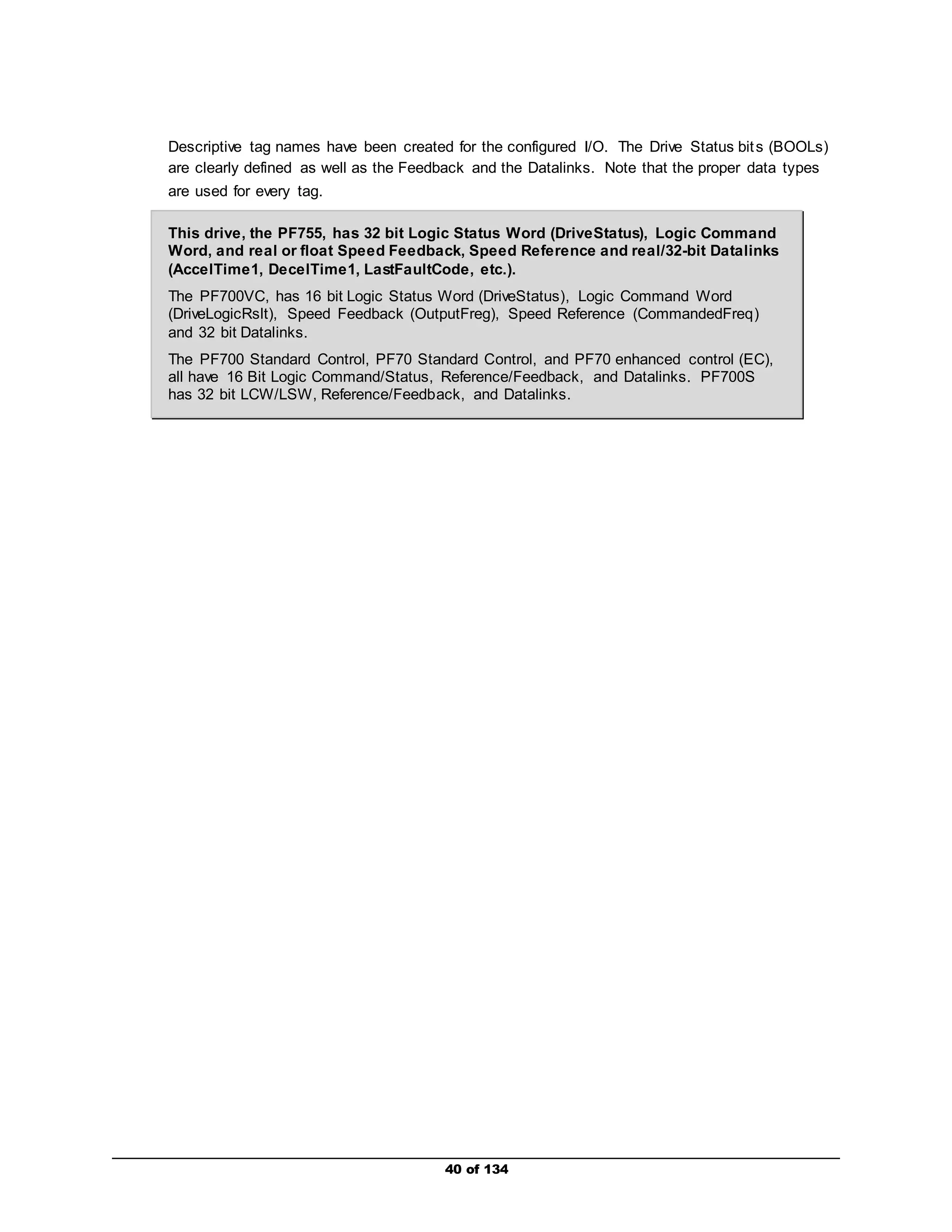
19. View the input tags. 
Double-click on the Controller Tags under the Controller folder and expand the My_PF755:I 
inputs. It may be necessary to drag the “Name” column right margin in the header to view the full 
input tag names.
Descriptive tag names have been created for the configured I/O. The Drive Status bits (BOOLs) 
are clearly defined as well as the Feedback and the Datalinks. Note that the proper data types 
are used for every tag. 
This drive, the PF755, has 32 bit Logic Status Word (DriveStatus), Logic Command 
Word, and real or float Speed Feedback, Speed Reference and real/32-bit Datalinks 
(AccelTime1, DecelTime1, LastFaultCode, etc.). 
The PF700VC, has 16 bit Logic Status Word (DriveStatus), Logic Command Word 
(DriveLogicRslt), Speed Feedback (OutputFreg), Speed Reference (CommandedFreq) 
and 32 bit Datalinks. 
The PF700 Standard Control, PF70 Standard Control, and PF70 enhanced control (EC), 
all have 16 Bit Logic Command/Status, Reference/Feedback, and Datalinks. PF700S 
has 32 bit LCW/LSW, Reference/Feedback, and Datalinks. 
40 of 134
41 of 134 
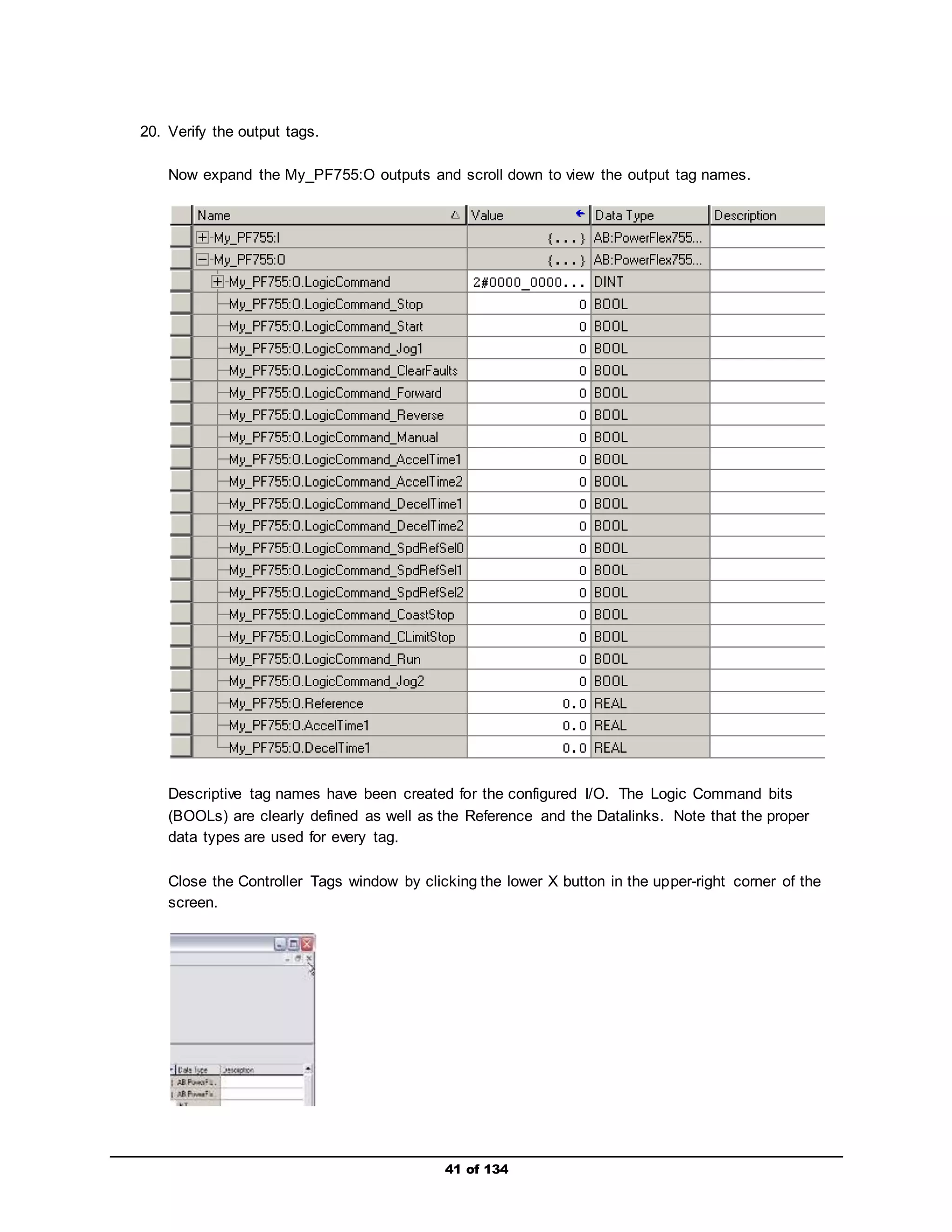
20. Verify the output tags. 
Now expand the My_PF755:O outputs and scroll down to view the output tag names. 
Descriptive tag names have been created for the configured I/O. The Logic Command bits 
(BOOLs) are clearly defined as well as the Reference and the Datalinks. Note that the proper 
data types are used for every tag. 
Close the Controller Tags window by clicking the lower X button in the upper-right corner of the 
screen.
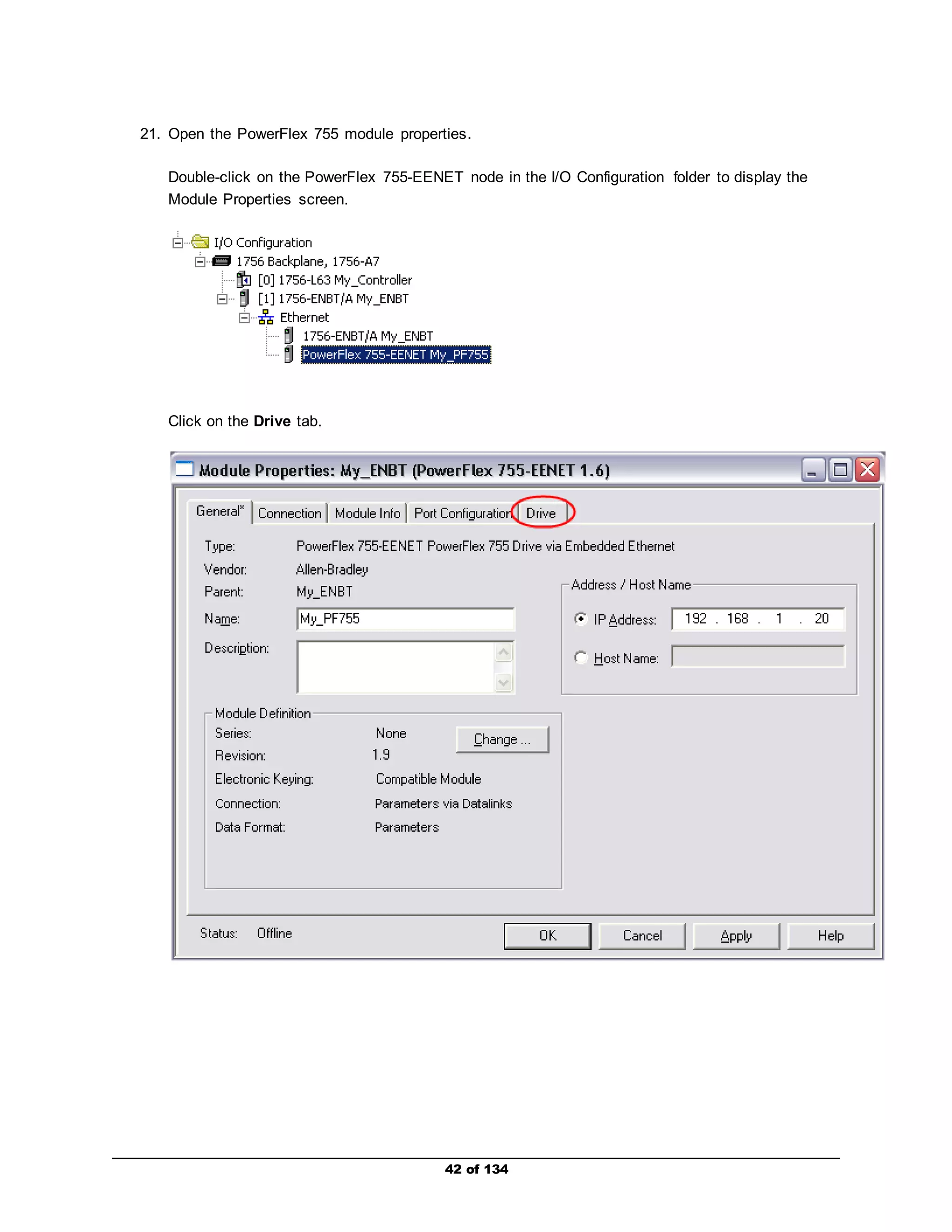
21. Open the PowerFlex 755 module properties. 
Double-click on the PowerFlex 755-EENET node in the I/O Configuration folder to display the 
Module Properties screen. 
42 of 134 
Click on the Drive tab.
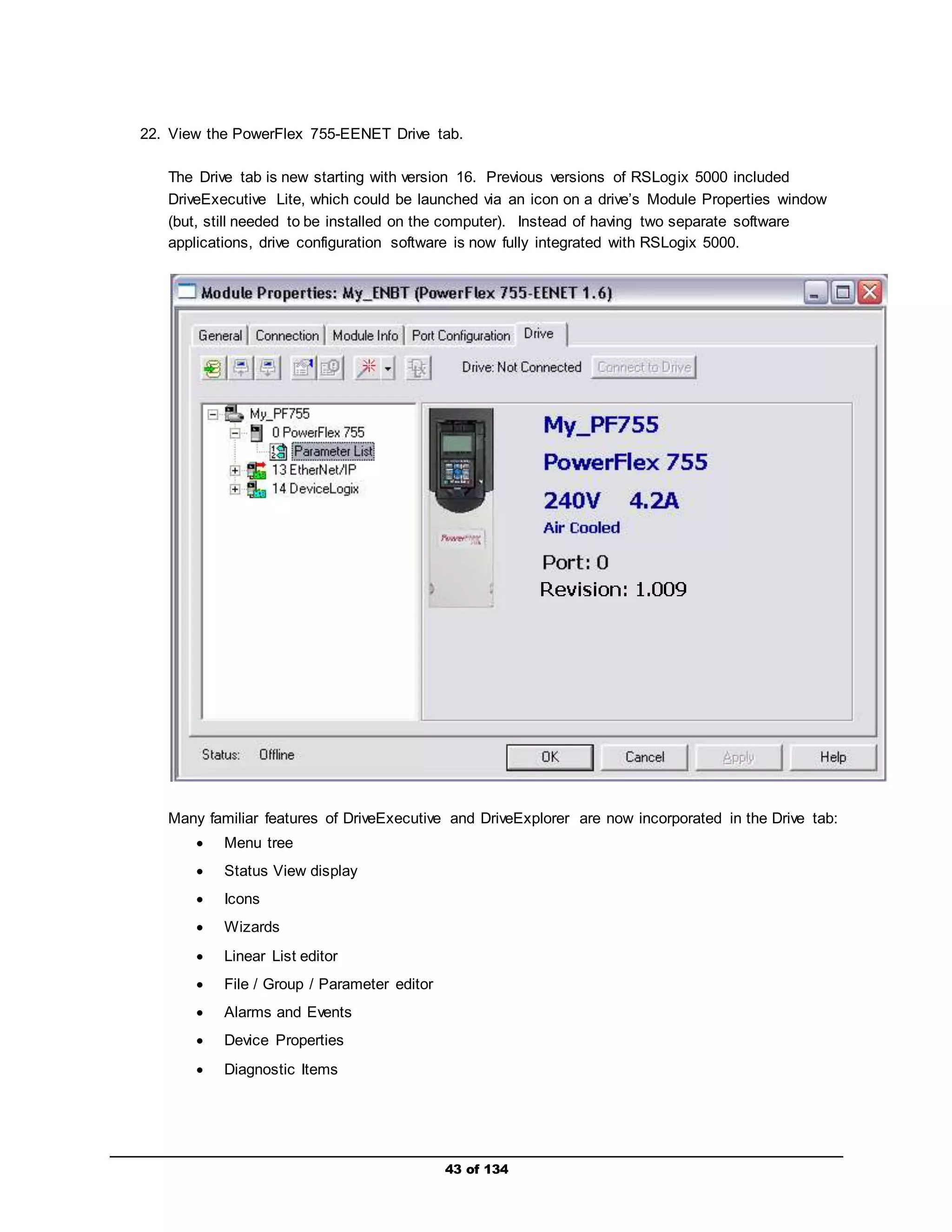
22. View the PowerFlex 755-EENET Drive tab. 
The Drive tab is new starting with version 16. Previous versions of RSLogix 5000 included 
DriveExecutive Lite, which could be launched via an icon on a drive’s Module Properties window 
(but, still needed to be installed on the computer). Instead of having two separate software 
applications, drive configuration software is now fully integrated with RSLogix 5000. 
Many familiar features of DriveExecutive and DriveExplorer are now incorporated in the Drive tab: 
43 of 134 
 Menu tree 
 Status View display 
 Icons 
 Wizards 
 Linear List editor 
 File / Group / Parameter editor 
 Alarms and Events 
 Device Properties 
 Diagnostic Items
The Drive tab also has import / export capability so DriveExecutive can continue to be used by 
maintenance or other personnel that may not have the authorization to use RSLogix 5000. 
Please note the addition of the (Create new database files from online drives) and 
(Open DeviceLogix) buttons, both of which are unique to the PowerFlex 755 drive. The function 
of the buttons will NOT be explored in this lab. 
44 of 134
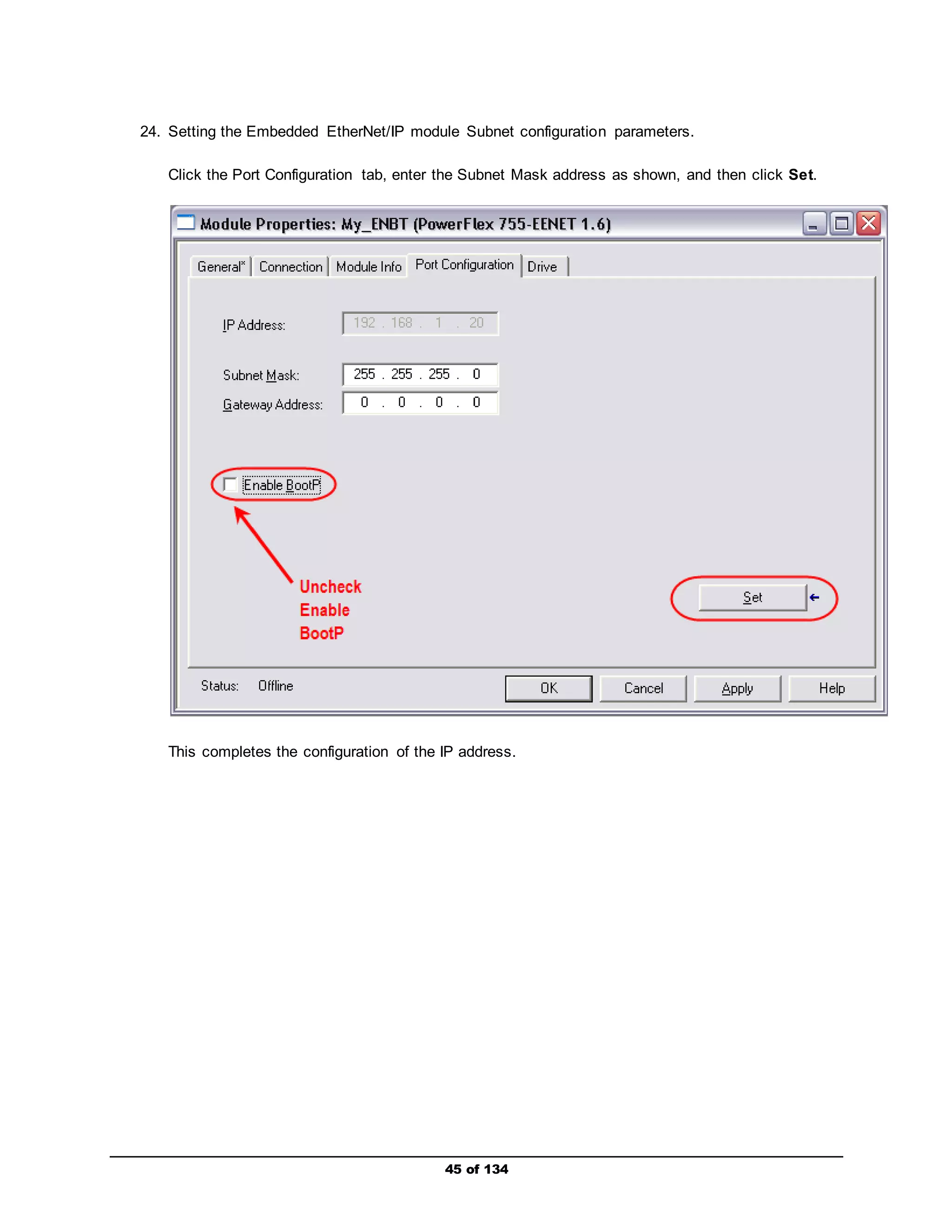
24. Setting the Embedded EtherNet/IP module Subnet configuration parameters. 
Click the Port Configuration tab, enter the Subnet Mask address as shown, and then click Set. 
This completes the configuration of the IP address. 
45 of 134
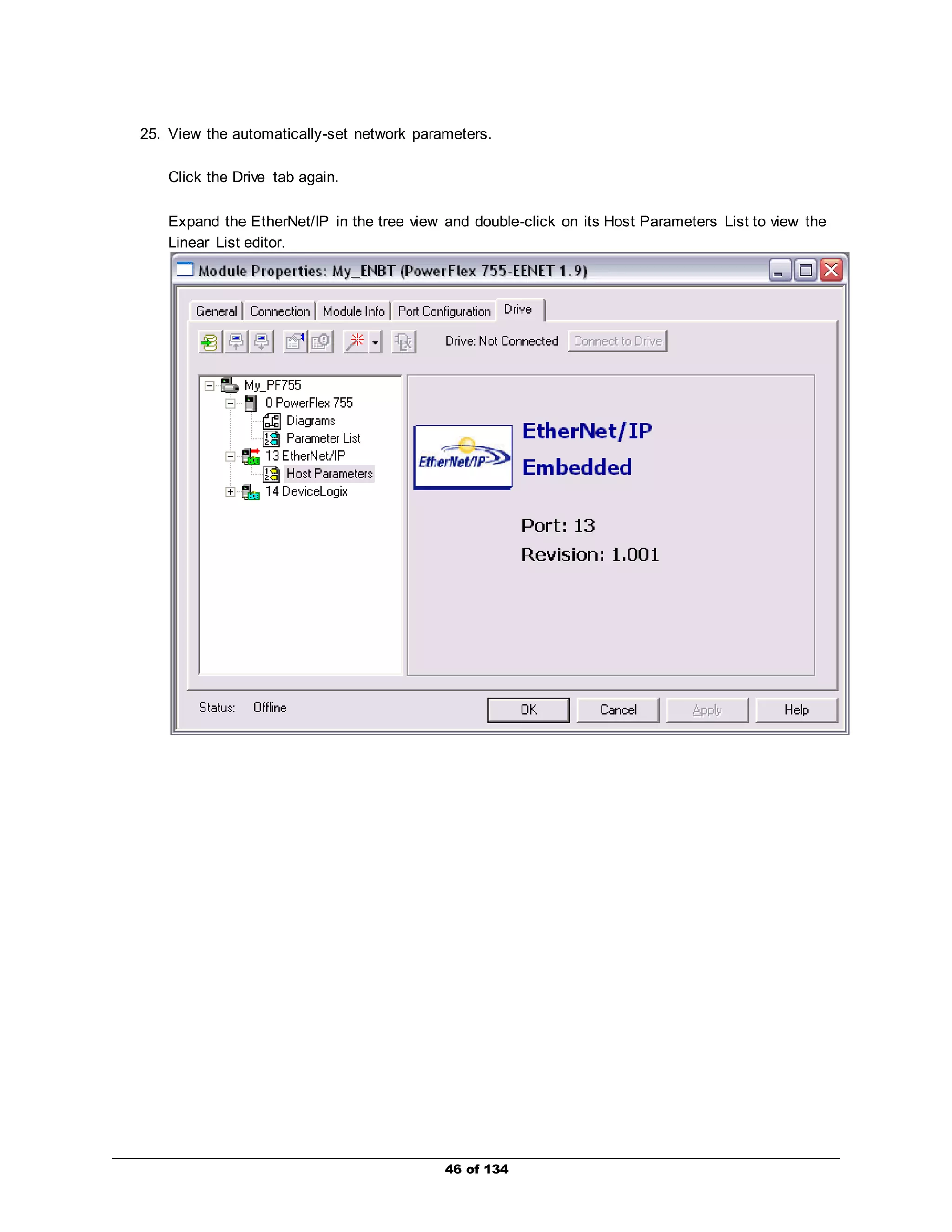
25. View the automatically-set network parameters. 
46 of 134 
Click the Drive tab again. 
Expand the EtherNet/IP in the tree view and double-click on its Host Parameters List to view the 
Linear List editor.
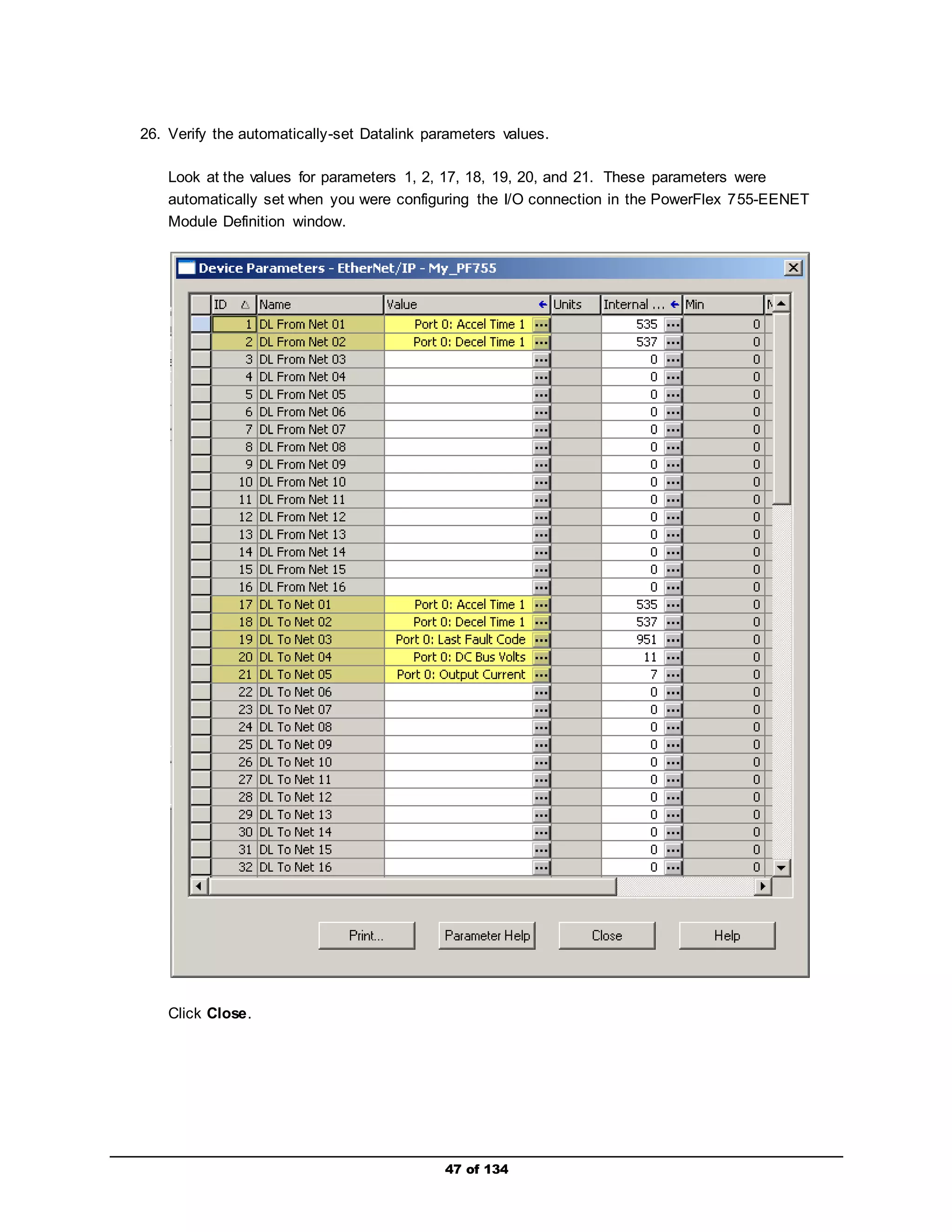
26. Verify the automatically-set Datalink parameters values. 
Look at the values for parameters 1, 2, 17, 18, 19, 20, and 21. These parameters were 
automatically set when you were configuring the I/O connection in the PowerFlex 755-EENET 
Module Definition window. 
47 of 134 
Click Close.
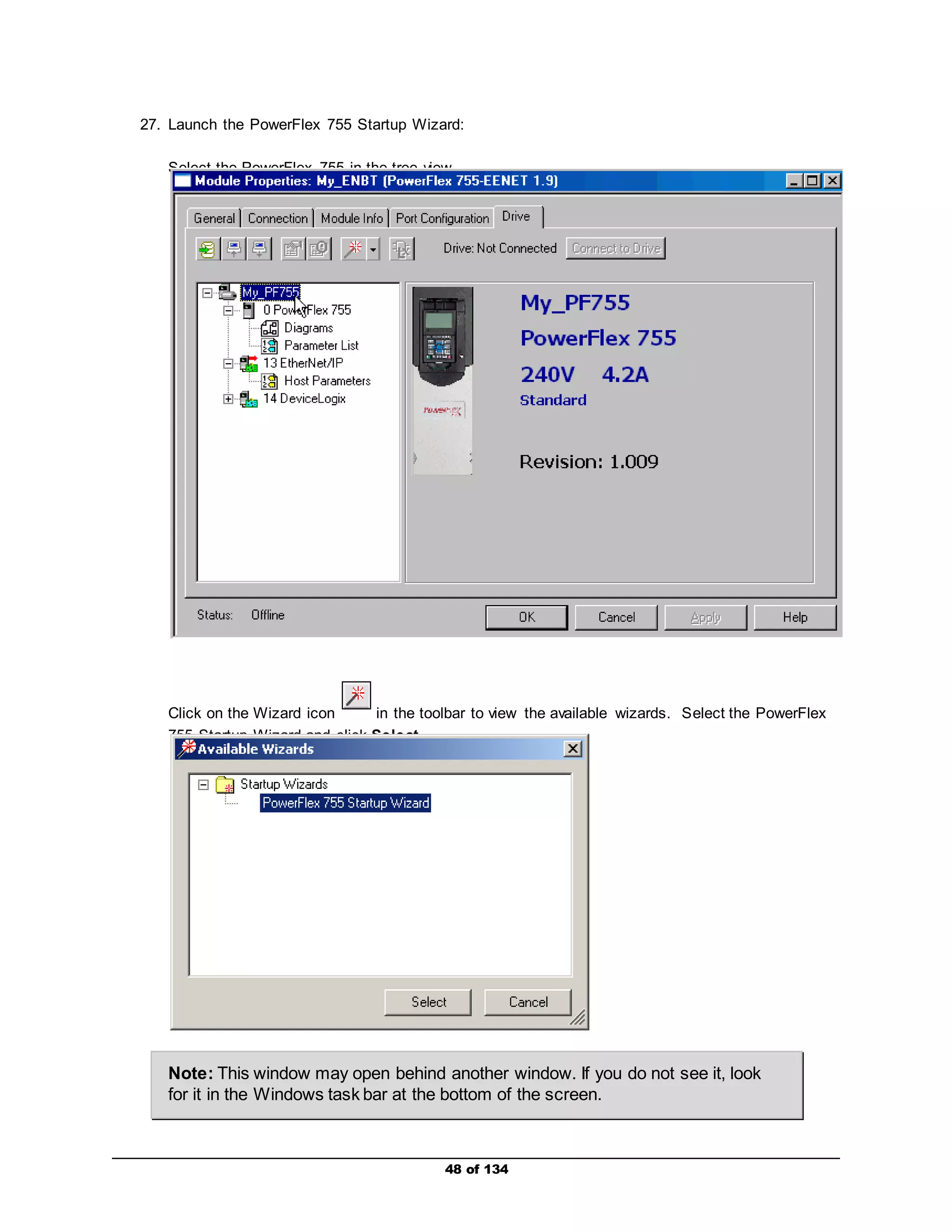
27. Launch the PowerFlex 755 Startup Wizard: 
Select the PowerFlex 755 in the tree view. 
Click on the Wizard icon in the toolbar to view the available wizards. Select the PowerFlex 
755 Startup Wizard and click Select. 
Note: This window may open behind another window. If you do not see it, look 
for it in the Windows task bar at the bottom of the screen. 
48 of 134
49 of 134 
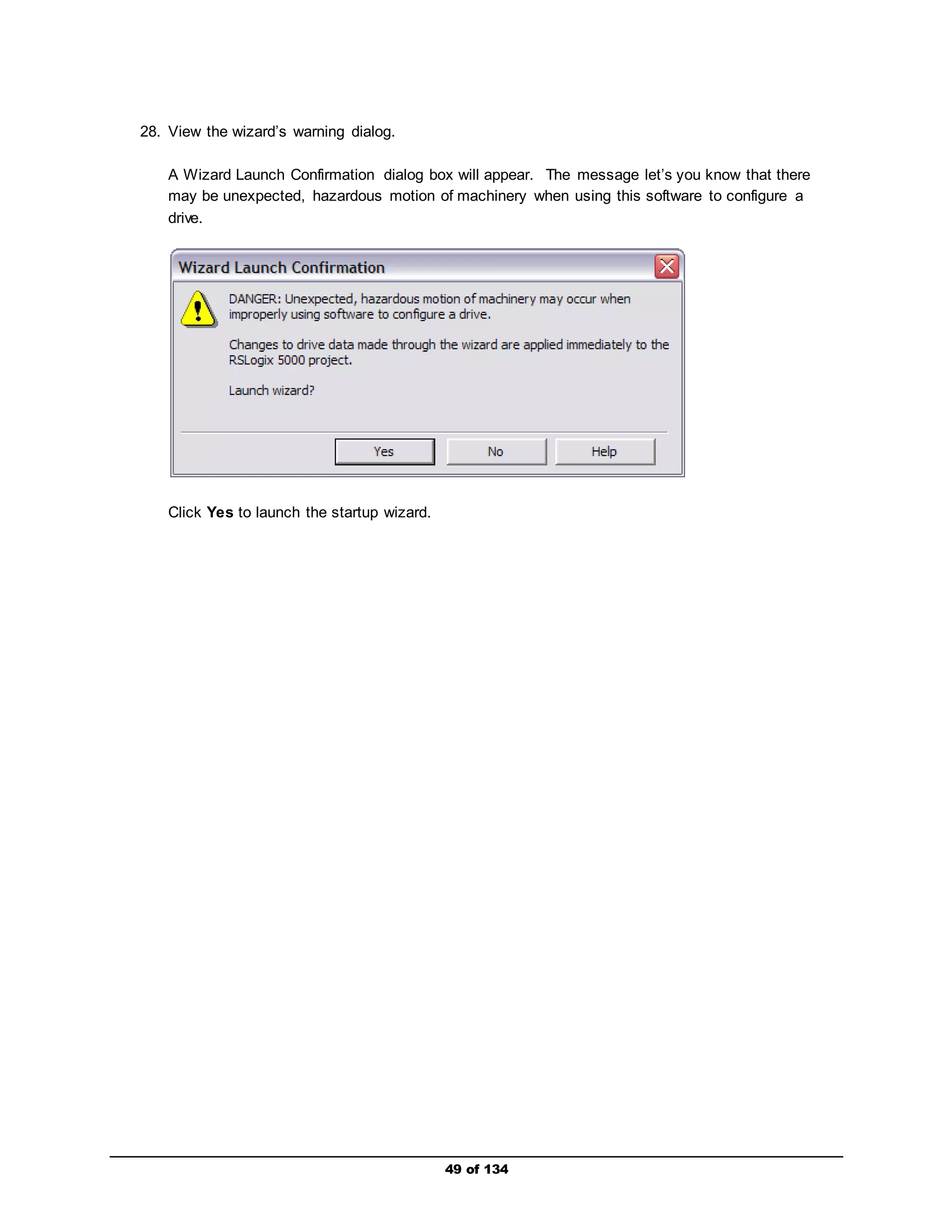
28. View the wizard’s warning dialog. 
A Wizard Launch Confirmation dialog box will appear. The message let’s you know that there 
may be unexpected, hazardous motion of machinery when using this software to configure a 
drive. 
Click Yes to launch the startup wizard.
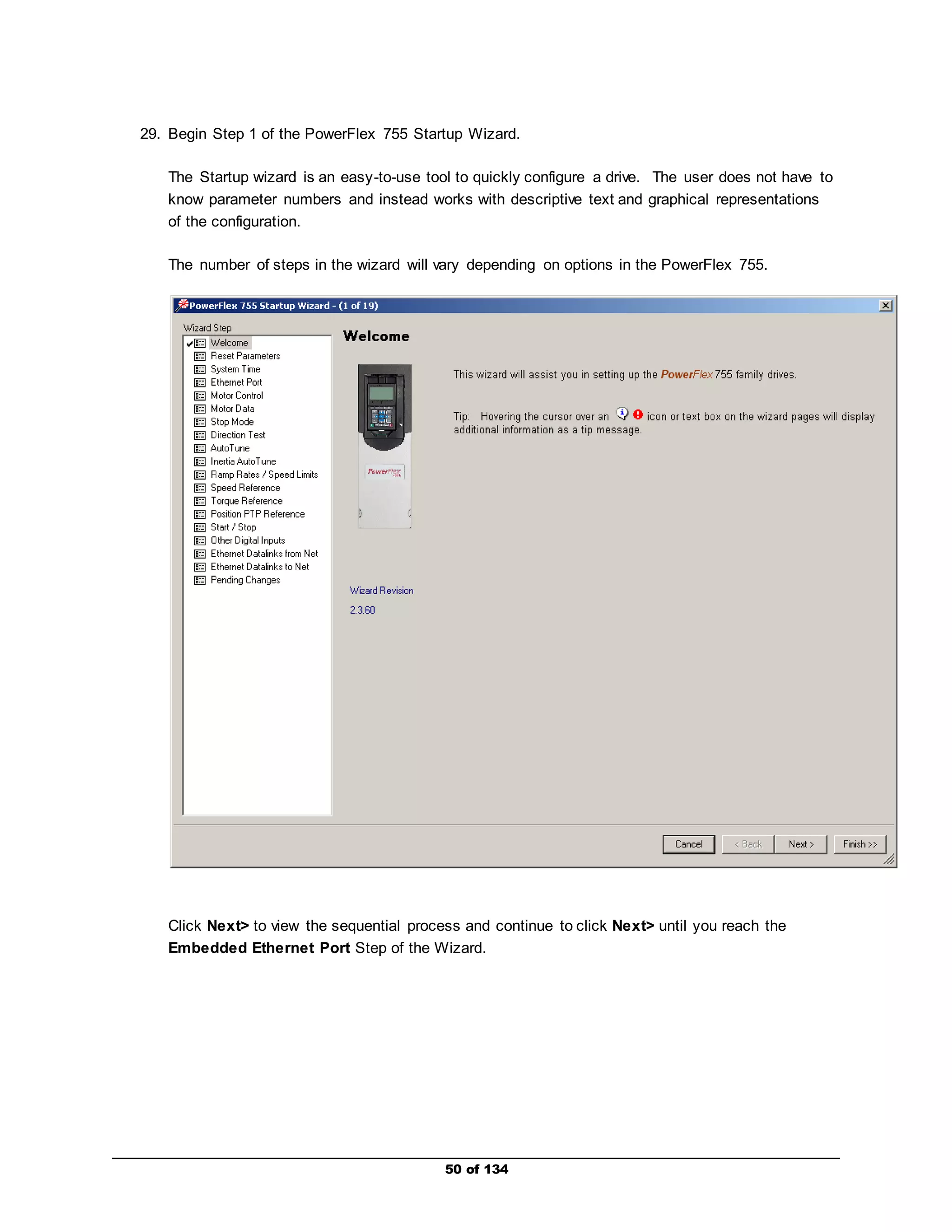
29. Begin Step 1 of the PowerFlex 755 Startup Wizard. 
The Startup wizard is an easy-to-use tool to quickly configure a drive. The user does not have to 
know parameter numbers and instead works with descriptive text and graphical representations 
of the configuration. 
The number of steps in the wizard will vary depending on options in the PowerFlex 755. 
Click Next> to view the sequential process and continue to click Next> until you reach the 
Embedded Ethernet Port Step of the Wizard. 
50 of 134
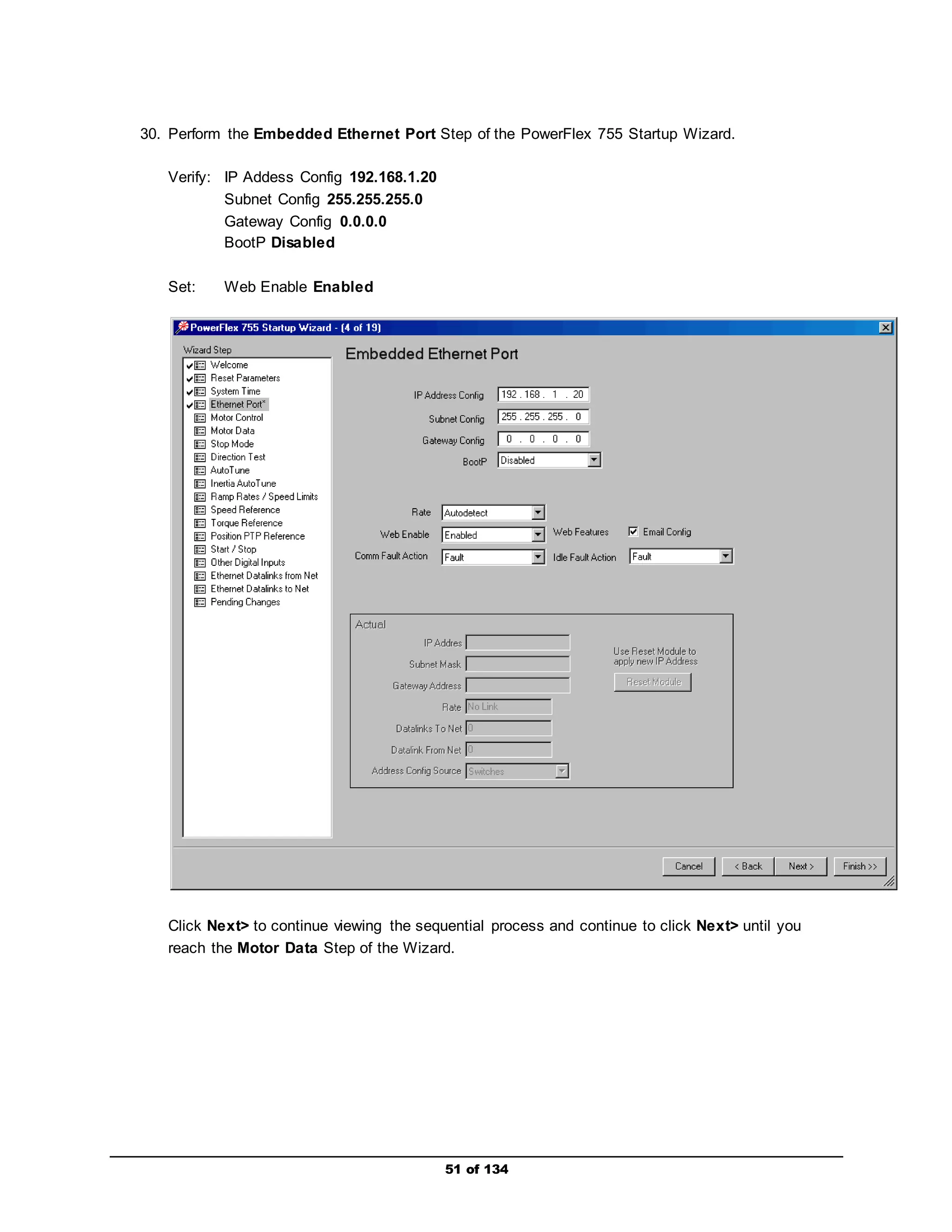
30. Perform the Embedded Ethernet Port Step of the PowerFlex 755 Startup Wizard. 
51 of 134 
Verify: IP Addess Config 192.168.1.20 
Subnet Config 255.255.255.0 
Gateway Config 0.0.0.0 
BootP Disabled 
Set: Web Enable Enabled 
Click Next> to continue viewing the sequential process and continue to click Next> until you 
reach the Motor Data Step of the Wizard.
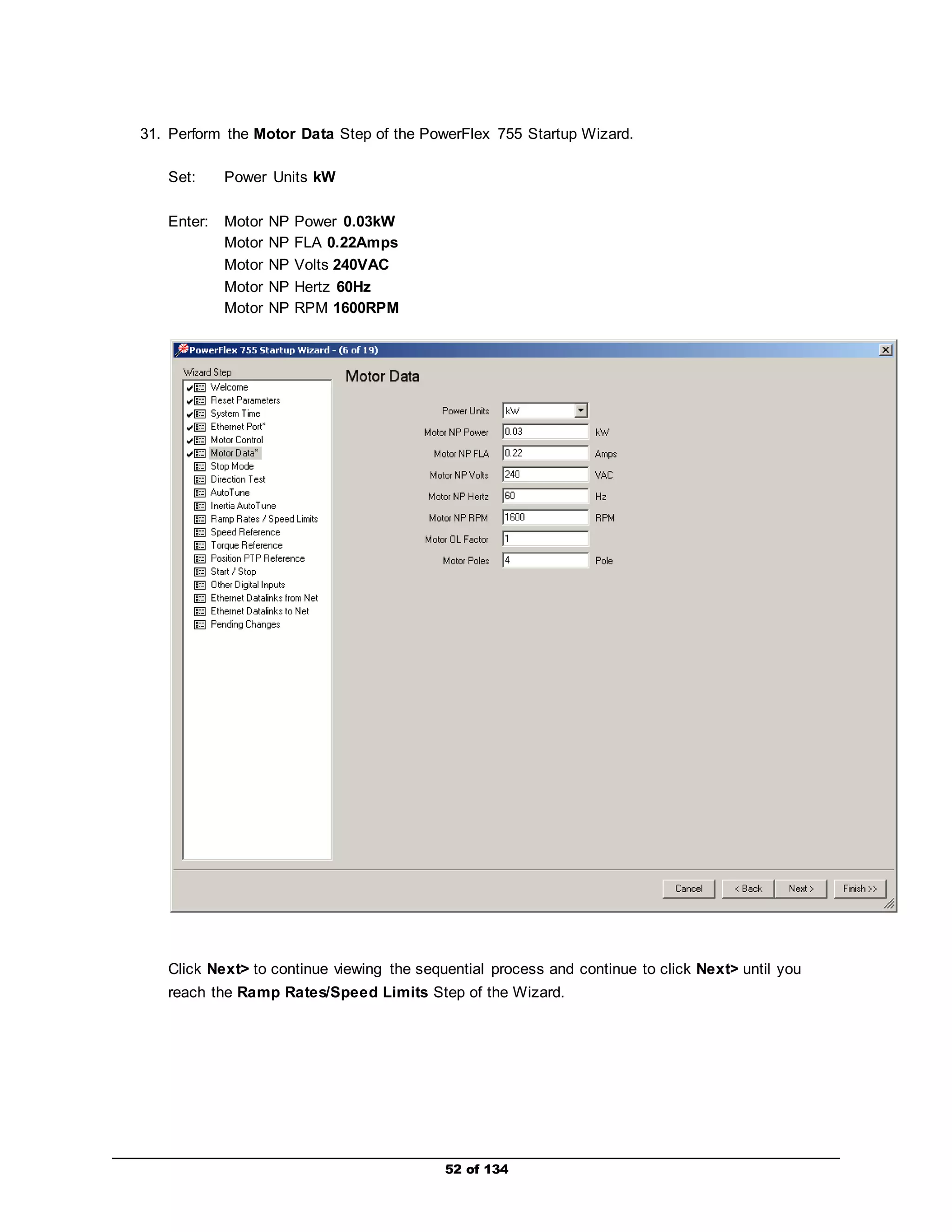
31. Perform the Motor Data Step of the PowerFlex 755 Startup Wizard. 
52 of 134 
Set: Power Units kW 
Enter: Motor NP Power 0.03kW 
Motor NP FLA 0.22Amps 
Motor NP Volts 240VAC 
Motor NP Hertz 60Hz 
Motor NP RPM 1600RPM 
Click Next> to continue viewing the sequential process and continue to click Next> until you 
reach the Ramp Rates/Speed Limits Step of the Wizard.
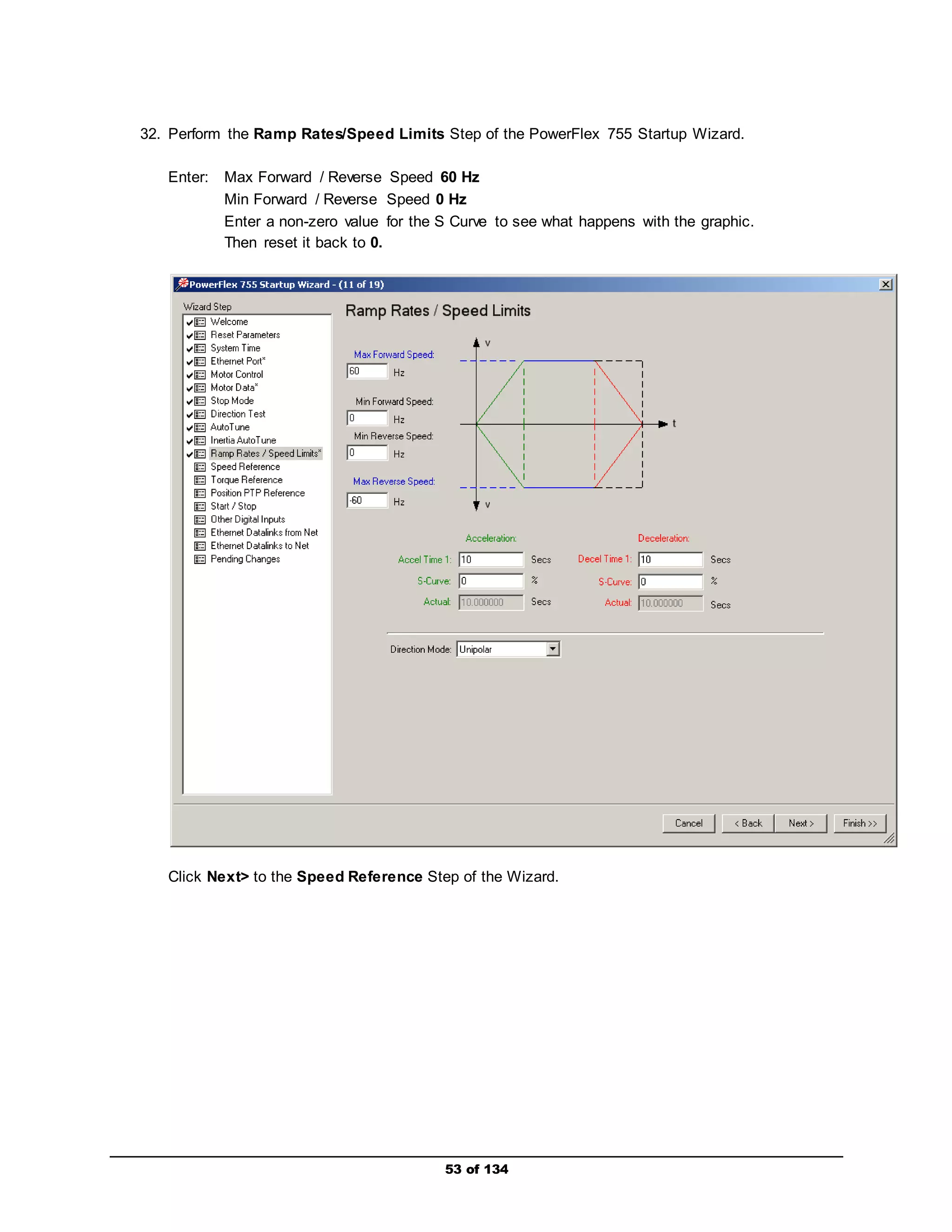
32. Perform the Ramp Rates/Speed Limits Step of the PowerFlex 755 Startup Wizard. 
Enter: Max Forward / Reverse Speed 60 Hz 
Min Forward / Reverse Speed 0 Hz 
Enter a non-zero value for the S Curve to see what happens with the graphic. 
Then reset it back to 0. 
Click Next> to the Speed Reference Step of the Wizard. 
53 of 134
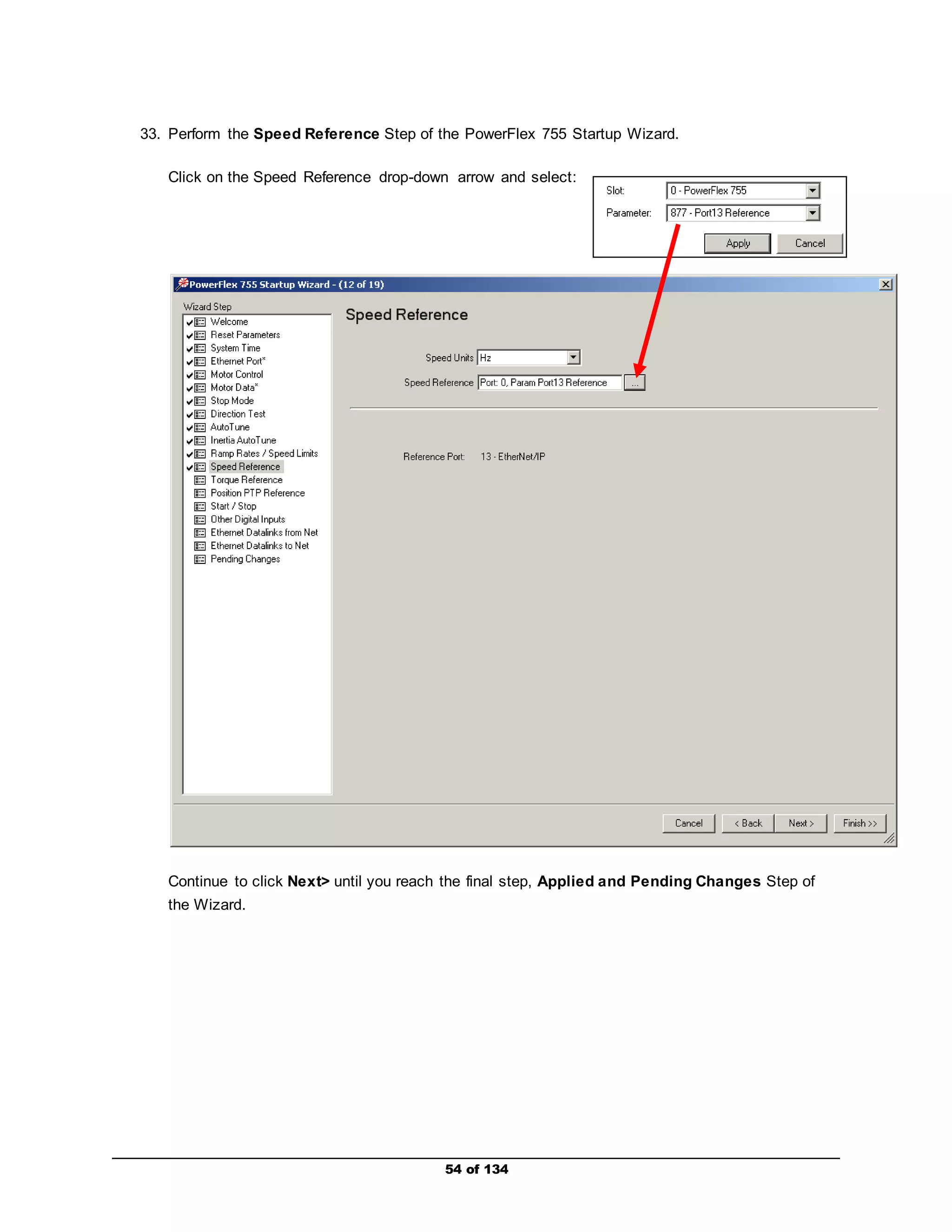
33. Perform the Speed Reference Step of the PowerFlex 755 Startup Wizard. 
Click on the Speed Reference drop-down arrow and select: 
Continue to click Next> until you reach the final step, Applied and Pending Changes Step of 
the Wizard. 
54 of 134
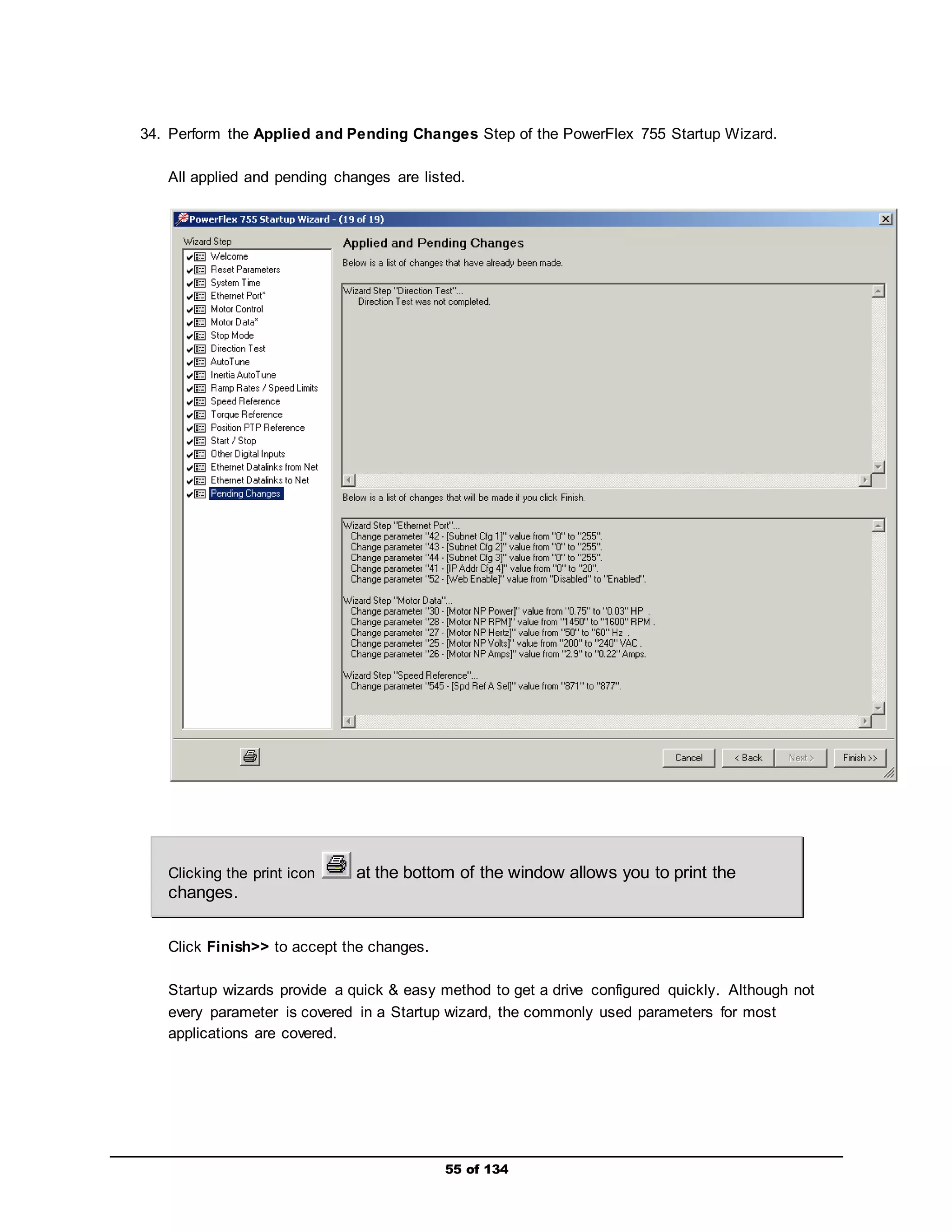
34. Perform the Applied and Pending Changes Step of the PowerFlex 755 Startup Wizard. 
All applied and pending changes are listed. 
Clicking the print icon at the bottom of the window allows you to print the 
changes. 
55 of 134 
Click Finish>> to accept the changes. 
Startup wizards provide a quick & easy method to get a drive configured quickly. Although not 
every parameter is covered in a Startup wizard, the commonly used parameters for most 
applications are covered.
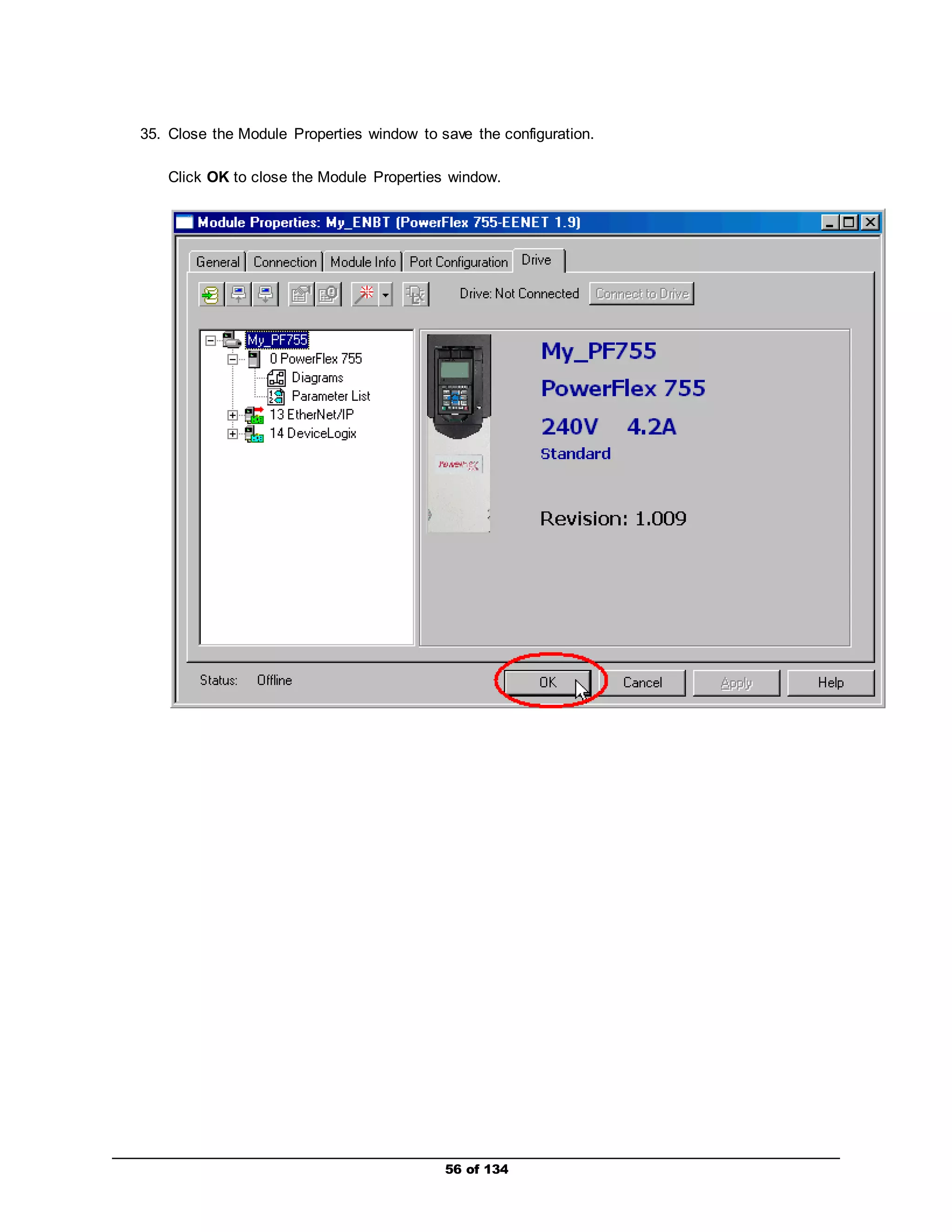
35. Close the Module Properties window to save the configuration. 
Click OK to close the Module Properties window. 
56 of 134
57 of 134 
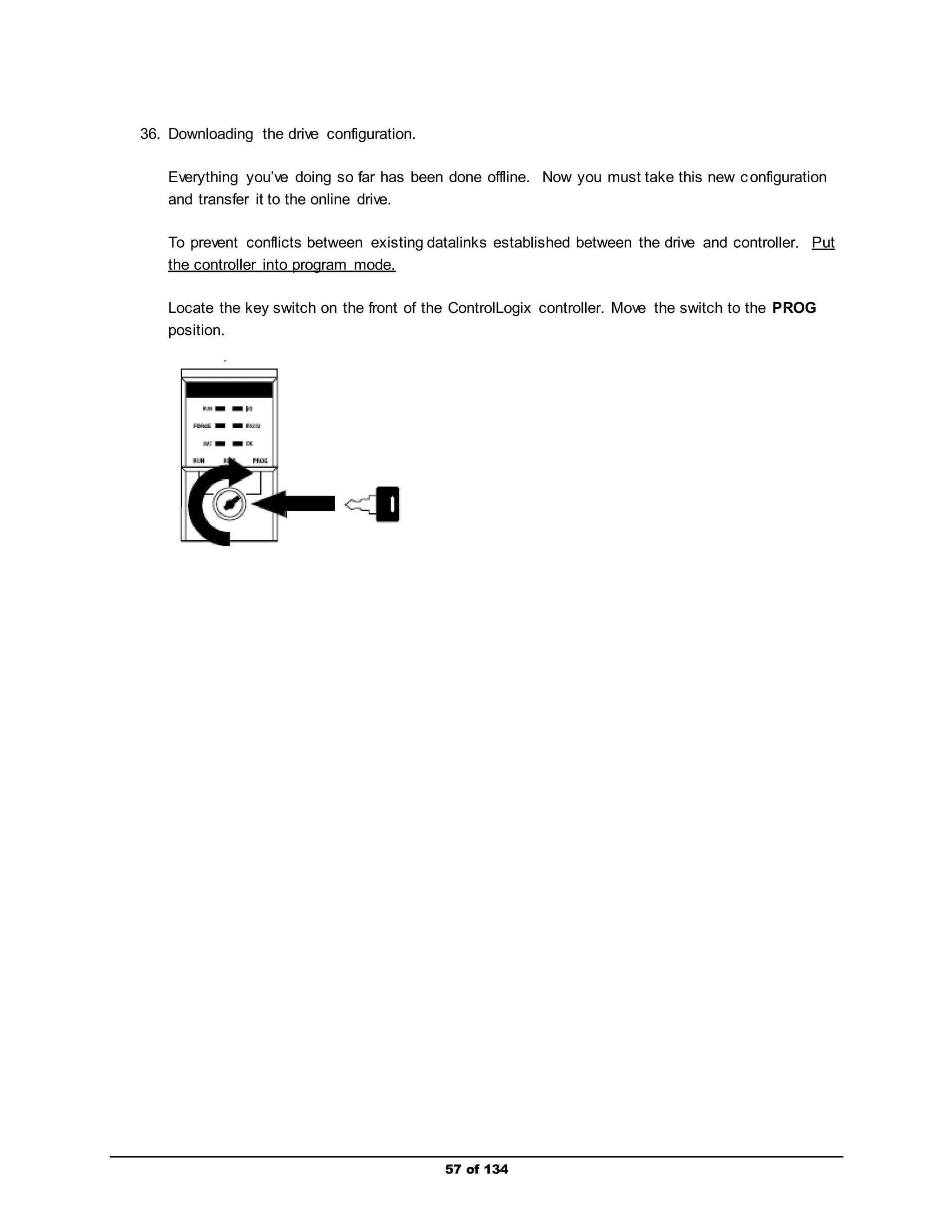
36. Downloading the drive configuration. 
Everything you’ve doing so far has been done offline. Now you must take this new configuration 
and transfer it to the online drive. 
To prevent conflicts between existing datalinks established between the drive and controller. Put 
the controller into program mode. 
Locate the key switch on the front of the ControlLogix controller. Move the switch to the PROG 
position.
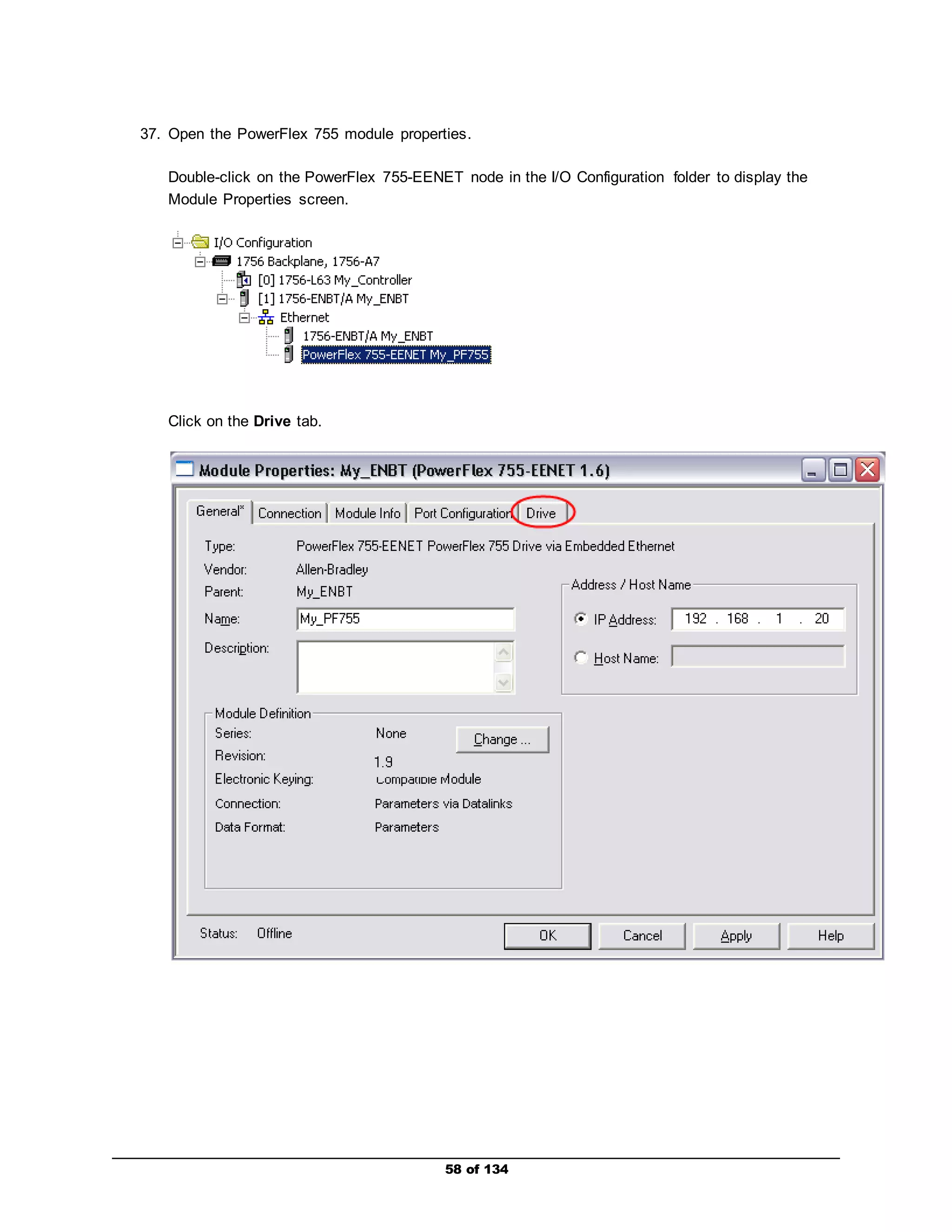
37. Open the PowerFlex 755 module properties. 
Double-click on the PowerFlex 755-EENET node in the I/O Configuration folder to display the 
Module Properties screen. 
58 of 134 
Click on the Drive tab.
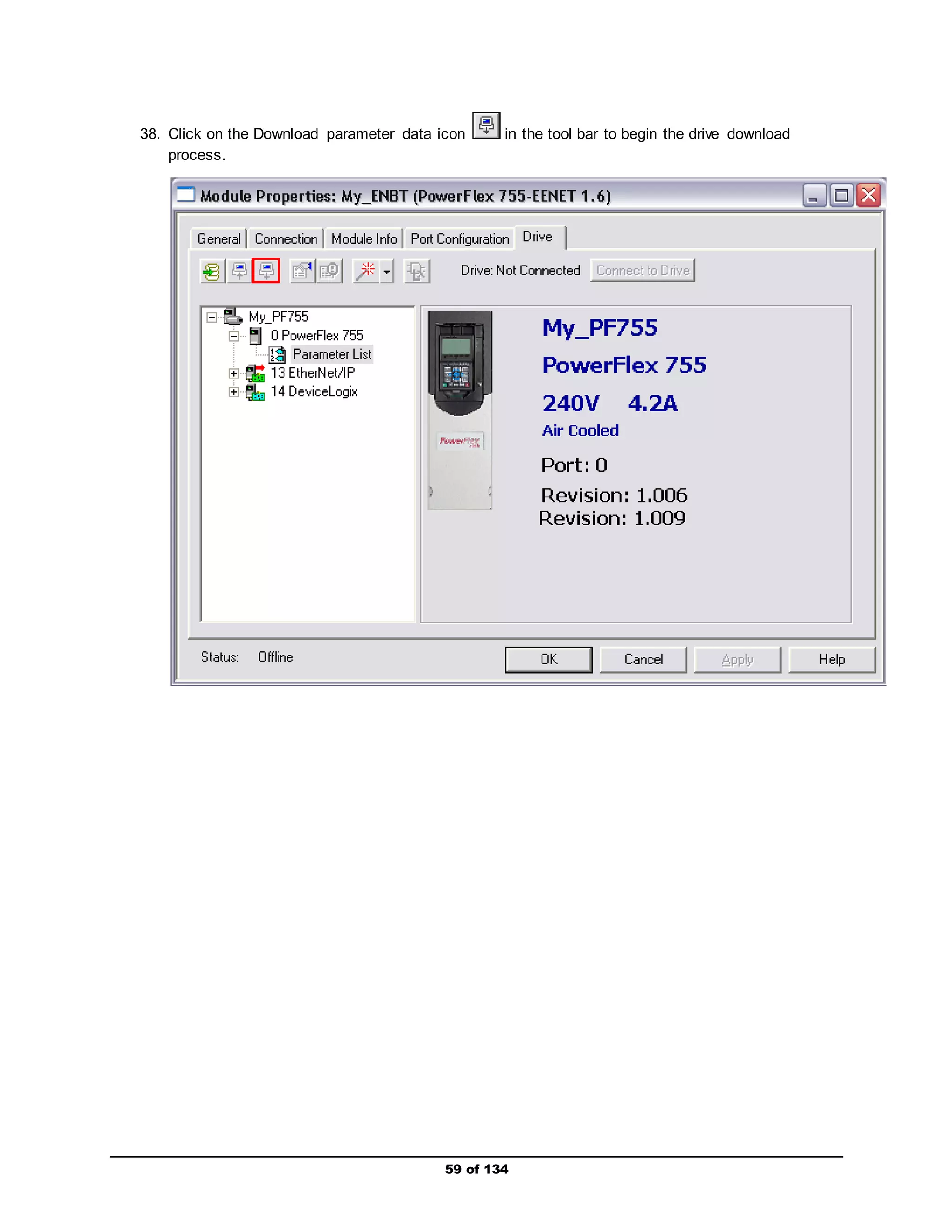
38. Click on the Download parameter data icon in the tool bar to begin the drive download 
59 of 134 
process.
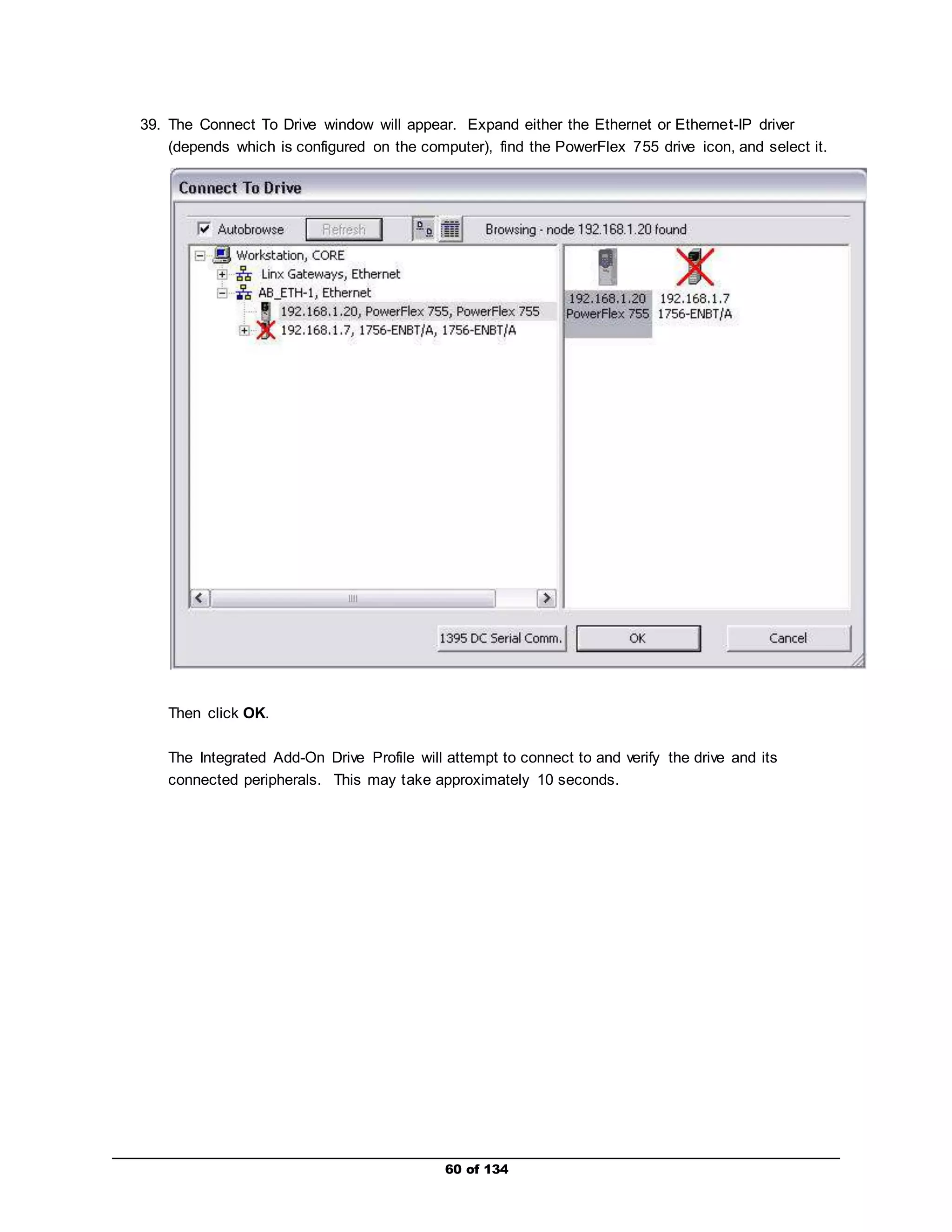
39. The Connect To Drive window will appear. Expand either the Ethernet or Ethernet-IP driver 
(depends which is configured on the computer), find the PowerFlex 755 drive icon, and select it. 
60 of 134 
Then click OK. 
The Integrated Add-On Drive Profile will attempt to connect to and verify the drive and its 
connected peripherals. This may take approximately 10 seconds.
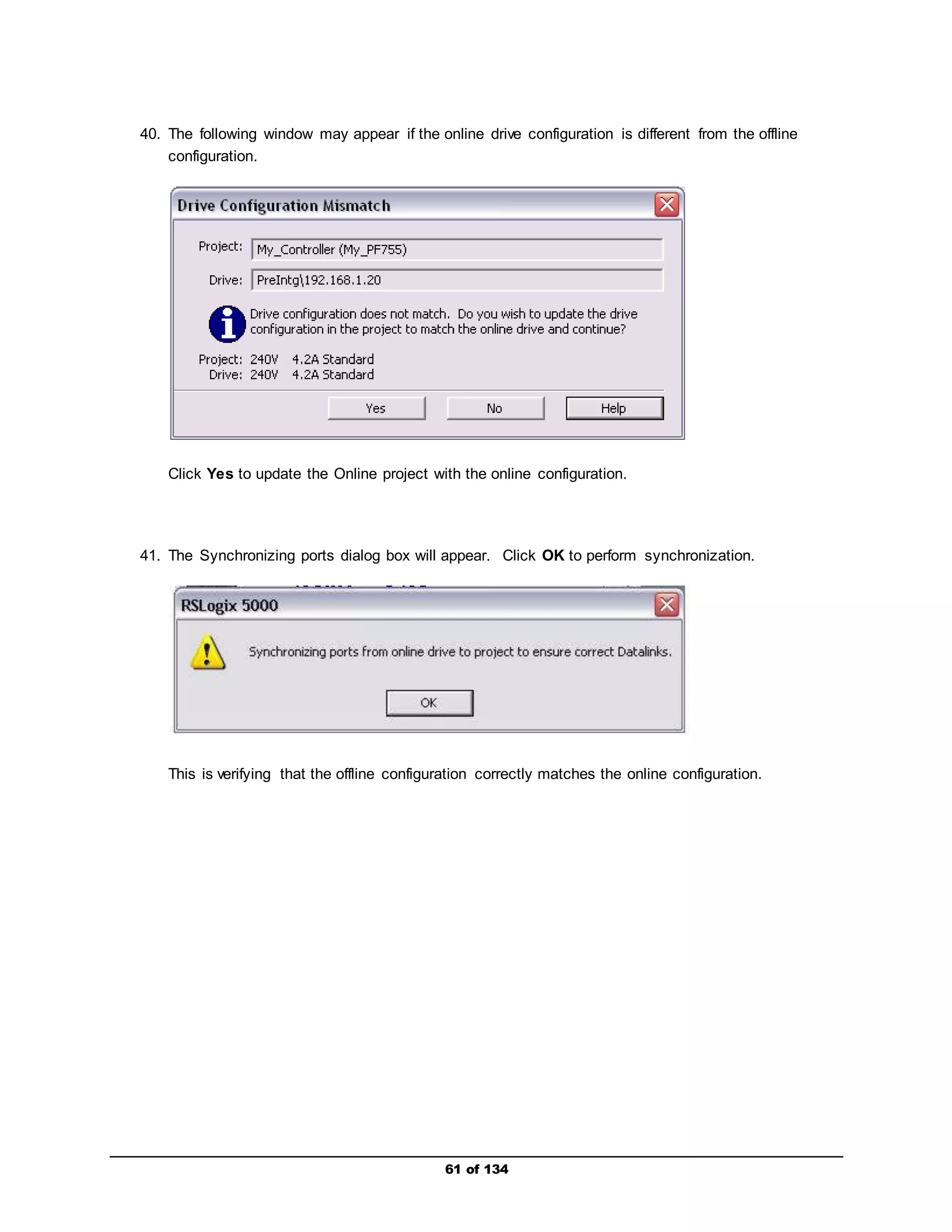
40. The following window may appear if the online drive configuration is different from the offline 
61 of 134 
configuration. 
Click Yes to update the Online project with the online configuration. 
41. The Synchronizing ports dialog box will appear. Click OK to perform synchronization. 
This is verifying that the offline configuration correctly matches the online configuration.
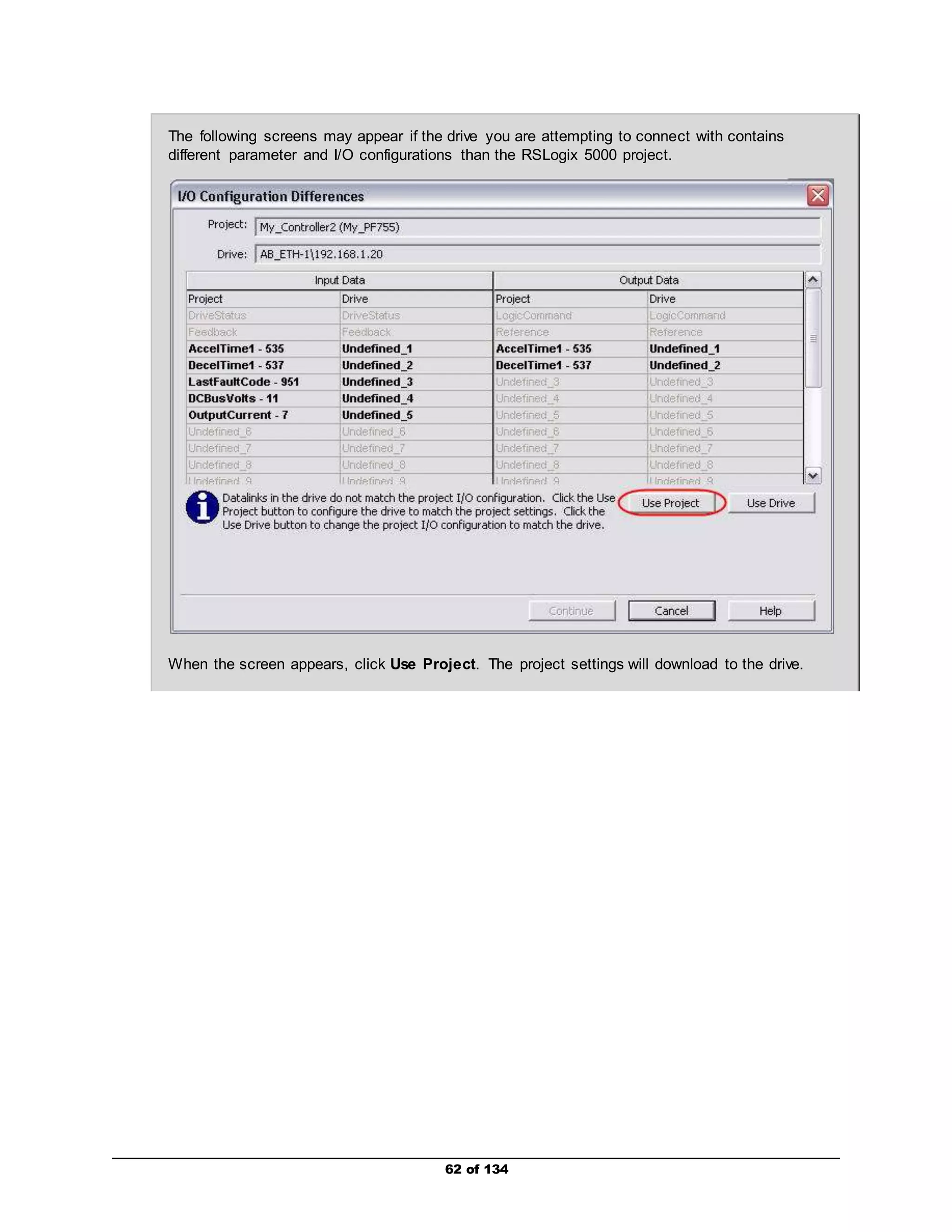
The following screens may appear if the drive you are attempting to connect with contains 
different parameter and I/O configurations than the RSLogix 5000 project. 
When the screen appears, click Use Project. The project settings will download to the drive. 
62 of 134
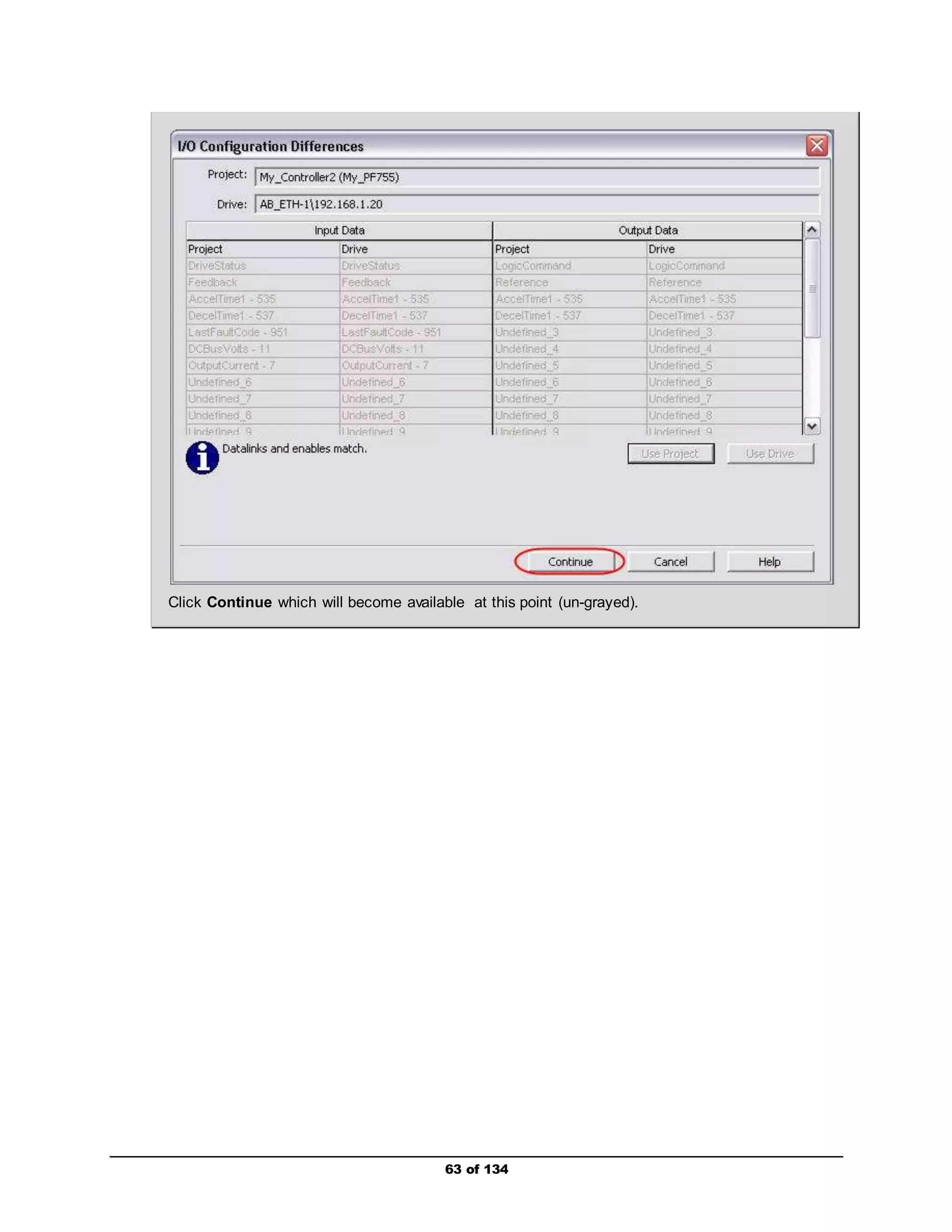
Click Continue which will become available at this point (un-grayed). 
63 of 134
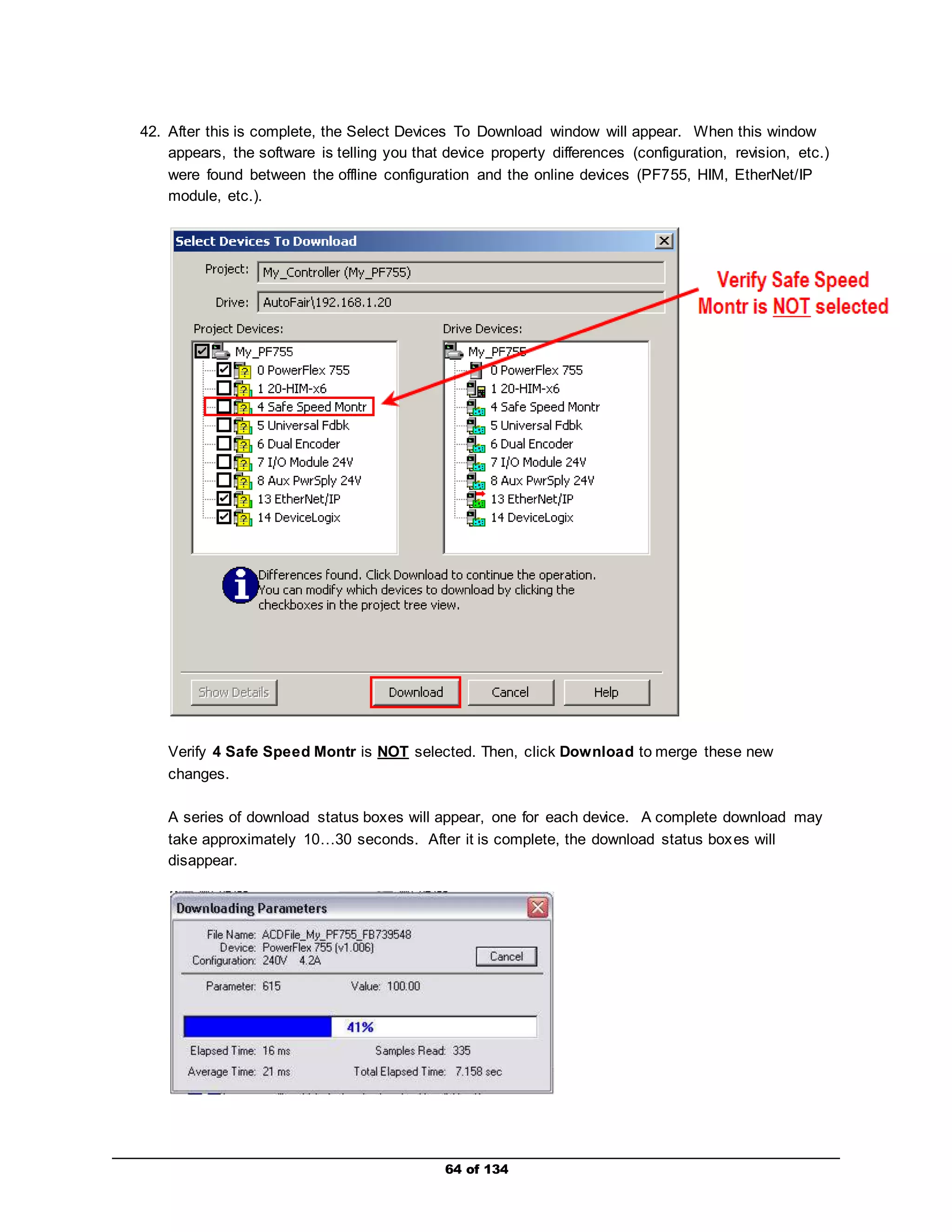
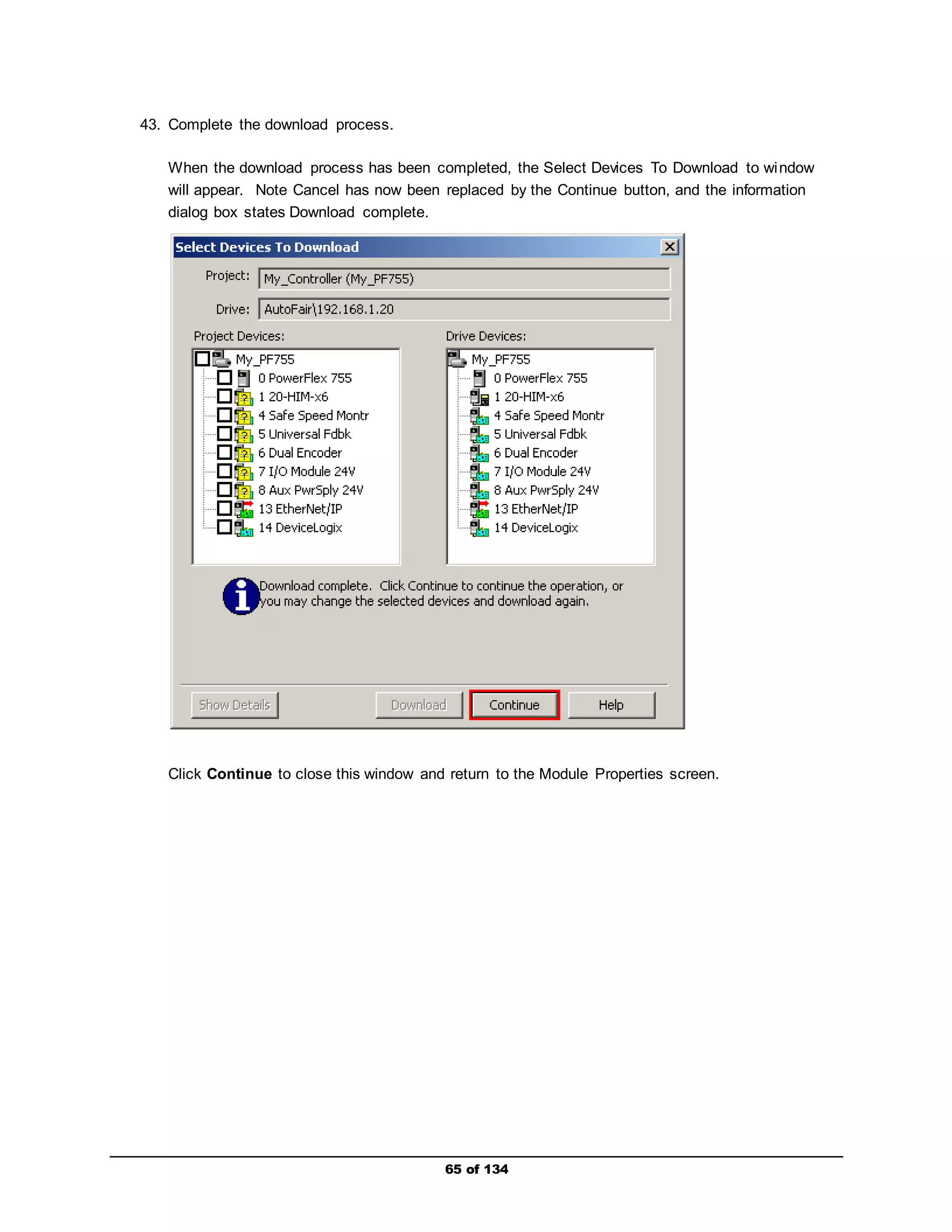
42. After this is complete, the Select Devices To Download window will appear. When this window 
appears, the software is telling you that device property differences (configuration, revision, etc.) 
were found between the offline configuration and the online devices (PF755, HIM, EtherNet/IP 
module, etc.). 
Verify 4 Safe Speed Montr is NOT selected. Then, click Download to merge these new 
changes. 
A series of download status boxes will appear, one for each device. A complete download may 
take approximately 10…30 seconds. After it is complete, the download status boxes will 
disappear. 
64 of 134
65 of 134 
43. Complete the download process. 
When the download process has been completed, the Select Devices To Download to window 
will appear. Note Cancel has now been replaced by the Continue button, and the information 
dialog box states Download complete. 
Click Continue to close this window and return to the Module Properties screen.
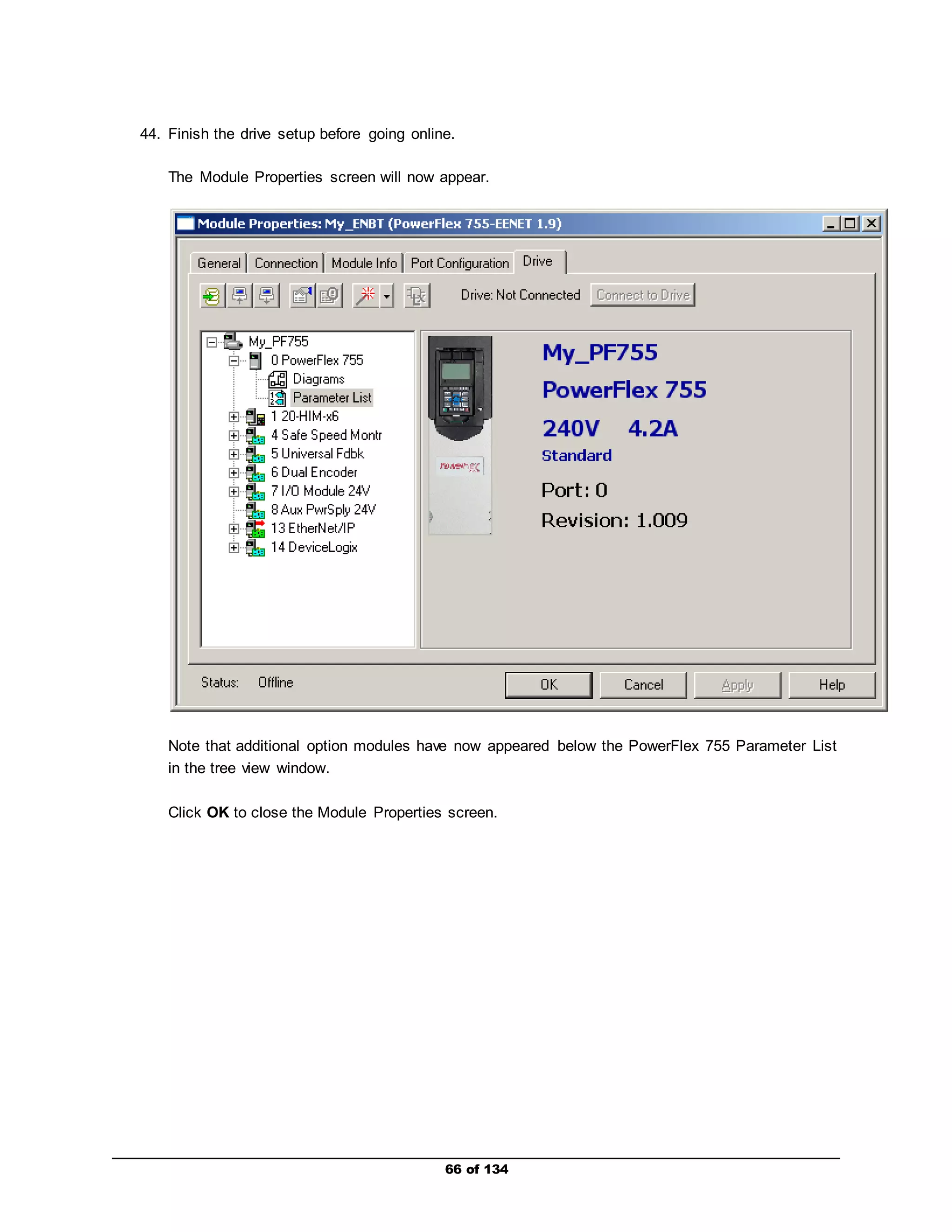
44. Finish the drive setup before going online. 
The Module Properties screen will now appear. 
Note that additional option modules have now appeared below the PowerFlex 755 Parameter List 
in the tree view window. 
Click OK to close the Module Properties screen. 
66 of 134
Downloading and Verifying the Network I/O is Operational 
This section shows how to download to the controller, and confirm the network I/O is operational. 
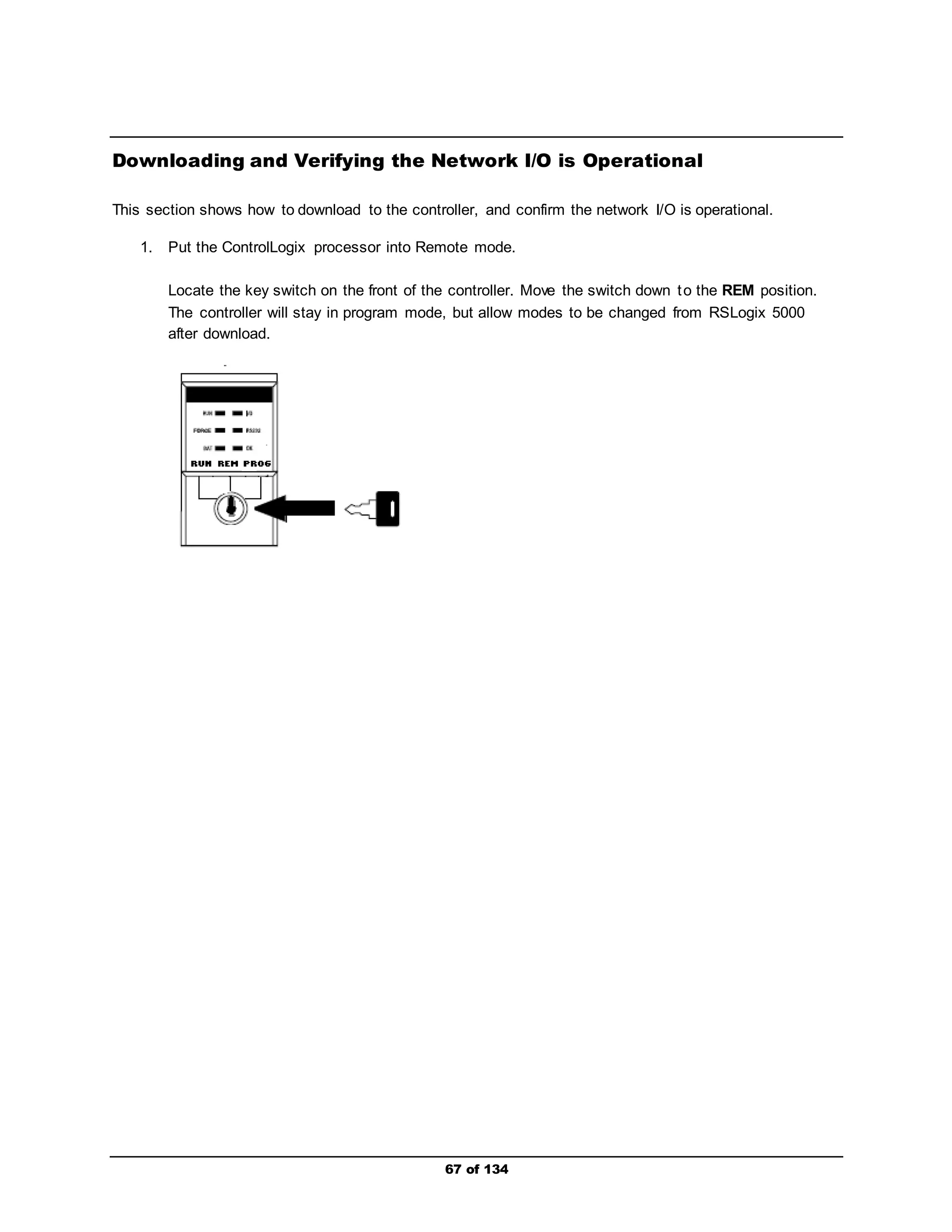
1. Put the ControlLogix processor into Remote mode. 
Locate the key switch on the front of the controller. Move the switch down to the REM position. 
The controller will stay in program mode, but allow modes to be changed from RSLogix 5000 
after download. 
67 of 134
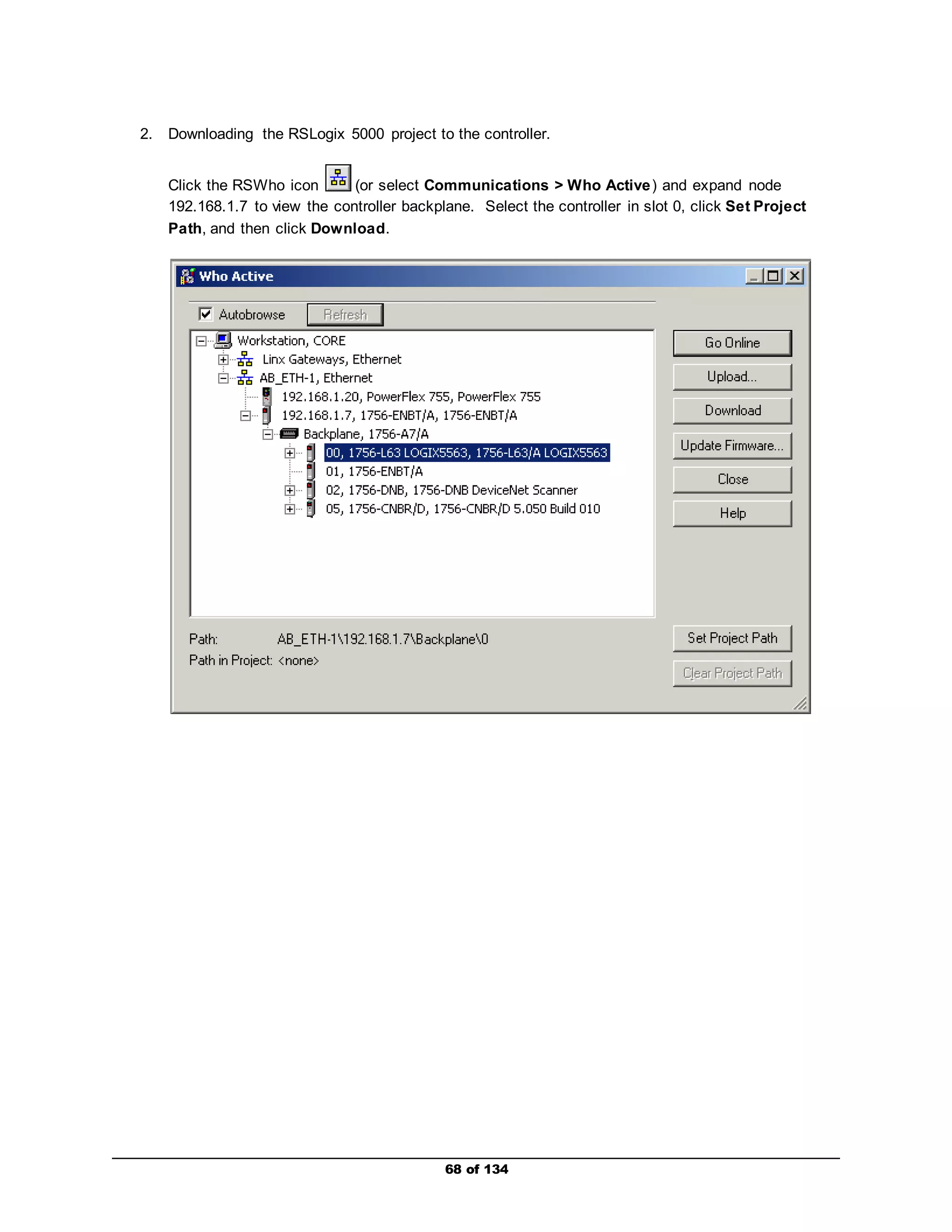
2. Downloading the RSLogix 5000 project to the controller. 
Click the RSWho icon (or select Communications > Who Active) and expand node 
192.168.1.7 to view the controller backplane. Select the controller in slot 0, click Set Project 
Path, and then click Download. 
68 of 134
69 of 134 
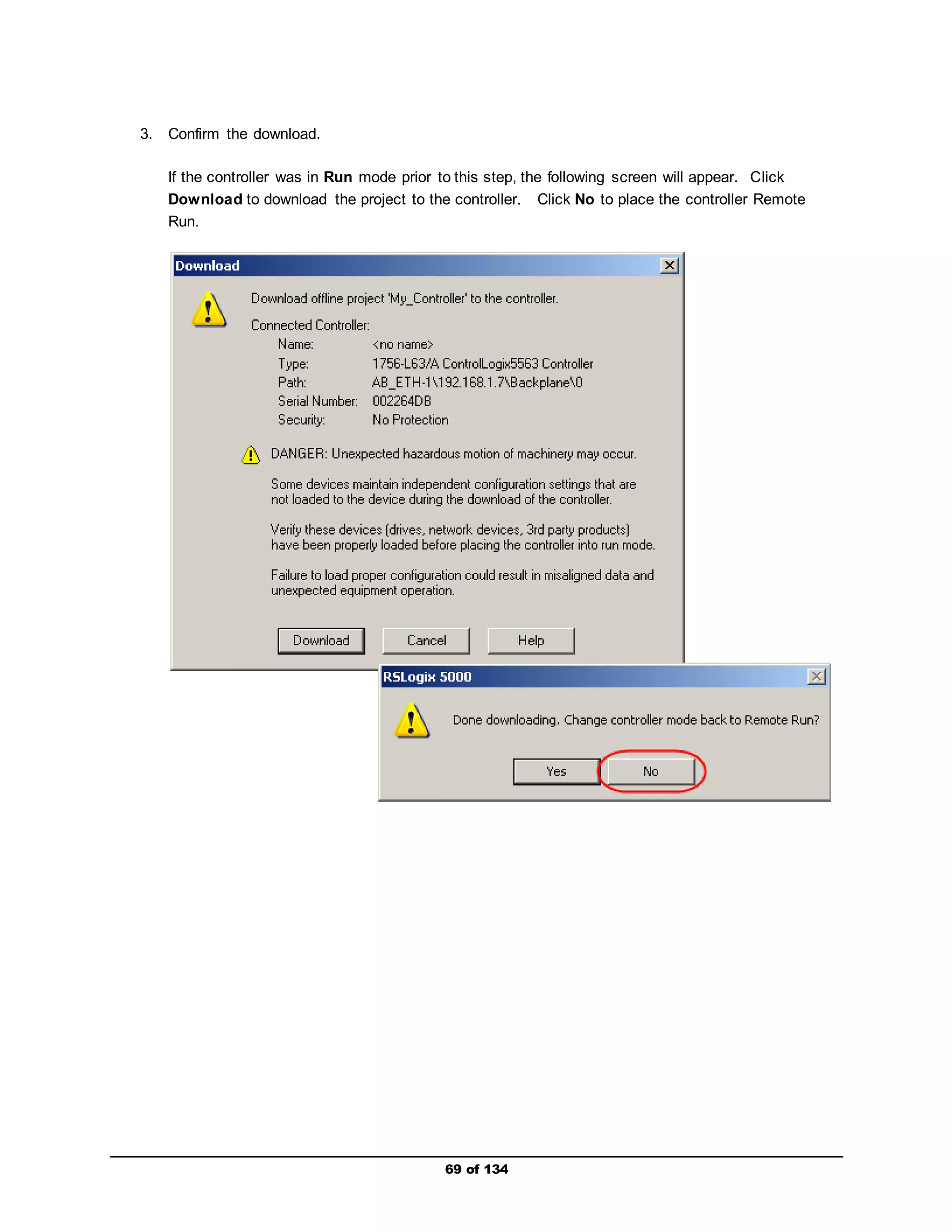
3. Confirm the download. 
If the controller was in Run mode prior to this step, the following screen will appear. Click 
Download to download the project to the controller. Click No to place the controller Remote 
Run.
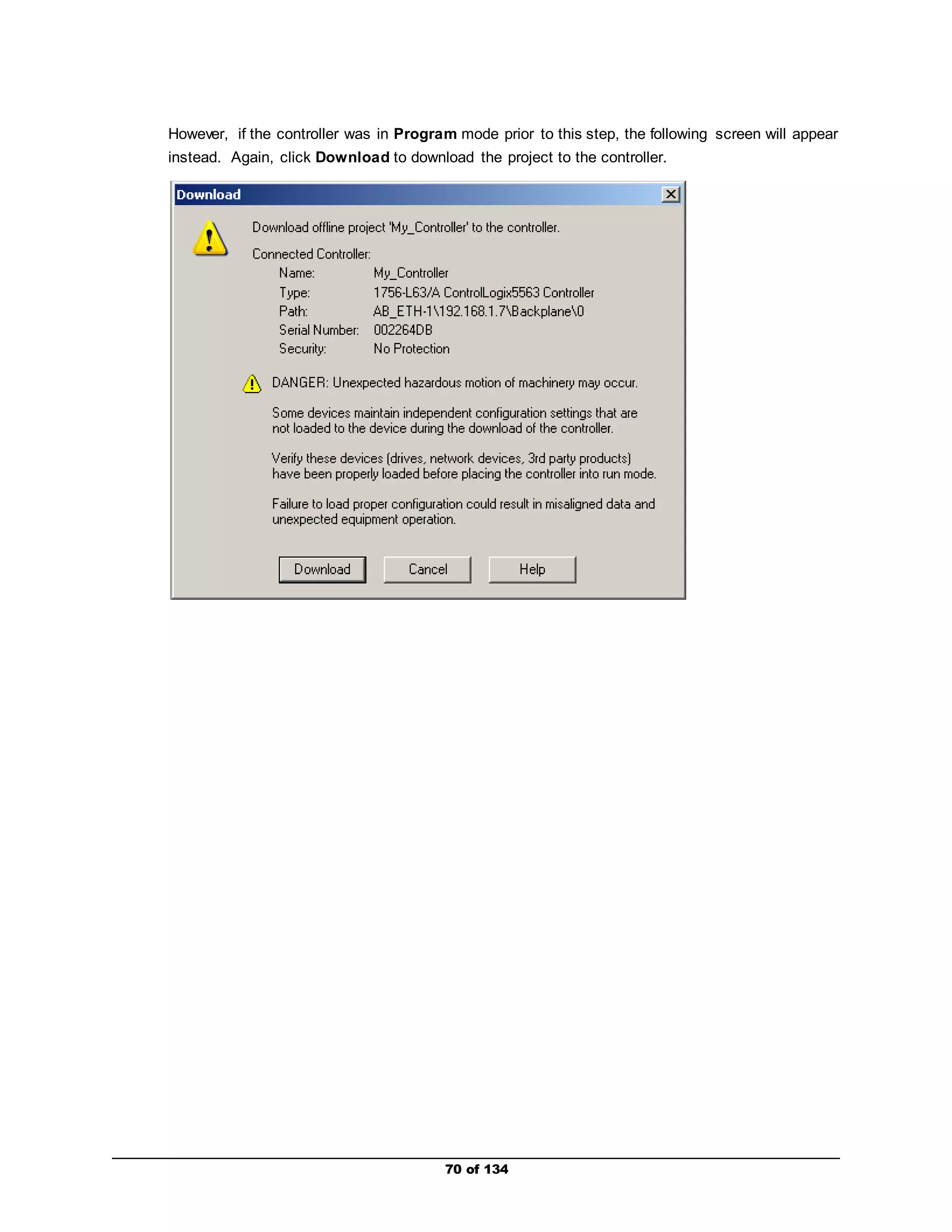
However, if the controller was in Program mode prior to this step, the following screen will appear 
instead. Again, click Download to download the project to the controller. 
70 of 134
71 of 134 
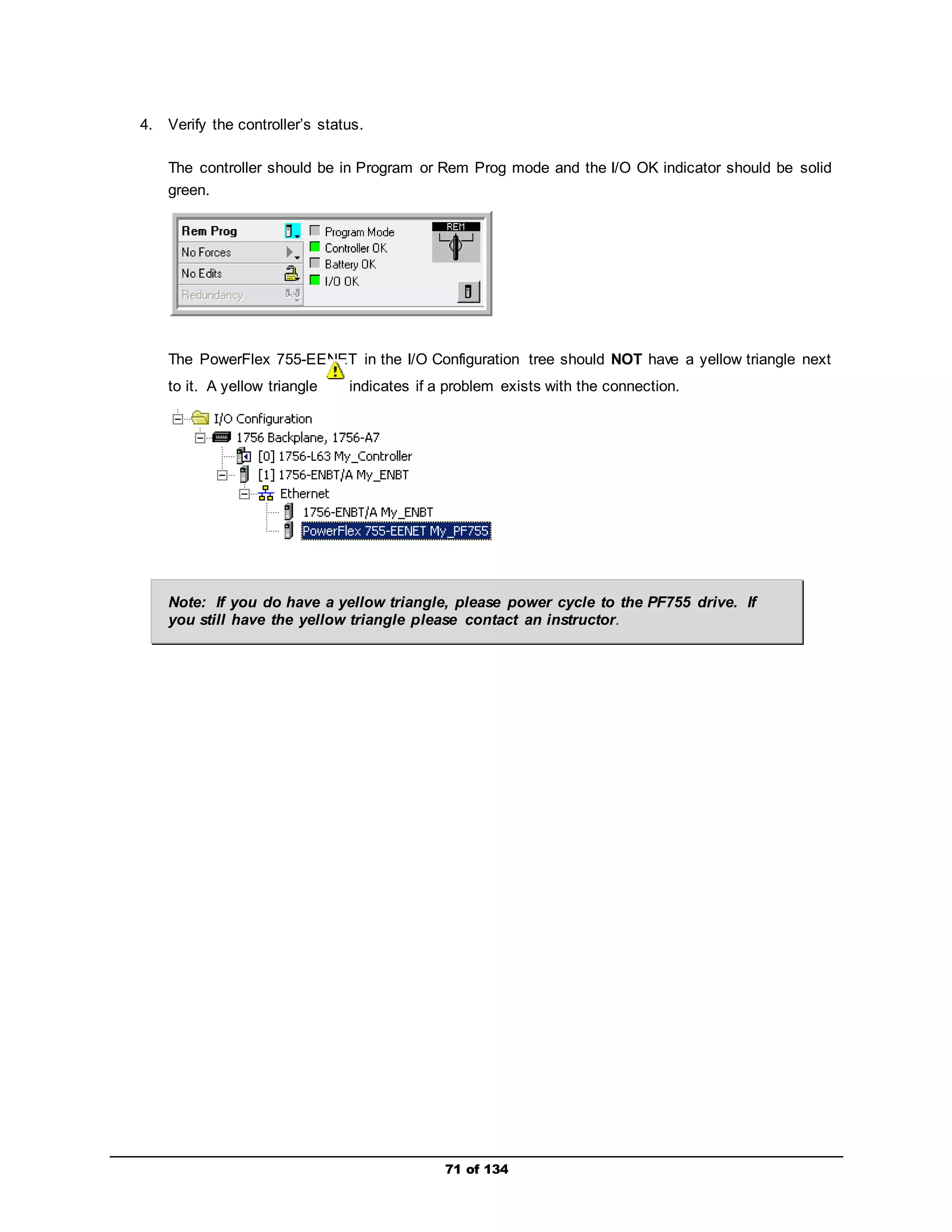
4. Verify the controller’s status. 
The controller should be in Program or Rem Prog mode and the I/O OK indicator should be solid 
green. 
The PowerFlex 755-EENET in the I/O Configuration tree should NOT have a yellow triangle next 
to it. A yellow triangle indicates if a problem exists with the connection. 
Note: If you do have a yellow triangle, please power cycle to the PF755 drive. If 
you still have the yellow triangle please contact an instructor.
72 of 134 
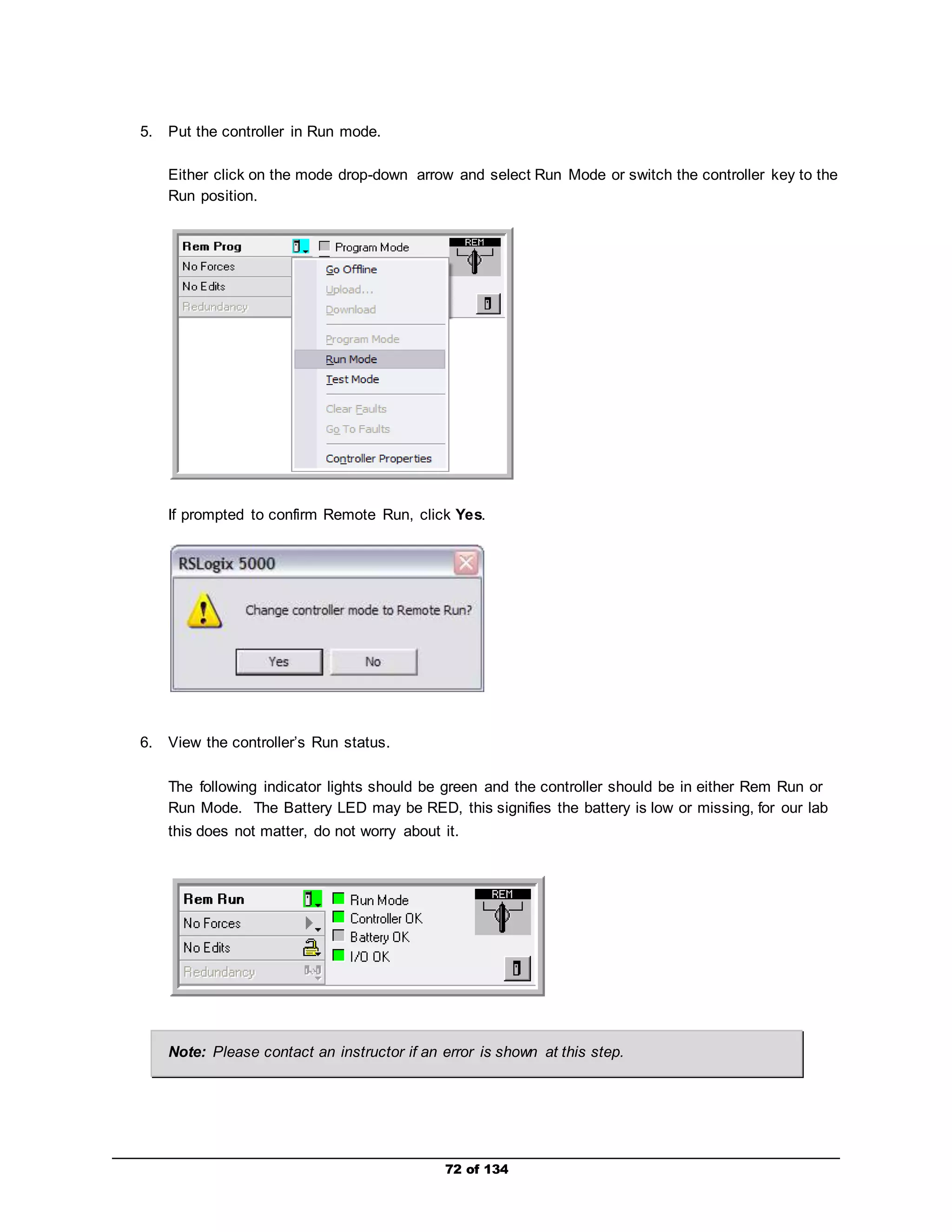
5. Put the controller in Run mode. 
Either click on the mode drop-down arrow and select Run Mode or switch the controller key to the 
Run position. 
If prompted to confirm Remote Run, click Yes. 
6. View the controller’s Run status. 
The following indicator lights should be green and the controller should be in either Rem Run or 
Run Mode. The Battery LED may be RED, this signifies the battery is low or missing, for our lab 
this does not matter, do not worry about it. 
Note: Please contact an instructor if an error is shown at this step.
73 of 134 
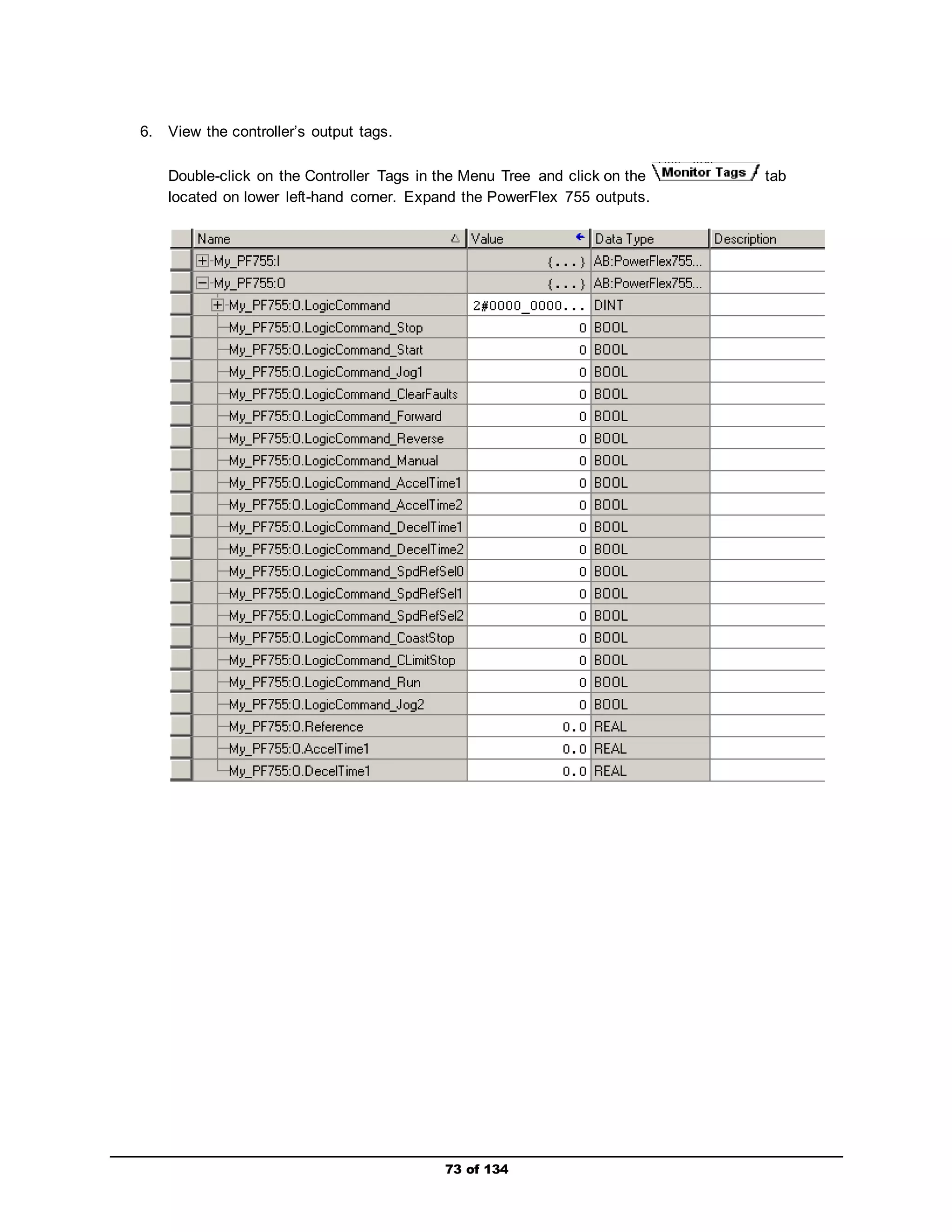
6. View the controller’s output tags. 
Double-click on the Controller Tags in the Menu Tree and click on the tab 
located on lower left-hand corner. Expand the PowerFlex 755 outputs.
74 of 134 
7. Control the drive. 
a. Enter values for AccelTime1 and DecelTime1 in the column labeled Value. Note their 
format is a float, so a value of 2.5 equates to 2.5 seconds. 
b. Enter a value between 0 and 60.0 for the Reference. This is the speed reference in Hz 
or RPM (represented as a float), depending on which units are selected. For the lab, Hz 
was selected. 
c. Enter a 1 for ClearFaults and then set it back to 0. This will reset any fault in the drive. 
d. Enter a 1 for the Start and then set it back to a 0. All starts require a rising edge (0 to 1) 
transition. 
If desired, use the HIM to look at Parameter 535 [Accel Time 1] and 
Parameter 537 [Decel Time 1] to verify that the data is being sent by the controller.
75 of 134 
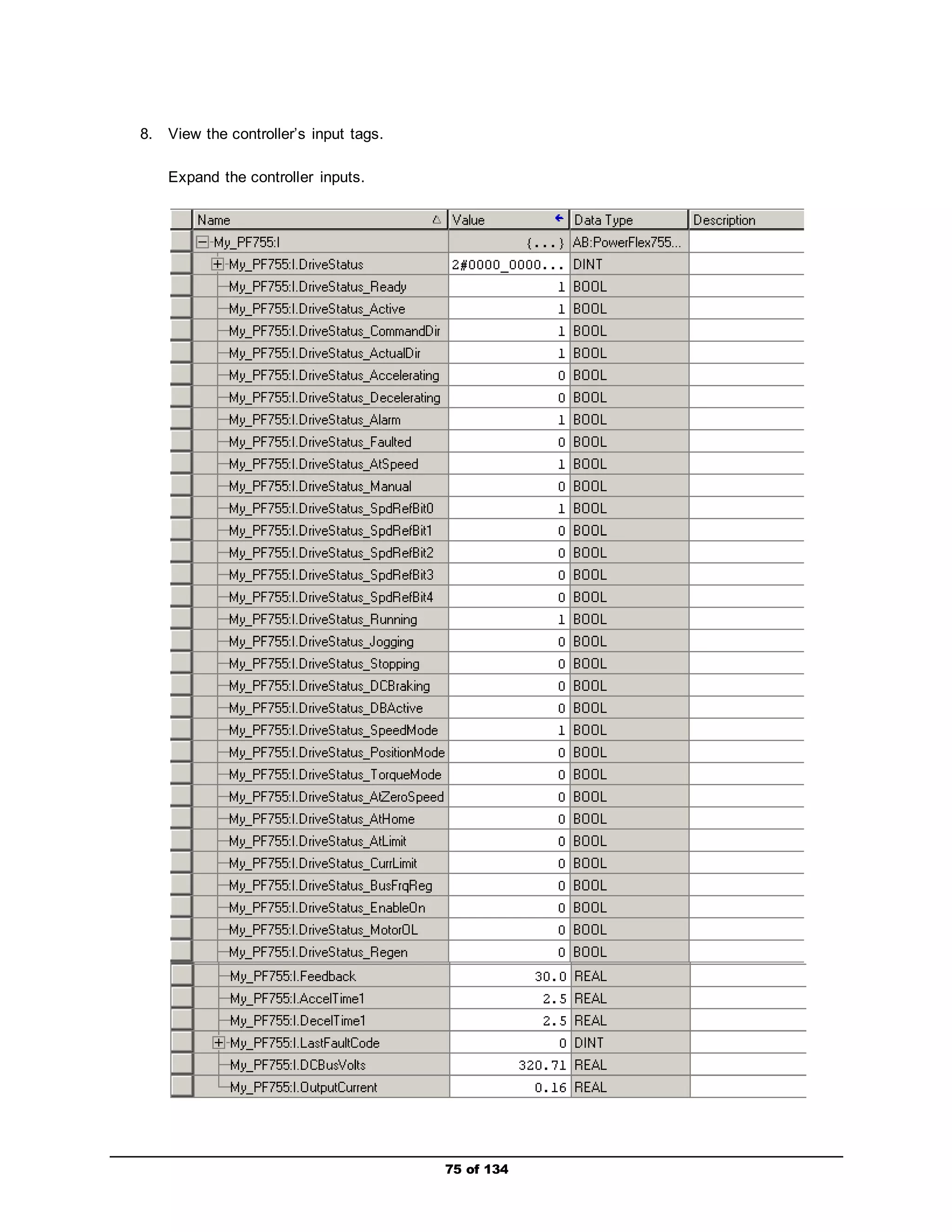
8. View the controller’s input tags. 
Expand the controller inputs.
9. The “…Reference” tag should match the “…Feedback” tag. Note that data is being updated for 
76 of 134 
OutputCurrent and DCBusVolts too. 
10. Stop the drive. 
Return to the drive output tags. 
Enter a 1 for the Stop and then set it back to 0.
You now have a complete system. All tags are operational! This 
now concludes operating a drive using the new Integrated Drive 
Profiles feature. 
77 of 134
Using an FactoryTalk View PowerFlex Faceplate with a PowerFlex AOI 
78 of 134 
to Control/Monitor the Drive 
This section shows how to set up and use the new PowerFlex Accelerator Toolkit Faceplates available 
with pre-configured Add-On Instructions (AOI) made specifically for your PowerFlex drive. These 
faceplates reduce the amount of development time needed to perform drive status and control functions 
from an HMI. All of the steps including software configuration and ladder logic creation will be covered. 
Follow the examples used in this section. 
A link to the PowerFlex Accelerator Toolkit materials (including the Quick Start Guide) is provided below. 
This material includes a more in-depth look at the faceplates. 
http://www.rockwellautomation.com/solutions/integratedarchitecture/resources5.html
Importing a PowerFlex AOI and Going Online 
Due to lab time limitations, the PowerFlex Faceplates and Add-On Instructions have been already 
downloaded from the Internet to a specific folder on the PC. 
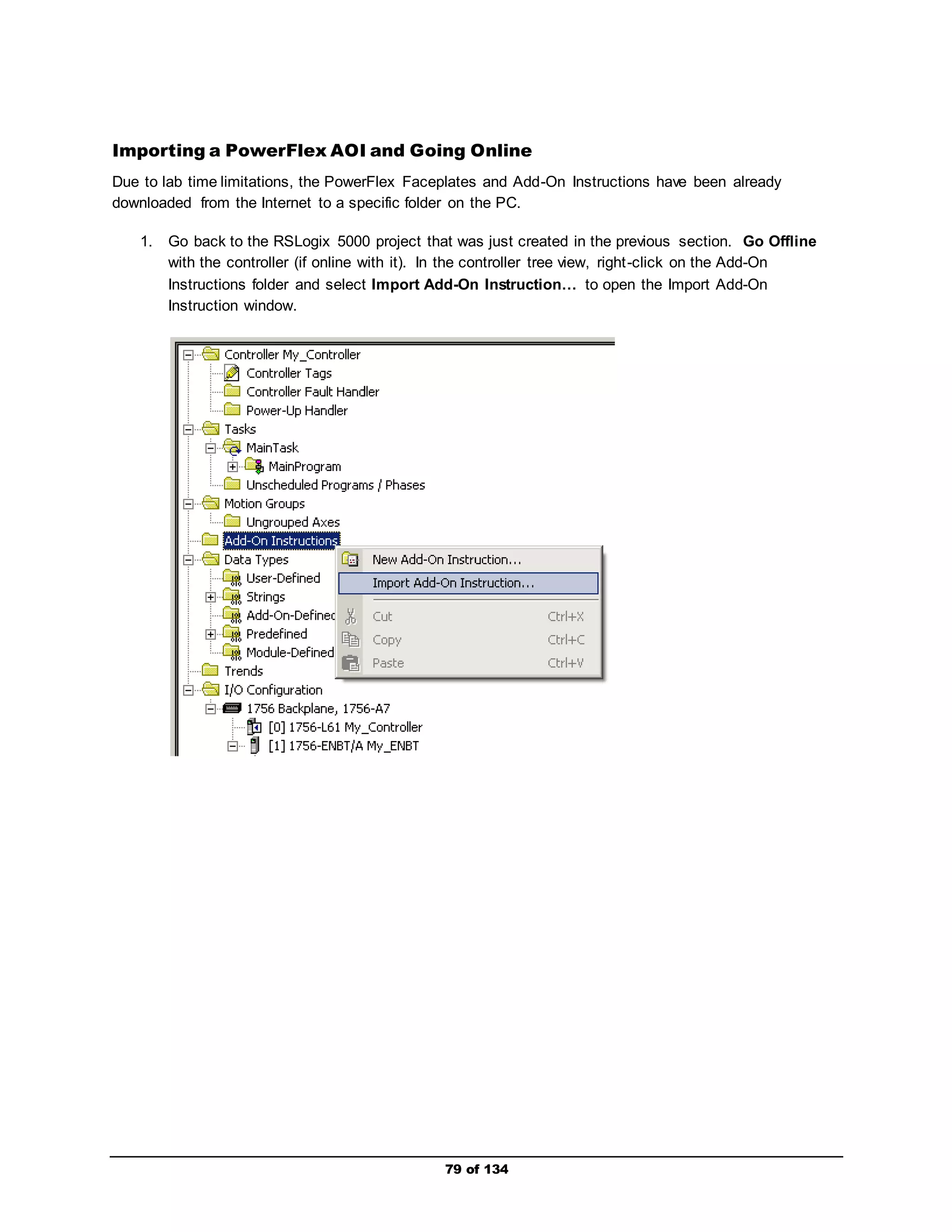
1. Go back to the RSLogix 5000 project that was just created in the previous section. Go Offline 
with the controller (if online with it). In the controller tree view, right -click on the Add-On 
Instructions folder and select Import Add-On Instruction… to open the Import Add-On 
Instruction window. 
79 of 134
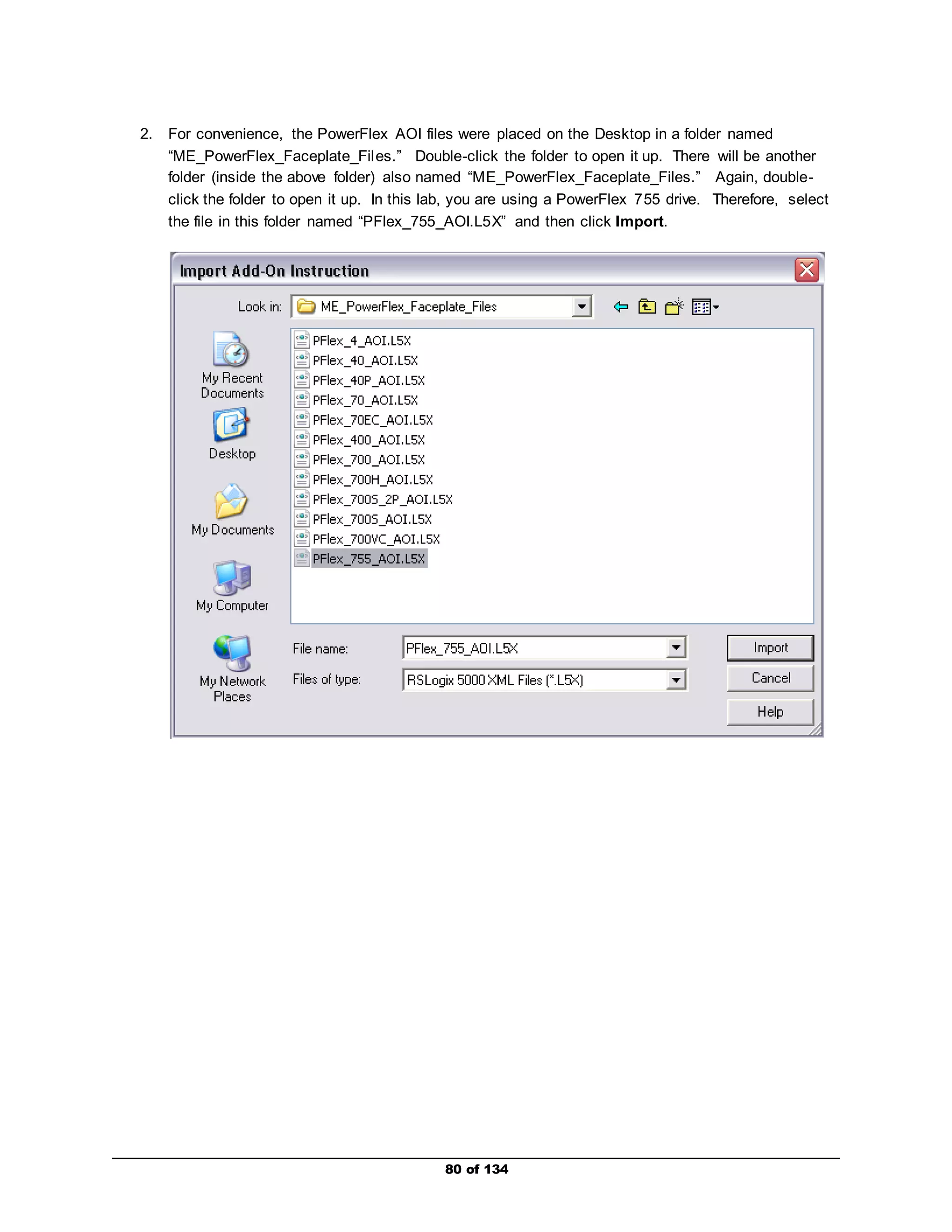
2. For convenience, the PowerFlex AOI files were placed on the Desktop in a folder named 
“ME_PowerFlex_Faceplate_Fil es.” Double-click the folder to open it up. There will be another 
folder (inside the above folder) also named “ME_PowerFlex_Faceplate_Files.” Again, double-click 
the folder to open it up. In this lab, you are using a PowerFlex 755 drive. Therefore, select 
the file in this folder named “PFlex_755_AOI.L5X” and then click Import. 
80 of 134
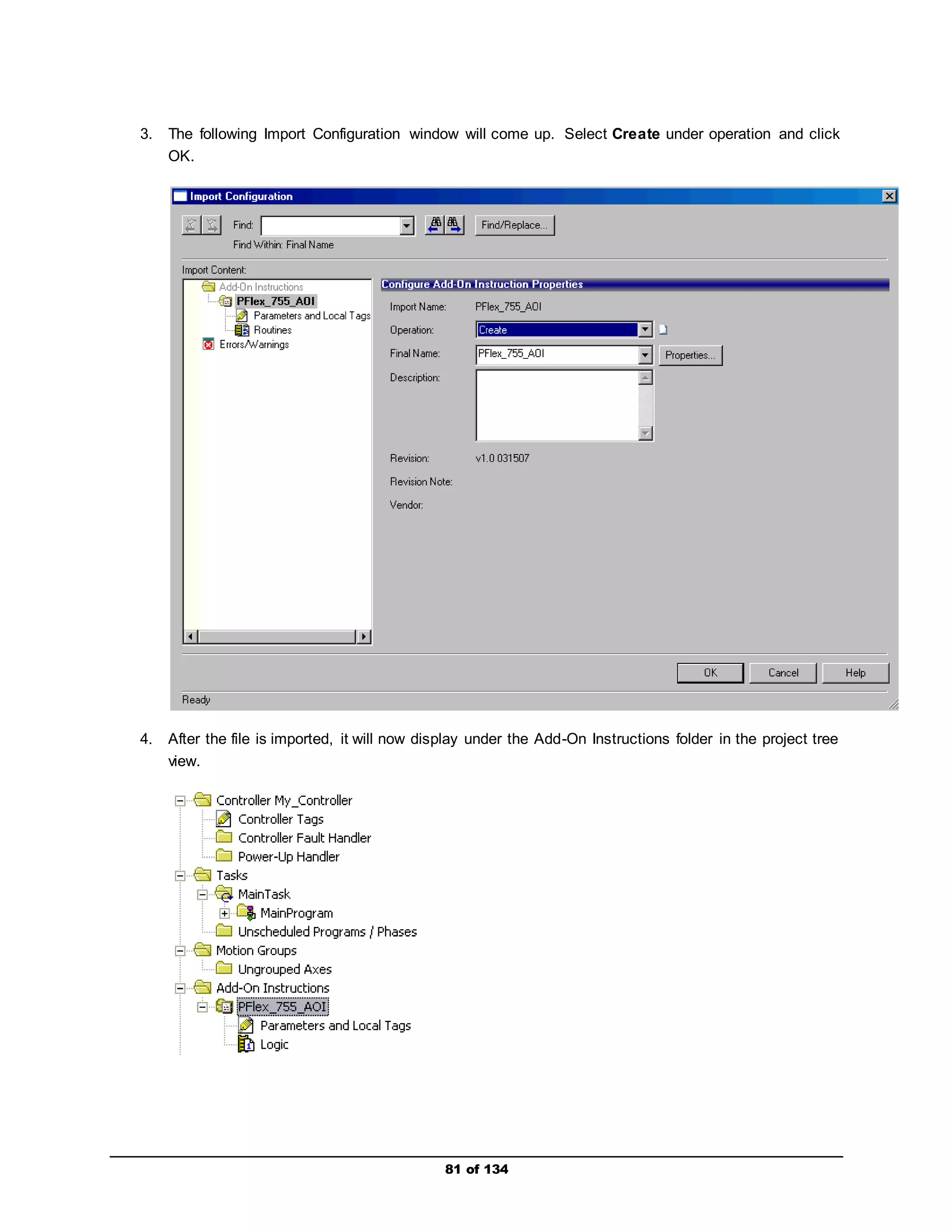
3. The following Import Configuration window will come up. Select Create under operation and click 
81 of 134 
OK. 
4. After the file is imported, it will now display under the Add-On Instructions folder in the project tree 
view.
5. Point to the new PFlex_755_AOI from the MainRoutine. 
In the project tree view, expand the MainProgram folder to display the Program Tags and 
MainRoutine subtasks. Double-click on the MainRoutine task to display the ladder-rung entry 
window (right side of project window). 
Click the Add-On tab on the instruction palette as shown: 
Drag-and-drop the “PFlex 755” add-on instruction on to the new rung. 
82 of 134
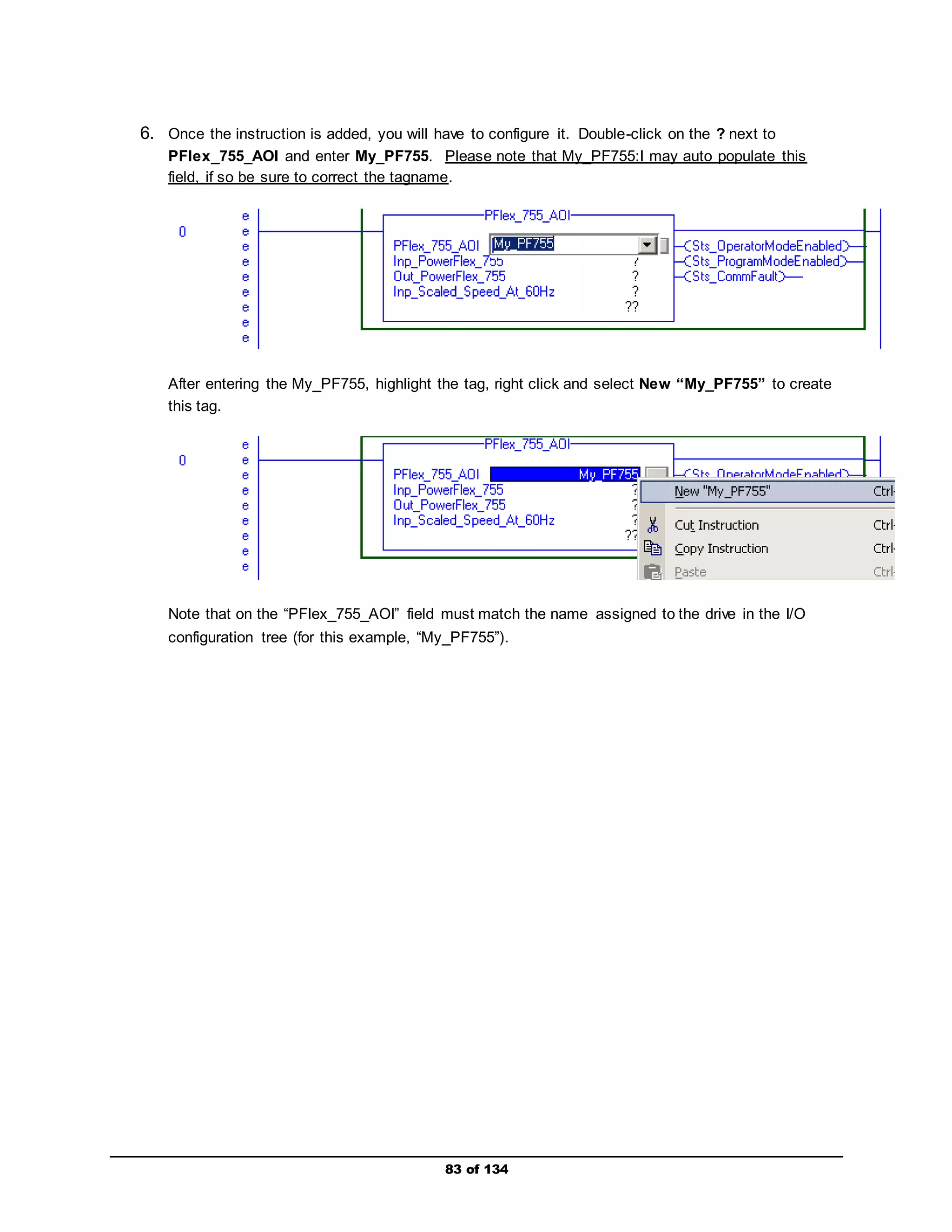
6. Once the instruction is added, you will have to configure it. Double-click on the ? next to 
PFlex_755_AOI and enter My_PF755. Please note that My_PF755:I may auto populate this 
field, if so be sure to correct the tagname. 
After entering the My_PF755, highlight the tag, right click and select New “My_PF755” to create 
this tag. 
Note that on the “PFlex_755_AOI” field must match the name assigned to the drive in the I/O 
configuration tree (for this example, “My_PF755”). 
83 of 134
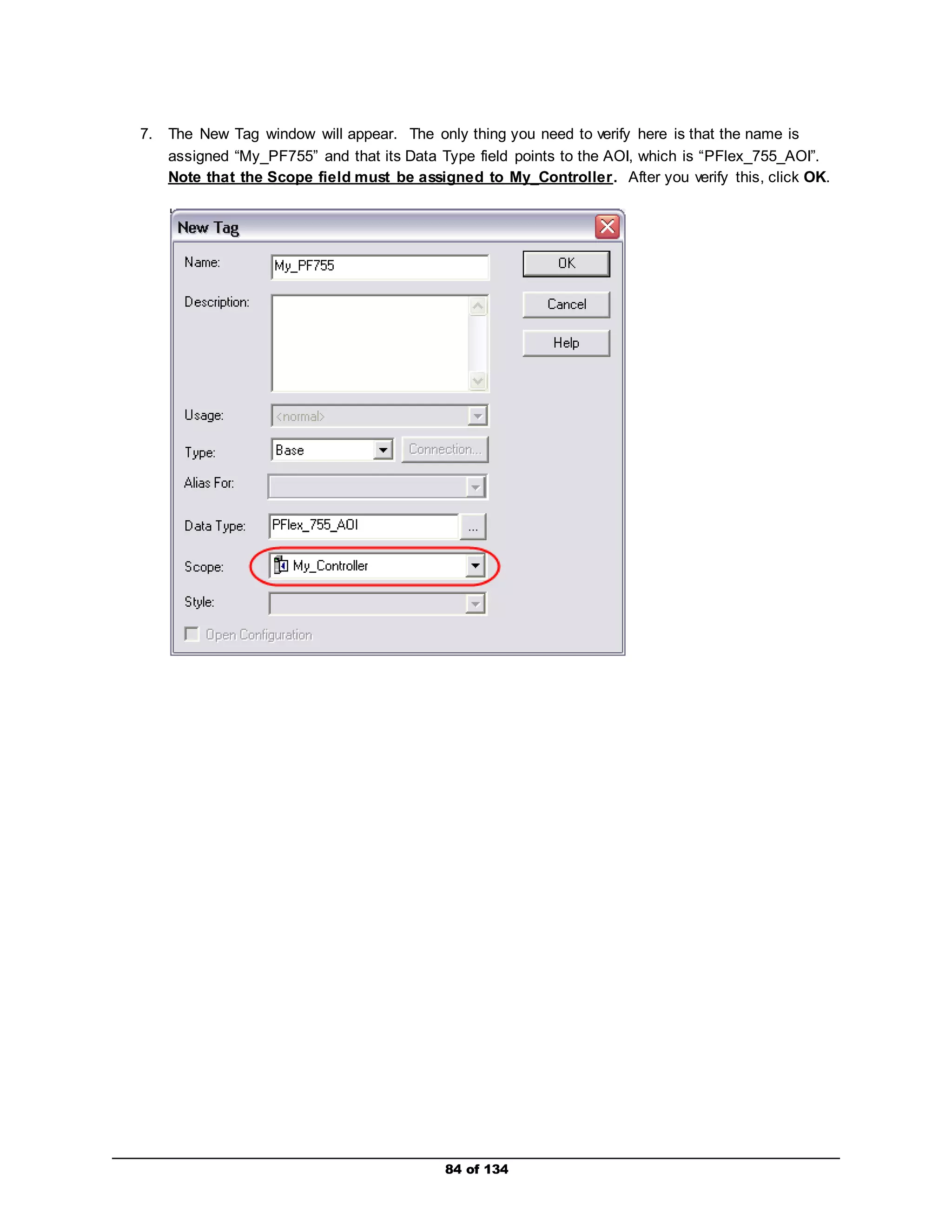
7. The New Tag window will appear. The only thing you need to verify here is that the name is 
assigned “My_PF755” and that its Data Type field points to the AOI, which is “PFlex_755_AOI”. 
Note that the Scope field must be assigned to My_Controller. After you verify this, click OK. 
84 of 134
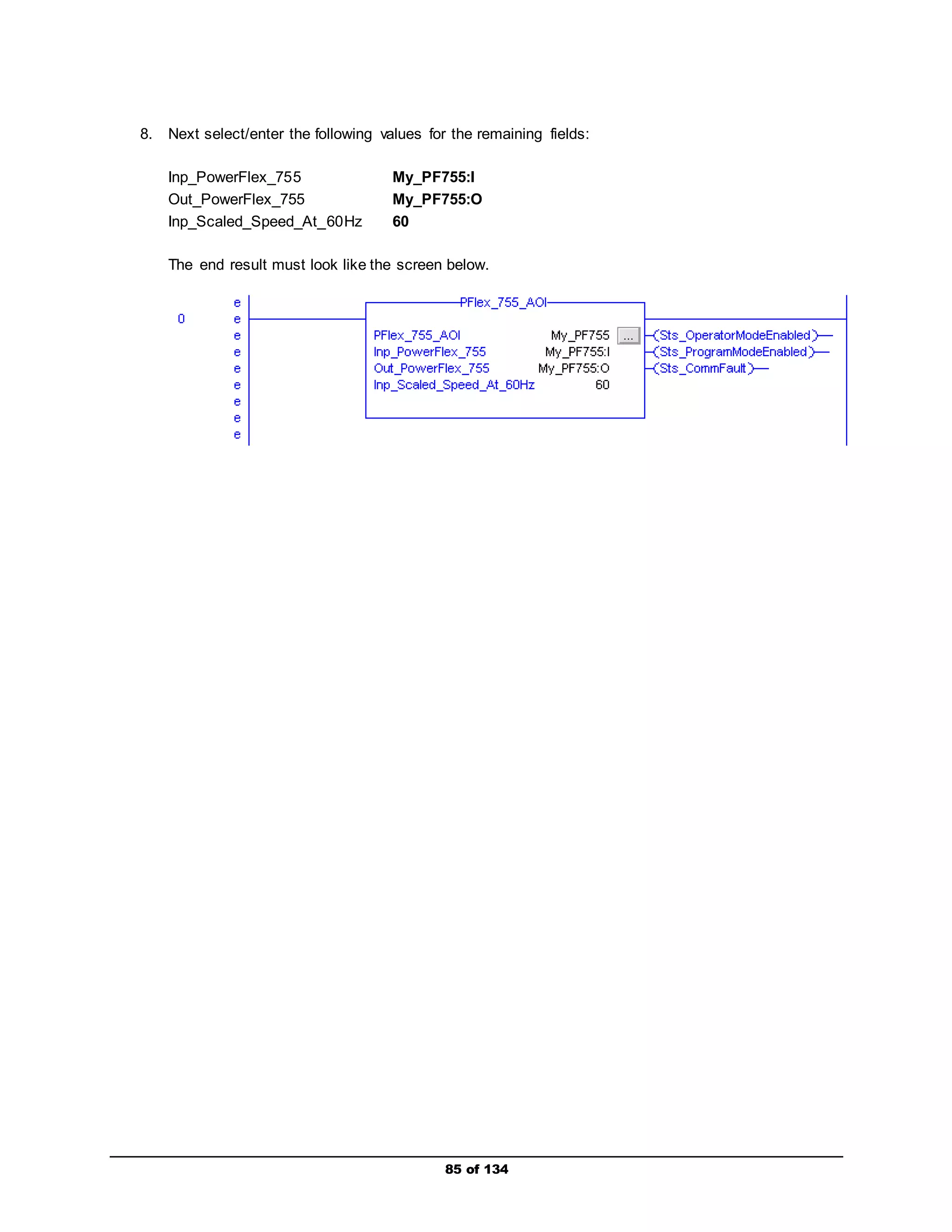
8. Next select/enter the following values for the remaining fields: 
Inp_PowerFlex_755 My_PF755:I 
Out_PowerFlex_755 My_PF755:O 
Inp_Scaled_Speed_At_60Hz 60 
The end result must look like the screen below. 
85 of 134
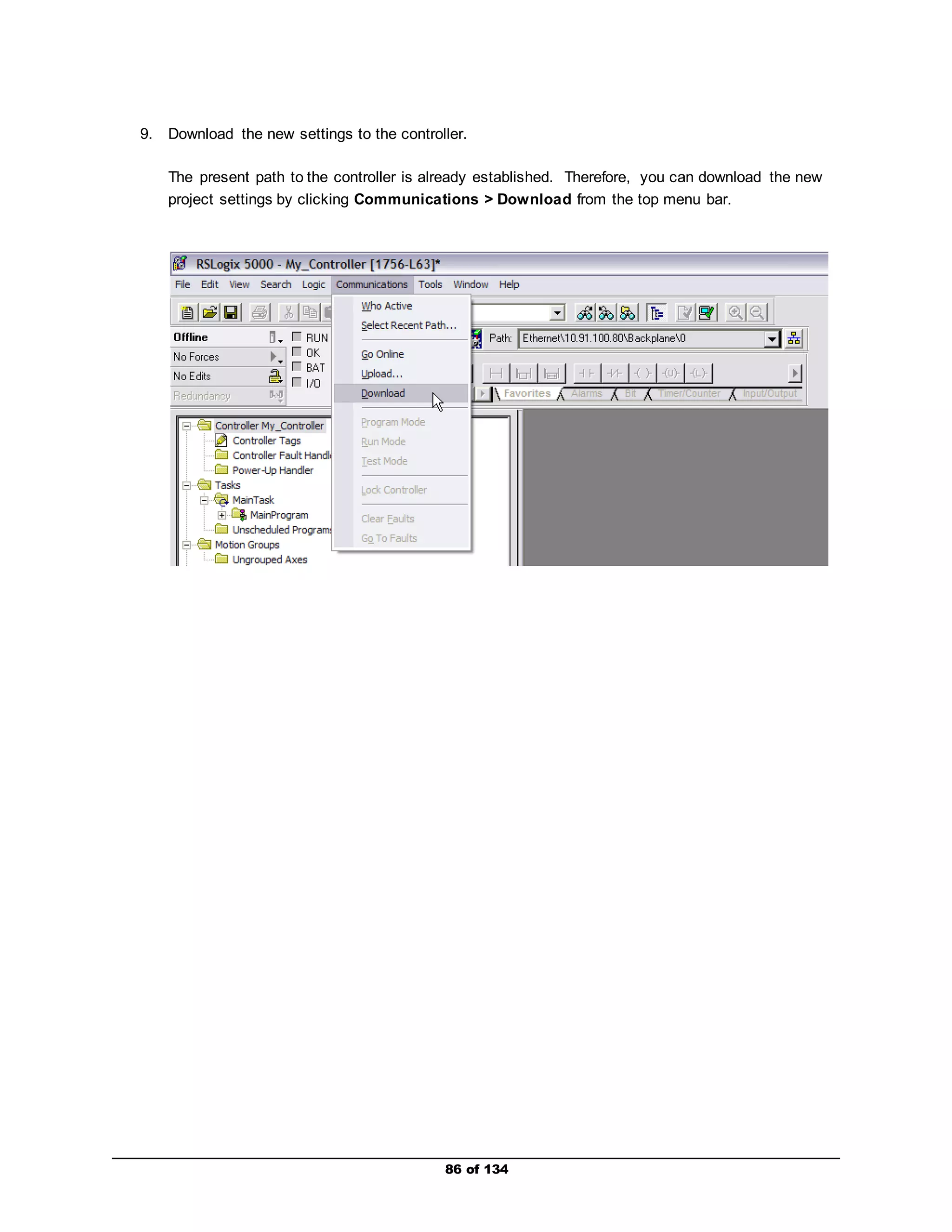
9. Download the new settings to the controller. 
The present path to the controller is already established. Therefore, you can download the new 
project settings by clicking Communications > Download from the top menu bar. 
86 of 134
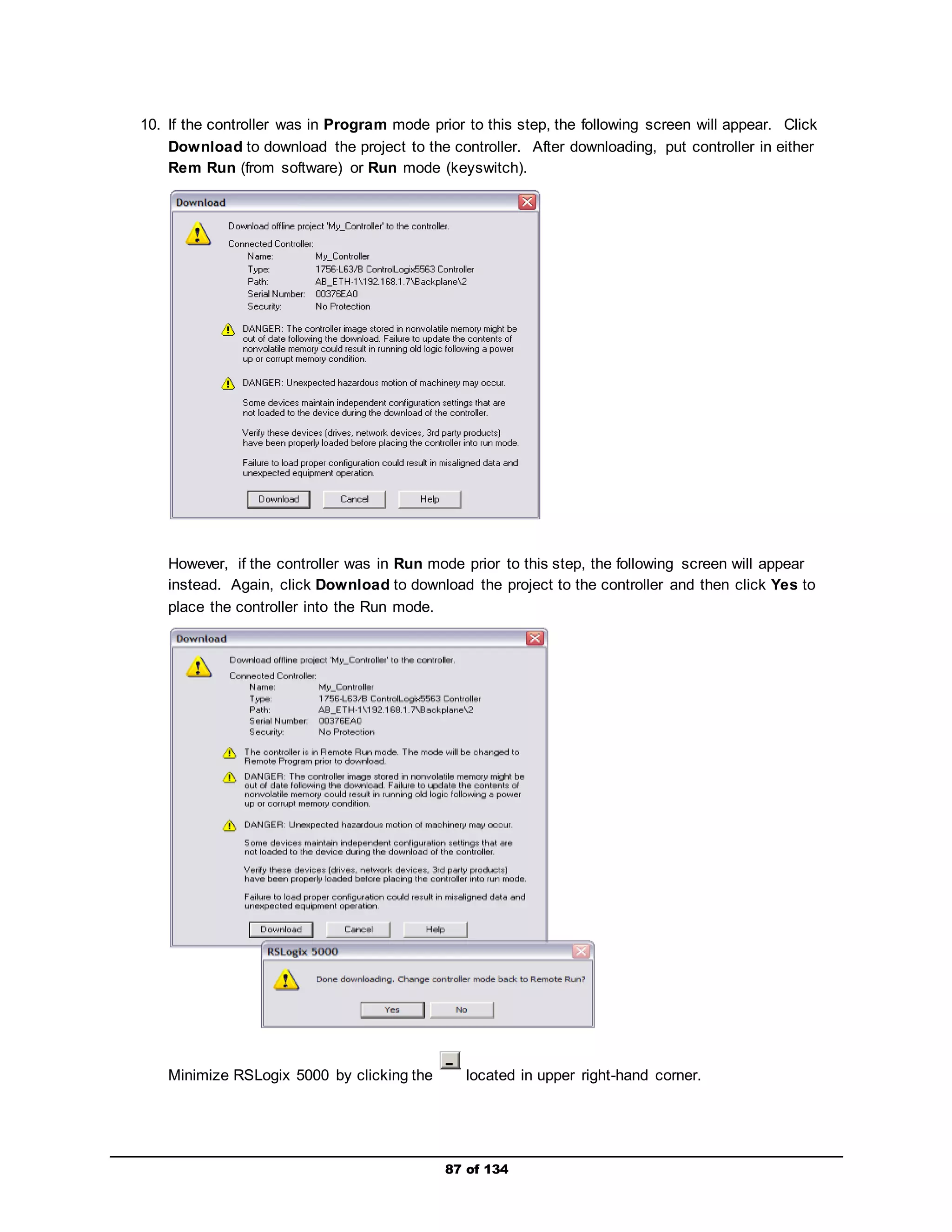
10. If the controller was in Program mode prior to this step, the following screen will appear. Click 
Download to download the project to the controller. After downloading, put controller in either 
Rem Run (from software) or Run mode (keyswitch). 
However, if the controller was in Run mode prior to this step, the following screen will appear 
instead. Again, click Download to download the project to the controller and then click Yes to 
place the controller into the Run mode. 
Minimize RSLogix 5000 by clicking the located in upper right-hand corner. 
87 of 134
Importing a FactoryTalk View ME PowerFlex Faceplate 
88 of 134 
1. Launch FactoryTalk View Studio. 
Double-click the FactoryTalk View Studio icon on the desktop , or from the Start 
menu, select All Programs > Rockwell Software > FactoryTalk View > FactoryTalk View 
Studio. 
2. The Product Type Selection window will appear. Select the Machine Edition icon and then click 
Continue. 
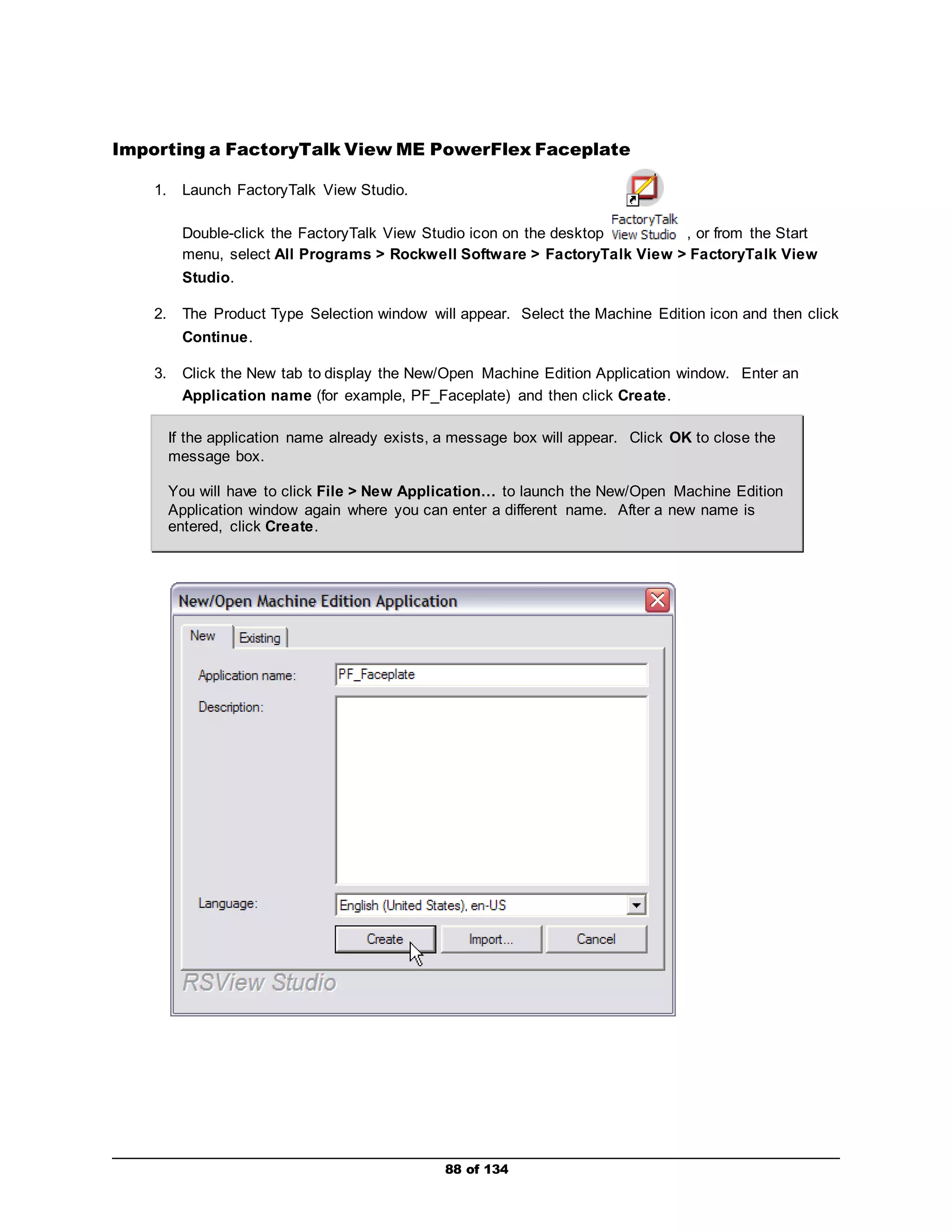
3. Click the New tab to display the New/Open Machine Edition Application window. Enter an 
Application name (for example, PF_Faceplate) and then click Create. 
If the application name already exists, a message box will appear. Click OK to close the 
message box. 
You will have to click File > New Application… to launch the New/Open Machine Edition 
Application window again where you can enter a different name. After a new name is 
entered, click Create.
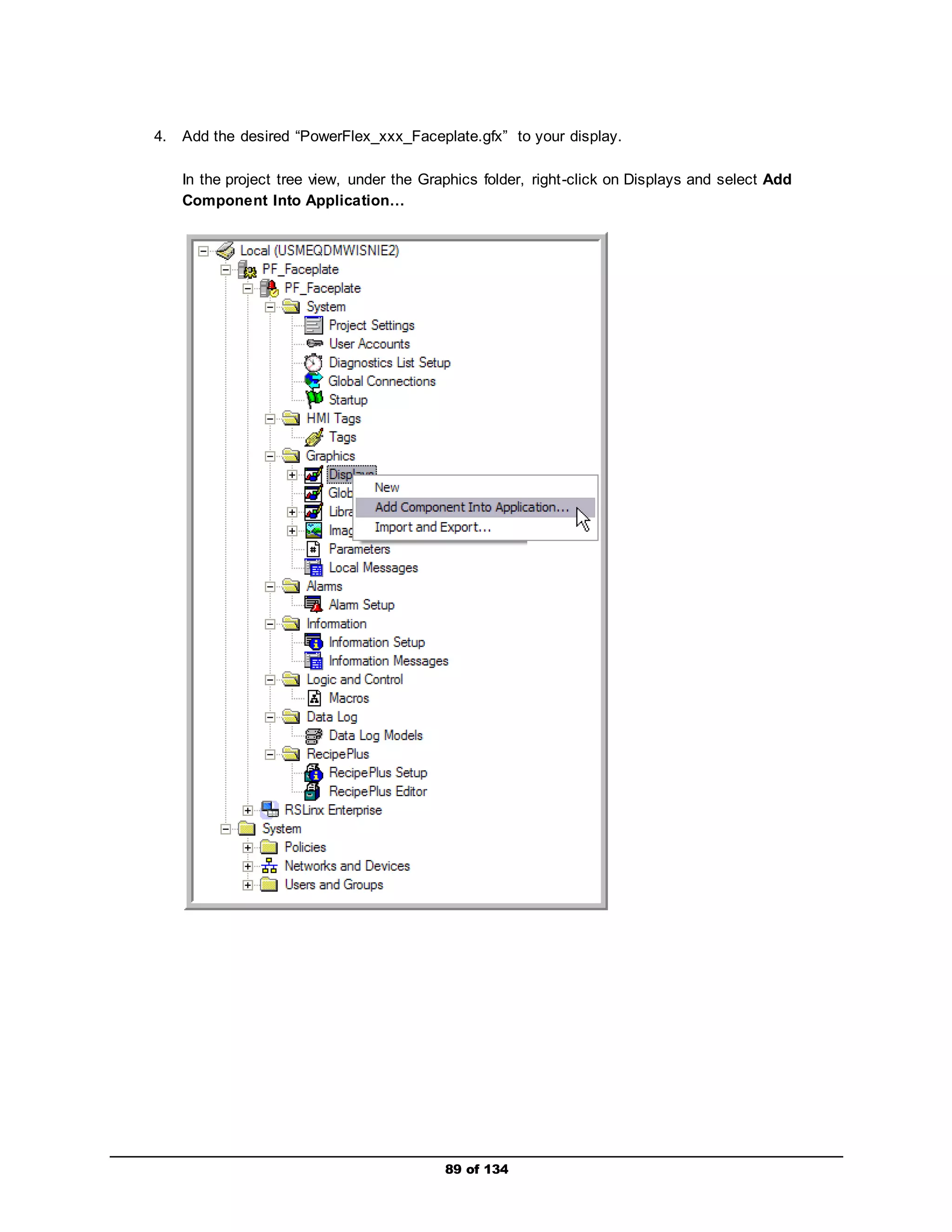
4. Add the desired “PowerFlex_xxx_Faceplate.gfx” to your display. 
In the project tree view, under the Graphics folder, right -click on Displays and select Add 
Component Into Application… 
89 of 134
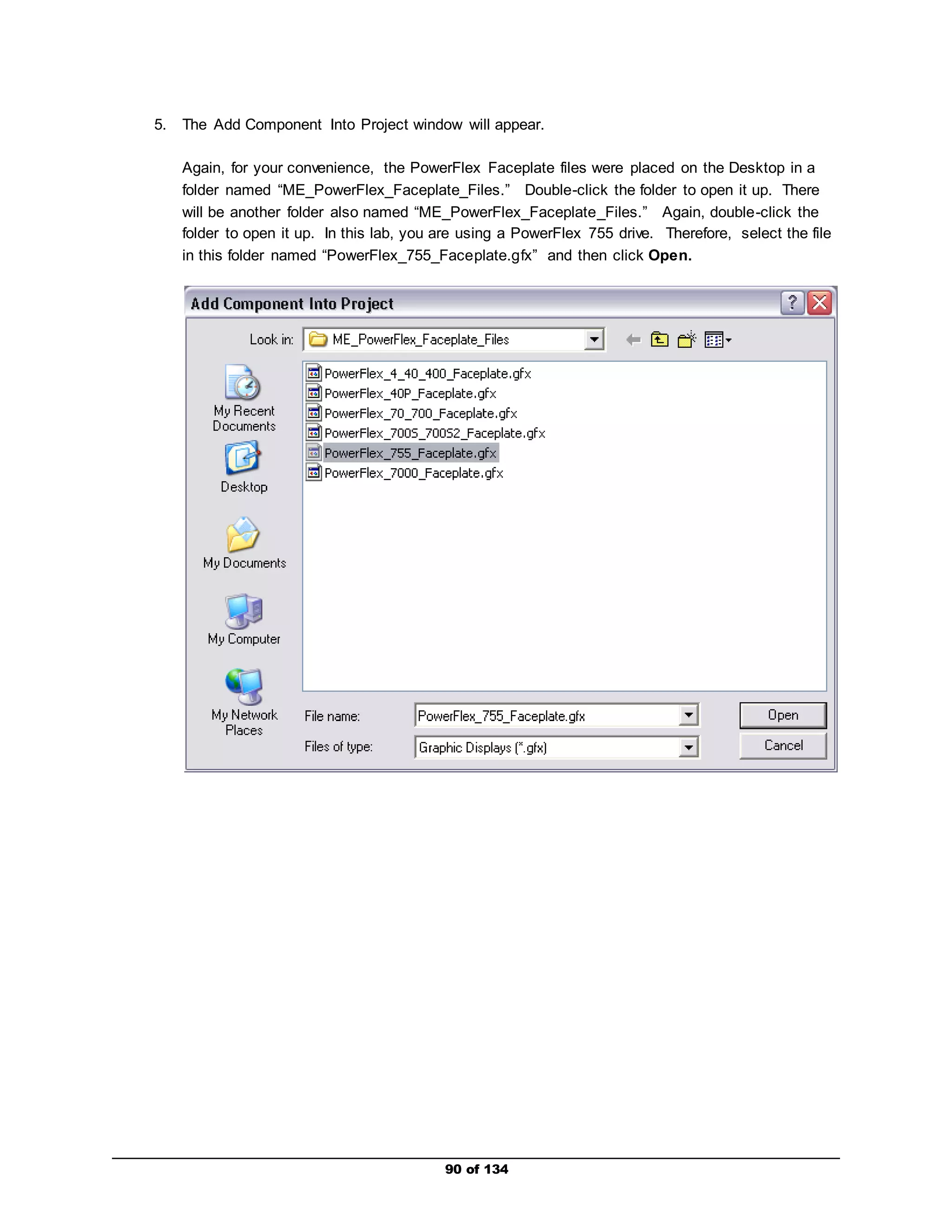
5. The Add Component Into Project window will appear. 
Again, for your convenience, the PowerFlex Faceplate files were placed on the Desktop in a 
folder named “ME_PowerFlex_Faceplate_Files.” Double-click the folder to open it up. There 
will be another folder also named “ME_PowerFlex_Faceplate_Files.” Again, double-click the 
folder to open it up. In this lab, you are using a PowerFlex 755 drive. Therefore, select the file 
in this folder named “PowerFlex_755_Faceplate.gfx” and then click Open. 
90 of 134
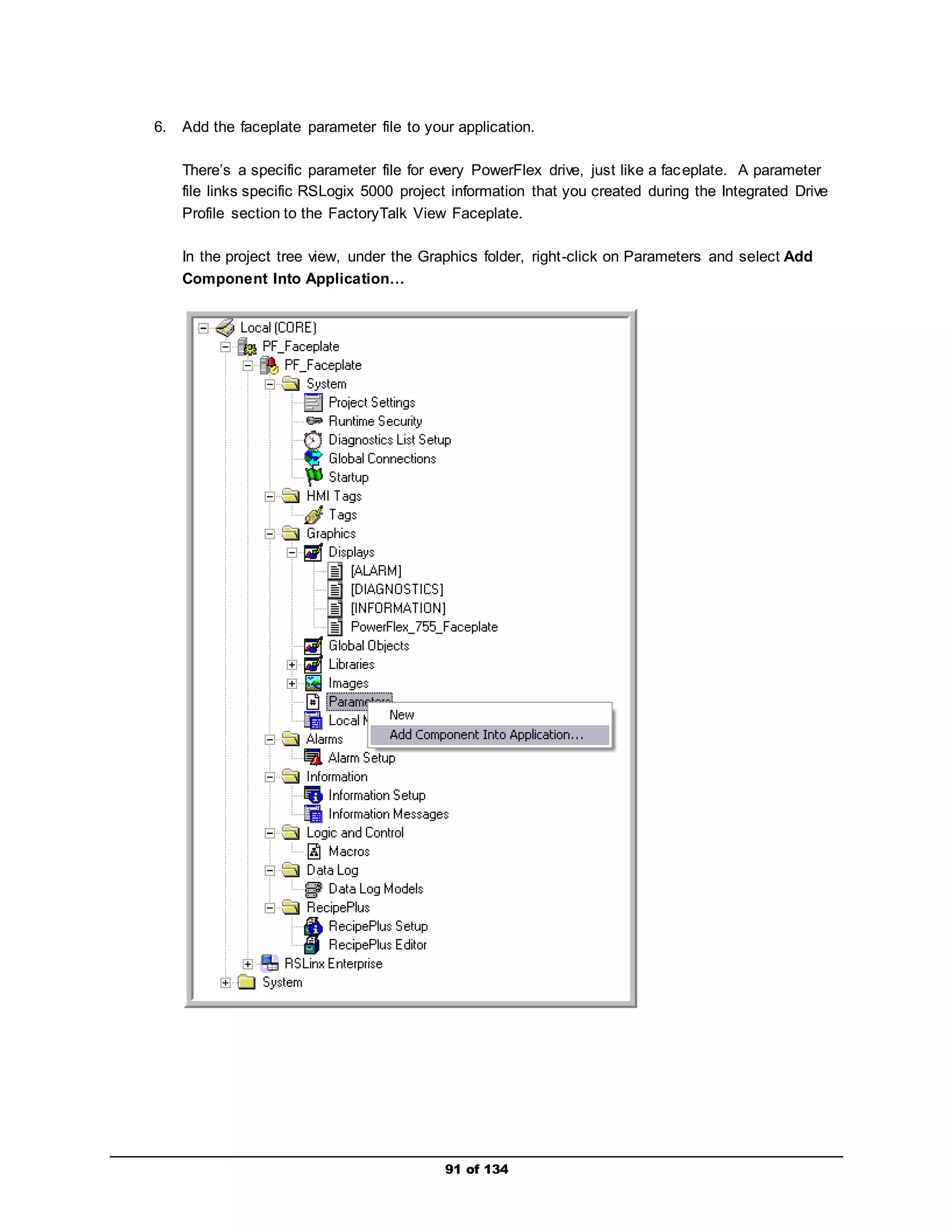
6. Add the faceplate parameter file to your application. 
There’s a specific parameter file for every PowerFlex drive, just like a faceplate. A parameter 
file links specific RSLogix 5000 project information that you created during the Integrated Drive 
Profile section to the FactoryTalk View Faceplate. 
In the project tree view, under the Graphics folder, right -click on Parameters and select Add 
Component Into Application… 
91 of 134
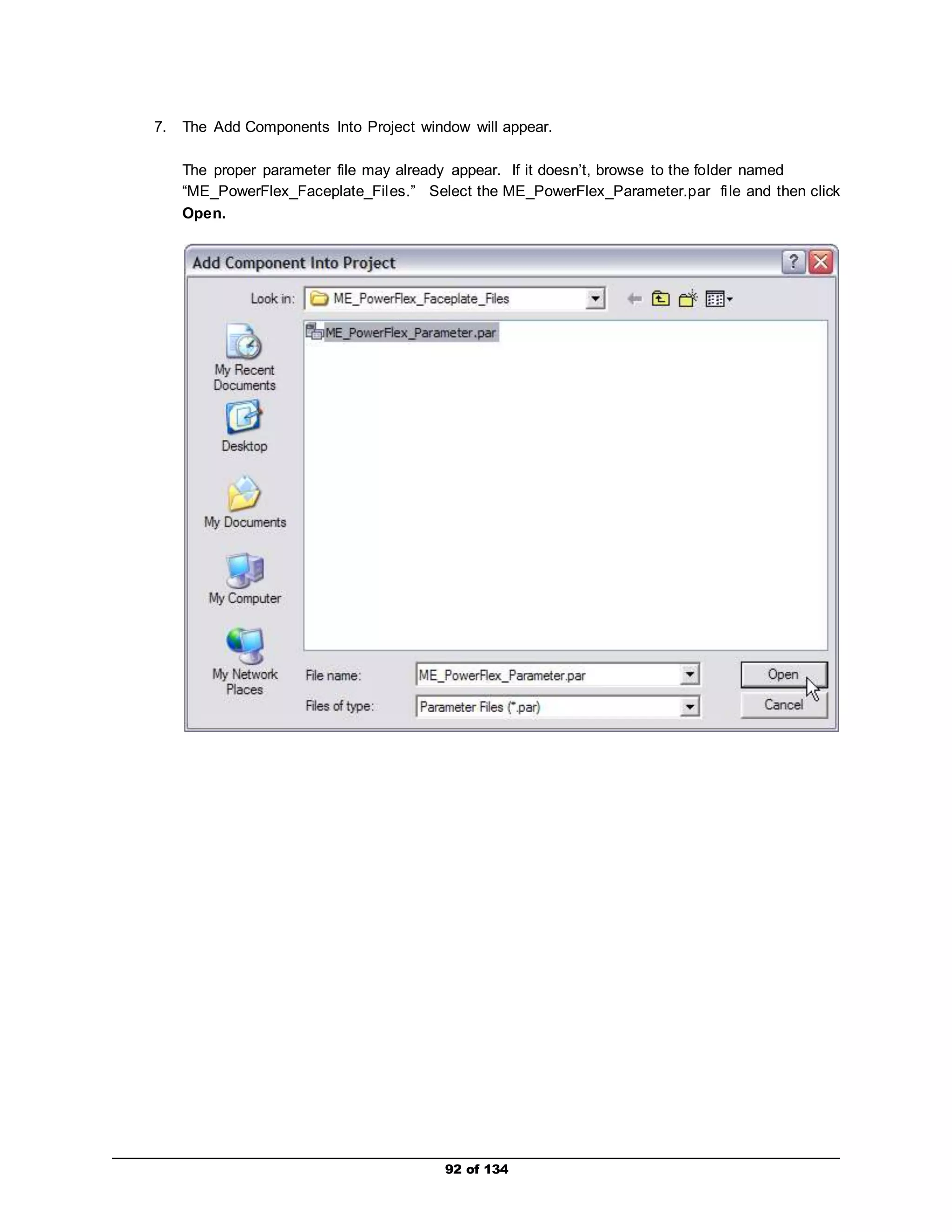
7. The Add Components Into Project window will appear. 
The proper parameter file may already appear. If it doesn’t, browse to the folder named 
“ME_PowerFlex_Faceplate_Fil es.” Select the ME_PowerFlex_Parameter.par fi le and then click 
Open. 
92 of 134
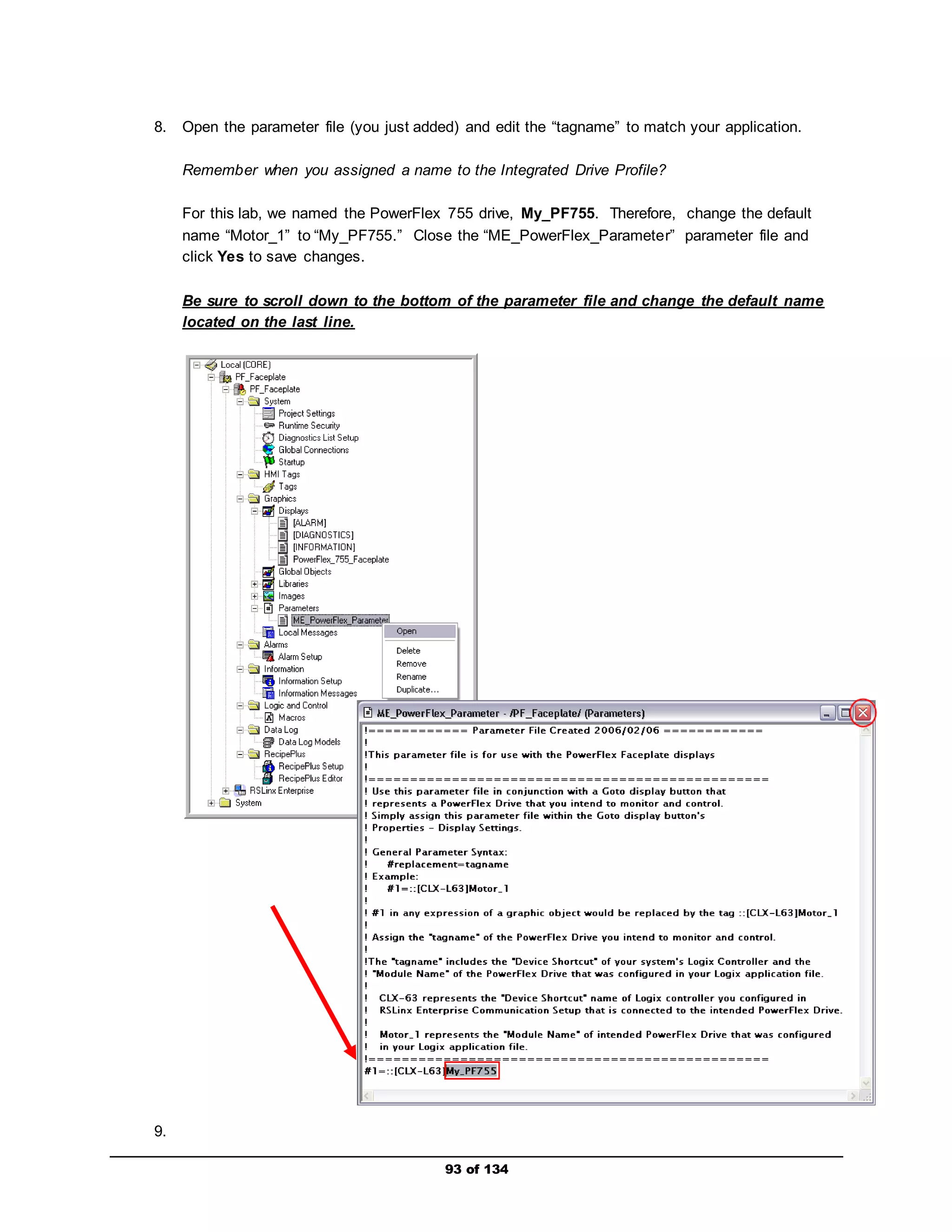
8. Open the parameter file (you just added) and edit the “tagname” to match your application. 
Remember when you assigned a name to the Integrated Drive Profile? 
For this lab, we named the PowerFlex 755 drive, My_PF755. Therefore, change the default 
name “Motor_1” to “My_PF755.” Close the “ME_PowerFlex_Parameter” parameter file and 
click Yes to save changes. 
Be sure to scroll down to the bottom of the parameter file and change the default name 
located on the last line. 
93 of 134 
9.
94 of 134 
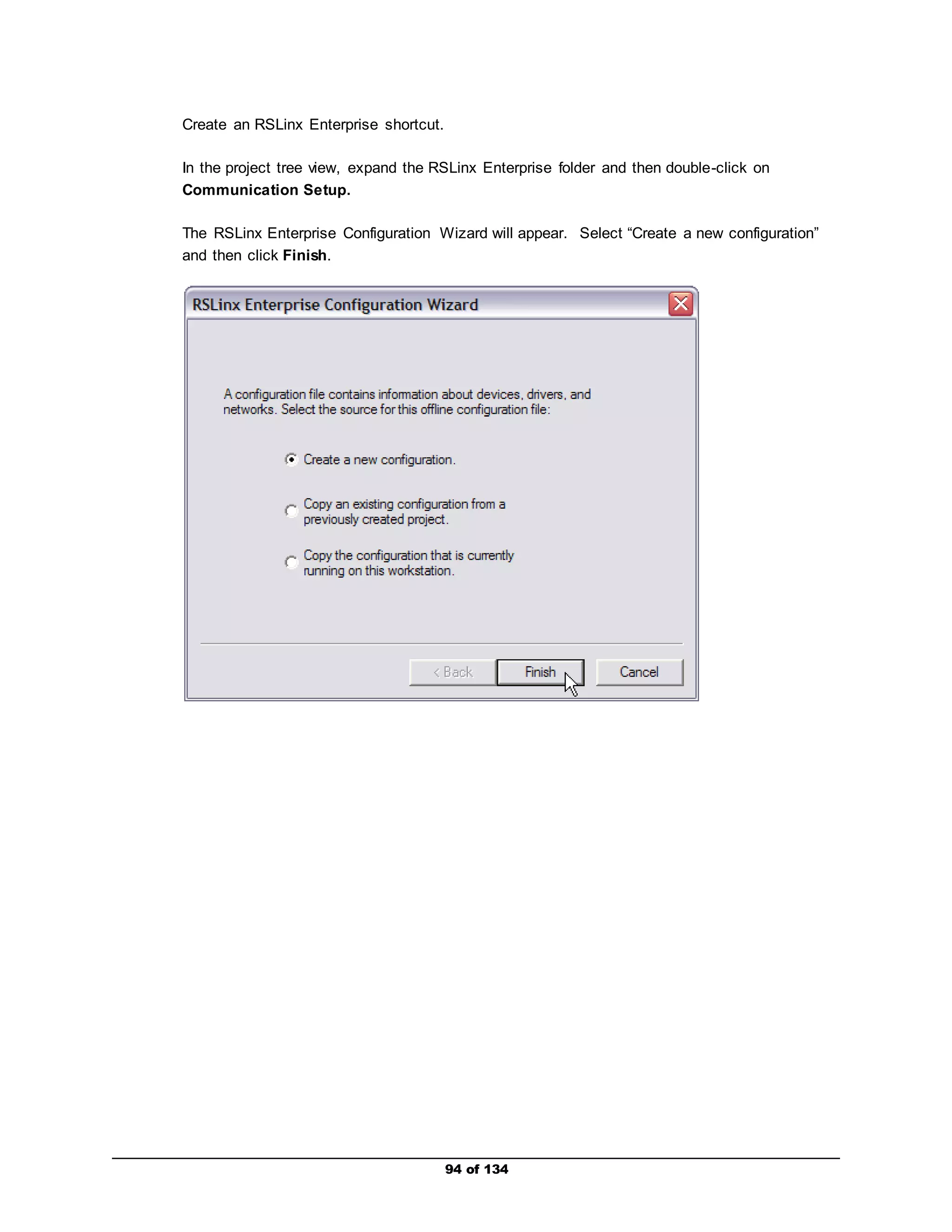
Create an RSLinx Enterprise shortcut. 
In the project tree view, expand the RSLinx Enterprise folder and then double-click on 
Communication Setup. 
The RSLinx Enterprise Configuration Wizard will appear. Select “Create a new configuration” 
and then click Finish.
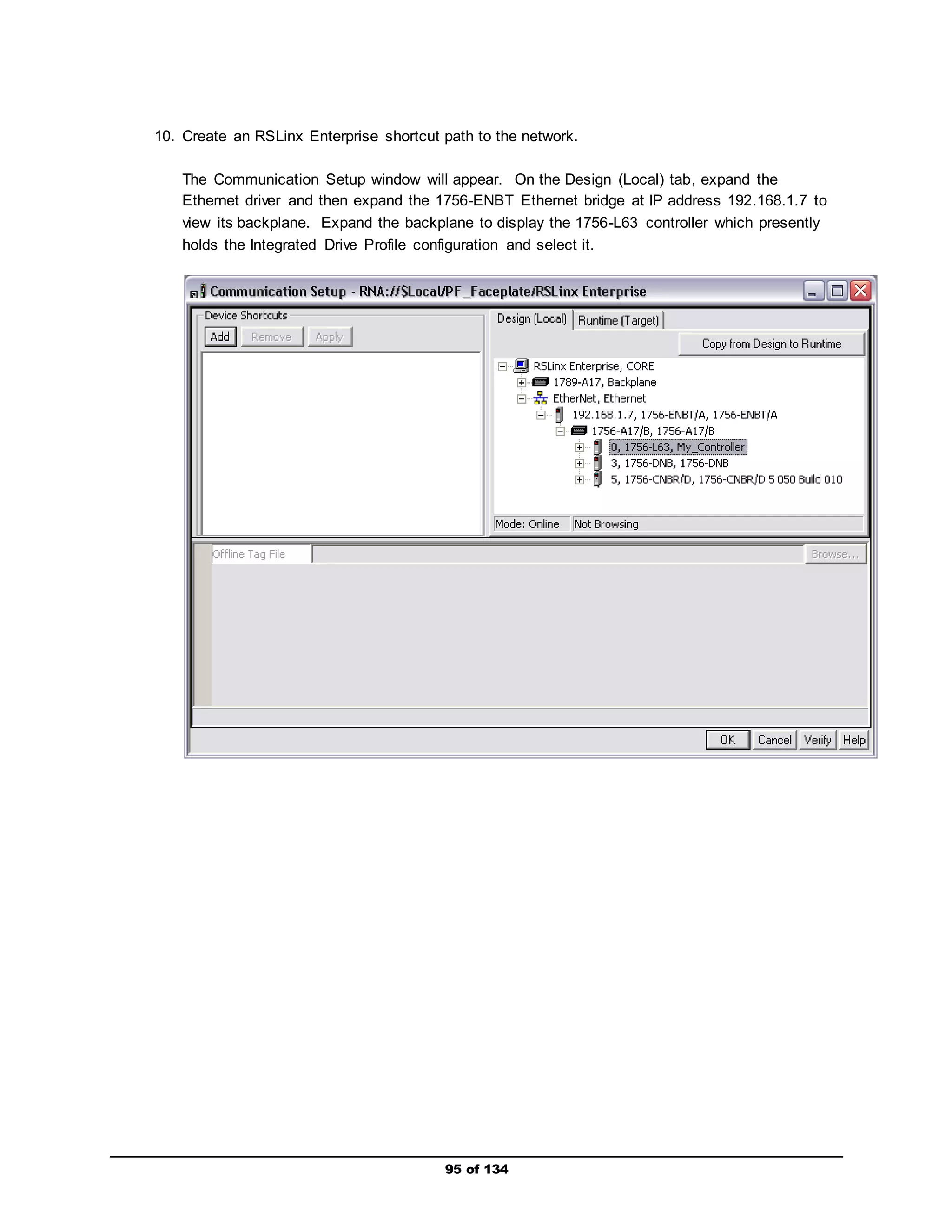
10. Create an RSLinx Enterprise shortcut path to the network. 
The Communication Setup window will appear. On the Design (Local) tab, expand the 
Ethernet driver and then expand the 1756-ENBT Ethernet bridge at IP address 192.168.1.7 to 
view its backplane. Expand the backplane to display the 1756-L63 controller which presently 
holds the Integrated Drive Profile configuration and select it. 
95 of 134
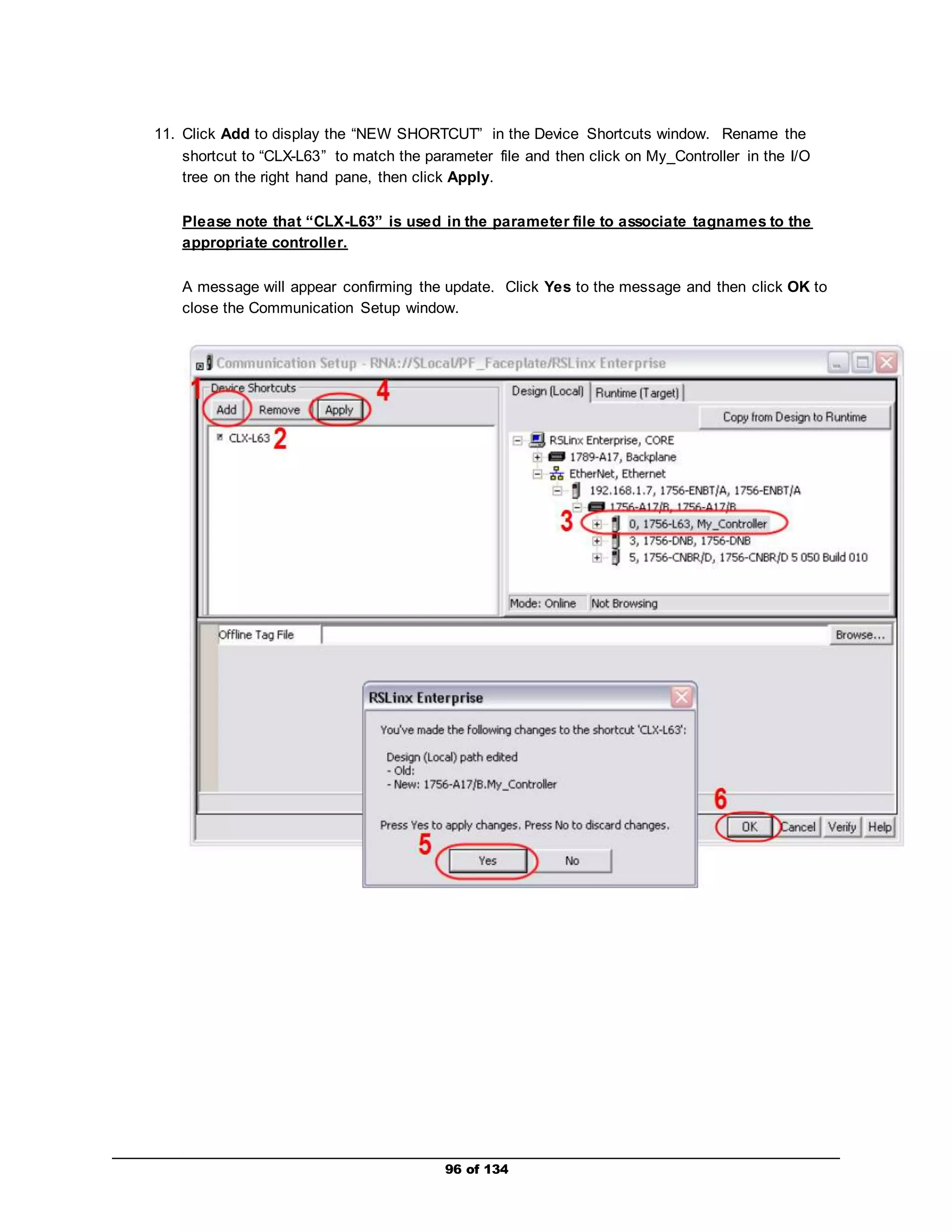
11. Click Add to display the “NEW SHORTCUT” in the Device Shortcuts window. Rename the 
shortcut to “CLX-L63” to match the parameter file and then click on My_Controller in the I/O 
tree on the right hand pane, then click Apply. 
Please note that “CLX-L63” is used in the parameter file to associate tagnames to the 
appropriate controller. 
A message will appear confirming the update. Click Yes to the message and then click OK to 
close the Communication Setup window. 
96 of 134
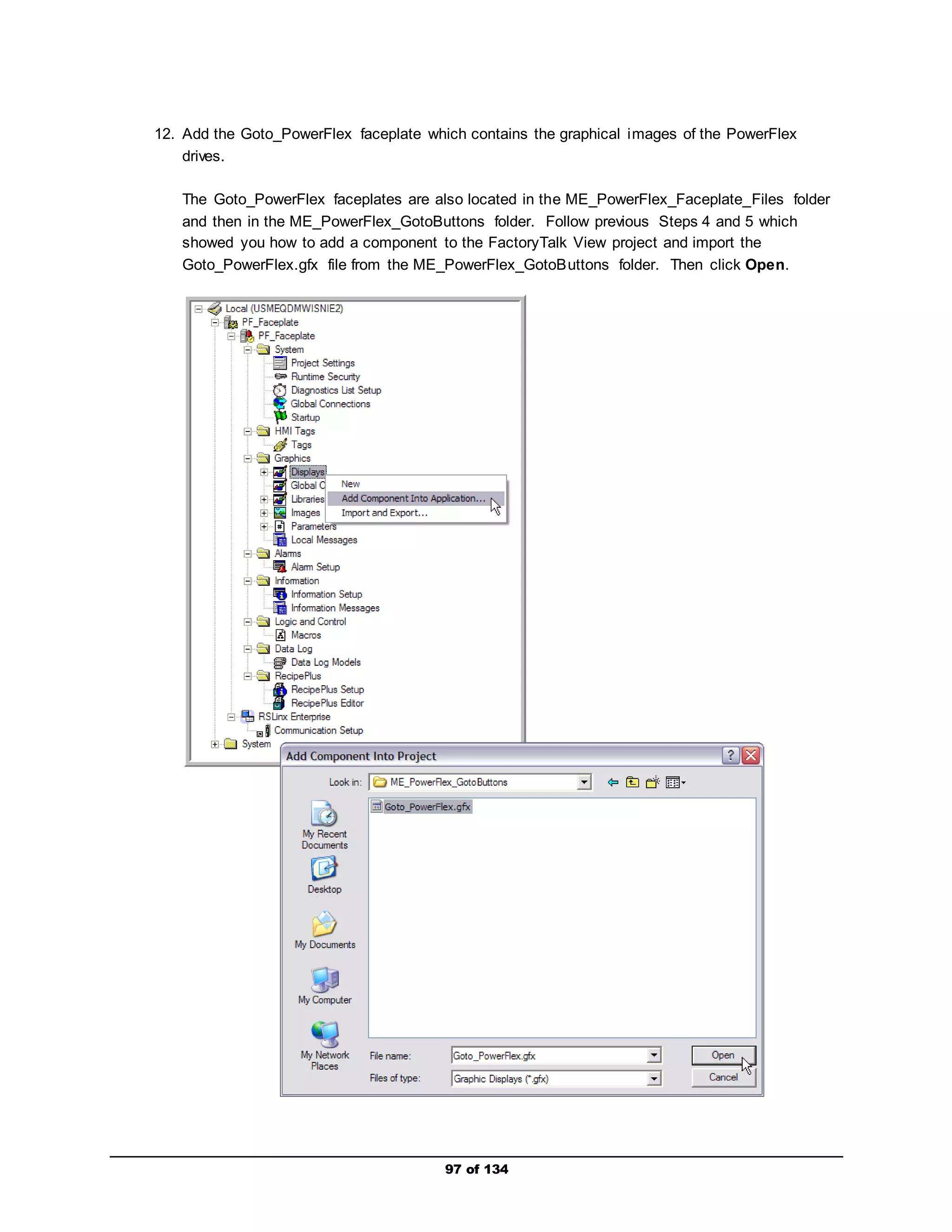
12. Add the Goto_PowerFlex faceplate which contains the graphical images of the PowerFlex 
97 of 134 
drives. 
The Goto_PowerFlex faceplates are also located in the ME_PowerFlex_Faceplate_Files folder 
and then in the ME_PowerFlex_GotoButtons folder. Follow previous Steps 4 and 5 which 
showed you how to add a component to the FactoryTalk View project and import the 
Goto_PowerFlex.gfx file from the ME_PowerFlex_GotoButtons folder. Then click Open.
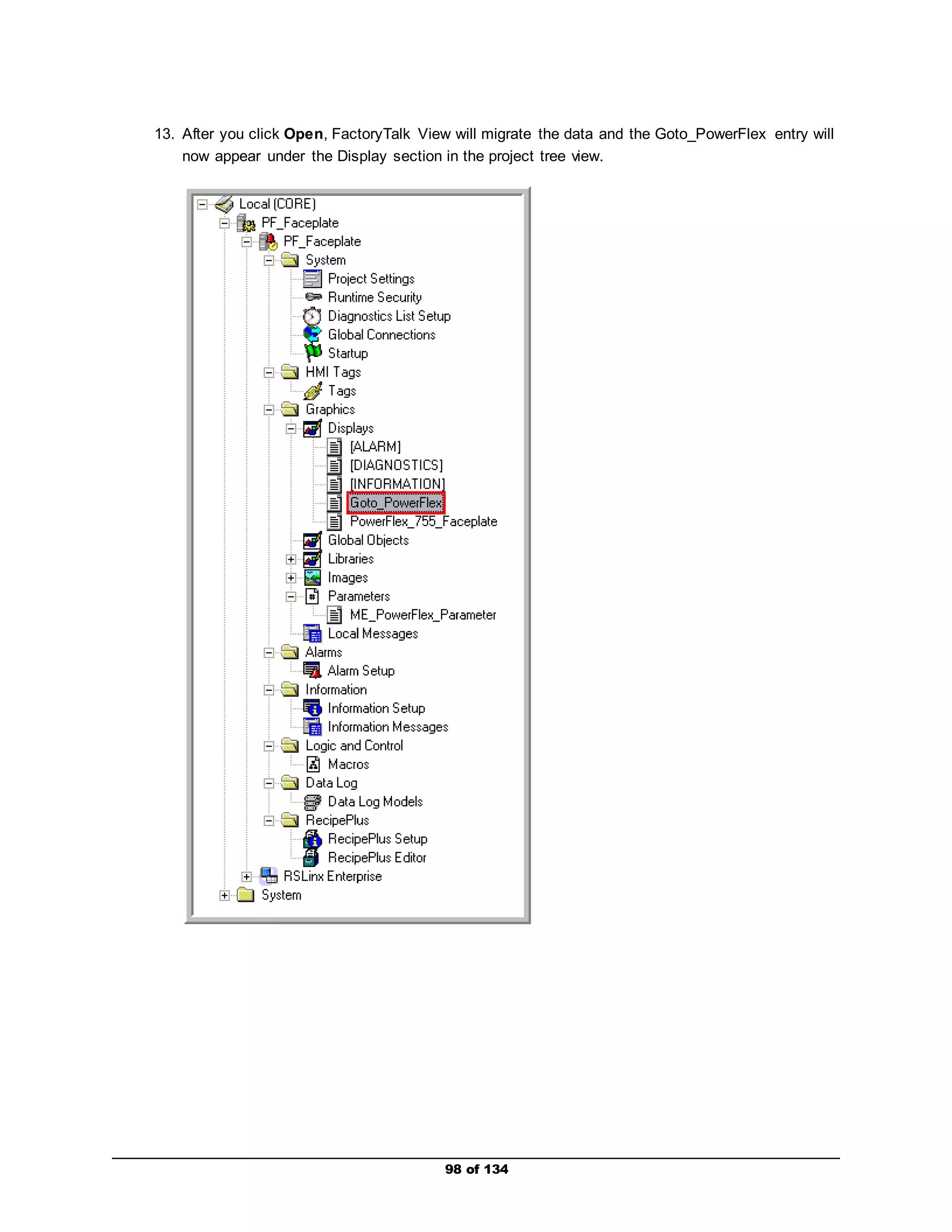
13. After you click Open, FactoryTalk View will migrate the data and the Goto_PowerFlex entry will 
now appear under the Display section in the project tree view. 
98 of 134
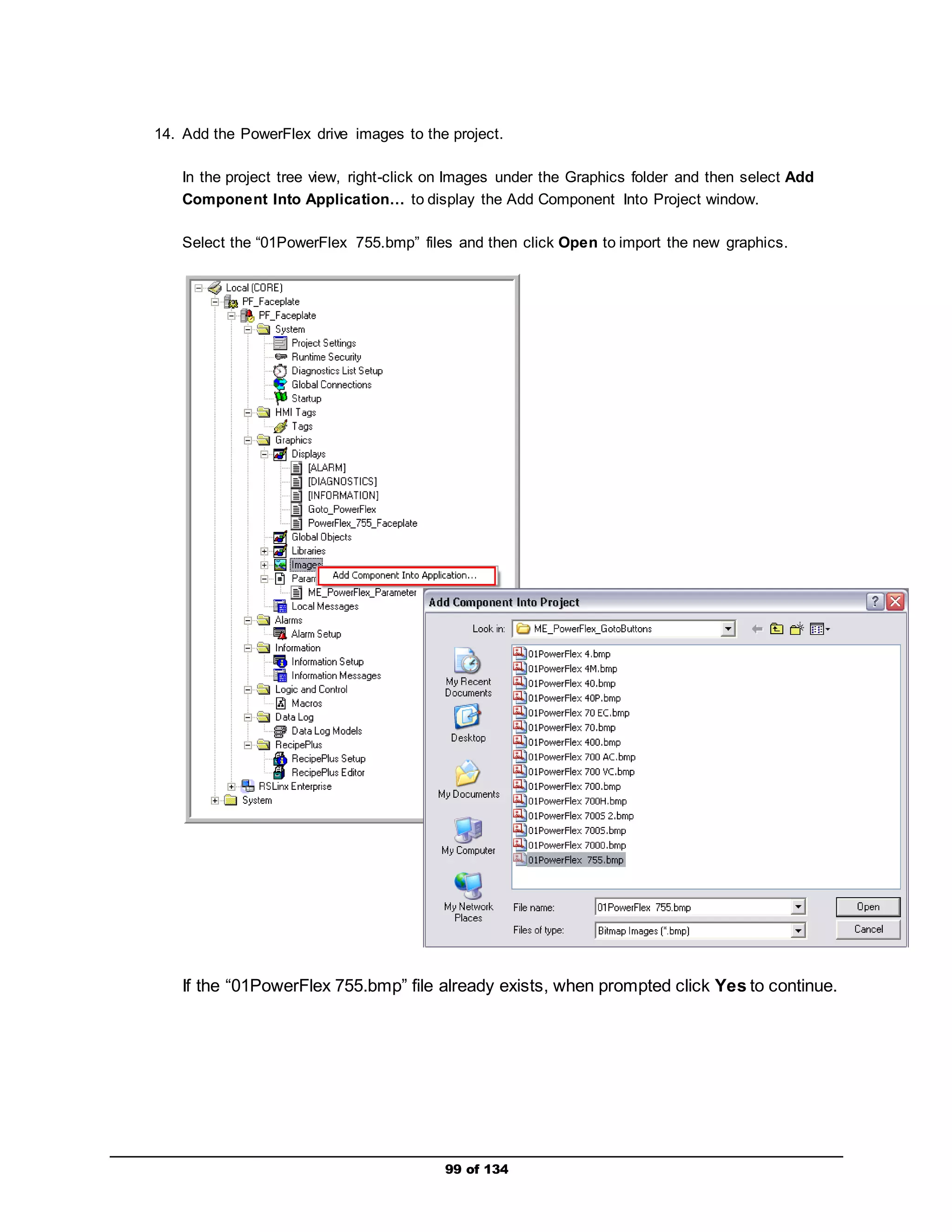
14. Add the PowerFlex drive images to the project. 
In the project tree view, right-click on Images under the Graphics folder and then select Add 
Component Into Application… to display the Add Component Into Project window. 
Select the “01PowerFlex 755.bmp” files and then click Open to import the new graphics. 
If the “01PowerFlex 755.bmp” file already exists, when prompted click Yes to continue. 
99 of 134
100 of 134 
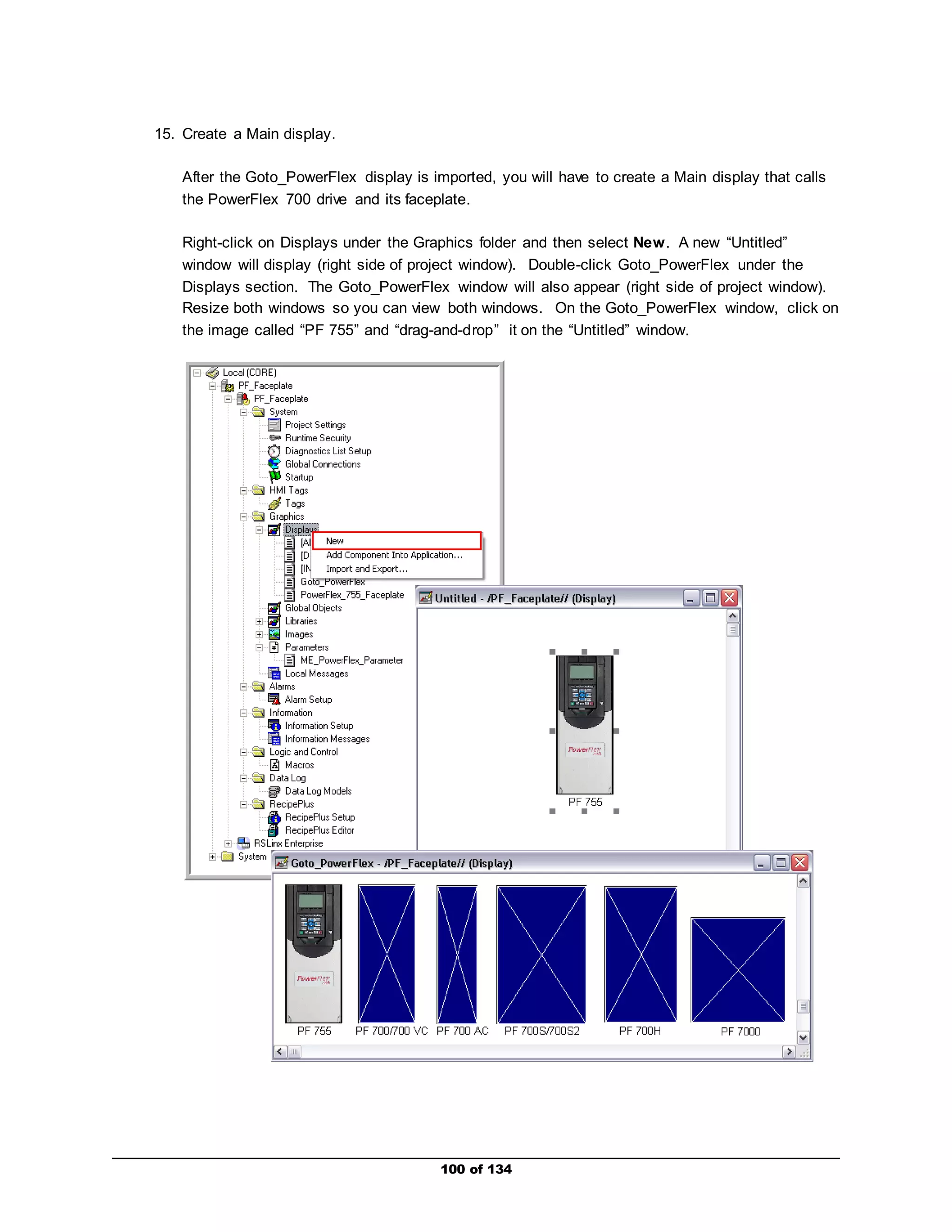
15. Create a Main display. 
After the Goto_PowerFlex display is imported, you will have to create a Main display that calls 
the PowerFlex 700 drive and its faceplate. 
Right-click on Displays under the Graphics folder and then select New. A new “Untitled” 
window will display (right side of project window). Double-click Goto_PowerFlex under the 
Displays section. The Goto_PowerFlex window will also appear (right side of project window). 
Resize both windows so you can view both windows. On the Goto_PowerFlex window, click on 
the image called “PF 755” and “drag-and-drop” it on the “Untitled” window.
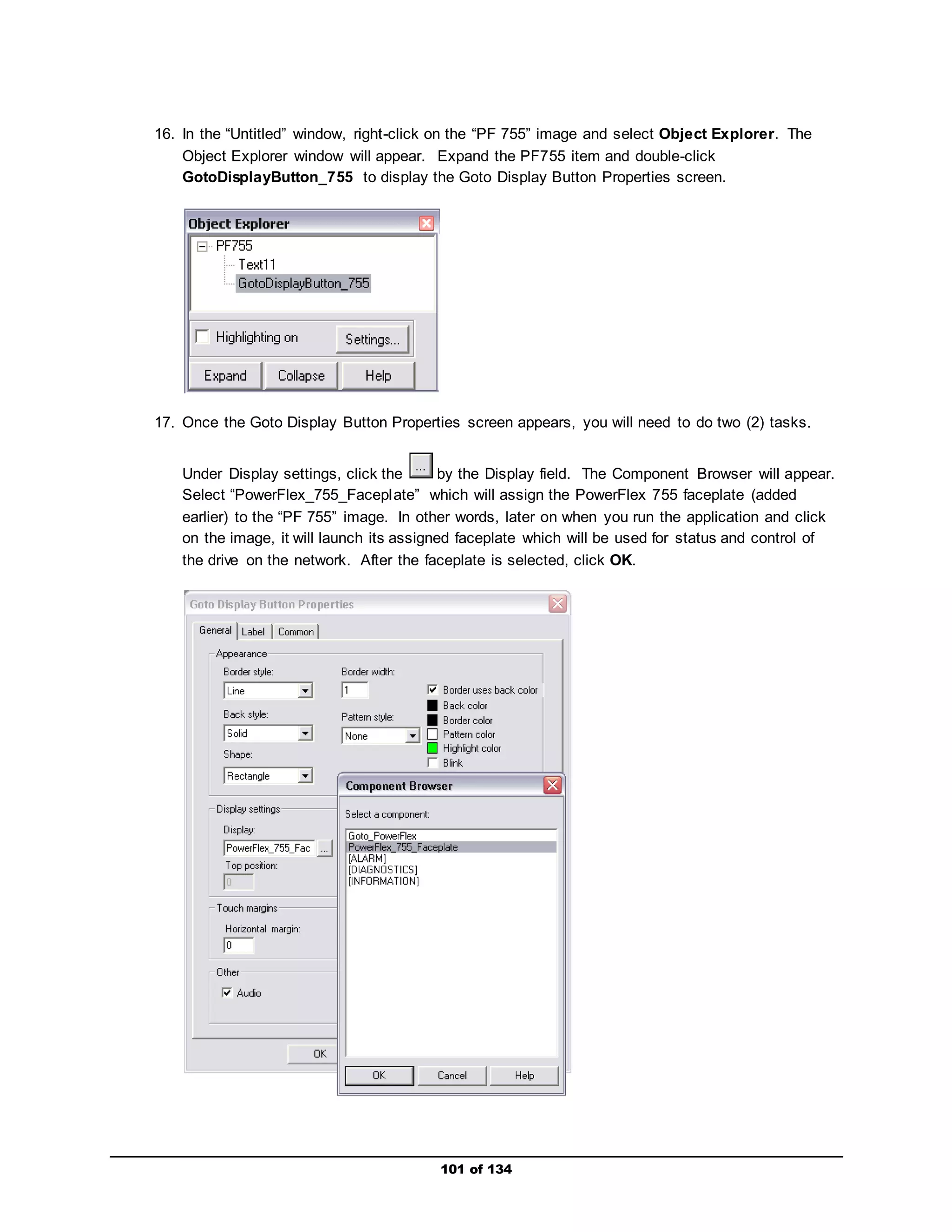
16. In the “Untitled” window, right-click on the “PF 755” image and select Object Explorer. The 
Object Explorer window will appear. Expand the PF755 item and double-click 
GotoDisplayButton_755 to display the Goto Display Button Properties screen. 
17. Once the Goto Display Button Properties screen appears, you will need to do two (2) tasks. 
Under Display settings, click the by the Display field. The Component Browser will appear. 
Select “PowerFlex_755_Facepl ate” which will assign the PowerFlex 755 faceplate (added 
earlier) to the “PF 755” image. In other words, later on when you run the application and click 
on the image, it will launch its assigned faceplate which will be used for status and control of 
the drive on the network. After the faceplate is selected, click OK. 
101 of 134
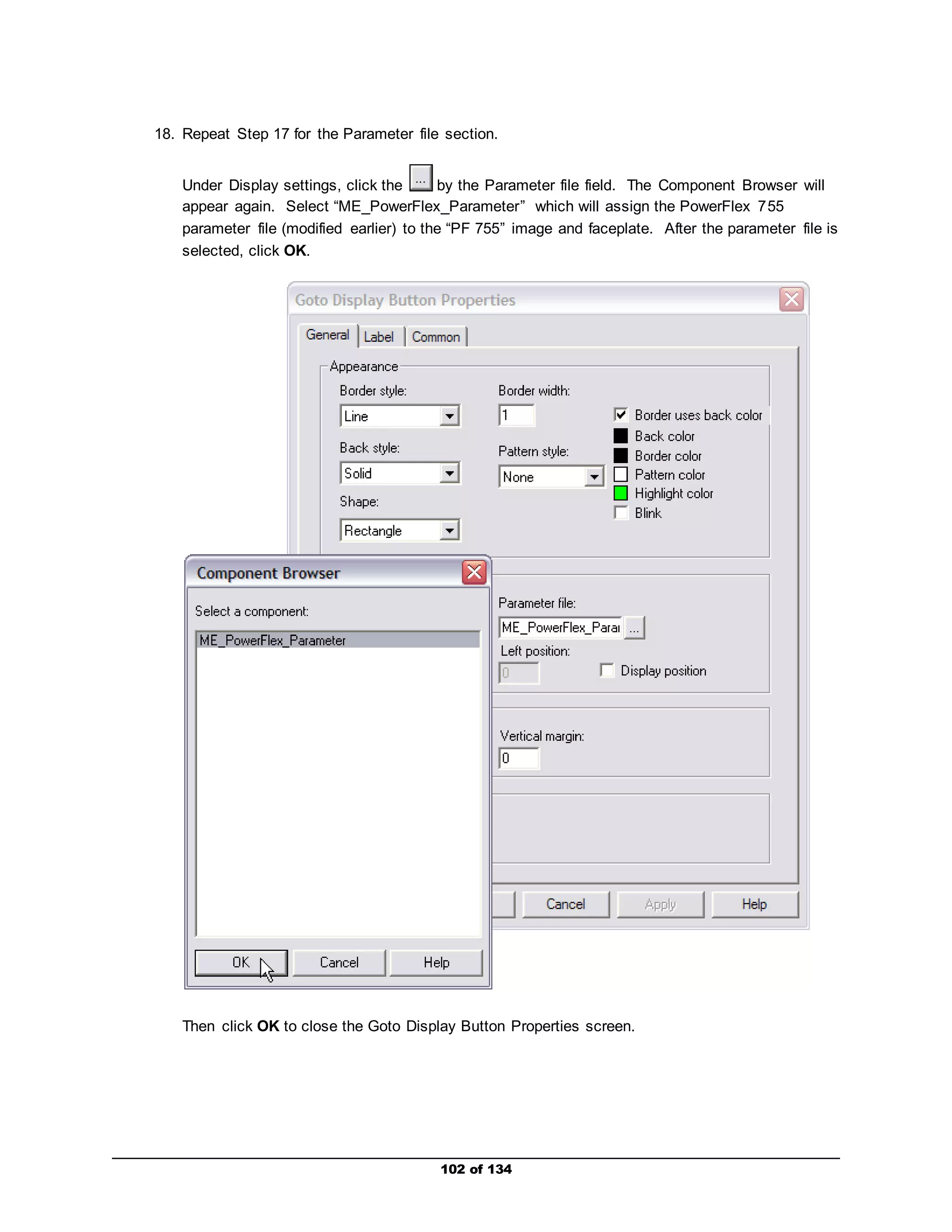
18. Repeat Step 17 for the Parameter file section. 
Under Display settings, click the by the Parameter file field. The Component Browser will 
appear again. Select “ME_PowerFlex_Parameter” which will assign the PowerFlex 755 
parameter file (modified earlier) to the “PF 755” image and faceplate. After the parameter file is 
selected, click OK. 
Then click OK to close the Goto Display Button Properties screen. 
102 of 134
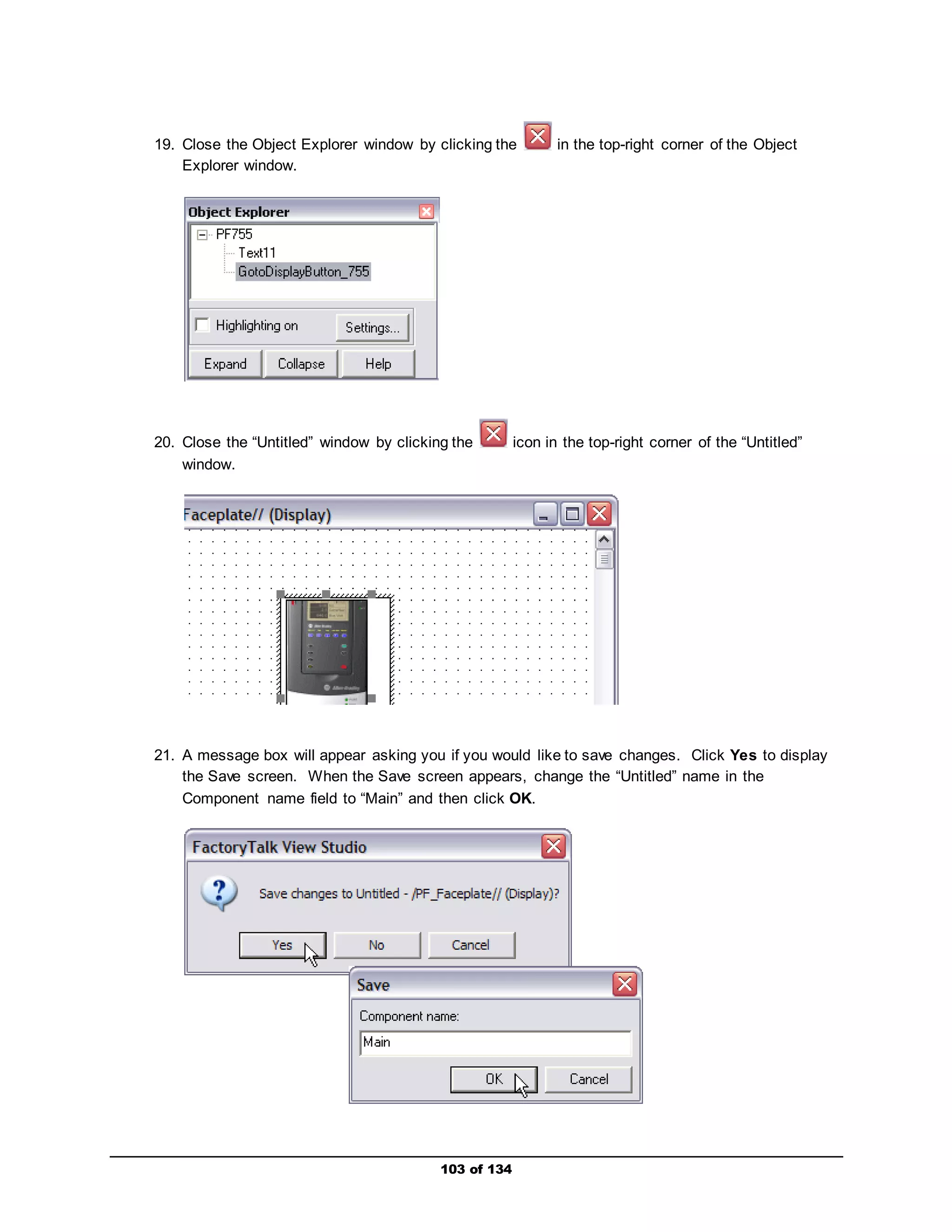
19. Close the Object Explorer window by clicking the in the top-right corner of the Object 
103 of 134 
Explorer window. 
20. Close the “Untitled” window by clicking the icon in the top-right corner of the “Untitled” 
window. 
21. A message box will appear asking you if you would like to save changes. Click Yes to display 
the Save screen. When the Save screen appears, change the “Untitled” name in the 
Component name field to “Main” and then click OK.
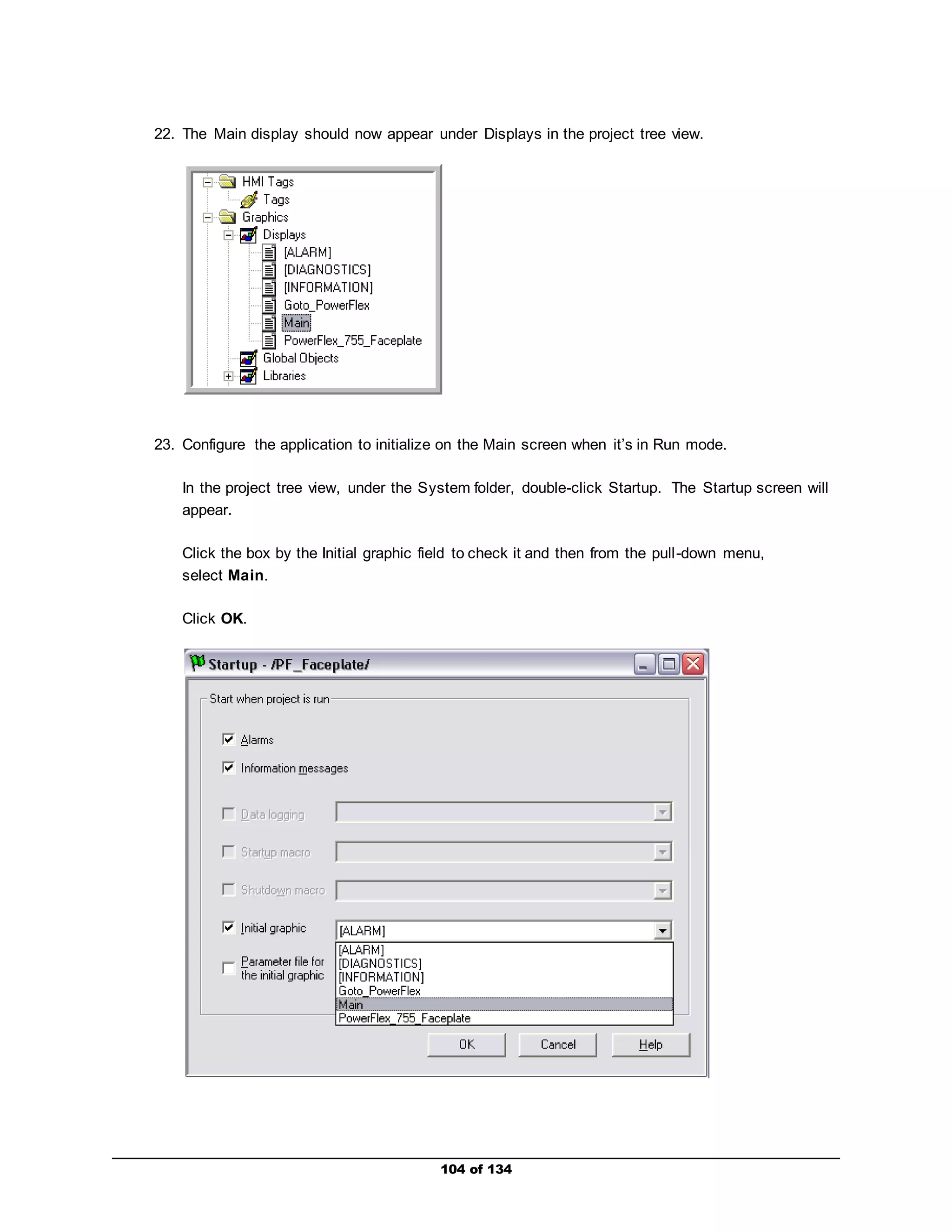
22. The Main display should now appear under Displays in the project tree view. 
23. Configure the application to initialize on the Main screen when it’s in Run mode. 
In the project tree view, under the System folder, double-click Startup. The Startup screen will 
appear. 
Click the box by the Initial graphic field to check it and then from the pull -down menu, 
select Main. 
104 of 134 
Click OK.
105 of 134 
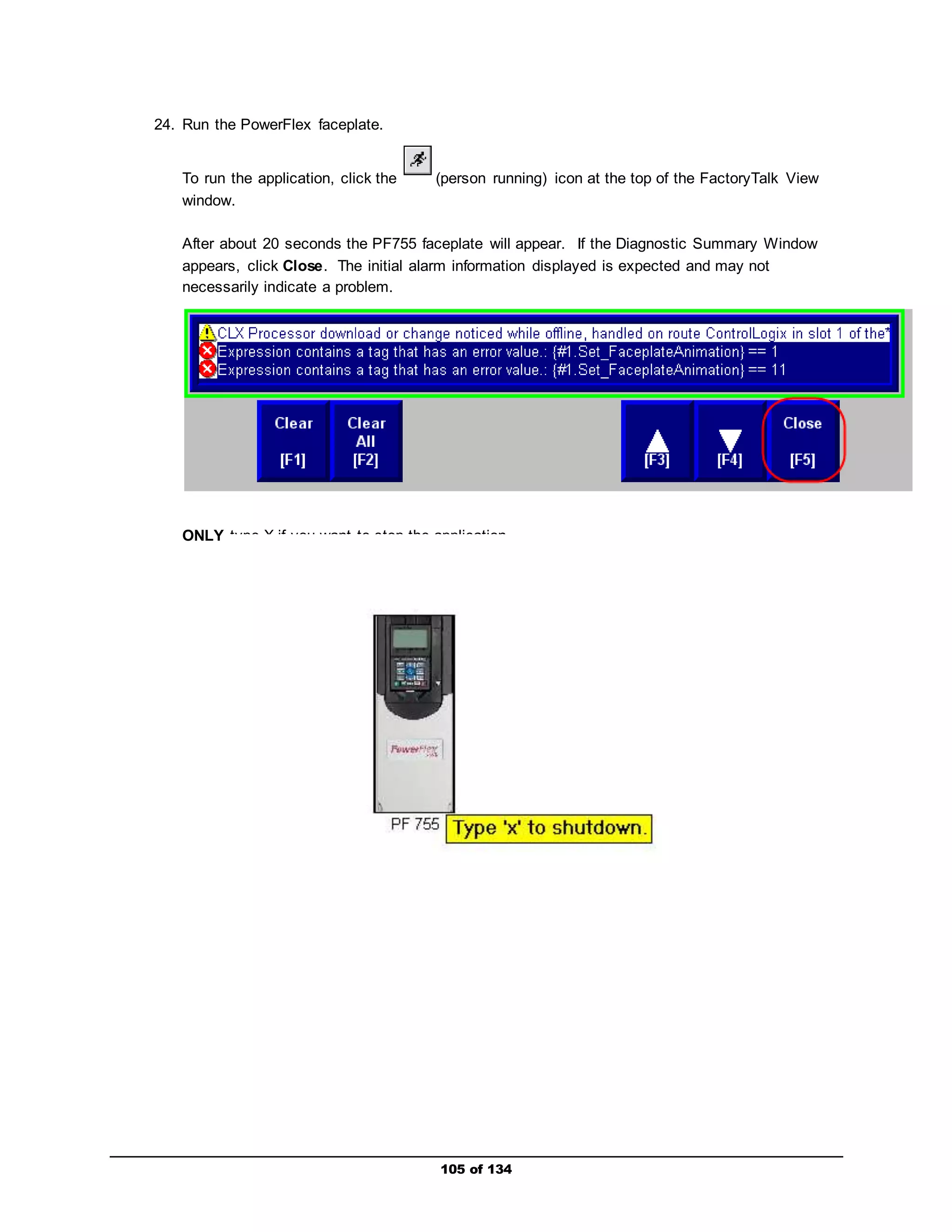
24. Run the PowerFlex faceplate. 
To run the application, click the (person running) icon at the top of the FactoryTalk View 
window. 
After about 20 seconds the PF755 faceplate will appear. If the Diagnostic Summary Window 
appears, click Close. The initial alarm information displayed is expected and may not 
necessarily indicate a problem. 
ONLY type X if you want to stop the application.
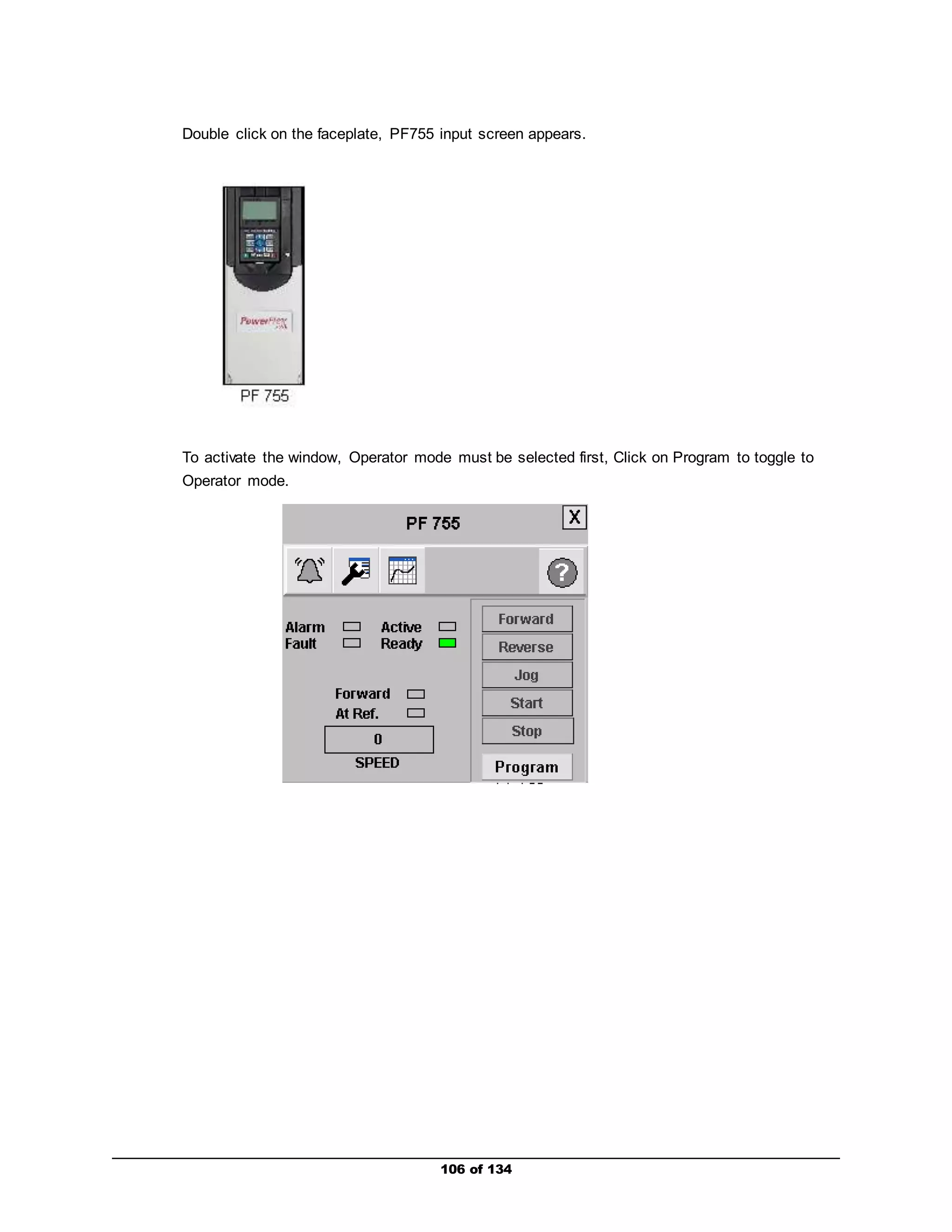
Double click on the faceplate, PF755 input screen appears. 
To activate the window, Operator mode must be selected first, Click on Program to toggle to 
Operator mode. 
106 of 134
107 of 134 
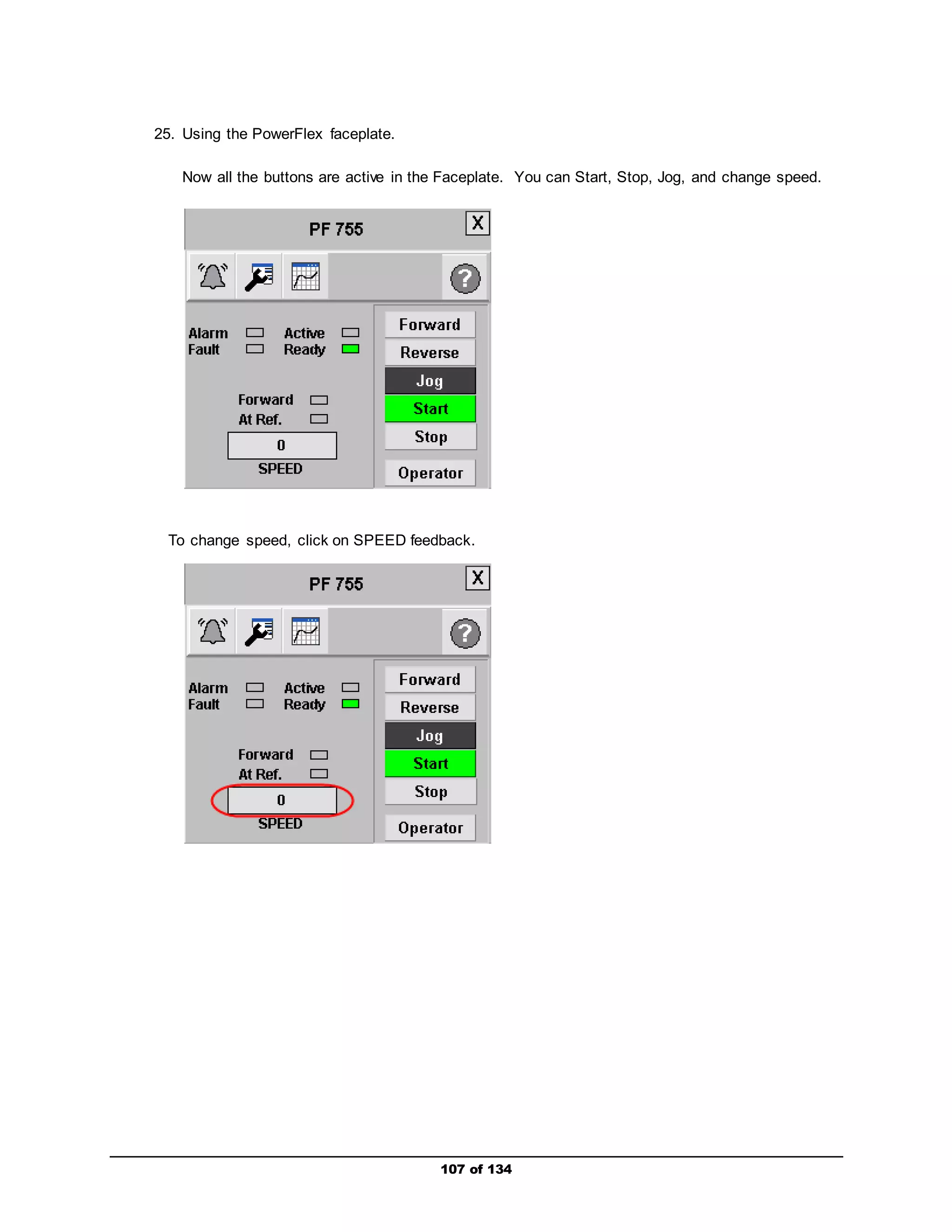
25. Using the PowerFlex faceplate. 
Now all the buttons are active in the Faceplate. You can Start, Stop, Jog, and change speed. 
To change speed, click on SPEED feedback.
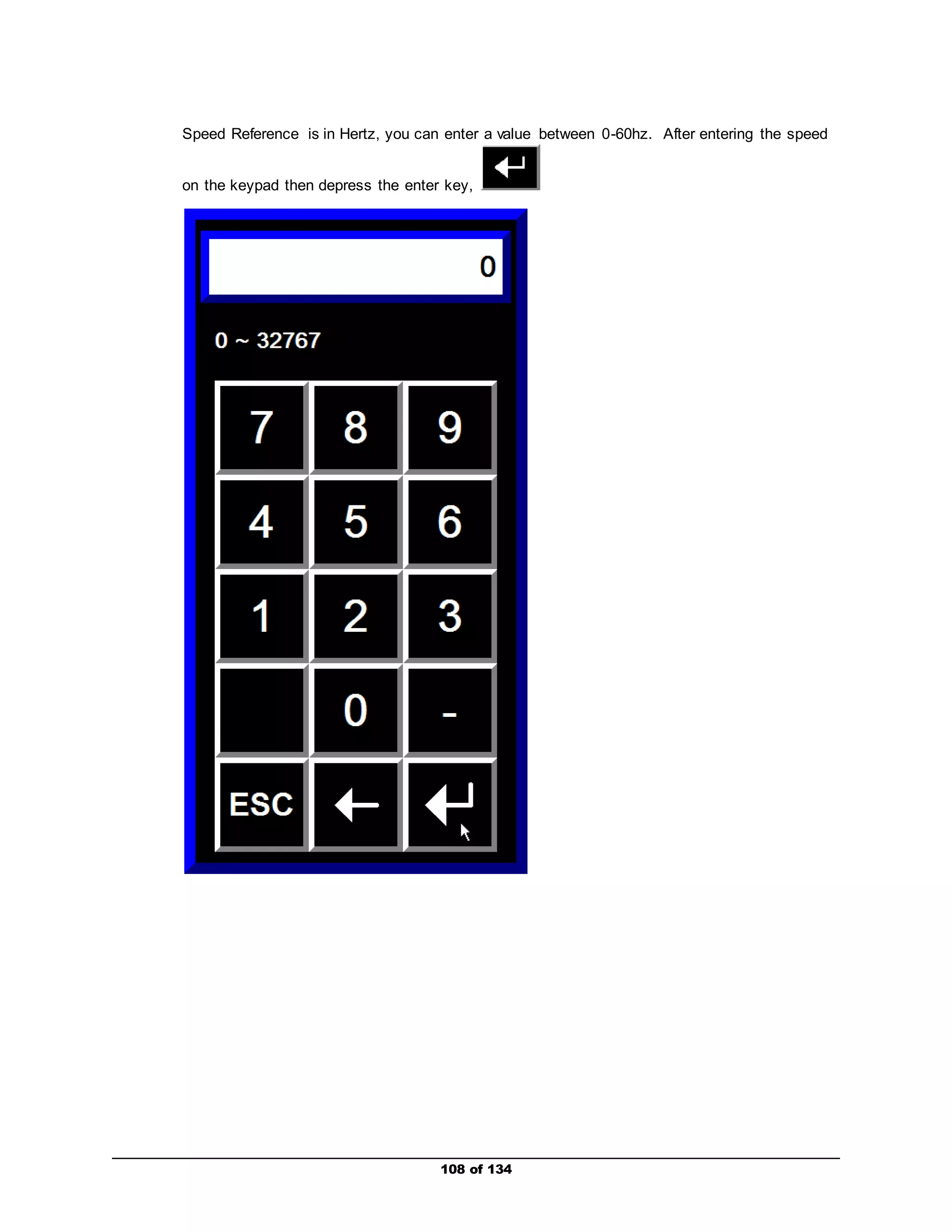
Speed Reference is in Hertz, you can enter a value between 0-60hz. After entering the speed 
on the keypad then depress the enter key, 
108 of 134
You are now FINISHED with the Premier Integration Lab with Logix, 
PowerFlex Drives & FactoryTalk View. The remaining part of the 
lab is optional. 
109 of 134
Optional Lab Materials (Time Permitting) 
This section is optional, and for those that finish early and would like to learn more. Please select any 
topic of interest: 
 Using Explicit Messaging – Learn how to use a MSG instruction to read and write data to the 
drive that is not already being communicated as part of the normal I/O update (implicit 
messaging). 
 Challenge! Conveyor Application - From the information learned, create a program using 
RSLogix 5000 that will simulate product (for example, bottles) moving on a conveyor line. 
 Using a non-AB Drive with ControlLogix – See what it takes for a competitor’s drive to connect 
to ControlLogix. Information only – no hands-on lab. 
110 of 134
Using Explicit Messaging (Optional) 
This section explains how to perform an explicit message to the PowerFlex 700 VC drive over an 
EtherNet/IP network. Explicit Messaging is another method of reading / writing data from / to a drive for 
monitoring and configuring purposes. They are similar to Datalinks, however, if Explicit Messages are 
programmed to write parameter data to Non-Volatile Storage (NVS) frequently, the NVS will quickly 
exceed its life cycle and cause the drive to malfunction. Datalinks do not write to NVS and should be 
used instead for frequently changed parameters. 
In v15 (and higher) of RSLogix 5000, an easier method of performing an Explicit Message to a drive was 
added. In the past, when you configured an explicit message, you had to figure out what Class, Instance, 
and Attribute to use, and then how to set up the information inside a Message (MSG) instruction. Let’s try 
the new way! 
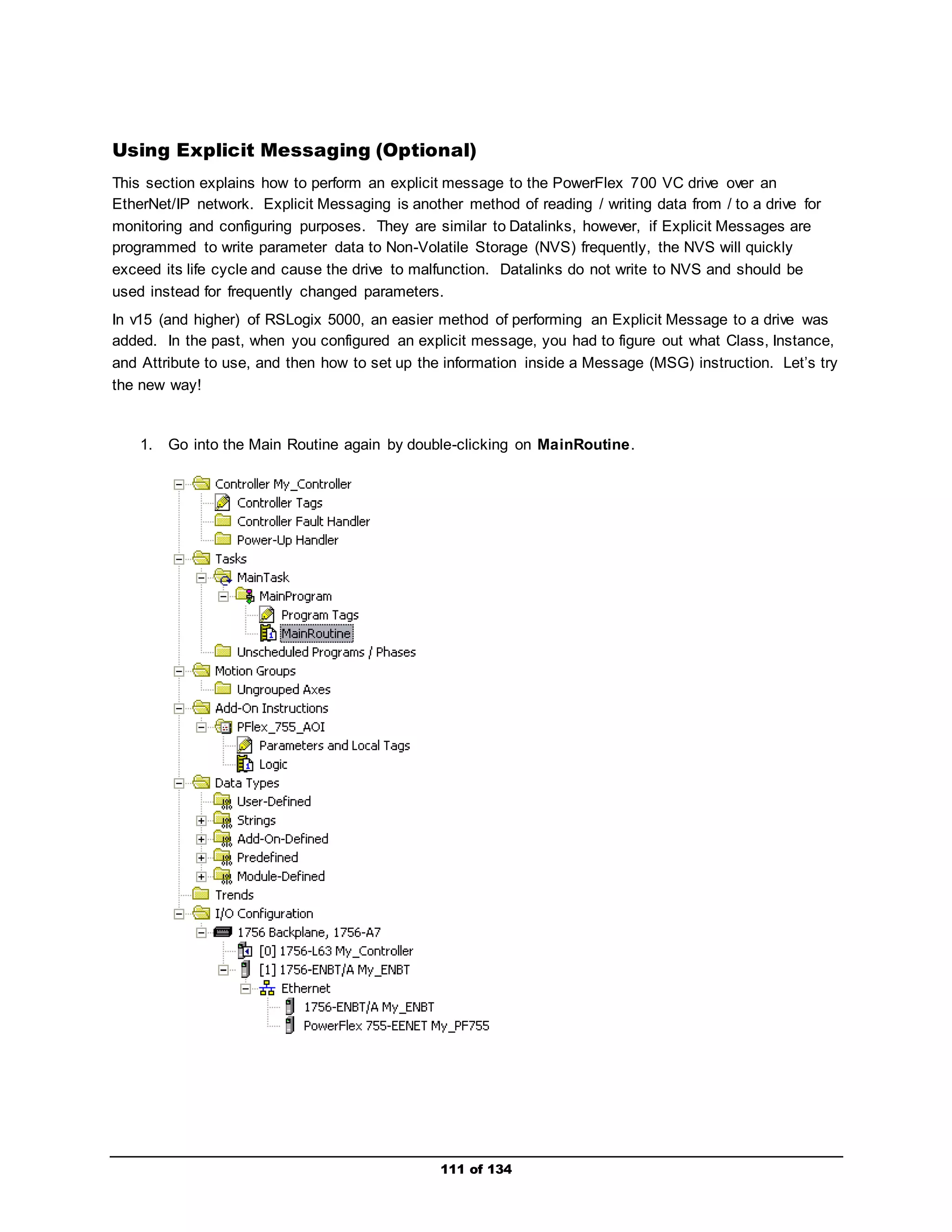
1. Go into the Main Routine again by double-clicking on MainRoutine. 
111 of 134
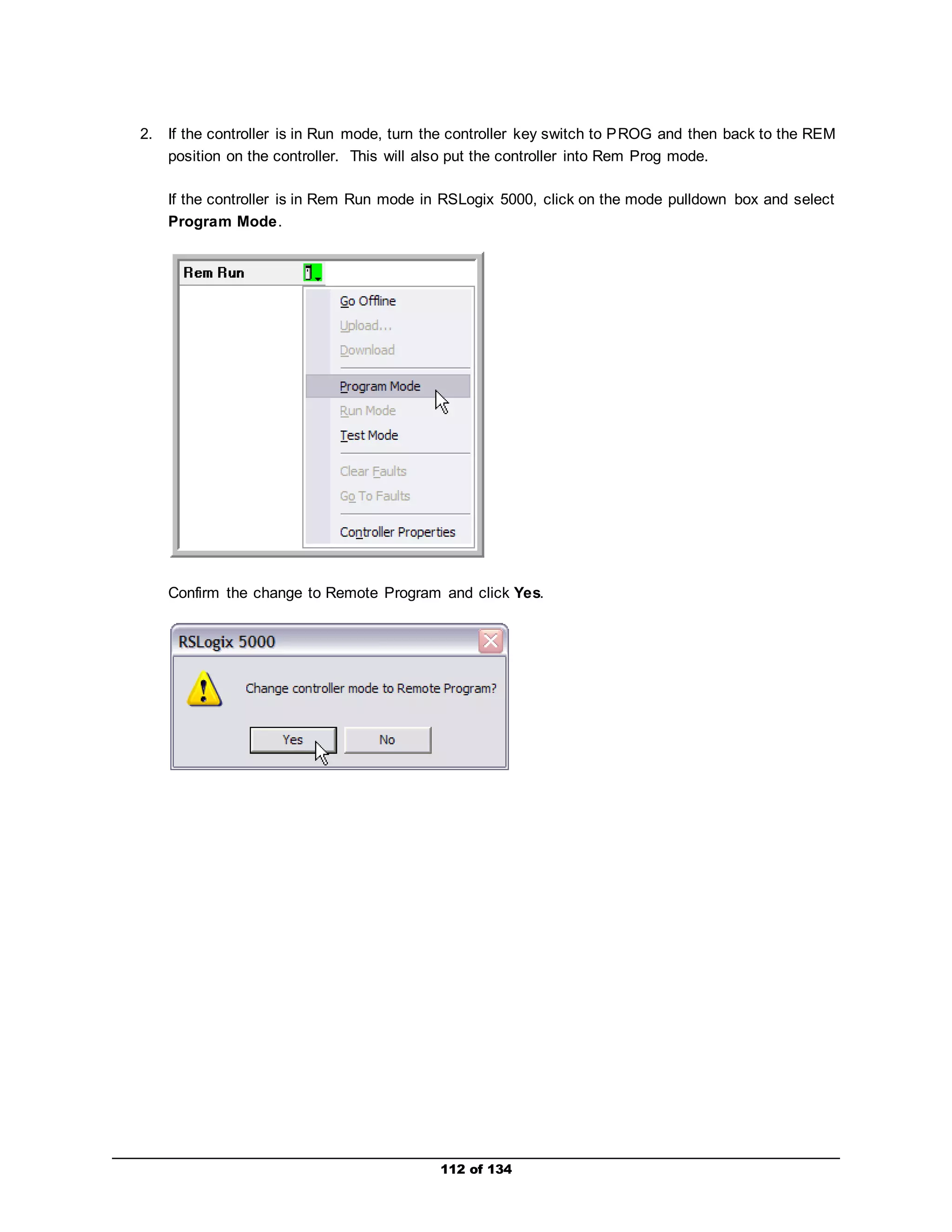
2. If the controller is in Run mode, turn the controller key switch to PROG and then back to the REM 
position on the controller. This will also put the controller into Rem Prog mode. 
If the controller is in Rem Run mode in RSLogix 5000, click on the mode pulldown box and select 
Program Mode. 
Confirm the change to Remote Program and click Yes. 
112 of 134
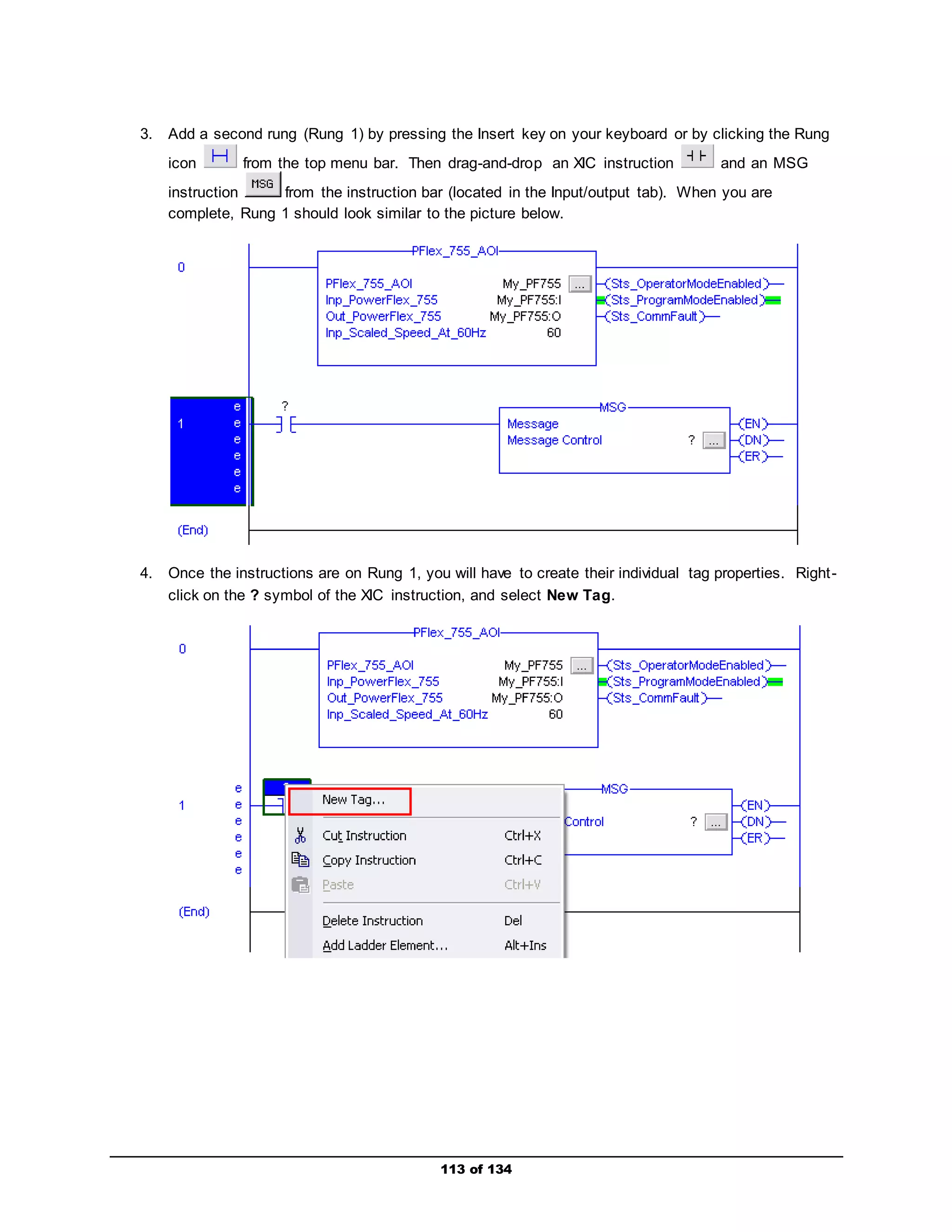
3. Add a second rung (Rung 1) by pressing the Insert key on your keyboard or by clicking the Rung 
icon from the top menu bar. Then drag-and-drop an XIC instruction and an MSG 
instruction from the instruction bar (located in the Input/output tab). When you are 
complete, Rung 1 should look similar to the picture below. 
4. Once the instructions are on Rung 1, you will have to create their individual tag properties. Right - 
click on the ? symbol of the XIC instruction, and select New Tag. 
113 of 134
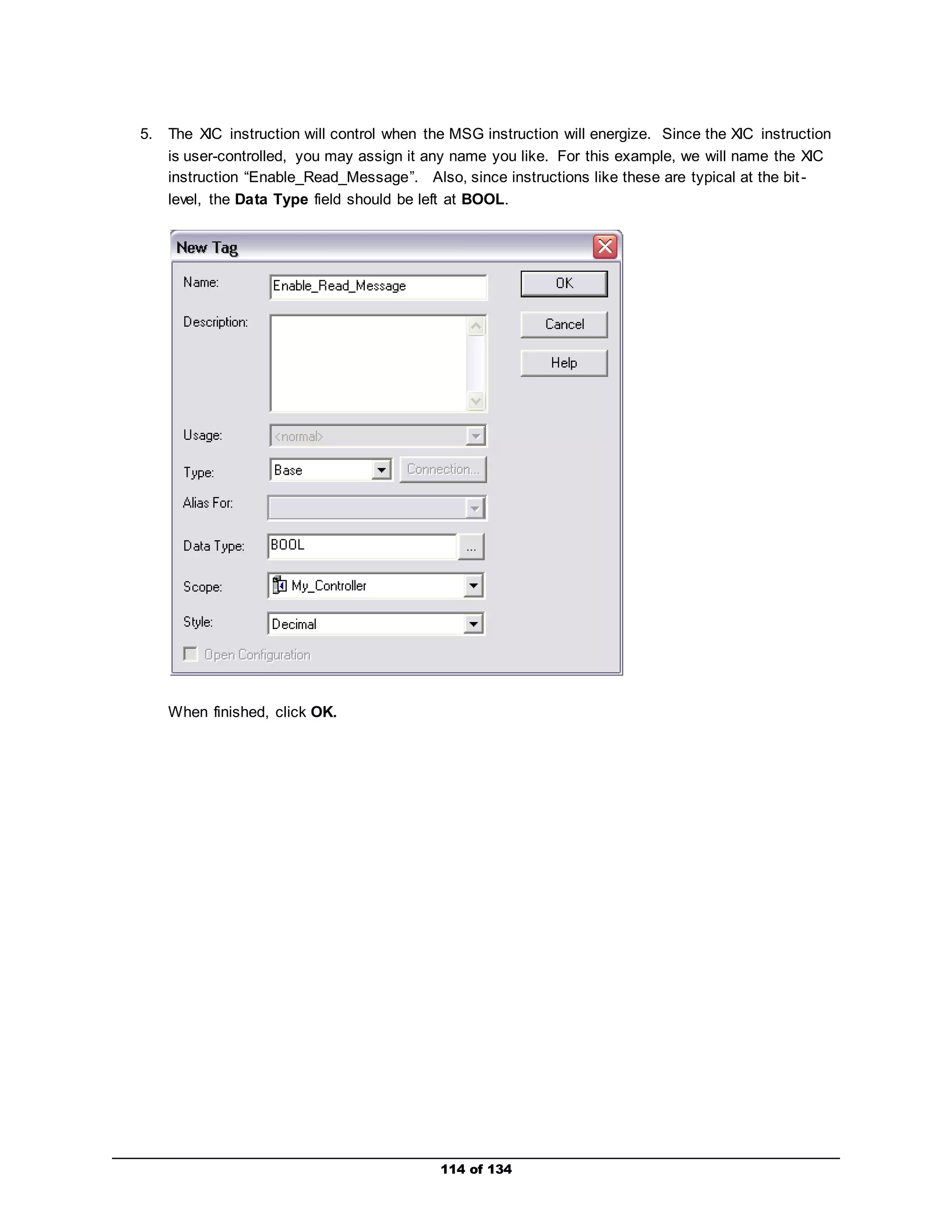
5. The XIC instruction will control when the MSG instruction will energize. Since the XIC instruction 
is user-controlled, you may assign it any name you like. For this example, we will name the XIC 
instruction “Enable_Read_Message”. Also, since instructions like these are typical at the bit - 
level, the Data Type field should be left at BOOL. 
114 of 134 
When finished, click OK.
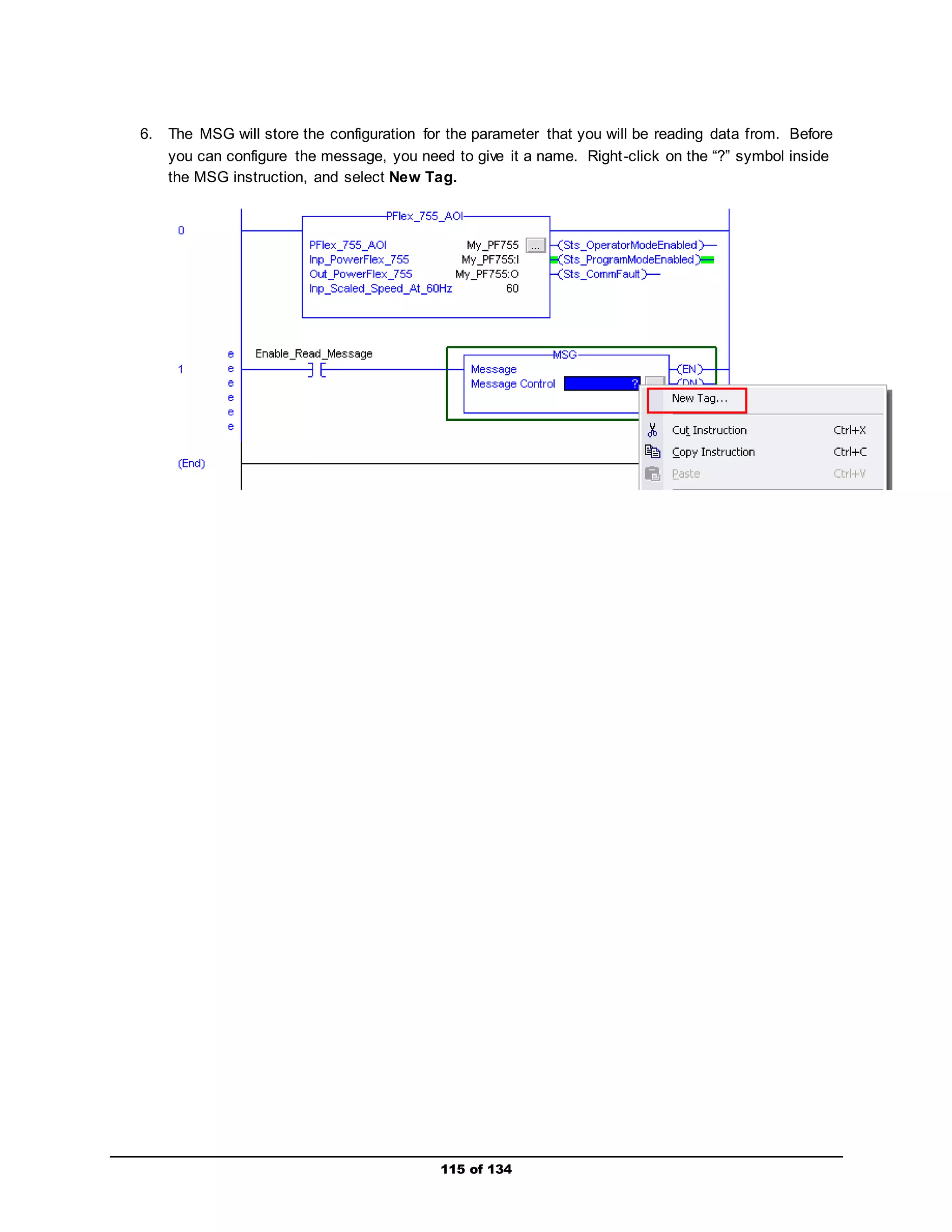
6. The MSG will store the configuration for the parameter that you will be reading data from. Before 
you can configure the message, you need to give it a name. Right -click on the “?” symbol inside 
the MSG instruction, and select New Tag. 
115 of 134
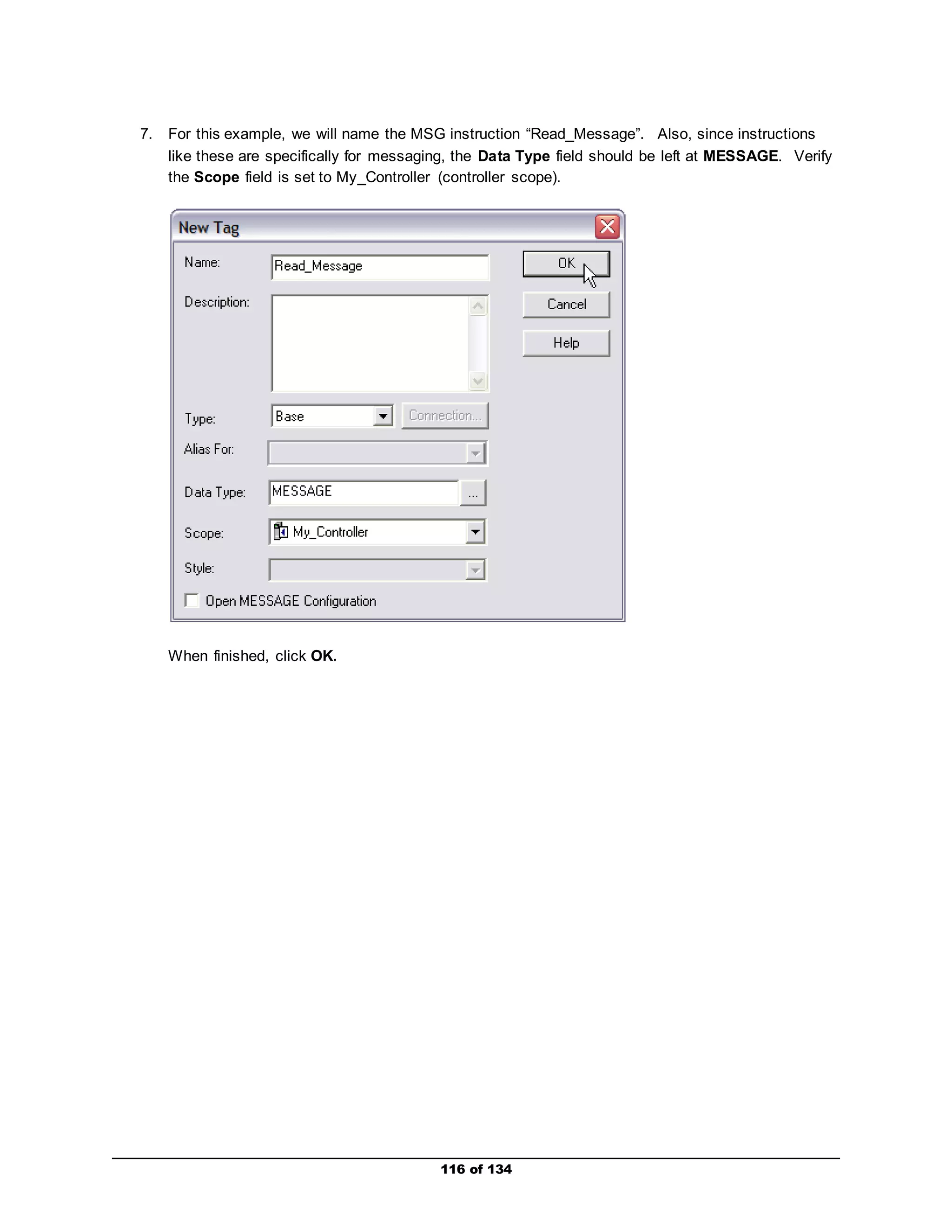
7. For this example, we will name the MSG instruction “Read_Message”. Also, since instructions 
like these are specifically for messaging, the Data Type field should be left at MESSAGE. Verify 
the Scope field is set to My_Controller (controller scope). 
116 of 134 
When finished, click OK.
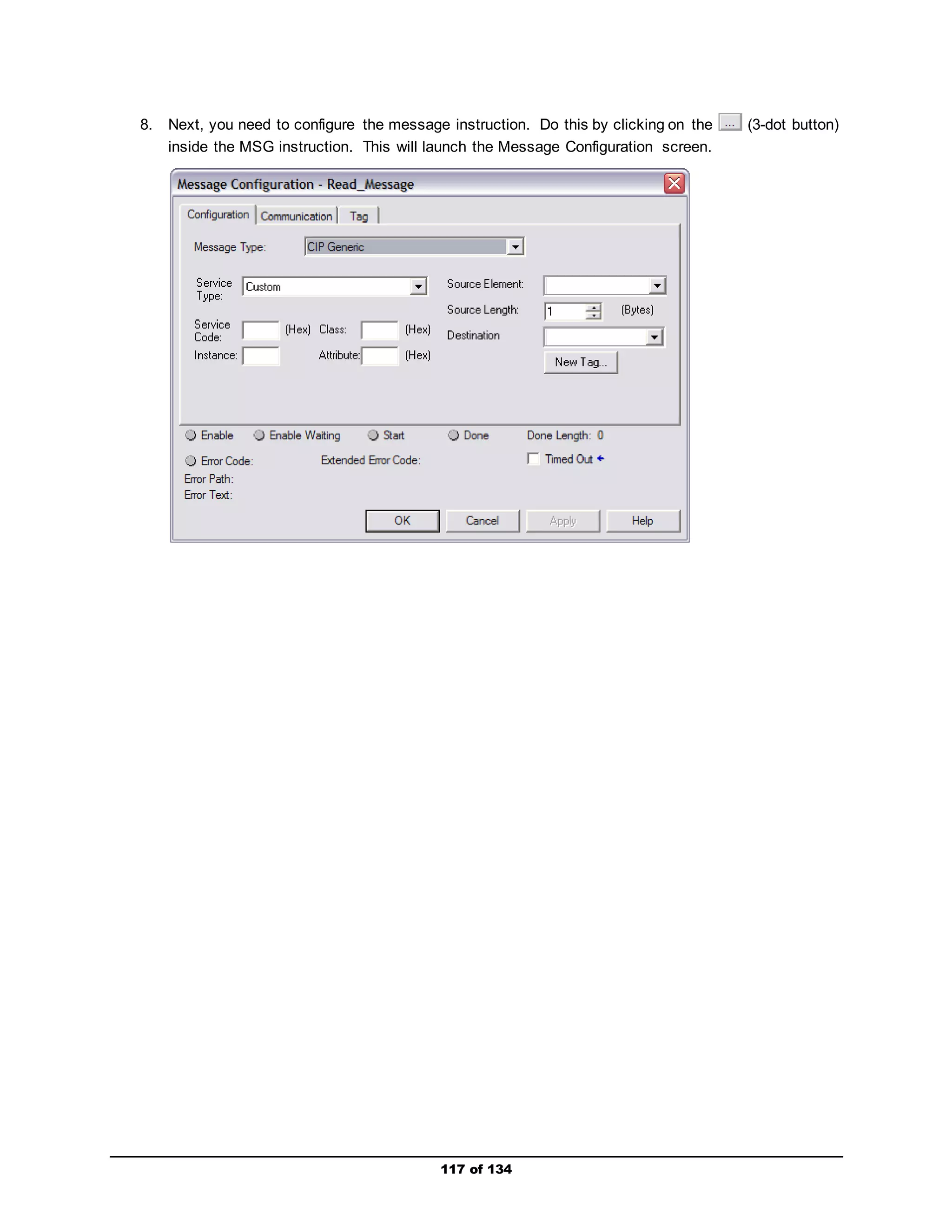
8. Next, you need to configure the message instruction. Do this by clicking on the (3-dot button) 
inside the MSG instruction. This will launch the Message Configuration screen. 
117 of 134
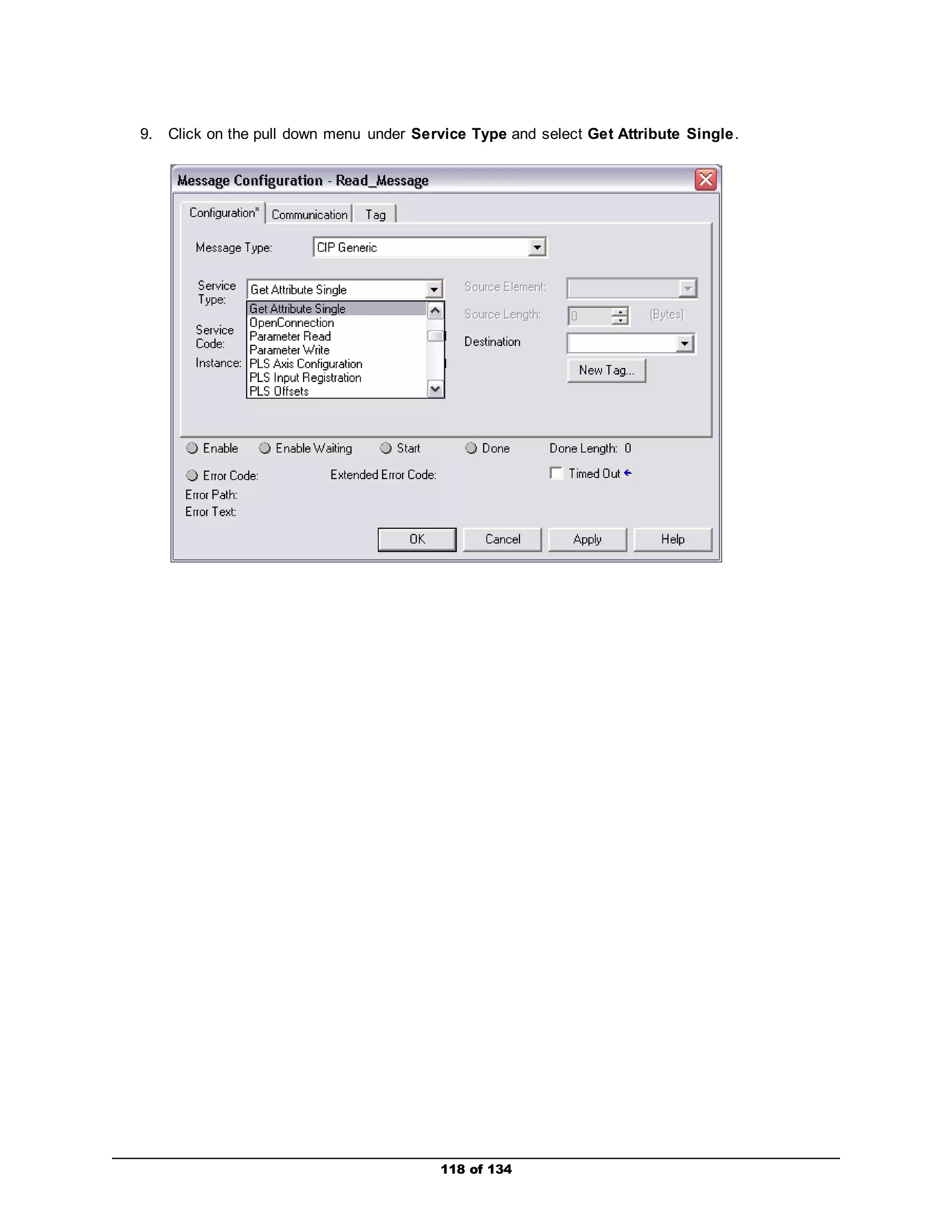
9. Click on the pull down menu under Service Type and select Get Attribute Single. 
118 of 134
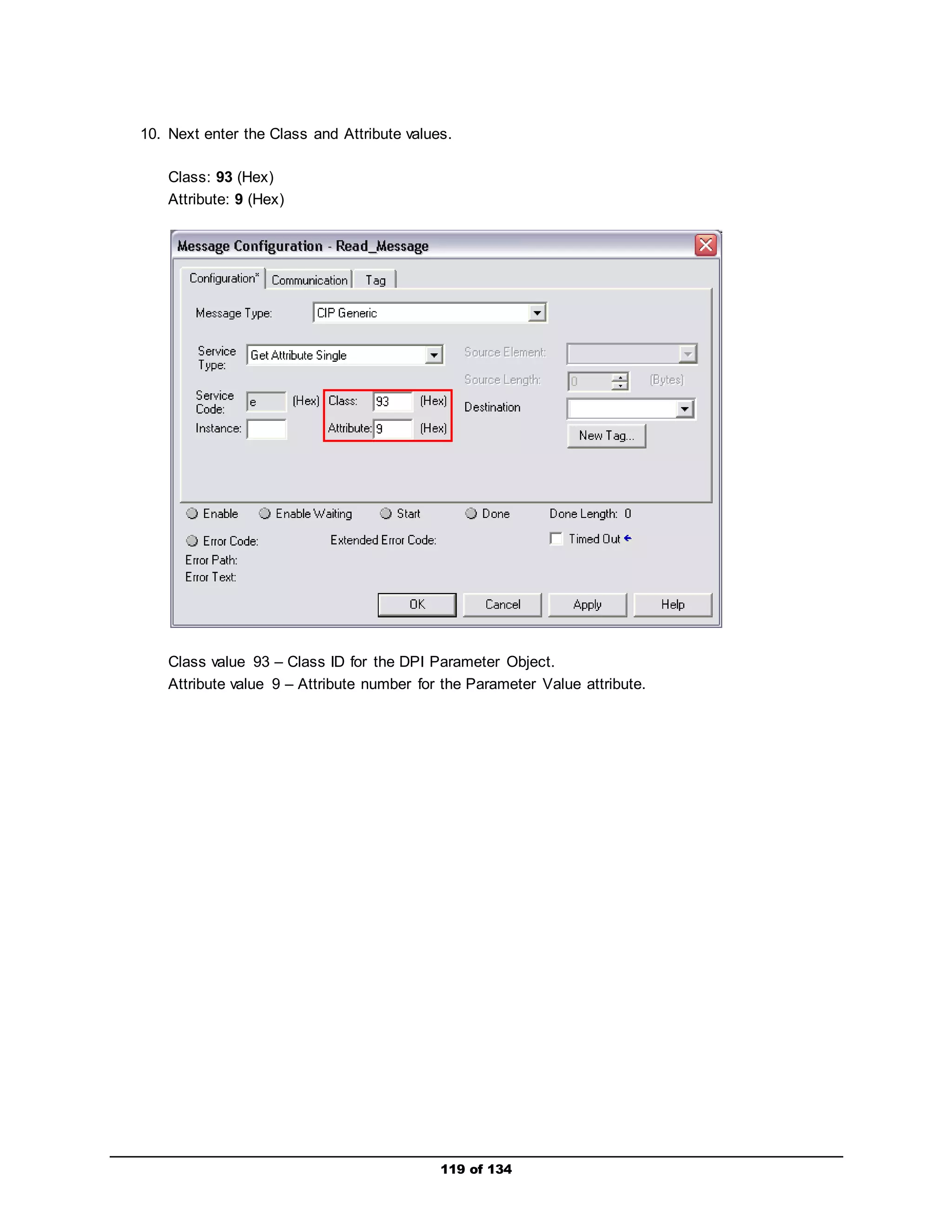
10. Next enter the Class and Attribute values. 
119 of 134 
Class: 93 (Hex) 
Attribute: 9 (Hex) 
Class value 93 – Class ID for the DPI Parameter Object. 
Attribute value 9 – Attribute number for the Parameter Value attribute.
11. All you have to do now is type in the parameter number that you want to read information from in 
the Instance box and then create a Destination tag where the parameter information will be 
stored. 
For this example, we are going to read Parameter 11 [DC Bus Volts]. Therefore, in the Instance 
box, type 11. 
Next, you will have to create a tag that will represent parameter 11 and store its information. 
Click on New Tag, type in “DC_Bus_Volts” in the Name box, set the Data Type to “REAL”, verify 
the Scope field is set to “My_Controller,” and then click OK. 
120 of 134
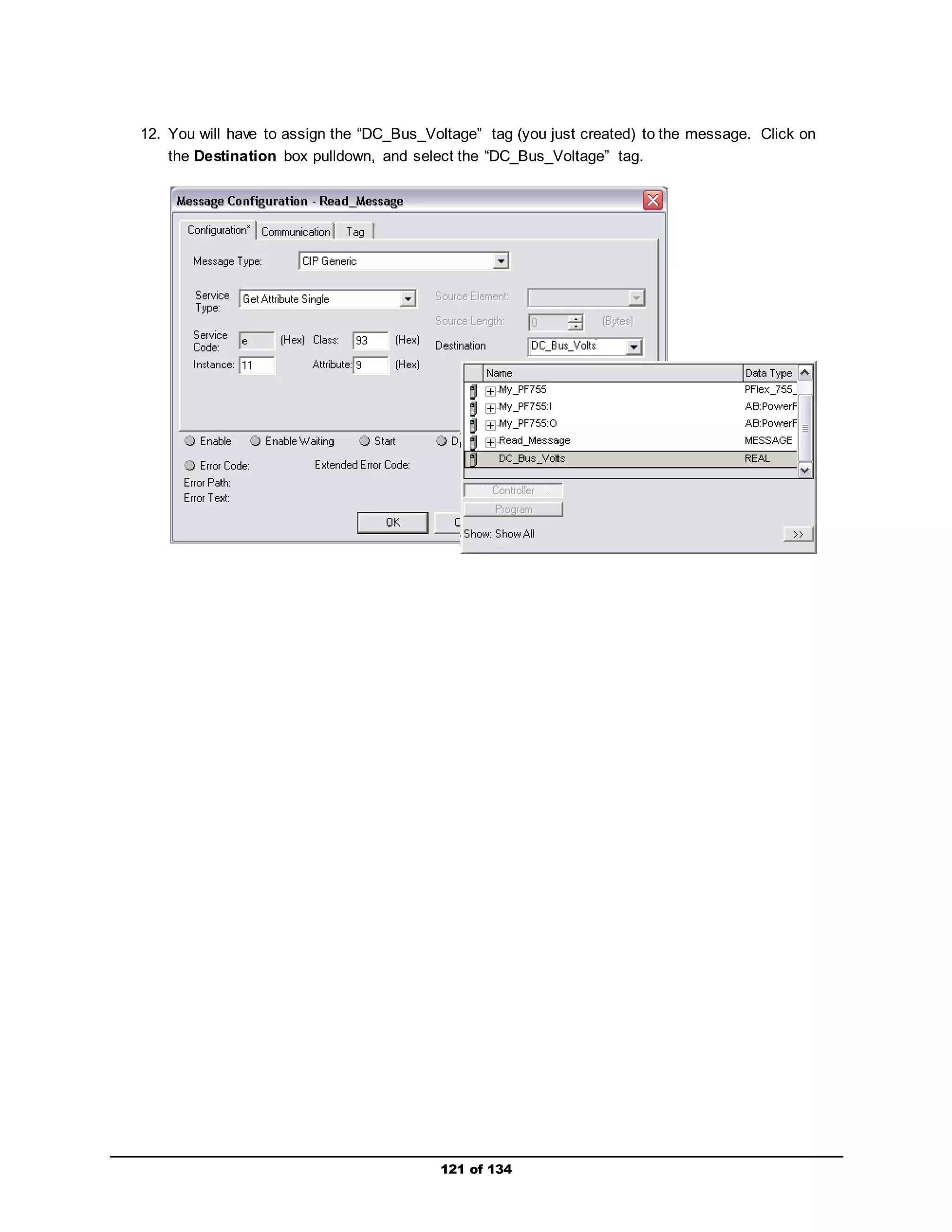
12. You will have to assign the “DC_Bus_Voltage” tag (you just created) to the message. Click on 
the Destination box pulldown, and select the “DC_Bus_Voltage” tag. 
121 of 134
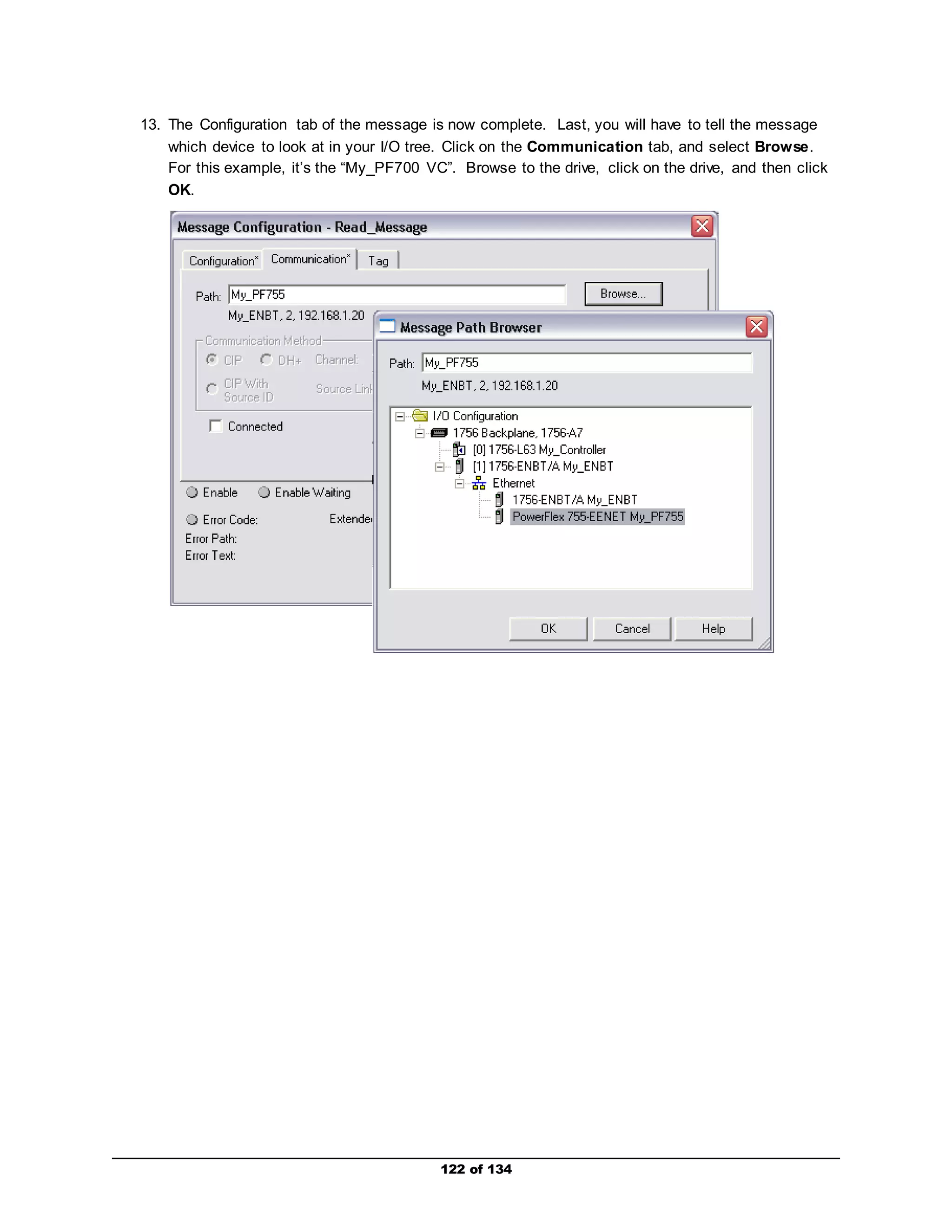
13. The Configuration tab of the message is now complete. Last, you will have to tell the message 
which device to look at in your I/O tree. Click on the Communication tab, and select Browse. 
For this example, it’s the “My_PF700 VC”. Browse to the drive, click on the drive, and then click 
OK. 
122 of 134
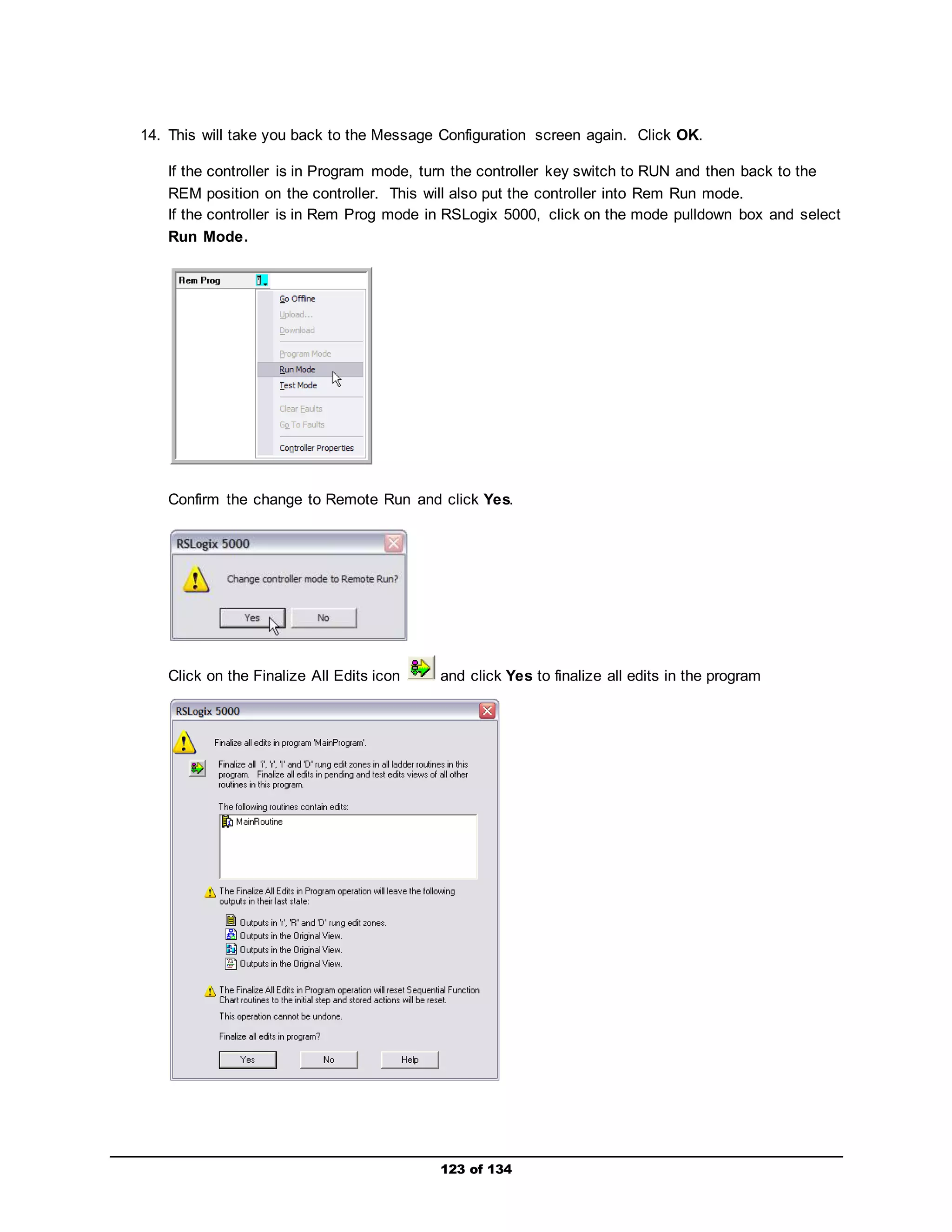
14. This will take you back to the Message Configuration screen again. Click OK. 
If the controller is in Program mode, turn the controller key switch to RUN and then back to the 
REM position on the controller. This will also put the controller into Rem Run mode. 
If the controller is in Rem Prog mode in RSLogix 5000, click on the mode pulldown box and select 
Run Mode. 
Confirm the change to Remote Run and click Yes. 
Click on the Finalize All Edits icon and click Yes to finalize all edits in the program 
123 of 134
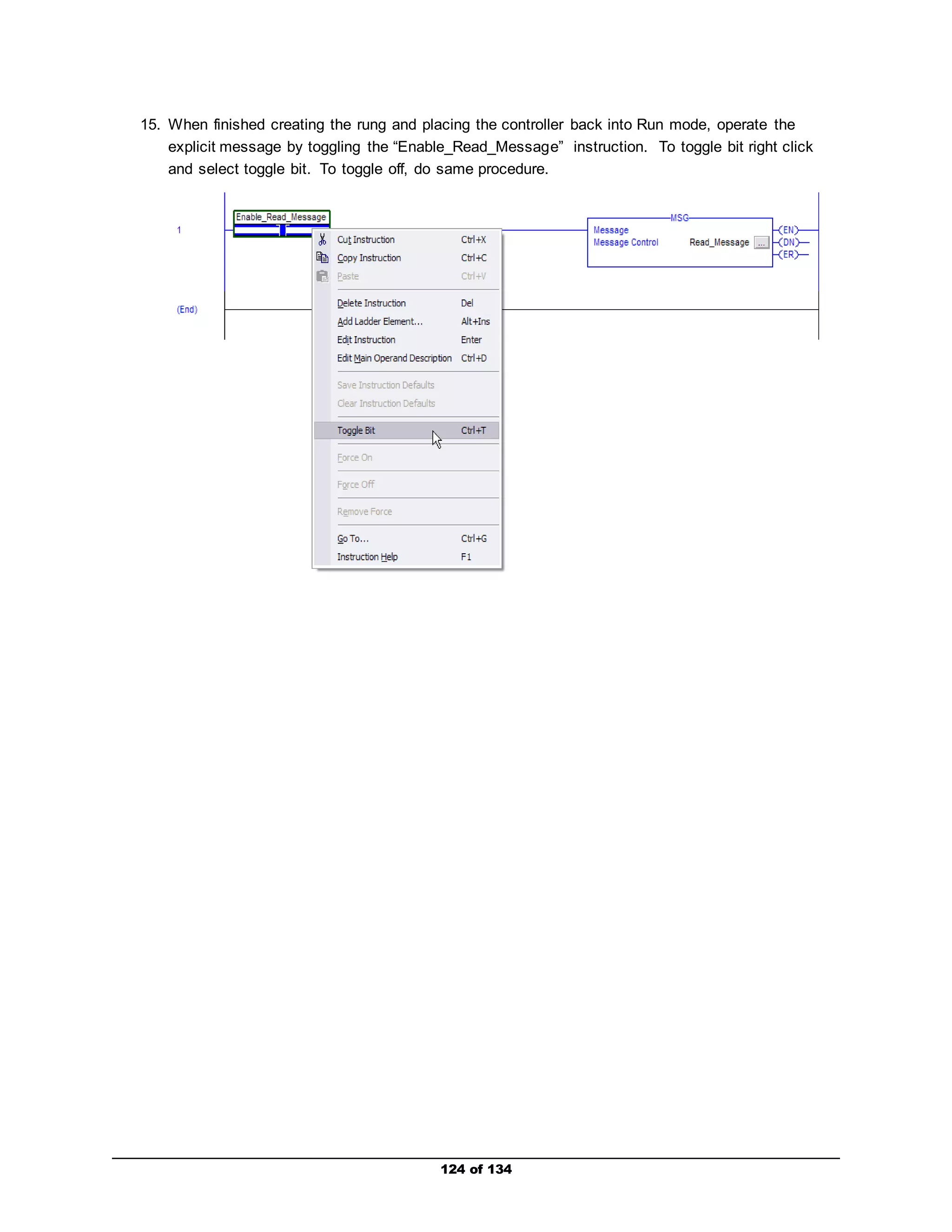
15. When finished creating the rung and placing the controller back into Run mode, operate the 
explicit message by toggling the “Enable_Read_Message” instruction. To toggle bit right click 
and select toggle bit. To toggle off, do same procedure. 
124 of 134
The MSG instruction should set its EN bit and then its DN bit if the explicit message was 
successful. Re-toggle the “Enable_Read_Message” instruction again to reset the MSG 
instruction. 
If the ER bit is set, an error in the explicit message has occurred. In this case, verify that the 
explicit messaging configuration information is correct. Toggle the “Enable_Read_Message” 
instruction again, and verify that the MSG instruction set its EN bit and then its DN bit. 
Go into the Controller Tags folder, and verify a value range between “300 - 350” appears in the 
“DC_Bus_Volts” tag. This parameter is a real value, so scaling is not required. Also, since the 
drive’s input voltage is 230/240 VAC, the DC equivalent would be approximately 300 - 350 VDC. 
If you are still having trouble, please call over an instructor. 
Repeat Steps 3 through 15 for an explicit message Write that will write information to 
Parameter 536 [Accel Time 2]. Use the following values to the complete the message write. 
Message Type: CIP Generic 
Service Type: Set Attribute Single 
Class: 93 (Hex) 
Instance: 536 (Dec) 
Attribute: 9 or A (Hex) 
Source Element: Accel_Time_2 (Data Type – REAL) 
Source Length: 4 bytes 
When you are finished, you may show your instructor. If you are having trouble getting started, 
please ask an instructor for assistance. 
125 of 134
Viewing the Embedded Ethernet Web Pages (Optional) 
This section provides instruction on how to use Internet Explorer (or a similar internet browser tool) to 
monitor the adapter and connected PowerFlex 755 drive using the embedded Ethernet adapter’s web 
pages. 
1. Close RSLogix 5000 without saving your program. 
2. Double-click on the Internet Explorer icon on the desktop, or Start> Programs> 
Internet Explorer with Internet Explorer launched, type the IP address (192.168.1.20) for the 
PowerFlex 755 drive embedded Ethernet adapter (not the 1756-ENBT module) following the 
“http://” command on the address bar. For example, http://192.168.1.20/. When connected, the 
left tool bar (which is in Window’s Folder View) is very intuitive and easy to understand. Take 
your time and begin to familiarize yourself with the built -in web features including email 
notification, diagnostics, and the ability to directly launch drive software tools. 
126 of 134
Challenge! “Conveyor Application” (Optional) 
From the information learned, create a program using RSLogix 5000 that will simulate product (for 
example, bottles) moving on a conveyor line. In order to be successful, the drive must perform the 
following steps in order: 
127 of 134 
 Start 
 Ramp up to 30 Hz and continue to run for 5 seconds 
 Then ramp up to 60 Hz and continue to run for 30 seconds 
 Slowly ramp down to 0 Hz 
 Stop for 10 seconds 
 (Bottles are at destination) 
 Start 
 Ramp up again to 60 Hz and continue to run 
Call over an instructor to approve your design.
Using a Non-AB Drive with ControlLogix (Optional) 
This section shows an example of the extra work that must be performed when a non-AB drive is used 
with the ControlLogix controller. 
128 of 134 
1. Using the generic profile. 
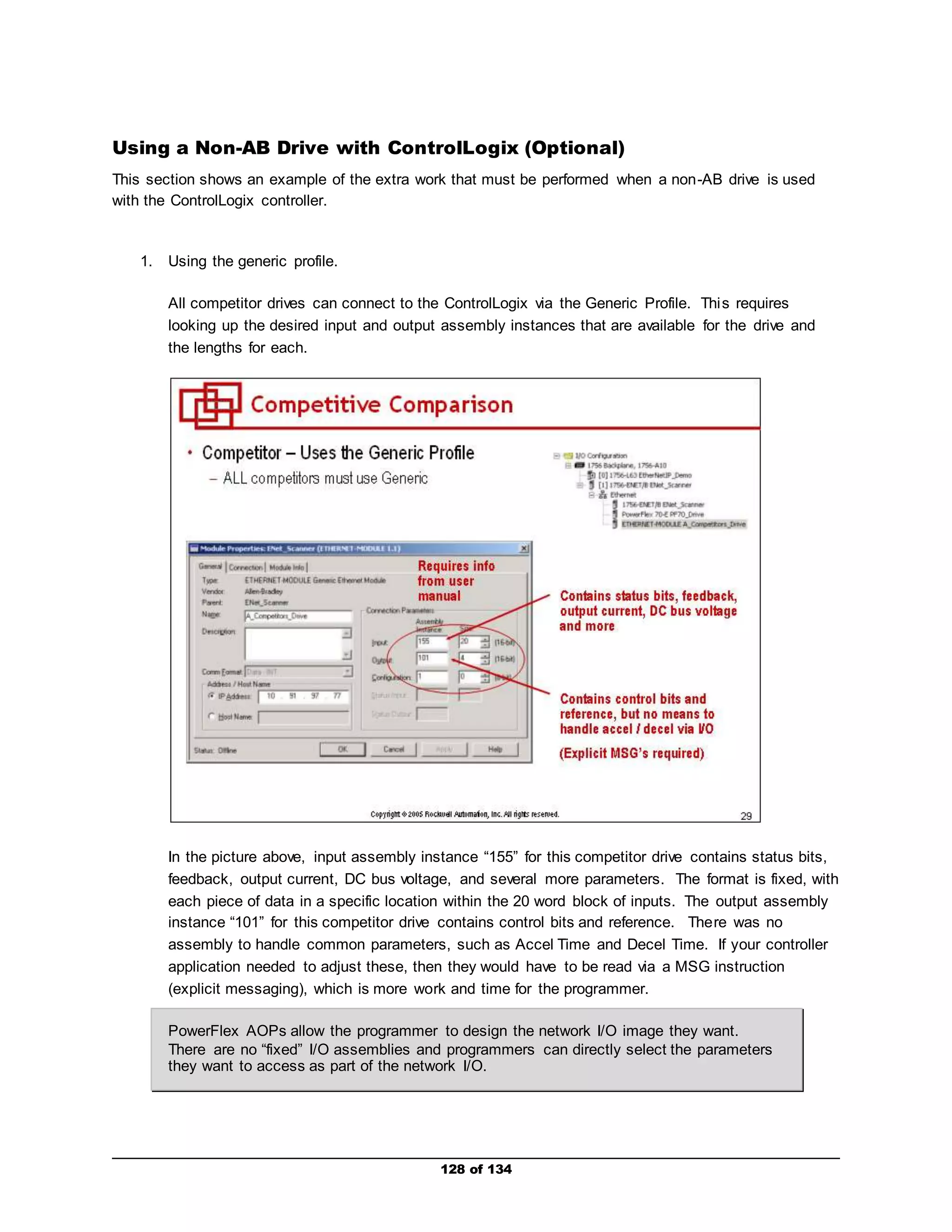
All competitor drives can connect to the ControlLogix via the Generic Profile. This requires 
looking up the desired input and output assembly instances that are available for the drive and 
the lengths for each. 
In the picture above, input assembly instance “155” for this competitor drive contains status bits, 
feedback, output current, DC bus voltage, and several more parameters. The format is fixed, with 
each piece of data in a specific location within the 20 word block of inputs. The output assembly 
instance “101” for this competitor drive contains control bits and reference. There was no 
assembly to handle common parameters, such as Accel Time and Decel Time. If your controller 
application needed to adjust these, then they would have to be read via a MSG instruction 
(explicit messaging), which is more work and time for the programmer. 
PowerFlex AOPs allow the programmer to design the network I/O image they want. 
There are no “fixed” I/O assemblies and programmers can directly select the parameters 
they want to access as part of the network I/O.
129 of 134 
2. Working with non-descriptive tags. 
The Generic profile creates a ‘blob’ of non-descriptive tag names. These generic tag names are 
meaningless without tag descriptions. 
The picture above illustrates a SINGLE drive connection using a small amount of I/O. Although 
only 4 words of inputs (status, feedback, and two parameters) and 4 words of outputs (control, 
reference, and two parameters), it results in 38 tags descriptions that have to be added. In 
Method #1, this is done manually by the user. This takes considerably more time for t he 
programmer, especially if multiple drives are being used in the application. 
PowerFlex AOPs automatically generate descriptive names for all tags. No additional 
work is necessary.
130 of 134 
3. Using user-defined data types (UDT’s). 
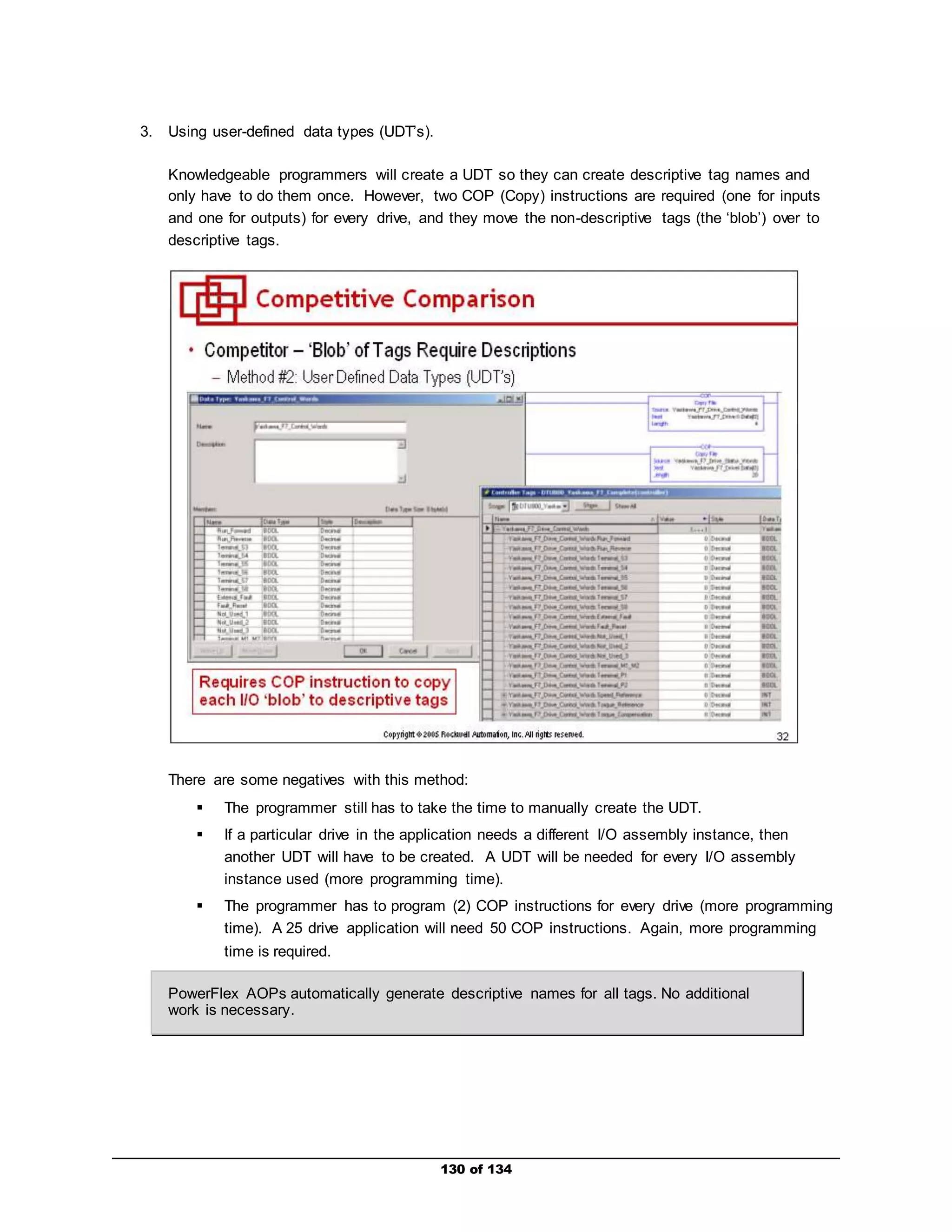
Knowledgeable programmers will create a UDT so they can create descriptive tag names and 
only have to do them once. However, two COP (Copy) instructions are required (one for inputs 
and one for outputs) for every drive, and they move the non-descriptive tags (the ‘blob’) over to 
descriptive tags. 
There are some negatives with this method: 
 The programmer still has to take the time to manually create the UDT. 
 If a particular drive in the application needs a different I/O assembly instance, then 
another UDT will have to be created. A UDT will be needed for every I/O assembly 
instance used (more programming time). 
 The programmer has to program (2) COP instructions for every drive (more programming 
time). A 25 drive application will need 50 COP instructions. Again, more programming 
time is required. 
PowerFlex AOPs automatically generate descriptive names for all tags. No additional 
work is necessary.
4. Drive-side configuration using a separate software tool. 
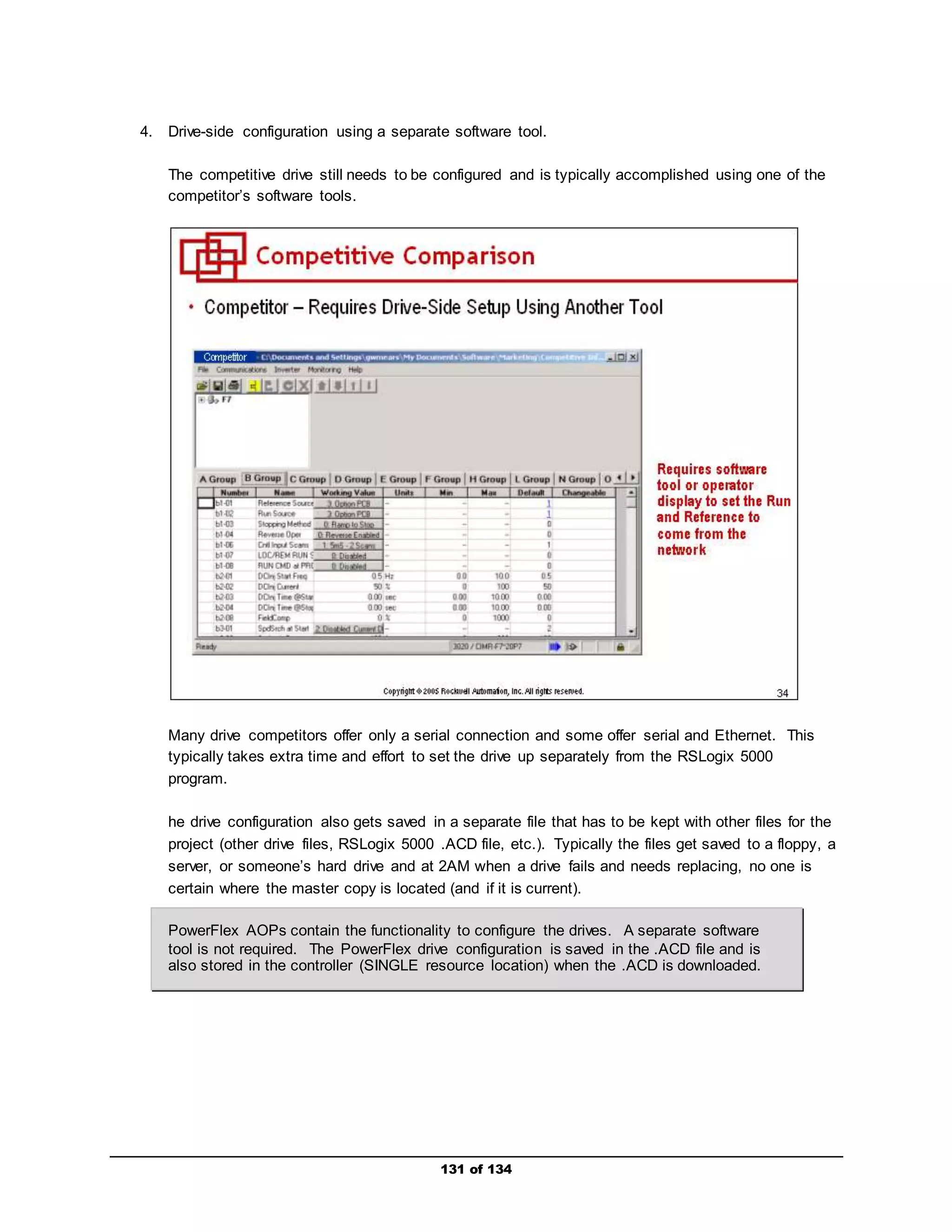
The competitive drive still needs to be configured and is typically accomplished using one of the 
competitor’s software tools. 
Many drive competitors offer only a serial connection and some offer serial and Ethernet. This 
typically takes extra time and effort to set the drive up separately from the RSLogix 5000 
program. 
he drive configuration also gets saved in a separate file that has to be kept with other files for the 
project (other drive files, RSLogix 5000 .ACD file, etc.). Typically the files get saved to a floppy, a 
server, or someone’s hard drive and at 2AM when a drive fails and needs replacing, no one is 
certain where the master copy is located (and if it is current). 
PowerFlex AOPs contain the functionality to configure the drives. A separate software 
tool is not required. The PowerFlex drive configuration is saved in the .ACD file and is 
also stored in the controller (SINGLE resource location) when the .ACD is downloaded. 
131 of 134
132 of 134 
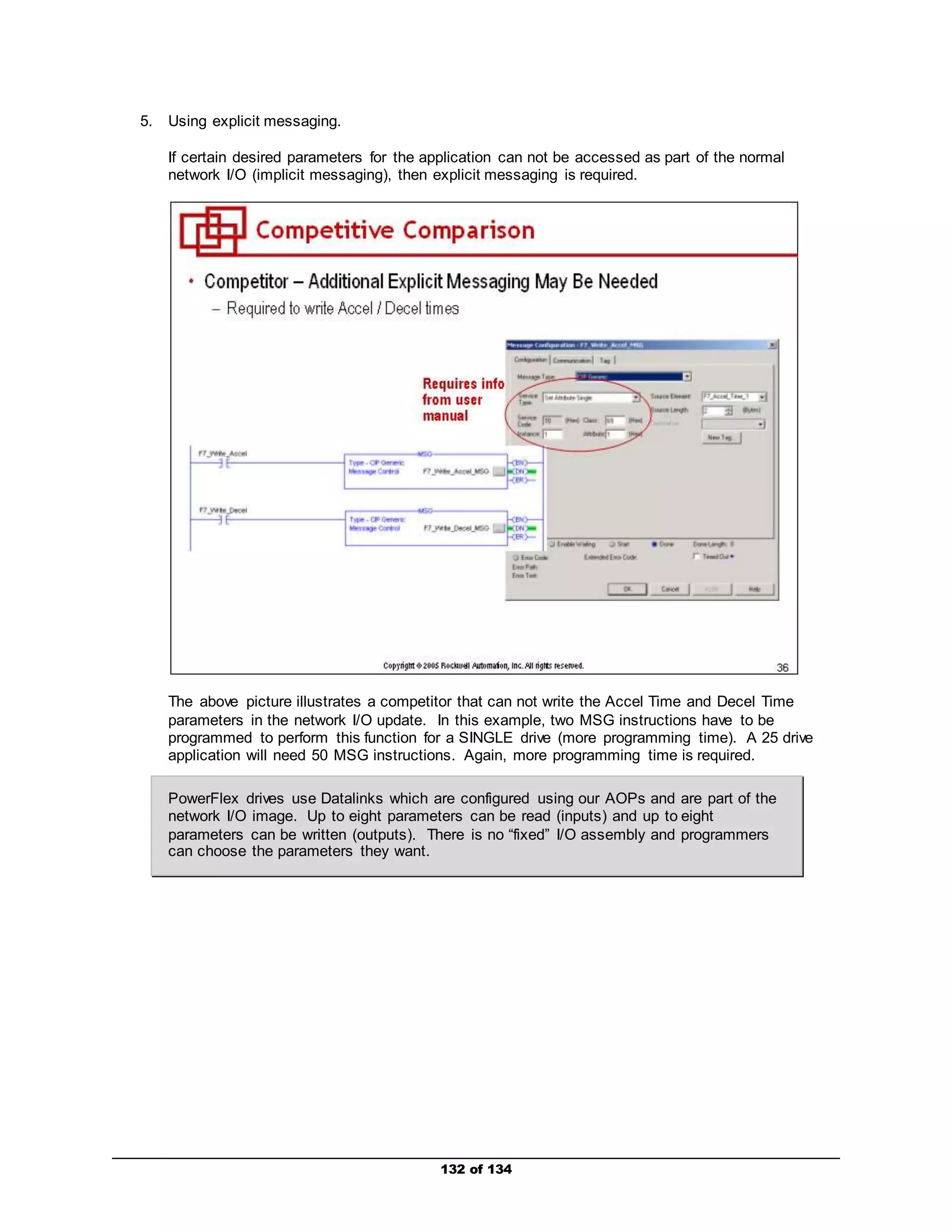
5. Using explicit messaging. 
If certain desired parameters for the application can not be accessed as part of the normal 
network I/O (implicit messaging), then explicit messaging is required. 
The above picture illustrates a competitor that can not write the Accel Time and Decel Time 
parameters in the network I/O update. In this example, two MSG instructions have to be 
programmed to perform this function for a SINGLE drive (more programming time). A 25 drive 
application will need 50 MSG instructions. Again, more programming time is required. 
PowerFlex drives use Datalinks which are configured using our AOPs and are part of the 
network I/O image. Up to eight parameters can be read (inputs) and up to eight 
parameters can be written (outputs). There is no “fixed” I/O assembly and programmers 
can choose the parameters they want.
133 of 134 
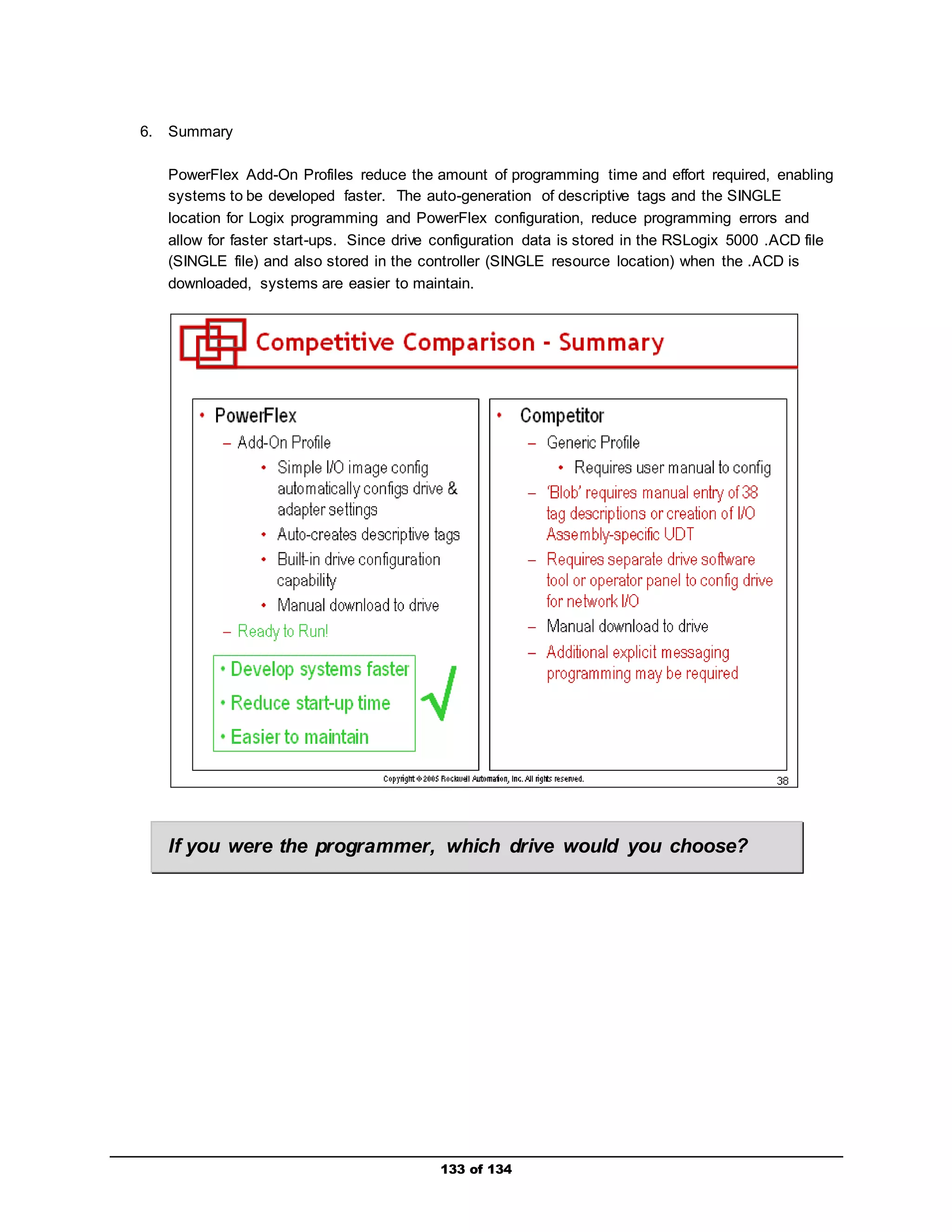
6. Summary 
PowerFlex Add-On Profiles reduce the amount of programming time and effort required, enabling 
systems to be developed faster. The auto-generation of descriptive tags and the SINGLE 
location for Logix programming and PowerFlex configuration, reduce programming errors and 
allow for faster start-ups. Since drive configuration data is stored in the RSLogix 5000 .ACD file 
(SINGLE file) and also stored in the controller (SINGLE resource location) when the .ACD is 
downloaded, systems are easier to maintain. 
If you were the programmer, which drive would you choose?
134 of 134 
Notes

Premier integration with logix, pf drives and ft view (pf755)

  • 1.
    N999 – PremierIntegration with ControlLogix, PowerFlex Drives and FactoryTalk View Presenter: <<Your name>> Rockwell Automation Drives Business For Classroom Use Only!
  • 3.
    Premier Integration withControlLogix, PowerFlex Drives, and FactoryTalk View 3 of 134 Contents About this lab ................................................................................................................................... 4 About Integrated Drive Profiles and Premier Integration .................................................................. 5 Tools & Prerequisites ....................................................................................................................... 5 Document Conventions .................................................................................................................... 7 Connecting and Energizing the Demo .............................................................................................. 8 Disabling Safe Speed Monitoring Module – IF INSTALLED............................................................. 11 Disabling DeviceLogix Program – IF LOADED & RUNNING ............................................................ 14 Creating an RSLogix 5000 project with a PowerFlex Integrated Drive Profile ................................. 17 Downloading and Verifying the Network I/O is Operational ............................................................ 67 Using an FactoryTalk View PowerFlex Faceplate with a PowerFlex AOI to Control/Monitor the Drive ............................................................................................................................................... 78 Importing a PowerFlex AOI and Going Online..................................................................................... 79 Importing a FactoryTalk View ME PowerFlex Faceplate ...................................................................... 88 Optional Lab Materials (Time Permitting)...................................................................................... 110 Using Explicit Messaging (Optional ) ................................................................................................. 111 Viewing the 20-COMM-E’s Web Pages (Optional) ............................................................................. 126 Chall enge! “Conveyor Application” (Optional)................................................................................... 127 Using a Non-AB Drive with ControlLogix (Optional ) ........................................................................... 128 Notes ............................................................................................................................................ 134
  • 4.
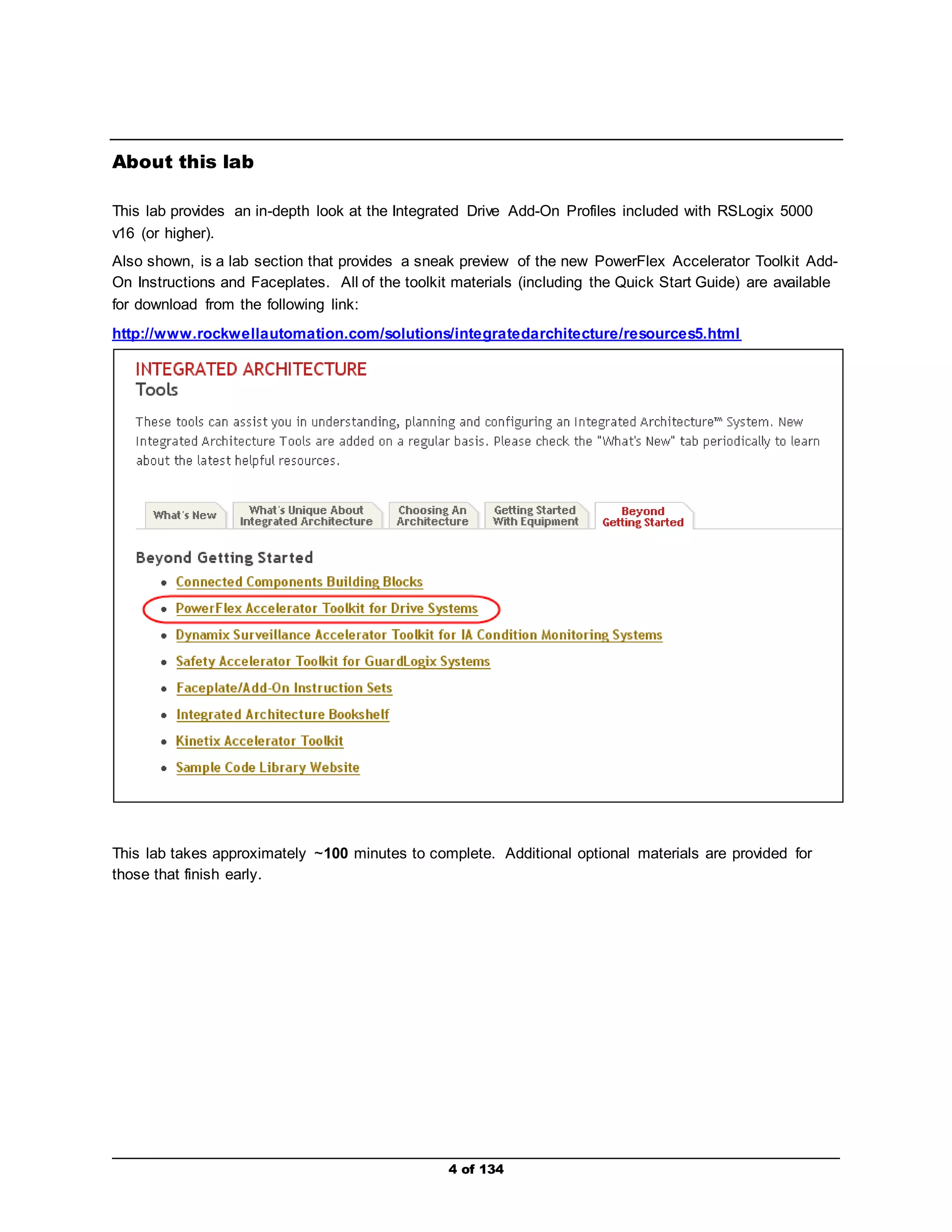
    4 of 134 About this lab This lab provides an in-depth look at the Integrated Drive Add-On Profiles included with RSLogix 5000 v16 (or higher). Also shown, is a lab section that provides a sneak preview of the new PowerFlex Accelerator Toolkit Add- On Instructions and Faceplates. All of the toolkit materials (including the Quick Start Guide) are available for download from the following link: http://www.rockwellautomation.com/solutions/integratedarchitecture/resources5.html This lab takes approximately ~100 minutes to complete. Additional optional materials are provided for those that finish early.
  • 5.
    About Integrated DriveProfiles and Premier Integration Integrated Drive Profiles were designed to save system development time and to make systems easier to maintain. Integrated Drive Profiles in RSLogix 5000 v16 (or higher) can reduce drive system development time by as much as 70% (figure obtained from timed side-by-side drive configuration comparison testing) by:  Providing one software tool to configure the entire Logix / drive system.  Configuring both controller and drive network connections from a single location - eliminating 5 of 134 I/O mismatch errors.  Allowing the dynamic selection of drive parameters transmitted as network I/O – communicating only what is needed for the application.  Auto-generating descriptive tag names - eliminating the need to enter individual tag descriptions.  Auto-generating respective tag data types - eliminating the need to convert from one data type to another.  Saving all drive configurations in the RSLogix project file and in the Logix controller – providing a single source of drive configuration data.  Providing Copy & Paste capability when creating additional duplicate drives – also duplicates the drive configuration settings so all the new drive needs is a different node addres s.  Allowing use of the same easy-to-use drive configuration Wizards used in DriveTools SP and DriveExplorer. Systems using the Integrated Drive Profiles in RSLogix 5000 v16 (or higher) are also easier to maintain:  Drive diagnostic, fault, alarm and event information is integral to RSLogix 5000.  Drive Tech Support Wizard can be run from RSLogix 5000 to collect all pertinent information about a drive, it's peripherals, various software components, and PC operating system.  Drives can be flash updated from RSLogix 5000. Having a single repository of drive configuration data (in RSLogix project file) speeds drive replacement. Integrated Drive Profiles are "Add-On" Profiles, meaning new profiles can be introduced at any time (not tied to a specific RSLogix 5000 release) and utilized by v16 and higher versions of RSLogix 5000. Tools & Prerequisites Here is a list of hardware and software you will need to perform this lab.  PowerFlex 755 (v1.9) demo  ControlLogix demo with: ­1756- L63 controller (v17.0) in slot 0
  • 6.
    6 of 134 ­1756- ENBT EtherNet/IP bridge module (v4.7 or higher) in slot 1 ­Ethernet switch  Computer installed with: ­Windows XP SP2 OS ­RSLogix 5000 v16 (or higher) with Integrated Drive Profiles ­RSLinx 2.52.00.17 (or higher) ­FactoryTalk View Studio v5.00.00.55 (or higher) ­DriveExecutive v5.01 (or higher) or DriveExplorer v6.01 (or higher) ­Internet Explorer v6 (or higher)
  • 7.
    7 of 134 Document Conventions Throughout this workbook, we have used the following conventions to help guide you through the lab materials. This style or symbol: Indicates: ATTENTION: Identifies information about practices or circumstances that can lead to personal injury or death, property damage, or economic loss. Attentions help you:  identify a hazard  avoid the hazard  recognize the consequences ! Words shown in bold (e.g., RSLogix 5000 or OK) Any item or button that you must click on, or a menu name from which you must choose an option or command. This will be an actual name of an item that you see on your screen or in an example. Words shown in bold italics, enclosed in single quotes (e.g., 'Controller1') An item that you must type in the specified field. This is information that you must supply based on your application (e.g., a variable). Note: When you type the text in the field, remember that you do not need to type the quotes; simply type the words that are contained within them (e.g., Controller1). The text that appears inside of this gray box is supplemental information regarding the lab materials, but not information that is required reading in order for you to complete the lab exercises. The text that follows this symbol may provide you with helpful hints that can make it easier for you to use this product. Most often, authors use this “Tip Text” style for important information they want their students to see. Note: If the mouse button is not specified in the text, you should click on the left mouse button.
  • 8.
    Connecting and Energizingthe Demo ATTENTION: Hazardous voltages exist beneath the product covers. Contact with circuits under the cover can result in death or serious injury by electric shock. Do NOT remove the product covers. ! 1. De-energize the drive and ControlLogix demos. 2. Connect the computer to the Ethernet switch in the ControlLogix demo. 3. Connect the embedded Ethernet port on the drive to the Ethernet switch in the ControlLogix demo. The embedded Ethernet port is located on the main control board of the drive behind the front cover. 4. Connect the 1756-ENBT EtherNet/IP Bridge in the ControlLogix chassis to the Ethernet switch. 5. Make sure the controller resides in slot 0 and the EtherNet/IP Bridge resides in slot 1 of the 8 of 134 ControlLogix chassis.
  • 9.
    9 of 134 6. Energize the drive demo a. First, switch both the single and 3-pole breakers, located on the back of the demo.
  • 10.
    b. Second, switchboth the Drive Power and 24VDC Control Power switches, located on the 10 of 134 face of the demo. 7. Energize the ControlLogix demo by the switching the 120 VAC power switch on the demo face.
  • 11.
    Disabling Safe SpeedMonitoring Module – IF INSTALLED If the Safe Speed Monitoring module is installed in the PowerFlex 755 demo (typically slot 4), the safety mode needs to be disabled prior to conducting the lab. If the safety mode has not been disabled, the drive will not operate according to the lab procedure. Consult with your instructor before performing the following procedure: 1. If using Drive Explorer or Drive Executive, connect to the drive. 2. Navigate to the Safe Speed Monitoring module parameters via the HMI, Drive Explorer, or Drive 11 of 134 Executive. (Drive Executive shown)
  • 12.
    3. Set parameter#6 - Operating Mode to Program. 12 of 134 (Drive Executive shown) 4. Next, set parameter #21 – Safety Mode to Disabled. (Drive Executive shown)
  • 13.
    5. Finally, setparameter #6 – Operating Mode to Run. 13 of 134 (Drive Executive shown)
  • 14.
    Disabling DeviceLogix Program– IF LOADED & RUNNING If a DeviceLogix Program is loaded and running in the PowerFlex 755 demo, the logic needs to be disabled and the drive reset prior to conducting the lab. If the DeviceLogix program has not been properly disabled, the drive will not operate according to the lab procedure. Consult with your instructor before performing the following procedure: 1. If using Drive Executive, connect to the drive. 2. Navigate to the DeviceLogix >>> Status & Control parameters via the HMI or Drive Executive. 14 of 134 (Drive Executive shown)
  • 15.
    3. Set parameter#53 – DLX Operation to DisableLogic. 15 of 134 (Drive Executive shown) 4. Next, highlight 0 – PowerFlex 755, right-click and select Reset Drive… (Drive Executive shown) (For the HIM…select Port 0, select DIAGNOSTIC folder >>> Reset Device)
  • 16.
    5. Finally, clickOK to reset the drive. Communications will be lost at this time. 16 of 134 (Drive Executive shown) (For the HIM…when prompted to confirm reset device, click ENTER.)
  • 17.
    Creating an RSLogix5000 project with a PowerFlex Integrated Drive 17 of 134 Profile 1. Start the program. Double-click the RSLogix 5000 icon on the desktop, or from the Start menu, select All Programs > Rockwell Software > RSLogix 5000 Enterprise Series > RSLogix 5000. 2. Create a new project. Select File > New. Enter the controller type found in slot 0 of your ControlLogix demo (e.g., 1756-L63), and enter all other data as shown below. Click OK. A screen may appear that says the file name already exists on the computer. If you are using the same name as shown in this example, click Yes to overwrite the file. Integrated Drive Profiles are available for almost every drive, and are included with version 16 (or higher) of RSLogix 5000 software.
  • 18.
    18 of 134 3. Add a new module to the system. Right-click on the 1756 backplane under the I/O configuration folder and select New Module. This opens the Select Module window, which lists the available modules for the 1756 backplane.
  • 19.
    19 of 134 4. Add the Ethernet Bridge to the system. Expand the Communications section, scroll down and select the 1756-ENBT/A, and click OK. 5. Select the ENBT’s revision. Select 4 for the Major Revision and click OK.
  • 20.
    20 of 134 6. Enter the ENBT’s information. Enter the ENBT data as shown below. If the Open Module Properties box is checked, uncheck it and then click OK to close the New Module screen. 7. Verify the ENBT is in the I/O configuration folder. The ENBT should now show up under the 1756 backplane in the I/O Configuration folder.
  • 21.
    21 of 134 8. Add a new module to the system. Right-click on the 1756-ENBT under the I/O configuration folder and select New Module. This opens the Select Module window, which lists the available modules for the ENBT.
  • 22.
    9. Add aPowerFlex 755-EENET drive to the system. Expand the Drives section, scroll down and view the new Integrated Add-On Drive Profiles that are available starting with v16, plus the new PowerFlex 755 profiles. Several drives that had to use the Generic profile will now have profiles, such as PowerFlex 4-Class drives. Select the PowerFlex 755-EENET and click OK. Note: Make sure you select the PowerFlex 755-EENET and not the PowerFlex 755-E! These are different drive communication options. 22 of 134
  • 23.
    10. Enter thePowerFlex 755 node information. Enter the PowerFlex 755 data for Name and IP Address as shown below. Now click Change in the Module Definition section to edit the I/O connection information. 23 of 134
  • 24.
    11. The “ModuleDefinition” screen will appear. The drive’s major revision should be set to 1, minor revision to 9. Set the Drive Rating to 240V 4.2A (ND) 4.2A (HD). Set the Rating Options to Normal Duty (ND). Under Reference, verify Use Network Reference is checked. 24 of 134 Do NOT click OK. Up to 16 words of Input Data and 16 words of Output Data can be defined for the embedded Ethernet connection. By default, drive status and control information will be communicated. The PowerFlex 755 allows datalinks to be configured to drive parameters.
  • 25.
    In addition tothe drive parameters, the PowerFlex 755 allows datalinks to be configured to port 14-DeviceLogix. For example, configuring a datalink to port 14- DeviceLogix, will allow direct access to parameters inside the drive’s internal DeviceLogix program. The drive itself is designated as port 0-PowerFlex 755, datalinks configured to access port 13-EntherNetIP are NOT valid. Status Information The “DriveStatus” word contains the Logic Status bit information, such as Ready, Alarm, Fault, and At Reference. The “Feedback” word contains the speed feedback information, which shows the actual operating frequency (Hz) and/or speed (RPM) of the drive. Control Information The “LogicCommand” word contains command bit information, such as Stop, Start, Forward, Reverse, and ClearFaults. The “Reference” word contains the commanded reference value for the drive to run. Datalinks Datalinks are pointers to drive and/or other port parameters. Instead of offering fixed I/O assemblies where what-you-see-is-what-you-get, our drive I/O assembly is dynamic and gives the programmer the ability to pick & choose the desired parameters to communicate as network I/O. Note that the PowerFlex 755 reads reference and writes feedback values as real or float type data structures, removing the need for conversion between counts and engineering units or vice versa. For example, entering a value of 32.1 in the “Reference” word will provide a speed reference of 32.1Hz to drive. This is a significant difference between the PowerFlex 755 and previous drives in the PowerFlex 7 series family. 25 of 134
  • 26.
    26 of 134 12. Configure the input Datalink. Click the to enable/configure the first input data parameter. The Parameter Properties window will appear. Do NOT click OK.
  • 27.
    27 of 134 13. Select the Port for the input Datalink. Click the Port drop-arrow to view the available ports. Select 0-PowerFlex 755. Do NOT click OK. Port 0-PowerFlex 755 Allows direct access to the internal drive parameters. Note this lab will ONLY be configuring datalinks to port 0. Port 14-DeviceLogix Allows direct access to the parameters within the drive’s internal DeviceLogix . This is a new option available to the PowerFlex 755. Port 13-EtherNet/IP Datalinks configured to directly access port 13-EtherNet/IP are NOT valid. Note that the PowerFlex 755 reads any applicable parameter values as real or float type data structures, removing the need for conversion between counts and engineering units or vice versa.
  • 28.
    14. Select theParameter for the input Datalink. Click the Parameter drop-arrow to view the available parameters. Select 535-Accel Time 1. 28 of 134 Do NOT click OK.
  • 29.
    29 of 134 15. Observe the configured input Datalink. You may now Click OK on the Parameter Properties window and return to module definition screen. Entering the input Datalink configuration automatically set the following parameter for the Embedded EtheNet/IP module (internal to drive):  Parameter 17 [DL To Net 01] – set to Port 0: Accel Time 1 This highlights one of the benefits of the PowerFlex 755 Integrated Add-On Drive Profile: ease-of-use. In this example, by simply selecting the desired drive parameter eliminates the need for further configuration steps.
  • 30.
    30 of 134 16. Configure the remaining Datalinks. Repeat the previous steps for all of the remaining Datalinks, configure each in the order shown below. a. Input Data, Port: 0-PowerFlex 755, Parameter: Decel Time 1 – 537 Entering the input Datalink configuration automatically set the following parameter for the Embedded EtheNet/IP module (internal to drive):  Parameter 18 [DL To Net 02] – set to Port 0: Decel Time 1
  • 31.
    b. Input Data,Port: 0-PowerFlex 755, Parameter: Last Fault Code – 951 Entering the input Datalink configuration automatically set the following parameter for the Embedded EtheNet/IP module (internal to drive):  Parameter 19 [DL To Net 03] – set to Port 0: Last Fault Code 31 of 134
  • 32.
    c. Input Data,Port: 0-PowerFlex 755, Parameter: DC Bus Volts – 11 Entering the input Datalink configuration automatically set the following parameter for the Embedded EtheNet/IP module (internal to drive):  Parameter 20 [DL To Net 04] – set to Port 0: DC Bus Volts 32 of 134
  • 33.
    d. Input Data,Port: 0-PowerFlex 755, Parameter: Output Current – 7 Entering the input Datalink configuration automatically set the following parameter for the Embedded EtheNet/IP module (internal to drive):  Parameter 21 [DL To Net 05] – set to Port 0: Output Current 33 of 134
  • 34.
    e. Output Data,Port: 0-PowerFlex 755, Parameter: Accel Time 1 – 535 Entering the input Datalink configuration automatically set the following parameter for the Embedded EtheNet/IP module (internal to drive):  Parameter 1 [DL From Net 01] – set to Port 0: Accel Time 1 34 of 134
  • 35.
    f. Output Data,Port: 0-PowerFlex 755, Parameter: Decel Time 1 – 537 Entering the input Datalink configuration automatically set the following parameter for the Embedded EtheNet/IP module (internal to drive):  Parameter 1 [DL From Net 02] – set to Port 0: Decel Time 1 35 of 134
  • 36.
    17. Observe theconfigured input/output Datalinks. Ensure that your input/output Datalinks match the configuration shown below. You may now click OK. I/O configuration is complete. 36 of 134
  • 37.
    18. You willcome back to the General screen again. Click OK to close the Module Properties window. 37 of 134
  • 38.
    Verify the PowerFlex755-EENET is in the I/O configuration folder. The PowerFlex 755-EENET node has been created and now resides in the I/O tree. If your application required multiple duplicate drives, you could right -click on the PowerFlex 755- EENET to copy it and then right-click on the ENBT and paste it as many times as needed. All node information is copied, including the drive parameter settings. All the user has to do is change the IP address, and give the drive a new name. Integrated Drive Profiles are not only easy -to-use; they also allow larger systems to be designed faster. Where do you think the drive configuration data gets stored? The drive configuration data for each node is actually stored in your RSLogix 5000 project (the .ACD file)! It also resides in the ControlLogix when the .ACD is downloaded to the controller. This provides a convenient local resource for a node’s configuration settings should the node need replacing. Just connect to the controller, open the drive’s AOP and download the configuration! 38 of 134
  • 39.
    39 of 134 19. View the input tags. Double-click on the Controller Tags under the Controller folder and expand the My_PF755:I inputs. It may be necessary to drag the “Name” column right margin in the header to view the full input tag names.
  • 40.
    Descriptive tag nameshave been created for the configured I/O. The Drive Status bits (BOOLs) are clearly defined as well as the Feedback and the Datalinks. Note that the proper data types are used for every tag. This drive, the PF755, has 32 bit Logic Status Word (DriveStatus), Logic Command Word, and real or float Speed Feedback, Speed Reference and real/32-bit Datalinks (AccelTime1, DecelTime1, LastFaultCode, etc.). The PF700VC, has 16 bit Logic Status Word (DriveStatus), Logic Command Word (DriveLogicRslt), Speed Feedback (OutputFreg), Speed Reference (CommandedFreq) and 32 bit Datalinks. The PF700 Standard Control, PF70 Standard Control, and PF70 enhanced control (EC), all have 16 Bit Logic Command/Status, Reference/Feedback, and Datalinks. PF700S has 32 bit LCW/LSW, Reference/Feedback, and Datalinks. 40 of 134
  • 41.
    41 of 134 20. Verify the output tags. Now expand the My_PF755:O outputs and scroll down to view the output tag names. Descriptive tag names have been created for the configured I/O. The Logic Command bits (BOOLs) are clearly defined as well as the Reference and the Datalinks. Note that the proper data types are used for every tag. Close the Controller Tags window by clicking the lower X button in the upper-right corner of the screen.
  • 42.
    21. Open thePowerFlex 755 module properties. Double-click on the PowerFlex 755-EENET node in the I/O Configuration folder to display the Module Properties screen. 42 of 134 Click on the Drive tab.
  • 43.
    22. View thePowerFlex 755-EENET Drive tab. The Drive tab is new starting with version 16. Previous versions of RSLogix 5000 included DriveExecutive Lite, which could be launched via an icon on a drive’s Module Properties window (but, still needed to be installed on the computer). Instead of having two separate software applications, drive configuration software is now fully integrated with RSLogix 5000. Many familiar features of DriveExecutive and DriveExplorer are now incorporated in the Drive tab: 43 of 134  Menu tree  Status View display  Icons  Wizards  Linear List editor  File / Group / Parameter editor  Alarms and Events  Device Properties  Diagnostic Items
  • 44.
    The Drive tabalso has import / export capability so DriveExecutive can continue to be used by maintenance or other personnel that may not have the authorization to use RSLogix 5000. Please note the addition of the (Create new database files from online drives) and (Open DeviceLogix) buttons, both of which are unique to the PowerFlex 755 drive. The function of the buttons will NOT be explored in this lab. 44 of 134
  • 45.
    24. Setting theEmbedded EtherNet/IP module Subnet configuration parameters. Click the Port Configuration tab, enter the Subnet Mask address as shown, and then click Set. This completes the configuration of the IP address. 45 of 134
  • 46.
    25. View theautomatically-set network parameters. 46 of 134 Click the Drive tab again. Expand the EtherNet/IP in the tree view and double-click on its Host Parameters List to view the Linear List editor.
  • 47.
    26. Verify theautomatically-set Datalink parameters values. Look at the values for parameters 1, 2, 17, 18, 19, 20, and 21. These parameters were automatically set when you were configuring the I/O connection in the PowerFlex 755-EENET Module Definition window. 47 of 134 Click Close.
  • 48.
    27. Launch thePowerFlex 755 Startup Wizard: Select the PowerFlex 755 in the tree view. Click on the Wizard icon in the toolbar to view the available wizards. Select the PowerFlex 755 Startup Wizard and click Select. Note: This window may open behind another window. If you do not see it, look for it in the Windows task bar at the bottom of the screen. 48 of 134
  • 49.
    49 of 134 28. View the wizard’s warning dialog. A Wizard Launch Confirmation dialog box will appear. The message let’s you know that there may be unexpected, hazardous motion of machinery when using this software to configure a drive. Click Yes to launch the startup wizard.
  • 50.
    29. Begin Step1 of the PowerFlex 755 Startup Wizard. The Startup wizard is an easy-to-use tool to quickly configure a drive. The user does not have to know parameter numbers and instead works with descriptive text and graphical representations of the configuration. The number of steps in the wizard will vary depending on options in the PowerFlex 755. Click Next> to view the sequential process and continue to click Next> until you reach the Embedded Ethernet Port Step of the Wizard. 50 of 134
  • 51.
    30. Perform theEmbedded Ethernet Port Step of the PowerFlex 755 Startup Wizard. 51 of 134 Verify: IP Addess Config 192.168.1.20 Subnet Config 255.255.255.0 Gateway Config 0.0.0.0 BootP Disabled Set: Web Enable Enabled Click Next> to continue viewing the sequential process and continue to click Next> until you reach the Motor Data Step of the Wizard.
  • 52.
    31. Perform theMotor Data Step of the PowerFlex 755 Startup Wizard. 52 of 134 Set: Power Units kW Enter: Motor NP Power 0.03kW Motor NP FLA 0.22Amps Motor NP Volts 240VAC Motor NP Hertz 60Hz Motor NP RPM 1600RPM Click Next> to continue viewing the sequential process and continue to click Next> until you reach the Ramp Rates/Speed Limits Step of the Wizard.
  • 53.
    32. Perform theRamp Rates/Speed Limits Step of the PowerFlex 755 Startup Wizard. Enter: Max Forward / Reverse Speed 60 Hz Min Forward / Reverse Speed 0 Hz Enter a non-zero value for the S Curve to see what happens with the graphic. Then reset it back to 0. Click Next> to the Speed Reference Step of the Wizard. 53 of 134
  • 54.
    33. Perform theSpeed Reference Step of the PowerFlex 755 Startup Wizard. Click on the Speed Reference drop-down arrow and select: Continue to click Next> until you reach the final step, Applied and Pending Changes Step of the Wizard. 54 of 134
  • 55.
    34. Perform theApplied and Pending Changes Step of the PowerFlex 755 Startup Wizard. All applied and pending changes are listed. Clicking the print icon at the bottom of the window allows you to print the changes. 55 of 134 Click Finish>> to accept the changes. Startup wizards provide a quick & easy method to get a drive configured quickly. Although not every parameter is covered in a Startup wizard, the commonly used parameters for most applications are covered.
  • 56.
    35. Close theModule Properties window to save the configuration. Click OK to close the Module Properties window. 56 of 134
  • 57.
    57 of 134 36. Downloading the drive configuration. Everything you’ve doing so far has been done offline. Now you must take this new configuration and transfer it to the online drive. To prevent conflicts between existing datalinks established between the drive and controller. Put the controller into program mode. Locate the key switch on the front of the ControlLogix controller. Move the switch to the PROG position.
  • 58.
    37. Open thePowerFlex 755 module properties. Double-click on the PowerFlex 755-EENET node in the I/O Configuration folder to display the Module Properties screen. 58 of 134 Click on the Drive tab.
  • 59.
    38. Click onthe Download parameter data icon in the tool bar to begin the drive download 59 of 134 process.
  • 60.
    39. The ConnectTo Drive window will appear. Expand either the Ethernet or Ethernet-IP driver (depends which is configured on the computer), find the PowerFlex 755 drive icon, and select it. 60 of 134 Then click OK. The Integrated Add-On Drive Profile will attempt to connect to and verify the drive and its connected peripherals. This may take approximately 10 seconds.
  • 61.
    40. The followingwindow may appear if the online drive configuration is different from the offline 61 of 134 configuration. Click Yes to update the Online project with the online configuration. 41. The Synchronizing ports dialog box will appear. Click OK to perform synchronization. This is verifying that the offline configuration correctly matches the online configuration.
  • 62.
    The following screensmay appear if the drive you are attempting to connect with contains different parameter and I/O configurations than the RSLogix 5000 project. When the screen appears, click Use Project. The project settings will download to the drive. 62 of 134
  • 63.
    Click Continue whichwill become available at this point (un-grayed). 63 of 134
  • 64.
    42. After thisis complete, the Select Devices To Download window will appear. When this window appears, the software is telling you that device property differences (configuration, revision, etc.) were found between the offline configuration and the online devices (PF755, HIM, EtherNet/IP module, etc.). Verify 4 Safe Speed Montr is NOT selected. Then, click Download to merge these new changes. A series of download status boxes will appear, one for each device. A complete download may take approximately 10…30 seconds. After it is complete, the download status boxes will disappear. 64 of 134
  • 65.
    65 of 134 43. Complete the download process. When the download process has been completed, the Select Devices To Download to window will appear. Note Cancel has now been replaced by the Continue button, and the information dialog box states Download complete. Click Continue to close this window and return to the Module Properties screen.
  • 66.
    44. Finish thedrive setup before going online. The Module Properties screen will now appear. Note that additional option modules have now appeared below the PowerFlex 755 Parameter List in the tree view window. Click OK to close the Module Properties screen. 66 of 134
  • 67.
    Downloading and Verifyingthe Network I/O is Operational This section shows how to download to the controller, and confirm the network I/O is operational. 1. Put the ControlLogix processor into Remote mode. Locate the key switch on the front of the controller. Move the switch down to the REM position. The controller will stay in program mode, but allow modes to be changed from RSLogix 5000 after download. 67 of 134
  • 68.
    2. Downloading theRSLogix 5000 project to the controller. Click the RSWho icon (or select Communications > Who Active) and expand node 192.168.1.7 to view the controller backplane. Select the controller in slot 0, click Set Project Path, and then click Download. 68 of 134
  • 69.
    69 of 134 3. Confirm the download. If the controller was in Run mode prior to this step, the following screen will appear. Click Download to download the project to the controller. Click No to place the controller Remote Run.
  • 70.
    However, if thecontroller was in Program mode prior to this step, the following screen will appear instead. Again, click Download to download the project to the controller. 70 of 134
  • 71.
    71 of 134 4. Verify the controller’s status. The controller should be in Program or Rem Prog mode and the I/O OK indicator should be solid green. The PowerFlex 755-EENET in the I/O Configuration tree should NOT have a yellow triangle next to it. A yellow triangle indicates if a problem exists with the connection. Note: If you do have a yellow triangle, please power cycle to the PF755 drive. If you still have the yellow triangle please contact an instructor.
  • 72.
    72 of 134 5. Put the controller in Run mode. Either click on the mode drop-down arrow and select Run Mode or switch the controller key to the Run position. If prompted to confirm Remote Run, click Yes. 6. View the controller’s Run status. The following indicator lights should be green and the controller should be in either Rem Run or Run Mode. The Battery LED may be RED, this signifies the battery is low or missing, for our lab this does not matter, do not worry about it. Note: Please contact an instructor if an error is shown at this step.
  • 73.
    73 of 134 6. View the controller’s output tags. Double-click on the Controller Tags in the Menu Tree and click on the tab located on lower left-hand corner. Expand the PowerFlex 755 outputs.
  • 74.
    74 of 134 7. Control the drive. a. Enter values for AccelTime1 and DecelTime1 in the column labeled Value. Note their format is a float, so a value of 2.5 equates to 2.5 seconds. b. Enter a value between 0 and 60.0 for the Reference. This is the speed reference in Hz or RPM (represented as a float), depending on which units are selected. For the lab, Hz was selected. c. Enter a 1 for ClearFaults and then set it back to 0. This will reset any fault in the drive. d. Enter a 1 for the Start and then set it back to a 0. All starts require a rising edge (0 to 1) transition. If desired, use the HIM to look at Parameter 535 [Accel Time 1] and Parameter 537 [Decel Time 1] to verify that the data is being sent by the controller.
  • 75.
    75 of 134 8. View the controller’s input tags. Expand the controller inputs.
  • 76.
    9. The “…Reference”tag should match the “…Feedback” tag. Note that data is being updated for 76 of 134 OutputCurrent and DCBusVolts too. 10. Stop the drive. Return to the drive output tags. Enter a 1 for the Stop and then set it back to 0.
  • 77.
    You now havea complete system. All tags are operational! This now concludes operating a drive using the new Integrated Drive Profiles feature. 77 of 134
  • 78.
    Using an FactoryTalkView PowerFlex Faceplate with a PowerFlex AOI 78 of 134 to Control/Monitor the Drive This section shows how to set up and use the new PowerFlex Accelerator Toolkit Faceplates available with pre-configured Add-On Instructions (AOI) made specifically for your PowerFlex drive. These faceplates reduce the amount of development time needed to perform drive status and control functions from an HMI. All of the steps including software configuration and ladder logic creation will be covered. Follow the examples used in this section. A link to the PowerFlex Accelerator Toolkit materials (including the Quick Start Guide) is provided below. This material includes a more in-depth look at the faceplates. http://www.rockwellautomation.com/solutions/integratedarchitecture/resources5.html
  • 79.
    Importing a PowerFlexAOI and Going Online Due to lab time limitations, the PowerFlex Faceplates and Add-On Instructions have been already downloaded from the Internet to a specific folder on the PC. 1. Go back to the RSLogix 5000 project that was just created in the previous section. Go Offline with the controller (if online with it). In the controller tree view, right -click on the Add-On Instructions folder and select Import Add-On Instruction… to open the Import Add-On Instruction window. 79 of 134
  • 80.
    2. For convenience,the PowerFlex AOI files were placed on the Desktop in a folder named “ME_PowerFlex_Faceplate_Fil es.” Double-click the folder to open it up. There will be another folder (inside the above folder) also named “ME_PowerFlex_Faceplate_Files.” Again, double-click the folder to open it up. In this lab, you are using a PowerFlex 755 drive. Therefore, select the file in this folder named “PFlex_755_AOI.L5X” and then click Import. 80 of 134
  • 81.
    3. The followingImport Configuration window will come up. Select Create under operation and click 81 of 134 OK. 4. After the file is imported, it will now display under the Add-On Instructions folder in the project tree view.
  • 82.
    5. Point tothe new PFlex_755_AOI from the MainRoutine. In the project tree view, expand the MainProgram folder to display the Program Tags and MainRoutine subtasks. Double-click on the MainRoutine task to display the ladder-rung entry window (right side of project window). Click the Add-On tab on the instruction palette as shown: Drag-and-drop the “PFlex 755” add-on instruction on to the new rung. 82 of 134
  • 83.
    6. Once theinstruction is added, you will have to configure it. Double-click on the ? next to PFlex_755_AOI and enter My_PF755. Please note that My_PF755:I may auto populate this field, if so be sure to correct the tagname. After entering the My_PF755, highlight the tag, right click and select New “My_PF755” to create this tag. Note that on the “PFlex_755_AOI” field must match the name assigned to the drive in the I/O configuration tree (for this example, “My_PF755”). 83 of 134
  • 84.
    7. The NewTag window will appear. The only thing you need to verify here is that the name is assigned “My_PF755” and that its Data Type field points to the AOI, which is “PFlex_755_AOI”. Note that the Scope field must be assigned to My_Controller. After you verify this, click OK. 84 of 134
  • 85.
    8. Next select/enterthe following values for the remaining fields: Inp_PowerFlex_755 My_PF755:I Out_PowerFlex_755 My_PF755:O Inp_Scaled_Speed_At_60Hz 60 The end result must look like the screen below. 85 of 134
  • 86.
    9. Download thenew settings to the controller. The present path to the controller is already established. Therefore, you can download the new project settings by clicking Communications > Download from the top menu bar. 86 of 134
  • 87.
    10. If thecontroller was in Program mode prior to this step, the following screen will appear. Click Download to download the project to the controller. After downloading, put controller in either Rem Run (from software) or Run mode (keyswitch). However, if the controller was in Run mode prior to this step, the following screen will appear instead. Again, click Download to download the project to the controller and then click Yes to place the controller into the Run mode. Minimize RSLogix 5000 by clicking the located in upper right-hand corner. 87 of 134
  • 88.
    Importing a FactoryTalkView ME PowerFlex Faceplate 88 of 134 1. Launch FactoryTalk View Studio. Double-click the FactoryTalk View Studio icon on the desktop , or from the Start menu, select All Programs > Rockwell Software > FactoryTalk View > FactoryTalk View Studio. 2. The Product Type Selection window will appear. Select the Machine Edition icon and then click Continue. 3. Click the New tab to display the New/Open Machine Edition Application window. Enter an Application name (for example, PF_Faceplate) and then click Create. If the application name already exists, a message box will appear. Click OK to close the message box. You will have to click File > New Application… to launch the New/Open Machine Edition Application window again where you can enter a different name. After a new name is entered, click Create.
  • 89.
    4. Add thedesired “PowerFlex_xxx_Faceplate.gfx” to your display. In the project tree view, under the Graphics folder, right -click on Displays and select Add Component Into Application… 89 of 134
  • 90.
    5. The AddComponent Into Project window will appear. Again, for your convenience, the PowerFlex Faceplate files were placed on the Desktop in a folder named “ME_PowerFlex_Faceplate_Files.” Double-click the folder to open it up. There will be another folder also named “ME_PowerFlex_Faceplate_Files.” Again, double-click the folder to open it up. In this lab, you are using a PowerFlex 755 drive. Therefore, select the file in this folder named “PowerFlex_755_Faceplate.gfx” and then click Open. 90 of 134
  • 91.
    6. Add thefaceplate parameter file to your application. There’s a specific parameter file for every PowerFlex drive, just like a faceplate. A parameter file links specific RSLogix 5000 project information that you created during the Integrated Drive Profile section to the FactoryTalk View Faceplate. In the project tree view, under the Graphics folder, right -click on Parameters and select Add Component Into Application… 91 of 134
  • 92.
    7. The AddComponents Into Project window will appear. The proper parameter file may already appear. If it doesn’t, browse to the folder named “ME_PowerFlex_Faceplate_Fil es.” Select the ME_PowerFlex_Parameter.par fi le and then click Open. 92 of 134
  • 93.
    8. Open theparameter file (you just added) and edit the “tagname” to match your application. Remember when you assigned a name to the Integrated Drive Profile? For this lab, we named the PowerFlex 755 drive, My_PF755. Therefore, change the default name “Motor_1” to “My_PF755.” Close the “ME_PowerFlex_Parameter” parameter file and click Yes to save changes. Be sure to scroll down to the bottom of the parameter file and change the default name located on the last line. 93 of 134 9.
  • 94.
    94 of 134 Create an RSLinx Enterprise shortcut. In the project tree view, expand the RSLinx Enterprise folder and then double-click on Communication Setup. The RSLinx Enterprise Configuration Wizard will appear. Select “Create a new configuration” and then click Finish.
  • 95.
    10. Create anRSLinx Enterprise shortcut path to the network. The Communication Setup window will appear. On the Design (Local) tab, expand the Ethernet driver and then expand the 1756-ENBT Ethernet bridge at IP address 192.168.1.7 to view its backplane. Expand the backplane to display the 1756-L63 controller which presently holds the Integrated Drive Profile configuration and select it. 95 of 134
  • 96.
    11. Click Addto display the “NEW SHORTCUT” in the Device Shortcuts window. Rename the shortcut to “CLX-L63” to match the parameter file and then click on My_Controller in the I/O tree on the right hand pane, then click Apply. Please note that “CLX-L63” is used in the parameter file to associate tagnames to the appropriate controller. A message will appear confirming the update. Click Yes to the message and then click OK to close the Communication Setup window. 96 of 134
  • 97.
    12. Add theGoto_PowerFlex faceplate which contains the graphical images of the PowerFlex 97 of 134 drives. The Goto_PowerFlex faceplates are also located in the ME_PowerFlex_Faceplate_Files folder and then in the ME_PowerFlex_GotoButtons folder. Follow previous Steps 4 and 5 which showed you how to add a component to the FactoryTalk View project and import the Goto_PowerFlex.gfx file from the ME_PowerFlex_GotoButtons folder. Then click Open.
  • 98.
    13. After youclick Open, FactoryTalk View will migrate the data and the Goto_PowerFlex entry will now appear under the Display section in the project tree view. 98 of 134
  • 99.
    14. Add thePowerFlex drive images to the project. In the project tree view, right-click on Images under the Graphics folder and then select Add Component Into Application… to display the Add Component Into Project window. Select the “01PowerFlex 755.bmp” files and then click Open to import the new graphics. If the “01PowerFlex 755.bmp” file already exists, when prompted click Yes to continue. 99 of 134
  • 100.
    100 of 134 15. Create a Main display. After the Goto_PowerFlex display is imported, you will have to create a Main display that calls the PowerFlex 700 drive and its faceplate. Right-click on Displays under the Graphics folder and then select New. A new “Untitled” window will display (right side of project window). Double-click Goto_PowerFlex under the Displays section. The Goto_PowerFlex window will also appear (right side of project window). Resize both windows so you can view both windows. On the Goto_PowerFlex window, click on the image called “PF 755” and “drag-and-drop” it on the “Untitled” window.
  • 101.
    16. In the“Untitled” window, right-click on the “PF 755” image and select Object Explorer. The Object Explorer window will appear. Expand the PF755 item and double-click GotoDisplayButton_755 to display the Goto Display Button Properties screen. 17. Once the Goto Display Button Properties screen appears, you will need to do two (2) tasks. Under Display settings, click the by the Display field. The Component Browser will appear. Select “PowerFlex_755_Facepl ate” which will assign the PowerFlex 755 faceplate (added earlier) to the “PF 755” image. In other words, later on when you run the application and click on the image, it will launch its assigned faceplate which will be used for status and control of the drive on the network. After the faceplate is selected, click OK. 101 of 134
  • 102.
    18. Repeat Step17 for the Parameter file section. Under Display settings, click the by the Parameter file field. The Component Browser will appear again. Select “ME_PowerFlex_Parameter” which will assign the PowerFlex 755 parameter file (modified earlier) to the “PF 755” image and faceplate. After the parameter file is selected, click OK. Then click OK to close the Goto Display Button Properties screen. 102 of 134
  • 103.
    19. Close theObject Explorer window by clicking the in the top-right corner of the Object 103 of 134 Explorer window. 20. Close the “Untitled” window by clicking the icon in the top-right corner of the “Untitled” window. 21. A message box will appear asking you if you would like to save changes. Click Yes to display the Save screen. When the Save screen appears, change the “Untitled” name in the Component name field to “Main” and then click OK.
  • 104.
    22. The Maindisplay should now appear under Displays in the project tree view. 23. Configure the application to initialize on the Main screen when it’s in Run mode. In the project tree view, under the System folder, double-click Startup. The Startup screen will appear. Click the box by the Initial graphic field to check it and then from the pull -down menu, select Main. 104 of 134 Click OK.
  • 105.
    105 of 134 24. Run the PowerFlex faceplate. To run the application, click the (person running) icon at the top of the FactoryTalk View window. After about 20 seconds the PF755 faceplate will appear. If the Diagnostic Summary Window appears, click Close. The initial alarm information displayed is expected and may not necessarily indicate a problem. ONLY type X if you want to stop the application.
  • 106.
    Double click onthe faceplate, PF755 input screen appears. To activate the window, Operator mode must be selected first, Click on Program to toggle to Operator mode. 106 of 134
  • 107.
    107 of 134 25. Using the PowerFlex faceplate. Now all the buttons are active in the Faceplate. You can Start, Stop, Jog, and change speed. To change speed, click on SPEED feedback.
  • 108.
    Speed Reference isin Hertz, you can enter a value between 0-60hz. After entering the speed on the keypad then depress the enter key, 108 of 134
  • 109.
    You are nowFINISHED with the Premier Integration Lab with Logix, PowerFlex Drives & FactoryTalk View. The remaining part of the lab is optional. 109 of 134
  • 110.
    Optional Lab Materials(Time Permitting) This section is optional, and for those that finish early and would like to learn more. Please select any topic of interest:  Using Explicit Messaging – Learn how to use a MSG instruction to read and write data to the drive that is not already being communicated as part of the normal I/O update (implicit messaging).  Challenge! Conveyor Application - From the information learned, create a program using RSLogix 5000 that will simulate product (for example, bottles) moving on a conveyor line.  Using a non-AB Drive with ControlLogix – See what it takes for a competitor’s drive to connect to ControlLogix. Information only – no hands-on lab. 110 of 134
  • 111.
    Using Explicit Messaging(Optional) This section explains how to perform an explicit message to the PowerFlex 700 VC drive over an EtherNet/IP network. Explicit Messaging is another method of reading / writing data from / to a drive for monitoring and configuring purposes. They are similar to Datalinks, however, if Explicit Messages are programmed to write parameter data to Non-Volatile Storage (NVS) frequently, the NVS will quickly exceed its life cycle and cause the drive to malfunction. Datalinks do not write to NVS and should be used instead for frequently changed parameters. In v15 (and higher) of RSLogix 5000, an easier method of performing an Explicit Message to a drive was added. In the past, when you configured an explicit message, you had to figure out what Class, Instance, and Attribute to use, and then how to set up the information inside a Message (MSG) instruction. Let’s try the new way! 1. Go into the Main Routine again by double-clicking on MainRoutine. 111 of 134
  • 112.
    2. If thecontroller is in Run mode, turn the controller key switch to PROG and then back to the REM position on the controller. This will also put the controller into Rem Prog mode. If the controller is in Rem Run mode in RSLogix 5000, click on the mode pulldown box and select Program Mode. Confirm the change to Remote Program and click Yes. 112 of 134
  • 113.
    3. Add asecond rung (Rung 1) by pressing the Insert key on your keyboard or by clicking the Rung icon from the top menu bar. Then drag-and-drop an XIC instruction and an MSG instruction from the instruction bar (located in the Input/output tab). When you are complete, Rung 1 should look similar to the picture below. 4. Once the instructions are on Rung 1, you will have to create their individual tag properties. Right - click on the ? symbol of the XIC instruction, and select New Tag. 113 of 134
  • 114.
    5. The XICinstruction will control when the MSG instruction will energize. Since the XIC instruction is user-controlled, you may assign it any name you like. For this example, we will name the XIC instruction “Enable_Read_Message”. Also, since instructions like these are typical at the bit - level, the Data Type field should be left at BOOL. 114 of 134 When finished, click OK.
  • 115.
    6. The MSGwill store the configuration for the parameter that you will be reading data from. Before you can configure the message, you need to give it a name. Right -click on the “?” symbol inside the MSG instruction, and select New Tag. 115 of 134
  • 116.
    7. For thisexample, we will name the MSG instruction “Read_Message”. Also, since instructions like these are specifically for messaging, the Data Type field should be left at MESSAGE. Verify the Scope field is set to My_Controller (controller scope). 116 of 134 When finished, click OK.
  • 117.
    8. Next, youneed to configure the message instruction. Do this by clicking on the (3-dot button) inside the MSG instruction. This will launch the Message Configuration screen. 117 of 134
  • 118.
    9. Click onthe pull down menu under Service Type and select Get Attribute Single. 118 of 134
  • 119.
    10. Next enterthe Class and Attribute values. 119 of 134 Class: 93 (Hex) Attribute: 9 (Hex) Class value 93 – Class ID for the DPI Parameter Object. Attribute value 9 – Attribute number for the Parameter Value attribute.
  • 120.
    11. All youhave to do now is type in the parameter number that you want to read information from in the Instance box and then create a Destination tag where the parameter information will be stored. For this example, we are going to read Parameter 11 [DC Bus Volts]. Therefore, in the Instance box, type 11. Next, you will have to create a tag that will represent parameter 11 and store its information. Click on New Tag, type in “DC_Bus_Volts” in the Name box, set the Data Type to “REAL”, verify the Scope field is set to “My_Controller,” and then click OK. 120 of 134
  • 121.
    12. You willhave to assign the “DC_Bus_Voltage” tag (you just created) to the message. Click on the Destination box pulldown, and select the “DC_Bus_Voltage” tag. 121 of 134
  • 122.
    13. The Configurationtab of the message is now complete. Last, you will have to tell the message which device to look at in your I/O tree. Click on the Communication tab, and select Browse. For this example, it’s the “My_PF700 VC”. Browse to the drive, click on the drive, and then click OK. 122 of 134
  • 123.
    14. This willtake you back to the Message Configuration screen again. Click OK. If the controller is in Program mode, turn the controller key switch to RUN and then back to the REM position on the controller. This will also put the controller into Rem Run mode. If the controller is in Rem Prog mode in RSLogix 5000, click on the mode pulldown box and select Run Mode. Confirm the change to Remote Run and click Yes. Click on the Finalize All Edits icon and click Yes to finalize all edits in the program 123 of 134
  • 124.
    15. When finishedcreating the rung and placing the controller back into Run mode, operate the explicit message by toggling the “Enable_Read_Message” instruction. To toggle bit right click and select toggle bit. To toggle off, do same procedure. 124 of 134
  • 125.
    The MSG instructionshould set its EN bit and then its DN bit if the explicit message was successful. Re-toggle the “Enable_Read_Message” instruction again to reset the MSG instruction. If the ER bit is set, an error in the explicit message has occurred. In this case, verify that the explicit messaging configuration information is correct. Toggle the “Enable_Read_Message” instruction again, and verify that the MSG instruction set its EN bit and then its DN bit. Go into the Controller Tags folder, and verify a value range between “300 - 350” appears in the “DC_Bus_Volts” tag. This parameter is a real value, so scaling is not required. Also, since the drive’s input voltage is 230/240 VAC, the DC equivalent would be approximately 300 - 350 VDC. If you are still having trouble, please call over an instructor. Repeat Steps 3 through 15 for an explicit message Write that will write information to Parameter 536 [Accel Time 2]. Use the following values to the complete the message write. Message Type: CIP Generic Service Type: Set Attribute Single Class: 93 (Hex) Instance: 536 (Dec) Attribute: 9 or A (Hex) Source Element: Accel_Time_2 (Data Type – REAL) Source Length: 4 bytes When you are finished, you may show your instructor. If you are having trouble getting started, please ask an instructor for assistance. 125 of 134
  • 126.
    Viewing the EmbeddedEthernet Web Pages (Optional) This section provides instruction on how to use Internet Explorer (or a similar internet browser tool) to monitor the adapter and connected PowerFlex 755 drive using the embedded Ethernet adapter’s web pages. 1. Close RSLogix 5000 without saving your program. 2. Double-click on the Internet Explorer icon on the desktop, or Start> Programs> Internet Explorer with Internet Explorer launched, type the IP address (192.168.1.20) for the PowerFlex 755 drive embedded Ethernet adapter (not the 1756-ENBT module) following the “http://” command on the address bar. For example, http://192.168.1.20/. When connected, the left tool bar (which is in Window’s Folder View) is very intuitive and easy to understand. Take your time and begin to familiarize yourself with the built -in web features including email notification, diagnostics, and the ability to directly launch drive software tools. 126 of 134
  • 127.
    Challenge! “Conveyor Application”(Optional) From the information learned, create a program using RSLogix 5000 that will simulate product (for example, bottles) moving on a conveyor line. In order to be successful, the drive must perform the following steps in order: 127 of 134  Start  Ramp up to 30 Hz and continue to run for 5 seconds  Then ramp up to 60 Hz and continue to run for 30 seconds  Slowly ramp down to 0 Hz  Stop for 10 seconds  (Bottles are at destination)  Start  Ramp up again to 60 Hz and continue to run Call over an instructor to approve your design.
  • 128.
    Using a Non-ABDrive with ControlLogix (Optional) This section shows an example of the extra work that must be performed when a non-AB drive is used with the ControlLogix controller. 128 of 134 1. Using the generic profile. All competitor drives can connect to the ControlLogix via the Generic Profile. This requires looking up the desired input and output assembly instances that are available for the drive and the lengths for each. In the picture above, input assembly instance “155” for this competitor drive contains status bits, feedback, output current, DC bus voltage, and several more parameters. The format is fixed, with each piece of data in a specific location within the 20 word block of inputs. The output assembly instance “101” for this competitor drive contains control bits and reference. There was no assembly to handle common parameters, such as Accel Time and Decel Time. If your controller application needed to adjust these, then they would have to be read via a MSG instruction (explicit messaging), which is more work and time for the programmer. PowerFlex AOPs allow the programmer to design the network I/O image they want. There are no “fixed” I/O assemblies and programmers can directly select the parameters they want to access as part of the network I/O.
  • 129.
    129 of 134 2. Working with non-descriptive tags. The Generic profile creates a ‘blob’ of non-descriptive tag names. These generic tag names are meaningless without tag descriptions. The picture above illustrates a SINGLE drive connection using a small amount of I/O. Although only 4 words of inputs (status, feedback, and two parameters) and 4 words of outputs (control, reference, and two parameters), it results in 38 tags descriptions that have to be added. In Method #1, this is done manually by the user. This takes considerably more time for t he programmer, especially if multiple drives are being used in the application. PowerFlex AOPs automatically generate descriptive names for all tags. No additional work is necessary.
  • 130.
    130 of 134 3. Using user-defined data types (UDT’s). Knowledgeable programmers will create a UDT so they can create descriptive tag names and only have to do them once. However, two COP (Copy) instructions are required (one for inputs and one for outputs) for every drive, and they move the non-descriptive tags (the ‘blob’) over to descriptive tags. There are some negatives with this method:  The programmer still has to take the time to manually create the UDT.  If a particular drive in the application needs a different I/O assembly instance, then another UDT will have to be created. A UDT will be needed for every I/O assembly instance used (more programming time).  The programmer has to program (2) COP instructions for every drive (more programming time). A 25 drive application will need 50 COP instructions. Again, more programming time is required. PowerFlex AOPs automatically generate descriptive names for all tags. No additional work is necessary.
  • 131.
    4. Drive-side configurationusing a separate software tool. The competitive drive still needs to be configured and is typically accomplished using one of the competitor’s software tools. Many drive competitors offer only a serial connection and some offer serial and Ethernet. This typically takes extra time and effort to set the drive up separately from the RSLogix 5000 program. he drive configuration also gets saved in a separate file that has to be kept with other files for the project (other drive files, RSLogix 5000 .ACD file, etc.). Typically the files get saved to a floppy, a server, or someone’s hard drive and at 2AM when a drive fails and needs replacing, no one is certain where the master copy is located (and if it is current). PowerFlex AOPs contain the functionality to configure the drives. A separate software tool is not required. The PowerFlex drive configuration is saved in the .ACD file and is also stored in the controller (SINGLE resource location) when the .ACD is downloaded. 131 of 134
  • 132.
    132 of 134 5. Using explicit messaging. If certain desired parameters for the application can not be accessed as part of the normal network I/O (implicit messaging), then explicit messaging is required. The above picture illustrates a competitor that can not write the Accel Time and Decel Time parameters in the network I/O update. In this example, two MSG instructions have to be programmed to perform this function for a SINGLE drive (more programming time). A 25 drive application will need 50 MSG instructions. Again, more programming time is required. PowerFlex drives use Datalinks which are configured using our AOPs and are part of the network I/O image. Up to eight parameters can be read (inputs) and up to eight parameters can be written (outputs). There is no “fixed” I/O assembly and programmers can choose the parameters they want.
  • 133.
    133 of 134 6. Summary PowerFlex Add-On Profiles reduce the amount of programming time and effort required, enabling systems to be developed faster. The auto-generation of descriptive tags and the SINGLE location for Logix programming and PowerFlex configuration, reduce programming errors and allow for faster start-ups. Since drive configuration data is stored in the RSLogix 5000 .ACD file (SINGLE file) and also stored in the controller (SINGLE resource location) when the .ACD is downloaded, systems are easier to maintain. If you were the programmer, which drive would you choose?
  • 134.
    134 of 134 Notes