PPT_Lesson_01_mm.qxd   5/29/2008    8:03 AM   Page 14


                                                     LESSON ONE         Introduction
           P 1.14


                                    Exploring the PowerPoint
         skill 4                    Window

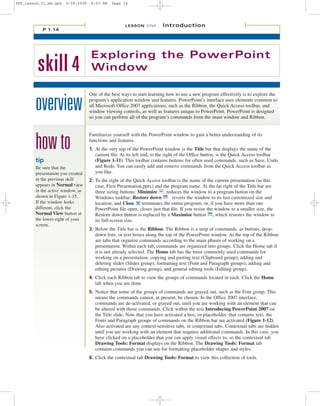
                                   One of the best ways to start learning how to use a new program effectively is to explore the

        overview                   program’s application window and features. PowerPoint’s interface uses elements common to
                                   all Microsoft Office 2007 applications, such as the Ribbon, the Quick Access toolbar, and
                                   window viewing controls, as well as features unique to PowerPoint. PowerPoint is designed
                                   so you can perform all of the program’s commands from the main window and Ribbon.


        how to
                                   Familiarize yourself with the PowerPoint window to gain a better understanding of its
                                   functions and features.
                                   1. At the very top of the PowerPoint window is the Title bar that displays the name of the
                                      current file. At its left end, to the right of the Office button, is the Quick Access toolbar
        tip                           (Figure 1-11). This toolbar contains buttons for often used commands, such as Save, Undo
        Be sure that the              and Redo. You can easily add and remove commands from the Quick Access toolbar as
        presentation you created      you like.
        in the previous skill      2. To the right of the Quick Access toolbar is the name of the current presentation (in this
        appears in Normal view        case, First Presentation.pptx) and the program name. At the far right of the Title bar are
        in the active window, as      three sizing buttons: Minimize       reduces the window to a program button on the
        shown in Figure 1-15.         Windows taskbar; Restore down           reverts the window to its last customized size and
        If the window looks           location; and Close     terminates the entire program, or, if you have more than one
        different, click the          PowerPoint file open, closes just that file. If you resize the window to a smaller size, the
        Normal View button at         Restore down button is replaced by a Maximize button , which restores the window to
        the lower-right of your       its full-screen size.
        screen.
                                   3. Below the Title bar is the Ribbon. The Ribbon is a strip of commands, as buttons, drop-
                                      down lists, or text boxes along the top of the PowerPoint window. At the top of the Ribbon
                                      are tabs that organize commands according to the main phases of working on a
                                      presentation. Within each tab, commands are organized into groups. Click the Home tab if
                                      it is not already selected. The Home tab has the most commonly used commands for
                                      working on a presentation: copying and pasting text (Clipboard group); adding and
                                      deleting slides (Slides group); formatting text (Font and Paragraph groups), adding and
                                      editing pictures (Drawing group), and general editing tools (Editing group).
                                   4. Click each Ribbon tab to view the groups of commands located in each. Click the Home
                                      tab when you are done.
                                   5. Notice that some of the groups of commands are grayed out, such as the Font group. This
                                      means the commands cannot, at present, be chosen. In the Office 2007 interface,
                                      commands are de-activated, or grayed out, until you are working with an element that can
                                      be altered with those commands. Click within the text Introducing PowerPoint 2007 on
                                      the Title slide. Now that you have activated a box, or placeholder, that contains text, the
                                      Fonts and Paragraph groups of commands on the Ribbon bar are activated (Figure 1-12).
                                      Also activated are any context-sensitive tabs, or contextual tabs. Contextual tabs are hidden
                                      until you are working with an element that requires additional commands. In this case, you
                                      have clicked on a placeholder that you can apply visual effects to, so the contextual tab
                                      Drawing Tools: Format displays on the Ribbon. The Drawing Tools: Format tab
                                      contains commands you can use for formatting placeholder shapes and styles.
                                   6. Click the contextual tab Drawing Tools: Format to view this collection of tools.
PPT_Lesson_01_mm.qxd   5/29/2008   8:05 AM    Page 15


                                     I n t e r @ c t i v e L e a r n i n g                 S e r i e s
                                                                                                                        P 1.15


          Figure 1-11 PowerPoint Title bar and Ribbon


               Commands             Quick          Font group is             Tabs          Minimize      Restore             Close
               are organized        Access         grayed out                                            down/Maximize
               in groups            toolbar        because no text
                                                   boxes are
                                                   selected on the
                                                   slide


                                                                                                Dialog box
                                                                                                launcher

          Figure 1-12 PowerPoint window


                                                                                                                       Change
                                                                                                                       Case button

                                                                 When a slide element
                                                                 is selected, contextual
                                                                 tabs holding tools
                                                                 specific to modifying                                 Zoom In
                                                                 that element, appear

                                                                                                                       Zoom slider


                                                                                                                       Zoom Out


                                                                                                                       Current
                                                                                                                       zoom level


                                                                                                                       Previous
                                                                                                                       Slide


                                                                                                                       Next Slide


            Status             Notes pane                                    View buttons             Drag to adjust
            information                                                      (Normal View, Slide      window size
                                                                             Sorter View, Slide
                                                                             Show View)

Powerpoint textbook excerpt

  • 1.
    PPT_Lesson_01_mm.qxd 5/29/2008 8:03 AM Page 14 LESSON ONE Introduction P 1.14 Exploring the PowerPoint skill 4 Window One of the best ways to start learning how to use a new program effectively is to explore the overview program’s application window and features. PowerPoint’s interface uses elements common to all Microsoft Office 2007 applications, such as the Ribbon, the Quick Access toolbar, and window viewing controls, as well as features unique to PowerPoint. PowerPoint is designed so you can perform all of the program’s commands from the main window and Ribbon. how to Familiarize yourself with the PowerPoint window to gain a better understanding of its functions and features. 1. At the very top of the PowerPoint window is the Title bar that displays the name of the current file. At its left end, to the right of the Office button, is the Quick Access toolbar tip (Figure 1-11). This toolbar contains buttons for often used commands, such as Save, Undo Be sure that the and Redo. You can easily add and remove commands from the Quick Access toolbar as presentation you created you like. in the previous skill 2. To the right of the Quick Access toolbar is the name of the current presentation (in this appears in Normal view case, First Presentation.pptx) and the program name. At the far right of the Title bar are in the active window, as three sizing buttons: Minimize reduces the window to a program button on the shown in Figure 1-15. Windows taskbar; Restore down reverts the window to its last customized size and If the window looks location; and Close terminates the entire program, or, if you have more than one different, click the PowerPoint file open, closes just that file. If you resize the window to a smaller size, the Normal View button at Restore down button is replaced by a Maximize button , which restores the window to the lower-right of your its full-screen size. screen. 3. Below the Title bar is the Ribbon. The Ribbon is a strip of commands, as buttons, drop- down lists, or text boxes along the top of the PowerPoint window. At the top of the Ribbon are tabs that organize commands according to the main phases of working on a presentation. Within each tab, commands are organized into groups. Click the Home tab if it is not already selected. The Home tab has the most commonly used commands for working on a presentation: copying and pasting text (Clipboard group); adding and deleting slides (Slides group); formatting text (Font and Paragraph groups), adding and editing pictures (Drawing group), and general editing tools (Editing group). 4. Click each Ribbon tab to view the groups of commands located in each. Click the Home tab when you are done. 5. Notice that some of the groups of commands are grayed out, such as the Font group. This means the commands cannot, at present, be chosen. In the Office 2007 interface, commands are de-activated, or grayed out, until you are working with an element that can be altered with those commands. Click within the text Introducing PowerPoint 2007 on the Title slide. Now that you have activated a box, or placeholder, that contains text, the Fonts and Paragraph groups of commands on the Ribbon bar are activated (Figure 1-12). Also activated are any context-sensitive tabs, or contextual tabs. Contextual tabs are hidden until you are working with an element that requires additional commands. In this case, you have clicked on a placeholder that you can apply visual effects to, so the contextual tab Drawing Tools: Format displays on the Ribbon. The Drawing Tools: Format tab contains commands you can use for formatting placeholder shapes and styles. 6. Click the contextual tab Drawing Tools: Format to view this collection of tools.
  • 2.
    PPT_Lesson_01_mm.qxd 5/29/2008 8:05 AM Page 15 I n t e r @ c t i v e L e a r n i n g S e r i e s P 1.15 Figure 1-11 PowerPoint Title bar and Ribbon Commands Quick Font group is Tabs Minimize Restore Close are organized Access grayed out down/Maximize in groups toolbar because no text boxes are selected on the slide Dialog box launcher Figure 1-12 PowerPoint window Change Case button When a slide element is selected, contextual tabs holding tools specific to modifying Zoom In that element, appear Zoom slider Zoom Out Current zoom level Previous Slide Next Slide Status Notes pane View buttons Drag to adjust information (Normal View, Slide window size Sorter View, Slide Show View)