Power-Ups
Non-standard column
names
Overview
For this post our assumptions are:
● You are the “Finance guy/girl that knows data as well”
● You do not have access to a fancy data warehouse
● You are downloading / exporting data out an ERP system
2
Problem
● Column names can vary between plants or legal entities in
SAP
● For example an accounts payables report for plant 1 and
plant 2 may have the identical number of columns but the
column names may not match
● This can create issues if you are building a BI file that
allows the users to switch between data sources
● Non-standard column names would cause the query
refresh to fail each time you switched data sources
3
Example
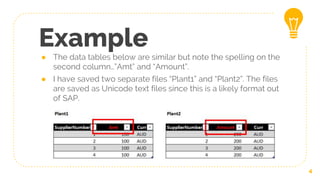
● The data tables below are similar but note the spelling on the
second column…”Amt” and “Amount”.
● I have saved two separate files “Plant1” and “Plant2”. The files
are saved as Unicode text files since this is a likely format out
of SAP.
4
5
Load Data /
Parameters
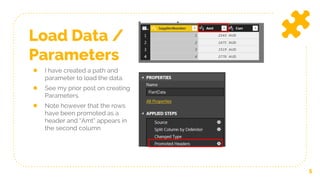
● I have created a path and
parameter to load the data.
● See my prior post on creating
Parameters.
● Note however that the rows
have been promoted as a
header and “Amt” appears in
the second column
6
Switch Data
Sets
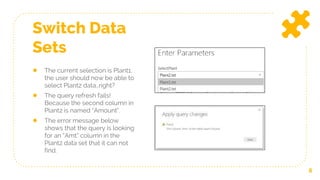
● The current selection is Plant1,
the user should now be able to
select Plant2 data…right?
● The query refresh fails!
Because the second column in
Plant2 is named “Amount”.
● The error message below
shows that the query is looking
for an “Amt” column in the
Plant2 data set that it can not
find.
7
Rename Headers
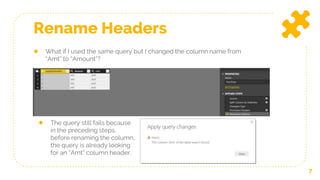
● What if I used the same query but I changed the column name from
“Amt” to “Amount”?
● The query still fails because
in the preceding steps,
before renaming the column,
the query is already looking
for an “Amt” column header.
Solution 1
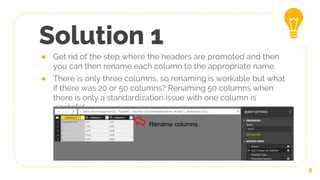
● Get rid of the step where the headers are promoted and then
you can then rename each column to the appropriate name.
● There is only three columns, so renaming is workable but what
if there was 20 or 50 columns? Renaming 50 columns when
there is only a standardization issue with one column is
wasteful
8
Rename columns
Solution 2
● Keep the promote headers step. This way you don’t need to
rename 49 columns and
● Change the M Code to search for either “Amt” or “Amount” and
when either value is found the column is renamed as “Amount”.
Any missing fields are ignored.
● = Table.RenameColumns(#"Promoted Headers",{{"Amt",
"Amount"},{"Amount","Amount"}}, MissingField.Ignore)
9
10
Ta-dah!
● You have identified the non-standard column
● You have efficiently standardized the column names between
the two data sets with some M Code
● The user can now switch between data sets with no issues.
Thanks!
I am Johann Krugell
A practical guide to “Power-Up” your analysis
You can find me at @JohannKrugell@linkedin
11
Credits
Special thanks to all the people who made and
released these awesome resources for free:
● Presentation template by SlidesCarnival
● Photographs by Unsplash
12

Power ups non standard column names

  • 1.
  • 2.
    Overview For this postour assumptions are: ● You are the “Finance guy/girl that knows data as well” ● You do not have access to a fancy data warehouse ● You are downloading / exporting data out an ERP system 2
  • 3.
    Problem ● Column namescan vary between plants or legal entities in SAP ● For example an accounts payables report for plant 1 and plant 2 may have the identical number of columns but the column names may not match ● This can create issues if you are building a BI file that allows the users to switch between data sources ● Non-standard column names would cause the query refresh to fail each time you switched data sources 3
  • 4.
    Example ● The datatables below are similar but note the spelling on the second column…”Amt” and “Amount”. ● I have saved two separate files “Plant1” and “Plant2”. The files are saved as Unicode text files since this is a likely format out of SAP. 4
  • 5.
    5 Load Data / Parameters ●I have created a path and parameter to load the data. ● See my prior post on creating Parameters. ● Note however that the rows have been promoted as a header and “Amt” appears in the second column
  • 6.
    6 Switch Data Sets ● Thecurrent selection is Plant1, the user should now be able to select Plant2 data…right? ● The query refresh fails! Because the second column in Plant2 is named “Amount”. ● The error message below shows that the query is looking for an “Amt” column in the Plant2 data set that it can not find.
  • 7.
    7 Rename Headers ● Whatif I used the same query but I changed the column name from “Amt” to “Amount”? ● The query still fails because in the preceding steps, before renaming the column, the query is already looking for an “Amt” column header.
  • 8.
    Solution 1 ● Getrid of the step where the headers are promoted and then you can then rename each column to the appropriate name. ● There is only three columns, so renaming is workable but what if there was 20 or 50 columns? Renaming 50 columns when there is only a standardization issue with one column is wasteful 8 Rename columns
  • 9.
    Solution 2 ● Keepthe promote headers step. This way you don’t need to rename 49 columns and ● Change the M Code to search for either “Amt” or “Amount” and when either value is found the column is renamed as “Amount”. Any missing fields are ignored. ● = Table.RenameColumns(#"Promoted Headers",{{"Amt", "Amount"},{"Amount","Amount"}}, MissingField.Ignore) 9
  • 10.
    10 Ta-dah! ● You haveidentified the non-standard column ● You have efficiently standardized the column names between the two data sets with some M Code ● The user can now switch between data sets with no issues.
  • 11.
    Thanks! I am JohannKrugell A practical guide to “Power-Up” your analysis You can find me at @JohannKrugell@linkedin 11
  • 12.
    Credits Special thanks toall the people who made and released these awesome resources for free: ● Presentation template by SlidesCarnival ● Photographs by Unsplash 12