

















Layout & Animation
Performance
Britt Barak
13/6/2016
Wifi: GoogleGuestPSK
pass: pUp3EkaP
3
First,
Britt Barak
Britt Barak
3
●Real - Android Team Leader
●Android Academy TLV
Yonatan Levin
Android Evangelist Gett
Idan Felix
Senior Android & Redhead
Varonis
Jonathan Yarkoni
Android Developer &
Advocate
Ironsource
Android Academy Staff
Britt Barak
Android Lead
Real
Muiriel Felix
Android Design
Logistics
https://www.facebook.com/groups/android.academy.ils/
What’s next?
4/7 - Yonatan
- Networking, JSON, Batching, Location
10/8 - Felix
- Battery & CPU
14/9 - Britt
- Threading
30 / 10 / 2016
New course coming
Today Will Be Awesome!
- Go deep
- Get practical
- Important tips
- Cool tools
- Learn brand new stuff!
Motivation
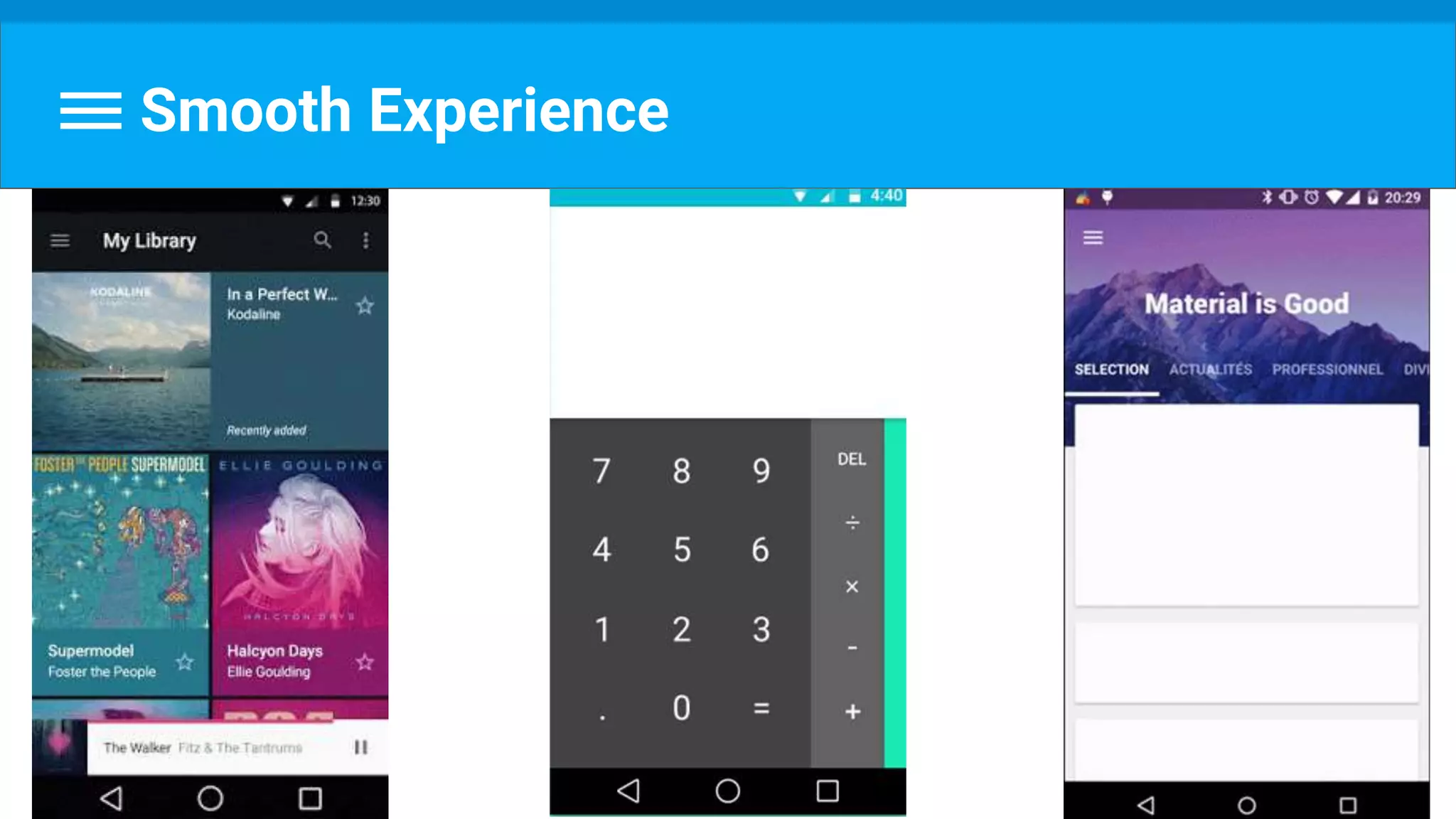
Smooth Experience
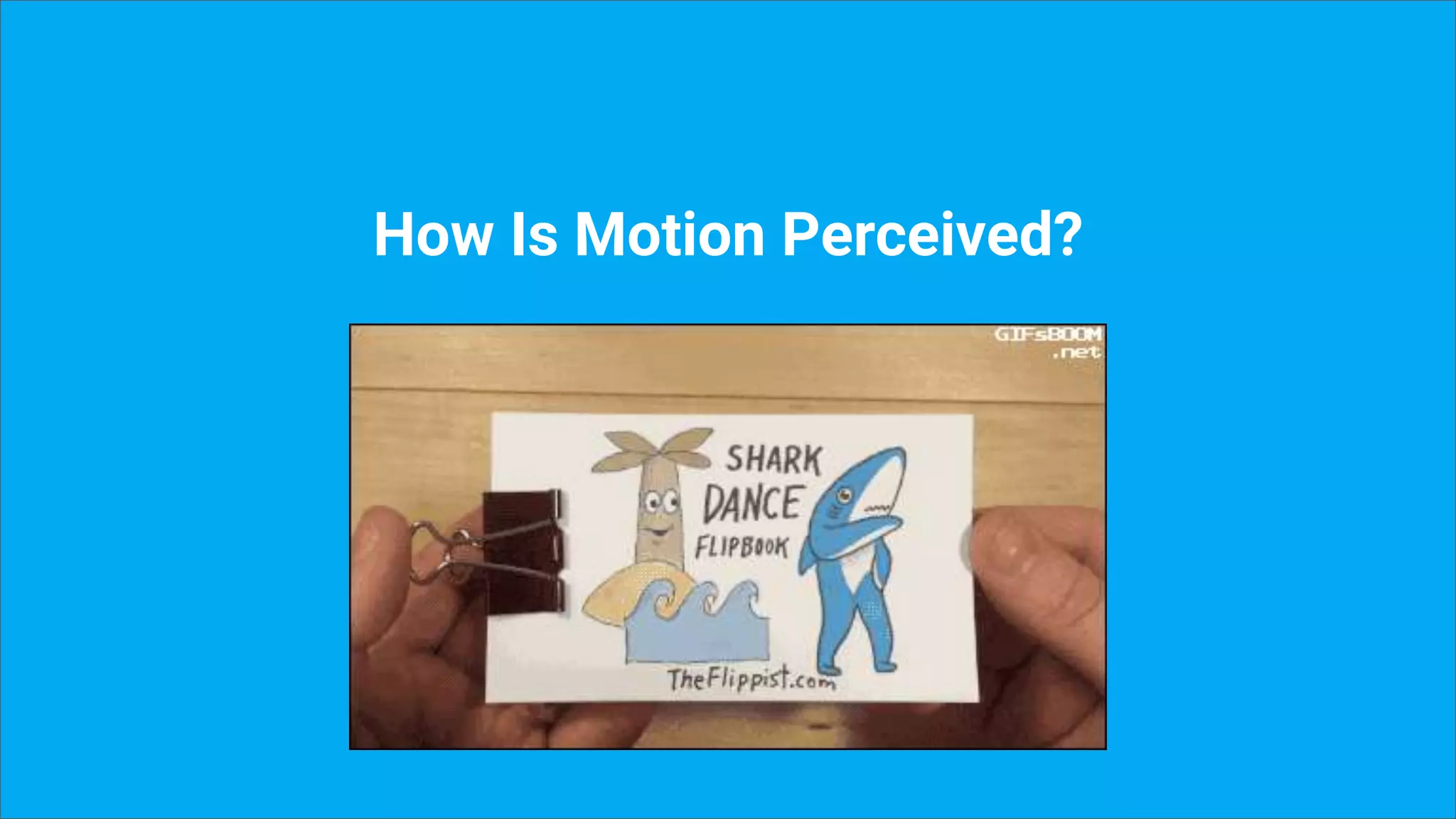
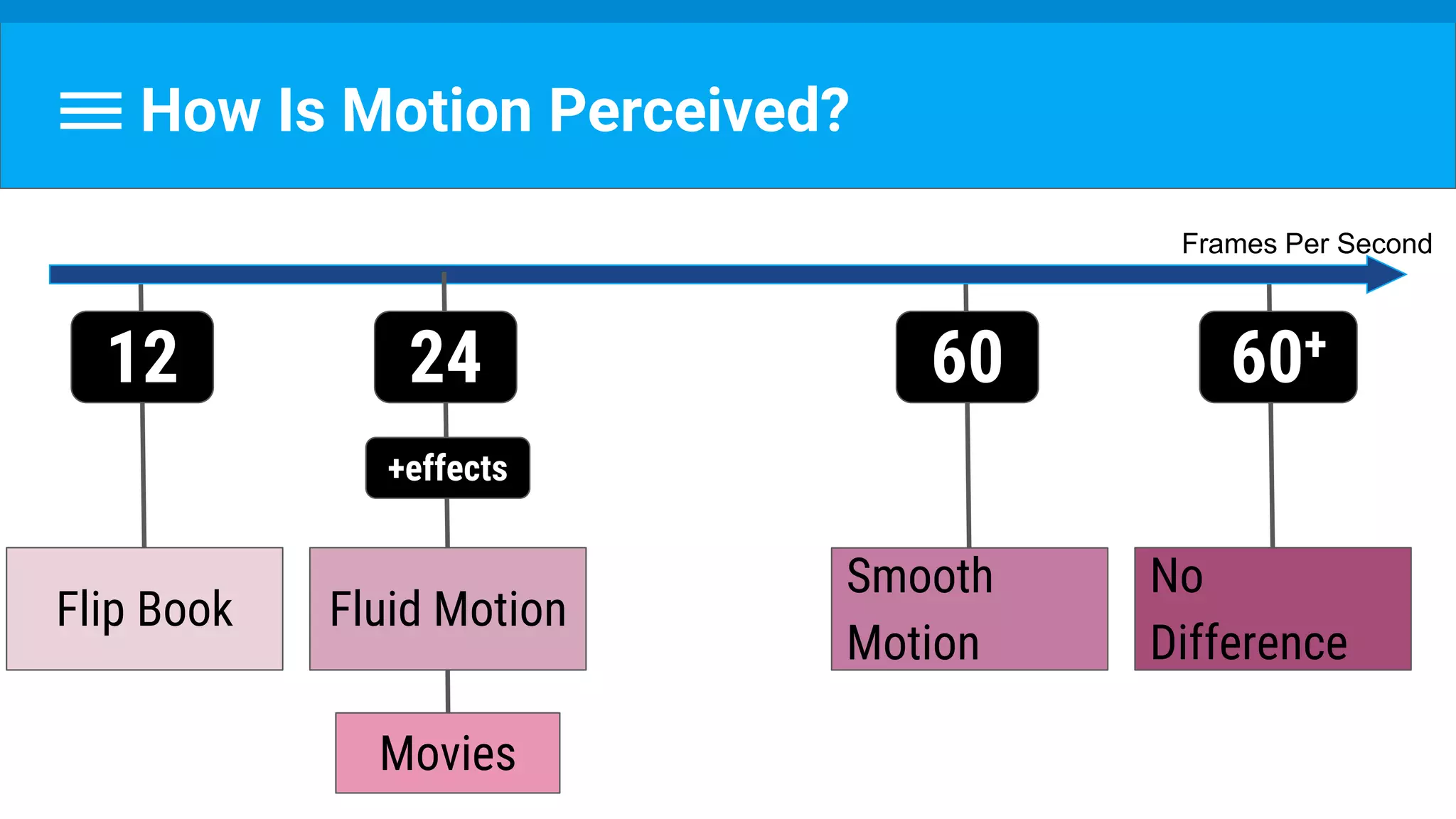
How Is Motion Perceived?
Smooth
Motion
60
No
Difference
60+
Flip Book
12
Movies
Frames Per Second
Fluid Motion
24
+effects
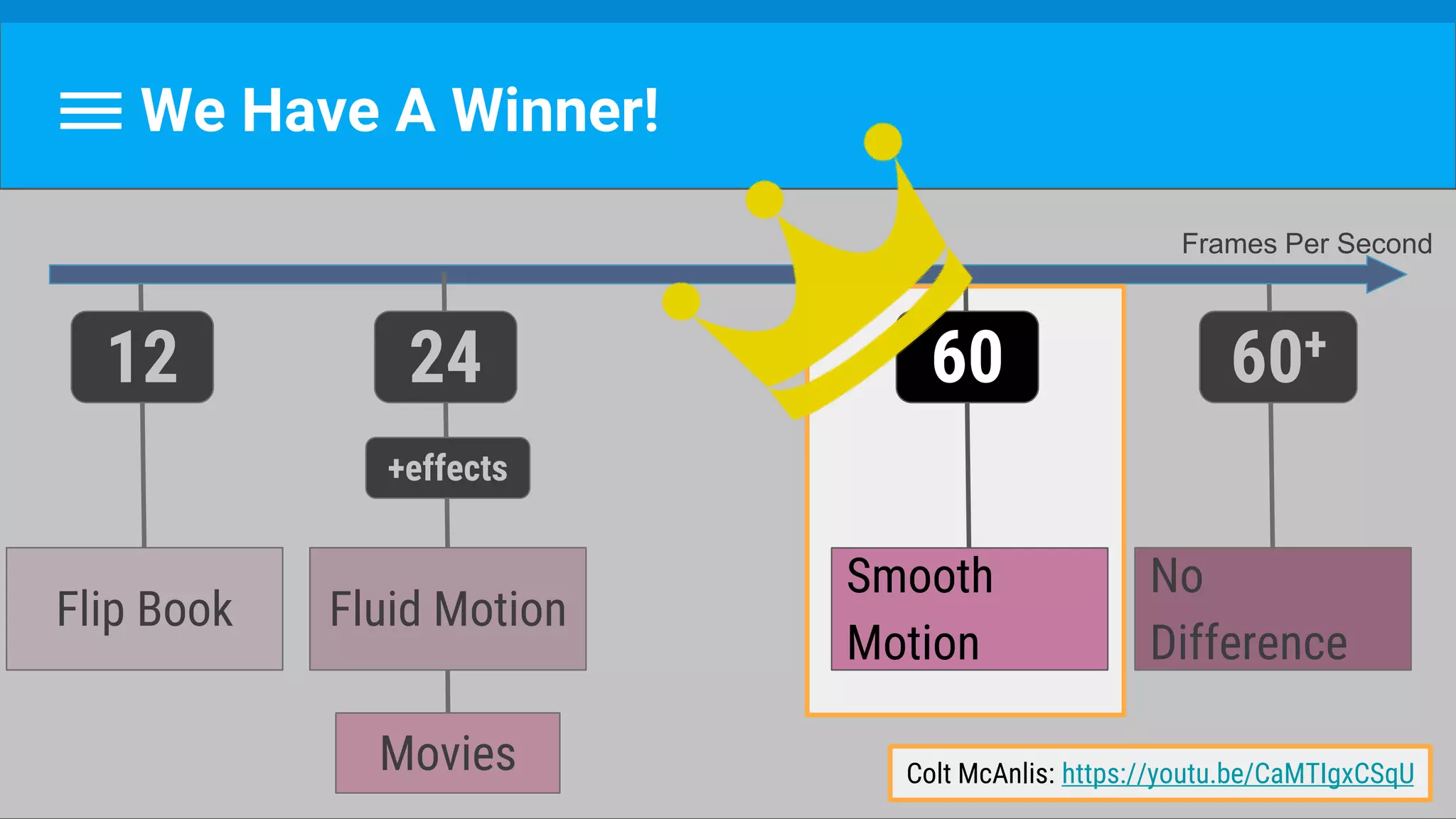
We Have A Winner!
Smooth
Motion
60
No
Difference
60+
Flip Book
12
Movies
Frames Per Second
Fluid Motion
24
+effects
Smooth
Motion
60
Colt McAnlis: https://youtu.be/CaMTIgxCSqU
60 FPS
60 Frames / Second =
Frame / 16.666 Millisecond
But First Thing First
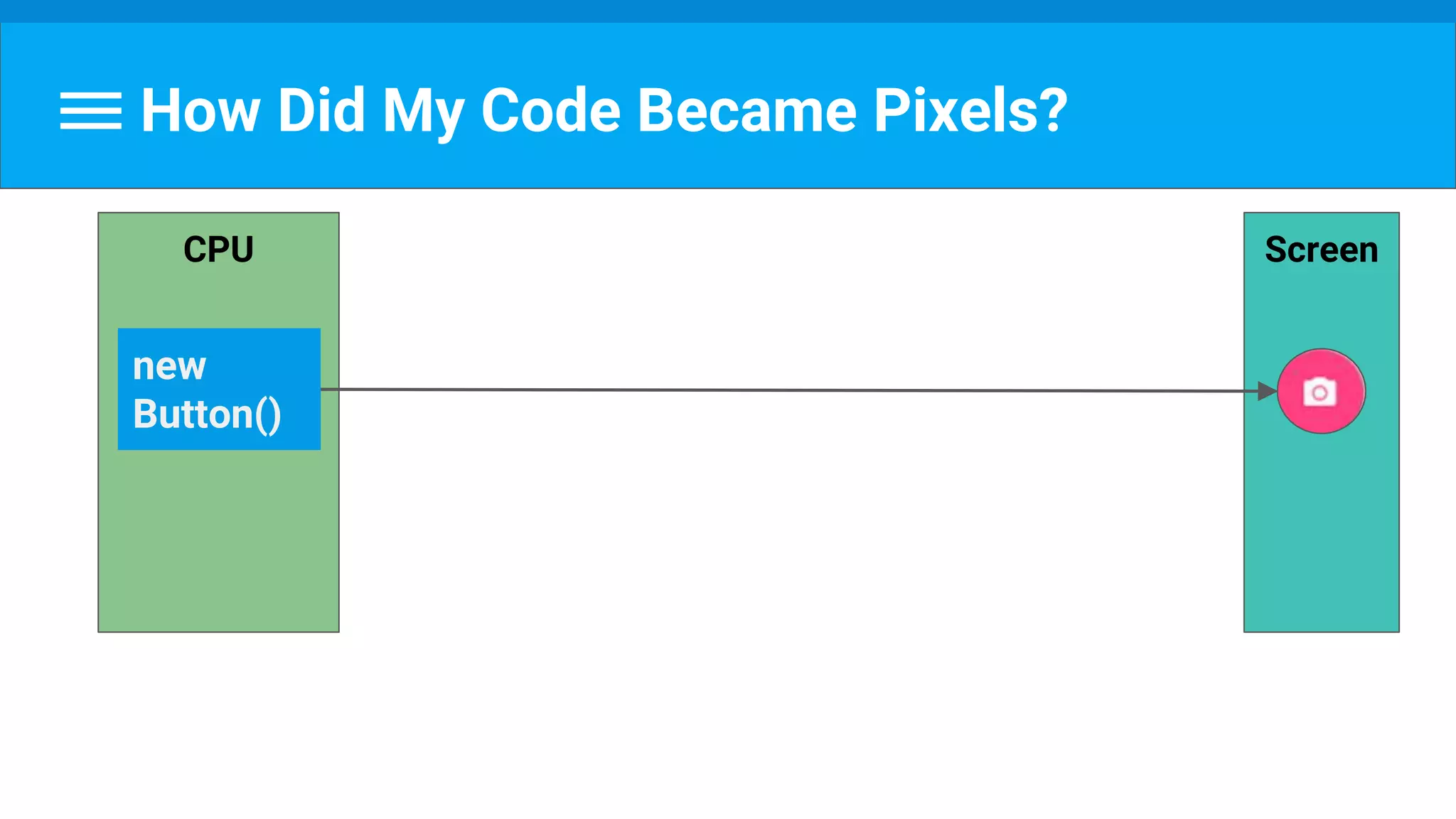
How Did My Code Became Pixels?
ScreenCPU
new
Button()
Scary Word Alert!!
Rasterization
From a high level object
into pixels on screen (or in texture).
https://en.wikipedia.org/wiki/Rasterisation
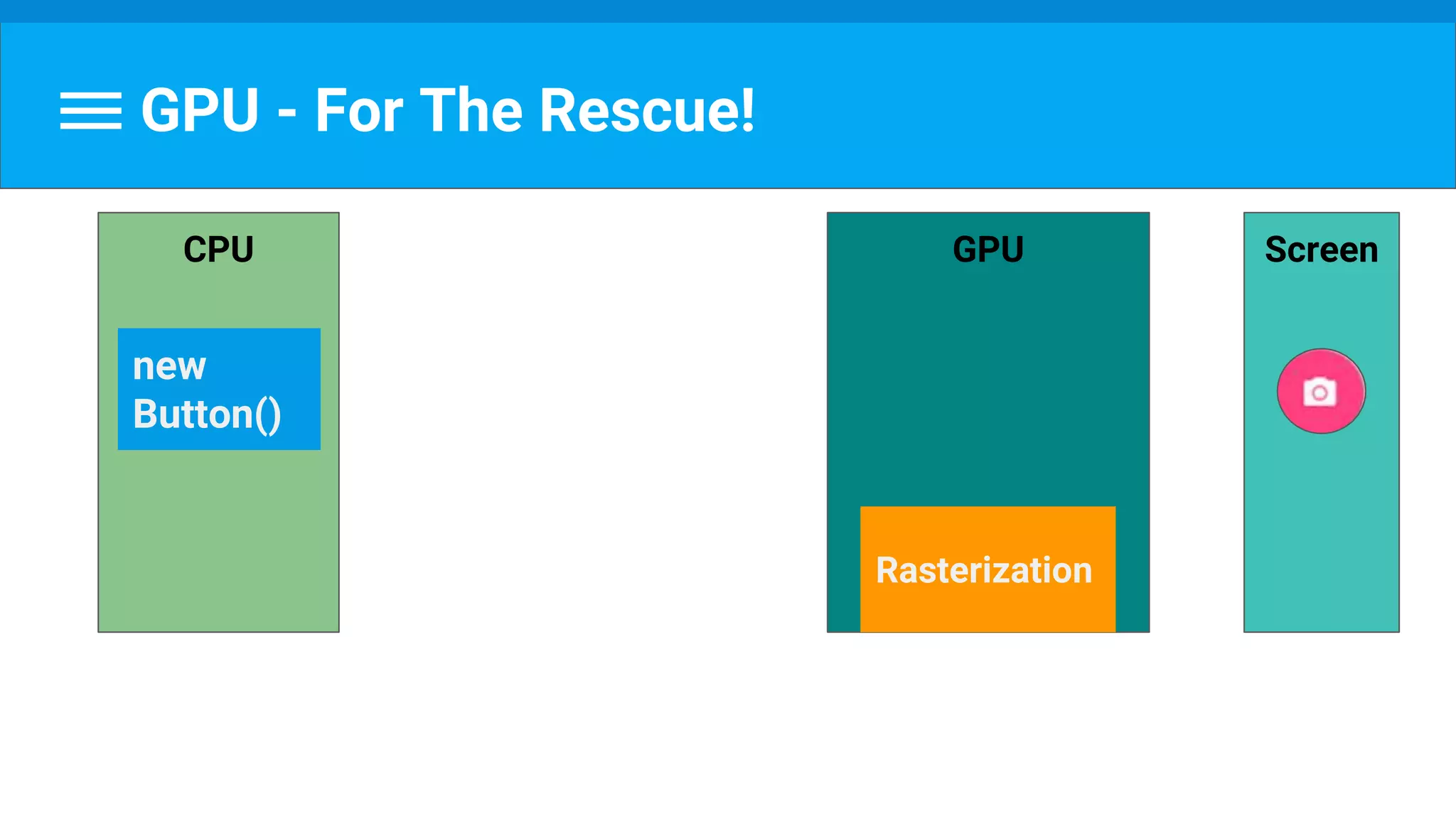
GPU - For The Rescue !
GPU - For The Rescue!
ScreenCPU
new
Button()
GPU
Rasterization
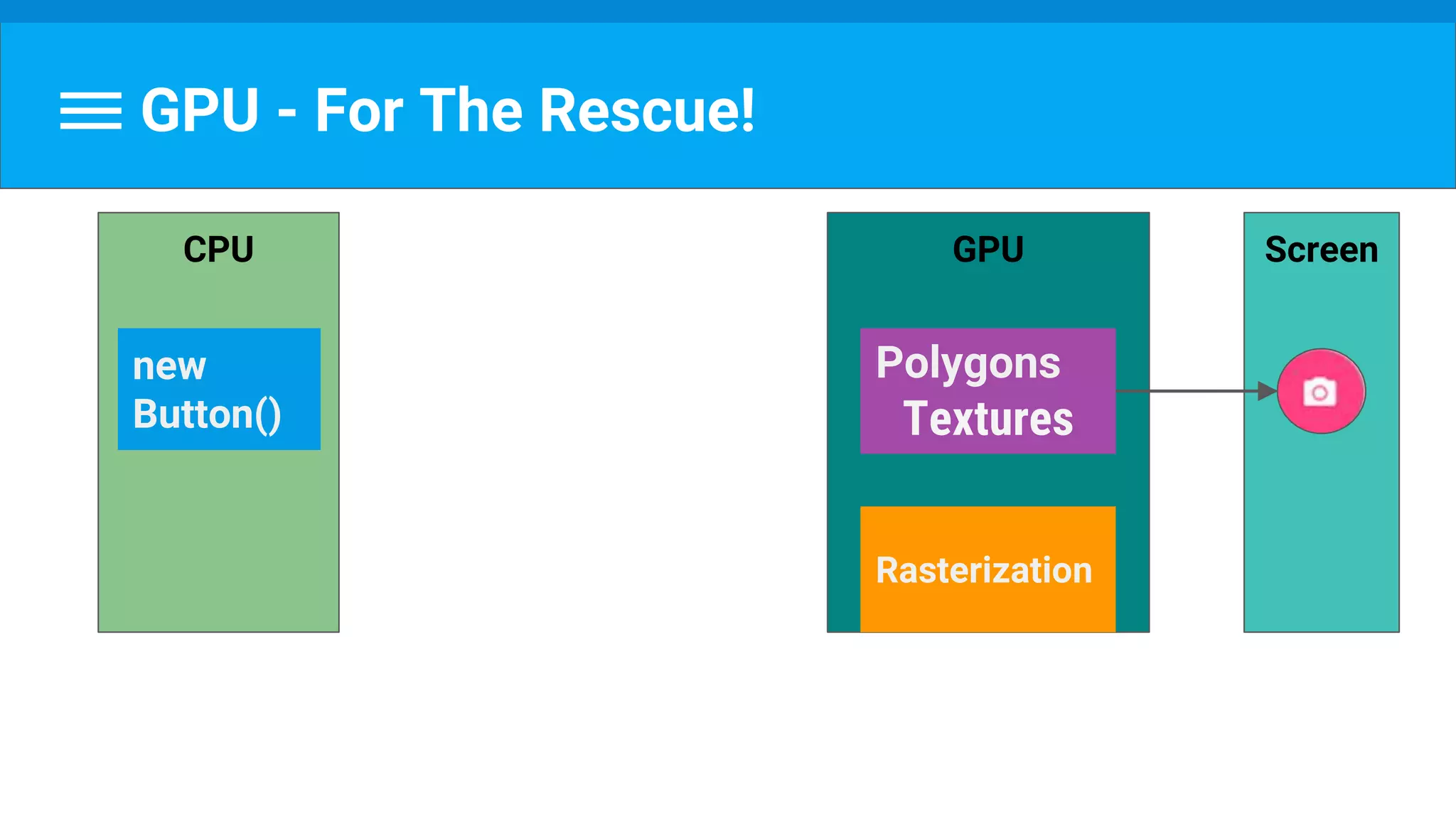
GPU - For The Rescue!
ScreenCPU
new
Button()
GPU
Polygons
Textures
Polygons
Textures
Rasterization
Wait… Polygons and Textures…?
GPU
Polygons
Textures
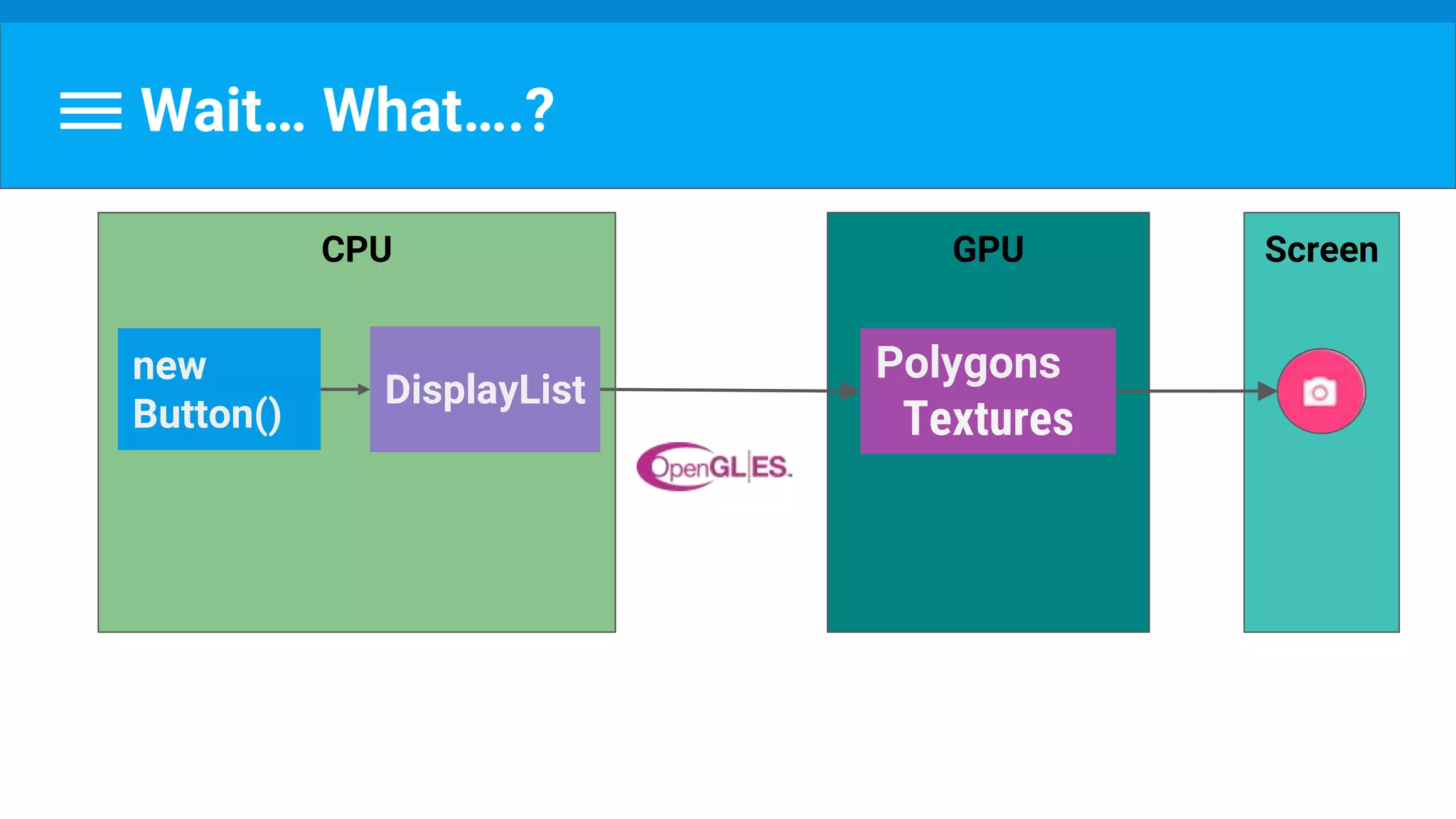
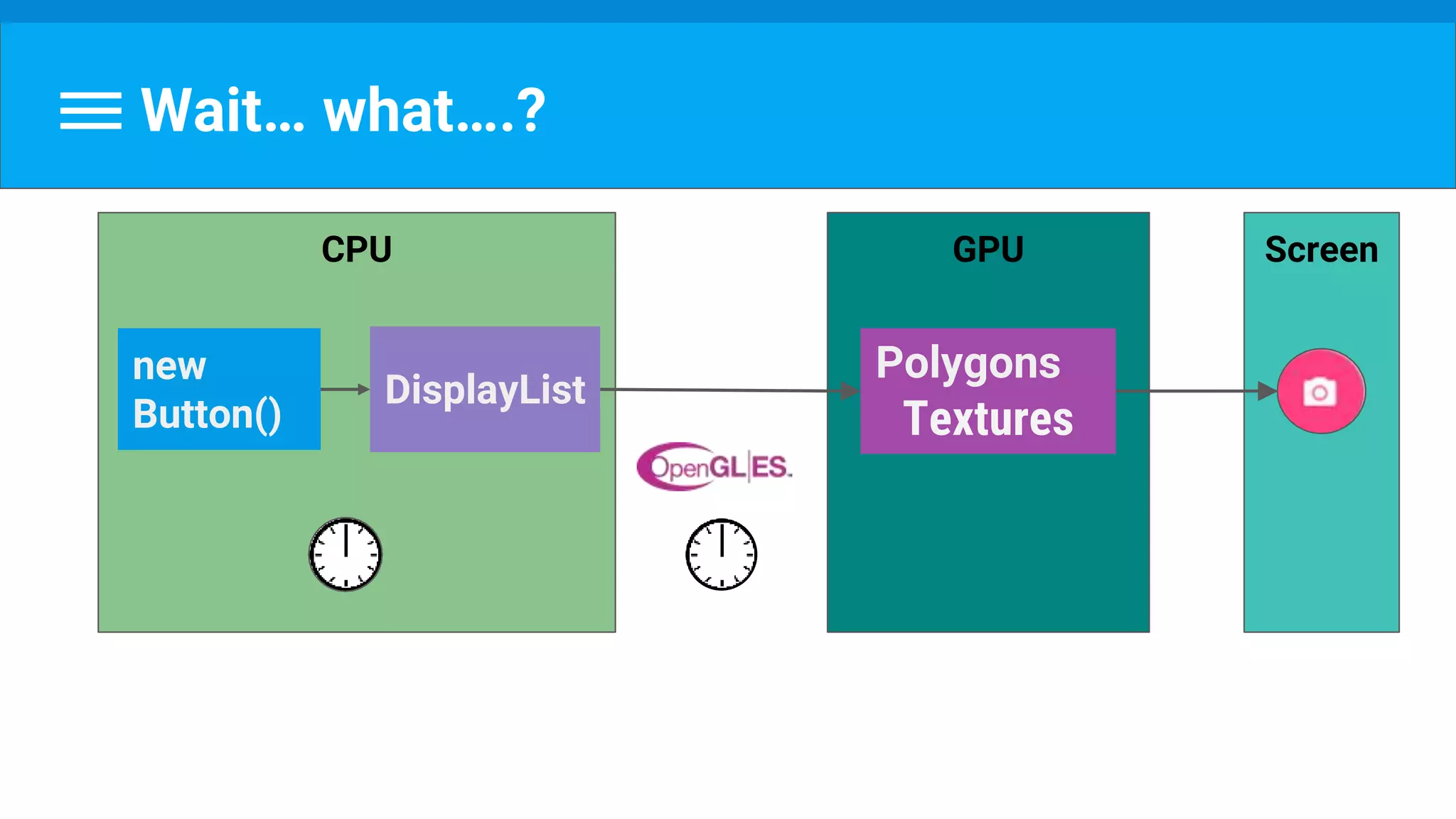
Wait… What….?
ScreenCPU
new
Button()
DisplayList
Wait… what….?
ScreenGPU
Polygons
Textures
CPU
new
Button()
DisplayList
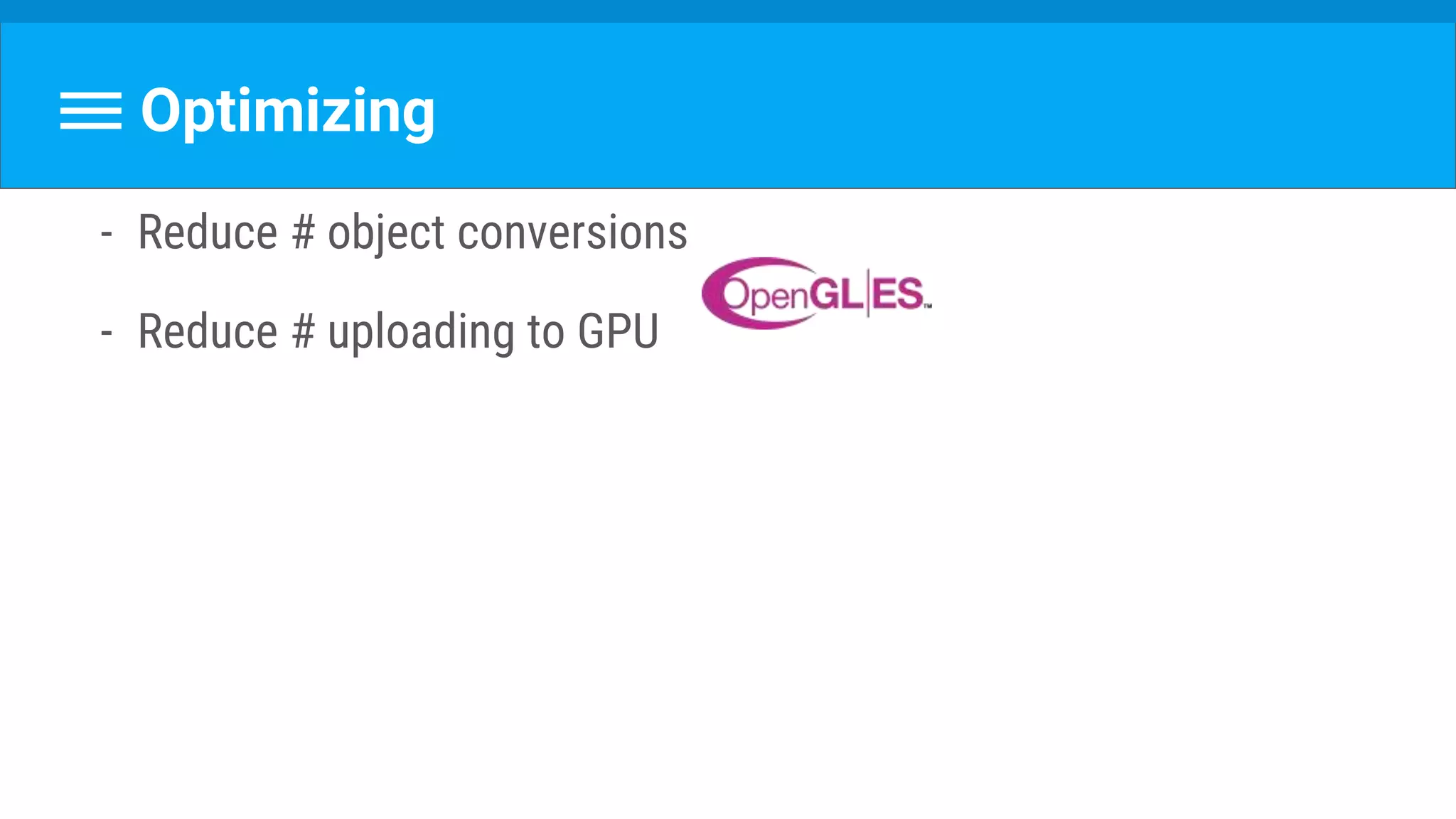
Optimizing
- Reduce # object conversions
- Reduce # uploading to GPU
By The Way...
By The Way...
(Geek Alert)
By The Way...
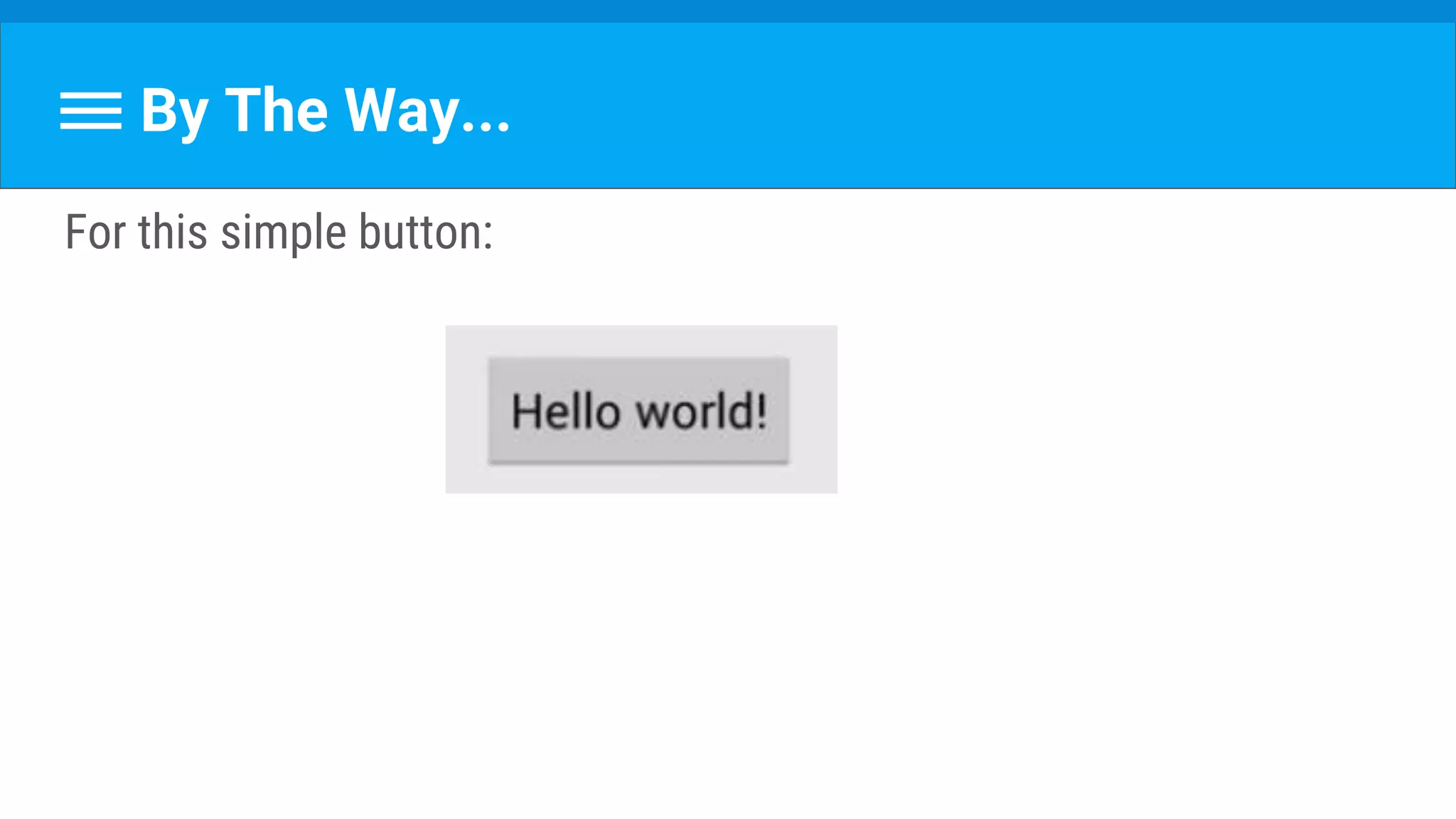
For this simple button:
By The Way...
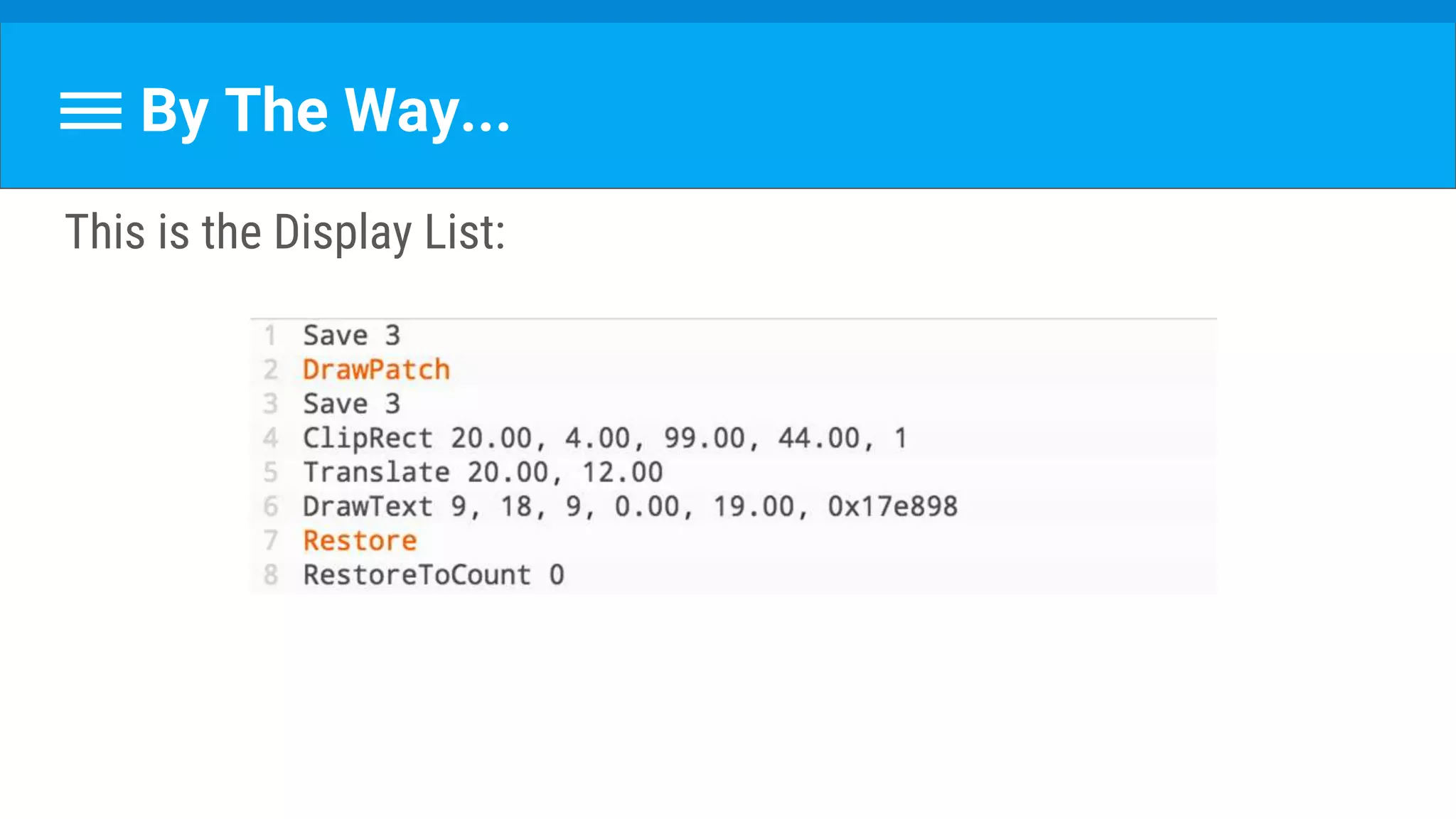
This is the Display List:
By The Way...
These are the OpenGl Commands:
Any Questions?
Reminder -
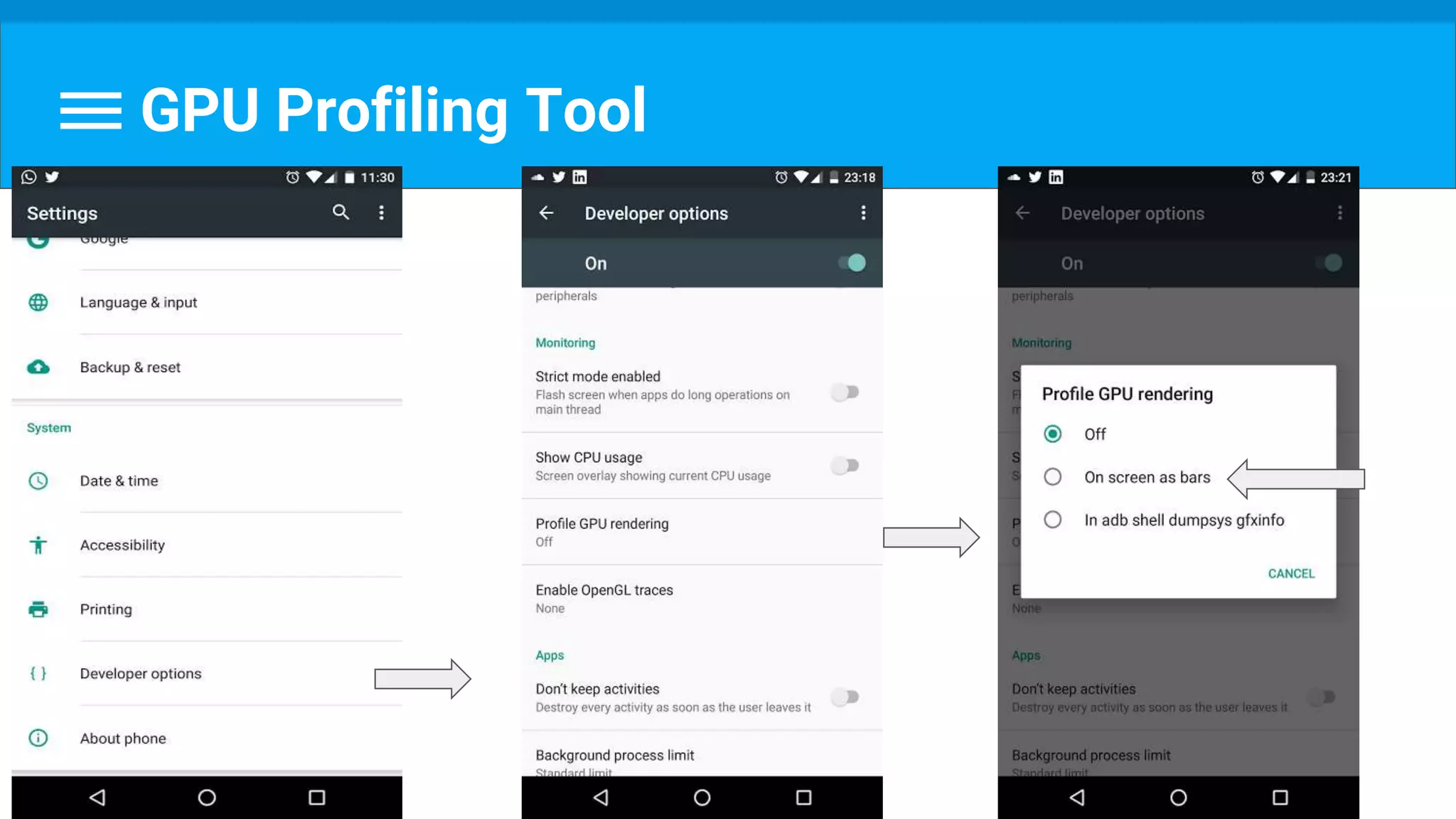
GPU Profiling Tool
GPU Profiling Tool
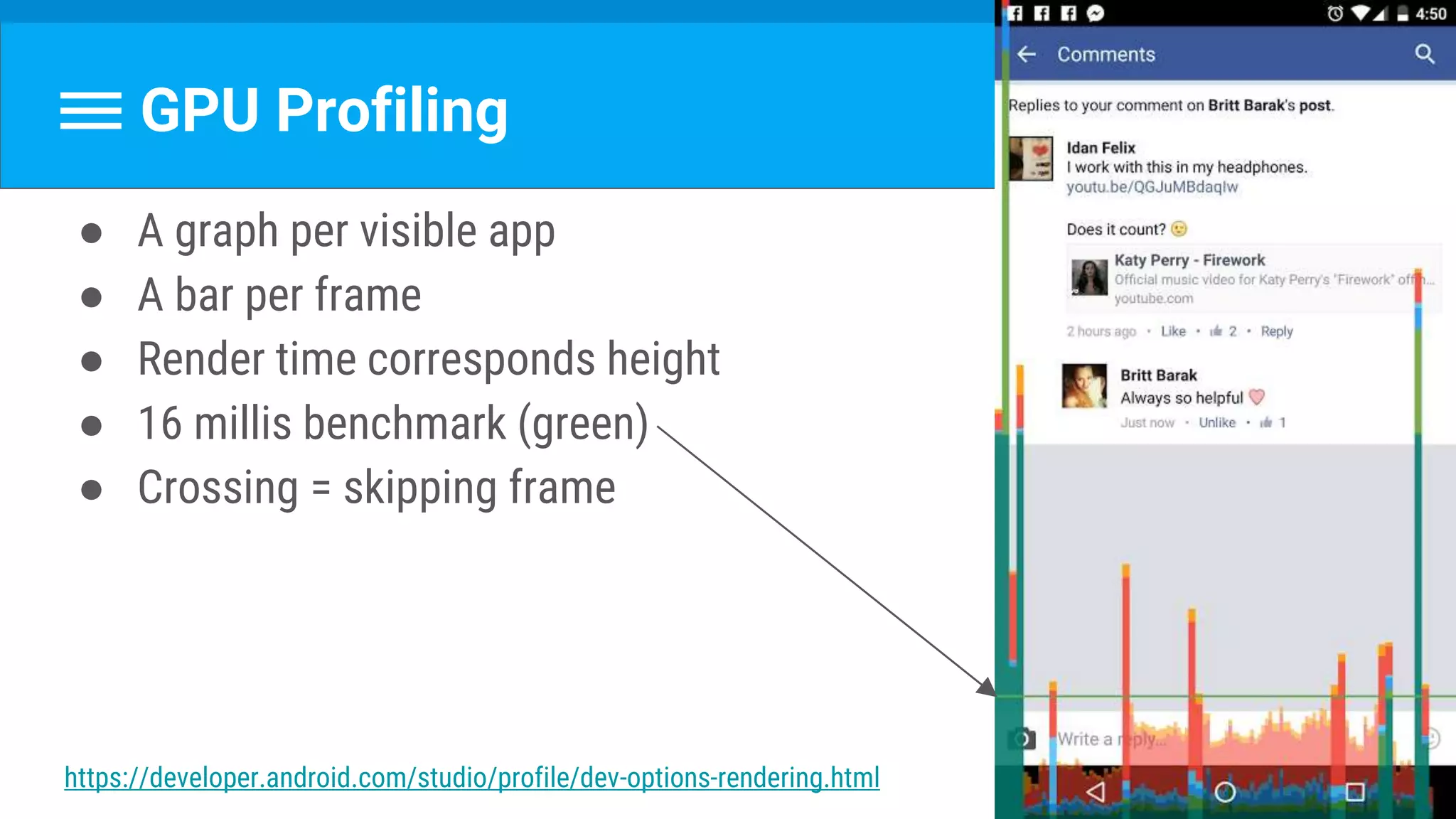
GPU Profiling
● A graph per visible app
● A bar per frame
● Render time corresponds height
● 16 millis benchmark (green)
● Crossing = skipping frame
https://developer.android.com/studio/profile/dev-options-rendering.html
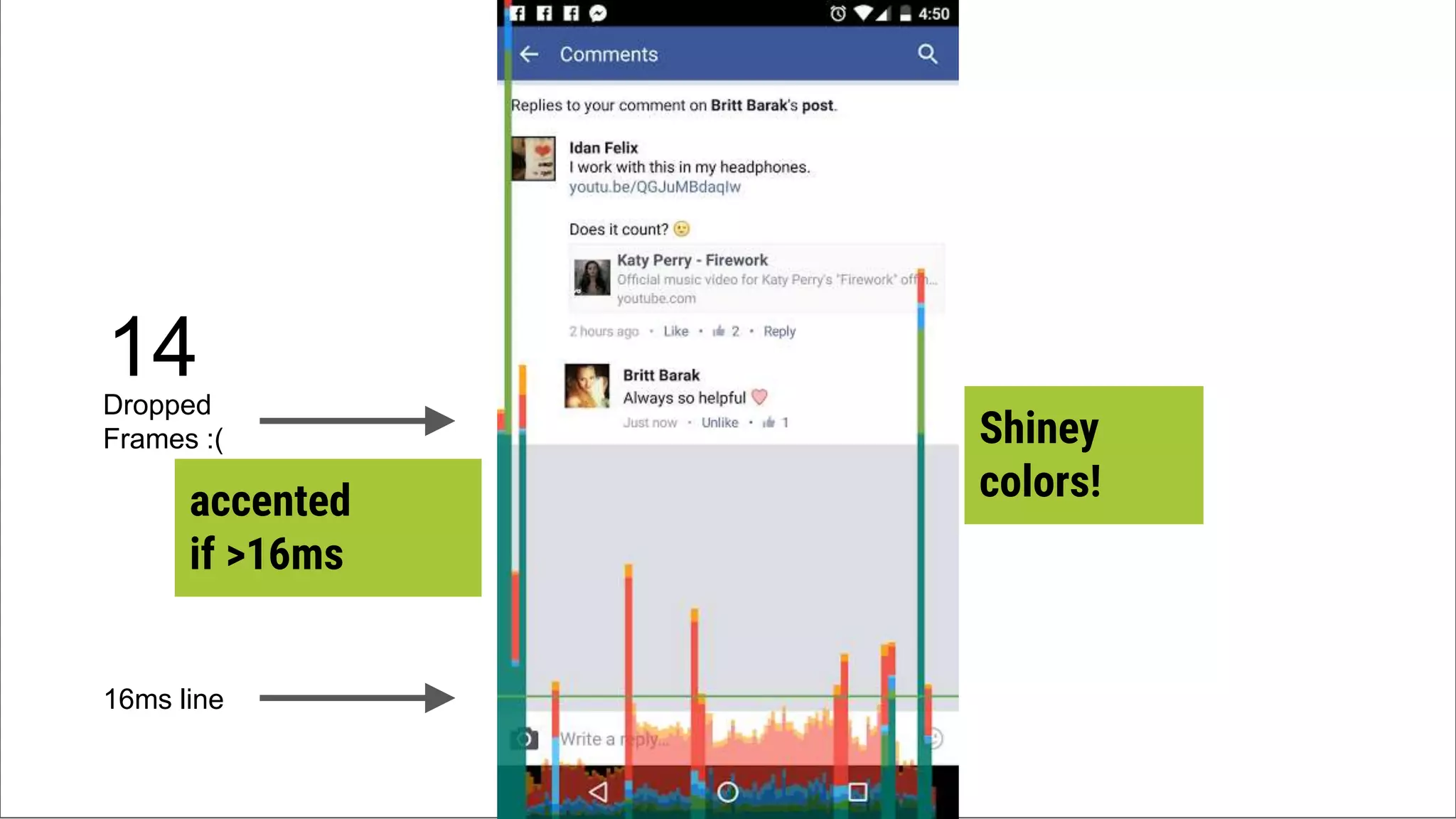
16ms line
Dropped
Frames :(
14
accented
if >16ms
Shiney
colors!
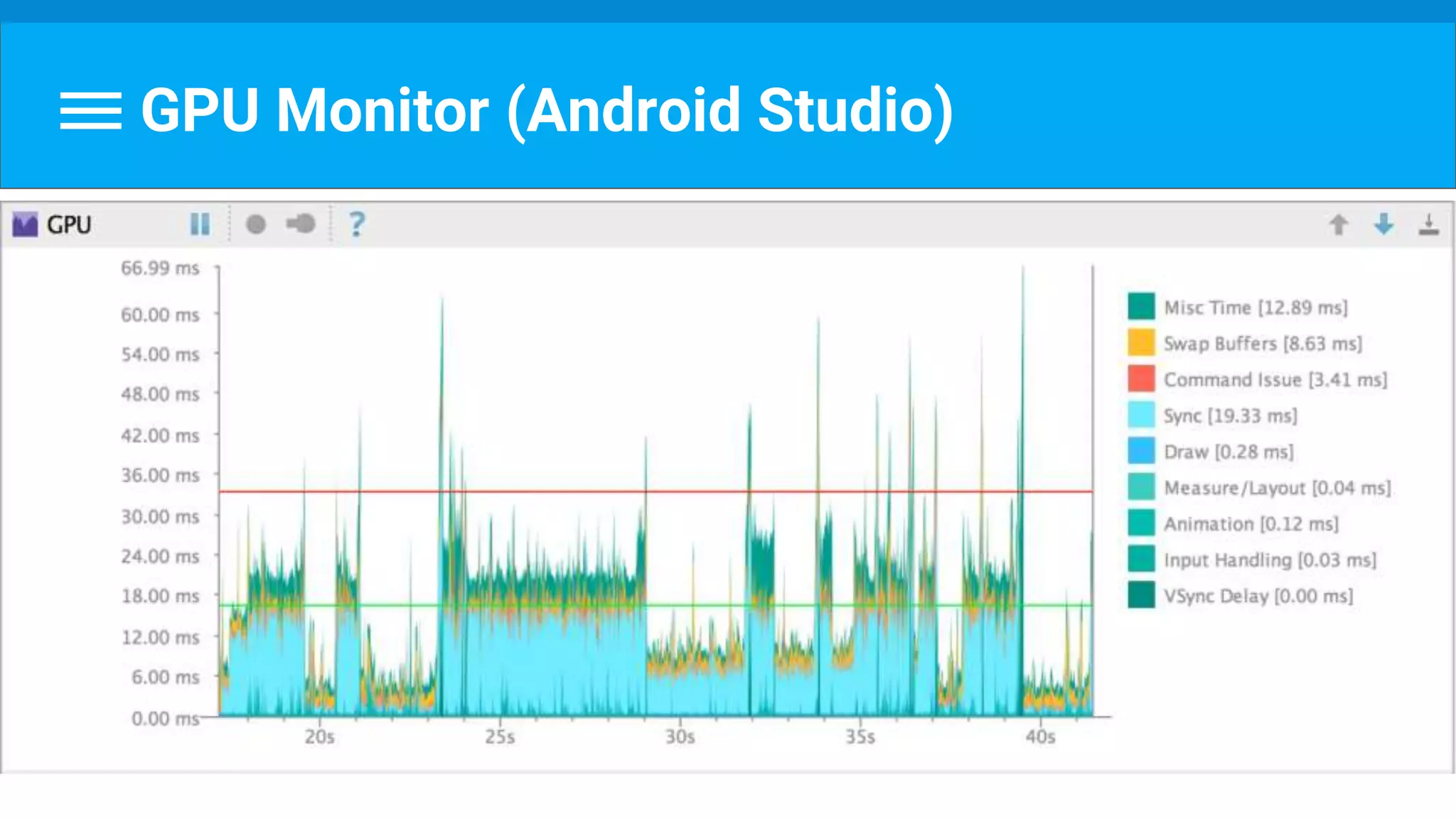
GPU Monitor (Android Studio)
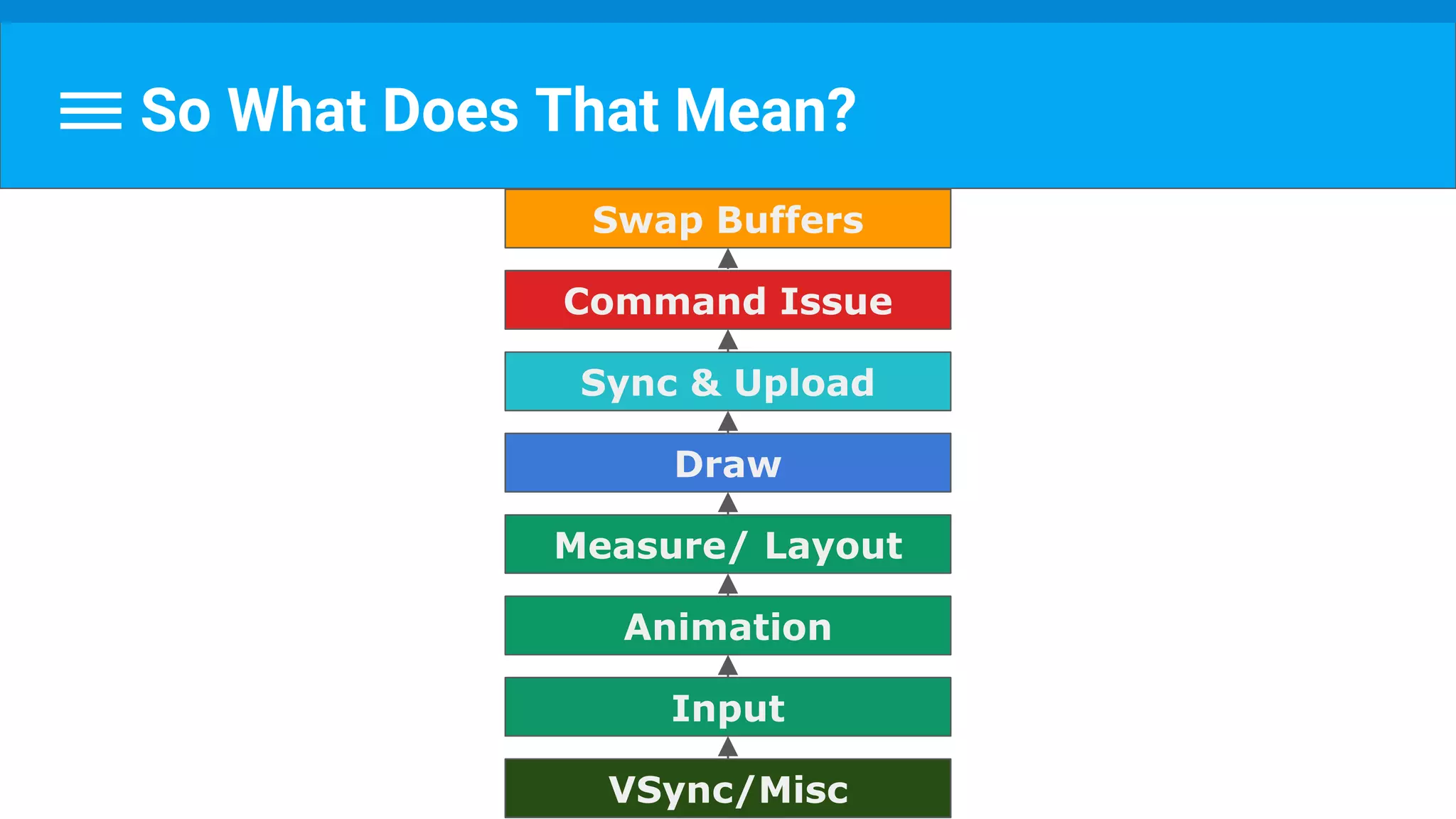
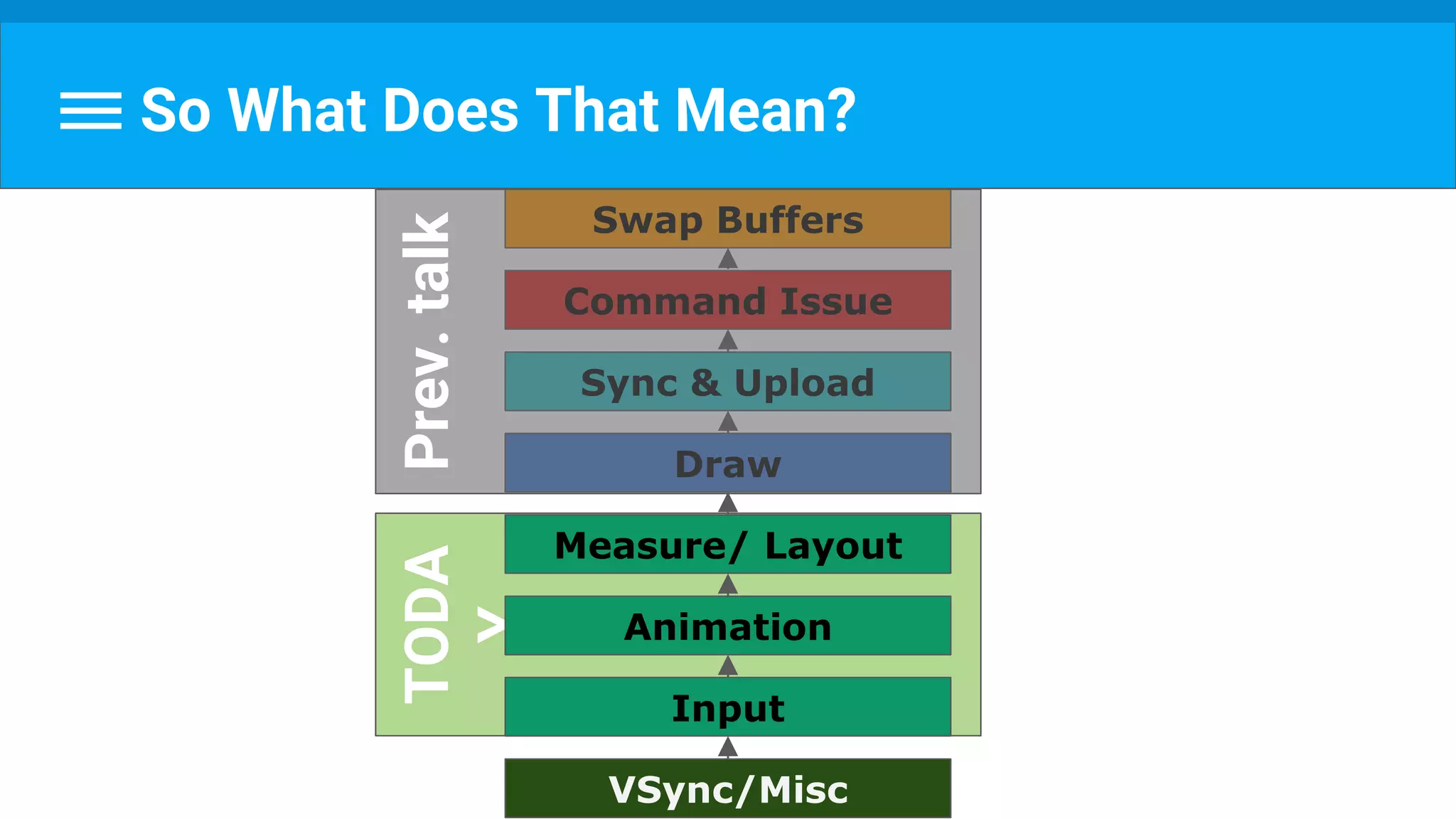
VSync/Misc
Input
Animation
Measure/ Layout
Draw
Sync & Upload
Command Issue
Swap Buffers
So What Does That Mean?
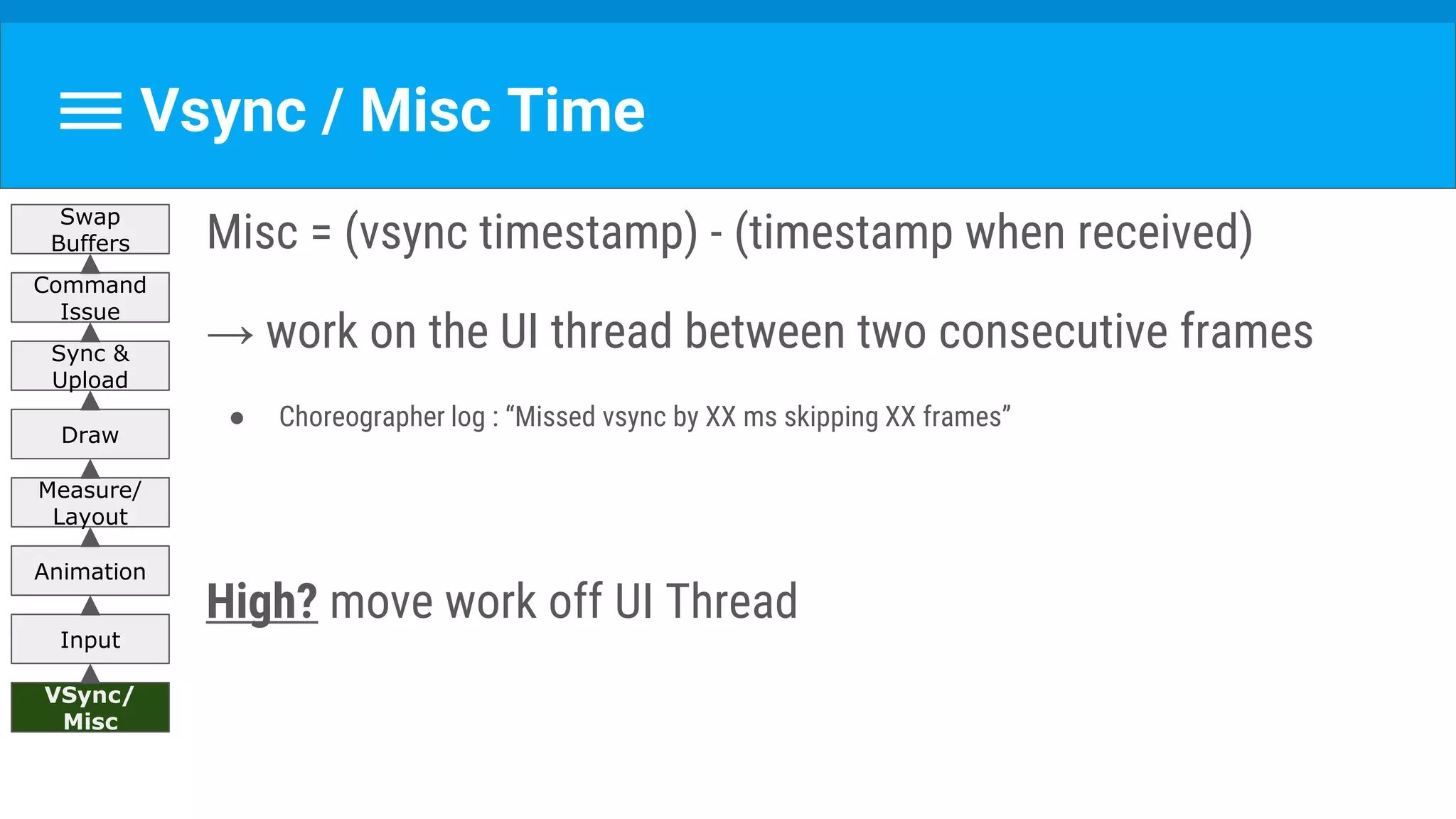
Vsync / Misc Time
Misc = (vsync timestamp) - (timestamp when received)
→ work on the UI thread between two consecutive frames
● Choreographer log : “Missed vsync by XX ms skipping XX frames”
High? move work off UI Thread
VSync/
Misc
Input
Animation
Measure/
Layout
Draw
Sync &
Upload
Command
Issue
Swap
Buffers
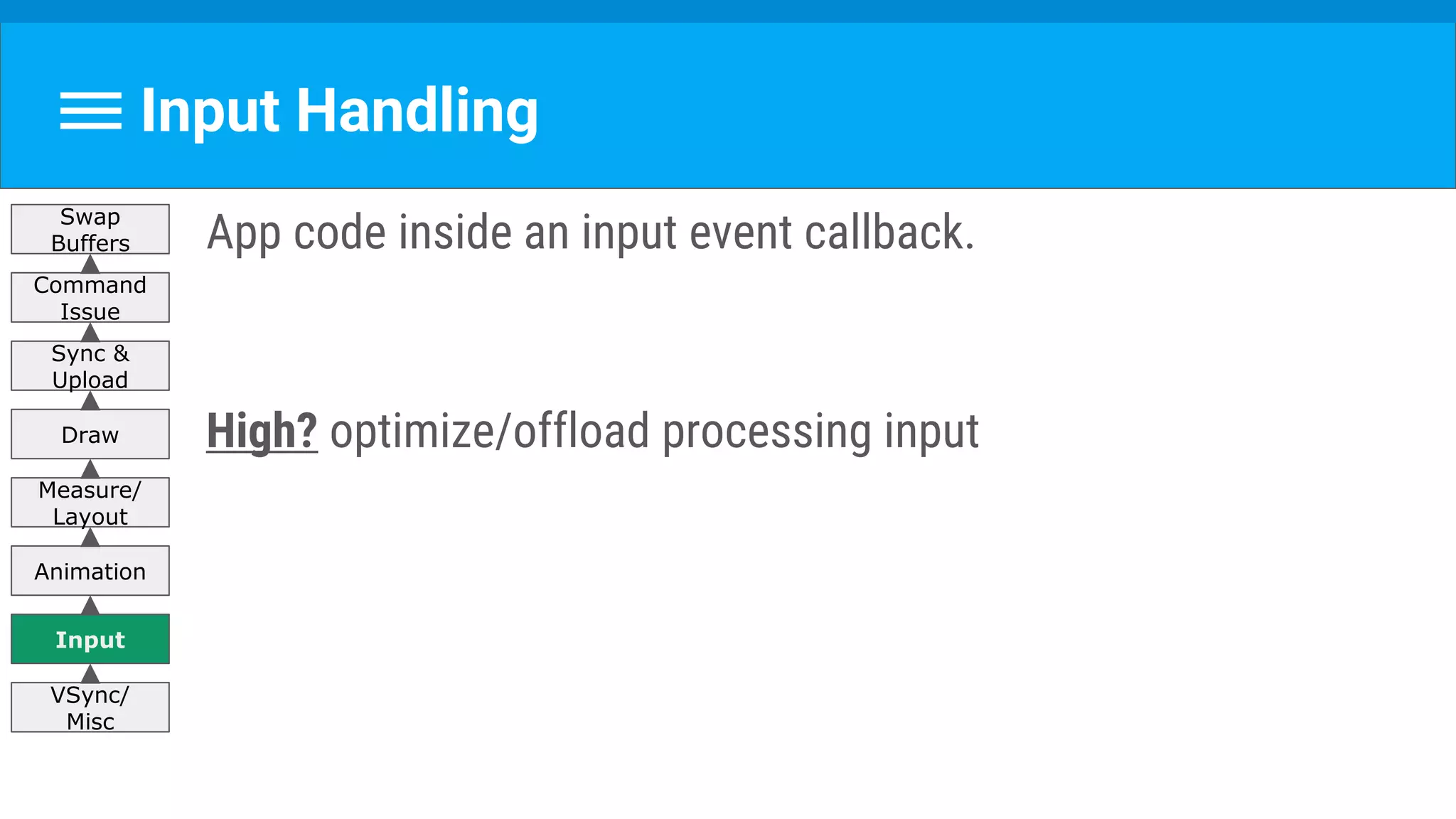
Input Handling
App code inside an input event callback.
High? optimize/offload processing input
VSync/
Misc
Input
Animation
Measure/
Layout
Draw
Sync &
Upload
Command
Issue
Swap
Buffers
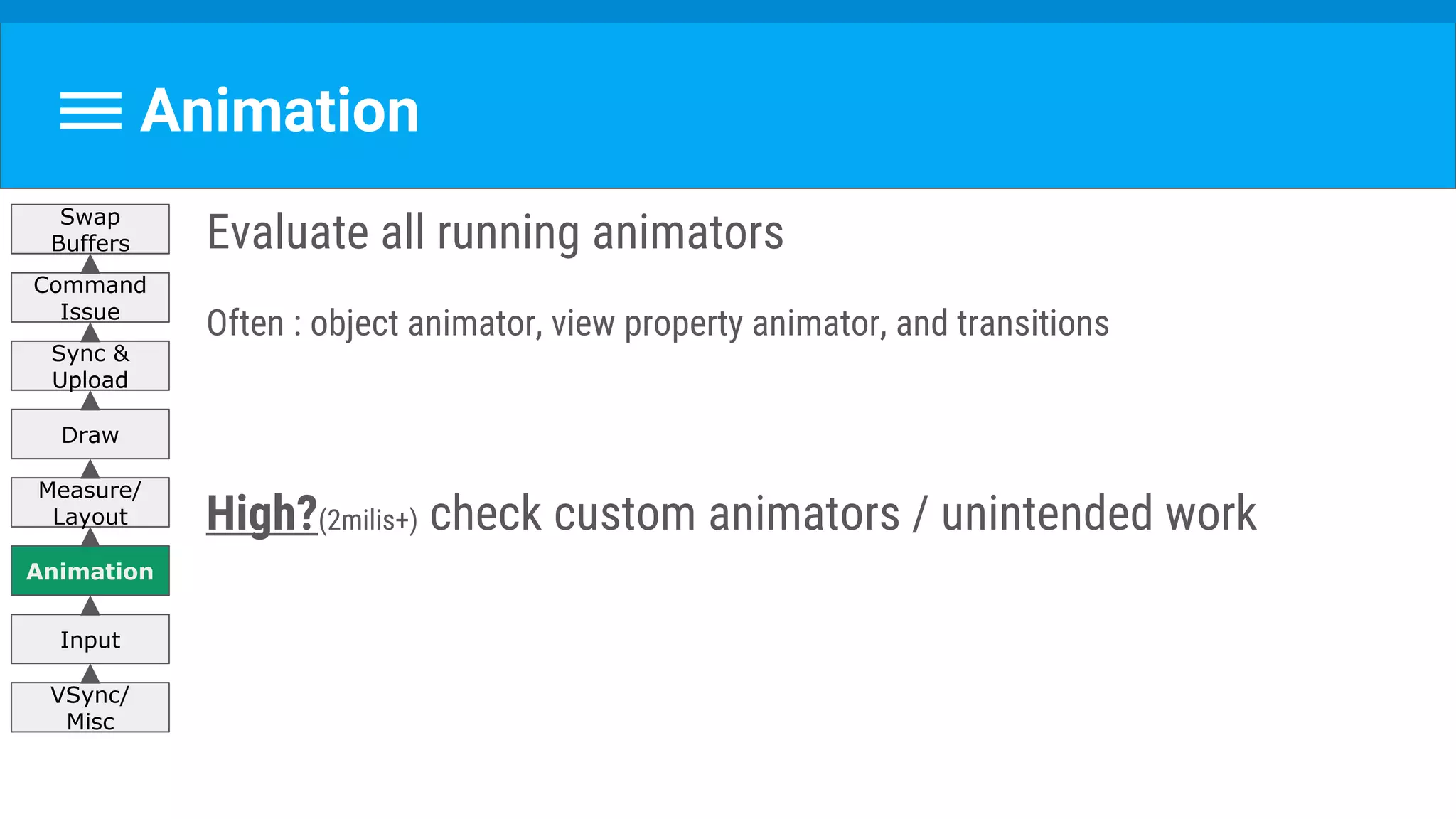
Animation
Evaluate all running animators
Often : object animator, view property animator, and transitions
High?(2milis+) check custom animators / unintended work
VSync/
Misc
Input
Animation
Measure/
Layout
Draw
Sync &
Upload
Command
Issue
Swap
Buffers
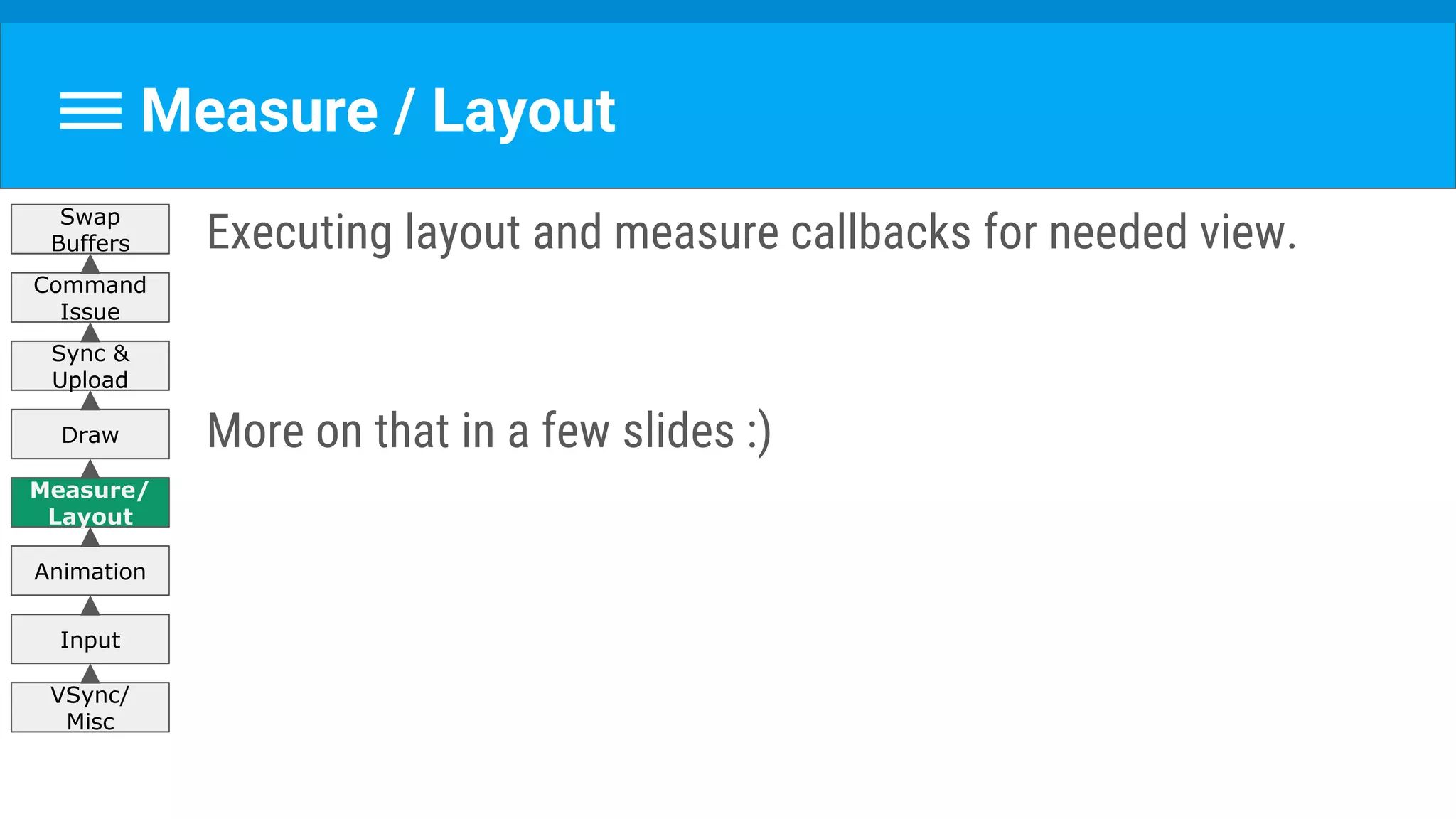
Measure / Layout
Executing layout and measure callbacks for needed view.
More on that in a few slides :)
VSync/
Misc
Input
Animation
Measure/
Layout
Draw
Sync &
Upload
Command
Issue
Swap
Buffers
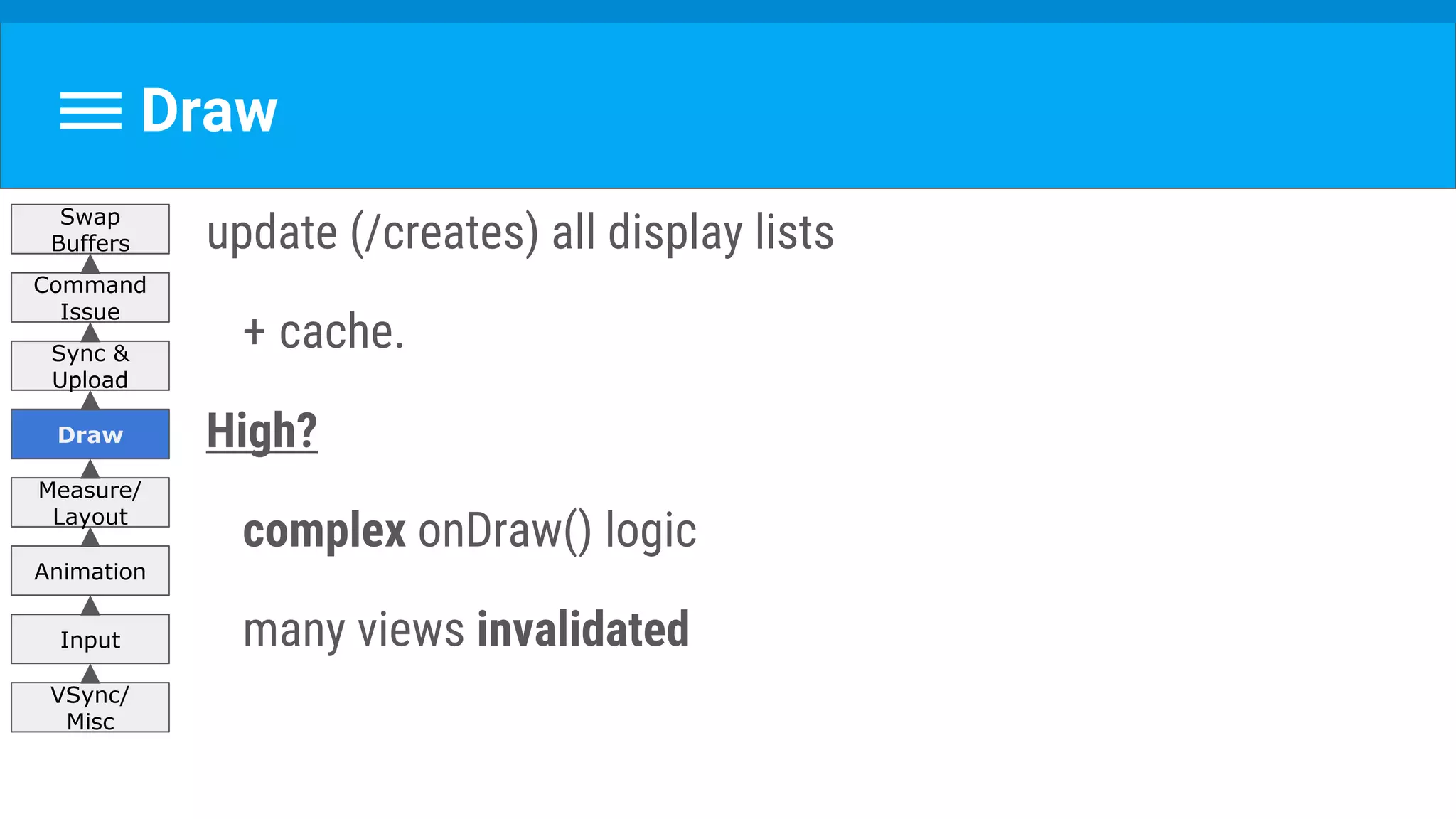
Draw
update (/creates) all display lists
+ cache.
High?
complex onDraw() logic
many views invalidated
VSync/
Misc
Input
Animation
Measure/
Layout
Draw
Sync &
Upload
Command
Issue
Swap
Buffers
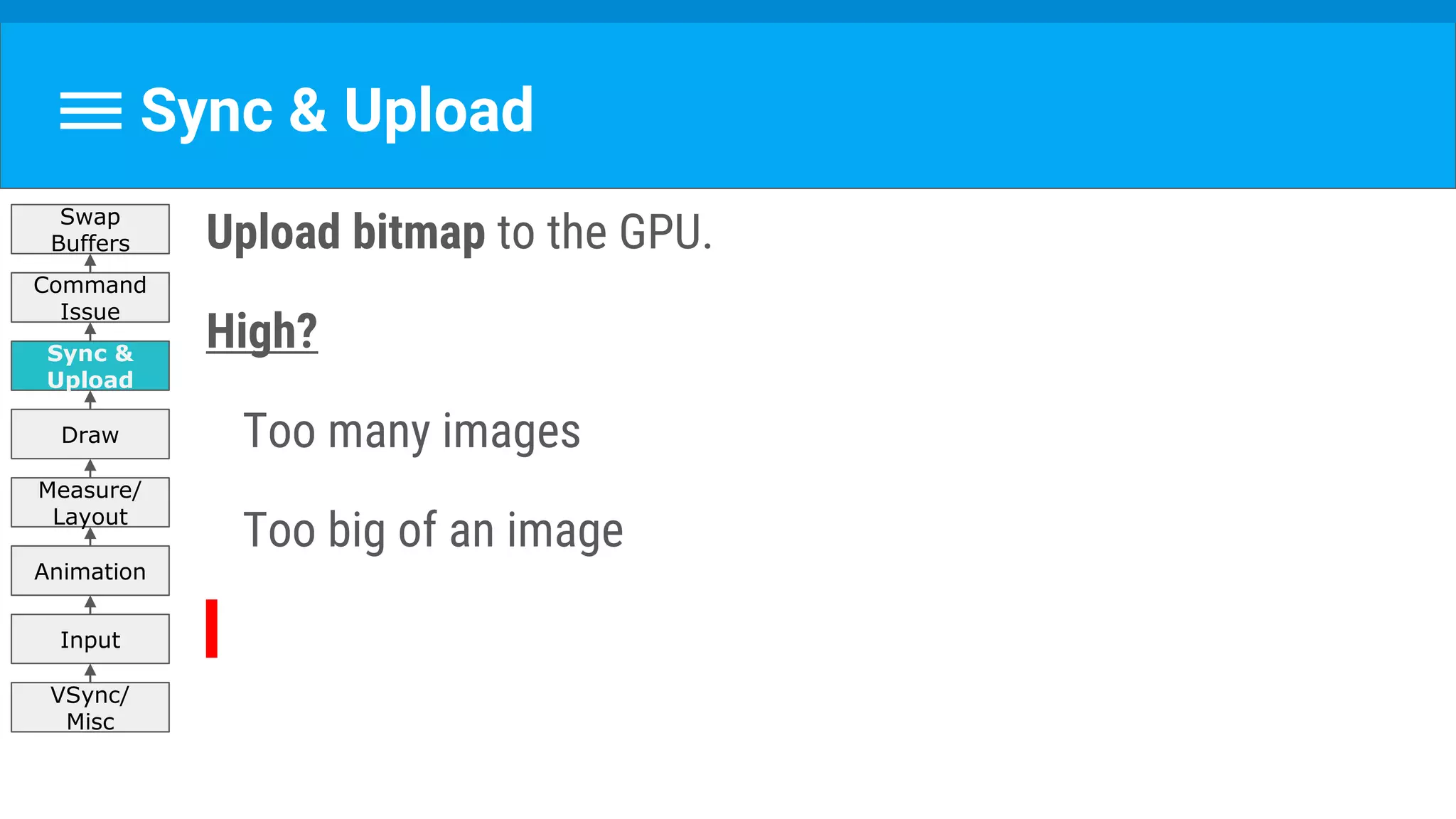
Sync & Upload
Upload bitmap to the GPU.
High?
Too many images
Too big of an image
VSync/
Misc
Input
Animation
Measure/
Layout
Draw
Sync &
Upload
Command
Issue
Swap
Buffers
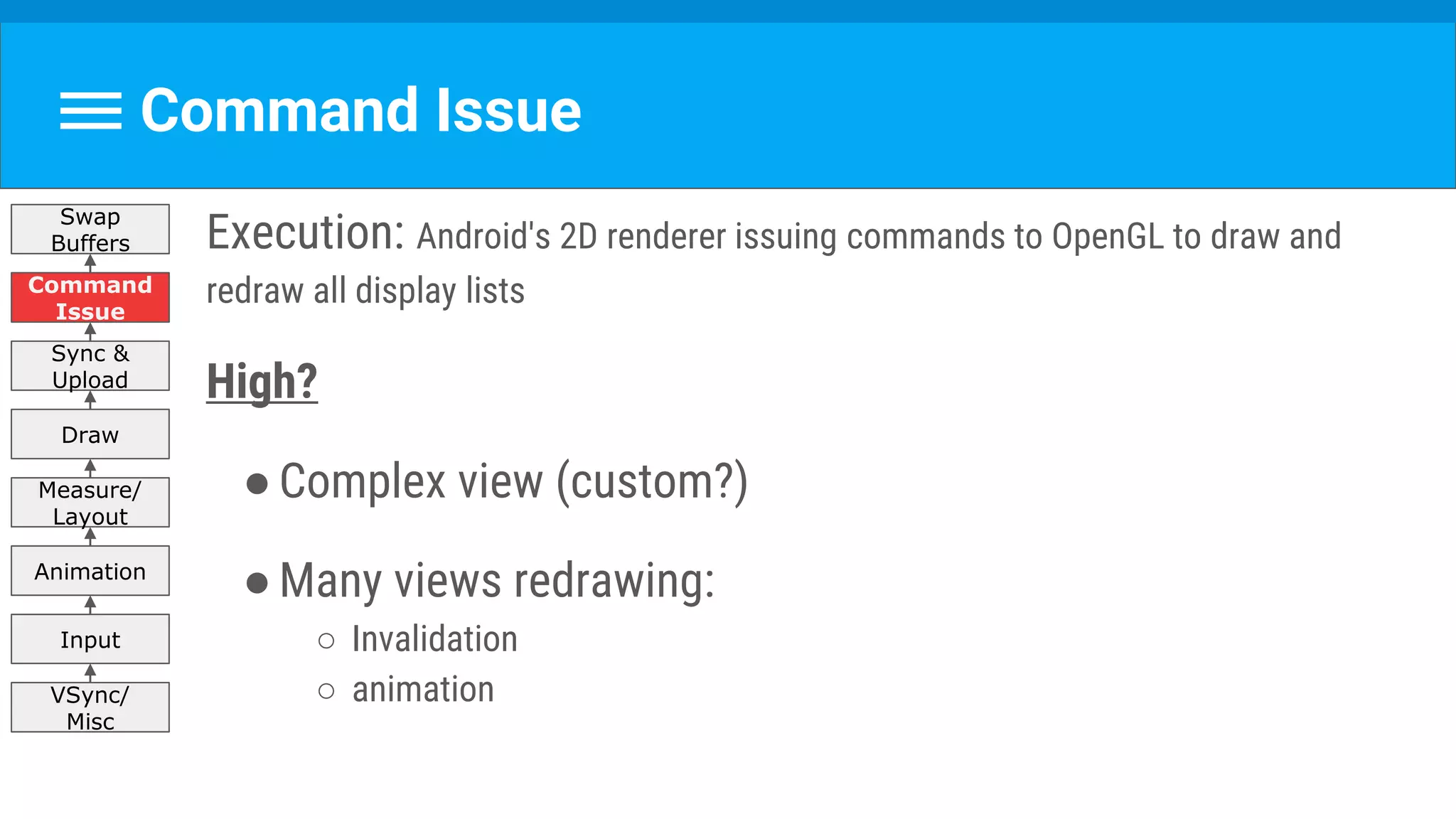
Command Issue
Execution: Android's 2D renderer issuing commands to OpenGL to draw and
redraw all display lists
High?
●Complex view (custom?)
●Many views redrawing:
○ Invalidation
○ animationVSync/
Misc
Input
Animation
Measure/
Layout
Draw
Sync &
Upload
Command
Issue
Swap
Buffers
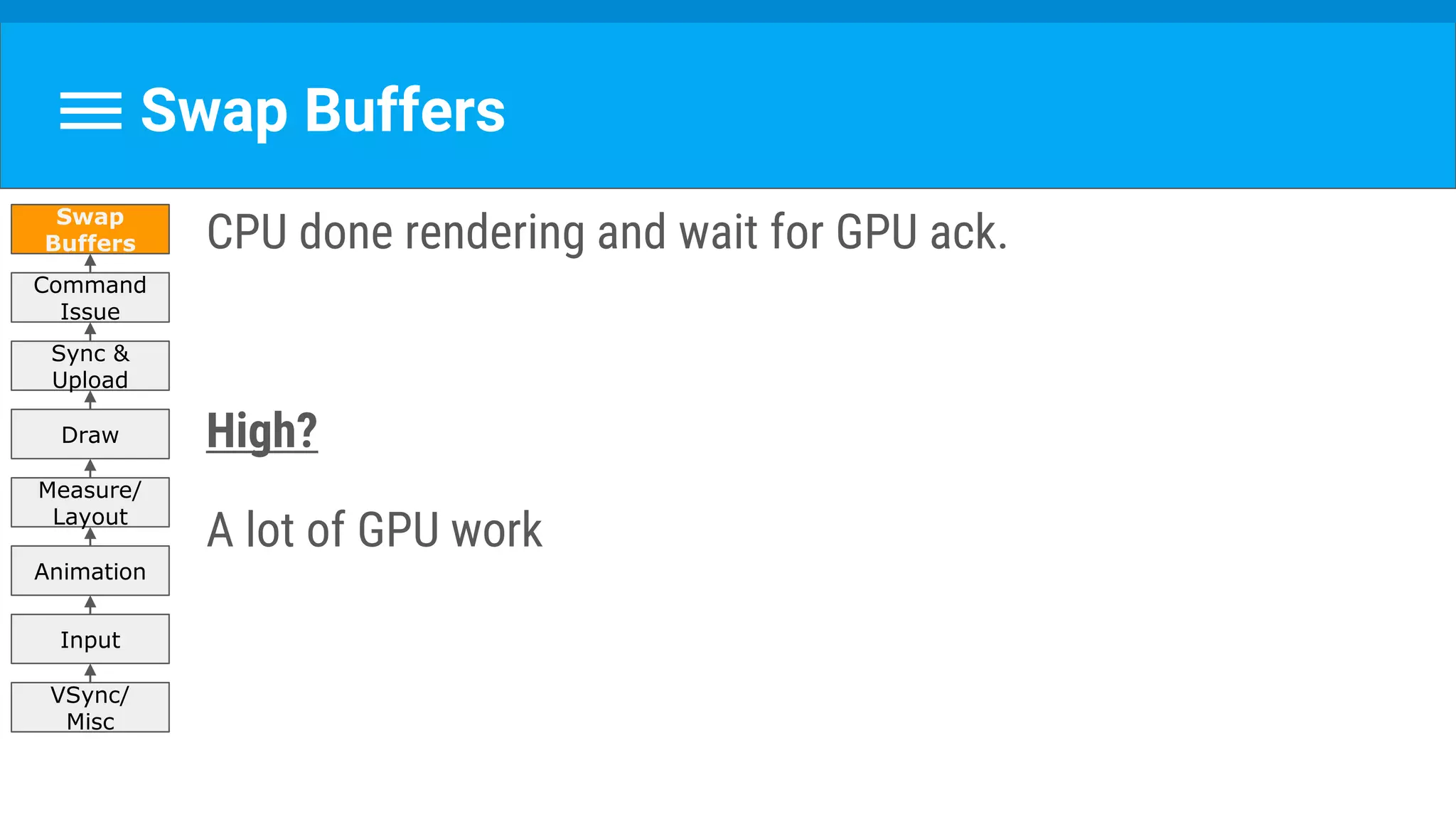
Swap Buffers
CPU done rendering and wait for GPU ack.
High?
A lot of GPU work
VSync/
Misc
Input
Animation
Measure/
Layout
Draw
Sync &
Upload
Command
Issue
Swap
Buffers
TODA
Y
VSync/Misc
Input
Animation
Measure/ Layout
Draw
Sync & Upload
Command Issue
Swap Buffers
So What Does That Mean?
Prev.talk
Any Questions?
So Let The Fun Begin :)
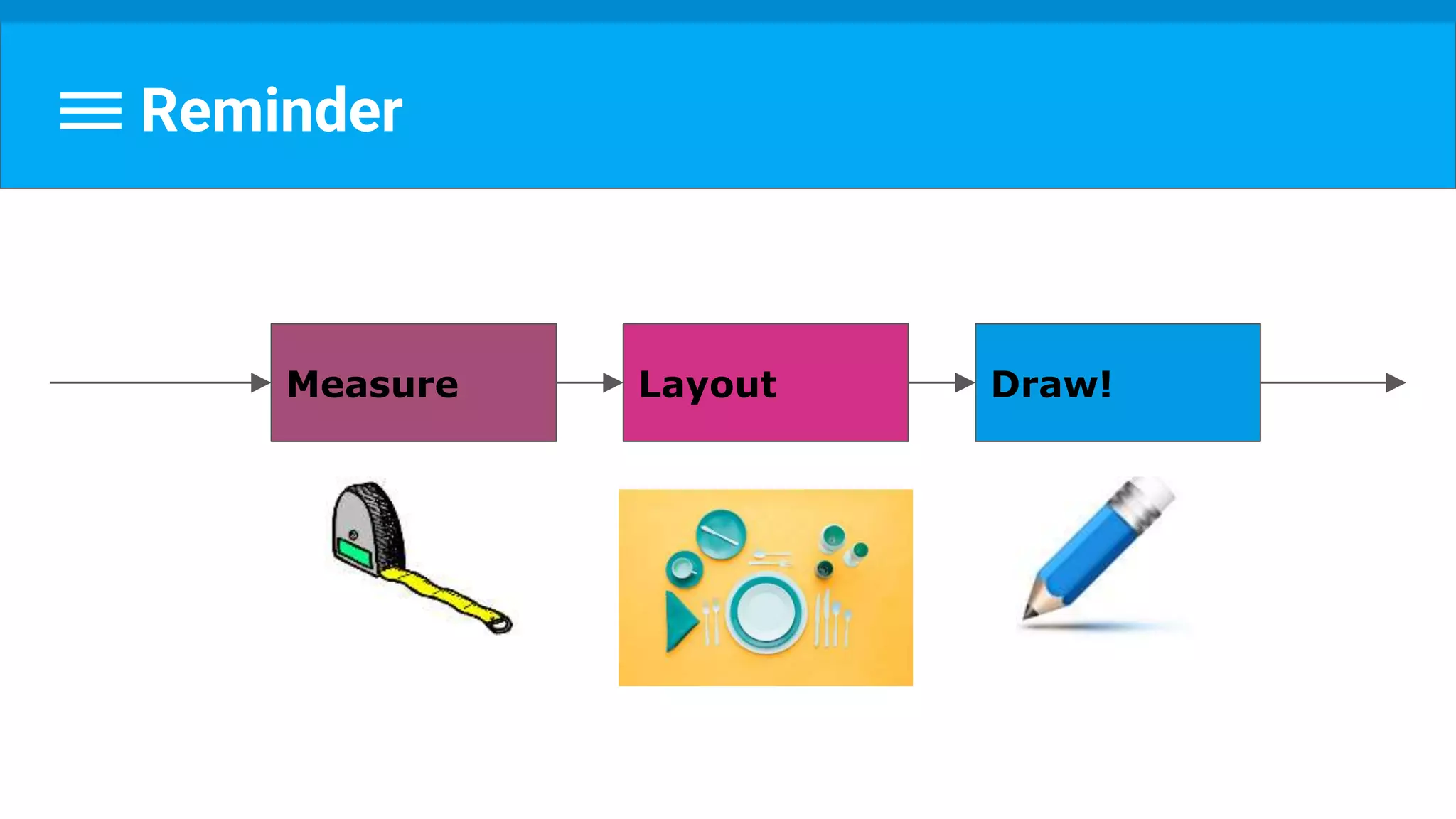
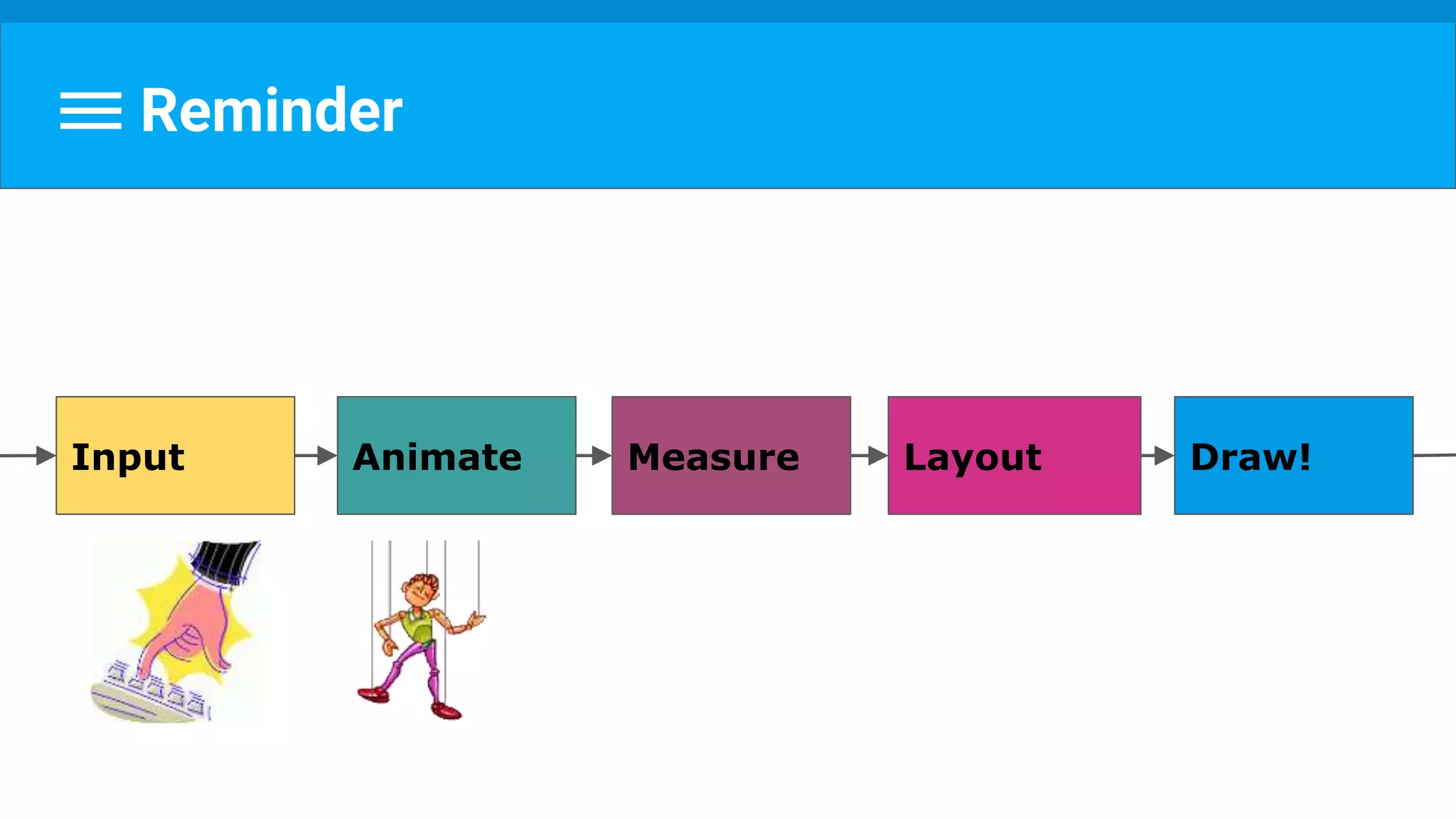
Reminder
Measure Layout Draw!
Step 1: Measure
Goal: obtain view size
REF: http://developer.android.com/reference/android/view/View.html#onMeasure(int, int)
Step 1: Measure
Goal: obtain view size,
including its descendants size
REF: http://developer.android.com/reference/android/view/View.html#onMeasure(int, int)
Step 1: Measure
Goal: obtain view size,
including its descendants size,
agreed by its parent.
REF: http://developer.android.com/reference/android/view/View.html#onMeasure(int, int)
Step 1: Measure - What’s View SIZE?
- width & height (aka: drawing width & drawing height) -
- Actual size on screen, at drawing time and after layout.
REF: http://developer.android.com/reference/android/view/View.html#onMeasure(int, int)
Step 1: Measure - What’s View SIZE?
- width & height (aka: drawing width and drawing height)
- the actual size of the view on screen, at drawing time and after layout.
- measured width & measured height
- how big a view wants to be within its parent
REF: http://developer.android.com/reference/android/view/View.html#onMeasure(int, int)
Step 1: Measure - What’s View SIZE?
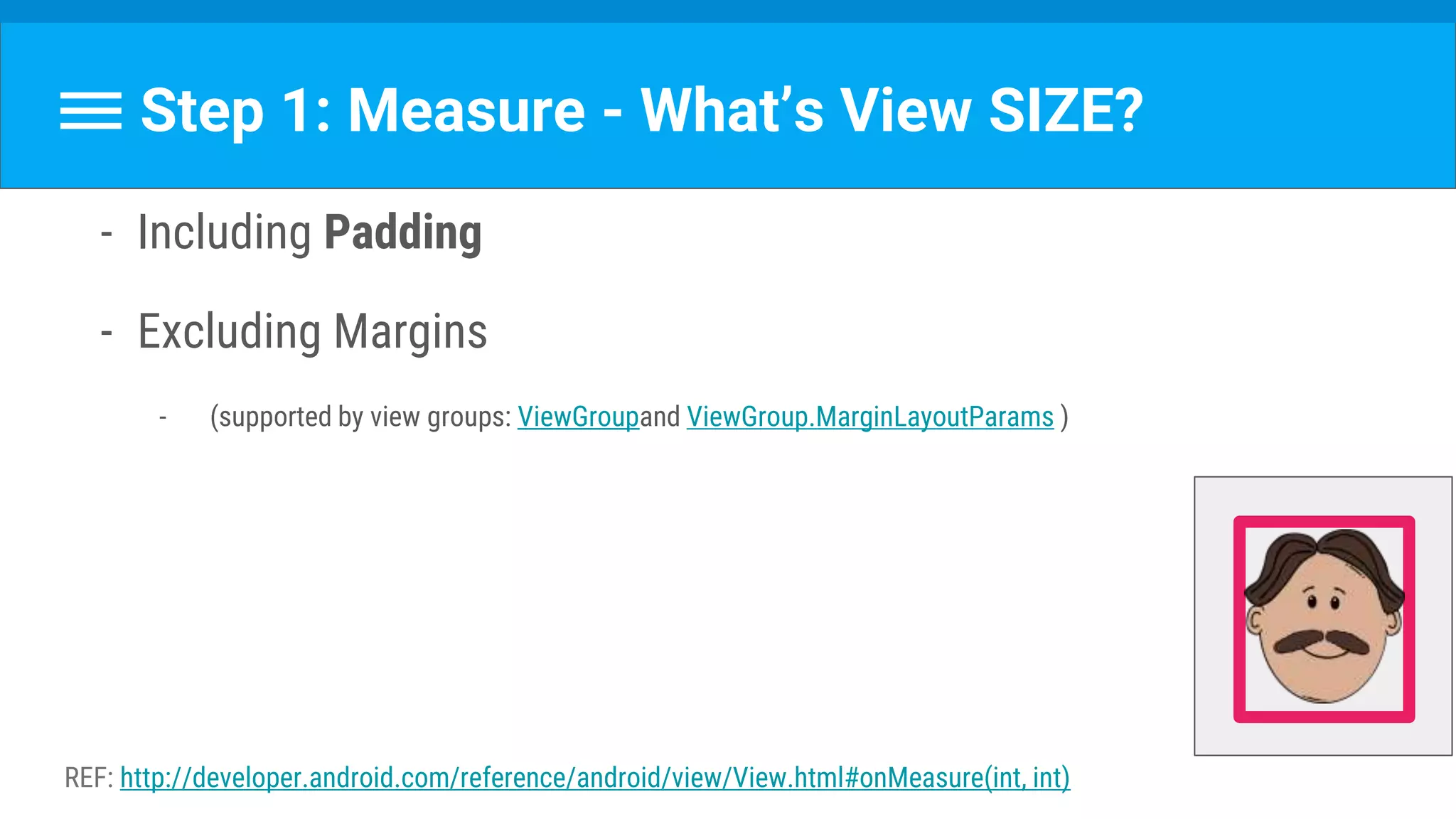
- Including Padding
- Excluding Margins
- (supported by view groups: ViewGroupand ViewGroup.MarginLayoutParams )
REF: http://developer.android.com/reference/android/view/View.html#onMeasure(int, int)
Communicate Dimensions
● ViewGroup.LayoutParams
● MeasureSpec
ViewGroup.LayoutParams
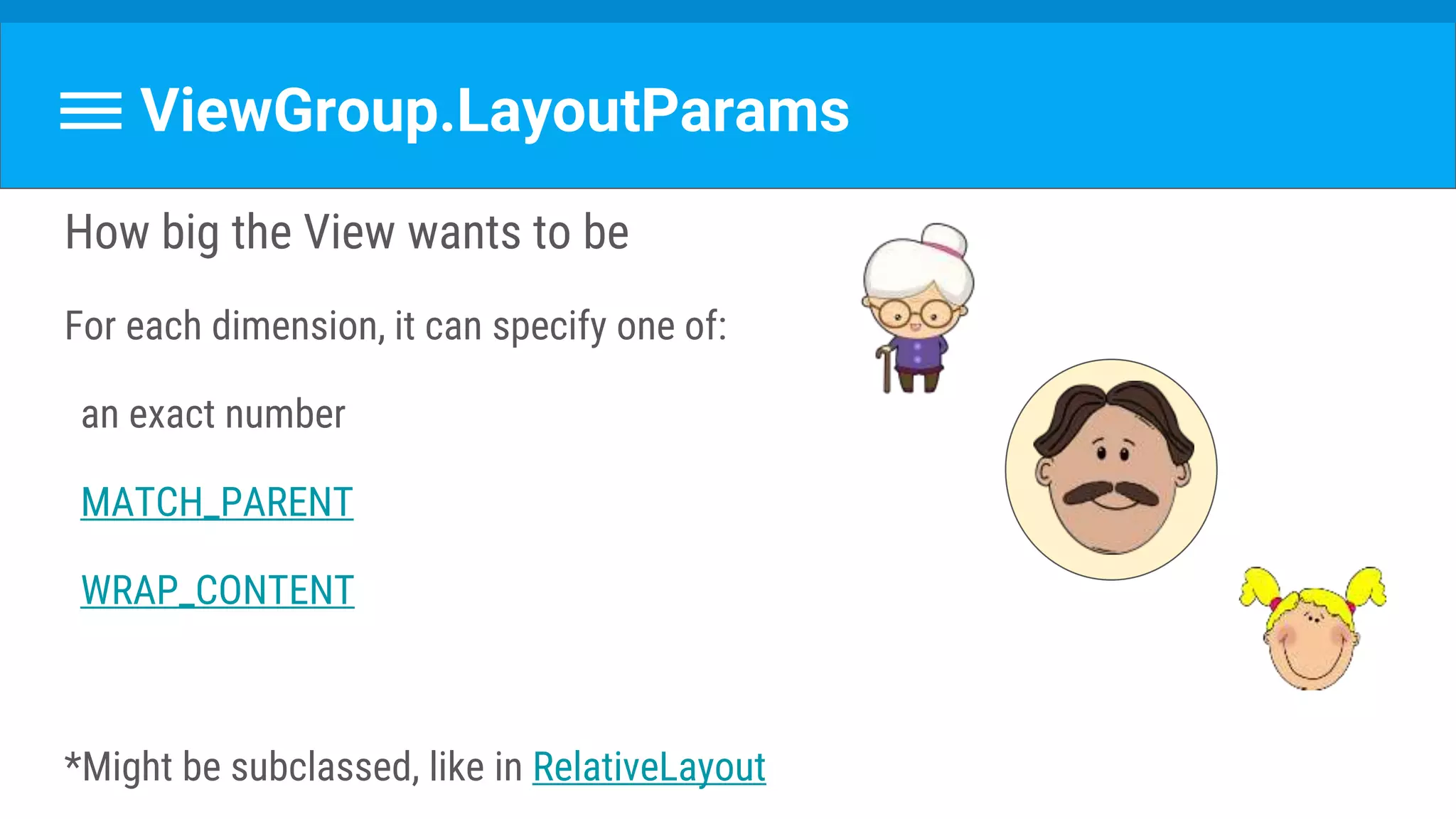
How big the View wants to be
For each dimension, it can specify one of:
an exact number
MATCH_PARENT
WRAP_CONTENT
*Might be subclassed, like in RelativeLayout
MeasureSpec
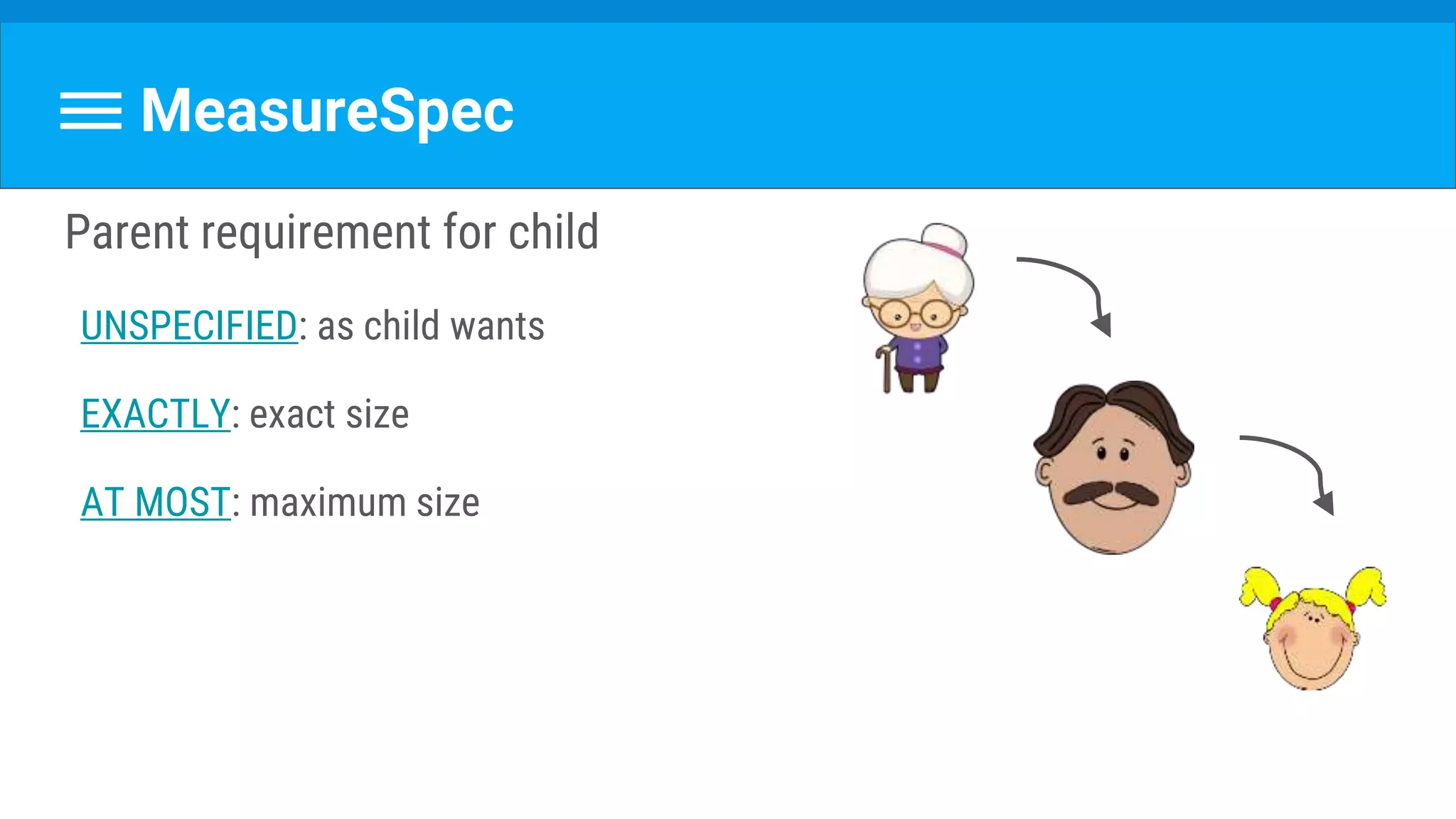
Parent requirement for child
UNSPECIFIED: as child wants
EXACTLY: exact size
AT MOST: maximum size
Multiple measure() Calls
measure() may be called more than once
For example:
- Call once with UNSPECIFIED
- If size too big/small- evaluate
- Call with exact size
Step 1: Measure - How Does It Work?
● measure(int, int)
○ → (calls onMeasure() which should be overridden)
● Set measuredWidth & measuredHeight
○ (can call super)
● Including for the View's descendants.
● respects parents’ constraints.
REF: http://developer.android.com/reference/android/view/View.html#onMeasure(int, int)
Step 1: Measure - Reminder
Goal: obtain view size,
including its descendants size,
agreed by its parent.
REF: http://developer.android.com/reference/android/view/View.html#onMeasure(int, int)
Any Questions?
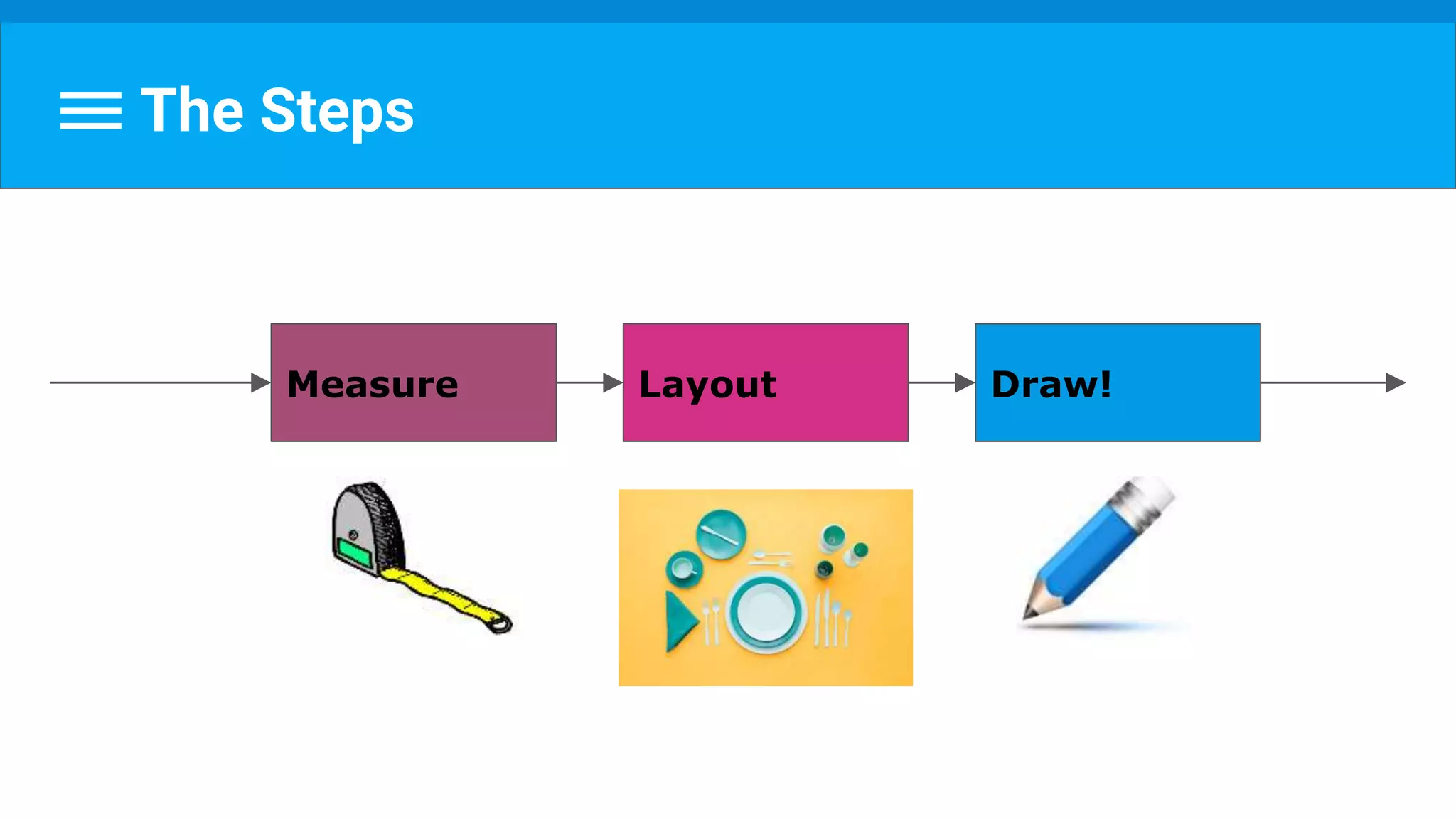
The Steps
Measure Layout Draw!
Step 2: Layout
Goal : set position for view and all its children
REF: http://developer.android.com/reference/android/view/View.html#onLayout(boolean, int, int, int, int)
Step 2: Layout
● layout(int, int, int, int)
○ → (calls onLayout() which should be overridden)
● Assign a size and position to a view and all of its descendants
○ (can call super)
● Including for the View object's descendants.
● respects parents’ constraints.
REF: http://developer.android.com/reference/android/view/View.html#onMeasure(int, int)
- View draws itself with size and position from previous steps.
- onDraw(Canvas) is called
- Canvas object generates (or Updates) a list of OpenGL-ES
commands (displayList) to send to the GPU.
Step 3: Draw (AKA Update)
REF: http://developer.android.com/reference/android/view/View.html#onDraw(android.graphics.Canvas)
Guide: http://developer.android.com/training/custom-views/custom-drawing.html
Plus ça change, plus c'est la même chose
When Things Change...
E.g. text, color, size, padding, margin...
A view notifies the system, by calling:
Invalidate - which will call the onDraw again, or
requestLayout - which will call the entire process again.
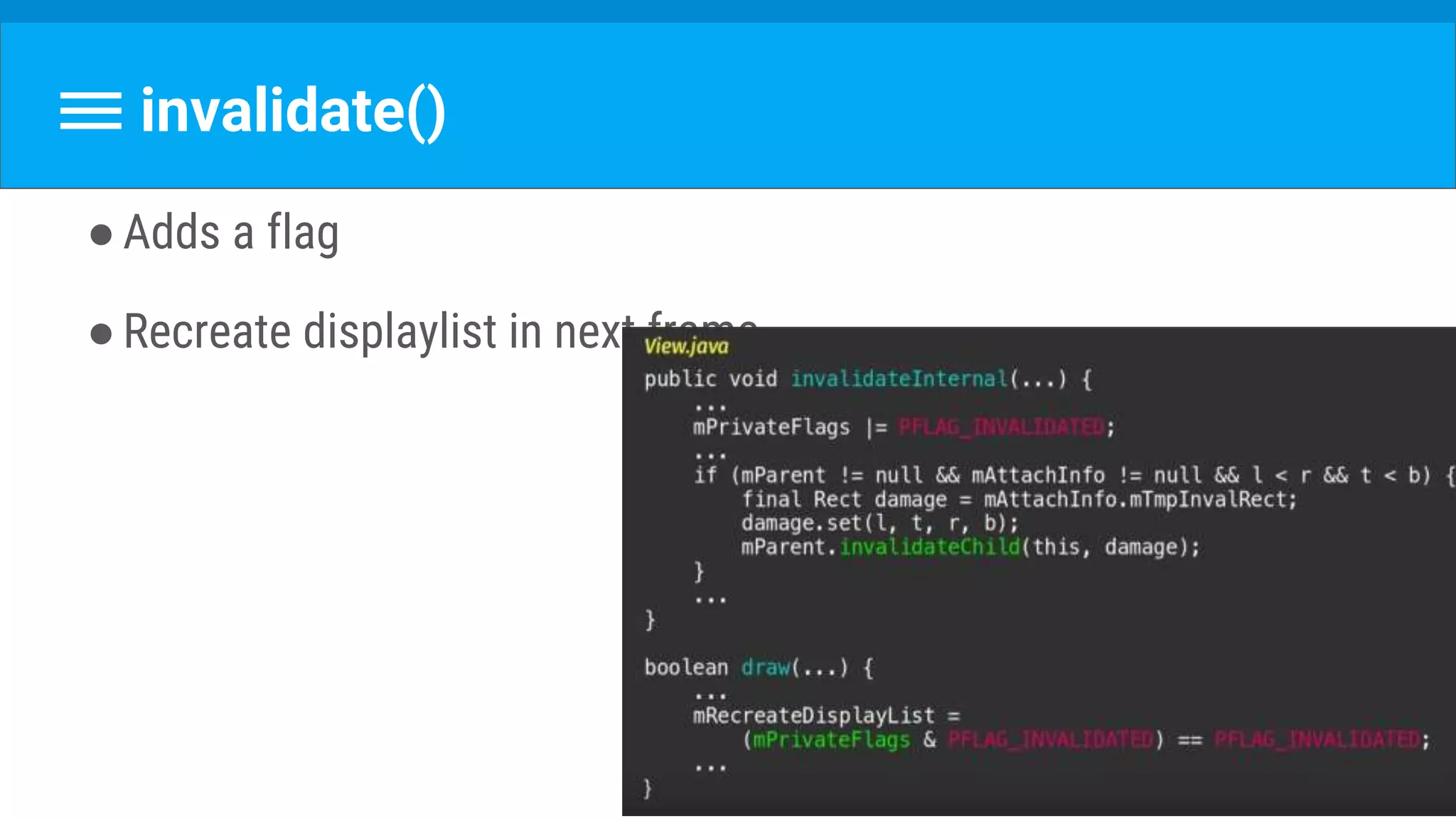
●Adds a flag
●Recreate displaylist in next frame
invalidate()
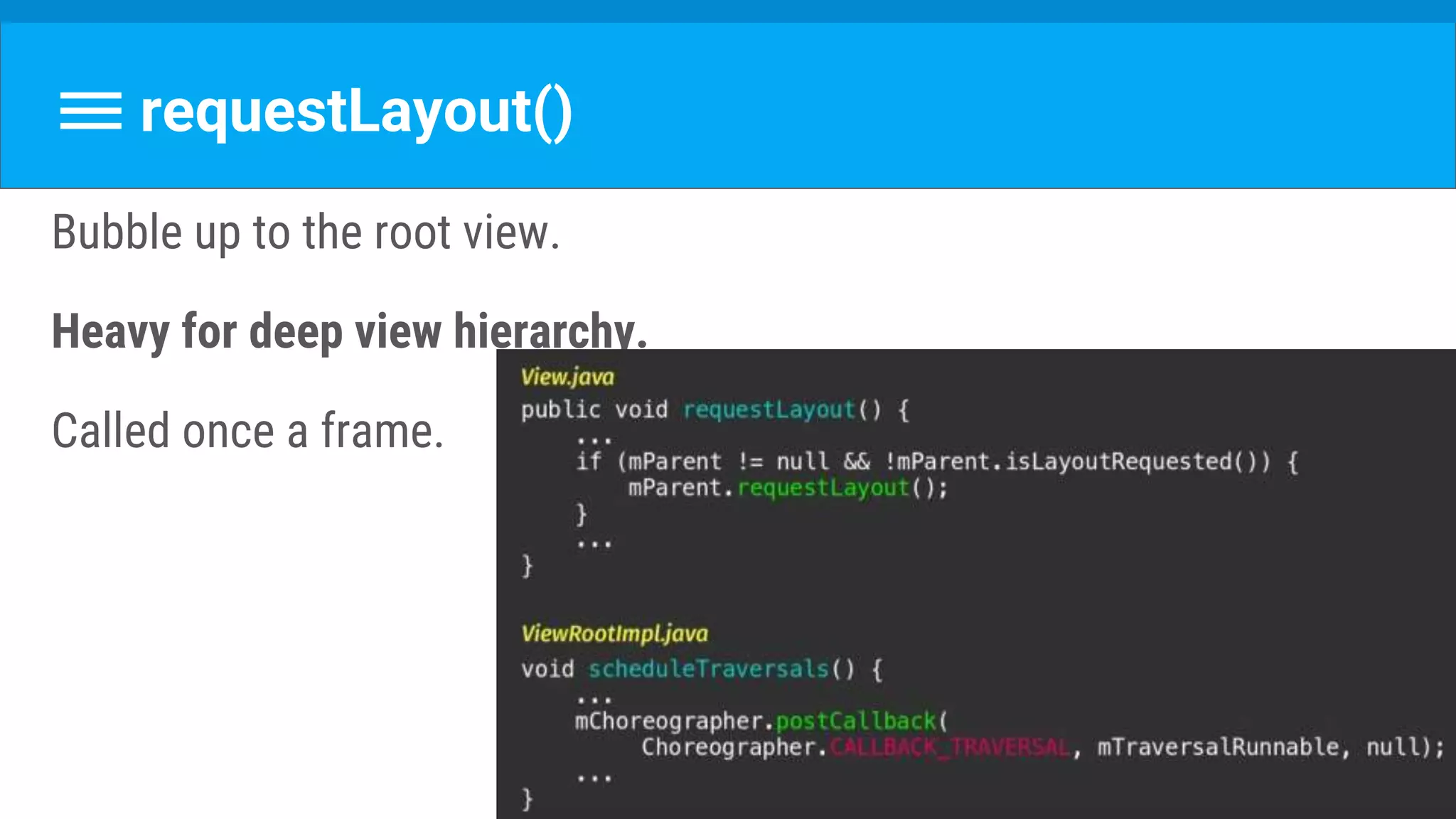
requestLayout()
Bubble up to the root view.
Heavy for deep view hierarchy.
Called once a frame.
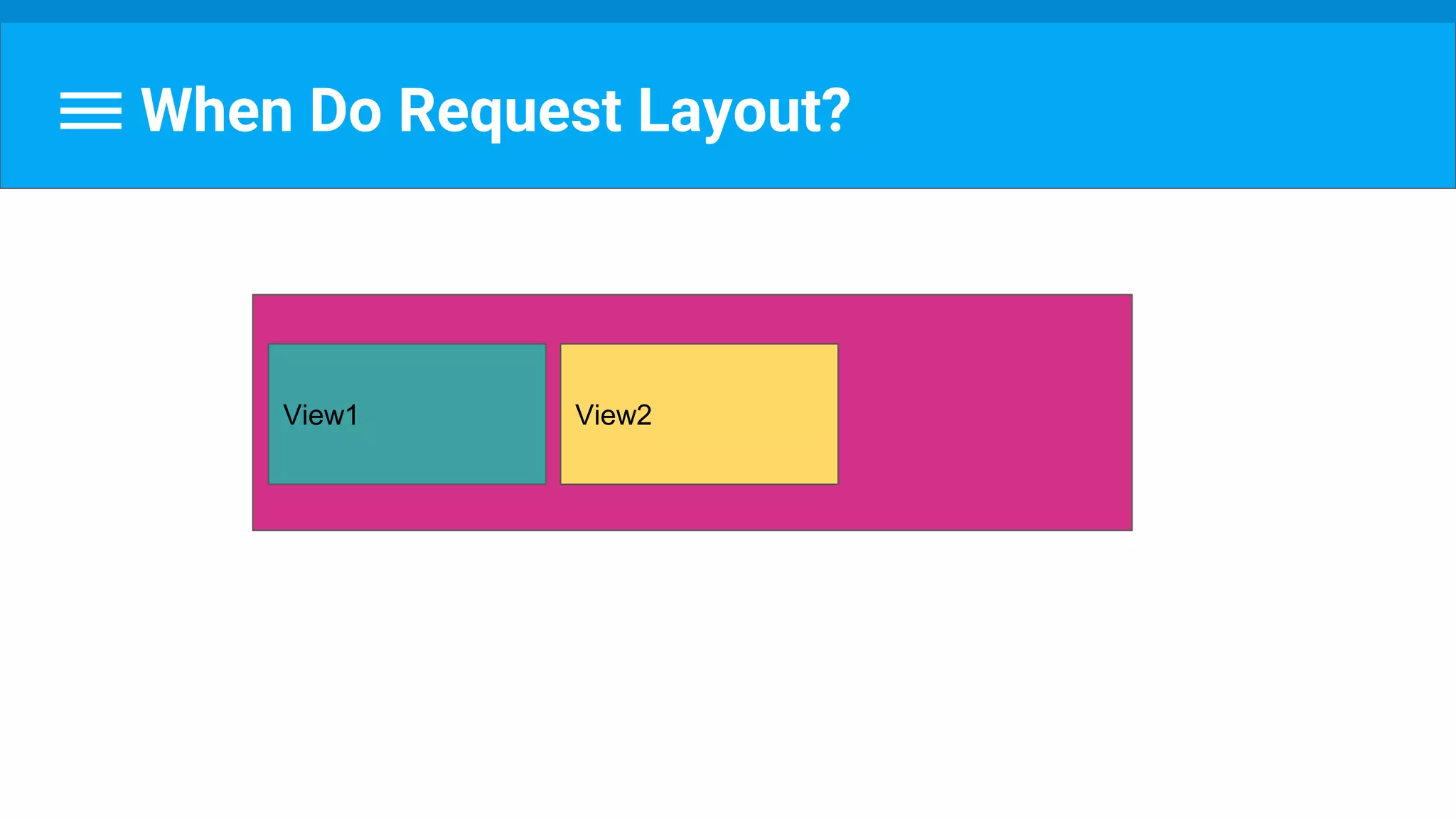
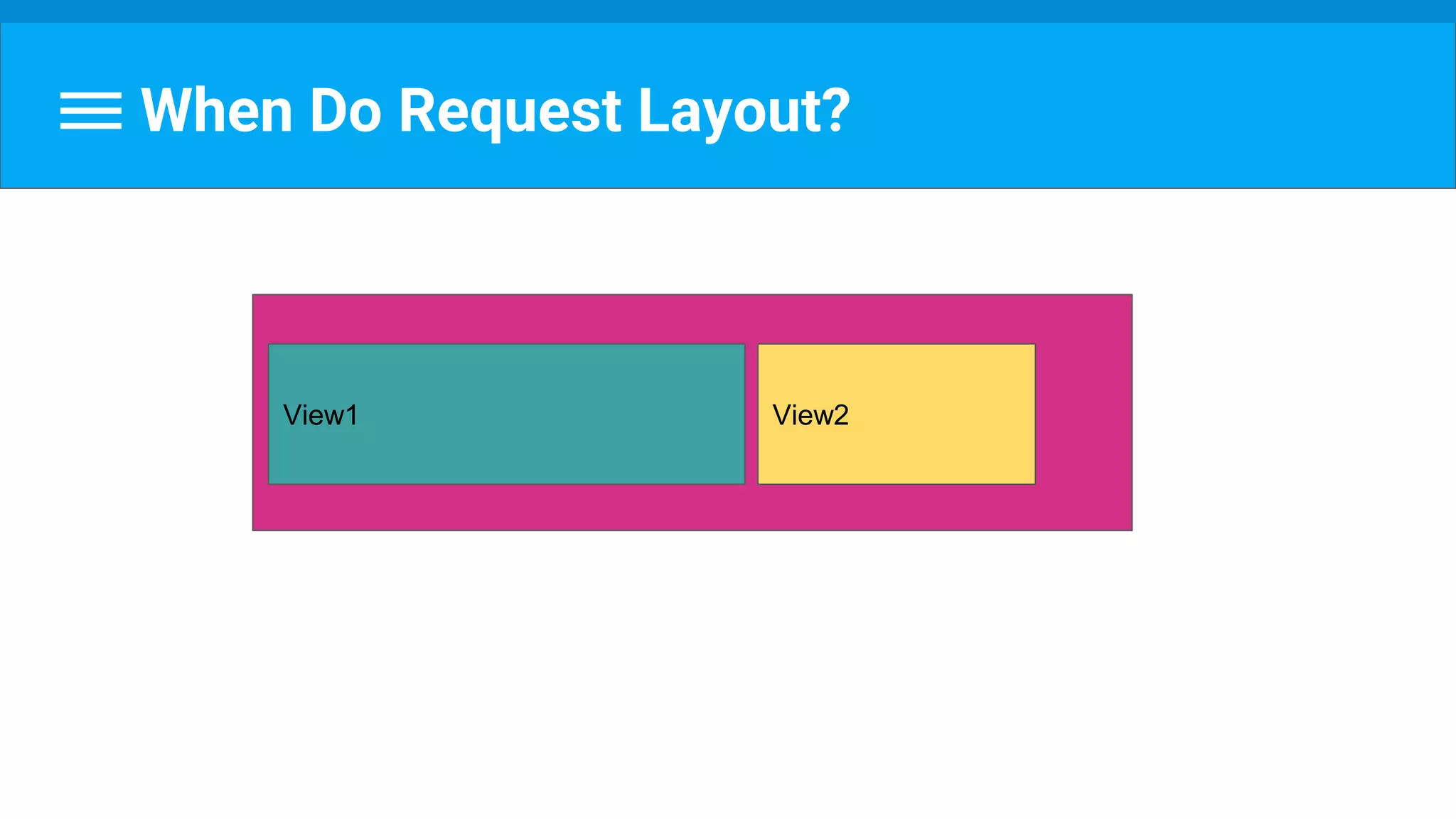
When Do Request Layout?
View1 View2
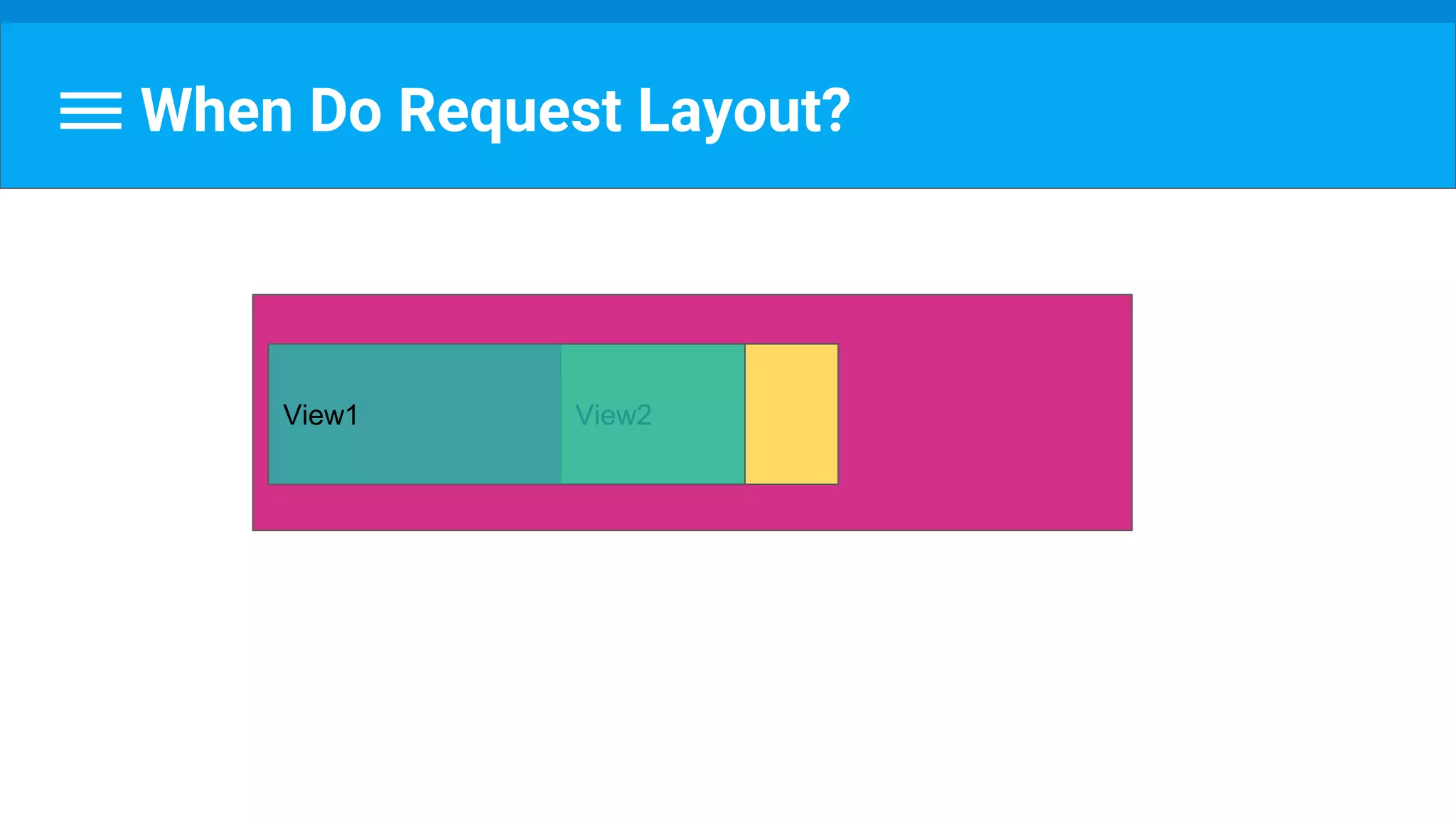
When Do Request Layout?
View2View1
When Do Request Layout?
View2View1
So it seems that layout passes once...
Or is it?
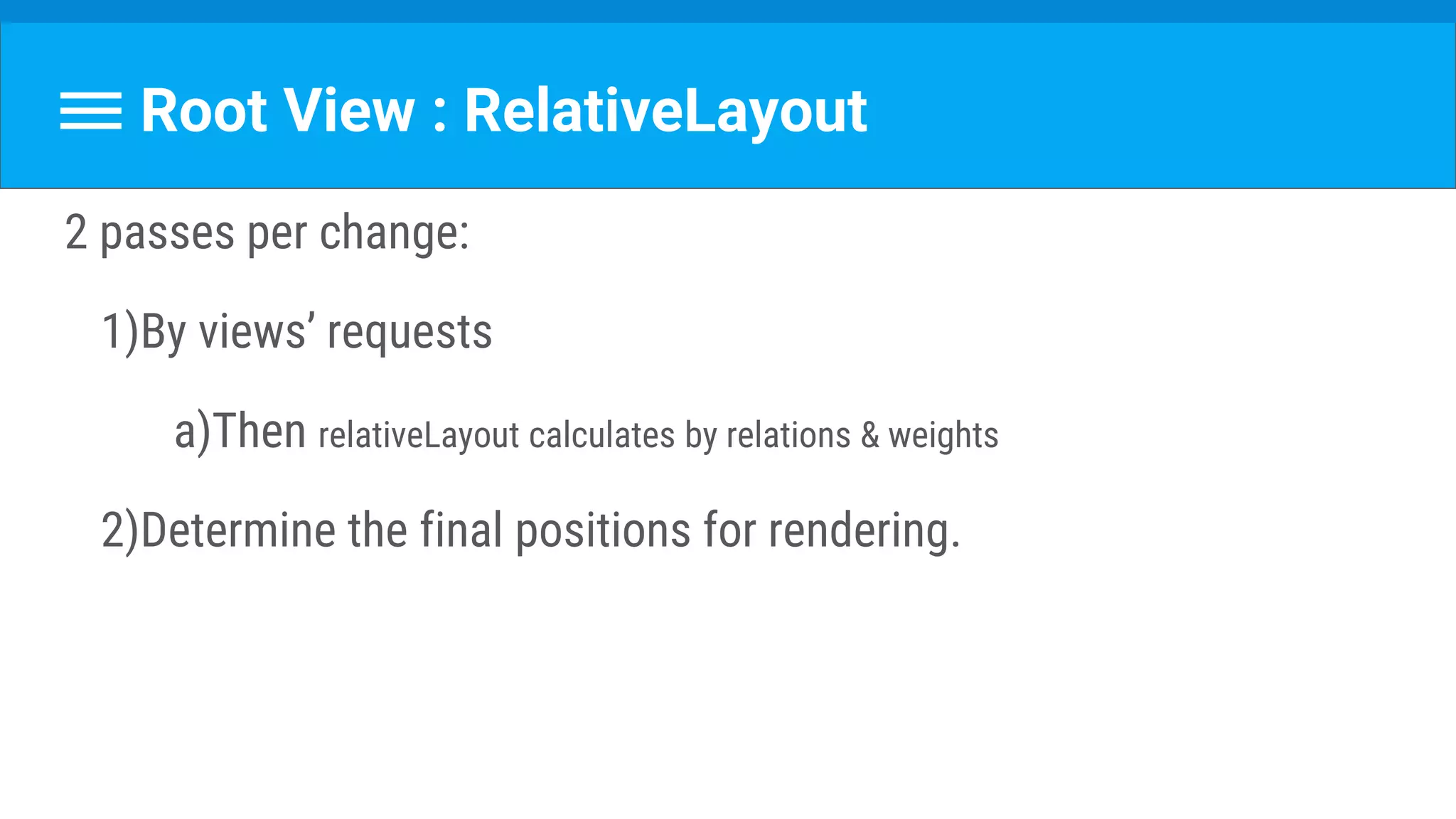
Root View : RelativeLayout
2 passes per change:
1)By views’ requests
a)Then relativeLayout calculates by relations & weights
2)Determine the final positions for rendering.
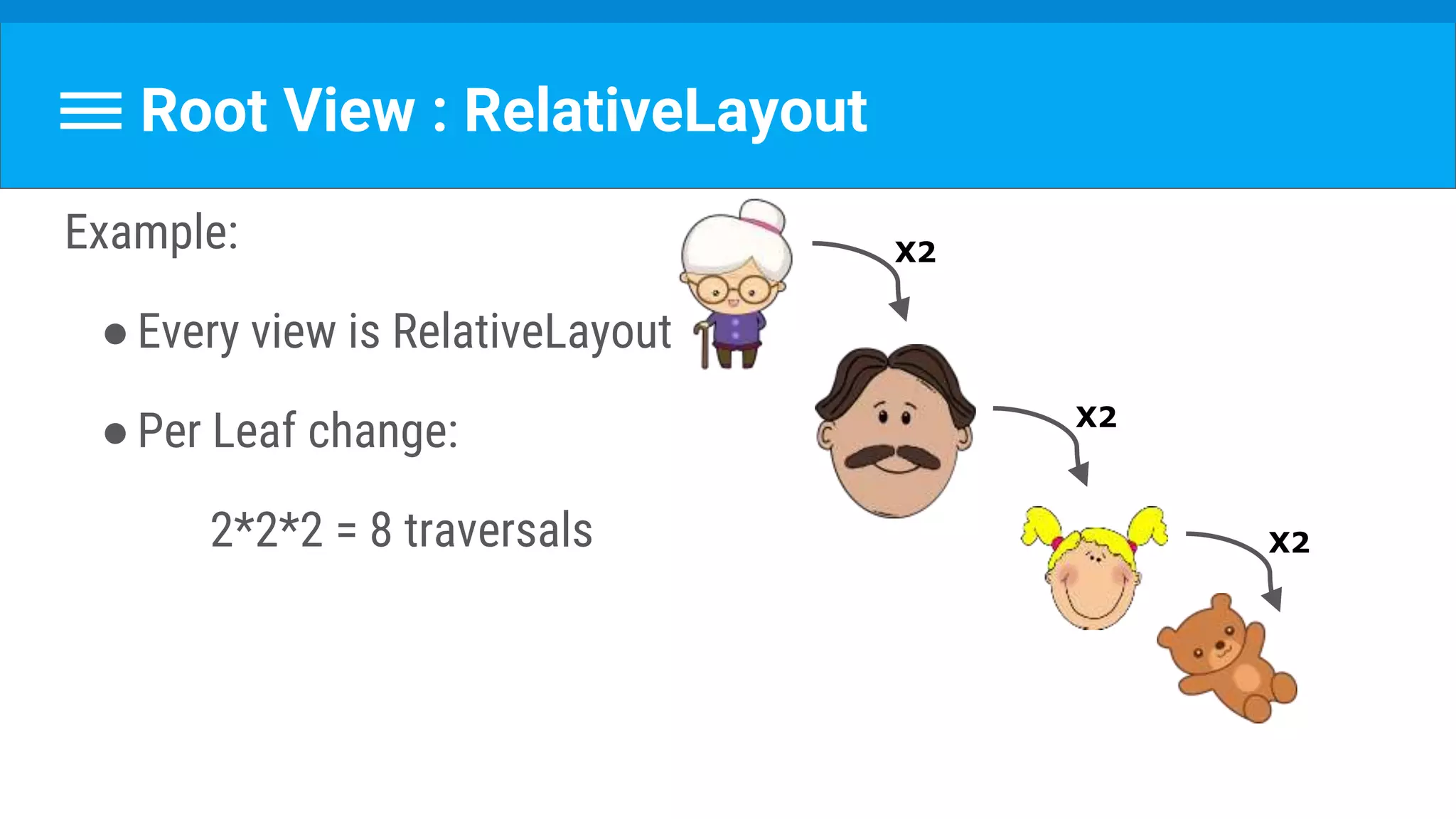
Root View : RelativeLayout
Example:
●Every view is RelativeLayout
●Per Leaf change:
2*2*2 = 8 traversals
X2
X2
X2
Root View : LinearLayout
Generally issues 1 layout request
Unless:
●measureWithLargestChild(true)
○ Children with weights will have minimum size of largest child
●Nested weights
Root View : GridLayout
Allows relative positioning,
while preprocessing the child view relationships.
Root View : GridLayout
Generally issues 1 layout request
Unless:
●Layout_gravity: fill*
●Wrong weights
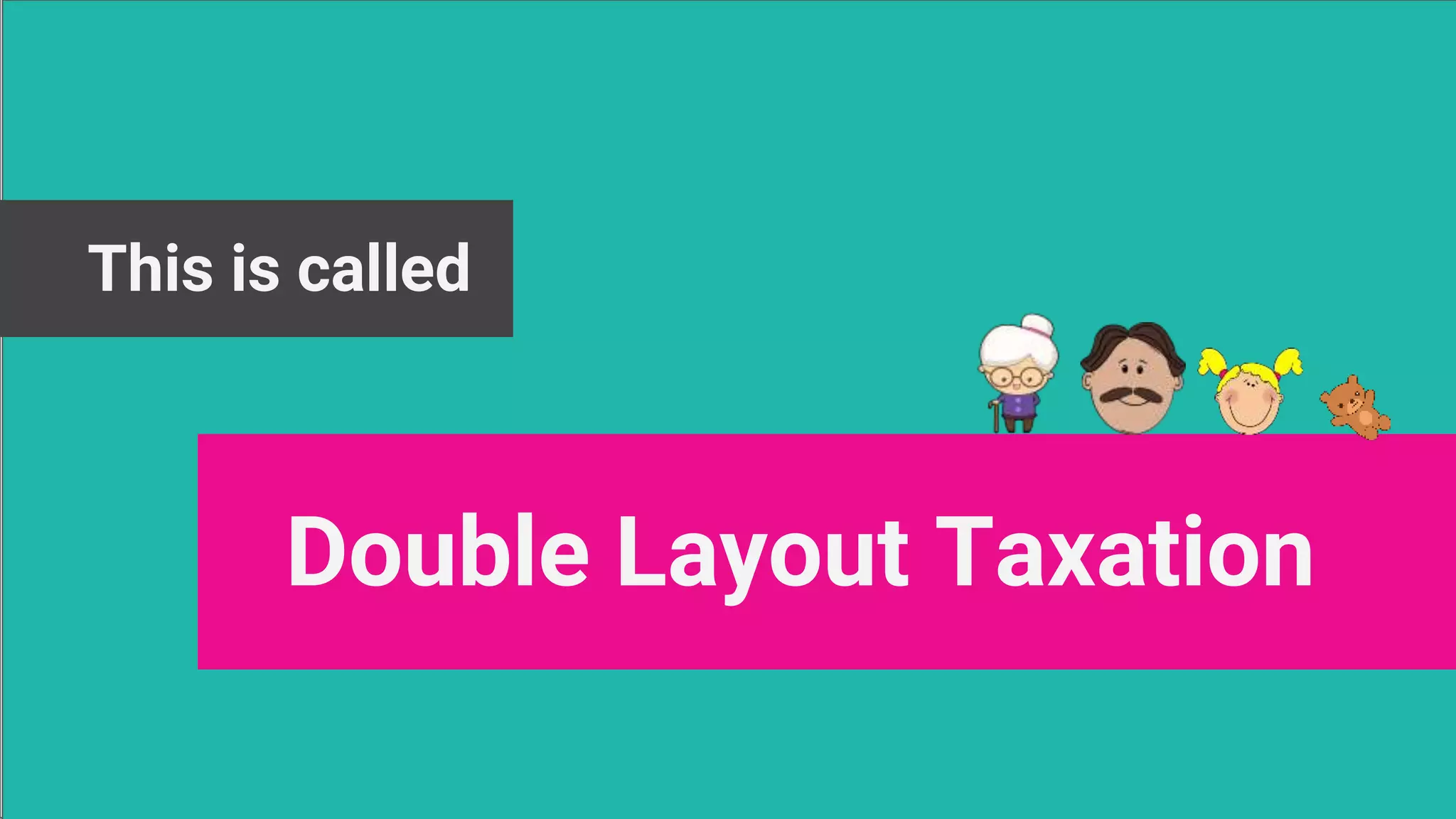
This is called
Double Layout Taxation
It Usually Works Fine… But...
●Root elements
●Deep view hierarchy
●Too many (i.e. list)
Can hurt.
What can we do?
●Flatten hierarchy :
Removing unneeded views
Merge on include
flatter layout
Beware double layout taxation
Minimize layout requests
Any Questions?
Cool Tool
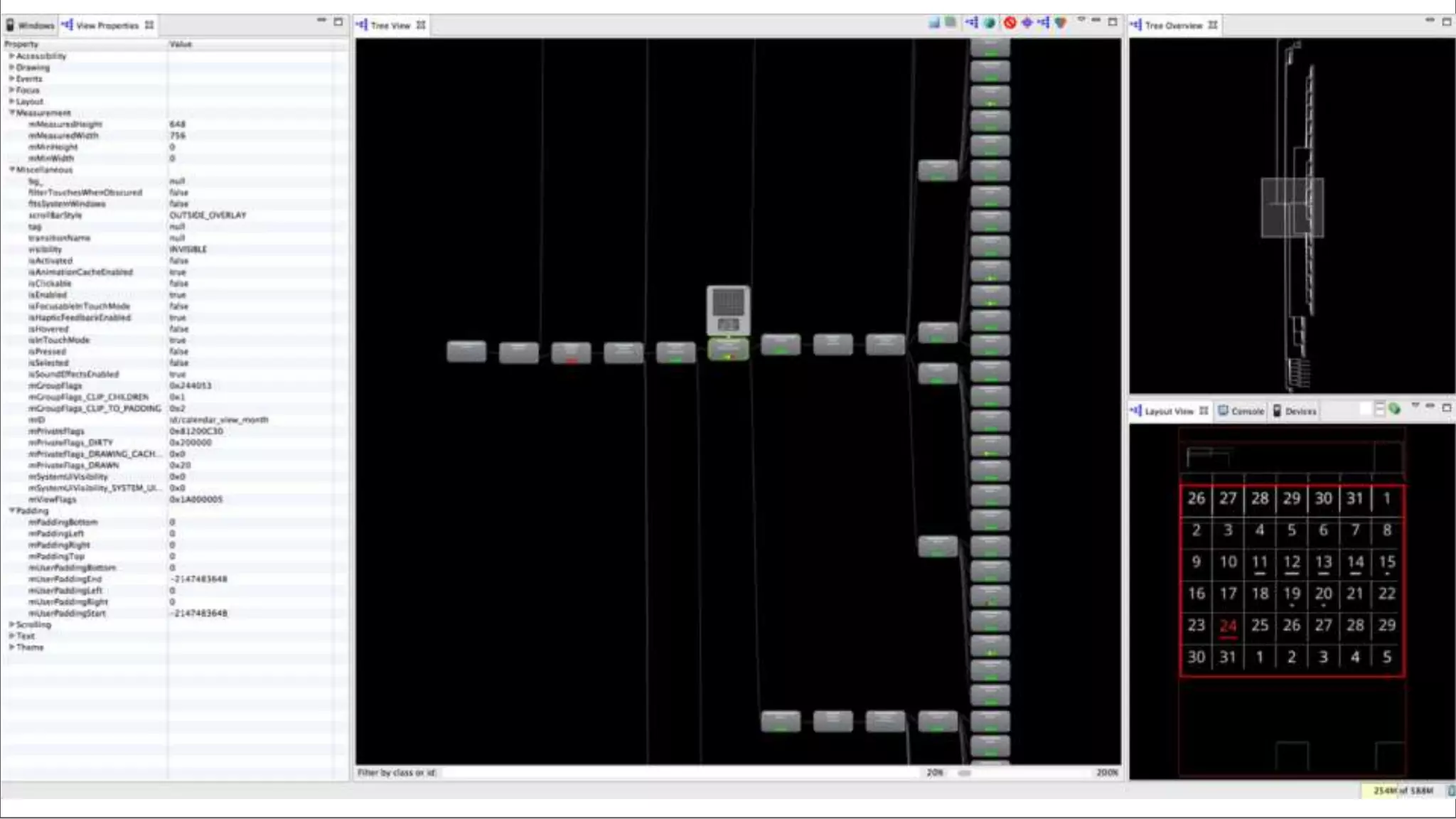
Hierarchy Viewer
Hierarchy Viewer
Tools→ Android → Android Device Monitor → Hierarchy Viewer
Display complete view hierarchy
Access to all the views’ properties
Get performance stats
Hierarchy Viewer
Hierarchy Viewer
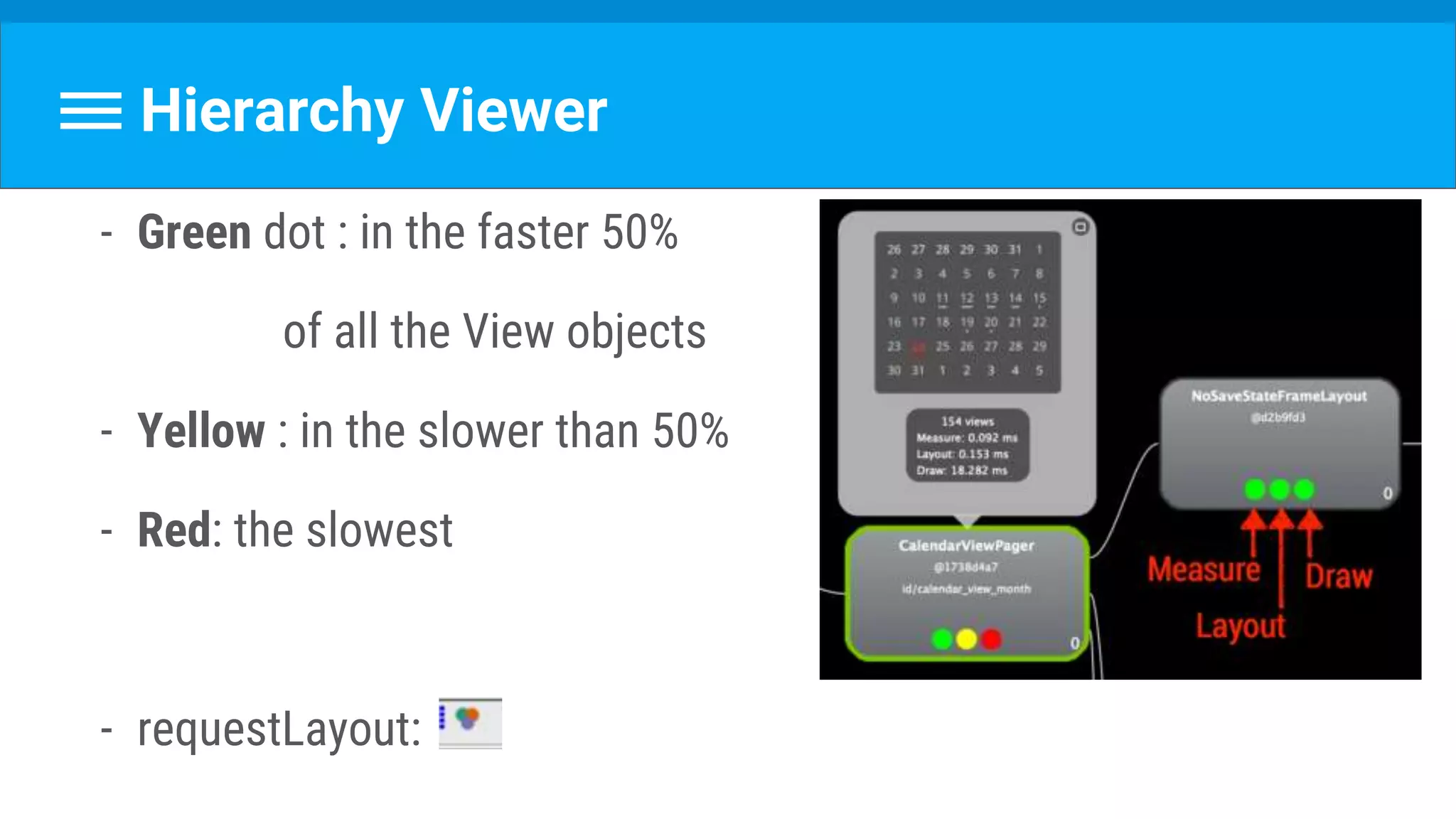
- Green dot : in the faster 50%
of all the View objects
- Yellow : in the slower than 50%
- Red: the slowest
- requestLayout:
Ok ok ,
but which layout should I choose??
Simple VS Complex Layouts
●Simple : LinearLayout, FrameLayout, TableLayout
●Complex : RelativeLayout , GridLayout
Simple VS Complex Layouts
●Simple : LinearLayout, FrameLayout, TableLayout
○ → Nesting → Performance Problems
●Complex : RelativeLayout , GridLayout
○ → hard to use & maintain
○ → shouldn’t be @ top hierarchy
Isn’t there anything
smarter we can do??
Brand ew Alert!
Constraint Layout
Constraint Layout
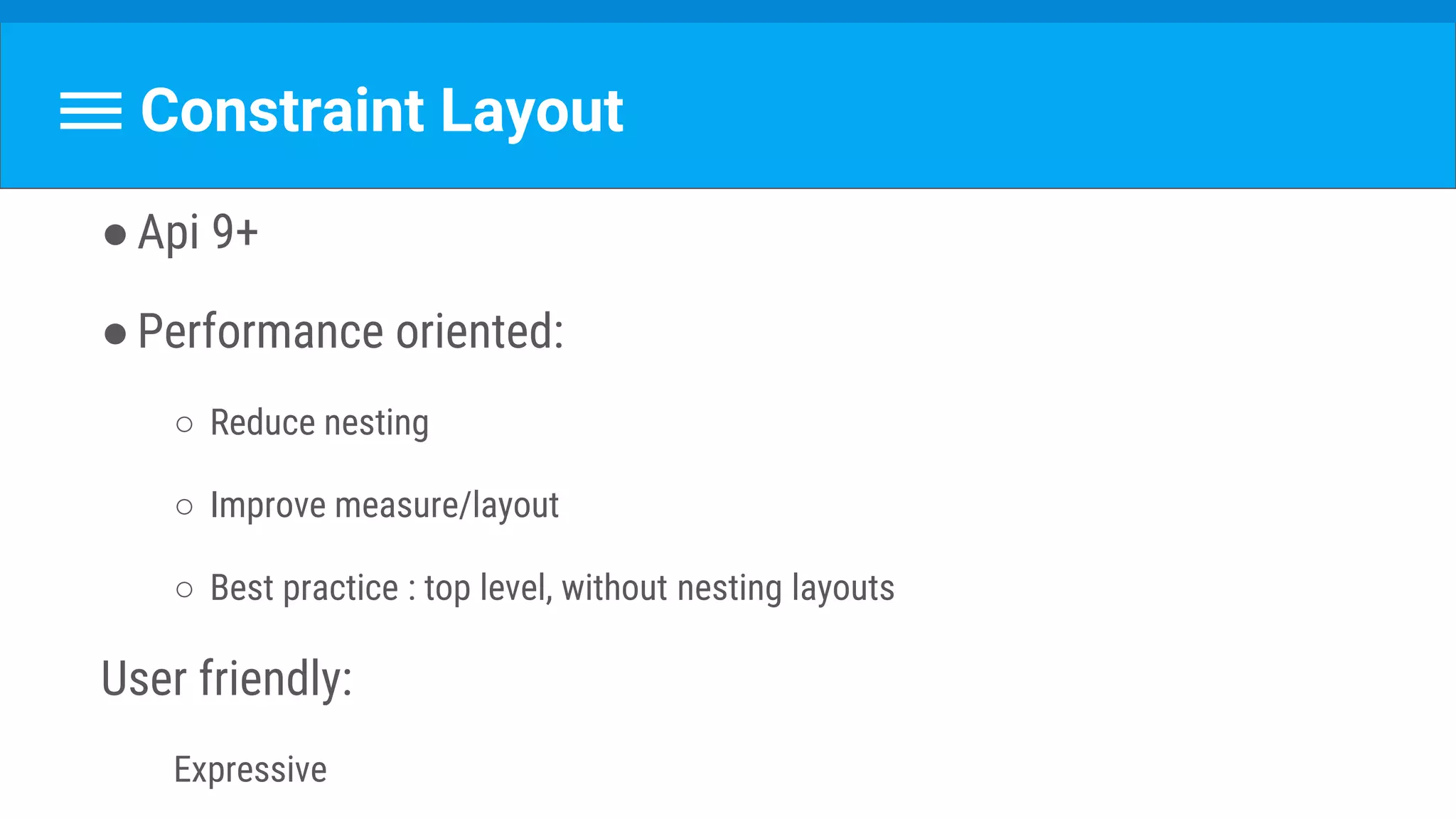
●Api 9+
●Performance oriented:
○ Reduce nesting
○ Improve measure/layout
○ Best practice : top level, without nesting layouts
User friendly:
Expressive
The New Layout Editor
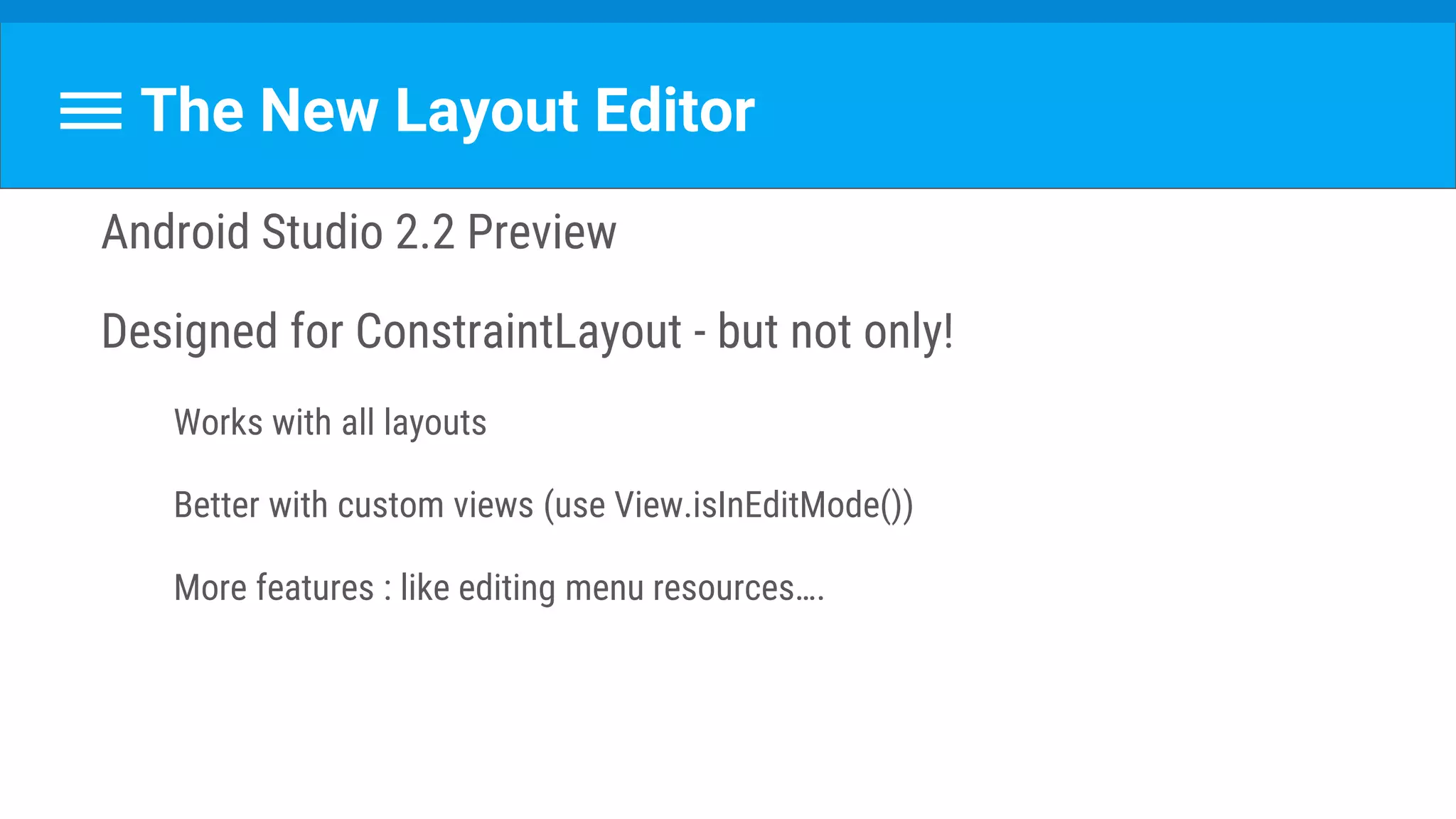
Android Studio 2.2 Preview
Designed for ConstraintLayout - but not only!
Works with all layouts
Better with custom views (use View.isInEditMode())
More features : like editing menu resources….
Setting Up
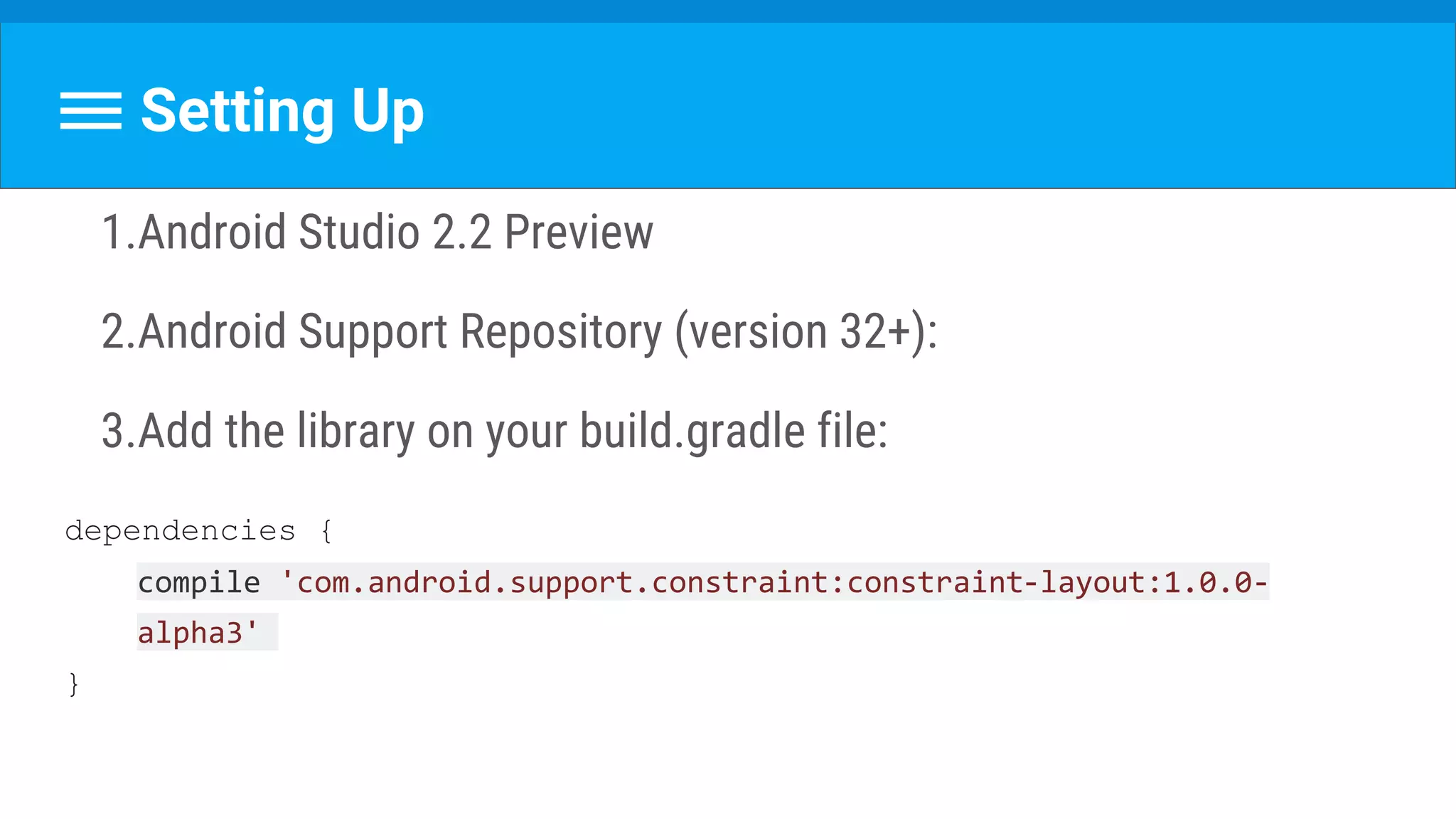
1.Android Studio 2.2 Preview
2.Android Support Repository (version 32+):
3.Add the library on your build.gradle file:
dependencies {
compile 'com.android.support.constraint:constraint-layout:1.0.0-
alpha3'
}
Concept
Similar to RelativeLayout :
Position a view relative to other layout elements.
Yet more expressive & powerful
Getting Started
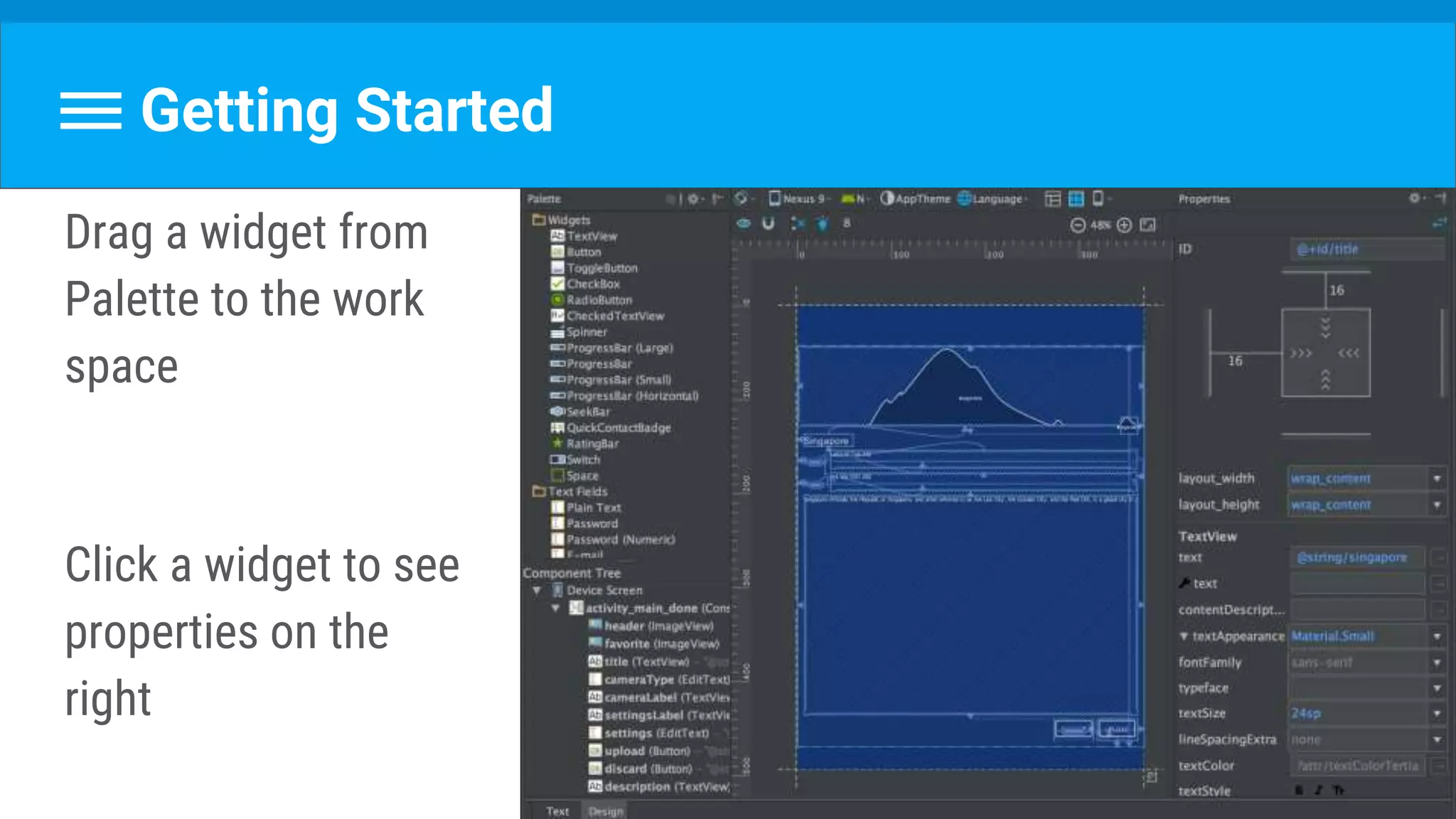
Drag a widget from
Palette to the work
space
Click a widget to see
properties on the
right
Getting Started
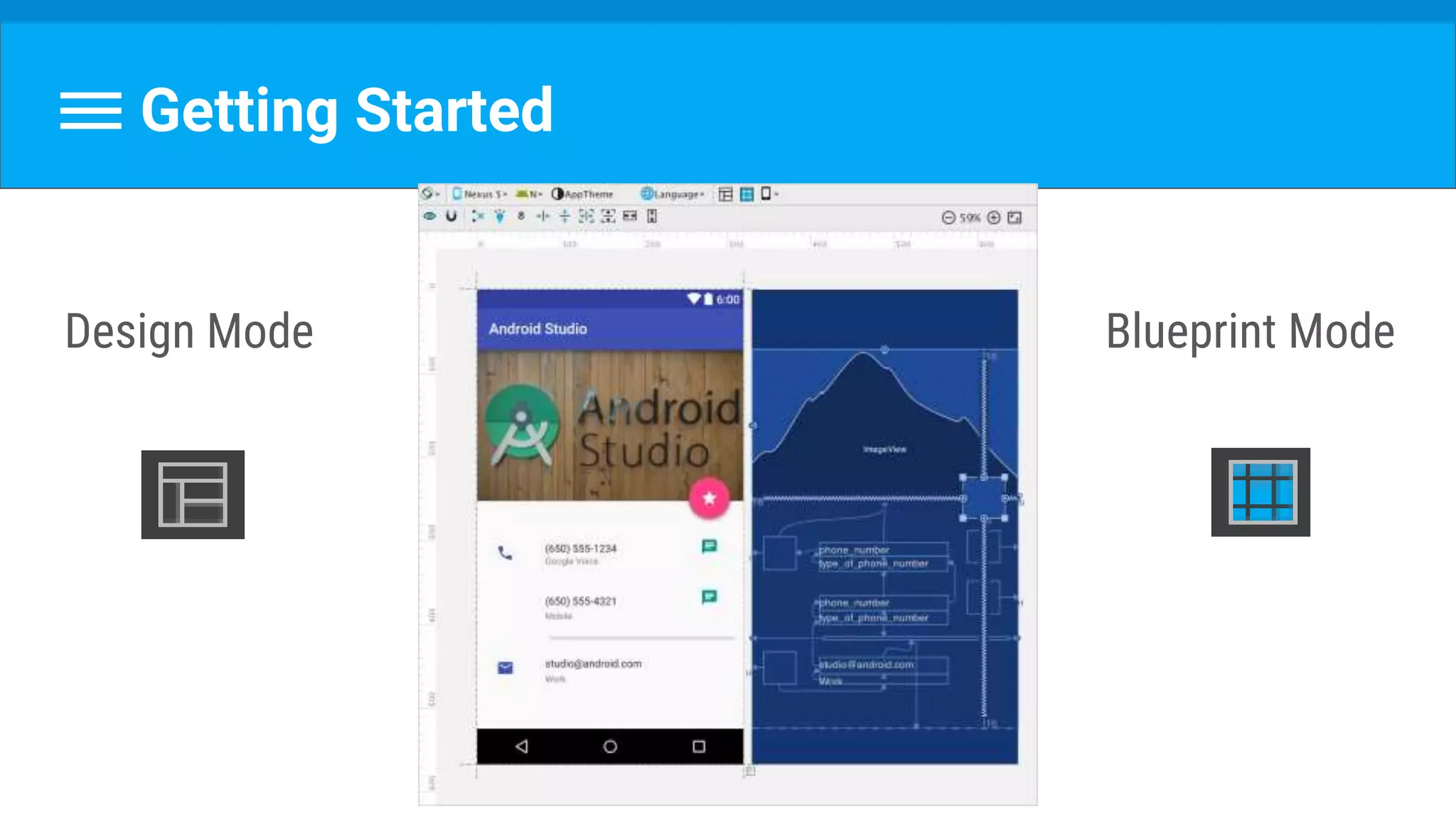
Design Mode Blueprint Mode
Idea
View has 4 sides : left, top, right, bottom + baseline for textview
So we can:
Connect view side to layout
Connect 2 view sides
Align 2 view sides
Align 2 textview baselines
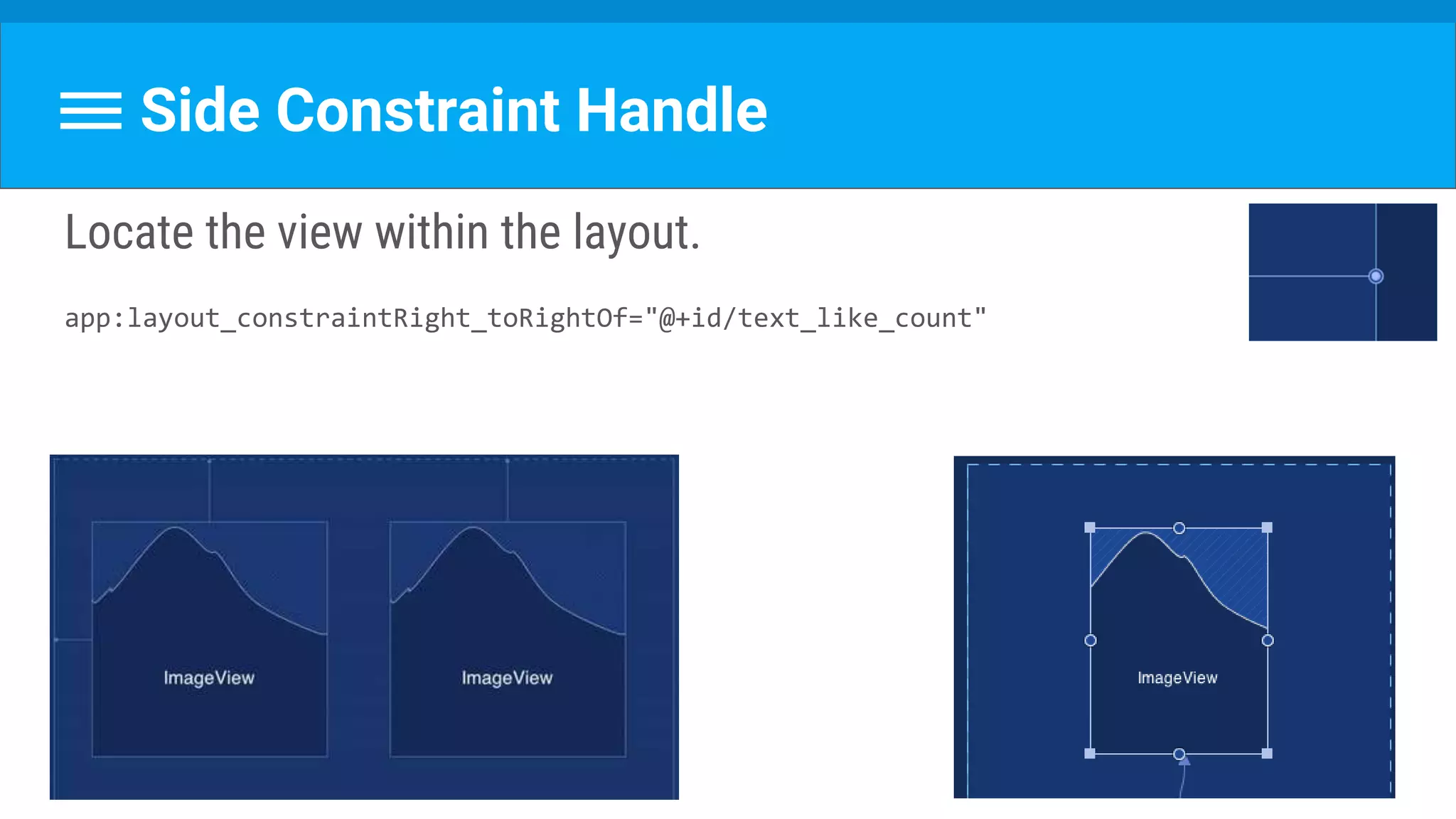
Side Constraint Handle
Locate the view within the layout.
app:layout_constraintRight_toRightOf="@+id/text_like_count"
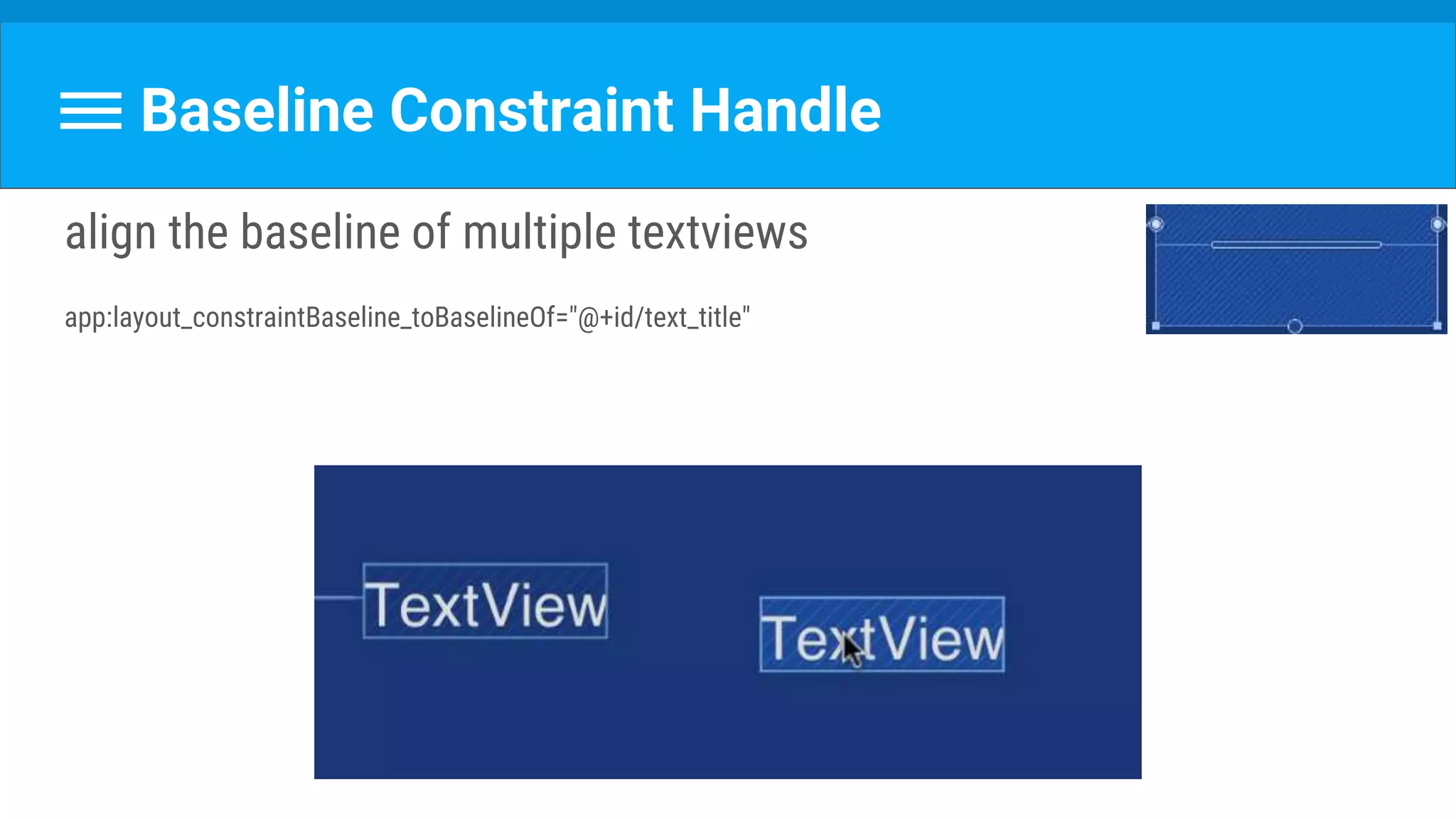
Baseline Constraint Handle
align the baseline of multiple textviews
app:layout_constraintBaseline_toBaselineOf="@+id/text_title"
Possible Attributes
layout_constraintX_toYOf 
X and Y can be replaced with:
a. Top
b. Bottom
c. Left
d. Right
e. Start
f. End
g. Baseline
Centering
constraints from both sides
(ie top and bottom of view to top and bottom of layout)
And then...
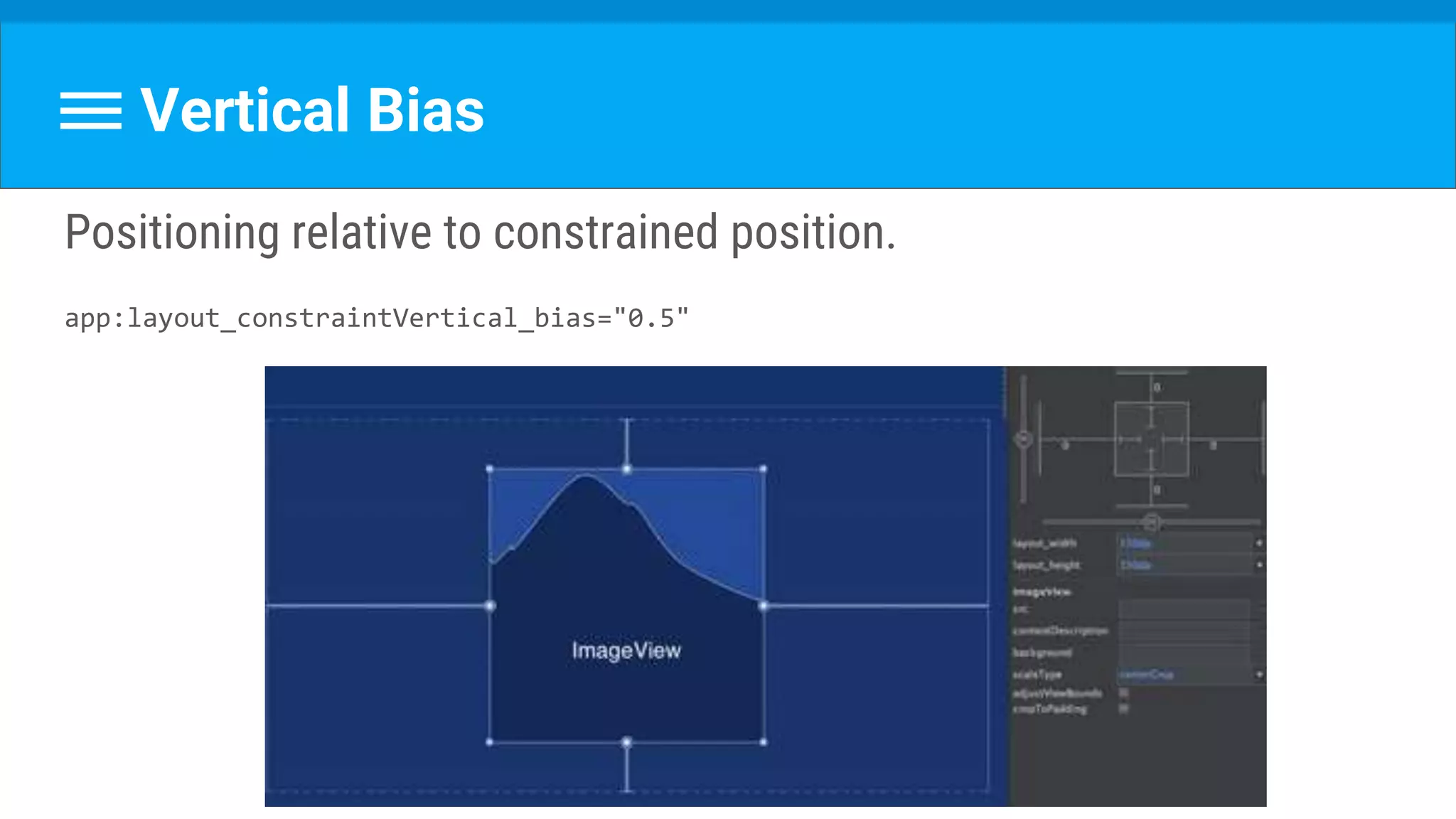
Vertical Bias
Positioning relative to constrained position.
app:layout_constraintVertical_bias="0.5"
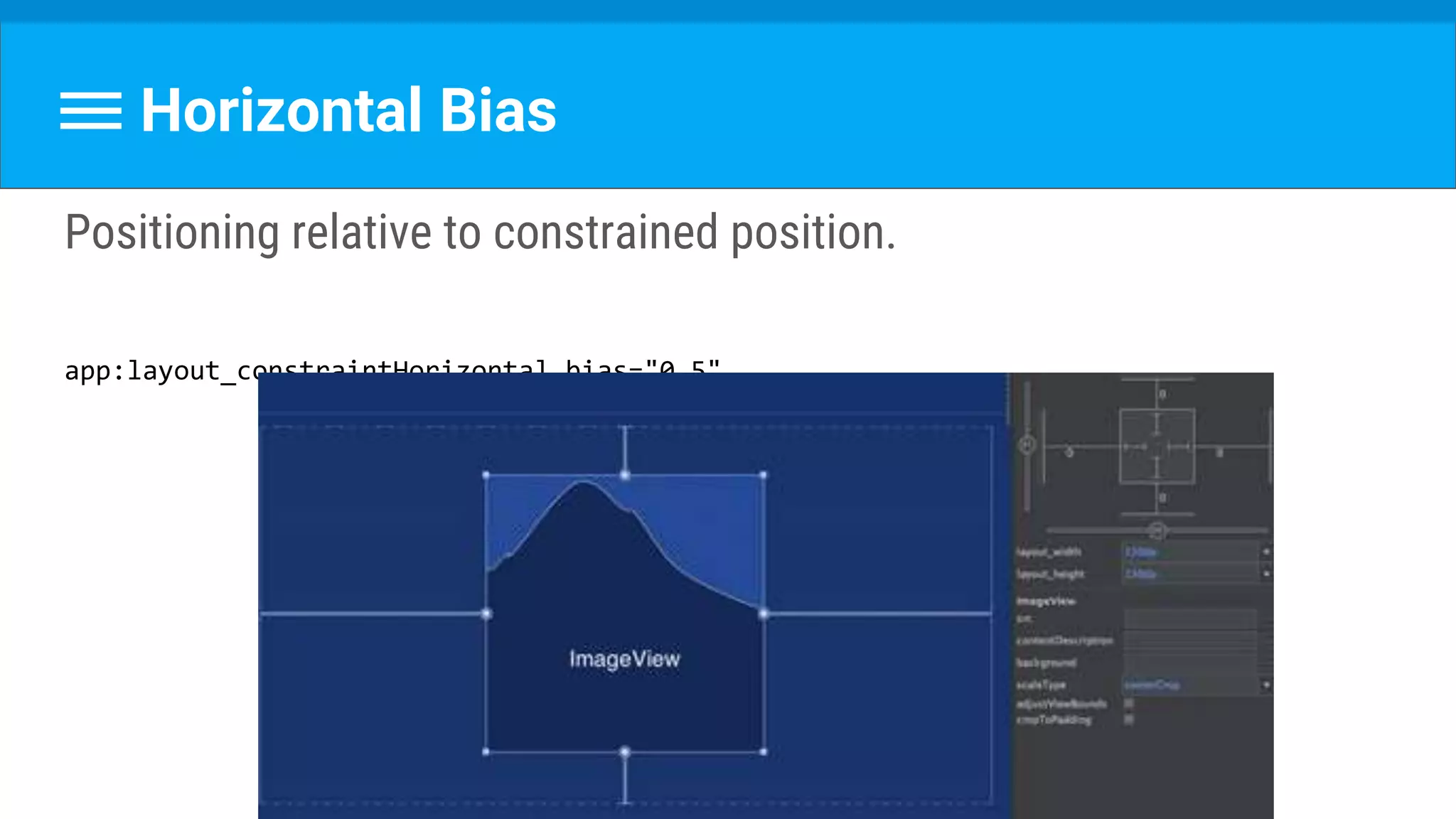
Horizontal Bias
Positioning relative to constrained position.
app:layout_constraintHorizontal_bias="0.5"
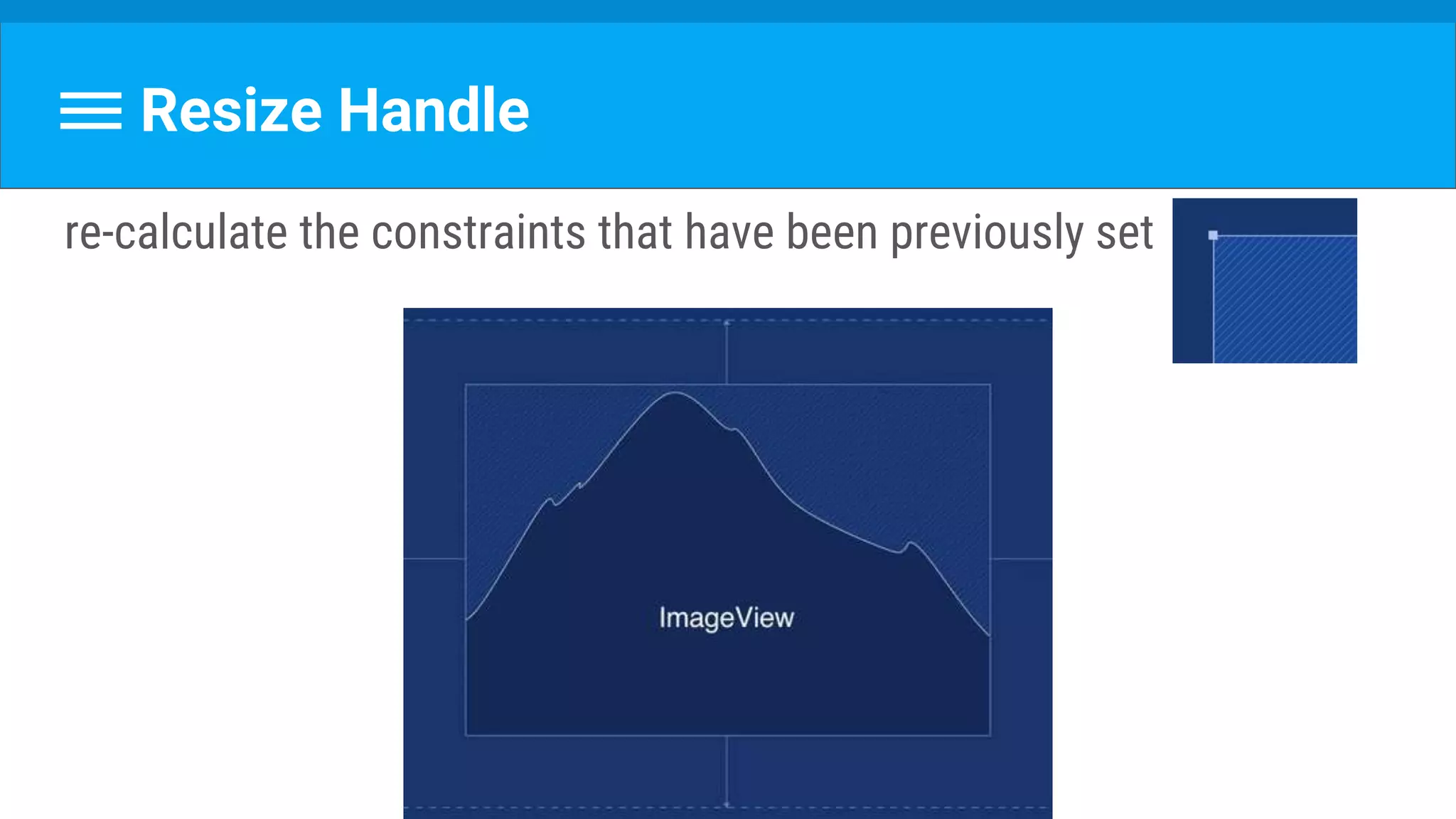
Resize Handle
re-calculate the constraints that have been previously set
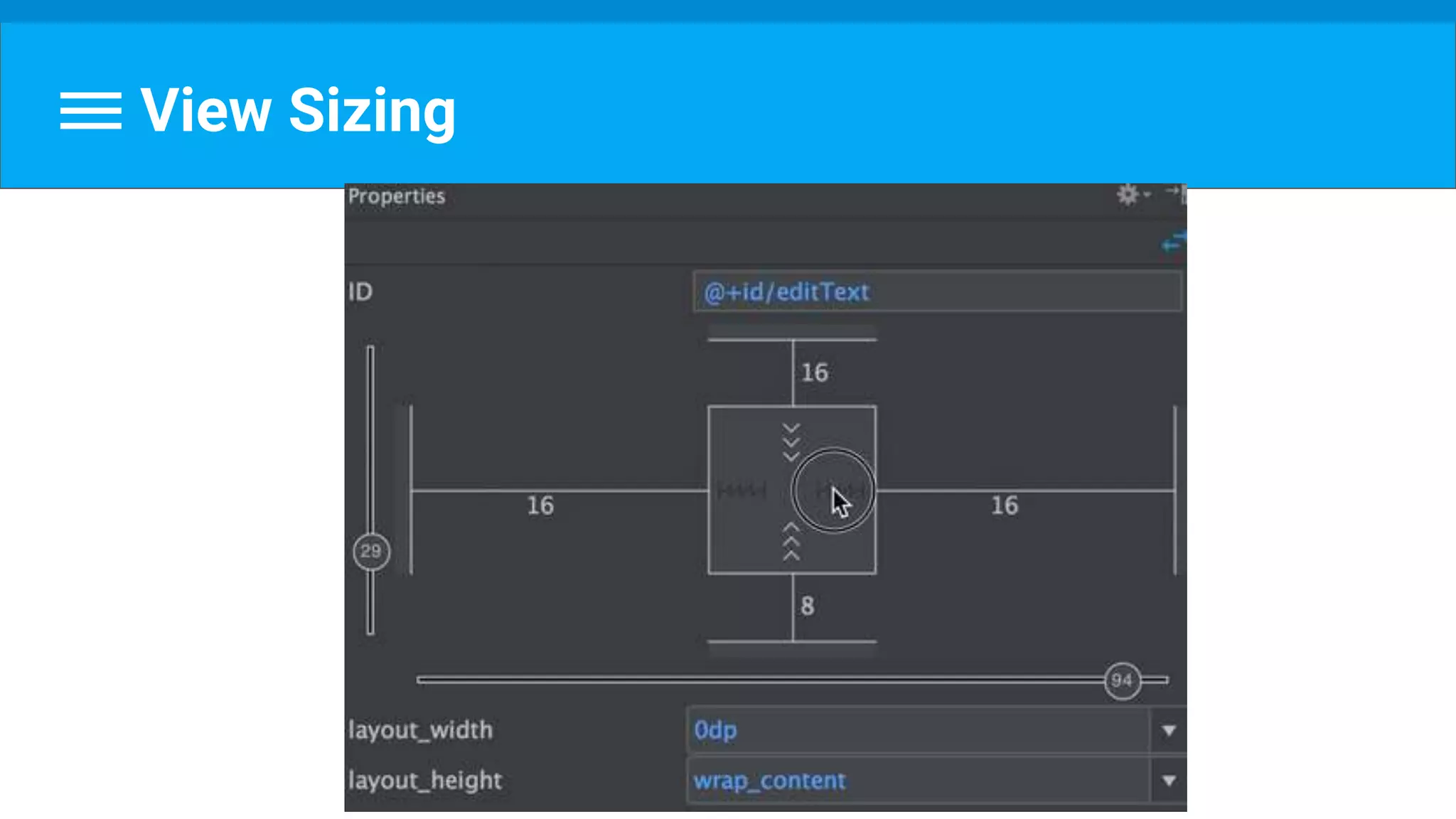
View Sizing
View Sizing : Any Size
match_parent and use the available space.
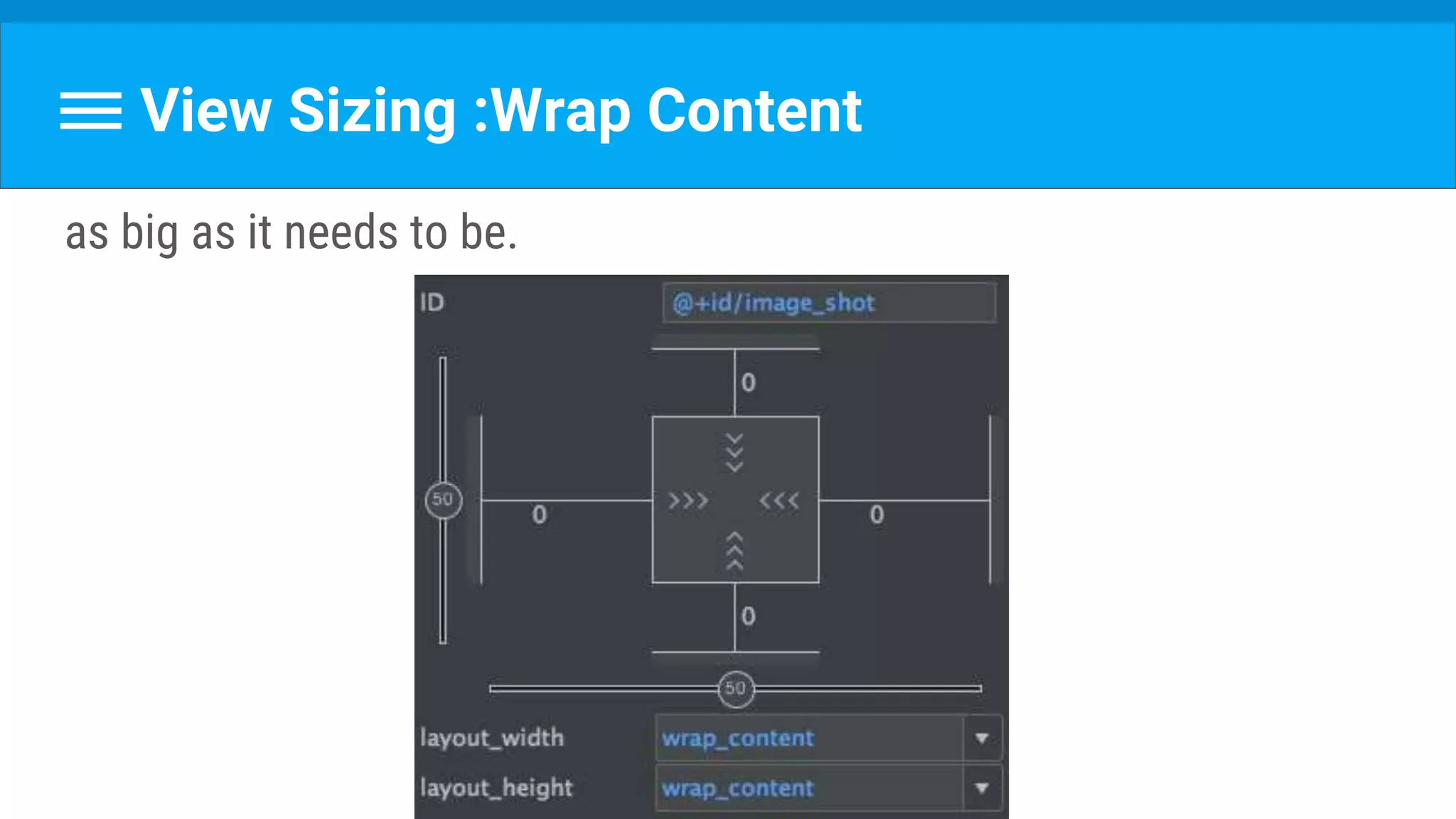
View Sizing :Wrap Content
as big as it needs to be.
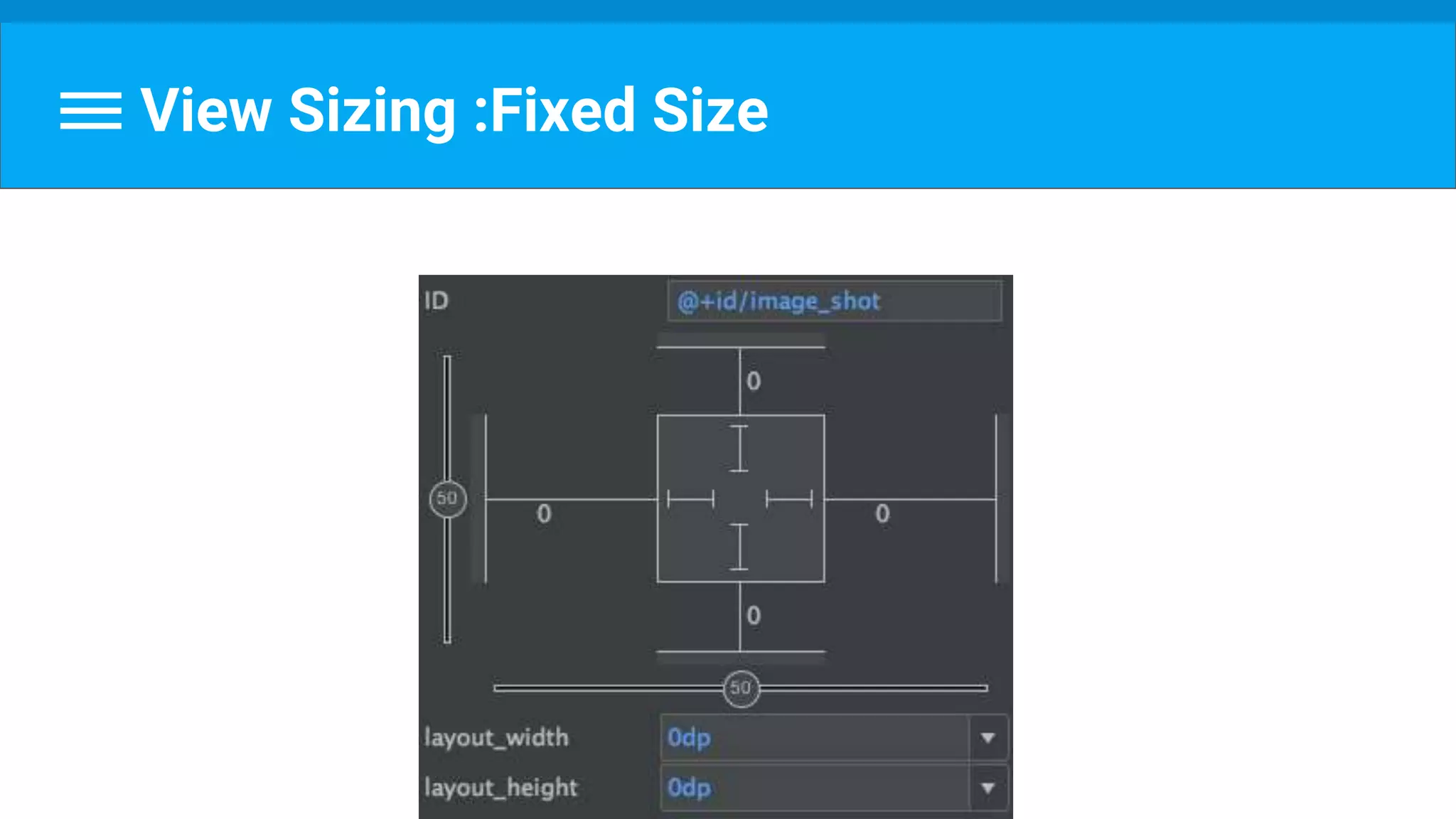
View Sizing :Fixed Size
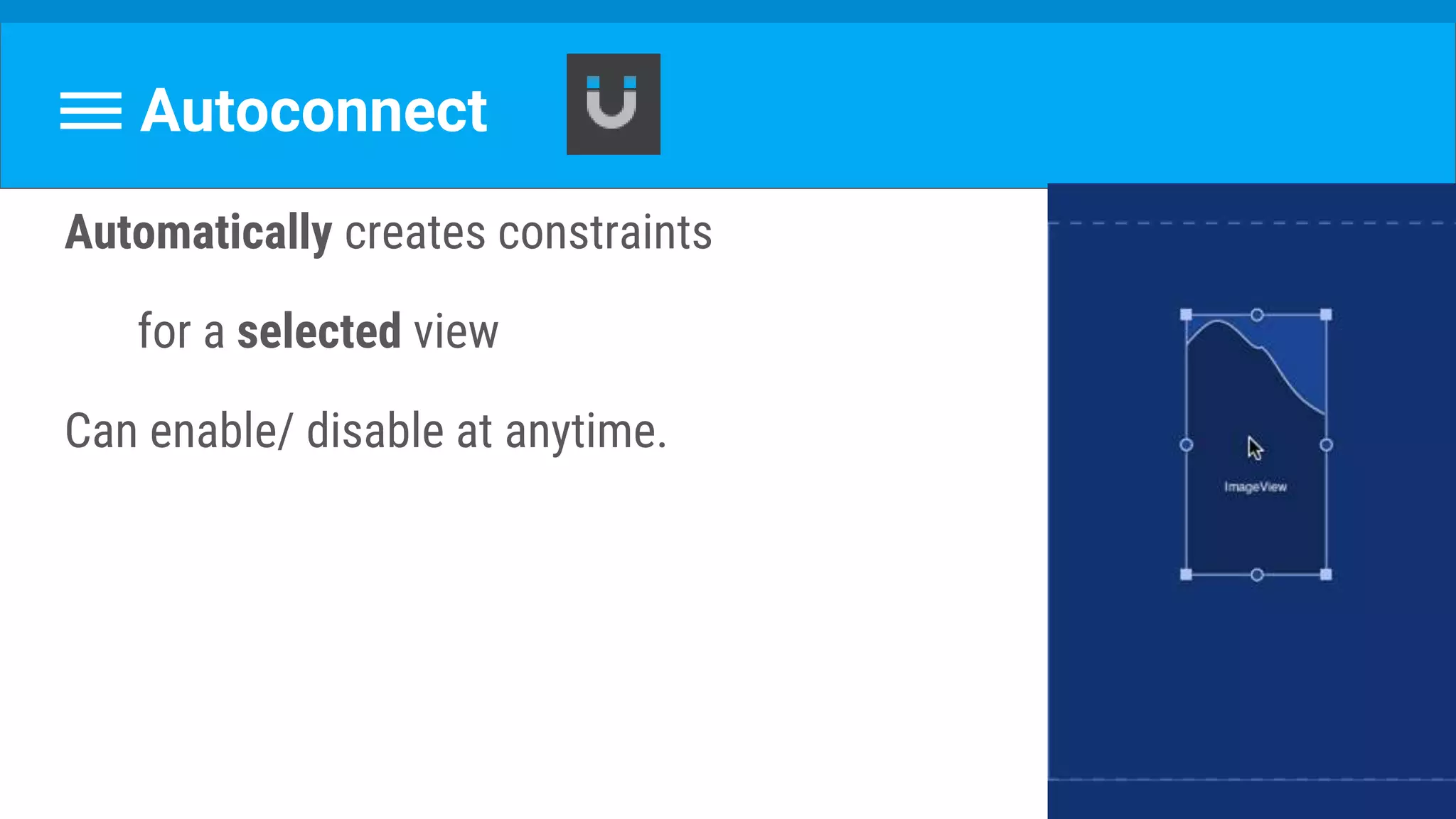
Autoconnect
Automatically creates constraints
for a selected view
Can enable/ disable at anytime.
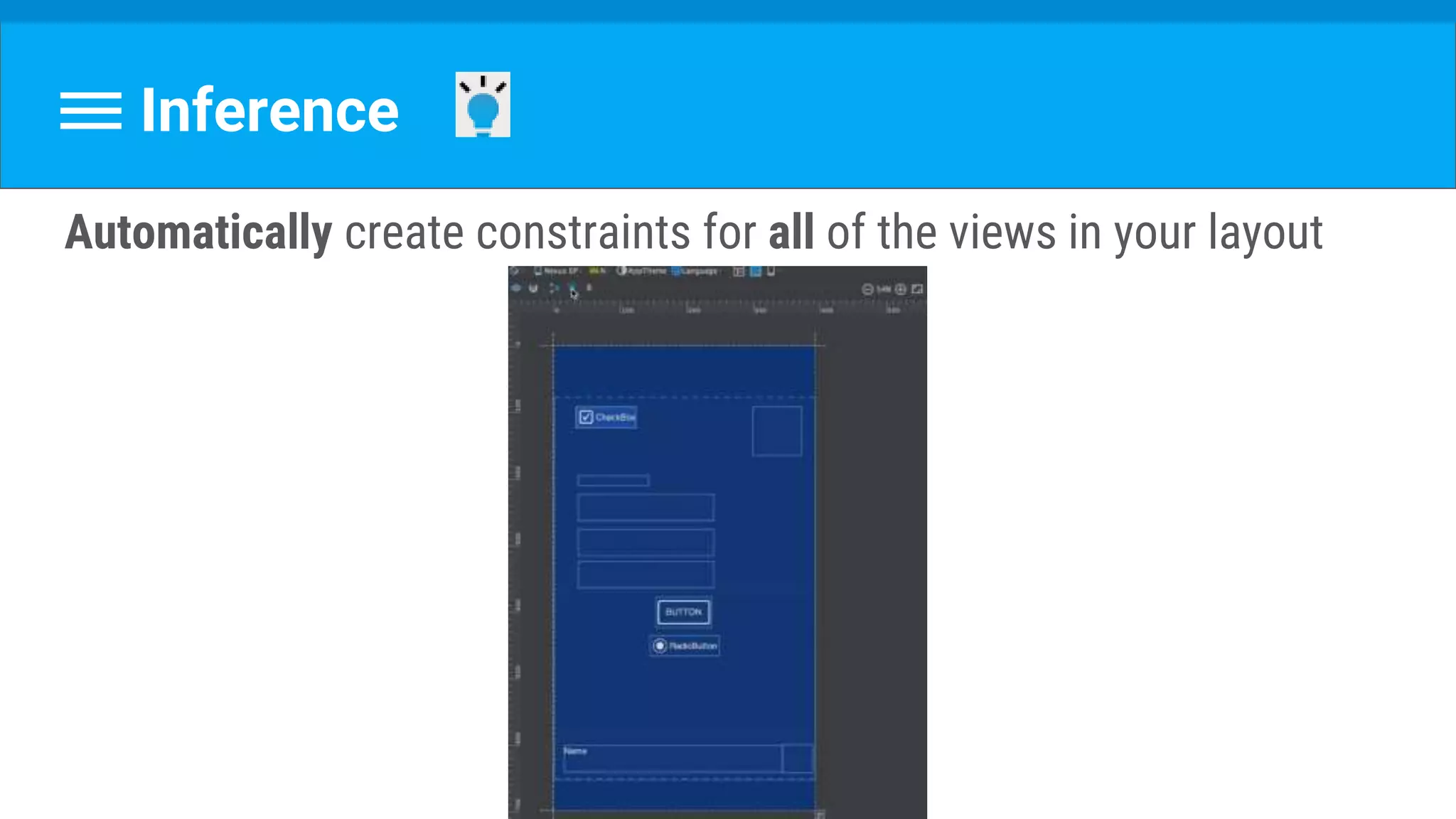
Inference
Automatically create constraints for all of the views in your layout
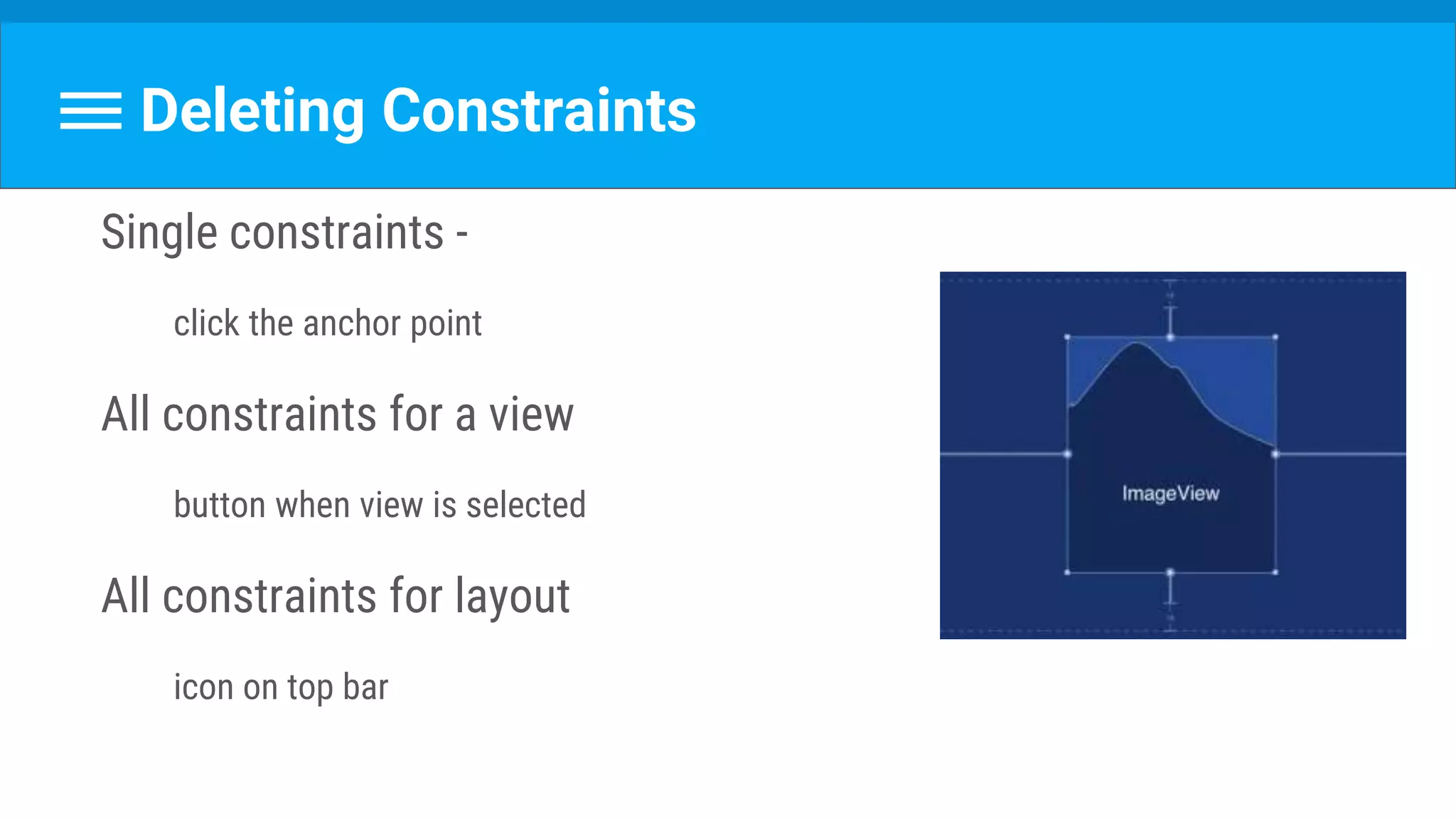
Deleting Constraints
Single constraints -
click the anchor point
All constraints for a view
button when view is selected
All constraints for layout
icon on top bar
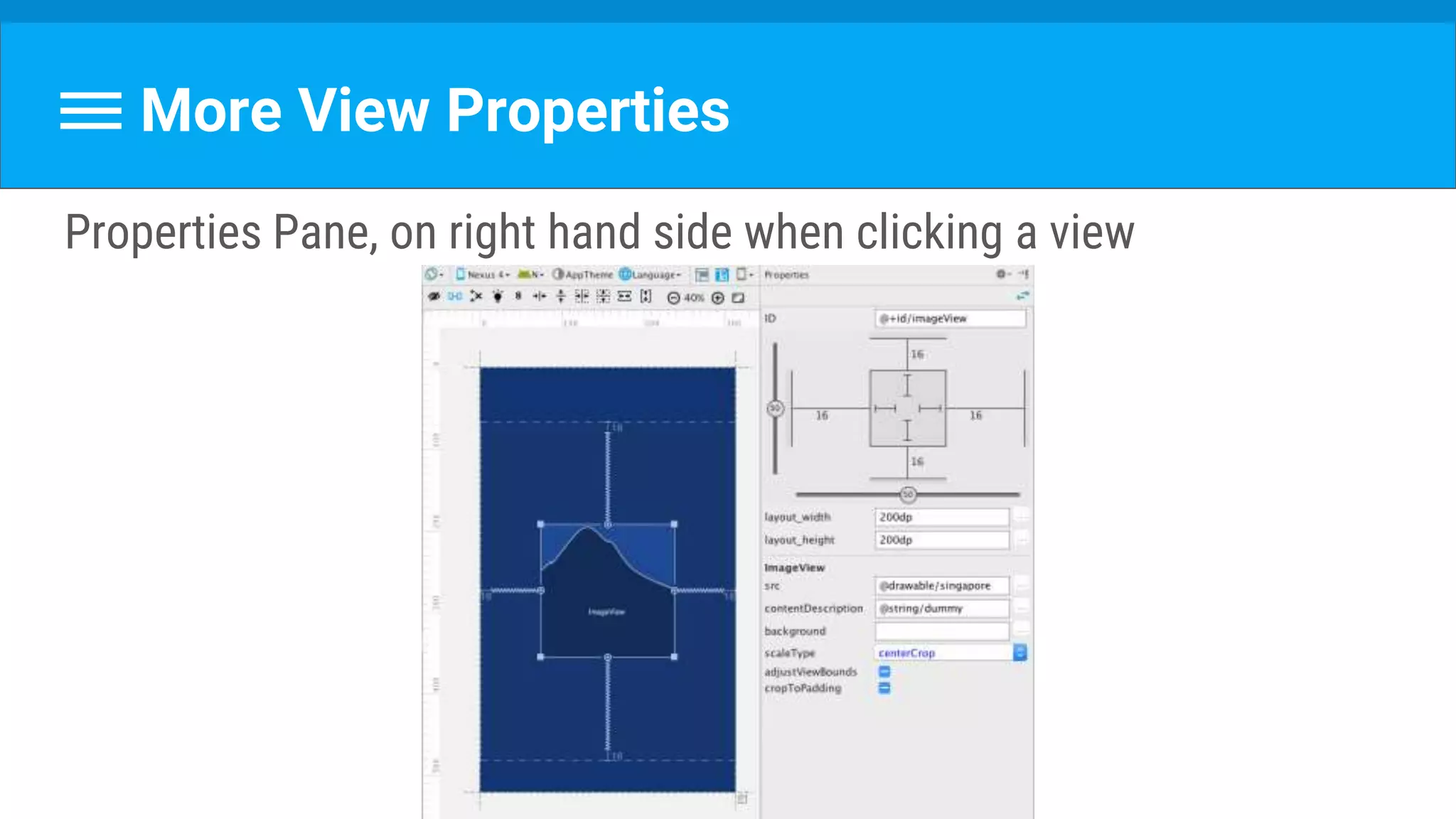
More View Properties
Properties Pane, on right hand side when clicking a view
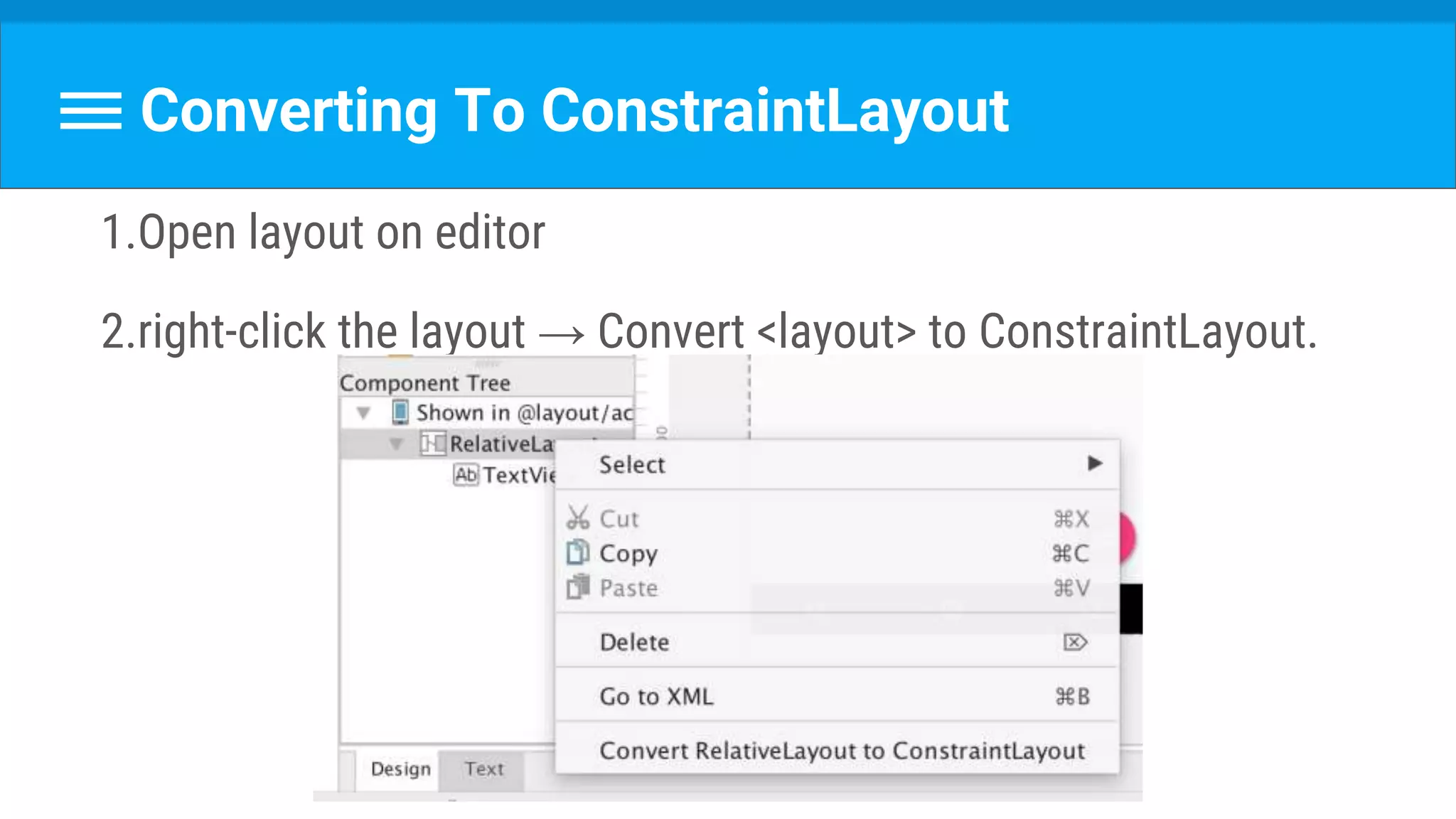
Converting To ConstraintLayout
1.Open layout on editor
2.right-click the layout → Convert <layout> to ConstraintLayout.
Well, that about it!
Not officially released, but quite stable.
Give it a try :)
https://codelabs.developers.google.com/codelabs/constraint-layout/index.html
Any Questions?
A bit about
Animation
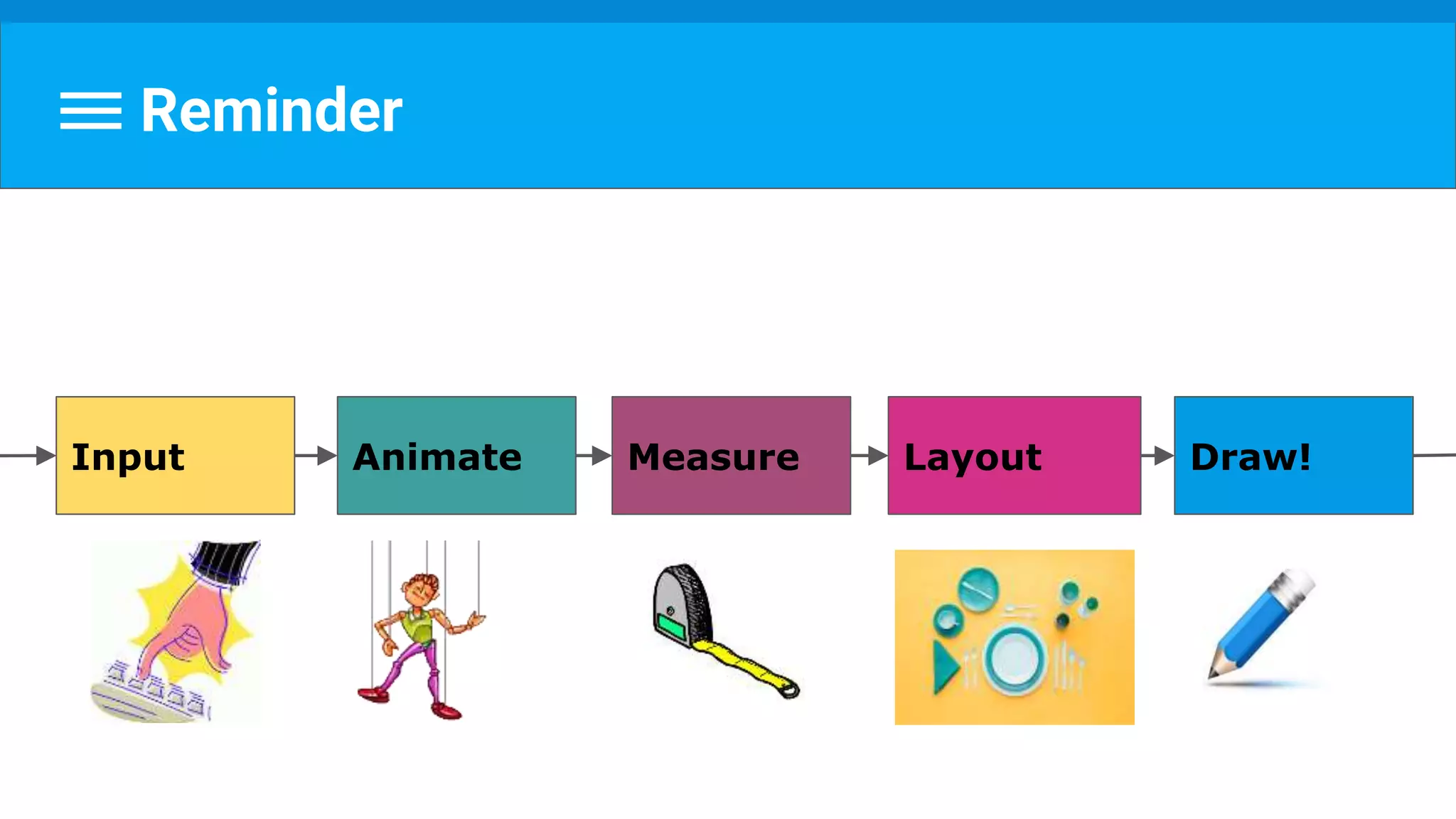
Reminder
Measure Layout Draw!Input Animate
Animation
Reminder : Changing a view property causes invalidation.
Same for animation, when changing the animated property
(e.g. x coordinate, scale, alpha value etc.)
Animation
For complex views,
animation may not be smooth.
What can we do?
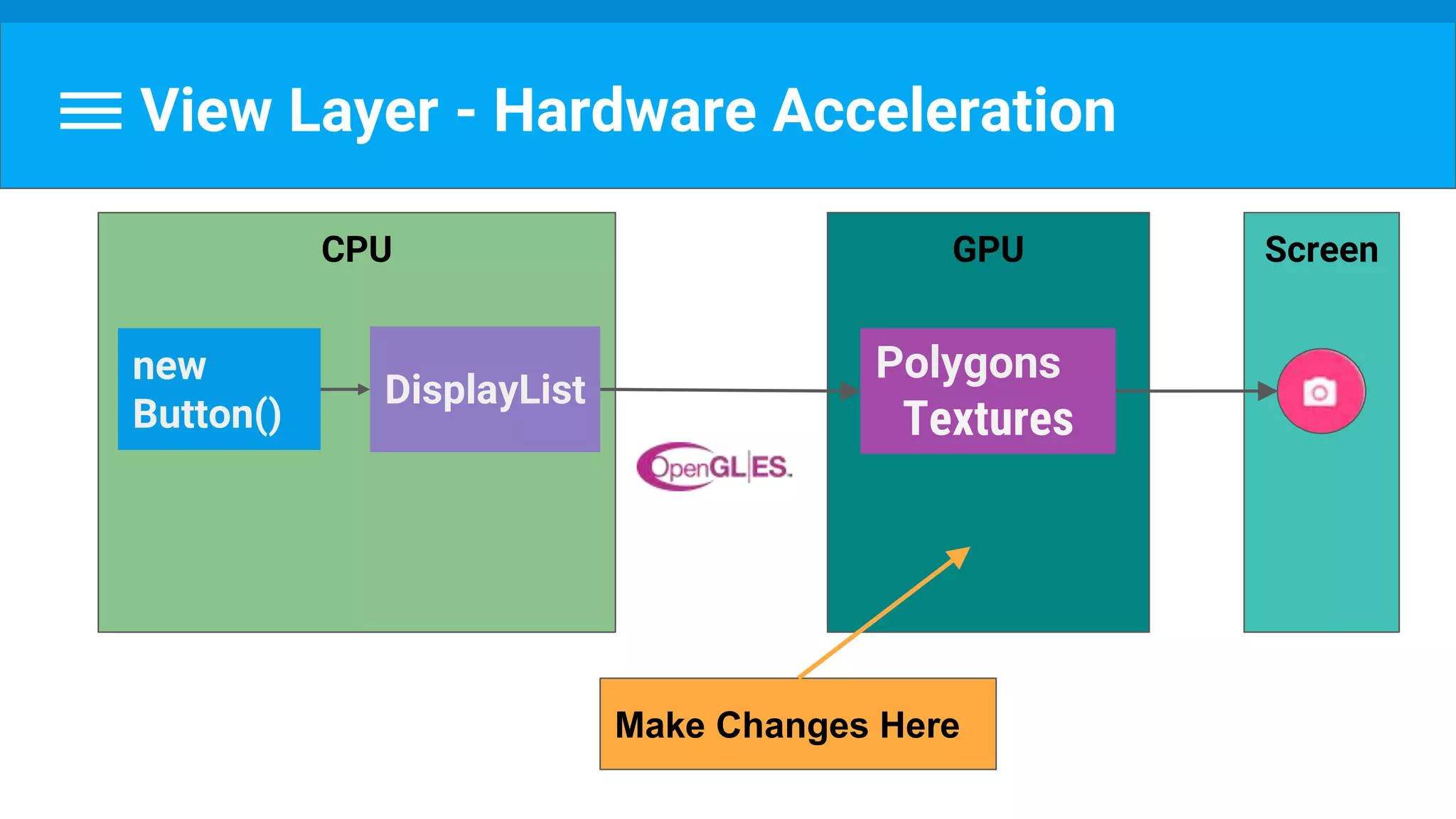
View Layer - Hardware Acceleration
Render into an off-screen buffer (backed by Hardware)
Texture is created in the GPU for our view
Change properties without invalidating
Smoother animation
https://developer.android.com/guide/topics/graphics/hardware-accel.html#drawing-support
View Layer - Hardware Acceleration
ScreenGPU
Polygons
Textures
CPU
new
Button()
DisplayList
Make Changes Here
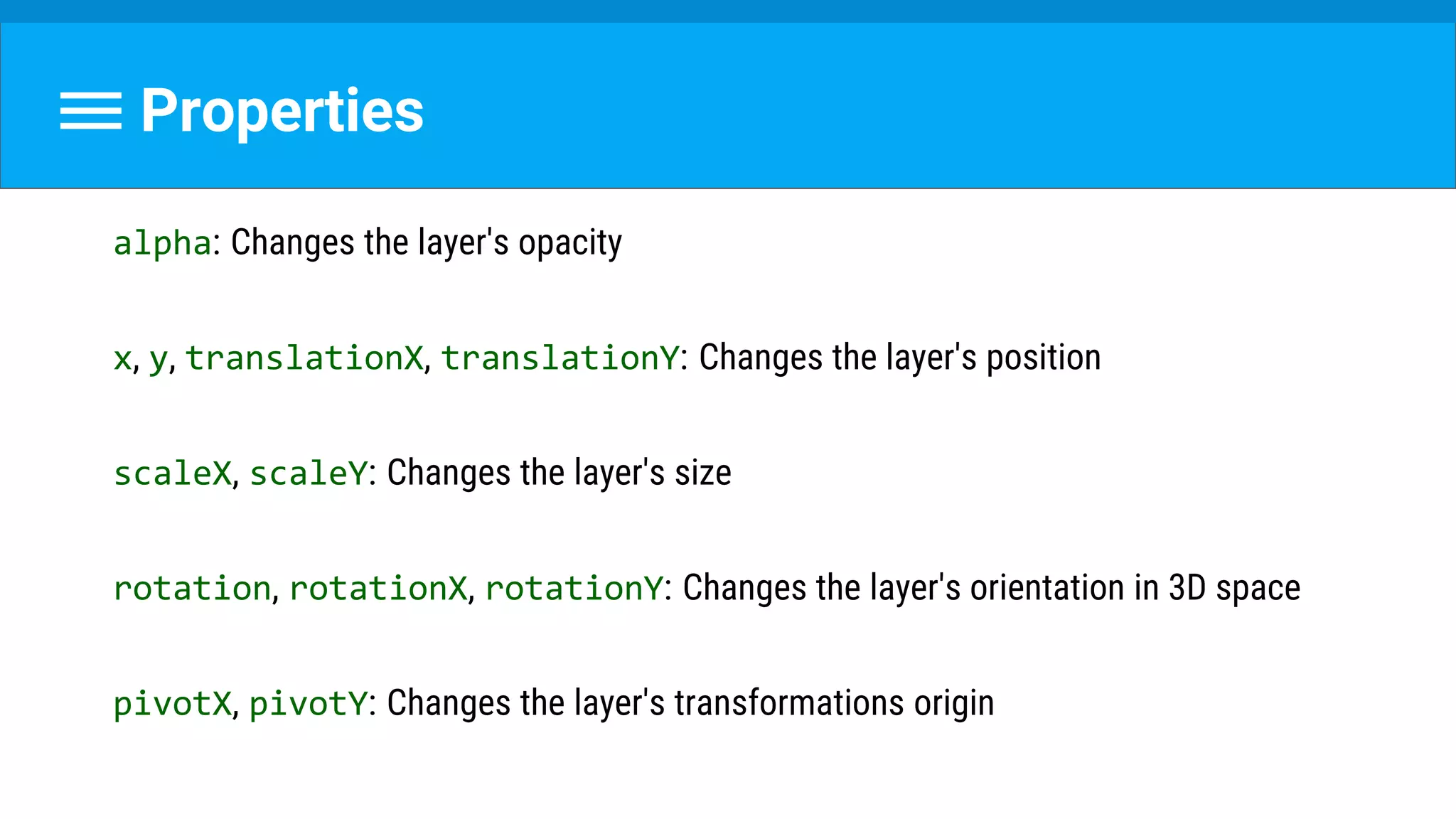
Properties
alpha: Changes the layer's opacity
x, y, translationX, translationY: Changes the layer's position
scaleX, scaleY: Changes the layer's size
rotation, rotationX, rotationY: Changes the layer's orientation in 3D space
pivotX, pivotY: Changes the layer's transformations origin
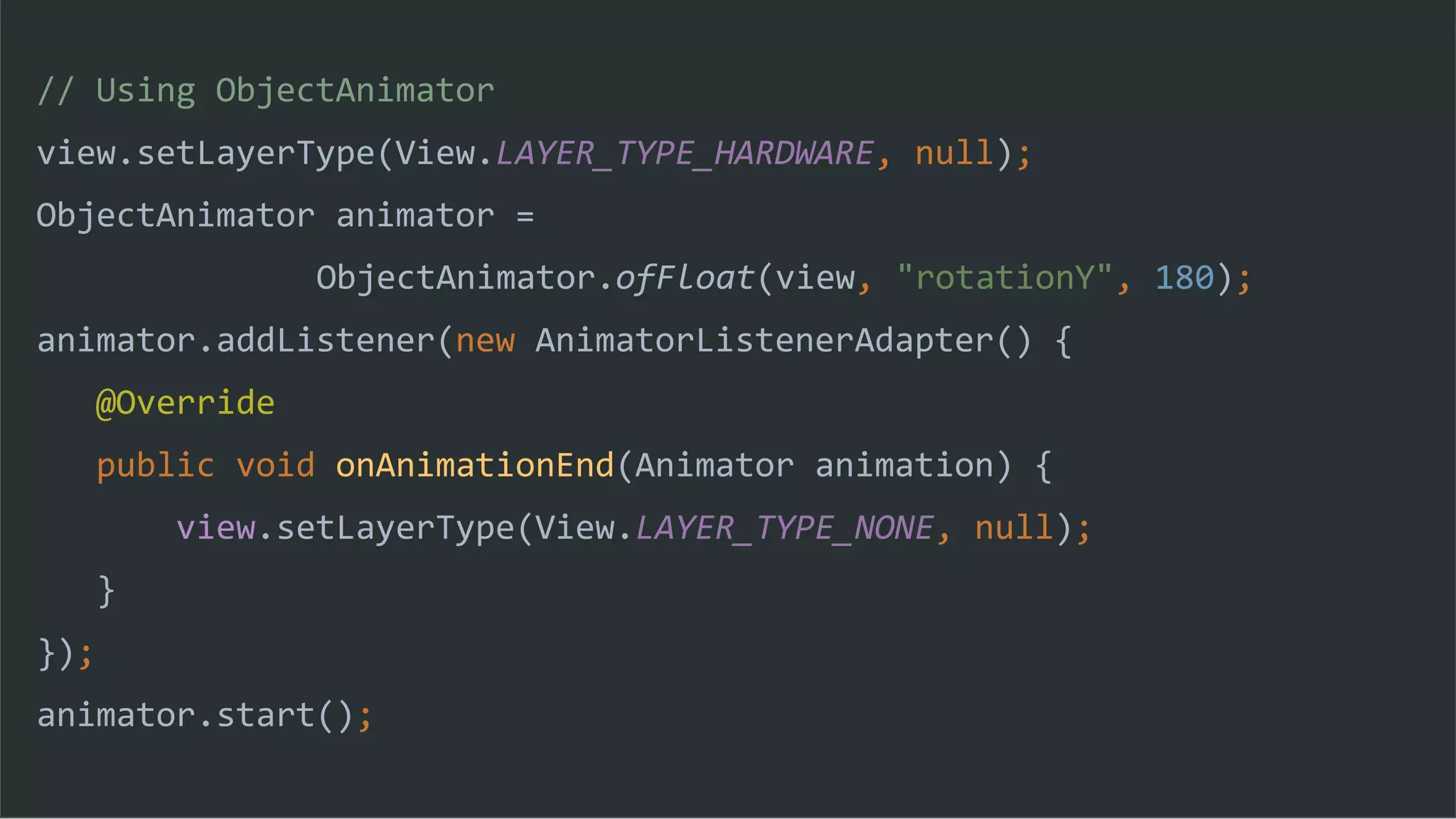
// Using ObjectAnimator
view.setLayerType(View.LAYER_TYPE_HARDWARE, null);
ObjectAnimator animator =
ObjectAnimator.ofFloat(view, "rotationY", 180);
animator.addListener(new AnimatorListenerAdapter() {
@Override
public void onAnimationEnd(Animator animation) {
view.setLayerType(View.LAYER_TYPE_NONE, null);
}
});
animator.start();
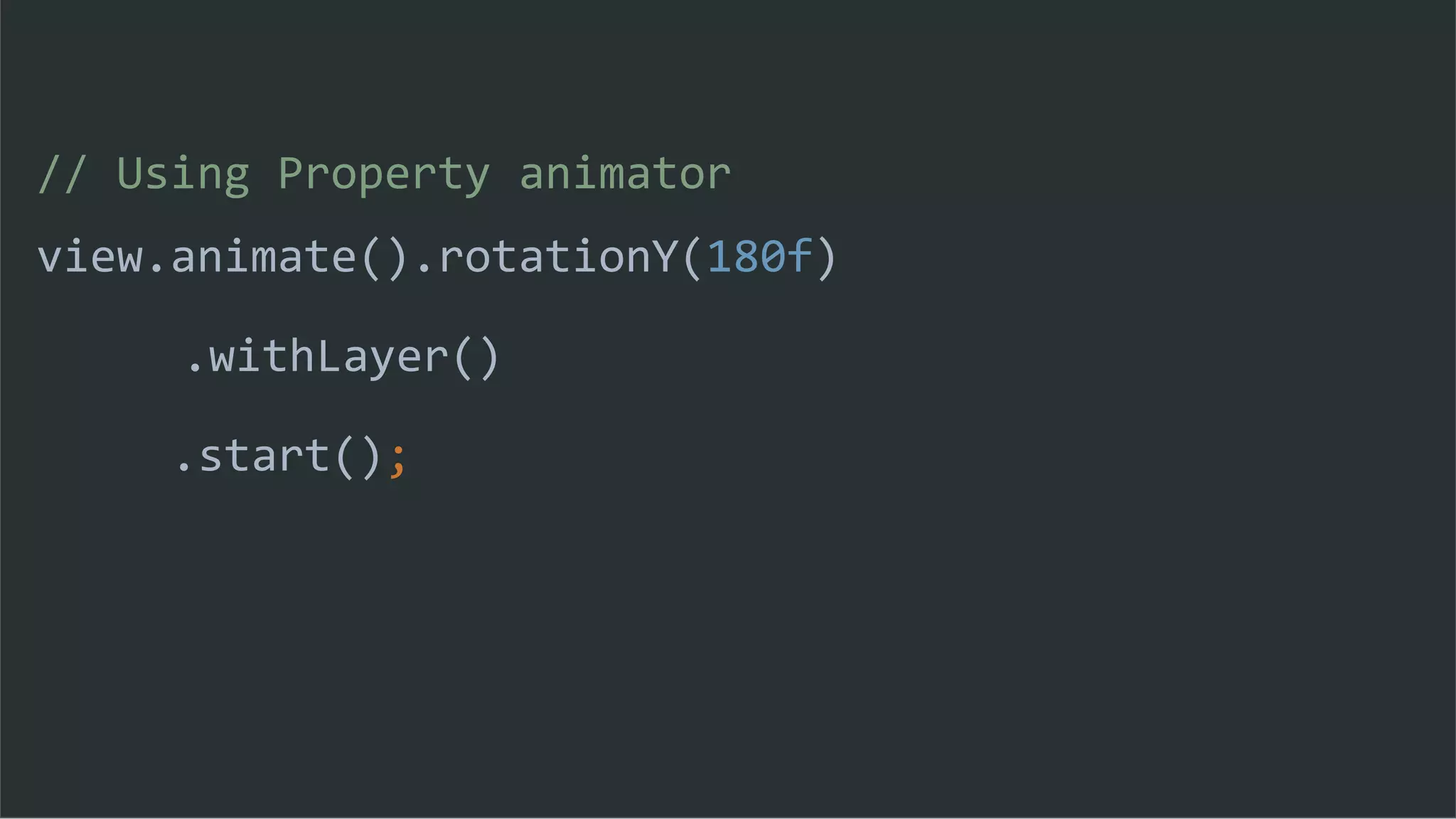
// Using Property animator
view.animate().rotationY(180f)
.withLayer()
.start();
Remember!
1.Clean up the space
○ hardware layers consume of GPU limited memory space
2.Invalidation on hardware layer has a large overhead.
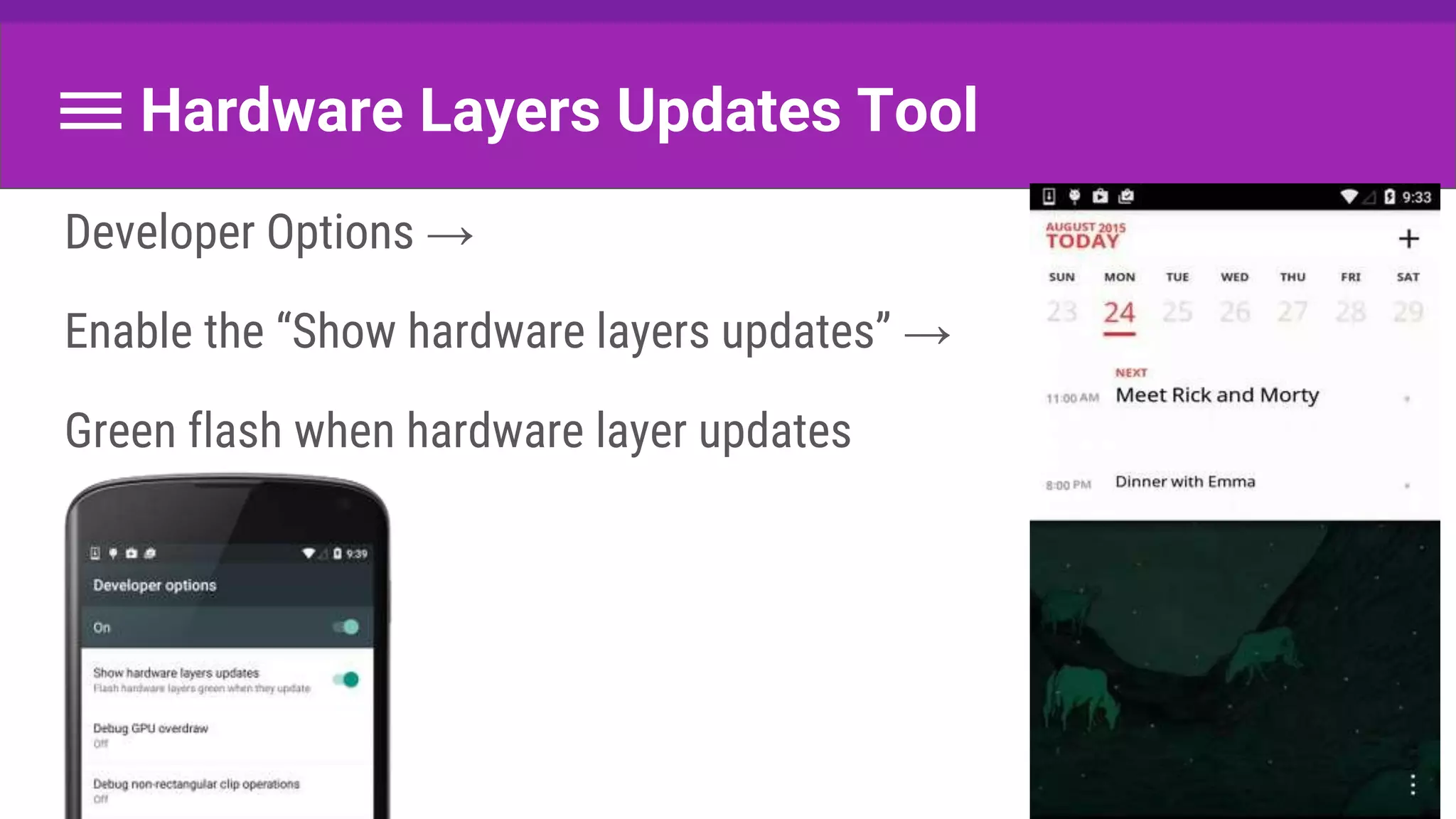
Hardware Layers Updates Tool
Developer Options →
Enable the “Show hardware layers updates” →
Green flash when hardware layer updates
Any Questions?
Reminder
Measure Layout Draw!Input Animate
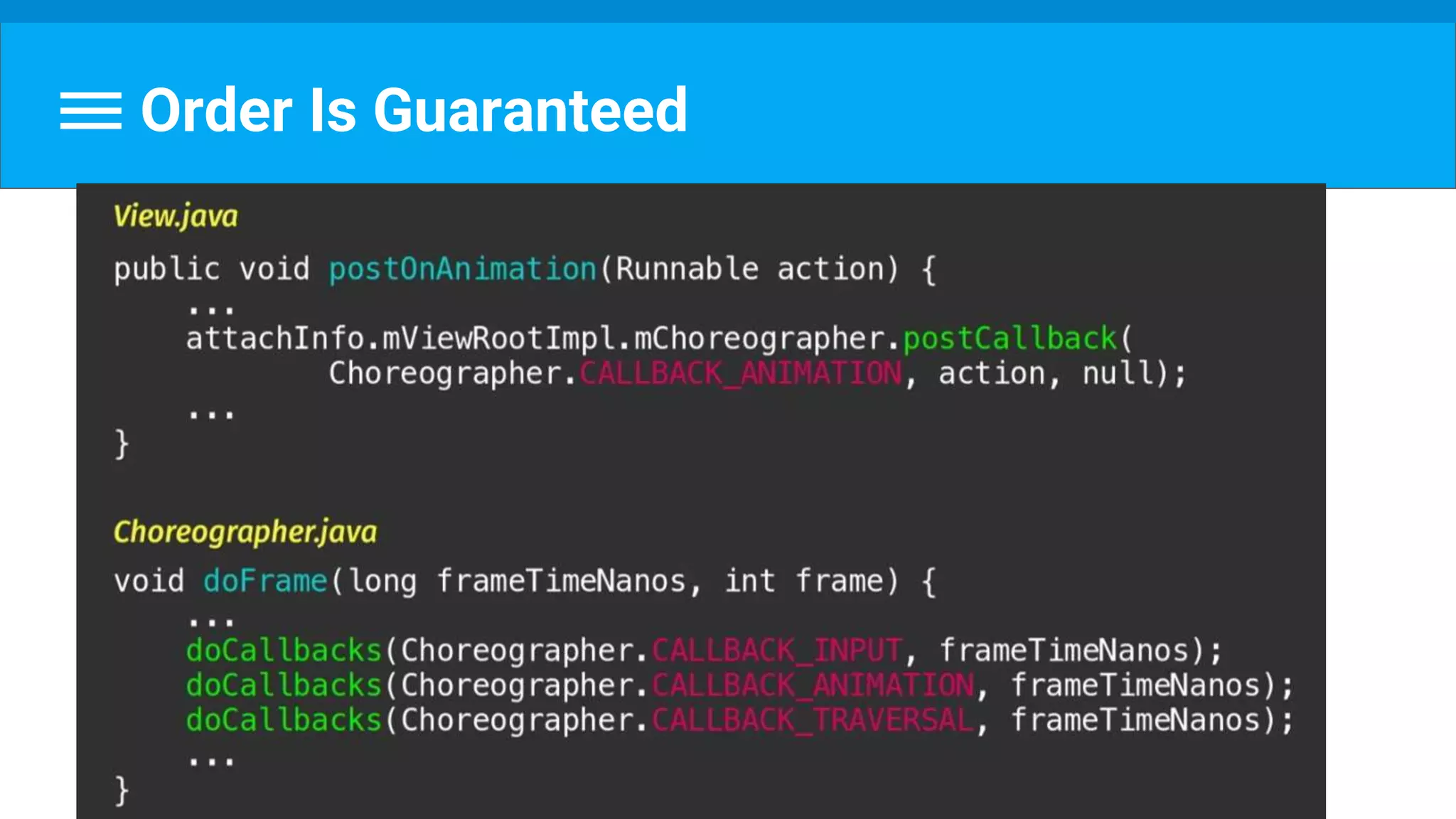
Order Is Guaranteed
What if we want the
size during an animation?
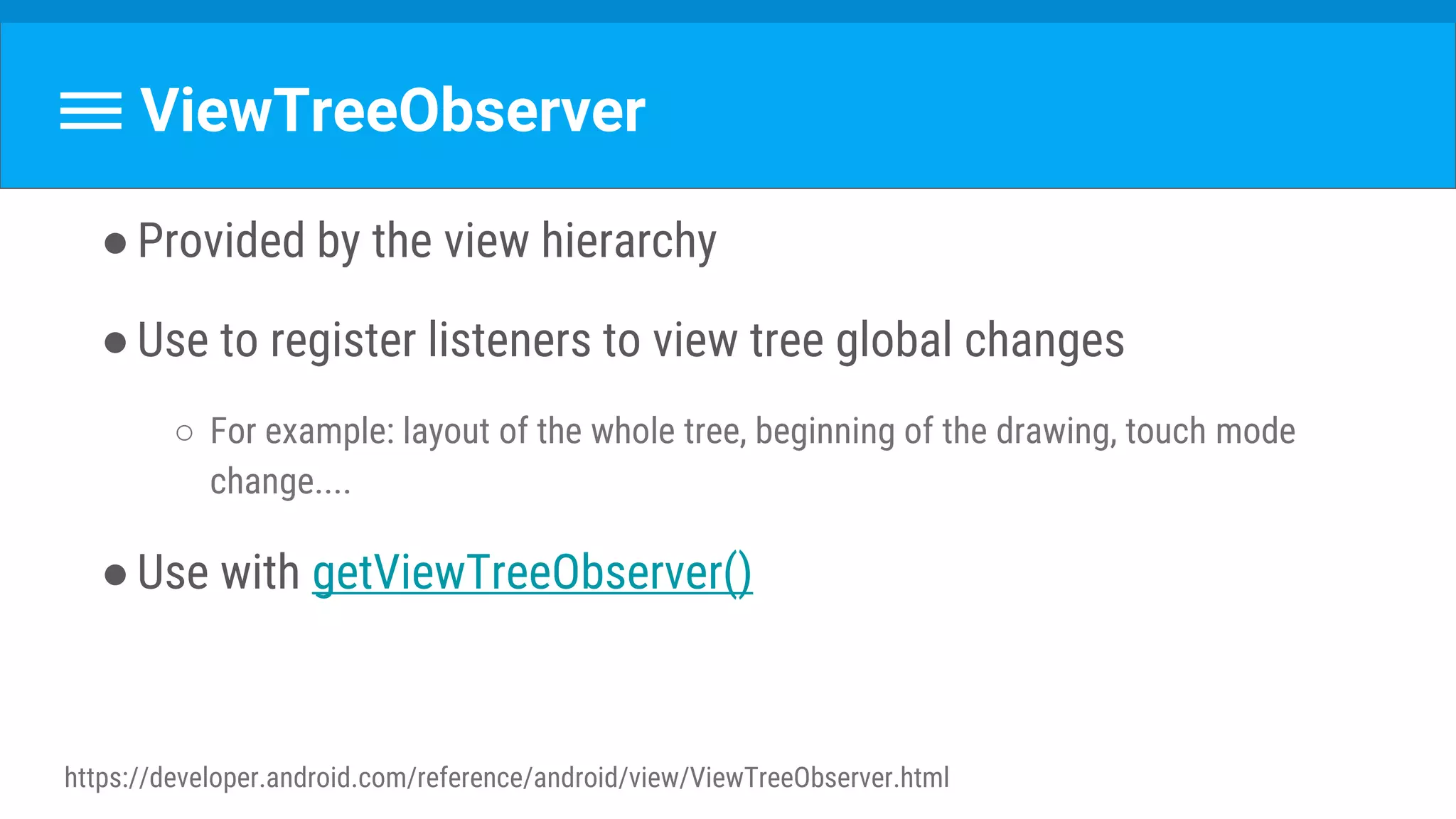
ViewTreeObserver
●Provided by the view hierarchy
●Use to register listeners to view tree global changes
○ For example: layout of the whole tree, beginning of the drawing, touch mode
change....
●Use with getViewTreeObserver()
https://developer.android.com/reference/android/view/ViewTreeObserver.html
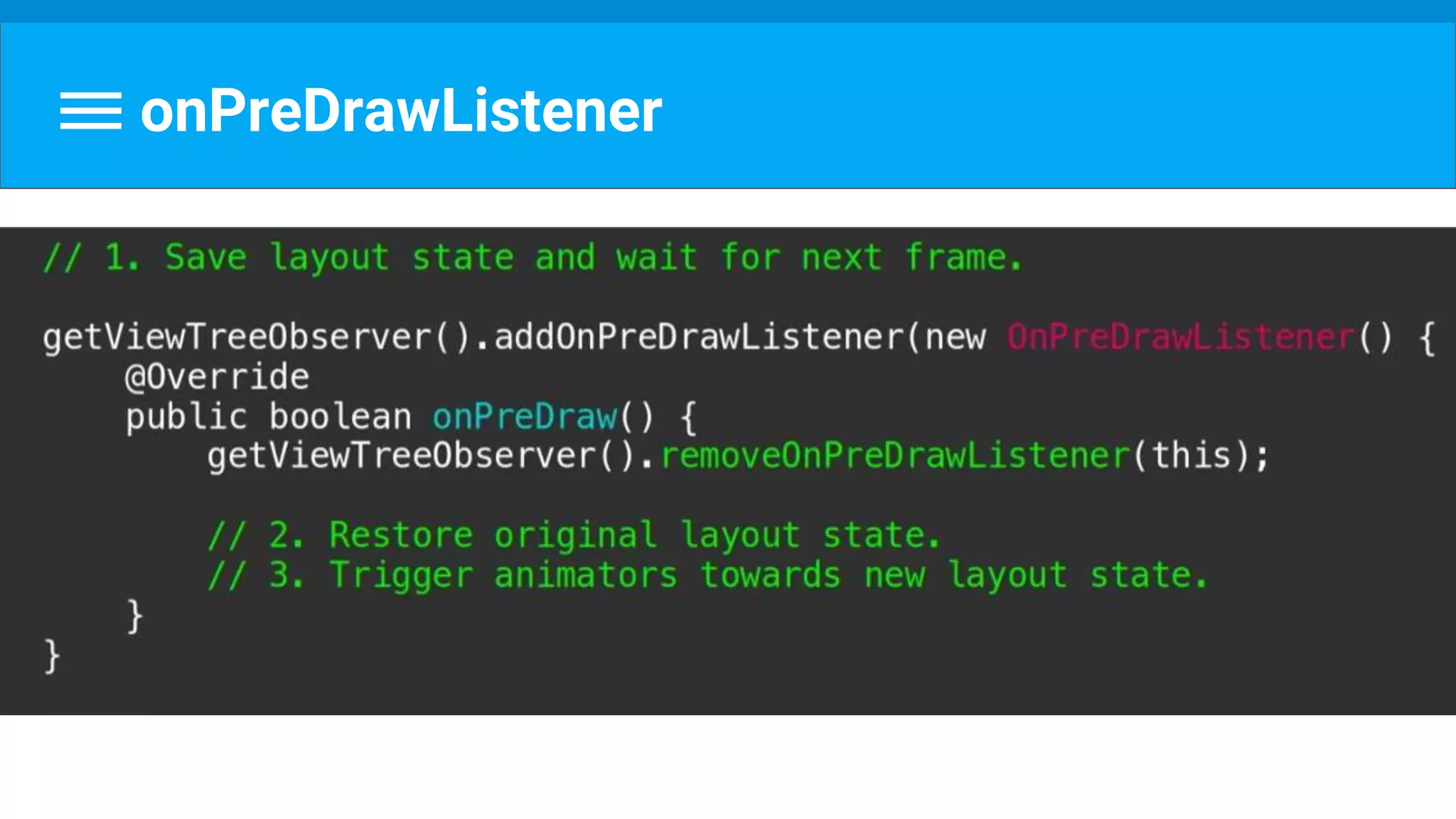
onPreDrawListener
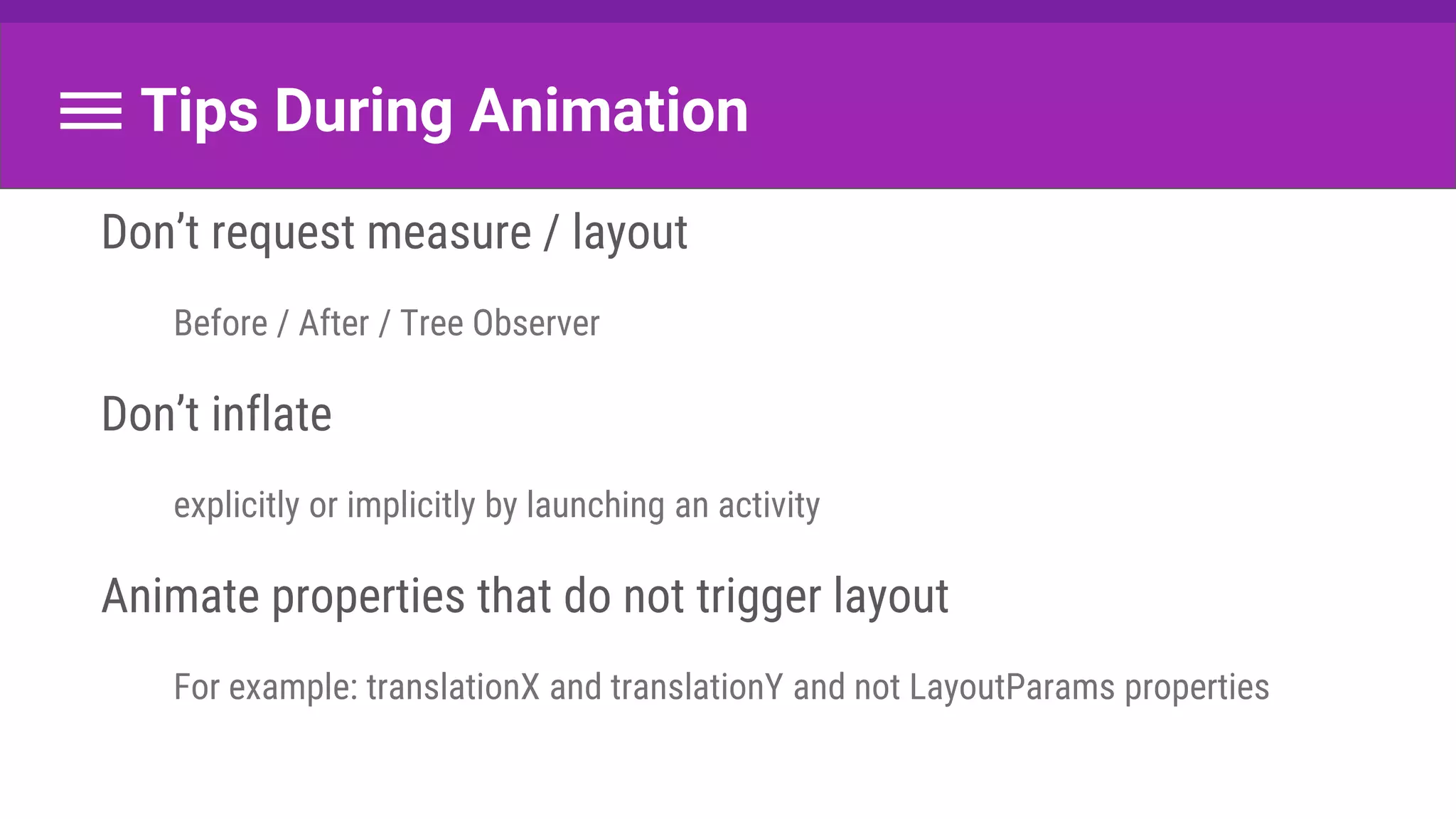
Tips During Animation
Don’t request measure / layout
Before / After / Tree Observer
Don’t inflate
explicitly or implicitly by launching an activity
Animate properties that do not trigger layout
For example: translationX and translationY and not LayoutParams properties
Any Questions?
What Happened Here Today?
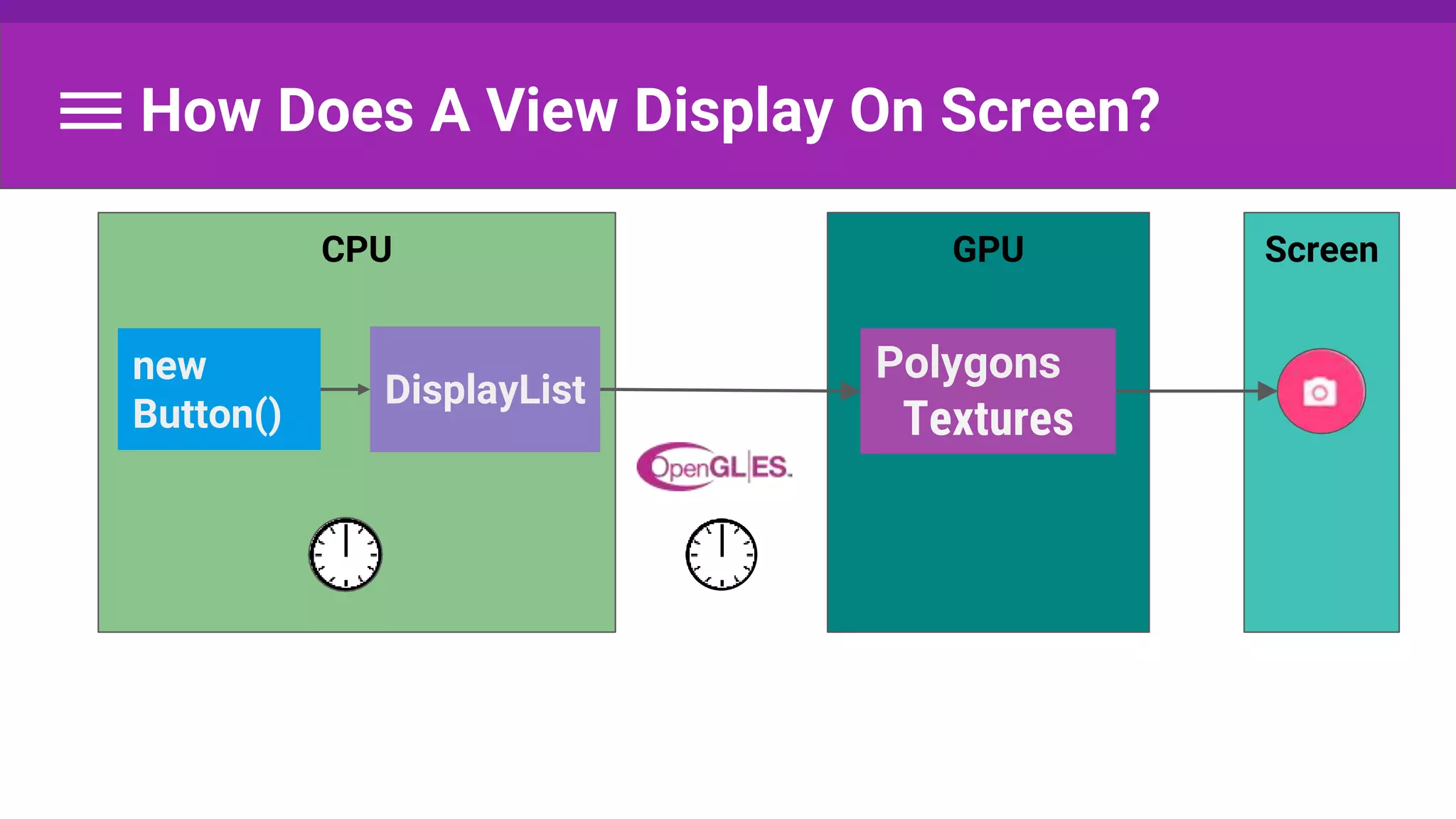
How Does A View Display On Screen?
ScreenGPU
Polygons
Textures
CPU
new
Button()
DisplayList
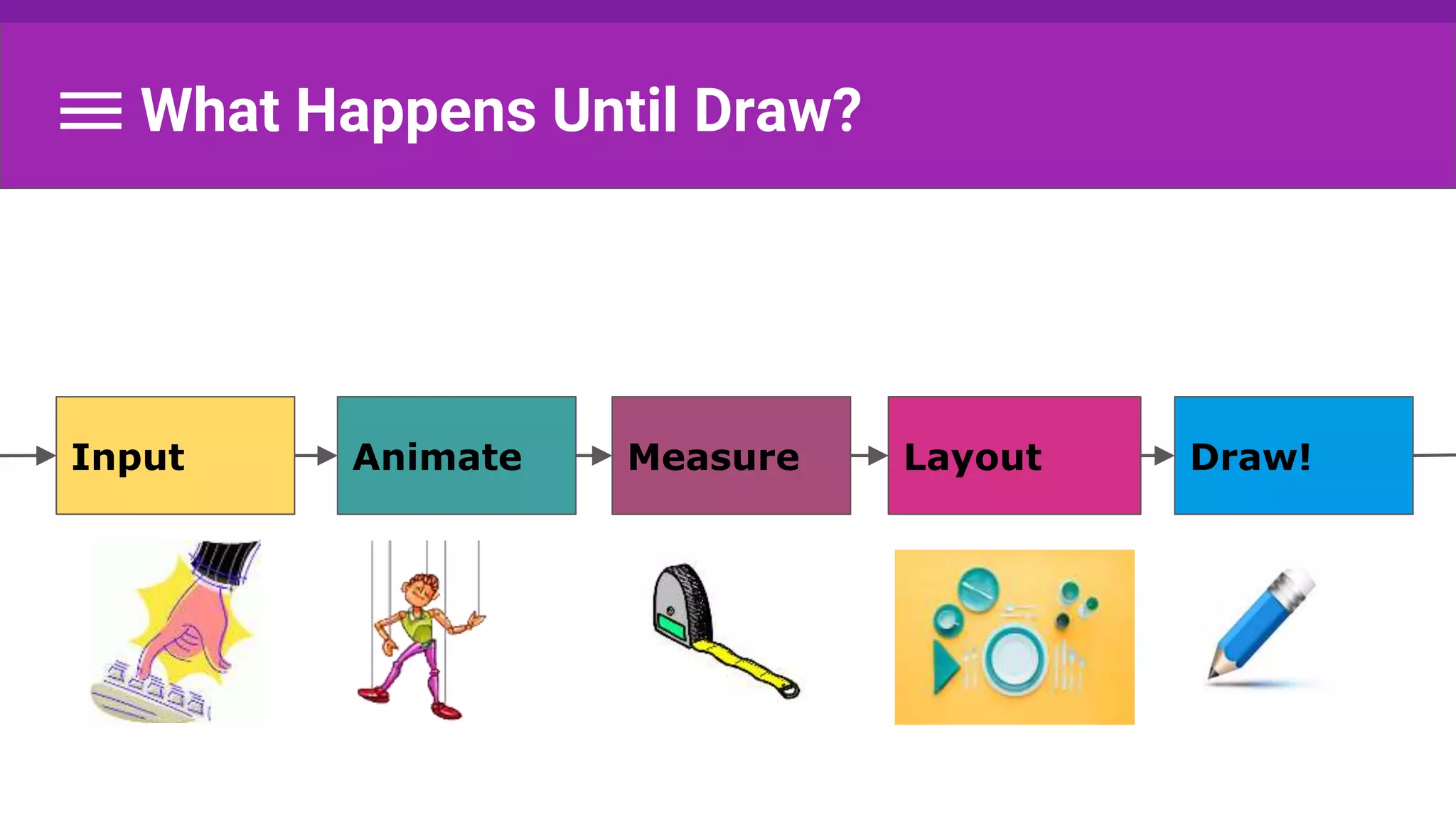
What Happens Until Draw?
Measure Layout Draw!Input Animate
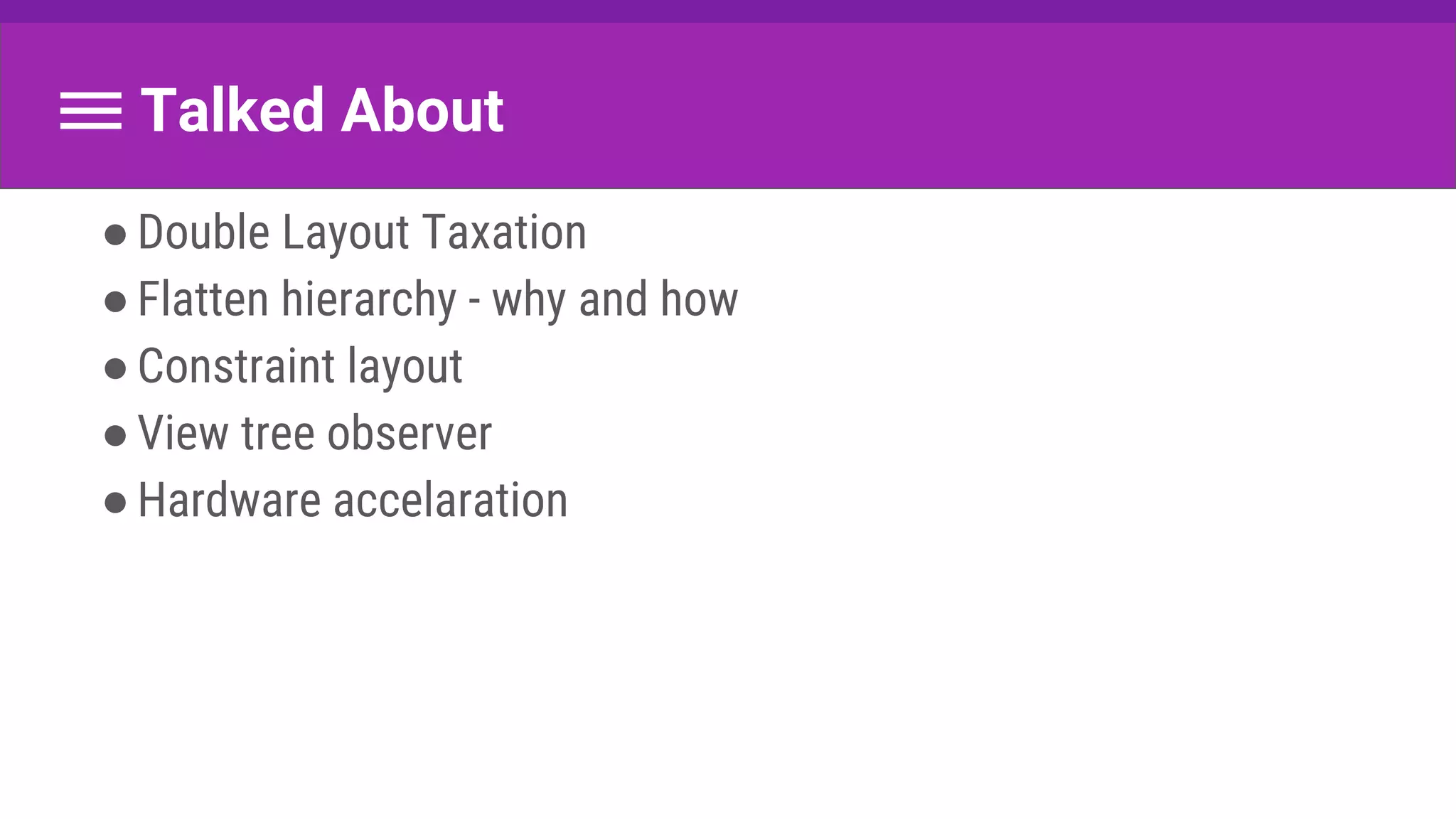
Talked About
●Double Layout Taxation
●Flatten hierarchy - why and how
●Constraint layout
●View tree observer
●Hardware accelaration
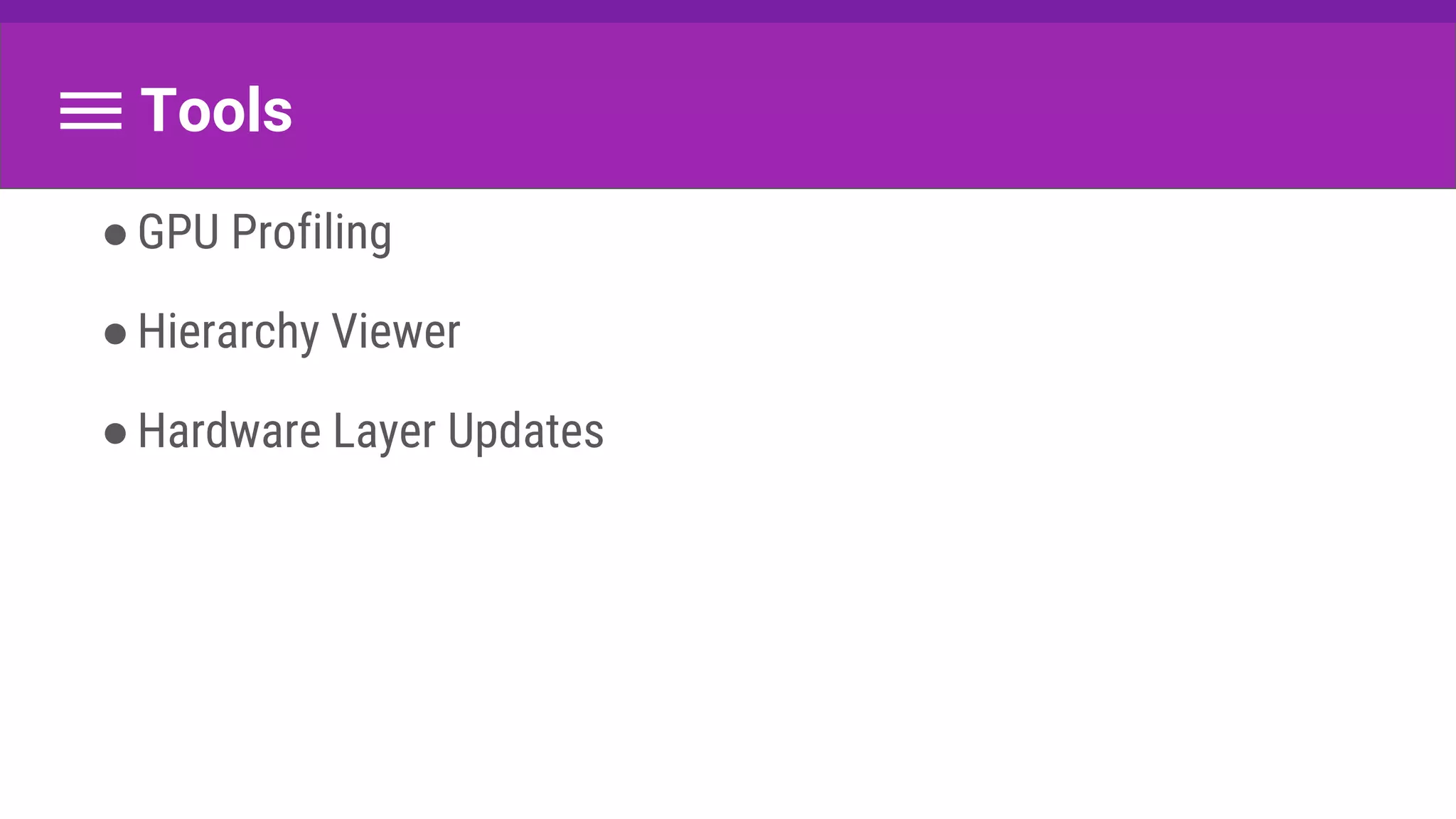
Tools
●GPU Profiling
●Hierarchy Viewer
●Hardware Layer Updates
Tips
1.measure() only during layout()
2.No layout() during layout()
3.No layout / measure during animation
4.No inflation during animation
5.Minimize requestLayout()
6.Invalidate regions when possible [rather than whole view]
Tips
7. New allocations during traversal :
On layout - ok-ish
On measure - avoid
On draw - no way! [called each frame!]
Tips
8. Animate without trigger layout
9. Animate with hardware acceleration
Clean up
Don’t invalidate on layer
Links
Android UI Performance:
● https://www.youtube.com/watch?v=CaMTIgxCSqU
● https://www.youtube.com/watch?v=dB3_vgS-Uqo
● https://www.youtube.com/watch?v=WH9AFhgwmDw
● https://www.youtube.com/watch?v=1iaHxmfZGGc
● https://www.youtube.com/watch?v=we6poP0kw6E
● https://youtu.be/erGJw8WDV74
● https://medium.com/google-developers/developing-for-android-iii-2efc140167fd#.7lyadzb2a
● http://blog.udinic.com/2015/09/15/speed-up-your-app
● https://www.youtube.com/watch?v=sdkcuvZCh1U
● https://medium.com/google-developers/developing-for-android-iii-2efc140167fd#.7lyadzb2a
How Android draws :
● https://developer.android.com/guide/topics/ui/how-android-draws.html
● https://blog.inovex.de/android-graphics-pipeline-from-button-to-framebuffer-part-1/
● https://blog.inovex.de/android-graphics-pipeline-from-button-to-framebuffer-part-2/
Links
GPU Profiling:
● https://developer.android.com/studio/profile/dev-options-rendering.html
● https://youtu.be/VzYkVL1n4M8
● https://developer.android.com/studio/profile/am-gpu.html
Hierarchy Viewer:
● https://developer.android.com/studio/profile/optimize-ui.html
● https://developer.android.com/studio/profile/hierarchy-viewer-walkthru.html
Constrain Layout:
● https://www.youtube.com/watch?v=sO9aX87hq9c
● http://tools.android.com/tech-docs/layout-editor
● https://medium.com/exploring-android/exploring-the-new-android-constraintlayout-eed37fe8d8f1#.mzfwdhxon
● https://codelabs.developers.google.com/codelabs/constraint-layout/index.html
Will Post Notes Soon :)
Any Questions?
Thank You !

Performance #3 layout&amp;animation

  • 1.
    Layout & Animation Performance BrittBarak 13/6/2016 Wifi: GoogleGuestPSK pass: pUp3EkaP 3
  • 2.
  • 3.
    Britt Barak Britt Barak 3 ●Real- Android Team Leader ●Android Academy TLV
  • 4.
    Yonatan Levin Android EvangelistGett Idan Felix Senior Android & Redhead Varonis Jonathan Yarkoni Android Developer & Advocate Ironsource Android Academy Staff Britt Barak Android Lead Real Muiriel Felix Android Design
  • 5.
  • 6.
  • 7.
    What’s next? 4/7 -Yonatan - Networking, JSON, Batching, Location 10/8 - Felix - Battery & CPU 14/9 - Britt - Threading
  • 8.
    30 / 10/ 2016 New course coming
  • 9.
    Today Will BeAwesome! - Go deep - Get practical - Important tips - Cool tools - Learn brand new stuff!
  • 10.
  • 11.
  • 12.
    How Is MotionPerceived?
  • 13.
    How Is MotionPerceived? Smooth Motion 60 No Difference 60+ Flip Book 12 Movies Frames Per Second Fluid Motion 24 +effects
  • 14.
    We Have AWinner! Smooth Motion 60 No Difference 60+ Flip Book 12 Movies Frames Per Second Fluid Motion 24 +effects Smooth Motion 60 Colt McAnlis: https://youtu.be/CaMTIgxCSqU
  • 15.
    60 FPS 60 Frames/ Second = Frame / 16.666 Millisecond
  • 16.
    But First ThingFirst But First Thing First But First Thing First
  • 17.
    How Did MyCode Became Pixels? ScreenCPU new Button()
  • 18.
  • 19.
    Rasterization From a highlevel object into pixels on screen (or in texture). https://en.wikipedia.org/wiki/Rasterisation
  • 20.
    GPU - ForThe Rescue !
  • 21.
    GPU - ForThe Rescue! ScreenCPU new Button() GPU Rasterization
  • 22.
    GPU - ForThe Rescue! ScreenCPU new Button() GPU Polygons Textures Polygons Textures Rasterization
  • 23.
  • 24.
  • 25.
  • 26.
    Optimizing - Reduce #object conversions - Reduce # uploading to GPU
  • 27.
  • 28.
  • 29.
    By The Way... Forthis simple button:
  • 30.
    By The Way... Thisis the Display List:
  • 31.
    By The Way... Theseare the OpenGl Commands:
  • 32.
  • 33.
  • 34.
  • 35.
    GPU Profiling ● Agraph per visible app ● A bar per frame ● Render time corresponds height ● 16 millis benchmark (green) ● Crossing = skipping frame https://developer.android.com/studio/profile/dev-options-rendering.html
  • 36.
  • 37.
  • 38.
    VSync/Misc Input Animation Measure/ Layout Draw Sync &Upload Command Issue Swap Buffers So What Does That Mean?
  • 39.
    Vsync / MiscTime Misc = (vsync timestamp) - (timestamp when received) → work on the UI thread between two consecutive frames ● Choreographer log : “Missed vsync by XX ms skipping XX frames” High? move work off UI Thread VSync/ Misc Input Animation Measure/ Layout Draw Sync & Upload Command Issue Swap Buffers
  • 40.
    Input Handling App codeinside an input event callback. High? optimize/offload processing input VSync/ Misc Input Animation Measure/ Layout Draw Sync & Upload Command Issue Swap Buffers
  • 41.
    Animation Evaluate all runninganimators Often : object animator, view property animator, and transitions High?(2milis+) check custom animators / unintended work VSync/ Misc Input Animation Measure/ Layout Draw Sync & Upload Command Issue Swap Buffers
  • 42.
    Measure / Layout Executinglayout and measure callbacks for needed view. More on that in a few slides :) VSync/ Misc Input Animation Measure/ Layout Draw Sync & Upload Command Issue Swap Buffers
  • 43.
    Draw update (/creates) alldisplay lists + cache. High? complex onDraw() logic many views invalidated VSync/ Misc Input Animation Measure/ Layout Draw Sync & Upload Command Issue Swap Buffers
  • 44.
    Sync & Upload Uploadbitmap to the GPU. High? Too many images Too big of an image VSync/ Misc Input Animation Measure/ Layout Draw Sync & Upload Command Issue Swap Buffers
  • 45.
    Command Issue Execution: Android's2D renderer issuing commands to OpenGL to draw and redraw all display lists High? ●Complex view (custom?) ●Many views redrawing: ○ Invalidation ○ animationVSync/ Misc Input Animation Measure/ Layout Draw Sync & Upload Command Issue Swap Buffers
  • 46.
    Swap Buffers CPU donerendering and wait for GPU ack. High? A lot of GPU work VSync/ Misc Input Animation Measure/ Layout Draw Sync & Upload Command Issue Swap Buffers
  • 47.
    TODA Y VSync/Misc Input Animation Measure/ Layout Draw Sync &Upload Command Issue Swap Buffers So What Does That Mean? Prev.talk
  • 48.
  • 49.
    So Let TheFun Begin :)
  • 50.
  • 51.
    Step 1: Measure Goal:obtain view size REF: http://developer.android.com/reference/android/view/View.html#onMeasure(int, int)
  • 52.
    Step 1: Measure Goal:obtain view size, including its descendants size REF: http://developer.android.com/reference/android/view/View.html#onMeasure(int, int)
  • 53.
    Step 1: Measure Goal:obtain view size, including its descendants size, agreed by its parent. REF: http://developer.android.com/reference/android/view/View.html#onMeasure(int, int)
  • 54.
    Step 1: Measure- What’s View SIZE? - width & height (aka: drawing width & drawing height) - - Actual size on screen, at drawing time and after layout. REF: http://developer.android.com/reference/android/view/View.html#onMeasure(int, int)
  • 55.
    Step 1: Measure- What’s View SIZE? - width & height (aka: drawing width and drawing height) - the actual size of the view on screen, at drawing time and after layout. - measured width & measured height - how big a view wants to be within its parent REF: http://developer.android.com/reference/android/view/View.html#onMeasure(int, int)
  • 56.
    Step 1: Measure- What’s View SIZE? - Including Padding - Excluding Margins - (supported by view groups: ViewGroupand ViewGroup.MarginLayoutParams ) REF: http://developer.android.com/reference/android/view/View.html#onMeasure(int, int)
  • 57.
  • 58.
    ViewGroup.LayoutParams How big theView wants to be For each dimension, it can specify one of: an exact number MATCH_PARENT WRAP_CONTENT *Might be subclassed, like in RelativeLayout
  • 59.
    MeasureSpec Parent requirement forchild UNSPECIFIED: as child wants EXACTLY: exact size AT MOST: maximum size
  • 60.
    Multiple measure() Calls measure()may be called more than once For example: - Call once with UNSPECIFIED - If size too big/small- evaluate - Call with exact size
  • 61.
    Step 1: Measure- How Does It Work? ● measure(int, int) ○ → (calls onMeasure() which should be overridden) ● Set measuredWidth & measuredHeight ○ (can call super) ● Including for the View's descendants. ● respects parents’ constraints. REF: http://developer.android.com/reference/android/view/View.html#onMeasure(int, int)
  • 62.
    Step 1: Measure- Reminder Goal: obtain view size, including its descendants size, agreed by its parent. REF: http://developer.android.com/reference/android/view/View.html#onMeasure(int, int)
  • 63.
  • 64.
  • 65.
    Step 2: Layout Goal: set position for view and all its children REF: http://developer.android.com/reference/android/view/View.html#onLayout(boolean, int, int, int, int)
  • 66.
    Step 2: Layout ●layout(int, int, int, int) ○ → (calls onLayout() which should be overridden) ● Assign a size and position to a view and all of its descendants ○ (can call super) ● Including for the View object's descendants. ● respects parents’ constraints. REF: http://developer.android.com/reference/android/view/View.html#onMeasure(int, int)
  • 67.
    - View drawsitself with size and position from previous steps. - onDraw(Canvas) is called - Canvas object generates (or Updates) a list of OpenGL-ES commands (displayList) to send to the GPU. Step 3: Draw (AKA Update) REF: http://developer.android.com/reference/android/view/View.html#onDraw(android.graphics.Canvas) Guide: http://developer.android.com/training/custom-views/custom-drawing.html
  • 68.
    Plus ça change,plus c'est la même chose
  • 69.
    When Things Change... E.g.text, color, size, padding, margin... A view notifies the system, by calling: Invalidate - which will call the onDraw again, or requestLayout - which will call the entire process again.
  • 70.
    ●Adds a flag ●Recreatedisplaylist in next frame invalidate()
  • 71.
    requestLayout() Bubble up tothe root view. Heavy for deep view hierarchy. Called once a frame.
  • 72.
    When Do RequestLayout? View1 View2
  • 73.
    When Do RequestLayout? View2View1
  • 74.
    When Do RequestLayout? View2View1
  • 75.
    So it seemsthat layout passes once... Or is it?
  • 76.
    Root View :RelativeLayout 2 passes per change: 1)By views’ requests a)Then relativeLayout calculates by relations & weights 2)Determine the final positions for rendering.
  • 77.
    Root View :RelativeLayout Example: ●Every view is RelativeLayout ●Per Leaf change: 2*2*2 = 8 traversals X2 X2 X2
  • 78.
    Root View :LinearLayout Generally issues 1 layout request Unless: ●measureWithLargestChild(true) ○ Children with weights will have minimum size of largest child ●Nested weights
  • 79.
    Root View :GridLayout Allows relative positioning, while preprocessing the child view relationships.
  • 80.
    Root View :GridLayout Generally issues 1 layout request Unless: ●Layout_gravity: fill* ●Wrong weights
  • 81.
    This is called DoubleLayout Taxation
  • 82.
    It Usually WorksFine… But... ●Root elements ●Deep view hierarchy ●Too many (i.e. list) Can hurt.
  • 83.
    What can wedo? ●Flatten hierarchy : Removing unneeded views Merge on include flatter layout Beware double layout taxation Minimize layout requests
  • 84.
  • 85.
  • 86.
    Hierarchy Viewer Tools→ Android→ Android Device Monitor → Hierarchy Viewer Display complete view hierarchy Access to all the views’ properties Get performance stats
  • 87.
  • 88.
    Hierarchy Viewer - Greendot : in the faster 50% of all the View objects - Yellow : in the slower than 50% - Red: the slowest - requestLayout:
  • 89.
    Ok ok , butwhich layout should I choose??
  • 90.
    Simple VS ComplexLayouts ●Simple : LinearLayout, FrameLayout, TableLayout ●Complex : RelativeLayout , GridLayout
  • 91.
    Simple VS ComplexLayouts ●Simple : LinearLayout, FrameLayout, TableLayout ○ → Nesting → Performance Problems ●Complex : RelativeLayout , GridLayout ○ → hard to use & maintain ○ → shouldn’t be @ top hierarchy
  • 92.
  • 93.
  • 94.
  • 95.
    Constraint Layout ●Api 9+ ●Performanceoriented: ○ Reduce nesting ○ Improve measure/layout ○ Best practice : top level, without nesting layouts User friendly: Expressive
  • 96.
    The New LayoutEditor Android Studio 2.2 Preview Designed for ConstraintLayout - but not only! Works with all layouts Better with custom views (use View.isInEditMode()) More features : like editing menu resources….
  • 97.
    Setting Up 1.Android Studio2.2 Preview 2.Android Support Repository (version 32+): 3.Add the library on your build.gradle file: dependencies { compile 'com.android.support.constraint:constraint-layout:1.0.0- alpha3' }
  • 98.
    Concept Similar to RelativeLayout: Position a view relative to other layout elements. Yet more expressive & powerful
  • 99.
    Getting Started Drag awidget from Palette to the work space Click a widget to see properties on the right
  • 100.
  • 101.
    Idea View has 4sides : left, top, right, bottom + baseline for textview So we can: Connect view side to layout Connect 2 view sides Align 2 view sides Align 2 textview baselines
  • 102.
    Side Constraint Handle Locatethe view within the layout. app:layout_constraintRight_toRightOf="@+id/text_like_count"
  • 103.
    Baseline Constraint Handle alignthe baseline of multiple textviews app:layout_constraintBaseline_toBaselineOf="@+id/text_title"
  • 104.
    Possible Attributes layout_constraintX_toYOf  X andY can be replaced with: a. Top b. Bottom c. Left d. Right e. Start f. End g. Baseline
  • 105.
    Centering constraints from bothsides (ie top and bottom of view to top and bottom of layout) And then...
  • 106.
    Vertical Bias Positioning relativeto constrained position. app:layout_constraintVertical_bias="0.5"
  • 107.
    Horizontal Bias Positioning relativeto constrained position. app:layout_constraintHorizontal_bias="0.5"
  • 108.
    Resize Handle re-calculate theconstraints that have been previously set
  • 109.
  • 110.
    View Sizing :Any Size match_parent and use the available space.
  • 111.
    View Sizing :WrapContent as big as it needs to be.
  • 112.
  • 113.
    Autoconnect Automatically creates constraints fora selected view Can enable/ disable at anytime.
  • 114.
    Inference Automatically create constraintsfor all of the views in your layout
  • 115.
    Deleting Constraints Single constraints- click the anchor point All constraints for a view button when view is selected All constraints for layout icon on top bar
  • 116.
    More View Properties PropertiesPane, on right hand side when clicking a view
  • 117.
    Converting To ConstraintLayout 1.Openlayout on editor 2.right-click the layout → Convert <layout> to ConstraintLayout.
  • 118.
    Well, that aboutit! Not officially released, but quite stable. Give it a try :) https://codelabs.developers.google.com/codelabs/constraint-layout/index.html
  • 119.
  • 120.
  • 121.
  • 122.
    Animation Reminder : Changinga view property causes invalidation. Same for animation, when changing the animated property (e.g. x coordinate, scale, alpha value etc.)
  • 123.
    Animation For complex views, animationmay not be smooth. What can we do?
  • 124.
    View Layer -Hardware Acceleration Render into an off-screen buffer (backed by Hardware) Texture is created in the GPU for our view Change properties without invalidating Smoother animation https://developer.android.com/guide/topics/graphics/hardware-accel.html#drawing-support
  • 125.
    View Layer -Hardware Acceleration ScreenGPU Polygons Textures CPU new Button() DisplayList Make Changes Here
  • 126.
    Properties alpha: Changes thelayer's opacity x, y, translationX, translationY: Changes the layer's position scaleX, scaleY: Changes the layer's size rotation, rotationX, rotationY: Changes the layer's orientation in 3D space pivotX, pivotY: Changes the layer's transformations origin
  • 127.
    // Using ObjectAnimator view.setLayerType(View.LAYER_TYPE_HARDWARE,null); ObjectAnimator animator = ObjectAnimator.ofFloat(view, "rotationY", 180); animator.addListener(new AnimatorListenerAdapter() { @Override public void onAnimationEnd(Animator animation) { view.setLayerType(View.LAYER_TYPE_NONE, null); } }); animator.start();
  • 128.
    // Using Propertyanimator view.animate().rotationY(180f) .withLayer() .start();
  • 129.
    Remember! 1.Clean up thespace ○ hardware layers consume of GPU limited memory space 2.Invalidation on hardware layer has a large overhead.
  • 130.
    Hardware Layers UpdatesTool Developer Options → Enable the “Show hardware layers updates” → Green flash when hardware layer updates
  • 131.
  • 132.
  • 133.
  • 134.
    What if wewant the size during an animation?
  • 135.
    ViewTreeObserver ●Provided by theview hierarchy ●Use to register listeners to view tree global changes ○ For example: layout of the whole tree, beginning of the drawing, touch mode change.... ●Use with getViewTreeObserver() https://developer.android.com/reference/android/view/ViewTreeObserver.html
  • 136.
  • 137.
    Tips During Animation Don’trequest measure / layout Before / After / Tree Observer Don’t inflate explicitly or implicitly by launching an activity Animate properties that do not trigger layout For example: translationX and translationY and not LayoutParams properties
  • 138.
  • 139.
  • 140.
    How Does AView Display On Screen? ScreenGPU Polygons Textures CPU new Button() DisplayList
  • 141.
    What Happens UntilDraw? Measure Layout Draw!Input Animate
  • 142.
    Talked About ●Double LayoutTaxation ●Flatten hierarchy - why and how ●Constraint layout ●View tree observer ●Hardware accelaration
  • 143.
  • 144.
    Tips 1.measure() only duringlayout() 2.No layout() during layout() 3.No layout / measure during animation 4.No inflation during animation 5.Minimize requestLayout() 6.Invalidate regions when possible [rather than whole view]
  • 145.
    Tips 7. New allocationsduring traversal : On layout - ok-ish On measure - avoid On draw - no way! [called each frame!]
  • 146.
    Tips 8. Animate withouttrigger layout 9. Animate with hardware acceleration Clean up Don’t invalidate on layer
  • 147.
    Links Android UI Performance: ●https://www.youtube.com/watch?v=CaMTIgxCSqU ● https://www.youtube.com/watch?v=dB3_vgS-Uqo ● https://www.youtube.com/watch?v=WH9AFhgwmDw ● https://www.youtube.com/watch?v=1iaHxmfZGGc ● https://www.youtube.com/watch?v=we6poP0kw6E ● https://youtu.be/erGJw8WDV74 ● https://medium.com/google-developers/developing-for-android-iii-2efc140167fd#.7lyadzb2a ● http://blog.udinic.com/2015/09/15/speed-up-your-app ● https://www.youtube.com/watch?v=sdkcuvZCh1U ● https://medium.com/google-developers/developing-for-android-iii-2efc140167fd#.7lyadzb2a How Android draws : ● https://developer.android.com/guide/topics/ui/how-android-draws.html ● https://blog.inovex.de/android-graphics-pipeline-from-button-to-framebuffer-part-1/ ● https://blog.inovex.de/android-graphics-pipeline-from-button-to-framebuffer-part-2/
  • 148.
    Links GPU Profiling: ● https://developer.android.com/studio/profile/dev-options-rendering.html ●https://youtu.be/VzYkVL1n4M8 ● https://developer.android.com/studio/profile/am-gpu.html Hierarchy Viewer: ● https://developer.android.com/studio/profile/optimize-ui.html ● https://developer.android.com/studio/profile/hierarchy-viewer-walkthru.html Constrain Layout: ● https://www.youtube.com/watch?v=sO9aX87hq9c ● http://tools.android.com/tech-docs/layout-editor ● https://medium.com/exploring-android/exploring-the-new-android-constraintlayout-eed37fe8d8f1#.mzfwdhxon ● https://codelabs.developers.google.com/codelabs/constraint-layout/index.html
  • 149.
  • 150.
  • 151.