PCB Tutorial
Steps in Designing a PCB
 DECIDE WHAT FUNCTIONALITY YOU NEED
 Break that functionality into small modules
 Sense motion -> IMU
 Communicate with phone -> Bluetooth module
 Research components for each module
 Always read the datasheets
 Check to make sure footprints are solderable
 Choose a CPU that can interface with your modules and meets other requirements
 Try not to pick something overly complicated
Steps in Designing a PCB
 MAKE THE SYSTEM SCHEMATIC
 Confirm every part has a schematic symbol and footprint
 If it doesn’t then make your own
 Place all parts on the schematic and wire
 Remember to add lots of bypass caps
 Check errors to make sure everything is properly connected
 MAKE PCB
 Check design rules
 Place parts in reasonable location (minimize rats nest)
 Use polygon pours for power and ground
 Route remaining traces (use larger width for high current)
 Check DRC
Interacting with Schematic Parts
 ALL PARTS HAVE A CROSSHAIR THAT CAN BE INTERACTED WITH
 KIND OF GOOFY FOR SOME PARTS LIKE FRAME
 WHEN SELECTING MULTIPLE OBJECTS, SOME COMMANDS LIKE MOVE REQUIRE RIGHT
CLICKING TO AFFECT THE WHOLE GROUP
Wiring it Up
 USE NET TOOL TO MAKE CONNECTIONS
 DON’T ALWAYS NEED TO MAKE A PHYSICAL CONNECTION
 Create a partial net
 Use the name tool to give it a proper name
 Use the label tool to place that name right on the net
 Repeat for other pins you want to connect
 ALWAYS DO AN ERC WHEN FINISHED TO FIND ANY MISTAKES.
PCB Layout
 USE FILE -> SWITCH TO SCHEMATIC TO CREATE A PCB FOR YOUR SCHEMATIC
 FIRST SET UP YOUR GRID, USUALLY WANT A SLIGHTLY LARGE GRID AND A MUCH
SMALLER ALT GRID
 NEXT, USE DRC TO SET UP DESIGN RULES ACCORDING TO PCB MANUFACTURER
REQUIREMENTS
 Can download and import Osh Park DRU
 WHEN MOVING PARTS, EVERYTHING SNAPS TO GRID, CAN HOLD ALT KEY TO GET MORE
FINE GRAINED CONTROL
 TRY TO ARRANGE PARTS TO MINIMIZE THE RAT’S NEST
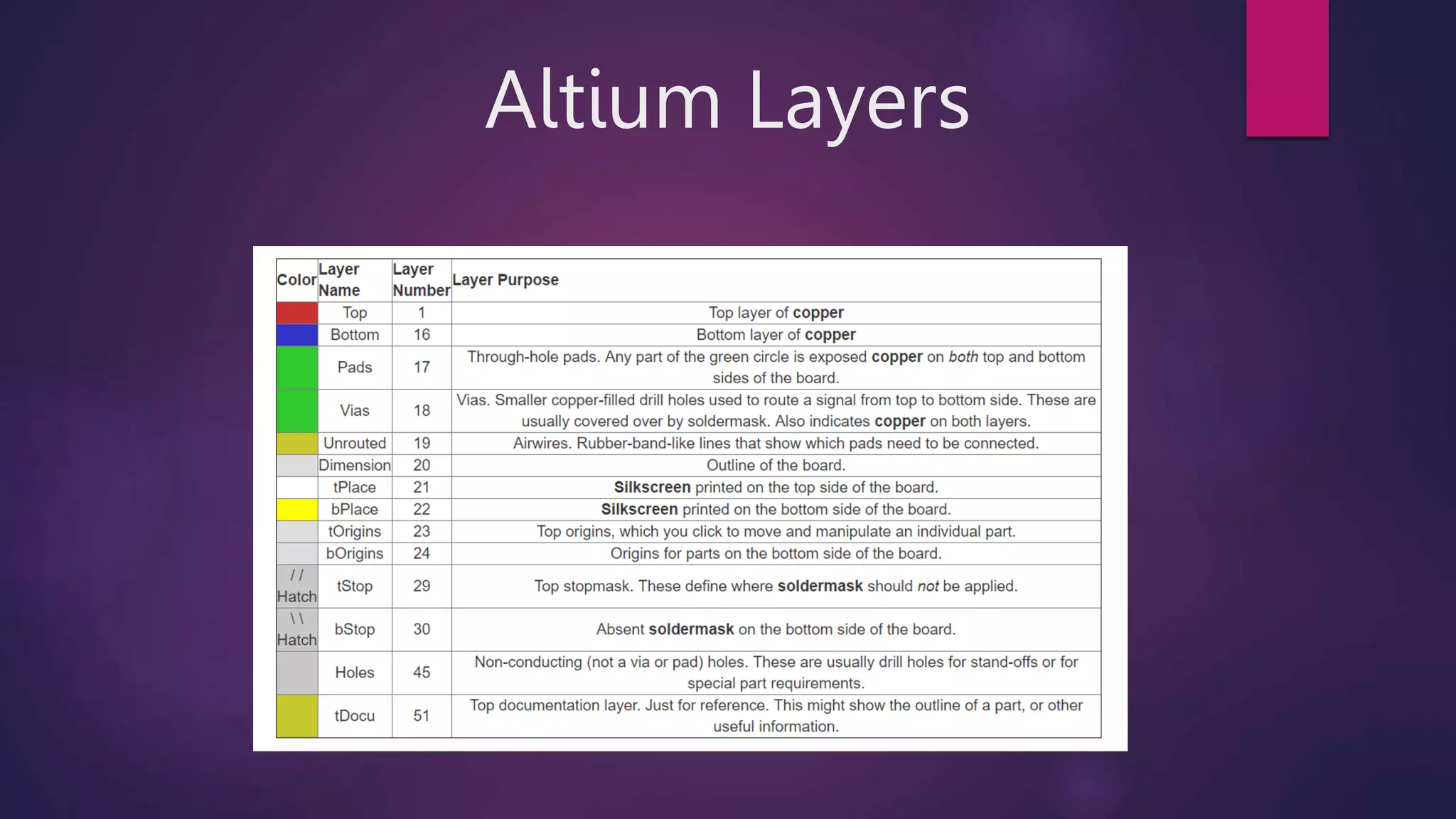
Altium Layers
Routing
 CURRENT OPERATING LAYER SHOWN IN UPPER LEFT
 CLICK MIDDLE MOUSE BUTTON TO SWITCH
 FOCUS ON ONE TRACE AT A TIME
 Use middle click to place a via
 Right click to change wire style
 For tight boards, try to keep top layer horizontal and bottom layer vertical
 Use bigger traces for power and ground if possible
 WHEN FINISHED, USE RATS NEST TO CHECK IF ANYTHING MISSED
 ALWAYS DO A DRC
Advanced Routing
 GOOD IDEA TO USE POLYGON POURS FOR POWER AND GROUND
 Provides good capacitance to reduce noise
 Makes routing easier
 Looks cool
 USE POLYGON POUR TOOL TO TRACE OUTLINE
 PRESS RATSNEST TO FILL IN.
 CAN STILL ROUTE THROUGH THE POUR OR HIDE WITH RIPUP ON THE EDGE
 ALSO FUN TO WRITE ON THE BOARD BY EDITING THE SILKSCREEN
 Choose tPlace or bPlace layer then use drawing or text tools
 Wont affect circuit, purely visual
Finishing Up
 NEED TO CONVERT SCHEMATIC TO FORMAT A PCB MANUFACTURER CAN PARSE
 Standard to use Gerber files
 Need one Gerber file for each layer of the board
 PRESS THE CAM TOOL BUTTON
 Open job, choose the sparkfun job file
 Process job
 Zip the cam files up and submit to Osh Park
Creating Custom Parts
 FROM THE CONTROL PANEL GO TO FILE -> NEW -> LIBRARY
 LIBRARY -> SYMBOL, NAME IT AND ACCEPT
 THIS OPENS AN EDITOR SIMILAR TO A SCHEMATIC
 Use shapes to draw a box
 Use the add pins tool to place pins on the box
 Name the pins
 Good idea to add >NAME and >VALUE text to part to allow more customization down the line,
make sure to set these to Names and Values layer respectively
 Save and then go to Library -> Create -> Package
Creating Custom Footprints
 START BY USING THE SMD OR PAD TOOL TO PLACE PADS
 CAN CHANGE TO METRIC UNITS USING GRID
 SET SIZE OF PADS WITH INFO TOOL
 THE GRID IS YOUR FRIEND
 Set the grid distance to be the distance between pads for quick and easy placement
 Hold control while moving to have pads center on grid
 Can also use info to explicitly choose center
 USE TPLACE LAYER TO DRAW SHAPE OF CHIP BODY (OPTIONAL)
 ADD >NAME AND >VALUE TEXT IN TNAME AND TVALUE LAYERS
Associate Symbol and Package
 LIBRARY -> DEVICE -> NEW
 Name it the same thing as the Symbol and Package
 USE ADD TO PLACE THE SYMBOL FOR THE PART
 IN THE RIGHT SIDE, PRESS NEW AND ADD THE PACKAGE
 Note the yellow exclamation, this means pins have not been associated
 DOUBLE CLICK ON THE PACKAGE NAME TO ASSOCIATE
 SET PREFIX (DEFAULT IS U)
 MATCH LEFT AND RIGHT SIDES THEN PRESS CONNECT
 SAVE AND YOU’RE DONE!
 FIND YOUR LIBRARY IN THE CONTROL PANEL, RIGHT CLICK AND USE
Thank You

PCB Tutorial.pptx

  • 1.
  • 2.
    Steps in Designinga PCB  DECIDE WHAT FUNCTIONALITY YOU NEED  Break that functionality into small modules  Sense motion -> IMU  Communicate with phone -> Bluetooth module  Research components for each module  Always read the datasheets  Check to make sure footprints are solderable  Choose a CPU that can interface with your modules and meets other requirements  Try not to pick something overly complicated
  • 3.
    Steps in Designinga PCB  MAKE THE SYSTEM SCHEMATIC  Confirm every part has a schematic symbol and footprint  If it doesn’t then make your own  Place all parts on the schematic and wire  Remember to add lots of bypass caps  Check errors to make sure everything is properly connected  MAKE PCB  Check design rules  Place parts in reasonable location (minimize rats nest)  Use polygon pours for power and ground  Route remaining traces (use larger width for high current)  Check DRC
  • 4.
    Interacting with SchematicParts  ALL PARTS HAVE A CROSSHAIR THAT CAN BE INTERACTED WITH  KIND OF GOOFY FOR SOME PARTS LIKE FRAME  WHEN SELECTING MULTIPLE OBJECTS, SOME COMMANDS LIKE MOVE REQUIRE RIGHT CLICKING TO AFFECT THE WHOLE GROUP
  • 5.
    Wiring it Up USE NET TOOL TO MAKE CONNECTIONS  DON’T ALWAYS NEED TO MAKE A PHYSICAL CONNECTION  Create a partial net  Use the name tool to give it a proper name  Use the label tool to place that name right on the net  Repeat for other pins you want to connect  ALWAYS DO AN ERC WHEN FINISHED TO FIND ANY MISTAKES.
  • 6.
    PCB Layout  USEFILE -> SWITCH TO SCHEMATIC TO CREATE A PCB FOR YOUR SCHEMATIC  FIRST SET UP YOUR GRID, USUALLY WANT A SLIGHTLY LARGE GRID AND A MUCH SMALLER ALT GRID  NEXT, USE DRC TO SET UP DESIGN RULES ACCORDING TO PCB MANUFACTURER REQUIREMENTS  Can download and import Osh Park DRU  WHEN MOVING PARTS, EVERYTHING SNAPS TO GRID, CAN HOLD ALT KEY TO GET MORE FINE GRAINED CONTROL  TRY TO ARRANGE PARTS TO MINIMIZE THE RAT’S NEST
  • 7.
  • 8.
    Routing  CURRENT OPERATINGLAYER SHOWN IN UPPER LEFT  CLICK MIDDLE MOUSE BUTTON TO SWITCH  FOCUS ON ONE TRACE AT A TIME  Use middle click to place a via  Right click to change wire style  For tight boards, try to keep top layer horizontal and bottom layer vertical  Use bigger traces for power and ground if possible  WHEN FINISHED, USE RATS NEST TO CHECK IF ANYTHING MISSED  ALWAYS DO A DRC
  • 9.
    Advanced Routing  GOODIDEA TO USE POLYGON POURS FOR POWER AND GROUND  Provides good capacitance to reduce noise  Makes routing easier  Looks cool  USE POLYGON POUR TOOL TO TRACE OUTLINE  PRESS RATSNEST TO FILL IN.  CAN STILL ROUTE THROUGH THE POUR OR HIDE WITH RIPUP ON THE EDGE  ALSO FUN TO WRITE ON THE BOARD BY EDITING THE SILKSCREEN  Choose tPlace or bPlace layer then use drawing or text tools  Wont affect circuit, purely visual
  • 10.
    Finishing Up  NEEDTO CONVERT SCHEMATIC TO FORMAT A PCB MANUFACTURER CAN PARSE  Standard to use Gerber files  Need one Gerber file for each layer of the board  PRESS THE CAM TOOL BUTTON  Open job, choose the sparkfun job file  Process job  Zip the cam files up and submit to Osh Park
  • 11.
    Creating Custom Parts FROM THE CONTROL PANEL GO TO FILE -> NEW -> LIBRARY  LIBRARY -> SYMBOL, NAME IT AND ACCEPT  THIS OPENS AN EDITOR SIMILAR TO A SCHEMATIC  Use shapes to draw a box  Use the add pins tool to place pins on the box  Name the pins  Good idea to add >NAME and >VALUE text to part to allow more customization down the line, make sure to set these to Names and Values layer respectively  Save and then go to Library -> Create -> Package
  • 12.
    Creating Custom Footprints START BY USING THE SMD OR PAD TOOL TO PLACE PADS  CAN CHANGE TO METRIC UNITS USING GRID  SET SIZE OF PADS WITH INFO TOOL  THE GRID IS YOUR FRIEND  Set the grid distance to be the distance between pads for quick and easy placement  Hold control while moving to have pads center on grid  Can also use info to explicitly choose center  USE TPLACE LAYER TO DRAW SHAPE OF CHIP BODY (OPTIONAL)  ADD >NAME AND >VALUE TEXT IN TNAME AND TVALUE LAYERS
  • 13.
    Associate Symbol andPackage  LIBRARY -> DEVICE -> NEW  Name it the same thing as the Symbol and Package  USE ADD TO PLACE THE SYMBOL FOR THE PART  IN THE RIGHT SIDE, PRESS NEW AND ADD THE PACKAGE  Note the yellow exclamation, this means pins have not been associated  DOUBLE CLICK ON THE PACKAGE NAME TO ASSOCIATE  SET PREFIX (DEFAULT IS U)  MATCH LEFT AND RIGHT SIDES THEN PRESS CONNECT  SAVE AND YOU’RE DONE!  FIND YOUR LIBRARY IN THE CONTROL PANEL, RIGHT CLICK AND USE
  • 14.