PAMELA MARTÍNEZ #21 8ª


                         1
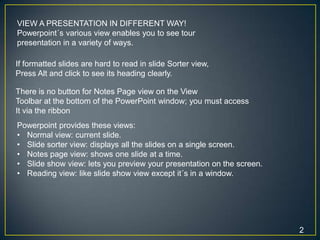
VIEW A PRESENTATION IN DIFFERENT WAY!
Powerpoint´s various view enables you to see tour
presentation in a variety of ways.

If formatted slides are hard to read in slide Sorter view,
Press Alt and click to see its heading clearly.

There is no button for Notes Page view on the View
Toolbar at the bottom of the PowerPoint window; you must access
It via the ribbon
Powerpoint provides these views:
• Normal view: current slide.
• Slide sorter view: displays all the slides on a single screen.
• Notes page view: shows one slide at a time.
• Slide show view: lets you preview your presentation on the screen.
• Reading view: like slide show view except it´s in a window.


                                                                       2
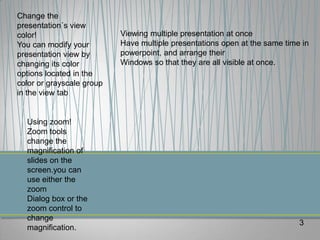
Change the
presentation´s view
color!                     Viewing multiple presentation at once
You can modify your        Have multiple presentations open at the same time in
presentation view by       powerpoint, and arrange their
changing its color         Windows so that they are all visible at once.
options located in the
color or grayscale group
in the view tab


  Using zoom!
  Zoom tools
  change the
  magnification of
  slides on the
  screen.you can
  use either the
  zoom
  Dialog box or the
  zoom control to
  change
                                                                            3
  magnification.
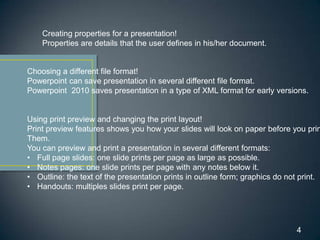
Creating properties for a presentation!
    Properties are details that the user defines in his/her document.


Choosing a different file format!
Powerpoint can save presentation in several different file format.
Powerpoint 2010 saves presentation in a type of XML format for early versions.


Using print preview and changing the print layout!
Print preview features shows you how your slides will look on paper before you prin
Them.
You can preview and print a presentation in several different formats:
• Full page slides: one slide prints per page as large as possible.
• Notes pages: one slide prints per page with any notes below it.
• Outline: the text of the presentation prints in outline form; graphics do not print.
• Handouts: multiples slides print per page.


                                                                              4
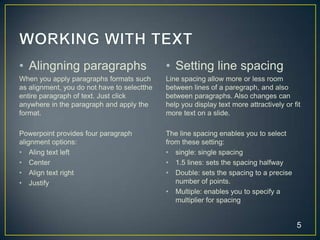
• Alingning paragraphs                       • Setting line spacing
When you apply paragraphs formats such       Line spacing allow more or less room
as alignment, you do not have to selectthe   between lines of a paregraph, and also
entire paragraph of text. Just click         between paragraphs. Also changes can
anywhere in the paragraph and apply the      help you display text more attractively or fit
format.                                      more text on a slide.

Powerpoint provides four paragraph           The line spacing enables you to select
alignment options:                           from these setting:
• Aling text left                            • single: single spacing
• Center                                     • 1.5 lines: sets the spacing halfway
• Align text right                           • Double: sets the spacing to a precise
• Justify                                       number of points.
                                             • Multiple: enables you to specify a
                                                multiplier for spacing


                                                                                         5
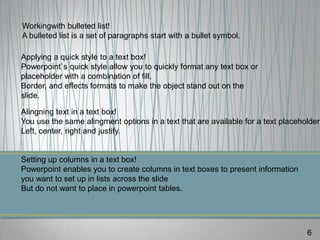
Workingwith bulleted list!
A bulleted list is a set of paragraphs start with a bullet symbol.

Applying a quick style to a text box!
Powerpoint`s quick style allow you to quickly format any text box or
placeholder with a combination of fill,
Border, and effects formats to make the object stand out on the
slide.

Alingning text in a text box!
You use the same alingment options in a text that are available for a text placeholder:
Left, center, right and justify.


Setting up columns in a text box!
Powerpoint enables you to create columns in text boxes to present information
you want to set up in lists across the slide
But do not want to place in powerpoint tables.


                                                                                  6
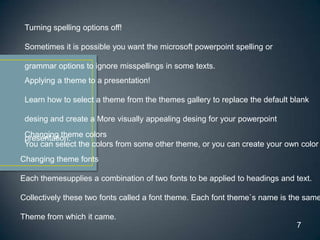
Turning spelling options off!

 Sometimes it is possible you want the microsoft powerpoint spelling or

 grammar options to ignore misspellings in some texts.
 Applying a theme to a presentation!

 Learn how to select a theme from the themes gallery to replace the default blank

 desing and create a More visually appealing desing for your powerpoint
 Changing theme colors
 presentation.
 You can select the colors from some other theme, or you can create your own color
Changing theme fonts

Each themesupplies a combination of two fonts to be applied to headings and text.

Collectively these two fonts called a font theme. Each font theme`s name is the same

Theme from which it came.
                                                                             7
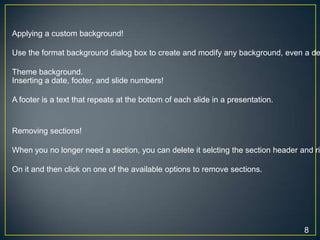
Applying a custom background!

Use the format background dialog box to create and modify any background, even a de

Theme background.
Inserting a date, footer, and slide numbers!

A footer is a text that repeats at the bottom of each slide in a presentation.


Removing sections!

When you no longer need a section, you can delete it selcting the section header and ri

On it and then click on one of the available options to remove sections.


                                                                                  8

P147 p158

  • 1.
  • 2.
    VIEW A PRESENTATIONIN DIFFERENT WAY! Powerpoint´s various view enables you to see tour presentation in a variety of ways. If formatted slides are hard to read in slide Sorter view, Press Alt and click to see its heading clearly. There is no button for Notes Page view on the View Toolbar at the bottom of the PowerPoint window; you must access It via the ribbon Powerpoint provides these views: • Normal view: current slide. • Slide sorter view: displays all the slides on a single screen. • Notes page view: shows one slide at a time. • Slide show view: lets you preview your presentation on the screen. • Reading view: like slide show view except it´s in a window. 2
  • 3.
    Change the presentation´s view color! Viewing multiple presentation at once You can modify your Have multiple presentations open at the same time in presentation view by powerpoint, and arrange their changing its color Windows so that they are all visible at once. options located in the color or grayscale group in the view tab Using zoom! Zoom tools change the magnification of slides on the screen.you can use either the zoom Dialog box or the zoom control to change 3 magnification.
  • 4.
    Creating properties fora presentation! Properties are details that the user defines in his/her document. Choosing a different file format! Powerpoint can save presentation in several different file format. Powerpoint 2010 saves presentation in a type of XML format for early versions. Using print preview and changing the print layout! Print preview features shows you how your slides will look on paper before you prin Them. You can preview and print a presentation in several different formats: • Full page slides: one slide prints per page as large as possible. • Notes pages: one slide prints per page with any notes below it. • Outline: the text of the presentation prints in outline form; graphics do not print. • Handouts: multiples slides print per page. 4
  • 5.
    • Alingning paragraphs • Setting line spacing When you apply paragraphs formats such Line spacing allow more or less room as alignment, you do not have to selectthe between lines of a paregraph, and also entire paragraph of text. Just click between paragraphs. Also changes can anywhere in the paragraph and apply the help you display text more attractively or fit format. more text on a slide. Powerpoint provides four paragraph The line spacing enables you to select alignment options: from these setting: • Aling text left • single: single spacing • Center • 1.5 lines: sets the spacing halfway • Align text right • Double: sets the spacing to a precise • Justify number of points. • Multiple: enables you to specify a multiplier for spacing 5
  • 6.
    Workingwith bulleted list! Abulleted list is a set of paragraphs start with a bullet symbol. Applying a quick style to a text box! Powerpoint`s quick style allow you to quickly format any text box or placeholder with a combination of fill, Border, and effects formats to make the object stand out on the slide. Alingning text in a text box! You use the same alingment options in a text that are available for a text placeholder: Left, center, right and justify. Setting up columns in a text box! Powerpoint enables you to create columns in text boxes to present information you want to set up in lists across the slide But do not want to place in powerpoint tables. 6
  • 7.
    Turning spelling optionsoff! Sometimes it is possible you want the microsoft powerpoint spelling or grammar options to ignore misspellings in some texts. Applying a theme to a presentation! Learn how to select a theme from the themes gallery to replace the default blank desing and create a More visually appealing desing for your powerpoint Changing theme colors presentation. You can select the colors from some other theme, or you can create your own color Changing theme fonts Each themesupplies a combination of two fonts to be applied to headings and text. Collectively these two fonts called a font theme. Each font theme`s name is the same Theme from which it came. 7
  • 8.
    Applying a custombackground! Use the format background dialog box to create and modify any background, even a de Theme background. Inserting a date, footer, and slide numbers! A footer is a text that repeats at the bottom of each slide in a presentation. Removing sections! When you no longer need a section, you can delete it selcting the section header and ri On it and then click on one of the available options to remove sections. 8