Outside Purchases  at the  Parts Counter Jeff Cole
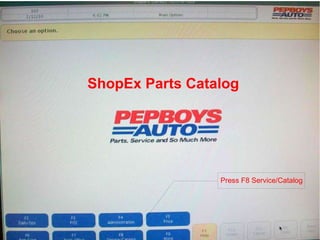
ShopEx Parts Catalog Press F8 Service/Catalog
Follow Normal Procedure of Looking Up Parts in ShopEx Catalog.
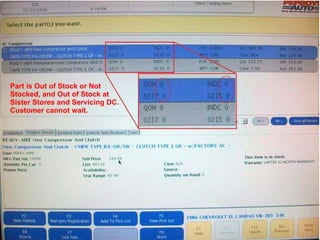
Part is Out of Stock or Not Stocked, and Out of Stock at Sister Stores and Servicing DC. Customer cannot wait.
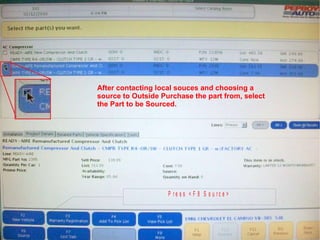
After contacting local souces and choosing a source to Outside Purchase the part from, select the Part to be Sourced.
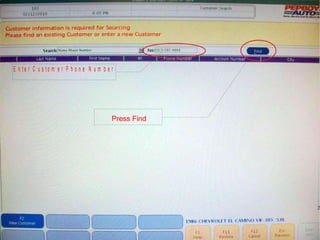
Press Find
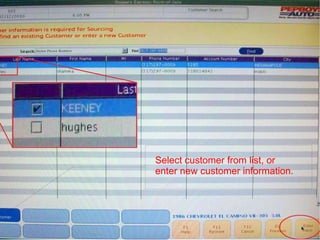
Select customer from list, or  enter new customer information.
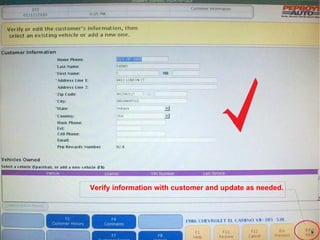
Verify information with customer and update as needed.
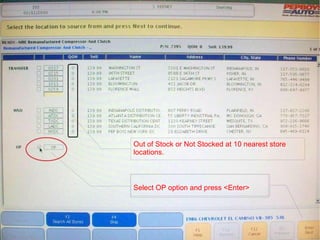
Out of Stock or Not Stocked at 10 nearest store locations. Select OP option and press <Enter>
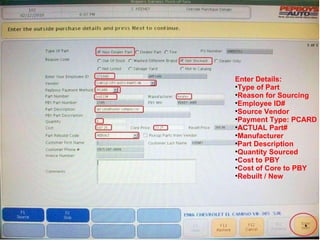
Enter Details: Type of Part Reason for Sourcing Employee ID# Source Vendor Payment Type: PCARD ACTUAL Part# Manufacturer Part Description Quantity Sourced Cost to PBY Cost of Core to PBY Rebuilt / New
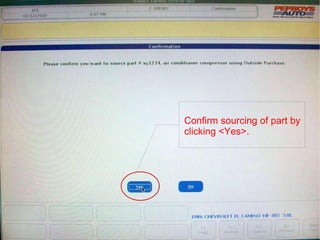
Confirm sourcing of part by clicking <Yes>.
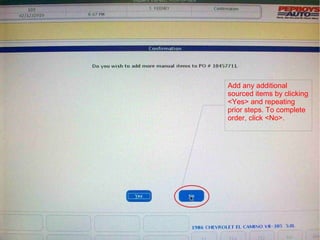
Add any additional sourced items by clicking <Yes> and repeating prior steps. To complete order, click <No>.
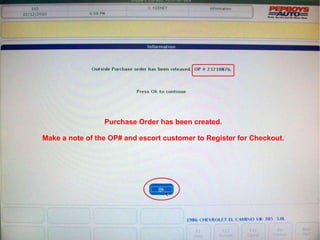
Purchase Order has been created. Make a note of the OP# and escort customer to Register for Checkout.
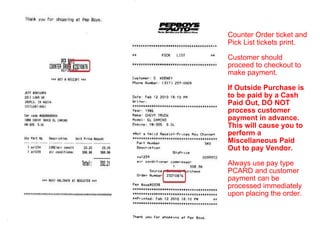
Counter Order ticket and Pick List tickets print. Customer should proceed to checkout to make payment. If Outside Purchase is to be paid by a Cash Paid Out, DO NOT process customer payment in advance. This will cause you to perform a Miscellaneous Paid Out to pay Vendor. Always use pay type PCARD and customer payment can be processed immediately upon placing the order.
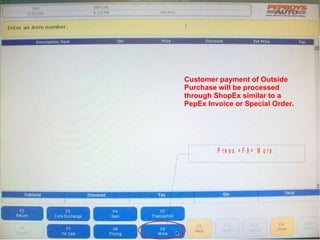
Customer payment of Outside Purchase will be processed through ShopEx similar to a PepEx Invoice or Special Order.
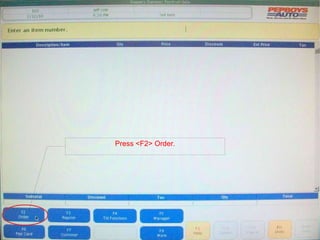
Press <F2> Order.
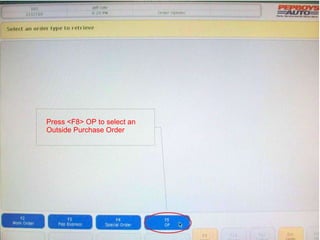
Press <F8> OP to select an  Outside Purchase Order
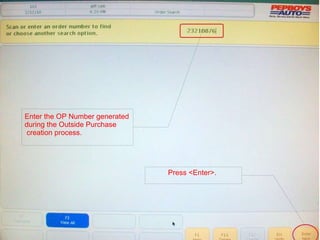
Enter the OP Number generated during the Outside Purchase creation process. Press <Enter>.
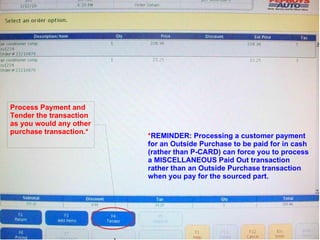
Process Payment and Tender the transaction as you would any other purchase transaction.* * REMINDER: Processing a customer payment for an Outside Purchase to be paid for in cash (rather than P-CARD) can force you to process a MISCELLANEOUS Paid Out transaction rather than an Outside Purchase transaction when you pay for the sourced part.
Recording Receipt of Outside Purchases when they arrive at the store.
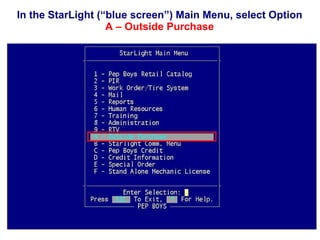
In the StarLight (“blue screen”) Main Menu, select Option A – Outside Purchase
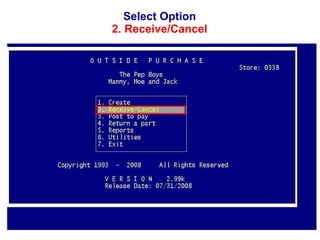
Select Option 2. Receive/Cancel
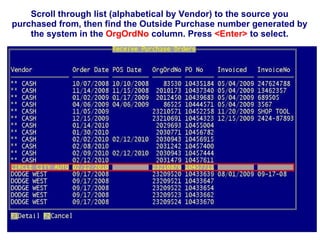
Scroll through list (alphabetical by Vendor) to the source you purchased from, then find the Outside Purchase number generated by the system in the  OrgOrdNo  column. Press  <Enter>  to select.
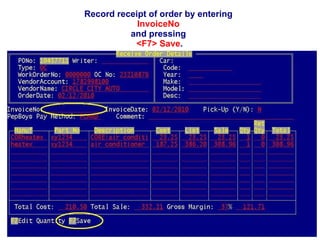
Record receipt of order by entering  InvoiceNo   and pressing  <F7> Save .
By following the prior steps, you have successfully processed an Outside Purchase form the Retail Parts Counter. In order to improve the availability of Parts stocked in your store, it is important to record a Lost Sale for every Outside Purchased item, even though you have made the sale by sourcing the Parts. By recording the Lost Sale, you provide valuable information to Corporate Buyers that aids them in better stocking your store with the Parts your customers are demanding.
Questions? Comments? Concerns? Feedback?

Outside Purchase At Parts Counter

  • 1.
    Outside Purchases at the Parts Counter Jeff Cole
  • 2.
    ShopEx Parts CatalogPress F8 Service/Catalog
  • 3.
    Follow Normal Procedureof Looking Up Parts in ShopEx Catalog.
  • 4.
    Part is Outof Stock or Not Stocked, and Out of Stock at Sister Stores and Servicing DC. Customer cannot wait.
  • 5.
    After contacting localsouces and choosing a source to Outside Purchase the part from, select the Part to be Sourced.
  • 6.
  • 7.
    Select customer fromlist, or enter new customer information.
  • 8.
    Verify information withcustomer and update as needed.
  • 9.
    Out of Stockor Not Stocked at 10 nearest store locations. Select OP option and press <Enter>
  • 10.
    Enter Details: Typeof Part Reason for Sourcing Employee ID# Source Vendor Payment Type: PCARD ACTUAL Part# Manufacturer Part Description Quantity Sourced Cost to PBY Cost of Core to PBY Rebuilt / New
  • 11.
    Confirm sourcing ofpart by clicking <Yes>.
  • 12.
    Add any additionalsourced items by clicking <Yes> and repeating prior steps. To complete order, click <No>.
  • 13.
    Purchase Order hasbeen created. Make a note of the OP# and escort customer to Register for Checkout.
  • 14.
    Counter Order ticketand Pick List tickets print. Customer should proceed to checkout to make payment. If Outside Purchase is to be paid by a Cash Paid Out, DO NOT process customer payment in advance. This will cause you to perform a Miscellaneous Paid Out to pay Vendor. Always use pay type PCARD and customer payment can be processed immediately upon placing the order.
  • 15.
    Customer payment ofOutside Purchase will be processed through ShopEx similar to a PepEx Invoice or Special Order.
  • 16.
  • 17.
    Press <F8> OPto select an Outside Purchase Order
  • 18.
    Enter the OPNumber generated during the Outside Purchase creation process. Press <Enter>.
  • 19.
    Process Payment andTender the transaction as you would any other purchase transaction.* * REMINDER: Processing a customer payment for an Outside Purchase to be paid for in cash (rather than P-CARD) can force you to process a MISCELLANEOUS Paid Out transaction rather than an Outside Purchase transaction when you pay for the sourced part.
  • 20.
    Recording Receipt ofOutside Purchases when they arrive at the store.
  • 21.
    In the StarLight(“blue screen”) Main Menu, select Option A – Outside Purchase
  • 22.
    Select Option 2.Receive/Cancel
  • 23.
    Scroll through list(alphabetical by Vendor) to the source you purchased from, then find the Outside Purchase number generated by the system in the OrgOrdNo column. Press <Enter> to select.
  • 24.
    Record receipt oforder by entering InvoiceNo and pressing <F7> Save .
  • 25.
    By following theprior steps, you have successfully processed an Outside Purchase form the Retail Parts Counter. In order to improve the availability of Parts stocked in your store, it is important to record a Lost Sale for every Outside Purchased item, even though you have made the sale by sourcing the Parts. By recording the Lost Sale, you provide valuable information to Corporate Buyers that aids them in better stocking your store with the Parts your customers are demanding.
  • 26.

Editor's Notes

  • #2 Outside Purchases for Retail Customers can now be performed at the Parts Counter using ShopEx.
  • #3 Access the ShopEx Parts Catalog normally, but pressing &lt;F8&gt; Service/Catalog.
  • #4 Follow the normal procedure for looking up Parts in the ShopEx catalog.
  • #5 When a customer requests an item that is not In Stock at your store, or a sister store, not available form your servicing DC or through Special Order, proceed to source the part locally through Outside Purchase.
  • #6 Select the part to be sourced by Checking the box to the left of the part. Do NOT quote the customer the on-screen price at this point. You will first need to contact a local sourcing vendor for pricing. Press &lt;F8&gt; Source.
  • #7 Outside Purchase Orders must be identified by the customer placing the order. To search the customer database, enter Customer Phone Number and press &lt;Find&gt;.
  • #8 If the customer is not in the list, press &lt;F2&gt; New Customer and fill in the required blanks. If the customer is in the list, select the customer by checking the box to the left of the customer name, and press &lt;Enter&gt;.
  • #9 Verify all information with the customer. Make any changes as needed. Ask the customer if they would like to give us their email address to receive special offers from PepBoys in their email.
  • #10 Up to ten stores nearest your location will be displayed with their availability. You may source from one of these sources, if desireed. To continue with Outside Purcahse, select OP by checking the box and press &lt;Enter&gt;.
  • #11 Enter required details to create order: Type of Part Reason for Sourcing Employee ID# Source Vendor Payment Type: PCARD ACTUAL Part# Manufacturer Part Description Quantity Sourced Cost to PBY Cost of Core to PBY Rebuilt / New
  • #12 Confirm that you want to source the part by clicking &lt;Yes&gt;. Pressing &lt;No&gt; at this time will cancel the Outside Purchase.
  • #13 If you need to source additional parts for the customer, press &lt;Ues&gt; and complete the previous steps again. To finish your order with no additional parts, press &lt;No&gt;.
  • #14 Your Outside Purchase has been created. Record the OP number and direct the customer to the checkout. Contact the sourcing vendor and provide them with the OP number and place the order.
  • #15 If Outside Purchase is to be paid by a Cash Paid Out, DO NOT process customer payment in advance. This will cause you to perform a Miscellaneous Paid Out to pay Vendor. Always use pay type PCARD and customer payment can be processed immediately upon placing the order.
  • #16 Customer payment of the Outside Purchase will be processed similar to a Commercial Invoice or a Serview Work Order, and should be collected in advance. Sign in to ShopEx. Press &lt;F9&gt; More.
  • #17 Press &lt;F2&gt; Order.
  • #18 Press &lt;F8&gt; OP to select an Outside Purchase order.
  • #19 Enter the OP number generatd during the Outside Purchase creation process earlier and press &lt;Enter&gt;.
  • #20 Process Payment and Tender the transaction as you would any other purchase transaction. REMEMBER: Processing a customer payment for an Outside Purchase to be paid for in cash (rather than P-CARD) can force you to process a MISCELLANEOUS Paid Out transaction rather than an Outside Purchase transaction when you pay for the sourced part.
  • #21 Outside Purchases must be processed as RECEIVED when they arrive a the store.
  • #22 In the StarLight Main Menu, select Option A – Outside Purchase
  • #23 Select Option 2. Receive/Cancel
  • #24 Vendor names are listed alphabetically. Scroll through the listing to the vendor your purchased from. Select the OP number generated earlier from the OrgOrdNo column. Press &lt;Enter&gt; to select.
  • #25 Record receipt of the order by entering the InvoiceNo, entering any missing information, and pressing &lt;F7&gt; Save.
  • #26 By following the prior steps, you have successfully processed an Outside Purchase form the Retail Parts Counter. In order to improve the availability of Parts stocked in your store, it is important to record a Lost Sale for every Outside Purchased item, even though you have made the sale by sourcing the Parts. By recording the Lost Sale, you provide valuable information to Corporate Buyers that aids them in better stocking your store with the Parts your customers are demanding.
  • #27 Thank You. Any Questions? Comments? Concerns? Any Feedback?