POS
RETURNS
Big R Return
Policy
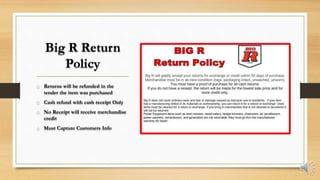
o Returns will be refunded in the
tender the item was purchased
o Cash refund with cash receipt Only
o No Receipt will receive merchandise
credit
o Must Capture Customers Info
Big R Return
Policy
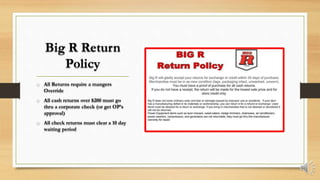
o All Returns require a mangers
Override
o All cash returns over $200 must go
thru a corporate check (or get OP’s
approval)
o All check returns must clear a 10 day
waiting period
Receipt
Verification
If customer has receipt, proceed
with the return
If customer does not have a
receipt you will attempt to locate
it
Receipt
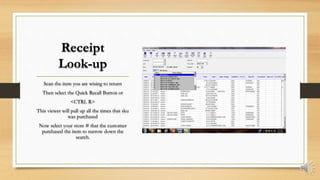
Look-up
Scan the item you are wising to return
Then select the Quick Recall Button or
<CTRL R>
This viewer will pull up all the times that sku
was purchased
Now select your store # that the customer
purchased the item to narrow down the
search.
Receipt
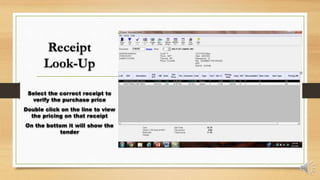
Look-Up
Select the correct receipt to
verify the purchase price
Double click on the line to view
the pricing on that receipt
On the bottom it will show the
tender
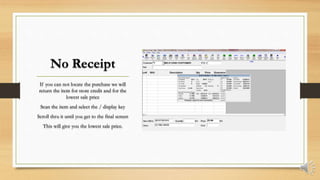
No Receipt
If you can not locate the purchase we will
return the item for store credit and for the
lowest sale price
Scan the item and select the / display key
Scroll thru it until you get to the final screen
This will give you the lowest sale price.
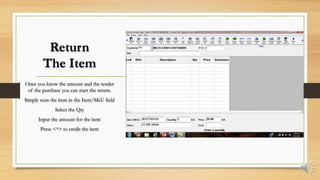
Return
The Item
Once you know the amount and the tender
of the purchase you can start the return.
Simply scan the item in the Item/SKU field
Select the Qty
Input the amount for the item
Press <*> to credit the item
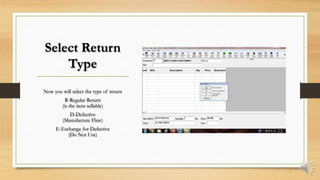
Select Return
Type
Now you will select the type of return
R-Regular Return
(is the item sellable)
D-Defective
(Manufacture Flaw)
E-Exchange for Defective
(Do Not Use)
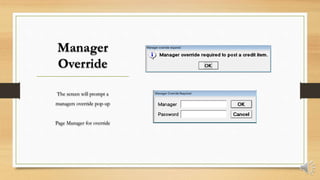
Manager
Override
The screen will prompt a
managers override pop-up
Page Manager for override
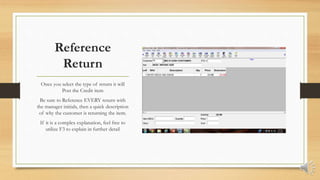
Reference
Return
Once you select the type of return it will
Post the Credit item
Be sure to Reference EVERY return with
the manager initials, then a quick description
of why the customer is returning the item.
If it is a complex explanation, feel free to
utilize F3 to explain in further detail
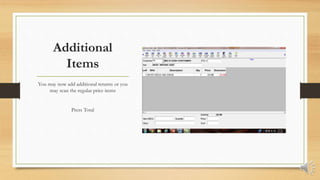
Additional
Items
You may now add additional returns or you
may scan the regular price items
Press Total
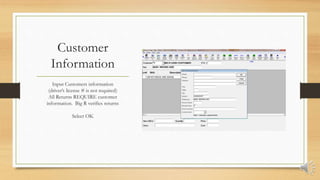
Customer
Information
Input Customers information
(driver’s license # is not required)
All Returns REQUIRE customer
information. Big R verifies returns
Select OK
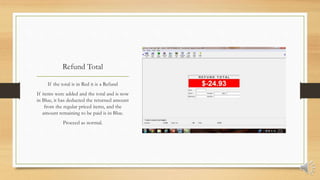
Refund Total
If the total is in Red it is a Refund
If items were added and the total and is now
in Blue, it has deducted the returned amount
from the regular priced items, and the
amount remaining to be paid is in Blue.
Proceed as normal.
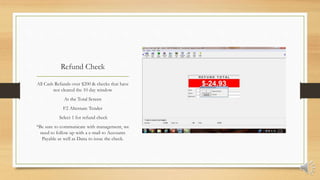
Refund Check
All Cash Refunds over $200 & checks that have
not cleared the 10 day window
At the Total Screen
F2 Alternate Tender
Select 1 for refund check
*Be sure to communicate with management, we
need to follow up with a e-mail to Accounts
Payable as well as Dana to issue the check.
COMPLETE
RETURNS

POS Returns by Amber

  • 1.
  • 2.
    Big R Return Policy oReturns will be refunded in the tender the item was purchased o Cash refund with cash receipt Only o No Receipt will receive merchandise credit o Must Capture Customers Info
  • 3.
    Big R Return Policy oAll Returns require a mangers Override o All cash returns over $200 must go thru a corporate check (or get OP’s approval) o All check returns must clear a 10 day waiting period
  • 4.
    Receipt Verification If customer hasreceipt, proceed with the return If customer does not have a receipt you will attempt to locate it
  • 5.
    Receipt Look-up Scan the itemyou are wising to return Then select the Quick Recall Button or <CTRL R> This viewer will pull up all the times that sku was purchased Now select your store # that the customer purchased the item to narrow down the search.
  • 6.
    Receipt Look-Up Select the correctreceipt to verify the purchase price Double click on the line to view the pricing on that receipt On the bottom it will show the tender
  • 7.
    No Receipt If youcan not locate the purchase we will return the item for store credit and for the lowest sale price Scan the item and select the / display key Scroll thru it until you get to the final screen This will give you the lowest sale price.
  • 8.
    Return The Item Once youknow the amount and the tender of the purchase you can start the return. Simply scan the item in the Item/SKU field Select the Qty Input the amount for the item Press <*> to credit the item
  • 9.
    Select Return Type Now youwill select the type of return R-Regular Return (is the item sellable) D-Defective (Manufacture Flaw) E-Exchange for Defective (Do Not Use)
  • 10.
    Manager Override The screen willprompt a managers override pop-up Page Manager for override
  • 11.
    Reference Return Once you selectthe type of return it will Post the Credit item Be sure to Reference EVERY return with the manager initials, then a quick description of why the customer is returning the item. If it is a complex explanation, feel free to utilize F3 to explain in further detail
  • 12.
    Additional Items You may nowadd additional returns or you may scan the regular price items Press Total
  • 13.
    Customer Information Input Customers information (driver’slicense # is not required) All Returns REQUIRE customer information. Big R verifies returns Select OK
  • 14.
    Refund Total If thetotal is in Red it is a Refund If items were added and the total and is now in Blue, it has deducted the returned amount from the regular priced items, and the amount remaining to be paid is in Blue. Proceed as normal.
  • 15.
    Refund Check All CashRefunds over $200 & checks that have not cleared the 10 day window At the Total Screen F2 Alternate Tender Select 1 for refund check *Be sure to communicate with management, we need to follow up with a e-mail to Accounts Payable as well as Dana to issue the check.
  • 16.