Credit: Photo by Loïc Romer
ORCHESTRATING
SELF-SERVICE
VIDEO WORKFLOWS
WITH OPENCAST
Stephen Marquard
Corné Oosthuizen
Duncan Smith
Sam Lee Pan
Centre for Innovation in
Learning and Teaching,
University of Cape Town
www.cilt.uct.ac.za
Opencast video at UCT
First there was lecture capture
Started 2012
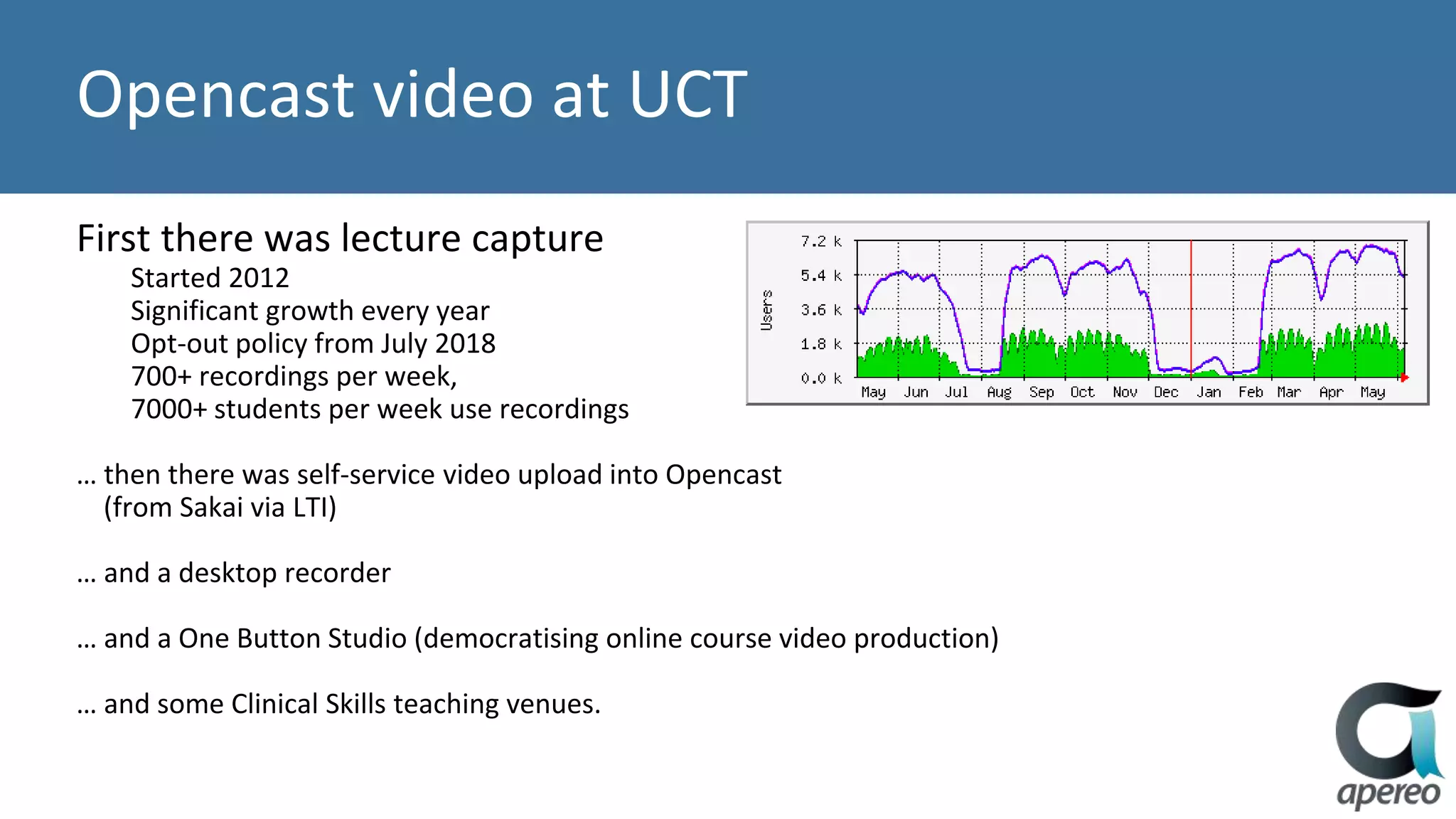
Significant growth every year
Opt-out policy from July 2018
700+ recordings per week,
7000+ students per week use recordings
… then there was self-service video upload into Opencast
(from Sakai via LTI)
… and a desktop recorder
… and a One Button Studio (democratising online course video production)
… and some Clinical Skills teaching venues.
Design principles
Make the services as easy to use as possible
Provide as much control as possible to end-users
(maximally self-service)
Make the recorded media as useful as possible to students
Keep the video server-side end-to-end
Low cost, high volume, high automation, highest achievable quality
When is a video not a video?
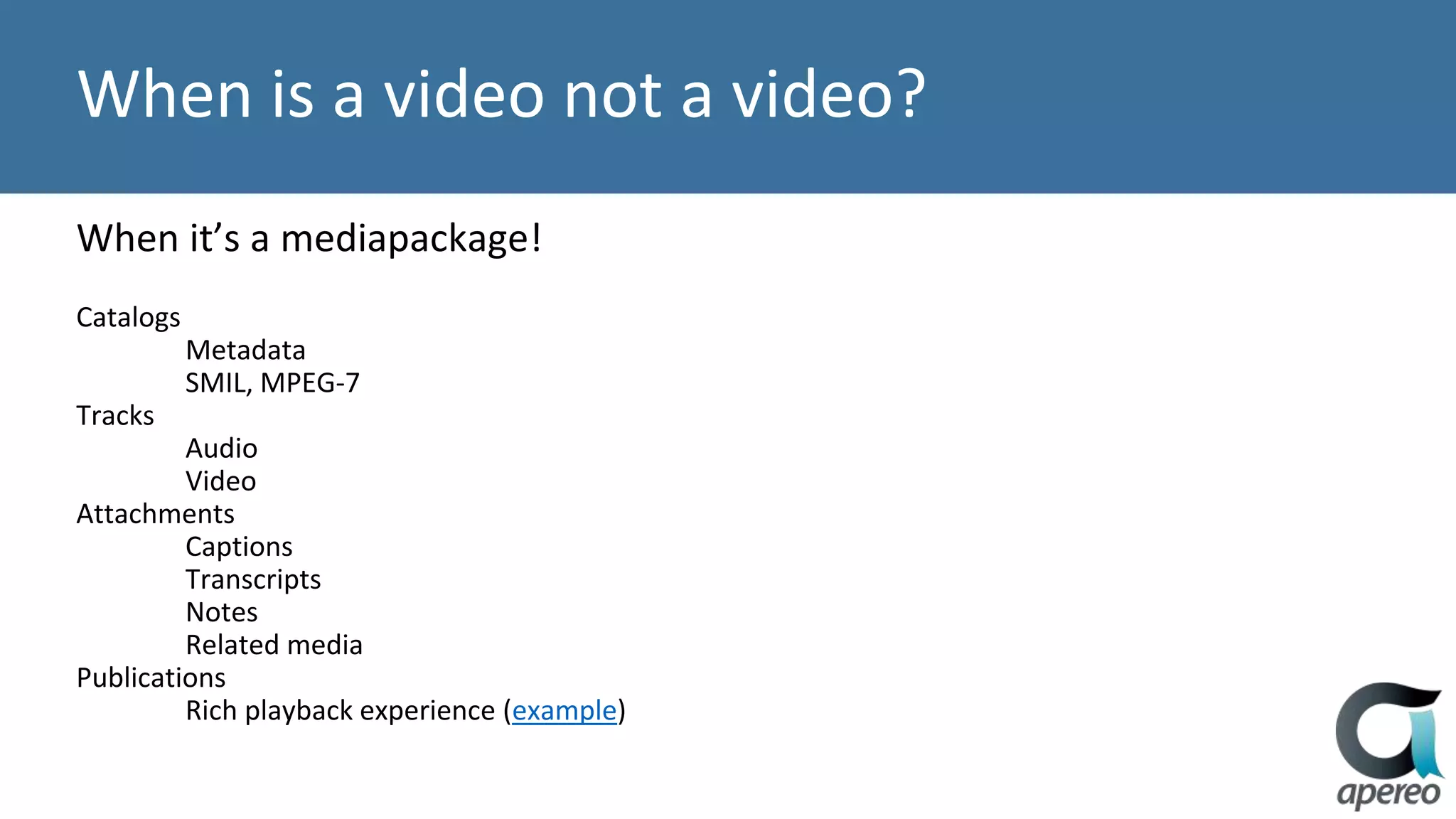
When it’s a mediapackage!
Catalogs
Metadata
SMIL, MPEG-7
Tracks
Audio
Video
Attachments
Captions
Transcripts
Notes
Related media
Publications
Rich playback experience (example)
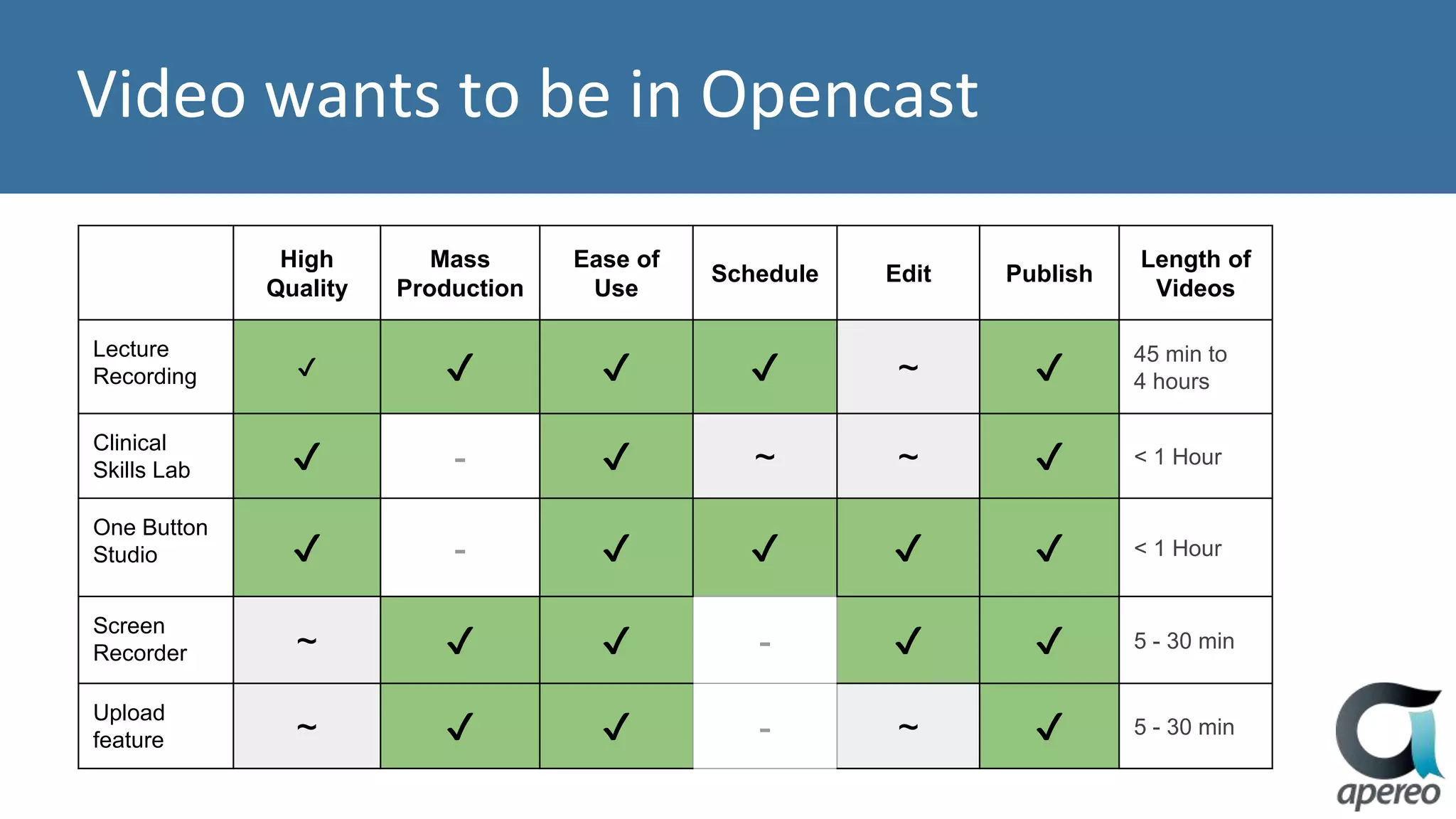
Video wants to be in Opencast
High
Quality
Mass
Production
Ease of
Use
Schedule Edit Publish
Length of
Videos
Lecture
Recording ✔ ✔ ✔ ✔ ~ ✔
45 min to
4 hours
Clinical
Skills Lab ✔ - ✔ ~ ~ ✔ < 1 Hour
One Button
Studio ✔ - ✔ ✔ ✔ ✔ < 1 Hour
Screen
Recorder ~ ✔ ✔ - ✔ ✔ 5 - 30 min
Upload
feature ~ ✔ ✔ - ~ ✔ 5 - 30 min
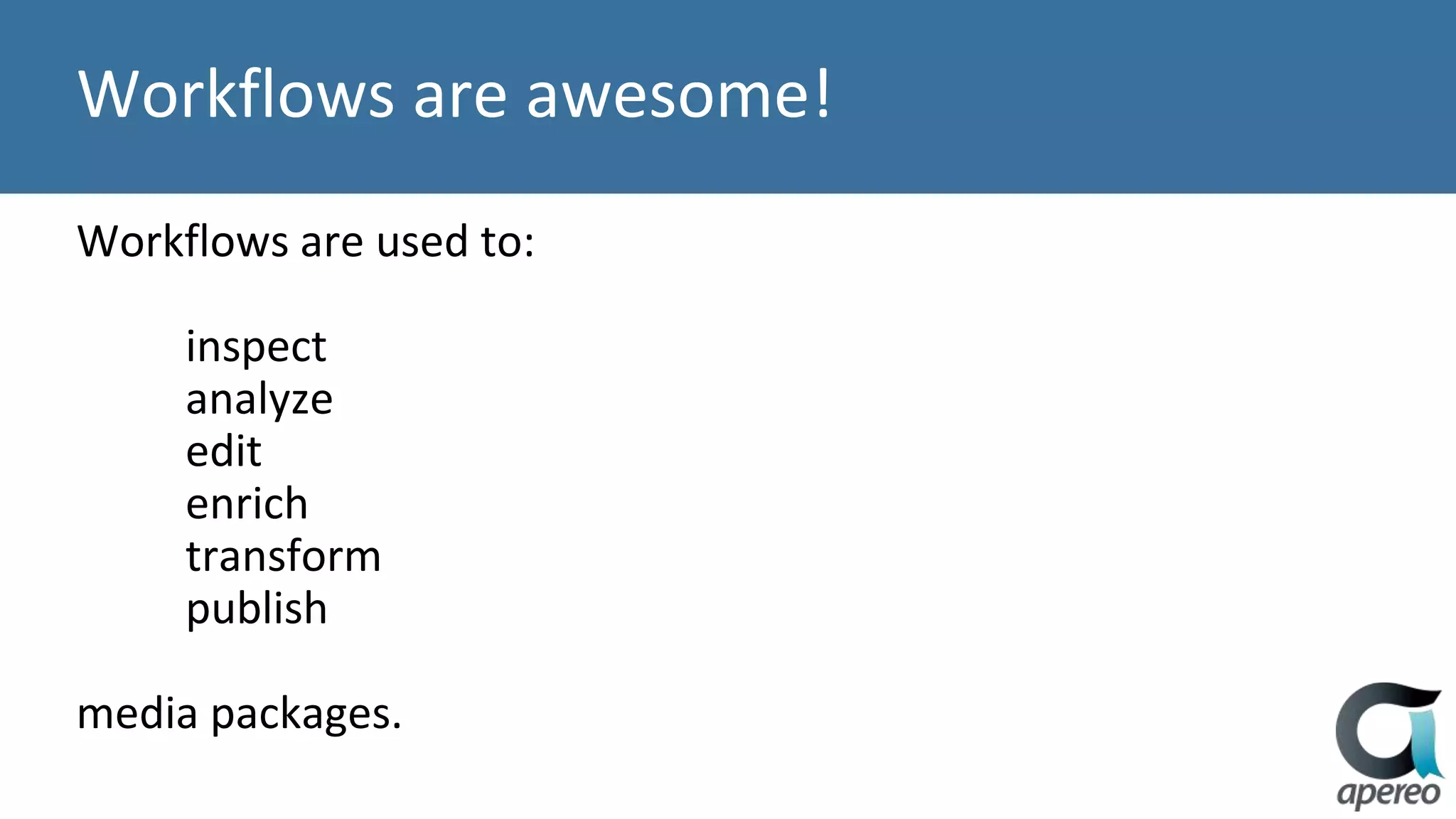
Workflows are awesome!
Workflows are used to:
inspect
analyze
edit
enrich
transform
publish
media packages.
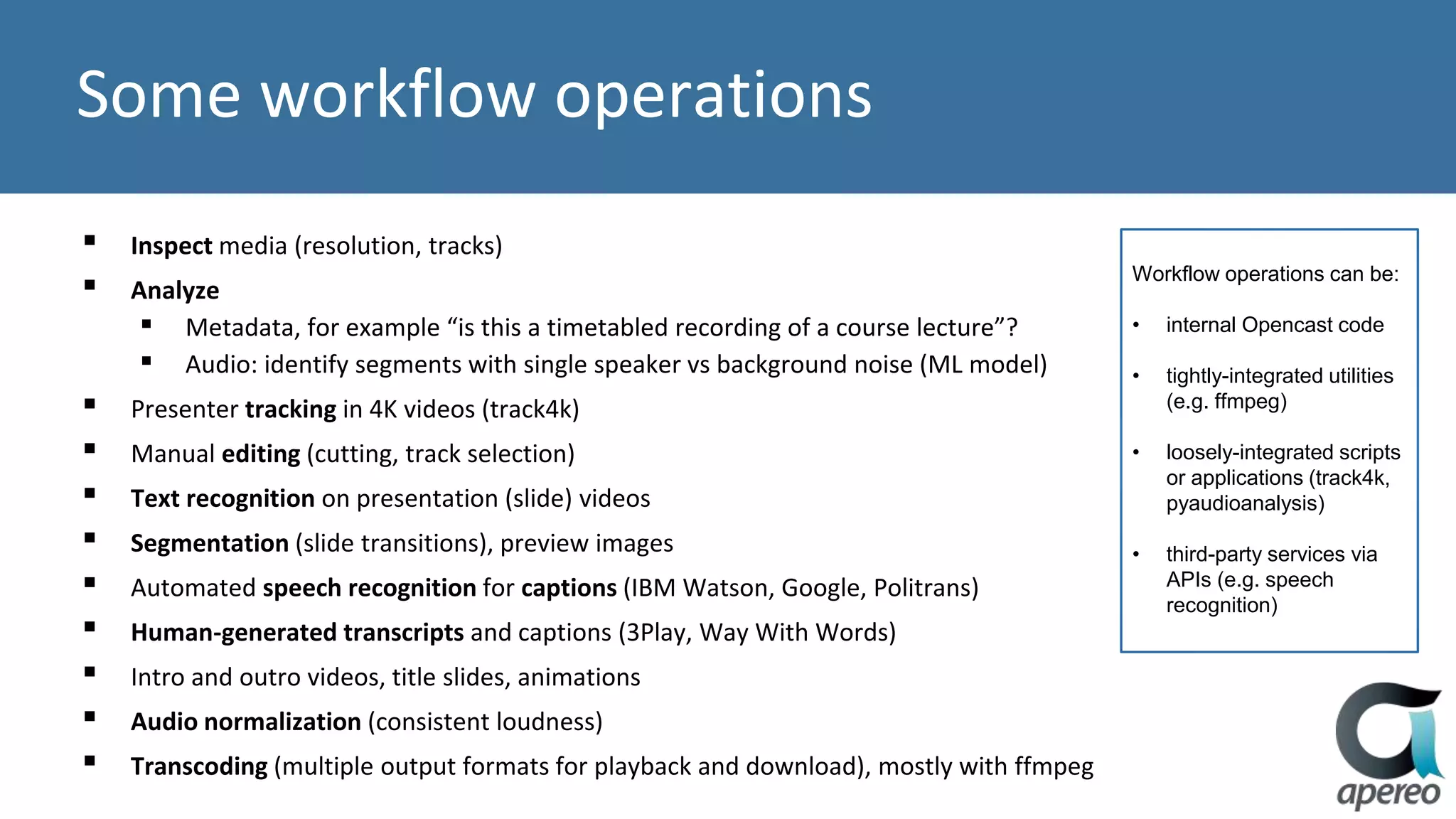
Some workflow operations
▪ Inspect media (resolution, tracks)
▪ Analyze
▪ Metadata, for example “is this a timetabled recording of a course lecture”?
▪ Audio: identify segments with single speaker vs background noise (ML model)
▪ Presenter tracking in 4K videos (track4k)
▪ Manual editing (cutting, track selection)
▪ Text recognition on presentation (slide) videos
▪ Segmentation (slide transitions), preview images
▪ Automated speech recognition for captions (IBM Watson, Google, Politrans)
▪ Human-generated transcripts and captions (3Play, Way With Words)
▪ Intro and outro videos, title slides, animations
▪ Audio normalization (consistent loudness)
▪ Transcoding (multiple output formats for playback and download), mostly with ffmpeg
Workflow operations can be:
• internal Opencast code
• tightly-integrated utilities
(e.g. ffmpeg)
• loosely-integrated scripts
or applications (track4k,
pyaudioanalysis)
• third-party services via
APIs (e.g. speech
recognition)
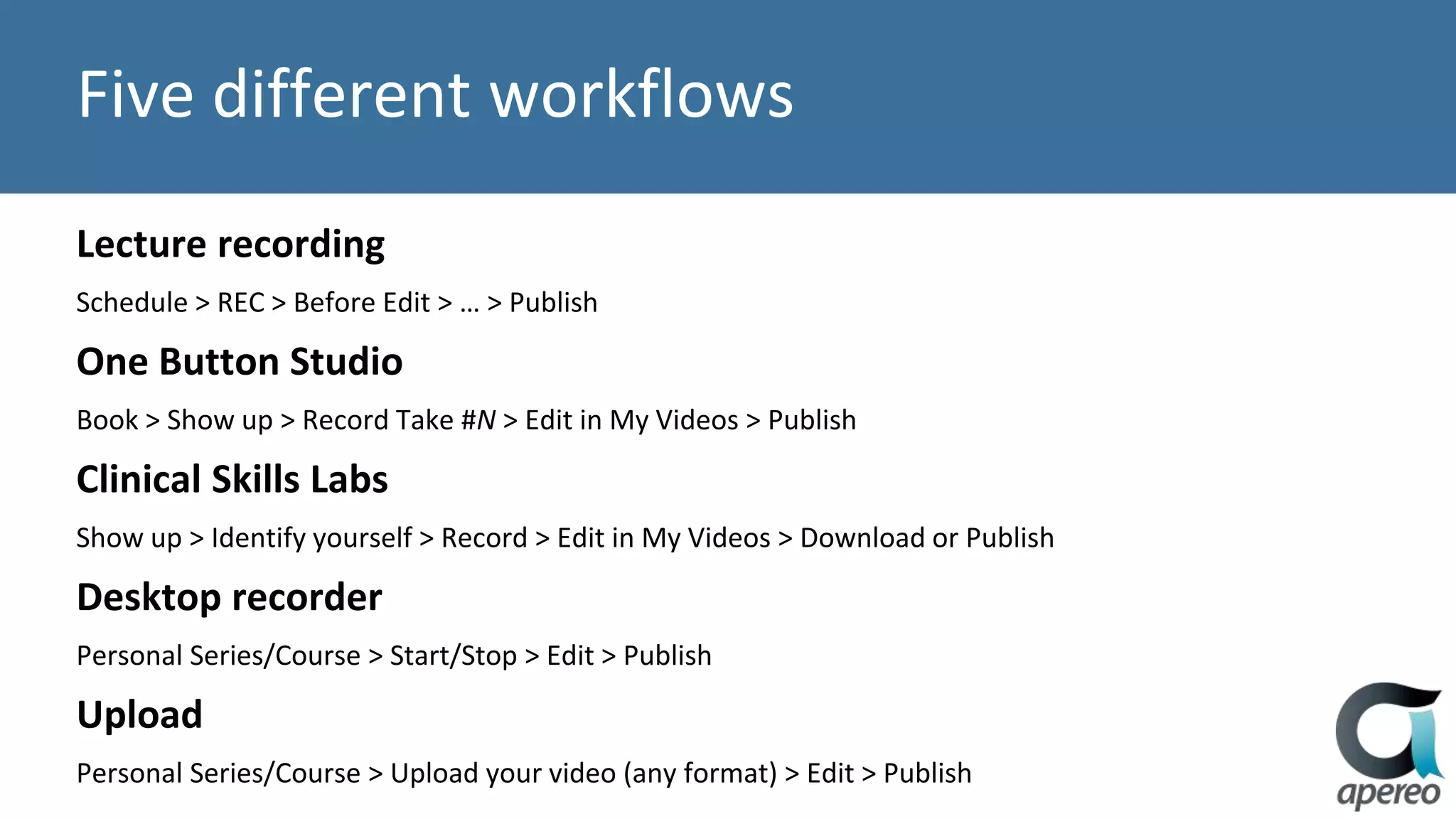
Five different workflows
Lecture recording
Schedule > REC > Before Edit > … > Publish
One Button Studio
Book > Show up > Record Take #N > Edit in My Videos > Publish
Clinical Skills Labs
Show up > Identify yourself > Record > Edit in My Videos > Download or Publish
Desktop recorder
Personal Series/Course > Start/Stop > Edit > Publish
Upload
Personal Series/Course > Upload your video (any format) > Edit > Publish
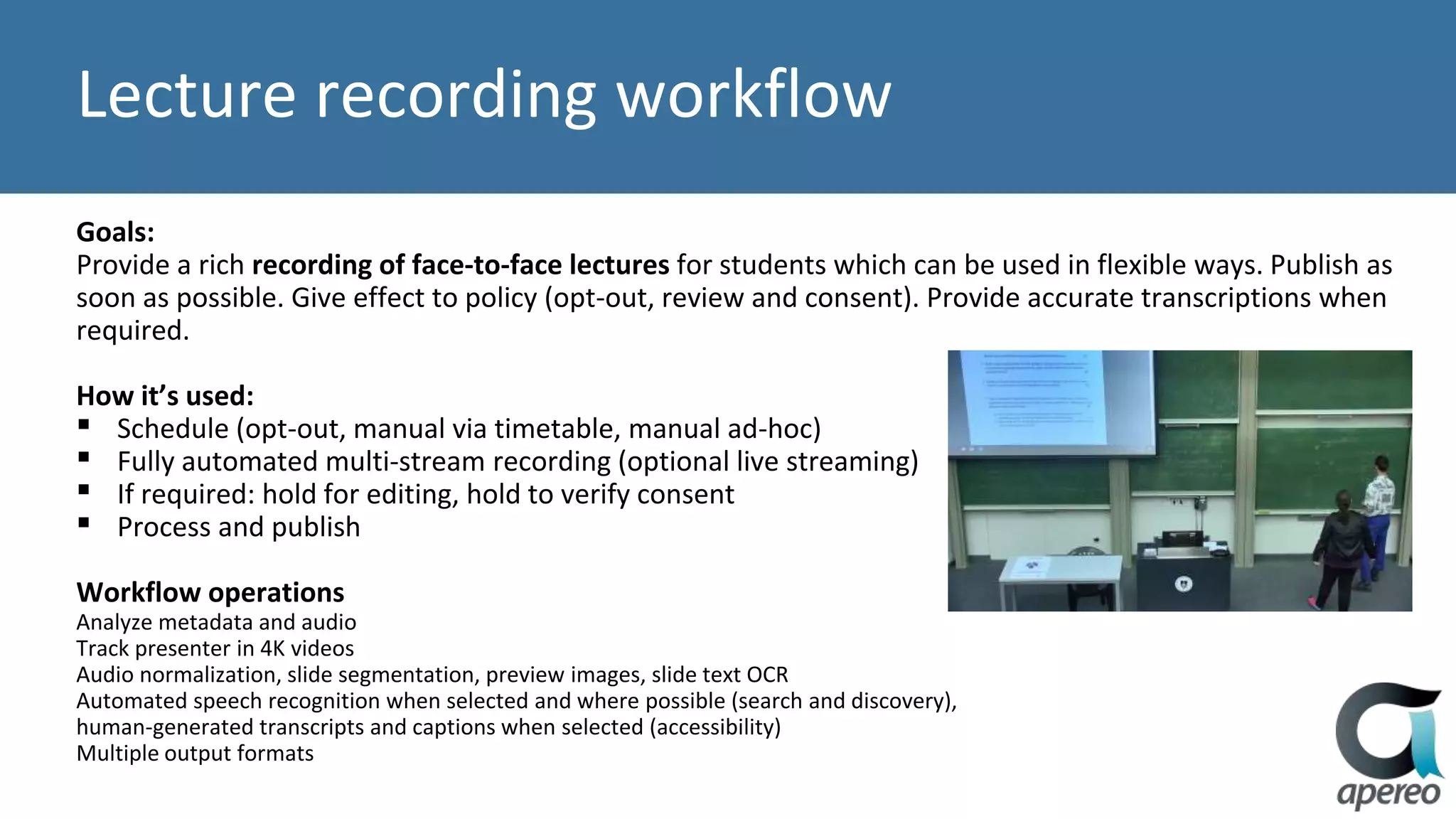
Lecture recording workflow
Goals:
Provide a rich recording of face-to-face lectures for students which can be used in flexible ways. Publish as
soon as possible. Give effect to policy (opt-out, review and consent). Provide accurate transcriptions when
required.
How it’s used:
▪ Schedule (opt-out, manual via timetable, manual ad-hoc)
▪ Fully automated multi-stream recording (optional live streaming)
▪ If required: hold for editing, hold to verify consent
▪ Process and publish
Workflow operations
Analyze metadata and audio
Track presenter in 4K videos
Audio normalization, slide segmentation, preview images, slide text OCR
Automated speech recognition when selected and where possible (search and discovery),
human-generated transcripts and captions when selected (accessibility)
Multiple output formats
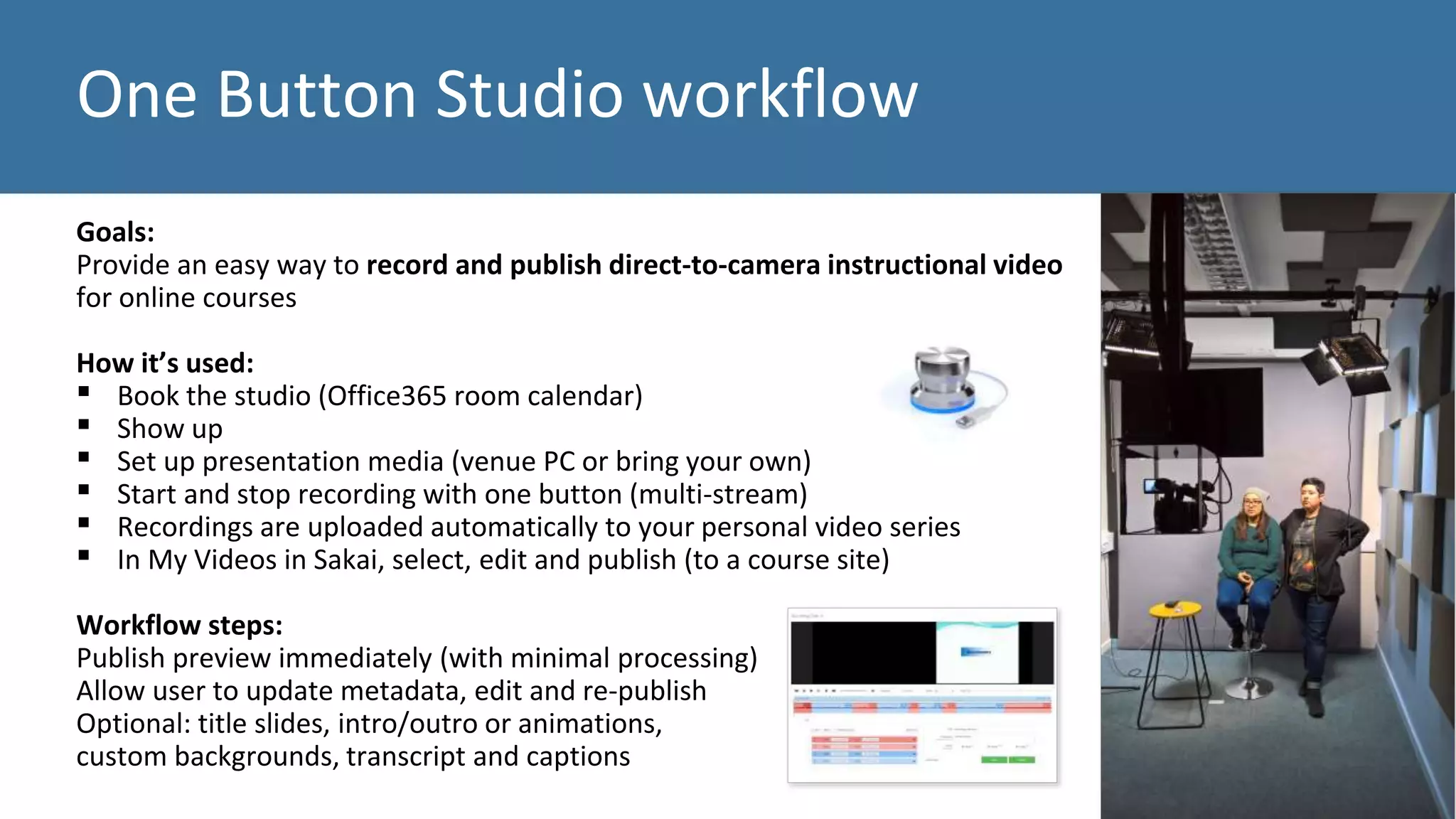
One Button Studio workflow
Goals:
Provide an easy way to record and publish direct-to-camera instructional video
for online courses
How it’s used:
▪ Book the studio (Office365 room calendar)
▪ Show up
▪ Set up presentation media (venue PC or bring your own)
▪ Start and stop recording with one button (multi-stream)
▪ Recordings are uploaded automatically to your personal video series
▪ In My Videos in Sakai, select, edit and publish (to a course site)
Workflow steps:
Publish preview immediately (with minimal processing)
Allow user to update metadata, edit and re-publish
Optional: title slides, intro/outro or animations,
custom backgrounds, transcript and captions
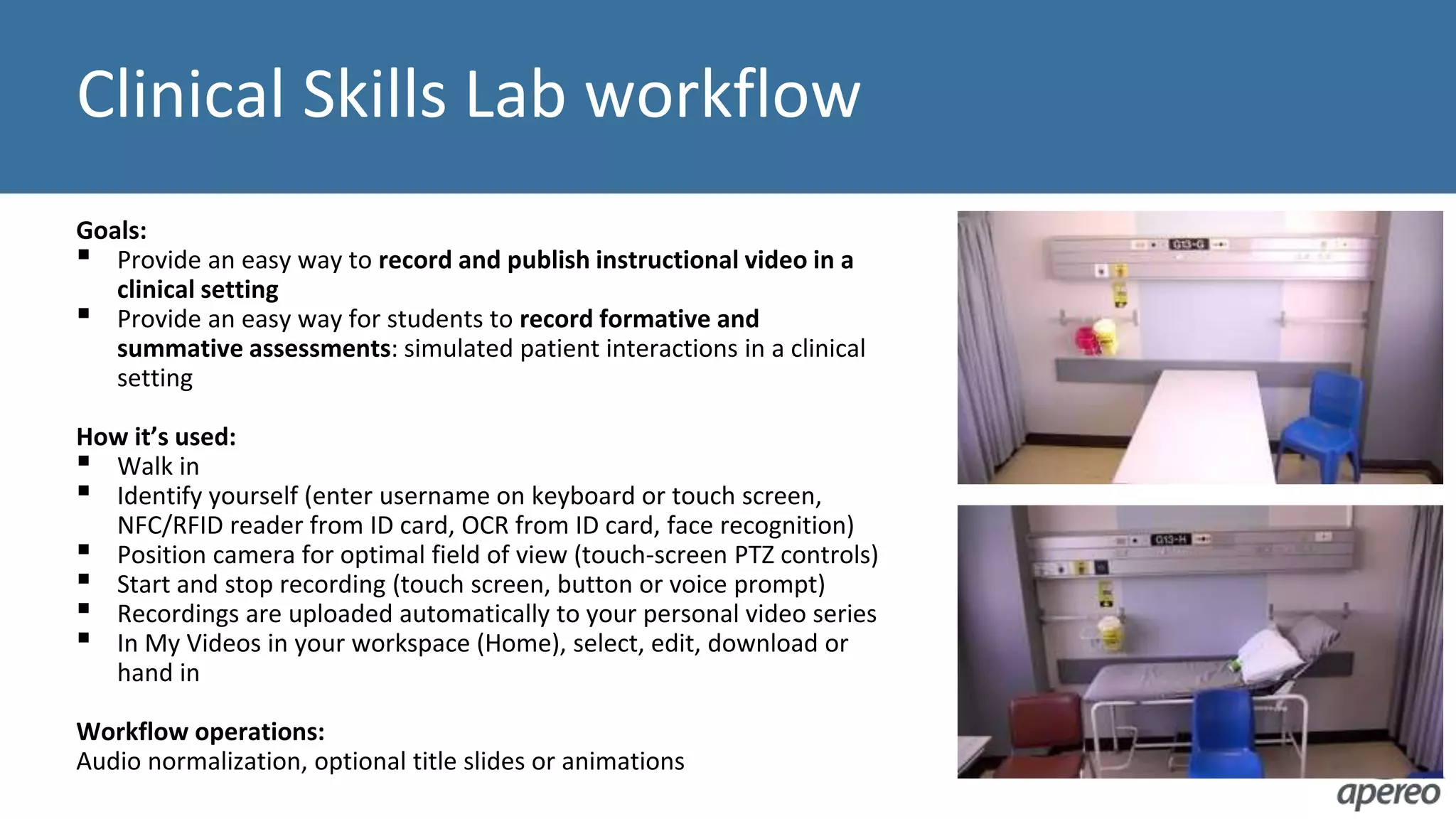
Clinical Skills Lab workflow
Goals:
▪ Provide an easy way to record and publish instructional video in a
clinical setting
▪ Provide an easy way for students to record formative and
summative assessments: simulated patient interactions in a clinical
setting
How it’s used:
▪ Walk in
▪ Identify yourself (enter username on keyboard or touch screen,
NFC/RFID reader from ID card, OCR from ID card, face recognition)
▪ Position camera for optimal field of view (touch-screen PTZ controls)
▪ Start and stop recording (touch screen, button or voice prompt)
▪ Recordings are uploaded automatically to your personal video series
▪ In My Videos in your workspace (Home), select, edit, download or
hand in
Workflow operations:
Audio normalization, optional title slides or animations
Desktop recorder
Goals
Simple and fast way to create and publish screen recordings without additional software.
Handle any processing on the server (lightweight for the client)
How it’s used
▪ Recording is initiated from a button in a personal or course video series
(Opencast LTI tool inside LMS)
▪ Compose recording sources (desktop app, webcam, mic), start and stop recording in browser
▪ Edit and publish
Workflow operations
Audio normalization, optional trimming from edit catalog, multiple output formats
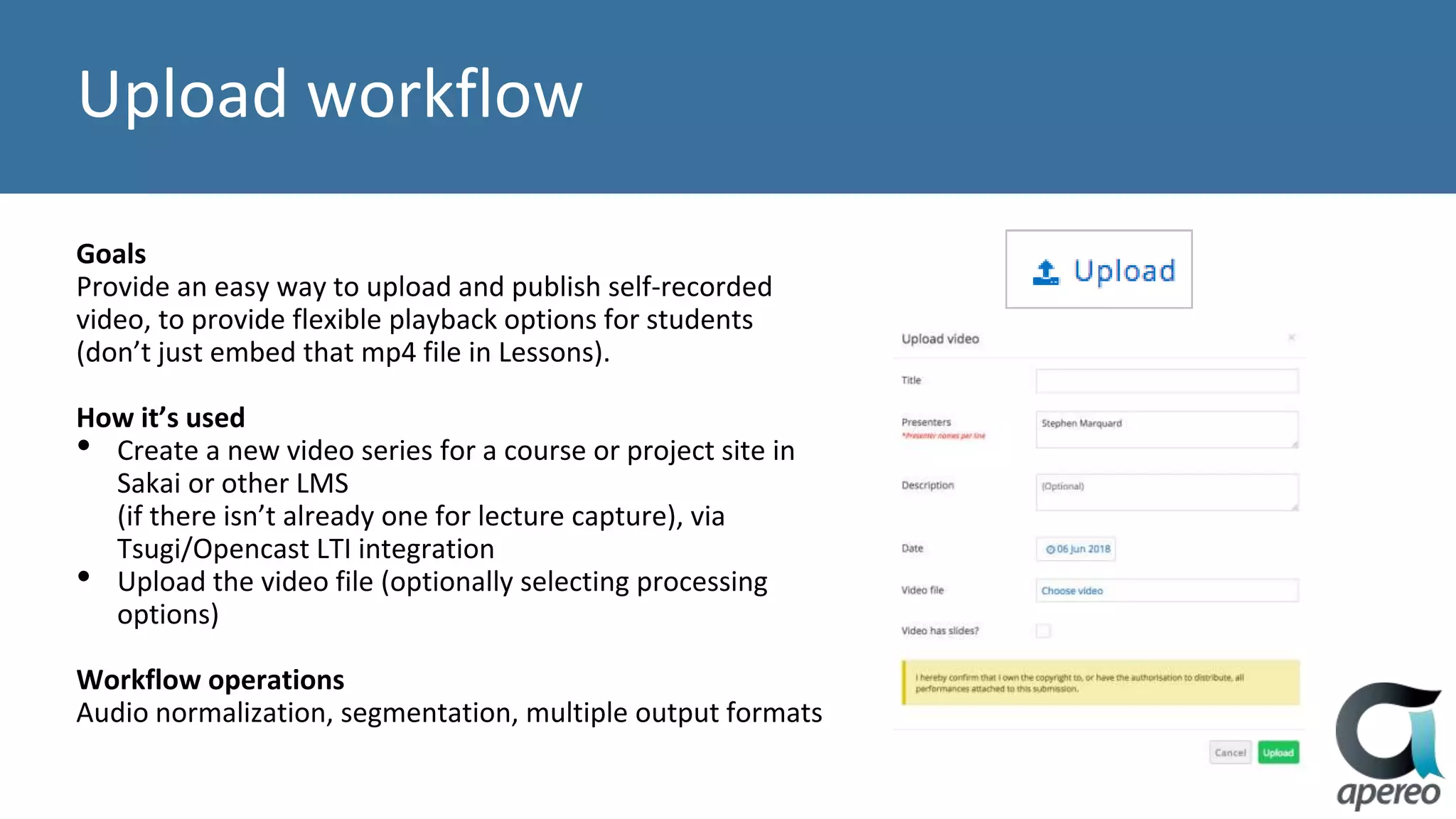
Upload workflow
Goals
Provide an easy way to upload and publish self-recorded
video, to provide flexible playback options for students
(don’t just embed that mp4 file in Lessons).
How it’s used
• Create a new video series for a course or project site in
Sakai or other LMS
(if there isn’t already one for lecture capture), via
Tsugi/Opencast LTI integration
• Upload the video file (optionally selecting processing
options)
Workflow operations
Audio normalization, segmentation, multiple output formats
The source will be with you, always
https://github.com/opencast
https://github.com/teltek/Galicaster
https://github.com/LectureTracking
https://github.com/cilt-uct/tsugi-welcome-to-lecture-recording
https://github.com/cilt-uct/TrimPointDetector
https://github.com/LectureSight/lecturesight
https://bitbucket.org/cilt/lecturesight-overview
https://bitbucket.org/cilt/oc-scripts
https://bitbucket.org/cilt/oc-dev-scripts
Credit: Photo by Tourisme Montréal, Stéphan Poulin
opencast.org
JOIN THE CONVERSATION

Orchestrating Self-Service Video Workflows with Opencast

  • 1.
    Credit: Photo byLoïc Romer ORCHESTRATING SELF-SERVICE VIDEO WORKFLOWS WITH OPENCAST Stephen Marquard Corné Oosthuizen Duncan Smith Sam Lee Pan Centre for Innovation in Learning and Teaching, University of Cape Town www.cilt.uct.ac.za
  • 2.
    Opencast video atUCT First there was lecture capture Started 2012 Significant growth every year Opt-out policy from July 2018 700+ recordings per week, 7000+ students per week use recordings … then there was self-service video upload into Opencast (from Sakai via LTI) … and a desktop recorder … and a One Button Studio (democratising online course video production) … and some Clinical Skills teaching venues.
  • 3.
    Design principles Make theservices as easy to use as possible Provide as much control as possible to end-users (maximally self-service) Make the recorded media as useful as possible to students Keep the video server-side end-to-end Low cost, high volume, high automation, highest achievable quality
  • 4.
    When is avideo not a video? When it’s a mediapackage! Catalogs Metadata SMIL, MPEG-7 Tracks Audio Video Attachments Captions Transcripts Notes Related media Publications Rich playback experience (example)
  • 5.
    Video wants tobe in Opencast High Quality Mass Production Ease of Use Schedule Edit Publish Length of Videos Lecture Recording ✔ ✔ ✔ ✔ ~ ✔ 45 min to 4 hours Clinical Skills Lab ✔ - ✔ ~ ~ ✔ < 1 Hour One Button Studio ✔ - ✔ ✔ ✔ ✔ < 1 Hour Screen Recorder ~ ✔ ✔ - ✔ ✔ 5 - 30 min Upload feature ~ ✔ ✔ - ~ ✔ 5 - 30 min
  • 7.
    Workflows are awesome! Workflowsare used to: inspect analyze edit enrich transform publish media packages.
  • 8.
    Some workflow operations ▪Inspect media (resolution, tracks) ▪ Analyze ▪ Metadata, for example “is this a timetabled recording of a course lecture”? ▪ Audio: identify segments with single speaker vs background noise (ML model) ▪ Presenter tracking in 4K videos (track4k) ▪ Manual editing (cutting, track selection) ▪ Text recognition on presentation (slide) videos ▪ Segmentation (slide transitions), preview images ▪ Automated speech recognition for captions (IBM Watson, Google, Politrans) ▪ Human-generated transcripts and captions (3Play, Way With Words) ▪ Intro and outro videos, title slides, animations ▪ Audio normalization (consistent loudness) ▪ Transcoding (multiple output formats for playback and download), mostly with ffmpeg Workflow operations can be: • internal Opencast code • tightly-integrated utilities (e.g. ffmpeg) • loosely-integrated scripts or applications (track4k, pyaudioanalysis) • third-party services via APIs (e.g. speech recognition)
  • 9.
    Five different workflows Lecturerecording Schedule > REC > Before Edit > … > Publish One Button Studio Book > Show up > Record Take #N > Edit in My Videos > Publish Clinical Skills Labs Show up > Identify yourself > Record > Edit in My Videos > Download or Publish Desktop recorder Personal Series/Course > Start/Stop > Edit > Publish Upload Personal Series/Course > Upload your video (any format) > Edit > Publish
  • 10.
    Lecture recording workflow Goals: Providea rich recording of face-to-face lectures for students which can be used in flexible ways. Publish as soon as possible. Give effect to policy (opt-out, review and consent). Provide accurate transcriptions when required. How it’s used: ▪ Schedule (opt-out, manual via timetable, manual ad-hoc) ▪ Fully automated multi-stream recording (optional live streaming) ▪ If required: hold for editing, hold to verify consent ▪ Process and publish Workflow operations Analyze metadata and audio Track presenter in 4K videos Audio normalization, slide segmentation, preview images, slide text OCR Automated speech recognition when selected and where possible (search and discovery), human-generated transcripts and captions when selected (accessibility) Multiple output formats
  • 11.
    One Button Studioworkflow Goals: Provide an easy way to record and publish direct-to-camera instructional video for online courses How it’s used: ▪ Book the studio (Office365 room calendar) ▪ Show up ▪ Set up presentation media (venue PC or bring your own) ▪ Start and stop recording with one button (multi-stream) ▪ Recordings are uploaded automatically to your personal video series ▪ In My Videos in Sakai, select, edit and publish (to a course site) Workflow steps: Publish preview immediately (with minimal processing) Allow user to update metadata, edit and re-publish Optional: title slides, intro/outro or animations, custom backgrounds, transcript and captions
  • 12.
    Clinical Skills Labworkflow Goals: ▪ Provide an easy way to record and publish instructional video in a clinical setting ▪ Provide an easy way for students to record formative and summative assessments: simulated patient interactions in a clinical setting How it’s used: ▪ Walk in ▪ Identify yourself (enter username on keyboard or touch screen, NFC/RFID reader from ID card, OCR from ID card, face recognition) ▪ Position camera for optimal field of view (touch-screen PTZ controls) ▪ Start and stop recording (touch screen, button or voice prompt) ▪ Recordings are uploaded automatically to your personal video series ▪ In My Videos in your workspace (Home), select, edit, download or hand in Workflow operations: Audio normalization, optional title slides or animations
  • 13.
    Desktop recorder Goals Simple andfast way to create and publish screen recordings without additional software. Handle any processing on the server (lightweight for the client) How it’s used ▪ Recording is initiated from a button in a personal or course video series (Opencast LTI tool inside LMS) ▪ Compose recording sources (desktop app, webcam, mic), start and stop recording in browser ▪ Edit and publish Workflow operations Audio normalization, optional trimming from edit catalog, multiple output formats
  • 14.
    Upload workflow Goals Provide aneasy way to upload and publish self-recorded video, to provide flexible playback options for students (don’t just embed that mp4 file in Lessons). How it’s used • Create a new video series for a course or project site in Sakai or other LMS (if there isn’t already one for lecture capture), via Tsugi/Opencast LTI integration • Upload the video file (optionally selecting processing options) Workflow operations Audio normalization, segmentation, multiple output formats
  • 15.
    The source willbe with you, always https://github.com/opencast https://github.com/teltek/Galicaster https://github.com/LectureTracking https://github.com/cilt-uct/tsugi-welcome-to-lecture-recording https://github.com/cilt-uct/TrimPointDetector https://github.com/LectureSight/lecturesight https://bitbucket.org/cilt/lecturesight-overview https://bitbucket.org/cilt/oc-scripts https://bitbucket.org/cilt/oc-dev-scripts
  • 16.
    Credit: Photo byTourisme Montréal, Stéphan Poulin opencast.org JOIN THE CONVERSATION