training on:
Mobile Data Collection using Open Data Kit (ODK)
Ebrahim Seid Endris
GIS Researcher at Southern Agricultural Research Institute
Hawassa, 2023, Ethiopia
Topics to be covered
• Introduction to data collection methods
• Introduction to Open Data Kit and its
component
• Set up ODK Collect
• Ways of designing and Creating questioner
forms
• Loading forms into Collect on an Android
device
• Collecting field data using ODK Collect
• Submitting(uploading) survey data to server
• Data management
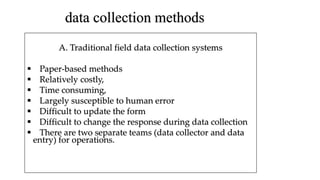
data collection methods
A. Traditional field data collection systems
 Paper-based methods
 Relatively costly,
 Time consuming,
 Largely susceptible to human error
 Difficult to update the form
 Difficult to change the response during data collection
 There are two separate teams (data collector and data
entry) for operations.
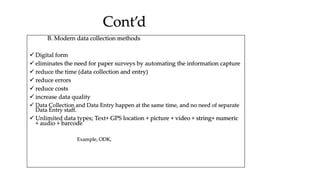
Cont’d
B. Modern data collection methods
 Digital form
 eliminates the need for paper surveys by automating the information capture
 reduce the time (data collection and entry)
 reduce errors
 reduce costs
 increase data quality
 Data Collection and Data Entry happen at the same time, and no need of separate
Data Entry staff.
 Unlimited data types; Text+ GPS location + picture + video + string+ numeric
+ audio + barcode
Example, ODK,
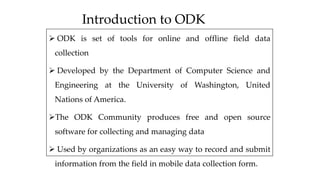
Introduction to ODK
 ODK is set of tools for online and offline field data
collection
 Developed by the Department of Computer Science and
Engineering at the University of Washington, United
Nations of America.
The ODK Community produces free and open source
software for collecting and managing data
 Used by organizations as an easy way to record and submit
information from the field in mobile data collection form.
Cont’d
 Replaces paper forms used in survey-based data
gathering
 It supports a wide range of question and answer
types
 Designed to work well without network connectivity
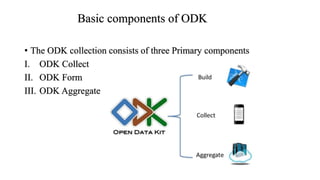
Basic components of ODK
• The ODK collection consists of three Primary components
I. ODK Collect
II. ODK Form
III. ODK Aggregate
XForms ODK
Build/other
Form Authoring
(ODK Build/XML Editor)
Mobile Engine
(ODK Collect)
Data Server
(ODK Aggregate)
Filled XML
Data
XML
Forms
Basic Components
ODK Collect
• Is an open source Android based application (Operates in
a disconnected mode)
• providing simple interfaces for collecting data.
 Use the mobile clients for data collection and
submission.
• Allows data collection using android mobile devices and
data submission to an online server even without an
Internet connection at the time of data collection.
 ODK Collect is a mobile platform
Downloading and Installing
1. Downloading from web (Opendatakit site)
2. Downloading from Play store
By typing “ODK” in the play store
The easiest way
Always has the latest stable release.
3. install it in to your android device or mobile
ODK will automatically install after you downloaded on older
device, while for newer devices, rename the file to restore the
.apk extension.
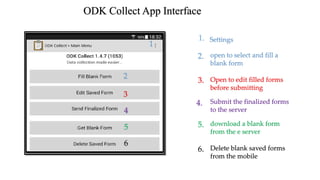
ODK Collect App Interface
open to select and fill a
blank form
Open to edit filled forms
before submitting
Submit the finalized forms
to the server
download a blank form
from the e server
Delete blank saved forms
from the mobile
2
2.
3
4
5
6
3.
4.
5.
6.
1
Settings
1.
ODK Form
 Allows the user to create / Authorize forms
 xml format
ODK Build, XLSForm, Kobo toolbox account
ODK Aggregate
 Store data/ Data server
 Before using ODK in data collection it is important to
design database so that to link with ODK Collect for data
collection.
 An open source Java application that stores, manages,
analyzes, and makes visual representations of Xform
survey data collected using ODK Collect or other
compliant applications.
 runs on Google appengine, Tomcat, MySQL server, …
ODK Aggregate;
Aggregate is an easy to deploy data storage system
hosted in the "cloud" or on local servers.
provides blank forms to ODK Collect (or other clients),
 Accepts finalized Xforms (submissions) from ODK
Collect and manage collected data,
 Visualize the collected data using maps and simple
graphs,
 Export and publish data in a variety of formats (e.g., as
CSV files for spreadsheets, or as KML files for Google
Earth),
Cont’d
 An easy way to design database is by using kobo toolbox
template.
 With Kobo toolbox account we can design our
organizational profile and forms for data collection.
 Register to one the following Server Address
https://kc.humanitarianresponse.info or
https://kc.kobotoolbox.org/
 Account for humanitarian agencies is free of charge.
 Both servers are currently physically located in the
United States of America.
https://kc.kobotoolbox.org/
Is my data safe on the two
servers?
 The united nations office for the coordination of
Humanitarian Affair stakes the responsibility
relating to the server.
 regular database backups taken to keep data safe
from loss.
 Once your data is uploaded to the server, it is
stored in accounts protected by usernames and
passwords.
 only the server administrator has technical access
to the database, and we will never access your data
unless you have given us explicit access to it.
Adjustment of ODK Collect Settings
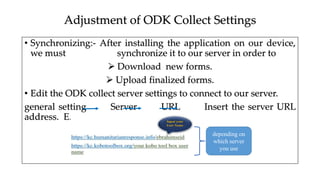
• Synchronizing:- After installing the application on our device,
we must synchronize it to our server in order to
 Download new forms.
 Upload finalized forms.
• Edit the ODK collect server settings to connect to our server.
general setting Server URL Insert the server URL
address. E.g.
depending on
which server
you use
Blank Form creation
 A blank form is a .xml file.
 Must be designed before data collection
The forms are subsequently saved to the phone's SD
memory, where it can be accessed without internet
connectivity.
 Design you questions;
 Decide on expected responses
(answers)
 Explain your data.
blank form design
Methods
There are several ways to create (design) blank forms for ODK.
Among those,
1. Using ODK Build
2. Using kobo toolbox
3. Using Microsoft excel in XLSForm. (offline and more robust)
A. Creating blank forms with ODK
Build
• Build is an HTML5 web application (web based)
• online and offline available
• the quickest and easies
• it works best for designing simple forms.
• provides a visual, drag-and-drop interface.
Embedded Question types
Steps (Online form creation)
1. You must have an account in order to create forms on ODK Build
2. Go to http://build.opendatakit.org, create a new account, and log in.
Once logged in, a blank survey is created.
2. Add questions (click on question types in the +Add New bar along the bottom).
3. Give your form a name (rename in the upper left-hand corner).
4. Once your new form is complete, save the form as .odkbuild file format.
If you have your own Aggregate server, use the URI and credentials you
created during setup.
Cont’d
B. Creating blank forms Using kobo toolbox
• Online available
• The account is free of charge;
• Requires Wi-Fi
• limited storage capacity(5 GB storage)
• fully compatible with a number of data collection different
tools such as ODK or Formhub.
♥ Please login to create your forms from previously registered
Kobo toolbox server
You can create your first form by clicking on New, then choose build from scratch.
1
2
Write here the name
of the form
Write here the
name of the
form
Write here the short
description of the form
Select here
country
Finally click here to
start creating the
form
Then, click on the + button to add your first question.
Figure:- KoBo Toolbox - Form builder interface
4
After typing in the question label, click Add Question and choose
a response type.
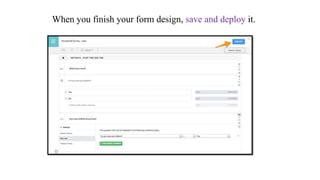
When you finish your form design, save and deploy it.
C. Using XLSForm
 Excel-based form designer.
 simple to get started with but allow for the authoring of complex
forms.
 supported by a number of popular data collection platforms.
 most ODK users design their forms
 Once the form has been designed, we should convert to Xforms
(xml file) using XLSForm Online or XLSForm Offline
in order to be used with ODK tools.
 It is recommend starting with XLSForm Online converter because of
 always up-to-date
 allows you to preview what the form
will look like.
Basic format of XLSForm
• Basically, each Excel XLSForm has two worksheets: survey and
choices. The third worksheet called settings is optional and can
be added to provide additional specifications to the form
The survey sheet (mandatory)
 This worksheet gives the form its overall structure and
contains most of the content of the form.
 The survey worksheet has 3 mandatory columns: type, name,
and label.
a) The type column specifies the type of entry we are adding.
b) The name column specifies the unique variable name for that
entry. No two entries can have the same name.
c) The label column contains the actual text one see in the
XLSForm.
Cont’d
The choices sheet (mandatory)
This worksheet is used to specify the choices for multiple choice questions.
Each row represents an answer choice.
The choices worksheet has 3 mandatory columns as well: list name, name,
and label.
1) list name column:- lets one group together a set of related
answer choices, i.e., answer choices that should appear together
under a question.
2) Name column:- specifies the unique variable name for that
answer choice.
3) Label column:- shows the answer choice exactly as one want it
to appear on the form. This choices sheet corresponds to the
survey sheet mentioned above.
Cont’d
One should keep in mind when authoring forms in Excel is that the syntax used must be precise. For
example, if one writes Choices or choice instead of choices, the form won't work.
The settings sheet (optional)
A third optional worksheet which can add additional
specifications to your form.
Form_title: The title of the form that is shown to users.
Form_id: The name used to identify the form submission.
Question types
• ODK Collect supports forms with a wide variety of
question types. The exact functionality and
display style of each question are specified in
your XLSForm definition using the type and
appearance columns.
These are just some of the simple question type we use
under type column in the survey worksheet:
Downloading blank forms in to ODK Collect
 To start collecting data you need to first deploy your draft form.
To be able to use ODK Collect for data collection, pre-designed
data collection forms will have to be loaded onto the application.
There are generally two ways of performing this task.
I. Get blank forms from a pre-configured ODK server designed
to distribute blank forms and also to receive form submissions;
and,
II. Get blank forms directly onto the mobile device via a USB
connection with a computer where the pre-designed data
collection forms are located.
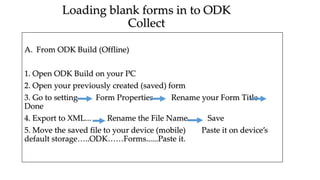
A. From ODK Build (Offline)
1. Open ODK Build on your PC
2. Open your previously created (saved) form
3. Go to setting Form Properties Rename your Form Title
Done
4. Export to XML... Rename the File Name Save
5. Move the saved file to your device (mobile) Paste it on device’s
default storage…..ODK……Forms......Paste it.
Loading blank forms in to ODK
Collect
B. Loading from Kobo toolbox server
Two Preconditions
 Make sure you are connected to the internet
By enabling your device “mobile data” or “Wi-Fi”)
 you should to have at least one project deployed in your Kobo
Toolbox account.
1. Open ODK Collect on your device.
3. Go back to the app home screen and select Get Blank Form, then,
Select the ones you would like to download, and tap Get Selected.
Click here to download
deployed form
Choose your
own form
Start Collecting Data
Nb. To collect data, internet connection is not required.
i.e Once downloaded, the user can fill the form in an offline
mode.
However, you must be connected to the internet to submit
data to the server.
1. Select Fill Blank Form from the Main menu to complete a
survey.
3. Select the required form from the lists
4. Conduct the survey
5. When you reach at the end , rename the form, save and
exit.
1 2 3
When you complete your data collection, the following
interface appears
To complete the task,
Rename the form
Check/uncheck Mark form…..
Click “save form and exit” tab
We can edit saved form
We can’t edit saved
form
Editing saved forms
• We can edit our saved forms before finalizing.
• “Edit Saved Form” allows you to go back to saved
forms (only the non finalized ones) and edit them as
necessary.
• Finalized forms can never be edited.
• In order to edit the saved form, the corresponding
form must present in “Fill Blank Form” list. Otherwise
the following message displays.
Open to edit saved
forms before
finalizing
Finalizing forms
Once you have completed the form, prepare it for upload by
finalizing it.
• The Saved Forms tab lists forms that are saved and
finalized.
• Completed forms will be stored in your device and you can
sent them when internet is available.
In order to upload a form, we must finalize it by Checking
“Save Form and Exit” tab during
 filling blank form or
 editing saved form
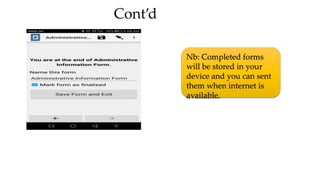
Cont’d
Nb: Completed forms
will be stored in your
device and you can sent
them when internet is
available.
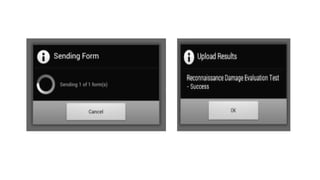
Uploading finalized forms in to server
• Click on Send Finalized Form tab to upload your completed survey forms to the server.
=
1
2
3
Select the finalized forms to upload the data to
the
aggregate server after they have been finalized
2
Remember the
following,
• You can edit Saved and Finalized forms.????????????????????
• Sent forms will not appear in the Edit Saved Forms list.
• Sent forms are no longer editable, but they remain viewable
until they are deleted.
• Sent forms, will be available for viewing in View Sent Forms list,
along with the details which cannot be edited.
• Now login into server and see your completed survey results.
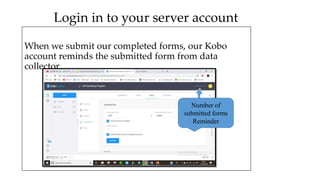
Login in to your server account
When we submit our completed forms, our Kobo
account reminds the submitted form from data
collector.
Number of
submitted forms
Reminder
Extracting data from Kobo Toolbox
Simply click “Download data” at the project
management form and select format: XLS, CSV, ZIP,
KML…
Open Data Kit, Digital data collection tool,  training manual.pptx

Open Data Kit, Digital data collection tool, training manual.pptx

  • 1.
    training on: Mobile DataCollection using Open Data Kit (ODK) Ebrahim Seid Endris GIS Researcher at Southern Agricultural Research Institute Hawassa, 2023, Ethiopia
  • 2.
    Topics to becovered • Introduction to data collection methods • Introduction to Open Data Kit and its component • Set up ODK Collect • Ways of designing and Creating questioner forms • Loading forms into Collect on an Android device • Collecting field data using ODK Collect • Submitting(uploading) survey data to server • Data management
  • 3.
    data collection methods A.Traditional field data collection systems  Paper-based methods  Relatively costly,  Time consuming,  Largely susceptible to human error  Difficult to update the form  Difficult to change the response during data collection  There are two separate teams (data collector and data entry) for operations.
  • 4.
    Cont’d B. Modern datacollection methods  Digital form  eliminates the need for paper surveys by automating the information capture  reduce the time (data collection and entry)  reduce errors  reduce costs  increase data quality  Data Collection and Data Entry happen at the same time, and no need of separate Data Entry staff.  Unlimited data types; Text+ GPS location + picture + video + string+ numeric + audio + barcode Example, ODK,
  • 5.
    Introduction to ODK ODK is set of tools for online and offline field data collection  Developed by the Department of Computer Science and Engineering at the University of Washington, United Nations of America. The ODK Community produces free and open source software for collecting and managing data  Used by organizations as an easy way to record and submit information from the field in mobile data collection form.
  • 6.
    Cont’d  Replaces paperforms used in survey-based data gathering  It supports a wide range of question and answer types  Designed to work well without network connectivity
  • 7.
    Basic components ofODK • The ODK collection consists of three Primary components I. ODK Collect II. ODK Form III. ODK Aggregate
  • 8.
    XForms ODK Build/other Form Authoring (ODKBuild/XML Editor) Mobile Engine (ODK Collect) Data Server (ODK Aggregate) Filled XML Data XML Forms Basic Components
  • 9.
    ODK Collect • Isan open source Android based application (Operates in a disconnected mode) • providing simple interfaces for collecting data.  Use the mobile clients for data collection and submission. • Allows data collection using android mobile devices and data submission to an online server even without an Internet connection at the time of data collection.  ODK Collect is a mobile platform
  • 10.
    Downloading and Installing 1.Downloading from web (Opendatakit site) 2. Downloading from Play store By typing “ODK” in the play store The easiest way Always has the latest stable release. 3. install it in to your android device or mobile ODK will automatically install after you downloaded on older device, while for newer devices, rename the file to restore the .apk extension.
  • 11.
    ODK Collect AppInterface open to select and fill a blank form Open to edit filled forms before submitting Submit the finalized forms to the server download a blank form from the e server Delete blank saved forms from the mobile 2 2. 3 4 5 6 3. 4. 5. 6. 1 Settings 1.
  • 12.
    ODK Form  Allowsthe user to create / Authorize forms  xml format ODK Build, XLSForm, Kobo toolbox account
  • 13.
    ODK Aggregate  Storedata/ Data server  Before using ODK in data collection it is important to design database so that to link with ODK Collect for data collection.  An open source Java application that stores, manages, analyzes, and makes visual representations of Xform survey data collected using ODK Collect or other compliant applications.  runs on Google appengine, Tomcat, MySQL server, …
  • 14.
    ODK Aggregate; Aggregate isan easy to deploy data storage system hosted in the "cloud" or on local servers. provides blank forms to ODK Collect (or other clients),  Accepts finalized Xforms (submissions) from ODK Collect and manage collected data,  Visualize the collected data using maps and simple graphs,  Export and publish data in a variety of formats (e.g., as CSV files for spreadsheets, or as KML files for Google Earth),
  • 15.
    Cont’d  An easyway to design database is by using kobo toolbox template.  With Kobo toolbox account we can design our organizational profile and forms for data collection.  Register to one the following Server Address https://kc.humanitarianresponse.info or https://kc.kobotoolbox.org/  Account for humanitarian agencies is free of charge.  Both servers are currently physically located in the United States of America.
  • 16.
  • 17.
    Is my datasafe on the two servers?  The united nations office for the coordination of Humanitarian Affair stakes the responsibility relating to the server.  regular database backups taken to keep data safe from loss.  Once your data is uploaded to the server, it is stored in accounts protected by usernames and passwords.  only the server administrator has technical access to the database, and we will never access your data unless you have given us explicit access to it.
  • 18.
    Adjustment of ODKCollect Settings • Synchronizing:- After installing the application on our device, we must synchronize it to our server in order to  Download new forms.  Upload finalized forms. • Edit the ODK collect server settings to connect to our server. general setting Server URL Insert the server URL address. E.g. depending on which server you use
  • 19.
    Blank Form creation A blank form is a .xml file.  Must be designed before data collection The forms are subsequently saved to the phone's SD memory, where it can be accessed without internet connectivity.  Design you questions;  Decide on expected responses (answers)  Explain your data.
  • 21.
    blank form design Methods Thereare several ways to create (design) blank forms for ODK. Among those, 1. Using ODK Build 2. Using kobo toolbox 3. Using Microsoft excel in XLSForm. (offline and more robust)
  • 22.
    A. Creating blankforms with ODK Build • Build is an HTML5 web application (web based) • online and offline available • the quickest and easies • it works best for designing simple forms. • provides a visual, drag-and-drop interface. Embedded Question types
  • 23.
    Steps (Online formcreation) 1. You must have an account in order to create forms on ODK Build 2. Go to http://build.opendatakit.org, create a new account, and log in. Once logged in, a blank survey is created. 2. Add questions (click on question types in the +Add New bar along the bottom). 3. Give your form a name (rename in the upper left-hand corner). 4. Once your new form is complete, save the form as .odkbuild file format. If you have your own Aggregate server, use the URI and credentials you created during setup.
  • 24.
  • 25.
    B. Creating blankforms Using kobo toolbox • Online available • The account is free of charge; • Requires Wi-Fi • limited storage capacity(5 GB storage) • fully compatible with a number of data collection different tools such as ODK or Formhub. ♥ Please login to create your forms from previously registered Kobo toolbox server
  • 26.
    You can createyour first form by clicking on New, then choose build from scratch. 1 2
  • 27.
    Write here thename of the form Write here the name of the form Write here the short description of the form Select here country Finally click here to start creating the form
  • 28.
    Then, click onthe + button to add your first question. Figure:- KoBo Toolbox - Form builder interface 4
  • 29.
    After typing inthe question label, click Add Question and choose a response type.
  • 30.
    When you finishyour form design, save and deploy it.
  • 32.
    C. Using XLSForm Excel-based form designer.  simple to get started with but allow for the authoring of complex forms.  supported by a number of popular data collection platforms.  most ODK users design their forms  Once the form has been designed, we should convert to Xforms (xml file) using XLSForm Online or XLSForm Offline in order to be used with ODK tools.  It is recommend starting with XLSForm Online converter because of  always up-to-date  allows you to preview what the form will look like.
  • 33.
    Basic format ofXLSForm • Basically, each Excel XLSForm has two worksheets: survey and choices. The third worksheet called settings is optional and can be added to provide additional specifications to the form
  • 34.
    The survey sheet(mandatory)  This worksheet gives the form its overall structure and contains most of the content of the form.  The survey worksheet has 3 mandatory columns: type, name, and label. a) The type column specifies the type of entry we are adding. b) The name column specifies the unique variable name for that entry. No two entries can have the same name. c) The label column contains the actual text one see in the XLSForm.
  • 35.
  • 36.
    The choices sheet(mandatory) This worksheet is used to specify the choices for multiple choice questions. Each row represents an answer choice. The choices worksheet has 3 mandatory columns as well: list name, name, and label. 1) list name column:- lets one group together a set of related answer choices, i.e., answer choices that should appear together under a question. 2) Name column:- specifies the unique variable name for that answer choice. 3) Label column:- shows the answer choice exactly as one want it to appear on the form. This choices sheet corresponds to the survey sheet mentioned above.
  • 37.
    Cont’d One should keepin mind when authoring forms in Excel is that the syntax used must be precise. For example, if one writes Choices or choice instead of choices, the form won't work.
  • 38.
    The settings sheet(optional) A third optional worksheet which can add additional specifications to your form. Form_title: The title of the form that is shown to users. Form_id: The name used to identify the form submission.
  • 39.
    Question types • ODKCollect supports forms with a wide variety of question types. The exact functionality and display style of each question are specified in your XLSForm definition using the type and appearance columns.
  • 40.
    These are justsome of the simple question type we use under type column in the survey worksheet:
  • 41.
    Downloading blank formsin to ODK Collect  To start collecting data you need to first deploy your draft form. To be able to use ODK Collect for data collection, pre-designed data collection forms will have to be loaded onto the application. There are generally two ways of performing this task. I. Get blank forms from a pre-configured ODK server designed to distribute blank forms and also to receive form submissions; and, II. Get blank forms directly onto the mobile device via a USB connection with a computer where the pre-designed data collection forms are located.
  • 42.
    A. From ODKBuild (Offline) 1. Open ODK Build on your PC 2. Open your previously created (saved) form 3. Go to setting Form Properties Rename your Form Title Done 4. Export to XML... Rename the File Name Save 5. Move the saved file to your device (mobile) Paste it on device’s default storage…..ODK……Forms......Paste it. Loading blank forms in to ODK Collect
  • 43.
    B. Loading fromKobo toolbox server Two Preconditions  Make sure you are connected to the internet By enabling your device “mobile data” or “Wi-Fi”)  you should to have at least one project deployed in your Kobo Toolbox account. 1. Open ODK Collect on your device. 3. Go back to the app home screen and select Get Blank Form, then, Select the ones you would like to download, and tap Get Selected.
  • 44.
    Click here todownload deployed form
  • 45.
  • 46.
    Start Collecting Data Nb.To collect data, internet connection is not required. i.e Once downloaded, the user can fill the form in an offline mode. However, you must be connected to the internet to submit data to the server. 1. Select Fill Blank Form from the Main menu to complete a survey. 3. Select the required form from the lists 4. Conduct the survey 5. When you reach at the end , rename the form, save and exit.
  • 47.
  • 48.
    When you completeyour data collection, the following interface appears To complete the task, Rename the form Check/uncheck Mark form….. Click “save form and exit” tab We can edit saved form We can’t edit saved form
  • 49.
    Editing saved forms •We can edit our saved forms before finalizing. • “Edit Saved Form” allows you to go back to saved forms (only the non finalized ones) and edit them as necessary. • Finalized forms can never be edited. • In order to edit the saved form, the corresponding form must present in “Fill Blank Form” list. Otherwise the following message displays.
  • 50.
    Open to editsaved forms before finalizing
  • 51.
    Finalizing forms Once youhave completed the form, prepare it for upload by finalizing it. • The Saved Forms tab lists forms that are saved and finalized. • Completed forms will be stored in your device and you can sent them when internet is available. In order to upload a form, we must finalize it by Checking “Save Form and Exit” tab during  filling blank form or  editing saved form
  • 52.
    Cont’d Nb: Completed forms willbe stored in your device and you can sent them when internet is available.
  • 53.
    Uploading finalized formsin to server • Click on Send Finalized Form tab to upload your completed survey forms to the server. = 1 2 3 Select the finalized forms to upload the data to the aggregate server after they have been finalized 2
  • 55.
    Remember the following, • Youcan edit Saved and Finalized forms.???????????????????? • Sent forms will not appear in the Edit Saved Forms list. • Sent forms are no longer editable, but they remain viewable until they are deleted. • Sent forms, will be available for viewing in View Sent Forms list, along with the details which cannot be edited. • Now login into server and see your completed survey results.
  • 56.
    Login in toyour server account When we submit our completed forms, our Kobo account reminds the submitted form from data collector. Number of submitted forms Reminder
  • 57.
    Extracting data fromKobo Toolbox Simply click “Download data” at the project management form and select format: XLS, CSV, ZIP, KML…