Imaging and Design for
Online Environment
• Basic principles of graphics and layout
• Online file formats for images
• Principles and basic techniques of image
manipulation
• Uploading, sharing, and image hosting
At the end of this lesson, the students should be able to:
1. understand the basic principles of graphics and layout;
2. create a simple infographic using web tools;
3. understand and use several file formats used on the web;
4. easily manipulate images using a simple image editor; and
5. upload and share images using online image hosting services.
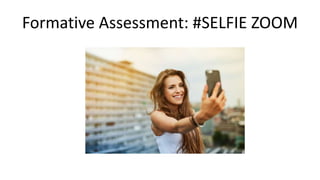
Formative Assessment: #SELFIE ZOOM
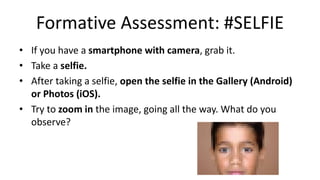
Formative Assessment: #SELFIE
• If you have a smartphone with camera, grab it.
• Take a selfie.
• After taking a selfie, open the selfie in the Gallery (Android)
or Photos (iOS).
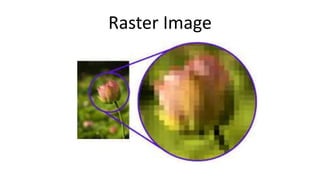
• Try to zoom in the image, going all the way. What do you
observe?
Lesson 2
Image File Formats
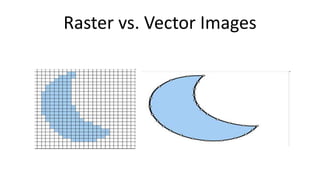
Raster vs. Vector Images
Raster Image
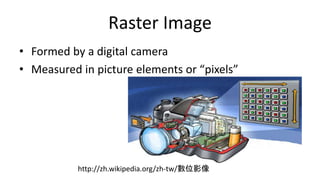
Raster Image
• Formed by a digital camera
• Measured in picture elements or “pixels”
http://zh.wikipedia.org/zh-tw/數位影像
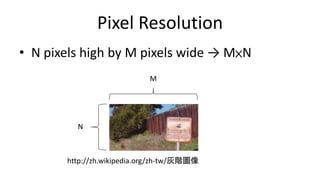
Pixel Resolution
• N pixels high by M pixels wide → M×N
http://zh.wikipedia.org/zh-tw/灰階圖像
M
N
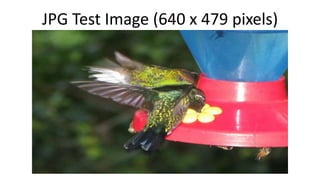
JPG Test Image (640 x 479 pixels)
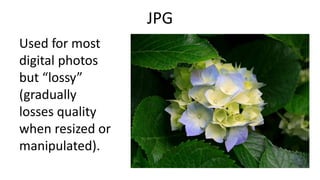
JPG
Used for most
digital photos
but “lossy”
(gradually
losses quality
when resized or
manipulated).
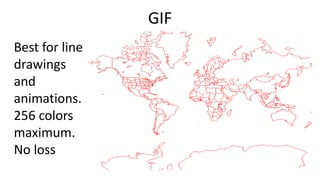
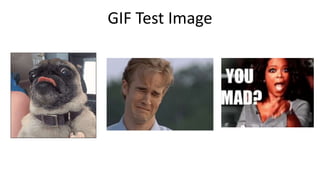
GIF
Best for line
drawings
and
animations.
256 colors
maximum.
No loss
GIF Test Image
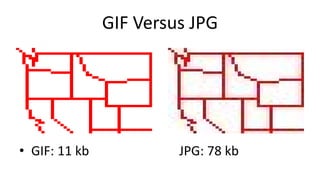
GIF Versus JPG
• GIF: 11 kb JPG: 78 kb
GIF Versus JPG
• For photographic images JPG is better both
for quality and file size
• For line art GIF is better both for quality and
file size
• The future of line art is probably in vector
graphics.
Other Common Raster Image Formats
• BMP – Bitmap. Every pixel stored individually
• TIF – Standard in many technical applications.
No loss
• PNG – Lossless image format
• RAW – Data as captured by digital camera,
particularly Digital Single Lens Reflex (DSLR)
camera.
Popular Raster Graphic Software
• Microsoft Paint
• Adobe Photoshop
• Corel PhotoPaint
• Pixlr
• GIMP – open source software similar to Adobe
Photoshop.
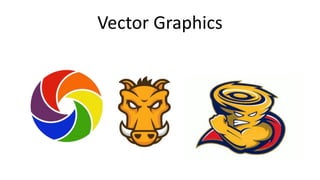
Vector Graphics
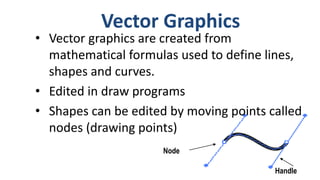
Node
Handle
• Vector graphics are created from
mathematical formulas used to define lines,
shapes and curves.
• Edited in draw programs
• Shapes can be edited by moving points called
nodes (drawing points)
Vector Graphics
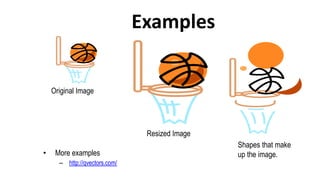
Examples
• More examples
– http://qvectors.com/
Original Image
Resized Image
Shapes that make
up the image.
Uses of Vector Graphics
• Graphics that will be scaled (or resized)
– Architectural drawings and CAD programs
– Flow charts
– Logos that will be scaled (resized)
• Cartoons and clip art
• Graphics on websites
– Because they have very small file sizes.
– This allows them to load quickly.
• Fonts and specialized text effects
Advantages of Vectors
• Resolution Independent
– Regardless of how much the image is
enlarged or reduced, the image definition
and quality remain the same.
• Small File Sizes
– Easily transferred over the Internet.
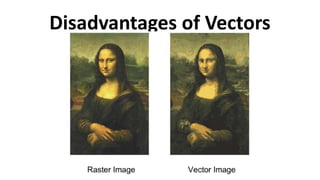
Disadvantages of Vectors
• Lower color quality than raster images.
– They do not support as many colors.
• Not good for photographic images.
Disadvantages of Vectors
• AI – Adobe Illustrator
– Industry standard used by developers of vector graphics.
– Used to create, save, and archive original artwork.
• EPS – Encapsulated Postscript
– Meta Graphic
– Graphics developers generally save a copy of the AI file in EPS
format because it can be opened by computers running
different operating systems.
– Preferred format for vendors/clients who use the graphics in
publications due to its portability.
Common Vector File Formats
• SVG – Scalable Vector Graphics
– Standard format created by W3C
– Versatile, all-purpose vector format
• CDR – Corel Draw
• DXF – AutoCAD
• WMF – Windows Metafile
Popular Vector Graphic Software
• Adobe Illustrator
• Corel DRAW
• AutoCAD
• Inkscape – open source software similar to
Adobe Illustrator.
• Xara Xtreme
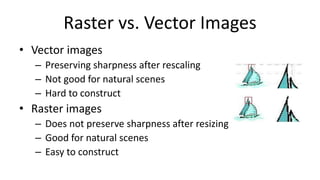
Raster vs. Vector Images
• Vector images
– Preserving sharpness after rescaling
– Not good for natural scenes
– Hard to construct
• Raster images
– Does not preserve sharpness after resizing
– Good for natural scenes
– Easy to construct
Activity!
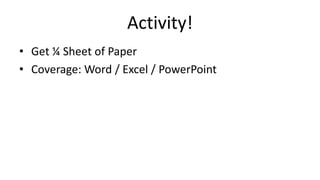
• Get ¼ Sheet of Paper
• Coverage: Word / Excel / PowerPoint
Activity!
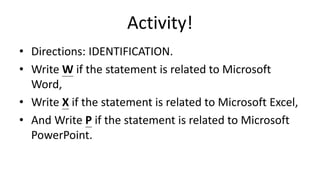
• Directions: IDENTIFICATION.
• Write W if the statement is related to Microsoft
Word,
• Write X if the statement is related to Microsoft Excel,
• And Write P if the statement is related to Microsoft
PowerPoint.
Activity!
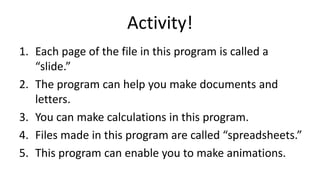
1. Each page of the file in this program is called a
“slide.”
2. The program can help you make documents and
letters.
3. You can make calculations in this program.
4. Files made in this program are called “spreadsheets.”
5. This program can enable you to make animations.
Activity!
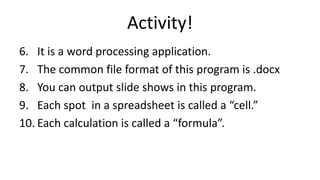
6. It is a word processing application.
7. The common file format of this program is .docx
8. You can output slide shows in this program.
9. Each spot in a spreadsheet is called a “cell.”
10. Each calculation is called a “formula”.
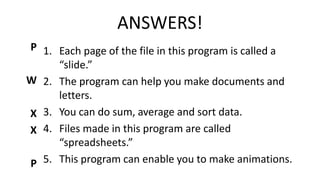
ANSWERS!
1. Each page of the file in this program is called a
“slide.”
2. The program can help you make documents and
letters.
3. You can do sum, average and sort data.
4. Files made in this program are called
“spreadsheets.”
5. This program can enable you to make animations.
P
W
X
X
P
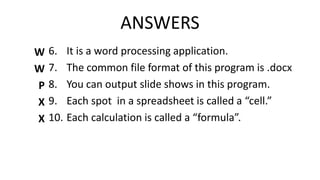
ANSWERS
6. It is a word processing application.
7. The common file format of this program is .docx
8. You can output slide shows in this program.
9. Each spot in a spreadsheet is called a “cell.”
10. Each calculation is called a “formula”.
W
W
P
X
X
Next Meeting
• Introduction to
Imaging Tools
• Performance Task
Each group should bring at least
1 Android or iOS smartphone and
download the Canva app
or register an account at
Canva.com

Online File Formats.pptx

  • 1.
    Imaging and Designfor Online Environment • Basic principles of graphics and layout • Online file formats for images • Principles and basic techniques of image manipulation • Uploading, sharing, and image hosting
  • 2.
    At the endof this lesson, the students should be able to: 1. understand the basic principles of graphics and layout; 2. create a simple infographic using web tools; 3. understand and use several file formats used on the web; 4. easily manipulate images using a simple image editor; and 5. upload and share images using online image hosting services.
  • 3.
  • 4.
    Formative Assessment: #SELFIE •If you have a smartphone with camera, grab it. • Take a selfie. • After taking a selfie, open the selfie in the Gallery (Android) or Photos (iOS). • Try to zoom in the image, going all the way. What do you observe?
  • 5.
  • 6.
  • 7.
  • 8.
    Raster Image • Formedby a digital camera • Measured in picture elements or “pixels” http://zh.wikipedia.org/zh-tw/數位影像
  • 9.
    Pixel Resolution • Npixels high by M pixels wide → M×N http://zh.wikipedia.org/zh-tw/灰階圖像 M N
  • 10.
    JPG Test Image(640 x 479 pixels)
  • 11.
    JPG Used for most digitalphotos but “lossy” (gradually losses quality when resized or manipulated).
  • 12.
  • 13.
  • 14.
    GIF Versus JPG •GIF: 11 kb JPG: 78 kb
  • 15.
    GIF Versus JPG •For photographic images JPG is better both for quality and file size • For line art GIF is better both for quality and file size • The future of line art is probably in vector graphics.
  • 16.
    Other Common RasterImage Formats • BMP – Bitmap. Every pixel stored individually • TIF – Standard in many technical applications. No loss • PNG – Lossless image format • RAW – Data as captured by digital camera, particularly Digital Single Lens Reflex (DSLR) camera.
  • 17.
    Popular Raster GraphicSoftware • Microsoft Paint • Adobe Photoshop • Corel PhotoPaint • Pixlr • GIMP – open source software similar to Adobe Photoshop.
  • 18.
  • 19.
    Node Handle • Vector graphicsare created from mathematical formulas used to define lines, shapes and curves. • Edited in draw programs • Shapes can be edited by moving points called nodes (drawing points) Vector Graphics
  • 20.
    Examples • More examples –http://qvectors.com/ Original Image Resized Image Shapes that make up the image.
  • 21.
    Uses of VectorGraphics • Graphics that will be scaled (or resized) – Architectural drawings and CAD programs – Flow charts – Logos that will be scaled (resized) • Cartoons and clip art • Graphics on websites – Because they have very small file sizes. – This allows them to load quickly. • Fonts and specialized text effects
  • 22.
    Advantages of Vectors •Resolution Independent – Regardless of how much the image is enlarged or reduced, the image definition and quality remain the same. • Small File Sizes – Easily transferred over the Internet.
  • 23.
    Disadvantages of Vectors •Lower color quality than raster images. – They do not support as many colors. • Not good for photographic images.
  • 24.
  • 25.
    • AI –Adobe Illustrator – Industry standard used by developers of vector graphics. – Used to create, save, and archive original artwork. • EPS – Encapsulated Postscript – Meta Graphic – Graphics developers generally save a copy of the AI file in EPS format because it can be opened by computers running different operating systems. – Preferred format for vendors/clients who use the graphics in publications due to its portability. Common Vector File Formats
  • 26.
    Common Vector FileFormats • SVG – Scalable Vector Graphics – Standard format created by W3C – Versatile, all-purpose vector format • CDR – Corel Draw • DXF – AutoCAD • WMF – Windows Metafile
  • 27.
    Popular Vector GraphicSoftware • Adobe Illustrator • Corel DRAW • AutoCAD • Inkscape – open source software similar to Adobe Illustrator. • Xara Xtreme
  • 28.
    Raster vs. VectorImages • Vector images – Preserving sharpness after rescaling – Not good for natural scenes – Hard to construct • Raster images – Does not preserve sharpness after resizing – Good for natural scenes – Easy to construct
  • 29.
    Activity! • Get ¼Sheet of Paper • Coverage: Word / Excel / PowerPoint
  • 30.
    Activity! • Directions: IDENTIFICATION. •Write W if the statement is related to Microsoft Word, • Write X if the statement is related to Microsoft Excel, • And Write P if the statement is related to Microsoft PowerPoint.
  • 31.
    Activity! 1. Each pageof the file in this program is called a “slide.” 2. The program can help you make documents and letters. 3. You can make calculations in this program. 4. Files made in this program are called “spreadsheets.” 5. This program can enable you to make animations.
  • 32.
    Activity! 6. It isa word processing application. 7. The common file format of this program is .docx 8. You can output slide shows in this program. 9. Each spot in a spreadsheet is called a “cell.” 10. Each calculation is called a “formula”.
  • 33.
    ANSWERS! 1. Each pageof the file in this program is called a “slide.” 2. The program can help you make documents and letters. 3. You can do sum, average and sort data. 4. Files made in this program are called “spreadsheets.” 5. This program can enable you to make animations. P W X X P
  • 34.
    ANSWERS 6. It isa word processing application. 7. The common file format of this program is .docx 8. You can output slide shows in this program. 9. Each spot in a spreadsheet is called a “cell.” 10. Each calculation is called a “formula”. W W P X X
  • 35.
    Next Meeting • Introductionto Imaging Tools • Performance Task Each group should bring at least 1 Android or iOS smartphone and download the Canva app or register an account at Canva.com