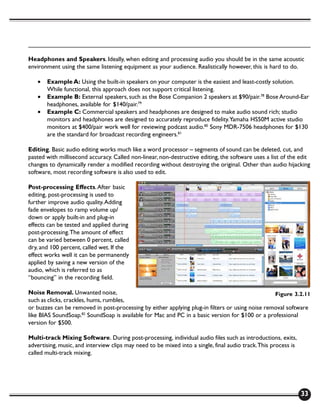
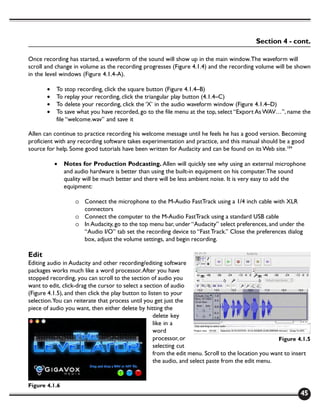
Business Connections
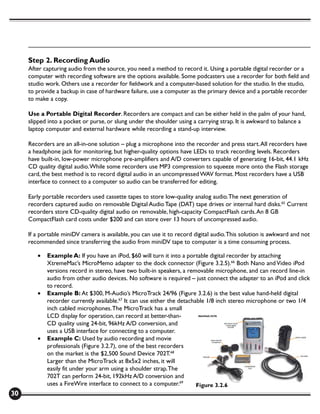
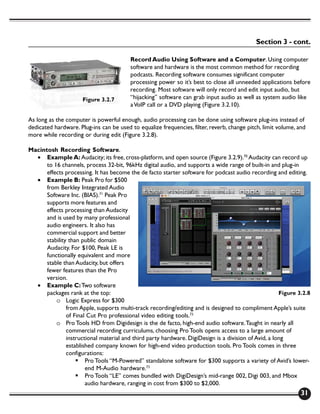
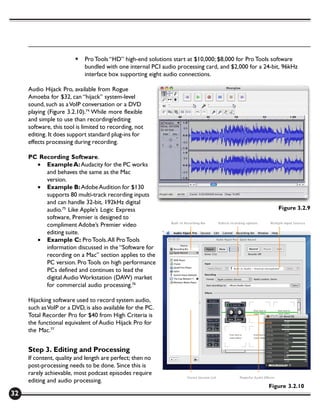
             Webcasting and Podcasting
Creating Electronic Media for Small Businesses
Table of Contents
Preface                                                                  2

Section 1: Netcasting                                                    3

      1.0 What is Netcasting?                                            3
      1.1 What Has Influenced Netcasting?                                4
      1.2 Why Would You Want to Create a Netcast?                        7
      1.3 Who, What, When, Where and How?                                8
      1.4 How Much Does a Netcast Cost?                                  12

Section 2: Webcasting                                                    13

      2.0 Types of Webcasts                                              13
      2.1 Planning, Execution, and Follow-up                             15
      2.2 How Much Does a Webcast Cost?                                  16
      2.3 Delivery Challenges for Streaming Applications                 17
      2.4 Webcast or Podcast?                                            17

Section 3: Podcasting Basics                                             18

      3.0 What is a Podcast?                                             18
      3.1 How do You Find, Subscribe to, Listen to, or View a Podcast?   20
      3.2 How do You Produce/Publish a Podcast?                          26
      3.3 How Much Does a Podcast Cost?                                  36
      3.4 What is a Copyright and How Does it Affect What is Produced?   36

Section 4: Create Your First Audio Podcast                               39

      4.0 Planning                                                       39
      4.1 Record and Edit the Audio                                      41
      4.2 Compress and Tag the Audio                                     46
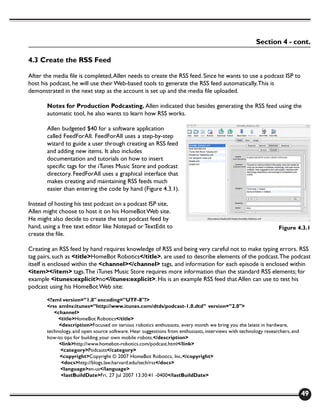
      4.3 Create the RSS Feed                                            49
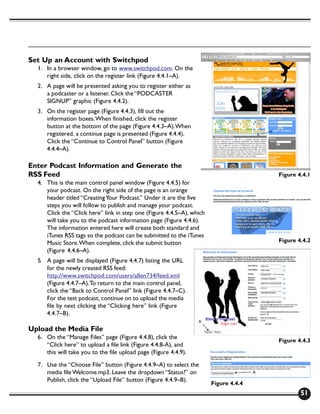
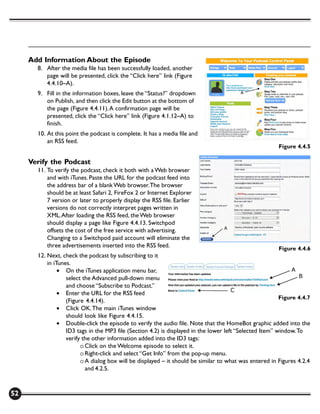
      4.4 Publish Your Podcast                                           50
      4.5 List the Podcast in a Directory                                54
      4.6 Final Thoughts                                                 55

Appendix A: Resources                                                    56

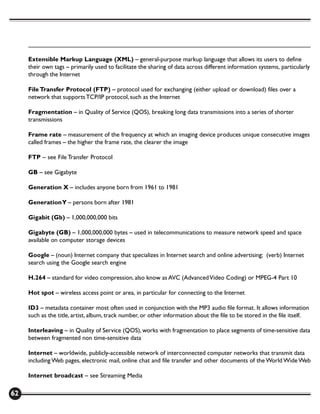
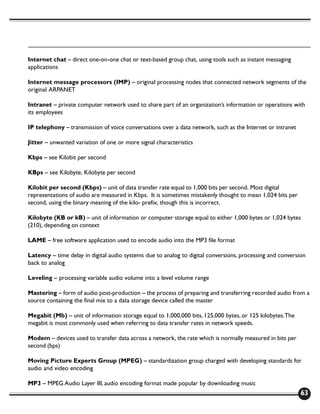
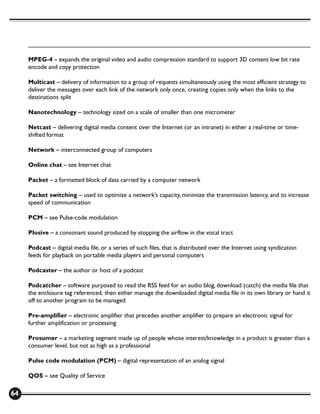
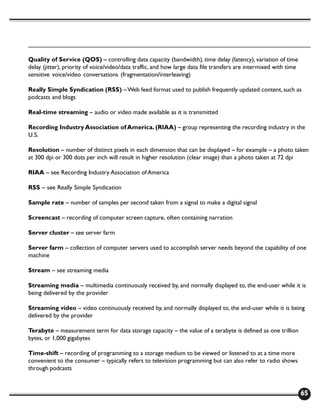
Appendix B: Glossary of Terms                                            60

Appendix C: Podcasting Cost Model                                        67

End Notes, Disclaimer and Credits                                        69

                                                                              1
Preface
    This manual is intended for a non-technical businessperson, someone who is aware of the Internet but not
    familiar with netcasting.

    Section One discusses both webcasting and podcasting under a broader umbrella concept called netcasting.
    Common influences and planning aspects for both types of netcasting are presented.

    Section Two reviews different types of webcasting, how webcasting is used, and how to plan and price a
    webcast. Section Two is relatively short and only presents a high-level overview of webcasting, as this manual’s
    primary focus is podcasting.

    Section Three presents podcasting and Section Four steps you through an example of creating a simple
    podcast.

    Three appendices are included. Appendix A lists resources where you can learn more about webcasting and
    podcasting. Appendix B is a glossary of terms and abbreviations to help you in understanding the concepts
    presented. Appendix C is a cost model for production.

    Podcasting has quickly become a mainstream tool for both business and education. While entertainment
    podcasts are also very popular, the resources required to create professional entertainment can be significant.
    Low-budget entertainment podcasts can certainly be produced, but it is beyond the intention of this manual to
    address either of these areas.

    This manual focuses on using very capable, low-cost solutions for creating a podcast. Today there are a number
    of high-quality, cost effective tools and instructional aides available that review how to create high-level
    professional digital audio and video content. The scope for this manual though is to orient the reader with
    podcasting and how to create a very simple, first-time podcast.

    The e-NC Authority is neutral to different technologies, vendors and products. This manual contains references
    to various vendors and products related to webcasting and podcasting. These references are included to
    provide you with a general concept of the types of products needed to listen to, participate in, or produce
    netcasts.Vendors and products are referenced only to provide examples of what may be required for
    netcasting, to point out broad differences in products, and to provide approximate pricing. The e-NC Authority
    does not recommend one product over another. These products were identified in 2007.You should perform
    your own research of current market conditions for pricing, as well as for responsible vendors for such
    products, before making a selection.

    If you have comments or questions regarding this manual, please contact the e-NC Authority at info@e-nc.org.


2
Section 1: Netcasting
1.0 What is Netcasting?

Netcasting Defined
Netcasting is the creation and delivery of digital media content - audio or video files - over a data
network in either real-time/streaming or time-shifted/downloadable format. The data network
used is usually the Internet or an intranet presence.

The most popular forms of netcasting are webcasting and podcasting. Webcasting relies on streaming
technology to deliver content to users in real-time. Podcasting uses a publish-and-subscribe model so that new
content can be automatically downloaded for later listening or viewing. Webcasting has existed for the last
decade, while podcasting began in 2004. If you use the Internet search engine Google and look for references
to the word “webcast,” you are likely to find in excess of 30 million matching sites. In contrast, if you Google
the word “podcast,” you will see closer to 130 million matching sites. In three short years, podcasting has
surpassed webcasting to become the most affordable and effective type of netcast.

Webcasting Defined
Webcasting is the creation and delivery of digital media content, either audio or video files, over
a data network in real-time/streaming format. Using the word webcast can be confusing since it implies
many different uses. For each year the Internet has matured and improved, new webcasting applications with
new functionalities have evolved. Webcasts can be categorized into two groups:

     •   One-way (unidirectional: provider → consumer), such as a video broadcast on the Internet
     •   Two-way (bidirectional: host ↔ participants), such as a Web-based, interactive seminar (webinar)

Most often, a webcast refers to either an Internet video broadcast or a webinar. A webinar attendee connects
to the Internet, opens a browser window, and typically watches PowerPoint slides presented in real-time. By
dialing in to a telephone conference, the viewer also hears the presenter talking through the slides. Using built-
in instant messaging (IM) technology, an attendee can type questions to the presenter. An operator is usually
present to announce the start and finish of the session and open the floor to moderated questions after the
presentation.

Podcasting Defined
Podcasting is a netcast that delivers syndicated media content over a network in a downloadable,
time-shifted format. Podcasting has grown from infancy to global adolescence since it first began in 2004.
This growth is owed to a variety of influences, including strong support from the marketing/entertainment and
computer industries. Podcasting boasts low costs for production and distribution, and has significant advantages
due to the flexibility of when and where content can be played by the end-user.


                                                                                                               3
A podcast is comprised of two elements:

       •   An RSS (Really Simple Syndication) “feed” for subscribing to new updates
       •   Digital media files (audio, video, image, and PDF) that are referenced by the RSS feed


    1.1 What Has Influenced Netcasting?

    Changing Technology
    I once heard my wife tell a story that her great grandmother Cinda had crossed the Mississippi River in a
    covered wagon, train, automobile, and towards the end of her life in an airplane flown by a barnstorming
    aviator. What dramatic evolutions she witnessed in her lifetime.

    As a young boy I watched early Mercury rocket launches as the United States and the Soviet Union raced for
    dominance in space. My father’s generation relied on their imaginations to visualize the stories presented on
    radio programs. The 1938 radio broadcast of H.G. Wells’ “War of the Worlds” frightened listeners into
    believing an actual Martian invasion was occurring.1 While video is powerful, using audio as a canvas to paint
    your story can sometimes create an even more impacting and memorable experience.

    The next time I prepare to cut the grass in our yard, I’ll load up my iPod portable media player with a collection
    of country songs, British Broadcasting Company news broadcasts, and a variety of audio podcasts on my current
    topics of interest. While mowing, I’ll listen. And when I stop for a water break, I might watch a few music videos
    downloaded from Apple’s iTunes Web site.

    The evolution of nearly all great technologies begins in obscurity but explodes into social consciousness with a
    memorable event or adamant sponsor. To appreciate the present and grasp the future, it can be helpful to take a
    step back and look at things from a historical perspective. Let’s review early technology, and the driving forces
    that have influenced the netcast revolution:

       •   In 1902, Reginald Fessenden sent the first musical notes a distance of 48 miles over wireless radio, from
           his location at Roanoke Island, N.C.2
       •   On Nov. 2, 1920 announcers at radio station KDKA in Pittsburgh read telegraph ticker election results
           over the air.3 Although a fraction of the population had radio receivers, KDKA transmitted over most of
           the eastern United States. The broadcast delivery of news had begun.
       •   On March 12, 1933, President Franklin Delano Roosevelt began using radio as a way to talk with all
           Americans.4, 5 President Roosevelt’s famous fireside chats not only communicated the policy and
           mindset of his administration, but also helped him to create a personal bond with the citizenry.
       •   John Vincent Atanasoff and Clifford Berry at Iowa State University designed the first digital computer in
           the late 1930s. At 750 pounds and the size of a small table, it had a capacitor-based storage drum that
           stored less than 400 characters in memory.
       •   In the 1940s, World War II saw electronic computers in warfare decoding secret messages and
           calculating missile ballistics. Computers such as the University of Pennsylvania’s ENIAC (Electronic


4
Section 1 - cont.

       Numerical Integrator and Computer) were created. The ENIAC was a behemoth. It weighed 30 tons,
       operated with thousands of tubes, relays, and capacitors, used hundreds of kilowatts of electric power,
       and filled entire rooms.
   •   In the mid-1970s, my freshman engineering course became the first class at Iowa State University to use
       hand-held electronic calculators instead of slide rules. We still used the IBM 360 mainframe computers
       in the basement of the computer science building to run large programs, but the 9 ounce HP-35
       calculators could run the same ballistics program that used to require the ENIAC.
   •   Today we are surrounded by an incredible wealth of shrinking electronic technology. A $50 cell phone
       in present times has more computational power than the first computers that sent a spaceship to the
       moon. Not only this, but they can run on a rechargeable battery for days, and will slip easily into a shirt
       pocket.

Analog to Digital Media
Early radio, 78 and 45 RPM vinyl records, and even television were all analog technologies. Analog signals are
susceptible to interference and noise, and are not a good format for storage or duplication.

Just as audio and visual media have transitioned from analog to digital format, we are now seeing similar
advances in the quality, compression, and display size of digital media. Digital Signal Processing (DSP)
technology converts sound or video into compressed digital data, and back again. While the average consumer
will not hear much about DSP chips, they are at the heart of nearly every modern digital media device. DSP
chips are fueling the evolution of digital audio and video from standard to high and soon ultra-high definition.

Connecting Everyone and Everything
When President Roosevelt began his fireside chats, less than 10 percent of the U.S. population (123 million)
owned radios.6 In contrast, 40 percent of the 296 million U.S. residents in 2005 had broadband Internet
connectivity.7, 8

Cisco Systems is one of the companies that helped to build the Internet. John Chambers, Cisco’s president and
CEO, predicted the day would come when communication devices will be so small that we would wear
hundreds of them on our body in a “Personal Area Network.” Chambers suggested networks of devices in cars,
homes, offices and public places would connect everything, everywhere, all the time. While the idea of this
“Personal Area Network” may not yet be a reality, many homes now have networks connecting computers,
digital music centers, wireless access, and broadband Internet connectivity.

We are a very mobile computing society. Sales of laptop computers have exceeded the sale of stationary
desktop computers.Wireless Internet “hot spots” are scattered around most towns. In fact, as I sit at my
favorite coffee shop writing, my laptop is connected to the Internet through free high-speed wireless. Seeing
cell phones with Internet access or streaming video is also quite common. Cisco’s marketing phrase of a few
years back seems to quite appropriately capture where we are headed – “Anywhere, anytime, anyway
connectivity.”


                                                                                                                5
Internet Growth
       •   In 1969, four computers at Stanford Research Institute, the University of California at Los Angeles, the
           University of California at Santa Barbara, and the University of Utah were all connected by routers
           called Internet Message Processors (IMPs) to create a packet switched research network for the
           Defense Advanced Research Projects Agency (DARPA).
       •   In 1981, this network called ARPANET, had jumped from four to 213 machines.9
       •   In 2007, there are an estimated 433 million computers connected to the Internet.10

    Besides incredible growth in the number of connections, the speed of those connections has increased
    dramatically. In the early 1980s, 300 baud (300 bits per second) modems were common. Today, most U.S.
    broadband connections operate at 2 Megabits per second (2,097,152 bits per second) or better. I have been
    told that in Hong Kong you can now get 1 Gigabit per second (1,073,741,824 bits per second) service.
    Comparing the speed of a 1980s modem to the new service in Hong Kong makes you wonder what the next
    30 years will bring.

    Even though the Internet was designed from the beginning to support broadcasting, or more correctly termed
    – multicasting, early implementations have been very poor. Until the last few years, if you wanted to have your
    computer share information with five remote computers, you needed five separate conversations – one to
    each computer from your computer. This does not scale very well.

    With multicasting, one computer can send one conversation out and the Internet will replicate the stream to
    all those designated as receiving computers. Expect the Internet to take another growth spurt as more parts of
    it begin to better support multicast traffic.

    Time Shift in Media Consumption
    We have become a society that is constantly on the go. Hectic work and home schedules leave little flexibility
    in our lives. Before the Video Cassette Recorder (VCR) and Digital Video Recorder (DVR), if we wanted to
    catch a television program, we were forced to adjust our schedule. Now we can record the show, time-shifting
    it to fit our schedule.

    Sometimes there is a vital reason to getting information in real-time, like a tornado or flash flood warning. On
    the other hand, we are also often content to get the less-critical news several hours to a day after it occurs
    through television or the local newspaper.

    Time shifting is the biggest difference between a webcast and a podcast. Until sometime in the future, when
    we’re always connected and can receive a broadcast no matter where we are and what we are doing, the time-
    shifted advantage of podcasting is going to beat out real-time webcasting.

    Consider your audience’s expectations. Will they watch at a time when you choose to netcast or do they
    demand flexibility to choose the time and place to tune in? Knowing this information is critical to the success
    of your netcast because without an audience – your time, energy, and money is wasted.


6
1.2 Why Would You Want to Create a Netcast?

Five Reasons
Why create a netcast? A netcast is a great way to:

   •   Tell a story
   •   Build a relationship
   •   Entertain
   •   Educate
   •   Promote

Tell a Story
Everyone enjoys listening to stories because they always have a message or a lesson; they slow us down and
draw us in, making us pay attention. Stories are the very intrinsic materials of almost every culture, and they are
used to entertain, educate, and influence. The strength of netcasting is the power of wrapping a story around a
message and delivering it now (as in a streamed webcast) or later (as in a time-shifted podcast).

Build a Relationship
Building a relationship with your audience is vital to successful netcasting. From 1981 to 2004, Dan Rather was
anchor for the CBS Evening News. Rather’s journalistic integrity earned him incredible respect and loyalty with
his television audience and people welcomed him into their living room every night. Podcasting hosts can build
similar loyalty. I have become a dedicated follower of podcasters like Kai Ryssdal, host of American Public
Media’s “Marketplace,” and Michael Geohagen from “The Podcast Academy.”

Loyalty, however, can be hard to gain and easy to loose. Rather’s career at CBS News ended with a credibility
crisis when false reports were broadcast during the 2004 U.S. presidential campaign. If a podcast host says
something to abuse the trust I have placed in them, or if they violate the character of the program I have come
to know – I’ll have no problem telling my friends what they did and why I no longer listen to their show.

Entertain
Early broadcast radio gained popularity as a means to inform. As time went on, radio and television evolved to
include entertainment. Today it is sometimes hard to tell whether informing or entertaining has become the
most common use for radio, television and netcast media distribution.

Creating an entertainment netcast can be costly. Our society seems to have set a high bar, expecting
entertainment media to be professional in quality and production. Podcasting and webcasting are beginning to
break this expectation by delivering consumer and “prosumer” (professional consumer) grade media; but we
are just at the beginning of this change. The focus of this manual is to use a netcast to inform and educate rather
than to entertain.


                                                                                                                7
Educate
    Netcasting is a wonderful way to share knowledge and educate an audience on the value of a product, service,
    or point of view. Customer education can describe what makes a product or service unique, what its value is
    and ultimately create influence in the buying decision. Podcasting and webcasting can be very effective tools to
    take this message, wrap it up in an interesting story, and then show proof that what is presented is real and
    worthwhile.

    For years, video webcasts have been used to broadcast events, seminars, and guest speakers to remote
    audiences in K-16 education. Podcasts have now been added as another medium to use in education. One
    example is the directory of podcasts on science, social studies and mathematics available on the Educational
    Podcast Network (EPN).11 Duke University in Durham, N.C. is a leader in the integration of podcasts into
    curriculum. Check Duke’s large directory on Apple’s iTunes store Web site.12, 13 Speaking of the iTunes store
    Web site, you might also want to check out iTunes U.14 In addition to free podcasts, there is a wealth of
    educational multimedia material available for download.

    Promote
    Before you can educate a customer, you need to make them aware of what you are selling. Using a netcast to
    promote awareness of your product, service, or point of view can be a very productive and cost-effective way
    to accomplish this. Webcasts and podcasts offer a wide variety of approaches to reach potential customers.

    A channel – such as radio, television, print media or direct mail – is the medium a seller uses to get their
    message across to a customer. There was a time when a seller might have used only one channel to get their
    story to customers but today, there are more choices. Choosing the right one depends on how you want to
    reach your audience. As part of a Web-based seminar series, the American Marketing Association has produced
    a webcast called “Multi-Channel Measurement – Bringing the Total Picture into Focus.”15 This session not only
    helps users to understand multi-channel marketing, but is also a good example of a recorded webcast.

    Using channels to effectively promote your agenda is not just about which channel, or how many to engage, but
    also about cross-channel promotion. Deliver a message through one channel but also mention another channel
    where the customer can tune in to learn more. For example, mention your Web site within a podcast. Mention
    your Web-based magazine in a printed advertisement. Promote your podcast in a television or radio
    advertisement.

    1.3 Who, What, When, Where and How?

    Demographics
    Demographics categorize a variety of factors about an audience or customer, such as age, sex, race, marital
    status, education level and place of residence. The more you know about your audience demographics, the
    better you will be in talking directly to them. Demographics will influence your message and your delivery. If
    young children are the target audience for your netcast, a one-hour webcast format is probably not the right
    way to deliver your message. With their short attention spans, a five-minute podcast may be a better choice.


8
Section 1 - cont.

When podcasting started, it sprang from the world of Web logs. A Web log (blog) is simply an online diary, and
they exist for every topic imaginable. Postings on the first audio blogs weren’t always well planned. The
bloggers would often ramble for a few minutes before actually getting to the topic of their posted entry. The
rambling nature of the post was acceptable since an audio blogger’s audience was often other bloggers who
anticipated that style and format.

Webcasts have a different history. They are more organized and serial in nature, and are often used for training
because of their structured format. Webcast audiences expect this more formal format. Since a netcast can have
a broad range of options for content, format and delivery, it is important to know your audience as well as
possible before beginning your first Webcast or podcast.

Niche or Mass Interest?
Narrowing formats for a specific audience is a relatively new concept. In the early days of broadcast radio and
television, distribution channels were geared for mass audiences. Like CNN’s 24-hour news network, more
cable television stations (and recently satellite radio) target smaller niche audiences. Channels for comedy,
cartoons, 1950s re-runs, fiction and other topics offer a little something for everyone.

With netcasting, the trend continues. Netcasting allows you to reach all audience sizes with either wide-appeal
programming or narrowly-targeted messages. The affordable cost of webcasting – and the even lower cost of
podcasting – allows us to get down to the most minute topics and target audiences.

Eric Rice, a new media savant in the podcasting world, created a video podcast entitled “What’s Under the
Carpet?” It contained a few minutes of exploring what lay under the carpeting in his house. His original target
audience was one person, his 4-year-old son. As word about his carpet podcast spread, Eric began recording
podcasts for kids and developed a sizable following.

Internal or External Communication?
Using audio and video netcasting opens up a whole new range of possibilities for organizational
communications. Want to get the word out about new company policy? Try a podcast. Looking for how the
CEO can address the entire company? Try a webcast. Internal netcasting has started to replace the traditional
company newsletter. For years, paper and e-mail newsletters have been used to communicate with employees.
Using audio or video instead of print can be more insightful, entertaining, and personal.

Only time, money, and imagination limit the use for external netcasts. Video technical service bulletins, product
demonstrations, video webinars for product launches, and podcasts that give a “peek behind the scenes”
perspective are only a few examples of how netcasting can be used in external communications. When Cisco
started producing audio webcasts of quarterly earnings calls, the industry’s financial analysts loved it. John
Chambers, president and CEO for Cisco, was host for the earnings calls, which allowed the audience to
experience his personal energy and charisma. When he talked, analysts hung on every word. Netcasting
messages from executives, as they discussed quarterly performance, gave Cisco a distinct competitive advantage
over other companies.


                                                                                                             9
What - and How Long - is Your Message?
     What action do you want your audience to take after listening to your netcast? Do you want them to rush out
     and buy your product? Do you want them to form an opinion and call their elected officials? Do you want them
     to return for another webcast or podcast episode? Visualize their action first before you concentrate on the
     message.

     Next, decide what you want to say and how quickly you can say it. Choosing the right message for your netcast
     is not easy. Imagine you are the audience. What do you want or expect to hear? How long are you willing to
     listen? What value are you getting in exchange for the time you spend listening? When the audience stops being
     educated or entertained, they’ll turn off the netcast. Picking your message requires blending what you want
     with what your audience is looking for.

     What makes your netcast more unique and compelling than others? What can you offer that no one else has?
     What is so interesting that it will gain and keep an audience’s attention? Spend some time thinking about this,
     and determine at least one or two key elements in your message that will differentiate you from the
     competition.

     Once you decide what to say, stay true to your message and how to deliver it. If you are going to produce a
     daily podcast, make sure it is uploaded everyday – like clockwork. Don’t stray from the theme, topic and
     message of your content. If you advertise a webcast that covers the topic of road construction in your city,
     don’t arbitrarily change it to also include discussion of the new park referendum. Management and an audience
     are the same – be on time and deliver or exceed expectations.

     How long should your netcast be? Your netcast should only be as long as you need to tell your story. Do you
     need a one-time event, a series, or a daily conversation? You may choose a one-time, one-hour webinar to
     deliver your message. If you need more time, consider a series of webinars. With hectic lives, people are
     reluctant to commit more than an hour of their time to sit at their computer and watch or listen to a netcast.

     If you can say it in 17 minutes, then try saying it in a 17-minute podcast. The typical length of popular songs
     (three and a half minutes) is still the byproduct of early gramophone disks. With digital media, nothing prevents
     a musical recording from being hours, days or just seconds long.You have the same flexibility with a netcast, but
     consider whether the audience will still be with you when the last note is played or as the last word is spoken.

     A podcast called “Inside Mac Radio” is about news and products for Macintosh computers. “Inside Mac” daily
     podcasts are short, but the Saturday show lasts 90 minutes. I find it easy to catch the daily shows. Even though I
     would like to listen to the Saturday shows, I rarely do. I have a hard time rationalizing the expense of that much
     time, and I often wonder how many people really listen to the Saturday edition.

     When, Where and How Will Your Audience Listen?
     If you know who your audience is, do you know where your audience is? More importantly, do you know where
     they will be when they tune-in next?


10
What parts of the state, country or world are they located? Is it urban or rural? Is your audience made up of
forest rangers in remote Wyoming? If so, they probably do not have easy access to a high-speed connection to
the Internet. Are they living in a small rural town? Chances are good that their homes may not have cable
modem or DSL Internet access. It may be difficult to characterize your audience’s connectivity by location but
you need to give it some thought.

When contemplating location and connectivity, you should also think about time zones. If your audience is
global, or just national, consider where and when they will be listening. If your audience covers multiple time
zones, you may need to repeat the webcast. With a podcast, they’ll grab it when they need it.

When does your audience listen? Do they work 10-12 hour days? Perhaps you should schedule your netcast
for a Saturday or a Sunday when they have more time. Maybe the best time for them to listen is in the morning
during their commute. The ability to time- and place-shift media consumption is the major benefit of
podcasting. With podcasting, a consumer can play the program whenever and wherever they want – on the
exercise bike at the gym, walking the dog before breakfast, or driving home from work.

Understanding where an audience listens can affect whether your netcast is audio or video. With a webcast,
you have to remain at the computer. With a podcast, you still need the computer to download content, but you
can choose to use either a computer or portable media player for listening or viewing. If you think the majority
of your audience will be commuters driving to work, choose an audio podcast. While painting the inside of our
daughter and son-in-law’s new home, I caught up on hours of audio podcasts. Headphones on and brush in
hand, audio worked phenomenally well. However, remember that video requires dedicated attention. It’s hard
to watch videos and paint window frames at the same time.

Consider the age of your audience. It’s common to see Generation Y’s young people surfing the Internet on
their cell phones or listening to music with white-corded ear buds connected to an iPod in their front
pocket.16 It is not as common to see Baby Boomers doing the same.You may be surprised though at how many
Baby Boomers or Generation X’ers use a computer every day for e-mail and if encouraged, might be open to
tuning in a netcast using that same computer.

Consider the listening device. Some cell phones now work as portable media players. Cell phones enjoy wide
connectivity due to years of industry build-up of the cellular telephone network. Apple’s iPhone is the best
example of this new personal media device.17 If first-day sales of the iPhone are any indication, these new
portable media devices will be in high demand.18 And as cell phone and WiFi networks continue to evolve, it
will become possible for users to receive broadcast streams anywhere, anytime.

There will come a day when location and device have little to no impact on choosing a netcast format. Five
years ago, watching television shows on your cell phone would have seemed ridiculous. It still may seem that
way to Baby Boomers, but Generation Y audiences find it perfectly normal to watch an episode of their favorite
program on the tiny screen of a cell phone. Today, it may not seem reasonable to hold a company video
webcast and expect every employee to tune in. In another five years, it could be the norm.


                                                                                                             11
1.4 How Much Does a Netcast Cost?

     It Depends…
     People hate it to hear this answer to a question. But what does it cost to produce a netcast? It depends on
     several factors, including the following.

        •   Podcast or webcast?
        •   One-time event or a continuous conversation? How often?
        •   Video or audio?
        •   What quality do you want? What quality does your audience expect?
        •   Do you want to produce it yourself or outsource it?
        •   What is the format and length of the story (or stories) that you want to tell?
        •   Do you need to hire talent or are you going to be the host?
        •   Will you have guests or interviews? Will they be in-person or remote?
        •   Will it be recorded in a studio, on location, or both?
        •   Is this core to your mission or business? If not, what resources are you willing to spend?

     Moving forward, our discussion assumes that you will do the planning, writing, producing, and audio/video
     talent work for your netcast. If you hire a writer, producer and talent (you know, the guy with the broadcast
     radio voice), you begin to enter the same league as professional broadcasters. While you can always choose to
     go to this extreme in the future, the good news is that this isn’t necessary. If you have the ability to do-it-
     yourself, netcasting can be extremely affordable.

     Before you can budget for a netcast, you need to first decide whether it will be a podcast or a webcast. Both
     types have two primary costs:

        •   Production
        •   Distribution

     Producing high-quality audio and video does not need to cost a small fortune. Five to ten years ago,
     professional production systems could easily cost $50,000 or more. Faster systems with more storage using
     off-the-shelf hardware and software can now be acquired for $5,000.

     Production costs will depend on the type of netcast you choose and the quality of audio and video that is
     needed. Distribution costs for a podcast will be less expensive because it only requires file space and
     bandwidth on an Internet site. Distribution costs for a webcast are more expensive; they depend on the type
     and size of an audience, and typically require the assistance of a third-party service provider to distribute the
     stream.

     If you compare the cost of netcasting with other distribution channels, you are talking about a dirt-cheap cost.
     Think about this – with local broadcast television or radio coverage, you are exposed to an audience within a
     limited geographic area. With the Internet, you have potentially 300 million global subscribers within your
     reach!

12
Section 2: Webcasting
All webcast applications share similar components:

   •    Video or audio source – cameras, microphones, computer, or a pre-recorded multimedia file
   •    Endcoder – converts the audio/video input into compressed digital format
   •    Streaming server(s) – could be anywhere from one to hundreds of machines
   •    Network – a home/business intranet, the Internet, or a Content Distribution Network (CDN)
   •    Player – an application that decodes the digital stream and recreates the audio or video

In the simplest case, a webcast source could be a digital camera attached to a video capture card in a
networked computer. The receiver could be a laptop connected to the video computer through a local
intranet.

In the extreme case, a webcast could be a live Internet event like the October 2004 X PRIZE private spaceship
launch. The X PRIZE event consisted of two three-hour streaming video webcasts with 42,000 simultaneous
viewers (most Internet webcasts have less than 2,000 viewers) and nearly 131,000 unique requests for the live
video. It was produced using dedicated ground and spaceship cameras, encoded using several webcast servers,
and then sent over a dedicated high-speed data connection back to a CDN service provider – who then
distributed it out to the Internet audience. Now that was a webcast!

2.0 Types of Webcasts

One-way Webcasts
A one-way or unidirectional webcast is audio and/or video sent from the provider to the consumer. All of the
following applications stream content in one direction and in real-time from a server or servers to audiences.
There may be opportunities for a consumer to provide feedback, but for the most part these applications are
not intended to be channels for two-way conversations.

       Audio Webcast. The most common example of an audio webcast is Internet radio. These stations are
       sometimes Internet-only, with no history of traditional radio. Or they may be stations owned by media
       conglomerates that send a copied stream of their traditional radio broadcast over the Internet. Internet
       radio pays artist royalties for music. Until recently, it looked as though low Internet royalties would allow
       the small producers to dominate the Internet radio market. However, there is now pending legislation
       that could price Internet radio out of existence by increasing royalties for content that is broadcasted
       over the Internet.

       Video Webcast. You are probably familiar with entertainment video webcasts. Most major networks
       offer on-demand video that is a replay of on-air broadcasts with limited commercial interruptions. In
       addition to on-demand program streaming that may last an hour or two, some networks are looking at
       streaming constant programming, with content created specifically for the Web.

       Video webcasting of a conference, meeting, or presentation has been done by large businesses and on
       college campuses for many years. Although multicasting may not be supported on those networks, and


                                                                                                                13
guaranteeing reliability for real-time streams is still a challenge, they have been able to webcast internally.

          One-time events like X PRIZE, conventions, disasters, and tournaments have also been webcast over the
          Internet. These large-scale events are documented by media production companies and distributed over
          the Internet by dedicated CDN service providers. A great example of this occurred on July 7, 2007, when
          the Live Earth global concerts to raise environmental awareness were webcast successfully to over 10
          million Internet viewers.19

     Five to ten years ago, standards for video encoding and compression were not as good as they are today. A
     reasonably-sized display window required large amounts of bandwidth. Multiply individual streams times the
     number of users and you often ended up needing large server farms to deliver video webcasts. Today, servers
     and networks are faster, encoding/compression standards like H.264 and MPEG-4 offer higher performance,
     and webcasting software is becoming so commoditized that companies like Microsoft and Real are giving away
     entry-level versions. All of this makes it more affordable for a small business or entrepreneur to produce video
     webcasts.

     Webcam –Webcams are small cameras that can be attached to a computer. Most often, they are stand-alone
     wireless devices that connect to a network. Webcams broadcast either low frame rate/low-resolution video or
     upload still images at regular intervals to a Web server. Webcasting through a webcam has become easy and
     popular now that computers with built-in cameras and inexpensive external cameras from companies like
     Logitech, Creative Labs and Linksys have flooded the marketplace. An article entitled “How Webcams Work”
     can be found on the howstuffworks.com Web site.20 There are also some interesting articles about webcams
     on the About.com Web site.21

     Screencast – Screencasting is simply recording or sharing video images on your computer screen along with
     an audio narrative. Screencasting is generally used to demonstrate software uses and features. While a
     screencast can be an interactive webcast streamed like a webinar, most screencasts end up as recorded files
     posted to a site for downloading – more similar to a podcast than a webcast.

     Wikipedia has some great starting points to learn more about screencasting.22 You might want to look at the
     article from O’Reilly Digital Media called “What is screencasting?”23 It’s short and gives a nice, quick
     perspective about the different uses for screencasting.

     Two-way Webcasts
     A second class of Webcasting is applications that provide channels for conversations. As the Internet becomes
     faster and more advanced, two-way webcasts have emerged as popular business tools, allowing webcast
     participants to interact with the host and each other.

          Webinar – Next to video webcasting, webinars are the second most popular type of webcasting. In fact,
          you will often hear people use the term webcast and webinar interchangeably.

          Webinars are used as an alternative to live seminars. An expert will usually deliver a formal presentation


14
Section 2 - cont.

     by talking the audience through a series of PowerPoint slides. Attendees watch the slides through a Web
     browser, listen to the speaker by way of a phone call placed into a teleconferencing service, then
     participate in a moderated question-and-answer session.

     There are many webinar software and service providers. One of the most popular is WebEx, which uses
     “Event Center,” a virtual presentation tool to support webinars for up to 3,000 attendees.24 WebEx has
     developed different software versions tailored specifically to online meetings, events, sales calls, training,
     and remote support. The WebEx Web site offers demos of Event Center, features tutorials, and offers a
     free 14-day trail. It is an excellent place to begin learning about webinars.25

Collaborative – A collaborative webcast is more of an online meeting than an online presentation. While
webinars are around 90 percent presenter and 10 percent audience participation, collaborative sessions are
equally peer-based. Webinars can accommodate several thousand participants, while collaborative sessions
usually host less than 50 participants. Cisco’s MeetingPlace is a leader in this field.26 WebEx Meeting Center,
Microsoft NetMeeting, and Vista Windows Meeting Space are also popular.

Collaborative software is based on the concept of application sharing. An example of this in use might be
where a marketing team with members living across the U.S. and the U.K. are working on a product launch.
The team could hold daily meetings over the Internet, using Microsoft Excel and PowerPoint to build a
common set of documents and presentations for the launch.

2.1 Planning, Execution, and Follow-up
Planning an effective webcast requires that you understand the themes, topics, schedules, target demographics
and market segmentation (categories and profiles) of your audience. Who will be your hosts? When will the
webcast(s) occur? Will the format be a roundtable discussion with multiple guests in a studio or a single host in
a series of webcasts that cover a broad subject? How will the webcasts be distributed? Will they be recorded?
What if a guest fails to show up, do you have a contingency plan?

You need a strategy that addresses event planning, pre-event, and post-event activities for your webcast.
Integrated marketing plans are used for large, longer-term campaigns like a new product introduction or a
public election. They detail how multiple channels such as television, radio, print, and the Internet are used,
when they are used, and how cross-channel activities reference each other. An integrated marketing plan can
either include a webcast, or be scaled down to support a successful webcast series.

Pre-event activities include making attendees aware of your event, telling them how to “tune in,” getting
participants to pre-register as far ahead as possible, and reminding them several times before the event.
Webcasts are notorious for having fewer attendees show up than are registered. The more you remind them,
the higher the chances are that they will attend. Often, a webcast will also have a Web site that is kept updated
with information prior to the event.


                                                                                                                15
Don’t allow post-event activities to be overlooked. There seem to be many webcasts where planning and pre-
     event activities were well thought-out, but post-event activities were ignored. For a webcast to be successful
     and give you the best return on your investment of time and money, you need a plan for activities after the
     event.

     Following a webcast:

        •   Send your attendees a thank you note.
        •   Encourage their feedback or suggestions.
        •   Survey how topics were received and get feedback for ways to improve the next event. Gather data
            that will help you form metrics to measure how successful the webcast was.
        •   Use the event to improve your relationship with the audience.
        •   Provide an incentive for attendees to opt-in so you can put them in your customer database and send
            additional information about upcoming events, promotions, or announcements.
        •   Make sure your attendees know where to learn more and who to contact with questions.

     2.2 How Much Does a Webcast Cost?
     Producing a screencast is simple; only a computer with a microphone, low-cost screen capture software (less
     than $100), and an Internet connection is required. Distributing a screencast is similar to distributing a podcast.
     After the computer screens and audio are recorded, the file is placed on an Internet server and made available
     for download. Distribution costs are similar to hosting a podcast, which will be discussed in Section Three.

     Producing a video webcast has two components: capturing the video and encoding it into a digital stream for
     distribution. Costs for a video webcast can vary widely. At the lower end you might use a $100 webcam or a
     $1,000 hand-held camcorder. If you are doing an event in the field, you may want to hire a professional camera
     and operator at $1,000 to $2,500 per day. If you have a big event and need multiple camera feeds, costs can
     quickly jump in increments of $10,000. If your webcast needs to take place in a studio, you can rent time in a
     small studio for around $5,000 a day.

     Encoding video into a digital stream requires specialized server software. Apple QuickTime, Microsoft
     Windows Media, or RealNetwork RealProducer/Player are the most common solutions. The cost for encoding
     software and computer hardware will vary. At the lower end, a simple webcam solution can be built for under
     $1,000. At the higher end, server solutions for large Internet video webcasts can start at $5,000 and quickly
     escalate to $10,000 or more.

     Distributing a video webcast usually requires contracting a Content Distribution Network (CDN) Internet
     service provider to carry your digital media stream. CDNs charge in one of two ways; by the number of
     simultaneous viewers or by the total bandwidth used. While the numbers and audience participation can vary, a
     good planning number is about $1,500 for a two-hour video webcast with 1,000 simultaneous viewers.27
     Several CDN providers are listed in Appendix A.


16
Producing and distributing a webinar go hand-in-hand. For webinar production, you will need presentation
software like Microsoft PowerPoint, a Web browser and a telephone. Distribution is similar to using a CDN
for a webcast – you will need a special webinar hosting service provider. One webinar company, WebEx, will
host a one-hour moderated webinar over the Internet to 100 attendees for less than $3,900. This cost includes
$0.32/minute/attendee for their Event Center service, $0.12/minute/attendee for toll free telephone charges,
and $1,200 for assistance in planning and executing the webinar.28

2.3 Delivery Challenges for Streaming Applications
It is important to understand that webcasts are real-time streaming applications with a different set of concerns
than downloadable media files. With streaming, you need to be concerned about Internet or intranet Quality of
Service (QOS). QOS controls data capacity (bandwidth), time delay (latency), variation of time delay (jitter),
priority of voice/video/data traffic, and how large data file transfers are intermixed with time sensitive voice/
video conversations (fragmentation/interleaving).

Modern networks can have an incredibly wide variation in performance depending on location, time of day, and
usage. With widespread adoption of Internet Protocol telephony (phone calls over an Internet network - also
called voice over IP), all networks should evolve to a point where they deliver a consistently high quality of
service. Until then, poor QOS will temper the popularity of webcasting.

Another consideration for webcasts is whether they are delivered as single streams or as a true Internet
multicast. A multicast is when one stream from the server is sent out into the network and the network
replicates the stream to the audience. Internal business intranets may or may not be capable of supporting a
multicast stream. For the Internet, it’s still going to be a few years before we see pervasive and reliable
multicast support. Until that time, distributing large, successful webcasts will usually require contracting with a
CDN service provider and using their multicast-enabled network for distribution.

2.4 Webcast or Podcast?
How do you choose whether to use a webcast or a podcast? Both netcast options have their strengths. If the
event must be live, then you should choose a webcast; broadcasting a live event has never been more
affordable. If the broadcast can be a time-shifted conversation, look into creating a podcast.

Why choose a podcast over a webcast? The answer can be given in three words: time, money, and relationship.

   •   Webcasts take significant time to produce and execute – podcasts take less time
   •   Webcasts are fixed events in time – podcasts can be time- and place-shifted for the audience to
       accommodate hectic schedules
   •   Webcasts can be expensive to create and distribute – podcasts are very economical
   •   Webcasts are formal – podcasts are personal


                                                                                                                17
Section 3: Podcasting Basics
     3.0 What is a Podcast?

     Podcasts are digital media files distributed over the Internet using a syndication feed for playback
     on a personal computer or portable media player.29 A common mistake is to refer to a stand-alone
     media file as a podcast. This is incorrect. Just because a digital media file can be downloaded over the Internet
     does not make it a podcast. A podcast always has at least two files – the digital media file and a subscription file
     that syndicates it.

     Subscriptions and RSS
     Most people have subscribed to a magazine or an e-mail list. As long as the subscriber finds the value of the
     content in excess of the cost, they will continue to subscribe. A stand-alone file offers little opportunity for
     building a long-term relationship between the provider and a consumer. Really Simple Syndication (RSS) is a
     subscription technology that allows you to link to multiple files for building a channel and a relationship with
     your audience.30 In July 2003, RSS was standardized at version 2.0 and is now maintained by a group known as
     the RSS Advisory Board.31, 32

     Three concepts are important about RSS:

        •   An RSS feed is a text file, similar to a Web page, written in a language called Extensible Markup
            Language (XML).33
        •   The RSS file and the digital media files do not need to reside on the same server. RSS files are small.
            Media files are large and require servers with significant disks and fast network connections.
        •   RSS is a pull rather than push technology. Instead of sending a rush of e-mails when each new episode is
            ready, subscribed applications periodically pull down a copy of the RSS file from a server the same way a
            Web browser downloads a Web site. If a new blog or podcast episode is available, then the application
            automatically downloads it into the user’s media library.

     Podcast Types
     There are four types of podcasts:

        •   Standard audio
        •   Enhanced audio
        •   Video
        •   Other enclosures

     Standard Audio Podcasts, typically five minutes to an hour in length, were the first type of podcast. Adam
     Curry, popular 1980s MTV host, was one of the first podcasters. Curry’s MTV experience kept his “Daily
     Source Code” audio blog entertaining.34 Podcasts soon evolved from dull commentaries into the multi-person
     interview, speech, and music formats that are common today. Standard audio podcasts are first recorded in
     uncompressed WAV or AIFF file format, and then reduced in size using MPEG-1 Audio Layer 3 (MP3)
     compression software. MP3 also supports a standard called ID3 metadata, which is used to store non-audio
     information such as title, artist, album, producer, and more.35


18
Enhanced Audio Podcasts add chapter markers, images, and Web site links to turn a standard audio podcast
into an interactive presentation.36 Chapter markers allow an enhanced podcast to be navigated quicker than
fast-forwarding and reversing, as it is done in a standard podcast. While MP3 files can store this information as
part of their ID3 metadata, the most common approach is to use Apple’s Advanced Audio Coding (AAC)
QuickTime format.37

Video Podcasts are growing in popularity as Internet connections become faster and digital video equipment
drops in price. Due to their large file size, video podcasts last no longer than five to 10 minutes. For example: a
seven and a half minute video episode can be 61 MB as opposed to 6.9 MB for audio. Screen size for a video
podcast is usually 2-3 three inches to help keep the file size manageable. While Web sites like YouTube use
Adobe’s Flash compression to reduce size, most video podcasts are compressed using higher quality, standards-
based MPEG-4 H.264 video compression.38, 39

Other Enclosures, such as PDF documents and photos can be podcasted. Apple iTunes software has
supported PDF podcasts since version 4.7. Apple iPhoto application began including support for photo-based
podcasts, appropriately called photocasts, in version 6.0.

Podcast History and Apple, Inc.
Significant mile markers and contributors for podcasting include:

   •   Blogging starts in the late 1990s and becomes popular in early 2000s
   •   1999-2000: Really Simple Syndication (RSS) is developed
   •   2000: Napster influences digital media “distribution”
   •   2001: Dave Winer adds support for multimedia enclosures in RSS feeds
   •   October 2001: Apple releases the first 5 GB audio iPod
   •   2004:
           o Dave Winer starts the audio blog “Morning Coffee Notes”
           o MTV’s Adam Curry starts the “Daily Source Code” audio blog
           o Ben Hammersley suggests the term “podcast” for portable listening to audio blogs
   •   June 2005: Apple supports podcasting in iTunes version 4.9 and with the iTunes Music Store
   •   October 2005: Apple releases the video iPod

Summaries on the history of podcasting can be found at Wikipedia and Clique Communications.40, 41 Contrary
to popular belief, Apple did not invent podcasting or the portable media player. Audio e-books from
Audible.com were distributed over the Internet to portable media players long before Apple introduced the
iPod or opened the iTunes Music Store.42 However, by 2007 Apple owned over 80 percent of the podcast
market. iTunes software, iTunes Music Store, QuickTime digital media format, and the iPod have shaped the
market for the creation and distribution of digital audio and video. This strategy has been so successful, not just
financially but culturally, that in 2007 Apple Computer, Inc. dropped “Computer” from their name and became
Apple, Inc.


                                                                                                               19
Podcast Uses and Examples
     For businesses, a podcast can:

         • Create awareness of products, services, or points-of-view for a seller (marketing)
         • Explain the value/differentiation for both a company and its products (customer education)
         • Drive a more personal buyer/seller relationship in the sales cycle (relationship management)

     Podcasting allows you to narrowly scope and market to customers.43 For instance, the owner of a bed and
     breakfast might create a weekly 10-minute podcast to keep a group of regular customers informed about
     upcoming dinners and events. Affordable to produce and distribute, it can be much more personal, entertaining,
     and frequent than a monthly newsletter.

     Looking for a podcast is like going to the library and looking for a book – there is a podcast on almost every
     topic imaginable. The iTunes Music Store boasts more than 100,000 free podcast subscriptions.44 Do you own a
     custom furniture shop and want to learn woodworking tips from an expert? Try subscribing to the weekly
     “Wood Whisperer” podcast. Thinking about entrepreneurship? Try the “Business Leaders & Entrepreneurs”
     podcast produced by Stanford University. Enjoy listening to National Public Radio (NPR)? At last count, they
     have 481 podcasts.

     Anyone can produce a podcast. While huge media companies may repurpose broadcast content into a podcast,
     as an entrepreneur or small business owner you have equal access to the same audience.You can use the same
     three qualifiers that NPR uses to build a successful show. It must be:

        •    Entertaining
        •    Inspirational
        •    Educational

     With podcasting, content is king. You don’t need costly production equipment and facilities to produce a great
     podcast. Give the audience a choice between great content and quality recording and content will almost
     always win. If however the quality is good but your story is poor, your audience will quickly abandon the
     podcast.

     3.1 How do You Find, Subscribe to, Listen to, or View a Podcast?

     Where do You Start?
     There are two sides to a podcast: producing/publishing and subscribing/consuming. When you subscribe and
     listen to a podcast, there are four major areas to consider:

         •   Finding the correct podcast
         •   Subscribing to it
         •   Managing your podcasts
         •   Options for listening or viewing


20
Until recently, each of these areas needed different software.45 iTunes however, can do all four tasks. The
iTunes software, available in both PC and Mac versions, is free and can be downloaded from the Apple Web site
to install on your computer.46 iTunes is required to explore the iTunes Music Store – a Web browser cannot be
used.

Finding a Podcast
How do you find what you are looking for with such a large number of podcasts available on the Internet? You
search for it. Searching for a podcast can be more difficult than finding a text reference, video, or image. As an
example, let’s find a podcast that discusses “how to create a podcast.”

A traditional Internet search engine like Google is not helpful. Google the word “podcast” and you get over
130 million matches. Searching for a specific phrase like “how to create a podcast” may give a few leads, but
will still result in millions of references.

New techniques for searching speech inside an audio file, such as Everyzing.com’s speech-to-text technology
and search engine, are beginning to appear but have mixed results. Using Everyzing.com to search for the
phrase “how to create a podcast” yielded seven hits, but none resulted in a suitable match.

The most efficient way to find a podcast is keyword and topical category searches using a podcast directory.
Although there are several options available (see Appendix A), the largest and most popular podcast directory
is Apple iTunes Music Store.


                                                                                                      Figure 3.1.2


Figure 3.1.1


                                                                                                               21
After installing iTunes software on your computer, browse to the iTunes Music Store:

        •   Launch the iTunes application
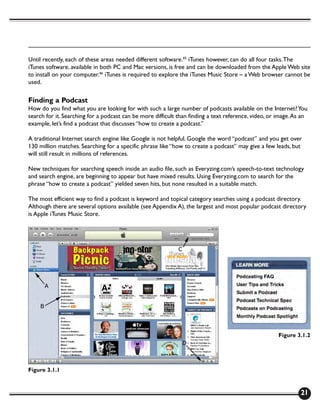
        •   Click the iTunes Store icon (Figure 3.1.1–A) under “STORE” in the left panel
        •   Just to the right is a box labeled “iTunes Store;” click Podcasts (Figure 3.1.1–B), where the newest, most
            popular, and featured podcasts will be displayed
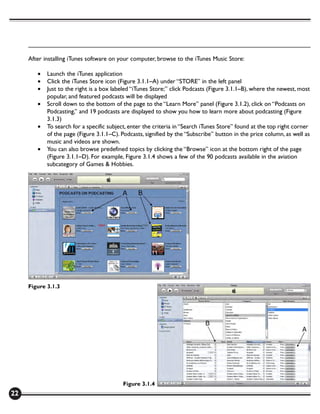
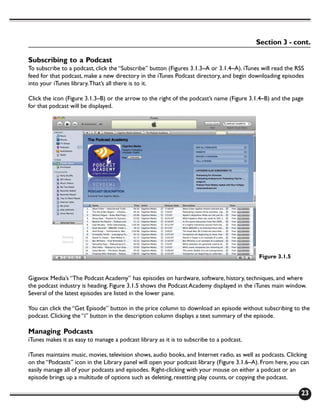
        •   Scroll down to the bottom of the page to the “Learn More” panel (Figure 3.1.2), click on “Podcasts on
            Podcasting,” and 19 podcasts are displayed to show you how to learn more about podcasting (Figure
            3.1.3)
        •   To search for a specific subject, enter the criteria in “Search iTunes Store” found at the top right corner
            of the page (Figure 3.1.1–C). Podcasts, signified by the “Subscribe” button in the price column, as well as
            music and videos are shown.
        •   You can also browse predefined topics by clicking the “Browse” icon at the bottom right of the page
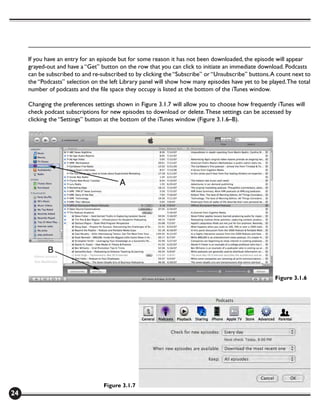
            (Figure 3.1.1–D). For example, Figure 3.1.4 shows a few of the 90 podcasts available in the aviation
            subcategory of Games & Hobbies.


     Figure 3.1.3


                                          Figure 3.1.4
22
Section 3 - cont.

Subscribing to a Podcast
To subscribe to a podcast, click the “Subscribe” button (Figures 3.1.3–A or 3.1.4–A). iTunes will read the RSS
feed for that podcast, make a new directory in the iTunes Podcast directory, and begin downloading episodes
into your iTunes library. That’s all there is to it.

Click the icon (Figure 3.1.3–B) or the arrow to the right of the podcast’s name (Figure 3.1.4–B) and the page
for that podcast will be displayed.


                                                                                            Figure 3.1.5


Gigavox Media’s “The Podcast Academy” has episodes on hardware, software, history, techniques, and where
the podcast industry is heading. Figure 3.1.5 shows the Podcast Academy displayed in the iTunes main window.
Several of the latest episodes are listed in the lower pane.

You can click the “Get Episode” button in the price column to download an episode without subscribing to the
podcast. Clicking the “i” button in the description column displays a text summary of the episode.

Managing Podcasts
iTunes makes it as easy to manage a podcast library as it is to subscribe to a podcast.

iTunes maintains music, movies, television shows, audio books, and Internet radio, as well as podcasts. Clicking
on the “Podcasts” icon in the Library panel will open your podcast library (Figure 3.1.6–A). From here, you can
easily manage all of your podcasts and episodes. Right-clicking with your mouse on either a podcast or an
episode brings up a multitude of options such as deleting, resetting play counts, or copying the podcast.

                                                                                                            23
If you have an entry for an episode but for some reason it has not been downloaded, the episode will appear
     grayed-out and have a “Get” button on the row that you can click to initiate an immediate download. Podcasts
     can be subscribed to and re-subscribed to by clicking the “Subscribe” or “Unsubscribe” buttons. A count next to
     the “Podcasts” selection on the left Library panel will show how many episodes have yet to be played. The total
     number of podcasts and the file space they occupy is listed at the bottom of the iTunes window.

     Changing the preferences settings shown in Figure 3.1.7 will allow you to choose how frequently iTunes will
     check podcast subscriptions for new episodes to download or delete. These settings can be accessed by
     clicking the “Settings” button at the bottom of the iTunes window (Figure 3.1.6–B).


                                                                                                      Figure 3.1.6


                                  Figure 3.1.7
24
Options for Listening or Viewing
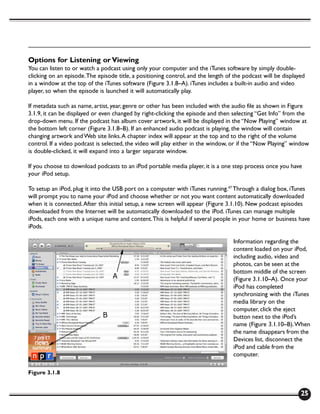
You can listen to or watch a podcast using only your computer and the iTunes software by simply double-
clicking on an episode. The episode title, a positioning control, and the length of the podcast will be displayed
in a window at the top of the iTunes software (Figure 3.1.8–A). iTunes includes a built-in audio and video
player, so when the episode is launched it will automatically play.

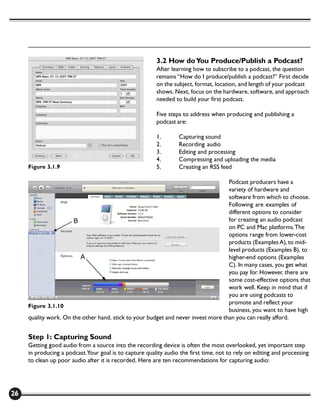
If metadata such as name, artist, year, genre or other has been included with the audio file as shown in Figure
3.1.9, it can be displayed or even changed by right-clicking the episode and then selecting “Get Info” from the
drop-down menu. If the podcast has album cover artwork, it will be displayed in the “Now Playing” window at
the bottom left corner (Figure 3.1.8–B). If an enhanced audio podcast is playing, the window will contain
changing artwork and Web site links. A chapter index will appear at the top and to the right of the volume
control. If a video podcast is selected, the video will play either in the window, or if the “Now Playing” window
is double-clicked, it will expand into a larger separate window.

If you choose to download podcasts to an iPod portable media player, it is a one step process once you have
your iPod setup.

To setup an iPod, plug it into the USB port on a computer with iTunes running.47 Through a dialog box, iTunes
will prompt you to name your iPod and choose whether or not you want content automatically downloaded
when it is connected. After this initial setup, a new screen will appear (Figure 3.1.10). New podcast episodes
downloaded from the Internet will be automatically downloaded to the iPod. iTunes can manage multiple
iPods, each one with a unique name and content. This is helpful if several people in your home or business have
iPods.

                                                                                   Information regarding the
                                                                                   content loaded on your iPod,
                                                                                   including audio, video and
                                                                                   photos, can be seen at the
                                                                                   bottom middle of the screen
                                                                                   (Figure 3.1.10–A). Once your
                                                                                   iPod has completed
                                                                                   synchronizing with the iTunes
                                                                                   media library on the
                                                                                   computer, click the eject
                                                                                   button next to the iPod’s
                                                                                   name (Figure 3.1.10–B). When
                                                                                   the name disappears from the
                                                                                   Devices list, disconnect the
                                                                                   iPod and cable from the
                                                                                   computer.

Figure 3.1.8


                                                                                                               25
3.2 How do You Produce/Publish a Podcast?
                                                         After learning how to subscribe to a podcast, the question
                                                         remains “How do I produce/publish a podcast?” First decide
                                                         on the subject, format, location, and length of your podcast
                                                         shows. Next, focus on the hardware, software, and approach
                                                         needed to build your first podcast.

                                                         Five steps to address when producing and publishing a
                                                         podcast are:

                                                         1.       Capturing sound
                                                         2.       Recording audio
                                                         3.       Editing and processing
                                                         4.       Compressing and uploading the media
     Figure 3.1.9                                        5.       Creating an RSS feed

                                                                                   Podcast producers have a
                                                                                   variety of hardware and
                                                                                   software from which to choose.
                                                                                   Following are examples of
                                                                                   different options to consider
                                                                                   for creating an audio podcast
                                                                                   on PC and Mac platforms. The
                                                                                   options range from lower-cost
                                                                                   products (Examples A), to mid-
                                                                                   level products (Examples B), to
                                                                                   higher-end options (Examples
                                                                                   C). In many cases, you get what
                                                                                   you pay for. However, there are
                                                                                   some cost-effective options that
                                                                                   work well. Keep in mind that if
                                                                                   you are using podcasts to
                                                                                   promote and reflect your
     Figure 3.1.10
                                                                                   business, you want to have high
     quality work. On the other hand, stick to your budget and never invest more than you can really afford.


     Step 1: Capturing Sound
     Getting good audio from a source into the recording device is often the most overlooked, yet important step
     in producing a podcast.Your goal is to capture quality audio the first time, not to rely on editing and processing
     to clean up poor audio after it is recorded. Here are ten recommendations for capturing audio:


26
Section 3 - cont.

1. Pay Attention to Your Recording Location. Capturing good audio means isolating the quality sounds
you want. If your podcast takes place on location, in a restaurant for example, you will want the background
sounds of dishes clanking and people chatting to enhance the quality, not distract from it. If your podcast is
meant to reflect a quiet, studio-type setting, the last thing you want is to be surprised by an unexpected door
slamming or an air-conditioner motor kicking on. Besides ambient noise, pay attention to acoustics. Small
rooms with hard walls and hard tables can create an annoying echo. Use professional acoustic tiles or drapes
to help absorb reflected sound.

2.Your Audio Should Sound Natural. Podcasting is different than broadcasting audio. In podcasting, it is
acceptable to have pauses and “ums” in a conversation. In a podcast, your voice should be neither overly
excited nor too subdued. Be yourself; let your guests be themselves. The reason an audience builds a
relationship with a podcast host is because they talk like a regular person. If you want to learn techniques to
improve your voice, read the definitive text for broadcast talent, “Broadcast Voice Handbook” by Ann
Utterback.48

3. Pay Attention to Air as it Heads Toward the Microphone. To eliminate extraneous air sounds, such as
outside wind, use an inexpensive $5 foam windscreen placed over the microphone. Pronouncing words that
begin with a ‘B’ or ‘P’ can cause a sudden rush of air called a plosive. A foam windscreen can reduce plosives.
However placing a $10-$60 separate mesh screen called a pop filter between the person speaking and the
microphone will do an even better job. Speaking too close or directly into a microphone will cause a
proximity effect, which gives your voice an unnaturally deep tone. Avoid this by staying 6 inches away from the
microphone and talking at an angle or to the side.

4. Buy the Best Microphone You Can Afford. The two types of microphones, dynamic and condenser, come
in a variety of shapes and sizes. Dynamic microphones require no power and are easy to use. Condenser
microphones require input power and are so sensitive they can pick up the sound of a fly buzzing in the room.
Every microphone has its own characteristic sound and pickup pattern. Unidirectional shotgun microphones,
used for distance recording, pick up sound from the front with little from the side. Omni-directional
microphones pick up sound equally from all directions.

   •   Example A: The free microphone built-in to your computer or miniDV camera. It’s easy to use and can
       capture your voice.
   •   Example B: Heil PR 20 dynamic omni-directional microphone for $150. The PR 20 is rugged enough
       for field recording yet sensitive enough for studio recording.
   •   Example C: Add a Heil PR 40 studio microphone for $325. Microphones can cost thousands of dollars.
       Bob Heil’s affordable dynamic microphones are the result of 50 years in sound reproduction working
       with rock groups like the Grateful Dead, the Who, and Peter Frampton.49

The book “Live Sound Reinforcement” has a very in-depth technical discussion on proper selection and
placement of microphones.50 The Heil Sound Web site also has a detailed tutorial.51

5. Pay Attention to Holding the Microphone. A microphone will pick up noise from vibration. When you
hold a microphone, avoid changing your grip. Even the least inexpensive microphones will pick up handling
noises such as unwanted thumps and scratches.
                                                                                                              27
•   Example A: If you are doing a studio interview, use a $10 table stand to hold the microphone and
            reduce handling noise. Be aware that if you bump the table you will still pick up vibration noise.
        •   Example B: For either standing or seated recording, a $60 microphone floor stand will eliminate the
            possibility of table noise.
        •   Example C: Broadcast professionals prefer a desk-mounted microphone boom and shock mount
            ($200) since it is easy to reposition and the elastic shock mount eliminates most thumps and bumps.52

     6. Use Quality Cables and Connectors. Cheap cables and bad connectors can introduce electrical noise
     that will dramatically impact the quality of an audio recording. The rule for cabling is to keep them a short
     length and use as few as possible. Cables and connectors vary depending on the equipment you are using:

        •   Example A: Use the standard 1/8 inch cables and connectors found on consumer audio equipment.
        •   Example B: 1/4 inch cabling with TRS connectors commonly used for music and live-sound
            reproduction is a good mid-range choice.
        •   Example C: The best choice is Mogami 1/4 inch shielded cables with grounded XLR connectors used
            by professional sound engineers. Like microphones, cabling is a science. Refer to the book “Live Sound
            Reinforcement” to learn more details about audio cabling.

     7. Use a Pre-amplifier and an Analog-to-digital (A/D) Converter to Connect the Microphone to
     Your Recording Device. A pre-amplifier boosts and enhances the analog signal from a microphone. An A/D
     converter takes the analog signal and converts it into a digital format for recording.

        •   Example A: Use the free microphone and A/D conversion built in to your computer or miniDV
            camera. Alternatively, add a $50 Sound Blaster internal sound card from Creative Labs to your desktop
            computer then attach an external microphone to the 1/8 inch audio-in port.53
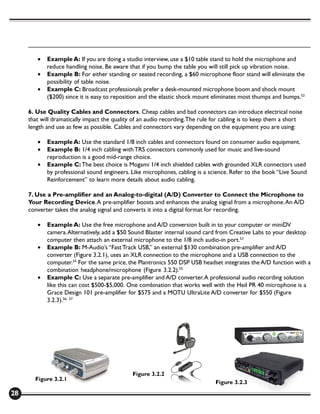
        •   Example B: M-Audio’s “Fast Track USB,” an external $130 combination pre-amplifier and A/D
            converter (Figure 3.2.1), uses an XLR connection to the microphone and a USB connection to the
            computer.54 For the same price, the Plantronics 550 DSP USB headset integrates the A/D function with a
            combination headphone/microphone (Figure 3.2.2).55
        •   Example C: Use a separate pre-amplifier and A/D converter. A professional audio recording solution
            like this can cost $500-$5,000. One combination that works well with the Heil PR 40 microphone is a
            Grace Design 101 pre-amplifier for $575 and a MOTU UltraLite A/D converter for $550 (Figure
            3.2.3).56, 57


                                              Figure 3.2.2
       Figure 3.2.1
                                                                               Figure 3.2.3
28
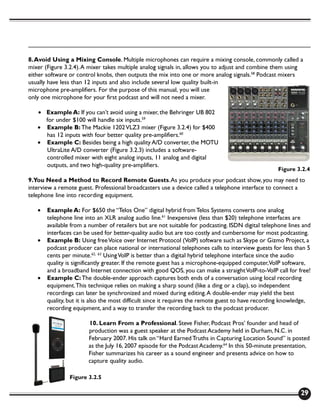
8. Avoid Using a Mixing Console. Multiple microphones can require a mixing console, commonly called a
mixer (Figure 3.2.4). A mixer takes multiple analog signals in, allows you to adjust and combine them using
either software or control knobs, then outputs the mix into one or more analog signals.58 Podcast mixers
usually have less than 12 inputs and also include several low quality built-in
microphone pre-amplifiers. For the purpose of this manual, you will use
only one microphone for your first podcast and will not need a mixer.

   • Example A: If you can’t avoid using a mixer, the Behringer UB 802
     for under $100 will handle six inputs.59
   • Example B: The Mackie 1202 VLZ3 mixer (Figure 3.2.4) for $400
     has 12 inputs with four better quality pre-amplifiers.60
   • Example C: Besides being a high quality A/D converter, the MOTU
     UltraLite A/D converter (Figure 3.2.3) includes a software-
     controlled mixer with eight analog inputs, 11 analog and digital
     outputs, and two high-quality pre-amplifiers.
                                                                                                   Figure 3.2.4
9.You Need a Method to Record Remote Guests. As you produce your podcast show, you may need to
interview a remote guest. Professional broadcasters use a device called a telephone interface to connect a
telephone line into recording equipment.

   •   Example A: For $650 the “Telos One” digital hybrid from Telos Systems converts one analog
       telephone line into an XLR analog audio line.61 Inexpensive (less than $20) telephone interfaces are
       available from a number of retailers but are not suitable for podcasting. ISDN digital telephone lines and
       interfaces can be used for better-quality audio but are too costly and cumbersome for most podcasting.
   •   Example B: Using free Voice over Internet Protocol (VoIP) software such as Skype or Gizmo Project, a
       podcast producer can place national or international telephones calls to interview guests for less than 5
       cents per minute.62, 63 Using VoIP is better than a digital hybrid telephone interface since the audio
       quality is significantly greater. If the remote guest has a microphone-equipped computer,VoIP software,
       and a broadband Internet connection with good QOS, you can make a straight VoIP-to-VoIP call for free!
   •   Example C: The double-ender approach captures both ends of a conversation using local recording
       equipment. This technique relies on making a sharp sound (like a ding or a clap), so independent
       recordings can later be synchronized and mixed during editing. A double-ender may yield the best
       quality, but it is also the most difficult since it requires the remote guest to have recording knowledge,
       recording equipment, and a way to transfer the recording back to the podcast producer.

                       10. Learn From a Professional. Steve Fisher, Podcast Pros’ founder and head of
                       production was a guest speaker at the Podcast Academy held in Durham, N.C. in
                       February 2007. His talk on “Hard Earned Truths in Capturing Location Sound” is posted
                       as the July 16, 2007 episode for the Podcast Academy.64 In this 50-minute presentation,
                       Fisher summarizes his career as a sound engineer and presents advice on how to
                       capture quality audio.

                Figure 3.2.5

                                                                                                             29
Step 2. Recording Audio
     After capturing audio from the source, you need a method to record it. Using a portable digital recorder or a
     computer with recording software are the options available. Some podcasters use a recorder for both field and
     studio work. Others use a recorder for fieldwork and a computer-based solution for the studio. In the studio,
     to provide a backup in case of hardware failure, use a computer as the primary device and a portable recorder
     to make a copy.

     Use a Portable Digital Recorder. Recorders are compact and can be either held in the palm of your hand,
     slipped into a pocket or purse, or slung under the shoulder using a carrying strap. It is awkward to balance a
     laptop computer and external hardware while recording a stand-up interview.

     Recorders are an all-in-one solution – plug a microphone into the recorder and press start. All recorders have
     a headphone jack for monitoring, but higher-quality options have LEDs to track recording levels. Recorders
     have built-in, low-power microphone pre-amplifiers and A/D converters capable of generating 16-bit, 44.1 kHz
     CD quality digital audio. While some recorders use MP3 compression to squeeze more onto the Flash storage
     card, the best method is to record digital audio in an uncompressed WAV format. Most recorders have a USB
     interface to connect to a computer so audio can be transferred for editing.

     Early portable recorders used cassette tapes to store low-quality analog audio. The next generation of
     recorders captured audio on removable Digital Audio Tape (DAT) tape drives or internal hard disks.65 Current
     recorders store CD-quality digital audio on removable, high-capacity CompactFlash cards. An 8 GB
     CompactFlash card costs under $200 and can store over 13 hours of uncompressed audio.

     If a portable miniDV camera is available, you can use it to record digital audio. This solution is awkward and not
     recommended since transferring the audio from miniDV tape to computer is a time consuming process.

        •   Example A: If you have an iPod, $60 will turn it into a portable digital recorder by attaching
            XtremeMac’s MicroMemo adapter to the dock connector (Figure 3.2.5).66 Both Nano and Video iPod
            versions record in stereo, have two built-in speakers, a removable microphone, and can record line-in
            audio from other audio devices. No software is required – just connect the adapter to an iPod and click
            to record.
        •   Example B: At $300, M-Audio’s MicroTrack 24/96 (Figure 3.2.6) is the best value hand-held digital
            recorder currently available.67 It can use either the detachable 1/8 inch stereo microphone or two 1/4
            inch cabled microphones. The MicroTrack has a small
            LCD display for operation, can record at better-than-
            CD quality using 24-bit, 96kHz A/D conversion, and
            uses a USB interface for connecting to a computer.
        •   Example C: Used by audio recording and movie
            professionals (Figure 3.2.7), one of the best recorders
            on the market is the $2,500 Sound Device 702T.68
            Larger than the MicroTrack at 8x5x2 inches, it will
            easily fit under your arm using a shoulder strap. The
            702T can perform 24-bit, 192kHz A/D conversion and
            uses a FireWire interface to connect to a computer.69        Figure 3.2.6
30
Section 3 - cont.

                                         Record Audio Using Software and a Computer. Using computer
                                         software and hardware is the most common method for recording
                                         podcasts. Recording software consumes significant computer
                                         processing power so it’s best to close all unneeded applications before
                                         recording. Most software will only record and edit input audio, but
                      Figure 3.2.7       “hijacking” software can grab input audio as well as system audio like
                                         a VoIP call or a DVD playing (Figure 3.2.10).

As long as the computer is powerful enough, audio processing can be done using software plug-ins instead of
dedicated hardware. Plug-ins can be used to equalize frequencies, filter, reverb, change pitch, limit volume, and
more while recording or during edit (Figure 3.2.8).

Macintosh Recording Software.
  • Example A: Audacity; its free, cross-platform, and open source (Figure 3.2.9).70 Audacity can record up
      to 16 channels, process 32-bit, 96kHz digital audio, and supports a wide range of built-in and plug-in
      effects processing. It has become the de facto starter software for podcast audio recording and editing.
  • Example B: Peak Pro for $500
      from Berkley Integrated Audio
      Software Inc. (BIAS).71 Peak Pro
      supports more features and
      effects processing than Audacity
      and is used by many professional
      audio engineers. It also has
      commercial support and better
      stability than public domain
      Audacity. For $100, Peak LE is
      functionally equivalent and more
      stable than Audacity, but offers
      fewer features than the Pro
      version.
  • Example C: Two software
      packages rank at the top:                                                                       Figure 3.2.8
          o Logic Express for $300
               from Apple, supports multi-track recording/editing and is designed to compliment Apple’s suite
               of Final Cut Pro professional video editing tools.72
          o Pro Tools HD from Digidesign is the de facto, high-end audio software. Taught in nearly all
               commercial recording curriculums, choosing Pro Tools opens access to a large amount of
               instructional material and third party hardware. DigiDesign is a division of Avid, a long
               established company known for high-end video production tools. Pro Tools comes in three
               configurations:
                   § Pro Tools “M-Powered” standalone software for $300 supports a variety of Avid’s lower-
                       end M-Audio hardware.73
                   § Pro Tools “LE” comes bundled with DigiDesign’s mid-range 002, Digi 003, and Mbox
                       audio hardware, ranging in cost from $300 to $2,000.
                                                                                                               31
§   Pro Tools “HD” high-end solutions start at $10,000; $8,000 for Pro Tools software
                            bundled with one internal PCI audio processing card, and $2,000 for a 24-bit, 96kHz
                            interface box supporting eight audio connections.

     Audio Hijack Pro, available from Rogue
     Amoeba for $32, can “hijack” system-level
     sound, such as a VoIP conversation or a DVD
     playing (Figure 3.2.10).74 While more flexible
     and simple to use than recording/editing
     software, this tool is limited to recording, not
     editing. It does support standard plug-ins for
     effects processing during recording.

     PC Recording Software.
       • Example A: Audacity for the PC works
          and behaves the same as the Mac
          version.
       • Example B: Adobe Audition for $130
          supports 80 multi-track recording inputs
          and can handle 32-bit, 192kHz digital
          audio.75 Like Apple’s Logic Express                                                          Figure 3.2.9
          software, Premier is designed to
          compliment Adobe’s Premier video
          editing suite.
       • Example C: Pro Tools. All Pro Tools
          information discussed in the “Software for
          recording on a Mac” section applies to the
          PC version. Pro Tools on high performance
          PCs defined and continues to lead the
          digital Audio Workstation (DAW) market
          for commercial audio processing.76

     Hijacking software used to record system audio,
     such as VoIP or a DVD, is also available for the PC.
     Total Recorder Pro for $40 from High Criteria is
     the functional equivalent of Audio Hijack Pro for
     the Mac.77


     Step 3. Editing and Processing
     If content, quality and length are perfect; then no
     post-processing needs to be done. Since this is
     rarely achievable, most podcast episodes require
     editing and audio processing.
                                                                                                   Figure 3.2.10
32
Headphones and Speakers. Ideally, when editing and processing audio you should be in the same acoustic
environment using the same listening equipment as your audience. Realistically however, this is hard to do.

   •   Example A: Using the built-in speakers on your computer is the easiest and least-costly solution.
       While functional, this approach does not support critical listening.
   •   Example B: External speakers, such as the Bose Companion 2 speakers at $90/pair.78 Bose Around-Ear
       headphones, available for $140/pair.79
   •   Example C: Commercial speakers and headphones are designed to make audio sound rich; studio
       monitors and headphones are designed to accurately reproduce fidelity. Yamaha HS50M active studio
       monitors at $400/pair work well for reviewing podcast audio.80 Sony MDR-7506 headphones for $130
       are the standard for broadcast recording engineers.81

Editing. Basic audio editing works much like a word processor – segments of sound can be deleted, cut, and
pasted with millisecond accuracy. Called non-linear, non-destructive editing, the software uses a list of the edit
changes to dynamically render a modified recording without destroying the original. Other than audio hijacking
software, most recording software is also used to edit.

Post-processing Effects. After basic
editing, post-processing is used to
further improve audio quality. Adding
fade envelopes to ramp volume up/
down or apply built-in and plug-in
effects can be tested and applied during
post-processing. The amount of effect
can be varied between 0 percent, called
dry, and 100 percent, called wet. If the
effect works well it can be permanently
applied by saving a new version of the
audio, which is referred to as
“bouncing” in the recording field.

Noise Removal. Unwanted noise,                                                                   Figure 3.2.11
such as clicks, crackles, hums, rumbles,
or buzzes can be removed in post-processing by either applying plug-in filters or using noise removal software
like BIAS SoundSoap.82 SoundSoap is available for Mac and PC in a basic version for $100 or a professional
version for $500.

Multi-track Mixing Software. During post-processing, individual audio files such as introductions, exits,
advertising, music, and interview clips may need to be mixed into a single, final audio track. This process is
called multi-track mixing.


                                                                                                                 33
•   Example A: Audacity works well for recording and editing, but not for multi-track mixing. GarageBand
            (Figure 3.2.11), an application bundled in the iLife software suite with every Mac, is also one of few
            tools capable of creating enhanced podcasts.83 For the PC, MixPad is one of many freeware mixing
            programs available.84
        •   Example B: BIAS Deck for the Mac compliments the BIAS Peak recording/editing software and comes
            in both an $80 basic and $300 professional versions. Adobe Audition for the PC is the same $130
            software recommended for recording/editing.
        •   Example C: Pro Tools: the same Mac and PC software recommended for recording/editing.

     Leveling. The last step of post-processing, called leveling, maintains a constant volume by normalizing audio
     levels across the recordings joined during multi-track mixing. Leveling can be done manually by using plug-ins
     or automatically by using “The Levelator” from GigaVox Media, a free program with a simple drag-and-drop
     interface.85

     Step 4. Compressing and Uploading the Media
     Software for Compressing Audio. Use either iTunes or audio recording/editing software to compress
     audio files. The file size for a 60 minute uncompressed audio podcast is about 600 MB, the size of a CD. By
     using MPEG-1 Layer 3 (MP3) or MPEG-4 Advanced Audio Coding (AAC) compression, file sizes can be
     dramatically reduced. MP3 has been the standard for many years, but the newer AAC format yields higher audio
     quality and smaller files.

     File Transfer Software. Once your audio is complete, you need software to move it from your computer to
     the Internet hosting site. Both Mac and PC operating systems include a command line file transfer program
     (FTP). FTP works well but the command line interface is cumbersome. A free GUI-based FTP program for the
     Mac is Cyberduck written by David Kocher.86 For the PC, GUI-based FreeFTP from Brandyware Software is
     available.87

     Hosting a Podcast. Choosing a solution to host your podcast depends on the number of episodes, the file
     size for each episode, and the number of subscribers. If you choose a traditional Web site hosting plan, make
     sure monitoring and warning tools are available to help you track usage. If disk space and monthly network
     usage limits are passed, the Internet Service Provider (ISP) will either shut off access to the Web site or levy
     additional charges. Several podcast hosting providers are listed in Appendix A.

        •   Example A: ISP GoDaddy offers three traditional Web hosting plans:88
               o $50/year: 5 GB disk, 250 GB network bandwidth/month
               o $75/year: 100 GB disk, 1,000 GB network bandwidth/month
               o $165/year: 200 GB disk, 2,000 GB network bandwidth/month
        •   Example B: GoDaddy offers “Quick Podcast.” Geared for podcasters, it features many podcast
            production tools and has three pricing tiers:89
               o $55/year: 1 GB disk, 100 GB network bandwidth/month (3,600 one-hour show downloads/
                  month)
               o $110/year: 5 GB disk, 300 GB network bandwidth/month (10,800 one-hour show downloads/
                  month)

34
Section 3 - cont.

           o $220/year: 10 GB disk, 500 GB network bandwidth/month (18,000 one-hour show downloads/
               month)
   •   Example C: Libsyn or Switchpod.90, 91 These new generation ISPs charge only for disk space, not
       network bandwidth. Switchpod is the newest ISP that has done away with bandwidth metering. Their
       pricing tiers are:
           o Free: 200 MB disk
           o $5/month: 500 MB disk
           o $10/month: 1,000 MB disk
           o $30/month: 2,000 MB disk


Step 5. Creating an RSS Feed
The key step in creating a podcast is to write the RSS feed. An RSS feed is a simple text file that contains unique
attributes of the podcast within XML tags such as <channel>channel name</channel>, <title>podcast title</
title>, and <pubDate>podcast publish date</pubDate>. The <enclosure url=”….”> tag, also known as an
attachment, points to the location of the audio or video file for each podcast episode. If a RSS feed is to be
submitted to the iTunes podcast directory, it must include unique iTunes XML tags such as <itunes:author>,
<itunes:image>, and <itunes:summary>.

The podcast books listed in Appendix A have examples of creating RSS feeds; the About.com and podCast411
Web sites also have well documented examples.92, 93

   •   Example A: Write an RSS feed by hand. Any text editor, like Notepad or WordPad, can be used to
       modify a basic template and create a new podcast RSS feed. Writing a RSS feed by hand is doable, but is
       the most awkward solution. It requires knowledge of RSS as well as attention to typing to avoid errors.
       Once written, Feed Validator is a Web site that can automatically check your feed to make sure it is
       correct.94
   •   Example B: Create an RSS feed using commercial software. For $40, FeedForAll is a PC/Mac software
       program that provides a graphical interface for writing and validating RSS feeds.95 FeedForAll requires
       no RSS knowledge to use, stays current with changes to RSS, and also includes a wizard to step first
       time users through the process. FeedForAll includes a built-in image editor and FTP for downloading/
       publishing feeds.
   •   Example C: Generate an RSS feed using an Internet service. A simple RSS text file has no way to track
       episode downloads or analyze traffic. An Internet service can overcome this by hosting the RSS file on
       their servers and tracking all access.

FeedBurner, acquired by Google in 2007, is Web-based RSS service. Creating an RSS feed is free with basic
FeedBurner, but upgrades to track more analytics carries additional costs. FeedBurner hosts more than 124,000
podcast RSS feeds.

ISPs offering podcast services, such as Switchpod and GoDaddy, also offer Web-based RSS generation and
tracking tools. These are often included in the package to entice podcasters to sign up with the ISP as a one-
stop-shop for podcasting.
                                                                                                               35
3.3 How Much Does a Podcast Cost?
     As you have seen in the last section, production and distribution costs for creating an audio podcast can vary
     greatly. A rough estimate cost model is provided in Appendix C, but here’s the bottom line:

        •   Example A: Free! If you already own a computer that can be used to produce and listen to podcasts –
            thereby avoiding the cost of a portable media player – then you do not need to spend any money to get
            into podcasting. Realize though, the podcast you produce will probably have low audio quality and
            restrictions on the number of episodes and number of subscribers you can support for free.
        •   Example B: About $500 for hardware and software if you own a computer, more if you need to
            purchase a new computer. Operation costs will run less than $100/year. This is still a low-end
            configuration that will give you marginal audio quality. Or, for under $5,000 you can build a really nice
            podcast setup including a dedicated computer, portable digital recorder, nice microphones, and quality
            software. If you use VoIP software to interview your guests and build in some charges for VoIP to
            telephone access, $300/year will cover recurring costs.
        •   Example C: For $5,000-$7,500 you can have a professional podcasting setup. Your audio will be
            impeccable and you’ll have the flexibility to do quality recording in the field or in the studio. Figure
            about $700 to cover your annual recurring costs.

     The sky is the limit when building a top-of-the-line podcast environment. You would have no problem quickly
     running through $25,000. If you start looking at a high-end prosumer video studio for video podcasting, you can
     reach $50,000 in a hurry. But at $5,000 a day to rent studio time, in a few days you can pay for your own dream
     studio. A nice example of a first-class audio podcast studio is the one Grape Radio built for $20,000.96, 97

     Mix it up.You don’t have to only go with the least-expensive or most-expensive choices here. You may want to
     use a top-notch portable digital recorder and microphones, but pass on a studio computer for recording.
     (Here’s a tip, a well-padded car interior can make a very good portable recording studio.) One choice is easy
     though – always put your money into the best value microphones and cables you can afford.

     Don’t forget, you may also want to budget for a Web site and promotional advertising. The great thing about
     podcasting is that you have so many choices. If you want to be frugal, you can do it for free. If you want to spend
     a fortune, go ahead. But if you’re looking for an affordable way to produce and distribute audio/video content,
     there is no better approach than to start podcasting.

     3.4 What is a Copyright and How Does it Affect What is Produced?
     The Podcasting Legal Guide on the Creative Commons (CC) Web site provides a very detailed review of U.S.
     legal issues affecting podcasters.98, 99 Spending some time browsing the Creative Commons Web site before
     you create your podcast can help avoid embarrassing and costly legal mistakes.100

     In summary:
         • When creating your own podcast, it is important to make sure all necessary rights and permissions are
           secured for the material included in your podcasts.
         • The main legal issues that you will likely face that are unique to podcasters are related to copyright,
           publicity rights and trademark issues.

36
•   Copyright law is relevant to podcasts because it applies to creative and expressive works. This includes,
       for example, performances, scripts, interviews, musical works and sound recordings.
   •   Publicity rights allow individuals to control how their voice, image or likeness is used for commercial
       purposes in public. These rights are relevant to podcasting because, in many instances, a podcaster will
       conduct audio or video interviews, perform plays, sing songs, and produce all sorts of other spoken or
       visual content.
   •   Trademark law is designed to protect consumers from being misled or deceived as to the source of
       goods and services, or the endorsement, sponsorship or affiliation of one good or service with another.
       In other words, trademark law works to ensure that you can rely on particular branding to equate to
       certain product features.
   •   Five instances occur where permission is not required. This is the case if you are using:
           o Fact, an idea, a theory or slogan, title or short phrase
           o Work that is in the public domain
           o U.S. government work
           o “Fair use”
           o Creative Commons-licensed or “podsafe” content

Fair Use
Fair use is copying any protected material (texts, sounds, images, etc.) for a limited and transformative purpose,
like criticizing, commenting, parodying, news reporting and teaching the copyrighted work. Under the U.S.
copyright laws, fair use is not an infringement of copyright. Judges typically consider four factors that are set
forth in the Copyright Act in determining fair use:

   •   Purpose and character of your use
   •   Nature of the copyrighted work (is the work highly-creative fiction warranting broader protection, or
       is it highly-factual warranting narrower protection?)
   •   Amount and substantiality of the portion taken (as compared both to the underlying work and the
       work in which the copying is used)
   •   Effect of the use upon the potential market (did the copyrighted work lose market share or potential
       market share?)

Two misconceptions about fair use:
   • Acknowledgment is enough. Some authors believe that an acknowledgment will immunize a copyright
     infringement as fair use. It is not.
   • Disclaimers are enough. For example, assume your podcast is a parody of “The OC,” a popular
     television show. You include a disclaimer at the beginning of your podcast in which you state, “This
     podcast is not associated with or endorsed by Fox Television.” This sort of disclaimer will not, by itself,
     protect you from a claim of copyright infringement, or act as a clear defense to such a claim.


                                                                                                               37
Creative Commons
     The Creative Commons (CC) is a non-profit organization devoted to expanding the range of creative work
     available for others to legally build upon and share. The organization has released several copyright licenses
     known as Creative Commons licenses. These licenses, depending on the one chosen, restrict only certain rights
     (or none) of the work.

     Creative Commons’ licensed content is generally “podsafe” (i.e. is pre-cleared for use in podcasts) when your
     use is consistent with the applicable license terms. Creative Commons’ licenses clearly signal to the public
     which uses you may make under the terms of the license and which uses require separate and specific
     permission. Four CC licensing conditions apply:101

        •   Attribution: You may copy, distribute, display and perform the work and make derivative works based
            upon it only if you give the author or licensor credits in the manner specified by these.
        •   NoDerivatives: You may copy, distribute, display and perform only verbatim copies of the work, not
            derivative works based upon it.
        •   NonCommercial: You may copy, distribute, display, and perform the work and make derivative works
            based upon it only for noncommercial purposes.
        •   ShareAlike: Licensees may distribute derivative works only under a license identical to the license that
            governs your work.

     These conditions may be mixed and matched. While confusing, this results in six regularly used Creative
     Commons licenses:

            •   Attribution alone
            •   Attribution + Noncommercial
            •   Attribution + NoDerivatives
            •   Attribution + ShareAlike
            •   Attribution + Noncommercial + NoDerivatives
            •   Attribution + Noncommercial + ShareAlike

     If you use Creative Commons-licensed work in your podcast, you will need to provide attribution in the
     manner specified by the author and/or licensor. In addition, you must keep intact any copyright notices, licenses,
     or warranty disclaimers that accompany the work.

     Podsafe Sources
     Given the implication of these legal issues, most podcasters create their own content, license it explicitly, or
     look for podsafe media. Appendix A lists several sources to review when looking for podsafe content.

     If in Doubt, Contact a Lawyer
     Copyright law is a deep and often confusing subject - even for the experts. When creating a podcast, you should
     be absolutely certain that the appropriate legal guidelines have been followed. If you have doubts, the old adage
     of “better safe than sorry” certainly applies. Contact an attorney to review the podcast before you publish.


38
Section 4: Create Your First Audio Podcast
4.0 Planning

Example
HomeBot Robotics, located in Cary, N.C., focuses on bringing
robotics technologies to the masses.102 The company’s owner, Allen,
has been working on HomeBot’s first product, RoboTrax XL (Figure
4.0.1), for a couple of years and started selling them on the Internet
in July 2007. RoboTrax is a $250/pair, 8x3 inch modular powered
track system for robotics applications such as university research, K-
16 educational programs and remote surveillance and inspection.
Many hobbyists are interested in the product as well.
                                                                                                   Figure 4.0.1

Recently, Allen brainstormed on how to generate awareness and educate his customers. Word spreads fast in
the robotics community and Allen was looking for a way to leverage this viral marketing to build a core of loyal
users. Allen has a Web site for his company and has decided to create a podcast. With a podcast, he can
promote customer success stories, talk about new trends in robotics hardware and software, and interview
thought leaders in the industry.

Allen thinks he might want a video webcast, but for now decided to start with a standard MP3 audio podcast.
Since Allen is still learning about podcasting, he suggested creating a simple test episode first using the
MacBook Pro laptop he already owns, free software, and free ISP hosting. By taking a “try before you buy”
approach, Allen can avoid spending too much money while beginning to understand the basics and deciding if
podcasting will work for his business. Allen budgeted $1,500 for production equipment and $250 a year for
support costs, and he also made a list of the hardware, software, and ISP services he will use to produce his
podcast if the test goes as planned.

Checklist
Before jumping straight into recording, Allen needed to do some planning.

       1. Research his topic. Allen should
          investigate his competition to
          understand what other companies are
          producing a robotics podcast.
          Searching for “robotics podcast” on
          Google reveals about 2 million hits,
          including the “Talking Robots”
          podcast and a show called “Sweaty
          Robot.” It turns out that “Sweaty
          Robot” is about comedy, not robotics,
          so Allen loaded iTunes software on
          his computer and searched the iTunes
          podcast directory. He found over 20
          podcasts; his results are shown in
                                                Figure 4.0.2
          Figure 4.0.2.
                                                                                                            39
2. Select a podcast format. The first thing Allen should think about is what action he wants his
        audience to take after listening to the podcast. That decided, he needs to match his company,
        product, and marketing goals with his potential audience - considering who, what, when, where, why,
        how, and how much (discussed in Section One). Here is one format that appealed to Allen:

            •   Goal/call to action. Get the listening audience to tell other robotics enthusiasts about his
                podcast, adding at least 10 orders a month from these new customers.
            •   Purpose. Promote the use of HomeBot hardware with open-source software.
            •   Message. The popularity of robotics is exploding with sophisticated, not cheesy, solutions.
            •   Name. HomeBot
            •   Length. Episodes that are 10-15 minutes in length.
            •   Frequency. Several introductory episodes in the first 60 days, evolving to monthly episodes.
            •   Audience. Serious hobbyists and potential customers.
            •   Appeal. Providing insights into new hardware, technology, and open source software.
            •   Differentiation. A unique spin with interesting live interviews.
            •   Style. Geeky, dry humor with on-location audio and lots of robotic sounds.
            •   Guests. Customers, researchers, competition enthusiasts.
            •   Location. 80 percent studio, 20 percent competitions and events.
            •   Revenue. Self-sponsored for the first three months, then hopefully sustained by self-
                supporting sponsorships.

     3. Choose podcast hardware. The following is a list of hardware and associated costs Allen can
        first use to create his test podcast. He can then make the necessary purchases when he’s ready for
        production. This equipment (discussed in Section Three) meets Allen’s budget constraints and gives
        him flexibility to record studio, field, and phone conversations.

            •   Capture
                    o Test ($0): built-in microphone
                    o Production ($510): Heil PR20 external microphone, floor stand, Mogami cables, M-
                      Audio FastTrack, no mixer
            •   Recording
                    o Test ($0): already owned laptop
                    o Production ($680): MicroTrack 24/96 hand held digital recorder, Sony MDR-7506
                      headphones, 8 GB iPod Nano
            •   Other
                    o Test ($0): none
                    o Production ($50): equipment bag, miscellaneous

     4. Choose podcast software. To keep his test simple and meet the free criteria, Allen can use public
        domain freeware as well as software bundled with his computer. For production, Allen can add two
        more programs for $80 and still stay under the $1,500 budget. Allen said he might not want to use
        an ISP service to automatically create the RSS feed. He was similarly confident that he did not want
        to write it by hand, so he budgeted $40 for RSS software. Allen already used VoIP software Skype in

40
Section 4 - cont.

           his business and said he wouldn’t need to test it in his first podcast. He budgeted $40 for software
           that would allow him to hijack the computer’s system audio and record his VoIP calls.

               •   Recording
                       o Test: ($0): Audacity
                       o Production ($40): Audacity, Audio Hijack Pro
               •   Phone interviews
                       o Test ($0): none
                       o Production ($0): Skype VoIP
               •   Other
                       o Test ($0): GarageBand, Levelator, iTunes, CyberDuck FTP
                       o Production ($40): GarageBand, Levelator, iTunes, CyberDuck FTP, FeedForAll RSS

       5. Identify annual costs. Allen has a Web site, but would prefer to host his podcast with a different
          ISP that offers podcasting-specific services. This gives Allen good flexibility because he can create a
          small page on his current Web site, place links on it that point to his podcast with the new ISP, all
          while making sure he does not exceed the disk and network bandwidth limits of his current Web
          site plan. All of this will be completely transparent to Web site visitors and podcast subscribers. If
          Allen uses the podcast ISP Switchpod, he can test for free then convert to a paid plan with better
          features and more disk space for $60/year. Budgeting $175 for VoIP calls to interview telephone
          guests, Allen can stay under his $250/year budget.

               •   Hosting & RSS ISP
                        o Test: ($0/year): Switchpod 450MB disk, unmetered bandwidth
                        o Production ($60/year): Switchpod 500MB disk, unmetered bandwidth
               •   Telephone:
                        o Test ($0): none
                        o Production ($175/year): VoIP Skype-out

4.1 Record and Edit the Audio

Best Practices
Before Allen begins, he should keep a few vocal best practices in mind (Section 3.2):
   • Pay attention to the recording location and acoustics
   • Speak clearly and use his normal voice
   • Keep his mouth about 6 inches from the microphone
   • Watch for overemphasizing words beginning with ‘B’ or ‘P’, also ‘S’ sounds

Some recording best practices that will also help are:
   • Quit all unused applications on his computer
   • Record using an uncompressed WAV (PC) or AIFF (Mac) format, not MP3
   • Record 30 seconds of silence - this can be useful during editing
   • Watch the recording levels - stay close but under maximum volume to avoid losing (clipping) loud audio

                                                                                                              41
• If he makes a mistake – pause – then say his thought again (leaving a pause will help when he cuts the
           bad phrase during editing)
         • Make a test recording so that he can catch and correct mistakes now, instead of during editing

     Message and Script
     For Allen’s test podcast episode, he decided he would record a short message that welcomed his new listeners,
     explained what his podcast was about, and set expectations for the audience. By making the publish date for
     this episode the latest one in the series, iTunes will always display it first when listing all episodes. Less than
     one minute in length, this episode can help people quickly decide if they want to subscribe to the podcast.
     Another advantage to recording a welcome message is that it establishes Allen as the only voice talent
     required. Rather than adding interviews, advertising and music to his first podcast attempt, this allows Allen to
     create useful content while keeping it simple.

     Here is the script for a short welcome message:

            “Hi. Welcome to the HomeBot Robotics podcast. I’m your host Allen.

            You know, a lot of people think building robots is for kids...and other people think it’s for
            scientists. Okay - they’re both right - but there’s a middle ground; one with a large
            community of serious, amateur robotics enthusiasts like us.

            Our HomeBot Robotics podcast promises to bring you the latest in hardware, technology,
            and what’s happening with open source robotics software. Our mission at HomeBot is to
            make personal mobile robotics available to the masses by providing affordable and robust
            hardware building blocks, coupled with open source software solutions to get robotics
            enthusiasts and researchers jump-started.

            We’re geeky - and have a pretty wry sense of humor - but you’ll always take away great
            ideas from our 10-minute podcast.We’ll bring you:

                        o Ideas and how-to suggestions for creating your own mobile robots
                        o Commentary on news and events in the world of robotics, AND
                        o A peek into our plans for cool and interesting new robotics building blocks

            So join us today and send us your ideas! If you like the podcast, tell a friend. We want to
            produce your show – one that helps all of us to build the amateur robotics community.”

     The script is completed in less than one minute, hits the high points of the show, and addresses Allen’s goal of
     viral marketing to build an audience. The script is a starting point. Allen should practice it several times until
     he’s comfortable that it sounds natural. Once Allen starts producing the podcast series, he doesn’t need a script.
     He can outline his show highlights, but its best if his podcast has a conversational tone and doesn’t sound too
     orchestrated.


42
Download and Install Audacity
Allen will be using his Intel based MacBook Pro laptop. He will need Audacity version 1.2.5 for Mac OS X. It
can be downloaded from the software download page on the Audacity Web site (Figure 4.1.1).103 The file is
small and downloads quickly over a broadband connection.

Clicking the link (Figure 4.1.1–A) begins the download of Audacity. For the test recording, this is the only
software needed to record and edit.

       •   Notes for Production Podcasting.
           When Allen is ready to move into
           production podcasting, more software
           can be downloaded from this same page.
           Audacity can also compress a file into
           MP3 format. MP3 encoding software can
           be downloaded by following the
           instructions from the “LAME MP3
           encoder” link on this page (Figure 4.1.1–
           B). Additional audio processing plug-ins
           can be added by clicking the “VST
           Enabler” link (Figure 4.1.1–C) and
           following the instructions.

After Audacity has downloaded to the Mac, it will
appear in a window on the desktop (Figure 4.1.2         Figure 4.1.1 (Mac)
Mac). This folder can be copied onto the
computer’s hard disk.

For the PC, the process differs slightly:

       •   Version 1.2.6 is recommended for
           Windows 98/ME/2000/XP/Vista.
       •   The download page varies slightly
           (Figure 4.1.1 PC) but contains the same
           options.
       •   Software is installed using Microsoft’s
           standard installation wizard (Figure
           4.1.2 PC)

When Audacity is first started, it will ask for a
language selection (default English) then a main
recording window will be displayed (Figure 4.1.3).

                                                       Figure 4.1.1 (PC)

                                                                                                               43
Figure 4.1.2 (Mac)


                                                                                                    Figure 4.1.2 (PC)


     Figure 4.1.3
                                                                                                         Figure 4.1.4

     Record
     Since Allen will use the built-in microphone on his Mac, Audacity needs only one step to set up recording.
     Position the sliders for the microphone and speaker volume to between the (-) and (+) symbols (Figure 4.1.3–
     A) at the 0.7 settings. This is a good starting place, but Allen will have to experiment to determine the best
     settings for his computer and recording hardware.

     On Allen’s MacBook Pro, the built-in speaker is located under the left top speaker grill. Allen should place the
     laptop in front of him in its normal position and speak clearly in the direction of the microphone.

     Click the red button to begin recording (Figure 4.1.3–B).


44
Section 4 - cont.

Once recording has started, a waveform of the sound will show up in the main window. The waveform will
scroll and change in volume as the recording progresses (Figure 4.1.4) and the recording volume will be shown
in the level windows (Figure 4.1.4-A).

       •   To stop recording, click the square button (Figure 4.1.4–B)
       •   To replay your recording, click the triangular play button (4.1.4–C)
       •   To delete your recording, click the ‘X’ in the audio waveform window (Figure 4.1.4–D)
       •   To save what you have recorded, go to the file menu at the top, select “Export As WAV…”, name the
           file “welcome.wav” and save it

Allen can continue to practice recording his welcome message until he feels he has a good version. Becoming
proficient with any recording software takes experimentation and practice, and this manual should be a good
source for help. Some good tutorials have been written for Audacity and can be found on its Web site.104

           •   Notes for Production Podcasting. Allen will quickly see why using an external microphone
               and audio hardware is better than using the built-in equipment on his computer. The sound
               quality will be much better and there will be less ambient noise. It is very easy to add the
               equipment:

                   o Connect the microphone to the M-Audio FastTrack using a 1/4 inch cable with XLR
                     connectors
                   o Connect the computer to the M-Audio FastTrack using a standard USB cable
                   o In Audacity, go to the top menu bar, under “Audacity” select preferences, and under the
                     “Audio I/O” tab set the recording device to “Fast Track.” Close the preferences dialog
                     box, adjust the volume settings, and begin recording.

Edit
Editing audio in Audacity and other recording/editing software
packages works much like a word processor. After you have
stopped recording, you can scroll to the section of audio you
want to edit, click-drag the cursor to select a section of audio
(Figure 4.1.5), and then click the play button to listen to your
selection. You can reiterate that process until you get just the
piece of audio you want, then either delete by hitting the
                                                     delete key
                                                     like in a
                                                     word
                                                     processor, or                                    Figure 4.1.5
                                                     selecting cut
                                                     from the edit menu. Scroll to the location you want to insert
                                                     the audio, and select paste from the edit menu.


Figure 4.1.6
                                                                                                             45
By reading the Audacity tutorials and practicing, you can quickly master basic and more advanced editing.
     Sentences can be moved around, distracting words and sounds removed, and excessive pauses eliminated. It is
     amazing to hear the difference between a raw recording and one that has been fine-tuned during edit. One
     suggestion I gave Allen though, was to keep it simple. Editing can be very time-consuming if taken to the
     extreme, and the results can sound too polished for a podcast.

               •   Notes for Production Podcasting. After reading the tutorials and experimenting with
                   Audacity, Allen will find there are many advanced features available for editing audio. He will
                   probably want to go back to the Audacity Web site and download the VST plug-in package as
                   well as the MP3 encoder software. A list of Audacity’s built-in effects is available at Audacity’s
                   online documentation.105

     Polish, Multi-track Mix, and Level
     Allen’s test podcast will be very simple – consisting of only his recorded voice. Normally, a podcast has several
     individual audio elements that are combined together: introductions, theme music, background music,
     advertisements, and interviews. The more elements Allen wants to have in each podcast, the more time it will
     take him to add and arrange them, and create a single file called a mixdown. For his test recording however, he
     does not need to do any mixing, sound cleaning, or audio volume leveling.

               •   Notes for Production Podcasting. Audacity is capable of multi-track mixing, but there is
                   better software to use. When Allen is ready for production mixing, he plans to use GarageBand,
                   the software that came bundled in the iLife suite with his Mac. To learn more about mixing, Allen
                   would benefit from reviewing Apple’s Web-based GarageBand tutorial.106 If he decides to do
                   mixing on a PC, the freeware mixer MixPad (Section 3.3, Step 3) would be a good choice. Once
                   Allen has created a final mix-down, he will want to level the different volumes brought in with
                   each audio element. GigaVox Media offers free software to help (Figure 4.1.6). All you need to
                   do is drag and drop the final audio file onto the main window and The Levelator will
                   automatically do the rest.

     4.2 Compress and Tag the Audio
     At this point, only two final steps remain to finish the audio portion of the podcast.

     •      Compress the file from WAV format into MP3 format
     •      Add the metadata to the MP3 file

     Even though Audacity could output an MP3 file, Allen can do both steps using iTunes and checking the
     preference settings.

     Import into iTunes
     If Allen records the welcome message, his resulting file will be almost 55 seconds long, mono-track, 16-bit,
     44.1Khz CD quality audio and about 4.6 MB in size. While this is not large, a 15 minute episode will be about
     67 MB. He will need to reduce the size of his production podcast files, so he should learn how to do this on his
     test episode.
46
In iTunes, go to the iTunes menu and select preferences (Figure 4.2.1). At the top of the preferences dialog box,
click the gear shaped icon to select the advanced settings (Figure 4.2.1–A). Next, click the middle tab marked
importing (Figure 4.2.1–B) and finally, select MP3 Encoder in the “Import Using” dropdown (Figure 4.2.1–C)
and choose “Good Quality (128 kbps)” from the setting drop down menu. When done, click “OK.”

To import the welcome.wav file into iTunes:

       •   Select the file from the desktop
       •   Drag and drop the file into the iTunes Library window to
           import it - the result will look like Figure 4.2.2
       •   The file still needs to be manually compressed to MP3
           since only songs imported from a CD are automatically
           converted - click the audio file (Figure 4.2.2–A) to select
           it
       •   Right-click, and select “Convert Selection to MP3” from
           the pop-up window - this will result in a 442 KB MP3 file,
           much smaller than the original


                                                                                                    Figure 4.2.1


Figure 4.2.2


                                         Figure 4.2.3


                                                                                                             47
Add ID3 Metadata
     The MP3 file can hold other information in addition to the audio (Section 3.2). These ID3 tags need to be filled
     out and graphics added before uploading the media file to its Internet location.

            •   Click on the new MP3 file in the main window to select the file
                (Figure 4.2.3–A)
            •   Right-click and select “Get Info” from the pop-up window. A dialog
                box similar to Figure 4.2.4 will be displayed. The summary tab is
                selected by default showing detailed information about the file such
                as kind, size, bit rate, and more. It also indicates that the ID3 tags are
                stored in version 2.2 format.
            •   Next, click the info tab (Figure 4.2.5-A) and enter the following
                                                                                                        Figure 4.2.4
                information (omitting quotation marks):
                    o        Name – Podcast episode name – “Welcome”
                    o        Artist – Podcast sponsor – “HomeBot Robotics”
                    o        Album Artist – Podcast creator – “Allen”
                    o        Album – Web site address –
                             http://www.homebot-robotics.com
                    o        Composer – Info e-mail address –
                             info@homebot-robotics.com
                    o        Comments – Show summary – (255 characters or less)
                             “Focused on serious roboticsenthusiasts, every month
                             we bring you the latest in hardware, technology, and
                             open source software. Hear suggestions from
                             enthusiasts, interviews with technology researchers,
                             and how-to tips for building your own mobile robots.”
                    o        Genre – Podcast – “Podcast”                                                Figure 4.2.5
                    o        Year – Year published – “2007”
                    o        Track – Podcast episode # – “1”
            •   After entering the episode info, click on the Artwork
                tab in the dialog box (Figure 4.2.7– A).
            •   Drag and drop a 300 x 300 pixel 72 dpi JPEG graphic
                image (Figure 4.2.6) into the graphics well (Figure
                4.2.7– B). When done, click the OK button.

                                       There is no formal standard for
                                       what podcast info should be in
                                       each field; however these are the
                                       required fields that need to be
                                       filled in for a podcast. At this point,
                                       the media file is complete.
                                                                                                         Figure 4.2.7
                                     Figure 4.2.6
48
Section 4 - cont.

4.3 Create the RSS Feed

After the media file is completed, Allen needs to create the RSS feed. Since he wants to use a podcast ISP to
host his podcast, he will use their Web-based tools to generate the RSS feed automatically. This is
demonstrated in the next step as the account is set up and the media file uploaded.

       Notes for Production Podcasting. Allen indicated that besides generating the RSS feed using the
       automatic tool, he also wants to learn how RSS works.

       Allen budgeted $40 for a software application
       called FeedForAll. FeedForAll uses a step-by-step
       wizard to guide a user through creating an RSS feed
       and adding new items. It also includes
       documentation and tutorials on how to insert
       specific tags for the iTunes Music Store and podcast
       directory. FeedForAll uses a graphical interface that
       makes creating and maintaining RSS feeds much
       easier than entering the code by hand (Figure 4.3.1).

Instead of hosting his test podcast on a podcast ISP site,
Allen might choose to host it on his HomeBot Web site.
He might also decide to create the test podcast feed by
hand, using a free text editor like Notepad or TextEdit to                                                       Figure 4.3.1
create the file.

Creating an RSS feed by hand requires knowledge of RSS and being very careful not to make typing errors. RSS
tag pairs, such as <title>HomeBot Robotics</title>, are used to describe elements of the podcast. The podcast
itself is enclosed within the <channel></channel> tags, and information for each episode is enclosed within
<item></item> tags. The iTunes Music Store requires more information than the standard RSS elements; for
example <itunes:explicit>no</itunes:explicit>. His is an example RSS feed that Allen can use to test his
podcast using his HomeBot Web site:

       <?xml version=”1.0" encoding=”UTF-8"?>
       <rss xmlns:itunes=”http://www.itunes.com/dtds/podcast-1.0.dtd” version=”2.0">
          <channel>
            <title>HomeBot Robotics</title>
            <description>Focused on serious robotics enthusiasts, every month we bring you the latest in hardware,
       technology, and open source software. Hear suggestions from enthusiasts, interviews with technology researchers, and
       how-to tips for building your own mobile robots.</description>
            <link>http://www.homebot-robotics.com/podcast.html</link>
             <category>Podcasts</category>
            <copyright>Copyright © 2007 HomeBot Robotics, Inc.</copyright>
             <docs>http://blogs.law.harvard.edu/tech/rss</docs>
             <language>en-us</language>
             <lastBuildDate>Fri, 27 Jul 2007 13:30:41 -0400</lastBuildDate>


                                                                                                                              49
<pubDate>Fri, 27 Jul 2007 13:09:38 -0400</pubDate>
                 <itunes:subtitle>A geeky podcast for serious robotics enthusiasts</itunes:subtitle>
                 <itunes:summary>Focused on serious robotics enthusiasts, every month we bring you the latest in hardware,
            technology, and open source software. Hear suggestions from enthusiasts, interviews with technology researchers, and
            how-to tips for building your own mobile robots.</itunes:summary>
                 <itunes:category text=”Technology”>
                    <itunes:category text=”Gadgets”/>
                  </itunes:category>
                 <itunes:category text=”Games &amp; Hobbies”>
                    <itunes:category text=”Hobbies”/>
                  </itunes:category>
                  <itunes:author>Allen</itunes:author>
                 <itunes:owner>
                     <itunes:email>info@homebot-robotics.com</itunes:email>
                    <itunes:name>HomeBot Robotics</itunes:name>
                 </itunes:owner>
                 <itunes:image href=”http://www.homebot-robotics.com/podcast/images/robo.jpg” />
                  <itunes:explicit>no</itunes:explicit>
                 <item>
                    <title>Welcome</title>
                    <description>A short one minute welcome message telling what to expect when you subscribe to the HomeBot
            Robotics podcast.</description>
                    <link>http://www.homebot-robotics.com/podcast/welcome.html</link>
                     <category>Podcasts</category>
                    <enclosure url=”http://www.homebot-robotics.com/podcast/welcome.mp3" length=”515294" type=”audio/
            mpeg” ></enclosure>
                    <guid isPermaLink=”true”>http://www.homebot-robotics.com/podcast/welcome.mp3</guid>
                     <pubDate>Fri, 27 Jul 2007 13:30:24 -0400</pubDate>
                     <itunes:subtitle>A geeky podcast for serious robotics enthusiasts</itunes:subtitle>
                    <itunes:summary>A short one minute welcome message telling what to expect when you subscribe to the
            HomeBot Robotics podcast.</itunes:summary>
                      <itunes:duration>0:53</itunes:duration>
                    <itunes:keywords>robotics, enthusiasts, open source software</itunes:keywords>
                     <itunes:author>HomeBot Robotics</itunes:author>
                      <itunes:explicit>no</itunes:explicit>
                 </item>
               </channel>
            </rss>

     4.4 Publish Your Podcast

     Since Allen would like to use an ISP that offers podcast-specific services, and he would like to publish his
     welcome test episode for free, he chose Switchpod. Switchpod has some advantages over a traditional ISP:

            •   Designed for podcasting, it offers free podcast tools and statistics about downloads
            •   Free hosting – 450MB of disk, unlimited network bandwidth
            •   Episodes are uploaded using a Web page, and FTP software is not required
            •   Automatic RSS feed generation
            •   Free account can be upgraded for more disk space and to eliminate advertising


50
Set Up an Account with Switchpod
  1. In a browser window, go to www.switchpod.com. On the
     right side, click on the register link (Figure 4.4.1–A).
  2. A page will be presented asking you to register either as
     a podcaster or a listener. Click the “PODCASTER
     SIGNUP” graphic (Figure 4.4.2).
  3. On the register page (Figure 4.4.3), fill out the
     information boxes. When finished, click the register
     button at the bottom of the page (Figure 4.4.3–A). When
     registered, a continue page is presented (Figure 4.4.4).
     Click the “Continue to Control Panel” button (Figure
     4.4.4–A).

Enter Podcast Information and Generate the
RSS Feed                                                                              Figure 4.4.1
  4. This is the main control panel window (Figure 4.4.5) for
     your podcast. On the right side of the page is an orange
     header titled “Creating Your Podcast.” Under it are the five
     steps you will follow to publish and manage your podcast.
     Click the “Click here” link in step one (Figure 4.4.5–A), which
     will take you to the podcast information page (Figure 4.4.6).
     The information entered here will create both standard and
     iTunes RSS tags so the podcast can be submitted to the iTunes
     Music Store. When complete, click the submit button                              Figure 4.4.2
     (Figure 4.4.6–A).
  5. A page will be displayed (Figure 4.4.7) listing the URL
     for the newly created RSS feed:
     http://www.switchpod.com/users/allen734/feed.xml
     (Figure 4.4.7–A). To return to the main control panel,
     click the “Back to Control Panel” link (Figure 4.4.7–C).
     For the test podcast, continue on to upload the media
     file by next clicking the “Clicking here” link (Figure
     4.4.7–B).

Upload the Media File
  6. On the “Manage Files” page (Figure 4.4.8), click the
                                                                                      Figure 4.4.3
     “Click here” to upload a file link (Figure 4.4.8-A), and
     this will take you to the file upload page (Figure 4.4.9).

  7. Use the “Choose File” button (Figure 4.4.9–A) to select the
     media file Welcome.mp3. Leave the dropdown “Status?” on
     Publish, click the “Upload File” button (Figure 4.4.9–B).
                                                                       Figure 4.4.4
                                                                                              51
Add Information About the Episode
       8. After the media file has been successfully loaded, another
          page will be presented, click the “Click here” link (Figure
          4.4.10–A).
       9. Fill in the information boxes, leave the “Status?” dropdown
          on Publish, and then click the Edit button at the bottom of
          the page (Figure 4.4.11). A confirmation page will be
          presented, click the “Click here” link (Figure 4.1.12–A) to
          finish.
       10. At this point the podcast is complete. It has a media file and
           an RSS feed.
                                                                                                         Figure 4.4.5

     Verify the Podcast
       11. To verify the podcast, check it both with a Web browser
           and with iTunes. Paste the URL for the podcast feed into
           the address bar of a blank Web browser. The browser
           should be at least Safari 2, FireFox 2 or Internet Explorer
           7 version or later to properly display the RSS file. Earlier
           versions do not correctly interpret pages written in
           XML. After loading the RSS feed, the Web browser
           should display a page like Figure 4.4.13. Switchpod
           offsets the cost of the free service with advertising.
           Changing to a Switchpod paid account will eliminate the
           three advertisements inserted into the RSS feed.                                              Figure 4.4.6
       12. Next, check the podcast by subscribing to it
           in iTunes.
                • On the iTunes application menu bar,
                   select the Advanced pull-down menu
                   and choose “Subscribe to Podcast.”
                • Enter the URL for the RSS feed
                                                                                                          Figure 4.4.7
                   (Figure 4.4.14).
                • Click OK. The main iTunes window
                   should look like Figure 4.4.15.
                • Double-click the episode to verify the audio file. Note that the HomeBot graphic added into the
                   ID3 tags in the MP3 file (Section 4.2) is displayed in the lower left “Selected Item” window. To
                   verify the other information added into the ID3 tags:
                         o Click on the Welcome episode to select it.
                         o Right-click and select “Get Info” from the pop-up menu.
                         o A dialog box will be displayed – it should be similar to what was entered in Figures 4.2.4
                           and 4.2.5.


52
Section 4 - cont.


Figure 4.4.8                           Figure 4.4.9


Figure 4.4.10                        Figure 4.4.11


Figure 4.4.12


                                     Figure 4.4.13


Figure 4.4.14


                Figure 4.4.15
                                               53
4.5 List the Podcast in a Directory

     Once Allen is satisfied with the podcast, he will want to
     advertise it in a podcast directory. Clicking on the Advertise
     tab on the Switchpod control panel (Figure 4.4.16–A)
     displays a page that gives some suggestions on how to get
     started with advertising for a podcast (Figure 4.4.17). Clicking
                                                                          Figure 4.4.16
     the “Promote Your Podcast – Click Here” link (Figure
     4.4.17–A) will bring up a page with links and suggestions for
     submitting your podcast to search engines and directories
     (Figure 4.4.18).

     iTunes
     Since the iTunes Music Store is the most popular directory, it
     makes sense to submit the podcast there first.

        13. On the submission page are two links; one to a podcast
            FAQ and one to a podcast technical specifications page the
            Apple Web site (Figure 4.4.19–A). 107, 108 Besides having a   Figure 4.4.17
            good description of the submission and feedback
            process, The Podcaster Tech Specs page contains
            helpful information on iTunes RSS tags, categories,
            and video podcasts.
        14. On the submission page, insert the URL for the
            podcast feed into the information box “Podcast Feed
            URL” (Figure 4.4.19–B) and click the Continue
            button (Figure 4.4.19–C).
        15. If you are not logged in to an iTunes user account,
            you will be prompted with a login dialog box
            (Figure 4.4.20). Enter your login and password, and
            then click the “Continue” button. If you don’t have
            an iTunes account you can create one by clicking the
            “Create Account” button.
        16. Once you have logged in, you will be presented with
            a review page that has the information from your
            podcast feed (Figure 4.4.21). Looking at figure 4.4.21
            you will notice the RSS feed created by Switchpod is
            missing the short description and artwork iTunes
            tags. The free Switchpod account does not include
            these iTunes RSS tags, you must upgrade to a paid
            account for them to be included.
                                                                          Figure 4.4.18
54
17. If you were satisfied that the podcast is ready to be submitted, click the Submit button (Figure 4.4.21–
       A). After submission, it will be reviewed by the iTunes staff. If it is approved, it will become available in
       the iTunes directory within approximately five days. Reading the Podcaster Tech Specs page gives more
       background on the approval process.


                                                                                                     Figure 4.4.20


Figure 4.4.19


4.6 Final Thoughts

By following these steps, you and Allen will have a
good feel for what it takes to produce a podcast.
Without spending any money you too can try out the
tools, the process, and sample the results. If you like
the final product, create a budget, equipment list, and
you’ve got a tested process for reference.

Here are a few last suggestions before jumping into
                                                                                                 Figure 4.4.21
full production:
        • Record a 30 second promotion spot that can be sent to other podcasters.
        • Gather listener feedback; use a blog, voicemail line, survey, or other feedback tools.
        • Look for cross-channel promotion opportunities such as e-mail, Web site, radio, television, etc.
        • Stick to the delivery schedule; if it’s every month, make it like clockwork.
        • Keep three episodes pre-recorded and ready to post for unplanned emergencies.
        • Research other podcasts, read books, Web sites, and podcaster blogs whenever possible.
        • Share your ideas with other podcasters in the podcast community.


                                                                                                                 55
Appendix A: Resources
     Podcasting Books

          Ratcliffe and Mack. Podcasting Bible. New Jersey: Wiley Publishing, 2007.

          Geohegan and Klass. Podcast Solutions. New York: friendsof, 2005.

          Morris and Tee. Podcasting for Dummies. New Jersey: Wiley Publishing, 2006.

          Cochrane. Podcasting: The Do-It-Yourself Guide. New Jersey: Wiley Publishing, 2005.

          Colombo. Absolute Beginner’s Guide to Podcasting. Indiana: Que, 2006.

          Herrington. Podcasting Hacks. California: O’Reilly, 2006.

          Farkas. Secrets of Podcasting 2nd Edition. California: Sams, 2007.

          Fries and Fries. Digital Audio Essentials. California: O’Reilly, 2005.

         Williams and Tollett. Podcasting and Blogging with GarageBand and iWeb. California: PeachPit Press,
             2007.

          Dedman and Paul. Videoblogging. New Jersey: Wiley Publishing, 2006.

          Finkelstein. Syndicating Web Sites with RSS Feeds for Dummies. NJ: Wiley Publishing, 2005.

          Mack and Rayburn. Hands-On Guide to Webcasting. Massachusetts: Focal Press, 2006.

          Erdi and Hodson. Secrets of Videoblogging. California: PeachPit Press, 2006.

          Utterback. Broadcast Voice Handbook. Illinois: Bonus Books, 2000.

          Stark. Live Sound Reinforcement. California: ArtistPro, 2004.

     Audio Magazines

          Mix Magazine – www.mixonline.com
          EQ Magazine – www.eqmag.com


56
Sample Podcasts

    To find the following podcasts, launch iTunes software and search the iTunes Music Store (Section 3.1).

    WGBH Morning Stories [audio]
        Unforgettable stories from everyday people.

    MAKE Magazine [video]
         Phillip Torrone hosts the MakeZine.com audio show for MAKE magazine fans. MAKE is a
         quarterly publication from O’Reilly for those who just can’t stop tinkering, disassembling, re-
         creating, and inventing cool new uses for the technology in our lives. It’s the first do-it-yourself
         magazine dedicated to the incorrigible and chronically incurable technology enthusiast in all of
         us. MAKE celebrates your right to tweak, hack, and bend technology any way you want.

    This WEEK in TECH (twit) [audio, video]
          Your first podcast of the week is the last word in tech. Join Leo Laporte, Patrick Norton, John C.
          Dvorak, and other luminaries in a roundtable discussion of the latest trends in high tech. Winner
          of “People’s Choice Podcast” and “Best Technology Podcast” in the 2005 People’s Choice
          Podcast Awards. Released every Sunday at midnight, Pacific time zone.

    American Public Media Marketplace [audio]
          American Public Media’s Marketplace is public radio’s daily magazine on business and
          economics news for the rest of us. Each day, host Kai Ryssdal and guests bring you the best in
          business news from wallet to Wall Street. The Marketplace podcast is updated Monday through
          Friday.

    iTunes New Music Tuesday [enhanced audio]
           New Music Weekly is your guided tour through the best new music iTunes has to offer. From
           brand new releases, exclusives, pre-releases, iTunes Originals, and catalog albums just added,
           there are thousands of tracks in the store every single week. Navigate through the abundance of
           music to find the hottest new tracks and the hidden gems every week.

    Marketing Edge [audio]
          The original marketing podcast. Thoughtful commentary, advice and insight on marketing, public
          relations, podcasting and communication from Albert Maruggi, a veteran of radio, television,
          politics and the corporate world.

    The Podcast Academy [audio]
          A channel from GigaVox Media, brings you recordings of Podcast Academy event speakers.
          Updates are provided on technology, technique, and podcast industry insights.


                                                                                                          57
Podcast Directories

          Podcast.net – www.podcast.net
          Podcast Alley – www.podcastalley.com
          podCast411 – www.powdcast411.com/page2.html
          Yahoo podcasts – http://podcasts.yahoo.com
          Podfeed.net – www.podfeed.net
          Podcasting News – www.podcastingnews.com/topics/Podcast_Directory.html
          Podcast Pickle – www.podcastpickle.com

     Web Sites

          www.podcastacademy.com
          www.podcast411.com
          www.podcasting-tools.com
          www.podcastingnews.com
          www.podcastingtricks.com
          www.thepodcastnetwork.com
          www.podcastsolutions.com
          www.podcastusermagazine.com
          www.itconversations.com
          http://mwgblog.com
          http://podcastfreeamerica.com
          http://podcasttoolbox.com


     Content Distribution Network (CDN) Service Providers

          Mirror Image Internet – www.mirror-image.com
          LimeLight Networks – www.limelightnetworks.com
          OnStream Media – http://osm.onstreammedia.com
          Stream Guys – www.streamguys.com
          UpStream Networks – www.upstreamnetworks.com

     Podcast Hosting Providers

          Liberated Syndication – www.libsyn.com
          SwitchPod – www.switchpod.com
          GoDaddy – www.godaddy.com
          PodShow – www.podshow.com
          MyPodcast.com – www.mypodcast.com
          PodcasterX – www.podcasterx.com


58
Podsafe Sources

     Podsafe music network – http://music.podshow.com
     Podshow – www.podshow.com/music
     Podcast NYC.net – www.podcastnyc.net/psm/podcast.html
     Public domain music – www.pdinfo.com
     Royalty-free music – www.flyinghands.com
     Royalty-free music – http://www.studio1productions.com/MusicTracks/MusicTracks-Main.htm
     The Free Sound Project – http://freesound.iua.upf.edu/index.php
     Opsound – www.opsound.org
     Radio Sounds – www.a1freesoundeffects.com/radio.html


                                                                                               59
Appendix B: Glossary of Terms
     Advanced Audio Coding (AAC) – audio compression format used by software such as Apple iTunes, part of
     the MPEG-4 standard

     Advanced Research Projects Agency Network (ARPANET) – developed by US Department of
     Defense was precursor to the Internet

     Aggregator – also known as a feed reader – this is client software or a Web service which aggregates
     syndicated Web content such as news headlines, blogs, podcasts, and video logs in a single location for easy
     viewing

     AIFF – see Audio Interchange File Format

     Analog – continuous variable amplitude signal

     ARPANET – see Advanced Research Projects Agency Network

     Audio Interchange File Format (AIFF) – audio file format standard used for storing sound data for
     personal computers and other electronic audio devices, default format for Macintosh computers

     Baby Boomer – person born between 1946 and 1964 in the United States

     Bandwith – amount of network traffic passing through an Internet Service Provider

     Baud – data rate measured in bits/second

     Bit rate – like bandwidth, number of bits processed per unit of time, usually per second

     Blog – see Web log

     Blogger – person who hosts or authors a blog

     Broadband – high bandwidth network connection (such as cable or DSL), as opposed to low bandwidth
     connection (such as dial-up)

     Channel – dedicated communications medium, such as a marketing channel or RSS channel

     Clipping – losing audio that exceeds maximum volume for a recording

     Codec – device or program capable of performing encoding and decoding on a digital data stream or signal

     Compression – reducing the amount of digital data needed to produce audio, video, or data

     Constant Bit rate (CBR) – a constant rate at which a codec’s data should be consumed or produced

60
CDN – see Content Distribution Network

Content Distribution Network (CDN) – system of computers networked together across the Internet
that cooperates transparently to deliver content (especially large media content) to end-users

Creative Commons (CC) – a non-profit organization whose purpose is to expand the range of creative
work available for others to legally build on or share

Cross-channel promotion – using one medium (channel) to reference another, such as e-mail referencing a
Web site

DARPANET – see ARPANET, term sometimes used for the Defense Advanced Research Projects Agency
(DARPA) project that grew into the Internet

dB – see Decibel

Decibel (dB) – used in acoustics and electronics, to measure sound loudness – for example – a whisper is
about 10dB and normal conversation is 60dB

Demographics – refers to selected population characteristics as used in government, marketing or opinion
research, or the demographic profiles used in such research

Digital Signal Processing (DSP) – generally used in real-time computing to filter continuous analog signals,
the first step is usually to convert the signal from an analog to a digital form, by using an analog to digital
converter

Digital Video Recorder (DVR) – device that records video in a digital format to a disk drive or other
medium

Download – store received data from a remote or central system, such as a server

DSP – see Digital Signal Processor

DVR – see Digital Video Recorder

Encoder – device used to change a signal (such as a bit stream) or data into a code. The code may serve any of
a number of purposes such as compressing information for transmission or storage, encrypting or adding
redundancies to the input code, or translating from one code to another.

EQ – see Equalization

Equalization (EQ) – process of changing the frequency of a sound, to correct, or make equal, the frequency
response of a signal

                                                                                                           61
Extensible Markup Language (XML) – general-purpose markup language that allows its users to define
     their own tags – primarily used to facilitate the sharing of data across different information systems, particularly
     through the Internet

     File Transfer Protocol (FTP) – protocol used for exchanging (either upload or download) files over a
     network that supports TCP/IP protocol, such as the Internet

     Fragmentation – in Quality of Service (QOS), breaking long data transmissions into a series of shorter
     transmissions

     Frame rate – measurement of the frequency at which an imaging device produces unique consecutive images
     called frames – the higher the frame rate, the clearer the image

     FTP – see File Transfer Protocol

     GB – see Gigabyte

     Generation X – includes anyone born from 1961 to 1981

     Generation Y – persons born after 1981

     Gigabit (Gb) – 1,000,000,000 bits

     Gigabyte (GB) – 1,000,000,000 bytes – used in telecommunications to measure network speed and space
     available on computer storage devices

     Google – (noun) Internet company that specializes in Internet search and online advertising; (verb) Internet
     search using the Google search engine

     H.264 – standard for video compression, also know as AVC (Advanced Video Coding) or MPEG-4 Part 10

     Hot spot – wireless access point or area, in particular for connecting to the Internet

     ID3 – metadata container most often used in conjunction with the MP3 audio file format. It allows information
     such as the title, artist, album, track number, or other information about the file to be stored in the file itself.

     Interleaving – in Quality of Service (QOS), works with fragmentation to place segments of time-sensitive data
     between fragmented non time-sensitive data

     Internet – worldwide, publicly-accessible network of interconnected computer networks that transmit data
     including Web pages, electronic mail, online chat and file transfer and other documents of the World Wide Web

     Internet broadcast – see Streaming Media

62
Internet chat – direct one-on-one chat or text-based group chat, using tools such as instant messaging
applications

Internet message processors (IMP) – original processing nodes that connected network segments of the
original ARPANET

Intranet – private computer network used to share part of an organization’s information or operations with
its employees

IP telephony – transmission of voice conversations over a data network, such as the Internet or intranet

Jitter – unwanted variation of one or more signal characteristics

Kbps – see Kilobit per second

KBps – see Kilobyte, Kilobyte per second

Kilobit per second (Kbps) – unit of data transfer rate equal to 1,000 bits per second. Most digital
representations of audio are measured in Kbps. It is sometimes mistakenly thought to mean 1,024 bits per
second, using the binary meaning of the kilo- prefix, though this is incorrect.

Kilobyte (KB or kB) – unit of information or computer storage equal to either 1,000 bytes or 1,024 bytes
(210), depending on context

LAME – free software application used to encode audio into the MP3 file format

Latency – time delay in digital audio systems due to analog to digital conversions, processing and conversion
back to analog

Leveling – processing variable audio volume into a level volume range

Mastering – form of audio post-production – the process of preparing and transferring recorded audio from a
source containing the final mix to a data storage device called the master

Megabit (Mb) – unit of information storage equal to 1,000,000 bits, 125,000 bytes, or 125 kilobytes. The
megabit is most commonly used when referring to data transfer rates in network speeds.

Modem – devices used to transfer data across a network, the rate which is normally measured in bits per
second (bps)

Moving Picture Experts Group (MPEG) – standardization group charged with developing standards for
audio and video encoding

MP3 – MPEG Audio Layer III, audio encoding format made popular by downloading music
                                                                                                           63
MPEG-4 – expands the original video and audio compression standard to support 3D content low bit rate
     encode and copy protection

     Multicast – delivery of information to a group of requests simultaneously using the most efficient strategy to
     deliver the messages over each link of the network only once, creating copies only when the links to the
     destinations split

     Nanotechnology – technology sized on a scale of smaller than one micrometer

     Netcast – delivering digital media content over the Internet (or an intranet) in either a real-time or time-
     shifted format

     Network – interconnected group of computers

     Online chat – see Internet chat

     Packet – a formatted block of data carried by a computer network

     Packet switching – used to optimize a network’s capacity, minimize the transmission latency, and to increase
     speed of communication

     PCM – see Pulse-code modulation

     Plosive – a consonant sound produced by stopping the airflow in the vocal tract

     Podcast – digital media file, or a series of such files, that is distributed over the Internet using syndication
     feeds for playback on portable media players and personal computers

     Podcaster – the author or host of a podcast

     Podcatcher – software purposed to read the RSS feed for an audio blog, download (catch) the media file that
     the enclosure tag referenced, then either manage the downloaded digital media file in its own library or hand it
     off to another program to be managed

     Pre-amplifier – electronic amplifier that precedes another amplifier to prepare an electronic signal for
     further amplification or processing

     Prosumer – a marketing segment made up of people whose interest/knowledge in a product is greater than a
     consumer level, but not as high as a professional

     Pulse code modulation (PCM) – digital representation of an analog signal

     QOS – see Quality of Service

64
Quality of Service (QOS) – controlling data capacity (bandwidth), time delay (latency), variation of time
delay (jitter), priority of voice/video/data traffic, and how large data file transfers are intermixed with time
sensitive voice/video conversations (fragmentation/interleaving)

Really Simple Syndication (RSS) – Web feed format used to publish frequently updated content, such as
podcasts and blogs

Real-time streaming – audio or video made available as it is transmitted

Recording Industry Association of America. (RIAA) – group representing the recording industry in the
U.S.

Resolution – number of distinct pixels in each dimension that can be displayed – for example – a photo taken
at 300 dpi or 300 dots per inch will result in higher resolution (clear image) than a photo taken at 72 dpi

RIAA – see Recording Industry Association of America

RSS – see Really Simple Syndication

Sample rate – number of samples per second taken from a signal to make a digital signal

Screencast – recording of computer screen capture, often containing narration

Server cluster – see server farm

Server farm – collection of computer servers used to accomplish server needs beyond the capability of one
machine

Stream – see streaming media

Streaming media – multimedia continuously received by, and normally displayed to, the end-user while it is
being delivered by the provider

Streaming video – video continuously received by, and normally displayed to, the end-user while it is being
delivered by the provider

Terabyte – measurement term for data storage capacity – the value of a terabyte is defined as one trillion
bytes, or 1,000 gigabytes

Time-shift – recording of programming to a storage medium to be viewed or listened to at a time more
convenient to the consumer – typically refers to television programming but can also refer to radio shows
through podcasts


                                                                                                                   65
Unicast – sending information to a single user or destination. Unicast is the opposite of broadcasting. Unicast
     servers provide content to a single user at a time, while multicast servers can support a larger audience by
     serving content simultaneously to multiple users.

     Upload – sending data to a remote system, i.e. a server or Web site

     Video Blog – Web log containing video

     Vlog – see Video Blog

     WAV – audio file format standard for storing audio on PCs

     Web log (Blog) – Web site where entries are written in chronological order and commonly displayed in
     reverse chronological order. Some Web logs provide personal commentary or news on a specific topic, while
     others function as more personal online diaries. A typical blog combines text, with images, and perhaps links to
     other blogs or Web pages. Some Web logs allow visitors to post comments in an interactive exchange.

     Web server – a computer that runs software accepting HTTP requests from Web browsers (Internet
     Explorer, Safari, FireFox) and responds with a Web page

     Web services – software designed to support computer-to-computer data exchanges over a network

     Webcast – media file distribution over the Internet using streaming media technology

     Webinar – live meeting or presentation hosted over the Internet

     Wi-Fi – wireless interface of mobile computing devices, such as a laptop computer

     Windows Media Audio (WMA) – a digital audio format created by Microsoft Corporation

     WMA – see Windows Media Audio

     XML – see Extensible Markup Language


66
Appendix C: Podcasting Cost Model

 Item                  Free               Ex.A                  Ex. B              Ex. C

                                                                                $5,000 -
                                                           $500 - furniture     furniture and
 Studio                                                    and acoustics        acoustic room
                                                                                $1,000 - (2)
                                                                                PR20, (1) PR40,
 Microphones        $0 - internal   $20 - cheap external   $150 - (1) PR20      specialty

                                                                                $320 - (2) floor
 Microphone                                                $120 - (2) floor     stands, (1) boom/
 holders                            $10 - table top        stands               shock mount
                                                           $100 - Horizon 1/4   $500 - Mogami1/4
 Cables             $0 - internal   $0 - standard 1/8 inch inch                 inch

                                    $50 - SoundBlaster     $150 - M-Audio
 Pre-amplifier      $0 - internal   card                   FastTrack            $575 - Grace 101

                                                                                $550 - MOTU
 A/D converter $0 - internal        $0 - in sound card     $0 - in FastTrack    UltraLite

                                    $100 - Behringer UB    $400 - Mackie 1202
 Mixer                              802                    VLZ3                 $0 - in UltraLite

 Telephone                                                                      $650 - Telos One
 remote                             $0                     $0                   digital hybrid

 Portable digital                   $60 - XtremeMac        $300 - MicroTrack    $2,500 - Sound
 recorder                           MicroMemo              24/96                Device 702T

 Recording                                                 $500 - BIAS Peak     $2,000 - Pro Tools
 software           $0 - Audacity   $100 - BIA Peak LE     Pro                  LE

 Hijack                                                    $40 - Audio Hijack   $40 - Audio Hijack
 software                                                  Pro                  Pro

 Monitors/                                                 $90 - (2) Bose Com- $400 - (2) Yamaha
 speakers           $0 - internal   $0 - internal          panion 2 speakers   HS50M monitors
                                                           $140 - Bose Around- $130 - Sony MDR-
 Headphones                                                Ear                 7506

                                                                                                     67
Item               Free                  Ex.A             Ex. B               Ex. C


     Noise
     removal                                                $100 - BIAS         $500 - BIAS
     software                            $0                 SoundSoap           SoundSoap Pro

     Compression
     software
     (iTunes)        $0 - free           $0 - free          $0 - free           $0 - free

     Multi-track
     software                            $0 - GarageBand    $300 - BIAS Deck    $0 - in Pro Tools
     Leveling
     software
     (Levelator)     $0 - free           $0 - free          $0 - free           $0 - free
     File Transfer
     software
     (FTP)           $0 - free           $0 - free          $0 - free           $0 - free
                                                                                $0 - Internet
     RSS software $0 - text editor       $0 - text editor   $40 - FeedForAll    service

     Bags, cases,
     misc.                               $50 - estimate     $100 - estimate     $500 - estimate
                                                                                $640 - 1GB Shuffle,
                     $0 - existing                                              8GB Nano, 80GB
     iPod            computer            $150 - 2GB Nano    $250 -8GB Nano      Video

     Laptop                              $1,100 - 13 inch                       $2,500 - 15 inch
     computer                            MacBook                                MacBook Pro
                                                                                $5,000 - Mac Pro
     Desktop                                                                    tower, 30 inch
     computer                                               $1,500 - PC         display

     Telephone
     calls                                                  $150/yr - VoIP      $300/yr - VoIP

                                         $75/yr - GoDaddy   $110/yr - GoDaddy $360/yr -
                     $0/yr - Switchpod   Web hosting 100/   Quick Podcast 5/300 Switchpod 2,000
     Hosting         450 MB              1,000 MB           GB                  MB

68
End Notes
1
    www.mercurytheater.info - Recordings from Mercury Theater radio

2
    http://www.radiocom.net/Fessenden/FessendenRoanoke.pdf - History of radio

3
    http://en.wikipedia.org/wiki/United_States_presidential_election,_1920 – U.S. 1920 presidential election campaign

4
    http://www.fdrlibrary.marist.edu/firesi90.html - Fireside chats of Franklin D. Roosevelt

5
     http://millercenter.virginia.edu/scripps/digitalarchive/speechDetail/24 - University of Virginia’s Miller Center for Public Affairs

6
     http://www.genealogybranches.com/1930census.html - U.S. population in the 1930 Census

7
  http://www.infoplease.com/ipa/A0762156.html - Population of the U.S. by race and Hispanic/Latino origin, Census 2000 and July
1, 2005

8
 http://www.nielsen-netratings.com/pr/pr_050928.pdf - Two out of every five Americans have broadband access at home, according
to Nielsen Netratings

9
    http://en.wikipedia.org/wiki/History_of_the_Internet - History of the Internet on Wikipedia

10
     http://www.isc.org/index.pl - ISC Domain Survey: Number of Internet Hosts

11
     http://www.epnweb.org/ - Educational Podcast Network (EPN)

12
     http://www.duke.edu/ddi/itunes/ - Duke University on Apple’s iTunes Music Store

13
  http://www.apple.com/itunes/store/ - Apple iTunes Music Store (The only way to access the store is through the iTunes software,
available for both Mac and PC)

14
     http://deimos3.apple.com/indigo/main/main.xml - iTunes U

15
   http://www.marketingpower.com/webcast175.php - “Multi-Channel Measurement – Bringing the Total Picture Into Focus.” The
webcast replay is about an hour long and is provided using Cisco’s WebEx webcast service. You will need to register to watch the
replay and it may take more than a few minutes to navigate the multiple sign-up pages they require. This could be an example of
how to turn off a potential buyer by asking them to jump through too many hoops, but I think you will find the reward worth the
effort.

16
     http://en.wikipedia.org/ - Baby Boomers (1940s-1960), Generation X (1961-1981), Generation Y (1970s-1990s)

17
     http://www.apple.com/iphone/ - Apple iPhone

18
   http://news.yahoo.com/s/macworld/20070702/tc_macworld/phoneestimates20070702_0;_ylt=Aimrpg8kLU6zAd6xU6fCu9AE1vAI
- iPhone sales estimates as high as 700,000

19
  http://www.informationweek.com/news/showArticle.jhtml?articleID=201000076 - Live Earth Sets Internet Record With 10 Million
Viewers

20
     http://computer.howstuffworks.com/webcam.htm - How Webcams Work

21
   http://personalweb.about.com/od/buildawebcam/Webcams_Create_Your_Own_Online_Webcam_Page.htm - Webcams: Create
Your Own Online Webcam Page

22
     http://en.wikipedia.org/wiki/Screencast - Wikipedia - “screencast”
                                                                                                                                           69
23
          http://digitalmedia.oreilly.com/pub/a/oreilly/digitalmedia/2005/11/16/what-is-screencasting.html?page=1 - What is screencasting?

     24
          http://webex.com/ - WebEx webinar service provider

     25
          http://www.webex.com/quicktour/overview/overview.htm - WebEx Overview

     26
          http://www.cisco.com/en/US/products/sw/ps5664/ps5669/index.html - Cisco MeetingPlace

     27
       “Hands-On Guide to Webcasting: Internet Event and AV Production” by Steve Mack & Dan Rayburn, Focal Press, ISBN-13: 978-0-
     240-80754-6. Some CDNs charge by bandwidth used, not number of simultaneous viewers. Rates can range from $0.50 to $1.50
     per gigabyte of traffic. Use a 300 Kbps stream (a typical audio/video feed) when estimating costs. An average attendee may connect
     for only 20-30 minutes during a two-hour webcast.

     28
       http://www.webex.com/ - As a part of their bundled service, WebEx requires you purchase Premium Assistant service to assist in
     planning and execution. According to a WebEx account executive, “Thirty minutes prior to your scheduled meeting time, a certified
     WebEx producer will help you start your online meeting and remain present for the duration to ensure the highest quality
     experience. We will review key Event Center features with you, welcome your audience and introduce presenters, provide
     attendees with an overview of how to ask questions and complete surveys and polls, coordinate and answer text chat and verbal
     questions from your audience, and record, edit and post your edited recordings on your Event Center site. In addition, three hours
     of consultation and a one-hour rehearsal/dry-run are included with Premium Assistant. Consultations focus on successful event
     planning, marketing and reporting. The package also includes complete preparation including best practices for structuring your
     event. Rehearsals and dry-runs include audio and connectivity testing, loading and reviewing presentation materials, creating polling
     questions, coaching presenters and providing hosts with proven tips and tricks.”

     29
          http://en.wikipedia.org/wiki/Podcasting - Definition of podcasting

     30
          http://en.wikipedia.org/wiki/Rss - Definition and background on Really Simple Syndication

     31
          http://en.wikipedia.org/wiki/RSS_Advisory_Board - RSS advisory board

     32
          http://cyber.law.harvard.edu/rss/rss.html - RSS 2.0 specification

     33
          http://en.wikipedia.org/wiki/SGML - Standard Generalized Markup Language (SGML)

     34
        http://cdn.itconversations.com/Adam%20Curry%20-%20Behind%20the%20Mic.mp3 – Doug Kaye, host of IT Conversations
     interviews Adam Curry about the early days of podcasting and Adam’s involvement. This show is about one hour in length, 23.8 MB
     in size, and was recorded on Oct. 17, 2004. You can also listen to this audio as part of the RSS feed for GigaVox Media at http://
     rss.gigavox.com/series/rss.xml.

     35
          http://en.wikipedia.org/wiki/ID3 - Background on the ID3 metadata format for MP3 files

     36
          http://docs.info.apple.com/article.html?artnum=301880 - Frequently Asked Question: What is an enhanced podcast?

     37
          http://en.wikipedia.org/wiki/Enhanced_podcast - Using QuickTime and ID3V2 Chapters to index sections of an audio file

     38
          http://en.wikipedia.org/wiki/H.264 - H.264 standard.

     39
          http://www.apple.com/quicktime/technologies/h264/ - H.264 standard

     40
          http://www.cliquecomm.com/blog/2006/09/24/introduction-to-podcasts-part-2/ - History of podcasting


70
41
     http://en.wikipedia.org/wiki/History_of_podcasting - History of podcasting

42
     http://en.wikipedia.org/wiki/Digital_audio_player - The history of the digital audio player

43
  http://www.thelongtail.com/the_long_tail/2005/09/long_tail_101.html - Long Tail 101 by Chris Anderson. Podcasting makes it
possible to target niche audiences. In an October 2004 Wired magazine article, Chris Anderson presented a concept called “The
Long Tail” that has become a business model for selling in today’s Internet connected world. Based on the end tails of a statistical
distribution, it states “products that are in low demand or have low sales volume can collectively make up a market share that
exceeds the relatively few current best-sellers and blockbusters.”

44
     http://www.apple.com/itunes/store/podcasts.html - Information about podcasts available on the iTunes Music Store

 With “live book-marking” in new Web browsers like Internet Explorer 7, FireFox 2, and Safari 2, everything except managing a
45

podcast library and downloading to a portable media player can be handled. Using iTunes is a better choice.

46
     http://www.apple.com/itunes/download/ - Web site for downloading Apple’s iTunes software

47
  USB is an acronym for Universal Serial Bus. USB is the most common way to connect peripherals such as printers, scanners,
cameras, and portable media players to a computer. Older computers use the USB 1.1 standard which is slower than the current
USB 2.0 standard. When connecting a portable media player to your computer so you can download audio or video, you should
always try to connect it via a USB 2.0 compatible port.

48
     Utterback. Broadcast Voice Handbook: How to polish your on-air delivery. Bonus Books, Illinois, 2000.

49
     http://www.heilsound.com/pro/podcast/ - Details on podcast microphones on the Heil Sound Web site

50
     Stark. Live Sound Reinforcement. California: ArtistPro, 2004.

51
     http://www.heilsound.com/pro/mic-primer/ - Primer on microphones at Heil sound

52
     http://www.heilsound.com/pro/products/pr40/ - Heil PR 40 microphone, booms, bases, and shock mounts

53
  http://www.soundblaster.com/products/product.asp?category=1&subcategory=205&product=14257 - Add on sound cards from
Creative Labs for desktop computers

54
     http://www.m-audio.com/products/en_us/FastTrackUSB-main.html - External microphone pre-amplifier and A/D converter

55
  http://www.plantronics.com/north_america/en_US/products/cat640035/cat1430032/prod5500015 - Plantronics 550 DSP
headset

56
     http://www.gracedesign.com/products/101/model101.htm - Microphone pre-amplifier

57
     http://www.motu.com/products/motuaudio/ultralite - Analog to digital converter and mixer

58
     http://en.wikipedia.org/wiki/Mixing_console - Discussion on mixing consoles, commonly called mixers

59
     http://www.behringer.com/UB802/ - Behringer mixer suitable for beginning podcasting

60
     http://www.mackie.com/products/1202vlz3/index.html?t=comment& - Mackie mixer suitable for podcasting

61
     http://www.telos-systems.com/?/one/default.htm - Telephone audio interface


                                                                                                                                  71
62
          http://www.skype.com/ - Skype VoIP software for PC and Macintosh computers

     63
          http://gizmoproject.com/ - Gizmo Project VoIP software for PC and Macintosh computers

     64
          http://www.podcastprosinc.com/ - Web site for Podcast Pros, a business podcast company

     65
          http://en.wikipedia.org/wiki/Digital_Audio_Tape - Digital Audio Tape (DAT)

     66
        http://www.xtrememac.com/audio/earphones_recorders/micromemo_nano_2g/index.php - Adapter for turning an iPod
     into a portable digital recorder

     67
          http://www.m-audio.com/products/en_us/MicroTrack2496-main.html - Hand-held portable digital recorder

     68
          http://www.sounddevices.com/products/702t.htm - Shoulder slung, professional portable digital recorder

     69
          http://en.wikipedia.org/wiki/FireWire - Firewire

     70
          http://audacity.sourceforge.net/ - Audacity audio recording and editing software.

     71
          http://www.bias-inc.com/products/peakPro5/ - Peak audio recording and editing software for the Mac

     72
          http://www.apple.com/logicexpress/ - Apple’s Logic Express audio editing software

     73
          http://www.digidesign.com/products - Pro Tools audio editing solutions

     74
          http://rogueamoeba.com/audiohijackpro/ - Audio Hijack Pro: software for hijacking and recording Mac system audio

     75
          http://www.adobe.com/products/audition/overview.html - PC audio recording and editing software

     76
          http://en.wikipedia.org/wiki/Digital_audio_workstation - Digital Audio Workstation (DAW)

     77
          http://www.highcriteria.com/ - Software for hijacking and recording PC system audio

     78
        http://www.bose.com/controller?event=VIEW_PRODUCT_PAGE_EVENT&product=companion2_multimedia_index - Bose
     Companion 2 PC speakers

     79
        http://www.bose.com/controller?event=VIEW_PRODUCT_PAGE_EVENT&product=triport_ae_headphones_index - Bose
     Around-Ear headphones

     80
          http://www.yamahaproaudio.com/products/speakers/hs_series/lineup.html - Yamaha HS50M monitor speakers

     81
        http://bssc.sel.sony.com/BroadcastandBusiness/DisplayModel?m=0&p=10&sp=79&id=52568&navid=dvcam_system - Sony MDR-
     7506 headphones

     82
          http://www.bias-inc.com/products/ - Audio software products from BIAS

     83
          http://www.apple.com/ilife/garageband/ - Multi-track mixing software for the Mac

     84
          http://www.fileflash.com/program/7657/ - Freeware multi-track mixing software for the PC

     85
          http://www.gigavox.com/levelator - Automatic audio leveling software for both PC and Mac


72
86
     http://cyberduck.ch/ - Mac GUI based FTP program: Cyberduck

87
     http://www.tucows.com/software_detail.html?id=195156 - PC GUI based FTP program: FreeFTP

88
      https://www.godaddy.com/gdshop/hosting/shared.asp?app%5Fhdr=&ci=5652 - Web site hosting plans from ISP GoDaddy

89
      https://www.godaddy.com/gdshop/pod/landing.asp?ci=9011 - Quick Podcast hosting plan from ISP GoDaddy

90
     http://www.libsyn.com - Liberated Syndication: podcast hosting without network bandwidth metering

91
     http://www.switchpod.com/ - Switchpod: podcast hosting without network bandwidth metering

92
     http://podcasting.about.com/od/createanrssfeed/ht/CreateRSSFeeds.htm - Creating a podcast RSS feed by hand

93
     http://www.podcast411.com/howto_1.html - Creating a podcast RSS feed by hand

94
     http://feedvalidator.org/about.html - RSS feed validator

95
     http://www.feedforall.com/ - PC/Mac software for creating RSS feeds

96
     www.graperadio.com - Grape Radio podcast

 http://www.digitalpodcast.com/podcastnews/2005/09/11/featured_podcast_studio_grape_radio/ - studio photos for
97

Grape Radio

 http://wiki.creativecommons.org/Podcasting_Legal_Guide - Review of legal issues facing podcasters on the Creative Commons
98

Web site

99
     http://creativecommons.org/ - Creative Commons licensing Web site

  The discussion in this section is taken nearly verbatim from the Creative Commons Web site and Wiki under CC attribution
100

“NonCommercial-ShareAlike 2.5” licensing.

101
      http://en.wikipedia.org/wiki/Creative_Commons_licenses - summary discussion of Creative Commons licensing

102
      http://www.homebot-robotics.com/ - HomeBot Robotics

103
      http://audacity.sourceforge.net/download/mac - Mac OS software download page for Audacity

104
      http://audacity.sourceforge.net/help/tutorials - tutorials for Audacity recording software

105
      http://audacity.sourceforge.net/onlinehelp-1.2/menu_effect.htm - list of Audacity built-in effects

106
      http://www.apple.com/support/garageband/ - GarageBand tutorial

107
      http://www.apple.com/itunes/store/podcastsfaq.html - “Podcaster Frequently Asked Questions” page on Apple’s Web site

108
   http://www.apple.com/itunes/store/podcaststechspecs.html#_Toc526931673 - “Podcaster Tech Specs” page on Apple’s Web site
– includes description of the podcast submission and feedback process to iTunes


                                                                                                                             73
Disclaimer about Information Within this Manual:

     The e-NC Authority is not responsible for any errors in or omissions from the information contained in or
     accessed through this document or sites listed in this document. All such information is provided as is, without
     warranty of any kind. The e-NC Authority makes no representations by or through this document to the user,
     and disclaims all express, implied and statutory warranties of any kind to the user and/or any third party,
     including any warranties of accuracy, timeliness, completeness, merchantability and fitness for any particular
     purpose.

     The e-NC Authority shall have no tort, contract or any other liability to the user of these materials and/or any
     third-party.

     The e-NC Authority shall under no circumstance be liable to the user and/or any third-party for any lost profits
     or lost opportunity, indirect, special, consequential, incidental or punitive damages whatsoever, even if the e-
     NC Authority has been advised of such damages.

     Any clause of this disclaimer declared invalid by a court of competent jurisdiction shall be deemed severable
     and shall not affect the validity or enforceability of the remainder. The terms of this disclaimer are governed by
     the laws of the State of North Carolina and the terms may only be amended in writing and signed by the e-NC
     Authority.

     Due to the dynamic nature of the Internet, hyperlinks referenced in this manual may change. As of Aug. 16, 2007,
     all links were tested and assured to be operational.


     Credits:

     This manual was created and published by the e-NC
     Authority, ©2007. Content was developed and
     written by Doug Foster of Performance Podcasts in
     Cary, N.C.

     www.performance-podcasts.com

     dfoster@performance-podcasts.com


74
About the Kellogg Entrepreneurship Development System
In 2005, the Rural Economic Development Center, Inc. was awarded a two-
year grant from the W.K. Kellogg Foundation to create a comprehensive
development system to serve rural and minority entrepreneurs in low-wealth
areas of the state. The Business Resource Alliance is a collaborative network
of business service providers serving North Carolina’s entrepreneurs. The
Kellogg Entrepreneurship Development System, in conjunction with the
Business Resource Alliance, is working to strengthen business development
and assistance resources across the state. The e-NC Authority, as a partner
in this project, has developed this webcasting manual to make it available
for entrepreneurs and small businesses to help them in understanding the
critical need for technology as a way to strengthen and grow their work.
www.ncruralcenter.org/entrepreneurship

                                              About the e-NC Authority
 Devoted to connecting North Carolina communities, citizens and businesses
 with high-speed Internet and a more prosperous life, the e-NC Authority
 works in all 100 counties with a special focus on rural and distressed areas.
 The e-NC Authority was created by the N.C. General Assembly, and is
 dedicated to growing local-level wealth and educational opportunity through
 technology-based economic development. In this capacity, the e-NC
 Authority is also the primary Internet-planning body for the state of North
 Carolina.

 By legislative mandate in S.L. 2003-425, the e-NC Authority is housed and
 staffed by the N.C. Rural Economic Development Center in Raleigh, N.C.
 The e-NC Authority operates statewide and is supported through
 contributions from foundations, nonprofit organizations, and public and
 private entities.

 4021 Carya Drive                                    919.250.4314 – Phone
 Raleigh, NC 27610                                     919.250.4325 – Fax
 www.e-nc.org                                      866.627.8725 – Toll Free

             (500 copies printed at a cost of $17.89 per copy)

Netcasting – Manual

  • 1.
    Business Connections Webcasting and Podcasting Creating Electronic Media for Small Businesses
  • 2.
    Table of Contents Preface 2 Section 1: Netcasting 3 1.0 What is Netcasting? 3 1.1 What Has Influenced Netcasting? 4 1.2 Why Would You Want to Create a Netcast? 7 1.3 Who, What, When, Where and How? 8 1.4 How Much Does a Netcast Cost? 12 Section 2: Webcasting 13 2.0 Types of Webcasts 13 2.1 Planning, Execution, and Follow-up 15 2.2 How Much Does a Webcast Cost? 16 2.3 Delivery Challenges for Streaming Applications 17 2.4 Webcast or Podcast? 17 Section 3: Podcasting Basics 18 3.0 What is a Podcast? 18 3.1 How do You Find, Subscribe to, Listen to, or View a Podcast? 20 3.2 How do You Produce/Publish a Podcast? 26 3.3 How Much Does a Podcast Cost? 36 3.4 What is a Copyright and How Does it Affect What is Produced? 36 Section 4: Create Your First Audio Podcast 39 4.0 Planning 39 4.1 Record and Edit the Audio 41 4.2 Compress and Tag the Audio 46 4.3 Create the RSS Feed 49 4.4 Publish Your Podcast 50 4.5 List the Podcast in a Directory 54 4.6 Final Thoughts 55 Appendix A: Resources 56 Appendix B: Glossary of Terms 60 Appendix C: Podcasting Cost Model 67 End Notes, Disclaimer and Credits 69 1
  • 3.
    Preface This manual is intended for a non-technical businessperson, someone who is aware of the Internet but not familiar with netcasting. Section One discusses both webcasting and podcasting under a broader umbrella concept called netcasting. Common influences and planning aspects for both types of netcasting are presented. Section Two reviews different types of webcasting, how webcasting is used, and how to plan and price a webcast. Section Two is relatively short and only presents a high-level overview of webcasting, as this manual’s primary focus is podcasting. Section Three presents podcasting and Section Four steps you through an example of creating a simple podcast. Three appendices are included. Appendix A lists resources where you can learn more about webcasting and podcasting. Appendix B is a glossary of terms and abbreviations to help you in understanding the concepts presented. Appendix C is a cost model for production. Podcasting has quickly become a mainstream tool for both business and education. While entertainment podcasts are also very popular, the resources required to create professional entertainment can be significant. Low-budget entertainment podcasts can certainly be produced, but it is beyond the intention of this manual to address either of these areas. This manual focuses on using very capable, low-cost solutions for creating a podcast. Today there are a number of high-quality, cost effective tools and instructional aides available that review how to create high-level professional digital audio and video content. The scope for this manual though is to orient the reader with podcasting and how to create a very simple, first-time podcast. The e-NC Authority is neutral to different technologies, vendors and products. This manual contains references to various vendors and products related to webcasting and podcasting. These references are included to provide you with a general concept of the types of products needed to listen to, participate in, or produce netcasts.Vendors and products are referenced only to provide examples of what may be required for netcasting, to point out broad differences in products, and to provide approximate pricing. The e-NC Authority does not recommend one product over another. These products were identified in 2007.You should perform your own research of current market conditions for pricing, as well as for responsible vendors for such products, before making a selection. If you have comments or questions regarding this manual, please contact the e-NC Authority at info@e-nc.org. 2
  • 4.
    Section 1: Netcasting 1.0What is Netcasting? Netcasting Defined Netcasting is the creation and delivery of digital media content - audio or video files - over a data network in either real-time/streaming or time-shifted/downloadable format. The data network used is usually the Internet or an intranet presence. The most popular forms of netcasting are webcasting and podcasting. Webcasting relies on streaming technology to deliver content to users in real-time. Podcasting uses a publish-and-subscribe model so that new content can be automatically downloaded for later listening or viewing. Webcasting has existed for the last decade, while podcasting began in 2004. If you use the Internet search engine Google and look for references to the word “webcast,” you are likely to find in excess of 30 million matching sites. In contrast, if you Google the word “podcast,” you will see closer to 130 million matching sites. In three short years, podcasting has surpassed webcasting to become the most affordable and effective type of netcast. Webcasting Defined Webcasting is the creation and delivery of digital media content, either audio or video files, over a data network in real-time/streaming format. Using the word webcast can be confusing since it implies many different uses. For each year the Internet has matured and improved, new webcasting applications with new functionalities have evolved. Webcasts can be categorized into two groups: • One-way (unidirectional: provider → consumer), such as a video broadcast on the Internet • Two-way (bidirectional: host ↔ participants), such as a Web-based, interactive seminar (webinar) Most often, a webcast refers to either an Internet video broadcast or a webinar. A webinar attendee connects to the Internet, opens a browser window, and typically watches PowerPoint slides presented in real-time. By dialing in to a telephone conference, the viewer also hears the presenter talking through the slides. Using built- in instant messaging (IM) technology, an attendee can type questions to the presenter. An operator is usually present to announce the start and finish of the session and open the floor to moderated questions after the presentation. Podcasting Defined Podcasting is a netcast that delivers syndicated media content over a network in a downloadable, time-shifted format. Podcasting has grown from infancy to global adolescence since it first began in 2004. This growth is owed to a variety of influences, including strong support from the marketing/entertainment and computer industries. Podcasting boasts low costs for production and distribution, and has significant advantages due to the flexibility of when and where content can be played by the end-user. 3
  • 5.
    A podcast iscomprised of two elements: • An RSS (Really Simple Syndication) “feed” for subscribing to new updates • Digital media files (audio, video, image, and PDF) that are referenced by the RSS feed 1.1 What Has Influenced Netcasting? Changing Technology I once heard my wife tell a story that her great grandmother Cinda had crossed the Mississippi River in a covered wagon, train, automobile, and towards the end of her life in an airplane flown by a barnstorming aviator. What dramatic evolutions she witnessed in her lifetime. As a young boy I watched early Mercury rocket launches as the United States and the Soviet Union raced for dominance in space. My father’s generation relied on their imaginations to visualize the stories presented on radio programs. The 1938 radio broadcast of H.G. Wells’ “War of the Worlds” frightened listeners into believing an actual Martian invasion was occurring.1 While video is powerful, using audio as a canvas to paint your story can sometimes create an even more impacting and memorable experience. The next time I prepare to cut the grass in our yard, I’ll load up my iPod portable media player with a collection of country songs, British Broadcasting Company news broadcasts, and a variety of audio podcasts on my current topics of interest. While mowing, I’ll listen. And when I stop for a water break, I might watch a few music videos downloaded from Apple’s iTunes Web site. The evolution of nearly all great technologies begins in obscurity but explodes into social consciousness with a memorable event or adamant sponsor. To appreciate the present and grasp the future, it can be helpful to take a step back and look at things from a historical perspective. Let’s review early technology, and the driving forces that have influenced the netcast revolution: • In 1902, Reginald Fessenden sent the first musical notes a distance of 48 miles over wireless radio, from his location at Roanoke Island, N.C.2 • On Nov. 2, 1920 announcers at radio station KDKA in Pittsburgh read telegraph ticker election results over the air.3 Although a fraction of the population had radio receivers, KDKA transmitted over most of the eastern United States. The broadcast delivery of news had begun. • On March 12, 1933, President Franklin Delano Roosevelt began using radio as a way to talk with all Americans.4, 5 President Roosevelt’s famous fireside chats not only communicated the policy and mindset of his administration, but also helped him to create a personal bond with the citizenry. • John Vincent Atanasoff and Clifford Berry at Iowa State University designed the first digital computer in the late 1930s. At 750 pounds and the size of a small table, it had a capacitor-based storage drum that stored less than 400 characters in memory. • In the 1940s, World War II saw electronic computers in warfare decoding secret messages and calculating missile ballistics. Computers such as the University of Pennsylvania’s ENIAC (Electronic 4
  • 6.
    Section 1 -cont. Numerical Integrator and Computer) were created. The ENIAC was a behemoth. It weighed 30 tons, operated with thousands of tubes, relays, and capacitors, used hundreds of kilowatts of electric power, and filled entire rooms. • In the mid-1970s, my freshman engineering course became the first class at Iowa State University to use hand-held electronic calculators instead of slide rules. We still used the IBM 360 mainframe computers in the basement of the computer science building to run large programs, but the 9 ounce HP-35 calculators could run the same ballistics program that used to require the ENIAC. • Today we are surrounded by an incredible wealth of shrinking electronic technology. A $50 cell phone in present times has more computational power than the first computers that sent a spaceship to the moon. Not only this, but they can run on a rechargeable battery for days, and will slip easily into a shirt pocket. Analog to Digital Media Early radio, 78 and 45 RPM vinyl records, and even television were all analog technologies. Analog signals are susceptible to interference and noise, and are not a good format for storage or duplication. Just as audio and visual media have transitioned from analog to digital format, we are now seeing similar advances in the quality, compression, and display size of digital media. Digital Signal Processing (DSP) technology converts sound or video into compressed digital data, and back again. While the average consumer will not hear much about DSP chips, they are at the heart of nearly every modern digital media device. DSP chips are fueling the evolution of digital audio and video from standard to high and soon ultra-high definition. Connecting Everyone and Everything When President Roosevelt began his fireside chats, less than 10 percent of the U.S. population (123 million) owned radios.6 In contrast, 40 percent of the 296 million U.S. residents in 2005 had broadband Internet connectivity.7, 8 Cisco Systems is one of the companies that helped to build the Internet. John Chambers, Cisco’s president and CEO, predicted the day would come when communication devices will be so small that we would wear hundreds of them on our body in a “Personal Area Network.” Chambers suggested networks of devices in cars, homes, offices and public places would connect everything, everywhere, all the time. While the idea of this “Personal Area Network” may not yet be a reality, many homes now have networks connecting computers, digital music centers, wireless access, and broadband Internet connectivity. We are a very mobile computing society. Sales of laptop computers have exceeded the sale of stationary desktop computers.Wireless Internet “hot spots” are scattered around most towns. In fact, as I sit at my favorite coffee shop writing, my laptop is connected to the Internet through free high-speed wireless. Seeing cell phones with Internet access or streaming video is also quite common. Cisco’s marketing phrase of a few years back seems to quite appropriately capture where we are headed – “Anywhere, anytime, anyway connectivity.” 5
  • 7.
    Internet Growth • In 1969, four computers at Stanford Research Institute, the University of California at Los Angeles, the University of California at Santa Barbara, and the University of Utah were all connected by routers called Internet Message Processors (IMPs) to create a packet switched research network for the Defense Advanced Research Projects Agency (DARPA). • In 1981, this network called ARPANET, had jumped from four to 213 machines.9 • In 2007, there are an estimated 433 million computers connected to the Internet.10 Besides incredible growth in the number of connections, the speed of those connections has increased dramatically. In the early 1980s, 300 baud (300 bits per second) modems were common. Today, most U.S. broadband connections operate at 2 Megabits per second (2,097,152 bits per second) or better. I have been told that in Hong Kong you can now get 1 Gigabit per second (1,073,741,824 bits per second) service. Comparing the speed of a 1980s modem to the new service in Hong Kong makes you wonder what the next 30 years will bring. Even though the Internet was designed from the beginning to support broadcasting, or more correctly termed – multicasting, early implementations have been very poor. Until the last few years, if you wanted to have your computer share information with five remote computers, you needed five separate conversations – one to each computer from your computer. This does not scale very well. With multicasting, one computer can send one conversation out and the Internet will replicate the stream to all those designated as receiving computers. Expect the Internet to take another growth spurt as more parts of it begin to better support multicast traffic. Time Shift in Media Consumption We have become a society that is constantly on the go. Hectic work and home schedules leave little flexibility in our lives. Before the Video Cassette Recorder (VCR) and Digital Video Recorder (DVR), if we wanted to catch a television program, we were forced to adjust our schedule. Now we can record the show, time-shifting it to fit our schedule. Sometimes there is a vital reason to getting information in real-time, like a tornado or flash flood warning. On the other hand, we are also often content to get the less-critical news several hours to a day after it occurs through television or the local newspaper. Time shifting is the biggest difference between a webcast and a podcast. Until sometime in the future, when we’re always connected and can receive a broadcast no matter where we are and what we are doing, the time- shifted advantage of podcasting is going to beat out real-time webcasting. Consider your audience’s expectations. Will they watch at a time when you choose to netcast or do they demand flexibility to choose the time and place to tune in? Knowing this information is critical to the success of your netcast because without an audience – your time, energy, and money is wasted. 6
  • 8.
    1.2 Why WouldYou Want to Create a Netcast? Five Reasons Why create a netcast? A netcast is a great way to: • Tell a story • Build a relationship • Entertain • Educate • Promote Tell a Story Everyone enjoys listening to stories because they always have a message or a lesson; they slow us down and draw us in, making us pay attention. Stories are the very intrinsic materials of almost every culture, and they are used to entertain, educate, and influence. The strength of netcasting is the power of wrapping a story around a message and delivering it now (as in a streamed webcast) or later (as in a time-shifted podcast). Build a Relationship Building a relationship with your audience is vital to successful netcasting. From 1981 to 2004, Dan Rather was anchor for the CBS Evening News. Rather’s journalistic integrity earned him incredible respect and loyalty with his television audience and people welcomed him into their living room every night. Podcasting hosts can build similar loyalty. I have become a dedicated follower of podcasters like Kai Ryssdal, host of American Public Media’s “Marketplace,” and Michael Geohagen from “The Podcast Academy.” Loyalty, however, can be hard to gain and easy to loose. Rather’s career at CBS News ended with a credibility crisis when false reports were broadcast during the 2004 U.S. presidential campaign. If a podcast host says something to abuse the trust I have placed in them, or if they violate the character of the program I have come to know – I’ll have no problem telling my friends what they did and why I no longer listen to their show. Entertain Early broadcast radio gained popularity as a means to inform. As time went on, radio and television evolved to include entertainment. Today it is sometimes hard to tell whether informing or entertaining has become the most common use for radio, television and netcast media distribution. Creating an entertainment netcast can be costly. Our society seems to have set a high bar, expecting entertainment media to be professional in quality and production. Podcasting and webcasting are beginning to break this expectation by delivering consumer and “prosumer” (professional consumer) grade media; but we are just at the beginning of this change. The focus of this manual is to use a netcast to inform and educate rather than to entertain. 7
  • 9.
    Educate Netcasting is a wonderful way to share knowledge and educate an audience on the value of a product, service, or point of view. Customer education can describe what makes a product or service unique, what its value is and ultimately create influence in the buying decision. Podcasting and webcasting can be very effective tools to take this message, wrap it up in an interesting story, and then show proof that what is presented is real and worthwhile. For years, video webcasts have been used to broadcast events, seminars, and guest speakers to remote audiences in K-16 education. Podcasts have now been added as another medium to use in education. One example is the directory of podcasts on science, social studies and mathematics available on the Educational Podcast Network (EPN).11 Duke University in Durham, N.C. is a leader in the integration of podcasts into curriculum. Check Duke’s large directory on Apple’s iTunes store Web site.12, 13 Speaking of the iTunes store Web site, you might also want to check out iTunes U.14 In addition to free podcasts, there is a wealth of educational multimedia material available for download. Promote Before you can educate a customer, you need to make them aware of what you are selling. Using a netcast to promote awareness of your product, service, or point of view can be a very productive and cost-effective way to accomplish this. Webcasts and podcasts offer a wide variety of approaches to reach potential customers. A channel – such as radio, television, print media or direct mail – is the medium a seller uses to get their message across to a customer. There was a time when a seller might have used only one channel to get their story to customers but today, there are more choices. Choosing the right one depends on how you want to reach your audience. As part of a Web-based seminar series, the American Marketing Association has produced a webcast called “Multi-Channel Measurement – Bringing the Total Picture into Focus.”15 This session not only helps users to understand multi-channel marketing, but is also a good example of a recorded webcast. Using channels to effectively promote your agenda is not just about which channel, or how many to engage, but also about cross-channel promotion. Deliver a message through one channel but also mention another channel where the customer can tune in to learn more. For example, mention your Web site within a podcast. Mention your Web-based magazine in a printed advertisement. Promote your podcast in a television or radio advertisement. 1.3 Who, What, When, Where and How? Demographics Demographics categorize a variety of factors about an audience or customer, such as age, sex, race, marital status, education level and place of residence. The more you know about your audience demographics, the better you will be in talking directly to them. Demographics will influence your message and your delivery. If young children are the target audience for your netcast, a one-hour webcast format is probably not the right way to deliver your message. With their short attention spans, a five-minute podcast may be a better choice. 8
  • 10.
    Section 1 -cont. When podcasting started, it sprang from the world of Web logs. A Web log (blog) is simply an online diary, and they exist for every topic imaginable. Postings on the first audio blogs weren’t always well planned. The bloggers would often ramble for a few minutes before actually getting to the topic of their posted entry. The rambling nature of the post was acceptable since an audio blogger’s audience was often other bloggers who anticipated that style and format. Webcasts have a different history. They are more organized and serial in nature, and are often used for training because of their structured format. Webcast audiences expect this more formal format. Since a netcast can have a broad range of options for content, format and delivery, it is important to know your audience as well as possible before beginning your first Webcast or podcast. Niche or Mass Interest? Narrowing formats for a specific audience is a relatively new concept. In the early days of broadcast radio and television, distribution channels were geared for mass audiences. Like CNN’s 24-hour news network, more cable television stations (and recently satellite radio) target smaller niche audiences. Channels for comedy, cartoons, 1950s re-runs, fiction and other topics offer a little something for everyone. With netcasting, the trend continues. Netcasting allows you to reach all audience sizes with either wide-appeal programming or narrowly-targeted messages. The affordable cost of webcasting – and the even lower cost of podcasting – allows us to get down to the most minute topics and target audiences. Eric Rice, a new media savant in the podcasting world, created a video podcast entitled “What’s Under the Carpet?” It contained a few minutes of exploring what lay under the carpeting in his house. His original target audience was one person, his 4-year-old son. As word about his carpet podcast spread, Eric began recording podcasts for kids and developed a sizable following. Internal or External Communication? Using audio and video netcasting opens up a whole new range of possibilities for organizational communications. Want to get the word out about new company policy? Try a podcast. Looking for how the CEO can address the entire company? Try a webcast. Internal netcasting has started to replace the traditional company newsletter. For years, paper and e-mail newsletters have been used to communicate with employees. Using audio or video instead of print can be more insightful, entertaining, and personal. Only time, money, and imagination limit the use for external netcasts. Video technical service bulletins, product demonstrations, video webinars for product launches, and podcasts that give a “peek behind the scenes” perspective are only a few examples of how netcasting can be used in external communications. When Cisco started producing audio webcasts of quarterly earnings calls, the industry’s financial analysts loved it. John Chambers, president and CEO for Cisco, was host for the earnings calls, which allowed the audience to experience his personal energy and charisma. When he talked, analysts hung on every word. Netcasting messages from executives, as they discussed quarterly performance, gave Cisco a distinct competitive advantage over other companies. 9
  • 11.
    What - andHow Long - is Your Message? What action do you want your audience to take after listening to your netcast? Do you want them to rush out and buy your product? Do you want them to form an opinion and call their elected officials? Do you want them to return for another webcast or podcast episode? Visualize their action first before you concentrate on the message. Next, decide what you want to say and how quickly you can say it. Choosing the right message for your netcast is not easy. Imagine you are the audience. What do you want or expect to hear? How long are you willing to listen? What value are you getting in exchange for the time you spend listening? When the audience stops being educated or entertained, they’ll turn off the netcast. Picking your message requires blending what you want with what your audience is looking for. What makes your netcast more unique and compelling than others? What can you offer that no one else has? What is so interesting that it will gain and keep an audience’s attention? Spend some time thinking about this, and determine at least one or two key elements in your message that will differentiate you from the competition. Once you decide what to say, stay true to your message and how to deliver it. If you are going to produce a daily podcast, make sure it is uploaded everyday – like clockwork. Don’t stray from the theme, topic and message of your content. If you advertise a webcast that covers the topic of road construction in your city, don’t arbitrarily change it to also include discussion of the new park referendum. Management and an audience are the same – be on time and deliver or exceed expectations. How long should your netcast be? Your netcast should only be as long as you need to tell your story. Do you need a one-time event, a series, or a daily conversation? You may choose a one-time, one-hour webinar to deliver your message. If you need more time, consider a series of webinars. With hectic lives, people are reluctant to commit more than an hour of their time to sit at their computer and watch or listen to a netcast. If you can say it in 17 minutes, then try saying it in a 17-minute podcast. The typical length of popular songs (three and a half minutes) is still the byproduct of early gramophone disks. With digital media, nothing prevents a musical recording from being hours, days or just seconds long.You have the same flexibility with a netcast, but consider whether the audience will still be with you when the last note is played or as the last word is spoken. A podcast called “Inside Mac Radio” is about news and products for Macintosh computers. “Inside Mac” daily podcasts are short, but the Saturday show lasts 90 minutes. I find it easy to catch the daily shows. Even though I would like to listen to the Saturday shows, I rarely do. I have a hard time rationalizing the expense of that much time, and I often wonder how many people really listen to the Saturday edition. When, Where and How Will Your Audience Listen? If you know who your audience is, do you know where your audience is? More importantly, do you know where they will be when they tune-in next? 10
  • 12.
    What parts ofthe state, country or world are they located? Is it urban or rural? Is your audience made up of forest rangers in remote Wyoming? If so, they probably do not have easy access to a high-speed connection to the Internet. Are they living in a small rural town? Chances are good that their homes may not have cable modem or DSL Internet access. It may be difficult to characterize your audience’s connectivity by location but you need to give it some thought. When contemplating location and connectivity, you should also think about time zones. If your audience is global, or just national, consider where and when they will be listening. If your audience covers multiple time zones, you may need to repeat the webcast. With a podcast, they’ll grab it when they need it. When does your audience listen? Do they work 10-12 hour days? Perhaps you should schedule your netcast for a Saturday or a Sunday when they have more time. Maybe the best time for them to listen is in the morning during their commute. The ability to time- and place-shift media consumption is the major benefit of podcasting. With podcasting, a consumer can play the program whenever and wherever they want – on the exercise bike at the gym, walking the dog before breakfast, or driving home from work. Understanding where an audience listens can affect whether your netcast is audio or video. With a webcast, you have to remain at the computer. With a podcast, you still need the computer to download content, but you can choose to use either a computer or portable media player for listening or viewing. If you think the majority of your audience will be commuters driving to work, choose an audio podcast. While painting the inside of our daughter and son-in-law’s new home, I caught up on hours of audio podcasts. Headphones on and brush in hand, audio worked phenomenally well. However, remember that video requires dedicated attention. It’s hard to watch videos and paint window frames at the same time. Consider the age of your audience. It’s common to see Generation Y’s young people surfing the Internet on their cell phones or listening to music with white-corded ear buds connected to an iPod in their front pocket.16 It is not as common to see Baby Boomers doing the same.You may be surprised though at how many Baby Boomers or Generation X’ers use a computer every day for e-mail and if encouraged, might be open to tuning in a netcast using that same computer. Consider the listening device. Some cell phones now work as portable media players. Cell phones enjoy wide connectivity due to years of industry build-up of the cellular telephone network. Apple’s iPhone is the best example of this new personal media device.17 If first-day sales of the iPhone are any indication, these new portable media devices will be in high demand.18 And as cell phone and WiFi networks continue to evolve, it will become possible for users to receive broadcast streams anywhere, anytime. There will come a day when location and device have little to no impact on choosing a netcast format. Five years ago, watching television shows on your cell phone would have seemed ridiculous. It still may seem that way to Baby Boomers, but Generation Y audiences find it perfectly normal to watch an episode of their favorite program on the tiny screen of a cell phone. Today, it may not seem reasonable to hold a company video webcast and expect every employee to tune in. In another five years, it could be the norm. 11
  • 13.
    1.4 How MuchDoes a Netcast Cost? It Depends… People hate it to hear this answer to a question. But what does it cost to produce a netcast? It depends on several factors, including the following. • Podcast or webcast? • One-time event or a continuous conversation? How often? • Video or audio? • What quality do you want? What quality does your audience expect? • Do you want to produce it yourself or outsource it? • What is the format and length of the story (or stories) that you want to tell? • Do you need to hire talent or are you going to be the host? • Will you have guests or interviews? Will they be in-person or remote? • Will it be recorded in a studio, on location, or both? • Is this core to your mission or business? If not, what resources are you willing to spend? Moving forward, our discussion assumes that you will do the planning, writing, producing, and audio/video talent work for your netcast. If you hire a writer, producer and talent (you know, the guy with the broadcast radio voice), you begin to enter the same league as professional broadcasters. While you can always choose to go to this extreme in the future, the good news is that this isn’t necessary. If you have the ability to do-it- yourself, netcasting can be extremely affordable. Before you can budget for a netcast, you need to first decide whether it will be a podcast or a webcast. Both types have two primary costs: • Production • Distribution Producing high-quality audio and video does not need to cost a small fortune. Five to ten years ago, professional production systems could easily cost $50,000 or more. Faster systems with more storage using off-the-shelf hardware and software can now be acquired for $5,000. Production costs will depend on the type of netcast you choose and the quality of audio and video that is needed. Distribution costs for a podcast will be less expensive because it only requires file space and bandwidth on an Internet site. Distribution costs for a webcast are more expensive; they depend on the type and size of an audience, and typically require the assistance of a third-party service provider to distribute the stream. If you compare the cost of netcasting with other distribution channels, you are talking about a dirt-cheap cost. Think about this – with local broadcast television or radio coverage, you are exposed to an audience within a limited geographic area. With the Internet, you have potentially 300 million global subscribers within your reach! 12
  • 14.
    Section 2: Webcasting Allwebcast applications share similar components: • Video or audio source – cameras, microphones, computer, or a pre-recorded multimedia file • Endcoder – converts the audio/video input into compressed digital format • Streaming server(s) – could be anywhere from one to hundreds of machines • Network – a home/business intranet, the Internet, or a Content Distribution Network (CDN) • Player – an application that decodes the digital stream and recreates the audio or video In the simplest case, a webcast source could be a digital camera attached to a video capture card in a networked computer. The receiver could be a laptop connected to the video computer through a local intranet. In the extreme case, a webcast could be a live Internet event like the October 2004 X PRIZE private spaceship launch. The X PRIZE event consisted of two three-hour streaming video webcasts with 42,000 simultaneous viewers (most Internet webcasts have less than 2,000 viewers) and nearly 131,000 unique requests for the live video. It was produced using dedicated ground and spaceship cameras, encoded using several webcast servers, and then sent over a dedicated high-speed data connection back to a CDN service provider – who then distributed it out to the Internet audience. Now that was a webcast! 2.0 Types of Webcasts One-way Webcasts A one-way or unidirectional webcast is audio and/or video sent from the provider to the consumer. All of the following applications stream content in one direction and in real-time from a server or servers to audiences. There may be opportunities for a consumer to provide feedback, but for the most part these applications are not intended to be channels for two-way conversations. Audio Webcast. The most common example of an audio webcast is Internet radio. These stations are sometimes Internet-only, with no history of traditional radio. Or they may be stations owned by media conglomerates that send a copied stream of their traditional radio broadcast over the Internet. Internet radio pays artist royalties for music. Until recently, it looked as though low Internet royalties would allow the small producers to dominate the Internet radio market. However, there is now pending legislation that could price Internet radio out of existence by increasing royalties for content that is broadcasted over the Internet. Video Webcast. You are probably familiar with entertainment video webcasts. Most major networks offer on-demand video that is a replay of on-air broadcasts with limited commercial interruptions. In addition to on-demand program streaming that may last an hour or two, some networks are looking at streaming constant programming, with content created specifically for the Web. Video webcasting of a conference, meeting, or presentation has been done by large businesses and on college campuses for many years. Although multicasting may not be supported on those networks, and 13
  • 15.
    guaranteeing reliability forreal-time streams is still a challenge, they have been able to webcast internally. One-time events like X PRIZE, conventions, disasters, and tournaments have also been webcast over the Internet. These large-scale events are documented by media production companies and distributed over the Internet by dedicated CDN service providers. A great example of this occurred on July 7, 2007, when the Live Earth global concerts to raise environmental awareness were webcast successfully to over 10 million Internet viewers.19 Five to ten years ago, standards for video encoding and compression were not as good as they are today. A reasonably-sized display window required large amounts of bandwidth. Multiply individual streams times the number of users and you often ended up needing large server farms to deliver video webcasts. Today, servers and networks are faster, encoding/compression standards like H.264 and MPEG-4 offer higher performance, and webcasting software is becoming so commoditized that companies like Microsoft and Real are giving away entry-level versions. All of this makes it more affordable for a small business or entrepreneur to produce video webcasts. Webcam –Webcams are small cameras that can be attached to a computer. Most often, they are stand-alone wireless devices that connect to a network. Webcams broadcast either low frame rate/low-resolution video or upload still images at regular intervals to a Web server. Webcasting through a webcam has become easy and popular now that computers with built-in cameras and inexpensive external cameras from companies like Logitech, Creative Labs and Linksys have flooded the marketplace. An article entitled “How Webcams Work” can be found on the howstuffworks.com Web site.20 There are also some interesting articles about webcams on the About.com Web site.21 Screencast – Screencasting is simply recording or sharing video images on your computer screen along with an audio narrative. Screencasting is generally used to demonstrate software uses and features. While a screencast can be an interactive webcast streamed like a webinar, most screencasts end up as recorded files posted to a site for downloading – more similar to a podcast than a webcast. Wikipedia has some great starting points to learn more about screencasting.22 You might want to look at the article from O’Reilly Digital Media called “What is screencasting?”23 It’s short and gives a nice, quick perspective about the different uses for screencasting. Two-way Webcasts A second class of Webcasting is applications that provide channels for conversations. As the Internet becomes faster and more advanced, two-way webcasts have emerged as popular business tools, allowing webcast participants to interact with the host and each other. Webinar – Next to video webcasting, webinars are the second most popular type of webcasting. In fact, you will often hear people use the term webcast and webinar interchangeably. Webinars are used as an alternative to live seminars. An expert will usually deliver a formal presentation 14
  • 16.
    Section 2 -cont. by talking the audience through a series of PowerPoint slides. Attendees watch the slides through a Web browser, listen to the speaker by way of a phone call placed into a teleconferencing service, then participate in a moderated question-and-answer session. There are many webinar software and service providers. One of the most popular is WebEx, which uses “Event Center,” a virtual presentation tool to support webinars for up to 3,000 attendees.24 WebEx has developed different software versions tailored specifically to online meetings, events, sales calls, training, and remote support. The WebEx Web site offers demos of Event Center, features tutorials, and offers a free 14-day trail. It is an excellent place to begin learning about webinars.25 Collaborative – A collaborative webcast is more of an online meeting than an online presentation. While webinars are around 90 percent presenter and 10 percent audience participation, collaborative sessions are equally peer-based. Webinars can accommodate several thousand participants, while collaborative sessions usually host less than 50 participants. Cisco’s MeetingPlace is a leader in this field.26 WebEx Meeting Center, Microsoft NetMeeting, and Vista Windows Meeting Space are also popular. Collaborative software is based on the concept of application sharing. An example of this in use might be where a marketing team with members living across the U.S. and the U.K. are working on a product launch. The team could hold daily meetings over the Internet, using Microsoft Excel and PowerPoint to build a common set of documents and presentations for the launch. 2.1 Planning, Execution, and Follow-up Planning an effective webcast requires that you understand the themes, topics, schedules, target demographics and market segmentation (categories and profiles) of your audience. Who will be your hosts? When will the webcast(s) occur? Will the format be a roundtable discussion with multiple guests in a studio or a single host in a series of webcasts that cover a broad subject? How will the webcasts be distributed? Will they be recorded? What if a guest fails to show up, do you have a contingency plan? You need a strategy that addresses event planning, pre-event, and post-event activities for your webcast. Integrated marketing plans are used for large, longer-term campaigns like a new product introduction or a public election. They detail how multiple channels such as television, radio, print, and the Internet are used, when they are used, and how cross-channel activities reference each other. An integrated marketing plan can either include a webcast, or be scaled down to support a successful webcast series. Pre-event activities include making attendees aware of your event, telling them how to “tune in,” getting participants to pre-register as far ahead as possible, and reminding them several times before the event. Webcasts are notorious for having fewer attendees show up than are registered. The more you remind them, the higher the chances are that they will attend. Often, a webcast will also have a Web site that is kept updated with information prior to the event. 15
  • 17.
    Don’t allow post-eventactivities to be overlooked. There seem to be many webcasts where planning and pre- event activities were well thought-out, but post-event activities were ignored. For a webcast to be successful and give you the best return on your investment of time and money, you need a plan for activities after the event. Following a webcast: • Send your attendees a thank you note. • Encourage their feedback or suggestions. • Survey how topics were received and get feedback for ways to improve the next event. Gather data that will help you form metrics to measure how successful the webcast was. • Use the event to improve your relationship with the audience. • Provide an incentive for attendees to opt-in so you can put them in your customer database and send additional information about upcoming events, promotions, or announcements. • Make sure your attendees know where to learn more and who to contact with questions. 2.2 How Much Does a Webcast Cost? Producing a screencast is simple; only a computer with a microphone, low-cost screen capture software (less than $100), and an Internet connection is required. Distributing a screencast is similar to distributing a podcast. After the computer screens and audio are recorded, the file is placed on an Internet server and made available for download. Distribution costs are similar to hosting a podcast, which will be discussed in Section Three. Producing a video webcast has two components: capturing the video and encoding it into a digital stream for distribution. Costs for a video webcast can vary widely. At the lower end you might use a $100 webcam or a $1,000 hand-held camcorder. If you are doing an event in the field, you may want to hire a professional camera and operator at $1,000 to $2,500 per day. If you have a big event and need multiple camera feeds, costs can quickly jump in increments of $10,000. If your webcast needs to take place in a studio, you can rent time in a small studio for around $5,000 a day. Encoding video into a digital stream requires specialized server software. Apple QuickTime, Microsoft Windows Media, or RealNetwork RealProducer/Player are the most common solutions. The cost for encoding software and computer hardware will vary. At the lower end, a simple webcam solution can be built for under $1,000. At the higher end, server solutions for large Internet video webcasts can start at $5,000 and quickly escalate to $10,000 or more. Distributing a video webcast usually requires contracting a Content Distribution Network (CDN) Internet service provider to carry your digital media stream. CDNs charge in one of two ways; by the number of simultaneous viewers or by the total bandwidth used. While the numbers and audience participation can vary, a good planning number is about $1,500 for a two-hour video webcast with 1,000 simultaneous viewers.27 Several CDN providers are listed in Appendix A. 16
  • 18.
    Producing and distributinga webinar go hand-in-hand. For webinar production, you will need presentation software like Microsoft PowerPoint, a Web browser and a telephone. Distribution is similar to using a CDN for a webcast – you will need a special webinar hosting service provider. One webinar company, WebEx, will host a one-hour moderated webinar over the Internet to 100 attendees for less than $3,900. This cost includes $0.32/minute/attendee for their Event Center service, $0.12/minute/attendee for toll free telephone charges, and $1,200 for assistance in planning and executing the webinar.28 2.3 Delivery Challenges for Streaming Applications It is important to understand that webcasts are real-time streaming applications with a different set of concerns than downloadable media files. With streaming, you need to be concerned about Internet or intranet Quality of Service (QOS). QOS controls data capacity (bandwidth), time delay (latency), variation of time delay (jitter), priority of voice/video/data traffic, and how large data file transfers are intermixed with time sensitive voice/ video conversations (fragmentation/interleaving). Modern networks can have an incredibly wide variation in performance depending on location, time of day, and usage. With widespread adoption of Internet Protocol telephony (phone calls over an Internet network - also called voice over IP), all networks should evolve to a point where they deliver a consistently high quality of service. Until then, poor QOS will temper the popularity of webcasting. Another consideration for webcasts is whether they are delivered as single streams or as a true Internet multicast. A multicast is when one stream from the server is sent out into the network and the network replicates the stream to the audience. Internal business intranets may or may not be capable of supporting a multicast stream. For the Internet, it’s still going to be a few years before we see pervasive and reliable multicast support. Until that time, distributing large, successful webcasts will usually require contracting with a CDN service provider and using their multicast-enabled network for distribution. 2.4 Webcast or Podcast? How do you choose whether to use a webcast or a podcast? Both netcast options have their strengths. If the event must be live, then you should choose a webcast; broadcasting a live event has never been more affordable. If the broadcast can be a time-shifted conversation, look into creating a podcast. Why choose a podcast over a webcast? The answer can be given in three words: time, money, and relationship. • Webcasts take significant time to produce and execute – podcasts take less time • Webcasts are fixed events in time – podcasts can be time- and place-shifted for the audience to accommodate hectic schedules • Webcasts can be expensive to create and distribute – podcasts are very economical • Webcasts are formal – podcasts are personal 17
  • 19.
    Section 3: PodcastingBasics 3.0 What is a Podcast? Podcasts are digital media files distributed over the Internet using a syndication feed for playback on a personal computer or portable media player.29 A common mistake is to refer to a stand-alone media file as a podcast. This is incorrect. Just because a digital media file can be downloaded over the Internet does not make it a podcast. A podcast always has at least two files – the digital media file and a subscription file that syndicates it. Subscriptions and RSS Most people have subscribed to a magazine or an e-mail list. As long as the subscriber finds the value of the content in excess of the cost, they will continue to subscribe. A stand-alone file offers little opportunity for building a long-term relationship between the provider and a consumer. Really Simple Syndication (RSS) is a subscription technology that allows you to link to multiple files for building a channel and a relationship with your audience.30 In July 2003, RSS was standardized at version 2.0 and is now maintained by a group known as the RSS Advisory Board.31, 32 Three concepts are important about RSS: • An RSS feed is a text file, similar to a Web page, written in a language called Extensible Markup Language (XML).33 • The RSS file and the digital media files do not need to reside on the same server. RSS files are small. Media files are large and require servers with significant disks and fast network connections. • RSS is a pull rather than push technology. Instead of sending a rush of e-mails when each new episode is ready, subscribed applications periodically pull down a copy of the RSS file from a server the same way a Web browser downloads a Web site. If a new blog or podcast episode is available, then the application automatically downloads it into the user’s media library. Podcast Types There are four types of podcasts: • Standard audio • Enhanced audio • Video • Other enclosures Standard Audio Podcasts, typically five minutes to an hour in length, were the first type of podcast. Adam Curry, popular 1980s MTV host, was one of the first podcasters. Curry’s MTV experience kept his “Daily Source Code” audio blog entertaining.34 Podcasts soon evolved from dull commentaries into the multi-person interview, speech, and music formats that are common today. Standard audio podcasts are first recorded in uncompressed WAV or AIFF file format, and then reduced in size using MPEG-1 Audio Layer 3 (MP3) compression software. MP3 also supports a standard called ID3 metadata, which is used to store non-audio information such as title, artist, album, producer, and more.35 18
  • 20.
    Enhanced Audio Podcastsadd chapter markers, images, and Web site links to turn a standard audio podcast into an interactive presentation.36 Chapter markers allow an enhanced podcast to be navigated quicker than fast-forwarding and reversing, as it is done in a standard podcast. While MP3 files can store this information as part of their ID3 metadata, the most common approach is to use Apple’s Advanced Audio Coding (AAC) QuickTime format.37 Video Podcasts are growing in popularity as Internet connections become faster and digital video equipment drops in price. Due to their large file size, video podcasts last no longer than five to 10 minutes. For example: a seven and a half minute video episode can be 61 MB as opposed to 6.9 MB for audio. Screen size for a video podcast is usually 2-3 three inches to help keep the file size manageable. While Web sites like YouTube use Adobe’s Flash compression to reduce size, most video podcasts are compressed using higher quality, standards- based MPEG-4 H.264 video compression.38, 39 Other Enclosures, such as PDF documents and photos can be podcasted. Apple iTunes software has supported PDF podcasts since version 4.7. Apple iPhoto application began including support for photo-based podcasts, appropriately called photocasts, in version 6.0. Podcast History and Apple, Inc. Significant mile markers and contributors for podcasting include: • Blogging starts in the late 1990s and becomes popular in early 2000s • 1999-2000: Really Simple Syndication (RSS) is developed • 2000: Napster influences digital media “distribution” • 2001: Dave Winer adds support for multimedia enclosures in RSS feeds • October 2001: Apple releases the first 5 GB audio iPod • 2004: o Dave Winer starts the audio blog “Morning Coffee Notes” o MTV’s Adam Curry starts the “Daily Source Code” audio blog o Ben Hammersley suggests the term “podcast” for portable listening to audio blogs • June 2005: Apple supports podcasting in iTunes version 4.9 and with the iTunes Music Store • October 2005: Apple releases the video iPod Summaries on the history of podcasting can be found at Wikipedia and Clique Communications.40, 41 Contrary to popular belief, Apple did not invent podcasting or the portable media player. Audio e-books from Audible.com were distributed over the Internet to portable media players long before Apple introduced the iPod or opened the iTunes Music Store.42 However, by 2007 Apple owned over 80 percent of the podcast market. iTunes software, iTunes Music Store, QuickTime digital media format, and the iPod have shaped the market for the creation and distribution of digital audio and video. This strategy has been so successful, not just financially but culturally, that in 2007 Apple Computer, Inc. dropped “Computer” from their name and became Apple, Inc. 19
  • 21.
    Podcast Uses andExamples For businesses, a podcast can: • Create awareness of products, services, or points-of-view for a seller (marketing) • Explain the value/differentiation for both a company and its products (customer education) • Drive a more personal buyer/seller relationship in the sales cycle (relationship management) Podcasting allows you to narrowly scope and market to customers.43 For instance, the owner of a bed and breakfast might create a weekly 10-minute podcast to keep a group of regular customers informed about upcoming dinners and events. Affordable to produce and distribute, it can be much more personal, entertaining, and frequent than a monthly newsletter. Looking for a podcast is like going to the library and looking for a book – there is a podcast on almost every topic imaginable. The iTunes Music Store boasts more than 100,000 free podcast subscriptions.44 Do you own a custom furniture shop and want to learn woodworking tips from an expert? Try subscribing to the weekly “Wood Whisperer” podcast. Thinking about entrepreneurship? Try the “Business Leaders & Entrepreneurs” podcast produced by Stanford University. Enjoy listening to National Public Radio (NPR)? At last count, they have 481 podcasts. Anyone can produce a podcast. While huge media companies may repurpose broadcast content into a podcast, as an entrepreneur or small business owner you have equal access to the same audience.You can use the same three qualifiers that NPR uses to build a successful show. It must be: • Entertaining • Inspirational • Educational With podcasting, content is king. You don’t need costly production equipment and facilities to produce a great podcast. Give the audience a choice between great content and quality recording and content will almost always win. If however the quality is good but your story is poor, your audience will quickly abandon the podcast. 3.1 How do You Find, Subscribe to, Listen to, or View a Podcast? Where do You Start? There are two sides to a podcast: producing/publishing and subscribing/consuming. When you subscribe and listen to a podcast, there are four major areas to consider: • Finding the correct podcast • Subscribing to it • Managing your podcasts • Options for listening or viewing 20
  • 22.
    Until recently, eachof these areas needed different software.45 iTunes however, can do all four tasks. The iTunes software, available in both PC and Mac versions, is free and can be downloaded from the Apple Web site to install on your computer.46 iTunes is required to explore the iTunes Music Store – a Web browser cannot be used. Finding a Podcast How do you find what you are looking for with such a large number of podcasts available on the Internet? You search for it. Searching for a podcast can be more difficult than finding a text reference, video, or image. As an example, let’s find a podcast that discusses “how to create a podcast.” A traditional Internet search engine like Google is not helpful. Google the word “podcast” and you get over 130 million matches. Searching for a specific phrase like “how to create a podcast” may give a few leads, but will still result in millions of references. New techniques for searching speech inside an audio file, such as Everyzing.com’s speech-to-text technology and search engine, are beginning to appear but have mixed results. Using Everyzing.com to search for the phrase “how to create a podcast” yielded seven hits, but none resulted in a suitable match. The most efficient way to find a podcast is keyword and topical category searches using a podcast directory. Although there are several options available (see Appendix A), the largest and most popular podcast directory is Apple iTunes Music Store. Figure 3.1.2 Figure 3.1.1 21
  • 23.
    After installing iTunessoftware on your computer, browse to the iTunes Music Store: • Launch the iTunes application • Click the iTunes Store icon (Figure 3.1.1–A) under “STORE” in the left panel • Just to the right is a box labeled “iTunes Store;” click Podcasts (Figure 3.1.1–B), where the newest, most popular, and featured podcasts will be displayed • Scroll down to the bottom of the page to the “Learn More” panel (Figure 3.1.2), click on “Podcasts on Podcasting,” and 19 podcasts are displayed to show you how to learn more about podcasting (Figure 3.1.3) • To search for a specific subject, enter the criteria in “Search iTunes Store” found at the top right corner of the page (Figure 3.1.1–C). Podcasts, signified by the “Subscribe” button in the price column, as well as music and videos are shown. • You can also browse predefined topics by clicking the “Browse” icon at the bottom right of the page (Figure 3.1.1–D). For example, Figure 3.1.4 shows a few of the 90 podcasts available in the aviation subcategory of Games & Hobbies. Figure 3.1.3 Figure 3.1.4 22
  • 24.
    Section 3 -cont. Subscribing to a Podcast To subscribe to a podcast, click the “Subscribe” button (Figures 3.1.3–A or 3.1.4–A). iTunes will read the RSS feed for that podcast, make a new directory in the iTunes Podcast directory, and begin downloading episodes into your iTunes library. That’s all there is to it. Click the icon (Figure 3.1.3–B) or the arrow to the right of the podcast’s name (Figure 3.1.4–B) and the page for that podcast will be displayed. Figure 3.1.5 Gigavox Media’s “The Podcast Academy” has episodes on hardware, software, history, techniques, and where the podcast industry is heading. Figure 3.1.5 shows the Podcast Academy displayed in the iTunes main window. Several of the latest episodes are listed in the lower pane. You can click the “Get Episode” button in the price column to download an episode without subscribing to the podcast. Clicking the “i” button in the description column displays a text summary of the episode. Managing Podcasts iTunes makes it as easy to manage a podcast library as it is to subscribe to a podcast. iTunes maintains music, movies, television shows, audio books, and Internet radio, as well as podcasts. Clicking on the “Podcasts” icon in the Library panel will open your podcast library (Figure 3.1.6–A). From here, you can easily manage all of your podcasts and episodes. Right-clicking with your mouse on either a podcast or an episode brings up a multitude of options such as deleting, resetting play counts, or copying the podcast. 23
  • 25.
    If you havean entry for an episode but for some reason it has not been downloaded, the episode will appear grayed-out and have a “Get” button on the row that you can click to initiate an immediate download. Podcasts can be subscribed to and re-subscribed to by clicking the “Subscribe” or “Unsubscribe” buttons. A count next to the “Podcasts” selection on the left Library panel will show how many episodes have yet to be played. The total number of podcasts and the file space they occupy is listed at the bottom of the iTunes window. Changing the preferences settings shown in Figure 3.1.7 will allow you to choose how frequently iTunes will check podcast subscriptions for new episodes to download or delete. These settings can be accessed by clicking the “Settings” button at the bottom of the iTunes window (Figure 3.1.6–B). Figure 3.1.6 Figure 3.1.7 24
  • 26.
    Options for Listeningor Viewing You can listen to or watch a podcast using only your computer and the iTunes software by simply double- clicking on an episode. The episode title, a positioning control, and the length of the podcast will be displayed in a window at the top of the iTunes software (Figure 3.1.8–A). iTunes includes a built-in audio and video player, so when the episode is launched it will automatically play. If metadata such as name, artist, year, genre or other has been included with the audio file as shown in Figure 3.1.9, it can be displayed or even changed by right-clicking the episode and then selecting “Get Info” from the drop-down menu. If the podcast has album cover artwork, it will be displayed in the “Now Playing” window at the bottom left corner (Figure 3.1.8–B). If an enhanced audio podcast is playing, the window will contain changing artwork and Web site links. A chapter index will appear at the top and to the right of the volume control. If a video podcast is selected, the video will play either in the window, or if the “Now Playing” window is double-clicked, it will expand into a larger separate window. If you choose to download podcasts to an iPod portable media player, it is a one step process once you have your iPod setup. To setup an iPod, plug it into the USB port on a computer with iTunes running.47 Through a dialog box, iTunes will prompt you to name your iPod and choose whether or not you want content automatically downloaded when it is connected. After this initial setup, a new screen will appear (Figure 3.1.10). New podcast episodes downloaded from the Internet will be automatically downloaded to the iPod. iTunes can manage multiple iPods, each one with a unique name and content. This is helpful if several people in your home or business have iPods. Information regarding the content loaded on your iPod, including audio, video and photos, can be seen at the bottom middle of the screen (Figure 3.1.10–A). Once your iPod has completed synchronizing with the iTunes media library on the computer, click the eject button next to the iPod’s name (Figure 3.1.10–B). When the name disappears from the Devices list, disconnect the iPod and cable from the computer. Figure 3.1.8 25
  • 27.
    3.2 How doYou Produce/Publish a Podcast? After learning how to subscribe to a podcast, the question remains “How do I produce/publish a podcast?” First decide on the subject, format, location, and length of your podcast shows. Next, focus on the hardware, software, and approach needed to build your first podcast. Five steps to address when producing and publishing a podcast are: 1. Capturing sound 2. Recording audio 3. Editing and processing 4. Compressing and uploading the media Figure 3.1.9 5. Creating an RSS feed Podcast producers have a variety of hardware and software from which to choose. Following are examples of different options to consider for creating an audio podcast on PC and Mac platforms. The options range from lower-cost products (Examples A), to mid- level products (Examples B), to higher-end options (Examples C). In many cases, you get what you pay for. However, there are some cost-effective options that work well. Keep in mind that if you are using podcasts to promote and reflect your Figure 3.1.10 business, you want to have high quality work. On the other hand, stick to your budget and never invest more than you can really afford. Step 1: Capturing Sound Getting good audio from a source into the recording device is often the most overlooked, yet important step in producing a podcast.Your goal is to capture quality audio the first time, not to rely on editing and processing to clean up poor audio after it is recorded. Here are ten recommendations for capturing audio: 26
  • 28.
    Section 3 -cont. 1. Pay Attention to Your Recording Location. Capturing good audio means isolating the quality sounds you want. If your podcast takes place on location, in a restaurant for example, you will want the background sounds of dishes clanking and people chatting to enhance the quality, not distract from it. If your podcast is meant to reflect a quiet, studio-type setting, the last thing you want is to be surprised by an unexpected door slamming or an air-conditioner motor kicking on. Besides ambient noise, pay attention to acoustics. Small rooms with hard walls and hard tables can create an annoying echo. Use professional acoustic tiles or drapes to help absorb reflected sound. 2.Your Audio Should Sound Natural. Podcasting is different than broadcasting audio. In podcasting, it is acceptable to have pauses and “ums” in a conversation. In a podcast, your voice should be neither overly excited nor too subdued. Be yourself; let your guests be themselves. The reason an audience builds a relationship with a podcast host is because they talk like a regular person. If you want to learn techniques to improve your voice, read the definitive text for broadcast talent, “Broadcast Voice Handbook” by Ann Utterback.48 3. Pay Attention to Air as it Heads Toward the Microphone. To eliminate extraneous air sounds, such as outside wind, use an inexpensive $5 foam windscreen placed over the microphone. Pronouncing words that begin with a ‘B’ or ‘P’ can cause a sudden rush of air called a plosive. A foam windscreen can reduce plosives. However placing a $10-$60 separate mesh screen called a pop filter between the person speaking and the microphone will do an even better job. Speaking too close or directly into a microphone will cause a proximity effect, which gives your voice an unnaturally deep tone. Avoid this by staying 6 inches away from the microphone and talking at an angle or to the side. 4. Buy the Best Microphone You Can Afford. The two types of microphones, dynamic and condenser, come in a variety of shapes and sizes. Dynamic microphones require no power and are easy to use. Condenser microphones require input power and are so sensitive they can pick up the sound of a fly buzzing in the room. Every microphone has its own characteristic sound and pickup pattern. Unidirectional shotgun microphones, used for distance recording, pick up sound from the front with little from the side. Omni-directional microphones pick up sound equally from all directions. • Example A: The free microphone built-in to your computer or miniDV camera. It’s easy to use and can capture your voice. • Example B: Heil PR 20 dynamic omni-directional microphone for $150. The PR 20 is rugged enough for field recording yet sensitive enough for studio recording. • Example C: Add a Heil PR 40 studio microphone for $325. Microphones can cost thousands of dollars. Bob Heil’s affordable dynamic microphones are the result of 50 years in sound reproduction working with rock groups like the Grateful Dead, the Who, and Peter Frampton.49 The book “Live Sound Reinforcement” has a very in-depth technical discussion on proper selection and placement of microphones.50 The Heil Sound Web site also has a detailed tutorial.51 5. Pay Attention to Holding the Microphone. A microphone will pick up noise from vibration. When you hold a microphone, avoid changing your grip. Even the least inexpensive microphones will pick up handling noises such as unwanted thumps and scratches. 27
  • 29.
    Example A: If you are doing a studio interview, use a $10 table stand to hold the microphone and reduce handling noise. Be aware that if you bump the table you will still pick up vibration noise. • Example B: For either standing or seated recording, a $60 microphone floor stand will eliminate the possibility of table noise. • Example C: Broadcast professionals prefer a desk-mounted microphone boom and shock mount ($200) since it is easy to reposition and the elastic shock mount eliminates most thumps and bumps.52 6. Use Quality Cables and Connectors. Cheap cables and bad connectors can introduce electrical noise that will dramatically impact the quality of an audio recording. The rule for cabling is to keep them a short length and use as few as possible. Cables and connectors vary depending on the equipment you are using: • Example A: Use the standard 1/8 inch cables and connectors found on consumer audio equipment. • Example B: 1/4 inch cabling with TRS connectors commonly used for music and live-sound reproduction is a good mid-range choice. • Example C: The best choice is Mogami 1/4 inch shielded cables with grounded XLR connectors used by professional sound engineers. Like microphones, cabling is a science. Refer to the book “Live Sound Reinforcement” to learn more details about audio cabling. 7. Use a Pre-amplifier and an Analog-to-digital (A/D) Converter to Connect the Microphone to Your Recording Device. A pre-amplifier boosts and enhances the analog signal from a microphone. An A/D converter takes the analog signal and converts it into a digital format for recording. • Example A: Use the free microphone and A/D conversion built in to your computer or miniDV camera. Alternatively, add a $50 Sound Blaster internal sound card from Creative Labs to your desktop computer then attach an external microphone to the 1/8 inch audio-in port.53 • Example B: M-Audio’s “Fast Track USB,” an external $130 combination pre-amplifier and A/D converter (Figure 3.2.1), uses an XLR connection to the microphone and a USB connection to the computer.54 For the same price, the Plantronics 550 DSP USB headset integrates the A/D function with a combination headphone/microphone (Figure 3.2.2).55 • Example C: Use a separate pre-amplifier and A/D converter. A professional audio recording solution like this can cost $500-$5,000. One combination that works well with the Heil PR 40 microphone is a Grace Design 101 pre-amplifier for $575 and a MOTU UltraLite A/D converter for $550 (Figure 3.2.3).56, 57 Figure 3.2.2 Figure 3.2.1 Figure 3.2.3 28
  • 30.
    8. Avoid Usinga Mixing Console. Multiple microphones can require a mixing console, commonly called a mixer (Figure 3.2.4). A mixer takes multiple analog signals in, allows you to adjust and combine them using either software or control knobs, then outputs the mix into one or more analog signals.58 Podcast mixers usually have less than 12 inputs and also include several low quality built-in microphone pre-amplifiers. For the purpose of this manual, you will use only one microphone for your first podcast and will not need a mixer. • Example A: If you can’t avoid using a mixer, the Behringer UB 802 for under $100 will handle six inputs.59 • Example B: The Mackie 1202 VLZ3 mixer (Figure 3.2.4) for $400 has 12 inputs with four better quality pre-amplifiers.60 • Example C: Besides being a high quality A/D converter, the MOTU UltraLite A/D converter (Figure 3.2.3) includes a software- controlled mixer with eight analog inputs, 11 analog and digital outputs, and two high-quality pre-amplifiers. Figure 3.2.4 9.You Need a Method to Record Remote Guests. As you produce your podcast show, you may need to interview a remote guest. Professional broadcasters use a device called a telephone interface to connect a telephone line into recording equipment. • Example A: For $650 the “Telos One” digital hybrid from Telos Systems converts one analog telephone line into an XLR analog audio line.61 Inexpensive (less than $20) telephone interfaces are available from a number of retailers but are not suitable for podcasting. ISDN digital telephone lines and interfaces can be used for better-quality audio but are too costly and cumbersome for most podcasting. • Example B: Using free Voice over Internet Protocol (VoIP) software such as Skype or Gizmo Project, a podcast producer can place national or international telephones calls to interview guests for less than 5 cents per minute.62, 63 Using VoIP is better than a digital hybrid telephone interface since the audio quality is significantly greater. If the remote guest has a microphone-equipped computer,VoIP software, and a broadband Internet connection with good QOS, you can make a straight VoIP-to-VoIP call for free! • Example C: The double-ender approach captures both ends of a conversation using local recording equipment. This technique relies on making a sharp sound (like a ding or a clap), so independent recordings can later be synchronized and mixed during editing. A double-ender may yield the best quality, but it is also the most difficult since it requires the remote guest to have recording knowledge, recording equipment, and a way to transfer the recording back to the podcast producer. 10. Learn From a Professional. Steve Fisher, Podcast Pros’ founder and head of production was a guest speaker at the Podcast Academy held in Durham, N.C. in February 2007. His talk on “Hard Earned Truths in Capturing Location Sound” is posted as the July 16, 2007 episode for the Podcast Academy.64 In this 50-minute presentation, Fisher summarizes his career as a sound engineer and presents advice on how to capture quality audio. Figure 3.2.5 29
  • 31.
    Step 2. RecordingAudio After capturing audio from the source, you need a method to record it. Using a portable digital recorder or a computer with recording software are the options available. Some podcasters use a recorder for both field and studio work. Others use a recorder for fieldwork and a computer-based solution for the studio. In the studio, to provide a backup in case of hardware failure, use a computer as the primary device and a portable recorder to make a copy. Use a Portable Digital Recorder. Recorders are compact and can be either held in the palm of your hand, slipped into a pocket or purse, or slung under the shoulder using a carrying strap. It is awkward to balance a laptop computer and external hardware while recording a stand-up interview. Recorders are an all-in-one solution – plug a microphone into the recorder and press start. All recorders have a headphone jack for monitoring, but higher-quality options have LEDs to track recording levels. Recorders have built-in, low-power microphone pre-amplifiers and A/D converters capable of generating 16-bit, 44.1 kHz CD quality digital audio. While some recorders use MP3 compression to squeeze more onto the Flash storage card, the best method is to record digital audio in an uncompressed WAV format. Most recorders have a USB interface to connect to a computer so audio can be transferred for editing. Early portable recorders used cassette tapes to store low-quality analog audio. The next generation of recorders captured audio on removable Digital Audio Tape (DAT) tape drives or internal hard disks.65 Current recorders store CD-quality digital audio on removable, high-capacity CompactFlash cards. An 8 GB CompactFlash card costs under $200 and can store over 13 hours of uncompressed audio. If a portable miniDV camera is available, you can use it to record digital audio. This solution is awkward and not recommended since transferring the audio from miniDV tape to computer is a time consuming process. • Example A: If you have an iPod, $60 will turn it into a portable digital recorder by attaching XtremeMac’s MicroMemo adapter to the dock connector (Figure 3.2.5).66 Both Nano and Video iPod versions record in stereo, have two built-in speakers, a removable microphone, and can record line-in audio from other audio devices. No software is required – just connect the adapter to an iPod and click to record. • Example B: At $300, M-Audio’s MicroTrack 24/96 (Figure 3.2.6) is the best value hand-held digital recorder currently available.67 It can use either the detachable 1/8 inch stereo microphone or two 1/4 inch cabled microphones. The MicroTrack has a small LCD display for operation, can record at better-than- CD quality using 24-bit, 96kHz A/D conversion, and uses a USB interface for connecting to a computer. • Example C: Used by audio recording and movie professionals (Figure 3.2.7), one of the best recorders on the market is the $2,500 Sound Device 702T.68 Larger than the MicroTrack at 8x5x2 inches, it will easily fit under your arm using a shoulder strap. The 702T can perform 24-bit, 192kHz A/D conversion and uses a FireWire interface to connect to a computer.69 Figure 3.2.6 30
  • 32.
    Section 3 -cont. Record Audio Using Software and a Computer. Using computer software and hardware is the most common method for recording podcasts. Recording software consumes significant computer processing power so it’s best to close all unneeded applications before recording. Most software will only record and edit input audio, but Figure 3.2.7 “hijacking” software can grab input audio as well as system audio like a VoIP call or a DVD playing (Figure 3.2.10). As long as the computer is powerful enough, audio processing can be done using software plug-ins instead of dedicated hardware. Plug-ins can be used to equalize frequencies, filter, reverb, change pitch, limit volume, and more while recording or during edit (Figure 3.2.8). Macintosh Recording Software. • Example A: Audacity; its free, cross-platform, and open source (Figure 3.2.9).70 Audacity can record up to 16 channels, process 32-bit, 96kHz digital audio, and supports a wide range of built-in and plug-in effects processing. It has become the de facto starter software for podcast audio recording and editing. • Example B: Peak Pro for $500 from Berkley Integrated Audio Software Inc. (BIAS).71 Peak Pro supports more features and effects processing than Audacity and is used by many professional audio engineers. It also has commercial support and better stability than public domain Audacity. For $100, Peak LE is functionally equivalent and more stable than Audacity, but offers fewer features than the Pro version. • Example C: Two software packages rank at the top: Figure 3.2.8 o Logic Express for $300 from Apple, supports multi-track recording/editing and is designed to compliment Apple’s suite of Final Cut Pro professional video editing tools.72 o Pro Tools HD from Digidesign is the de facto, high-end audio software. Taught in nearly all commercial recording curriculums, choosing Pro Tools opens access to a large amount of instructional material and third party hardware. DigiDesign is a division of Avid, a long established company known for high-end video production tools. Pro Tools comes in three configurations: § Pro Tools “M-Powered” standalone software for $300 supports a variety of Avid’s lower- end M-Audio hardware.73 § Pro Tools “LE” comes bundled with DigiDesign’s mid-range 002, Digi 003, and Mbox audio hardware, ranging in cost from $300 to $2,000. 31
  • 33.
    § Pro Tools “HD” high-end solutions start at $10,000; $8,000 for Pro Tools software bundled with one internal PCI audio processing card, and $2,000 for a 24-bit, 96kHz interface box supporting eight audio connections. Audio Hijack Pro, available from Rogue Amoeba for $32, can “hijack” system-level sound, such as a VoIP conversation or a DVD playing (Figure 3.2.10).74 While more flexible and simple to use than recording/editing software, this tool is limited to recording, not editing. It does support standard plug-ins for effects processing during recording. PC Recording Software. • Example A: Audacity for the PC works and behaves the same as the Mac version. • Example B: Adobe Audition for $130 supports 80 multi-track recording inputs and can handle 32-bit, 192kHz digital audio.75 Like Apple’s Logic Express Figure 3.2.9 software, Premier is designed to compliment Adobe’s Premier video editing suite. • Example C: Pro Tools. All Pro Tools information discussed in the “Software for recording on a Mac” section applies to the PC version. Pro Tools on high performance PCs defined and continues to lead the digital Audio Workstation (DAW) market for commercial audio processing.76 Hijacking software used to record system audio, such as VoIP or a DVD, is also available for the PC. Total Recorder Pro for $40 from High Criteria is the functional equivalent of Audio Hijack Pro for the Mac.77 Step 3. Editing and Processing If content, quality and length are perfect; then no post-processing needs to be done. Since this is rarely achievable, most podcast episodes require editing and audio processing. Figure 3.2.10 32
  • 34.
    Headphones and Speakers.Ideally, when editing and processing audio you should be in the same acoustic environment using the same listening equipment as your audience. Realistically however, this is hard to do. • Example A: Using the built-in speakers on your computer is the easiest and least-costly solution. While functional, this approach does not support critical listening. • Example B: External speakers, such as the Bose Companion 2 speakers at $90/pair.78 Bose Around-Ear headphones, available for $140/pair.79 • Example C: Commercial speakers and headphones are designed to make audio sound rich; studio monitors and headphones are designed to accurately reproduce fidelity. Yamaha HS50M active studio monitors at $400/pair work well for reviewing podcast audio.80 Sony MDR-7506 headphones for $130 are the standard for broadcast recording engineers.81 Editing. Basic audio editing works much like a word processor – segments of sound can be deleted, cut, and pasted with millisecond accuracy. Called non-linear, non-destructive editing, the software uses a list of the edit changes to dynamically render a modified recording without destroying the original. Other than audio hijacking software, most recording software is also used to edit. Post-processing Effects. After basic editing, post-processing is used to further improve audio quality. Adding fade envelopes to ramp volume up/ down or apply built-in and plug-in effects can be tested and applied during post-processing. The amount of effect can be varied between 0 percent, called dry, and 100 percent, called wet. If the effect works well it can be permanently applied by saving a new version of the audio, which is referred to as “bouncing” in the recording field. Noise Removal. Unwanted noise, Figure 3.2.11 such as clicks, crackles, hums, rumbles, or buzzes can be removed in post-processing by either applying plug-in filters or using noise removal software like BIAS SoundSoap.82 SoundSoap is available for Mac and PC in a basic version for $100 or a professional version for $500. Multi-track Mixing Software. During post-processing, individual audio files such as introductions, exits, advertising, music, and interview clips may need to be mixed into a single, final audio track. This process is called multi-track mixing. 33
  • 35.
    Example A: Audacity works well for recording and editing, but not for multi-track mixing. GarageBand (Figure 3.2.11), an application bundled in the iLife software suite with every Mac, is also one of few tools capable of creating enhanced podcasts.83 For the PC, MixPad is one of many freeware mixing programs available.84 • Example B: BIAS Deck for the Mac compliments the BIAS Peak recording/editing software and comes in both an $80 basic and $300 professional versions. Adobe Audition for the PC is the same $130 software recommended for recording/editing. • Example C: Pro Tools: the same Mac and PC software recommended for recording/editing. Leveling. The last step of post-processing, called leveling, maintains a constant volume by normalizing audio levels across the recordings joined during multi-track mixing. Leveling can be done manually by using plug-ins or automatically by using “The Levelator” from GigaVox Media, a free program with a simple drag-and-drop interface.85 Step 4. Compressing and Uploading the Media Software for Compressing Audio. Use either iTunes or audio recording/editing software to compress audio files. The file size for a 60 minute uncompressed audio podcast is about 600 MB, the size of a CD. By using MPEG-1 Layer 3 (MP3) or MPEG-4 Advanced Audio Coding (AAC) compression, file sizes can be dramatically reduced. MP3 has been the standard for many years, but the newer AAC format yields higher audio quality and smaller files. File Transfer Software. Once your audio is complete, you need software to move it from your computer to the Internet hosting site. Both Mac and PC operating systems include a command line file transfer program (FTP). FTP works well but the command line interface is cumbersome. A free GUI-based FTP program for the Mac is Cyberduck written by David Kocher.86 For the PC, GUI-based FreeFTP from Brandyware Software is available.87 Hosting a Podcast. Choosing a solution to host your podcast depends on the number of episodes, the file size for each episode, and the number of subscribers. If you choose a traditional Web site hosting plan, make sure monitoring and warning tools are available to help you track usage. If disk space and monthly network usage limits are passed, the Internet Service Provider (ISP) will either shut off access to the Web site or levy additional charges. Several podcast hosting providers are listed in Appendix A. • Example A: ISP GoDaddy offers three traditional Web hosting plans:88 o $50/year: 5 GB disk, 250 GB network bandwidth/month o $75/year: 100 GB disk, 1,000 GB network bandwidth/month o $165/year: 200 GB disk, 2,000 GB network bandwidth/month • Example B: GoDaddy offers “Quick Podcast.” Geared for podcasters, it features many podcast production tools and has three pricing tiers:89 o $55/year: 1 GB disk, 100 GB network bandwidth/month (3,600 one-hour show downloads/ month) o $110/year: 5 GB disk, 300 GB network bandwidth/month (10,800 one-hour show downloads/ month) 34
  • 36.
    Section 3 -cont. o $220/year: 10 GB disk, 500 GB network bandwidth/month (18,000 one-hour show downloads/ month) • Example C: Libsyn or Switchpod.90, 91 These new generation ISPs charge only for disk space, not network bandwidth. Switchpod is the newest ISP that has done away with bandwidth metering. Their pricing tiers are: o Free: 200 MB disk o $5/month: 500 MB disk o $10/month: 1,000 MB disk o $30/month: 2,000 MB disk Step 5. Creating an RSS Feed The key step in creating a podcast is to write the RSS feed. An RSS feed is a simple text file that contains unique attributes of the podcast within XML tags such as <channel>channel name</channel>, <title>podcast title</ title>, and <pubDate>podcast publish date</pubDate>. The <enclosure url=”….”> tag, also known as an attachment, points to the location of the audio or video file for each podcast episode. If a RSS feed is to be submitted to the iTunes podcast directory, it must include unique iTunes XML tags such as <itunes:author>, <itunes:image>, and <itunes:summary>. The podcast books listed in Appendix A have examples of creating RSS feeds; the About.com and podCast411 Web sites also have well documented examples.92, 93 • Example A: Write an RSS feed by hand. Any text editor, like Notepad or WordPad, can be used to modify a basic template and create a new podcast RSS feed. Writing a RSS feed by hand is doable, but is the most awkward solution. It requires knowledge of RSS as well as attention to typing to avoid errors. Once written, Feed Validator is a Web site that can automatically check your feed to make sure it is correct.94 • Example B: Create an RSS feed using commercial software. For $40, FeedForAll is a PC/Mac software program that provides a graphical interface for writing and validating RSS feeds.95 FeedForAll requires no RSS knowledge to use, stays current with changes to RSS, and also includes a wizard to step first time users through the process. FeedForAll includes a built-in image editor and FTP for downloading/ publishing feeds. • Example C: Generate an RSS feed using an Internet service. A simple RSS text file has no way to track episode downloads or analyze traffic. An Internet service can overcome this by hosting the RSS file on their servers and tracking all access. FeedBurner, acquired by Google in 2007, is Web-based RSS service. Creating an RSS feed is free with basic FeedBurner, but upgrades to track more analytics carries additional costs. FeedBurner hosts more than 124,000 podcast RSS feeds. ISPs offering podcast services, such as Switchpod and GoDaddy, also offer Web-based RSS generation and tracking tools. These are often included in the package to entice podcasters to sign up with the ISP as a one- stop-shop for podcasting. 35
  • 37.
    3.3 How MuchDoes a Podcast Cost? As you have seen in the last section, production and distribution costs for creating an audio podcast can vary greatly. A rough estimate cost model is provided in Appendix C, but here’s the bottom line: • Example A: Free! If you already own a computer that can be used to produce and listen to podcasts – thereby avoiding the cost of a portable media player – then you do not need to spend any money to get into podcasting. Realize though, the podcast you produce will probably have low audio quality and restrictions on the number of episodes and number of subscribers you can support for free. • Example B: About $500 for hardware and software if you own a computer, more if you need to purchase a new computer. Operation costs will run less than $100/year. This is still a low-end configuration that will give you marginal audio quality. Or, for under $5,000 you can build a really nice podcast setup including a dedicated computer, portable digital recorder, nice microphones, and quality software. If you use VoIP software to interview your guests and build in some charges for VoIP to telephone access, $300/year will cover recurring costs. • Example C: For $5,000-$7,500 you can have a professional podcasting setup. Your audio will be impeccable and you’ll have the flexibility to do quality recording in the field or in the studio. Figure about $700 to cover your annual recurring costs. The sky is the limit when building a top-of-the-line podcast environment. You would have no problem quickly running through $25,000. If you start looking at a high-end prosumer video studio for video podcasting, you can reach $50,000 in a hurry. But at $5,000 a day to rent studio time, in a few days you can pay for your own dream studio. A nice example of a first-class audio podcast studio is the one Grape Radio built for $20,000.96, 97 Mix it up.You don’t have to only go with the least-expensive or most-expensive choices here. You may want to use a top-notch portable digital recorder and microphones, but pass on a studio computer for recording. (Here’s a tip, a well-padded car interior can make a very good portable recording studio.) One choice is easy though – always put your money into the best value microphones and cables you can afford. Don’t forget, you may also want to budget for a Web site and promotional advertising. The great thing about podcasting is that you have so many choices. If you want to be frugal, you can do it for free. If you want to spend a fortune, go ahead. But if you’re looking for an affordable way to produce and distribute audio/video content, there is no better approach than to start podcasting. 3.4 What is a Copyright and How Does it Affect What is Produced? The Podcasting Legal Guide on the Creative Commons (CC) Web site provides a very detailed review of U.S. legal issues affecting podcasters.98, 99 Spending some time browsing the Creative Commons Web site before you create your podcast can help avoid embarrassing and costly legal mistakes.100 In summary: • When creating your own podcast, it is important to make sure all necessary rights and permissions are secured for the material included in your podcasts. • The main legal issues that you will likely face that are unique to podcasters are related to copyright, publicity rights and trademark issues. 36
  • 38.
    Copyright law is relevant to podcasts because it applies to creative and expressive works. This includes, for example, performances, scripts, interviews, musical works and sound recordings. • Publicity rights allow individuals to control how their voice, image or likeness is used for commercial purposes in public. These rights are relevant to podcasting because, in many instances, a podcaster will conduct audio or video interviews, perform plays, sing songs, and produce all sorts of other spoken or visual content. • Trademark law is designed to protect consumers from being misled or deceived as to the source of goods and services, or the endorsement, sponsorship or affiliation of one good or service with another. In other words, trademark law works to ensure that you can rely on particular branding to equate to certain product features. • Five instances occur where permission is not required. This is the case if you are using: o Fact, an idea, a theory or slogan, title or short phrase o Work that is in the public domain o U.S. government work o “Fair use” o Creative Commons-licensed or “podsafe” content Fair Use Fair use is copying any protected material (texts, sounds, images, etc.) for a limited and transformative purpose, like criticizing, commenting, parodying, news reporting and teaching the copyrighted work. Under the U.S. copyright laws, fair use is not an infringement of copyright. Judges typically consider four factors that are set forth in the Copyright Act in determining fair use: • Purpose and character of your use • Nature of the copyrighted work (is the work highly-creative fiction warranting broader protection, or is it highly-factual warranting narrower protection?) • Amount and substantiality of the portion taken (as compared both to the underlying work and the work in which the copying is used) • Effect of the use upon the potential market (did the copyrighted work lose market share or potential market share?) Two misconceptions about fair use: • Acknowledgment is enough. Some authors believe that an acknowledgment will immunize a copyright infringement as fair use. It is not. • Disclaimers are enough. For example, assume your podcast is a parody of “The OC,” a popular television show. You include a disclaimer at the beginning of your podcast in which you state, “This podcast is not associated with or endorsed by Fox Television.” This sort of disclaimer will not, by itself, protect you from a claim of copyright infringement, or act as a clear defense to such a claim. 37
  • 39.
    Creative Commons The Creative Commons (CC) is a non-profit organization devoted to expanding the range of creative work available for others to legally build upon and share. The organization has released several copyright licenses known as Creative Commons licenses. These licenses, depending on the one chosen, restrict only certain rights (or none) of the work. Creative Commons’ licensed content is generally “podsafe” (i.e. is pre-cleared for use in podcasts) when your use is consistent with the applicable license terms. Creative Commons’ licenses clearly signal to the public which uses you may make under the terms of the license and which uses require separate and specific permission. Four CC licensing conditions apply:101 • Attribution: You may copy, distribute, display and perform the work and make derivative works based upon it only if you give the author or licensor credits in the manner specified by these. • NoDerivatives: You may copy, distribute, display and perform only verbatim copies of the work, not derivative works based upon it. • NonCommercial: You may copy, distribute, display, and perform the work and make derivative works based upon it only for noncommercial purposes. • ShareAlike: Licensees may distribute derivative works only under a license identical to the license that governs your work. These conditions may be mixed and matched. While confusing, this results in six regularly used Creative Commons licenses: • Attribution alone • Attribution + Noncommercial • Attribution + NoDerivatives • Attribution + ShareAlike • Attribution + Noncommercial + NoDerivatives • Attribution + Noncommercial + ShareAlike If you use Creative Commons-licensed work in your podcast, you will need to provide attribution in the manner specified by the author and/or licensor. In addition, you must keep intact any copyright notices, licenses, or warranty disclaimers that accompany the work. Podsafe Sources Given the implication of these legal issues, most podcasters create their own content, license it explicitly, or look for podsafe media. Appendix A lists several sources to review when looking for podsafe content. If in Doubt, Contact a Lawyer Copyright law is a deep and often confusing subject - even for the experts. When creating a podcast, you should be absolutely certain that the appropriate legal guidelines have been followed. If you have doubts, the old adage of “better safe than sorry” certainly applies. Contact an attorney to review the podcast before you publish. 38
  • 40.
    Section 4: CreateYour First Audio Podcast 4.0 Planning Example HomeBot Robotics, located in Cary, N.C., focuses on bringing robotics technologies to the masses.102 The company’s owner, Allen, has been working on HomeBot’s first product, RoboTrax XL (Figure 4.0.1), for a couple of years and started selling them on the Internet in July 2007. RoboTrax is a $250/pair, 8x3 inch modular powered track system for robotics applications such as university research, K- 16 educational programs and remote surveillance and inspection. Many hobbyists are interested in the product as well. Figure 4.0.1 Recently, Allen brainstormed on how to generate awareness and educate his customers. Word spreads fast in the robotics community and Allen was looking for a way to leverage this viral marketing to build a core of loyal users. Allen has a Web site for his company and has decided to create a podcast. With a podcast, he can promote customer success stories, talk about new trends in robotics hardware and software, and interview thought leaders in the industry. Allen thinks he might want a video webcast, but for now decided to start with a standard MP3 audio podcast. Since Allen is still learning about podcasting, he suggested creating a simple test episode first using the MacBook Pro laptop he already owns, free software, and free ISP hosting. By taking a “try before you buy” approach, Allen can avoid spending too much money while beginning to understand the basics and deciding if podcasting will work for his business. Allen budgeted $1,500 for production equipment and $250 a year for support costs, and he also made a list of the hardware, software, and ISP services he will use to produce his podcast if the test goes as planned. Checklist Before jumping straight into recording, Allen needed to do some planning. 1. Research his topic. Allen should investigate his competition to understand what other companies are producing a robotics podcast. Searching for “robotics podcast” on Google reveals about 2 million hits, including the “Talking Robots” podcast and a show called “Sweaty Robot.” It turns out that “Sweaty Robot” is about comedy, not robotics, so Allen loaded iTunes software on his computer and searched the iTunes podcast directory. He found over 20 podcasts; his results are shown in Figure 4.0.2 Figure 4.0.2. 39
  • 41.
    2. Select apodcast format. The first thing Allen should think about is what action he wants his audience to take after listening to the podcast. That decided, he needs to match his company, product, and marketing goals with his potential audience - considering who, what, when, where, why, how, and how much (discussed in Section One). Here is one format that appealed to Allen: • Goal/call to action. Get the listening audience to tell other robotics enthusiasts about his podcast, adding at least 10 orders a month from these new customers. • Purpose. Promote the use of HomeBot hardware with open-source software. • Message. The popularity of robotics is exploding with sophisticated, not cheesy, solutions. • Name. HomeBot • Length. Episodes that are 10-15 minutes in length. • Frequency. Several introductory episodes in the first 60 days, evolving to monthly episodes. • Audience. Serious hobbyists and potential customers. • Appeal. Providing insights into new hardware, technology, and open source software. • Differentiation. A unique spin with interesting live interviews. • Style. Geeky, dry humor with on-location audio and lots of robotic sounds. • Guests. Customers, researchers, competition enthusiasts. • Location. 80 percent studio, 20 percent competitions and events. • Revenue. Self-sponsored for the first three months, then hopefully sustained by self- supporting sponsorships. 3. Choose podcast hardware. The following is a list of hardware and associated costs Allen can first use to create his test podcast. He can then make the necessary purchases when he’s ready for production. This equipment (discussed in Section Three) meets Allen’s budget constraints and gives him flexibility to record studio, field, and phone conversations. • Capture o Test ($0): built-in microphone o Production ($510): Heil PR20 external microphone, floor stand, Mogami cables, M- Audio FastTrack, no mixer • Recording o Test ($0): already owned laptop o Production ($680): MicroTrack 24/96 hand held digital recorder, Sony MDR-7506 headphones, 8 GB iPod Nano • Other o Test ($0): none o Production ($50): equipment bag, miscellaneous 4. Choose podcast software. To keep his test simple and meet the free criteria, Allen can use public domain freeware as well as software bundled with his computer. For production, Allen can add two more programs for $80 and still stay under the $1,500 budget. Allen said he might not want to use an ISP service to automatically create the RSS feed. He was similarly confident that he did not want to write it by hand, so he budgeted $40 for RSS software. Allen already used VoIP software Skype in 40
  • 42.
    Section 4 -cont. his business and said he wouldn’t need to test it in his first podcast. He budgeted $40 for software that would allow him to hijack the computer’s system audio and record his VoIP calls. • Recording o Test: ($0): Audacity o Production ($40): Audacity, Audio Hijack Pro • Phone interviews o Test ($0): none o Production ($0): Skype VoIP • Other o Test ($0): GarageBand, Levelator, iTunes, CyberDuck FTP o Production ($40): GarageBand, Levelator, iTunes, CyberDuck FTP, FeedForAll RSS 5. Identify annual costs. Allen has a Web site, but would prefer to host his podcast with a different ISP that offers podcasting-specific services. This gives Allen good flexibility because he can create a small page on his current Web site, place links on it that point to his podcast with the new ISP, all while making sure he does not exceed the disk and network bandwidth limits of his current Web site plan. All of this will be completely transparent to Web site visitors and podcast subscribers. If Allen uses the podcast ISP Switchpod, he can test for free then convert to a paid plan with better features and more disk space for $60/year. Budgeting $175 for VoIP calls to interview telephone guests, Allen can stay under his $250/year budget. • Hosting & RSS ISP o Test: ($0/year): Switchpod 450MB disk, unmetered bandwidth o Production ($60/year): Switchpod 500MB disk, unmetered bandwidth • Telephone: o Test ($0): none o Production ($175/year): VoIP Skype-out 4.1 Record and Edit the Audio Best Practices Before Allen begins, he should keep a few vocal best practices in mind (Section 3.2): • Pay attention to the recording location and acoustics • Speak clearly and use his normal voice • Keep his mouth about 6 inches from the microphone • Watch for overemphasizing words beginning with ‘B’ or ‘P’, also ‘S’ sounds Some recording best practices that will also help are: • Quit all unused applications on his computer • Record using an uncompressed WAV (PC) or AIFF (Mac) format, not MP3 • Record 30 seconds of silence - this can be useful during editing • Watch the recording levels - stay close but under maximum volume to avoid losing (clipping) loud audio 41
  • 43.
    • If hemakes a mistake – pause – then say his thought again (leaving a pause will help when he cuts the bad phrase during editing) • Make a test recording so that he can catch and correct mistakes now, instead of during editing Message and Script For Allen’s test podcast episode, he decided he would record a short message that welcomed his new listeners, explained what his podcast was about, and set expectations for the audience. By making the publish date for this episode the latest one in the series, iTunes will always display it first when listing all episodes. Less than one minute in length, this episode can help people quickly decide if they want to subscribe to the podcast. Another advantage to recording a welcome message is that it establishes Allen as the only voice talent required. Rather than adding interviews, advertising and music to his first podcast attempt, this allows Allen to create useful content while keeping it simple. Here is the script for a short welcome message: “Hi. Welcome to the HomeBot Robotics podcast. I’m your host Allen. You know, a lot of people think building robots is for kids...and other people think it’s for scientists. Okay - they’re both right - but there’s a middle ground; one with a large community of serious, amateur robotics enthusiasts like us. Our HomeBot Robotics podcast promises to bring you the latest in hardware, technology, and what’s happening with open source robotics software. Our mission at HomeBot is to make personal mobile robotics available to the masses by providing affordable and robust hardware building blocks, coupled with open source software solutions to get robotics enthusiasts and researchers jump-started. We’re geeky - and have a pretty wry sense of humor - but you’ll always take away great ideas from our 10-minute podcast.We’ll bring you: o Ideas and how-to suggestions for creating your own mobile robots o Commentary on news and events in the world of robotics, AND o A peek into our plans for cool and interesting new robotics building blocks So join us today and send us your ideas! If you like the podcast, tell a friend. We want to produce your show – one that helps all of us to build the amateur robotics community.” The script is completed in less than one minute, hits the high points of the show, and addresses Allen’s goal of viral marketing to build an audience. The script is a starting point. Allen should practice it several times until he’s comfortable that it sounds natural. Once Allen starts producing the podcast series, he doesn’t need a script. He can outline his show highlights, but its best if his podcast has a conversational tone and doesn’t sound too orchestrated. 42
  • 44.
    Download and InstallAudacity Allen will be using his Intel based MacBook Pro laptop. He will need Audacity version 1.2.5 for Mac OS X. It can be downloaded from the software download page on the Audacity Web site (Figure 4.1.1).103 The file is small and downloads quickly over a broadband connection. Clicking the link (Figure 4.1.1–A) begins the download of Audacity. For the test recording, this is the only software needed to record and edit. • Notes for Production Podcasting. When Allen is ready to move into production podcasting, more software can be downloaded from this same page. Audacity can also compress a file into MP3 format. MP3 encoding software can be downloaded by following the instructions from the “LAME MP3 encoder” link on this page (Figure 4.1.1– B). Additional audio processing plug-ins can be added by clicking the “VST Enabler” link (Figure 4.1.1–C) and following the instructions. After Audacity has downloaded to the Mac, it will appear in a window on the desktop (Figure 4.1.2 Figure 4.1.1 (Mac) Mac). This folder can be copied onto the computer’s hard disk. For the PC, the process differs slightly: • Version 1.2.6 is recommended for Windows 98/ME/2000/XP/Vista. • The download page varies slightly (Figure 4.1.1 PC) but contains the same options. • Software is installed using Microsoft’s standard installation wizard (Figure 4.1.2 PC) When Audacity is first started, it will ask for a language selection (default English) then a main recording window will be displayed (Figure 4.1.3). Figure 4.1.1 (PC) 43
  • 45.
    Figure 4.1.2 (Mac) Figure 4.1.2 (PC) Figure 4.1.3 Figure 4.1.4 Record Since Allen will use the built-in microphone on his Mac, Audacity needs only one step to set up recording. Position the sliders for the microphone and speaker volume to between the (-) and (+) symbols (Figure 4.1.3– A) at the 0.7 settings. This is a good starting place, but Allen will have to experiment to determine the best settings for his computer and recording hardware. On Allen’s MacBook Pro, the built-in speaker is located under the left top speaker grill. Allen should place the laptop in front of him in its normal position and speak clearly in the direction of the microphone. Click the red button to begin recording (Figure 4.1.3–B). 44
  • 46.
    Section 4 -cont. Once recording has started, a waveform of the sound will show up in the main window. The waveform will scroll and change in volume as the recording progresses (Figure 4.1.4) and the recording volume will be shown in the level windows (Figure 4.1.4-A). • To stop recording, click the square button (Figure 4.1.4–B) • To replay your recording, click the triangular play button (4.1.4–C) • To delete your recording, click the ‘X’ in the audio waveform window (Figure 4.1.4–D) • To save what you have recorded, go to the file menu at the top, select “Export As WAV…”, name the file “welcome.wav” and save it Allen can continue to practice recording his welcome message until he feels he has a good version. Becoming proficient with any recording software takes experimentation and practice, and this manual should be a good source for help. Some good tutorials have been written for Audacity and can be found on its Web site.104 • Notes for Production Podcasting. Allen will quickly see why using an external microphone and audio hardware is better than using the built-in equipment on his computer. The sound quality will be much better and there will be less ambient noise. It is very easy to add the equipment: o Connect the microphone to the M-Audio FastTrack using a 1/4 inch cable with XLR connectors o Connect the computer to the M-Audio FastTrack using a standard USB cable o In Audacity, go to the top menu bar, under “Audacity” select preferences, and under the “Audio I/O” tab set the recording device to “Fast Track.” Close the preferences dialog box, adjust the volume settings, and begin recording. Edit Editing audio in Audacity and other recording/editing software packages works much like a word processor. After you have stopped recording, you can scroll to the section of audio you want to edit, click-drag the cursor to select a section of audio (Figure 4.1.5), and then click the play button to listen to your selection. You can reiterate that process until you get just the piece of audio you want, then either delete by hitting the delete key like in a word processor, or Figure 4.1.5 selecting cut from the edit menu. Scroll to the location you want to insert the audio, and select paste from the edit menu. Figure 4.1.6 45
  • 47.
    By reading theAudacity tutorials and practicing, you can quickly master basic and more advanced editing. Sentences can be moved around, distracting words and sounds removed, and excessive pauses eliminated. It is amazing to hear the difference between a raw recording and one that has been fine-tuned during edit. One suggestion I gave Allen though, was to keep it simple. Editing can be very time-consuming if taken to the extreme, and the results can sound too polished for a podcast. • Notes for Production Podcasting. After reading the tutorials and experimenting with Audacity, Allen will find there are many advanced features available for editing audio. He will probably want to go back to the Audacity Web site and download the VST plug-in package as well as the MP3 encoder software. A list of Audacity’s built-in effects is available at Audacity’s online documentation.105 Polish, Multi-track Mix, and Level Allen’s test podcast will be very simple – consisting of only his recorded voice. Normally, a podcast has several individual audio elements that are combined together: introductions, theme music, background music, advertisements, and interviews. The more elements Allen wants to have in each podcast, the more time it will take him to add and arrange them, and create a single file called a mixdown. For his test recording however, he does not need to do any mixing, sound cleaning, or audio volume leveling. • Notes for Production Podcasting. Audacity is capable of multi-track mixing, but there is better software to use. When Allen is ready for production mixing, he plans to use GarageBand, the software that came bundled in the iLife suite with his Mac. To learn more about mixing, Allen would benefit from reviewing Apple’s Web-based GarageBand tutorial.106 If he decides to do mixing on a PC, the freeware mixer MixPad (Section 3.3, Step 3) would be a good choice. Once Allen has created a final mix-down, he will want to level the different volumes brought in with each audio element. GigaVox Media offers free software to help (Figure 4.1.6). All you need to do is drag and drop the final audio file onto the main window and The Levelator will automatically do the rest. 4.2 Compress and Tag the Audio At this point, only two final steps remain to finish the audio portion of the podcast. • Compress the file from WAV format into MP3 format • Add the metadata to the MP3 file Even though Audacity could output an MP3 file, Allen can do both steps using iTunes and checking the preference settings. Import into iTunes If Allen records the welcome message, his resulting file will be almost 55 seconds long, mono-track, 16-bit, 44.1Khz CD quality audio and about 4.6 MB in size. While this is not large, a 15 minute episode will be about 67 MB. He will need to reduce the size of his production podcast files, so he should learn how to do this on his test episode. 46
  • 48.
    In iTunes, goto the iTunes menu and select preferences (Figure 4.2.1). At the top of the preferences dialog box, click the gear shaped icon to select the advanced settings (Figure 4.2.1–A). Next, click the middle tab marked importing (Figure 4.2.1–B) and finally, select MP3 Encoder in the “Import Using” dropdown (Figure 4.2.1–C) and choose “Good Quality (128 kbps)” from the setting drop down menu. When done, click “OK.” To import the welcome.wav file into iTunes: • Select the file from the desktop • Drag and drop the file into the iTunes Library window to import it - the result will look like Figure 4.2.2 • The file still needs to be manually compressed to MP3 since only songs imported from a CD are automatically converted - click the audio file (Figure 4.2.2–A) to select it • Right-click, and select “Convert Selection to MP3” from the pop-up window - this will result in a 442 KB MP3 file, much smaller than the original Figure 4.2.1 Figure 4.2.2 Figure 4.2.3 47
  • 49.
    Add ID3 Metadata The MP3 file can hold other information in addition to the audio (Section 3.2). These ID3 tags need to be filled out and graphics added before uploading the media file to its Internet location. • Click on the new MP3 file in the main window to select the file (Figure 4.2.3–A) • Right-click and select “Get Info” from the pop-up window. A dialog box similar to Figure 4.2.4 will be displayed. The summary tab is selected by default showing detailed information about the file such as kind, size, bit rate, and more. It also indicates that the ID3 tags are stored in version 2.2 format. • Next, click the info tab (Figure 4.2.5-A) and enter the following Figure 4.2.4 information (omitting quotation marks): o Name – Podcast episode name – “Welcome” o Artist – Podcast sponsor – “HomeBot Robotics” o Album Artist – Podcast creator – “Allen” o Album – Web site address – http://www.homebot-robotics.com o Composer – Info e-mail address – info@homebot-robotics.com o Comments – Show summary – (255 characters or less) “Focused on serious roboticsenthusiasts, every month we bring you the latest in hardware, technology, and open source software. Hear suggestions from enthusiasts, interviews with technology researchers, and how-to tips for building your own mobile robots.” o Genre – Podcast – “Podcast” Figure 4.2.5 o Year – Year published – “2007” o Track – Podcast episode # – “1” • After entering the episode info, click on the Artwork tab in the dialog box (Figure 4.2.7– A). • Drag and drop a 300 x 300 pixel 72 dpi JPEG graphic image (Figure 4.2.6) into the graphics well (Figure 4.2.7– B). When done, click the OK button. There is no formal standard for what podcast info should be in each field; however these are the required fields that need to be filled in for a podcast. At this point, the media file is complete. Figure 4.2.7 Figure 4.2.6 48
  • 50.
    Section 4 -cont. 4.3 Create the RSS Feed After the media file is completed, Allen needs to create the RSS feed. Since he wants to use a podcast ISP to host his podcast, he will use their Web-based tools to generate the RSS feed automatically. This is demonstrated in the next step as the account is set up and the media file uploaded. Notes for Production Podcasting. Allen indicated that besides generating the RSS feed using the automatic tool, he also wants to learn how RSS works. Allen budgeted $40 for a software application called FeedForAll. FeedForAll uses a step-by-step wizard to guide a user through creating an RSS feed and adding new items. It also includes documentation and tutorials on how to insert specific tags for the iTunes Music Store and podcast directory. FeedForAll uses a graphical interface that makes creating and maintaining RSS feeds much easier than entering the code by hand (Figure 4.3.1). Instead of hosting his test podcast on a podcast ISP site, Allen might choose to host it on his HomeBot Web site. He might also decide to create the test podcast feed by hand, using a free text editor like Notepad or TextEdit to Figure 4.3.1 create the file. Creating an RSS feed by hand requires knowledge of RSS and being very careful not to make typing errors. RSS tag pairs, such as <title>HomeBot Robotics</title>, are used to describe elements of the podcast. The podcast itself is enclosed within the <channel></channel> tags, and information for each episode is enclosed within <item></item> tags. The iTunes Music Store requires more information than the standard RSS elements; for example <itunes:explicit>no</itunes:explicit>. His is an example RSS feed that Allen can use to test his podcast using his HomeBot Web site: <?xml version=”1.0" encoding=”UTF-8"?> <rss xmlns:itunes=”http://www.itunes.com/dtds/podcast-1.0.dtd” version=”2.0"> <channel> <title>HomeBot Robotics</title> <description>Focused on serious robotics enthusiasts, every month we bring you the latest in hardware, technology, and open source software. Hear suggestions from enthusiasts, interviews with technology researchers, and how-to tips for building your own mobile robots.</description> <link>http://www.homebot-robotics.com/podcast.html</link> <category>Podcasts</category> <copyright>Copyright © 2007 HomeBot Robotics, Inc.</copyright> <docs>http://blogs.law.harvard.edu/tech/rss</docs> <language>en-us</language> <lastBuildDate>Fri, 27 Jul 2007 13:30:41 -0400</lastBuildDate> 49
  • 51.
    <pubDate>Fri, 27 Jul2007 13:09:38 -0400</pubDate> <itunes:subtitle>A geeky podcast for serious robotics enthusiasts</itunes:subtitle> <itunes:summary>Focused on serious robotics enthusiasts, every month we bring you the latest in hardware, technology, and open source software. Hear suggestions from enthusiasts, interviews with technology researchers, and how-to tips for building your own mobile robots.</itunes:summary> <itunes:category text=”Technology”> <itunes:category text=”Gadgets”/> </itunes:category> <itunes:category text=”Games &amp; Hobbies”> <itunes:category text=”Hobbies”/> </itunes:category> <itunes:author>Allen</itunes:author> <itunes:owner> <itunes:email>info@homebot-robotics.com</itunes:email> <itunes:name>HomeBot Robotics</itunes:name> </itunes:owner> <itunes:image href=”http://www.homebot-robotics.com/podcast/images/robo.jpg” /> <itunes:explicit>no</itunes:explicit> <item> <title>Welcome</title> <description>A short one minute welcome message telling what to expect when you subscribe to the HomeBot Robotics podcast.</description> <link>http://www.homebot-robotics.com/podcast/welcome.html</link> <category>Podcasts</category> <enclosure url=”http://www.homebot-robotics.com/podcast/welcome.mp3" length=”515294" type=”audio/ mpeg” ></enclosure> <guid isPermaLink=”true”>http://www.homebot-robotics.com/podcast/welcome.mp3</guid> <pubDate>Fri, 27 Jul 2007 13:30:24 -0400</pubDate> <itunes:subtitle>A geeky podcast for serious robotics enthusiasts</itunes:subtitle> <itunes:summary>A short one minute welcome message telling what to expect when you subscribe to the HomeBot Robotics podcast.</itunes:summary> <itunes:duration>0:53</itunes:duration> <itunes:keywords>robotics, enthusiasts, open source software</itunes:keywords> <itunes:author>HomeBot Robotics</itunes:author> <itunes:explicit>no</itunes:explicit> </item> </channel> </rss> 4.4 Publish Your Podcast Since Allen would like to use an ISP that offers podcast-specific services, and he would like to publish his welcome test episode for free, he chose Switchpod. Switchpod has some advantages over a traditional ISP: • Designed for podcasting, it offers free podcast tools and statistics about downloads • Free hosting – 450MB of disk, unlimited network bandwidth • Episodes are uploaded using a Web page, and FTP software is not required • Automatic RSS feed generation • Free account can be upgraded for more disk space and to eliminate advertising 50
  • 52.
    Set Up anAccount with Switchpod 1. In a browser window, go to www.switchpod.com. On the right side, click on the register link (Figure 4.4.1–A). 2. A page will be presented asking you to register either as a podcaster or a listener. Click the “PODCASTER SIGNUP” graphic (Figure 4.4.2). 3. On the register page (Figure 4.4.3), fill out the information boxes. When finished, click the register button at the bottom of the page (Figure 4.4.3–A). When registered, a continue page is presented (Figure 4.4.4). Click the “Continue to Control Panel” button (Figure 4.4.4–A). Enter Podcast Information and Generate the RSS Feed Figure 4.4.1 4. This is the main control panel window (Figure 4.4.5) for your podcast. On the right side of the page is an orange header titled “Creating Your Podcast.” Under it are the five steps you will follow to publish and manage your podcast. Click the “Click here” link in step one (Figure 4.4.5–A), which will take you to the podcast information page (Figure 4.4.6). The information entered here will create both standard and iTunes RSS tags so the podcast can be submitted to the iTunes Music Store. When complete, click the submit button Figure 4.4.2 (Figure 4.4.6–A). 5. A page will be displayed (Figure 4.4.7) listing the URL for the newly created RSS feed: http://www.switchpod.com/users/allen734/feed.xml (Figure 4.4.7–A). To return to the main control panel, click the “Back to Control Panel” link (Figure 4.4.7–C). For the test podcast, continue on to upload the media file by next clicking the “Clicking here” link (Figure 4.4.7–B). Upload the Media File 6. On the “Manage Files” page (Figure 4.4.8), click the Figure 4.4.3 “Click here” to upload a file link (Figure 4.4.8-A), and this will take you to the file upload page (Figure 4.4.9). 7. Use the “Choose File” button (Figure 4.4.9–A) to select the media file Welcome.mp3. Leave the dropdown “Status?” on Publish, click the “Upload File” button (Figure 4.4.9–B). Figure 4.4.4 51
  • 53.
    Add Information Aboutthe Episode 8. After the media file has been successfully loaded, another page will be presented, click the “Click here” link (Figure 4.4.10–A). 9. Fill in the information boxes, leave the “Status?” dropdown on Publish, and then click the Edit button at the bottom of the page (Figure 4.4.11). A confirmation page will be presented, click the “Click here” link (Figure 4.1.12–A) to finish. 10. At this point the podcast is complete. It has a media file and an RSS feed. Figure 4.4.5 Verify the Podcast 11. To verify the podcast, check it both with a Web browser and with iTunes. Paste the URL for the podcast feed into the address bar of a blank Web browser. The browser should be at least Safari 2, FireFox 2 or Internet Explorer 7 version or later to properly display the RSS file. Earlier versions do not correctly interpret pages written in XML. After loading the RSS feed, the Web browser should display a page like Figure 4.4.13. Switchpod offsets the cost of the free service with advertising. Changing to a Switchpod paid account will eliminate the three advertisements inserted into the RSS feed. Figure 4.4.6 12. Next, check the podcast by subscribing to it in iTunes. • On the iTunes application menu bar, select the Advanced pull-down menu and choose “Subscribe to Podcast.” • Enter the URL for the RSS feed Figure 4.4.7 (Figure 4.4.14). • Click OK. The main iTunes window should look like Figure 4.4.15. • Double-click the episode to verify the audio file. Note that the HomeBot graphic added into the ID3 tags in the MP3 file (Section 4.2) is displayed in the lower left “Selected Item” window. To verify the other information added into the ID3 tags: o Click on the Welcome episode to select it. o Right-click and select “Get Info” from the pop-up menu. o A dialog box will be displayed – it should be similar to what was entered in Figures 4.2.4 and 4.2.5. 52
  • 54.
    Section 4 -cont. Figure 4.4.8 Figure 4.4.9 Figure 4.4.10 Figure 4.4.11 Figure 4.4.12 Figure 4.4.13 Figure 4.4.14 Figure 4.4.15 53
  • 55.
    4.5 List thePodcast in a Directory Once Allen is satisfied with the podcast, he will want to advertise it in a podcast directory. Clicking on the Advertise tab on the Switchpod control panel (Figure 4.4.16–A) displays a page that gives some suggestions on how to get started with advertising for a podcast (Figure 4.4.17). Clicking Figure 4.4.16 the “Promote Your Podcast – Click Here” link (Figure 4.4.17–A) will bring up a page with links and suggestions for submitting your podcast to search engines and directories (Figure 4.4.18). iTunes Since the iTunes Music Store is the most popular directory, it makes sense to submit the podcast there first. 13. On the submission page are two links; one to a podcast FAQ and one to a podcast technical specifications page the Apple Web site (Figure 4.4.19–A). 107, 108 Besides having a Figure 4.4.17 good description of the submission and feedback process, The Podcaster Tech Specs page contains helpful information on iTunes RSS tags, categories, and video podcasts. 14. On the submission page, insert the URL for the podcast feed into the information box “Podcast Feed URL” (Figure 4.4.19–B) and click the Continue button (Figure 4.4.19–C). 15. If you are not logged in to an iTunes user account, you will be prompted with a login dialog box (Figure 4.4.20). Enter your login and password, and then click the “Continue” button. If you don’t have an iTunes account you can create one by clicking the “Create Account” button. 16. Once you have logged in, you will be presented with a review page that has the information from your podcast feed (Figure 4.4.21). Looking at figure 4.4.21 you will notice the RSS feed created by Switchpod is missing the short description and artwork iTunes tags. The free Switchpod account does not include these iTunes RSS tags, you must upgrade to a paid account for them to be included. Figure 4.4.18 54
  • 56.
    17. If youwere satisfied that the podcast is ready to be submitted, click the Submit button (Figure 4.4.21– A). After submission, it will be reviewed by the iTunes staff. If it is approved, it will become available in the iTunes directory within approximately five days. Reading the Podcaster Tech Specs page gives more background on the approval process. Figure 4.4.20 Figure 4.4.19 4.6 Final Thoughts By following these steps, you and Allen will have a good feel for what it takes to produce a podcast. Without spending any money you too can try out the tools, the process, and sample the results. If you like the final product, create a budget, equipment list, and you’ve got a tested process for reference. Here are a few last suggestions before jumping into Figure 4.4.21 full production: • Record a 30 second promotion spot that can be sent to other podcasters. • Gather listener feedback; use a blog, voicemail line, survey, or other feedback tools. • Look for cross-channel promotion opportunities such as e-mail, Web site, radio, television, etc. • Stick to the delivery schedule; if it’s every month, make it like clockwork. • Keep three episodes pre-recorded and ready to post for unplanned emergencies. • Research other podcasts, read books, Web sites, and podcaster blogs whenever possible. • Share your ideas with other podcasters in the podcast community. 55
  • 57.
    Appendix A: Resources Podcasting Books Ratcliffe and Mack. Podcasting Bible. New Jersey: Wiley Publishing, 2007. Geohegan and Klass. Podcast Solutions. New York: friendsof, 2005. Morris and Tee. Podcasting for Dummies. New Jersey: Wiley Publishing, 2006. Cochrane. Podcasting: The Do-It-Yourself Guide. New Jersey: Wiley Publishing, 2005. Colombo. Absolute Beginner’s Guide to Podcasting. Indiana: Que, 2006. Herrington. Podcasting Hacks. California: O’Reilly, 2006. Farkas. Secrets of Podcasting 2nd Edition. California: Sams, 2007. Fries and Fries. Digital Audio Essentials. California: O’Reilly, 2005. Williams and Tollett. Podcasting and Blogging with GarageBand and iWeb. California: PeachPit Press, 2007. Dedman and Paul. Videoblogging. New Jersey: Wiley Publishing, 2006. Finkelstein. Syndicating Web Sites with RSS Feeds for Dummies. NJ: Wiley Publishing, 2005. Mack and Rayburn. Hands-On Guide to Webcasting. Massachusetts: Focal Press, 2006. Erdi and Hodson. Secrets of Videoblogging. California: PeachPit Press, 2006. Utterback. Broadcast Voice Handbook. Illinois: Bonus Books, 2000. Stark. Live Sound Reinforcement. California: ArtistPro, 2004. Audio Magazines Mix Magazine – www.mixonline.com EQ Magazine – www.eqmag.com 56
  • 58.
    Sample Podcasts To find the following podcasts, launch iTunes software and search the iTunes Music Store (Section 3.1). WGBH Morning Stories [audio] Unforgettable stories from everyday people. MAKE Magazine [video] Phillip Torrone hosts the MakeZine.com audio show for MAKE magazine fans. MAKE is a quarterly publication from O’Reilly for those who just can’t stop tinkering, disassembling, re- creating, and inventing cool new uses for the technology in our lives. It’s the first do-it-yourself magazine dedicated to the incorrigible and chronically incurable technology enthusiast in all of us. MAKE celebrates your right to tweak, hack, and bend technology any way you want. This WEEK in TECH (twit) [audio, video] Your first podcast of the week is the last word in tech. Join Leo Laporte, Patrick Norton, John C. Dvorak, and other luminaries in a roundtable discussion of the latest trends in high tech. Winner of “People’s Choice Podcast” and “Best Technology Podcast” in the 2005 People’s Choice Podcast Awards. Released every Sunday at midnight, Pacific time zone. American Public Media Marketplace [audio] American Public Media’s Marketplace is public radio’s daily magazine on business and economics news for the rest of us. Each day, host Kai Ryssdal and guests bring you the best in business news from wallet to Wall Street. The Marketplace podcast is updated Monday through Friday. iTunes New Music Tuesday [enhanced audio] New Music Weekly is your guided tour through the best new music iTunes has to offer. From brand new releases, exclusives, pre-releases, iTunes Originals, and catalog albums just added, there are thousands of tracks in the store every single week. Navigate through the abundance of music to find the hottest new tracks and the hidden gems every week. Marketing Edge [audio] The original marketing podcast. Thoughtful commentary, advice and insight on marketing, public relations, podcasting and communication from Albert Maruggi, a veteran of radio, television, politics and the corporate world. The Podcast Academy [audio] A channel from GigaVox Media, brings you recordings of Podcast Academy event speakers. Updates are provided on technology, technique, and podcast industry insights. 57
  • 59.
    Podcast Directories Podcast.net – www.podcast.net Podcast Alley – www.podcastalley.com podCast411 – www.powdcast411.com/page2.html Yahoo podcasts – http://podcasts.yahoo.com Podfeed.net – www.podfeed.net Podcasting News – www.podcastingnews.com/topics/Podcast_Directory.html Podcast Pickle – www.podcastpickle.com Web Sites www.podcastacademy.com www.podcast411.com www.podcasting-tools.com www.podcastingnews.com www.podcastingtricks.com www.thepodcastnetwork.com www.podcastsolutions.com www.podcastusermagazine.com www.itconversations.com http://mwgblog.com http://podcastfreeamerica.com http://podcasttoolbox.com Content Distribution Network (CDN) Service Providers Mirror Image Internet – www.mirror-image.com LimeLight Networks – www.limelightnetworks.com OnStream Media – http://osm.onstreammedia.com Stream Guys – www.streamguys.com UpStream Networks – www.upstreamnetworks.com Podcast Hosting Providers Liberated Syndication – www.libsyn.com SwitchPod – www.switchpod.com GoDaddy – www.godaddy.com PodShow – www.podshow.com MyPodcast.com – www.mypodcast.com PodcasterX – www.podcasterx.com 58
  • 60.
    Podsafe Sources Podsafe music network – http://music.podshow.com Podshow – www.podshow.com/music Podcast NYC.net – www.podcastnyc.net/psm/podcast.html Public domain music – www.pdinfo.com Royalty-free music – www.flyinghands.com Royalty-free music – http://www.studio1productions.com/MusicTracks/MusicTracks-Main.htm The Free Sound Project – http://freesound.iua.upf.edu/index.php Opsound – www.opsound.org Radio Sounds – www.a1freesoundeffects.com/radio.html 59
  • 61.
    Appendix B: Glossaryof Terms Advanced Audio Coding (AAC) – audio compression format used by software such as Apple iTunes, part of the MPEG-4 standard Advanced Research Projects Agency Network (ARPANET) – developed by US Department of Defense was precursor to the Internet Aggregator – also known as a feed reader – this is client software or a Web service which aggregates syndicated Web content such as news headlines, blogs, podcasts, and video logs in a single location for easy viewing AIFF – see Audio Interchange File Format Analog – continuous variable amplitude signal ARPANET – see Advanced Research Projects Agency Network Audio Interchange File Format (AIFF) – audio file format standard used for storing sound data for personal computers and other electronic audio devices, default format for Macintosh computers Baby Boomer – person born between 1946 and 1964 in the United States Bandwith – amount of network traffic passing through an Internet Service Provider Baud – data rate measured in bits/second Bit rate – like bandwidth, number of bits processed per unit of time, usually per second Blog – see Web log Blogger – person who hosts or authors a blog Broadband – high bandwidth network connection (such as cable or DSL), as opposed to low bandwidth connection (such as dial-up) Channel – dedicated communications medium, such as a marketing channel or RSS channel Clipping – losing audio that exceeds maximum volume for a recording Codec – device or program capable of performing encoding and decoding on a digital data stream or signal Compression – reducing the amount of digital data needed to produce audio, video, or data Constant Bit rate (CBR) – a constant rate at which a codec’s data should be consumed or produced 60
  • 62.
    CDN – seeContent Distribution Network Content Distribution Network (CDN) – system of computers networked together across the Internet that cooperates transparently to deliver content (especially large media content) to end-users Creative Commons (CC) – a non-profit organization whose purpose is to expand the range of creative work available for others to legally build on or share Cross-channel promotion – using one medium (channel) to reference another, such as e-mail referencing a Web site DARPANET – see ARPANET, term sometimes used for the Defense Advanced Research Projects Agency (DARPA) project that grew into the Internet dB – see Decibel Decibel (dB) – used in acoustics and electronics, to measure sound loudness – for example – a whisper is about 10dB and normal conversation is 60dB Demographics – refers to selected population characteristics as used in government, marketing or opinion research, or the demographic profiles used in such research Digital Signal Processing (DSP) – generally used in real-time computing to filter continuous analog signals, the first step is usually to convert the signal from an analog to a digital form, by using an analog to digital converter Digital Video Recorder (DVR) – device that records video in a digital format to a disk drive or other medium Download – store received data from a remote or central system, such as a server DSP – see Digital Signal Processor DVR – see Digital Video Recorder Encoder – device used to change a signal (such as a bit stream) or data into a code. The code may serve any of a number of purposes such as compressing information for transmission or storage, encrypting or adding redundancies to the input code, or translating from one code to another. EQ – see Equalization Equalization (EQ) – process of changing the frequency of a sound, to correct, or make equal, the frequency response of a signal 61
  • 63.
    Extensible Markup Language(XML) – general-purpose markup language that allows its users to define their own tags – primarily used to facilitate the sharing of data across different information systems, particularly through the Internet File Transfer Protocol (FTP) – protocol used for exchanging (either upload or download) files over a network that supports TCP/IP protocol, such as the Internet Fragmentation – in Quality of Service (QOS), breaking long data transmissions into a series of shorter transmissions Frame rate – measurement of the frequency at which an imaging device produces unique consecutive images called frames – the higher the frame rate, the clearer the image FTP – see File Transfer Protocol GB – see Gigabyte Generation X – includes anyone born from 1961 to 1981 Generation Y – persons born after 1981 Gigabit (Gb) – 1,000,000,000 bits Gigabyte (GB) – 1,000,000,000 bytes – used in telecommunications to measure network speed and space available on computer storage devices Google – (noun) Internet company that specializes in Internet search and online advertising; (verb) Internet search using the Google search engine H.264 – standard for video compression, also know as AVC (Advanced Video Coding) or MPEG-4 Part 10 Hot spot – wireless access point or area, in particular for connecting to the Internet ID3 – metadata container most often used in conjunction with the MP3 audio file format. It allows information such as the title, artist, album, track number, or other information about the file to be stored in the file itself. Interleaving – in Quality of Service (QOS), works with fragmentation to place segments of time-sensitive data between fragmented non time-sensitive data Internet – worldwide, publicly-accessible network of interconnected computer networks that transmit data including Web pages, electronic mail, online chat and file transfer and other documents of the World Wide Web Internet broadcast – see Streaming Media 62
  • 64.
    Internet chat –direct one-on-one chat or text-based group chat, using tools such as instant messaging applications Internet message processors (IMP) – original processing nodes that connected network segments of the original ARPANET Intranet – private computer network used to share part of an organization’s information or operations with its employees IP telephony – transmission of voice conversations over a data network, such as the Internet or intranet Jitter – unwanted variation of one or more signal characteristics Kbps – see Kilobit per second KBps – see Kilobyte, Kilobyte per second Kilobit per second (Kbps) – unit of data transfer rate equal to 1,000 bits per second. Most digital representations of audio are measured in Kbps. It is sometimes mistakenly thought to mean 1,024 bits per second, using the binary meaning of the kilo- prefix, though this is incorrect. Kilobyte (KB or kB) – unit of information or computer storage equal to either 1,000 bytes or 1,024 bytes (210), depending on context LAME – free software application used to encode audio into the MP3 file format Latency – time delay in digital audio systems due to analog to digital conversions, processing and conversion back to analog Leveling – processing variable audio volume into a level volume range Mastering – form of audio post-production – the process of preparing and transferring recorded audio from a source containing the final mix to a data storage device called the master Megabit (Mb) – unit of information storage equal to 1,000,000 bits, 125,000 bytes, or 125 kilobytes. The megabit is most commonly used when referring to data transfer rates in network speeds. Modem – devices used to transfer data across a network, the rate which is normally measured in bits per second (bps) Moving Picture Experts Group (MPEG) – standardization group charged with developing standards for audio and video encoding MP3 – MPEG Audio Layer III, audio encoding format made popular by downloading music 63
  • 65.
    MPEG-4 – expandsthe original video and audio compression standard to support 3D content low bit rate encode and copy protection Multicast – delivery of information to a group of requests simultaneously using the most efficient strategy to deliver the messages over each link of the network only once, creating copies only when the links to the destinations split Nanotechnology – technology sized on a scale of smaller than one micrometer Netcast – delivering digital media content over the Internet (or an intranet) in either a real-time or time- shifted format Network – interconnected group of computers Online chat – see Internet chat Packet – a formatted block of data carried by a computer network Packet switching – used to optimize a network’s capacity, minimize the transmission latency, and to increase speed of communication PCM – see Pulse-code modulation Plosive – a consonant sound produced by stopping the airflow in the vocal tract Podcast – digital media file, or a series of such files, that is distributed over the Internet using syndication feeds for playback on portable media players and personal computers Podcaster – the author or host of a podcast Podcatcher – software purposed to read the RSS feed for an audio blog, download (catch) the media file that the enclosure tag referenced, then either manage the downloaded digital media file in its own library or hand it off to another program to be managed Pre-amplifier – electronic amplifier that precedes another amplifier to prepare an electronic signal for further amplification or processing Prosumer – a marketing segment made up of people whose interest/knowledge in a product is greater than a consumer level, but not as high as a professional Pulse code modulation (PCM) – digital representation of an analog signal QOS – see Quality of Service 64
  • 66.
    Quality of Service(QOS) – controlling data capacity (bandwidth), time delay (latency), variation of time delay (jitter), priority of voice/video/data traffic, and how large data file transfers are intermixed with time sensitive voice/video conversations (fragmentation/interleaving) Really Simple Syndication (RSS) – Web feed format used to publish frequently updated content, such as podcasts and blogs Real-time streaming – audio or video made available as it is transmitted Recording Industry Association of America. (RIAA) – group representing the recording industry in the U.S. Resolution – number of distinct pixels in each dimension that can be displayed – for example – a photo taken at 300 dpi or 300 dots per inch will result in higher resolution (clear image) than a photo taken at 72 dpi RIAA – see Recording Industry Association of America RSS – see Really Simple Syndication Sample rate – number of samples per second taken from a signal to make a digital signal Screencast – recording of computer screen capture, often containing narration Server cluster – see server farm Server farm – collection of computer servers used to accomplish server needs beyond the capability of one machine Stream – see streaming media Streaming media – multimedia continuously received by, and normally displayed to, the end-user while it is being delivered by the provider Streaming video – video continuously received by, and normally displayed to, the end-user while it is being delivered by the provider Terabyte – measurement term for data storage capacity – the value of a terabyte is defined as one trillion bytes, or 1,000 gigabytes Time-shift – recording of programming to a storage medium to be viewed or listened to at a time more convenient to the consumer – typically refers to television programming but can also refer to radio shows through podcasts 65
  • 67.
    Unicast – sendinginformation to a single user or destination. Unicast is the opposite of broadcasting. Unicast servers provide content to a single user at a time, while multicast servers can support a larger audience by serving content simultaneously to multiple users. Upload – sending data to a remote system, i.e. a server or Web site Video Blog – Web log containing video Vlog – see Video Blog WAV – audio file format standard for storing audio on PCs Web log (Blog) – Web site where entries are written in chronological order and commonly displayed in reverse chronological order. Some Web logs provide personal commentary or news on a specific topic, while others function as more personal online diaries. A typical blog combines text, with images, and perhaps links to other blogs or Web pages. Some Web logs allow visitors to post comments in an interactive exchange. Web server – a computer that runs software accepting HTTP requests from Web browsers (Internet Explorer, Safari, FireFox) and responds with a Web page Web services – software designed to support computer-to-computer data exchanges over a network Webcast – media file distribution over the Internet using streaming media technology Webinar – live meeting or presentation hosted over the Internet Wi-Fi – wireless interface of mobile computing devices, such as a laptop computer Windows Media Audio (WMA) – a digital audio format created by Microsoft Corporation WMA – see Windows Media Audio XML – see Extensible Markup Language 66
  • 68.
    Appendix C: PodcastingCost Model Item Free Ex.A Ex. B Ex. C $5,000 - $500 - furniture furniture and Studio and acoustics acoustic room $1,000 - (2) PR20, (1) PR40, Microphones $0 - internal $20 - cheap external $150 - (1) PR20 specialty $320 - (2) floor Microphone $120 - (2) floor stands, (1) boom/ holders $10 - table top stands shock mount $100 - Horizon 1/4 $500 - Mogami1/4 Cables $0 - internal $0 - standard 1/8 inch inch inch $50 - SoundBlaster $150 - M-Audio Pre-amplifier $0 - internal card FastTrack $575 - Grace 101 $550 - MOTU A/D converter $0 - internal $0 - in sound card $0 - in FastTrack UltraLite $100 - Behringer UB $400 - Mackie 1202 Mixer 802 VLZ3 $0 - in UltraLite Telephone $650 - Telos One remote $0 $0 digital hybrid Portable digital $60 - XtremeMac $300 - MicroTrack $2,500 - Sound recorder MicroMemo 24/96 Device 702T Recording $500 - BIAS Peak $2,000 - Pro Tools software $0 - Audacity $100 - BIA Peak LE Pro LE Hijack $40 - Audio Hijack $40 - Audio Hijack software Pro Pro Monitors/ $90 - (2) Bose Com- $400 - (2) Yamaha speakers $0 - internal $0 - internal panion 2 speakers HS50M monitors $140 - Bose Around- $130 - Sony MDR- Headphones Ear 7506 67
  • 69.
    Item Free Ex.A Ex. B Ex. C Noise removal $100 - BIAS $500 - BIAS software $0 SoundSoap SoundSoap Pro Compression software (iTunes) $0 - free $0 - free $0 - free $0 - free Multi-track software $0 - GarageBand $300 - BIAS Deck $0 - in Pro Tools Leveling software (Levelator) $0 - free $0 - free $0 - free $0 - free File Transfer software (FTP) $0 - free $0 - free $0 - free $0 - free $0 - Internet RSS software $0 - text editor $0 - text editor $40 - FeedForAll service Bags, cases, misc. $50 - estimate $100 - estimate $500 - estimate $640 - 1GB Shuffle, $0 - existing 8GB Nano, 80GB iPod computer $150 - 2GB Nano $250 -8GB Nano Video Laptop $1,100 - 13 inch $2,500 - 15 inch computer MacBook MacBook Pro $5,000 - Mac Pro Desktop tower, 30 inch computer $1,500 - PC display Telephone calls $150/yr - VoIP $300/yr - VoIP $75/yr - GoDaddy $110/yr - GoDaddy $360/yr - $0/yr - Switchpod Web hosting 100/ Quick Podcast 5/300 Switchpod 2,000 Hosting 450 MB 1,000 MB GB MB 68
  • 70.
    End Notes 1 www.mercurytheater.info - Recordings from Mercury Theater radio 2 http://www.radiocom.net/Fessenden/FessendenRoanoke.pdf - History of radio 3 http://en.wikipedia.org/wiki/United_States_presidential_election,_1920 – U.S. 1920 presidential election campaign 4 http://www.fdrlibrary.marist.edu/firesi90.html - Fireside chats of Franklin D. Roosevelt 5 http://millercenter.virginia.edu/scripps/digitalarchive/speechDetail/24 - University of Virginia’s Miller Center for Public Affairs 6 http://www.genealogybranches.com/1930census.html - U.S. population in the 1930 Census 7 http://www.infoplease.com/ipa/A0762156.html - Population of the U.S. by race and Hispanic/Latino origin, Census 2000 and July 1, 2005 8 http://www.nielsen-netratings.com/pr/pr_050928.pdf - Two out of every five Americans have broadband access at home, according to Nielsen Netratings 9 http://en.wikipedia.org/wiki/History_of_the_Internet - History of the Internet on Wikipedia 10 http://www.isc.org/index.pl - ISC Domain Survey: Number of Internet Hosts 11 http://www.epnweb.org/ - Educational Podcast Network (EPN) 12 http://www.duke.edu/ddi/itunes/ - Duke University on Apple’s iTunes Music Store 13 http://www.apple.com/itunes/store/ - Apple iTunes Music Store (The only way to access the store is through the iTunes software, available for both Mac and PC) 14 http://deimos3.apple.com/indigo/main/main.xml - iTunes U 15 http://www.marketingpower.com/webcast175.php - “Multi-Channel Measurement – Bringing the Total Picture Into Focus.” The webcast replay is about an hour long and is provided using Cisco’s WebEx webcast service. You will need to register to watch the replay and it may take more than a few minutes to navigate the multiple sign-up pages they require. This could be an example of how to turn off a potential buyer by asking them to jump through too many hoops, but I think you will find the reward worth the effort. 16 http://en.wikipedia.org/ - Baby Boomers (1940s-1960), Generation X (1961-1981), Generation Y (1970s-1990s) 17 http://www.apple.com/iphone/ - Apple iPhone 18 http://news.yahoo.com/s/macworld/20070702/tc_macworld/phoneestimates20070702_0;_ylt=Aimrpg8kLU6zAd6xU6fCu9AE1vAI - iPhone sales estimates as high as 700,000 19 http://www.informationweek.com/news/showArticle.jhtml?articleID=201000076 - Live Earth Sets Internet Record With 10 Million Viewers 20 http://computer.howstuffworks.com/webcam.htm - How Webcams Work 21 http://personalweb.about.com/od/buildawebcam/Webcams_Create_Your_Own_Online_Webcam_Page.htm - Webcams: Create Your Own Online Webcam Page 22 http://en.wikipedia.org/wiki/Screencast - Wikipedia - “screencast” 69
  • 71.
    23 http://digitalmedia.oreilly.com/pub/a/oreilly/digitalmedia/2005/11/16/what-is-screencasting.html?page=1 - What is screencasting? 24 http://webex.com/ - WebEx webinar service provider 25 http://www.webex.com/quicktour/overview/overview.htm - WebEx Overview 26 http://www.cisco.com/en/US/products/sw/ps5664/ps5669/index.html - Cisco MeetingPlace 27 “Hands-On Guide to Webcasting: Internet Event and AV Production” by Steve Mack & Dan Rayburn, Focal Press, ISBN-13: 978-0- 240-80754-6. Some CDNs charge by bandwidth used, not number of simultaneous viewers. Rates can range from $0.50 to $1.50 per gigabyte of traffic. Use a 300 Kbps stream (a typical audio/video feed) when estimating costs. An average attendee may connect for only 20-30 minutes during a two-hour webcast. 28 http://www.webex.com/ - As a part of their bundled service, WebEx requires you purchase Premium Assistant service to assist in planning and execution. According to a WebEx account executive, “Thirty minutes prior to your scheduled meeting time, a certified WebEx producer will help you start your online meeting and remain present for the duration to ensure the highest quality experience. We will review key Event Center features with you, welcome your audience and introduce presenters, provide attendees with an overview of how to ask questions and complete surveys and polls, coordinate and answer text chat and verbal questions from your audience, and record, edit and post your edited recordings on your Event Center site. In addition, three hours of consultation and a one-hour rehearsal/dry-run are included with Premium Assistant. Consultations focus on successful event planning, marketing and reporting. The package also includes complete preparation including best practices for structuring your event. Rehearsals and dry-runs include audio and connectivity testing, loading and reviewing presentation materials, creating polling questions, coaching presenters and providing hosts with proven tips and tricks.” 29 http://en.wikipedia.org/wiki/Podcasting - Definition of podcasting 30 http://en.wikipedia.org/wiki/Rss - Definition and background on Really Simple Syndication 31 http://en.wikipedia.org/wiki/RSS_Advisory_Board - RSS advisory board 32 http://cyber.law.harvard.edu/rss/rss.html - RSS 2.0 specification 33 http://en.wikipedia.org/wiki/SGML - Standard Generalized Markup Language (SGML) 34 http://cdn.itconversations.com/Adam%20Curry%20-%20Behind%20the%20Mic.mp3 – Doug Kaye, host of IT Conversations interviews Adam Curry about the early days of podcasting and Adam’s involvement. This show is about one hour in length, 23.8 MB in size, and was recorded on Oct. 17, 2004. You can also listen to this audio as part of the RSS feed for GigaVox Media at http:// rss.gigavox.com/series/rss.xml. 35 http://en.wikipedia.org/wiki/ID3 - Background on the ID3 metadata format for MP3 files 36 http://docs.info.apple.com/article.html?artnum=301880 - Frequently Asked Question: What is an enhanced podcast? 37 http://en.wikipedia.org/wiki/Enhanced_podcast - Using QuickTime and ID3V2 Chapters to index sections of an audio file 38 http://en.wikipedia.org/wiki/H.264 - H.264 standard. 39 http://www.apple.com/quicktime/technologies/h264/ - H.264 standard 40 http://www.cliquecomm.com/blog/2006/09/24/introduction-to-podcasts-part-2/ - History of podcasting 70
  • 72.
    41 http://en.wikipedia.org/wiki/History_of_podcasting - History of podcasting 42 http://en.wikipedia.org/wiki/Digital_audio_player - The history of the digital audio player 43 http://www.thelongtail.com/the_long_tail/2005/09/long_tail_101.html - Long Tail 101 by Chris Anderson. Podcasting makes it possible to target niche audiences. In an October 2004 Wired magazine article, Chris Anderson presented a concept called “The Long Tail” that has become a business model for selling in today’s Internet connected world. Based on the end tails of a statistical distribution, it states “products that are in low demand or have low sales volume can collectively make up a market share that exceeds the relatively few current best-sellers and blockbusters.” 44 http://www.apple.com/itunes/store/podcasts.html - Information about podcasts available on the iTunes Music Store With “live book-marking” in new Web browsers like Internet Explorer 7, FireFox 2, and Safari 2, everything except managing a 45 podcast library and downloading to a portable media player can be handled. Using iTunes is a better choice. 46 http://www.apple.com/itunes/download/ - Web site for downloading Apple’s iTunes software 47 USB is an acronym for Universal Serial Bus. USB is the most common way to connect peripherals such as printers, scanners, cameras, and portable media players to a computer. Older computers use the USB 1.1 standard which is slower than the current USB 2.0 standard. When connecting a portable media player to your computer so you can download audio or video, you should always try to connect it via a USB 2.0 compatible port. 48 Utterback. Broadcast Voice Handbook: How to polish your on-air delivery. Bonus Books, Illinois, 2000. 49 http://www.heilsound.com/pro/podcast/ - Details on podcast microphones on the Heil Sound Web site 50 Stark. Live Sound Reinforcement. California: ArtistPro, 2004. 51 http://www.heilsound.com/pro/mic-primer/ - Primer on microphones at Heil sound 52 http://www.heilsound.com/pro/products/pr40/ - Heil PR 40 microphone, booms, bases, and shock mounts 53 http://www.soundblaster.com/products/product.asp?category=1&subcategory=205&product=14257 - Add on sound cards from Creative Labs for desktop computers 54 http://www.m-audio.com/products/en_us/FastTrackUSB-main.html - External microphone pre-amplifier and A/D converter 55 http://www.plantronics.com/north_america/en_US/products/cat640035/cat1430032/prod5500015 - Plantronics 550 DSP headset 56 http://www.gracedesign.com/products/101/model101.htm - Microphone pre-amplifier 57 http://www.motu.com/products/motuaudio/ultralite - Analog to digital converter and mixer 58 http://en.wikipedia.org/wiki/Mixing_console - Discussion on mixing consoles, commonly called mixers 59 http://www.behringer.com/UB802/ - Behringer mixer suitable for beginning podcasting 60 http://www.mackie.com/products/1202vlz3/index.html?t=comment& - Mackie mixer suitable for podcasting 61 http://www.telos-systems.com/?/one/default.htm - Telephone audio interface 71
  • 73.
    62 http://www.skype.com/ - Skype VoIP software for PC and Macintosh computers 63 http://gizmoproject.com/ - Gizmo Project VoIP software for PC and Macintosh computers 64 http://www.podcastprosinc.com/ - Web site for Podcast Pros, a business podcast company 65 http://en.wikipedia.org/wiki/Digital_Audio_Tape - Digital Audio Tape (DAT) 66 http://www.xtrememac.com/audio/earphones_recorders/micromemo_nano_2g/index.php - Adapter for turning an iPod into a portable digital recorder 67 http://www.m-audio.com/products/en_us/MicroTrack2496-main.html - Hand-held portable digital recorder 68 http://www.sounddevices.com/products/702t.htm - Shoulder slung, professional portable digital recorder 69 http://en.wikipedia.org/wiki/FireWire - Firewire 70 http://audacity.sourceforge.net/ - Audacity audio recording and editing software. 71 http://www.bias-inc.com/products/peakPro5/ - Peak audio recording and editing software for the Mac 72 http://www.apple.com/logicexpress/ - Apple’s Logic Express audio editing software 73 http://www.digidesign.com/products - Pro Tools audio editing solutions 74 http://rogueamoeba.com/audiohijackpro/ - Audio Hijack Pro: software for hijacking and recording Mac system audio 75 http://www.adobe.com/products/audition/overview.html - PC audio recording and editing software 76 http://en.wikipedia.org/wiki/Digital_audio_workstation - Digital Audio Workstation (DAW) 77 http://www.highcriteria.com/ - Software for hijacking and recording PC system audio 78 http://www.bose.com/controller?event=VIEW_PRODUCT_PAGE_EVENT&product=companion2_multimedia_index - Bose Companion 2 PC speakers 79 http://www.bose.com/controller?event=VIEW_PRODUCT_PAGE_EVENT&product=triport_ae_headphones_index - Bose Around-Ear headphones 80 http://www.yamahaproaudio.com/products/speakers/hs_series/lineup.html - Yamaha HS50M monitor speakers 81 http://bssc.sel.sony.com/BroadcastandBusiness/DisplayModel?m=0&p=10&sp=79&id=52568&navid=dvcam_system - Sony MDR- 7506 headphones 82 http://www.bias-inc.com/products/ - Audio software products from BIAS 83 http://www.apple.com/ilife/garageband/ - Multi-track mixing software for the Mac 84 http://www.fileflash.com/program/7657/ - Freeware multi-track mixing software for the PC 85 http://www.gigavox.com/levelator - Automatic audio leveling software for both PC and Mac 72
  • 74.
    86 http://cyberduck.ch/ - Mac GUI based FTP program: Cyberduck 87 http://www.tucows.com/software_detail.html?id=195156 - PC GUI based FTP program: FreeFTP 88 https://www.godaddy.com/gdshop/hosting/shared.asp?app%5Fhdr=&ci=5652 - Web site hosting plans from ISP GoDaddy 89 https://www.godaddy.com/gdshop/pod/landing.asp?ci=9011 - Quick Podcast hosting plan from ISP GoDaddy 90 http://www.libsyn.com - Liberated Syndication: podcast hosting without network bandwidth metering 91 http://www.switchpod.com/ - Switchpod: podcast hosting without network bandwidth metering 92 http://podcasting.about.com/od/createanrssfeed/ht/CreateRSSFeeds.htm - Creating a podcast RSS feed by hand 93 http://www.podcast411.com/howto_1.html - Creating a podcast RSS feed by hand 94 http://feedvalidator.org/about.html - RSS feed validator 95 http://www.feedforall.com/ - PC/Mac software for creating RSS feeds 96 www.graperadio.com - Grape Radio podcast http://www.digitalpodcast.com/podcastnews/2005/09/11/featured_podcast_studio_grape_radio/ - studio photos for 97 Grape Radio http://wiki.creativecommons.org/Podcasting_Legal_Guide - Review of legal issues facing podcasters on the Creative Commons 98 Web site 99 http://creativecommons.org/ - Creative Commons licensing Web site The discussion in this section is taken nearly verbatim from the Creative Commons Web site and Wiki under CC attribution 100 “NonCommercial-ShareAlike 2.5” licensing. 101 http://en.wikipedia.org/wiki/Creative_Commons_licenses - summary discussion of Creative Commons licensing 102 http://www.homebot-robotics.com/ - HomeBot Robotics 103 http://audacity.sourceforge.net/download/mac - Mac OS software download page for Audacity 104 http://audacity.sourceforge.net/help/tutorials - tutorials for Audacity recording software 105 http://audacity.sourceforge.net/onlinehelp-1.2/menu_effect.htm - list of Audacity built-in effects 106 http://www.apple.com/support/garageband/ - GarageBand tutorial 107 http://www.apple.com/itunes/store/podcastsfaq.html - “Podcaster Frequently Asked Questions” page on Apple’s Web site 108 http://www.apple.com/itunes/store/podcaststechspecs.html#_Toc526931673 - “Podcaster Tech Specs” page on Apple’s Web site – includes description of the podcast submission and feedback process to iTunes 73
  • 75.
    Disclaimer about InformationWithin this Manual: The e-NC Authority is not responsible for any errors in or omissions from the information contained in or accessed through this document or sites listed in this document. All such information is provided as is, without warranty of any kind. The e-NC Authority makes no representations by or through this document to the user, and disclaims all express, implied and statutory warranties of any kind to the user and/or any third party, including any warranties of accuracy, timeliness, completeness, merchantability and fitness for any particular purpose. The e-NC Authority shall have no tort, contract or any other liability to the user of these materials and/or any third-party. The e-NC Authority shall under no circumstance be liable to the user and/or any third-party for any lost profits or lost opportunity, indirect, special, consequential, incidental or punitive damages whatsoever, even if the e- NC Authority has been advised of such damages. Any clause of this disclaimer declared invalid by a court of competent jurisdiction shall be deemed severable and shall not affect the validity or enforceability of the remainder. The terms of this disclaimer are governed by the laws of the State of North Carolina and the terms may only be amended in writing and signed by the e-NC Authority. Due to the dynamic nature of the Internet, hyperlinks referenced in this manual may change. As of Aug. 16, 2007, all links were tested and assured to be operational. Credits: This manual was created and published by the e-NC Authority, ©2007. Content was developed and written by Doug Foster of Performance Podcasts in Cary, N.C. www.performance-podcasts.com dfoster@performance-podcasts.com 74
  • 76.
    About the KelloggEntrepreneurship Development System In 2005, the Rural Economic Development Center, Inc. was awarded a two- year grant from the W.K. Kellogg Foundation to create a comprehensive development system to serve rural and minority entrepreneurs in low-wealth areas of the state. The Business Resource Alliance is a collaborative network of business service providers serving North Carolina’s entrepreneurs. The Kellogg Entrepreneurship Development System, in conjunction with the Business Resource Alliance, is working to strengthen business development and assistance resources across the state. The e-NC Authority, as a partner in this project, has developed this webcasting manual to make it available for entrepreneurs and small businesses to help them in understanding the critical need for technology as a way to strengthen and grow their work. www.ncruralcenter.org/entrepreneurship About the e-NC Authority Devoted to connecting North Carolina communities, citizens and businesses with high-speed Internet and a more prosperous life, the e-NC Authority works in all 100 counties with a special focus on rural and distressed areas. The e-NC Authority was created by the N.C. General Assembly, and is dedicated to growing local-level wealth and educational opportunity through technology-based economic development. In this capacity, the e-NC Authority is also the primary Internet-planning body for the state of North Carolina. By legislative mandate in S.L. 2003-425, the e-NC Authority is housed and staffed by the N.C. Rural Economic Development Center in Raleigh, N.C. The e-NC Authority operates statewide and is supported through contributions from foundations, nonprofit organizations, and public and private entities. 4021 Carya Drive 919.250.4314 – Phone Raleigh, NC 27610 919.250.4325 – Fax www.e-nc.org 866.627.8725 – Toll Free (500 copies printed at a cost of $17.89 per copy)