NearPodNearPod
Creating PresentationsCreating Presentations
©2014 by Halit Colak. This material may be reproduced in whole or in part for educational purposes only provided that the©2014 by Halit Colak. This material may be reproduced in whole or in part for educational purposes only provided that the
author is credited.author is credited.
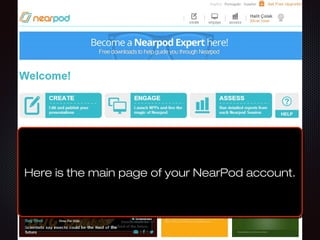
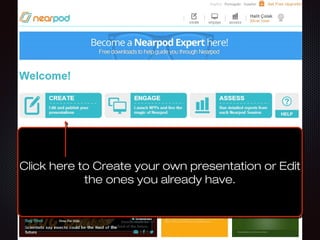
Here is the main page of your NearPod account.Here is the main page of your NearPod account.Here is the main page of your NearPod account.Here is the main page of your NearPod account.
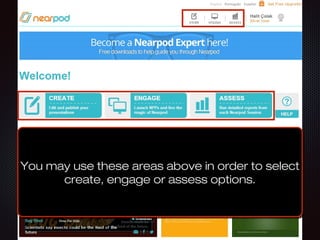
You may use these areas above in order to selectYou may use these areas above in order to select
create, engage or assess options.create, engage or assess options.
You may use these areas above in order to selectYou may use these areas above in order to select
create, engage or assess options.create, engage or assess options.
Click here to Create your own presentation or EditClick here to Create your own presentation or Edit
the ones you already have.the ones you already have.
Click here to Create your own presentation or EditClick here to Create your own presentation or Edit
the ones you already have.the ones you already have.
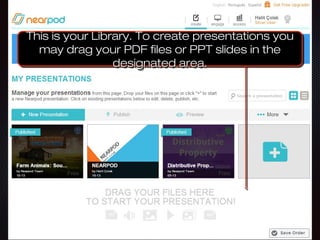
This is your Library. To create presentations youThis is your Library. To create presentations you
may drag your PDF files or PPT slides in themay drag your PDF files or PPT slides in the
designated area.designated area.
This is your Library. To create presentations youThis is your Library. To create presentations you
may drag your PDF files or PPT slides in themay drag your PDF files or PPT slides in the
designated area.designated area.
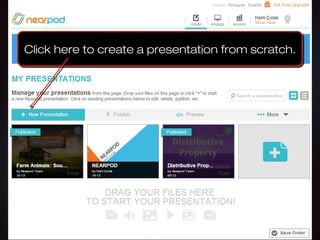
Click here to create a presentation from scratch.Click here to create a presentation from scratch.Click here to create a presentation from scratch.Click here to create a presentation from scratch.
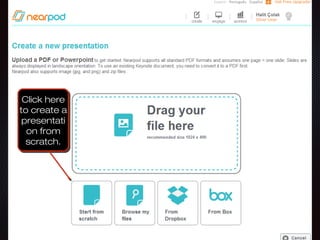
Click hereClick here
to create ato create a
presentatipresentati
on fromon from
scratch.scratch.
Click hereClick here
to create ato create a
presentatipresentati
on fromon from
scratch.scratch.
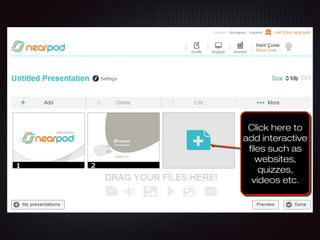
Click here toClick here to
add interactiveadd interactive
files such asfiles such as
websites,websites,
quizzes,quizzes,
videos etc.videos etc.
Click here toClick here to
add interactiveadd interactive
files such asfiles such as
websites,websites,
quizzes,quizzes,
videos etc.videos etc.
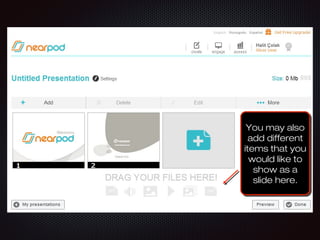
You may alsoYou may also
add differentadd different
items that youitems that you
would like towould like to
show as ashow as a
slide here.slide here.
You may alsoYou may also
add differentadd different
items that youitems that you
would like towould like to
show as ashow as a
slide here.slide here.
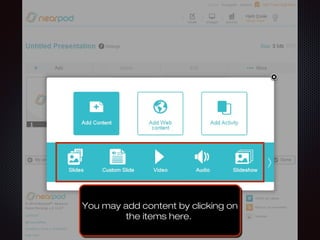
You may add content by clicking onYou may add content by clicking on
the items here.the items here.
You may add content by clicking onYou may add content by clicking on
the items here.the items here.
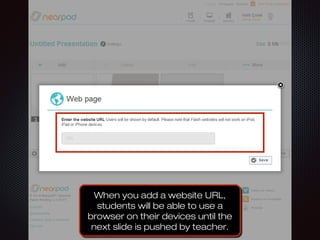
When you add a website URL,When you add a website URL,
students will be able to use astudents will be able to use a
browser on their devices until thebrowser on their devices until the
next slide is pushed by teacher.next slide is pushed by teacher.
When you add a website URL,When you add a website URL,
students will be able to use astudents will be able to use a
browser on their devices until thebrowser on their devices until the
next slide is pushed by teacher.next slide is pushed by teacher.
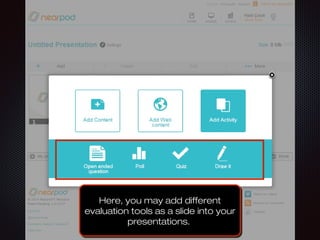
Here, you may add differentHere, you may add different
evaluation tools as a slide into yourevaluation tools as a slide into your
presentations.presentations.
Here, you may add differentHere, you may add different
evaluation tools as a slide into yourevaluation tools as a slide into your
presentations.presentations.
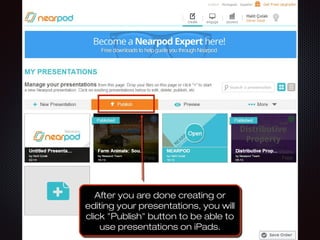
After you are done creating orAfter you are done creating or
editing your presentations, you willediting your presentations, you will
click "Publish" button to be able toclick "Publish" button to be able to
use presentations on iPads.use presentations on iPads.
After you are done creating orAfter you are done creating or
editing your presentations, you willediting your presentations, you will
click "Publish" button to be able toclick "Publish" button to be able to
use presentations on iPads.use presentations on iPads.
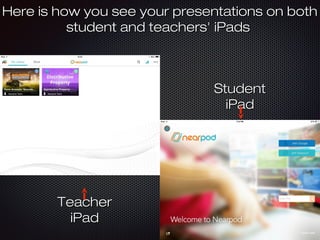
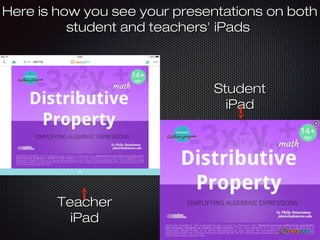
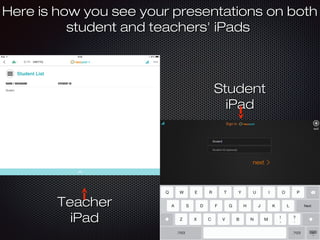
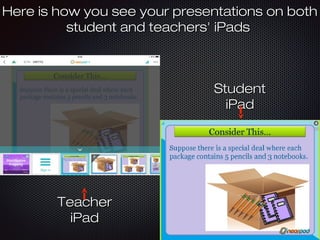
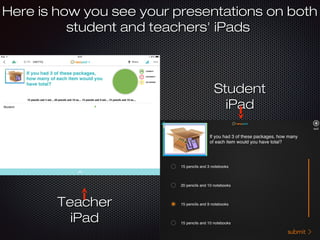
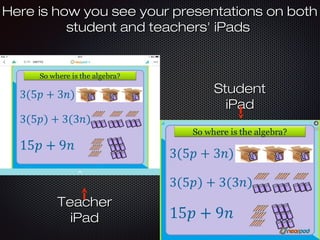
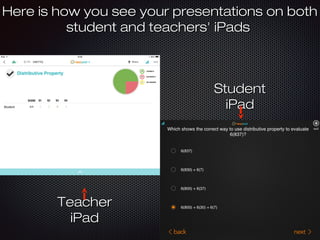
Here is how you see your presentations on bothHere is how you see your presentations on both
student and teachers' iPadsstudent and teachers' iPads
StudentStudent
iPadiPad
TeacherTeacher
iPadiPad
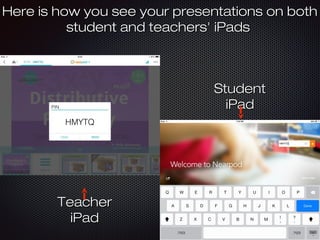
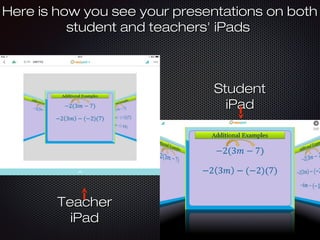
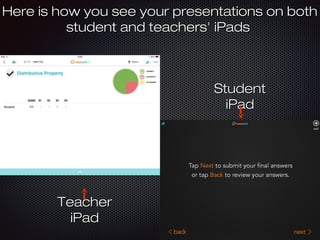
Here is how you see your presentations on bothHere is how you see your presentations on both
student and teachers' iPadsstudent and teachers' iPads
StudentStudent
iPadiPad
TeacherTeacher
iPadiPad
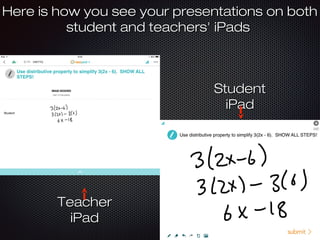
Here is how you see your presentations on bothHere is how you see your presentations on both
student and teachers' iPadsstudent and teachers' iPads
StudentStudent
iPadiPad
TeacherTeacher
iPadiPad
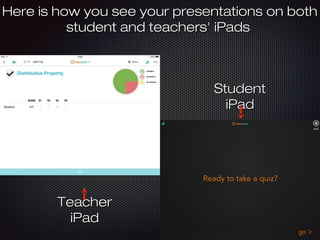
Here is how you see your presentations on bothHere is how you see your presentations on both
student and teachers' iPadsstudent and teachers' iPads
StudentStudent
iPadiPad
TeacherTeacher
iPadiPad
Here is how you see your presentations on bothHere is how you see your presentations on both
student and teachers' iPadsstudent and teachers' iPads
StudentStudent
iPadiPad
TeacherTeacher
iPadiPad
Here is how you see your presentations on bothHere is how you see your presentations on both
student and teachers' iPadsstudent and teachers' iPads
StudentStudent
iPadiPad
TeacherTeacher
iPadiPad
Here is how you see your presentations on bothHere is how you see your presentations on both
student and teachers' iPadsstudent and teachers' iPads
StudentStudent
iPadiPad
TeacherTeacher
iPadiPad
Here is how you see your presentations on bothHere is how you see your presentations on both
student and teachers' iPadsstudent and teachers' iPads
StudentStudent
iPadiPad
TeacherTeacher
iPadiPad
Here is how you see your presentations on bothHere is how you see your presentations on both
student and teachers' iPadsstudent and teachers' iPads
StudentStudent
iPadiPad
TeacherTeacher
iPadiPad
Here is how you see your presentations on bothHere is how you see your presentations on both
student and teachers' iPadsstudent and teachers' iPads
StudentStudent
iPadiPad
TeacherTeacher
iPadiPad
Here is how you see your presentations on bothHere is how you see your presentations on both
student and teachers' iPadsstudent and teachers' iPads
StudentStudent
iPadiPad
TeacherTeacher
iPadiPad
Here is how you see your presentations on bothHere is how you see your presentations on both
student and teachers' iPadsstudent and teachers' iPads
StudentStudent
iPadiPad
TeacherTeacher
iPadiPad
Thank you!Thank you!
I hope this document will help you whenI hope this document will help you when
you use Nearpod in your classrooms.you use Nearpod in your classrooms.

Nearpod

  • 1.
    NearPodNearPod Creating PresentationsCreating Presentations ©2014by Halit Colak. This material may be reproduced in whole or in part for educational purposes only provided that the©2014 by Halit Colak. This material may be reproduced in whole or in part for educational purposes only provided that the author is credited.author is credited.
  • 2.
    Here is themain page of your NearPod account.Here is the main page of your NearPod account.Here is the main page of your NearPod account.Here is the main page of your NearPod account.
  • 3.
    You may usethese areas above in order to selectYou may use these areas above in order to select create, engage or assess options.create, engage or assess options. You may use these areas above in order to selectYou may use these areas above in order to select create, engage or assess options.create, engage or assess options.
  • 4.
    Click here toCreate your own presentation or EditClick here to Create your own presentation or Edit the ones you already have.the ones you already have. Click here to Create your own presentation or EditClick here to Create your own presentation or Edit the ones you already have.the ones you already have.
  • 5.
    This is yourLibrary. To create presentations youThis is your Library. To create presentations you may drag your PDF files or PPT slides in themay drag your PDF files or PPT slides in the designated area.designated area. This is your Library. To create presentations youThis is your Library. To create presentations you may drag your PDF files or PPT slides in themay drag your PDF files or PPT slides in the designated area.designated area.
  • 6.
    Click here tocreate a presentation from scratch.Click here to create a presentation from scratch.Click here to create a presentation from scratch.Click here to create a presentation from scratch.
  • 7.
    Click hereClick here tocreate ato create a presentatipresentati on fromon from scratch.scratch. Click hereClick here to create ato create a presentatipresentati on fromon from scratch.scratch.
  • 8.
    Click here toClickhere to add interactiveadd interactive files such asfiles such as websites,websites, quizzes,quizzes, videos etc.videos etc. Click here toClick here to add interactiveadd interactive files such asfiles such as websites,websites, quizzes,quizzes, videos etc.videos etc.
  • 9.
    You may alsoYoumay also add differentadd different items that youitems that you would like towould like to show as ashow as a slide here.slide here. You may alsoYou may also add differentadd different items that youitems that you would like towould like to show as ashow as a slide here.slide here.
  • 10.
    You may addcontent by clicking onYou may add content by clicking on the items here.the items here. You may add content by clicking onYou may add content by clicking on the items here.the items here.
  • 11.
    When you adda website URL,When you add a website URL, students will be able to use astudents will be able to use a browser on their devices until thebrowser on their devices until the next slide is pushed by teacher.next slide is pushed by teacher. When you add a website URL,When you add a website URL, students will be able to use astudents will be able to use a browser on their devices until thebrowser on their devices until the next slide is pushed by teacher.next slide is pushed by teacher.
  • 12.
    Here, you mayadd differentHere, you may add different evaluation tools as a slide into yourevaluation tools as a slide into your presentations.presentations. Here, you may add differentHere, you may add different evaluation tools as a slide into yourevaluation tools as a slide into your presentations.presentations.
  • 13.
    After you aredone creating orAfter you are done creating or editing your presentations, you willediting your presentations, you will click "Publish" button to be able toclick "Publish" button to be able to use presentations on iPads.use presentations on iPads. After you are done creating orAfter you are done creating or editing your presentations, you willediting your presentations, you will click "Publish" button to be able toclick "Publish" button to be able to use presentations on iPads.use presentations on iPads.
  • 14.
    Here is howyou see your presentations on bothHere is how you see your presentations on both student and teachers' iPadsstudent and teachers' iPads StudentStudent iPadiPad TeacherTeacher iPadiPad
  • 15.
    Here is howyou see your presentations on bothHere is how you see your presentations on both student and teachers' iPadsstudent and teachers' iPads StudentStudent iPadiPad TeacherTeacher iPadiPad
  • 16.
    Here is howyou see your presentations on bothHere is how you see your presentations on both student and teachers' iPadsstudent and teachers' iPads StudentStudent iPadiPad TeacherTeacher iPadiPad
  • 17.
    Here is howyou see your presentations on bothHere is how you see your presentations on both student and teachers' iPadsstudent and teachers' iPads StudentStudent iPadiPad TeacherTeacher iPadiPad
  • 18.
    Here is howyou see your presentations on bothHere is how you see your presentations on both student and teachers' iPadsstudent and teachers' iPads StudentStudent iPadiPad TeacherTeacher iPadiPad
  • 19.
    Here is howyou see your presentations on bothHere is how you see your presentations on both student and teachers' iPadsstudent and teachers' iPads StudentStudent iPadiPad TeacherTeacher iPadiPad
  • 20.
    Here is howyou see your presentations on bothHere is how you see your presentations on both student and teachers' iPadsstudent and teachers' iPads StudentStudent iPadiPad TeacherTeacher iPadiPad
  • 21.
    Here is howyou see your presentations on bothHere is how you see your presentations on both student and teachers' iPadsstudent and teachers' iPads StudentStudent iPadiPad TeacherTeacher iPadiPad
  • 22.
    Here is howyou see your presentations on bothHere is how you see your presentations on both student and teachers' iPadsstudent and teachers' iPads StudentStudent iPadiPad TeacherTeacher iPadiPad
  • 23.
    Here is howyou see your presentations on bothHere is how you see your presentations on both student and teachers' iPadsstudent and teachers' iPads StudentStudent iPadiPad TeacherTeacher iPadiPad
  • 24.
    Here is howyou see your presentations on bothHere is how you see your presentations on both student and teachers' iPadsstudent and teachers' iPads StudentStudent iPadiPad TeacherTeacher iPadiPad
  • 25.
    Here is howyou see your presentations on bothHere is how you see your presentations on both student and teachers' iPadsstudent and teachers' iPads StudentStudent iPadiPad TeacherTeacher iPadiPad
  • 26.
    Thank you!Thank you! Ihope this document will help you whenI hope this document will help you when you use Nearpod in your classrooms.you use Nearpod in your classrooms.