Degree Map
Helps You Stay on Track and On Plan
Shows progress toward your degree
Identify classes you still need
Review career-related information
Logging In
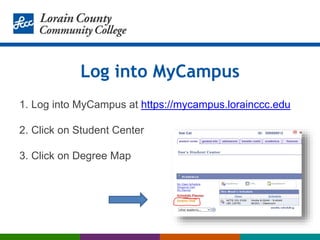
Log into MyCampus
1. Log into MyCampus at https://mycampus.lorainccc.edu
2. Click on Student Center
3. Click on Degree Map
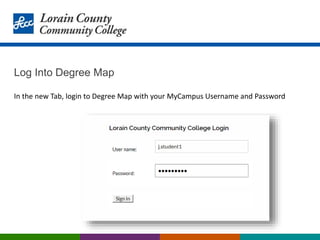
Log Into Degree Map
In the new Tab, login to Degree Map with your MyCampus Username and Password
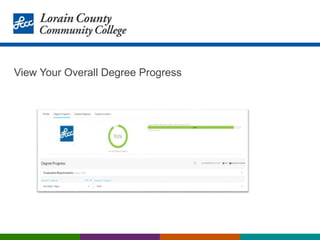
View Your Overall Degree Progress
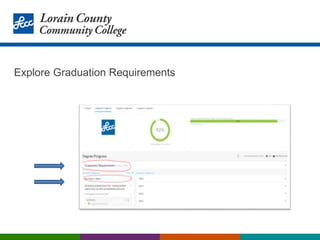
Explore Graduation Requirements
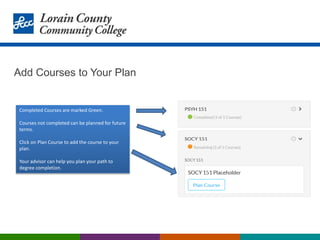
Add Courses to Your Plan
Completed Courses are marked Green.
Courses not completed can be planned for future
terms.
Click on Plan Course to add the course to your
plan.
Your advisor can help you plan your path to
degree completion.
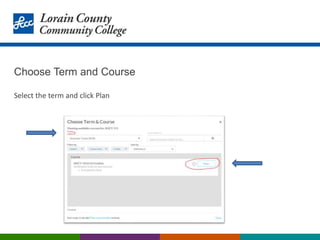
Choose Term and Course
Select the term and click Plan
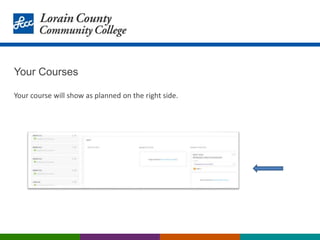
Your Courses
Your course will show as planned on the right side.
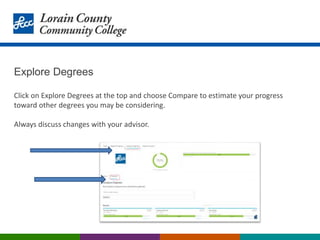
Explore Degrees
Click on Explore Degrees at the top and choose Compare to estimate your progress
toward other degrees you may be considering.
Always discuss changes with your advisor.
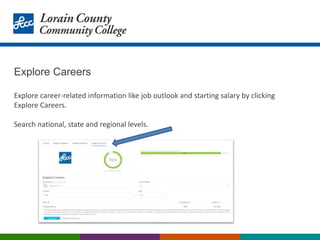
Explore Careers
Explore career-related information like job outlook and starting salary by clicking
Explore Careers.
Search national, state and regional levels.
Your Advisor Can Help
www.lorainccc.edu/advising
Run into problems?

Degree Map Slides.pptx

  • 1.
    Degree Map Helps YouStay on Track and On Plan Shows progress toward your degree Identify classes you still need Review career-related information
  • 2.
  • 3.
    Log into MyCampus 1.Log into MyCampus at https://mycampus.lorainccc.edu 2. Click on Student Center 3. Click on Degree Map
  • 4.
    Log Into DegreeMap In the new Tab, login to Degree Map with your MyCampus Username and Password
  • 5.
    View Your OverallDegree Progress
  • 6.
  • 7.
    Add Courses toYour Plan Completed Courses are marked Green. Courses not completed can be planned for future terms. Click on Plan Course to add the course to your plan. Your advisor can help you plan your path to degree completion.
  • 8.
    Choose Term andCourse Select the term and click Plan
  • 9.
    Your Courses Your coursewill show as planned on the right side.
  • 10.
    Explore Degrees Click onExplore Degrees at the top and choose Compare to estimate your progress toward other degrees you may be considering. Always discuss changes with your advisor.
  • 11.
    Explore Careers Explore career-relatedinformation like job outlook and starting salary by clicking Explore Careers. Search national, state and regional levels.
  • 12.
    Your Advisor CanHelp www.lorainccc.edu/advising Run into problems?