What is Multimedia?
Multimedia means that computer information can be represented through audio, video,
and animation in addition to traditional media (i.e., text, graphics drawings and images).
Multimedia is the field concerned with the computer-controlled integration of text,
graphics, drawings, still and moving images (Video), animation, audio, and any other media
where every type of information can be represented, stored, transmitted and processed
digitally.
Multimedia Application is an Application which uses a collection of multiple media sources
e.g. text, graphics, images, sound/audio, animation and/or video. Hypermedia can be
considered as one of the multimedia applications.
Hypertext is a text which contains links to other texts.
Hypermedia is not constrained to be text-based. It can include other media, e.g., graphics,
images, and especially the continuous media - sound and video. The World Wide Web
(WWW) is the best example of hypermedia applications.
ADVANTAGES OF MULTIMEDIA
 Involvement from the user.
 Multimedia modules are easier to use and more economical compared to
others.
 Makes the work more realistic in less effort.
DISADVANTAGES OF MULTIMEDIA
 Time consumption is large.
 Memory usage is high.
 Requires great deal of recourses.
Applications
Examples of Multimedia Applications include:
 World Wide Web
 Hypermedia courseware
 Courseware computer programs or other material designed for use in an
educational or training course.
 Video conferencing
 Video-on-demand
 Interactive TV
 Groupware
 Groupware Computing software designed to facilitate collective working by a
number of different users.
 Home shopping
 Games
 Digital video editing and production systems
 Multimedia Database systems.
Current big applications areas in Multimedia include:
World Wide Web: Hypermedia systems -- embrace nearly all multimedia
technologies and application areas. Every increasing popularity.
MBone: Multicast Backbone: Equivalent of conventional TV and Radio on the Internet.
TYPES OF MEDIA
Two types of Medias are there. They are:
1. Discrete media (DM, static): text, image, graphics
 Text - ASCII/Unicode, HTML, Postscript, PDF
 Still Image - photo, scanned image
 Graphics – Computer produced image.
2. Continuous media (CM, dynamic): audio, video, animation.
 Audio – Sound, music, speech, structured audio (e.g. MIDI)
 Video (Moving Images) – Movie, a sequence of pictures
 Animation – A sequence of graphics images
Elements of Multimedia
1) TEXT
2) GRAPHICS/PICTURE
3) SOUND
4) ANIMATION
Design of multimedia product guides:
 Use basic standards of design
 Focus on what user wants and needs
 Design strategy should be solid; simple, easily understood, easy to use
 Users should know where they are and where they can go
 Design guidelines fall into two broad categories:
 Appearance
 Interactivity
Design Guidelines: Appearance
 The following issues regarding the appearance of multimedia product will be discussed:
 Balanced layout, Movement, White space, Unified piece, Metaphor, Consistency,
Template, Color scheme.
BALANCED LAYOUT
 Balance in screen design refers to the distribution of optical weight in the layout.
 Optical weight is the ability of an element to attract the user’s eye.
 Each element has optical weight as determined by its nature and size.
 Nature of an element refers to its shape, color, brightness and type.
MOVEMENT
 Movement relates to how the user’s eye moves through the elements on the page.
 When a multimedia application / web page appears on the monitor, the user’s eye is drawn
to a particular location. This point might be the optical center.
 Optical center is a point somewhat above the physical center of the page.
To ensure that users view content in a more structured way:
 Control where user starts on page
 Use lines or objects that point the user in a certain direction
 Use color gradients that go from light shade to dark shade
 Have people or animals look in the direction the user should look.
Emphasize an element
• make it a different shape or color
• surround it with white space
• use a different font or type style
• create borders
• use different backgrounds for selected objects.
White Space
• White space is the blank areas on a page where text and other media elements are not
found.
• White space does not have to be white.
The designers of the Colgate web site used white space between media elements.
The white space in this example includes the blue area around the products.
UNIFIED PIECE
 A multimedia application / web site should be presented as a unified piece.
 Two types of unity
 Intra-page unity
 Inter-page unity
• Intra-page unity: deals with how various elements on a page relate.
Inter-page unity
 Deals with the design that users encounter as they navigate from one page to
another.
 Provides consistency throughout the entire multimedia application / web site.
 Can be achieved by maintaining consistency in shapes, colors, text styles and themes.
METAPHOR
 A metaphor is a symbolic representation that links the content of the multimedia application
/ web site to an established mental model.
 Example: E-commerce’s metaphor is an electronic shopping cart
 Metaphors must be concrete and obvious, and consistent with the content.
 If the metaphor is not appropriate, it can mislead and confuse the users.
 The metaphor should reinforce the message, and appeal to the target audience
without detracting from any of the content.
 Why metaphors are used?
 A strong metaphor can guide a visitor.
 A strong metaphor can glue a multimedia application / web site together.
CONSISTENCY
 Consistency is an essential component of multimedia application / web site design, which
applies to both appearance and navigation schemes.
 Having the navigation bar remain consistent from one page to the next is vital to the
success of the site.
TEMPLATE
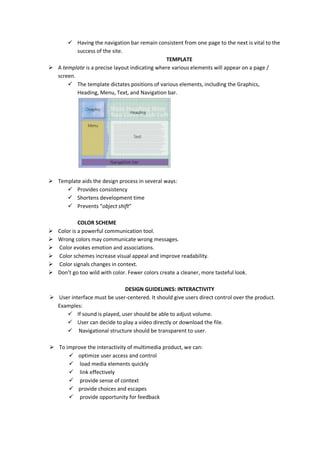
 A template is a precise layout indicating where various elements will appear on a page /
screen.
 The template dictates positions of various elements, including the Graphics,
Heading, Menu, Text, and Navigation bar.
 Template aids the design process in several ways:
 Provides consistency
 Shortens development time
 Prevents “object shift”
COLOR SCHEME
 Color is a powerful communication tool.
 Wrong colors may communicate wrong messages.
 Color evokes emotion and associations.
 Color schemes increase visual appeal and improve readability.
 Color signals changes in context.
 Don’t go too wild with color. Fewer colors create a cleaner, more tasteful look.
DESIGN GUIDELINES: INTERACTIVITY
 User interface must be user-centered. It should give users direct control over the product.
Examples:
 If sound is played, user should be able to adjust volume.
 User can decide to play a video directly or download the file.
 Navigational structure should be transparent to user.
 To improve the interactivity of multimedia product, we can:
 optimize user access and control
 load media elements quickly
 link effectively
 provide sense of context
 provide choices and escapes
 provide opportunity for feedback
OPTIMIZE USER ACCESS AND CONTROL
 Users must know where they are within the overall structure of the product.
 Users want quick and easy access to the content of the product.
 It should be easy to return to the home page or other major pages.
LOAD MEDIA ELEMENTS QUICKLY
 Users will not tolerate delay. Therefore, it is important to load the media elements quickly.
 To reduce download time, graphics should be optimized and thumbnails could be used.
LINK EFFECTIVELY
 We should provide users with the information that they want:
 in least number of steps
 in shortest amount of time
 using least amount of screen real estate
 External links may be opened in separate browser windows so that the original window
remains open.
PROVIDE SENSE OF CONTEXT
 Just as readers use context to help them assess their place in a printed document, users of
multimedia applications rely on context to help them determine where they are within the
hierarchy of information.
 Contextual clues for users include:
 familiar and intuitive icons
 common color scheme
 consistent layout
 consistent method of navigation
 graphic similarity
PROVIDE CHOICES AND ESCAPES
 Avoid long introductions of automatically scrolling text, narration, music and credits
 Provide a way to skip or escape introductory elements
 Provide ways for users to control the playing of animations, sound and video
PROVIDE OPPORTUNITY FOR PROVIDE FEEDBACK
 We may want to give users an opportunity to establish an ongoing relationship with the
company or organization.
 Users need to be able to communicate with company or organization online and be
able to have an opportunity for feedback.

Multimedia notes

  • 1.
    What is Multimedia? Multimediameans that computer information can be represented through audio, video, and animation in addition to traditional media (i.e., text, graphics drawings and images). Multimedia is the field concerned with the computer-controlled integration of text, graphics, drawings, still and moving images (Video), animation, audio, and any other media where every type of information can be represented, stored, transmitted and processed digitally. Multimedia Application is an Application which uses a collection of multiple media sources e.g. text, graphics, images, sound/audio, animation and/or video. Hypermedia can be considered as one of the multimedia applications. Hypertext is a text which contains links to other texts. Hypermedia is not constrained to be text-based. It can include other media, e.g., graphics, images, and especially the continuous media - sound and video. The World Wide Web (WWW) is the best example of hypermedia applications. ADVANTAGES OF MULTIMEDIA  Involvement from the user.  Multimedia modules are easier to use and more economical compared to others.  Makes the work more realistic in less effort. DISADVANTAGES OF MULTIMEDIA  Time consumption is large.  Memory usage is high.  Requires great deal of recourses. Applications Examples of Multimedia Applications include:  World Wide Web  Hypermedia courseware  Courseware computer programs or other material designed for use in an educational or training course.  Video conferencing  Video-on-demand  Interactive TV  Groupware  Groupware Computing software designed to facilitate collective working by a number of different users.  Home shopping  Games  Digital video editing and production systems  Multimedia Database systems. Current big applications areas in Multimedia include:
  • 2.
    World Wide Web:Hypermedia systems -- embrace nearly all multimedia technologies and application areas. Every increasing popularity. MBone: Multicast Backbone: Equivalent of conventional TV and Radio on the Internet. TYPES OF MEDIA Two types of Medias are there. They are: 1. Discrete media (DM, static): text, image, graphics  Text - ASCII/Unicode, HTML, Postscript, PDF  Still Image - photo, scanned image  Graphics – Computer produced image. 2. Continuous media (CM, dynamic): audio, video, animation.  Audio – Sound, music, speech, structured audio (e.g. MIDI)  Video (Moving Images) – Movie, a sequence of pictures  Animation – A sequence of graphics images Elements of Multimedia 1) TEXT 2) GRAPHICS/PICTURE 3) SOUND 4) ANIMATION Design of multimedia product guides:  Use basic standards of design  Focus on what user wants and needs  Design strategy should be solid; simple, easily understood, easy to use  Users should know where they are and where they can go  Design guidelines fall into two broad categories:  Appearance  Interactivity Design Guidelines: Appearance  The following issues regarding the appearance of multimedia product will be discussed:  Balanced layout, Movement, White space, Unified piece, Metaphor, Consistency, Template, Color scheme. BALANCED LAYOUT
  • 3.
     Balance inscreen design refers to the distribution of optical weight in the layout.  Optical weight is the ability of an element to attract the user’s eye.  Each element has optical weight as determined by its nature and size.  Nature of an element refers to its shape, color, brightness and type. MOVEMENT  Movement relates to how the user’s eye moves through the elements on the page.  When a multimedia application / web page appears on the monitor, the user’s eye is drawn to a particular location. This point might be the optical center.  Optical center is a point somewhat above the physical center of the page. To ensure that users view content in a more structured way:  Control where user starts on page  Use lines or objects that point the user in a certain direction  Use color gradients that go from light shade to dark shade  Have people or animals look in the direction the user should look. Emphasize an element • make it a different shape or color • surround it with white space • use a different font or type style • create borders • use different backgrounds for selected objects. White Space • White space is the blank areas on a page where text and other media elements are not found. • White space does not have to be white.
  • 4.
    The designers ofthe Colgate web site used white space between media elements. The white space in this example includes the blue area around the products. UNIFIED PIECE  A multimedia application / web site should be presented as a unified piece.  Two types of unity  Intra-page unity  Inter-page unity • Intra-page unity: deals with how various elements on a page relate. Inter-page unity  Deals with the design that users encounter as they navigate from one page to another.  Provides consistency throughout the entire multimedia application / web site.  Can be achieved by maintaining consistency in shapes, colors, text styles and themes. METAPHOR  A metaphor is a symbolic representation that links the content of the multimedia application / web site to an established mental model.  Example: E-commerce’s metaphor is an electronic shopping cart  Metaphors must be concrete and obvious, and consistent with the content.  If the metaphor is not appropriate, it can mislead and confuse the users.  The metaphor should reinforce the message, and appeal to the target audience without detracting from any of the content.  Why metaphors are used?  A strong metaphor can guide a visitor.  A strong metaphor can glue a multimedia application / web site together. CONSISTENCY  Consistency is an essential component of multimedia application / web site design, which applies to both appearance and navigation schemes.
  • 5.
     Having thenavigation bar remain consistent from one page to the next is vital to the success of the site. TEMPLATE  A template is a precise layout indicating where various elements will appear on a page / screen.  The template dictates positions of various elements, including the Graphics, Heading, Menu, Text, and Navigation bar.  Template aids the design process in several ways:  Provides consistency  Shortens development time  Prevents “object shift” COLOR SCHEME  Color is a powerful communication tool.  Wrong colors may communicate wrong messages.  Color evokes emotion and associations.  Color schemes increase visual appeal and improve readability.  Color signals changes in context.  Don’t go too wild with color. Fewer colors create a cleaner, more tasteful look. DESIGN GUIDELINES: INTERACTIVITY  User interface must be user-centered. It should give users direct control over the product. Examples:  If sound is played, user should be able to adjust volume.  User can decide to play a video directly or download the file.  Navigational structure should be transparent to user.  To improve the interactivity of multimedia product, we can:  optimize user access and control  load media elements quickly  link effectively  provide sense of context  provide choices and escapes  provide opportunity for feedback
  • 6.
    OPTIMIZE USER ACCESSAND CONTROL  Users must know where they are within the overall structure of the product.  Users want quick and easy access to the content of the product.  It should be easy to return to the home page or other major pages. LOAD MEDIA ELEMENTS QUICKLY  Users will not tolerate delay. Therefore, it is important to load the media elements quickly.  To reduce download time, graphics should be optimized and thumbnails could be used. LINK EFFECTIVELY  We should provide users with the information that they want:  in least number of steps  in shortest amount of time  using least amount of screen real estate  External links may be opened in separate browser windows so that the original window remains open. PROVIDE SENSE OF CONTEXT  Just as readers use context to help them assess their place in a printed document, users of multimedia applications rely on context to help them determine where they are within the hierarchy of information.  Contextual clues for users include:  familiar and intuitive icons  common color scheme  consistent layout  consistent method of navigation  graphic similarity PROVIDE CHOICES AND ESCAPES  Avoid long introductions of automatically scrolling text, narration, music and credits  Provide a way to skip or escape introductory elements  Provide ways for users to control the playing of animations, sound and video PROVIDE OPPORTUNITY FOR PROVIDE FEEDBACK  We may want to give users an opportunity to establish an ongoing relationship with the company or organization.  Users need to be able to communicate with company or organization online and be able to have an opportunity for feedback.