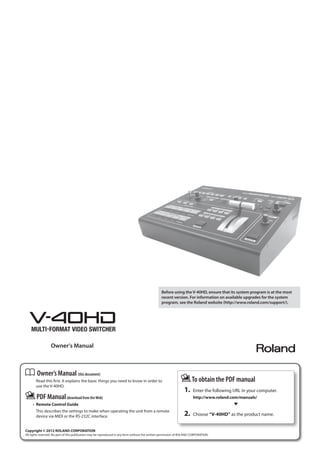
Before using the V-40HD, ensure that its system program is at the most 
recent version. For information on available upgrades for the system 
program, see the Roland website (http://www.roland.com/support/). 
Owner’s Manual (this document) 
Read this first. It explains the basic things you need to know in order to 
use the V-40HD. 
PDF Manual (download from the Web) 
• Remote Control Guide 
This describes the settings to make when operating the unit from a remote 
device via MIDI or the RS-232C interface. 
To obtain the PDF manual 
1. Enter the following URL in your computer. 
http://www.roland.com/manuals/ 
2. Choose “V-40HD” as the product name. 
Copyright © 2012 ROLAND CORPORATION 
All rights reserved. No part of this publication may be reproduced in any form without the written permission of ROLAND CORPORATION.
2
3 
USING THE UNIT SAFELY 
Before using this unit, carefully read the sections entitled “USING THE UNIT SAFELY” and “IMPORTANT NOTES” (p. 5). These sections provide 
important information concerning the proper operation of the unit. Additionally, in order to feel assured that you have gained a good grasp of 
every feature of your new unit, read Owner’s manual in its entirety. This manual should be saved and kept on hand as a convenient reference. 
WARNING 
002c 
Do not disassemble or modify by yourself 
• Do not open (or modify in any way) the unit or its AC 
adaptor. 
003 
Do not repair or replace parts by yourself 
• Do not attempt to repair the unit, or replace parts within 
it (except when this manual provides specific instructions 
directing you to do so). Refer all servicing to your retailer, 
the nearest Roland Service Center, or an authorized Roland 
distributor, as listed on the “Information” sheet. 
004 
Do not use or store in the following types of 
locations 
• Subject to temperature extremes (e.g., direct sunlight in 
an enclosed vehicle, near a heating duct, on top of heat-generating 
equipment); or are 
• Damp (e.g., baths, washrooms, on wet floors); or are 
• Exposed to steam or smoke; or are 
• Subject to salt exposure; or are 
• Humid; or are 
• Exposed to rain; or are 
• Dusty or sandy; or are 
• Subject to high levels of vibration and shakiness. 
007 
Do not place in an unstable location 
• Make sure you always have the unit placed so it is level and 
sure to remain stable. Never place it on stands that could 
wobble, or on inclined surfaces 
WARNING 
008c 
Use only the supplied AC adaptor and the correct 
voltage 
• Be sure to use only the AC adaptor supplied with the unit. 
Also, make sure the line voltage at the installation matches 
the input voltage specified on the AC adaptor’s body. Other 
AC adaptors may use a different polarity, or be designed 
for a different voltage, so their use could result in damage, 
malfunction, or electric shock. 
008e 
Use only the included power cord 
• Use only the attached power-supply cord. Also, the supplied 
power cord must not be used with any other device. 
009 
Do not bend the power cord or place heavy 
objects on it 
• Do not excessively twist or bend the power cord, nor 
place heavy objects on it. Doing so can damage the cord, 
producing severed elements and short circuits. Damaged 
cords are fire and shock hazards! 
010 
Avoid extended use at high volume 
• This unit in combination with an amplifier and headphones 
or speakers, may be capable of producing sound levels that 
could cause permanent hearing loss. Do not operate for 
a long period of time at a high volume level, or at a level 
that is uncomfortable. If you experience any hearing loss or 
ringing in the ears, you should immediately stop using the 
unit, and consult an audiologist. 
011 
Don’t allow foreign objects or liquids to enter 
unit; never place containers with liquid on unit 
• Do not place containers containing liquid (e.g., flower vases) 
on this product. Never allow foreign objects (e.g., flammable 
objects, coins, wires) or liquids (e.g., water or juice) to enter 
this product. Doing so may cause short circuits, faulty 
operation, or other malfunctions.
USING THE UNIT SAFELY 
4 
WARNING 
012b 
Turn off the unit if an abnormality or malfunction 
occurs 
• Immediately turn the unit off, remove the AC adaptor from 
the outlet, and request servicing by your retailer, the nearest 
Roland Service Center, or an authorized Roland distributor, 
as listed on the “Information” sheet when: 
• The AC adaptor, the power-supply cord, or the plug has 
been damaged; or 
• If smoke or unusual odor occurs 
• Objects have fallen into, or liquid has been spilled onto 
the unit; or 
• The unit has been exposed to rain (or otherwise has 
become wet); or 
• The unit does not appear to operate normally or exhibits 
a marked change in performance. 
013 
Adults must provide supervision in places where 
children are present 
• When using the unit in locations where children are present, 
be careful so no mishandling of the unit can take place. An 
adult should always be on hand to provide supervision and 
guidance. 
014 
Do not drop or subject to strong impact 
• Protect the unit from strong impact. 
(Do not drop it!) 
015 
Do not share an outlet with an unreasonable 
number of other devices 
• Do not force the unit’s power-supply cord to share an 
outlet with an unreasonable number of other devices. Be 
especially careful when using extension cords - the total 
power used by all devices you have connected to the 
extension cord’s outlet must never exceed the power rating 
(watts/amperes) for the extension cord. Excessive loads can 
cause the insulation on the cord to heat up and eventually 
melt through. 
016 
Do not use overseas 
• Before using the unit in a foreign country, consult with your 
retailer, the nearest Roland Service Center, or an authorized 
Roland distributor, as listed on the “Information” sheet. 
CAUTION 
101b 
Place in a well ventilated location 
• The unit and the AC adaptor should be located so their 
location or position does not interfere with their proper 
ventilation. 
102c 
Grasp the plug when connecting or 
disconnecting the AC adaptor 
• Always grasp only the plug on the AC adaptor cord when 
plugging into, or unplugging from, an outlet or this unit. 
CAUTION 
103b 
Periodically clean the AC adaptor’s plug 
• At regular intervals, you should unplug the AC adaptor 
and clean it by using a dry cloth to wipe all dust and other 
accumulations away from its prongs. Also, disconnect the 
power plug from the power outlet whenever the unit is 
to remain unused for an extended period of time. Any 
accumulation of dust between the power plug and the 
power outlet can result in poor insulation and lead to fire. 
104 
Manage cables for safety 
• Try to prevent cords and cables from becoming entangled. 
Also, all cords and cables should be placed so they are out 
of the reach of children. 
106 
Avoid climbing on top of the unit, or placing 
heavy objects on it 
• Never climb on top of, nor place heavy objects on the unit. 
107c 
Do not connect or disconnect the AC adaptor 
with wet hands 
• Never handle the AC adaptor or its plugs with wet hands 
when plugging into, or unplugging from, an outlet or this 
unit. 
108b 
Disconnect everything before moving the unit 
• Before moving the unit, disconnect the AC adaptor and all 
cords coming from external devices. 
109b 
Unplug the AC adaptor from the outlet before 
cleaning 
• Before cleaning the unit, turn it off and unplug the AC 
adaptor from the outlet (p. 12). 
110b 
If there is a possibility of lightning strike, 
disconnect the AC adaptor from the outlet 
• Whenever you suspect the possibility of lightning in your 
area, disconnect the AC adaptor from the outlet. 
118d 
Keep small items out of the reach of children 
• To prevent accidental ingestion of the parts listed below, 
always keep them out of the reach of small children. 
• Included Parts 
RCA-BNC conversion plug 
118e 
Handle the ground terminal carefully 
• If you remove the screw from the ground terminal, be 
sure to replace it; don’t leave it lying around where it 
could accidently be swallowed by small children. When 
refastening the screw, make that it is firmly fastened, so it 
won’t come loose. 
119 
Take care not to get burned 
• The bottom panel may become hot, so take care to avoid 
burns.
5 
Power Supply 
301 (QA-EMC) 
• Do not connect this unit to same electrical outlet that is being used 
by an electrical appliance that is controlled by an inverter or a motor 
(such as a refrigerator, washing machine, microwave oven, or air 
conditioner). Depending on the way in which the electrical appliance 
is used, power supply noise may cause this unit to malfunction or may 
produce audible noise. If it is not practical to use a separate electrical 
outlet, connect a power supply noise filter between this unit and the 
electrical outlet. 
302 
• The AC adaptor will begin to generate heat after long hours of 
consecutive use. This is normal, and is not a cause for concern. 
307 
• To prevent malfunction and equipment failure, always make sure 
to turn off the power on all your equipment before you make any 
connections. 
309 
• With the factory settings, the V-40HD will automatically be switched 
off when the conditions described below continue for 240 minutes. 
If you don’t want the unit to turn off automatically, refer to “Menu 
Operations” (p. 45) and turn the [AUTO OFF] setting to [OFF] in 
System menu (p. 50). 
• No operation of the unit (including operation by remote control) 
• No video input 
• No audio input at -48 dBu or higher 
* The settings you were editing will be lost when the unit is turned 
off. If you want to keep your settings, you must save your settings 
before turning the unit off. 
Placement 
351 (QA-EMC) 
• Using the unit near power amplifiers (or other equipment containing 
large power transformers) may induce hum. To alleviate the problem, 
change the orientation of this unit; or move it farther away from the 
source of interference. 
352a (QA-EMC) 
• This device may interfere with radio and television reception. Do not 
use this device in the vicinity of such receivers. 
352b (QA-EMC) 
• Noise may be produced if wireless communications devices, such as cell 
phones, are operated in the vicinity of this unit. Such noise could occur 
when receiving or initiating a call, or while conversing. Should you 
experience such problems, you should relocate such wireless devices so 
they are at a greater distance from this unit, or switch them off. 
354a 
• Do not expose the unit to direct sunlight, place it near devices that 
radiate heat, leave it inside an enclosed vehicle, or otherwise subject it 
to temperature extremes. Excessive heat can deform or discolor the unit. 
355b 
• When moved from one location to another where the temperature 
and/or humidity is very different, water droplets (condensation) may 
form inside the unit. Damage or malfunction may result if you attempt 
to use the unit in this condition. Therefore, before using the unit, you 
must allow it to stand for several hours, until the condensation has 
completely evaporated. 
360 
• Depending on the material and temperature of the surface on which 
you place the unit, its rubber feet may discolor or mar the surface. 
• You can place a piece of felt or cloth under the rubber feet to prevent 
this from happening. If you do so, please make sure that the unit will 
not slip or move accidentally. 
361 
• Do not put anything that contains water on this unit. Also, avoid the 
use of insecticides, perfumes, alcohol, nail polish, spray cans, etc., near 
the unit. Swiftly wipe away any liquid that spills on the unit using a 
dry, soft cloth. 
Maintenance 
401a 
• For everyday cleaning wipe the unit with a soft, dry cloth or one that 
has been slightly dampened with water. To remove stubborn dirt, use 
a cloth impregnated with a mild, non-abrasive detergent. Afterwards, 
be sure to wipe the unit thoroughly with a soft, dry cloth. 
402 
• Never use benzine, thinners, alcohol or solvents of any kind, to avoid 
the possibility of discoloration and/or deformation. 
Repairs and Data 
452 
• Please be aware that all data contained in the unit’s memory may be 
lost when the unit is sent for repairs. Important data should always 
be backed up to USB memories, or written down on paper (when 
possible). During repairs, due care is taken to avoid the loss of data. 
However, in certain cases (such as when circuitry related to memory 
itself is out of order), we regret that it may not be possible to restore 
the data, and Roland assumes no liability concerning such loss of data. 
Additional Precautions 
551 
• Please be aware that the contents of memory can be irretrievably lost 
as a result of a malfunction, or the improper operation of the unit. 
To protect yourself against the risk of loosing important data, we 
recommend that you periodically save a backup copy of important 
data you have stored in the unit’s memory to USB memories. 
552 
• Unfortunately, it may be impossible to restore the contents of data 
that was stored in the unit’s internal memory or USB memories once 
it has been lost. Roland Corporation assumes no liability concerning 
such loss of data. 
553 
• Use a reasonable amount of care when using the unit’s buttons, 
sliders, or other controls; and when using its jacks and connectors. 
Rough handling can lead to malfunctions. 
556 
• When disconnecting all cables, grasp the connector itself, never pull 
on the cable. This way you will avoid causing shorts, or damage to the 
cable’s internal elements. 
558b 
• To avoid disturbing others nearby, try to keep the unit’s volume at 
reasonable levels. 
559a 
• When you need to transport the unit, package it in the box (including 
padding) that it came in, if possible. Otherwise, you will need to use 
equivalent packaging materials. 
562 
• Some audio connection cables contain resistors. Do not use cables 
that incorporate resistors for connecting to this unit. The use of such 
cables can cause the sound level to be extremely low, or impossible 
to hear. For information on cable specifications, contact the 
manufacturer of the cable. 
Before Using USB Memories 
704 
• Carefully insert the USB memories all the way in - until it is firmly in 
place. 
705 
• Never touch the terminals of the USB memories. Also, avoid getting 
the terminals dirty. 
708 
• USB memories are constructed using precision components; handle 
the memories carefully, paying particular note to the following. 
• To prevent damage to the cards from static electricity, be sure to 
discharge any static electricity from your own body before handling 
the cards. 
• Do not touch or allow metal to come into contact with the contact 
portion of the cards. 
• Do not bend, drop, or subject cards to strong shock or vibration. 
• Do not keep cards in direct sunlight, in closed vehicles, or other 
such locations. 
• Do not allow cards to become wet. 
• Do not disassemble or modify the cards. 
IMPORTANT NOTES
IMPORTANT NOTES 
About Intellectual Property Rights 
Roland 
• Roland is either registered trademark or trademark of Roland 
6 
Corporation in the United States and/or other countries. 
Others 
• All product names mentioned in this document are trademarks or 
registered trademarks of their respective owners. 
C-01-1 
• It is forbidden by law to make an audio recording, video recording, 
copy or revision of a third party’s copyrighted work (musical work, 
video work, broadcast, live performance, or other work), whether in 
whole or in part, and distribute, sell, lease, perform, or broadcast it 
without the permission of the copyright owner. 
C-01-2 
• Do not use this product for purposes that could infringe on a 
copyright held by a third party. We assume no responsibility 
whatsoever with regard to any infringements of third-party copyrights 
arising through your use of this product. 
C-02 
• This product can be used to record or duplicate audio or visual 
material without being limited by certain technological copy-protection 
measures. This is due to the fact that this product is 
intended to be used for the purpose of producing original music or 
video material, and is therefore designed so that material that does 
not infringe copyrights belonging to others (for example, your own 
original works) can be recorded or duplicated freely. 
MMP 
• MMP (Moore Microprocessor Portfolio) refers to a patent portfolio 
concerned with microprocessor architecture, which was developed 
by Technology Properties Limited (TPL). Roland has licensed this 
technology from the TPL Group.
7 
Check the Included Items 
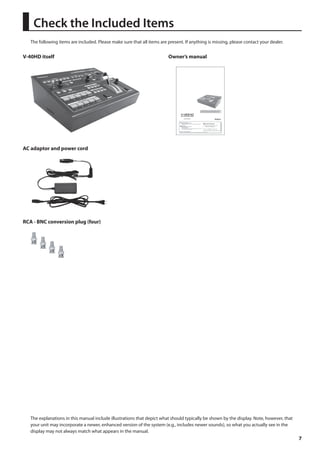
The following items are included. Please make sure that all items are present. If anything is missing, please contact your dealer. 
V-40HD itself 
fig.V40HD-itself.eps 
AC adaptor and power cord 
fig.AC-adaptor.eps 
RCA - BNC conversion plug (four) 
fig.RCA-BNC-plug.eps 
Owner’s manual 
fig.owners-manual.eps 
The explanations in this manual include illustrations that depict what should typically be shown by the display. Note, however, that 
your unit may incorporate a newer, enhanced version of the system (e.g., includes newer sounds), so what you actually see in the 
display may not always match what appears in the manual.
8 
Contents 
USING THE UNIT SAFELY........................................................................................3 
IMPORTANT NOTES................................................................................................5 
Check the Included Items......................................................................................7 
About the Preview Monitor.................................................................................10 
Connecting the Monitor................................................................................................................................................................... 10 
About the View on the Preview Monitor.................................................................................................................................... 10 
About the Menu Displays................................................................................................................................................................. 11 
About the Power Supply......................................................................................12 
Connecting the AC Adapter............................................................................................................................................................ 12 
Turning the Power On and Off....................................................................................................................................................... 13 
Part Names and Functions..................................................................................14 
Top Panel................................................................................................................................................................................................ 14 
Rear Panel.............................................................................................................................................................................................. 16 
Connecting External Equipment.........................................................................17 
Signal Flow............................................................................................................................................................................................ 17 
Connecting Source Equipment...................................................................................................................................................... 19 
Connecting Video Sources................................................................................................................................................. 19 
Connecting Audio Sources................................................................................................................................................ 21 
Sharing a Source Between Channels........................................................................................................................................... 21 
Connecting Output Equipment..................................................................................................................................................... 22 
Connecting a Projector or Recording Unit................................................................................................................... 22 
Connecting Tally-capable Equipment........................................................................................................................... 23 
About Input/Output Formats..............................................................................24 
Input Formats....................................................................................................................................................................................... 24 
Using the Menus to Set the Output Format for OUTPUT 1/2.............................................................................................. 24 
Using the Buttons to Change the Output Format for OUTPUT 1/2.................................................................................. 25 
Output Formats from the Connectors......................................................................................................................................... 25 
Inputting HDCP Signals.......................................................................................26
Contents 
9 
Basic Operations..................................................................................................28 
Checking the Currently Selected Channels............................................................................................................................... 28 
Switching Video in the PGM/PST Mode...................................................................................................................................... 28 
Switching the Video Using Buttons................................................................................................................................ 28 
Switching the Video Using the Video Fader................................................................................................................. 30 
Switching in the A/B Mode.............................................................................................................................................................. 31 
Changing the Operation Mode........................................................................................................................................ 31 
Switching in the A/B Mode................................................................................................................................................ 32 
Applying Fade to Final Output....................................................................................................................................................... 33 
Compositing the Video........................................................................................34 
Compositing Using Picture-in-Picture......................................................................................................................................... 34 
Compositing Using DSK................................................................................................................................................................... 35 
Audio-related Features........................................................................................37 
Selecting an Audio Source............................................................................................................................................................... 37 
Adjusting the Audio Output Level................................................................................................................................................ 37 
Aligning the Timing of Video and Audio (Lip-sync)................................................................................................................ 38 
Linking Audio to Video (Audio Follow)....................................................................................................................................... 38 
About Other Features..........................................................................................39 
Enlarging/Reducing the Picture.................................................................................................................................................... 39 
Saving/Recalling Settings................................................................................................................................................................ 40 
Using a USB Memory Device.......................................................................................................................................................... 41 
Changing the Preview Labels......................................................................................................................................................... 43 
Returning to the Factory-default State....................................................................................................................................... 44 
Menu Operations and Menu List.........................................................................45 
Menu Operations................................................................................................................................................................................ 45 
Menu List................................................................................................................................................................................................ 46 
Appendices...........................................................................................................52 
Main Specifications............................................................................................................................................................................ 52 
About Remote Control...................................................................................................................................................................... 53 
About the Security Slot..................................................................................................................................................................... 53 
Dimensions........................................................................................................................................................................................... 53 
Troubleshooting.................................................................................................................................................................................. 54 
Index.....................................................................................................................56
About the Preview Monitor 
Connecting the Monitor 
10 
To operate the V-40HD, a preview monitor must be connected. Connect a monitor that supports HDMI input to the PVW OUT 
connector. 
fig.connect-monitor.eps 
HDMI 
The resolution and refresh rate of monitor output are fixed at 1920 x 1080/60 Hz (progressive). Connect a monitor that supports this resolution and 
refresh rate. Also, the monitor must support HDCP (High-bandwidth Digital Content Protection) signals. PVW Output shows blue screen when a non 
HDCP compliant monitor is connected, but Menu is in function. 
About the View on the Preview Monitor 
Use the PVW (Preview) selector on the top panel to choose the view displayed on the preview monitor. 
fig.preview-select.eps 
You can select one from the following four views to display. 
INPUT This displays the input source picture using a four-way split screen. (The display frame rate of the preview drops when this setting is used.) 
PST The picture of standby channel is displayed. 
PGM The picture on the current output channel is displayed. 
DSK This previews the status of DSK composition. Adjust the amount of keying in this mode. 
fig.INPUT-view.eps 
CH.1 HDMI CH.2 HDMI 
Presented by 
CH.3 HDMI CH.4 HDMI 
* When [INPUT] has been selected, a red border is displayed around the channel of current program output. A green border is displayed around 
the channel that is on standby. 
* The input source pictures are displayed in the preview monitor directly (without any parameter changes). Settings such as color adjustment or 
scaling are not applied. 
When [INPUT] has been selected, the frame rate drops by about 5 fps. The frame rate does not fall when a setting other than [INPUT] is selected. 
When the source signal is interlace, the displayed image moves up and down for 1 line width. 
You can change the text labels for [CH 1] through [CH 4]. Refer to “Changing the Preview Labels” (p. 43).
About the Preview Monitor 
11 
About SD Source Preview 
When the source is SD, the display does not use the entire screen. The display is as follows. 
fig.SD-preview.eps 
CH.1 CMP 
About the Menu Displays 
Pressing the [MENU] button on the top panel displays the menu in the preview monitor. To make the displayed menu disappear, 
press the [EXIT] button on the top panel. 
fig.menu-display.eps 
Presented by 
Setup 
Input 
Output 
Transition 
PinP 
DSK 
Audio 
System 
Enter 
Enter 
Enter 
Enter 
Enter 
Enter 
Enter 
For information on using the menus and on menu items, refer to “Menu Operations and Menu List” (p. 45).
About the Power Supply 
Connecting the AC Adapter 
12 
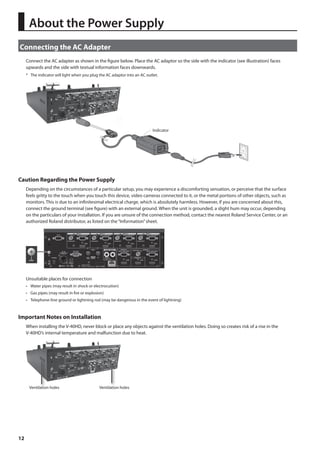
Connect the AC adapter as shown in the figure below. Place the AC adaptor so the side with the indicator (see illustration) faces 
upwards and the side with textual information faces downwards. 
* The indicator will light when you plug the AC adaptor into an AC outlet. 
fig.connect-adaptor.eps 
Indicator 
Caution Regarding the Power Supply 
Depending on the circumstances of a particular setup, you may experience a discomforting sensation, or perceive that the surface 
feels gritty to the touch when you touch this device, video cameras connected to it, or the metal portions of other objects, such as 
monitors. This is due to an infinitesimal electrical charge, which is absolutely harmless. However, if you are concerned about this, 
connect the ground terminal (see figure) with an external ground. When the unit is grounded, a slight hum may occur, depending 
on the particulars of your installation. If you are unsure of the connection method, contact the nearest Roland Service Center, or an 
authorized Roland distributor, as listed on the “Information” sheet. 
fig.earth-terminal.eps 
Unsuitable places for connection 
• Water pipes (may result in shock or electrocution) 
• Gas pipes (may result in fire or explosion) 
• Telephone-line ground or lightning rod (may be dangerous in the event of lightning) 
Important Notes on Installation 
When installing the V-40HD, never block or place any objects against the ventilation holes. Doing so creates risk of a rise in the 
V-40HD’s internal temperature and malfunction due to heat. 
Ventilation holes Ventilation holes
About the Power Supply 
13 
Turning the Power On and Off 
Once everything is properly connected, be sure to follow the procedure below to turn on their power. If you turn on equipment in 
the wrong order, you risk causing malfunction or equipment failure. 
* This unit is equipped with a protection circuit. A brief interval (a few seconds) after turning the unit on is required before it will operate normally. 
Turning the Power On 
1. Connect the peripheral devices. 
Connect any video cameras and other equipment. Make the connections while the power to all equipment, including the V-40HD, 
is turned off. 
2. Turn on the power to the V-40HD. 
Make sure the power cable is securely inserted, then press the [POWER] button located on the rear panel. The buttons and 
indicators on the top panel flash, and the V-40HD starts up. 
When the V-40HD starts up, the settings saved at memory number 1 in bank 1 are loaded (p. 40). 
fig.power-button.eps 
3. Turn on the power to the source devices. 
Turn on the power to the source devices such as video cameras connected to the V-40HD. 
4. Turn on the power to the output devices. 
Turn on the power to the output devices such as projectors connected to the V-40HD. 
Turning the Power Off 
1. Turn off the power to the output devices. 
Turn off the power to the output devices such as projectors connected to the V-40HD. 
2. Turn off the power to the V-40HD. 
Set the [POWER] switch on the rear panel to OFF to turn off the power to the V-40HD. 
3. Turn off the power to the source devices. 
Turn off the power to the source devices such as video cameras connected to the V-40HD. 
Never turn off the power while a message such as “Processing...” is shown in the menu display area of the preview monitor. Doing so might cause 
settings not to be saved properly. 
About AUTO OFF 
When all of the conditions described below continue for 240 minutes, the AUTO OFF feature automatically turns off the power to 
the V-40HD. 
• No operation of the unit (including operation by remote control) 
• No video input 
• No audio input at -48 dBu or higher 
The settings you were editing will be lost when the unit is turned off. If you want to keep your settings, you must save your settings before turning 
the unit off. 
You can disable the AUTO OFF feature by going to the System menu and setting [AUTO OFF] to [OFF]. Refer to “Menu Operations” (p. 45) and 
“System Menu” (p. 49).
Part Names and Functions 
Top Panel 
fig.top-panel.eps 
14 
1 2 3 5 6 
7 
8 
9 
10 11 12 13 
14 
15 
4 
1. MEMORY Buttons 
Use these to save the current settings to the internal memory (p. 40). 
2. PVW (Preview) Selectors 
These select the picture to output from the [PVW OUT] connector on the rear panel. 
3. OUTPUT Selectors 
Use the [FORMAT] button to switch the output format for OUTPUT 1 and 2. 
* The format of PVW OUT cannot be changed. 
4. AUDIO Indicators 
These display the audio output level. 
5. HDCP Indicator 
This operates as described below, depending on the setting for HDCP signals (p. 26). 
Lighted It lights up when an HDCP-compatible device is connected as the output device. 
Flashing It flashes when no output device is connected or when the connected device is not compatible with HDCP. 
Unlighted It goes dark when the V-40HD’s HDCP-signal input/output mode is off. 
6. OUTPUT FADE Button 
This applies fade to final output. The button flashes while the fade is in progress. The button lights up continuously when a fade-out 
has been completed. The button goes dark when a fade-in has been completed (p. 33). 
* By default, the fade time is set at 0.5 seconds, and the fade goes to black. Use the menus (p. 50) to change the fade time and fade color.
Part Names and Functions 
15 
7. SCALING Section 
Use the controls in this section to zoom the screen in/out or adjust the display position. When you are applying Picture-in-Picture, 
use the controls in this section to adjust the size and display position of the inset screen. 
8. TRANSITION Dial and Indicator 
Use this dial to set the transition time. 
* By default, the unit displays the transition time in seconds.. Use the menus (p. 48) to select a different unit (frames or seconds + frames). 
9. Input Selectors 
This has 5 buttons each in the A-BUS/PGM and B-BUS/PST sections. Use these to select the output video and standby video. 
A-BUS/PGM 
When you are making a selection while in the PGM/PST mode (p. 28), the button for the current output channel lights up red. 
When you are making a selection while in the A/B mode (p. 31), these choose the channel for A-Bus. 
B-BUS/PST 
When you are making a selection while in the PGM/PST mode, these choose the channel you want to output next (standby). 
When you are making a selection while in the A/B mode, these choose the channel for B-Bus. 
Use the HDMI, RGB/COMPONENT, and COMPOSITE buttons to assign sources to each channel (p. 19). The lighted color and dark 
state of these buttons are switched as described below. 
Red This is the default. In this mode, assign a source after pressing a button (1 to 4) in the bus of current output. 
Green In this mode, assign a source after pressing a button (1 to 4) in the bus of standby. 
Orange The button lights up orange when sharing a source (p. 21). 
Unlighted In this mode, sources cannot be assigned using the HDMI, RGB/COMPONENT, and COMPOSITE buttons. 
The [INPUT STATUS] indicators light up when the assignment and the input match. They do not light up when the assignment and 
input are different. 
10. PinP Selectors 
Pressing one of the buttons from 1 to 4 applies picture-in-picture. 
11. WIPE PATTERN Selectors 
These select a transition effect. 
* Use the menus to assign other wipe patterns to the WIPE 1 and 2 buttons. 
12. AUTO Button 
Pressing this button outputs the standby channel. Pressing this button applies the effect selected using the [WIPE PATTERN] 
buttons, for the time set using the [TRANSITION] dial. 
13. Video Fader 
Use this to apply a transition manually. When the transition is made manually, the time for the transition effect changes depending 
on the movement of the video fader, regardless of the setting made using the [TRANSITION] dial. 
14. SETUP Section 
Use this when displaying the menu screen to change settings on the V-40HD (p. 45). 
15. DSK Section 
When performing DSK composition, pressing the [AUTO] button in this section to make the DSK source (foreground video) appear 
or disappear. Also adjust the amount of keying by turning the [KEY LEVEL] dial (p. 35). 
* By default, the setting is to apply black extraction. Use the menus (p. 49) to change the settings.
Part Names and Functions 
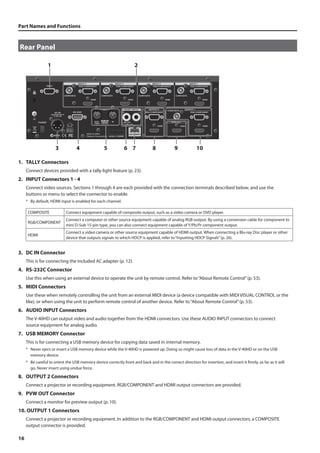
Rear Panel 
fig.rear-panel.eps 
16 
1 2 
3 4 5 6 7 8 9 10 
1. TALLY Connectors 
Connect devices provided with a tally-light feature (p. 23). 
2. INPUT Connectors 1 - 4 
Connect video sources. Sections 1 through 4 are each provided with the connection terminals described below, and use the 
buttons or menu to select the connector to enable. 
* By default, HDMI input is enabled for each channel. 
COMPOSITE Connect equipment capable of composite output, such as a video camera or DVD player. 
RGB/COMPONENT 
Connect a computer or other source equipment capable of analog RGB output. By using a conversion cable for component to 
mini D-Sub 15-pin type, you can also connect equipment capable of Y/Pb/Pr component output. 
HDMI 
Connect a video camera or other source equipment capable of HDMI output. When connecting a Blu-ray Disc player or other 
device that outputs signals to which HDCP is applied, refer to “Inputting HDCP Signals” (p. 26). 
3. DC IN Connector 
This is for connecting the included AC adapter (p. 12). 
4. RS-232C Connector 
Use this when using an external device to operate the unit by remote control. Refer to “About Remote Control” (p. 53). 
5. MIDI Connectors 
Use these when remotely controlling the unit from an external MIDI device (a device compatible with MIDI VISUAL CONTROL or the 
like), or when using the unit to perform remote control of another device. Refer to “About Remote Control” (p. 53). 
6. AUDIO INPUT Connectors 
The V-40HD can output video and audio together from the HDMI connectors. Use these AUDIO INPUT connectors to connect 
source equipment for analog audio. 
7. USB MEMORY Connector 
This is for connecting a USB memory device for copying data saved in internal memory. 
* Never eject or insert a USB memory device while the V-40HD is powered up. Doing so might cause loss of data in the V-40HD or on the USB 
memory device. 
* Be careful to orient the USB memory device correctly front and back and in the correct direction for insertion, and insert it firmly, as far as it will 
go. Never insert using undue force. 
8. OUTPUT 2 Connectors 
Connect a projector or recording equipment. RGB/COMPONENT and HDMI output connectors are provided. 
9. PVW OUT Connector 
Connect a monitor for preview output (p. 10). 
10. OUTPUT 1 Connectors 
Connect a projector or recording equipment. In addition to the RGB/COMPONENT and HDMI output connectors, a COMPOSITE 
output connector is provided.
17 
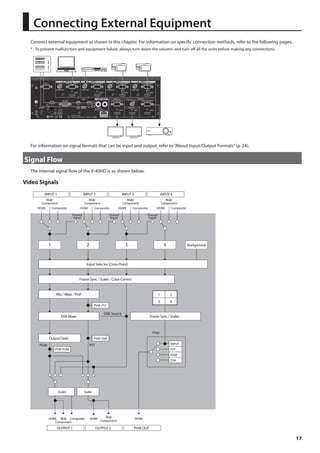
Connecting External Equipment 
Connect external equipment as shown in this chapter. For information on specific connection methods, refer to the following pages. 
* To prevent malfunction and equipment failure, always turn down the volume, and turn off all the units before making any connections. 
fig.peripheral-connection.eps 
For information on signal formats that can be input and output, refer to “About Input/Output Formats” (p. 24). 
Signal Flow 
The internal signal flow of the V-40HD is as shown below. 
Video Signals 
fig.signal-flow.eps 
HDMI 
2 3 4 
DSK Source 
HDMI 
RGB/ 
Component 
Composite 
Shared 
Input 
PGM PST 
HDMI 
1 2 
3 4 
Frame Sync / Scaler 
INPUT 
OUTPUT 1 
HDMI 
RGB/ 
Component 
Composite 
Shared 
Input 
RGB/ 
Component 
Composite 
Shared 
Input 
RGB/ 
Component 
Composite 
Input Selector (Cross-Point) 
Frame Sync / Scaler / Color Correct 
1 
HDMI RGB 
ComponentComposite 
HDMI RGB 
Component 
OUTPUT 2 
Mix / Wipe / PinP 
DSK Mixer 
PVW-PST 
PVW-PGM 
PVW-DSK 
HDMI 
PVW OUT 
Output Fade 
Background 
INPUT 1 INPUT 2 INPUT 3 INPUT 4 
PST 
PGM 
DSK 
Scaler Scaler 
PVW
Connecting External Equipment 
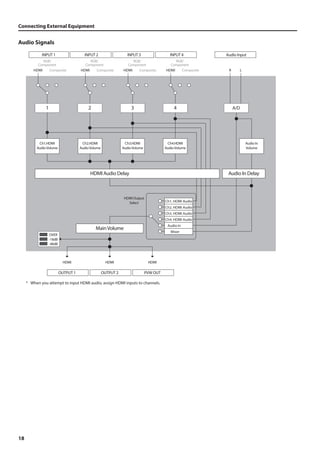
Audio Signals 
fig.audio-signal-flow.eps 
18 
INPUT 1 INPUT 2 INPUT 3 INPUT 4 
HDMI 
RGB/ 
Component 
Composite 
OUTPUT 1 
HDMI 
RGB/ 
Component 
Composite HDMI 
RGB/ 
Component 
Composite HDMI 
RGB/ 
Component 
Composite 
HDMI 
HDMI 
OUTPUT 2 
3 
HDMI 
PVW OUT 
Main Volume 
Audio Input 
1 4 
Ch1.HDMI 
Audio Volume 
Ch2.HDMI 
Audio Volume 
Ch3.HDMI 
Audio Volume 
Ch4.HDMI 
Audio Volume 
HDMI Audio Delay 
Audio In 
Volume 
R L 
Audio In Delay 
2 
HDMI Output 
Select Ch1. HDMI Audio 
Ch2. HDMI Audio 
Ch3. HDMI Audio 
Ch4. HDMI Audio 
Audio In 
Mixer 
OVER 
-18dB 
-48dB 
A/D 
* When you attempt to input HDMI audio, assign HDMI inputs to channels.
Connecting External Equipment 
19 
Connecting Source Equipment 
Connecting Video Sources 
Use the menus to assign sources to channels instead of using the button operations described below. Select a channel (Ch. 1 - Ch. 4) in the Input 
menu (p. 46), then select the source to assign. 
Making an HDMI Connection 
Connect video cameras or other devices capable of HDMI output to the HDMI connectors at INPUT 1 through 4. 
fig.HDMI-connection.eps 
To assign HDMI input to channel 1, go to [A-BUS/PGM] and press [1], then press the [HDMI] button. When the V-40HD detects the 
HDMI input, the [INPUT STATUS] indicator of the channel 1 lights up. 
fig.select-HDMI-in.eps 
To connect a computer capable of DVI output, use a DVI - HDMI conversion cable to make the connection to an HDMI connector. 
Making an RGB Connection 
Connect computers or other devices capable of RGB output to the RGB/COMPONENT connectors at INPUT 1 through 4. 
fig.connect-PC-RGB.eps 
To assign RGB input to channel 4, go to [A-BUS/PGM] and press [4], then press the [RGB/COMPONENT] button. When the V-40HD 
detects the RGB input, the [INPUT STATUS] indicator of the channel 4 lights up. 
fig.select-rgb-in.eps
Connecting External Equipment 
Making a Component Connection 
20 
Connect video cameras or other devices capable of component output to the RGB/COMPONENT connectors at INPUT 1 through 4. 
When doing this, use a conversion cable for component to mini D-Sub 15-pin type. 
fig.component-connection.eps 
female connector 
----------- 
9 ----------- 6 
5 1 
15 ---------- 10 
1 : Pr 
2 : Y 
3 : Pb 
6 : GND (Pr) 
7 : GND (Y) 
8 : GND (Pb) 
To assign component input to channel 2, go to [A-BUS/PGM] and press [2], then press the [RGB/COMPONENT] button. When the 
V-40HD detects the component input, the [INPUT STATUS] indicator of the channel 2 lights up. 
fig.select-component-in.eps 
Making a Composite Connection 
Connect video cameras, DVD players, or other devices capable of composite output to the COMPOSITE connectors at INPUT 1 
through 4. 
* When connecting equipment that has an RCA type output jack, use the included RCA - BNC conversion plug. 
fig.composite-connection.eps 
To assign composite input to channel 3, go to [A-BUS/PGM] and press [3], then press the [COMPOSITE] button. When the V-40HD 
detects the composite input, the [INPUT STATUS] indicator of the channel 3 lights up. 
fig.select-composite-in.eps 
By default, [1] through [4] in the current output bus are used to assign input sources. Changing the mode lets you perform these operations using 
the buttons in the standby bus. You can also disable (set to OFF) operation of the [HDMI], [RGB/COMPONENT], and [COMPOSITE] buttons. Go to the 
System menu (p. 49) and use [Source Assign Mode] to make the changes.
Connecting External Equipment 
21 
Connecting Audio Sources 
Connect audio mixers or other audio sources to the AUDIO INPUT connectors. Input made via these connectors is output from 
HDMI connectors in the OUTPUT 1/2 sections together with the results of video mixing on the V-40HD. 
* When connection cables with resistors are used, the volume level of equipment connected to the inputs (AUDIO INPUT) may be low. If this 
happens, use connection cables that do not contain resistors. 
fig.audio-connection.eps 
Audio Mixer 
This unit is equipped with balanced (TRS) type jacks. Wiring diagrams for these jacks are shown below. Make connections after first checking the 
wiring diagrams of other equipment you intend to connect. 
fig.TRS_jack.eps 
Use the menus to adjust the audio level (p. 37) or delay its timing to sync it with the video (p. 38). 
Sharing a Source Between Channels 
Channels 1 through 4 can share a source. Using this feature, you can assign the video on channel 1 to channels 2 through 4. When 
shared, a single source video is assigned to multiple channels. To share a source, go to the Input menu (p. 45) and select [Shared 
Input] in the input format display area. 
* Only the source of the previous adjacent channel can be shared. Therefore, when sharing the source on channel 1 with channels 2 through 4, 
[Shared Input] must be selected for each channel from 2 to 4. 
fig.shared-input.eps 
HDMI 
RGB/ 
Component 
Composite 
HDMI 
Shared 
Input 
RGB/ 
Component 
Composite 
HDMI 
Shared 
Input 
RGB/ 
Component 
Composite 
HDMI 
Shared 
Input 
RGB/ 
Component 
Composite 
Ch 1 Ch 2 Ch 3 Ch 4 
Audio sources cannot be shared.
Connecting External Equipment 
Connecting Output Equipment 
22 
For information on the signal formats that can be output from the V-40HD, refer to “About Input/Output Formats” (p. 24). 
Connecting a Projector or Recording Unit 
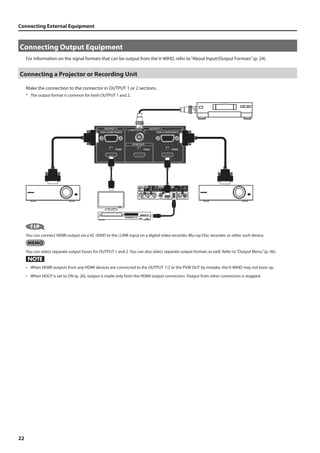
Make the connection to the connector in OUTPUT 1 or 2 sections. 
* The output format is common for both OUTPUT 1 and 2. 
fig.output-connection.eps 
You can connect HDMI output via a VC-30HD to the i.LINK input on a digital video recorder, Blu-ray Disc recorder, or other such device. 
You can select separate output buses for OUTPUT 1 and 2. You can also select separate output formats as well. Refer to “Output Menu” (p. 46). 
• When HDMI outputs from any HDMI devices are connected to the OUTPUT 1/2 or the PVW OUT by mistake, the V-40HD may not boot up. 
• When HDCP is set to ON (p. 26), output is made only from the HDMI output connectors. Output from other connectors is stopped.
Connecting External Equipment 
23 
Connecting Tally-capable Equipment 
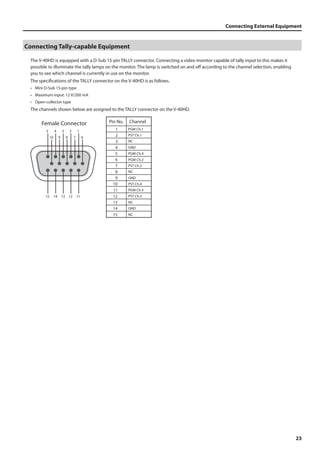
The V-40HD is equipped with a D-Sub 15-pin TALLY connector. Connecting a video monitor capable of tally input to this makes it 
possible to illuminate the tally lamps on the monitor. The lamp is switched on and off according to the channel selection, enabling 
you to see which channel is currently in use on the monitor. 
The specifications of the TALLY connector on the V-40HD is as follows. 
• Mini D-Sub 15-pin type 
• Maximum input: 12 V/200 mA 
• Open-collector type 
The channels shown below are assigned to the TALLY connector on the V-40HD. 
fig.tally-assign.eps 
5 4 3 2 1 
10 9 8 7 6 
15 14 13 12 11 
Pin No. Channel 
1 
2 
3 
4 
5 
6 
7 
8 
9 
10 
11 
12 
13 
14 
15 
PGM Ch.1 
PST Ch.1 
NC 
GND 
PGM Ch.4 
PGM Ch.2 
PST Ch.2 
NC 
GND 
PST Ch.4 
PGM Ch.3 
PST Ch.3 
NC 
GND 
NC 
Female Connector
About Input/Output Formats 
Input Formats 
24 
It is possible to input signal of various formats to INPUT 1-4 of the V-40HD. 
Signals of the following formats can be input. The input format is detected automatically. 
Frame Rate 59.94 Hz 50 Hz 
COMPOSITE NTSC) PAL 
COMPONENT 480/59,94i, 480/59.94p, 720/59.94p, 1080/59.94i, 1080/59.94p 576/50i, 576/50p, 720/50p, 1080/50i, 1080/50p 
RGB 
640 x 480/60 Hz, 800 x 600/60 Hz, 1024 x 768/60 Hz, 1280 x 768/60 Hz, 1280 x 1024/60 Hz, 1366 x 768/60 Hz, 
1400 x 1050/60 Hz, 1600 x 1200/60 Hz, 1920 x 1080/60 Hz, 1920 x 1200/60 Hz (Reduced Blanking) 
HDMI 
480/59,94i, 480/59.94p, 720/59.94p, 1080/59.94i, 1080/59.94p 576/50i, 576/50p, 720/50p, 1080/50i, 1080/50p 
640 x 480/60 Hz, 800 x 600/60 Hz, 1024 x 768/60 Hz, 1280 x 768/60 Hz, 1280 x 1024/60 Hz, 1366 x 768/60 Hz, 
1400 x 1050/60 Hz, 1600 x 1200/60 Hz, 1920 x 1080/60 Hz, 1920 x 1200/60 Hz (Reduced Blanking) 
* HDMI audio input format is Linear PCM, 24 bits/48 kHz, 2ch. 
Using the Menus to Set the Output Format for OUTPUT 1/2 
You can use the menus to the set the output format for OUTPUT 1 and 2. 
* The output signal format of the COMPOSITE connector in OUTPUT 1 is NTSC or PAL. A common format is output from the HDMI and RGB/ 
COMPONENT connectors in OUTPUT 1/2. 
1. Display the Output menu. 
Press the [MENU] button to display the menu. Use the [CURSOR] buttons to select [Output], then press the [ENTER] button to 
display the Output menu. 
fig.open-output-menu.eps 
2. Set the output format. 
Turn the [VALUE] dial to set the output format. 
fig.select-out-format.eps 
You can independently set various parameters for OUTPUT 1 and 2. Refer to Output menu (p. 46). 
If one of below is selected as the output format, signal output from the RGB/COMPONENT connector is disabled. 
• 480/59.94i (NTSC) 
• 576/50i (PAL) 
• 1080/59.94i 
• 1080/50i
About Input/Output Formats 
25 
Using the Buttons to Change the Output Format for OUTPUT 1/2 
Use the OUTPUT selectors on the top panel to change the output format. Press the [FORMAT] button to change the illuminated 
indicator. 
fig.switch-output.eps 
By default, the following signals are output. The signal format that is output changes according to the setting described in the 
previous section. 
Frame Rate 59.94 Hz 50 Hz 
SD NTSC PAL 
HD 1080/59.94i 1080/50i 
RGB 1024 x 768/60 Hz 1024 x 768/75 Hz 
Output Formats from the Connectors 
Signals in the following formats can be output from the respective output connectors on the V-40HD. Refer to Output Menu (p. 46). 
OUTPUT 1/2 
Frame Rate 59.94 Hz 50 Hz 
COMPOSITE (*1)(*2) NTSC PAL 
COMPONENT (*2) 480/59.94p, 720/59.94p, 1080/59.94p 576/50p, 720/50p, 1080/50p 
RGB (*2) 
640 x 480/60 Hz, 800 x 600/60 Hz, 1024 x 768/60 Hz, 
1280 x 768/60 Hz, 1280 x 1024/60 Hz, 1366 x 768/60 Hz, 
1400 x 1050/60 Hz, 1600 x 1200/60 Hz, 
1920 x 1200/60 Hz (Reduced Blanking) 
640 x 480/75 Hz, 800 x 600/75 Hz, 1024 x 768/75 Hz, 
1280 x 768/75 Hz, 1280 x 1024/75 Hz, 1366 x 768/75 Hz, 
1400 x 1050/75 Hz, 1600 x 1200/60 Hz, 
1920 x 1200/60 Hz (Reduced Blanking) 
HDMI 
480/59,94i, 480/59.94p, 720/59.94p, 1080/59.94i, 1080/59.94p 576/50i, 576/50p, 720/50p, 1080/50i, 1080/50p 
640 x 480/60 Hz, 800 x 600/60 Hz, 1024 x 768/60 Hz, 
1280 x 768/60 Hz, 1280 x 1024/60 Hz, 1366 x 768/60 Hz, 
1400 x 1050/60 Hz, 1600 x 1200/60 Hz, 
1920 x 1200/60 Hz (Reduced Blanking) 
640 x 480/75 Hz, 800 x 600/75 Hz, 1024 x 768/75 Hz, 
1280 x 768/75 Hz, 1280 x 1024/75 Hz, 1366 x 768/75 Hz, 
1400 x 1050/75 Hz, 1600 x 1200/60 Hz, 
1920 x 1200/60 Hz (Reduced Blanking) 
*1 : OUTPUT 1 only 
*2 : No output while the HDCP setting is ON (p. 26). 
PVW OUT 
Frame Rate 59.94 Hz 50 Hz 
HDMI 1920 x 1080/60 Hz 
* HDMI audio output format of OUTPUT 1/2 and PVW OUT is Linear PCM, 24 bits/48 kHz, 2ch.
26 
By default, the HDCP (High-bandwidth Digital Content Protection) setting of the V-40HD is turned off. This means that HDCP-applied 
signals from Blu-ray Disc players and the like cannot be input. When inputting signals to which HDCP is applied, follow the 
procedure shown below to change the setting. 
* HDCP is copyright-protection technology that prevents unlawful copying of content by encoding the path when sending digital signals from a 
video playback device to a display monitor or other display equipment. 
1. Display the System menu. 
Press the [MENU] button to display the menu. Use the [CURSOR] buttons to select [System], then press the [ENTER] button to 
display the System menu. 
fig.open-system-menu.eps 
2. Change the setting. 
Use the [CURSOR] buttons to select [HDCP]. Turn the [VALUE] dial to change the setting from [OFF] to [ON]. When the confirmation 
screen appears, press the [ENTER] button. 
fig.HDCP-setting.eps 
3. Exit the menu. 
Press the [EXIT] button several times to quit the menu. 
When the setting change just described has been made, no further output is made from the COMPOSITE and RGB/COMPONENT connectors in 
OUTPUT 1 and 2. Note, however, that HDCP-applied signals are output from the HDMI connectors. 
fig.HDCP-on-off.eps 
HDCP OFF HDCP ON 
HDMI 
(with HDCP) 
HDMI 
(without HDCP) 
RGB/ 
COMPONENT 
COMPOSITE 
OUTPUT1 
PVW OUT 
INPUT1-4 
OUTPUT2 
HDMI 
(without HDCP) 
RGB/ 
COMPONENT* 
COMPOSITE 
HDMI 
(without HDCP) 
RGB/ 
COMPONENT * 
HDMI 
(with HDCP) 
* No signal is output when the OUTPUT FORMAT is set to 
480/59.94i, 576/50i, 1080/59.94i or 1080/50i. 
HDMI 
(with HDCP) 
RGB/ 
COMPONENT 
COMPOSITE 
OUTPUT1 
PVW OUT 
INPUT1-4 
OUTPUT2 
HDMI 
(without HDCP) 
HDMI 
(with HDCP) 
HDMI 
(with HDCP) 
HDMI 
(with HDCP) 
Inputting HDCP Signals
Inputting HDCP Signals 
27 
About the HDCP Indicator 
The [HDCP] indicator on the top panel operates as described below. 
Lighted Turn on the HDCP setting and HDCP-compatible device(s) is connected to any of the HDMI connectors of OUTPUT 1/2 or PVW OUT. 
Flashing 
Turn on the HDCP setting but no device is connected to any of the HDMI connectors of OUTPUT 1/2 or PVW OUT. Same thing happens 
when a device not compatible with HDCP is connected. 
Unlighted The HDCP setting is turned off. 
* The above operation is not related to inputs, detected from devices connected to output connectors only. 
About Verification of HDCP-compatible Equipment 
You can examine the HDCP compatibility of source equipment and output equipment. Open Input menu or Output menu. You can 
see [HDCP] indications like below if the connected devices are compatible. 
fig.HDCP-confirm.eps
28 
Basic Operations 
Using this unit makes it possible to create video transitions that occur at extremely high speeds. Depending on physical condition, viewing such 
video might cause headache or discomfort. Never use this unit to create or present such video that might be distressful to health. Roland assumes 
no responsibility in the event of any distress experienced by you or other viewers. 
Checking the Currently Selected Channels 
Before you carry out a transition, check which channels are currently selected. Immediately after turning the V-40HD on, MEMORY 
1-1 (No. 1 in bank 1) is selected. The channels in the panel state saved at 1-1 are selected. 
* For information on saving data to MEMORY buttons, refer to “Saving/Recalling Settings” (p. 40). 
In the [INPUT] mode of the preview monitor, a red border is displayed around the video currently being output, and a green border 
is displayed around the video on standby. 
At the [A-BUS/PGM] input selectors, the button for the channel currently being output lights up red. At [B-BUS/PST], the button for 
the channel currently on standby lights up green. 
fig.current-selection.eps 
CH.1 HDMI CH.2 HDMI 
Presented by 
CH.3 HDMI CH.4 HDMI 
Red 
Green 
Red Green 
Switching Video in the PGM/PST Mode 
The default operation mode of the V-40HD is the PGM/PST mode. You can also select the A/B mode (p. 31). 
Switching the Video Using Buttons 
Use the [AUTO] button to switch the video. The effect selected using the [WIPE PATTERN] buttons is applied for the time set using 
the [TRANSITION] dial. 
1. Move the video fader all the way. 
Move the video fader all the way toward either the front or the back. 
fig.fader-max.eps 
or
Basic Operations 
1 A Video sources wipe from one to the other 
B Video sources wipe from one to the other 
29 
2. Select a transition effect. 
Use the [WIPE PATTERN] buttons to select the transition effect you want to apply. 
* Using the [CUT] button makes the video change instantly, with no transition effect applied. 
fig.transition-select.eps 
Start Finish 
B 
B 
CUT A No transition eect is applied. 
MIX A AB Video sources blend together during the 
switch process. 
2 A A 
during the switch process. 
(default : horizontal wipe). 
B 
B 
during the switch process. 
(default : vertical wipe). 
AB 
3. Set the transition time. 
Operate the [TRANSITION] dial to set the time for which the transition effect is applied. 
fig.transition-time.eps 
4. Select the video you want to output next. 
Use the input selectors in the [B-BUS/PST] section to select the channel of the video you want to output next (standby). The 
indicator for the pressed button lights up green. In the [INPUT] mode of the preview monitor, a green border is displayed around 
the selected channel. 
fig.standby-channel.eps 
Green 
5. Output the selected video. 
Press the [AUTO] button. The final output changes to the video on the channel selected in step 4. 
* When a [WIPE PATTERN] button other than [CUT] has been selected, the [AUTO] button indicator flashes while the transition effect is applied. 
fig.press-AUTO.eps 
When the transition is complete, the input selector in the [A-BUS/PGM] section for the channel selected in step 4 lights up red. 
Also, in the [INPUT] mode for the preview monitor, a red border is displayed around the video on that channel. 
The channel that was output before the [AUTO] button was pressed changes to the standby channel at this time. 
While the transition is in progress (that is, while the transition effect is being applied), the [AUTO] button indicator flashes.
Basic Operations 
Switching the Video Directly 
30 
It is also possible to directly switch the video pressing the buttons in [A-BUS/PGM] section. However, a short black image is inserted 
between 2 video images on the conditions below. 
• When a direct switching operation is carried out while a logo/text is composited using the DSK function (p. 35). 
• [DSK] is selected as the dislay mode of preview monitor and [PST] is selected as the output source for OUTPUT 1/2. 
• [DSK] is selected as the output source for OUTPUT 1/2. 
Switching the Video Using the Video Fader 
When you use the [AUTO] button, the transition effect is applied for the time set using the [TRANSITION] dial. When you use the 
video fader to perform a transition, you can control the length of the transition time manually. 
1. Move the video fader all the way. 
Before you carry out a transition operation, move the video fader all the way toward either the front or the back. 
fig.fader-max.eps 
or 
2. Select a transition effect. 
Use the [WIPE PATTERN] buttons to select the transition effect you want to apply. 
* If you select [CUT], the transition occurs when the video fader is at its center position. 
3. Select the channel you want to output next. 
Use the input selectors in the [B-BUS/PST] section to select the channel of the video you want to output next (standby). 
4. Switch the output video. 
Move the video fader in the opposite direction of step 1. Moving it all the way makes the final output switch to the video on the 
channel selected in step 3. 
fig.move-fader.eps
Basic Operations 
31 
Switching in the A/B Mode 
Changing the Operation Mode 
For information on using the menus, also refer to “Menu Operations and Menu List” (p. 45). 
1. Display the System menu. 
Press the [MENU] button to display the menu. Use the [CURSOR] buttons to select [System], then press the [ENTER] button to 
display the System menu. 
fig.open-system-menu.eps 
2. Select [Panel Mode]. 
Use the [CURSOR] buttons to select [Panel Mode]. 
fig.panel-mode-setup.eps 
3. Select [A/B Mode]. 
Turn the [VALUE] dial to select [A/B]. 
fig.select-AB-mode.eps 
4. Exit the menu. 
Press the [EXIT] button several times to quit the menu.
Basic Operations 
Switching in the A/B Mode 
1. Select the A-Bus and B-Bus video. 
32 
Select the channels for A-Bus and B-Bus. Selecting a channel makes the button indicator light up red or green. 
fig.select-AB-channel.eps 
2. Select a transition effect. 
Use the [WIPE PATTERN] buttons to select the transition effect you want to apply. 
3. Move the video fader. 
Move the video fader. Moving the fader toward the rear displays the A-Bus video, and moving it back toward the front displays the 
B-Bus video. 
* If you select [CUT] in step 2, the A-Bus and B-Bus video are switched at the center position. 
* If you select the same channel for A-Bus and B-Bus, the video is not switched even if you move the video fader. 
When the video fader has not been moved all the way and the channel for the opposite bus is switched, the video output to the preview monitor 
might be corrupt. When changing the input, first make sure that the video fader has been moved all the way to the end of the stroke. 
About the Indicator Color 
Pressing an input-selector button makes the indicator light up either red or green. The color varies according to the position of the 
video fader. At the end of the stoke (during 100% output) the indicator lights up red, and at the opposite end of the stroke (during 
standby = no output at all) it lights up green. When the control is not completed at one of these ends, both light up red. 
fig.red-or-green.eps 
Red 
Green 
Green 
Red 
Red 
Red 
However, while you are compositing 2 pictures using PinP (p. 34), the channel for inset screen light up in orange.
Basic Operations 
33 
Applying Fade to Final Output 
Use the [OUTPUT FADE] button to apply a fade to the final output of the V-40HD. Applying a fade makes the output video gradually 
disappear (fade-out) or appear (fade-in). 
fig.fade-button.eps 
1. Apply a fade-out. 
Press the [OUTPUT FADE] button to start fade-out. The button indicator flashes while the fade is in progress. When the fade-out has 
been completed, the indicator stops flashing and stays lighted. 
2. Apply a fade-in. 
Press the [OUTPUT FADE] button again to start fade-in. When the fade-in has been completed, the indicator goes dark. 
By default, the fade time is set to 0.5 seconds and the fade color is set to black. If you want to change the settings by using the menus, refer to 
“Menu Operations and Menu List” (p. 45).
Compositing Using Picture-in-Picture 
34 
This composites an inset screen into background video. Here below is the procedure to composite in PGM/PST mode. 
fig.PinP-image.eps 
Inset Screen 
Picture in Picture Background 
1. Select the background channel. 
Use the buttons (1 through 4) in the [A-BUS/PGM] section to select the background channel. 
* If you want to use a plain colored background, select [BACKGROUND] in the [A-BUS/PGM] section. The default setting is black. 
fig.background-select.eps 
2. Select the channel of the inset screen. 
Use the buttons (1 through 4) in the [B-BUS/PST] section of input selectors to select the channel of the inset screen. 
fig.inset-screen-channel.eps 
3. Preview the results of compositing. 
Press one of the PinP selector buttons (1 through 4). The pressed button lights up in green. Pressing the button lets you preview the 
results of compositing. Select the [PST] in PVW selector displays a preview of the composition on the preview monitor. 
* At this stage, the composition result is only output to the preview monitor. The final output has not yet been changed. 
fig.PinP-preview.eps 
Inset 
Screen 
Background 
Compositing the Video
Compositing the Video 
35 
4. Adjust the size and position. 
At the SCALING section, press the [CONTROL] button to make the [PinP] indicator light up. Use the [POSITION] joystick and the 
[SIZE] dial to adjust the display position and size of the inset screen. 
* Refer to “Enalrging/Reducing the Picture” (p. 39). 
fig.adjust-size-position.eps 
5. Output the composited results. 
Pressing the [AUTO] button outputs the results of compositing. At this stage, the color of the pressed PinP selector button turns to red. 
* Press the [AUTO] button again to make the inset screen disappear. 
fig.press-AUTO.eps 
You can also make the inset screen appear or disappear by moving the video fader. 
When you carry out PinP composition, the current output channel becomes the background when one the PinP selector button is pressed. Select a 
channel for the inset screen on the opponent bus and operate the video fader or [AUTO] button to make the inset screen appear/disappear. 
Compositing Using DSK 
You can perform video transitions or picture-in-picture composition at upstream, then composite logos and text on the results at 
downstream. This feature makes it possible to switch the video or perform picture-in-picture while keeping logos/text displayed. 
fig.DSK-image.eps 
Mix / Picture in Picture 
DSK 
Presented by 
Presented by 
By default, the video on channel 4 is displayed in the foreground of DSK compositing. If you are using the unit with the default 
setting, input the logos and text to channel 4. To change the setting, refer to “Menu Operations and Menu List” (p. 45). Also, the 
extraction color for DSK compositing is set to black by default. You can use the menus to change this as well. 
Use the button and the dial in the DSK Section to perform DSK compositing. 
1. Select the background channel. 
Select a channel for background using buttons on [A-BUS/PGM] input selectors.
Compositing the Video 
2. Set the preview monitor to DSK mode. 
36 
Select the [DSK] in PVW selector to preview the DSK composition. 
3. Adjust the amount of keying. 
At the DSK section, turn the [KEY LEVEL] dial to adjust the amount of keying. Check the amount on the preview monitor. 
fig.DSK-level.eps 
4. Output the composited results. 
At the DSK Section, press the [AUTO] button. The indicator of the button lights up and the results of compositing the logo or text 
are output. 
fig.DSK-AUTO.eps 
5. Make the logo or text disappear. 
Press the [AUTO] button in the DSK section again. The indicator goes dark and the logo or text disappears from the output. 
When blue or green is selected as the DSK extraction color 
When blue of green is selected as the DSK extraction color, the items below are added for setting. These do not appear on menu 
while black or white is selected as the extraction color. 
• Y Level This adjust the brightness level of the extraction color. 
• Pb Level This adjust the Pb level of the extraction color. 
• Pr Level This adjust the Pr level of the extraction color. 
• Gain This adjust the amount of edge blur of keying. 
fig.blue-green-dsk.eps 
While blue or green is selected, fade in/fade out of the foreground image is disabled. It appears/disappears with CUT when [AUTO] button is pressed. 
Notes while composition using the DSK 
A short black image is inserted the output if you carry out the operations below while you are compositing logo/text using the DSK. 
• Switching of source channel for background or inset screen while you are using PinP and DSK. 
• Switching of source channel while the transition effect is going on under the logo/text composited using the DSK.
37 
Audio-related Features 
Selecting an Audio Source 
You can select the source for the audio to output via HDMI connectors in OUTPUT 1/2. At the Audio menu (p. 49), select one from 
below in [HDMI Output]. 
Ch.1 HDMI Audio Only HDMI audio channel 1 is output. 
Ch.2 HDMI Audio Only HDMI audio channel 2 is output. 
Ch.3 HDMI Audio Only HDMI audio channel 3 is output. 
Ch.4 HDMI Audio Only HDMI audio channel 4 is output. 
Audio In This is the default setting. Input made via the [AUDIO IN] connectors on the rear panel is output. 
Mixer The mixed result of all above sources is output. 
Select [Mixer] in the Audio menu to adjust volume for the respective sources. 
Adjusting the Audio Output Level 
When you are outputting audio together with video from the HDMI connectors, you can use the steps below to adjust the output level. 
1. Display the Audio menu. 
Press the [MENU] button to display the menu. Use the [CURSOR] buttons to select [Audio], then press the [ENTER] button to display 
the Audio menu. 
2. Select Main Volume. 
Use the [CURSOR] buttons to select [Main Volume]. 
fig.main-volume.eps 
3. Adjust the output level. 
Turn the [VALUE] dial to adjust the output level. Use the speakers or level meters on the peripheral equipment to adjust output 
level. 
* The AUDIO indicator on the top panel indicates the output level. 
4. Exit the menu. 
Press the [EXIT] button several times to quit the menu. 
Turn on the [Volume Control] to enable the [Main Volume] control using the [VALUE] dial. However, it is not possible to control while menu is 
displayed. Exit the menu to control using the [VALUE] dial.
Audio-related Features 
Aligning the Timing of Video and Audio (Lip-sync) 
38 
You can use the steps below to apply delay to audio output to align it with the timing of the video. 
1. Display the Audio menu. 
Press the [MENU] button to display the menu. Use the [CURSOR] buttons to select [Audio], then press the [ENTER] button to display 
the Audio menu. 
2. Select the delay parameter. 
Use the [CURSOR] buttons to select one of the following two items for adjusting the amount of delay. 
HDMI Audio Delay This adjusts the amount of delay for audio input via HDMI. 
Audio In Delay This adjusts the amount of delay for analog audio input via the AUDIO IN connectors. 
fig.audio-in-delay.eps 
* By default, the delay amount is set to 1.0 frame. This matches to input  output latency of video. 
3. Adjust the timing. 
Turn the [VALUE] dial to adjust the amount of delay. 
4. Exit the menu. 
Press the [EXIT] button several times to quit the menu. 
Linking Audio to Video (Audio Follow) 
“Audio Follow” causes the audio associated with a video source to become prominent when that video source is selected. Only the 
(embedded) audio input on the same channel as the selected video channel is output — other channels are automatically muted. 
1. Display the Audio menu. 
Press the [MENU] button to display the menu. Use the [CURSOR] buttons to select [Audio], then press the [ENTER] button to display 
the Audio menu. 
2. Display the Audio Follow menu. 
Use the [CURSOR] buttons to select [Audio Follow]. Press the [ENTER] button to display the Audio Follow menu. 
3. Select the channel. 
Use the [CURSOR] buttons to select the channel, and tweak the [VALUE] dial to turn on the Audio Follow. 
4. Exit the menu. 
Press the [EXIT] button several times to quit the menu. 
You can assign audio signals on the AUDIO INPUT connectors for one of the video channels as an associated audio source. Select [Audio In Audio 
Follow] in step 3. Turn the [VALUE] dial to select the video channel for which the Audio Input is assigned. 
When the Audio Follow is on, [HDMI Output] is automatically set for [Mixer].
39 
About Other Features 
Enlarging/Reducing the Picture 
Using the [SIZE] dial in the SCALING section, you can enlarge or reduce the view of the picture. You can also use the [POSITION] 
joystick to change the display position. 
* You can enlarge or reduce the picture within a range of 10% to 1,000%. 
Enlarging/Reducing the Source Picture 
1. Put the channel of the video you want to enlarge or reduce into standby. 
Select the channel of the video you want to enlarge or reduce and put it into standby. 
2. Preview the video on the selected channel. 
Select the [PST] in PVW selector to display the video on the channel you selected in step 1 on the preview monitor. 
fig.preview-source.eps 
3. Select what to enlarge or reduce. 
In the SCALING section, press the [CONTROL] button to make the [INPUT] indicator light up. 
fig.select-input.eps 
4. Perform enlargement or reduction and adjust the display position. 
Use the [SIZE] dial to enlarge or reduce the view. Use the [POSITION] joystick to adjust its display position. 
fig.size-position.eps 
You can also enlarge or reduce the picture and adjust its display position by changing the values of [Zoom] and [Position] at the Input menu. At the 
Input menu, you can also change cropping and the aspect ratio for the picture. 
5. Output the enlarged or reduced picture. 
Press the [AUTO] button or move the video fader to output the channel of the previewed video. 
Enlarging/Reducing the Currently Output Picture 
To enlarge or reduce the video currently being output, go to the SCALING section and use the [CONTROL] button to make the 
[OUTPUT] indicator light up. You can use the same operation to enlarge or reduce the final video output and adjust its display 
position. 
You can also enlarge or reduce the picture and adjust its display position by changing the values of [Zoom] and [Position] at the Output menu. At 
the Output menu, you can also enlarge or reduce the vertical and horizontal dimensions of the picture independently.
About Other Features 
Saving/Recalling Settings 
Saving the Current Settings to Internal Memory 
40 
You can use the [MEMORY] buttons to save the current settings to the internal memory. The internal memory banks are numbered 
from 1 to 5, and you can save up to five sets of settings in each bank, for a maximum of 25. 
When [Memory Protect] on the System menu is set to [ON], saving operations are not possible. Turn it to [OFF] when you save. 
1. Put the unit in the state you want to save. 
Operate the dials and buttons on the panel to put the V-40HD in the state you want to save. 
2. Put the unit into standby for saving. 
Press the [STORE] button to put the unit into standby for saving. The number of the last-selected button flashes at this time. 
fig.press-STORE.eps 
3. Select the bank to save to. 
Press the [BANK] button. The button for the currently selected bank lights up. Choose a bank from [1] to [5] to select the destination 
for saving. 
fig.press-BANK.eps 
4. Select the number to save to. 
Choose a memory number from [1] to [5] to select the destination for saving. Settings are saved at the selected memory number in 
the selected bank. 
fig.press-number.eps 
Recalling Saved Settings 
When the V-40HD starts up, the settings saved at memory number 1 in bank 1 are loaded. To recall saved settings, first press a 
[BANK] button to select the bank. Pressing the button for a memory number then puts the panel in the saved state. 
l When [Auto Memory] in the system menu is [ON], the setting value is automatically stored at memory 1-1 when you press [MENU] or [CURSOR] 
buttons after making a change in setting a value. Auto saving does not work when cross-point buttons or video fader is operated. 
l When [Recall Lock] is [ON], memory [1]–[5] buttons are disabled and you cannot recall settings. 
l Going to the System menu and setting [Memory Switch Fade] to [ON] automatically applies an output fade when saved settings are called up. 
When recall finishes and the settings have changed, the output fade ends. 
Settings of some items cannot be saved to the MEMORY buttons (1-1 through 5-5).These are saved to the internal memory as part of unit’s common 
setting. Refer to “System menu“ (p. 49) for such items.
About Other Features 
41 
Using a USB Memory Device 
Connecting and Formatting a USB Memory Device 
When using a USB memory device, give attention to the following points. 
• Carefully insert the USB memory all the way in-until it is firmly in place. Also, be careful to orient the USB memory device correctly front and back 
and in the correct direction for insertion, and insert it firmly, as far as it will go. Never insert using undue force. 
• Operation has been tested for commonly available USB memory devices, but operation of all USB memory devices is not assured. Depending on 
the manufacturer and type of the USB memory device, correct operation may not be possible. 
1. Connect the USB memory device. 
Connect the USB memory device to the USB MEMORY connector on the rear panel. 
2. Display the System menu. 
Press the [MENU] button to display the menu. Use the [CURSOR] buttons to select [System], then press the [ENTER] button to 
display the System menu. 
fig.open-system-menu.eps 
3. Select the Format menu. 
Use the [CURSOR] buttons to go to [USB Memory] and select [Format], then press the [ENTER] button. 
fig.format-menu.eps 
4. Format the USB memory device. 
Pressing the [ENTER] button in step 3 makes the message [Push ENTER to execute] appear. To execute formatting, press the [ENTER] 
button. 
* Formatting permanently deletes all data saved on the USB memory device. 
* [Processing.] message appears while formatting. Do not turn the power off while formatting. 
5. Exit the menu. 
Press the [EXIT] button several times to quit the menu. 
Note that USB memory devices not formatted on the V-40HD cannot be recognized.
About Other Features 
Copying Settings to a USB Memory Device 
42 
You can copy data saved in the internal memory to a formatted USB memory device. A batch copy of all data in internal memory 
from 1-1 to 5-5 and the unit’s common setting is carried out at this time. 
1. Display the System menu. 
Press the [MENU] button to display the menu. Use the [CURSOR] buttons to select [System], then press the [ENTER] button to 
display the System menu. 
2. Select the Save menu. 
Use the [CURSOR] buttons to go to [USB Memory] and select [Parameter], then press the [ENTER] button. The display changes to a 
screen for selecting the operation. 
fig.USB-parameter.eps 
3. Select the Save As menu. 
Use the [CURSOR] buttons to select [Save As], then press the [ENTER] button. The display changes to a screen for editing the file 
name. 
fig.save-as-menu.eps 
4. Edit the file name. 
Use the [CURSOR] buttons to move the cursor left or right, and turn the [VALUE] dial to change the text. 
* The extension of the file name is [V04]. If you have edited the file name on your computer, lower-case letters are displayed after conversion to 
upper case. 
fig.file-name-edit.eps 
5. Save to the USB memory device. 
Pressing the [ENTER] button displays the message [Push ENTER to execute]. To save, press the [ENTER] button. 
* [Processing.] message appears while saving. Do not turn the power off while saving. 
6. Exit the menu. 
Press the [EXIT] button several times to quit the menu.
About Other Features 
43 
Changing the Preview Labels 
You can change the text for channel names displayed on the preview monitor. Up to 8 characters of text can be displayed. 
1. Display the System menu. 
Press the [MENU] button to display the menu. Use the [CURSOR] buttons to select [System], then press the [ENTER] button to 
display the System menu. 
2. Select the label whose text you want to change. 
Use the [CURSOR] buttons to select [PVW Label], then press the [ENTER] button to display the list. Use the [CURSOR] buttons to select 
the label whose text you want to change. Pressing the [ENTER] button switches the display to the screen for changing the text. 
fig.label-menu.eps 
You can also hide the labels by going to the [PVW Label] list and setting [Indicate] to [OFF]. 
3. Change the text string. 
Use the [CURSOR] buttons to move the cursor left or right, and turn the [VALUE] dial to change the text. 
fig.label-edit.eps 
4. Exit the menu. 
Press the [ENTER] button to finalize the text. Then, press the [EXIT] button several times to quit the menu. 
The display on the preview monitor is not updated while editing is in progress. The display is updated when you quit the menu.
About Other Features 
Returning to the Factory-default State 
44 
This returns various settings to their factory defaults. If following the instructions for a procedure results in operation that differs 
from what is described in the Owner’s Manual, execute a factory reset. 
* Executing a factory reset causes all setting values saved up to then to be lost. Be aware that all settings saved to MEMORY buttons are also lost. 
1. Display the System menu. 
Press the [MENU] button to display the menu. Use the [CURSOR] buttons to select [System], then press the [ENTER] button to 
display the System menu. 
2. Select the Factory Reset menu. 
Use the [CURSOR] buttons to select [Factory Reset], then press the [ENTER] button. The message [Push ENTER to execute] appears. 
* If the target menu is not displayed, press the left or right [CURSOR] button to change the page. 
fig.factory-reset-menu.eps 
3. Execute the factory reset. 
Pressing the [ENTER] button executes the factory reset. 
* [Processing.] message appears while executing factory reset. Do not turn the power off while executing. 
4. Exit the menu. 
Press the [EXIT] button several times to quit the menu. 
Hold down the WIPE PATTERN [1], [MIX] and PinP [3] buttons and turn on the power. “Fr“ is displayed on the TRANSITION indicator and the unit starts 
in its factory-default state.
45 
Menu Operations and Menu List 
Menu Operations 
To make various settings for the V-40HD, use the menu screens displayed on the preview monitor. Menu operations are described below. 
* For information on the menu items, refer to the following pages. 
1. Display the menu screen. 
Go to the SETUP section and press the [MENU] button to display the menu screen. Displayed initially is the first level. 
fig.open.menu.eps 
Input 
Output 
Transition 
PinP 
DSK 
Audio Set parameters of Audio. 
System Set system conguration of the V-40HD. 
Set input parameters like source assignments. 
Set output parameters like output formats. 
Set parameters of transition eects. 
Set parameters of Picture in Picture. 
Set parameters of Down Stream Keying composition. 
2. Select the target menu. 
Use the up and down [CURSOR] buttons to select the target menu item at the first level. 
fig.select-menu.eps 
3. Select the target item. 
Use the up and down [CURSOR] buttons to select the target item. 
* If the items span two or more pages, a triangle symbol is displayed at the top of the screen. When this symbol is displayed, you can change the 
page shown pressing the left or right [CURSOR] buttons. 
fig.select-item.eps 
4. Proceed to the setup screen. 
When [ENTER] is displayed at the top of the screen, you can proceed to a detailed setup screen for the item by pressing the [ENTER] 
button. 
fig.enter-setup-screen.eps 
5. Change the setting value. 
If the displayed setting value is highlighted, you can change the value by turning the [VALUE] dial. 
fig.change-value.eps 
* You can change a setting value up or down by 10 units at a time by holding down the [ENTER] button and turning the [VALUE] dial. 
* You can also return a setting value to its factory default by holding down the [ENTER] button and pressing the [EXIT] button. 
* Hold down [ENTER] button and [EXIT] button for 3 seconds or longer to return the setting values of all the displayed items to factory default 
values. This returns the values of displayed items only. The values of the not-displayed items do not return. 
6. Exit the menu. 
You can go back one level by pressing the [EXIT] button. When you are finished making the settings, press the [EXIT] button several 
times to quit the menu. 
The setting value is not stored in internal memory unless it is saved to a [MEMORY] button. Refer to “Saving/Recalling Settings” (p. 40) and save 
the settings before turning off the power.
Menu Operations and Menu List 
Menu List 
46 
Display and setting values shown enclosed in square brackets (“[ ]”) are factory-default values. You can return a setting value to its factory default by 
holding down the [ENTER] button and pressing the [EXIT] button. 
Input menu 
Ch.1 - Ch.4 
No Signal, 720x480@59.94 Hz - 1920x1200@60.00 Hz This part displays the format of the current input signal. 
[HDMI], RGB/Component, Composite, Shared Input 
This part displays the currently selected input connector. Press 
[ENTER] to go to detailed setup of each channel. 
Background R16: G16: B16 Press [ENTER] to go to detailed setup of Background. 
Detailed setup of Ch.1 - Ch.4 
* Setting of Color Space and Flicker Filter is not possible while you are selecting Composite as the source. 
Color Space [Auto], RGB(0-255), RGB(16-235), YCC(SD), YCC(HD) 
This selects the color space setting as defined below. 
• Auto 
The setting is automatically detected according to the input signal. 
• RGB (0-255) 
This enables the full range of black to white for an RGB signal. 
• RGB (16-235) 
This eliminates the low blacks and high whites from the input signal. 
• YCC (SD) 
YCbCr signal where the chroma component (CbCr) is subsampled. 
• YCC (HD) 
Pure YCbCr signal with no chroma subsampling. 
Flicker Filter [OFF], ON 
This turns the flicker filter on/off. The flicker filter works to blur or 
equalize the brightness differences between scanning lines. 
Scaling 
Zoom 10% - [100%] - 1000% This sets the zoom ratio. 
Type 
[Full], Letterbox, Crop, Dot by Dot, 
Manual 
This selects the scaling type. 
• Full 
The input image is displayed fully on the output screen. The 
aspect ratio is changed to fit the screen.. 
• Letterbox 
The entirety of the input image is displayed on the output 
screen horizontally while maintaining the aspect ratio. If 
necessary, this means black bars will be across the top and 
bottom. 
• Crop 
The input image is displayed fully on the output screen 
horizontally while maintaining the aspect ratio. If necessary, this 
means black bars will be across the top and bottom.. 
• Dot by Dot 
No scaling is engaged. 
• Manual 
The scaling is controlled based on size and position settings as 
described below. 
When [Manual] is selected, you can make the following settings: 
Manual Size H -2000 - [0] - +2000 This sets the horizontal size of the incoming source. 
Manual Size V -2000 - [0] - +2000 This sets the vertical size of the incoming source. 
Position H -1920 - [0] - +1920 This sets the horizontal position of the incoming source. 
Position V -1920 - [0] - +1920 This sets the vertical position of the incoming source. 
* The setting-value range varies depending on the input/output format settings. The values shown above are minimum/maximum values. 
Color Correction 
Brightness -64 - [0] - +63 This adjusts the brightness. 
Contrast -64 - [0] - +63 This adjusts the contrast. 
Saturation -64 - [0] - +63 This adjusts the saturation. 
Red -64 - [0] - +63 This adjusts the red level. 
Green -64 - [0] - +63 This adjusts the green level. 
Blue -64 - [0] - +63 This adjusts the blue level.
Menu Operations and Menu List 
47 
* You can adjust the values of below items only while you are selecting RGB/Component as the source. 
Sampling Use the following items to make settings related to sampling. 
Auto Sampling Execute Press [ENTER] to execute the auto sampling. 
Position H -1920 – [0] - +1920 This sets the horizontal position. 
Position V -1200 – [0] - +1200 This sets the vertical position. 
Frequency -128 – [0] - +127 This sets the frequency. 
Phase -128 – [0] - +127 This sets the phase. 
Detailed setup for Background 
Color Setting Use the following items to make settings related to background color. 
Red -64 - [0] +63 This adjusts the red level. 
Green -64 - [0] +63 This adjusts the green level. 
Blue -64 - [0] +63 This adjusts the blue level. 
Output menu 
Output 1/2 Format 
HDMI/RGB Component 
480i4:3/576i4:3, 480i16:9/576i16:9, 
480p4:3/576p4:3, 480p16:9/576p16:9, 720P, 
1080i, [1080P], VGA, SVGA, XGA, WXGA, FWXGA, 
SXGA, SXGA+, UXGA, WUXGA 
This selects the format of OUTPUT 1/2 (HDMI and RGB/Component). 
Composite [480i4:3/576i4:3], 480i16:9/576i16:9 This selects the Composite output format. 
PVW Out Format 1080p This displays the PVW OUT format (fixed). 
Output 1 Press [ENTER] to go to detailed setup of Output 1. 
Output 2 Press [ENTER] to go to detailed setup of Output 2. 
Composite Press [ENTER] to go to detailed setup of Composite. 
PVW Output Press [ENTER] to go to detailed setup of PVW Out. 
Detailed setup for Output 1/2 
Color Space 
RGB(0-255), RGB(16- 
235), YCC(422), 
YCC(444) 
This selects the color space. When selecting [Auto], the color space is automatically selected depending 
on the output format. For details of the values, see [Color Space] in the Input menu (p. 46) 
* When 480i or 576i is selected as the output format, you cannot select the RGB values. 
Bus Assign [PGM], PST, DSK Source This selects the bus for output. 
DVI-D/HDMI Signal DVI-D, [HDMI] This selects the output mode of the HDMI connectors. 
Tearing Filter [OFF], ON This turns on/off the tearing filter. The output delays for 1 frame when this is tuned on. 
Scaling 
Zoom 50% - [100%] - 200% This sets the zoom ratio. 
Type [Full], Manual 
This selects the cropping format. For details of the values, see [Type] of 
[Scaling] in the Input menu (p. 46) 
Size H -1920 - [0] - +1920 This sets the horizontal size. 
Size V -1200 - [0] - +1200 This sets the vertical size. 
Position H -175 - [0] - +175 This sets the horizontal position. 
Position V -1200 - [0] - +1200 This sets the vertical position. 
Color Correction 
Brightness -64 - [0] - +63 This adjusts the brightness. 
Contrast -64 - [0] - +63 This adjusts the contrast. 
Saturation -64 - [0] - +63 This adjusts the saturation. 
Red -64 - [0] - +63 This adjusts the red level. 
Green -64 - [0] - +63 This adjusts the green level. 
Blue -64 - [0] - +63 This adjusts the blue level.
Menu Operations and Menu List 
48 
Detailed setup for Composite 
Scaling 
Zoom 50% - [100%] This sets the zoom ratio. 
Type [Full], Letterbox, Crop, Manual 
This selects the cropping format. For details of the values, 
see [Type] of [Scaling] in the Input menu (p. 46) 
Size H -1000 - [0] - +1000 This sets the horizontal size. 
Size V -540 - [0] - +540 This sets the vertical size. 
Position H -200 - [0] - +200 This sets the horizontal position. 
Position V -150 - [0] - +150 This sets the vertical position. 
Color Correction 
Brightness -64 - [0] - +63 This adjusts the brightness. 
Contrast -64 - [0] - +63 This adjusts the contrast. 
Saturation -64 - [0] - +63 This adjusts the saturation. 
Red -64 - [0] - +63 This adjusts the red level. 
Green -64 - [0] - +63 This adjusts the green level. 
Blue -64 - [0] - +63 This adjusts the blue level. 
Detailed setup for PVW Out 
DVI-D/HDMI Signal DVI-D, [HDMI] This selects the output mode of the PVW OUT. 
Transition menu 
Time 0.0s - [1.0s] - 10.0s, 0s00f - 10s00f, 0f - 300f This sets the transition time based on the units selected. 
Unit [Seconds], Seconds + Frames, Frames This selects the unit for transition time. 
Wipe Pattern 1, 2, MIX, CUT 
This selects the wipe pattern from wipe pattern memory 1 
or 2 and MIX (cross-fade) or CUT. 
Detailed setup for Wipe Pattern 1/2 
Pattern 
Horizontal, Vertical, Horizontal Open, Vertical Open, Upper Left, 
Upper Right, Lower Left, Lower Right, Box 
This selects the type of wipe pattern. 
Direction [Normal], Reverse, N/R 
This selects the wipe direction. Selecting [N/R] switches 
the wipe direction (normal  reverse) reciprocally. 
PinP menu 
Status [OFF], PVW, PGM 
Selects the output status of PinP compositing from among the following: 
OFF : No display. 
PVW : Displayed at preview output. 
PGM : Displayed at final output. 
Detailed setup for Position 1 - 4 
Make settings related to the PinP [1] - [4] buttons. 
Size 10% - [30%] - +100% This sets the size of the inset screen. 
Position H -100% - +100% This sets the horizontal position of the inset screen. 
Position V -100% - +100% This sets the vertical position of the inset screen. 
Cropping Type [Original], 4:3, 5:4, 16:9, Manual 
This selects the image ratio when cropping the inset 
screen. 
When Manual is selected for Cropping Type, you can make the following settings: 
Manual Cropping H -2000 - [0] - +2000 This sets the horizontal cropping width. 
Manual Cropping V -2000 - [0] - +2000 This sets the vertical cropping width. 
View These specify zoom in/out amount and position of the image displayed in the inset screen. 
Size [100%] - 1000% This sets the amount of zoom in or out. 
Position H -1920 - [0] - +1920 This sets the horizontal display position. 
Position V -1200 - [0] - +1200 This sets the vertical display position.
Menu Operations and Menu List 
49 
DSK menu 
PGM Output [OFF],ON This turns final output of DSK on/off. 
Transition CUT, [MIX] 
This selects the way of appearance/disappearance of foreground 
image. 
Type 
Luminance 1 (White), 
[Luminance 2 (Black)], 
Chroma 1 (Blue), 
Chroma 2 (Green) 
This select the type (extraction color) of DSK. 
Level 0 - 15 This sets transparency level when Luminance 1 or 2 is selected. 
Y Level 0 - 255 
This sets brightness level of the extraction color when Chroma 1 or 
2 is selected. 
Pb Level 0 - 255 
This sets Pb level of the extraction color when Chroma 1 or 2 is 
selected. 
Pr Level 0 - 255 
This sets Pr level of the extraction color when Chroma 1 or 2 is 
selected. 
Gain 0 - 9 This sets amount of edge blur when Chroma 1 or 2 is selected. 
Source Channel 1 - [4] 
This selects the channel of the picture to overlay for DSK 
composition. 
Audio menu 
HDMI Output 
Ch.1 HDMI Audio, Ch.2 HDMI Audio, Ch.3 HDMI Audio, 
Ch.4 HDMI Audio, [Audio In], Mixer 
This selects the audio source to output. 
Main Volume Mute, -48dB - [0dB] - +6dB This adjusts the volume of audio output. 
Mixer Pressing [ENTER] changes to a detailed setup screen for Mixer. 
HDMI Audio Delay 0.0 - [1.0] - 12.0 (in 0.1-frame steps) This sets the amount of delay for the HDMI audio input. 
Audio In Delay 0.0 - [1.0] - 12.0 (in 0.1-frame steps) This sets the amount of delay for the analog audio input. 
Volume Control [OFF], ON 
When this is set to ON, you can use the [VALUE] dial to adjust the 
volume (only when no menu is displayed). 
Audio Follow Pressing [ENTER] changes to a detailed setup screen for the Audio Follow function. 
Detailed setup for Mixer 
Ch.1 HDMI Audio 
Volume 
Mute, -48dB - [0dB] - +6dB This adjusts the volume of HDMI channel 1. 
Ch.2 HDMI Audio 
Volume 
Mute, -48dB - [0dB] - +6dB This adjusts the volume of HDMI channel 2. 
Ch.3 HDMI Audio 
Volume 
Mute, -48dB - [0dB] - +6dB This adjusts the volume of HDMI channel 3. 
Ch.4 HDMI Audio 
Volume 
Mute, -48dB - [0dB] - +6dB This adjusts the volume of HDMI channel 4. 
Audio In Volume Mute, -48dB - [0dB] - +6dB This adjusts the volume of the analog audio input. 
Detailed setup for Audio Follow 
Ch.1 HDMI Audio 
Follow 
[OFF], ON This switches Audio Follow on/off for HDMI channel 1. 
Ch.2 HDMI Audio 
Follow 
[OFF], ON This switches Audio Follow on/off for HDMI channel 2. 
Ch.3 HDMI Audio 
Follow 
[OFF], ON This switches Audio Follow on/off for HDMI channel 3. 
Ch.4 HDMI Audio 
Follow 
[OFF], ON This switches Audio Follow on/off for HDMI channel 4. 
Audio In Audio 
Follow 
[OFF], Ch.1, Ch.2, Ch.3, Ch.4, BG 
This selects the video channel that the analog Audio Input is 
assigned to follow.
Menu Operations and Menu List 
System menu 
50 
The settings for items shown in gray in the table are not saved to MEMORY buttons (1-1 through 5-5). You cannot save multiple settings for these 
items using the MEMORY buttons. Only one setting per item can be saved to the V-40HD’s internal memory. Such settings are saved when you exit 
the menu. So don’t turn off the power while the menu is displayed. 
HDCP [OFF], ON This turns the HDCP mode on/off. A confirmation screen appears when [ON] is selected. 
Frame Rate [59.94Hz], 50Hz This selects the system frame rate. 
Panel Mode A/B, [PGM-PST] This selects the operation mode. For PGM-PST and A/B, see p. 28 and p. 31. 
Source Assign 
OFF, [PGM Select], 
This changes the operation mode of the input assign buttons (p. 19). 
Mode 
PST Select 
NTSC Setup Level [0IRE], 7.5IRE 
This selects the NTSC IRE level. 
* An IRE is a unit used in the measurement of composite video signals and in particular this controls 
black level setup. Typically 7.5 is used in US broadcasts while 0 is used in Japan. 
Field Sync 
Processing 
OFF, [ON] Turn this ON to synchronize the fields of interlace input and the OUTPUT 1. 
AUTO OFF OFF, [ON] When AUTO OFF is set to ON, the power is turned off after 240 minutes. 
Memory Switch 
Fade 
OFF, [ON] When ON, this will automatically engage an output fade between memory selections. 
Memory Protect [OFF], ON When ON, this disables the ability to save to MEMORY buttons. 
Recall Lock [OFF], ON When ON, this disables recalling operation with the memory buttons. 
Auto Memory [OFF], ON When ON, the current setting of the V-40HD is stored automatically at memory position 1-1. 
MIDI Pressing [ENTER] changes to a detailed setup screen for MIDI. 
Output Fade Pressing [ENTER] changes to a detailed setup screen for output fade. 
PVW Label Pressing [ENTER] changes to an editing screen for PVW labels. 
USB Memory 
This makes settings related to USB memory devices. 
Parameter Pressing [ENTER] lets you set parameters related to saving to/loading from a USB memory device. 
Format Pressing [ENTER] changes to a formatting screen for the USB memory device. 
LED Dimmer 0 - [7] This adjusts the brightness level of the top panel LEDs. 
Video Fader 
Pressing [ENTER] changes to a calibration screen for the video fader. 
Calibrate 
Menu Background 0 - [4] - 7 This sets the transparency of the menu background. 
Menu Position [Left], Right 
This changes the position of the menu display. You can also change this by holding down the [MENU] 
button and pressing the left or right [CURSOR] button. 
Test Pattern 
[OFF], 
Color Bar 75%, 
Color Bar 100%, 
Ramp, Step, Hatch 
This turn off or turns on a selected test pattern. 
Factory Reset This returns the V-40HD to its factory-default settings. Pressing [ENTER] displays a confirmation screen. 
Detailed setup for MIDI 
Status OFF, [Native], V-LINK Master, V-LINK Slave, MVC Slave This selects the MIDI remote-control mode of the V-40HD. 
Through Output [OFF], ON This selects the operation of the MIDI OUT/THRU connector. 
Channel [1] - 16 This selects the MIDI channel to use when Native is selected. 
Detailed setup for output fade 
Time 0.0s - [0.5s] - 10.0s This sets the duration of the fade. 
Audio Follow OFF, [ON] This selects whether audio volume is interlinked with output fade. 
Color Setting Use the following items to make settings related to the output fade color. 
Red 0 - [16] - 255 This sets the red level. 
Green 0 - [16] - 255 This sets the green level. 
Blue 0 - [16] - 255 This sets the blue level.
Menu Operations and Menu List 
51 
Editing PVW labels 
Indicate OFF, [ON] This turns display of red/green borders and labels on/off. 
PST [“”PST””] Pressing [ENTER] displays the label entry screen during PST display. 
PGM [“”PGM””] Pressing [ENTER] displays the label entry screen during PGM display. 
DSK [“”DSK””] Pressing [ENTER] displays the label entry screen during DSK display. 
Ch. 1 
HDMI [“”CH.1 HDMI””] Pressing [ENTER] displays the label entry screen for channel 1 HDMI. 
RGB/Component [“”CH.1 RGB””] Pressing [ENTER] displays the label entry screen for channel 1 RGB/Component. 
Composite [“”CH.1 CMP””] Pressing [ENTER] displays the label entry screen for channel 1 Composite. 
Ch. 2 
HDMI [“”CH.2 HDMI””] Pressing [ENTER] displays the label entry screen for channel 2 HDMI. 
RGB/Component [“”CH.2 RGB””] Pressing [ENTER] displays the label entry screen for channel 2 RGB/Component. 
Composite [“”CH.2 CMP””] Pressing [ENTER] displays the label entry screen for channel 2 Composite. 
Shared Input [“”CH.2 SHR””] Pressing [ENTER] displays the label entry screen for channel 2 Shared Input. 
Ch. 3 
HDMI [“”CH.3 HDMI””] Pressing [ENTER] displays the label entry screen for channel 3 HDMI. 
RGB/Component [“”CH.3 RGB””] Pressing [ENTER] displays the label entry screen for channel 3 RGB/Component. 
Composite [“”CH.3 CMP””] Pressing [ENTER] displays the label entry screen for channel 3 Composite. 
Shared Input [“”CH.3 SHR””] Pressing [ENTER] displays the label entry screen for channel 3 Shared Input. 
Ch. 4 
HDMI [“”CH.4 HDMI””] Pressing [ENTER] displays the label entry screen for channel 4 HDMI. 
RGB/Component [“”CH.4 RGB””] Pressing [ENTER] displays the label entry screen for channel 4 RGB/Component. 
Composite [“”CH.4 CMP””] Pressing [ENTER] displays the label entry screen for channel 4 Composite. 
Shared Input [“”CH.4 SHR””] Pressing [ENTER] displays the label entry screen for channel 4 Shared Input. 
Parameter setting for USB memory devices 
Load Pressing [ENTER] displays the screen to select a file to load. 
Save Pressing [ENTER] displays the screen to select a file to save. 
Save As Pressing [ENTER] displays the screen to edit the file name. 
Delete Pressing [ENTER] displays the screen to select a file to delete. 
Formatting a USB memory device 
Format Push Enter to Execute. Pressing [ENTER] starts formatting. 
Video fader calibration 
Set at upper position and push ENTER. Pressing [ENTER] starts calibration of the upper position. 
Set at lower position and push ENTER. Pressing [ENTER] starts calibration of the lower position. 
Factory Reset 
Factory Reset Push Enter to Execute. Pressing [ENTER] executes factory reset..
Appendices 
Main Specifications 
52 
Signal Processing 
Video 4 : 4 : 4 (Y/Pb/Pr), 10 bits * The output processing is 4:2:2, 8 bits. 
Audio processing Sampling rate : 24 bits/48 kHz, 2ch 
Input/Output Formats 
Refer to “About Input/Output Formats“ (p. 24). 
Input Jacks 
Video 
HDMI Type A (19 pins) x 4 (INPUT 1–4) 
RGB/Component HD DB-15 type x 4 (INPUT 1–4) 
Composite BNC type x 4 (INPUT 1–4) 
Audio 1/4-inch TRS phone type (balanced/unbalanced) x 1 pair (AUDIO INPUT) 
Output Jacks 
Final output 
HDMI Type A (19 pins) x 2 (OUTPUT 1/2) 
RGB/Component HD DB-15 type x 2 (OUTPUT 1/2) 
Composite BNC type x 1 (OUTPUT 1) 
Preview output HDMI Type A (19 pins) x 1 
Other Jacks 
Tally HD DB-15 type x 1 (max input : 12 V/200 mA, Open collector type) 
MIDI 5 pins DIN type x 2 (IN, OUT/THRU) 
RS-232C 9 pins D-sub type x 1 
USB A type x 1 (host, for USB memories) 
Signal Level and Impedance 
RGB/Component 
Signal level 0.7Vp-p (H, V : 5V TTL) 
Impedance 75 ohms 
Composite 
Signal level 1.0Vp-p (Luminance) 0.286Vp-p (NTSC chroma) 0.3Vp-p (PAL chroma) 
Impedance 75 ohms 
Analog audio 
Nominal input level +4 dBu 
Maximum Input Level +22 dBu 
Impedance 15 k ohms 
Effects 
Transition Mix, Cut, Wipe (9 patterns) 
Composition Picture in Picture, DSK (Luminance Key / Choroma Key) 
Audio Delay (0.0–12.0 frames) 
Others Output Fade (video/audio) 
Others 
Power Supply DC 12 V (AC Adaptor) 
Current Draw 2.6 A 
Dimensions 
317 (W) x 266 (D) x 108 (H) mm, 
12-1/2 (W) x 10-1/2 (D) x 4-1/4 (H) inches 
Weight 
(excl. AC adaptor) 
3.4 kg, 
7 lbs 8 oz 
Accessories AC Adaptor (4 pins XLR type connector), Power Cord, RCA-BNC conversion plug x 4, Owner’s manual 
* 0 dBu = 0.775 Vrms 
* In the interest of product improvement, the specifications and/or appearance of this unit are subject to change without prior notice.
Appendices 
53 
About Remote Control 
MIDI and RS-232C 
The V-40HD supports remote control via MIDI and the RS-232C interface, enabling you to operate the unit remotely from an 
external device. When performing remote control, download “Remote Control Guide” from the following Roland website. 
http://www.roland.com/manuals/ 
MIDI VISUAL CONTROL 
fig.MVC-logo.eps 
The V-40HD can be operated remotely from a device that supports MIDI Visual Control. MIDI Visual Control is a feature that uses 
MIDI to link visual expression to a musical performance. 
About the Security Slot 
You can attach a commercially available security wire here to prevent theft. 
http://www.kensington.com/ 
fig.kensington.eps 
Dimensions 
fig.dimension.eps 
Unit : mm 
116 
54 
108 
266 
317 
261 
12
Appendices 
Troubleshooting 
V-40HD does not boot up 
54 
Are the HDMI connectors on the OUTPUT 1/2 and the PVW OUT connected properly? 
When HDMI outputs from any HDMI devices are connected to the OUTPUT 1/2 or the PVW OUT by mistake, the V-40HD may not 
boot up. 
Nothing is displayed on the preview monitor. 
Does the connected monitor support a resolution and refresh rate of 1920 x 1080/60 Hz (progressive)? 
Nothing is displayed if the monitor is not compatible. Also, nothing is displayed if the monitor does not support HDCP signals. If 
you are making the connection using an HDMI-DVI conversion cable, go to the Output menu and select DVI-D in PVW Output. 
Composite input is not output. 
Is composite assigned as the source? 
In the factory-default state, HDMI input is assigned. The assignment must be changed to composite input (p. 20). 
Does the unit’s frame rate match with it of input signal? 
If not, the signal does not come out. 
Analog RGB input is not output. 
Is RGB assigned as the source? 
In the factory-default state, HDMI input is assigned. The assignment must be changed to analog RGB input (p. 19). 
* The same operation is also necessary when using a conversion cable to make an analog-component connection. 
Is the refresh rate 60 Hz or less? 
If the refresh rate exceeds 60 Hz, the unit does not recognize the input signal. 
HDMI input is not output. 
Is HDMI assigned as the source? 
If this is not assigned correctly, the signal cannot be detected. 
Is the HDCP applied to the input signal? 
If you are attempting to input the signal with HDCP, turn the HDCP setting on. 
Output colors are not correct. 
Has the setting for color space been made correctly? 
• At the Input menu, set the channels correctly. 
• At the Output menu, set the color space correctly. 
Is the OUTPUT FORMAT setting is supported by the connected monitor ? 
No output is made via the RGB/COMPONENT connectors of OUTPUT 1/2. 
Has the setting for inputting HDCP signals been made? 
When [HDCP] on the System menu is set to [ON], output via the RGB/COMPONENT connectors is stopped. 
* Note, however, that HDMI output continues. 
Is an interlace format selected as the output format? 
If you are attemting to output from the RGB/COMPONENT connectors, select a progressive or RGB format. 
No output is made via the COMPOSITE connector of OUTPUT 1. 
Has the setting for inputting HDCP signals been made? 
When [HDCP] on the System menu is set to [ON], as with output via the RGB/COMPONENT connectors, output via the COMPOSITE 
connector of OUTPUT 1 is stopped. 
Compositing with DSK is not possible. 
Is the logo or text being input to the channel specified by [Source Channel] on the DSK menu? 
Also adjust [TYPE] and [Level] on the DSK menu to appropriate values matched to the source.
Appendices 
55 
Fading of DSK foreground image is not possible 
Is CUT selected as the transition effect? 
Is [Chroma 1] or [Chroma 2] is selected as [Type] of DSK? 
If you are selecting one of above, the fade in/out of foreground image is disabled. Cut in/out is applied. 
No audio is output via equipment connected to OUTPUT 1/2. 
Has the correct source been selected using “HDMI Output Select” on the Audio menu? 
Is “Main Volume” set too low? 
Is the volume level of the connected monitor set too low? 
Is the connected audio device is compatible with linear PCM? 
The volume level of equipment connected to AUDIO INPUT is too low. 
Could you be using a connection cable that contains a resistor? 
Use a connection cable that does not contain a resistor. 
Video and audio timing is out of sync. 
Adjust [HDMI Audio Delay] and [Audio In Delay] on the Audio menu. 
A USB memory device cannot be used. 
Was the USB memory device formatted on the V-40HD? 
A USB memory device that has not been formatted on this product cannot be used. Also, operation has been tested for commonly 
available USB memory devices, but operation of all USB memory devices is not assured. Depending on the manufacturer and type 
of the USB memory device, correct operation may not be possible. 
Switching is not complete even when the video fader is moved. 
Carry out calibration of the video fader. Move video fader all the way to either the front or the back, then go to the System menu 
and select and execute [Video Fader Calibrate]. 
The panel indicators are too bright/dark. 
Carry out dimmer adjustment. At the System menu, raise or lower the value of the [LED Dimmer] setting. 
No labels are displayed on the preview monitor. 
Has the setting for hiding labels been made? 
Go to the System menu and select [PVW Label] to access the detailed setup screen, and change the setting for [Indicate] to [ON]. 
Nothing can be saved to MEMORY buttons. 
Is memory protection turned on? 
Go to the System menu and select [Memory Protect], and set it to [OFF]. 
No fade is applied to final output. 
Is fade time set to zero? 
Go to the System menu and select [Output Fade] to access the detailed setup screen, and make the setting for [Time]. No fade is 
applied when this parameter is set to [0.0s]. 
A short black images appear while switching. 
On the conditions below, a short black image is inserted between 2 video images if you directly switch the video pressing the 
buttons in [A-BUS/PGM] section. 
• When a direct switching operation is carried out while a logo/text is composited using the DSK function. 
• [DSK] is selected as the dislay mode of preview monitor and [PST] is selected as the output source for OUTPUT 1/2. 
• [DSK Source] is selected as the output source for OUTPUT 1/2. 
A short black image is inserted the output if you carry out the operations below while you are compositing logo/text using the DSK. 
• Switching of source channel for background or inset screen while you are using PinP and DSK. 
• Switching of source channel while the transition effect is going on under the logo/text composited using the DSK.
A 
A/B. 31, 32 
Audio. 21 
Audio Follow . 38 
Audio Source. 37 
AUTO OFF . 13 
C 
Component. 20 
Composite. 20 
D 
Delay. 38 
DSK . 35 
F 
Factory Reset. 44 
Fade. 33 
Format . 41 
H 
HDCP. 26 
HDMI. 19 
I 
Input Formats. 24 
Internal Memory. 40 
L 
Lip-sync. 38 
M 
MEMORY. 40 
Menu. 11, 45 
MIDI. 53 
MIDI VISUAL CONTROL. 53 
O 
Output Formats. 25 
Output Level. 37 
P 
PGM/PST. 28 
Picture-in-Picture. 34 
Preview Labels. 43 
Preview Monitor. 10 
Projector . 22 
PVW. 10 
R 
Remote Control. 53 
RGB . 19 
RS-232C. 53 
S 
Shared Input. 21 
Signal Flow. 17 
Source. 19 
Specifications. 52 
56 
T 
Tally. 23 
transition effect. 29 
transition time. 29 
U 
USB Memory. 41 
V 
Video Fader. 30 
Index
57 
V-40HD 
Video Switcher 
Roland Systems Group U.S. 
5100 S.Eastern Avenue, Los Angeles, CA 90040-2938, U.S.A. 
(323) 890 3700 
Model Name : 
Type of Equipment : 
Responsible Party : 
Address : 
Telephone :
58
* 5 1 0 0 0 2 9 0 5 2 - 0 5 *

Multi-format Video Switcher

  • 1.
    Before using theV-40HD, ensure that its system program is at the most recent version. For information on available upgrades for the system program, see the Roland website (http://www.roland.com/support/). Owner’s Manual (this document) Read this first. It explains the basic things you need to know in order to use the V-40HD. PDF Manual (download from the Web) • Remote Control Guide This describes the settings to make when operating the unit from a remote device via MIDI or the RS-232C interface. To obtain the PDF manual 1. Enter the following URL in your computer. http://www.roland.com/manuals/ 2. Choose “V-40HD” as the product name. Copyright © 2012 ROLAND CORPORATION All rights reserved. No part of this publication may be reproduced in any form without the written permission of ROLAND CORPORATION.
  • 2.
  • 3.
    3 USING THEUNIT SAFELY Before using this unit, carefully read the sections entitled “USING THE UNIT SAFELY” and “IMPORTANT NOTES” (p. 5). These sections provide important information concerning the proper operation of the unit. Additionally, in order to feel assured that you have gained a good grasp of every feature of your new unit, read Owner’s manual in its entirety. This manual should be saved and kept on hand as a convenient reference. WARNING 002c Do not disassemble or modify by yourself • Do not open (or modify in any way) the unit or its AC adaptor. 003 Do not repair or replace parts by yourself • Do not attempt to repair the unit, or replace parts within it (except when this manual provides specific instructions directing you to do so). Refer all servicing to your retailer, the nearest Roland Service Center, or an authorized Roland distributor, as listed on the “Information” sheet. 004 Do not use or store in the following types of locations • Subject to temperature extremes (e.g., direct sunlight in an enclosed vehicle, near a heating duct, on top of heat-generating equipment); or are • Damp (e.g., baths, washrooms, on wet floors); or are • Exposed to steam or smoke; or are • Subject to salt exposure; or are • Humid; or are • Exposed to rain; or are • Dusty or sandy; or are • Subject to high levels of vibration and shakiness. 007 Do not place in an unstable location • Make sure you always have the unit placed so it is level and sure to remain stable. Never place it on stands that could wobble, or on inclined surfaces WARNING 008c Use only the supplied AC adaptor and the correct voltage • Be sure to use only the AC adaptor supplied with the unit. Also, make sure the line voltage at the installation matches the input voltage specified on the AC adaptor’s body. Other AC adaptors may use a different polarity, or be designed for a different voltage, so their use could result in damage, malfunction, or electric shock. 008e Use only the included power cord • Use only the attached power-supply cord. Also, the supplied power cord must not be used with any other device. 009 Do not bend the power cord or place heavy objects on it • Do not excessively twist or bend the power cord, nor place heavy objects on it. Doing so can damage the cord, producing severed elements and short circuits. Damaged cords are fire and shock hazards! 010 Avoid extended use at high volume • This unit in combination with an amplifier and headphones or speakers, may be capable of producing sound levels that could cause permanent hearing loss. Do not operate for a long period of time at a high volume level, or at a level that is uncomfortable. If you experience any hearing loss or ringing in the ears, you should immediately stop using the unit, and consult an audiologist. 011 Don’t allow foreign objects or liquids to enter unit; never place containers with liquid on unit • Do not place containers containing liquid (e.g., flower vases) on this product. Never allow foreign objects (e.g., flammable objects, coins, wires) or liquids (e.g., water or juice) to enter this product. Doing so may cause short circuits, faulty operation, or other malfunctions.
  • 4.
    USING THE UNITSAFELY 4 WARNING 012b Turn off the unit if an abnormality or malfunction occurs • Immediately turn the unit off, remove the AC adaptor from the outlet, and request servicing by your retailer, the nearest Roland Service Center, or an authorized Roland distributor, as listed on the “Information” sheet when: • The AC adaptor, the power-supply cord, or the plug has been damaged; or • If smoke or unusual odor occurs • Objects have fallen into, or liquid has been spilled onto the unit; or • The unit has been exposed to rain (or otherwise has become wet); or • The unit does not appear to operate normally or exhibits a marked change in performance. 013 Adults must provide supervision in places where children are present • When using the unit in locations where children are present, be careful so no mishandling of the unit can take place. An adult should always be on hand to provide supervision and guidance. 014 Do not drop or subject to strong impact • Protect the unit from strong impact. (Do not drop it!) 015 Do not share an outlet with an unreasonable number of other devices • Do not force the unit’s power-supply cord to share an outlet with an unreasonable number of other devices. Be especially careful when using extension cords - the total power used by all devices you have connected to the extension cord’s outlet must never exceed the power rating (watts/amperes) for the extension cord. Excessive loads can cause the insulation on the cord to heat up and eventually melt through. 016 Do not use overseas • Before using the unit in a foreign country, consult with your retailer, the nearest Roland Service Center, or an authorized Roland distributor, as listed on the “Information” sheet. CAUTION 101b Place in a well ventilated location • The unit and the AC adaptor should be located so their location or position does not interfere with their proper ventilation. 102c Grasp the plug when connecting or disconnecting the AC adaptor • Always grasp only the plug on the AC adaptor cord when plugging into, or unplugging from, an outlet or this unit. CAUTION 103b Periodically clean the AC adaptor’s plug • At regular intervals, you should unplug the AC adaptor and clean it by using a dry cloth to wipe all dust and other accumulations away from its prongs. Also, disconnect the power plug from the power outlet whenever the unit is to remain unused for an extended period of time. Any accumulation of dust between the power plug and the power outlet can result in poor insulation and lead to fire. 104 Manage cables for safety • Try to prevent cords and cables from becoming entangled. Also, all cords and cables should be placed so they are out of the reach of children. 106 Avoid climbing on top of the unit, or placing heavy objects on it • Never climb on top of, nor place heavy objects on the unit. 107c Do not connect or disconnect the AC adaptor with wet hands • Never handle the AC adaptor or its plugs with wet hands when plugging into, or unplugging from, an outlet or this unit. 108b Disconnect everything before moving the unit • Before moving the unit, disconnect the AC adaptor and all cords coming from external devices. 109b Unplug the AC adaptor from the outlet before cleaning • Before cleaning the unit, turn it off and unplug the AC adaptor from the outlet (p. 12). 110b If there is a possibility of lightning strike, disconnect the AC adaptor from the outlet • Whenever you suspect the possibility of lightning in your area, disconnect the AC adaptor from the outlet. 118d Keep small items out of the reach of children • To prevent accidental ingestion of the parts listed below, always keep them out of the reach of small children. • Included Parts RCA-BNC conversion plug 118e Handle the ground terminal carefully • If you remove the screw from the ground terminal, be sure to replace it; don’t leave it lying around where it could accidently be swallowed by small children. When refastening the screw, make that it is firmly fastened, so it won’t come loose. 119 Take care not to get burned • The bottom panel may become hot, so take care to avoid burns.
  • 5.
    5 Power Supply 301 (QA-EMC) • Do not connect this unit to same electrical outlet that is being used by an electrical appliance that is controlled by an inverter or a motor (such as a refrigerator, washing machine, microwave oven, or air conditioner). Depending on the way in which the electrical appliance is used, power supply noise may cause this unit to malfunction or may produce audible noise. If it is not practical to use a separate electrical outlet, connect a power supply noise filter between this unit and the electrical outlet. 302 • The AC adaptor will begin to generate heat after long hours of consecutive use. This is normal, and is not a cause for concern. 307 • To prevent malfunction and equipment failure, always make sure to turn off the power on all your equipment before you make any connections. 309 • With the factory settings, the V-40HD will automatically be switched off when the conditions described below continue for 240 minutes. If you don’t want the unit to turn off automatically, refer to “Menu Operations” (p. 45) and turn the [AUTO OFF] setting to [OFF] in System menu (p. 50). • No operation of the unit (including operation by remote control) • No video input • No audio input at -48 dBu or higher * The settings you were editing will be lost when the unit is turned off. If you want to keep your settings, you must save your settings before turning the unit off. Placement 351 (QA-EMC) • Using the unit near power amplifiers (or other equipment containing large power transformers) may induce hum. To alleviate the problem, change the orientation of this unit; or move it farther away from the source of interference. 352a (QA-EMC) • This device may interfere with radio and television reception. Do not use this device in the vicinity of such receivers. 352b (QA-EMC) • Noise may be produced if wireless communications devices, such as cell phones, are operated in the vicinity of this unit. Such noise could occur when receiving or initiating a call, or while conversing. Should you experience such problems, you should relocate such wireless devices so they are at a greater distance from this unit, or switch them off. 354a • Do not expose the unit to direct sunlight, place it near devices that radiate heat, leave it inside an enclosed vehicle, or otherwise subject it to temperature extremes. Excessive heat can deform or discolor the unit. 355b • When moved from one location to another where the temperature and/or humidity is very different, water droplets (condensation) may form inside the unit. Damage or malfunction may result if you attempt to use the unit in this condition. Therefore, before using the unit, you must allow it to stand for several hours, until the condensation has completely evaporated. 360 • Depending on the material and temperature of the surface on which you place the unit, its rubber feet may discolor or mar the surface. • You can place a piece of felt or cloth under the rubber feet to prevent this from happening. If you do so, please make sure that the unit will not slip or move accidentally. 361 • Do not put anything that contains water on this unit. Also, avoid the use of insecticides, perfumes, alcohol, nail polish, spray cans, etc., near the unit. Swiftly wipe away any liquid that spills on the unit using a dry, soft cloth. Maintenance 401a • For everyday cleaning wipe the unit with a soft, dry cloth or one that has been slightly dampened with water. To remove stubborn dirt, use a cloth impregnated with a mild, non-abrasive detergent. Afterwards, be sure to wipe the unit thoroughly with a soft, dry cloth. 402 • Never use benzine, thinners, alcohol or solvents of any kind, to avoid the possibility of discoloration and/or deformation. Repairs and Data 452 • Please be aware that all data contained in the unit’s memory may be lost when the unit is sent for repairs. Important data should always be backed up to USB memories, or written down on paper (when possible). During repairs, due care is taken to avoid the loss of data. However, in certain cases (such as when circuitry related to memory itself is out of order), we regret that it may not be possible to restore the data, and Roland assumes no liability concerning such loss of data. Additional Precautions 551 • Please be aware that the contents of memory can be irretrievably lost as a result of a malfunction, or the improper operation of the unit. To protect yourself against the risk of loosing important data, we recommend that you periodically save a backup copy of important data you have stored in the unit’s memory to USB memories. 552 • Unfortunately, it may be impossible to restore the contents of data that was stored in the unit’s internal memory or USB memories once it has been lost. Roland Corporation assumes no liability concerning such loss of data. 553 • Use a reasonable amount of care when using the unit’s buttons, sliders, or other controls; and when using its jacks and connectors. Rough handling can lead to malfunctions. 556 • When disconnecting all cables, grasp the connector itself, never pull on the cable. This way you will avoid causing shorts, or damage to the cable’s internal elements. 558b • To avoid disturbing others nearby, try to keep the unit’s volume at reasonable levels. 559a • When you need to transport the unit, package it in the box (including padding) that it came in, if possible. Otherwise, you will need to use equivalent packaging materials. 562 • Some audio connection cables contain resistors. Do not use cables that incorporate resistors for connecting to this unit. The use of such cables can cause the sound level to be extremely low, or impossible to hear. For information on cable specifications, contact the manufacturer of the cable. Before Using USB Memories 704 • Carefully insert the USB memories all the way in - until it is firmly in place. 705 • Never touch the terminals of the USB memories. Also, avoid getting the terminals dirty. 708 • USB memories are constructed using precision components; handle the memories carefully, paying particular note to the following. • To prevent damage to the cards from static electricity, be sure to discharge any static electricity from your own body before handling the cards. • Do not touch or allow metal to come into contact with the contact portion of the cards. • Do not bend, drop, or subject cards to strong shock or vibration. • Do not keep cards in direct sunlight, in closed vehicles, or other such locations. • Do not allow cards to become wet. • Do not disassemble or modify the cards. IMPORTANT NOTES
  • 6.
    IMPORTANT NOTES AboutIntellectual Property Rights Roland • Roland is either registered trademark or trademark of Roland 6 Corporation in the United States and/or other countries. Others • All product names mentioned in this document are trademarks or registered trademarks of their respective owners. C-01-1 • It is forbidden by law to make an audio recording, video recording, copy or revision of a third party’s copyrighted work (musical work, video work, broadcast, live performance, or other work), whether in whole or in part, and distribute, sell, lease, perform, or broadcast it without the permission of the copyright owner. C-01-2 • Do not use this product for purposes that could infringe on a copyright held by a third party. We assume no responsibility whatsoever with regard to any infringements of third-party copyrights arising through your use of this product. C-02 • This product can be used to record or duplicate audio or visual material without being limited by certain technological copy-protection measures. This is due to the fact that this product is intended to be used for the purpose of producing original music or video material, and is therefore designed so that material that does not infringe copyrights belonging to others (for example, your own original works) can be recorded or duplicated freely. MMP • MMP (Moore Microprocessor Portfolio) refers to a patent portfolio concerned with microprocessor architecture, which was developed by Technology Properties Limited (TPL). Roland has licensed this technology from the TPL Group.
  • 7.
    7 Check theIncluded Items The following items are included. Please make sure that all items are present. If anything is missing, please contact your dealer. V-40HD itself fig.V40HD-itself.eps AC adaptor and power cord fig.AC-adaptor.eps RCA - BNC conversion plug (four) fig.RCA-BNC-plug.eps Owner’s manual fig.owners-manual.eps The explanations in this manual include illustrations that depict what should typically be shown by the display. Note, however, that your unit may incorporate a newer, enhanced version of the system (e.g., includes newer sounds), so what you actually see in the display may not always match what appears in the manual.
  • 8.
    8 Contents USINGTHE UNIT SAFELY........................................................................................3 IMPORTANT NOTES................................................................................................5 Check the Included Items......................................................................................7 About the Preview Monitor.................................................................................10 Connecting the Monitor................................................................................................................................................................... 10 About the View on the Preview Monitor.................................................................................................................................... 10 About the Menu Displays................................................................................................................................................................. 11 About the Power Supply......................................................................................12 Connecting the AC Adapter............................................................................................................................................................ 12 Turning the Power On and Off....................................................................................................................................................... 13 Part Names and Functions..................................................................................14 Top Panel................................................................................................................................................................................................ 14 Rear Panel.............................................................................................................................................................................................. 16 Connecting External Equipment.........................................................................17 Signal Flow............................................................................................................................................................................................ 17 Connecting Source Equipment...................................................................................................................................................... 19 Connecting Video Sources................................................................................................................................................. 19 Connecting Audio Sources................................................................................................................................................ 21 Sharing a Source Between Channels........................................................................................................................................... 21 Connecting Output Equipment..................................................................................................................................................... 22 Connecting a Projector or Recording Unit................................................................................................................... 22 Connecting Tally-capable Equipment........................................................................................................................... 23 About Input/Output Formats..............................................................................24 Input Formats....................................................................................................................................................................................... 24 Using the Menus to Set the Output Format for OUTPUT 1/2.............................................................................................. 24 Using the Buttons to Change the Output Format for OUTPUT 1/2.................................................................................. 25 Output Formats from the Connectors......................................................................................................................................... 25 Inputting HDCP Signals.......................................................................................26
  • 9.
    Contents 9 BasicOperations..................................................................................................28 Checking the Currently Selected Channels............................................................................................................................... 28 Switching Video in the PGM/PST Mode...................................................................................................................................... 28 Switching the Video Using Buttons................................................................................................................................ 28 Switching the Video Using the Video Fader................................................................................................................. 30 Switching in the A/B Mode.............................................................................................................................................................. 31 Changing the Operation Mode........................................................................................................................................ 31 Switching in the A/B Mode................................................................................................................................................ 32 Applying Fade to Final Output....................................................................................................................................................... 33 Compositing the Video........................................................................................34 Compositing Using Picture-in-Picture......................................................................................................................................... 34 Compositing Using DSK................................................................................................................................................................... 35 Audio-related Features........................................................................................37 Selecting an Audio Source............................................................................................................................................................... 37 Adjusting the Audio Output Level................................................................................................................................................ 37 Aligning the Timing of Video and Audio (Lip-sync)................................................................................................................ 38 Linking Audio to Video (Audio Follow)....................................................................................................................................... 38 About Other Features..........................................................................................39 Enlarging/Reducing the Picture.................................................................................................................................................... 39 Saving/Recalling Settings................................................................................................................................................................ 40 Using a USB Memory Device.......................................................................................................................................................... 41 Changing the Preview Labels......................................................................................................................................................... 43 Returning to the Factory-default State....................................................................................................................................... 44 Menu Operations and Menu List.........................................................................45 Menu Operations................................................................................................................................................................................ 45 Menu List................................................................................................................................................................................................ 46 Appendices...........................................................................................................52 Main Specifications............................................................................................................................................................................ 52 About Remote Control...................................................................................................................................................................... 53 About the Security Slot..................................................................................................................................................................... 53 Dimensions........................................................................................................................................................................................... 53 Troubleshooting.................................................................................................................................................................................. 54 Index.....................................................................................................................56
  • 10.
    About the PreviewMonitor Connecting the Monitor 10 To operate the V-40HD, a preview monitor must be connected. Connect a monitor that supports HDMI input to the PVW OUT connector. fig.connect-monitor.eps HDMI The resolution and refresh rate of monitor output are fixed at 1920 x 1080/60 Hz (progressive). Connect a monitor that supports this resolution and refresh rate. Also, the monitor must support HDCP (High-bandwidth Digital Content Protection) signals. PVW Output shows blue screen when a non HDCP compliant monitor is connected, but Menu is in function. About the View on the Preview Monitor Use the PVW (Preview) selector on the top panel to choose the view displayed on the preview monitor. fig.preview-select.eps You can select one from the following four views to display. INPUT This displays the input source picture using a four-way split screen. (The display frame rate of the preview drops when this setting is used.) PST The picture of standby channel is displayed. PGM The picture on the current output channel is displayed. DSK This previews the status of DSK composition. Adjust the amount of keying in this mode. fig.INPUT-view.eps CH.1 HDMI CH.2 HDMI Presented by CH.3 HDMI CH.4 HDMI * When [INPUT] has been selected, a red border is displayed around the channel of current program output. A green border is displayed around the channel that is on standby. * The input source pictures are displayed in the preview monitor directly (without any parameter changes). Settings such as color adjustment or scaling are not applied. When [INPUT] has been selected, the frame rate drops by about 5 fps. The frame rate does not fall when a setting other than [INPUT] is selected. When the source signal is interlace, the displayed image moves up and down for 1 line width. You can change the text labels for [CH 1] through [CH 4]. Refer to “Changing the Preview Labels” (p. 43).
  • 11.
    About the PreviewMonitor 11 About SD Source Preview When the source is SD, the display does not use the entire screen. The display is as follows. fig.SD-preview.eps CH.1 CMP About the Menu Displays Pressing the [MENU] button on the top panel displays the menu in the preview monitor. To make the displayed menu disappear, press the [EXIT] button on the top panel. fig.menu-display.eps Presented by Setup Input Output Transition PinP DSK Audio System Enter Enter Enter Enter Enter Enter Enter For information on using the menus and on menu items, refer to “Menu Operations and Menu List” (p. 45).
  • 12.
    About the PowerSupply Connecting the AC Adapter 12 Connect the AC adapter as shown in the figure below. Place the AC adaptor so the side with the indicator (see illustration) faces upwards and the side with textual information faces downwards. * The indicator will light when you plug the AC adaptor into an AC outlet. fig.connect-adaptor.eps Indicator Caution Regarding the Power Supply Depending on the circumstances of a particular setup, you may experience a discomforting sensation, or perceive that the surface feels gritty to the touch when you touch this device, video cameras connected to it, or the metal portions of other objects, such as monitors. This is due to an infinitesimal electrical charge, which is absolutely harmless. However, if you are concerned about this, connect the ground terminal (see figure) with an external ground. When the unit is grounded, a slight hum may occur, depending on the particulars of your installation. If you are unsure of the connection method, contact the nearest Roland Service Center, or an authorized Roland distributor, as listed on the “Information” sheet. fig.earth-terminal.eps Unsuitable places for connection • Water pipes (may result in shock or electrocution) • Gas pipes (may result in fire or explosion) • Telephone-line ground or lightning rod (may be dangerous in the event of lightning) Important Notes on Installation When installing the V-40HD, never block or place any objects against the ventilation holes. Doing so creates risk of a rise in the V-40HD’s internal temperature and malfunction due to heat. Ventilation holes Ventilation holes
  • 13.
    About the PowerSupply 13 Turning the Power On and Off Once everything is properly connected, be sure to follow the procedure below to turn on their power. If you turn on equipment in the wrong order, you risk causing malfunction or equipment failure. * This unit is equipped with a protection circuit. A brief interval (a few seconds) after turning the unit on is required before it will operate normally. Turning the Power On 1. Connect the peripheral devices. Connect any video cameras and other equipment. Make the connections while the power to all equipment, including the V-40HD, is turned off. 2. Turn on the power to the V-40HD. Make sure the power cable is securely inserted, then press the [POWER] button located on the rear panel. The buttons and indicators on the top panel flash, and the V-40HD starts up. When the V-40HD starts up, the settings saved at memory number 1 in bank 1 are loaded (p. 40). fig.power-button.eps 3. Turn on the power to the source devices. Turn on the power to the source devices such as video cameras connected to the V-40HD. 4. Turn on the power to the output devices. Turn on the power to the output devices such as projectors connected to the V-40HD. Turning the Power Off 1. Turn off the power to the output devices. Turn off the power to the output devices such as projectors connected to the V-40HD. 2. Turn off the power to the V-40HD. Set the [POWER] switch on the rear panel to OFF to turn off the power to the V-40HD. 3. Turn off the power to the source devices. Turn off the power to the source devices such as video cameras connected to the V-40HD. Never turn off the power while a message such as “Processing...” is shown in the menu display area of the preview monitor. Doing so might cause settings not to be saved properly. About AUTO OFF When all of the conditions described below continue for 240 minutes, the AUTO OFF feature automatically turns off the power to the V-40HD. • No operation of the unit (including operation by remote control) • No video input • No audio input at -48 dBu or higher The settings you were editing will be lost when the unit is turned off. If you want to keep your settings, you must save your settings before turning the unit off. You can disable the AUTO OFF feature by going to the System menu and setting [AUTO OFF] to [OFF]. Refer to “Menu Operations” (p. 45) and “System Menu” (p. 49).
  • 14.
    Part Names andFunctions Top Panel fig.top-panel.eps 14 1 2 3 5 6 7 8 9 10 11 12 13 14 15 4 1. MEMORY Buttons Use these to save the current settings to the internal memory (p. 40). 2. PVW (Preview) Selectors These select the picture to output from the [PVW OUT] connector on the rear panel. 3. OUTPUT Selectors Use the [FORMAT] button to switch the output format for OUTPUT 1 and 2. * The format of PVW OUT cannot be changed. 4. AUDIO Indicators These display the audio output level. 5. HDCP Indicator This operates as described below, depending on the setting for HDCP signals (p. 26). Lighted It lights up when an HDCP-compatible device is connected as the output device. Flashing It flashes when no output device is connected or when the connected device is not compatible with HDCP. Unlighted It goes dark when the V-40HD’s HDCP-signal input/output mode is off. 6. OUTPUT FADE Button This applies fade to final output. The button flashes while the fade is in progress. The button lights up continuously when a fade-out has been completed. The button goes dark when a fade-in has been completed (p. 33). * By default, the fade time is set at 0.5 seconds, and the fade goes to black. Use the menus (p. 50) to change the fade time and fade color.
  • 15.
    Part Names andFunctions 15 7. SCALING Section Use the controls in this section to zoom the screen in/out or adjust the display position. When you are applying Picture-in-Picture, use the controls in this section to adjust the size and display position of the inset screen. 8. TRANSITION Dial and Indicator Use this dial to set the transition time. * By default, the unit displays the transition time in seconds.. Use the menus (p. 48) to select a different unit (frames or seconds + frames). 9. Input Selectors This has 5 buttons each in the A-BUS/PGM and B-BUS/PST sections. Use these to select the output video and standby video. A-BUS/PGM When you are making a selection while in the PGM/PST mode (p. 28), the button for the current output channel lights up red. When you are making a selection while in the A/B mode (p. 31), these choose the channel for A-Bus. B-BUS/PST When you are making a selection while in the PGM/PST mode, these choose the channel you want to output next (standby). When you are making a selection while in the A/B mode, these choose the channel for B-Bus. Use the HDMI, RGB/COMPONENT, and COMPOSITE buttons to assign sources to each channel (p. 19). The lighted color and dark state of these buttons are switched as described below. Red This is the default. In this mode, assign a source after pressing a button (1 to 4) in the bus of current output. Green In this mode, assign a source after pressing a button (1 to 4) in the bus of standby. Orange The button lights up orange when sharing a source (p. 21). Unlighted In this mode, sources cannot be assigned using the HDMI, RGB/COMPONENT, and COMPOSITE buttons. The [INPUT STATUS] indicators light up when the assignment and the input match. They do not light up when the assignment and input are different. 10. PinP Selectors Pressing one of the buttons from 1 to 4 applies picture-in-picture. 11. WIPE PATTERN Selectors These select a transition effect. * Use the menus to assign other wipe patterns to the WIPE 1 and 2 buttons. 12. AUTO Button Pressing this button outputs the standby channel. Pressing this button applies the effect selected using the [WIPE PATTERN] buttons, for the time set using the [TRANSITION] dial. 13. Video Fader Use this to apply a transition manually. When the transition is made manually, the time for the transition effect changes depending on the movement of the video fader, regardless of the setting made using the [TRANSITION] dial. 14. SETUP Section Use this when displaying the menu screen to change settings on the V-40HD (p. 45). 15. DSK Section When performing DSK composition, pressing the [AUTO] button in this section to make the DSK source (foreground video) appear or disappear. Also adjust the amount of keying by turning the [KEY LEVEL] dial (p. 35). * By default, the setting is to apply black extraction. Use the menus (p. 49) to change the settings.
  • 16.
    Part Names andFunctions Rear Panel fig.rear-panel.eps 16 1 2 3 4 5 6 7 8 9 10 1. TALLY Connectors Connect devices provided with a tally-light feature (p. 23). 2. INPUT Connectors 1 - 4 Connect video sources. Sections 1 through 4 are each provided with the connection terminals described below, and use the buttons or menu to select the connector to enable. * By default, HDMI input is enabled for each channel. COMPOSITE Connect equipment capable of composite output, such as a video camera or DVD player. RGB/COMPONENT Connect a computer or other source equipment capable of analog RGB output. By using a conversion cable for component to mini D-Sub 15-pin type, you can also connect equipment capable of Y/Pb/Pr component output. HDMI Connect a video camera or other source equipment capable of HDMI output. When connecting a Blu-ray Disc player or other device that outputs signals to which HDCP is applied, refer to “Inputting HDCP Signals” (p. 26). 3. DC IN Connector This is for connecting the included AC adapter (p. 12). 4. RS-232C Connector Use this when using an external device to operate the unit by remote control. Refer to “About Remote Control” (p. 53). 5. MIDI Connectors Use these when remotely controlling the unit from an external MIDI device (a device compatible with MIDI VISUAL CONTROL or the like), or when using the unit to perform remote control of another device. Refer to “About Remote Control” (p. 53). 6. AUDIO INPUT Connectors The V-40HD can output video and audio together from the HDMI connectors. Use these AUDIO INPUT connectors to connect source equipment for analog audio. 7. USB MEMORY Connector This is for connecting a USB memory device for copying data saved in internal memory. * Never eject or insert a USB memory device while the V-40HD is powered up. Doing so might cause loss of data in the V-40HD or on the USB memory device. * Be careful to orient the USB memory device correctly front and back and in the correct direction for insertion, and insert it firmly, as far as it will go. Never insert using undue force. 8. OUTPUT 2 Connectors Connect a projector or recording equipment. RGB/COMPONENT and HDMI output connectors are provided. 9. PVW OUT Connector Connect a monitor for preview output (p. 10). 10. OUTPUT 1 Connectors Connect a projector or recording equipment. In addition to the RGB/COMPONENT and HDMI output connectors, a COMPOSITE output connector is provided.
  • 17.
    17 Connecting ExternalEquipment Connect external equipment as shown in this chapter. For information on specific connection methods, refer to the following pages. * To prevent malfunction and equipment failure, always turn down the volume, and turn off all the units before making any connections. fig.peripheral-connection.eps For information on signal formats that can be input and output, refer to “About Input/Output Formats” (p. 24). Signal Flow The internal signal flow of the V-40HD is as shown below. Video Signals fig.signal-flow.eps HDMI 2 3 4 DSK Source HDMI RGB/ Component Composite Shared Input PGM PST HDMI 1 2 3 4 Frame Sync / Scaler INPUT OUTPUT 1 HDMI RGB/ Component Composite Shared Input RGB/ Component Composite Shared Input RGB/ Component Composite Input Selector (Cross-Point) Frame Sync / Scaler / Color Correct 1 HDMI RGB ComponentComposite HDMI RGB Component OUTPUT 2 Mix / Wipe / PinP DSK Mixer PVW-PST PVW-PGM PVW-DSK HDMI PVW OUT Output Fade Background INPUT 1 INPUT 2 INPUT 3 INPUT 4 PST PGM DSK Scaler Scaler PVW
  • 18.
    Connecting External Equipment Audio Signals fig.audio-signal-flow.eps 18 INPUT 1 INPUT 2 INPUT 3 INPUT 4 HDMI RGB/ Component Composite OUTPUT 1 HDMI RGB/ Component Composite HDMI RGB/ Component Composite HDMI RGB/ Component Composite HDMI HDMI OUTPUT 2 3 HDMI PVW OUT Main Volume Audio Input 1 4 Ch1.HDMI Audio Volume Ch2.HDMI Audio Volume Ch3.HDMI Audio Volume Ch4.HDMI Audio Volume HDMI Audio Delay Audio In Volume R L Audio In Delay 2 HDMI Output Select Ch1. HDMI Audio Ch2. HDMI Audio Ch3. HDMI Audio Ch4. HDMI Audio Audio In Mixer OVER -18dB -48dB A/D * When you attempt to input HDMI audio, assign HDMI inputs to channels.
  • 19.
    Connecting External Equipment 19 Connecting Source Equipment Connecting Video Sources Use the menus to assign sources to channels instead of using the button operations described below. Select a channel (Ch. 1 - Ch. 4) in the Input menu (p. 46), then select the source to assign. Making an HDMI Connection Connect video cameras or other devices capable of HDMI output to the HDMI connectors at INPUT 1 through 4. fig.HDMI-connection.eps To assign HDMI input to channel 1, go to [A-BUS/PGM] and press [1], then press the [HDMI] button. When the V-40HD detects the HDMI input, the [INPUT STATUS] indicator of the channel 1 lights up. fig.select-HDMI-in.eps To connect a computer capable of DVI output, use a DVI - HDMI conversion cable to make the connection to an HDMI connector. Making an RGB Connection Connect computers or other devices capable of RGB output to the RGB/COMPONENT connectors at INPUT 1 through 4. fig.connect-PC-RGB.eps To assign RGB input to channel 4, go to [A-BUS/PGM] and press [4], then press the [RGB/COMPONENT] button. When the V-40HD detects the RGB input, the [INPUT STATUS] indicator of the channel 4 lights up. fig.select-rgb-in.eps
  • 20.
    Connecting External Equipment Making a Component Connection 20 Connect video cameras or other devices capable of component output to the RGB/COMPONENT connectors at INPUT 1 through 4. When doing this, use a conversion cable for component to mini D-Sub 15-pin type. fig.component-connection.eps female connector ----------- 9 ----------- 6 5 1 15 ---------- 10 1 : Pr 2 : Y 3 : Pb 6 : GND (Pr) 7 : GND (Y) 8 : GND (Pb) To assign component input to channel 2, go to [A-BUS/PGM] and press [2], then press the [RGB/COMPONENT] button. When the V-40HD detects the component input, the [INPUT STATUS] indicator of the channel 2 lights up. fig.select-component-in.eps Making a Composite Connection Connect video cameras, DVD players, or other devices capable of composite output to the COMPOSITE connectors at INPUT 1 through 4. * When connecting equipment that has an RCA type output jack, use the included RCA - BNC conversion plug. fig.composite-connection.eps To assign composite input to channel 3, go to [A-BUS/PGM] and press [3], then press the [COMPOSITE] button. When the V-40HD detects the composite input, the [INPUT STATUS] indicator of the channel 3 lights up. fig.select-composite-in.eps By default, [1] through [4] in the current output bus are used to assign input sources. Changing the mode lets you perform these operations using the buttons in the standby bus. You can also disable (set to OFF) operation of the [HDMI], [RGB/COMPONENT], and [COMPOSITE] buttons. Go to the System menu (p. 49) and use [Source Assign Mode] to make the changes.
  • 21.
    Connecting External Equipment 21 Connecting Audio Sources Connect audio mixers or other audio sources to the AUDIO INPUT connectors. Input made via these connectors is output from HDMI connectors in the OUTPUT 1/2 sections together with the results of video mixing on the V-40HD. * When connection cables with resistors are used, the volume level of equipment connected to the inputs (AUDIO INPUT) may be low. If this happens, use connection cables that do not contain resistors. fig.audio-connection.eps Audio Mixer This unit is equipped with balanced (TRS) type jacks. Wiring diagrams for these jacks are shown below. Make connections after first checking the wiring diagrams of other equipment you intend to connect. fig.TRS_jack.eps Use the menus to adjust the audio level (p. 37) or delay its timing to sync it with the video (p. 38). Sharing a Source Between Channels Channels 1 through 4 can share a source. Using this feature, you can assign the video on channel 1 to channels 2 through 4. When shared, a single source video is assigned to multiple channels. To share a source, go to the Input menu (p. 45) and select [Shared Input] in the input format display area. * Only the source of the previous adjacent channel can be shared. Therefore, when sharing the source on channel 1 with channels 2 through 4, [Shared Input] must be selected for each channel from 2 to 4. fig.shared-input.eps HDMI RGB/ Component Composite HDMI Shared Input RGB/ Component Composite HDMI Shared Input RGB/ Component Composite HDMI Shared Input RGB/ Component Composite Ch 1 Ch 2 Ch 3 Ch 4 Audio sources cannot be shared.
  • 22.
    Connecting External Equipment Connecting Output Equipment 22 For information on the signal formats that can be output from the V-40HD, refer to “About Input/Output Formats” (p. 24). Connecting a Projector or Recording Unit Make the connection to the connector in OUTPUT 1 or 2 sections. * The output format is common for both OUTPUT 1 and 2. fig.output-connection.eps You can connect HDMI output via a VC-30HD to the i.LINK input on a digital video recorder, Blu-ray Disc recorder, or other such device. You can select separate output buses for OUTPUT 1 and 2. You can also select separate output formats as well. Refer to “Output Menu” (p. 46). • When HDMI outputs from any HDMI devices are connected to the OUTPUT 1/2 or the PVW OUT by mistake, the V-40HD may not boot up. • When HDCP is set to ON (p. 26), output is made only from the HDMI output connectors. Output from other connectors is stopped.
  • 23.
    Connecting External Equipment 23 Connecting Tally-capable Equipment The V-40HD is equipped with a D-Sub 15-pin TALLY connector. Connecting a video monitor capable of tally input to this makes it possible to illuminate the tally lamps on the monitor. The lamp is switched on and off according to the channel selection, enabling you to see which channel is currently in use on the monitor. The specifications of the TALLY connector on the V-40HD is as follows. • Mini D-Sub 15-pin type • Maximum input: 12 V/200 mA • Open-collector type The channels shown below are assigned to the TALLY connector on the V-40HD. fig.tally-assign.eps 5 4 3 2 1 10 9 8 7 6 15 14 13 12 11 Pin No. Channel 1 2 3 4 5 6 7 8 9 10 11 12 13 14 15 PGM Ch.1 PST Ch.1 NC GND PGM Ch.4 PGM Ch.2 PST Ch.2 NC GND PST Ch.4 PGM Ch.3 PST Ch.3 NC GND NC Female Connector
  • 24.
    About Input/Output Formats Input Formats 24 It is possible to input signal of various formats to INPUT 1-4 of the V-40HD. Signals of the following formats can be input. The input format is detected automatically. Frame Rate 59.94 Hz 50 Hz COMPOSITE NTSC) PAL COMPONENT 480/59,94i, 480/59.94p, 720/59.94p, 1080/59.94i, 1080/59.94p 576/50i, 576/50p, 720/50p, 1080/50i, 1080/50p RGB 640 x 480/60 Hz, 800 x 600/60 Hz, 1024 x 768/60 Hz, 1280 x 768/60 Hz, 1280 x 1024/60 Hz, 1366 x 768/60 Hz, 1400 x 1050/60 Hz, 1600 x 1200/60 Hz, 1920 x 1080/60 Hz, 1920 x 1200/60 Hz (Reduced Blanking) HDMI 480/59,94i, 480/59.94p, 720/59.94p, 1080/59.94i, 1080/59.94p 576/50i, 576/50p, 720/50p, 1080/50i, 1080/50p 640 x 480/60 Hz, 800 x 600/60 Hz, 1024 x 768/60 Hz, 1280 x 768/60 Hz, 1280 x 1024/60 Hz, 1366 x 768/60 Hz, 1400 x 1050/60 Hz, 1600 x 1200/60 Hz, 1920 x 1080/60 Hz, 1920 x 1200/60 Hz (Reduced Blanking) * HDMI audio input format is Linear PCM, 24 bits/48 kHz, 2ch. Using the Menus to Set the Output Format for OUTPUT 1/2 You can use the menus to the set the output format for OUTPUT 1 and 2. * The output signal format of the COMPOSITE connector in OUTPUT 1 is NTSC or PAL. A common format is output from the HDMI and RGB/ COMPONENT connectors in OUTPUT 1/2. 1. Display the Output menu. Press the [MENU] button to display the menu. Use the [CURSOR] buttons to select [Output], then press the [ENTER] button to display the Output menu. fig.open-output-menu.eps 2. Set the output format. Turn the [VALUE] dial to set the output format. fig.select-out-format.eps You can independently set various parameters for OUTPUT 1 and 2. Refer to Output menu (p. 46). If one of below is selected as the output format, signal output from the RGB/COMPONENT connector is disabled. • 480/59.94i (NTSC) • 576/50i (PAL) • 1080/59.94i • 1080/50i
  • 25.
    About Input/Output Formats 25 Using the Buttons to Change the Output Format for OUTPUT 1/2 Use the OUTPUT selectors on the top panel to change the output format. Press the [FORMAT] button to change the illuminated indicator. fig.switch-output.eps By default, the following signals are output. The signal format that is output changes according to the setting described in the previous section. Frame Rate 59.94 Hz 50 Hz SD NTSC PAL HD 1080/59.94i 1080/50i RGB 1024 x 768/60 Hz 1024 x 768/75 Hz Output Formats from the Connectors Signals in the following formats can be output from the respective output connectors on the V-40HD. Refer to Output Menu (p. 46). OUTPUT 1/2 Frame Rate 59.94 Hz 50 Hz COMPOSITE (*1)(*2) NTSC PAL COMPONENT (*2) 480/59.94p, 720/59.94p, 1080/59.94p 576/50p, 720/50p, 1080/50p RGB (*2) 640 x 480/60 Hz, 800 x 600/60 Hz, 1024 x 768/60 Hz, 1280 x 768/60 Hz, 1280 x 1024/60 Hz, 1366 x 768/60 Hz, 1400 x 1050/60 Hz, 1600 x 1200/60 Hz, 1920 x 1200/60 Hz (Reduced Blanking) 640 x 480/75 Hz, 800 x 600/75 Hz, 1024 x 768/75 Hz, 1280 x 768/75 Hz, 1280 x 1024/75 Hz, 1366 x 768/75 Hz, 1400 x 1050/75 Hz, 1600 x 1200/60 Hz, 1920 x 1200/60 Hz (Reduced Blanking) HDMI 480/59,94i, 480/59.94p, 720/59.94p, 1080/59.94i, 1080/59.94p 576/50i, 576/50p, 720/50p, 1080/50i, 1080/50p 640 x 480/60 Hz, 800 x 600/60 Hz, 1024 x 768/60 Hz, 1280 x 768/60 Hz, 1280 x 1024/60 Hz, 1366 x 768/60 Hz, 1400 x 1050/60 Hz, 1600 x 1200/60 Hz, 1920 x 1200/60 Hz (Reduced Blanking) 640 x 480/75 Hz, 800 x 600/75 Hz, 1024 x 768/75 Hz, 1280 x 768/75 Hz, 1280 x 1024/75 Hz, 1366 x 768/75 Hz, 1400 x 1050/75 Hz, 1600 x 1200/60 Hz, 1920 x 1200/60 Hz (Reduced Blanking) *1 : OUTPUT 1 only *2 : No output while the HDCP setting is ON (p. 26). PVW OUT Frame Rate 59.94 Hz 50 Hz HDMI 1920 x 1080/60 Hz * HDMI audio output format of OUTPUT 1/2 and PVW OUT is Linear PCM, 24 bits/48 kHz, 2ch.
  • 26.
    26 By default,the HDCP (High-bandwidth Digital Content Protection) setting of the V-40HD is turned off. This means that HDCP-applied signals from Blu-ray Disc players and the like cannot be input. When inputting signals to which HDCP is applied, follow the procedure shown below to change the setting. * HDCP is copyright-protection technology that prevents unlawful copying of content by encoding the path when sending digital signals from a video playback device to a display monitor or other display equipment. 1. Display the System menu. Press the [MENU] button to display the menu. Use the [CURSOR] buttons to select [System], then press the [ENTER] button to display the System menu. fig.open-system-menu.eps 2. Change the setting. Use the [CURSOR] buttons to select [HDCP]. Turn the [VALUE] dial to change the setting from [OFF] to [ON]. When the confirmation screen appears, press the [ENTER] button. fig.HDCP-setting.eps 3. Exit the menu. Press the [EXIT] button several times to quit the menu. When the setting change just described has been made, no further output is made from the COMPOSITE and RGB/COMPONENT connectors in OUTPUT 1 and 2. Note, however, that HDCP-applied signals are output from the HDMI connectors. fig.HDCP-on-off.eps HDCP OFF HDCP ON HDMI (with HDCP) HDMI (without HDCP) RGB/ COMPONENT COMPOSITE OUTPUT1 PVW OUT INPUT1-4 OUTPUT2 HDMI (without HDCP) RGB/ COMPONENT* COMPOSITE HDMI (without HDCP) RGB/ COMPONENT * HDMI (with HDCP) * No signal is output when the OUTPUT FORMAT is set to 480/59.94i, 576/50i, 1080/59.94i or 1080/50i. HDMI (with HDCP) RGB/ COMPONENT COMPOSITE OUTPUT1 PVW OUT INPUT1-4 OUTPUT2 HDMI (without HDCP) HDMI (with HDCP) HDMI (with HDCP) HDMI (with HDCP) Inputting HDCP Signals
  • 27.
    Inputting HDCP Signals 27 About the HDCP Indicator The [HDCP] indicator on the top panel operates as described below. Lighted Turn on the HDCP setting and HDCP-compatible device(s) is connected to any of the HDMI connectors of OUTPUT 1/2 or PVW OUT. Flashing Turn on the HDCP setting but no device is connected to any of the HDMI connectors of OUTPUT 1/2 or PVW OUT. Same thing happens when a device not compatible with HDCP is connected. Unlighted The HDCP setting is turned off. * The above operation is not related to inputs, detected from devices connected to output connectors only. About Verification of HDCP-compatible Equipment You can examine the HDCP compatibility of source equipment and output equipment. Open Input menu or Output menu. You can see [HDCP] indications like below if the connected devices are compatible. fig.HDCP-confirm.eps
  • 28.
    28 Basic Operations Using this unit makes it possible to create video transitions that occur at extremely high speeds. Depending on physical condition, viewing such video might cause headache or discomfort. Never use this unit to create or present such video that might be distressful to health. Roland assumes no responsibility in the event of any distress experienced by you or other viewers. Checking the Currently Selected Channels Before you carry out a transition, check which channels are currently selected. Immediately after turning the V-40HD on, MEMORY 1-1 (No. 1 in bank 1) is selected. The channels in the panel state saved at 1-1 are selected. * For information on saving data to MEMORY buttons, refer to “Saving/Recalling Settings” (p. 40). In the [INPUT] mode of the preview monitor, a red border is displayed around the video currently being output, and a green border is displayed around the video on standby. At the [A-BUS/PGM] input selectors, the button for the channel currently being output lights up red. At [B-BUS/PST], the button for the channel currently on standby lights up green. fig.current-selection.eps CH.1 HDMI CH.2 HDMI Presented by CH.3 HDMI CH.4 HDMI Red Green Red Green Switching Video in the PGM/PST Mode The default operation mode of the V-40HD is the PGM/PST mode. You can also select the A/B mode (p. 31). Switching the Video Using Buttons Use the [AUTO] button to switch the video. The effect selected using the [WIPE PATTERN] buttons is applied for the time set using the [TRANSITION] dial. 1. Move the video fader all the way. Move the video fader all the way toward either the front or the back. fig.fader-max.eps or
  • 29.
    Basic Operations 1A Video sources wipe from one to the other B Video sources wipe from one to the other 29 2. Select a transition effect. Use the [WIPE PATTERN] buttons to select the transition effect you want to apply. * Using the [CUT] button makes the video change instantly, with no transition effect applied. fig.transition-select.eps Start Finish B B CUT A No transition eect is applied. MIX A AB Video sources blend together during the switch process. 2 A A during the switch process. (default : horizontal wipe). B B during the switch process. (default : vertical wipe). AB 3. Set the transition time. Operate the [TRANSITION] dial to set the time for which the transition effect is applied. fig.transition-time.eps 4. Select the video you want to output next. Use the input selectors in the [B-BUS/PST] section to select the channel of the video you want to output next (standby). The indicator for the pressed button lights up green. In the [INPUT] mode of the preview monitor, a green border is displayed around the selected channel. fig.standby-channel.eps Green 5. Output the selected video. Press the [AUTO] button. The final output changes to the video on the channel selected in step 4. * When a [WIPE PATTERN] button other than [CUT] has been selected, the [AUTO] button indicator flashes while the transition effect is applied. fig.press-AUTO.eps When the transition is complete, the input selector in the [A-BUS/PGM] section for the channel selected in step 4 lights up red. Also, in the [INPUT] mode for the preview monitor, a red border is displayed around the video on that channel. The channel that was output before the [AUTO] button was pressed changes to the standby channel at this time. While the transition is in progress (that is, while the transition effect is being applied), the [AUTO] button indicator flashes.
  • 30.
    Basic Operations Switchingthe Video Directly 30 It is also possible to directly switch the video pressing the buttons in [A-BUS/PGM] section. However, a short black image is inserted between 2 video images on the conditions below. • When a direct switching operation is carried out while a logo/text is composited using the DSK function (p. 35). • [DSK] is selected as the dislay mode of preview monitor and [PST] is selected as the output source for OUTPUT 1/2. • [DSK] is selected as the output source for OUTPUT 1/2. Switching the Video Using the Video Fader When you use the [AUTO] button, the transition effect is applied for the time set using the [TRANSITION] dial. When you use the video fader to perform a transition, you can control the length of the transition time manually. 1. Move the video fader all the way. Before you carry out a transition operation, move the video fader all the way toward either the front or the back. fig.fader-max.eps or 2. Select a transition effect. Use the [WIPE PATTERN] buttons to select the transition effect you want to apply. * If you select [CUT], the transition occurs when the video fader is at its center position. 3. Select the channel you want to output next. Use the input selectors in the [B-BUS/PST] section to select the channel of the video you want to output next (standby). 4. Switch the output video. Move the video fader in the opposite direction of step 1. Moving it all the way makes the final output switch to the video on the channel selected in step 3. fig.move-fader.eps
  • 31.
    Basic Operations 31 Switching in the A/B Mode Changing the Operation Mode For information on using the menus, also refer to “Menu Operations and Menu List” (p. 45). 1. Display the System menu. Press the [MENU] button to display the menu. Use the [CURSOR] buttons to select [System], then press the [ENTER] button to display the System menu. fig.open-system-menu.eps 2. Select [Panel Mode]. Use the [CURSOR] buttons to select [Panel Mode]. fig.panel-mode-setup.eps 3. Select [A/B Mode]. Turn the [VALUE] dial to select [A/B]. fig.select-AB-mode.eps 4. Exit the menu. Press the [EXIT] button several times to quit the menu.
  • 32.
    Basic Operations Switchingin the A/B Mode 1. Select the A-Bus and B-Bus video. 32 Select the channels for A-Bus and B-Bus. Selecting a channel makes the button indicator light up red or green. fig.select-AB-channel.eps 2. Select a transition effect. Use the [WIPE PATTERN] buttons to select the transition effect you want to apply. 3. Move the video fader. Move the video fader. Moving the fader toward the rear displays the A-Bus video, and moving it back toward the front displays the B-Bus video. * If you select [CUT] in step 2, the A-Bus and B-Bus video are switched at the center position. * If you select the same channel for A-Bus and B-Bus, the video is not switched even if you move the video fader. When the video fader has not been moved all the way and the channel for the opposite bus is switched, the video output to the preview monitor might be corrupt. When changing the input, first make sure that the video fader has been moved all the way to the end of the stroke. About the Indicator Color Pressing an input-selector button makes the indicator light up either red or green. The color varies according to the position of the video fader. At the end of the stoke (during 100% output) the indicator lights up red, and at the opposite end of the stroke (during standby = no output at all) it lights up green. When the control is not completed at one of these ends, both light up red. fig.red-or-green.eps Red Green Green Red Red Red However, while you are compositing 2 pictures using PinP (p. 34), the channel for inset screen light up in orange.
  • 33.
    Basic Operations 33 Applying Fade to Final Output Use the [OUTPUT FADE] button to apply a fade to the final output of the V-40HD. Applying a fade makes the output video gradually disappear (fade-out) or appear (fade-in). fig.fade-button.eps 1. Apply a fade-out. Press the [OUTPUT FADE] button to start fade-out. The button indicator flashes while the fade is in progress. When the fade-out has been completed, the indicator stops flashing and stays lighted. 2. Apply a fade-in. Press the [OUTPUT FADE] button again to start fade-in. When the fade-in has been completed, the indicator goes dark. By default, the fade time is set to 0.5 seconds and the fade color is set to black. If you want to change the settings by using the menus, refer to “Menu Operations and Menu List” (p. 45).
  • 34.
    Compositing Using Picture-in-Picture 34 This composites an inset screen into background video. Here below is the procedure to composite in PGM/PST mode. fig.PinP-image.eps Inset Screen Picture in Picture Background 1. Select the background channel. Use the buttons (1 through 4) in the [A-BUS/PGM] section to select the background channel. * If you want to use a plain colored background, select [BACKGROUND] in the [A-BUS/PGM] section. The default setting is black. fig.background-select.eps 2. Select the channel of the inset screen. Use the buttons (1 through 4) in the [B-BUS/PST] section of input selectors to select the channel of the inset screen. fig.inset-screen-channel.eps 3. Preview the results of compositing. Press one of the PinP selector buttons (1 through 4). The pressed button lights up in green. Pressing the button lets you preview the results of compositing. Select the [PST] in PVW selector displays a preview of the composition on the preview monitor. * At this stage, the composition result is only output to the preview monitor. The final output has not yet been changed. fig.PinP-preview.eps Inset Screen Background Compositing the Video
  • 35.
    Compositing the Video 35 4. Adjust the size and position. At the SCALING section, press the [CONTROL] button to make the [PinP] indicator light up. Use the [POSITION] joystick and the [SIZE] dial to adjust the display position and size of the inset screen. * Refer to “Enalrging/Reducing the Picture” (p. 39). fig.adjust-size-position.eps 5. Output the composited results. Pressing the [AUTO] button outputs the results of compositing. At this stage, the color of the pressed PinP selector button turns to red. * Press the [AUTO] button again to make the inset screen disappear. fig.press-AUTO.eps You can also make the inset screen appear or disappear by moving the video fader. When you carry out PinP composition, the current output channel becomes the background when one the PinP selector button is pressed. Select a channel for the inset screen on the opponent bus and operate the video fader or [AUTO] button to make the inset screen appear/disappear. Compositing Using DSK You can perform video transitions or picture-in-picture composition at upstream, then composite logos and text on the results at downstream. This feature makes it possible to switch the video or perform picture-in-picture while keeping logos/text displayed. fig.DSK-image.eps Mix / Picture in Picture DSK Presented by Presented by By default, the video on channel 4 is displayed in the foreground of DSK compositing. If you are using the unit with the default setting, input the logos and text to channel 4. To change the setting, refer to “Menu Operations and Menu List” (p. 45). Also, the extraction color for DSK compositing is set to black by default. You can use the menus to change this as well. Use the button and the dial in the DSK Section to perform DSK compositing. 1. Select the background channel. Select a channel for background using buttons on [A-BUS/PGM] input selectors.
  • 36.
    Compositing the Video 2. Set the preview monitor to DSK mode. 36 Select the [DSK] in PVW selector to preview the DSK composition. 3. Adjust the amount of keying. At the DSK section, turn the [KEY LEVEL] dial to adjust the amount of keying. Check the amount on the preview monitor. fig.DSK-level.eps 4. Output the composited results. At the DSK Section, press the [AUTO] button. The indicator of the button lights up and the results of compositing the logo or text are output. fig.DSK-AUTO.eps 5. Make the logo or text disappear. Press the [AUTO] button in the DSK section again. The indicator goes dark and the logo or text disappears from the output. When blue or green is selected as the DSK extraction color When blue of green is selected as the DSK extraction color, the items below are added for setting. These do not appear on menu while black or white is selected as the extraction color. • Y Level This adjust the brightness level of the extraction color. • Pb Level This adjust the Pb level of the extraction color. • Pr Level This adjust the Pr level of the extraction color. • Gain This adjust the amount of edge blur of keying. fig.blue-green-dsk.eps While blue or green is selected, fade in/fade out of the foreground image is disabled. It appears/disappears with CUT when [AUTO] button is pressed. Notes while composition using the DSK A short black image is inserted the output if you carry out the operations below while you are compositing logo/text using the DSK. • Switching of source channel for background or inset screen while you are using PinP and DSK. • Switching of source channel while the transition effect is going on under the logo/text composited using the DSK.
  • 37.
    37 Audio-related Features Selecting an Audio Source You can select the source for the audio to output via HDMI connectors in OUTPUT 1/2. At the Audio menu (p. 49), select one from below in [HDMI Output]. Ch.1 HDMI Audio Only HDMI audio channel 1 is output. Ch.2 HDMI Audio Only HDMI audio channel 2 is output. Ch.3 HDMI Audio Only HDMI audio channel 3 is output. Ch.4 HDMI Audio Only HDMI audio channel 4 is output. Audio In This is the default setting. Input made via the [AUDIO IN] connectors on the rear panel is output. Mixer The mixed result of all above sources is output. Select [Mixer] in the Audio menu to adjust volume for the respective sources. Adjusting the Audio Output Level When you are outputting audio together with video from the HDMI connectors, you can use the steps below to adjust the output level. 1. Display the Audio menu. Press the [MENU] button to display the menu. Use the [CURSOR] buttons to select [Audio], then press the [ENTER] button to display the Audio menu. 2. Select Main Volume. Use the [CURSOR] buttons to select [Main Volume]. fig.main-volume.eps 3. Adjust the output level. Turn the [VALUE] dial to adjust the output level. Use the speakers or level meters on the peripheral equipment to adjust output level. * The AUDIO indicator on the top panel indicates the output level. 4. Exit the menu. Press the [EXIT] button several times to quit the menu. Turn on the [Volume Control] to enable the [Main Volume] control using the [VALUE] dial. However, it is not possible to control while menu is displayed. Exit the menu to control using the [VALUE] dial.
  • 38.
    Audio-related Features Aligningthe Timing of Video and Audio (Lip-sync) 38 You can use the steps below to apply delay to audio output to align it with the timing of the video. 1. Display the Audio menu. Press the [MENU] button to display the menu. Use the [CURSOR] buttons to select [Audio], then press the [ENTER] button to display the Audio menu. 2. Select the delay parameter. Use the [CURSOR] buttons to select one of the following two items for adjusting the amount of delay. HDMI Audio Delay This adjusts the amount of delay for audio input via HDMI. Audio In Delay This adjusts the amount of delay for analog audio input via the AUDIO IN connectors. fig.audio-in-delay.eps * By default, the delay amount is set to 1.0 frame. This matches to input output latency of video. 3. Adjust the timing. Turn the [VALUE] dial to adjust the amount of delay. 4. Exit the menu. Press the [EXIT] button several times to quit the menu. Linking Audio to Video (Audio Follow) “Audio Follow” causes the audio associated with a video source to become prominent when that video source is selected. Only the (embedded) audio input on the same channel as the selected video channel is output — other channels are automatically muted. 1. Display the Audio menu. Press the [MENU] button to display the menu. Use the [CURSOR] buttons to select [Audio], then press the [ENTER] button to display the Audio menu. 2. Display the Audio Follow menu. Use the [CURSOR] buttons to select [Audio Follow]. Press the [ENTER] button to display the Audio Follow menu. 3. Select the channel. Use the [CURSOR] buttons to select the channel, and tweak the [VALUE] dial to turn on the Audio Follow. 4. Exit the menu. Press the [EXIT] button several times to quit the menu. You can assign audio signals on the AUDIO INPUT connectors for one of the video channels as an associated audio source. Select [Audio In Audio Follow] in step 3. Turn the [VALUE] dial to select the video channel for which the Audio Input is assigned. When the Audio Follow is on, [HDMI Output] is automatically set for [Mixer].
  • 39.
    39 About OtherFeatures Enlarging/Reducing the Picture Using the [SIZE] dial in the SCALING section, you can enlarge or reduce the view of the picture. You can also use the [POSITION] joystick to change the display position. * You can enlarge or reduce the picture within a range of 10% to 1,000%. Enlarging/Reducing the Source Picture 1. Put the channel of the video you want to enlarge or reduce into standby. Select the channel of the video you want to enlarge or reduce and put it into standby. 2. Preview the video on the selected channel. Select the [PST] in PVW selector to display the video on the channel you selected in step 1 on the preview monitor. fig.preview-source.eps 3. Select what to enlarge or reduce. In the SCALING section, press the [CONTROL] button to make the [INPUT] indicator light up. fig.select-input.eps 4. Perform enlargement or reduction and adjust the display position. Use the [SIZE] dial to enlarge or reduce the view. Use the [POSITION] joystick to adjust its display position. fig.size-position.eps You can also enlarge or reduce the picture and adjust its display position by changing the values of [Zoom] and [Position] at the Input menu. At the Input menu, you can also change cropping and the aspect ratio for the picture. 5. Output the enlarged or reduced picture. Press the [AUTO] button or move the video fader to output the channel of the previewed video. Enlarging/Reducing the Currently Output Picture To enlarge or reduce the video currently being output, go to the SCALING section and use the [CONTROL] button to make the [OUTPUT] indicator light up. You can use the same operation to enlarge or reduce the final video output and adjust its display position. You can also enlarge or reduce the picture and adjust its display position by changing the values of [Zoom] and [Position] at the Output menu. At the Output menu, you can also enlarge or reduce the vertical and horizontal dimensions of the picture independently.
  • 40.
    About Other Features Saving/Recalling Settings Saving the Current Settings to Internal Memory 40 You can use the [MEMORY] buttons to save the current settings to the internal memory. The internal memory banks are numbered from 1 to 5, and you can save up to five sets of settings in each bank, for a maximum of 25. When [Memory Protect] on the System menu is set to [ON], saving operations are not possible. Turn it to [OFF] when you save. 1. Put the unit in the state you want to save. Operate the dials and buttons on the panel to put the V-40HD in the state you want to save. 2. Put the unit into standby for saving. Press the [STORE] button to put the unit into standby for saving. The number of the last-selected button flashes at this time. fig.press-STORE.eps 3. Select the bank to save to. Press the [BANK] button. The button for the currently selected bank lights up. Choose a bank from [1] to [5] to select the destination for saving. fig.press-BANK.eps 4. Select the number to save to. Choose a memory number from [1] to [5] to select the destination for saving. Settings are saved at the selected memory number in the selected bank. fig.press-number.eps Recalling Saved Settings When the V-40HD starts up, the settings saved at memory number 1 in bank 1 are loaded. To recall saved settings, first press a [BANK] button to select the bank. Pressing the button for a memory number then puts the panel in the saved state. l When [Auto Memory] in the system menu is [ON], the setting value is automatically stored at memory 1-1 when you press [MENU] or [CURSOR] buttons after making a change in setting a value. Auto saving does not work when cross-point buttons or video fader is operated. l When [Recall Lock] is [ON], memory [1]–[5] buttons are disabled and you cannot recall settings. l Going to the System menu and setting [Memory Switch Fade] to [ON] automatically applies an output fade when saved settings are called up. When recall finishes and the settings have changed, the output fade ends. Settings of some items cannot be saved to the MEMORY buttons (1-1 through 5-5).These are saved to the internal memory as part of unit’s common setting. Refer to “System menu“ (p. 49) for such items.
  • 41.
    About Other Features 41 Using a USB Memory Device Connecting and Formatting a USB Memory Device When using a USB memory device, give attention to the following points. • Carefully insert the USB memory all the way in-until it is firmly in place. Also, be careful to orient the USB memory device correctly front and back and in the correct direction for insertion, and insert it firmly, as far as it will go. Never insert using undue force. • Operation has been tested for commonly available USB memory devices, but operation of all USB memory devices is not assured. Depending on the manufacturer and type of the USB memory device, correct operation may not be possible. 1. Connect the USB memory device. Connect the USB memory device to the USB MEMORY connector on the rear panel. 2. Display the System menu. Press the [MENU] button to display the menu. Use the [CURSOR] buttons to select [System], then press the [ENTER] button to display the System menu. fig.open-system-menu.eps 3. Select the Format menu. Use the [CURSOR] buttons to go to [USB Memory] and select [Format], then press the [ENTER] button. fig.format-menu.eps 4. Format the USB memory device. Pressing the [ENTER] button in step 3 makes the message [Push ENTER to execute] appear. To execute formatting, press the [ENTER] button. * Formatting permanently deletes all data saved on the USB memory device. * [Processing.] message appears while formatting. Do not turn the power off while formatting. 5. Exit the menu. Press the [EXIT] button several times to quit the menu. Note that USB memory devices not formatted on the V-40HD cannot be recognized.
  • 42.
    About Other Features Copying Settings to a USB Memory Device 42 You can copy data saved in the internal memory to a formatted USB memory device. A batch copy of all data in internal memory from 1-1 to 5-5 and the unit’s common setting is carried out at this time. 1. Display the System menu. Press the [MENU] button to display the menu. Use the [CURSOR] buttons to select [System], then press the [ENTER] button to display the System menu. 2. Select the Save menu. Use the [CURSOR] buttons to go to [USB Memory] and select [Parameter], then press the [ENTER] button. The display changes to a screen for selecting the operation. fig.USB-parameter.eps 3. Select the Save As menu. Use the [CURSOR] buttons to select [Save As], then press the [ENTER] button. The display changes to a screen for editing the file name. fig.save-as-menu.eps 4. Edit the file name. Use the [CURSOR] buttons to move the cursor left or right, and turn the [VALUE] dial to change the text. * The extension of the file name is [V04]. If you have edited the file name on your computer, lower-case letters are displayed after conversion to upper case. fig.file-name-edit.eps 5. Save to the USB memory device. Pressing the [ENTER] button displays the message [Push ENTER to execute]. To save, press the [ENTER] button. * [Processing.] message appears while saving. Do not turn the power off while saving. 6. Exit the menu. Press the [EXIT] button several times to quit the menu.
  • 43.
    About Other Features 43 Changing the Preview Labels You can change the text for channel names displayed on the preview monitor. Up to 8 characters of text can be displayed. 1. Display the System menu. Press the [MENU] button to display the menu. Use the [CURSOR] buttons to select [System], then press the [ENTER] button to display the System menu. 2. Select the label whose text you want to change. Use the [CURSOR] buttons to select [PVW Label], then press the [ENTER] button to display the list. Use the [CURSOR] buttons to select the label whose text you want to change. Pressing the [ENTER] button switches the display to the screen for changing the text. fig.label-menu.eps You can also hide the labels by going to the [PVW Label] list and setting [Indicate] to [OFF]. 3. Change the text string. Use the [CURSOR] buttons to move the cursor left or right, and turn the [VALUE] dial to change the text. fig.label-edit.eps 4. Exit the menu. Press the [ENTER] button to finalize the text. Then, press the [EXIT] button several times to quit the menu. The display on the preview monitor is not updated while editing is in progress. The display is updated when you quit the menu.
  • 44.
    About Other Features Returning to the Factory-default State 44 This returns various settings to their factory defaults. If following the instructions for a procedure results in operation that differs from what is described in the Owner’s Manual, execute a factory reset. * Executing a factory reset causes all setting values saved up to then to be lost. Be aware that all settings saved to MEMORY buttons are also lost. 1. Display the System menu. Press the [MENU] button to display the menu. Use the [CURSOR] buttons to select [System], then press the [ENTER] button to display the System menu. 2. Select the Factory Reset menu. Use the [CURSOR] buttons to select [Factory Reset], then press the [ENTER] button. The message [Push ENTER to execute] appears. * If the target menu is not displayed, press the left or right [CURSOR] button to change the page. fig.factory-reset-menu.eps 3. Execute the factory reset. Pressing the [ENTER] button executes the factory reset. * [Processing.] message appears while executing factory reset. Do not turn the power off while executing. 4. Exit the menu. Press the [EXIT] button several times to quit the menu. Hold down the WIPE PATTERN [1], [MIX] and PinP [3] buttons and turn on the power. “Fr“ is displayed on the TRANSITION indicator and the unit starts in its factory-default state.
  • 45.
    45 Menu Operationsand Menu List Menu Operations To make various settings for the V-40HD, use the menu screens displayed on the preview monitor. Menu operations are described below. * For information on the menu items, refer to the following pages. 1. Display the menu screen. Go to the SETUP section and press the [MENU] button to display the menu screen. Displayed initially is the first level. fig.open.menu.eps Input Output Transition PinP DSK Audio Set parameters of Audio. System Set system conguration of the V-40HD. Set input parameters like source assignments. Set output parameters like output formats. Set parameters of transition eects. Set parameters of Picture in Picture. Set parameters of Down Stream Keying composition. 2. Select the target menu. Use the up and down [CURSOR] buttons to select the target menu item at the first level. fig.select-menu.eps 3. Select the target item. Use the up and down [CURSOR] buttons to select the target item. * If the items span two or more pages, a triangle symbol is displayed at the top of the screen. When this symbol is displayed, you can change the page shown pressing the left or right [CURSOR] buttons. fig.select-item.eps 4. Proceed to the setup screen. When [ENTER] is displayed at the top of the screen, you can proceed to a detailed setup screen for the item by pressing the [ENTER] button. fig.enter-setup-screen.eps 5. Change the setting value. If the displayed setting value is highlighted, you can change the value by turning the [VALUE] dial. fig.change-value.eps * You can change a setting value up or down by 10 units at a time by holding down the [ENTER] button and turning the [VALUE] dial. * You can also return a setting value to its factory default by holding down the [ENTER] button and pressing the [EXIT] button. * Hold down [ENTER] button and [EXIT] button for 3 seconds or longer to return the setting values of all the displayed items to factory default values. This returns the values of displayed items only. The values of the not-displayed items do not return. 6. Exit the menu. You can go back one level by pressing the [EXIT] button. When you are finished making the settings, press the [EXIT] button several times to quit the menu. The setting value is not stored in internal memory unless it is saved to a [MEMORY] button. Refer to “Saving/Recalling Settings” (p. 40) and save the settings before turning off the power.
  • 46.
    Menu Operations andMenu List Menu List 46 Display and setting values shown enclosed in square brackets (“[ ]”) are factory-default values. You can return a setting value to its factory default by holding down the [ENTER] button and pressing the [EXIT] button. Input menu Ch.1 - Ch.4 No Signal, 720x480@59.94 Hz - 1920x1200@60.00 Hz This part displays the format of the current input signal. [HDMI], RGB/Component, Composite, Shared Input This part displays the currently selected input connector. Press [ENTER] to go to detailed setup of each channel. Background R16: G16: B16 Press [ENTER] to go to detailed setup of Background. Detailed setup of Ch.1 - Ch.4 * Setting of Color Space and Flicker Filter is not possible while you are selecting Composite as the source. Color Space [Auto], RGB(0-255), RGB(16-235), YCC(SD), YCC(HD) This selects the color space setting as defined below. • Auto The setting is automatically detected according to the input signal. • RGB (0-255) This enables the full range of black to white for an RGB signal. • RGB (16-235) This eliminates the low blacks and high whites from the input signal. • YCC (SD) YCbCr signal where the chroma component (CbCr) is subsampled. • YCC (HD) Pure YCbCr signal with no chroma subsampling. Flicker Filter [OFF], ON This turns the flicker filter on/off. The flicker filter works to blur or equalize the brightness differences between scanning lines. Scaling Zoom 10% - [100%] - 1000% This sets the zoom ratio. Type [Full], Letterbox, Crop, Dot by Dot, Manual This selects the scaling type. • Full The input image is displayed fully on the output screen. The aspect ratio is changed to fit the screen.. • Letterbox The entirety of the input image is displayed on the output screen horizontally while maintaining the aspect ratio. If necessary, this means black bars will be across the top and bottom. • Crop The input image is displayed fully on the output screen horizontally while maintaining the aspect ratio. If necessary, this means black bars will be across the top and bottom.. • Dot by Dot No scaling is engaged. • Manual The scaling is controlled based on size and position settings as described below. When [Manual] is selected, you can make the following settings: Manual Size H -2000 - [0] - +2000 This sets the horizontal size of the incoming source. Manual Size V -2000 - [0] - +2000 This sets the vertical size of the incoming source. Position H -1920 - [0] - +1920 This sets the horizontal position of the incoming source. Position V -1920 - [0] - +1920 This sets the vertical position of the incoming source. * The setting-value range varies depending on the input/output format settings. The values shown above are minimum/maximum values. Color Correction Brightness -64 - [0] - +63 This adjusts the brightness. Contrast -64 - [0] - +63 This adjusts the contrast. Saturation -64 - [0] - +63 This adjusts the saturation. Red -64 - [0] - +63 This adjusts the red level. Green -64 - [0] - +63 This adjusts the green level. Blue -64 - [0] - +63 This adjusts the blue level.
  • 47.
    Menu Operations andMenu List 47 * You can adjust the values of below items only while you are selecting RGB/Component as the source. Sampling Use the following items to make settings related to sampling. Auto Sampling Execute Press [ENTER] to execute the auto sampling. Position H -1920 – [0] - +1920 This sets the horizontal position. Position V -1200 – [0] - +1200 This sets the vertical position. Frequency -128 – [0] - +127 This sets the frequency. Phase -128 – [0] - +127 This sets the phase. Detailed setup for Background Color Setting Use the following items to make settings related to background color. Red -64 - [0] +63 This adjusts the red level. Green -64 - [0] +63 This adjusts the green level. Blue -64 - [0] +63 This adjusts the blue level. Output menu Output 1/2 Format HDMI/RGB Component 480i4:3/576i4:3, 480i16:9/576i16:9, 480p4:3/576p4:3, 480p16:9/576p16:9, 720P, 1080i, [1080P], VGA, SVGA, XGA, WXGA, FWXGA, SXGA, SXGA+, UXGA, WUXGA This selects the format of OUTPUT 1/2 (HDMI and RGB/Component). Composite [480i4:3/576i4:3], 480i16:9/576i16:9 This selects the Composite output format. PVW Out Format 1080p This displays the PVW OUT format (fixed). Output 1 Press [ENTER] to go to detailed setup of Output 1. Output 2 Press [ENTER] to go to detailed setup of Output 2. Composite Press [ENTER] to go to detailed setup of Composite. PVW Output Press [ENTER] to go to detailed setup of PVW Out. Detailed setup for Output 1/2 Color Space RGB(0-255), RGB(16- 235), YCC(422), YCC(444) This selects the color space. When selecting [Auto], the color space is automatically selected depending on the output format. For details of the values, see [Color Space] in the Input menu (p. 46) * When 480i or 576i is selected as the output format, you cannot select the RGB values. Bus Assign [PGM], PST, DSK Source This selects the bus for output. DVI-D/HDMI Signal DVI-D, [HDMI] This selects the output mode of the HDMI connectors. Tearing Filter [OFF], ON This turns on/off the tearing filter. The output delays for 1 frame when this is tuned on. Scaling Zoom 50% - [100%] - 200% This sets the zoom ratio. Type [Full], Manual This selects the cropping format. For details of the values, see [Type] of [Scaling] in the Input menu (p. 46) Size H -1920 - [0] - +1920 This sets the horizontal size. Size V -1200 - [0] - +1200 This sets the vertical size. Position H -175 - [0] - +175 This sets the horizontal position. Position V -1200 - [0] - +1200 This sets the vertical position. Color Correction Brightness -64 - [0] - +63 This adjusts the brightness. Contrast -64 - [0] - +63 This adjusts the contrast. Saturation -64 - [0] - +63 This adjusts the saturation. Red -64 - [0] - +63 This adjusts the red level. Green -64 - [0] - +63 This adjusts the green level. Blue -64 - [0] - +63 This adjusts the blue level.
  • 48.
    Menu Operations andMenu List 48 Detailed setup for Composite Scaling Zoom 50% - [100%] This sets the zoom ratio. Type [Full], Letterbox, Crop, Manual This selects the cropping format. For details of the values, see [Type] of [Scaling] in the Input menu (p. 46) Size H -1000 - [0] - +1000 This sets the horizontal size. Size V -540 - [0] - +540 This sets the vertical size. Position H -200 - [0] - +200 This sets the horizontal position. Position V -150 - [0] - +150 This sets the vertical position. Color Correction Brightness -64 - [0] - +63 This adjusts the brightness. Contrast -64 - [0] - +63 This adjusts the contrast. Saturation -64 - [0] - +63 This adjusts the saturation. Red -64 - [0] - +63 This adjusts the red level. Green -64 - [0] - +63 This adjusts the green level. Blue -64 - [0] - +63 This adjusts the blue level. Detailed setup for PVW Out DVI-D/HDMI Signal DVI-D, [HDMI] This selects the output mode of the PVW OUT. Transition menu Time 0.0s - [1.0s] - 10.0s, 0s00f - 10s00f, 0f - 300f This sets the transition time based on the units selected. Unit [Seconds], Seconds + Frames, Frames This selects the unit for transition time. Wipe Pattern 1, 2, MIX, CUT This selects the wipe pattern from wipe pattern memory 1 or 2 and MIX (cross-fade) or CUT. Detailed setup for Wipe Pattern 1/2 Pattern Horizontal, Vertical, Horizontal Open, Vertical Open, Upper Left, Upper Right, Lower Left, Lower Right, Box This selects the type of wipe pattern. Direction [Normal], Reverse, N/R This selects the wipe direction. Selecting [N/R] switches the wipe direction (normal reverse) reciprocally. PinP menu Status [OFF], PVW, PGM Selects the output status of PinP compositing from among the following: OFF : No display. PVW : Displayed at preview output. PGM : Displayed at final output. Detailed setup for Position 1 - 4 Make settings related to the PinP [1] - [4] buttons. Size 10% - [30%] - +100% This sets the size of the inset screen. Position H -100% - +100% This sets the horizontal position of the inset screen. Position V -100% - +100% This sets the vertical position of the inset screen. Cropping Type [Original], 4:3, 5:4, 16:9, Manual This selects the image ratio when cropping the inset screen. When Manual is selected for Cropping Type, you can make the following settings: Manual Cropping H -2000 - [0] - +2000 This sets the horizontal cropping width. Manual Cropping V -2000 - [0] - +2000 This sets the vertical cropping width. View These specify zoom in/out amount and position of the image displayed in the inset screen. Size [100%] - 1000% This sets the amount of zoom in or out. Position H -1920 - [0] - +1920 This sets the horizontal display position. Position V -1200 - [0] - +1200 This sets the vertical display position.
  • 49.
    Menu Operations andMenu List 49 DSK menu PGM Output [OFF],ON This turns final output of DSK on/off. Transition CUT, [MIX] This selects the way of appearance/disappearance of foreground image. Type Luminance 1 (White), [Luminance 2 (Black)], Chroma 1 (Blue), Chroma 2 (Green) This select the type (extraction color) of DSK. Level 0 - 15 This sets transparency level when Luminance 1 or 2 is selected. Y Level 0 - 255 This sets brightness level of the extraction color when Chroma 1 or 2 is selected. Pb Level 0 - 255 This sets Pb level of the extraction color when Chroma 1 or 2 is selected. Pr Level 0 - 255 This sets Pr level of the extraction color when Chroma 1 or 2 is selected. Gain 0 - 9 This sets amount of edge blur when Chroma 1 or 2 is selected. Source Channel 1 - [4] This selects the channel of the picture to overlay for DSK composition. Audio menu HDMI Output Ch.1 HDMI Audio, Ch.2 HDMI Audio, Ch.3 HDMI Audio, Ch.4 HDMI Audio, [Audio In], Mixer This selects the audio source to output. Main Volume Mute, -48dB - [0dB] - +6dB This adjusts the volume of audio output. Mixer Pressing [ENTER] changes to a detailed setup screen for Mixer. HDMI Audio Delay 0.0 - [1.0] - 12.0 (in 0.1-frame steps) This sets the amount of delay for the HDMI audio input. Audio In Delay 0.0 - [1.0] - 12.0 (in 0.1-frame steps) This sets the amount of delay for the analog audio input. Volume Control [OFF], ON When this is set to ON, you can use the [VALUE] dial to adjust the volume (only when no menu is displayed). Audio Follow Pressing [ENTER] changes to a detailed setup screen for the Audio Follow function. Detailed setup for Mixer Ch.1 HDMI Audio Volume Mute, -48dB - [0dB] - +6dB This adjusts the volume of HDMI channel 1. Ch.2 HDMI Audio Volume Mute, -48dB - [0dB] - +6dB This adjusts the volume of HDMI channel 2. Ch.3 HDMI Audio Volume Mute, -48dB - [0dB] - +6dB This adjusts the volume of HDMI channel 3. Ch.4 HDMI Audio Volume Mute, -48dB - [0dB] - +6dB This adjusts the volume of HDMI channel 4. Audio In Volume Mute, -48dB - [0dB] - +6dB This adjusts the volume of the analog audio input. Detailed setup for Audio Follow Ch.1 HDMI Audio Follow [OFF], ON This switches Audio Follow on/off for HDMI channel 1. Ch.2 HDMI Audio Follow [OFF], ON This switches Audio Follow on/off for HDMI channel 2. Ch.3 HDMI Audio Follow [OFF], ON This switches Audio Follow on/off for HDMI channel 3. Ch.4 HDMI Audio Follow [OFF], ON This switches Audio Follow on/off for HDMI channel 4. Audio In Audio Follow [OFF], Ch.1, Ch.2, Ch.3, Ch.4, BG This selects the video channel that the analog Audio Input is assigned to follow.
  • 50.
    Menu Operations andMenu List System menu 50 The settings for items shown in gray in the table are not saved to MEMORY buttons (1-1 through 5-5). You cannot save multiple settings for these items using the MEMORY buttons. Only one setting per item can be saved to the V-40HD’s internal memory. Such settings are saved when you exit the menu. So don’t turn off the power while the menu is displayed. HDCP [OFF], ON This turns the HDCP mode on/off. A confirmation screen appears when [ON] is selected. Frame Rate [59.94Hz], 50Hz This selects the system frame rate. Panel Mode A/B, [PGM-PST] This selects the operation mode. For PGM-PST and A/B, see p. 28 and p. 31. Source Assign OFF, [PGM Select], This changes the operation mode of the input assign buttons (p. 19). Mode PST Select NTSC Setup Level [0IRE], 7.5IRE This selects the NTSC IRE level. * An IRE is a unit used in the measurement of composite video signals and in particular this controls black level setup. Typically 7.5 is used in US broadcasts while 0 is used in Japan. Field Sync Processing OFF, [ON] Turn this ON to synchronize the fields of interlace input and the OUTPUT 1. AUTO OFF OFF, [ON] When AUTO OFF is set to ON, the power is turned off after 240 minutes. Memory Switch Fade OFF, [ON] When ON, this will automatically engage an output fade between memory selections. Memory Protect [OFF], ON When ON, this disables the ability to save to MEMORY buttons. Recall Lock [OFF], ON When ON, this disables recalling operation with the memory buttons. Auto Memory [OFF], ON When ON, the current setting of the V-40HD is stored automatically at memory position 1-1. MIDI Pressing [ENTER] changes to a detailed setup screen for MIDI. Output Fade Pressing [ENTER] changes to a detailed setup screen for output fade. PVW Label Pressing [ENTER] changes to an editing screen for PVW labels. USB Memory This makes settings related to USB memory devices. Parameter Pressing [ENTER] lets you set parameters related to saving to/loading from a USB memory device. Format Pressing [ENTER] changes to a formatting screen for the USB memory device. LED Dimmer 0 - [7] This adjusts the brightness level of the top panel LEDs. Video Fader Pressing [ENTER] changes to a calibration screen for the video fader. Calibrate Menu Background 0 - [4] - 7 This sets the transparency of the menu background. Menu Position [Left], Right This changes the position of the menu display. You can also change this by holding down the [MENU] button and pressing the left or right [CURSOR] button. Test Pattern [OFF], Color Bar 75%, Color Bar 100%, Ramp, Step, Hatch This turn off or turns on a selected test pattern. Factory Reset This returns the V-40HD to its factory-default settings. Pressing [ENTER] displays a confirmation screen. Detailed setup for MIDI Status OFF, [Native], V-LINK Master, V-LINK Slave, MVC Slave This selects the MIDI remote-control mode of the V-40HD. Through Output [OFF], ON This selects the operation of the MIDI OUT/THRU connector. Channel [1] - 16 This selects the MIDI channel to use when Native is selected. Detailed setup for output fade Time 0.0s - [0.5s] - 10.0s This sets the duration of the fade. Audio Follow OFF, [ON] This selects whether audio volume is interlinked with output fade. Color Setting Use the following items to make settings related to the output fade color. Red 0 - [16] - 255 This sets the red level. Green 0 - [16] - 255 This sets the green level. Blue 0 - [16] - 255 This sets the blue level.
  • 51.
    Menu Operations andMenu List 51 Editing PVW labels Indicate OFF, [ON] This turns display of red/green borders and labels on/off. PST [“”PST””] Pressing [ENTER] displays the label entry screen during PST display. PGM [“”PGM””] Pressing [ENTER] displays the label entry screen during PGM display. DSK [“”DSK””] Pressing [ENTER] displays the label entry screen during DSK display. Ch. 1 HDMI [“”CH.1 HDMI””] Pressing [ENTER] displays the label entry screen for channel 1 HDMI. RGB/Component [“”CH.1 RGB””] Pressing [ENTER] displays the label entry screen for channel 1 RGB/Component. Composite [“”CH.1 CMP””] Pressing [ENTER] displays the label entry screen for channel 1 Composite. Ch. 2 HDMI [“”CH.2 HDMI””] Pressing [ENTER] displays the label entry screen for channel 2 HDMI. RGB/Component [“”CH.2 RGB””] Pressing [ENTER] displays the label entry screen for channel 2 RGB/Component. Composite [“”CH.2 CMP””] Pressing [ENTER] displays the label entry screen for channel 2 Composite. Shared Input [“”CH.2 SHR””] Pressing [ENTER] displays the label entry screen for channel 2 Shared Input. Ch. 3 HDMI [“”CH.3 HDMI””] Pressing [ENTER] displays the label entry screen for channel 3 HDMI. RGB/Component [“”CH.3 RGB””] Pressing [ENTER] displays the label entry screen for channel 3 RGB/Component. Composite [“”CH.3 CMP””] Pressing [ENTER] displays the label entry screen for channel 3 Composite. Shared Input [“”CH.3 SHR””] Pressing [ENTER] displays the label entry screen for channel 3 Shared Input. Ch. 4 HDMI [“”CH.4 HDMI””] Pressing [ENTER] displays the label entry screen for channel 4 HDMI. RGB/Component [“”CH.4 RGB””] Pressing [ENTER] displays the label entry screen for channel 4 RGB/Component. Composite [“”CH.4 CMP””] Pressing [ENTER] displays the label entry screen for channel 4 Composite. Shared Input [“”CH.4 SHR””] Pressing [ENTER] displays the label entry screen for channel 4 Shared Input. Parameter setting for USB memory devices Load Pressing [ENTER] displays the screen to select a file to load. Save Pressing [ENTER] displays the screen to select a file to save. Save As Pressing [ENTER] displays the screen to edit the file name. Delete Pressing [ENTER] displays the screen to select a file to delete. Formatting a USB memory device Format Push Enter to Execute. Pressing [ENTER] starts formatting. Video fader calibration Set at upper position and push ENTER. Pressing [ENTER] starts calibration of the upper position. Set at lower position and push ENTER. Pressing [ENTER] starts calibration of the lower position. Factory Reset Factory Reset Push Enter to Execute. Pressing [ENTER] executes factory reset..
  • 52.
    Appendices Main Specifications 52 Signal Processing Video 4 : 4 : 4 (Y/Pb/Pr), 10 bits * The output processing is 4:2:2, 8 bits. Audio processing Sampling rate : 24 bits/48 kHz, 2ch Input/Output Formats Refer to “About Input/Output Formats“ (p. 24). Input Jacks Video HDMI Type A (19 pins) x 4 (INPUT 1–4) RGB/Component HD DB-15 type x 4 (INPUT 1–4) Composite BNC type x 4 (INPUT 1–4) Audio 1/4-inch TRS phone type (balanced/unbalanced) x 1 pair (AUDIO INPUT) Output Jacks Final output HDMI Type A (19 pins) x 2 (OUTPUT 1/2) RGB/Component HD DB-15 type x 2 (OUTPUT 1/2) Composite BNC type x 1 (OUTPUT 1) Preview output HDMI Type A (19 pins) x 1 Other Jacks Tally HD DB-15 type x 1 (max input : 12 V/200 mA, Open collector type) MIDI 5 pins DIN type x 2 (IN, OUT/THRU) RS-232C 9 pins D-sub type x 1 USB A type x 1 (host, for USB memories) Signal Level and Impedance RGB/Component Signal level 0.7Vp-p (H, V : 5V TTL) Impedance 75 ohms Composite Signal level 1.0Vp-p (Luminance) 0.286Vp-p (NTSC chroma) 0.3Vp-p (PAL chroma) Impedance 75 ohms Analog audio Nominal input level +4 dBu Maximum Input Level +22 dBu Impedance 15 k ohms Effects Transition Mix, Cut, Wipe (9 patterns) Composition Picture in Picture, DSK (Luminance Key / Choroma Key) Audio Delay (0.0–12.0 frames) Others Output Fade (video/audio) Others Power Supply DC 12 V (AC Adaptor) Current Draw 2.6 A Dimensions 317 (W) x 266 (D) x 108 (H) mm, 12-1/2 (W) x 10-1/2 (D) x 4-1/4 (H) inches Weight (excl. AC adaptor) 3.4 kg, 7 lbs 8 oz Accessories AC Adaptor (4 pins XLR type connector), Power Cord, RCA-BNC conversion plug x 4, Owner’s manual * 0 dBu = 0.775 Vrms * In the interest of product improvement, the specifications and/or appearance of this unit are subject to change without prior notice.
  • 53.
    Appendices 53 AboutRemote Control MIDI and RS-232C The V-40HD supports remote control via MIDI and the RS-232C interface, enabling you to operate the unit remotely from an external device. When performing remote control, download “Remote Control Guide” from the following Roland website. http://www.roland.com/manuals/ MIDI VISUAL CONTROL fig.MVC-logo.eps The V-40HD can be operated remotely from a device that supports MIDI Visual Control. MIDI Visual Control is a feature that uses MIDI to link visual expression to a musical performance. About the Security Slot You can attach a commercially available security wire here to prevent theft. http://www.kensington.com/ fig.kensington.eps Dimensions fig.dimension.eps Unit : mm 116 54 108 266 317 261 12
  • 54.
    Appendices Troubleshooting V-40HDdoes not boot up 54 Are the HDMI connectors on the OUTPUT 1/2 and the PVW OUT connected properly? When HDMI outputs from any HDMI devices are connected to the OUTPUT 1/2 or the PVW OUT by mistake, the V-40HD may not boot up. Nothing is displayed on the preview monitor. Does the connected monitor support a resolution and refresh rate of 1920 x 1080/60 Hz (progressive)? Nothing is displayed if the monitor is not compatible. Also, nothing is displayed if the monitor does not support HDCP signals. If you are making the connection using an HDMI-DVI conversion cable, go to the Output menu and select DVI-D in PVW Output. Composite input is not output. Is composite assigned as the source? In the factory-default state, HDMI input is assigned. The assignment must be changed to composite input (p. 20). Does the unit’s frame rate match with it of input signal? If not, the signal does not come out. Analog RGB input is not output. Is RGB assigned as the source? In the factory-default state, HDMI input is assigned. The assignment must be changed to analog RGB input (p. 19). * The same operation is also necessary when using a conversion cable to make an analog-component connection. Is the refresh rate 60 Hz or less? If the refresh rate exceeds 60 Hz, the unit does not recognize the input signal. HDMI input is not output. Is HDMI assigned as the source? If this is not assigned correctly, the signal cannot be detected. Is the HDCP applied to the input signal? If you are attempting to input the signal with HDCP, turn the HDCP setting on. Output colors are not correct. Has the setting for color space been made correctly? • At the Input menu, set the channels correctly. • At the Output menu, set the color space correctly. Is the OUTPUT FORMAT setting is supported by the connected monitor ? No output is made via the RGB/COMPONENT connectors of OUTPUT 1/2. Has the setting for inputting HDCP signals been made? When [HDCP] on the System menu is set to [ON], output via the RGB/COMPONENT connectors is stopped. * Note, however, that HDMI output continues. Is an interlace format selected as the output format? If you are attemting to output from the RGB/COMPONENT connectors, select a progressive or RGB format. No output is made via the COMPOSITE connector of OUTPUT 1. Has the setting for inputting HDCP signals been made? When [HDCP] on the System menu is set to [ON], as with output via the RGB/COMPONENT connectors, output via the COMPOSITE connector of OUTPUT 1 is stopped. Compositing with DSK is not possible. Is the logo or text being input to the channel specified by [Source Channel] on the DSK menu? Also adjust [TYPE] and [Level] on the DSK menu to appropriate values matched to the source.
  • 55.
    Appendices 55 Fadingof DSK foreground image is not possible Is CUT selected as the transition effect? Is [Chroma 1] or [Chroma 2] is selected as [Type] of DSK? If you are selecting one of above, the fade in/out of foreground image is disabled. Cut in/out is applied. No audio is output via equipment connected to OUTPUT 1/2. Has the correct source been selected using “HDMI Output Select” on the Audio menu? Is “Main Volume” set too low? Is the volume level of the connected monitor set too low? Is the connected audio device is compatible with linear PCM? The volume level of equipment connected to AUDIO INPUT is too low. Could you be using a connection cable that contains a resistor? Use a connection cable that does not contain a resistor. Video and audio timing is out of sync. Adjust [HDMI Audio Delay] and [Audio In Delay] on the Audio menu. A USB memory device cannot be used. Was the USB memory device formatted on the V-40HD? A USB memory device that has not been formatted on this product cannot be used. Also, operation has been tested for commonly available USB memory devices, but operation of all USB memory devices is not assured. Depending on the manufacturer and type of the USB memory device, correct operation may not be possible. Switching is not complete even when the video fader is moved. Carry out calibration of the video fader. Move video fader all the way to either the front or the back, then go to the System menu and select and execute [Video Fader Calibrate]. The panel indicators are too bright/dark. Carry out dimmer adjustment. At the System menu, raise or lower the value of the [LED Dimmer] setting. No labels are displayed on the preview monitor. Has the setting for hiding labels been made? Go to the System menu and select [PVW Label] to access the detailed setup screen, and change the setting for [Indicate] to [ON]. Nothing can be saved to MEMORY buttons. Is memory protection turned on? Go to the System menu and select [Memory Protect], and set it to [OFF]. No fade is applied to final output. Is fade time set to zero? Go to the System menu and select [Output Fade] to access the detailed setup screen, and make the setting for [Time]. No fade is applied when this parameter is set to [0.0s]. A short black images appear while switching. On the conditions below, a short black image is inserted between 2 video images if you directly switch the video pressing the buttons in [A-BUS/PGM] section. • When a direct switching operation is carried out while a logo/text is composited using the DSK function. • [DSK] is selected as the dislay mode of preview monitor and [PST] is selected as the output source for OUTPUT 1/2. • [DSK Source] is selected as the output source for OUTPUT 1/2. A short black image is inserted the output if you carry out the operations below while you are compositing logo/text using the DSK. • Switching of source channel for background or inset screen while you are using PinP and DSK. • Switching of source channel while the transition effect is going on under the logo/text composited using the DSK.
  • 56.
    A A/B. 31,32 Audio. 21 Audio Follow . 38 Audio Source. 37 AUTO OFF . 13 C Component. 20 Composite. 20 D Delay. 38 DSK . 35 F Factory Reset. 44 Fade. 33 Format . 41 H HDCP. 26 HDMI. 19 I Input Formats. 24 Internal Memory. 40 L Lip-sync. 38 M MEMORY. 40 Menu. 11, 45 MIDI. 53 MIDI VISUAL CONTROL. 53 O Output Formats. 25 Output Level. 37 P PGM/PST. 28 Picture-in-Picture. 34 Preview Labels. 43 Preview Monitor. 10 Projector . 22 PVW. 10 R Remote Control. 53 RGB . 19 RS-232C. 53 S Shared Input. 21 Signal Flow. 17 Source. 19 Specifications. 52 56 T Tally. 23 transition effect. 29 transition time. 29 U USB Memory. 41 V Video Fader. 30 Index
  • 57.
    57 V-40HD VideoSwitcher Roland Systems Group U.S. 5100 S.Eastern Avenue, Los Angeles, CA 90040-2938, U.S.A. (323) 890 3700 Model Name : Type of Equipment : Responsible Party : Address : Telephone :
  • 58.
  • 60.
    * 5 10 0 0 2 9 0 5 2 - 0 5 *