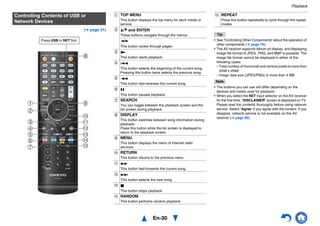
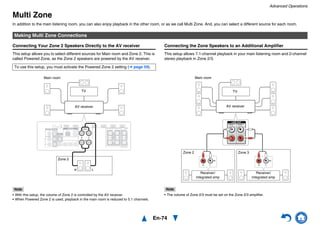
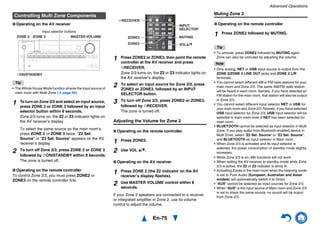
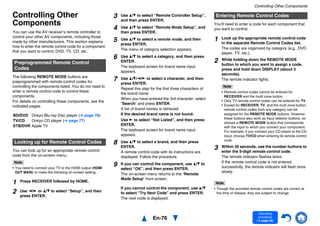
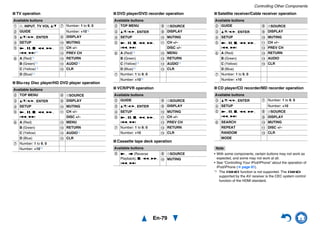
En
AV RECEIVER
TX-NR727
Instruction Manual
Contents
Safety Information and Introduction ............2
Table of Contents...........................................6
Connections .................................................12
Turning On & Basic Operations..................21
Playback........................................................29
Advanced Operations ..................................52
Controlling Other Components...................76
Appendix.......................................................82
Internet Radio Guide
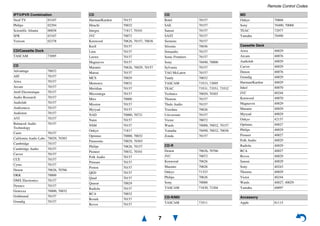
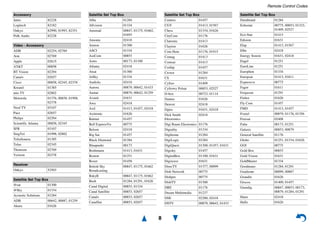
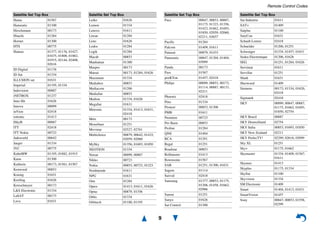
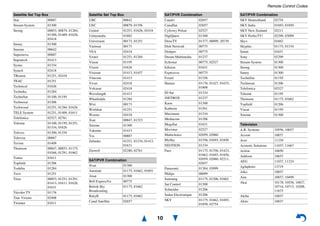
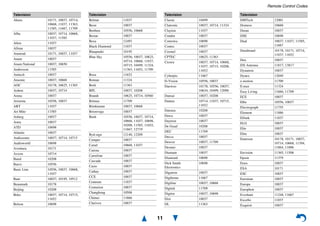
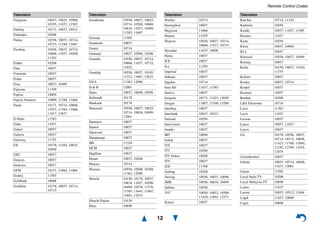
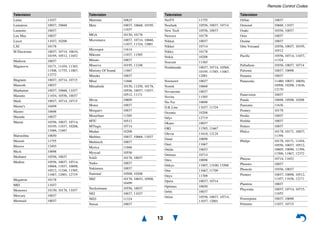
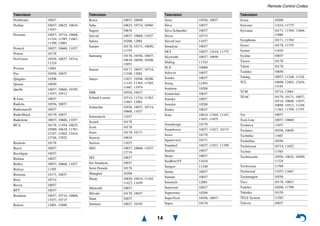
Remote Control Codes
En-2
Safety Information and Introduction
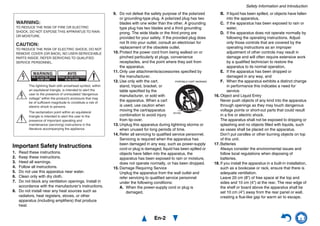
Important Safety Instructions
1. Read these instructions.
2. Keep these instructions.
3. Heed all warnings.
4. Follow all instructions.
5. Do not use this apparatus near water.
6. Clean only with dry cloth.
7. Do not block any ventilation openings. Install in
accordance with the manufacturer’s instructions.
8. Do not install near any heat sources such as
radiators, heat registers, stoves, or other
apparatus (including amplifiers) that produce
heat.
9. Do not defeat the safety purpose of the polarized
or grounding-type plug. A polarized plug has two
blades with one wider than the other. A grounding
type plug has two blades and a third grounding
prong. The wide blade or the third prong are
provided for your safety. If the provided plug does
not fit into your outlet, consult an electrician for
replacement of the obsolete outlet.
10. Protect the power cord from being walked on or
pinched particularly at plugs, convenience
receptacles, and the point where they exit from
the apparatus.
11. Only use attachments/accessories specified by
the manufacturer.
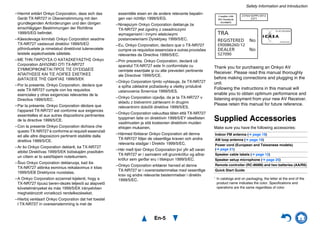
12. Use only with the cart,
stand, tripod, bracket, or
table specified by the
manufacturer, or sold with
the apparatus. When a cart
is used, use caution when
moving the cart/apparatus
combination to avoid injury
from tip-over.
13. Unplug this apparatus during lightning storms or
when unused for long periods of time.
14. Refer all servicing to qualified service personnel.
Servicing is required when the apparatus has
been damaged in any way, such as power-supply
cord or plug is damaged, liquid has been spilled or
objects have fallen into the apparatus, the
apparatus has been exposed to rain or moisture,
does not operate normally, or has been dropped.
15. Damage Requiring Service
Unplug the apparatus from the wall outlet and
refer servicing to qualified service personnel
under the following conditions:
A. When the power-supply cord or plug is
damaged,
B. If liquid has been spilled, or objects have fallen
into the apparatus,
C. If the apparatus has been exposed to rain or
water,
D. If the apparatus does not operate normally by
following the operating instructions. Adjust
only those controls that are covered by the
operating instructions as an improper
adjustment of other controls may result in
damage and will often require extensive work
by a qualified technician to restore the
apparatus to its normal operation,
E. If the apparatus has been dropped or
damaged in any way, and
F. When the apparatus exhibits a distinct change
in performance this indicates a need for
service.
16. Object and Liquid Entry
Never push objects of any kind into the apparatus
through openings as they may touch dangerous
voltage points or short-out parts that could result
in a fire or electric shock.
The apparatus shall not be exposed to dripping or
splashing and no objects filled with liquids, such
as vases shall be placed on the apparatus.
Don’t put candles or other burning objects on top
of this unit.
17. Batteries
Always consider the environmental issues and
follow local regulations when disposing of
batteries.
18. If you install the apparatus in a built-in installation,
such as a bookcase or rack, ensure that there is
adequate ventilation.
Leave 20 cm (8") of free space at the top and
sides and 10 cm (4") at the rear. The rear edge of
the shelf or board above the apparatus shall be
set 10 cm (4") away from the rear panel or wall,
creating a flue-like gap for warm air to escape.
WARNING:
TO REDUCE THE RISK OF FIRE OR ELECTRIC
SHOCK, DO NOT EXPOSE THIS APPARATUS TO RAIN
OR MOISTURE.
CAUTION:
TO REDUCE THE RISK OF ELECTRIC SHOCK, DO NOT
REMOVE COVER (OR BACK). NO USER-SERVICEABLE
PARTS INSIDE. REFER SERVICING TO QUALIFIED
SERVICE PERSONNEL.
The lightning flash with arrowhead symbol, within
an equilateral triangle, is intended to alert the
user to the presence of uninsulated “dangerous
voltage” within the product’s enclosure that may
be of sufficient magnitude to constitute a risk of
electric shock to persons.
The exclamation point within an equilateral
triangle is intended to alert the user to the
presence of important operating and
maintenance (servicing) instructions in the
literature accompanying the appliance.
WARNING
RISK OF ELECTRIC SHOCK
DO NOT OPEN
RISQUE DE CHOC ELECTRIQUE
NE PAS OUVRIR
AVIS
PORTABLE CART WARNING
S3125A
Safety Information and Introduction
En-3
Precautions
1. Recording Copyright—Unless it’s for personal
use only, recording copyrighted material is illegal
without the permission of the copyright holder.
2. AC Fuse—The AC fuse inside the unit is not user-
serviceable. If you cannot turn on the unit, contact
your Onkyo dealer.
3. Care—Occasionally you should dust the unit all
over with a soft cloth. For stubborn stains, use a
soft cloth dampened with a weak solution of mild
detergent and water. Dry the unit immediately
afterwards with a clean cloth. Don’t use abrasive
cloths, thinners, alcohol, or other chemical
solvents, because they may damage the finish or
remove the panel lettering.
4. Power
WARNING
BEFORE PLUGGING IN THE UNIT FOR THE
FIRST TIME, READ THE FOLLOWING SECTION
CAREFULLY.
AC outlet voltages vary from country to country.
Make sure that the voltage in your area meets the
voltage requirements printed on the unit’s rear
panel (e.g., AC 230 V, 50 Hz or AC 120 V, 60 Hz).
The power cord plug is used to disconnect this
unit from the AC power source. Make sure that
the plug is readily operable (easily accessible) at
all times.
For models with [POWER] button, or with both
[POWER] and [ON/STANDBY] buttons:
Pressing the [POWER] button to select OFF
mode does not fully disconnect from the mains. If
you do not intend to use the unit for an extended
period, remove the power cord from the AC outlet.
For models with [ON/STANDBY] button only:
Pressing the [ON/STANDBY] button to select
Standby mode does not fully disconnect from the
mains. If you do not intend to use the unit for an
extended period, remove the power cord from the
AC outlet.
5. Preventing Hearing Loss
Caution
Excessive sound pressure from earphones and
headphones can cause hearing loss.
6. Batteries and Heat Exposure
Warning
Batteries (battery pack or batteries installed) shall
not be exposed to excessive heat as sunshine,
fire or the like.
7. Never Touch this Unit with Wet Hands—Never
handle this unit or its power cord while your hands
are wet or damp. If water or any other liquid gets
inside this unit, have it checked by your Onkyo
dealer.
8. Handling Notes
• If you need to transport this unit, use the original
packaging to pack it how it was when you
originally bought it.
• Do not leave rubber or plastic items on this unit
for a long time, because they may leave marks
on the case.
• This unit’s top and rear panels may get warm
after prolonged use. This is normal.
• If you do not use this unit for a long time, it may
not work properly the next time you turn it on, so
be sure to use it occasionally.
For U.S. and Canadian models
FCC CAUTION
Changes or modifications not expressly approved by
the party responsible for compliance could void the
user’s authority to operate the equipment.
Note:
This equipment has been tested and found to comply
with the limits for a Class B digital device, pursuant to
part 15 of the FCC Rules. These limits are designed
to provide reasonable protection against harmful
interference in a residential installation. This
equipment generates, uses and can radiate radio
frequency energy and, if not installed and used in
accordance with the instructions, may cause harmful
interference to radio communications. However, there
is no guarantee that interference will not occur in a
particular installation. If this equipment does cause
harmful interference to radio or television reception,
which can be determined by turning the equipment off
and on, the user is encouraged to try to correct the
interference by one or more of the following
measures:
–Reorient or relocate the receiving antenna.
–Increase the separation between the equipment
and receiver.
–Connect the equipment into an outlet on a circuit
different from that to which the receiver is
connected.
–Consult the dealer or an experienced radio/TV
technician for help.
This device complies with Industry Canada licence-
exempt RSS standard(s). Operation is subject to the
following two conditions: (1) this device may not
cause interference, and (2) this device must accept
any interference, including interference that may
cause undesired operation of the device.
Le présent appareil est conforme aux CNR d’Industrie
Canada applicables aux appareils radio exempts de
licence. L’exploitation est autorisée aux deux
conditions suivantes : (1) l’appareil ne doit pas
produire de brouillage, et (2) l’utilisateur de l’appareil
doit accepter tout brouillage radioélectrique subi,
même si le brouillage est susceptible d’en
compromettre le fonctionnement.
This transmitter must not be co-located or operated in
conjunction with any other antenna or transmitter.
Safety Information and Introduction
En-4
RF Exposure Compliance
This equipment complies with FCC/IC radiation
exposure limits set forth for an uncontrolled
environment and meets the FCC radio frequency
(RF) Exposure Guidelines in Supplement C to OET65
and RSS-102 of the IC radio frequency (RF)
Exposure rules. This equipment has very low levels of
RF energy that it deemed to comply without
maximum permissive exposure evaluation (MPE).
But it is desirable that it should be installed and
operated keeping the radiator at least 20 cm or more
away from person’s body (excluding extremities:
hands, wrists, feet and ankles).
Cet équipement est conforme aux limites d’exposition
aux rayonnements énoncées pour un environnement
non contrôlé et respecte les régles les
radioélectriques (RF) de la FCC lignes directrices
d’exposition dans le Supplément C à OET65 et
d’exposition aux fréquences radioélectriques (RF)
CNR-102 de l’IC. Cet équipement émet une énergie
RF trés faible qui est considérée conforme sans
évaluation de l’exposition maximale autorisée.
Cependant, cet équipement doit être installé et utilisé
en gardant une distance de 20 cm ou plus entre le
dispositif rayonnant et le corps (à l’exception des
extrémités : mains, poignets, pieds et chevilles).
For Canadian Models
NOTE: THIS CLASS B DIGITAL APPARATUS
COMPLIES WITH CANADIAN ICES-003.
For models having a power cord with a polarized
plug:
CAUTION: TO PREVENT ELECTRIC SHOCK,
MATCH WIDE BLADE OF PLUG TO WIDE SLOT,
FULLY INSERT.
Modèle pour les Canadien
REMARQUE: CET APPAREIL NUMÉRIQUE DE
LA CLASSE B EST CONFORME À LA NORME
NMB-003 DU CANADA.
Sur les modèles dont la fiche est polarisée:
ATTENTION: POUR ÉVITER LES CHOCS
ÉLECTRIQUES, INTRODUIRE LA LAME LA PLUS
LARGE DE LA FICHE DANS LA BORNE
CORRESPONDANTE DE LA PRISE ET POUSSER
JUSQU’AU FOND.
For British models
Replacement and mounting of an AC plug on the
power supply cord of this unit should be performed
only by qualified service personnel.
IMPORTANT
The wires in the mains lead are coloured in
accordance with the following code:
Blue: Neutral
Brown: Live
As the colours of the wires in the mains lead of this
apparatus may not correspond with the coloured
markings identifying the terminals in your plug,
proceed as follows:
The wire which is coloured blue must be connected to
the terminal which is marked with the letter N or
coloured black.
The wire which is coloured brown must be connected
to the terminal which is marked with the letter L or
coloured red.
IMPORTANT
The plug is fitted with an appropriate fuse. If the fuse
needs to be replaced, the replacement fuse must
approved by ASTA or BSI to BS1362 and have the
same ampere rating as that indicated on the plug.
Check for the ASTA mark or the BSI mark on the
body of the fuse.
If the power cord’s plug is not suitable for your socket
outlets, cut it off and fit a suitable plug. Fit a suitable
fuse in the plug.
For European Models
Declaration of Conformity
We declare, under our sole
responsibility, that this product
complies with the standards:
–Safety
–Limits and methods of
measurement of radio disturbance characteristics
–Limits for harmonic current emissions
–Limitation of voltage changes, voltage fluctuations
and flicker
–RoHS Directive, 2011/65/EU
–Hereby, Onkyo Corporation, declares that this
TX-NR727 is in compliance with the essential
requirements and other relevant provisions of
Directive 1999/5/EC.
–С настоящето, Onkyo Corporation, декларира, че
TX-NR727 е в съответствие със съществените
изисквания и другитеприложими разпоредби на
Директива 1999/5/EC.
–Onkyo Corporation tímto prohlašuje, že TX-NR727
splňuje základní požadavky a všechna příslušná
ustanoveni Směrnice 1999/5/ES.
–Undertegnede Onkyo Corporation erklærer herved,
at følgende udstyr TX-NR727 overholder de
væsentlige krav og øvrige relevante krav i direktiv
1999/5/EF.
Safety Information and Introduction
En-5
–Hiermit erklärt Onkyo Corporation, dass sich das
Gerät TX-NR727 in Übereinstimmung mit den
grundlegenden Anforderungen und den übrigen
einschlägigen Bestimmungen der Richtlinie
1999/5/EG befindet.
–Käesolevaga kinnitab Onkyo Corporation seadme
TX-NR727 vastavust direktiivi 1999/5/EÜ
põhinõuetele ja nimetatud direktiivist tulenevatele
teistele asjakohastele sätetele.
–ΜΕ ΤΗΝ ΠΑΡΟΥΣΑ Ο ΚΑΤΑΣΚΕΥΑΣΤΗΣ Onkyo
Corporation ∆ΗΛΩΝΕΙ ΟΤΙ TX-NR727
ΣΥΜΜΟΡΦΩΝΕΤΑΙ ΠΡΟΣ ΤΙΣ ΟΥΣΙΩ∆ΕΙΣ
ΑΠΑΙΤΗΣΕΙΣ ΚΑΙ ΤΙΣ ΛΟΙΠΕΣ ΣΧΕΤΙΚΕΣ
∆ΙΑΤΑΞΕΙΣ ΤΗΣ Ο∆ΗΓΙΑΣ 1999/5/ΕΚ
–Por la presente, Onkyo Corporation, declara que
este TX-NR727 cumple con los requisitos
esenciales y otras exigencias relevantes de la
Directiva 1999/5/EC.
–Par la présente, Onkyo Corporation déclare que
l’appareil TX-NR727 est conforme aux exigences
essentielles et aux autres dispositions pertinentes
de la directive 1999/5/CE.
–Con la presente Onkyo Corporation dichiara che
questo TX-NR727 è conforme ai requisiti essenziali
ed alle altre disposizioni pertinenti stabilite dalla
direttiva 1999/5/CE.
–Ar šo Onkyo Corporation deklarē, ka TX-NR727
atbilst Direktīvas 1999/5/EK būtiskajām prasībām
un citiem ar to saistītajiem noteikumiem.
–Šiuo Onkyo Corporation deklaruoja, kad šis
TX-NR727 atitinka esminius reikalavimus ir kitas
1999/5/EB Direktyvos nuostatas.
–A Onkyo Corporation ezzennel kijelenti, hogy a
TX-NR727 típusú beren-dezés teljesíti az alapvető
követelményeket és más 1999/5/EK irányelvben
meghatározott vonatkozó rendelkezéseket.
–Hierbij verklaart Onkyo Corporation dat het toestel
l TX-NR727 in overeenstemming is met de
essentiële eisen en de andere relevante bepalin-
gen van richtlijn 1999/5/EG.
–Niniejszym Onkyo Corporation deklaruje że
TX-NR727 jest zgodny z zasadniczymi
wymaganiami i innymi właściwymi
postanowieniami Dyrektywy 1999/5/EC.
–Eu, Onkyo Corporation, declaro que o TX-NR727
cumpre os requisitos essenciais e outras provisões
relevantes da Directiva 1999/5/EC.
–Prin prezenta, Onkyo Corporation, declară că
aparatul TX-NR727 este în conformitate cu
cerinţele esenţiale şi cu alte prevederi pertinente
ale Directivei 1999/5/CE.
–Onkyo Corporation týmto vyhlasuje, že TX-NR727
a spĺňa základné požiadavky a všetky príslušné
ustanovenia Smernice 1999/5/ES.
–Onkyo Corporation izjavlja, da je ta TX-NR727 v
skladu z bistvenimi zahtevami in drugimi
relevantnimi določili direktive 1999/5/ES.
–Onkyo Corporation vakuuttaa täten että TX-NR727
tyyppinen laite on direktiivin 1999/5/EY oleellisten
vaatimusten ja sitä koskevien direktiivin muiden
ehtojen mukainen.
–Härmed förklarar Onkyo Corporation att denna
TX-NR727 följer de väsentliga kraven och andra
relevanta stadgar i Direktiv 1999/5/EC.
–Hér með lýsir Onkyo Corporation því yfir að varan
TX-NR727 er í samræmi við grunnkröfur og aðrar
kröfur sem gerðar eru í tilskipun 1999/5/EC.
–Onkyo Corporation erklærer herved at denne
TX-NR727 er i overensstemmelse med vesentlige
krav og andre relevante bestemmelser i direktiv
1999/5/EC.
Thank you for purchasing an Onkyo AV
Receiver. Please read this manual thoroughly
before making connections and plugging in the
unit.
Following the instructions in this manual will
enable you to obtain optimum performance and
listening enjoyment from your new AV Receiver.
Please retain this manual for future reference.
Supplied Accessories
Make sure you have the following accessories:
* In catalogs and on packaging, the letter at the end of the
product name indicates the color. Specifications and
operations are the same regardless of color.
Indoor FM antenna (➔ page 19)
AM loop antenna (➔ page 19)
Power cord (European and Taiwanese models)
(➔ page 21)
Speaker cable labels (➔ page 12)
Speaker setup microphone (➔ page 25)
Remote controller (RC-868M) and two batteries (AA/R6)
Quick Start Guide
Complies with
IDA Standards
DA106032
23764/SDPPI/2012
2371
TRA
REGISTERED No
ER0086260/12
DEALER No
527090
TA-20120424004
Safety Information and Introduction
En-6
Table of Contents
Safety Information and Introduction
Important Safety Instructions......................................2
Precautions ...................................................................3
Supplied Accessories...................................................5
Table of Contents..........................................................6
Features.........................................................................7
Front & Rear Panels......................................................8
Front Panel..................................................................8
Display ........................................................................9
Rear Panel ................................................................10
Remote Controller.......................................................11
Controlling the AV Receiver......................................11
Connections
Connecting the AV Receiver......................................12
Connecting Your Speakers .......................................12
Connecting the TV/AV components..........................15
About RIHD-compatible components........................16
Operations that can be performed
with RIHD connection.............................................17
Confirm the settings ..................................................17
Connection Tips ........................................................17
Connecting the Antennas..........................................19
Connecting Onkyo RI Components...........................20
Using Headphones....................................................20
Turning On & Basic Operations
Turning On/Off the AV Receiver................................21
Connecting the Power Cord......................................21
Turning On ................................................................21
Turning Off ................................................................21
Firmware Update Notification....................................22
About the HYBRID STANDBY indicator....................22
Initial Setup .................................................................22
Selecting the Language
for the On-screen Setup Menus .............................22
Audyssey MultEQ: Auto Setup .................................22
Source Connection ...................................................23
Remote Mode Setup.................................................23
Network Connection .................................................23
Terminating the Initial Setup.....................................23
Using the Automatic Speaker Setup.........................24
Performing Wireless LAN Setup...............................27
Playback
Playback......................................................................29
Controlling Contents of USB or Network Devices.....30
Understanding Icons on the Display.........................31
Playing an Audio from Bluetooth-enabled Device ....31
Playing a USB Device...............................................32
Listening to TuneIn ...................................................32
Registering Other Internet Radio..............................34
Changing the Icon Layout
on the Network Service Screen..............................34
Playing Music Files on a Server (DLNA) ..................34
Playing Music Files on a Shared Folder ...................36
Remote Playback......................................................37
Listening to AM/FM Radio ........................................38
Playing Audio and Video from Separate Sources.....40
Using the Listening Modes .......................................41
Displaying Source Information..................................49
Using the Sleep Timer ..............................................49
Setting the Display Brightness..................................49
Changing the Input Display.......................................50
Muting the AV Receiver............................................50
Using the Whole House Mode..................................50
Using the Home Menu ..............................................51
Advanced Operations
On-screen Setup......................................................... 52
Using the Quick Setup.............................................. 52
Using the Audio Settings of Quick Setup.................. 53
Using the Setup Menu (HOME)................................ 56
Setup Menu Items .................................................... 56
1. Input/Output Assign.............................................. 57
2. Speaker Setup...................................................... 59
3. Audio Adjust ......................................................... 62
4. Source Setup........................................................ 64
5. Listening Mode Preset.......................................... 68
6. Miscellaneous....................................................... 69
7. Hardware Setup.................................................... 69
8. Remote Controller Setup...................................... 73
9. Lock Setup............................................................ 73
Multi Zone ................................................................... 74
Making Multi Zone Connections ............................... 74
Controlling Multi Zone Components ......................... 75
Controlling Other Components
Controlling Other Components................................. 76
Preprogrammed Remote Control Codes.................. 76
Looking up for Remote Control Codes ..................... 76
Entering Remote Control Codes............................... 76
Remapping Colored Buttons .................................... 77
Remote Control Codes for Onkyo Components
Connected via RI ................................................... 77
Resetting the REMOTE MODE Buttons................... 77
Resetting the Remote Controller .............................. 77
Controlling Other Components................................. 78
Using the Onkyo Dock.............................................. 80
Controlling Your iPod/iPhone ................................... 81
Appendix
Troubleshooting......................................................... 82
Firmware Update ........................................................ 90
About HDMI................................................................. 93
Network/USB Features............................................... 94
License and Trademark Information ........................ 96
Specifications............................................................. 97
To reset the AV receiver, see page 82.
Safety Information and Introduction
En-7
Features
Amplifier
• 110 Watts/Channel @ 8 ohms (FTC)
• 170 Watts/Channel @ 6 ohms (IEC)
• 185 Watts/Channel @ 6 ohms (JEITA)
• WRAT–Wide Range Amplifier Technology
(5 Hz to 100 kHz bandwidth)
• Optimum Gain Volume Circuitry
• H.C.P.S. (High Current Power Supply) Massive
High Power Transformer
• 3 Stage Inverted Darlington Amplifier Design
Processing
• THX Select2 Plus Certified
• Incorporates Qdeo™ technology for HDMI Video
Upscaling (to 4K Compatible)
• HDMI (Audio Return Channel, 3D, DeepColor,
x.v.Color, Lip Sync, 4K (up-scaling and
Passthrough), DTS-HD Master Audio, DTS-HD High
Resolution Audio, Dolby TrueHD, Dolby Digital Plus,
DSD and Multi-CH PCM)
• Dolby TrueHD and DTS-HD Master Audio
• Dolby Pro Logic IIz and Audyssey DSX®
• Non-Scaling Configuration
• A-Form Listening Mode Memory
• Direct Mode
• Pure Audio Mode (European, Australian and Asian
models)
• Music Optimizer for Compressed Digital Music files
• Phase Matching Bass System
• 192 kHz/24-bit D/A Converters
• Powerful and Highly Accurate 32-bit Processing
DSP
• Jitter Cleaning Circuit Technology
Connections
• 8 HDMI Inputs (1 on front panel) and 2 Outputs
• 4K (up-scaling and Passthrough*)-compatible HDMI
Inputs
* Compatible with HDMI IN 1 to HDMI IN 4 only
• Onkyo p for System Control
• 3 Digital Inputs (1 Optical/2 Coaxial)
• Component Video Switching (1 Input/1 Output)
• Banana Plug-Compatible Speaker Posts
* In Europe, using banana plugs to connect speakers to an
audio amplifier is prohibited.
• Powered Zone 2
• Bi-Amping Capability for FL/FR with SBL/SBR
• Internet Radio Connectivity
• Network Capability for Streaming Audio Files
• Wi-Fi (Wireless LAN) Connectivity
• Wireless Music Playback via Bluetooth
• Front-Panel USB Input for Memory Devices
• MHL-Enabled AUX Front Input
Miscellaneous
• 40 FM/AM Presets
• Audyssey MultEQ® to correct room acoustic
problems
• Audyssey Dynamic EQ® for loudness correction
• Audyssey Dynamic Volume® to maintain optimal
listening level and dynamic range
• Crossover Adjustment
(40/50/60/70/80/90/100/120/150/200 Hz)
• A/V Sync Control Function (up to 800 ms)
• Auto Standby Function
• On-Screen Display via HDMI
• Preprogrammed u-Compatible Remote
Safety Information and Introduction
En-8
Front & Rear Panels
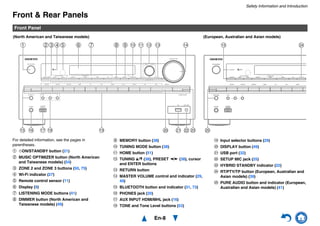
For detailed information, see the pages in
parentheses.
a 8ON/STANDBY button (21)
b MUSIC OPTIMIZER button (North American
and Taiwanese models) (54)
c ZONE 2 and ZONE 3 buttons (50, 75)
d Wi-Fi indicator (27)
e Remote control sensor (11)
f Display (9)
g LISTENING MODE buttons (41)
h DIMMER button (North American and
Taiwanese models) (49)
i MEMORY button (38)
j TUNING MODE button (38)
k HOME button (51)
l TUNING q/w (38), PRESET e/r (38), cursor
and ENTER buttons
m RETURN button
n MASTER VOLUME control and indicator (29,
49)
o BLUETOOTH button and indicator (31, 73)
p PHONES jack (20)
q AUX INPUT HDMI/MHL jack (16)
r TONE and Tone Level buttons (53)
s Input selector buttons (29)
t DISPLAY button (49)
u USB port (32)
v SETUP MIC jack (25)
w HYBRID STANDBY indicator (22)
x RT/PTY/TP button (European, Australian and
Asian models) (39)
y PURE AUDIO button and indicator (European,
Australian and Asian models) (41)
Front Panel
(North American and Taiwanese models) (European, Australian and Asian models)
a ed gf h i j k l m ncb
s t up rqo v w
xo
y
Safety Information and Introduction
En-9
s
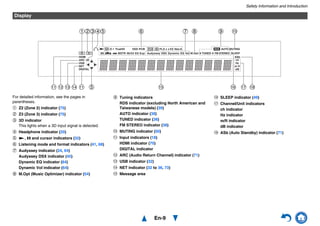
For detailed information, see the pages in
parentheses.
a Z2 (Zone 2) indicator (75)
b Z3 (Zone 3) indicator (75)
c 3D indicator
This lights when a 3D input signal is detected.
d Headphone indicator (20)
e 1, 3 and cursor indicators (32)
f Listening mode and format indicators (41, 68)
g Audyssey indicator (24, 64)
Audyssey DSX indicator (45)
Dynamic EQ indicator (64)
Dynamic Vol indicator (64)
h M.Opt (Music Optimizer) indicator (54)
i Tuning indicators
RDS indicator (excluding North American and
Taiwanese models) (39)
AUTO indicator (38)
TUNED indicator (38)
FM STEREO indicator (38)
j MUTING indicator (50)
k Input indicators (18)
HDMI indicator (70)
DIGITAL indicator
l ARC (Audio Return Channel) indicator (71)
m USB indicator (32)
n NET indicator (32 to 36, 73)
o Message area
p SLEEP indicator (49)
q Channel/Unit indicators
ch indicator
Hz indicator
m/ft indicator
dB indicator
r ASb (Auto Standby) indicator (71)
Display
k e o p rl n qk m
ed f ihgabc j
Safety Information and Introduction
En-10
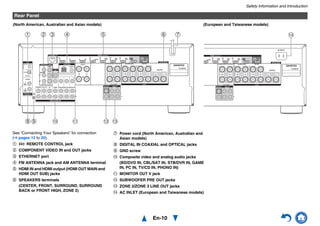
See “Connecting Your Speakers” for connection
(➔ pages 12 to 20).
a u REMOTE CONTROL jack
b COMPONENT VIDEO IN and OUT jacks
c ETHERNET port
d FM ANTENNA jack and AM ANTENNA terminal
e HDMI IN and HDMI output (HDMI OUT MAIN and
HDMI OUT SUB) jacks
f SPEAKERS terminals
(CENTER, FRONT, SURROUND, SURROUND
BACK or FRONT HIGH, ZONE 2)
g Power cord (North American, Australian and
Asian models)
h DIGITAL IN COAXIAL and OPTICAL jacks
i GND screw
j Composite video and analog audio jacks
(BD/DVD IN, CBL/SAT IN, STB/DVR IN, GAME
IN, PC IN, TV/CD IN, PHONO IN)
k MONITOR OUT V jack
l SUBWOOFER PRE OUT jacks
m ZONE 2/ZONE 3 LINE OUT jacks
n AC INLET (European and Taiwanese models)
Rear Panel
(North American, Australian and Asian models) (European and Taiwanese models)
a dcb e gf
hi j k l m
n
Safety Information and Introduction
En-11
Remote Controller
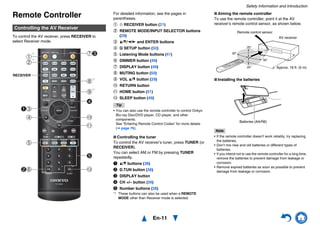
To control the AV receiver, press RECEIVER to
select Receiver mode.
For detailed information, see the pages in
parentheses.
a 8 RECEIVER button (21)
b REMOTE MODE/INPUT SELECTOR buttons
(29)
c q/w/e/r and ENTER buttons
d Q SETUP button (52)
e Listening Mode buttons (41)
f DIMMER button (49)
g DISPLAY button (49)
h MUTING button (50)
i VOL q/w button (29)
j RETURN button
k HOME button (51)
l SLEEP button (49)
Tip
• You can also use the remote controller to control Onkyo
Blu-ray Disc/DVD player, CD player, and other
components.
See “Entering Remote Control Codes” for more details
(➔ page 76).
■ Controlling the tuner
To control the AV receiver’s tuner, press TUNER (or
RECEIVER).
You can select AM or FM by pressing TUNER
repeatedly.
a q/w buttons (38)
b D.TUN button (38)
c DISPLAY button
d CH +/– button (39)
e Number buttons (38)
*1 These buttons can also be used when a REMOTE
MODE other than Receiver mode is selected.
■ Aiming the remote controller
To use the remote controller, point it at the AV
receiver’s remote control sensor, as shown below.
■ Installing the batteries
Note
• If the remote controller doesn’t work reliably, try replacing
the batteries.
• Don’t mix new and old batteries or different types of
batteries.
• If you intend not to use the remote controller for a long time,
remove the batteries to prevent damage from leakage or
corrosion.
• Remove expired batteries as soon as possible to prevent
damage from leakage or corrosion.
Controlling the AV Receiver
a
i
j
k
d
lbf
d
ac
b
h
gc
e
e
*1
*1
*1
*1
RECEIVER
Remote control sensor
AV receiver
Approx. 16 ft. (5 m)
Batteries (AA/R6)
En-12
Connections
Connecting the AV
Receiver
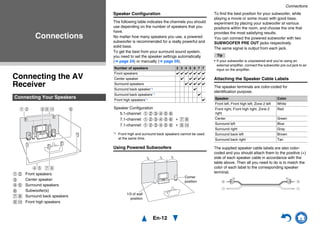
Speaker Configuration
The following table indicates the channels you should
use depending on the number of speakers that you
have.
No matter how many speakers you use, a powered
subwoofer is recommended for a really powerful and
solid bass.
To get the best from your surround sound system,
you need to set the speaker settings automatically
(➔ page 24) or manually (➔ page 59).
*1 Front high and surround back speakers cannot be used
at the same time.
Using Powered Subwoofers
To find the best position for your subwoofer, while
playing a movie or some music with good bass,
experiment by placing your subwoofer at various
positions within the room, and choose the one that
provides the most satisfying results.
You can connect the powered subwoofer with two
SUBWOOFER PRE OUT jacks respectively.
The same signal is output from each jack.
Tip
• If your subwoofer is unpowered and you’re using an
external amplifier, connect the subwoofer pre out jack to an
input on the amplifier.
Attaching the Speaker Cable Labels
The speaker terminals are color-coded for
identification purpose.
The supplied speaker cable labels are also color-
coded and you should attach them to the positive (+)
side of each speaker cable in accordance with the
table above. Then all you need to do is to match the
color of each label to the corresponding speaker
terminal.
Connections
Connecting Your Speakers
a b Front speakers
c Center speaker
d e Surround speakers
f Subwoofer(s)
G H Surround back speakers
I J Front high speakers
I Ja b c
d e
f
G H
Number of speakers 2 3 4 5 6 7 7
Front speakers ✔ ✔ ✔ ✔ ✔ ✔ ✔
Center speaker ✔ ✔ ✔ ✔ ✔
Surround speakers ✔ ✔ ✔ ✔ ✔
Surround back speaker*1 ✔
Surround back speakers*1 ✔
Front high speakers*1 ✔
Speaker Configuration
5.1-channel: a b c d e f
7.1-channel: a b c d e f + G H
7.1-channel: a b c d e f + I J
Corner
position
1/3 of wall
position
Speaker Color
Front left, Front high left, Zone 2 left White
Front right, Front high right, Zone 2
right
Red
Center Green
Surround left Blue
Surround right Gray
Surround back left Brown
Surround back right Tan
Connections
En-13
Connecting the Speaker Cables/Powered Subwoofers
Please connect a , b , c , d , e and f for 5.1-channel surround.
• Pay close attention to speaker wiring polarity. In other words, connect positive (+) terminals only to positive (+)
terminals, and negative (–) terminals only to negative (–) terminals. If you get them the wrong way around, the
sound will be out of phase and will sound unnatural.
Surround
speaker R
e
Surround
speaker L
d
Surround back or
Front high speaker L
G I
Powered
subwoofer
f
Gray
a
Front
speaker L
b
Front
speaker R
Green WhiteRed
c
Center speaker
If you’re using only one surround back
speaker, connect it to the SURROUND
BACK or FRONT HIGH L terminals.
Surround back or
Front high speaker R
H J
Powered
subwoofer
f
Tan Brown Blue
• Read the instructions supplied with your speakers.
• By default, speakers for 7.1-channel surround are
configured to use: front right/front left/center/
surround right/surround left/surround back right/
surround back left/subwoofer.
■ Screw-type speaker terminals
Strip 1/2" to 5/8" (12 to 15 mm) of insulation from the
ends of the speaker cables, and twist the bare wires
tightly, as shown.
■ Banana Plugs (North American models)
• If you are using banana plugs, tighten the speaker
terminal before inserting the banana plug.
• Do not insert the speaker code directly into the
center hole of the speaker terminal.
Before connecting the power cord, connect all of
your speakers and AV components. A setup wizard
is launched upon first-time use to let you perform
the settings.
1/2" to 5/8" (12 to 15 mm)
Connections
En-14
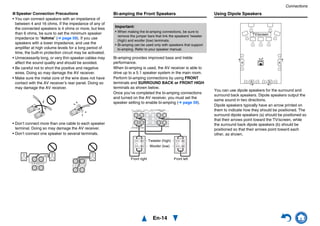
■ Speaker Connection Precautions
• You can connect speakers with an impedance of
between 4 and 16 ohms. If the impedance of any of
the connected speakers is 4 ohms or more, but less
than 6 ohms, be sure to set the minimum speaker
impedance to “4ohms” (➔ page 59). If you use
speakers with a lower impedance, and use the
amplifier at high volume levels for a long period of
time, the built-in protection circuit may be activated.
• Unnecessarily long, or very thin speaker cables may
affect the sound quality and should be avoided.
• Be careful not to short the positive and negative
wires. Doing so may damage the AV receiver.
• Make sure the metal core of the wire does not have
contact with the AV receiver’s rear panel. Doing so
may damage the AV receiver.
• Don’t connect more than one cable to each speaker
terminal. Doing so may damage the AV receiver.
• Don’t connect one speaker to several terminals.
Bi-amping the Front Speakers
Bi-amping provides improved bass and treble
performance.
When bi-amping is used, the AV receiver is able to
drive up to a 5.1 speaker system in the main room.
Perform bi-amping connections by using FRONT
terminals and SURROUND BACK or FRONT HIGH
terminals as shown below.
Once you’ve completed the bi-amping connections
and turned on the AV receiver, you must set the
speaker setting to enable bi-amping (➔ page 59).
Using Dipole Speakers
You can use dipole speakers for the surround and
surround back speakers. Dipole speakers output the
same sound in two directions.
Dipole speakers typically have an arrow printed on
them to indicate how they should be positioned. The
surround dipole speakers (a) should be positioned so
that their arrows point toward the TV/screen, while
the surround back dipole speakers (b) should be
positioned so that their arrows point toward each
other, as shown.
Important:
• When making the bi-amping connections, be sure to
remove the jumper bars that link the speakers’ tweeter
(high) and woofer (low) terminals.
• Bi-amping can be used only with speakers that support
bi-amping. Refer to your speaker manual.
Front right Front left
Woofer (low)
Tweeter (high)
b b
a a
TV/screen
Connections
En-15
If you select the input selector button, the signal from
the component connected to the assigned jack is
played.
• Before making any AV connections, read the
manuals supplied with your AV components.
• Push plugs in all the way to make good connections
(loose connections can cause noise or
malfunctions).
• To prevent interference, keep audio and video
cables away from power cords and speaker cables.
Connections
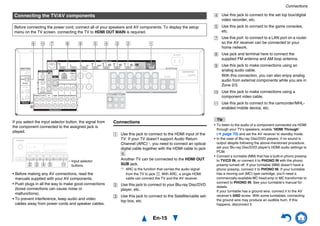
Connecting the TV/AV components
Before connecting the power cord, connect all of your speakers and AV components. To display the setup
menu on the TV screen, connecting the TV to HDMI OUT MAIN is required.
ABCDEHGF J I
B C D E K
Input selector
buttons
A Use this jack to connect to the HDMI input of the
TV. If your TV doesn’t support Audio Return
Channel (ARC)*1, you need to connect an optical
digital cable together with the HDMI cable to jack
F.
Another TV can be connected to the HDMI OUT
SUB jack.
*1 ARC is the function that carries the audio signal
from the TV to jack A. With ARC, a single HDMI
cable can connect the TV and the AV receiver.
B Use this jack to connect to your Blu-ray Disc/DVD
player, etc.
C Use this jack to connect to the Satellite/cable set-
top box, etc.
Tip
• To listen to the audio of a component connected via HDMI
through your TV’s speakers, enable “HDMI Through”
(➔ page 70) and set the AV receiver to standby mode.
• In the case of Blu-ray Disc/DVD players, if no sound is
output despite following the above-mentioned procedure,
set your Blu-ray Disc/DVD player’s HDMI audio settings to
PCM.
• Connect a turntable (MM) that has a built-in phono preamp
to TV/CD IN, or connect it to PHONO IN with the phono
preamp turned off. If your turntable (MM) doesn’t have a
phono preamp, connect it to PHONO IN. If your turntable
has a moving coil (MC) type cartridge, you’ll need a
commercially available MC head amp or MC transformer to
connect to PHONO IN. See your turntable’s manual for
details.
If your turntable has a ground wire, connect it to the AV
receiver’s GND screw. With some turntables, connecting
the ground wire may produce an audible hum. If this
happens, disconnect it.
D Use this jack to connect to the set top box/digital
video recorder, etc.
E Use this jack to connect to the game consoles,
etc.
G Use this port to connect to a LAN port on a router
so the AV receiver can be connected to your
home network.
H Use jack and terminal here to connect the
supplied FM antenna and AM loop antenna.
I Use this jack to make connections using an
analog audio cable.
With this connection, you can also enjoy analog
audio from external components while you are in
Zone 2/3.
J Use this jack to make connections using a
component video cable.
K Use this jack to connect to the camcorder/MHL-
enabled mobile device, etc.
Connections
En-16
■ MHL (Mobile High-Definition Link)
With its support for MHL (Mobile High-Definition Link),
the AUX (Front) input allows you to deliver high-
definition video from a connected mobile device.
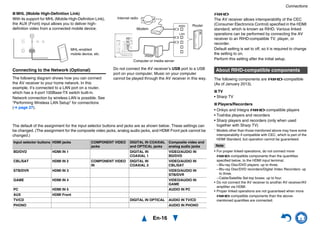
Connecting to the Network (Optional)
The following diagram shows how you can connect
the AV receiver to your home network. In this
example, it’s connected to a LAN port on a router,
which has a 4-port 100Base-TX switch built-in.
Network connection by wireless LAN is possible. See
“Performing Wireless LAN Setup” for connections
(➔ page 27).
Do not connect the AV receiver’s USB port to a USB
port on your computer. Music on your computer
cannot be played through the AV receiver in this way.
The default of the assignment for the input selector buttons and jacks are as shown below. These settings can
be changed. (The assignment for the composite video jacks, analog audio jacks, and HDMI Front jack cannot be
changed.)
K
MHL-enabled
mobile device, etc.
WAN
LAN
Internet radio
Modem
Computer or media server
Router
Input selector buttons HDMI jacks COMPONENT VIDEO
jacks
DIGITAL IN COAXIAL
and OPTICAL jacks
Composite video and
analog audio jacks
BD/DVD HDMI IN 1 DIGITAL IN
COAXIAL 1
VIDEO/AUDIO IN
BD/DVD
CBL/SAT HDMI IN 2 COMPONENT VIDEO
IN
DIGITAL IN
COAXIAL 2
VIDEO/AUDIO IN
CBL/SAT
STB/DVR HDMI IN 3 VIDEO/AUDIO IN
STB/DVR
GAME HDMI IN 4 VIDEO/AUDIO IN
GAME
PC HDMI IN 5 AUDIO IN PC
AUX HDMI Front
TV/CD DIGITAL IN OPTICAL AUDIO IN TV/CD
PHONO AUDIO IN PHONO
p
The AV receiver allows interoperability of the CEC
(Consumer Electronics Control) specified in the HDMI
standard, which is known as RIHD. Various linked
operations can be performed by connecting the AV
receiver to an RIHD-compatible TV, player, or
recorder.
Default setting is set to off, so it is required to change
the setting to on.
Perform this setting after the initial setup.
The following components are p-compatible
(As of January 2013).
■ TV
• Sharp TV
■ Players/Recorders
• Onkyo and Integra p-compatible players
• Toshiba players and recorders
• Sharp players and recorders (only when used
together with Sharp TV)
* Models other than those mentioned above may have some
interoperability if compatible with CEC, which is part of the
HDMI Standard, but operation cannot be guaranteed.
Note
• For proper linked operations, do not connect more
p-compatible components than the quantities
specified below, to the HDMI input terminal.
– Blu-ray Disc/DVD players: up to three.
– Blu-ray Disc/DVD recorders/Digital Video Recorders: up
to three.
– Cable/Satellite Set-top boxes: up to four.
• Do not connect the AV receiver to another AV receiver/AV
amplifier via HDMI.
• Proper linked operations are not guaranteed when more
p-compatible components than the above-
mentioned quantities are connected.
About RIHD-compatible components
Connections
En-17
■ For p-compatible TV
The following linked operations are enabled by
connecting the AV receiver to an p-compatible
TV.
• The AV receiver will enter standby mode when the
TV is set to standby.
• You can set on the menu screen of the TV to either
output the audio from the speakers connected to the
AV receiver, or from the speakers of the TV.
• It is possible to output the audio coming from the
tuner or auxiliary input of your TV to the speakers of
the AV receiver. (A connection such as an optical
digital cable or similar is required in addition to the
HDMI cable.)
• Input to the AV receiver can be selected with the
remote controller of the TV.
• Operations such as volume adjustment or similar for
the AV receiver can be performed from the remote
controller of the TV.
■ For p-compatible players/recorders
The following linked operations are enabled by
connecting the AV receiver to an p-compatible
player/recorder.
• When playback is started on the player/recorder, AV
receiver will switch to the HDMI input of the
player/recorder that is playing back.
• Operation of the player/recorder is possible using
the remote controller supplied with the AV receiver.
* Depending on the model used, not all operations may be
available.
Note
• Do not assign an HDMI IN to the TV/CD selector at this
time, otherwise appropriate CEC (Consumer Electronics
Control) operation will not be guaranteed.
1. Turn on the power for all connected components.
2. Turn off the power of the TV, and confirm that the
power of the connected components is turned off
automatically with the link operation.
3. Turn on the power of the Blu-ray Disc/DVD
player/recorder.
4. Start playback on the Blu-ray Disc/DVD
player/recorder, and verify the following:
• The AV receiver automatically turns on, and
selects the input to which the Blu-ray Disc/DVD
player/recorder is connected.
• The TV automatically turns on, and selects the
input to which the AV receiver is connected.
5. Following the operating instructions of the TV,
select “Use the TV speakers” from the menu
screen of the TV, and confirm that the audio is
output from the speakers of the TV, and not from
the speakers connected to the AV receiver.
6. Select “Use the speakers connected from the AV
receiver” from the menu screen of the TV, and
confirm that the audio is output from the speakers
connected to the AV receiver, and not from the TV
speakers.
Note
• Audio from DVD-Audio or Super Audio CD may not output
from the TV speakers. You will be able to output the audio
from the TV speakers by setting the audio output of the
DVD player to 2ch PCM. (It may not be possible depending
on the player models.)
• Even if you set to output audio on the TV speakers, audio
will be output from the speakers connected to the AV
receiver when you adjust the volume or switch the input on
the AV receiver. To output audio from the TV speakers, re-
do the corresponding operations on the TV.
• In case of an p connection with u and u audio
control compatible components, do not connect the u
cable at the same time.
• On the TV, when you select anything other than the HDMI
jack to which the AV receiver is connected, the input on the
AV receiver will be switched to “TV/CD”.
• The AV receiver will automatically power on in conjunction
when it determines it to be necessary. Even if the AV
receiver is connected to an p compatible TV or
player/recorder, it will not power on if it is not necessary. It
may not power on in conjunction when the TV is set to
output audio from the TV.
• Linked functions with the AV receiver may not work
depending on the component model connected. In such
cases, operate the AV receiver directly.
The video and audio signal flow
Connect the AV receiver between the AV
components and the TV. The signal from the AV
components is carried through the AV receiver. You
can enjoy the audio of the TV through the AV
receiver.
Video components can be connected by using any
one of the following video connection formats:
composite video, component video, or HDMI, the
latter offering the best picture quality.
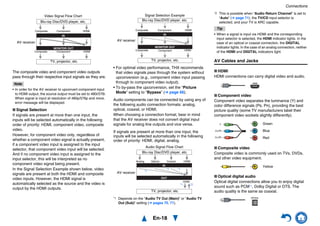
Video input signals flow through the AV receiver as
shown, with composite video and component video
sources all being upconverted for the HDMI output(s).
Operations that can be performed with
RIHD connection
Confirm the settings
Connection Tips
Blu-ray Disc/DVD player, etc.
AV receiver
TV, projector, etc.
Audio
Video, audio
Video, audio
Connections
En-18
The composite video and component video outputs
pass through their respective input signals as they are.
Note
• In order for the AV receiver to upconvert component input
to HDMI output, the source output must be set to 480i/576i.
When signal is input at resolution of 480p/576p and more,
error message will be displayed.
■ Signal Selection
If signals are present at more than one input, the
inputs will be selected automatically in the following
order of priority: HDMI, component video, composite
video.
However, for component video only, regardless of
whether a component video signal is actually present,
if a component video input is assigned to the input
selector, that component video input will be selected.
And if no component video input is assigned to the
input selector, this will be interpreted as no
component video signal being present.
In the Signal Selection Example shown below, video
signals are present at both the HDMI and composite
video inputs. However, the HDMI signal is
automatically selected as the source and the video is
output by the HDMI outputs.
• For optimal video performance, THX recommends
that video signals pass through the system without
upconversion (e.g., component video input passing
through to component video output).
• To by-pass the upconversion, set the “Picture
Mode” setting to “Bypass” (➔ page 66).
Audio components can be connected by using any of
the following audio connection formats: analog,
optical, coaxial, or HDMI.
When choosing a connection format, bear in mind
that the AV receiver does not convert digital input
signals for analog line outputs and vice versa.
If signals are present at more than one input, the
inputs will be selected automatically in the following
order of priority: HDMI, digital, analog.
*1 Depends on the “Audio TV Out (Main)” or “Audio TV
Out (Sub)” setting (➔ pages 70, 71).
*2 This is possible when “Audio Return Channel” is set to
“Auto” (➔ page 71), the TV/CD input selector is
selected, and your TV is ARC capable.
Tip
• When a signal is input via HDMI and the corresponding
input selector is selected, the HDMI indicator lights. In the
case of an optical or coaxial connection, the DIGITAL
indicator lights. In the case of an analog connection, neither
of the HDMI and DIGITAL indicators light.
AV Cables and Jacks
■ HDMI
HDMI connections can carry digital video and audio.
■ Component video
Component video separates the luminance (Y) and
color difference signals (PB, PR), providing the best
picture quality (some TV manufacturers label their
component video sockets slightly differently).
■ Composite video
Composite video is commonly used on TVs, DVDs,
and other video equipment.
■ Optical digital audio
Optical digital connections allow you to enjoy digital
sound such as PCM*1, Dolby Digital or DTS. The
audio quality is the same as coaxial.
IN
MONITOR OUT
Blu-ray Disc/DVD player, etc.
AV receiver
TV, projector, etc.
Composite
Composite
Component
Component
Video Signal Flow Chart
HDMI
HDMI
IN
MONITOR OUT
Blu-ray Disc/DVD player, etc.
TV, projector, etc.
Composite
Composite
Component
Component
Signal Selection Example
HDMI
HDMI
AV receiver
IN
OUT
Blu-ray Disc/DVD player, etc.
AV receiver
TV, projector, etc.
HDMICoaxialAnalog
Audio Signal Flow Chart
HDMI
Optical
*1
*1 *1
*1 *2
Green
Blue
Red
Yellow
Y
CB/PB
CR/PR
Connections
En-19
■ Coaxial digital audio
Coaxial digital connections allow you to enjoy digital
sound such as PCM*1, Dolby Digital or DTS. The
audio quality is the same as optical.
■ Analog audio (RCA)
Analog audio connections (RCA) carry analog audio.
*1 For PCM signals, the supported sampling rates are
32/44.1/48/88.2/96 kHz. With HDMI connections, 176.4
and 192 kHz are also supported.
Note
• The AV receiver does not support SCART plugs.
• The AV receiver’s optical digital jacks have shutter-type
covers that open when an optical plug is inserted and close
when it’s removed. Push plugs in all the way.
Caution
• To prevent shutter damage, hold the optical plug
straight when inserting and removing.
Orange
White
Red
This section explains how to connect the supplied indoor FM antenna and AM loop antenna.
The AV receiver won’t pick up any radio signals without any antenna connected, so you must connect the
antenna to use the tuner.
Note
• Once your AV receiver is ready for use, you’ll need to tune into a radio station and position the antenna to achieve the best
possible reception.
• Keep the AM loop antenna as far away as possible from your AV receiver, TV, speaker cables, and power cords.
Tip
• If you cannot achieve good reception with the supplied indoor FM antenna, try a commercially available outdoor FM antenna
instead.
• If you cannot achieve good reception with the supplied indoor AM loop antenna, try using it with a commercially available
outdoor AM antenna.
Connecting the Antennas
Thumbtacks, etc.
Insert the plug fully
into the jack.
Insert the plug fully
into the jack.
(North American and
Taiwanese models)
(European,Australian
and Asian models)
Push. Insert wire. Release.
Assembling the AM loop antenna
Indoor FM antenna (supplied)AM loop antenna (supplied)
Caution
• Be careful not to injure
yourself when using
thumbtacks.
Connections
En-20
With u (Remote Interactive), you can use the
following special functions:
■ System On/Auto Power On
When you start playback on a component connected
via u, while the AV receiver is on standby, the AV
receiver will automatically turn on and select that
component as the input source.
■ Direct Change
When playback is started on a component connected
via u, the AV receiver automatically selects that
component as the input source.
■ Remote Control
You can use the AV receiver’s remote controller to
control your other u-capable Onkyo components,
pointing the remote controller at the AV receiver’s
remote control sensor instead of the component. You
must enter the appropriate remote control code first
(➔ page 77).
Note
• Use only u cables for u connections. u cables are
supplied with Onkyo components.
• Some components have two u jacks. You can connect
either one to the AV receiver. The other jack is for
connecting additional u-capable components.
• Connect only Onkyo components to u jacks. Connecting
other manufacturer’s components may cause a
malfunction.
• Some components may not support all u functions. Refer
to the manuals supplied with your Onkyo components.
• While Zone 2/3 is on, the System On/Auto Power On and
Direct Change u functions do not work.
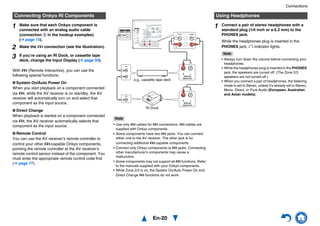
Connecting Onkyo RI Components
1 Make sure that each Onkyo component is
connected with an analog audio cable
(connection I in the hookup examples)
(➔ page 15).
2 Make the u connection (see the illustration).
3 If you’re using an RI Dock, or cassette tape
deck, change the Input Display (➔ page 50).
LR
ANALOG
AUDIO OUT
LR
ANALOG
AUDIO OUT
e.g., cassette tape deck
RI Dock
Using Headphones
1 Connect a pair of stereo headphones with a
standard plug (1/4 inch or ø 6.3 mm) to the
PHONES jack.
While the headphones plug is inserted in the
PHONES jack, = indicator lights.
Note
• Always turn down the volume before connecting your
headphones.
• While the headphones plug is inserted in the PHONES
jack, the speakers are turned off. (The Zone 2/3
speakers are not turned off.)
• When you connect a pair of headphones, the listening
mode is set to Stereo, unless it’s already set to Stereo,
Mono, Direct, or Pure Audio (European, Australian
and Asian models).
En-21
Turning On & Basic Operations
Turning On/Off the AV
Receiver
Note
• Before connecting the power cord, connect all of your
speakers and AV components.
• Turning on the AV receiver may cause a momentary power
surge that might interfere with other electrical equipment on
the same circuit. If this is a problem, plug the AV receiver
into a different branch circuit.
• Do not use a power cord other than the one supplied with
the AV receiver. The supplied power cord is designed
exclusively for use with the AV receiver and should not be
used with any other equipment.
• Never disconnect the power cord from the AV receiver
while the other end is still plugged into a wall outlet. Doing
so may cause an electric shock. Always disconnect the
power cord from the wall outlet first, and then the AV
receiver.
■ Smooth Operation in a Few Easy Steps
(Initial Setup)
To ensure smooth operation, here’s a few easy steps
to help you configure the AV receiver before you use
it for the very first time. These settings only need to
be made once. See “Initial Setup” for details
(➔ page 22).
Tip
• The HYBRID STANDBY indicator may light depending on
the status of settings (➔ page 22).
• For details on power management settings, see “Auto
Standby” (➔ page 71).
• If the HDMI Through setting is not set in standby mode, an
MHL-enabled mobile device cannot be charged even if it is
connected.
Turning On & Basic
Operations
Connecting the Power Cord
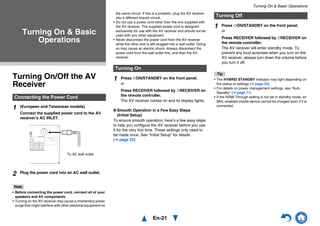
1 (European and Taiwanese models)
Connect the supplied power cord to the AV
receiver’s AC INLET.
2 Plug the power cord into an AC wall outlet.
To AC wall outlet
Turning On
1 Press 8ON/STANDBY on the front panel.
or
Press RECEIVER followed by 8RECEIVER on
the remote controller.
The AV receiver comes on and its display lights.
Turning Off
1 Press 8ON/STANDBY on the front panel.
or
Press RECEIVER followed by 8RECEIVER on
the remote controller.
The AV receiver will enter standby mode. To
prevent any loud surprises when you turn on the
AV receiver, always turn down the volume before
you turn it off.
Turning On & Basic Operations
En-22
When a new version of the firmware is available, the
notification window “Firmware Update Available”
pops up. This notification only appears when the AV
receiver is connected to the Internet (➔ pages 16,
27). To perform the firmware update, follow the
instructions on screen.
Use q/w and ENTER on the AV receiver or remote
controller to select one of the options.
Update Now:
Starts the firmware update.
Refer to “Firmware Update” (➔ page 90).
Remind me Later:
The update notification will pop up again the
next time you turn the AV receiver on.
Never Remind me:
Disables the automatic update notification.
Tip
• The update notification window can be enabled or disabled
in “Update Notice” (➔ page 73).
By way of optimized circuitry, this function reduces
power consumption when the AV receiver is in
standby mode. The HYBRID STANDBY indicator will
light in either of the following conditions:
–“HDMI Through” is enabled (the HDMI indicator is
off).
–“Network Standby” is enabled (the NET indicator
is off).
Note
• If Zones are turned on or, if a mobile device connected to
the Front Input (MHL) is charging, the HYBRID STANDBY
indicator won’t light.
Initial Setup
This section explains the settings that we recommend
you to make before using the AV receiver for the very
first time. A setup wizard is launched upon first-time
use to let you perform those settings.
Tip
• The on-screen menus appear only on a TV that is
connected to HDMI OUT MAIN.
This step determines the language used for the on-
screen setup menus. See “Language” in “OSD
Setup” (➔ page 69).
Tip
• Pressing HOME will close the setup wizard. To restart the
initial setup, select “Initial Setup” in the “Hardware Setup”
menu (➔ page 73).
After selecting the language for on-screen setup
menus, a welcome screen is displayed.
This step performs the automatic speaker setup.
Firmware Update Notification
About the HYBRID STANDBY indicator
Selecting the Language for the On-
screen Setup Menus
1st Step : Audyssey MultEQ: Auto Setup
2nd Step : Source Connection
3rd Step : Remote Mode Setup
4th Step : Network Connection
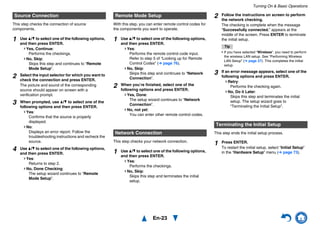
Yes
No
Welcome to initial setup. Have you connected all the speakers and devices?
Before starting, please connect speakers and sources.
Now, would you like to start initial setup?
Exit
Initial Setup
HOME
1 Use q/w on the AV receiver or remote
controller to select one of the following
options, and then press ENTER.
Yes:
Continues to “Audyssey MultEQ: Auto
Setup”.
No:
Skips the settings and terminates the initial
setup. The setup wizard goes to
“Terminating the Initial Setup” (➔ page 23).
You can always restart the initial setup by
selecting “Initial Setup” in the “Hardware
Setup” menu (➔ page 73).
Audyssey MultEQ: Auto Setup
1 Use q/w to select one of the following options,
and then press ENTER.
Do it Now:
The automatic speaker setup is performed
following instructions on screen. Refer to
step 2 of “Using the Automatic Speaker
Setup” (➔ page 24). When this setting is
complete, the setup wizard continues to
“Source Connection”.
Do it Later:
Skips this setting.
Press ENTER and continue to “Source
Connection”.
Turning On & Basic Operations
En-23
This step checks the connection of source
components.
With this step, you can enter remote control codes for
the components you want to operate.
This step checks your network connection.
This step ends the initial setup process.
Source Connection
1 Use q/w to select one of the following options,
and then press ENTER.
Yes, Continue:
Performs the checkings.
No, Skip:
Skips this step and continues to “Remote
Mode Setup”.
2 Select the input selector for which you want to
check the connection and press ENTER.
The picture and sound of the corresponding
source should appear on screen with a
verification prompt.
3 When prompted, use q/w to select one of the
following options and then press ENTER.
Yes:
Confirms that the source is properly
displayed.
No:
Displays an error report. Follow the
troubleshooting instructions and recheck the
source.
4 Use q/w to select one of the following options,
and then press ENTER.
Yes:
Returns to step 2.
No, Done Checking:
The setup wizard continues to “Remote
Mode Setup”.
Remote Mode Setup
1 Use q/w to select one of the following options,
and then press ENTER.
Yes:
Performs the remote control code input.
Refer to step 5 of “Looking up for Remote
Control Codes” (➔ page 76).
No, Skip:
Skips this step and continues to “Network
Connection”.
2 When you’re finished, select one of the
following options and press ENTER.
Yes, Done:
The setup wizard continues to “Network
Connection”.
No, not yet:
You can enter other remote control codes.
Network Connection
1 Use q/w to select one of the following options,
and then press ENTER.
Yes:
Performs the checkings.
No, Skip:
Skips this step and terminates the initial
setup.
2 Follow the instructions on screen to perform
the network checking.
The checking is complete when the message
“Successfully connected.” appears at the
middle of the screen. Press ENTER to terminate
the initial setup.
Tip
• If you have selected “Wireless”, you need to perform
the wireless LAN setup. See “Performing Wireless
LAN Setup” (➔ page 27). This completes the initial
setup.
3 If an error message appears, select one of the
following options and press ENTER.
Retry:
Performs the checking again.
No, Do it Later:
Skips this step and terminates the initial
setup. The setup wizard goes to
“Terminating the Initial Setup”.
Terminating the Initial Setup
1 Press ENTER.
To restart the initial setup, select “Initial Setup”
in the “Hardware Setup” menu (➔ page 73).
Turning On & Basic Operations
En-24
With the supplied calibrated microphone,
Audyssey MultEQ® automatically determines the
number of speakers connected, their size for
purposes of bass management, optimum crossover
frequencies to the subwoofer (if present), and
distances from the primary listening position.
Audyssey MultEQ then removes the distortion caused
by room acoustics by capturing room acoustical
problems over the listening area in both the frequency
and time domain. The result is clear, well-balanced
sound for everyone. Audyssey MultEQ can be used
with Audyssey Dynamic EQ® and
Audyssey Dynamic Volume® (➔ page 64).
Before using this function, connect and position all of
your speakers.
Audyssey MultEQ offers two ways of measuring: the
“Audyssey Quick Start” and “Audyssey MultEQ
Full Calibration”.
• “Audyssey Quick Start” uses the measurement
from one position to perform the speaker setting
only.
• “Audyssey MultEQ Full Calibration” uses the
measurement from six positions to correct room
response in addition to the speaker setting.
The more positions are used in measuring, the better
the listening environment will become. We
recommend using a measurement from six positions
to create the best listening environment.
The Quick Start takes 2 minutes and Full Calibration
takes about 15 minutes.
Total measurement time varies depending on the
number of speakers.
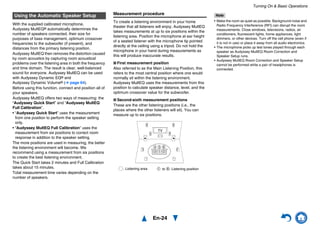
Measurement procedure
To create a listening environment in your home
theater that all listeners will enjoy, Audyssey MultEQ
takes measurements at up to six positions within the
listening area. Position the microphone at ear height
of a seated listener with the microphone tip pointed
directly at the ceiling using a tripod. Do not hold the
microphone in your hand during measurements as
this will produce inaccurate results.
■ First measurement position
Also referred to as the Main Listening Position, this
refers to the most central position where one would
normally sit within the listening environment.
Audyssey MultEQ uses the measurements from this
position to calculate speaker distance, level, and the
optimum crossover value for the subwoofer.
■ Second-sixth measurement positions
These are the other listening positions (i.e., the
places where the other listeners will sit). You can
measure up to six positions.
Note
• Make the room as quiet as possible. Background noise and
Radio Frequency Interference (RFI) can disrupt the room
measurements. Close windows, televisions, radios, air
conditioners, fluorescent lights, home appliances, light
dimmers, or other devices. Turn off the cell phone (even if
it is not in use) or place it away from all audio electronics.
• The microphone picks up test tones played through each
speaker as Audyssey MultEQ Room Correction and
Speaker Setup runs.
• Audyssey MultEQ Room Correction and Speaker Setup
cannot be performed while a pair of headphones is
connected.
Using the Automatic Speaker Setup
TV
a b
fed
c
: Listening area a to f: Listening position
Turning On & Basic Operations
En-25
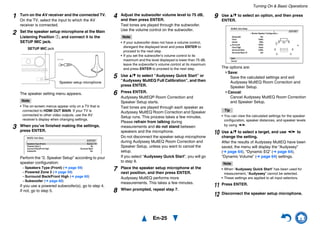
1 Turn on the AV receiver and the connected TV.
On the TV, select the input to which the AV
receiver is connected.
2 Set the speaker setup microphone at the Main
Listening Position a, and connect it to the
SETUP MIC jack.
The speaker setting menu appears.
Note
• The on-screen menus appear only on a TV that is
connected to HDMI OUT MAIN. If your TV is
connected to other video outputs, use the AV
receiver’s display when changing settings.
3 When you’ve finished making the settings,
press ENTER.
Perform the “2. Speaker Setup” according to your
speaker configuration:
– Speakers Type (Front) (➔ page 59)
– Powered Zone 2 (➔ page 59)
– Surround Back/Front High (➔ page 60)
– Subwoofer (➔ page 60)
If you use a powered subwoofer(s), go to step 4.
If not, go to step 5.
Speaker setup microphone
SETUP MIC jack
MultEQ: Auto Setup
AUDYSSEY
SpeakersType (Front)
Powered Zone 2
Surround Back/Front High
Subwoofer
Normal
No
Surround Back
Yes
4 Adjust the subwoofer volume level to 75 dB,
and then press ENTER.
Test tones are played through the subwoofer.
Use the volume control on the subwoofer.
Note
• If your subwoofer does not have a volume control,
disregard the displayed level and press ENTER to
proceed to the next step.
• If you set the subwoofer’s volume control to its
maximum and the level displayed is lower than 75 dB,
leave the subwoofer’s volume control at its maximum
and press ENTER to proceed to the next step.
5 Use q/w to select “Audyssey Quick Start” or
“Audyssey MultEQ Full Calibration”, and then
press ENTER.
6 Press ENTER.
Audyssey MultEQ® Room Correction and
Speaker Setup starts.
Test tones are played through each speaker as
Audyssey MultEQ Room Correction and Speaker
Setup runs. This process takes a few minutes.
Please refrain from talking during
measurements and do not stand between
speakers and the microphone.
Do not disconnect the speaker setup microphone
during Audyssey MultEQ Room Correction and
Speaker Setup, unless you want to cancel the
setup.
If you select “Audyssey Quick Start”, you will go
to step 9.
7 Place the speaker setup microphone at the
next position, and then press ENTER.
Audyssey MultEQ performs more
measurements. This takes a few minutes.
8 When prompted, repeat step 7.
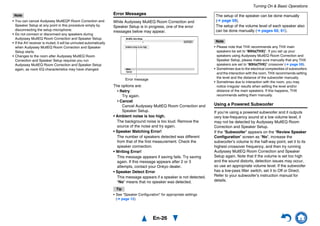
9 Use q/w to select an option, and then press
ENTER.
The options are:
Save:
Save the calculated settings and exit
Audyssey MultEQ Room Correction and
Speaker Setup.
Cancel:
Cancel Audyssey MultEQ Room Correction
and Speaker Setup.
Tip
• You can view the calculated settings for the speaker
configuration, speaker distances, and speaker levels
by using e/r.
10 Use q/w to select a target, and use e/r to
change the setting.
After the results of Audyssey MultEQ have been
saved, the menu will display the “Audyssey”
(➔ page 64), “Dynamic EQ” (➔ page 64),
“Dynamic Volume” (➔ page 64) settings.
Note
• When “Audyssey Quick Start” has been used for
measurement, “Audyssey” cannot be selected.
• These settings are applied to all input selectors.
11 Press ENTER.
12 Disconnect the speaker setup microphone.
Save
Cancel
AUDYSSEY
MultEQ: Auto Setup
-- Review Speaker Configuration --
Subwoofer
Front
Center
Surround
Front High
Surround Back
Surround Back Ch
Yes
100Hz
40Hz
100Hz
None
120Hz
2ch
Turning On & Basic Operations
En-26
Note
• You can cancel Audyssey MultEQ® Room Correction and
Speaker Setup at any point in this procedure simply by
disconnecting the setup microphone.
• Do not connect or disconnect any speakers during
Audyssey MultEQ Room Correction and Speaker Setup.
• If the AV receiver is muted, it will be unmuted automatically
when Audyssey MultEQ Room Correction and Speaker
Setup starts.
• Changes to the room after Audyssey MultEQ Room
Correction and Speaker Setup requires you run
Audyssey MultEQ Room Correction and Speaker Setup
again, as room EQ characteristics may have changed.
Error Messages
While Audyssey MultEQ Room Correction and
Speaker Setup is in progress, one of the error
messages below may appear.
The options are:
Retry:
Try again.
Cancel:
Cancel Audyssey MultEQ Room Correction and
Speaker Setup.
• Ambient noise is too high.
The background noise is too loud. Remove the
source of the noise and try again.
• Speaker Matching Error!
The number of speakers detected was different
from that of the first measurement. Check the
speaker connection.
• Writing Error!
This message appears if saving fails. Try saving
again. If this message appears after 2 or 3
attempts, contact your Onkyo dealer.
• Speaker Detect Error
This message appears if a speaker is not detected.
“No” means that no speaker was detected.
Tip
• See “Speaker Configuration” for appropriate settings
(➔ page 12).
Note
• Please note that THX recommends any THX main
speakers be set to “80Hz(THX)”. If you set up your
speakers using Audyssey MultEQ Room Correction and
Speaker Setup, please make sure manually that any THX
speakers are set to “80Hz(THX)” crossover (➔ page 59).
• Sometimes due to the electrical complexities of subwoofers
and the interaction with the room, THX recommends setting
the level and the distance of the subwoofer manually.
• Sometimes due to interaction with the room, you may
notice irregular results when setting the level and/or
distance of the main speakers. If this happens, THX
recommends setting them manually.
Using a Powered Subwoofer
If you’re using a powered subwoofer and it outputs
very low-frequency sound at a low volume level, it
may not be detected by Audyssey MultEQ Room
Correction and Speaker Setup.
If the “Subwoofer” appears on the “Review Speaker
Configuration” screen as “No”, increase the
subwoofer’s volume to the half-way point, set it to its
highest crossover frequency, and then try running
Audyssey MultEQ Room Correction and Speaker
Setup again. Note that if the volume is set too high
and the sound distorts, detection issues may occur,
so use an appropriate volume level. If the subwoofer
has a low-pass filter switch, set it to Off or Direct.
Refer to your subwoofer’s instruction manual for
details.
Retry
Cancel
Ambient noise is too high.
AUDYSSEY
MultEQ: Auto Setup
Error message
The setup of the speaker can be done manually
(➔ page 59).
The setup of the volume level of each speaker also
can be done manually (➔ pages 60, 61).
Turning On & Basic Operations
En-27
To achieve a wireless network connection, it is
necessary to perform the wireless LAN setup. The
setup can be done either automatically or manually.
You use your AV receiver as a wireless client
(wireless terminal) and connect it to a PC or to the
Internet.
Automatic wireless LAN setup
Performing Wireless LAN Setup
A wireless LAN (WLAN) is a local area network that
relies on wireless communication.
To achieve a wireless network connection, you will
need the following component:
■ Access point
Also known as the base station, it links your AV
receiver (wireless client) with a PC or network.
Access points fall into two categories: the bridge
type that only performs data relay in a local area
network, or the router type that has a built-in router
functionality.
1 Press RECEIVER followed by HOME.
2 Use e/r or q/w to select “Setup”, and then
press ENTER.
3 Use q/w to select “Hardware Setup”, and then
press ENTER.
4 Use q/w to select “Network”, and then press
ENTER.
5 Use q/w to select “Network Connection”, and
e/r to select “Wireless”, and then press
ENTER (➔ page 72).
The “Wireless Setup” menu is displayed on
screen.
Tip
• The same setting is available even if “Wireless” is
selected in “Network Connection” in initial setup
(➔ page 23).
6 Press q/w to select (North American models)
“Push Button Configuration (Other
Routers)”*1/(excluding North American
models) “Push Button Configuration (Select
from Router)”, and press ENTER.
The method to make settings by “Push Button
Configuration” is displayed, providing the
following two options:
Tip
*1 (North American models) To connect to Linksys
E/EA Router, select “Push Button Configuration
(Linksys E/EA Router)” and make settings
following the instructions on the screen.
■ Push Button method
1. Use q/w to select “Push Button” and then
press ENTER.
2. Press the WPS button on your Access Point
device.
Tip
• How long the WPS button should be pressed differs
depending on the type of Access Point device. Refer
to the instruction manual provided with your Access
Point device for operations.
■ PIN code method
1. Use q/w to select “PIN Code” and then press
ENTER.
An 8-digit PIN code is displayed. The PIN
code is displayed scrolling on the AV
receiver’s display.
2. Input the provided code in your Access Point.
For information on the registration process,
please refer to the instruction manual
provided with your Access Point device.
7 Press ENTER to confirm.
Connection to your Access Point starts and Wi-Fi
indicator flashes. After the connection to your
Access Point is completed, Wi-Fi indicator lights
and the connection status is displayed on the
screen.
This completes the wireless LAN setup.
You can review your setup with the “Status”
option on the “Wireless Setup” menu.
Note
• If Wi-Fi indicator doesn’t light, the connection to your
Access Point is not done successfully. Configure this
setting again (➔ page 85).
Turning On & Basic Operations
En-28
Manual wireless LAN setup
1 Press RECEIVER followed by HOME.
2 Use e/r or q/w to select “Setup”, and then
press ENTER.
3 Use q/w to select “Hardware Setup”, and then
press ENTER.
4 Use q/w to select “Network”, and then press
ENTER.
5 Use q/w to select “Network Connection”, and
e/r to select “Wireless”, and then press
ENTER (➔ page 72).
The “Wireless Setup” menu is displayed on
screen.
Tip
• The same setting is available even if “Wireless” is
selected in “Network Connection” in initial setup
(➔ page 23).
6 Use q/w to select “Search Wireless Network”
and then press ENTER.
A list of available Access Points is displayed.
Tip
• If Access Point you wish to connect to is not displayed
in the list of available Access Points, the setting also
can be made by entering “SSID”, “Security”, and
“Password” manually after selecting “Direct Input”.
7 Use q/w to select the Access Point you wish to
connect to, and then press ENTER.
Depending on your encryption settings, the
security of your Access Point will provide one of
the following patterns:
■ WEP method
1. Use q/w to select “Default Key ID” and then
press ENTER.
2. Use q/w to choose an ID between 1 and 4,
and then press ENTER.
3. Use q/w to select “Password” and then press
ENTER.
4. Use the keyboard on screen to enter the
password and confirm with “OK”.
■ WPA/WPA2 method
1. Use q/w to select “Password” and then press
ENTER.
2. Use the keyboard on screen to enter the
password and confirm with “OK”.
■ No encryption
If your Access Point device is not secured by
encryption, there is no need to input any secret
key.
Tip
• When you select the Access Point you wish to connect to
from the list of available Access Points, “SSID” and
“Security” are automatically displayed. These settings can
be changed manually.
8 Select “OK” and press ENTER.
Connection to your Access Point starts and Wi-Fi
indicator flashes. After the connection to your
Access Point is completed, Wi-Fi indicator lights
and the connection status is displayed on the
screen.
This completes the wireless LAN setup.
You can review your setup with the “Status”
option on the “Wireless Setup” menu.
Note
• If Wi-Fi indicator doesn’t light, the connection to your
Access Point is not done successfully. Configure this
setting again (➔ page 85).
En-29
Playback
Playback
This section describes the basic operation such as
playback, listening mode, and other useful functions.
Reading this manual from the beginning to this
section helps you to understand the basic
connection/setup/operation.
■ Screen Saver
If there is no video signal on the current input source
and no operation for a specific time (three minutes by
default), a screen saver automatically comes on.
Tip
• The time until the screen saver activates itself can
be changed in the “Screen Saver” setting
(➔ page 69).
• The screen will return to its previous state if the AV
receiver is operated.
See also:
• “Playing an Audio from Bluetooth-enabled Device”
(➔ page 31)
• “Playing a USB Device” (➔ page 32)
• “Listening to TuneIn” (➔ page 32)
• “Registering Other Internet Radio” (➔ page 34)
• “Playing Music Files on a Server (DLNA)”
(➔ page 34)
• “Playing Music Files on a Shared Folder”
(➔ page 36)
• “Remote Playback” (➔ page 37)
• “Listening to AM/FM Radio” (➔ page 38)
• “Playing Audio and Video from Separate Sources”
(➔ page 40)
• “Controlling Other Components” (➔ page 76)
• “Using the Onkyo Dock” (➔ page 80)
(Actual location of buttons depends on the country.)
Tip
• When listening to an HDMI component through the AV
receiver, set the HDMI component so that its video can be
seen on the TV screen (on the TV, select the input of the
HDMI component connected to the AV receiver). If the TV
power is off or the TV is set to another input source, this
may result in no sound from the AV receiver or the sound
may be cut off.
Playback
1 Turn on the AV receiver, the TV and the AV
components.
* When you operate the AV receiver with the remote
controller, press the RECEIVER button first.
4
3
2
1
1 32 4
2 Select the input on the AV receiver to play the
AV components.
Press the input selector button to which the AV
components to be played is connected.
Press the TV/CD button to play the audio of the
TV. Switching the input on the TV is also
required. Select the input to which the AV
receiver is connected by using the TV remote
controller.
* For the CEC compatible TV and the AV components
connected with HDMI connections, switching the input
is automatically performed. Switch the input manually
for other AV components.
3 Select the desired listening mode.
You can enjoy various types of listening mode.
The listening mode is switched by pressing
Listening mode button on the AV receiver or the
remote controller.
4 Adjust the volume.
You can enjoy the surround sound.
Playback
En-30
(➔ page 31)
Tip
• See “Controlling Other Components” about the operation of
other components (➔ page 76).
• The AV receiver supports Album art display, and displaying
image file format of JPEG, PNG, and BMP is possible. The
image file format cannot be displayed in either of the
following cases:
– Total number of horizontal and vertical pixels is more than
2048 x 2048.
– Image data size (JPEG/PNG) is more than 4 MB.
Note
• The buttons you can use will differ depending on the
devices and media used for playback.
• When you select the NET input selector on the AV receiver
for the first time, “DISCLAIMER” screen is displayed on TV.
Please read the contents thoroughly before using network
service. Select “Agree” if you agree with the content. If you
disagree, network service is not available on the AV
receiver (➔ page 89).
Controlling Contents of USB or
Network Devices
d
j
i
l
b
a
c
f
g
k
m
o
h
n
e
Press USB or NET first.
a TOP MENU
This button displays the top menu for each media or
service.
b q/w and ENTER
These buttons navigate through the menus.
e/r
This button cycles through pages.
c 1
This button starts playback.
d 7
This button selects the beginning of the current song.
Pressing this button twice selects the previous song.
e 5
This button fast-reverses the current song.
f 3
This button pauses playback.
g SEARCH
You can toggle between the playback screen and the
list screen during playback.
h DISPLAY
This button switches between song information during
playback.
Press this button while the list screen is displayed to
return to the playback screen.
i MENU
This button displays the menu of Internet radio
services.
j RETURN
This button returns to the previous menu.
k 4
This button fast-forwards the current song.
l 6
This button selects the next song.
m 2
This button stops playback.
n RANDOM
This button performs random playback.
o REPEAT
Press this button repeatedly to cycle through the repeat
modes.
Playback
En-31
This section describes icons that appear on the AV
receiver’s display during media playback.
About the Bluetooth Wireless Technology
Bluetooth wireless technology is a short-range
wireless technology that enables wireless data
communication between digital devices. Bluetooth
wireless technology operates within a range of about
15 meters (49 feet). You do not need to use a cable
for connection, nor is it necessary for the devices to
face one another, such is the case with infrared
technology.
Tip
• The on-screen information appears only on a TV that is
connected to HDMI outputs.
• If your Bluetooth-enabled device supports A2DP protocol,
its audio file will play through the AV receiver.
• Connection is not guaranteed for all Bluetooth-enabled
devices.
Operating on the Remote Controller
The Bluetooth-enabled device can be operated by the
supplied remote controller.
Tip
• To operate your Bluetooth-enabled device by the remote
controller, the Bluetooth-enabled device must support
profile: AVRCP.
• Operation by the remote controller is not guaranteed for all
Bluetooth-enabled devices.
Pairing the AV receiver with a Bluetooth-
enabled device
Pairing is an operation where Bluetooth-enabled
devices register with each other beforehand. Use the
procedure below to pair the AV receiver with your
Bluetooth-enabled device. Once a pairing operation is
performed, it does not need to be performed again.
Understanding Icons on the Display
Icon Description
Folder
Track
Playback
Pause
Fast Forward
Fast Reverse
Artist
Album
Repeat One Track
Repeat Folder (USB Device)
Repeat
Shuffle
Playing an Audio from Bluetooth-
enabled Device
1 Place the Bluetooth-enabled device within
1 meter (3.3 feet) from the AV receiver.
2 Select “BLUETOOTH” in “Input” in Quick
Setup, and press ENTER (➔ page 52).
BLUETOOTH indicator flashes and the AV
receiver is put to pairing mode.
“Now Pairing” appears on the AV receiver’s
display.
Tip
• The same operation can be done by pressing
BLUETOOTH button on the AV receiver.
• When connecting a Bluetooth-enabled device paired
with the AV receiver to the AV receiver, BLUETOOTH
input selector is automatically selected.
• If you connect the AV receiver to another Bluetooth-
enabled device, hold down BLUETOOTH button until
BLUETOOTH indicator flashes or make settings in
“Status” of “Bluetooth” for pairing (➔ page 73).
• Some Bluetooth-enabled device may need to re-
establish pairing for each connection.
Note
• “BLUETOOTH” cannot be selected, if you’ve selected
NET or USB as input selector in Multi Zone.
Playback
En-32
Tip
• The AV receiver may not work as normal depending on the
circumstance even though the AV receiver is placed within
the 15 meters range. In such cases, get the Bluetooth-
enabled device closer to the AV receiver and retry the
operation.
• When disconnecting on your Bluetooth-enabled device,
BLUETOOTH indicator on the AV receiver will go off.
• If there is no sound output even after the pairing is done
successfully, consult the instruction manual of the
Bluetooth-enabled device, and then select the model name
of the AV receiver as the audio output device.
• While connected to a Bluetooth-enabled device, the AV
receiver cannot be detected and a connection cannot be
established from another Bluetooth-enabled device.
• If you cannot connect with a paired Bluetooth-enabled
device, perform the pairing operation between the AV
receiver and the Bluetooth-enabled device again.
Note
• Due to the characteristic of Bluetooth wireless technology,
the sound played on the AV receiver may slightly delay from
the sound played on the Bluetooth-enabled device.
Tip
• The on-screen information appears only on a TV that is
connected to HDMI outputs.
This section explains how to play music files from a
USB device (e.g., USB flash drives and MP3 players).
See also:
• “Network/USB Features” (➔ page 94).
Note
• While the message “Connecting...” appears on the AV
receiver’s display, do not disconnect the USB cable
supplied with the USB device from the USB port.
You need to connect the AV receiver to your home
network (➔ pages 16, 27).
Tip
• The on-screen information appears only on a TV that is
connected to HDMI outputs.
TuneIn is a new radio service which offers the music,
sports and news all over the world.
Over 70,000 radio stations and 2 million on-demand
programs are registered, and you can easily enjoy
them by selecting stations or programs of your
choice. TuneIn is preprogrammed on the AV receiver.
3 During this period (about 2 minutes), you can
operate the Bluetooth-enabled device to pair
with the AV receiver.
Note
• When establishing a connection with the AV receiver,
select the profile (A2DP, AVRCP) at the Bluetooth-
enabled device. If the Bluetooth-enabled device does
not support the AVRCP profile, you cannot perform
playback or other operations with the AV receiver.
Tip
• For details on the Bluetooth connection, refer to the
instruction manual of the Bluetooth-enabled device.
4 Once the AV receiver is detected and the
model name of the AV receiver appears on the
display of your Bluetooth-enabled device,
select the model name.
When a Bluetooth connection is established
successfully, BLUETOOTH indicator will light.
Tip
• The model name appeared on the display of your
Bluetooth-enabled device is “Onkyo TX-NR727”.
5 If passkey* is required on the display of the
Bluetooth-enabled device, enter “0000”.
The AV receiver only supports numerical
passkey up to 4 digits.
* Passkey may be called “Passcode”, “PIN code”, “PIN
number” or “Password”.
6 Play back the desired music on the Bluetooth-
enabled device.
The audio is output from the AV receiver.
Playing a USB Device
1 Press USB to select the “USB” input.
2 Plug your USB device into the AV receiver’s
USB port.
The USB indicator lights. It will flash if the AV
receiver cannot read the USB device.
3 Press ENTER.
A list of the device’s contents appears. To open a
folder, use q/w to select it, and then press
ENTER.
4 Use q/w to select a music file, and press
ENTER or 1 to start playback.
Listening to TuneIn
1 Press NET.
The network service screen appears, and the
NET indicator lights. If it flashes, the AV receiver
is not connected to the network correctly. If wired
LAN connection is selected, verify that the
Ethernet cable is firmly connected to the AV
receiver. If wireless LAN connection is selected,
verify that the Wi-Fi indicator lights.
Tip
• The same operation can be done by selecting
“Network Service” in the Home menu.
2 Use q/w/e/r to select “TuneIn” and then
press ENTER.
Playback
En-33
Either of the following menus can be selected by
pressing the MENU button on the remote controller or
pressing ENTER button to select “Go to Menu”.
Add to My Presets
In this menu, stations or programs can be stored
in “My Presets”.
Remove from My Presets
In this menu, stations or programs stored in “My
Presets” can be deleted.
Report a problem
This menu is used to report problems on TuneIn
service or resolve the problems in a wizard style.
View Schedule
In this menu, program listings of stations or
programs can be displayed.
Clear recents
In this menu, all the stations and programs
stored in “Recents” can be deleted.
Add to My Favorites
In this menu, stations or programs can be stored
in “My Favorites”.
Setting an TuneIn account
To create a user account for TuneIn, open a browser
window such as Internet Explorer®, and connect to
tunein.com website. With a TuneIn account, you can
quickly search and browse for stations and programs
at tunein.com website and save as your favorites
which will automatically appear in your AV receiver
My Presets account. If you have a TuneIn account,
select “Login” and then “I have a TuneIn account”
on the top list. Enter your user name and password to
login.
Tip
• Select “Login with a registration code”, and associate a
device from my page on TuneIn website by using a
registration code displayed on the screen. This allows you
to login without entering a user name and a password.
Adding TuneIn radio stations or programs to
My Favorites/My Presets
There are two ways you can register specific Internet
radio stations (programs) from the TuneIn.
• Adding to My Favorites
The selected program will be added to “My
Favorites” on the network service screen, which
appears when pressing NET.
1. Select radio stations or programs, and press
MENU button on the remote controller.
2. Use q/w to select “Add to My Favorites”, and
press ENTER.
3. Use q/w/e/r to select “OK”, and press ENTER.
Tip
• You can rename the stations saved in “My Favorites”
(➔ page 34).
• Adding TuneIn radio stations or programs to My
Presets
Select "TuneIn", and press ENTER button to display
a folder of “My Presets” on the screen that displays
Category/Area, etc. Store your favorite stations or
programs in this folder.
1. Select radio stations or programs, and press
MENU button on the remote controller.
2. Use q/w to select “Add to My Presets”, and
press ENTER.
Tip
• If no radio stations or programs are stored in “My Presets”,
“My Presets” folder will not be displayed.
3 Use q/w to select a station or a program, and
then press ENTER.
Playback starts.
Great Artist
My Music
My Favorite
tunein
Go to Menu
0 : 11
Playback
En-34
You need to connect the AV receiver to your home
network (➔ pages 16, 27).
Tip
• The on-screen information appears only on a TV that is
connected to HDMI outputs.
Internet radio URLs in the following formats are
supported: PLS, M3U, and podcast (RSS). However,
depending on the type of data or audio format used
by the Internet radio station, you may not be able to
listen to some stations.
To listen to other Internet radio stations, you must
register your station in “My Favorites” of the network
service screen, as described below.
Note
• Services available may vary depending on the region. See
the separate instructions for more information.
• Certain network service or contents available through this
device may not be accessible in case the service provider
terminates its service.
Tip
• If you want to add a new station directly from “My
Favorites”, select an empty slot in the list and press MENU.
Then, select “Create New Station” and press ENTER.
Pressing ENTER again will display the keyboard screen.
Use that keyboard to enter the station’s name and URL
respectively, and then press ENTER.
• If you want to delete a station saved in “My Favorites”,
press MENU with the station selected or while the station is
playing. Then, use q/w to select “Delete from My
Favorites” and press ENTER. You can also delete stations
from the Web Setup.
• If you want to rename a station, select the desired station
and press MENU. Then, use q/w to select “Rename this
station” and press ENTER.
• You can save up to 40 Internet radio stations.
Tip
• You need to connect your TV to the HDMI output (HDMI
OUT MAIN) to make the following on-screen setting.
The layout of icons can be customized by switching
their positions on the network service screen.
You need to connect the AV receiver to your home
network (➔ pages 16, 27).
Tip
• The on-screen information appears only on a TV that is
connected to HDMI outputs.
This section explains how to play music files on a
computer or media server through the AV receiver
(Server Playback).
Registering Other Internet Radio
1 Select “Network” on the Setup menu to verify
your IP address (➔ page 72).
Take a note of the IP address.
2 On your computer, start your web browser.
3 Enter the AV receiver’s IP address in the
browser’s Internet address (URL) field.
If you are using Internet Explorer®, you can also
enter the URL by selecting “Open...” on the “File”
menu.
Information on the AV receiver is then shown on
your Internet browser (Web Setup).
4 Click on the “My Favorites” tab, and enter the
Internet radio station’s name and URL.
5 Click “Save” to save the Internet radio station.
The Internet radio station is then added to “My
Favorites”. To play the registered station, press
NET, and then select “My Favorites” on the
network service screen. A list of registered
Internet radio stations appears. Select the one
that you saved and press ENTER.
Changing the Icon Layout on the
Network Service Screen
1 Press NET.
The network service screen appears.
Tip
• The same operation can be done by selecting
“Network Service” in the Home menu.
2 Press MODE/D (blue) on the remote controller.
3 Use q/w/e/r to select an icon to move, and
then press ENTER.
4 Use q/w/e/r to select another icon as the
destination, and then press ENTER.
The icons switch positions and the message
“Completed!” appears.
Playing Music Files on a Server (DLNA)
Playback
En-35
Windows Media Player Setup
■ Windows Media Player 11 Setup
This section explains how to configure Windows
Media Player 11 so that the AV receiver can play the
music files stored on your computer.
■ Windows Media Player 12 Setup
This section explains how to configure Windows
Media Player 12 so that the AV receiver can play the
music files stored on your personal computer.
Playing music files on a server (DLNA)
1 Start Windows Media Player 11.
2 On the “Library” menu, select “Media
Sharing”.
The “Media Sharing” dialog box appears.
3 Select the “Share my media” check box, and
then click “OK”.
A list of the supported devices appears.
4 Select the AV receiver in the list, and then
click “Allow”.
The corresponding icon will be checked.
5 Click “OK” to close the dialog box.
This completes the Windows Media Player 11
configuration.
You can now play the music files in your
Windows Media Player 11 library through the AV
receiver.
Tip
• Windows Media Player 11 can be downloaded for free
from the Microsoft web site.
1 Start Windows Media Player 12.
2 On the “Stream” menu, select “Turn on media
streaming”.
A dialog box appears.
Tip
• If the media streaming is already activated, clicking on
“More streaming options...” in the “Stream” menu will
display a list of the playback devices connected to the
network. You can skip step 3.
3 Move your cursor and click on “Turn on media
streaming”.
A list of media server appears. Wording may vary
slightly depending on the network location.
4 On the “Media streaming options”, select the
AV receiver and confirm that it is set to
“Allowed”.
5 Click “OK” to close the dialog box.
This completes the Windows Media Player 12
configuration.
You can now play the music files in your
Windows Media Player 12 library.
1 Start your computer or media server.
2 Press NET.
The network service screen appears, and the
NET indicator lights. If it flashes, the AV receiver
is not connected to the network correctly. If wired
LAN connection is selected, verify that the
Ethernet cable is firmly connected to the AV
receiver. If wireless LAN connection is selected,
verify that the Wi-Fi indicator lights.
Tip
• The same operation can be done by selecting
“Network Service” in the Home menu.
3 Use q/w/e/r to select “DLNA”, and press
ENTER.
4 Use q/w to select a server, and then press
ENTER.
The menu is displayed according to the server
functions.
Note
• The search function does not work with media servers
which do not support this function.
• Photos and movies stored on a media server cannot
be accessed from the AV receiver.
• Depending on the sharing settings in the media server,
the AV receiver may not able to access the content.
See the instruction manual of the media server.
5 Use q/w to select an item, and then press
ENTER or 1 to start playback.
Note
• Depending on the media server, 5/4/3 may not
work.
• If the message “No Item.” appears, this means that no
information can be retrieved from the server. In this
case, check your server, network, and AV receiver
connections.
Artist name
My favorite song 1
dlna
My favorite album
0 :11 / 3:00
Playback
En-36
This section explains how to play music files on a
computer or NAS (Network Attached Storage)
through the AV receiver.
Windows 8/Windows 7 Setup
■ Setting the sharing options
■ Creating a shared folder Playing music files on a shared folder
In order to enjoy Home Media, you must first create a
shared folder on your computer.
Playing Music Files on a Shared Folder
1 Select “Choose homegroup and sharing
options” on the Control Panel.
Tip
• If this option is not available, verify that “View by:” is set
to “Category”.
2 Select “Change advanced sharing settings”.
3 Under “Home or Work”, verify that the
following items are checked:
“Turn on network discovery”, “Turn on file and
printer sharing”, “Turn on sharing so anyone with
network access can read and write files in the
Public folders”, and “Turn off password protected
sharing”.
4 Select “Save changes” and click “OK” on the
confirmation screen.
1 Right-click the folder that you want to share.
2 Select “Properties”.
3 On the “Sharing” tab, select “Advanced
Sharing”.
4 Check the check box of “Share this folder”
and then click “OK”.
5 Under “Network File and Folder Sharing”,
select “Share”.
6 Select “Everyone” from the pull-down menu,
click “Add”, and then click “Share”.
Tip
• With this setting, everyone is allowed to access the
folder. If you want to assign a user name and
password to the folder, make the corresponding
settings for “Permissions” in “Advanced Sharing” of the
“Sharing” tab.
• Verify that “Workgroup” is properly set.
Note
• When using NAS (Network Attached Storage), refer to
the instruction manual provided with your NAS unit.
1 Press NET.
The network service screen appears, and the
NET indicator lights. If it flashes, the AV receiver
is not connected to the network correctly. If wired
LAN connection is selected, verify that the
Ethernet cable is firmly connected to the AV
receiver. If wireless LAN connection is selected,
verify that the Wi-Fi indicator lights.
Tip
• The same operation can be done by selecting
“Network Service” in the Home menu.
2 Use q/w/e/r to select “Home Media”, and
press ENTER.
3 Use q/w to select a server, and then press
ENTER.
Tip
• The server name of your computer can be viewed on
the computer properties screen.
4 Use q/w to select the desired shared folder
and then press ENTER.
5 When asked for a user name and password,
enter the necessary login information.
Tip
• The login information will be remembered for the next
time you log in.
• The login information is that of the user account set
when creating a shared folder.
6 Use q/w to select a music file and then press
ENTER or 1.
The playback of the selected file starts.
Playback
En-37
You need to connect the AV receiver to your home
network (➔ pages 16, 27).
Tip
• The on-screen information appears only on a TV that is
connected to HDMI outputs.
Remote playback is supported by Windows Media
Player 12.
Remote Playback means you can play the music files
stored on a media server or personal computer with
the AV receiver by operating the controller device in
the home network.
Windows Media Player 12 Setup
This section explains how to configure Windows
Media Player 12 so that the AV receiver can play the
music files stored on your personal computer.
Using Remote Playback
Note
• Remote playback cannot be used in any of the following
cases:
– Network services are being used.
– Contents are being played from a USB device.
– “Agree” is not selected on the “DISCLAIMER” screen
displayed on the TV when you select the NET input
selector on the AV receiver for the first time.
Remote Playback
1 Start Windows Media Player 12.
2 On the “Stream” menu, select “Turn on media
streaming”.
A dialog box appears.
Tip
• If the media streaming is already activated, clicking on
“More streaming options...” in the “Stream” menu will
display a list of the playback devices connected to the
network. You can skip step 3.
3 Move your cursor and click on “Turn on media
streaming”.
A list of media server appears. Wording may vary
slightly depending on the network location.
4 On the “Media streaming options”, select the
AV receiver and confirm that it is set to
“Allowed”.
5 Click “OK” to close the dialog box.
This completes the Windows Media Player 12
configuration.
You can now play the music files in your
Windows Media Player 12 library.
Tip
• On the “Stream” menu, confirm that “Allow remote
control of my Player...” is checked.
1 Turn on the AV receiver.
2 Start Windows Media Player 12.
To enable remote playback, you must first
configure Windows Media Player 12.
3 On Windows Media Player 12, right-click on a
music file.
The right-click menu appears.
Tip
• For selecting another media server, select the desired
media server from the “Other Libraries” menu on
Windows Media Player 12.
4 Select the AV receiver in “Remote playback”.
The “Play to” window appears and playback on
the AV receiver starts. Operations during remote
playback can be made from the “Play to” window
of Windows 8/Windows 7 on your personal
computer.
A playback screen will be displayed on the
connected TV.
Tip
• If the operating system of your personal computer is
Windows 8, click “Play to” and select the AV receiver.
5 Adjusting the Volume.
You can adjust the volume by adjusting the
volume bar in the “Remote playback” window.
The default maximum volume level is 82 (0dB). If
you wish to change this, enter the value from the
Web Setup in your browser. Refer to step 3 of
“Registering Other Internet Radio” for details
(➔ page 34).
The volume value of the remote window and the
volume value of the AV receiver may not always
match.
Adjustments you make to the volume in the AV
receiver will not be reflected in the “Remote
playback” window.
Playback
En-38
This section describes the procedure of using the
buttons on the front panel, unless otherwise specified.
Using the Tuner
With the built-in tuner you can enjoy AM and FM radio
stations. You can store your favorite stations as
presets for quick selection.
You can also change the frequency steps
(➔ page 69).
Tuning into Radio Stations
■ Auto tuning mode
■ Manual tuning mode
In manual tuning mode, FM stations will be in mono.
■ Tuning into stations by frequency
You can tune into AM and FM stations directly by
entering the appropriate frequency.
Presetting AM/FM Stations
You can store a combination of up to 40 of your
favorite AM/FM radio stations as presets.
Listening to AM/FM Radio
1 Press TUNER to select either “AM” or “FM”.
In this example, FM has been selected.
Each time you press TUNER, the radio band
changes between AM and FM.
(Actual display depends on the country.)
1 Press TUNING MODE so that the AUTO
indicator lights on the AV receiver’s display.
Band Frequency
2 Press TUNING q/w.
Searching stops when a station is found.
When tuned into a station, the TUNED indicator
lights. When tuned into a stereo FM station, the
FM STEREO indicator lights as shown.
Tip
• Tuning into weak FM stereo stations
If the signal from a stereo FM station is weak, it may
be impossible to get good reception. In this case,
switch to manual tuning mode and listen to the station
in mono.
1 Press TUNING MODE so that the AUTO
indicator goes off on the AV receiver’s
display.
2 Press and hold TUNING q/w.
The frequency stops changing when you release
the button.
Press the buttons repeatedly to change the
frequency one step at a time.
TUNED
FM STEREO
AUTO
1 On the remote controller, press TUNER
repeatedly to select “AM” or “FM”, followed by
D.TUN.
(Actual display depends on the country.)
2 Within 8 seconds, use the number buttons to
enter the frequency of the radio station.
For example, to tune to 87.5 (FM), press 8, 7, 5
or 8, 7, 5, 0.
If you have entered the wrong number, you can
retry after 8 seconds.
1 Tune into the AM/FM station that you want to
store as a preset.
See the previous section.
2 Press MEMORY.
The preset number flashes.
(Actual display depends on the country.)
3 While the preset number is flashing (about 8
seconds), use PRESET e/r to select a preset
from 1 through 40.
Playback
En-39
■ Selecting Presets
■ Deleting Presets
Using RDS (excluding North American and
Taiwanese models)
When tuned into an RDS station, the RDS indicator
lights.
When the station is broadcasting text information, the
text can be displayed.
■ What is RDS?
RDS stands for Radio Data System and is a method
of transmitting data in FM radio signals. It was
developed by the European Broadcasting Union
(EBU) and is available in most European countries.
Many FM stations use it these days. In addition to
displaying text information, RDS can also help you
find radio stations by type (e.g., news, sport, rock,
etc.).
The AV receiver supports four types of RDS
information:
PS (Program Service)
When tuned to an RDS station that’s broadcasting PS
information, the station’s name will be displayed.
Pressing DISPLAY will display the frequency for 3
seconds.
RT (Radio Text)
When tuned to an RDS station that’s broadcasting
text information, the text will be shown on the AV
receiver’s display.
PTY (Program Type)
This allows you to search for RDS radio stations by
type.
TP (Traffic Program)
This allows you to search for RDS radio stations that
broadcast traffic information (➔ page 40).
Note
• RDS works only in areas where RDS broadcasts are
available.
• In some cases, the text characters displayed on the AV
receiver may not be identical to those broadcast by the
radio station. Also, unexpected characters may be
displayed when unsupported characters are received. This
is not a malfunction.
• If the signal from an RDS station is weak, RDS data may be
displayed intermittently or not at all.
■ Displaying Radio Text (RT)
■ Finding Stations by Type (PTY)
You can search for radio stations by type.
4 Press MEMORY again to store the station or
channel.
The station or channel is stored and the preset
number stops flashing.
Repeat this procedure for all of your favorite
AM/FM radio stations.
1 To select a preset, use PRESET e/r on the AV
receiver, or the remote controller’s CH +/–.
Tip
• You can also use the remote controller’s number
buttons to select a preset directly.
1 Select the preset that you want to delete.
See the previous section.
2 While holding down MEMORY, press TUNING
MODE.
The preset is deleted and its number disappears
from the AV receiver’s display.
1 Press RT/PTY/TP once.
The RT information scrolls across the AV
receiver’s display.
Note
• The message “Waiting” may appear while the AV
receiver waits for the RT information.
• If the message “No Text Data” appears, no RT
information is available.
1 Press RT/PTY/TP twice.
The current program type appears on the AV
receiver’s display.
2 Use PRESET e/r to select the type of
program you want.
See the table shown later in this chapter.
3 To start the search, press ENTER.
The AV receiver searches until it finds a station of
the type you specified, at which point it stops
briefly before continuing with the search.
4 When a station you want to listen to is found,
press ENTER.
If no stations are found, the message “Not
Found” appears.
Playback
En-40
■ Listening to Traffic News (TP)
You can search for stations that broadcast traffic
news.
RDS program types (PTY)
You can listen to the audio of one input source while
watching the video of another. This function takes
advantage of the fact that when an audio-only input
source (PHONO, TV/CD, PC, TUNER) is selected,
the video input source remains unchanged. The
following procedure shows how to listen to a CD
player’s audio source connected to TV/CD IN while
watching a Blu-ray Disc/DVD player’s video source
connected to BD/DVD.
Tip
• To use an input selector as audio-exclusive, you must
assign all video inputs to “- - - - -” (➔ page 58).
1 Press RT/PTY/TP three times.
If the current radio station is broadcasting TP
(Traffic Program), “[TP]” will appear on the AV
receiver’s display. If “TP” without square brackets
appears, this means that the station is not
broadcasting TP.
2 To locate a station that is broadcasting TP,
press ENTER.
The AV receiver searches until it finds a station
that’s broadcasting TP.
If no stations are found, the message “Not
Found” appears.
Type Display
None None
News reports News
Current affairs Affairs
Information Info
Sport Sport
Education Educate
Drama Drama
Culture Culture
Science and technology Science
Varied Varied
Pop music Pop M
Rock music Rock M
Middle of the road music Easy M
Light classics Light M
Serious classics Classics
Other music Other M
Weather Weather
Finance Finance
Children’s programmes Children
Social affairs Social
Religion Religion
Phone in Phone In
Travel Travel
Leisure Leisure
Jazz music Jazz
Country music Country
National music Nation M
Oldies music Oldies
Folk music Folk M
Documentary Document
Alarm test TEST
Alarm Alarm!
Playing Audio and Video from Separate
Sources
1 Press BD/DVD.
2 Press TV/CD.
The audio output changes to the CD source, but
the video of previously-selected BD/DVD is
retained.
3 Start playback on your Blu-ray Disc/DVD and
CD players.
You can now enjoy watching your Blu-ray
Disc/DVD with the sound of your CD player.
Playback
En-41
About Listening Modes
The AV receiver’s listening modes can transform your
listening room into a movie theater or concert hall,
with high fidelity and stunning surround sound.
Selecting Listening Modes
■ Listening Mode Buttons
MOVIE/TV button
This button selects the listening modes intended for
use with movies and TV.
MUSIC button
This button selects the listening modes intended for
use with music.
GAME button
This button selects the listening modes intended for
use with video games.
THX button
This button selects the THX listening modes.
PURE AUDIO button and indicator
(European, Australian and Asian models)
This button selects the Pure Audio listening mode.
When this mode is selected, the AV receiver’s display
and analog video circuitry are turned off. Only video
signals input through HDMI input can be output from
the HDMI output. The indicator lights when this mode
is selected. Pressing this button again will select the
previous listening mode.
Note
• The Dolby Digital and DTS listening modes can only be
selected if your Blu-ray Disc/DVD player is connected to the
AV receiver with a digital audio connection (coaxial, optical,
or HDMI).
• The listening modes you can select depends on the format
of the input signal. To check the format, see “Displaying
Source Information” (➔ page 49).
• While a pair of headphones is connected, you can select
the following listening modes: Pure Audio (European,
Australian and Asian models), Mono, Direct, and Stereo.
Using the Listening Modes
GAME
THXMOVIE/TV
MUSIC
Press RECEIVER first.
PURE AUDIO MOVIE/TV, MUSIC, GAME,THX
MOVIE/TV, MUSIC, GAME,THX
(North American and Taiwanese models)
(European, Australian and Asian models)
Playback
En-42
Input Source
The following audio formats are supported by the listening modes.
Speaker Layout
The illustration shows which speakers are activated in each channel. See
“Speaker Configuration” for the speaker setup (➔ page 59).
■ Onkyo-Original DSP Listening Modes
A This is mono (monophonic) sound.
S This is stereo (stereophonic) sound. Two independent audio signal channels
are reproduced through two speakers.
D This is 5.1-channel surround sound. This surround system has five main
channels of sound and a sixth subwoofer channel (called the point-one
channel).
F This is 7.1-channel surround sound. This is a further sound enhancement to
5.1-channel sound with two additional speakers that provide greater sound
envelopment and more accurate positioning of sounds.
G This is DTS-ES surround sound. This surround system can produce a discrete
or a matrix-encoded sixth channel from existing DTS 5.1 encoded material.
H This is Dolby Digital EX surround sound. This provides a center back surround
channel from 5.1-channel sources.
Z X C
B V
Listening Mode Description Input
Source
Speaker
Layout
Orchestra Suitable for classical or operatic music,
this mode emphasizes the surround
channels in order to widen the stereo
image, and simulates the natural
reverberation of a large hall.
A
S
D
F
G
H
CN
Unplugged Suitable for acoustic instruments, vocals
and jazz, this mode emphasizes the
front stereo image, giving the impression
of being right in front of the stage.
Studio-Mix Suitable for rock or pop music, listening
to music in this mode creates a lively
sound field with a powerful acoustic
image, like being at a club or rock
concert.
TV Logic This mode adds realistic acoustics to TV
shows produced in a TV studio,
surround effects to the entire sound, and
clarity to voices.
Game-RPG In this mode, the sound has a dramatic
feel with a similar atmosphere to
Orchestra mode.
Game-Action In this mode, sound localization is
distinct with emphasis on bass.
Game-Rock In this mode, sound pressure is
emphasized to heighten live feel.
Game-Sports Suitable for audio source with much
reverberation.
All Ch Stereo Ideal for background music, this mode
fills the entire listening area with stereo
sound from the front, surround, and
surround back speakers.
XCN
Full Mono In this mode, all speakers output the
same sound in mono, so the sound you
hear is the same regardless of where
you are within the listening room.
O r c e s t r ah
U n p u g g e dl
S t u i o – M i xd
T V o g i cL
G a m – R P Ge
G a m – A c t i o ne
G a m – R o c ke
G a m – S p o r t se
A l l C h S t e r e o
F u l M o n ol
Playback
En-43
■ Listening Modes
T-D (Theater-
Dimensional)
With this mode you can enjoy a virtual
surround sound even with only two or
three speakers. This works by
controlling how sounds reach the
listener’s left and right ears. Good
results may not be possible if there’s too
much reverb, so we recommend that
you use this mode in an environment
with little or no natural reverb.
A
S
D
F
G
H
ZXC
N
Listening Mode Description Input
Source
Speaker
Layout
Pure Audio*1*2 In this mode, the display and video
circuitry are turned off, minimizing
possible noise sources for the ultimate in
high-fidelity audio reproduction. (As the
analog video circuitry is turned off, only
video signals input through HDMI IN can
be output from the HDMI output.)
A
S
D
F
G
H
ZXC
N*3
Direct In this mode, audio from the input source
is output without surround-sound
processing. The speaker configuration
(presence of speakers) and speaker
distance settings are enabled, but much
of the processing set via the audio setup
is disabled. See “On-screen Setup” for
more details (➔ page 52).
Stereo Sound is output from the front left and
right speakers and subwoofer.
ZXC
N
Mono Use this mode when watching an old
movie with a mono soundtrack, or use it
with the foreign language soundtracks
recorded in the left and right channels of
some movies. It can also be used with
DVDs or other sources containing
multiplexed audio, such as karaoke
DVDs.
Multichannel This mode is for use with PCM
multichannel sources.
D
F
XCN
Listening Mode Description Input
Source
Speaker
Layout
T – D
P u r e A A u d i o
D i r e c t
S t e r e o
M o n o
M u l t i c h
DSD*4 In this mode, audio from the input source
is output without surround-sound
processing. The speaker configuration
(presence of speakers), crossover
frequency, speaker distance, A/V Sync
and much of the processing set via the
audio setup are enabled. See “On-
screen Setup” for more details
(➔ page 52).
D XCN
Dolby Digital
Dolby Digital Plus*5 D XCN
F XCN*3
Dolby TrueHD
DTS D XCN
DTS-HD High
Resolution Audio
D XCN
F XCN*3
DTS-HD Master
Audio
DTS Express D XCN
DTS 96/24*6 This mode is for use with DTS 96/24
sources. This is high-resolution DTS
with a 96 kHz sampling rate and 24-bit
resolution, providing superior fidelity.
Use it with DVDs that bear the DTS
96/24 logo.
D XCN
DTS-ES Discrete*7 This mode is for use with DTS-ES
Discrete soundtracks, which use a
discrete surround back channel for true
6.1/7.1-channel playback. The seven
totally separate audio channels provide
better spatial imaging and 360-degree
sound localization, perfect for sounds
that pan across the surround channels.
Use it with DVDs that bear the DTS-ES
logo, especially those with a DTS-ES
Discrete soundtrack.
G V
Listening Mode Description Input
Source
Speaker
Layout
D S D
D o l b y D
D o l b y D +
D o l b y T r u e H D
D T S
D T S – H D H R
D T S – H D MS T R
D T S E x p r e s s
D T S 9 6 / 2 4
E S i s c r e t eD
Playback
En-44
DTS-ES Matrix*7 This mode is for use with DTS-ES Matrix
soundtracks, which use a matrix-
encoded back-channel for 6.1/7.1-
channel playback. Use it with DVDs that
bear the DTS-ES logo, especially those
with a DTS-ES Matrix soundtrack.
G V
Dolby Pro Logic IIx*8
Dolby Pro Logic II
Dolby Pro Logic IIx expands any 2-
channel source for 7.1-channel
playback. It provides a very natural and
seamless surround-sound experience
that fully envelops the listener. As well
as music and movies, video games can
also benefit from the dramatic spatial
effects and vivid imaging.
If you’re not using any surround back
speakers, Dolby Pro Logic II will be
used instead of Dolby Pro Logic IIx.
• Dolby PLIIx Movie
Use this mode with any stereo or Dolby
Surround (Pro Logic) movie (e.g., TV,
DVD, VHS).
• Dolby PLIIx Music
Use this mode with any stereo or Dolby
Surround (Pro Logic) music source
(e.g., CD, radio, cassette, TV, VHS,
DVD).
• Dolby PLIIx Game
Use this mode with video games,
especially those that bear the Dolby
Pro Logic II logo.
S XCN
• Dolby PLIIx Movie
• Dolby PLIIx Music
These modes use the Dolby Pro Logic
IIx modes to expand 5.1-channel
sources for 7.1-channel playback.
D V
Listening Mode Description Input
Source
Speaker
Layout
E S a t r i xM
P L M o v i e
P L M u s i c
P L G a m e
P L x M o v i e
P L x M u s i c
P L x G a m e
Dolby Pro Logic IIz
Height
Dolby Pro Logic IIz Height is designed
to more effectively use existing program
material when height channel speaker
outputs are present. Dolby Pro Logic
IIz Height can be used to upmix a
variety of sources from movies and
music, but are particularly well-suited to
upmix game content.
S
D
F
G
H
B
Dolby EX These modes expand 5.1-channel
sources for 6.1/7.1-channel playback.
They’re especially suited to Dolby EX
soundtracks that include a matrix-
encoded surround back channel. The
additional channel adds an extra
dimension and provides an enveloping
surround sound experience, perfect for
rotating and fly-by sound effects.
D
H
V
DTS Neo:6 This mode expands any 2-channel
source for up to 7.1-channel playback. It
uses seven full-bandwidth channels of
matrix decoding for matrix-encoded
material, providing a very natural and
seamless surround sound experience
that fully envelops the listener.
• DTS Neo:6 Cinema
Use this mode with any stereo movie
(e.g., TV, DVD, VHS).
• DTS Neo:6 Music
Use this mode with any stereo music
source (e.g., CD, radio, cassette, TV,
VHS, DVD).
S XCN
• DTS Neo:6
This mode uses DTS Neo:6 to expand
5.1-channel sources for 6.1/7.1-
channel playback.
D V
Listening Mode Description Input
Source
Speaker
Layout
P L z H e i g h t
D o l b y E X
D o l b y D E X
N e o 6 C i n e m a:
N e o 6 M u s i c:
N e o 6:
Playback
En-45
Audyssey DSX*9 • Audyssey DSX
Audyssey DSX® is a scalable system
that adds new speakers to improve
surround impression. Starting with a
5.1 system Audyssey DSX first adds
Wide channels for the biggest impact
on envelopment. Research in human
hearing has proven that information
from the Wide channels is much more
critical in the presentation of a realistic
soundstage than the Back Surround
channels found in traditional 7.1
systems. Audyssey DSX then creates
a pair of Height channels to reproduce
the next most important acoustical and
perceptual cues. In addition to these
new Wide and Height channels,
Audyssey DSX applies Surround
Envelopment Processing to enhance
the blend between the front and
surround channels.
D
F
G
H
B
• Dolby Pro Logic II Movie +
Audyssey DSX
• Dolby Pro Logic II Music +
Audyssey DSX
• Dolby Pro Logic II Game +
Audyssey DSX
The combination of Dolby Pro Logic II
and Audyssey DSX modes can be
used.
The PLII and Audyssey DSX
indicators light on the AV receiver’s
display.
S B
Listening Mode Description Input
Source
Speaker
Layout
A u d s s e y D S Xy
P L M o v i e D S X
P L M u s i c D S X
P L G a m e D S X
THX Founded by George Lucas, THX
develops stringent standards that
ensure movies are reproduced in movie
theaters and home theaters just as the
director intended. THX Modes carefully
optimize the tonal and spatial
characteristics of the soundtrack for
reproduction in the home-theater
environment. They can be used with 2-
channel matrixed and multichannel
sources. Surround back speaker output
depends on the source material and the
selected listening mode.
• THX Cinema
THX Cinema mode corrects theatrical
soundtracks for playback in a home
theater environment. In this mode, THX
Loudness Plus is configured for cinema
levels and Re-EQ, Timbre Matching,
and Adaptive Decorrelation are active.
• THX Music
THX Music mode is tailored for listening
to music, which is typically mastered at
significantly higher levels than movies.
In this mode, THX Loudness Plus is
configured for music playback and only
Timbre Matching is active.
• THX Games
THX Games mode is meant for
spatially accurate playback of game
audio, which is often mixed similarly to
movies but in a smaller environment.
THX Loudness Plus is configured for
game audio levels, with Timbre
Matching active.
D
F
G
H
CN
Listening Mode Description Input
Source
Speaker
Layout
T H X C i n e m a
N e o 6:T H X M u s i c
T H X G a m e s
Playback
En-46
• Dolby Pro Logic II/IIx Movie + THX
Cinema
• Dolby Pro Logic II/IIx Music + THX
Music
• Dolby Pro Logic II/IIx Game + THX
Games
The combination of Dolby Pro Logic
II/IIx*8 and THX Cinema/Music/Games
modes can be used.
The PLII/PLIIx and THX indicators light
on the AV receiver’s display.
S CN
• Dolby Pro Logic IIx Movie + THX
Cinema
• Dolby Pro Logic IIx Music + THX
Music
The combination of Dolby Pro Logic IIx
and THX Cinema/Music modes can be
used.
The PLIIx and THX indicators light on
the AV receiver’s display.
D
H
V
• Dolby Pro Logic IIz Height + THX
Cinema
• Dolby Pro Logic IIz Height + THX
Music
• Dolby Pro Logic IIz Height + THX
Games
The combination of Dolby Pro Logic IIz
Height and THX Cinema/Music/Games
modes can be used.
The PLIIz and THX indicators light on
the AV receiver’s display.
S
D
F
G
H
B
• DTS Neo:6 Cinema + THX Cinema
• DTS Neo:6 Music + THX Music
S CN
• DTS Neo:6 + THX Cinema
• DTS Neo:6 + THX Music
• DTS Neo:6 + THX Games
The combination of DTS Neo:6 and
THX Cinema/Music/Games modes can
be used. The Neo:6 and THX
indicators light on the AV receiver’s
display.
D
H
V
Listening Mode Description Input
Source
Speaker
Layout
• THX Select2 Cinema
THX Select2 Cinema mode plays 5.1
movie using 8 speakers giving you the
best possible movie watching
experience. In this mode, THX ASA
processing blends the side surround
speakers and back surround speakers
providing the optimal mix of ambient
and directional surround sounds.
• THX Select2 Music
For the replay of multichannel music,
the THX Select2 Music should be
selected. In this mode, THX ASA
processing is applied to the surround
channels of all 5.1 encoded music
sources such as DTS, Dolby Digital,
DVD-Audio, etc. to provide a wide and
stable rear soundstage.
• THX Select2 Games
For the replay of stereo and
multichannel game audio, the THX
Select2 Games mode should be
selected. In this mode, THX ASA
processing is applied to the surround
channels of all 5.1 and 2.0 encoded
game sources such as analog, PCM,
DTS, and Dolby Digital. This accurately
places all game audio surround
information creating a full 360 degree
playback environment. THX Select2
Games is unique as it gives you a
smooth transition of audio in all points
of the surround field.
D V
• Dolby Pro Logic II Game + THX
Select2 Games
The combination of Dolby Pro Logic II
Game and THX Select2 Games modes
can be used. The PLII and THX
indicators light on the AV receiver’s
display.
S V
Listening Mode Description Input
Source
Speaker
Layout
N e o 6:T H X S 2 C i n e m a
T H X S 2 M u s i c
T H X S 2 G a m e s
Playback
En-47
Note
*1 (North American and Taiwanese models) This listening mode is not available.
*2 Pure Audio cannot be selected when Zone 2/3 is active.
Besides, if you activate Zone 2/3 while Pure Audio is selected, the listening mode will
automatically switch to Direct.
*3 Based on the audio channel signal contained in the source, the corresponding speakers
will output the sound.
*4 The AV receiver can input the DSD signal from HDMI IN. Depending on the player,
setting the output on the player side to PCM might bring better sound.
*5 For the Blu-ray Discs, Dolby Digital is used in a 3.1/5.1-channel speaker system.
*6 DTS is used depending on the configuration of the AV receiver.
*7 If there are no surround back speakers, DTS is used.
*8 If there are no surround back speakers, Dolby Pro Logic II is used.
*9 This listening mode can be selected only when all the following conditions are satisfied:
– Center speaker is connected.
– Front high speakers is connected.
• THX Surround EX
This mode expands 5.1-channel
sources for 6.1/7.1- channel playback.
It’s especially suited to Dolby Digital EX
sources. THX Surround EX, also
known as Dolby Digital Surround EX, is
a joint development between Dolby
Laboratories and THX Ltd.
D
H
V
Listening Mode Description Input
Source
Speaker
Layout
T H X S u r r E X
Playback
En-48
Dialogue Normalization
Dialogue Normalization (DialogNorm) is a feature of
Dolby Digital, which is used to keep the programs at
the same average listening level so the user does not
have to change the volume control between Dolby
Digital, Dolby Digital Plus and Dolby TrueHD
programs. When playing back software which has
been encoded in Dolby Digital, Dolby Digital Plus and
Dolby TrueHD, sometimes you may see a brief
message in the front panel display which will read
“DialogNorm: X dB” (X being a numeric value). The
display is showing how the program level relates with
THX calibration level. If you want to play the program
at calibrated theatrical levels, you may wish to adjust
the volume. For example, if you see the following
message: “DialogNorm: + 4 dB” in the front panel
display, to keep the overall output level at THX
calibrated loudness, just turn down the volume control
by 4 dB. However, unlike a movie theater where the
playback loudness is preset, you can choose your
preferred volume setting for best enjoyment.
THX Cinema Processing
THX is an exclusive set of standards and
technologies established by the world-renowned film
production company Lucasfilm Ltd. THX grew from
George Lucas’ personal desire to make your
experience of the film soundtrack in both movie
theaters and in your home theater as faithful as
possible to what the director intended.
Movie soundtracks are mixed in special environments
called dubbing stages and are designed to be played
back in movie theaters with similar equipment and
conditions. Most of those soundtracks are remixed
using flat response loudspeakers similar to those
used in the small home theater environment before
being transferred onto Blu-ray Discs, DVD, etc.
THX engineers developed patented technologies to
accurately translate the sound from the movie theater
environment into the home, correcting the tonal and
spatial errors that occur. On this product, when the
THX indicator is on, THX features are automatically
added in Cinema modes (e.g. THX Cinema, THX
Surround EX).
Timbre Matching
The human ear changes our perception of a sound
depending on the direction from which the sound is
coming. In a movie theater, there is an array of
surround speakers so that the surround information is
all around you. In a home theater, you may only have
two speakers located to the side of your head. In this
case, the Timbre Matching feature filters the
information going to the surround speakers so that
they more closely match the tonal characteristics of
the sound coming from the front speakers. This
ensures seamless panning between the front and
surround speakers.
Adaptive Decorrelation
In a movie theater, a large number of surround
speakers help create an enveloping surround sound
experience. If a home theater only has two sidewall
surround speakers, the surround speakers may
sound similar to headphones lacking spaciousness
and envelopment. Surround sounds will also collapse
toward the closet speaker as you move away from the
middle seating position. Adaptive Decorrelation
slightly changes one surround channel’s time and
phase relationship with respect to the other surround
experience as in a movie theater using only two
speakers.
ASA (Advanced Speaker Array)
ASA is a proprietary THX technology which
processes the audio on the two side and two back
surround speakers for the optional surround sound
experience. When you set up your home theater
system using eight speaker outputs (Left, Center,
Right, Surround Right, Surround Back Right,
Surround Back Left, Surround Left, and Subwoofer),
be sure to go to the THX Audio Setup screen and
choose the setting that closely corresponds to the
back speaker spacing (➔ page 61). This will re-
optimize the surround sound field.
ASA is used in four modes: THX Select2 Cinema,
THX Select2 Music, THX Select2 Games and Dolby
Pro Logic II + THX Select2 Games.
The listening mode may not be selected depending
on the input signal. The signal input from the
external AV components can be displayed by the
function on the next page.
Playback
En-49
You can display various information about the current
input source as follows.
The following information can be typically displayed.
*1 When AM or FM radio is used, the band, preset number,
and frequency are displayed.
*2 If the input signal is digital, the signal format is displayed.
Information is displayed for about three seconds, then
the previously displayed information reappears.
With the sleep timer, you can set the AV receiver to
turn off automatically after a specified period.
You can adjust the brightness of the AV receiver’s
display, and switch the MASTER VOLUME indicator
off and on in conjunction.
Displaying Source Information
1 Press RECEIVER once followed by DISPLAY
repeatedly to cycle through the available
information.
Tip
• Alternatively, you can use DISPLAY on the AV
receiver.
Sampling
frequency*2
Input source &
volume*1
Signal format*2
Listening mode
Input signal
resolution
Output resolution
Using the Sleep Timer
1 Press RECEIVER once followed by SLEEP
repeatedly to select the required sleep time.
The sleep time can be set from 90 to 10 minutes
in 10 minute steps.
The SLEEP indicator lights on the AV receiver’s
display when the sleep timer has been set. The
specified sleep time appears for about 5
seconds, then the previous display reappears.
Tip
• If you need to cancel the sleep timer, press SLEEP
repeatedly until the SLEEP indicator goes off.
• To check the time remaining until the AV receiver
sleeps, press SLEEP. Note that if you press again on
SLEEP as the time being displayed is 10 minutes or
less, the sleep timer will go off.
Setting the Display Brightness
1 Press RECEIVER once followed by DIMMER
repeatedly to cycle through the following
patterns:
• Normal brightness + indicator off.
• Dim brightness + indicator off.
• Dimmer brightness + indicator off.
• Normal brightness + indicator on (default).
Tip
• (North American and Taiwanese models)
Alternatively, you can use DIMMER on the AV
receiver.
Playback
En-50
When you connect an u-capable Onkyo
component, you must configure the input display so
that u can work properly.
This setting can be done only from the front panel.
You can temporarily mute the output of the AV
receiver.
The Whole House Mode is useful when you want to
add extra background music to your home party; this
allows you to enjoy the same stereo music as the
main room in separate rooms (Zone 2/3).
The Whole House Mode selects the same input
source for Multi Zone as the main room’s.
See also:
• “2. Speaker Setup” (➔ page 59)
• “Multi Zone” (➔ page 74)
Changing the Input Display
1 Press TV/CD or GAME.
“TV/CD” or “GAME” appears on the AV receiver’s
display.
2 Press and hold down the same button (about
3 seconds) to change the input display.
Repeat this step to select the desired input
display.
Note
“
• “DOCK” can be selected for the “TV/CD” or “GAME”
input selector, but not at the same time.
• Enter the appropriate remote control code before using
the remote controller for the first time (➔ page 77).
Muting the AV Receiver
1 Press RECEIVER followed by MUTING.
The output is muted and the MUTING indicator
flashes on the AV receiver’s display.
Tip
• To unmute, press MUTING again or adjust the volume.
• Muting is automatically cancelled when the AV
receiver is set to standby.
TV/CD → DOCK
→
→
TAPE
■ TV/CD:
GAME ↔ DOCK■ GAME:
Using the Whole House Mode
1 While holding down ZONE 2, press ZONE 3 on
the front panel.
To cancel the Whole House Mode, change the
input source for the main room or select a
listening mode (➔ page 41).
Note
• The Whole House Mode only supports analog audio
and audio from NET or USB input selector.
• To adjust the volume of Multi Zone, switch the AV
receiver to Multi Zone control. See “Adjusting the
Volume for Zone 2” (➔ page 75) for the volume
adjustment of Multi Zone.
• The Whole House Mode is not available in either of the
following cases:
– The “Audio TV Out (Main)” setting is set to “On”
(➔ page 70) or “Audio TV Out (Sub)” setting is set
to “On” (➔ page 71) and you’re listening through
your TV speakers.
– “HDMI CEC (RIHD)” is set to “On” (➔ page 69) and
you’re listening through your TV speakers.
– a pair of headphones is connected.
Playback
En-51
The Home menu provides quick access to frequently
used menus.
Tip
• The on-screen menus appear only on a TV that is
connected to HDMI OUT MAIN.
■ Setup
With this selection, you can access the common
settings of the on-screen Setup menu.
Press ENTER to display the Setup menu
(➔ page 56).
■ InstaPrevue
With this selection, you can preview audio/video
streams coming from HDMI inputs (HDMI
IN 1/2/3/4/AUX INPUT). Even with multiple
components connected through HDMI, you can
easily switch between inputs as their previews are
displayed on a single screen.
Press ENTER to display the main preview
(currently selected HDMI input) and the
additional previews (other HDMI inputs). Using
q/w or e/r to select a preview thumbnail and
pressing ENTER will switch the AV receiver to
that input source.
■ Firmware Update
With this selection, you can update the firmware
of the AV receiver. Note that this selection will be
grayed out for a short while after the AV receiver
is turned on. Please wait until it becomes
operable.
Press ENTER to start the procedure
(➔ page 90).
■ Network Service
You need to connect the AV receiver to your home
network (➔ pages 16, 27).
With this selection, you can use various Internet
radio services or play the contents stored in media
connected to your home network (➔ pages 32 to
36). Note that this selection will be grayed out for
a short while after the AV receiver is turned on.
Please wait until it becomes operable.
Press ENTER to display the network service
screen. If you want to use the Internet radio
services, use q/w/e/r to select the desired
service. Pressing ENTER again switches to that
selection. If you want to play music files on a
computer or media server, use q/w/e/r to
select “DLNA” and then press ENTER. If you
want to play music files on a computer or NAS
(Network Attached Storage), use q/w/e/r to
select “Home Media” and then press ENTER.
■ USB
With this selection, you can play contents of
portable players and USB storage devices
connected to the AV receiver’s USB port
(➔ page 32). Note that this selection will be
grayed out for a short while after the AV receiver
is turned on. Please wait until it becomes
operable.
Press ENTER to select a drive or browse the
contents of the media connected, followed by
q/w to select the desired folder or track.
Pressing ENTER as a track is selected will start
playback.
Using the Home Menu
1 Press RECEIVER followed by HOME.
The Home menu will be superimposed on the TV
screen.
Tip
• Alternatively, you can use HOME on the AV receiver.
2 Use e/r or q/w and ENTER to make the
desired selection.
Press HOME to close the menu.
Tip
• You can also access frequently used settings from Quick
Setup (➔ page 52).
Tip
• If no video signals are present, the thumbnails will be
filled in black.
• You can specify the number of preview thumbnails as
well as their positioning on screen (➔ page 71).
Note
• This function cannot be selected when:
– HDMI IN 5/6/7 is the current HDMI input source, or
– No signal is present on the current input source.
• Depending on video signals, the picture may not be
properly rendered on the preview thumbnails of
InstaPrevue.
En-52
Advanced Operations
On-screen Setup
This section describes the procedure for using the
remote controller unless otherwise specified.
With the AV receiver connected to a TV, there are two
ways of changing the settings on-screen: using the
Quick Setup or the Setup Menu (HOME).
■ Quick Setup
The Quick Setup provides quick access to frequently
used settings. You can change settings and view the
current information.
■ Setup menu (HOME)
The Setup menu (HOME) provides a convenient way
to change the AV receiver’s various settings. Settings
are organized into 9 categories.
Tip
• The on-screen menus appear only on a TV that is
connected to HDMI OUT MAIN.
■ Input*1
You can select input sources and view the
following information: the name of input selectors,
input assignments, the name of the device paired
with the AV receiver via Bluetooth, radio
information, and ARC function setting.
In addition, previews of the video streams coming
from HDMI inputs (HDMI IN 1/2/3/4/AUX INPUT)
are displayed.*2
Use q/w to select an input source and view the
related information. Pressing ENTER switches to
the selected input source.
■ Audio (➔ page 53)
You can change the following settings: “Bass”,
“Treble”, “Phase Matching Bass”, “Subwoofer
Level”, “Center Level”, “Audyssey”,
“Dynamic EQ*3”, “Dynamic Volume*3”, “Late
Night”, “Music Optimizer”, “Re-EQ” and “Re-
EQ(THX)”.
■ Video*4
You can change the following settings: “Wide
Mode” and “Picture Mode*5”.
See also:
• “Picture Adjust” (➔ page 66)
■ Information*6
You can view the information of the following
items: “Audio”, “Video” and “Tuner”.
■ Listening Mode*7
You can select the listening modes that are
grouped in the following categories: “MOVIE/TV”,
“MUSIC”, “GAME”, and “THX”.
Use q/w to select the category and e/r to
select the listening mode. Press ENTER to
switch to the selected listening mode.
Note
*1 “BLUETOOTH” cannot be selected, if you’ve selected
NET or USB as input selector in Multi Zone.
*2 • The video preview is not displayed when:
– HDMI IN 5/6/7 is the current HDMI input source, or
– No signal is present on the current input source.
• The video of the currently-selected input is displayed on
the main screen, not on a preview thumbnail.
Advanced Operations
Using the Quick Setup
1 Press RECEIVER followed by Q SETUP.
The Quick Setup will be superimposed on the TV
screen.
2 Use q/w and ENTER to make the desired
selection.
Press Q SETUP to close the menu.
Press RETURN to return to the previous menu.
Q SETUP
RECEIVER
ENTER,
q/w/e/r
RETURN
I n p u t
Au d i o
V i d e o
I n fo r m a t i o n
L i s t e n i n g M o d e
B D / DV D
Advanced Operations
En-53
Operating
procedure
(➔ page 52)
*3 “Dynamic EQ” and “Dynamic Volume” cannot be
selected when any of the THX listening modes is
selected, with “Loudness Plus” set to “On” or “Preserve
THX Settings” set to “Yes” (➔ page 62).
*4 • When the “Monitor Out” setting is set to “Sub”, “Video”
cannot be selected (➔ page 57).
• This setting cannot be used with the NET, USB and
BLUETOOTH input selectors.
*5 Only when you have selected “Custom” in the “Picture
Mode” (➔ page 66), pressing ENTER allows you to
adjust the following items via the Quick Setup:
“Brightness”, “Contrast”, “Hue” and “Saturation”. Press
RETURN to return to the “Picture Mode” setting.
*6 Depending on the input source and listening mode, not
all channels shown here output the sound.
*7 • This setting is not available in either of the following
cases:
– The “Audio TV Out (Main)” setting is set to “On”
(➔ page 70) or “Audio TV Out (Sub)” setting is set to
“On” (➔ page 71) and you’re listening through your TV
speakers.
– “HDMI CEC (RIHD)” is set to “On” (➔ page 69) and
you’re listening through your TV speakers.
Explanatory Notes
a Setting target
b Setting options (default setting underlined)
You can change various audio settings from the
Quick Setup (➔ page 52).
Note
• These settings are not available in either of the following
cases:
– The “Audio TV Out (Main)” setting is set to “On”
(➔ page 70) or “Audio TV Out (Sub)” setting is set to
“On” (➔ page 71) and you’re listening through your TV
speakers.
– “HDMI CEC (RIHD)” is set to “On” (➔ page 69) and
you’re listening through your TV speakers.
Tone Control
■ Bass
–10dB to 0dB to +10dB in 2 dB steps.
You can boost or cut low-frequency sounds
output from the front speakers.
■ Treble
–10dB to 0dB to +10dB in 2 dB steps.
You can boost or cut high-frequency sounds
output from the front speakers.
You can adjust the bass and treble for the front
speakers, except when the Direct, Pure Audio
(European, Australian and Asian models) or THX
listening mode is selected.
Operating on the AV receiver
Phase Matching Bass
■ Phase Matching Bass
Off
On
From the warm low notes produced by a cello to the
deep frequencies of electronic music, a good audio
system should be able to deliver plenty of bass
resonance.
While traditional enhancement systems effectively
boost low-frequency sound, they are often prone to
the effects of phase shifting, which can overwhelm
mid-range frequencies and muddy the sound. Our
Phase-Matching Bass Boost technology effectively
preserves mid-range clarity-allowing vocals and
strings to shine-while maintaining a smooth, powerful
bass response at all volume levels.
Note
• The Phase Matching Bass is disabled when the Direct,
Pure Audio (European, Australian and Asian models), or
THX listening mode is selected.
• If the “Subwoofer” setting is set to “No”, this setting is fixed
to “Off”.
Operating on the AV receiver
■ Phase Matching Bass
Off
On
a
b
Using the Audio Settings of Quick
Setup
1 Press TONE repeatedly to select either “Bass”
or “Treble”.
2 Use – and + to adjust.
1 Press TONE repeatedly to select “PM Bass”.
2 Use – and + to change the setting.
Advanced Operations
En-54
Operating
procedure
(➔ page 52)
Speaker Levels
■ Subwoofer Level
–15dB to 0dB to +12dB in 1 dB steps.
■ Center Level
–12dB to 0dB to +12dB in 1 dB steps.
You can adjust the volume of each speaker while
listening to an input source.
These temporary adjustments are cancelled when the
AV receiver is set to standby. To save the setting you
made here, go to “Level Calibration” (➔ page 61)
before setting the AV receiver to standby.
Note
• You cannot use these function while the AV receiver is
muted.
• These settings cannot be used while a pair of headphones
is connected.
• Speakers that are set to “No” or “None” in
“Speaker Configuration” (➔ page 59) cannot be adjusted.
Audyssey®
■ Audyssey
See “Audyssey” in “4. Source Setup” (➔ page 64).
■ Dynamic EQ
See “Dynamic EQ” in “4. Source Setup” (➔ page 64).
■ Dynamic Volume
See “Dynamic Volume” in “4. Source Setup”
(➔ page 64).
Note
• These technologies can be used when all the following
conditions are met:
– Room Correction and Speaker Setup is completed. Note
that “Audyssey” requires the “Audyssey MultEQ Full
Calibration” method.
– Any listening mode other than Direct or Pure Audio
(European, Australian and Asian models) is selected.
– A pair of headphones is not connected.
• The setting is stored individually for each input selector.
• “Dynamic EQ” and “Dynamic Volume” cannot be selected
when any of the THX listening modes is selected, with
“Loudness Plus” set to “On” or “Preserve THX Settings”
set to “Yes” (➔ page 62).
Late Night
■ Late Night
For Dolby Digital and Dolby Digital Plus sources,
the options are:
Off
Low:
Small reduction in dynamic range.
High:
Large reduction in dynamic range.
For Dolby TrueHD sources, the options are:
Auto:
The Late Night function is set to “On” or “Off”
automatically.
Off
On
Turn this setting on to reduce the dynamic range of
Dolby Digital material so that you can still hear quiet
parts even when listening at low volume levels—ideal
for watching movies late at night when you don’t want
to disturb anyone.
Note
• The effect of the Late Night function depends on the
material that you are playing and the intention of the original
sound designer, and with some material there will be little
or no effect when you select the different options.
• The Late Night function can be used only when the input
source is Dolby Digital, Dolby Digital Plus, or Dolby
TrueHD.
• The Late Night function is set to “Off” when the AV receiver
is set to standby. For Dolby TrueHD sources, it will be set
to “Auto”.
• With Dolby TrueHD sources, the Late Night function cannot
be used when “TrueHD Loudness Management” is set to
“Off”.
Music Optimizer
■ Music Optimizer
Off
On
The Music Optimizer function enhances the sound
quality of compressed music files. When set to “On”,
the M.Opt indicator lights on the AV receiver’s
display.
Tip
• (North American and Taiwanese models) Alternatively,
you can use MUSIC OPTIMIZER on the AV receiver.
Note
• The Music Optimizer function only works with PCM digital
audio input signals with a sampling rate below 48 kHz and
analog audio input signals.
When NET or USB input selector is selected, this function
even works with digital audio input signals with a sampling
rate below 48 kHz (except DSD signals and Dolby TrueHD
signals) regardless of the PCM digital audio input signals
with a sampling rate below 48 kHz.
• The Music Optimizer is disabled when the Direct or Pure
Audio (European, Australian and Asian models)
listening mode is selected.
• The setting is stored individually for each input selector.
Advanced Operations
En-55
Operating
procedure
(➔ page 52)
Re-EQ (Re-Equalization)
Movie soundtracks were designed for playback in
large movie theaters using professional equipment. If
the movies were not remixed for the home theater,
the tonal balance of the soundtracks can be
excessively bright and harsh when played back over
home audio equipment. In those instances, Re-
Equalization restores the correct tonal balance for
listening to a movie soundtrack in a smaller home
environment.
■ Re-EQ
Off
On
This function can be used with the following listening
modes: Dolby Digital, Dolby Digital Plus, Dolby
TrueHD, Multichannel, DTS, DTS-HD High
Resolution Audio, DTS-HD Master Audio, DTS
Express, DSD, Dolby EX, Dolby Pro Logic IIz Height,
Dolby PLIIx Movie, DTS Neo:6 Cinema and 5.1-
channel source + Neo:6.
■ Re-EQ(THX)
Off
On
This function can be used with the following listening
modes: THX Cinema, THX Surround EX, and
THX Select2 Cinema.
Note
• These settings cannot be used while a pair of headphones
is connected.
Advanced Operations
En-56
Note
• This procedure can also be performed on the AV receiver
by using HOME, the cursor buttons, and ENTER.
• During Audyssey MultEQ® Room Correction and Speaker
Setup, messages, etc., that are displayed on the TV screen
will appear on the AV receiver’s display.
Using the Setup Menu (HOME)
1 Press RECEIVER followed by HOME.
2 Use e/r or q/w to select “Setup”, and then
press ENTER.
3 Use q/w to select a main menu item, and then
press ENTER.
4 Use q/w to select a sub menu item, and then
press ENTER.
5 Use q/w to select a setting target, and use e/r
to change the setting.
Press HOME to close the menu.
Press RETURN to return to the previous menu.
RETURN
HOME
RECEIVER
ENTER,
q/w/e/r
Remote
indicator
Setup Menu Items
Main menu item Sub menu item
1. Input/Output Assign
(➔ page 57)
Monitor Out
HDMI Input
Component Video Input
Digital Audio Input
2. Speaker Setup
(➔ page 59)
Speaker Settings
Speaker Configuration
Speaker Distance
Level Calibration
Equalizer Settings
THX Audio Setup
3. Audio Adjust
(➔ page 62)
Multiplex/Mono
Dolby
DTS
Audyssey DSX
Theater-Dimensional
LFE Level
4. Source Setup
(➔ page 64)
Audyssey
IntelliVolume
A/V Sync
Name Edit
Picture Adjust
Audio Selector
5. Listening Mode Preset
(➔ page 68)
BD/DVD
CBL/SAT
STB/DVR
GAME
PC
AUX
TUNER
TV/CD
PHONO
NET
USB
BLUETOOTH
6. Miscellaneous
(➔ page 69)
Volume Setup
OSD Setup
7. Hardware Setup
(➔ page 69)
Tuner
HDMI
Auto Standby
Network
Initial Setup
8. Remote Controller
Setup
(➔ page 73)
Remote ID
Remote Mode Setup
9. Lock Setup
(➔ page 73)
Setup
Main menu item Sub menu item
Advanced Operations
En-57
Operating
procedure
(➔ page 56)
Explanatory Notes
a Main Menu
b Sub Menu
c Setting target
d Setting options (default setting underlined)
Monitor Out
On the “Monitor Out” settings, you can select
whether or not to have the video sources’ images
output through the HDMI output.
If you connect your TV to HDMI output, “Monitor Out”
setting is automatically set and composite video and
component video sources are upconverted* and
output.
Note
• See “The video and audio signal flow” (➔ page 17) for
charts showing how the “Monitor Out” and “Resolution”
settings affect the video signal flow through the AV
receiver.
■ Monitor Out
Main:
Select this if your TV is connected to HDMI OUT
MAIN.
Sub:
Select this if your TV is connected to HDMI OUT
SUB.
Both:
Select this if your TVs are connected to HDMI
OUT MAIN and HDMI OUT SUB. Video signals
are output from both HDMI outputs at the
resolution supported by both TVs.
Note
• The “HDMI Through” setting is only available for the HDMI
OUT MAIN jack (➔ page 70).
■ Resolution
Through:
Select this to pass video through the AV receiver
at the same resolution and with no conversion.
Auto:
Select this to have the AV receiver automatically
convert video at resolutions supported by your
TV.
480p (480p/576p), 720p, 1080i, 1080p*1:
Select the desired output resolution.
4K:
Select this for an output resolution four times
that of 1080p. Depending on the resolution
supported by your TV, it will result in either 3840
× 2160 or 4096 × 2160 pixels.
You can specify the output resolution for HDMI OUT
MAIN and have the AV receiver upconvert the picture
resolution as necessary to match the resolution
supported by your TV.
Tip
• You can see the picture by pressing ENTER to check the
“Resolution” setting for HDMI OUT MAIN (excluding NET,
USB and BLUETOOTH input source).
Note
• With some TVs, video signals are processed in the same
way as “Through” when this setting is set to “4K”.
• If the “Monitor Out” setting is set to “Sub”, this setting is
fixed to “Through”.
• If the “Monitor Out” setting is set to “Both”, this setting is
fixed to “Auto”.
• For optimum video performance, THX recommends using
the HDMI output and setting the video resolution to
“Through”.
*1 When signal is 1080p input at 24 frames per second, it
will be 1080p output at 24 frames per second.
Speaker Configuration
■ Subwoofer
Yes
No
2. Speaker Setupa
b
d
c
Main Menu
Sub Menu
1. Input/Output Assign
IN
OUT
Composite video,
component video HDMI
HDMIComposite video,
component video
Advanced Operations
En-58
Operating
procedure
(➔ page 56)
HDMI Input
If you connect a video component to an HDMI input,
you must assign that input to an input selector. For
example, if you connect your Blu-ray Disc/DVD player
to HDMI IN 2, you must assign “HDMI2” to the
“BD/DVD” input selector.
If you’ve connected your TV to the AV receiver with
an HDMI cable, composite video and component
video sources can be upconverted* and output by the
HDMI output. You can set this for each input selector
by selecting the “- - - - -” option. See “The video and
audio signal flow” for more information on video
signal flow and upconversion (➔ page 17).
Here are the default assignments.
■ BD/DVD, CBL/SAT, STB/DVR, GAME, PC, TV/CD,
PHONO
HDMI1, HDMI2, HDMI3, HDMI4, HDMI5, HDMI6,
HDMI7:
Select the input to which the component has
been connected.
- - - - -:
Output composite video and component video
sources from the HDMI output. The video output
signal from the HDMI output is the one
configured in “Component Video Input”.
Each HDMI input cannot be assigned to two input
selectors or more. When HDMI1 - HDMI7 have
already been assigned, you must first set any
unused input selectors to “- - - - -” or you will be
unable to assign HDMI1 - HDMI7 to other input
selectors.
Note
• If no video component is connected to the HDMI input (even
if the HDMI input is assigned), the AV receiver selects the
video source based on the setting of “Component Video
Input”.
• When an HDMI IN is assigned to an input selector as
explained here, the same HDMI IN will be set as a priority
in the “Digital Audio Input”. In this case, if you want to use
the coaxial or optical audio input, make the appropriate
selection in the “Audio Selector” setting (➔ page 67).
• Do not assign an HDMI IN to the TV/CD selector while
“HDMI CEC (RIHD)” is set to “On” (➔ page 69), otherwise
appropriate CEC (Consumer Electronics Control) operation
will not be guaranteed.
• If you assign “- - - - -” to an input selector that is currently
selected in “HDMI Through” (➔ page 70), the “HDMI
Through” setting will be automatically switched to “Off”.
• “AUX” is used only for input from the front panel.
• In order for the AV receiver to upconvert component input
to HDMI output, the source output must be set to 480i/576i.
When signal is input at resolution of 480p/576p and more,
error message will be displayed.
Component Video Input
If you connect a video component to a component
video input, you must assign that input to an input
selector. For example, if you connect your Blu-ray
Disc/DVD player to COMPONENT VIDEO IN, you
must assign “IN1” to the “BD/DVD” input selector.
Here are the default assignments.
■ BD/DVD, CBL/SAT, STB/DVR, GAME, PC, TV/CD,
PHONO
IN1:
Select the input to which the component has
been connected.
- - - - -:
Output composite video sources from the HDMI
output.
Note
• When composite video and component video sources are
upconverted for HDMI OUT SUB, only signals with a
resolution of 480i/576i are output and the resolution
remains the same. If your TV doesn’t support this
resolution, there will be no picture (➔ page 89).
• “AUX” is fixed to the “- - - - -” option.
Input selector Default assignment
BD/DVD HDMI1
CBL/SAT HDMI2
STB/DVR HDMI3
GAME HDMI4
PC HDMI5
AUX Front/MHL (Fixed)
TV/CD - - - - -
PHONO - - - - -
IN
OUT
Composite video,
component video HDMI
HDMIComposite video,
component video
Input selector Default assignment
BD/DVD - - - - -
CBL/SAT IN1
STB/DVR - - - - -
GAME - - - - -
PC - - - - -
AUX - - - - - (Fixed)
TV/CD - - - - -
PHONO - - - - -
Advanced Operations
En-59
Operating
procedure
(➔ page 56)
Digital Audio Input
If you connect a component to a digital audio input,
you must assign that input to an input selector. For
example, if you connect your CD player to the
COAXIAL IN 1, you must assign “COAXIAL1” to the
“TV/CD” input selector.
Here are the default assignments.
■ BD/DVD, CBL/SAT, STB/DVR, GAME, PC, TV/CD,
PHONO
COAXIAL1, COAXIAL2, OPTICAL:
Select the input to which the component has
been connected.
- - - - -:
Select if the component is connected to an
analog audio input.
Note
• When an HDMI IN is assigned to an input selector in
“HDMI Input” (➔ page 58), the same HDMI IN will be set
as a priority in this assignment. In this case, if you want to
use the coaxial or optical audio input, make the appropriate
selection in the “Audio Selector” (➔ page 67).
• Supported sampling rates for PCM signals (stereo/mono)
from a digital input (optical and coaxial) are
32/44.1/48/88.2/96 kHz/16, 20, 24 bit.
• “AUX” is fixed to the “- - - - -” option.
Here you can check the settings made by
Audyssey MultEQ® Room Correction and Speaker
Setup function, or set them manually, which is useful
if you change one of the connected speakers after
using Audyssey MultEQ Room Correction and
Speaker Setup function (➔ page 24).
Note
• These settings are not available in either of the following
cases:
– a pair of headphones is connected.
– The “Audio TV Out (Main)” setting is set to “On”
(➔ page 70) or “Audio TV Out (Sub)” setting is set to
“On” (➔ page 71) and you’re listening through your TV
speakers.
– “HDMI CEC (RIHD)” is set to “On” (➔ page 69) and
you’re listening through your TV speakers.
Speaker Settings
If you bi-amp the front speakers, you must change the
“Speakers Type (Front)” setting. For details on
speaker wire connection, see “Bi-amping the Front
Speakers” (➔ page 14).
Note
• When bi-amping is used, the AV receiver is able to drive up
to 5.1 speakers in the main room.
• Before you change these settings, turn down the volume.
■ Speaker Impedance
4ohms:
Select if the impedance of any speaker is
4 ohms or more but less than 6.
6ohms:
Select if the impedances of all speakers are
between 6 and 16 ohms.
■ Speakers Type (Front)
Normal:
Select this if you’ve connected your front
speakers normally.
Bi-Amp:
Select this if you’ve bi-amped your front
speakers.
■ Powered Zone 2
No
Yes:
Zone 2 speakers can be used (Powered Zone 2
enabled).
Note
• If the “Speakers Type (Front)” setting is set to “Bi-Amp”,
Powered Zone 2 cannot be used.
• When the “Powered Zone 2” setting is set to “Yes” and
Zone 2 is turned on, the surround back and front high
speakers cannot be used.
Speaker Configuration
With these settings, you can specify which speakers
are connected and a crossover frequency for each
speaker. Specify “Full Band” for speakers that can
output low frequency bass sounds adequately, for
example, speakers with a good sized woofer. For
smaller speakers, specify a crossover frequency.
Sounds below the crossover frequency will be output
by the subwoofer instead of the speaker. Refer to
your speaker’s manuals to determine the optimum
crossover frequencies. If you set up your speakers
using Audyssey MultEQ Room Correction and
Speaker Setup, please make sure manually that any
THX speakers are set to “80Hz(THX)” crossover.
Input selector Default assignment
BD/DVD COAXIAL1
CBL/SAT COAXIAL2
STB/DVR - - - - -
GAME - - - - -
PC - - - - -
AUX - - - - - (Fixed)
TV/CD OPTICAL
PHONO - - - - -
2. Speaker Setup
If you change these settings, you must run
Audyssey MultEQ Room Correction and Speaker
Setup again (➔ page 24). This setting is set automatically by
Audyssey MultEQ Room Correction and Speaker
Setup function (➔ page 24).
Advanced Operations
En-60
Operating
procedure
(➔ page 56)
■ Subwoofer
Yes
No
■ Front
Full Band
40Hz to 80Hz(THX) to 100Hz, 120Hz, 150Hz,
200Hz
Note
• If the “Subwoofer” setting is set to “No”, the “Front” setting
is fixed at “Full Band”.
■ Center*1, Surround*1
Full Band
40Hz to 80Hz(THX) to 100Hz, 120Hz, 150Hz,
200Hz
None
■ Front High*1*2*3*5
Full Band
40Hz to 80Hz(THX) to 100Hz, 120Hz, 150Hz,
200Hz
None
■ Surround Back*1*2*3*4
Full Band
40Hz to 80Hz(THX) to 100Hz, 120Hz, 150Hz,
200Hz
None
Note
*1 “Full Band” can be selected only when “Full Band” is
selected in the “Front” setting.
*2 If the “Surround” setting is set to “None”, this setting
cannot be selected.
*3 If the “Speakers Type (Front)” setting is set to
“Bi-Amp”, or the “Powered Zone 2” setting is set to
“Yes” together with Zone 2 turned on, this setting cannot
be selected.
*4 If anything else than “None” is selected in “Front High”,
this setting is automatically set to “None”.
*5 If anything else than “None” is selected in “Surround
Back”, this setting is automatically set to “None”.
■ Surround Back Ch
1ch:
Select if only one surround back speaker L is
connected.
2ch:
Select if two (left and right) surround back
speakers are connected.
Note
• If the “Surround Back” setting is set to “None”, this setting
cannot be selected.
■ LPF of LFE
(Low-Pass Filter for the LFE Channel)
80Hz, 90Hz, 100Hz, 120Hz
Off:
Low-Pass Filter is not applied.
With this setting, you can specify the cutoff
frequency of the LFE channel’s low-pass filter
(LPF), which can be used to filter out unwanted
hum. The LPF only applies to sources that use the
LFE channel.
Note
• If you’re using THX-certified speakers, select “80Hz”.
■ Double Bass
On
Off(THX)
Turn this setting on to boost bass output by feeding
bass sounds from the front left, right, and center
channels to the subwoofer. Default setting: “- - - -”
Note
• When the “Subwoofer” setting is set to “No” or the “Front”
setting to anything other than “Full Band”, this setting is
fixed to “- - -”.
• This setting is set to “On” automatically when the
“Subwoofer” and “Front” settings are set for the first time
to “Yes” and “Full Band” respectively.
• If you’re using THX-certified speakers, select “Off(THX)”.
Speaker Distance
Here you can specify the distance from each speaker
to the listening position so that the sound from each
speaker arrives at the listener’s ears as the sound
designer intended.
■ Unit
feet:
Distances can be set in feet. Range: 1.0ft to
30.0ft in 1.0 foot steps.
meters:
Distances can be set in meters. Range: 0.30m
to 9.00m in 0.30 meter steps.
(The default setting varies from country to country.)
■ Left, Front High Left, Center, Front High Right,
Right, Surround Right, Surround Back Right,
Surround Back Left, Surround Left, Subwoofer
Specify the distance from each speaker to your
listening position.
Note
• Speakers that you set to “No” or “None” in
“Speaker Configuration” cannot be selected (➔ page 59).
• When the “Powered Zone 2” setting is set to “Yes” and
Zone 2 is turned on, the surround back and front high
speakers cannot be used.
This setting is NOT set automatically by
Audyssey MultEQ® Room Correction and Speaker
Setup function (➔ page 24).
This setting is set automatically by
Audyssey MultEQ Room Correction and Speaker
Setup function (➔ page 24).
Advanced Operations
En-61
Operating
procedure
(➔ page 56)
Level Calibration
Here you can adjust the level of each speaker with
the built-in test tone so that the volume of each
speaker is the same at the listening position.
■ Left, Front High Left, Center*1, Front High Right,
Right, Surround Right, Surround Back Right,
Surround Back Left, Surround Left
–12dB to 0dB to +12dB in 1 dB steps.
■ Subwoofer*1
–15dB to 0dB to +12dB in 1 dB steps.
Note
• These settings cannot be calibrated when the AV receiver
is muted.
• Speakers that you set to “No” or “None” in
“Speaker Configuration” cannot be selected (➔ page 59).
• When the “Powered Zone 2” setting is set to “Yes” and
Zone 2 is turned on, the surround back and front high
speakers cannot be used.
• The test tone is output at the standard level for THX, which
is 0 dB (absolute volume setting 82). If you normally listen
at volume settings below this, be careful because the test
tone will be much louder.
*1 For the center speaker and subwoofer, the level settings
made by using the Quick Setup are saved in this menu
(➔ page 54).
Tip
• If you’re using a handheld sound level meter, adjust the
level of each speaker so that it reads 75 dB SPL at the
listening position, measured with C-weighting and slow
reading.
Equalizer Settings
With the Equalizer settings, you can adjust the tone of
speakers individually with a 5-band equalizer. The
volume of each speaker can be set.
■ Manual Equalizer
On:
You can adjust the equalizer for each speaker
manually. Continue with the following procedure:
Off:
Tone off, response flat.
Note
• When the Direct or Pure Audio (European, Australian,
and Asian models) listening mode is selected, the
equalizer settings have no effect.
• If “Audyssey” is enabled, it prevails over this setting
(➔ page 64).
THX Audio Setup
■ Surr Back Speaker Spacing
<1ft (<0.3m)
1ft-4ft (0.3m-1.2m)
>4ft (>1.2m)
You can specify the distance between your surround
back speakers.
Note
• Cannot be set if:
– “Surround Back” is set to “None” (➔ page 60).
– “Surround Back Ch” is set to “1ch” (➔ page 60).
– “Powered Zone 2” is set to “Yes” (➔ page 59) and
Zone 2 turned on (➔ page 75).
■ THX Ultra2/Select2 Subwoofer
No
Yes
If you’re using a THX-certified subwoofer, set this
setting to “Yes”.
Note
• If the “Subwoofer” setting is set to “No”, this setting cannot
be selected (➔ page 60).
■ BGC
Off
On
If your listening room layout (for practical or aesthetic
reasons) locates most of the listeners close to the
rear wall, the resulting bass level can be sufficiently
reinforced by the boundary that the overall sound
becomes “boomy”. THX Select2 Plus receivers
contain a Boundary Gain Compensation (BGC)
feature to improve bass balance.
Note
• This setting is only available if “THX Ultra2/Select2
Subwoofer” is set to “Yes”.
• If the “Subwoofer” setting is set to “No”, this setting cannot
be selected (➔ page 60).
This setting is set automatically by
Audyssey MultEQ® Room Correction and Speaker
Setup function (➔ page 24).
1 Press w to select “Channel”, and then use
e/r to select a speaker.
2 Use q/w to select a frequency, and then use
the e/r to adjust the level at that frequency.
The volume at each frequency can be adjusted
from –6dB to 0dB to +6dB in 1 dB steps.
Tip
• You can select: “63Hz”, “250Hz”, “1kHz”, “4kHz”, or
“16kHz”. And for the subwoofer, “25Hz”, “40Hz”,
“63Hz”, “100Hz”, or “160Hz”.
• Low frequencies (e.g., 63 Hz) affect bass sounds; high
frequencies (e.g., 16 kHz) affect treble sounds.
3 Use q to select “Channel”, and then use e/r
to select another speaker.
Repeat steps 1 and 2 for each speaker.
You cannot select speakers that you set to “No”
or “None” in the “Speaker Configuration”
(➔ page 59).
Advanced Operations
En-62
Operating
procedure
(➔ page 56)
■ Loudness Plus
Off
On
When the “Loudness Plus” setting is set to “On”, it is
possible to enjoy even subtle nuances of audio
expression at low volume. This is only available when
the THX listening mode is selected.
■ Preserve THX Settings
Yes
No
If this setting is set to “Yes”, Dynamic EQ and
Dynamic Volume have no effect in THX listening
mode.
Note
• This setting is fixed at “Yes” if “Loudness Plus” is set to
“On”.
THX Loudness Plus
THX Loudness Plus is a new volume control
technology featured in THX Ultra2 Plus™ and THX
Select2 Plus™ Certified receivers. With THX
Loudness Plus, home theater audiences can now
experience the rich details in a surround mix at any
volume level. A consequence of turning the volume
below Reference Level is that certain sound elements
can be lost or perceived differently by the listener.
THX Loudness Plus compensates for the tonal and
spatial shifts that occur when the volume is reduced
by intelligently adjusting ambient surround channel
levels and frequency response. This enables users
experience the true impact of soundtracks regardless
of the volume setting. THX Loudness Plus is
automatically applied when listening in any THX
listening mode. The new THX Cinema, THX Music,
and THX Games modes are tailored to apply the
proper THX Loudness Plus settings for each type of
content.
With the Audio Adjust functions and settings, you can
adjust the sound and listening modes as you like.
Multiplex/Mono
■ Multiplex
Input Channel
Main
Sub
Main/Sub
This setting determines which channel of a stereo
multiplex source is output. Use it to select audio
channels or languages with multiplex sources,
multilingual TV broadcasts, and so on.
■ Mono
Input Channel
Left + Right
Left
Right
This setting specifies the channel to be used for
playing any 2-channel digital source such as Dolby
Digital, or 2-channel analog/PCM source in the Mono
listening mode.
Output Speaker
Center:
Mono audio is output by the center speaker.
Left / Right:
Mono audio is output by the front left and right
speakers.
This setting determines which speakers output mono
audio when the Mono listening mode is selected.
Note
• If the “Center” setting is set to “None” (➔ page 60), this
setting cannot be selected.
Dolby
■ PL IIx Music (2ch Input)
These settings apply to only 2-channel stereo
sources.
If you’re not using any surround back speakers, these
settings apply to Dolby Pro Logic II, not Dolby Pro
Logic IIx.
Panorama
On
Off
With this setting, you can broaden the width of the
front stereo image when using the Dolby Pro Logic IIx
Music listening mode.
Dimension
–3 to 0 to +3
With this setting, you can move the sound field
forward or backward when using the Dolby Pro Logic
IIx Music listening mode. Higher settings move the
sound field backward. Lower settings move it forward.
If the stereo image feels too wide, or there’s too much
surround sound, move the sound field forward to
improve the balance. Conversely, if the stereo image
feels like it’s in mono, or there’s not enough surround
sound, move it backward.
Center Width
0 to 3 to 7
With this setting, you can adjust the width of the
sound from the center speaker when using the Dolby
Pro Logic IIx Music listening mode. Normally, if you’re
using a center speaker, the center channel sound is
output from only the center speaker. (If you’re not
using a center speaker, the center channel sound will
be distributed to the front left and right speakers to
create a phantom center.) This setting controls the
front left, right, and center mix, allowing you to adjust
the weight of the center channel sound.
3. Audio Adjust
Advanced Operations
En-63
Operating
procedure
(➔ page 56)
■ PL IIz Height Gain
Low
Mid
High
The Height Gain Control in Dolby Pro Logic IIz
enables the listener to select how much gain is
applied to the front high speakers. There are three
settings, “Low”, “Mid” and “High”, and the front high
speakers are accentuated in that order. While “Mid” is
the default listening setting, the listener may adjust
the Height Gain Control to their personal preference.
Note
• If the “Front High” settings is set to “None” (➔ page 60),
this setting cannot be selected.
• If the “Powered Zone 2” setting is set to “Yes” and Zone 2
is turned on, this setting cannot be selected.
■ Dolby EX
Auto:
If the source signal contains a Dolby EX flag, the
Dolby EX or THX Surround EX listening mode is
used.
Manual:
You can select any available listening mode.
This setting determines how Dolby EX encoded
signals are handled. This setting is unavailable if no
surround back speakers are connected. This setting
is effective with Dolby Digital, Dolby Digital Plus and
Dolby TrueHD only.
Note
• If the “Surround Back” setting is set to “None”
(➔ page 60), this setting cannot be selected.
• If the “Powered Zone 2” setting is set to “Yes” and Zone 2
is turned on, this setting cannot be selected.
• If the “Front High” setting is enabled (➔ page 60), this
setting is fixed to “Manual”.
■ TrueHD Loudness Management
Off
On
This setting specifies whether or not to apply the Late
Night processing on a Dolby TrueHD source.
Note
• When this setting is set to “Off”, the Late Night function for
Dolby TrueHD sources is automatically fixed to “Off”.
• When this setting is set to “Off”, the Dialogue Normalization
information is not available for Dolby TrueHD sources.
DTS
■ Neo:6 Music
Center Image
0 to 2 to 5
The DTS Neo:6 Music listening mode creates 6-
channel surround sound from 2-channel stereo
sources. With this setting, you can specify by how
much the front left and right channel output is
attenuated in order to create the center channel.
Changing the value from “0” to “5” will spread the
sound of the center channel to left and right
(outwards).
Audyssey DSX®
■ Soundstage
–3dB to Reference to +3dB
With this setting, you can adjust the sound stage when
using Audyssey DSX.
Note
• This listening mode can be selected only when all the
following conditions are satisfied:
– The center speaker is connected.
– The front high speakers are connected.
– Powered Zone 2 is not in use.
Theater-Dimensional
■ Listening Angle
Wide:
Select if the listening angle is greater than 30
degrees.
Narrow:
Select if the listening angle is less than 30
degrees.
With this setting, you can optimize the Theater-
Dimensional listening mode by specifying the angle of
the front left and right speakers relative to the
listening position. Ideally, the front left and right
speakers should be equidistant from the listening
position and at an angle close to one of the two
available settings.
Note
• For best results, we recommend setting “Narrow” to 20°
and “Wide” to 40°.
LFE Level
■ Dolby Digital*1, DTS*2, Multich PCM, Dolby
TrueHD, DTS-HD Master Audio, DSD*3
–QdB, –20dB, –10dB, or 0dB
With these settings, you can set the level of the LFE
(Low Frequency Effects) channel individually for each
input sources.
If you find that low-frequency effects are too loud
when using one of these sources, change the setting
to –20 dB or –Q dB.
*1 Dolby Digital and Dolby Digital Plus sources
Front left speaker Front right speaker
Listening angle: 30°
Advanced Operations
En-64
Operating
procedure
(➔ page 56)
*2 DTS and DTS-HD High Resolution sources
*3 DSD (Super Audio CD) sources
Items can be set individually for each input selector.
Press the input selector buttons to select an input
source.
Audyssey®
The tone for each speaker is set automatically by
Audyssey MultEQ® Room Correction and Speaker
Setup. To enable the following settings, you must first
perform the Room Correction and Speaker Setup
(➔ page 24).
• These technologies cannot be used when a pair of
headphones is connected.
■ Audyssey
Off
Movie:
Select this setting for movie material.
The Audyssey indicator will light.
Music:
Select this setting for music material.
The Audyssey indicator will light.
Note
• When “Audyssey Quick Start” has been used for
measurement, “Audyssey” cannot be selected.
• Audyssey equalizing does not work with DSD sources.
■ Dynamic EQ
Off
On:
Audyssey Dynamic EQ® becomes active.
The Dynamic EQ indicator will light.
With Audyssey Dynamic EQ, you can enjoy great
sound even when listening at low volume levels.
Audyssey Dynamic EQ solves the problem of
deteriorating sound quality as volume is decreased by
taking into account human perception and room
acoustics. It does so by selecting the correct
frequency response and surround volume levels
moment-by-moment so that the content sounds the
way it was created at any volume level — not just at
reference level.
■ Reference Level
Audyssey Dynamic EQ Reference Level Offset
0dB:
This should be selected for movie contents.
5dB:
Select this setting for content that has a very
wide dynamic range, such as classical music.
10dB:
Select this setting for jazz or other music that
has a wider dynamic range. This setting should
also be selected for TV content as that is usually
mixed at 10 dB below film reference.
15dB:
Select this setting for pop/rock music or other
program material that is mixed at very high
listening levels and has a compressed dynamic
range.
Movies are mixed in rooms calibrated for film
reference. To achieve the same reference level in a
home theater system each speaker level must be
adjusted so that –30 dBFS band-limited (500 Hz to
2000 Hz) pink noise produces 75 dB sound pressure
level at the listening position. A home theater system
automatically calibrated by Audyssey MultEQ will play
at reference level when the master volume control is
set to the 0 dB position. At that level you can hear the
mix as the mixers heard it.
Audyssey Dynamic EQ is referenced to the standard
film mix level. It makes adjustments to maintain the
reference response and surround envelopment when
the volume is turned down from 0 dB. However, film
reference level is not always used in music or other
non-film content. Audyssey Dynamic EQ Reference
Level Offset provides three offsets from the film level
reference (5 dB, 10 dB, and 15 dB) that can be
selected when the mix level of the content is not
within the standard.
Note
• If “Dynamic EQ” setting is set to “Off”, this technology
cannot be used.
■ Dynamic Volume
Off
Light:
Activates Light Compression Mode.
Medium:
Activates Medium Compression Mode.
Heavy:
Activates Heavy Compression Mode. This
setting affects volume the most. It quiets the
loud parts, such as explosions, and boosts the
quiet parts so they can be heard.
Note
• If you want to use Audyssey Dynamic EQ or
Audyssey Dynamic Volume® with THX listening modes, set
the “Loudness Plus” setting to “Off” and set “Preserve
THX Settings” to “No” (➔ page 62).
• If you make Dynamic Volume active, “Dynamic EQ” is set
to “On”. The Dynamic Vol indicator will light.
• When “Dynamic EQ” is set to “Off”, “Dynamic Volume” is
automatically switched to “Off”.
4. Source Setup
Advanced Operations
En-65
Operating
procedure
(➔ page 56)
About Audyssey Dynamic EQ®
Audyssey Dynamic EQ solves the problem of
deteriorating sound quality as volume is decreased by
taking into account human perception and room
acoustics. Dynamic EQ selects the correct frequency
response and surround levels moment-by-moment at
any user-selected volume setting. The result is bass
response, tonal balance and surround impression
that remain constant despite changes in volume.
Dynamic EQ combines information from incoming
source levels with actual output sound levels in the
room, a prerequisite for delivering a loudness
correction solution. Audyssey Dynamic EQ works in
tandem with Audyssey MultEQ® to provide well-
balanced sound for every listener at any volume level.
About Audyssey Dynamic Volume®
Audyssey Dynamic Volume solves the problem of
large variations in volume level between television
programs, commercials, and between the soft and
loud passages of movies. Dynamic Volume looks at
the preferred volume setting by the user and then
monitors how the volume of program material is being
perceived by listeners in real time to decide whether
an adjustment is needed. Whenever necessary,
Dynamic Volume makes the necessary rapid or
gradual adjustments to maintain the desired playback
volume level while optimizing the dynamic range.
Audyssey Dynamic EQ is integrated into
Dynamic Volume so that as the playback volume is
adjusted automatically, the perceived bass response,
tonal balance, surround impression and dialog clarity
remain the same whether watching movies, flipping
between television channels or changing from stereo
to surround sound content.
IntelliVolume
■ IntelliVolume
–12dB to 0dB to +12dB in 1 dB steps
With IntelliVolume, you can set the input level for
each input selector individually. This is useful if one of
your source components is louder or quieter than the
others.
Use e/r to set the level.
If a component is noticeably louder than the others,
use e to reduce its input level. If it’s noticeably
quieter, use r to increase its input level.
Note
• IntelliVolume does not work for Zone 2/3.
A/V Sync
■ A/V Sync
0msec to 800msec in 10 msec steps
When using progressive scanning on your Blu-ray
Disc/DVD player, you may find that the picture and
sound are out of sync. With this setting, you can
correct this by delaying the audio signals.
Press ENTER to view the TV picture while setting the
delay when the video source is output to HDMI OUT
MAIN.
To return to the previous screen, press RETURN.
The range of values you can adjust will depend on
whether your TV or display supports HDMI Lip Sync
and if the “Lip Sync” setting is set to “On” or not
(➔ page 71).
Note
• This setting is not available in either of the following cases:
– The “Audio TV Out (Main)” setting is set to “On”
(➔ page 70) or “Audio TV Out (Sub)” setting is set to
“On” (➔ page 71) and you’re listening through your TV
speakers.
– “HDMI CEC (RIHD)” is set to “On” (➔ page 69) and
you’re listening through your TV speakers.
• A/V Sync is disabled when the Pure Audio (European,
Australian and Asian models) or Direct listening mode is
used with an analog input source.
• This setting cannot be used with the NET, USB and
BLUETOOTH input selectors.
Name Edit
You can enter a custom name for each individual
input selector and radio preset for easy identification.
When entered, the custom name will appear on the
display.
The custom name is edited using the keyboard
screen.
■ Name
1 Use q/w/e/r to select a character, and then
press ENTER.
Repeat this step to enter up to 10 characters.
2 To store a name when you’re done, be sure to
select “OK” by using q/w/e/r, and then press
ENTER.
Advanced Operations
En-66
Operating
procedure
(➔ page 56)
a Toggles between lower and upper case
characters.*1
b Moves the cursor left or right in the Name input
area.
c Moves the cursor backward and deletes one
character.*2
d Enters a space character.
e Confirms your entry.
Tip
• To name a radio preset, use TUNER to select AM or FM,
and then select the preset (➔ page 38).
• To restore a name to its default, erase all characters with
CLR, select “OK” and then press ENTER.
*1 This can also be performed by using +10 on the remote
controller.
*2 Press CLR on the remote controller to delete all the
characters you have input.
Note
• This setting cannot be used for the NET, USB and
BLUETOOTH input selectors.
Picture Adjust
Using Picture Adjust, you can adjust the picture
quality and reduce any noise appearing on the
screen.
Press ENTER to view the TV picture while setting
when the video source is output to HDMI OUT MAIN.
To return to the previous screen, press RETURN.
■ Wide Mode*1*6
This setting determines the aspect ratio.
4:3:
Full:
Zoom:
Wide Zoom:
Auto:
According to the input signals and monitor
output setting, the AV receiver automatically
selects the “4:3”, “Full”, “Zoom” or “Wide Zoom”
mode. See “Monitor Out” for details on the
monitor output setting (➔ page 57).
■ Picture Mode*1
Custom:
All settings can be performed manually.
Cinema:
Select when the picture source is a movie or
alike.
Game:
Select when the video source is a game
console.
Standard:
Does not adjust picture quality (changes
resolution).
Bypass:
Does not adjust picture quality (does not change
resolution).
With “Picture Mode”, you can change the following
settings to be suitable for the movie or game screen
by one operation: “Game Mode”, “Film Mode”, “Edge
Enhancement”, “Noise Reduction”, “Brightness”,
“Contrast”, “Hue”, “Saturation” or “Color
Temperature”.
■ Game Mode*2*3*4
Off
On
If video signal delay occurs during playback on a video
component (i.e., game console), select the
corresponding input source and set the “Game Mode”
setting to “On”. The delay will decrease but in return
the picture quality will become poor.
BD/DVD4 - 4. Name Edit
Name
+10 CLR
a b c d e f g h i j k l m
n o p q r s t u v w x y z
1 2 3 4 5 6 7 8 9 0 – ^ 
Space
Back SpaceShift OK
, . / ; : @ [ ]
Shift All Erase
A B C D E F G H I J K L M
N O P Q R S T U V W X Y Z
+? ` { }< >
! ˝ # $ % & ’ )( _ = |˜
Shift All Erase+10 CLR
Space
Back SpaceShift OK
a eb dc
Name input area
*1 *2
Advanced Operations
En-67
Operating
procedure
(➔ page 56)
■ Film Mode*2*4
Video:
“Film Mode” detection is not applied and the
input signal is handled as a video source.
Auto:
Detects whether the input signal is a video or a
movie. If it is a movie, the appropriate
conversion is applied.
The AV receiver will adjust to the picture source,
automatically converting it to the appropriate
progressive signal and reproducing the natural quality
of the original picture.
■ Edge Enhancement*2*4*5
Off
Low
Mid
High
With this setting, you can make the picture appear
sharper.
■ Noise Reduction*2*4*5
Off
Low
Mid
High
With this setting, you can reduce noise appearing on
the screen. Select the desired level.
■ Brightness*1*2*4
–50 to 0 to +50
With this setting, you can adjust the picture
brightness. “–50” is the darkest. “+50” is the brightest.
■ Contrast*1*2*4
–50 to 0 to +50
With this setting, you can adjust contrast. “–50” is the
least. “+50” is the greatest.
■ Hue*1*2*4
–50 to 0 to +50
With this setting, you can adjust the color hue
between “–50” and “+50”.
■ Saturation*1*2*4
–50 to 0 to +50
With this setting, you can adjust saturation. “–50” is
the weakest color. “+50” is the strongest color.
■ Color Temperature*2*4
Warm
Normal
Cool
With this setting, you can adjust the color
temperature.
Note
• “Picture Adjust” cannot be used when:
– The NET, USB or BLUETOOTH input selector is
selected, or
– “Monitor Out” is set to “Sub”.
*1 This procedure can also be performed on the remote
controller by using the Quick Setup (➔ page 52).
*2 When the “Picture Mode” setting is set to anything other
than “Custom”, this setting cannot be used.
*3 If the “Resolution” setting is set to “4K” (➔ page 57),
this setting is fixed at “Off”.
*4 Press CLR if you want to reset to the default value.
*5 If the “Game Mode” setting is set to “On”, this setting is
fixed at “Off”.
*6 When a 3D video source is input, “Wide Mode” is fixed to
“Full”.
Audio Selector
■ Audio Selector
ARC:
The audio signal from your TV tuner can be sent
to HDMI OUT MAIN of the AV receiver.*1
With this selection, the TV’s audio can be
automatically selected as a priority among other
assignments.
HDMI:
This can be selected when HDMI IN has been
assigned as an input source. If both HDMI
(HDMI IN) and digital audio inputs (COAXIAL IN
or OPTICAL IN) have been assigned, HDMI
input is automatically selected as a priority.
COAXIAL:
This can be selected when COAXIAL IN has
been assigned as an input source. If both
coaxial and HDMI inputs have been assigned,
coaxial input is automatically selected as a
priority.
OPTICAL:
This can be selected when OPTICAL IN has
been assigned as an input source. If both optical
and HDMI inputs have been assigned, optical
input is automatically selected as a priority.
Analog:
The AV receiver always outputs analog signals.
You can set priorities of audio output when there are
both digital and analog inputs.
Note
• This setting can be made only for an input source that is
assigned to HDMI IN, COAXIAL IN, or OPTICAL IN.
• This setting cannot be used with the NET, USB and
BLUETOOTH input selectors.
• When using the Whole House Mode, “Audio Selector” is
fixed to “Analog”.
*1 You can select “ARC” if you select the TV/CD input
selector. But you cannot if you’ve selected “Off” in the
“Audio Return Channel” setting (➔ page 71).
Advanced Operations
En-68
Operating
procedure
(➔ page 56)
Setting the Incoming Digital Signal (Fixed
Mode)
■ Fixed Mode
Off:
The format is detected automatically. If no digital
input signal is present, the corresponding analog
input is used instead.
PCM:
Only 2-channel PCM format input signals will be
heard. If the input signal is not PCM, the PCM
indicator will flash and noise may also be
produced.
DTS:
Only DTS (but not DTS-HD) format input signals
will be heard. If the input signal is not DTS, the
dts indicator will flash and there will be no
sound.
When “HDMI”, “COAXIAL” or “OPTICAL” is selected
in the “Audio Selector” setting, you can then specify
the signal type in “Fixed Mode”.
Normally, the AV receiver detects the signal format
automatically. However, if you experience either of
the following issues when playing PCM or DTS
material, you can manually set the signal format to
PCM or DTS.
• If the beginnings of tracks from a PCM source are
cut off, try setting the format to PCM.
• If noise is produced when fast forwarding or
reversing a DTS CD, try setting the format to DTS.
Note
• The setting will be reset to “Off” when you change the
setting in “Audio Selector”.
You can assign a default listening mode to each input
source that will be selected automatically when you
select each input source. For example, you can set
the default listening mode to be used with Dolby
Digital input signals. You can select other listening
modes during playback, but the mode specified here
will be resumed once the AV receiver has been set to
standby.
■ Analog/PCM/Digital
With this setting, you can specify the listening mode
used when an analog (CD, TV, LD, VHS, MD,
turntable, radio, cassette, cable, satellite, etc.) or
PCM digital (CD, DVD, etc.) audio signal is played.
Note
• For the “AUX” input selector, only “PCM” is available.
■ Mono/Multiplex Source
With this setting, you can specify the listening mode
used when a mono digital audio signal is played
(DVD, etc.).
■ 2ch Source
With this setting, you can specify the listening mode
used when 2-channel (2/0) stereo digital sources,
such as Dolby Digital or DTS, are played.
■ Dolby D/Dolby D Plus/TrueHD
With this setting, you can specify the listening mode
used when Dolby Digital or Dolby Digital Plus
format digital audio signals are played (DVD, etc.).
Specifies the default listening mode for Dolby
TrueHD sources, such as Blu-ray or HD DVD (input
via HDMI).
■ DTS/DTS-ES/DTS-HD
With this setting, you can specify the listening mode
used when DTS or DTS-HD High Resolution format
digital audio signals are played (DVD, LD, CD,
etc.). Specifies the default listening mode for DTS-
HD Master Audio sources, such as Blu-ray or HD
DVD (input via HDMI).
■ Other Multich Source
Specifies the default listening mode for
multichannel PCM sources from HDMI IN such as
DVD-Audio, and DSD multichannel sources such
as Super Audio CD.
5. Listening Mode Preset
1 Use q/w to select the input source that you
want to set, and then press ENTER.
The following menu appears.
2 Use q/w to select the signal format that you
want to set, and then use e/r to select a
listening mode.
Only listening modes that can be used with each
input signal format can be selected (➔ pages 41
to 48).
The “Last Valid” option means that the listening
mode selected last will be used.
The “Straight Decode” option means that
straight decoding listening mode (Dolby Digital,
DTS, etc.) is selected.
Note
• For the “TUNER” input selector, only “Analog” will be
available.
• For the “NET” or “USB” input selector, “Digital” and
“TrueHD“ will be available.
Default listening mode for analog and PCM sources.
Analog/PCM
Mono/Multiplex Source
2ch Source
Dolby D/Dolby D Plus/TrueHD
DTS/DTS-ES/DTS-HD
Other Multich Source
Last Valid e r
5-1. Listening Mode Preset BD/DVD
Last Valid
Last Valid
Last Valid
Last Valid
Last Valid
• For the “BLUETOOTH” input selector, only “Digital” is
available.
Advanced Operations
En-69
Operating
procedure
(➔ page 56)
Volume Setup
■ Volume Display
Absolute:
Displayed range is Min, 1 to 99, Max.
Relative (THX):
Displayed range is –QdB, –81dB to +18dB.
With this setting, you can choose how the volume level
is displayed.
The absolute value 82 is equivalent to the relative
value 0 dB.
Note
• If the absolute value is set to 82, “82Ref” will appear on the
display and the THX indicator will flash.
■ Muting Level
–QdB (fully muted), –50dB to –10dB in 10 dB
steps.
This setting determines how much the output is muted
when the muting function is used (➔ page 50).
■ Maximum Volume
Off, 50 to 99 (Absolute display)
Off, –32dB to +17dB (Relative display)
With this setting, you can limit the maximum volume.
To disable this setting, select “Off”.
■ Power On Volume
Last, Min, 1 to 99 or Max (Absolute display)
Last, –QdB, –81dB to +18dB (Relative display)
With this preference, you can specify the volume
setting to be used each time the AV receiver is turned
on.
To use the same volume level that was used when
the AV receiver was turned off, select “Last”.
The “Power On Volume” setting cannot be set higher
than the “Maximum Volume” setting.
■ Headphone Level
–12dB to 0dB to +12dB
With this setting, you can specify the headphone
volume relative to the main volume. This is useful if
there’s a volume difference between your speakers
and your headphones.
OSD Setup
■ On Screen Display
On
Off
This preference determines whether operation details
are displayed on-screen when an AV receiver
function is adjusted.
Even when “On” is selected, operation details may
not be output if the input source is connected to an
HDMI IN.
■ Language
(North American models)
English, Deutsch, Français, Español, Italiano,
Nederlands, Svenska
(European, Australian and Asian models)
English, Deutsch, Français, Español, Italiano,
Nederlands, Svenska, Русский язык, 中文
(Taiwanese models)
English, Deutsch, Français, Español, Italiano,
Nederlands, Svenska, 中文
This setting determines the language used for the on-
screen menus.
■ Screen Saver
3min, 5min, 10min
Off
With this setting, you can set the time until the screen
saver activates itself. Once active, the screen saver
will go off and the screen will return to its previous
state if the AV receiver is operated in any way.
Tuner
■ AM/FM Frequency Step (North American and
Taiwanese models)
10kHz/200kHz:
9kHz/50kHz:
Select the frequency step according to your
area.
■ AM Frequency Step (European, Australian and
Asian models)
10kHz:
9kHz:
Select the frequency step according to your
area.
For AM/FM tuning to work properly, you must specify
the AM/FM frequency step used in your area.
Note
• When this setting is changed, all radio presets will be
deleted.
HDMI
■ HDMI CEC (RIHD)
Off
On
Turn this setting on to allow p-compatible
components connected via HDMI to be controlled by
the AV receiver (➔ page 16).
6. Miscellaneous 7. Hardware Setup
Advanced Operations
En-70
Operating
procedure
(➔ page 56)
Note
• When the setting is set to “On” and the menu is closed, the
names of connected p-compatible components and
“RIHD On” are displayed on the AV receiver.
“Search…” → “(name)” → “RIHD On”
When the AV receiver cannot receive the name of the
component, it is displayed as “Player*” or “Recorder*”, etc.
(“*” shows up and indicates the number of components,
when two or more are received).
• When an p-compatible component is connected to
the AV receiver via an HDMI cable, the name of the
connected component is displayed on the AV receiver
display. For example, while you are watching TV
broadcasting, if you operate a Blu-ray Disc/DVD player
(being powered on) with the remote control of the AV
receiver, the name of the Blu-ray Disc/DVD player will be
displayed on the AV receiver.
• Set it to “Off” when a connected piece of equipment is not
compatible or it is unclear whether the equipment is
compatible or not.
• If operation is not normal when set to “On”, change the
setting to “Off”.
• Refer to the connected component’s instruction manual for
details.
• When the “HDMI CEC (RIHD)” setting is set to “On”, the
power consumption on standby mode slightly increases.
(Depending on the TV status, the AV receiver will enter
standby mode as usual.)
• The p control does not support HDMI OUT SUB.
Use HDMI OUT MAIN instead.
• When the source equipment is connected with the u
connection, it may malfunction if “HDMI CEC (RIHD)” is set
to “On”.
■ HDMI Through
Off
BD/DVD, CBL/SAT, STB/DVR, GAME, PC, AUX,
TV/CD, PHONO:
Selects the input source for which the HDMI
Through function is enabled.
Last:
The HDMI Through function is activated on the
input source selected at the time of setting the
AV receiver to standby mode.
When enabling the HDMI Through function,
regardless of whether the AV receiver is on or in
standby, both audio and video streams from an HDMI
input will be output to the TV or other components via
HDMI connection. The HDMI indicator will be dimly-lit
in standby mode. Note that the indicator may not light
under certain conditions (➔ page 22).
This setting is fixed to “Auto” automatically when the
above “HDMI CEC (RIHD)” setting is set to “On”,
resulting in automatic input source selection.
Note
• Only an input source assigned to an HDMI IN via
“HDMI Input” setting is enabled (➔ page 58).
• The power consumption in standby mode will increase
during the HDMI Through function; however in the following
cases, the power consumption can be saved:
– The TV is in standby mode.
– You are watching a TV program.
• Refer to the connected component’s instruction manual for
details.
• Depending on the connected component, the correct input
source may not be selected with the setting fixed to “Auto”.
• This setting is set to “Off” automatically when the “HDMI
CEC (RIHD)” setting is set to “Off”.
• This function is only available for the HDMI OUT MAIN jack.
■ Audio TV Out (Main)
Off
On
This preference determines whether the incoming
audio signal is output from HDMI OUT MAIN. You
may want to turn this preference on if your TV is
connected to HDMI OUT MAIN and you want to listen
to the audio from a connected component through
your TV’s speakers. Normally, this should be set to
“Off”.
Note
• If “On” is selected and the audio can be output from the TV,
the AV receiver will output no sound through its speakers.
In this case, “TV Speaker” appears on the AV receiver’s
display by pressing DISPLAY.
• When “HDMI CEC (RIHD)” is set to “On”, this setting is
fixed to “Auto”.
• This setting is fixed to “Off” when “Monitor Out” is set to
“Sub” (➔ page 57).
• With some TVs and input signals, no sound may be output
even when this setting is set to “On”.
• When “Audio TV Out (Main)” or “HDMI CEC (RIHD)” is set
to “On” and you’re listening through your TV’s speakers,
turning up the AV receiver’s volume control will make the
sound be output from the AV receiver’s front left and right
speakers. To stop the AV receiver’s speakers producing
sound, change the settings, change your TV’s settings, or
turn down the AV receiver’s volume.
• Listening mode cannot be changed when this setting is set
to “On” and the audio is output from the TV.
• If the audio signal from the player is not supported by the
TV, the audio is not output from the TV even if this setting
is enabled. When the audio cannot be output from the TV,
(When “Monitor Out” is set to “Both”, the audio cannot be
output form the TV connected to both HDMI OUT MAIN and
HDMI OUT SUB) the audio is output from the speakers
connected to the AV receiver.
Advanced Operations
En-71
Operating
procedure
(➔ page 56)
■ Audio TV Out (Sub)
Off
On
This preference determines whether the incoming
audio signal is output from HDMI OUT SUB. You may
want to turn this preference on if your TV is
connected to HDMI OUT SUB and you want to listen
to the audio from a connected component through
your TV’s speakers. Normally, this should be set to
“Off”.
Note
• If “On” is selected and the audio can be output from the TV,
the AV receiver will output no sound through its speakers.
In this case, “TV Speaker” appears on the AV receiver’s
display by pressing DISPLAY.
• This setting is fixed to “Off” when “Monitor Out” is set to
“Main” (➔ page 57).
• When “Monitor Out” is set to “Both” (➔ page 57), and this
setting is enabled, set audio output of source component to
2ch PCM.
• With some TVs and input signals, no sound may be output
even when this setting is set to “On”.
• When “Audio TV Out (Sub)” is set to “On” and you’re
listening through your TV’s speakers, turning up the AV
receiver’s volume control will make the sound be output
from the AV receiver’s front left and right speakers. To stop
the AV receiver’s speakers producing sound, change the
settings, change your TV’s settings, or turn down the AV
receiver’s volume.
• Listening mode cannot be changed when this setting is set
to “On” and the audio is output from the TV.
• When “Monitor Out” is set to “Both” (➔ page 57) and only
“Audio TV Out (Sub)” is set to “On”, the audio is not output
from the TV connected to HDMI OUT SUB except in the
case the audio input is via HDMI.
• If the audio signal from the player is not supported by the
TV, the audio is not output from the TV even if this setting
is enabled. When the audio cannot be output from the TV,
(When “Monitor Out” is set to “Both”, the audio cannot be
output form the TV connected to both HDMI OUT MAIN and
HDMI OUT SUB) the audio is output from the speakers
connected to the AV receiver.
■ Audio Return Channel
Off
Auto:
The audio signal from your TV tuner can be sent
to HDMI OUT MAIN of the AV receiver.
The audio return channel (ARC) function allows an
ARC capable TV to send the audio stream to HDMI
OUT MAIN of the AV receiver. To use this function,
you must select the TV/CD input selector and your TV
must be ARC capable. The ARC indicator will light
when the audio signal is detected. Default setting:
“- - - -”
Note
• This setting is fixed to “- - - -” when the “HDMI CEC (RIHD)”
setting is set to “Off”.
• This setting is set to “Auto” automatically when the “HDMI
CEC (RIHD)” setting is set to “On” for the first time.
• If you set “Audio Return Channel” to “Auto”, the “Audio
Selector” settings of the TV/CD input selector will be
automatically switched to “ARC” (➔ page 67).
Tip
• After changing the settings of the “HDMI CEC (RIHD)”,
“HDMI Through” or “Audio Return Channel”, turn off the
power on all connected pieces of equipment and then turn
them on again. Refer to the user’s manuals for all
connected pieces of equipment.
■ Lip Sync
Off
On
This function allows the AV receiver to automatically
correct any delay between the video and the audio,
based on the data from the connected monitor.
Note
• This function works only if your HDMI-compatible TV
supports HDMI Lip Sync.
■ InstaPrevue
These settings apply to “InstaPrevue” of the Home
menu (➔ page 51) and specify the preview display of
HDMI video streams.
Sub Window
Multi:
Displays preview thumbnails all at once.
Single:
Displays preview thumbnails one-by-one.
With this setting, you can set the number of preview
thumbnails displayed.
Position
(with “Sub Window” set to “Multi”)
Top, Bottom, Left, Right
(with “Sub Window” set to “Single”)
Upper Left, Upper Right, Lower Left, Lower
Right
With this setting, you can set the position of preview
thumbnails on the TV screen.
Note
• Depending on video signals, the picture may not be
properly rendered on the preview thumbnails of
InstaPrevue.
Auto Standby
■ Auto Standby
Off
On
When “Auto Standby” is set to “On”, the ASb
indicator lights and the AV receiver will automatically
enter standby mode if there is no operation for 30
minutes with no audio and no video signal input.
“Auto Standby” will appear on the AV receiver’s
display and OSD 30 seconds before the Auto
Standby comes on.
Advanced Operations
En-72
Operating
procedure
(➔ page 56)
Default setting: On (European, Australian and
Asian models), Off (North American and
Taiwanese models)
Note
• Set to “On”, the Auto Standby function may activate itself
during playback with some sources.
• The Auto Standby function does not work when Zone 2/3 is
on.
■ HDMI Through
Off
On
This setting enables or disables the Auto Standby
during HDMI Through by detecting the audio/video
input signal.
When this setting is set to “On”, the AV receiver will
automatically enter standby mode if there is no audio
and no video signal input during HDMI Through for 30
minutes. (The Auto Standby function does not work when
Zone 2/3 is on.)
When this setting is set to “Off”, the status of HDMI
Through is continued regardless of audio/video input
signal.
Tip
• Entering standby mode is possible by setting “HDMI CEC
(RIHD)” to “On” and using CEC-compatible component
regardless of the above-mentioned setting.
See “HDMI CEC (RIHD)” in “7. Hardware Setup” for linked
operation (➔ page 69).
• When the HDMI Through is enabled, the power
consumption slightly increases.
Note
• This setting is fixed to “Off” when “Auto Standby” is set to
“Off”.
Network
This section explains how to configure the AV
receiver’s network settings manually.
After modifying the network settings, you must
confirm the changes by executing “Save”.
If your router’s DHCP server is enabled, you don’t
need to change any of these settings, as the AV
receiver is set to use DHCP to configure itself
automatically by default (i.e., DHCP is set to
“Enable”). If, however, your router’s DHCP server is
disabled (you’re for example using static IP), you’ll
need to configure these settings yourself, in which
case, a knowledge of Ethernet networking is
essential.
What’s DHCP?
DHCP (Dynamic Host Configuration Protocol) is used
by routers, computers, the AV receiver, and other
devices to automatically configure themselves on a
network.
What’s DNS?
The DNS (Domain Name System) translates domain
names into IP addresses. For example, when you
enter a domain name such as www.onkyousa.com in
your Web browser, before accessing the site, your
browser uses DNS to translate this into an IP
address, in this case 63.148.251.142.
■ Network Connection
Wired
Wireless
This setting determines whether you connect the AV
receiver to network by wired LAN or wireless LAN. If
you connect by wireless LAN, select “Wireless”. See
“Performing Wireless LAN Setup” for setting
(➔ page 27).
Tip
• The same setting is available even if “Wireless” is selected
in “Network Connection” in initial setup (➔ page 23).
■ MAC Address
This is the AV receiver’s MAC (Media Access
Control) address. This address cannot be changed.
■ DHCP
Enable
Disable
This setting determines whether or not the AV
receiver uses DHCP to automatically configure its IP
Address, Subnet Mask, Gateway, and DNS Server
settings.
Note
• If you select “Disable”, you must configure the “IP
Address”, “Subnet Mask”, “Gateway”, and “DNS Server”
settings yourself.
■ IP Address
Class A:
“10.0.0.0” to “10.255.255.255”
Class B:
“172.16.0.0” to “172.31.255.255”
Class C:
“192.168.0.0” to “192.168.255.255”
Enter a static IP address provided by your Internet
Service Provider (ISP).
Most routers use Class C IP addresses.
■ Subnet Mask
Enter the subnet mask address provided by your ISP
(typically 255.255.255.0).
■ Gateway
Enter the gateway address provided by your ISP.
■ DNS Server
Enter the DNS server address provided by your ISP.
■ Proxy URL
To use a Web proxy, enter its URL here.
Advanced Operations
En-73
Operating
procedure
(➔ page 56)
■ Proxy Port
If you’re using a Web proxy, enter a proxy port
number here.
■ Network Standby
On
Off
This setting enables or disables control over the
network.
When enabled, the NET indicator will be dimly-lit
while the AV receiver is in standby mode. Note that
the indicator may not light under certain conditions
(➔ page 22).
Note
• When set to “On”, the power consumption slightly
increases in standby mode.
■ Update Notice
Enable
Disable
When this setting is enabled, you will be notified if a
firmware update via network of high importance is
available.
Note
• Selecting “Never Remind me” on the notification window
will switch this setting to “Disable” (➔ page 22).
• For details on the update notification, see “Firmware
Update Notification” (➔ page 22).
■ Bluetooth
This setting enables the AV receiver to pair with
Bluetooth-enabled device.
Status
Press ENTER button to display “Now Pairing” and
start pairing.
Tip
• If pairing setting is not set, “Ready” appears on-screen
display. The name of the device paired with the AV receiver
is displayed if pairing setting is set.
• For details on the Bluetooth connection, refer to the
instruction manual of the Bluetooth-enabled device.
• The pairing can be done by holding down BLUETOOTH
button on the AV receiver until BLUETOOTH indicator
flashes.
Note
• This setting cannot be selected if you’ve selected NET or
USB as input selector in Multi Zone.
Initial Setup
If you skipped the initial setup wizard, for example on
first-time use, you can reaccess it from here.
See “Initial Setup” (➔ page 22).
Note
• This setting cannot be selected if the “Monitor Out” setting
is set to “Sub”.
Remote ID
■ Remote ID
1, 2, or 3
When several Onkyo components are used in the
same room, their remote ID codes may overlap. To
differentiate the AV receiver from other components,
you can change its remote ID from “1”, to “2” or “3”.
Note
• If you do change the AV receiver’s remote ID, be sure to
change the remote controller to the same ID (see below),
otherwise, you won’t be able to control it with the remote
controller.
Changing the remote controller’s ID
Remote Mode Setup
See “Looking up for Remote Control Codes”
(➔ page 76).
With this preference, you can protect your settings by
locking the setup menus.
■ Setup
Locked
Unlocked
When “Locked” is selected, the setup menus will be
locked and you cannot change any setting.
8. Remote Controller Setup
1 While holding down RECEIVER, press and
hold down Q SETUP until the remote indicator
lights (about 3 seconds).
2 Use the number buttons to enter ID 1, 2, or 3.
The remote indicator flashes twice.
9. Lock Setup
Advanced Operations
En-74
Multi Zone
In addition to the main listening room, you can also enjoy playback in the other room, or as we call Multi Zone. And, you can select a different source for each room.
Connecting Your Zone 2 Speakers Directly to the AV receiver
This setup allows you to select different sources for Main room and Zone 2. This is
called Powered Zone, as the Zone 2 speakers are powered by the AV receiver.
Note
• With this setup, the volume of Zone 2 is controlled by the AV receiver.
• When Powered Zone 2 is used, playback in the main room is reduced to 5.1 channels.
Connecting the Zone Speakers to an Additional Amplifier
This setup allows 7.1-channel playback in your main listening room and 2-channel
stereo playback in Zone 2/3.
Note
• The volume of Zone 2/3 must be set on the Zone 2/3 amplifier.
Making Multi Zone Connections
To use this setup, you must activate the Powered Zone 2 setting (➔ page 59).
LR
TV
AV receiver
Zone 2
Main room
R L
IN
R L
IN
Main room
TV
Zone 2
AV receiver
Receiver/
integrated amp
Receiver/
integrated amp
Zone 3
Advanced Operations
En-75
■ Operating on the AV receiver
Tip
• The Whole House Mode function shares the input source of
main room with Multi Zone (➔ page 50).
■ Operating on the remote controller
To control Zone 2/3, you must press ZONE2 or
ZONE3 on the remote controller first.
Adjusting the Volume for Zone 2
■ Operating on the remote controller
■ Operating on the AV receiver
If your Zone 2 speakers are connected to a receiver
or integrated amplifier in Zone 2, use its volume
control to adjust the volume.
Muting Zone 2
■ Operating on the remote controller
Tip
• To unmute, press ZONE2 followed by MUTING again.
Zone can also be unmuted by adjusting the volume.
Note
• Only analog, NET or USB input source is output from the
ZONE 2/ZONE 3 LINE OUT jacks and ZONE 2 L/R
terminals.
• You cannot select different AM or FM radio stations for your
main room and Zone 2/3. The same AM/FM radio station
will be heard in each room. Namely, if you have selected an
FM station for the main room, that station will also be output
in Zone 2/3.
• You cannot select different input selector NET or USB for
your main room and Zone 2/3. Namely, if you have selected
USB input selector for Zone 2/3, USB input selector will be
selected in main room even if NET has been selected for
main room.
• BLUETOOTH cannot be selected as input selector in Multi
Zone. If you play audio from Bluetooth-enabled device in
Multi Zone, select “Z2 Sel: Source” or “Z3 Sel: Source”,
and BLUETOOTH as input selector in Main room.
• When Zone 2/3 is activated and its input selector is
selected, the power consumption of standby mode slightly
increases.
• While Zone 2/3 is on, u functions will not work.
• When setting the AV receiver to standby mode while Zone
2/3 is active, the Z2 or Z3 indicator is dimly lit.
• Activating Zones in the main room when the listening mode
is set to Pure Audio (European, Australian and Asian
models) will automatically switch it to Direct.
• “AUX” cannot be selected as input sources for Zone 2/3.
• When “AUX” is the input source of Main room and Zone 2/3
is set to share the same source, no sound will be output
from Zone 2/3.
Controlling Multi Zone Components
1 To turn on Zone 2/3 and select an input source,
press ZONE 2 or ZONE 3 followed by an input
selector button within 8 seconds.
Zone 2/3 turns on, the Z2 or Z3 indicator lights on
the AV receiver’s display.
To select the same source as the main room’s,
press ZONE 2 or ZONE 3 twice. “Z2 Sel:
Source” or “Z3 Sel: Source” appears on the AV
receiver’s display.
2 To turn off Zone 2/3, press ZONE 2 or ZONE 3
followed by 8ON/STANDBY within 8 seconds.
The zone is turned off.
ZONE 2 ZONE 3 MASTER VOLUME
8ON/STANDBY
Input selector buttons
1 Press ZONE2 or ZONE3, then point the remote
controller at the AV receiver and press
8RECEIVER.
Zone 2/3 turns on, the Z2 or Z3 indicator lights on
the AV receiver’s display.
2 To select an input source for Zone 2/3, press
ZONE2 or ZONE3, followed by an INPUT
SELECTOR button.
3 To turn off Zone 2/3, press ZONE2 or ZONE3,
followed by 8RECEIVER.
The zone is turned off.
1 Press ZONE2.
2 Use VOL q/w.
1 Press ZONE 2 (the Z2 indicator on the AV
receiver’s display flashes).
2 Use MASTER VOLUME control within 8
seconds.
8RECEIVER
ZONE2
ZONE3
INPUT
SELECTOR
VOLq/w
MUTING
1 Press ZONE2 followed by MUTING.
En-76
Operating
procedure
(➔ page 56)
Controlling Other Components
Controlling Other
Components
You can use the AV receiver’s remote controller to
control your other AV components, including those
made by other manufacturers. This section explains
how to enter the remote control code for a component
that you want to control: DVD, TV, CD, etc.
The following REMOTE MODE buttons are
preprogrammed with remote control codes for
controlling the components listed. You do not need to
enter a remote control code to control these
components.
For details on controlling these components, see the
indicated pages.
You can look up for an appropriate remote control
code from the on-screen menu.
Note
• You need to connect your TV to the HDMI output (HDMI
OUT MAIN) to make the following on-screen setting.
You’ll need to enter a code for each component that
you want to control.
Note
• Though the provided remote control codes are correct at
the time of release, they are subject to change.
Preprogrammed Remote Control
Codes
BD/DVD Onkyo Blu-ray Disc player (➔ page 78)
TV/CD Onkyo CD player (➔ page 77)
STB/DVR Apple TV
Looking up for Remote Control Codes
1 Press RECEIVER followed by HOME.
2 Use e/r or q/w to select “Setup”, and then
press ENTER.
3 Use q/w to select “Remote Controller Setup”,
and then press ENTER.
4 Use q/w to select “Remote Mode Setup”, and
then press ENTER.
5 Use q/w to select a remote mode, and then
press ENTER.
The menu of category selection appears.
6 Use q/w to select a category, and then press
ENTER.
The keyboard screen for brand name input
appears.
7 Use q/w/e/r to select a character, and then
press ENTER.
Repeat this step for the first three characters of
the brand name.
When you have entered the 3rd character, select
“Search” and press ENTER.
A list of brand names is retrieved.
If the desired brand name is not found:
Use r to select “Not Listed”, and then press
ENTER.
The keyboard screen for brand name input
appears.
8 Use q/w to select a brand, and then press
ENTER.
A remote control code with its instructions are
displayed. Follow the procedure.
9 If you can control the component, use q/w to
select “OK”, and then press ENTER.
The on-screen menu returns to the “Remote
Mode Setup” front screen.
If you cannot control the component, use q/w
to select “Try Next Code” and press ENTER.
The next code is displayed.
Entering Remote Control Codes
1 Look up the appropriate remote control code
in the separate Remote Control Codes list.
The codes are organized by category (e.g., DVD
player, TV, etc.).
2 While holding down the REMOTE MODE
button to which you want to assign a code,
press and hold down DISPLAY (about 3
seconds).
The remote indicator lights.
Note
• Remote control codes cannot be entered for
RECEIVER and the multi zone button.
• Only TV remote control codes can be entered for TV.
• Except for RECEIVER, TV, and the multi zone button,
remote control codes from any category can be
assigned for the REMOTE MODE buttons. However,
these buttons also work as input selector buttons, so
choose a REMOTE MODE button that corresponds
with the input to which you connect your component.
For example, if you connect your CD player to the CD
input, choose TV/CD when entering its remote control
code.
3 Within 30 seconds, use the number buttons to
enter the 5-digit remote control code.
The remote indicator flashes twice.
If the remote control code is not entered
successfully, the remote indicator will flash once
slowly.
Controlling Other Components
En-77
You can change the configuration of colored buttons,
with which REMOTE MODE buttons are preset.
Tip
• To reset the REMOTE MODE buttons to their default
settings, see “Resetting the REMOTE MODE Buttons”.
Note
• If any other button than the colored buttons is pressed, the
operation will be cancelled.
• This operation cannot be done while the AV receiver is in
Receiver mode or when Zone 2/3 is active.
Onkyo components that are connected via u are
controlled by pointing the remote controller at the AV
receiver, not the component. This allows you to
control components that are out of view, in a rack, for
example.
Controlling Onkyo components without u
If you want to control an Onkyo component by
pointing the remote controller directly at it, or you
want to control an Onkyo component that’s not
connected via u, use the following remote control
codes:
30627:
Onkyo DVD player without u
71817:
Onkyo CD player without u
32900/33100/33500:
Onkyo Blu-ray Disc player
32901/33104/33504:
Onkyo HD DVD player
70868:
Onkyo MD recorder without u
71323:
Onkyo CD recorder without u
82990:
Onkyo Dock without u
You can reset a REMOTE MODE button to its default
remote control code.
You can reset the remote controller to its default
settings.
Remapping Colored Buttons
1 While holding down the REMOTE MODE
button that you want to program, press and
hold down A (Red) until the remote indicator
lights (about 3 seconds).
You can only change colored buttons for
components whose codes belong to categories
of the Remote Control Codes list (BD/DVD
player, TV, cable set-top box, etc).
2 Within 30 seconds, press the colored buttons
in the order that you want to reassign them.
The button presses are assigned to each button
from left to right. The remote indicator flashes
twice, indicating that the sequence has been
successfully assigned. If the sequence is not
successfully assigned, the remote indicator will
flash once slowly.
Remote Control Codes for Onkyo
Components Connected via RI
1 Make sure the Onkyo component is connected
with an u cable and an analog audio cable
(RCA).
See “Connecting Onkyo RI Components” for
details (➔ page 20).
2 Enter the appropriate remote control code for
a REMOTE MODE button, by referring to the
previous section.
42157:
Onkyo cassette tape deck with u
81993:
Onkyo Dock with u
3 Press the REMOTE MODE button, point the
remote controller at the AV receiver, and
operate the component.
Resetting the REMOTE MODE Buttons
1 While holding down the REMOTE MODE
button that you want to reset, press and hold
down HOME until the remote indicator lights
(about 3 seconds).
2 Within 30 seconds, press the REMOTE MODE
button again.
The remote indicator flashes twice, indicating that
the button has been reset.
Each REMOTE MODE button is preprogrammed
with a remote control code. When a button is
reset, its preprogrammed code is restored.
Resetting the Remote Controller
1 While holding down RECEIVER, press and
hold down HOME until the remote indicator
lights (about 3 seconds).
2 Within 30 seconds, press RECEIVER again.
The remote indicator flashes twice, indicating that
the remote controller has been reset.
Controlling Other Components
En-78
By pressing the REMOTE MODE button that’s been
programmed with the remote control code for your
component, you can control your component as
described below.
For details on entering a remote control code for other
components, see “Entering Remote Control Codes”
(➔ page 76).
Controlling a TV
TV is preprogrammed with the remote control code
for controlling a TV that supports the p*1
(limited to some models). The TV must be able to
receive remote control commands via p and
be connected to the AV receiver via HDMI. If
controlling your TV via p doesn’t work very
well, program your TV’s remote control code into TV
and use the TV remote mode to control your TV.
Use the following remote control codes:
11807/13100/13500:
TV with p
Controlling Apple TV
By programming the supplied remote controller with
the appropriate remote control code, you can use it to
operate your Apple TV.
Use the following remote control codes:
02615:
Apple TV
Controlling MHL-Enabled Mobile Device
By programming the supplied remote controller with
the appropriate remote control code, you can use it to
operate your MHL-enabled mobile device.
Connect your MHL-enabled mobile device to the AUX
INPUT MHL jack. We advise you to program the
remote control code on the AUX button.
Use the following remote control codes:
(North American and Taiwanese models)
33101:
MHL-enabled mobile device
(European, Australian, and Asian models)
32910:
MHL-enabled mobile device
Note
• With some mobile devices, reliable operation cannot be
guaranteed.
Controlling a Blu-ray Disc/DVD Player, HD
DVD Player or DVD Recorder
BD/DVD is preprogrammed with the remote control
code for controlling a component that supports the
p*1 (limited to some models). The component
must be able to receive remote control commands via
p and be connected to the AV receiver via
HDMI.
Use the following remote control codes:
32910/33101/33501/31612:
Blu-ray Disc/DVD player with p
*1 The p supported by the AV receiver is the CEC
system control function of the HDMI standard.
Controlling Other Components
h
l
m
n
o
k
j
g
c
b
d
a
e
f
i
Press the appropriate REMOTE
MODE button first.
Controlling Other Components
En-79
■ TV operation
■ Blu-ray Disc player/HD DVD player operation
■ DVD player/DVD recorder operation
■ VCR/PVR operation
■ Cassette tape deck operation
■ Satellite receiver/Cable receiver operation
■ CD player/CD recorder/MD recorder operation
Note
• With some components, certain buttons may not work as
expected, and some may not work at all.
• See “Controlling Your iPod/iPhone” about the operation of
iPod/iPhone (➔ page 81).
*1 The p function is not supported. The p
supported by the AV receiver is the CEC system control
function of the HDMI standard.
Available buttons
a 8, INPUT, TV VOL q/w g Number: 1 to 9, 0
b GUIDE Number: +10*1
c q/w/e/r, ENTER i DISPLAY
d SETUP j MUTING
e 1, 3, 2, 5, 4,
7, 6*1
k CH +/–
l PREV CH
f A (Red)*1 m RETURN
B (Green)*1 n AUDIO*1
C (Yellow)*1 o CLR
D (Blue)*1
Available buttons
b TOP MENU h 8SOURCE
c q/w/e/r, ENTER i DISPLAY
d SETUP j MUTING
e 1, 3, 2, 5, 4,
7, 6
k CH +/–
DISC +/–
f A (Red) l MENU
B (Green) m RETURN
C (Yellow) n AUDIO*1
D (Blue) o CLR
g Number: 1 to 9, 0
Number: +10*1
Available buttons
b TOP MENU h 8SOURCE
c q/w/e/r, ENTER i DISPLAY
d SETUP j MUTING
e 1, 3, 2, 5, 4,
7, 6
k CH +/–
DISC +/–
f A (Red)*1 l MENU
B (Green) m RETURN
C (Yellow)*1 n AUDIO*1
D (Blue)*1 o CLR
g Number: 1 to 9, 0
Number: +10*1
Available buttons
b GUIDE h 8SOURCE
c q/w/e/r, ENTER i DISPLAY
d SETUP j MUTING
e 1, 3, 2, 5, 4,
7, 6
k CH +/–
l PREV CH
g Number: 1 to 9, 0 m RETURN
Number: +10 o CLR
Available buttons
e 1, t (Reverse
Playback), 2, 5, 4,
7, 6
h 8SOURCE
j MUTING
Available buttons
b GUIDE h 8SOURCE
c q/w/e/r, ENTER i DISPLAY
d SETUP j MUTING
e 1, 3, 2, 5, 4,
7, 6
k CH +/–
l PREV CH
f A (Red) m RETURN
B (Green) n AUDIO
C (Yellow) o CLR
D (Blue)
g Number: 1 to 9, 0
Number: +10
Available buttons
c q/w/e/r, ENTER g Number: 1 to 9, 0
d SETUP Number: +10
e 1, 3, 2, 5, 4,
7, 6
h 8SOURCE
i DISPLAY
f SEARCH j MUTING
REPEAT k DISC +/–
RANDOM o CLR
MODE
Controlling Other Components
En-80
RI Dock
With the RI Dock, you can easily play the music of
your iPod/iPhone, or watch the slideshows and
videos of your iPod/iPhone on a TV. In addition, the
on-screen display (OSD) allows you to view,
navigate, and select your iPod/iPhone model’s
contents on your TV, and with the supplied remote
controller, you can control your iPod/iPhone from the
comfort of your sofa. You can even use the AV
receiver’s remote controller to operate your
iPod/iPhone.
Note
• Enter the appropriate remote control code before using the
AV receiver’s remote controller for the first time
(➔ page 77).
• Connect the RI Dock to the AV receiver with an u cable
(➔ page 20).
• Set the RI Dock’s RI MODE switch to “HDD” or
“HDD/DOCK”.
• Set the AV receiver’s Input Display to “DOCK”
(➔ page 50).
■ System Function
System On
When you turn on the AV receiver, the RI Dock and
iPod/iPhone turn on automatically. In addition, when
RI Dock and iPod/iPhone are on, the AV receiver can
be turned on by pressing 8SOURCE.
Auto Power On
If you press the remote controller’s 1 (Playback)
while the AV receiver is on standby, the AV receiver
will automatically turn on, select your iPod/iPhone as
the input source, and your iPod/iPhone will start
playback.
Direct Change
If you start iPod/iPhone playback while listening to
another input source, the AV receiver will
automatically switch to the input to which the RI Dock
is connected.
Other Remote Operations
You can use the remote controller that came with the
AV receiver to control other iPod/iPhone functions.
The available functionality depends on the AV
receiver.
Note
• If you use your iPod/iPhone with any other accessories,
iPod/iPhone playback detection may not work.
• The System On function may not work depending on the RI
Dock.
iPod Alarm
If you use the Alarm function on your iPod to start
playback, the AV receiver will turn on at the specified
time and select your iPod as the input source
automatically.
Note
• Depending on your iPod/iPhone model and generation,
some of the linked operations may not be available.
• This linked operation won’t work while a video is being
played or when the sound set for the alarm is a built-in
sound (Beep).
• This linked operation won’t work with models on which
music files cannot be used to set the alarm sound.
■ Operating Notes
• Use the AV receiver’s volume control to adjust the playback
volume.
• While your iPod/iPhone is inserted in the RI Dock, its
volume control has no effect.
• If you do adjust the volume control on your iPod/iPhone
while it’s inserted in the RI Dock, be careful that it’s not set
too loud before you reconnect your headphones.
Using the Onkyo Dock The Dock is sold separately. Models sold are
different depending on the region.
For the latest information on the Onkyo Dock
components, see the Onkyo web site at:
http://www.onkyo.com
Before using the Onkyo Dock components, update
your iPod/iPhone with the latest software, available
from the Apple web site.
For supported iPod/iPhone models, see the
instruction manual of the Onkyo Dock.
Controlling Other Components
En-81
By pressing the REMOTE MODE button that’s been
programmed with the remote control code for your
Dock, you can control your iPod/iPhone in the Dock
with the buttons described further in this section.
See “Entering Remote Control Codes” for details on
entering a remote control code (➔ page 76).
See the Dock’s instruction manual for more
information.
RI Dock
• Set the RI Dock’s RI MODE switch to “HDD” or
“HDD/DOCK”.
• 8SOURCE may not work with a remote control
code (without u). In this case, make an u
connection and enter the remote control code 81993
(with u).
■ With the RI Control
Make an u connection and enter the remote control
code 81993 (with u).
• Set the AV receiver’s Input Display to “DOCK”
(➔ page 50).
■ Without the RI Control
You must enter the remote control code 82990 first
(➔ page 77).
■ u Dock operation
• With some iPod/iPhone models, generations and RI Docks,
certain buttons may not work as expected.
• For detailed operation of iPod/iPhone, please refer to the
instruction manual of the RI Dock.
*1 TOP MENU works as the mode button when used with
the DS-A2 RI Dock.
*2 This button does not turn the Onkyo DS-A2 or DS-A2X
RI Dock on or off. Also, your iPod/iPhone may not
respond the first time you press this button, in which case
you should press it again. This is because the remote
controller transmits the On and Standby commands
alternately, so if your iPod/iPhone is already on, it will
remain on when the remote controller transmits the On
command. Similarly, if your iPod/iPhone is already off, it
will remain off when the remote controller transmits the
Off command.
*3 DISPLAY turns on the backlight for a few seconds.
*4 Resume mode
With the Resume function, you can resume playback of
the song that was playing when you removed your
iPod/iPhone from the Onkyo DS-A2 RI Dock.
Controlling Your iPod/iPhone
b
a
g
i
h
k
j
d
f
e
c
Press the appropriate REMOTE
MODE button first.
Available buttons
a TOP MENU*1 e 8SOURCE*2
b q/w/e/r, ENTER f DISPLAY*3
PLAYLIST e/r g MUTING
c 1, 3, 2, 5, 4,
7, 6
h ALBUM +/–
i VOL q/w
d REPEAT j MENU
RANDOM k MODE*4
En-82
Appendix
Troubleshooting
If you have any trouble using the AV receiver, look for
a solution in this section. If you can’t resolve the issue
yourself, contact your Onkyo dealer.
If you can’t resolve the issue yourself, try resetting the
AV receiver before contacting your Onkyo dealer.
To reset the AV receiver to its factory defaults, turn it
on and, while holding down CBL/SAT, press
8ON/STANDBY. “Clear” will appear on the AV
receiver’s display and the AV receiver will enter
standby mode.
Note that resetting the AV receiver will delete your
radio presets and custom settings.
To reset the remote controller to its factory defaults,
while holding down RECEIVER, press and hold down
HOME until the remote indicator lights (about 3
seconds). Within 30 seconds, press RECEIVER
again.
The on-screen information appears only on a TV that
is connected to HDMI outputs.
■ Can’t turn on the AV receiver
■ The AV receiver turns off unexpectedly
■ The AV receiver turns off and after restoring the
power, it turns off again
■ There’s no sound, or it’s very quiet
Resetting the AV receiver
HOME
RECEIVER
Remote indicator
Power
Make sure that the power cord is properly plugged into the
wall outlet.
Unplug the power cord from the wall outlet, wait five
seconds or more, then plug it in again.
The AV receiver will automatically enter standby mode
when Auto Standby has been set and launches.
(➔ page 71)
The protection circuit has been activated. Remove the
power cord from the wall outlet immediately. Make sure
that all speaker cables and input sources are properly
connected, and leave the AV receiver with its power cord
disconnected for 1 hour. After that, reconnect the power
cord and turn the power on. If the AV receiver turns off
again, avoid resetting it and unplug the power cord. Then
contact your Onkyo dealer. (➔ page 14)
Caution:
• If “CHECK SP WIRE” appears on the AV receiver’s
display, the speaker cables may be shorting.
WARNING:
• If smoke, smell or abnormal noise is produced by the AV
receiver, unplug the power cord from the wall outlet
immediately and contact your Onkyo dealer.
Audio
Make sure that the digital input source is selected properly.
(➔ page 59)
Make sure that all audio connecting plugs are pushed in all
the way (➔ page 15).
Make sure that the inputs and outputs of all components
are connected properly. (➔ pages 15 to 20)
Make sure that the polarity of the speaker cables is correct,
and that the bare wires are in contact with the metal part of
each speaker terminal. (➔ page 13)
Make sure that the input source is properly selected.
(➔ page 29)
Make sure that the speaker cables are not shorting.
(➔ page 14)
Check the volume. The AV receiver is designed for home
theater enjoyment. It has a wide volume range, allowing
precise adjustment.
If the MUTING indicator is flashing on the AV receiver’s
display, press the remote controller’s MUTING button to
unmute the AV receiver. (➔ page 50)
While a pair of headphones is connected to the PHONES
jack, no sound is output from the speakers. (➔ page 20)
If there’s no sound from a DVD player connected to an
HDMI IN, check the DVD player’s output settings, and be
sure to select a supported audio format.
Check the digital audio output setting on the connected
device. On some game consoles, such as those that
support DVD, the default setting is off.
With some DVD-Video discs, you need to select an audio
output format from a menu.
If your turntable uses an MC cartridge, you must connect
an MC head amp, or an MC transformer.
Make sure that none of the connecting cables are bent,
twisted, or damaged.
Not all listening modes use all speakers. (➔ page 41)
Specify the speaker distances and adjust the individual
speaker levels. (➔ pages 60, 61)
Make sure that the speaker setup microphone is not still
connected.
Appendix
En-83
■ Only the front speakers produce sound
■ Only the center speaker produces sound
■ The surround speakers produce no sound
■ The center speaker produces no sound
■ The front high and surround back speakers
produce no sound
■ The subwoofer produces no sound
■ There’s no sound with a certain signal format
■ Can’t select the Pure Audio listening mode
■ Can’t get 6.1/7.1 playback
■ The speaker volume cannot be set as required
■ Noise can be heard
■ The Late Night function doesn’t work
■ About DTS signals
If the input signal format is set to “PCM” or “DTS”. Set it to
“Off”. (➔ page 68)
When the Stereo or Mono listening mode is selected, only
the front speakers and subwoofer produce sound.
(➔ page 43)
In the Mono listening mode, only the front speakers output
sound if the “Output Speaker” setting is set to “Left /
Right”. (➔ page 62)
Make sure the speakers are configured correctly.
(➔ page 59)
If you use the Dolby Pro Logic IIx Movie, Dolby Pro Logic
IIx Music, or Dolby Pro Logic IIx Game listening mode with
a mono source, such as an AM radio station or mono TV
program, the sound is concentrated in the center speaker.
In the Mono listening mode, only the center speaker output
sound if the “Output Speaker” setting is set to “Center”.
(➔ page 62)
Make sure the speakers are configured correctly.
(➔ page 59)
When the T-D (Theater-Dimensional), Stereo or Mono
listening mode is selected, the surround speakers produce
no sound.
Depending on the source and current listening mode, not
much sound may be produced by the surround speakers.
Try selecting another listening mode. (➔ page 41)
Make sure the speakers are configured correctly.
(➔ page 59)
When the Stereo or Mono listening mode is selected, the
center speaker produces no sound.
In the Mono listening mode, only the front speakers output
sound if the “Output Speaker” setting is set to “Left /
Right”. (➔ page 62)
Make sure the speakers are configured correctly.
(➔ page 59)
Depending on the current listening mode, no sound may be
produced by the front high and surround back speakers.
Select another listening mode. (➔ page 41)
Depending on the sources, the sound produced by the
front high and surround back speakers may be weak.
Make sure the speakers are configured correctly.
(➔ page 59)
When Powered Zone 2 is used, playback in the main room
is reduced to 5.1channels and the front high and surround
back speakers produce no sound.
When you play source material that contains no information
in the LFE channel, the subwoofer produces no sound.
Make sure the speakers are configured correctly.
(➔ page 59)
Check the digital audio output setting on the connected
device. On some game consoles, such as those that
support DVD, the default setting is off.
With some DVD-Video discs, you need to select an audio
output format from a menu.
Depending on the input signal, some listening modes
cannot be selected. (➔ pages 41 to 48)
(European, Australian and Asian models) The Pure
Audio listening mode cannot be selected while Zone 2/3 is
on.
If no surround back speakers and front high speakers are
connected, or the Zone 2 speakers are being used, 6.1/7.1
playback is not possible.
Depending on the number of connected speakers, it is not
always possible to select all of the listening modes.
(➔ pages 41 to 48)
Check to see if a maximum volume has been set.
(➔ page 69)
If the volume level of each individual speaker has been
adjusted to high positive values, then the maximum master
volume possible may be reduced. Note that the individual
speaker volume levels are set automatically after the
Audyssey MultEQ® Room Correction and Speaker Setup
has been performed. (➔ pages 24, 61)
Using cable ties to bundle audio cables with power cords,
speaker cables, and the like may degrade the audio
performance, so refrain from doing it.
An audio cable may be picking up interference. Try
repositioning your cables.
Make sure the source material is Dolby Digital, Dolby
Digital Plus, and Dolby TrueHD. (➔ page 54)
Make sure that the “TrueHD Loudness Management”
setting is not set to “Off”. The Late Night function doesn’t
work when this setting is disabled. (➔ page 63)
When DTS program material ends and the DTS bitstream
stops, the AV receiver remains in DTS listening mode and
the dts indicator remains on. This is to prevent noise when
you use the pause, fast forward, or fast reverse function on
your player. If you switch your player from DTS to PCM,
you may not hear any sound because the AV receiver does
not switch formats immediately. In such case, you should
stop your player for about three seconds and then resume
playback.
With some CD and LD players, you won’t be able to
playback DTS material properly even though your player is
connected to a digital input on the AV receiver. This is
usually because the DTS bitstream has been processed
(e.g., output level, sampling rate, or frequency response
changed) and the AV receiver doesn’t recognize it as a
genuine DTS signal. In such cases, you may hear noise.
Playing DTS program material, using the pause, fast
forward, or fast reverse function on your player may
produce a short audible noise. This is not a malfunction.
Appendix
En-84
■ The beginning of audio received by an HDMI IN
can’t be heard
■ There’s no sound during Whole House Mode
■ There’s no picture
■ There’s no picture from a source connected to
an HDMI IN
■ The on-screen menus don’t appear
■ The on-screen information does not appear
■ Reception is noisy, FM stereo reception is noisy,
or the FM STEREO indicator doesn’t light
■ The remote controller doesn’t work
■ Can’t control other components
Since it takes longer to identify the format of an HDMI
signal than it does for other digital audio signals, audio
output may not start immediately.
Make sure you’ve selected an analog audio input.
Video
Make sure that all video connecting plugs are pushed in all
the way. (➔ page 18)
Make sure that each video component is properly
connected. (➔ page 15)
If your TV is connected to the HDMI output(s), select
“- - - - -” in the “HDMI Input” setting to watch composite
video, and component video sources. (➔ page 58)
If the video source is connected to a component video
input, you must assign that input to an input selector, and
your TV must be connected to either the HDMI output(s) or
COMPONENT VIDEO OUT. (➔ pages 15, 58)
If the video source is connected to a composite video input,
your TV must be connected to the HDMI output(s) or the
corresponding composite video output. (➔ page 15)
If the video source is connected to an HDMI input, you
must assign that input to an input selector, and your TV
must be connected to the HDMI output(s). (➔ pages 15,
58)
(European, Australian and Asian models) While the
Pure Audio listening mode is selected, the analog video
circuitry is turned off and only video signals input through
HDMI IN can be output. (➔ page 41)
On your TV, make sure that the video input to which the AV
receiver is connected is selected.
When the “Monitor Out” setting is set to “Both”, the “HDMI
Through” setting is only available for the HDMI OUT MAIN
jack. (➔ pages 57, 70)
Reliable operation with an HDMI-to-DVI adapter is not
guaranteed. In addition, video signals from a PC are not
guaranteed. (➔ page 93)
When the resolution is set to any resolution not supported
by the TV, no video is output from the HDMI outputs.
(➔ page 57)
If the message “Resolution Error” appears on the AV
receiver’s display, this indicates that your TV does not
support the current video resolution and you need to select
another resolution on your DVD player.
On your TV, make sure that the video input to which the AV
receiver is connected is selected.
When the AV receiver is not connected to a TV via HDMI
OUT MAIN, on-screen menus are not displayed.
Depending on the input signal, the on-screen information
may not appear when the input signal from HDMI IN is
output to a device connected to the HDMI output.
Tuner
Relocate your antenna.
Move the AV receiver away from your TV or computer.
Listen to the station in mono. (➔ page 38)
When listening to an AM station, operating the remote
controller may cause noise.
Passing cars and airplanes can cause interference.
Concrete walls weaken radio signals.
If nothing improves the reception, install an outdoor
antenna.
Remote Controller
Before operating this unit, be sure to press RECEIVER.
Make sure that the batteries are installed with the correct
polarity. (➔ page 11)
Install new batteries. Don’t mix different types of batteries,
or old and new batteries. (➔ page 11)
Make sure that the remote controller is not too far away
from the AV receiver, and that there’s no obstruction
between the remote controller and the AV receiver’s
remote control sensor. (➔ page 11)
Make sure that the AV receiver is not subjected to direct
sunshine or inverter-type fluorescent lights. Relocate if
necessary.
If the AV receiver is installed in a rack or cabinet with
colored-glass doors, the remote controller may not work
reliably when the doors are closed.
Make sure you’ve selected the correct remote controller
mode. (➔ pages 11, 78)
When using the remote controller to control other
manufacturers’ AV components, some buttons may not
work as expected.
Make sure you’ve entered the correct remote control code.
(➔ page 76)
Make sure to set the same ID on both the AV receiver and
remote controller. (➔ page 73)
If it’s an Onkyo component, make sure that the u cable
and analog audio cable are connected properly.
Connecting only an u cable won’t be enough.
(➔ page 20)
Make sure you’ve selected the correct remote controller
mode. (➔ pages 11, 78)
If you’ve connected an cassette tape deck to the TV/CD IN
jack, or an RI Dock to the TV/CD IN or GAME IN jacks, for
the remote controller to work properly, you must set the
input display appropriately. (➔ page 50)
If you cannot operate it, you will need to enter the
appropriate remote control code. (➔ page 76)
To control another manufacturer’s component, point the
remote controller at that component. (➔ page 76)
Appendix
En-85
■ There’s no sound
■ There’s no video
■ The AV receiver’s remote controller doesn’t
control my iPod/iPhone
■ The AV receiver unexpectedly selects my
iPod/iPhone as the input source
■ iPod/iPhone doesn’t work properly
■ There’s no sound
■ The Zone 2 speakers produce no sound
■ Cannot access to Wi-Fi (Wireless LAN) network
or Sound playback is interrupted and
communication doesn’t work
■ Music playback is unavailable on the AV
receiver even after successful Bluetooth
connection.
■ The audio quality is poor after connection with a
Bluetooth-enabled device.
■ Cannot connect with the AV receiver.
To control an Onkyo component that’s connected via u,
point the remote controller at the AV receiver. Be sure to
enter the appropriate remote control code first.
(➔ page 77)
To control an Onkyo component that’s not connected via
u, point the remote controller at the component. Be sure
to enter the appropriate remote control code first.
(➔ page 77)
The entered remote control code may not be correct. If
more than one code is listed, try each one.
RI Dock for iPod/iPhone
Make sure your iPod/iPhone is actually playing.
Make sure your iPod/iPhone is properly inserted in the
Dock.
Make sure the AV receiver is turned on, the correct input
source is selected, and the volume is turned up.
Make sure the plugs are pushed in all the way.
Try resetting your iPod/iPhone.
Make sure that your iPod/iPhone model’s TV OUT setting
is set to On.
Make sure the correct input is selected on your TV or the
AV receiver.
Some versions of the iPod/iPhone do not output video.
Make sure your iPod/iPhone is properly inserted in the
Dock. If your iPod/iPhone is in a case, it may not connect
properly to the Dock. Always remove your iPod/iPhone
from the case before inserting it into the Dock.
The iPod/iPhone cannot be operated while it’s displaying
the Apple logo.
Make sure you’ve selected the right remote mode.
(➔ page 81)
When you use the AV receiver’s remote controller, point it
toward your AV receiver.
If you still can’t control your iPod/iPhone, start playback by
pressing your iPod/iPhone model’s Play button. Remote
operation should then be possible.
Try resetting your iPod/iPhone.
Depending on your iPod/iPhone, some buttons may not
work as expected.
Always pause iPod/iPhone playback before selecting a
different input source. If playback is not paused, the Direct
Change function may select your iPod/iPhone as the input
source by mistake during the transition between tracks.
Try reconnecting your iPod/iPhone.
Zone 2/3
Audio can be output only when analog, NET or USB input
source is selected in Zone 2/3.
Powered Zone 2 cannot be used if “Speakers Type
(Front)” is set to “Bi-Amp”. (➔ page 59)
Wi-Fi (Wireless LAN) Network
The setting of SSID and encryption (WEP, etc.) is not
correct. Make the same settings for network and the AV
receiver.
Cannot receive radio wave due to a bad connection.
Shorten the distance from wireless LAN access point or
remove obstacles for a good visibility, and try again. Place
the AV receiver away from microwave ovens or other
access points.
2.4 GHz band for wireless LAN may not be enough.
Connect the ETHERNET port and router with the Ethernet
cable after selecting “Wired” in “Network Connection”
setting in “Network”. (➔ pages 16, 72)
Place the AV receiver away from the devices emitting
electromagnetic waves on the 2.4 GHz band (microwave
ovens, game consoles, etc.). If this does not solve the
problem, stop using other devices which emit
electromagnetic waves.
When other wireless LAN devices are used near the AV
receiver, several issues such as interrupted playback and
communication may occur. You can avoid these issues by
changing the channel of your Wi-Fi router. For instructions
on changing channels, see the instruction manual provided
with your Wi-Fi router.
If there is a metallic object near the AV receiver, wireless
LAN connection may not be possible as the metal can
effect on the radio wave.
If there is more than one access point in the network,
separate each access point.
It is recommended to place the Wi-Fi router (access point)
and the AV receiver in the same room.
Bluetooth
Depending on the characteristics or specifications of your
Bluetooth-enabled device, playback on the AV receiver is
not guaranteed.
The Bluetooth reception is poor. Move the Bluetooth-
enabled device closer to the AV receiver or remove any
obstacle between the Bluetooth-enabled device and the AV
receiver.
The Bluetooth-enabled device does not support the profiles
required for the AV receiver.
The Bluetooth function of the Bluetooth-enabled device is
not enabled. Refer to the user manual of the Bluetooth-
enabled device for how to enable the function.
Appendix
En-86
■ Bluetooth connection cannot be built
■ Can’t access the server or Internet radio
■ Playback stops while listening to music files on
the server
■ Can’t connect to the AV receiver from a Web
browser
■ Can’t access the music files on a USB device
■ Standby power consumption
■ The sound changes when I connect my
headphones
■ The speaker distance cannot be set as required
■ The display doesn’t work
■ How do I change the language of a multiplex
source
■ The u functions don’t work
■ The functions System On/Auto Power On and
Direct Change don’t work for components
connected via u
■ When performing “Automatic Speaker Setup”,
the measurement fails and the message
“Ambient noise is too high.” is displayed.
■ The following settings can be made for the
composite video inputs
You must use the buttons on the unit to make these
settings.
When building a Bluetooth connection between the AV
receiver and your Bluetooth-enabled device for the first
time, if the connection is fail, you need to power off your
Bluetooth-enabled device and power on again to clear the
device name, and build the connection again.
If there is metallic object near the AV receiver, Bluetooth
connection may not be possible as the metal can effect on
the radio wave.
If the wireless LAN and Bluetooth connections are used at
the same time, try to connect the ETHERNET port and
router with the Ethernet cable after selecting “Wired” in
“Network Connection” setting in “Network” for a better
connection. (➔ pages 16, 72)
Music Server and Internet Radio
Certain network service or contents available through this
device may not be accessible in case the service provider
terminates its service.
Check the network connection between the AV receiver
and your router or switch. (➔ page 16)
Make sure that your modem and router are properly
connected, and make sure they are both turned on.
Make sure the server is up and running and compatible
with the AV receiver. (➔ page 94)
Check the “Network”settings. (➔ page 72)
Make sure your server is compatible with the AV receiver.
(➔ page 94)
If you download or copy large files on your computer,
playback may be interrupted. Try closing any unused
programs, use a more powerful computer, or use a
dedicated server.
If the server is serving large music files to several
networked devices simultaneously, the network may
become overloaded and playback may be interrupted.
Reduce the number of playback devices on the network,
upgrade your network, or use a switch instead of a hub.
If you’re using DHCP, your router may not always allocate
the same IP address to the AV receiver, so if you find that
you can’t connect to a server or Internet radio station,
recheck the AV receiver’s IP address on the “Network”
screen. (➔ page 72)
Check the “Network” settings. (➔ page 72)
USB Device Playback
Make sure the USB device is plugged in properly.
The AV receiver supports USB devices that support the
USB mass storage device class. However, playback may
not be possible with some USB devices even if they
conform to the USB mass storage device class.
(➔ page 94)
Depending on the type of format, the playback from a USB
device may not be performed normally. Check the type of
the file formats that is supported. (➔ page 95)
USB memory devices with security functions cannot be
played.
Others
In the following cases, the power consumption in standby
mode may reach up to a maximum of 8.6 W:
– The “HDMI CEC (RIHD)” setting is set to “On”.
(Depending on the TV status, the AV receiver will enter
standby mode as usual.)
– The “HDMI Through” setting is set to other than “Off”.
– The “Network Standby” setting is set to “On”.
(➔ pages 69, 70, 73)
If an MHL-enabled mobile device connected to the AUX
(front) input is charged, the power consumption in standby
mode will increase than the figure above. (➔ page 16)
When a pair of headphones is connected, the listening
mode is set to Stereo, unless it’s already set to Stereo,
Mono, Direct, or Pure Audio (European, Australian and
Asian models).
The values entered may be automatically adjusted with
values best-suited for your home theater.
The display is turned off when the Pure Audio (European,
Australian and Asian models) listening mode is selected.
Use the “Multiplex” setting in the “Audio Adjust” menu to
select “Main” or “Sub”. (➔ page 62)
To use u, you must make an u connection and an
analog audio connection (RCA) between the component
and AV receiver, even if they are connected digitally.
(➔ page 20)
While Zone 2/3 is selected, the u functions don’t work.
(➔ page 20)
These functions don’t work when Zone 2/3 is turned on.
(➔ page 20)
This can be caused by a malfunction in your speaker unit.
Check if the unit produces normal sounds.
Appendix
En-87
On the AV receiver, press the input selector for the
input source that you want to set and the HOME
button simultaneously. While holding down the
input selector button, press HOME until “Video
ATT :On” appears on the AV receiver’s display.
Then, release both buttons. To turn the setting off,
repeat the above process so that “Video ATT :Off”
appears on the AV receiver’s display, and release
the buttons.
• Video Attenuation
This setting can be made for the BD/DVD,
CBL/SAT, STB/DVR or GAME input.
If you have a game console connected to the
composite video input, and the picture isn’t very
clear, you can attenuate the gain.
Video ATT :Off: (default).
Video ATT :On: Gain is reduced by 2 dB.
■ If the picture on your TV/monitor connected to
the HDMI output(s) is unstable, try switching the
DeepColor function off
To turn off the DeepColor function, simultaneously
press the STB/DVR and 8ON/STANDBY buttons
on the AV receiver. While holding down STB/DVR,
press 8ON/STANDBY until “Deep Color:Off”
appears on the AV receiver’s display. Then, release
both buttons. To reactivate the DeepColor function,
repeat the above process until “Deep Color:On”
appears on the AV receiver’s display and release
the buttons.
The AV receiver uses a 2.4 GHz radio wave
frequency, which is a band used by other wireless
systems as 1 and 2 described below.
1. Devices which use a 2.4 GHz radio wave
frequency
• Cordless phones
• Cordless facsimiles
• Microwave ovens
• Wireless LAN devices (IEEE802.11b/g/n)
• Wireless AV equipment
• Wireless controllers for game systems
• Microwave oven-based health aids
• Video transmitter
• Specific type of external monitor and LCD
display
2. Less common devices which use a 2.4 GHz
radio wave frequency
• Anti-theft systems
• Amateur radio stations (HAM)
• Warehouse logistic management systems
• Discrimination systems for train or emergency
vehicles
If these devices and the AV receiver are used at the
same time, the audio may be undesirably stopped or
disturbed due to a radio wave interference.
Suggestions for improvement
• Switch off the devices which emit the radio
wave.
• Place the interfering devices away from the AV
receiver.
• The AV receiver uses radio wave, and a third
person can receive the wave on purpose or
accidentally. Do not use the communication for
important or fatal matters.
• We assume no responsibility whatsoever for any
error or damage of network environment or access
device resulting from the use of this apparatus.
Confirm with the provider or access device maker
for more information.
Use of the AV receiver is limited to home use.
(Transmission distances may be reduced depending
on communication environment.)
In the following locations, poor condition or
inability to receive radio waves may cause the
audio to be interrupted or stopped:
• In reinforced concrete buildings or steel framed or
iron framed buildings.
• Near large metallic furniture.
• In a crowd of people or near a building or obstacle.
• In a location exposed to the magnetic field, static
electricity or radio wave interference from radio
communication equipment using the same
frequency band (2.4 GHz) as the AV receiver, such
as a 2.4 GHz wireless LAN device
(IEEE802.11b/g/n) or microwave oven.
• If you live in a heavily populated residential area
(apartment, townhouse, etc.) and if your neighbor’s
microwave oven is placed near your AV receiver,
you may experience radio wave interference. If this
occurs, move your AV receiver to a different place.
When the microwave oven is not in use, there will be
no radio wave interference.
Radio Wave Caution
Scope of Operation
Appendix
En-88
The radio waves received by the AV receiver include
the radio wave coming directly from the devices and
waves coming from various directions due to
reflections by walls, furniture and building (reflected
waves). The reflected waves (due to obstacles and
reflecting objects) further produce a variety of
reflected waves as well as variation in reception
condition depending on locations. If the audio cannot
be received properly due to this phenomenon, try
moving the location of the wireless LAN device a little.
Also note that audio may be interrupted due to the
reflected waves when a person crosses or
approaches the space between the AV receiver and
the wireless LAN device.
• We assume no responsibility whatsoever for any
damages resulting from the use of this apparatus
except in the cases deemed acceptable under the
applicable laws and regulations.
• Operation in all environment is not guaranteed for
wireless LAN. The communication may not be
possible or have desirable communication speed.
• Do not use this apparatus near an electronic device
handling high-accuracy controls or weak signals.
Doing so may cause an accident due to a
malfunction of the device.
• Do not use this apparatus in use prohibited location
such as an aircraft equipment or a hospital. Doing
so may cause an accident due to a malfunction of
an electronic device or an electro-medical
apparatus. Follow the instructions of the medical
facilities.
■ Electronic device which requires cautions
Hearing aid, pace maker, other medical electronic
devices, fire alarm, automatic door, and other
automatic control device.
When using a pace maker or other medical electronic
devices, confirm with the medical electronic device
maker or dealer for the effect of the radio wave.
Radio Wave Reflections
Precautions
The AV receiver contains a microcomputer for
signal processing and control functions. In very rare
situations, severe interference, noise from an
external source, or static electricity may cause it to
lockup. In the unlikely event that this happens,
unplug the power cord from the wall outlet, wait at
least five seconds, and then plug it back in.
Onkyo is not responsible for damages (such as CD
rental fees) due to unsuccessful recordings caused
by the unit’s malfunction. Before you record
important data, make sure that the material will be
recorded correctly.
Before disconnecting the power cord from the wall
outlet, set the AV receiver to standby.
Appendix
En-89
DISCLAIMER
Through this device you are able to link to other services or websites which are not under the
control of any company which has designed, manufactured or distributed/have distributed this
device, and its affiliates (collectively, “Company”). We have no control over the nature, content
and availability of those services. The inclusion of any links does not necessarily imply a
recommendation or endorse the views expressed within them.
All information, content and services available through this device belong to third parties and
are protected by copyright, patent, trademark and/or other intellectual property laws of
applicable countries. The information, content and services provided through this device are
for your personal, noncommercial use only. Any information, content or services may not be
used in any manner other than previously approved by the appropriate content owner or
service provider.
You may not modify, copy, republish, translate, exploit, create derivative works, upload, post,
transmit, sell or distribute in any manner any information, content or services available
through this device, unless expressly permitted by the appropriate copyright, patent,
trademark and/or other intellectual property owner, including, without limitation, content owner
or service provider.
THE CONTENT AND SERVICES AVAILABLE THROUGH THIS DEVICE ARE PROVIDED
“AS IS”. COMPANY DOES NOT WARRANT INFORMATION, CONTENT OR SERVICES SO
PROVIDED, EITHER EXPRESSLY OR IMPLIEDLY, FOR ANY PURPOSE.
COMPANY EXPRESSLY DISCLAIMS ANY WARRANTIES, EXPRESS OR IMPLIED,
INCLUDING BUT NOT LIMITED TO, WARRANTIES OF TITLE, NON-INFRINGEMENT,
MERCHANTABILITY OR FITNESS FOR A PARTICULAR PURPOSE.
Company makes no representation or warranty of any kind, express or implied, about the
completeness, accuracy, validity, legality, reliability, suitability or availability with respect to
the information, content or services available through this device. Company shall not be liable,
whether in contract or tort, including negligence and strict liability, for any direct, indirect,
special, incidental or consequential damages or any other damages arising out of, or in
connection with, any information contained in, or as a result of the use of any content or
service by you or any third party, even if Company has been advised of the possibility of such
damages, nor shall Company be liable for any third party claims against users of this device
or any third party.
In no event shall Company be responsible nor liable for, without limiting the generality of the
foregoing, any interruption or suspension of any information, content or service available
through this device. Company is neither responsible nor liable for customer service related to
the information, content and services available through this device.
Any question or request for service relating to the information, content or services should be
made directly to the appropriate content owners and services providers.
The following tables show how video signals at different resolutions are output by
the AV receiver.
✔: Output available
s
*1 Supported resolutions: [3840 × 2160 30 Hz], [3840 × 2160 25 Hz], [3840 × 2160 24 Hz],
[4096 × 2160 24 Hz]
*2 The AV receiver is compatible with HDMI IN 1 to HDMI IN 4. However, the number of the
player that outputs video signal at 4K resolution or the same level at the same time may
be up to three.
*3 Supported resolutions for HDMI OUT SUB.
Video Resolution Chart
HDMI
4K*1 1080p/24 1080p 1080i 720p 480p/576p 480i/576i
HDMI 4K*2 ✔*3
1080p/24 ✔ ✔*3
1080p ✔ ✔*3
1080i ✔ ✔ ✔*3 ✔
720p ✔ ✔ ✔ ✔*3
480p/576p ✔ ✔ ✔ ✔ ✔*3
480i/576i ✔ ✔ ✔ ✔ ✔ ✔*3
Component 1080p
1080i
720p
480p/576p
480i/576i ✔ ✔ ✔ ✔ ✔ ✔*3
Composite 480i/576i ✔ ✔ ✔ ✔ ✔ ✔*3
Component Composite
1080p 1080i 720p 480p/576p 480i/576i 480i/576i
HDMI 4K*2
1080p/24
1080p
1080i
720p
480p/576p
480i/576i
Component 1080p ✔
1080i ✔
720p ✔
480p/576p ✔
480i/576i ✔
Composite 480i/576i ✔
Output
Input
Output
Input
Appendix
En-90
Operating
procedure
(➔ page 56)
Firmware Update
To update the firmware of the AV receiver, you can
choose from the following two methods: update via
network, or update via USB storage. Choose the one
that best suits your environment. Before proceeding
with the update, please read the corresponding
explanations carefully.
■ Update via network
You need a Internet connection to update the
firmware.
■ Update via USB storage (➔ page 91)
Please prepare a USB storage device such as a
USB flash memory stick. You need at least 32 MB
of available space to update the firmware.
Note
• Check the network connection before updating.
• Do not touch any cable or device connected to the AV
receiver during the update process.
• Do not attempt to access the AV receiver from your PC
while it is being updated.
• Do not shutdown the power of the AV receiver while it is
being updated.
• The storage media in the USB card reader may not work.
• If the USB device is partitioned, each section will be treated
as an independent device.
• If the USB device contains a lot of data, the AV receiver
may take a while to read it.
• Operation is not guaranteed for all USB devices, which
includes the ability to power them.
• Onkyo takes no responsibility whatsoever for the loss or
damage of data resulting from the use of a USB device with
the AV receiver. Onkyo recommends that you back up your
important music files beforehand.
• If you connect a USB hard disk drive to the USB port,
Onkyo recommends that you use its AC adapter to power it.
• USB hubs and USB devices with hub functions are not
supported. Do not connect your USB device via a USB hub.
• USB devices with security functions are not supported.
See the Onkyo web site for latest information.
The AV receiver allows you to update the firmware using
network connection.
Note
• Make sure your AV receiver and TV are turned on and the
AV receiver is connected to the Internet.
• Never unplug or turn off the AV receiver while it is being
updated.
• Never plug or unplug an HDMI or Ethernet cable during the
update process.
• Do not attempt to access the AV receiver from your PC
while it is being updated.
• Never unplug the power cord during the update process.
• It takes up to 20 minutes to complete the firmware update.
• The AV receiver will retain all your settings after the update
is finished.
Before Starting
• Set the “HDMI CEC (RIHD)” setting to “Off”
(➔ page 69).
• Turn off the controller device connected via network.
• Turn off Multi Zone if this function is present.
• Stop playback of contents from Internet Radio, USB
or servers, etc.
Update Procedure
Limitation of liability
The program and accompanying online
documentation are furnished to you for use at your
own risk. Onkyo will not be liable and you will have
no remedy for damages for any claim of any kind
whatsoever concerning your use of the program or
the accompanying online documentation,
regardless of legal theory, and whether arising in
tort or contract. In no event will Onkyo be liable to
you or any third party for any special, indirect,
incidental, or consequential damages of any kind,
including, but not limited to, compensation,
reimbursement or damages on account of the loss
of present or prospective profits, loss of data, or for
any other reason whatsoever.
Updating the Firmware via Network
1 Press RECEIVER followed by HOME on the
remote controller.
The Home menu appears on the TV screen.
2 Select “Firmware Update” and press ENTER.
Note that the “Firmware Update” option will be
grayed out for a short while after the AV receiver
is turned on. Please wait until it becomes
operable.
3 Select “Update via NET” and press ENTER.
Note that this option will not be available if there
is no firmware file newer than the currently
installed version. If the AV receiver is not
connected to the internet, “Update via NET” is
not displayed.
4 Select “Update” and press ENTER.
The update process will begin.
During the update process, the on-screen display
may disappear depending on the updated
program. When this occurs, you can still view the
update progress on the AV receiver’s display.
The on-screen display will reappear after the
update is complete, and upon turning the AV
receiver off and on again.
5 The message “Completed!” appears on the AV
receiver’s display, indicating that the update
has been completed.
Appendix
En-91
Operating
procedure
(➔ page 56)
Troubleshooting
Case 1:
If an error occurs, “Error!! *-**” is displayed on the AV
receiver’s display. (Alpha-numeric characters on the
front display are denoted by asterisks.) Refer to the
following table and take appropriate action.
■ Errors during an update via network
Case 2:
If an error occurs during the update process,
disconnect then reconnect the AC power cord and try
again.
Case 3:
If you do not have an Internet connection to the
network, please contact Onkyo Support.
The AV receiver allows you to update the firmware
using a USB device.
Note
• Never unplug or turn off the AV receiver during the update
process.
• Never plug or unplug an HDMI cable or a USB device
during the update process.
• Never unplug the USB storage device containing the
firmware file or the AC power cord during the update
process.
• Do not attempt to access the AV receiver from your PC
while it is being updated.
• It takes up to 20 minutes to complete the firmware update.
• The AV receiver will retain all your settings after the update
is finished.
Before Starting
• Set the “HDMI CEC (RIHD)” setting to “Off”
(➔ page 69).
• Turn off the controller device connected via network.
• Turn off Multi Zone if this function is present.
• Stop playback of contents from Internet Radio, USB
or servers, etc.
• If there is any data in the USB device, remove it first.
6 Press 8ON/STANDBY on the front panel.
The AV receiver will enter standby mode.
Do not use 8RECEIVER on the remote
controller.
The AV receiver will enter standby mode
automatically in 3 minutes regardless of whether
8ON/STANDBY is pressed.
Congratulations! You now have the latest
firmware installed on your Onkyo AV receiver. Error Code Description
*-01, *-10 The Ethernet cable was not detected.
Reconnect the cable properly.
*-02, *-03,
*-04, *-05,
*-06, *-11,
*-13, *-14,
*-16, *-17,
*-18, *-20,
*-21
Internet connection error.
Check the following items:
• Make sure the IP address, subnet mask,
gateway address, and DNS server are
configured properly.
• Make sure the router is turned on.
• Make sure the AV receiver and the router
are connected with an Ethernet cable.
• Make sure your router is configured
properly. See the instruction manual of
the router.
• If your network allows only one client
connection and there is any other device
already connected, the AV receiver will
not be able to access the network.
Consult your Internet Service Provider
(ISP).
• If your modem does not function as a
router, you will need a router. Depending
on your network, you may need to
configure the proxy server if necessary.
See the document provided by your ISP.
If you are still unable to access the
Internet, the DNS or proxy server may be
temporarily down. Contact your ISP.
Others Retry the update procedure from the
beginning. If the error persists, please
contact Onkyo Support and provide the
error code.
Updating the Firmware via USB
Appendix
En-92
Operating
procedure
(➔ page 56)
Update Procedure Troubleshooting
Case 1:
If an error occurs, “Error!! *-**” is displayed on the AV
receiver’s display. (Alpha-numeric characters on the
front display are denoted by asterisks.) Refer to the
following table and take appropriate action.
■ Errors during an update via USB
Case 2:
If an error occurs during the update process,
disconnect then reconnect the AC power cord and try
again.
1 Connect a USB device to your PC. If there is
any data in the USB device, remove it first.
2 Download the firmware file from the Onkyo
web site. The file name is as follows:
ONKAVR****_************.zip
Unzip the downloaded file. The numbers of
folders and files differ according to the model.
3 Copy all the extracted folders including all
folders and files to the root folder of the USB
device. Be careful not to copy the zip file.
4 Remove the USB device from your PC and
connect it to the USB port on the AV receiver.
5 Make sure the AV receiver and TV are turned
on.
If the AV receiver is in standby mode, press
8ON/STANDBY on the AV receiver to light up
the front display.
6 Select the USB input source.
“Now Initializing...” appears on the AV receiver’s
display and then the name of the USB device is
displayed. It takes 20 to 30 seconds to recognize
the USB device.
7 Press RECEIVER followed by HOME on the
remote controller.
The Home menu appears on the TV screen.
8 Select “Firmware Update” and press ENTER.
9 Select “Update via USB” and press ENTER.
Note that this option will not be available if there
is no firmware file newer than the currently
installed version. If the AV receiver is not
connected to the internet, “Update via USB” is
not displayed.
10 Select “Update” and press ENTER.
The update process will begin.
During the update process, the on-screen display
may disappear depending on the updated
program. When this occurs, you can still view the
update progress on the AV receiver’s display.
The on-screen display will reappear after the
update is complete, and upon turning the AV
receiver off and on again.
Do not turn off the AV receiver and do not
remove the USB device during the update
process.
11 The message “Completed!” appears on the AV
receiver’s display, indicating that the update
has been completed.
Remove the USB device.
12 Press 8ON/STANDBY on the front panel.
The AV receiver will enter standby mode.
Do not use 8RECEIVER on the remote
controller.
The AV receiver will enter standby mode
automatically in 3 minutes regardless of whether
8ON/STANDBY is pressed.
Congratulations! You now have the latest
firmware installed on your Onkyo AV receiver.
Error Code Description
*-01, *-10 The USB device was not detected. Make
sure the USB flash memory or USB cable is
properly connected to the USB port. If the
USB storage device has its own power
supply, use it to power the USB device.
*-05, *-13,
*-20, *-21
The firmware file was not found in the root
folder of the USB device, or the firmware
file is for another model. Retry and
download the file on the support page of
the web site, following the on-site
instructions. If the error persists, please
contact Onkyo Support and provide the
error code.
Others Retry the update procedure from the
beginning. If the error persists, please
contact Onkyo Support and provide the
error code.
Appendix
En-93
About HDMI
Designed to meet the increased demands of digital
TV, HDMI (High Definition Multimedia Interface) is a
new digital interface standard for connecting TVs,
projectors, Blu-ray Disc/DVD players, set-top boxes,
and other video components. Until now, several
separate video and audio cables have been required
to connect AV components. With HDMI, a single
cable can carry control signals, digital video, and up
to eight channels of digital audio (2-channel PCM,
multichannel digital audio, and multichannel PCM).
The HDMI video stream (i.e., video signal) is
compatible with DVI (Digital Visual Interface)*1, so
TVs and displays with a DVI input can be connected
by using an HDMI-to-DVI adapter cable. (This may
not work with some TVs and displays, resulting in no
picture.)
The AV receiver uses HDCP (High-bandwidth Digital
Content Protection)*2, so only HDCP-compatible
components can display the picture.
The AV receiver’s HDMI interface is based on the
following:
Audio Return Channel, 3D, x.v.Color, DeepColor, Lip
Sync, 4K (up-scaling and Passthrough), DTS-HD
Master Audio, DTS-HD High Resolution Audio, Dolby
TrueHD, Dolby Digital Plus, DSD and Multichannel
PCM.
• 2-channel linear PCM (32–192 kHz, 16/20/24 bit)
• Multichannel linear PCM (up to 7.1 ch, 32–192 kHz,
16/20/24 bit)
• Bitstream (DSD, Dolby Digital, Dolby Digital Plus,
Dolby TrueHD, DTS, DTS-HD High Resolution
Audio, DTS-HD Master Audio)
Your Blu-ray Disc/DVD player must also support
HDMI output of the above audio formats.
The AV receiver supports HDCP (High-bandwidth
Digital Content Protection)*2, a copy-protection
system for digital video signals. Other devices
connected to the AV receiver via HDMI must also
support HDCP.
*1 DVI (Digital Visual Interface): The digital display interface
standard set by the DDWG*3 in 1999.
*2 HDCP (High-bandwidth Digital Content Protection): The
video encryption technology developed by Intel for
HDMI/DVI. It’s designed to protect video content and
requires a HDCP-compatible device to display the
encrypted video.
*3 DDWG (Digital Display Working Group): Lead by Intel,
Compaq, Fujitsu, Hewlett Packard, IBM, NEC, and
Silicon Image, this open industry group’s objective is to
address the industry’s requirements for a digital
connectivity specification for high-performance PCs and
digital displays.
Note
• The HDMI video stream is compatible with DVI (Digital
Visual Interface), so TVs and displays with a DVI input can
be connected by using an HDMI-to-DVI adapter cable.
(Note that DVI connections only carry video, so you’ll need
to make a separate connection for audio.) However,
reliable operation with such an adapter is not guaranteed.
In addition, video signals from a PC are not supported.
• The HDMI audio signal (sampling rate, bit length, etc.) may
be restricted by the connected source component. If the
picture is poor or there’s no sound from a component
connected via HDMI, check its setup. Refer to the
connected component’s instruction manual for details.
Supported Audio Formats About Copyright Protection
Appendix
En-94
Network/USB Features
■ Ethernet Network
For the best results, a 100Base-TX switched Ethernet
network is recommended. Although it’s possible to
play music on a computer that’s connected to the
network wirelessly, playback may be unreliable, so it
is recommended to use wired connections.
■ Ethernet Router
A router manages the network, data-routing and
supplying of IP addresses. Your router must support
the following:
• NAT (Network Address Translation). NAT allows
several networked computers to access the Internet
simultaneously via a single Internet connection. The
AV receiver needs Internet access for Internet radio.
• DHCP (Dynamic Host Configuration Protocol).
DHCP supplies IP addresses to the network
devices, allowing them to configure themselves
automatically.
• A router with a built-in 100Base-TX switch is
recommended.
Some routers have a built-in modem, and some
Internet Service Providers (ISP) require you to use
specific routers. Please consult your ISP or computer
dealer if you’re unsure.
■ CAT5 Ethernet cable
Use a shielded CAT5 Ethernet cable (straight-type) to
connect the AV receiver to your home network.
■ Internet Access (for Internet radio)
To receive Internet radio, your Ethernet network must
have Internet access. A narrowband Internet
connection (e.g., 56K modem, ISDN) will not provide
satisfactory results, so a broadband connection is
strongly recommended (e.g., cable modem, xDSL
modem, etc.). Please consult your ISP or computer
dealer if you’re unsure.
Note
• To receive Internet radio with the AV receiver, your
broadband Internet connection must be working and able to
access the Web. Consult your ISP if you have any problems
with your Internet connection.
• The AV receiver uses DHCP to configure its network
settings automatically. If you want to configure these
settings manually, see “Network” (➔ page 72).
• The AV receiver does not support PPPoE settings, so if you
have a PPPoE-type Internet connection, you must use a
PPPoE-compatible router.
• Depending on your ISP, you may need to specify a proxy
server to use Internet radio. If your computer is configured
to use a proxy server, use the same settings for the AV
receiver (➔ page 72).
■ Server playback
The AV receiver can play digital music files stored on
a computer or media server and supports the
following technologies:
• Windows Media Player 11
• Windows Media Player 12
• DLNA-certified media server
• The computer or media server must be on the same
network as the AV receiver.
• Up to 20,000 folders can be displayed, and folders
may be nested up to 16 levels deep.
Note
• Depending on the media server, the AV receiver may not
recognize it, or may not be able to play its music files.
■ Remote playback
• Windows Media Player 12
• DLNA-certified (within DLNA Interoperability
Guidelines version 1.5) media server or controller
device.
The setting varies depending on the media server or
controller devices. Refer to your devices’ instruction
manual for details.
If the operating system of your personal computer is
Windows 8/Windows 7, Windows Media Player 12 is
already installed. For more information, see the
Microsoft web site.
• USB mass storage device class (but not always
guaranteed).
• FAT16 or FAT32 file system format.
• If the storage device has been partitioned, each
section will be treated as an independent device.
• Up to 20,000 folders can be displayed, and folders
may be nested up to 16 levels deep.
• USB hubs and USB devices with hub functions are
not supported.
Note
• If the media you connect is not supported, the message “No
Storage” will be displayed.
• If you connect a USB hard disk drive to the AV receiver’s
USB port, we recommend that you use its AC adapter to
power it.
• The AV receiver supports USB MP3 players that support
the USB Mass Storage Class standard, which allows USB
devices to be connected to computers without the need for
special drivers or software. Note that not all USB MP3
players support the USB Mass Storage Class standard.
Refer to your USB MP3 player’s instruction manual for
details.
• Protected WMA music files on an MP3 player cannot be
played.
• Onkyo accepts no responsibility whatsoever for the loss or
damage to data stored on a USB device when that device
is used with the AV receiver. We recommend that you back
up your important music files beforehand.
• MP3 players containing music files that are managed with
special music software are not supported.
Network Requirements
Server Requirements
USB Device Requirements
Appendix
En-95
• Operation is not guaranteed for all USB devices, which
includes the ability to power them.
• Do not connect your USB device via a USB hub. The USB
device must be connected directly to the AV receiver’s USB
port.
• If the USB device contains a lot of data, the AV receiver
make take a while to read it.
• USB devices with security functions cannot be played.
For server playback and playback from a USB device,
the AV receiver supports the following music file
formats.
Variable bit-rate (VBR) files are supported. However,
playback times may not display correctly.
Note
• With remote playback, the AV receiver does not support the
following music file formats: FLAC, Ogg Vorbis, DSD and
Dolby TrueHD.
• In the case of server playback, the above-mentioned file
formats may not be played depending on the server type.
■ MP3 (.mp3 or .MP3)
• MP3 files must be MPEG-1/MPEG-2 Audio Layer 3
format with sampling rates of 8 kHz, 11.025 kHz,
12 kHz, 16 kHz, 22.05 kHz, 24 kHz, 32 kHz,
44.1 kHz, 48 kHz and bitrates of between 8 kbps
and 320 kbps. Incompatible files cannot be played.
■ WMA (.wma or .WMA)
WMA stands for Windows Media Audio and is an
audio compression technology developed by
Microsoft Corporation. Audio can be encoded in WMA
format by using Windows Media® Player.
• WMA files must have the copyright option turned off.
• Sampling rates of 8 kHz, 11.025 kHz, 12 kHz,
16 kHz, 22.05 kHz, 24 kHz, 32 kHz, 44.1 kHz,
48 kHz, bitrates of between 5 kbps and 320 kbps,
and WMA DRM are supported.
• WMA Pro/Voice formats are not supported.
■ WMA Lossless (.wma or .WMA)
• Sampling rates of 44.1 kHz, 48 kHz, 88.2 kHz,
96 kHz are supported.
• Quantization bit: 16 bit, 24 bit
■ WAV (.wav or .WAV)
WAV files contain uncompressed PCM digital audio.
• Sampling rates of 8 kHz, 11.025 kHz, 12 kHz,
16 kHz, 22.05 kHz, 24 kHz, 32 kHz, 44.1 kHz,
48 kHz, 64 kHz, 88.2 kHz, 96 kHz, 176.4 kHz and
192 kHz are supported.
• Quantization bit: 8 bit, 16 bit, 24 bit
* For playback from a USB device, sampling rates of
176.4 kHz and 192 kHz are not supported.
■ AAC
(.aac/.m4a/.mp4/.3gp/.3g2/.AAC/.M4A/.MP4/
.3GP or .3G2)
AAC stands for MPEG-2/MPEG-4 Audio.
• Sampling rates of 8 kHz, 11.025 kHz, 12 kHz,
16 kHz, 22.05 kHz, 24 kHz, 32 kHz, 44.1 kHz,
48 kHz, 64 kHz, 88.2 kHz, 96 kHz and bitrates of
between 8 kbps and 320 kbps are supported.
■ FLAC (.flac or .FLAC)
FLAC is a file format for lossless audio data
compression.
• Sampling rates of 8 kHz, 11.025 kHz, 12 kHz,
16 kHz, 22.05 kHz, 24 kHz, 32 kHz, 44.1 kHz,
48 kHz, 64 kHz, 88.2 kHz, 96 kHz, 176.4 kHz and
192 kHz are supported.
• Quantization bit: 8 bit, 16 bit, 24 bit
■ Ogg Vorbis (.ogg or .OGG)
• Sampling rates of 8 kHz, 11.025 kHz, 12 kHz,
16 kHz, 22.05 kHz, 24 kHz, 32 kHz, 44.1 kHz,
48 kHz and bitrates of between 48 kbps and
500 kbps are supported. Incompatible files cannot
be played.
■ LPCM (Linear PCM)
• Sampling rates of 8 kHz, 11.025 kHz, 12 kHz,
16 kHz, 22.05 kHz, 24 kHz, 32 kHz, 44.1 kHz,
48 kHz, 64 kHz, 88.2 kHz and 96 kHz are
supported.
• Quantization bit: 8 bit, 16 bit, 24 bit
* Only for playback via network.
■ Apple Lossless (.m4a/.mp4/.M4A/.MP4)
• Sampling rates of 8 kHz, 11.025 kHz, 12 kHz,
16 kHz, 22.05 kHz, 24 kHz, 32 kHz, 44.1 kHz,
48 kHz, 64 kHz, 88.2 kHz and 96 kHz are
supported.
• Quantization bit: 16 bit, 24 bit
■ DSD (.dsf or .DSF)
• The sampling rate of 2.8224 MHz is supported.
■ Dolby TrueHD (.vr/.mlp/.VR/.MLP)
• Sampling rates of 48 kHz, 64 kHz, 88.2 kHz,
96 kHz, 176.4 kHz and 192 kHz are supported.
* For playback from a USB device, sampling rates only of
48 kHz and 64 kHz are supported.
The Digital Living Network Alliance is an international,
cross-industry collaboration. Members of DLNA
develop a concept of wired and wireless interoperable
networks where digital content such as photos,
music, and videos can be shared through consumer
electronics, personal computers, and mobile devices
in and beyond the home. The AV receiver complies
with the DLNA Interoperability Guidelines version 1.5.
Supported Audio File Formats
About DLNA
Appendix
En-96
License and Trademark
Information
“x.v.Color” is a trademark of Sony Corporation.
Manufactured under license under U.S. Patent Nos:
5,956,674; 5,974,380; 6,226,616; 6,487,535; 7,212,872;
7,333,929; 7,392,195; 7,272,567 & other U.S. and
worldwide patents issued & pending. DTS-HD, the Symbol,
& DTS-HD and the Symbol together are registered
trademarks & DTS-HD Master Audio is a trademark of
DTS, Inc. Product includes software. © DTS, Inc. All Rights
Reserved.
Manufactured under license from Dolby Laboratories.
Dolby, Pro Logic, Surround EX and the double-D symbol
are trademarks of Dolby Laboratories.
Music Optimizer™ and “WRAT” are trademarks of Onkyo
Corporation.
“The terms HDMI and HDMI High-Definition Multimedia
Interface, and the HDMI Logo are trademarks or registered
trademarks of HDMI Licensing LLC in the United States
and other countries.”
InstaPrevue and the InstaPrevue logo are trademarks or
registered trademarks of Silicon Image, Inc. in the United
States and other countries.
THX and the THX logo are trademarks of THX Ltd. which
may be registered in some jurisdictions. All rights reserved.
THX Select2 Plus
Before any home theater component can be THX Select2
Plus certified, it must pass a rigorous series of quality and
performance tests. Only then can a product feature the
THX Select2 Plus logo, which is your guarantee that the
Home Theater products you purchase will give you superb
performance for many years to come. THX Select2 Plus
requirements define hundreds of parameters, including
power amplifier performance, and pre-amplifier
performance and operation for both digital and analog
domains. THX Select2 Plus receivers also feature
proprietary THX technologies (e.g., THX Mode) which
accurately translate movie soundtracks for home theater
playback.
Apple, iPod and iPhone are trademarks of Apple Inc.,
registered in the U.S. and other countries.
Apple TV is a trademark of Apple Inc., registered in the
U.S. and other countries.
Manufactured under license from
Audyssey Laboratories™,Inc. U.S. and foreign patents
pending. Audyssey MultEQ®, Audyssey Dynamic EQ®,
Audyssey Dynamic Volume® and Audyssey DSX® are
registered trademarks of Audyssey Laboratories,Inc.
“DLNA®, the DLNA Logo and DLNA CERTIFIED® are
trademarks, service marks, or certification marks of the
Digital Living Network Alliance.”
MPEG Layer-3 audio coding technology licensed from
Fraunhofer IIS and Thomson.
This product is protected by certain intellectual property
rights of Microsoft. Use or distribution of such technology
outside of this product is prohibited without a license from
Microsoft.
Windows and the Windows logo are trademarks of the
Microsoft group of companies.
Qdeo and QuietVideo are trademarks of Marvell or its
affiliates.
Re-Equalization and the “Re-EQ” logo are trademarks of
THX Ltd.
“MHL, the MHL Logo, and Mobile High-Definition Link are
trademarks or registered trademarks of MHL LLC in the
United States and other counties.”
The Wi-Fi CERTIFIED Logo is a certification mark of the
Wi-Fi Alliance.
Wi-Fi certified logo shows international association
certifying interoperability “Wi-Fi Alliance” ensures the
product has passed the test for compatibility with other
Wi-Fi certified equipment.
The Bluetooth® word mark and logos are registered
trademarks owned by Bluetooth SIG, Inc. and any use of
such marks by Onkyo is under license. Other trademarks
and trade names are those of their respective owners.
Onkyo does not guarantee Bluetooth compatibility between
the AV receiver and all Bluetooth-enabled devices.
For compatibility between the AV receiver and another
device with Bluetooth technology, consult the device’s
documentation and dealer. In some countries, there may
be restrictions on using Bluetooth devices. Check with your
local authorities.
Appendix
En-97
Specifications
Amplifier Section
Video Section
Tuner Section
Network Section
Bluetooth Section
*1 The actual range will vary depending on factors such as
obstacles between devices, magnetic fields around a
microwave oven, static electricity, cordless phone,
reception sensitivity, antenna’s performance, operating
system, software application, etc.
General
Rated Output Power
All channels: 110 watts minimum continuous power
per channel, 8 ohm loads, 2 channels
driven from 20 Hz to 20 kHz, with a
maximum total harmonic distortion of
0.08% (FTC)
125 watts minimum continuous power
per channel, 6 ohm loads, 2 channels
driven at 1 kHz, with a maximum total
harmonic distortion of 0.7% (FTC)
(North American)
7 ch × 170 W at 6 ohms, 1 kHz, 1 ch
driven of 1% (IEC)
(Others)
Maximum Effective Output Power
7 ch × 185 W at 6 ohms, 1 kHz, 1 ch
driven (JEITA)
(Asian)
Dynamic Power*
* IEC60268-Short-term maximum output power
250 W (3 Ω, Front)
220 W (4 Ω, Front)
130 W (8 Ω, Front)
THD+N (Total Harmonic Distortion+Noise)
0.08% (20 Hz - 20 kHz, half power)
Damping Factor 60 (Front, 1 kHz, 8 Ω)
Input Sensitivity and Impedance (Unbalance)
200 mV/47 kΩ (LINE)
2.5 mV/47 kΩ (PHONO MM)
Rated RCA Output Level and Impedance
200 mV/2.2 kΩ (LINE OUT)
Maximum RCA Output Level and Impedance
2 V/2.2 kΩ (LINE OUT)
Phono Overload 70 mV (MM 1 kHz 0.5% Direct)
Frequency Response 5 Hz - 100 kHz/+1 dB, –3 dB (Direct
mode)
Tone Control Characteristics
±10 dB, 30 Hz (BASS)
±10 dB, 20 kHz (TREBLE)
Signal to Noise Ratio 106 dB (LINE, IHF-A)
80 dB (PHONO MM, IHF-A)
Speaker Impedance 4 Ω - 16 Ω
Input Sensitivity/Output Level and Impedance
1 Vp-p/75 Ω (Component Y)
0.7 Vp-p/75 Ω (Component PB/CB,
PR/CR)
1 Vp-p/75 Ω (Composite)
Component Video Frequency Response
5 Hz - 100 MHz/+0 dB, –3 dB
FM Tuning Frequency Range
87.5 MHz - 107.9 MHz (North American
and Taiwanese)
87.5 MHz - 108.0 MHz, RDS (Others)
AM Tuning Frequency Range
522/530 kHz - 1611/1710 kHz
Preset Channel 40
Ethernet LAN 10BASE-T/100BASE-TX
Wireless LAN
Compatible standards:
IEEE 802.11 b/g/n standard (Wi-Fi®
standard)
Security: WEP 64 bit, WEP 128 bit, WPA/WPA2-
PSK (AES), WPA/WPA2-PSK (TKIP)
Transmission frequency
1 - 11 ch (North American and
Taiwanese)
10 - 13 ch (France)
1 - 13 ch (Others)
(Wi-Fi® standard)
Radio frequency 2.4 GHz
Communication system
Bluetooth Specification version 2.1 +
EDR (Enhanced Data Rate)
Maximum communication range
Line of sight approx. 15 m*1
Frequency band 2.4 GHz band (2.4000 GHz -
2.4835 GHz)
Modulation method FHSS (Freq Hopping Spread Spectrum)
Compatible Bluetooth profiles
A2DP 1.2 (Advanced Audio Distribution
Profile)
AVRCP 1.3 (Audio Video Remote
Control Profile)
Supported Codecs SBC
Transmission range (A2DP)
20 Hz - 20,000 Hz (Sampling frequency
44.1 kHz)
Power Supply AC 120 V, 60 Hz
(North American and Taiwanese)
AC 220 - 240 V, 50/60 Hz (Others)
Power Consumption 6.9 A (North American and Taiwanese)
690 W (Others)
No-sound Power Consumption
80 W (North American and Taiwanese)
75 W (230 V)
80 W (240 V)
(Others)
Stand-by Power Consumption
0.1 W (North American and Taiwanese)
0.2 W (Others)
Dimensions (W × H × D)
435 mm × 175 mm × 380 mm
17-1/8" × 6-7/8" × 14-15/16"
Weight 11.2 kg (24.7 lbs.)
Appendix
En-98
■ HDMI
■ Video Inputs
■ Video Outputs
■ Audio Inputs
■ Audio Outputs
■ Others
Specifications and features are subject to change
without notice.
Input IN 1, IN 2, IN 3, IN 4, IN 5, IN 6, IN 7,
AUX INPUT
Output OUT MAIN, OUT SUB
Video Resolution 4K
Audio Format Dolby TrueHD, DTS-HD Master Audio,
DVD-Audio, DSD
Supported 3D, Audio Return Channel, DeepColor,
x.v.Color, LipSync, CEC (RIHD), 4K (up-
scaling and Passthrough)
Component IN
Composite BD/DVD, CBL/SAT, STB/DVR, GAME
Component OUT
Composite MONITOR OUT
Digital Optical: 1
Coaxial: 2
Analog BD/DVD, CBL/SAT, STB/DVR, GAME,
PC, TV/CD, PHONO
Analog ZONE2 LINE OUT, ZONE3 LINE OUT
Subwoofer Pre Outputs
2
Speaker Outputs Main (L, R, C, SL, SR, SBL/FHL,
SBR/FHR) + ZONE2 (L, R)
Phones 1 (ø 6.3)
Setup Mic 1
RI 1
USB 1 (Front)
Ethernet 1
Appendix
En-99
Memo
2-1, Nisshin-cho, Neyagawa-shi, OSAKA 572-8540, JAPAN
http://www.onkyo.com/
18 Park Way, Upper Saddle River, N.J. 07458, U.S.A.
For Dealer, Service, Order and all other Business Inquiries:
Tel: 201-785-2600 Fax: 201-785-2650
http://www.us.onkyo.com/
For Product Support Team Only:
1-800-229-1687
http://www.us.onkyo.com/
Liegnitzerstrasse 6, 82194 Groebenzell, GERMANY
Tel: +49-8142-4401-0 Fax: +49-8142-4208-213
http://www.eu.onkyo.com/
Unit 19, Building 6, Croxley Green Business Park, Hatters Lane, Watford, WD18 8YH, UK
Tel: +44 (0)8712-00-19-96 Fax: +44 (0)8712-00-19-95
Unit 1033, 10/F, Star House, No 3, Salisbury Road, Tsim Sha Tsui Kowloon, Hong Kong.
Tel: 852-2429-3118 Fax: 852-2428-9039
http://www.hk.onkyo.com/
1301, 555 Tower, No.555 West NanJing Road, Jing’an District, Shanghai, China 200041,
Tel: 86-21-52131366 Fax: 86-21-52130396
http://www.cn.onkyo.com/
The Americas
China
Europe
Asia, Oceania, Middle East, Africa
Please contact an Onkyo distributor referring to Onkyo SUPPORT site.
http://www.intl.onkyo.com/support/
The above-mentioned information is subject to change without prior notice.
Visit the Onkyo web site for the latest update.
(Mainland)
(Hong Kong)
SN 29401427EN-B
(C) Copyright 2013 Onkyo Corporation Japan. All rights reserved.
Y1303-3
* 2 9 4 0 1 4 2 7 E N - B *
Using Internet Radio
En-1
Using Internet Radio
Note
• Available services may vary depending on the region.
• Certain network service or contents available through this
device may not be accessible in case the service provider
terminates its service.
Using Multiple Accounts
The AV receiver supports multiple user accounts,
which means you can freely switch between several
logins. After registering user accounts, login is
performed from the “Users” screen.
Tip
• Some of the services don’t allow the use of multiple user
accounts.
• You can store up to 10 user accounts.
• To switch between accounts you must first log out from the
current account, and log in again on the “Users” screen.
Common Procedures in Internet Radio
Menu
1 Press NET.
A list of the network services appears, and the
NET indicator lights. If it flashes, verify that the
Ethernet cable is firmly connected to the AV
receiver.
2 Select the desired service and press ENTER.
The top page of the selected service appears.
1 Press MENU while the Users screen is
displayed.
The following menu items appear:
Add new user:
Remove this user:
You can either store a new user account, or
delete an existing one.
Pandora® internet radio
–Getting Started (U.S. only)..................... 2
Using Rhapsody (U.S. only).......................... 3
Using the SiriusXM Internet Radio
(North American only)..............................4
Using Last.fm Internet Radio........................ 5
Using Slacker Personal Radio...................... 6
Using MP3tunes............................................. 7
Using Internet Radio
En-2
Pandora is a free, personalized Internet radio service
that plays the music you know and helps you discover
music you’ll love.
PANDORA, the PANDORA logo, and the Pandora
trade dress are trademarks or registered trademarks
of Pandora Media, Inc. Used with permission.
Pandora® internet radio
–Getting Started (U.S. only)
1 Use q/w to select “I have a Pandora Account”
or “I’m new to Pandora” and then press
ENTER.
If you are new to Pandora select “I’m new to
Pandora”. You will see an activation code on
your TV screen. Please write down this code. Go
to an Internet connected computer and point your
browser to www.pandora.com/onkyo
Enter your activation code and then follow the
instructions to create your Pandora account and
your personalized Pandora Internet radio
stations. You can create your stations by entering
your favorite tracks and artists when prompted.
After you have created your account and stations
you can return to your Onkyo receiver and press
enter to begin listening to your personalized
Pandora Internet radio.
If you have an existing Pandora account, you can
add your Pandora account to your Onkyo
receiver by selecting “I have a Pandora
Account” and logging in with your email and
password.
Tip
• If you want to use multiple user accounts, see “Using
Multiple Accounts” (➔ page 1). Login can be made
from the “Users” screen.
2 To play a station, use q/w to select the station
from your station list, and then press ENTER.
Playback starts and the playback screen
appears.
Create a New Station:
Enter the name of a track, artist, or genre and
Pandora will create a unique radio station for you
based on the musical qualities of that track, artist,
or genre.
■ Menu Items
I like this track:
Give a track “thumbs-up” and Pandora will play
more music like it.
I don’t like this track:
Give a track “thumbs-down” and Pandora will ban
that track from the current station.
Why is this track playing?:
Discover some of the musical attributes that
Pandora uses to create your personal radio
stations.
I’m tired of this track:
If you are tired of a track, you can put the track to
sleep and Pandora will not play it for one month.
Create station from this artist:
Creates a radio station from this artist.
Delete this station:
This will permanently delete a station from your
Pandora account. All of your thumbs feedback
will be lost should you choose to re-create the
station with the same track or artist.
Create station from this track:
Creates a radio station from this track.
Rename this station:
Lets you rename the current radio station.
Bookmark this artist:
Pandora will bookmark your favorite artist for
your profile on www.pandora.com.
Bookmark this track:
Pandora will bookmark the current track and
allow you to buy them all from Amazon or iTunes
in one step!
Add to My Favorites:
Adds a station to My Favorites list.
Using Internet Radio
En-3
Using Rhapsody (U.S. only)
1 Use q/w to select “Sign in to your account”
and then press ENTER.
To use Rhapsody, you need an account. If you
don’t have one yet, you can create a new
account at
www.rhapsody.com/onkyo
If you have an existing Rhapsody account, select
“Sign in to your account” and press ENTER.
Enter your user name (usually your email) and
password in the next keyboard screen, or in Web
Setup.
■ Using the keyboard screen
1. Use q/w/e/r and ENTER to enter your user
name and password.
2. Select “OK”.
3. Press ENTER. The “Confirm your entries”
screen appears.
4. Press ENTER.
Tip
• If you want to use multiple user accounts, see “Using
Multiple Accounts” (➔ page 1). Login can be made
from the “Users” screen.
2 Use q/w to select the menu, then press
ENTER.
Search:
You can search for music by Artist, Album, or
Track.
Music Guide:
You can play tracks from Genres, Top Artists,
Top Albums, Top Tracks, New Releases, and
Staff Picks.
Rhapsody Channels:
Listen to radio channels programmed by
Rhapsody’s top-notch editors.
Playlists:
Play your own personal playlists.
My Library:
Bookmark your favorite albums and tracks from
the Rhapsody catalog using My Library.
Account Info:
Confirm your account information.
Sign Out:
Sign out from your Rhapsody account.
3 Use q/w to select a channel, and press ENTER
or 1 to start playback.
Playback starts and the playback screen
appears.
You can control the tracks with the buttons on the
remote control.
Enabled buttons: 1, 3, 2, 5, 4, 7,
6, RANDOM, REPEAT
Note
• On Rhapsody Channels, some of the buttons don’t
work.
■ Menu Items
Add track to My Library:
Bookmark currently-playing tracks.
Add album to My Library:
Bookmark currently-playing albums.
Add playlist to My Library:
Bookmark currently-playing playlists.
Add channel to My Channels:
Bookmark currently-playing Rhapsody radio
channels.
Add to My Favorites:
Adds a track, channel or playlist to My Favorites
list.
Tip
• You can remove bookmarked tracks, albums, and
Rhapsody Channels from My Library.
Using Internet Radio
En-4
Your Onkyo AV receiver includes a free trial of
SiriusXM Internet Radio. The “Account Info” screen
shows how many days are left in your trial. After the
trial period expires, if you want to continue listening to
the service, you must subscribe. To subscribe go to
www.siriusxm.com/internetradio with your
computer.
When you subscribe, you will be provided with a
username and password which has to be entered into
the AV receiver.
To use SiriusXM Internet Radio, you must have your
AV receiver connected to the Internet. Using the
remote control, follow these steps:
SiriusXM Internet Radio subscriptions are sold
separately and are governed by the Sirius Terms and
Conditions (see www.sirius.com). Be sure to read this
agreement before you purchase your subscription.
Sirius, XM and all related marks and logos are
trademarks of Sirius XM Radio Inc. and its
subsidiaries. All rights reserved.
Using the SiriusXM Internet Radio
(North American only)
1 Use q/w to select “Sign In”, and then press
ENTER.
If you have an existing SIRIUS account, you can
sign in by selecting “Sign In”. Enter your user
name and password in the next keyboard screen,
or in Web Setup. If you don’t know your
username or password, call Sirius XM at (888)
539-7474 for assistance.
Tip
• If you want to use multiple user accounts, see “Using
Multiple Accounts” (➔ page 1). Login can be made
from the “Users” screen.
■ Using the keyboard screen
1. Use q/w/e/r and ENTER to enter your user
name and password.
2. Select “OK”.
3. Press ENTER. The “Confirm your entries”
screen appears.
4. Press ENTER.
“Please wait...” appears and then “SiriusXM
Internet Radio” screen appears which displays
the category available for selection.
2 Use q/w to select the category and then press
ENTER.
The channel list screen for the selected category
appears.
3 Use q/w to select the desired channel and then
press ENTER.
The playback screen for the selected channel
appears and you can listen to SiriusXM Internet
Radio.
You can control the tracks with the buttons on the
remote control.
Enabled buttons: 2, 3, 7, 6
■ Menu Items
Add to My Favorites:
Adds a channel to My Favorites list.
Using Internet Radio
En-5
Last.fm is a music service that learns what you
love...
Your new Onkyo AV receiver is very clever. If you
have a free Last.fm account, it will keep track of all
the songs you’ve just played. When you visit the
Last.fm website, you can see personal charts of the
music you’ve enjoyed, share them with friends and
see what they like, too.
With thousands of biographies, reviews and an
endless choice of personalised, ad-free radio
stations, Last.fm is a great way to discover music.
Pick up your free Last.fm account today at
www.last.fm/join
Get a subscription and you can enjoy the best of ad-
free Last.fm Radio on your Onkyo AV receiver without
a computer!
Recommended Radio:
Discover smart personalised recommendations that
adapt as your tastes change.
Artist Radio:
Pick any artist and we’ll play you a whole station of
music inspired by your choice.
My Library:
Sit back and enjoy selections from all the music
you’ve heard since you joined Last.fm.
Tag Radio:
Polish funk? Death pop? Think of a style and we’ll
entertain you with it for hours.
Start your free trial straight away when you create
your account and see for yourself what it’s like to
have the world’s music at your fingertips. Latest
prices and full information are available at
www.last.fm/subscribe
■ Using scrobbling control
Use q/w to select “Enable”, and then press ENTER.
* Internet radio services provided by a third party may be
terminated with or without notice.
Internet radio services may not be available in some areas.
Using Last.fm Internet Radio 1 Use q/w to select “Sign in to your account”,
and then press ENTER.
If you have the existing Last.fm account, you can
sign in to your account to select “Sign in to your
account”. Enter your user name and password in
the next keyboard screen.
■ Using the keyboard screen
1. Use q/w/e/r and the ENTER to enter your
user name and password.
2. Select “OK”.
3. Press ENTER. The “Confirm your entries”
screen appears.
4. Press ENTER.
“Please wait...” appears and then “Last.fm
Internet Radio” screen appears.
Tip
• If you want to use multiple user accounts, see “Using
Multiple Accounts” (➔ page 1). Login can be made
from the “Users” screen.
2 Use q/w to select menu and then press
ENTER.
Search Station:
You can search station by Artist, Tag, or User
Name.
Top Artists Station:
You can play tracks of top-rated artists.
Top Tags Station:
You can play tracks of top-rated tags.
Personal Station:
• You can play tracks from personalized station
(“Your Library”, “Your Neighbourhood” and
“Your Recommendations”).
Profile:
You can play tracks from “Recently Listened
Tracks”, “Library” and “Neighbours”.
Account Info:
Confirm your account information.
Sign Out:
It signs out from your account.
3 Use q/w to select a station, and press ENTER
or 1 to start playback.
Playback starts and the playback screen
appears.
■ Menu Items
I Love this track:
Track information is saved in Last.fm server, and
playback frequency increases.
Ban this track:
Track information is saved in Last.fm server, and
playback frequency reduces.
Add to My Favorites:
Adds a station to My Favorites list.
Using Internet Radio
En-6
Using Slacker Personal Radio
1 If you do not have an account, create one on
the Slacker website (www.slacker.com) with
your computer.
If you already have a Slacker account, select
“Sign in to your account” and then press
ENTER.
The keyboard screen appears. You can enter
information from the remote control or the keys
on the main unit.
2 If there are no mistakes in the information you
have entered, use q/w/e/r to select “OK”
then press ENTER.
An account information confirmation screen
appears.
3 If you do not have an account, select “Access
without Sign In” and press ENTER to use a
restricted version of the service.
Note that use will be restricted.
Tip
• If you want to use multiple user accounts, see “Using
Multiple Accounts” (➔ page 1). Login can be made
from the “Users” screen.
4 Use q/w to select a menu item and then press
ENTER.
To sign out, use q/w to select “Sign out” from
this screen and then press ENTER.
5 Use q/w to select a station and then press
ENTER or 1 to start playback from the
station.
The playback screen appears.
6 You can control the tracks with the buttons on
the remote control.
Enabled buttons: 1, 3, 2, 6
■ Menu Items
Rate Song as Favorite:
Stores information to server, making it more likely
that the song will be played again.
Ban Song:
Stores information to server, making it less likely
that the song will be played again.
Ban Artist:
Stores information to server, making it less likely
that the songs from this artist will be played
again.
Mark Favorite:
Adds the currently playing station to your
favorites.
Unmark Favorite:
Deletes the currently playing station from your
favorites.
Add song to Library:
Adds the currently playing track to your library.
Delete song from Library:
Deletes the currently playing track from your
library.
Add to My Favorites:
Adds a station or song to My Favorites list.
Using Internet Radio
En-7
Listen to your music collection on your home stereo in
complete digital fidelity without a personal computer
plus safely backup all your songs. Here’s how:
Creating an Account on your Computer
Playing Contents on the AV Receiver
Tip
• Before proceeding, you need to select the MP3tunes
service as described in “Common Procedures in Internet
Radio Menu” (➔ page 1).
Using MP3tunes
1 From your computer, open a web browser and
go to: www.mp3tunes.com/signup
2 Create an account.
3 Click the Upload link
(www.mp3tunes.com/upload) to add files to
your Locker.
4 View, edit and listen to your files by clicking
on Player (www.mp3tunes.com/player).
1 Use q/w to select “Sign in to your account”,
and then press ENTER.
2 Enter the e-mail address and password you
used when creating your account, select “OK”
and press ENTER.
The keyboard screen appears. You can enter
your user name and password from the remote
controller or the buttons on the AV receiver.
3 If there are no mistakes in the information you
have entered, select “OK” and press ENTER.
An account information confirmation screen
appears.
Tip
• If you want to use multiple user accounts, see “Using
Multiple Accounts” (➔ page 1). Login can be made
from the “Users” screen.
4 Use q/w to select the menu, then press
ENTER.
Music:
The place to find your Artists, Albums, and
Playlists.
Shuffle:
Starts playing a random selection of tracks from
your Locker.
Search:
Find a specific Album, Artist, or Song.
Account Info:
Your MP3tunes account information.
Sign Out:
Log out of your MP3tunes account.
The track at the top of the music list is automatically
played back.
5 Use q/w to select a track and press ENTER or
1 to start playback.
A playback screen appears.
You can control the tracks with the buttons on the
remote control.
Enabled buttons: 1, 3, 2, 7, 6
■ Menu Items
Go to Menu:
Displays additional menu options.
6 You can view or change your MP3tunes
account settings by going to
www.mp3tunes.com/account.
Utilisation d’une webradio
Fr-1
Utilisation d’une
webradio
Remarque
• Les services disponibles peuvent varier en fonction de la
région.
• Certain services réseau ou contenus disponible via cet
appareil peuvent être inaccessibles au cas où le prestataire
de services terminerait son service.
Utilisation de plusieurs comptes
L’ampli-tuner AV prend en charge plusieurs comptes
utilisateur, ce qui signifie que vous pouvez librement
commuter entre plusieurs connexions. Après avoir
enregistré des comptes utilisateur, l’identification est
réalisée à partir de l’écran « Users ».
Conseil
• Certains des services ne permettent pas l’utilisation de
plusieurs comptes utilisateur.
• Vous pouvez stocker jusqu’à 10 comptes utilisateur.
• Pour commuter entre les comptes, vous devez d’abord
vous déconnecter du compte actuel, puis vous reconnectez
depuis l’écran « Users ».
Procédures courantes dans le menu de
webradio
1 Appuyez sur NET.
Une liste des services réseau s’affiche, et le
témoin NET s’allume. S’il clignote, vérifiez que le
câble Ethernet est fermement branché sur
l’ampli-tuner AV.
2 Sélectionnez le service désiré et appuyez sur
ENTER.
La page principale du service sélectionné
s’affiche.
1 Appuyez sur MENU lorsque l’écran Users est
affiché.
Les éléments de menu suivants s’affichent :
Add new user :
Remove this user :
Vous pouvez soit stocker un nouveau compte
utilisateur, soit en supprimer un existant.
Pandora® internet Radio
–Pour commencer
(États-Unis uniquement).......................... 2
Utilisation de Rhapsody
(Etats-Unis uniquement).......................... 3
Utilisation de SiriusXM Internet Radio
(Amérique du Nord uniquement) ............ 4
Utilisation de la webradio Last.fm................5
Utilisation de Slacker Personal Radio ......... 6
Utilisation d’une webradio
Fr-2
Pandora est un service de radio en ligne libre et
personnalisé vous permettant de lire la musique que
vous connaissez et de découvrir celle que vous
aimez.
PANDORA, le logo PANDORA, et l’habillage
commercial Pandora sont des marques
commerciales ou des marques déposées de la
société Pandora Media, Inc. Utilisées avec
autorisation.
Pandora® internet Radio
–Pour commencer (États-Unis
uniquement)
1 Utilisez q/w pour sélectionner « I have a
Pandora Account » ou « I’m new to Pandora »,
puis appuyez sur ENTER.
Si vous ne connaissez pas Pandora sélectionnez
« I’m new to Pandora ». Un code d’activation
apparaîtra sur l’écran de votre téléviseur. Notez
ce code. Utilisez un ordinateur branché sur
Internet et connectez le navigateur à
www.pandora.com/onkyo
Saisissez votre code d’activation puis suivez les
instructions pour créer votre compte Pandora et
vos stations webradio Pandora personnalisées.
Lorsque vous y êtes invités, vous pouvez créer
vos stations en saisissant vos pistes et vos
artistes préférés. Après la création de votre
compte et de vos stations, vous pouvez retourner
à votre récepteur Onkyo et appuyez sur entrée
pour écouter votre webradio Pandora
personnalisée.
Si vous disposez d’un compte Pandora, vous
pouvez ajouter votre compte Pandora à votre
récepteur Onkyo en sélectionnant « I have a
Pandora Account » et y accéder en entrant
votre adresse e-mail et votre mot de passe.
Conseil
• Si vous souhaitez utiliser plusieurs comptes
utilisateur, consultez « Utilisation de plusieurs
comptes » (➔ page 1). L’identification peut être
réalisée à partir de l’écran « Users ».
2 Pour lire une station, utilisez q/w pour
sélectionner la station dans votre liste de
stations, puis appuyez sur ENTER.
La lecture débute et l’écran de lecture s’affiche.
Create a New Station :
Saisissez le nom d’une piste, d’un artiste ou d’un
genre et Pandora créera une station radio unique
pour vous en fonction des qualités musicales de
la piste, de l’artiste ou du genre choisi.
■ Eléments du menu
I like this track :
Acceptez la piste et Pandora lira d’autres
musiques similaires.
I don’t like this track :
Rejetez la piste et Pandora éliminera cette piste
de la station écoutée.
Why is this track playing? :
Découvrez certains des attributs musicaux que
Pandora utilise pour créer vos stations radio
personnelles.
I’m tired of this track :
Si vous en avez assez d’une piste, vous pouvez
mettre la piste « au repos » et Pandora ne la lira
plus pendant un mois.
Create station from this artist :
Permet de créer une station radio à partir de cet
artiste.
Delete this station :
Ceci supprimera de façon permanente la station
de votre compte Pandora. Au cas où vous
décideriez de récréer la station avec les mêmes
pistes ou les mêmes artistes, tous vos
acceptations/rejets précédents seront perdus.
Create station from this track :
Permet de créer une station radio à partir de
cette piste.
Rename this station :
Vous permet de renommer la station radio
actuelle.
Bookmark this artist :
Pandora marquera votre artiste préféré pour
votre profil sur www.pandora.com.
Bookmark this track :
Pandora marquera la piste en cours et vous
permettra de toutes les acheter sur Amazon ou
iTunes en une étape !
Add to My Favorites :
Permet d’ajouter une station à la liste My
Favorites.
Utilisation d’une webradio
Fr-3
Utilisation de Rhapsody (Etats-Unis
uniquement)
1 Utilisez q/w pour sélectionner « Sign in to your
account », puis appuyez sur ENTER.
Vous devez posséder un compte pour utiliser
Rhapsody. Si vous ne disposez pas encore d’un
compte, vous pouvez en créer un à partir de
www.rhapsody.com/onkyo
Si vous possédez déjà un compte Rhapsody,
sélectionnez « Sign in to your account », puis
appuyez sur ENTER.
Saisissez votre nom utilisateur (en général votre
adresse électronique) et votre mot de passe dans
l’écran clavier suivant ou dans Configuration
Web.
■ Utilisation de l’écran clavier
1. Utilisez q/w/e/r et ENTER pour saisir votre
nom d’utilisateur et votre mot de passe.
2. Sélectionnez « OK ».
3. Appuyez sur ENTER. L’écran « Confirm
your entries » s’affiche.
4. Appuyez sur ENTER.
Conseil
• Si vous souhaitez utiliser plusieurs comptes
utilisateur, consultez « Utilisation de plusieurs
comptes » (➔ page 1). L’identification peut être
réalisée à partir de l’écran « Users ».
2 Utilisez q/w pour sélectionner le menu, puis
appuyez sur ENTER.
Search :
Vous pouvez rechercher des morceaux par
artiste, par album ou par piste.
Music Guide :
Vous pouvez lire des pistes à partir des
genres,des meilleurs artistes, des meilleurs
albums, des meilleures pistes, des nouveautés et
des sélections du personnel.
Rhapsody Channels :
Écoutez les canaux de radio programmée par les
meilleurs éditeurs de Rhapsody.
Playlists :
Permet de jouer vos listes de lecture
personnelles.
My Library :
Marquez vos albums et vos pistes personnelles
dans le catalogue de Rhapsody à l’aide de My
Library.
Account Info :
Vérifiez les informations de votre compte.
Sign Out :
Déconnectez-vous de votre compte Rhapsody.
3 Utilisez q/w pour sélectionner un canal, puis
appuyez sur ENTER ou 1 pour démarrer la
lecture.
La lecture débute et l’écran de lecture s’affiche.
Vous pouvez contrôlez les pistes avec les
touches sur la télécommande.
Boutons activés : 1, 3, 2, 5, 4, 7,
6, RANDOM, REPEAT
Remarque
• Sur les canaux Rhapsody, certaines touches ne
fonctionnent pas.
■ Eléments du menu
Add track to My Library :
Marquez les pistes en cours de lecture.
Add album to My Library :
Marquez les albums en cours de lecture.
Add playlist to My Library :
Marquez les listes de lecture en cours de lecture.
Add channel to My Channels :
Marquez les canaux de radio Rhapsody en cours
de lecture.
Add to My Favorites :
Permet d’ajouter une piste, un canal ou une liste
de lecture à la liste My Favorites.
Conseil
• Vous pouvez supprimer des pistes, des albums et des
canaux Rhapsody marqués de My Library.
Utilisation d’une webradio
Fr-4
Votre ampli-tuner AV Onkyo comprend un essai
gratuit de SiriusXM Internet Radio. L’écran « Account
Info » affiche le nombre de jours restants dans votre
essai. Une fois la période d’essai expirée, si vous
souhaitez continuer à écouter le service, vous devez
vous abonner. Pour vous inscrire, accédez à
l’adresse
www.siriusxm.com/internetradio à l’aide de votre
ordinateur.
Lorsque vous vous inscrivez, vous devez fournir un
nom est un mot de passe utilisateur qui doivent être
saisis dans l’ampli-tuner AV.
Pour utiliser SiriusXM Internet Radio, l’ampli-tuner AV
doit être connecté à Internet. Suivez les étapes ci-
dessous à l’aide de la télécommande :
Les abonnements SiriusXM Internet Radio sont
vendus séparément et sont subordonnés par les
conditions Sirius (voir www.sirius.com). Assurez-vous
de lire cet accord avant d’acquérir votre abonnement.
Sirius, XM et tous les logos et marques afférents sont
des marques déposées de Sirius XM Radio Inc. et de
ses filiales. Tous droits réservés.
Utilisation de SiriusXM Internet Radio
(Amérique du Nord uniquement)
1 Utilisez q/w pour sélectionner « Sign In », puis
appuyez sur ENTER.
Si vous possédez déjà un compte SIRIUS, vous
pouvez y accéder en sélectionnant « Sign In ».
Saisissez votre nom utilisateur et votre mot de
passe dans l’écran clavier suivant ou dans
Configuration Web. Si vous ne connaissez pas
votre nom d’utilisateur ou votre mot de passe,
appelez Sirius XM au (888) 539-7474 pour
obtenir une assistance.
Conseil
• Si vous souhaitez utiliser plusieurs comptes
utilisateur, consultez « Utilisation de plusieurs
comptes » (➔ page 1). L’identification peut être
réalisée à partir de l’écran « Users ».
■ Utilisation de l’écran clavier
1. Utilisez q/w/e/r et ENTER pour saisir votre
nom d’utilisateur et votre mot de passe.
2. Sélectionnez « OK ».
3. Appuyez sur ENTER. L’écran « Confirm
your entries » s’affiche.
4. Appuyez sur ENTER.
« Please wait... » s’affiche, puis l’écran
« SiriusXM Internet Radio » affiche la catégorie
que vous pouvez sélectionner.
2 Utilisez q/w pour sélectionner la catégorie,
puis appuyez sur ENTER.
L’écran de la liste des canaux de la catégorie
sélectionnée s’affiche.
3 Utilisez q/w pour sélectionner le canal de
votre choix, puis appuyez sur ENTER.
L’écran de lecture du canal sélectionné s’affiche
et vous pouvez écouter SiriusXM Internet Radio.
Vous pouvez contrôlez les pistes avec les
touches sur la télécommande.
Boutons activés : 2, 3, 7, 6
■ Eléments du menu
Add to My Favorites :
Permet d’ajouter un canal à la liste My Favorites.
Utilisation d’une webradio
Fr-5
Last.fm un service de musique qui apprend ce que
vous aimez…
Votre nouvel ampli-tuner AV Onkyo est très intelligent.
Si vous avez un compte Last.fm gratuit, il garde une
trace de toutes les chansons que vous avez juste
jouées. Quand vous vous rendez sur le site Web de
Last.fm, vous pouvez voir les graphiques personnels
de la musique que vous avez appréciée, les partagez
avec vos amis et également voir ce qu’ils aiment.
Avec des milliers de biographies, de revues et un
choix infini de stations de radio personnalisées et
sans pub, Last.fm est excellent moyen de découvrir
de la musique. Créez aujourd’hui votre compte
Last.fm gratuit sur www.last.fm/join
Inscrivez-vous et vous pourrez apprécier le meilleur
de la radio sans pub Last.fm sur votre ampli-tuner AV
Onkyo sans ordinateur !
Recommended Radio :
Découvrez les recommandations personnalisées
futées qui changent en même temps que vos goûts.
Artist Radio :
Sélectionnez n’importe quel artiste et nous vous
jouerons une station entière de musique inspirée par
votre choix.
My Library :
Reposez-vous de retour et appréciez les sélections à
partir de toute la musique que vous avez entendue
depuis que vous avez joint Last.fm.
Tag Radio :
Funk polonaise ? Death pop ? Pensez à un style et
nous vous divertirons avec pendant des heures.
Commencez votre essai gratuit immédiatement à la
création votre compte et découvrez par vous-même
ce que cela fait d’avoir la musique du monde au bouts
des doigts. Les derniers prix et les informations
complètes sont disponibles sur www.last.fm/subscribe
■ Utilisation du contrôle Scrobbling
Utilisez q/w pour sélectionner « Enable », puis
appuyez sur ENTER.
* Les services de webradio fournis par un tiers peuvent être
résiliés avec ou sans préavis.
Les services de webradio peuvent ne pas être accessibles
dans certaines zones.
Utilisation de la webradio Last.fm 1 Utilisez q/w pour sélectionner « Sign in to
your account », puis appuyez sur ENTER.
Vous possédez déjà un compte Last.fm, vous
pouvez vous y connecter pour sélectionner
« Sign in to your account ». Saisissez votre
nom utilisateur et votre mot de passe dans
l’écran clavier suivant.
■ Utilisation de l’écran clavier
1. Utilisez q/w/e/r et le bouton ENTER pour
saisir votre nom d’utilisateur et votre mot de
passe.
2. Sélectionnez « OK ».
3. Appuyez sur ENTER. L’écran « Confirm
your entries » s’affiche.
4. Appuyez sur ENTER.
« Please wait... » apparait puis l’écran « Last.fm
Internet Radio » apparait.
Conseil
• Si vous souhaitez utiliser plusieurs comptes
utilisateur, consultez « Utilisation de plusieurs
comptes » (➔ page 1). L’identification peut être
réalisée à partir de l’écran « Users ».
2 Utilisez q/w pour sélectionner un menu puis
appuyez sur ENTER.
Search Station :
Vous pouvez rechercher une station par artiste,
par tag ou par nom d’utilisateur.
Top Artists Station :
Vous pouvez lire des pistes des artistes les mieux
évalués.
Top Tags Station :
Vous pouvez lire des pistes des tags les mieux
évalués.
Personal Station :
Vous pouvez lire des pistes de votre station
personnalisée (« Your Library », « Your
Neighbourhood » et « Your
Recommendations »).
Profile :
Vous pouvez lire des pistes de « Recently
Listened Tracks », « Library » et
« Neighbours ».
Account Info :
Vérifiez les informations de votre compte.
Sign Out :
Pour vous déconnecter de votre compte.
3 Utilisez q/w pour sélectionner une station, puis
appuyez sur ENTER ou 1 pour démarrer la
lecture.
La lecture débute et l’écran de lecture s’affiche.
■ Eléments du menu
I Love this track :
L’information de la piste est sauvegardée dans le
serveur Last.fm, et la fréquence de lecture
augmente.
Ban this track :
L’information de la piste est sauvegardée dans le
serveur Last.fm, et la fréquence de lecture
diminue.
Add to My Favorites :
Permet d’ajouter une station à la liste My
Favorites.
Utilisation d’une webradio
Fr-6
Utilisation de Slacker Personal Radio
1 Si vous ne possédez pas de compte, créez-en
un à partir du site Web de Slacker
(www.slacker.com) à l’aide de votre
ordinateur.
Si vous possédez déjà un compte Slacker,
sélectionnez « Sign in to your account », puis
appuyez sur ENTER.
L’écran clavier s’affiche. Pouvez saisir des
informations à partir de la télécommande ou des
touches sur l’appareil principal.
2 Si les informations que vous avez saisies ne
comportent pas d’erreur, utilisezq/w/e/r
pour sélectionner « OK », puis appuyez sur
ENTER.
L’écran de confirmation des informations du
compte s’affiche.
3 Si vous ne possédez pas de compte,
sélectionnez « Access without Sign In », puis
appuyez sur ENTER pour utiliser une version
restreinte du service.
Veuillez noter que l’utilisation est restreinte.
Conseil
• Si vous souhaitez utiliser plusieurs comptes
utilisateur, consultez « Utilisation de plusieurs
comptes » (➔ page 1). L’identification peut être
réalisée à partir de l’écran « Users ».
4 Utilisez q/w pour sélectionner un élément du
menu, puis appuyez sur ENTER.
Pour vous déconnecter, utilisez q/w pour
sélectionner « Sign out » depuis cet écran, puis
appuyez sur ENTER.
5 Utilisez q/w pour sélectionner une station,
puis appuyez sur ENTER ou 1 pour démarrer
la lecture depuis cette station.
L’écran de lecture apparaît.
6 Vous pouvez contrôlez les pistes avec les
touches sur la télécommande.
Boutons activés : 1, 3, 2, 6
■ Eléments du menu
Rate Song as Favorite :
Permet de stocker des informations sur le
serveur, et d’augmenter la probabilité que le
morceau soit lu de nouveau.
Ban Song :
Permet de stocker des informations sur le
serveur, et de diminuer la probabilité que le
morceau soit lu de nouveau.
Ban Artist :
Permet de stocker des informations sur le
serveur, et de diminuer la probabilité que les
morceaux de cet artiste soient lus de nouveau.
Mark Favorite :
Permet d’ajouter la station en cours de lecture à
vos favoris.
Unmark Favorite :
Permet de supprimer la station en cours de
lecture de vos favoris.
Add song to Library :
Permet d’ajouter la piste en cours de lecture à
votre bibliothèque.
Delete song from Library :
Permet de supprimer la piste en cours de lecture
de votre bibliothèque.
Add to My Favorites :
Permet d’ajouter une station ou un morceau à la
liste My Favorites.
Uso de Internet Radio
Es-1
Uso de Internet Radio
Nota
• Los servicios disponibles pueden variar de una región a
otra.
• Es posible que determinados servicios de red o contenidos
disponibles a través de este dispositivo no sean accesibles
si el proveedor del servicio da por finalizado el servicio.
Uso de múltiples cuentas
El receptor de AV permite múltiples cuentas de
usuario, lo que quiere decir que se puede cambiar
libremente entre varios usuarios. Después de
registrar las cuentas de usuario, el acceso se realiza
desde la pantalla “Users”.
Consejo
• Algunos de los servicios no permiten el uso de múltiples
cuentas de usuario.
• Puede guardar hasta 10 cuentas de usuario.
• Para cambiar entre cuentas debe antes cerrar sesión en la
cuenta actual y acceder de nuevo en la pantalla “Users”.
Procedimientos comunes en el menú
Internet Radio
1 Pulse NET.
Aparecerá una lista de los servicios de red y se
iluminará el indicador NET. Si parpadea,
verifique que el cable Ethernet esté firmemente
conectado al receptor de AV.
2 Seleccione el servicio deseado y pulse
ENTER.
Aparecerá la página principal del servicio
seleccionado.
1 Pulse MENU cuando aparezca la pantalla de
usuarios.
Aparecerán los siguientes elementos del menú:
Add new user:
Remove this user:
Puede guardar una nueva cuenta de usuario o
borrar una existente.
Pandora® Internet Radio
–Primeros pasos (solo EE.UU.)............... 2
Uso de Rhapsody (sólo EE.UU.)................... 3
Uso de SiriusXM Internet Radio
(solo Norteamérica).................................. 4
Uso de Last.fm Internet Radio...................... 5
Uso de Slacker Personal Radio.................... 6
Uso de Internet Radio
Es-2
Pandora es un servicio de radio por Internet gratuito y
personalizado que reproduce la música que usted
conoce y le ayudará a descubrir música que le
encantará.
PANDORA, el logotipo de PANDORA logo, y la
imagen corporativa de Pandora son marcas
comerciales o marcas comerciales registradas de
Pandora Media, Inc. Uso con permiso.
Pandora® Internet Radio
–Primeros pasos (solo EE.UU.)
1 Utilice q/w para seleccionar “I have a Pandora
Account” o “I’m new to Pandora” y luego
pulse ENTER.
Si no conoce Pandora seleccione “I’m new to
Pandora”. Verá un código de activación en la
pantalla del televisor. Tome nota de este código.
Vaya a un ordenador conectado a Internet y dirija
el navegador a www.pandora.com/onkyo
Introduzca su código de activación y siga las
instrucciones para crear su cuenta de Pandora y
sus emisoras de radio por Internet
personalizadas de Pandora. Puede crear sus
propias emisoras introduciendo sus temas y
artistas favoritos cuando aparezca la solicitud
correspondiente. Una vez creada su cuenta y sus
emisoras, puede regresar al receptor Onkyo y
pulsar Enter para empezar a escuchar su radio
por Internet personalizada de Pandora.
Si ya dispone de una cuenta de Pandora, puede
añadirla al receptor Onkyo seleccionando “I have
a Pandora Account” e iniciando la sesión con su
dirección de correo electrónico y contraseña.
Consejo
• Si desea utilizar múltiples cuentas de usuario,
consulte “Uso de múltiples cuentas” (➔ página 1). Se
puede iniciar sesión desde la pantalla “Users”.
2 Utilice q/w para seleccionar la emisora en la
lista de emisoras y luego pulse ENTER.
Se inicia la reproducción y aparece la pantalla de
reproducción.
Create a New Station:
Introduzca el nombre de un tema, artista o
género; Pandora creará una emisora de radio
exclusiva para usted basada en las cualidades
musicales de ese tema, de ese artista o de ese
género.
■ Elementos del menú
I like this track:
Si aprueba (pulgar arriba) un tema, Pandora
reproducirá más música parecida.
I don’t like this track:
Si no aprueba (pulgar abajo) el tema, Pandora
eliminará dicho tema de la emisora actual.
Why is this track playing?:
Descubra algunos de los atributos musicales que
Pandora utiliza para crear sus emisoras de radio
personalizadas.
I’m tired of this track:
Si se cansa de un tema, puede “silenciarlo” de
modo que Pandora no lo reproduzca durante un
mes.
Create station from this artist:
Crea una emisora de radio a partir de este
artista.
Delete this station:
Esto eliminará de forma permanente una
emisora de su cuenta de Pandora. Toda la
información sobre sus aprobaciones/
desaprobaciones se perderá si quiere volver a
crear la emisora con el mismo tema o artista.
Create station from this track:
Crea una emisora de radio a partir de este tema.
Rename this station:
Le permite renombrar la emisora de radio actual.
Bookmark this artist:
Pandora marcará su artista favorito para su perfil
en www.pandora.com.
Bookmark this track:
Pandora marcará el tema actual y le permitirá
comprarlos todos en Amazon o iTunes ¡con un
solo paso!
Add to My Favorites:
Añade una emisora a la lista Mis favoritos.
Uso de Internet Radio
Es-3
Uso de Rhapsody (sólo EE.UU.)
1 Utilice q/w para seleccionar “Sign in to your
account” y luego pulse ENTER.
Para utilizar Rhapsody, necesitará una cuenta. Si
todavía no tiene una, puede crear una nueva en
www.rhapsody.com/onkyo
Si ya tiene una cuenta Rhapsody, seleccione
“Sign in to your account” y pulse ENTER.
Escriba su nombre de usuario (normalmente el
correo electrónico) y contraseña en la pantalla de
teclado que aparece a continuación o en la
configuración web.
■ Utilización de la pantalla de teclado
1. Utilice q/w/e/r y ENTER para introducir su
nombre de usuario y su contraseña.
2. Seleccione “OK”.
3. Pulse ENTER. Aparecerá la pantalla
“Confirm your entries”.
4. Pulse ENTER.
Consejo
• Si desea utilizar múltiples cuentas de usuario,
consulte “Uso de múltiples cuentas” (➔ página 1). Se
puede iniciar sesión desde la pantalla “Users”.
2 Utilice q/w para seleccionar el menú y luego
pulse ENTER.
Search:
Puede buscar música por artista, álbum o
canción.
Music Guide:
Puede reproducir canciones por géneros, artistas
principales, álbumes principales o canciones
principales, novedades, selección del sitio.
Rhapsody Channels:
Escuche las emisoras de radio programadas por
los principales redactores de Rhapsody.
Playlists:
Reproduzca sus listas personales.
My Library:
Marque sus álbumes y canciones preferidas en
el catálogo de Rhapsody, usando Mi biblioteca.
Account Info:
Confirme los datos de su cuenta.
Sign Out:
Salga de su cuenta Rhapsody.
3 Utilice q/w para seleccionar una emisora y
luego pulse ENTER o 1 para iniciar la
reproducción.
Se inicia la reproducción y aparece la pantalla de
reproducción.
Puede controlar las pistas con los botones del
mando a distancia.
Botones activados: 1, 3, 2, 5, 4, 7,
6, RANDOM, REPEAT
Nota
• En Rhapsody Channels, algunos de los botones no
funcionan.
■ Elementos del menú
Add track to My Library:
Marca las canciones que se están reproduciendo
actualmente.
Add album to My Library:
Marca los álbumes que se están reproduciendo
actualmente.
Add playlist to My Library:
Marca las listas de reproducción que se están
reproduciendo actualmente.
Add channel to My Channels:
Marca las emisoras de Rhapsody que se están
reproduciendo actualmente.
Add to My Favorites:
Añade una canción, emisora o lista de
reproducción a la lista Mis favoritos.
Consejo
• Puede eliminar las canciones, los álbumes y las
emisoras de Rhapsody marcados de Mi biblioteca.
Uso de Internet Radio
Es-4
Su receptor de AV Onkyo incluye una prueba gratuita
de SiriusXM Internet Radio. La pantalla “Account
Info” muestra los días que quedan de la prueba. Una
vez que termine el periodo de prueba, si desea seguir
escuchando este servicio, deberá contratarlo. para
suscribirse vaya a
www.siriusxm.com/internetradio con su
ordenador.
Cuando se suscriba, recibirá un nombre de usuario y
una contraseña que deberá introducir en el receptor
de AV.
Para poder utilizar SiriusXM Internet Radio, el
receptor de AV debe estar conectado a internet. Para
usar el mando a distancia, siga este procedimiento:
Las suscripciones a SiriusXM Internet Radio se
venden por separado y se rigen por las condiciones
de Sirius (consulte www.sirius.com). Lea
atentamente este acuerdo antes de comprar la
suscripción. Sirius, XM y todas las marcas y logotipos
relacionados son marcas comerciales de Sirius XM
Radio Inc. y sus filiales. Todos los derechos
reservados.
Uso de SiriusXM Internet Radio (solo
Norteamérica)
1 Utilice q/w para seleccionar “Sign In”, y luego
pulse ENTER.
Si ya tiene una cuenta SIRIUS, puede acceder
seleccionando “Sign In”. Escriba su nombre de
usuario y contraseña en la pantalla de teclado
que aparece a continuación o en la configuración
web. Si no sabe su nombre de usuario o la
contraseña, llame a Sirius XM al número (888)
539-7474 para solicitar asistencia.
Consejo
• Si desea utilizar múltiples cuentas de usuario,
consulte “Uso de múltiples cuentas” (➔ página 1). Se
puede iniciar sesión desde la pantalla “Users”.
■ Utilización de la pantalla de teclado
1. Utilice q/w/e/r y ENTER para introducir su
nombre de usuario y su contraseña.
2. Seleccione “OK”.
3. Pulse ENTER. Aparecerá la pantalla
“Confirm your entries”.
4. Pulse ENTER.
Aparecerá “Please wait...” y después la pantalla
“SiriusXM Internet Radio”, que muestra la
categoría disponible para la selección.
2 Utilice q/w para seleccionar la categoría y
luego pulse ENTER.
Aparece una pantalla con una lista de emisoras
de la categoría seleccionada.
3 Utilice q/w para seleccionar la emisora
deseada y luego pulse ENTER.
Aparecerá la pantalla de reproducción de la
emisora seleccionada y ahora usted podrá
escuchar SiriusXM Internet Radio.
Puede controlar las pistas con los botones del
mando a distancia.
Botones activados: 2, 3, 7, 6
■ Elementos del menú
Add to My Favorites:
Añade una emisora a la lista Mis favoritos.
Uso de Internet Radio
Es-5
Last.fm es un servicio musical que sabe lo que le
gusta...
Su nuevo receptor de AV Onkyo es muy inteligente.
Si tiene una cuenta gratuita de Last.fm, hará un
seguimiento de todas las canciones que acaba de
escuchar. Cuando visite el sitio web de Last.fm,
podrá ver listas personales de la música que ha
disfrutado, compartirlas con sus amigos y también
ver lo que les gusta a ellos.
Con sus miles de biografías, críticas y una infinita
variedad de emisoras de radio personalizadas y sin
publicidad, Last.fm es una forma excelente de
descubrir música. Cree hoy mismo una cuenta
gratuita de Last.fm en www.last.fm/join
Si se suscribe podrá disfrutar de lo mejor de Last.fm
Radio sin anuncios en su receptor de AV Onkyo sin
necesidad de un ordenador.
Recommended Radio:
Descubra nuestras interesantes recomendaciones
personalizadas que se adaptan a sus gustos en cada
momento.
Artist Radio:
Escoja cualquier artista y podrá escuchar una
emisora de radio inspirada exclusivamente en su
elección.
My Library:
Relájese y disfrute de selecciones de toda la música
que ha escuchado desde que se registró en Last.fm.
Tag Radio:
¿Polish funk? ¿Death pop? Piense en un estilo y
podrá escucharlo durante horas.
Pruébelo gratis ahora mismo. Cree una cuenta y verá
por sí mismo lo que significa tener toda la música del
mundo al alcance de sus oídos. Puede consultar los
precios actualizados y toda la información que desee
en www.last.fm/subscribe
■ Uso del control de scrobbling
Utilice q/w para seleccionar “Enable”, y luego pulse
ENTER.
* Los servicios de radio por Internet suministrados por
terceros pueden cancelarse con o sin aviso previo.
Es posible que los servicios de radio por Internet no estén
disponibles en algunas zonas.
Uso de Last.fm Internet Radio 1 Utilice q/w para seleccionar “Sign in to your
account”, y luego pulse ENTER.
Si ya tiene una cuenta de Last.fm, puede
acceder a ella para seleccionar “Sign in to your
account”. Introduzca su nombre de usuario y
contraseña en la siguiente pantalla de teclado.
■ Utilización de la pantalla de teclado
1. Utilice q/w/e/r y ENTER para introducir su
nombre de usuario y su contraseña.
2. Seleccione “OK”.
3. Pulse ENTER. Aparecerá la pantalla
“Confirm your entries”.
4. Pulse ENTER.
Aparecerá “Please wait...” y después la pantalla
“Last.fm Internet Radio”.
Consejo
• Si desea utilizar múltiples cuentas de usuario,
consulte “Uso de múltiples cuentas” (➔ página 1). Se
puede iniciar sesión desde la pantalla “Users”.
2 Utilice q/w para seleccionar un menú y luego
pulse ENTER.
Search Station:
Puede buscar emisoras por artista, etiquetas o
nombre de usuario.
Top Artists Station:
Puede reproducir canciones de los artistas mejor
clasificados.
Top Tags Station:
Puede reproducir canciones con las etiquetas
mejor clasificadas.
Personal Station:
Puede reproducir pistas de una emisora
personalizada (“Your Library”, “Your
Neighbourhood” y “Your Recommendations”).
Profile:
Puede reproducir pistas de “Recently Listened
Tracks”, “Library” y “Neighbours”.
Account Info:
Confirme los datos de su cuenta.
Sign Out:
Se desconecta de su cuenta.
3 Utilice q/w para seleccionar una emisora y
luego pulse ENTER o 1 para iniciar la
reproducción.
Se inicia la reproducción y aparece la pantalla de
reproducción.
■ Elementos del menú
I Love this track:
Se guarda la información sobre la canción en el
servidor de Last.fm y aumenta la frecuencia con
la que se reproduce.
Ban this track:
Se guarda la información sobre la canción en el
servidor de Last.fm y se reduce la frecuencia con
la que se reproduce.
Add to My Favorites:
Añade una emisora a la lista Mis favoritos.
Uso de Internet Radio
Es-6
Uso de Slacker Personal Radio
1 Si no tiene una cuenta, cree una en el sitio web
de Slacker (www.slacker.com) con su
ordenador.
Si ya tiene una cuenta de Slacker, seleccione
“Sign in to your account” y pulse ENTER.
Aparecerá la pantalla de teclado. Puede
introducir información desde el mando a
distancia o desde el teclado de la unidad
principal.
2 Si no hay errores en la información que ha
introducido, utilice q/w/e/r para seleccionar
“OK” y luego pulse ENTER.
Aparecerá una pantalla de confirmación de la
información de la cuenta.
3 Si no tiene una cuenta, seleccione “Access
without Sign In” y pulse ENTER para utilizar
una versión restringida del servicio.
Tenga en cuenta que el uso estará restringido.
Consejo
• Si desea utilizar múltiples cuentas de usuario,
consulte “Uso de múltiples cuentas” (➔ página 1). Se
puede iniciar sesión desde la pantalla “Users”.
4 Utilice q/w para seleccionar un menú y luego
pulse ENTER.
Para salir, utilice q/w para seleccionar “Sign out”
en esta pantalla y luego pulse ENTER.
5 Utilice q/w para seleccionar una emisora y
luego pulse ENTER o 1 para iniciar la
reproducción de la emisora.
Aparecerá la pantalla de reproducción.
6 Puede controlar las pistas con los botones del
mando a distancia.
Botones activados: 1, 3, 2, 6
■ Elementos del menú
Rate Song as Favorite:
Guarda información en el servidor, haciendo que
sea más probable que la canción se vuelva a
reproducir.
Ban Song:
Guarda información en el servidor, haciendo que
sea menos probable que la canción se vuelva a
reproducir.
Ban Artist:
Guarda información en el servidor, haciendo que
sea menos probable que las canciones de este
artista se vuelvan a reproducir.
Mark Favorite:
Añade la emisora que se está reproduciendo
actualmente a los favoritos.
Unmark Favorite:
Elimina la emisora que se está reproduciendo
actualmente de los favoritos.
Add song to Library:
Añade la canción que se está reproduciendo
actualmente a su biblioteca.
Delete song from Library:
Elimina la canción que se está reproduciendo
actualmente de la biblioteca.
Add to My Favorites:
Añade una emisora o canción a la lista Mis
favoritos.
SN 29401478IRUS
Y1212-1
* 2 9 4 0 1 4 7 8 I R U S *
En-1
Using Internet Radio
Note
• Available services may vary depending on the region.
• Certain network service or contents available through this
device may not be accessible in case the service provider
terminates its service.
Using Multiple Accounts
The AV receiver supports multiple user accounts,
which means you can freely switch between several
logins. After registering user accounts, login is
performed from the “Users” screen.
Tip
• Some of the services don’t allow the use of multiple user
accounts.
• You can store up to 10 user accounts.
• To switch between accounts you must first log out from the
current account, and log in again on the “Users” screen.
Common Procedures in Internet Radio
Menu
1 Press NET.
A list of the network services appears, and the
NET indicator lights. If it flashes, verify that the
Ethernet cable is firmly connected to the AV
receiver.
2 Select the desired service and press ENTER.
The top page of the selected service appears.
1 Press MENU while the Users screen is
displayed.
The following menu items appear:
Add new user:
Remove this user:
You can either store a new user account, or
delete an existing one.
Using Last.fm Internet Radio........................ 2
Using Internet Radio
En-2
Last.fm is a music service that learns what you
love...
Your new Onkyo AV receiver is very clever. If you
have a free Last.fm account, it will keep track of all
the songs you’ve just played. When you visit the
Last.fm website, you can see personal charts of the
music you’ve enjoyed, share them with friends and
see what they like, too.
With thousands of biographies, reviews and an
endless choice of personalised, ad-free radio
stations, Last.fm is a great way to discover music.
Pick up your free Last.fm account today at
www.last.fm/join
UK and Germany only:
Get a subscription and you can enjoy the best of ad-
free Last.fm Radio on your Onkyo AV receiver without
a computer!
Recommended Radio:
Discover smart personalised recommendations that
adapt as your tastes change.
Artist Radio:
Pick any artist and we’ll play you a whole station of
music inspired by your choice.
My Library:
Sit back and enjoy selections from all the music
you’ve heard since you joined Last.fm.
Tag Radio:
Polish funk? Death pop? Think of a style and we’ll
entertain you with it for hours.
Start your free trial straight away when you create
your account and see for yourself what it’s like to
have the world’s music at your fingertips. Latest
prices and full information are available at
www.last.fm/subscribe
■ Using scrobbling control
Use q/w to select “Enable”, and then press ENTER.
* Internet radio services provided by a third party may be
terminated with or without notice.
Internet radio services may not be available in some areas.
Using Last.fm Internet Radio 1 Use q/w to select “Sign in to your account”,
and then press ENTER.
If you have the existing Last.fm account, you can
sign in to your account to select “Sign in to your
account”. Enter your user name and password in
the next keyboard screen.
■ Using the keyboard screen
1. Use q/w/e/r and the ENTER to enter your
user name and password.
2. Select “OK”.
3. Press ENTER. The “Confirm your entries”
screen appears.
4. Press ENTER.
“Please wait...” appears and then “Last.fm
Internet Radio” screen appears.
Tip
• If you want to use multiple user accounts, see “Using
Multiple Accounts” (➔ page 1). Login can be made
from the “Users” screen.
2 Use q/w to select menu and then press
ENTER.
Search Station:
You can search station by Artist, Tag, or User
Name.
Top Artists Station:
You can play tracks of top-rated artists.
Top Tags Station:
You can play tracks of top-rated tags.
Personal Station:
You can play tracks from personalized station
(“Your Library”, “Your Neighbourhood” and
“Your Recommendations”).
Profile:
You can play tracks from “Recently Listened
Tracks”, “Library” and “Neighbours”.
Account Info:
Confirm your account information.
Sign Out:
It signs out from your account.
3 Use q/w to select a station, and press ENTER
or 1 to start playback.
Playback starts and the playback screen
appears.
Enabled buttons: 1, 2, 6
■ Menu Items
I Love this track:
Track information is saved in Last.fm server, and
playback frequency increases.
Ban this track:
Track information is saved in Last.fm server, and
playback frequency reduces.
Add to My Favorites:
Adds a station to My Favorites list.
Internetradio verwenden
De-1
Internetradio verwenden
Anmerkung
• Die verfügbaren Dienste sind länderabhängig verschieden.
• Bestimmte Netzwerkdienste oder über dieses Gerät zur
Verfügung stehende Inhalte stehen eventuell nicht zur
Verfügung, falls der Service-Anbieter seine Dienstleistung
beendet.
Verwendung mehrerer Konten
Der AV-Receiver unterstützt mehrere Nutzerkonten,
was bedeutet, dass Sie frei zwischen mehreren
Logins umschalten können. Nach der Anmeldung der
Nutzerkonten wird das Login vom „Users“ Bildschirm
aus vorgenommen.
Tipp
• Einige dieser Dienstleistungen lassen keine mehrfachen
Nutzerkonten zu.
• Sie können bis zu 10 Nutzerkonten speichern.
• Um zwischen den Konten umzuschalten, müssen Sie sich
zuerst aus Ihrem aktuellen Konto ausloggen und sich dann
wieder auf dem „Users“ Bildschirm einloggen.
Allgemeine Verfahren bei den
Internetradio-Menüs
1 Drücken Sie NET.
Es erscheint eine Liste der Netzwerkdienste und
die NET-Anzeige leuchtet. Wenn sie blinkt,
überprüfen Sie ob das Ethernet-Kabel fest im AV-
Receiver eingesteckt ist.
2 Wählen Sie den gewünschten Service aus und
drücken Sie ENTER.
Die oberste Seite des ausgewählten Services
erscheint.
1 Drücken Sie MENU während der Bildschirm
des Nutzers angezeigt wird.
Das folgende Menü erscheint:
Add new user:
Remove this user:
Sie können entweder ein neues Nutzerkonto
abspeichern oder ein bestehendes löschen.
Verwendung von Last.fm Internet Radio..... 2
Internetradio verwenden
Last.fm ist ein Musikdienst, der sich Ihre
Lieblingsmusik merkt...
Ihr neuer Onkyo AV-Receiver ist äußerst clever. Wenn Sie
ein kostenloses Last.fm-Konto eingerichtet haben, werden
darin alle kürzlich abgespielten Titel gespeichert. Wenn Sie
die Last.fm-Website besuchen, können Sie Ihre
persönlichen Charts der von Ihnen abgespielten Musik
anzeigen; teilen Sie diese mit Freunden und sehen Sie
auch, welche Musik Ihre Freunde mögen.
Mit tausenden von Biografien, Rezensionen und einer
schier endlosen Auswahl an persönlich angepassten,
werbefreien Radiosendern ist Last.fm eine großartige
Gelegenheit, um Musik zu entdecken. Holen Sie sich
Ihr kostenloses Last.fm-Konto noch heute unter
www.last.fm/join
Nur für Großbritannien und Deutschland:
Holen Sie sich ein Abonnement und Sie können auch
ohne Computer die besten werbefreien Last.fm-
Radiosender auf Ihrem Onkyo AV-Receiver hören!
Recommended Radio:
Entdecken Sie smarte, persönlich angepasste
Empfehlungen, die sich mit Ihrem Musikgeschmack
verändern.
Artist Radio:
Wählen Sie einen beliebigen Interpreten und wir
spielen für Sie einen ganzen Radiosender mit durch
Ihre Wahl inspirierter Musik.
My Library:
Lehnen Sie sich zurück und erfreuen Sie sich an
einer Auswahl aller Musik, die Sie seit Ihrer
Mitgliedschaft bei Last.fm gehört haben.
Tag Radio:
Polish Funk? Death Pop? Denken Sie an einen
Musikstil und wir unterhalten Sie stundenlang damit.
Starten Sie Ihr kostenloses Probeabo direkt wenn Sie
Ihr Konto erstellen und finden Sie selbst heraus wie es
ist, jederzeit die Musik der ganzen Welt abrufen zu
können. Die aktuellen Nutzungspreise und umfassende
Infos sind unter www.last.fm/subscribe erhältlich
■ Scrobbling-Steuerung verwenden
Verwenden Sie q/w, um „Enable“ auszuwählen und
dann drücken Sie ENTER.
* Von Drittparteien zur Verfügung gestellte Internetradio-
Dienste können unter Umständen ohne Vorankündigung
eingestellt werden.
In bestimmten Gebieten sind Internetradio-Dienste
eventuell nicht verfügbar.
Verwendung von Last.fm Internet Radio
1 Verwenden Sie q/w, um „Sign in to your
account“ auszuwählen und dann drücken Sie
ENTER.
Wenn Sie über einen bestehenden Last.fm Konto
verfügen, können Sie sich anmelden und „Sign
in to your account“ wählen. Geben Sie Ihre Ihre
Benutzernamen und das Kennwort in der
folgenden Tastaturanzeige ein.
■ Verwendung der Tastaturanzeige
1. Verwenden Sie q/w/e/r und den ENTER, um
Ihren Nutzernamen und Passwort einzugeben.
2. Wählen Sie „OK“.
3. Drücken Sie ENTER. Die Anzeige „Confirm
your entries“ erscheint.
4. Drücken Sie ENTER.
„Please wait...“ wird angezeigt und danach
erscheint die „Last.fm Internet Radio“-Anzeige.
Tipp
• Falls Sie mehrere Nutzerkonten verwenden möchten,
schlagen Sie bitte unter „Verwendung mehrerer
Konten“ nach (➔ Seite 1). Das Login kann vom
„Users“-Bildschirm aus erfolgen.
2 Verwenden Sie q/w, um das Menü
auszuwählen und dann drücken Sie ENTER.
Search Station:
Sie können einen Sender anhand Interpreten,
Tags oder Benutzernamen suchen.
Top Artists Station:
Sie können Titel der am besten bewerteten
Interpreten wiedergeben.
Top Tags Station:
Sie können Titel der am besten bewerteten Tags
wiedergeben.
Personal Station:
Sie können Titel aus einem persönlich
angepassten Sender wiedergeben („Your
Library“, „Your Neighbourhood“ und „Your
Recommendations“).
Profile:
Sie können Titel aus „Recently Listened Tracks“,
„Library“ und „Neighbours“ wiedergeben.
Account Info:
Bestätigen Sie Ihre Kontoinformation.
Sign Out:
Zur Abmeldung aus Ihrem Konto.
3 Verwenden Sie q/w, um einen Sender
auszuwählen und dann drücken Sie ENTER
oder 1 , um die Wiedergabe zu starten.
Die Wiedergabe wird gestartet und die
Wiedergabeanzeige erscheint.
Aktivierte Tasten: 1, 2, 6
■ Menüsymbole
I Love this track:
Titel-Informationen werden auf dem Last.fm-
Server gespeichert und die Häufigkeit der
Wiedergabe wird erhöht.
Ban this track:
Titel-Informationen werden auf dem Last.fm-
Server gespeichert und die Häufigkeit der
Wiedergabe wird verringert.
Add to My Favorites:
Fügt einen Sender zu meiner My Favorites Liste hinzu.
SN 29401479IREU
Y1212-1
* 2 9 4 0 1 4 7 9 I R E U *
Remote Control Codes
1
Remote Control Codes
/
1 While holding down the REMOTE MODE button to which you want to assign a
code, press and hold down [DISPLAY] (about 3 seconds).
The REMOTE MODE button/Remote indicator lights.
On Integra products, button names are capitalized. For example, “Remote Mode”
button and “Display” button.
Notes:
• Remote control codes cannot be entered for [RECEIVER] and the multi zone button.
• Only TV remote control codes can be entered for [TV].
• Except for [RECEIVER], [TV], and the multi zone button, remote control codes from any
category can be assigned for the REMOTE MODE buttons. However, these buttons also work
as input selector buttons, so choose a REMOTE MODE button that corresponds with the input
to which you connect your component. For example, if you connect your CD player to the CD
input, choose [TV/CD] when entering its remote control code.
2 Within 30 seconds, use the number buttons to enter the 5-digit remote control
code.
The REMOTE MODE button/Remote indicator flashes twice.
If the remote control code is not entered successfully, the REMOTE MODE
button/Remote indicator will flash once slowly.
Notes:
• The flashing element of the remote controller will differ according to your AV receiver’s model.
• The remote controller is preconfigured with remote controller presets of different components.
By entering a code from the Remote Control Code list, you can activate the relevant preset for
that component.
• When there are multiple codes related to one manufacturer, try and enter them one-by-one until
it matches your component.
• Depending on the model and year of your component, compatibility is not guaranteed.
• With some models, the remote controller may not not work or its compatibility may be limited
to part of the component’s functionality.
• Besides, it is not possible to add new codes to the existing remote controller presets.
• Though the provided remote control codes are correct at the time of printing, they are subject to
change by the manufacturer.
Remote Control Codes
2
Codes de télécommande Códigos de control remoto
1 Tout en maintenant enfoncé le bouton REMOTE MODE auquel vous souhaitez
associer un code, pressez et maintenez enfoncé le bouton [DISPLAY] (pendant
environ 3 secondes).
Le bouton REMOTE MODE/le témoin Remote s’allume.
Les noms de boutons sont en manjuscules sur les produits Integra. Par exemple, le
bouton « Remote Mode » et le bouton « Display ».
Remarques :
• Les codes de télécommande ne peuvent pas être entrés pour [RECEIVER] et le bouton multi
zone.
• Seul les code de télécommande de téléviseurs peuvent être entrés pour [TV].
• À l’exception de [RECEIVER], [TV] et du bouton multi zone, vous pouvez affecter des codes
de télécommande de n’importe quelle catégorie pour les boutons REMOTE MODE. Cependant,
ces boutons font également office de bouton de sélecteur d’entrée : par conséquent, choisissez
un bouton REMOTE MODE correspondant à l’entrée à laquelle vous souhaitez raccorder votre
appareil. Par exemple, si vous raccordez votre lecteur CD à l’entrée CD, choisissez [TV/CD]
lorsque vous saisissez le code de télécommande.
2 Vous disposez de 30 secondes pour saisir le code de télécommande à cinq chiffres
à l’aide des boutons numérotés.
Le bouton REMOTE MODE/le témoin Remote clignote deux fois.
Si le code de télécommande n’a pas été saisi correctement le bouton REMOTE
MODE/l’indicateur Remote ne clignote qu’une seule fois.
Remarques :
• L’élément clignotant de la télécommande différera selon le modèle de votre ampli-tuner AV.
• La télécommande est préconfigurée avec des préréglages de télécommande de différents
appareils. En entrant un code de la liste des codes de télécommandes, vous pouvez activer le
préréglage approprié pour cet appreil.
• Quand il y a de multiples codes liés à un fabricant, essayez-les et entrez-les un par un jusqu’à ce
que cela corresponde à votre appareil.
• Selon le modèle et l’année de votre appareil, la compatibilité n’est pas garantie.
• Avec certains modèles, la télécommande peut ne pas fonctionner ou sa compatibilité peut être
limitée à une partie de la fonctionnalité de l’appareil.
• En outre, il n’est pas possible d’ajouter de nouveaux codes aux préréglages de télécommande
existants.
• Bien que les codes de télécommande fournis soient corrects au moment de l’impression de la
liste, ils sont susceptibles d’être modifiés par le fabricant.
1 Manteniendo pulsado el botón REMOTE MODE para el cual desea introducir un
código, pulse y mantenga presionado el botón [DISPLAY] (aproximadamente 3
segundos).
Se iluminará el botón REMOTE MODE/indicador Remote.
En los productos Integra, los nombres de los botones aparecen con mayúsculas. Por
ejemplo, el botón “Remote Mode” y el botón “Display”.
Notas:
• No podrán introducirse códigos de mando a distancia para [RECEIVER] y el botón multizona.
• Únicamente podrán introducirse códigos de mando a distancia de televisor para el botón [TV].
• Con la excepción de [RECEIVER], [TV] y el botón multizona, se pueden asignar códigos de
mando a distancia de cualquier categoría a los botones de REMOTE MODE. No obstante, estos
botones también pueden funcionar como botones de selector de entrada; por tanto, seleccione
un botón REMOTE MODE que se corresponda con la entrada a la cual está conectado el
componente. Por ejemplo, si conecta un reproductor de CD a la entrada de CD, seleccione
[TV/CD] cuando introduzca su código de mando a distancia.
2 Antes de que transcurran 30 segundos, utilice los botones numéricos para
introducir el código de mando a distancia de 5 dígitos.
El botón REMOTE MODE/indicador Remote parpadeará dos veces.
Si el código de mando a distancia no se introduce correctamente, el botón REMOTE
MODE/indicador Remote parpadeará una vez despacio.
Notas:
• El parpadeo del mando distancia será distinto según el modelo de receptor de AV.
• El mando a distancia está preconfigurado con los ajustes predeterminados de los distintos
componentes. Al introducir un código de la lista de códigos del mando a distancia se puede
activar el ajuste predeterminado de ese componente.
• Cuando hay múltiples códigos relacionados con un fabricante, pruebe a introducirlos uno a uno
hasta que coincida con su componente.
• Dependiendo del modelo y el año de su componente, la compatibilidad no está garantizada.
• Con algunos modelos, es posible que el mando a distancia no funcione o que su compatibilidad
esté limitada a una parte de las funciones del componente.
• Además, no es posible añadir nuevos códigos a los ajustes predeterminados existentes del
mando a distancia.
• Los códigos de mando a distancia suministrados son correctos en el momento de la impresión,
pero el fabricante puede realizar cambios.
Remote Control Codes
3
Codici del telecomando Fernbedienungscodes
1 Tenendo premuto il tasto REMOTE MODE al quale si desidera assegnare il
codice, premere e tenere premuto [DISPLAY] (per circa 3 secondi).
Il tasto REMOTE MODE/l'indicatore Remote si accende.
Sui prodotti Integra, i nomi dei tasti sono scritti con l'iniziale maiuscola. Ad esempio,
tasto “Remote Mode” e tasto “Display”.
Note:
• I codici di controllo del telecomando non possono essere inseriti per [RECEIVER] e i tasti multi
zona.
• Per [TV] è possibile immettere solo codici telecomando del televisore.
• Tranne che per [RECEIVER], [TV], e per il tasto multi zona, è possibile assegnare codici di
controllo di ogni categoria per i tasti REMOTE MODE. Tuttavia, tali tasti fungono anche da
tasti del selettore d'ingresso, quindi scegliere un tasto REMOTE MODE che corrisponda
all'ingresso al quale viene collegato il dispositivo. Per esempio, se si collega il lettore CD
all'ingresso CD, scegliere il [TV/CD] quando si immette il relativo codice telecomando.
2 Entro 30 secondi utilizzare i tasti numerici per inserire il codice telecomando a 5
cifre.
Il tasto REMOTE MODE/l'indicatore Remote lampeggia due volte.
Se il codice telecomando non viene inserito correttamente, il tasto REMOTE
MODE/l'indicatore Remote lampeggia lentamente una volta.
Note:
• L'elemento lampeggiante del telecomando varia a seconda del modello del ricevitore AV.
• Il telecomando è preconfigurato con preselezioni per diversi apparecchi. Inserendo un codice
dall'elenco dei codici telecomando, è possibile attivare la relativa preselezione per tale
apparecchio.
• Se sono presenti più codici relativi allo stesso produttore, provare a inserirli uno a uno finché
non si arrivi al codice corrispondente dell'apparecchio.
• A seconda del modello e dell'anno dell'apparecchio, la compatibilità non è garantita.
• Con alcuni modelli, il telecomando può non funzionare o la sua compatibilità può essere limitata
a una parte della funzionalità dell'apparecchio.
• Inoltre, non è possibile aggiungere nuovi codici alle preselezioni esistenti del telecomando.
• I codici telecomando specificati sono validi alla data della stampa del presente documento, ma
sono soggetti a variazioni da parte del produttore.
1 Halten Sie die REMOTE MODE-Taste gedruckt, fur die Sie den Code eingeben
mochten, und drucken Sie (ca. 3 Sekunden lang) die [DISPLAY]-Taste.
Die REMOTE MODE-Taste/Remote-Anzeige leuchtet.
Bei den Integra-Produkten werden die Namen der Tasten groß geschrieben. Zum
Beispiel „Remote Mode“ (Fernbedienungsmodus)-Taste und „Display“-Taste.
Hinweise:
• Der Fernbedienungscode kann nicht [RECEIVER] und der Multi-Zonen-Taste zugeordnet
werden.
• Der Taste [TV] können nur Fernbedienungscodes für einen Fernseher zugeordnet werden.
• Abgesehen von [RECEIVER], [TV] und der Multi-Zone-Taste, können die
Fernbedienungscodes jeder Kategorie den REMOTE MODE-Tasten zugewiesen werden.
Allerdings dienen diese Tasten auch als Quellenwahltasten. Wählen Sie also nach Möglichkeit
eine REMOTE MODE-Taste, die dem Eingang zugeordnet ist, an den Sie die betreffende Quelle
angeschlossen haben. Wenn Sie z.B. einen CD-Player an den CD-Eingang anschließen, sollten
Sie [TV/CD] wenn Sie den Fernbedienungscode eingeben.
2 Geben Sie mit den Zifferntasten innerhalb von 30 Sekunden den 5-stelligen
Herstellercode ein.
Die REMOTE MODE-Taste/Remote-Anzeige blinkt zwei Mal.
Wenn der Fernbedienungscode nicht ordnungsgemäß eingegeben wurde, blinkt die
REMOTE MODE-Taste/Remote-Anzeige einmal langsam.
Hinweise:
• Das blinkende Element auf der Fernbedienung unterscheidet sich je nach AV-Receiver-Modell.
• Die Fernbedienung ist mit den Voreinstellungen der Fernbedienung der verschiedenen
Komponenten vorkonfiguriert. Indem ein Code aus der Liste der Fernbedienungscodes
eingegeben wird, können Sie die entsprechende Voreinstellung für die Komponente aktivieren.
• Wenn es mehrere Codes gibt, die sich auf einen Hersteller beziehen, versuchen Sie sie einzeln
einzugeben, bis einer mit Ihrer Komponente übereinstimmt.
• Dies hängt vom Modell und Herstellungsjahr Ihrer Komponente ab und die Kompatibilität ist
nicht garantiert.
• Es kann sein, dass bei einigen Modellen die Fernbedienung nicht funktioniert oder ihre
Kompatibilität sich auf nur auf Teile der Funktionalität der Komponente beschränkt.
• Abgesehen davon ist es nicht möglich, den bestehenden Voreinstellungen der Fernbedienung
neue Codes hinzuzufügen.
• Obwohl die angegebenen Fernbedienungscodes dem Stand bei Drucklegung entsprechen, sind
Änderungen durch den Hersteller vorbehalten.
Remote Control Codes
4
Afstandsbedieningscodes Fjärrstyrningskoder
1 Houd terwijl u de REMOTE MODE toets ingedrukt houdt waarvoor u een code
wilt toewijzen de [DISPLAY] toets ingedrukt (ongeveer 3 seconden).
De toets REMOTE MODE (afstandsbedieningsmodus) / Het indicatielampje
afstandsbediening gaat branden.
Op producten van Integra staan de namen van de toetesn in hoofdletters. Bijvoorbeeld,
de toetsen “Remote Mode” en “Display”.
Opmerkingen:
• Er kunnen geen afstandsbedieningscodes worden ingevoerd voor [RECEIVER] en de multi
zone-toets.
• Alleen TV afstandsbedieningscodes kunnen worden ingevoerd voor [TV].
• Behalve voor [RECEIVER], [TV] en de multi zone-toets, kunnen afstandsbedieningscodes
vanuit elke categorie worden toegewezen aan de REMOTE MODE toetsen. Deze toetsen
werken overigens ook als ingangsselectortoetsen, kies dus een REMOTE MODE toets die
overeenkomt met de ingang waarop u uw component wilt aansluiten. Kies indien u bijvoorbeeld
uw CD-speler aansluit op de CD-ingang de [TV/CD] toets bij het invoeren van de
afstandsbedieningscode.
2 Gebruik binnen 30 seconden de cijfertoetsen om de 5-cijferige
afstandsbedieningscode in te voeren.
De toets REMOTE MODE (afstandsbedieningsmodus) / Het indicatielampje
afstandsbediening knippert tweemaal.
Indien de afstandsbedieningscode niet met succes wordt ingevoerd, zal de toets
REMOTE MODE/Remote-indicator eenmaal traag knipperen.
Opmerkingen:
• Het knippergedeelte van de afstandsbediening zal verschillen ten opzichte van het model van
uw AV-receiver.
• De afstandsbediening is voorgeprogrammeerd met voorkeuzetoetsen van verschillende
componenten. Door het invullen van een code uit de afstandsbediening codelijst kunt u de
voorkeuzetoets voor die component activeren.
• Wanneer er meerdere codes gerelateerd zijn aan één fabrikant, probeer deze dan een voor een
totdat de juiste code overeenkomt met uw component.
• Afhankelijk van het model en het bouwjaar van uw component is de compatibiliteit niet
gegarandeerd.
• Bij sommige modellen werkt de afstandsbediening mogelijk niet of is de compatibiliteit ervan
beperkt tot een deel van de functionaliteit van de component.
• Daarnaast is het niet mogelijk om nieuwe codes aan de bestaande voorkeuzetoetsen van de
afstandsbediening toe te voegen.
• Hoewel de gegeven afstandsbedieningscodes correct zijn op het moment van afdrukken, kunnen
deze door de fabrikant gewijzigd worden.
1 Håll ned knappen för det REMOTE MODE som du vill tilldela en kod samtidigt
som du trycker och håller ned [DISPLAY] (i cirka 3 sekunder).
REMOTE MODE-knapp/Fjärrindikatorlampa.
På Integra-produkter, är knappnamnens begynnelsebokstav en versal. Till exempel,
”Fjärrläge”-knapp och ”Display”-knapp.
Anmärkningar:
• Fjärrkontrollkoder kan inte anges för knapparna [RECEIVER] och flerzonsknappen.
• Endast fjärrkontrollkoder för tv kan anges för [TV].
• Förutom [RECEIVER], [TV] och flerzonsknappen, kan fjärrkontrollkoder för vilken som helst
kategori tilldelas för knapparna REMOTE MODE. Dessa knappar fungerar dock även som
ingångväljarknappar, så använd en knapp för REMOTE MODE som motsvarar ingången som
du ansluter utrustningen till. Till exempel, om du ansluter din CD-spelare till CD-ingången ska
du välja [TV/CD] när du anger dess fjärrkontrollkod.
2 Använd sifferknapparna för att ange den femsiffriga koden inom 30 sekunder.
REMOTE MODE-knapp/Fjärrindikatorlampa blinkar två gånger.
Om fjärrkontrollkoden inte ställdes in, blinkar REMOTE MODE-
knappen/fjärrindikatorn långsamt en gång.
Anmärkningar:
• Det blinkande elementet på fjärrkontrollen skiljer sig åt beroende på din modell av AV-receiver.
• Fjärrkontrollen har förkonfigurerats med förvalda kanaler på fjärrkontrollen för olika
komponenter. Genom att ange en kod från fjärrkontrollkodlistan, kan du aktivera relevanta
förvalda kanaler för den utrustningen.
• När det finns flera olika koder för en tillverkare ska du försöka att ange dem en och en tills de
stämmer överens med din utrustning.
• Beroende på utrustningens modell och årgång, går det inte att garantera kompatibilitet.
• På vissa modeller kan det hända att fjärrkontrollen inte fungerar eller så kan dess kompatibilitet
vara begränsad till en del av utrustningens funktion.
• Dessutom går det inte att lägga till nya koder till fjärrkontrollens existerande förvalda kanaler.
• Även om erhållna fjärrkontrollkoder är korrekta vid tryckningen, kan de ändras av tillverkaren.
Remote Control Codes
5
遙控代碼 遥控代码
1 在按住想指定編碼的 REMOTE MODE (遙控模式)按鈕時,同時按住
[DISPLAY] (顯示)(約 3 秒)。
REMOTE MODE (遙控模式)按鈕 / 遙控指示燈亮起。
在 Integra 系列產品上,按鈕名稱為大寫。例如,「Remote Mode」(遙控模式)
按鈕和 「Display」(顯示)按鈕。
注意:
• [RECEIER] (接收機)和多區域按鈕不能輸入遙控編碼。
• 您只能為 [TV] (電視)輸入電視遙控編碼。
• 除 [RECEIVER] (接收機)、[TV] (電視)和多區域按鈕外,您可針對 REMOTE MODE
(遙控模式)按鈕指定任何類別的遙控編碼。但是,這些按鈕仍可用作為輸入選擇器按
鈕,因此,請選擇與您設備所連接輸入接口對應的 REMOTE MODE 按鈕。例如,如果
要將 CD 播放機連接到 CD 輸入源上,則需在輸入遙控編碼時選擇 [TV/CD]。
2 在 30 秒內,使用數字按鈕輸入 5 位數的遙控編碼。
REMOTE MODE (遙控模式)按鈕 / 遙控指示燈閃爍兩次。
如果無法成功輸入遙控編碼,REMOTE MODE (遙控模式)按鈕 / 遙控指示燈
會慢慢地閃爍一次。
注意:
• 視您的 AV 接收機型號而定,遙控器的閃爍元件會有不同。
• 遙控器已預先設定有不同設備的遙控器預設值。透過輸入遙控編碼清單中的編碼,您
可啟用該設備的相關預設值。
• 當有多個編碼與單一製造商相關時,請嘗試一個接著一個輸入,直到與您的設備對應
為止。
• 視設備的型號和年份而定,並不保證與本公司產品相容。
• 在某些型號上,遙控器可能無法作用,或是其相容性限於部份設備功能。
• 除此之外,您無法新增編碼至現有的遙控器預設值。
• 雖然所提供之遙控編碼在本文件列印時為正確,製造商仍可能會對其作出修改。
1 按住想指定编码的 REMOTE MODE (遥控模式)按钮的同时,按住 [DISPLAY
(显示)] (大约 3 秒钟)。
REMOTE MODE (遥控模式)按钮 / 遥控指示灯亮起。
Integra 产品上的按钮名称单词首字母大写。例如,“Remote Mode (遥控模
式)”按钮和 “Display (显示)”按钮。
注意:
• [RECEIVER (接收机)] 和多区域按钮不能输入遥控编码。
• 只能为 [TV (电视)] 输入电视遥控编码。
• 除 [RECEIVER (接收机)]、[TV (电视)] 和多区域按钮外,不能为 REMOTE MODE (遥
控模式)按钮指定任何类别的遥控编码。 但是,这些按钮仍可用作输入选择器按钮,因
此,选择与设备所要连接的输入端对应的 REMOTE MODE(遥控模式) 按钮。 例如,如果
要将 CD 播放机连接到 CD 输入端,应在输入遥控编码时选择 [TV/CD (电视 /CD)]。
2 在 30 秒内,使用数字按钮输入 5 位数的遥控编码。
REMOTE MODE (遥控模式)按钮 / 遥控指示灯闪烁两次。
如果不能顺利输入遥控编码,REMOTE MODE (遥控模式)按钮 / 遥控指示灯会
缓慢闪烁一次。
注意:
• 根据 AV 接收机产品类型的不同,遥控器闪烁元素将会不同。
• 遥控器采用不同设备的遥控器预设进行预配置。通过从遥控器编码列表输入编码,便
可激活相应设备的相关预设。
• 单个制造商关联多个编码时,请尝试逐个输入,直至符合当前设备。
• 根据设备的产品类型和年份的不同,无法保证兼容性。
• 对于某些产品类型,遥控器可能无法工作或其兼容性可能受到部分设备功能性的限制。
• 此外,可能无法将新的编码追加到现有的遥控器预设。
• 尽管付印时所提供的遥控编码是正确的,但制造商会随时更改。
Remote Control Codes
6
Cable Set Top Box
ADB 02254, 02769
Aon 02769
Arris 02187
AT&T 00858
Bright House 01376, 01877
BT Vision 02294
Cable & Wireless 01068
Cable One 01376, 01877
Cablecom 01582
Cablevision 01376, 01877
Charter 01376, 01877, 02187
Cisco 01877, 00858, 01982,
02345, 02378
Com Hem 00817, 00660, 01666,
02015, 02447
Comcast 01376, 01877, 01982,
02187
Cox 01376, 01877
Daeryung 01877
Digeo 02187
DX Antenna 01500
France Telecom 00817
Freebox 01482
Fujitsu 01497
Humax 00660, 02142, 02447,
03051, 03053
Insight 01376, 01877
J:COM 03051, 03053
Knology 01877
Kreatel 01385
Macab 00817
Mediacom 01376, 01877
mio TV 02802
Motorola 01376, 00858, 01562,
01982, 01998, 02378
Moxi 02187
NEC 01496
Neuf TV 03107
Noos 00817
NTL 01068, 01060
Numericable 02767
Ono 01068, 01562
Optus 01060
Orange 00817
Pace 01376, 01877, 01068,
01060, 01982
Panasonic 01488, 01982
Philips 00817, 01582, 02294,
02767
Pioneer 01877, 01500
RCN 01376
Rogers 01877
Sagem 00817
Samsung 01877, 01060, 01666,
02015, 02774
Scientific Atlanta 01877, 00858, 01982,
02345
SFR 03107
Shaw 01376
SingTel 01998, 02802
Sony 01460
Stofa 02015
Suddenlink 01376, 01877
Sumitomo 01500
Telewest 01068
TeliaSonera 01385
Telus 02345
Thomson 01582, 01982, 02769
Time Warner 01376, 01877, 02187
Toshiba 01509
UPC 01582
Verizon 02378
Videotron 01877
Virgin Media 01068, 01060
Cable Set Top Box
Visiopass 00817
VTR 01376
WideOpenWest 01877
Ziggo 00660, 01666, 02015,
02142, 02447, 02774
Cable/PVR Combination
Arris 02187
Bright House 01376, 01877
Cable One 01376, 01877
Cablevision 01376, 01877
Charter 01376, 01877, 02187
Cisco 01877, 01982
Comcast 01376, 01877, 01982,
02187
Cox 01376, 01877
Digeo 02187
Freebox 01482
Humax 02142, 03051, 03053
Insight 01376, 01877
J:COM 03051, 03053
Knology 01877
Mediacom 01376, 01877
Motorola 01376
Moxi 02187
Numericable 02767
Pace 01877
Panasonic 01982
Philips 01582, 02767
Pioneer 01877
Rogers 01877
Samsung 01877
Scientific Atlanta 01877, 01982
Shaw 01376
Suddenlink 01376, 01877
Thomson 01582
Cable Set Top Box
Time Warner 01376, 01877, 02187
UPC 01582
Videotron 01877
VTR 01376
WideOpenWest 01877
Ziggo 02142
IPTV
ADB 02254, 02769
Aon 02769
AT&T 00858
BT Vision 02294
Canal+ 02657
Cisco 00858, 02345, 02378
Kreatel 01385
mio TV 02802
Motorola 01376, 00858, 01998,
02378
Neuf TV 03107
Pace 02657
Scientific Atlanta 00858, 02345
SFR 03107
SingTel 01998, 02802
TeliaSonera 01385
Telus 02345
Thomson 02769
Verizon 02378
IPTV/PVR Combination
ADB 02769
Aon 02769
AT&T 00858
BT Vision 02294
Cisco 00858, 02345, 02378
Kreatel 01385
Motorola 00858, 02378
Cable/PVR Combination
Remote Control Codes
7
Neuf TV 03107
Philips 02294
Scientific Atlanta 00858
SFR 03107
Verizon 02378
CD/Cassette Dock
TASCAM 73095
CD
Advantage 70032
AH! 70157
Aiwa 70157
Arcam 70157
Atoll Electronique 70157
Audio Research 70157
Audiolab 70157
Audiomeca 70157
Audioton 70157
AVI 70157
Balanced Audio
Technology
70157
Cairn 70157
California Audio Labs 70029, 70303
Cambridge 70157
Cambridge Audio 70157
Carver 70157
CCE 70157
Cyrus 70157
Denon 70626, 70766
DKK 70000
DMX Electronics 70157
Dynaco 70157
Genexxa 70000, 70032
Goldmund 70157
Grundig 70157
IPTV/PVR Combination
Harman/Kardon 70157
Hitachi 70032
Integra 71817, 70101
JVC 70072
Kenwood 70626, 70157, 70036
Krell 70157
Linn 70157
Loewe 70157
Magnavox 70157
Marantz 70626, 70029, 70157
Matsui 70157
MCS 70029
Memorex 70032
Meridian 70157
Micromega 70157
Miro 70000
Mission 70157
Myryad 70157
NAD 70000, 70721
Naim 70157
NSM 70157
Onkyo 71817
Optimus 70000, 70032
Panasonic 70029, 70303
Philips 70626, 70157
Pioneer 70032, 70101
Polk Audio 70157
Primare 70157
Proton 70157
QED 70157
Quad 70157
Quasar 70029
Radiola 70157
RCA 70032
Restek 70157
Revox 70157
CD
Rotel 70157
SAE 70157
Sansui 70157
SAST 70157
Siemens 70157
Silsonic 70036
Simaudio 70157
Sonic Frontiers 70157
Sony 70490, 70000
Sylvania 70157
TAG McLaren 70157
Tandy 70032
TASCAM 73533, 73095
TEAC 73531, 73551, 73532
Technics 70029, 70303
Thorens 70157
Thule Audio 70157
Traxdata 70626
Universum 70157
Victor 70072
Wards 70000, 70032, 70157
Yamaha 70490, 70032, 70036
Zonda 70157
CD-R
Denon 70626, 70766
JVC 70072
Kenwood 70626
Marantz 70626
Onkyo 71323
Philips 70626
Sony 70000
TASCAM 71830, 72304
CD-R/MD
TASCAM 73511
CD MD
Onkyo 70868
Sony 70490, 70000
TEAC 72977
Yamaha 70490
Cassette Deck
Aiwa 40029
Arcam 40076
Audiolab 40029
Carver 40029
Denon 40076
Grundig 40029
Harman/Kardon 40029
Inkel 40070
JVC 40244
Kenwood 40070
Magnavox 40029
Marantz 40029
Myryad 40029
Onkyo 42157
Optimus 40027
Philips 40029
Pioneer 40027
Polk Audio 40029
Radiola 40029
RCA 40027
Revox 40029
Sansui 40029
Sony 40243
Thorens 40029
Victor 40244
Wards 40027, 40029
Yamaha 40097
Accessory
Apple 81115
Remote Control Codes
8
Jamo 82228
Logitech 82182
Onkyo 82990, 81993, 82351
Polk Audio 82228
Video - Accessory
ADB 02254, 02769
Aon 02769
Apple 02615
AT&T 00858
BT Vision 02294
Canal+ 02657
Cisco 00858, 02345, 02378
Kreatel 01385
mio TV 02802
Motorola 01376, 00858, 01998,
02378
Neuf TV 03107
Pace 02657
Philips 02294
Scientific Atlanta 00858, 02345
SFR 03107
SingTel 01998, 02802
TeliaSonera 01385
Telus 02345
Thomson 02769
Verizon 02378
Receiver
Onkyo 52503
Satellite Set Top Box
@sat 01300
@Sky 01334
Acoustic Solutions 01284
ADB 00642, 00887, 01259
Akura 01626
Accessory
Alba 01284
Allvision 01334
Amstrad 00847, 01175, 01662,
01693
Ansonic 02418
Arnion 01300
ASCI 01334
AssCom 00853
Astro 00173, 01100
Atlanta 02418
Atsat 01300
AtSky 01334
Audiola 02418
Aurora 00879, 00642, 01433
Austar 00879, 00642, 01259
Avanit 01631
Awa 02418
Axil 01413, 01457, 02418
Axitronic 01626
Balmet 01457
Bell ExpressVu 00775
Belson 02418
Big Sat 01457
Black Diamond 01284
Blaupunkt 00173
Boshmann 01413, 01631
Boston 01251
Boxer 01458
British Sky
Broadcasting
00847, 01175, 01662
BskyB 00847, 01175, 01662
Bush 01284, 01291, 01626
Canal Digital 00853, 01334
Canal Satellite 00853, 02657
Canal+ 00853, 02657
CanalSat 00853, 02657
Satellite Set Top Box
Centrex 01457
CGV 01413, 01567
Chess 01334, 01626
CityCom 01176
Clatronic 01413
Clayton 01626
Com Hem 01176, 01915
Comag 01413
Comsat 01413
Coship 01457
Crown 01284
CS 01631
Cyfra+ 01409
Cyfrowy Polsat 00853, 02527
D-box 00723, 01114
Dantax 01626
Denver 02418
Dgtec 01631, 02418
Dick Smith
Electronics
02418
Digi Raum Electronics 01176
Digiality 01334
Digihome 01284
DigiLogic 01284
DigiQuest 01300, 01457, 01631
Digisky 01457
DigitalBox 01100, 01631
Digiwave 01631
DirecTV 01377, 00099
Dish Network 00775
Dishpro 00775
DishTV 01300
DRE 01176
Dream Multimedia 01237
DSE 02280, 02418
DSTV 00879, 00642, 01433
Satellite Set Top Box
Durabrand 01284
Echostar 00775, 00853, 01323,
01409, 02527
Eco-Star 01413
Edision 01631
Elap 01413, 01567
Elbe 02418
Energy Sistem 01631, 02418
Engel 01251
EuroLine 01251
Europhon 01334
Europsat 01413, 01611
Expressvu 00775
Fagor 01611
Ferguson 01291
Finlux 01626
Fly Com 01457
FMD 01413, 01457
Foxtel 00879, 01176, 01356
Freesat 02408
Fuba 00173, 01251
Galaxis 00853, 00879
General Satellite 01176
Globo 01251, 01334, 01626
GOI 00775
Gold Box 00853
Gold Vision 01631
GoldMaster 01334
Goodmans 01284, 01291
Gradiente 00099, 00887
Grandin 01626
Grocos 01409, 01457
Grundig 00847, 00853, 00173,
00879, 01284, 01291
Haier 02418
Hallo 01626
Satellite Set Top Box
Remote Control Codes
9
Hama 01567
Hanseatic 01100
Hirschmann 00173
Hitachi 01284
Hornet 01300
HTS 00775
Humax 01377, 01176, 01427,
01675, 01808, 01882,
01915, 02144, 02408,
02616
ID Digital 01176
ID Sat 01334
ILLUSION sat 01631
Imperial 01195, 01334
Indovision 00887
iNETBOX 01237
Inno Hit 01626
Innova 00099
inVion 02418
iotronic 01413
ISkyB 00887
ITT 02418
ITT Nokia 00723
Jadeworld 00642
Jaeger 01334
JVC 00775
KabelBW 01195, 01882, 01915
Kaon 01300
Kathrein 00173, 01561, 01567
Kenwood 00853
Koenig 01631
Kreiling 01626
Kreiselmeyer 00173
L&S Electronic 01334
LaSAT 00173
Lava 01631
Satellite Set Top Box
Leiko 01626
Lemon 01334
Lenoxx 01611
Linsar 01284
Listo 01626
Lodos 01284
Logik 01284
Macab 00853
Manhattan 01300
Maspro 00173
Matsui 00173, 01284, 01626
Maximum 01334
Mediabox 00853
Mediacom 01206
MediaSat 00853
Medion 01334, 01626
MegaSat 01631
Metronic 01334, 01413, 01631,
02418
Metz 00173
Moserbaer 01251
Movistar 02527, 02761
Multichoice 00879, 00642, 01433,
02059, 02060
MySky 01356, 01693, 01850
NEOTION 01334
Netsat 00099, 00887
Nikko 00723
Nokia 00853, 00723, 01223
Nordmende 01611
NPG 01631
Onn 01284
Optex 01413, 01611, 01626
Optus 00879, 01356
Orbis 01334
Orbitech 01100, 01195
Satellite Set Top Box
Pace 00847, 00853, 00887,
01175, 01323, 01356,
01423, 01662, 01693,
01850, 02059, 02060,
02211, 02657
Pacific 01284
Palcom 01409, 01611
Panasat 00879, 01433
Panasonic 00847, 01304, 01404,
03099
Panda 00173
Pass 01567
peeKTon 01457, 02418
Philips 00099, 00853, 00173,
01114, 00887, 00133,
02211
Phoenix 02418
Pino 01334
Pioneer 00853, 01308
PMB 01611
Premiere 00723
Pro Basic 00853
Proline 01284
QNS 01404
RCA 01291
Regal 01251
Roadstar 00853
Rollmaster 01413
Rownsonic 01567
SAB 01251, 01300, 01631
Sagem 01114
Saivod 02418
Samsung 01377, 00853, 01175,
01206, 01458, 01662,
02986
Sansui 01251
Sanyo 01626
Sat Control 01300
Satellite Set Top Box
Sat Industrie 01611
SAT+ 01409
Satplus 01100
SatyCon 01631
Schaub Lorenz 02418
Schneider 01206, 01251
Schwaiger 01334, 01457, 01631
Sedea Electronique 01206, 01626
SEG 01251, 01284, 01626
Servimat 01611
ServiSat 01251
Shark 01631
Sherwood 01409
Siemens 00173, 01334, 01626,
02418
Sigmatek 02418
SKY 00099, 00847, 00887,
01175, 01662, 01693,
01850, 02754
SKY Brazil 00887
SKY Deutschland 02754
SKY Italia 00853, 01693, 01850
SKY New Zealand 02211
SKY PerfecTV! 02299, 02616, 03099
Sky XL 01251
Sky+ 01175, 01662
Skymaster 01334, 01409, 01567,
01611
Skymax 01413
Skyplus 01175, 01334
SkySat 01100
Skyvision 01334
SM Electronic 01409
Smart 01404, 01413, 01631
SmartVision 01457
Sony 00847, 00853, 01558,
02299
Satellite Set Top Box
Remote Control Codes
10
Star 00887
Stream System 01300
Strong 00853, 00879, 01284,
01300, 01409, 01626,
02418
Sunny 01300
Sunstar 00642
Supernova 00887
Supratech 01413
Systec 01334
Sytech 02418
TBoston 01251, 02418
TEAC 01251
Technical 01626
Technika 01284
TechniSat 01100, 01195
Technosat 01206
Techwood 01251, 01284, 01626
TELE System 01251, 01409, 01611
Telefonica 02527, 02761
Telestar 01100, 01195, 01251,
01334, 01626
Televes 01300, 01334
Televisa 00887
Tevion 01409
Thomson 00847, 00853, 01175,
01046, 01291, 01662
Tonna 01611
Topfield 01206
Toshiba 01284
Trevi 01251
Triax 00853, 01251, 01291,
01413, 01611, 01626,
01631
Tricolor TV 01176
True Visions 02408
Twinner 01611
Satellite Set Top Box
UBC 00642
UEC 00879, 01356
United 01251, 01626, 02418
Unitymedia 01882
Universum 00173, 01251
Variosat 00173
VEA 02418
Vestel 01251, 01284
Viasat 01195
Vision 01626
Visiosat 01413, 01457
Vitecom 01413
Vivax 02418
Volcasat 02418
Wavelength 01413
Wharfedale 01284
Wisi 00173
Worldsat 01251
Woxter 02418
Xsat 00847, 01323
Xtreme 01300
Yakumo 01413
Yes 00887
Zehnder 01251, 01334, 01413,
01631
Zinwell 02280, 02761
SAT/PVR Combination
@sat 01300
Amstrad 01175, 01662, 01693
Atsat 01300
Bell ExpressVu 00775
British Sky
Broadcasting
01175, 01662
BskyB 01175, 01662
Canal Satellite 02657
Satellite Set Top Box
Canal+ 02657
CanalSat 02657
Cyfrowy Polsat 02527
DigiQuest 01300
DirecTV 01377, 00099, 20739
Dish Network 00775
Dishpro 00775
Dream Multimedia 01237
Echostar 00775, 02527
Edision 01631
Expressvu 00775
Foxtel 01356
Humax 01176, 01427, 01675,
01808
ID Sat 01334
iNETBOX 01237
Kaon 01300
Kathrein 01561
Maximum 01334
Mediacom 01206
MegaSat 01631
Movistar 02527
Multichoice 02059, 02060
MySky 01356, 01693, 01850
NEOTION 01334
Pace 01175, 01356, 01423,
01662, 01693, 01850,
02059, 02060, 02211,
02657
Panasonic 01304, 03099
Philips 00099
Samsung 01175, 01206, 01662
Sat Control 01300
Schneider 01206
Sedea Electronique 01206
SKY 01175, 01662, 01693,
01850, 02754
SAT/PVR Combination
SKY Deutschland 02754
SKY Italia 01693, 01850
SKY New Zealand 02211
SKY PerfecTV! 02299, 03099
Sky+ 01662
Skyplus 01175, 01334
Smart 01631
Sony 02299
Stream System 01300
Strong 01300
Sunny 01300
TechniSat 01195
Technosat 01206
Telefonica 02527
Telestar 01195
Thomson 01175, 01662
Topfield 01206
Viasat 01195
Xtreme 01300
Television
A.R. Systems 10556, 10037
Accent 10037
Acer 11339
Acoustic Solutions 11037, 11667
Action 10650
Addison 10653
AEG 11037, 11324
Agfaphoto 12719
Aiko 10037
Aim 10037, 10499
Akai 10178, 10556, 10037,
10714, 10715, 10208,
11675
Akiba 10037
Akito 10037
SAT/PVR Combination
Remote Control Codes
11
Akura 10171, 10037, 10714,
10668, 11037, 11363,
11585, 11667, 11709
Alba 10037, 10714, 10668,
11037, 11585
Alien 11037
Allstar 10037
Amstrad 10171, 10037, 11037
Anam 10037
Anam National 10037, 10650
Andersson 11585
Anitech 10037
Ansonic 10037, 10668
AOC 10178, 10625, 11365
Ardem 10037, 10714
Arena 10037
Aristona 10556, 10037
ART 11037
Art Mito 11585
Asberg 10037
Astra 10037
ATD 10698
Atlantic 10037
Audiosonic 10037, 10714, 10715
Audioworld 10698
Aventura 10171
Axxon 10714
Baird 10208
Barco 10556
Basic Line 10556, 10037, 10668,
11037
Baur 10037, 10195, 10512
Beaumark 10178
Beijing 10208
Beko 10037, 10714, 10715,
11652
Belson 10698
Television
Belstar 11037
Beon 10037
Berthen 10556, 10668
Bestar 10037
Bexa 12493
Black Diamond 11037
Blaupunkt 10195
Blue Sky 10556, 10037, 10625,
10714, 10668, 11037,
10715, 10499, 11324,
11363, 11652, 11709
Boca 11652
Boman 11324
Bork 11363
BPL 10037, 10208
Brandt 10625, 10714, 10560
Brimax 11709
Brinkmann 10037, 10668
Brionvega 10037
Bush 10556, 10037, 10714,
10668, 11037, 10698,
10208, 11585, 11652,
11667, 12719
Byd:sign 12140, 12209
Camper 10037
Carad 10668, 11037
Carena 10037
Carrefour 10037
Cascade 10037
Casio 10037
Cathay 10037
CCE 10037
Centrum 11037
Centurion 10037
Changhong 10508
Chimei 11666
Clarivox 10037
Television
Classic 10499
Clatronic 10037, 10714, 11324
Clayton 11037
Condor 10037
Conrowa 10698
Contec 10037
Cosmel 10037
CPTEC 10625, 11363
Crown 10037, 10714, 10668,
11037, 10715, 10208,
11652
Cyberpix 11667
D-Vision 10556, 10037
Daewoo 10178, 10556, 10037,
10634, 10499, 12098
Dansai 10037, 10208
Dantax 10714, 11037, 10715,
11652
Datsura 10208
Dawa 10037
Daytron 10037
De Graaf 10208
DEC 11709
Decca 10037
Denver 10037, 11709
Desmet 10037
Diamant 10037
Diamond 10698
Dick Smith
Electronics
10698
Digatron 10037
Digihome 11667
Digiline 10037, 10668
Digitek 11709
Digitor 10037, 10698
Dixi 10037
DL 11363
Television
DMTech 12001
Domeos 10668
Drean 10037
DSE 10698
Dual 10037, 11037, 11585,
11667
Durabrand 10178, 10171, 10714,
11037, 11652
Dux 10037
DX Antenna 11817, 13817
Dynatron 10037
Dynex 12049
e-motion 11709
E:max 11324
Easy Living 11666, 11709
ECE 10037
Elbe 10556, 10037
Electrograph 11755
Element 11886
Elfunk 11037
ELG 10037
Elin 10037
Elite 10037
Emerson 10178, 10171, 10037,
10714, 10668, 11394,
11864, 11886
Envision 11365, 11506
Epson 11379
Erres 10037
ESA 10171
ESC 10037
Euroman 10037
Europa 10037
Europhon 10037
Evesham 11248, 11667
Excello 11037
Exquisit 10037
Television
Remote Control Codes
12
Ferguson 10037, 10625, 10560,
10195, 11037, 11585
Fidelity 10171, 10037, 10512
Finlandia 10208
Finlux 10556, 10037, 10714,
10715, 11248, 11667
Firstline 10556, 10037, 10714,
10668, 11037, 10208,
11363
Fisher 10208
Flint 10037
Formenti 10037
Fraba 10037
Friac 10037, 10499
Fujicom 11709
Fujitsu 10809
Fujitsu Siemens 10809, 11248, 11666
Funai 10171, 10714, 10668,
11037, 11394, 11666,
11817, 13817
G-Hanz 11363
Gaba 11037
Galaxi 10037
Galaxis 10037
Gateway 11755
GE 10178, 11454, 10625,
10560
GEC 10037
Genesis 10037
Genexxa 10037
GFM 10171, 11864, 11886
Godrej 11585
Goldfunk 10668
GoldStar 10178, 10037, 10714,
10715
Television
Goodmans 10556, 10037, 10625,
10714, 10560, 10668,
10634, 11037, 10499,
11585, 11667
Gorenje 11585
Gradiente 10037
Graetz 10714
Granada 10037, 10560, 10208
Grandin 10556, 10037, 10714,
10668, 11037, 10715,
11652
Grundig 10556, 10037, 10195,
11223, 11667, 12625
GVA 11363, 12098
H & B 12001
Haier 10037, 10698, 10508
Hallmark 10178
Hankook 10178
Hanseatic 10556, 10037, 10625,
10714, 10634, 10499,
12001
Hantarex 10037
Hantor 10037
Harwood 10037
Hauppauge 10037
HB 11324
HCM 10037
Highline 10037
Hinari 10037, 10208
Hisawa 10714
Hisense 10556, 10508, 10208,
11363, 12098
Hitachi 10150, 10178, 10037,
10634, 11037, 10508,
10499, 10578, 11576,
11585, 11643, 11667,
11691, 12433
Hitachi Fujian 10150
Hitec 10698
Television
Hoeher 10714
Hornyphon 10037
Hugoson 11666
Humax 11295
Hypson 10556, 10037, 10714,
10668, 11037, 10715
Hyundai 11037, 10698
Iberia 10037
ICE 10037
iLo 11394
Imperial 10037
Indiana 10037
Ingelen 10714
Inno Hit 11037, 11585
Innova 10037
Insignia 10171, 11423, 12049
Integra 11807, 13100, 13500
Interbuy 10037
Interfunk 10037, 10512
Internal 10556
Intervision 10037
Irradio 10037
IRT 10698
Isukai 10037
ITS 10037
ITT 10208
ITT Nokia 10208
ITV 10037
JGC 11709
Jinfeng 10208
Jinxing 10556, 10037, 10698
JMB 10556, 10634, 10499
Jubilee 10556
JVC 10650, 10653, 10508,
11428, 11601, 12271
Kaisui 10037
Television
Karcher 10714, 11324
Kathrein 10556
Kendo 10037, 11037, 11585
Kennex 11037
Kioto 10556
Kiton 10037, 10668
KLL 10037
Kneissel 10556, 10037, 10499
Koenig 10037
Kolin 10150, 10037, 11610,
11755
Kolster 10037
Konka 10037, 10714
Korpel 10037
Kosmos 10037
Kunlun 10208
L&S Electronic 10714
Lavic 11363
Lavis 11037
Lecson 10037
Lenco 10037, 11037
Leyco 10037
LG 10178, 10556, 10037,
10714, 10715, 10698,
11423, 11768, 11840,
12182, 12358, 12424,
12834
Liesenkoetter 10037
Lifetec 10037, 10714, 10668,
11037, 12001
Linsar 11585
Local India TV 10208
Local Malaysia TV 10698
Lodos 11037
Loewe 10037, 10512, 11884
Logik 11037, 10698
Logix 10668
Television
Remote Control Codes
13
Luma 11037
Lumatron 10037, 10668
Lumenio 10037
Lux May 10037
Luxor 11037, 10208
LXI 10178
M Electronic 10037, 10714, 10634,
10195, 10512, 11652
Madison 10037
Magnavox 10171, 11454, 11365,
11506, 11755, 11867,
12372
Magnum 10037, 10714, 10715
Manesth 10037
Manhattan 10037, 10668, 11037
Marantz 11454, 10556, 10037
Mark 10037, 10714, 10715
Master's 10499
Mastro 10698
Masuda 10037
Matsui 10556, 10037, 10714,
10195, 11037, 10208,
11666, 11667
Matsushita 10650
Maxent 11755
Maxess 12493
Meck 10698
Mediator 10556, 10037
Medion 10556, 10037, 10714,
10668, 11037, 10698,
10512, 11248, 11585,
11667, 12001, 12719
Megatron 10178
MEI 11037
Memorex 10150, 10178, 11037
Mercury 10037
Mermaid 10037
Television
Metronic 10625
Metz 10037, 10668, 10195,
11037
MGA 10150, 10178
Micromaxx 10037, 10714, 10668,
11037, 11324, 12001
Microspot 11614
Mikomi 11037, 11585
Minato 10037
Minerva 10195, 11248
Ministry Of Sound 11667
Minoka 10037
Mirai 11666
Mitsubishi 10150, 11250, 10178,
10556, 10037, 11037,
10512, 11171
Mivar 10609
Moree 10037
Morgan's 10037
Moserbaer 11585
MTC 10512
MTlogic 10714
Mudan 10208
Multitec 10037, 10668, 11037
Multitech 10037
Myrica 11666
Myryad 10556
NAD 10178, 10037
Naiko 10037
Nakimura 10037
National 10508, 10208
NEC 10178, 10653, 10508,
10499
Neckermann 10556, 10037
NEI 10037, 11037
NEO 11324
Netsat 10037
Television
NetTV 11755
Neufunk 10556, 10037, 10714
New Tech 10556, 10037
Newave 10178
Nikkai 10037
Nikkei 10714
Nikko 10178
Nokia 10208
Norcent 11365
Nordmende 10037, 10714, 10560,
10195, 11585, 11667,
12001
Normerel 10037
Nortek 10668
Novatronic 10037
Novita 11585
Nu-Tec 10698
O.K.Line 11037, 11324
Oceanic 10208
Odys 12719
Okano 10037
OKI 11585, 11667
Olevia 11610, 12124
Omni 10698
Onei 11667
Onida 10653
Onimax 10714
Onix 10698
Onkyo 11807, 13100, 13500
Onn 11667, 11709
Onyx 11709
Opera 10037, 10714
Optimus 10650
Orbit 10037
Orion 10556, 10037, 10714,
11037, 12001
Television
Orline 10037
Ormond 10668, 11037
Osaki 10556, 10037
Osio 10037
Osume 10037
Otto Versand 10556, 10037, 10195,
10512
Pacific 10556, 10714, 11037,
11324
Palladium 10556, 10037, 10714
Palsonic 10037, 10698
Panama 10037
Panasonic 11480, 10037, 10650,
10508, 10208, 11636,
12170
Panavision 10037
Panda 10698, 10508, 10208
Pansonic 11636
Penney 10178
Perdio 10037
Perfekt 10037
Petters 10037
Philco 10178, 10171, 10037,
11394
Philips 10178, 10171, 11454,
10556, 10037, 10512,
10605, 10690, 11394,
11506, 11867, 12372
Phocus 10714, 11652
Phoenix 10037
Phonola 10556, 10037
Pioneer 10037, 10698, 10512,
11457, 11636, 12171
Plantron 10037
Playsonic 10037, 10714, 10715,
11652
Powerpoint 10037, 10698
Prinston 11037, 10715
Television
Remote Control Codes
14
Profitronic 10037
Proline 10037, 10625, 10634,
11037
Prosonic 10037, 10714, 10668,
11324, 11585, 11667,
11709, 12001
Protech 10037, 10668, 11037
Proton 10178
ProVision 10556, 10037, 10714,
11324
Pvision 12001
Pye 10556, 10037
Qingdao 10208
Quasar 10650
Quelle 10037, 10668, 10195,
11037, 10512
R-Line 10037
Radiola 10556, 10037
Radiomarelli 10037
RadioShack 10178, 10037
Radiotone 10037, 10668, 11037
RCA 10178, 11454, 10625,
10560, 10618, 11781,
12247, 12403, 12434,
12746, 12932
Realistic 10178
Recor 10037
Rectiligne 10037
Redstar 10037
Reflex 10037, 10668, 11037
Relisys 11585
Remotec 10171, 10037
Reoc 10714
Revox 10037
RFT 10037
Roadstar 10037, 10714, 10668,
11037, 10715
Rolson 12001, 12098
Television
Rowa 10037, 10698
Saba 10625, 10714, 10560
Sagem 10618
Saivod 10037, 10668, 11037
Salora 10208, 12001
Sampo 10178, 10171, 10650,
11755
Samsung 10178, 10556, 10037,
10618, 10650, 10208,
12051
Sansui 10171, 10037, 10714,
11248, 12001
Sanyo 11037, 10508, 10208,
11142, 11365, 11585,
11667, 11974
SBR 10556, 10037
Schaub Lorenz 10714, 11324, 11363,
11667, 12001
Schneider 10556, 10037, 10714,
10668, 11037
Schoentech 11037
Scotch 10178
Scott 10178
Sears 10178, 10171
Seaway 10634
Seelver 11037
SEG 10037, 10668, 11037,
12719
SEI 10037
Sei-Sinudyne 10037
Serie Dorada 10178
Shanghai 10208
Sharp 10650, 10818, 11165,
11423, 11659
Shintoshi 10037
Shivaki 10178, 10037
Siam 10037
Siemens 10037, 10195
Television
Siera 10556, 10037
Silva 10037
Silva Schneider 10037
Silver 10715
SilverCrest 11037
Sinudyne 10037
SKY 10037, 11614, 11775
Skyworth 10037, 10698
Sliding 11324
SLX 10668
Solavox 10037
Soniko 10037
Soniq 12493
Sonitron 10208
Sonneclair 10037
Sonoko 10037
Sonolor 10208
Sontec 10037
Sony 10810, 11505, 11167,
11651, 11825
Soundesign 10178
Soundwave 10037, 11037, 10715
Sowa 10178
Squareview 10171
Standard 10037, 11037, 11709
Starlite 10037
Strato 10037
SunBriteTV 11610
Sungoo 11248
Sunny 10037
Sunstar 10037
Sunstech 12001
Sunwood 10037
Supersonic 10208
SuperTech 10556, 10037
Supra 10178
Television
Svasa 10208
Swisstec 11614, 11775
Sylvania 10171, 11394, 11864,
11886
Symphonic 10171, 11394
Synco 10178, 11755
Syntax 11610
Sysline 10037
Tacico 10178
Talent 10178
Tashiko 10650
Tatung 10037, 11248, 11324
TCL 10698, 12403, 12434,
13183
TCM 10714, 12001
TEAC 10178, 10171, 10037,
10714, 10668, 11037,
10698, 10512, 11248,
11363, 11709, 11755
Tec 10037
Tech Line 10037, 10668
Technica 11037
Technics 10556, 10650
Technika 11667
TechniSat 10556
Technisson 10714, 11652
Techno 11585
Technosonic 10556, 10625, 10499,
11324
Techvision 11709
Techwood 11037, 11667
Tecnimagen 10556
Teco 10178, 10653
Tedelex 10208, 11709
Teknika 10150
TELE System 11585
Telecor 10037
Television
Remote Control Codes
15
Telefunken 10037, 10625, 10714,
10560, 10698, 11585,
11667
Telefusion 10037
Telegazi 10037
Telemeister 10037
Telesonic 10037
Telestar 10556, 10037
Teletech 10037, 10668, 11037
Teleview 10037
Tennessee 10037
Tensai 10037, 11037, 10715
Tesla 10556, 10037, 10714,
11037, 11652
Tevion 10556, 10037, 10714,
10668, 11037, 11248,
11585, 11667
Thomson 10037, 10625, 10560
Thorn 10037, 10499, 10512
Thorn-Ferguson 10499
TMK 10178
Tokai 10037, 10668, 11037
Tokaido 11037
Topline 10668, 11037
Toshiba 10195, 11037, 10618,
10650, 10508, 11169,
11508, 11524, 11652,
12203
Toyoda 11709
TRANS-continents 10556, 10037, 10668,
11037
Transonic 10037, 10698, 10512,
11363
Triad 10556
Trio 11248
Triumph 10556, 10037
TVTEXT 95 10556
Uher 10037
Television
Ultravox 10037
UMC 11614, 11775
Unic Line 10037
Uniden 12122
United 10556, 10037, 10714,
11037, 10715, 11652
Unitek 11709
Universal 10037, 10714
Universum 10037, 10668, 10195,
11037, 10618, 10512
Univox 10037
V7 Videoseven 11666, 11755
Vestel 10037, 10668, 11037,
11585, 11667
Vexa 10037
Victor 10650, 10653, 11428
Videocon 10037, 10508
VideoSystem 10037
Vidtech 10178
Viewsonic 11365, 11755, 12049
Vision 10037
Vistron 11363
Vivax 11709
Vizio 11758, 12209
Vortec 10037
Voxson 10178, 10037
VU 11365, 12098
Walker 11667
Waltham 10037, 10668, 11037
Wansa 12098
Wards 10178
Watson 10037, 10714, 10668,
11037
Wega 10037
Welltech 10714, 11652
Weltstar 11037
Westinghouse 11755
Television
Wharfedale 10556, 10037, 11324,
11667
White Westinghouse 10037
Wilson 10556
Windsor 10668, 11037
Windy Sam 10556
Wintel 10714
World-of-Vision 12001
Wyse 11365
Xenius 10634
Xiahua 10698
XLogic 10698
Xrypton 10037
Yamaha 10650, 11576
Yamishi 10037
Yokan 10037
Yoko 10037
YU-MA-TU 10037
Zenith 10178, 10037, 11365,
11423, 12358
Zepto 11585
Zonda 10698
VCR
DirecTV 20739
Humax 20739
Panasonic 20616
Philips 20739
ReplayTV 20616
Sonic Blue 20616
TiVo 20739
PVR
DirecTV 20739
Humax 20739
Panasonic 20616
Philips 20739
Television
ReplayTV 20616
Sonic Blue 20616
TiVo 20739
TV/VCR Combination
Amstrad 10171
Ferguson 10625
Fidelity 10171
GoldStar 10037
Grundig 10556, 10037, 10195
LG 10178
Mitsubishi 10556
Philips 10556, 10037
Radiola 10556
Saba 10625
Sanyo 11974
Schneider 10556, 10037
Sharp 10818
Siemens 10037
Sony 11505
TEAC 10178, 10171
Technics 10556
Thomson 10625
DVD
3D LAB 30539
Accurian 30675
Acoustic Solutions 30713
AEG 30675
AFK 31152
Aiwa 30533
Akai 30675
Alba 30539, 30713
Ambiance 33052
Amstrad 30713
Anthem 32820
PVR
Remote Control Codes
16
Aristona 30539, 30646
ASDA 32213
Audix 30713
Autovox 30713
Awa 32587
Basic Line 30713
Bel Canto Design 31571
Black Diamond 30713
Blue Parade 30571
Blue Sky 30713
Brandt 30503
Bush 30713
C-Tech 31152
California Audio Labs 30490
Cambridge Audio 32808
Centrum 30675, 30713
Changhong 30627
Cinetec 30713
Clatronic 30675
Clayton 30713
Crown 30713
Dantax 30539, 30713
Denon 30490, 30634, 31634,
32258, 32748
Dick Smith
Electronics
31152
Digihome 30713
DigiLogic 30713
Digix Media 31394
Disney 30675
DSE 30675, 31152
Dual 30713
Durabrand 30675, 30713
Dynex 32596
Dyon 33052
eBench 31152
DVD
Elfunk 30713
Elite 31152
Emerson 30675, 32213
EuroLine 30675
Ferguson 30713
Finlux 30741
Firstline 30713
Foehn & Hirsch 33052
Funai 30675
GE 30522
GFM 30675
Global Sphere 31152
Go Video 30741
GoldStar 30741
Goodmans 30713, 31152
GPX 30741
Grandin 30713
Grundig 30539, 30713
H & B 30713
Haaz 31152
Hanseatic 30741
Harman/Kardon 30582, 31229, 33228
Henss 30713
Hitachi 30573, 30713, 31664
Hoeher 30713
HotMedia 31152
Humax 30646
Inno Hit 30713
Insignia 30741, 30675, 32428,
32596
Integra 30503, 30571, 30627,
31612, 31634, 32147
Irradio 30646
JVC 30503, 30539, 30623,
30867, 31597, 31602,
32855
Kendo 30713
DVD
Kennex 30713
Kenwood 30490, 30534
Lenco 30713, 33052
Lexicon 32545
LG 30741, 31602
Limit 33052
Lodos 30713
Loewe 30539, 30741, 32474,
32783
Logik 30713
Lumatron 30741, 30713
Lunatron 30741
Luxman 30573
Luxor 30713
Magnavox 30503, 30539, 30646,
30675, 30713, 31354
Manhattan 30713
Marantz 30539, 32414, 32432,
33444
Mark 30713
Matsui 30713
Maxim 30713
MDS 30713
Medion 30630, 30741
Memorex 32213
Metz 30571, 30713
Micromedia 30503, 30539
Micromega 30539
Microsoft 30522, 32083
Minax 30713
Mitsubishi 30713
Momitsu 33052
NAD 30741
NEC 30741, 31602
Onkyo 30503, 30627, 31612,
32147, 30571, 31634
Oppo 30575, 32545
DVD
Orion 30713
Ormond 30713
Pacific 30713
Palladium 30713
Panasonic 30503, 30490, 31579,
31641, 32523, 32710,
32859
Pelican Accessories 30533
Philco 30675
Philips 30503, 30539, 30646,
30675, 30713, 31340,
31354, 32056, 32084,
32434, 32689
Pioneer 30571, 30142, 30631,
31571, 32442, 32860
Polk Audio 30539
Presidian 30675
ProAudio 31394
Proscan 30522
Proson 30713
Pye 30539, 30646
Radionette 30741
Radiotone 30713
RCA 30522, 30571, 32213,
32587
REC 30490
Red 32213
Redstar 31394
Roadstar 30713
Rotel 30623
Salora 30741
Samsung 30490, 30573, 30199,
30820, 31635, 32069,
32329, 32489, 33195
Sanyo 30713
Schneider 30539, 30646, 30713
Schoentech 30713
Scott 31394
DVD
Remote Control Codes
17
SEG 30713
Semp 30503
Sharp 30630, 30675, 30713,
32250, 32474, 32652,
32869
Sherwood 30741, 33052
Shinsonic 30533
Silva Schneider 30741
SilverCrest 31152
Skantic 30539, 30713
SM Electronic 31152
Smart 30713
Sony 30533, 30864, 31033,
31070, 31431, 31516,
31633, 32180
Soundwave 30713
Star Clusters 31152
Strato 31152
Strong 30713
Supervision 31152
Sylvania 30630, 30675
Symphonic 30675
Tamashi 31394
Tandberg 30713
Targa 30741
Tchibo 30741
TCL 32587
TCM 30741
TEAC 34004, 30571, 30741,
30675, 31394
Technica 30713
Technics 30490
Techwood 30713
Teletech 30713
Theta Digital 30571
Thomson 30522
DVD
Toshiba 30503, 31639, 32277,
32551, 32705, 33157
Transonic 31394
TVE 30713
United 30675, 30713, 31152
Universum 30741, 30713
Urban Concepts 30503
Vestel 30713
Victor 31597
Vizio 32563
Vtrek 32587
Waltham 30713
Wellington 30713
Weltstar 30713
Wharfedale 30713
Windsor 30713
Windy Sam 30573
Xbox 30522, 32083
XLogic 31152
Yamaha 30490, 30539, 30646,
30817, 31354, 32298,
32299
Zenith 30503, 30741
Blu-ray Disc
Ambiance 33052
Anthem 32820
Cambridge Audio 32808
Denon 32258, 32748
Dyon 33052
Foehn & Hirsch 33052
Funai 30675
Harman/Kardon 33228
Insignia 30675, 32428, 32596
Integra 32147, 32900, 32910,
33100, 33101, 33500,
33501
DVD
JVC 32855
Lenco 33052
Lexicon 32545
LG 30741, 31602
Limit 33052
Loewe 32474, 32783
Magnavox 30675
Marantz 32414, 32432, 33444
Momitsu 33052
Onkyo 32147, 32900, 32910,
33100, 33101, 33500,
33501
Oppo 32545
Panasonic 31641, 32523, 32859
Philips 32084, 32434, 32689
Pioneer 30142, 32442
Samsung 30199, 33195
Sharp 32250, 32474, 32652
Sherwood 33052
Sony 31516, 32180
Sylvania 30675
TASCAM 34004
Toshiba 32551, 32705, 33157
Vizio 32563
Yamaha 32298, 32299
DVD-R
Accurian 30675
Aristona 30646
Denon 30490
Emerson 30675
Funai 30675
Go Video 30741
GPX 30741
Hitachi 31664
Humax 30646
Blu-ray Disc
Irradio 30646
JVC 31597
LG 30741
Loewe 30741
Magnavox 30646, 30675
Medion 30741
Panasonic 30490, 31579, 32523,
32710, 32859
Philips 30646, 31340
Pioneer 30631, 32860
Pye 30646
RCA 30522
Samsung 30490, 31635
Schneider 30646
Sharp 30630, 30675, 32869
Sony 31033, 31070, 31431,
31516, 31633, 32180
Sylvania 30675
Targa 30741
Toshiba 31639, 32277, 32551
Victor 31597
Yamaha 30646
Zenith 30741
HD-DVD
Integra 32901, 33104, 33504
LG 30741
Microsoft 32083
Onkyo 32901, 33104 33504
Xbox 32083
TV/DVD Combination
Akai 11675
Black Diamond 11037, 30713
Blue Sky 11037, 30713
Bush 11037, 10698, 12719,
30713
DVD-R
Remote Control Codes
18
Centrum 11037, 30713
Crown 11037, 30713
DMTech 12001
Dual 11037, 30713
Dynex 12049
Elfunk 11037, 30713
Emerson 11394, 11864, 11886,
30675
Ferguson 11037, 30713
Goodmans 11037, 30713
Grandin 30713
Grundig 30539
H & B 12001
Hanseatic 12001
Hitachi 11037, 11667, 30713
Insignia 12049
JVC 12271
LG 11423
Logik 11037, 30713
Luxor 11037, 30713
Magnavox 12372
Matsui 11037, 30713
Medion 12719
Nordmende 12001
Odys 12719
Panasonic 12170
Philips 11454, 10556, 11394,
30539
Powerpoint 10698
Prosonic 12001
Pvision 12001
RCA 12746, 12932
Schaub Lorenz 12001
SEG 11037, 12719, 30713
Sharp 10818
Soniq 12493
TV/DVD Combination
Sunstech 12001
Sylvania 10171, 11394, 11864,
11886, 30630, 30675
TEAC 10698
Technica 11037, 30713
Telefunken 10698
Teletech 11037, 30713
Thomson 10625
Toshiba 11524
United 11037, 30713
Universum 30713
Vestel 11037
Viewsonic 12049
Weltstar 11037, 30713
TV/DVD Combination
Remote Control Codes
19
Memo
SN 29401471CODE
Y1212-1
(C) Copyright 2013 Onkyo Corporation Japan. All rights reserved.
* 2 9 4 0 1 4 7 1 C O D E *

Tx nr727 english

  • 1.
    En AV RECEIVER TX-NR727 Instruction Manual Contents SafetyInformation and Introduction ............2 Table of Contents...........................................6 Connections .................................................12 Turning On & Basic Operations..................21 Playback........................................................29 Advanced Operations ..................................52 Controlling Other Components...................76 Appendix.......................................................82 Internet Radio Guide Remote Control Codes
  • 2.
    En-2 Safety Information andIntroduction Important Safety Instructions 1. Read these instructions. 2. Keep these instructions. 3. Heed all warnings. 4. Follow all instructions. 5. Do not use this apparatus near water. 6. Clean only with dry cloth. 7. Do not block any ventilation openings. Install in accordance with the manufacturer’s instructions. 8. Do not install near any heat sources such as radiators, heat registers, stoves, or other apparatus (including amplifiers) that produce heat. 9. Do not defeat the safety purpose of the polarized or grounding-type plug. A polarized plug has two blades with one wider than the other. A grounding type plug has two blades and a third grounding prong. The wide blade or the third prong are provided for your safety. If the provided plug does not fit into your outlet, consult an electrician for replacement of the obsolete outlet. 10. Protect the power cord from being walked on or pinched particularly at plugs, convenience receptacles, and the point where they exit from the apparatus. 11. Only use attachments/accessories specified by the manufacturer. 12. Use only with the cart, stand, tripod, bracket, or table specified by the manufacturer, or sold with the apparatus. When a cart is used, use caution when moving the cart/apparatus combination to avoid injury from tip-over. 13. Unplug this apparatus during lightning storms or when unused for long periods of time. 14. Refer all servicing to qualified service personnel. Servicing is required when the apparatus has been damaged in any way, such as power-supply cord or plug is damaged, liquid has been spilled or objects have fallen into the apparatus, the apparatus has been exposed to rain or moisture, does not operate normally, or has been dropped. 15. Damage Requiring Service Unplug the apparatus from the wall outlet and refer servicing to qualified service personnel under the following conditions: A. When the power-supply cord or plug is damaged, B. If liquid has been spilled, or objects have fallen into the apparatus, C. If the apparatus has been exposed to rain or water, D. If the apparatus does not operate normally by following the operating instructions. Adjust only those controls that are covered by the operating instructions as an improper adjustment of other controls may result in damage and will often require extensive work by a qualified technician to restore the apparatus to its normal operation, E. If the apparatus has been dropped or damaged in any way, and F. When the apparatus exhibits a distinct change in performance this indicates a need for service. 16. Object and Liquid Entry Never push objects of any kind into the apparatus through openings as they may touch dangerous voltage points or short-out parts that could result in a fire or electric shock. The apparatus shall not be exposed to dripping or splashing and no objects filled with liquids, such as vases shall be placed on the apparatus. Don’t put candles or other burning objects on top of this unit. 17. Batteries Always consider the environmental issues and follow local regulations when disposing of batteries. 18. If you install the apparatus in a built-in installation, such as a bookcase or rack, ensure that there is adequate ventilation. Leave 20 cm (8") of free space at the top and sides and 10 cm (4") at the rear. The rear edge of the shelf or board above the apparatus shall be set 10 cm (4") away from the rear panel or wall, creating a flue-like gap for warm air to escape. WARNING: TO REDUCE THE RISK OF FIRE OR ELECTRIC SHOCK, DO NOT EXPOSE THIS APPARATUS TO RAIN OR MOISTURE. CAUTION: TO REDUCE THE RISK OF ELECTRIC SHOCK, DO NOT REMOVE COVER (OR BACK). NO USER-SERVICEABLE PARTS INSIDE. REFER SERVICING TO QUALIFIED SERVICE PERSONNEL. The lightning flash with arrowhead symbol, within an equilateral triangle, is intended to alert the user to the presence of uninsulated “dangerous voltage” within the product’s enclosure that may be of sufficient magnitude to constitute a risk of electric shock to persons. The exclamation point within an equilateral triangle is intended to alert the user to the presence of important operating and maintenance (servicing) instructions in the literature accompanying the appliance. WARNING RISK OF ELECTRIC SHOCK DO NOT OPEN RISQUE DE CHOC ELECTRIQUE NE PAS OUVRIR AVIS PORTABLE CART WARNING S3125A
  • 3.
    Safety Information andIntroduction En-3 Precautions 1. Recording Copyright—Unless it’s for personal use only, recording copyrighted material is illegal without the permission of the copyright holder. 2. AC Fuse—The AC fuse inside the unit is not user- serviceable. If you cannot turn on the unit, contact your Onkyo dealer. 3. Care—Occasionally you should dust the unit all over with a soft cloth. For stubborn stains, use a soft cloth dampened with a weak solution of mild detergent and water. Dry the unit immediately afterwards with a clean cloth. Don’t use abrasive cloths, thinners, alcohol, or other chemical solvents, because they may damage the finish or remove the panel lettering. 4. Power WARNING BEFORE PLUGGING IN THE UNIT FOR THE FIRST TIME, READ THE FOLLOWING SECTION CAREFULLY. AC outlet voltages vary from country to country. Make sure that the voltage in your area meets the voltage requirements printed on the unit’s rear panel (e.g., AC 230 V, 50 Hz or AC 120 V, 60 Hz). The power cord plug is used to disconnect this unit from the AC power source. Make sure that the plug is readily operable (easily accessible) at all times. For models with [POWER] button, or with both [POWER] and [ON/STANDBY] buttons: Pressing the [POWER] button to select OFF mode does not fully disconnect from the mains. If you do not intend to use the unit for an extended period, remove the power cord from the AC outlet. For models with [ON/STANDBY] button only: Pressing the [ON/STANDBY] button to select Standby mode does not fully disconnect from the mains. If you do not intend to use the unit for an extended period, remove the power cord from the AC outlet. 5. Preventing Hearing Loss Caution Excessive sound pressure from earphones and headphones can cause hearing loss. 6. Batteries and Heat Exposure Warning Batteries (battery pack or batteries installed) shall not be exposed to excessive heat as sunshine, fire or the like. 7. Never Touch this Unit with Wet Hands—Never handle this unit or its power cord while your hands are wet or damp. If water or any other liquid gets inside this unit, have it checked by your Onkyo dealer. 8. Handling Notes • If you need to transport this unit, use the original packaging to pack it how it was when you originally bought it. • Do not leave rubber or plastic items on this unit for a long time, because they may leave marks on the case. • This unit’s top and rear panels may get warm after prolonged use. This is normal. • If you do not use this unit for a long time, it may not work properly the next time you turn it on, so be sure to use it occasionally. For U.S. and Canadian models FCC CAUTION Changes or modifications not expressly approved by the party responsible for compliance could void the user’s authority to operate the equipment. Note: This equipment has been tested and found to comply with the limits for a Class B digital device, pursuant to part 15 of the FCC Rules. These limits are designed to provide reasonable protection against harmful interference in a residential installation. This equipment generates, uses and can radiate radio frequency energy and, if not installed and used in accordance with the instructions, may cause harmful interference to radio communications. However, there is no guarantee that interference will not occur in a particular installation. If this equipment does cause harmful interference to radio or television reception, which can be determined by turning the equipment off and on, the user is encouraged to try to correct the interference by one or more of the following measures: –Reorient or relocate the receiving antenna. –Increase the separation between the equipment and receiver. –Connect the equipment into an outlet on a circuit different from that to which the receiver is connected. –Consult the dealer or an experienced radio/TV technician for help. This device complies with Industry Canada licence- exempt RSS standard(s). Operation is subject to the following two conditions: (1) this device may not cause interference, and (2) this device must accept any interference, including interference that may cause undesired operation of the device. Le présent appareil est conforme aux CNR d’Industrie Canada applicables aux appareils radio exempts de licence. L’exploitation est autorisée aux deux conditions suivantes : (1) l’appareil ne doit pas produire de brouillage, et (2) l’utilisateur de l’appareil doit accepter tout brouillage radioélectrique subi, même si le brouillage est susceptible d’en compromettre le fonctionnement. This transmitter must not be co-located or operated in conjunction with any other antenna or transmitter.
  • 4.
    Safety Information andIntroduction En-4 RF Exposure Compliance This equipment complies with FCC/IC radiation exposure limits set forth for an uncontrolled environment and meets the FCC radio frequency (RF) Exposure Guidelines in Supplement C to OET65 and RSS-102 of the IC radio frequency (RF) Exposure rules. This equipment has very low levels of RF energy that it deemed to comply without maximum permissive exposure evaluation (MPE). But it is desirable that it should be installed and operated keeping the radiator at least 20 cm or more away from person’s body (excluding extremities: hands, wrists, feet and ankles). Cet équipement est conforme aux limites d’exposition aux rayonnements énoncées pour un environnement non contrôlé et respecte les régles les radioélectriques (RF) de la FCC lignes directrices d’exposition dans le Supplément C à OET65 et d’exposition aux fréquences radioélectriques (RF) CNR-102 de l’IC. Cet équipement émet une énergie RF trés faible qui est considérée conforme sans évaluation de l’exposition maximale autorisée. Cependant, cet équipement doit être installé et utilisé en gardant une distance de 20 cm ou plus entre le dispositif rayonnant et le corps (à l’exception des extrémités : mains, poignets, pieds et chevilles). For Canadian Models NOTE: THIS CLASS B DIGITAL APPARATUS COMPLIES WITH CANADIAN ICES-003. For models having a power cord with a polarized plug: CAUTION: TO PREVENT ELECTRIC SHOCK, MATCH WIDE BLADE OF PLUG TO WIDE SLOT, FULLY INSERT. Modèle pour les Canadien REMARQUE: CET APPAREIL NUMÉRIQUE DE LA CLASSE B EST CONFORME À LA NORME NMB-003 DU CANADA. Sur les modèles dont la fiche est polarisée: ATTENTION: POUR ÉVITER LES CHOCS ÉLECTRIQUES, INTRODUIRE LA LAME LA PLUS LARGE DE LA FICHE DANS LA BORNE CORRESPONDANTE DE LA PRISE ET POUSSER JUSQU’AU FOND. For British models Replacement and mounting of an AC plug on the power supply cord of this unit should be performed only by qualified service personnel. IMPORTANT The wires in the mains lead are coloured in accordance with the following code: Blue: Neutral Brown: Live As the colours of the wires in the mains lead of this apparatus may not correspond with the coloured markings identifying the terminals in your plug, proceed as follows: The wire which is coloured blue must be connected to the terminal which is marked with the letter N or coloured black. The wire which is coloured brown must be connected to the terminal which is marked with the letter L or coloured red. IMPORTANT The plug is fitted with an appropriate fuse. If the fuse needs to be replaced, the replacement fuse must approved by ASTA or BSI to BS1362 and have the same ampere rating as that indicated on the plug. Check for the ASTA mark or the BSI mark on the body of the fuse. If the power cord’s plug is not suitable for your socket outlets, cut it off and fit a suitable plug. Fit a suitable fuse in the plug. For European Models Declaration of Conformity We declare, under our sole responsibility, that this product complies with the standards: –Safety –Limits and methods of measurement of radio disturbance characteristics –Limits for harmonic current emissions –Limitation of voltage changes, voltage fluctuations and flicker –RoHS Directive, 2011/65/EU –Hereby, Onkyo Corporation, declares that this TX-NR727 is in compliance with the essential requirements and other relevant provisions of Directive 1999/5/EC. –С настоящето, Onkyo Corporation, декларира, че TX-NR727 е в съответствие със съществените изисквания и другитеприложими разпоредби на Директива 1999/5/EC. –Onkyo Corporation tímto prohlašuje, že TX-NR727 splňuje základní požadavky a všechna příslušná ustanoveni Směrnice 1999/5/ES. –Undertegnede Onkyo Corporation erklærer herved, at følgende udstyr TX-NR727 overholder de væsentlige krav og øvrige relevante krav i direktiv 1999/5/EF.
  • 5.
    Safety Information andIntroduction En-5 –Hiermit erklärt Onkyo Corporation, dass sich das Gerät TX-NR727 in Übereinstimmung mit den grundlegenden Anforderungen und den übrigen einschlägigen Bestimmungen der Richtlinie 1999/5/EG befindet. –Käesolevaga kinnitab Onkyo Corporation seadme TX-NR727 vastavust direktiivi 1999/5/EÜ põhinõuetele ja nimetatud direktiivist tulenevatele teistele asjakohastele sätetele. –ΜΕ ΤΗΝ ΠΑΡΟΥΣΑ Ο ΚΑΤΑΣΚΕΥΑΣΤΗΣ Onkyo Corporation ∆ΗΛΩΝΕΙ ΟΤΙ TX-NR727 ΣΥΜΜΟΡΦΩΝΕΤΑΙ ΠΡΟΣ ΤΙΣ ΟΥΣΙΩ∆ΕΙΣ ΑΠΑΙΤΗΣΕΙΣ ΚΑΙ ΤΙΣ ΛΟΙΠΕΣ ΣΧΕΤΙΚΕΣ ∆ΙΑΤΑΞΕΙΣ ΤΗΣ Ο∆ΗΓΙΑΣ 1999/5/ΕΚ –Por la presente, Onkyo Corporation, declara que este TX-NR727 cumple con los requisitos esenciales y otras exigencias relevantes de la Directiva 1999/5/EC. –Par la présente, Onkyo Corporation déclare que l’appareil TX-NR727 est conforme aux exigences essentielles et aux autres dispositions pertinentes de la directive 1999/5/CE. –Con la presente Onkyo Corporation dichiara che questo TX-NR727 è conforme ai requisiti essenziali ed alle altre disposizioni pertinenti stabilite dalla direttiva 1999/5/CE. –Ar šo Onkyo Corporation deklarē, ka TX-NR727 atbilst Direktīvas 1999/5/EK būtiskajām prasībām un citiem ar to saistītajiem noteikumiem. –Šiuo Onkyo Corporation deklaruoja, kad šis TX-NR727 atitinka esminius reikalavimus ir kitas 1999/5/EB Direktyvos nuostatas. –A Onkyo Corporation ezzennel kijelenti, hogy a TX-NR727 típusú beren-dezés teljesíti az alapvető követelményeket és más 1999/5/EK irányelvben meghatározott vonatkozó rendelkezéseket. –Hierbij verklaart Onkyo Corporation dat het toestel l TX-NR727 in overeenstemming is met de essentiële eisen en de andere relevante bepalin- gen van richtlijn 1999/5/EG. –Niniejszym Onkyo Corporation deklaruje że TX-NR727 jest zgodny z zasadniczymi wymaganiami i innymi właściwymi postanowieniami Dyrektywy 1999/5/EC. –Eu, Onkyo Corporation, declaro que o TX-NR727 cumpre os requisitos essenciais e outras provisões relevantes da Directiva 1999/5/EC. –Prin prezenta, Onkyo Corporation, declară că aparatul TX-NR727 este în conformitate cu cerinţele esenţiale şi cu alte prevederi pertinente ale Directivei 1999/5/CE. –Onkyo Corporation týmto vyhlasuje, že TX-NR727 a spĺňa základné požiadavky a všetky príslušné ustanovenia Smernice 1999/5/ES. –Onkyo Corporation izjavlja, da je ta TX-NR727 v skladu z bistvenimi zahtevami in drugimi relevantnimi določili direktive 1999/5/ES. –Onkyo Corporation vakuuttaa täten että TX-NR727 tyyppinen laite on direktiivin 1999/5/EY oleellisten vaatimusten ja sitä koskevien direktiivin muiden ehtojen mukainen. –Härmed förklarar Onkyo Corporation att denna TX-NR727 följer de väsentliga kraven och andra relevanta stadgar i Direktiv 1999/5/EC. –Hér með lýsir Onkyo Corporation því yfir að varan TX-NR727 er í samræmi við grunnkröfur og aðrar kröfur sem gerðar eru í tilskipun 1999/5/EC. –Onkyo Corporation erklærer herved at denne TX-NR727 er i overensstemmelse med vesentlige krav og andre relevante bestemmelser i direktiv 1999/5/EC. Thank you for purchasing an Onkyo AV Receiver. Please read this manual thoroughly before making connections and plugging in the unit. Following the instructions in this manual will enable you to obtain optimum performance and listening enjoyment from your new AV Receiver. Please retain this manual for future reference. Supplied Accessories Make sure you have the following accessories: * In catalogs and on packaging, the letter at the end of the product name indicates the color. Specifications and operations are the same regardless of color. Indoor FM antenna (➔ page 19) AM loop antenna (➔ page 19) Power cord (European and Taiwanese models) (➔ page 21) Speaker cable labels (➔ page 12) Speaker setup microphone (➔ page 25) Remote controller (RC-868M) and two batteries (AA/R6) Quick Start Guide Complies with IDA Standards DA106032 23764/SDPPI/2012 2371 TRA REGISTERED No ER0086260/12 DEALER No 527090 TA-20120424004
  • 6.
    Safety Information andIntroduction En-6 Table of Contents Safety Information and Introduction Important Safety Instructions......................................2 Precautions ...................................................................3 Supplied Accessories...................................................5 Table of Contents..........................................................6 Features.........................................................................7 Front & Rear Panels......................................................8 Front Panel..................................................................8 Display ........................................................................9 Rear Panel ................................................................10 Remote Controller.......................................................11 Controlling the AV Receiver......................................11 Connections Connecting the AV Receiver......................................12 Connecting Your Speakers .......................................12 Connecting the TV/AV components..........................15 About RIHD-compatible components........................16 Operations that can be performed with RIHD connection.............................................17 Confirm the settings ..................................................17 Connection Tips ........................................................17 Connecting the Antennas..........................................19 Connecting Onkyo RI Components...........................20 Using Headphones....................................................20 Turning On & Basic Operations Turning On/Off the AV Receiver................................21 Connecting the Power Cord......................................21 Turning On ................................................................21 Turning Off ................................................................21 Firmware Update Notification....................................22 About the HYBRID STANDBY indicator....................22 Initial Setup .................................................................22 Selecting the Language for the On-screen Setup Menus .............................22 Audyssey MultEQ: Auto Setup .................................22 Source Connection ...................................................23 Remote Mode Setup.................................................23 Network Connection .................................................23 Terminating the Initial Setup.....................................23 Using the Automatic Speaker Setup.........................24 Performing Wireless LAN Setup...............................27 Playback Playback......................................................................29 Controlling Contents of USB or Network Devices.....30 Understanding Icons on the Display.........................31 Playing an Audio from Bluetooth-enabled Device ....31 Playing a USB Device...............................................32 Listening to TuneIn ...................................................32 Registering Other Internet Radio..............................34 Changing the Icon Layout on the Network Service Screen..............................34 Playing Music Files on a Server (DLNA) ..................34 Playing Music Files on a Shared Folder ...................36 Remote Playback......................................................37 Listening to AM/FM Radio ........................................38 Playing Audio and Video from Separate Sources.....40 Using the Listening Modes .......................................41 Displaying Source Information..................................49 Using the Sleep Timer ..............................................49 Setting the Display Brightness..................................49 Changing the Input Display.......................................50 Muting the AV Receiver............................................50 Using the Whole House Mode..................................50 Using the Home Menu ..............................................51 Advanced Operations On-screen Setup......................................................... 52 Using the Quick Setup.............................................. 52 Using the Audio Settings of Quick Setup.................. 53 Using the Setup Menu (HOME)................................ 56 Setup Menu Items .................................................... 56 1. Input/Output Assign.............................................. 57 2. Speaker Setup...................................................... 59 3. Audio Adjust ......................................................... 62 4. Source Setup........................................................ 64 5. Listening Mode Preset.......................................... 68 6. Miscellaneous....................................................... 69 7. Hardware Setup.................................................... 69 8. Remote Controller Setup...................................... 73 9. Lock Setup............................................................ 73 Multi Zone ................................................................... 74 Making Multi Zone Connections ............................... 74 Controlling Multi Zone Components ......................... 75 Controlling Other Components Controlling Other Components................................. 76 Preprogrammed Remote Control Codes.................. 76 Looking up for Remote Control Codes ..................... 76 Entering Remote Control Codes............................... 76 Remapping Colored Buttons .................................... 77 Remote Control Codes for Onkyo Components Connected via RI ................................................... 77 Resetting the REMOTE MODE Buttons................... 77 Resetting the Remote Controller .............................. 77 Controlling Other Components................................. 78 Using the Onkyo Dock.............................................. 80 Controlling Your iPod/iPhone ................................... 81 Appendix Troubleshooting......................................................... 82 Firmware Update ........................................................ 90 About HDMI................................................................. 93 Network/USB Features............................................... 94 License and Trademark Information ........................ 96 Specifications............................................................. 97 To reset the AV receiver, see page 82.
  • 7.
    Safety Information andIntroduction En-7 Features Amplifier • 110 Watts/Channel @ 8 ohms (FTC) • 170 Watts/Channel @ 6 ohms (IEC) • 185 Watts/Channel @ 6 ohms (JEITA) • WRAT–Wide Range Amplifier Technology (5 Hz to 100 kHz bandwidth) • Optimum Gain Volume Circuitry • H.C.P.S. (High Current Power Supply) Massive High Power Transformer • 3 Stage Inverted Darlington Amplifier Design Processing • THX Select2 Plus Certified • Incorporates Qdeo™ technology for HDMI Video Upscaling (to 4K Compatible) • HDMI (Audio Return Channel, 3D, DeepColor, x.v.Color, Lip Sync, 4K (up-scaling and Passthrough), DTS-HD Master Audio, DTS-HD High Resolution Audio, Dolby TrueHD, Dolby Digital Plus, DSD and Multi-CH PCM) • Dolby TrueHD and DTS-HD Master Audio • Dolby Pro Logic IIz and Audyssey DSX® • Non-Scaling Configuration • A-Form Listening Mode Memory • Direct Mode • Pure Audio Mode (European, Australian and Asian models) • Music Optimizer for Compressed Digital Music files • Phase Matching Bass System • 192 kHz/24-bit D/A Converters • Powerful and Highly Accurate 32-bit Processing DSP • Jitter Cleaning Circuit Technology Connections • 8 HDMI Inputs (1 on front panel) and 2 Outputs • 4K (up-scaling and Passthrough*)-compatible HDMI Inputs * Compatible with HDMI IN 1 to HDMI IN 4 only • Onkyo p for System Control • 3 Digital Inputs (1 Optical/2 Coaxial) • Component Video Switching (1 Input/1 Output) • Banana Plug-Compatible Speaker Posts * In Europe, using banana plugs to connect speakers to an audio amplifier is prohibited. • Powered Zone 2 • Bi-Amping Capability for FL/FR with SBL/SBR • Internet Radio Connectivity • Network Capability for Streaming Audio Files • Wi-Fi (Wireless LAN) Connectivity • Wireless Music Playback via Bluetooth • Front-Panel USB Input for Memory Devices • MHL-Enabled AUX Front Input Miscellaneous • 40 FM/AM Presets • Audyssey MultEQ® to correct room acoustic problems • Audyssey Dynamic EQ® for loudness correction • Audyssey Dynamic Volume® to maintain optimal listening level and dynamic range • Crossover Adjustment (40/50/60/70/80/90/100/120/150/200 Hz) • A/V Sync Control Function (up to 800 ms) • Auto Standby Function • On-Screen Display via HDMI • Preprogrammed u-Compatible Remote
  • 8.
    Safety Information andIntroduction En-8 Front & Rear Panels For detailed information, see the pages in parentheses. a 8ON/STANDBY button (21) b MUSIC OPTIMIZER button (North American and Taiwanese models) (54) c ZONE 2 and ZONE 3 buttons (50, 75) d Wi-Fi indicator (27) e Remote control sensor (11) f Display (9) g LISTENING MODE buttons (41) h DIMMER button (North American and Taiwanese models) (49) i MEMORY button (38) j TUNING MODE button (38) k HOME button (51) l TUNING q/w (38), PRESET e/r (38), cursor and ENTER buttons m RETURN button n MASTER VOLUME control and indicator (29, 49) o BLUETOOTH button and indicator (31, 73) p PHONES jack (20) q AUX INPUT HDMI/MHL jack (16) r TONE and Tone Level buttons (53) s Input selector buttons (29) t DISPLAY button (49) u USB port (32) v SETUP MIC jack (25) w HYBRID STANDBY indicator (22) x RT/PTY/TP button (European, Australian and Asian models) (39) y PURE AUDIO button and indicator (European, Australian and Asian models) (41) Front Panel (North American and Taiwanese models) (European, Australian and Asian models) a ed gf h i j k l m ncb s t up rqo v w xo y
  • 9.
    Safety Information andIntroduction En-9 s For detailed information, see the pages in parentheses. a Z2 (Zone 2) indicator (75) b Z3 (Zone 3) indicator (75) c 3D indicator This lights when a 3D input signal is detected. d Headphone indicator (20) e 1, 3 and cursor indicators (32) f Listening mode and format indicators (41, 68) g Audyssey indicator (24, 64) Audyssey DSX indicator (45) Dynamic EQ indicator (64) Dynamic Vol indicator (64) h M.Opt (Music Optimizer) indicator (54) i Tuning indicators RDS indicator (excluding North American and Taiwanese models) (39) AUTO indicator (38) TUNED indicator (38) FM STEREO indicator (38) j MUTING indicator (50) k Input indicators (18) HDMI indicator (70) DIGITAL indicator l ARC (Audio Return Channel) indicator (71) m USB indicator (32) n NET indicator (32 to 36, 73) o Message area p SLEEP indicator (49) q Channel/Unit indicators ch indicator Hz indicator m/ft indicator dB indicator r ASb (Auto Standby) indicator (71) Display k e o p rl n qk m ed f ihgabc j
  • 10.
    Safety Information andIntroduction En-10 See “Connecting Your Speakers” for connection (➔ pages 12 to 20). a u REMOTE CONTROL jack b COMPONENT VIDEO IN and OUT jacks c ETHERNET port d FM ANTENNA jack and AM ANTENNA terminal e HDMI IN and HDMI output (HDMI OUT MAIN and HDMI OUT SUB) jacks f SPEAKERS terminals (CENTER, FRONT, SURROUND, SURROUND BACK or FRONT HIGH, ZONE 2) g Power cord (North American, Australian and Asian models) h DIGITAL IN COAXIAL and OPTICAL jacks i GND screw j Composite video and analog audio jacks (BD/DVD IN, CBL/SAT IN, STB/DVR IN, GAME IN, PC IN, TV/CD IN, PHONO IN) k MONITOR OUT V jack l SUBWOOFER PRE OUT jacks m ZONE 2/ZONE 3 LINE OUT jacks n AC INLET (European and Taiwanese models) Rear Panel (North American, Australian and Asian models) (European and Taiwanese models) a dcb e gf hi j k l m n
  • 11.
    Safety Information andIntroduction En-11 Remote Controller To control the AV receiver, press RECEIVER to select Receiver mode. For detailed information, see the pages in parentheses. a 8 RECEIVER button (21) b REMOTE MODE/INPUT SELECTOR buttons (29) c q/w/e/r and ENTER buttons d Q SETUP button (52) e Listening Mode buttons (41) f DIMMER button (49) g DISPLAY button (49) h MUTING button (50) i VOL q/w button (29) j RETURN button k HOME button (51) l SLEEP button (49) Tip • You can also use the remote controller to control Onkyo Blu-ray Disc/DVD player, CD player, and other components. See “Entering Remote Control Codes” for more details (➔ page 76). ■ Controlling the tuner To control the AV receiver’s tuner, press TUNER (or RECEIVER). You can select AM or FM by pressing TUNER repeatedly. a q/w buttons (38) b D.TUN button (38) c DISPLAY button d CH +/– button (39) e Number buttons (38) *1 These buttons can also be used when a REMOTE MODE other than Receiver mode is selected. ■ Aiming the remote controller To use the remote controller, point it at the AV receiver’s remote control sensor, as shown below. ■ Installing the batteries Note • If the remote controller doesn’t work reliably, try replacing the batteries. • Don’t mix new and old batteries or different types of batteries. • If you intend not to use the remote controller for a long time, remove the batteries to prevent damage from leakage or corrosion. • Remove expired batteries as soon as possible to prevent damage from leakage or corrosion. Controlling the AV Receiver a i j k d lbf d ac b h gc e e *1 *1 *1 *1 RECEIVER Remote control sensor AV receiver Approx. 16 ft. (5 m) Batteries (AA/R6)
  • 12.
    En-12 Connections Connecting the AV Receiver SpeakerConfiguration The following table indicates the channels you should use depending on the number of speakers that you have. No matter how many speakers you use, a powered subwoofer is recommended for a really powerful and solid bass. To get the best from your surround sound system, you need to set the speaker settings automatically (➔ page 24) or manually (➔ page 59). *1 Front high and surround back speakers cannot be used at the same time. Using Powered Subwoofers To find the best position for your subwoofer, while playing a movie or some music with good bass, experiment by placing your subwoofer at various positions within the room, and choose the one that provides the most satisfying results. You can connect the powered subwoofer with two SUBWOOFER PRE OUT jacks respectively. The same signal is output from each jack. Tip • If your subwoofer is unpowered and you’re using an external amplifier, connect the subwoofer pre out jack to an input on the amplifier. Attaching the Speaker Cable Labels The speaker terminals are color-coded for identification purpose. The supplied speaker cable labels are also color- coded and you should attach them to the positive (+) side of each speaker cable in accordance with the table above. Then all you need to do is to match the color of each label to the corresponding speaker terminal. Connections Connecting Your Speakers a b Front speakers c Center speaker d e Surround speakers f Subwoofer(s) G H Surround back speakers I J Front high speakers I Ja b c d e f G H Number of speakers 2 3 4 5 6 7 7 Front speakers ✔ ✔ ✔ ✔ ✔ ✔ ✔ Center speaker ✔ ✔ ✔ ✔ ✔ Surround speakers ✔ ✔ ✔ ✔ ✔ Surround back speaker*1 ✔ Surround back speakers*1 ✔ Front high speakers*1 ✔ Speaker Configuration 5.1-channel: a b c d e f 7.1-channel: a b c d e f + G H 7.1-channel: a b c d e f + I J Corner position 1/3 of wall position Speaker Color Front left, Front high left, Zone 2 left White Front right, Front high right, Zone 2 right Red Center Green Surround left Blue Surround right Gray Surround back left Brown Surround back right Tan
  • 13.
    Connections En-13 Connecting the SpeakerCables/Powered Subwoofers Please connect a , b , c , d , e and f for 5.1-channel surround. • Pay close attention to speaker wiring polarity. In other words, connect positive (+) terminals only to positive (+) terminals, and negative (–) terminals only to negative (–) terminals. If you get them the wrong way around, the sound will be out of phase and will sound unnatural. Surround speaker R e Surround speaker L d Surround back or Front high speaker L G I Powered subwoofer f Gray a Front speaker L b Front speaker R Green WhiteRed c Center speaker If you’re using only one surround back speaker, connect it to the SURROUND BACK or FRONT HIGH L terminals. Surround back or Front high speaker R H J Powered subwoofer f Tan Brown Blue • Read the instructions supplied with your speakers. • By default, speakers for 7.1-channel surround are configured to use: front right/front left/center/ surround right/surround left/surround back right/ surround back left/subwoofer. ■ Screw-type speaker terminals Strip 1/2" to 5/8" (12 to 15 mm) of insulation from the ends of the speaker cables, and twist the bare wires tightly, as shown. ■ Banana Plugs (North American models) • If you are using banana plugs, tighten the speaker terminal before inserting the banana plug. • Do not insert the speaker code directly into the center hole of the speaker terminal. Before connecting the power cord, connect all of your speakers and AV components. A setup wizard is launched upon first-time use to let you perform the settings. 1/2" to 5/8" (12 to 15 mm)
  • 14.
    Connections En-14 ■ Speaker ConnectionPrecautions • You can connect speakers with an impedance of between 4 and 16 ohms. If the impedance of any of the connected speakers is 4 ohms or more, but less than 6 ohms, be sure to set the minimum speaker impedance to “4ohms” (➔ page 59). If you use speakers with a lower impedance, and use the amplifier at high volume levels for a long period of time, the built-in protection circuit may be activated. • Unnecessarily long, or very thin speaker cables may affect the sound quality and should be avoided. • Be careful not to short the positive and negative wires. Doing so may damage the AV receiver. • Make sure the metal core of the wire does not have contact with the AV receiver’s rear panel. Doing so may damage the AV receiver. • Don’t connect more than one cable to each speaker terminal. Doing so may damage the AV receiver. • Don’t connect one speaker to several terminals. Bi-amping the Front Speakers Bi-amping provides improved bass and treble performance. When bi-amping is used, the AV receiver is able to drive up to a 5.1 speaker system in the main room. Perform bi-amping connections by using FRONT terminals and SURROUND BACK or FRONT HIGH terminals as shown below. Once you’ve completed the bi-amping connections and turned on the AV receiver, you must set the speaker setting to enable bi-amping (➔ page 59). Using Dipole Speakers You can use dipole speakers for the surround and surround back speakers. Dipole speakers output the same sound in two directions. Dipole speakers typically have an arrow printed on them to indicate how they should be positioned. The surround dipole speakers (a) should be positioned so that their arrows point toward the TV/screen, while the surround back dipole speakers (b) should be positioned so that their arrows point toward each other, as shown. Important: • When making the bi-amping connections, be sure to remove the jumper bars that link the speakers’ tweeter (high) and woofer (low) terminals. • Bi-amping can be used only with speakers that support bi-amping. Refer to your speaker manual. Front right Front left Woofer (low) Tweeter (high) b b a a TV/screen
  • 15.
    Connections En-15 If you selectthe input selector button, the signal from the component connected to the assigned jack is played. • Before making any AV connections, read the manuals supplied with your AV components. • Push plugs in all the way to make good connections (loose connections can cause noise or malfunctions). • To prevent interference, keep audio and video cables away from power cords and speaker cables. Connections Connecting the TV/AV components Before connecting the power cord, connect all of your speakers and AV components. To display the setup menu on the TV screen, connecting the TV to HDMI OUT MAIN is required. ABCDEHGF J I B C D E K Input selector buttons A Use this jack to connect to the HDMI input of the TV. If your TV doesn’t support Audio Return Channel (ARC)*1, you need to connect an optical digital cable together with the HDMI cable to jack F. Another TV can be connected to the HDMI OUT SUB jack. *1 ARC is the function that carries the audio signal from the TV to jack A. With ARC, a single HDMI cable can connect the TV and the AV receiver. B Use this jack to connect to your Blu-ray Disc/DVD player, etc. C Use this jack to connect to the Satellite/cable set- top box, etc. Tip • To listen to the audio of a component connected via HDMI through your TV’s speakers, enable “HDMI Through” (➔ page 70) and set the AV receiver to standby mode. • In the case of Blu-ray Disc/DVD players, if no sound is output despite following the above-mentioned procedure, set your Blu-ray Disc/DVD player’s HDMI audio settings to PCM. • Connect a turntable (MM) that has a built-in phono preamp to TV/CD IN, or connect it to PHONO IN with the phono preamp turned off. If your turntable (MM) doesn’t have a phono preamp, connect it to PHONO IN. If your turntable has a moving coil (MC) type cartridge, you’ll need a commercially available MC head amp or MC transformer to connect to PHONO IN. See your turntable’s manual for details. If your turntable has a ground wire, connect it to the AV receiver’s GND screw. With some turntables, connecting the ground wire may produce an audible hum. If this happens, disconnect it. D Use this jack to connect to the set top box/digital video recorder, etc. E Use this jack to connect to the game consoles, etc. G Use this port to connect to a LAN port on a router so the AV receiver can be connected to your home network. H Use jack and terminal here to connect the supplied FM antenna and AM loop antenna. I Use this jack to make connections using an analog audio cable. With this connection, you can also enjoy analog audio from external components while you are in Zone 2/3. J Use this jack to make connections using a component video cable. K Use this jack to connect to the camcorder/MHL- enabled mobile device, etc.
  • 16.
    Connections En-16 ■ MHL (MobileHigh-Definition Link) With its support for MHL (Mobile High-Definition Link), the AUX (Front) input allows you to deliver high- definition video from a connected mobile device. Connecting to the Network (Optional) The following diagram shows how you can connect the AV receiver to your home network. In this example, it’s connected to a LAN port on a router, which has a 4-port 100Base-TX switch built-in. Network connection by wireless LAN is possible. See “Performing Wireless LAN Setup” for connections (➔ page 27). Do not connect the AV receiver’s USB port to a USB port on your computer. Music on your computer cannot be played through the AV receiver in this way. The default of the assignment for the input selector buttons and jacks are as shown below. These settings can be changed. (The assignment for the composite video jacks, analog audio jacks, and HDMI Front jack cannot be changed.) K MHL-enabled mobile device, etc. WAN LAN Internet radio Modem Computer or media server Router Input selector buttons HDMI jacks COMPONENT VIDEO jacks DIGITAL IN COAXIAL and OPTICAL jacks Composite video and analog audio jacks BD/DVD HDMI IN 1 DIGITAL IN COAXIAL 1 VIDEO/AUDIO IN BD/DVD CBL/SAT HDMI IN 2 COMPONENT VIDEO IN DIGITAL IN COAXIAL 2 VIDEO/AUDIO IN CBL/SAT STB/DVR HDMI IN 3 VIDEO/AUDIO IN STB/DVR GAME HDMI IN 4 VIDEO/AUDIO IN GAME PC HDMI IN 5 AUDIO IN PC AUX HDMI Front TV/CD DIGITAL IN OPTICAL AUDIO IN TV/CD PHONO AUDIO IN PHONO p The AV receiver allows interoperability of the CEC (Consumer Electronics Control) specified in the HDMI standard, which is known as RIHD. Various linked operations can be performed by connecting the AV receiver to an RIHD-compatible TV, player, or recorder. Default setting is set to off, so it is required to change the setting to on. Perform this setting after the initial setup. The following components are p-compatible (As of January 2013). ■ TV • Sharp TV ■ Players/Recorders • Onkyo and Integra p-compatible players • Toshiba players and recorders • Sharp players and recorders (only when used together with Sharp TV) * Models other than those mentioned above may have some interoperability if compatible with CEC, which is part of the HDMI Standard, but operation cannot be guaranteed. Note • For proper linked operations, do not connect more p-compatible components than the quantities specified below, to the HDMI input terminal. – Blu-ray Disc/DVD players: up to three. – Blu-ray Disc/DVD recorders/Digital Video Recorders: up to three. – Cable/Satellite Set-top boxes: up to four. • Do not connect the AV receiver to another AV receiver/AV amplifier via HDMI. • Proper linked operations are not guaranteed when more p-compatible components than the above- mentioned quantities are connected. About RIHD-compatible components
  • 17.
    Connections En-17 ■ For p-compatibleTV The following linked operations are enabled by connecting the AV receiver to an p-compatible TV. • The AV receiver will enter standby mode when the TV is set to standby. • You can set on the menu screen of the TV to either output the audio from the speakers connected to the AV receiver, or from the speakers of the TV. • It is possible to output the audio coming from the tuner or auxiliary input of your TV to the speakers of the AV receiver. (A connection such as an optical digital cable or similar is required in addition to the HDMI cable.) • Input to the AV receiver can be selected with the remote controller of the TV. • Operations such as volume adjustment or similar for the AV receiver can be performed from the remote controller of the TV. ■ For p-compatible players/recorders The following linked operations are enabled by connecting the AV receiver to an p-compatible player/recorder. • When playback is started on the player/recorder, AV receiver will switch to the HDMI input of the player/recorder that is playing back. • Operation of the player/recorder is possible using the remote controller supplied with the AV receiver. * Depending on the model used, not all operations may be available. Note • Do not assign an HDMI IN to the TV/CD selector at this time, otherwise appropriate CEC (Consumer Electronics Control) operation will not be guaranteed. 1. Turn on the power for all connected components. 2. Turn off the power of the TV, and confirm that the power of the connected components is turned off automatically with the link operation. 3. Turn on the power of the Blu-ray Disc/DVD player/recorder. 4. Start playback on the Blu-ray Disc/DVD player/recorder, and verify the following: • The AV receiver automatically turns on, and selects the input to which the Blu-ray Disc/DVD player/recorder is connected. • The TV automatically turns on, and selects the input to which the AV receiver is connected. 5. Following the operating instructions of the TV, select “Use the TV speakers” from the menu screen of the TV, and confirm that the audio is output from the speakers of the TV, and not from the speakers connected to the AV receiver. 6. Select “Use the speakers connected from the AV receiver” from the menu screen of the TV, and confirm that the audio is output from the speakers connected to the AV receiver, and not from the TV speakers. Note • Audio from DVD-Audio or Super Audio CD may not output from the TV speakers. You will be able to output the audio from the TV speakers by setting the audio output of the DVD player to 2ch PCM. (It may not be possible depending on the player models.) • Even if you set to output audio on the TV speakers, audio will be output from the speakers connected to the AV receiver when you adjust the volume or switch the input on the AV receiver. To output audio from the TV speakers, re- do the corresponding operations on the TV. • In case of an p connection with u and u audio control compatible components, do not connect the u cable at the same time. • On the TV, when you select anything other than the HDMI jack to which the AV receiver is connected, the input on the AV receiver will be switched to “TV/CD”. • The AV receiver will automatically power on in conjunction when it determines it to be necessary. Even if the AV receiver is connected to an p compatible TV or player/recorder, it will not power on if it is not necessary. It may not power on in conjunction when the TV is set to output audio from the TV. • Linked functions with the AV receiver may not work depending on the component model connected. In such cases, operate the AV receiver directly. The video and audio signal flow Connect the AV receiver between the AV components and the TV. The signal from the AV components is carried through the AV receiver. You can enjoy the audio of the TV through the AV receiver. Video components can be connected by using any one of the following video connection formats: composite video, component video, or HDMI, the latter offering the best picture quality. Video input signals flow through the AV receiver as shown, with composite video and component video sources all being upconverted for the HDMI output(s). Operations that can be performed with RIHD connection Confirm the settings Connection Tips Blu-ray Disc/DVD player, etc. AV receiver TV, projector, etc. Audio Video, audio Video, audio
  • 18.
    Connections En-18 The composite videoand component video outputs pass through their respective input signals as they are. Note • In order for the AV receiver to upconvert component input to HDMI output, the source output must be set to 480i/576i. When signal is input at resolution of 480p/576p and more, error message will be displayed. ■ Signal Selection If signals are present at more than one input, the inputs will be selected automatically in the following order of priority: HDMI, component video, composite video. However, for component video only, regardless of whether a component video signal is actually present, if a component video input is assigned to the input selector, that component video input will be selected. And if no component video input is assigned to the input selector, this will be interpreted as no component video signal being present. In the Signal Selection Example shown below, video signals are present at both the HDMI and composite video inputs. However, the HDMI signal is automatically selected as the source and the video is output by the HDMI outputs. • For optimal video performance, THX recommends that video signals pass through the system without upconversion (e.g., component video input passing through to component video output). • To by-pass the upconversion, set the “Picture Mode” setting to “Bypass” (➔ page 66). Audio components can be connected by using any of the following audio connection formats: analog, optical, coaxial, or HDMI. When choosing a connection format, bear in mind that the AV receiver does not convert digital input signals for analog line outputs and vice versa. If signals are present at more than one input, the inputs will be selected automatically in the following order of priority: HDMI, digital, analog. *1 Depends on the “Audio TV Out (Main)” or “Audio TV Out (Sub)” setting (➔ pages 70, 71). *2 This is possible when “Audio Return Channel” is set to “Auto” (➔ page 71), the TV/CD input selector is selected, and your TV is ARC capable. Tip • When a signal is input via HDMI and the corresponding input selector is selected, the HDMI indicator lights. In the case of an optical or coaxial connection, the DIGITAL indicator lights. In the case of an analog connection, neither of the HDMI and DIGITAL indicators light. AV Cables and Jacks ■ HDMI HDMI connections can carry digital video and audio. ■ Component video Component video separates the luminance (Y) and color difference signals (PB, PR), providing the best picture quality (some TV manufacturers label their component video sockets slightly differently). ■ Composite video Composite video is commonly used on TVs, DVDs, and other video equipment. ■ Optical digital audio Optical digital connections allow you to enjoy digital sound such as PCM*1, Dolby Digital or DTS. The audio quality is the same as coaxial. IN MONITOR OUT Blu-ray Disc/DVD player, etc. AV receiver TV, projector, etc. Composite Composite Component Component Video Signal Flow Chart HDMI HDMI IN MONITOR OUT Blu-ray Disc/DVD player, etc. TV, projector, etc. Composite Composite Component Component Signal Selection Example HDMI HDMI AV receiver IN OUT Blu-ray Disc/DVD player, etc. AV receiver TV, projector, etc. HDMICoaxialAnalog Audio Signal Flow Chart HDMI Optical *1 *1 *1 *1 *2 Green Blue Red Yellow Y CB/PB CR/PR
  • 19.
    Connections En-19 ■ Coaxial digitalaudio Coaxial digital connections allow you to enjoy digital sound such as PCM*1, Dolby Digital or DTS. The audio quality is the same as optical. ■ Analog audio (RCA) Analog audio connections (RCA) carry analog audio. *1 For PCM signals, the supported sampling rates are 32/44.1/48/88.2/96 kHz. With HDMI connections, 176.4 and 192 kHz are also supported. Note • The AV receiver does not support SCART plugs. • The AV receiver’s optical digital jacks have shutter-type covers that open when an optical plug is inserted and close when it’s removed. Push plugs in all the way. Caution • To prevent shutter damage, hold the optical plug straight when inserting and removing. Orange White Red This section explains how to connect the supplied indoor FM antenna and AM loop antenna. The AV receiver won’t pick up any radio signals without any antenna connected, so you must connect the antenna to use the tuner. Note • Once your AV receiver is ready for use, you’ll need to tune into a radio station and position the antenna to achieve the best possible reception. • Keep the AM loop antenna as far away as possible from your AV receiver, TV, speaker cables, and power cords. Tip • If you cannot achieve good reception with the supplied indoor FM antenna, try a commercially available outdoor FM antenna instead. • If you cannot achieve good reception with the supplied indoor AM loop antenna, try using it with a commercially available outdoor AM antenna. Connecting the Antennas Thumbtacks, etc. Insert the plug fully into the jack. Insert the plug fully into the jack. (North American and Taiwanese models) (European,Australian and Asian models) Push. Insert wire. Release. Assembling the AM loop antenna Indoor FM antenna (supplied)AM loop antenna (supplied) Caution • Be careful not to injure yourself when using thumbtacks.
  • 20.
    Connections En-20 With u (RemoteInteractive), you can use the following special functions: ■ System On/Auto Power On When you start playback on a component connected via u, while the AV receiver is on standby, the AV receiver will automatically turn on and select that component as the input source. ■ Direct Change When playback is started on a component connected via u, the AV receiver automatically selects that component as the input source. ■ Remote Control You can use the AV receiver’s remote controller to control your other u-capable Onkyo components, pointing the remote controller at the AV receiver’s remote control sensor instead of the component. You must enter the appropriate remote control code first (➔ page 77). Note • Use only u cables for u connections. u cables are supplied with Onkyo components. • Some components have two u jacks. You can connect either one to the AV receiver. The other jack is for connecting additional u-capable components. • Connect only Onkyo components to u jacks. Connecting other manufacturer’s components may cause a malfunction. • Some components may not support all u functions. Refer to the manuals supplied with your Onkyo components. • While Zone 2/3 is on, the System On/Auto Power On and Direct Change u functions do not work. Connecting Onkyo RI Components 1 Make sure that each Onkyo component is connected with an analog audio cable (connection I in the hookup examples) (➔ page 15). 2 Make the u connection (see the illustration). 3 If you’re using an RI Dock, or cassette tape deck, change the Input Display (➔ page 50). LR ANALOG AUDIO OUT LR ANALOG AUDIO OUT e.g., cassette tape deck RI Dock Using Headphones 1 Connect a pair of stereo headphones with a standard plug (1/4 inch or ø 6.3 mm) to the PHONES jack. While the headphones plug is inserted in the PHONES jack, = indicator lights. Note • Always turn down the volume before connecting your headphones. • While the headphones plug is inserted in the PHONES jack, the speakers are turned off. (The Zone 2/3 speakers are not turned off.) • When you connect a pair of headphones, the listening mode is set to Stereo, unless it’s already set to Stereo, Mono, Direct, or Pure Audio (European, Australian and Asian models).
  • 21.
    En-21 Turning On &Basic Operations Turning On/Off the AV Receiver Note • Before connecting the power cord, connect all of your speakers and AV components. • Turning on the AV receiver may cause a momentary power surge that might interfere with other electrical equipment on the same circuit. If this is a problem, plug the AV receiver into a different branch circuit. • Do not use a power cord other than the one supplied with the AV receiver. The supplied power cord is designed exclusively for use with the AV receiver and should not be used with any other equipment. • Never disconnect the power cord from the AV receiver while the other end is still plugged into a wall outlet. Doing so may cause an electric shock. Always disconnect the power cord from the wall outlet first, and then the AV receiver. ■ Smooth Operation in a Few Easy Steps (Initial Setup) To ensure smooth operation, here’s a few easy steps to help you configure the AV receiver before you use it for the very first time. These settings only need to be made once. See “Initial Setup” for details (➔ page 22). Tip • The HYBRID STANDBY indicator may light depending on the status of settings (➔ page 22). • For details on power management settings, see “Auto Standby” (➔ page 71). • If the HDMI Through setting is not set in standby mode, an MHL-enabled mobile device cannot be charged even if it is connected. Turning On & Basic Operations Connecting the Power Cord 1 (European and Taiwanese models) Connect the supplied power cord to the AV receiver’s AC INLET. 2 Plug the power cord into an AC wall outlet. To AC wall outlet Turning On 1 Press 8ON/STANDBY on the front panel. or Press RECEIVER followed by 8RECEIVER on the remote controller. The AV receiver comes on and its display lights. Turning Off 1 Press 8ON/STANDBY on the front panel. or Press RECEIVER followed by 8RECEIVER on the remote controller. The AV receiver will enter standby mode. To prevent any loud surprises when you turn on the AV receiver, always turn down the volume before you turn it off.
  • 22.
    Turning On &Basic Operations En-22 When a new version of the firmware is available, the notification window “Firmware Update Available” pops up. This notification only appears when the AV receiver is connected to the Internet (➔ pages 16, 27). To perform the firmware update, follow the instructions on screen. Use q/w and ENTER on the AV receiver or remote controller to select one of the options. Update Now: Starts the firmware update. Refer to “Firmware Update” (➔ page 90). Remind me Later: The update notification will pop up again the next time you turn the AV receiver on. Never Remind me: Disables the automatic update notification. Tip • The update notification window can be enabled or disabled in “Update Notice” (➔ page 73). By way of optimized circuitry, this function reduces power consumption when the AV receiver is in standby mode. The HYBRID STANDBY indicator will light in either of the following conditions: –“HDMI Through” is enabled (the HDMI indicator is off). –“Network Standby” is enabled (the NET indicator is off). Note • If Zones are turned on or, if a mobile device connected to the Front Input (MHL) is charging, the HYBRID STANDBY indicator won’t light. Initial Setup This section explains the settings that we recommend you to make before using the AV receiver for the very first time. A setup wizard is launched upon first-time use to let you perform those settings. Tip • The on-screen menus appear only on a TV that is connected to HDMI OUT MAIN. This step determines the language used for the on- screen setup menus. See “Language” in “OSD Setup” (➔ page 69). Tip • Pressing HOME will close the setup wizard. To restart the initial setup, select “Initial Setup” in the “Hardware Setup” menu (➔ page 73). After selecting the language for on-screen setup menus, a welcome screen is displayed. This step performs the automatic speaker setup. Firmware Update Notification About the HYBRID STANDBY indicator Selecting the Language for the On- screen Setup Menus 1st Step : Audyssey MultEQ: Auto Setup 2nd Step : Source Connection 3rd Step : Remote Mode Setup 4th Step : Network Connection Yes No Welcome to initial setup. Have you connected all the speakers and devices? Before starting, please connect speakers and sources. Now, would you like to start initial setup? Exit Initial Setup HOME 1 Use q/w on the AV receiver or remote controller to select one of the following options, and then press ENTER. Yes: Continues to “Audyssey MultEQ: Auto Setup”. No: Skips the settings and terminates the initial setup. The setup wizard goes to “Terminating the Initial Setup” (➔ page 23). You can always restart the initial setup by selecting “Initial Setup” in the “Hardware Setup” menu (➔ page 73). Audyssey MultEQ: Auto Setup 1 Use q/w to select one of the following options, and then press ENTER. Do it Now: The automatic speaker setup is performed following instructions on screen. Refer to step 2 of “Using the Automatic Speaker Setup” (➔ page 24). When this setting is complete, the setup wizard continues to “Source Connection”. Do it Later: Skips this setting. Press ENTER and continue to “Source Connection”.
  • 23.
    Turning On &Basic Operations En-23 This step checks the connection of source components. With this step, you can enter remote control codes for the components you want to operate. This step checks your network connection. This step ends the initial setup process. Source Connection 1 Use q/w to select one of the following options, and then press ENTER. Yes, Continue: Performs the checkings. No, Skip: Skips this step and continues to “Remote Mode Setup”. 2 Select the input selector for which you want to check the connection and press ENTER. The picture and sound of the corresponding source should appear on screen with a verification prompt. 3 When prompted, use q/w to select one of the following options and then press ENTER. Yes: Confirms that the source is properly displayed. No: Displays an error report. Follow the troubleshooting instructions and recheck the source. 4 Use q/w to select one of the following options, and then press ENTER. Yes: Returns to step 2. No, Done Checking: The setup wizard continues to “Remote Mode Setup”. Remote Mode Setup 1 Use q/w to select one of the following options, and then press ENTER. Yes: Performs the remote control code input. Refer to step 5 of “Looking up for Remote Control Codes” (➔ page 76). No, Skip: Skips this step and continues to “Network Connection”. 2 When you’re finished, select one of the following options and press ENTER. Yes, Done: The setup wizard continues to “Network Connection”. No, not yet: You can enter other remote control codes. Network Connection 1 Use q/w to select one of the following options, and then press ENTER. Yes: Performs the checkings. No, Skip: Skips this step and terminates the initial setup. 2 Follow the instructions on screen to perform the network checking. The checking is complete when the message “Successfully connected.” appears at the middle of the screen. Press ENTER to terminate the initial setup. Tip • If you have selected “Wireless”, you need to perform the wireless LAN setup. See “Performing Wireless LAN Setup” (➔ page 27). This completes the initial setup. 3 If an error message appears, select one of the following options and press ENTER. Retry: Performs the checking again. No, Do it Later: Skips this step and terminates the initial setup. The setup wizard goes to “Terminating the Initial Setup”. Terminating the Initial Setup 1 Press ENTER. To restart the initial setup, select “Initial Setup” in the “Hardware Setup” menu (➔ page 73).
  • 24.
    Turning On &Basic Operations En-24 With the supplied calibrated microphone, Audyssey MultEQ® automatically determines the number of speakers connected, their size for purposes of bass management, optimum crossover frequencies to the subwoofer (if present), and distances from the primary listening position. Audyssey MultEQ then removes the distortion caused by room acoustics by capturing room acoustical problems over the listening area in both the frequency and time domain. The result is clear, well-balanced sound for everyone. Audyssey MultEQ can be used with Audyssey Dynamic EQ® and Audyssey Dynamic Volume® (➔ page 64). Before using this function, connect and position all of your speakers. Audyssey MultEQ offers two ways of measuring: the “Audyssey Quick Start” and “Audyssey MultEQ Full Calibration”. • “Audyssey Quick Start” uses the measurement from one position to perform the speaker setting only. • “Audyssey MultEQ Full Calibration” uses the measurement from six positions to correct room response in addition to the speaker setting. The more positions are used in measuring, the better the listening environment will become. We recommend using a measurement from six positions to create the best listening environment. The Quick Start takes 2 minutes and Full Calibration takes about 15 minutes. Total measurement time varies depending on the number of speakers. Measurement procedure To create a listening environment in your home theater that all listeners will enjoy, Audyssey MultEQ takes measurements at up to six positions within the listening area. Position the microphone at ear height of a seated listener with the microphone tip pointed directly at the ceiling using a tripod. Do not hold the microphone in your hand during measurements as this will produce inaccurate results. ■ First measurement position Also referred to as the Main Listening Position, this refers to the most central position where one would normally sit within the listening environment. Audyssey MultEQ uses the measurements from this position to calculate speaker distance, level, and the optimum crossover value for the subwoofer. ■ Second-sixth measurement positions These are the other listening positions (i.e., the places where the other listeners will sit). You can measure up to six positions. Note • Make the room as quiet as possible. Background noise and Radio Frequency Interference (RFI) can disrupt the room measurements. Close windows, televisions, radios, air conditioners, fluorescent lights, home appliances, light dimmers, or other devices. Turn off the cell phone (even if it is not in use) or place it away from all audio electronics. • The microphone picks up test tones played through each speaker as Audyssey MultEQ Room Correction and Speaker Setup runs. • Audyssey MultEQ Room Correction and Speaker Setup cannot be performed while a pair of headphones is connected. Using the Automatic Speaker Setup TV a b fed c : Listening area a to f: Listening position
  • 25.
    Turning On &Basic Operations En-25 1 Turn on the AV receiver and the connected TV. On the TV, select the input to which the AV receiver is connected. 2 Set the speaker setup microphone at the Main Listening Position a, and connect it to the SETUP MIC jack. The speaker setting menu appears. Note • The on-screen menus appear only on a TV that is connected to HDMI OUT MAIN. If your TV is connected to other video outputs, use the AV receiver’s display when changing settings. 3 When you’ve finished making the settings, press ENTER. Perform the “2. Speaker Setup” according to your speaker configuration: – Speakers Type (Front) (➔ page 59) – Powered Zone 2 (➔ page 59) – Surround Back/Front High (➔ page 60) – Subwoofer (➔ page 60) If you use a powered subwoofer(s), go to step 4. If not, go to step 5. Speaker setup microphone SETUP MIC jack MultEQ: Auto Setup AUDYSSEY SpeakersType (Front) Powered Zone 2 Surround Back/Front High Subwoofer Normal No Surround Back Yes 4 Adjust the subwoofer volume level to 75 dB, and then press ENTER. Test tones are played through the subwoofer. Use the volume control on the subwoofer. Note • If your subwoofer does not have a volume control, disregard the displayed level and press ENTER to proceed to the next step. • If you set the subwoofer’s volume control to its maximum and the level displayed is lower than 75 dB, leave the subwoofer’s volume control at its maximum and press ENTER to proceed to the next step. 5 Use q/w to select “Audyssey Quick Start” or “Audyssey MultEQ Full Calibration”, and then press ENTER. 6 Press ENTER. Audyssey MultEQ® Room Correction and Speaker Setup starts. Test tones are played through each speaker as Audyssey MultEQ Room Correction and Speaker Setup runs. This process takes a few minutes. Please refrain from talking during measurements and do not stand between speakers and the microphone. Do not disconnect the speaker setup microphone during Audyssey MultEQ Room Correction and Speaker Setup, unless you want to cancel the setup. If you select “Audyssey Quick Start”, you will go to step 9. 7 Place the speaker setup microphone at the next position, and then press ENTER. Audyssey MultEQ performs more measurements. This takes a few minutes. 8 When prompted, repeat step 7. 9 Use q/w to select an option, and then press ENTER. The options are: Save: Save the calculated settings and exit Audyssey MultEQ Room Correction and Speaker Setup. Cancel: Cancel Audyssey MultEQ Room Correction and Speaker Setup. Tip • You can view the calculated settings for the speaker configuration, speaker distances, and speaker levels by using e/r. 10 Use q/w to select a target, and use e/r to change the setting. After the results of Audyssey MultEQ have been saved, the menu will display the “Audyssey” (➔ page 64), “Dynamic EQ” (➔ page 64), “Dynamic Volume” (➔ page 64) settings. Note • When “Audyssey Quick Start” has been used for measurement, “Audyssey” cannot be selected. • These settings are applied to all input selectors. 11 Press ENTER. 12 Disconnect the speaker setup microphone. Save Cancel AUDYSSEY MultEQ: Auto Setup -- Review Speaker Configuration -- Subwoofer Front Center Surround Front High Surround Back Surround Back Ch Yes 100Hz 40Hz 100Hz None 120Hz 2ch
  • 26.
    Turning On &Basic Operations En-26 Note • You can cancel Audyssey MultEQ® Room Correction and Speaker Setup at any point in this procedure simply by disconnecting the setup microphone. • Do not connect or disconnect any speakers during Audyssey MultEQ Room Correction and Speaker Setup. • If the AV receiver is muted, it will be unmuted automatically when Audyssey MultEQ Room Correction and Speaker Setup starts. • Changes to the room after Audyssey MultEQ Room Correction and Speaker Setup requires you run Audyssey MultEQ Room Correction and Speaker Setup again, as room EQ characteristics may have changed. Error Messages While Audyssey MultEQ Room Correction and Speaker Setup is in progress, one of the error messages below may appear. The options are: Retry: Try again. Cancel: Cancel Audyssey MultEQ Room Correction and Speaker Setup. • Ambient noise is too high. The background noise is too loud. Remove the source of the noise and try again. • Speaker Matching Error! The number of speakers detected was different from that of the first measurement. Check the speaker connection. • Writing Error! This message appears if saving fails. Try saving again. If this message appears after 2 or 3 attempts, contact your Onkyo dealer. • Speaker Detect Error This message appears if a speaker is not detected. “No” means that no speaker was detected. Tip • See “Speaker Configuration” for appropriate settings (➔ page 12). Note • Please note that THX recommends any THX main speakers be set to “80Hz(THX)”. If you set up your speakers using Audyssey MultEQ Room Correction and Speaker Setup, please make sure manually that any THX speakers are set to “80Hz(THX)” crossover (➔ page 59). • Sometimes due to the electrical complexities of subwoofers and the interaction with the room, THX recommends setting the level and the distance of the subwoofer manually. • Sometimes due to interaction with the room, you may notice irregular results when setting the level and/or distance of the main speakers. If this happens, THX recommends setting them manually. Using a Powered Subwoofer If you’re using a powered subwoofer and it outputs very low-frequency sound at a low volume level, it may not be detected by Audyssey MultEQ Room Correction and Speaker Setup. If the “Subwoofer” appears on the “Review Speaker Configuration” screen as “No”, increase the subwoofer’s volume to the half-way point, set it to its highest crossover frequency, and then try running Audyssey MultEQ Room Correction and Speaker Setup again. Note that if the volume is set too high and the sound distorts, detection issues may occur, so use an appropriate volume level. If the subwoofer has a low-pass filter switch, set it to Off or Direct. Refer to your subwoofer’s instruction manual for details. Retry Cancel Ambient noise is too high. AUDYSSEY MultEQ: Auto Setup Error message The setup of the speaker can be done manually (➔ page 59). The setup of the volume level of each speaker also can be done manually (➔ pages 60, 61).
  • 27.
    Turning On &Basic Operations En-27 To achieve a wireless network connection, it is necessary to perform the wireless LAN setup. The setup can be done either automatically or manually. You use your AV receiver as a wireless client (wireless terminal) and connect it to a PC or to the Internet. Automatic wireless LAN setup Performing Wireless LAN Setup A wireless LAN (WLAN) is a local area network that relies on wireless communication. To achieve a wireless network connection, you will need the following component: ■ Access point Also known as the base station, it links your AV receiver (wireless client) with a PC or network. Access points fall into two categories: the bridge type that only performs data relay in a local area network, or the router type that has a built-in router functionality. 1 Press RECEIVER followed by HOME. 2 Use e/r or q/w to select “Setup”, and then press ENTER. 3 Use q/w to select “Hardware Setup”, and then press ENTER. 4 Use q/w to select “Network”, and then press ENTER. 5 Use q/w to select “Network Connection”, and e/r to select “Wireless”, and then press ENTER (➔ page 72). The “Wireless Setup” menu is displayed on screen. Tip • The same setting is available even if “Wireless” is selected in “Network Connection” in initial setup (➔ page 23). 6 Press q/w to select (North American models) “Push Button Configuration (Other Routers)”*1/(excluding North American models) “Push Button Configuration (Select from Router)”, and press ENTER. The method to make settings by “Push Button Configuration” is displayed, providing the following two options: Tip *1 (North American models) To connect to Linksys E/EA Router, select “Push Button Configuration (Linksys E/EA Router)” and make settings following the instructions on the screen. ■ Push Button method 1. Use q/w to select “Push Button” and then press ENTER. 2. Press the WPS button on your Access Point device. Tip • How long the WPS button should be pressed differs depending on the type of Access Point device. Refer to the instruction manual provided with your Access Point device for operations. ■ PIN code method 1. Use q/w to select “PIN Code” and then press ENTER. An 8-digit PIN code is displayed. The PIN code is displayed scrolling on the AV receiver’s display. 2. Input the provided code in your Access Point. For information on the registration process, please refer to the instruction manual provided with your Access Point device. 7 Press ENTER to confirm. Connection to your Access Point starts and Wi-Fi indicator flashes. After the connection to your Access Point is completed, Wi-Fi indicator lights and the connection status is displayed on the screen. This completes the wireless LAN setup. You can review your setup with the “Status” option on the “Wireless Setup” menu. Note • If Wi-Fi indicator doesn’t light, the connection to your Access Point is not done successfully. Configure this setting again (➔ page 85).
  • 28.
    Turning On &Basic Operations En-28 Manual wireless LAN setup 1 Press RECEIVER followed by HOME. 2 Use e/r or q/w to select “Setup”, and then press ENTER. 3 Use q/w to select “Hardware Setup”, and then press ENTER. 4 Use q/w to select “Network”, and then press ENTER. 5 Use q/w to select “Network Connection”, and e/r to select “Wireless”, and then press ENTER (➔ page 72). The “Wireless Setup” menu is displayed on screen. Tip • The same setting is available even if “Wireless” is selected in “Network Connection” in initial setup (➔ page 23). 6 Use q/w to select “Search Wireless Network” and then press ENTER. A list of available Access Points is displayed. Tip • If Access Point you wish to connect to is not displayed in the list of available Access Points, the setting also can be made by entering “SSID”, “Security”, and “Password” manually after selecting “Direct Input”. 7 Use q/w to select the Access Point you wish to connect to, and then press ENTER. Depending on your encryption settings, the security of your Access Point will provide one of the following patterns: ■ WEP method 1. Use q/w to select “Default Key ID” and then press ENTER. 2. Use q/w to choose an ID between 1 and 4, and then press ENTER. 3. Use q/w to select “Password” and then press ENTER. 4. Use the keyboard on screen to enter the password and confirm with “OK”. ■ WPA/WPA2 method 1. Use q/w to select “Password” and then press ENTER. 2. Use the keyboard on screen to enter the password and confirm with “OK”. ■ No encryption If your Access Point device is not secured by encryption, there is no need to input any secret key. Tip • When you select the Access Point you wish to connect to from the list of available Access Points, “SSID” and “Security” are automatically displayed. These settings can be changed manually. 8 Select “OK” and press ENTER. Connection to your Access Point starts and Wi-Fi indicator flashes. After the connection to your Access Point is completed, Wi-Fi indicator lights and the connection status is displayed on the screen. This completes the wireless LAN setup. You can review your setup with the “Status” option on the “Wireless Setup” menu. Note • If Wi-Fi indicator doesn’t light, the connection to your Access Point is not done successfully. Configure this setting again (➔ page 85).
  • 29.
    En-29 Playback Playback This section describesthe basic operation such as playback, listening mode, and other useful functions. Reading this manual from the beginning to this section helps you to understand the basic connection/setup/operation. ■ Screen Saver If there is no video signal on the current input source and no operation for a specific time (three minutes by default), a screen saver automatically comes on. Tip • The time until the screen saver activates itself can be changed in the “Screen Saver” setting (➔ page 69). • The screen will return to its previous state if the AV receiver is operated. See also: • “Playing an Audio from Bluetooth-enabled Device” (➔ page 31) • “Playing a USB Device” (➔ page 32) • “Listening to TuneIn” (➔ page 32) • “Registering Other Internet Radio” (➔ page 34) • “Playing Music Files on a Server (DLNA)” (➔ page 34) • “Playing Music Files on a Shared Folder” (➔ page 36) • “Remote Playback” (➔ page 37) • “Listening to AM/FM Radio” (➔ page 38) • “Playing Audio and Video from Separate Sources” (➔ page 40) • “Controlling Other Components” (➔ page 76) • “Using the Onkyo Dock” (➔ page 80) (Actual location of buttons depends on the country.) Tip • When listening to an HDMI component through the AV receiver, set the HDMI component so that its video can be seen on the TV screen (on the TV, select the input of the HDMI component connected to the AV receiver). If the TV power is off or the TV is set to another input source, this may result in no sound from the AV receiver or the sound may be cut off. Playback 1 Turn on the AV receiver, the TV and the AV components. * When you operate the AV receiver with the remote controller, press the RECEIVER button first. 4 3 2 1 1 32 4 2 Select the input on the AV receiver to play the AV components. Press the input selector button to which the AV components to be played is connected. Press the TV/CD button to play the audio of the TV. Switching the input on the TV is also required. Select the input to which the AV receiver is connected by using the TV remote controller. * For the CEC compatible TV and the AV components connected with HDMI connections, switching the input is automatically performed. Switch the input manually for other AV components. 3 Select the desired listening mode. You can enjoy various types of listening mode. The listening mode is switched by pressing Listening mode button on the AV receiver or the remote controller. 4 Adjust the volume. You can enjoy the surround sound.
  • 30.
    Playback En-30 (➔ page 31) Tip •See “Controlling Other Components” about the operation of other components (➔ page 76). • The AV receiver supports Album art display, and displaying image file format of JPEG, PNG, and BMP is possible. The image file format cannot be displayed in either of the following cases: – Total number of horizontal and vertical pixels is more than 2048 x 2048. – Image data size (JPEG/PNG) is more than 4 MB. Note • The buttons you can use will differ depending on the devices and media used for playback. • When you select the NET input selector on the AV receiver for the first time, “DISCLAIMER” screen is displayed on TV. Please read the contents thoroughly before using network service. Select “Agree” if you agree with the content. If you disagree, network service is not available on the AV receiver (➔ page 89). Controlling Contents of USB or Network Devices d j i l b a c f g k m o h n e Press USB or NET first. a TOP MENU This button displays the top menu for each media or service. b q/w and ENTER These buttons navigate through the menus. e/r This button cycles through pages. c 1 This button starts playback. d 7 This button selects the beginning of the current song. Pressing this button twice selects the previous song. e 5 This button fast-reverses the current song. f 3 This button pauses playback. g SEARCH You can toggle between the playback screen and the list screen during playback. h DISPLAY This button switches between song information during playback. Press this button while the list screen is displayed to return to the playback screen. i MENU This button displays the menu of Internet radio services. j RETURN This button returns to the previous menu. k 4 This button fast-forwards the current song. l 6 This button selects the next song. m 2 This button stops playback. n RANDOM This button performs random playback. o REPEAT Press this button repeatedly to cycle through the repeat modes.
  • 31.
    Playback En-31 This section describesicons that appear on the AV receiver’s display during media playback. About the Bluetooth Wireless Technology Bluetooth wireless technology is a short-range wireless technology that enables wireless data communication between digital devices. Bluetooth wireless technology operates within a range of about 15 meters (49 feet). You do not need to use a cable for connection, nor is it necessary for the devices to face one another, such is the case with infrared technology. Tip • The on-screen information appears only on a TV that is connected to HDMI outputs. • If your Bluetooth-enabled device supports A2DP protocol, its audio file will play through the AV receiver. • Connection is not guaranteed for all Bluetooth-enabled devices. Operating on the Remote Controller The Bluetooth-enabled device can be operated by the supplied remote controller. Tip • To operate your Bluetooth-enabled device by the remote controller, the Bluetooth-enabled device must support profile: AVRCP. • Operation by the remote controller is not guaranteed for all Bluetooth-enabled devices. Pairing the AV receiver with a Bluetooth- enabled device Pairing is an operation where Bluetooth-enabled devices register with each other beforehand. Use the procedure below to pair the AV receiver with your Bluetooth-enabled device. Once a pairing operation is performed, it does not need to be performed again. Understanding Icons on the Display Icon Description Folder Track Playback Pause Fast Forward Fast Reverse Artist Album Repeat One Track Repeat Folder (USB Device) Repeat Shuffle Playing an Audio from Bluetooth- enabled Device 1 Place the Bluetooth-enabled device within 1 meter (3.3 feet) from the AV receiver. 2 Select “BLUETOOTH” in “Input” in Quick Setup, and press ENTER (➔ page 52). BLUETOOTH indicator flashes and the AV receiver is put to pairing mode. “Now Pairing” appears on the AV receiver’s display. Tip • The same operation can be done by pressing BLUETOOTH button on the AV receiver. • When connecting a Bluetooth-enabled device paired with the AV receiver to the AV receiver, BLUETOOTH input selector is automatically selected. • If you connect the AV receiver to another Bluetooth- enabled device, hold down BLUETOOTH button until BLUETOOTH indicator flashes or make settings in “Status” of “Bluetooth” for pairing (➔ page 73). • Some Bluetooth-enabled device may need to re- establish pairing for each connection. Note • “BLUETOOTH” cannot be selected, if you’ve selected NET or USB as input selector in Multi Zone.
  • 32.
    Playback En-32 Tip • The AVreceiver may not work as normal depending on the circumstance even though the AV receiver is placed within the 15 meters range. In such cases, get the Bluetooth- enabled device closer to the AV receiver and retry the operation. • When disconnecting on your Bluetooth-enabled device, BLUETOOTH indicator on the AV receiver will go off. • If there is no sound output even after the pairing is done successfully, consult the instruction manual of the Bluetooth-enabled device, and then select the model name of the AV receiver as the audio output device. • While connected to a Bluetooth-enabled device, the AV receiver cannot be detected and a connection cannot be established from another Bluetooth-enabled device. • If you cannot connect with a paired Bluetooth-enabled device, perform the pairing operation between the AV receiver and the Bluetooth-enabled device again. Note • Due to the characteristic of Bluetooth wireless technology, the sound played on the AV receiver may slightly delay from the sound played on the Bluetooth-enabled device. Tip • The on-screen information appears only on a TV that is connected to HDMI outputs. This section explains how to play music files from a USB device (e.g., USB flash drives and MP3 players). See also: • “Network/USB Features” (➔ page 94). Note • While the message “Connecting...” appears on the AV receiver’s display, do not disconnect the USB cable supplied with the USB device from the USB port. You need to connect the AV receiver to your home network (➔ pages 16, 27). Tip • The on-screen information appears only on a TV that is connected to HDMI outputs. TuneIn is a new radio service which offers the music, sports and news all over the world. Over 70,000 radio stations and 2 million on-demand programs are registered, and you can easily enjoy them by selecting stations or programs of your choice. TuneIn is preprogrammed on the AV receiver. 3 During this period (about 2 minutes), you can operate the Bluetooth-enabled device to pair with the AV receiver. Note • When establishing a connection with the AV receiver, select the profile (A2DP, AVRCP) at the Bluetooth- enabled device. If the Bluetooth-enabled device does not support the AVRCP profile, you cannot perform playback or other operations with the AV receiver. Tip • For details on the Bluetooth connection, refer to the instruction manual of the Bluetooth-enabled device. 4 Once the AV receiver is detected and the model name of the AV receiver appears on the display of your Bluetooth-enabled device, select the model name. When a Bluetooth connection is established successfully, BLUETOOTH indicator will light. Tip • The model name appeared on the display of your Bluetooth-enabled device is “Onkyo TX-NR727”. 5 If passkey* is required on the display of the Bluetooth-enabled device, enter “0000”. The AV receiver only supports numerical passkey up to 4 digits. * Passkey may be called “Passcode”, “PIN code”, “PIN number” or “Password”. 6 Play back the desired music on the Bluetooth- enabled device. The audio is output from the AV receiver. Playing a USB Device 1 Press USB to select the “USB” input. 2 Plug your USB device into the AV receiver’s USB port. The USB indicator lights. It will flash if the AV receiver cannot read the USB device. 3 Press ENTER. A list of the device’s contents appears. To open a folder, use q/w to select it, and then press ENTER. 4 Use q/w to select a music file, and press ENTER or 1 to start playback. Listening to TuneIn 1 Press NET. The network service screen appears, and the NET indicator lights. If it flashes, the AV receiver is not connected to the network correctly. If wired LAN connection is selected, verify that the Ethernet cable is firmly connected to the AV receiver. If wireless LAN connection is selected, verify that the Wi-Fi indicator lights. Tip • The same operation can be done by selecting “Network Service” in the Home menu. 2 Use q/w/e/r to select “TuneIn” and then press ENTER.
  • 33.
    Playback En-33 Either of thefollowing menus can be selected by pressing the MENU button on the remote controller or pressing ENTER button to select “Go to Menu”. Add to My Presets In this menu, stations or programs can be stored in “My Presets”. Remove from My Presets In this menu, stations or programs stored in “My Presets” can be deleted. Report a problem This menu is used to report problems on TuneIn service or resolve the problems in a wizard style. View Schedule In this menu, program listings of stations or programs can be displayed. Clear recents In this menu, all the stations and programs stored in “Recents” can be deleted. Add to My Favorites In this menu, stations or programs can be stored in “My Favorites”. Setting an TuneIn account To create a user account for TuneIn, open a browser window such as Internet Explorer®, and connect to tunein.com website. With a TuneIn account, you can quickly search and browse for stations and programs at tunein.com website and save as your favorites which will automatically appear in your AV receiver My Presets account. If you have a TuneIn account, select “Login” and then “I have a TuneIn account” on the top list. Enter your user name and password to login. Tip • Select “Login with a registration code”, and associate a device from my page on TuneIn website by using a registration code displayed on the screen. This allows you to login without entering a user name and a password. Adding TuneIn radio stations or programs to My Favorites/My Presets There are two ways you can register specific Internet radio stations (programs) from the TuneIn. • Adding to My Favorites The selected program will be added to “My Favorites” on the network service screen, which appears when pressing NET. 1. Select radio stations or programs, and press MENU button on the remote controller. 2. Use q/w to select “Add to My Favorites”, and press ENTER. 3. Use q/w/e/r to select “OK”, and press ENTER. Tip • You can rename the stations saved in “My Favorites” (➔ page 34). • Adding TuneIn radio stations or programs to My Presets Select "TuneIn", and press ENTER button to display a folder of “My Presets” on the screen that displays Category/Area, etc. Store your favorite stations or programs in this folder. 1. Select radio stations or programs, and press MENU button on the remote controller. 2. Use q/w to select “Add to My Presets”, and press ENTER. Tip • If no radio stations or programs are stored in “My Presets”, “My Presets” folder will not be displayed. 3 Use q/w to select a station or a program, and then press ENTER. Playback starts. Great Artist My Music My Favorite tunein Go to Menu 0 : 11
  • 34.
    Playback En-34 You need toconnect the AV receiver to your home network (➔ pages 16, 27). Tip • The on-screen information appears only on a TV that is connected to HDMI outputs. Internet radio URLs in the following formats are supported: PLS, M3U, and podcast (RSS). However, depending on the type of data or audio format used by the Internet radio station, you may not be able to listen to some stations. To listen to other Internet radio stations, you must register your station in “My Favorites” of the network service screen, as described below. Note • Services available may vary depending on the region. See the separate instructions for more information. • Certain network service or contents available through this device may not be accessible in case the service provider terminates its service. Tip • If you want to add a new station directly from “My Favorites”, select an empty slot in the list and press MENU. Then, select “Create New Station” and press ENTER. Pressing ENTER again will display the keyboard screen. Use that keyboard to enter the station’s name and URL respectively, and then press ENTER. • If you want to delete a station saved in “My Favorites”, press MENU with the station selected or while the station is playing. Then, use q/w to select “Delete from My Favorites” and press ENTER. You can also delete stations from the Web Setup. • If you want to rename a station, select the desired station and press MENU. Then, use q/w to select “Rename this station” and press ENTER. • You can save up to 40 Internet radio stations. Tip • You need to connect your TV to the HDMI output (HDMI OUT MAIN) to make the following on-screen setting. The layout of icons can be customized by switching their positions on the network service screen. You need to connect the AV receiver to your home network (➔ pages 16, 27). Tip • The on-screen information appears only on a TV that is connected to HDMI outputs. This section explains how to play music files on a computer or media server through the AV receiver (Server Playback). Registering Other Internet Radio 1 Select “Network” on the Setup menu to verify your IP address (➔ page 72). Take a note of the IP address. 2 On your computer, start your web browser. 3 Enter the AV receiver’s IP address in the browser’s Internet address (URL) field. If you are using Internet Explorer®, you can also enter the URL by selecting “Open...” on the “File” menu. Information on the AV receiver is then shown on your Internet browser (Web Setup). 4 Click on the “My Favorites” tab, and enter the Internet radio station’s name and URL. 5 Click “Save” to save the Internet radio station. The Internet radio station is then added to “My Favorites”. To play the registered station, press NET, and then select “My Favorites” on the network service screen. A list of registered Internet radio stations appears. Select the one that you saved and press ENTER. Changing the Icon Layout on the Network Service Screen 1 Press NET. The network service screen appears. Tip • The same operation can be done by selecting “Network Service” in the Home menu. 2 Press MODE/D (blue) on the remote controller. 3 Use q/w/e/r to select an icon to move, and then press ENTER. 4 Use q/w/e/r to select another icon as the destination, and then press ENTER. The icons switch positions and the message “Completed!” appears. Playing Music Files on a Server (DLNA)
  • 35.
    Playback En-35 Windows Media PlayerSetup ■ Windows Media Player 11 Setup This section explains how to configure Windows Media Player 11 so that the AV receiver can play the music files stored on your computer. ■ Windows Media Player 12 Setup This section explains how to configure Windows Media Player 12 so that the AV receiver can play the music files stored on your personal computer. Playing music files on a server (DLNA) 1 Start Windows Media Player 11. 2 On the “Library” menu, select “Media Sharing”. The “Media Sharing” dialog box appears. 3 Select the “Share my media” check box, and then click “OK”. A list of the supported devices appears. 4 Select the AV receiver in the list, and then click “Allow”. The corresponding icon will be checked. 5 Click “OK” to close the dialog box. This completes the Windows Media Player 11 configuration. You can now play the music files in your Windows Media Player 11 library through the AV receiver. Tip • Windows Media Player 11 can be downloaded for free from the Microsoft web site. 1 Start Windows Media Player 12. 2 On the “Stream” menu, select “Turn on media streaming”. A dialog box appears. Tip • If the media streaming is already activated, clicking on “More streaming options...” in the “Stream” menu will display a list of the playback devices connected to the network. You can skip step 3. 3 Move your cursor and click on “Turn on media streaming”. A list of media server appears. Wording may vary slightly depending on the network location. 4 On the “Media streaming options”, select the AV receiver and confirm that it is set to “Allowed”. 5 Click “OK” to close the dialog box. This completes the Windows Media Player 12 configuration. You can now play the music files in your Windows Media Player 12 library. 1 Start your computer or media server. 2 Press NET. The network service screen appears, and the NET indicator lights. If it flashes, the AV receiver is not connected to the network correctly. If wired LAN connection is selected, verify that the Ethernet cable is firmly connected to the AV receiver. If wireless LAN connection is selected, verify that the Wi-Fi indicator lights. Tip • The same operation can be done by selecting “Network Service” in the Home menu. 3 Use q/w/e/r to select “DLNA”, and press ENTER. 4 Use q/w to select a server, and then press ENTER. The menu is displayed according to the server functions. Note • The search function does not work with media servers which do not support this function. • Photos and movies stored on a media server cannot be accessed from the AV receiver. • Depending on the sharing settings in the media server, the AV receiver may not able to access the content. See the instruction manual of the media server. 5 Use q/w to select an item, and then press ENTER or 1 to start playback. Note • Depending on the media server, 5/4/3 may not work. • If the message “No Item.” appears, this means that no information can be retrieved from the server. In this case, check your server, network, and AV receiver connections. Artist name My favorite song 1 dlna My favorite album 0 :11 / 3:00
  • 36.
    Playback En-36 This section explainshow to play music files on a computer or NAS (Network Attached Storage) through the AV receiver. Windows 8/Windows 7 Setup ■ Setting the sharing options ■ Creating a shared folder Playing music files on a shared folder In order to enjoy Home Media, you must first create a shared folder on your computer. Playing Music Files on a Shared Folder 1 Select “Choose homegroup and sharing options” on the Control Panel. Tip • If this option is not available, verify that “View by:” is set to “Category”. 2 Select “Change advanced sharing settings”. 3 Under “Home or Work”, verify that the following items are checked: “Turn on network discovery”, “Turn on file and printer sharing”, “Turn on sharing so anyone with network access can read and write files in the Public folders”, and “Turn off password protected sharing”. 4 Select “Save changes” and click “OK” on the confirmation screen. 1 Right-click the folder that you want to share. 2 Select “Properties”. 3 On the “Sharing” tab, select “Advanced Sharing”. 4 Check the check box of “Share this folder” and then click “OK”. 5 Under “Network File and Folder Sharing”, select “Share”. 6 Select “Everyone” from the pull-down menu, click “Add”, and then click “Share”. Tip • With this setting, everyone is allowed to access the folder. If you want to assign a user name and password to the folder, make the corresponding settings for “Permissions” in “Advanced Sharing” of the “Sharing” tab. • Verify that “Workgroup” is properly set. Note • When using NAS (Network Attached Storage), refer to the instruction manual provided with your NAS unit. 1 Press NET. The network service screen appears, and the NET indicator lights. If it flashes, the AV receiver is not connected to the network correctly. If wired LAN connection is selected, verify that the Ethernet cable is firmly connected to the AV receiver. If wireless LAN connection is selected, verify that the Wi-Fi indicator lights. Tip • The same operation can be done by selecting “Network Service” in the Home menu. 2 Use q/w/e/r to select “Home Media”, and press ENTER. 3 Use q/w to select a server, and then press ENTER. Tip • The server name of your computer can be viewed on the computer properties screen. 4 Use q/w to select the desired shared folder and then press ENTER. 5 When asked for a user name and password, enter the necessary login information. Tip • The login information will be remembered for the next time you log in. • The login information is that of the user account set when creating a shared folder. 6 Use q/w to select a music file and then press ENTER or 1. The playback of the selected file starts.
  • 37.
    Playback En-37 You need toconnect the AV receiver to your home network (➔ pages 16, 27). Tip • The on-screen information appears only on a TV that is connected to HDMI outputs. Remote playback is supported by Windows Media Player 12. Remote Playback means you can play the music files stored on a media server or personal computer with the AV receiver by operating the controller device in the home network. Windows Media Player 12 Setup This section explains how to configure Windows Media Player 12 so that the AV receiver can play the music files stored on your personal computer. Using Remote Playback Note • Remote playback cannot be used in any of the following cases: – Network services are being used. – Contents are being played from a USB device. – “Agree” is not selected on the “DISCLAIMER” screen displayed on the TV when you select the NET input selector on the AV receiver for the first time. Remote Playback 1 Start Windows Media Player 12. 2 On the “Stream” menu, select “Turn on media streaming”. A dialog box appears. Tip • If the media streaming is already activated, clicking on “More streaming options...” in the “Stream” menu will display a list of the playback devices connected to the network. You can skip step 3. 3 Move your cursor and click on “Turn on media streaming”. A list of media server appears. Wording may vary slightly depending on the network location. 4 On the “Media streaming options”, select the AV receiver and confirm that it is set to “Allowed”. 5 Click “OK” to close the dialog box. This completes the Windows Media Player 12 configuration. You can now play the music files in your Windows Media Player 12 library. Tip • On the “Stream” menu, confirm that “Allow remote control of my Player...” is checked. 1 Turn on the AV receiver. 2 Start Windows Media Player 12. To enable remote playback, you must first configure Windows Media Player 12. 3 On Windows Media Player 12, right-click on a music file. The right-click menu appears. Tip • For selecting another media server, select the desired media server from the “Other Libraries” menu on Windows Media Player 12. 4 Select the AV receiver in “Remote playback”. The “Play to” window appears and playback on the AV receiver starts. Operations during remote playback can be made from the “Play to” window of Windows 8/Windows 7 on your personal computer. A playback screen will be displayed on the connected TV. Tip • If the operating system of your personal computer is Windows 8, click “Play to” and select the AV receiver. 5 Adjusting the Volume. You can adjust the volume by adjusting the volume bar in the “Remote playback” window. The default maximum volume level is 82 (0dB). If you wish to change this, enter the value from the Web Setup in your browser. Refer to step 3 of “Registering Other Internet Radio” for details (➔ page 34). The volume value of the remote window and the volume value of the AV receiver may not always match. Adjustments you make to the volume in the AV receiver will not be reflected in the “Remote playback” window.
  • 38.
    Playback En-38 This section describesthe procedure of using the buttons on the front panel, unless otherwise specified. Using the Tuner With the built-in tuner you can enjoy AM and FM radio stations. You can store your favorite stations as presets for quick selection. You can also change the frequency steps (➔ page 69). Tuning into Radio Stations ■ Auto tuning mode ■ Manual tuning mode In manual tuning mode, FM stations will be in mono. ■ Tuning into stations by frequency You can tune into AM and FM stations directly by entering the appropriate frequency. Presetting AM/FM Stations You can store a combination of up to 40 of your favorite AM/FM radio stations as presets. Listening to AM/FM Radio 1 Press TUNER to select either “AM” or “FM”. In this example, FM has been selected. Each time you press TUNER, the radio band changes between AM and FM. (Actual display depends on the country.) 1 Press TUNING MODE so that the AUTO indicator lights on the AV receiver’s display. Band Frequency 2 Press TUNING q/w. Searching stops when a station is found. When tuned into a station, the TUNED indicator lights. When tuned into a stereo FM station, the FM STEREO indicator lights as shown. Tip • Tuning into weak FM stereo stations If the signal from a stereo FM station is weak, it may be impossible to get good reception. In this case, switch to manual tuning mode and listen to the station in mono. 1 Press TUNING MODE so that the AUTO indicator goes off on the AV receiver’s display. 2 Press and hold TUNING q/w. The frequency stops changing when you release the button. Press the buttons repeatedly to change the frequency one step at a time. TUNED FM STEREO AUTO 1 On the remote controller, press TUNER repeatedly to select “AM” or “FM”, followed by D.TUN. (Actual display depends on the country.) 2 Within 8 seconds, use the number buttons to enter the frequency of the radio station. For example, to tune to 87.5 (FM), press 8, 7, 5 or 8, 7, 5, 0. If you have entered the wrong number, you can retry after 8 seconds. 1 Tune into the AM/FM station that you want to store as a preset. See the previous section. 2 Press MEMORY. The preset number flashes. (Actual display depends on the country.) 3 While the preset number is flashing (about 8 seconds), use PRESET e/r to select a preset from 1 through 40.
  • 39.
    Playback En-39 ■ Selecting Presets ■Deleting Presets Using RDS (excluding North American and Taiwanese models) When tuned into an RDS station, the RDS indicator lights. When the station is broadcasting text information, the text can be displayed. ■ What is RDS? RDS stands for Radio Data System and is a method of transmitting data in FM radio signals. It was developed by the European Broadcasting Union (EBU) and is available in most European countries. Many FM stations use it these days. In addition to displaying text information, RDS can also help you find radio stations by type (e.g., news, sport, rock, etc.). The AV receiver supports four types of RDS information: PS (Program Service) When tuned to an RDS station that’s broadcasting PS information, the station’s name will be displayed. Pressing DISPLAY will display the frequency for 3 seconds. RT (Radio Text) When tuned to an RDS station that’s broadcasting text information, the text will be shown on the AV receiver’s display. PTY (Program Type) This allows you to search for RDS radio stations by type. TP (Traffic Program) This allows you to search for RDS radio stations that broadcast traffic information (➔ page 40). Note • RDS works only in areas where RDS broadcasts are available. • In some cases, the text characters displayed on the AV receiver may not be identical to those broadcast by the radio station. Also, unexpected characters may be displayed when unsupported characters are received. This is not a malfunction. • If the signal from an RDS station is weak, RDS data may be displayed intermittently or not at all. ■ Displaying Radio Text (RT) ■ Finding Stations by Type (PTY) You can search for radio stations by type. 4 Press MEMORY again to store the station or channel. The station or channel is stored and the preset number stops flashing. Repeat this procedure for all of your favorite AM/FM radio stations. 1 To select a preset, use PRESET e/r on the AV receiver, or the remote controller’s CH +/–. Tip • You can also use the remote controller’s number buttons to select a preset directly. 1 Select the preset that you want to delete. See the previous section. 2 While holding down MEMORY, press TUNING MODE. The preset is deleted and its number disappears from the AV receiver’s display. 1 Press RT/PTY/TP once. The RT information scrolls across the AV receiver’s display. Note • The message “Waiting” may appear while the AV receiver waits for the RT information. • If the message “No Text Data” appears, no RT information is available. 1 Press RT/PTY/TP twice. The current program type appears on the AV receiver’s display. 2 Use PRESET e/r to select the type of program you want. See the table shown later in this chapter. 3 To start the search, press ENTER. The AV receiver searches until it finds a station of the type you specified, at which point it stops briefly before continuing with the search. 4 When a station you want to listen to is found, press ENTER. If no stations are found, the message “Not Found” appears.
  • 40.
    Playback En-40 ■ Listening toTraffic News (TP) You can search for stations that broadcast traffic news. RDS program types (PTY) You can listen to the audio of one input source while watching the video of another. This function takes advantage of the fact that when an audio-only input source (PHONO, TV/CD, PC, TUNER) is selected, the video input source remains unchanged. The following procedure shows how to listen to a CD player’s audio source connected to TV/CD IN while watching a Blu-ray Disc/DVD player’s video source connected to BD/DVD. Tip • To use an input selector as audio-exclusive, you must assign all video inputs to “- - - - -” (➔ page 58). 1 Press RT/PTY/TP three times. If the current radio station is broadcasting TP (Traffic Program), “[TP]” will appear on the AV receiver’s display. If “TP” without square brackets appears, this means that the station is not broadcasting TP. 2 To locate a station that is broadcasting TP, press ENTER. The AV receiver searches until it finds a station that’s broadcasting TP. If no stations are found, the message “Not Found” appears. Type Display None None News reports News Current affairs Affairs Information Info Sport Sport Education Educate Drama Drama Culture Culture Science and technology Science Varied Varied Pop music Pop M Rock music Rock M Middle of the road music Easy M Light classics Light M Serious classics Classics Other music Other M Weather Weather Finance Finance Children’s programmes Children Social affairs Social Religion Religion Phone in Phone In Travel Travel Leisure Leisure Jazz music Jazz Country music Country National music Nation M Oldies music Oldies Folk music Folk M Documentary Document Alarm test TEST Alarm Alarm! Playing Audio and Video from Separate Sources 1 Press BD/DVD. 2 Press TV/CD. The audio output changes to the CD source, but the video of previously-selected BD/DVD is retained. 3 Start playback on your Blu-ray Disc/DVD and CD players. You can now enjoy watching your Blu-ray Disc/DVD with the sound of your CD player.
  • 41.
    Playback En-41 About Listening Modes TheAV receiver’s listening modes can transform your listening room into a movie theater or concert hall, with high fidelity and stunning surround sound. Selecting Listening Modes ■ Listening Mode Buttons MOVIE/TV button This button selects the listening modes intended for use with movies and TV. MUSIC button This button selects the listening modes intended for use with music. GAME button This button selects the listening modes intended for use with video games. THX button This button selects the THX listening modes. PURE AUDIO button and indicator (European, Australian and Asian models) This button selects the Pure Audio listening mode. When this mode is selected, the AV receiver’s display and analog video circuitry are turned off. Only video signals input through HDMI input can be output from the HDMI output. The indicator lights when this mode is selected. Pressing this button again will select the previous listening mode. Note • The Dolby Digital and DTS listening modes can only be selected if your Blu-ray Disc/DVD player is connected to the AV receiver with a digital audio connection (coaxial, optical, or HDMI). • The listening modes you can select depends on the format of the input signal. To check the format, see “Displaying Source Information” (➔ page 49). • While a pair of headphones is connected, you can select the following listening modes: Pure Audio (European, Australian and Asian models), Mono, Direct, and Stereo. Using the Listening Modes GAME THXMOVIE/TV MUSIC Press RECEIVER first. PURE AUDIO MOVIE/TV, MUSIC, GAME,THX MOVIE/TV, MUSIC, GAME,THX (North American and Taiwanese models) (European, Australian and Asian models)
  • 42.
    Playback En-42 Input Source The followingaudio formats are supported by the listening modes. Speaker Layout The illustration shows which speakers are activated in each channel. See “Speaker Configuration” for the speaker setup (➔ page 59). ■ Onkyo-Original DSP Listening Modes A This is mono (monophonic) sound. S This is stereo (stereophonic) sound. Two independent audio signal channels are reproduced through two speakers. D This is 5.1-channel surround sound. This surround system has five main channels of sound and a sixth subwoofer channel (called the point-one channel). F This is 7.1-channel surround sound. This is a further sound enhancement to 5.1-channel sound with two additional speakers that provide greater sound envelopment and more accurate positioning of sounds. G This is DTS-ES surround sound. This surround system can produce a discrete or a matrix-encoded sixth channel from existing DTS 5.1 encoded material. H This is Dolby Digital EX surround sound. This provides a center back surround channel from 5.1-channel sources. Z X C B V Listening Mode Description Input Source Speaker Layout Orchestra Suitable for classical or operatic music, this mode emphasizes the surround channels in order to widen the stereo image, and simulates the natural reverberation of a large hall. A S D F G H CN Unplugged Suitable for acoustic instruments, vocals and jazz, this mode emphasizes the front stereo image, giving the impression of being right in front of the stage. Studio-Mix Suitable for rock or pop music, listening to music in this mode creates a lively sound field with a powerful acoustic image, like being at a club or rock concert. TV Logic This mode adds realistic acoustics to TV shows produced in a TV studio, surround effects to the entire sound, and clarity to voices. Game-RPG In this mode, the sound has a dramatic feel with a similar atmosphere to Orchestra mode. Game-Action In this mode, sound localization is distinct with emphasis on bass. Game-Rock In this mode, sound pressure is emphasized to heighten live feel. Game-Sports Suitable for audio source with much reverberation. All Ch Stereo Ideal for background music, this mode fills the entire listening area with stereo sound from the front, surround, and surround back speakers. XCN Full Mono In this mode, all speakers output the same sound in mono, so the sound you hear is the same regardless of where you are within the listening room. O r c e s t r ah U n p u g g e dl S t u i o – M i xd T V o g i cL G a m – R P Ge G a m – A c t i o ne G a m – R o c ke G a m – S p o r t se A l l C h S t e r e o F u l M o n ol
  • 43.
    Playback En-43 ■ Listening Modes T-D(Theater- Dimensional) With this mode you can enjoy a virtual surround sound even with only two or three speakers. This works by controlling how sounds reach the listener’s left and right ears. Good results may not be possible if there’s too much reverb, so we recommend that you use this mode in an environment with little or no natural reverb. A S D F G H ZXC N Listening Mode Description Input Source Speaker Layout Pure Audio*1*2 In this mode, the display and video circuitry are turned off, minimizing possible noise sources for the ultimate in high-fidelity audio reproduction. (As the analog video circuitry is turned off, only video signals input through HDMI IN can be output from the HDMI output.) A S D F G H ZXC N*3 Direct In this mode, audio from the input source is output without surround-sound processing. The speaker configuration (presence of speakers) and speaker distance settings are enabled, but much of the processing set via the audio setup is disabled. See “On-screen Setup” for more details (➔ page 52). Stereo Sound is output from the front left and right speakers and subwoofer. ZXC N Mono Use this mode when watching an old movie with a mono soundtrack, or use it with the foreign language soundtracks recorded in the left and right channels of some movies. It can also be used with DVDs or other sources containing multiplexed audio, such as karaoke DVDs. Multichannel This mode is for use with PCM multichannel sources. D F XCN Listening Mode Description Input Source Speaker Layout T – D P u r e A A u d i o D i r e c t S t e r e o M o n o M u l t i c h DSD*4 In this mode, audio from the input source is output without surround-sound processing. The speaker configuration (presence of speakers), crossover frequency, speaker distance, A/V Sync and much of the processing set via the audio setup are enabled. See “On- screen Setup” for more details (➔ page 52). D XCN Dolby Digital Dolby Digital Plus*5 D XCN F XCN*3 Dolby TrueHD DTS D XCN DTS-HD High Resolution Audio D XCN F XCN*3 DTS-HD Master Audio DTS Express D XCN DTS 96/24*6 This mode is for use with DTS 96/24 sources. This is high-resolution DTS with a 96 kHz sampling rate and 24-bit resolution, providing superior fidelity. Use it with DVDs that bear the DTS 96/24 logo. D XCN DTS-ES Discrete*7 This mode is for use with DTS-ES Discrete soundtracks, which use a discrete surround back channel for true 6.1/7.1-channel playback. The seven totally separate audio channels provide better spatial imaging and 360-degree sound localization, perfect for sounds that pan across the surround channels. Use it with DVDs that bear the DTS-ES logo, especially those with a DTS-ES Discrete soundtrack. G V Listening Mode Description Input Source Speaker Layout D S D D o l b y D D o l b y D + D o l b y T r u e H D D T S D T S – H D H R D T S – H D MS T R D T S E x p r e s s D T S 9 6 / 2 4 E S i s c r e t eD
  • 44.
    Playback En-44 DTS-ES Matrix*7 Thismode is for use with DTS-ES Matrix soundtracks, which use a matrix- encoded back-channel for 6.1/7.1- channel playback. Use it with DVDs that bear the DTS-ES logo, especially those with a DTS-ES Matrix soundtrack. G V Dolby Pro Logic IIx*8 Dolby Pro Logic II Dolby Pro Logic IIx expands any 2- channel source for 7.1-channel playback. It provides a very natural and seamless surround-sound experience that fully envelops the listener. As well as music and movies, video games can also benefit from the dramatic spatial effects and vivid imaging. If you’re not using any surround back speakers, Dolby Pro Logic II will be used instead of Dolby Pro Logic IIx. • Dolby PLIIx Movie Use this mode with any stereo or Dolby Surround (Pro Logic) movie (e.g., TV, DVD, VHS). • Dolby PLIIx Music Use this mode with any stereo or Dolby Surround (Pro Logic) music source (e.g., CD, radio, cassette, TV, VHS, DVD). • Dolby PLIIx Game Use this mode with video games, especially those that bear the Dolby Pro Logic II logo. S XCN • Dolby PLIIx Movie • Dolby PLIIx Music These modes use the Dolby Pro Logic IIx modes to expand 5.1-channel sources for 7.1-channel playback. D V Listening Mode Description Input Source Speaker Layout E S a t r i xM P L M o v i e P L M u s i c P L G a m e P L x M o v i e P L x M u s i c P L x G a m e Dolby Pro Logic IIz Height Dolby Pro Logic IIz Height is designed to more effectively use existing program material when height channel speaker outputs are present. Dolby Pro Logic IIz Height can be used to upmix a variety of sources from movies and music, but are particularly well-suited to upmix game content. S D F G H B Dolby EX These modes expand 5.1-channel sources for 6.1/7.1-channel playback. They’re especially suited to Dolby EX soundtracks that include a matrix- encoded surround back channel. The additional channel adds an extra dimension and provides an enveloping surround sound experience, perfect for rotating and fly-by sound effects. D H V DTS Neo:6 This mode expands any 2-channel source for up to 7.1-channel playback. It uses seven full-bandwidth channels of matrix decoding for matrix-encoded material, providing a very natural and seamless surround sound experience that fully envelops the listener. • DTS Neo:6 Cinema Use this mode with any stereo movie (e.g., TV, DVD, VHS). • DTS Neo:6 Music Use this mode with any stereo music source (e.g., CD, radio, cassette, TV, VHS, DVD). S XCN • DTS Neo:6 This mode uses DTS Neo:6 to expand 5.1-channel sources for 6.1/7.1- channel playback. D V Listening Mode Description Input Source Speaker Layout P L z H e i g h t D o l b y E X D o l b y D E X N e o 6 C i n e m a: N e o 6 M u s i c: N e o 6:
  • 45.
    Playback En-45 Audyssey DSX*9 •Audyssey DSX Audyssey DSX® is a scalable system that adds new speakers to improve surround impression. Starting with a 5.1 system Audyssey DSX first adds Wide channels for the biggest impact on envelopment. Research in human hearing has proven that information from the Wide channels is much more critical in the presentation of a realistic soundstage than the Back Surround channels found in traditional 7.1 systems. Audyssey DSX then creates a pair of Height channels to reproduce the next most important acoustical and perceptual cues. In addition to these new Wide and Height channels, Audyssey DSX applies Surround Envelopment Processing to enhance the blend between the front and surround channels. D F G H B • Dolby Pro Logic II Movie + Audyssey DSX • Dolby Pro Logic II Music + Audyssey DSX • Dolby Pro Logic II Game + Audyssey DSX The combination of Dolby Pro Logic II and Audyssey DSX modes can be used. The PLII and Audyssey DSX indicators light on the AV receiver’s display. S B Listening Mode Description Input Source Speaker Layout A u d s s e y D S Xy P L M o v i e D S X P L M u s i c D S X P L G a m e D S X THX Founded by George Lucas, THX develops stringent standards that ensure movies are reproduced in movie theaters and home theaters just as the director intended. THX Modes carefully optimize the tonal and spatial characteristics of the soundtrack for reproduction in the home-theater environment. They can be used with 2- channel matrixed and multichannel sources. Surround back speaker output depends on the source material and the selected listening mode. • THX Cinema THX Cinema mode corrects theatrical soundtracks for playback in a home theater environment. In this mode, THX Loudness Plus is configured for cinema levels and Re-EQ, Timbre Matching, and Adaptive Decorrelation are active. • THX Music THX Music mode is tailored for listening to music, which is typically mastered at significantly higher levels than movies. In this mode, THX Loudness Plus is configured for music playback and only Timbre Matching is active. • THX Games THX Games mode is meant for spatially accurate playback of game audio, which is often mixed similarly to movies but in a smaller environment. THX Loudness Plus is configured for game audio levels, with Timbre Matching active. D F G H CN Listening Mode Description Input Source Speaker Layout T H X C i n e m a N e o 6:T H X M u s i c T H X G a m e s
  • 46.
    Playback En-46 • Dolby ProLogic II/IIx Movie + THX Cinema • Dolby Pro Logic II/IIx Music + THX Music • Dolby Pro Logic II/IIx Game + THX Games The combination of Dolby Pro Logic II/IIx*8 and THX Cinema/Music/Games modes can be used. The PLII/PLIIx and THX indicators light on the AV receiver’s display. S CN • Dolby Pro Logic IIx Movie + THX Cinema • Dolby Pro Logic IIx Music + THX Music The combination of Dolby Pro Logic IIx and THX Cinema/Music modes can be used. The PLIIx and THX indicators light on the AV receiver’s display. D H V • Dolby Pro Logic IIz Height + THX Cinema • Dolby Pro Logic IIz Height + THX Music • Dolby Pro Logic IIz Height + THX Games The combination of Dolby Pro Logic IIz Height and THX Cinema/Music/Games modes can be used. The PLIIz and THX indicators light on the AV receiver’s display. S D F G H B • DTS Neo:6 Cinema + THX Cinema • DTS Neo:6 Music + THX Music S CN • DTS Neo:6 + THX Cinema • DTS Neo:6 + THX Music • DTS Neo:6 + THX Games The combination of DTS Neo:6 and THX Cinema/Music/Games modes can be used. The Neo:6 and THX indicators light on the AV receiver’s display. D H V Listening Mode Description Input Source Speaker Layout • THX Select2 Cinema THX Select2 Cinema mode plays 5.1 movie using 8 speakers giving you the best possible movie watching experience. In this mode, THX ASA processing blends the side surround speakers and back surround speakers providing the optimal mix of ambient and directional surround sounds. • THX Select2 Music For the replay of multichannel music, the THX Select2 Music should be selected. In this mode, THX ASA processing is applied to the surround channels of all 5.1 encoded music sources such as DTS, Dolby Digital, DVD-Audio, etc. to provide a wide and stable rear soundstage. • THX Select2 Games For the replay of stereo and multichannel game audio, the THX Select2 Games mode should be selected. In this mode, THX ASA processing is applied to the surround channels of all 5.1 and 2.0 encoded game sources such as analog, PCM, DTS, and Dolby Digital. This accurately places all game audio surround information creating a full 360 degree playback environment. THX Select2 Games is unique as it gives you a smooth transition of audio in all points of the surround field. D V • Dolby Pro Logic II Game + THX Select2 Games The combination of Dolby Pro Logic II Game and THX Select2 Games modes can be used. The PLII and THX indicators light on the AV receiver’s display. S V Listening Mode Description Input Source Speaker Layout N e o 6:T H X S 2 C i n e m a T H X S 2 M u s i c T H X S 2 G a m e s
  • 47.
    Playback En-47 Note *1 (North Americanand Taiwanese models) This listening mode is not available. *2 Pure Audio cannot be selected when Zone 2/3 is active. Besides, if you activate Zone 2/3 while Pure Audio is selected, the listening mode will automatically switch to Direct. *3 Based on the audio channel signal contained in the source, the corresponding speakers will output the sound. *4 The AV receiver can input the DSD signal from HDMI IN. Depending on the player, setting the output on the player side to PCM might bring better sound. *5 For the Blu-ray Discs, Dolby Digital is used in a 3.1/5.1-channel speaker system. *6 DTS is used depending on the configuration of the AV receiver. *7 If there are no surround back speakers, DTS is used. *8 If there are no surround back speakers, Dolby Pro Logic II is used. *9 This listening mode can be selected only when all the following conditions are satisfied: – Center speaker is connected. – Front high speakers is connected. • THX Surround EX This mode expands 5.1-channel sources for 6.1/7.1- channel playback. It’s especially suited to Dolby Digital EX sources. THX Surround EX, also known as Dolby Digital Surround EX, is a joint development between Dolby Laboratories and THX Ltd. D H V Listening Mode Description Input Source Speaker Layout T H X S u r r E X
  • 48.
    Playback En-48 Dialogue Normalization Dialogue Normalization(DialogNorm) is a feature of Dolby Digital, which is used to keep the programs at the same average listening level so the user does not have to change the volume control between Dolby Digital, Dolby Digital Plus and Dolby TrueHD programs. When playing back software which has been encoded in Dolby Digital, Dolby Digital Plus and Dolby TrueHD, sometimes you may see a brief message in the front panel display which will read “DialogNorm: X dB” (X being a numeric value). The display is showing how the program level relates with THX calibration level. If you want to play the program at calibrated theatrical levels, you may wish to adjust the volume. For example, if you see the following message: “DialogNorm: + 4 dB” in the front panel display, to keep the overall output level at THX calibrated loudness, just turn down the volume control by 4 dB. However, unlike a movie theater where the playback loudness is preset, you can choose your preferred volume setting for best enjoyment. THX Cinema Processing THX is an exclusive set of standards and technologies established by the world-renowned film production company Lucasfilm Ltd. THX grew from George Lucas’ personal desire to make your experience of the film soundtrack in both movie theaters and in your home theater as faithful as possible to what the director intended. Movie soundtracks are mixed in special environments called dubbing stages and are designed to be played back in movie theaters with similar equipment and conditions. Most of those soundtracks are remixed using flat response loudspeakers similar to those used in the small home theater environment before being transferred onto Blu-ray Discs, DVD, etc. THX engineers developed patented technologies to accurately translate the sound from the movie theater environment into the home, correcting the tonal and spatial errors that occur. On this product, when the THX indicator is on, THX features are automatically added in Cinema modes (e.g. THX Cinema, THX Surround EX). Timbre Matching The human ear changes our perception of a sound depending on the direction from which the sound is coming. In a movie theater, there is an array of surround speakers so that the surround information is all around you. In a home theater, you may only have two speakers located to the side of your head. In this case, the Timbre Matching feature filters the information going to the surround speakers so that they more closely match the tonal characteristics of the sound coming from the front speakers. This ensures seamless panning between the front and surround speakers. Adaptive Decorrelation In a movie theater, a large number of surround speakers help create an enveloping surround sound experience. If a home theater only has two sidewall surround speakers, the surround speakers may sound similar to headphones lacking spaciousness and envelopment. Surround sounds will also collapse toward the closet speaker as you move away from the middle seating position. Adaptive Decorrelation slightly changes one surround channel’s time and phase relationship with respect to the other surround experience as in a movie theater using only two speakers. ASA (Advanced Speaker Array) ASA is a proprietary THX technology which processes the audio on the two side and two back surround speakers for the optional surround sound experience. When you set up your home theater system using eight speaker outputs (Left, Center, Right, Surround Right, Surround Back Right, Surround Back Left, Surround Left, and Subwoofer), be sure to go to the THX Audio Setup screen and choose the setting that closely corresponds to the back speaker spacing (➔ page 61). This will re- optimize the surround sound field. ASA is used in four modes: THX Select2 Cinema, THX Select2 Music, THX Select2 Games and Dolby Pro Logic II + THX Select2 Games. The listening mode may not be selected depending on the input signal. The signal input from the external AV components can be displayed by the function on the next page.
  • 49.
    Playback En-49 You can displayvarious information about the current input source as follows. The following information can be typically displayed. *1 When AM or FM radio is used, the band, preset number, and frequency are displayed. *2 If the input signal is digital, the signal format is displayed. Information is displayed for about three seconds, then the previously displayed information reappears. With the sleep timer, you can set the AV receiver to turn off automatically after a specified period. You can adjust the brightness of the AV receiver’s display, and switch the MASTER VOLUME indicator off and on in conjunction. Displaying Source Information 1 Press RECEIVER once followed by DISPLAY repeatedly to cycle through the available information. Tip • Alternatively, you can use DISPLAY on the AV receiver. Sampling frequency*2 Input source & volume*1 Signal format*2 Listening mode Input signal resolution Output resolution Using the Sleep Timer 1 Press RECEIVER once followed by SLEEP repeatedly to select the required sleep time. The sleep time can be set from 90 to 10 minutes in 10 minute steps. The SLEEP indicator lights on the AV receiver’s display when the sleep timer has been set. The specified sleep time appears for about 5 seconds, then the previous display reappears. Tip • If you need to cancel the sleep timer, press SLEEP repeatedly until the SLEEP indicator goes off. • To check the time remaining until the AV receiver sleeps, press SLEEP. Note that if you press again on SLEEP as the time being displayed is 10 minutes or less, the sleep timer will go off. Setting the Display Brightness 1 Press RECEIVER once followed by DIMMER repeatedly to cycle through the following patterns: • Normal brightness + indicator off. • Dim brightness + indicator off. • Dimmer brightness + indicator off. • Normal brightness + indicator on (default). Tip • (North American and Taiwanese models) Alternatively, you can use DIMMER on the AV receiver.
  • 50.
    Playback En-50 When you connectan u-capable Onkyo component, you must configure the input display so that u can work properly. This setting can be done only from the front panel. You can temporarily mute the output of the AV receiver. The Whole House Mode is useful when you want to add extra background music to your home party; this allows you to enjoy the same stereo music as the main room in separate rooms (Zone 2/3). The Whole House Mode selects the same input source for Multi Zone as the main room’s. See also: • “2. Speaker Setup” (➔ page 59) • “Multi Zone” (➔ page 74) Changing the Input Display 1 Press TV/CD or GAME. “TV/CD” or “GAME” appears on the AV receiver’s display. 2 Press and hold down the same button (about 3 seconds) to change the input display. Repeat this step to select the desired input display. Note “ • “DOCK” can be selected for the “TV/CD” or “GAME” input selector, but not at the same time. • Enter the appropriate remote control code before using the remote controller for the first time (➔ page 77). Muting the AV Receiver 1 Press RECEIVER followed by MUTING. The output is muted and the MUTING indicator flashes on the AV receiver’s display. Tip • To unmute, press MUTING again or adjust the volume. • Muting is automatically cancelled when the AV receiver is set to standby. TV/CD → DOCK → → TAPE ■ TV/CD: GAME ↔ DOCK■ GAME: Using the Whole House Mode 1 While holding down ZONE 2, press ZONE 3 on the front panel. To cancel the Whole House Mode, change the input source for the main room or select a listening mode (➔ page 41). Note • The Whole House Mode only supports analog audio and audio from NET or USB input selector. • To adjust the volume of Multi Zone, switch the AV receiver to Multi Zone control. See “Adjusting the Volume for Zone 2” (➔ page 75) for the volume adjustment of Multi Zone. • The Whole House Mode is not available in either of the following cases: – The “Audio TV Out (Main)” setting is set to “On” (➔ page 70) or “Audio TV Out (Sub)” setting is set to “On” (➔ page 71) and you’re listening through your TV speakers. – “HDMI CEC (RIHD)” is set to “On” (➔ page 69) and you’re listening through your TV speakers. – a pair of headphones is connected.
  • 51.
    Playback En-51 The Home menuprovides quick access to frequently used menus. Tip • The on-screen menus appear only on a TV that is connected to HDMI OUT MAIN. ■ Setup With this selection, you can access the common settings of the on-screen Setup menu. Press ENTER to display the Setup menu (➔ page 56). ■ InstaPrevue With this selection, you can preview audio/video streams coming from HDMI inputs (HDMI IN 1/2/3/4/AUX INPUT). Even with multiple components connected through HDMI, you can easily switch between inputs as their previews are displayed on a single screen. Press ENTER to display the main preview (currently selected HDMI input) and the additional previews (other HDMI inputs). Using q/w or e/r to select a preview thumbnail and pressing ENTER will switch the AV receiver to that input source. ■ Firmware Update With this selection, you can update the firmware of the AV receiver. Note that this selection will be grayed out for a short while after the AV receiver is turned on. Please wait until it becomes operable. Press ENTER to start the procedure (➔ page 90). ■ Network Service You need to connect the AV receiver to your home network (➔ pages 16, 27). With this selection, you can use various Internet radio services or play the contents stored in media connected to your home network (➔ pages 32 to 36). Note that this selection will be grayed out for a short while after the AV receiver is turned on. Please wait until it becomes operable. Press ENTER to display the network service screen. If you want to use the Internet radio services, use q/w/e/r to select the desired service. Pressing ENTER again switches to that selection. If you want to play music files on a computer or media server, use q/w/e/r to select “DLNA” and then press ENTER. If you want to play music files on a computer or NAS (Network Attached Storage), use q/w/e/r to select “Home Media” and then press ENTER. ■ USB With this selection, you can play contents of portable players and USB storage devices connected to the AV receiver’s USB port (➔ page 32). Note that this selection will be grayed out for a short while after the AV receiver is turned on. Please wait until it becomes operable. Press ENTER to select a drive or browse the contents of the media connected, followed by q/w to select the desired folder or track. Pressing ENTER as a track is selected will start playback. Using the Home Menu 1 Press RECEIVER followed by HOME. The Home menu will be superimposed on the TV screen. Tip • Alternatively, you can use HOME on the AV receiver. 2 Use e/r or q/w and ENTER to make the desired selection. Press HOME to close the menu. Tip • You can also access frequently used settings from Quick Setup (➔ page 52). Tip • If no video signals are present, the thumbnails will be filled in black. • You can specify the number of preview thumbnails as well as their positioning on screen (➔ page 71). Note • This function cannot be selected when: – HDMI IN 5/6/7 is the current HDMI input source, or – No signal is present on the current input source. • Depending on video signals, the picture may not be properly rendered on the preview thumbnails of InstaPrevue.
  • 52.
    En-52 Advanced Operations On-screen Setup Thissection describes the procedure for using the remote controller unless otherwise specified. With the AV receiver connected to a TV, there are two ways of changing the settings on-screen: using the Quick Setup or the Setup Menu (HOME). ■ Quick Setup The Quick Setup provides quick access to frequently used settings. You can change settings and view the current information. ■ Setup menu (HOME) The Setup menu (HOME) provides a convenient way to change the AV receiver’s various settings. Settings are organized into 9 categories. Tip • The on-screen menus appear only on a TV that is connected to HDMI OUT MAIN. ■ Input*1 You can select input sources and view the following information: the name of input selectors, input assignments, the name of the device paired with the AV receiver via Bluetooth, radio information, and ARC function setting. In addition, previews of the video streams coming from HDMI inputs (HDMI IN 1/2/3/4/AUX INPUT) are displayed.*2 Use q/w to select an input source and view the related information. Pressing ENTER switches to the selected input source. ■ Audio (➔ page 53) You can change the following settings: “Bass”, “Treble”, “Phase Matching Bass”, “Subwoofer Level”, “Center Level”, “Audyssey”, “Dynamic EQ*3”, “Dynamic Volume*3”, “Late Night”, “Music Optimizer”, “Re-EQ” and “Re- EQ(THX)”. ■ Video*4 You can change the following settings: “Wide Mode” and “Picture Mode*5”. See also: • “Picture Adjust” (➔ page 66) ■ Information*6 You can view the information of the following items: “Audio”, “Video” and “Tuner”. ■ Listening Mode*7 You can select the listening modes that are grouped in the following categories: “MOVIE/TV”, “MUSIC”, “GAME”, and “THX”. Use q/w to select the category and e/r to select the listening mode. Press ENTER to switch to the selected listening mode. Note *1 “BLUETOOTH” cannot be selected, if you’ve selected NET or USB as input selector in Multi Zone. *2 • The video preview is not displayed when: – HDMI IN 5/6/7 is the current HDMI input source, or – No signal is present on the current input source. • The video of the currently-selected input is displayed on the main screen, not on a preview thumbnail. Advanced Operations Using the Quick Setup 1 Press RECEIVER followed by Q SETUP. The Quick Setup will be superimposed on the TV screen. 2 Use q/w and ENTER to make the desired selection. Press Q SETUP to close the menu. Press RETURN to return to the previous menu. Q SETUP RECEIVER ENTER, q/w/e/r RETURN I n p u t Au d i o V i d e o I n fo r m a t i o n L i s t e n i n g M o d e B D / DV D
  • 53.
    Advanced Operations En-53 Operating procedure (➔ page52) *3 “Dynamic EQ” and “Dynamic Volume” cannot be selected when any of the THX listening modes is selected, with “Loudness Plus” set to “On” or “Preserve THX Settings” set to “Yes” (➔ page 62). *4 • When the “Monitor Out” setting is set to “Sub”, “Video” cannot be selected (➔ page 57). • This setting cannot be used with the NET, USB and BLUETOOTH input selectors. *5 Only when you have selected “Custom” in the “Picture Mode” (➔ page 66), pressing ENTER allows you to adjust the following items via the Quick Setup: “Brightness”, “Contrast”, “Hue” and “Saturation”. Press RETURN to return to the “Picture Mode” setting. *6 Depending on the input source and listening mode, not all channels shown here output the sound. *7 • This setting is not available in either of the following cases: – The “Audio TV Out (Main)” setting is set to “On” (➔ page 70) or “Audio TV Out (Sub)” setting is set to “On” (➔ page 71) and you’re listening through your TV speakers. – “HDMI CEC (RIHD)” is set to “On” (➔ page 69) and you’re listening through your TV speakers. Explanatory Notes a Setting target b Setting options (default setting underlined) You can change various audio settings from the Quick Setup (➔ page 52). Note • These settings are not available in either of the following cases: – The “Audio TV Out (Main)” setting is set to “On” (➔ page 70) or “Audio TV Out (Sub)” setting is set to “On” (➔ page 71) and you’re listening through your TV speakers. – “HDMI CEC (RIHD)” is set to “On” (➔ page 69) and you’re listening through your TV speakers. Tone Control ■ Bass –10dB to 0dB to +10dB in 2 dB steps. You can boost or cut low-frequency sounds output from the front speakers. ■ Treble –10dB to 0dB to +10dB in 2 dB steps. You can boost or cut high-frequency sounds output from the front speakers. You can adjust the bass and treble for the front speakers, except when the Direct, Pure Audio (European, Australian and Asian models) or THX listening mode is selected. Operating on the AV receiver Phase Matching Bass ■ Phase Matching Bass Off On From the warm low notes produced by a cello to the deep frequencies of electronic music, a good audio system should be able to deliver plenty of bass resonance. While traditional enhancement systems effectively boost low-frequency sound, they are often prone to the effects of phase shifting, which can overwhelm mid-range frequencies and muddy the sound. Our Phase-Matching Bass Boost technology effectively preserves mid-range clarity-allowing vocals and strings to shine-while maintaining a smooth, powerful bass response at all volume levels. Note • The Phase Matching Bass is disabled when the Direct, Pure Audio (European, Australian and Asian models), or THX listening mode is selected. • If the “Subwoofer” setting is set to “No”, this setting is fixed to “Off”. Operating on the AV receiver ■ Phase Matching Bass Off On a b Using the Audio Settings of Quick Setup 1 Press TONE repeatedly to select either “Bass” or “Treble”. 2 Use – and + to adjust. 1 Press TONE repeatedly to select “PM Bass”. 2 Use – and + to change the setting.
  • 54.
    Advanced Operations En-54 Operating procedure (➔ page52) Speaker Levels ■ Subwoofer Level –15dB to 0dB to +12dB in 1 dB steps. ■ Center Level –12dB to 0dB to +12dB in 1 dB steps. You can adjust the volume of each speaker while listening to an input source. These temporary adjustments are cancelled when the AV receiver is set to standby. To save the setting you made here, go to “Level Calibration” (➔ page 61) before setting the AV receiver to standby. Note • You cannot use these function while the AV receiver is muted. • These settings cannot be used while a pair of headphones is connected. • Speakers that are set to “No” or “None” in “Speaker Configuration” (➔ page 59) cannot be adjusted. Audyssey® ■ Audyssey See “Audyssey” in “4. Source Setup” (➔ page 64). ■ Dynamic EQ See “Dynamic EQ” in “4. Source Setup” (➔ page 64). ■ Dynamic Volume See “Dynamic Volume” in “4. Source Setup” (➔ page 64). Note • These technologies can be used when all the following conditions are met: – Room Correction and Speaker Setup is completed. Note that “Audyssey” requires the “Audyssey MultEQ Full Calibration” method. – Any listening mode other than Direct or Pure Audio (European, Australian and Asian models) is selected. – A pair of headphones is not connected. • The setting is stored individually for each input selector. • “Dynamic EQ” and “Dynamic Volume” cannot be selected when any of the THX listening modes is selected, with “Loudness Plus” set to “On” or “Preserve THX Settings” set to “Yes” (➔ page 62). Late Night ■ Late Night For Dolby Digital and Dolby Digital Plus sources, the options are: Off Low: Small reduction in dynamic range. High: Large reduction in dynamic range. For Dolby TrueHD sources, the options are: Auto: The Late Night function is set to “On” or “Off” automatically. Off On Turn this setting on to reduce the dynamic range of Dolby Digital material so that you can still hear quiet parts even when listening at low volume levels—ideal for watching movies late at night when you don’t want to disturb anyone. Note • The effect of the Late Night function depends on the material that you are playing and the intention of the original sound designer, and with some material there will be little or no effect when you select the different options. • The Late Night function can be used only when the input source is Dolby Digital, Dolby Digital Plus, or Dolby TrueHD. • The Late Night function is set to “Off” when the AV receiver is set to standby. For Dolby TrueHD sources, it will be set to “Auto”. • With Dolby TrueHD sources, the Late Night function cannot be used when “TrueHD Loudness Management” is set to “Off”. Music Optimizer ■ Music Optimizer Off On The Music Optimizer function enhances the sound quality of compressed music files. When set to “On”, the M.Opt indicator lights on the AV receiver’s display. Tip • (North American and Taiwanese models) Alternatively, you can use MUSIC OPTIMIZER on the AV receiver. Note • The Music Optimizer function only works with PCM digital audio input signals with a sampling rate below 48 kHz and analog audio input signals. When NET or USB input selector is selected, this function even works with digital audio input signals with a sampling rate below 48 kHz (except DSD signals and Dolby TrueHD signals) regardless of the PCM digital audio input signals with a sampling rate below 48 kHz. • The Music Optimizer is disabled when the Direct or Pure Audio (European, Australian and Asian models) listening mode is selected. • The setting is stored individually for each input selector.
  • 55.
    Advanced Operations En-55 Operating procedure (➔ page52) Re-EQ (Re-Equalization) Movie soundtracks were designed for playback in large movie theaters using professional equipment. If the movies were not remixed for the home theater, the tonal balance of the soundtracks can be excessively bright and harsh when played back over home audio equipment. In those instances, Re- Equalization restores the correct tonal balance for listening to a movie soundtrack in a smaller home environment. ■ Re-EQ Off On This function can be used with the following listening modes: Dolby Digital, Dolby Digital Plus, Dolby TrueHD, Multichannel, DTS, DTS-HD High Resolution Audio, DTS-HD Master Audio, DTS Express, DSD, Dolby EX, Dolby Pro Logic IIz Height, Dolby PLIIx Movie, DTS Neo:6 Cinema and 5.1- channel source + Neo:6. ■ Re-EQ(THX) Off On This function can be used with the following listening modes: THX Cinema, THX Surround EX, and THX Select2 Cinema. Note • These settings cannot be used while a pair of headphones is connected.
  • 56.
    Advanced Operations En-56 Note • Thisprocedure can also be performed on the AV receiver by using HOME, the cursor buttons, and ENTER. • During Audyssey MultEQ® Room Correction and Speaker Setup, messages, etc., that are displayed on the TV screen will appear on the AV receiver’s display. Using the Setup Menu (HOME) 1 Press RECEIVER followed by HOME. 2 Use e/r or q/w to select “Setup”, and then press ENTER. 3 Use q/w to select a main menu item, and then press ENTER. 4 Use q/w to select a sub menu item, and then press ENTER. 5 Use q/w to select a setting target, and use e/r to change the setting. Press HOME to close the menu. Press RETURN to return to the previous menu. RETURN HOME RECEIVER ENTER, q/w/e/r Remote indicator Setup Menu Items Main menu item Sub menu item 1. Input/Output Assign (➔ page 57) Monitor Out HDMI Input Component Video Input Digital Audio Input 2. Speaker Setup (➔ page 59) Speaker Settings Speaker Configuration Speaker Distance Level Calibration Equalizer Settings THX Audio Setup 3. Audio Adjust (➔ page 62) Multiplex/Mono Dolby DTS Audyssey DSX Theater-Dimensional LFE Level 4. Source Setup (➔ page 64) Audyssey IntelliVolume A/V Sync Name Edit Picture Adjust Audio Selector 5. Listening Mode Preset (➔ page 68) BD/DVD CBL/SAT STB/DVR GAME PC AUX TUNER TV/CD PHONO NET USB BLUETOOTH 6. Miscellaneous (➔ page 69) Volume Setup OSD Setup 7. Hardware Setup (➔ page 69) Tuner HDMI Auto Standby Network Initial Setup 8. Remote Controller Setup (➔ page 73) Remote ID Remote Mode Setup 9. Lock Setup (➔ page 73) Setup Main menu item Sub menu item
  • 57.
    Advanced Operations En-57 Operating procedure (➔ page56) Explanatory Notes a Main Menu b Sub Menu c Setting target d Setting options (default setting underlined) Monitor Out On the “Monitor Out” settings, you can select whether or not to have the video sources’ images output through the HDMI output. If you connect your TV to HDMI output, “Monitor Out” setting is automatically set and composite video and component video sources are upconverted* and output. Note • See “The video and audio signal flow” (➔ page 17) for charts showing how the “Monitor Out” and “Resolution” settings affect the video signal flow through the AV receiver. ■ Monitor Out Main: Select this if your TV is connected to HDMI OUT MAIN. Sub: Select this if your TV is connected to HDMI OUT SUB. Both: Select this if your TVs are connected to HDMI OUT MAIN and HDMI OUT SUB. Video signals are output from both HDMI outputs at the resolution supported by both TVs. Note • The “HDMI Through” setting is only available for the HDMI OUT MAIN jack (➔ page 70). ■ Resolution Through: Select this to pass video through the AV receiver at the same resolution and with no conversion. Auto: Select this to have the AV receiver automatically convert video at resolutions supported by your TV. 480p (480p/576p), 720p, 1080i, 1080p*1: Select the desired output resolution. 4K: Select this for an output resolution four times that of 1080p. Depending on the resolution supported by your TV, it will result in either 3840 × 2160 or 4096 × 2160 pixels. You can specify the output resolution for HDMI OUT MAIN and have the AV receiver upconvert the picture resolution as necessary to match the resolution supported by your TV. Tip • You can see the picture by pressing ENTER to check the “Resolution” setting for HDMI OUT MAIN (excluding NET, USB and BLUETOOTH input source). Note • With some TVs, video signals are processed in the same way as “Through” when this setting is set to “4K”. • If the “Monitor Out” setting is set to “Sub”, this setting is fixed to “Through”. • If the “Monitor Out” setting is set to “Both”, this setting is fixed to “Auto”. • For optimum video performance, THX recommends using the HDMI output and setting the video resolution to “Through”. *1 When signal is 1080p input at 24 frames per second, it will be 1080p output at 24 frames per second. Speaker Configuration ■ Subwoofer Yes No 2. Speaker Setupa b d c Main Menu Sub Menu 1. Input/Output Assign IN OUT Composite video, component video HDMI HDMIComposite video, component video
  • 58.
    Advanced Operations En-58 Operating procedure (➔ page56) HDMI Input If you connect a video component to an HDMI input, you must assign that input to an input selector. For example, if you connect your Blu-ray Disc/DVD player to HDMI IN 2, you must assign “HDMI2” to the “BD/DVD” input selector. If you’ve connected your TV to the AV receiver with an HDMI cable, composite video and component video sources can be upconverted* and output by the HDMI output. You can set this for each input selector by selecting the “- - - - -” option. See “The video and audio signal flow” for more information on video signal flow and upconversion (➔ page 17). Here are the default assignments. ■ BD/DVD, CBL/SAT, STB/DVR, GAME, PC, TV/CD, PHONO HDMI1, HDMI2, HDMI3, HDMI4, HDMI5, HDMI6, HDMI7: Select the input to which the component has been connected. - - - - -: Output composite video and component video sources from the HDMI output. The video output signal from the HDMI output is the one configured in “Component Video Input”. Each HDMI input cannot be assigned to two input selectors or more. When HDMI1 - HDMI7 have already been assigned, you must first set any unused input selectors to “- - - - -” or you will be unable to assign HDMI1 - HDMI7 to other input selectors. Note • If no video component is connected to the HDMI input (even if the HDMI input is assigned), the AV receiver selects the video source based on the setting of “Component Video Input”. • When an HDMI IN is assigned to an input selector as explained here, the same HDMI IN will be set as a priority in the “Digital Audio Input”. In this case, if you want to use the coaxial or optical audio input, make the appropriate selection in the “Audio Selector” setting (➔ page 67). • Do not assign an HDMI IN to the TV/CD selector while “HDMI CEC (RIHD)” is set to “On” (➔ page 69), otherwise appropriate CEC (Consumer Electronics Control) operation will not be guaranteed. • If you assign “- - - - -” to an input selector that is currently selected in “HDMI Through” (➔ page 70), the “HDMI Through” setting will be automatically switched to “Off”. • “AUX” is used only for input from the front panel. • In order for the AV receiver to upconvert component input to HDMI output, the source output must be set to 480i/576i. When signal is input at resolution of 480p/576p and more, error message will be displayed. Component Video Input If you connect a video component to a component video input, you must assign that input to an input selector. For example, if you connect your Blu-ray Disc/DVD player to COMPONENT VIDEO IN, you must assign “IN1” to the “BD/DVD” input selector. Here are the default assignments. ■ BD/DVD, CBL/SAT, STB/DVR, GAME, PC, TV/CD, PHONO IN1: Select the input to which the component has been connected. - - - - -: Output composite video sources from the HDMI output. Note • When composite video and component video sources are upconverted for HDMI OUT SUB, only signals with a resolution of 480i/576i are output and the resolution remains the same. If your TV doesn’t support this resolution, there will be no picture (➔ page 89). • “AUX” is fixed to the “- - - - -” option. Input selector Default assignment BD/DVD HDMI1 CBL/SAT HDMI2 STB/DVR HDMI3 GAME HDMI4 PC HDMI5 AUX Front/MHL (Fixed) TV/CD - - - - - PHONO - - - - - IN OUT Composite video, component video HDMI HDMIComposite video, component video Input selector Default assignment BD/DVD - - - - - CBL/SAT IN1 STB/DVR - - - - - GAME - - - - - PC - - - - - AUX - - - - - (Fixed) TV/CD - - - - - PHONO - - - - -
  • 59.
    Advanced Operations En-59 Operating procedure (➔ page56) Digital Audio Input If you connect a component to a digital audio input, you must assign that input to an input selector. For example, if you connect your CD player to the COAXIAL IN 1, you must assign “COAXIAL1” to the “TV/CD” input selector. Here are the default assignments. ■ BD/DVD, CBL/SAT, STB/DVR, GAME, PC, TV/CD, PHONO COAXIAL1, COAXIAL2, OPTICAL: Select the input to which the component has been connected. - - - - -: Select if the component is connected to an analog audio input. Note • When an HDMI IN is assigned to an input selector in “HDMI Input” (➔ page 58), the same HDMI IN will be set as a priority in this assignment. In this case, if you want to use the coaxial or optical audio input, make the appropriate selection in the “Audio Selector” (➔ page 67). • Supported sampling rates for PCM signals (stereo/mono) from a digital input (optical and coaxial) are 32/44.1/48/88.2/96 kHz/16, 20, 24 bit. • “AUX” is fixed to the “- - - - -” option. Here you can check the settings made by Audyssey MultEQ® Room Correction and Speaker Setup function, or set them manually, which is useful if you change one of the connected speakers after using Audyssey MultEQ Room Correction and Speaker Setup function (➔ page 24). Note • These settings are not available in either of the following cases: – a pair of headphones is connected. – The “Audio TV Out (Main)” setting is set to “On” (➔ page 70) or “Audio TV Out (Sub)” setting is set to “On” (➔ page 71) and you’re listening through your TV speakers. – “HDMI CEC (RIHD)” is set to “On” (➔ page 69) and you’re listening through your TV speakers. Speaker Settings If you bi-amp the front speakers, you must change the “Speakers Type (Front)” setting. For details on speaker wire connection, see “Bi-amping the Front Speakers” (➔ page 14). Note • When bi-amping is used, the AV receiver is able to drive up to 5.1 speakers in the main room. • Before you change these settings, turn down the volume. ■ Speaker Impedance 4ohms: Select if the impedance of any speaker is 4 ohms or more but less than 6. 6ohms: Select if the impedances of all speakers are between 6 and 16 ohms. ■ Speakers Type (Front) Normal: Select this if you’ve connected your front speakers normally. Bi-Amp: Select this if you’ve bi-amped your front speakers. ■ Powered Zone 2 No Yes: Zone 2 speakers can be used (Powered Zone 2 enabled). Note • If the “Speakers Type (Front)” setting is set to “Bi-Amp”, Powered Zone 2 cannot be used. • When the “Powered Zone 2” setting is set to “Yes” and Zone 2 is turned on, the surround back and front high speakers cannot be used. Speaker Configuration With these settings, you can specify which speakers are connected and a crossover frequency for each speaker. Specify “Full Band” for speakers that can output low frequency bass sounds adequately, for example, speakers with a good sized woofer. For smaller speakers, specify a crossover frequency. Sounds below the crossover frequency will be output by the subwoofer instead of the speaker. Refer to your speaker’s manuals to determine the optimum crossover frequencies. If you set up your speakers using Audyssey MultEQ Room Correction and Speaker Setup, please make sure manually that any THX speakers are set to “80Hz(THX)” crossover. Input selector Default assignment BD/DVD COAXIAL1 CBL/SAT COAXIAL2 STB/DVR - - - - - GAME - - - - - PC - - - - - AUX - - - - - (Fixed) TV/CD OPTICAL PHONO - - - - - 2. Speaker Setup If you change these settings, you must run Audyssey MultEQ Room Correction and Speaker Setup again (➔ page 24). This setting is set automatically by Audyssey MultEQ Room Correction and Speaker Setup function (➔ page 24).
  • 60.
    Advanced Operations En-60 Operating procedure (➔ page56) ■ Subwoofer Yes No ■ Front Full Band 40Hz to 80Hz(THX) to 100Hz, 120Hz, 150Hz, 200Hz Note • If the “Subwoofer” setting is set to “No”, the “Front” setting is fixed at “Full Band”. ■ Center*1, Surround*1 Full Band 40Hz to 80Hz(THX) to 100Hz, 120Hz, 150Hz, 200Hz None ■ Front High*1*2*3*5 Full Band 40Hz to 80Hz(THX) to 100Hz, 120Hz, 150Hz, 200Hz None ■ Surround Back*1*2*3*4 Full Band 40Hz to 80Hz(THX) to 100Hz, 120Hz, 150Hz, 200Hz None Note *1 “Full Band” can be selected only when “Full Band” is selected in the “Front” setting. *2 If the “Surround” setting is set to “None”, this setting cannot be selected. *3 If the “Speakers Type (Front)” setting is set to “Bi-Amp”, or the “Powered Zone 2” setting is set to “Yes” together with Zone 2 turned on, this setting cannot be selected. *4 If anything else than “None” is selected in “Front High”, this setting is automatically set to “None”. *5 If anything else than “None” is selected in “Surround Back”, this setting is automatically set to “None”. ■ Surround Back Ch 1ch: Select if only one surround back speaker L is connected. 2ch: Select if two (left and right) surround back speakers are connected. Note • If the “Surround Back” setting is set to “None”, this setting cannot be selected. ■ LPF of LFE (Low-Pass Filter for the LFE Channel) 80Hz, 90Hz, 100Hz, 120Hz Off: Low-Pass Filter is not applied. With this setting, you can specify the cutoff frequency of the LFE channel’s low-pass filter (LPF), which can be used to filter out unwanted hum. The LPF only applies to sources that use the LFE channel. Note • If you’re using THX-certified speakers, select “80Hz”. ■ Double Bass On Off(THX) Turn this setting on to boost bass output by feeding bass sounds from the front left, right, and center channels to the subwoofer. Default setting: “- - - -” Note • When the “Subwoofer” setting is set to “No” or the “Front” setting to anything other than “Full Band”, this setting is fixed to “- - -”. • This setting is set to “On” automatically when the “Subwoofer” and “Front” settings are set for the first time to “Yes” and “Full Band” respectively. • If you’re using THX-certified speakers, select “Off(THX)”. Speaker Distance Here you can specify the distance from each speaker to the listening position so that the sound from each speaker arrives at the listener’s ears as the sound designer intended. ■ Unit feet: Distances can be set in feet. Range: 1.0ft to 30.0ft in 1.0 foot steps. meters: Distances can be set in meters. Range: 0.30m to 9.00m in 0.30 meter steps. (The default setting varies from country to country.) ■ Left, Front High Left, Center, Front High Right, Right, Surround Right, Surround Back Right, Surround Back Left, Surround Left, Subwoofer Specify the distance from each speaker to your listening position. Note • Speakers that you set to “No” or “None” in “Speaker Configuration” cannot be selected (➔ page 59). • When the “Powered Zone 2” setting is set to “Yes” and Zone 2 is turned on, the surround back and front high speakers cannot be used. This setting is NOT set automatically by Audyssey MultEQ® Room Correction and Speaker Setup function (➔ page 24). This setting is set automatically by Audyssey MultEQ Room Correction and Speaker Setup function (➔ page 24).
  • 61.
    Advanced Operations En-61 Operating procedure (➔ page56) Level Calibration Here you can adjust the level of each speaker with the built-in test tone so that the volume of each speaker is the same at the listening position. ■ Left, Front High Left, Center*1, Front High Right, Right, Surround Right, Surround Back Right, Surround Back Left, Surround Left –12dB to 0dB to +12dB in 1 dB steps. ■ Subwoofer*1 –15dB to 0dB to +12dB in 1 dB steps. Note • These settings cannot be calibrated when the AV receiver is muted. • Speakers that you set to “No” or “None” in “Speaker Configuration” cannot be selected (➔ page 59). • When the “Powered Zone 2” setting is set to “Yes” and Zone 2 is turned on, the surround back and front high speakers cannot be used. • The test tone is output at the standard level for THX, which is 0 dB (absolute volume setting 82). If you normally listen at volume settings below this, be careful because the test tone will be much louder. *1 For the center speaker and subwoofer, the level settings made by using the Quick Setup are saved in this menu (➔ page 54). Tip • If you’re using a handheld sound level meter, adjust the level of each speaker so that it reads 75 dB SPL at the listening position, measured with C-weighting and slow reading. Equalizer Settings With the Equalizer settings, you can adjust the tone of speakers individually with a 5-band equalizer. The volume of each speaker can be set. ■ Manual Equalizer On: You can adjust the equalizer for each speaker manually. Continue with the following procedure: Off: Tone off, response flat. Note • When the Direct or Pure Audio (European, Australian, and Asian models) listening mode is selected, the equalizer settings have no effect. • If “Audyssey” is enabled, it prevails over this setting (➔ page 64). THX Audio Setup ■ Surr Back Speaker Spacing <1ft (<0.3m) 1ft-4ft (0.3m-1.2m) >4ft (>1.2m) You can specify the distance between your surround back speakers. Note • Cannot be set if: – “Surround Back” is set to “None” (➔ page 60). – “Surround Back Ch” is set to “1ch” (➔ page 60). – “Powered Zone 2” is set to “Yes” (➔ page 59) and Zone 2 turned on (➔ page 75). ■ THX Ultra2/Select2 Subwoofer No Yes If you’re using a THX-certified subwoofer, set this setting to “Yes”. Note • If the “Subwoofer” setting is set to “No”, this setting cannot be selected (➔ page 60). ■ BGC Off On If your listening room layout (for practical or aesthetic reasons) locates most of the listeners close to the rear wall, the resulting bass level can be sufficiently reinforced by the boundary that the overall sound becomes “boomy”. THX Select2 Plus receivers contain a Boundary Gain Compensation (BGC) feature to improve bass balance. Note • This setting is only available if “THX Ultra2/Select2 Subwoofer” is set to “Yes”. • If the “Subwoofer” setting is set to “No”, this setting cannot be selected (➔ page 60). This setting is set automatically by Audyssey MultEQ® Room Correction and Speaker Setup function (➔ page 24). 1 Press w to select “Channel”, and then use e/r to select a speaker. 2 Use q/w to select a frequency, and then use the e/r to adjust the level at that frequency. The volume at each frequency can be adjusted from –6dB to 0dB to +6dB in 1 dB steps. Tip • You can select: “63Hz”, “250Hz”, “1kHz”, “4kHz”, or “16kHz”. And for the subwoofer, “25Hz”, “40Hz”, “63Hz”, “100Hz”, or “160Hz”. • Low frequencies (e.g., 63 Hz) affect bass sounds; high frequencies (e.g., 16 kHz) affect treble sounds. 3 Use q to select “Channel”, and then use e/r to select another speaker. Repeat steps 1 and 2 for each speaker. You cannot select speakers that you set to “No” or “None” in the “Speaker Configuration” (➔ page 59).
  • 62.
    Advanced Operations En-62 Operating procedure (➔ page56) ■ Loudness Plus Off On When the “Loudness Plus” setting is set to “On”, it is possible to enjoy even subtle nuances of audio expression at low volume. This is only available when the THX listening mode is selected. ■ Preserve THX Settings Yes No If this setting is set to “Yes”, Dynamic EQ and Dynamic Volume have no effect in THX listening mode. Note • This setting is fixed at “Yes” if “Loudness Plus” is set to “On”. THX Loudness Plus THX Loudness Plus is a new volume control technology featured in THX Ultra2 Plus™ and THX Select2 Plus™ Certified receivers. With THX Loudness Plus, home theater audiences can now experience the rich details in a surround mix at any volume level. A consequence of turning the volume below Reference Level is that certain sound elements can be lost or perceived differently by the listener. THX Loudness Plus compensates for the tonal and spatial shifts that occur when the volume is reduced by intelligently adjusting ambient surround channel levels and frequency response. This enables users experience the true impact of soundtracks regardless of the volume setting. THX Loudness Plus is automatically applied when listening in any THX listening mode. The new THX Cinema, THX Music, and THX Games modes are tailored to apply the proper THX Loudness Plus settings for each type of content. With the Audio Adjust functions and settings, you can adjust the sound and listening modes as you like. Multiplex/Mono ■ Multiplex Input Channel Main Sub Main/Sub This setting determines which channel of a stereo multiplex source is output. Use it to select audio channels or languages with multiplex sources, multilingual TV broadcasts, and so on. ■ Mono Input Channel Left + Right Left Right This setting specifies the channel to be used for playing any 2-channel digital source such as Dolby Digital, or 2-channel analog/PCM source in the Mono listening mode. Output Speaker Center: Mono audio is output by the center speaker. Left / Right: Mono audio is output by the front left and right speakers. This setting determines which speakers output mono audio when the Mono listening mode is selected. Note • If the “Center” setting is set to “None” (➔ page 60), this setting cannot be selected. Dolby ■ PL IIx Music (2ch Input) These settings apply to only 2-channel stereo sources. If you’re not using any surround back speakers, these settings apply to Dolby Pro Logic II, not Dolby Pro Logic IIx. Panorama On Off With this setting, you can broaden the width of the front stereo image when using the Dolby Pro Logic IIx Music listening mode. Dimension –3 to 0 to +3 With this setting, you can move the sound field forward or backward when using the Dolby Pro Logic IIx Music listening mode. Higher settings move the sound field backward. Lower settings move it forward. If the stereo image feels too wide, or there’s too much surround sound, move the sound field forward to improve the balance. Conversely, if the stereo image feels like it’s in mono, or there’s not enough surround sound, move it backward. Center Width 0 to 3 to 7 With this setting, you can adjust the width of the sound from the center speaker when using the Dolby Pro Logic IIx Music listening mode. Normally, if you’re using a center speaker, the center channel sound is output from only the center speaker. (If you’re not using a center speaker, the center channel sound will be distributed to the front left and right speakers to create a phantom center.) This setting controls the front left, right, and center mix, allowing you to adjust the weight of the center channel sound. 3. Audio Adjust
  • 63.
    Advanced Operations En-63 Operating procedure (➔ page56) ■ PL IIz Height Gain Low Mid High The Height Gain Control in Dolby Pro Logic IIz enables the listener to select how much gain is applied to the front high speakers. There are three settings, “Low”, “Mid” and “High”, and the front high speakers are accentuated in that order. While “Mid” is the default listening setting, the listener may adjust the Height Gain Control to their personal preference. Note • If the “Front High” settings is set to “None” (➔ page 60), this setting cannot be selected. • If the “Powered Zone 2” setting is set to “Yes” and Zone 2 is turned on, this setting cannot be selected. ■ Dolby EX Auto: If the source signal contains a Dolby EX flag, the Dolby EX or THX Surround EX listening mode is used. Manual: You can select any available listening mode. This setting determines how Dolby EX encoded signals are handled. This setting is unavailable if no surround back speakers are connected. This setting is effective with Dolby Digital, Dolby Digital Plus and Dolby TrueHD only. Note • If the “Surround Back” setting is set to “None” (➔ page 60), this setting cannot be selected. • If the “Powered Zone 2” setting is set to “Yes” and Zone 2 is turned on, this setting cannot be selected. • If the “Front High” setting is enabled (➔ page 60), this setting is fixed to “Manual”. ■ TrueHD Loudness Management Off On This setting specifies whether or not to apply the Late Night processing on a Dolby TrueHD source. Note • When this setting is set to “Off”, the Late Night function for Dolby TrueHD sources is automatically fixed to “Off”. • When this setting is set to “Off”, the Dialogue Normalization information is not available for Dolby TrueHD sources. DTS ■ Neo:6 Music Center Image 0 to 2 to 5 The DTS Neo:6 Music listening mode creates 6- channel surround sound from 2-channel stereo sources. With this setting, you can specify by how much the front left and right channel output is attenuated in order to create the center channel. Changing the value from “0” to “5” will spread the sound of the center channel to left and right (outwards). Audyssey DSX® ■ Soundstage –3dB to Reference to +3dB With this setting, you can adjust the sound stage when using Audyssey DSX. Note • This listening mode can be selected only when all the following conditions are satisfied: – The center speaker is connected. – The front high speakers are connected. – Powered Zone 2 is not in use. Theater-Dimensional ■ Listening Angle Wide: Select if the listening angle is greater than 30 degrees. Narrow: Select if the listening angle is less than 30 degrees. With this setting, you can optimize the Theater- Dimensional listening mode by specifying the angle of the front left and right speakers relative to the listening position. Ideally, the front left and right speakers should be equidistant from the listening position and at an angle close to one of the two available settings. Note • For best results, we recommend setting “Narrow” to 20° and “Wide” to 40°. LFE Level ■ Dolby Digital*1, DTS*2, Multich PCM, Dolby TrueHD, DTS-HD Master Audio, DSD*3 –QdB, –20dB, –10dB, or 0dB With these settings, you can set the level of the LFE (Low Frequency Effects) channel individually for each input sources. If you find that low-frequency effects are too loud when using one of these sources, change the setting to –20 dB or –Q dB. *1 Dolby Digital and Dolby Digital Plus sources Front left speaker Front right speaker Listening angle: 30°
  • 64.
    Advanced Operations En-64 Operating procedure (➔ page56) *2 DTS and DTS-HD High Resolution sources *3 DSD (Super Audio CD) sources Items can be set individually for each input selector. Press the input selector buttons to select an input source. Audyssey® The tone for each speaker is set automatically by Audyssey MultEQ® Room Correction and Speaker Setup. To enable the following settings, you must first perform the Room Correction and Speaker Setup (➔ page 24). • These technologies cannot be used when a pair of headphones is connected. ■ Audyssey Off Movie: Select this setting for movie material. The Audyssey indicator will light. Music: Select this setting for music material. The Audyssey indicator will light. Note • When “Audyssey Quick Start” has been used for measurement, “Audyssey” cannot be selected. • Audyssey equalizing does not work with DSD sources. ■ Dynamic EQ Off On: Audyssey Dynamic EQ® becomes active. The Dynamic EQ indicator will light. With Audyssey Dynamic EQ, you can enjoy great sound even when listening at low volume levels. Audyssey Dynamic EQ solves the problem of deteriorating sound quality as volume is decreased by taking into account human perception and room acoustics. It does so by selecting the correct frequency response and surround volume levels moment-by-moment so that the content sounds the way it was created at any volume level — not just at reference level. ■ Reference Level Audyssey Dynamic EQ Reference Level Offset 0dB: This should be selected for movie contents. 5dB: Select this setting for content that has a very wide dynamic range, such as classical music. 10dB: Select this setting for jazz or other music that has a wider dynamic range. This setting should also be selected for TV content as that is usually mixed at 10 dB below film reference. 15dB: Select this setting for pop/rock music or other program material that is mixed at very high listening levels and has a compressed dynamic range. Movies are mixed in rooms calibrated for film reference. To achieve the same reference level in a home theater system each speaker level must be adjusted so that –30 dBFS band-limited (500 Hz to 2000 Hz) pink noise produces 75 dB sound pressure level at the listening position. A home theater system automatically calibrated by Audyssey MultEQ will play at reference level when the master volume control is set to the 0 dB position. At that level you can hear the mix as the mixers heard it. Audyssey Dynamic EQ is referenced to the standard film mix level. It makes adjustments to maintain the reference response and surround envelopment when the volume is turned down from 0 dB. However, film reference level is not always used in music or other non-film content. Audyssey Dynamic EQ Reference Level Offset provides three offsets from the film level reference (5 dB, 10 dB, and 15 dB) that can be selected when the mix level of the content is not within the standard. Note • If “Dynamic EQ” setting is set to “Off”, this technology cannot be used. ■ Dynamic Volume Off Light: Activates Light Compression Mode. Medium: Activates Medium Compression Mode. Heavy: Activates Heavy Compression Mode. This setting affects volume the most. It quiets the loud parts, such as explosions, and boosts the quiet parts so they can be heard. Note • If you want to use Audyssey Dynamic EQ or Audyssey Dynamic Volume® with THX listening modes, set the “Loudness Plus” setting to “Off” and set “Preserve THX Settings” to “No” (➔ page 62). • If you make Dynamic Volume active, “Dynamic EQ” is set to “On”. The Dynamic Vol indicator will light. • When “Dynamic EQ” is set to “Off”, “Dynamic Volume” is automatically switched to “Off”. 4. Source Setup
  • 65.
    Advanced Operations En-65 Operating procedure (➔ page56) About Audyssey Dynamic EQ® Audyssey Dynamic EQ solves the problem of deteriorating sound quality as volume is decreased by taking into account human perception and room acoustics. Dynamic EQ selects the correct frequency response and surround levels moment-by-moment at any user-selected volume setting. The result is bass response, tonal balance and surround impression that remain constant despite changes in volume. Dynamic EQ combines information from incoming source levels with actual output sound levels in the room, a prerequisite for delivering a loudness correction solution. Audyssey Dynamic EQ works in tandem with Audyssey MultEQ® to provide well- balanced sound for every listener at any volume level. About Audyssey Dynamic Volume® Audyssey Dynamic Volume solves the problem of large variations in volume level between television programs, commercials, and between the soft and loud passages of movies. Dynamic Volume looks at the preferred volume setting by the user and then monitors how the volume of program material is being perceived by listeners in real time to decide whether an adjustment is needed. Whenever necessary, Dynamic Volume makes the necessary rapid or gradual adjustments to maintain the desired playback volume level while optimizing the dynamic range. Audyssey Dynamic EQ is integrated into Dynamic Volume so that as the playback volume is adjusted automatically, the perceived bass response, tonal balance, surround impression and dialog clarity remain the same whether watching movies, flipping between television channels or changing from stereo to surround sound content. IntelliVolume ■ IntelliVolume –12dB to 0dB to +12dB in 1 dB steps With IntelliVolume, you can set the input level for each input selector individually. This is useful if one of your source components is louder or quieter than the others. Use e/r to set the level. If a component is noticeably louder than the others, use e to reduce its input level. If it’s noticeably quieter, use r to increase its input level. Note • IntelliVolume does not work for Zone 2/3. A/V Sync ■ A/V Sync 0msec to 800msec in 10 msec steps When using progressive scanning on your Blu-ray Disc/DVD player, you may find that the picture and sound are out of sync. With this setting, you can correct this by delaying the audio signals. Press ENTER to view the TV picture while setting the delay when the video source is output to HDMI OUT MAIN. To return to the previous screen, press RETURN. The range of values you can adjust will depend on whether your TV or display supports HDMI Lip Sync and if the “Lip Sync” setting is set to “On” or not (➔ page 71). Note • This setting is not available in either of the following cases: – The “Audio TV Out (Main)” setting is set to “On” (➔ page 70) or “Audio TV Out (Sub)” setting is set to “On” (➔ page 71) and you’re listening through your TV speakers. – “HDMI CEC (RIHD)” is set to “On” (➔ page 69) and you’re listening through your TV speakers. • A/V Sync is disabled when the Pure Audio (European, Australian and Asian models) or Direct listening mode is used with an analog input source. • This setting cannot be used with the NET, USB and BLUETOOTH input selectors. Name Edit You can enter a custom name for each individual input selector and radio preset for easy identification. When entered, the custom name will appear on the display. The custom name is edited using the keyboard screen. ■ Name 1 Use q/w/e/r to select a character, and then press ENTER. Repeat this step to enter up to 10 characters. 2 To store a name when you’re done, be sure to select “OK” by using q/w/e/r, and then press ENTER.
  • 66.
    Advanced Operations En-66 Operating procedure (➔ page56) a Toggles between lower and upper case characters.*1 b Moves the cursor left or right in the Name input area. c Moves the cursor backward and deletes one character.*2 d Enters a space character. e Confirms your entry. Tip • To name a radio preset, use TUNER to select AM or FM, and then select the preset (➔ page 38). • To restore a name to its default, erase all characters with CLR, select “OK” and then press ENTER. *1 This can also be performed by using +10 on the remote controller. *2 Press CLR on the remote controller to delete all the characters you have input. Note • This setting cannot be used for the NET, USB and BLUETOOTH input selectors. Picture Adjust Using Picture Adjust, you can adjust the picture quality and reduce any noise appearing on the screen. Press ENTER to view the TV picture while setting when the video source is output to HDMI OUT MAIN. To return to the previous screen, press RETURN. ■ Wide Mode*1*6 This setting determines the aspect ratio. 4:3: Full: Zoom: Wide Zoom: Auto: According to the input signals and monitor output setting, the AV receiver automatically selects the “4:3”, “Full”, “Zoom” or “Wide Zoom” mode. See “Monitor Out” for details on the monitor output setting (➔ page 57). ■ Picture Mode*1 Custom: All settings can be performed manually. Cinema: Select when the picture source is a movie or alike. Game: Select when the video source is a game console. Standard: Does not adjust picture quality (changes resolution). Bypass: Does not adjust picture quality (does not change resolution). With “Picture Mode”, you can change the following settings to be suitable for the movie or game screen by one operation: “Game Mode”, “Film Mode”, “Edge Enhancement”, “Noise Reduction”, “Brightness”, “Contrast”, “Hue”, “Saturation” or “Color Temperature”. ■ Game Mode*2*3*4 Off On If video signal delay occurs during playback on a video component (i.e., game console), select the corresponding input source and set the “Game Mode” setting to “On”. The delay will decrease but in return the picture quality will become poor. BD/DVD4 - 4. Name Edit Name +10 CLR a b c d e f g h i j k l m n o p q r s t u v w x y z 1 2 3 4 5 6 7 8 9 0 – ^ Space Back SpaceShift OK , . / ; : @ [ ] Shift All Erase A B C D E F G H I J K L M N O P Q R S T U V W X Y Z +? ` { }< > ! ˝ # $ % & ’ )( _ = |˜ Shift All Erase+10 CLR Space Back SpaceShift OK a eb dc Name input area *1 *2
  • 67.
    Advanced Operations En-67 Operating procedure (➔ page56) ■ Film Mode*2*4 Video: “Film Mode” detection is not applied and the input signal is handled as a video source. Auto: Detects whether the input signal is a video or a movie. If it is a movie, the appropriate conversion is applied. The AV receiver will adjust to the picture source, automatically converting it to the appropriate progressive signal and reproducing the natural quality of the original picture. ■ Edge Enhancement*2*4*5 Off Low Mid High With this setting, you can make the picture appear sharper. ■ Noise Reduction*2*4*5 Off Low Mid High With this setting, you can reduce noise appearing on the screen. Select the desired level. ■ Brightness*1*2*4 –50 to 0 to +50 With this setting, you can adjust the picture brightness. “–50” is the darkest. “+50” is the brightest. ■ Contrast*1*2*4 –50 to 0 to +50 With this setting, you can adjust contrast. “–50” is the least. “+50” is the greatest. ■ Hue*1*2*4 –50 to 0 to +50 With this setting, you can adjust the color hue between “–50” and “+50”. ■ Saturation*1*2*4 –50 to 0 to +50 With this setting, you can adjust saturation. “–50” is the weakest color. “+50” is the strongest color. ■ Color Temperature*2*4 Warm Normal Cool With this setting, you can adjust the color temperature. Note • “Picture Adjust” cannot be used when: – The NET, USB or BLUETOOTH input selector is selected, or – “Monitor Out” is set to “Sub”. *1 This procedure can also be performed on the remote controller by using the Quick Setup (➔ page 52). *2 When the “Picture Mode” setting is set to anything other than “Custom”, this setting cannot be used. *3 If the “Resolution” setting is set to “4K” (➔ page 57), this setting is fixed at “Off”. *4 Press CLR if you want to reset to the default value. *5 If the “Game Mode” setting is set to “On”, this setting is fixed at “Off”. *6 When a 3D video source is input, “Wide Mode” is fixed to “Full”. Audio Selector ■ Audio Selector ARC: The audio signal from your TV tuner can be sent to HDMI OUT MAIN of the AV receiver.*1 With this selection, the TV’s audio can be automatically selected as a priority among other assignments. HDMI: This can be selected when HDMI IN has been assigned as an input source. If both HDMI (HDMI IN) and digital audio inputs (COAXIAL IN or OPTICAL IN) have been assigned, HDMI input is automatically selected as a priority. COAXIAL: This can be selected when COAXIAL IN has been assigned as an input source. If both coaxial and HDMI inputs have been assigned, coaxial input is automatically selected as a priority. OPTICAL: This can be selected when OPTICAL IN has been assigned as an input source. If both optical and HDMI inputs have been assigned, optical input is automatically selected as a priority. Analog: The AV receiver always outputs analog signals. You can set priorities of audio output when there are both digital and analog inputs. Note • This setting can be made only for an input source that is assigned to HDMI IN, COAXIAL IN, or OPTICAL IN. • This setting cannot be used with the NET, USB and BLUETOOTH input selectors. • When using the Whole House Mode, “Audio Selector” is fixed to “Analog”. *1 You can select “ARC” if you select the TV/CD input selector. But you cannot if you’ve selected “Off” in the “Audio Return Channel” setting (➔ page 71).
  • 68.
    Advanced Operations En-68 Operating procedure (➔ page56) Setting the Incoming Digital Signal (Fixed Mode) ■ Fixed Mode Off: The format is detected automatically. If no digital input signal is present, the corresponding analog input is used instead. PCM: Only 2-channel PCM format input signals will be heard. If the input signal is not PCM, the PCM indicator will flash and noise may also be produced. DTS: Only DTS (but not DTS-HD) format input signals will be heard. If the input signal is not DTS, the dts indicator will flash and there will be no sound. When “HDMI”, “COAXIAL” or “OPTICAL” is selected in the “Audio Selector” setting, you can then specify the signal type in “Fixed Mode”. Normally, the AV receiver detects the signal format automatically. However, if you experience either of the following issues when playing PCM or DTS material, you can manually set the signal format to PCM or DTS. • If the beginnings of tracks from a PCM source are cut off, try setting the format to PCM. • If noise is produced when fast forwarding or reversing a DTS CD, try setting the format to DTS. Note • The setting will be reset to “Off” when you change the setting in “Audio Selector”. You can assign a default listening mode to each input source that will be selected automatically when you select each input source. For example, you can set the default listening mode to be used with Dolby Digital input signals. You can select other listening modes during playback, but the mode specified here will be resumed once the AV receiver has been set to standby. ■ Analog/PCM/Digital With this setting, you can specify the listening mode used when an analog (CD, TV, LD, VHS, MD, turntable, radio, cassette, cable, satellite, etc.) or PCM digital (CD, DVD, etc.) audio signal is played. Note • For the “AUX” input selector, only “PCM” is available. ■ Mono/Multiplex Source With this setting, you can specify the listening mode used when a mono digital audio signal is played (DVD, etc.). ■ 2ch Source With this setting, you can specify the listening mode used when 2-channel (2/0) stereo digital sources, such as Dolby Digital or DTS, are played. ■ Dolby D/Dolby D Plus/TrueHD With this setting, you can specify the listening mode used when Dolby Digital or Dolby Digital Plus format digital audio signals are played (DVD, etc.). Specifies the default listening mode for Dolby TrueHD sources, such as Blu-ray or HD DVD (input via HDMI). ■ DTS/DTS-ES/DTS-HD With this setting, you can specify the listening mode used when DTS or DTS-HD High Resolution format digital audio signals are played (DVD, LD, CD, etc.). Specifies the default listening mode for DTS- HD Master Audio sources, such as Blu-ray or HD DVD (input via HDMI). ■ Other Multich Source Specifies the default listening mode for multichannel PCM sources from HDMI IN such as DVD-Audio, and DSD multichannel sources such as Super Audio CD. 5. Listening Mode Preset 1 Use q/w to select the input source that you want to set, and then press ENTER. The following menu appears. 2 Use q/w to select the signal format that you want to set, and then use e/r to select a listening mode. Only listening modes that can be used with each input signal format can be selected (➔ pages 41 to 48). The “Last Valid” option means that the listening mode selected last will be used. The “Straight Decode” option means that straight decoding listening mode (Dolby Digital, DTS, etc.) is selected. Note • For the “TUNER” input selector, only “Analog” will be available. • For the “NET” or “USB” input selector, “Digital” and “TrueHD“ will be available. Default listening mode for analog and PCM sources. Analog/PCM Mono/Multiplex Source 2ch Source Dolby D/Dolby D Plus/TrueHD DTS/DTS-ES/DTS-HD Other Multich Source Last Valid e r 5-1. Listening Mode Preset BD/DVD Last Valid Last Valid Last Valid Last Valid Last Valid • For the “BLUETOOTH” input selector, only “Digital” is available.
  • 69.
    Advanced Operations En-69 Operating procedure (➔ page56) Volume Setup ■ Volume Display Absolute: Displayed range is Min, 1 to 99, Max. Relative (THX): Displayed range is –QdB, –81dB to +18dB. With this setting, you can choose how the volume level is displayed. The absolute value 82 is equivalent to the relative value 0 dB. Note • If the absolute value is set to 82, “82Ref” will appear on the display and the THX indicator will flash. ■ Muting Level –QdB (fully muted), –50dB to –10dB in 10 dB steps. This setting determines how much the output is muted when the muting function is used (➔ page 50). ■ Maximum Volume Off, 50 to 99 (Absolute display) Off, –32dB to +17dB (Relative display) With this setting, you can limit the maximum volume. To disable this setting, select “Off”. ■ Power On Volume Last, Min, 1 to 99 or Max (Absolute display) Last, –QdB, –81dB to +18dB (Relative display) With this preference, you can specify the volume setting to be used each time the AV receiver is turned on. To use the same volume level that was used when the AV receiver was turned off, select “Last”. The “Power On Volume” setting cannot be set higher than the “Maximum Volume” setting. ■ Headphone Level –12dB to 0dB to +12dB With this setting, you can specify the headphone volume relative to the main volume. This is useful if there’s a volume difference between your speakers and your headphones. OSD Setup ■ On Screen Display On Off This preference determines whether operation details are displayed on-screen when an AV receiver function is adjusted. Even when “On” is selected, operation details may not be output if the input source is connected to an HDMI IN. ■ Language (North American models) English, Deutsch, Français, Español, Italiano, Nederlands, Svenska (European, Australian and Asian models) English, Deutsch, Français, Español, Italiano, Nederlands, Svenska, Русский язык, 中文 (Taiwanese models) English, Deutsch, Français, Español, Italiano, Nederlands, Svenska, 中文 This setting determines the language used for the on- screen menus. ■ Screen Saver 3min, 5min, 10min Off With this setting, you can set the time until the screen saver activates itself. Once active, the screen saver will go off and the screen will return to its previous state if the AV receiver is operated in any way. Tuner ■ AM/FM Frequency Step (North American and Taiwanese models) 10kHz/200kHz: 9kHz/50kHz: Select the frequency step according to your area. ■ AM Frequency Step (European, Australian and Asian models) 10kHz: 9kHz: Select the frequency step according to your area. For AM/FM tuning to work properly, you must specify the AM/FM frequency step used in your area. Note • When this setting is changed, all radio presets will be deleted. HDMI ■ HDMI CEC (RIHD) Off On Turn this setting on to allow p-compatible components connected via HDMI to be controlled by the AV receiver (➔ page 16). 6. Miscellaneous 7. Hardware Setup
  • 70.
    Advanced Operations En-70 Operating procedure (➔ page56) Note • When the setting is set to “On” and the menu is closed, the names of connected p-compatible components and “RIHD On” are displayed on the AV receiver. “Search…” → “(name)” → “RIHD On” When the AV receiver cannot receive the name of the component, it is displayed as “Player*” or “Recorder*”, etc. (“*” shows up and indicates the number of components, when two or more are received). • When an p-compatible component is connected to the AV receiver via an HDMI cable, the name of the connected component is displayed on the AV receiver display. For example, while you are watching TV broadcasting, if you operate a Blu-ray Disc/DVD player (being powered on) with the remote control of the AV receiver, the name of the Blu-ray Disc/DVD player will be displayed on the AV receiver. • Set it to “Off” when a connected piece of equipment is not compatible or it is unclear whether the equipment is compatible or not. • If operation is not normal when set to “On”, change the setting to “Off”. • Refer to the connected component’s instruction manual for details. • When the “HDMI CEC (RIHD)” setting is set to “On”, the power consumption on standby mode slightly increases. (Depending on the TV status, the AV receiver will enter standby mode as usual.) • The p control does not support HDMI OUT SUB. Use HDMI OUT MAIN instead. • When the source equipment is connected with the u connection, it may malfunction if “HDMI CEC (RIHD)” is set to “On”. ■ HDMI Through Off BD/DVD, CBL/SAT, STB/DVR, GAME, PC, AUX, TV/CD, PHONO: Selects the input source for which the HDMI Through function is enabled. Last: The HDMI Through function is activated on the input source selected at the time of setting the AV receiver to standby mode. When enabling the HDMI Through function, regardless of whether the AV receiver is on or in standby, both audio and video streams from an HDMI input will be output to the TV or other components via HDMI connection. The HDMI indicator will be dimly-lit in standby mode. Note that the indicator may not light under certain conditions (➔ page 22). This setting is fixed to “Auto” automatically when the above “HDMI CEC (RIHD)” setting is set to “On”, resulting in automatic input source selection. Note • Only an input source assigned to an HDMI IN via “HDMI Input” setting is enabled (➔ page 58). • The power consumption in standby mode will increase during the HDMI Through function; however in the following cases, the power consumption can be saved: – The TV is in standby mode. – You are watching a TV program. • Refer to the connected component’s instruction manual for details. • Depending on the connected component, the correct input source may not be selected with the setting fixed to “Auto”. • This setting is set to “Off” automatically when the “HDMI CEC (RIHD)” setting is set to “Off”. • This function is only available for the HDMI OUT MAIN jack. ■ Audio TV Out (Main) Off On This preference determines whether the incoming audio signal is output from HDMI OUT MAIN. You may want to turn this preference on if your TV is connected to HDMI OUT MAIN and you want to listen to the audio from a connected component through your TV’s speakers. Normally, this should be set to “Off”. Note • If “On” is selected and the audio can be output from the TV, the AV receiver will output no sound through its speakers. In this case, “TV Speaker” appears on the AV receiver’s display by pressing DISPLAY. • When “HDMI CEC (RIHD)” is set to “On”, this setting is fixed to “Auto”. • This setting is fixed to “Off” when “Monitor Out” is set to “Sub” (➔ page 57). • With some TVs and input signals, no sound may be output even when this setting is set to “On”. • When “Audio TV Out (Main)” or “HDMI CEC (RIHD)” is set to “On” and you’re listening through your TV’s speakers, turning up the AV receiver’s volume control will make the sound be output from the AV receiver’s front left and right speakers. To stop the AV receiver’s speakers producing sound, change the settings, change your TV’s settings, or turn down the AV receiver’s volume. • Listening mode cannot be changed when this setting is set to “On” and the audio is output from the TV. • If the audio signal from the player is not supported by the TV, the audio is not output from the TV even if this setting is enabled. When the audio cannot be output from the TV, (When “Monitor Out” is set to “Both”, the audio cannot be output form the TV connected to both HDMI OUT MAIN and HDMI OUT SUB) the audio is output from the speakers connected to the AV receiver.
  • 71.
    Advanced Operations En-71 Operating procedure (➔ page56) ■ Audio TV Out (Sub) Off On This preference determines whether the incoming audio signal is output from HDMI OUT SUB. You may want to turn this preference on if your TV is connected to HDMI OUT SUB and you want to listen to the audio from a connected component through your TV’s speakers. Normally, this should be set to “Off”. Note • If “On” is selected and the audio can be output from the TV, the AV receiver will output no sound through its speakers. In this case, “TV Speaker” appears on the AV receiver’s display by pressing DISPLAY. • This setting is fixed to “Off” when “Monitor Out” is set to “Main” (➔ page 57). • When “Monitor Out” is set to “Both” (➔ page 57), and this setting is enabled, set audio output of source component to 2ch PCM. • With some TVs and input signals, no sound may be output even when this setting is set to “On”. • When “Audio TV Out (Sub)” is set to “On” and you’re listening through your TV’s speakers, turning up the AV receiver’s volume control will make the sound be output from the AV receiver’s front left and right speakers. To stop the AV receiver’s speakers producing sound, change the settings, change your TV’s settings, or turn down the AV receiver’s volume. • Listening mode cannot be changed when this setting is set to “On” and the audio is output from the TV. • When “Monitor Out” is set to “Both” (➔ page 57) and only “Audio TV Out (Sub)” is set to “On”, the audio is not output from the TV connected to HDMI OUT SUB except in the case the audio input is via HDMI. • If the audio signal from the player is not supported by the TV, the audio is not output from the TV even if this setting is enabled. When the audio cannot be output from the TV, (When “Monitor Out” is set to “Both”, the audio cannot be output form the TV connected to both HDMI OUT MAIN and HDMI OUT SUB) the audio is output from the speakers connected to the AV receiver. ■ Audio Return Channel Off Auto: The audio signal from your TV tuner can be sent to HDMI OUT MAIN of the AV receiver. The audio return channel (ARC) function allows an ARC capable TV to send the audio stream to HDMI OUT MAIN of the AV receiver. To use this function, you must select the TV/CD input selector and your TV must be ARC capable. The ARC indicator will light when the audio signal is detected. Default setting: “- - - -” Note • This setting is fixed to “- - - -” when the “HDMI CEC (RIHD)” setting is set to “Off”. • This setting is set to “Auto” automatically when the “HDMI CEC (RIHD)” setting is set to “On” for the first time. • If you set “Audio Return Channel” to “Auto”, the “Audio Selector” settings of the TV/CD input selector will be automatically switched to “ARC” (➔ page 67). Tip • After changing the settings of the “HDMI CEC (RIHD)”, “HDMI Through” or “Audio Return Channel”, turn off the power on all connected pieces of equipment and then turn them on again. Refer to the user’s manuals for all connected pieces of equipment. ■ Lip Sync Off On This function allows the AV receiver to automatically correct any delay between the video and the audio, based on the data from the connected monitor. Note • This function works only if your HDMI-compatible TV supports HDMI Lip Sync. ■ InstaPrevue These settings apply to “InstaPrevue” of the Home menu (➔ page 51) and specify the preview display of HDMI video streams. Sub Window Multi: Displays preview thumbnails all at once. Single: Displays preview thumbnails one-by-one. With this setting, you can set the number of preview thumbnails displayed. Position (with “Sub Window” set to “Multi”) Top, Bottom, Left, Right (with “Sub Window” set to “Single”) Upper Left, Upper Right, Lower Left, Lower Right With this setting, you can set the position of preview thumbnails on the TV screen. Note • Depending on video signals, the picture may not be properly rendered on the preview thumbnails of InstaPrevue. Auto Standby ■ Auto Standby Off On When “Auto Standby” is set to “On”, the ASb indicator lights and the AV receiver will automatically enter standby mode if there is no operation for 30 minutes with no audio and no video signal input. “Auto Standby” will appear on the AV receiver’s display and OSD 30 seconds before the Auto Standby comes on.
  • 72.
    Advanced Operations En-72 Operating procedure (➔ page56) Default setting: On (European, Australian and Asian models), Off (North American and Taiwanese models) Note • Set to “On”, the Auto Standby function may activate itself during playback with some sources. • The Auto Standby function does not work when Zone 2/3 is on. ■ HDMI Through Off On This setting enables or disables the Auto Standby during HDMI Through by detecting the audio/video input signal. When this setting is set to “On”, the AV receiver will automatically enter standby mode if there is no audio and no video signal input during HDMI Through for 30 minutes. (The Auto Standby function does not work when Zone 2/3 is on.) When this setting is set to “Off”, the status of HDMI Through is continued regardless of audio/video input signal. Tip • Entering standby mode is possible by setting “HDMI CEC (RIHD)” to “On” and using CEC-compatible component regardless of the above-mentioned setting. See “HDMI CEC (RIHD)” in “7. Hardware Setup” for linked operation (➔ page 69). • When the HDMI Through is enabled, the power consumption slightly increases. Note • This setting is fixed to “Off” when “Auto Standby” is set to “Off”. Network This section explains how to configure the AV receiver’s network settings manually. After modifying the network settings, you must confirm the changes by executing “Save”. If your router’s DHCP server is enabled, you don’t need to change any of these settings, as the AV receiver is set to use DHCP to configure itself automatically by default (i.e., DHCP is set to “Enable”). If, however, your router’s DHCP server is disabled (you’re for example using static IP), you’ll need to configure these settings yourself, in which case, a knowledge of Ethernet networking is essential. What’s DHCP? DHCP (Dynamic Host Configuration Protocol) is used by routers, computers, the AV receiver, and other devices to automatically configure themselves on a network. What’s DNS? The DNS (Domain Name System) translates domain names into IP addresses. For example, when you enter a domain name such as www.onkyousa.com in your Web browser, before accessing the site, your browser uses DNS to translate this into an IP address, in this case 63.148.251.142. ■ Network Connection Wired Wireless This setting determines whether you connect the AV receiver to network by wired LAN or wireless LAN. If you connect by wireless LAN, select “Wireless”. See “Performing Wireless LAN Setup” for setting (➔ page 27). Tip • The same setting is available even if “Wireless” is selected in “Network Connection” in initial setup (➔ page 23). ■ MAC Address This is the AV receiver’s MAC (Media Access Control) address. This address cannot be changed. ■ DHCP Enable Disable This setting determines whether or not the AV receiver uses DHCP to automatically configure its IP Address, Subnet Mask, Gateway, and DNS Server settings. Note • If you select “Disable”, you must configure the “IP Address”, “Subnet Mask”, “Gateway”, and “DNS Server” settings yourself. ■ IP Address Class A: “10.0.0.0” to “10.255.255.255” Class B: “172.16.0.0” to “172.31.255.255” Class C: “192.168.0.0” to “192.168.255.255” Enter a static IP address provided by your Internet Service Provider (ISP). Most routers use Class C IP addresses. ■ Subnet Mask Enter the subnet mask address provided by your ISP (typically 255.255.255.0). ■ Gateway Enter the gateway address provided by your ISP. ■ DNS Server Enter the DNS server address provided by your ISP. ■ Proxy URL To use a Web proxy, enter its URL here.
  • 73.
    Advanced Operations En-73 Operating procedure (➔ page56) ■ Proxy Port If you’re using a Web proxy, enter a proxy port number here. ■ Network Standby On Off This setting enables or disables control over the network. When enabled, the NET indicator will be dimly-lit while the AV receiver is in standby mode. Note that the indicator may not light under certain conditions (➔ page 22). Note • When set to “On”, the power consumption slightly increases in standby mode. ■ Update Notice Enable Disable When this setting is enabled, you will be notified if a firmware update via network of high importance is available. Note • Selecting “Never Remind me” on the notification window will switch this setting to “Disable” (➔ page 22). • For details on the update notification, see “Firmware Update Notification” (➔ page 22). ■ Bluetooth This setting enables the AV receiver to pair with Bluetooth-enabled device. Status Press ENTER button to display “Now Pairing” and start pairing. Tip • If pairing setting is not set, “Ready” appears on-screen display. The name of the device paired with the AV receiver is displayed if pairing setting is set. • For details on the Bluetooth connection, refer to the instruction manual of the Bluetooth-enabled device. • The pairing can be done by holding down BLUETOOTH button on the AV receiver until BLUETOOTH indicator flashes. Note • This setting cannot be selected if you’ve selected NET or USB as input selector in Multi Zone. Initial Setup If you skipped the initial setup wizard, for example on first-time use, you can reaccess it from here. See “Initial Setup” (➔ page 22). Note • This setting cannot be selected if the “Monitor Out” setting is set to “Sub”. Remote ID ■ Remote ID 1, 2, or 3 When several Onkyo components are used in the same room, their remote ID codes may overlap. To differentiate the AV receiver from other components, you can change its remote ID from “1”, to “2” or “3”. Note • If you do change the AV receiver’s remote ID, be sure to change the remote controller to the same ID (see below), otherwise, you won’t be able to control it with the remote controller. Changing the remote controller’s ID Remote Mode Setup See “Looking up for Remote Control Codes” (➔ page 76). With this preference, you can protect your settings by locking the setup menus. ■ Setup Locked Unlocked When “Locked” is selected, the setup menus will be locked and you cannot change any setting. 8. Remote Controller Setup 1 While holding down RECEIVER, press and hold down Q SETUP until the remote indicator lights (about 3 seconds). 2 Use the number buttons to enter ID 1, 2, or 3. The remote indicator flashes twice. 9. Lock Setup
  • 74.
    Advanced Operations En-74 Multi Zone Inaddition to the main listening room, you can also enjoy playback in the other room, or as we call Multi Zone. And, you can select a different source for each room. Connecting Your Zone 2 Speakers Directly to the AV receiver This setup allows you to select different sources for Main room and Zone 2. This is called Powered Zone, as the Zone 2 speakers are powered by the AV receiver. Note • With this setup, the volume of Zone 2 is controlled by the AV receiver. • When Powered Zone 2 is used, playback in the main room is reduced to 5.1 channels. Connecting the Zone Speakers to an Additional Amplifier This setup allows 7.1-channel playback in your main listening room and 2-channel stereo playback in Zone 2/3. Note • The volume of Zone 2/3 must be set on the Zone 2/3 amplifier. Making Multi Zone Connections To use this setup, you must activate the Powered Zone 2 setting (➔ page 59). LR TV AV receiver Zone 2 Main room R L IN R L IN Main room TV Zone 2 AV receiver Receiver/ integrated amp Receiver/ integrated amp Zone 3
  • 75.
    Advanced Operations En-75 ■ Operatingon the AV receiver Tip • The Whole House Mode function shares the input source of main room with Multi Zone (➔ page 50). ■ Operating on the remote controller To control Zone 2/3, you must press ZONE2 or ZONE3 on the remote controller first. Adjusting the Volume for Zone 2 ■ Operating on the remote controller ■ Operating on the AV receiver If your Zone 2 speakers are connected to a receiver or integrated amplifier in Zone 2, use its volume control to adjust the volume. Muting Zone 2 ■ Operating on the remote controller Tip • To unmute, press ZONE2 followed by MUTING again. Zone can also be unmuted by adjusting the volume. Note • Only analog, NET or USB input source is output from the ZONE 2/ZONE 3 LINE OUT jacks and ZONE 2 L/R terminals. • You cannot select different AM or FM radio stations for your main room and Zone 2/3. The same AM/FM radio station will be heard in each room. Namely, if you have selected an FM station for the main room, that station will also be output in Zone 2/3. • You cannot select different input selector NET or USB for your main room and Zone 2/3. Namely, if you have selected USB input selector for Zone 2/3, USB input selector will be selected in main room even if NET has been selected for main room. • BLUETOOTH cannot be selected as input selector in Multi Zone. If you play audio from Bluetooth-enabled device in Multi Zone, select “Z2 Sel: Source” or “Z3 Sel: Source”, and BLUETOOTH as input selector in Main room. • When Zone 2/3 is activated and its input selector is selected, the power consumption of standby mode slightly increases. • While Zone 2/3 is on, u functions will not work. • When setting the AV receiver to standby mode while Zone 2/3 is active, the Z2 or Z3 indicator is dimly lit. • Activating Zones in the main room when the listening mode is set to Pure Audio (European, Australian and Asian models) will automatically switch it to Direct. • “AUX” cannot be selected as input sources for Zone 2/3. • When “AUX” is the input source of Main room and Zone 2/3 is set to share the same source, no sound will be output from Zone 2/3. Controlling Multi Zone Components 1 To turn on Zone 2/3 and select an input source, press ZONE 2 or ZONE 3 followed by an input selector button within 8 seconds. Zone 2/3 turns on, the Z2 or Z3 indicator lights on the AV receiver’s display. To select the same source as the main room’s, press ZONE 2 or ZONE 3 twice. “Z2 Sel: Source” or “Z3 Sel: Source” appears on the AV receiver’s display. 2 To turn off Zone 2/3, press ZONE 2 or ZONE 3 followed by 8ON/STANDBY within 8 seconds. The zone is turned off. ZONE 2 ZONE 3 MASTER VOLUME 8ON/STANDBY Input selector buttons 1 Press ZONE2 or ZONE3, then point the remote controller at the AV receiver and press 8RECEIVER. Zone 2/3 turns on, the Z2 or Z3 indicator lights on the AV receiver’s display. 2 To select an input source for Zone 2/3, press ZONE2 or ZONE3, followed by an INPUT SELECTOR button. 3 To turn off Zone 2/3, press ZONE2 or ZONE3, followed by 8RECEIVER. The zone is turned off. 1 Press ZONE2. 2 Use VOL q/w. 1 Press ZONE 2 (the Z2 indicator on the AV receiver’s display flashes). 2 Use MASTER VOLUME control within 8 seconds. 8RECEIVER ZONE2 ZONE3 INPUT SELECTOR VOLq/w MUTING 1 Press ZONE2 followed by MUTING.
  • 76.
    En-76 Operating procedure (➔ page 56) ControllingOther Components Controlling Other Components You can use the AV receiver’s remote controller to control your other AV components, including those made by other manufacturers. This section explains how to enter the remote control code for a component that you want to control: DVD, TV, CD, etc. The following REMOTE MODE buttons are preprogrammed with remote control codes for controlling the components listed. You do not need to enter a remote control code to control these components. For details on controlling these components, see the indicated pages. You can look up for an appropriate remote control code from the on-screen menu. Note • You need to connect your TV to the HDMI output (HDMI OUT MAIN) to make the following on-screen setting. You’ll need to enter a code for each component that you want to control. Note • Though the provided remote control codes are correct at the time of release, they are subject to change. Preprogrammed Remote Control Codes BD/DVD Onkyo Blu-ray Disc player (➔ page 78) TV/CD Onkyo CD player (➔ page 77) STB/DVR Apple TV Looking up for Remote Control Codes 1 Press RECEIVER followed by HOME. 2 Use e/r or q/w to select “Setup”, and then press ENTER. 3 Use q/w to select “Remote Controller Setup”, and then press ENTER. 4 Use q/w to select “Remote Mode Setup”, and then press ENTER. 5 Use q/w to select a remote mode, and then press ENTER. The menu of category selection appears. 6 Use q/w to select a category, and then press ENTER. The keyboard screen for brand name input appears. 7 Use q/w/e/r to select a character, and then press ENTER. Repeat this step for the first three characters of the brand name. When you have entered the 3rd character, select “Search” and press ENTER. A list of brand names is retrieved. If the desired brand name is not found: Use r to select “Not Listed”, and then press ENTER. The keyboard screen for brand name input appears. 8 Use q/w to select a brand, and then press ENTER. A remote control code with its instructions are displayed. Follow the procedure. 9 If you can control the component, use q/w to select “OK”, and then press ENTER. The on-screen menu returns to the “Remote Mode Setup” front screen. If you cannot control the component, use q/w to select “Try Next Code” and press ENTER. The next code is displayed. Entering Remote Control Codes 1 Look up the appropriate remote control code in the separate Remote Control Codes list. The codes are organized by category (e.g., DVD player, TV, etc.). 2 While holding down the REMOTE MODE button to which you want to assign a code, press and hold down DISPLAY (about 3 seconds). The remote indicator lights. Note • Remote control codes cannot be entered for RECEIVER and the multi zone button. • Only TV remote control codes can be entered for TV. • Except for RECEIVER, TV, and the multi zone button, remote control codes from any category can be assigned for the REMOTE MODE buttons. However, these buttons also work as input selector buttons, so choose a REMOTE MODE button that corresponds with the input to which you connect your component. For example, if you connect your CD player to the CD input, choose TV/CD when entering its remote control code. 3 Within 30 seconds, use the number buttons to enter the 5-digit remote control code. The remote indicator flashes twice. If the remote control code is not entered successfully, the remote indicator will flash once slowly.
  • 77.
    Controlling Other Components En-77 Youcan change the configuration of colored buttons, with which REMOTE MODE buttons are preset. Tip • To reset the REMOTE MODE buttons to their default settings, see “Resetting the REMOTE MODE Buttons”. Note • If any other button than the colored buttons is pressed, the operation will be cancelled. • This operation cannot be done while the AV receiver is in Receiver mode or when Zone 2/3 is active. Onkyo components that are connected via u are controlled by pointing the remote controller at the AV receiver, not the component. This allows you to control components that are out of view, in a rack, for example. Controlling Onkyo components without u If you want to control an Onkyo component by pointing the remote controller directly at it, or you want to control an Onkyo component that’s not connected via u, use the following remote control codes: 30627: Onkyo DVD player without u 71817: Onkyo CD player without u 32900/33100/33500: Onkyo Blu-ray Disc player 32901/33104/33504: Onkyo HD DVD player 70868: Onkyo MD recorder without u 71323: Onkyo CD recorder without u 82990: Onkyo Dock without u You can reset a REMOTE MODE button to its default remote control code. You can reset the remote controller to its default settings. Remapping Colored Buttons 1 While holding down the REMOTE MODE button that you want to program, press and hold down A (Red) until the remote indicator lights (about 3 seconds). You can only change colored buttons for components whose codes belong to categories of the Remote Control Codes list (BD/DVD player, TV, cable set-top box, etc). 2 Within 30 seconds, press the colored buttons in the order that you want to reassign them. The button presses are assigned to each button from left to right. The remote indicator flashes twice, indicating that the sequence has been successfully assigned. If the sequence is not successfully assigned, the remote indicator will flash once slowly. Remote Control Codes for Onkyo Components Connected via RI 1 Make sure the Onkyo component is connected with an u cable and an analog audio cable (RCA). See “Connecting Onkyo RI Components” for details (➔ page 20). 2 Enter the appropriate remote control code for a REMOTE MODE button, by referring to the previous section. 42157: Onkyo cassette tape deck with u 81993: Onkyo Dock with u 3 Press the REMOTE MODE button, point the remote controller at the AV receiver, and operate the component. Resetting the REMOTE MODE Buttons 1 While holding down the REMOTE MODE button that you want to reset, press and hold down HOME until the remote indicator lights (about 3 seconds). 2 Within 30 seconds, press the REMOTE MODE button again. The remote indicator flashes twice, indicating that the button has been reset. Each REMOTE MODE button is preprogrammed with a remote control code. When a button is reset, its preprogrammed code is restored. Resetting the Remote Controller 1 While holding down RECEIVER, press and hold down HOME until the remote indicator lights (about 3 seconds). 2 Within 30 seconds, press RECEIVER again. The remote indicator flashes twice, indicating that the remote controller has been reset.
  • 78.
    Controlling Other Components En-78 Bypressing the REMOTE MODE button that’s been programmed with the remote control code for your component, you can control your component as described below. For details on entering a remote control code for other components, see “Entering Remote Control Codes” (➔ page 76). Controlling a TV TV is preprogrammed with the remote control code for controlling a TV that supports the p*1 (limited to some models). The TV must be able to receive remote control commands via p and be connected to the AV receiver via HDMI. If controlling your TV via p doesn’t work very well, program your TV’s remote control code into TV and use the TV remote mode to control your TV. Use the following remote control codes: 11807/13100/13500: TV with p Controlling Apple TV By programming the supplied remote controller with the appropriate remote control code, you can use it to operate your Apple TV. Use the following remote control codes: 02615: Apple TV Controlling MHL-Enabled Mobile Device By programming the supplied remote controller with the appropriate remote control code, you can use it to operate your MHL-enabled mobile device. Connect your MHL-enabled mobile device to the AUX INPUT MHL jack. We advise you to program the remote control code on the AUX button. Use the following remote control codes: (North American and Taiwanese models) 33101: MHL-enabled mobile device (European, Australian, and Asian models) 32910: MHL-enabled mobile device Note • With some mobile devices, reliable operation cannot be guaranteed. Controlling a Blu-ray Disc/DVD Player, HD DVD Player or DVD Recorder BD/DVD is preprogrammed with the remote control code for controlling a component that supports the p*1 (limited to some models). The component must be able to receive remote control commands via p and be connected to the AV receiver via HDMI. Use the following remote control codes: 32910/33101/33501/31612: Blu-ray Disc/DVD player with p *1 The p supported by the AV receiver is the CEC system control function of the HDMI standard. Controlling Other Components h l m n o k j g c b d a e f i Press the appropriate REMOTE MODE button first.
  • 79.
    Controlling Other Components En-79 ■TV operation ■ Blu-ray Disc player/HD DVD player operation ■ DVD player/DVD recorder operation ■ VCR/PVR operation ■ Cassette tape deck operation ■ Satellite receiver/Cable receiver operation ■ CD player/CD recorder/MD recorder operation Note • With some components, certain buttons may not work as expected, and some may not work at all. • See “Controlling Your iPod/iPhone” about the operation of iPod/iPhone (➔ page 81). *1 The p function is not supported. The p supported by the AV receiver is the CEC system control function of the HDMI standard. Available buttons a 8, INPUT, TV VOL q/w g Number: 1 to 9, 0 b GUIDE Number: +10*1 c q/w/e/r, ENTER i DISPLAY d SETUP j MUTING e 1, 3, 2, 5, 4, 7, 6*1 k CH +/– l PREV CH f A (Red)*1 m RETURN B (Green)*1 n AUDIO*1 C (Yellow)*1 o CLR D (Blue)*1 Available buttons b TOP MENU h 8SOURCE c q/w/e/r, ENTER i DISPLAY d SETUP j MUTING e 1, 3, 2, 5, 4, 7, 6 k CH +/– DISC +/– f A (Red) l MENU B (Green) m RETURN C (Yellow) n AUDIO*1 D (Blue) o CLR g Number: 1 to 9, 0 Number: +10*1 Available buttons b TOP MENU h 8SOURCE c q/w/e/r, ENTER i DISPLAY d SETUP j MUTING e 1, 3, 2, 5, 4, 7, 6 k CH +/– DISC +/– f A (Red)*1 l MENU B (Green) m RETURN C (Yellow)*1 n AUDIO*1 D (Blue)*1 o CLR g Number: 1 to 9, 0 Number: +10*1 Available buttons b GUIDE h 8SOURCE c q/w/e/r, ENTER i DISPLAY d SETUP j MUTING e 1, 3, 2, 5, 4, 7, 6 k CH +/– l PREV CH g Number: 1 to 9, 0 m RETURN Number: +10 o CLR Available buttons e 1, t (Reverse Playback), 2, 5, 4, 7, 6 h 8SOURCE j MUTING Available buttons b GUIDE h 8SOURCE c q/w/e/r, ENTER i DISPLAY d SETUP j MUTING e 1, 3, 2, 5, 4, 7, 6 k CH +/– l PREV CH f A (Red) m RETURN B (Green) n AUDIO C (Yellow) o CLR D (Blue) g Number: 1 to 9, 0 Number: +10 Available buttons c q/w/e/r, ENTER g Number: 1 to 9, 0 d SETUP Number: +10 e 1, 3, 2, 5, 4, 7, 6 h 8SOURCE i DISPLAY f SEARCH j MUTING REPEAT k DISC +/– RANDOM o CLR MODE
  • 80.
    Controlling Other Components En-80 RIDock With the RI Dock, you can easily play the music of your iPod/iPhone, or watch the slideshows and videos of your iPod/iPhone on a TV. In addition, the on-screen display (OSD) allows you to view, navigate, and select your iPod/iPhone model’s contents on your TV, and with the supplied remote controller, you can control your iPod/iPhone from the comfort of your sofa. You can even use the AV receiver’s remote controller to operate your iPod/iPhone. Note • Enter the appropriate remote control code before using the AV receiver’s remote controller for the first time (➔ page 77). • Connect the RI Dock to the AV receiver with an u cable (➔ page 20). • Set the RI Dock’s RI MODE switch to “HDD” or “HDD/DOCK”. • Set the AV receiver’s Input Display to “DOCK” (➔ page 50). ■ System Function System On When you turn on the AV receiver, the RI Dock and iPod/iPhone turn on automatically. In addition, when RI Dock and iPod/iPhone are on, the AV receiver can be turned on by pressing 8SOURCE. Auto Power On If you press the remote controller’s 1 (Playback) while the AV receiver is on standby, the AV receiver will automatically turn on, select your iPod/iPhone as the input source, and your iPod/iPhone will start playback. Direct Change If you start iPod/iPhone playback while listening to another input source, the AV receiver will automatically switch to the input to which the RI Dock is connected. Other Remote Operations You can use the remote controller that came with the AV receiver to control other iPod/iPhone functions. The available functionality depends on the AV receiver. Note • If you use your iPod/iPhone with any other accessories, iPod/iPhone playback detection may not work. • The System On function may not work depending on the RI Dock. iPod Alarm If you use the Alarm function on your iPod to start playback, the AV receiver will turn on at the specified time and select your iPod as the input source automatically. Note • Depending on your iPod/iPhone model and generation, some of the linked operations may not be available. • This linked operation won’t work while a video is being played or when the sound set for the alarm is a built-in sound (Beep). • This linked operation won’t work with models on which music files cannot be used to set the alarm sound. ■ Operating Notes • Use the AV receiver’s volume control to adjust the playback volume. • While your iPod/iPhone is inserted in the RI Dock, its volume control has no effect. • If you do adjust the volume control on your iPod/iPhone while it’s inserted in the RI Dock, be careful that it’s not set too loud before you reconnect your headphones. Using the Onkyo Dock The Dock is sold separately. Models sold are different depending on the region. For the latest information on the Onkyo Dock components, see the Onkyo web site at: http://www.onkyo.com Before using the Onkyo Dock components, update your iPod/iPhone with the latest software, available from the Apple web site. For supported iPod/iPhone models, see the instruction manual of the Onkyo Dock.
  • 81.
    Controlling Other Components En-81 Bypressing the REMOTE MODE button that’s been programmed with the remote control code for your Dock, you can control your iPod/iPhone in the Dock with the buttons described further in this section. See “Entering Remote Control Codes” for details on entering a remote control code (➔ page 76). See the Dock’s instruction manual for more information. RI Dock • Set the RI Dock’s RI MODE switch to “HDD” or “HDD/DOCK”. • 8SOURCE may not work with a remote control code (without u). In this case, make an u connection and enter the remote control code 81993 (with u). ■ With the RI Control Make an u connection and enter the remote control code 81993 (with u). • Set the AV receiver’s Input Display to “DOCK” (➔ page 50). ■ Without the RI Control You must enter the remote control code 82990 first (➔ page 77). ■ u Dock operation • With some iPod/iPhone models, generations and RI Docks, certain buttons may not work as expected. • For detailed operation of iPod/iPhone, please refer to the instruction manual of the RI Dock. *1 TOP MENU works as the mode button when used with the DS-A2 RI Dock. *2 This button does not turn the Onkyo DS-A2 or DS-A2X RI Dock on or off. Also, your iPod/iPhone may not respond the first time you press this button, in which case you should press it again. This is because the remote controller transmits the On and Standby commands alternately, so if your iPod/iPhone is already on, it will remain on when the remote controller transmits the On command. Similarly, if your iPod/iPhone is already off, it will remain off when the remote controller transmits the Off command. *3 DISPLAY turns on the backlight for a few seconds. *4 Resume mode With the Resume function, you can resume playback of the song that was playing when you removed your iPod/iPhone from the Onkyo DS-A2 RI Dock. Controlling Your iPod/iPhone b a g i h k j d f e c Press the appropriate REMOTE MODE button first. Available buttons a TOP MENU*1 e 8SOURCE*2 b q/w/e/r, ENTER f DISPLAY*3 PLAYLIST e/r g MUTING c 1, 3, 2, 5, 4, 7, 6 h ALBUM +/– i VOL q/w d REPEAT j MENU RANDOM k MODE*4
  • 82.
    En-82 Appendix Troubleshooting If you haveany trouble using the AV receiver, look for a solution in this section. If you can’t resolve the issue yourself, contact your Onkyo dealer. If you can’t resolve the issue yourself, try resetting the AV receiver before contacting your Onkyo dealer. To reset the AV receiver to its factory defaults, turn it on and, while holding down CBL/SAT, press 8ON/STANDBY. “Clear” will appear on the AV receiver’s display and the AV receiver will enter standby mode. Note that resetting the AV receiver will delete your radio presets and custom settings. To reset the remote controller to its factory defaults, while holding down RECEIVER, press and hold down HOME until the remote indicator lights (about 3 seconds). Within 30 seconds, press RECEIVER again. The on-screen information appears only on a TV that is connected to HDMI outputs. ■ Can’t turn on the AV receiver ■ The AV receiver turns off unexpectedly ■ The AV receiver turns off and after restoring the power, it turns off again ■ There’s no sound, or it’s very quiet Resetting the AV receiver HOME RECEIVER Remote indicator Power Make sure that the power cord is properly plugged into the wall outlet. Unplug the power cord from the wall outlet, wait five seconds or more, then plug it in again. The AV receiver will automatically enter standby mode when Auto Standby has been set and launches. (➔ page 71) The protection circuit has been activated. Remove the power cord from the wall outlet immediately. Make sure that all speaker cables and input sources are properly connected, and leave the AV receiver with its power cord disconnected for 1 hour. After that, reconnect the power cord and turn the power on. If the AV receiver turns off again, avoid resetting it and unplug the power cord. Then contact your Onkyo dealer. (➔ page 14) Caution: • If “CHECK SP WIRE” appears on the AV receiver’s display, the speaker cables may be shorting. WARNING: • If smoke, smell or abnormal noise is produced by the AV receiver, unplug the power cord from the wall outlet immediately and contact your Onkyo dealer. Audio Make sure that the digital input source is selected properly. (➔ page 59) Make sure that all audio connecting plugs are pushed in all the way (➔ page 15). Make sure that the inputs and outputs of all components are connected properly. (➔ pages 15 to 20) Make sure that the polarity of the speaker cables is correct, and that the bare wires are in contact with the metal part of each speaker terminal. (➔ page 13) Make sure that the input source is properly selected. (➔ page 29) Make sure that the speaker cables are not shorting. (➔ page 14) Check the volume. The AV receiver is designed for home theater enjoyment. It has a wide volume range, allowing precise adjustment. If the MUTING indicator is flashing on the AV receiver’s display, press the remote controller’s MUTING button to unmute the AV receiver. (➔ page 50) While a pair of headphones is connected to the PHONES jack, no sound is output from the speakers. (➔ page 20) If there’s no sound from a DVD player connected to an HDMI IN, check the DVD player’s output settings, and be sure to select a supported audio format. Check the digital audio output setting on the connected device. On some game consoles, such as those that support DVD, the default setting is off. With some DVD-Video discs, you need to select an audio output format from a menu. If your turntable uses an MC cartridge, you must connect an MC head amp, or an MC transformer. Make sure that none of the connecting cables are bent, twisted, or damaged. Not all listening modes use all speakers. (➔ page 41) Specify the speaker distances and adjust the individual speaker levels. (➔ pages 60, 61) Make sure that the speaker setup microphone is not still connected.
  • 83.
    Appendix En-83 ■ Only thefront speakers produce sound ■ Only the center speaker produces sound ■ The surround speakers produce no sound ■ The center speaker produces no sound ■ The front high and surround back speakers produce no sound ■ The subwoofer produces no sound ■ There’s no sound with a certain signal format ■ Can’t select the Pure Audio listening mode ■ Can’t get 6.1/7.1 playback ■ The speaker volume cannot be set as required ■ Noise can be heard ■ The Late Night function doesn’t work ■ About DTS signals If the input signal format is set to “PCM” or “DTS”. Set it to “Off”. (➔ page 68) When the Stereo or Mono listening mode is selected, only the front speakers and subwoofer produce sound. (➔ page 43) In the Mono listening mode, only the front speakers output sound if the “Output Speaker” setting is set to “Left / Right”. (➔ page 62) Make sure the speakers are configured correctly. (➔ page 59) If you use the Dolby Pro Logic IIx Movie, Dolby Pro Logic IIx Music, or Dolby Pro Logic IIx Game listening mode with a mono source, such as an AM radio station or mono TV program, the sound is concentrated in the center speaker. In the Mono listening mode, only the center speaker output sound if the “Output Speaker” setting is set to “Center”. (➔ page 62) Make sure the speakers are configured correctly. (➔ page 59) When the T-D (Theater-Dimensional), Stereo or Mono listening mode is selected, the surround speakers produce no sound. Depending on the source and current listening mode, not much sound may be produced by the surround speakers. Try selecting another listening mode. (➔ page 41) Make sure the speakers are configured correctly. (➔ page 59) When the Stereo or Mono listening mode is selected, the center speaker produces no sound. In the Mono listening mode, only the front speakers output sound if the “Output Speaker” setting is set to “Left / Right”. (➔ page 62) Make sure the speakers are configured correctly. (➔ page 59) Depending on the current listening mode, no sound may be produced by the front high and surround back speakers. Select another listening mode. (➔ page 41) Depending on the sources, the sound produced by the front high and surround back speakers may be weak. Make sure the speakers are configured correctly. (➔ page 59) When Powered Zone 2 is used, playback in the main room is reduced to 5.1channels and the front high and surround back speakers produce no sound. When you play source material that contains no information in the LFE channel, the subwoofer produces no sound. Make sure the speakers are configured correctly. (➔ page 59) Check the digital audio output setting on the connected device. On some game consoles, such as those that support DVD, the default setting is off. With some DVD-Video discs, you need to select an audio output format from a menu. Depending on the input signal, some listening modes cannot be selected. (➔ pages 41 to 48) (European, Australian and Asian models) The Pure Audio listening mode cannot be selected while Zone 2/3 is on. If no surround back speakers and front high speakers are connected, or the Zone 2 speakers are being used, 6.1/7.1 playback is not possible. Depending on the number of connected speakers, it is not always possible to select all of the listening modes. (➔ pages 41 to 48) Check to see if a maximum volume has been set. (➔ page 69) If the volume level of each individual speaker has been adjusted to high positive values, then the maximum master volume possible may be reduced. Note that the individual speaker volume levels are set automatically after the Audyssey MultEQ® Room Correction and Speaker Setup has been performed. (➔ pages 24, 61) Using cable ties to bundle audio cables with power cords, speaker cables, and the like may degrade the audio performance, so refrain from doing it. An audio cable may be picking up interference. Try repositioning your cables. Make sure the source material is Dolby Digital, Dolby Digital Plus, and Dolby TrueHD. (➔ page 54) Make sure that the “TrueHD Loudness Management” setting is not set to “Off”. The Late Night function doesn’t work when this setting is disabled. (➔ page 63) When DTS program material ends and the DTS bitstream stops, the AV receiver remains in DTS listening mode and the dts indicator remains on. This is to prevent noise when you use the pause, fast forward, or fast reverse function on your player. If you switch your player from DTS to PCM, you may not hear any sound because the AV receiver does not switch formats immediately. In such case, you should stop your player for about three seconds and then resume playback. With some CD and LD players, you won’t be able to playback DTS material properly even though your player is connected to a digital input on the AV receiver. This is usually because the DTS bitstream has been processed (e.g., output level, sampling rate, or frequency response changed) and the AV receiver doesn’t recognize it as a genuine DTS signal. In such cases, you may hear noise. Playing DTS program material, using the pause, fast forward, or fast reverse function on your player may produce a short audible noise. This is not a malfunction.
  • 84.
    Appendix En-84 ■ The beginningof audio received by an HDMI IN can’t be heard ■ There’s no sound during Whole House Mode ■ There’s no picture ■ There’s no picture from a source connected to an HDMI IN ■ The on-screen menus don’t appear ■ The on-screen information does not appear ■ Reception is noisy, FM stereo reception is noisy, or the FM STEREO indicator doesn’t light ■ The remote controller doesn’t work ■ Can’t control other components Since it takes longer to identify the format of an HDMI signal than it does for other digital audio signals, audio output may not start immediately. Make sure you’ve selected an analog audio input. Video Make sure that all video connecting plugs are pushed in all the way. (➔ page 18) Make sure that each video component is properly connected. (➔ page 15) If your TV is connected to the HDMI output(s), select “- - - - -” in the “HDMI Input” setting to watch composite video, and component video sources. (➔ page 58) If the video source is connected to a component video input, you must assign that input to an input selector, and your TV must be connected to either the HDMI output(s) or COMPONENT VIDEO OUT. (➔ pages 15, 58) If the video source is connected to a composite video input, your TV must be connected to the HDMI output(s) or the corresponding composite video output. (➔ page 15) If the video source is connected to an HDMI input, you must assign that input to an input selector, and your TV must be connected to the HDMI output(s). (➔ pages 15, 58) (European, Australian and Asian models) While the Pure Audio listening mode is selected, the analog video circuitry is turned off and only video signals input through HDMI IN can be output. (➔ page 41) On your TV, make sure that the video input to which the AV receiver is connected is selected. When the “Monitor Out” setting is set to “Both”, the “HDMI Through” setting is only available for the HDMI OUT MAIN jack. (➔ pages 57, 70) Reliable operation with an HDMI-to-DVI adapter is not guaranteed. In addition, video signals from a PC are not guaranteed. (➔ page 93) When the resolution is set to any resolution not supported by the TV, no video is output from the HDMI outputs. (➔ page 57) If the message “Resolution Error” appears on the AV receiver’s display, this indicates that your TV does not support the current video resolution and you need to select another resolution on your DVD player. On your TV, make sure that the video input to which the AV receiver is connected is selected. When the AV receiver is not connected to a TV via HDMI OUT MAIN, on-screen menus are not displayed. Depending on the input signal, the on-screen information may not appear when the input signal from HDMI IN is output to a device connected to the HDMI output. Tuner Relocate your antenna. Move the AV receiver away from your TV or computer. Listen to the station in mono. (➔ page 38) When listening to an AM station, operating the remote controller may cause noise. Passing cars and airplanes can cause interference. Concrete walls weaken radio signals. If nothing improves the reception, install an outdoor antenna. Remote Controller Before operating this unit, be sure to press RECEIVER. Make sure that the batteries are installed with the correct polarity. (➔ page 11) Install new batteries. Don’t mix different types of batteries, or old and new batteries. (➔ page 11) Make sure that the remote controller is not too far away from the AV receiver, and that there’s no obstruction between the remote controller and the AV receiver’s remote control sensor. (➔ page 11) Make sure that the AV receiver is not subjected to direct sunshine or inverter-type fluorescent lights. Relocate if necessary. If the AV receiver is installed in a rack or cabinet with colored-glass doors, the remote controller may not work reliably when the doors are closed. Make sure you’ve selected the correct remote controller mode. (➔ pages 11, 78) When using the remote controller to control other manufacturers’ AV components, some buttons may not work as expected. Make sure you’ve entered the correct remote control code. (➔ page 76) Make sure to set the same ID on both the AV receiver and remote controller. (➔ page 73) If it’s an Onkyo component, make sure that the u cable and analog audio cable are connected properly. Connecting only an u cable won’t be enough. (➔ page 20) Make sure you’ve selected the correct remote controller mode. (➔ pages 11, 78) If you’ve connected an cassette tape deck to the TV/CD IN jack, or an RI Dock to the TV/CD IN or GAME IN jacks, for the remote controller to work properly, you must set the input display appropriately. (➔ page 50) If you cannot operate it, you will need to enter the appropriate remote control code. (➔ page 76) To control another manufacturer’s component, point the remote controller at that component. (➔ page 76)
  • 85.
    Appendix En-85 ■ There’s nosound ■ There’s no video ■ The AV receiver’s remote controller doesn’t control my iPod/iPhone ■ The AV receiver unexpectedly selects my iPod/iPhone as the input source ■ iPod/iPhone doesn’t work properly ■ There’s no sound ■ The Zone 2 speakers produce no sound ■ Cannot access to Wi-Fi (Wireless LAN) network or Sound playback is interrupted and communication doesn’t work ■ Music playback is unavailable on the AV receiver even after successful Bluetooth connection. ■ The audio quality is poor after connection with a Bluetooth-enabled device. ■ Cannot connect with the AV receiver. To control an Onkyo component that’s connected via u, point the remote controller at the AV receiver. Be sure to enter the appropriate remote control code first. (➔ page 77) To control an Onkyo component that’s not connected via u, point the remote controller at the component. Be sure to enter the appropriate remote control code first. (➔ page 77) The entered remote control code may not be correct. If more than one code is listed, try each one. RI Dock for iPod/iPhone Make sure your iPod/iPhone is actually playing. Make sure your iPod/iPhone is properly inserted in the Dock. Make sure the AV receiver is turned on, the correct input source is selected, and the volume is turned up. Make sure the plugs are pushed in all the way. Try resetting your iPod/iPhone. Make sure that your iPod/iPhone model’s TV OUT setting is set to On. Make sure the correct input is selected on your TV or the AV receiver. Some versions of the iPod/iPhone do not output video. Make sure your iPod/iPhone is properly inserted in the Dock. If your iPod/iPhone is in a case, it may not connect properly to the Dock. Always remove your iPod/iPhone from the case before inserting it into the Dock. The iPod/iPhone cannot be operated while it’s displaying the Apple logo. Make sure you’ve selected the right remote mode. (➔ page 81) When you use the AV receiver’s remote controller, point it toward your AV receiver. If you still can’t control your iPod/iPhone, start playback by pressing your iPod/iPhone model’s Play button. Remote operation should then be possible. Try resetting your iPod/iPhone. Depending on your iPod/iPhone, some buttons may not work as expected. Always pause iPod/iPhone playback before selecting a different input source. If playback is not paused, the Direct Change function may select your iPod/iPhone as the input source by mistake during the transition between tracks. Try reconnecting your iPod/iPhone. Zone 2/3 Audio can be output only when analog, NET or USB input source is selected in Zone 2/3. Powered Zone 2 cannot be used if “Speakers Type (Front)” is set to “Bi-Amp”. (➔ page 59) Wi-Fi (Wireless LAN) Network The setting of SSID and encryption (WEP, etc.) is not correct. Make the same settings for network and the AV receiver. Cannot receive radio wave due to a bad connection. Shorten the distance from wireless LAN access point or remove obstacles for a good visibility, and try again. Place the AV receiver away from microwave ovens or other access points. 2.4 GHz band for wireless LAN may not be enough. Connect the ETHERNET port and router with the Ethernet cable after selecting “Wired” in “Network Connection” setting in “Network”. (➔ pages 16, 72) Place the AV receiver away from the devices emitting electromagnetic waves on the 2.4 GHz band (microwave ovens, game consoles, etc.). If this does not solve the problem, stop using other devices which emit electromagnetic waves. When other wireless LAN devices are used near the AV receiver, several issues such as interrupted playback and communication may occur. You can avoid these issues by changing the channel of your Wi-Fi router. For instructions on changing channels, see the instruction manual provided with your Wi-Fi router. If there is a metallic object near the AV receiver, wireless LAN connection may not be possible as the metal can effect on the radio wave. If there is more than one access point in the network, separate each access point. It is recommended to place the Wi-Fi router (access point) and the AV receiver in the same room. Bluetooth Depending on the characteristics or specifications of your Bluetooth-enabled device, playback on the AV receiver is not guaranteed. The Bluetooth reception is poor. Move the Bluetooth- enabled device closer to the AV receiver or remove any obstacle between the Bluetooth-enabled device and the AV receiver. The Bluetooth-enabled device does not support the profiles required for the AV receiver. The Bluetooth function of the Bluetooth-enabled device is not enabled. Refer to the user manual of the Bluetooth- enabled device for how to enable the function.
  • 86.
    Appendix En-86 ■ Bluetooth connectioncannot be built ■ Can’t access the server or Internet radio ■ Playback stops while listening to music files on the server ■ Can’t connect to the AV receiver from a Web browser ■ Can’t access the music files on a USB device ■ Standby power consumption ■ The sound changes when I connect my headphones ■ The speaker distance cannot be set as required ■ The display doesn’t work ■ How do I change the language of a multiplex source ■ The u functions don’t work ■ The functions System On/Auto Power On and Direct Change don’t work for components connected via u ■ When performing “Automatic Speaker Setup”, the measurement fails and the message “Ambient noise is too high.” is displayed. ■ The following settings can be made for the composite video inputs You must use the buttons on the unit to make these settings. When building a Bluetooth connection between the AV receiver and your Bluetooth-enabled device for the first time, if the connection is fail, you need to power off your Bluetooth-enabled device and power on again to clear the device name, and build the connection again. If there is metallic object near the AV receiver, Bluetooth connection may not be possible as the metal can effect on the radio wave. If the wireless LAN and Bluetooth connections are used at the same time, try to connect the ETHERNET port and router with the Ethernet cable after selecting “Wired” in “Network Connection” setting in “Network” for a better connection. (➔ pages 16, 72) Music Server and Internet Radio Certain network service or contents available through this device may not be accessible in case the service provider terminates its service. Check the network connection between the AV receiver and your router or switch. (➔ page 16) Make sure that your modem and router are properly connected, and make sure they are both turned on. Make sure the server is up and running and compatible with the AV receiver. (➔ page 94) Check the “Network”settings. (➔ page 72) Make sure your server is compatible with the AV receiver. (➔ page 94) If you download or copy large files on your computer, playback may be interrupted. Try closing any unused programs, use a more powerful computer, or use a dedicated server. If the server is serving large music files to several networked devices simultaneously, the network may become overloaded and playback may be interrupted. Reduce the number of playback devices on the network, upgrade your network, or use a switch instead of a hub. If you’re using DHCP, your router may not always allocate the same IP address to the AV receiver, so if you find that you can’t connect to a server or Internet radio station, recheck the AV receiver’s IP address on the “Network” screen. (➔ page 72) Check the “Network” settings. (➔ page 72) USB Device Playback Make sure the USB device is plugged in properly. The AV receiver supports USB devices that support the USB mass storage device class. However, playback may not be possible with some USB devices even if they conform to the USB mass storage device class. (➔ page 94) Depending on the type of format, the playback from a USB device may not be performed normally. Check the type of the file formats that is supported. (➔ page 95) USB memory devices with security functions cannot be played. Others In the following cases, the power consumption in standby mode may reach up to a maximum of 8.6 W: – The “HDMI CEC (RIHD)” setting is set to “On”. (Depending on the TV status, the AV receiver will enter standby mode as usual.) – The “HDMI Through” setting is set to other than “Off”. – The “Network Standby” setting is set to “On”. (➔ pages 69, 70, 73) If an MHL-enabled mobile device connected to the AUX (front) input is charged, the power consumption in standby mode will increase than the figure above. (➔ page 16) When a pair of headphones is connected, the listening mode is set to Stereo, unless it’s already set to Stereo, Mono, Direct, or Pure Audio (European, Australian and Asian models). The values entered may be automatically adjusted with values best-suited for your home theater. The display is turned off when the Pure Audio (European, Australian and Asian models) listening mode is selected. Use the “Multiplex” setting in the “Audio Adjust” menu to select “Main” or “Sub”. (➔ page 62) To use u, you must make an u connection and an analog audio connection (RCA) between the component and AV receiver, even if they are connected digitally. (➔ page 20) While Zone 2/3 is selected, the u functions don’t work. (➔ page 20) These functions don’t work when Zone 2/3 is turned on. (➔ page 20) This can be caused by a malfunction in your speaker unit. Check if the unit produces normal sounds.
  • 87.
    Appendix En-87 On the AVreceiver, press the input selector for the input source that you want to set and the HOME button simultaneously. While holding down the input selector button, press HOME until “Video ATT :On” appears on the AV receiver’s display. Then, release both buttons. To turn the setting off, repeat the above process so that “Video ATT :Off” appears on the AV receiver’s display, and release the buttons. • Video Attenuation This setting can be made for the BD/DVD, CBL/SAT, STB/DVR or GAME input. If you have a game console connected to the composite video input, and the picture isn’t very clear, you can attenuate the gain. Video ATT :Off: (default). Video ATT :On: Gain is reduced by 2 dB. ■ If the picture on your TV/monitor connected to the HDMI output(s) is unstable, try switching the DeepColor function off To turn off the DeepColor function, simultaneously press the STB/DVR and 8ON/STANDBY buttons on the AV receiver. While holding down STB/DVR, press 8ON/STANDBY until “Deep Color:Off” appears on the AV receiver’s display. Then, release both buttons. To reactivate the DeepColor function, repeat the above process until “Deep Color:On” appears on the AV receiver’s display and release the buttons. The AV receiver uses a 2.4 GHz radio wave frequency, which is a band used by other wireless systems as 1 and 2 described below. 1. Devices which use a 2.4 GHz radio wave frequency • Cordless phones • Cordless facsimiles • Microwave ovens • Wireless LAN devices (IEEE802.11b/g/n) • Wireless AV equipment • Wireless controllers for game systems • Microwave oven-based health aids • Video transmitter • Specific type of external monitor and LCD display 2. Less common devices which use a 2.4 GHz radio wave frequency • Anti-theft systems • Amateur radio stations (HAM) • Warehouse logistic management systems • Discrimination systems for train or emergency vehicles If these devices and the AV receiver are used at the same time, the audio may be undesirably stopped or disturbed due to a radio wave interference. Suggestions for improvement • Switch off the devices which emit the radio wave. • Place the interfering devices away from the AV receiver. • The AV receiver uses radio wave, and a third person can receive the wave on purpose or accidentally. Do not use the communication for important or fatal matters. • We assume no responsibility whatsoever for any error or damage of network environment or access device resulting from the use of this apparatus. Confirm with the provider or access device maker for more information. Use of the AV receiver is limited to home use. (Transmission distances may be reduced depending on communication environment.) In the following locations, poor condition or inability to receive radio waves may cause the audio to be interrupted or stopped: • In reinforced concrete buildings or steel framed or iron framed buildings. • Near large metallic furniture. • In a crowd of people or near a building or obstacle. • In a location exposed to the magnetic field, static electricity or radio wave interference from radio communication equipment using the same frequency band (2.4 GHz) as the AV receiver, such as a 2.4 GHz wireless LAN device (IEEE802.11b/g/n) or microwave oven. • If you live in a heavily populated residential area (apartment, townhouse, etc.) and if your neighbor’s microwave oven is placed near your AV receiver, you may experience radio wave interference. If this occurs, move your AV receiver to a different place. When the microwave oven is not in use, there will be no radio wave interference. Radio Wave Caution Scope of Operation
  • 88.
    Appendix En-88 The radio wavesreceived by the AV receiver include the radio wave coming directly from the devices and waves coming from various directions due to reflections by walls, furniture and building (reflected waves). The reflected waves (due to obstacles and reflecting objects) further produce a variety of reflected waves as well as variation in reception condition depending on locations. If the audio cannot be received properly due to this phenomenon, try moving the location of the wireless LAN device a little. Also note that audio may be interrupted due to the reflected waves when a person crosses or approaches the space between the AV receiver and the wireless LAN device. • We assume no responsibility whatsoever for any damages resulting from the use of this apparatus except in the cases deemed acceptable under the applicable laws and regulations. • Operation in all environment is not guaranteed for wireless LAN. The communication may not be possible or have desirable communication speed. • Do not use this apparatus near an electronic device handling high-accuracy controls or weak signals. Doing so may cause an accident due to a malfunction of the device. • Do not use this apparatus in use prohibited location such as an aircraft equipment or a hospital. Doing so may cause an accident due to a malfunction of an electronic device or an electro-medical apparatus. Follow the instructions of the medical facilities. ■ Electronic device which requires cautions Hearing aid, pace maker, other medical electronic devices, fire alarm, automatic door, and other automatic control device. When using a pace maker or other medical electronic devices, confirm with the medical electronic device maker or dealer for the effect of the radio wave. Radio Wave Reflections Precautions The AV receiver contains a microcomputer for signal processing and control functions. In very rare situations, severe interference, noise from an external source, or static electricity may cause it to lockup. In the unlikely event that this happens, unplug the power cord from the wall outlet, wait at least five seconds, and then plug it back in. Onkyo is not responsible for damages (such as CD rental fees) due to unsuccessful recordings caused by the unit’s malfunction. Before you record important data, make sure that the material will be recorded correctly. Before disconnecting the power cord from the wall outlet, set the AV receiver to standby.
  • 89.
    Appendix En-89 DISCLAIMER Through this deviceyou are able to link to other services or websites which are not under the control of any company which has designed, manufactured or distributed/have distributed this device, and its affiliates (collectively, “Company”). We have no control over the nature, content and availability of those services. The inclusion of any links does not necessarily imply a recommendation or endorse the views expressed within them. All information, content and services available through this device belong to third parties and are protected by copyright, patent, trademark and/or other intellectual property laws of applicable countries. The information, content and services provided through this device are for your personal, noncommercial use only. Any information, content or services may not be used in any manner other than previously approved by the appropriate content owner or service provider. You may not modify, copy, republish, translate, exploit, create derivative works, upload, post, transmit, sell or distribute in any manner any information, content or services available through this device, unless expressly permitted by the appropriate copyright, patent, trademark and/or other intellectual property owner, including, without limitation, content owner or service provider. THE CONTENT AND SERVICES AVAILABLE THROUGH THIS DEVICE ARE PROVIDED “AS IS”. COMPANY DOES NOT WARRANT INFORMATION, CONTENT OR SERVICES SO PROVIDED, EITHER EXPRESSLY OR IMPLIEDLY, FOR ANY PURPOSE. COMPANY EXPRESSLY DISCLAIMS ANY WARRANTIES, EXPRESS OR IMPLIED, INCLUDING BUT NOT LIMITED TO, WARRANTIES OF TITLE, NON-INFRINGEMENT, MERCHANTABILITY OR FITNESS FOR A PARTICULAR PURPOSE. Company makes no representation or warranty of any kind, express or implied, about the completeness, accuracy, validity, legality, reliability, suitability or availability with respect to the information, content or services available through this device. Company shall not be liable, whether in contract or tort, including negligence and strict liability, for any direct, indirect, special, incidental or consequential damages or any other damages arising out of, or in connection with, any information contained in, or as a result of the use of any content or service by you or any third party, even if Company has been advised of the possibility of such damages, nor shall Company be liable for any third party claims against users of this device or any third party. In no event shall Company be responsible nor liable for, without limiting the generality of the foregoing, any interruption or suspension of any information, content or service available through this device. Company is neither responsible nor liable for customer service related to the information, content and services available through this device. Any question or request for service relating to the information, content or services should be made directly to the appropriate content owners and services providers. The following tables show how video signals at different resolutions are output by the AV receiver. ✔: Output available s *1 Supported resolutions: [3840 × 2160 30 Hz], [3840 × 2160 25 Hz], [3840 × 2160 24 Hz], [4096 × 2160 24 Hz] *2 The AV receiver is compatible with HDMI IN 1 to HDMI IN 4. However, the number of the player that outputs video signal at 4K resolution or the same level at the same time may be up to three. *3 Supported resolutions for HDMI OUT SUB. Video Resolution Chart HDMI 4K*1 1080p/24 1080p 1080i 720p 480p/576p 480i/576i HDMI 4K*2 ✔*3 1080p/24 ✔ ✔*3 1080p ✔ ✔*3 1080i ✔ ✔ ✔*3 ✔ 720p ✔ ✔ ✔ ✔*3 480p/576p ✔ ✔ ✔ ✔ ✔*3 480i/576i ✔ ✔ ✔ ✔ ✔ ✔*3 Component 1080p 1080i 720p 480p/576p 480i/576i ✔ ✔ ✔ ✔ ✔ ✔*3 Composite 480i/576i ✔ ✔ ✔ ✔ ✔ ✔*3 Component Composite 1080p 1080i 720p 480p/576p 480i/576i 480i/576i HDMI 4K*2 1080p/24 1080p 1080i 720p 480p/576p 480i/576i Component 1080p ✔ 1080i ✔ 720p ✔ 480p/576p ✔ 480i/576i ✔ Composite 480i/576i ✔ Output Input Output Input
  • 90.
    Appendix En-90 Operating procedure (➔ page 56) FirmwareUpdate To update the firmware of the AV receiver, you can choose from the following two methods: update via network, or update via USB storage. Choose the one that best suits your environment. Before proceeding with the update, please read the corresponding explanations carefully. ■ Update via network You need a Internet connection to update the firmware. ■ Update via USB storage (➔ page 91) Please prepare a USB storage device such as a USB flash memory stick. You need at least 32 MB of available space to update the firmware. Note • Check the network connection before updating. • Do not touch any cable or device connected to the AV receiver during the update process. • Do not attempt to access the AV receiver from your PC while it is being updated. • Do not shutdown the power of the AV receiver while it is being updated. • The storage media in the USB card reader may not work. • If the USB device is partitioned, each section will be treated as an independent device. • If the USB device contains a lot of data, the AV receiver may take a while to read it. • Operation is not guaranteed for all USB devices, which includes the ability to power them. • Onkyo takes no responsibility whatsoever for the loss or damage of data resulting from the use of a USB device with the AV receiver. Onkyo recommends that you back up your important music files beforehand. • If you connect a USB hard disk drive to the USB port, Onkyo recommends that you use its AC adapter to power it. • USB hubs and USB devices with hub functions are not supported. Do not connect your USB device via a USB hub. • USB devices with security functions are not supported. See the Onkyo web site for latest information. The AV receiver allows you to update the firmware using network connection. Note • Make sure your AV receiver and TV are turned on and the AV receiver is connected to the Internet. • Never unplug or turn off the AV receiver while it is being updated. • Never plug or unplug an HDMI or Ethernet cable during the update process. • Do not attempt to access the AV receiver from your PC while it is being updated. • Never unplug the power cord during the update process. • It takes up to 20 minutes to complete the firmware update. • The AV receiver will retain all your settings after the update is finished. Before Starting • Set the “HDMI CEC (RIHD)” setting to “Off” (➔ page 69). • Turn off the controller device connected via network. • Turn off Multi Zone if this function is present. • Stop playback of contents from Internet Radio, USB or servers, etc. Update Procedure Limitation of liability The program and accompanying online documentation are furnished to you for use at your own risk. Onkyo will not be liable and you will have no remedy for damages for any claim of any kind whatsoever concerning your use of the program or the accompanying online documentation, regardless of legal theory, and whether arising in tort or contract. In no event will Onkyo be liable to you or any third party for any special, indirect, incidental, or consequential damages of any kind, including, but not limited to, compensation, reimbursement or damages on account of the loss of present or prospective profits, loss of data, or for any other reason whatsoever. Updating the Firmware via Network 1 Press RECEIVER followed by HOME on the remote controller. The Home menu appears on the TV screen. 2 Select “Firmware Update” and press ENTER. Note that the “Firmware Update” option will be grayed out for a short while after the AV receiver is turned on. Please wait until it becomes operable. 3 Select “Update via NET” and press ENTER. Note that this option will not be available if there is no firmware file newer than the currently installed version. If the AV receiver is not connected to the internet, “Update via NET” is not displayed. 4 Select “Update” and press ENTER. The update process will begin. During the update process, the on-screen display may disappear depending on the updated program. When this occurs, you can still view the update progress on the AV receiver’s display. The on-screen display will reappear after the update is complete, and upon turning the AV receiver off and on again. 5 The message “Completed!” appears on the AV receiver’s display, indicating that the update has been completed.
  • 91.
    Appendix En-91 Operating procedure (➔ page 56) Troubleshooting Case1: If an error occurs, “Error!! *-**” is displayed on the AV receiver’s display. (Alpha-numeric characters on the front display are denoted by asterisks.) Refer to the following table and take appropriate action. ■ Errors during an update via network Case 2: If an error occurs during the update process, disconnect then reconnect the AC power cord and try again. Case 3: If you do not have an Internet connection to the network, please contact Onkyo Support. The AV receiver allows you to update the firmware using a USB device. Note • Never unplug or turn off the AV receiver during the update process. • Never plug or unplug an HDMI cable or a USB device during the update process. • Never unplug the USB storage device containing the firmware file or the AC power cord during the update process. • Do not attempt to access the AV receiver from your PC while it is being updated. • It takes up to 20 minutes to complete the firmware update. • The AV receiver will retain all your settings after the update is finished. Before Starting • Set the “HDMI CEC (RIHD)” setting to “Off” (➔ page 69). • Turn off the controller device connected via network. • Turn off Multi Zone if this function is present. • Stop playback of contents from Internet Radio, USB or servers, etc. • If there is any data in the USB device, remove it first. 6 Press 8ON/STANDBY on the front panel. The AV receiver will enter standby mode. Do not use 8RECEIVER on the remote controller. The AV receiver will enter standby mode automatically in 3 minutes regardless of whether 8ON/STANDBY is pressed. Congratulations! You now have the latest firmware installed on your Onkyo AV receiver. Error Code Description *-01, *-10 The Ethernet cable was not detected. Reconnect the cable properly. *-02, *-03, *-04, *-05, *-06, *-11, *-13, *-14, *-16, *-17, *-18, *-20, *-21 Internet connection error. Check the following items: • Make sure the IP address, subnet mask, gateway address, and DNS server are configured properly. • Make sure the router is turned on. • Make sure the AV receiver and the router are connected with an Ethernet cable. • Make sure your router is configured properly. See the instruction manual of the router. • If your network allows only one client connection and there is any other device already connected, the AV receiver will not be able to access the network. Consult your Internet Service Provider (ISP). • If your modem does not function as a router, you will need a router. Depending on your network, you may need to configure the proxy server if necessary. See the document provided by your ISP. If you are still unable to access the Internet, the DNS or proxy server may be temporarily down. Contact your ISP. Others Retry the update procedure from the beginning. If the error persists, please contact Onkyo Support and provide the error code. Updating the Firmware via USB
  • 92.
    Appendix En-92 Operating procedure (➔ page 56) UpdateProcedure Troubleshooting Case 1: If an error occurs, “Error!! *-**” is displayed on the AV receiver’s display. (Alpha-numeric characters on the front display are denoted by asterisks.) Refer to the following table and take appropriate action. ■ Errors during an update via USB Case 2: If an error occurs during the update process, disconnect then reconnect the AC power cord and try again. 1 Connect a USB device to your PC. If there is any data in the USB device, remove it first. 2 Download the firmware file from the Onkyo web site. The file name is as follows: ONKAVR****_************.zip Unzip the downloaded file. The numbers of folders and files differ according to the model. 3 Copy all the extracted folders including all folders and files to the root folder of the USB device. Be careful not to copy the zip file. 4 Remove the USB device from your PC and connect it to the USB port on the AV receiver. 5 Make sure the AV receiver and TV are turned on. If the AV receiver is in standby mode, press 8ON/STANDBY on the AV receiver to light up the front display. 6 Select the USB input source. “Now Initializing...” appears on the AV receiver’s display and then the name of the USB device is displayed. It takes 20 to 30 seconds to recognize the USB device. 7 Press RECEIVER followed by HOME on the remote controller. The Home menu appears on the TV screen. 8 Select “Firmware Update” and press ENTER. 9 Select “Update via USB” and press ENTER. Note that this option will not be available if there is no firmware file newer than the currently installed version. If the AV receiver is not connected to the internet, “Update via USB” is not displayed. 10 Select “Update” and press ENTER. The update process will begin. During the update process, the on-screen display may disappear depending on the updated program. When this occurs, you can still view the update progress on the AV receiver’s display. The on-screen display will reappear after the update is complete, and upon turning the AV receiver off and on again. Do not turn off the AV receiver and do not remove the USB device during the update process. 11 The message “Completed!” appears on the AV receiver’s display, indicating that the update has been completed. Remove the USB device. 12 Press 8ON/STANDBY on the front panel. The AV receiver will enter standby mode. Do not use 8RECEIVER on the remote controller. The AV receiver will enter standby mode automatically in 3 minutes regardless of whether 8ON/STANDBY is pressed. Congratulations! You now have the latest firmware installed on your Onkyo AV receiver. Error Code Description *-01, *-10 The USB device was not detected. Make sure the USB flash memory or USB cable is properly connected to the USB port. If the USB storage device has its own power supply, use it to power the USB device. *-05, *-13, *-20, *-21 The firmware file was not found in the root folder of the USB device, or the firmware file is for another model. Retry and download the file on the support page of the web site, following the on-site instructions. If the error persists, please contact Onkyo Support and provide the error code. Others Retry the update procedure from the beginning. If the error persists, please contact Onkyo Support and provide the error code.
  • 93.
    Appendix En-93 About HDMI Designed tomeet the increased demands of digital TV, HDMI (High Definition Multimedia Interface) is a new digital interface standard for connecting TVs, projectors, Blu-ray Disc/DVD players, set-top boxes, and other video components. Until now, several separate video and audio cables have been required to connect AV components. With HDMI, a single cable can carry control signals, digital video, and up to eight channels of digital audio (2-channel PCM, multichannel digital audio, and multichannel PCM). The HDMI video stream (i.e., video signal) is compatible with DVI (Digital Visual Interface)*1, so TVs and displays with a DVI input can be connected by using an HDMI-to-DVI adapter cable. (This may not work with some TVs and displays, resulting in no picture.) The AV receiver uses HDCP (High-bandwidth Digital Content Protection)*2, so only HDCP-compatible components can display the picture. The AV receiver’s HDMI interface is based on the following: Audio Return Channel, 3D, x.v.Color, DeepColor, Lip Sync, 4K (up-scaling and Passthrough), DTS-HD Master Audio, DTS-HD High Resolution Audio, Dolby TrueHD, Dolby Digital Plus, DSD and Multichannel PCM. • 2-channel linear PCM (32–192 kHz, 16/20/24 bit) • Multichannel linear PCM (up to 7.1 ch, 32–192 kHz, 16/20/24 bit) • Bitstream (DSD, Dolby Digital, Dolby Digital Plus, Dolby TrueHD, DTS, DTS-HD High Resolution Audio, DTS-HD Master Audio) Your Blu-ray Disc/DVD player must also support HDMI output of the above audio formats. The AV receiver supports HDCP (High-bandwidth Digital Content Protection)*2, a copy-protection system for digital video signals. Other devices connected to the AV receiver via HDMI must also support HDCP. *1 DVI (Digital Visual Interface): The digital display interface standard set by the DDWG*3 in 1999. *2 HDCP (High-bandwidth Digital Content Protection): The video encryption technology developed by Intel for HDMI/DVI. It’s designed to protect video content and requires a HDCP-compatible device to display the encrypted video. *3 DDWG (Digital Display Working Group): Lead by Intel, Compaq, Fujitsu, Hewlett Packard, IBM, NEC, and Silicon Image, this open industry group’s objective is to address the industry’s requirements for a digital connectivity specification for high-performance PCs and digital displays. Note • The HDMI video stream is compatible with DVI (Digital Visual Interface), so TVs and displays with a DVI input can be connected by using an HDMI-to-DVI adapter cable. (Note that DVI connections only carry video, so you’ll need to make a separate connection for audio.) However, reliable operation with such an adapter is not guaranteed. In addition, video signals from a PC are not supported. • The HDMI audio signal (sampling rate, bit length, etc.) may be restricted by the connected source component. If the picture is poor or there’s no sound from a component connected via HDMI, check its setup. Refer to the connected component’s instruction manual for details. Supported Audio Formats About Copyright Protection
  • 94.
    Appendix En-94 Network/USB Features ■ EthernetNetwork For the best results, a 100Base-TX switched Ethernet network is recommended. Although it’s possible to play music on a computer that’s connected to the network wirelessly, playback may be unreliable, so it is recommended to use wired connections. ■ Ethernet Router A router manages the network, data-routing and supplying of IP addresses. Your router must support the following: • NAT (Network Address Translation). NAT allows several networked computers to access the Internet simultaneously via a single Internet connection. The AV receiver needs Internet access for Internet radio. • DHCP (Dynamic Host Configuration Protocol). DHCP supplies IP addresses to the network devices, allowing them to configure themselves automatically. • A router with a built-in 100Base-TX switch is recommended. Some routers have a built-in modem, and some Internet Service Providers (ISP) require you to use specific routers. Please consult your ISP or computer dealer if you’re unsure. ■ CAT5 Ethernet cable Use a shielded CAT5 Ethernet cable (straight-type) to connect the AV receiver to your home network. ■ Internet Access (for Internet radio) To receive Internet radio, your Ethernet network must have Internet access. A narrowband Internet connection (e.g., 56K modem, ISDN) will not provide satisfactory results, so a broadband connection is strongly recommended (e.g., cable modem, xDSL modem, etc.). Please consult your ISP or computer dealer if you’re unsure. Note • To receive Internet radio with the AV receiver, your broadband Internet connection must be working and able to access the Web. Consult your ISP if you have any problems with your Internet connection. • The AV receiver uses DHCP to configure its network settings automatically. If you want to configure these settings manually, see “Network” (➔ page 72). • The AV receiver does not support PPPoE settings, so if you have a PPPoE-type Internet connection, you must use a PPPoE-compatible router. • Depending on your ISP, you may need to specify a proxy server to use Internet radio. If your computer is configured to use a proxy server, use the same settings for the AV receiver (➔ page 72). ■ Server playback The AV receiver can play digital music files stored on a computer or media server and supports the following technologies: • Windows Media Player 11 • Windows Media Player 12 • DLNA-certified media server • The computer or media server must be on the same network as the AV receiver. • Up to 20,000 folders can be displayed, and folders may be nested up to 16 levels deep. Note • Depending on the media server, the AV receiver may not recognize it, or may not be able to play its music files. ■ Remote playback • Windows Media Player 12 • DLNA-certified (within DLNA Interoperability Guidelines version 1.5) media server or controller device. The setting varies depending on the media server or controller devices. Refer to your devices’ instruction manual for details. If the operating system of your personal computer is Windows 8/Windows 7, Windows Media Player 12 is already installed. For more information, see the Microsoft web site. • USB mass storage device class (but not always guaranteed). • FAT16 or FAT32 file system format. • If the storage device has been partitioned, each section will be treated as an independent device. • Up to 20,000 folders can be displayed, and folders may be nested up to 16 levels deep. • USB hubs and USB devices with hub functions are not supported. Note • If the media you connect is not supported, the message “No Storage” will be displayed. • If you connect a USB hard disk drive to the AV receiver’s USB port, we recommend that you use its AC adapter to power it. • The AV receiver supports USB MP3 players that support the USB Mass Storage Class standard, which allows USB devices to be connected to computers without the need for special drivers or software. Note that not all USB MP3 players support the USB Mass Storage Class standard. Refer to your USB MP3 player’s instruction manual for details. • Protected WMA music files on an MP3 player cannot be played. • Onkyo accepts no responsibility whatsoever for the loss or damage to data stored on a USB device when that device is used with the AV receiver. We recommend that you back up your important music files beforehand. • MP3 players containing music files that are managed with special music software are not supported. Network Requirements Server Requirements USB Device Requirements
  • 95.
    Appendix En-95 • Operation isnot guaranteed for all USB devices, which includes the ability to power them. • Do not connect your USB device via a USB hub. The USB device must be connected directly to the AV receiver’s USB port. • If the USB device contains a lot of data, the AV receiver make take a while to read it. • USB devices with security functions cannot be played. For server playback and playback from a USB device, the AV receiver supports the following music file formats. Variable bit-rate (VBR) files are supported. However, playback times may not display correctly. Note • With remote playback, the AV receiver does not support the following music file formats: FLAC, Ogg Vorbis, DSD and Dolby TrueHD. • In the case of server playback, the above-mentioned file formats may not be played depending on the server type. ■ MP3 (.mp3 or .MP3) • MP3 files must be MPEG-1/MPEG-2 Audio Layer 3 format with sampling rates of 8 kHz, 11.025 kHz, 12 kHz, 16 kHz, 22.05 kHz, 24 kHz, 32 kHz, 44.1 kHz, 48 kHz and bitrates of between 8 kbps and 320 kbps. Incompatible files cannot be played. ■ WMA (.wma or .WMA) WMA stands for Windows Media Audio and is an audio compression technology developed by Microsoft Corporation. Audio can be encoded in WMA format by using Windows Media® Player. • WMA files must have the copyright option turned off. • Sampling rates of 8 kHz, 11.025 kHz, 12 kHz, 16 kHz, 22.05 kHz, 24 kHz, 32 kHz, 44.1 kHz, 48 kHz, bitrates of between 5 kbps and 320 kbps, and WMA DRM are supported. • WMA Pro/Voice formats are not supported. ■ WMA Lossless (.wma or .WMA) • Sampling rates of 44.1 kHz, 48 kHz, 88.2 kHz, 96 kHz are supported. • Quantization bit: 16 bit, 24 bit ■ WAV (.wav or .WAV) WAV files contain uncompressed PCM digital audio. • Sampling rates of 8 kHz, 11.025 kHz, 12 kHz, 16 kHz, 22.05 kHz, 24 kHz, 32 kHz, 44.1 kHz, 48 kHz, 64 kHz, 88.2 kHz, 96 kHz, 176.4 kHz and 192 kHz are supported. • Quantization bit: 8 bit, 16 bit, 24 bit * For playback from a USB device, sampling rates of 176.4 kHz and 192 kHz are not supported. ■ AAC (.aac/.m4a/.mp4/.3gp/.3g2/.AAC/.M4A/.MP4/ .3GP or .3G2) AAC stands for MPEG-2/MPEG-4 Audio. • Sampling rates of 8 kHz, 11.025 kHz, 12 kHz, 16 kHz, 22.05 kHz, 24 kHz, 32 kHz, 44.1 kHz, 48 kHz, 64 kHz, 88.2 kHz, 96 kHz and bitrates of between 8 kbps and 320 kbps are supported. ■ FLAC (.flac or .FLAC) FLAC is a file format for lossless audio data compression. • Sampling rates of 8 kHz, 11.025 kHz, 12 kHz, 16 kHz, 22.05 kHz, 24 kHz, 32 kHz, 44.1 kHz, 48 kHz, 64 kHz, 88.2 kHz, 96 kHz, 176.4 kHz and 192 kHz are supported. • Quantization bit: 8 bit, 16 bit, 24 bit ■ Ogg Vorbis (.ogg or .OGG) • Sampling rates of 8 kHz, 11.025 kHz, 12 kHz, 16 kHz, 22.05 kHz, 24 kHz, 32 kHz, 44.1 kHz, 48 kHz and bitrates of between 48 kbps and 500 kbps are supported. Incompatible files cannot be played. ■ LPCM (Linear PCM) • Sampling rates of 8 kHz, 11.025 kHz, 12 kHz, 16 kHz, 22.05 kHz, 24 kHz, 32 kHz, 44.1 kHz, 48 kHz, 64 kHz, 88.2 kHz and 96 kHz are supported. • Quantization bit: 8 bit, 16 bit, 24 bit * Only for playback via network. ■ Apple Lossless (.m4a/.mp4/.M4A/.MP4) • Sampling rates of 8 kHz, 11.025 kHz, 12 kHz, 16 kHz, 22.05 kHz, 24 kHz, 32 kHz, 44.1 kHz, 48 kHz, 64 kHz, 88.2 kHz and 96 kHz are supported. • Quantization bit: 16 bit, 24 bit ■ DSD (.dsf or .DSF) • The sampling rate of 2.8224 MHz is supported. ■ Dolby TrueHD (.vr/.mlp/.VR/.MLP) • Sampling rates of 48 kHz, 64 kHz, 88.2 kHz, 96 kHz, 176.4 kHz and 192 kHz are supported. * For playback from a USB device, sampling rates only of 48 kHz and 64 kHz are supported. The Digital Living Network Alliance is an international, cross-industry collaboration. Members of DLNA develop a concept of wired and wireless interoperable networks where digital content such as photos, music, and videos can be shared through consumer electronics, personal computers, and mobile devices in and beyond the home. The AV receiver complies with the DLNA Interoperability Guidelines version 1.5. Supported Audio File Formats About DLNA
  • 96.
    Appendix En-96 License and Trademark Information “x.v.Color”is a trademark of Sony Corporation. Manufactured under license under U.S. Patent Nos: 5,956,674; 5,974,380; 6,226,616; 6,487,535; 7,212,872; 7,333,929; 7,392,195; 7,272,567 & other U.S. and worldwide patents issued & pending. DTS-HD, the Symbol, & DTS-HD and the Symbol together are registered trademarks & DTS-HD Master Audio is a trademark of DTS, Inc. Product includes software. © DTS, Inc. All Rights Reserved. Manufactured under license from Dolby Laboratories. Dolby, Pro Logic, Surround EX and the double-D symbol are trademarks of Dolby Laboratories. Music Optimizer™ and “WRAT” are trademarks of Onkyo Corporation. “The terms HDMI and HDMI High-Definition Multimedia Interface, and the HDMI Logo are trademarks or registered trademarks of HDMI Licensing LLC in the United States and other countries.” InstaPrevue and the InstaPrevue logo are trademarks or registered trademarks of Silicon Image, Inc. in the United States and other countries. THX and the THX logo are trademarks of THX Ltd. which may be registered in some jurisdictions. All rights reserved. THX Select2 Plus Before any home theater component can be THX Select2 Plus certified, it must pass a rigorous series of quality and performance tests. Only then can a product feature the THX Select2 Plus logo, which is your guarantee that the Home Theater products you purchase will give you superb performance for many years to come. THX Select2 Plus requirements define hundreds of parameters, including power amplifier performance, and pre-amplifier performance and operation for both digital and analog domains. THX Select2 Plus receivers also feature proprietary THX technologies (e.g., THX Mode) which accurately translate movie soundtracks for home theater playback. Apple, iPod and iPhone are trademarks of Apple Inc., registered in the U.S. and other countries. Apple TV is a trademark of Apple Inc., registered in the U.S. and other countries. Manufactured under license from Audyssey Laboratories™,Inc. U.S. and foreign patents pending. Audyssey MultEQ®, Audyssey Dynamic EQ®, Audyssey Dynamic Volume® and Audyssey DSX® are registered trademarks of Audyssey Laboratories,Inc. “DLNA®, the DLNA Logo and DLNA CERTIFIED® are trademarks, service marks, or certification marks of the Digital Living Network Alliance.” MPEG Layer-3 audio coding technology licensed from Fraunhofer IIS and Thomson. This product is protected by certain intellectual property rights of Microsoft. Use or distribution of such technology outside of this product is prohibited without a license from Microsoft. Windows and the Windows logo are trademarks of the Microsoft group of companies. Qdeo and QuietVideo are trademarks of Marvell or its affiliates. Re-Equalization and the “Re-EQ” logo are trademarks of THX Ltd. “MHL, the MHL Logo, and Mobile High-Definition Link are trademarks or registered trademarks of MHL LLC in the United States and other counties.” The Wi-Fi CERTIFIED Logo is a certification mark of the Wi-Fi Alliance. Wi-Fi certified logo shows international association certifying interoperability “Wi-Fi Alliance” ensures the product has passed the test for compatibility with other Wi-Fi certified equipment. The Bluetooth® word mark and logos are registered trademarks owned by Bluetooth SIG, Inc. and any use of such marks by Onkyo is under license. Other trademarks and trade names are those of their respective owners. Onkyo does not guarantee Bluetooth compatibility between the AV receiver and all Bluetooth-enabled devices. For compatibility between the AV receiver and another device with Bluetooth technology, consult the device’s documentation and dealer. In some countries, there may be restrictions on using Bluetooth devices. Check with your local authorities.
  • 97.
    Appendix En-97 Specifications Amplifier Section Video Section TunerSection Network Section Bluetooth Section *1 The actual range will vary depending on factors such as obstacles between devices, magnetic fields around a microwave oven, static electricity, cordless phone, reception sensitivity, antenna’s performance, operating system, software application, etc. General Rated Output Power All channels: 110 watts minimum continuous power per channel, 8 ohm loads, 2 channels driven from 20 Hz to 20 kHz, with a maximum total harmonic distortion of 0.08% (FTC) 125 watts minimum continuous power per channel, 6 ohm loads, 2 channels driven at 1 kHz, with a maximum total harmonic distortion of 0.7% (FTC) (North American) 7 ch × 170 W at 6 ohms, 1 kHz, 1 ch driven of 1% (IEC) (Others) Maximum Effective Output Power 7 ch × 185 W at 6 ohms, 1 kHz, 1 ch driven (JEITA) (Asian) Dynamic Power* * IEC60268-Short-term maximum output power 250 W (3 Ω, Front) 220 W (4 Ω, Front) 130 W (8 Ω, Front) THD+N (Total Harmonic Distortion+Noise) 0.08% (20 Hz - 20 kHz, half power) Damping Factor 60 (Front, 1 kHz, 8 Ω) Input Sensitivity and Impedance (Unbalance) 200 mV/47 kΩ (LINE) 2.5 mV/47 kΩ (PHONO MM) Rated RCA Output Level and Impedance 200 mV/2.2 kΩ (LINE OUT) Maximum RCA Output Level and Impedance 2 V/2.2 kΩ (LINE OUT) Phono Overload 70 mV (MM 1 kHz 0.5% Direct) Frequency Response 5 Hz - 100 kHz/+1 dB, –3 dB (Direct mode) Tone Control Characteristics ±10 dB, 30 Hz (BASS) ±10 dB, 20 kHz (TREBLE) Signal to Noise Ratio 106 dB (LINE, IHF-A) 80 dB (PHONO MM, IHF-A) Speaker Impedance 4 Ω - 16 Ω Input Sensitivity/Output Level and Impedance 1 Vp-p/75 Ω (Component Y) 0.7 Vp-p/75 Ω (Component PB/CB, PR/CR) 1 Vp-p/75 Ω (Composite) Component Video Frequency Response 5 Hz - 100 MHz/+0 dB, –3 dB FM Tuning Frequency Range 87.5 MHz - 107.9 MHz (North American and Taiwanese) 87.5 MHz - 108.0 MHz, RDS (Others) AM Tuning Frequency Range 522/530 kHz - 1611/1710 kHz Preset Channel 40 Ethernet LAN 10BASE-T/100BASE-TX Wireless LAN Compatible standards: IEEE 802.11 b/g/n standard (Wi-Fi® standard) Security: WEP 64 bit, WEP 128 bit, WPA/WPA2- PSK (AES), WPA/WPA2-PSK (TKIP) Transmission frequency 1 - 11 ch (North American and Taiwanese) 10 - 13 ch (France) 1 - 13 ch (Others) (Wi-Fi® standard) Radio frequency 2.4 GHz Communication system Bluetooth Specification version 2.1 + EDR (Enhanced Data Rate) Maximum communication range Line of sight approx. 15 m*1 Frequency band 2.4 GHz band (2.4000 GHz - 2.4835 GHz) Modulation method FHSS (Freq Hopping Spread Spectrum) Compatible Bluetooth profiles A2DP 1.2 (Advanced Audio Distribution Profile) AVRCP 1.3 (Audio Video Remote Control Profile) Supported Codecs SBC Transmission range (A2DP) 20 Hz - 20,000 Hz (Sampling frequency 44.1 kHz) Power Supply AC 120 V, 60 Hz (North American and Taiwanese) AC 220 - 240 V, 50/60 Hz (Others) Power Consumption 6.9 A (North American and Taiwanese) 690 W (Others) No-sound Power Consumption 80 W (North American and Taiwanese) 75 W (230 V) 80 W (240 V) (Others) Stand-by Power Consumption 0.1 W (North American and Taiwanese) 0.2 W (Others) Dimensions (W × H × D) 435 mm × 175 mm × 380 mm 17-1/8" × 6-7/8" × 14-15/16" Weight 11.2 kg (24.7 lbs.)
  • 98.
    Appendix En-98 ■ HDMI ■ VideoInputs ■ Video Outputs ■ Audio Inputs ■ Audio Outputs ■ Others Specifications and features are subject to change without notice. Input IN 1, IN 2, IN 3, IN 4, IN 5, IN 6, IN 7, AUX INPUT Output OUT MAIN, OUT SUB Video Resolution 4K Audio Format Dolby TrueHD, DTS-HD Master Audio, DVD-Audio, DSD Supported 3D, Audio Return Channel, DeepColor, x.v.Color, LipSync, CEC (RIHD), 4K (up- scaling and Passthrough) Component IN Composite BD/DVD, CBL/SAT, STB/DVR, GAME Component OUT Composite MONITOR OUT Digital Optical: 1 Coaxial: 2 Analog BD/DVD, CBL/SAT, STB/DVR, GAME, PC, TV/CD, PHONO Analog ZONE2 LINE OUT, ZONE3 LINE OUT Subwoofer Pre Outputs 2 Speaker Outputs Main (L, R, C, SL, SR, SBL/FHL, SBR/FHR) + ZONE2 (L, R) Phones 1 (ø 6.3) Setup Mic 1 RI 1 USB 1 (Front) Ethernet 1
  • 99.
  • 100.
    2-1, Nisshin-cho, Neyagawa-shi,OSAKA 572-8540, JAPAN http://www.onkyo.com/ 18 Park Way, Upper Saddle River, N.J. 07458, U.S.A. For Dealer, Service, Order and all other Business Inquiries: Tel: 201-785-2600 Fax: 201-785-2650 http://www.us.onkyo.com/ For Product Support Team Only: 1-800-229-1687 http://www.us.onkyo.com/ Liegnitzerstrasse 6, 82194 Groebenzell, GERMANY Tel: +49-8142-4401-0 Fax: +49-8142-4208-213 http://www.eu.onkyo.com/ Unit 19, Building 6, Croxley Green Business Park, Hatters Lane, Watford, WD18 8YH, UK Tel: +44 (0)8712-00-19-96 Fax: +44 (0)8712-00-19-95 Unit 1033, 10/F, Star House, No 3, Salisbury Road, Tsim Sha Tsui Kowloon, Hong Kong. Tel: 852-2429-3118 Fax: 852-2428-9039 http://www.hk.onkyo.com/ 1301, 555 Tower, No.555 West NanJing Road, Jing’an District, Shanghai, China 200041, Tel: 86-21-52131366 Fax: 86-21-52130396 http://www.cn.onkyo.com/ The Americas China Europe Asia, Oceania, Middle East, Africa Please contact an Onkyo distributor referring to Onkyo SUPPORT site. http://www.intl.onkyo.com/support/ The above-mentioned information is subject to change without prior notice. Visit the Onkyo web site for the latest update. (Mainland) (Hong Kong) SN 29401427EN-B (C) Copyright 2013 Onkyo Corporation Japan. All rights reserved. Y1303-3 * 2 9 4 0 1 4 2 7 E N - B *
  • 101.
    Using Internet Radio En-1 UsingInternet Radio Note • Available services may vary depending on the region. • Certain network service or contents available through this device may not be accessible in case the service provider terminates its service. Using Multiple Accounts The AV receiver supports multiple user accounts, which means you can freely switch between several logins. After registering user accounts, login is performed from the “Users” screen. Tip • Some of the services don’t allow the use of multiple user accounts. • You can store up to 10 user accounts. • To switch between accounts you must first log out from the current account, and log in again on the “Users” screen. Common Procedures in Internet Radio Menu 1 Press NET. A list of the network services appears, and the NET indicator lights. If it flashes, verify that the Ethernet cable is firmly connected to the AV receiver. 2 Select the desired service and press ENTER. The top page of the selected service appears. 1 Press MENU while the Users screen is displayed. The following menu items appear: Add new user: Remove this user: You can either store a new user account, or delete an existing one. Pandora® internet radio –Getting Started (U.S. only)..................... 2 Using Rhapsody (U.S. only).......................... 3 Using the SiriusXM Internet Radio (North American only)..............................4 Using Last.fm Internet Radio........................ 5 Using Slacker Personal Radio...................... 6 Using MP3tunes............................................. 7
  • 102.
    Using Internet Radio En-2 Pandorais a free, personalized Internet radio service that plays the music you know and helps you discover music you’ll love. PANDORA, the PANDORA logo, and the Pandora trade dress are trademarks or registered trademarks of Pandora Media, Inc. Used with permission. Pandora® internet radio –Getting Started (U.S. only) 1 Use q/w to select “I have a Pandora Account” or “I’m new to Pandora” and then press ENTER. If you are new to Pandora select “I’m new to Pandora”. You will see an activation code on your TV screen. Please write down this code. Go to an Internet connected computer and point your browser to www.pandora.com/onkyo Enter your activation code and then follow the instructions to create your Pandora account and your personalized Pandora Internet radio stations. You can create your stations by entering your favorite tracks and artists when prompted. After you have created your account and stations you can return to your Onkyo receiver and press enter to begin listening to your personalized Pandora Internet radio. If you have an existing Pandora account, you can add your Pandora account to your Onkyo receiver by selecting “I have a Pandora Account” and logging in with your email and password. Tip • If you want to use multiple user accounts, see “Using Multiple Accounts” (➔ page 1). Login can be made from the “Users” screen. 2 To play a station, use q/w to select the station from your station list, and then press ENTER. Playback starts and the playback screen appears. Create a New Station: Enter the name of a track, artist, or genre and Pandora will create a unique radio station for you based on the musical qualities of that track, artist, or genre. ■ Menu Items I like this track: Give a track “thumbs-up” and Pandora will play more music like it. I don’t like this track: Give a track “thumbs-down” and Pandora will ban that track from the current station. Why is this track playing?: Discover some of the musical attributes that Pandora uses to create your personal radio stations. I’m tired of this track: If you are tired of a track, you can put the track to sleep and Pandora will not play it for one month. Create station from this artist: Creates a radio station from this artist. Delete this station: This will permanently delete a station from your Pandora account. All of your thumbs feedback will be lost should you choose to re-create the station with the same track or artist. Create station from this track: Creates a radio station from this track. Rename this station: Lets you rename the current radio station. Bookmark this artist: Pandora will bookmark your favorite artist for your profile on www.pandora.com. Bookmark this track: Pandora will bookmark the current track and allow you to buy them all from Amazon or iTunes in one step! Add to My Favorites: Adds a station to My Favorites list.
  • 103.
    Using Internet Radio En-3 UsingRhapsody (U.S. only) 1 Use q/w to select “Sign in to your account” and then press ENTER. To use Rhapsody, you need an account. If you don’t have one yet, you can create a new account at www.rhapsody.com/onkyo If you have an existing Rhapsody account, select “Sign in to your account” and press ENTER. Enter your user name (usually your email) and password in the next keyboard screen, or in Web Setup. ■ Using the keyboard screen 1. Use q/w/e/r and ENTER to enter your user name and password. 2. Select “OK”. 3. Press ENTER. The “Confirm your entries” screen appears. 4. Press ENTER. Tip • If you want to use multiple user accounts, see “Using Multiple Accounts” (➔ page 1). Login can be made from the “Users” screen. 2 Use q/w to select the menu, then press ENTER. Search: You can search for music by Artist, Album, or Track. Music Guide: You can play tracks from Genres, Top Artists, Top Albums, Top Tracks, New Releases, and Staff Picks. Rhapsody Channels: Listen to radio channels programmed by Rhapsody’s top-notch editors. Playlists: Play your own personal playlists. My Library: Bookmark your favorite albums and tracks from the Rhapsody catalog using My Library. Account Info: Confirm your account information. Sign Out: Sign out from your Rhapsody account. 3 Use q/w to select a channel, and press ENTER or 1 to start playback. Playback starts and the playback screen appears. You can control the tracks with the buttons on the remote control. Enabled buttons: 1, 3, 2, 5, 4, 7, 6, RANDOM, REPEAT Note • On Rhapsody Channels, some of the buttons don’t work. ■ Menu Items Add track to My Library: Bookmark currently-playing tracks. Add album to My Library: Bookmark currently-playing albums. Add playlist to My Library: Bookmark currently-playing playlists. Add channel to My Channels: Bookmark currently-playing Rhapsody radio channels. Add to My Favorites: Adds a track, channel or playlist to My Favorites list. Tip • You can remove bookmarked tracks, albums, and Rhapsody Channels from My Library.
  • 104.
    Using Internet Radio En-4 YourOnkyo AV receiver includes a free trial of SiriusXM Internet Radio. The “Account Info” screen shows how many days are left in your trial. After the trial period expires, if you want to continue listening to the service, you must subscribe. To subscribe go to www.siriusxm.com/internetradio with your computer. When you subscribe, you will be provided with a username and password which has to be entered into the AV receiver. To use SiriusXM Internet Radio, you must have your AV receiver connected to the Internet. Using the remote control, follow these steps: SiriusXM Internet Radio subscriptions are sold separately and are governed by the Sirius Terms and Conditions (see www.sirius.com). Be sure to read this agreement before you purchase your subscription. Sirius, XM and all related marks and logos are trademarks of Sirius XM Radio Inc. and its subsidiaries. All rights reserved. Using the SiriusXM Internet Radio (North American only) 1 Use q/w to select “Sign In”, and then press ENTER. If you have an existing SIRIUS account, you can sign in by selecting “Sign In”. Enter your user name and password in the next keyboard screen, or in Web Setup. If you don’t know your username or password, call Sirius XM at (888) 539-7474 for assistance. Tip • If you want to use multiple user accounts, see “Using Multiple Accounts” (➔ page 1). Login can be made from the “Users” screen. ■ Using the keyboard screen 1. Use q/w/e/r and ENTER to enter your user name and password. 2. Select “OK”. 3. Press ENTER. The “Confirm your entries” screen appears. 4. Press ENTER. “Please wait...” appears and then “SiriusXM Internet Radio” screen appears which displays the category available for selection. 2 Use q/w to select the category and then press ENTER. The channel list screen for the selected category appears. 3 Use q/w to select the desired channel and then press ENTER. The playback screen for the selected channel appears and you can listen to SiriusXM Internet Radio. You can control the tracks with the buttons on the remote control. Enabled buttons: 2, 3, 7, 6 ■ Menu Items Add to My Favorites: Adds a channel to My Favorites list.
  • 105.
    Using Internet Radio En-5 Last.fmis a music service that learns what you love... Your new Onkyo AV receiver is very clever. If you have a free Last.fm account, it will keep track of all the songs you’ve just played. When you visit the Last.fm website, you can see personal charts of the music you’ve enjoyed, share them with friends and see what they like, too. With thousands of biographies, reviews and an endless choice of personalised, ad-free radio stations, Last.fm is a great way to discover music. Pick up your free Last.fm account today at www.last.fm/join Get a subscription and you can enjoy the best of ad- free Last.fm Radio on your Onkyo AV receiver without a computer! Recommended Radio: Discover smart personalised recommendations that adapt as your tastes change. Artist Radio: Pick any artist and we’ll play you a whole station of music inspired by your choice. My Library: Sit back and enjoy selections from all the music you’ve heard since you joined Last.fm. Tag Radio: Polish funk? Death pop? Think of a style and we’ll entertain you with it for hours. Start your free trial straight away when you create your account and see for yourself what it’s like to have the world’s music at your fingertips. Latest prices and full information are available at www.last.fm/subscribe ■ Using scrobbling control Use q/w to select “Enable”, and then press ENTER. * Internet radio services provided by a third party may be terminated with or without notice. Internet radio services may not be available in some areas. Using Last.fm Internet Radio 1 Use q/w to select “Sign in to your account”, and then press ENTER. If you have the existing Last.fm account, you can sign in to your account to select “Sign in to your account”. Enter your user name and password in the next keyboard screen. ■ Using the keyboard screen 1. Use q/w/e/r and the ENTER to enter your user name and password. 2. Select “OK”. 3. Press ENTER. The “Confirm your entries” screen appears. 4. Press ENTER. “Please wait...” appears and then “Last.fm Internet Radio” screen appears. Tip • If you want to use multiple user accounts, see “Using Multiple Accounts” (➔ page 1). Login can be made from the “Users” screen. 2 Use q/w to select menu and then press ENTER. Search Station: You can search station by Artist, Tag, or User Name. Top Artists Station: You can play tracks of top-rated artists. Top Tags Station: You can play tracks of top-rated tags. Personal Station: • You can play tracks from personalized station (“Your Library”, “Your Neighbourhood” and “Your Recommendations”). Profile: You can play tracks from “Recently Listened Tracks”, “Library” and “Neighbours”. Account Info: Confirm your account information. Sign Out: It signs out from your account. 3 Use q/w to select a station, and press ENTER or 1 to start playback. Playback starts and the playback screen appears. ■ Menu Items I Love this track: Track information is saved in Last.fm server, and playback frequency increases. Ban this track: Track information is saved in Last.fm server, and playback frequency reduces. Add to My Favorites: Adds a station to My Favorites list.
  • 106.
    Using Internet Radio En-6 UsingSlacker Personal Radio 1 If you do not have an account, create one on the Slacker website (www.slacker.com) with your computer. If you already have a Slacker account, select “Sign in to your account” and then press ENTER. The keyboard screen appears. You can enter information from the remote control or the keys on the main unit. 2 If there are no mistakes in the information you have entered, use q/w/e/r to select “OK” then press ENTER. An account information confirmation screen appears. 3 If you do not have an account, select “Access without Sign In” and press ENTER to use a restricted version of the service. Note that use will be restricted. Tip • If you want to use multiple user accounts, see “Using Multiple Accounts” (➔ page 1). Login can be made from the “Users” screen. 4 Use q/w to select a menu item and then press ENTER. To sign out, use q/w to select “Sign out” from this screen and then press ENTER. 5 Use q/w to select a station and then press ENTER or 1 to start playback from the station. The playback screen appears. 6 You can control the tracks with the buttons on the remote control. Enabled buttons: 1, 3, 2, 6 ■ Menu Items Rate Song as Favorite: Stores information to server, making it more likely that the song will be played again. Ban Song: Stores information to server, making it less likely that the song will be played again. Ban Artist: Stores information to server, making it less likely that the songs from this artist will be played again. Mark Favorite: Adds the currently playing station to your favorites. Unmark Favorite: Deletes the currently playing station from your favorites. Add song to Library: Adds the currently playing track to your library. Delete song from Library: Deletes the currently playing track from your library. Add to My Favorites: Adds a station or song to My Favorites list.
  • 107.
    Using Internet Radio En-7 Listento your music collection on your home stereo in complete digital fidelity without a personal computer plus safely backup all your songs. Here’s how: Creating an Account on your Computer Playing Contents on the AV Receiver Tip • Before proceeding, you need to select the MP3tunes service as described in “Common Procedures in Internet Radio Menu” (➔ page 1). Using MP3tunes 1 From your computer, open a web browser and go to: www.mp3tunes.com/signup 2 Create an account. 3 Click the Upload link (www.mp3tunes.com/upload) to add files to your Locker. 4 View, edit and listen to your files by clicking on Player (www.mp3tunes.com/player). 1 Use q/w to select “Sign in to your account”, and then press ENTER. 2 Enter the e-mail address and password you used when creating your account, select “OK” and press ENTER. The keyboard screen appears. You can enter your user name and password from the remote controller or the buttons on the AV receiver. 3 If there are no mistakes in the information you have entered, select “OK” and press ENTER. An account information confirmation screen appears. Tip • If you want to use multiple user accounts, see “Using Multiple Accounts” (➔ page 1). Login can be made from the “Users” screen. 4 Use q/w to select the menu, then press ENTER. Music: The place to find your Artists, Albums, and Playlists. Shuffle: Starts playing a random selection of tracks from your Locker. Search: Find a specific Album, Artist, or Song. Account Info: Your MP3tunes account information. Sign Out: Log out of your MP3tunes account. The track at the top of the music list is automatically played back. 5 Use q/w to select a track and press ENTER or 1 to start playback. A playback screen appears. You can control the tracks with the buttons on the remote control. Enabled buttons: 1, 3, 2, 7, 6 ■ Menu Items Go to Menu: Displays additional menu options. 6 You can view or change your MP3tunes account settings by going to www.mp3tunes.com/account.
  • 108.
    Utilisation d’une webradio Fr-1 Utilisationd’une webradio Remarque • Les services disponibles peuvent varier en fonction de la région. • Certain services réseau ou contenus disponible via cet appareil peuvent être inaccessibles au cas où le prestataire de services terminerait son service. Utilisation de plusieurs comptes L’ampli-tuner AV prend en charge plusieurs comptes utilisateur, ce qui signifie que vous pouvez librement commuter entre plusieurs connexions. Après avoir enregistré des comptes utilisateur, l’identification est réalisée à partir de l’écran « Users ». Conseil • Certains des services ne permettent pas l’utilisation de plusieurs comptes utilisateur. • Vous pouvez stocker jusqu’à 10 comptes utilisateur. • Pour commuter entre les comptes, vous devez d’abord vous déconnecter du compte actuel, puis vous reconnectez depuis l’écran « Users ». Procédures courantes dans le menu de webradio 1 Appuyez sur NET. Une liste des services réseau s’affiche, et le témoin NET s’allume. S’il clignote, vérifiez que le câble Ethernet est fermement branché sur l’ampli-tuner AV. 2 Sélectionnez le service désiré et appuyez sur ENTER. La page principale du service sélectionné s’affiche. 1 Appuyez sur MENU lorsque l’écran Users est affiché. Les éléments de menu suivants s’affichent : Add new user : Remove this user : Vous pouvez soit stocker un nouveau compte utilisateur, soit en supprimer un existant. Pandora® internet Radio –Pour commencer (États-Unis uniquement).......................... 2 Utilisation de Rhapsody (Etats-Unis uniquement).......................... 3 Utilisation de SiriusXM Internet Radio (Amérique du Nord uniquement) ............ 4 Utilisation de la webradio Last.fm................5 Utilisation de Slacker Personal Radio ......... 6
  • 109.
    Utilisation d’une webradio Fr-2 Pandoraest un service de radio en ligne libre et personnalisé vous permettant de lire la musique que vous connaissez et de découvrir celle que vous aimez. PANDORA, le logo PANDORA, et l’habillage commercial Pandora sont des marques commerciales ou des marques déposées de la société Pandora Media, Inc. Utilisées avec autorisation. Pandora® internet Radio –Pour commencer (États-Unis uniquement) 1 Utilisez q/w pour sélectionner « I have a Pandora Account » ou « I’m new to Pandora », puis appuyez sur ENTER. Si vous ne connaissez pas Pandora sélectionnez « I’m new to Pandora ». Un code d’activation apparaîtra sur l’écran de votre téléviseur. Notez ce code. Utilisez un ordinateur branché sur Internet et connectez le navigateur à www.pandora.com/onkyo Saisissez votre code d’activation puis suivez les instructions pour créer votre compte Pandora et vos stations webradio Pandora personnalisées. Lorsque vous y êtes invités, vous pouvez créer vos stations en saisissant vos pistes et vos artistes préférés. Après la création de votre compte et de vos stations, vous pouvez retourner à votre récepteur Onkyo et appuyez sur entrée pour écouter votre webradio Pandora personnalisée. Si vous disposez d’un compte Pandora, vous pouvez ajouter votre compte Pandora à votre récepteur Onkyo en sélectionnant « I have a Pandora Account » et y accéder en entrant votre adresse e-mail et votre mot de passe. Conseil • Si vous souhaitez utiliser plusieurs comptes utilisateur, consultez « Utilisation de plusieurs comptes » (➔ page 1). L’identification peut être réalisée à partir de l’écran « Users ». 2 Pour lire une station, utilisez q/w pour sélectionner la station dans votre liste de stations, puis appuyez sur ENTER. La lecture débute et l’écran de lecture s’affiche. Create a New Station : Saisissez le nom d’une piste, d’un artiste ou d’un genre et Pandora créera une station radio unique pour vous en fonction des qualités musicales de la piste, de l’artiste ou du genre choisi. ■ Eléments du menu I like this track : Acceptez la piste et Pandora lira d’autres musiques similaires. I don’t like this track : Rejetez la piste et Pandora éliminera cette piste de la station écoutée. Why is this track playing? : Découvrez certains des attributs musicaux que Pandora utilise pour créer vos stations radio personnelles. I’m tired of this track : Si vous en avez assez d’une piste, vous pouvez mettre la piste « au repos » et Pandora ne la lira plus pendant un mois. Create station from this artist : Permet de créer une station radio à partir de cet artiste. Delete this station : Ceci supprimera de façon permanente la station de votre compte Pandora. Au cas où vous décideriez de récréer la station avec les mêmes pistes ou les mêmes artistes, tous vos acceptations/rejets précédents seront perdus. Create station from this track : Permet de créer une station radio à partir de cette piste. Rename this station : Vous permet de renommer la station radio actuelle. Bookmark this artist : Pandora marquera votre artiste préféré pour votre profil sur www.pandora.com. Bookmark this track : Pandora marquera la piste en cours et vous permettra de toutes les acheter sur Amazon ou iTunes en une étape ! Add to My Favorites : Permet d’ajouter une station à la liste My Favorites.
  • 110.
    Utilisation d’une webradio Fr-3 Utilisationde Rhapsody (Etats-Unis uniquement) 1 Utilisez q/w pour sélectionner « Sign in to your account », puis appuyez sur ENTER. Vous devez posséder un compte pour utiliser Rhapsody. Si vous ne disposez pas encore d’un compte, vous pouvez en créer un à partir de www.rhapsody.com/onkyo Si vous possédez déjà un compte Rhapsody, sélectionnez « Sign in to your account », puis appuyez sur ENTER. Saisissez votre nom utilisateur (en général votre adresse électronique) et votre mot de passe dans l’écran clavier suivant ou dans Configuration Web. ■ Utilisation de l’écran clavier 1. Utilisez q/w/e/r et ENTER pour saisir votre nom d’utilisateur et votre mot de passe. 2. Sélectionnez « OK ». 3. Appuyez sur ENTER. L’écran « Confirm your entries » s’affiche. 4. Appuyez sur ENTER. Conseil • Si vous souhaitez utiliser plusieurs comptes utilisateur, consultez « Utilisation de plusieurs comptes » (➔ page 1). L’identification peut être réalisée à partir de l’écran « Users ». 2 Utilisez q/w pour sélectionner le menu, puis appuyez sur ENTER. Search : Vous pouvez rechercher des morceaux par artiste, par album ou par piste. Music Guide : Vous pouvez lire des pistes à partir des genres,des meilleurs artistes, des meilleurs albums, des meilleures pistes, des nouveautés et des sélections du personnel. Rhapsody Channels : Écoutez les canaux de radio programmée par les meilleurs éditeurs de Rhapsody. Playlists : Permet de jouer vos listes de lecture personnelles. My Library : Marquez vos albums et vos pistes personnelles dans le catalogue de Rhapsody à l’aide de My Library. Account Info : Vérifiez les informations de votre compte. Sign Out : Déconnectez-vous de votre compte Rhapsody. 3 Utilisez q/w pour sélectionner un canal, puis appuyez sur ENTER ou 1 pour démarrer la lecture. La lecture débute et l’écran de lecture s’affiche. Vous pouvez contrôlez les pistes avec les touches sur la télécommande. Boutons activés : 1, 3, 2, 5, 4, 7, 6, RANDOM, REPEAT Remarque • Sur les canaux Rhapsody, certaines touches ne fonctionnent pas. ■ Eléments du menu Add track to My Library : Marquez les pistes en cours de lecture. Add album to My Library : Marquez les albums en cours de lecture. Add playlist to My Library : Marquez les listes de lecture en cours de lecture. Add channel to My Channels : Marquez les canaux de radio Rhapsody en cours de lecture. Add to My Favorites : Permet d’ajouter une piste, un canal ou une liste de lecture à la liste My Favorites. Conseil • Vous pouvez supprimer des pistes, des albums et des canaux Rhapsody marqués de My Library.
  • 111.
    Utilisation d’une webradio Fr-4 Votreampli-tuner AV Onkyo comprend un essai gratuit de SiriusXM Internet Radio. L’écran « Account Info » affiche le nombre de jours restants dans votre essai. Une fois la période d’essai expirée, si vous souhaitez continuer à écouter le service, vous devez vous abonner. Pour vous inscrire, accédez à l’adresse www.siriusxm.com/internetradio à l’aide de votre ordinateur. Lorsque vous vous inscrivez, vous devez fournir un nom est un mot de passe utilisateur qui doivent être saisis dans l’ampli-tuner AV. Pour utiliser SiriusXM Internet Radio, l’ampli-tuner AV doit être connecté à Internet. Suivez les étapes ci- dessous à l’aide de la télécommande : Les abonnements SiriusXM Internet Radio sont vendus séparément et sont subordonnés par les conditions Sirius (voir www.sirius.com). Assurez-vous de lire cet accord avant d’acquérir votre abonnement. Sirius, XM et tous les logos et marques afférents sont des marques déposées de Sirius XM Radio Inc. et de ses filiales. Tous droits réservés. Utilisation de SiriusXM Internet Radio (Amérique du Nord uniquement) 1 Utilisez q/w pour sélectionner « Sign In », puis appuyez sur ENTER. Si vous possédez déjà un compte SIRIUS, vous pouvez y accéder en sélectionnant « Sign In ». Saisissez votre nom utilisateur et votre mot de passe dans l’écran clavier suivant ou dans Configuration Web. Si vous ne connaissez pas votre nom d’utilisateur ou votre mot de passe, appelez Sirius XM au (888) 539-7474 pour obtenir une assistance. Conseil • Si vous souhaitez utiliser plusieurs comptes utilisateur, consultez « Utilisation de plusieurs comptes » (➔ page 1). L’identification peut être réalisée à partir de l’écran « Users ». ■ Utilisation de l’écran clavier 1. Utilisez q/w/e/r et ENTER pour saisir votre nom d’utilisateur et votre mot de passe. 2. Sélectionnez « OK ». 3. Appuyez sur ENTER. L’écran « Confirm your entries » s’affiche. 4. Appuyez sur ENTER. « Please wait... » s’affiche, puis l’écran « SiriusXM Internet Radio » affiche la catégorie que vous pouvez sélectionner. 2 Utilisez q/w pour sélectionner la catégorie, puis appuyez sur ENTER. L’écran de la liste des canaux de la catégorie sélectionnée s’affiche. 3 Utilisez q/w pour sélectionner le canal de votre choix, puis appuyez sur ENTER. L’écran de lecture du canal sélectionné s’affiche et vous pouvez écouter SiriusXM Internet Radio. Vous pouvez contrôlez les pistes avec les touches sur la télécommande. Boutons activés : 2, 3, 7, 6 ■ Eléments du menu Add to My Favorites : Permet d’ajouter un canal à la liste My Favorites.
  • 112.
    Utilisation d’une webradio Fr-5 Last.fmun service de musique qui apprend ce que vous aimez… Votre nouvel ampli-tuner AV Onkyo est très intelligent. Si vous avez un compte Last.fm gratuit, il garde une trace de toutes les chansons que vous avez juste jouées. Quand vous vous rendez sur le site Web de Last.fm, vous pouvez voir les graphiques personnels de la musique que vous avez appréciée, les partagez avec vos amis et également voir ce qu’ils aiment. Avec des milliers de biographies, de revues et un choix infini de stations de radio personnalisées et sans pub, Last.fm est excellent moyen de découvrir de la musique. Créez aujourd’hui votre compte Last.fm gratuit sur www.last.fm/join Inscrivez-vous et vous pourrez apprécier le meilleur de la radio sans pub Last.fm sur votre ampli-tuner AV Onkyo sans ordinateur ! Recommended Radio : Découvrez les recommandations personnalisées futées qui changent en même temps que vos goûts. Artist Radio : Sélectionnez n’importe quel artiste et nous vous jouerons une station entière de musique inspirée par votre choix. My Library : Reposez-vous de retour et appréciez les sélections à partir de toute la musique que vous avez entendue depuis que vous avez joint Last.fm. Tag Radio : Funk polonaise ? Death pop ? Pensez à un style et nous vous divertirons avec pendant des heures. Commencez votre essai gratuit immédiatement à la création votre compte et découvrez par vous-même ce que cela fait d’avoir la musique du monde au bouts des doigts. Les derniers prix et les informations complètes sont disponibles sur www.last.fm/subscribe ■ Utilisation du contrôle Scrobbling Utilisez q/w pour sélectionner « Enable », puis appuyez sur ENTER. * Les services de webradio fournis par un tiers peuvent être résiliés avec ou sans préavis. Les services de webradio peuvent ne pas être accessibles dans certaines zones. Utilisation de la webradio Last.fm 1 Utilisez q/w pour sélectionner « Sign in to your account », puis appuyez sur ENTER. Vous possédez déjà un compte Last.fm, vous pouvez vous y connecter pour sélectionner « Sign in to your account ». Saisissez votre nom utilisateur et votre mot de passe dans l’écran clavier suivant. ■ Utilisation de l’écran clavier 1. Utilisez q/w/e/r et le bouton ENTER pour saisir votre nom d’utilisateur et votre mot de passe. 2. Sélectionnez « OK ». 3. Appuyez sur ENTER. L’écran « Confirm your entries » s’affiche. 4. Appuyez sur ENTER. « Please wait... » apparait puis l’écran « Last.fm Internet Radio » apparait. Conseil • Si vous souhaitez utiliser plusieurs comptes utilisateur, consultez « Utilisation de plusieurs comptes » (➔ page 1). L’identification peut être réalisée à partir de l’écran « Users ». 2 Utilisez q/w pour sélectionner un menu puis appuyez sur ENTER. Search Station : Vous pouvez rechercher une station par artiste, par tag ou par nom d’utilisateur. Top Artists Station : Vous pouvez lire des pistes des artistes les mieux évalués. Top Tags Station : Vous pouvez lire des pistes des tags les mieux évalués. Personal Station : Vous pouvez lire des pistes de votre station personnalisée (« Your Library », « Your Neighbourhood » et « Your Recommendations »). Profile : Vous pouvez lire des pistes de « Recently Listened Tracks », « Library » et « Neighbours ». Account Info : Vérifiez les informations de votre compte. Sign Out : Pour vous déconnecter de votre compte. 3 Utilisez q/w pour sélectionner une station, puis appuyez sur ENTER ou 1 pour démarrer la lecture. La lecture débute et l’écran de lecture s’affiche. ■ Eléments du menu I Love this track : L’information de la piste est sauvegardée dans le serveur Last.fm, et la fréquence de lecture augmente. Ban this track : L’information de la piste est sauvegardée dans le serveur Last.fm, et la fréquence de lecture diminue. Add to My Favorites : Permet d’ajouter une station à la liste My Favorites.
  • 113.
    Utilisation d’une webradio Fr-6 Utilisationde Slacker Personal Radio 1 Si vous ne possédez pas de compte, créez-en un à partir du site Web de Slacker (www.slacker.com) à l’aide de votre ordinateur. Si vous possédez déjà un compte Slacker, sélectionnez « Sign in to your account », puis appuyez sur ENTER. L’écran clavier s’affiche. Pouvez saisir des informations à partir de la télécommande ou des touches sur l’appareil principal. 2 Si les informations que vous avez saisies ne comportent pas d’erreur, utilisezq/w/e/r pour sélectionner « OK », puis appuyez sur ENTER. L’écran de confirmation des informations du compte s’affiche. 3 Si vous ne possédez pas de compte, sélectionnez « Access without Sign In », puis appuyez sur ENTER pour utiliser une version restreinte du service. Veuillez noter que l’utilisation est restreinte. Conseil • Si vous souhaitez utiliser plusieurs comptes utilisateur, consultez « Utilisation de plusieurs comptes » (➔ page 1). L’identification peut être réalisée à partir de l’écran « Users ». 4 Utilisez q/w pour sélectionner un élément du menu, puis appuyez sur ENTER. Pour vous déconnecter, utilisez q/w pour sélectionner « Sign out » depuis cet écran, puis appuyez sur ENTER. 5 Utilisez q/w pour sélectionner une station, puis appuyez sur ENTER ou 1 pour démarrer la lecture depuis cette station. L’écran de lecture apparaît. 6 Vous pouvez contrôlez les pistes avec les touches sur la télécommande. Boutons activés : 1, 3, 2, 6 ■ Eléments du menu Rate Song as Favorite : Permet de stocker des informations sur le serveur, et d’augmenter la probabilité que le morceau soit lu de nouveau. Ban Song : Permet de stocker des informations sur le serveur, et de diminuer la probabilité que le morceau soit lu de nouveau. Ban Artist : Permet de stocker des informations sur le serveur, et de diminuer la probabilité que les morceaux de cet artiste soient lus de nouveau. Mark Favorite : Permet d’ajouter la station en cours de lecture à vos favoris. Unmark Favorite : Permet de supprimer la station en cours de lecture de vos favoris. Add song to Library : Permet d’ajouter la piste en cours de lecture à votre bibliothèque. Delete song from Library : Permet de supprimer la piste en cours de lecture de votre bibliothèque. Add to My Favorites : Permet d’ajouter une station ou un morceau à la liste My Favorites.
  • 114.
    Uso de InternetRadio Es-1 Uso de Internet Radio Nota • Los servicios disponibles pueden variar de una región a otra. • Es posible que determinados servicios de red o contenidos disponibles a través de este dispositivo no sean accesibles si el proveedor del servicio da por finalizado el servicio. Uso de múltiples cuentas El receptor de AV permite múltiples cuentas de usuario, lo que quiere decir que se puede cambiar libremente entre varios usuarios. Después de registrar las cuentas de usuario, el acceso se realiza desde la pantalla “Users”. Consejo • Algunos de los servicios no permiten el uso de múltiples cuentas de usuario. • Puede guardar hasta 10 cuentas de usuario. • Para cambiar entre cuentas debe antes cerrar sesión en la cuenta actual y acceder de nuevo en la pantalla “Users”. Procedimientos comunes en el menú Internet Radio 1 Pulse NET. Aparecerá una lista de los servicios de red y se iluminará el indicador NET. Si parpadea, verifique que el cable Ethernet esté firmemente conectado al receptor de AV. 2 Seleccione el servicio deseado y pulse ENTER. Aparecerá la página principal del servicio seleccionado. 1 Pulse MENU cuando aparezca la pantalla de usuarios. Aparecerán los siguientes elementos del menú: Add new user: Remove this user: Puede guardar una nueva cuenta de usuario o borrar una existente. Pandora® Internet Radio –Primeros pasos (solo EE.UU.)............... 2 Uso de Rhapsody (sólo EE.UU.)................... 3 Uso de SiriusXM Internet Radio (solo Norteamérica).................................. 4 Uso de Last.fm Internet Radio...................... 5 Uso de Slacker Personal Radio.................... 6
  • 115.
    Uso de InternetRadio Es-2 Pandora es un servicio de radio por Internet gratuito y personalizado que reproduce la música que usted conoce y le ayudará a descubrir música que le encantará. PANDORA, el logotipo de PANDORA logo, y la imagen corporativa de Pandora son marcas comerciales o marcas comerciales registradas de Pandora Media, Inc. Uso con permiso. Pandora® Internet Radio –Primeros pasos (solo EE.UU.) 1 Utilice q/w para seleccionar “I have a Pandora Account” o “I’m new to Pandora” y luego pulse ENTER. Si no conoce Pandora seleccione “I’m new to Pandora”. Verá un código de activación en la pantalla del televisor. Tome nota de este código. Vaya a un ordenador conectado a Internet y dirija el navegador a www.pandora.com/onkyo Introduzca su código de activación y siga las instrucciones para crear su cuenta de Pandora y sus emisoras de radio por Internet personalizadas de Pandora. Puede crear sus propias emisoras introduciendo sus temas y artistas favoritos cuando aparezca la solicitud correspondiente. Una vez creada su cuenta y sus emisoras, puede regresar al receptor Onkyo y pulsar Enter para empezar a escuchar su radio por Internet personalizada de Pandora. Si ya dispone de una cuenta de Pandora, puede añadirla al receptor Onkyo seleccionando “I have a Pandora Account” e iniciando la sesión con su dirección de correo electrónico y contraseña. Consejo • Si desea utilizar múltiples cuentas de usuario, consulte “Uso de múltiples cuentas” (➔ página 1). Se puede iniciar sesión desde la pantalla “Users”. 2 Utilice q/w para seleccionar la emisora en la lista de emisoras y luego pulse ENTER. Se inicia la reproducción y aparece la pantalla de reproducción. Create a New Station: Introduzca el nombre de un tema, artista o género; Pandora creará una emisora de radio exclusiva para usted basada en las cualidades musicales de ese tema, de ese artista o de ese género. ■ Elementos del menú I like this track: Si aprueba (pulgar arriba) un tema, Pandora reproducirá más música parecida. I don’t like this track: Si no aprueba (pulgar abajo) el tema, Pandora eliminará dicho tema de la emisora actual. Why is this track playing?: Descubra algunos de los atributos musicales que Pandora utiliza para crear sus emisoras de radio personalizadas. I’m tired of this track: Si se cansa de un tema, puede “silenciarlo” de modo que Pandora no lo reproduzca durante un mes. Create station from this artist: Crea una emisora de radio a partir de este artista. Delete this station: Esto eliminará de forma permanente una emisora de su cuenta de Pandora. Toda la información sobre sus aprobaciones/ desaprobaciones se perderá si quiere volver a crear la emisora con el mismo tema o artista. Create station from this track: Crea una emisora de radio a partir de este tema. Rename this station: Le permite renombrar la emisora de radio actual. Bookmark this artist: Pandora marcará su artista favorito para su perfil en www.pandora.com. Bookmark this track: Pandora marcará el tema actual y le permitirá comprarlos todos en Amazon o iTunes ¡con un solo paso! Add to My Favorites: Añade una emisora a la lista Mis favoritos.
  • 116.
    Uso de InternetRadio Es-3 Uso de Rhapsody (sólo EE.UU.) 1 Utilice q/w para seleccionar “Sign in to your account” y luego pulse ENTER. Para utilizar Rhapsody, necesitará una cuenta. Si todavía no tiene una, puede crear una nueva en www.rhapsody.com/onkyo Si ya tiene una cuenta Rhapsody, seleccione “Sign in to your account” y pulse ENTER. Escriba su nombre de usuario (normalmente el correo electrónico) y contraseña en la pantalla de teclado que aparece a continuación o en la configuración web. ■ Utilización de la pantalla de teclado 1. Utilice q/w/e/r y ENTER para introducir su nombre de usuario y su contraseña. 2. Seleccione “OK”. 3. Pulse ENTER. Aparecerá la pantalla “Confirm your entries”. 4. Pulse ENTER. Consejo • Si desea utilizar múltiples cuentas de usuario, consulte “Uso de múltiples cuentas” (➔ página 1). Se puede iniciar sesión desde la pantalla “Users”. 2 Utilice q/w para seleccionar el menú y luego pulse ENTER. Search: Puede buscar música por artista, álbum o canción. Music Guide: Puede reproducir canciones por géneros, artistas principales, álbumes principales o canciones principales, novedades, selección del sitio. Rhapsody Channels: Escuche las emisoras de radio programadas por los principales redactores de Rhapsody. Playlists: Reproduzca sus listas personales. My Library: Marque sus álbumes y canciones preferidas en el catálogo de Rhapsody, usando Mi biblioteca. Account Info: Confirme los datos de su cuenta. Sign Out: Salga de su cuenta Rhapsody. 3 Utilice q/w para seleccionar una emisora y luego pulse ENTER o 1 para iniciar la reproducción. Se inicia la reproducción y aparece la pantalla de reproducción. Puede controlar las pistas con los botones del mando a distancia. Botones activados: 1, 3, 2, 5, 4, 7, 6, RANDOM, REPEAT Nota • En Rhapsody Channels, algunos de los botones no funcionan. ■ Elementos del menú Add track to My Library: Marca las canciones que se están reproduciendo actualmente. Add album to My Library: Marca los álbumes que se están reproduciendo actualmente. Add playlist to My Library: Marca las listas de reproducción que se están reproduciendo actualmente. Add channel to My Channels: Marca las emisoras de Rhapsody que se están reproduciendo actualmente. Add to My Favorites: Añade una canción, emisora o lista de reproducción a la lista Mis favoritos. Consejo • Puede eliminar las canciones, los álbumes y las emisoras de Rhapsody marcados de Mi biblioteca.
  • 117.
    Uso de InternetRadio Es-4 Su receptor de AV Onkyo incluye una prueba gratuita de SiriusXM Internet Radio. La pantalla “Account Info” muestra los días que quedan de la prueba. Una vez que termine el periodo de prueba, si desea seguir escuchando este servicio, deberá contratarlo. para suscribirse vaya a www.siriusxm.com/internetradio con su ordenador. Cuando se suscriba, recibirá un nombre de usuario y una contraseña que deberá introducir en el receptor de AV. Para poder utilizar SiriusXM Internet Radio, el receptor de AV debe estar conectado a internet. Para usar el mando a distancia, siga este procedimiento: Las suscripciones a SiriusXM Internet Radio se venden por separado y se rigen por las condiciones de Sirius (consulte www.sirius.com). Lea atentamente este acuerdo antes de comprar la suscripción. Sirius, XM y todas las marcas y logotipos relacionados son marcas comerciales de Sirius XM Radio Inc. y sus filiales. Todos los derechos reservados. Uso de SiriusXM Internet Radio (solo Norteamérica) 1 Utilice q/w para seleccionar “Sign In”, y luego pulse ENTER. Si ya tiene una cuenta SIRIUS, puede acceder seleccionando “Sign In”. Escriba su nombre de usuario y contraseña en la pantalla de teclado que aparece a continuación o en la configuración web. Si no sabe su nombre de usuario o la contraseña, llame a Sirius XM al número (888) 539-7474 para solicitar asistencia. Consejo • Si desea utilizar múltiples cuentas de usuario, consulte “Uso de múltiples cuentas” (➔ página 1). Se puede iniciar sesión desde la pantalla “Users”. ■ Utilización de la pantalla de teclado 1. Utilice q/w/e/r y ENTER para introducir su nombre de usuario y su contraseña. 2. Seleccione “OK”. 3. Pulse ENTER. Aparecerá la pantalla “Confirm your entries”. 4. Pulse ENTER. Aparecerá “Please wait...” y después la pantalla “SiriusXM Internet Radio”, que muestra la categoría disponible para la selección. 2 Utilice q/w para seleccionar la categoría y luego pulse ENTER. Aparece una pantalla con una lista de emisoras de la categoría seleccionada. 3 Utilice q/w para seleccionar la emisora deseada y luego pulse ENTER. Aparecerá la pantalla de reproducción de la emisora seleccionada y ahora usted podrá escuchar SiriusXM Internet Radio. Puede controlar las pistas con los botones del mando a distancia. Botones activados: 2, 3, 7, 6 ■ Elementos del menú Add to My Favorites: Añade una emisora a la lista Mis favoritos.
  • 118.
    Uso de InternetRadio Es-5 Last.fm es un servicio musical que sabe lo que le gusta... Su nuevo receptor de AV Onkyo es muy inteligente. Si tiene una cuenta gratuita de Last.fm, hará un seguimiento de todas las canciones que acaba de escuchar. Cuando visite el sitio web de Last.fm, podrá ver listas personales de la música que ha disfrutado, compartirlas con sus amigos y también ver lo que les gusta a ellos. Con sus miles de biografías, críticas y una infinita variedad de emisoras de radio personalizadas y sin publicidad, Last.fm es una forma excelente de descubrir música. Cree hoy mismo una cuenta gratuita de Last.fm en www.last.fm/join Si se suscribe podrá disfrutar de lo mejor de Last.fm Radio sin anuncios en su receptor de AV Onkyo sin necesidad de un ordenador. Recommended Radio: Descubra nuestras interesantes recomendaciones personalizadas que se adaptan a sus gustos en cada momento. Artist Radio: Escoja cualquier artista y podrá escuchar una emisora de radio inspirada exclusivamente en su elección. My Library: Relájese y disfrute de selecciones de toda la música que ha escuchado desde que se registró en Last.fm. Tag Radio: ¿Polish funk? ¿Death pop? Piense en un estilo y podrá escucharlo durante horas. Pruébelo gratis ahora mismo. Cree una cuenta y verá por sí mismo lo que significa tener toda la música del mundo al alcance de sus oídos. Puede consultar los precios actualizados y toda la información que desee en www.last.fm/subscribe ■ Uso del control de scrobbling Utilice q/w para seleccionar “Enable”, y luego pulse ENTER. * Los servicios de radio por Internet suministrados por terceros pueden cancelarse con o sin aviso previo. Es posible que los servicios de radio por Internet no estén disponibles en algunas zonas. Uso de Last.fm Internet Radio 1 Utilice q/w para seleccionar “Sign in to your account”, y luego pulse ENTER. Si ya tiene una cuenta de Last.fm, puede acceder a ella para seleccionar “Sign in to your account”. Introduzca su nombre de usuario y contraseña en la siguiente pantalla de teclado. ■ Utilización de la pantalla de teclado 1. Utilice q/w/e/r y ENTER para introducir su nombre de usuario y su contraseña. 2. Seleccione “OK”. 3. Pulse ENTER. Aparecerá la pantalla “Confirm your entries”. 4. Pulse ENTER. Aparecerá “Please wait...” y después la pantalla “Last.fm Internet Radio”. Consejo • Si desea utilizar múltiples cuentas de usuario, consulte “Uso de múltiples cuentas” (➔ página 1). Se puede iniciar sesión desde la pantalla “Users”. 2 Utilice q/w para seleccionar un menú y luego pulse ENTER. Search Station: Puede buscar emisoras por artista, etiquetas o nombre de usuario. Top Artists Station: Puede reproducir canciones de los artistas mejor clasificados. Top Tags Station: Puede reproducir canciones con las etiquetas mejor clasificadas. Personal Station: Puede reproducir pistas de una emisora personalizada (“Your Library”, “Your Neighbourhood” y “Your Recommendations”). Profile: Puede reproducir pistas de “Recently Listened Tracks”, “Library” y “Neighbours”. Account Info: Confirme los datos de su cuenta. Sign Out: Se desconecta de su cuenta. 3 Utilice q/w para seleccionar una emisora y luego pulse ENTER o 1 para iniciar la reproducción. Se inicia la reproducción y aparece la pantalla de reproducción. ■ Elementos del menú I Love this track: Se guarda la información sobre la canción en el servidor de Last.fm y aumenta la frecuencia con la que se reproduce. Ban this track: Se guarda la información sobre la canción en el servidor de Last.fm y se reduce la frecuencia con la que se reproduce. Add to My Favorites: Añade una emisora a la lista Mis favoritos.
  • 119.
    Uso de InternetRadio Es-6 Uso de Slacker Personal Radio 1 Si no tiene una cuenta, cree una en el sitio web de Slacker (www.slacker.com) con su ordenador. Si ya tiene una cuenta de Slacker, seleccione “Sign in to your account” y pulse ENTER. Aparecerá la pantalla de teclado. Puede introducir información desde el mando a distancia o desde el teclado de la unidad principal. 2 Si no hay errores en la información que ha introducido, utilice q/w/e/r para seleccionar “OK” y luego pulse ENTER. Aparecerá una pantalla de confirmación de la información de la cuenta. 3 Si no tiene una cuenta, seleccione “Access without Sign In” y pulse ENTER para utilizar una versión restringida del servicio. Tenga en cuenta que el uso estará restringido. Consejo • Si desea utilizar múltiples cuentas de usuario, consulte “Uso de múltiples cuentas” (➔ página 1). Se puede iniciar sesión desde la pantalla “Users”. 4 Utilice q/w para seleccionar un menú y luego pulse ENTER. Para salir, utilice q/w para seleccionar “Sign out” en esta pantalla y luego pulse ENTER. 5 Utilice q/w para seleccionar una emisora y luego pulse ENTER o 1 para iniciar la reproducción de la emisora. Aparecerá la pantalla de reproducción. 6 Puede controlar las pistas con los botones del mando a distancia. Botones activados: 1, 3, 2, 6 ■ Elementos del menú Rate Song as Favorite: Guarda información en el servidor, haciendo que sea más probable que la canción se vuelva a reproducir. Ban Song: Guarda información en el servidor, haciendo que sea menos probable que la canción se vuelva a reproducir. Ban Artist: Guarda información en el servidor, haciendo que sea menos probable que las canciones de este artista se vuelvan a reproducir. Mark Favorite: Añade la emisora que se está reproduciendo actualmente a los favoritos. Unmark Favorite: Elimina la emisora que se está reproduciendo actualmente de los favoritos. Add song to Library: Añade la canción que se está reproduciendo actualmente a su biblioteca. Delete song from Library: Elimina la canción que se está reproduciendo actualmente de la biblioteca. Add to My Favorites: Añade una emisora o canción a la lista Mis favoritos.
  • 120.
    SN 29401478IRUS Y1212-1 * 29 4 0 1 4 7 8 I R U S *
  • 121.
    En-1 Using Internet Radio UsingInternet Radio Note • Available services may vary depending on the region. • Certain network service or contents available through this device may not be accessible in case the service provider terminates its service. Using Multiple Accounts The AV receiver supports multiple user accounts, which means you can freely switch between several logins. After registering user accounts, login is performed from the “Users” screen. Tip • Some of the services don’t allow the use of multiple user accounts. • You can store up to 10 user accounts. • To switch between accounts you must first log out from the current account, and log in again on the “Users” screen. Common Procedures in Internet Radio Menu 1 Press NET. A list of the network services appears, and the NET indicator lights. If it flashes, verify that the Ethernet cable is firmly connected to the AV receiver. 2 Select the desired service and press ENTER. The top page of the selected service appears. 1 Press MENU while the Users screen is displayed. The following menu items appear: Add new user: Remove this user: You can either store a new user account, or delete an existing one. Using Last.fm Internet Radio........................ 2
  • 122.
    Using Internet Radio En-2 Last.fmis a music service that learns what you love... Your new Onkyo AV receiver is very clever. If you have a free Last.fm account, it will keep track of all the songs you’ve just played. When you visit the Last.fm website, you can see personal charts of the music you’ve enjoyed, share them with friends and see what they like, too. With thousands of biographies, reviews and an endless choice of personalised, ad-free radio stations, Last.fm is a great way to discover music. Pick up your free Last.fm account today at www.last.fm/join UK and Germany only: Get a subscription and you can enjoy the best of ad- free Last.fm Radio on your Onkyo AV receiver without a computer! Recommended Radio: Discover smart personalised recommendations that adapt as your tastes change. Artist Radio: Pick any artist and we’ll play you a whole station of music inspired by your choice. My Library: Sit back and enjoy selections from all the music you’ve heard since you joined Last.fm. Tag Radio: Polish funk? Death pop? Think of a style and we’ll entertain you with it for hours. Start your free trial straight away when you create your account and see for yourself what it’s like to have the world’s music at your fingertips. Latest prices and full information are available at www.last.fm/subscribe ■ Using scrobbling control Use q/w to select “Enable”, and then press ENTER. * Internet radio services provided by a third party may be terminated with or without notice. Internet radio services may not be available in some areas. Using Last.fm Internet Radio 1 Use q/w to select “Sign in to your account”, and then press ENTER. If you have the existing Last.fm account, you can sign in to your account to select “Sign in to your account”. Enter your user name and password in the next keyboard screen. ■ Using the keyboard screen 1. Use q/w/e/r and the ENTER to enter your user name and password. 2. Select “OK”. 3. Press ENTER. The “Confirm your entries” screen appears. 4. Press ENTER. “Please wait...” appears and then “Last.fm Internet Radio” screen appears. Tip • If you want to use multiple user accounts, see “Using Multiple Accounts” (➔ page 1). Login can be made from the “Users” screen. 2 Use q/w to select menu and then press ENTER. Search Station: You can search station by Artist, Tag, or User Name. Top Artists Station: You can play tracks of top-rated artists. Top Tags Station: You can play tracks of top-rated tags. Personal Station: You can play tracks from personalized station (“Your Library”, “Your Neighbourhood” and “Your Recommendations”). Profile: You can play tracks from “Recently Listened Tracks”, “Library” and “Neighbours”. Account Info: Confirm your account information. Sign Out: It signs out from your account. 3 Use q/w to select a station, and press ENTER or 1 to start playback. Playback starts and the playback screen appears. Enabled buttons: 1, 2, 6 ■ Menu Items I Love this track: Track information is saved in Last.fm server, and playback frequency increases. Ban this track: Track information is saved in Last.fm server, and playback frequency reduces. Add to My Favorites: Adds a station to My Favorites list.
  • 123.
    Internetradio verwenden De-1 Internetradio verwenden Anmerkung •Die verfügbaren Dienste sind länderabhängig verschieden. • Bestimmte Netzwerkdienste oder über dieses Gerät zur Verfügung stehende Inhalte stehen eventuell nicht zur Verfügung, falls der Service-Anbieter seine Dienstleistung beendet. Verwendung mehrerer Konten Der AV-Receiver unterstützt mehrere Nutzerkonten, was bedeutet, dass Sie frei zwischen mehreren Logins umschalten können. Nach der Anmeldung der Nutzerkonten wird das Login vom „Users“ Bildschirm aus vorgenommen. Tipp • Einige dieser Dienstleistungen lassen keine mehrfachen Nutzerkonten zu. • Sie können bis zu 10 Nutzerkonten speichern. • Um zwischen den Konten umzuschalten, müssen Sie sich zuerst aus Ihrem aktuellen Konto ausloggen und sich dann wieder auf dem „Users“ Bildschirm einloggen. Allgemeine Verfahren bei den Internetradio-Menüs 1 Drücken Sie NET. Es erscheint eine Liste der Netzwerkdienste und die NET-Anzeige leuchtet. Wenn sie blinkt, überprüfen Sie ob das Ethernet-Kabel fest im AV- Receiver eingesteckt ist. 2 Wählen Sie den gewünschten Service aus und drücken Sie ENTER. Die oberste Seite des ausgewählten Services erscheint. 1 Drücken Sie MENU während der Bildschirm des Nutzers angezeigt wird. Das folgende Menü erscheint: Add new user: Remove this user: Sie können entweder ein neues Nutzerkonto abspeichern oder ein bestehendes löschen. Verwendung von Last.fm Internet Radio..... 2
  • 124.
    Internetradio verwenden Last.fm istein Musikdienst, der sich Ihre Lieblingsmusik merkt... Ihr neuer Onkyo AV-Receiver ist äußerst clever. Wenn Sie ein kostenloses Last.fm-Konto eingerichtet haben, werden darin alle kürzlich abgespielten Titel gespeichert. Wenn Sie die Last.fm-Website besuchen, können Sie Ihre persönlichen Charts der von Ihnen abgespielten Musik anzeigen; teilen Sie diese mit Freunden und sehen Sie auch, welche Musik Ihre Freunde mögen. Mit tausenden von Biografien, Rezensionen und einer schier endlosen Auswahl an persönlich angepassten, werbefreien Radiosendern ist Last.fm eine großartige Gelegenheit, um Musik zu entdecken. Holen Sie sich Ihr kostenloses Last.fm-Konto noch heute unter www.last.fm/join Nur für Großbritannien und Deutschland: Holen Sie sich ein Abonnement und Sie können auch ohne Computer die besten werbefreien Last.fm- Radiosender auf Ihrem Onkyo AV-Receiver hören! Recommended Radio: Entdecken Sie smarte, persönlich angepasste Empfehlungen, die sich mit Ihrem Musikgeschmack verändern. Artist Radio: Wählen Sie einen beliebigen Interpreten und wir spielen für Sie einen ganzen Radiosender mit durch Ihre Wahl inspirierter Musik. My Library: Lehnen Sie sich zurück und erfreuen Sie sich an einer Auswahl aller Musik, die Sie seit Ihrer Mitgliedschaft bei Last.fm gehört haben. Tag Radio: Polish Funk? Death Pop? Denken Sie an einen Musikstil und wir unterhalten Sie stundenlang damit. Starten Sie Ihr kostenloses Probeabo direkt wenn Sie Ihr Konto erstellen und finden Sie selbst heraus wie es ist, jederzeit die Musik der ganzen Welt abrufen zu können. Die aktuellen Nutzungspreise und umfassende Infos sind unter www.last.fm/subscribe erhältlich ■ Scrobbling-Steuerung verwenden Verwenden Sie q/w, um „Enable“ auszuwählen und dann drücken Sie ENTER. * Von Drittparteien zur Verfügung gestellte Internetradio- Dienste können unter Umständen ohne Vorankündigung eingestellt werden. In bestimmten Gebieten sind Internetradio-Dienste eventuell nicht verfügbar. Verwendung von Last.fm Internet Radio 1 Verwenden Sie q/w, um „Sign in to your account“ auszuwählen und dann drücken Sie ENTER. Wenn Sie über einen bestehenden Last.fm Konto verfügen, können Sie sich anmelden und „Sign in to your account“ wählen. Geben Sie Ihre Ihre Benutzernamen und das Kennwort in der folgenden Tastaturanzeige ein. ■ Verwendung der Tastaturanzeige 1. Verwenden Sie q/w/e/r und den ENTER, um Ihren Nutzernamen und Passwort einzugeben. 2. Wählen Sie „OK“. 3. Drücken Sie ENTER. Die Anzeige „Confirm your entries“ erscheint. 4. Drücken Sie ENTER. „Please wait...“ wird angezeigt und danach erscheint die „Last.fm Internet Radio“-Anzeige. Tipp • Falls Sie mehrere Nutzerkonten verwenden möchten, schlagen Sie bitte unter „Verwendung mehrerer Konten“ nach (➔ Seite 1). Das Login kann vom „Users“-Bildschirm aus erfolgen. 2 Verwenden Sie q/w, um das Menü auszuwählen und dann drücken Sie ENTER. Search Station: Sie können einen Sender anhand Interpreten, Tags oder Benutzernamen suchen. Top Artists Station: Sie können Titel der am besten bewerteten Interpreten wiedergeben. Top Tags Station: Sie können Titel der am besten bewerteten Tags wiedergeben. Personal Station: Sie können Titel aus einem persönlich angepassten Sender wiedergeben („Your Library“, „Your Neighbourhood“ und „Your Recommendations“). Profile: Sie können Titel aus „Recently Listened Tracks“, „Library“ und „Neighbours“ wiedergeben. Account Info: Bestätigen Sie Ihre Kontoinformation. Sign Out: Zur Abmeldung aus Ihrem Konto. 3 Verwenden Sie q/w, um einen Sender auszuwählen und dann drücken Sie ENTER oder 1 , um die Wiedergabe zu starten. Die Wiedergabe wird gestartet und die Wiedergabeanzeige erscheint. Aktivierte Tasten: 1, 2, 6 ■ Menüsymbole I Love this track: Titel-Informationen werden auf dem Last.fm- Server gespeichert und die Häufigkeit der Wiedergabe wird erhöht. Ban this track: Titel-Informationen werden auf dem Last.fm- Server gespeichert und die Häufigkeit der Wiedergabe wird verringert. Add to My Favorites: Fügt einen Sender zu meiner My Favorites Liste hinzu. SN 29401479IREU Y1212-1 * 2 9 4 0 1 4 7 9 I R E U *
  • 125.
    Remote Control Codes 1 RemoteControl Codes / 1 While holding down the REMOTE MODE button to which you want to assign a code, press and hold down [DISPLAY] (about 3 seconds). The REMOTE MODE button/Remote indicator lights. On Integra products, button names are capitalized. For example, “Remote Mode” button and “Display” button. Notes: • Remote control codes cannot be entered for [RECEIVER] and the multi zone button. • Only TV remote control codes can be entered for [TV]. • Except for [RECEIVER], [TV], and the multi zone button, remote control codes from any category can be assigned for the REMOTE MODE buttons. However, these buttons also work as input selector buttons, so choose a REMOTE MODE button that corresponds with the input to which you connect your component. For example, if you connect your CD player to the CD input, choose [TV/CD] when entering its remote control code. 2 Within 30 seconds, use the number buttons to enter the 5-digit remote control code. The REMOTE MODE button/Remote indicator flashes twice. If the remote control code is not entered successfully, the REMOTE MODE button/Remote indicator will flash once slowly. Notes: • The flashing element of the remote controller will differ according to your AV receiver’s model. • The remote controller is preconfigured with remote controller presets of different components. By entering a code from the Remote Control Code list, you can activate the relevant preset for that component. • When there are multiple codes related to one manufacturer, try and enter them one-by-one until it matches your component. • Depending on the model and year of your component, compatibility is not guaranteed. • With some models, the remote controller may not not work or its compatibility may be limited to part of the component’s functionality. • Besides, it is not possible to add new codes to the existing remote controller presets. • Though the provided remote control codes are correct at the time of printing, they are subject to change by the manufacturer.
  • 126.
    Remote Control Codes 2 Codesde télécommande Códigos de control remoto 1 Tout en maintenant enfoncé le bouton REMOTE MODE auquel vous souhaitez associer un code, pressez et maintenez enfoncé le bouton [DISPLAY] (pendant environ 3 secondes). Le bouton REMOTE MODE/le témoin Remote s’allume. Les noms de boutons sont en manjuscules sur les produits Integra. Par exemple, le bouton « Remote Mode » et le bouton « Display ». Remarques : • Les codes de télécommande ne peuvent pas être entrés pour [RECEIVER] et le bouton multi zone. • Seul les code de télécommande de téléviseurs peuvent être entrés pour [TV]. • À l’exception de [RECEIVER], [TV] et du bouton multi zone, vous pouvez affecter des codes de télécommande de n’importe quelle catégorie pour les boutons REMOTE MODE. Cependant, ces boutons font également office de bouton de sélecteur d’entrée : par conséquent, choisissez un bouton REMOTE MODE correspondant à l’entrée à laquelle vous souhaitez raccorder votre appareil. Par exemple, si vous raccordez votre lecteur CD à l’entrée CD, choisissez [TV/CD] lorsque vous saisissez le code de télécommande. 2 Vous disposez de 30 secondes pour saisir le code de télécommande à cinq chiffres à l’aide des boutons numérotés. Le bouton REMOTE MODE/le témoin Remote clignote deux fois. Si le code de télécommande n’a pas été saisi correctement le bouton REMOTE MODE/l’indicateur Remote ne clignote qu’une seule fois. Remarques : • L’élément clignotant de la télécommande différera selon le modèle de votre ampli-tuner AV. • La télécommande est préconfigurée avec des préréglages de télécommande de différents appareils. En entrant un code de la liste des codes de télécommandes, vous pouvez activer le préréglage approprié pour cet appreil. • Quand il y a de multiples codes liés à un fabricant, essayez-les et entrez-les un par un jusqu’à ce que cela corresponde à votre appareil. • Selon le modèle et l’année de votre appareil, la compatibilité n’est pas garantie. • Avec certains modèles, la télécommande peut ne pas fonctionner ou sa compatibilité peut être limitée à une partie de la fonctionnalité de l’appareil. • En outre, il n’est pas possible d’ajouter de nouveaux codes aux préréglages de télécommande existants. • Bien que les codes de télécommande fournis soient corrects au moment de l’impression de la liste, ils sont susceptibles d’être modifiés par le fabricant. 1 Manteniendo pulsado el botón REMOTE MODE para el cual desea introducir un código, pulse y mantenga presionado el botón [DISPLAY] (aproximadamente 3 segundos). Se iluminará el botón REMOTE MODE/indicador Remote. En los productos Integra, los nombres de los botones aparecen con mayúsculas. Por ejemplo, el botón “Remote Mode” y el botón “Display”. Notas: • No podrán introducirse códigos de mando a distancia para [RECEIVER] y el botón multizona. • Únicamente podrán introducirse códigos de mando a distancia de televisor para el botón [TV]. • Con la excepción de [RECEIVER], [TV] y el botón multizona, se pueden asignar códigos de mando a distancia de cualquier categoría a los botones de REMOTE MODE. No obstante, estos botones también pueden funcionar como botones de selector de entrada; por tanto, seleccione un botón REMOTE MODE que se corresponda con la entrada a la cual está conectado el componente. Por ejemplo, si conecta un reproductor de CD a la entrada de CD, seleccione [TV/CD] cuando introduzca su código de mando a distancia. 2 Antes de que transcurran 30 segundos, utilice los botones numéricos para introducir el código de mando a distancia de 5 dígitos. El botón REMOTE MODE/indicador Remote parpadeará dos veces. Si el código de mando a distancia no se introduce correctamente, el botón REMOTE MODE/indicador Remote parpadeará una vez despacio. Notas: • El parpadeo del mando distancia será distinto según el modelo de receptor de AV. • El mando a distancia está preconfigurado con los ajustes predeterminados de los distintos componentes. Al introducir un código de la lista de códigos del mando a distancia se puede activar el ajuste predeterminado de ese componente. • Cuando hay múltiples códigos relacionados con un fabricante, pruebe a introducirlos uno a uno hasta que coincida con su componente. • Dependiendo del modelo y el año de su componente, la compatibilidad no está garantizada. • Con algunos modelos, es posible que el mando a distancia no funcione o que su compatibilidad esté limitada a una parte de las funciones del componente. • Además, no es posible añadir nuevos códigos a los ajustes predeterminados existentes del mando a distancia. • Los códigos de mando a distancia suministrados son correctos en el momento de la impresión, pero el fabricante puede realizar cambios.
  • 127.
    Remote Control Codes 3 Codicidel telecomando Fernbedienungscodes 1 Tenendo premuto il tasto REMOTE MODE al quale si desidera assegnare il codice, premere e tenere premuto [DISPLAY] (per circa 3 secondi). Il tasto REMOTE MODE/l'indicatore Remote si accende. Sui prodotti Integra, i nomi dei tasti sono scritti con l'iniziale maiuscola. Ad esempio, tasto “Remote Mode” e tasto “Display”. Note: • I codici di controllo del telecomando non possono essere inseriti per [RECEIVER] e i tasti multi zona. • Per [TV] è possibile immettere solo codici telecomando del televisore. • Tranne che per [RECEIVER], [TV], e per il tasto multi zona, è possibile assegnare codici di controllo di ogni categoria per i tasti REMOTE MODE. Tuttavia, tali tasti fungono anche da tasti del selettore d'ingresso, quindi scegliere un tasto REMOTE MODE che corrisponda all'ingresso al quale viene collegato il dispositivo. Per esempio, se si collega il lettore CD all'ingresso CD, scegliere il [TV/CD] quando si immette il relativo codice telecomando. 2 Entro 30 secondi utilizzare i tasti numerici per inserire il codice telecomando a 5 cifre. Il tasto REMOTE MODE/l'indicatore Remote lampeggia due volte. Se il codice telecomando non viene inserito correttamente, il tasto REMOTE MODE/l'indicatore Remote lampeggia lentamente una volta. Note: • L'elemento lampeggiante del telecomando varia a seconda del modello del ricevitore AV. • Il telecomando è preconfigurato con preselezioni per diversi apparecchi. Inserendo un codice dall'elenco dei codici telecomando, è possibile attivare la relativa preselezione per tale apparecchio. • Se sono presenti più codici relativi allo stesso produttore, provare a inserirli uno a uno finché non si arrivi al codice corrispondente dell'apparecchio. • A seconda del modello e dell'anno dell'apparecchio, la compatibilità non è garantita. • Con alcuni modelli, il telecomando può non funzionare o la sua compatibilità può essere limitata a una parte della funzionalità dell'apparecchio. • Inoltre, non è possibile aggiungere nuovi codici alle preselezioni esistenti del telecomando. • I codici telecomando specificati sono validi alla data della stampa del presente documento, ma sono soggetti a variazioni da parte del produttore. 1 Halten Sie die REMOTE MODE-Taste gedruckt, fur die Sie den Code eingeben mochten, und drucken Sie (ca. 3 Sekunden lang) die [DISPLAY]-Taste. Die REMOTE MODE-Taste/Remote-Anzeige leuchtet. Bei den Integra-Produkten werden die Namen der Tasten groß geschrieben. Zum Beispiel „Remote Mode“ (Fernbedienungsmodus)-Taste und „Display“-Taste. Hinweise: • Der Fernbedienungscode kann nicht [RECEIVER] und der Multi-Zonen-Taste zugeordnet werden. • Der Taste [TV] können nur Fernbedienungscodes für einen Fernseher zugeordnet werden. • Abgesehen von [RECEIVER], [TV] und der Multi-Zone-Taste, können die Fernbedienungscodes jeder Kategorie den REMOTE MODE-Tasten zugewiesen werden. Allerdings dienen diese Tasten auch als Quellenwahltasten. Wählen Sie also nach Möglichkeit eine REMOTE MODE-Taste, die dem Eingang zugeordnet ist, an den Sie die betreffende Quelle angeschlossen haben. Wenn Sie z.B. einen CD-Player an den CD-Eingang anschließen, sollten Sie [TV/CD] wenn Sie den Fernbedienungscode eingeben. 2 Geben Sie mit den Zifferntasten innerhalb von 30 Sekunden den 5-stelligen Herstellercode ein. Die REMOTE MODE-Taste/Remote-Anzeige blinkt zwei Mal. Wenn der Fernbedienungscode nicht ordnungsgemäß eingegeben wurde, blinkt die REMOTE MODE-Taste/Remote-Anzeige einmal langsam. Hinweise: • Das blinkende Element auf der Fernbedienung unterscheidet sich je nach AV-Receiver-Modell. • Die Fernbedienung ist mit den Voreinstellungen der Fernbedienung der verschiedenen Komponenten vorkonfiguriert. Indem ein Code aus der Liste der Fernbedienungscodes eingegeben wird, können Sie die entsprechende Voreinstellung für die Komponente aktivieren. • Wenn es mehrere Codes gibt, die sich auf einen Hersteller beziehen, versuchen Sie sie einzeln einzugeben, bis einer mit Ihrer Komponente übereinstimmt. • Dies hängt vom Modell und Herstellungsjahr Ihrer Komponente ab und die Kompatibilität ist nicht garantiert. • Es kann sein, dass bei einigen Modellen die Fernbedienung nicht funktioniert oder ihre Kompatibilität sich auf nur auf Teile der Funktionalität der Komponente beschränkt. • Abgesehen davon ist es nicht möglich, den bestehenden Voreinstellungen der Fernbedienung neue Codes hinzuzufügen. • Obwohl die angegebenen Fernbedienungscodes dem Stand bei Drucklegung entsprechen, sind Änderungen durch den Hersteller vorbehalten.
  • 128.
    Remote Control Codes 4 AfstandsbedieningscodesFjärrstyrningskoder 1 Houd terwijl u de REMOTE MODE toets ingedrukt houdt waarvoor u een code wilt toewijzen de [DISPLAY] toets ingedrukt (ongeveer 3 seconden). De toets REMOTE MODE (afstandsbedieningsmodus) / Het indicatielampje afstandsbediening gaat branden. Op producten van Integra staan de namen van de toetesn in hoofdletters. Bijvoorbeeld, de toetsen “Remote Mode” en “Display”. Opmerkingen: • Er kunnen geen afstandsbedieningscodes worden ingevoerd voor [RECEIVER] en de multi zone-toets. • Alleen TV afstandsbedieningscodes kunnen worden ingevoerd voor [TV]. • Behalve voor [RECEIVER], [TV] en de multi zone-toets, kunnen afstandsbedieningscodes vanuit elke categorie worden toegewezen aan de REMOTE MODE toetsen. Deze toetsen werken overigens ook als ingangsselectortoetsen, kies dus een REMOTE MODE toets die overeenkomt met de ingang waarop u uw component wilt aansluiten. Kies indien u bijvoorbeeld uw CD-speler aansluit op de CD-ingang de [TV/CD] toets bij het invoeren van de afstandsbedieningscode. 2 Gebruik binnen 30 seconden de cijfertoetsen om de 5-cijferige afstandsbedieningscode in te voeren. De toets REMOTE MODE (afstandsbedieningsmodus) / Het indicatielampje afstandsbediening knippert tweemaal. Indien de afstandsbedieningscode niet met succes wordt ingevoerd, zal de toets REMOTE MODE/Remote-indicator eenmaal traag knipperen. Opmerkingen: • Het knippergedeelte van de afstandsbediening zal verschillen ten opzichte van het model van uw AV-receiver. • De afstandsbediening is voorgeprogrammeerd met voorkeuzetoetsen van verschillende componenten. Door het invullen van een code uit de afstandsbediening codelijst kunt u de voorkeuzetoets voor die component activeren. • Wanneer er meerdere codes gerelateerd zijn aan één fabrikant, probeer deze dan een voor een totdat de juiste code overeenkomt met uw component. • Afhankelijk van het model en het bouwjaar van uw component is de compatibiliteit niet gegarandeerd. • Bij sommige modellen werkt de afstandsbediening mogelijk niet of is de compatibiliteit ervan beperkt tot een deel van de functionaliteit van de component. • Daarnaast is het niet mogelijk om nieuwe codes aan de bestaande voorkeuzetoetsen van de afstandsbediening toe te voegen. • Hoewel de gegeven afstandsbedieningscodes correct zijn op het moment van afdrukken, kunnen deze door de fabrikant gewijzigd worden. 1 Håll ned knappen för det REMOTE MODE som du vill tilldela en kod samtidigt som du trycker och håller ned [DISPLAY] (i cirka 3 sekunder). REMOTE MODE-knapp/Fjärrindikatorlampa. På Integra-produkter, är knappnamnens begynnelsebokstav en versal. Till exempel, ”Fjärrläge”-knapp och ”Display”-knapp. Anmärkningar: • Fjärrkontrollkoder kan inte anges för knapparna [RECEIVER] och flerzonsknappen. • Endast fjärrkontrollkoder för tv kan anges för [TV]. • Förutom [RECEIVER], [TV] och flerzonsknappen, kan fjärrkontrollkoder för vilken som helst kategori tilldelas för knapparna REMOTE MODE. Dessa knappar fungerar dock även som ingångväljarknappar, så använd en knapp för REMOTE MODE som motsvarar ingången som du ansluter utrustningen till. Till exempel, om du ansluter din CD-spelare till CD-ingången ska du välja [TV/CD] när du anger dess fjärrkontrollkod. 2 Använd sifferknapparna för att ange den femsiffriga koden inom 30 sekunder. REMOTE MODE-knapp/Fjärrindikatorlampa blinkar två gånger. Om fjärrkontrollkoden inte ställdes in, blinkar REMOTE MODE- knappen/fjärrindikatorn långsamt en gång. Anmärkningar: • Det blinkande elementet på fjärrkontrollen skiljer sig åt beroende på din modell av AV-receiver. • Fjärrkontrollen har förkonfigurerats med förvalda kanaler på fjärrkontrollen för olika komponenter. Genom att ange en kod från fjärrkontrollkodlistan, kan du aktivera relevanta förvalda kanaler för den utrustningen. • När det finns flera olika koder för en tillverkare ska du försöka att ange dem en och en tills de stämmer överens med din utrustning. • Beroende på utrustningens modell och årgång, går det inte att garantera kompatibilitet. • På vissa modeller kan det hända att fjärrkontrollen inte fungerar eller så kan dess kompatibilitet vara begränsad till en del av utrustningens funktion. • Dessutom går det inte att lägga till nya koder till fjärrkontrollens existerande förvalda kanaler. • Även om erhållna fjärrkontrollkoder är korrekta vid tryckningen, kan de ändras av tillverkaren.
  • 129.
    Remote Control Codes 5 遙控代碼遥控代码 1 在按住想指定編碼的 REMOTE MODE (遙控模式)按鈕時,同時按住 [DISPLAY] (顯示)(約 3 秒)。 REMOTE MODE (遙控模式)按鈕 / 遙控指示燈亮起。 在 Integra 系列產品上,按鈕名稱為大寫。例如,「Remote Mode」(遙控模式) 按鈕和 「Display」(顯示)按鈕。 注意: • [RECEIER] (接收機)和多區域按鈕不能輸入遙控編碼。 • 您只能為 [TV] (電視)輸入電視遙控編碼。 • 除 [RECEIVER] (接收機)、[TV] (電視)和多區域按鈕外,您可針對 REMOTE MODE (遙控模式)按鈕指定任何類別的遙控編碼。但是,這些按鈕仍可用作為輸入選擇器按 鈕,因此,請選擇與您設備所連接輸入接口對應的 REMOTE MODE 按鈕。例如,如果 要將 CD 播放機連接到 CD 輸入源上,則需在輸入遙控編碼時選擇 [TV/CD]。 2 在 30 秒內,使用數字按鈕輸入 5 位數的遙控編碼。 REMOTE MODE (遙控模式)按鈕 / 遙控指示燈閃爍兩次。 如果無法成功輸入遙控編碼,REMOTE MODE (遙控模式)按鈕 / 遙控指示燈 會慢慢地閃爍一次。 注意: • 視您的 AV 接收機型號而定,遙控器的閃爍元件會有不同。 • 遙控器已預先設定有不同設備的遙控器預設值。透過輸入遙控編碼清單中的編碼,您 可啟用該設備的相關預設值。 • 當有多個編碼與單一製造商相關時,請嘗試一個接著一個輸入,直到與您的設備對應 為止。 • 視設備的型號和年份而定,並不保證與本公司產品相容。 • 在某些型號上,遙控器可能無法作用,或是其相容性限於部份設備功能。 • 除此之外,您無法新增編碼至現有的遙控器預設值。 • 雖然所提供之遙控編碼在本文件列印時為正確,製造商仍可能會對其作出修改。 1 按住想指定编码的 REMOTE MODE (遥控模式)按钮的同时,按住 [DISPLAY (显示)] (大约 3 秒钟)。 REMOTE MODE (遥控模式)按钮 / 遥控指示灯亮起。 Integra 产品上的按钮名称单词首字母大写。例如,“Remote Mode (遥控模 式)”按钮和 “Display (显示)”按钮。 注意: • [RECEIVER (接收机)] 和多区域按钮不能输入遥控编码。 • 只能为 [TV (电视)] 输入电视遥控编码。 • 除 [RECEIVER (接收机)]、[TV (电视)] 和多区域按钮外,不能为 REMOTE MODE (遥 控模式)按钮指定任何类别的遥控编码。 但是,这些按钮仍可用作输入选择器按钮,因 此,选择与设备所要连接的输入端对应的 REMOTE MODE(遥控模式) 按钮。 例如,如果 要将 CD 播放机连接到 CD 输入端,应在输入遥控编码时选择 [TV/CD (电视 /CD)]。 2 在 30 秒内,使用数字按钮输入 5 位数的遥控编码。 REMOTE MODE (遥控模式)按钮 / 遥控指示灯闪烁两次。 如果不能顺利输入遥控编码,REMOTE MODE (遥控模式)按钮 / 遥控指示灯会 缓慢闪烁一次。 注意: • 根据 AV 接收机产品类型的不同,遥控器闪烁元素将会不同。 • 遥控器采用不同设备的遥控器预设进行预配置。通过从遥控器编码列表输入编码,便 可激活相应设备的相关预设。 • 单个制造商关联多个编码时,请尝试逐个输入,直至符合当前设备。 • 根据设备的产品类型和年份的不同,无法保证兼容性。 • 对于某些产品类型,遥控器可能无法工作或其兼容性可能受到部分设备功能性的限制。 • 此外,可能无法将新的编码追加到现有的遥控器预设。 • 尽管付印时所提供的遥控编码是正确的,但制造商会随时更改。
  • 130.
    Remote Control Codes 6 CableSet Top Box ADB 02254, 02769 Aon 02769 Arris 02187 AT&T 00858 Bright House 01376, 01877 BT Vision 02294 Cable & Wireless 01068 Cable One 01376, 01877 Cablecom 01582 Cablevision 01376, 01877 Charter 01376, 01877, 02187 Cisco 01877, 00858, 01982, 02345, 02378 Com Hem 00817, 00660, 01666, 02015, 02447 Comcast 01376, 01877, 01982, 02187 Cox 01376, 01877 Daeryung 01877 Digeo 02187 DX Antenna 01500 France Telecom 00817 Freebox 01482 Fujitsu 01497 Humax 00660, 02142, 02447, 03051, 03053 Insight 01376, 01877 J:COM 03051, 03053 Knology 01877 Kreatel 01385 Macab 00817 Mediacom 01376, 01877 mio TV 02802 Motorola 01376, 00858, 01562, 01982, 01998, 02378 Moxi 02187 NEC 01496 Neuf TV 03107 Noos 00817 NTL 01068, 01060 Numericable 02767 Ono 01068, 01562 Optus 01060 Orange 00817 Pace 01376, 01877, 01068, 01060, 01982 Panasonic 01488, 01982 Philips 00817, 01582, 02294, 02767 Pioneer 01877, 01500 RCN 01376 Rogers 01877 Sagem 00817 Samsung 01877, 01060, 01666, 02015, 02774 Scientific Atlanta 01877, 00858, 01982, 02345 SFR 03107 Shaw 01376 SingTel 01998, 02802 Sony 01460 Stofa 02015 Suddenlink 01376, 01877 Sumitomo 01500 Telewest 01068 TeliaSonera 01385 Telus 02345 Thomson 01582, 01982, 02769 Time Warner 01376, 01877, 02187 Toshiba 01509 UPC 01582 Verizon 02378 Videotron 01877 Virgin Media 01068, 01060 Cable Set Top Box Visiopass 00817 VTR 01376 WideOpenWest 01877 Ziggo 00660, 01666, 02015, 02142, 02447, 02774 Cable/PVR Combination Arris 02187 Bright House 01376, 01877 Cable One 01376, 01877 Cablevision 01376, 01877 Charter 01376, 01877, 02187 Cisco 01877, 01982 Comcast 01376, 01877, 01982, 02187 Cox 01376, 01877 Digeo 02187 Freebox 01482 Humax 02142, 03051, 03053 Insight 01376, 01877 J:COM 03051, 03053 Knology 01877 Mediacom 01376, 01877 Motorola 01376 Moxi 02187 Numericable 02767 Pace 01877 Panasonic 01982 Philips 01582, 02767 Pioneer 01877 Rogers 01877 Samsung 01877 Scientific Atlanta 01877, 01982 Shaw 01376 Suddenlink 01376, 01877 Thomson 01582 Cable Set Top Box Time Warner 01376, 01877, 02187 UPC 01582 Videotron 01877 VTR 01376 WideOpenWest 01877 Ziggo 02142 IPTV ADB 02254, 02769 Aon 02769 AT&T 00858 BT Vision 02294 Canal+ 02657 Cisco 00858, 02345, 02378 Kreatel 01385 mio TV 02802 Motorola 01376, 00858, 01998, 02378 Neuf TV 03107 Pace 02657 Scientific Atlanta 00858, 02345 SFR 03107 SingTel 01998, 02802 TeliaSonera 01385 Telus 02345 Thomson 02769 Verizon 02378 IPTV/PVR Combination ADB 02769 Aon 02769 AT&T 00858 BT Vision 02294 Cisco 00858, 02345, 02378 Kreatel 01385 Motorola 00858, 02378 Cable/PVR Combination
  • 131.
    Remote Control Codes 7 NeufTV 03107 Philips 02294 Scientific Atlanta 00858 SFR 03107 Verizon 02378 CD/Cassette Dock TASCAM 73095 CD Advantage 70032 AH! 70157 Aiwa 70157 Arcam 70157 Atoll Electronique 70157 Audio Research 70157 Audiolab 70157 Audiomeca 70157 Audioton 70157 AVI 70157 Balanced Audio Technology 70157 Cairn 70157 California Audio Labs 70029, 70303 Cambridge 70157 Cambridge Audio 70157 Carver 70157 CCE 70157 Cyrus 70157 Denon 70626, 70766 DKK 70000 DMX Electronics 70157 Dynaco 70157 Genexxa 70000, 70032 Goldmund 70157 Grundig 70157 IPTV/PVR Combination Harman/Kardon 70157 Hitachi 70032 Integra 71817, 70101 JVC 70072 Kenwood 70626, 70157, 70036 Krell 70157 Linn 70157 Loewe 70157 Magnavox 70157 Marantz 70626, 70029, 70157 Matsui 70157 MCS 70029 Memorex 70032 Meridian 70157 Micromega 70157 Miro 70000 Mission 70157 Myryad 70157 NAD 70000, 70721 Naim 70157 NSM 70157 Onkyo 71817 Optimus 70000, 70032 Panasonic 70029, 70303 Philips 70626, 70157 Pioneer 70032, 70101 Polk Audio 70157 Primare 70157 Proton 70157 QED 70157 Quad 70157 Quasar 70029 Radiola 70157 RCA 70032 Restek 70157 Revox 70157 CD Rotel 70157 SAE 70157 Sansui 70157 SAST 70157 Siemens 70157 Silsonic 70036 Simaudio 70157 Sonic Frontiers 70157 Sony 70490, 70000 Sylvania 70157 TAG McLaren 70157 Tandy 70032 TASCAM 73533, 73095 TEAC 73531, 73551, 73532 Technics 70029, 70303 Thorens 70157 Thule Audio 70157 Traxdata 70626 Universum 70157 Victor 70072 Wards 70000, 70032, 70157 Yamaha 70490, 70032, 70036 Zonda 70157 CD-R Denon 70626, 70766 JVC 70072 Kenwood 70626 Marantz 70626 Onkyo 71323 Philips 70626 Sony 70000 TASCAM 71830, 72304 CD-R/MD TASCAM 73511 CD MD Onkyo 70868 Sony 70490, 70000 TEAC 72977 Yamaha 70490 Cassette Deck Aiwa 40029 Arcam 40076 Audiolab 40029 Carver 40029 Denon 40076 Grundig 40029 Harman/Kardon 40029 Inkel 40070 JVC 40244 Kenwood 40070 Magnavox 40029 Marantz 40029 Myryad 40029 Onkyo 42157 Optimus 40027 Philips 40029 Pioneer 40027 Polk Audio 40029 Radiola 40029 RCA 40027 Revox 40029 Sansui 40029 Sony 40243 Thorens 40029 Victor 40244 Wards 40027, 40029 Yamaha 40097 Accessory Apple 81115
  • 132.
    Remote Control Codes 8 Jamo82228 Logitech 82182 Onkyo 82990, 81993, 82351 Polk Audio 82228 Video - Accessory ADB 02254, 02769 Aon 02769 Apple 02615 AT&T 00858 BT Vision 02294 Canal+ 02657 Cisco 00858, 02345, 02378 Kreatel 01385 mio TV 02802 Motorola 01376, 00858, 01998, 02378 Neuf TV 03107 Pace 02657 Philips 02294 Scientific Atlanta 00858, 02345 SFR 03107 SingTel 01998, 02802 TeliaSonera 01385 Telus 02345 Thomson 02769 Verizon 02378 Receiver Onkyo 52503 Satellite Set Top Box @sat 01300 @Sky 01334 Acoustic Solutions 01284 ADB 00642, 00887, 01259 Akura 01626 Accessory Alba 01284 Allvision 01334 Amstrad 00847, 01175, 01662, 01693 Ansonic 02418 Arnion 01300 ASCI 01334 AssCom 00853 Astro 00173, 01100 Atlanta 02418 Atsat 01300 AtSky 01334 Audiola 02418 Aurora 00879, 00642, 01433 Austar 00879, 00642, 01259 Avanit 01631 Awa 02418 Axil 01413, 01457, 02418 Axitronic 01626 Balmet 01457 Bell ExpressVu 00775 Belson 02418 Big Sat 01457 Black Diamond 01284 Blaupunkt 00173 Boshmann 01413, 01631 Boston 01251 Boxer 01458 British Sky Broadcasting 00847, 01175, 01662 BskyB 00847, 01175, 01662 Bush 01284, 01291, 01626 Canal Digital 00853, 01334 Canal Satellite 00853, 02657 Canal+ 00853, 02657 CanalSat 00853, 02657 Satellite Set Top Box Centrex 01457 CGV 01413, 01567 Chess 01334, 01626 CityCom 01176 Clatronic 01413 Clayton 01626 Com Hem 01176, 01915 Comag 01413 Comsat 01413 Coship 01457 Crown 01284 CS 01631 Cyfra+ 01409 Cyfrowy Polsat 00853, 02527 D-box 00723, 01114 Dantax 01626 Denver 02418 Dgtec 01631, 02418 Dick Smith Electronics 02418 Digi Raum Electronics 01176 Digiality 01334 Digihome 01284 DigiLogic 01284 DigiQuest 01300, 01457, 01631 Digisky 01457 DigitalBox 01100, 01631 Digiwave 01631 DirecTV 01377, 00099 Dish Network 00775 Dishpro 00775 DishTV 01300 DRE 01176 Dream Multimedia 01237 DSE 02280, 02418 DSTV 00879, 00642, 01433 Satellite Set Top Box Durabrand 01284 Echostar 00775, 00853, 01323, 01409, 02527 Eco-Star 01413 Edision 01631 Elap 01413, 01567 Elbe 02418 Energy Sistem 01631, 02418 Engel 01251 EuroLine 01251 Europhon 01334 Europsat 01413, 01611 Expressvu 00775 Fagor 01611 Ferguson 01291 Finlux 01626 Fly Com 01457 FMD 01413, 01457 Foxtel 00879, 01176, 01356 Freesat 02408 Fuba 00173, 01251 Galaxis 00853, 00879 General Satellite 01176 Globo 01251, 01334, 01626 GOI 00775 Gold Box 00853 Gold Vision 01631 GoldMaster 01334 Goodmans 01284, 01291 Gradiente 00099, 00887 Grandin 01626 Grocos 01409, 01457 Grundig 00847, 00853, 00173, 00879, 01284, 01291 Haier 02418 Hallo 01626 Satellite Set Top Box
  • 133.
    Remote Control Codes 9 Hama01567 Hanseatic 01100 Hirschmann 00173 Hitachi 01284 Hornet 01300 HTS 00775 Humax 01377, 01176, 01427, 01675, 01808, 01882, 01915, 02144, 02408, 02616 ID Digital 01176 ID Sat 01334 ILLUSION sat 01631 Imperial 01195, 01334 Indovision 00887 iNETBOX 01237 Inno Hit 01626 Innova 00099 inVion 02418 iotronic 01413 ISkyB 00887 ITT 02418 ITT Nokia 00723 Jadeworld 00642 Jaeger 01334 JVC 00775 KabelBW 01195, 01882, 01915 Kaon 01300 Kathrein 00173, 01561, 01567 Kenwood 00853 Koenig 01631 Kreiling 01626 Kreiselmeyer 00173 L&S Electronic 01334 LaSAT 00173 Lava 01631 Satellite Set Top Box Leiko 01626 Lemon 01334 Lenoxx 01611 Linsar 01284 Listo 01626 Lodos 01284 Logik 01284 Macab 00853 Manhattan 01300 Maspro 00173 Matsui 00173, 01284, 01626 Maximum 01334 Mediabox 00853 Mediacom 01206 MediaSat 00853 Medion 01334, 01626 MegaSat 01631 Metronic 01334, 01413, 01631, 02418 Metz 00173 Moserbaer 01251 Movistar 02527, 02761 Multichoice 00879, 00642, 01433, 02059, 02060 MySky 01356, 01693, 01850 NEOTION 01334 Netsat 00099, 00887 Nikko 00723 Nokia 00853, 00723, 01223 Nordmende 01611 NPG 01631 Onn 01284 Optex 01413, 01611, 01626 Optus 00879, 01356 Orbis 01334 Orbitech 01100, 01195 Satellite Set Top Box Pace 00847, 00853, 00887, 01175, 01323, 01356, 01423, 01662, 01693, 01850, 02059, 02060, 02211, 02657 Pacific 01284 Palcom 01409, 01611 Panasat 00879, 01433 Panasonic 00847, 01304, 01404, 03099 Panda 00173 Pass 01567 peeKTon 01457, 02418 Philips 00099, 00853, 00173, 01114, 00887, 00133, 02211 Phoenix 02418 Pino 01334 Pioneer 00853, 01308 PMB 01611 Premiere 00723 Pro Basic 00853 Proline 01284 QNS 01404 RCA 01291 Regal 01251 Roadstar 00853 Rollmaster 01413 Rownsonic 01567 SAB 01251, 01300, 01631 Sagem 01114 Saivod 02418 Samsung 01377, 00853, 01175, 01206, 01458, 01662, 02986 Sansui 01251 Sanyo 01626 Sat Control 01300 Satellite Set Top Box Sat Industrie 01611 SAT+ 01409 Satplus 01100 SatyCon 01631 Schaub Lorenz 02418 Schneider 01206, 01251 Schwaiger 01334, 01457, 01631 Sedea Electronique 01206, 01626 SEG 01251, 01284, 01626 Servimat 01611 ServiSat 01251 Shark 01631 Sherwood 01409 Siemens 00173, 01334, 01626, 02418 Sigmatek 02418 SKY 00099, 00847, 00887, 01175, 01662, 01693, 01850, 02754 SKY Brazil 00887 SKY Deutschland 02754 SKY Italia 00853, 01693, 01850 SKY New Zealand 02211 SKY PerfecTV! 02299, 02616, 03099 Sky XL 01251 Sky+ 01175, 01662 Skymaster 01334, 01409, 01567, 01611 Skymax 01413 Skyplus 01175, 01334 SkySat 01100 Skyvision 01334 SM Electronic 01409 Smart 01404, 01413, 01631 SmartVision 01457 Sony 00847, 00853, 01558, 02299 Satellite Set Top Box
  • 134.
    Remote Control Codes 10 Star00887 Stream System 01300 Strong 00853, 00879, 01284, 01300, 01409, 01626, 02418 Sunny 01300 Sunstar 00642 Supernova 00887 Supratech 01413 Systec 01334 Sytech 02418 TBoston 01251, 02418 TEAC 01251 Technical 01626 Technika 01284 TechniSat 01100, 01195 Technosat 01206 Techwood 01251, 01284, 01626 TELE System 01251, 01409, 01611 Telefonica 02527, 02761 Telestar 01100, 01195, 01251, 01334, 01626 Televes 01300, 01334 Televisa 00887 Tevion 01409 Thomson 00847, 00853, 01175, 01046, 01291, 01662 Tonna 01611 Topfield 01206 Toshiba 01284 Trevi 01251 Triax 00853, 01251, 01291, 01413, 01611, 01626, 01631 Tricolor TV 01176 True Visions 02408 Twinner 01611 Satellite Set Top Box UBC 00642 UEC 00879, 01356 United 01251, 01626, 02418 Unitymedia 01882 Universum 00173, 01251 Variosat 00173 VEA 02418 Vestel 01251, 01284 Viasat 01195 Vision 01626 Visiosat 01413, 01457 Vitecom 01413 Vivax 02418 Volcasat 02418 Wavelength 01413 Wharfedale 01284 Wisi 00173 Worldsat 01251 Woxter 02418 Xsat 00847, 01323 Xtreme 01300 Yakumo 01413 Yes 00887 Zehnder 01251, 01334, 01413, 01631 Zinwell 02280, 02761 SAT/PVR Combination @sat 01300 Amstrad 01175, 01662, 01693 Atsat 01300 Bell ExpressVu 00775 British Sky Broadcasting 01175, 01662 BskyB 01175, 01662 Canal Satellite 02657 Satellite Set Top Box Canal+ 02657 CanalSat 02657 Cyfrowy Polsat 02527 DigiQuest 01300 DirecTV 01377, 00099, 20739 Dish Network 00775 Dishpro 00775 Dream Multimedia 01237 Echostar 00775, 02527 Edision 01631 Expressvu 00775 Foxtel 01356 Humax 01176, 01427, 01675, 01808 ID Sat 01334 iNETBOX 01237 Kaon 01300 Kathrein 01561 Maximum 01334 Mediacom 01206 MegaSat 01631 Movistar 02527 Multichoice 02059, 02060 MySky 01356, 01693, 01850 NEOTION 01334 Pace 01175, 01356, 01423, 01662, 01693, 01850, 02059, 02060, 02211, 02657 Panasonic 01304, 03099 Philips 00099 Samsung 01175, 01206, 01662 Sat Control 01300 Schneider 01206 Sedea Electronique 01206 SKY 01175, 01662, 01693, 01850, 02754 SAT/PVR Combination SKY Deutschland 02754 SKY Italia 01693, 01850 SKY New Zealand 02211 SKY PerfecTV! 02299, 03099 Sky+ 01662 Skyplus 01175, 01334 Smart 01631 Sony 02299 Stream System 01300 Strong 01300 Sunny 01300 TechniSat 01195 Technosat 01206 Telefonica 02527 Telestar 01195 Thomson 01175, 01662 Topfield 01206 Viasat 01195 Xtreme 01300 Television A.R. Systems 10556, 10037 Accent 10037 Acer 11339 Acoustic Solutions 11037, 11667 Action 10650 Addison 10653 AEG 11037, 11324 Agfaphoto 12719 Aiko 10037 Aim 10037, 10499 Akai 10178, 10556, 10037, 10714, 10715, 10208, 11675 Akiba 10037 Akito 10037 SAT/PVR Combination
  • 135.
    Remote Control Codes 11 Akura10171, 10037, 10714, 10668, 11037, 11363, 11585, 11667, 11709 Alba 10037, 10714, 10668, 11037, 11585 Alien 11037 Allstar 10037 Amstrad 10171, 10037, 11037 Anam 10037 Anam National 10037, 10650 Andersson 11585 Anitech 10037 Ansonic 10037, 10668 AOC 10178, 10625, 11365 Ardem 10037, 10714 Arena 10037 Aristona 10556, 10037 ART 11037 Art Mito 11585 Asberg 10037 Astra 10037 ATD 10698 Atlantic 10037 Audiosonic 10037, 10714, 10715 Audioworld 10698 Aventura 10171 Axxon 10714 Baird 10208 Barco 10556 Basic Line 10556, 10037, 10668, 11037 Baur 10037, 10195, 10512 Beaumark 10178 Beijing 10208 Beko 10037, 10714, 10715, 11652 Belson 10698 Television Belstar 11037 Beon 10037 Berthen 10556, 10668 Bestar 10037 Bexa 12493 Black Diamond 11037 Blaupunkt 10195 Blue Sky 10556, 10037, 10625, 10714, 10668, 11037, 10715, 10499, 11324, 11363, 11652, 11709 Boca 11652 Boman 11324 Bork 11363 BPL 10037, 10208 Brandt 10625, 10714, 10560 Brimax 11709 Brinkmann 10037, 10668 Brionvega 10037 Bush 10556, 10037, 10714, 10668, 11037, 10698, 10208, 11585, 11652, 11667, 12719 Byd:sign 12140, 12209 Camper 10037 Carad 10668, 11037 Carena 10037 Carrefour 10037 Cascade 10037 Casio 10037 Cathay 10037 CCE 10037 Centrum 11037 Centurion 10037 Changhong 10508 Chimei 11666 Clarivox 10037 Television Classic 10499 Clatronic 10037, 10714, 11324 Clayton 11037 Condor 10037 Conrowa 10698 Contec 10037 Cosmel 10037 CPTEC 10625, 11363 Crown 10037, 10714, 10668, 11037, 10715, 10208, 11652 Cyberpix 11667 D-Vision 10556, 10037 Daewoo 10178, 10556, 10037, 10634, 10499, 12098 Dansai 10037, 10208 Dantax 10714, 11037, 10715, 11652 Datsura 10208 Dawa 10037 Daytron 10037 De Graaf 10208 DEC 11709 Decca 10037 Denver 10037, 11709 Desmet 10037 Diamant 10037 Diamond 10698 Dick Smith Electronics 10698 Digatron 10037 Digihome 11667 Digiline 10037, 10668 Digitek 11709 Digitor 10037, 10698 Dixi 10037 DL 11363 Television DMTech 12001 Domeos 10668 Drean 10037 DSE 10698 Dual 10037, 11037, 11585, 11667 Durabrand 10178, 10171, 10714, 11037, 11652 Dux 10037 DX Antenna 11817, 13817 Dynatron 10037 Dynex 12049 e-motion 11709 E:max 11324 Easy Living 11666, 11709 ECE 10037 Elbe 10556, 10037 Electrograph 11755 Element 11886 Elfunk 11037 ELG 10037 Elin 10037 Elite 10037 Emerson 10178, 10171, 10037, 10714, 10668, 11394, 11864, 11886 Envision 11365, 11506 Epson 11379 Erres 10037 ESA 10171 ESC 10037 Euroman 10037 Europa 10037 Europhon 10037 Evesham 11248, 11667 Excello 11037 Exquisit 10037 Television
  • 136.
    Remote Control Codes 12 Ferguson10037, 10625, 10560, 10195, 11037, 11585 Fidelity 10171, 10037, 10512 Finlandia 10208 Finlux 10556, 10037, 10714, 10715, 11248, 11667 Firstline 10556, 10037, 10714, 10668, 11037, 10208, 11363 Fisher 10208 Flint 10037 Formenti 10037 Fraba 10037 Friac 10037, 10499 Fujicom 11709 Fujitsu 10809 Fujitsu Siemens 10809, 11248, 11666 Funai 10171, 10714, 10668, 11037, 11394, 11666, 11817, 13817 G-Hanz 11363 Gaba 11037 Galaxi 10037 Galaxis 10037 Gateway 11755 GE 10178, 11454, 10625, 10560 GEC 10037 Genesis 10037 Genexxa 10037 GFM 10171, 11864, 11886 Godrej 11585 Goldfunk 10668 GoldStar 10178, 10037, 10714, 10715 Television Goodmans 10556, 10037, 10625, 10714, 10560, 10668, 10634, 11037, 10499, 11585, 11667 Gorenje 11585 Gradiente 10037 Graetz 10714 Granada 10037, 10560, 10208 Grandin 10556, 10037, 10714, 10668, 11037, 10715, 11652 Grundig 10556, 10037, 10195, 11223, 11667, 12625 GVA 11363, 12098 H & B 12001 Haier 10037, 10698, 10508 Hallmark 10178 Hankook 10178 Hanseatic 10556, 10037, 10625, 10714, 10634, 10499, 12001 Hantarex 10037 Hantor 10037 Harwood 10037 Hauppauge 10037 HB 11324 HCM 10037 Highline 10037 Hinari 10037, 10208 Hisawa 10714 Hisense 10556, 10508, 10208, 11363, 12098 Hitachi 10150, 10178, 10037, 10634, 11037, 10508, 10499, 10578, 11576, 11585, 11643, 11667, 11691, 12433 Hitachi Fujian 10150 Hitec 10698 Television Hoeher 10714 Hornyphon 10037 Hugoson 11666 Humax 11295 Hypson 10556, 10037, 10714, 10668, 11037, 10715 Hyundai 11037, 10698 Iberia 10037 ICE 10037 iLo 11394 Imperial 10037 Indiana 10037 Ingelen 10714 Inno Hit 11037, 11585 Innova 10037 Insignia 10171, 11423, 12049 Integra 11807, 13100, 13500 Interbuy 10037 Interfunk 10037, 10512 Internal 10556 Intervision 10037 Irradio 10037 IRT 10698 Isukai 10037 ITS 10037 ITT 10208 ITT Nokia 10208 ITV 10037 JGC 11709 Jinfeng 10208 Jinxing 10556, 10037, 10698 JMB 10556, 10634, 10499 Jubilee 10556 JVC 10650, 10653, 10508, 11428, 11601, 12271 Kaisui 10037 Television Karcher 10714, 11324 Kathrein 10556 Kendo 10037, 11037, 11585 Kennex 11037 Kioto 10556 Kiton 10037, 10668 KLL 10037 Kneissel 10556, 10037, 10499 Koenig 10037 Kolin 10150, 10037, 11610, 11755 Kolster 10037 Konka 10037, 10714 Korpel 10037 Kosmos 10037 Kunlun 10208 L&S Electronic 10714 Lavic 11363 Lavis 11037 Lecson 10037 Lenco 10037, 11037 Leyco 10037 LG 10178, 10556, 10037, 10714, 10715, 10698, 11423, 11768, 11840, 12182, 12358, 12424, 12834 Liesenkoetter 10037 Lifetec 10037, 10714, 10668, 11037, 12001 Linsar 11585 Local India TV 10208 Local Malaysia TV 10698 Lodos 11037 Loewe 10037, 10512, 11884 Logik 11037, 10698 Logix 10668 Television
  • 137.
    Remote Control Codes 13 Luma11037 Lumatron 10037, 10668 Lumenio 10037 Lux May 10037 Luxor 11037, 10208 LXI 10178 M Electronic 10037, 10714, 10634, 10195, 10512, 11652 Madison 10037 Magnavox 10171, 11454, 11365, 11506, 11755, 11867, 12372 Magnum 10037, 10714, 10715 Manesth 10037 Manhattan 10037, 10668, 11037 Marantz 11454, 10556, 10037 Mark 10037, 10714, 10715 Master's 10499 Mastro 10698 Masuda 10037 Matsui 10556, 10037, 10714, 10195, 11037, 10208, 11666, 11667 Matsushita 10650 Maxent 11755 Maxess 12493 Meck 10698 Mediator 10556, 10037 Medion 10556, 10037, 10714, 10668, 11037, 10698, 10512, 11248, 11585, 11667, 12001, 12719 Megatron 10178 MEI 11037 Memorex 10150, 10178, 11037 Mercury 10037 Mermaid 10037 Television Metronic 10625 Metz 10037, 10668, 10195, 11037 MGA 10150, 10178 Micromaxx 10037, 10714, 10668, 11037, 11324, 12001 Microspot 11614 Mikomi 11037, 11585 Minato 10037 Minerva 10195, 11248 Ministry Of Sound 11667 Minoka 10037 Mirai 11666 Mitsubishi 10150, 11250, 10178, 10556, 10037, 11037, 10512, 11171 Mivar 10609 Moree 10037 Morgan's 10037 Moserbaer 11585 MTC 10512 MTlogic 10714 Mudan 10208 Multitec 10037, 10668, 11037 Multitech 10037 Myrica 11666 Myryad 10556 NAD 10178, 10037 Naiko 10037 Nakimura 10037 National 10508, 10208 NEC 10178, 10653, 10508, 10499 Neckermann 10556, 10037 NEI 10037, 11037 NEO 11324 Netsat 10037 Television NetTV 11755 Neufunk 10556, 10037, 10714 New Tech 10556, 10037 Newave 10178 Nikkai 10037 Nikkei 10714 Nikko 10178 Nokia 10208 Norcent 11365 Nordmende 10037, 10714, 10560, 10195, 11585, 11667, 12001 Normerel 10037 Nortek 10668 Novatronic 10037 Novita 11585 Nu-Tec 10698 O.K.Line 11037, 11324 Oceanic 10208 Odys 12719 Okano 10037 OKI 11585, 11667 Olevia 11610, 12124 Omni 10698 Onei 11667 Onida 10653 Onimax 10714 Onix 10698 Onkyo 11807, 13100, 13500 Onn 11667, 11709 Onyx 11709 Opera 10037, 10714 Optimus 10650 Orbit 10037 Orion 10556, 10037, 10714, 11037, 12001 Television Orline 10037 Ormond 10668, 11037 Osaki 10556, 10037 Osio 10037 Osume 10037 Otto Versand 10556, 10037, 10195, 10512 Pacific 10556, 10714, 11037, 11324 Palladium 10556, 10037, 10714 Palsonic 10037, 10698 Panama 10037 Panasonic 11480, 10037, 10650, 10508, 10208, 11636, 12170 Panavision 10037 Panda 10698, 10508, 10208 Pansonic 11636 Penney 10178 Perdio 10037 Perfekt 10037 Petters 10037 Philco 10178, 10171, 10037, 11394 Philips 10178, 10171, 11454, 10556, 10037, 10512, 10605, 10690, 11394, 11506, 11867, 12372 Phocus 10714, 11652 Phoenix 10037 Phonola 10556, 10037 Pioneer 10037, 10698, 10512, 11457, 11636, 12171 Plantron 10037 Playsonic 10037, 10714, 10715, 11652 Powerpoint 10037, 10698 Prinston 11037, 10715 Television
  • 138.
    Remote Control Codes 14 Profitronic10037 Proline 10037, 10625, 10634, 11037 Prosonic 10037, 10714, 10668, 11324, 11585, 11667, 11709, 12001 Protech 10037, 10668, 11037 Proton 10178 ProVision 10556, 10037, 10714, 11324 Pvision 12001 Pye 10556, 10037 Qingdao 10208 Quasar 10650 Quelle 10037, 10668, 10195, 11037, 10512 R-Line 10037 Radiola 10556, 10037 Radiomarelli 10037 RadioShack 10178, 10037 Radiotone 10037, 10668, 11037 RCA 10178, 11454, 10625, 10560, 10618, 11781, 12247, 12403, 12434, 12746, 12932 Realistic 10178 Recor 10037 Rectiligne 10037 Redstar 10037 Reflex 10037, 10668, 11037 Relisys 11585 Remotec 10171, 10037 Reoc 10714 Revox 10037 RFT 10037 Roadstar 10037, 10714, 10668, 11037, 10715 Rolson 12001, 12098 Television Rowa 10037, 10698 Saba 10625, 10714, 10560 Sagem 10618 Saivod 10037, 10668, 11037 Salora 10208, 12001 Sampo 10178, 10171, 10650, 11755 Samsung 10178, 10556, 10037, 10618, 10650, 10208, 12051 Sansui 10171, 10037, 10714, 11248, 12001 Sanyo 11037, 10508, 10208, 11142, 11365, 11585, 11667, 11974 SBR 10556, 10037 Schaub Lorenz 10714, 11324, 11363, 11667, 12001 Schneider 10556, 10037, 10714, 10668, 11037 Schoentech 11037 Scotch 10178 Scott 10178 Sears 10178, 10171 Seaway 10634 Seelver 11037 SEG 10037, 10668, 11037, 12719 SEI 10037 Sei-Sinudyne 10037 Serie Dorada 10178 Shanghai 10208 Sharp 10650, 10818, 11165, 11423, 11659 Shintoshi 10037 Shivaki 10178, 10037 Siam 10037 Siemens 10037, 10195 Television Siera 10556, 10037 Silva 10037 Silva Schneider 10037 Silver 10715 SilverCrest 11037 Sinudyne 10037 SKY 10037, 11614, 11775 Skyworth 10037, 10698 Sliding 11324 SLX 10668 Solavox 10037 Soniko 10037 Soniq 12493 Sonitron 10208 Sonneclair 10037 Sonoko 10037 Sonolor 10208 Sontec 10037 Sony 10810, 11505, 11167, 11651, 11825 Soundesign 10178 Soundwave 10037, 11037, 10715 Sowa 10178 Squareview 10171 Standard 10037, 11037, 11709 Starlite 10037 Strato 10037 SunBriteTV 11610 Sungoo 11248 Sunny 10037 Sunstar 10037 Sunstech 12001 Sunwood 10037 Supersonic 10208 SuperTech 10556, 10037 Supra 10178 Television Svasa 10208 Swisstec 11614, 11775 Sylvania 10171, 11394, 11864, 11886 Symphonic 10171, 11394 Synco 10178, 11755 Syntax 11610 Sysline 10037 Tacico 10178 Talent 10178 Tashiko 10650 Tatung 10037, 11248, 11324 TCL 10698, 12403, 12434, 13183 TCM 10714, 12001 TEAC 10178, 10171, 10037, 10714, 10668, 11037, 10698, 10512, 11248, 11363, 11709, 11755 Tec 10037 Tech Line 10037, 10668 Technica 11037 Technics 10556, 10650 Technika 11667 TechniSat 10556 Technisson 10714, 11652 Techno 11585 Technosonic 10556, 10625, 10499, 11324 Techvision 11709 Techwood 11037, 11667 Tecnimagen 10556 Teco 10178, 10653 Tedelex 10208, 11709 Teknika 10150 TELE System 11585 Telecor 10037 Television
  • 139.
    Remote Control Codes 15 Telefunken10037, 10625, 10714, 10560, 10698, 11585, 11667 Telefusion 10037 Telegazi 10037 Telemeister 10037 Telesonic 10037 Telestar 10556, 10037 Teletech 10037, 10668, 11037 Teleview 10037 Tennessee 10037 Tensai 10037, 11037, 10715 Tesla 10556, 10037, 10714, 11037, 11652 Tevion 10556, 10037, 10714, 10668, 11037, 11248, 11585, 11667 Thomson 10037, 10625, 10560 Thorn 10037, 10499, 10512 Thorn-Ferguson 10499 TMK 10178 Tokai 10037, 10668, 11037 Tokaido 11037 Topline 10668, 11037 Toshiba 10195, 11037, 10618, 10650, 10508, 11169, 11508, 11524, 11652, 12203 Toyoda 11709 TRANS-continents 10556, 10037, 10668, 11037 Transonic 10037, 10698, 10512, 11363 Triad 10556 Trio 11248 Triumph 10556, 10037 TVTEXT 95 10556 Uher 10037 Television Ultravox 10037 UMC 11614, 11775 Unic Line 10037 Uniden 12122 United 10556, 10037, 10714, 11037, 10715, 11652 Unitek 11709 Universal 10037, 10714 Universum 10037, 10668, 10195, 11037, 10618, 10512 Univox 10037 V7 Videoseven 11666, 11755 Vestel 10037, 10668, 11037, 11585, 11667 Vexa 10037 Victor 10650, 10653, 11428 Videocon 10037, 10508 VideoSystem 10037 Vidtech 10178 Viewsonic 11365, 11755, 12049 Vision 10037 Vistron 11363 Vivax 11709 Vizio 11758, 12209 Vortec 10037 Voxson 10178, 10037 VU 11365, 12098 Walker 11667 Waltham 10037, 10668, 11037 Wansa 12098 Wards 10178 Watson 10037, 10714, 10668, 11037 Wega 10037 Welltech 10714, 11652 Weltstar 11037 Westinghouse 11755 Television Wharfedale 10556, 10037, 11324, 11667 White Westinghouse 10037 Wilson 10556 Windsor 10668, 11037 Windy Sam 10556 Wintel 10714 World-of-Vision 12001 Wyse 11365 Xenius 10634 Xiahua 10698 XLogic 10698 Xrypton 10037 Yamaha 10650, 11576 Yamishi 10037 Yokan 10037 Yoko 10037 YU-MA-TU 10037 Zenith 10178, 10037, 11365, 11423, 12358 Zepto 11585 Zonda 10698 VCR DirecTV 20739 Humax 20739 Panasonic 20616 Philips 20739 ReplayTV 20616 Sonic Blue 20616 TiVo 20739 PVR DirecTV 20739 Humax 20739 Panasonic 20616 Philips 20739 Television ReplayTV 20616 Sonic Blue 20616 TiVo 20739 TV/VCR Combination Amstrad 10171 Ferguson 10625 Fidelity 10171 GoldStar 10037 Grundig 10556, 10037, 10195 LG 10178 Mitsubishi 10556 Philips 10556, 10037 Radiola 10556 Saba 10625 Sanyo 11974 Schneider 10556, 10037 Sharp 10818 Siemens 10037 Sony 11505 TEAC 10178, 10171 Technics 10556 Thomson 10625 DVD 3D LAB 30539 Accurian 30675 Acoustic Solutions 30713 AEG 30675 AFK 31152 Aiwa 30533 Akai 30675 Alba 30539, 30713 Ambiance 33052 Amstrad 30713 Anthem 32820 PVR
  • 140.
    Remote Control Codes 16 Aristona30539, 30646 ASDA 32213 Audix 30713 Autovox 30713 Awa 32587 Basic Line 30713 Bel Canto Design 31571 Black Diamond 30713 Blue Parade 30571 Blue Sky 30713 Brandt 30503 Bush 30713 C-Tech 31152 California Audio Labs 30490 Cambridge Audio 32808 Centrum 30675, 30713 Changhong 30627 Cinetec 30713 Clatronic 30675 Clayton 30713 Crown 30713 Dantax 30539, 30713 Denon 30490, 30634, 31634, 32258, 32748 Dick Smith Electronics 31152 Digihome 30713 DigiLogic 30713 Digix Media 31394 Disney 30675 DSE 30675, 31152 Dual 30713 Durabrand 30675, 30713 Dynex 32596 Dyon 33052 eBench 31152 DVD Elfunk 30713 Elite 31152 Emerson 30675, 32213 EuroLine 30675 Ferguson 30713 Finlux 30741 Firstline 30713 Foehn & Hirsch 33052 Funai 30675 GE 30522 GFM 30675 Global Sphere 31152 Go Video 30741 GoldStar 30741 Goodmans 30713, 31152 GPX 30741 Grandin 30713 Grundig 30539, 30713 H & B 30713 Haaz 31152 Hanseatic 30741 Harman/Kardon 30582, 31229, 33228 Henss 30713 Hitachi 30573, 30713, 31664 Hoeher 30713 HotMedia 31152 Humax 30646 Inno Hit 30713 Insignia 30741, 30675, 32428, 32596 Integra 30503, 30571, 30627, 31612, 31634, 32147 Irradio 30646 JVC 30503, 30539, 30623, 30867, 31597, 31602, 32855 Kendo 30713 DVD Kennex 30713 Kenwood 30490, 30534 Lenco 30713, 33052 Lexicon 32545 LG 30741, 31602 Limit 33052 Lodos 30713 Loewe 30539, 30741, 32474, 32783 Logik 30713 Lumatron 30741, 30713 Lunatron 30741 Luxman 30573 Luxor 30713 Magnavox 30503, 30539, 30646, 30675, 30713, 31354 Manhattan 30713 Marantz 30539, 32414, 32432, 33444 Mark 30713 Matsui 30713 Maxim 30713 MDS 30713 Medion 30630, 30741 Memorex 32213 Metz 30571, 30713 Micromedia 30503, 30539 Micromega 30539 Microsoft 30522, 32083 Minax 30713 Mitsubishi 30713 Momitsu 33052 NAD 30741 NEC 30741, 31602 Onkyo 30503, 30627, 31612, 32147, 30571, 31634 Oppo 30575, 32545 DVD Orion 30713 Ormond 30713 Pacific 30713 Palladium 30713 Panasonic 30503, 30490, 31579, 31641, 32523, 32710, 32859 Pelican Accessories 30533 Philco 30675 Philips 30503, 30539, 30646, 30675, 30713, 31340, 31354, 32056, 32084, 32434, 32689 Pioneer 30571, 30142, 30631, 31571, 32442, 32860 Polk Audio 30539 Presidian 30675 ProAudio 31394 Proscan 30522 Proson 30713 Pye 30539, 30646 Radionette 30741 Radiotone 30713 RCA 30522, 30571, 32213, 32587 REC 30490 Red 32213 Redstar 31394 Roadstar 30713 Rotel 30623 Salora 30741 Samsung 30490, 30573, 30199, 30820, 31635, 32069, 32329, 32489, 33195 Sanyo 30713 Schneider 30539, 30646, 30713 Schoentech 30713 Scott 31394 DVD
  • 141.
    Remote Control Codes 17 SEG30713 Semp 30503 Sharp 30630, 30675, 30713, 32250, 32474, 32652, 32869 Sherwood 30741, 33052 Shinsonic 30533 Silva Schneider 30741 SilverCrest 31152 Skantic 30539, 30713 SM Electronic 31152 Smart 30713 Sony 30533, 30864, 31033, 31070, 31431, 31516, 31633, 32180 Soundwave 30713 Star Clusters 31152 Strato 31152 Strong 30713 Supervision 31152 Sylvania 30630, 30675 Symphonic 30675 Tamashi 31394 Tandberg 30713 Targa 30741 Tchibo 30741 TCL 32587 TCM 30741 TEAC 34004, 30571, 30741, 30675, 31394 Technica 30713 Technics 30490 Techwood 30713 Teletech 30713 Theta Digital 30571 Thomson 30522 DVD Toshiba 30503, 31639, 32277, 32551, 32705, 33157 Transonic 31394 TVE 30713 United 30675, 30713, 31152 Universum 30741, 30713 Urban Concepts 30503 Vestel 30713 Victor 31597 Vizio 32563 Vtrek 32587 Waltham 30713 Wellington 30713 Weltstar 30713 Wharfedale 30713 Windsor 30713 Windy Sam 30573 Xbox 30522, 32083 XLogic 31152 Yamaha 30490, 30539, 30646, 30817, 31354, 32298, 32299 Zenith 30503, 30741 Blu-ray Disc Ambiance 33052 Anthem 32820 Cambridge Audio 32808 Denon 32258, 32748 Dyon 33052 Foehn & Hirsch 33052 Funai 30675 Harman/Kardon 33228 Insignia 30675, 32428, 32596 Integra 32147, 32900, 32910, 33100, 33101, 33500, 33501 DVD JVC 32855 Lenco 33052 Lexicon 32545 LG 30741, 31602 Limit 33052 Loewe 32474, 32783 Magnavox 30675 Marantz 32414, 32432, 33444 Momitsu 33052 Onkyo 32147, 32900, 32910, 33100, 33101, 33500, 33501 Oppo 32545 Panasonic 31641, 32523, 32859 Philips 32084, 32434, 32689 Pioneer 30142, 32442 Samsung 30199, 33195 Sharp 32250, 32474, 32652 Sherwood 33052 Sony 31516, 32180 Sylvania 30675 TASCAM 34004 Toshiba 32551, 32705, 33157 Vizio 32563 Yamaha 32298, 32299 DVD-R Accurian 30675 Aristona 30646 Denon 30490 Emerson 30675 Funai 30675 Go Video 30741 GPX 30741 Hitachi 31664 Humax 30646 Blu-ray Disc Irradio 30646 JVC 31597 LG 30741 Loewe 30741 Magnavox 30646, 30675 Medion 30741 Panasonic 30490, 31579, 32523, 32710, 32859 Philips 30646, 31340 Pioneer 30631, 32860 Pye 30646 RCA 30522 Samsung 30490, 31635 Schneider 30646 Sharp 30630, 30675, 32869 Sony 31033, 31070, 31431, 31516, 31633, 32180 Sylvania 30675 Targa 30741 Toshiba 31639, 32277, 32551 Victor 31597 Yamaha 30646 Zenith 30741 HD-DVD Integra 32901, 33104, 33504 LG 30741 Microsoft 32083 Onkyo 32901, 33104 33504 Xbox 32083 TV/DVD Combination Akai 11675 Black Diamond 11037, 30713 Blue Sky 11037, 30713 Bush 11037, 10698, 12719, 30713 DVD-R
  • 142.
    Remote Control Codes 18 Centrum11037, 30713 Crown 11037, 30713 DMTech 12001 Dual 11037, 30713 Dynex 12049 Elfunk 11037, 30713 Emerson 11394, 11864, 11886, 30675 Ferguson 11037, 30713 Goodmans 11037, 30713 Grandin 30713 Grundig 30539 H & B 12001 Hanseatic 12001 Hitachi 11037, 11667, 30713 Insignia 12049 JVC 12271 LG 11423 Logik 11037, 30713 Luxor 11037, 30713 Magnavox 12372 Matsui 11037, 30713 Medion 12719 Nordmende 12001 Odys 12719 Panasonic 12170 Philips 11454, 10556, 11394, 30539 Powerpoint 10698 Prosonic 12001 Pvision 12001 RCA 12746, 12932 Schaub Lorenz 12001 SEG 11037, 12719, 30713 Sharp 10818 Soniq 12493 TV/DVD Combination Sunstech 12001 Sylvania 10171, 11394, 11864, 11886, 30630, 30675 TEAC 10698 Technica 11037, 30713 Telefunken 10698 Teletech 11037, 30713 Thomson 10625 Toshiba 11524 United 11037, 30713 Universum 30713 Vestel 11037 Viewsonic 12049 Weltstar 11037, 30713 TV/DVD Combination
  • 143.
  • 144.
    SN 29401471CODE Y1212-1 (C) Copyright2013 Onkyo Corporation Japan. All rights reserved. * 2 9 4 0 1 4 7 1 C O D E *