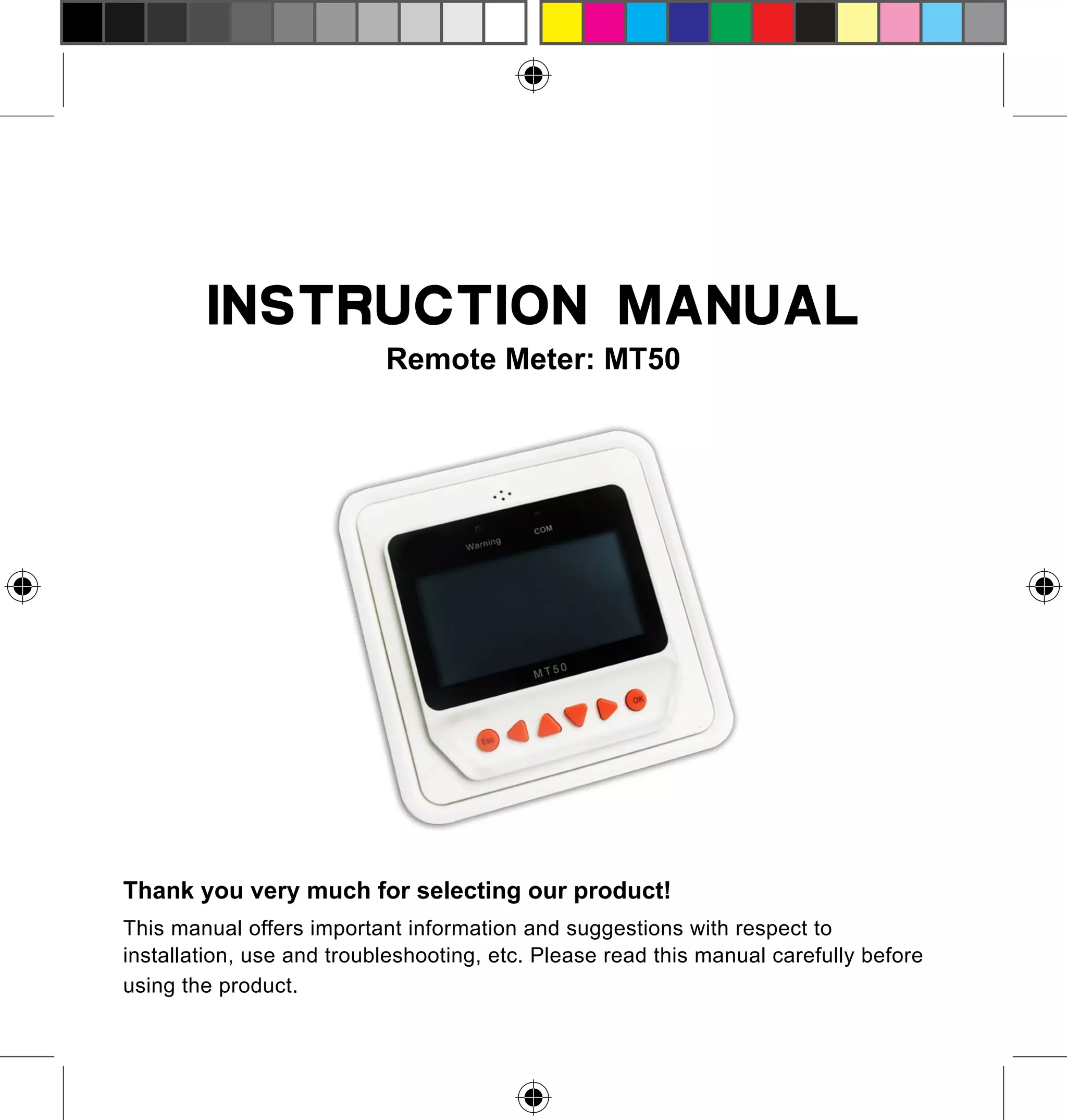
INSTRUCTION MANUAL
Remote Meter: MT50

Thank you very much for selecting our product!
This manual offers important information and suggestions with respect to
installation, use and troubleshooting, etc. Please read this manual carefully before
using the product.
Remote Meter
MT50
Remote meter (Model MT50) is available to connect with
solar controllerLSxxxxB, VSxxxxB and TracerxxxxB.
Contents
1 Important Safety Instructions ..................................... ................. 1
2 General Information ............................................................................. 1

2.1 Features ................................................................................................. 1
2.2 Main functions ....................................................................................... 2
2.3 Recommendations ................................................................................. 3

3 Installation ................................................................................................ 3
4 Product Features ................................................................................... 7

4.1 Monitoring screen ............................................................................... 10

5 Operation ................................................................................................. 11

5.1 Buttons ................................................................................................ 11
5.2 Main menu .......................................................................................... 12
5.3 Real-time monitoring ........................................................................... 12
5.4 Device information ............................................................................... 14

5.5 Test operation ...................................................................................... 14
5.6 Control parameter ............................................................................... 15
5.7 Load setting ......................................................................................... 19
5.8 Device parameter ................................................................................. 23

5.9 Device password ................................................................................. 24
5.10 Charge mode .................................................................................... 24

5.11 Factory reset ...................................................................................... 25
5.12 Failure information ............................................................................ 25
5.13 Meter parameter ................................................................................ 26

6 Technical Specifications ................................................................ 27
1 Important Safety Instructions
SAVE THESE INSTRUCTIONS:
This manual contains important safety, installation and operating
instructions for the Remote Meter.
General safety information

■ Please inspect the MT50 thoroughly after it is delivered. If any damage is
seen, please notify the shipping company or our company immediately. A
photo of the damage may be helpful.
■ Read all instructions and cautions in the manual before starting the
installation.
■ Keep the MT50 away from rain, exposure, severe dust, vibrations,corrosive
gas and intense electromagnetic interference.
■ Do not allow water to enter remote meter.
■ There are no user serviceable parts inside the controller. Do not
disassemble or attempt to repair it.

2 General Information
2.1 Features
The new-generation remote display unit MT50 for LSxxxxB, VSxxxxB and
TracerxxxxB controllers is an associated display device which supports both

1
the latest communication protocol and the voltage technology standard of
solar controllers. The products have many excellent functions:
■ Automatic identify and display the type, model and relevant parameter
data of controllers;
■ Real-time display the operational data and working status of the connection
devices in digital, graphic and textual forms by a large-screen multifunction
LCD;
■ Direct, convenient and rapid operation of six navigation function keys;
■ Both data and power flowing on the same lead, no need for external power;
■ Real-time data monitoring and remote load switchover of the controllers,
and data browse and modification of device parameters, charge control
parameters and load control parameters;
■ Real-time display and acoustic alarm of failure information of the
connection devices;
■ Longer communication distance based on RS485.

2.2 Main functions
Functions like the real-time monitoring of the operational data and working
status of a controller, the browse and modification of charge/discharge
control parameters, the setting of device parameters and load control
parameters and the restoration of factory defaults, based on LCD display
and functional key operation.

2
2.3 Recommendations

■ Please confirm that MT50 is only allowed to connect with our LSxxxxB,
VSxxxxB and TracerxxxxB series controllers before purchase;
■ Please do not install MT50 in a situation with strong electromagnetic
interference.

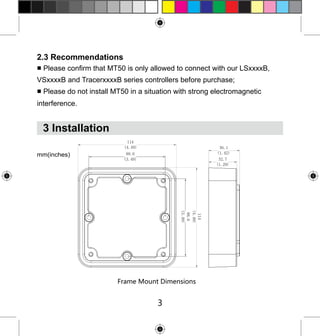
3 Installation
mm(inches)

Frame Mount Dimensions

3
Mechanical
parameter
Overall
dimension
Mounting
dimension
Terminal

Parameter
114 x 114 x 32.7mm
4.49 x4.49 x 1.29inches
88.6x 88.6mm
3.49 x 3.49inches
Φ4.3

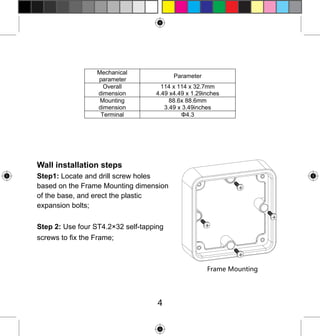
Wall installation steps
Step1: Locate and drill screw holes
based on the Frame Mounting dimension
of the base, and erect the plastic
expansion bolts;
Step 2: Use four ST4.2×32 self-tapping
screws to fix the Frame;

Frame Mounting

4
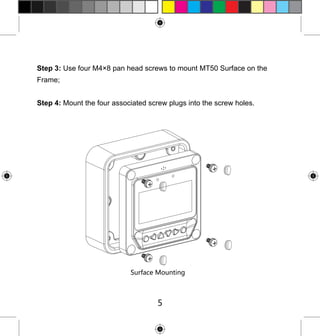
Step 3: Use four M4×8 pan head screws to mount MT50 Surface on the
Frame;
Step 4: Mount the four associated screw plugs into the screw holes.

Surface Mounting

5
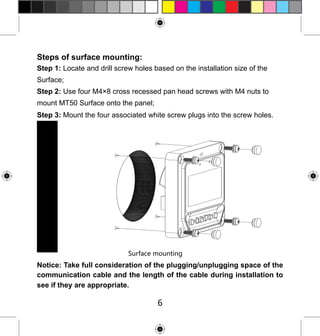
Steps of surface mounting:
Step 1: Locate and drill screw holes based on the installation size of the
Surface;
Step 2: Use four M4×8 cross recessed pan head screws with M4 nuts to
mount MT50 Surface onto the panel;
Step 3: Mount the four associated white screw plugs into the screw holes.

Surface mounting

Notice: Take full consideration of the plugging/unplugging space of the
communication cable and the length of the cable during installation to
see if they are appropriate.

6
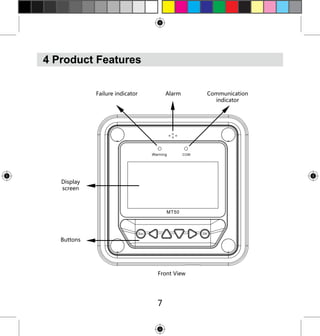
4 Product Features
Failure indicator

Alarm

Display
screen

Buttons

Front View

7

Communication
indicator
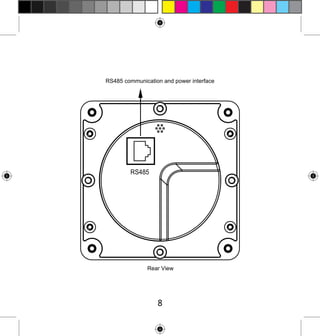
RS485 communication and power interface

Rear View

8
Failure indicator
Failure indicator flashes in case of failure of the connection devices.
Forfailure information please check the Controller Manual.
Alarm
Fault audible alarm, could be activated or deactivated.
Communication indicator
Indicate communication status when MT50 is connected with the controller.
Display screen
Man-machine interaction operation interface.
Buttons
The Meter buttons includes four navigation buttons and two operational
buttons. See the specific directions in the Operational Manual.
RJ45 communication and power interfaces
Communication and power supply cable interfaces, used for communication
connection with controllers.
Note: Please use the communication plug which is marked with “MT”
to connect MT50

9
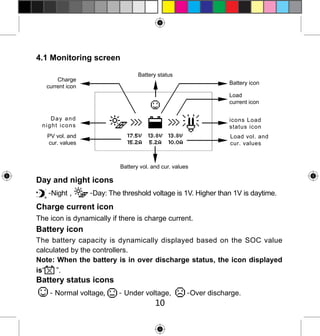
4.1 Monitoring screen
Battery status

Charge
current icon

Battery icon
Load
current icon

Day and
night icons

icons Load
status icon

PV vol. and
cur. values

Load vol. and
cur. values

Battery vol. and cur. values

Day and night icons
-Night,

-Day: The threshold voltage is 1V. Higher than 1V is daytime.

Charge current icon
The icon is dynamically if there is charge current.

Battery icon
The battery capacity is dynamically displayed based on the SOC value
calculated by the controllers.
Note: When the battery is in over discharge status, the icon displayed
is“
”.

Battery status icons
- Normal voltage,

- Under voltage,

10

-Over discharge.
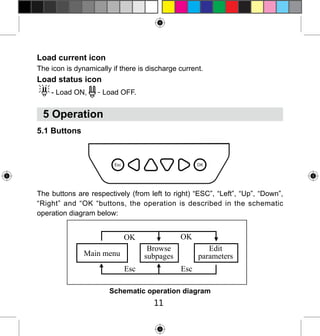
Load current icon
The icon is dynamically if there is discharge current.

Load status icon
- Load ON,

- Load OFF.

5 Operation
5.1 Buttons

The buttons are respectively (from left to right) “ESC”, “Left”, “Up”, “Down”,
“Right” and “OK “buttons, the operation is described in the schematic
operation diagram below:

Schematic operation diagram

11
The default entry page is the browse mode.Pressing
button and
inputting the correct password to enter the modification mode;
and
buttons could be used to move the cursor,
and
buttons
could be used to modify the parameter values when the cursor is
located at the current place;
and
buttons could be finally used
to respectively confirm and cancel the modification of the control
parameters.

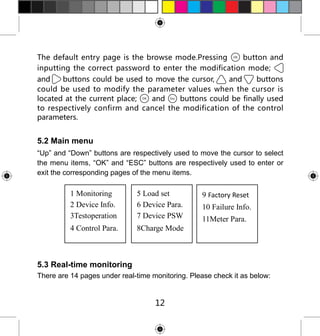
5.2 Main menu
“Up” and “Down” buttons are respectively used to move the cursor to select
the menu items, “OK” and “ESC” buttons are respectively used to enter or
exit the corresponding pages of the menu items.

1 Monitoring
2 Device Info.
3Testoperation

5 Load set
6 Device Para.
7 Device PSW

4 Control Para.

8Charge Mode

9 Factory Reset
10 Failure Info.
11Meter Para.

5.3 Real-time monitoring
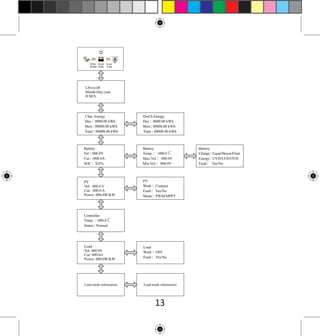
There are 14 pages under real-time monitoring. Please check it as below:

12
13
Operational tips:

and

page upward and downward, while
interfaces left and right.

buttons are respectively used to turn the browse
and

buttons are respectively used to turn the

5.4 Device information
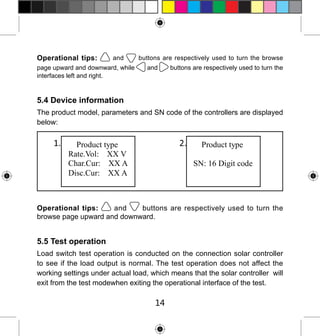
The product model, parameters and SN code of the controllers are displayed
below:

Operational tips:
and
buttons are respectively used to turn the
browse page upward and downward.

5.5 Test operation
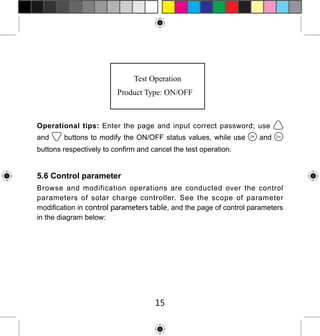
Load switch test operation is conducted on the connection solar controller
to see if the load output is normal. The test operation does not affect the
working settings under actual load, which means that the solar controller will
exit from the test modewhen exiting the operational interface of the test.

14
Operational tips: Enter the page and input correct password; use
and

buttons to modify the ON/OFF status values, while use

and

buttons respectively to confirm and cancel the test operation.

5.6 Control parameter
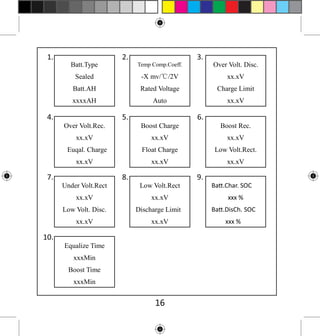
Browse and modification operations are conducted over the control
parameters of solar charge controller. See the scope of parameter
modification in control parameters table, and the page of control parameters
in the diagram below:

15
16
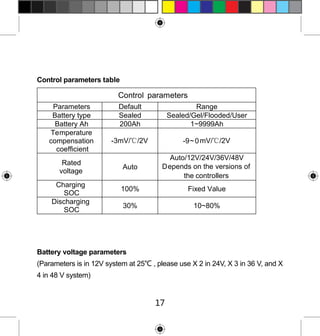
Control parameters table

Control parameters
Parameters
Battery type
Battery Ah
Temperature
compensation
coefficient
Rated
voltage
Charging
SOC
Discharging
SOC

Default
Sealed
200Ah

Range
Sealed/Gel/Flooded/User
1~9999Ah

-3mV/℃/2V
Auto

Auto/12V/24V/36V/48V
Depends on the versions of
the controllers

100%

Fixed Value

30%

10~80%

Battery voltage parameters
(Parameters is in 12V system at 25℃ , please use X 2 in 24V, X 3 in 36 V, and X
4 in 48 V system)

17
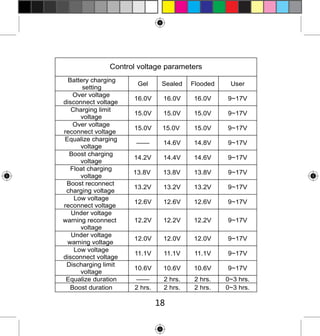
Control voltage parameters
Battery charging
setting
Over voltage
disconnect voltage
Charging limit
voltage
Over voltage
reconnect voltage
Equalize charging
voltage
Boost charging
voltage
Float charging
voltage
Boost reconnect
charging voltage
Low voltage
reconnect voltage
Under voltage
warning reconnect
voltage
Under voltage
warning voltage
Low voltage
disconnect voltage
Discharging limit
voltage
Equalize duration
Boost duration

Gel

Sealed

Flooded

User

16.0V

16.0V

16.0V

9~17V

15.0V

15.0V

15.0V

9~17V

15.0V

15.0V

15.0V

9~17V

——

14.6V

14.8V

9~17V

14.2V

14.4V

14.6V

9~17V

13.8V

13.8V

13.8V

9~17V

13.2V

13.2V

13.2V

9~17V

12.6V

12.6V

12.6V

9~17V

12.2V

12.2V

12.2V

9~17V

12.0V

12.0V

12.0V

9~17V

11.1V

11.1V

11.1V

9~17V

10.6V

10.6V

10.6V

9~17V

——
2 hrs.

2 hrs.
2 hrs.

2 hrs.
2 hrs.

0~3 hrs.
0~3 hrs.

18
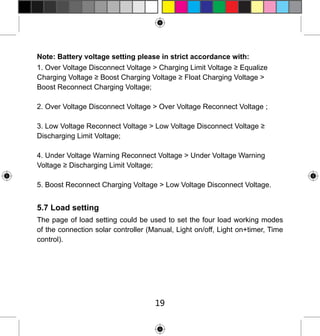
Note: Battery voltage setting please in strict accordance with:
1. Over Voltage Disconnect Voltage > Charging Limit Voltage ≥ Equalize
Charging Voltage ≥ Boost Charging Voltage ≥ Float Charging Voltage >
Boost Reconnect Charging Voltage;
2. Over Voltage Disconnect Voltage > Over Voltage Reconnect Voltage ;
3. Low Voltage Reconnect Voltage > Low Voltage Disconnect Voltage ≥
Discharging Limit Voltage;
4. Under Voltage Warning Reconnect Voltage > Under Voltage Warning
Voltage ≥ Discharging Limit Voltage;
5. Boost Reconnect Charging Voltage > Low Voltage Disconnect Voltage.

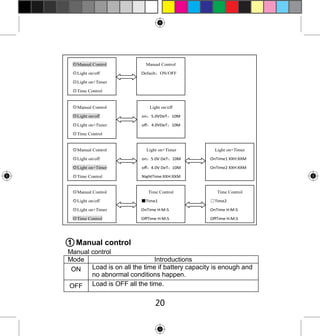
5.7 Load setting
The page of load setting could be used to set the four load working modes
of the connection solar controller (Manual, Light on/off, Light on+timer, Time
control).

19
◎Manual Control
◎Light on/off

Manual Control
Default:ON/OFF

◎Light on+Timer
◎Time Control

◎Manual Control

Light on/off

◎Light on/off

on:5.0VDeT:10M

◎Light on+Timer

off:4.0VDeT:10M

◎Time Control
◎Manual Control
◎Light on/off

Light on+Timer

Light on+Timer

on:5.0V DeT:10M

OnTime1 XXH:XXM

◎Light on+Timer

off:4.0V DeT:10M

OnTime2 XXH:XXM

◎Time Control

NightTime:XXH:XXM
:

◎Manual Control

Time Control

Time Control

◎Light on/off

■Time1

□Time2

◎Light on+Timer

OnTime H:M:S

OnTime H:M:S

◎Time Control

OffTime H:M:S

OffTime H:M:S

1 Manual control

Manual control
Mode
Introductions
Load is on all the time if battery capacity is enough and
ON
no abnormal conditions happen.
OFF Load is OFF all the time.

20
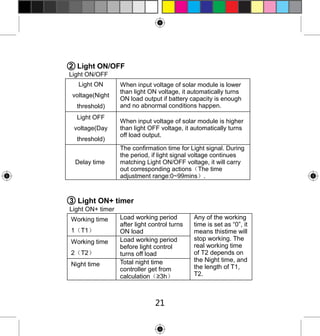
2 Light ON/OFF
Light ON/OFF
Light ON
voltage(Night
threshold)
Light OFF
voltage(Day
threshold)
Delay time

When input voltage of solar module is lower
than light ON voltage, it automatically turns
ON load output if battery capacity is enough
and no abnormal conditions happen.
When input voltage of solar module is higher
than light OFF voltage, it automatically turns
off load output.
The confirmation time for Light signal. During
the period, if light signal voltage continues
matching Light ON/OFF voltage, it will carry
out corresponding actions(The time
adjustment range:0~99mins).

3 Light ON+ timer
Light ON+ timer
Working time
1(T1)
Working time
2(T2)
Night time

Load working period
after light control turns
ON load
Load working period
before light control
turns off load
Total night time
controller get from
calculation(≥3h)

21

Any of the working
time is set as “0”, it
means thistime will
stop working. The
real working time
of T2 depends on
the Night time, and
the length of T1,
T2.
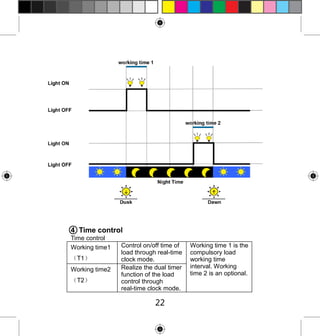
4 Time control
Time control
Working time1
(T1)
Working time2
(T2)

Control on/off time of
load through real-time
clock mode.
Realize the dual timer
function of the load
control through
real-time clock mode.

22

Working time 1 is the
compulsory load
working time
interval. Working
time 2 is an optional.
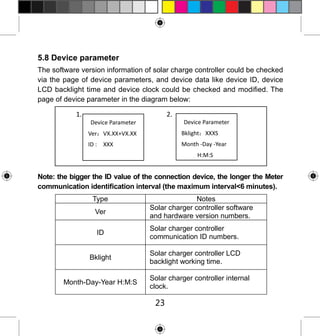
5.8 Device parameter
The software version information of solar charge controller could be checked
via the page of device parameters, and device data like device ID, device
LCD backlight time and device clock could be checked and modified. The
page of device parameter in the diagram below:

1.

2.
Device Parameter

Device Parameter
Ver:VX.XX+VX.XX

Bklight:XXXS

ID :

Month -Day -Year

XXX

H:M:S

Note: the bigger the ID value of the connection device, the longer the Meter
communication identification interval (the maximum interval<6 minutes).
Type
Ver

Notes
Solar charger controller software
and hardware version numbers.

ID

Solar charger controller
communication ID numbers.

Bklight

Solar charger controller LCD
backlight working time.

Month-Day-Year H:M:S

Solar charger controller internal
clock.

23
5.9 Device password
The password of the solar charge controller could be modified via the page
of device password; the device password is a 6-digit figure which is required
before entering the modification mode of “Control parameter”, “Load setting”,
“Device parameter”, “Device password”, “Factory reset” pages. The page of
device password in the diagram below:
Device PSW
OriPSW:XXXXXX
NewPSW:XXXXXX

Note: Solar charge controller default password is”000000”

5.10 Charge mode
The charge mode of solar charge controller could be selected via the page
of charge mode (Voltage Compensate, SOC); the default charge mode is
Voltage Compensate charge mode.

Charge Mode
Vol.Compen./SOC

24
Charging mode

Notes
Voltage compensation:
Voltage control charging (default)

Vol.Compen.

By setting the charge and
discharge SOC target values for
battery charge and discharge
control

SOC

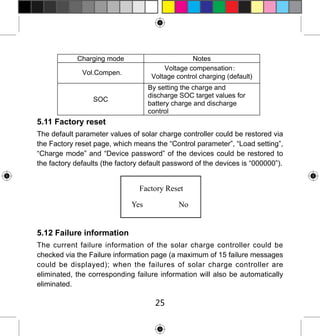
5.11 Factory reset
The default parameter values of solar charge controller could be restored via
the Factory reset page, which means the “Control parameter”, “Load setting”,
“Charge mode” and “Device password” of the devices could be restored to
the factory defaults (the factory default password of the devices is “000000”).

Factory Reset
Yes

No

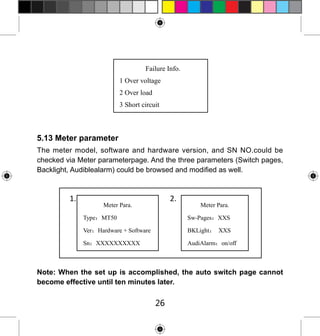
5.12 Failure information
The current failure information of the solar charge controller could be
checked via the Failure information page (a maximum of 15 failure messages
could be displayed); when the failures of solar charge controller are
eliminated, the corresponding failure information will also be automatically
eliminated.

25
Failure Info.
1 Over voltage
2 Over load
3 Short circuit

5.13 Meter parameter
The meter model, software and hardware version, and SN NO.could be
checked via Meter parameterpage. And the three parameters (Switch pages,
Backlight, Audiblealarm) could be browsed and modified as well.

1.

2.

Meter Para.

Meter Para.

Type:MT50

Sw-Pages:XXS

Ver:Hardware + Software

BKLight: XXS

Sn:XXXXXXXXXX

AudiAlarm:on/off

Note: When the set up is accomplished, the auto switch page cannot
become effective until ten minutes later.

26
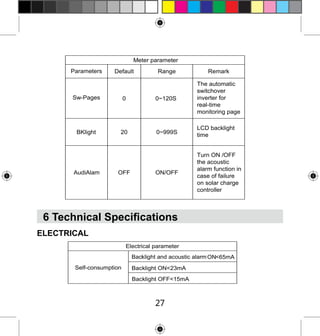
Meter parameter
Parameters

Default

Range

Remark

Sw-Pages

0

0~120S

The automatic
switchover
inverter for
real-time
monitoring page

BKlight

20

0~999S

LCD backlight
time

ON/OFF

Turn ON /OFF
the acoustic
alarm function in
case of failure
on solar charge
controller

AudiAlam

OFF

6 Technical Specifications
ELECTRICAL
Electrical parameter
Backlight and acoustic alarm ON<65mA
Self-consumption

Backlight ON<23mA
Backlight OFF<15mA

27
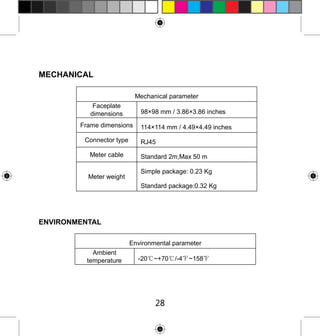
MECHANICAL
Mechanical parameter
Faceplate
dimensions

98×98 mm / 3.86×3.86 inches

Frame dimensions
Connector type
Meter cable
Meter weight

114×114 mm / 4.49×4.49 inches
RJ45
Standard 2m,Max 50 m
Simple package: 0.23 Kg
Standard package:0.32 Kg

ENVIRONMENTAL
Environmental parameter
Ambient
temperature

-20℃~+70℃/-4℉~158℉

28
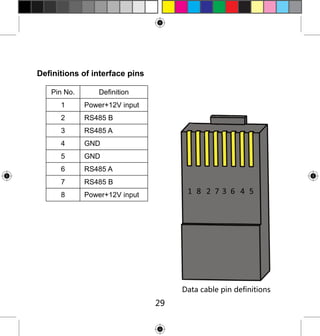
Definitions of interface pins
Pin No.

Definition

1

Power+12V input

2

RS485 B

3

RS485 A

4

GND

5

GND

6

RS485 A

7

RS485 B

8

Power+12V input

Data cable pin definitions

29
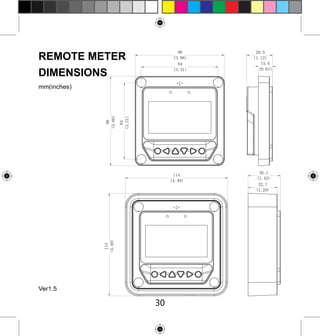
REMOTE METER
DIMENSIONS
mm(inches)

Ver1.5

30

MT50 for LS1024B/ LS2024B/ LS3024B PWM solar controller

  • 1.
    INSTRUCTION MANUAL Remote Meter:MT50 Thank you very much for selecting our product! This manual offers important information and suggestions with respect to installation, use and troubleshooting, etc. Please read this manual carefully before using the product.
  • 3.
    Remote Meter MT50 Remote meter(Model MT50) is available to connect with solar controllerLSxxxxB, VSxxxxB and TracerxxxxB.
  • 4.
    Contents 1 Important SafetyInstructions ..................................... ................. 1 2 General Information ............................................................................. 1 2.1 Features ................................................................................................. 1 2.2 Main functions ....................................................................................... 2 2.3 Recommendations ................................................................................. 3 3 Installation ................................................................................................ 3 4 Product Features ................................................................................... 7 4.1 Monitoring screen ............................................................................... 10 5 Operation ................................................................................................. 11 5.1 Buttons ................................................................................................ 11 5.2 Main menu .......................................................................................... 12 5.3 Real-time monitoring ........................................................................... 12 5.4 Device information ............................................................................... 14 5.5 Test operation ...................................................................................... 14 5.6 Control parameter ............................................................................... 15 5.7 Load setting ......................................................................................... 19 5.8 Device parameter ................................................................................. 23 5.9 Device password ................................................................................. 24 5.10 Charge mode .................................................................................... 24 5.11 Factory reset ...................................................................................... 25 5.12 Failure information ............................................................................ 25 5.13 Meter parameter ................................................................................ 26 6 Technical Specifications ................................................................ 27
  • 5.
    1 Important SafetyInstructions SAVE THESE INSTRUCTIONS: This manual contains important safety, installation and operating instructions for the Remote Meter. General safety information ■ Please inspect the MT50 thoroughly after it is delivered. If any damage is seen, please notify the shipping company or our company immediately. A photo of the damage may be helpful. ■ Read all instructions and cautions in the manual before starting the installation. ■ Keep the MT50 away from rain, exposure, severe dust, vibrations,corrosive gas and intense electromagnetic interference. ■ Do not allow water to enter remote meter. ■ There are no user serviceable parts inside the controller. Do not disassemble or attempt to repair it. 2 General Information 2.1 Features The new-generation remote display unit MT50 for LSxxxxB, VSxxxxB and TracerxxxxB controllers is an associated display device which supports both 1
  • 6.
    the latest communicationprotocol and the voltage technology standard of solar controllers. The products have many excellent functions: ■ Automatic identify and display the type, model and relevant parameter data of controllers; ■ Real-time display the operational data and working status of the connection devices in digital, graphic and textual forms by a large-screen multifunction LCD; ■ Direct, convenient and rapid operation of six navigation function keys; ■ Both data and power flowing on the same lead, no need for external power; ■ Real-time data monitoring and remote load switchover of the controllers, and data browse and modification of device parameters, charge control parameters and load control parameters; ■ Real-time display and acoustic alarm of failure information of the connection devices; ■ Longer communication distance based on RS485. 2.2 Main functions Functions like the real-time monitoring of the operational data and working status of a controller, the browse and modification of charge/discharge control parameters, the setting of device parameters and load control parameters and the restoration of factory defaults, based on LCD display and functional key operation. 2
  • 7.
    2.3 Recommendations ■ Pleaseconfirm that MT50 is only allowed to connect with our LSxxxxB, VSxxxxB and TracerxxxxB series controllers before purchase; ■ Please do not install MT50 in a situation with strong electromagnetic interference. 3 Installation mm(inches) Frame Mount Dimensions 3
  • 8.
    Mechanical parameter Overall dimension Mounting dimension Terminal Parameter 114 x 114x 32.7mm 4.49 x4.49 x 1.29inches 88.6x 88.6mm 3.49 x 3.49inches Φ4.3 Wall installation steps Step1: Locate and drill screw holes based on the Frame Mounting dimension of the base, and erect the plastic expansion bolts; Step 2: Use four ST4.2×32 self-tapping screws to fix the Frame; Frame Mounting 4
  • 9.
    Step 3: Usefour M4×8 pan head screws to mount MT50 Surface on the Frame; Step 4: Mount the four associated screw plugs into the screw holes. Surface Mounting 5
  • 10.
    Steps of surfacemounting: Step 1: Locate and drill screw holes based on the installation size of the Surface; Step 2: Use four M4×8 cross recessed pan head screws with M4 nuts to mount MT50 Surface onto the panel; Step 3: Mount the four associated white screw plugs into the screw holes. Surface mounting Notice: Take full consideration of the plugging/unplugging space of the communication cable and the length of the cable during installation to see if they are appropriate. 6
  • 11.
    4 Product Features Failureindicator Alarm Display screen Buttons Front View 7 Communication indicator
  • 12.
    RS485 communication andpower interface Rear View 8
  • 13.
    Failure indicator Failure indicatorflashes in case of failure of the connection devices. Forfailure information please check the Controller Manual. Alarm Fault audible alarm, could be activated or deactivated. Communication indicator Indicate communication status when MT50 is connected with the controller. Display screen Man-machine interaction operation interface. Buttons The Meter buttons includes four navigation buttons and two operational buttons. See the specific directions in the Operational Manual. RJ45 communication and power interfaces Communication and power supply cable interfaces, used for communication connection with controllers. Note: Please use the communication plug which is marked with “MT” to connect MT50 9
  • 14.
    4.1 Monitoring screen Batterystatus Charge current icon Battery icon Load current icon Day and night icons icons Load status icon PV vol. and cur. values Load vol. and cur. values Battery vol. and cur. values Day and night icons -Night, -Day: The threshold voltage is 1V. Higher than 1V is daytime. Charge current icon The icon is dynamically if there is charge current. Battery icon The battery capacity is dynamically displayed based on the SOC value calculated by the controllers. Note: When the battery is in over discharge status, the icon displayed is“ ”. Battery status icons - Normal voltage, - Under voltage, 10 -Over discharge.
  • 15.
    Load current icon Theicon is dynamically if there is discharge current. Load status icon - Load ON, - Load OFF. 5 Operation 5.1 Buttons The buttons are respectively (from left to right) “ESC”, “Left”, “Up”, “Down”, “Right” and “OK “buttons, the operation is described in the schematic operation diagram below: Schematic operation diagram 11
  • 16.
    The default entrypage is the browse mode.Pressing button and inputting the correct password to enter the modification mode; and buttons could be used to move the cursor, and buttons could be used to modify the parameter values when the cursor is located at the current place; and buttons could be finally used to respectively confirm and cancel the modification of the control parameters. 5.2 Main menu “Up” and “Down” buttons are respectively used to move the cursor to select the menu items, “OK” and “ESC” buttons are respectively used to enter or exit the corresponding pages of the menu items. 1 Monitoring 2 Device Info. 3Testoperation 5 Load set 6 Device Para. 7 Device PSW 4 Control Para. 8Charge Mode 9 Factory Reset 10 Failure Info. 11Meter Para. 5.3 Real-time monitoring There are 14 pages under real-time monitoring. Please check it as below: 12
  • 17.
  • 18.
    Operational tips: and page upwardand downward, while interfaces left and right. buttons are respectively used to turn the browse and buttons are respectively used to turn the 5.4 Device information The product model, parameters and SN code of the controllers are displayed below: Operational tips: and buttons are respectively used to turn the browse page upward and downward. 5.5 Test operation Load switch test operation is conducted on the connection solar controller to see if the load output is normal. The test operation does not affect the working settings under actual load, which means that the solar controller will exit from the test modewhen exiting the operational interface of the test. 14
  • 19.
    Operational tips: Enterthe page and input correct password; use and buttons to modify the ON/OFF status values, while use and buttons respectively to confirm and cancel the test operation. 5.6 Control parameter Browse and modification operations are conducted over the control parameters of solar charge controller. See the scope of parameter modification in control parameters table, and the page of control parameters in the diagram below: 15
  • 20.
  • 21.
    Control parameters table Controlparameters Parameters Battery type Battery Ah Temperature compensation coefficient Rated voltage Charging SOC Discharging SOC Default Sealed 200Ah Range Sealed/Gel/Flooded/User 1~9999Ah -3mV/℃/2V Auto Auto/12V/24V/36V/48V Depends on the versions of the controllers 100% Fixed Value 30% 10~80% Battery voltage parameters (Parameters is in 12V system at 25℃ , please use X 2 in 24V, X 3 in 36 V, and X 4 in 48 V system) 17
  • 22.
    Control voltage parameters Batterycharging setting Over voltage disconnect voltage Charging limit voltage Over voltage reconnect voltage Equalize charging voltage Boost charging voltage Float charging voltage Boost reconnect charging voltage Low voltage reconnect voltage Under voltage warning reconnect voltage Under voltage warning voltage Low voltage disconnect voltage Discharging limit voltage Equalize duration Boost duration Gel Sealed Flooded User 16.0V 16.0V 16.0V 9~17V 15.0V 15.0V 15.0V 9~17V 15.0V 15.0V 15.0V 9~17V —— 14.6V 14.8V 9~17V 14.2V 14.4V 14.6V 9~17V 13.8V 13.8V 13.8V 9~17V 13.2V 13.2V 13.2V 9~17V 12.6V 12.6V 12.6V 9~17V 12.2V 12.2V 12.2V 9~17V 12.0V 12.0V 12.0V 9~17V 11.1V 11.1V 11.1V 9~17V 10.6V 10.6V 10.6V 9~17V —— 2 hrs. 2 hrs. 2 hrs. 2 hrs. 2 hrs. 0~3 hrs. 0~3 hrs. 18
  • 23.
    Note: Battery voltagesetting please in strict accordance with: 1. Over Voltage Disconnect Voltage > Charging Limit Voltage ≥ Equalize Charging Voltage ≥ Boost Charging Voltage ≥ Float Charging Voltage > Boost Reconnect Charging Voltage; 2. Over Voltage Disconnect Voltage > Over Voltage Reconnect Voltage ; 3. Low Voltage Reconnect Voltage > Low Voltage Disconnect Voltage ≥ Discharging Limit Voltage; 4. Under Voltage Warning Reconnect Voltage > Under Voltage Warning Voltage ≥ Discharging Limit Voltage; 5. Boost Reconnect Charging Voltage > Low Voltage Disconnect Voltage. 5.7 Load setting The page of load setting could be used to set the four load working modes of the connection solar controller (Manual, Light on/off, Light on+timer, Time control). 19
  • 24.
    ◎Manual Control ◎Light on/off ManualControl Default:ON/OFF ◎Light on+Timer ◎Time Control ◎Manual Control Light on/off ◎Light on/off on:5.0VDeT:10M ◎Light on+Timer off:4.0VDeT:10M ◎Time Control ◎Manual Control ◎Light on/off Light on+Timer Light on+Timer on:5.0V DeT:10M OnTime1 XXH:XXM ◎Light on+Timer off:4.0V DeT:10M OnTime2 XXH:XXM ◎Time Control NightTime:XXH:XXM : ◎Manual Control Time Control Time Control ◎Light on/off ■Time1 □Time2 ◎Light on+Timer OnTime H:M:S OnTime H:M:S ◎Time Control OffTime H:M:S OffTime H:M:S 1 Manual control Manual control Mode Introductions Load is on all the time if battery capacity is enough and ON no abnormal conditions happen. OFF Load is OFF all the time. 20
  • 25.
    2 Light ON/OFF LightON/OFF Light ON voltage(Night threshold) Light OFF voltage(Day threshold) Delay time When input voltage of solar module is lower than light ON voltage, it automatically turns ON load output if battery capacity is enough and no abnormal conditions happen. When input voltage of solar module is higher than light OFF voltage, it automatically turns off load output. The confirmation time for Light signal. During the period, if light signal voltage continues matching Light ON/OFF voltage, it will carry out corresponding actions(The time adjustment range:0~99mins). 3 Light ON+ timer Light ON+ timer Working time 1(T1) Working time 2(T2) Night time Load working period after light control turns ON load Load working period before light control turns off load Total night time controller get from calculation(≥3h) 21 Any of the working time is set as “0”, it means thistime will stop working. The real working time of T2 depends on the Night time, and the length of T1, T2.
  • 26.
    4 Time control Timecontrol Working time1 (T1) Working time2 (T2) Control on/off time of load through real-time clock mode. Realize the dual timer function of the load control through real-time clock mode. 22 Working time 1 is the compulsory load working time interval. Working time 2 is an optional.
  • 27.
    5.8 Device parameter Thesoftware version information of solar charge controller could be checked via the page of device parameters, and device data like device ID, device LCD backlight time and device clock could be checked and modified. The page of device parameter in the diagram below: 1. 2. Device Parameter Device Parameter Ver:VX.XX+VX.XX Bklight:XXXS ID : Month -Day -Year XXX H:M:S Note: the bigger the ID value of the connection device, the longer the Meter communication identification interval (the maximum interval<6 minutes). Type Ver Notes Solar charger controller software and hardware version numbers. ID Solar charger controller communication ID numbers. Bklight Solar charger controller LCD backlight working time. Month-Day-Year H:M:S Solar charger controller internal clock. 23
  • 28.
    5.9 Device password Thepassword of the solar charge controller could be modified via the page of device password; the device password is a 6-digit figure which is required before entering the modification mode of “Control parameter”, “Load setting”, “Device parameter”, “Device password”, “Factory reset” pages. The page of device password in the diagram below: Device PSW OriPSW:XXXXXX NewPSW:XXXXXX Note: Solar charge controller default password is”000000” 5.10 Charge mode The charge mode of solar charge controller could be selected via the page of charge mode (Voltage Compensate, SOC); the default charge mode is Voltage Compensate charge mode. Charge Mode Vol.Compen./SOC 24
  • 29.
    Charging mode Notes Voltage compensation: Voltagecontrol charging (default) Vol.Compen. By setting the charge and discharge SOC target values for battery charge and discharge control SOC 5.11 Factory reset The default parameter values of solar charge controller could be restored via the Factory reset page, which means the “Control parameter”, “Load setting”, “Charge mode” and “Device password” of the devices could be restored to the factory defaults (the factory default password of the devices is “000000”). Factory Reset Yes No 5.12 Failure information The current failure information of the solar charge controller could be checked via the Failure information page (a maximum of 15 failure messages could be displayed); when the failures of solar charge controller are eliminated, the corresponding failure information will also be automatically eliminated. 25
  • 30.
    Failure Info. 1 Overvoltage 2 Over load 3 Short circuit 5.13 Meter parameter The meter model, software and hardware version, and SN NO.could be checked via Meter parameterpage. And the three parameters (Switch pages, Backlight, Audiblealarm) could be browsed and modified as well. 1. 2. Meter Para. Meter Para. Type:MT50 Sw-Pages:XXS Ver:Hardware + Software BKLight: XXS Sn:XXXXXXXXXX AudiAlarm:on/off Note: When the set up is accomplished, the auto switch page cannot become effective until ten minutes later. 26
  • 31.
    Meter parameter Parameters Default Range Remark Sw-Pages 0 0~120S The automatic switchover inverterfor real-time monitoring page BKlight 20 0~999S LCD backlight time ON/OFF Turn ON /OFF the acoustic alarm function in case of failure on solar charge controller AudiAlam OFF 6 Technical Specifications ELECTRICAL Electrical parameter Backlight and acoustic alarm ON<65mA Self-consumption Backlight ON<23mA Backlight OFF<15mA 27
  • 32.
    MECHANICAL Mechanical parameter Faceplate dimensions 98×98 mm/ 3.86×3.86 inches Frame dimensions Connector type Meter cable Meter weight 114×114 mm / 4.49×4.49 inches RJ45 Standard 2m,Max 50 m Simple package: 0.23 Kg Standard package:0.32 Kg ENVIRONMENTAL Environmental parameter Ambient temperature -20℃~+70℃/-4℉~158℉ 28
  • 33.
    Definitions of interfacepins Pin No. Definition 1 Power+12V input 2 RS485 B 3 RS485 A 4 GND 5 GND 6 RS485 A 7 RS485 B 8 Power+12V input Data cable pin definitions 29
  • 34.