How do you create a
table in Microsoft
Word?
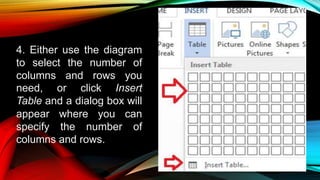
4. Either use the diagram to select the number of columns and rows you need, or click Insert Table and a dialog box will appear where you can specify the number of columns and rows.
The basic steps for creating a standard table
in Microsoft Word are:
2. In the top ribbon, press Insert
1. Open a blank Word document
4. Either use the diagram to select the number of columns and rows you need, or click Insert Table and a dialog box will appear where you can specify the number of columns and rows.
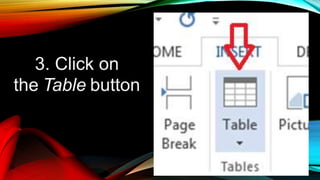
3. Click on
the Table button
4. Either use the diagram to select the number of columns and rows you need, or click Insert Table and a dialog box will appear where you can specify the number of columns and rows.
4. Either use the diagram
to select the number of
columns and rows you
need, or click Insert
Table and a dialog box will
appear where you can
specify the number of
columns and rows.
4. Either use the diagram to select the number of columns and rows you need, or click Insert Table and a dialog box will appear where you can specify the number of columns and rows.
5. The blank table will now appear on the
page. Alter it as necessary. Standard
features like bold, italics, and underline are
still available! These items may be helpful for
creating headings or calling out certain items
in the table.
4. Either use the diagram to select the number of columns and rows you need, or click Insert Table and a dialog box will appear where you can specify the number of columns and rows.
Task 1:
Open a new word document (A4,
Landscape). Create a table with 4
columns and 22 rows. Input the
following data:
4. Either use the diagram to select the number of columns and rows you need, or click Insert Table and a dialog box will appear where you can specify the number of columns and rows.
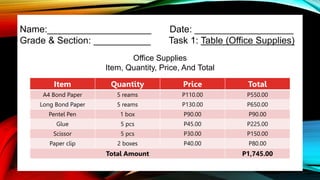
Name:____________________ Date: ___________________
Grade & Section: ___________ Task 1: Table (Office Supplies)
Office Supplies
Item, Quantity, Price, And Total
Item Quantity Price Total
A4 Bond Paper 5 reams P110.00 P550.00
Long Bond Paper 5 reams P130.00 P650.00
Pentel Pen 1 box P90.00 P90.00
Glue 5 pcs P45.00 P225.00
Scissor 5 pcs P30.00 P150.00
Paper clip 2 boxes P40.00 P80.00
Total Amount P1,745.00
4. Either use the diagram to select the number of columns and rows you need, or click Insert Table and a dialog box will appear where you can specify the number of columns and rows.
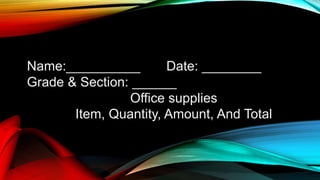
Name:__________ Date: ________
Grade & Section: ______
Office supplies
Item, Quantity, Amount, And Total
4. Either use the diagram to select the number of columns and rows you need, or click Insert Table and a dialog box will appear where you can specify the number of columns and rows.
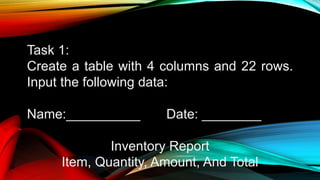
Task 1:
Create a table with 4 columns and 22 rows.
Input the following data:
Name:__________ Date: ________
Inventory Report
Item, Quantity, Amount, And Total
4. Either use the diagram to select the number of columns and rows you need, or click Insert Table and a dialog box will appear where you can specify the number of columns and rows.
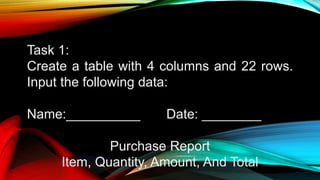
Task 1:
Create a table with 4 columns and 22 rows.
Input the following data:
Name:__________ Date: ________
Purchase Report
Item, Quantity, Amount, And Total
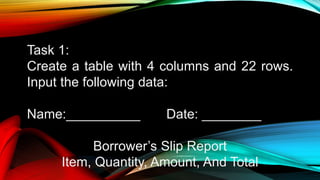
4. Either use the diagram to select the number of columns and rows you need, or click Insert Table and a dialog box will appear where you can specify the number of columns and rows.
Task 1:
Create a table with 4 columns and 22 rows.
Input the following data:
Name:__________ Date: ________
Borrower’s Slip Report
Item, Quantity, Amount, And Total

MS Word - Table (Task 1 - Office Supplies).pptx

  • 1.
    How do youcreate a table in Microsoft Word?
  • 2.
    4. Either usethe diagram to select the number of columns and rows you need, or click Insert Table and a dialog box will appear where you can specify the number of columns and rows. The basic steps for creating a standard table in Microsoft Word are: 2. In the top ribbon, press Insert 1. Open a blank Word document
  • 3.
    4. Either usethe diagram to select the number of columns and rows you need, or click Insert Table and a dialog box will appear where you can specify the number of columns and rows. 3. Click on the Table button
  • 4.
    4. Either usethe diagram to select the number of columns and rows you need, or click Insert Table and a dialog box will appear where you can specify the number of columns and rows. 4. Either use the diagram to select the number of columns and rows you need, or click Insert Table and a dialog box will appear where you can specify the number of columns and rows.
  • 5.
    4. Either usethe diagram to select the number of columns and rows you need, or click Insert Table and a dialog box will appear where you can specify the number of columns and rows. 5. The blank table will now appear on the page. Alter it as necessary. Standard features like bold, italics, and underline are still available! These items may be helpful for creating headings or calling out certain items in the table.
  • 6.
    4. Either usethe diagram to select the number of columns and rows you need, or click Insert Table and a dialog box will appear where you can specify the number of columns and rows. Task 1: Open a new word document (A4, Landscape). Create a table with 4 columns and 22 rows. Input the following data:
  • 7.
    4. Either usethe diagram to select the number of columns and rows you need, or click Insert Table and a dialog box will appear where you can specify the number of columns and rows. Name:____________________ Date: ___________________ Grade & Section: ___________ Task 1: Table (Office Supplies) Office Supplies Item, Quantity, Price, And Total Item Quantity Price Total A4 Bond Paper 5 reams P110.00 P550.00 Long Bond Paper 5 reams P130.00 P650.00 Pentel Pen 1 box P90.00 P90.00 Glue 5 pcs P45.00 P225.00 Scissor 5 pcs P30.00 P150.00 Paper clip 2 boxes P40.00 P80.00 Total Amount P1,745.00
  • 8.
    4. Either usethe diagram to select the number of columns and rows you need, or click Insert Table and a dialog box will appear where you can specify the number of columns and rows. Name:__________ Date: ________ Grade & Section: ______ Office supplies Item, Quantity, Amount, And Total
  • 9.
    4. Either usethe diagram to select the number of columns and rows you need, or click Insert Table and a dialog box will appear where you can specify the number of columns and rows. Task 1: Create a table with 4 columns and 22 rows. Input the following data: Name:__________ Date: ________ Inventory Report Item, Quantity, Amount, And Total
  • 10.
    4. Either usethe diagram to select the number of columns and rows you need, or click Insert Table and a dialog box will appear where you can specify the number of columns and rows. Task 1: Create a table with 4 columns and 22 rows. Input the following data: Name:__________ Date: ________ Purchase Report Item, Quantity, Amount, And Total
  • 11.
    4. Either usethe diagram to select the number of columns and rows you need, or click Insert Table and a dialog box will appear where you can specify the number of columns and rows. Task 1: Create a table with 4 columns and 22 rows. Input the following data: Name:__________ Date: ________ Borrower’s Slip Report Item, Quantity, Amount, And Total