Creating a Motion Infographic
for Learning
Shalin Hai-Jew
Kansas State University
Virtual SIDLIT 2020
Aug. 5 – 7, 2020
2
Presentation Description
• A motion infographic is a two-dimensional flat-plane image that
includes some elements of motion. What does it take to create such
a learning visual from scratch? What are ways to use motion to drive
understandings? What types of learning contents are amenable to
this treatment? This session describes some considerations about
the creation of such a learning resource, using Adobe Animate and
Adobe Media Encoder primarily.
3
Caveats
• The presenter is fairly new to using Adobe Animate.
• The main focus of this work is for instructional effect, not aesthetics per se.
• Timing and the transience of effects may affect how the motion object is
experienced and its efficacy in a teaching and learning context.
• Drawing with a mouse on a laptop is limiting, but the capabilities of the
various software tools may mitigate the limits of maneuverability and lack
of subtle controls.
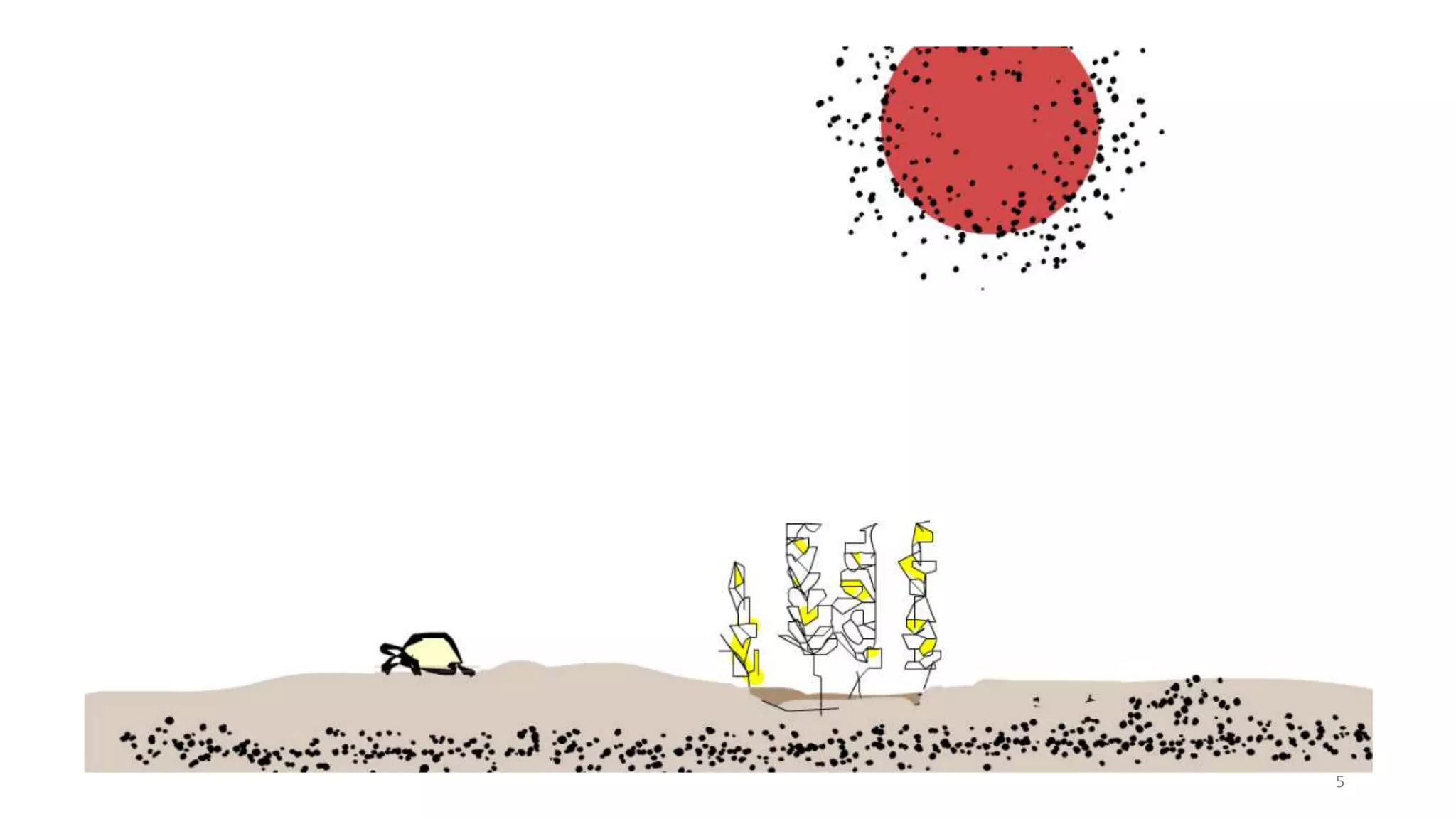
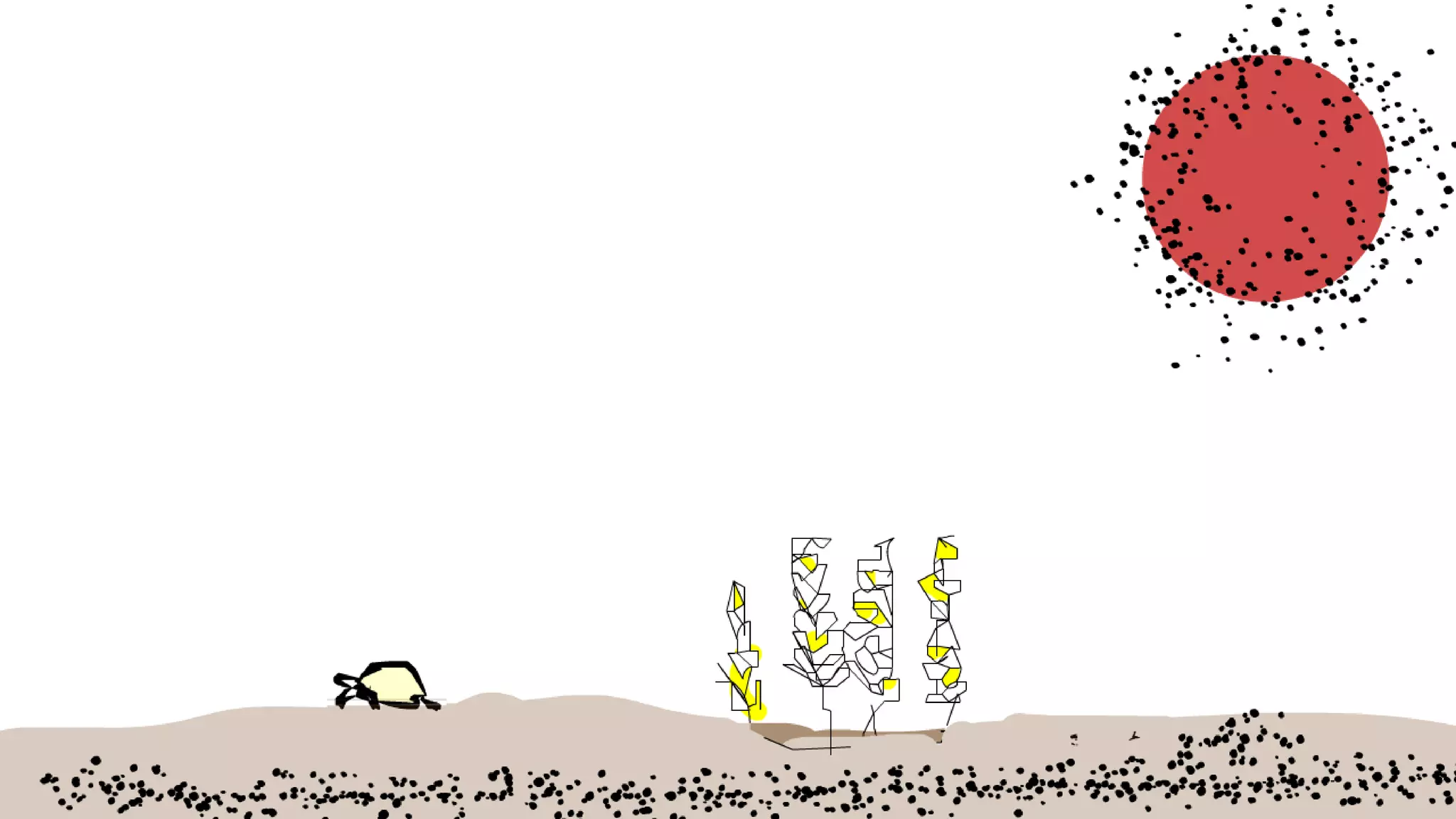
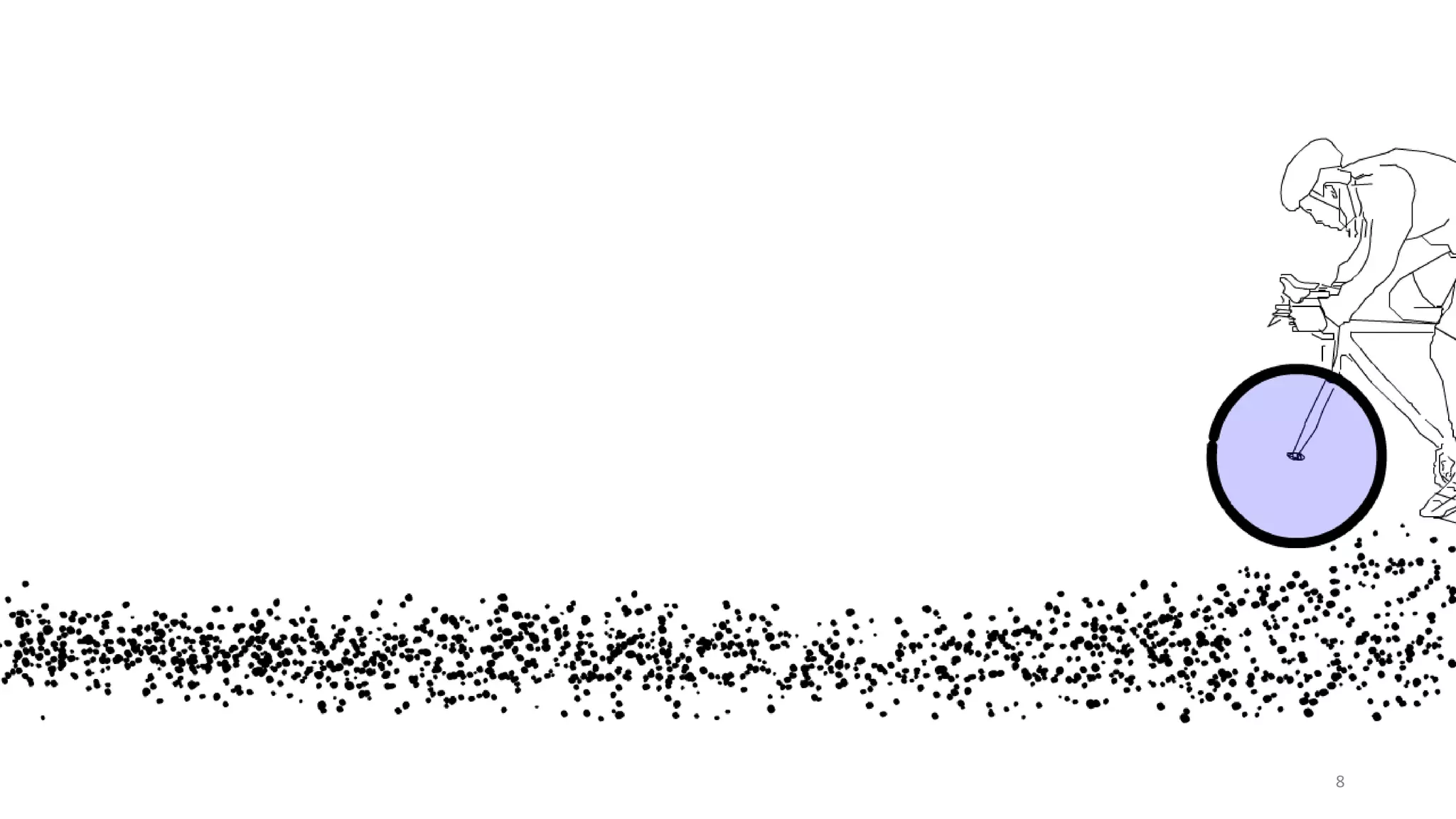
• My first trial motion infographic follows, first as a still and then as an
animated gif.
4
5
6
7
8
What is a motion infographic
9
A motion infographic…
• Uses selected focal visuals, text, sound, and / or motion [and their
interrelationships in physical space and time (pacing and sequencing)]
to
• Convey information
• Emphasize and accentuate
• Evoke the real
10
Knitting the real and the imaginary
• May be representative of some dynamic in the world (levels of
fidelity)
• May be representative of some imaginary sense of the world or of
potential
• Human vision and mental processing are somewhat forgiving of some
level of non-fidelity
11
How do motion infographics engage human
perception?
• Human eyes follow color and motion for sensemaking
• Human eyes assume a foreground, midground, and background
• The human mind infers something acting on objects that move (an
intuitive or naïve physics)
• Something that works against in-world physics may be seen as magical and
exciting and otherworldly (think Matrix moves)
• Knowledge of the world is triggered by experiencing representations
of the world (with some suspension of disbelief in experiencing the
depictions)
12
How do motion infographics engage human
perception?(cont.)
• Motion infographics are sensitive to sequencing and timing, both of
which have to be somewhat harmonized
• Sequences…
• may suggest process or procedure
• may suggest causation (cause and effect)
• may suggest story and narration (beginning, middle, end)
13
What are the roles of motion infographics in
teaching and learning?
Teaching
• Focus on particular and select
aspects of the world
• Debrief the motion experience
• Create a learning framework
around the motion infographic
Learning
• Experience description and
explanation of in-world
phenomenon (including
microscopic phenomenon and
dynamics unseeable with the
actual naked eye)
• Repeat an experience through
an analytical lens
14
Basic elements of a “serious”
animation for learning
15
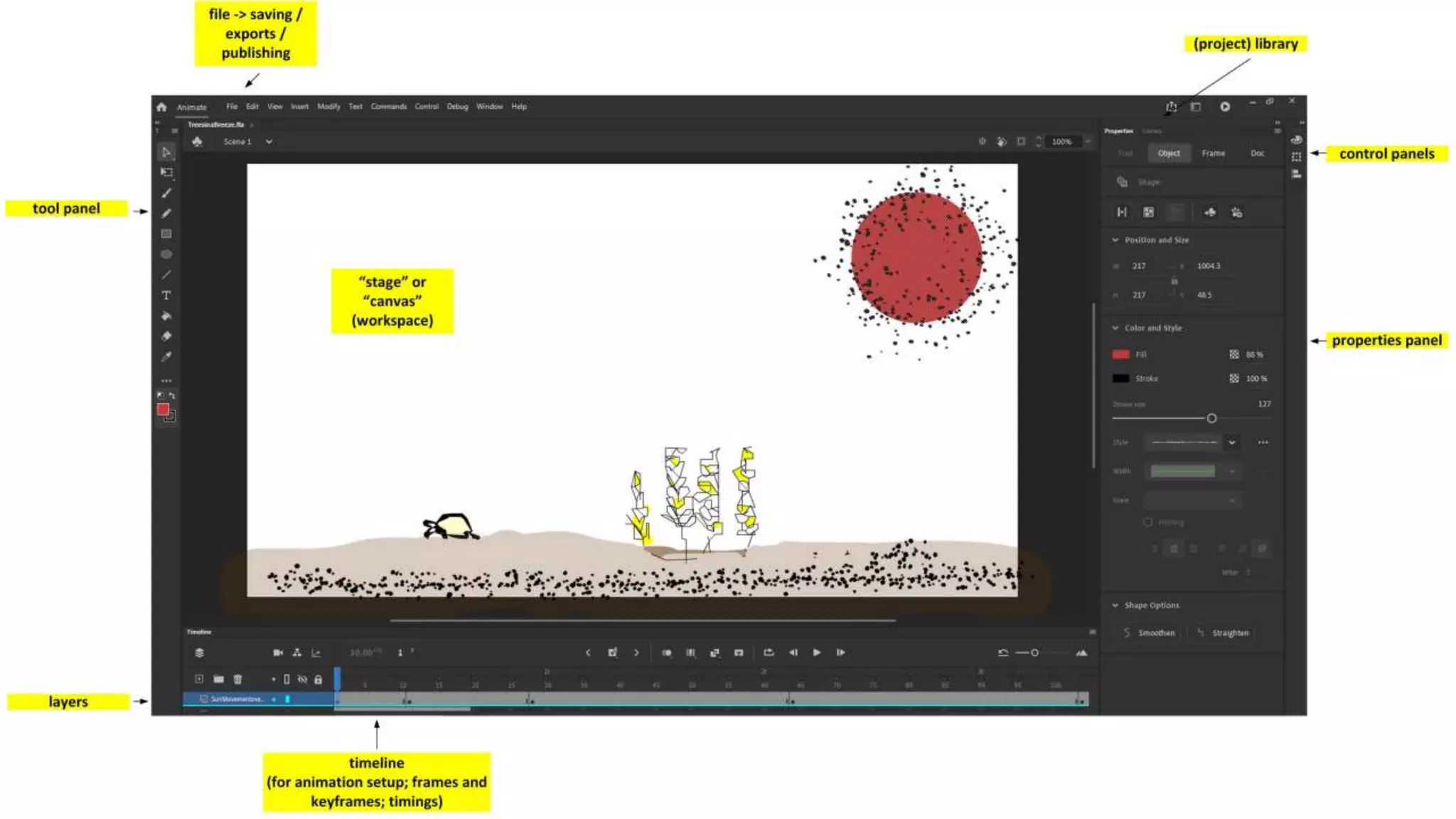
Basic animation “tools”
• 2D space (x and y axis and one flat plane), but with the ability to
create an illusion of 3d (x, y, and z axes), a sense of depth,
foreground/midground/background, a space in which action occurs
• Varying lines (thickness, quality, color), shapes (formations and
deformations including squashing and stretching to emphasize
motion and physics), textures (visual touch), colors (hue, saturation,
transparency, gradations), resolution (level of detail)
16
Basic animation “tools” (cont.)
• Objects in a shared space, with sizing in relation to each other, and
some interactions over units of time (frames per second)
• Timeline
• Visual paths and movement (including keyframes, frames, frames per second,
tweening, and other aspects)
• Timing, pacing, and sequencing
• On-staging
• Off-staging
17
Basic animation “tools”(cont.)
• Application of creative effects: flickers, pulsation, glows, and others
• Character design
• Integration of sound
• Automated character mouth movements with sound
18
The “for learning” piece
• External validity of the visualization (as an exemplar)
• Applied analysis, problem-solving, case analysis
• The learning surround or context
19
Design approaches:
(1) planned-out or (2) on-the-fly
20
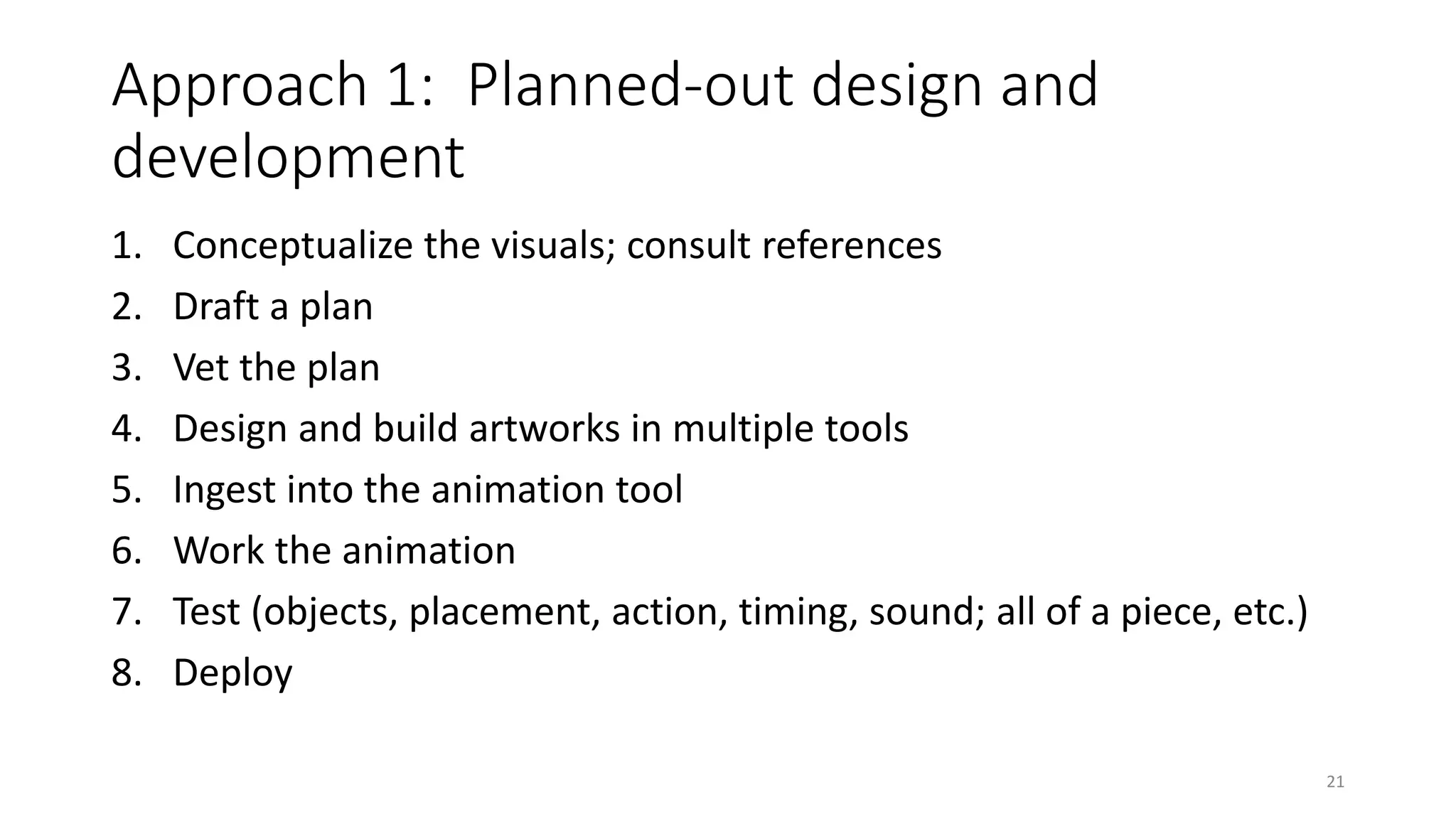
Approach 1: Planned-out design and
development
1. Conceptualize the visuals; consult references
2. Draft a plan
3. Vet the plan
4. Design and build artworks in multiple tools
5. Ingest into the animation tool
6. Work the animation
7. Test (objects, placement, action, timing, sound; all of a piece, etc.)
8. Deploy
21
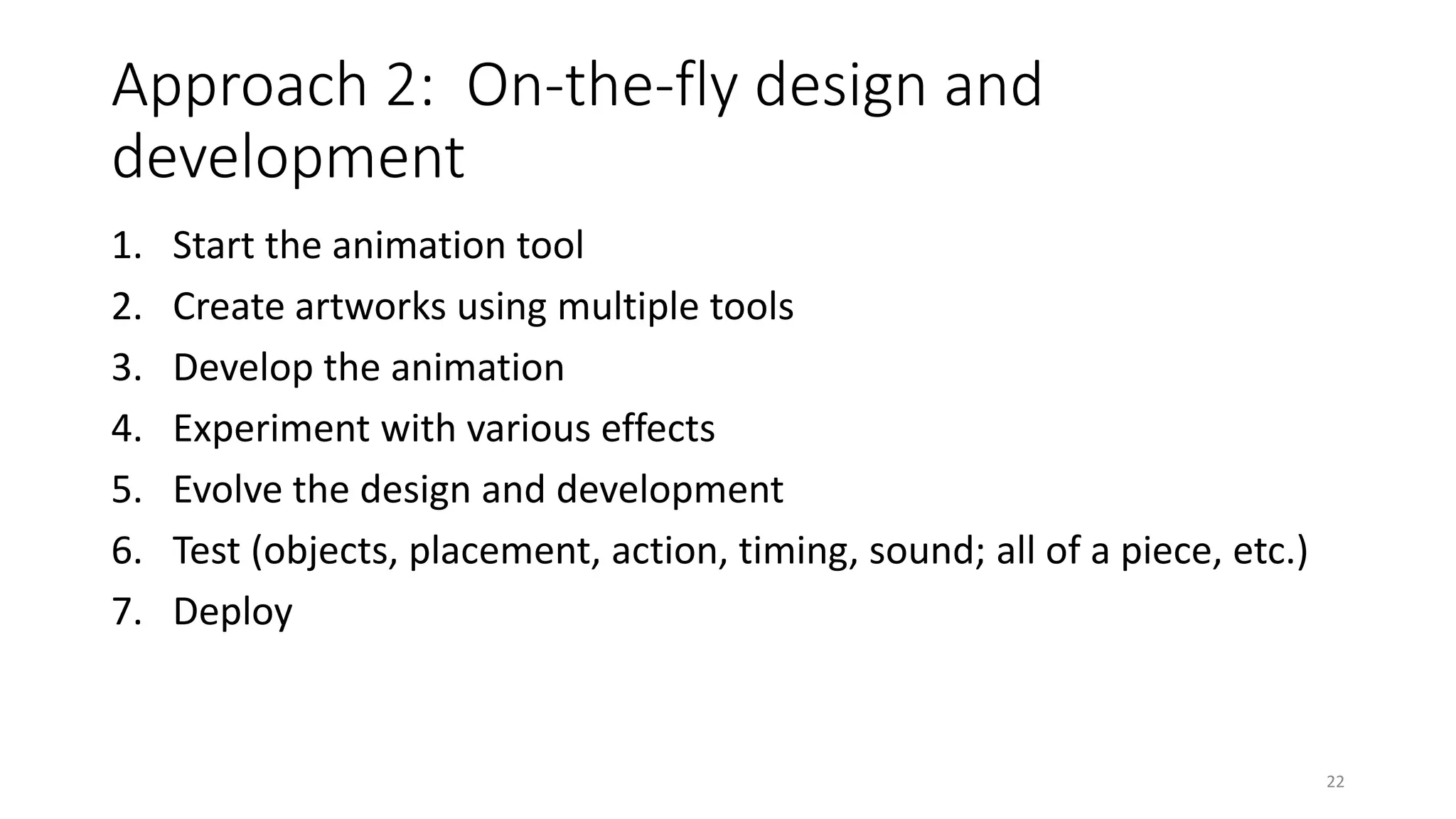
Approach 2: On-the-fly design and
development
1. Start the animation tool
2. Create artworks using multiple tools
3. Develop the animation
4. Experiment with various effects
5. Evolve the design and development
6. Test (objects, placement, action, timing, sound; all of a piece, etc.)
7. Deploy
22
Some common authoring tools
23
Basic authoring tool types
• Diagramming software
• Slideshow software
• Spreadsheet software
• Image editing software
• Video editing software
• Sound editing software
• Animation software
• Media encoding software
24
Observations about the multimedia
development technologies
• Creating lines
• Creating shapes
• Differentiating foreground / background, then midground
• Drawing in layers
• Creating transparencies
• Timing and movement
• Effective integration of sound
25
Observations about the multimedia
development technologies (cont.)
• Acquiring design and development experiences in each tool piece-by-
piece based on small assignments
• Then apply together for
• visual communications,
• motion communications,
• motion communications with sound,
• motion communications for learning
26
MS Visio
• Diagramming tool
• Premade templates
• Stencils and shapes
• Vertical and horizontal guides
• Gridlines
• Stickiness to particular layouts
and lines
• Automated aligning
• Ability to send to back and bring
to front for placements
• Color and pattern and gradient
fills for shapes
• Some built-in automation
27
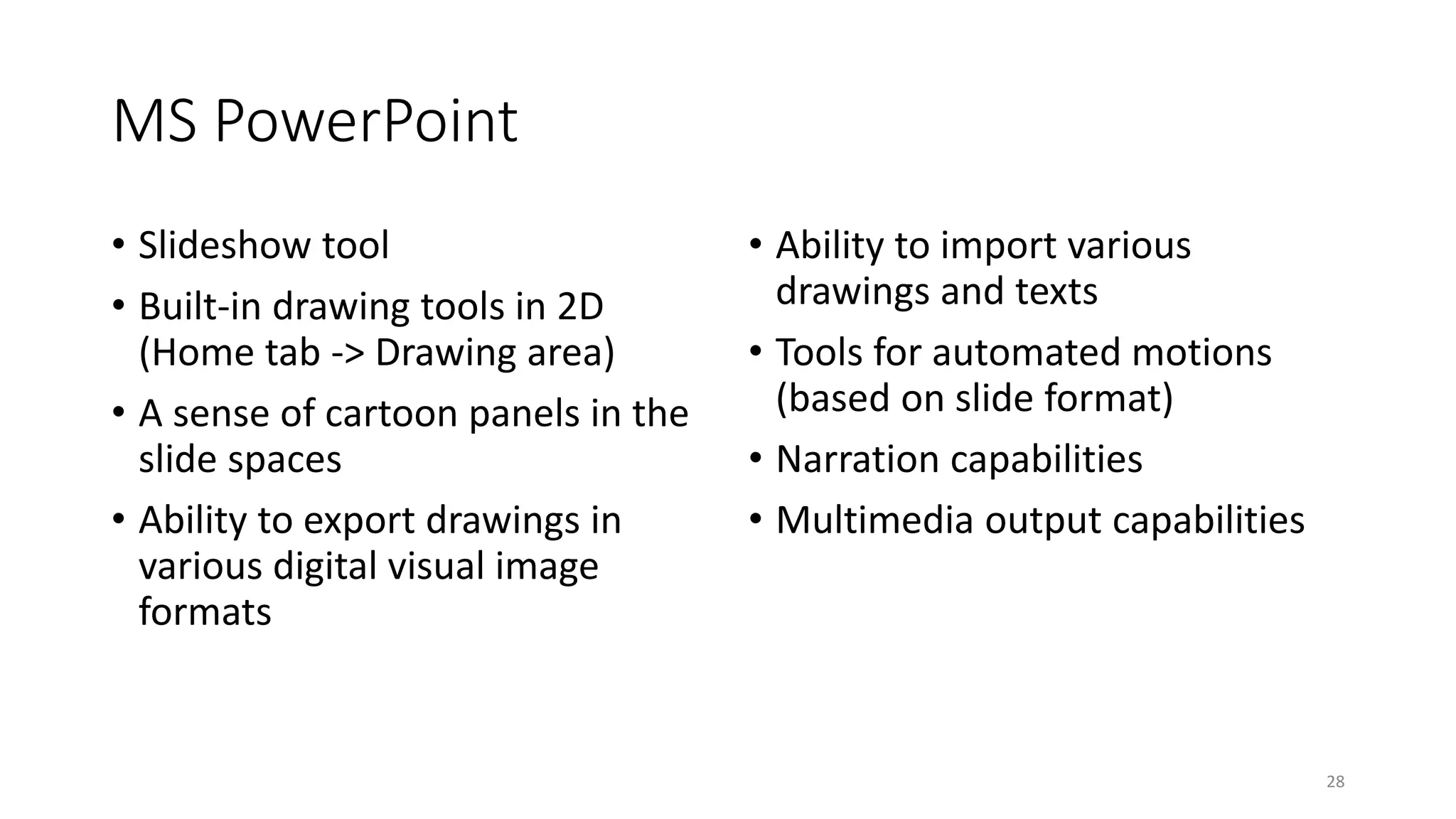
MS PowerPoint
• Slideshow tool
• Built-in drawing tools in 2D
(Home tab -> Drawing area)
• A sense of cartoon panels in the
slide spaces
• Ability to export drawings in
various digital visual image
formats
• Ability to import various
drawings and texts
• Tools for automated motions
(based on slide format)
• Narration capabilities
• Multimedia output capabilities
28
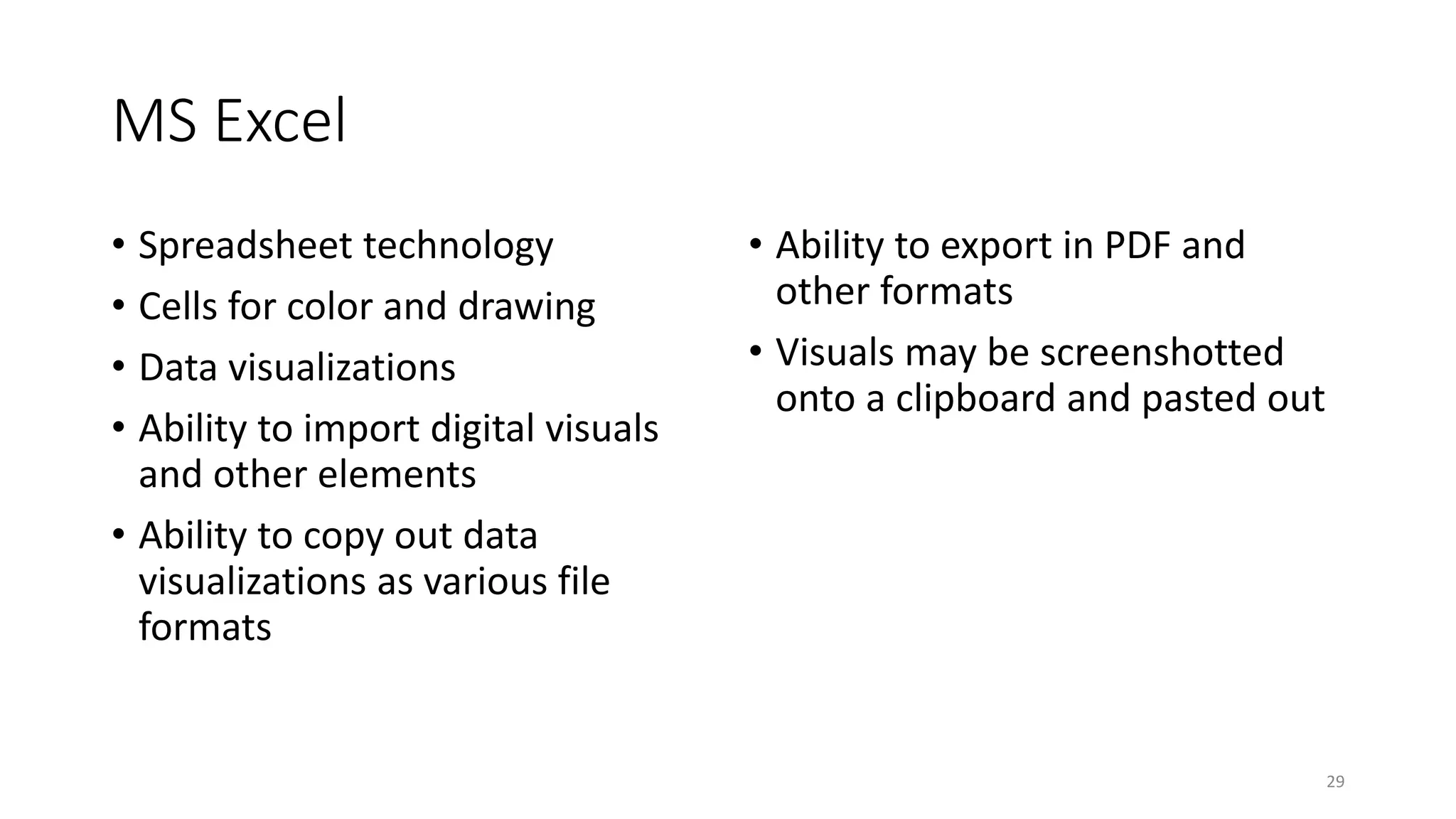
MS Excel
• Spreadsheet technology
• Cells for color and drawing
• Data visualizations
• Ability to import digital visuals
and other elements
• Ability to copy out data
visualizations as various file
formats
• Ability to export in PDF and
other formats
• Visuals may be screenshotted
onto a clipboard and pasted out
29
Adobe Illustrator
• Artboards to create vector-
based art
• Used for drawings
• Used for logos and icons
• Used for typography
30
Adobe Photoshop
• Image editing tool
• Drawing tool
• Digital painting tool
• Raster-based art (sensitive to
sizing and resolution)
31
Adobe Animate
• Animation tool
• Outputs in Flash and HTML 5
and animated gifs, among others
• Ingests digital images as .pngs
• Ingests sound files
• Ingests video files
• Vector tool (vs. raster)
• Variety of visual and animation
effects
• Different objects and capabilities
• Video
• Symbol
• Graphic
32
Adobe Animate(cont.)
• Panoramic motion backgrounds (like motion dioramas)
• Motion backgrounds
• Vapors
• Particulate matter
• Light effects
33
Adobe Media Encoder
• Video editing suite
• Application of various effects
• Transcoding and outputting to
various types of files to play on
various devices
34
General development workflow
design – development – testing – deployment
35
Artwork creation
• Shapes and patterned themes and redundancies
• Color selections (in context); color palette
• Level of granularity vs. coarseness in details
• Functions of various objects
• Various motion deformations
36
Animation logics: What moves and why
• Action in the foreground and midground against a background of
resting state elements (usually)
• Motion for some elements, resting state equilibrium for others
(energy and dynamism with fidelity to the real-world referent)
• Selective sparsity; selective lushness
• Degree of fidelity to the world on one end of the continuum and
stylized / representation / symbolic on the other
• Human mind fills in the gaps (so less is more in most cases)
37
Elements for testing of “serious” animations
Basics
• Factual errors (related to the depicted phenomenon); potential
misapprehensions
• Language errors
• Spelling
• Grammar
• Syntax
• Object depiction
• Sizing
• Placement
• Background visuals
• Motion, in-visual physics
38
Elements for testing of “serious” animations
Legal
• Legal considerations
• IP and copyright
• Talent and media releases
• Accessibility
• Reputation handling
• Crediting
39
Elements for testing of “serious” animations
(cont.)
Animation Mechanics
• Animation consistency
• Order, sequencing; removal of artifacts; eye movements through the scenes
• Aligned with human vision, hearing, symbolic processing, perception, focus,
attention, mental processing, and thinking (control against distractions)
• Technological correctness
• Labeling of layers and artwork (internally)
40
Elements for testing of “serious” animations
(cont.)
Learning Applications
• Learning value, control against misapprehensions, clarity, coherence
• What “pops” visually (perceptually) and mentally (conceptually)
• Learning takeaways
• Memorability
• Control for misunderstandings and misapprehensions
41
Elements for testing of “serious” animations
(cont.)
Learner Receptivity
• Cultural alignment (non-offense), including “subtexts” and subtle
interpretations, symbology
• Cultural backdrop of animations
• Serious animations for learning
• Entertainment-based animations for fun (and disarming amusement,
entrancement, engagement)
42
Elements for testing of “serious” animations
(cont.)
Aesthetics
• Uniqueness and originality
• Aesthetics
• Cultural traditions
• Artfulness
43
Revision
• The animation is updated and revised based on the findings in the
testing phase(s).
44
Deployment
File formatting
• Exporting of proper file types
• Uploading to social sharing
space or servers
• Testing live across a range of
web browsers
Reception by learners / users / content
consumers
• Various types of consumption by
learners / users / content
consumers
• Clarity of the animation
• Learning value of the animation
45
Some learning contents
amenable to “serious” animation
treatment
46
Some learning contents amenable to
“serious” animation treatment
• Actions
• Processes
• Procedures
• Models (with simple mechanisms)
• Systems
• …with sufficient simplicity to depict without excessive expenditure of
time and human resources
• …without effective competing learning resources
• …without effective extant competing videos of the dynamic
47
Caveat: Stills
48
Stills
• Sometimes, stills can be fairly effective because human learners can
infer what happens directly before and after an image
• Humans can infer movements
49
Some (very) early learning
50
Early observations
• An animating conceptualization (idea or image) is needed to start
• It is easier to doodle and build straight into the animation tool, which
is enabled with shapes, digital pencils and brushes, various colors,
and motion effects (than creating artwork outside first, except for
very complex animations)
• Reference images are sometimes necessary to set a visual baseline
(but it is critical to go original)
• It’s easy to go banal with particular wordplays and visual clichés (so
avoid these where possible)
51
Early observations(cont.)
• Animations militate towards simplicity for human perception to
receive the (transient) information accurately
• If an animation is complex in terms of content, the motion has to be slowed
(or slowable) and replayable for understanding
• Don’t discount the difficulty of learning animating software (which
can be complex because of the affordances), so avoid pressuring
yourself
• Play with various effects in order to learn
• Try out visual pratfalls and jokes
• Experiment
52
Contact Information
• Dr. Shalin Hai-Jew
• Kansas State University
• ITS
• shalin@ksu.edu
• 785-532-5262
53

Creating a Motion Infographic for Learning

  • 1.
    Creating a MotionInfographic for Learning Shalin Hai-Jew Kansas State University Virtual SIDLIT 2020 Aug. 5 – 7, 2020
  • 2.
  • 3.
    Presentation Description • Amotion infographic is a two-dimensional flat-plane image that includes some elements of motion. What does it take to create such a learning visual from scratch? What are ways to use motion to drive understandings? What types of learning contents are amenable to this treatment? This session describes some considerations about the creation of such a learning resource, using Adobe Animate and Adobe Media Encoder primarily. 3
  • 4.
    Caveats • The presenteris fairly new to using Adobe Animate. • The main focus of this work is for instructional effect, not aesthetics per se. • Timing and the transience of effects may affect how the motion object is experienced and its efficacy in a teaching and learning context. • Drawing with a mouse on a laptop is limiting, but the capabilities of the various software tools may mitigate the limits of maneuverability and lack of subtle controls. • My first trial motion infographic follows, first as a still and then as an animated gif. 4
  • 5.
  • 6.
  • 7.
  • 8.
  • 9.
    What is amotion infographic 9
  • 10.
    A motion infographic… •Uses selected focal visuals, text, sound, and / or motion [and their interrelationships in physical space and time (pacing and sequencing)] to • Convey information • Emphasize and accentuate • Evoke the real 10
  • 11.
    Knitting the realand the imaginary • May be representative of some dynamic in the world (levels of fidelity) • May be representative of some imaginary sense of the world or of potential • Human vision and mental processing are somewhat forgiving of some level of non-fidelity 11
  • 12.
    How do motioninfographics engage human perception? • Human eyes follow color and motion for sensemaking • Human eyes assume a foreground, midground, and background • The human mind infers something acting on objects that move (an intuitive or naïve physics) • Something that works against in-world physics may be seen as magical and exciting and otherworldly (think Matrix moves) • Knowledge of the world is triggered by experiencing representations of the world (with some suspension of disbelief in experiencing the depictions) 12
  • 13.
    How do motioninfographics engage human perception?(cont.) • Motion infographics are sensitive to sequencing and timing, both of which have to be somewhat harmonized • Sequences… • may suggest process or procedure • may suggest causation (cause and effect) • may suggest story and narration (beginning, middle, end) 13
  • 14.
    What are theroles of motion infographics in teaching and learning? Teaching • Focus on particular and select aspects of the world • Debrief the motion experience • Create a learning framework around the motion infographic Learning • Experience description and explanation of in-world phenomenon (including microscopic phenomenon and dynamics unseeable with the actual naked eye) • Repeat an experience through an analytical lens 14
  • 15.
    Basic elements ofa “serious” animation for learning 15
  • 16.
    Basic animation “tools” •2D space (x and y axis and one flat plane), but with the ability to create an illusion of 3d (x, y, and z axes), a sense of depth, foreground/midground/background, a space in which action occurs • Varying lines (thickness, quality, color), shapes (formations and deformations including squashing and stretching to emphasize motion and physics), textures (visual touch), colors (hue, saturation, transparency, gradations), resolution (level of detail) 16
  • 17.
    Basic animation “tools”(cont.) • Objects in a shared space, with sizing in relation to each other, and some interactions over units of time (frames per second) • Timeline • Visual paths and movement (including keyframes, frames, frames per second, tweening, and other aspects) • Timing, pacing, and sequencing • On-staging • Off-staging 17
  • 18.
    Basic animation “tools”(cont.) •Application of creative effects: flickers, pulsation, glows, and others • Character design • Integration of sound • Automated character mouth movements with sound 18
  • 19.
    The “for learning”piece • External validity of the visualization (as an exemplar) • Applied analysis, problem-solving, case analysis • The learning surround or context 19
  • 20.
  • 21.
    Approach 1: Planned-outdesign and development 1. Conceptualize the visuals; consult references 2. Draft a plan 3. Vet the plan 4. Design and build artworks in multiple tools 5. Ingest into the animation tool 6. Work the animation 7. Test (objects, placement, action, timing, sound; all of a piece, etc.) 8. Deploy 21
  • 22.
    Approach 2: On-the-flydesign and development 1. Start the animation tool 2. Create artworks using multiple tools 3. Develop the animation 4. Experiment with various effects 5. Evolve the design and development 6. Test (objects, placement, action, timing, sound; all of a piece, etc.) 7. Deploy 22
  • 23.
  • 24.
    Basic authoring tooltypes • Diagramming software • Slideshow software • Spreadsheet software • Image editing software • Video editing software • Sound editing software • Animation software • Media encoding software 24
  • 25.
    Observations about themultimedia development technologies • Creating lines • Creating shapes • Differentiating foreground / background, then midground • Drawing in layers • Creating transparencies • Timing and movement • Effective integration of sound 25
  • 26.
    Observations about themultimedia development technologies (cont.) • Acquiring design and development experiences in each tool piece-by- piece based on small assignments • Then apply together for • visual communications, • motion communications, • motion communications with sound, • motion communications for learning 26
  • 27.
    MS Visio • Diagrammingtool • Premade templates • Stencils and shapes • Vertical and horizontal guides • Gridlines • Stickiness to particular layouts and lines • Automated aligning • Ability to send to back and bring to front for placements • Color and pattern and gradient fills for shapes • Some built-in automation 27
  • 28.
    MS PowerPoint • Slideshowtool • Built-in drawing tools in 2D (Home tab -> Drawing area) • A sense of cartoon panels in the slide spaces • Ability to export drawings in various digital visual image formats • Ability to import various drawings and texts • Tools for automated motions (based on slide format) • Narration capabilities • Multimedia output capabilities 28
  • 29.
    MS Excel • Spreadsheettechnology • Cells for color and drawing • Data visualizations • Ability to import digital visuals and other elements • Ability to copy out data visualizations as various file formats • Ability to export in PDF and other formats • Visuals may be screenshotted onto a clipboard and pasted out 29
  • 30.
    Adobe Illustrator • Artboardsto create vector- based art • Used for drawings • Used for logos and icons • Used for typography 30
  • 31.
    Adobe Photoshop • Imageediting tool • Drawing tool • Digital painting tool • Raster-based art (sensitive to sizing and resolution) 31
  • 32.
    Adobe Animate • Animationtool • Outputs in Flash and HTML 5 and animated gifs, among others • Ingests digital images as .pngs • Ingests sound files • Ingests video files • Vector tool (vs. raster) • Variety of visual and animation effects • Different objects and capabilities • Video • Symbol • Graphic 32
  • 33.
    Adobe Animate(cont.) • Panoramicmotion backgrounds (like motion dioramas) • Motion backgrounds • Vapors • Particulate matter • Light effects 33
  • 34.
    Adobe Media Encoder •Video editing suite • Application of various effects • Transcoding and outputting to various types of files to play on various devices 34
  • 35.
    General development workflow design– development – testing – deployment 35
  • 36.
    Artwork creation • Shapesand patterned themes and redundancies • Color selections (in context); color palette • Level of granularity vs. coarseness in details • Functions of various objects • Various motion deformations 36
  • 37.
    Animation logics: Whatmoves and why • Action in the foreground and midground against a background of resting state elements (usually) • Motion for some elements, resting state equilibrium for others (energy and dynamism with fidelity to the real-world referent) • Selective sparsity; selective lushness • Degree of fidelity to the world on one end of the continuum and stylized / representation / symbolic on the other • Human mind fills in the gaps (so less is more in most cases) 37
  • 38.
    Elements for testingof “serious” animations Basics • Factual errors (related to the depicted phenomenon); potential misapprehensions • Language errors • Spelling • Grammar • Syntax • Object depiction • Sizing • Placement • Background visuals • Motion, in-visual physics 38
  • 39.
    Elements for testingof “serious” animations Legal • Legal considerations • IP and copyright • Talent and media releases • Accessibility • Reputation handling • Crediting 39
  • 40.
    Elements for testingof “serious” animations (cont.) Animation Mechanics • Animation consistency • Order, sequencing; removal of artifacts; eye movements through the scenes • Aligned with human vision, hearing, symbolic processing, perception, focus, attention, mental processing, and thinking (control against distractions) • Technological correctness • Labeling of layers and artwork (internally) 40
  • 41.
    Elements for testingof “serious” animations (cont.) Learning Applications • Learning value, control against misapprehensions, clarity, coherence • What “pops” visually (perceptually) and mentally (conceptually) • Learning takeaways • Memorability • Control for misunderstandings and misapprehensions 41
  • 42.
    Elements for testingof “serious” animations (cont.) Learner Receptivity • Cultural alignment (non-offense), including “subtexts” and subtle interpretations, symbology • Cultural backdrop of animations • Serious animations for learning • Entertainment-based animations for fun (and disarming amusement, entrancement, engagement) 42
  • 43.
    Elements for testingof “serious” animations (cont.) Aesthetics • Uniqueness and originality • Aesthetics • Cultural traditions • Artfulness 43
  • 44.
    Revision • The animationis updated and revised based on the findings in the testing phase(s). 44
  • 45.
    Deployment File formatting • Exportingof proper file types • Uploading to social sharing space or servers • Testing live across a range of web browsers Reception by learners / users / content consumers • Various types of consumption by learners / users / content consumers • Clarity of the animation • Learning value of the animation 45
  • 46.
    Some learning contents amenableto “serious” animation treatment 46
  • 47.
    Some learning contentsamenable to “serious” animation treatment • Actions • Processes • Procedures • Models (with simple mechanisms) • Systems • …with sufficient simplicity to depict without excessive expenditure of time and human resources • …without effective competing learning resources • …without effective extant competing videos of the dynamic 47
  • 48.
  • 49.
    Stills • Sometimes, stillscan be fairly effective because human learners can infer what happens directly before and after an image • Humans can infer movements 49
  • 50.
    Some (very) earlylearning 50
  • 51.
    Early observations • Ananimating conceptualization (idea or image) is needed to start • It is easier to doodle and build straight into the animation tool, which is enabled with shapes, digital pencils and brushes, various colors, and motion effects (than creating artwork outside first, except for very complex animations) • Reference images are sometimes necessary to set a visual baseline (but it is critical to go original) • It’s easy to go banal with particular wordplays and visual clichés (so avoid these where possible) 51
  • 52.
    Early observations(cont.) • Animationsmilitate towards simplicity for human perception to receive the (transient) information accurately • If an animation is complex in terms of content, the motion has to be slowed (or slowable) and replayable for understanding • Don’t discount the difficulty of learning animating software (which can be complex because of the affordances), so avoid pressuring yourself • Play with various effects in order to learn • Try out visual pratfalls and jokes • Experiment 52
  • 53.
    Contact Information • Dr.Shalin Hai-Jew • Kansas State University • ITS • shalin@ksu.edu • 785-532-5262 53