Moodle Question Types
Module 1 - Calculated Questions
Presented by Folasade Adedeji
Description
• This class explains how to create different question types in
Moodle 2.9.3
• This class is divided into 12 Modules
What to get from this course
• A step-by-step video tutorial on how to create question types in
Moodle 2.9.3
Requirement
• Moodle 2.9.3 should be installed
• At least one course should be created
Target Audience
• Administrators, managers, course creators, educators and
everyone who want to use Moodle for assessment
Content (Question types)
• Calculated
• Calculated Multi-choice
• Calculated Simple
• Embedded Answers (Cloze)
• Essay
• Matching
• Multiple choice
• Numerical
• Random Short-Answer
• Short Answer
• True/False
Module 1 – Calculated Questions
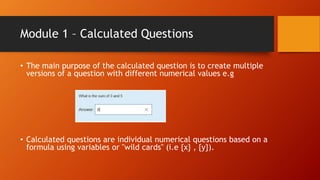
• The main purpose of the calculated question is to create multiple
versions of a question with different numerical values e.g
• Calculated questions are individual numerical questions based on a
formula using variables or "wild cards" (i.e {x} , {y}).
• These wild cards are selected randomly from a set of values when
the quiz is taken
• So students see different values in the same question.
• (wildcard is a character that will take any value for example x, y)
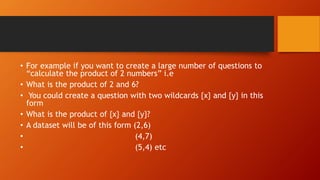
• For example if you want to create a large number of questions to
“calculate the product of 2 numbers” i.e
• What is the product of 2 and 6?
• You could create a question with two wildcards {x} and {y} in this
form
• What is the product of {x} and {y}?
• A dataset will be of this form (2,6)
• (4,7)
• (5,4) etc
• So the questions are seen as
• What is the product of 2 and 6?
• What is the product of 4 and 7?
• What is the product of 5 and 4?
• Each student taking the test/quiz see different values in the same
question.
Module 1 – Calculated Questions
• Edit a calculated question
• Edit the datasets
• Finish the question set-up
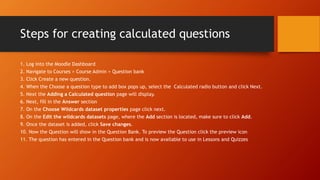
Steps for creating calculated questions
1. Log into the Moodle Dashboard
2. Navigate to Courses > Course Admin > Question bank
3. Click Create a new question.
4. When the Choose a question type to add box pops up, select the Calculated radio button and click Next.
5. Next the Adding a Calculated question page will display.
6. Next, fill in the Answer section
7. On the Choose Wildcards dataset properties page click next.
8. On the Edit the wildcards datasets page, where the Add section is located, make sure to click Add.
9. Once the dataset is added, click Save changes.
10. Now the Question will show in the Question Bank. To preview the Question click the preview icon
11. The question has entered in the Question bank and is now available to use in Lessons and Quizzes

Moodle question types 01 - Calculated Questions

  • 1.
    Moodle Question Types Module1 - Calculated Questions Presented by Folasade Adedeji
  • 2.
    Description • This classexplains how to create different question types in Moodle 2.9.3 • This class is divided into 12 Modules
  • 3.
    What to getfrom this course • A step-by-step video tutorial on how to create question types in Moodle 2.9.3
  • 4.
    Requirement • Moodle 2.9.3should be installed • At least one course should be created
  • 5.
    Target Audience • Administrators,managers, course creators, educators and everyone who want to use Moodle for assessment
  • 6.
    Content (Question types) •Calculated • Calculated Multi-choice • Calculated Simple • Embedded Answers (Cloze) • Essay • Matching • Multiple choice • Numerical • Random Short-Answer • Short Answer • True/False
  • 7.
    Module 1 –Calculated Questions • The main purpose of the calculated question is to create multiple versions of a question with different numerical values e.g • Calculated questions are individual numerical questions based on a formula using variables or "wild cards" (i.e {x} , {y}).
  • 8.
    • These wildcards are selected randomly from a set of values when the quiz is taken • So students see different values in the same question. • (wildcard is a character that will take any value for example x, y)
  • 9.
    • For exampleif you want to create a large number of questions to “calculate the product of 2 numbers” i.e • What is the product of 2 and 6? • You could create a question with two wildcards {x} and {y} in this form • What is the product of {x} and {y}? • A dataset will be of this form (2,6) • (4,7) • (5,4) etc
  • 10.
    • So thequestions are seen as • What is the product of 2 and 6? • What is the product of 4 and 7? • What is the product of 5 and 4? • Each student taking the test/quiz see different values in the same question.
  • 11.
    Module 1 –Calculated Questions • Edit a calculated question • Edit the datasets • Finish the question set-up
  • 12.
    Steps for creatingcalculated questions 1. Log into the Moodle Dashboard 2. Navigate to Courses > Course Admin > Question bank 3. Click Create a new question. 4. When the Choose a question type to add box pops up, select the Calculated radio button and click Next. 5. Next the Adding a Calculated question page will display. 6. Next, fill in the Answer section 7. On the Choose Wildcards dataset properties page click next. 8. On the Edit the wildcards datasets page, where the Add section is located, make sure to click Add. 9. Once the dataset is added, click Save changes. 10. Now the Question will show in the Question Bank. To preview the Question click the preview icon 11. The question has entered in the Question bank and is now available to use in Lessons and Quizzes