Module 3: TheWindows
Operating System
Advanced Cyber Security
Yogyakarta Desember 2021
2.
Module Objectives
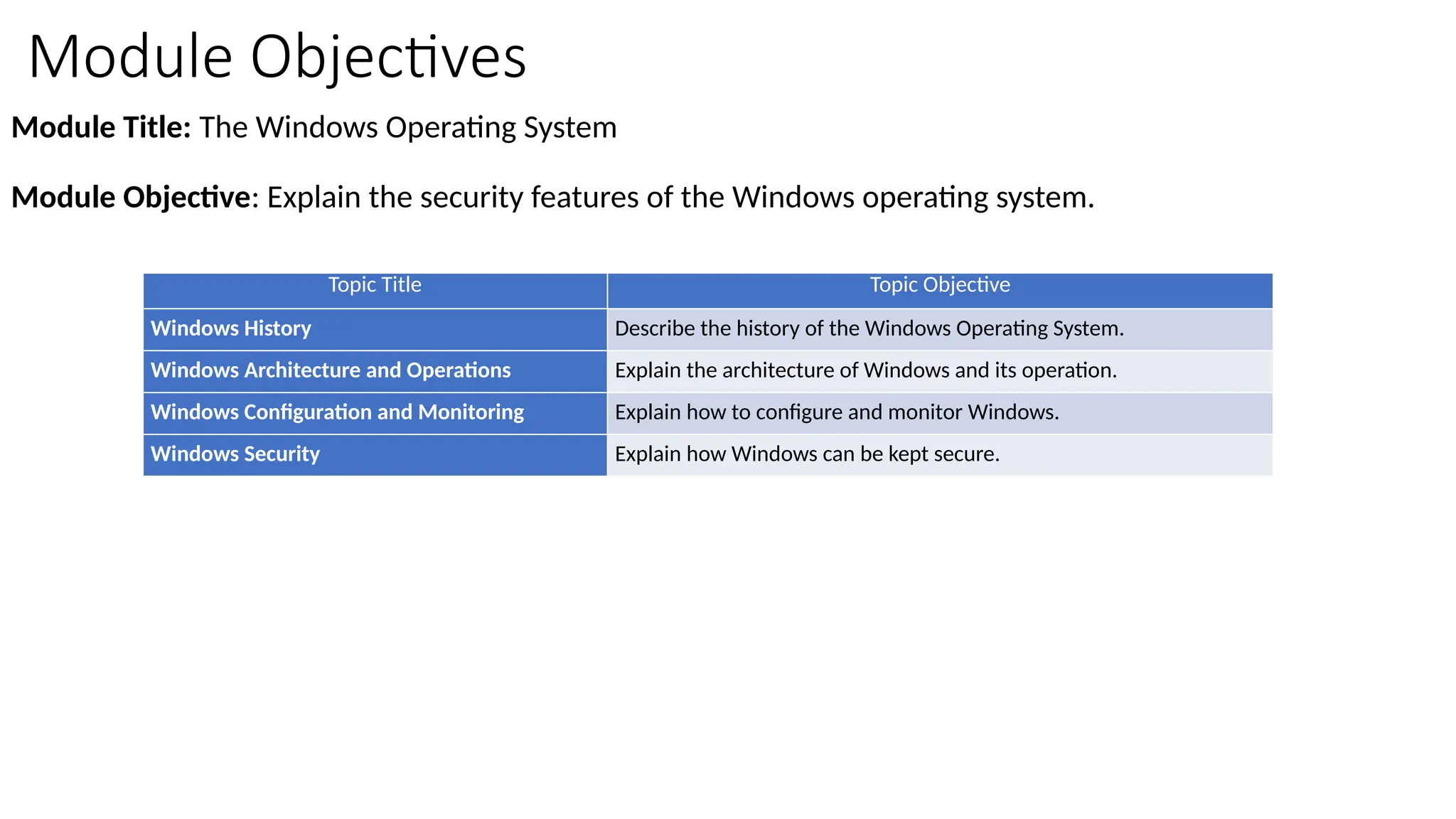
Module Title:The Windows Operating System
Module Objective: Explain the security features of the Windows operating system.
Topic Title Topic Objective
Windows History Describe the history of the Windows Operating System.
Windows Architecture and Operations Explain the architecture of Windows and its operation.
Windows Configuration and Monitoring Explain how to configure and monitor Windows.
Windows Security Explain how Windows can be kept secure.
The Windows OperatingSystem
Disk Operating System
• The Disk Operating System (DOS) is an operating system
that the computer uses to enable the data storage
devices to read and write files.
• DOS provides a file system which organizes the files in a
specific way on the disk.
• MS-DOS, created by Microsoft, used a command line as
the interface for people to create programs and
manipulate data files. DOS commands are shown in
bold text in the given command output.
• With MS-DOS, the computer had a basic working
knowledge of accessing the disk drive and loading the
operating system files directly from disk as part of the
boot process.
5.
The Windows OperatingSystem
Disk Operating System (Contd.)
• Early versions of Windows consisted of a Graphical User Interface (GUI) that ran over MS-DOS, starting
with Windows 1.0 in 1985.
• In newer versions of Windows, built on New Technologies (NT), the operating system itself is in direct
control of the computer and its hardware.
• Today, many things that used to be accomplished through the command line interface of MS-DOS can
be accomplished in the Windows GUI.
• To experience a little of MS-DOS, open a command window by typing cmd in Windows Search and
pressing Enter.
6.
The Windows OperatingSystem
Disk Operating System (Contd.)
The following table lists some of the commands of MS-DOS:
MS-DOS Command Description
dir Shows a listing of all the files in the current directory (folder)
cd directory Changes the directory to the indicated directory
cd .. Changes the directory to the directory above the current directory
cd Changes the directory to the root directory (often C:)
copy source destination Copies files to another location
del filename Deletes one or more files
find Searches for text in files
mkdir directory Creates a new directory
ren oldname newname Renames a file
help Displays all the commands that can be used, with a brief description
help command Displays extensive help for the indicated command
7.
The Windows OperatingSystem
Windows Versions
• Since 1993, there have been more than 20 releases of Windows that are based on the NT
operating system (OS).
• Many editions were built specifically for workstation, professional, server, advanced
server, and datacenter server, to name just a few of the many purpose-built versions.
• The 64-bit operating system was an entirely new architecture. It had a 64-bit address
space instead of a 32-bit address space.
• 64-bit computers and operating systems are backward-compatible with older, 32-bit
programs, but 64-bit programs cannot be run on older, 32-bit hardware.
• With each subsequent release of Windows, the operating system has become more
refined by incorporating more features.
• Microsoft has announced that Windows 10 is the last version of Windows. Rather than
purchasing new operating systems, users will just update Windows 10 instead.
8.
The Windows OperatingSystem
Windows Versions (Contd.)
The following table lists common Windows versions:
OS Versions
Windows 7 Starter, Home Basic, Home Premium, Professional, Enterprise, Ultimate
Windows Server 2008 R2
Foundation, Standard, Enterprise, Datacenter, Web Server, HPC Server,
Itanium-Based Systems
Windows Home Server 2011 None
Windows 8 Windows 8, Windows 8 Pro, Windows 8 Enterprise, Windows RT
Windows Server 2012 Foundation, Essentials, Standard, Datacenter
Windows 8.1 Windows 8.1, Windows 8.1 Pro, Windows 8.1 Enterprise, Windows RT 8.1
Windows Server 2012 R2 Foundation, Essentials, Standard, Datacenter
Windows 10 Home, Pro, Pro Education, Enterprise, Education, loT Core, Mobile, Mobile
Enterprise
Windows Server 2016 Essentials, Standard, Datacenter, Multipoint Premium Server, Storage Server,
Hyper-V Server
9.
The Windows OperatingSystem
Windows GUI
• Windows has a graphical user interface (GUI) for users to work with data files and software.
• The GUI has a main area that is known
as the Desktop. The Desktop can be
customized with various colors and
background images.
• Windows supports multiple users, so
each user can customize the Desktop.
• The Desktop can store files, folders,
shortcuts to locations and programs,
and applications.
• The Desktop also has a recycle bin
icon, where files are stored when the
user deletes them. Files can be
restored from the recycle bin or the
recycle bin can be emptied of files,
which truly deletes them.
10.
The Windows OperatingSystem
Windows GUI (Contd.)
• At the bottom of the desktop, is the
Task Bar.
• At the left is the Start menu which is
used to access all of the installed
programs, configuration options, and
the search feature.
• At the center, users place quick
launch icons that run specific
programs or open specific folders
when they are clicked.
• On the right of the Task Bar is the
notification area. The notification area
shows, at a glance, the functionality of
many different programs and features.
11.
The Windows OperatingSystem
Windows GUI (Contd.)
• Mostly right-clicking an icon will bring
up additional functions that can be
used. This list is known as the Context
Menu.
• There are Context Menus for the icons
in the notification area, for quick launch
icons, system configuration icons, and
for files and folders.
• The Context Menu provides many of the
most commonly used functions by just
clicking.
12.
The Windows OperatingSystem
Operating System Vulnerabilities
• Operating systems consist of millions of lines of code. With all this code comes vulnerabilities.
• A vulnerability is some flaw or weakness that can be exploited by an attacker to reduce the viability of a
computer’s information.
• To take advantage of an operating system vulnerability, the attacker must use a technique or a tool to
exploit the vulnerability.
• The attacker can then use the vulnerability to get the computer to act in a fashion outside of its
intended design.
• In general, the goal is to gain unauthorized control of the computer, change permissions, or to
manipulate or steal data.
13.
The Windows OperatingSystem
Operating System Vulnerabilities (Contd.)
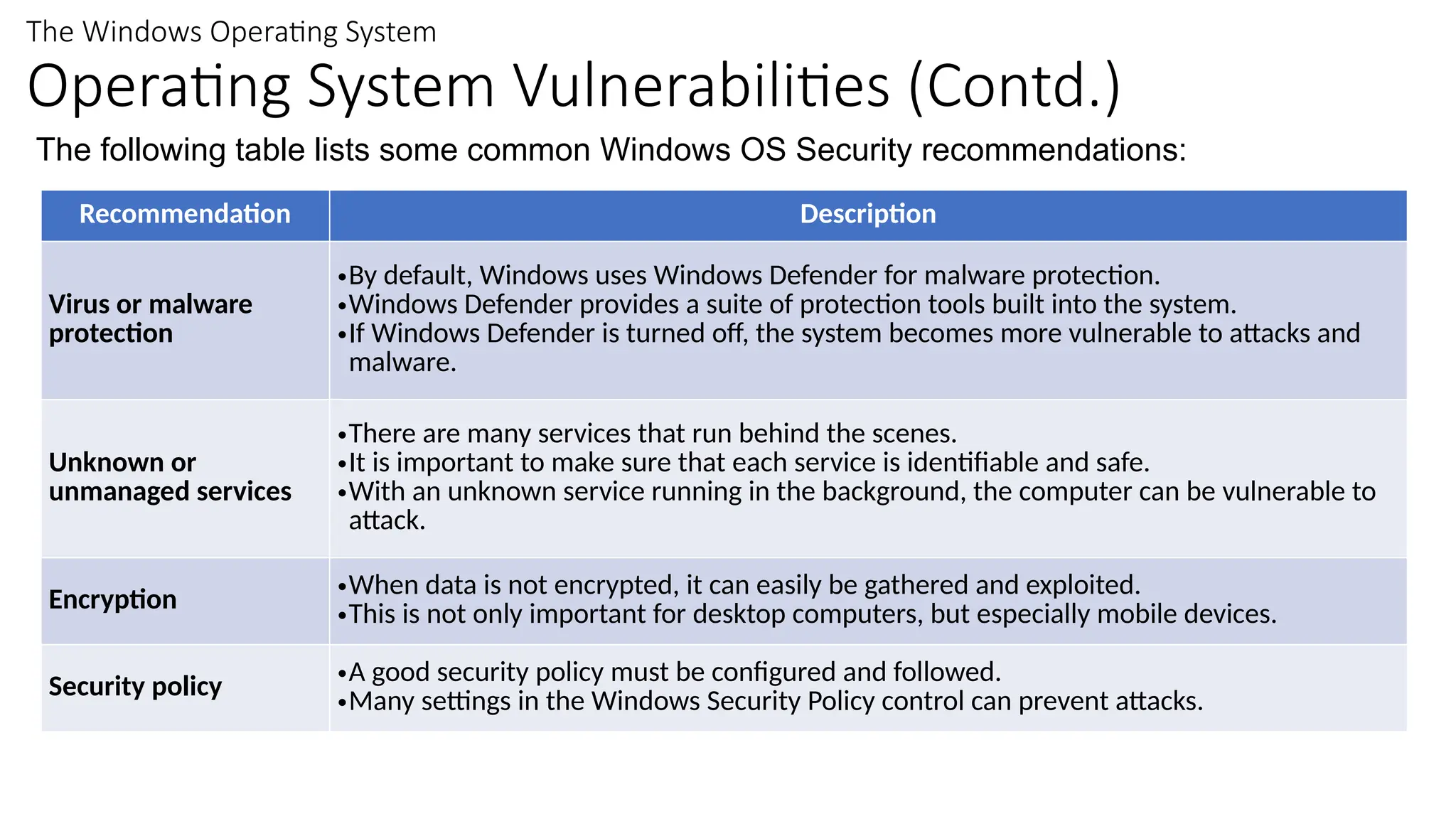
The following table lists some common Windows OS Security recommendations:
Recommendation Description
Virus or malware
protection
•By default, Windows uses Windows Defender for malware protection.
•Windows Defender provides a suite of protection tools built into the system.
•If Windows Defender is turned off, the system becomes more vulnerable to attacks and
malware.
Unknown or
unmanaged services
•There are many services that run behind the scenes.
•It is important to make sure that each service is identifiable and safe.
•With an unknown service running in the background, the computer can be vulnerable to
attack.
Encryption •When data is not encrypted, it can easily be gathered and exploited.
•This is not only important for desktop computers, but especially mobile devices.
Security policy •A good security policy must be configured and followed.
•Many settings in the Windows Security Policy control can prevent attacks.
14.
The Windows OperatingSystem
Operating System Vulnerabilities (Contd.)
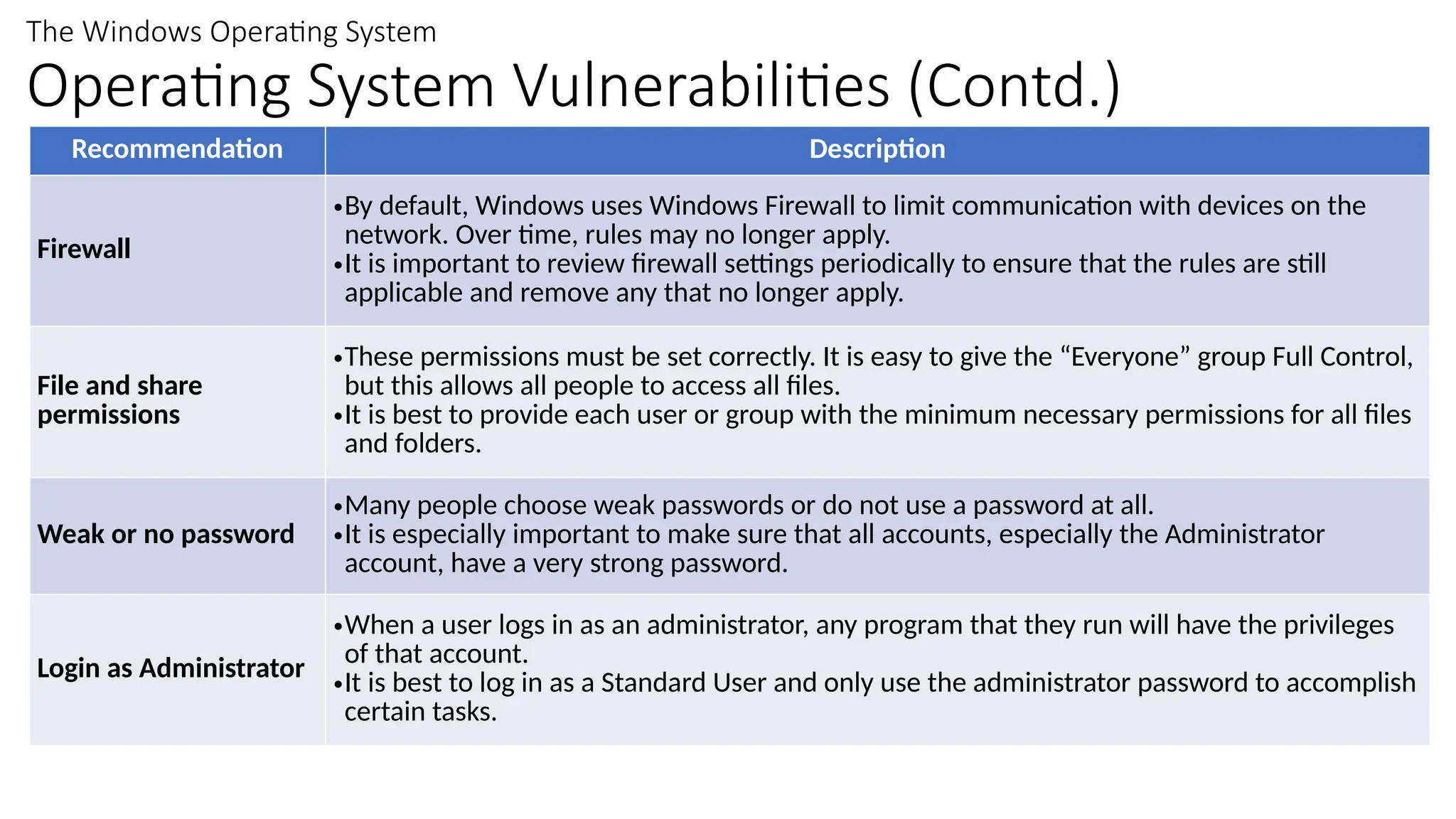
Recommendation Description
Firewall
•By default, Windows uses Windows Firewall to limit communication with devices on the
network. Over time, rules may no longer apply.
•It is important to review firewall settings periodically to ensure that the rules are still
applicable and remove any that no longer apply.
File and share
permissions
•These permissions must be set correctly. It is easy to give the “Everyone” group Full Control,
but this allows all people to access all files.
•It is best to provide each user or group with the minimum necessary permissions for all files
and folders.
Weak or no password
•Many people choose weak passwords or do not use a password at all.
•It is especially important to make sure that all accounts, especially the Administrator
account, have a very strong password.
Login as Administrator
•When a user logs in as an administrator, any program that they run will have the privileges
of that account.
•It is best to log in as a Standard User and only use the administrator password to accomplish
certain tasks.
Windows Architecture andOperations
Hardware Abstraction Layer
• A hardware abstraction layer (HAL) is
software that handles all of the
communication between the hardware and
the kernel.
• The kernel is the core of the operating
system and has control over the entire
computer.
• The kernel handles all of the input and
output requests, memory, and all of the
peripherals connected to the computer.
• The basic Windows architecture is shown in
the figure.
18.
Windows Architecture andOperations
User Mode and Kernel Mode
• The two different modes in which a CPU
operates when the computer has
Windows installed are the user mode and
the kernel mode.
• Installed applications run in user mode,
and operating system code runs in kernel
mode.
• All of the code that runs in kernel mode
uses the same address space.
• When user mode code runs, it is granted
its own restricted address space by the
kernel, along with a process created
specifically for the application.
19.
Windows Architecture andOperations
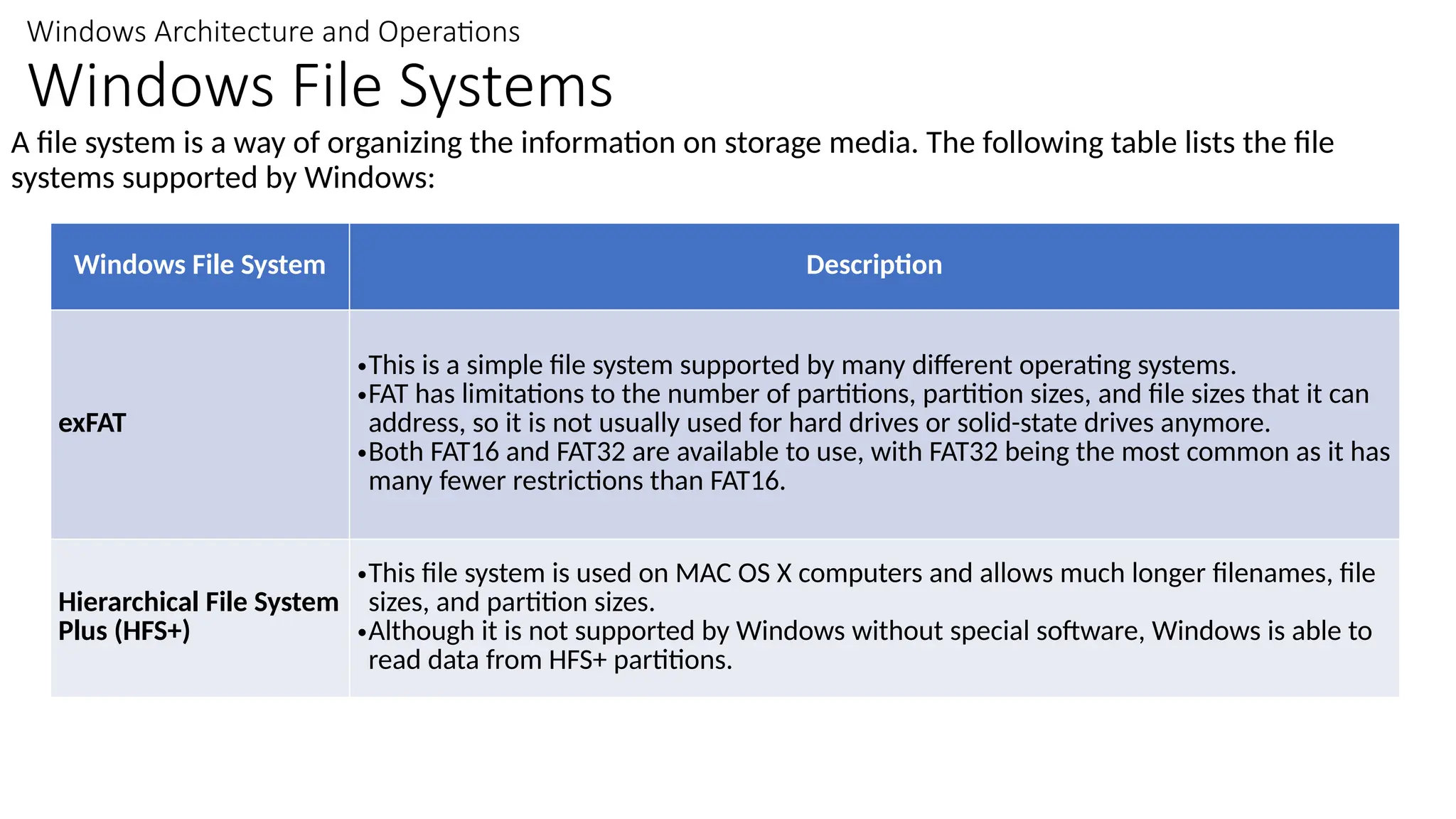
Windows File Systems
A file system is a way of organizing the information on storage media. The following table lists the file
systems supported by Windows:
Windows File System Description
exFAT
•This is a simple file system supported by many different operating systems.
•FAT has limitations to the number of partitions, partition sizes, and file sizes that it can
address, so it is not usually used for hard drives or solid-state drives anymore.
•Both FAT16 and FAT32 are available to use, with FAT32 being the most common as it has
many fewer restrictions than FAT16.
Hierarchical File System
Plus (HFS+)
•This file system is used on MAC OS X computers and allows much longer filenames, file
sizes, and partition sizes.
•Although it is not supported by Windows without special software, Windows is able to
read data from HFS+ partitions.
20.
Windows Architecture andOperations
Windows File Systems (Contd.)
Windows File System Description
Extended File System
(EXT)
•This file system is used with Linux-based computers.
•Although it is not supported by Windows, Windows is able to read data from EXT
partitions with special software.
New Technology File
System (NTFS)
•This is the most commonly used file system when installing Windows. All versions of
Windows and Linux support NTFS.
•Mac-OS X computers can only read an NTFS partition. They are able to write to an
NTFS partition after installing special drivers.
21.
Windows Architecture andOperations
Windows File Systems (Contd.)
NTFS formatting creates important structures on the disk for file storage, and tables for recording the
locations of files:
• Partition Boot Sector: This is the first 16 sectors of the drive. It contains the location of the Master
File Table (MFT). The last 16 sectors contain a copy of the boot sector.
• Master File Table (MFT): This table contains the locations of all the files and directories on the
partition, including file attributes such as security information and timestamps.
• System Files: These are hidden files that store information about other volumes and file attributes.
• File Area: The main area of the partition where files and directories are stored.
Note: When formatting a partition, the previous data may still be recoverable because not all the
data is completely removed. It is recommended to perform a secure wipe on a drive that is being
reused. The secure wipe will write data to the entire drive multiple times to ensure there is no
remaining data.
22.
Windows Architecture andOperations
Alternate Data Streams
• NTFS stores files as a series of attributes, such as the
name of the file, or a timestamp.
• The data which the file contains is stored in the
attribute $DATA, and is known as a data stream.
• By using NTFS, Alternate Data Streams (ADSs) can be
connected to the file.
• An attacker could store malicious code within an ADS
that can then be called from a different file.
• In the NTFS file system, a file with an ADS is identified
after the filename and a colon, for
example, Testfile.txt:ADS. This filename indicates an
ADS called ADS is associated with the file
called Testfile.txt.
23.
Windows Architecture andOperations
Windows Boot Process
• Many actions occur between the
power button is pressed and
Windows is fully loaded. This is the
Windows Boot process. Two types of
computer firmware exist:
• Basic Input-Output System (BIOS): The process
begins with the BIOS initialization phase in
which the hardware devices are initialized and a
POST is performed. When the system disk is
discovered, the POST ends and looks for the
master boot record (MBR).The BIOS executes
the MBR code and the operating system starts to
load.
• Unified Extensible Firmware Interface (UEFI):
UEFI firmware boots by loading EFI program files
(.efi) stored in a special disk partition, known as
the EFI System Partition (ESP).
24.
Windows Architecture andOperations
Windows Boot Process (Contd.)
• Whether the firmware is BIOS or UEFI, after a valid Windows installation is located, the Bootmgr.exe file
is run.
• Bootmgr.exe reads the Boot Configuration Database (BCD).
• If the computer is coming out of hibernation, the boot process continues with Winresume.exe.
• If the computer is being booted from a cold start, then the Winload.exe file is loaded.
• Winload.exe also uses Kernel Mode Code Signing (KMCS) to make sure that all drivers are digitally
signed.
• After the drivers have been examined, Winload.exe runs Ntoskrnl.exe that starts the Windows kernel
and sets up the HAL.
Note: A computer that uses UEFI stores boot code in the firmware. This helps to increase the
security of the computer at boot time because the computer goes directly into protected mode.
25.
Windows Architecture andOperations
Windows Startup
• There are two important registry items that are used to automatically start applications and services:
• HKEY_LOCAL_MACHINE - Several aspects of Windows configuration are stored in this key, including
information about services that start with each boot.
• HKEY_CURRENT_USER - Several aspects related to the logged in user are stored in this key, including
information about services that start only when the user logs on to the computer.
• Different entries in these registry locations define which services and applications will start, as indicated
by their entry type.
• These types include Run, RunOnce, RunServices, RunServicesOnce, and Userinit. These entries can be
manually entered into the registry, but it is much safer to use the Msconfig.exe tool.
• The Msconfig tool is used to view and change all of the start-up options for the computer. It opens the
System Configuration window.
26.
Windows Architecture andOperations
Windows Startup (Contd.)
There are five tabs that contain the configuration options.
General
Three different startup types can be
chosen here:
• Normal loads all drivers and
services.
• Diagnostic loads only basic
drivers and services.
• Selective allows the user to
choose what to load on startup.
27.
Windows Architecture andOperations
Windows Startup (Contd.)
Boot
• Any installed operating system can be
chosen here to start.
• There are also options for Safe boot,
which is used to troubleshoot
startup.
28.
Windows Architecture andOperations
Windows Startup (Contd.)
Services
• All the installed services are listed
here so that they can be chosen to
start at startup.
29.
Windows Architecture andOperations
Windows Startup (Contd.)
Startup
• All the applications and services
that are configured to automatically
begin at startup can be enabled or
disabled by opening the task
manager from this tab.
30.
Windows Architecture andOperations
Windows Startup (Contd.)
Tools
• Many common operating system
tools can be launched directly from
this tab.
31.
Windows Architecture andOperations
Windows Shutdown
• It is always best to perform a proper shutdown to turn off the computer. The computer needs time to
close each application, shut down each service, and record any configuration changes before power is
lost.
• During shutdown, the computer will close user mode applications first, followed by kernel mode
processes.
• There are several ways to shut down a Windows computer: Start menu power options, the command
line command shutdown, and using Ctrl+Alt+Delete and clicking the power icon.
• There are three different options from which to choose when shutting down the computer:
• Shutdown: Turns the computer off (power off).
• Restart: Re-boots the computer (power off and power on).
• Hibernate: Records the current state of the computer and user environment and stores it in a file.
Hibernation allows the user to pick up right where they left off very quickly with all their files and
programs still open.
32.
Windows Architecture andOperations
Processes, Threads, and Services
• A Windows application is made up of processes. A
process is any program that is currently executing.
• Each process that runs is made up of at least one
thread. A thread is a part of the process that can be
executed.
• To configure Windows processes, search for Task
Manager. The Processes tab of the Task Manager is
shown in the figure.
• All of the threads dedicated to a process are contained
within the same address space which means that
these threads may not access the address space of any
other process. This prevents corruption of other
processes.
33.
Windows Architecture andOperations
Processes, Threads, and Services (Contd.)
• Some of the processes that Windows runs are
services. These are programs that run in the
background to support the operating system
and applications.
• Services provide long-running functionality,
such as wireless or access to an FTP server.
• To configure Windows Services, search for
services. The Windows Services control panel
applet is shown in the figure.
• Be very careful when manipulating the settings
of these services. Shutting down a service may
adversely affect applications or other services.
34.
Windows Architecture andOperations
Memory Allocation and Handles
• The virtual address space for a process is the set of virtual addresses that the process
can use.
• The virtual address is not the actual physical location in memory, but an entry in a page table that is used
to translate the virtual address into the physical address.
• Each process in a 32-bit Windows computer supports a virtual address space that enables addressing up
to 4 gigabytes.
• Each process in a 64-bit Windows computer supports a virtual address space of 8 terabytes.
• Each user space process runs in a private address space, separate from other user space processes.
• When the user space process needs to access kernel resources, it must use a process handle.
• As the user space process is not allowed to directly access these kernel resources, the process handle
provides the access needed by the user space process without a direct connection to it.
35.
Windows Architecture andOperations
Memory Allocation and Handles (Contd.)
• A powerful tool for viewing
memory allocation is RAMMap,
which is shown in the figure.
• RAMMap is part of the Windows
Sysinternals Suite of tools. It can be
downloaded from Microsoft.
• RAMMap provides information
regarding how Windows has
allocated system memory to the
kernel, processes, drivers, and
applications.
36.
Windows Architecture andOperations
The Windows Registry
• Windows stores all of the information about hardware, applications, users, and system settings in a large database known
as the registry.
• The registry is a hierarchical database where the highest level is known as a hive, below that there are keys, followed by
subkeys.
• Values store data and are stored in the keys and subkeys. A registry key can be up to 512 levels deep.
• The following table lists the five hives of the Windows registry:
Registry Hive Description
HKEY_CURRENT_USER (HKCU) Holds information concerning the currently logged in user.
HKEY_USERS (HKU) Holds information concerning all the user accounts on the host.
HKEY_CLASSES_ROOT (HKCR)
Holds information about object linking and embedding (OLE) registrations. It
allows users to embed objects from other applications into a single
document.
HKEY_LOCAL_MACHINE (HKLM) Holds system-related information.
HKEY_CURRENT_CONFIG (HKCC) Holds information about the current hardware profile.
37.
Windows Architecture andOperations
The Windows Registry (Contd.)
• New hives cannot be created. The registry
keys and values in the hives can be
created, modified, or deleted by an
account with administrative privileges.
• As shown in the figure, the
tool regedit.exe is used to modify the
registry.
• Be very careful when using this tool.
Minor changes to the registry can have
massive or even catastrophic effects.
38.
Windows Architecture andOperations
The Windows Registry (Contd.)
• Navigation in the registry is very similar to Windows file explorer.
• Use the left panel to navigate the hives and the structure below it and use the right panel to see the
contents of the highlighted item in the left panel.
• The path is displayed at the bottom of the window for reference.
• Registry keys can contain either a subkey or a value. The different values that keys can contain are as
follows:
• REG_BINARY: Numbers or Boolean values
• REG_DWORD: Numbers greater than 32 bits or raw data
• REG_SZ: String values
• The registry also contains the activity that a user performs during normal day-to-day computer use.
• This includes the history of hardware devices, including all devices that have been connected to the
computer including the name, manufacturer and serial number.
Windows Configuration andMonitoring
Run as Administrator
• As a security best practice, it is not advisable to log on to Windows using the Administrator account or
an account with administrative privileges.
• There are two different ways to run or install
a software that requires the privileges of the
Administrator.
Administrator
• Right-click the command in the Windows File
Explorer and choose Run as Administrator
from the Context Menu.
41.
Windows Configuration andMonitoring
Run as Administrator (Contd.)
Administrator Command Prompt
• Search for command, right-click the
executable file, and choose Run as Administrator
from the Context Menu.
• Every command that is executed from this command
line will be carried out with the Administrator
privileges, including installation of software.
42.
Windows Configuration andMonitoring
Local Users and Domains
• When a new computer is started for the first time, or Windows is installed, there will be a prompt to
create a user account. This is known as a local user.
• This account contains all the customization settings, access permissions, file locations, and many other
user-specific data.
• To make administration of users easier, Windows uses groups. A group will have a name and a specific
set of permissions associated with it.
• When a user is placed into a group, the permissions of that group are given to that user.
• A user can be placed into multiple groups to be provided with many different permissions. When the
permissions overlap, certain permissions, like “explicitly deny” will override the permission provided
by a different group.
• There are many different user groups built into Windows that are used for specific tasks.
43.
Windows Configuration andMonitoring
Local Users and Domains (Contd.)
• Local users and groups are managed
with the lusrmgr.msc control panel
applet, as shown in the figure.
• Windows also use domains to set
permissions. A domain is a type of
network service where all of the
users, groups, computers,
peripherals, and security settings are
stored on and controlled by a
database.
44.
Windows Configuration andMonitoring
CLI and PowerShell
• The Windows command line interface (CLI) can be used to run programs, navigate the file system, and
manage files and folders.
• To open the Windows CLI, search for cmd.exe and click the program. These are a few things to remember
when using the CLI:
• The file names and paths are not case-sensitive, by default.
• Storage devices are assigned a letter for reference. This followed by a colon and backslash ().
• Commands that have optional switches use the forward slash (/) to delineate between the command
and the switch option.
• You can use the Tab key to auto-complete commands when directories or files are referenced.
• Windows keeps a history of the commands that were entered during a CLI session. Access previously
entered commands by using the up and down arrow keys.
• To switch between storage devices, type the letter of the device, followed by a colon, and then
press Enter.
45.
Windows Configuration andMonitoring
CLI and PowerShell (Contd.)
• Another environment, called the Windows PowerShell, can be used to create scripts to automate tasks
that the regular CLI is unable to create.
• PowerShell also provides a CLI for initiating commands.
• PowerShell is an integrated program within Windows.
• Like the CLI, PowerShell can also be run with administrative privileges.
• These are the types of commands that PowerShell can execute:
• cmdlets - These commands perform an action and return an output or object to the next command
that will be executed.
• PowerShell scripts - These are files with a .ps1 extension that contain PowerShell commands that
are executed.
• PowerShell functions - These are pieces of code that can be referenced in a script.
46.
Windows Configuration andMonitoring
CLI and PowerShell (Contd.)
• To see more information about PowerShell and get
started using it, type help, as shown in the command
output.
• There are four levels of help in Windows PowerShell:
• get-help PS command - Displays basic help for a
command
• get-help PS command [-examples] - Displays
basic help for a command with examples
• get-help PS command [-detailed] - Displays
detailed help for a command with examples
• get-help PS command [-full] - Displays all help
information for a command with examples in
greater depth
47.
Windows Configuration andMonitoring
Windows Management Instrumentation
• Windows Management Instrumentation (WMI) is used to manage remote computers.
• It can retrieve information about computer components, hardware and software statistics, and monitor
the health of remote computers.
• To open the WMI control from the Control Panel, double-click Administrative Tools > Computer
Management to open the Computer Management window, expand the Services and Applications tree
and right-click the WMI Control icon > Properties.
48.
Windows Configuration andMonitoring
Windows Management Instrumentation (Contd.)
• The WMI Control Properties window is
shown in the figure. Four tabs in the WMI
Control Properties window are:
• General - Summary information
about the local computer and WMI
• Backup/Restore - Allows manual
backup of statistics gathered by WMI
• Security - Settings to configure who
has access to different WMI statistics
• Advanced - Settings to configure the
default namespace for WMI
49.
Windows Configuration andMonitoring
The net Command
• The net command is used in the administration
and maintenance of the OS.
• The net command supports many
subcommands that follow it and can be
combined with switches to focus on specific
output.
• To see a list of the many net commands,
type net help at the command prompt.
• The command output shows the commands
that the net command can use.
• To see verbose help about any of the net
commands, type C:> net help.
50.
Windows Configuration andMonitoring
The net Command (Contd.)
The following table lists some common net commands:
Command Description
net accounts Sets password and logon requirements for users
net session
Lists or disconnects sessions between a computer and other
computers on the network
net share Creates, removes, or manages shared resources
net start Starts a network service or lists running network services
net stop Stops a network service
net use Connects, disconnects, and displays information about shared
network resources
net view Shows a list of computers and network devices on the network
51.
Windows Configuration andMonitoring
Task Manager and Resource Monitor
Task Manager
• The Task Manager, which is shown in
the figure, provides a lot of
information about the software that is
running and the general performance
of the computer.
• The Task Manager has seven tabs.
There are two useful tools to help an administrator to understand the different applications,
services, and processes that are running on a Windows computer.
52.
Windows Configuration andMonitoring
Task Manager and Resource Monitor (Contd.)
The following table describes the seven tabs in the Task Manager:
Task Manager
Tabs
Description
Processes
•Lists all of the programs and processes that are currently running.
•Displays the CPU, memory, disk, and network utilization of each process.
•The properties can be examined or ended if it is not behaving properly or has stalled.
Performance
•A view of the performance statistics provides a overview of the CPU, memory, disk, and network
performance.
•Clicking each item in the left pane will show detailed statistics of that item in the right pane.
App history
•The use of resources by application over time provides insight into applications that are consuming
more resources.
•Click Options and Show history for all processes to see the history of every process that has run since
the computer was started.
Startup •All the applications and services that start when the computer is booted are shown in this tab.
•To disable a program from starting at startup, right-click the item and choose Disable.
53.
Windows Configuration andMonitoring
Task Manager and Resource Monitor (Contd.)
Task Manager Tabs Description
Users
•All of the users that are logged on to the computer and all the resources that each user’s
applications and processes are using are shown in this tab.
•From this tab, an administrator can disconnect a user from the computer.
Details
•This tab provides additional management options for processes such as setting a priority to
make the processor devote more or less time to a process.
•CPU affinity can also be set which determines which core or CPU a program will use.
•A useful feature called Analyze wait chain shows any process for which another process is
waiting. This feature helps to determine if a process is simply waiting or is stalled.
Services
•All the services that are loaded are shown in this tab.
•The process ID (PID) and a short description are also shown along with the status of either
Running or Stopped.
•At the bottom, there is a button to open the Services console which provides additional
management of services.
54.
Windows Configuration andMonitoring
Task Manager and Resource Monitor (Contd.)
Resource Monitor
• When more detailed information
about resource usage is needed, the
Resource Monitor can be used.
• When searching for the reason a
computer may be acting erratically,
the Resource Monitor can help to
find the source of the problem.
• Resource Monitor has Five tabs.
55.
Windows Configuration andMonitoring
Task Manager and Resource Monitor (Contd.)
The following table describes the five tabs of the Resource Monitor:
Resource
Monitor Tabs
Description
Overview The tab displays the general usage for each resource.
CPU
•The PID, number of threads, which the process is using, and the average CPU usage of each process is
shown.
•Additional information about any services and the associated handles and modules can be seen by
expanding the lower rows.
Memory
All the statistical information about how each process uses memory is shown in this tab and an overview
of usage of all the RAM is shown below the Processes row.
Disk All the processes that are using a disk are shown in this tab, with read/write statistics and an overview of
each storage device.
Network
•All the processes that are using the network are shown in this tab, with read/write statistics.
•It is very useful when trying to determine which applications and processes are communicating over
the network. Also, tell if an unauthorized process is accessing the network.
56.
Windows Configuration andMonitoring
Networking
• One of the most important features of any operating system is the ability for the computer to connect
to a network.
• To configure Windows networking properties and test networking settings, the Network and Sharing
Center is used.
Network and Sharing Center
• It is used to verify or create network
connections, configure network sharing,
and change network adapter settings.
• The initial view shows an overview of
the active network.
• From the window, you can see the
HomeGroup the computer belongs to, or
create one if it is not already part of a
HomeGroup. Note that HomeGroup was
removed from Windows 10 in version
1803.
57.
Windows Configuration andMonitoring
Networking (Contd.)
Change Adapter Settings
• To configure a network adapter, choose Change adapter settings in the Networking and Sharing Center
to show all of the network connections that are available. Select the adapter that is to be configured.
• Following are the steps to change an Ethernet adapter to acquire its IPv4 address automatically from
the network:
Step 1: Access Adaptor Properties
Right-click the adapter you wish to
configure and choose Properties, as shown
in the figure.
58.
Windows Configuration andMonitoring
Networking (Contd.)
Step 2: Access TCP/IPv4 properties
• This connection uses Internet Protocol
Version 4 (TCP/IPv4) or Internet Protocol
Version 6 (TCP/IPv6) depending on which
version the user wish to use.
• In the figure, IPv4 is being selected.
59.
Windows Configuration andMonitoring
Networking (Contd.)
Step 3: Change Settings
• Click Properties to configure the adapter.
• In the Properties dialogue box, choose to Obtain an
address automatically if there is a DHCP server
available on the network or if the user wish to configure
addressing manually, fill in the address, subnet, default
gateway, and DNS servers.
• Click OK to accept the changes.
• You can also use the netsh.exe tool to configure
networking parameters from a command prompt.
• This program can display and modify the network
configuration.
• Type netsh /? at the command prompt to see a list of
all the switches.
60.
Windows Configuration andMonitoring
Networking (Contd.)
nslookup and netstat
• Domain Name System (DNS) should also be tested because it is essential to finding the address of hosts
by translating it from a name, such as a URL.
• Use the nslookup command to test DNS.
• Type nslookup cisco.com at the command prompt to find the address of the
Cisco webserver. If the address is returned, the DNS is functioning correctly.
• Type netstat at the command line to see details of active network connections.
61.
Windows Configuration andMonitoring
Accessing Network Resources
• Windows uses networking for many different applications such as web, email, and file services.
• Server Message Block (SMB) protocol is used to share network resources. It is mostly used for
accessing files on remote hosts.
• The Universal Naming Convention (UNC) format is used to connect to resources such as
servernamesharenamefile.
• In the UNC, servername is the server that is hosting the resource. The sharename is the root of the
folder in the file system on the remote host, while the file is the resource that the local host is trying
to find.
• When sharing resources on the network, the area of the file system that will be shared will need to
be identified. Access control can be applied to the files to restrict users and groups to specific
functions.
• There are also special shares that are automatically created by Windows. These shares are called
administrative shares and are identified by a dollar sign ($) that comes after the share name.
62.
Windows Configuration andMonitoring
Accessing Network Resources (Contd.)
• Besides accessing shares on remote hosts, the user
can also log in to a remote host and manipulate
that computer, as if it were local, to make
configuration changes, install software, or
troubleshoot an issue.
• In Windows, this feature uses the Remote Desktop
Protocol (RDP). The Remote Desktop Connection
window is shown in the figure.
• Since Remote Desktop Protocol (RDP) is designed
to permit remote users to control individual hosts,
it is a natural target for threat actors.
63.
Windows Configuration andMonitoring
Windows Server
• Most Windows installations are performed as desktop installations on desktops and laptops.
• There is another edition of Windows that is mainly used in data centers called Windows Server.
This is a family of Microsoft products that began with Windows Server 2003.
• Windows Server hosts many different services and can fulfill different roles within a company.
• These are some of the services that Windows Server provides:
• Network Services: DNS, DHCP, Terminal services, Network Controller, and Hyper-V Network
virtualization
• File Services: SMB, NFS, and DFS
• Web Services: FTP, HTTP, and HTTPS
• Management: Group policy and Active Directory domain services control
Note: Although there is a Windows Server 2000, it is considered a client version of
Windows NT 5.0. Windows Server 2003 is a server based on NT 5.2 and begins a
new family of Windows Server versions.
Windows Security
The netstatCommand
• The netstat command is used to look for inbound or outbound connections
that are not authorized.
• The netstat command will display all of the active TCP connections.
• By examining these connections, it is possible to determine the programs
which are listening for connections that are not authorized.
• When a program is suspected of being malware, the process can be shut
down with Task Manager, and malware removal software can be used to clean
the computer.
• To make this process easier, the connections can be linked to the running
processes that were created by them in Task Manager.
66.
Windows Security
The netstatCommand (Contd.)
• To do this, open a command prompt with
administrative privileges and enter the netstat -
abno command.
• By examining the active TCP connections, an
analyst should be able to determine if there are
any suspicious programs that are listening for
incoming connections on the host.
• There may be more than one process listed with
the same name. If this is the case, use the
unique PID to find the correct process. To display
the PIDs for the processes in the Task Manager,
open the Task Manager, right-click the table
heading and select PID.
67.
Windows Security
Event Viewer
•Windows Event Viewer logs the history of application, security, and system events.
• These log files are a
troubleshooting tool as they
provide information necessary to
identify a problem.
• Windows includes two categories
of event logs: Windows Logs and
Application and Services Logs.
• A built-in custom view called
Administrative Events shows all
critical, error, and warning events
from all the administrative logs.
• Security event logs are found
under Windows Logs. They use
event IDs to identify the type of
event.
68.
Windows Security
Windows UpdateManagement
• To ensure the highest level of
protection against the attacks,
always ensure Windows is up to
date with the latest service packs
and security patches.
• Update status, shown in the figure,
allows you to check for updates
manually and see the update history
of the computer.
• Patches are code updates that
manufacturers provide to prevent a
newly discovered virus or worm
from making a successful attack.
69.
Windows Security
Windows UpdateManagement (Contd.)
• From time to time, manufacturers combine patches and upgrades into a comprehensive
update application called a service pack.
• Many devastating virus attacks could have been much less severe if more users had
downloaded and installed the latest service pack.
• It is highly desirable that enterprises utilize systems that automatically distribute, install,
and track security updates.
• Windows routinely checks the Windows Update website for high-priority updates that
can help protect a computer from the latest security threats.
• There are also settings for the hours where the computer will not automatically restart,
for example during regular business hours.
• Advanced options are also available to choose how updates are installed how other
Microsoft products are updated.
Windows Security
Windows Defender
•Malware includes viruses, worms, Trojan horses, keyloggers, spyware, and adware. These are designed
to invade privacy, steal information, damage the computer, or corrupt data.
• It is important to protect computers and mobile devices using reputable antimalware software. The
following types of antimalware programs are available:
• Antivirus protection: This program continuously monitors for viruses. When a virus is detected, the
user is warned, and the program attempts to quarantine or delete the virus.
• Adware protection: This program continuously looks for programs that display advertising on the
computer.
• Phishing protection: This program blocks the IP addresses of known phishing websites and warns
the user about suspicious sites.
• Spyware protection: This program scans for keyloggers and other spyware.
• Trusted / untrusted sources: This program warns about unsafe programs about to be installed or
unsafe websites.
73.
Windows Security
Windows Defender(Contd.)
• It may take multiple scans to completely remove all
malicious software. Run only one malware
protection program at a time.
• Several security organizations such as McAfee,
Symantec, and Kaspersky offer all-inclusive malware
protection for computers and mobile devices.
• Windows has built-in virus and spyware protection
called Windows Defender.
• Windows Defender is turned on by default to
provide real-time protection against infection.
• Although Windows Defender works in the
background, the user can perform manual scans of
the computer and storage devices.
74.
Windows Security
Windows DefenderFirewall
• A firewall selectively denies traffic to a computer or
network segment.
• To allow program access through the Windows
Defender Firewall, search for Control Panels.
Under Systems and Security, locate Windows Defender
Firewall. Click Allow an app or feature through
Windows Defender Firewall, as shown in the figure.
• To disable the Windows Firewall and use a different
software firewall, click Turn Windows Firewall on or off.
• Many additional settings can be found under
Advanced settings. Here, inbound or outbound traffic
rules can be created and different aspects of the firewall
can be monitored.
The Windows OperatingSystem Summary
What Did I Learn in this Module?
• The first computers required a Disk Operating System (DOS) to create and manage files.
• Microsoft developed MS-DOS as a command line interface (CLI) to access the disk drive and
load the operating system files. Early versions of Windows consisted of a Graphical User
Interface (GUI) that ran over MS-DOS.
• Windows consists of a hardware abstraction layer (HAL) which handles all the communication
between the hardware and the kernel.
• Windows operates in two different modes, the user mode and kernel
mode. Most Windows programs run in user mode. The kernel mode
allows operating system code direct access to the computer hardware.
• A computer works by storing instructions in RAM until the CPU processes them.
• Each process in a 32-bit Windows computer supports a virtual address space that enables
addressing up to four gigabytes. Each process in a 64-bit Windows computer supports a virtual
address space of up to eight terabytes.
77.
The Windows OperatingSystem Summary
What Did I Learn in this Module? (Contd.)
• Windows stores all of the information about hardware, applications, users, and system settings in
a large database known as the registry.
• The registry is a hierarchical database where the highest level is known as a hive, below that there
are keys, followed by subkeys.
• There are five registry hives that contain data regarding the configuration and operation of
Windows. There are hundreds of keys and subkeys.
• For security reasons, it is not advisable to log on to Windows using the Administrator account or
an account with administrative privileges.
• Use Windows groups to make administration of users easier. Local users and groups are managed
with the lusrmgr.msc control panel applet.
• You can use the CLI or the Windows PowerShell to execute commands. PowerShell can be used to
create scripts to automate tasks that the regular CLI is unable to automate.
• Windows Management Instrumentation (WMI) is used to manage remote computers.
78.
The Windows OperatingSystem Summary
What Did I Learn in this Module? (Contd.)
• The net command can be combined with switches to focus on specific output.
• Task Manager provides a lot of information about what is running, and the general performance of
the computer. The Resource Monitor provides more detailed information about resource usage.
• The Server Message Block (SMB) protocol is used to share network resources such as files on
remote hosts.
• The Windows netstat command displays all open communication ports on a computer and can also
display the software processes that are associated with the ports.
• Windows Event Viewer provides access to numerous logged events regarding the operation of a
computer.
• It is very important to keep Windows up to date to guard against new security threats.
• Windows should be configured to automatically download and install updates as they become
available.
Editor's Notes
#2 CyberOps Associate v1.0
3 – The Windows Operating System
3.0 – Introduction
3.0.2 – What Will I Learn in this Module?
3.0.3 – Class Activity - Identify Running Processes
#4 3 – The Windows Operating System
3.1 – Windows History
3.1.1 – Disk Operating System
#5 3 – The Windows Operating System
3.1 – Windows History
3.1.1 – Disk Operating System
#6 3 – The Windows Operating System
3.1 – Windows History
3.1.1 – Disk Operating System
#7 3 – The Windows Operating System
3.1 – Windows History
3.1.2 – Windows Versions
#8 3 – The Windows Operating System
3.1 – Windows History
3.1.2 – Windows Versions
#9 3 – The Windows Operating System
3.1 – Windows History
3.1.3 – Windows GUI
#10 3 – The Windows Operating System
3.1 – Windows History
3.1.3 – Windows GUI
#11 3 – The Windows Operating System
3.1 – Windows History
3.1.3 – Windows GUI
#12 3 – The Windows Operating System
3.1 – Windows History
3.1.4 – Operating System Vulnerabilities
#13 3 – The Windows Operating System
3.1 – Windows History
3.1.4 – Operating System Vulnerabilities
#14 3 – The Windows Operating System
3.1 – Windows History
3.1.4 – Operating System Vulnerabilities
#16 Source:
3 – The Windows Operating System
3.2 – Windows Architecture and Operations
In-Session Activities / Explanations:
Time: 35 min
Instructor Notes:
Introduce the topic and discuss the architecture of Windows and its different components.
Explain about the different file systems supported by Windows.
Ensure the learners have knowledge about the Windows Boot process.
Talk over the processes and functions involved in Windows startup and shutdown.
Explain the learners about the processes, threads, and services which are involved in Windows.
Describe the memory allocation and the Windows Registry.
Key Points: Hardware abstraction layer, user mode and kernel mode, Windows file systems, Windows Boot process, Windows startup, Windows shutdown, Registry hive,
#17 3 – The Windows Operating System
3.2 – Windows Architecture and Operations
3.2.1 – Hardware Abstraction Layer
#18 3 – The Windows Operating System
3.2 – Windows Architecture and Operations
3.2.2 – User Mode and Kernel Mode
#19 3 – The Windows Operating System
3.2 – Windows Architecture and Operations
3.2.3 – Windows File Systems
#20 3 – The Windows Operating System
3.2 – Windows Architecture and Operations
3.2.3 – Windows File Systems
#21 3 – The Windows Operating System
3.2 – Windows Architecture and Operations
3.2.3 – Windows File Systems
#22 3 – The Windows Operating System
3.2 – Windows Architecture and Operations
3.2.4 – Alternate Data Streams
#23 3 – The Windows Operating System
3.2 – Windows Architecture and Operations
3.2.5 – Windows Boot Process
#24 3 – The Windows Operating System
3.2 – Windows Architecture and Operations
3.2.5 – Windows Boot Process
#25 3 – The Windows Operating System
3.2 – Windows Architecture and Operations
3.2.6 – Windows Startup
#26 3 – The Windows Operating System
3.2 – Windows Architecture and Operations
3.2.6 – Windows Startup
#27 3 – The Windows Operating System
3.2 – Windows Architecture and Operations
3.2.6 – Windows Startup
#28 3 – The Windows Operating System
3.2 – Windows Architecture and Operations
3.2.6 – Windows Startup
#29 3 – The Windows Operating System
3.2 – Windows Architecture and Operations
3.2.6 – Windows Startup
#30 3 – The Windows Operating System
3.2 – Windows Architecture and Operations
3.2.6 – Windows Startup
#31 3 – The Windows Operating System
3.2 – Windows Architecture and Operations
3.2.7 – Windows Shutdown
#32 3 – The Windows Operating System
3.2 – Windows Architecture and Operations
3.2.8 – Processes, Threads, and Services
#33 3 – The Windows Operating System
3.2 – Windows Architecture and Operations
3.2.8 – Processes, Threads, and Services
#34 3 – The Windows Operating System
3.2 – Windows Architecture and Operations
3.2.9 – Memory Allocation and Handles
#35 3 – The Windows Operating System
3.2 – Windows Architecture and Operations
3.2.9 – Memory Allocation and Handles
#36 3 – The Windows Operating System
3.2 – Windows Architecture and Operations
3.2.10 – The Windows Registry
#37 3 – The Windows Operating System
3.2 – Windows Architecture and Operations
3.2.10 – The Windows Registry
#38 3 – The Windows Operating System
3.2 – Windows Architecture and Operations
3.2.10 – The Windows Registry
#40 3 – The Windows Operating System
3.3 – Windows Configuration and Monitoring
3.3.1 – Run as Administrator
#41 3 – The Windows Operating System
3.3 – Windows Configuration and Monitoring
3.3.1 – Run as Administrator
#42 3 – The Windows Operating System
3.3 – Windows Configuration and Monitoring
3.3.2 – Local Users and Domains
#43 3 – The Windows Operating System
3.3 – Windows Configuration and Monitoring
3.3.2 – Local Users and Domains
#44 3 – The Windows Operating System
3.3 – Windows Configuration and Monitoring
3.3.3 – CLI and PowerShell
#45 3 – The Windows Operating System
3.3 – Windows Configuration and Monitoring
3.3.3 – CLI and PowerShell
#46 3 – The Windows Operating System
3.3 – Windows Configuration and Monitoring
3.3.3 – CLI and PowerShell
#47 3 – The Windows Operating System
3.3 – Windows Configuration and Monitoring
3.3.4 – Windows Management Instrumentation
#48 3 – The Windows Operating System
3.3 – Windows Configuration and Monitoring
3.3.4 – Windows Management Instrumentation
#49 3 – The Windows Operating System
3.3 – Windows Configuration and Monitoring
3.3.5 – The net Command
#50 3 – The Windows Operating System
3.3 – Windows Configuration and Monitoring
3.3.5 – The net Command
#51 3 – The Windows Operating System
3.3 – Windows Configuration and Monitoring
3.3.6 – Task Manager and Resource Monitor
#52 3 – The Windows Operating System
3.3 – Windows Configuration and Monitoring
3.3.6 – Task Manager and Resource Monitor
#53 3 – The Windows Operating System
3.3 – Windows Configuration and Monitoring
3.3.6 – Task Manager and Resource Monitor
#54 3 – The Windows Operating System
3.3 – Windows Configuration and Monitoring
3.3.6 – Task Manager and Resource Monitor
#55 3 – The Windows Operating System
3.3 – Windows Configuration and Monitoring
3.3.6 – Task Manager and Resource Monitor
#56 3 – The Windows Operating System
3.3 – Windows Configuration and Monitoring
3.3.7 – Networking
#57 3 – The Windows Operating System
3.3 – Windows Configuration and Monitoring
3.3.7 – Networking
#58 3 – The Windows Operating System
3.3 – Windows Configuration and Monitoring
3.3.7 – Networking
#59 3 – The Windows Operating System
3.3 – Windows Configuration and Monitoring
3.3.7 – Networking
#60 3 – The Windows Operating System
3.3 – Windows Configuration and Monitoring
3.3.7 – Networking
#61 3 – The Windows Operating System
3.3 – Windows Configuration and Monitoring
3.3.8 – Accessing Network Resources
#62 3 – The Windows Operating System
3.3 – Windows Configuration and Monitoring
3.3.8 – Accessing Network Resources
#63 3 – The Windows Operating System
3.3 – Windows Configuration and Monitoring
3.3.9 – Windows Server
#65 3 – The Windows Operating System
3.4 – Windows Security
3.4.1 – The netstat Command
#66 3 – The Windows Operating System
3.4 – Windows Security
3.4.1 – The netstat Command
#67 3 – The Windows Operating System
3.4 – Windows Security
3.4.2 – Event Viewer
#68 3 – The Windows Operating System
3.4 – Windows Security
3.4.3 – Windows Update Management
#69 3 – The Windows Operating System
3.4 – Windows Security
3.4.3 – Windows Update Management
#70 3 – The Windows Operating System
3.4 – Windows Security
3.4.4 – Local Security Policy
#71 3 – The Windows Operating System
3.4 – Windows Security
3.4.4 – Local Security Policy
#72 3 – The Windows Operating System
3.4 – Windows Security
3.4.5 – Windows Defender
#73 3 – The Windows Operating System
3.4 – Windows Security
3.4.5 – Windows Defender
#74 3 – The Windows Operating System
3.4 – Windows Security
3.4.6 – Windows Defender Firewall
3.4.7 – Check Your Understanding - Identify the Windows Tool
#76 3 – The Windows Operating System
3.5 – The Windows Operating System Summary
3.5.1 – What Did I Learn in this Module?
#77 3 – The Windows Operating System
3.5 – The Windows Operating System Summary
3.5.1 – What Did I Learn in this Module?
#78 3 – The Windows Operating System
3.5 – The Windows Operating System Summary
3.5.1 – What Did I Learn in this Module?
3.5.2 – Module 3: The Windows Operating System Quiz
#79 3 – The Windows Operating System
New Terms and Commands






![Windows Configuration and Monitoring
CLI and PowerShell (Contd.)
• To see more information about PowerShell and get
started using it, type help, as shown in the command
output.
• There are four levels of help in Windows PowerShell:
• get-help PS command - Displays basic help for a
command
• get-help PS command [-examples] - Displays
basic help for a command with examples
• get-help PS command [-detailed] - Displays
detailed help for a command with examples
• get-help PS command [-full] - Displays all help
information for a command with examples in
greater depth](https://image.slidesharecdn.com/module3thewindowsoperatingsystem-250922081646-5f6e9314/75/Module_3_The_Windows_Operating_System-pptx-46-2048.jpg)


