2
Outline
Working with ActivityMain Xml and Main Activity Java
Working with Resources folder
Working with Value Folder
Working with color
Working with strings
Working with Android Manifest.xml
Android Components
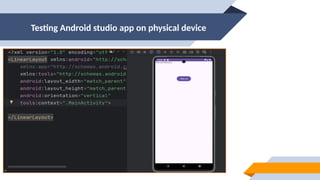
Testing Android studio app on physical device
3.
Working with xml
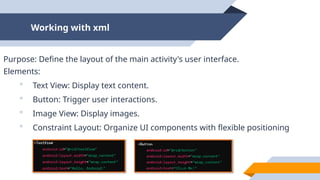
Purpose:Define the layout of the main activity's user interface.
Elements:
Text View: Display text content.
Button: Trigger user interactions.
Image View: Display images.
Constraint Layout: Organize UI components with flexible positioning
4.
Working with MainAtivity
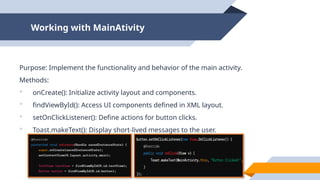
Purpose:Implement the functionality and behavior of the main activity.
Methods:
onCreate(): Initialize activity layout and components.
findViewById(): Access UI components defined in XML layout.
setOnClickListener(): Define actions for button clicks.
Toast.makeText(): Display short-lived messages to the user.
5.
Working with ResourcesFolder
Purpose: Manage app resources such as images, strings, layouts, and more.
Example:
[Image of Android Studio project structure with "res" folder highlighted]
drawable: Store images and graphics.
layout: Define XML layout files for activities and UI components.
values: Store resource files such as strings, colors, dimensions, and styles.
mipmap: Store launcher icons in various densities.
6.
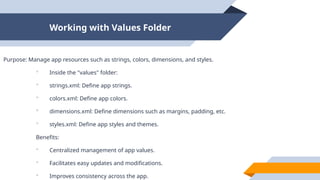
Working with ValuesFolder
Purpose: Manage app resources such as strings, colors, dimensions, and styles.
Inside the "values" folder:
strings.xml: Define app strings.
colors.xml: Define app colors.
dimensions.xml: Define dimensions such as margins, padding, etc.
styles.xml: Define app styles and themes.
Benefits:
Centralized management of app values.
Facilitates easy updates and modifications.
Improves consistency across the app.
7.
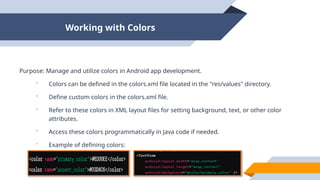
Working with Colors
Purpose:Manage and utilize colors in Android app development.
Colors can be defined in the colors.xml file located in the "res/values" directory.
Define custom colors in the colors.xml file.
Refer to these colors in XML layout files for setting background, text, or other color
attributes.
Access these colors programmatically in Java code if needed.
Example of defining colors:
8.
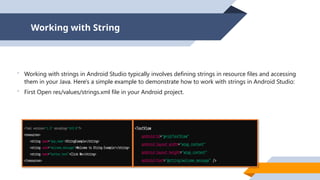
Working with String
Working with strings in Android Studio typically involves defining strings in resource files and accessing
them in your Java. Here's a simple example to demonstrate how to work with strings in Android Studio:
First Open res/values/strings.xml file in your Android project.
9.
Component of Android
Thesecomponents are the building blocks of android application. These component are declared
in the android manifest file.
Four main Component are used in Android App:
Activities
Services
Broadcast Receivers
Content Providers
10.
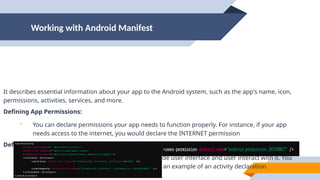
Working with AndroidManifest
It describes essential information about your app to the Android system, such as the app's name, icon,
permissions, activities, services, and more.
Defining App Permissions:
You can declare permissions your app needs to function properly. For instance, if your app
needs access to the internet, you would declare the INTERNET permission
Defining Activities:
Activities represent a single screen. They provide user interface and user interact with it. You
define each activity in the manifest file. Here's an example of an activity declaration.
11.
Conti…………
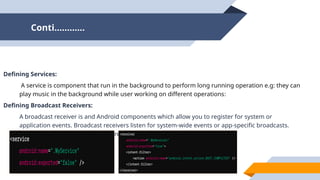
Defining Services:
A serviceis component that run in the background to perform long running operation e.g: they can
play music in the background while user working on different operations:
Defining Broadcast Receivers:
A broadcast receiver is and Android components which allow you to register for system or
application events. Broadcast receivers listen for system-wide events or app-specific broadcasts.
Here's an example of a broadcast receiver declaration:


![Working with Resources Folder
Purpose: Manage app resources such as images, strings, layouts, and more.
Example:
[Image of Android Studio project structure with "res" folder highlighted]
drawable: Store images and graphics.
layout: Define XML layout files for activities and UI components.
values: Store resource files such as strings, colors, dimensions, and styles.
mipmap: Store launcher icons in various densities.](https://image.slidesharecdn.com/mobileapplicationanddevelopmentweek2-251005090433-33f5ba5d/85/Mobile-Application-and-Development-Week-2-pptx-5-320.jpg)