The Complete Guide 
to Getting Started with 
MarketMeSuite 
Support: Support.MarketMeSuite.com 
Coaching Session: MarketMeSuite.com/Coaching 
Email: Support@MarketMeSuite.com 
Organize, Prioritize & Engage on Social 
Checklist 
Log In / Add Profiles / Constant Contact 
Send & Share / Google News / Macros / Shorty 
Smart Inbox / Real-time Search / Leads / Flags 
Team Management 
Analytics / Follow Back / Find & Follow / Un-follow / RSS Feeds 
Support/ Resource 
P1. 
P2. 
P3. 
P4. 
P5. 
P6. 
     
How to use this guide: 
 Log in to your MarketMeSuite account. 
 Go through the checklist one by one to learn how to use 
MarketMeSuite’s most popular features! 
When to use this guide: 
 When setting up your MarketMeSuite account. 
 When you want to do more with MarketMeSuite. 
 When you need an overview of MarketMeSuite.
Image Library 
Email Campaigns 
Events 
The Complete Guide to 
Setting up MarketMeSuite 
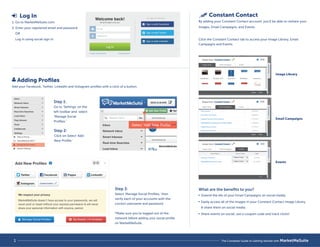
 Log In 
1. Go to MarketMeSuite.com. 
2. Enter your registered email and password 
OR 
Log in using social sign in. 
 Adding Profiles 
Add your Facebook, Twitter, LinkedIn and Instagram profiles with a click of a button. 
1 
Step 1: 
Go to ‘Settings’ on the 
left toolbar and select 
’Manage Social 
Profiles.’ 
Step 3: 
Select 'Manage Social Profiles,' then 
verify each of your accounts with the 
correct username and password. 
*Make sure you’re logged out of the 
network before adding your social profile 
on MarketMeSuite. 
Step 2: 
Click on Select ‘Add 
New Profile.’ 
Select ‘Add New Profile’ 
Constant Contact 
By adding your Constant Contact account, you’ll be able to reshare your 
Images, Email Campaigns, and Events. 
Click the Constant Contact tab to access your Image Library, Email 
Campaigns and Events. 
What are the benefits to you? 
 Extend the life of your Email Campaigns on social media. 
 Easily access all of the images in your Constant Contact Image Library 
 share them on social media. 
 Share events on social, use a coupon code and track clicks! 
1 The Complete Guide to Getting Started with MarketMeSuite
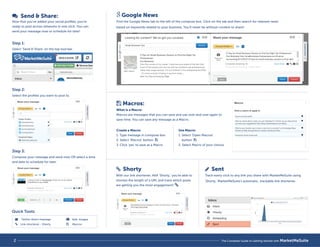
Send  Share: 
Now that you’ve added your social profiles, you’re 
ready to post across networks in one click. You can 
send your message now or schedule for later! 
Step 1: 
Select ‘Send  Share’ on the top tool bar. 
Step 2: 
Select the profiles you want to post to. 
Step 3: 
Compose your message and send now OR select a time 
and date to schedule for later. 
 Macros: 
What is a Macro: 
Macros are messages that you can save and use over and over again to 
save time. You can save any message as a Macro. 
 Shorty 
With our link shortener, AKA ‘Shorty,’ you’re able to 
shorten the length of a URL and track which posts 
are getting you the most engagement! 
 Sent 
Track every click to any link you share with MarketMeSuite using 
'Shorty,' MarketMeSuite's automatic, trackable link shortener. 
Google News 
Find the Google News tab to the left of the compose box. Click on the tab and then search for relevant news 
based on keywords related to your business. You’ll never be without content to share! 
Create a Macro: 
1. Type message in compose box 
2. Select ‘Macros’ button 
3. Click ‘yes’ to save as a Macro 
Use Macro: 
1. Select ‘Open Macros’ 
button 
2. Select Macro of your choice 
 
 
Twitter direct message 
Link shortener - Shorty 
 
 
Add images 
Macros 
  
Quick Tools: 
 
2 The Complete Guide to Getting Started with MarketMeSuite
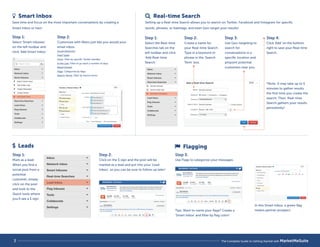
Smart Inbox 
Save time and focus on the most important conversations by creating a 
Smart Inbox or two! 
Step 2: 
Customize with filters just like you would your 
email inbox. 
Social Networks 
Feed Types 
From: Filter by specific Twitter handles 
In the Last: Filter to go back a number of days 
Read/Unread 
Flags: Categorize by flags 
Search Terms: Filter by Search terms 
 Real-time Search 
Setting up a Real-time Search allows you to search on Twitter, Facebook and Instagram for specific 
words, phrases, or hashtags, and even Geo-target your results! 
$ Leads 
Step 1: 
Select the Real-time 
Searches tab on the 
left toolbar and click 
‘Add Real-time 
Search.’ 
Step 1: 
Mark as a lead. 
When you find a 
social post from a 
potential 
customer, simply 
click on the post 
and look to the 
Quick tools where 
you’ll see a $ sign. 
Step 2: 
Click on the $ sign and the post will be 
marked as a lead and put into your ‘Lead 
Inbox’, so you can be sure to follow up later! 
Step 3: 
Use Flags to categorize your messages. 
Step 1: 
Select ‘Smart Inboxes’ 
on the left toolbar and 
click ‘Add Smart Inbox.’ 
Step 2: 
Create a name for 
your Real-time Search. 
Type in a keyword or 
phrase in the ‘Search 
Term’ box. 
Step 4: 
Click ‘Add’ on the bottom 
right to save your Real-time 
Search. 
*Note: It may take up to 5 
minutes to gather results 
the first time you create the 
search. Then, Real-time 
Search gathers your results 
persistently! 
Step 3: 
Use Geo-targeting to 
search for 
conversations in a 
specific location and 
pinpoint potential 
customers near you. 
Tips: Want to name your flags? Create a 
‘Smart Inbox’ and filter by flag color! 
In this Smart Inbox, a green flag 
means partner prospect. 
 Flagging 
3 The Complete Guide to Getting Started with MarketMeSuite
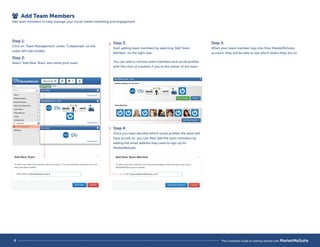
Add Team Members 
Add team members to help manage your social media marketing and engagement. 
Step 1: 
Click on ‘Team Management’ under ‘Collaborate’ on the 
lower left side toolbar. 
Step 2: 
Select ‘Add New Team’ and name your team. 
Step 3: 
Start adding team members by selecting ‘Add Team 
Member’ on the right side. 
Step 4: 
Once you have decided which social profiles the team will 
have access to, you can then add the team members by 
adding the email address they used to sign up for 
MarketMeSuite. 
Step 5: 
When your team member logs into their MarketMeSuite 
account, they will be able to see which teams they are on. 
You can add or remove team members and social profiles 
with the click of a button if you’re the owner of the team. 
4 The Complete Guide to Getting Started with MarketMeSuite
Add RSS Feeds 
Share posts automatically as soon as 
they’re published by adding any RSS Feed 
to MarketMeSuite. 
Step 1: 
Click on ‘Manage 
RSS Feeds’ under 
‘Tools’ and select 
the + sign at the 
top of your 
dashboard. 
Step 2: 
Add your RSS Feed by entering the URL, naming the RSS 
feed and entering a prefix and sux (the text that will 
always be posted before and after the RSS URL). 

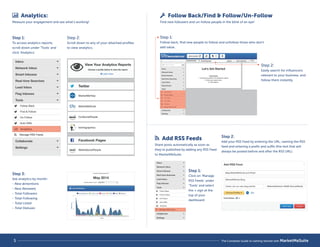
 Analytics: 
Measure your engagement and see what’s working!
Follow Back/Find  Follow/Un-Follow 
Find new followers and un-follow people in the blink of an eye! 
Step 1: 
To access analytics reports, 
scroll down under ‘Tools’ and 
click ‘Analytics’. 
Step 2: 
Scroll down to any of your attached profiles 
to view analytics. 
Step 3: 
See analytics by month: 
- New @mentions 
- New Retweets 
- Total Followers 
- Total Following 
- Total Listed 
- Total Statuses 
Step 1: 
Follow back, find new people to follow and unfollow those who don’t 
add value. 
Step 2: 
Easily search for influencers 
relevant to your business, and 
follow them instantly. 
5 The Complete Guide to Getting Started with MarketMeSuite

The Complete Guide to Getting Started with MarketMeSuite

  • 1.
    The Complete Guide to Getting Started with MarketMeSuite Support: Support.MarketMeSuite.com Coaching Session: MarketMeSuite.com/Coaching Email: Support@MarketMeSuite.com Organize, Prioritize & Engage on Social Checklist Log In / Add Profiles / Constant Contact Send & Share / Google News / Macros / Shorty Smart Inbox / Real-time Search / Leads / Flags Team Management Analytics / Follow Back / Find & Follow / Un-follow / RSS Feeds Support/ Resource P1. P2. P3. P4. P5. P6. How to use this guide: Log in to your MarketMeSuite account. Go through the checklist one by one to learn how to use MarketMeSuite’s most popular features! When to use this guide: When setting up your MarketMeSuite account. When you want to do more with MarketMeSuite. When you need an overview of MarketMeSuite.
  • 2.
    Image Library EmailCampaigns Events The Complete Guide to Setting up MarketMeSuite Log In 1. Go to MarketMeSuite.com. 2. Enter your registered email and password OR Log in using social sign in. Adding Profiles Add your Facebook, Twitter, LinkedIn and Instagram profiles with a click of a button. 1 Step 1: Go to ‘Settings’ on the left toolbar and select ’Manage Social Profiles.’ Step 3: Select 'Manage Social Profiles,' then verify each of your accounts with the correct username and password. *Make sure you’re logged out of the network before adding your social profile on MarketMeSuite. Step 2: Click on Select ‘Add New Profile.’ Select ‘Add New Profile’ Constant Contact By adding your Constant Contact account, you’ll be able to reshare your Images, Email Campaigns, and Events. Click the Constant Contact tab to access your Image Library, Email Campaigns and Events. What are the benefits to you? Extend the life of your Email Campaigns on social media. Easily access all of the images in your Constant Contact Image Library share them on social media. Share events on social, use a coupon code and track clicks! 1 The Complete Guide to Getting Started with MarketMeSuite
  • 3.
    Send Share: Now that you’ve added your social profiles, you’re ready to post across networks in one click. You can send your message now or schedule for later! Step 1: Select ‘Send Share’ on the top tool bar. Step 2: Select the profiles you want to post to. Step 3: Compose your message and send now OR select a time and date to schedule for later. Macros: What is a Macro: Macros are messages that you can save and use over and over again to save time. You can save any message as a Macro. Shorty With our link shortener, AKA ‘Shorty,’ you’re able to shorten the length of a URL and track which posts are getting you the most engagement! Sent Track every click to any link you share with MarketMeSuite using 'Shorty,' MarketMeSuite's automatic, trackable link shortener. Google News Find the Google News tab to the left of the compose box. Click on the tab and then search for relevant news based on keywords related to your business. You’ll never be without content to share! Create a Macro: 1. Type message in compose box 2. Select ‘Macros’ button 3. Click ‘yes’ to save as a Macro Use Macro: 1. Select ‘Open Macros’ button 2. Select Macro of your choice Twitter direct message Link shortener - Shorty Add images Macros Quick Tools: 2 The Complete Guide to Getting Started with MarketMeSuite
  • 4.
    Smart Inbox Savetime and focus on the most important conversations by creating a Smart Inbox or two! Step 2: Customize with filters just like you would your email inbox. Social Networks Feed Types From: Filter by specific Twitter handles In the Last: Filter to go back a number of days Read/Unread Flags: Categorize by flags Search Terms: Filter by Search terms Real-time Search Setting up a Real-time Search allows you to search on Twitter, Facebook and Instagram for specific words, phrases, or hashtags, and even Geo-target your results! $ Leads Step 1: Select the Real-time Searches tab on the left toolbar and click ‘Add Real-time Search.’ Step 1: Mark as a lead. When you find a social post from a potential customer, simply click on the post and look to the Quick tools where you’ll see a $ sign. Step 2: Click on the $ sign and the post will be marked as a lead and put into your ‘Lead Inbox’, so you can be sure to follow up later! Step 3: Use Flags to categorize your messages. Step 1: Select ‘Smart Inboxes’ on the left toolbar and click ‘Add Smart Inbox.’ Step 2: Create a name for your Real-time Search. Type in a keyword or phrase in the ‘Search Term’ box. Step 4: Click ‘Add’ on the bottom right to save your Real-time Search. *Note: It may take up to 5 minutes to gather results the first time you create the search. Then, Real-time Search gathers your results persistently! Step 3: Use Geo-targeting to search for conversations in a specific location and pinpoint potential customers near you. Tips: Want to name your flags? Create a ‘Smart Inbox’ and filter by flag color! In this Smart Inbox, a green flag means partner prospect. Flagging 3 The Complete Guide to Getting Started with MarketMeSuite
  • 5.
    Add Team Members Add team members to help manage your social media marketing and engagement. Step 1: Click on ‘Team Management’ under ‘Collaborate’ on the lower left side toolbar. Step 2: Select ‘Add New Team’ and name your team. Step 3: Start adding team members by selecting ‘Add Team Member’ on the right side. Step 4: Once you have decided which social profiles the team will have access to, you can then add the team members by adding the email address they used to sign up for MarketMeSuite. Step 5: When your team member logs into their MarketMeSuite account, they will be able to see which teams they are on. You can add or remove team members and social profiles with the click of a button if you’re the owner of the team. 4 The Complete Guide to Getting Started with MarketMeSuite
  • 6.
    Add RSS Feeds Share posts automatically as soon as they’re published by adding any RSS Feed to MarketMeSuite. Step 1: Click on ‘Manage RSS Feeds’ under ‘Tools’ and select the + sign at the top of your dashboard. Step 2: Add your RSS Feed by entering the URL, naming the RSS feed and entering a prefix and sux (the text that will always be posted before and after the RSS URL). Analytics: Measure your engagement and see what’s working!
  • 7.
    Follow Back/Find Follow/Un-Follow Find new followers and un-follow people in the blink of an eye! Step 1: To access analytics reports, scroll down under ‘Tools’ and click ‘Analytics’. Step 2: Scroll down to any of your attached profiles to view analytics. Step 3: See analytics by month: - New @mentions - New Retweets - Total Followers - Total Following - Total Listed - Total Statuses Step 1: Follow back, find new people to follow and unfollow those who don’t add value. Step 2: Easily search for influencers relevant to your business, and follow them instantly. 5 The Complete Guide to Getting Started with MarketMeSuite