6.094

Introduction to Programming in MATLAB

Lecture 5: Symbolics, Simulink®,
File I/O, Building GUIs

Instructor:
Danilo Šćepanović
IAP 2010
Outline
(1)
(2)
(3)
(4)

Symbolic Math
Simulink
File I/O
Graphical User Interfaces
Symbolic Math Toolbox
• Don’t do nasty calculations by hand!
• Symbolics vs. Numerics
Advantages

Disadvantages

Symbolic •Analytical solutions
•Lets you intuit
things about
solution form

•Sometimes can't be
solved
•Can be overly
complicated

Numeric

•Hard to extract a
deeper understanding
•Num. methods
sometimes fail
•Can take a while to
compute

•Always get a
solution
•Can make solutions
accurate
•Easy to code
Symbolic Variables
• Symbolic variables are a type, like double or char
• To
»
»
»

make symbolic variables, use sym
a=sym('1/3');
b=sym('4/5');
mat=sym([1 2;3 4]);
fractions remain as fractions

» c=sym('c','positive');
can add tags to narrow down scope
see help sym for a list of tags

• Or use syms
» syms x y real
shorthand for x=sym('x','real'); y=sym('y','real');
Symbolic Expressions
• Multiply, add, divide expressions
» d=a*b
does 1/3*4/5=4/15;

» expand((a-c)^2);
multiplies out

» factor(ans)
factors the expression

» matInv=inv(mat)
Computes inverse symbolically
Cleaning up Symbolic Statements
» pretty(ans)
makes it look nicer

» collect(3*x+4*y-1/3*x^2-x+3/2*y)
collects terms

» simplify(cos(x)^2+sin(x)^2)
simplifies expressions

» subs(‘c^2’,c,5)

ans=
25

Replaces variables with numbers
or expressions. To do multiple substitutions
pass a cell of variable names followed by a cell of values

» subs(‘c^2’,c,x/7)

ans=
1/49*x^2
More Symbolic Operations
• We can do symbolics with matrices too
» mat=sym('[a b;c d]');
» mat2=mat*[1 3;4 -2];
compute the product

» d=det(mat)
compute the determinant

» i=inv(mat)
find the inverse

• You can access symbolic matrix elements as before
» i(1,2)
Exercise: Symbolics
• The equation of a circle of radius r centered at (a,b) is
2
2
2
given by: ( x − a ) + ( y − b ) = r
• Use solve to solve this equation for x and then for y

• It’s always annoying to integrate by parts. Use int to do
the following integral symbolically and then compute the
value by substituting 0 for a and 2 for b: b

xe x dx
∫
a
Exercise: Symbolics
• The equation of a circle of radius r centered at (a,b) is
2
2
2
given by: ( x − a ) + ( y − b ) = r
• Use solve to solve this equation for x and then for y
» syms a b r x y
» solve('(x-a)^2+(y-b)^2=r^2','x')
» solve('(x-a)^2+(y-b)^2=r^2','y')
• It’s always annoying to integrate by parts. Use int to do
the following integral symbolically and then compute the
value by substituting 0 for a and 2 for b: b

xe x dx
∫

» Q=int(x*exp(x),a,b)
» subs(Q,{a,b},{0,2})

a
Outline
(1)
(2)
(3)
(4)

Symbolic Math
Simulink
File I/O
Graphical User Interfaces
SIMULINK
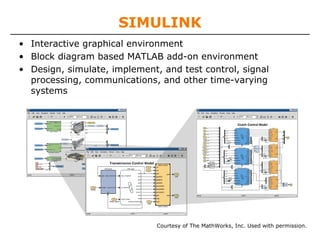
• Interactive graphical environment
• Block diagram based MATLAB add-on environment
• Design, simulate, implement, and test control, signal
processing, communications, and other time-varying
systems

Courtesy of The MathWorks, Inc. Used with permission.
Getting Started
• In MATLAB,
Start Simulink

Courtesy of The MathWorks, Inc. Used with permission.

• Create a new
Simulink file,
similar to how
you make a new
script

Courtesy of The MathWorks, Inc. Used with permission.
Simulink Library Browser
• The Library Browser contains various blocks that you can
put into your model
• Examine some blocks:
Click on a library: “Sources”
– Drag a block into Simulink: “Band limited white noise”

Visualize the block by going into “Sinks”
– Drag a “Scope” into Simulink

Courtesy of The MathWorks, Inc. Used with permission.
Connections
• Click on the carat/arrow on the right of the band
limited white noise box
• Drag the line to the scope
You’ll get a hint saying you can quickly connect
blocks by hitting Ctrl
Connections between lines represent signals

• Click the play button
Courtesy of The MathWorks, Inc. Used with permission.

• Double click on the scope.

This will open up a chart of the variable over the
simulation time
Connections, Block Specification
• To split connections, hold down ‘Ctrl’ when clicking on a
connection, and drag it to the target block; or drag
backwards from the target block
• To modify properties of a block, double-click it and fill in
the property values.

Courtesy of The MathWorks, Inc. Used with permission.
Behind the curtain
• Go to “Simulation”->”Configuration Parameters”
at the top menu
See ode45? Change the solver type here

Courtesy of The MathWorks, Inc. Used with permission.
Exercise: Simulink
• Take your white noise signal, and split it into high
frequency and low frequency components. Use the
Transfer Function block from Continuous and use these
transfer functions:

LP =

1
0.1s + 1

HP =

0.1s
0.1s + 1

• Hook up scopes to the input and the two outputs
• Send the two outputs to the workspace by using the to
Workspace block from Sink
Exercise: Simulink
• The diagram should look like this. To change the transfer
function parameters, double click the blocks and specify
the numerator and denominator as polynomials in s
(remember how we defined polynomial vectors before)

Courtesy of The MathWorks, Inc. Used with permission.
Exercise: Simulink
• After running the simulation, double-clicking the scopes will
show:
Input
Low pass

High Pass

Courtesy of The MathWorks, Inc. Used with permission.
Toolboxes
• Math
Takes the signal and performs a math operation
» Add, subtract, round, multiply, gain, angle

• Continuous
Adds differential equations to the system
» Integrals, Derivatives, Transfer Functions,
State Space

• Discontinuities
Adds nonlinearities to your system

• Discrete
Simulates discrete difference equations
Useful for digital systems
Building systems
• Sources
» Step input, white noise, custom input, sine
wave, ramp input,
Provides input to your system

• Sinks
» Scope: Outputs to plot
» simout: Outputs to a MATLAB vector on workspace
» MATLAB mat file
Outline
(1)
(2)
(3)
(4)

Symbolic Math
Simulink
File I/O
Graphical User Interfaces
Importing Data
• MATLAB is a great environment for processing data. If you
have a text file with some data:

• To import data from files on your hard drive, use
importdata
» a=importdata('textFile.txt');
a is a struct with data, textdata, and colheaders fields

» x=a.data;
» names=a.colheaders;
Importing Data
• With importdata, you can also specify delimiters. For
example, for comma separated values, use:
» a=importdata('filename', ', ');
The second argument tells matlab that the tokens of
interest are separated by commas or spaces

• importdata is very robust, but sometimes it can have
trouble. To read files with more control, use fscanf (similar
to C/Java), textread, textscan. See help or doc for
information on how to use these functions
Writing Excel Files
• MATLAB contains specific functions for reading and writing
Microsoft Excel files
• To write a matrix to an Excel file, use xlswrite
» [s,m]=xlswrite('randomNumbers',rand(10,4),...
'Sheet1'); % we specify the sheet name
• You can also write a cell array if you have mixed data:
» C={'hello','goodbye';10,-2;-3,4};
» [s,m]=xlswrite('randomNumbers',C,'mixedData');
• s and m contain the 'success' and 'message' output of the
write command
• See doc xlswrite for more usage options
Reading Excel Files
• Reading excel files is equally easy
• To read from an Excel file, use xlsread
» [num,txt,raw]=xlsread('randomNumbers.xls');
Reads the first sheet
num contains numbers, txt contains strings, raw is the
entire cell array containing everything

» [num,txt,raw]=xlsread('randomNumbers.xls',...
'mixedData');
Reads the mixedData sheet

» [num,txt,raw]=xlsread('randomNumbers.xls',-1);
Opens the file in an Excel window and lets you click on the
data you want!

• See doc xlsread for even more fancy options
Outline
(1)
(2)
(3)
(4)

Symbolic Math
Simulink
File I/O
Graphical User Interfaces
Making GUIs
• It's really easy to make a graphical user interface in
MATLAB
• To open the graphical user interface development
environment, type guide
» guide
Select Blank GUI

Courtesy of The MathWorks, Inc. Used with permission.
Draw the GUI
• Select objects from the left, and draw them where you
want them

Courtesy of The MathWorks, Inc. Used with permission.
Change Object Settings
• Double-click on objects to open the Inspector. Here you can
change all the object's properties.

Courtesy of The MathWorks, Inc. Used with permission.
Save the GUI
• When you have modified all the properties, you can save
the GUI
• MATLAB saves the GUI as a .fig file, and generates an
MATLAB file!

Courtesy of The MathWorks, Inc. Used with permission.
Add Functionality to MATLAB file
• To add functionality to your buttons, add commands to the
'Callback' functions in the MATLAB file. For example, when
the user clicks the Draw Image button, the
drawimage_Callback function will be called and executed
• All the data for the GUI is stored in the handles, so use set
and get to get data and change it if necessary
• Any time you change the handles, save it using guidata
» guidata(handles.Figure1,handles);

Courtesy of The MathWorks, Inc. Used with permission.
Running the GUI
• To run the GUI, just type its name in the command window
and the GUI will pop up. The debugger is really helpful for
writing GUIs because it lets you see inside the GUI

Courtesy of The MathWorks, Inc. Used with permission.
Outline
(1)
(2)
(3)
(4)

Symbolic Math
Simulink
File I/O
Graphical User Interfaces
Now you know EVERYTHING!
MIT OpenCourseWare
http://ocw.mit.edu

6.094 Introduction to MATLAB®
January (IAP) 2010

For information about citing these materials or our Terms of Use, visit: http://ocw.mit.edu/terms.

Mit6 094 iap10_lec05

  • 1.
    6.094 Introduction to Programmingin MATLAB Lecture 5: Symbolics, Simulink®, File I/O, Building GUIs Instructor: Danilo Šćepanović IAP 2010
  • 2.
  • 3.
    Symbolic Math Toolbox •Don’t do nasty calculations by hand! • Symbolics vs. Numerics Advantages Disadvantages Symbolic •Analytical solutions •Lets you intuit things about solution form •Sometimes can't be solved •Can be overly complicated Numeric •Hard to extract a deeper understanding •Num. methods sometimes fail •Can take a while to compute •Always get a solution •Can make solutions accurate •Easy to code
  • 4.
    Symbolic Variables • Symbolicvariables are a type, like double or char • To » » » make symbolic variables, use sym a=sym('1/3'); b=sym('4/5'); mat=sym([1 2;3 4]); fractions remain as fractions » c=sym('c','positive'); can add tags to narrow down scope see help sym for a list of tags • Or use syms » syms x y real shorthand for x=sym('x','real'); y=sym('y','real');
  • 5.
    Symbolic Expressions • Multiply,add, divide expressions » d=a*b does 1/3*4/5=4/15; » expand((a-c)^2); multiplies out » factor(ans) factors the expression » matInv=inv(mat) Computes inverse symbolically
  • 6.
    Cleaning up SymbolicStatements » pretty(ans) makes it look nicer » collect(3*x+4*y-1/3*x^2-x+3/2*y) collects terms » simplify(cos(x)^2+sin(x)^2) simplifies expressions » subs(‘c^2’,c,5) ans= 25 Replaces variables with numbers or expressions. To do multiple substitutions pass a cell of variable names followed by a cell of values » subs(‘c^2’,c,x/7) ans= 1/49*x^2
  • 7.
    More Symbolic Operations •We can do symbolics with matrices too » mat=sym('[a b;c d]'); » mat2=mat*[1 3;4 -2]; compute the product » d=det(mat) compute the determinant » i=inv(mat) find the inverse • You can access symbolic matrix elements as before » i(1,2)
  • 8.
    Exercise: Symbolics • Theequation of a circle of radius r centered at (a,b) is 2 2 2 given by: ( x − a ) + ( y − b ) = r • Use solve to solve this equation for x and then for y • It’s always annoying to integrate by parts. Use int to do the following integral symbolically and then compute the value by substituting 0 for a and 2 for b: b xe x dx ∫ a
  • 9.
    Exercise: Symbolics • Theequation of a circle of radius r centered at (a,b) is 2 2 2 given by: ( x − a ) + ( y − b ) = r • Use solve to solve this equation for x and then for y » syms a b r x y » solve('(x-a)^2+(y-b)^2=r^2','x') » solve('(x-a)^2+(y-b)^2=r^2','y') • It’s always annoying to integrate by parts. Use int to do the following integral symbolically and then compute the value by substituting 0 for a and 2 for b: b xe x dx ∫ » Q=int(x*exp(x),a,b) » subs(Q,{a,b},{0,2}) a
  • 10.
  • 11.
    SIMULINK • Interactive graphicalenvironment • Block diagram based MATLAB add-on environment • Design, simulate, implement, and test control, signal processing, communications, and other time-varying systems Courtesy of The MathWorks, Inc. Used with permission.
  • 12.
    Getting Started • InMATLAB, Start Simulink Courtesy of The MathWorks, Inc. Used with permission. • Create a new Simulink file, similar to how you make a new script Courtesy of The MathWorks, Inc. Used with permission.
  • 13.
    Simulink Library Browser •The Library Browser contains various blocks that you can put into your model • Examine some blocks: Click on a library: “Sources” – Drag a block into Simulink: “Band limited white noise” Visualize the block by going into “Sinks” – Drag a “Scope” into Simulink Courtesy of The MathWorks, Inc. Used with permission.
  • 14.
    Connections • Click onthe carat/arrow on the right of the band limited white noise box • Drag the line to the scope You’ll get a hint saying you can quickly connect blocks by hitting Ctrl Connections between lines represent signals • Click the play button Courtesy of The MathWorks, Inc. Used with permission. • Double click on the scope. This will open up a chart of the variable over the simulation time
  • 15.
    Connections, Block Specification •To split connections, hold down ‘Ctrl’ when clicking on a connection, and drag it to the target block; or drag backwards from the target block • To modify properties of a block, double-click it and fill in the property values. Courtesy of The MathWorks, Inc. Used with permission.
  • 16.
    Behind the curtain •Go to “Simulation”->”Configuration Parameters” at the top menu See ode45? Change the solver type here Courtesy of The MathWorks, Inc. Used with permission.
  • 17.
    Exercise: Simulink • Takeyour white noise signal, and split it into high frequency and low frequency components. Use the Transfer Function block from Continuous and use these transfer functions: LP = 1 0.1s + 1 HP = 0.1s 0.1s + 1 • Hook up scopes to the input and the two outputs • Send the two outputs to the workspace by using the to Workspace block from Sink
  • 18.
    Exercise: Simulink • Thediagram should look like this. To change the transfer function parameters, double click the blocks and specify the numerator and denominator as polynomials in s (remember how we defined polynomial vectors before) Courtesy of The MathWorks, Inc. Used with permission.
  • 19.
    Exercise: Simulink • Afterrunning the simulation, double-clicking the scopes will show: Input Low pass High Pass Courtesy of The MathWorks, Inc. Used with permission.
  • 20.
    Toolboxes • Math Takes thesignal and performs a math operation » Add, subtract, round, multiply, gain, angle • Continuous Adds differential equations to the system » Integrals, Derivatives, Transfer Functions, State Space • Discontinuities Adds nonlinearities to your system • Discrete Simulates discrete difference equations Useful for digital systems
  • 21.
    Building systems • Sources »Step input, white noise, custom input, sine wave, ramp input, Provides input to your system • Sinks » Scope: Outputs to plot » simout: Outputs to a MATLAB vector on workspace » MATLAB mat file
  • 22.
  • 23.
    Importing Data • MATLABis a great environment for processing data. If you have a text file with some data: • To import data from files on your hard drive, use importdata » a=importdata('textFile.txt'); a is a struct with data, textdata, and colheaders fields » x=a.data; » names=a.colheaders;
  • 24.
    Importing Data • Withimportdata, you can also specify delimiters. For example, for comma separated values, use: » a=importdata('filename', ', '); The second argument tells matlab that the tokens of interest are separated by commas or spaces • importdata is very robust, but sometimes it can have trouble. To read files with more control, use fscanf (similar to C/Java), textread, textscan. See help or doc for information on how to use these functions
  • 25.
    Writing Excel Files •MATLAB contains specific functions for reading and writing Microsoft Excel files • To write a matrix to an Excel file, use xlswrite » [s,m]=xlswrite('randomNumbers',rand(10,4),... 'Sheet1'); % we specify the sheet name • You can also write a cell array if you have mixed data: » C={'hello','goodbye';10,-2;-3,4}; » [s,m]=xlswrite('randomNumbers',C,'mixedData'); • s and m contain the 'success' and 'message' output of the write command • See doc xlswrite for more usage options
  • 26.
    Reading Excel Files •Reading excel files is equally easy • To read from an Excel file, use xlsread » [num,txt,raw]=xlsread('randomNumbers.xls'); Reads the first sheet num contains numbers, txt contains strings, raw is the entire cell array containing everything » [num,txt,raw]=xlsread('randomNumbers.xls',... 'mixedData'); Reads the mixedData sheet » [num,txt,raw]=xlsread('randomNumbers.xls',-1); Opens the file in an Excel window and lets you click on the data you want! • See doc xlsread for even more fancy options
  • 27.
  • 28.
    Making GUIs • It'sreally easy to make a graphical user interface in MATLAB • To open the graphical user interface development environment, type guide » guide Select Blank GUI Courtesy of The MathWorks, Inc. Used with permission.
  • 29.
    Draw the GUI •Select objects from the left, and draw them where you want them Courtesy of The MathWorks, Inc. Used with permission.
  • 30.
    Change Object Settings •Double-click on objects to open the Inspector. Here you can change all the object's properties. Courtesy of The MathWorks, Inc. Used with permission.
  • 31.
    Save the GUI •When you have modified all the properties, you can save the GUI • MATLAB saves the GUI as a .fig file, and generates an MATLAB file! Courtesy of The MathWorks, Inc. Used with permission.
  • 32.
    Add Functionality toMATLAB file • To add functionality to your buttons, add commands to the 'Callback' functions in the MATLAB file. For example, when the user clicks the Draw Image button, the drawimage_Callback function will be called and executed • All the data for the GUI is stored in the handles, so use set and get to get data and change it if necessary • Any time you change the handles, save it using guidata » guidata(handles.Figure1,handles); Courtesy of The MathWorks, Inc. Used with permission.
  • 33.
    Running the GUI •To run the GUI, just type its name in the command window and the GUI will pop up. The debugger is really helpful for writing GUIs because it lets you see inside the GUI Courtesy of The MathWorks, Inc. Used with permission.
  • 34.
  • 35.
    MIT OpenCourseWare http://ocw.mit.edu 6.094 Introductionto MATLAB® January (IAP) 2010 For information about citing these materials or our Terms of Use, visit: http://ocw.mit.edu/terms.