How to sync your Paytm Mall seller
account to your Paytm account
How to sync your Paytm Mall seller account to your Paytm
account?
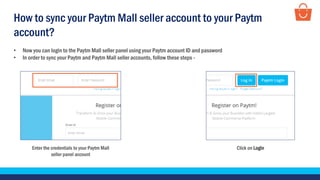
• Now you can login to the Paytm Mall seller panel using your Paytm account ID and password
• In order to sync your Paytm and Paytm Mall seller accounts, follow these steps -
Enter the credentials to your Paytm Mall
seller panel account
Click on Login
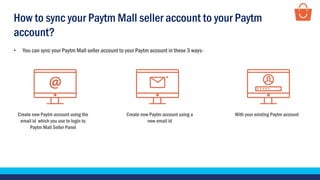
• You can sync your Paytm Mall seller account to your Paytm account in these 3 ways-
Create new Paytm account using a
new email id
With your existing Paytm accountCreate new Paytm account using the
email id which you use to login to
Paytm Mall Seller Panel
How to sync your Paytm Mall seller account to your Paytm
account?
Create new Paytm account using the email id which you use to login to Paytm
Mall Seller Panel and sync your account
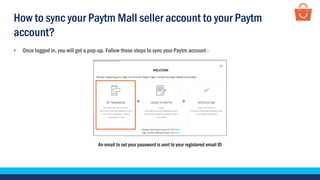
An email to set your password is sent to your registered email ID
• Once logged in, you will get a pop-up. Follow these steps to sync your Paytm account -
How to sync your Paytm Mall seller account to your Paytm
account?
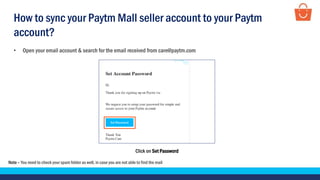
Click on Set Password
• Open your email account & search for the email received from care@paytm.com
Note – You need to check your spam folder as well, in case you are not able to find the mail
How to sync your Paytm Mall seller account to your Paytm
account?
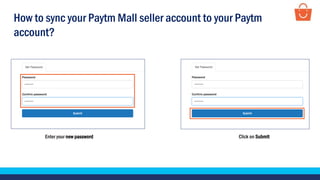
Enter your new password Click on Submit
How to sync your Paytm Mall seller account to your Paytm
account?
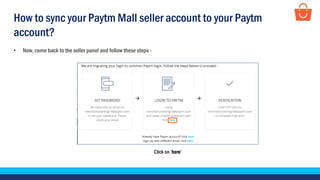
Click on ‘here’
• Now, come back to the seller panel and follow these steps -
How to sync your Paytm Mall seller account to your Paytm
account?
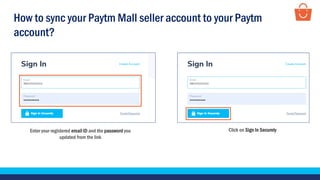
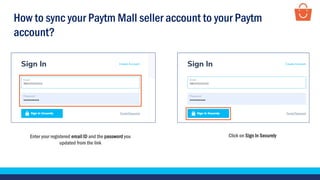
Enter your registered email ID and the password you
updated from the link
Click on Sign In Securely
How to sync your Paytm Mall seller account to your Paytm
account?
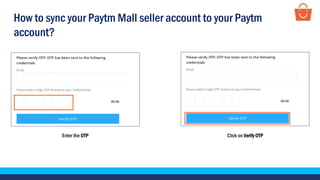
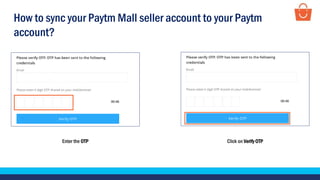
Enter the OTP Click on Verify OTP
How to sync your Paytm Mall seller account to your Paytm
account?
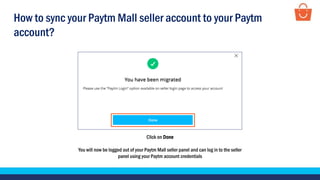
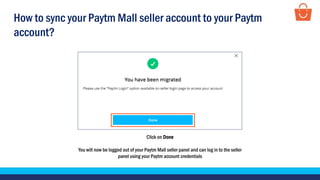
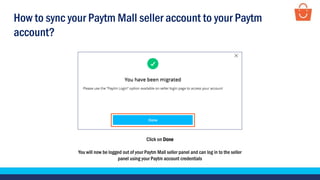
Click on Done
You will now be logged out of your Paytm Mall seller panel and can log in to the seller
panel using your Paytm account credentials
How to sync your Paytm Mall seller account to your Paytm
account?
Create new Paytm account using a new email id and sync your
account
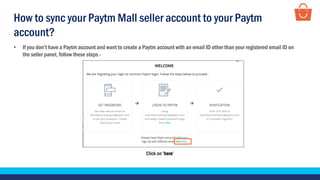
• If you don’t have a Paytm account and want to create a Paytm account with an email ID other than your registered email ID on
the seller panel, follow these steps -
Click on ‘here’
How to sync your Paytm Mall seller account to your Paytm
account?
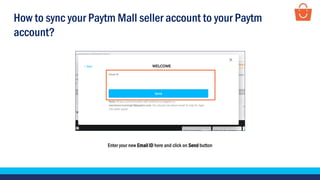
Enter your new Email ID here and click on Send button
How to sync your Paytm Mall seller account to your Paytm
account?
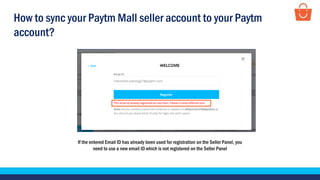
If the entered Email ID has already been used for registration on the Seller Panel, you
need to use a new email ID which is not registered on the Seller Panel
How to sync your Paytm Mall seller account to your Paytm
account?
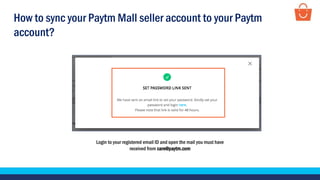
Login to your registered email ID and open the mail you must have
received from care@paytm.com
How to sync your Paytm Mall seller account to your Paytm
account?
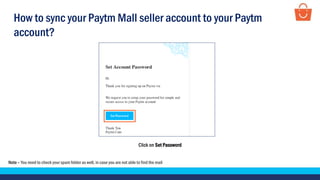
Click on Set Password
Note – You need to check your spam folder as well, in case you are not able to find the mail
How to sync your Paytm Mall seller account to your Paytm
account?
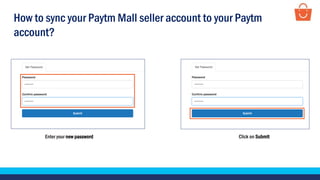
Enter your new password Click on Submit
How to sync your Paytm Mall seller account to your Paytm
account?
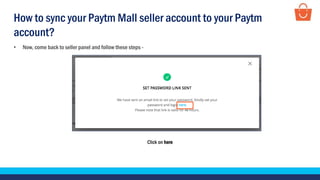
Click on here
• Now, come back to seller panel and follow these steps -
How to sync your Paytm Mall seller account to your Paytm
account?
Enter your registered email ID and the password you
updated from the link
Click on Sign In Securely
How to sync your Paytm Mall seller account to your Paytm
account?
Enter the OTP Click on Verify OTP
How to sync your Paytm Mall seller account to your Paytm
account?
Click on Done
You will now be logged out of your Paytm Mall seller panel and can log in to the seller
panel using your Paytm account credentials
How to sync your Paytm Mall seller account to your Paytm
account?
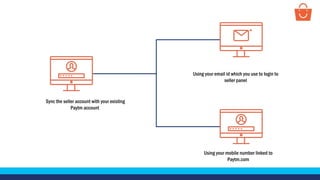
Sync the seller account with your existing
Paytm account
Using your email id which you use to login to
seller panel
Using your mobile number linked to
Paytm.com
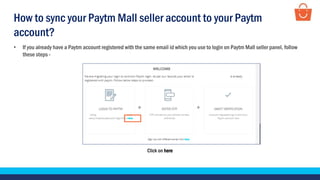
Click on here
• If you already have a Paytm account registered with the same email id which you use to login on Paytm Mall seller panel, follow
these steps -
How to sync your Paytm Mall seller account to your Paytm
account?
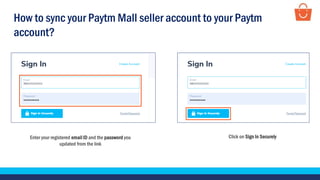
Enter your registered email ID and the password you
updated from the link
Click on Sign In Securely
How to sync your Paytm Mall seller account to your Paytm
account?
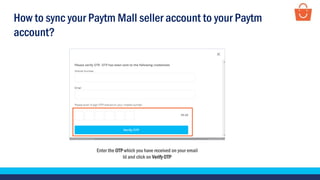
Enter the OTP which you have received on your email
Id and click on Verify OTP
How to sync your Paytm Mall seller account to your Paytm
account?
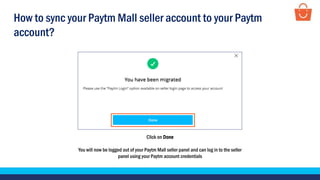
Click on Done
You will now be logged out of your Paytm Mall seller panel and can log in to the seller
panel using your Paytm account credentials
How to sync your Paytm Mall seller account to your Paytm
account?
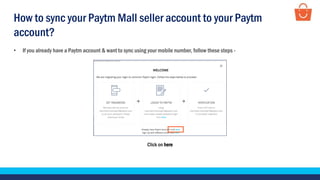
Click on here
• If you already have a Paytm account & want to sync using your mobile number, follow these steps -
How to sync your Paytm Mall seller account to your Paytm
account?
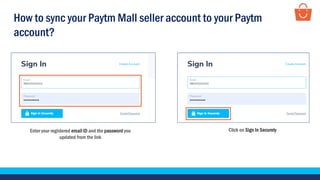
Enter your registered email ID and the password you
updated from the link
Click on Sign In Securely
How to sync your Paytm Mall seller account to your Paytm
account?
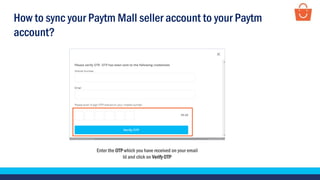
Enter the OTP which you have received on your email
Id and click on Verify OTP
How to sync your Paytm Mall seller account to your Paytm
account?
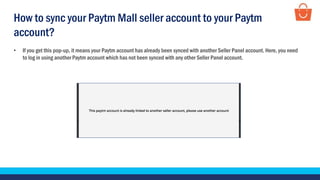
• If you get this pop-up, it means your Paytm account has already been synced with another Seller Panel account. Here, you need
to log in using another Paytm account which has not been synced with any other Seller Panel account.
How to sync your Paytm Mall seller account to your Paytm
account?
Click on Done
You will now be logged out of your Paytm Mall seller panel and can log in to the seller
panel using your Paytm account credentials
How to sync your Paytm Mall seller account to your Paytm
account?
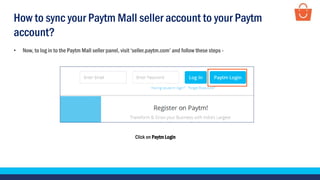
Click on Paytm Login
• Now, to log in to the Paytm Mall seller panel, visit ‘seller.paytm.com’ and follow these steps -
How to sync your Paytm Mall seller account to your Paytm
account?
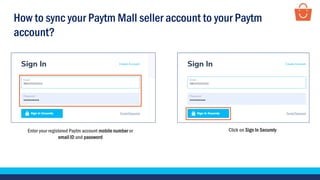
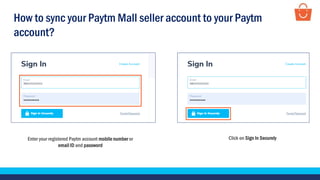
Enter your registered Paytm account mobile number or
email ID and password
Click on Sign In Securely
How to sync your Paytm Mall seller account to your Paytm
account?
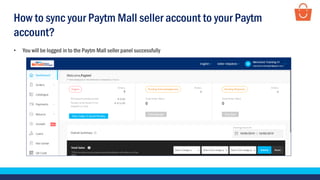
• You will be logged in to the Paytm Mall seller panel successfully
How to sync your Paytm Mall seller account to your Paytm
account?
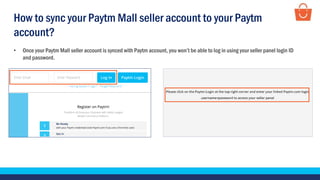
• Once your Paytm Mall seller account is synced with Paytm account, you won’t be able to log in using your seller panel login ID
and password.
How to sync your Paytm Mall seller account to your Paytm
account?
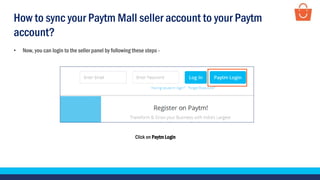
Click on Paytm Login
• Now, you can login to the seller panel by following these steps -
How to sync your Paytm Mall seller account to your Paytm
account?
Enter your registered Paytm account mobile number or
email ID and password
Click on Sign In Securely
How to sync your Paytm Mall seller account to your Paytm
account?
How to reach out to Support team for assistance?
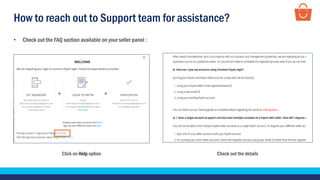
• Check out the FAQ section available on your seller panel :
Click on Help option Check out the details
How to reach out to Support team for assistance?
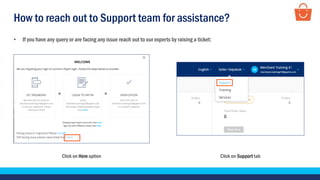
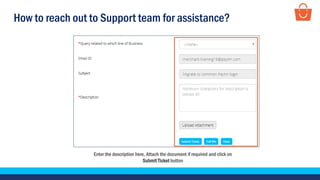
• If you have any query or are facing any issue reach out to our experts by raising a ticket:
Click on Here option Click on Support tab
How to reach out to Support team for assistance?
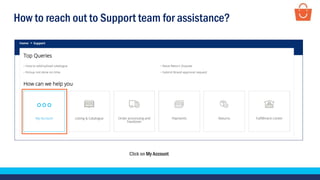
Click on My Account
How to reach out to Support team for assistance?
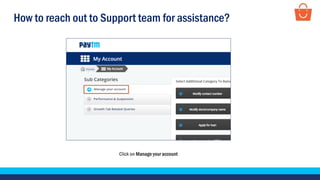
Click on Manage your account
How to reach out to Support team for assistance?
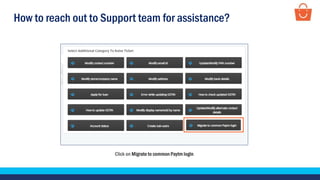
Click on Migrate to common Paytm login
How to reach out to Support team for assistance?
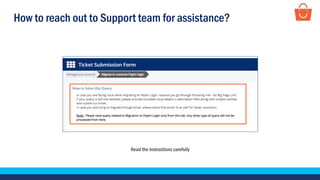
Read the instructions carefully
How to reach out to Support team for assistance?
Enter the description here, Attach the document if required and click on
Submit Ticket button
Thankseveryone!
For any query, please raise a ticket using the Support tab on your seller panel.

Migration to Paytm account - Wholesale

  • 1.
    How to syncyour Paytm Mall seller account to your Paytm account
  • 2.
    How to syncyour Paytm Mall seller account to your Paytm account? • Now you can login to the Paytm Mall seller panel using your Paytm account ID and password • In order to sync your Paytm and Paytm Mall seller accounts, follow these steps - Enter the credentials to your Paytm Mall seller panel account Click on Login
  • 3.
    • You cansync your Paytm Mall seller account to your Paytm account in these 3 ways- Create new Paytm account using a new email id With your existing Paytm accountCreate new Paytm account using the email id which you use to login to Paytm Mall Seller Panel How to sync your Paytm Mall seller account to your Paytm account?
  • 4.
    Create new Paytmaccount using the email id which you use to login to Paytm Mall Seller Panel and sync your account
  • 5.
    An email toset your password is sent to your registered email ID • Once logged in, you will get a pop-up. Follow these steps to sync your Paytm account - How to sync your Paytm Mall seller account to your Paytm account?
  • 6.
    Click on SetPassword • Open your email account & search for the email received from care@paytm.com Note – You need to check your spam folder as well, in case you are not able to find the mail How to sync your Paytm Mall seller account to your Paytm account?
  • 7.
    Enter your newpassword Click on Submit How to sync your Paytm Mall seller account to your Paytm account?
  • 8.
    Click on ‘here’ •Now, come back to the seller panel and follow these steps - How to sync your Paytm Mall seller account to your Paytm account?
  • 9.
    Enter your registeredemail ID and the password you updated from the link Click on Sign In Securely How to sync your Paytm Mall seller account to your Paytm account?
  • 10.
    Enter the OTPClick on Verify OTP How to sync your Paytm Mall seller account to your Paytm account?
  • 11.
    Click on Done Youwill now be logged out of your Paytm Mall seller panel and can log in to the seller panel using your Paytm account credentials How to sync your Paytm Mall seller account to your Paytm account?
  • 12.
    Create new Paytmaccount using a new email id and sync your account
  • 13.
    • If youdon’t have a Paytm account and want to create a Paytm account with an email ID other than your registered email ID on the seller panel, follow these steps - Click on ‘here’ How to sync your Paytm Mall seller account to your Paytm account?
  • 14.
    Enter your newEmail ID here and click on Send button How to sync your Paytm Mall seller account to your Paytm account?
  • 15.
    If the enteredEmail ID has already been used for registration on the Seller Panel, you need to use a new email ID which is not registered on the Seller Panel How to sync your Paytm Mall seller account to your Paytm account?
  • 16.
    Login to yourregistered email ID and open the mail you must have received from care@paytm.com How to sync your Paytm Mall seller account to your Paytm account?
  • 17.
    Click on SetPassword Note – You need to check your spam folder as well, in case you are not able to find the mail How to sync your Paytm Mall seller account to your Paytm account?
  • 18.
    Enter your newpassword Click on Submit How to sync your Paytm Mall seller account to your Paytm account?
  • 19.
    Click on here •Now, come back to seller panel and follow these steps - How to sync your Paytm Mall seller account to your Paytm account?
  • 20.
    Enter your registeredemail ID and the password you updated from the link Click on Sign In Securely How to sync your Paytm Mall seller account to your Paytm account?
  • 21.
    Enter the OTPClick on Verify OTP How to sync your Paytm Mall seller account to your Paytm account?
  • 22.
    Click on Done Youwill now be logged out of your Paytm Mall seller panel and can log in to the seller panel using your Paytm account credentials How to sync your Paytm Mall seller account to your Paytm account?
  • 23.
    Sync the selleraccount with your existing Paytm account Using your email id which you use to login to seller panel Using your mobile number linked to Paytm.com
  • 24.
    Click on here •If you already have a Paytm account registered with the same email id which you use to login on Paytm Mall seller panel, follow these steps - How to sync your Paytm Mall seller account to your Paytm account?
  • 25.
    Enter your registeredemail ID and the password you updated from the link Click on Sign In Securely How to sync your Paytm Mall seller account to your Paytm account?
  • 26.
    Enter the OTPwhich you have received on your email Id and click on Verify OTP How to sync your Paytm Mall seller account to your Paytm account?
  • 27.
    Click on Done Youwill now be logged out of your Paytm Mall seller panel and can log in to the seller panel using your Paytm account credentials How to sync your Paytm Mall seller account to your Paytm account?
  • 28.
    Click on here •If you already have a Paytm account & want to sync using your mobile number, follow these steps - How to sync your Paytm Mall seller account to your Paytm account?
  • 29.
    Enter your registeredemail ID and the password you updated from the link Click on Sign In Securely How to sync your Paytm Mall seller account to your Paytm account?
  • 30.
    Enter the OTPwhich you have received on your email Id and click on Verify OTP How to sync your Paytm Mall seller account to your Paytm account?
  • 31.
    • If youget this pop-up, it means your Paytm account has already been synced with another Seller Panel account. Here, you need to log in using another Paytm account which has not been synced with any other Seller Panel account. How to sync your Paytm Mall seller account to your Paytm account?
  • 32.
    Click on Done Youwill now be logged out of your Paytm Mall seller panel and can log in to the seller panel using your Paytm account credentials How to sync your Paytm Mall seller account to your Paytm account?
  • 33.
    Click on PaytmLogin • Now, to log in to the Paytm Mall seller panel, visit ‘seller.paytm.com’ and follow these steps - How to sync your Paytm Mall seller account to your Paytm account?
  • 34.
    Enter your registeredPaytm account mobile number or email ID and password Click on Sign In Securely How to sync your Paytm Mall seller account to your Paytm account?
  • 35.
    • You willbe logged in to the Paytm Mall seller panel successfully How to sync your Paytm Mall seller account to your Paytm account?
  • 36.
    • Once yourPaytm Mall seller account is synced with Paytm account, you won’t be able to log in using your seller panel login ID and password. How to sync your Paytm Mall seller account to your Paytm account?
  • 37.
    Click on PaytmLogin • Now, you can login to the seller panel by following these steps - How to sync your Paytm Mall seller account to your Paytm account?
  • 38.
    Enter your registeredPaytm account mobile number or email ID and password Click on Sign In Securely How to sync your Paytm Mall seller account to your Paytm account?
  • 39.
    How to reachout to Support team for assistance? • Check out the FAQ section available on your seller panel : Click on Help option Check out the details
  • 40.
    How to reachout to Support team for assistance? • If you have any query or are facing any issue reach out to our experts by raising a ticket: Click on Here option Click on Support tab
  • 41.
    How to reachout to Support team for assistance? Click on My Account
  • 42.
    How to reachout to Support team for assistance? Click on Manage your account
  • 43.
    How to reachout to Support team for assistance? Click on Migrate to common Paytm login
  • 44.
    How to reachout to Support team for assistance? Read the instructions carefully
  • 45.
    How to reachout to Support team for assistance? Enter the description here, Attach the document if required and click on Submit Ticket button
  • 46.
    Thankseveryone! For any query,please raise a ticket using the Support tab on your seller panel.