End-to-End SQL Server
     PowerPivot
Peter Myers, SolidQ Mentor


                July 2011

    Mark Ginnebaugh, User Group Leader
          mark@designmind.com
End-to-End
                     SQL Server
                     PowerPivot
Bay Area Microsoft Business Intelligence User Group

                   07 July, 2011
Abstract
Speaker: Peter Myers of SolidQ


This session is for IT professionals, data analysts, managers, and anyone looking to drive more productivity from Excel.
One of the pillars of the SQL Server 2008 R2 release is Managed Self-Service BI.
Peter will introduce:
• SQL Server PowerPivot for Excel
• SQL Server PowerPivot for SharePoint
You will learn:
• How you can effectively leverage the add-ins with your own data and analysis requirements
The SQL Server PowerPivot for Excel add-in is a key offering in this pillar, and delivers an entirely new analytic
experience to Excel 2010. This add-in allows analysts to load and prepare large volumes of data from various sources to
create a multidimensional model. The model can be enriched with sophisticated calculations. Then the model can then
be used as the source for PivotTable and PivotChart reports.
With the SQL Server PowerPivot for SharePoint add-in, the Excel workbooks that host the PowerPivot model can be
catalogued in SharePoint and exposed as a data source for other Excel and Reporting Services reports. These SharePoint
hosted models can then be managed by IT with scheduled data refreshes from the originating data stores.
Peter Myers of SolidQ is a Microsoft MVP and specializes in OLTP database design and development, DBA support and
Data Warehousing/Business Intelligence with SQL Server.
http://www.meetup.com/San-Francisco-Bay-Area-Microsoft-BI-User-Group/events/16622177/


© 2011 SolidQ                                                                                                              2
Presenter Introduction
• Peter Myers
• Mentor, SolidQ
• BBus, MCITP (Dev, DBA, BI), MCT, MVP
• 14 years of experience designing and developing
   software solutions using Microsoft products,
   today specializing in Microsoft Business
   Intelligence
• Based in San Francisco
• pmyers@solidq.com

© 2011 SolidQ                                       3
Agenda
• Introducing SQL Server PowerPivot
• Creating PowerPivot Models
• Creating Reports
• Enriching Models with DAX Calculations
• Working with PowerPivot in SharePoint Server 2010
• Next Generation OLAP From Microsoft
• Resources


© 2011 SolidQ                                         4
Introducing SQL Server PowerPivot

• PowerPivot empowers end users to create
   self-service BI solutions in Excel 2010
• Facilitates the sharing and collaboration of
   PowerPivot solutions in SharePoint Server 2010
• These capabilities are achieved by two add-ins:
     • SQL Server PowerPivot for Excel Add-in
     • SQL Server PowerPivot for SharePoint Add-in
• Both add-ins are available for download from
   Microsoft at no cost

© 2011 SolidQ                                        5
SQL Server PowerPivot for Excel Add-in

• Client add-in that extends Excel 2010 to support
   creating data models
     • Achieved with a client-side version of SQL Server
           Analysis Services, known as the VertiPaq processor
     •     Can efficiently load data volumes far greater than
           what Excel has been designed to do
• A separate PowerPivot Window is used to load,
   explore, relate, and enrich data with calculations
• Imports and relates data from corporate, local,
   and ad hoc data stores

© 2011 SolidQ                                                   6
SQL Server PowerPivot for Excel Add-in
Continued

• Results in a new data connection embedded in
   the Excel workbook that can become the basis for
   interactive reports
• Prerequisites include:
     • Excel 2010 (32-bit or 64-bit)
     • Windows XP SP3 (32-bit) or higher
     • Microsoft .NET Framework 3.5 SP1
• The add-in version (32- or 64-bit) must match the
   installed version of Office on the client

© 2011 SolidQ                                     7
SQL Server PowerPivot for SharePoint Add-in

• Collection of server components that provide query
  processing and management control for PowerPivot
  workbooks that are published to SharePoint Server
  2010
• Extends Excel Services by pairing its large scale data
  processing capability with the data rendering services
  that Excel provides
• Server components include:
     •     Analysis Services to provide server-side processing for Excel
           workbooks that contain a PowerPivot model
     •     PowerPivot System Service that works alongside Analysis
           Services, and adds SharePoint integration and request
           allocation support

© 2011 SolidQ                                                          8
Creating PowerPivot Models
• The PowerPivot Window
• Loading Data
• Preparing Data
• Defining Measures


© 2011 SolidQ                9
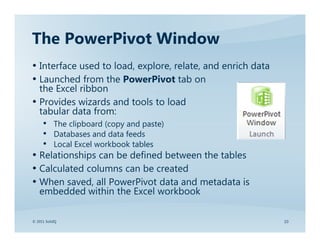
The PowerPivot Window
• Interface used to load, explore, relate, and enrich data
• Launched from the PowerPivot tab on
  the Excel ribbon
• Provides wizards and tools to load
  tabular data from:
   • The clipboard (copy and paste)
   • Databases and data feeds
   • Local Excel workbook tables
• Relationships can be defined between the tables
• Calculated columns can be created
• When saved, all PowerPivot data and metadata is
  embedded within the Excel workbook

© 2011 SolidQ                                                10
Loading Data
• Data can be loaded into the PowerPivot
   Window by:
     • Copying and pasting data
     • Loading external data sourced from:
                o   Databases – including all Microsoft database products
                o   Reporting Services reports
                o   Data feeds
                o   Files
     • Linking Excel tables
• Data is loaded into tables
© 2011 SolidQ                                                               11
Preparing Data
• Tables can be renamed, moved, and deleted
• Columns can be renamed, copied and deleted
• Relationships can be established between the
   tables
• Calculated columns can be created


© 2011 SolidQ                                    12
Creating Reports
• The PowerPivot Field List
     • PivotTable
     • PivotChart
• Creating Free-From Reports


© 2011 SolidQ                  13
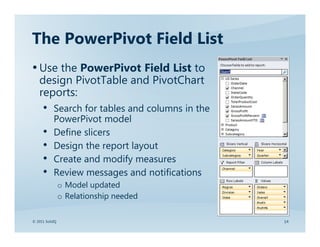
The PowerPivot Field List
• Use the PowerPivot Field List to
   design PivotTable and PivotChart
   reports:
     • Search for tables and columns in the
           PowerPivot model
     •     Define slicers
     •     Design the report layout
     •     Create and modify measures
     •     Review messages and notifications
                o Model updated
                o Relationship needed

© 2011 SolidQ                                  14
Creating Free-Form Reports
• Five of the seven Excel CUBE functions deliver
   free-form reporting based on PowerPivot models:
     •     CUBEMEMBER
     •     CUBEVALUE
     •     CUBESET
     •     CUBESETCOUNT
     •     CUBERANKEDMEMBER
• The remaining two CUBE functions are not relevant:
     •     CUBEMEMBERPROPERTY, CUBEKPIMEMBER
• The PowerPivot model data connection is always
   named PowerPivot Data

© 2011 SolidQ                                          15
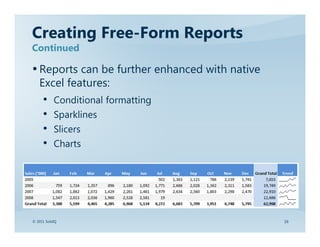
Creating Free-Form Reports
Continued

• Reports can be further enhanced with native
   Excel features:
     •     Conditional formatting
     •     Sparklines
     •     Slicers
     •     Charts


© 2011 SolidQ                                   16
Enriching Models with DAX
Calculations
• Introducing DAX Fundamentals
• Introducing the DAX Functions
• Creating Calculated Columns
• Creating Measures


© 2011 SolidQ                     17
Introducing DAX Fundamentals
• DAX = Data Analysis EXpressions
• Designed to deliver easy-to-use constructs that allow
   extending the PowerPivot model with calculations
• Used to define two distinctly different types of
   calculations:
     •     Calculated Columns that define new columns in
           PowerPivot tables (calculation is evaluated for each row in
           the table)
     •     Measures that define new fields in the PowerPivot Field List
           (calculation is evaluated when placed in the Values area of
           the PivotTable or PivotChart and within the filter context)

© 2011 SolidQ                                                            18
Introducing DAX Fundamentals
Continued

• The PowerPivot model from an analyst perspective
   appears tabular, so DAX provides functions that
   implement relational database concepts
• The function libraries consist of many familiar Excel
   functions, as well as additional functions to support:
     •     Relationship navigation
                o Many-to-one and one-to-many
     •     Aggregation over tables
     •     Context filtering
     •     Time Intelligence


© 2011 SolidQ                                               19
Introducing the DAX Functions
• DAX functions can be categorized into the following groups:
     •     Excel functions (~80 functions)
     •     Table functions
                o Return tables that are input to other DAX functions
                o For example, FILTER, ALL, DISTINCT
     •     Aggregate functions
                o Over columns: SUM, COUNT, AVERAGE, MIN, MAX
                o Over tables: SUMX, COUNTAX, AVERAGEX, MINX, MAXX
     •     Relationship navigation functions
                o Many-to-one: RELATED
                o One-to-many: RELATEDTABLE
     •     Context modification functions
                o CALCULATE and CALCULATETABLE
     •     Time Intelligence functions
                o Numerous time-related functions


© 2011 SolidQ                                                           20
Creating Calculated Columns
• Calculated columns are introduced as
  new columns in existing PowerPivot tables
• The values for each calculated column
  are materialized in the PowerPivot model
• Common examples:
     •     Produce derived columns:
                o Concatenate FirstName with LastName
                o Multiply OrderQuantity by UnitPrice
     •     Reference related column values (Many-to-One):
                o Look up the sales transaction’s state TaxRate
     •     Reference aggregate related column values (One-to-Many):
                o Produce the sum of Sales for the State


© 2011 SolidQ                                                     21
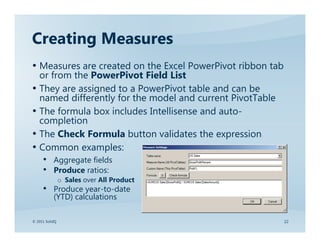
Creating Measures
• Measures are created on the Excel PowerPivot ribbon tab
  or from the PowerPivot Field List
• They are assigned to a PowerPivot table and can be
  named differently for the model and current PivotTable
• The formula box includes Intellisense and auto-
  completion
• The Check Formula button validates the expression
• Common examples:
   • Aggregate fields
   • Produce ratios:
                o Sales over All Product
     • Produce year-to-date
           (YTD) calculations

© 2011 SolidQ                                               22
Working with PowerPivot in
SharePoint Server 2010
• The PowerPivot Gallery
• The PowerPivot Management Dashboard


© 2011 SolidQ                           23
The PowerPivot Gallery
• The PowerPivot Gallery is a library template
   used to:
     • Preview contents by moving mouse over thumbnails
     • Configure alternate views and sort order
     • Create new analytic experiences based on a workbook
                o Clients simply connect to the SharePoint URL for PowerPivot
                  workbook
     • Configure data refresh policies
                o Each data source in model can have separate schedule
                o Schedule can be set to run after business hours
                o Notification can be sent in the event of data refresh failure


© 2011 SolidQ                                                                     24
The PowerPivot Management
Dashboard
• Collection of Web Parts and PowerPivot reports that
   display data related to the PowerPivot service
   application
     •     Server health
     •     Query response times
     •     Workbook usage
     •     Data refresh status
• Access to dashboard is limited to service application
  administrators
• Usage data available in PowerPivot Management
  Data.xlsx report for customization


© 2011 SolidQ                                             25
Next Generation OLAP From Microsoft

• Microsoft have recently announced a new direction for
  OLAP solution development with Analysis Services in the
  next release of SQL Server Project “Denali”
• PowerPivot will be just one of three supported
  approaches to produce a multidimensional model (cube)
• Named the BI Semantic Model, it will support
  multidimensional and tabular development approaches
• Watch the TechEd North America video What's New in
  Microsoft SQL Server Code-Named "Denali" for SQL Server
  Analysis Services and PowerPivot
     •     http://channel9.msdn.com/Events/TechEd/NorthAmerica/2011/DBI206


© 2011 SolidQ                                                                26
Resources
• PowerPivot Site
   • http://powerpivot.com
• Analysis Services and PowerPivot Team Blog
   • http://blogs.msdn.com/b/powerpivot
• PowerPivotGeek Blog (Dave Wickert)
   • http://powerpivotgeek.com
• PowerPivot(Pro) Blog (Rob Collie)
   • http://powerpivotpro.com
• TechNet PowerPivot for SharePoint
   • http://technet.microsoft.com/en-us/library/ee210682.aspx

© 2011 SolidQ                                                   27
Thank you!


© 2011 SolidQ   28
To learn more or inquire about speaking opportunities, please contact:

                Mark Ginnebaugh, User Group Leader
                      mark@designmind.com

Microsoft SQL Server PowerPivot

  • 1.
    End-to-End SQL Server PowerPivot Peter Myers, SolidQ Mentor July 2011 Mark Ginnebaugh, User Group Leader mark@designmind.com
  • 2.
    End-to-End SQL Server PowerPivot Bay Area Microsoft Business Intelligence User Group 07 July, 2011
  • 3.
    Abstract Speaker: Peter Myersof SolidQ This session is for IT professionals, data analysts, managers, and anyone looking to drive more productivity from Excel. One of the pillars of the SQL Server 2008 R2 release is Managed Self-Service BI. Peter will introduce: • SQL Server PowerPivot for Excel • SQL Server PowerPivot for SharePoint You will learn: • How you can effectively leverage the add-ins with your own data and analysis requirements The SQL Server PowerPivot for Excel add-in is a key offering in this pillar, and delivers an entirely new analytic experience to Excel 2010. This add-in allows analysts to load and prepare large volumes of data from various sources to create a multidimensional model. The model can be enriched with sophisticated calculations. Then the model can then be used as the source for PivotTable and PivotChart reports. With the SQL Server PowerPivot for SharePoint add-in, the Excel workbooks that host the PowerPivot model can be catalogued in SharePoint and exposed as a data source for other Excel and Reporting Services reports. These SharePoint hosted models can then be managed by IT with scheduled data refreshes from the originating data stores. Peter Myers of SolidQ is a Microsoft MVP and specializes in OLTP database design and development, DBA support and Data Warehousing/Business Intelligence with SQL Server. http://www.meetup.com/San-Francisco-Bay-Area-Microsoft-BI-User-Group/events/16622177/ © 2011 SolidQ 2
  • 4.
    Presenter Introduction • PeterMyers • Mentor, SolidQ • BBus, MCITP (Dev, DBA, BI), MCT, MVP • 14 years of experience designing and developing software solutions using Microsoft products, today specializing in Microsoft Business Intelligence • Based in San Francisco • pmyers@solidq.com © 2011 SolidQ 3
  • 5.
    Agenda • Introducing SQLServer PowerPivot • Creating PowerPivot Models • Creating Reports • Enriching Models with DAX Calculations • Working with PowerPivot in SharePoint Server 2010 • Next Generation OLAP From Microsoft • Resources © 2011 SolidQ 4
  • 6.
    Introducing SQL ServerPowerPivot • PowerPivot empowers end users to create self-service BI solutions in Excel 2010 • Facilitates the sharing and collaboration of PowerPivot solutions in SharePoint Server 2010 • These capabilities are achieved by two add-ins: • SQL Server PowerPivot for Excel Add-in • SQL Server PowerPivot for SharePoint Add-in • Both add-ins are available for download from Microsoft at no cost © 2011 SolidQ 5
  • 7.
    SQL Server PowerPivotfor Excel Add-in • Client add-in that extends Excel 2010 to support creating data models • Achieved with a client-side version of SQL Server Analysis Services, known as the VertiPaq processor • Can efficiently load data volumes far greater than what Excel has been designed to do • A separate PowerPivot Window is used to load, explore, relate, and enrich data with calculations • Imports and relates data from corporate, local, and ad hoc data stores © 2011 SolidQ 6
  • 8.
    SQL Server PowerPivotfor Excel Add-in Continued • Results in a new data connection embedded in the Excel workbook that can become the basis for interactive reports • Prerequisites include: • Excel 2010 (32-bit or 64-bit) • Windows XP SP3 (32-bit) or higher • Microsoft .NET Framework 3.5 SP1 • The add-in version (32- or 64-bit) must match the installed version of Office on the client © 2011 SolidQ 7
  • 9.
    SQL Server PowerPivotfor SharePoint Add-in • Collection of server components that provide query processing and management control for PowerPivot workbooks that are published to SharePoint Server 2010 • Extends Excel Services by pairing its large scale data processing capability with the data rendering services that Excel provides • Server components include: • Analysis Services to provide server-side processing for Excel workbooks that contain a PowerPivot model • PowerPivot System Service that works alongside Analysis Services, and adds SharePoint integration and request allocation support © 2011 SolidQ 8
  • 10.
    Creating PowerPivot Models •The PowerPivot Window • Loading Data • Preparing Data • Defining Measures © 2011 SolidQ 9
  • 11.
    The PowerPivot Window •Interface used to load, explore, relate, and enrich data • Launched from the PowerPivot tab on the Excel ribbon • Provides wizards and tools to load tabular data from: • The clipboard (copy and paste) • Databases and data feeds • Local Excel workbook tables • Relationships can be defined between the tables • Calculated columns can be created • When saved, all PowerPivot data and metadata is embedded within the Excel workbook © 2011 SolidQ 10
  • 12.
    Loading Data • Datacan be loaded into the PowerPivot Window by: • Copying and pasting data • Loading external data sourced from: o Databases – including all Microsoft database products o Reporting Services reports o Data feeds o Files • Linking Excel tables • Data is loaded into tables © 2011 SolidQ 11
  • 13.
    Preparing Data • Tablescan be renamed, moved, and deleted • Columns can be renamed, copied and deleted • Relationships can be established between the tables • Calculated columns can be created © 2011 SolidQ 12
  • 14.
    Creating Reports • ThePowerPivot Field List • PivotTable • PivotChart • Creating Free-From Reports © 2011 SolidQ 13
  • 15.
    The PowerPivot FieldList • Use the PowerPivot Field List to design PivotTable and PivotChart reports: • Search for tables and columns in the PowerPivot model • Define slicers • Design the report layout • Create and modify measures • Review messages and notifications o Model updated o Relationship needed © 2011 SolidQ 14
  • 16.
    Creating Free-Form Reports •Five of the seven Excel CUBE functions deliver free-form reporting based on PowerPivot models: • CUBEMEMBER • CUBEVALUE • CUBESET • CUBESETCOUNT • CUBERANKEDMEMBER • The remaining two CUBE functions are not relevant: • CUBEMEMBERPROPERTY, CUBEKPIMEMBER • The PowerPivot model data connection is always named PowerPivot Data © 2011 SolidQ 15
  • 17.
    Creating Free-Form Reports Continued •Reports can be further enhanced with native Excel features: • Conditional formatting • Sparklines • Slicers • Charts © 2011 SolidQ 16
  • 18.
    Enriching Models withDAX Calculations • Introducing DAX Fundamentals • Introducing the DAX Functions • Creating Calculated Columns • Creating Measures © 2011 SolidQ 17
  • 19.
    Introducing DAX Fundamentals •DAX = Data Analysis EXpressions • Designed to deliver easy-to-use constructs that allow extending the PowerPivot model with calculations • Used to define two distinctly different types of calculations: • Calculated Columns that define new columns in PowerPivot tables (calculation is evaluated for each row in the table) • Measures that define new fields in the PowerPivot Field List (calculation is evaluated when placed in the Values area of the PivotTable or PivotChart and within the filter context) © 2011 SolidQ 18
  • 20.
    Introducing DAX Fundamentals Continued •The PowerPivot model from an analyst perspective appears tabular, so DAX provides functions that implement relational database concepts • The function libraries consist of many familiar Excel functions, as well as additional functions to support: • Relationship navigation o Many-to-one and one-to-many • Aggregation over tables • Context filtering • Time Intelligence © 2011 SolidQ 19
  • 21.
    Introducing the DAXFunctions • DAX functions can be categorized into the following groups: • Excel functions (~80 functions) • Table functions o Return tables that are input to other DAX functions o For example, FILTER, ALL, DISTINCT • Aggregate functions o Over columns: SUM, COUNT, AVERAGE, MIN, MAX o Over tables: SUMX, COUNTAX, AVERAGEX, MINX, MAXX • Relationship navigation functions o Many-to-one: RELATED o One-to-many: RELATEDTABLE • Context modification functions o CALCULATE and CALCULATETABLE • Time Intelligence functions o Numerous time-related functions © 2011 SolidQ 20
  • 22.
    Creating Calculated Columns •Calculated columns are introduced as new columns in existing PowerPivot tables • The values for each calculated column are materialized in the PowerPivot model • Common examples: • Produce derived columns: o Concatenate FirstName with LastName o Multiply OrderQuantity by UnitPrice • Reference related column values (Many-to-One): o Look up the sales transaction’s state TaxRate • Reference aggregate related column values (One-to-Many): o Produce the sum of Sales for the State © 2011 SolidQ 21
  • 23.
    Creating Measures • Measuresare created on the Excel PowerPivot ribbon tab or from the PowerPivot Field List • They are assigned to a PowerPivot table and can be named differently for the model and current PivotTable • The formula box includes Intellisense and auto- completion • The Check Formula button validates the expression • Common examples: • Aggregate fields • Produce ratios: o Sales over All Product • Produce year-to-date (YTD) calculations © 2011 SolidQ 22
  • 24.
    Working with PowerPivotin SharePoint Server 2010 • The PowerPivot Gallery • The PowerPivot Management Dashboard © 2011 SolidQ 23
  • 25.
    The PowerPivot Gallery •The PowerPivot Gallery is a library template used to: • Preview contents by moving mouse over thumbnails • Configure alternate views and sort order • Create new analytic experiences based on a workbook o Clients simply connect to the SharePoint URL for PowerPivot workbook • Configure data refresh policies o Each data source in model can have separate schedule o Schedule can be set to run after business hours o Notification can be sent in the event of data refresh failure © 2011 SolidQ 24
  • 26.
    The PowerPivot Management Dashboard •Collection of Web Parts and PowerPivot reports that display data related to the PowerPivot service application • Server health • Query response times • Workbook usage • Data refresh status • Access to dashboard is limited to service application administrators • Usage data available in PowerPivot Management Data.xlsx report for customization © 2011 SolidQ 25
  • 27.
    Next Generation OLAPFrom Microsoft • Microsoft have recently announced a new direction for OLAP solution development with Analysis Services in the next release of SQL Server Project “Denali” • PowerPivot will be just one of three supported approaches to produce a multidimensional model (cube) • Named the BI Semantic Model, it will support multidimensional and tabular development approaches • Watch the TechEd North America video What's New in Microsoft SQL Server Code-Named "Denali" for SQL Server Analysis Services and PowerPivot • http://channel9.msdn.com/Events/TechEd/NorthAmerica/2011/DBI206 © 2011 SolidQ 26
  • 28.
    Resources • PowerPivot Site • http://powerpivot.com • Analysis Services and PowerPivot Team Blog • http://blogs.msdn.com/b/powerpivot • PowerPivotGeek Blog (Dave Wickert) • http://powerpivotgeek.com • PowerPivot(Pro) Blog (Rob Collie) • http://powerpivotpro.com • TechNet PowerPivot for SharePoint • http://technet.microsoft.com/en-us/library/ee210682.aspx © 2011 SolidQ 27
  • 29.
  • 30.
    To learn moreor inquire about speaking opportunities, please contact: Mark Ginnebaugh, User Group Leader mark@designmind.com