PowerPivot 2010 in SharePoint 2010 
• Deploying Business Intelligence to the end user with SharePoint 
Enterprise, Excel Services and PowerPivot 
1
About me 
• I love collecting code and re-using it as much as possible to save time 
and money and leverage SharePoint. 
• I gather views by searching the internet sites like “GPUG’s Share My 
Code” site, SharePoint Users groups and CodePlex. 
• I belong to several users groups including GPUG, Yammer SPYam, and 
FEDSPUG where I get valuable information on SharePoint tips and 
tricks. 
2
Experience 
• Power user with Microsoft SharePoint®, Microsoft Office®, Dynamics 
GP, Forecaster 7.0, Management Reporter and Encore Project 
software 
• Retrieve data using Microsoft SQL queries, views, SSRS (Reporting 
Services), Smart List Builder & Microsoft Excel® PowerPivot 
• Deployed PowerPivot software in SharePoint 2010 to give staff access 
to budgets and actuals from Encore project tracking and to pull 
information and lists from our AMS. 
3
• Currently using Microsoft Dynamics GP 2013 R2 
• PowerPivot Gallery in SharePoint 2010 Enterprise - access to budgets 
and actuals, Encore project tracking, and information and lists from 
membership database. 
4
Deploying Business Intelligence to the end user 
with SharePoint Enterprise, Excel Services and 
PowerPivot 
• Excel workbooks with the PowerPivot add in use SQL queries and 
views to pull real time data from multiple sources. 
• Excel Services and PowerPivot service in SharePoint can display and 
refresh the data on a web page. 
• The data sources that I use include Microsoft Dynamics GP, 
Forecaster, Encore, Unanet, and our AMS (association Management 
System) database. 
5
Why SharePoint 
• The file Share and Intranet were already in SharePoint 
• Sharing large files was difficult - email was not secure 
• Files need to be protected - only the proper user can have access to 
reports. 
• SharePoint Library has permissions tied to Active Directory and could 
support the large workbooks 
• One Place for Reports 
6
Agenda 
• Types of reporting and tools 
• FRX vs Power Pivot for Detail Drill Down Reports 
• PivotTables 
• PowerPivot in Excel 
• PowerPivot Gallery and Library Views in SharePoint Enterprise 
• Excel Services and PowerPivot in SharePoint 
7
Reports Created 
• Member Lists – Mailing, Email, Targeted Marketing List 
• Budget to Actual Comparisons and Forecasts 
• YTD Transactions in GL 
• Event Registration reports 
• Committee / Council Reports 
• Encore Project Tracking Data 
• AR reports 
8
Tools used to produce reports for End Users 
• SmartList 
• SQL Management Tools – create queries and views 
• Excel reports and dashboards 
• SSRS in Dynamics GP 
• Business Analyzer 
• FRX 
• SharePoint PowerPivot Gallery 
9
FRX / Management Reporter / PowerPivot 
• FRX with drill down on transaction detail for reforecasting 
and budget. 
• FRX accessed through terminal server 
• Issues logging into terminal server 
• Staff had issues finding the right file for the Drill down 
• Moved to Management reporter with the drill down. 
• Excel powerpivot can pull information posted to the cost 
centers into an Excel Spreadsheet
What is a PivotTable? 
• A PivotTable report is an interactive table that automatically extracts, 
organizes, and summarizes data. 
• PivotTables allow you to summarize and analyze large amounts of 
data in excel. 
• PowerPivot allows you to connect to Tables, Views or write a query to 
pull data into a list from multiple sources 
11
What is required to use PowerPivot? 
• Microsoft Office 2010 and the add on PowerPivot for Excel will allow 
you to create workbooks with Pivot tables using Slicers to create a 
three dimensional view of your data. 
• To Publish Excel PowerPivot Workbooks to SharePoint you need 
SharePoint 2010 SP1 Enterprise Edition, Windows® 2008 R2, 
Microsoft SQL Server 2008, Office 2010, PowerPivot add in for Excel 
• Excel 2013 PowerPivot is not backwardly compatible – you cannot 
open an Excel PowerPivot 2010 file from the PowerPivot Gallery in 
Excel 2013 and save it back to the PowerPivot gallery – it will no 
longer open in the gallery 
12
Excel 2010 with PowerPivot Add in 
• Install the Power Pivot add-in 
• Connect to data from data sources 
• Create new queries or connect to tables or views 
• Data Model directly in Excel 
• You can add calculated fields to use in the pivot tables 
• Power Pivot in SharePoint so pages can be displayed in browser 
13
Get PowerPivot for Excel 2010 
• Download Powerpivot from the Microsoft site 
• http://www.microsoft.com/en-us/download/details.aspx?id=102 
• It is an Add in that self installs when you open Excel. 
• Open Excel 
• Create a new Blank Workbook 
• (Excel 2013 have PowerPivot, Query, View included) 
14
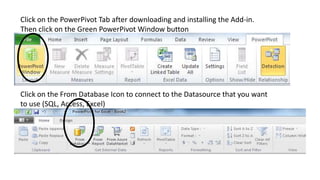
Click on the PowerPivot Tab after downloading and installing the Add-in. 
Then click on the Green PowerPivot Window button 
Click on the From Database Icon to connect to the Datasource that you want 
to use (SQL, Access, Excel)
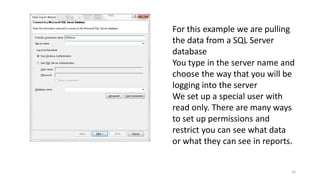
For this example we are pulling 
the data from a SQL Server 
database 
You type in the server name and 
choose the way that you will be 
logging into the server 
We set up a special user with 
read only. There are many ways 
to set up permissions and 
restrict you can see what data 
or what they can see in reports. 
16
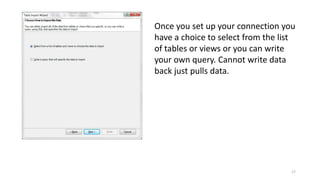
Once you set up your connection you 
have a choice to select from the list 
of tables or views or you can write 
your own query. Cannot write data 
back just pulls data. 
17
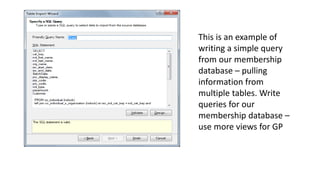
This is an example of 
writing a simple query 
from our membership 
database – pulling 
information from 
multiple tables. Write 
queries for our 
membership database – 
use more views for GP
19 
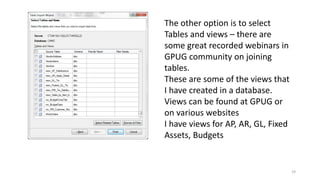
The other option is to select 
Tables and views – there are 
some great recorded webinars in 
GPUG community on joining 
tables. 
These are some of the views that 
I have created in a database. 
Views can be found at GPUG or 
on various websites 
I have views for AP, AR, GL, Fixed 
Assets, Budgets
20 
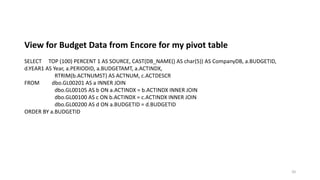
View for Budget Data from Encore for my pivot table 
SELECT TOP (100) PERCENT 1 AS SOURCE, CAST(DB_NAME() AS char(5)) AS CompanyDB, a.BUDGETID, 
d.YEAR1 AS Year, a.PERIODID, a.BUDGETAMT, a.ACTINDX, 
RTRIM(b.ACTNUMST) AS ACTNUM, c.ACTDESCR 
FROM dbo.GL00201 AS a INNER JOIN 
dbo.GL00105 AS b ON a.ACTINDX = b.ACTINDX INNER JOIN 
dbo.GL00100 AS c ON b.ACTINDX = c.ACTINDX INNER JOIN 
dbo.GL00200 AS d ON a.BUDGETID = d.BUDGETID 
ORDER BY a.BUDGETID
21 
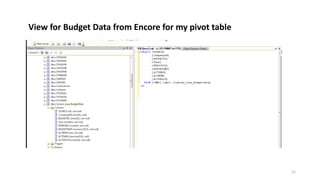
View for Budget Data from Encore for my pivot table
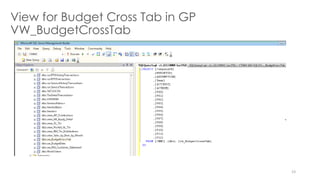
View for Budget Cross Tab in GP 
VW_BudgetCrossTab 
• SELECT TOP (100) PERCENT CompanyDB, BUDGETID, RTRIM(BUDGETID) + ' ' + ACTNUM + ' ' + ACTDESCR AS ASSUMPTION, Year, ACTINDX, ACTNUM, 
• SUM(CASE PERIODID WHEN 0 THEN BUDGETAMT ELSE 0 END) AS P00, SUM(CASE PERIODID WHEN 1 THEN BUDGETAMT ELSE 0 END) AS P01, 
• SUM(CASE PERIODID WHEN 2 THEN BUDGETAMT ELSE 0 END) AS P02, SUM(CASE PERIODID WHEN 3 THEN BUDGETAMT ELSE 0 END) AS P03, 
• SUM(CASE PERIODID WHEN 4 THEN BUDGETAMT ELSE 0 END) AS P04, SUM(CASE PERIODID WHEN 5 THEN BUDGETAMT ELSE 0 END) AS P05, 
• SUM(CASE PERIODID WHEN 6 THEN BUDGETAMT ELSE 0 END) AS P06, SUM(CASE PERIODID WHEN 7 THEN BUDGETAMT ELSE 0 END) AS P07, 
• SUM(CASE PERIODID WHEN 8 THEN BUDGETAMT ELSE 0 END) AS P08, SUM(CASE PERIODID WHEN 9 THEN BUDGETAMT ELSE 0 END) AS P09, 
• SUM(CASE PERIODID WHEN 10 THEN BUDGETAMT ELSE 0 END) AS P10, SUM(CASE PERIODID WHEN 11 THEN BUDGETAMT ELSE 0 END) AS 
P11, 
• SUM(CASE PERIODID WHEN 12 THEN BUDGETAMT ELSE 0 END) AS P12 
• FROM dbo.vw_BudgetData 
• GROUP BY CompanyDB, Year, BUDGETID, ACTNUM, ACTINDX, ACTDESCR 
• ORDER BY CompanyDB, Year, BUDGETID, ACTNUM 
22
23 
View for Budget Cross Tab in GP 
VW_BudgetCrossTab
24 
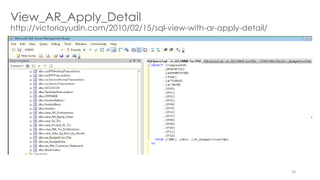
View_AR_Apply_Detail 
http://victoriayudin.com/2010/02/15/sql-view-with-ar-apply-detail/
25 
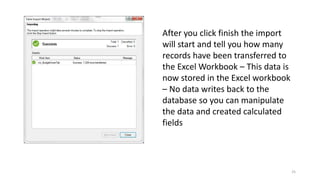
After you click finish the import 
will start and tell you how many 
records have been transferred to 
the Excel Workbook – This data is 
now stored in the Excel workbook 
– No data writes back to the 
database so you can manipulate 
the data and created calculated 
fields
26 
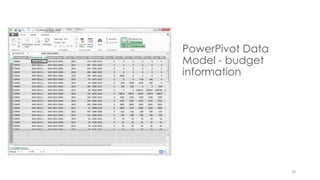
PowerPivot Data 
Model - budget 
information
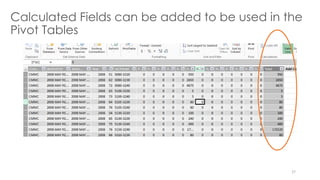
Calculated Fields can be added to be used in the 
Pivot Tables 
27
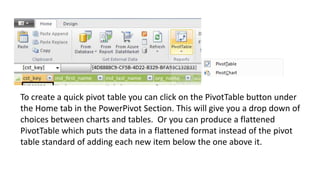
To create a quick pivot table you can click on the PivotTable button under 
the Home tab in the PowerPivot Section. This will give you a drop down of 
choices between charts and tables. Or you can produce a flattened 
PivotTable which puts the data in a flattened format instead of the pivot 
table standard of adding each new item below the one above it.
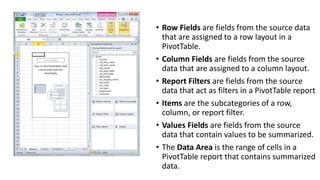
• Row Fields are fields from the source data 
that are assigned to a row layout in a 
PivotTable. 
• Column Fields are fields from the source 
data that are assigned to a column layout. 
• Report Filters are fields from the source 
data that act as filters in a PivotTable report 
• Items are the subcategories of a row, 
column, or report filter. 
• Values Fields are fields from the source 
data that contain values to be summarized. 
• The Data Area is the range of cells in a 
PivotTable report that contains summarized 
data.
30 
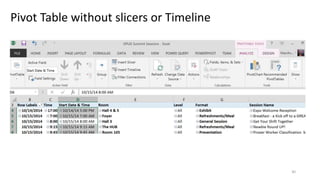
Pivot Table without slicers or Timeline
31 
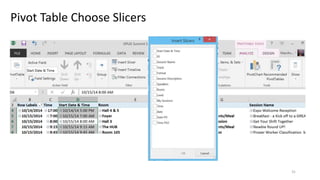
Pivot Table Choose Slicers
32 
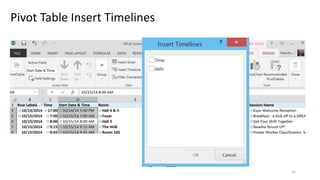
Pivot Table Insert Timelines
33 
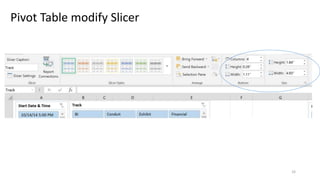
Pivot Table modify Slicer
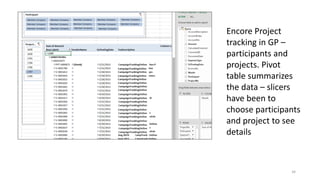
Encore Project 
tracking in GP – 
participants and 
projects. Pivot 
table summarizes 
the data – slicers 
have been to 
choose participants 
and project to see 
details 
34
35 
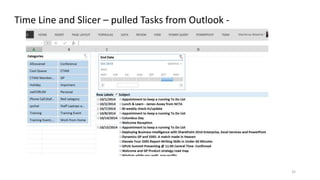
Time Line and Slicer – pulled Tasks from Outlook -
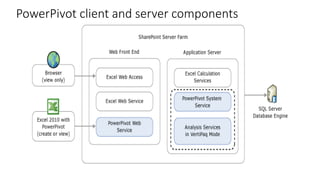
Components of PowerPivot for SharePoint 
Client and server components integrate with Excel and Excel Services in a 
SharePoint farm. 
On a SharePoint farm, Analysis Services runs on an application 
server where it is paired with related services that handle 
requests for PowerPivot data.
PowerPivot client and server components
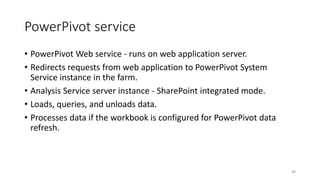
PowerPivot service 
• PowerPivot Web service - runs on web application server. 
• Redirects requests from web application to PowerPivot System 
Service instance in the farm. 
• Analysis Service server instance - SharePoint integrated mode. 
• Loads, queries, and unloads data. 
• Processes data if the workbook is configured for PowerPivot data 
refresh. 
38
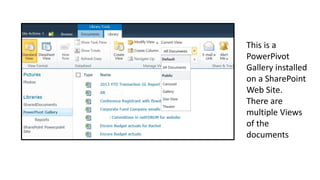
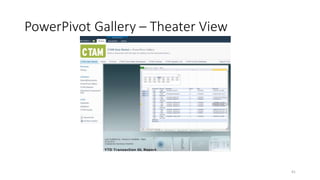
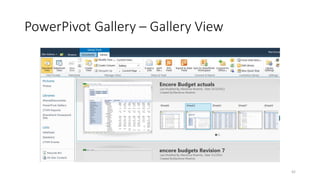
This is a 
PowerPivot 
Gallery installed 
on a SharePoint 
Web Site. 
There are 
multiple Views 
of the 
documents
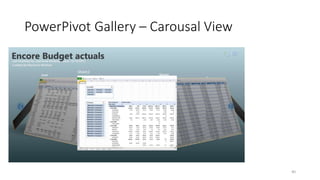
PowerPivot Gallery – Carousal View 
40
PowerPivot Gallery – Theater View 
41
PowerPivot Gallery – Gallery View 
42
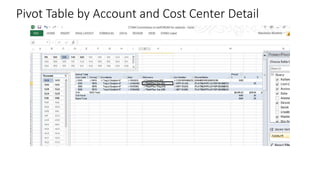
Pivot Table by Account and Cost Center Detail
PowerPivot installation for SharePoint 
• Created a Data Feed Library and PowerPivot Gallery 
• Uploaded PowerPivot enabled excel workbook using slicers data refresh. 
• Set up a special account in SQL called Report Writer with limited rights 
• Required password entry upon refresh – did not want to save the 
credentials with the workbook because it kept it in plain text
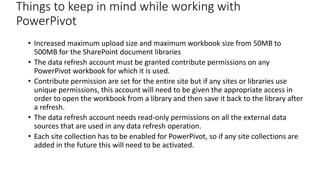
Things to keep in mind while working with 
PowerPivot 
• Increased maximum upload size and maximum workbook size from 50MB to 
500MB for the SharePoint document libraries 
• The data refresh account must be granted contribute permissions on any 
PowerPivot workbook for which it is used. 
• Contribute permission are set for the entire site but if any sites or libraries use 
unique permissions, this account will need to be given the appropriate access in 
order to open the workbook from a library and then save it back to the library after 
a refresh. 
• The data refresh account needs read-only permissions on all the external data 
sources that are used in any data refresh operation. 
• Each site collection has to be enabled for PowerPivot, so if any site collections are 
added in the future this will need to be activated.
Links 
• GPUG SSRS Monday SIG: Using Excel Power Pivot to Analyze GP Data (Sep 2014) 
• http://www.gpug.com/communities/community-home/ 
librarydocuments/viewdocument/?DocumentKey=0f27e261-80e2-492a-b093- 
99d40426594f 
• DAX 
• http://technet.microsoft.com/en-us/library/gg399181(v=sql.110).aspx 
• GPUG Learn & Engage –Webinars on Demand (Members Only) 
• http://www.gpug.com/engage/recordings 
• http://victoriayudin.com 
• Instant SQL Formatting 
• http://www.dpriver.com/pp/sqlformat.htm?ref=g_wangz 
46

Powerpivot web wordpress present

  • 1.
    PowerPivot 2010 inSharePoint 2010 • Deploying Business Intelligence to the end user with SharePoint Enterprise, Excel Services and PowerPivot 1
  • 2.
    About me •I love collecting code and re-using it as much as possible to save time and money and leverage SharePoint. • I gather views by searching the internet sites like “GPUG’s Share My Code” site, SharePoint Users groups and CodePlex. • I belong to several users groups including GPUG, Yammer SPYam, and FEDSPUG where I get valuable information on SharePoint tips and tricks. 2
  • 3.
    Experience • Poweruser with Microsoft SharePoint®, Microsoft Office®, Dynamics GP, Forecaster 7.0, Management Reporter and Encore Project software • Retrieve data using Microsoft SQL queries, views, SSRS (Reporting Services), Smart List Builder & Microsoft Excel® PowerPivot • Deployed PowerPivot software in SharePoint 2010 to give staff access to budgets and actuals from Encore project tracking and to pull information and lists from our AMS. 3
  • 4.
    • Currently usingMicrosoft Dynamics GP 2013 R2 • PowerPivot Gallery in SharePoint 2010 Enterprise - access to budgets and actuals, Encore project tracking, and information and lists from membership database. 4
  • 5.
    Deploying Business Intelligenceto the end user with SharePoint Enterprise, Excel Services and PowerPivot • Excel workbooks with the PowerPivot add in use SQL queries and views to pull real time data from multiple sources. • Excel Services and PowerPivot service in SharePoint can display and refresh the data on a web page. • The data sources that I use include Microsoft Dynamics GP, Forecaster, Encore, Unanet, and our AMS (association Management System) database. 5
  • 6.
    Why SharePoint •The file Share and Intranet were already in SharePoint • Sharing large files was difficult - email was not secure • Files need to be protected - only the proper user can have access to reports. • SharePoint Library has permissions tied to Active Directory and could support the large workbooks • One Place for Reports 6
  • 7.
    Agenda • Typesof reporting and tools • FRX vs Power Pivot for Detail Drill Down Reports • PivotTables • PowerPivot in Excel • PowerPivot Gallery and Library Views in SharePoint Enterprise • Excel Services and PowerPivot in SharePoint 7
  • 8.
    Reports Created •Member Lists – Mailing, Email, Targeted Marketing List • Budget to Actual Comparisons and Forecasts • YTD Transactions in GL • Event Registration reports • Committee / Council Reports • Encore Project Tracking Data • AR reports 8
  • 9.
    Tools used toproduce reports for End Users • SmartList • SQL Management Tools – create queries and views • Excel reports and dashboards • SSRS in Dynamics GP • Business Analyzer • FRX • SharePoint PowerPivot Gallery 9
  • 10.
    FRX / ManagementReporter / PowerPivot • FRX with drill down on transaction detail for reforecasting and budget. • FRX accessed through terminal server • Issues logging into terminal server • Staff had issues finding the right file for the Drill down • Moved to Management reporter with the drill down. • Excel powerpivot can pull information posted to the cost centers into an Excel Spreadsheet
  • 11.
    What is aPivotTable? • A PivotTable report is an interactive table that automatically extracts, organizes, and summarizes data. • PivotTables allow you to summarize and analyze large amounts of data in excel. • PowerPivot allows you to connect to Tables, Views or write a query to pull data into a list from multiple sources 11
  • 12.
    What is requiredto use PowerPivot? • Microsoft Office 2010 and the add on PowerPivot for Excel will allow you to create workbooks with Pivot tables using Slicers to create a three dimensional view of your data. • To Publish Excel PowerPivot Workbooks to SharePoint you need SharePoint 2010 SP1 Enterprise Edition, Windows® 2008 R2, Microsoft SQL Server 2008, Office 2010, PowerPivot add in for Excel • Excel 2013 PowerPivot is not backwardly compatible – you cannot open an Excel PowerPivot 2010 file from the PowerPivot Gallery in Excel 2013 and save it back to the PowerPivot gallery – it will no longer open in the gallery 12
  • 13.
    Excel 2010 withPowerPivot Add in • Install the Power Pivot add-in • Connect to data from data sources • Create new queries or connect to tables or views • Data Model directly in Excel • You can add calculated fields to use in the pivot tables • Power Pivot in SharePoint so pages can be displayed in browser 13
  • 14.
    Get PowerPivot forExcel 2010 • Download Powerpivot from the Microsoft site • http://www.microsoft.com/en-us/download/details.aspx?id=102 • It is an Add in that self installs when you open Excel. • Open Excel • Create a new Blank Workbook • (Excel 2013 have PowerPivot, Query, View included) 14
  • 15.
    Click on thePowerPivot Tab after downloading and installing the Add-in. Then click on the Green PowerPivot Window button Click on the From Database Icon to connect to the Datasource that you want to use (SQL, Access, Excel)
  • 16.
    For this examplewe are pulling the data from a SQL Server database You type in the server name and choose the way that you will be logging into the server We set up a special user with read only. There are many ways to set up permissions and restrict you can see what data or what they can see in reports. 16
  • 17.
    Once you setup your connection you have a choice to select from the list of tables or views or you can write your own query. Cannot write data back just pulls data. 17
  • 18.
    This is anexample of writing a simple query from our membership database – pulling information from multiple tables. Write queries for our membership database – use more views for GP
  • 19.
    19 The otheroption is to select Tables and views – there are some great recorded webinars in GPUG community on joining tables. These are some of the views that I have created in a database. Views can be found at GPUG or on various websites I have views for AP, AR, GL, Fixed Assets, Budgets
  • 20.
    20 View forBudget Data from Encore for my pivot table SELECT TOP (100) PERCENT 1 AS SOURCE, CAST(DB_NAME() AS char(5)) AS CompanyDB, a.BUDGETID, d.YEAR1 AS Year, a.PERIODID, a.BUDGETAMT, a.ACTINDX, RTRIM(b.ACTNUMST) AS ACTNUM, c.ACTDESCR FROM dbo.GL00201 AS a INNER JOIN dbo.GL00105 AS b ON a.ACTINDX = b.ACTINDX INNER JOIN dbo.GL00100 AS c ON b.ACTINDX = c.ACTINDX INNER JOIN dbo.GL00200 AS d ON a.BUDGETID = d.BUDGETID ORDER BY a.BUDGETID
  • 21.
    21 View forBudget Data from Encore for my pivot table
  • 22.
    View for BudgetCross Tab in GP VW_BudgetCrossTab • SELECT TOP (100) PERCENT CompanyDB, BUDGETID, RTRIM(BUDGETID) + ' ' + ACTNUM + ' ' + ACTDESCR AS ASSUMPTION, Year, ACTINDX, ACTNUM, • SUM(CASE PERIODID WHEN 0 THEN BUDGETAMT ELSE 0 END) AS P00, SUM(CASE PERIODID WHEN 1 THEN BUDGETAMT ELSE 0 END) AS P01, • SUM(CASE PERIODID WHEN 2 THEN BUDGETAMT ELSE 0 END) AS P02, SUM(CASE PERIODID WHEN 3 THEN BUDGETAMT ELSE 0 END) AS P03, • SUM(CASE PERIODID WHEN 4 THEN BUDGETAMT ELSE 0 END) AS P04, SUM(CASE PERIODID WHEN 5 THEN BUDGETAMT ELSE 0 END) AS P05, • SUM(CASE PERIODID WHEN 6 THEN BUDGETAMT ELSE 0 END) AS P06, SUM(CASE PERIODID WHEN 7 THEN BUDGETAMT ELSE 0 END) AS P07, • SUM(CASE PERIODID WHEN 8 THEN BUDGETAMT ELSE 0 END) AS P08, SUM(CASE PERIODID WHEN 9 THEN BUDGETAMT ELSE 0 END) AS P09, • SUM(CASE PERIODID WHEN 10 THEN BUDGETAMT ELSE 0 END) AS P10, SUM(CASE PERIODID WHEN 11 THEN BUDGETAMT ELSE 0 END) AS P11, • SUM(CASE PERIODID WHEN 12 THEN BUDGETAMT ELSE 0 END) AS P12 • FROM dbo.vw_BudgetData • GROUP BY CompanyDB, Year, BUDGETID, ACTNUM, ACTINDX, ACTDESCR • ORDER BY CompanyDB, Year, BUDGETID, ACTNUM 22
  • 23.
    23 View forBudget Cross Tab in GP VW_BudgetCrossTab
  • 24.
  • 25.
    25 After youclick finish the import will start and tell you how many records have been transferred to the Excel Workbook – This data is now stored in the Excel workbook – No data writes back to the database so you can manipulate the data and created calculated fields
  • 26.
    26 PowerPivot Data Model - budget information
  • 27.
    Calculated Fields canbe added to be used in the Pivot Tables 27
  • 28.
    To create aquick pivot table you can click on the PivotTable button under the Home tab in the PowerPivot Section. This will give you a drop down of choices between charts and tables. Or you can produce a flattened PivotTable which puts the data in a flattened format instead of the pivot table standard of adding each new item below the one above it.
  • 29.
    • Row Fieldsare fields from the source data that are assigned to a row layout in a PivotTable. • Column Fields are fields from the source data that are assigned to a column layout. • Report Filters are fields from the source data that act as filters in a PivotTable report • Items are the subcategories of a row, column, or report filter. • Values Fields are fields from the source data that contain values to be summarized. • The Data Area is the range of cells in a PivotTable report that contains summarized data.
  • 30.
    30 Pivot Tablewithout slicers or Timeline
  • 31.
    31 Pivot TableChoose Slicers
  • 32.
    32 Pivot TableInsert Timelines
  • 33.
    33 Pivot Tablemodify Slicer
  • 34.
    Encore Project trackingin GP – participants and projects. Pivot table summarizes the data – slicers have been to choose participants and project to see details 34
  • 35.
    35 Time Lineand Slicer – pulled Tasks from Outlook -
  • 36.
    Components of PowerPivotfor SharePoint Client and server components integrate with Excel and Excel Services in a SharePoint farm. On a SharePoint farm, Analysis Services runs on an application server where it is paired with related services that handle requests for PowerPivot data.
  • 37.
    PowerPivot client andserver components
  • 38.
    PowerPivot service •PowerPivot Web service - runs on web application server. • Redirects requests from web application to PowerPivot System Service instance in the farm. • Analysis Service server instance - SharePoint integrated mode. • Loads, queries, and unloads data. • Processes data if the workbook is configured for PowerPivot data refresh. 38
  • 39.
    This is a PowerPivot Gallery installed on a SharePoint Web Site. There are multiple Views of the documents
  • 40.
    PowerPivot Gallery –Carousal View 40
  • 41.
    PowerPivot Gallery –Theater View 41
  • 42.
    PowerPivot Gallery –Gallery View 42
  • 43.
    Pivot Table byAccount and Cost Center Detail
  • 44.
    PowerPivot installation forSharePoint • Created a Data Feed Library and PowerPivot Gallery • Uploaded PowerPivot enabled excel workbook using slicers data refresh. • Set up a special account in SQL called Report Writer with limited rights • Required password entry upon refresh – did not want to save the credentials with the workbook because it kept it in plain text
  • 45.
    Things to keepin mind while working with PowerPivot • Increased maximum upload size and maximum workbook size from 50MB to 500MB for the SharePoint document libraries • The data refresh account must be granted contribute permissions on any PowerPivot workbook for which it is used. • Contribute permission are set for the entire site but if any sites or libraries use unique permissions, this account will need to be given the appropriate access in order to open the workbook from a library and then save it back to the library after a refresh. • The data refresh account needs read-only permissions on all the external data sources that are used in any data refresh operation. • Each site collection has to be enabled for PowerPivot, so if any site collections are added in the future this will need to be activated.
  • 46.
    Links • GPUGSSRS Monday SIG: Using Excel Power Pivot to Analyze GP Data (Sep 2014) • http://www.gpug.com/communities/community-home/ librarydocuments/viewdocument/?DocumentKey=0f27e261-80e2-492a-b093- 99d40426594f • DAX • http://technet.microsoft.com/en-us/library/gg399181(v=sql.110).aspx • GPUG Learn & Engage –Webinars on Demand (Members Only) • http://www.gpug.com/engage/recordings • http://victoriayudin.com • Instant SQL Formatting • http://www.dpriver.com/pp/sqlformat.htm?ref=g_wangz 46

Editor's Notes

  • #4 Originally used Solomon – moved to GP while consolidating account GL Codes – went from a GL where people had been adding codes for years to a simple 4-4 code. Keep summary in the GL with Detail in our membership database for the A/R
  • #5 We have systems hosted in a private cloud, on premise and in the cloud. Three SQL servers with multiple databases that I need to gather information from. I am the IT department – I pull lists and gather data for staff on demand. The quicker I can get the data out the easier my job is
  • #7 Keeping everything in one place
  • #8 Keeping everything in one place
  • #9 Large Datasets
  • #15 You have to download the add in for Excel 2010 – it is include in 2013 but you cannot use 2013 with the SharePoint 2010 PowerPivot Gallery – the workbooks will no longer work in the browser if you update them to the 2013 version
  • #18 Once you set up your connection you have a choice to select from the list of tables or views or you can write your own query. Cannot write data back just pulls data.
  • #19 This is an example of writing a simple query from our membership database – pulling information from multiple tables. Write queries for our membership database – use more views for GP
  • #21 View from Encore Project tracking
  • #30 Definitions of what goes into a pivot table – Rows and columns are just like Excel rows and columns – filters let you filter what will display in the pivot table. Items – Org_name – then Prc_display_name would show each organization and then all the items that were connected to the organization – the payamount would go in the values
  • #34 Change Slicer size – columns height
  • #36 Example of a pivot table – Time Line and Slicer – pulled from Exports Tasks from Outlook -
  • #37 More definitions
  • #38 Model of the server and services
  • #39 I have been downloading the files and refreshing them and then saving them back up – I did not want to have it autorefresh each time staff opened the file because they only needed a snapshot up to the time the financial statements were created. The refresh does put a load on the Web front and and Sql Server.
  • #42 The next view is the Theater view - the file view is on the bottom of the