Microsoft Excel allowsyou to create professional spreadsheets and charts. It is
quite useful in entering, editing, analysis and storing of data
It performs numerous functions and formulas to assist you in your projects. MS-
EXCEL is the replacement of calculator, pencil work. You can create charts with
colors, add clip arts in excel .
INTRODUCTION
3.
A new workbookcontains 256 worksheets. The worksheet is a grid
of COLUMNS and ROWS.
The intersection of a column and a row is called a CELL. Each cell
on the spreadsheet has a CELL ADDRESS that is the column letter
and the row number.
Worksheet can be saved and retrieved for further editing. You can
import and export data from one worksheet to another
WORKBOOK
CELL
FEATURES OF
EXCEL
WORKSHEET
4.
DOUBLE CLICK ONTHE
MICROSOFT EXCEL ICON
ON THE DESKTOP
Write the EXCEL on run
dialog box.
Click on Start ->Programs -
>MS-Office->Microsoft
Excel
01
03
02
STARTING
MICROSOFT EXCEL
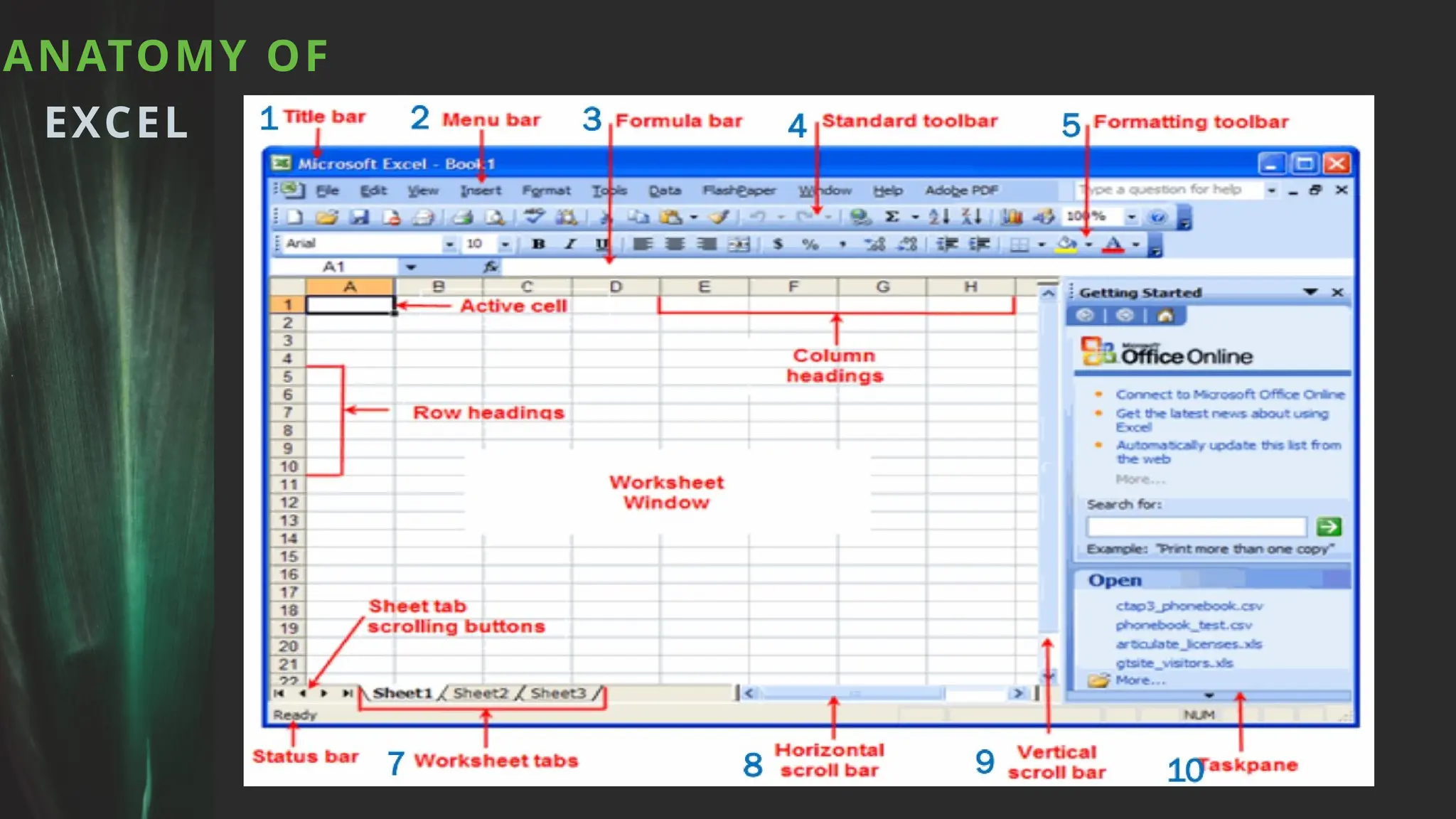
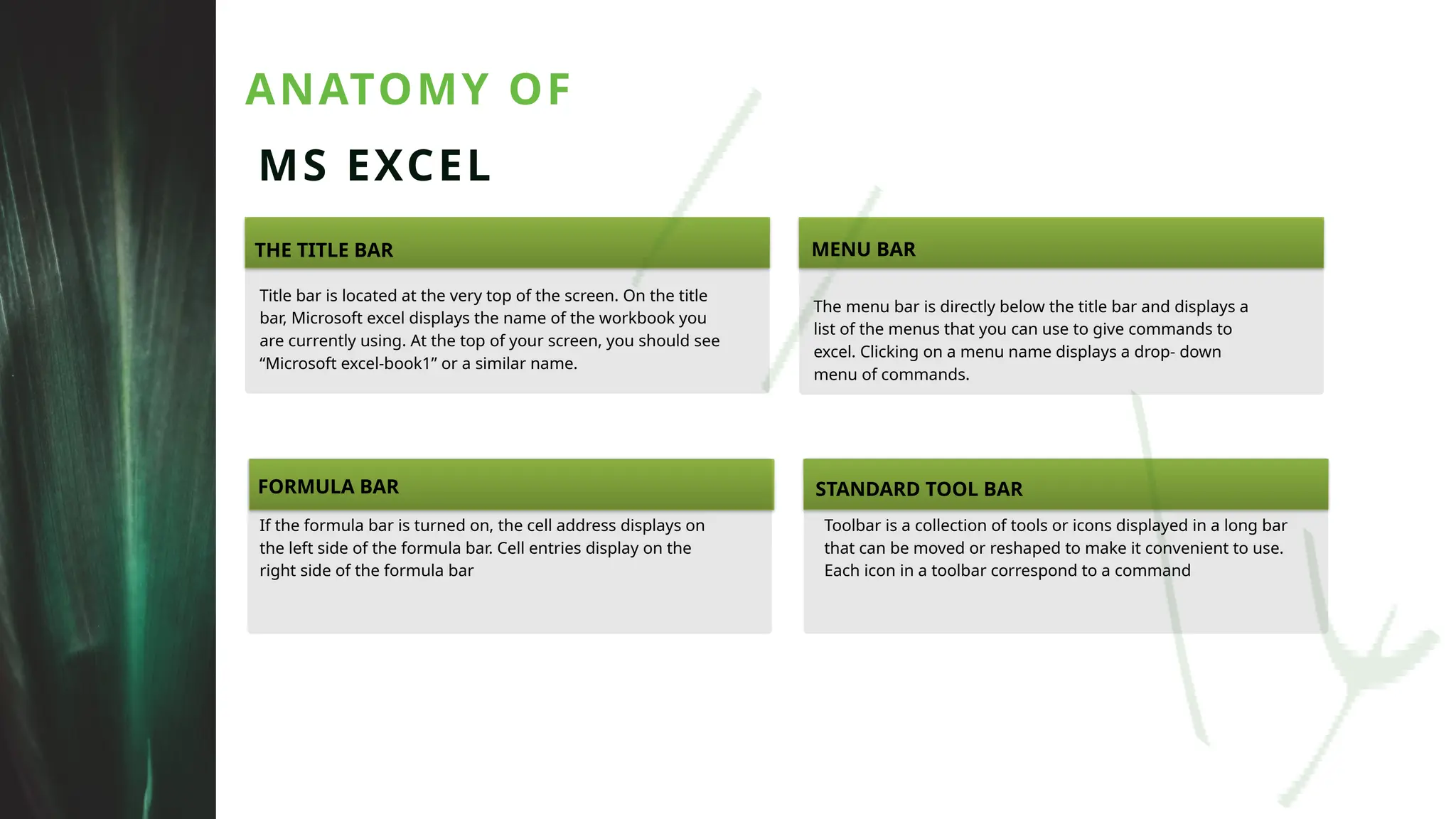
ANATOMY OF
MS EXCEL
THETITLE BAR
FORMULA BAR STANDARD TOOL BAR
MENU BAR
Title bar is located at the very top of the screen. On the title
bar, Microsoft excel displays the name of the workbook you
are currently using. At the top of your screen, you should see
“Microsoft excel-book1” or a similar name.
If the formula bar is turned on, the cell address displays on
the left side of the formula bar. Cell entries display on the
right side of the formula bar
Toolbar is a collection of tools or icons displayed in a long bar
that can be moved or reshaped to make it convenient to use.
Each icon in a toolbar correspond to a command
The menu bar is directly below the title bar and displays a
list of the menus that you can use to give commands to
excel. Clicking on a menu name displays a drop- down
menu of commands.
7.
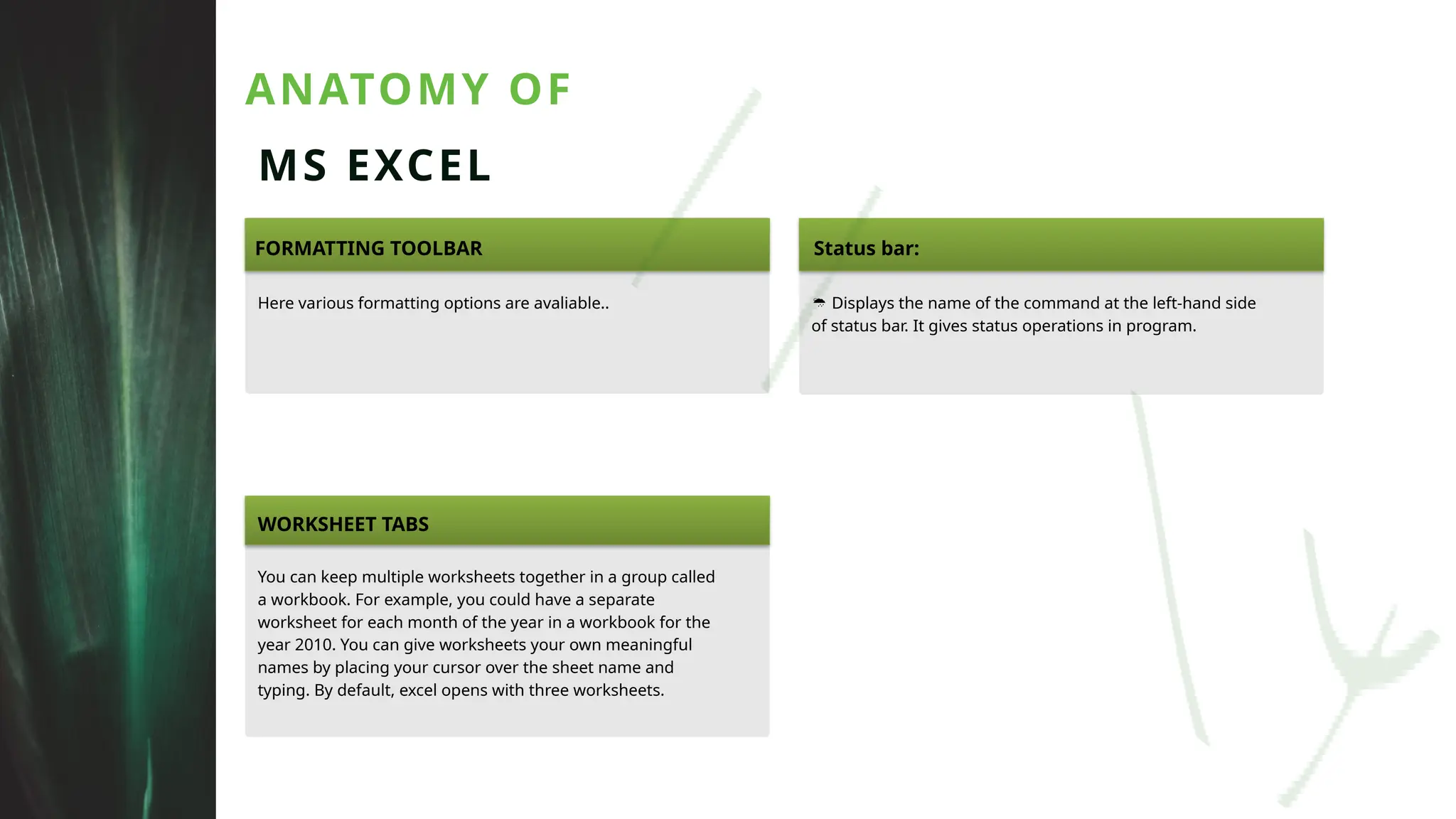
ANATOMY OF
MS EXCEL
FORMATTINGTOOLBAR Status bar:
Here various formatting options are avaliable.. Displays the name of the command at the left-hand side
of status bar. It gives status operations in program.
WORKSHEET TABS
You can keep multiple worksheets together in a group called
a workbook. For example, you could have a separate
worksheet for each month of the year in a workbook for the
year 2010. You can give worksheets your own meaningful
names by placing your cursor over the sheet name and
typing. By default, excel opens with three worksheets.
8.
The workbook ismade up of cells. There is a cell at the intersection
of each row and column. A cell can contain a value, a formula, or a
text entry. A text entry is used to label or explain the contents or
the value of a formula.
The Excel worksheet contains 16,384 rows that extend down the
worksheet, numbered 1 through 16384. The Excel worksheet contains 256
columns that extend across the worksheet , lettered A through Z, AA
through AZ, BA through BZ, and continuing to IA through IZ.
The Excel worksheet can contain as many as 256 sheets, labeled sheet1
through sheet256.The initial number of sheet in a workbook, which can be
changed by the user is 16
CELLS:
ROWS, COLUMNS:
ENTERING
TEXT
SHEETS:
9.
The File Tabmenu contains the commands most commonly
associated with the file.
The Home Tab Groups contain the commands most commonly associated
with the formatting and editing of cells and their contents.
The Insert Tab Groups contain the commands most commonly associated
with adding something to the document
FILE TAB
HOME TAB
TABS
INSERT TAB
10.
The Page LayoutGroups contain the commands most commonly
associated with settings that would affect the entire page or
worksheet.
The Formulas Groups contain the commands most commonly associated
with Excel’s formulas and functions.
The Data Tab groups contain the commands most commonly associated
with data from external sources, and evaluating or arranging data.
PAGE LAYOUT TAB
FORMULAS TAB
TABS
DATA TAB
11.
The Review Tabsgroups contain the commands most commonly
associated with the text portions of a spreadsheet and sharing
changes.
The View Tab groups contain the commands most commonly associated
with the variety of ways you can “look at” a worksheet or workbook.
REVIEW TAB
VIEW TAB
TABS
DELETING
CELLS
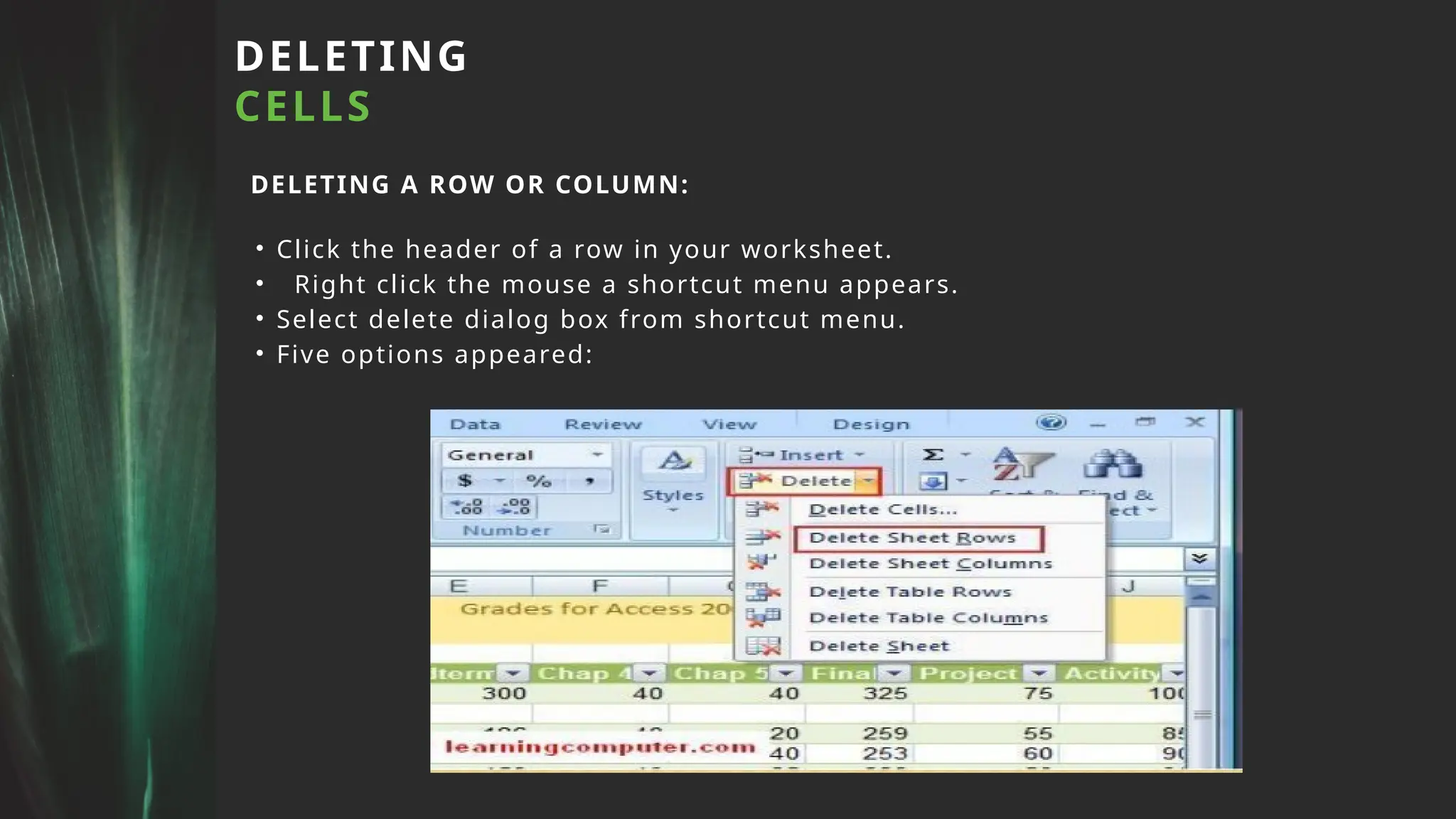
DELETING A ROWOR COLUMN:
• Click the header of a row in your worksheet.
• Right click the mouse a shortcut menu appears.
• Select delete dialog box from shortcut menu.
• Five options appeared:
15.
WORKING WITH
FORMULAS AND
FUNCTIONS
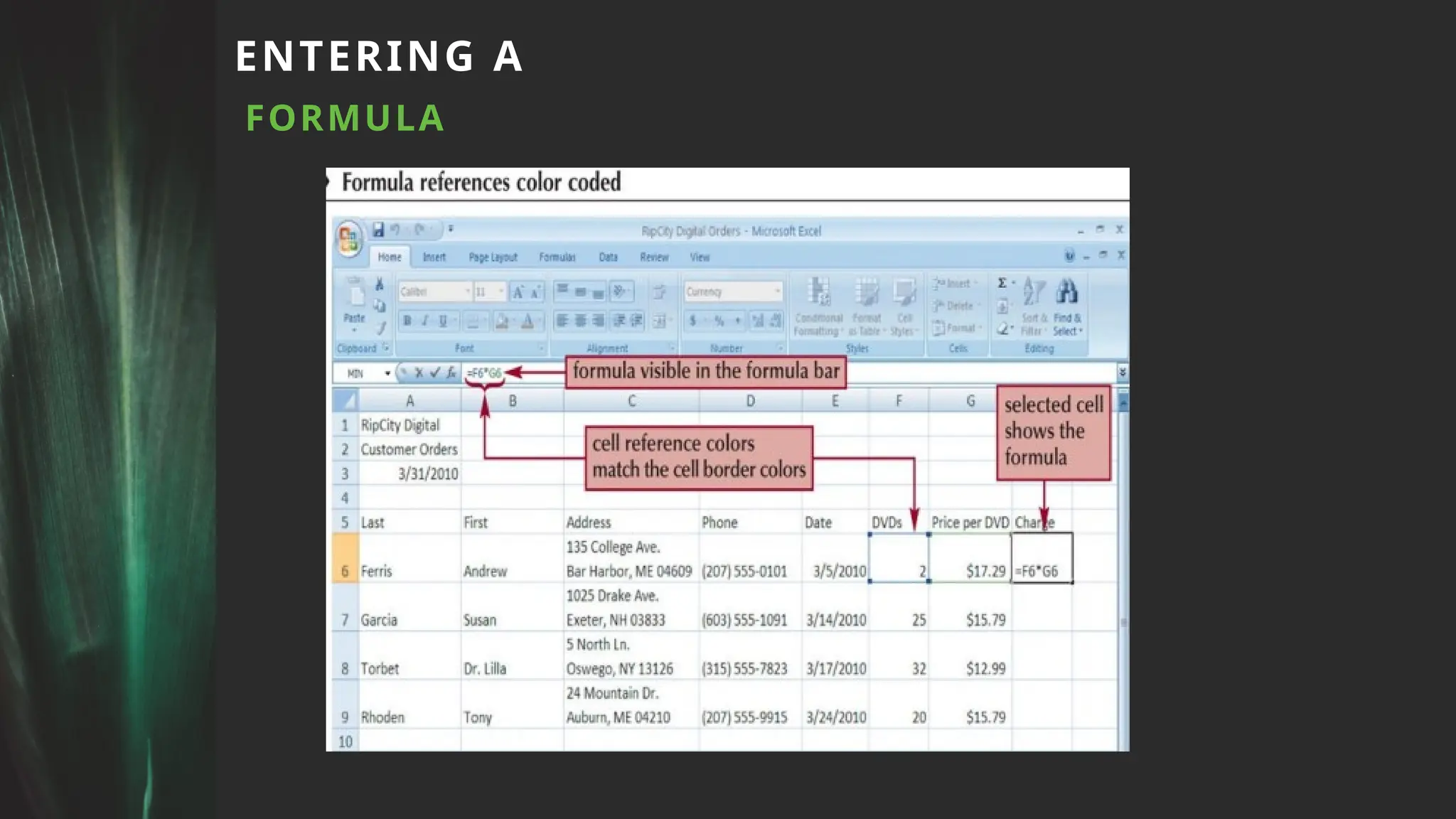
Enteringa Formula:
• A formula is an expression that returns a value.
• A formula is written using operators that combine different values,
returning a single value that is then displayed in the cell.
• The most commonly used operators are arithmetic operators.
• Click the cell in which you want the formula results to appear.
• Type = and an expression that calculates a value using cell references and
arithmetic operators.
• Press the Enter key or press the Tab key to complete the formula.
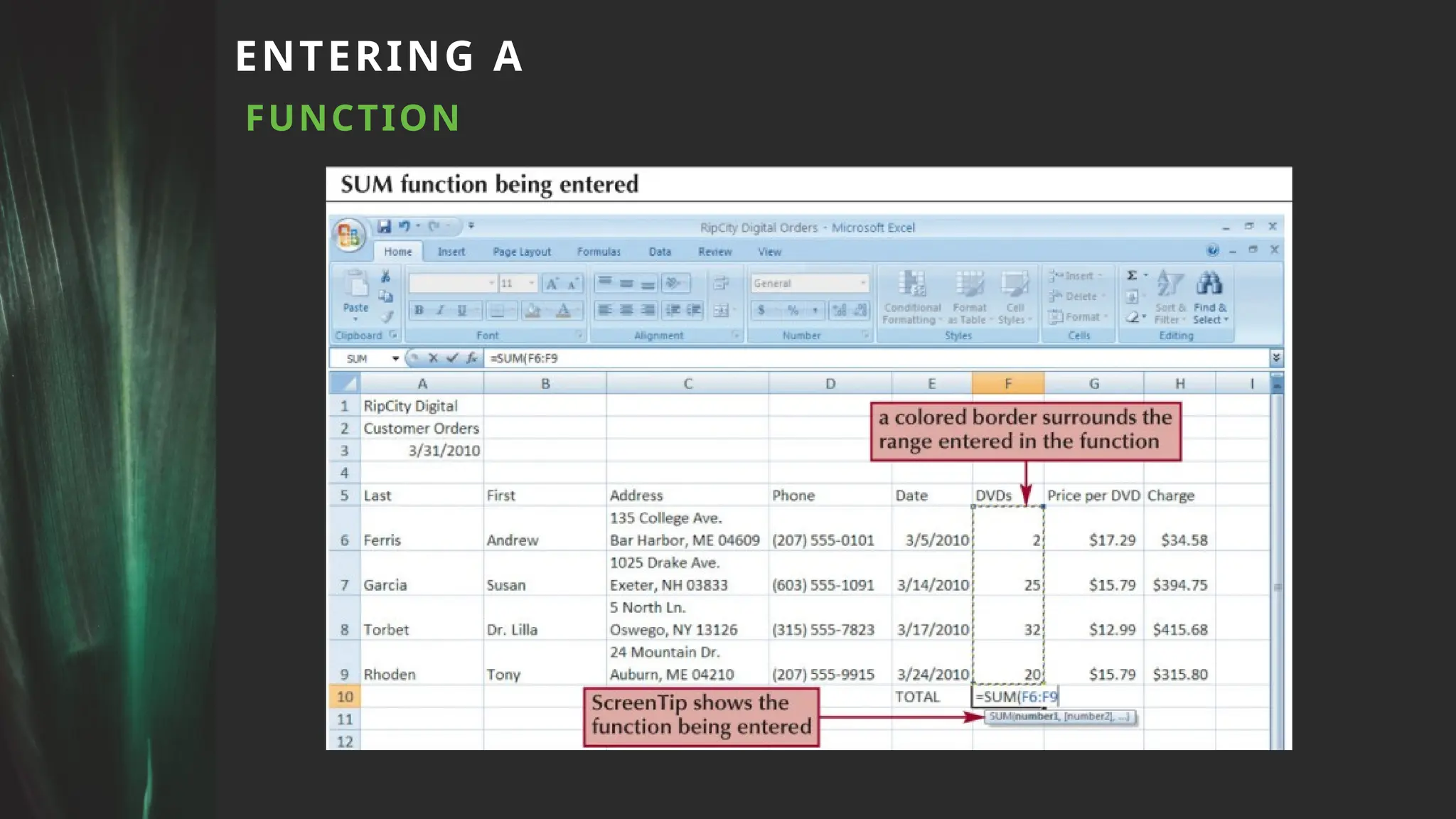
A function isa named operation that returns a value
For example, to add the values in the range A1:A10, you
could enter the following long formula:
=A1+A2+A3+A4+A5+A6+A7+A8+A9+A10 Or, you could use the
SUM function to accomplish the same thing: =SUM(A1:A10)
INTRODUCING
FUNCTIONS
CREATING
CHARTS:
• A chart,or graph, is a visual representation of a set of data
• Select the data source with the range of data you want to
chart
• In the Charts group on the Insert tab, click a chart type,
and then click a chart subtype in the Chart gallery
• In the Location group on the Chart Tools Design tab, click
the Move Chart button to place the chart in a chart sheet
or embed it into a worksheet
20.
SELECTING A
CHART TYPE
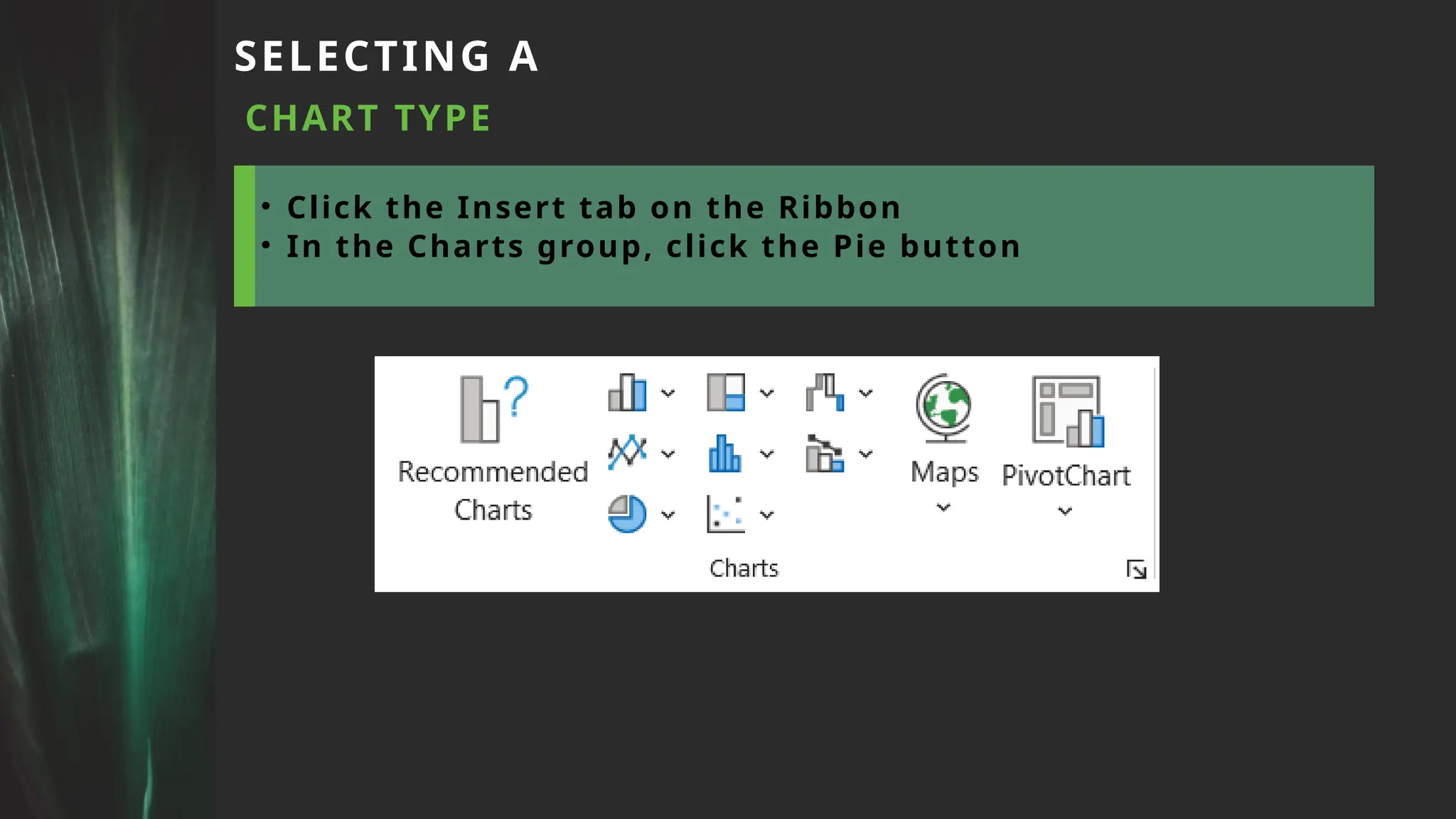
•Click the Insert tab on the Ribbon
• In the Charts group, click the Pie button
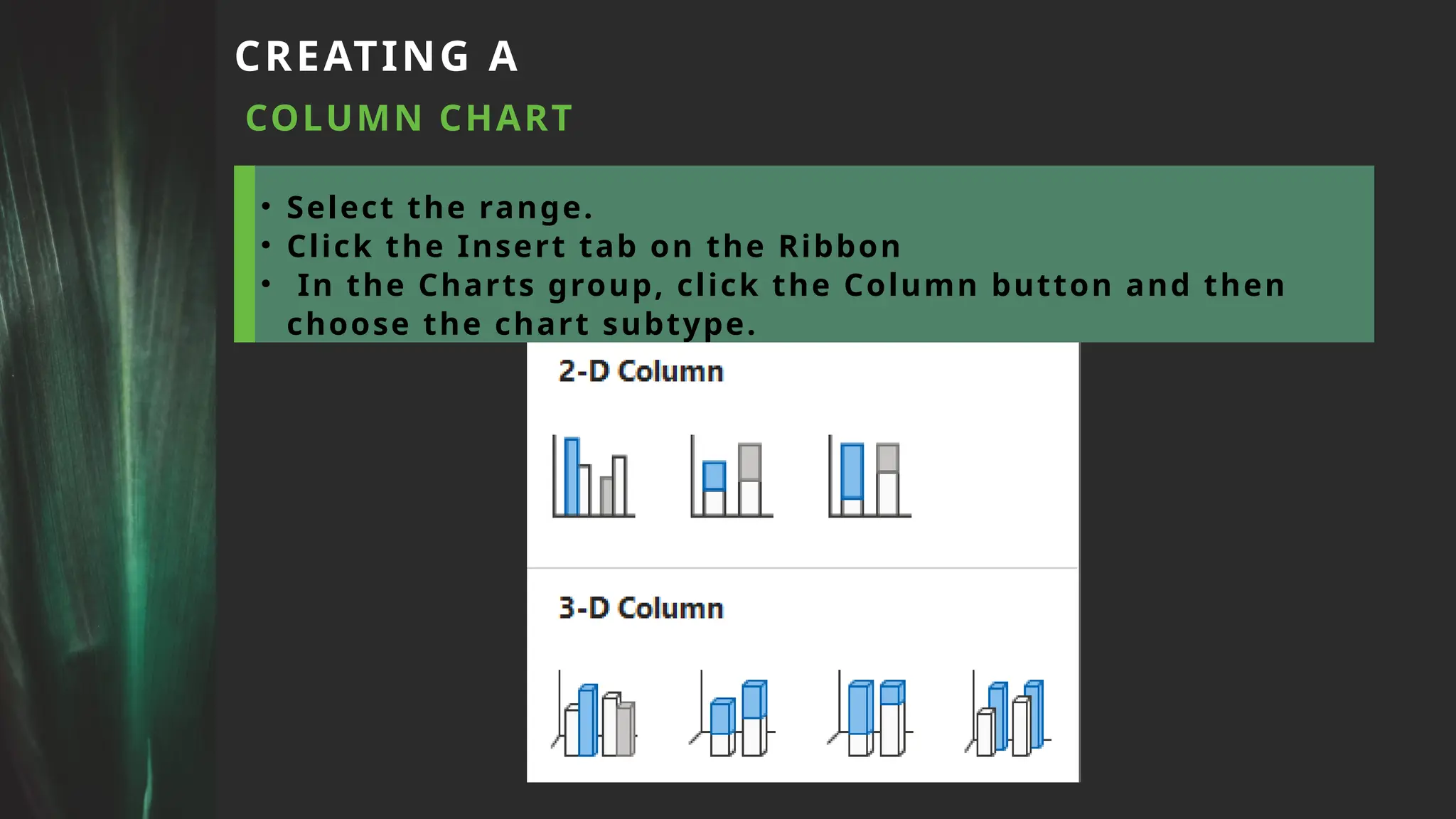
CREATING A
COLUMN CHART
•Select the range.
• Click the Insert tab on the Ribbon
• In the Charts group, click the Column button and then
choose the chart subtype.
23.
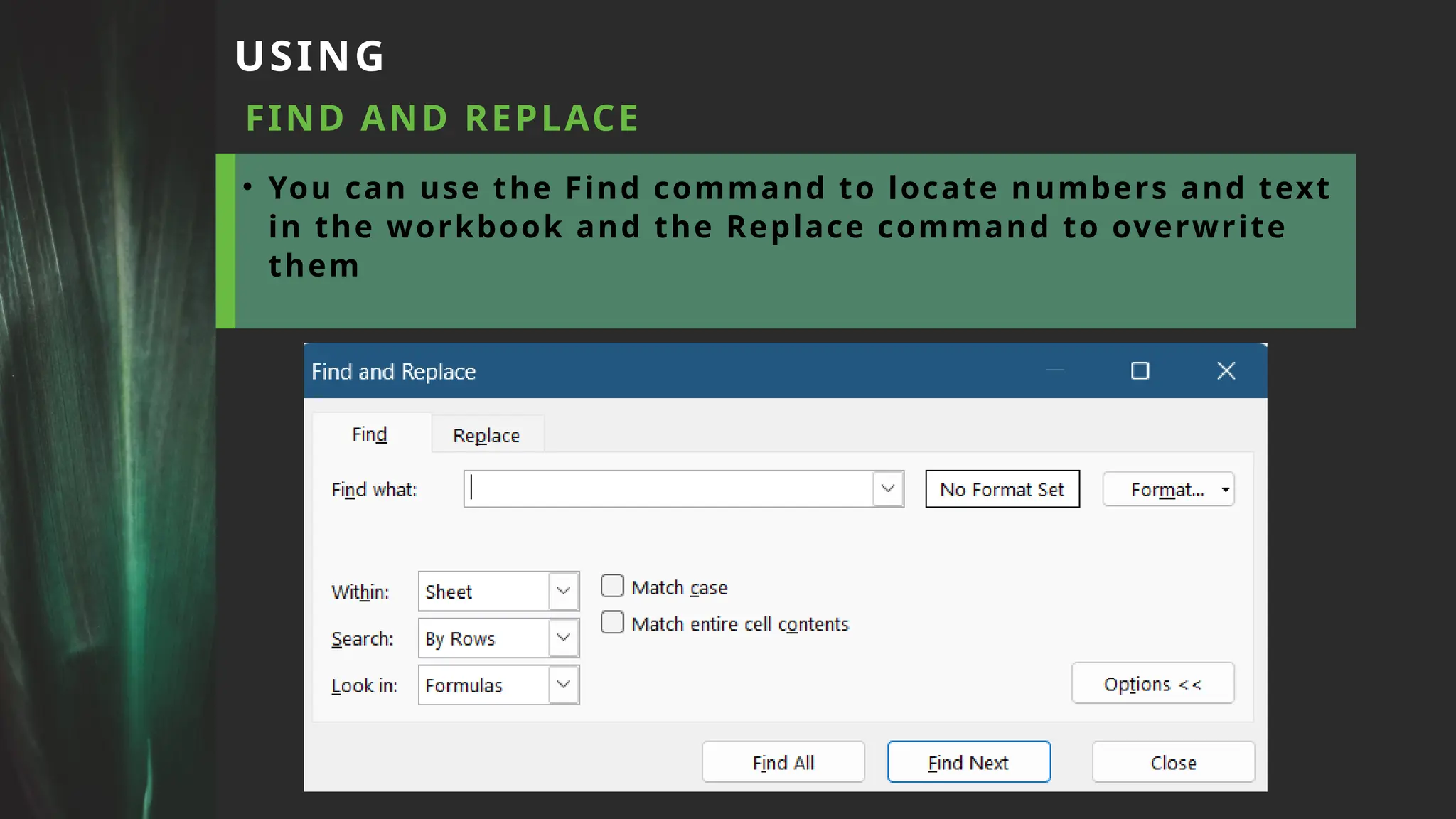
USING
FIND AND REPLACE
•You can use the Find command to locate numbers and text
in the workbook and the Replace command to overwrite
them




![[DSC Europe 25] Kaja Kandare - LLM as a judge.pptx](https://cdn.slidesharecdn.com/ss_thumbnails/arxyccaxsdsd1ba99wjw-7-251212104007-2b4e3f64-thumbnail.jpg?width=640&height=640&fit=bounds)


![[DSC Europe 25] Marija Vlajkovic & Andrea Radonjanin - Integration of AI tool...](https://cdn.slidesharecdn.com/ss_thumbnails/qf1jrglttoc3bm8s3aop-final-integration-of-ai-tools-251208151905-394f3a6a-thumbnail.jpg?width=640&height=640&fit=bounds)
![[DSC Europe 25] Jovan Bogicevic - Legacy to AI-Driven Defense: Transforming D...](https://cdn.slidesharecdn.com/ss_thumbnails/rsarluadt563hntyfc8q-3-251211083849-3e7bc4c0-thumbnail.jpg?width=640&height=640&fit=bounds)

![[DSC Europe 25] Katherine Forrest - AI NOW: Understanding the Velocity of Cha...](https://cdn.slidesharecdn.com/ss_thumbnails/wvvbruqfrci0sfq9xwgb-4-251212104007-e5ad1987-thumbnail.jpg?width=640&height=640&fit=bounds)
![[DSC Europe 25] Debmalya Biswas - Agentification: the art of transforming man...](https://cdn.slidesharecdn.com/ss_thumbnails/r5azlggvtqiaiiusrqdr-4-251212103249-5a12c89b-thumbnail.jpg?width=640&height=640&fit=bounds)
![[DSC Europe 25] Jon Dajci - Bridging TradFi and DeFi: Building the Future of ...](https://cdn.slidesharecdn.com/ss_thumbnails/fqmhfvlbqhkihjvqvhmu-7-251211083849-6af7e325-thumbnail.jpg?width=640&height=640&fit=bounds)
![[DSC Europe 25] Dobrica Cosic - Savings by the Second: How Dynamic Pricing an...](https://cdn.slidesharecdn.com/ss_thumbnails/znp09f3smtqz3w2sq6wn-1-dobrica-cosic-savings-by-the-second-how-dynamic-pricing-and-smart-data-are-bu-251208151905-26e6f41e-thumbnail.jpg?width=640&height=640&fit=bounds)
![[DSC Europe 25] Milan Sekuloski - Data, Defence, and Development: Cybersecuri...](https://cdn.slidesharecdn.com/ss_thumbnails/dfrkwwx4qly6atqpbl4z-4-251209104645-c3d4b0ca-thumbnail.jpg?width=640&height=640&fit=bounds)
![[DSC Europe 25] Milan Zdravkovic - The road less traveled in District Heating...](https://cdn.slidesharecdn.com/ss_thumbnails/nfaboniqwsz4ucyctnmy-2-milan-zdravkovic-dsc2025-the-road-less-traveled-in-district-heating-operation-251208151905-f56388a5-thumbnail.jpg?width=640&height=640&fit=bounds)