Introduction to
Stages!
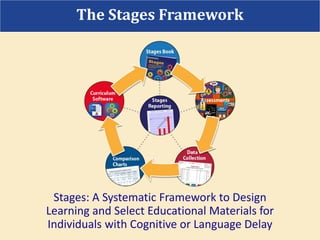
Stages: A Systematic Framework to Design
Learning and Select Educational Materials for
Individuals with Cognitive or Language Delay
The Stages Framework
Step 1: Read Stages Book
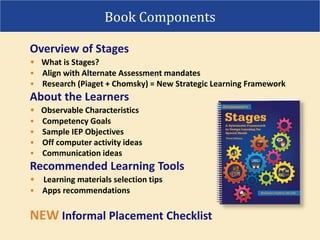
Overview of Stages
• What is Stages?
• Align with Alternate Assessment mandates
• Research (Piaget + Chomsky) = New Strategic Learning Framework
About the Learners
• Observable Characteristics
• Competency Goals
• Sample IEP Objectives
• Off computer activity ideas
• Communication ideas
Recommended Learning Tools
• Learning materials selection tips
• Apps recommendations
NEW Informal Placement Checklist
Book Components
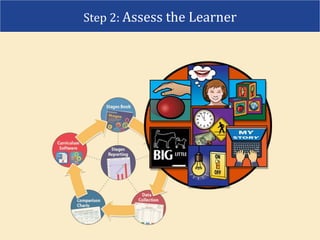
Step 2: Assess the Learner
• Accessible activities to assess a learner’s skills
• Script for evaluator to follow
• Unique Observation Form
• Records & data kept in
secure cloud
• A guide to selecting appropriate
learning materials based on
performance data
Stages Apps and Software Features:
Stages Assessment Software and Apps
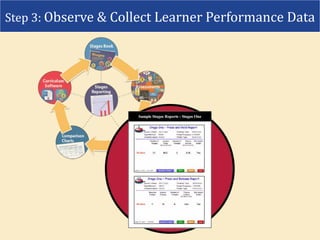
Step 3: Observe & Collect Learner Performance Data
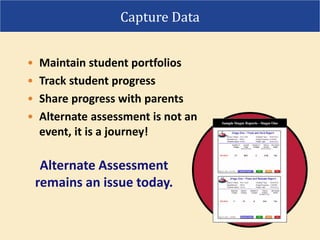
• Maintain student portfolios
• Track student progress
• Share progress with parents
• Alternate assessment is not an
event, it is a journey!
Capture Data
Alternate Assessment
remains an issue today.
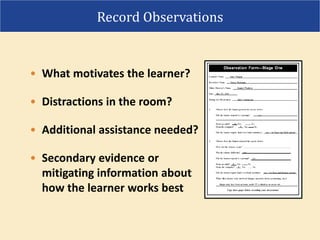
• What motivates the learner?
• Distractions in the room?
• Additional assistance needed?
• Secondary evidence or
mitigating information about
how the learner works best
Record Observations
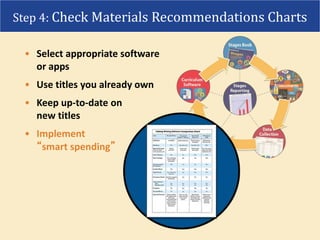
• Select appropriate software
or apps
• Use titles you already own
• Keep up-to-date on
new titles
• Implement
“smart spending”
Step 4: Check Materials Recommendations Charts
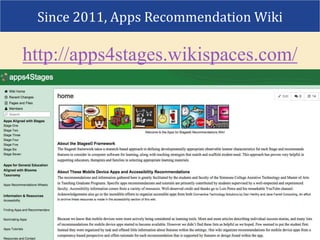
http://apps4stages.wikispaces.com/
Since 2011, Apps Recommendation Wiki
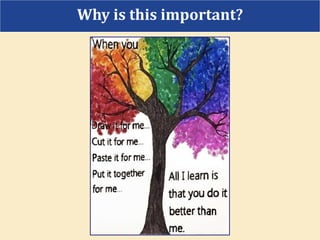
Why is this important?
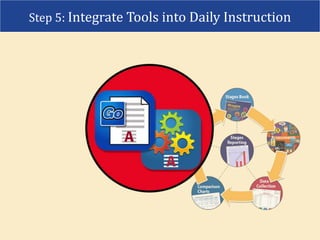
Step 5: Integrate Tools into Daily Instruction
• Universal design
mouse, keyboard, switch, alternative pointer,
touch screen; auditory scanning, recorded speech
• Feedback for incorrect answers builds learner understanding
• Scaffolding to support learner success
turn on or off prompting, graphical support, help buttons;
talk boards for classroom inclusion
• Adjustable settings you can save for each learner
• Auto Advancing through “smart levels”
• New Content – telling time
Stages Math Number Sense
• Capture using photo of a print worksheet or
import digital worksheet from your own cloud
• Scaffold/support learner success - OCR for auditory
independence
• Save different versions of same worksheet using
needed features
• Learner and teacher exchange work digitally
• Learner interaction tools for answering questions include:
Text, Text with Siri to dictate responses, Multiple choice with
speech, Voice recorded responses (explain your answer),
Simple draw tools for circling answers or drawing line to
matching answers
GoWorksheet
Generate bar charts or line graphs:
• Accuracy: How often did the learner get the answer
correct on the first try?
• Number of tries: Is the learner completing the activity
with fewer tries?
• Time on activity: Has the time increased or decreased
for this learner?
Analyze progress and generate reports:
• analyze content; and
• create custom summary reports focused
on specific behaviors or skills
Track and Report Learner Progress
Generate several types of reports:
Annotated Report
Activity Summary
Cumulative Report for IEP Meeting
Meaningful Reporting
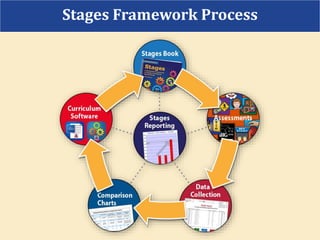
Stages Framework Process
Madalaine Pugliese
Assistive Learning Technologies, LLC
madalaine@comcast.net
781-639-1930
Thanks, Attainment Company!
Thank You Participants!

Mark classfinal2015

  • 1.
  • 2.
    Stages: A SystematicFramework to Design Learning and Select Educational Materials for Individuals with Cognitive or Language Delay The Stages Framework
  • 3.
    Step 1: ReadStages Book
  • 4.
    Overview of Stages •What is Stages? • Align with Alternate Assessment mandates • Research (Piaget + Chomsky) = New Strategic Learning Framework About the Learners • Observable Characteristics • Competency Goals • Sample IEP Objectives • Off computer activity ideas • Communication ideas Recommended Learning Tools • Learning materials selection tips • Apps recommendations NEW Informal Placement Checklist Book Components
  • 5.
    Step 2: Assessthe Learner
  • 6.
    • Accessible activitiesto assess a learner’s skills • Script for evaluator to follow • Unique Observation Form • Records & data kept in secure cloud • A guide to selecting appropriate learning materials based on performance data Stages Apps and Software Features: Stages Assessment Software and Apps
  • 7.
    Step 3: Observe& Collect Learner Performance Data
  • 8.
    • Maintain studentportfolios • Track student progress • Share progress with parents • Alternate assessment is not an event, it is a journey! Capture Data Alternate Assessment remains an issue today.
  • 9.
    • What motivatesthe learner? • Distractions in the room? • Additional assistance needed? • Secondary evidence or mitigating information about how the learner works best Record Observations
  • 10.
    • Select appropriatesoftware or apps • Use titles you already own • Keep up-to-date on new titles • Implement “smart spending” Step 4: Check Materials Recommendations Charts
  • 11.
  • 12.
    Why is thisimportant?
  • 13.
    Step 5: IntegrateTools into Daily Instruction
  • 14.
    • Universal design mouse,keyboard, switch, alternative pointer, touch screen; auditory scanning, recorded speech • Feedback for incorrect answers builds learner understanding • Scaffolding to support learner success turn on or off prompting, graphical support, help buttons; talk boards for classroom inclusion • Adjustable settings you can save for each learner • Auto Advancing through “smart levels” • New Content – telling time Stages Math Number Sense
  • 15.
    • Capture usingphoto of a print worksheet or import digital worksheet from your own cloud • Scaffold/support learner success - OCR for auditory independence • Save different versions of same worksheet using needed features • Learner and teacher exchange work digitally • Learner interaction tools for answering questions include: Text, Text with Siri to dictate responses, Multiple choice with speech, Voice recorded responses (explain your answer), Simple draw tools for circling answers or drawing line to matching answers GoWorksheet
  • 16.
    Generate bar chartsor line graphs: • Accuracy: How often did the learner get the answer correct on the first try? • Number of tries: Is the learner completing the activity with fewer tries? • Time on activity: Has the time increased or decreased for this learner? Analyze progress and generate reports: • analyze content; and • create custom summary reports focused on specific behaviors or skills Track and Report Learner Progress
  • 17.
    Generate several typesof reports: Annotated Report Activity Summary Cumulative Report for IEP Meeting Meaningful Reporting
  • 18.
  • 19.
    Madalaine Pugliese Assistive LearningTechnologies, LLC madalaine@comcast.net 781-639-1930 Thanks, Attainment Company! Thank You Participants!