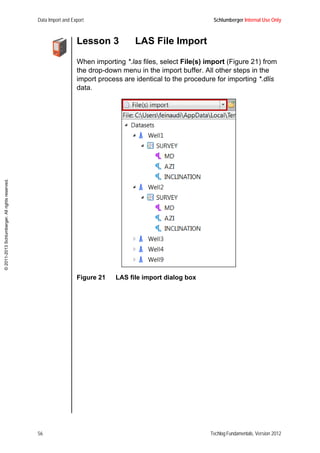
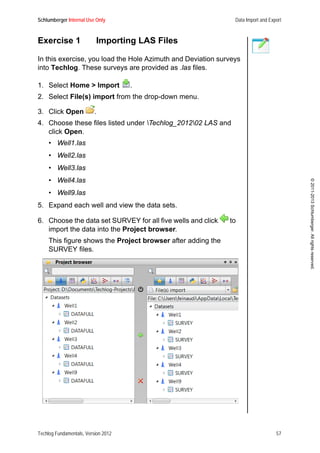
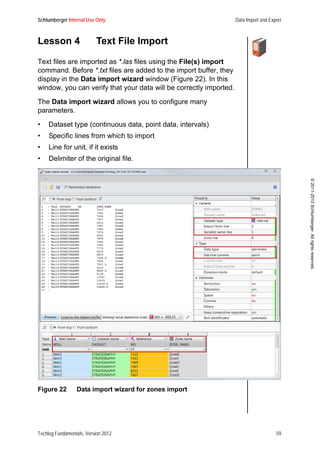
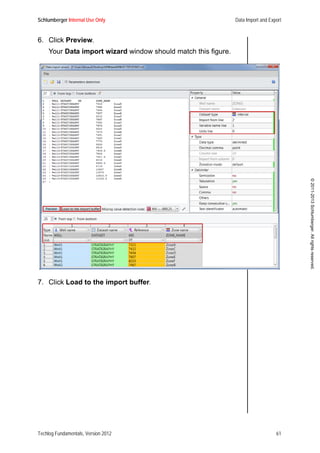
©2011-2013Schlumberger.Allrightsreserved.
Techlog Fundamentals
Workflow/Solutions Training
Version 2012
Schlumberger Internal Use Only
Schlumberger Information Solutions
May 14, 2013
©2011-2013Schlumberger.Allrightsreserved.
Copyright Notice
© 2011-2013 Schlumberger. All rights reserved.
No part of this manual may be reproduced, stored in a retrieval system, or
translated in any form or by any means, electronic or mechanical, including
photocopying and recording, without the prior written permission of
Schlumberger Information Solutions, 5599 San Felipe, Suite100, Houston, TX
77056-2722.
Disclaimer
Use of this product is governed by the License Agreement. Schlumberger
makes no warranties, express, implied, or statutory, with respect to the product
described herein and disclaims without limitation any warranties of
merchantability or fitness for a particular purpose. Schlumberger reserves the
right to revise the information in this manual at any time without notice.
Trademark Information
Software application marks used in this publication, unless otherwise indicated,
are trademarks of Schlumberger. Certain other products and product names
are trademarks or registered trademarks of their respective companies or
organizations.
An asterisk (*) is used throughout this document to designate a mark of
Schlumberger.
©2011-2013Schlumberger.Allrightsreserved.
Techlog Fundamentals, Version 2012 i
©2011-2013Schlumberger.Allrightsreserved.
Table of Contents
About this Manual
Learning Objectives . . . . . . . . . . . . . . . . . . . . . . . . . . . . . . . . . . . . . . . . . . . . . . . 1
What You Will Need . . . . . . . . . . . . . . . . . . . . . . . . . . . . . . . . . . . . . . . . . . . . . . 1
What to Expect . . . . . . . . . . . . . . . . . . . . . . . . . . . . . . . . . . . . . . . . . . . . . . . . . . 2
Course Conventions . . . . . . . . . . . . . . . . . . . . . . . . . . . . . . . . . . . . . . . . . . . . . . 3
Icons . . . . . . . . . . . . . . . . . . . . . . . . . . . . . . . . . . . . . . . . . . . . . . . . . . . . . . . . . . 4
Summary . . . . . . . . . . . . . . . . . . . . . . . . . . . . . . . . . . . . . . . . . . . . . . . . . . . . . . . 5
Module 1: Basics of the Techlog Window
Learning Objectives . . . . . . . . . . . . . . . . . . . . . . . . . . . . . . . . . . . . . . . . . . . . . . . 7
Lesson 1: Components of the Main Window . . . . . . . . . . . . . . . . . . . . . . . . . . . . 8
Procedure 1: Moving the Dock Windows . . . . . . . . . . . . . . . . . . . . . . . . . . 10
Lesson 2: Main Dock Windows . . . . . . . . . . . . . . . . . . . . . . . . . . . . . . . . . . . . . 11
The Project Browser . . . . . . . . . . . . . . . . . . . . . . . . . . . . . . . . . . . . . . . . . . . 11
Procedure 1: Filtering Data in the Project Browser . . . . . . . . . . . . . . . . . . . 15
Procedure 2: Applying Conditional Selections . . . . . . . . . . . . . . . . . . . . . . . 19
Procedure 3: Grouping Data Objects Manually . . . . . . . . . . . . . . . . . . . . . . 19
Procedure 4: Grouping Data Objects Automatically . . . . . . . . . . . . . . . . . . 21
Data Search . . . . . . . . . . . . . . . . . . . . . . . . . . . . . . . . . . . . . . . . . . . . . . . . . 23
Contextual Menu Commands . . . . . . . . . . . . . . . . . . . . . . . . . . . . . . . . . . . . 24
Trash Bin . . . . . . . . . . . . . . . . . . . . . . . . . . . . . . . . . . . . . . . . . . . . . . . . . . . 24
Output Window . . . . . . . . . . . . . . . . . . . . . . . . . . . . . . . . . . . . . . . . . . . . . . . 25
Properties Window . . . . . . . . . . . . . . . . . . . . . . . . . . . . . . . . . . . . . . . . . . . . 25
Procedure 5: Using the Properties Window . . . . . . . . . . . . . . . . . . . . . . . . 28
Zonation Window . . . . . . . . . . . . . . . . . . . . . . . . . . . . . . . . . . . . . . . . . . . . . 28
Markers Manager . . . . . . . . . . . . . . . . . . . . . . . . . . . . . . . . . . . . . . . . . . . . . 30
Workspace Manager . . . . . . . . . . . . . . . . . . . . . . . . . . . . . . . . . . . . . . . . . . 30
Lesson 3: Synchronization Tool . . . . . . . . . . . . . . . . . . . . . . . . . . . . . . . . . . . . 33
Project Partial Loading Feature . . . . . . . . . . . . . . . . . . . . . . . . . . . . . . . . . . 33
Procedure 1: Disabling the Project Partial Loading Feature . . . . . . . . . . . . 34
Procedure 2: Linking Techlog to the Reference Repository . . . . . . . . . . . . . 34
Procedure 3: Retrieving Items from the Reference Repository . . . . . . . . . . 35
Procedure 4: Sending Items from the Current Project to the Reference
Repository . . . . . . . . . . . . . . . . . . . . . . . . . . . . . . . . . . . . . . . . . . . . . . . . . . 36
Data Locking . . . . . . . . . . . . . . . . . . . . . . . . . . . . . . . . . . . . . . . . . . . . . . . . 36
Procedure 5: Locking Data . . . . . . . . . . . . . . . . . . . . . . . . . . . . . . . . . . . . . . 37
ii Techlog Fundamentals, Version 2012
©2011-2013Schlumberger.Allrightsreserved.
Lesson 4: Techlog Project Creation . . . . . . . . . . . . . . . . . . . . . . . . . . . . . . . . . 38
Procedure 1: Creating a New Techlog Project . . . . . . . . . . . . . . . . . . . . . . 38
Exercise 1: Creating the My First Techlog Project . . . . . . . . . . . . . . . . . . . . 40
Techlog Project Folder Structure and Settings . . . . . . . . . . . . . . . . . . . . . . 43
Procedure 2: Opening an Existing Project . . . . . . . . . . . . . . . . . . . . . . . . . . 44
Procedure 3: Opening an Older Project . . . . . . . . . . . . . . . . . . . . . . . . . . . . 45
Review Questions . . . . . . . . . . . . . . . . . . . . . . . . . . . . . . . . . . . . . . . . . . . . . . . 46
Summary . . . . . . . . . . . . . . . . . . . . . . . . . . . . . . . . . . . . . . . . . . . . . . . . . . . . . . 46
Module 2: Data Import and Export
Learning Objectives . . . . . . . . . . . . . . . . . . . . . . . . . . . . . . . . . . . . . . . . . . . . . . 49
Lesson 1: Data Import . . . . . . . . . . . . . . . . . . . . . . . . . . . . . . . . . . . . . . . . . . . . 49
Procedure 1: Importing Data . . . . . . . . . . . . . . . . . . . . . . . . . . . . . . . . . . . . 51
Lesson 2: DLIS File Import . . . . . . . . . . . . . . . . . . . . . . . . . . . . . . . . . . . . . . . . 52
Exercise 1: Importing DLIS Log Files . . . . . . . . . . . . . . . . . . . . . . . . . . . . . . 54
Lesson 3: LAS File Import . . . . . . . . . . . . . . . . . . . . . . . . . . . . . . . . . . . . . . . . . 56
Exercise 1: Importing LAS Files . . . . . . . . . . . . . . . . . . . . . . . . . . . . . . . . . . 57
Lesson 4: Text File Import . . . . . . . . . . . . . . . . . . . . . . . . . . . . . . . . . . . . . . . . . 59
Exercise 1: Importing Stratigraphy Data from a TXT File . . . . . . . . . . . . . . . 60
Exercise 2: Importing the TOPS1 File . . . . . . . . . . . . . . . . . . . . . . . . . . . . . 62
Exercise 3: Importing the TOPS2 File . . . . . . . . . . . . . . . . . . . . . . . . . . . . . 64
Exercise 4: Importing the TOPS3 File . . . . . . . . . . . . . . . . . . . . . . . . . . . . . 66
Lesson 5: CSV Spreadsheet Import . . . . . . . . . . . . . . . . . . . . . . . . . . . . . . . . . 67
Exercise 1: Importing a CSV Spreadsheet . . . . . . . . . . . . . . . . . . . . . . . . . . 67
Exercise 2: Importing Formation Pressure Data . . . . . . . . . . . . . . . . . . . . . 68
Exercise 3: Importing a Thin Section Analysis Table . . . . . . . . . . . . . . . . . . 70
Lesson 6: Image File Import . . . . . . . . . . . . . . . . . . . . . . . . . . . . . . . . . . . . . . . 71
Procedure 1: Importing Images . . . . . . . . . . . . . . . . . . . . . . . . . . . . . . . . . . 72
Exercise 1: Importing Core Images . . . . . . . . . . . . . . . . . . . . . . . . . . . . . . . 74
Lesson 7: XML File Import . . . . . . . . . . . . . . . . . . . . . . . . . . . . . . . . . . . . . . . . . 77
Procedure 1: Importing XML Files from the Import Buffer . . . . . . . . . . . . . . 77
Procedure 2: Importing XML Files with a Drag-and-drop Method . . . . . . . . 78
Exercise 1: Loading the LQC data . . . . . . . . . . . . . . . . . . . . . . . . . . . . . . . . 79
Lesson 8: Time Data . . . . . . . . . . . . . . . . . . . . . . . . . . . . . . . . . . . . . . . . . . . . . 81
Exercise 1: Uploading Time Data . . . . . . . . . . . . . . . . . . . . . . . . . . . . . . . . . 83
Exercise 2: Uploading Time Data with Time Reference . . . . . . . . . . . . . . . . 84
Lesson 9: Well Identification Solver: Data Import under the Same Name . . . . . 86
Exercise 1: Importing Data with the Same Name . . . . . . . . . . . . . . . . . . . . 86
Lesson 10: Data Export . . . . . . . . . . . . . . . . . . . . . . . . . . . . . . . . . . . . . . . . . . . 88
Procedure 1: Exporting Data . . . . . . . . . . . . . . . . . . . . . . . . . . . . . . . . . . . . 88
Exercise 1: Exporting Data . . . . . . . . . . . . . . . . . . . . . . . . . . . . . . . . . . . . . . 90
Techlog Fundamentals, Version 2012 iii
©2011-2013Schlumberger.Allrightsreserved.
Review Questions . . . . . . . . . . . . . . . . . . . . . . . . . . . . . . . . . . . . . . . . . . . . . . . 95
Summary . . . . . . . . . . . . . . . . . . . . . . . . . . . . . . . . . . . . . . . . . . . . . . . . . . . . . . 95
Module 3: Variable Management
Learning Objectives . . . . . . . . . . . . . . . . . . . . . . . . . . . . . . . . . . . . . . . . . . . . . . 97
Lesson 1: Families Management . . . . . . . . . . . . . . . . . . . . . . . . . . . . . . . . . . . . 98
Families Database . . . . . . . . . . . . . . . . . . . . . . . . . . . . . . . . . . . . . . . . . . . . 98
Procedure 1: Editing Family Settings . . . . . . . . . . . . . . . . . . . . . . . . . . . . . 99
Export and Import Families . . . . . . . . . . . . . . . . . . . . . . . . . . . . . . . . . . . . 102
Exercise 1: Editing Family Properties . . . . . . . . . . . . . . . . . . . . . . . . . . . . 102
Rules Activation and Deactivation . . . . . . . . . . . . . . . . . . . . . . . . . . . . . . . 104
Exercise 2: Creating a New Family . . . . . . . . . . . . . . . . . . . . . . . . . . . . . . 105
Exercise 3: Using the Family Assignment Rules Tool . . . . . . . . . . . . . . . . 106
Lesson 2: Aliases Management . . . . . . . . . . . . . . . . . . . . . . . . . . . . . . . . . . . 109
Aliases Database . . . . . . . . . . . . . . . . . . . . . . . . . . . . . . . . . . . . . . . . . . . . 109
Exercise 1: Adding a New alias . . . . . . . . . . . . . . . . . . . . . . . . . . . . . . . . . 110
Exercise 2: Using the Alias Inventory . . . . . . . . . . . . . . . . . . . . . . . . . . . . . 115
Exercise 3: Creating LQC Data sets . . . . . . . . . . . . . . . . . . . . . . . . . . . . . 116
Review Questions . . . . . . . . . . . . . . . . . . . . . . . . . . . . . . . . . . . . . . . . . . . . . . 118
Summary . . . . . . . . . . . . . . . . . . . . . . . . . . . . . . . . . . . . . . . . . . . . . . . . . . . . . 119
Module 4: References Management
Learning Objectives . . . . . . . . . . . . . . . . . . . . . . . . . . . . . . . . . . . . . . . . . . . . . 121
Lesson 1: Index Data Set . . . . . . . . . . . . . . . . . . . . . . . . . . . . . . . . . . . . . . . . 122
Lesson 2: TVD Computation . . . . . . . . . . . . . . . . . . . . . . . . . . . . . . . . . . . . . . 123
Procedure 1: Computing Depth Measurements . . . . . . . . . . . . . . . . . . . . 123
Exercise 1: Running a TVD Computation and Creating the Index
Data Set . . . . . . . . . . . . . . . . . . . . . . . . . . . . . . . . . . . . . . . . . . . . . . . . . . . 124
Lesson 3: Index Data Set Creation . . . . . . . . . . . . . . . . . . . . . . . . . . . . . . . . . 128
Exercise 1: Creating an Index Data Set . . . . . . . . . . . . . . . . . . . . . . . . . . . 129
Review Questions . . . . . . . . . . . . . . . . . . . . . . . . . . . . . . . . . . . . . . . . . . . . . . 131
Summary . . . . . . . . . . . . . . . . . . . . . . . . . . . . . . . . . . . . . . . . . . . . . . . . . . . . . 131
Module 5: LogView
Learning Objectives . . . . . . . . . . . . . . . . . . . . . . . . . . . . . . . . . . . . . . . . . . . . . 133
Lesson 1: LogView Interface . . . . . . . . . . . . . . . . . . . . . . . . . . . . . . . . . . . . . . 133
Lesson 2: LogView Plots . . . . . . . . . . . . . . . . . . . . . . . . . . . . . . . . . . . . . . . . 139
Track Data . . . . . . . . . . . . . . . . . . . . . . . . . . . . . . . . . . . . . . . . . . . . . . . . . 140
Procedure 1: Inserting a Track . . . . . . . . . . . . . . . . . . . . . . . . . . . . . . . . . . 141
Exercise 1: Displaying Caliper Gamma Ray Sonic Data in Track 1 . . . . . . 142
Variable Management . . . . . . . . . . . . . . . . . . . . . . . . . . . . . . . . . . . . . . . . 146
iv Techlog Fundamentals, Version 2012
©2011-2013Schlumberger.Allrightsreserved.
Procedure 2: Changing the Variable Management Type in LogView . . . . 147
Exercise 2: Checking the Variable Management Type for Track 2 . . . . . . 147
Variable Scales . . . . . . . . . . . . . . . . . . . . . . . . . . . . . . . . . . . . . . . . . . . . . 147
Procedure 3: Managing the Horizontal Scale . . . . . . . . . . . . . . . . . . . . . . . 148
Exercise 3: Changing the Horizontal Scale for Density and Porosity Log
Data in Track 3 . . . . . . . . . . . . . . . . . . . . . . . . . . . . . . . . . . . . . . . . . . . . . . 148
Palette Editor . . . . . . . . . . . . . . . . . . . . . . . . . . . . . . . . . . . . . . . . . . . . . . . 148
Procedure 4: Changing the Palette . . . . . . . . . . . . . . . . . . . . . . . . . . . . . . 150
Exercise 4: Modifying the Palette for Tracks 4 and 5 . . . . . . . . . . . . . . . . . 151
Reference Tracks . . . . . . . . . . . . . . . . . . . . . . . . . . . . . . . . . . . . . . . . . . . . 151
Procedure 5: Displaying a New Reference Track . . . . . . . . . . . . . . . . . . . 151
Exercise 5: Creating a Reference Track for Track 6 . . . . . . . . . . . . . . . . . 152
Zones . . . . . . . . . . . . . . . . . . . . . . . . . . . . . . . . . . . . . . . . . . . . . . . . . . . . . 153
Procedure 6: Creating a Zonation Track in a Layout . . . . . . . . . . . . . . . . . 154
Exercise 6: Creating a Zonation Track in a Layout for Track 7 . . . . . . . . . 155
Data Set Created from LogView . . . . . . . . . . . . . . . . . . . . . . . . . . . . . . . . 155
Procedure 7: Creating a Data Set with All Data Displayed on the
Layout . . . . . . . . . . . . . . . . . . . . . . . . . . . . . . . . . . . . . . . . . . . . . . . . . . . . 156
Exercise 7: Saving Variables from a Layout . . . . . . . . . . . . . . . . . . . . . . . 158
Lesson 3: Layout and Template . . . . . . . . . . . . . . . . . . . . . . . . . . . . . . . . . . . 158
Exercise 1: Saving the Layout Created as a Template . . . . . . . . . . . . . . . 159
Procedure 1: Applying a Template to Other Wells or Data Sets . . . . . . . . 159
Exercise 2: Applying the Well9_SHORT Template to Create Another
Template . . . . . . . . . . . . . . . . . . . . . . . . . . . . . . . . . . . . . . . . . . . . . . . . . . 160
Exercise 3: Applying the Well9_SHORT Template to other Data Sets . . . 161
Lesson 4: More LogView Options . . . . . . . . . . . . . . . . . . . . . . . . . . . . . . . . . . 163
Procedure 1: Inserting a Well Schematic . . . . . . . . . . . . . . . . . . . . . . . . . . 165
Exercise 1: Inserting a Well Schematic for Track 3 . . . . . . . . . . . . . . . . . . 165
Plots in Tracks . . . . . . . . . . . . . . . . . . . . . . . . . . . . . . . . . . . . . . . . . . . . . . 166
Procedure 2: Creating Plots in Tracks . . . . . . . . . . . . . . . . . . . . . . . . . . . . 169
Exercise 2: Creating Plots in Tracks 6 and 9 . . . . . . . . . . . . . . . . . . . . . . . 170
Procedure 3: Displaying a Variable as Text . . . . . . . . . . . . . . . . . . . . . . . 171
Exercise 3: Displaying Variables as Text in Track 10 . . . . . . . . . . . . . . . . 171
Procedure 4: Hiding Zonation Shading in Tracks . . . . . . . . . . . . . . . . . . . . 172
Exercise 4: Displaying the STRATIGRAPHY Zonation as Patterns in
Track 10 . . . . . . . . . . . . . . . . . . . . . . . . . . . . . . . . . . . . . . . . . . . . . . . . . . . 174
Procedure 5: Creating a Cumulative Track . . . . . . . . . . . . . . . . . . . . . . . . 174
Exercise 5: Creating a Cumulative Track in Track 14 . . . . . . . . . . . . . . . . 175
Procedure 6: Displaying Core Images . . . . . . . . . . . . . . . . . . . . . . . . . . . . 176
Exercise 6: Displaying Core Images in Track 16 . . . . . . . . . . . . . . . . . . . . 177
Techlog Fundamentals, Version 2012 v
©2011-2013Schlumberger.Allrightsreserved.
Procedure 7: Using a Well Overview . . . . . . . . . . . . . . . . . . . . . . . . . . . . . 177
Exercise 7: Using a Well Overview in Track 17 . . . . . . . . . . . . . . . . . . . . . 177
Lesson 5: Time Data Display . . . . . . . . . . . . . . . . . . . . . . . . . . . . . . . . . . . . . . 178
Exercise 1: Creating a LogView Plot with Time Data . . . . . . . . . . . . . . . . . 178
Lesson 6: Basic Processing in LogView . . . . . . . . . . . . . . . . . . . . . . . . . . . . . 180
Procedure 1: Applying a Processing Method . . . . . . . . . . . . . . . . . . . . . . . 181
Exercise 1: Applying the Smoothing Function to a DENS Variable . . . . . . 181
Lesson 7: Header Editor . . . . . . . . . . . . . . . . . . . . . . . . . . . . . . . . . . . . . . . . . 184
Exercise 1: Editing a Header in Techlog . . . . . . . . . . . . . . . . . . . . . . . . . . 184
Lesson 8: Window Screenshot Tool . . . . . . . . . . . . . . . . . . . . . . . . . . . . . . . . 189
Procedure 1: Capturing Screenshots . . . . . . . . . . . . . . . . . . . . . . . . . . . . 189
Lesson 9: Print Options . . . . . . . . . . . . . . . . . . . . . . . . . . . . . . . . . . . . . . . . . . 191
Layout Printing . . . . . . . . . . . . . . . . . . . . . . . . . . . . . . . . . . . . . . . . . . . . . . 191
Exercise 1: Printing a Layout . . . . . . . . . . . . . . . . . . . . . . . . . . . . . . . . . . . 193
Review Questions . . . . . . . . . . . . . . . . . . . . . . . . . . . . . . . . . . . . . . . . . . . . . . 194
Summary . . . . . . . . . . . . . . . . . . . . . . . . . . . . . . . . . . . . . . . . . . . . . . . . . . . . . 194
Module 6: Plots
Learning Objectives . . . . . . . . . . . . . . . . . . . . . . . . . . . . . . . . . . . . . . . . . . . . . 197
Lesson 1: Appearance of the Plot Interface . . . . . . . . . . . . . . . . . . . . . . . . . . 197
Display and Icons . . . . . . . . . . . . . . . . . . . . . . . . . . . . . . . . . . . . . . . . . . . . . . 200
Lesson 2: Plot Tabs . . . . . . . . . . . . . . . . . . . . . . . . . . . . . . . . . . . . . . . . . . . . . 201
Variables Tab . . . . . . . . . . . . . . . . . . . . . . . . . . . . . . . . . . . . . . . . . . . . . . . 202
Filter Tab . . . . . . . . . . . . . . . . . . . . . . . . . . . . . . . . . . . . . . . . . . . . . . . . . . 202
Charts Tab . . . . . . . . . . . . . . . . . . . . . . . . . . . . . . . . . . . . . . . . . . . . . . . . . 204
Exercise 1: Creating a Histogram . . . . . . . . . . . . . . . . . . . . . . . . . . . . . . . 205
Exercise 2: Creating a Neutron-Density Crossplot . . . . . . . . . . . . . . . . . . 208
Exercise 3: Creating Additional Plots . . . . . . . . . . . . . . . . . . . . . . . . . . . . 209
Lesson 3: Multi-well Plots . . . . . . . . . . . . . . . . . . . . . . . . . . . . . . . . . . . . . . . . 211
Procedure 1: Creating a Multi-well Plot . . . . . . . . . . . . . . . . . . . . . . . . . . . 211
Box Plot . . . . . . . . . . . . . . . . . . . . . . . . . . . . . . . . . . . . . . . . . . . . . . . . . . . 211
Exercise 1: Creating a Multi-well Box Plot . . . . . . . . . . . . . . . . . . . . . . . . 212
Lesson 4: Matrix Plot . . . . . . . . . . . . . . . . . . . . . . . . . . . . . . . . . . . . . . . . . . . . 214
Procedure 1: Creating a Matrix Pot . . . . . . . . . . . . . . . . . . . . . . . . . . . . . . 214
Exercise 1: Creating a Histogram Matrix Plot . . . . . . . . . . . . . . . . . . . . . . 214
Lesson 5: Plot Tools . . . . . . . . . . . . . . . . . . . . . . . . . . . . . . . . . . . . . . . . . . . . 215
Polygon Type Selection . . . . . . . . . . . . . . . . . . . . . . . . . . . . . . . . . . . . . . . 216
Interactive Selection Tool . . . . . . . . . . . . . . . . . . . . . . . . . . . . . . . . . . . . . 218
Statistics Display . . . . . . . . . . . . . . . . . . . . . . . . . . . . . . . . . . . . . . . . . . . . 220
vi Techlog Fundamentals, Version 2012
©2011-2013Schlumberger.Allrightsreserved.
Lesson 6: Regressions . . . . . . . . . . . . . . . . . . . . . . . . . . . . . . . . . . . . . . . . . . 221
Display Properties . . . . . . . . . . . . . . . . . . . . . . . . . . . . . . . . . . . . . . . . . . . 223
Procedure 1: Entering an Equation . . . . . . . . . . . . . . . . . . . . . . . . . . . . . . 223
Procedure 2: Editing, Removing, and Copying an Equation . . . . . . . . . . . 225
Procedure 3: Saving the Display Properties . . . . . . . . . . . . . . . . . . . . . . . 225
Review Questions . . . . . . . . . . . . . . . . . . . . . . . . . . . . . . . . . . . . . . . . . . . . . . 226
Summary . . . . . . . . . . . . . . . . . . . . . . . . . . . . . . . . . . . . . . . . . . . . . . . . . . . . . 226
Module 7: Depth Interaction, Interactive Selection Mode, Zonation, and
Markers
Learning Objectives . . . . . . . . . . . . . . . . . . . . . . . . . . . . . . . . . . . . . . . . . . . . . 229
Lesson 1: Depth Interaction Mode . . . . . . . . . . . . . . . . . . . . . . . . . . . . . . . . . 229
Procedure 1: Setting the Depth Interaction Line . . . . . . . . . . . . . . . . . . . . 229
Exercise 1: Using the Depth Interaction Tool . . . . . . . . . . . . . . . . . . . . . . . 230
Lesson 2: Interactive Selection Mode . . . . . . . . . . . . . . . . . . . . . . . . . . . . . . . 233
Procedure 1: Using Interaction in the General Workspace . . . . . . . . . . . . 233
Exercise 1: Working with Interaction in the General Workspace . . . . . . . 233
Exercise 2: Creating a Zonation Data Set using Interactive Selection . . . 237
Lesson 3: Zonation . . . . . . . . . . . . . . . . . . . . . . . . . . . . . . . . . . . . . . . . . . . . . 240
Procedure 1: Using a Zonation . . . . . . . . . . . . . . . . . . . . . . . . . . . . . . . . . 243
Lesson 4: Zone Editor . . . . . . . . . . . . . . . . . . . . . . . . . . . . . . . . . . . . . . . . . . 245
Procedure 1: Loading and Editing Data in the Zone Editor . . . . . . . . . . . . 246
Procedure 2: Adding a Zone . . . . . . . . . . . . . . . . . . . . . . . . . . . . . . . . . . . 247
Miscellaneous Options . . . . . . . . . . . . . . . . . . . . . . . . . . . . . . . . . . . . . . . . 249
Exercise 1: Editing a Zonation . . . . . . . . . . . . . . . . . . . . . . . . . . . . . . . . . . 251
Procedure 3: Creating a Zone with the Quick Zone Creation Tool . . . . . . 252
Graphical Tools for Editing Zones . . . . . . . . . . . . . . . . . . . . . . . . . . . . . . . 253
Exercise 2: Creating Zones using the Quick Zone Creation Tool . . . . . . . 256
Zones Manager . . . . . . . . . . . . . . . . . . . . . . . . . . . . . . . . . . . . . . . . . . . . . 259
Procedure 4: Picking Zones in LogView using the Zone Manager . . . . . . 260
Exercise 3: Picking Lithologies using Advanced Zones Creation . . . . . . . 261
Exercise 4: Using a Zonation to Define an Area Fill . . . . . . . . . . . . . . . . . 264
Lesson 5: Markers . . . . . . . . . . . . . . . . . . . . . . . . . . . . . . . . . . . . . . . . . . . . . 267
Exercise 1: Creating a Markers Data Set . . . . . . . . . . . . . . . . . . . . . . . . . 267
Procedure 1: Creating a Marker from Zonation . . . . . . . . . . . . . . . . . . . . . 269
Exercise 2: Creating a Marker Data Set from the STRATIGRAPHY
Data Set . . . . . . . . . . . . . . . . . . . . . . . . . . . . . . . . . . . . . . . . . . . . . . . . . . 270
Review Questions . . . . . . . . . . . . . . . . . . . . . . . . . . . . . . . . . . . . . . . . . . . . . . 272
Summary . . . . . . . . . . . . . . . . . . . . . . . . . . . . . . . . . . . . . . . . . . . . . . . . . . . . . 272
Techlog Fundamentals, Version 2012 vii
©2011-2013Schlumberger.Allrightsreserved.
Module 8: Data Editor
Learning Objectives . . . . . . . . . . . . . . . . . . . . . . . . . . . . . . . . . . . . . . . . . . . . . 275
Lesson 1: Data Editor Window . . . . . . . . . . . . . . . . . . . . . . . . . . . . . . . . . . . . 275
Data Editor Window Tabs . . . . . . . . . . . . . . . . . . . . . . . . . . . . . . . . . . . . . 277
Exercise 1: Creating a New Data Set in the Data Editor . . . . . . . . . . . . . . 285
Lesson 2: New Variable Calculation and Mathematical Operations . . . . . . . . 287
Procedure 1: Working with Equations . . . . . . . . . . . . . . . . . . . . . . . . . . . . 290
Procedure 2: Editing an Equation . . . . . . . . . . . . . . . . . . . . . . . . . . . . . . . 291
Procedure 3: Removing an Equation . . . . . . . . . . . . . . . . . . . . . . . . . . . . 291
Exercise 1: Using the Data Editor to Create an Equation . . . . . . . . . . . . . 292
Procedure 4: Displaying Variable Array Type Data . . . . . . . . . . . . . . . . . . 292
Exercise 2: Computing a Variable with an Array Variable . . . . . . . . . . . . . 294
Lesson 3: Excel Connection . . . . . . . . . . . . . . . . . . . . . . . . . . . . . . . . . . . . . . 295
Procedure 1: Connecting with Excel . . . . . . . . . . . . . . . . . . . . . . . . . . . . . 295
Exercise 1: Exporting and Importing the GAMM Curve . . . . . . . . . . . . . . . 296
Review Questions . . . . . . . . . . . . . . . . . . . . . . . . . . . . . . . . . . . . . . . . . . . . . . 296
Summary . . . . . . . . . . . . . . . . . . . . . . . . . . . . . . . . . . . . . . . . . . . . . . . . . . . . . 296
Module 9: Well Trajectories, Field Map, and Well Predict
Learning Objectives . . . . . . . . . . . . . . . . . . . . . . . . . . . . . . . . . . . . . . . . . . . . . 299
Lesson 1: 2D Well Trajectories . . . . . . . . . . . . . . . . . . . . . . . . . . . . . . . . . . . . 299
Exercise 1: Displaying the Well9 Trajectory in 2D . . . . . . . . . . . . . . . . . . . 299
Lesson 2: 3D Well Trajectories . . . . . . . . . . . . . . . . . . . . . . . . . . . . . . . . . . . . 301
Procedure 1: Creating a 3D Well Trajectory . . . . . . . . . . . . . . . . . . . . . . . 302
Exercise 1: Creating a 3D Well Trajectory . . . . . . . . . . . . . . . . . . . . . . . . 303
Lesson 3: Basemap Tool . . . . . . . . . . . . . . . . . . . . . . . . . . . . . . . . . . . . . . . . . 304
Procedure 1: Creating a Base Map . . . . . . . . . . . . . . . . . . . . . . . . . . . . . . 304
Exercise 1: Creating a Base Map and Displaying Plots on the Map . . . . . 305
Exercise 2: Creating a Cross Section . . . . . . . . . . . . . . . . . . . . . . . . . . . . 307
Lesson 4: Well Predict . . . . . . . . . . . . . . . . . . . . . . . . . . . . . . . . . . . . . . . . . . . 309
Procedure 1: Starting Well Predict . . . . . . . . . . . . . . . . . . . . . . . . . . . . . . . 309
Exercise 1: Using Well Predict . . . . . . . . . . . . . . . . . . . . . . . . . . . . . . . . . 311
Review Questions . . . . . . . . . . . . . . . . . . . . . . . . . . . . . . . . . . . . . . . . . . . . . . 316
Summary . . . . . . . . . . . . . . . . . . . . . . . . . . . . . . . . . . . . . . . . . . . . . . . . . . . . . 317
Module 10: Depth Shifting Tool and Variables Splice Tool
Learning Objectives . . . . . . . . . . . . . . . . . . . . . . . . . . . . . . . . . . . . . . . . . . . . . 319
Lesson 1: Manual Depth Shifting . . . . . . . . . . . . . . . . . . . . . . . . . . . . . . . . . . . 319
Procedure 1: Creating a Depth Shifting Window . . . . . . . . . . . . . . . . . . . . 319
Procedure 2: Depth Shifting a Log . . . . . . . . . . . . . . . . . . . . . . . . . . . . . . 321
Important Points . . . . . . . . . . . . . . . . . . . . . . . . . . . . . . . . . . . . . . . . . . . . . 321
viii Techlog Fundamentals, Version 2012
©2011-2013Schlumberger.Allrightsreserved.
Procedure 3: Saving the Depth Shift . . . . . . . . . . . . . . . . . . . . . . . . . . . . . 322
Procedure 4: Applying a Depth Shifting . . . . . . . . . . . . . . . . . . . . . . . . . . 322
Procedure 5: Block Shifting a Curve (Special Feature) . . . . . . . . . . . . . . . 323
Procedure 6: Applying a Horizontal Shift to a Curve . . . . . . . . . . . . . . . . . 323
Lesson 2: Automatic Depth Shifting . . . . . . . . . . . . . . . . . . . . . . . . . . . . . . . . 323
Procedure 1: Automatically Depth Shifting a Curve . . . . . . . . . . . . . . . . . . 323
Properties Window . . . . . . . . . . . . . . . . . . . . . . . . . . . . . . . . . . . . . . . . . . . 325
Automatic Shift Properties . . . . . . . . . . . . . . . . . . . . . . . . . . . . . . . . . . . . . 326
Exercise 1: Depth Shifting a Variable . . . . . . . . . . . . . . . . . . . . . . . . . . . . . 327
Procedure 2: Depth Shifting a Variable from the Project Browser . . . . . . . 331
Procedure 3: Depth Shifting a Variable from the Layout . . . . . . . . . . . . . . 333
Exercise 2: Depth Shifting a Data Set . . . . . . . . . . . . . . . . . . . . . . . . . . . . 335
Variables Splice Tool . . . . . . . . . . . . . . . . . . . . . . . . . . . . . . . . . . . . . . . . . 338
Procedure 4: Splicing Data Sets in the Variables Splice Tool . . . . . . . . . . 339
Exercise 3: Creating a Data Set . . . . . . . . . . . . . . . . . . . . . . . . . . . . . . . . . 343
Review Questions . . . . . . . . . . . . . . . . . . . . . . . . . . . . . . . . . . . . . . . . . . . . . . 344
Summary . . . . . . . . . . . . . . . . . . . . . . . . . . . . . . . . . . . . . . . . . . . . . . . . . . . . . 344
Module 11: Project Data Management
Prerequisites . . . . . . . . . . . . . . . . . . . . . . . . . . . . . . . . . . . . . . . . . . . . . . . . . . 347
Learning Objectives . . . . . . . . . . . . . . . . . . . . . . . . . . . . . . . . . . . . . . . . . . . . . 347
Lesson 1: Project Browser Optimization . . . . . . . . . . . . . . . . . . . . . . . . . . . . . 347
Exercise 1: Creating a Filter . . . . . . . . . . . . . . . . . . . . . . . . . . . . . . . . . . . . 348
Lesson 2: Issues in the Data Sets . . . . . . . . . . . . . . . . . . . . . . . . . . . . . . . . . . 348
Project Browser . . . . . . . . . . . . . . . . . . . . . . . . . . . . . . . . . . . . . . . . . . . . . 348
Inventory Tools . . . . . . . . . . . . . . . . . . . . . . . . . . . . . . . . . . . . . . . . . . . . . . 349
Exercise 1: Identifying Issues in a Data Set . . . . . . . . . . . . . . . . . . . . . . . . 352
Lesson 3: Data Harmonization . . . . . . . . . . . . . . . . . . . . . . . . . . . . . . . . . . . . 354
Data Harmonization using the Project browser . . . . . . . . . . . . . . . . . . . . . 354
Procedure 1: Performing Data Harmonization using the Inventory Tool . . 355
Data Harmonization using Data Harmonization Tools . . . . . . . . . . . . . . . . 355
Data Harmonization Tools Scenarios . . . . . . . . . . . . . . . . . . . . . . . . . . . . . 357
Data Harmonization Exercises . . . . . . . . . . . . . . . . . . . . . . . . . . . . . . . . . . . . 361
Exercise 1: Correcting a Missing Unit for a Variable in a Well . . . . . . . . . . 361
Exercise 2: Correcting a Missing Unit for Variable
RHOB_DH_ADN_RT . . . . . . . . . . . . . . . . . . . . . . . . . . . . . . . . . . . . . . . . . 361
Exercise 3: Correcting an Unknown Unit . . . . . . . . . . . . . . . . . . . . . . . . . . 361
Exercise 4: Correcting a Missing Unit for Variable TNPH_ADN_RT . . . . . 363
Exercise 5: Correcting a Missing Family . . . . . . . . . . . . . . . . . . . . . . . . . . 363
Exercise 6: Correcting an Unknown Family . . . . . . . . . . . . . . . . . . . . . . . . 363
Exercise 7: Correcting a Variable Assigned to Multiple Families . . . . . . . . 364
Techlog Fundamentals, Version 2012 ix
©2011-2013Schlumberger.Allrightsreserved.
Exercise 8: Correcting a Variable that is not Harmonized . . . . . . . . . . . . . 364
Exercise 9: Correcting a Variable that has Two Units . . . . . . . . . . . . . . . . 364
Exercise 10: Correcting a Variable that has an Incorrect Unit . . . . . . . . . . 365
Exercise 11: Adding a Suffix to Variables . . . . . . . . . . . . . . . . . . . . . . . . . 365
Exercise 12: Correcting a Value that is Inconsistent with its Unit . . . . . . . 365
Review Questions . . . . . . . . . . . . . . . . . . . . . . . . . . . . . . . . . . . . . . . . . . . . . . 366
Summary . . . . . . . . . . . . . . . . . . . . . . . . . . . . . . . . . . . . . . . . . . . . . . . . . . . . . 366
x Techlog Fundamentals, Version 2012
©2011-2013Schlumberger.Allrightsreserved.
Schlumberger Internal Use Only About this Manual
Techlog Fundamentals, Version 2012 1
©2011-2013Schlumberger.Allrightsreserved.
About this Manual
This manual discusses the platform tools implemented within
Techlog*. Techlog is a wellbore-centric petrophysical application
composed of a platform and a suite of add-on application
modules. The platform, which is the subject of this manual,
comprises tools for loading, visualizing, and editing your data.
You will learn how to load data from various vendors and sources,
display the data using the various viewers, and use a variety of
tools to prepare the data quality control. You will become
proficient with the platform tools and you will gain an
understanding of the major principles governing the software. This
training will prepare you for additional courses and advanced
training.
Learning Objectives
After completing this training, you will know how to:
• load various types of data, including logs, cores, images,
arrays, and zone tops
• visualize the data using a variety of visualization tools
• manipulate data at a simple curve level (editing, smoothing)
and at the data set level (depth shifting, splicing,
harmonizing).
• find functions among the editors and graphics tools.
What You Will Need
In this training you will need the following documents, hardware,
and software:
• One of these operating systems:
• Windows 7 (32-bit or 64-bit)
• Windows Vista (32-bit or 64-bit)
• Windows XP (32-bit or 64-bit)
• 8 GB RAM
About this Manual Schlumberger Internal Use Only
2 Techlog Fundamentals, Version 2012
©2011-2013Schlumberger.Allrightsreserved.
• Techlog installation file
• Techlog license file.
What to Expect
In each module within this training material, you will encounter
these types of information:
• Overview of the module
• Prerequisites to the module (if necessary)
• Learning objectives
• A workflow component (if applicable)
• Lessons, explaining a subject or an activity in the workflow
• Procedures, showing the steps needed to perform a task
• Exercises, which allow you to practice a task by using the
steps in the procedure with a data set
• Scenario-based exercises
• Questions about the module
• Summary of the module.
You also will encounter notes, tips and best practices.
Schlumberger Internal Use Only About this Manual
Techlog Fundamentals, Version 2012 3
©2011-2013Schlumberger.Allrightsreserved.
Course Conventions
Content in this manual uses the following conventions.
Instructions to make menu selections are written using bold text
and arrows indicating the selection sequence, for example,
“Select File > Save.”
Characters in Bold Names of windows, dialog boxes,
menus and tabs, such as “the Open
Asset Model dialog."
Keyboard commands and action
buttons, such as "click OK."
Names of tools and icons, such as
“Query tool”
Schlumberger software application
names, such as Petrel*, Techlog*, or
ECLIPSE*
Characters in italics Names of files, directories and drive
navigation paths, such as “the
sample.dat file.”
Names of sections and areas in
windows and dialog boxes, such as
“Experiments area”
First use of important terms or
concepts, such as compositional
simulation or “Safe mode is used
when...”
Characters in fixed-width Code, data, and other literal text the
user sees or enters, such as “Enter
0.7323.”
Characters in Times Names of options, functions,
processes, lists, columns, check
boxes, and radio buttons
About this Manual Schlumberger Internal Use Only
4 Techlog Fundamentals, Version 2012
©2011-2013Schlumberger.Allrightsreserved.
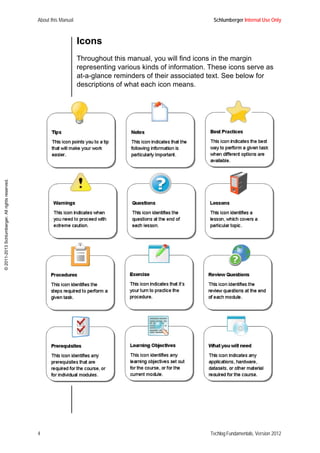
Icons
Throughout this manual, you will find icons in the margin
representing various kinds of information. These icons serve as
at-a-glance reminders of their associated text. See below for
descriptions of what each icon means.
Schlumberger Internal Use Only About this Manual
Techlog Fundamentals, Version 2012 5
©2011-2013Schlumberger.Allrightsreserved.
Summary
In this introduction, we:
• defined the learning objectives for Techlog introductory
training
• described the structure of the manual
• outlined what tools you will need for this training
• discussed course conventions that you will encounter within
this material.
About this Manual Schlumberger Internal Use Only
6 Techlog Fundamentals, Version 2012
©2011-2013Schlumberger.Allrightsreserved.
NOTES
Schlumberger Internal Use Only Basics of the Techlog Window
Techlog Fundamentals, Version 2012 7
©2011-2013Schlumberger.Allrightsreserved.
Module 1 Basics of the Techlog
Window
The Techlog window is very flexible. You can customize its
appearance and organization to suit your working habits. Begin by
learning the default location and functionality of each window.
Learning Objectives
After completing this module, you will be familiar with the primary
components of the Techlog main window (Figure 1) and you will
know how to:
• customize the interface of Techlog
• access project data
• access Techlog modules
• create a Techlog Project.
Basics of the Techlog Window Schlumberger Internal Use Only
8 Techlog Fundamentals, Version 2012
©2011-2013Schlumberger.Allrightsreserved.
Lesson 1 Components of the Main
Window
In this lesson, you will learn about the components that make up
the main Techlog window and the function of each component.
Figure 1 Main dock windows in Techlog
1 Title bar Indicates the version of Techlog, the
name of the project, the status of the
project, and the name of the active
workspace.
2 Menu bar Shows the Techlog domain menus:
Home, Plot, Utility, Petrophysics,
Geology, Drilling, Reservoir, and
Geophysics.
The icons at the right end of the menu
bar can be used to increase the size of
the display area.
• Click to hide the Toolbar menu.
• Click or press F11 to hide the
dock windows. To restore the dock
windows view, click or press
F11.
Schlumberger Internal Use Only Basics of the Techlog Window
Techlog Fundamentals, Version 2012 9
©2011-2013Schlumberger.Allrightsreserved.
3 Toolbar Displays the icons that allow you to
access Techlog tools and plots under
the Techlog menu quickly. By clicking
on the bottom left corner of the toolbar
groups, you can collapse or expand a
group/module.
The toolbar contains commands related
to the project and the modules active in
the project.
4 Project
browser
Shows all the data and Techlog objects
loaded in the project.
Any global action on the database, such
as data importing or data filtering, can be
done in the Project browser.
5 Output
window
Displays messages from the system,
including information and warnings, and
allows you to diagnose issues when
working in Techlog.
6 Display
area
Displays all Techlog objects (LogView,
crossplots, histograms).
7 Properties
window
Displays properties of the selected
objects. Most Techlog objects can be
retrieved, modified, and configured from
this window, including the units of a
variable and parameters.
8 Workspace
manager
Allows you to switch from one workspace
to another. Techlog operates a system
of independent workspaces to optimize
display.
9 Palette
editor
Allows you to select, create, and modify
color palettes.
10 Zonation
window
Stores all of the interval sets within the
project. It also allows you to limit data
display and analysis to a specific set of
intervals.
11 Markers
window
Shows all the markers stored within the
project.
Basics of the Techlog Window Schlumberger Internal Use Only
10 Techlog Fundamentals, Version 2012
©2011-2013Schlumberger.Allrightsreserved.
Procedure 1 Moving the Dock Windows
All of the windows described in this lesson are dockable. This
means that they can be re-arranged at your convenience.
To display the dock windows list, right-click in the Toolbar and
select the Dock windows menu.
TIP: You also can activate or deactivate a dockable window
from the Dock windows menu.
1. To move the Project browser, click on the window header
and drag it to the right. The Project browser is now an
independent window that can be moved to another monitor.
Dashboard mode allows you to display windows outside the
Techlog window. This way you can have the application
open on one monitor and all the other windows (such as
Properties, Project browser, and Zonation) open on a
second monitor.
2. Move the Project browser above the Properties window.
The Project browser and the Properties window are now
docked, with two tabs displayed in the same window.
3. Restore the windows to their default position. In the View
menu, click Restore default positions .
NOTE: It also is possible to pin (auto-hide) the dock
windows individually to the left, right, or bottom.
12 Contact
manager
Allows you to manage contacts in the
project.
13 Action
manager
Displays a list of all the possible actions
available on the selected object.
14 Status bar Provides information about available
memory and disk space.
Schlumberger Internal Use Only Basics of the Techlog Window
Techlog Fundamentals, Version 2012 11
©2011-2013Schlumberger.Allrightsreserved.
Lesson 2 Main Dock Windows
In this lesson, each of the main dock windows in Techlog is
described in detail.
The Project Browser
The Project browser is where you access and display various
Techlog objects and perform simple operations.
Click Datasets to view a list of Techlog objects, including project
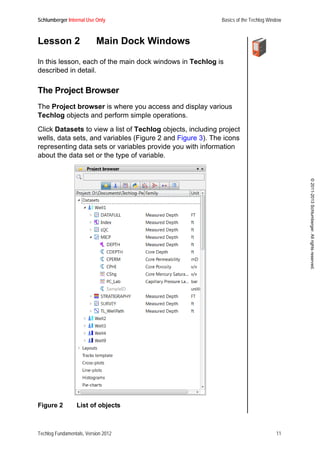
wells, data sets, and variables (Figure 2 and Figure 3). The icons
representing data sets or variables provide you with information
about the data set or the type of variable.
Figure 2 List of objects
Basics of the Techlog Window Schlumberger Internal Use Only
12 Techlog Fundamentals, Version 2012
©2011-2013Schlumberger.Allrightsreserved.
Figure 3 Saved layouts, plots, and workflows
Schlumberger Internal Use Only Basics of the Techlog Window
Techlog Fundamentals, Version 2012 13
©2011-2013Schlumberger.Allrightsreserved.
Project browser appearance
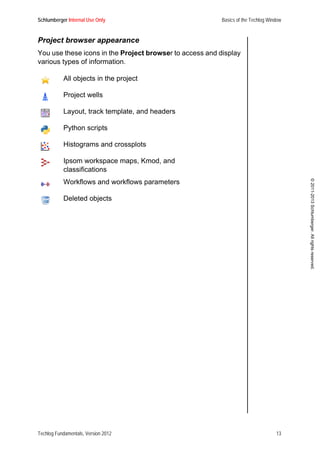
You use these icons in the Project browser to access and display
various types of information.
All objects in the project
Project wells
Layout, track template, and headers
Python scripts
Histograms and crossplots
Ipsom workspace maps, Kmod, and
classifications
Workflows and workflows parameters
Deleted objects
Basics of the Techlog Window Schlumberger Internal Use Only
14 Techlog Fundamentals, Version 2012
©2011-2013Schlumberger.Allrightsreserved.
Saved Levels
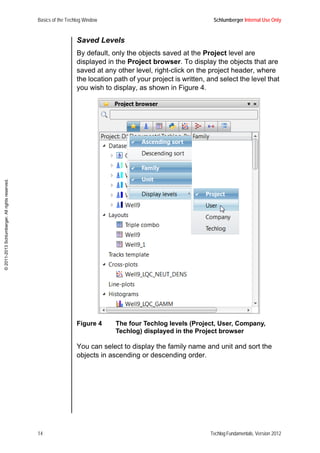
By default, only the objects saved at the Project level are
displayed in the Project browser. To display the objects that are
saved at any other level, right-click on the project header, where
the location path of your project is written, and select the level that
you wish to display, as shown in Figure 4.
Figure 4 The four Techlog levels (Project, User, Company,
Techlog) displayed in the Project browser
You can select to display the family name and unit and sort the
objects in ascending or descending order.
Schlumberger Internal Use Only Basics of the Techlog Window
Techlog Fundamentals, Version 2012 15
©2011-2013Schlumberger.Allrightsreserved.
Procedure 1 Filtering Data in the Project
Browser
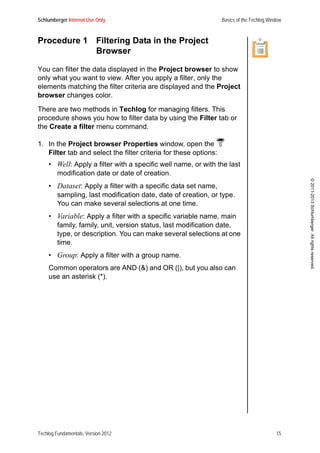
You can filter the data displayed in the Project browser to show
only what you want to view. After you apply a filter, only the
elements matching the filter criteria are displayed and the Project
browser changes color.
There are two methods in Techlog for managing filters. This
procedure shows you how to filter data by using the Filter tab or
the Create a filter menu command.
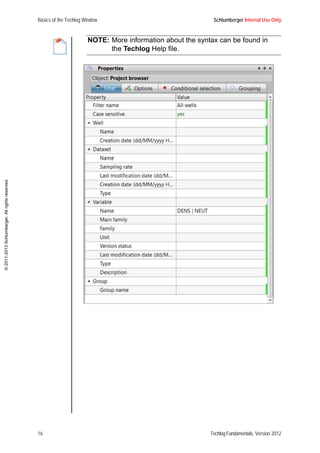
1. In the Project browser Properties window, open the
Filter tab and select the filter criteria for these options:
• Well: Apply a filter with a specific well name, or with the last
modification date or date of creation.
• Dataset: Apply a filter with a specific data set name,
sampling, last modification date, date of creation, or type.
You can make several selections at one time.
• Variable: Apply a filter with a specific variable name, main
family, family, unit, version status, last modification date,
type, or description. You can make several selections at one
time.
• Group: Apply a filter with a group name.
Common operators are AND (&) and OR (|), but you also can
use an asterisk (*).
Basics of the Techlog Window Schlumberger Internal Use Only
16 Techlog Fundamentals, Version 2012
©2011-2013Schlumberger.Allrightsreserved.
NOTE: More information about the syntax can be found in
the Techlog Help file.
Schlumberger Internal Use Only Basics of the Techlog Window
Techlog Fundamentals, Version 2012 17
©2011-2013Schlumberger.Allrightsreserved.
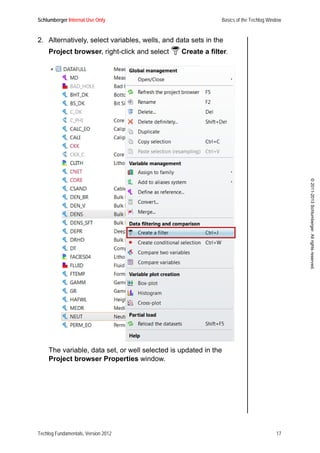
2. Alternatively, select variables, wells, and data sets in the
Project browser, right-click and select Create a filter.
The variable, data set, or well selected is updated in the
Project browser Properties window.
Basics of the Techlog Window Schlumberger Internal Use Only
18 Techlog Fundamentals, Version 2012
©2011-2013Schlumberger.Allrightsreserved.
After a filter is created, the Project browser changes color
and only the variables, data set, and wells selected by the
filter are displayed.
3. Remove a filter by right-clicking in the Project browser and
selecting Remove the current filter.
Schlumberger Internal Use Only Basics of the Techlog Window
Techlog Fundamentals, Version 2012 19
©2011-2013Schlumberger.Allrightsreserved.
Procedure 2 Applying Conditional Selections
Conditional selection is an option that allows you to select one or
several curves, wells, or data sets. For example, you can use this
option to select specific curves to drag into a LogView layout.
Conditional selection is available only in the Project browser.
Similar to the filter option, there are two ways to manage
conditional selection in Techlog, in the Properties window and
with the Conditional selection command.
1. In the Project browser Properties window, open the
Conditional selection tab and select the filter criteria for
the Well, Dataset, Variable, and Group options.
The variables, data set, and wells selected by the conditional
selection are highlighted in gray.
2. To remove a conditional selection, click in the Project
browser.
Procedure 3 Grouping Data Objects Manually
You can group wells, data sets, and variables manually according
to the properties available in the wells, data sets, and logs.
Manual grouping is accessed from the Project browser.
1. In the Project browser, select at least two wells, data sets,
or variables.
2. Right-click and select Group.
3. In the window that opens, enter a name for the group and
click OK. The group is created and displayed in the Project
browser.
Basics of the Techlog Window Schlumberger Internal Use Only
20 Techlog Fundamentals, Version 2012
©2011-2013Schlumberger.Allrightsreserved.
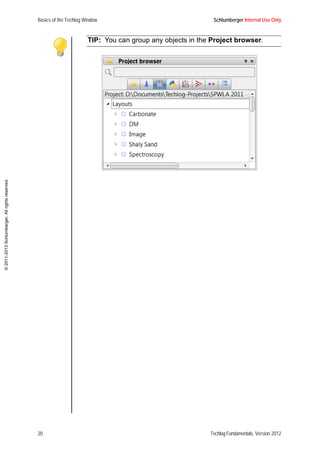
TIP: You can group any objects in the Project browser.
Schlumberger Internal Use Only Basics of the Techlog Window
Techlog Fundamentals, Version 2012 21
©2011-2013Schlumberger.Allrightsreserved.
Procedure 4 Grouping Data Objects
Automatically
You can use the Properties window to group wells, data sets, or
variables automatically.
1. In the Project browser Properties window, open the
Grouping tab.
Basics of the Techlog Window Schlumberger Internal Use Only
22 Techlog Fundamentals, Version 2012
©2011-2013Schlumberger.Allrightsreserved.
2. Select one of these options for the Display type.
• Techlog: Wells, data sets, and variables are not grouped.
• Hierarchical grouping: Wells, data sets, and variables are
grouped according to wells, data sets, or variables
properties (based on country in the figure in Step 1).
• Project: Wells, data sets, and variables are grouped
according to the user.
3. Enter the grouping criteria.
This figure shows examples of how objects are displayed in
the Project browser based on the display type and grouping
criteria.
Schlumberger Internal Use Only Basics of the Techlog Window
Techlog Fundamentals, Version 2012 23
©2011-2013Schlumberger.Allrightsreserved.
Data Search
You can use the search field in the Project browser to quickly
display all the variables or objects that contain the search word
that you enter. In the example shown in Figure 5, the word gamm
is entered as the search criteria and all wells and histograms that
contain a variable named gamm are displayed in the Project
browser.
Figure 5 Example of a search from the Project browser
Basics of the Techlog Window Schlumberger Internal Use Only
24 Techlog Fundamentals, Version 2012
©2011-2013Schlumberger.Allrightsreserved.
Contextual Menu Commands
You can right-click on a well, data set, or a variable to access an
interactive list of the actions available for each Techlog object.
This list of actions is called the contextual menu.
The actions available in the contextual menu depend on the object
you select. You can apply these actions to wells, data sets, and
variables directly from the Project browser.
Figure 6 Contextual menus for a well, data set, and variable
Trash Bin
The trash bin allows you to store data deleted from the Project
browser.
WARNING: Be aware that if data is deleted with the Delete
command, it will be stored in the trash bin and you
can retrieve it. However, if data is deleted with the
Delete definitively command, it cannot be
retrieved.
Schlumberger Internal Use Only Basics of the Techlog Window
Techlog Fundamentals, Version 2012 25
©2011-2013Schlumberger.Allrightsreserved.
Output Window
The Output window contains information about every operation
being run in Techlog. These messages provide you with valuable
information and alert you to issues with the applications.
Messages display in one of three colors, depending on the
content of the information.
• Green is for information.
• Orange is a warning.
• Red is for errors.
• Blue is for command lines.
Each error and warning message is documented with an
explanation about why the error or warning occurred. Figure 7
shows a sample green information message.
Figure 7 Information message after importing a data set
Properties Window
The Properties window displays the parameters of any selected
object such as a variable, a workflow, or a log view. The content of
the window depends on the selected object. The window allows
you to edit the properties of the object.
Basics of the Techlog Window Schlumberger Internal Use Only
26 Techlog Fundamentals, Version 2012
©2011-2013Schlumberger.Allrightsreserved.
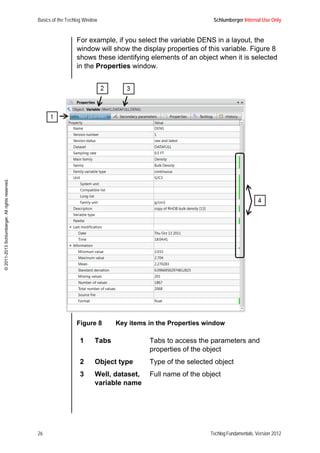
For example, if you select the variable DENS in a layout, the
window will show the display properties of this variable. Figure 8
shows these identifying elements of an object when it is selected
in the Properties window.
Figure 8 Key items in the Properties window
1 Tabs Tabs to access the parameters and
properties of the object
2 Object type Type of the selected object
3 Well, dataset,
variable name
Full name of the object
Schlumberger Internal Use Only Basics of the Techlog Window
Techlog Fundamentals, Version 2012 27
©2011-2013Schlumberger.Allrightsreserved.
Figure 9 shows examples of the properties that are displayed for a
well, data set, and variable.
Figure 9 Examples of different items displayed in the
Properties window, depending on the selected
object
4 Editable
properties
Properties that you can edit for the
object. You can edit only those
properties that are highlighted in green.
Basics of the Techlog Window Schlumberger Internal Use Only
28 Techlog Fundamentals, Version 2012
©2011-2013Schlumberger.Allrightsreserved.
Procedure 5 Using the Properties Window
You should keep the Properties window open at all times. You
also can use the F4 shortcut to display the Properties window for
any object in Techlog.
In this procedure, you use the F4 button to make the Properties
window display or not display.
1. Press F4 to bring the Properties window to the front.
NOTE: You can edit the unit of the variable manually.
2. Press F4 again to dock the Properties window in its original
place.
Zonation Window
The Zonation window stores all of the interval sets in the project.
Zones selected in the Zonation window are reflected in plot
displays and workflows.
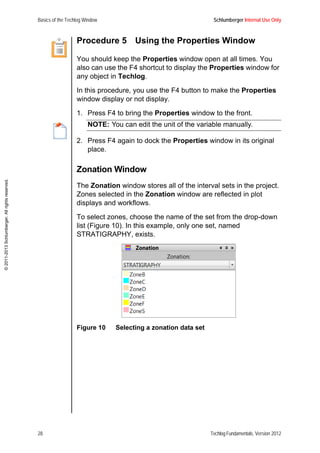
To select zones, choose the name of the set from the drop-down
list (Figure 10). In this example, only one set, named
STRATIGRAPHY, exists.
Figure 10 Selecting a zonation data set
Schlumberger Internal Use Only Basics of the Techlog Window
Techlog Fundamentals, Version 2012 29
©2011-2013Schlumberger.Allrightsreserved.
After you select a data set, a list appears that contains all of the
zones within the zonation set. For example, in a layout, the selected
zones in the Zonation window are highlighted in the layout
(Figure 11).
Figure 11 Zones selected in the zonation window are
highlighted in the LogView display
Basics of the Techlog Window Schlumberger Internal Use Only
30 Techlog Fundamentals, Version 2012
©2011-2013Schlumberger.Allrightsreserved.
Markers Manager
The Markers dock window shows you all the markers available in
your project.
• Click on the drop-down menu to select the marker type data
set you want to display.
• Use the Marker pane to select those specific markers you
want to display.
Figure 12 Markers manager
Workspace Manager
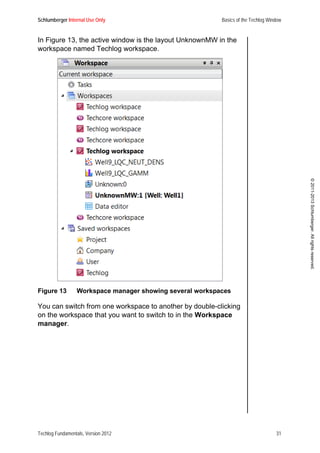
The Workspace manager lists the workspaces open in Techlog
and the windows open within each workspace, such as plots and
workflows. Figure 13 shows the active windows and workspaces
displayed in bold.
You can rename and save the workspace. When you reopen the
workspace, the windows will be arranged in the same way as they
were when you saved the workspace.
Schlumberger Internal Use Only Basics of the Techlog Window
Techlog Fundamentals, Version 2012 31
©2011-2013Schlumberger.Allrightsreserved.
In Figure 13, the active window is the layout UnknownMW in the
workspace named Techlog workspace.
Figure 13 Workspace manager showing several workspaces
You can switch from one workspace to another by double-clicking
on the workspace that you want to switch to in the Workspace
manager.
Basics of the Techlog Window Schlumberger Internal Use Only
32 Techlog Fundamentals, Version 2012
©2011-2013Schlumberger.Allrightsreserved.
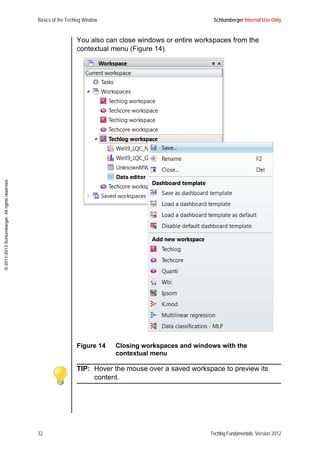
You also can close windows or entire workspaces from the
contextual menu (Figure 14).
Figure 14 Closing workspaces and windows with the
contextual menu
TIP: Hover the mouse over a saved workspace to preview its
content.
Schlumberger Internal Use Only Basics of the Techlog Window
Techlog Fundamentals, Version 2012 33
©2011-2013Schlumberger.Allrightsreserved.
Lesson 3 Synchronization Tool
The Synchronization tool allows the asset teams to work in a
collaborative environment where data can be transferred to and
from a shared Techlog project.
Each team member must create a personal project on their local
space and from this personal project, they can link to the shared
one. After the projects are linked, team members can share their
data with the community through a send and retrieve mechanism.
Figure 15 How the Synchronization tool works
Project Partial Loading Feature
It is recommended that you disable the Project partial loading
functionality when using the Synchronization tool, because the
Synchronization tool displays only the wells loaded in the
Project browser. Using the Project partial loading feature might
lead to a mismatch between the Reference repository and the
current project.
Basics of the Techlog Window Schlumberger Internal Use Only
34 Techlog Fundamentals, Version 2012
©2011-2013Schlumberger.Allrightsreserved.
Procedure 1 Disabling the Project Partial
Loading Feature
This procedure shows you how to disable the Project partial
loading feature in Techlog.
1. Go to the Project tab in the Project browser Properties
window.
2. Select Options.
3. Go to the Parameters tab.
4. Clear the Partial project loading check box.
5. Click OK to validate.
Procedure 2 Linking Techlog to the Reference
Repository
NOTE: This procedure assumes that the Reference repository
is created already.
1. Create a new Techlog project on your private disk space.
2. In the Techlog main window, select Utility >
Synchronization > Synchronization tool.
3. Click Link and browse to the location of Reference
repository. The Current project is now linked to the
Reference repository.
Schlumberger Internal Use Only Basics of the Techlog Window
Techlog Fundamentals, Version 2012 35
©2011-2013Schlumberger.Allrightsreserved.
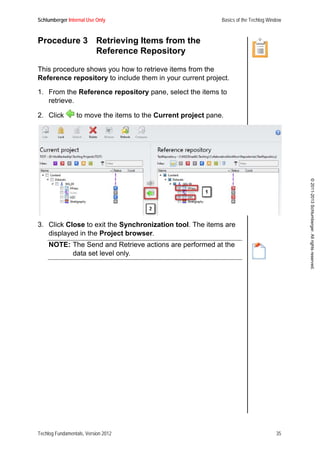
Procedure 3 Retrieving Items from the
Reference Repository
This procedure shows you how to retrieve items from the
Reference repository to include them in your current project.
1. From the Reference repository pane, select the items to
retrieve.
2. Click to move the items to the Current project pane.
3. Click Close to exit the Synchronization tool. The items are
displayed in the Project browser.
NOTE: The Send and Retrieve actions are performed at the
data set level only.
Basics of the Techlog Window Schlumberger Internal Use Only
36 Techlog Fundamentals, Version 2012
©2011-2013Schlumberger.Allrightsreserved.
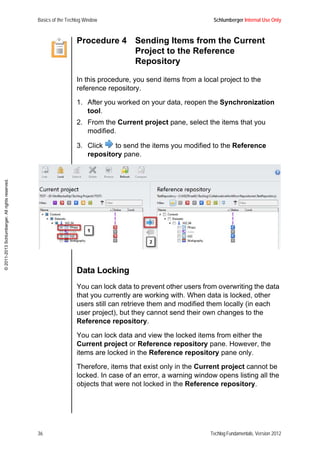
Procedure 4 Sending Items from the Current
Project to the Reference
Repository
In this procedure, you send items from a local project to the
reference repository.
1. After you worked on your data, reopen the Synchronization
tool.
2. From the Current project pane, select the items that you
modified.
3. Click to send the items you modified to the Reference
repository pane.
Data Locking
You can lock data to prevent other users from overwriting the data
that you currently are working with. When data is locked, other
users still can retrieve them and modified them locally (in each
user project), but they cannot send their own changes to the
Reference repository.
You can lock data and view the locked items from either the
Current project or Reference repository pane. However, the
items are locked in the Reference repository pane only.
Therefore, items that exist only in the Current project cannot be
locked. In case of an error, a warning window opens listing all the
objects that were not locked in the Reference repository.
Schlumberger Internal Use Only Basics of the Techlog Window
Techlog Fundamentals, Version 2012 37
©2011-2013Schlumberger.Allrightsreserved.
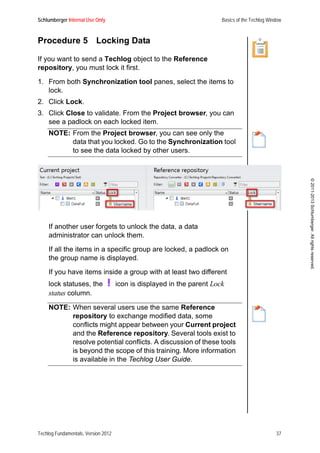
Procedure 5 Locking Data
If you want to send a Techlog object to the Reference
repository, you must lock it first.
1. From both Synchronization tool panes, select the items to
lock.
2. Click Lock.
3. Click Close to validate. From the Project browser, you can
see a padlock on each locked item.
NOTE: From the Project browser, you can see only the
data that you locked. Go to the Synchronization tool
to see the data locked by other users.
If another user forgets to unlock the data, a data
administrator can unlock them.
If all the items in a specific group are locked, a padlock on
the group name is displayed.
If you have items inside a group with at least two different
lock statuses, the icon is displayed in the parent Lock
status column.
NOTE: When several users use the same Reference
repository to exchange modified data, some
conflicts might appear between your Current project
and the Reference repository. Several tools exist to
resolve potential conflicts. A discussion of these tools
is beyond the scope of this training. More information
is available in the Techlog User Guide.
Basics of the Techlog Window Schlumberger Internal Use Only
38 Techlog Fundamentals, Version 2012
©2011-2013Schlumberger.Allrightsreserved.
Lesson 4 Techlog Project Creation
In this lesson, you will learn how to create a new project in
Techlog.
Procedure 1 Creating a New Techlog Project
The first time you open Techlog, most of the menus and dock
windows are disabled (they appear in gray). This is because no
project is open. You will need to create a new project first.
The Project template option allows companies to define clear
formats for any feature in Techlog that must be applied for a
dedicated addressee. This option typically is offered to service
companies that deliver standard output on a per customer basis.
The Project template option copies the whole project (including
data) defined as a template into the newly created project. All of
the settings applied in the project template then are available for
the new data that will be loaded into the new project.
1. In the Techlog main window, select Project > New to
open the New project wizard.
2. In the New project wizard, enter this information:
• Project name: Avoid using a slash () in the project name.
• (optional) Country: Entering a country will help you to filter
your projects later.
• (optional) Description: Enter information about the project.
3. Click Next to go to the Folder, status and type page.
The project is added to your Project folder automatically. If
you wish to store it in another directory, click the ellipses (...)
button to navigate to and select another location.
4. (optional) Choose a Project template from the list, or
browse for it by clicking the ellipses (...) button.
5. Set these options for the project template:
• Project status: In progress or temporary.
• Project opening default mode: In Techlog 2012, only single-
user is available (options are read/write or read only).
Schlumberger Internal Use Only Basics of the Techlog Window
Techlog Fundamentals, Version 2012 39
©2011-2013Schlumberger.Allrightsreserved.
• Project plug-in: For best performance, choose SQLite.
• Unit system (optional): This option is available only if a
company folder exists.
6. Click Next.
A message appears asking you to confirm the creation of the
new project folder.
7. Select the modules that you wish to use. You can change this
selection after you create the project.
8. Click Finish.
Basics of the Techlog Window Schlumberger Internal Use Only
40 Techlog Fundamentals, Version 2012
©2011-2013Schlumberger.Allrightsreserved.
Exercise 1 Creating the My First Techlog
Project
In this exercise, you create your first Techlog project named My
First Techlog Project.
1. In the Techlog main window, select Project > New to
open the New project wizard.
2. Enter the Project name, Country, and Description.
Schlumberger Internal Use Only Basics of the Techlog Window
Techlog Fundamentals, Version 2012 41
©2011-2013Schlumberger.Allrightsreserved.
3. Click Next.
The Folder, status and type window opens. In this window,
you can modify the storage path for your project. For this
exercise, use these values:
• Project status: In progress
• Project opening default mode: single user [read/write]
• Project plug-in: SQlite
• Unit system: Undefined (for the moment, no company folder
is installed).
4. Click Next.
A confirmation dialog box opens asking you to confirm the
project folder creation.
5. Click Create.
Techlog creates the new project folder.
Basics of the Techlog Window Schlumberger Internal Use Only
42 Techlog Fundamentals, Version 2012
©2011-2013Schlumberger.Allrightsreserved.
6. Select the modules that will be checked out when you open
the project.
7. Click Next.
The project has now been created. Techlog displays a
summary of your project characteristics.
Schlumberger Internal Use Only Basics of the Techlog Window
Techlog Fundamentals, Version 2012 43
©2011-2013Schlumberger.Allrightsreserved.
8. Click Finish to open your newly created project.
Notice that all of the icons are now active. You can start to
upload data into your project.
Techlog Project Folder Structure and Settings
When a project is created, Techlog creates a structure of folders
as shown in Figure 16. Each of these folders contains all of the
objects (such as plots, layouts, and processing parameters) saved
at the Project level.
Figure 16 Project folder structure
The project settings are stored in Settings.xml file located in the
Settings directory. This file contains this information:
• Name of the project
• Name of the person who created the project
• Creation date
• Modification log
• Opening mode
• Licenses used in the project.
Basics of the Techlog Window Schlumberger Internal Use Only
44 Techlog Fundamentals, Version 2012
©2011-2013Schlumberger.Allrightsreserved.
Procedure 2 Opening an Existing Project
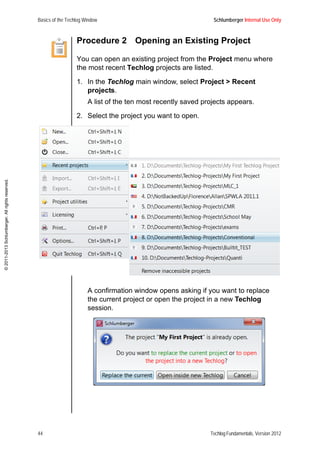
You can open an existing project from the Project menu where
the most recent Techlog projects are listed.
1. In the Techlog main window, select Project > Recent
projects.
A list of the ten most recently saved projects appears.
2. Select the project you want to open.
A confirmation window opens asking if you want to replace
the current project or open the project in a new Techlog
session.
Schlumberger Internal Use Only Basics of the Techlog Window
Techlog Fundamentals, Version 2012 45
©2011-2013Schlumberger.Allrightsreserved.
Procedure 3 Opening an Older Project
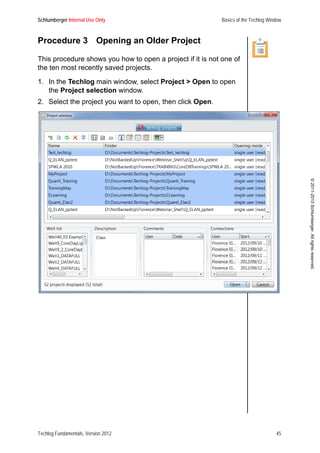
This procedure shows you how to open a project if it is not one of
the ten most recently saved projects.
1. In the Techlog main window, select Project > Open to open
the Project selection window.
2. Select the project you want to open, then click Open.
Basics of the Techlog Window Schlumberger Internal Use Only
46 Techlog Fundamentals, Version 2012
©2011-2013Schlumberger.Allrightsreserved.
Review Questions
• How can you access the list of dock windows?
• How do you change from Dashboard mode to Floating
mode?
• Give three actions that you can do from the Project
browser.
• Where can you read the system messages, including
information and warnings, that might help you to understand
issues arising in your project?
• What is the shortcut to display the Properties window?
Summary
In this module, you learned about:
• using the Techlog main window
• customizing the interface of Techlog
• accessing project data
• accessing Techlog modules
• creating a Techlog project.
Schlumberger Internal Use Only Basics of the Techlog Window
Techlog Fundamentals, Version 2012 47
©2011-2013Schlumberger.Allrightsreserved.
NOTES
Basics of the Techlog Window Schlumberger Internal Use Only
48 Techlog Fundamentals, Version 2012
©2011-2013Schlumberger.Allrightsreserved.
NOTES
Schlumberger Internal Use Only Data Import and Export
Techlog Fundamentals, Version 2012 49
©2011-2013Schlumberger.Allrightsreserved.
Module 2 Data Import and Export
Techlog can integrate many types of data, including log data,
point data, seismic, deviation files, and image files. Techlog also
supports a variety of the most common formats, including LAS,
GeologASCII, DLIS/LIS, ASCII file with the wizard, core images,
TechCSV, and the Techlog format (XML).
In addition, you can export data or any object created in Techlog
(such as plots and layouts) from Techlog to various format such
as LAS, DLIS, GeologASCII, ASCII file, TechCSV, and the
Techlog format (XML).
Learning Objectives
After completing this module, you will know how to:
• import data files, such as DLIS, LAS, and TXT formats
• import spreadsheet files
• import image files, such as PNG and TIFF
• import XML Techlog files
• export data from Techlog
• use the Well Identification Solver.
Lesson 1 Data Import
You can import data in four ways:
• Drag the files to be imported into Techlog (LAS, DLIS,
Techlog XML, CSV files).
• Select Project > Import from the main Techlog window.
• Select Home > Import .
• Press Ctrl + Shift + J,I.
Regardless of the method you choose, the action opens the
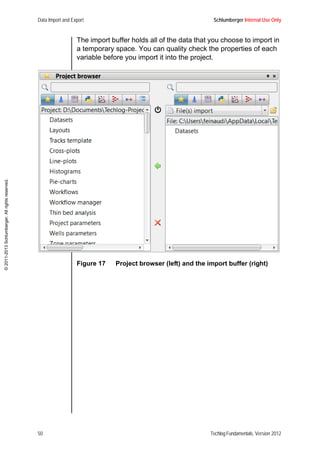
import buffer (Figure 17) in the Project browser window.
Data Import and Export Schlumberger Internal Use Only
50 Techlog Fundamentals, Version 2012
©2011-2013Schlumberger.Allrightsreserved.
The import buffer holds all of the data that you choose to import in
a temporary space. You can quality check the properties of each
variable before you import it into the project.
Figure 17 Project browser (left) and the import buffer (right)
Schlumberger Internal Use Only Data Import and Export
Techlog Fundamentals, Version 2012 51
©2011-2013Schlumberger.Allrightsreserved.
Procedure 1 Importing Data
This procedure is applicable for most of the files you will load into
Techlog.
1. Select Home > Import to open the import buffer.
2. Click Open and browse for the files to be imported.
3. If the data cannot be parsed automatically by Techlog, the
ASCII Import wizard opens.
4. In the Properties window of the wizard (on the right side),
define these parameters:
• The data set type you wish to import: continuous, point
data, or interval. (If you are importing zonation data sets,
make sure the Dataset type property is set to interval .)
• The location of header information in the ASCII file (Import
from line, Variable name line, and Unit line).
• Delimiter settings.
5. Click Preview.
6. In the Preview window, define these parameters:
• Reference column (mandatory)
• If applicable, the Well name and Dataset name columns.
You can remove the unnecessary columns by clicking
Remove column(s).
NOTE: It is not necessary to define the Variable and Array
columns. Techlog identifies them automatically.
7. Click Load to the import buffer.
8. Click to import the data into the Project browser.
9. After data has been imported, click Delete to clear the
content of the import buffer.
10. Click Close to close the import buffer.
Data Import and Export Schlumberger Internal Use Only
52 Techlog Fundamentals, Version 2012
©2011-2013Schlumberger.Allrightsreserved.
Lesson 2 DLIS File Import
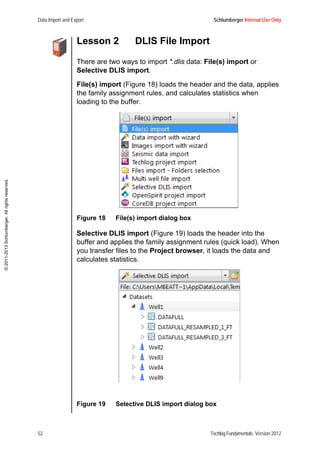
There are two ways to import *.dlis data: File(s) import or
Selective DLIS import.
File(s) import (Figure 18) loads the header and the data, applies
the family assignment rules, and calculates statistics when
loading to the buffer.
Figure 18 File(s) import dialog box
Selective DLIS import (Figure 19) loads the header into the
buffer and applies the family assignment rules (quick load). When
you transfer files to the Project browser, it loads the data and
calculates statistics.
Figure 19 Selective DLIS import dialog box
Schlumberger Internal Use Only Data Import and Export
Techlog Fundamentals, Version 2012 53
©2011-2013Schlumberger.Allrightsreserved.
This type of import is useful when working with large files or when
you wish to view the content of the file. Imported data is displayed
in the import buffer where you can verify that all variables are
present.
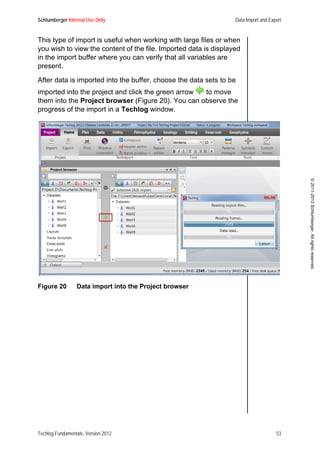
After data is imported into the buffer, choose the data sets to be
imported into the project and click the green arrow to move
them into the Project browser (Figure 20). You can observe the
progress of the import in a Techlog window.
Figure 20 Data import into the Project browser
Data Import and Export Schlumberger Internal Use Only
54 Techlog Fundamentals, Version 2012
©2011-2013Schlumberger.Allrightsreserved.
Exercise 1 Importing DLIS Log Files
In this exercise, you load .dlis data into your project.
1. Select Home > Import .
2. In the import buffer, select Files(s) import from the drop-
down menu.
3. Click Open .
4. Choose the files listed in the Techlog_201201 DLIS
directory and click Open. You now have five files in the
import buffer:
• Well1.dlis
• Well2.dlis
• Well3.dlis
• Well4.dlis
• Well9.dlis.
5. The files are added as well names. Expand each well and
look at the data sets.
6. There is a problem with the name of the DATAFULL file in
Well 2. Remove the underscore (_) in the file name
a. Right-click on the data set.
b. Select Rename, or press F2.
7. Choose all the data sets named DATAFULL for all five wells.
TIP: Use the conditional selection to select only the
DATAFULL data sets.
8. Click the green arrow to import the data into the Project
browser.
9. Verify that your data was imported correctly by expanding the
wells and the data sets.
10. Click on a variable and view it in the Properties dock
window. The properties for each variable display.
TIP: The shortcut for viewing the Properties window is F4.
Schlumberger Internal Use Only Data Import and Export
Techlog Fundamentals, Version 2012 55
©2011-2013Schlumberger.Allrightsreserved.
11. In the Project browser, note that variables display in black,
gray, or red.
• Black indicates a variable has a unit and has been assigned
to a family.
• Gray indicates the variable is missing a family or a unit.
• Red indicates the variable has no unit and no family
assigned to it.
This display helps you to harmonize and quality check the
data. (These topics are discussed later in the training.)
12. After you quality check the data, click Delete to clear the
content of the import buffer.
13. Click Close to close the import buffer.
TIP: If you click the X (in the upper right corner of the
window) to close the import buffer, both the import
buffer and the Project browser window will close. To
reopen the Project browser and import buffer, right-
click Dock windows and select Project browser.
Data Import and Export Schlumberger Internal Use Only
56 Techlog Fundamentals, Version 2012
©2011-2013Schlumberger.Allrightsreserved.
Lesson 3 LAS File Import
When importing *.las files, select File(s) import (Figure 21) from
the drop-down menu in the import buffer. All other steps in the
import process are identical to the procedure for importing *.dlis
data.
Figure 21 LAS file import dialog box
Schlumberger Internal Use Only Data Import and Export
Techlog Fundamentals, Version 2012 57
©2011-2013Schlumberger.Allrightsreserved.
Exercise 1 Importing LAS Files
In this exercise, you load the Hole Azimuth and Deviation surveys
into Techlog. These surveys are provided as .las files.
1. Select Home > Import .
2. Select File(s) import from the drop-down menu.
3. Click Open .
4. Choose these files listed under Techlog_201202 LAS and
click Open.
• Well1.las
• Well2.las
• Well3.las
• Well4.las
• Well9.las
5. Expand each well and view the data sets.
6. Choose the data set SURVEY for all five wells and click to
import the data into the Project browser.
This figure shows the Project browser after adding the
SURVEY files.
Data Import and Export Schlumberger Internal Use Only
58 Techlog Fundamentals, Version 2012
©2011-2013Schlumberger.Allrightsreserved.
7. Verify that your data was imported correctly by expanding the
wells and the data sets. You can see that the SURVEY data
set has been added to each well.
This figure shows the Project browser after the SURVEY
data is imported.
8. Click on a variable and view it in the Properties dock
window. The properties for each variable display.
Notice that some variables display in black, gray, or red.
• Black indicates a variable has a unit and has been assigned
to a family.
• Gray indicates the variable is missing a family or a unit.
• Red indicates the variable has no unit and no family
assigned to it.
9. Clear the content of the import buffer.
10. Close the import buffer.
Schlumberger Internal Use Only Data Import and Export
Techlog Fundamentals, Version 2012 59
©2011-2013Schlumberger.Allrightsreserved.
Lesson 4 Text File Import
Text files are imported as *.las files using the File(s) import
command. Before *.txt files are added to the import buffer, they
display in the Data import wizard window (Figure 22). In this
window, you can verify that your data will be correctly imported.
The Data import wizard allows you to configure many
parameters.
• Dataset type (continuous data, point data, intervals)
• Specific lines from which to import
• Line for unit, if it exists
• Delimiter of the original file.
Figure 22 Data import wizard for zones import
Data Import and Export Schlumberger Internal Use Only
60 Techlog Fundamentals, Version 2012
©2011-2013Schlumberger.Allrightsreserved.
Exercise 1 Importing Stratigraphy Data from
a TXT File
In this exercise, you import the stratigraphy data for Well1, Well2,
Well3, Well4, and Well9. Before you start the exercise, you can
open the .txt file to review the data you are about to import, as
shown in the figure.
1. Select Home > Import .
2. Select File(s) import from the drop-down menu.
3. From the folder Techlog_201203 TXT, select the ZONES.txt
file to import. The Import Wizard window opens.
4. In the Property area, change the Dataset Type to Interval.
Notice that there are no units in this file.
5. Add the unit (FT) to the Reference variable.
Schlumberger Internal Use Only Data Import and Export
Techlog Fundamentals, Version 2012 61
©2011-2013Schlumberger.Allrightsreserved.
6. Click Preview.
Your Data import wizard window should match this figure.
7. Click Load to the import buffer.
Data Import and Export Schlumberger Internal Use Only
62 Techlog Fundamentals, Version 2012
©2011-2013Schlumberger.Allrightsreserved.
8. Make a quality check of the data added to the import buffer.
9. Click to import the data into the Project browser.
10. Clear the content of the import buffer.
11. Close the import buffer.
TIP: You can select multiple files to add to the import buffer.
Exercise 2 Importing the TOPS1 File
In the next exercises, you import three files. Because you can add
multiple files in the Techlog import buffer, you will do the final
import to the Project browser at the end of Exercise 3.
1. Select Home > Import .
2. Select File(s) import from the drop-down menu.
3. From the folder Techlog_2012Exercises01 Import
Exercise01 Import various test configurations, select to
import the file TOPS1.txt. The Data import wizard window
opens.
Schlumberger Internal Use Only Data Import and Export
Techlog Fundamentals, Version 2012 63
©2011-2013Schlumberger.Allrightsreserved.
4. In the Data import wizard window, define these parameters:
• Well name column
• Dataset name column
• Reference unit
• Dataset type (Interval).
Two settings are configured automatically:
• Variable name line is set to 1.
• Data import is done from line 2.
NOTE: These settings should be verified for any future files.
Data Import and Export Schlumberger Internal Use Only
64 Techlog Fundamentals, Version 2012
©2011-2013Schlumberger.Allrightsreserved.
Exercise 3 Importing the TOPS2 File
In this exercise, you import the file named TOPS2.
1. Select Home > Import .
2. Select File(s) import from the drop-down menu.
3. From the folder Techlog_2012Exercises01 Import
Exercise01 Import various test configurations, select to
import the file TOPS2.txt. The Data import wizard window
opens.
4. In the Property area, set the Zonation mode to zonation.
You now are able to select Top or Bottom in the table, as
shown in the figure in Step 5.
NOTE: The property Dataset type was automatically set to
interval.
5. Define the Top and Bottom columns and verify that they have
the correct units.
Schlumberger Internal Use Only Data Import and Export
Techlog Fundamentals, Version 2012 65
©2011-2013Schlumberger.Allrightsreserved.
In this exercise, there is no need to define the reference
curve. The Top variable will be used as a reference.
6. Define the Well name column.
7. Define the Dataset name column in the Property area
(TOPS2). If no column is defined as Dataset name, you have
the option of entering a name.
8. Verify that Import from line is set to 3.
9. Click Load to the import buffer.
Red error messages display in the output dock window
during the import process.
Data Import and Export Schlumberger Internal Use Only
66 Techlog Fundamentals, Version 2012
©2011-2013Schlumberger.Allrightsreserved.
10. Review the original file and make corrections as needed.
Notice that a dot is missing in line 26 of the original file.
Instead of displaying a depth of 10983.4, the depth is
displayed as 109834.
TIP: It is possible to edit the file that is currently loaded with
the wizard. Any modification performed (and saved) in
the original file will be immediately propagated in the
wizard after clicking Preview.
11. After saving corrections to the TOPS2.txt file, repeat Step 1
through Step 5 to import it.
Exercise 4 Importing the TOPS3 File
In this exercise, you import the file named TOPS3.
1. Select Home > Import .
2. Select File(s) import from the drop-down menu.
3. From the folder Techlog_2012Exercises01 Import
Exercise01 Import various test configurations, import the
file TOPS3.txt. The Data import wizard window opens.
Schlumberger Internal Use Only Data Import and Export
Techlog Fundamentals, Version 2012 67
©2011-2013Schlumberger.Allrightsreserved.
4. In the Property pane, define Delimiter > Others as a ( ' )
separator and click Preview.
5. Set Keep consecutive separators to no and click Preview.
6. Add a unit (ft) to the Reference column.
7. Define the Dataset name as TOPS3.
8. Set the Dataset type as interval.
9. Import the data into the Project browser.
10. Clear the contents of the import buffer.
11. Close the import buffer.
Lesson 5 CSV Spreadsheet Import
Core data is imported as point data in *.csv format using the
File(s) import command. Display the Data import wizard to
verify or change property settings.
NOTE: Excel files (.xls and .xlsx) are binary files and cannot be
imported using the ASCII import wizard. If you must
import Excel data in *.xls (MS Office 2003) or *.xlsx (MS
Office 2007 and 2010) formats, save the files in the *.csv
format, then import the .csv files into Techlog.
Exercise 1 Importing a CSV Spreadsheet
In this exercise, you upload core analyses in .csv format.
1. Open the folder Techlog_201204 CSV and import the Well1
file. The Data import wizard opens.
2. Verify that these property settings are correct or make
changes accordingly:
• Set the Dataset type to Point Data.
• Set the Variable name line to 1.
• Set the Units line to 2.
• Set the Import from line to 3.
Data Import and Export Schlumberger Internal Use Only
68 Techlog Fundamentals, Version 2012
©2011-2013Schlumberger.Allrightsreserved.
• Add the unit ft to the reference if it was not previously
added.
• Change the Comma delimiter to yes.
After your point data is added to the import buffer, you should
see a display similar to the figure. The name of your point
data set should be MICP.
3. Repeat Step 1 and Step 2 to import Well2, Well3, Well4, and
Well9 MICP data.
Exercise 2 Importing Formation Pressure Data
In this exercise, you upload formation pressure data provided as
an Excel file.
1. Open the Excel file formation pressure.xlsx from the
Techlog_2012Exercises01 Import Exercise02 Tables and
spreadsheets folder and save it with the same name in a
comma delimited file .csv format.
2. Upload the .csv file into Techlog.
3. Set the Comma delimiter to yes.
4. Change the first column to be the reference.
5. Import the data into the import buffer only.
Notice that the curves were imported as array (vector)
data . This is done because in the original file, at least one
depth repeats itself.
Schlumberger Internal Use Only Data Import and Export
Techlog Fundamentals, Version 2012 69
©2011-2013Schlumberger.Allrightsreserved.
6. Clear the contents of the import buffer.
7. In the import buffer, click on the word Datasets.
8. In the Properties window, under the ASCII import parameter,
select Array creation policy.
9. Choose the add an epsilon to the reference value option. This
option remains selected for any type of data.
This configuration is not optimal for other types of data, such
as Capillary Pressure curves. Choosing the ask for each case
option could be useful for future import sessions.
10. Upload the .csv file into Techlog again.
Notice that this time the RFT variables are displayed with the
Point data icon .
11. Configure the Well name and Dataset name by right-clicking
and using the contextual menu.
12. Import the data into the Project browser.
Data Import and Export Schlumberger Internal Use Only
70 Techlog Fundamentals, Version 2012
©2011-2013Schlumberger.Allrightsreserved.
Exercise 3 Importing a Thin Section Analysis
Table
In this exercise, you upload a different type of data: a thin section
description provided as a .csv file.
1. Select Home > Import .
2. Select File(s) import from the drop-down menu.
3. From the folder Techlog_2012Exercises01 Import
Exercise02 Table and spreadsheets, import the file Thin
section analysis.csv.
4. In the Data import wizard, set the variable name line
property of the original file to 3.
5. Click Preview. Notice that this file has no units.
6. Set the unit line property to 0.
7. Click Preview. Notice that, in this instance, the application
begins importing the file only from line 10.
Schlumberger Internal Use Only Data Import and Export
Techlog Fundamentals, Version 2012 71
©2011-2013Schlumberger.Allrightsreserved.
8. Set the import from line property to 4 and click Preview.
9. To visualize additional lines in the lower table, increase the
number of available lines and click Preview.
10. Define the curve that will be the reference curve of the data
set.
11. Add units to the curves.
12. Enter a Dataset name.
13. Remove the Well name from column 1 and add the correct
well name.
Lesson 6 Image File Import
Image files can be imported using the Images import with
wizard command (Figure 23) in the import buffer.
Figure 23 Images import with wizard command
In the Image import wizard window, you set parameters in the
Dataset information and Image information areas of the wizard to
determine how Techlog should read the file. Upon import, you
can either copy the actual file and place it in the project, or copy a
link to the location of the image.
Data Import and Export Schlumberger Internal Use Only
72 Techlog Fundamentals, Version 2012
©2011-2013Schlumberger.Allrightsreserved.
The Image import wizard window (Figure 24) allows you to
choose and preview image files to import.
Figure 24 Image import wizard for image files
Procedure 1 Importing Images
This procedure shows you how to load core data images into
Techlog.
1. Select Home > Import to open the import buffer.
2. Select Images import with wizard from the drop-down
menu.
3. Click Open and navigate to your image folder.
4. Choose all the images you wish to load and click Open. The
Image import wizard opens.
NOTE: Techlog allows you to import *.png, *.tif, *.jpg, *.bmp,
and *.gif image formats.
Schlumberger Internal Use Only Data Import and Export
Techlog Fundamentals, Version 2012 73
©2011-2013Schlumberger.Allrightsreserved.
5. Enter a name using the correct naming convention.
You can enter the name or choose a predefined pattern. The
name of images file must comply with the naming convention
for images. For example, if your image is named
Well1_CoreImages_1567.png, the naming convention is
%WellName%_%DatasetName%_%DepthTop%
If the name of the file is more complex (for example, if the
core image file is CD10789 with 10789 as the top depth of
the core), you must type CD%DepthTop% with CD before the
% to make sure Techlog recognizes the depth automatically.
6. Copy images into the project by selecting the Copy all images
into the project check box.
If you do not select this option, a link will be created between
the variable and the actual image during the import process.
TIP: If there are a lot of images to copy, the performance of
Techlog could be affected; select the Convert all images
into 8 colours bits check box.
7. In the Dataset information zone:
a. choose a proper unit
b. enter a Dataset name
c. enter a variable name.
8. Click Preview to view the correctly displayed depth
reference.
9. Click Load to the import buffer. The data set is now added
to the import buffer.
10. Click to import the data into the Project browser.
11. Click Delete to clear the contents of the import buffer.
12. Click Close to close the import buffer.
Data Import and Export Schlumberger Internal Use Only
74 Techlog Fundamentals, Version 2012
©2011-2013Schlumberger.Allrightsreserved.
Exercise 1 Importing Core Images
Core images cannot be imported by dragging them into Techlog.
The data need to be imported using Image import wizard to be
sure Techlog puts the images at the correct depth. In this
exercise, you load some .png and .tiff core images into your
Techlog project.
1. Select Home > Import to open the import buffer.
2. Select Images import with wizard from the drop-down
menu.
3. Navigate to the folder Techlog_201205 Core images PNG/
Well9/Daylight and choose all files.
4. Click Open. The Image import wizard window opens.
5. Select the Copy all images into the project check box.
NOTE: You are importing the file, not creating a link to the
file.
6. In the Images information area, the Name model field
extracts information from the file name.
7. Scroll to the end of the file name list and locate Top Depth –
Bottom Depth, as indicated in the Name model field:
%DepthTop%-%DepthBottom%.
Schlumberger Internal Use Only Data Import and Export
Techlog Fundamentals, Version 2012 75
©2011-2013Schlumberger.Allrightsreserved.
8. In the Dataset information area, choose ft from the drop-
down list in the Depth unit field.
9. Click Load to import buffer.
10. Load the second image data set by selecting Image import
with wizard from the drop-down menu in the Import
browser.
11. Navigate to the image folder Techlog_201206 Core Images
TIF/Well9/UV and choose all files.
12. Click Open. The Image import wizard window opens.
13. Configure parameters to import *.tiff files.
14. Select the Copy all images into the project check box.
15. Verify the name model to be %DepthTop%-%DepthBottom%.
16. Because this core image data set is using Core Depth as a
reference, in the Dataset information area, enter the Depth
name field CDEPTH and choose FT from the drop-down list
in the Depth unit field.
Data Import and Export Schlumberger Internal Use Only
76 Techlog Fundamentals, Version 2012
©2011-2013Schlumberger.Allrightsreserved.
The table in the lower left corner shows you how the data is
stored (a data set with a link to the image at each depth). The
scale in the right lower corner lets you preview the images.
17. Review the depth table and note the empty intervals.
18. In the lower right corner of the window where a view of the
image is available, modify the zoom factor.
Each time you click Preview to apply a modification, the
scale is updated.
TIP: The Maximum interval option is ignored when the top
and bottom are available. If only tops are available,
Techlog runs a check on the difference between them,
then determines the maximum interval.
If the difference between tops is longer than the
maximum interval, the core length will be equal to the
maximum interval. This prevents the core image from
being stretched between the two tops.
19. Click Load to the import buffer.
The data is now added to the import buffer. You can see the
DaylLight and UV data sets under Well9. Notice the different
references: MD for the DayLight data set and CDEPTH for
the UV data set.
20. Choose Well9 and click to import the data into the Project
browser.
21. Clear the contents of the import buffer.
22. Close the import buffer.
Schlumberger Internal Use Only Data Import and Export
Techlog Fundamentals, Version 2012 77
©2011-2013Schlumberger.Allrightsreserved.
Lesson 7 XML File Import
XML files are data files that have been previously processed and
exported in Techlog. This format contains all the additional
information that a variable can carry, including an associated
palette and well color.
There are two ways of importing xml files into Techlog. Method 1
uses the import commands on the menu; Method 2 uses a drag-
and-drop function.
Procedure 1 Importing XML Files from the
Import Buffer
In this procedure, you import an .xml file created in Techlog using
the import buffer.
1. Select Home > Import to open the import buffer.
2. Select File(s) import from the drop-down menu.
3. Click Open to choose the .xml file you wish to import. The
data you import are automatically loaded into the import
buffer.
4. Choose the data and click to import it into the Project
browser.
5. Click Delete to clear the contents of the import buffer.
6. Click Close to close the import buffer.
Data Import and Export Schlumberger Internal Use Only
78 Techlog Fundamentals, Version 2012
©2011-2013Schlumberger.Allrightsreserved.
Procedure 2 Importing XML Files with a Drag-
and-drop Method
In this procedure, you import xml files using a drag-and-drop
method.
1. Drag your .xml file into the display area.
The files are parsed automatically in the import buffer,
because .xml is the Techlog native format.
Techlog XML data file is the preferred format when
exchanging data between Techlog users, because it
preserves all Techlog-specific settings (Families, History,
Well Color).
2. Choose the data and click to import the data into the
Project browser.
3. Click Delete to clear the contents of the import buffer.
4. Click Close to close the import buffer.
Schlumberger Internal Use Only Data Import and Export
Techlog Fundamentals, Version 2012 79
©2011-2013Schlumberger.Allrightsreserved.
Exercise 1 Loading the LQC data
In this exercise, you import an .xml file created in Techlog
containing Log Quality Control (LQC) data.
1. Drag the XML files from the Techlog_201207 XML.xml
folder into the display area.
The LQC data set for the five wells is now in the import
buffer.
Data Import and Export Schlumberger Internal Use Only
80 Techlog Fundamentals, Version 2012
©2011-2013Schlumberger.Allrightsreserved.
Notice that wells have a color and variables have a history as
shown on the History tab of the Properties window.
2. Select all the wells by pressing Ctrl + A within the import
buffer.
3. Import the data into the Project browser.
Schlumberger Internal Use Only Data Import and Export
Techlog Fundamentals, Version 2012 81
©2011-2013Schlumberger.Allrightsreserved.
4. Clear the content of the import buffer.
5. Close the import buffer.
Lesson 8 Time Data
In this lesson, you will learn how Techlog handles time data. In
the previous exercises, all the references were Measured Depth.
Sometimes you might have to upload data with a different
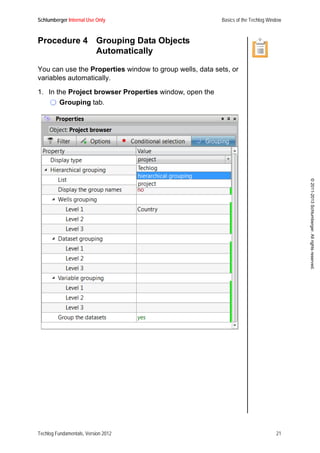
reference such as time data.
Techlog manages data with 16 significant figures (double
precision data). This allows it to support date-time data. A variable
is considered date-time data when its family is Date Time.
You can create a data set with a reference in date-time by
following a simple workflow within the Project browser or the
Data editor. You also can import and save date-time data in a
Techlog project. All data processing tools (such as resampling,
combining or resizing data sets, and time shift) work with date-
time data.
In Techlog, a Date-time reference is stored as a number of milli-
seconds since January 1st 1900. For example, December 21st
1983, 21:26:11 is stored in the database as 2649878771116.07
ms.
You can load these date-time formats into Techlog:
• yyyy-MM-dd hh:mm:ss.zzz
• yyyy-MM-dd hh:mm:ss
• yyyy/MM/dd-hh:mm:ss
• yyyy/MM/ddThh:mm:ss
• dd/MM/yyyy-hh:mm:ss
• dd/MM/yyyy hh:mm:ss
• hh:mm:ss dd-MMM-yy
• hh:mm:ss/dd-MMM-yyyy
• hh:mm:ss.zzz
• hh:mm:ss
Data Import and Export Schlumberger Internal Use Only
82 Techlog Fundamentals, Version 2012
©2011-2013Schlumberger.Allrightsreserved.
To upload other formats, go to the Import buffer Properties
window where you can add a specific date-time format that is not
handled by Techlog by default.
You will need to combine these expressions to import specific
date-time files.
Table 1: Expressions to Create Date-time Formats
Expression Output
h The hour without a leading zero (0 to 23 or 1 to 12 if
AM/PM display)
hh The hour with a leading zero (00 to 23 or 01 to 12 if
AM/PM display)
H The hour without a leading zero (0 to 23, even with
AM/PM display)
HH The hour with a leading zero (00 to 23, even with AM/
PM display)
m The minute without a leading zero (0 to 59)
mm The minute with a leading zero (00 to 59)
s The second without a leading zero (0 to 59)
ss The second with a leading zero (00 to 59)
z The millisecond without a leading zero (0 to 999)
zzz The millisecond with a leading zero (000 to 999)
AP or A Use AM/PM display. AP will be replaced by either AM
or PM
ap or a Use am/pm display. ap will be replaced by either am
or pm
Schlumberger Internal Use Only Data Import and Export
Techlog Fundamentals, Version 2012 83
©2011-2013Schlumberger.Allrightsreserved.
Exercise 1 Uploading Time Data
In this exercise, you upload a file containing time data. The
reference for this file is in milliseconds, a format that is recognized
by Techlog automatically.
1. Drag the file 1_Well9_DateTime.las XML from the
Techlog_2012Exercises01 Import Exercise05 Time data
folder into the display area.
2. Import the data into the Project browser.
3. Clear the content of the import buffer.
Data Import and Export Schlumberger Internal Use Only
84 Techlog Fundamentals, Version 2012
©2011-2013Schlumberger.Allrightsreserved.
4. Close the import buffer.
The DateTime data set is added to the Project browser.
Notice the reference, which is TIME with Date Time as the
family and ms as the unit.
Exercise 2 Uploading Time Data with Time
Reference
In this exercise, you upload a second file containing time data as a
reference. If you drag this file into Techlog, the file will be
uploaded as any ASCII file. However, in the Project browser, you
can see that the time reference has no family. It will not load
correctly.
Furthermore, in the Project browser, the reference appears to
have no family and no unit. This indicates that the time format has
not been recognized by Techlog.
Schlumberger Internal Use Only Data Import and Export
Techlog Fundamentals, Version 2012 85
©2011-2013Schlumberger.Allrightsreserved.
1. Open the file Techlog_2012Exercises01 Import
Exercise05 Time data2_Well9_TimeData.asc in a text
editor.
The first column is your time data. The format is not in the list
of recognized formats. You will need to enter this specific
format in the Import buffer Properties window.
2. Select Home > Import to open the import buffer.
3. In the Import buffer Properties window, enter the time date
format using the convention presented in Table 1 and shown
in this figure.
4. Drag the file 2_Well9_TimeData.asc into the import buffer.
5. In the Data import wizard, change the well name to Well9.
6. Click Load to the import buffer.
The import buffer displays the contents of the LAS file.
7. Import the data into the Project browser.
8. Clear the content of the import buffer.
Data Import and Export Schlumberger Internal Use Only
86 Techlog Fundamentals, Version 2012
©2011-2013Schlumberger.Allrightsreserved.
9. Close the import buffer.
The TimeDate data set is added to the Project browser.
Notice that the reference time is assigned to the Date Time
family with ms as a unit.
Lesson 9 Well Identification Solver:
Data Import under the Same
Name
The well identification solver is a useful tool when the names of
two wells are not identical due to a typing error, naming
conventions, or other actions that lead to a name mismatch.
Exercise 1 Importing Data with the Same
Name
In this exercise, you import data from one well to another well.
This is a useful process when the names of two wells are not
identical due to a typing error or other naming conventions.
You can import data under the same well by renaming each well
or you can use the Well Identification Solver.
1. Import the file Techlog_2012Exercises01 Import
Exercise04 Well identification solverRUN1.las into the
Project browser.
2. Remove the RUN1 data from the import buffer.
3. Clear the contents of the import buffer.
4. Drag RUN2.las, RUN3.las, and RUN4.las into the import
buffer. Notice that the name of the well is slightly different for
each file.
Schlumberger Internal Use Only Data Import and Export
Techlog Fundamentals, Version 2012 87
©2011-2013Schlumberger.Allrightsreserved.
5. In the import buffer, click on the word Datasets and view the
import properties. The second tab, Well Identification
Solver, is active by default.
6. Verify that the Enabled property is set to yes.
On the left side there is a list of all wells in the import buffer;
on the right side there is a list of the wells that already exist in
the project.
7. Change the name of the well to Well20 to link the wells in the
buffer to the wells in the project.
8. Return to the import buffer and import the data.
9. Clear the content of the import buffer.
10. Close the import buffer.
Data Import and Export Schlumberger Internal Use Only
88 Techlog Fundamentals, Version 2012
©2011-2013Schlumberger.Allrightsreserved.
Lesson 10 Data Export
Techlog export features allow you to export data to standard
formats, or connect to an external database.
Procedure 1 Exporting Data
In this procedure, you export objects from the Project browser
1. Click Project > Export to open the export buffer.
2. From the drop-down list, select the format in which you wish
to export the data.
3. In the Project browser, select the objects that you want to
export and click .
You can export wells with zone and depth limitations. This
feature is available only with LAS 2.0 and 3.0 and TechCSV
formats. You can set the limits on the Limits tab in the
Properties window of the export buffer as shown in the
figure.
Schlumberger Internal Use Only Data Import and Export
Techlog Fundamentals, Version 2012 89
©2011-2013Schlumberger.Allrightsreserved.
In the Properties window, you also can select the default null
values and create one or more .dlis files when exporting data
from several wells.
4. Click Save and browse for an export folder.
The data will be exported in the file format that you select.
5. Click Delete to clear the content of the export buffer.
6. Click Close to close the export buffer.
Data Import and Export Schlumberger Internal Use Only
90 Techlog Fundamentals, Version 2012
©2011-2013Schlumberger.Allrightsreserved.
Exercise 1 Exporting Data
In this exercise, you export the Caliper (CAL), Gamma ray
(GAMM), density (DENS), Neutron porosity (NEUT), and
Compressional slowness (SONI) data from the DATAFULL data
set for the wells 1, 2, 3, 4, and 9 that you loaded into your project.
However, you will export only ZoneD data.
1. Create a filter on the DATAFULL data set.
2. Select the CALI, DENS, GAMM, NEUT, and SONI variables
and create a conditional selection.
3. Create a filter.
4. Select Home > Export to open the export buffer.
5. You will export this data with an LAS 2.0 format.
Select Las 2.0 (*.las) from the drop-down menu in the export
buffer.
Schlumberger Internal Use Only Data Import and Export
Techlog Fundamentals, Version 2012 91
©2011-2013Schlumberger.Allrightsreserved.
6. Select all the data from the Project browser and click . All
of the data is now in the Export buffer window.
7. Open the Properties window for the export buffer.
8. Export data from the Stratigraphic interval D only.
a. Open the Limits tab.
b. For the Limitation parameter, select per zones.
c. For the Zonation parameter, select STRATIGRAPHY.
d. For the Top zone parameter, select ZoneD.
TIP: For the Limitation parameter, you also can select to
export only a selected interval. To do this, enter the Top
and Bottom for the interval you want to export.
9. Add a property so that data is exported from ZoneD only.
a. Select DATAFULL from Well1.
b. Open the Properties window and right-click anywhere in
the Properties tab.
Data Import and Export Schlumberger Internal Use Only
92 Techlog Fundamentals, Version 2012
©2011-2013Schlumberger.Allrightsreserved.
c. Select Add a property.
d. In the Add a property window, enter these values to
define the property and click OK:
• Name: Interval Exported
• Value: ZoneD
• Unit: leave empty
• Description: Export was restricted to ZoneD.
TIP: You can add a property to any well, data set, or variable
from the Project browser by applying the same
method in the Properties window.
Schlumberger Internal Use Only Data Import and Export
Techlog Fundamentals, Version 2012 93
©2011-2013Schlumberger.Allrightsreserved.
The new property now can be seen in the Properties
window. The modification has been made only for Well1.
10. Click Save .
11. Choose to export one file per data set using the automatic file
name WellName_DatasetName [LAS Certified].
12. Save the files on your desktop.
Techlog creates five files (one for each well).
13. Open the Well1_DATAFULL.las file and note the parameter
Interval Exported.
Data Import and Export Schlumberger Internal Use Only
94 Techlog Fundamentals, Version 2012
©2011-2013Schlumberger.Allrightsreserved.
Schlumberger Internal Use Only Data Import and Export
Techlog Fundamentals, Version 2012 95
©2011-2013Schlumberger.Allrightsreserved.
Review Questions
• How can you load data from an Excel spreadsheet?
• Where can you find the import properties?
• How can you obtain header information while loading a .dlis
file?
• What does it mean when a variable appears in red?
• Can you export only a selected interval?
Summary
In this module, you were introduced to the Well Identification
Solver and learned about:
• importing
• data files (.dlis, .las)
• spreadsheet files (csv, txt)
• image files
• XML Techlog files.
• exporting data from Techlog.
Data Import and Export Schlumberger Internal Use Only
96 Techlog Fundamentals, Version 2012
©2011-2013Schlumberger.Allrightsreserved.
NOTES
Schlumberger Internal Use Only Variable Management
Techlog Fundamentals, Version 2012 97
©2011-2013Schlumberger.Allrightsreserved.
Module 3 Variable Management
Variables are series of data (alphanumeric, scalar curves, or
vector arrays) arranged according to a chosen index or reference.
Upon import, each variable is assigned to a family using the
Family assignment rules tool. Each family has its own display
properties, regardless of the variable name.
For example, any curve assigned to the Bulk Density family
appears in a linear scale, using a red color between the limits of
1.95 – 2.95 g/cm3. If the curve has other units compatible with the
family's unit, an on-the-fly conversion is done and the display
respects the same limits. In this instance, the limits are between
1,950-2,950 Kg/M3.
Alias is a generic name for variables, but with an order of priority
that you can define.
Learning Objectives
After completing this module, you will know how to:
• edit the Families database
• import and export families
• use the Family assignment rules tool
• work with the Alias system.
Variable Management Schlumberger Internal Use Only
98 Techlog Fundamentals, Version 2012
©2011-2013Schlumberger.Allrightsreserved.
Lesson 1 Families Management
The family controls the display settings of all variables, regardless
of the variable name.
Families Database
To access the tools that allow you to change families in the
database, select the Data > Techdata > Families > Families
database (Figure 25).
Figure 25 Menu to access the Families database
Figure 26 shows the Families database window that lists all
families in the database and the display settings for each family.
Figure 26 Families database window
Schlumberger Internal Use Only Variable Management
Techlog Fundamentals, Version 2012 99
©2011-2013Schlumberger.Allrightsreserved.
You can see two tabs in the window: Families and Edit Families.
The Families tab displays the settings (for example, unit, min-
max, scale, and line color) corresponding to each family. The Edit
Families tab allows you to change these settings at three levels:
User, Project, or Company.
Procedure 1 Editing Family Settings
1. In the Techlog main window, select Data > Techdata >
Families > Families database. The Families database
window opens.
Icons in the upper left portion of this window provide these
functions.
2. Choose the family to be edited.
Add a family
Delete a family
Save your changes
Update the display
Variable Management Schlumberger Internal Use Only
100 Techlog Fundamentals, Version 2012
©2011-2013Schlumberger.Allrightsreserved.
3. Right-click and choose the level at which you want to edit the
family, User, Project, or Company. The Edit families tab is
activated.
Schlumberger Internal Use Only Variable Management
Techlog Fundamentals, Version 2012 101
©2011-2013Schlumberger.Allrightsreserved.
4. On the Edit families tab, select the family to edit and change
the settings in the Properties window. The display settings
available to modify for the family are shown in the figure.
NOTE: Permeability is assigned these attributes
automatically: a logarithmic scale, display color, line
type and thickness, wrap, and automatic palette
filling.
5. Click to save the changes.
Variable Management Schlumberger Internal Use Only
102 Techlog Fundamentals, Version 2012
©2011-2013Schlumberger.Allrightsreserved.
Export and Import Families
You can export the Families list to an Excel spreadsheet in *.csv
format, modify and add relevant information, then import the
revised list. Upon import, you are asked to define in which level
the revised list is to be saved: User, Project or Company
(Figure 27).
Figure 27 Exporting the Families list in csv (Excel) format
Exercise 1 Editing Family Properties
In this exercise, you edit the properties of the Gamma Ray family.
1. Select Data > Techdata > Families > Families database to
open the Families database.
2. In the Families database window, scroll through the
Families list and locate the Gamma Ray family.
TIP: Press a letter on the keyboard that matches the first
letter of the name you wish to locate. In this instance,
press G to go directly to this family.
3. Select the family Gamma Ray / Gamma Ray and view its
display options in the Properties window.
The displayed properties have these values:
• LogView color: Black
• Limits: 0 -150
• Baseline: 75 gAPI
Schlumberger Internal Use Only Variable Management
Techlog Fundamentals, Version 2012 103
©2011-2013Schlumberger.Allrightsreserved.
• Baseline fill: Yellow/Brown.
4. Edit the display by right-clicking on the family and selecting
Edit the family > Project. The Edit Families tab opens.
5. Change these settings in the Properties window:
• LogView color: Green
• Area fill type: None
6. Click to save and validate these modifications.
Notice that the modified items are now saved in the Project
level.
Variable Management Schlumberger Internal Use Only
104 Techlog Fundamentals, Version 2012
©2011-2013Schlumberger.Allrightsreserved.
7. Drag the variable into a LogView layout and view the revised
display.
8. Repeat the process for the same family, but this time, modify
the display properties at the User level by selecting Edit the
family > User and save your changes.
9. In the Edit families window, click on one of the levels: User,
Project, Company, or Techlog.
10. View the Properties window. The priority order for the
display settings is User first, then Project, then Company,
and then Techlog, as shown in the figure.
Rules Activation and Deactivation
In the Edit families window, you can activate or deactivate the
rules for any level. When you deactivate a level, you do not use
the settings at that level. Instead, you use the settings for the next
level down. Deactivating a specific level is useful when you need
to generate a report or other specific output.
Schlumberger Internal Use Only Variable Management
Techlog Fundamentals, Version 2012 105
©2011-2013Schlumberger.Allrightsreserved.
For example, Gamma ray displayed with Techlog settings is
always displayed with a baseline value of 75 for the area fill. If you
have no need for the settings, you can remove them from a
baseline in the User level.
Because you can use your own display settings, identical data can
be displayed in different ways. To maintain continuity, use project
settings instead of your personal settings so that all plots in the
project are harmonized. The same logic follows for the Company
level.
Exercise 2 Creating a New Family
You can create a new family at any level.
1. In the Edit families tab, select one level: User, Project,
Company, or Techlog.
2. Click Add .
3. In the Family build window, select the Main family, Family,
and Level in which to save the new family and click OK.
TIP: Alternatively, you can add a new family to the
predefined list of Main families.
4. Go to the Properties window and define the display settings
for the new family.
5. Click to validate and save the changes.
6. Assign a curve to the new family.
Right-click on a curve in the Project browser and assign it to
the new family using the contextual menu that appears.
7. Display the curve in a layout and verify that the settings are
correct.
Variable Management Schlumberger Internal Use Only
106 Techlog Fundamentals, Version 2012
©2011-2013Schlumberger.Allrightsreserved.
Exercise 3 Using the Family Assignment
Rules Tool
Upon import, variables are assigned to specific families
automatically. This is done on the fly according to the variable
name and unit by means of the Family Assignment Rules tool.
In the data set DATAFULL, some curves are not assigned to a
family. They appear in red. This means that the curve name did
not match the existing rules.
In this exercise, you use the Family Assignment Rules tool to
assign the variables C_PHI (Core Porosity) and CKK (Core
Permeability) to the correct families.
1. Select Data > Techdata > Families > Family assignment
rules.
This opens the list of all the rules that were applied.
2. Use the Quick Search tool to focus on a family of interest. In
this instance, view all the rules in the Core Porosity family.
Notice that the variable C_PHI was not assigned
automatically to this family.
3. Create a new rule by choosing the list level in which the new
rule will be located in the drop-down menu. The default level
is All. Change the level to Project.
Notice that all of the rules disappear, because they all belong
to the Techlog level. Also, the icons that were grayed out are
now visible.
Schlumberger Internal Use Only Variable Management
Techlog Fundamentals, Version 2012 107
©2011-2013Schlumberger.Allrightsreserved.
4. Click Add to create a new rule.
5. In the Variable name and unit dialog box, define these
values:
• Main family: Core Analysis Routine
• Family: Core Porosity
• Variable: C_PHI.
• Unit: If you leave the unit as an asterisk (*), the unit is a wild
card. This means that the rule will be applied on only the
variable name and not its unit.
6. Click OK.
7. Before applying the rule, test which variables will be affected
as a result of this new assignment rule.
a. Select the Test only option and click Apply to all
variables.
b. View the list of variables in the Output dock window.
8. When you are satisfied with the results, clear the Test only
option and apply the rule.
Notice that the color of the variable changes.
9. Select the variable C_PHI in the Project browser. The
properties of this variable show that it is assigned to the Core
Porosity family.
Variable Management Schlumberger Internal Use Only
108 Techlog Fundamentals, Version 2012
©2011-2013Schlumberger.Allrightsreserved.
10. Take another look at the list of all of the rules that assign a
curve. A new rule appears that has priority above all other
rules.
NOTE: It is possible for two or more rules to contradict each
other. Should this be the case, the rule highest in the
list will be applied first.
11. Repeat Step 3 through Step 10 for the variable named CKK
and assign it to:
• Main family: Core Analysis Routine
• Family: Core Permeability.
The family assignment rules list also can be exported to
Excel, modified, and imported.
Schlumberger Internal Use Only Variable Management
Techlog Fundamentals, Version 2012 109
©2011-2013Schlumberger.Allrightsreserved.
Lesson 2 Aliases Management
Aliases are generic names of variables, with an order of priority
that you can define. The priority is defined according to the level of
the alias (User, Project, Company, or Techlog) as well as within
each level.
Aliases Database
To access the Aliases database (Figure 28), select Data >
Techdata > Aliases > Alias database.
Figure 28 Accessing the Alias database
This window displays a list of the alias databases in the Techlog
folder (Figure 29). From the Aliases database you can take these
actions.
Validate and save modifications
Add an alias from the selected level: User, Project, or
Company
Delete an alias from the selected level: User, Project, or
Company
Increase or decrease the priority of a variable
Update the display
Variable Management Schlumberger Internal Use Only
110 Techlog Fundamentals, Version 2012
©2011-2013Schlumberger.Allrightsreserved.
Figure 29 Alias list under the Techlog folder
Exercise 1 Adding a New alias
In this exercise, you add a new alias in the Alias database.
1. Select Data > Techdata > Aliases > Alias database.
2. In the Alias database window, click Add .
3. In the Alias creation window, enter these values and click
OK.
a. Name the alias Best_GR.
b. Assign Gamma Ray to the Main family and the Family.
c. Define the alias to be at the Project level.
You now have a new alias.
Schlumberger Internal Use Only Variable Management
Techlog Fundamentals, Version 2012 111
©2011-2013Schlumberger.Allrightsreserved.
4. Assign the variable names that will be used with this alias.
a. In the Aliases database window, choose the Alias name
BEST_GR and click Add .
b. Add these names to the list:
• GR*
• GR_0*
• GR_R*
• GAM*
Variable Management Schlumberger Internal Use Only
112 Techlog Fundamentals, Version 2012
©2011-2013Schlumberger.Allrightsreserved.
5. Arrange the list in your preferred order of appearance, which
also will be the order of priority.
6. Click to validate your modifications.
7. Open a multi-well histogram and use the alias BEST_GR by
toggling ON Alias .
8. Select Wells 1 and 9.
9. Create a filter and then a conditional selection for the
DATAFULL data sets, then a second filter on these data sets.
Schlumberger Internal Use Only Variable Management
Techlog Fundamentals, Version 2012 113
©2011-2013Schlumberger.Allrightsreserved.
10. Drag the data set into the Wells pane of the histogram
window.
Notice that the list of available variables corresponds to the
priority list you defined in the Alias database.
11. Open a second multi-well histogram, but, this time, choose
the Gamma Ray family and compare the results.
Variable Management Schlumberger Internal Use Only
114 Techlog Fundamentals, Version 2012
©2011-2013Schlumberger.Allrightsreserved.
The first figure shows a multi-well histogram using the
BEST_GR alias; the second figure shows a multi-well
histogram using the Gamma Ray family.
Schlumberger Internal Use Only Variable Management
Techlog Fundamentals, Version 2012 115
©2011-2013Schlumberger.Allrightsreserved.
Exercise 2 Using the Alias Inventory
The Aliases inventory window allows you to list all of the aliases
in the project. If you need to create a data set (for example, LQC)
that will contain the same set of curves for each selected well, you
can do it automatically using the Alias inventory window.
1. Select Data > Techdata > Aliases > Alias inventory.
The Quick data mining window opens and displays the
Alias inventory table.
2. Click .
The Aliases selection window opens. All of the aliases that
exist in the Project browser are listed in this window.
Variable Management Schlumberger Internal Use Only
116 Techlog Fundamentals, Version 2012
©2011-2013Schlumberger.Allrightsreserved.
3. Select the aliases you want to display on the table and click
OK. The selected aliases are now displayed in the Quick
data mining table.
Using this dialog box, you can create Log Quality Control
(LQC) data sets.
Exercise 3 Creating LQC Data sets
In this exercise, you create a Log Quality Control (LQC) data set
using the Alias Inventory tool.
1. Select Data > Techdata > Aliases > Alias inventory. This
opens the tool and lists all the aliases that exist in the
Project browser.
2. Click to include these aliases in the new data set and click
OK.
• DEN
• GR
• DT
• NEU
NOTE: This step reduces the list to these four aliases only.
3. For each well, choose the curves to be included.
Schlumberger Internal Use Only Variable Management
Techlog Fundamentals, Version 2012 117
©2011-2013Schlumberger.Allrightsreserved.
4. In the Properties window, under Aliases inventory
selection, verify that the property Keep the original variable
name in the harmonized data set is toggled to yes.
5. In the Aliases inventory, click the Build harmonized dataset
icon.
Variable Management Schlumberger Internal Use Only
118 Techlog Fundamentals, Version 2012
©2011-2013Schlumberger.Allrightsreserved.
6. In the Harmonized dataset creation window, enter the
information shown in the figure and click OK to create the
harmonized data set.
For each well, a new data set is created in the Project
browser using the selected curves.
Review Questions
• What is the difference between families and aliases?
• What is the purpose of the Family assignment rules tool?
• Can you create new families?
• What is the use of having different levels of family
assignment rules (user, project, or company)?
Schlumberger Internal Use Only Variable Management
Techlog Fundamentals, Version 2012 119
©2011-2013Schlumberger.Allrightsreserved.
Summary
In this module, you learned about:
• editing the Families database
• importing and exporting families
• using the Family assignment rules tool
• working with aliases.
Variable Management Schlumberger Internal Use Only
120 Techlog Fundamentals, Version 2012
©2011-2013Schlumberger.Allrightsreserved.
NOTES
Schlumberger Internal Use Only References Management
Techlog Fundamentals, Version 2012 121
©2011-2013Schlumberger.Allrightsreserved.
Module 4 References Management
The Reference dataset tool creates correspondences between
all the references of your well such as Measured Depth, Core
Depth, True Vertical Depth, and Two-way time. The reference
data set is mandatory to:
• easily switch between references in a LogView (from MD to
TVDSS for example)
• display 2D trajectory or 3D view
• use modules such as FPress, SHM, and Geophy in which a
relationship between the various references available is
mandatory.
Figure 30 Reference dataset tool
Learning Objectives
After completing this module, you will know how to use:
• the deviation survey data to calculate TVD, TVDSS,
TVDBML, X and Y OFFSETs
• the Reference Dataset tool to create an Index data set.
References Management Schlumberger Internal Use Only
122 Techlog Fundamentals, Version 2012
©2011-2013Schlumberger.Allrightsreserved.
Lesson 1 Index Data Set
Within a single well, data sets could have different references,
such as Measured Depth, True Vertical Depth, and Two-way time.
The Index data set creates a correspondence table using the
reference of each data set to link all data sets within a well
together and to plot all data irrespective of their sampling system.
Without the Index, data cannot be displayed in 3D plots or in such
modules as Formation Pressure and Pore Pressure Prediction.
Figure 31 illustrates the variety of depth measurements for both
onshore and offshore wells, including these important
measurements:
• KB: Kelly Bushing
• TVD: True Vertical Depth
• TVDBML: True Vertical Depth Below Mudline
• MD: Measured Depth (Length of wellbore along path)
• TVDSS: True Vertical Depth Sub-Sea measured from the
KB.
Figure 31 Well schematics with different depth measurements
TVDBML TVDSS
Water Depth
Ground Level
TVD
KB
KB
TVD
TVDBML
Elevation = Elevation
Onshore Offshore
MD
Schlumberger Internal Use Only References Management
Techlog Fundamentals, Version 2012 123
©2011-2013Schlumberger.Allrightsreserved.
Lesson 2 TVD Computation
The first step in creating the Index data set is to compute the true
vertical depth (TVD) from the deviation survey. This application is
called TVD computation and uses deviation survey data to
calculate TVD, the offset of the well, and several additional
references.
The index reference data set is built from the deepest to
shallowest values from all of the measured depth curves in all of
the data sets. The lowest sampling rate from all of the data sets is
used to build the MD curve for the index set (if a curve is set to
Ignore, it is ignored).
Procedure 1 Computing Depth Measurements
This procedure shows you how to compute the TVD, TVDSS, and
other measurements from a survey data set.
1. Select Data > Techdata > Reference and coordinates >
TVD computation.
2. In the Data source selection window, choose the data
source to be used for Measured depth, Hole Deviation, and
Hole Azimuth.
NOTE: In the Input(s) (family, alias or variable) selection
window, a white cell in the Data type assignment
column indicates that this input is mandatory; a gray
cell indicates that the input is optional.
3. Click Create.
4. Drag the survey data sets into the Datasets side box.
5. Input variables will be selected according to the data source
you chose. If needed, adjust the variables selected.
6. In the table, adjust the Elevation and Water Depth
parameters. Leave the Method set to minimum curvature
and click Apply.
References Management Schlumberger Internal Use Only
124 Techlog Fundamentals, Version 2012
©2011-2013Schlumberger.Allrightsreserved.
7. Click Yes to confirm that you want to create an Index data
set.
For each well used as input, Techlog creates a data set
named TL_Wellpath that contains the TVD, TVDSS, Dog Leg
Severity, and an Index data set.
Exercise 1 Running a TVD Computation and
Creating the Index Data Set
In this exercise, you compute the TVD from deviation survey data
for the Wells 1, 2, 3, 4, and 9. You also will create the Index data
set.
1. Select Data > Techdata > Reference and coordinates >
TVD computation.
2. In the Data type assignment window, choose which
mnemonics that you wish to use for Measured Depth, Hole
Deviation, and Hole Azimuth inputs (mandatory inputs).
3. Choose the appropriate families (Measured Depth, Hole
Deviation, and Hole Azimuth), as indicated in the figure and
click Create. An empty True Vertical Depth window opens.
4. (Optional) If the well is vertical, select the Vertical well-
without survey option. Measured depth is the only mandatory
input for this option.
5. Create a Conditional selection to select all the surveys from
the Project browser (well surveys are present only for Wells
1, 2, 3, 4, and 9).
Schlumberger Internal Use Only References Management
Techlog Fundamentals, Version 2012 125
©2011-2013Schlumberger.Allrightsreserved.
6. Drag the deviation survey data set from the Project browser
into the left side of the True Vertical Depth window on the
Wells tab.
A line for each well appears along with additional
parameters. The parameters are read directly from the well
Properties window.
In this example, Well1 appears to have an elevation of 90
feet. Elevation, water depth, and other parameters are
populated automatically if these parameters are present in
the well properties.
TIP: You can check these parameters in the well Properties
window.
7. Because the five wells are offshore, enter 1,000 ft in the
Water Depth column and click the right mouse button to fill up
or down.
8. Scroll across to the Method field on the right side of this
parameters line.
9. Use the drop-down options to change the method used to
calculate the TVD curve and sampling rate of the new data
set.
10. Click Apply.
A confirmation dialog box appears giving you the option to
create an Index data set automatically. Techlog can create
an Index data set automatically if one does not exist in your
well.
References Management Schlumberger Internal Use Only
126 Techlog Fundamentals, Version 2012
©2011-2013Schlumberger.Allrightsreserved.
11. In the confirmation dialog box, click No.
New data sets named TL_WellPath and Index are created
under each well in the Project browser.
Each TL_WellPath data set contains
• MD: Measure Depth
• BOREHOLE_AZIMUTH
• BOREHOLE_DEVIATION
• DL: Dog Leg Severity
• THL: True Horizontal Length
• TVD: True Vertical Depth
• TVDBML: True Vertical Depth Below Mudline, measured
from the earth's surface
• TVDSS: True Vertical Depth Sub-Sea measured from the
KB
• XOFFSET: Offset in the X direction from the well position,
measured from sea level
• YOFFSET: Offset in the Y direction from the well position.
TIP: You can modify the names in the properties of the
method.
Schlumberger Internal Use Only References Management
Techlog Fundamentals, Version 2012 127
©2011-2013Schlumberger.Allrightsreserved.
12. Check your results using the Data editor by dragging the
TL_WellPath data set into a Data editor window.
References Management Schlumberger Internal Use Only
128 Techlog Fundamentals, Version 2012
©2011-2013Schlumberger.Allrightsreserved.
Lesson 3 Index Data Set Creation
The Index data set creates a correspondence table using the
reference depth of each data set. This step is necessary to link all
data sets within a well. Without an Index data set, you cannot
display items in 3D, display 2D plots according to various
references, or work with specific modules.
As you have seen in Lesson 2, Exercise 1, you have the option to
automatically create the Index data set after your TVD
computation.
To work with all of the Techlog modules or to use simple tools
such as LogView efficiently, you must have an Index data set.
This Index data set (also called a reference data set) is a
correspondence table between all of the references of your well,
such as Measured Depth, Core Depth, TVD, and Two-way time.
The automatic Index data set created during the TVD computation
does not include references like Core Depth or Two-way time.
TIP: Why do I need an Index data set if I already have a
WellPath data set?
The Index data set is a correspondence table between all
the references of the well. This includes TVD, TVDSS, and
other information in the WellPath data set, in addition to
non-depth related references, such as Two-way time
(TWT) and drilling date time.
NOTE: To create a correspondence between two references,
both references must be present in the same set. This
also means that every time you upload a new data set in
a well, you will need to re-create the Index data set.
Schlumberger Internal Use Only References Management
Techlog Fundamentals, Version 2012 129
©2011-2013Schlumberger.Allrightsreserved.
Exercise 1 Creating an Index Data Set
In this exercise, you create the Index data set manually.
1. Select Data > Techdata > Reference and coordinates >
Create Index set….
2. Drag one or more data sets into the Datasets navigation
pane. For this exercise, use Well1, Well2, Well3, Well4, and
Well9.
NOTE: All depth measurements are displayed in the
corresponding column.
3. For each data set, choose the curves to use in the Index data
set (MD and DEPTH in this case) and click Apply.
References Management Schlumberger Internal Use Only
130 Techlog Fundamentals, Version 2012
©2011-2013Schlumberger.Allrightsreserved.
A new data set named Index is generated from this
operation. It comprises all the depth variables from the data
sets present in all wells used in the process.
4. The Index correspondence table can be displayed and
checked using the Data editor. Check your results by
dragging the Index data set into the Data editor window.
Schlumberger Internal Use Only References Management
Techlog Fundamentals, Version 2012 131
©2011-2013Schlumberger.Allrightsreserved.
Review Questions
• What are the mandatory inputs to calculate TVD?
• What is the tie-in point?
• In which cases will you need an Index data set?
Summary
In this module, you learned about using:
• deviation survey data to calculate TVD
• the Reference Dataset tool to create an Index data set.
References Management Schlumberger Internal Use Only
132 Techlog Fundamentals, Version 2012
©2011-2013Schlumberger.Allrightsreserved.
NOTES
Schlumberger Internal Use Only LogView
Techlog Fundamentals, Version 2012 133
©2011-2013Schlumberger.Allrightsreserved.
Module 5 LogView
LogView is the Techlog tool that allows you to display any
variable present in the Project browser. The actions available in
LogView are classified by the type. The actions available to you in
the dynamic toolbar depend on the object you select. The fixed
toolbar and mouse mode always provide you with the same
actions.
Learning Objectives
After completing this module, you will know how to:
• configure the appearance of LogView
• create plots in a track
• save and apply a layout.
Lesson 1 LogView Interface
LogView can display any type of data including log, zone, core
image, seismic, array data, and core measurements.
Figure 32 LogView under the Plot tab
To display data, drag one or more variables from the Project
browser into a LogView window (Figure 33).
LogView Schlumberger Internal Use Only
134 Techlog Fundamentals, Version 2012
©2011-2013Schlumberger.Allrightsreserved.
The variables for each family display according to the parameters
set in the Families database. These settings can be viewed in the
Properties window.
Figure 33 Drag variables from the Project browser into the
LogView window
Schlumberger Internal Use Only LogView
Techlog Fundamentals, Version 2012 135
©2011-2013Schlumberger.Allrightsreserved.
TIP: If you do not see the menu bar in your log header, click
under the Help icon on the top right corner of the log.
Figure 34 Menu bars in LogView
Figure 35 Dynamic toolbar common functionalities
LogView Schlumberger Internal Use Only
136 Techlog Fundamentals, Version 2012
©2011-2013Schlumberger.Allrightsreserved.
In addition to changing the curve color and thickness, tabs in the
Properties window (select an object and press F4) allow you to
change properties such as the scale of the plot, the datum, and
the reference depth.
NOTE: Keep in mind that every object has its own properties
that you can modify from the Properties window
(Figure 36).
Figure 36 Examples of Properties windows for a few LogView
objects (Multi-well layout, Ordinary track, Variable,
Bi-color area fill)
The zoom and scale settings are managed with the mouse:
• To change the layout scale, hold the Ctrl key and move the
scroll wheel.
• To zoom in and out, move the mouse up or down while
holding down the scroll wheel. If your mouse does not have a
scroll wheel, hold down the Alt key and the left mouse button
while moving the mouse up or down.
• To change track zoom factor, select a track and press Ctrl +
Shift while moving the scroll wheel.
Schlumberger Internal Use Only LogView
Techlog Fundamentals, Version 2012 137
©2011-2013Schlumberger.Allrightsreserved.
To improve a layout, many options are available in the LogView
Properties window, the Variable Properties, and LogView
toolbars (refer to the user guide for more information).
Variable
management
Gives you access to variables from a data set
according to a family or alias.
Types:
• Variable management: Displays all
variables from the current well with the
exact variable name. The variable of the
equivalent data set with the same name in
the selected wells are searched (for
example, LQC for the template well and
LQC for the well where the template is
applied). In the wells, if the data set does
not exist or has a different name, all wells
are checked to find a variable with the
same name.
• Variable with wildcard management:
Searches for the variable with the same
name regardless of the data set in the
selected wells. You can define an
expression to enlarge the search (for
example, to allow a suffix on the variable).
Depending on the expression you enter,
all of the curves that match this expression
(for example, the expression NEUT* to
find NEUT_1) are displayed. The default
sorting is all of the curves from the exact
set first, then all other curves matching
this expression from outside this set.
• Family management: Displays the first
variable associated to the template family
in the new layout regardless of the data
set name. Use this level when there is
only one variable per family per well.
• Alias management: Displays the alias with
the higher level if you decide on a
hierarchy within the well. If not, the first
alias that corresponds to the template is
selected.
LogView Schlumberger Internal Use Only
138 Techlog Fundamentals, Version 2012
©2011-2013Schlumberger.Allrightsreserved.
Variable
appearance
Allows you to change the appearance of the
variables. Choose the variables (they then will
appear in red) and go to the Properties
window to adjust the parameters: horizontal
and vertical axes limits, variable position,
boundaries, curve color, line thickness, unit,
and connection type.
Repeated
variable
display
Displays the same variable in a track multiple
times, which is particularly useful to simulate
seismic traces with a repeated display of
synthetic logs.
Wrap display Displays the values of a variable not visible in a
track.
Text mode Displays text values of a variable in a track.
Multiple
variable
appearance
modification
Applies a modification to multiple variables at
the same time.
These properties can be modified
simultaneously: Color, Font, Type, Thickness,
Connection, Marker (type and size), Scale, and
Type of Limits (Mnemonic, User, and Variable).
Reverse
variable
boundaries
Inverts variable boundaries.
Variable
filling and
shading
Inserts a color filling between a variable and its
right or left limit; inserts shading between the
two curves.
Baseline Modifies track appearance.
Adjust the zoom factor, display or do not
display zones, modify the background color of
the track and its width, insert a track name in
the header, adjust the number of vertical lines,
select the color and thickness of vertical lines
and their scale (linear or logarithmic).
Schlumberger Internal Use Only LogView
Techlog Fundamentals, Version 2012 139
©2011-2013Schlumberger.Allrightsreserved.
Lesson 2 LogView Plots
In this lesson, you will build the LogView plot (Figure 37) using a
variety of tools available in Techlog.
This is a self-guided exercise, so only the first track will be
described to you in a step-by-step manner. For the others, you will
need to refer to the procedure for each track and then create the
information required in the track by working through the exercises.
You will begin by building a simple track. You then will learn about
the other tools in Techlog as you build and modify other tracks to
create a complex LogView plot.
As you build the full LogView plot, you will learn the details of how
to control the display of information in the LogView plot tracks,
including:
• displaying log data in a track
• checking and changing variables
• changing horizontal scales
• modifying the palette
• creating a new reference
Grid
increment
modification
As many as three grids can be displayed in a
track: the main reference grid, a secondary
grid, and a tertiary grid.
Each has a user-defined increment which
allows you to capture a greater or lesser
amount of detail from the variables displayed.
Save layout
and layout
properties
Saves a LogView layout and its properties and
retrieves it later. Saved layouts are stored in
the Project browser under Layouts.
Apply layout
and
properties to
other
datasets/
wells
Allows you to use a layout set up in LogView
for a particular well as a model for other wells.
The new wells will display the same variables,
all of which create a display using the same
settings as those of the original layout.
LogView Schlumberger Internal Use Only
140 Techlog Fundamentals, Version 2012
©2011-2013Schlumberger.Allrightsreserved.
• creating zones
• creating a data set for all the data in your LogView plot.
NOTE: You will apply this layout to other wells in a later
exercise, so you must build it accurately.
Figure 37 Example of a LogView plot that you will create
Track Data
The first step in creating your LogView plot is to add log data.
Exercise 1 helps you to add log data to Track1. You then can add
additional tracks and data to the plot.
Schlumberger Internal Use Only LogView
Techlog Fundamentals, Version 2012 141
©2011-2013Schlumberger.Allrightsreserved.
Procedure 1 Inserting a Track
In this procedure, you will learn how to add, move, and delete a
track.
1. Go to the Insert menu.
2. Select the type of track you want to add.
Depending on the type of data you want to display, you can
choose from Normal track, Reference track, Array creation
track, or Zonation track.
3. Hover the mouse over the right border of a track to resize it.
Alternatively, you can enter a fixed Track size value in the
track Properties window under the Track width option.
4. Move a track by selecting it and clicking the left or the right
arrows on your keyboard. When a track is selected, it
appears with a light red background color.
TIP: To move a variable, use the same principle: select a
variable and move it with the left or the right arrow of
your keyboard.
5. Delete a track by selecting the track and clicking Delete.
TIP: To delete a variable, select the variable and click
Delete.
LogView Schlumberger Internal Use Only
142 Techlog Fundamentals, Version 2012
©2011-2013Schlumberger.Allrightsreserved.
Exercise 1 Displaying Caliper Gamma Ray
Sonic Data in Track 1
In this exercise, you create Track 1 in your LogView.
1. Open LogView by selecting Plot > LogView.
2. Choose the DATAFULL data set for Well9 and create a filter
on it.
3. Choose the variable CALI from DATAFULL.
4. Drag CALI into the LogView window.
5. Hold down the Ctrl key and choose GAMM, SONI, and
BS_DK.
6. Drag them into the CALI track.
7. Zoom in and out by pushing on the scroll wheel and moving
the mouse.
8. Stretch and squeeze the LogView image by holding down
the Ctrl key, pushing on the scroll wheel, and moving the
mouse.
9. Select the SONI curve by clicking on it (you can select the
curve in the track or in the variable header). Notice that when
the curve is highlighted, it turns red with dashed lines.
10. Check the properties of the SONI curve in the Properties
window (F4).
11. Change the color of the variable.
a. On the Display options tab, click Color.
b. Select a dark purple.
12. In LogView, select the BS_DK and CALI curves.
Schlumberger Internal Use Only LogView
Techlog Fundamentals, Version 2012 143
©2011-2013Schlumberger.Allrightsreserved.
13. In the LogView menu, select Insert > Area fill… > Between
the variables or right-click and select Insert area fill
between the variables.
A bi-color area fill is inserted automatically between the two
selected variables.
14. In the variable header, click on color fill and modify the colors
in the Properties window.
a. Scroll down to Bi-color and change the color by clicking on
the Color box.
b. Select the correct colors to have the washout in blue and
the mudcake in brown.
15. In the Properties window, activate the Opacity option.
LogView Schlumberger Internal Use Only
144 Techlog Fundamentals, Version 2012
©2011-2013Schlumberger.Allrightsreserved.
16. Enter Mudcake/Washout in the Name property.
Your first track is ready.
17. Save the track as a Techlog template so you can use it in
another exercise.
a. Select the track.
Schlumberger Internal Use Only LogView
Techlog Fundamentals, Version 2012 145
©2011-2013Schlumberger.Allrightsreserved.
b. Right-click on the track and select Save the tracks as
a template….
LogView Schlumberger Internal Use Only
146 Techlog Fundamentals, Version 2012
©2011-2013Schlumberger.Allrightsreserved.
c. Select Project as the level, enter
CALIPER_GAMMARAY_SONIC as a name, and then click
OK.
Your track is now saved in your Project browser under the
Tracks template folder.
Variable Management
The template you are creating will be used for other wells.
However, some variables might have a different name.
Notice that none of the data sets contains a variable named LLD,
except for Well9. However, Wells1, 2, 3, and 4 have the variable
DEPR in DATAFULL, and both LLD and DEPR are assigned to
the Deep Resistivity family. This is where variable management
becomes important.
NOTE: If the variable you select is not found, its name appears
in the header as in the template, but the track is empty in
the layout. This is default mode.
Schlumberger Internal Use Only LogView
Techlog Fundamentals, Version 2012 147
©2011-2013Schlumberger.Allrightsreserved.
Procedure 2 Changing the Variable Management
Type in LogView
This procedure shows you how to select and apply the type of
variable management for a track. The options are variable
management, variable management with wildcard, family
management, and alias management.
1. Select the variable in the LogView layout.
2. In the Properties window (F4), select the Limits tab.
3. Go to the Variable management field to change the Type
property value.
Exercise 2 Checking the Variable Management
Type for Track 2
In preparation for the upcoming exercises, ensure that the
variables are set properly for Track 2 in the LogView plot.
1. In the LogView menu, select Insert > Normal track to
add Track 2 for resistivity data.
2. Select the LLD, LLS, and MEDR variables in the LogView
layout.
3. Change the Type property to family.
Variable Scales
All variables have scales that you can modify. The Horizontal axis
properties provide three types of limits for you to choose to control
the variable scale.
• Family: Limits are read from family settings. You cannot
customize them from the LogView plot.
• Variable: The limits are defined from the minimum and
maximum values of the variable.
• User: You can manually set the limits for the track scale.
LogView Schlumberger Internal Use Only
148 Techlog Fundamentals, Version 2012
©2011-2013Schlumberger.Allrightsreserved.
Procedure 3 Managing the Horizontal Scale
Family settings define default variable limits. This procedure
shows you how to change the horizontal scale for a variable.
1. Select the variable in the LogView layout.
2. In the Properties window, open the Limits tab.
3. Go to Horizontal axis properties and select Variable or User.
Exercise 3 Changing the Horizontal Scale for
Density and Porosity Log Data in
Track 3
In this exercise, you change the horizontal scale for density and
porosity in Track 3.
1. Add Track 3.
2. Add density and porosity log data to the track.
3. Modify the C_PHI scale to be compatible with the NEUT log.
4. Explore the PEF and DRHO variables Properties window to
create a partial track.
5. Insert a yellow area filling between NEUT and DENS.
6. Save the track as a template.
Palette Editor
You can use the Palettes dock window to:
• select a palette
• modify boundaries and color dispersions (the boundaries
represent the limit values)
• use the palette in layouts, crossplots (log-log, array-array,
3D), spectrum analyzers, histograms (variable vs. array and
3D Vue).
You can right-click on the drop-down menu to:
• Save : Save the current palette with the displayed
boundaries and cutoff.
• Create : Create a new palette.
Schlumberger Internal Use Only LogView
Techlog Fundamentals, Version 2012 149
©2011-2013Schlumberger.Allrightsreserved.
• Delete : Delete the current palette.
• Edit : Edit the current palette.
You also can open the Palette editor to edit a palette by double-
clicking on the yellow star from the drop-down menu.
The Palette tab displays the information from the Palettes dock
window including interval limit values, number of intervals, and
type of scale. The Palette editor allows you to customize the
palette by:
• defining boundaries and intervals
• adding patterns and text
• customizing colors, palette, or interval gradient.
LogView Schlumberger Internal Use Only
150 Techlog Fundamentals, Version 2012
©2011-2013Schlumberger.Allrightsreserved.
Procedure 4 Changing the Palette
When you drag the VSH_GR variable (or the FACIES04 variable)
into LogView, Techlog automatically assigns it the palette that is
defined by the Family variable. This procedure shows you how to
change this palette.
1. Ensure that the Palettes dock window is available in your
Techlog display.
2. Drag the VSH_GR variable into a LogView layout.
3. Select Object Area fill with baseline.
4. Go to the Palettes dock window.
5. From the Palette tab drop-down menu, select the palette you
want to use. Observe the results in the layout.
NOTE: Every predefined palette has a lower boundary value
and an upper predefined value.
6. Set the lower and upper limits to match your data range.
Observe the results in the layout.
Schlumberger Internal Use Only LogView
Techlog Fundamentals, Version 2012 151
©2011-2013Schlumberger.Allrightsreserved.
Exercise 4 Modifying the Palette for Tracks 4
and 5
In this exercise, you use the Palettes dock window to modify the
palette for Tracks 4 and 5 of the LogView plot.
1. Add Tracks 4 and 5 to the LogView layout.
2. Drag the VSH_GR variable into the LogView layout.
3. In the Palettes dock window, select the WBI256 palette.
4. Drag the FACIES04 variable into the LogView layout.
5. In the Palettes dock window, select the FACIES_5 palette.
Reference Tracks
You can add a track to your layout to provide a reference to your
Index data set.
Procedure 5 Displaying a New Reference Track
On the same layout, you can display both the measured depth
and the TVD, TVDSS, or any other reference previously
calculated and present in the Index data set.
1. Insert a new reference track by selecting Insert >
Reference track or right-clicking on the layout and selecting
Insert a reference track.
2. Go to the Properties window of this reference track and
select the reference you want to display in the track.
LogView Schlumberger Internal Use Only
152 Techlog Fundamentals, Version 2012
©2011-2013Schlumberger.Allrightsreserved.
Exercise 5 Creating a Reference Track for
Track 6
In this exercise, you display a new reference for Track 6.
1. Add a Reference Track as Track 6 in your layout.
2. For Track 6, display a reference track with True Vertical
Depth Sub Sea (TVDSS).
Schlumberger Internal Use Only LogView
Techlog Fundamentals, Version 2012 153
©2011-2013Schlumberger.Allrightsreserved.
Zones
You can designate zonations in your LogView layout.
By default, all the zones have the same color, but it is possible to
customize these colors.
Other options also are available by right-clicking on the Zonation
dock window. The Display command allows you to display the
zones with an icon or a check box.
Figure 38 Display icons command for zones
NOTE: Options are slightly different if you select one or several
zones before you right-click.
LogView Schlumberger Internal Use Only
154 Techlog Fundamentals, Version 2012
©2011-2013Schlumberger.Allrightsreserved.
Procedure 6 Creating a Zonation Track in a
Layout
The zonation track allows you to insert and use zonation in a
layout. In this exercise, you create a zonation track in a LogView
layout.
1. Add a Zonation track for Track 7 in your layout. Go to the
layout and select Insert > Zonation track or right-click in
the layout and select Insert a zonation track.
If you are working with a layout displaying several wells, you
can insert a zonation track for each well by selecting Insert >
Plus… > Zonation track for each well.
The layout displays the newly inserted zonation track.
2. From the Zonation dock window drop-down menu, select
the zonation set you want to display. The zonation track is
updated when you change selected zones or the zonation
set.
3. Define zone color:
a. Right-click in the Zonation dock window and select
Define zone color….
b. Select a color and click OK.
4. Define a pattern:
a. Right-click in the Zonation dock window and select
Define zone pattern….
b. In the Pattern selection window, pick the pattern for the
zone and click OK.
Schlumberger Internal Use Only LogView
Techlog Fundamentals, Version 2012 155
©2011-2013Schlumberger.Allrightsreserved.
c. After the pattern is defined, switch the display of the zone
to pattern mode by right-clicking in the Zonation dock
window and selecting Display the patterns.
5. Assign zone colors automatically by right-clicking in the
Zonation dock window and selecting Automatic zone
color definition.
Exercise 6 Creating a Zonation Track in a
Layout for Track 7
1. In this exercise, you create a zonation for Track 7.
2. Insert a zonation track and display STRATIGRAPHY
zonation in color mode.
3. Define the zone colors (Automatic).
4. Define zone patterns (this will be used in a later exercise).
5. Explore the Zonation track properties to reproduce the
display.
Data Set Created from LogView
After you create a layout in LogView, you can save a data set that
contains all the variables that you displayed on the LogView
layout. This is useful if you are displaying data from different data
sets on the same layout.
LogView Schlumberger Internal Use Only
156 Techlog Fundamentals, Version 2012
©2011-2013Schlumberger.Allrightsreserved.
Procedure 7 Creating a Data Set with All Data
Displayed on the Layout
The layout is now finished. Before saving it, create a data set that
contains all of the variables displayed on the LogView layout.
1. In the Edit menu, select All variables.
Schlumberger Internal Use Only LogView
Techlog Fundamentals, Version 2012 157
©2011-2013Schlumberger.Allrightsreserved.
2. In the Edit menu, select Harmonized dataset > Build a
harmonized dataset….
3. Enter a name for the new data set. Click OK.
The new data set appears in the Project browser.
LogView Schlumberger Internal Use Only
158 Techlog Fundamentals, Version 2012
©2011-2013Schlumberger.Allrightsreserved.
Exercise 7 Saving Variables from a Layout
In this exercise, you create a data set that contains all of the
variables displayed on the layout
Save the data displayed in LogView as a data set named LQC_2.
Lesson 3 Layout and Template
After setting a layout for a well, you can save the layout and apply
it to other data sets. In the Layout window, select Save > Save as
layout (Figure 39).
Figure 39 Saving a layout
The layout is saved to the Project browser under Layouts. You
can retrieve a layout in the project at a later time. You can apply it
to data sets or wells in the same layout, or you can apply it to
individual layouts.
TIP: The difference between a layout and a template is that a
template saves only the content of a layout, whereas a
layout saves the complete display.
Schlumberger Internal Use Only LogView
Techlog Fundamentals, Version 2012 159
©2011-2013Schlumberger.Allrightsreserved.
Exercise 1 Saving the Layout Created as a
Template
In this exercise, you save the layout that you created in previous
exercises as a template that you can apply to other data sets,
wells, or layouts.
1. In the LogView window, select Save > Save as a
template….
2. Enter a name for the template: WELL9_SHORT.
3. Select to save the template at the Project level.
4. Click OK.
The template is now saved in the Project browser.
Procedure 1 Applying a Template to Other
Wells or Data Sets
This procedure shows you how to apply a template to other wells
or data sets.
1. Double-click a template in the Project browser.
2. In the Layout template window, select either Well template
or Dataset template.
A Well template applies to multiple data sets in a single well;
a Dataset template applies to a single data set in multiple
wells.
3. Choose the data sets or wells to which the template applies.
LogView Schlumberger Internal Use Only
160 Techlog Fundamentals, Version 2012
©2011-2013Schlumberger.Allrightsreserved.
Exercise 2 Applying the Well9_SHORT
Template to Create Another
Template
In this exercise, you use the template that you saved in Exercise 1
to create a new layout template.
1. Double-click on the Well9_SHORT template in the Project
browser.
2. In the Layout template window, select Dataset template.
3. From the Choose datasets to plot window, select the data
set DATAFULL for Well1. Click OK.
4. Select Save > Save as layout of Well1.
5. Enter a name for the layout: WELL1_SHORT.
6. Select to save the template at the Project level.
7. Click OK.
8. Close the layout.
Schlumberger Internal Use Only LogView
Techlog Fundamentals, Version 2012 161
©2011-2013Schlumberger.Allrightsreserved.
Exercise 3 Applying the Well9_SHORT
Template to other Data Sets
In this exercise, you display the correlation for the five wells.
1. Double-click on the Well9_SHORT template in the Project
browser.
2. In the Layout template window, select Dataset template.
3. From the Choose datasets to plot window, select the
DATAFUL data sets for Well1. Click OK.
A LogView layout opens with the Well1 data displayed.
4. Select Layout > Other datasets (in the same layout)….
LogView Schlumberger Internal Use Only
162 Techlog Fundamentals, Version 2012
©2011-2013Schlumberger.Allrightsreserved.
5. Select DATAFULL for Well2, Well3, Well4, and Well9
The layout containing the five wells is now displayed in
LogView. (Well9 is displayed at lower depths.)
6. Adjust the layout by clicking and .
Several options are available for the multi-well layout (such
as Activate the well distance and Change the reference).
TIP: You can align the wells based on the top or bottom of
one selected zone. Click on the zone you want to align
in the zonation track.
Schlumberger Internal Use Only LogView
Techlog Fundamentals, Version 2012 163
©2011-2013Schlumberger.Allrightsreserved.
7. Select the Alignment criteria you want to use.
8. Close the multi-well layout without saving it.
Lesson 4 More LogView Options
For this lesson, you will continue to explore LogView
functionalities through practical exercises. These functions help
you to further define details in your layout.
These exercises in this lesson cover
• Well schematics
• Plots in log tracks such as histograms, crossplots and plot
groups
• Zonation shading
• Volumetric variables
• Core images
• Well overview.
LogView Schlumberger Internal Use Only
164 Techlog Fundamentals, Version 2012
©2011-2013Schlumberger.Allrightsreserved.
As a starting point for the lesson, you need to reopen the
Well9_SHORT layout. Through the exercises you will build the
layout shown in Figure 40.
Figure 40 Layout to build from Well9_SHORT template
Schlumberger Internal Use Only LogView
Techlog Fundamentals, Version 2012 165
©2011-2013Schlumberger.Allrightsreserved.
Procedure 1 Inserting a Well Schematic
The Well schematic feature allows you to display well tools and
drilling action within every track type, even the reference track.
1. Select the track where you want to insert the well schematic.
NOTE: You can insert a normal track (Insert > Normal
track) for a better display. If nothing is selected, the
well schematic is inserted in the first track of the
layout.
2. Select to Insert > Well schematic.
3. In the Well schematic dialog box, select the Type and other
parameters based on the type that you select.
4. Click Add.
Exercise 1 Inserting a Well Schematic for
Track 3
For Track 3, insert the casing and openhole intervals.
LogView Schlumberger Internal Use Only
166 Techlog Fundamentals, Version 2012
©2011-2013Schlumberger.Allrightsreserved.
Plots in Tracks
You can add histograms and crossplots for selected variables in
your layout tracks.
Histograms display plotted information about a single variable.
You can add these types of histograms:
• Stand-alone Histogram. Creates a histogram outside of the
LogView window.
• Histogram in track: Inserts a histogram into a LogView
track between two defined depths (using the Reference Top
and Bottom properties on the Limits tab of the Properties
window). You also can graphically modify the top and bottom
of the histogram.
• Histograms on depth intervals: Opens a window where
you enter the parameters to create these histograms.
Figure 41 Options to create histograms on depth intervals
• Histogram per zones: Opens a window where you can
select the Zonation data set to use to create the histogram.
Figure 42 Using a zonation data set to create a histogram
Schlumberger Internal Use Only LogView
Techlog Fundamentals, Version 2012 167
©2011-2013Schlumberger.Allrightsreserved.
Crossplots allow you to display graphical information in a track
about more than one variable. You can create these types of
crossplot in LogView:
• Stand-alone Cross-plot: Creates a crossplot outside of the
LogView window.
• Cross-plot in track: Inserts a crossplot into a LogView
track between two defined depths (using the Reference Top
and Bottom properties on the Limits tab of the Properties
window). You also can graphically modify the top and bottom
of the crossplot.
• Cross-plot on depth intervals: Opens a window where you
enter the parameters to create these crossplots.
• Cross-plot per zones: Opens a window where you can
select the Zonation data set to use to create the crossplot.
When you insert plots on a depth interval or plots per zone,
Techlog creates a plot group, which allows you to apply global
properties to all plots within the group. A group is locked by
default, but you can unlock the group in the Properties window.
To unlock the group, select no for the Lock option (Figure 43).
Figure 43 Option to lock and unlock a plot group
In a locked group, the display properties are global for all
displayed plots from one group. In an unlocked group, the display
properties of each plot can be set individually.
You can copy and paste a group into a plot track, move it to a plot
track, or remove it from a track. For plot per zone and plot by depth
interval options, the plotted top and the bottom depths are
different from the top and bottom of the plot itself.
LogView Schlumberger Internal Use Only
168 Techlog Fundamentals, Version 2012
©2011-2013Schlumberger.Allrightsreserved.
You can modify the display limits in the Properties window to
produce a correct display independently of the area delimited by
the plot. Figure 44 shows an example of a corrected group plot.
You can move and stretch the plot in this interval without changing
the data. This option is activated automatically when you add plots
on a large interval; deactivate it by selecting the plot or plot group.
Figure 44 Corrected plot group
After creating the plot, you can modify the top and bottom of each
plotted interval.
Schlumberger Internal Use Only LogView
Techlog Fundamentals, Version 2012 169
©2011-2013Schlumberger.Allrightsreserved.
Procedure 2 Creating Plots in Tracks
When you select one variable, you can add histograms in the
layout.
1. Select the variable you want to display on the histogram.
2. Go to the Insert menu or right-click in the LogView display.
3. Select the type of histogram plot you want to display.
• Stand-alone Histogram
• Histogram in track
• Histograms on depth intervals
• Histogram per zones.
4. Display a crossplot:
a. Select the variables you want to display on the crossplot.
Select the X-axis variable and second the Y-axis variable.
LogView Schlumberger Internal Use Only
170 Techlog Fundamentals, Version 2012
©2011-2013Schlumberger.Allrightsreserved.
TIP: You can select a third variable. This last selected
variable will be used as the color scale.
b. Go to the Insert menu or right-click in the LogView
display.
c. Select the type of plot you want to display.
• Stand-alone Cross-plot
• Cross-plot in track
• Cross-plot on depth intervals
• Cross-plot per zones.
Exercise 2 Creating Plots in Tracks 6 and 9
In this exercise, you insert plots into Tracks 6 and 9 (see
Figure 40).
1. In Track 6 insert a gamma ray histogram every 200 feet.
2. In Track 9 insert a Neutron density crossplot per zone, using
gamma ray as a color code.
Schlumberger Internal Use Only LogView
Techlog Fundamentals, Version 2012 171
©2011-2013Schlumberger.Allrightsreserved.
Procedure 3 Displaying a Variable as Text
This procedure shows you how to display a variable as text in a
LogView track.
1. Drag the variable into a normal track.
2. In the Properties dock window, set the Activate option of the
Text mode parameter to yes.
The variable display mode switches from curve display to
text. You can modify the text display settings from the
window.
Exercise 3 Displaying Variables as Text in
Track 10
In this exercise, you display the Hole Azimuth and Hole Deviation
variables as text in Track 10 (see Figure 40).
1. Drag the Hole Azimuth and Hole Deviation variables into a
normal track.
2. Set both variables to Text mode.
LogView Schlumberger Internal Use Only
172 Techlog Fundamentals, Version 2012
©2011-2013Schlumberger.Allrightsreserved.
Procedure 4 Hiding Zonation Shading in Tracks
This procedure shows you how to hide the zonation shading for all
the tracks (or for the one you select).
1. Select the LogView window.
2. Go to the Display options tab in the Properties window of
the multi-well layout, and set the Zonation > Area Fill >
Display property to no.
3. (Optional) Select to display the Zone border.
4. Display several Zonation data sets in the same layout:
a. Insert a Zonation track.
b. Go to the Display options tab of the Zonation
Properties window and set the property Zonation >
Current zones to no. The current zonation corresponds to
the zonation selected in the Zonation dock window.
c. All of the zonation data sets present in the well are now
available for selection in the Zonation data set drop-down
menu. Select the zonation you want to display in the track.
Schlumberger Internal Use Only LogView
Techlog Fundamentals, Version 2012 173
©2011-2013Schlumberger.Allrightsreserved.
You can display as many zonation data sets as you wish in
the layout.
LogView Schlumberger Internal Use Only
174 Techlog Fundamentals, Version 2012
©2011-2013Schlumberger.Allrightsreserved.
Exercise 4 Displaying the STRATIGRAPHY
Zonation as Patterns in Track 10
For this exercise, display the STRATIGRAPHY zonation patterns
in Track 10 (see Figure 40).
Procedure 5 Creating a Cumulative Track
Array creation track is a track for cumulating ordinary variables.
You can display volumetric variables according to their
contribution to the rock volume.
1. In a LogView, select Insert > Track > Array creation
track.
An empty track with a pale orange background opens.
2. Drag the volumetric variable you want to display into the new
track. You can drop variables one-by-one or several at the
same time.
The upper display limits are automatically adjusted when
multiple variables are added:
3. Define the limits of the track or the accumulation of all the
variables by setting the Horizontal axis value on the Limits
tab the Properties window for the track.
4. Delete variables directly by selecting them and clicking
Delete.
5. Change the order of the variables in the array track by
clicking the up/down arrow keys.
6. Change the display colors/patterns by selecting a variable
and changing its color in the Properties window.
7. Change the orientation of the header display by setting the
Header orientation option in the Display options tab of the
Properties window.
Schlumberger Internal Use Only LogView
Techlog Fundamentals, Version 2012 175
©2011-2013Schlumberger.Allrightsreserved.
8. Save an accumulated variable:
a. Select the Array creation track.
b. From the Save menu, click Save the variables as
array, or right-click and select Save the variables as
array.
This creates one array in the Project browser that
contains the accumulated values of all the ordinary
variables composing it. The variables are saved in the
same order they were placed in the original array.
Exercise 5 Creating a Cumulative Track in
Track 14
For this exercise, create, save, and display an array in Track 14
with these volumetric variables:
• VX_CALCITE
• VX_ILLITE
• VX_KAOLINITE
• VX_QUARTZ.
See Figure 39 for reference.
LogView Schlumberger Internal Use Only
176 Techlog Fundamentals, Version 2012
©2011-2013Schlumberger.Allrightsreserved.
Procedure 6 Displaying Core Images
You can display core images in LogView in the same way as any
other log, by dragging the images into LogView. (See Figure 40,
Tracks 15 and 16.)
TIP: You can plot other logs directly on top of a photograph.
To optimize the display, you can change the zoom factor in the
Properties window of the Core Image track.
1. Select the track where the core images are displayed.
2. Drag the data into the track.
3. Go to the Display options tab of the Properties window for
the normal track (not the core image track).
Schlumberger Internal Use Only LogView
Techlog Fundamentals, Version 2012 177
©2011-2013Schlumberger.Allrightsreserved.
4. In the Properties window, adjust the Zoom factor property.
NOTE: For large images, it might be necessary to use core
image display optimization. Go to Project > Options
> Parameters tab > Advanced… and select the
property 8-bits display speed optimization for core
images. Images are converted to 8-bit images to
improve the performance of Techlog.
Exercise 6 Displaying Core Images in Track 16
For this exercise, display core images in Track 16.
1. Insert the DayLight data set into the layout.
2. Adjust the Zoom factor.
3. Insert a Separation track by selecting Insert > Plus > Insert
separation track to the left or right of the DayLight data set
track.
Procedure 7 Using a Well Overview
Well overview is a widget embedded in LogView. It allows you to
navigate quickly along the borehole. This procedure shows you
how to activate the Well overview.
1. From the Display menu, select Well overview .
2. Select a variable to display in the well overview track (you
also can select a full track).
3. Right-click on the variable to display and select Display as
well overview .
The well overview allows you to navigate along the well,
moving it up and down (you also can use the mouse wheel).
You can stretch it to change the LogView scale accordingly.
Exercise 7 Using a Well Overview in Track 17
For this exercise, insert a well overview display in Track 17 (see
Figure 40) and use the GAMM variable.
You now have finished creating the layout. Save it as
Well9_FULL.
LogView Schlumberger Internal Use Only
178 Techlog Fundamentals, Version 2012
©2011-2013Schlumberger.Allrightsreserved.
Lesson 5 Time Data Display
Techlog manages data with 16 significant figures (double
precision data), which makes supporting date-time data possible.
You can also import and save date-time data in a Techlog project.
All data processing tools (resampling, combining or resizing a
data set, time shift, and processing in LogView) work with time
data. Time data can be displayed in LogView the same as any
other data set.
Exercise 1 Creating a LogView Plot with Time
Data
In this exercise, you load data from the DateTime data set and
apply some smoothing on the data from LogView.
1. Open an empty LogView layout.
2. In the first track, display the gamma ray (GAMM) and the
Compressional slowness (SONI) variables.
You can either drag the GAMM variable and then the SONI
variable into the layout. Alternatively, you can use the track
templates saved in a previous exercise.
a. Drag the CALIPER_GAMMARAY_SONIC track template
into the empty LogView layout.
Techlog opens the Choose datasets to plot window.
b. Select the Well9_DateTime data set and click OK.
Schlumberger Internal Use Only LogView
Techlog Fundamentals, Version 2012 179
©2011-2013Schlumberger.Allrightsreserved.
The variables GAMM and SONI are now displayed as a
function of time in the Reference track.
3. In the second track, display the Neutron porosity (NEUT) and
density (DENS) variables. As with the first track, either drag
the NEUT and DENS into a new track or drag the
NeutronDensityTrack saved in a previous exercise into the
layout.
4. It might be convenient for time data to display the plot
horizontally.
Select LogView > Layout > Horizontal. The plot is now
displayed horizontally.
5. Save the Layout as Well9_TIME.
LogView Schlumberger Internal Use Only
180 Techlog Fundamentals, Version 2012
©2011-2013Schlumberger.Allrightsreserved.
Lesson 6 Basic Processing in LogView
In Techlog, you can apply some basic processing on the
variables. The processing menu allows you to open and apply
several processing tools using the current layout. For example,
using Median smooth from the Processing menu will open a
dialog box to set the parameters of the smoothing algorithm that
will be applied to prepare the data for an upscaled model. These
tools are available:
• Smoothing
• Gaussian smooth…
• Smooth with missing values…
• Median smooth…
• Cleaning
• Outliners cleaning…
• Despike…
• Data clipping
• Interpolation
• Linear interpolation…
• Spline…
• Others
• Integrate …
• Derivative smoothing…
• First last reading…
• Standardize (Normalization)
• Cumulate
• Compaction (several compaction equations are available)
• Depth shifting (several options are available)
For more details on the individual methods and equations, refer to
the Techlog Help.
Schlumberger Internal Use Only LogView
Techlog Fundamentals, Version 2012 181
©2011-2013Schlumberger.Allrightsreserved.
Procedure 1 Applying a Processing Method
This procedure shows you how to apply a processing method to a
variable in LogView.
1. Select one or more variables in LogView.
2. From the Processing menu, select the method you wish to
use.
Exercise 1 Applying the Smoothing Function
to a DENS Variable
In this exercise, you use the smoothing function. As a data set
example, use the Well9_TIME template because most of the
processing can be applied with a time reference.
1. Open the Well9_TIME template.
2. Select the DENS variable.
3. In the Processing menu, select the Gaussian smooth…
method. The Smooth window opens.
4. In the Smooth window, define the size of the sliding window.
The higher this value is, the smoother the curve will be
(because it takes more weighted points into account for the
calculation of the average).
a. Enter the smooth window size in milliseconds: 30000
b. Click OK.
A new variable named DENS_Smooth_30000ms* is added
on the NEUT/DENS track. By default, the results of the
smoothing are displayed in the original variable track.
NOTE: The asterisk * indicates that the variable is not saved.
LogView Schlumberger Internal Use Only
182 Techlog Fundamentals, Version 2012
©2011-2013Schlumberger.Allrightsreserved.
5. Add a new Ordinary track and move the
DENS_Smooth_30000ms* variable to this track.
6. Repeat Step 2 through Step 5 using different smoothing
window sizes: 60000ms and 3mn (180000ms).
7. The three newly created variables are not saved. Save the
variables.
a. Select Save > Modified variables….
Schlumberger Internal Use Only LogView
Techlog Fundamentals, Version 2012 183
©2011-2013Schlumberger.Allrightsreserved.
b. In the Variable save window, select to save the variable
with a suffix.
c. Select the three variables to be saved.
The three variables are saved in the DateTime data set.
LogView Schlumberger Internal Use Only
184 Techlog Fundamentals, Version 2012
©2011-2013Schlumberger.Allrightsreserved.
Lesson 7 Header Editor
The Header editor is a tool that will help you create and edit
headers for LogView depth plots. You access the Header Editor
by selecting Home > Techreport > Header editor.
Exercise 1 Editing a Header in Techlog
In this exercise, you use the Header Editor to edit a header.
1. Import the file 14in Trailer.xml from
Techlog_2012Exercises01 Import Exercise06 Header
Editor into Techlog.
The 14-inch header is stored in the Project browser.
2. View the imported header by double-clicking on 14in Trailer
in the Project browser.
3. Notice that Techlog cannot find the picture to be displayed in
the header.
Double-click on the missing picture. The Image properties
window opens. The image displayed in the header should
have the name slb_logo_bw.gif and be stored in the
Company folder.
However, because this image is not available, Techlog
cannot display it in the header. You will replace this image
with another one.
Schlumberger Internal Use Only LogView
Techlog Fundamentals, Version 2012 185
©2011-2013Schlumberger.Allrightsreserved.
4. In the Image properties window, select Customize in the
Folder containing the picture drop-down list.
5. Click Browse. By default, the Techlog installation folder is
displayed.
6. Browse to the subfolder png and click Select folder.
7. Enter the full name of the image to be used (including the
extension) into the Picture name (with extension) field. For
this exercise, enter ProjectNewFinish.png. Click OK.
8. In the Header Editor, click again on the image rectangle.
9. Select the image.
LogView Schlumberger Internal Use Only
186 Techlog Fundamentals, Version 2012
©2011-2013Schlumberger.Allrightsreserved.
10. In the Properties window, set Keep Proportions to no and
set Alignment to right.
11. Adjust the size of the image.
The image is now updated.
TIP: If you wish to use another image or logo, a simple way
to import an image is to drag it from your desktop or
web browser into the Header editor in Techlog.
Schlumberger Internal Use Only LogView
Techlog Fundamentals, Version 2012 187
©2011-2013Schlumberger.Allrightsreserved.
12. Notice the text boxes contain text such as %Well.Country%
and %Well.WELL-NAME%. In the header, you will modify
some of the well properties displayed and edit this dynamic
text.
Double-click on the text. The text box looks empty, but only
because the text is white.
13. Highlight the text and change its color to view it.
14. Click the Add a property icon .
15. In the Add a property dialog box, set the Level to well.
LogView Schlumberger Internal Use Only
188 Techlog Fundamentals, Version 2012
©2011-2013Schlumberger.Allrightsreserved.
16. Modify the Header to display these properties:
• WELL: %Well.WELL-NAME%
• FIELD: %Well.FIELD-NAME%
• COUNTRY: %Well.COUNTRY%
• X: %Well.X%
• Y: %Well.Y%
17. Save the header. In the Header Editor menu, select Save.
18. Save the header at the Project level and enter the name
14in Trailer edited.
19. Click Save. The new header is added to the Project
browser.
20. Close the Header editor.
Schlumberger Internal Use Only LogView
Techlog Fundamentals, Version 2012 189
©2011-2013Schlumberger.Allrightsreserved.
Lesson 8 Window Screenshot Tool
The Window screenshot application allows you to save, copy,
and paste Techlog windows into documents, such as Microsoft
PowerPoint presentations, by using the built-in Window
screenshot tool.
These snapshot options are available in the Window screenshot
tool:
• Current window: Screenshot of the selected Techlog
window
• Current window (without title): Screenshot of the selected
Techlog window without the title of the window
• Graphical zone only: Screenshot of the selected Techlog
window without the title or scroll bars
• Main window: Screenshot of the entire Techlog window.
Procedure 1 Capturing Screenshots
This procedure shows you how to access the Window
screenshot tool to capture images of Techlog windows.
1. Click or select Home > TechReport > Window
screenshot (F12).
2. Define the screenshot format and the parts of the window to
capture (only what is on the screen or all of the data).
3. Select where you want to store the captured image: file or
clipboard.
LogView Schlumberger Internal Use Only
190 Techlog Fundamentals, Version 2012
©2011-2013Schlumberger.Allrightsreserved.
4. Click OK.
Schlumberger Internal Use Only LogView
Techlog Fundamentals, Version 2012 191
©2011-2013Schlumberger.Allrightsreserved.
Lesson 9 Print Options
The printing interface allows you to print out all the plots that you
create in Techlog. Use one of these methods to print the plots:
• From Techlog toolbar, select Home > Techreport >
Print .
• From the LogView window, select Layout > Print.
• Use the shortcut Ctrl+Shift+P, P.
Layout Printing
Layout printing is based on the general printing interface, but it
has special requirements for depth-plotting.
On the Properties tab, you can adjust these measurements.
• Margins
• Automatic: Leaves 1 cm (0.39 inch) of margin in each
direction.
• User: Allows you to modify the vertical and horizontal
margins.
• Without: Uses no margins (for depth plot printing/continuous
feed).
• Adjust: Allows you to adjust the vertical and horizontal
scales. There are four types of adjustment available from
the Properties tab. These adjustments can be different for
the vertical and the horizontal scales.
• Width
• Adjust to the page: Adjusts the layout width to fit the paper
width.
• Fixed scale: Allows you to specify a width and unit for each
track. This option prints the plot according to the track
properties. To view and modify this property, select a track
and on the Display options tab in the Properties window,
change the Track width property.
LogView Schlumberger Internal Use Only
192 Techlog Fundamentals, Version 2012
©2011-2013Schlumberger.Allrightsreserved.
• Customize: Determines the size of the plot.
• Keep the proportions: Keeps the layout proportions in
LogView.
• Height
• Adjust to the page: Adjusts the layout height to fit the paper
height and allows you to specify the number of pages to
use. By default, the number is set to 1.
• Fixed scale: Respects the scale defined in the Layout
properties. For example, 1:200.
• Customize: Allows you to determine the size of the plot.
• Keep the proportions: Adjusts the layout height proportionally
to the specified width.
• Position: Define the position of the plot within the paper: left,
center, or right side of the page.
On the Output tab, you have the option to save the current
properties and access some properties previously saved.
On the Layout tab, you have these options:
• Limitation: Allows you to define a depth interval directly from
the Limitation field on the Layout tab. You must define only
the minimum and maximum values of the interval in the
layout reference unit. The behavior is the same as the Apply
common limitation to all the wells option.
• Page header/footer: Allows you to display the track header on
each page and at the bottom and the well header at the
bottom.
Schlumberger Internal Use Only LogView
Techlog Fundamentals, Version 2012 193
©2011-2013Schlumberger.Allrightsreserved.
Exercise 1 Printing a Layout
For this exercise, print the Well9_SHORT layout.
1. Open the Well9_SHORT layout in LogView.
2. Select Layout > Print. The Print properties window
opens.
3. In the Properties tab of the Print properties window, adjust
the parameters as displayed in this figure.
4. In the Layout tab, select to display the track header and the
well header at the bottom.
5. Select Print into PDF as the print format.
6. Click Print.
7. Save the PDF.
LogView Schlumberger Internal Use Only
194 Techlog Fundamentals, Version 2012
©2011-2013Schlumberger.Allrightsreserved.
Review Questions
• How do you apply a layout or template to several wells?
• When you apply a layout or template, how does variable
management change (user family alias)? How do you decide
which variable to display in the layout?
• How do you change the properties of a variable? A track? A
layout?
• How do you insert a plot or histogram into a layout?
• What are the different track types?
• Which option should you use to apply a single layout/
template to several wells?
• What is the difference between a layout and a template?
• How can you display a layout in TVD?
• How can you modify the well header?
Summary
In this module, you learned about:
• configuring the appearance of LogView
• creating core image displays
• creating plots in track
• saving and applying a layout.
Schlumberger Internal Use Only LogView
Techlog Fundamentals, Version 2012 195
©2011-2013Schlumberger.Allrightsreserved.
NOTES
LogView Schlumberger Internal Use Only
196 Techlog Fundamentals, Version 2012
©2011-2013Schlumberger.Allrightsreserved.
NOTES
Schlumberger Internal Use Only Plots
Techlog Fundamentals, Version 2012 197
©2011-2013Schlumberger.Allrightsreserved.
Module 6 Plots
The Plot viewer tool allows you to compare multiple
measurements made at a single reference over a 2D plot. In
Techlog, the Plot viewer tool can incorporate as many as five
dimensions or variables in a single window, along with filters,
charts, secondary variables, user-defined regressions, and
equations.
All plots are linked to all other plots in your Techlog workspace,
which means that any point selection you make on a plot is
interactively displayed in other plots.
Learning Objectives
After completing this module, you will know how to:
• configure the appearance of a plot
• manipulate the plot from tabs in the interface
• use the Cross-plot tools for selection
• work with regression equations.
Lesson 1 Appearance of the Plot
Interface
The Plot tool is in the same menu as LogView. Access this
feature from the Plot menu. Three categories of plots are
available:
• Single well plot
• Multi-well plot
• Matrix-plot.
Plots Schlumberger Internal Use Only
198 Techlog Fundamentals, Version 2012
©2011-2013Schlumberger.Allrightsreserved.
The most common plots are presented on the left side of the
menu bar. More plot style options are available in the drop-down
menu for each plot category (Figure 45).
Figure 45 Single well, Multi-well, and Matrix-plot options
The Techlog Plot interface (Figure 46 and Figure 47) has a
central viewing area in which the plot appears. The box on the left
side contains the variables, filters, and charts displayed over the
plot.
Figure 46 Cross-plot interface for a single well plot
Schlumberger Internal Use Only Plots
Techlog Fundamentals, Version 2012 199
©2011-2013Schlumberger.Allrightsreserved.
Figure 47 Cross-plot interface for a multi-well plot
TIP: If you do not see the variable side box, click on the side-
box icon just under the Close button.
The window opens the density values (Y axis) versus neutron
values (X axis). Optional dimensions include:
• color scale for the Gamma ray
• point size for the Gamma ray value
• label for the value of the FLD flag curve.
Plots Schlumberger Internal Use Only
200 Techlog Fundamentals, Version 2012
©2011-2013Schlumberger.Allrightsreserved.
Display and Icons
The Plot interface has many icons that make it easy to perform
common operations (Figure 48).
Figure 48 Icons in the Plot interface
Schlumberger Internal Use Only Plots
Techlog Fundamentals, Version 2012 201
©2011-2013Schlumberger.Allrightsreserved.
Lesson 2 Plot Tabs
In single well mode, you can drag data into the corresponding X, Y
axes and color boxes (Figure 49). You also can view the plot
without the variables side-box and drop the data over the
interactive fields that display when you drag variables into the plot
window.
NOTE: Depending on the plot you select, the Charts tab might
not be available.
Figure 49 Cross-plot X, Y, and color boxes
Plots Schlumberger Internal Use Only
202 Techlog Fundamentals, Version 2012
©2011-2013Schlumberger.Allrightsreserved.
Variables Tab
In the Variables tab, you place curves to be displayed by
specifying the X axis, Y axis, Color code, Label, and Point size.
Figure 50 Variables tab display
Filter Tab
The Filter tab allows you to refine the display using a different
variable. Most commonly, this is a qualitative variable.
For example, you might wish to display data points filtering on
facies, fluid code, or any classification group. In this example,
choose which facies or which combination of facies to display for a
more detailed analysis of the data.
In this lesson, you will see how to combine the filter with other
tools to provide the most accurate data analysis possible.
Schlumberger Internal Use Only Plots
Techlog Fundamentals, Version 2012 203
©2011-2013Schlumberger.Allrightsreserved.
The plot in Figure 51 displays points belonging only to groups 1, 2,
and 3. For this plot, FACIES04 is used as color code.
Figure 51 Filter tab
Plots Schlumberger Internal Use Only
204 Techlog Fundamentals, Version 2012
©2011-2013Schlumberger.Allrightsreserved.
Charts Tab
The Charts tab adds predefined charts to the data (Figure 52).
Charts added over the data points allow you to identify the
lithologies and the presence of hydrocarbons.
Figure 52 Charts tab
Schlumberger Internal Use Only Plots
Techlog Fundamentals, Version 2012 205
©2011-2013Schlumberger.Allrightsreserved.
Exercise 1 Creating a Histogram
In this exercise, you create a histogram.
1. Go to the Plot tab and select Histogram.
2. From the DATAFULL data set in Well1, drag the GAMM
variable into the plot.
3. Right-click on the plot.
Several options are available from the histogram plot menu.
4. Apply a palette to the Histogram.
a. In the histogram Properties window, on the Display
option tab, select yes for the X palette option.
Plots Schlumberger Internal Use Only
206 Techlog Fundamentals, Version 2012
©2011-2013Schlumberger.Allrightsreserved.
b. Select a palette from the Palette dock window (you can
re-use the WBI256 palette and adjust the minimum and
maximum value for the Gamma ray (0-150)).
5. Save the histogram as a template.
a. Select Save > Save as a template…
b. Save the template as GAMMA_RAY_HISTOGRAM at the
Project level.
The histogram template now is saved in the Project
browser.
6. From the histogram Properties window, complete these
steps:
a. On the Display options tab, select no for the With X palette
option.
b. For the Histogram type property, select Zonation.
Schlumberger Internal Use Only Plots
Techlog Fundamentals, Version 2012 207
©2011-2013Schlumberger.Allrightsreserved.
7. From the Zonation dock, select the zones you want to
display on the histogram.
8. Drag the FACIES04 variable into the Filter side box
9. From the histogram Properties window, on the Display
options tab, select filter for the Histogram type property.
10. Select the five facies.
11. Save the Histogram.
a. Select Save > Histogram.
b. Enter the name
Well1_DATAFULL_HISTOGRAM_FACIES.
Plots Schlumberger Internal Use Only
208 Techlog Fundamentals, Version 2012
©2011-2013Schlumberger.Allrightsreserved.
c. Select the Project level.
d. Click OK.
Exercise 2 Creating a Neutron-Density
Crossplot
In this exercise, you create a Neutron-Density crossplot.
1. Open a single well crossplot.
2. Drag the NEUT and DENS variables into the corresponding
zone (respectively, X and Y) of the plot area, or into the
Variables tab.
3. Use GAMM as the Color value.
4. In the Chart tab, select Schlumberger, Por-11 & Por-12,
Neutron Porosity vs Bulk Density, and TNPH.
5. Click Add to display this chart on the plot.
Schlumberger Internal Use Only Plots
Techlog Fundamentals, Version 2012 209
©2011-2013Schlumberger.Allrightsreserved.
6. Save the plot as Well1_DATAFULL_NEUT_DENS_GAMM.
Exercise 3 Creating Additional Plots
In this exercise, reproduce these two plots.
Plots Schlumberger Internal Use Only
210 Techlog Fundamentals, Version 2012
©2011-2013Schlumberger.Allrightsreserved.
Schlumberger Internal Use Only Plots
Techlog Fundamentals, Version 2012 211
©2011-2013Schlumberger.Allrightsreserved.
Lesson 3 Multi-well Plots
You can use most of the single plot viewers in Multi-well mode
except for array plot types and plots displaying dip variables.
Procedure 1 Creating a Multi-well Plot
In this procedure, you create a multi-well plot.
1. Select Plot > Multi-well and select the multi-well plot type
that you want to create.
The Input(s) (family, alias or variable) selection window
opens. This window allows you to select the mnemonic
(family name, alias, or variable name) to be used within the
method.
NOTE: In the Input(s) (family, alias or variable) selection
window, a white cell in the Data type assignment
column indicates that this input is mandatory; a gray
cell indicates that the input is optional.
2. Select the family, alias, or variable you want to display and
click Create.
The plot opens.
3. Drag the data sets into the variable side box or the display
area of the plot.
The plot is created.
Box Plot
A box plot allows you to graphically display groups of numerical
data. You can use it to compare distributions among multiple
groups or sets of data.
The shape of the box plot provides information about the log. For
example, if the box is long, log values are quite dispersed. You
can verify the consistency of a log from one well to another to
check that the logs have the same range of values (same
minimum, maximum, and median).
Plots Schlumberger Internal Use Only
212 Techlog Fundamentals, Version 2012
©2011-2013Schlumberger.Allrightsreserved.
A box is built by drawing lines between the 25th percentile, the
75th percentile, and the median.
• The 10th percentile (10 % of the log values that correspond
to the outliers)
• The first quantile (25 % of the log values)
• The median (50 % of the log values)
• The third quantile (75 % of the log values
• The 90th percentile (90 % of the log values). These values
are calculated. You can modify them in the box plot
Properties window on the Display options tab.
Exercise 1 Creating a Multi-well Box Plot
In this exercise, you create a box plot to compare the GAMM
variable from the five wells. Before starting this exercise, verify
that all your wells have a color assigned.
1. Select Plot > Multi-well > Multi-well Box-plot.
2. In the Input(s) (family, alias or variable) selection window,
select the Gamma ray family and click Create.
The multi-well box plot opens in the Project browser.
3. In the Project browser, create a conditional selection to
select the DATAFULL data set for the five wells.
Schlumberger Internal Use Only Plots
Techlog Fundamentals, Version 2012 213
©2011-2013Schlumberger.Allrightsreserved.
4. Drag the five data sets into the variable side box or the
display area of the plot.
All the variables assigned to the Gamma ray family are
displayed. You can change the variables displayed on the
box plot manually by using the variable side box.
5. Select to display the box plot for a selected zone by selecting
the zone from the Zonation dock window.
6. Change the family displayed.
a. In the box-plot, right-click and select Family
change….
b. Select the Bulk density family.
Plots Schlumberger Internal Use Only
214 Techlog Fundamentals, Version 2012
©2011-2013Schlumberger.Allrightsreserved.
Lesson 4 Matrix Plot
You can use matrix plots to generate mutual information on the
same display. The matrix plot allows you to display a defined plot
for several wells on the same display. All the types of matrix plots
work virtually in the same way.
Procedure 1 Creating a Matrix Pot
In this procedure, you create a matrix-plot.
1. Select Plot > Matrix-plot and select the plot you want to
create.
The Input(s) (family, alias or variable) selection window
opens. This window allows you to select the mnemonic
(family name, alias, or variable name) to be used within the
method.
2. Select the family, alias, or variable you want to display and
click Create.
The plot opens.
3. Drag the data sets into the variable side box or the display
area of the plot.
The matrix plot is created.
Exercise 1 Creating a Histogram Matrix Plot
In this exercise, you create a histogram matrix plot to compare the
Gamma ray distribution in Wells 1, 2, 3, 4, and 9.
1. Select Plot > Matrix-plot > Histogram matrix-plot.
2. In the Input(s) (family, alias or variable) selection window,
select the Gamma Ray family and click Create.
3. In the Project browser, create a conditional selection to
select the DATAFULL data set for the five wells.
4. Drag the five data sets into the variable side box.
Schlumberger Internal Use Only Plots
Techlog Fundamentals, Version 2012 215
©2011-2013Schlumberger.Allrightsreserved.
5. Right-click on the plot and select the Activate the quantile
display icon .
Lesson 5 Plot Tools
Other plot tools offer a variety of options for selecting and
displaying data and quality control.
Use the Selection tools to select data points on one plot and view
these points on another plot. You also can apply an action after
the points are selected, such as deleting all selected points.
You can select data points in two ways.
Polygon type
selection
Draw a polygon around the area of
interest and select the points inside the
polygon.
Interactive
selection
Use the mouse to select the data points.
Plots Schlumberger Internal Use Only
216 Techlog Fundamentals, Version 2012
©2011-2013Schlumberger.Allrightsreserved.
Polygon Type Selection
A polygon is a graphical object that allows you to select a precise
area within the crossplot. There are many options available when
working with polygons.
TIP: If you choose multiple polygons, all of them will move
together.
TIP: If you choose multiple polygons, all of them will be
removed.
Close a
polygon
Draw the polygon and close it by coming
back to the first point. The polygon closed
icon indicates your polygon is closed.
Click Enter to select the points inside the
polygon
Choose a
polygon
Hold down the Ctrl key and click inside the
polygon. You need to be sure you are in
Polygon mode as indicated by the pencil
icon . After a polygon is selected, the
borders turn red.
Choose two or
more polygons
Hold down the Ctrl key and click inside each
polygon.
Move a polygon Choose a polygon and press the keyboard
arrows to move the polygon where you want
to display it.
Remove a
polygon
Choose a polygon and click Delete.
Modify the size
and shape of a
polygon
Choose one polygon point to change the
cursor to , which indicates that the point is
selected. You now can move the polygon
point.
Choose all
polygons
Ctrl + Alt + left mouse button
Schlumberger Internal Use Only Plots
Techlog Fundamentals, Version 2012 217
©2011-2013Schlumberger.Allrightsreserved.
In the Edit menu, these commands are available:
• Delete the selected values
• Delete non selected values.
Figure 53 Polygon selection and a log display
Plots Schlumberger Internal Use Only
218 Techlog Fundamentals, Version 2012
©2011-2013Schlumberger.Allrightsreserved.
Figure 54 Commands available from the Edit menu
Interactive Selection Tool
This tool uses a selection brush to choose data points (Figure 55).
In the Properties dock window on the Show options tab, you will
find options that allow you to choose a brush and adjust the brush
size.
After you select points, there are two ways to clear them:
• Clear all selected points by pressing the Esc key or the
Space bar.
Schlumberger Internal Use Only Plots
Techlog Fundamentals, Version 2012 219
©2011-2013Schlumberger.Allrightsreserved.
• Clear only specific points by using the Interactive eraser
or Mouse mode.
Figure 55 Interactivity between plots: Points selected on the
crossplot (left) are highlighted on the layout (right)
Plots Schlumberger Internal Use Only
220 Techlog Fundamentals, Version 2012
©2011-2013Schlumberger.Allrightsreserved.
Statistics Display
In the top right corner of the crossplot, there is a gray box
containing important navigation information as shown in
Figure 56.
You can choose not to display the navigation box by setting the
Display option to no on the Display options tab in the Properties
window of the crossplot.
Figure 56 Statistics box explanation
Schlumberger Internal Use Only Plots
Techlog Fundamentals, Version 2012 221
©2011-2013Schlumberger.Allrightsreserved.
Lesson 6 Regressions
Regressions are equation lines displayed through the data points.
You can add regressions to fit the displayed data or insert them
graphically over the plot.
Create a custom regression by clicking in the interactive
toolbar.
Figure 57 Regressions by filter
You can insert regressions in four ways:
• By filter: If a filter variable is used, a regression is calculated
for each filter group.
• By zone: If specific zones are chosen, a regression is
calculated by zone.
• Global: Generate a regression that takes into account all
displayed data. This does not account for data points that do
NOT display.
• Current selection: Generate a regression through selected
points using the Interactive Selection tool (Figure 58).
Plots Schlumberger Internal Use Only
222 Techlog Fundamentals, Version 2012
©2011-2013Schlumberger.Allrightsreserved.
You also can generate regression lines on filtered data only.
Figure 58 Regression calculated by current selection
The syntax used to define regressions is the same as the syntax
used in the Data editor. Refer to the Techlog Help for more
information about predefined operators and correct syntax. Click
Help when the interface is displayed to view a list of predefined
functions and the definition details of an equation.
Schlumberger Internal Use Only Plots
Techlog Fundamentals, Version 2012 223
©2011-2013Schlumberger.Allrightsreserved.
Display Properties
As with Techlog objects, you can modify the appearance of the
equation line using tabs to change the display properties in the
Properties dock window.
• Parameters tab: Select the regression type (linear, power, or
exponential).
• Display options tab: Edit the title, marker size, type, and
color and activate the confidence interval display.
After you save the crossplots, you can apply these settings to
other crossplots and use them as default crossplot settings.
Procedure 1 Entering an Equation
You can enter your own equations from a crossplot using the
Equation editor. This procedure shows you how to create an
equation and display it in a crossplot.
1. Take one of these actions to create an equation.
• From the Insert menu, click Add equation .
• Right-click inside the crossplot and select Add equation.
Plots Schlumberger Internal Use Only
224 Techlog Fundamentals, Version 2012
©2011-2013Schlumberger.Allrightsreserved.
2. Enter an equation using Y and X values or the variable
names. For multi-well plots, use only X and Y values.
The resulting plot is shown in the figure.
Schlumberger Internal Use Only Plots
Techlog Fundamentals, Version 2012 225
©2011-2013Schlumberger.Allrightsreserved.
Procedure 2 Editing, Removing, and Copying an
Equation
In this procedure you edit, remove, and copy equations.
1. Edit an equation.
a. Choose the curve.
b. Right-click and select Edit the equation.
2. Remove an equation by choosing the equation and pressing
Delete.
3. Copy equations and regressions by selecting Edit >
Regression/Equation > Copy all equations and
functions.
The Output dock window displays all of the relevant
information about the line.
Procedure 3 Saving the Display Properties
Techlog allows you to save the properties of a plot to apply them
to another plot. In this procedure, you save the properties of a plot
and apply them to a new plot.
1. From the Save drop-down menu, select Currents.
2. In the Display properties save window, choose the
properties that you wish to save and click OK.
3. Apply the properties file to another plot by opening a new plot
and selecting Properties > Apply.
Plots Schlumberger Internal Use Only
226 Techlog Fundamentals, Version 2012
©2011-2013Schlumberger.Allrightsreserved.
Review Questions
• What are the different types of plots available in Techlog?
• How do you insert a second scale in a plot?
• How do you insert an Image in your chart?
• Which type of regressions can be inserted in a crossplot
within Techlog?
Summary
In the module, you learned about:
• configuring the appearance of a crossplot
• manipulating the plot from tabs in the interface
• using the Cross-plot tools for selection
• working with regression equations.
Schlumberger Internal Use Only Plots
Techlog Fundamentals, Version 2012 227
©2011-2013Schlumberger.Allrightsreserved.
NOTES
Plots Schlumberger Internal Use Only
228 Techlog Fundamentals, Version 2012
©2011-2013Schlumberger.Allrightsreserved.
NOTES
Schlumberger Internal Use Only Depth Interaction, Interactive Selection Mode, Zonation, and Markers
Techlog Fundamentals, Version 2012 229
©2011-2013Schlumberger.Allrightsreserved.
Module 7 Depth Interaction,
Interactive Selection
Mode, Zonation, and
Markers
This module covers several tools available in Techlog to link
different viewers and to create zones.
Learning Objectives
After completing this module, you will know how to:
• create and edit zones and markers using the Zone editor
• create and edit zones and markers using graphical tools in
LogView
• manage markers.
Lesson 1 Depth Interaction Mode
Depth interaction is a tool that allows you to display and move a
depth line or a window along a layout. The line or window then
changes accordingly and the tool automatically updates the
display of the connected plot/tools that are listening to the depth
information sent by LogView.
Procedure 1 Setting the Depth Interaction Line
This procedure shows you how to launch the Depth interaction tool
and set the depth interaction line.
1. Open a LogView layout.
2. Activate the mode by selecting the dedicated icon in the
mouse mode toolbar.
3. On the layout, left-click at the desired depth on the LogView
where the interaction line is to be inserted (this is now your
starting point). The red line now can be moved up or down.
Depth Interaction, Interactive Selection Mode, Zonation, and Markers Schlumberger Internal Use Only
230 Techlog Fundamentals, Version 2012
©2011-2013Schlumberger.Allrightsreserved.
When moving up and down in a LogView, only the selected
depth intervals will be displayed in the plots or in the table.
NOTE: This functionality works by well, meaning that
connected objects have to be part of the same well
set.
4. You can run the Depth interaction tool using a sliding depth
window. Crossplots are able to listen and display values
according to the zone of interest defined in the layout.
Activate the sliding depth window mode in one of these
ways:
• Right-click on the red depth interaction line and select
Activate the window mode.
• Left-click on the depth interaction line and then change the
associated property named Active window mode to yes in
the Properties window.
5. You can open and synchronize other objects (such as
another LogView with different variables, or any single well
plot) with your LogView depth. You also can open the
3DVue or Data editor. The listening status of each object
must then be set to ON, so that each open window will listen
to the layout.
Turn listening mode on by right-clicking on the background of
each window, then clicking the Listening mode ON icon.
The icon appears green.
Exercise 1 Using the Depth Interaction Tool
In this exercise, you use the depth interaction tool. Before starting
the exercise, you will need to re-open several objects saved in
previous exercises. You also need to organize the different
windows to have these four objects displayed on your screen. It is
recommended that you use Dashboard mode.
• Layout: Well1_SHORT
• Histogram: GAMMA_RAY_HISTOGRAM
• Cross-plot: Well1_DATAFULL_NEUT_DENS_GAMM)
• A Data editor table.
Schlumberger Internal Use Only Depth Interaction, Interactive Selection Mode, Zonation, and Markers
Techlog Fundamentals, Version 2012 231
©2011-2013Schlumberger.Allrightsreserved.
1. From the LogView Well1_SHORT layout, activate depth
interaction mode by clicking the Depth interaction icon
in the toolbar.
2. Left-click at the desired depth on the LogView layout where
you want to insert the interaction line.
3. Activate the sliding depth window mode by right-clicking on
the interaction line and selecting Activate the window
mode.
After the window is activated in the layout, you can modify
the top and bottom of the interaction window on the LogView
layout manually. (You also can manually enter the top and
bottom in the Depth synchronization Properties window).
4. Activate Depth listening mode for the plots by right-clicking
on the background of each window, then clicking the
Listening mode ON icon to change its color to
green.Activate the listening status for the Data editor table
by selecting Tools > Listening mode ON.
The display is now ready for depth interaction.
5. Scroll on the depth interaction window on the LogView
display and view the results on the histogram and crossplot.
Only the points included in the depth interaction window are
displayed on the plots.
Depth Interaction, Interactive Selection Mode, Zonation, and Markers Schlumberger Internal Use Only
232 Techlog Fundamentals, Version 2012
©2011-2013Schlumberger.Allrightsreserved.
In the Data editor window, the depth corresponding to the
exact location of the interaction line is displayed in red and
the depths corresponding to the Interaction window are
displayed in gray.
6. Move the depth interaction in LogView, modify the size of
the window, and observe the results in the different windows.
7. To remove the depth interaction window, select it and press
Delete.
8. Deactivate the listening mode for plots and table to display all
data.
Do not modify the display; you will re-use it in the next lesson.
Schlumberger Internal Use Only Depth Interaction, Interactive Selection Mode, Zonation, and Markers
Techlog Fundamentals, Version 2012 233
©2011-2013Schlumberger.Allrightsreserved.
Lesson 2 Interactive Selection Mode
Interactive selection mode allows you to create interaction
between the plots and other viewers (layouts, tables). You can
select the points using two methods:
• Polygon selection (discussed in Module 6)
• Interactive selection mode
NOTE: Interaction only works between viewers on the same
workspace. You cannot connect two viewers in two
different workspaces.
Procedure 1 Using Interaction in the General
Workspace
In the Techlog workspace, you can activate interaction between a
layout, Data editor, a Cross-plot (2D and/or 3D), Histogram,
Spectrum analyzer, or spider plot.
1. Click and hold to display the full drop-down menu of
Interactive selection mode.
2. Select a brush color.
3. Brush over the layout or plot to select points or depth
intervals. Points selected will be highlighted in the other open
plots or layouts.
Exercise 1 Working with Interaction in the
General Workspace
For this exercise, you reuse the display used in the depth
interaction exercise.
• Layout: Well1_SHORT (clear the STRATIGRAPHY zonation
selection from the Zonation dock window)
• Histogram: GAMMA_RAY_HISTOGRAM
• Cross-plot: Well1_DATAFULL_NEUT_DENS_GAMM)
• A Data editor table: GAMM, DENS, NEUT, and SONI.
Depth Interaction, Interactive Selection Mode, Zonation, and Markers Schlumberger Internal Use Only
234 Techlog Fundamentals, Version 2012
©2011-2013Schlumberger.Allrightsreserved.
1. Click and hold to display the full drop-down menu of the
Interactive selection mode.
2. Select the LogView layout.
3. The interactive selection color is blue by default. Change the
color:
a. Click the small triangle on the Interactive selection icon
to open the drop-down menu.
b. Select the green brush color.
c. Choose some intervals on the log.
Observe the results on the other plots and in the table.
4. Go to the histogram plot, select a second brush color, and
choose some bins on the histogram. Observe the results on
the other plots and table.
5. Go to the crossplot, select a third brush color and choose
some points on the cross-plot. Observe the results on the
other plots and in the table.
Schlumberger Internal Use Only Depth Interaction, Interactive Selection Mode, Zonation, and Markers
Techlog Fundamentals, Version 2012 235
©2011-2013Schlumberger.Allrightsreserved.
6. Go to the Data editor, select a fourth brush color and choose
some points on the crossplot. Observe the results on the
other plots and in the table.
7. If you have made an error in selection, use the
Interactive eraser to clear the bad points.
You also can select which category of points you want to
remove.
Depth Interaction, Interactive Selection Mode, Zonation, and Markers Schlumberger Internal Use Only
236 Techlog Fundamentals, Version 2012
©2011-2013Schlumberger.Allrightsreserved.
8. Remove the blue selection only.
a. Click and hold to display the full drop-down menu of the
Interactive eraser.
b. Go to the blue drop-down menu and select Cancel
selection.
9. Delete all of the selected point-intervals.
10. In the drop-down menu of the Interactive eraser, select
All > Cancel selection.
11. Close the LogView display as well as the table and plots.
Schlumberger Internal Use Only Depth Interaction, Interactive Selection Mode, Zonation, and Markers
Techlog Fundamentals, Version 2012 237
©2011-2013Schlumberger.Allrightsreserved.
Exercise 2 Creating a Zonation Data Set using
Interactive Selection
In this exercise, you create a zonation data set for wells 1, 2, 3, 4,
and 9 using the Interactive selection tool. For each well, you will
select the seal, reservoir, and water zone.
1. Open the Well1_SHORT layout.
2. Because you will be working with all five wells in this
exercise, you can simplify the layout. Remove the VSH,
FACIES, and TVDSS Tracks and clear the STRATIGRAPHY
zonation from the Zonation dock window.
3. Apply this layout to another data set in the same layout
(select the DATAFULL data set for the five wells).
4. Define the color of the interaction. For this exercise, use
• light brown for the seal
• red for the reservoir
• dark blue for the water.
5. Select another color (different from the four default colors):
a. Left-click on one of the colors and select Edit in the drop-
down menu.
b. Add other colors to the default list by clicking Add one
color on the list.
6. Using the brush colors, define the seal, reservoir, and water
zone for each well.
Depth Interaction, Interactive Selection Mode, Zonation, and Markers Schlumberger Internal Use Only
238 Techlog Fundamentals, Version 2012
©2011-2013Schlumberger.Allrightsreserved.
7. After the selection is done, go to the Interactive
selection drop-down menu and select Save the
variables zonation from the selection.
8. In the Save the interaction as zone window, enter the name
Zonation_Interactive_Selection and click OK.
9. Remove the selected intervals using the Interactive
eraser by selecting All > Cancel selection.
10. Select the Zonation_Interactive_Selection zonation from the
Zonation dock window and modify the colors to have the
same color code: light brown for the seal, red for the
reservoir, and dark blue for the water zone.
Schlumberger Internal Use Only Depth Interaction, Interactive Selection Mode, Zonation, and Markers
Techlog Fundamentals, Version 2012 239
©2011-2013Schlumberger.Allrightsreserved.
11. Align the zones using the reservoir top.
Depth Interaction, Interactive Selection Mode, Zonation, and Markers Schlumberger Internal Use Only
240 Techlog Fundamentals, Version 2012
©2011-2013Schlumberger.Allrightsreserved.
Lesson 3 Zonation
A zonation is a specific data set that stores your zones of interest
as intervals. In the Project browser, these data sets are
displayed with this icon (Figure 59) and are defined with the
Data set type Interval in the Properties window (Figure 60).
Figure 59 Zonation data set
Schlumberger Internal Use Only Depth Interaction, Interactive Selection Mode, Zonation, and Markers
Techlog Fundamentals, Version 2012 241
©2011-2013Schlumberger.Allrightsreserved.
Figure 60 Properties of the zonation data set
Each zonation is defined by a reference curve and at least one
curve defined with the family Zone Name (Figure 61). Other
information such as Zone description, Hydraulic zones, Fault
block, and Zones parameters can be present in the data set.
Each zone is defined with a top and a bottom. The Top and
Bottom values easily can be displayed by dragging the zonation
data set into a Data editor window.
In Figure 61, the zone name at depth 7,494 is defined by a
missing value.
Depth Interaction, Interactive Selection Mode, Zonation, and Markers Schlumberger Internal Use Only
242 Techlog Fundamentals, Version 2012
©2011-2013Schlumberger.Allrightsreserved.
As a result, ZoneC and ZoneE are not contiguous and there is a
gap between depths 7,494 and 7,907. By comparison, there is no
gap between ZoneB and ZoneC, because the bottom of ZoneB is
the top of ZoneC.
Figure 61 Zonation definition
Schlumberger Internal Use Only Depth Interaction, Interactive Selection Mode, Zonation, and Markers
Techlog Fundamentals, Version 2012 243
©2011-2013Schlumberger.Allrightsreserved.
Procedure 1 Using a Zonation
You can use zonations in all Techlog modules (LogView, Plots,
Data editor, AWI). Zonation selection is performed from the
Zonation dock window:
1. In the Zonation dock window, choose the zonation in the
drop-down list.
2. Choose the zones to use.
Several options are available from the Zonation dock
window. When you right-click within the window, the menu in
the figure appears.
Depth Interaction, Interactive Selection Mode, Zonation, and Markers Schlumberger Internal Use Only
244 Techlog Fundamentals, Version 2012
©2011-2013Schlumberger.Allrightsreserved.
The commands in this menu allow you to display the
interzones, define the color and the pattern of the zones, and
change the name.
3. (Optional) Display zones in the Zonation dock window with
check boxes, icons, or both.
a. Right-click within the Zonation dock window.
b. Select Display > Display checkboxes or Display >
Display icons.
Schlumberger Internal Use Only Depth Interaction, Interactive Selection Mode, Zonation, and Markers
Techlog Fundamentals, Version 2012 245
©2011-2013Schlumberger.Allrightsreserved.
Lesson 4 Zone Editor
The Zone editor allows you to easily create and edit zonation
data sets. Zone settings, such as color and comment, also are
accessible and editable using this tool.
The Zone editor view is based on a tree representation of the
zonation (Figure 62).
Figure 62 Top and bottom for each zone and well in the Zone
editor
Depth Interaction, Interactive Selection Mode, Zonation, and Markers Schlumberger Internal Use Only
246 Techlog Fundamentals, Version 2012
©2011-2013Schlumberger.Allrightsreserved.
Each node represents a zone. The wells appear in each column
and the zone top or bottom depths are displayed in rows. Each
cell displays the depth value at the top and bottom of a zone for a
particular well. An empty or missing value in a cell means that no
value is defined for the cell.
TIP: The order in which the wells are displayed can be changed
by dragging the well names into the Zone editor header.
You also can rearrange the order of the zones using either
a drag-and-drop action or the shortcut keys Ctrl + up-arrow
or Ctrl + down-arrow.
To launch the editor, select Data > Zone editor (Figure 63).
Figure 63 Launching the Zone editor
Procedure 1 Loading and Editing Data in the
Zone Editor
This procedure shows you how to load and edit zones into the
Zone editor.
1. Open the Zone editor from Data tab > Zone editor.
2. Drag wells into the Zone editor window.
3. Choose a zonation in the Zonation dock window.
4. Select the zones to edit.
5. After the data loads, double-click on a cell to edit it (you can
edit name and depth).
When a zone is selected, the lower part of the window
updates to show the zone color and description. You can
change the color if needed.
Schlumberger Internal Use Only Depth Interaction, Interactive Selection Mode, Zonation, and Markers
Techlog Fundamentals, Version 2012 247
©2011-2013Schlumberger.Allrightsreserved.
6. Assign a random color to a zone color by clicking auto, or
choose a color by clicking the colored square to the left of the
text field.
7. Modify the description of the zone in the text field. All of your
changes are recorded when you save the zonation.
Procedure 2 Adding a Zone
In this procedure, you add a zone to a zonation set.
1. Click Add zone .
2. In the Zonation window, enter the name of the new zone and
click OK.
If an item was selected previously, the new zone is listed
after the selected item; otherwise, it is inserted at the bottom.
NOTE: A deleted zone is ignored, while a hidden zone (clear
the selection in the dock window) is taken into
account when you set values for the zones or save
the zonation.
Depth Interaction, Interactive Selection Mode, Zonation, and Markers Schlumberger Internal Use Only
248 Techlog Fundamentals, Version 2012
©2011-2013Schlumberger.Allrightsreserved.
3. Remove a well from the editor using the top header
contextual menu (right-click on the well name you want to
remove).
4. After all changes are complete, save the zonation by clicking
Save . The zonation data set is saved in every well
present in the editor.
NOTE: When a zonation is saved, if the top of a zone is
empty or contains a null value, the zone is skipped. If
the bottom of a zone is empty or contains a null
value, the top is saved and the bottom is considered
to be the top of the next zone.
Schlumberger Internal Use Only Depth Interaction, Interactive Selection Mode, Zonation, and Markers
Techlog Fundamentals, Version 2012 249
©2011-2013Schlumberger.Allrightsreserved.
Miscellaneous Options
There are several additional options available in the Zone editor
Properties window (Figure 64).
Figure 64 Zone editor Properties window
This table describes the properties in the Zone editor Properties
window.
Unit Define the unit in which to display values.
Reference Choose the type of reference with which to
work.
All the wells present must have the data
needed to use the selected type of
reference.
Zonation Name Enter the name of the zonation.
Background
zone color
Display the zone color as background color
for the item.
Values
precision
Set the precision with which the values are
displayed.
Values format Change the way numbers are represented.
Depth Interaction, Interactive Selection Mode, Zonation, and Markers Schlumberger Internal Use Only
250 Techlog Fundamentals, Version 2012
©2011-2013Schlumberger.Allrightsreserved.
TIP: Use Ctrl + A to expand/collapse all items.
Update the
editor after
zone selection
Set this to update the editor when the
selection is changed in the Zonation
window and the editor is not the active
window.
This option is useful when using zones in
LogView and editing at the same time.
Use maximal
precision when
saving
Save values with the maximum precision
available or with the currently displayed
precision.
Save with the
original
reference
If this option is set to True, each zonation
data set is saved using a reference
identical in type to the original one (if the
data set was already present).
If this is set to False, zonation data sets are
saved using the current reference type.
Schlumberger Internal Use Only Depth Interaction, Interactive Selection Mode, Zonation, and Markers
Techlog Fundamentals, Version 2012 251
©2011-2013Schlumberger.Allrightsreserved.
Exercise 1 Editing a Zonation
In this exercise, you manually edit a zone using the Zone editor.
1. Select Data > Techdata > Zone editor.
2. Drag Well1, Well2, Well3, Well4, and Well9 into the Zone
editor.
3. In the Zonation dock window, choose STRATIGRAPHY.
4. Expand ZoneD to display the top and bottom values.
5. Edit the bottom of the zone in Well1 to create a gap between
ZoneD and ZoneE.
6. Click Add zone and name it ZoneG.
Depth Interaction, Interactive Selection Mode, Zonation, and Markers Schlumberger Internal Use Only
252 Techlog Fundamentals, Version 2012
©2011-2013Schlumberger.Allrightsreserved.
7. Choose the new zone.
8. Right-click on ZoneG and select Fill the row with > The
total depth (TD) of each well in the contextual menu.
9. Click Save .
10. Name the new zonation STRATIGRAPHY_EDIT.
11. Verify that this zonation has been created in all five wells.
12. In the Zonation dock window, choose the new zonation
STRATIGRAPHY_EDIT.
13. Choose ZoneS.
14. Right-click and select Define Zone Color.
15. Choose a color in the pane.
Procedure 3 Creating a Zone with the Quick
Zone Creation Tool
This procedure shows you how to create zones using the quick
zone creation zone mode.
1. In LogView, click the zone creation icon in the dynamic
toolbar.
2. Delimit the different zones by left-clicking at desired positions
directly in the layout.
3. Select Save > Save the zones….
The zones are now displayed and a text log (second track)
has been inserted automatically into the layout.
You can edit this text curve to add comments about each
zone.
4. From a graphical point of view, this ZoneName track also is
customizable.
a. Select the text variable.
b. Go to the Properties window, Display options tab.
All the properties under the Text zone allow you to edit the
display settings of the text zones.
Schlumberger Internal Use Only Depth Interaction, Interactive Selection Mode, Zonation, and Markers
Techlog Fundamentals, Version 2012 253
©2011-2013Schlumberger.Allrightsreserved.
Graphical Tools for Editing Zones
There are several options available in LogView for editing
zonations. These options are accessed by clicking Zone editing
in zonation tracks .
• Add a zone
• Split a zone
• Merge a zone
• Disconnect two zones
• Move the top of a zone
• Delete a zone
Add a Zone
Click on a depth with no zone to add a new zone (Figure 65). Click
to incorporate a new top.
Figure 65 Adding a zone
Depth Interaction, Interactive Selection Mode, Zonation, and Markers Schlumberger Internal Use Only
254 Techlog Fundamentals, Version 2012
©2011-2013Schlumberger.Allrightsreserved.
Split a Zone
When you click on a zone, it is split into two zones (Figure 66).
Click in the zonation track to incorporate a new top.
Figure 66 Splitting a zone
Merge a Zone
When you delete the top of a zone that is connected to another
zone, the zones are merged with the priority given to the upper
zone.
Figure 67 Merging zones
To merge a zone, move the cursor over a top, select it and press
Delete. Notice that the cursor changes during this operation.
Schlumberger Internal Use Only Depth Interaction, Interactive Selection Mode, Zonation, and Markers
Techlog Fundamentals, Version 2012 255
©2011-2013Schlumberger.Allrightsreserved.
Disconnect Two Zones
To disconnect two zones, click on the bottom grip of a zone and
move the cursor upwards. Notice that the cursor becomes an
arrow for this task.
Figure 68 Disconnecting two zones
Move to the Top of a Zone
Change the top depth by clicking on the top of a zone and moving
the cursor up or down (Figure 69).
Figure 69 Moving to the top of a zone
Depth Interaction, Interactive Selection Mode, Zonation, and Markers Schlumberger Internal Use Only
256 Techlog Fundamentals, Version 2012
©2011-2013Schlumberger.Allrightsreserved.
Delete a Zone
To delete a zone, place the cursor over a zone name and press
Delete (Figure 70).
Figure 70 Deleting a zone
Exercise 2 Creating Zones using the Quick
Zone Creation Tool
In this exercise, you create your own zonation from the LogView
window using the quick zone creation tool.
1. Open the Well1_SHORT layout.
2. From the Zonation dock window, remove the
STRATIGRAPHY zonation.
3. In the dynamic toolbar, choose Quick zones creation.
4. For this exercise, you will delimit the main sand bodies using
the quick zone creation tool. Delimit the different zones by
left-clicking at the desired positions directly in the layout.
5. Select six to eight sand bodies.
6. Save the zonation as Zonation_Quick_Sand by selecting
Save > Save the zones.
The new zones are displayed in the Zonation dock window.
Some adjustments are needed because the intervals
between the sand bodies should be left empty.
Schlumberger Internal Use Only Depth Interaction, Interactive Selection Mode, Zonation, and Markers
Techlog Fundamentals, Version 2012 257
©2011-2013Schlumberger.Allrightsreserved.
7. Click to change the mouse mode and modify the zones
limits, or add additional zones.
8. After all of the sand bodies have been identified, assign a
yellow color to all the zones:
a. Go to the Zonation dock window.
b. Select all of the zones, right-click and select Define
zone color.
c. Select yellow.
9. Verify that there is no zone between your sand bodies by
activating the Display the interzones option from the Zonation
dock window.
In the LogView layout, the interzones are now visible.
Depth Interaction, Interactive Selection Mode, Zonation, and Markers Schlumberger Internal Use Only
258 Techlog Fundamentals, Version 2012
©2011-2013Schlumberger.Allrightsreserved.
In the Zonation dock window, the zonation name now
appears with an asterisk (*). This indicates that the zone has
changed.
10. Save the zonation by right-clicking in the Zonation dock
window and selecting Save the zones.
Schlumberger Internal Use Only Depth Interaction, Interactive Selection Mode, Zonation, and Markers
Techlog Fundamentals, Version 2012 259
©2011-2013Schlumberger.Allrightsreserved.
Zones Manager
The Zones manager is an advanced feature that allows you to
pick zones in a LogView layout.
Figure 71 Zones manager
The Zones manager is globally subdivided in two parts: a
selection area and an editing area.
Selection
area (A)
The lower section of the window corresponds
to the existing zonation data sets available in
the project.
You can choose any of the zonation data sets
in the drop down list (1) and then move them to
the upper window using the two arrow buttons
(2). You can choose either the overall zonation
set or selected zones.
Depth Interaction, Interactive Selection Mode, Zonation, and Markers Schlumberger Internal Use Only
260 Techlog Fundamentals, Version 2012
©2011-2013Schlumberger.Allrightsreserved.
Procedure 4 Picking Zones in LogView using
the Zone Manager
The Zones manager is an advanced feature that allows you to
pick zones in a LogView layout. In this procedure, you use the
Zones manager.
1. Open a LogView layout where you want to pick zones.
2. In the dynamic toolbar, click and hold on the icon and
choose Advanced zones creation. The Zones manager
opens.
3. The first time you open the Zones manager, it is empty.
Create the Zones/Facies.
a. Click the Add a new zone icon.
b. In the New zone properties window, define
• Name and Description for the zone
• Color and Pattern
• Level in which you wish to save the zone (Project,
User, or Company).
c. Press OK. The new zone is added to the filtered zones
list.
d. Modify the zones by selecting .
Editing area
(B)
The upper section of the window displays both
the newly created zones and the zones that
were edited from previous data sets (the zones
moved from the lower section to the upper
section).
You can apply a filter (3) to restrict the display
and availability of a zone, depending on the
folder level (User/Project/Company/Techlog).
There also is a toolbar (4) with actions to add,
edit, delete, and update the zones to create or
edit items. A search field (5) allows you to
retrieve objects quickly.
Schlumberger Internal Use Only Depth Interaction, Interactive Selection Mode, Zonation, and Markers
Techlog Fundamentals, Version 2012 261
©2011-2013Schlumberger.Allrightsreserved.
e. Remove a zone from the list by selecting Delete
selected zones.
4. In the zones list, select the zone/facies to be picked.
5. Go back to LogView. The cursor now is different and shows
the zone/facies to be picked.
6. Brush the intervals that belong to the selected zone/facies.
TIP: You can use the Advanced zone creation tool with
several wells at the same time.
7. Switch to the next zone/facies to be picked and repeat Step 3
through Step 5.
8. Before saving the zones, move the top and bottom of the
zones by hovering the mouse above the zones/facies or
delete a zone by pressing Delete.
9. When you are done picking the zones/facies, select Save >
Save the zones.
Exercise 3 Picking Lithologies using
Advanced Zones Creation
In this exercise, you define lithologies using the Advanced zone
creation tool.
1. Open the Well1_SHORT layout.
2. From the Zonation dock window, remove the
STRATIGRAPHY zonation.
3. In the dynamic toolbar, select Advanced zones creation.
The Zones manager opens.
4. Create a lithology.
a. Click the Add a new zone icon.
b. In the New zone properties window, define
• Sand
• Color
• Pattern.
c. In the Patterns browser window, enter the first letters of
the lithology you wish to select to reduce the list.
Depth Interaction, Interactive Selection Mode, Zonation, and Markers Schlumberger Internal Use Only
262 Techlog Fundamentals, Version 2012
©2011-2013Schlumberger.Allrightsreserved.
d. Select to save the facies at the Project level and click OK.
The new zone is added to the filtered zones list.
5. Repeat Step 4 and create these lithologies: Shaly sand,
Shale, and Carbonate.
6. In the zones list, select the first lithology to be picked, Shale.
Schlumberger Internal Use Only Depth Interaction, Interactive Selection Mode, Zonation, and Markers
Techlog Fundamentals, Version 2012 263
©2011-2013Schlumberger.Allrightsreserved.
7. Go back to LogView. The cursor now is different and the
Shale pattern lithology appears.
8. Brush the intervals that correspond to Shale lithology.
9. Continue the exercise to identify Sand, Shaly sand, and
Carbonate.
TIP: You can move the top and bottom of the zones by
hovering the mouse above the zones/facies or delete a
zone.
10. When you are done picking the lithologies, select Save >
Save the zones and name the zone Zonation_Advanced.
11. It appears that one lithology (Coal) is missing. Reopen the
Advanced zone creation window by selecting Edit > Edit
zones.
Depth Interaction, Interactive Selection Mode, Zonation, and Markers Schlumberger Internal Use Only
264 Techlog Fundamentals, Version 2012
©2011-2013Schlumberger.Allrightsreserved.
12. In the Zone manager, create a new lithology named Coal.
13. Select the coal interval in the layout (around 8161 ft). You
can take this opportunity to refine your lithological analysis.
14. When you are done, save the zone as described in Step 10
and keep the name Zonation_Advanced.
Keep the layout open for the next exercise.
Exercise 4 Using a Zonation to Define an Area
Fill
Geologists use the Advanced zone creation tool to identify
facies from borehole images. A very convenient way to present
results is to use the Gamma ray measurement and add shading
corresponding to facies analysis.
In this exercise, you use the lithology determined to apply this
method.
1. Insert a new normal track.
2. Drag the GAMM variable into the new track.
3. Select the track and remove the zone display for this track.
a. Go to the Ordinary track Properties window.
b. Open the Display options tab.
c. Set the Display property to no.
4. Select the GAMM variable, right-click and select Add fill
to the higher limit.
5. Select a temporary color for the fill.
6. Click on the area fill and go to the Properties window.
7. For the Type property, select zonation, then the name of the
zonation you want to use, Zonation_Advanced.
Schlumberger Internal Use Only Depth Interaction, Interactive Selection Mode, Zonation, and Markers
Techlog Fundamentals, Version 2012 265
©2011-2013Schlumberger.Allrightsreserved.
8. Set the Color mode to pattern.
The area fill object now is using Zonation_Advanced as a
filling pattern.
Depth Interaction, Interactive Selection Mode, Zonation, and Markers Schlumberger Internal Use Only
266 Techlog Fundamentals, Version 2012
©2011-2013Schlumberger.Allrightsreserved.
Schlumberger Internal Use Only Depth Interaction, Interactive Selection Mode, Zonation, and Markers
Techlog Fundamentals, Version 2012 267
©2011-2013Schlumberger.Allrightsreserved.
Lesson 5 Markers
The new data set type markers is available in Techlog and
corresponds to a top or bottom of a zone. You can create markers
directly in LogView or import them from a file such as.txt or .las.
Markers are managed in the same way as Zonation, from the
Markers dock window.
Exercise 1 Creating a Markers Data Set
In this exercise, you create a markers data set.
1. Double-click on the CALIPER_GAMMARAY_SONIC track
template and apply this track to the Well1, Well2, and Well3
DATAFULL data set.
2. In the LogView dynamic toolbar, select the icon Create
markers over Logview.
3. In the Markers manager window, create four markers at the
project level. The Markers manager window works in
exactly the same way as the Advanced zone creation
manager.
Depth Interaction, Interactive Selection Mode, Zonation, and Markers Schlumberger Internal Use Only
268 Techlog Fundamentals, Version 2012
©2011-2013Schlumberger.Allrightsreserved.
4. Select one marker in the upper part of the window and pick
the marker on the layout for the three wells.
5. After markers are displayed, select Save > Save markers as
and enter Marker_j.
WARNING: Creation mode and editing mode are not the
same thing. Before you save the markers, you
are working in creation mode; after you have
saved them, you are working in editing mode.
Schlumberger Internal Use Only Depth Interaction, Interactive Selection Mode, Zonation, and Markers
Techlog Fundamentals, Version 2012 269
©2011-2013Schlumberger.Allrightsreserved.
Procedure 1 Creating a Marker from Zonation
In this procedure, you create markers from a zonation data set.
1. In the Project browser, select a zonation data set.
2. Right-click and select one of these commands.
• Create ‘markers’ set from zone tops: The tops of the
zones will be used to define the references of the markers.
• Create ‘marker’ from zone bottoms: The bottoms of
the zones will be used to define the references of the
markers.
• Create ‘markers’ from zone tops and bottom: The top
and the bottoms will be used to define the references of the
markers. For example, if a zone is defined by a top and a
bottom, two markers will be created, one for the top and one
for the bottom.
3. Enter a name for the marker data set. The newly created
data set is available in the Project browser.
Depth Interaction, Interactive Selection Mode, Zonation, and Markers Schlumberger Internal Use Only
270 Techlog Fundamentals, Version 2012
©2011-2013Schlumberger.Allrightsreserved.
Exercise 2 Creating a Marker Data Set from the
STRATIGRAPHY Data Set
In this exercise, you create a Marker data set from a specific
zonation data set.
1. In the Project browser, create a conditional selection to
select the STRATIGRAPHY data set for the five wells.
2. Right-click and select Create ‘markers’ set from zone
tops…. The tops of the zones will be used to define the
references of the markers.
Schlumberger Internal Use Only Depth Interaction, Interactive Selection Mode, Zonation, and Markers
Techlog Fundamentals, Version 2012 271
©2011-2013Schlumberger.Allrightsreserved.
3. Enter a name for the marker data set.
4. Open the CALIPER_GAMMARAY_SONIC track and apply
this track to the five DATAFULL data sets.
5. From the Markers dock window, select the Strati_TOP, right-
click and automatically assign colors to the markers.
The markers now are displayed with colors on the LogView
display.
6. Modify the current markers, or add new markers, by using
the Graphical marker editing tool.
Depth Interaction, Interactive Selection Mode, Zonation, and Markers Schlumberger Internal Use Only
272 Techlog Fundamentals, Version 2012
©2011-2013Schlumberger.Allrightsreserved.
7. Save your modifications by right-clicking inside the Markers
dock window and selecting Save markers….
Review Questions
• How do you initiate the interactivity between the different
viewers (Data editor, Cross-plots, layouts)?
• What methods can you use to create zones?
• How do you edit zones?
• How can you modify the appearance of zones?
• Can you create a zonation in TVDSS?
• How can you delete a specific zone for several wells at the
same time?
Summary
In this module, you learned about:
• depth synchronization
• depth interaction
• working with zones in the Zone editor
• graphical tools to create zones in LogView
• creating and managing markers.
Schlumberger Internal Use Only Depth Interaction, Interactive Selection Mode, Zonation, and Markers
Techlog Fundamentals, Version 2012 273
©2011-2013Schlumberger.Allrightsreserved.
NOTES
Depth Interaction, Interactive Selection Mode, Zonation, and Markers Schlumberger Internal Use Only
274 Techlog Fundamentals, Version 2012
©2011-2013Schlumberger.Allrightsreserved.
NOTES
Schlumberger Internal Use Only Data Editor
Techlog Fundamentals, Version 2012 275
©2011-2013Schlumberger.Allrightsreserved.
Module 8 Data Editor
The Data editor allows you to observe, change, create, export,
import, and discretize data. It allows you to calculate new
variables or apply mathematical operations to existing curves.
You can perform the calculations on the entire depth interval or
only in a restricted interval. Additional mathematical operators
include add (+), subtract (-), multiply (*), divide (/), and power (**).
Learning Objectives
After completing this module, you will know how to:
• access and use the functions in the Data editor window
• calculate variables
• manage equations
• import and export data with Excel.
Lesson 1 Data Editor Window
Launch the Data editor by selecting Data > Data editor. After
opening the window, choose one or more data sets or variables
and drag them into the Data editor window (Figure 72).
You can display variables, variable information, or variable values.
Variable information includes the number of values, standard
deviation, and mean value.
Data Editor Schlumberger Internal Use Only
276 Techlog Fundamentals, Version 2012
©2011-2013Schlumberger.Allrightsreserved.
Displayed variable values are expressed according to the
reference, which is depth, generally.
Figure 72 Data editor window
Schlumberger Internal Use Only Data Editor
Techlog Fundamentals, Version 2012 277
©2011-2013Schlumberger.Allrightsreserved.
Data Editor Window Tabs
The Data editor window has four main tabs: Edit, Display,
Tools, and Save / load. Each tab displays a unique set of task
icons.
Edit Tab
There are many actions you can take using the icons on the Edit
tab (Figure 73).
Figure 73 Icons on the Edit tab
This table describes the functions of the icons on the Edit tab.
Go to a specific line. When this icon is activated, dialog
boxes are displayed according to the index setting.
When the index is toggled to No in the Properties dock
window, the values are displayed as reference values
(MD).
When the index is toggled to Yes, the values are
displayed as a row number.
Find and replace variable values. This operation can be
applied to a variable or a previously selected area.
Copy values into the Data editor.
Paste the copied value into the Data editor.
Data Editor Schlumberger Internal Use Only
278 Techlog Fundamentals, Version 2012
©2011-2013Schlumberger.Allrightsreserved.
NOTE: The keyboard shortcut keys are Ctrl + C (copy) and Ctrl
+ V (paste).
Display Tab
There are many actions you can take using the icons on the
Display tab (Figure 74).
Figure 74 Icons on the Display tab
Copy the current equation.
Create a new data set.
Create a new (empty) variable.
Add a row before the current row.
Add a row after the current row.
Delete the current row or column. A variable can be
removed from the Data editor by selecting the variable
and pressing Delete, or by right-clicking on the variable
header and selecting Remove.
Schlumberger Internal Use Only Data Editor
Techlog Fundamentals, Version 2012 279
©2011-2013Schlumberger.Allrightsreserved.
This table describes the functions of the icons on the Display tab.
Switch between Variables mode and Data mode. When
changing from one mode to another, the same data is
displayed for statistics values for each variable inside the
Data editor (min, max, mean, standard deviation).
Change the row identification from the index to the
reference.
Available when you drag the array variable into the Data
editor. To activate the option, click on the header column
of an array variable.
A window is displayed that allows you to choose which
array columns are to be displayed in the editor.
Merge variables into an array. To merge variables,
choose a variable and click this icon.
A window is displayed that allows you to customize the
column order of the newly created array and to choose a
name using the blue arrows.
Fit the column size to the displayed value.
Recompute statistics.
Data Editor Schlumberger Internal Use Only
280 Techlog Fundamentals, Version 2012
©2011-2013Schlumberger.Allrightsreserved.
Tools Tab
There are many actions you can take using the icons on the Tools
tab (Figure 75).
Figure 75 Icons on the Tools tab
The option to discretize transforms a quantitative variable into a
qualitative variable.
Schlumberger Internal Use Only Data Editor
Techlog Fundamentals, Version 2012 281
©2011-2013Schlumberger.Allrightsreserved.
To discretize a variable, select a variable and click . The
window in Discretize current variable opens. In this example, it
shows a density.
Figure 76 Discretize current variable
By default, the variable is divided into ten equal intervals from its
minimum to its maximum variable value. You can adjust the
default division and choose any number of intervals between 2
and 200 for the minimum and maximum values, respectively.
You also can redefine the boundaries of each interval to improve
accuracy. To edit a boundary, select a boundary and double-click
inside the Lower boundary box.
NOTE: You can modify only the lower boundary; the upper
boundary of the next interval automatically adjusts to the
new value.
Data Editor Schlumberger Internal Use Only
282 Techlog Fundamentals, Version 2012
©2011-2013Schlumberger.Allrightsreserved.
To add a prefix to the existing name, add it in the Prefix box in the
upper right. The prefix is added automatically to the 10 intervals
(Figure 77).
Figure 77 Automatically adding a prefix to a name
To validate the changes, click Apply. A new variable appears in
the Data editor with the suffix _RANGE (Figure 78). Optionally,
you can save the variable to the database.
Figure 78 Validating changes with a new variable
Schlumberger Internal Use Only Data Editor
Techlog Fundamentals, Version 2012 283
©2011-2013Schlumberger.Allrightsreserved.
Tools Tab Functions
This table describes the functions of the icons on the Tools tab.
Most icons are self-explanatory.
Discretize a variable (discussed above)
Enter a description
Import from Excel to the Data editor
Export a spreadsheet to Excel and display the data in the
Excel print preview
Launch the equation
Launch the equation on several tabs
Open the Equation editor
Create an equation
Edit the equation
Remove the equation
Depth listener
Data Editor Schlumberger Internal Use Only
284 Techlog Fundamentals, Version 2012
©2011-2013Schlumberger.Allrightsreserved.
Save / Load Tab
There are only a few actions you can take using the icons on the
Save / load tab (Figure 79).
Figure 79 Icons on the Save / load tab
This table describes the functions of the icons on the Save / load
tab.
Save the current data set. If several variables are
modified, you can save all of the variables simultaneously
by saving the whole set. When saving a variable, you
either can overwrite the previous set or create a new one.
In the Dataset save window, enter a new data set name
and save all variables by selecting Yes or save only the
modified variables by selecting No.
This option also allows you to duplicate a set and all the
data it contains.
Schlumberger Internal Use Only Data Editor
Techlog Fundamentals, Version 2012 285
©2011-2013Schlumberger.Allrightsreserved.
Exercise 1 Creating a New Data Set in the
Data Editor
In this exercise, you use the Data editor to build a data set with
variables and a discretized curve.
1. In the Data menu, open the Data editor.
2. Choose the DATAFULL data set from Well1,
3. Choose the variables GAMM, DENS, NEUT, and SONI.
4. Drag the variables into the Data editor.
5. Choose the variable GAMM.
6. On the Tools tab, click Discretizing current variable to
create the discretized curve.
7. Choose 0 for the Lower boundary value, 200 for the Upper
boundary value, and 10 for the number of intervals and click
OK.
A new variable, GAMM_RANGE, appears in the Data editor.
Save only the selected variables. When a variable has
been modified but not saved, it is marked by an asterisk
(*). To save the variable, right-click on the variable header
and click Save to overwrite the previous variable or click
Save as to create a new one.
Interactive help files
What is this assistance
Data Editor Schlumberger Internal Use Only
286 Techlog Fundamentals, Version 2012
©2011-2013Schlumberger.Allrightsreserved.
8. In the Save / load tab, select the new curve in the Data
editor and click Save the selected variables .
TIP: If you right-click on the variable name, several
commands are available to save the selected variable,
save it as a new version, or remove the selected
column.
9. In the Save / load tab, click to change the data set name
to DATAFULL_Selection.
10. Choose No for the All variables option and click OK.
A new data set is visible in Well1 containing only the
variables present in the Data editor.
Schlumberger Internal Use Only Data Editor
Techlog Fundamentals, Version 2012 287
©2011-2013Schlumberger.Allrightsreserved.
Lesson 2 New Variable Calculation and
Mathematical Operations
The Data editor allows you to calculate new variables or to apply
mathematical operations to existing variables (Figure 80). You
can run the calculations on the entire depth interval or only in a
restricted interval.
The Data editor also allows you to create new variables by
applying mathematical operations to existing variables. These
equations can be saved and reused in other projects.
Figure 80 shows a new variable that has been inserted
automatically in the Data editor, but it has not been saved yet.
Figure 80 Calculating variables in the Data editor
Data Editor Schlumberger Internal Use Only
288 Techlog Fundamentals, Version 2012
©2011-2013Schlumberger.Allrightsreserved.
To see a list of functions available in the Data editor (Figure 82),
click What is this? (in the Save / load tab) or press Shift + F1,
then click on a cell containing a defined equation.
Figure 81 Accessing Help in the Data editor
Schlumberger Internal Use Only Data Editor
Techlog Fundamentals, Version 2012 289
©2011-2013Schlumberger.Allrightsreserved.
Figure 82 Functions available in the Data editor
Data Editor Schlumberger Internal Use Only
290 Techlog Fundamentals, Version 2012
©2011-2013Schlumberger.Allrightsreserved.
Procedure 1 Working with Equations
In this procedure, you create and save an equation.
1. On the Tools tab, click Create an equation to define a
new equation.
2. Enter the name of the equation.
3. Choose the unit of the output curve.
4. Choose the family of the output curve.
5. Enter comments about the equation.
6. Choose the level at which the equation will be saved: Project,
User, or Company.
Schlumberger Internal Use Only Data Editor
Techlog Fundamentals, Version 2012 291
©2011-2013Schlumberger.Allrightsreserved.
Procedure 2 Editing an Equation
In this procedure, you edit an existing equation.
1. Open the Tools tab.
2. Choose the equation that you wish to edit from the drop-
down list and click . The Properties of the new equation
window opens.
3. Edit the properties of the equation and click Save.
Procedure 3 Removing an Equation
In this procedure, you delete an equation.
1. Open the Tools tab.
2. Choose the equation that you wish to edit from the drop-
down list and click Delete .
3. Click Yes to confirm that you wish to delete this equation.
Data Editor Schlumberger Internal Use Only
292 Techlog Fundamentals, Version 2012
©2011-2013Schlumberger.Allrightsreserved.
Exercise 1 Using the Data Editor to Create an
Equation
In this exercise, you calculate the Shale volume from gamma ray
using the equation editor in the Data editor.
1. In the upper part of the Data editor, create an equation
named VSH_DE = (GAMM-15)/(120-15) and press Enter.
NOTE: The variable name appears with an asterisk (*),
which means that it has been modified and needs to
be saved.
2. Save the new curve by right-clicking on the VSH_DE*
variable and selecting Save the selected variable.
3. Open the Tools tab.
4. Click to create a new equation.
5. In the window that opens, set these properties:
• Name: Volume of Shale
• Unit = v/v
• Family = Shale Volume
• Level = Project.
Procedure 4 Displaying Variable Array Type
Data
Log array type data and vectors that contain more than one
measurement per depth can be displayed in the Data editor. Log
array type data is identified with the Column selection icon
from the Display tab.
1. Drag the data into the Data editor.
2. Choose the variable column header. Column selection
on the Display tab is now active.
Schlumberger Internal Use Only Data Editor
Techlog Fundamentals, Version 2012 293
©2011-2013Schlumberger.Allrightsreserved.
3. Click Column selection to display the Columns
selection window.
4. Choose one or more of the columns to display and click OK
to expand the variable array.
For example, when you select two columns, they display as
multiple highlighted columns in the Data editor, as shown in
the figure.
You also can perform computations with an array variable.
Data Editor Schlumberger Internal Use Only
294 Techlog Fundamentals, Version 2012
©2011-2013Schlumberger.Allrightsreserved.
For example, if you multiply an array variable by a constant
value, all columns are multiplied by the same constant value.
The results are illustrated in the figure.
NOTE: The equation is defined with the name of the array
and the results are saved as an array variable.
Exercise 2 Computing a Variable with an Array
Variable
In this exercise, you use log array type data in the Data editor to
compute a variable from an array variable.
1. Open a new empty Data editor.
2. Choose MICP from Well1.
3. Choose the array CShg.
4. Drag the array into the Data editor.
5. Select the CShg column.
6. On the Display tab, click .
7. Choose several column numbers and click OK.
8. In the equation area, compute CSW as 1-CShg.
Notice that the Data editor displays only the first column of
the computed array.
9. Select CSW[0] and click to select the columns to display.
10. Choose the new variables and click .
Schlumberger Internal Use Only Data Editor
Techlog Fundamentals, Version 2012 295
©2011-2013Schlumberger.Allrightsreserved.
11. Click Yes to confirm you wish to save an array.
12. Choose the new variable and click the Merge variables into
an array icon.
Lesson 3 Excel Connection
Data can be exported directly into Excel with one click on the
Tools tab. You can perform calculations and import the results
back into the Data editor.
Procedure 1 Connecting with Excel
In this procedure, you export data from the Data editor to Excel.
1. Click Export from Data editor .
Excel is automatically launched and the data in the Data
editor window are exported to Excel.
2. In Excel, modify the imported variables, calculate other
variables, or use existing macros.
3. After completing all calculations, click Import from Excel to
Data editor .
WARNING: The new calculated variables must have names,
or they cannot be imported into the Data editor.
Data Editor Schlumberger Internal Use Only
296 Techlog Fundamentals, Version 2012
©2011-2013Schlumberger.Allrightsreserved.
Exercise 1 Exporting and Importing the
GAMM Curve
In this exercise, you export and import a variable after applying an
equation in Excel.
1. Open an empty Data editor.
2. Choose the DATAFULL data set from Well1.
3. Drag the GAMM curve into the Data editor.
4. Click Export from Data editor .
5. In Excel, use the GAMM values to compute a new variable
named VSH_Excel as (GAMM-20)/110 when the variable
GAMM is defined.
6. Click Import from Excel to Data editor .
7. Save the new variable.
Review Questions
• How do you handle the display of array data?
• How do you launch an equation on several data sets at the
same time?
• What is the best way to export data to Excel contained within
a data set?
Summary
In this module, you learned about:
• accessing and using the functions of the Data editor
• calculating variables
• managing equations
• importing and exporting with Excel.
Schlumberger Internal Use Only Data Editor
Techlog Fundamentals, Version 2012 297
©2011-2013Schlumberger.Allrightsreserved.
NOTES
Data Editor Schlumberger Internal Use Only
298 Techlog Fundamentals, Version 2012
©2011-2013Schlumberger.Allrightsreserved.
NOTES
Schlumberger Internal Use Only Well Trajectories, Field Map, and Well Predict
Techlog Fundamentals, Version 2012 299
©2011-2013Schlumberger.Allrightsreserved.
Module 9 Well Trajectories, Field
Map, and Well Predict
In this module, you will learn about several tools available in
Techlog to display well trajectories in 2D and 3D. You also will
learn about cover maps and the Well predict application.
Learning Objectives
After completing this module, you will know how to:
• display well trajectories in 2D and 3D
• display well location and plots on a map
• use the well predict module and use the Techlog Application
Workflow Interface (AWI).
Lesson 1 2D Well Trajectories
The 2D well trajectory allows you to view the well trajectory in
cross section or top view, with curves or dips along the well.
NOTE: The borehole trajectory of the well is read directly from
the index data set with XOFFSET and YOFFSET
variables. You cannot display a well without these
variables.
Exercise 1 Displaying the Well9 Trajectory in
2D
In this exercise, you display the Well9 trajectory.
1. Select Geology > FieldMap > 2D well trajectory.
2. For this exercise, use the GAMM variable from the LQC data
set (Well9). Drag the GAMM variable from the Project
browser into the left side of the 2D well trajectory window
under the Well tab.
TIP: If you drag a well into the window, by default Techlog
will display the first variable from the first data set.
Well Trajectories, Field Map, and Well Predict Schlumberger Internal Use Only
300 Techlog Fundamentals, Version 2012
©2011-2013Schlumberger.Allrightsreserved.
3. Select the STRATIGRAPHY zonation set to be displayed
from the Zonation dock window to display the zones on the
map.
4. From the Properties window, change the display type to top
view in the Trajectory tab.
TIP: You also can select the Map view icon by right-
clicking on the plot. You can come back to the trajectory
by selecting the cross section icon .
5. Save the Well9 trajectory at the Project level.
Schlumberger Internal Use Only Well Trajectories, Field Map, and Well Predict
Techlog Fundamentals, Version 2012 301
©2011-2013Schlumberger.Allrightsreserved.
Lesson 2 3D Well Trajectories
The 3D Field viewer provides a 3 dimensional well display
environment. Continuous variables, wellbore images, and Maps
created in the Krigging module also can be displayed.
To display a well within the 3D field viewer, it is mandatory to have
an index data set containing variables with these families: X
Offset, Y Offset, True Vertical Depth Sub Sea, and Measured
Depth.
Additionally, to plot multiple wells within the same 3D viewer, it is
mandatory to define the X and Y well properties.
Well Trajectories, Field Map, and Well Predict Schlumberger Internal Use Only
302 Techlog Fundamentals, Version 2012
©2011-2013Schlumberger.Allrightsreserved.
Procedure 1 Creating a 3D Well Trajectory
This procedure shows you how to create a 3D view of a well
trajectory.
1. Select Utility > 3D Vue > 3D Field Viewer.
2. Drag the variable you wish to display into the side-box of the
3D Field Viewer.
If a caliper is associated to an image variable, then it is
automatically plotted around the well trajectory and the
image is mapped on the well.
If there is no caliper, then the well appears as a constant
diameter tube.
Schlumberger Internal Use Only Well Trajectories, Field Map, and Well Predict
Techlog Fundamentals, Version 2012 303
©2011-2013Schlumberger.Allrightsreserved.
Exercise 1 Creating a 3D Well Trajectory
In this exercise, you use the 3D Field Viewer to create a 3D view
of a well trajectory.
1. Select Utility > 3D Vue > 3D Field Viewer.
2. Drag the Well9 /LQC/GAMM variable into the side-box of the
3D Field Viewer.
The GAMM variable is now displayed along the 3D trajectory.
Well Trajectories, Field Map, and Well Predict Schlumberger Internal Use Only
304 Techlog Fundamentals, Version 2012
©2011-2013Schlumberger.Allrightsreserved.
Lesson 3 Basemap Tool
The Basemap is a visual mapping tool that allows you to create a
representation of the geographical position of the wells.
Procedure 1 Creating a Base Map
In this procedure, you display wells on a geographical map using
the Basemap module.
1. Select Geology > FieldMap > Basemap.
2. Drag the wells you wish to display under Wells in the side
box, or onto the Well drop area.
The geographical position of the well is displayed directly
from the well properties: X and Y locations. A well without
these properties cannot be displayed. You can view the X
and Y locations in the wells Properties window.
You can read the geographical position of the well path from
the index data set where X and Y offsets need to be present.
A well without the X and Y offset properties can be displayed,
but the path is not displayed.
Schlumberger Internal Use Only Well Trajectories, Field Map, and Well Predict
Techlog Fundamentals, Version 2012 305
©2011-2013Schlumberger.Allrightsreserved.
Exercise 1 Creating a Base Map and
Displaying Plots on the Map
In this exercise, you create a map with the five wells.
1. Select Geology > FieldMap > Basemap . An empty map
is created.
2. In the Project browser, select the five wells and drag them
into the empty map.
3. Zoom using the zoom icon to display the geographical
position of the Well9 path. (This is possible because X and Y
offsets are present in the Index data set.)
TIP: After zooming, double-click on the map to go back to
the original display.
4. In the Basemap properties window, on the Display options
tab, activate the Well color option.
5. It is possible to display plots on the base map. In the Project
browser, choose the GAMMA_RAY_HISTOGRAM
previously saved and drag this template into the Plots area
on the side box.
Well Trajectories, Field Map, and Well Predict Schlumberger Internal Use Only
306 Techlog Fundamentals, Version 2012
©2011-2013Schlumberger.Allrightsreserved.
6. You also can display any saved tracks. Repeat Step 5 and
use the NeutronDensityTrack saved previously.
Schlumberger Internal Use Only Well Trajectories, Field Map, and Well Predict
Techlog Fundamentals, Version 2012 307
©2011-2013Schlumberger.Allrightsreserved.
7. In the Save tab in the Basemap menu, save the map as
My_First_Map at the Project level.
Exercise 2 Creating a Cross Section
In this exercise, you create a cross section from Basemap.
1. Select Well2, Well3, Well4 and Well1 on the map.
2. Select Open > Layout
3. Click Yes in the confirmation dialog box that opens.
If you select No, the Input(s) (family, alias or variable)
selection window opens. You can select the variables and
families you wish to display on the cross section.
Well Trajectories, Field Map, and Well Predict Schlumberger Internal Use Only
308 Techlog Fundamentals, Version 2012
©2011-2013Schlumberger.Allrightsreserved.
4. Choose the template Well9_SHORT.
The cross section is created using the Well9_SHORT
template. The distance between the wells on the layout is
proportional to the actual distance between the well heads.
You can select to remove the Well distance on the Limits tab
in the Multi-well layout properties window.
All the plot options covered in Module 6 (such as changing
the depth reference and aligning the zones) are available
from this LogView display.
Schlumberger Internal Use Only Well Trajectories, Field Map, and Well Predict
Techlog Fundamentals, Version 2012 309
©2011-2013Schlumberger.Allrightsreserved.
Lesson 4 Well Predict
The Well predict tool estimates the logs on wells based on the
logs from the surrounding wells. Log estimation is performed
using geometry on a zone-by-zone basis, by stretching or
squeezing known logs with the required depth reference (TVD by
default) and aggregating information from all the input wells.
Figure 83 Well predict
Procedure 1 Starting Well Predict
This procedure shows you how to set up Well predict to estimate
the log responses for a well.
1. Select Data > Techdata+ > Well predict.
2. From the Data management window, select the inputs to
predict (Family, Alias, or Variable) and click Create. You can
predict one or more log curves. The application Workflow
manager window opens.
3. Drag the data sets from the reference wells and the data sets
for the prediction wells into the Workflow manager.
Well Trajectories, Field Map, and Well Predict Schlumberger Internal Use Only
310 Techlog Fundamentals, Version 2012
©2011-2013Schlumberger.Allrightsreserved.
4. Define the inputs:
• Reference: Wells used as reference to compute the
prediction wells.
• Prediction: Wells to be predicted without measurement from
the field.
• Validation: Wells used both as reference and validation
where you already have measured variables. Their goal is
to evaluate the validity of the prediction by comparing
measured and predicted variables.
5. In the Zonation dock window, select the zones to add to the
workflow.
6. Go to the Zonation tab and click to insert the zones from
the Zonation dock window.
7. Go to the Parameters tab to set the options for each zone.
Choose one of these methods:
• Distance method: This method combines the responses
from each initial input well weighted according to its
distances from the prediction well. For the computation, you
need to know the coordinates of the wells and the well
trajectories to get TVD and TVDSS.
• Average method: This method is a basic arithmetic average
between the reference logs by zones that required only the
Measured Depth.
8. Define the size of the smoothing window for the computation
by zone (the method is the Gaussian Smooth).
9. Click to launch the Well predict method. A layout is
displayed with the input variables for each well. The last well
is the predicted well.
Schlumberger Internal Use Only Well Trajectories, Field Map, and Well Predict
Techlog Fundamentals, Version 2012 311
©2011-2013Schlumberger.Allrightsreserved.
Exercise 1 Using Well Predict
In this exercise, you predict the GAMM, DENS, and SONI log
responses in Well1 using the same variables from Well2, Well3,
Well4, and Well9.
1. Select Data > Techdata+ > Well predict.
2. In the Well predict window, select the Gamma Ray,
Compressional Slowness, and the Bulk Density families and
click Create.
The application Workflow manager window opens.
3. Create a conditional selection to select the five DATAFULL
data sets from the Project browser.
Well Trajectories, Field Map, and Well Predict Schlumberger Internal Use Only
312 Techlog Fundamentals, Version 2012
©2011-2013Schlumberger.Allrightsreserved.
4. Drag the five DATAFULL data sets into the Workflow
manager.
The inputs are populated automatically. However, because
several variables from the DATAFULL data set are
associated to the families selected, you need to enter the
correct variable name manually.
5. Leave the Inputs for Well1 blank (predicted well).
6. In the last column (Type), select
• Prediction for Well1.
• Reference for Well2 and Well4
• Validation for Well3 and Well9.
7. Go to the Zonation tab.
8. Select all the zones from the STRATIGRAPHY data set in
the Zonation dock window and click to insert the zones
from the Zonation dock window.
Schlumberger Internal Use Only Well Trajectories, Field Map, and Well Predict
Techlog Fundamentals, Version 2012 313
©2011-2013Schlumberger.Allrightsreserved.
9. On the Parameters tab, apply the Distance method and a
Smoothing window equal to 1.
10. Given that data do not cover all the wells and all the intervals,
some adjustments have to be made in the Parameters tab.
For each interval, clear these wells from the drop-down list in
the Input Wells column:
• ZoneB: Well2, Well3, Well4
• ZoneC: Well2, Well3, Well4
• ZoneD: Well2, Well3, Well4, Well9
• ZoneE, ZoneF, ZoneS: Well3, Well4.
11. Set the Apply mode to Display and click to launch the
Well predict method.
A layout opens with the input variables for each well and for
the predicted well. The last well displayed is the predicted
well.
• Reference wells (Well2 and Well4): Only the inputs logs are
displayed, one track per family input.
• Validation wells (Well3 and Well9): There is an additional
pink curve per input track to check the quality of the
computation. Each pink curve is the result of the well predict
calculation by the other reference wells.
Well Trajectories, Field Map, and Well Predict Schlumberger Internal Use Only
314 Techlog Fundamentals, Version 2012
©2011-2013Schlumberger.Allrightsreserved.
• Prediction wells (Well1): The first tracks display each curve
stretched and squeezed from the reference and the
validation wells that are sorted by input types.
The last tracks show the computation results with the
curves predicted in blue. These output curves are
displayed with an uncertainty in light blue (variance of all
the well-by-well predictions).
12. Align the wells using the ZoneD Top.
13. Activate Automatic launch. Any modification made in
the table (new input, modification of parameters) will be
reflected in real time on the layout.
14. Modify the smoothing window size (use 2, 5, and10) and
observe the results. Then drag the measured GAMM, SONI,
and DENS variables into the layout and compare the Well
predict result with the actual measurements.
15. Save the results.
a. Select Well predict method in the Workflow overview
window.
b. Open the Properties window.
Schlumberger Internal Use Only Well Trajectories, Field Map, and Well Predict
Techlog Fundamentals, Version 2012 315
©2011-2013Schlumberger.Allrightsreserved.
c. In the Output variables tab, enter a prefix (WP_).
d. Change the Apply mode to save and display and click
to launch the Well predict method. The created variables
are displayed in the DATAFULL data set in Well1.
Well Trajectories, Field Map, and Well Predict Schlumberger Internal Use Only
316 Techlog Fundamentals, Version 2012
©2011-2013Schlumberger.Allrightsreserved.
16. Save the workflow.
a. In the Workflow manager, on the Save tab, select Save
Workflow….
b. Enter a name for the Workflow (WellPredict) and
select to save the workflow parameters.
c. Click Save. The WellPredict workflow now is saved in your
Project browser.
Review Questions
• Do you need an Index data set to display the well trajectory?
• In Well predict, do you need validation wells?
• Can you display several wells in 3D view?
Schlumberger Internal Use Only Well Trajectories, Field Map, and Well Predict
Techlog Fundamentals, Version 2012 317
©2011-2013Schlumberger.Allrightsreserved.
Summary
In this module, you learned about:
• displaying the well trajectory in a 2D display
• displaying the wells on a geographic map
• displaying wells in 3D view
• using the Application Workflow Interface for the Well predict
method.
Well Trajectories, Field Map, and Well Predict Schlumberger Internal Use Only
318 Techlog Fundamentals, Version 2012
©2011-2013Schlumberger.Allrightsreserved.
NOTES
Schlumberger Internal Use Only Depth Shifting Tool and Variables Splice Tool
Techlog Fundamentals, Version 2012 319
©2011-2013Schlumberger.Allrightsreserved.
Module 10 Depth Shifting Tool and
Variables Splice Tool
The Depth shifting tool allows you to depth match logs according
to a reference log. The Variables splice tool splices together
continuous curve sections from different data sets in a well into a
single curve.
Learning Objectives
After completing this module, you will know how to:
• manually and automatically create a depth shifting window
• depth shift a variable and a data set
• use the Variables splice tool
• make selections in the Properties window
• create a data set.
Lesson 1 Manual Depth Shifting
To correct a tool string shift, it might be necessary to depth shift
several curves or an entire data set. This results in a curve being
shifted up or down. This lesson shows you how to shift a curve or
a data set manually.
Procedure 1 Creating a Depth Shifting Window
Several procedures can be applied to depth shift a curve. This
procedure shows you how to depth shift a variable from a layout
graphically.
1. Choose two logs: a reference log and a log to shift.
2. Drag the two curves into an empty LogView layout.
3. Select the two curves.
Depth Shifting Tool and Variables Splice Tool Schlumberger Internal Use Only
320 Techlog Fundamentals, Version 2012
©2011-2013Schlumberger.Allrightsreserved.
4. In the Open drop-down list, select Open a depth shifting
window.
A layout is generated automatically, as shown in the figure.
• The first track displays the log-to-depth shift.
NOTE: In this track, the curve cannot be modified.
• The second track displays the reference log.
• The third track displays the log to depth shift. It is only in this
track that the curve can be depth shifted.
The last track also displays the log to depth curve, as well
as the reference log to help you to depth match the curve
accurately.
Schlumberger Internal Use Only Depth Shifting Tool and Variables Splice Tool
Techlog Fundamentals, Version 2012 321
©2011-2013Schlumberger.Allrightsreserved.
Procedure 2 Depth Shifting a Log
The Depth shifting tool allows you to depth match logs according
to a defined reference log. After you create the Depth shifting
window, you will be able to manually shift your log.
1. Hold down the Shift key and left-click in one of the two first
tracks.
At each click, a red anchor bar appears.
2. Position the cursor on one of the bars at the Log level.
3. Shift the log by moving the cursor up and down while holding
down the left mouse button.
Important Points
You should keep in mind several important points when depth
shifting a log:
• When only one anchor bar is present, the depth shifting is
equivalent to a block shift, because the curve is displaced in
one block.
• When two or more anchor bars are present, the depth
shifting is equivalent to stretching, because one of the bars
locks the curve.
• The depth shifted curve automatically takes the name of the
curve with the suffix _sft.
• To remove an anchor bar, click on it and press Delete.
• It is possible to zoom in or zoom out at any time during the
operation.
Depth Shifting Tool and Variables Splice Tool Schlumberger Internal Use Only
322 Techlog Fundamentals, Version 2012
©2011-2013Schlumberger.Allrightsreserved.
Procedure 3 Saving the Depth Shift
After you are satisfied with a depth shift, you can save the curve
and the applied depth shifting.
1. Click on the curve.
2. In the Save drop-down list, select The variable....
3. In the Save drop-down list, select The depth shifting table....
4. When a window opens, enter a name for this depth shifting.
The name you enter is applied to a set in which all
characteristics of the depth shifting are saved.
Procedure 4 Applying a Depth Shifting
This function allows you to apply a saved depth shift table to a
variable or a reference.
1. In the Project browser, choose a curve to shift.
2. Using the contextual menu, apply the depth shift to either a
variable or the reference of the data set.
• If applied to the variable, only the variable will be depth
shifted according to the applied table.
• If applied to the reference, the entire data set will be depth
shifted according to the applied table.
TIP: Depth shifting is applied automatically to all of the
curves that you have selected.
Schlumberger Internal Use Only Depth Shifting Tool and Variables Splice Tool
Techlog Fundamentals, Version 2012 323
©2011-2013Schlumberger.Allrightsreserved.
Procedure 5 Block Shifting a Curve (Special
Feature)
It is possible to vertically shift, for example, a log to match two
curves before splicing them.
1. Select the curve.
2. Hold down the Shift key while using the top and bottom
arrows on the keyboard to move the curve.
WARNING: The shifted curve is not automatically saved.
3. Right-click on the curve and select Save.
Procedure 6 Applying a Horizontal Shift to a
Curve
It is possible to laterally shift, for example, a log to match two
curves before splicing them.
1. Hold down Ctrl + Alt and click on the curve.
2. Move the cursor from left to right, or from right to left.
Lesson 2 Automatic Depth Shifting
Automatic depth shifting automatically computes the depth shift
between two logs and displays the computed shift bars in a depth-
shift layout. You can adjust or remove the computed shift bars as
desired.
Procedure 1 Automatically Depth Shifting a
Curve
Drag two variables (log curves) into a multi-well layout. The
variable can be from the same data set or from different data sets
within the same well.
1. Choose two curves.
2. From the Open drop-down list, select Open the depth shift
window.
Depth Shifting Tool and Variables Splice Tool Schlumberger Internal Use Only
324 Techlog Fundamentals, Version 2012
©2011-2013Schlumberger.Allrightsreserved.
3. In the Depth shifting window, select Edit > Automatic
definition of the depth shift table.
This action calculates and displays the depth bars between
the curves.
Schlumberger Internal Use Only Depth Shifting Tool and Variables Splice Tool
Techlog Fundamentals, Version 2012 325
©2011-2013Schlumberger.Allrightsreserved.
Properties Window
You can adjust depth-shift correlations by modifying parameters
contained in the depth-shift Properties window (Figure 84),
located on the Automatic shift tab.
Figure 84 Properties window for depth shifting
Depth Shifting Tool and Variables Splice Tool Schlumberger Internal Use Only
326 Techlog Fundamentals, Version 2012
©2011-2013Schlumberger.Allrightsreserved.
Automatic Shift Properties
This table describes the properties that you can set in the depth
shifting Properties window.
WARNING: The shifted curve is not saved automatically. To
save it, right-click on the curve and select Save.
Automatically
apply
Automatically launches the depth-shift
procedure when properties are modified.
Correlation
cut-off
When the correlation coefficient between two
sequences is below this value, the sequences
will be ignored in the depth shift.
Smooth
windows
The automatic depth shift makes two passes:
• A low-resolution pass using a large
window size (Smooth window 1).
• A high-resolution pass using a small
window size (Smooth pass 2).
Window size Length of the correlation sequence,
specifically, the number of depth positions.
Shift size Designated shift above and below the
sequence.
Correlation
type
Correlation, anti-correlation, or both.
Outliers cut-
off
Increases or decreases the number of shifted
depth positions. Smooths the signal by
reducing noise.
Remove
outliers shift
Eliminates noise resulting in a smoother
signal.
Shift outliers
threshold
Eliminates noise resulting in a smoother
signal.
Schlumberger Internal Use Only Depth Shifting Tool and Variables Splice Tool
Techlog Fundamentals, Version 2012 327
©2011-2013Schlumberger.Allrightsreserved.
Exercise 1 Depth Shifting a Variable
Before starting this exercise, upload data from the
TECHLOG_2012Exercises03 Depth shift, Splice, Variable
processing folder.
In this exercise, you use the Depth shift tool to shift the core
porosity variable C_PHI in Well 4, data set RUN2. As a reference,
use the log porosity PHIT_DK.
1. Drag the C_PHI and PHIT_DK into a new empty layout.
2. Compare the two variables.
Depth Shifting Tool and Variables Splice Tool Schlumberger Internal Use Only
328 Techlog Fundamentals, Version 2012
©2011-2013Schlumberger.Allrightsreserved.
3. Because the variables have different scales, adjust the
C_PHI scale.
4. Select the core porosity variable C_PHI (the variable you
wish to shift), then select the continuous porosity variable
PHIT_DK (your reference variable).
Schlumberger Internal Use Only Depth Shifting Tool and Variables Splice Tool
Techlog Fundamentals, Version 2012 329
©2011-2013Schlumberger.Allrightsreserved.
5. Right-click and select Open > Depth shift window.
Depth Shifting Tool and Variables Splice Tool Schlumberger Internal Use Only
330 Techlog Fundamentals, Version 2012
©2011-2013Schlumberger.Allrightsreserved.
6. Using log porosity as a reference, notice the shift that exists
between these two curves.
7. Insert a depth shifting anchor by pressing Shift + left-click.
8. Adjust the core porosity variable to fit the two curves.
9. In the Depth shifting window, right-click and select Save >
The depth shift table.
10. Keep the default name <Shift_RUN2> and click Save. A new
data set is created.
Schlumberger Internal Use Only Depth Shifting Tool and Variables Splice Tool
Techlog Fundamentals, Version 2012 331
©2011-2013Schlumberger.Allrightsreserved.
Procedure 2 Depth Shifting a Variable from the
Project Browser
You can also depth shift the variable from the Project browser.
1. Right-click on the variable and select Apply one depth shift
table on the variable….
2. Select the Save as new version option and click OK.
Depth Shifting Tool and Variables Splice Tool Schlumberger Internal Use Only
332 Techlog Fundamentals, Version 2012
©2011-2013Schlumberger.Allrightsreserved.
3. Choose the depth shift table you wish to apply on the
variable and click OK.
The shifted variable is now created and displayed in your
Project browser.
Schlumberger Internal Use Only Depth Shifting Tool and Variables Splice Tool
Techlog Fundamentals, Version 2012 333
©2011-2013Schlumberger.Allrightsreserved.
Procedure 3 Depth Shifting a Variable from the
Layout
This procedure shows you how to depth shift a variable from the
LogView layout.
1. Select the variable you want to shift (C_PHI) in the LogView
layout.
2. Select Processing Depth shifting > On the variable.
Depth Shifting Tool and Variables Splice Tool Schlumberger Internal Use Only
334 Techlog Fundamentals, Version 2012
©2011-2013Schlumberger.Allrightsreserved.
3. Choose the depth shift table <Shift_RUN2> and click OK.
A temporary shifted variable is created and designated with
an asterisk (*) to the right of the name. In the layout, the
ghost points also are displayed as gray points.
4. Right-click on the modified variable to save it from the layout.
Schlumberger Internal Use Only Depth Shifting Tool and Variables Splice Tool
Techlog Fundamentals, Version 2012 335
©2011-2013Schlumberger.Allrightsreserved.
Exercise 2 Depth Shifting a Data Set
The data sets RUN2 and RUN3 are not correctly adjusted. If you
compare the GAMM from RUN2 and RUN3 in a layout, you will
notice a small shift as shown in the figure.
In this exercise, you depth shift the RUN3 data set to correct this
shift.
1. Drag GAMM data from RUN2 and RUN3 into a LogView
layout.
2. Select the two gamma ray curves in the layout. Select the
curve you want to shift first, then select the reference curve.
3. Right-click and select Depth shift window.
4. Press Shift + left-click to insert a depth shift line.
Depth Shifting Tool and Variables Splice Tool Schlumberger Internal Use Only
336 Techlog Fundamentals, Version 2012
©2011-2013Schlumberger.Allrightsreserved.
5. Move the line to fit the two logs.
6. Save the depth shift table. As in the Exercise 1, a depth
shifting data set is created in your project. It is named
Shift_RUN3, unless you modify the name.
7. In the Project browser, select the data set RUN3, right-click
and select Apply one depth shift table on the reference.
Schlumberger Internal Use Only Depth Shifting Tool and Variables Splice Tool
Techlog Fundamentals, Version 2012 337
©2011-2013Schlumberger.Allrightsreserved.
You can choose not to create a new data set, or you can add
a suffix to the new data set that you create.
8. Select the correct Depth shift table to be applied:
Shift_RUN3.
A new data set is created in your Project browser. If you
choose No, the depth shift table is applied on the data set
reference. The old data set reference is retained, but it is
renamed MD_original.
Depth Shifting Tool and Variables Splice Tool Schlumberger Internal Use Only
338 Techlog Fundamentals, Version 2012
©2011-2013Schlumberger.Allrightsreserved.
Variables Splice Tool
The Variables splice tool in the Data menu allows you to splice
variables from different data sets.
In the Limits tab, the Variable splice tool creates a table with one
line for each output variable and four columns for each input
curve:
• Position: Merging priority
• Dataset.variable: Name of the data set concatenated with the
name of the variable.
• Top: Depth used as the top of the interval of interest for this
variable. The value entered cannot be above the top of the
data set.
• Bottom: Depth used as the bottom of the interval of interest
for this variable. The value entered cannot be below the
bottom of the data set.
Schlumberger Internal Use Only Depth Shifting Tool and Variables Splice Tool
Techlog Fundamentals, Version 2012 339
©2011-2013Schlumberger.Allrightsreserved.
Procedure 4 Splicing Data Sets in the Variables
Splice Tool
This procedure shows you how to use the Variables splice tool to
splice data sets.
1. In the Data menu, select Variables splice tool.
2. Drag the data sets into the Graphic variable splice table
window, as shown in the figure.
The splice table automatically fills with default values.
Each line provides one output per variable with the same
name, family, and alias, according to the group type.
3. Modify the group type in the Variable splice tool Properties
window.
Depth Shifting Tool and Variables Splice Tool Schlumberger Internal Use Only
340 Techlog Fundamentals, Version 2012
©2011-2013Schlumberger.Allrightsreserved.
4. Set the Type property under Groups to variables.
The Variable splice tool table appears with data in all cells.
5. Check these settings in the Properties window and click
Apply.
• The Apply mode can be set to Display, Save, or Save and
Display.
• Variables can be grouped by variables, family, or alias
name.
• Splice overlap controls the method that combines the
curves: either position or mean. If gaps exist, they are filled
by Iinear interpolation, missing values, a constant, or a top
or bottom value.
Schlumberger Internal Use Only Depth Shifting Tool and Variables Splice Tool
Techlog Fundamentals, Version 2012 341
©2011-2013Schlumberger.Allrightsreserved.
You can output results to a new data set with a specified
name or overwrite an existing data set. You also can assign a
suffix and set controls on the sampling rate and reference
unit in the Properties window.
Depth Shifting Tool and Variables Splice Tool Schlumberger Internal Use Only
342 Techlog Fundamentals, Version 2012
©2011-2013Schlumberger.Allrightsreserved.
6. Click in the lower right corner of the workflow.
By activating the automatic launch button you can
modify the limits of each log and control the output in the
resulting log graphically, as shown in the figure, or in the
table.
The group of tracks on the left corresponds to a line in the
table; one track is created per variable to be spliced. The last
track on the right shows the result of the splice.
Schlumberger Internal Use Only Depth Shifting Tool and Variables Splice Tool
Techlog Fundamentals, Version 2012 343
©2011-2013Schlumberger.Allrightsreserved.
Exercise 3 Creating a Data Set
In this exercise, you use the Variable splice tool to create a data
set containing all the data coming from RUN1, RUN2, RUN3, and
RUN4 in Well4.
1. From the Data menu, select Variable splice tool.
2. Drag the RUN1, RUN2, RUN3, and RUN4 data sets from
Well4 into the Graphic variable splice table window.
3. In the Properties window, set Type to variables. This groups
variables by variable name.
4. In the drop-down menu on the bottom right, select Display
and activate Automatic launch .
5. Click .
A layout appears for each variable with four input tracks and
one output track. Notice that between RUN1 and RUN2,
there is no gap or overlap, but between RUN2 and RUN3
there is. The priority is given to RUN2.
6. Because the splicing priority goes from the left to the right,
you might need to switch some input curves. Select one track
and use the arrow keys to move the track left or right. The
Position column is updated automatically in the table.
7. Edit splicing intervals graphically by hovering the mouse over
a limit and dragging it to the required depth.
The splice table is updated on the fly.
8. Remove inputs and intervals by selecting them and pressing
Delete.
TIP: You can select multiple intervals on the same track on
the layout by using the button and drawing the
intervals on the track.
9. When you are satisfied with the merging, set the Display
mode to Save and click .
A new merged data set is created. Notice that the point data
variable cannot be spliced.
10. Keep core porosity in the final data set. In the Project
browser, drag C_PHI data from RUN2 into Merged_Set.
Depth Shifting Tool and Variables Splice Tool Schlumberger Internal Use Only
344 Techlog Fundamentals, Version 2012
©2011-2013Schlumberger.Allrightsreserved.
The Resampling tool opens automatically because each
data set is defined by the reference depth, top and bottom
depths, and sample rate.
When moving a variable from one data set to another, all the
data must conform to the new data set.
11. Click Apply to place the point variable into the final data set.
Review Questions
• What is the purpose of the depth shifting table?
• What are the two options to shift data?
• What is the purpose of the Variable splice tool?
• What is the correct order for selecting the depth shifting
variables?
• When you are satisfied with your depth shifting and you save
it, what do you do next?
• When performing a splice, how can you change the variables
grouping type to work with families instead of variables?
Summary
In this module, you learned about:
• creating a depth shifting window both manually and
automatically
• depth shifting a variable and a data set
• using the Variable splice tool
• using a splice table
• creating a data set.
Schlumberger Internal Use Only Depth Shifting Tool and Variables Splice Tool
Techlog Fundamentals, Version 2012 345
©2011-2013Schlumberger.Allrightsreserved.
NOTES
Depth Shifting Tool and Variables Splice Tool Schlumberger Internal Use Only
346 Techlog Fundamentals, Version 2012
©2011-2013Schlumberger.Allrightsreserved.
NOTES
Schlumberger Internal Use Only Project Data Management
Techlog Fundamentals, Version 2012 347
©2011-2013Schlumberger.Allrightsreserved.
Module 11 Project Data
Management
Project data management is a collection of tools that help you
manage and perform quality control on data.
Prerequisites
To successfully complete the lessons and exercises in the
module, you must import these XML files into the project from
Techlog_2012Exercises02 Data Harmonization Exercise:
• Well1_Harmonization_Exercise.xml
• Well2_Harmonization_Exercise.xml
• Well3_Harmonization_Exercise.xml
• Well4_Harmonization_Exercise.xml.
Learning Objectives
After completing this module, you will know how to:
• identify inconsistent units and families in data using the quick
data mining tools in Techlog
• use the Data harmonization tools to rename variables and
families and assign and convert units.
Lesson 1 Project Browser Optimization
The Inventory tools list all of the variables present in the Project
browser. To refine the inventory and focus on only the data
corresponding to this exercise, create a filter on the data set
named Harmonization_Exercise.
Project Data Management Schlumberger Internal Use Only
348 Techlog Fundamentals, Version 2012
©2011-2013Schlumberger.Allrightsreserved.
Exercise 1 Creating a Filter
In this exercise, you create a filter on a data set named
Harmonization_Exercise.
1. Choose the data set Harmonization_Exercise in Well1.
2. Take one of these actions to create the filter:
• Right-click and select Create a filter .
• Press Ctrl + J.
The Project browser opens.
Lesson 2 Issues in the Data Sets
Several tools are available that help you identify and correct
problems in the data.
Project Browser
You can use the Project browser to identify variables with
missing units and families quickly.
• Variables displayed in black have a unit and a family
assigned to them.
• Variables displayed in gray are missing a unit or a family.
• Variables displayed in red are missing a unit and a family
(Figure 85).
• Families displayed in red are not defined in the family
database.
Schlumberger Internal Use Only Project Data Management
Techlog Fundamentals, Version 2012 349
©2011-2013Schlumberger.Allrightsreserved.
The Project browser, however, will not allow you to identify
inconsistent units or families. Also, it is not effective when working
on a large number of wells or data sets.
Figure 85 Variables list in the Project browser
Inventory Tools
Open the Inventory tools (Figure 86) by selecting Data >
Techdata+ > Quick data mining.
Figure 86 Inventory tools
Project Data Management Schlumberger Internal Use Only
350 Techlog Fundamentals, Version 2012
©2011-2013Schlumberger.Allrightsreserved.
Variables Inventory
Select Variables inventory to display an inventory. There is one
line for each variable name.
The first variable name, CALI, has these properties:
• It is present in the four data sets (Count into the data sets =
4).
• It is present in the four wells (Count into the wells = 4 and
Wells were present = All).
• The minimum value for CALI (within all the wells) is 8.163 in.
• The maximum value for CALI (within all the wells) is 15.651
in.
• All the CALI variables have the same unit (Count unit = 1).
• All the CALI variables have the same family, Caliper (Count
family = 1 and Family = Caliper).
The Variables inventory is an efficient tool for identifying non-
homogenous names and inconsistent units.
The goal is to make sure that each variable:
• is present with the same name in 100% of the wells
• has a minimum and maximum value consistent with its unit
• has one known unit (Count Unit =1)
• has one family assigned (Count Family = 1).
Other inventories allow you to focus directly on the items
mentioned.
Other Lists and Inventories
Other lists and inventories are available that allow you to quickly
identify issues such as:
• missing units: variables without unit inventory
• missing families: variables without families inventory
• inconsistent families: families not present in the families
database inventory.
Schlumberger Internal Use Only Project Data Management
Techlog Fundamentals, Version 2012 351
©2011-2013Schlumberger.Allrightsreserved.
To add lists and inventories as tabs in the Quick data mining
window, go to the Properties window (Figure 87) and select yes
to activate the relevant lists and inventories.
Figure 87 Properties window
For example, Variables without unit inventory (Figure 88) can
show a unit issue that you could not see easily in the variable
inventory display in variable CKH.
Figure 88 Variables without unit inventory display
Variable CKH in Well2 has no unit (Count Unknown unit =1 and
Wells where present = Well2).
Project Data Management Schlumberger Internal Use Only
352 Techlog Fundamentals, Version 2012
©2011-2013Schlumberger.Allrightsreserved.
Exercise 1 Identifying Issues in a Data Set
In this exercise, you use the various lists and variables available in
Techlog to identify the units, families, and erroneous values
present in the data set named Harmonization_Exercise.
NOTE: These issues will be fixed in the next lesson.
1. Create a filter on the data set Harmonization_Exercise in the
Project browser.
2. Open the variables inventories from the Techdata menu.
3. Open the Variables without unit inventory as a tab in the
Quick data mining window.
4. Open the Variables without families inventory as a tab in the
Quick data mining window.
5. In the Variables without unit inventory tab, notice these
issues:
• The variable CKH in Well2 is missing a unit. The unit should
be mD.
• The variable RHOB_DH_ADN_RT is missing a unit. The
unit should be g/cc.
• The variables RT and RW have an unknown unit. The unit
should be ohm.m.
• The variable TNPH_ADN_RT is missing a unit. The unit
should be v/v.
6. In the Variables without families inventory tab, notice
these issues:
• MDepth is missing a family. The family should be Measured
Depth.
• RHOB_DH_ADN_RT has an unknown family. The family
should be Bulk Density.
7. In the Variables inventory tab, notice these issues:
• The name for the gamma ray variables is not harmonized.
In Well1, the gamma ray is named
GR_CDR_RAW_RT_backup, while the gamma ray
variables are named GR_CDR_RAW_RT in the other wells.
• The gamma ray variables have three units: gAPI, gapi, and
µR/h.
Schlumberger Internal Use Only Project Data Management
Techlog Fundamentals, Version 2012 353
©2011-2013Schlumberger.Allrightsreserved.
• The variables in CPOR do not all have the same family.
Some have the family Core Porosity, while others are
assigned the family Fast Shear Uncertainty. The second
family has not been assigned correctly and should be set to
Core Porosity.
• The variable HAFWL has two units: m and ft. All units
should be harmonized to ft.
• According to naming conventions, the variable MDepth
should be renamed MD.
• The family should be Measured Depth.
• The unit of the variable MDepth is not consistent with the
values of the variable (> 8,000 m, while the TVDSS is below
8,200 ft). The unit should be set to ft.
• The variable VSH has values inconsistent with its unit. The
unit is v/v, meaning that the values should range between 0
and 1. The erroneous values must be clipped.
Project Data Management Schlumberger Internal Use Only
354 Techlog Fundamentals, Version 2012
©2011-2013Schlumberger.Allrightsreserved.
Lesson 3 Data Harmonization
You can perform the harmonization of data (renaming, assigning
and converting units, and assigning families) in three ways:
• Sequentially solving one problem after the other using the
Project browser
• Automatically using the Inventory tools
• Using Data harmonization tools.
Data Harmonization using the Project browser
In the Properties window (Figure 89), you can manually change
properties such as the unit or the family of a variable. Many of the
properties have drop-down menus from which to choose, while
others require that you enter a value or term.
Figure 89 Properties window
Schlumberger Internal Use Only Project Data Management
Techlog Fundamentals, Version 2012 355
©2011-2013Schlumberger.Allrightsreserved.
Procedure 1 Performing Data Harmonization
using the Inventory Tool
With the Inventory tool, you can do basic data manipulation, such
as renaming a variable or assigning a family.
1. Select a variable name and click the Rename icon .(or
press F2).
2. Enter a new name for the variable in the Quick rename
dialog box and click OK.
3. Similarly, to assign a family, select a variable name and click
on the Family icon .
Data Harmonization using Data Harmonization
Tools
The Data harmonization tools (Figure 90) are accessed from the
Data >Techdata+ menu.
Figure 90 Data harmonization menu
Project Data Management Schlumberger Internal Use Only
356 Techlog Fundamentals, Version 2012
©2011-2013Schlumberger.Allrightsreserved.
The harmonization tools offer these capabilities:
Query
rename tool
Rename any object or property within your
project (Figure 91).
Example: A wrong unit is assigned to a variable.
The values are supposed to be displayed in
percentage but, instead, are displayed in a v/v
unit. Rename the unit v/v to %.
Query
convert tool
Convert any unit (Figure 93).
Example: CALI variables are supposed to be
displayed as inches (in) but, instead, are
displayed as centimeters (cm). You can convert
the CALI variables from cm to in to have
harmonized units.
Query
delete tool
Delete any object or property.
Example: Some variables must be deleted from
all the wells.
Query
duplicate
tool
Duplicate any object or property.
Example: Create a backup of your variables
before processing them.
Query list
tool
List any object or property.
Example: Create a list of all the variables in the
project named DT.
Query data
tool
Replace or remove numeric values for any
curve (Figure 94).
Example: Some values of the variables are
erroneous (negative porosity, for example) and
must be removed.
Schlumberger Internal Use Only Project Data Management
Techlog Fundamentals, Version 2012 357
©2011-2013Schlumberger.Allrightsreserved.
Data Harmonization Tools Scenarios
This section contains a series of short scenarios that show you the
primary ways in which Data harmonization tools can be used.
Query Rename Tool
Scenario: Rename the variable MDepth to MD.
All variables named MDepth in the data set
Harmonization_Exercise will be renamed to MD.
WARNING: Always click Preview before renaming objects.
There is no undo function in Techlog.
Figure 91 Options in the Query Rename Tool dialog box
Scenario: Rename the unit of the variable MD from M to ft.
The object type is now Variable unit. You must apply a filter on the
variable named MD to avoid renaming the unit of other variables
(Figure 92).
Project Data Management Schlumberger Internal Use Only
358 Techlog Fundamentals, Version 2012
©2011-2013Schlumberger.Allrightsreserved.
All variable units M in the variable MD in the data set
Harmonization_Exercise will be renamed to ft.
Figure 92 Query Rename Tool window
Schlumberger Internal Use Only Project Data Management
Techlog Fundamentals, Version 2012 359
©2011-2013Schlumberger.Allrightsreserved.
Query Convert Tool
Scenario: The units of the variable GR_CDR_RAW need to be
converted to gAPI.
All variables named GR_RAW_CDR_RT will be converted to
gAPI.
Figure 93 Query Convert Tool window
Project Data Management Schlumberger Internal Use Only
360 Techlog Fundamentals, Version 2012
©2011-2013Schlumberger.Allrightsreserved.
Query Data Tool
Scenario: The erroneous values of the variable VSH must be
removed.
All values of the variable VSH below 0 will be set to -9999.
Figure 94 Query Data Tool window
Schlumberger Internal Use Only Project Data Management
Techlog Fundamentals, Version 2012 361
©2011-2013Schlumberger.Allrightsreserved.
Data Harmonization Exercises
In these exercises, you use the Data harmonization query tools
to repair data harmonization issues based on the scenarios
defined in each exercise.
Exercise 1 Correcting a Missing Unit for a
Variable in a Well
Scenario: The variable CKH in Well2 is missing a unit. The unit
should be mD.
1. Open the Query rename tool.
2. Set the Object type to Variable unit.
3. Set the After field to mD.
4. Set a Well filter to Well2.
5. Set a variable filter to CKH.
6. Click Preview and click Rename.
Exercise 2 Correcting a Missing Unit for
Variable RHOB_DH_ADN_RT
Scenario: The variable RHOB_DH_ADN_RT is missing a unit.
The unit should be g/cc.
1. Open the Query rename tool.
2. Set the Object type to Variable unit.
3. Set the After field to g/cc.
4. Set a variable filter to RHOB_DH_ADN_RT.
5. Click Preview and click Rename.
Exercise 3 Correcting an Unknown Unit
Scenario: The variables RT and RW have an unknown unit. The
unit should be ohm.m.
1. Open the Query rename tool.
2. Set the Object type to Variable unit.
3. Set the Before field to OHM_PER_M.
Project Data Management Schlumberger Internal Use Only
362 Techlog Fundamentals, Version 2012
©2011-2013Schlumberger.Allrightsreserved.
4. Set the After field to ohm.m.
5. Set a variable filter to RT.
6. Click Preview and click Rename.
7. Repeat the same operation for the variables RW.
TIP: A quicker way to do this is to create a conditional
selection in your Project browser on RT and RW, then
apply a filter. Then you can use the Query rename tool
to change the unit.
An alternate method is to write a filter in the Properties
window of the Query rename tool. In the Properties
window, you can select two types of expression: basic (DOS)
and complex (UNIX/Perl).
For this example you can select complex and insert R[T|W]
in the Filter section in the Variable field. All syntax
expressions are available in the Techlog Help file. RT and
RW variables will be selected automatically.
Schlumberger Internal Use Only Project Data Management
Techlog Fundamentals, Version 2012 363
©2011-2013Schlumberger.Allrightsreserved.
Exercise 4 Correcting a Missing Unit for
Variable TNPH_ADN_RT
Scenario: The variable TNPH_ADN_RT is missing a unit. The
unit should be per fraction.
1. Open the Query rename tool.
2. Set the Object type to Variable unit.
3. Set the After field to v/v.
4. Set a variable filter to TNPH_ADN_RT.
5. Click Preview and click Rename.
Exercise 5 Correcting a Missing Family
Scenario: MDepth is missing a family. The family should be
Measured Depth. Additionally, to be consistent with other data
sets, this variable should be renamed MD.
1. Open the Query rename tool.
2. Set the Object type to Variable family.
3. Set the After field to Measured Depth.
4. Set a variable filter to MDepth.
5. Click Preview and click Rename.
6. Set the Object type to Variable name.
7. Set the Before field to MDepth and the After field to MD.
8. Click Preview and click Rename.
Exercise 6 Correcting an Unknown Family
Scenario: RHOB_DH_ADN_RT has an unknown family. The
family should be Bulk Density.
1. Open the Query rename tool.
2. Set the Object type to Variable family.
3. Set the Before field to Bulk Density LWD.
4. Set the After field to Bulk Density.
5. Click Preview and click Rename.
Project Data Management Schlumberger Internal Use Only
364 Techlog Fundamentals, Version 2012
©2011-2013Schlumberger.Allrightsreserved.
Exercise 7 Correcting a Variable Assigned to
Multiple Families
Scenario: The variables CPOR are assigned to various families.
1. Open the Query rename tool.
2. Set the Object type to Variable family.
3. Set the Before field to Fast Shear Uncertainty.
4. Set the After field to Core Porosity.
5. Click Preview and click Rename
Exercise 8 Correcting a Variable that is not
Harmonized
Scenario: The name for the gamma ray variable is not
harmonized.
1. Open the Query rename tool.
2. Set the Object type to Variable name.
3. Set the Before field to GR_CDR_RAW_RT_backup.
4. Set the After field to GR_CDR_RAW_RT.
5. Click Preview and click Rename.
Exercise 9 Correcting a Variable that has Two
Units
Scenario: The variable HAFWL has two units, m and ft.
1. Open the Query convert tool.
2. Set the Object type to Variable unit.
3. Set the Before field to m.
4. Set the After field to ft.
5. Set a variable filter to HAFWL.
6. Click Preview and click Convert.
Schlumberger Internal Use Only Project Data Management
Techlog Fundamentals, Version 2012 365
©2011-2013Schlumberger.Allrightsreserved.
Exercise 10 Correcting a Variable that has an
Incorrect Unit
Scenario: The variable MD is in M, but it should be ft.
1. Open the Query convert tool.
2. Set the Object type to Variable unit.
3. Set the Before field to M.
4. Set the After field to ft.
5. Set the variable filter to MD.
6. Click Preview and click Convert.
Exercise 11 Adding a Suffix to Variables
Scenario: The variables DENC, GR_CDR_RAW_RT,
RHOB_DH_ADN_RT, and RT should be followed by _up.
1. In the Project browser, select these four variables in Well4.
2. Create a conditional selection and create a filter.
3. Open the Query rename tool.
4. Set the Object type to Variable name.
5. Ensure that the regular expression type in the Properties
window is set to simple (DOS).
6. Set the Before field to *.
7. Set the After field to %VariableName%_up.
8. Click Preview and click Rename. The selected variables
now have the _up suffix.
Exercise 12 Correcting a Value that is
Inconsistent with its Unit
Scenario: The variable VSH has values inconsistent with its unit.
Several values lower than 0 and higher than 1 are present. These
values should be replaced by the absent value.
1. Open the Query data tool.
2. Set the Object type to Variable.
3. Set the Before field to Data < 0.
Project Data Management Schlumberger Internal Use Only
366 Techlog Fundamentals, Version 2012
©2011-2013Schlumberger.Allrightsreserved.
4. Set the After field to -9999.
5. Set a variable filter to VSH.
6. Click Preview and click Edit.
7. Set the Before field to Data > 1.
8. Click Preview and click Edit.
Review Questions
• Which tool would you use to change all -999.25 to -9999?
• What can you do if one of the units is degrees and is not
recognized by Techlog?
• How can you see the list of variables present in a project?
• To make a change in the family name at the project level,
which harmonization tool would you use?
• Which harmonization tool would you use to convert the
temperature of several wells from Celsius to Fahrenheit?
• Can you add a suffix to all variables in a data set?
Summary
In this module, you learned about:
• identifying inconsistent units and families in the data using
the Quick data mining tools in Techlog
• using the Data harmonization tools to rename variables and
families and assign and convert units.
Schlumberger Internal Use Only Project Data Management
Techlog Fundamentals, Version 2012 367
©2011-2013Schlumberger.Allrightsreserved.
NOTES
Project Data Management Schlumberger Internal Use Only
368 Techlog Fundamentals, Version 2012
©2011-2013Schlumberger.Allrightsreserved.
NOTES

Manuel Logiciel Techlog 2012

  • 1.
    ©2011-2013Schlumberger.Allrightsreserved. Techlog Fundamentals Workflow/Solutions Training Version2012 Schlumberger Internal Use Only Schlumberger Information Solutions May 14, 2013
  • 2.
  • 3.
    ©2011-2013Schlumberger.Allrightsreserved. Copyright Notice © 2011-2013Schlumberger. All rights reserved. No part of this manual may be reproduced, stored in a retrieval system, or translated in any form or by any means, electronic or mechanical, including photocopying and recording, without the prior written permission of Schlumberger Information Solutions, 5599 San Felipe, Suite100, Houston, TX 77056-2722. Disclaimer Use of this product is governed by the License Agreement. Schlumberger makes no warranties, express, implied, or statutory, with respect to the product described herein and disclaims without limitation any warranties of merchantability or fitness for a particular purpose. Schlumberger reserves the right to revise the information in this manual at any time without notice. Trademark Information Software application marks used in this publication, unless otherwise indicated, are trademarks of Schlumberger. Certain other products and product names are trademarks or registered trademarks of their respective companies or organizations. An asterisk (*) is used throughout this document to designate a mark of Schlumberger.
  • 4.
  • 5.
    Techlog Fundamentals, Version2012 i ©2011-2013Schlumberger.Allrightsreserved. Table of Contents About this Manual Learning Objectives . . . . . . . . . . . . . . . . . . . . . . . . . . . . . . . . . . . . . . . . . . . . . . . 1 What You Will Need . . . . . . . . . . . . . . . . . . . . . . . . . . . . . . . . . . . . . . . . . . . . . . 1 What to Expect . . . . . . . . . . . . . . . . . . . . . . . . . . . . . . . . . . . . . . . . . . . . . . . . . . 2 Course Conventions . . . . . . . . . . . . . . . . . . . . . . . . . . . . . . . . . . . . . . . . . . . . . . 3 Icons . . . . . . . . . . . . . . . . . . . . . . . . . . . . . . . . . . . . . . . . . . . . . . . . . . . . . . . . . . 4 Summary . . . . . . . . . . . . . . . . . . . . . . . . . . . . . . . . . . . . . . . . . . . . . . . . . . . . . . . 5 Module 1: Basics of the Techlog Window Learning Objectives . . . . . . . . . . . . . . . . . . . . . . . . . . . . . . . . . . . . . . . . . . . . . . . 7 Lesson 1: Components of the Main Window . . . . . . . . . . . . . . . . . . . . . . . . . . . . 8 Procedure 1: Moving the Dock Windows . . . . . . . . . . . . . . . . . . . . . . . . . . 10 Lesson 2: Main Dock Windows . . . . . . . . . . . . . . . . . . . . . . . . . . . . . . . . . . . . . 11 The Project Browser . . . . . . . . . . . . . . . . . . . . . . . . . . . . . . . . . . . . . . . . . . . 11 Procedure 1: Filtering Data in the Project Browser . . . . . . . . . . . . . . . . . . . 15 Procedure 2: Applying Conditional Selections . . . . . . . . . . . . . . . . . . . . . . . 19 Procedure 3: Grouping Data Objects Manually . . . . . . . . . . . . . . . . . . . . . . 19 Procedure 4: Grouping Data Objects Automatically . . . . . . . . . . . . . . . . . . 21 Data Search . . . . . . . . . . . . . . . . . . . . . . . . . . . . . . . . . . . . . . . . . . . . . . . . . 23 Contextual Menu Commands . . . . . . . . . . . . . . . . . . . . . . . . . . . . . . . . . . . . 24 Trash Bin . . . . . . . . . . . . . . . . . . . . . . . . . . . . . . . . . . . . . . . . . . . . . . . . . . . 24 Output Window . . . . . . . . . . . . . . . . . . . . . . . . . . . . . . . . . . . . . . . . . . . . . . . 25 Properties Window . . . . . . . . . . . . . . . . . . . . . . . . . . . . . . . . . . . . . . . . . . . . 25 Procedure 5: Using the Properties Window . . . . . . . . . . . . . . . . . . . . . . . . 28 Zonation Window . . . . . . . . . . . . . . . . . . . . . . . . . . . . . . . . . . . . . . . . . . . . . 28 Markers Manager . . . . . . . . . . . . . . . . . . . . . . . . . . . . . . . . . . . . . . . . . . . . . 30 Workspace Manager . . . . . . . . . . . . . . . . . . . . . . . . . . . . . . . . . . . . . . . . . . 30 Lesson 3: Synchronization Tool . . . . . . . . . . . . . . . . . . . . . . . . . . . . . . . . . . . . 33 Project Partial Loading Feature . . . . . . . . . . . . . . . . . . . . . . . . . . . . . . . . . . 33 Procedure 1: Disabling the Project Partial Loading Feature . . . . . . . . . . . . 34 Procedure 2: Linking Techlog to the Reference Repository . . . . . . . . . . . . . 34 Procedure 3: Retrieving Items from the Reference Repository . . . . . . . . . . 35 Procedure 4: Sending Items from the Current Project to the Reference Repository . . . . . . . . . . . . . . . . . . . . . . . . . . . . . . . . . . . . . . . . . . . . . . . . . . 36 Data Locking . . . . . . . . . . . . . . . . . . . . . . . . . . . . . . . . . . . . . . . . . . . . . . . . 36 Procedure 5: Locking Data . . . . . . . . . . . . . . . . . . . . . . . . . . . . . . . . . . . . . . 37
  • 6.
    ii Techlog Fundamentals,Version 2012 ©2011-2013Schlumberger.Allrightsreserved. Lesson 4: Techlog Project Creation . . . . . . . . . . . . . . . . . . . . . . . . . . . . . . . . . 38 Procedure 1: Creating a New Techlog Project . . . . . . . . . . . . . . . . . . . . . . 38 Exercise 1: Creating the My First Techlog Project . . . . . . . . . . . . . . . . . . . . 40 Techlog Project Folder Structure and Settings . . . . . . . . . . . . . . . . . . . . . . 43 Procedure 2: Opening an Existing Project . . . . . . . . . . . . . . . . . . . . . . . . . . 44 Procedure 3: Opening an Older Project . . . . . . . . . . . . . . . . . . . . . . . . . . . . 45 Review Questions . . . . . . . . . . . . . . . . . . . . . . . . . . . . . . . . . . . . . . . . . . . . . . . 46 Summary . . . . . . . . . . . . . . . . . . . . . . . . . . . . . . . . . . . . . . . . . . . . . . . . . . . . . . 46 Module 2: Data Import and Export Learning Objectives . . . . . . . . . . . . . . . . . . . . . . . . . . . . . . . . . . . . . . . . . . . . . . 49 Lesson 1: Data Import . . . . . . . . . . . . . . . . . . . . . . . . . . . . . . . . . . . . . . . . . . . . 49 Procedure 1: Importing Data . . . . . . . . . . . . . . . . . . . . . . . . . . . . . . . . . . . . 51 Lesson 2: DLIS File Import . . . . . . . . . . . . . . . . . . . . . . . . . . . . . . . . . . . . . . . . 52 Exercise 1: Importing DLIS Log Files . . . . . . . . . . . . . . . . . . . . . . . . . . . . . . 54 Lesson 3: LAS File Import . . . . . . . . . . . . . . . . . . . . . . . . . . . . . . . . . . . . . . . . . 56 Exercise 1: Importing LAS Files . . . . . . . . . . . . . . . . . . . . . . . . . . . . . . . . . . 57 Lesson 4: Text File Import . . . . . . . . . . . . . . . . . . . . . . . . . . . . . . . . . . . . . . . . . 59 Exercise 1: Importing Stratigraphy Data from a TXT File . . . . . . . . . . . . . . . 60 Exercise 2: Importing the TOPS1 File . . . . . . . . . . . . . . . . . . . . . . . . . . . . . 62 Exercise 3: Importing the TOPS2 File . . . . . . . . . . . . . . . . . . . . . . . . . . . . . 64 Exercise 4: Importing the TOPS3 File . . . . . . . . . . . . . . . . . . . . . . . . . . . . . 66 Lesson 5: CSV Spreadsheet Import . . . . . . . . . . . . . . . . . . . . . . . . . . . . . . . . . 67 Exercise 1: Importing a CSV Spreadsheet . . . . . . . . . . . . . . . . . . . . . . . . . . 67 Exercise 2: Importing Formation Pressure Data . . . . . . . . . . . . . . . . . . . . . 68 Exercise 3: Importing a Thin Section Analysis Table . . . . . . . . . . . . . . . . . . 70 Lesson 6: Image File Import . . . . . . . . . . . . . . . . . . . . . . . . . . . . . . . . . . . . . . . 71 Procedure 1: Importing Images . . . . . . . . . . . . . . . . . . . . . . . . . . . . . . . . . . 72 Exercise 1: Importing Core Images . . . . . . . . . . . . . . . . . . . . . . . . . . . . . . . 74 Lesson 7: XML File Import . . . . . . . . . . . . . . . . . . . . . . . . . . . . . . . . . . . . . . . . . 77 Procedure 1: Importing XML Files from the Import Buffer . . . . . . . . . . . . . . 77 Procedure 2: Importing XML Files with a Drag-and-drop Method . . . . . . . . 78 Exercise 1: Loading the LQC data . . . . . . . . . . . . . . . . . . . . . . . . . . . . . . . . 79 Lesson 8: Time Data . . . . . . . . . . . . . . . . . . . . . . . . . . . . . . . . . . . . . . . . . . . . . 81 Exercise 1: Uploading Time Data . . . . . . . . . . . . . . . . . . . . . . . . . . . . . . . . . 83 Exercise 2: Uploading Time Data with Time Reference . . . . . . . . . . . . . . . . 84 Lesson 9: Well Identification Solver: Data Import under the Same Name . . . . . 86 Exercise 1: Importing Data with the Same Name . . . . . . . . . . . . . . . . . . . . 86 Lesson 10: Data Export . . . . . . . . . . . . . . . . . . . . . . . . . . . . . . . . . . . . . . . . . . . 88 Procedure 1: Exporting Data . . . . . . . . . . . . . . . . . . . . . . . . . . . . . . . . . . . . 88 Exercise 1: Exporting Data . . . . . . . . . . . . . . . . . . . . . . . . . . . . . . . . . . . . . . 90
  • 7.
    Techlog Fundamentals, Version2012 iii ©2011-2013Schlumberger.Allrightsreserved. Review Questions . . . . . . . . . . . . . . . . . . . . . . . . . . . . . . . . . . . . . . . . . . . . . . . 95 Summary . . . . . . . . . . . . . . . . . . . . . . . . . . . . . . . . . . . . . . . . . . . . . . . . . . . . . . 95 Module 3: Variable Management Learning Objectives . . . . . . . . . . . . . . . . . . . . . . . . . . . . . . . . . . . . . . . . . . . . . . 97 Lesson 1: Families Management . . . . . . . . . . . . . . . . . . . . . . . . . . . . . . . . . . . . 98 Families Database . . . . . . . . . . . . . . . . . . . . . . . . . . . . . . . . . . . . . . . . . . . . 98 Procedure 1: Editing Family Settings . . . . . . . . . . . . . . . . . . . . . . . . . . . . . 99 Export and Import Families . . . . . . . . . . . . . . . . . . . . . . . . . . . . . . . . . . . . 102 Exercise 1: Editing Family Properties . . . . . . . . . . . . . . . . . . . . . . . . . . . . 102 Rules Activation and Deactivation . . . . . . . . . . . . . . . . . . . . . . . . . . . . . . . 104 Exercise 2: Creating a New Family . . . . . . . . . . . . . . . . . . . . . . . . . . . . . . 105 Exercise 3: Using the Family Assignment Rules Tool . . . . . . . . . . . . . . . . 106 Lesson 2: Aliases Management . . . . . . . . . . . . . . . . . . . . . . . . . . . . . . . . . . . 109 Aliases Database . . . . . . . . . . . . . . . . . . . . . . . . . . . . . . . . . . . . . . . . . . . . 109 Exercise 1: Adding a New alias . . . . . . . . . . . . . . . . . . . . . . . . . . . . . . . . . 110 Exercise 2: Using the Alias Inventory . . . . . . . . . . . . . . . . . . . . . . . . . . . . . 115 Exercise 3: Creating LQC Data sets . . . . . . . . . . . . . . . . . . . . . . . . . . . . . 116 Review Questions . . . . . . . . . . . . . . . . . . . . . . . . . . . . . . . . . . . . . . . . . . . . . . 118 Summary . . . . . . . . . . . . . . . . . . . . . . . . . . . . . . . . . . . . . . . . . . . . . . . . . . . . . 119 Module 4: References Management Learning Objectives . . . . . . . . . . . . . . . . . . . . . . . . . . . . . . . . . . . . . . . . . . . . . 121 Lesson 1: Index Data Set . . . . . . . . . . . . . . . . . . . . . . . . . . . . . . . . . . . . . . . . 122 Lesson 2: TVD Computation . . . . . . . . . . . . . . . . . . . . . . . . . . . . . . . . . . . . . . 123 Procedure 1: Computing Depth Measurements . . . . . . . . . . . . . . . . . . . . 123 Exercise 1: Running a TVD Computation and Creating the Index Data Set . . . . . . . . . . . . . . . . . . . . . . . . . . . . . . . . . . . . . . . . . . . . . . . . . . . 124 Lesson 3: Index Data Set Creation . . . . . . . . . . . . . . . . . . . . . . . . . . . . . . . . . 128 Exercise 1: Creating an Index Data Set . . . . . . . . . . . . . . . . . . . . . . . . . . . 129 Review Questions . . . . . . . . . . . . . . . . . . . . . . . . . . . . . . . . . . . . . . . . . . . . . . 131 Summary . . . . . . . . . . . . . . . . . . . . . . . . . . . . . . . . . . . . . . . . . . . . . . . . . . . . . 131 Module 5: LogView Learning Objectives . . . . . . . . . . . . . . . . . . . . . . . . . . . . . . . . . . . . . . . . . . . . . 133 Lesson 1: LogView Interface . . . . . . . . . . . . . . . . . . . . . . . . . . . . . . . . . . . . . . 133 Lesson 2: LogView Plots . . . . . . . . . . . . . . . . . . . . . . . . . . . . . . . . . . . . . . . . 139 Track Data . . . . . . . . . . . . . . . . . . . . . . . . . . . . . . . . . . . . . . . . . . . . . . . . . 140 Procedure 1: Inserting a Track . . . . . . . . . . . . . . . . . . . . . . . . . . . . . . . . . . 141 Exercise 1: Displaying Caliper Gamma Ray Sonic Data in Track 1 . . . . . . 142 Variable Management . . . . . . . . . . . . . . . . . . . . . . . . . . . . . . . . . . . . . . . . 146
  • 8.
    iv Techlog Fundamentals,Version 2012 ©2011-2013Schlumberger.Allrightsreserved. Procedure 2: Changing the Variable Management Type in LogView . . . . 147 Exercise 2: Checking the Variable Management Type for Track 2 . . . . . . 147 Variable Scales . . . . . . . . . . . . . . . . . . . . . . . . . . . . . . . . . . . . . . . . . . . . . 147 Procedure 3: Managing the Horizontal Scale . . . . . . . . . . . . . . . . . . . . . . . 148 Exercise 3: Changing the Horizontal Scale for Density and Porosity Log Data in Track 3 . . . . . . . . . . . . . . . . . . . . . . . . . . . . . . . . . . . . . . . . . . . . . . 148 Palette Editor . . . . . . . . . . . . . . . . . . . . . . . . . . . . . . . . . . . . . . . . . . . . . . . 148 Procedure 4: Changing the Palette . . . . . . . . . . . . . . . . . . . . . . . . . . . . . . 150 Exercise 4: Modifying the Palette for Tracks 4 and 5 . . . . . . . . . . . . . . . . . 151 Reference Tracks . . . . . . . . . . . . . . . . . . . . . . . . . . . . . . . . . . . . . . . . . . . . 151 Procedure 5: Displaying a New Reference Track . . . . . . . . . . . . . . . . . . . 151 Exercise 5: Creating a Reference Track for Track 6 . . . . . . . . . . . . . . . . . 152 Zones . . . . . . . . . . . . . . . . . . . . . . . . . . . . . . . . . . . . . . . . . . . . . . . . . . . . . 153 Procedure 6: Creating a Zonation Track in a Layout . . . . . . . . . . . . . . . . . 154 Exercise 6: Creating a Zonation Track in a Layout for Track 7 . . . . . . . . . 155 Data Set Created from LogView . . . . . . . . . . . . . . . . . . . . . . . . . . . . . . . . 155 Procedure 7: Creating a Data Set with All Data Displayed on the Layout . . . . . . . . . . . . . . . . . . . . . . . . . . . . . . . . . . . . . . . . . . . . . . . . . . . . 156 Exercise 7: Saving Variables from a Layout . . . . . . . . . . . . . . . . . . . . . . . 158 Lesson 3: Layout and Template . . . . . . . . . . . . . . . . . . . . . . . . . . . . . . . . . . . 158 Exercise 1: Saving the Layout Created as a Template . . . . . . . . . . . . . . . 159 Procedure 1: Applying a Template to Other Wells or Data Sets . . . . . . . . 159 Exercise 2: Applying the Well9_SHORT Template to Create Another Template . . . . . . . . . . . . . . . . . . . . . . . . . . . . . . . . . . . . . . . . . . . . . . . . . . 160 Exercise 3: Applying the Well9_SHORT Template to other Data Sets . . . 161 Lesson 4: More LogView Options . . . . . . . . . . . . . . . . . . . . . . . . . . . . . . . . . . 163 Procedure 1: Inserting a Well Schematic . . . . . . . . . . . . . . . . . . . . . . . . . . 165 Exercise 1: Inserting a Well Schematic for Track 3 . . . . . . . . . . . . . . . . . . 165 Plots in Tracks . . . . . . . . . . . . . . . . . . . . . . . . . . . . . . . . . . . . . . . . . . . . . . 166 Procedure 2: Creating Plots in Tracks . . . . . . . . . . . . . . . . . . . . . . . . . . . . 169 Exercise 2: Creating Plots in Tracks 6 and 9 . . . . . . . . . . . . . . . . . . . . . . . 170 Procedure 3: Displaying a Variable as Text . . . . . . . . . . . . . . . . . . . . . . . 171 Exercise 3: Displaying Variables as Text in Track 10 . . . . . . . . . . . . . . . . 171 Procedure 4: Hiding Zonation Shading in Tracks . . . . . . . . . . . . . . . . . . . . 172 Exercise 4: Displaying the STRATIGRAPHY Zonation as Patterns in Track 10 . . . . . . . . . . . . . . . . . . . . . . . . . . . . . . . . . . . . . . . . . . . . . . . . . . . 174 Procedure 5: Creating a Cumulative Track . . . . . . . . . . . . . . . . . . . . . . . . 174 Exercise 5: Creating a Cumulative Track in Track 14 . . . . . . . . . . . . . . . . 175 Procedure 6: Displaying Core Images . . . . . . . . . . . . . . . . . . . . . . . . . . . . 176 Exercise 6: Displaying Core Images in Track 16 . . . . . . . . . . . . . . . . . . . . 177
  • 9.
    Techlog Fundamentals, Version2012 v ©2011-2013Schlumberger.Allrightsreserved. Procedure 7: Using a Well Overview . . . . . . . . . . . . . . . . . . . . . . . . . . . . . 177 Exercise 7: Using a Well Overview in Track 17 . . . . . . . . . . . . . . . . . . . . . 177 Lesson 5: Time Data Display . . . . . . . . . . . . . . . . . . . . . . . . . . . . . . . . . . . . . . 178 Exercise 1: Creating a LogView Plot with Time Data . . . . . . . . . . . . . . . . . 178 Lesson 6: Basic Processing in LogView . . . . . . . . . . . . . . . . . . . . . . . . . . . . . 180 Procedure 1: Applying a Processing Method . . . . . . . . . . . . . . . . . . . . . . . 181 Exercise 1: Applying the Smoothing Function to a DENS Variable . . . . . . 181 Lesson 7: Header Editor . . . . . . . . . . . . . . . . . . . . . . . . . . . . . . . . . . . . . . . . . 184 Exercise 1: Editing a Header in Techlog . . . . . . . . . . . . . . . . . . . . . . . . . . 184 Lesson 8: Window Screenshot Tool . . . . . . . . . . . . . . . . . . . . . . . . . . . . . . . . 189 Procedure 1: Capturing Screenshots . . . . . . . . . . . . . . . . . . . . . . . . . . . . 189 Lesson 9: Print Options . . . . . . . . . . . . . . . . . . . . . . . . . . . . . . . . . . . . . . . . . . 191 Layout Printing . . . . . . . . . . . . . . . . . . . . . . . . . . . . . . . . . . . . . . . . . . . . . . 191 Exercise 1: Printing a Layout . . . . . . . . . . . . . . . . . . . . . . . . . . . . . . . . . . . 193 Review Questions . . . . . . . . . . . . . . . . . . . . . . . . . . . . . . . . . . . . . . . . . . . . . . 194 Summary . . . . . . . . . . . . . . . . . . . . . . . . . . . . . . . . . . . . . . . . . . . . . . . . . . . . . 194 Module 6: Plots Learning Objectives . . . . . . . . . . . . . . . . . . . . . . . . . . . . . . . . . . . . . . . . . . . . . 197 Lesson 1: Appearance of the Plot Interface . . . . . . . . . . . . . . . . . . . . . . . . . . 197 Display and Icons . . . . . . . . . . . . . . . . . . . . . . . . . . . . . . . . . . . . . . . . . . . . . . 200 Lesson 2: Plot Tabs . . . . . . . . . . . . . . . . . . . . . . . . . . . . . . . . . . . . . . . . . . . . . 201 Variables Tab . . . . . . . . . . . . . . . . . . . . . . . . . . . . . . . . . . . . . . . . . . . . . . . 202 Filter Tab . . . . . . . . . . . . . . . . . . . . . . . . . . . . . . . . . . . . . . . . . . . . . . . . . . 202 Charts Tab . . . . . . . . . . . . . . . . . . . . . . . . . . . . . . . . . . . . . . . . . . . . . . . . . 204 Exercise 1: Creating a Histogram . . . . . . . . . . . . . . . . . . . . . . . . . . . . . . . 205 Exercise 2: Creating a Neutron-Density Crossplot . . . . . . . . . . . . . . . . . . 208 Exercise 3: Creating Additional Plots . . . . . . . . . . . . . . . . . . . . . . . . . . . . 209 Lesson 3: Multi-well Plots . . . . . . . . . . . . . . . . . . . . . . . . . . . . . . . . . . . . . . . . 211 Procedure 1: Creating a Multi-well Plot . . . . . . . . . . . . . . . . . . . . . . . . . . . 211 Box Plot . . . . . . . . . . . . . . . . . . . . . . . . . . . . . . . . . . . . . . . . . . . . . . . . . . . 211 Exercise 1: Creating a Multi-well Box Plot . . . . . . . . . . . . . . . . . . . . . . . . 212 Lesson 4: Matrix Plot . . . . . . . . . . . . . . . . . . . . . . . . . . . . . . . . . . . . . . . . . . . . 214 Procedure 1: Creating a Matrix Pot . . . . . . . . . . . . . . . . . . . . . . . . . . . . . . 214 Exercise 1: Creating a Histogram Matrix Plot . . . . . . . . . . . . . . . . . . . . . . 214 Lesson 5: Plot Tools . . . . . . . . . . . . . . . . . . . . . . . . . . . . . . . . . . . . . . . . . . . . 215 Polygon Type Selection . . . . . . . . . . . . . . . . . . . . . . . . . . . . . . . . . . . . . . . 216 Interactive Selection Tool . . . . . . . . . . . . . . . . . . . . . . . . . . . . . . . . . . . . . 218 Statistics Display . . . . . . . . . . . . . . . . . . . . . . . . . . . . . . . . . . . . . . . . . . . . 220
  • 10.
    vi Techlog Fundamentals,Version 2012 ©2011-2013Schlumberger.Allrightsreserved. Lesson 6: Regressions . . . . . . . . . . . . . . . . . . . . . . . . . . . . . . . . . . . . . . . . . . 221 Display Properties . . . . . . . . . . . . . . . . . . . . . . . . . . . . . . . . . . . . . . . . . . . 223 Procedure 1: Entering an Equation . . . . . . . . . . . . . . . . . . . . . . . . . . . . . . 223 Procedure 2: Editing, Removing, and Copying an Equation . . . . . . . . . . . 225 Procedure 3: Saving the Display Properties . . . . . . . . . . . . . . . . . . . . . . . 225 Review Questions . . . . . . . . . . . . . . . . . . . . . . . . . . . . . . . . . . . . . . . . . . . . . . 226 Summary . . . . . . . . . . . . . . . . . . . . . . . . . . . . . . . . . . . . . . . . . . . . . . . . . . . . . 226 Module 7: Depth Interaction, Interactive Selection Mode, Zonation, and Markers Learning Objectives . . . . . . . . . . . . . . . . . . . . . . . . . . . . . . . . . . . . . . . . . . . . . 229 Lesson 1: Depth Interaction Mode . . . . . . . . . . . . . . . . . . . . . . . . . . . . . . . . . 229 Procedure 1: Setting the Depth Interaction Line . . . . . . . . . . . . . . . . . . . . 229 Exercise 1: Using the Depth Interaction Tool . . . . . . . . . . . . . . . . . . . . . . . 230 Lesson 2: Interactive Selection Mode . . . . . . . . . . . . . . . . . . . . . . . . . . . . . . . 233 Procedure 1: Using Interaction in the General Workspace . . . . . . . . . . . . 233 Exercise 1: Working with Interaction in the General Workspace . . . . . . . 233 Exercise 2: Creating a Zonation Data Set using Interactive Selection . . . 237 Lesson 3: Zonation . . . . . . . . . . . . . . . . . . . . . . . . . . . . . . . . . . . . . . . . . . . . . 240 Procedure 1: Using a Zonation . . . . . . . . . . . . . . . . . . . . . . . . . . . . . . . . . 243 Lesson 4: Zone Editor . . . . . . . . . . . . . . . . . . . . . . . . . . . . . . . . . . . . . . . . . . 245 Procedure 1: Loading and Editing Data in the Zone Editor . . . . . . . . . . . . 246 Procedure 2: Adding a Zone . . . . . . . . . . . . . . . . . . . . . . . . . . . . . . . . . . . 247 Miscellaneous Options . . . . . . . . . . . . . . . . . . . . . . . . . . . . . . . . . . . . . . . . 249 Exercise 1: Editing a Zonation . . . . . . . . . . . . . . . . . . . . . . . . . . . . . . . . . . 251 Procedure 3: Creating a Zone with the Quick Zone Creation Tool . . . . . . 252 Graphical Tools for Editing Zones . . . . . . . . . . . . . . . . . . . . . . . . . . . . . . . 253 Exercise 2: Creating Zones using the Quick Zone Creation Tool . . . . . . . 256 Zones Manager . . . . . . . . . . . . . . . . . . . . . . . . . . . . . . . . . . . . . . . . . . . . . 259 Procedure 4: Picking Zones in LogView using the Zone Manager . . . . . . 260 Exercise 3: Picking Lithologies using Advanced Zones Creation . . . . . . . 261 Exercise 4: Using a Zonation to Define an Area Fill . . . . . . . . . . . . . . . . . 264 Lesson 5: Markers . . . . . . . . . . . . . . . . . . . . . . . . . . . . . . . . . . . . . . . . . . . . . 267 Exercise 1: Creating a Markers Data Set . . . . . . . . . . . . . . . . . . . . . . . . . 267 Procedure 1: Creating a Marker from Zonation . . . . . . . . . . . . . . . . . . . . . 269 Exercise 2: Creating a Marker Data Set from the STRATIGRAPHY Data Set . . . . . . . . . . . . . . . . . . . . . . . . . . . . . . . . . . . . . . . . . . . . . . . . . . 270 Review Questions . . . . . . . . . . . . . . . . . . . . . . . . . . . . . . . . . . . . . . . . . . . . . . 272 Summary . . . . . . . . . . . . . . . . . . . . . . . . . . . . . . . . . . . . . . . . . . . . . . . . . . . . . 272
  • 11.
    Techlog Fundamentals, Version2012 vii ©2011-2013Schlumberger.Allrightsreserved. Module 8: Data Editor Learning Objectives . . . . . . . . . . . . . . . . . . . . . . . . . . . . . . . . . . . . . . . . . . . . . 275 Lesson 1: Data Editor Window . . . . . . . . . . . . . . . . . . . . . . . . . . . . . . . . . . . . 275 Data Editor Window Tabs . . . . . . . . . . . . . . . . . . . . . . . . . . . . . . . . . . . . . 277 Exercise 1: Creating a New Data Set in the Data Editor . . . . . . . . . . . . . . 285 Lesson 2: New Variable Calculation and Mathematical Operations . . . . . . . . 287 Procedure 1: Working with Equations . . . . . . . . . . . . . . . . . . . . . . . . . . . . 290 Procedure 2: Editing an Equation . . . . . . . . . . . . . . . . . . . . . . . . . . . . . . . 291 Procedure 3: Removing an Equation . . . . . . . . . . . . . . . . . . . . . . . . . . . . 291 Exercise 1: Using the Data Editor to Create an Equation . . . . . . . . . . . . . 292 Procedure 4: Displaying Variable Array Type Data . . . . . . . . . . . . . . . . . . 292 Exercise 2: Computing a Variable with an Array Variable . . . . . . . . . . . . . 294 Lesson 3: Excel Connection . . . . . . . . . . . . . . . . . . . . . . . . . . . . . . . . . . . . . . 295 Procedure 1: Connecting with Excel . . . . . . . . . . . . . . . . . . . . . . . . . . . . . 295 Exercise 1: Exporting and Importing the GAMM Curve . . . . . . . . . . . . . . . 296 Review Questions . . . . . . . . . . . . . . . . . . . . . . . . . . . . . . . . . . . . . . . . . . . . . . 296 Summary . . . . . . . . . . . . . . . . . . . . . . . . . . . . . . . . . . . . . . . . . . . . . . . . . . . . . 296 Module 9: Well Trajectories, Field Map, and Well Predict Learning Objectives . . . . . . . . . . . . . . . . . . . . . . . . . . . . . . . . . . . . . . . . . . . . . 299 Lesson 1: 2D Well Trajectories . . . . . . . . . . . . . . . . . . . . . . . . . . . . . . . . . . . . 299 Exercise 1: Displaying the Well9 Trajectory in 2D . . . . . . . . . . . . . . . . . . . 299 Lesson 2: 3D Well Trajectories . . . . . . . . . . . . . . . . . . . . . . . . . . . . . . . . . . . . 301 Procedure 1: Creating a 3D Well Trajectory . . . . . . . . . . . . . . . . . . . . . . . 302 Exercise 1: Creating a 3D Well Trajectory . . . . . . . . . . . . . . . . . . . . . . . . 303 Lesson 3: Basemap Tool . . . . . . . . . . . . . . . . . . . . . . . . . . . . . . . . . . . . . . . . . 304 Procedure 1: Creating a Base Map . . . . . . . . . . . . . . . . . . . . . . . . . . . . . . 304 Exercise 1: Creating a Base Map and Displaying Plots on the Map . . . . . 305 Exercise 2: Creating a Cross Section . . . . . . . . . . . . . . . . . . . . . . . . . . . . 307 Lesson 4: Well Predict . . . . . . . . . . . . . . . . . . . . . . . . . . . . . . . . . . . . . . . . . . . 309 Procedure 1: Starting Well Predict . . . . . . . . . . . . . . . . . . . . . . . . . . . . . . . 309 Exercise 1: Using Well Predict . . . . . . . . . . . . . . . . . . . . . . . . . . . . . . . . . 311 Review Questions . . . . . . . . . . . . . . . . . . . . . . . . . . . . . . . . . . . . . . . . . . . . . . 316 Summary . . . . . . . . . . . . . . . . . . . . . . . . . . . . . . . . . . . . . . . . . . . . . . . . . . . . . 317 Module 10: Depth Shifting Tool and Variables Splice Tool Learning Objectives . . . . . . . . . . . . . . . . . . . . . . . . . . . . . . . . . . . . . . . . . . . . . 319 Lesson 1: Manual Depth Shifting . . . . . . . . . . . . . . . . . . . . . . . . . . . . . . . . . . . 319 Procedure 1: Creating a Depth Shifting Window . . . . . . . . . . . . . . . . . . . . 319 Procedure 2: Depth Shifting a Log . . . . . . . . . . . . . . . . . . . . . . . . . . . . . . 321 Important Points . . . . . . . . . . . . . . . . . . . . . . . . . . . . . . . . . . . . . . . . . . . . . 321
  • 12.
    viii Techlog Fundamentals,Version 2012 ©2011-2013Schlumberger.Allrightsreserved. Procedure 3: Saving the Depth Shift . . . . . . . . . . . . . . . . . . . . . . . . . . . . . 322 Procedure 4: Applying a Depth Shifting . . . . . . . . . . . . . . . . . . . . . . . . . . 322 Procedure 5: Block Shifting a Curve (Special Feature) . . . . . . . . . . . . . . . 323 Procedure 6: Applying a Horizontal Shift to a Curve . . . . . . . . . . . . . . . . . 323 Lesson 2: Automatic Depth Shifting . . . . . . . . . . . . . . . . . . . . . . . . . . . . . . . . 323 Procedure 1: Automatically Depth Shifting a Curve . . . . . . . . . . . . . . . . . . 323 Properties Window . . . . . . . . . . . . . . . . . . . . . . . . . . . . . . . . . . . . . . . . . . . 325 Automatic Shift Properties . . . . . . . . . . . . . . . . . . . . . . . . . . . . . . . . . . . . . 326 Exercise 1: Depth Shifting a Variable . . . . . . . . . . . . . . . . . . . . . . . . . . . . . 327 Procedure 2: Depth Shifting a Variable from the Project Browser . . . . . . . 331 Procedure 3: Depth Shifting a Variable from the Layout . . . . . . . . . . . . . . 333 Exercise 2: Depth Shifting a Data Set . . . . . . . . . . . . . . . . . . . . . . . . . . . . 335 Variables Splice Tool . . . . . . . . . . . . . . . . . . . . . . . . . . . . . . . . . . . . . . . . . 338 Procedure 4: Splicing Data Sets in the Variables Splice Tool . . . . . . . . . . 339 Exercise 3: Creating a Data Set . . . . . . . . . . . . . . . . . . . . . . . . . . . . . . . . . 343 Review Questions . . . . . . . . . . . . . . . . . . . . . . . . . . . . . . . . . . . . . . . . . . . . . . 344 Summary . . . . . . . . . . . . . . . . . . . . . . . . . . . . . . . . . . . . . . . . . . . . . . . . . . . . . 344 Module 11: Project Data Management Prerequisites . . . . . . . . . . . . . . . . . . . . . . . . . . . . . . . . . . . . . . . . . . . . . . . . . . 347 Learning Objectives . . . . . . . . . . . . . . . . . . . . . . . . . . . . . . . . . . . . . . . . . . . . . 347 Lesson 1: Project Browser Optimization . . . . . . . . . . . . . . . . . . . . . . . . . . . . . 347 Exercise 1: Creating a Filter . . . . . . . . . . . . . . . . . . . . . . . . . . . . . . . . . . . . 348 Lesson 2: Issues in the Data Sets . . . . . . . . . . . . . . . . . . . . . . . . . . . . . . . . . . 348 Project Browser . . . . . . . . . . . . . . . . . . . . . . . . . . . . . . . . . . . . . . . . . . . . . 348 Inventory Tools . . . . . . . . . . . . . . . . . . . . . . . . . . . . . . . . . . . . . . . . . . . . . . 349 Exercise 1: Identifying Issues in a Data Set . . . . . . . . . . . . . . . . . . . . . . . . 352 Lesson 3: Data Harmonization . . . . . . . . . . . . . . . . . . . . . . . . . . . . . . . . . . . . 354 Data Harmonization using the Project browser . . . . . . . . . . . . . . . . . . . . . 354 Procedure 1: Performing Data Harmonization using the Inventory Tool . . 355 Data Harmonization using Data Harmonization Tools . . . . . . . . . . . . . . . . 355 Data Harmonization Tools Scenarios . . . . . . . . . . . . . . . . . . . . . . . . . . . . . 357 Data Harmonization Exercises . . . . . . . . . . . . . . . . . . . . . . . . . . . . . . . . . . . . 361 Exercise 1: Correcting a Missing Unit for a Variable in a Well . . . . . . . . . . 361 Exercise 2: Correcting a Missing Unit for Variable RHOB_DH_ADN_RT . . . . . . . . . . . . . . . . . . . . . . . . . . . . . . . . . . . . . . . . . 361 Exercise 3: Correcting an Unknown Unit . . . . . . . . . . . . . . . . . . . . . . . . . . 361 Exercise 4: Correcting a Missing Unit for Variable TNPH_ADN_RT . . . . . 363 Exercise 5: Correcting a Missing Family . . . . . . . . . . . . . . . . . . . . . . . . . . 363 Exercise 6: Correcting an Unknown Family . . . . . . . . . . . . . . . . . . . . . . . . 363 Exercise 7: Correcting a Variable Assigned to Multiple Families . . . . . . . . 364
  • 13.
    Techlog Fundamentals, Version2012 ix ©2011-2013Schlumberger.Allrightsreserved. Exercise 8: Correcting a Variable that is not Harmonized . . . . . . . . . . . . . 364 Exercise 9: Correcting a Variable that has Two Units . . . . . . . . . . . . . . . . 364 Exercise 10: Correcting a Variable that has an Incorrect Unit . . . . . . . . . . 365 Exercise 11: Adding a Suffix to Variables . . . . . . . . . . . . . . . . . . . . . . . . . 365 Exercise 12: Correcting a Value that is Inconsistent with its Unit . . . . . . . 365 Review Questions . . . . . . . . . . . . . . . . . . . . . . . . . . . . . . . . . . . . . . . . . . . . . . 366 Summary . . . . . . . . . . . . . . . . . . . . . . . . . . . . . . . . . . . . . . . . . . . . . . . . . . . . . 366
  • 14.
    x Techlog Fundamentals,Version 2012 ©2011-2013Schlumberger.Allrightsreserved.
  • 15.
    Schlumberger Internal UseOnly About this Manual Techlog Fundamentals, Version 2012 1 ©2011-2013Schlumberger.Allrightsreserved. About this Manual This manual discusses the platform tools implemented within Techlog*. Techlog is a wellbore-centric petrophysical application composed of a platform and a suite of add-on application modules. The platform, which is the subject of this manual, comprises tools for loading, visualizing, and editing your data. You will learn how to load data from various vendors and sources, display the data using the various viewers, and use a variety of tools to prepare the data quality control. You will become proficient with the platform tools and you will gain an understanding of the major principles governing the software. This training will prepare you for additional courses and advanced training. Learning Objectives After completing this training, you will know how to: • load various types of data, including logs, cores, images, arrays, and zone tops • visualize the data using a variety of visualization tools • manipulate data at a simple curve level (editing, smoothing) and at the data set level (depth shifting, splicing, harmonizing). • find functions among the editors and graphics tools. What You Will Need In this training you will need the following documents, hardware, and software: • One of these operating systems: • Windows 7 (32-bit or 64-bit) • Windows Vista (32-bit or 64-bit) • Windows XP (32-bit or 64-bit) • 8 GB RAM
  • 16.
    About this ManualSchlumberger Internal Use Only 2 Techlog Fundamentals, Version 2012 ©2011-2013Schlumberger.Allrightsreserved. • Techlog installation file • Techlog license file. What to Expect In each module within this training material, you will encounter these types of information: • Overview of the module • Prerequisites to the module (if necessary) • Learning objectives • A workflow component (if applicable) • Lessons, explaining a subject or an activity in the workflow • Procedures, showing the steps needed to perform a task • Exercises, which allow you to practice a task by using the steps in the procedure with a data set • Scenario-based exercises • Questions about the module • Summary of the module. You also will encounter notes, tips and best practices.
  • 17.
    Schlumberger Internal UseOnly About this Manual Techlog Fundamentals, Version 2012 3 ©2011-2013Schlumberger.Allrightsreserved. Course Conventions Content in this manual uses the following conventions. Instructions to make menu selections are written using bold text and arrows indicating the selection sequence, for example, “Select File > Save.” Characters in Bold Names of windows, dialog boxes, menus and tabs, such as “the Open Asset Model dialog." Keyboard commands and action buttons, such as "click OK." Names of tools and icons, such as “Query tool” Schlumberger software application names, such as Petrel*, Techlog*, or ECLIPSE* Characters in italics Names of files, directories and drive navigation paths, such as “the sample.dat file.” Names of sections and areas in windows and dialog boxes, such as “Experiments area” First use of important terms or concepts, such as compositional simulation or “Safe mode is used when...” Characters in fixed-width Code, data, and other literal text the user sees or enters, such as “Enter 0.7323.” Characters in Times Names of options, functions, processes, lists, columns, check boxes, and radio buttons
  • 18.
    About this ManualSchlumberger Internal Use Only 4 Techlog Fundamentals, Version 2012 ©2011-2013Schlumberger.Allrightsreserved. Icons Throughout this manual, you will find icons in the margin representing various kinds of information. These icons serve as at-a-glance reminders of their associated text. See below for descriptions of what each icon means.
  • 19.
    Schlumberger Internal UseOnly About this Manual Techlog Fundamentals, Version 2012 5 ©2011-2013Schlumberger.Allrightsreserved. Summary In this introduction, we: • defined the learning objectives for Techlog introductory training • described the structure of the manual • outlined what tools you will need for this training • discussed course conventions that you will encounter within this material.
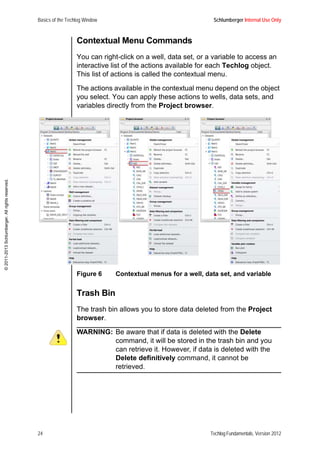
  • 20.
    About this ManualSchlumberger Internal Use Only 6 Techlog Fundamentals, Version 2012 ©2011-2013Schlumberger.Allrightsreserved. NOTES
  • 21.
    Schlumberger Internal UseOnly Basics of the Techlog Window Techlog Fundamentals, Version 2012 7 ©2011-2013Schlumberger.Allrightsreserved. Module 1 Basics of the Techlog Window The Techlog window is very flexible. You can customize its appearance and organization to suit your working habits. Begin by learning the default location and functionality of each window. Learning Objectives After completing this module, you will be familiar with the primary components of the Techlog main window (Figure 1) and you will know how to: • customize the interface of Techlog • access project data • access Techlog modules • create a Techlog Project.
  • 22.
    Basics of theTechlog Window Schlumberger Internal Use Only 8 Techlog Fundamentals, Version 2012 ©2011-2013Schlumberger.Allrightsreserved. Lesson 1 Components of the Main Window In this lesson, you will learn about the components that make up the main Techlog window and the function of each component. Figure 1 Main dock windows in Techlog 1 Title bar Indicates the version of Techlog, the name of the project, the status of the project, and the name of the active workspace. 2 Menu bar Shows the Techlog domain menus: Home, Plot, Utility, Petrophysics, Geology, Drilling, Reservoir, and Geophysics. The icons at the right end of the menu bar can be used to increase the size of the display area. • Click to hide the Toolbar menu. • Click or press F11 to hide the dock windows. To restore the dock windows view, click or press F11.
  • 23.
    Schlumberger Internal UseOnly Basics of the Techlog Window Techlog Fundamentals, Version 2012 9 ©2011-2013Schlumberger.Allrightsreserved. 3 Toolbar Displays the icons that allow you to access Techlog tools and plots under the Techlog menu quickly. By clicking on the bottom left corner of the toolbar groups, you can collapse or expand a group/module. The toolbar contains commands related to the project and the modules active in the project. 4 Project browser Shows all the data and Techlog objects loaded in the project. Any global action on the database, such as data importing or data filtering, can be done in the Project browser. 5 Output window Displays messages from the system, including information and warnings, and allows you to diagnose issues when working in Techlog. 6 Display area Displays all Techlog objects (LogView, crossplots, histograms). 7 Properties window Displays properties of the selected objects. Most Techlog objects can be retrieved, modified, and configured from this window, including the units of a variable and parameters. 8 Workspace manager Allows you to switch from one workspace to another. Techlog operates a system of independent workspaces to optimize display. 9 Palette editor Allows you to select, create, and modify color palettes. 10 Zonation window Stores all of the interval sets within the project. It also allows you to limit data display and analysis to a specific set of intervals. 11 Markers window Shows all the markers stored within the project.
  • 24.
    Basics of theTechlog Window Schlumberger Internal Use Only 10 Techlog Fundamentals, Version 2012 ©2011-2013Schlumberger.Allrightsreserved. Procedure 1 Moving the Dock Windows All of the windows described in this lesson are dockable. This means that they can be re-arranged at your convenience. To display the dock windows list, right-click in the Toolbar and select the Dock windows menu. TIP: You also can activate or deactivate a dockable window from the Dock windows menu. 1. To move the Project browser, click on the window header and drag it to the right. The Project browser is now an independent window that can be moved to another monitor. Dashboard mode allows you to display windows outside the Techlog window. This way you can have the application open on one monitor and all the other windows (such as Properties, Project browser, and Zonation) open on a second monitor. 2. Move the Project browser above the Properties window. The Project browser and the Properties window are now docked, with two tabs displayed in the same window. 3. Restore the windows to their default position. In the View menu, click Restore default positions . NOTE: It also is possible to pin (auto-hide) the dock windows individually to the left, right, or bottom. 12 Contact manager Allows you to manage contacts in the project. 13 Action manager Displays a list of all the possible actions available on the selected object. 14 Status bar Provides information about available memory and disk space.
  • 25.
    Schlumberger Internal UseOnly Basics of the Techlog Window Techlog Fundamentals, Version 2012 11 ©2011-2013Schlumberger.Allrightsreserved. Lesson 2 Main Dock Windows In this lesson, each of the main dock windows in Techlog is described in detail. The Project Browser The Project browser is where you access and display various Techlog objects and perform simple operations. Click Datasets to view a list of Techlog objects, including project wells, data sets, and variables (Figure 2 and Figure 3). The icons representing data sets or variables provide you with information about the data set or the type of variable. Figure 2 List of objects
  • 26.
    Basics of theTechlog Window Schlumberger Internal Use Only 12 Techlog Fundamentals, Version 2012 ©2011-2013Schlumberger.Allrightsreserved. Figure 3 Saved layouts, plots, and workflows
  • 27.
    Schlumberger Internal UseOnly Basics of the Techlog Window Techlog Fundamentals, Version 2012 13 ©2011-2013Schlumberger.Allrightsreserved. Project browser appearance You use these icons in the Project browser to access and display various types of information. All objects in the project Project wells Layout, track template, and headers Python scripts Histograms and crossplots Ipsom workspace maps, Kmod, and classifications Workflows and workflows parameters Deleted objects
  • 28.
    Basics of theTechlog Window Schlumberger Internal Use Only 14 Techlog Fundamentals, Version 2012 ©2011-2013Schlumberger.Allrightsreserved. Saved Levels By default, only the objects saved at the Project level are displayed in the Project browser. To display the objects that are saved at any other level, right-click on the project header, where the location path of your project is written, and select the level that you wish to display, as shown in Figure 4. Figure 4 The four Techlog levels (Project, User, Company, Techlog) displayed in the Project browser You can select to display the family name and unit and sort the objects in ascending or descending order.
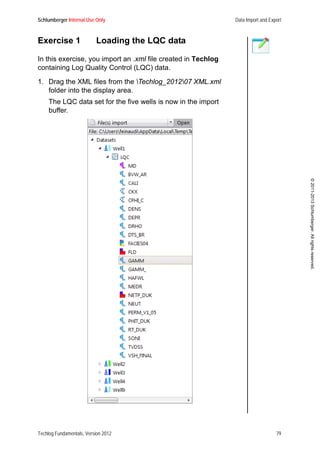
  • 29.
    Schlumberger Internal UseOnly Basics of the Techlog Window Techlog Fundamentals, Version 2012 15 ©2011-2013Schlumberger.Allrightsreserved. Procedure 1 Filtering Data in the Project Browser You can filter the data displayed in the Project browser to show only what you want to view. After you apply a filter, only the elements matching the filter criteria are displayed and the Project browser changes color. There are two methods in Techlog for managing filters. This procedure shows you how to filter data by using the Filter tab or the Create a filter menu command. 1. In the Project browser Properties window, open the Filter tab and select the filter criteria for these options: • Well: Apply a filter with a specific well name, or with the last modification date or date of creation. • Dataset: Apply a filter with a specific data set name, sampling, last modification date, date of creation, or type. You can make several selections at one time. • Variable: Apply a filter with a specific variable name, main family, family, unit, version status, last modification date, type, or description. You can make several selections at one time. • Group: Apply a filter with a group name. Common operators are AND (&) and OR (|), but you also can use an asterisk (*).
  • 30.
    Basics of theTechlog Window Schlumberger Internal Use Only 16 Techlog Fundamentals, Version 2012 ©2011-2013Schlumberger.Allrightsreserved. NOTE: More information about the syntax can be found in the Techlog Help file.
  • 31.
    Schlumberger Internal UseOnly Basics of the Techlog Window Techlog Fundamentals, Version 2012 17 ©2011-2013Schlumberger.Allrightsreserved. 2. Alternatively, select variables, wells, and data sets in the Project browser, right-click and select Create a filter. The variable, data set, or well selected is updated in the Project browser Properties window.
  • 32.
    Basics of theTechlog Window Schlumberger Internal Use Only 18 Techlog Fundamentals, Version 2012 ©2011-2013Schlumberger.Allrightsreserved. After a filter is created, the Project browser changes color and only the variables, data set, and wells selected by the filter are displayed. 3. Remove a filter by right-clicking in the Project browser and selecting Remove the current filter.
  • 33.
    Schlumberger Internal UseOnly Basics of the Techlog Window Techlog Fundamentals, Version 2012 19 ©2011-2013Schlumberger.Allrightsreserved. Procedure 2 Applying Conditional Selections Conditional selection is an option that allows you to select one or several curves, wells, or data sets. For example, you can use this option to select specific curves to drag into a LogView layout. Conditional selection is available only in the Project browser. Similar to the filter option, there are two ways to manage conditional selection in Techlog, in the Properties window and with the Conditional selection command. 1. In the Project browser Properties window, open the Conditional selection tab and select the filter criteria for the Well, Dataset, Variable, and Group options. The variables, data set, and wells selected by the conditional selection are highlighted in gray. 2. To remove a conditional selection, click in the Project browser. Procedure 3 Grouping Data Objects Manually You can group wells, data sets, and variables manually according to the properties available in the wells, data sets, and logs. Manual grouping is accessed from the Project browser. 1. In the Project browser, select at least two wells, data sets, or variables. 2. Right-click and select Group. 3. In the window that opens, enter a name for the group and click OK. The group is created and displayed in the Project browser.
  • 34.
    Basics of theTechlog Window Schlumberger Internal Use Only 20 Techlog Fundamentals, Version 2012 ©2011-2013Schlumberger.Allrightsreserved. TIP: You can group any objects in the Project browser.
  • 35.
    Schlumberger Internal UseOnly Basics of the Techlog Window Techlog Fundamentals, Version 2012 21 ©2011-2013Schlumberger.Allrightsreserved. Procedure 4 Grouping Data Objects Automatically You can use the Properties window to group wells, data sets, or variables automatically. 1. In the Project browser Properties window, open the Grouping tab.
  • 36.
    Basics of theTechlog Window Schlumberger Internal Use Only 22 Techlog Fundamentals, Version 2012 ©2011-2013Schlumberger.Allrightsreserved. 2. Select one of these options for the Display type. • Techlog: Wells, data sets, and variables are not grouped. • Hierarchical grouping: Wells, data sets, and variables are grouped according to wells, data sets, or variables properties (based on country in the figure in Step 1). • Project: Wells, data sets, and variables are grouped according to the user. 3. Enter the grouping criteria. This figure shows examples of how objects are displayed in the Project browser based on the display type and grouping criteria.
  • 37.
    Schlumberger Internal UseOnly Basics of the Techlog Window Techlog Fundamentals, Version 2012 23 ©2011-2013Schlumberger.Allrightsreserved. Data Search You can use the search field in the Project browser to quickly display all the variables or objects that contain the search word that you enter. In the example shown in Figure 5, the word gamm is entered as the search criteria and all wells and histograms that contain a variable named gamm are displayed in the Project browser. Figure 5 Example of a search from the Project browser
  • 38.
    Basics of theTechlog Window Schlumberger Internal Use Only 24 Techlog Fundamentals, Version 2012 ©2011-2013Schlumberger.Allrightsreserved. Contextual Menu Commands You can right-click on a well, data set, or a variable to access an interactive list of the actions available for each Techlog object. This list of actions is called the contextual menu. The actions available in the contextual menu depend on the object you select. You can apply these actions to wells, data sets, and variables directly from the Project browser. Figure 6 Contextual menus for a well, data set, and variable Trash Bin The trash bin allows you to store data deleted from the Project browser. WARNING: Be aware that if data is deleted with the Delete command, it will be stored in the trash bin and you can retrieve it. However, if data is deleted with the Delete definitively command, it cannot be retrieved.
  • 39.
    Schlumberger Internal UseOnly Basics of the Techlog Window Techlog Fundamentals, Version 2012 25 ©2011-2013Schlumberger.Allrightsreserved. Output Window The Output window contains information about every operation being run in Techlog. These messages provide you with valuable information and alert you to issues with the applications. Messages display in one of three colors, depending on the content of the information. • Green is for information. • Orange is a warning. • Red is for errors. • Blue is for command lines. Each error and warning message is documented with an explanation about why the error or warning occurred. Figure 7 shows a sample green information message. Figure 7 Information message after importing a data set Properties Window The Properties window displays the parameters of any selected object such as a variable, a workflow, or a log view. The content of the window depends on the selected object. The window allows you to edit the properties of the object.
  • 40.
    Basics of theTechlog Window Schlumberger Internal Use Only 26 Techlog Fundamentals, Version 2012 ©2011-2013Schlumberger.Allrightsreserved. For example, if you select the variable DENS in a layout, the window will show the display properties of this variable. Figure 8 shows these identifying elements of an object when it is selected in the Properties window. Figure 8 Key items in the Properties window 1 Tabs Tabs to access the parameters and properties of the object 2 Object type Type of the selected object 3 Well, dataset, variable name Full name of the object
  • 41.
    Schlumberger Internal UseOnly Basics of the Techlog Window Techlog Fundamentals, Version 2012 27 ©2011-2013Schlumberger.Allrightsreserved. Figure 9 shows examples of the properties that are displayed for a well, data set, and variable. Figure 9 Examples of different items displayed in the Properties window, depending on the selected object 4 Editable properties Properties that you can edit for the object. You can edit only those properties that are highlighted in green.
  • 42.
    Basics of theTechlog Window Schlumberger Internal Use Only 28 Techlog Fundamentals, Version 2012 ©2011-2013Schlumberger.Allrightsreserved. Procedure 5 Using the Properties Window You should keep the Properties window open at all times. You also can use the F4 shortcut to display the Properties window for any object in Techlog. In this procedure, you use the F4 button to make the Properties window display or not display. 1. Press F4 to bring the Properties window to the front. NOTE: You can edit the unit of the variable manually. 2. Press F4 again to dock the Properties window in its original place. Zonation Window The Zonation window stores all of the interval sets in the project. Zones selected in the Zonation window are reflected in plot displays and workflows. To select zones, choose the name of the set from the drop-down list (Figure 10). In this example, only one set, named STRATIGRAPHY, exists. Figure 10 Selecting a zonation data set
  • 43.
    Schlumberger Internal UseOnly Basics of the Techlog Window Techlog Fundamentals, Version 2012 29 ©2011-2013Schlumberger.Allrightsreserved. After you select a data set, a list appears that contains all of the zones within the zonation set. For example, in a layout, the selected zones in the Zonation window are highlighted in the layout (Figure 11). Figure 11 Zones selected in the zonation window are highlighted in the LogView display
  • 44.
    Basics of theTechlog Window Schlumberger Internal Use Only 30 Techlog Fundamentals, Version 2012 ©2011-2013Schlumberger.Allrightsreserved. Markers Manager The Markers dock window shows you all the markers available in your project. • Click on the drop-down menu to select the marker type data set you want to display. • Use the Marker pane to select those specific markers you want to display. Figure 12 Markers manager Workspace Manager The Workspace manager lists the workspaces open in Techlog and the windows open within each workspace, such as plots and workflows. Figure 13 shows the active windows and workspaces displayed in bold. You can rename and save the workspace. When you reopen the workspace, the windows will be arranged in the same way as they were when you saved the workspace.
  • 45.
    Schlumberger Internal UseOnly Basics of the Techlog Window Techlog Fundamentals, Version 2012 31 ©2011-2013Schlumberger.Allrightsreserved. In Figure 13, the active window is the layout UnknownMW in the workspace named Techlog workspace. Figure 13 Workspace manager showing several workspaces You can switch from one workspace to another by double-clicking on the workspace that you want to switch to in the Workspace manager.
  • 46.
    Basics of theTechlog Window Schlumberger Internal Use Only 32 Techlog Fundamentals, Version 2012 ©2011-2013Schlumberger.Allrightsreserved. You also can close windows or entire workspaces from the contextual menu (Figure 14). Figure 14 Closing workspaces and windows with the contextual menu TIP: Hover the mouse over a saved workspace to preview its content.
  • 47.
    Schlumberger Internal UseOnly Basics of the Techlog Window Techlog Fundamentals, Version 2012 33 ©2011-2013Schlumberger.Allrightsreserved. Lesson 3 Synchronization Tool The Synchronization tool allows the asset teams to work in a collaborative environment where data can be transferred to and from a shared Techlog project. Each team member must create a personal project on their local space and from this personal project, they can link to the shared one. After the projects are linked, team members can share their data with the community through a send and retrieve mechanism. Figure 15 How the Synchronization tool works Project Partial Loading Feature It is recommended that you disable the Project partial loading functionality when using the Synchronization tool, because the Synchronization tool displays only the wells loaded in the Project browser. Using the Project partial loading feature might lead to a mismatch between the Reference repository and the current project.
  • 48.
    Basics of theTechlog Window Schlumberger Internal Use Only 34 Techlog Fundamentals, Version 2012 ©2011-2013Schlumberger.Allrightsreserved. Procedure 1 Disabling the Project Partial Loading Feature This procedure shows you how to disable the Project partial loading feature in Techlog. 1. Go to the Project tab in the Project browser Properties window. 2. Select Options. 3. Go to the Parameters tab. 4. Clear the Partial project loading check box. 5. Click OK to validate. Procedure 2 Linking Techlog to the Reference Repository NOTE: This procedure assumes that the Reference repository is created already. 1. Create a new Techlog project on your private disk space. 2. In the Techlog main window, select Utility > Synchronization > Synchronization tool. 3. Click Link and browse to the location of Reference repository. The Current project is now linked to the Reference repository.
  • 49.
    Schlumberger Internal UseOnly Basics of the Techlog Window Techlog Fundamentals, Version 2012 35 ©2011-2013Schlumberger.Allrightsreserved. Procedure 3 Retrieving Items from the Reference Repository This procedure shows you how to retrieve items from the Reference repository to include them in your current project. 1. From the Reference repository pane, select the items to retrieve. 2. Click to move the items to the Current project pane. 3. Click Close to exit the Synchronization tool. The items are displayed in the Project browser. NOTE: The Send and Retrieve actions are performed at the data set level only.
  • 50.
    Basics of theTechlog Window Schlumberger Internal Use Only 36 Techlog Fundamentals, Version 2012 ©2011-2013Schlumberger.Allrightsreserved. Procedure 4 Sending Items from the Current Project to the Reference Repository In this procedure, you send items from a local project to the reference repository. 1. After you worked on your data, reopen the Synchronization tool. 2. From the Current project pane, select the items that you modified. 3. Click to send the items you modified to the Reference repository pane. Data Locking You can lock data to prevent other users from overwriting the data that you currently are working with. When data is locked, other users still can retrieve them and modified them locally (in each user project), but they cannot send their own changes to the Reference repository. You can lock data and view the locked items from either the Current project or Reference repository pane. However, the items are locked in the Reference repository pane only. Therefore, items that exist only in the Current project cannot be locked. In case of an error, a warning window opens listing all the objects that were not locked in the Reference repository.
  • 51.
    Schlumberger Internal UseOnly Basics of the Techlog Window Techlog Fundamentals, Version 2012 37 ©2011-2013Schlumberger.Allrightsreserved. Procedure 5 Locking Data If you want to send a Techlog object to the Reference repository, you must lock it first. 1. From both Synchronization tool panes, select the items to lock. 2. Click Lock. 3. Click Close to validate. From the Project browser, you can see a padlock on each locked item. NOTE: From the Project browser, you can see only the data that you locked. Go to the Synchronization tool to see the data locked by other users. If another user forgets to unlock the data, a data administrator can unlock them. If all the items in a specific group are locked, a padlock on the group name is displayed. If you have items inside a group with at least two different lock statuses, the icon is displayed in the parent Lock status column. NOTE: When several users use the same Reference repository to exchange modified data, some conflicts might appear between your Current project and the Reference repository. Several tools exist to resolve potential conflicts. A discussion of these tools is beyond the scope of this training. More information is available in the Techlog User Guide.
  • 52.
    Basics of theTechlog Window Schlumberger Internal Use Only 38 Techlog Fundamentals, Version 2012 ©2011-2013Schlumberger.Allrightsreserved. Lesson 4 Techlog Project Creation In this lesson, you will learn how to create a new project in Techlog. Procedure 1 Creating a New Techlog Project The first time you open Techlog, most of the menus and dock windows are disabled (they appear in gray). This is because no project is open. You will need to create a new project first. The Project template option allows companies to define clear formats for any feature in Techlog that must be applied for a dedicated addressee. This option typically is offered to service companies that deliver standard output on a per customer basis. The Project template option copies the whole project (including data) defined as a template into the newly created project. All of the settings applied in the project template then are available for the new data that will be loaded into the new project. 1. In the Techlog main window, select Project > New to open the New project wizard. 2. In the New project wizard, enter this information: • Project name: Avoid using a slash () in the project name. • (optional) Country: Entering a country will help you to filter your projects later. • (optional) Description: Enter information about the project. 3. Click Next to go to the Folder, status and type page. The project is added to your Project folder automatically. If you wish to store it in another directory, click the ellipses (...) button to navigate to and select another location. 4. (optional) Choose a Project template from the list, or browse for it by clicking the ellipses (...) button. 5. Set these options for the project template: • Project status: In progress or temporary. • Project opening default mode: In Techlog 2012, only single- user is available (options are read/write or read only).
  • 53.
    Schlumberger Internal UseOnly Basics of the Techlog Window Techlog Fundamentals, Version 2012 39 ©2011-2013Schlumberger.Allrightsreserved. • Project plug-in: For best performance, choose SQLite. • Unit system (optional): This option is available only if a company folder exists. 6. Click Next. A message appears asking you to confirm the creation of the new project folder. 7. Select the modules that you wish to use. You can change this selection after you create the project. 8. Click Finish.
  • 54.
    Basics of theTechlog Window Schlumberger Internal Use Only 40 Techlog Fundamentals, Version 2012 ©2011-2013Schlumberger.Allrightsreserved. Exercise 1 Creating the My First Techlog Project In this exercise, you create your first Techlog project named My First Techlog Project. 1. In the Techlog main window, select Project > New to open the New project wizard. 2. Enter the Project name, Country, and Description.
  • 55.
    Schlumberger Internal UseOnly Basics of the Techlog Window Techlog Fundamentals, Version 2012 41 ©2011-2013Schlumberger.Allrightsreserved. 3. Click Next. The Folder, status and type window opens. In this window, you can modify the storage path for your project. For this exercise, use these values: • Project status: In progress • Project opening default mode: single user [read/write] • Project plug-in: SQlite • Unit system: Undefined (for the moment, no company folder is installed). 4. Click Next. A confirmation dialog box opens asking you to confirm the project folder creation. 5. Click Create. Techlog creates the new project folder.
  • 56.
    Basics of theTechlog Window Schlumberger Internal Use Only 42 Techlog Fundamentals, Version 2012 ©2011-2013Schlumberger.Allrightsreserved. 6. Select the modules that will be checked out when you open the project. 7. Click Next. The project has now been created. Techlog displays a summary of your project characteristics.
  • 57.
    Schlumberger Internal UseOnly Basics of the Techlog Window Techlog Fundamentals, Version 2012 43 ©2011-2013Schlumberger.Allrightsreserved. 8. Click Finish to open your newly created project. Notice that all of the icons are now active. You can start to upload data into your project. Techlog Project Folder Structure and Settings When a project is created, Techlog creates a structure of folders as shown in Figure 16. Each of these folders contains all of the objects (such as plots, layouts, and processing parameters) saved at the Project level. Figure 16 Project folder structure The project settings are stored in Settings.xml file located in the Settings directory. This file contains this information: • Name of the project • Name of the person who created the project • Creation date • Modification log • Opening mode • Licenses used in the project.
  • 58.
    Basics of theTechlog Window Schlumberger Internal Use Only 44 Techlog Fundamentals, Version 2012 ©2011-2013Schlumberger.Allrightsreserved. Procedure 2 Opening an Existing Project You can open an existing project from the Project menu where the most recent Techlog projects are listed. 1. In the Techlog main window, select Project > Recent projects. A list of the ten most recently saved projects appears. 2. Select the project you want to open. A confirmation window opens asking if you want to replace the current project or open the project in a new Techlog session.
  • 59.
    Schlumberger Internal UseOnly Basics of the Techlog Window Techlog Fundamentals, Version 2012 45 ©2011-2013Schlumberger.Allrightsreserved. Procedure 3 Opening an Older Project This procedure shows you how to open a project if it is not one of the ten most recently saved projects. 1. In the Techlog main window, select Project > Open to open the Project selection window. 2. Select the project you want to open, then click Open.
  • 60.
    Basics of theTechlog Window Schlumberger Internal Use Only 46 Techlog Fundamentals, Version 2012 ©2011-2013Schlumberger.Allrightsreserved. Review Questions • How can you access the list of dock windows? • How do you change from Dashboard mode to Floating mode? • Give three actions that you can do from the Project browser. • Where can you read the system messages, including information and warnings, that might help you to understand issues arising in your project? • What is the shortcut to display the Properties window? Summary In this module, you learned about: • using the Techlog main window • customizing the interface of Techlog • accessing project data • accessing Techlog modules • creating a Techlog project.
  • 61.
    Schlumberger Internal UseOnly Basics of the Techlog Window Techlog Fundamentals, Version 2012 47 ©2011-2013Schlumberger.Allrightsreserved. NOTES
  • 62.
    Basics of theTechlog Window Schlumberger Internal Use Only 48 Techlog Fundamentals, Version 2012 ©2011-2013Schlumberger.Allrightsreserved. NOTES
  • 63.
    Schlumberger Internal UseOnly Data Import and Export Techlog Fundamentals, Version 2012 49 ©2011-2013Schlumberger.Allrightsreserved. Module 2 Data Import and Export Techlog can integrate many types of data, including log data, point data, seismic, deviation files, and image files. Techlog also supports a variety of the most common formats, including LAS, GeologASCII, DLIS/LIS, ASCII file with the wizard, core images, TechCSV, and the Techlog format (XML). In addition, you can export data or any object created in Techlog (such as plots and layouts) from Techlog to various format such as LAS, DLIS, GeologASCII, ASCII file, TechCSV, and the Techlog format (XML). Learning Objectives After completing this module, you will know how to: • import data files, such as DLIS, LAS, and TXT formats • import spreadsheet files • import image files, such as PNG and TIFF • import XML Techlog files • export data from Techlog • use the Well Identification Solver. Lesson 1 Data Import You can import data in four ways: • Drag the files to be imported into Techlog (LAS, DLIS, Techlog XML, CSV files). • Select Project > Import from the main Techlog window. • Select Home > Import . • Press Ctrl + Shift + J,I. Regardless of the method you choose, the action opens the import buffer (Figure 17) in the Project browser window.
  • 64.
    Data Import andExport Schlumberger Internal Use Only 50 Techlog Fundamentals, Version 2012 ©2011-2013Schlumberger.Allrightsreserved. The import buffer holds all of the data that you choose to import in a temporary space. You can quality check the properties of each variable before you import it into the project. Figure 17 Project browser (left) and the import buffer (right)
  • 65.
    Schlumberger Internal UseOnly Data Import and Export Techlog Fundamentals, Version 2012 51 ©2011-2013Schlumberger.Allrightsreserved. Procedure 1 Importing Data This procedure is applicable for most of the files you will load into Techlog. 1. Select Home > Import to open the import buffer. 2. Click Open and browse for the files to be imported. 3. If the data cannot be parsed automatically by Techlog, the ASCII Import wizard opens. 4. In the Properties window of the wizard (on the right side), define these parameters: • The data set type you wish to import: continuous, point data, or interval. (If you are importing zonation data sets, make sure the Dataset type property is set to interval .) • The location of header information in the ASCII file (Import from line, Variable name line, and Unit line). • Delimiter settings. 5. Click Preview. 6. In the Preview window, define these parameters: • Reference column (mandatory) • If applicable, the Well name and Dataset name columns. You can remove the unnecessary columns by clicking Remove column(s). NOTE: It is not necessary to define the Variable and Array columns. Techlog identifies them automatically. 7. Click Load to the import buffer. 8. Click to import the data into the Project browser. 9. After data has been imported, click Delete to clear the content of the import buffer. 10. Click Close to close the import buffer.
  • 66.
    Data Import andExport Schlumberger Internal Use Only 52 Techlog Fundamentals, Version 2012 ©2011-2013Schlumberger.Allrightsreserved. Lesson 2 DLIS File Import There are two ways to import *.dlis data: File(s) import or Selective DLIS import. File(s) import (Figure 18) loads the header and the data, applies the family assignment rules, and calculates statistics when loading to the buffer. Figure 18 File(s) import dialog box Selective DLIS import (Figure 19) loads the header into the buffer and applies the family assignment rules (quick load). When you transfer files to the Project browser, it loads the data and calculates statistics. Figure 19 Selective DLIS import dialog box
  • 67.
    Schlumberger Internal UseOnly Data Import and Export Techlog Fundamentals, Version 2012 53 ©2011-2013Schlumberger.Allrightsreserved. This type of import is useful when working with large files or when you wish to view the content of the file. Imported data is displayed in the import buffer where you can verify that all variables are present. After data is imported into the buffer, choose the data sets to be imported into the project and click the green arrow to move them into the Project browser (Figure 20). You can observe the progress of the import in a Techlog window. Figure 20 Data import into the Project browser
  • 68.
    Data Import andExport Schlumberger Internal Use Only 54 Techlog Fundamentals, Version 2012 ©2011-2013Schlumberger.Allrightsreserved. Exercise 1 Importing DLIS Log Files In this exercise, you load .dlis data into your project. 1. Select Home > Import . 2. In the import buffer, select Files(s) import from the drop- down menu. 3. Click Open . 4. Choose the files listed in the Techlog_201201 DLIS directory and click Open. You now have five files in the import buffer: • Well1.dlis • Well2.dlis • Well3.dlis • Well4.dlis • Well9.dlis. 5. The files are added as well names. Expand each well and look at the data sets. 6. There is a problem with the name of the DATAFULL file in Well 2. Remove the underscore (_) in the file name a. Right-click on the data set. b. Select Rename, or press F2. 7. Choose all the data sets named DATAFULL for all five wells. TIP: Use the conditional selection to select only the DATAFULL data sets. 8. Click the green arrow to import the data into the Project browser. 9. Verify that your data was imported correctly by expanding the wells and the data sets. 10. Click on a variable and view it in the Properties dock window. The properties for each variable display. TIP: The shortcut for viewing the Properties window is F4.
  • 69.
    Schlumberger Internal UseOnly Data Import and Export Techlog Fundamentals, Version 2012 55 ©2011-2013Schlumberger.Allrightsreserved. 11. In the Project browser, note that variables display in black, gray, or red. • Black indicates a variable has a unit and has been assigned to a family. • Gray indicates the variable is missing a family or a unit. • Red indicates the variable has no unit and no family assigned to it. This display helps you to harmonize and quality check the data. (These topics are discussed later in the training.) 12. After you quality check the data, click Delete to clear the content of the import buffer. 13. Click Close to close the import buffer. TIP: If you click the X (in the upper right corner of the window) to close the import buffer, both the import buffer and the Project browser window will close. To reopen the Project browser and import buffer, right- click Dock windows and select Project browser.
  • 70.
    Data Import andExport Schlumberger Internal Use Only 56 Techlog Fundamentals, Version 2012 ©2011-2013Schlumberger.Allrightsreserved. Lesson 3 LAS File Import When importing *.las files, select File(s) import (Figure 21) from the drop-down menu in the import buffer. All other steps in the import process are identical to the procedure for importing *.dlis data. Figure 21 LAS file import dialog box
  • 71.
    Schlumberger Internal UseOnly Data Import and Export Techlog Fundamentals, Version 2012 57 ©2011-2013Schlumberger.Allrightsreserved. Exercise 1 Importing LAS Files In this exercise, you load the Hole Azimuth and Deviation surveys into Techlog. These surveys are provided as .las files. 1. Select Home > Import . 2. Select File(s) import from the drop-down menu. 3. Click Open . 4. Choose these files listed under Techlog_201202 LAS and click Open. • Well1.las • Well2.las • Well3.las • Well4.las • Well9.las 5. Expand each well and view the data sets. 6. Choose the data set SURVEY for all five wells and click to import the data into the Project browser. This figure shows the Project browser after adding the SURVEY files.
  • 72.
    Data Import andExport Schlumberger Internal Use Only 58 Techlog Fundamentals, Version 2012 ©2011-2013Schlumberger.Allrightsreserved. 7. Verify that your data was imported correctly by expanding the wells and the data sets. You can see that the SURVEY data set has been added to each well. This figure shows the Project browser after the SURVEY data is imported. 8. Click on a variable and view it in the Properties dock window. The properties for each variable display. Notice that some variables display in black, gray, or red. • Black indicates a variable has a unit and has been assigned to a family. • Gray indicates the variable is missing a family or a unit. • Red indicates the variable has no unit and no family assigned to it. 9. Clear the content of the import buffer. 10. Close the import buffer.
  • 73.
    Schlumberger Internal UseOnly Data Import and Export Techlog Fundamentals, Version 2012 59 ©2011-2013Schlumberger.Allrightsreserved. Lesson 4 Text File Import Text files are imported as *.las files using the File(s) import command. Before *.txt files are added to the import buffer, they display in the Data import wizard window (Figure 22). In this window, you can verify that your data will be correctly imported. The Data import wizard allows you to configure many parameters. • Dataset type (continuous data, point data, intervals) • Specific lines from which to import • Line for unit, if it exists • Delimiter of the original file. Figure 22 Data import wizard for zones import
  • 74.
    Data Import andExport Schlumberger Internal Use Only 60 Techlog Fundamentals, Version 2012 ©2011-2013Schlumberger.Allrightsreserved. Exercise 1 Importing Stratigraphy Data from a TXT File In this exercise, you import the stratigraphy data for Well1, Well2, Well3, Well4, and Well9. Before you start the exercise, you can open the .txt file to review the data you are about to import, as shown in the figure. 1. Select Home > Import . 2. Select File(s) import from the drop-down menu. 3. From the folder Techlog_201203 TXT, select the ZONES.txt file to import. The Import Wizard window opens. 4. In the Property area, change the Dataset Type to Interval. Notice that there are no units in this file. 5. Add the unit (FT) to the Reference variable.
  • 75.
    Schlumberger Internal UseOnly Data Import and Export Techlog Fundamentals, Version 2012 61 ©2011-2013Schlumberger.Allrightsreserved. 6. Click Preview. Your Data import wizard window should match this figure. 7. Click Load to the import buffer.
  • 76.
    Data Import andExport Schlumberger Internal Use Only 62 Techlog Fundamentals, Version 2012 ©2011-2013Schlumberger.Allrightsreserved. 8. Make a quality check of the data added to the import buffer. 9. Click to import the data into the Project browser. 10. Clear the content of the import buffer. 11. Close the import buffer. TIP: You can select multiple files to add to the import buffer. Exercise 2 Importing the TOPS1 File In the next exercises, you import three files. Because you can add multiple files in the Techlog import buffer, you will do the final import to the Project browser at the end of Exercise 3. 1. Select Home > Import . 2. Select File(s) import from the drop-down menu. 3. From the folder Techlog_2012Exercises01 Import Exercise01 Import various test configurations, select to import the file TOPS1.txt. The Data import wizard window opens.
  • 77.
    Schlumberger Internal UseOnly Data Import and Export Techlog Fundamentals, Version 2012 63 ©2011-2013Schlumberger.Allrightsreserved. 4. In the Data import wizard window, define these parameters: • Well name column • Dataset name column • Reference unit • Dataset type (Interval). Two settings are configured automatically: • Variable name line is set to 1. • Data import is done from line 2. NOTE: These settings should be verified for any future files.
  • 78.
    Data Import andExport Schlumberger Internal Use Only 64 Techlog Fundamentals, Version 2012 ©2011-2013Schlumberger.Allrightsreserved. Exercise 3 Importing the TOPS2 File In this exercise, you import the file named TOPS2. 1. Select Home > Import . 2. Select File(s) import from the drop-down menu. 3. From the folder Techlog_2012Exercises01 Import Exercise01 Import various test configurations, select to import the file TOPS2.txt. The Data import wizard window opens. 4. In the Property area, set the Zonation mode to zonation. You now are able to select Top or Bottom in the table, as shown in the figure in Step 5. NOTE: The property Dataset type was automatically set to interval. 5. Define the Top and Bottom columns and verify that they have the correct units.
  • 79.
    Schlumberger Internal UseOnly Data Import and Export Techlog Fundamentals, Version 2012 65 ©2011-2013Schlumberger.Allrightsreserved. In this exercise, there is no need to define the reference curve. The Top variable will be used as a reference. 6. Define the Well name column. 7. Define the Dataset name column in the Property area (TOPS2). If no column is defined as Dataset name, you have the option of entering a name. 8. Verify that Import from line is set to 3. 9. Click Load to the import buffer. Red error messages display in the output dock window during the import process.
  • 80.
    Data Import andExport Schlumberger Internal Use Only 66 Techlog Fundamentals, Version 2012 ©2011-2013Schlumberger.Allrightsreserved. 10. Review the original file and make corrections as needed. Notice that a dot is missing in line 26 of the original file. Instead of displaying a depth of 10983.4, the depth is displayed as 109834. TIP: It is possible to edit the file that is currently loaded with the wizard. Any modification performed (and saved) in the original file will be immediately propagated in the wizard after clicking Preview. 11. After saving corrections to the TOPS2.txt file, repeat Step 1 through Step 5 to import it. Exercise 4 Importing the TOPS3 File In this exercise, you import the file named TOPS3. 1. Select Home > Import . 2. Select File(s) import from the drop-down menu. 3. From the folder Techlog_2012Exercises01 Import Exercise01 Import various test configurations, import the file TOPS3.txt. The Data import wizard window opens.
  • 81.
    Schlumberger Internal UseOnly Data Import and Export Techlog Fundamentals, Version 2012 67 ©2011-2013Schlumberger.Allrightsreserved. 4. In the Property pane, define Delimiter > Others as a ( ' ) separator and click Preview. 5. Set Keep consecutive separators to no and click Preview. 6. Add a unit (ft) to the Reference column. 7. Define the Dataset name as TOPS3. 8. Set the Dataset type as interval. 9. Import the data into the Project browser. 10. Clear the contents of the import buffer. 11. Close the import buffer. Lesson 5 CSV Spreadsheet Import Core data is imported as point data in *.csv format using the File(s) import command. Display the Data import wizard to verify or change property settings. NOTE: Excel files (.xls and .xlsx) are binary files and cannot be imported using the ASCII import wizard. If you must import Excel data in *.xls (MS Office 2003) or *.xlsx (MS Office 2007 and 2010) formats, save the files in the *.csv format, then import the .csv files into Techlog. Exercise 1 Importing a CSV Spreadsheet In this exercise, you upload core analyses in .csv format. 1. Open the folder Techlog_201204 CSV and import the Well1 file. The Data import wizard opens. 2. Verify that these property settings are correct or make changes accordingly: • Set the Dataset type to Point Data. • Set the Variable name line to 1. • Set the Units line to 2. • Set the Import from line to 3.
  • 82.
    Data Import andExport Schlumberger Internal Use Only 68 Techlog Fundamentals, Version 2012 ©2011-2013Schlumberger.Allrightsreserved. • Add the unit ft to the reference if it was not previously added. • Change the Comma delimiter to yes. After your point data is added to the import buffer, you should see a display similar to the figure. The name of your point data set should be MICP. 3. Repeat Step 1 and Step 2 to import Well2, Well3, Well4, and Well9 MICP data. Exercise 2 Importing Formation Pressure Data In this exercise, you upload formation pressure data provided as an Excel file. 1. Open the Excel file formation pressure.xlsx from the Techlog_2012Exercises01 Import Exercise02 Tables and spreadsheets folder and save it with the same name in a comma delimited file .csv format. 2. Upload the .csv file into Techlog. 3. Set the Comma delimiter to yes. 4. Change the first column to be the reference. 5. Import the data into the import buffer only. Notice that the curves were imported as array (vector) data . This is done because in the original file, at least one depth repeats itself.
  • 83.
    Schlumberger Internal UseOnly Data Import and Export Techlog Fundamentals, Version 2012 69 ©2011-2013Schlumberger.Allrightsreserved. 6. Clear the contents of the import buffer. 7. In the import buffer, click on the word Datasets. 8. In the Properties window, under the ASCII import parameter, select Array creation policy. 9. Choose the add an epsilon to the reference value option. This option remains selected for any type of data. This configuration is not optimal for other types of data, such as Capillary Pressure curves. Choosing the ask for each case option could be useful for future import sessions. 10. Upload the .csv file into Techlog again. Notice that this time the RFT variables are displayed with the Point data icon . 11. Configure the Well name and Dataset name by right-clicking and using the contextual menu. 12. Import the data into the Project browser.
  • 84.
    Data Import andExport Schlumberger Internal Use Only 70 Techlog Fundamentals, Version 2012 ©2011-2013Schlumberger.Allrightsreserved. Exercise 3 Importing a Thin Section Analysis Table In this exercise, you upload a different type of data: a thin section description provided as a .csv file. 1. Select Home > Import . 2. Select File(s) import from the drop-down menu. 3. From the folder Techlog_2012Exercises01 Import Exercise02 Table and spreadsheets, import the file Thin section analysis.csv. 4. In the Data import wizard, set the variable name line property of the original file to 3. 5. Click Preview. Notice that this file has no units. 6. Set the unit line property to 0. 7. Click Preview. Notice that, in this instance, the application begins importing the file only from line 10.
  • 85.
    Schlumberger Internal UseOnly Data Import and Export Techlog Fundamentals, Version 2012 71 ©2011-2013Schlumberger.Allrightsreserved. 8. Set the import from line property to 4 and click Preview. 9. To visualize additional lines in the lower table, increase the number of available lines and click Preview. 10. Define the curve that will be the reference curve of the data set. 11. Add units to the curves. 12. Enter a Dataset name. 13. Remove the Well name from column 1 and add the correct well name. Lesson 6 Image File Import Image files can be imported using the Images import with wizard command (Figure 23) in the import buffer. Figure 23 Images import with wizard command In the Image import wizard window, you set parameters in the Dataset information and Image information areas of the wizard to determine how Techlog should read the file. Upon import, you can either copy the actual file and place it in the project, or copy a link to the location of the image.
  • 86.
    Data Import andExport Schlumberger Internal Use Only 72 Techlog Fundamentals, Version 2012 ©2011-2013Schlumberger.Allrightsreserved. The Image import wizard window (Figure 24) allows you to choose and preview image files to import. Figure 24 Image import wizard for image files Procedure 1 Importing Images This procedure shows you how to load core data images into Techlog. 1. Select Home > Import to open the import buffer. 2. Select Images import with wizard from the drop-down menu. 3. Click Open and navigate to your image folder. 4. Choose all the images you wish to load and click Open. The Image import wizard opens. NOTE: Techlog allows you to import *.png, *.tif, *.jpg, *.bmp, and *.gif image formats.
  • 87.
    Schlumberger Internal UseOnly Data Import and Export Techlog Fundamentals, Version 2012 73 ©2011-2013Schlumberger.Allrightsreserved. 5. Enter a name using the correct naming convention. You can enter the name or choose a predefined pattern. The name of images file must comply with the naming convention for images. For example, if your image is named Well1_CoreImages_1567.png, the naming convention is %WellName%_%DatasetName%_%DepthTop% If the name of the file is more complex (for example, if the core image file is CD10789 with 10789 as the top depth of the core), you must type CD%DepthTop% with CD before the % to make sure Techlog recognizes the depth automatically. 6. Copy images into the project by selecting the Copy all images into the project check box. If you do not select this option, a link will be created between the variable and the actual image during the import process. TIP: If there are a lot of images to copy, the performance of Techlog could be affected; select the Convert all images into 8 colours bits check box. 7. In the Dataset information zone: a. choose a proper unit b. enter a Dataset name c. enter a variable name. 8. Click Preview to view the correctly displayed depth reference. 9. Click Load to the import buffer. The data set is now added to the import buffer. 10. Click to import the data into the Project browser. 11. Click Delete to clear the contents of the import buffer. 12. Click Close to close the import buffer.
  • 88.
    Data Import andExport Schlumberger Internal Use Only 74 Techlog Fundamentals, Version 2012 ©2011-2013Schlumberger.Allrightsreserved. Exercise 1 Importing Core Images Core images cannot be imported by dragging them into Techlog. The data need to be imported using Image import wizard to be sure Techlog puts the images at the correct depth. In this exercise, you load some .png and .tiff core images into your Techlog project. 1. Select Home > Import to open the import buffer. 2. Select Images import with wizard from the drop-down menu. 3. Navigate to the folder Techlog_201205 Core images PNG/ Well9/Daylight and choose all files. 4. Click Open. The Image import wizard window opens. 5. Select the Copy all images into the project check box. NOTE: You are importing the file, not creating a link to the file. 6. In the Images information area, the Name model field extracts information from the file name. 7. Scroll to the end of the file name list and locate Top Depth – Bottom Depth, as indicated in the Name model field: %DepthTop%-%DepthBottom%.
  • 89.
    Schlumberger Internal UseOnly Data Import and Export Techlog Fundamentals, Version 2012 75 ©2011-2013Schlumberger.Allrightsreserved. 8. In the Dataset information area, choose ft from the drop- down list in the Depth unit field. 9. Click Load to import buffer. 10. Load the second image data set by selecting Image import with wizard from the drop-down menu in the Import browser. 11. Navigate to the image folder Techlog_201206 Core Images TIF/Well9/UV and choose all files. 12. Click Open. The Image import wizard window opens. 13. Configure parameters to import *.tiff files. 14. Select the Copy all images into the project check box. 15. Verify the name model to be %DepthTop%-%DepthBottom%. 16. Because this core image data set is using Core Depth as a reference, in the Dataset information area, enter the Depth name field CDEPTH and choose FT from the drop-down list in the Depth unit field.
  • 90.
    Data Import andExport Schlumberger Internal Use Only 76 Techlog Fundamentals, Version 2012 ©2011-2013Schlumberger.Allrightsreserved. The table in the lower left corner shows you how the data is stored (a data set with a link to the image at each depth). The scale in the right lower corner lets you preview the images. 17. Review the depth table and note the empty intervals. 18. In the lower right corner of the window where a view of the image is available, modify the zoom factor. Each time you click Preview to apply a modification, the scale is updated. TIP: The Maximum interval option is ignored when the top and bottom are available. If only tops are available, Techlog runs a check on the difference between them, then determines the maximum interval. If the difference between tops is longer than the maximum interval, the core length will be equal to the maximum interval. This prevents the core image from being stretched between the two tops. 19. Click Load to the import buffer. The data is now added to the import buffer. You can see the DaylLight and UV data sets under Well9. Notice the different references: MD for the DayLight data set and CDEPTH for the UV data set. 20. Choose Well9 and click to import the data into the Project browser. 21. Clear the contents of the import buffer. 22. Close the import buffer.
  • 91.
    Schlumberger Internal UseOnly Data Import and Export Techlog Fundamentals, Version 2012 77 ©2011-2013Schlumberger.Allrightsreserved. Lesson 7 XML File Import XML files are data files that have been previously processed and exported in Techlog. This format contains all the additional information that a variable can carry, including an associated palette and well color. There are two ways of importing xml files into Techlog. Method 1 uses the import commands on the menu; Method 2 uses a drag- and-drop function. Procedure 1 Importing XML Files from the Import Buffer In this procedure, you import an .xml file created in Techlog using the import buffer. 1. Select Home > Import to open the import buffer. 2. Select File(s) import from the drop-down menu. 3. Click Open to choose the .xml file you wish to import. The data you import are automatically loaded into the import buffer. 4. Choose the data and click to import it into the Project browser. 5. Click Delete to clear the contents of the import buffer. 6. Click Close to close the import buffer.
  • 92.
    Data Import andExport Schlumberger Internal Use Only 78 Techlog Fundamentals, Version 2012 ©2011-2013Schlumberger.Allrightsreserved. Procedure 2 Importing XML Files with a Drag- and-drop Method In this procedure, you import xml files using a drag-and-drop method. 1. Drag your .xml file into the display area. The files are parsed automatically in the import buffer, because .xml is the Techlog native format. Techlog XML data file is the preferred format when exchanging data between Techlog users, because it preserves all Techlog-specific settings (Families, History, Well Color). 2. Choose the data and click to import the data into the Project browser. 3. Click Delete to clear the contents of the import buffer. 4. Click Close to close the import buffer.
  • 93.
    Schlumberger Internal UseOnly Data Import and Export Techlog Fundamentals, Version 2012 79 ©2011-2013Schlumberger.Allrightsreserved. Exercise 1 Loading the LQC data In this exercise, you import an .xml file created in Techlog containing Log Quality Control (LQC) data. 1. Drag the XML files from the Techlog_201207 XML.xml folder into the display area. The LQC data set for the five wells is now in the import buffer.
  • 94.
    Data Import andExport Schlumberger Internal Use Only 80 Techlog Fundamentals, Version 2012 ©2011-2013Schlumberger.Allrightsreserved. Notice that wells have a color and variables have a history as shown on the History tab of the Properties window. 2. Select all the wells by pressing Ctrl + A within the import buffer. 3. Import the data into the Project browser.
  • 95.
    Schlumberger Internal UseOnly Data Import and Export Techlog Fundamentals, Version 2012 81 ©2011-2013Schlumberger.Allrightsreserved. 4. Clear the content of the import buffer. 5. Close the import buffer. Lesson 8 Time Data In this lesson, you will learn how Techlog handles time data. In the previous exercises, all the references were Measured Depth. Sometimes you might have to upload data with a different reference such as time data. Techlog manages data with 16 significant figures (double precision data). This allows it to support date-time data. A variable is considered date-time data when its family is Date Time. You can create a data set with a reference in date-time by following a simple workflow within the Project browser or the Data editor. You also can import and save date-time data in a Techlog project. All data processing tools (such as resampling, combining or resizing data sets, and time shift) work with date- time data. In Techlog, a Date-time reference is stored as a number of milli- seconds since January 1st 1900. For example, December 21st 1983, 21:26:11 is stored in the database as 2649878771116.07 ms. You can load these date-time formats into Techlog: • yyyy-MM-dd hh:mm:ss.zzz • yyyy-MM-dd hh:mm:ss • yyyy/MM/dd-hh:mm:ss • yyyy/MM/ddThh:mm:ss • dd/MM/yyyy-hh:mm:ss • dd/MM/yyyy hh:mm:ss • hh:mm:ss dd-MMM-yy • hh:mm:ss/dd-MMM-yyyy • hh:mm:ss.zzz • hh:mm:ss
  • 96.
    Data Import andExport Schlumberger Internal Use Only 82 Techlog Fundamentals, Version 2012 ©2011-2013Schlumberger.Allrightsreserved. To upload other formats, go to the Import buffer Properties window where you can add a specific date-time format that is not handled by Techlog by default. You will need to combine these expressions to import specific date-time files. Table 1: Expressions to Create Date-time Formats Expression Output h The hour without a leading zero (0 to 23 or 1 to 12 if AM/PM display) hh The hour with a leading zero (00 to 23 or 01 to 12 if AM/PM display) H The hour without a leading zero (0 to 23, even with AM/PM display) HH The hour with a leading zero (00 to 23, even with AM/ PM display) m The minute without a leading zero (0 to 59) mm The minute with a leading zero (00 to 59) s The second without a leading zero (0 to 59) ss The second with a leading zero (00 to 59) z The millisecond without a leading zero (0 to 999) zzz The millisecond with a leading zero (000 to 999) AP or A Use AM/PM display. AP will be replaced by either AM or PM ap or a Use am/pm display. ap will be replaced by either am or pm
  • 97.
    Schlumberger Internal UseOnly Data Import and Export Techlog Fundamentals, Version 2012 83 ©2011-2013Schlumberger.Allrightsreserved. Exercise 1 Uploading Time Data In this exercise, you upload a file containing time data. The reference for this file is in milliseconds, a format that is recognized by Techlog automatically. 1. Drag the file 1_Well9_DateTime.las XML from the Techlog_2012Exercises01 Import Exercise05 Time data folder into the display area. 2. Import the data into the Project browser. 3. Clear the content of the import buffer.
  • 98.
    Data Import andExport Schlumberger Internal Use Only 84 Techlog Fundamentals, Version 2012 ©2011-2013Schlumberger.Allrightsreserved. 4. Close the import buffer. The DateTime data set is added to the Project browser. Notice the reference, which is TIME with Date Time as the family and ms as the unit. Exercise 2 Uploading Time Data with Time Reference In this exercise, you upload a second file containing time data as a reference. If you drag this file into Techlog, the file will be uploaded as any ASCII file. However, in the Project browser, you can see that the time reference has no family. It will not load correctly. Furthermore, in the Project browser, the reference appears to have no family and no unit. This indicates that the time format has not been recognized by Techlog.
  • 99.
    Schlumberger Internal UseOnly Data Import and Export Techlog Fundamentals, Version 2012 85 ©2011-2013Schlumberger.Allrightsreserved. 1. Open the file Techlog_2012Exercises01 Import Exercise05 Time data2_Well9_TimeData.asc in a text editor. The first column is your time data. The format is not in the list of recognized formats. You will need to enter this specific format in the Import buffer Properties window. 2. Select Home > Import to open the import buffer. 3. In the Import buffer Properties window, enter the time date format using the convention presented in Table 1 and shown in this figure. 4. Drag the file 2_Well9_TimeData.asc into the import buffer. 5. In the Data import wizard, change the well name to Well9. 6. Click Load to the import buffer. The import buffer displays the contents of the LAS file. 7. Import the data into the Project browser. 8. Clear the content of the import buffer.
  • 100.
    Data Import andExport Schlumberger Internal Use Only 86 Techlog Fundamentals, Version 2012 ©2011-2013Schlumberger.Allrightsreserved. 9. Close the import buffer. The TimeDate data set is added to the Project browser. Notice that the reference time is assigned to the Date Time family with ms as a unit. Lesson 9 Well Identification Solver: Data Import under the Same Name The well identification solver is a useful tool when the names of two wells are not identical due to a typing error, naming conventions, or other actions that lead to a name mismatch. Exercise 1 Importing Data with the Same Name In this exercise, you import data from one well to another well. This is a useful process when the names of two wells are not identical due to a typing error or other naming conventions. You can import data under the same well by renaming each well or you can use the Well Identification Solver. 1. Import the file Techlog_2012Exercises01 Import Exercise04 Well identification solverRUN1.las into the Project browser. 2. Remove the RUN1 data from the import buffer. 3. Clear the contents of the import buffer. 4. Drag RUN2.las, RUN3.las, and RUN4.las into the import buffer. Notice that the name of the well is slightly different for each file.
  • 101.
    Schlumberger Internal UseOnly Data Import and Export Techlog Fundamentals, Version 2012 87 ©2011-2013Schlumberger.Allrightsreserved. 5. In the import buffer, click on the word Datasets and view the import properties. The second tab, Well Identification Solver, is active by default. 6. Verify that the Enabled property is set to yes. On the left side there is a list of all wells in the import buffer; on the right side there is a list of the wells that already exist in the project. 7. Change the name of the well to Well20 to link the wells in the buffer to the wells in the project. 8. Return to the import buffer and import the data. 9. Clear the content of the import buffer. 10. Close the import buffer.
  • 102.
    Data Import andExport Schlumberger Internal Use Only 88 Techlog Fundamentals, Version 2012 ©2011-2013Schlumberger.Allrightsreserved. Lesson 10 Data Export Techlog export features allow you to export data to standard formats, or connect to an external database. Procedure 1 Exporting Data In this procedure, you export objects from the Project browser 1. Click Project > Export to open the export buffer. 2. From the drop-down list, select the format in which you wish to export the data. 3. In the Project browser, select the objects that you want to export and click . You can export wells with zone and depth limitations. This feature is available only with LAS 2.0 and 3.0 and TechCSV formats. You can set the limits on the Limits tab in the Properties window of the export buffer as shown in the figure.
  • 103.
    Schlumberger Internal UseOnly Data Import and Export Techlog Fundamentals, Version 2012 89 ©2011-2013Schlumberger.Allrightsreserved. In the Properties window, you also can select the default null values and create one or more .dlis files when exporting data from several wells. 4. Click Save and browse for an export folder. The data will be exported in the file format that you select. 5. Click Delete to clear the content of the export buffer. 6. Click Close to close the export buffer.
  • 104.
    Data Import andExport Schlumberger Internal Use Only 90 Techlog Fundamentals, Version 2012 ©2011-2013Schlumberger.Allrightsreserved. Exercise 1 Exporting Data In this exercise, you export the Caliper (CAL), Gamma ray (GAMM), density (DENS), Neutron porosity (NEUT), and Compressional slowness (SONI) data from the DATAFULL data set for the wells 1, 2, 3, 4, and 9 that you loaded into your project. However, you will export only ZoneD data. 1. Create a filter on the DATAFULL data set. 2. Select the CALI, DENS, GAMM, NEUT, and SONI variables and create a conditional selection. 3. Create a filter. 4. Select Home > Export to open the export buffer. 5. You will export this data with an LAS 2.0 format. Select Las 2.0 (*.las) from the drop-down menu in the export buffer.
  • 105.
    Schlumberger Internal UseOnly Data Import and Export Techlog Fundamentals, Version 2012 91 ©2011-2013Schlumberger.Allrightsreserved. 6. Select all the data from the Project browser and click . All of the data is now in the Export buffer window. 7. Open the Properties window for the export buffer. 8. Export data from the Stratigraphic interval D only. a. Open the Limits tab. b. For the Limitation parameter, select per zones. c. For the Zonation parameter, select STRATIGRAPHY. d. For the Top zone parameter, select ZoneD. TIP: For the Limitation parameter, you also can select to export only a selected interval. To do this, enter the Top and Bottom for the interval you want to export. 9. Add a property so that data is exported from ZoneD only. a. Select DATAFULL from Well1. b. Open the Properties window and right-click anywhere in the Properties tab.
  • 106.
    Data Import andExport Schlumberger Internal Use Only 92 Techlog Fundamentals, Version 2012 ©2011-2013Schlumberger.Allrightsreserved. c. Select Add a property. d. In the Add a property window, enter these values to define the property and click OK: • Name: Interval Exported • Value: ZoneD • Unit: leave empty • Description: Export was restricted to ZoneD. TIP: You can add a property to any well, data set, or variable from the Project browser by applying the same method in the Properties window.
  • 107.
    Schlumberger Internal UseOnly Data Import and Export Techlog Fundamentals, Version 2012 93 ©2011-2013Schlumberger.Allrightsreserved. The new property now can be seen in the Properties window. The modification has been made only for Well1. 10. Click Save . 11. Choose to export one file per data set using the automatic file name WellName_DatasetName [LAS Certified]. 12. Save the files on your desktop. Techlog creates five files (one for each well). 13. Open the Well1_DATAFULL.las file and note the parameter Interval Exported.
  • 108.
    Data Import andExport Schlumberger Internal Use Only 94 Techlog Fundamentals, Version 2012 ©2011-2013Schlumberger.Allrightsreserved.
  • 109.
    Schlumberger Internal UseOnly Data Import and Export Techlog Fundamentals, Version 2012 95 ©2011-2013Schlumberger.Allrightsreserved. Review Questions • How can you load data from an Excel spreadsheet? • Where can you find the import properties? • How can you obtain header information while loading a .dlis file? • What does it mean when a variable appears in red? • Can you export only a selected interval? Summary In this module, you were introduced to the Well Identification Solver and learned about: • importing • data files (.dlis, .las) • spreadsheet files (csv, txt) • image files • XML Techlog files. • exporting data from Techlog.
  • 110.
    Data Import andExport Schlumberger Internal Use Only 96 Techlog Fundamentals, Version 2012 ©2011-2013Schlumberger.Allrightsreserved. NOTES
  • 111.
    Schlumberger Internal UseOnly Variable Management Techlog Fundamentals, Version 2012 97 ©2011-2013Schlumberger.Allrightsreserved. Module 3 Variable Management Variables are series of data (alphanumeric, scalar curves, or vector arrays) arranged according to a chosen index or reference. Upon import, each variable is assigned to a family using the Family assignment rules tool. Each family has its own display properties, regardless of the variable name. For example, any curve assigned to the Bulk Density family appears in a linear scale, using a red color between the limits of 1.95 – 2.95 g/cm3. If the curve has other units compatible with the family's unit, an on-the-fly conversion is done and the display respects the same limits. In this instance, the limits are between 1,950-2,950 Kg/M3. Alias is a generic name for variables, but with an order of priority that you can define. Learning Objectives After completing this module, you will know how to: • edit the Families database • import and export families • use the Family assignment rules tool • work with the Alias system.
  • 112.
    Variable Management SchlumbergerInternal Use Only 98 Techlog Fundamentals, Version 2012 ©2011-2013Schlumberger.Allrightsreserved. Lesson 1 Families Management The family controls the display settings of all variables, regardless of the variable name. Families Database To access the tools that allow you to change families in the database, select the Data > Techdata > Families > Families database (Figure 25). Figure 25 Menu to access the Families database Figure 26 shows the Families database window that lists all families in the database and the display settings for each family. Figure 26 Families database window
  • 113.
    Schlumberger Internal UseOnly Variable Management Techlog Fundamentals, Version 2012 99 ©2011-2013Schlumberger.Allrightsreserved. You can see two tabs in the window: Families and Edit Families. The Families tab displays the settings (for example, unit, min- max, scale, and line color) corresponding to each family. The Edit Families tab allows you to change these settings at three levels: User, Project, or Company. Procedure 1 Editing Family Settings 1. In the Techlog main window, select Data > Techdata > Families > Families database. The Families database window opens. Icons in the upper left portion of this window provide these functions. 2. Choose the family to be edited. Add a family Delete a family Save your changes Update the display
  • 114.
    Variable Management SchlumbergerInternal Use Only 100 Techlog Fundamentals, Version 2012 ©2011-2013Schlumberger.Allrightsreserved. 3. Right-click and choose the level at which you want to edit the family, User, Project, or Company. The Edit families tab is activated.
  • 115.
    Schlumberger Internal UseOnly Variable Management Techlog Fundamentals, Version 2012 101 ©2011-2013Schlumberger.Allrightsreserved. 4. On the Edit families tab, select the family to edit and change the settings in the Properties window. The display settings available to modify for the family are shown in the figure. NOTE: Permeability is assigned these attributes automatically: a logarithmic scale, display color, line type and thickness, wrap, and automatic palette filling. 5. Click to save the changes.
  • 116.
    Variable Management SchlumbergerInternal Use Only 102 Techlog Fundamentals, Version 2012 ©2011-2013Schlumberger.Allrightsreserved. Export and Import Families You can export the Families list to an Excel spreadsheet in *.csv format, modify and add relevant information, then import the revised list. Upon import, you are asked to define in which level the revised list is to be saved: User, Project or Company (Figure 27). Figure 27 Exporting the Families list in csv (Excel) format Exercise 1 Editing Family Properties In this exercise, you edit the properties of the Gamma Ray family. 1. Select Data > Techdata > Families > Families database to open the Families database. 2. In the Families database window, scroll through the Families list and locate the Gamma Ray family. TIP: Press a letter on the keyboard that matches the first letter of the name you wish to locate. In this instance, press G to go directly to this family. 3. Select the family Gamma Ray / Gamma Ray and view its display options in the Properties window. The displayed properties have these values: • LogView color: Black • Limits: 0 -150 • Baseline: 75 gAPI
  • 117.
    Schlumberger Internal UseOnly Variable Management Techlog Fundamentals, Version 2012 103 ©2011-2013Schlumberger.Allrightsreserved. • Baseline fill: Yellow/Brown. 4. Edit the display by right-clicking on the family and selecting Edit the family > Project. The Edit Families tab opens. 5. Change these settings in the Properties window: • LogView color: Green • Area fill type: None 6. Click to save and validate these modifications. Notice that the modified items are now saved in the Project level.
  • 118.
    Variable Management SchlumbergerInternal Use Only 104 Techlog Fundamentals, Version 2012 ©2011-2013Schlumberger.Allrightsreserved. 7. Drag the variable into a LogView layout and view the revised display. 8. Repeat the process for the same family, but this time, modify the display properties at the User level by selecting Edit the family > User and save your changes. 9. In the Edit families window, click on one of the levels: User, Project, Company, or Techlog. 10. View the Properties window. The priority order for the display settings is User first, then Project, then Company, and then Techlog, as shown in the figure. Rules Activation and Deactivation In the Edit families window, you can activate or deactivate the rules for any level. When you deactivate a level, you do not use the settings at that level. Instead, you use the settings for the next level down. Deactivating a specific level is useful when you need to generate a report or other specific output.
  • 119.
    Schlumberger Internal UseOnly Variable Management Techlog Fundamentals, Version 2012 105 ©2011-2013Schlumberger.Allrightsreserved. For example, Gamma ray displayed with Techlog settings is always displayed with a baseline value of 75 for the area fill. If you have no need for the settings, you can remove them from a baseline in the User level. Because you can use your own display settings, identical data can be displayed in different ways. To maintain continuity, use project settings instead of your personal settings so that all plots in the project are harmonized. The same logic follows for the Company level. Exercise 2 Creating a New Family You can create a new family at any level. 1. In the Edit families tab, select one level: User, Project, Company, or Techlog. 2. Click Add . 3. In the Family build window, select the Main family, Family, and Level in which to save the new family and click OK. TIP: Alternatively, you can add a new family to the predefined list of Main families. 4. Go to the Properties window and define the display settings for the new family. 5. Click to validate and save the changes. 6. Assign a curve to the new family. Right-click on a curve in the Project browser and assign it to the new family using the contextual menu that appears. 7. Display the curve in a layout and verify that the settings are correct.
  • 120.
    Variable Management SchlumbergerInternal Use Only 106 Techlog Fundamentals, Version 2012 ©2011-2013Schlumberger.Allrightsreserved. Exercise 3 Using the Family Assignment Rules Tool Upon import, variables are assigned to specific families automatically. This is done on the fly according to the variable name and unit by means of the Family Assignment Rules tool. In the data set DATAFULL, some curves are not assigned to a family. They appear in red. This means that the curve name did not match the existing rules. In this exercise, you use the Family Assignment Rules tool to assign the variables C_PHI (Core Porosity) and CKK (Core Permeability) to the correct families. 1. Select Data > Techdata > Families > Family assignment rules. This opens the list of all the rules that were applied. 2. Use the Quick Search tool to focus on a family of interest. In this instance, view all the rules in the Core Porosity family. Notice that the variable C_PHI was not assigned automatically to this family. 3. Create a new rule by choosing the list level in which the new rule will be located in the drop-down menu. The default level is All. Change the level to Project. Notice that all of the rules disappear, because they all belong to the Techlog level. Also, the icons that were grayed out are now visible.
  • 121.
    Schlumberger Internal UseOnly Variable Management Techlog Fundamentals, Version 2012 107 ©2011-2013Schlumberger.Allrightsreserved. 4. Click Add to create a new rule. 5. In the Variable name and unit dialog box, define these values: • Main family: Core Analysis Routine • Family: Core Porosity • Variable: C_PHI. • Unit: If you leave the unit as an asterisk (*), the unit is a wild card. This means that the rule will be applied on only the variable name and not its unit. 6. Click OK. 7. Before applying the rule, test which variables will be affected as a result of this new assignment rule. a. Select the Test only option and click Apply to all variables. b. View the list of variables in the Output dock window. 8. When you are satisfied with the results, clear the Test only option and apply the rule. Notice that the color of the variable changes. 9. Select the variable C_PHI in the Project browser. The properties of this variable show that it is assigned to the Core Porosity family.
  • 122.
    Variable Management SchlumbergerInternal Use Only 108 Techlog Fundamentals, Version 2012 ©2011-2013Schlumberger.Allrightsreserved. 10. Take another look at the list of all of the rules that assign a curve. A new rule appears that has priority above all other rules. NOTE: It is possible for two or more rules to contradict each other. Should this be the case, the rule highest in the list will be applied first. 11. Repeat Step 3 through Step 10 for the variable named CKK and assign it to: • Main family: Core Analysis Routine • Family: Core Permeability. The family assignment rules list also can be exported to Excel, modified, and imported.
  • 123.
    Schlumberger Internal UseOnly Variable Management Techlog Fundamentals, Version 2012 109 ©2011-2013Schlumberger.Allrightsreserved. Lesson 2 Aliases Management Aliases are generic names of variables, with an order of priority that you can define. The priority is defined according to the level of the alias (User, Project, Company, or Techlog) as well as within each level. Aliases Database To access the Aliases database (Figure 28), select Data > Techdata > Aliases > Alias database. Figure 28 Accessing the Alias database This window displays a list of the alias databases in the Techlog folder (Figure 29). From the Aliases database you can take these actions. Validate and save modifications Add an alias from the selected level: User, Project, or Company Delete an alias from the selected level: User, Project, or Company Increase or decrease the priority of a variable Update the display
  • 124.
    Variable Management SchlumbergerInternal Use Only 110 Techlog Fundamentals, Version 2012 ©2011-2013Schlumberger.Allrightsreserved. Figure 29 Alias list under the Techlog folder Exercise 1 Adding a New alias In this exercise, you add a new alias in the Alias database. 1. Select Data > Techdata > Aliases > Alias database. 2. In the Alias database window, click Add . 3. In the Alias creation window, enter these values and click OK. a. Name the alias Best_GR. b. Assign Gamma Ray to the Main family and the Family. c. Define the alias to be at the Project level. You now have a new alias.
  • 125.
    Schlumberger Internal UseOnly Variable Management Techlog Fundamentals, Version 2012 111 ©2011-2013Schlumberger.Allrightsreserved. 4. Assign the variable names that will be used with this alias. a. In the Aliases database window, choose the Alias name BEST_GR and click Add . b. Add these names to the list: • GR* • GR_0* • GR_R* • GAM*
  • 126.
    Variable Management SchlumbergerInternal Use Only 112 Techlog Fundamentals, Version 2012 ©2011-2013Schlumberger.Allrightsreserved. 5. Arrange the list in your preferred order of appearance, which also will be the order of priority. 6. Click to validate your modifications. 7. Open a multi-well histogram and use the alias BEST_GR by toggling ON Alias . 8. Select Wells 1 and 9. 9. Create a filter and then a conditional selection for the DATAFULL data sets, then a second filter on these data sets.
  • 127.
    Schlumberger Internal UseOnly Variable Management Techlog Fundamentals, Version 2012 113 ©2011-2013Schlumberger.Allrightsreserved. 10. Drag the data set into the Wells pane of the histogram window. Notice that the list of available variables corresponds to the priority list you defined in the Alias database. 11. Open a second multi-well histogram, but, this time, choose the Gamma Ray family and compare the results.
  • 128.
    Variable Management SchlumbergerInternal Use Only 114 Techlog Fundamentals, Version 2012 ©2011-2013Schlumberger.Allrightsreserved. The first figure shows a multi-well histogram using the BEST_GR alias; the second figure shows a multi-well histogram using the Gamma Ray family.
  • 129.
    Schlumberger Internal UseOnly Variable Management Techlog Fundamentals, Version 2012 115 ©2011-2013Schlumberger.Allrightsreserved. Exercise 2 Using the Alias Inventory The Aliases inventory window allows you to list all of the aliases in the project. If you need to create a data set (for example, LQC) that will contain the same set of curves for each selected well, you can do it automatically using the Alias inventory window. 1. Select Data > Techdata > Aliases > Alias inventory. The Quick data mining window opens and displays the Alias inventory table. 2. Click . The Aliases selection window opens. All of the aliases that exist in the Project browser are listed in this window.
  • 130.
    Variable Management SchlumbergerInternal Use Only 116 Techlog Fundamentals, Version 2012 ©2011-2013Schlumberger.Allrightsreserved. 3. Select the aliases you want to display on the table and click OK. The selected aliases are now displayed in the Quick data mining table. Using this dialog box, you can create Log Quality Control (LQC) data sets. Exercise 3 Creating LQC Data sets In this exercise, you create a Log Quality Control (LQC) data set using the Alias Inventory tool. 1. Select Data > Techdata > Aliases > Alias inventory. This opens the tool and lists all the aliases that exist in the Project browser. 2. Click to include these aliases in the new data set and click OK. • DEN • GR • DT • NEU NOTE: This step reduces the list to these four aliases only. 3. For each well, choose the curves to be included.
  • 131.
    Schlumberger Internal UseOnly Variable Management Techlog Fundamentals, Version 2012 117 ©2011-2013Schlumberger.Allrightsreserved. 4. In the Properties window, under Aliases inventory selection, verify that the property Keep the original variable name in the harmonized data set is toggled to yes. 5. In the Aliases inventory, click the Build harmonized dataset icon.
  • 132.
    Variable Management SchlumbergerInternal Use Only 118 Techlog Fundamentals, Version 2012 ©2011-2013Schlumberger.Allrightsreserved. 6. In the Harmonized dataset creation window, enter the information shown in the figure and click OK to create the harmonized data set. For each well, a new data set is created in the Project browser using the selected curves. Review Questions • What is the difference between families and aliases? • What is the purpose of the Family assignment rules tool? • Can you create new families? • What is the use of having different levels of family assignment rules (user, project, or company)?
  • 133.
    Schlumberger Internal UseOnly Variable Management Techlog Fundamentals, Version 2012 119 ©2011-2013Schlumberger.Allrightsreserved. Summary In this module, you learned about: • editing the Families database • importing and exporting families • using the Family assignment rules tool • working with aliases.
  • 134.
    Variable Management SchlumbergerInternal Use Only 120 Techlog Fundamentals, Version 2012 ©2011-2013Schlumberger.Allrightsreserved. NOTES
  • 135.
    Schlumberger Internal UseOnly References Management Techlog Fundamentals, Version 2012 121 ©2011-2013Schlumberger.Allrightsreserved. Module 4 References Management The Reference dataset tool creates correspondences between all the references of your well such as Measured Depth, Core Depth, True Vertical Depth, and Two-way time. The reference data set is mandatory to: • easily switch between references in a LogView (from MD to TVDSS for example) • display 2D trajectory or 3D view • use modules such as FPress, SHM, and Geophy in which a relationship between the various references available is mandatory. Figure 30 Reference dataset tool Learning Objectives After completing this module, you will know how to use: • the deviation survey data to calculate TVD, TVDSS, TVDBML, X and Y OFFSETs • the Reference Dataset tool to create an Index data set.
  • 136.
    References Management SchlumbergerInternal Use Only 122 Techlog Fundamentals, Version 2012 ©2011-2013Schlumberger.Allrightsreserved. Lesson 1 Index Data Set Within a single well, data sets could have different references, such as Measured Depth, True Vertical Depth, and Two-way time. The Index data set creates a correspondence table using the reference of each data set to link all data sets within a well together and to plot all data irrespective of their sampling system. Without the Index, data cannot be displayed in 3D plots or in such modules as Formation Pressure and Pore Pressure Prediction. Figure 31 illustrates the variety of depth measurements for both onshore and offshore wells, including these important measurements: • KB: Kelly Bushing • TVD: True Vertical Depth • TVDBML: True Vertical Depth Below Mudline • MD: Measured Depth (Length of wellbore along path) • TVDSS: True Vertical Depth Sub-Sea measured from the KB. Figure 31 Well schematics with different depth measurements TVDBML TVDSS Water Depth Ground Level TVD KB KB TVD TVDBML Elevation = Elevation Onshore Offshore MD
  • 137.
    Schlumberger Internal UseOnly References Management Techlog Fundamentals, Version 2012 123 ©2011-2013Schlumberger.Allrightsreserved. Lesson 2 TVD Computation The first step in creating the Index data set is to compute the true vertical depth (TVD) from the deviation survey. This application is called TVD computation and uses deviation survey data to calculate TVD, the offset of the well, and several additional references. The index reference data set is built from the deepest to shallowest values from all of the measured depth curves in all of the data sets. The lowest sampling rate from all of the data sets is used to build the MD curve for the index set (if a curve is set to Ignore, it is ignored). Procedure 1 Computing Depth Measurements This procedure shows you how to compute the TVD, TVDSS, and other measurements from a survey data set. 1. Select Data > Techdata > Reference and coordinates > TVD computation. 2. In the Data source selection window, choose the data source to be used for Measured depth, Hole Deviation, and Hole Azimuth. NOTE: In the Input(s) (family, alias or variable) selection window, a white cell in the Data type assignment column indicates that this input is mandatory; a gray cell indicates that the input is optional. 3. Click Create. 4. Drag the survey data sets into the Datasets side box. 5. Input variables will be selected according to the data source you chose. If needed, adjust the variables selected. 6. In the table, adjust the Elevation and Water Depth parameters. Leave the Method set to minimum curvature and click Apply.
  • 138.
    References Management SchlumbergerInternal Use Only 124 Techlog Fundamentals, Version 2012 ©2011-2013Schlumberger.Allrightsreserved. 7. Click Yes to confirm that you want to create an Index data set. For each well used as input, Techlog creates a data set named TL_Wellpath that contains the TVD, TVDSS, Dog Leg Severity, and an Index data set. Exercise 1 Running a TVD Computation and Creating the Index Data Set In this exercise, you compute the TVD from deviation survey data for the Wells 1, 2, 3, 4, and 9. You also will create the Index data set. 1. Select Data > Techdata > Reference and coordinates > TVD computation. 2. In the Data type assignment window, choose which mnemonics that you wish to use for Measured Depth, Hole Deviation, and Hole Azimuth inputs (mandatory inputs). 3. Choose the appropriate families (Measured Depth, Hole Deviation, and Hole Azimuth), as indicated in the figure and click Create. An empty True Vertical Depth window opens. 4. (Optional) If the well is vertical, select the Vertical well- without survey option. Measured depth is the only mandatory input for this option. 5. Create a Conditional selection to select all the surveys from the Project browser (well surveys are present only for Wells 1, 2, 3, 4, and 9).
  • 139.
    Schlumberger Internal UseOnly References Management Techlog Fundamentals, Version 2012 125 ©2011-2013Schlumberger.Allrightsreserved. 6. Drag the deviation survey data set from the Project browser into the left side of the True Vertical Depth window on the Wells tab. A line for each well appears along with additional parameters. The parameters are read directly from the well Properties window. In this example, Well1 appears to have an elevation of 90 feet. Elevation, water depth, and other parameters are populated automatically if these parameters are present in the well properties. TIP: You can check these parameters in the well Properties window. 7. Because the five wells are offshore, enter 1,000 ft in the Water Depth column and click the right mouse button to fill up or down. 8. Scroll across to the Method field on the right side of this parameters line. 9. Use the drop-down options to change the method used to calculate the TVD curve and sampling rate of the new data set. 10. Click Apply. A confirmation dialog box appears giving you the option to create an Index data set automatically. Techlog can create an Index data set automatically if one does not exist in your well.
  • 140.
    References Management SchlumbergerInternal Use Only 126 Techlog Fundamentals, Version 2012 ©2011-2013Schlumberger.Allrightsreserved. 11. In the confirmation dialog box, click No. New data sets named TL_WellPath and Index are created under each well in the Project browser. Each TL_WellPath data set contains • MD: Measure Depth • BOREHOLE_AZIMUTH • BOREHOLE_DEVIATION • DL: Dog Leg Severity • THL: True Horizontal Length • TVD: True Vertical Depth • TVDBML: True Vertical Depth Below Mudline, measured from the earth's surface • TVDSS: True Vertical Depth Sub-Sea measured from the KB • XOFFSET: Offset in the X direction from the well position, measured from sea level • YOFFSET: Offset in the Y direction from the well position. TIP: You can modify the names in the properties of the method.
  • 141.
    Schlumberger Internal UseOnly References Management Techlog Fundamentals, Version 2012 127 ©2011-2013Schlumberger.Allrightsreserved. 12. Check your results using the Data editor by dragging the TL_WellPath data set into a Data editor window.
  • 142.
    References Management SchlumbergerInternal Use Only 128 Techlog Fundamentals, Version 2012 ©2011-2013Schlumberger.Allrightsreserved. Lesson 3 Index Data Set Creation The Index data set creates a correspondence table using the reference depth of each data set. This step is necessary to link all data sets within a well. Without an Index data set, you cannot display items in 3D, display 2D plots according to various references, or work with specific modules. As you have seen in Lesson 2, Exercise 1, you have the option to automatically create the Index data set after your TVD computation. To work with all of the Techlog modules or to use simple tools such as LogView efficiently, you must have an Index data set. This Index data set (also called a reference data set) is a correspondence table between all of the references of your well, such as Measured Depth, Core Depth, TVD, and Two-way time. The automatic Index data set created during the TVD computation does not include references like Core Depth or Two-way time. TIP: Why do I need an Index data set if I already have a WellPath data set? The Index data set is a correspondence table between all the references of the well. This includes TVD, TVDSS, and other information in the WellPath data set, in addition to non-depth related references, such as Two-way time (TWT) and drilling date time. NOTE: To create a correspondence between two references, both references must be present in the same set. This also means that every time you upload a new data set in a well, you will need to re-create the Index data set.
  • 143.
    Schlumberger Internal UseOnly References Management Techlog Fundamentals, Version 2012 129 ©2011-2013Schlumberger.Allrightsreserved. Exercise 1 Creating an Index Data Set In this exercise, you create the Index data set manually. 1. Select Data > Techdata > Reference and coordinates > Create Index set…. 2. Drag one or more data sets into the Datasets navigation pane. For this exercise, use Well1, Well2, Well3, Well4, and Well9. NOTE: All depth measurements are displayed in the corresponding column. 3. For each data set, choose the curves to use in the Index data set (MD and DEPTH in this case) and click Apply.
  • 144.
    References Management SchlumbergerInternal Use Only 130 Techlog Fundamentals, Version 2012 ©2011-2013Schlumberger.Allrightsreserved. A new data set named Index is generated from this operation. It comprises all the depth variables from the data sets present in all wells used in the process. 4. The Index correspondence table can be displayed and checked using the Data editor. Check your results by dragging the Index data set into the Data editor window.
  • 145.
    Schlumberger Internal UseOnly References Management Techlog Fundamentals, Version 2012 131 ©2011-2013Schlumberger.Allrightsreserved. Review Questions • What are the mandatory inputs to calculate TVD? • What is the tie-in point? • In which cases will you need an Index data set? Summary In this module, you learned about using: • deviation survey data to calculate TVD • the Reference Dataset tool to create an Index data set.
  • 146.
    References Management SchlumbergerInternal Use Only 132 Techlog Fundamentals, Version 2012 ©2011-2013Schlumberger.Allrightsreserved. NOTES
  • 147.
    Schlumberger Internal UseOnly LogView Techlog Fundamentals, Version 2012 133 ©2011-2013Schlumberger.Allrightsreserved. Module 5 LogView LogView is the Techlog tool that allows you to display any variable present in the Project browser. The actions available in LogView are classified by the type. The actions available to you in the dynamic toolbar depend on the object you select. The fixed toolbar and mouse mode always provide you with the same actions. Learning Objectives After completing this module, you will know how to: • configure the appearance of LogView • create plots in a track • save and apply a layout. Lesson 1 LogView Interface LogView can display any type of data including log, zone, core image, seismic, array data, and core measurements. Figure 32 LogView under the Plot tab To display data, drag one or more variables from the Project browser into a LogView window (Figure 33).
  • 148.
    LogView Schlumberger InternalUse Only 134 Techlog Fundamentals, Version 2012 ©2011-2013Schlumberger.Allrightsreserved. The variables for each family display according to the parameters set in the Families database. These settings can be viewed in the Properties window. Figure 33 Drag variables from the Project browser into the LogView window
  • 149.
    Schlumberger Internal UseOnly LogView Techlog Fundamentals, Version 2012 135 ©2011-2013Schlumberger.Allrightsreserved. TIP: If you do not see the menu bar in your log header, click under the Help icon on the top right corner of the log. Figure 34 Menu bars in LogView Figure 35 Dynamic toolbar common functionalities
  • 150.
    LogView Schlumberger InternalUse Only 136 Techlog Fundamentals, Version 2012 ©2011-2013Schlumberger.Allrightsreserved. In addition to changing the curve color and thickness, tabs in the Properties window (select an object and press F4) allow you to change properties such as the scale of the plot, the datum, and the reference depth. NOTE: Keep in mind that every object has its own properties that you can modify from the Properties window (Figure 36). Figure 36 Examples of Properties windows for a few LogView objects (Multi-well layout, Ordinary track, Variable, Bi-color area fill) The zoom and scale settings are managed with the mouse: • To change the layout scale, hold the Ctrl key and move the scroll wheel. • To zoom in and out, move the mouse up or down while holding down the scroll wheel. If your mouse does not have a scroll wheel, hold down the Alt key and the left mouse button while moving the mouse up or down. • To change track zoom factor, select a track and press Ctrl + Shift while moving the scroll wheel.
  • 151.
    Schlumberger Internal UseOnly LogView Techlog Fundamentals, Version 2012 137 ©2011-2013Schlumberger.Allrightsreserved. To improve a layout, many options are available in the LogView Properties window, the Variable Properties, and LogView toolbars (refer to the user guide for more information). Variable management Gives you access to variables from a data set according to a family or alias. Types: • Variable management: Displays all variables from the current well with the exact variable name. The variable of the equivalent data set with the same name in the selected wells are searched (for example, LQC for the template well and LQC for the well where the template is applied). In the wells, if the data set does not exist or has a different name, all wells are checked to find a variable with the same name. • Variable with wildcard management: Searches for the variable with the same name regardless of the data set in the selected wells. You can define an expression to enlarge the search (for example, to allow a suffix on the variable). Depending on the expression you enter, all of the curves that match this expression (for example, the expression NEUT* to find NEUT_1) are displayed. The default sorting is all of the curves from the exact set first, then all other curves matching this expression from outside this set. • Family management: Displays the first variable associated to the template family in the new layout regardless of the data set name. Use this level when there is only one variable per family per well. • Alias management: Displays the alias with the higher level if you decide on a hierarchy within the well. If not, the first alias that corresponds to the template is selected.
  • 152.
    LogView Schlumberger InternalUse Only 138 Techlog Fundamentals, Version 2012 ©2011-2013Schlumberger.Allrightsreserved. Variable appearance Allows you to change the appearance of the variables. Choose the variables (they then will appear in red) and go to the Properties window to adjust the parameters: horizontal and vertical axes limits, variable position, boundaries, curve color, line thickness, unit, and connection type. Repeated variable display Displays the same variable in a track multiple times, which is particularly useful to simulate seismic traces with a repeated display of synthetic logs. Wrap display Displays the values of a variable not visible in a track. Text mode Displays text values of a variable in a track. Multiple variable appearance modification Applies a modification to multiple variables at the same time. These properties can be modified simultaneously: Color, Font, Type, Thickness, Connection, Marker (type and size), Scale, and Type of Limits (Mnemonic, User, and Variable). Reverse variable boundaries Inverts variable boundaries. Variable filling and shading Inserts a color filling between a variable and its right or left limit; inserts shading between the two curves. Baseline Modifies track appearance. Adjust the zoom factor, display or do not display zones, modify the background color of the track and its width, insert a track name in the header, adjust the number of vertical lines, select the color and thickness of vertical lines and their scale (linear or logarithmic).
  • 153.
    Schlumberger Internal UseOnly LogView Techlog Fundamentals, Version 2012 139 ©2011-2013Schlumberger.Allrightsreserved. Lesson 2 LogView Plots In this lesson, you will build the LogView plot (Figure 37) using a variety of tools available in Techlog. This is a self-guided exercise, so only the first track will be described to you in a step-by-step manner. For the others, you will need to refer to the procedure for each track and then create the information required in the track by working through the exercises. You will begin by building a simple track. You then will learn about the other tools in Techlog as you build and modify other tracks to create a complex LogView plot. As you build the full LogView plot, you will learn the details of how to control the display of information in the LogView plot tracks, including: • displaying log data in a track • checking and changing variables • changing horizontal scales • modifying the palette • creating a new reference Grid increment modification As many as three grids can be displayed in a track: the main reference grid, a secondary grid, and a tertiary grid. Each has a user-defined increment which allows you to capture a greater or lesser amount of detail from the variables displayed. Save layout and layout properties Saves a LogView layout and its properties and retrieves it later. Saved layouts are stored in the Project browser under Layouts. Apply layout and properties to other datasets/ wells Allows you to use a layout set up in LogView for a particular well as a model for other wells. The new wells will display the same variables, all of which create a display using the same settings as those of the original layout.
  • 154.
    LogView Schlumberger InternalUse Only 140 Techlog Fundamentals, Version 2012 ©2011-2013Schlumberger.Allrightsreserved. • creating zones • creating a data set for all the data in your LogView plot. NOTE: You will apply this layout to other wells in a later exercise, so you must build it accurately. Figure 37 Example of a LogView plot that you will create Track Data The first step in creating your LogView plot is to add log data. Exercise 1 helps you to add log data to Track1. You then can add additional tracks and data to the plot.
  • 155.
    Schlumberger Internal UseOnly LogView Techlog Fundamentals, Version 2012 141 ©2011-2013Schlumberger.Allrightsreserved. Procedure 1 Inserting a Track In this procedure, you will learn how to add, move, and delete a track. 1. Go to the Insert menu. 2. Select the type of track you want to add. Depending on the type of data you want to display, you can choose from Normal track, Reference track, Array creation track, or Zonation track. 3. Hover the mouse over the right border of a track to resize it. Alternatively, you can enter a fixed Track size value in the track Properties window under the Track width option. 4. Move a track by selecting it and clicking the left or the right arrows on your keyboard. When a track is selected, it appears with a light red background color. TIP: To move a variable, use the same principle: select a variable and move it with the left or the right arrow of your keyboard. 5. Delete a track by selecting the track and clicking Delete. TIP: To delete a variable, select the variable and click Delete.
  • 156.
    LogView Schlumberger InternalUse Only 142 Techlog Fundamentals, Version 2012 ©2011-2013Schlumberger.Allrightsreserved. Exercise 1 Displaying Caliper Gamma Ray Sonic Data in Track 1 In this exercise, you create Track 1 in your LogView. 1. Open LogView by selecting Plot > LogView. 2. Choose the DATAFULL data set for Well9 and create a filter on it. 3. Choose the variable CALI from DATAFULL. 4. Drag CALI into the LogView window. 5. Hold down the Ctrl key and choose GAMM, SONI, and BS_DK. 6. Drag them into the CALI track. 7. Zoom in and out by pushing on the scroll wheel and moving the mouse. 8. Stretch and squeeze the LogView image by holding down the Ctrl key, pushing on the scroll wheel, and moving the mouse. 9. Select the SONI curve by clicking on it (you can select the curve in the track or in the variable header). Notice that when the curve is highlighted, it turns red with dashed lines. 10. Check the properties of the SONI curve in the Properties window (F4). 11. Change the color of the variable. a. On the Display options tab, click Color. b. Select a dark purple. 12. In LogView, select the BS_DK and CALI curves.
  • 157.
    Schlumberger Internal UseOnly LogView Techlog Fundamentals, Version 2012 143 ©2011-2013Schlumberger.Allrightsreserved. 13. In the LogView menu, select Insert > Area fill… > Between the variables or right-click and select Insert area fill between the variables. A bi-color area fill is inserted automatically between the two selected variables. 14. In the variable header, click on color fill and modify the colors in the Properties window. a. Scroll down to Bi-color and change the color by clicking on the Color box. b. Select the correct colors to have the washout in blue and the mudcake in brown. 15. In the Properties window, activate the Opacity option.
  • 158.
    LogView Schlumberger InternalUse Only 144 Techlog Fundamentals, Version 2012 ©2011-2013Schlumberger.Allrightsreserved. 16. Enter Mudcake/Washout in the Name property. Your first track is ready. 17. Save the track as a Techlog template so you can use it in another exercise. a. Select the track.
  • 159.
    Schlumberger Internal UseOnly LogView Techlog Fundamentals, Version 2012 145 ©2011-2013Schlumberger.Allrightsreserved. b. Right-click on the track and select Save the tracks as a template….
  • 160.
    LogView Schlumberger InternalUse Only 146 Techlog Fundamentals, Version 2012 ©2011-2013Schlumberger.Allrightsreserved. c. Select Project as the level, enter CALIPER_GAMMARAY_SONIC as a name, and then click OK. Your track is now saved in your Project browser under the Tracks template folder. Variable Management The template you are creating will be used for other wells. However, some variables might have a different name. Notice that none of the data sets contains a variable named LLD, except for Well9. However, Wells1, 2, 3, and 4 have the variable DEPR in DATAFULL, and both LLD and DEPR are assigned to the Deep Resistivity family. This is where variable management becomes important. NOTE: If the variable you select is not found, its name appears in the header as in the template, but the track is empty in the layout. This is default mode.
  • 161.
    Schlumberger Internal UseOnly LogView Techlog Fundamentals, Version 2012 147 ©2011-2013Schlumberger.Allrightsreserved. Procedure 2 Changing the Variable Management Type in LogView This procedure shows you how to select and apply the type of variable management for a track. The options are variable management, variable management with wildcard, family management, and alias management. 1. Select the variable in the LogView layout. 2. In the Properties window (F4), select the Limits tab. 3. Go to the Variable management field to change the Type property value. Exercise 2 Checking the Variable Management Type for Track 2 In preparation for the upcoming exercises, ensure that the variables are set properly for Track 2 in the LogView plot. 1. In the LogView menu, select Insert > Normal track to add Track 2 for resistivity data. 2. Select the LLD, LLS, and MEDR variables in the LogView layout. 3. Change the Type property to family. Variable Scales All variables have scales that you can modify. The Horizontal axis properties provide three types of limits for you to choose to control the variable scale. • Family: Limits are read from family settings. You cannot customize them from the LogView plot. • Variable: The limits are defined from the minimum and maximum values of the variable. • User: You can manually set the limits for the track scale.
  • 162.
    LogView Schlumberger InternalUse Only 148 Techlog Fundamentals, Version 2012 ©2011-2013Schlumberger.Allrightsreserved. Procedure 3 Managing the Horizontal Scale Family settings define default variable limits. This procedure shows you how to change the horizontal scale for a variable. 1. Select the variable in the LogView layout. 2. In the Properties window, open the Limits tab. 3. Go to Horizontal axis properties and select Variable or User. Exercise 3 Changing the Horizontal Scale for Density and Porosity Log Data in Track 3 In this exercise, you change the horizontal scale for density and porosity in Track 3. 1. Add Track 3. 2. Add density and porosity log data to the track. 3. Modify the C_PHI scale to be compatible with the NEUT log. 4. Explore the PEF and DRHO variables Properties window to create a partial track. 5. Insert a yellow area filling between NEUT and DENS. 6. Save the track as a template. Palette Editor You can use the Palettes dock window to: • select a palette • modify boundaries and color dispersions (the boundaries represent the limit values) • use the palette in layouts, crossplots (log-log, array-array, 3D), spectrum analyzers, histograms (variable vs. array and 3D Vue). You can right-click on the drop-down menu to: • Save : Save the current palette with the displayed boundaries and cutoff. • Create : Create a new palette.
  • 163.
    Schlumberger Internal UseOnly LogView Techlog Fundamentals, Version 2012 149 ©2011-2013Schlumberger.Allrightsreserved. • Delete : Delete the current palette. • Edit : Edit the current palette. You also can open the Palette editor to edit a palette by double- clicking on the yellow star from the drop-down menu. The Palette tab displays the information from the Palettes dock window including interval limit values, number of intervals, and type of scale. The Palette editor allows you to customize the palette by: • defining boundaries and intervals • adding patterns and text • customizing colors, palette, or interval gradient.
  • 164.
    LogView Schlumberger InternalUse Only 150 Techlog Fundamentals, Version 2012 ©2011-2013Schlumberger.Allrightsreserved. Procedure 4 Changing the Palette When you drag the VSH_GR variable (or the FACIES04 variable) into LogView, Techlog automatically assigns it the palette that is defined by the Family variable. This procedure shows you how to change this palette. 1. Ensure that the Palettes dock window is available in your Techlog display. 2. Drag the VSH_GR variable into a LogView layout. 3. Select Object Area fill with baseline. 4. Go to the Palettes dock window. 5. From the Palette tab drop-down menu, select the palette you want to use. Observe the results in the layout. NOTE: Every predefined palette has a lower boundary value and an upper predefined value. 6. Set the lower and upper limits to match your data range. Observe the results in the layout.
  • 165.
    Schlumberger Internal UseOnly LogView Techlog Fundamentals, Version 2012 151 ©2011-2013Schlumberger.Allrightsreserved. Exercise 4 Modifying the Palette for Tracks 4 and 5 In this exercise, you use the Palettes dock window to modify the palette for Tracks 4 and 5 of the LogView plot. 1. Add Tracks 4 and 5 to the LogView layout. 2. Drag the VSH_GR variable into the LogView layout. 3. In the Palettes dock window, select the WBI256 palette. 4. Drag the FACIES04 variable into the LogView layout. 5. In the Palettes dock window, select the FACIES_5 palette. Reference Tracks You can add a track to your layout to provide a reference to your Index data set. Procedure 5 Displaying a New Reference Track On the same layout, you can display both the measured depth and the TVD, TVDSS, or any other reference previously calculated and present in the Index data set. 1. Insert a new reference track by selecting Insert > Reference track or right-clicking on the layout and selecting Insert a reference track. 2. Go to the Properties window of this reference track and select the reference you want to display in the track.
  • 166.
    LogView Schlumberger InternalUse Only 152 Techlog Fundamentals, Version 2012 ©2011-2013Schlumberger.Allrightsreserved. Exercise 5 Creating a Reference Track for Track 6 In this exercise, you display a new reference for Track 6. 1. Add a Reference Track as Track 6 in your layout. 2. For Track 6, display a reference track with True Vertical Depth Sub Sea (TVDSS).
  • 167.
    Schlumberger Internal UseOnly LogView Techlog Fundamentals, Version 2012 153 ©2011-2013Schlumberger.Allrightsreserved. Zones You can designate zonations in your LogView layout. By default, all the zones have the same color, but it is possible to customize these colors. Other options also are available by right-clicking on the Zonation dock window. The Display command allows you to display the zones with an icon or a check box. Figure 38 Display icons command for zones NOTE: Options are slightly different if you select one or several zones before you right-click.
  • 168.
    LogView Schlumberger InternalUse Only 154 Techlog Fundamentals, Version 2012 ©2011-2013Schlumberger.Allrightsreserved. Procedure 6 Creating a Zonation Track in a Layout The zonation track allows you to insert and use zonation in a layout. In this exercise, you create a zonation track in a LogView layout. 1. Add a Zonation track for Track 7 in your layout. Go to the layout and select Insert > Zonation track or right-click in the layout and select Insert a zonation track. If you are working with a layout displaying several wells, you can insert a zonation track for each well by selecting Insert > Plus… > Zonation track for each well. The layout displays the newly inserted zonation track. 2. From the Zonation dock window drop-down menu, select the zonation set you want to display. The zonation track is updated when you change selected zones or the zonation set. 3. Define zone color: a. Right-click in the Zonation dock window and select Define zone color…. b. Select a color and click OK. 4. Define a pattern: a. Right-click in the Zonation dock window and select Define zone pattern…. b. In the Pattern selection window, pick the pattern for the zone and click OK.
  • 169.
    Schlumberger Internal UseOnly LogView Techlog Fundamentals, Version 2012 155 ©2011-2013Schlumberger.Allrightsreserved. c. After the pattern is defined, switch the display of the zone to pattern mode by right-clicking in the Zonation dock window and selecting Display the patterns. 5. Assign zone colors automatically by right-clicking in the Zonation dock window and selecting Automatic zone color definition. Exercise 6 Creating a Zonation Track in a Layout for Track 7 1. In this exercise, you create a zonation for Track 7. 2. Insert a zonation track and display STRATIGRAPHY zonation in color mode. 3. Define the zone colors (Automatic). 4. Define zone patterns (this will be used in a later exercise). 5. Explore the Zonation track properties to reproduce the display. Data Set Created from LogView After you create a layout in LogView, you can save a data set that contains all the variables that you displayed on the LogView layout. This is useful if you are displaying data from different data sets on the same layout.
  • 170.
    LogView Schlumberger InternalUse Only 156 Techlog Fundamentals, Version 2012 ©2011-2013Schlumberger.Allrightsreserved. Procedure 7 Creating a Data Set with All Data Displayed on the Layout The layout is now finished. Before saving it, create a data set that contains all of the variables displayed on the LogView layout. 1. In the Edit menu, select All variables.
  • 171.
    Schlumberger Internal UseOnly LogView Techlog Fundamentals, Version 2012 157 ©2011-2013Schlumberger.Allrightsreserved. 2. In the Edit menu, select Harmonized dataset > Build a harmonized dataset…. 3. Enter a name for the new data set. Click OK. The new data set appears in the Project browser.
  • 172.
    LogView Schlumberger InternalUse Only 158 Techlog Fundamentals, Version 2012 ©2011-2013Schlumberger.Allrightsreserved. Exercise 7 Saving Variables from a Layout In this exercise, you create a data set that contains all of the variables displayed on the layout Save the data displayed in LogView as a data set named LQC_2. Lesson 3 Layout and Template After setting a layout for a well, you can save the layout and apply it to other data sets. In the Layout window, select Save > Save as layout (Figure 39). Figure 39 Saving a layout The layout is saved to the Project browser under Layouts. You can retrieve a layout in the project at a later time. You can apply it to data sets or wells in the same layout, or you can apply it to individual layouts. TIP: The difference between a layout and a template is that a template saves only the content of a layout, whereas a layout saves the complete display.
  • 173.
    Schlumberger Internal UseOnly LogView Techlog Fundamentals, Version 2012 159 ©2011-2013Schlumberger.Allrightsreserved. Exercise 1 Saving the Layout Created as a Template In this exercise, you save the layout that you created in previous exercises as a template that you can apply to other data sets, wells, or layouts. 1. In the LogView window, select Save > Save as a template…. 2. Enter a name for the template: WELL9_SHORT. 3. Select to save the template at the Project level. 4. Click OK. The template is now saved in the Project browser. Procedure 1 Applying a Template to Other Wells or Data Sets This procedure shows you how to apply a template to other wells or data sets. 1. Double-click a template in the Project browser. 2. In the Layout template window, select either Well template or Dataset template. A Well template applies to multiple data sets in a single well; a Dataset template applies to a single data set in multiple wells. 3. Choose the data sets or wells to which the template applies.
  • 174.
    LogView Schlumberger InternalUse Only 160 Techlog Fundamentals, Version 2012 ©2011-2013Schlumberger.Allrightsreserved. Exercise 2 Applying the Well9_SHORT Template to Create Another Template In this exercise, you use the template that you saved in Exercise 1 to create a new layout template. 1. Double-click on the Well9_SHORT template in the Project browser. 2. In the Layout template window, select Dataset template. 3. From the Choose datasets to plot window, select the data set DATAFULL for Well1. Click OK. 4. Select Save > Save as layout of Well1. 5. Enter a name for the layout: WELL1_SHORT. 6. Select to save the template at the Project level. 7. Click OK. 8. Close the layout.
  • 175.
    Schlumberger Internal UseOnly LogView Techlog Fundamentals, Version 2012 161 ©2011-2013Schlumberger.Allrightsreserved. Exercise 3 Applying the Well9_SHORT Template to other Data Sets In this exercise, you display the correlation for the five wells. 1. Double-click on the Well9_SHORT template in the Project browser. 2. In the Layout template window, select Dataset template. 3. From the Choose datasets to plot window, select the DATAFUL data sets for Well1. Click OK. A LogView layout opens with the Well1 data displayed. 4. Select Layout > Other datasets (in the same layout)….
  • 176.
    LogView Schlumberger InternalUse Only 162 Techlog Fundamentals, Version 2012 ©2011-2013Schlumberger.Allrightsreserved. 5. Select DATAFULL for Well2, Well3, Well4, and Well9 The layout containing the five wells is now displayed in LogView. (Well9 is displayed at lower depths.) 6. Adjust the layout by clicking and . Several options are available for the multi-well layout (such as Activate the well distance and Change the reference). TIP: You can align the wells based on the top or bottom of one selected zone. Click on the zone you want to align in the zonation track.
  • 177.
    Schlumberger Internal UseOnly LogView Techlog Fundamentals, Version 2012 163 ©2011-2013Schlumberger.Allrightsreserved. 7. Select the Alignment criteria you want to use. 8. Close the multi-well layout without saving it. Lesson 4 More LogView Options For this lesson, you will continue to explore LogView functionalities through practical exercises. These functions help you to further define details in your layout. These exercises in this lesson cover • Well schematics • Plots in log tracks such as histograms, crossplots and plot groups • Zonation shading • Volumetric variables • Core images • Well overview.
  • 178.
    LogView Schlumberger InternalUse Only 164 Techlog Fundamentals, Version 2012 ©2011-2013Schlumberger.Allrightsreserved. As a starting point for the lesson, you need to reopen the Well9_SHORT layout. Through the exercises you will build the layout shown in Figure 40. Figure 40 Layout to build from Well9_SHORT template
  • 179.
    Schlumberger Internal UseOnly LogView Techlog Fundamentals, Version 2012 165 ©2011-2013Schlumberger.Allrightsreserved. Procedure 1 Inserting a Well Schematic The Well schematic feature allows you to display well tools and drilling action within every track type, even the reference track. 1. Select the track where you want to insert the well schematic. NOTE: You can insert a normal track (Insert > Normal track) for a better display. If nothing is selected, the well schematic is inserted in the first track of the layout. 2. Select to Insert > Well schematic. 3. In the Well schematic dialog box, select the Type and other parameters based on the type that you select. 4. Click Add. Exercise 1 Inserting a Well Schematic for Track 3 For Track 3, insert the casing and openhole intervals.
  • 180.
    LogView Schlumberger InternalUse Only 166 Techlog Fundamentals, Version 2012 ©2011-2013Schlumberger.Allrightsreserved. Plots in Tracks You can add histograms and crossplots for selected variables in your layout tracks. Histograms display plotted information about a single variable. You can add these types of histograms: • Stand-alone Histogram. Creates a histogram outside of the LogView window. • Histogram in track: Inserts a histogram into a LogView track between two defined depths (using the Reference Top and Bottom properties on the Limits tab of the Properties window). You also can graphically modify the top and bottom of the histogram. • Histograms on depth intervals: Opens a window where you enter the parameters to create these histograms. Figure 41 Options to create histograms on depth intervals • Histogram per zones: Opens a window where you can select the Zonation data set to use to create the histogram. Figure 42 Using a zonation data set to create a histogram
  • 181.
    Schlumberger Internal UseOnly LogView Techlog Fundamentals, Version 2012 167 ©2011-2013Schlumberger.Allrightsreserved. Crossplots allow you to display graphical information in a track about more than one variable. You can create these types of crossplot in LogView: • Stand-alone Cross-plot: Creates a crossplot outside of the LogView window. • Cross-plot in track: Inserts a crossplot into a LogView track between two defined depths (using the Reference Top and Bottom properties on the Limits tab of the Properties window). You also can graphically modify the top and bottom of the crossplot. • Cross-plot on depth intervals: Opens a window where you enter the parameters to create these crossplots. • Cross-plot per zones: Opens a window where you can select the Zonation data set to use to create the crossplot. When you insert plots on a depth interval or plots per zone, Techlog creates a plot group, which allows you to apply global properties to all plots within the group. A group is locked by default, but you can unlock the group in the Properties window. To unlock the group, select no for the Lock option (Figure 43). Figure 43 Option to lock and unlock a plot group In a locked group, the display properties are global for all displayed plots from one group. In an unlocked group, the display properties of each plot can be set individually. You can copy and paste a group into a plot track, move it to a plot track, or remove it from a track. For plot per zone and plot by depth interval options, the plotted top and the bottom depths are different from the top and bottom of the plot itself.
  • 182.
    LogView Schlumberger InternalUse Only 168 Techlog Fundamentals, Version 2012 ©2011-2013Schlumberger.Allrightsreserved. You can modify the display limits in the Properties window to produce a correct display independently of the area delimited by the plot. Figure 44 shows an example of a corrected group plot. You can move and stretch the plot in this interval without changing the data. This option is activated automatically when you add plots on a large interval; deactivate it by selecting the plot or plot group. Figure 44 Corrected plot group After creating the plot, you can modify the top and bottom of each plotted interval.
  • 183.
    Schlumberger Internal UseOnly LogView Techlog Fundamentals, Version 2012 169 ©2011-2013Schlumberger.Allrightsreserved. Procedure 2 Creating Plots in Tracks When you select one variable, you can add histograms in the layout. 1. Select the variable you want to display on the histogram. 2. Go to the Insert menu or right-click in the LogView display. 3. Select the type of histogram plot you want to display. • Stand-alone Histogram • Histogram in track • Histograms on depth intervals • Histogram per zones. 4. Display a crossplot: a. Select the variables you want to display on the crossplot. Select the X-axis variable and second the Y-axis variable.
  • 184.
    LogView Schlumberger InternalUse Only 170 Techlog Fundamentals, Version 2012 ©2011-2013Schlumberger.Allrightsreserved. TIP: You can select a third variable. This last selected variable will be used as the color scale. b. Go to the Insert menu or right-click in the LogView display. c. Select the type of plot you want to display. • Stand-alone Cross-plot • Cross-plot in track • Cross-plot on depth intervals • Cross-plot per zones. Exercise 2 Creating Plots in Tracks 6 and 9 In this exercise, you insert plots into Tracks 6 and 9 (see Figure 40). 1. In Track 6 insert a gamma ray histogram every 200 feet. 2. In Track 9 insert a Neutron density crossplot per zone, using gamma ray as a color code.
  • 185.
    Schlumberger Internal UseOnly LogView Techlog Fundamentals, Version 2012 171 ©2011-2013Schlumberger.Allrightsreserved. Procedure 3 Displaying a Variable as Text This procedure shows you how to display a variable as text in a LogView track. 1. Drag the variable into a normal track. 2. In the Properties dock window, set the Activate option of the Text mode parameter to yes. The variable display mode switches from curve display to text. You can modify the text display settings from the window. Exercise 3 Displaying Variables as Text in Track 10 In this exercise, you display the Hole Azimuth and Hole Deviation variables as text in Track 10 (see Figure 40). 1. Drag the Hole Azimuth and Hole Deviation variables into a normal track. 2. Set both variables to Text mode.
  • 186.
    LogView Schlumberger InternalUse Only 172 Techlog Fundamentals, Version 2012 ©2011-2013Schlumberger.Allrightsreserved. Procedure 4 Hiding Zonation Shading in Tracks This procedure shows you how to hide the zonation shading for all the tracks (or for the one you select). 1. Select the LogView window. 2. Go to the Display options tab in the Properties window of the multi-well layout, and set the Zonation > Area Fill > Display property to no. 3. (Optional) Select to display the Zone border. 4. Display several Zonation data sets in the same layout: a. Insert a Zonation track. b. Go to the Display options tab of the Zonation Properties window and set the property Zonation > Current zones to no. The current zonation corresponds to the zonation selected in the Zonation dock window. c. All of the zonation data sets present in the well are now available for selection in the Zonation data set drop-down menu. Select the zonation you want to display in the track.
  • 187.
    Schlumberger Internal UseOnly LogView Techlog Fundamentals, Version 2012 173 ©2011-2013Schlumberger.Allrightsreserved. You can display as many zonation data sets as you wish in the layout.
  • 188.
    LogView Schlumberger InternalUse Only 174 Techlog Fundamentals, Version 2012 ©2011-2013Schlumberger.Allrightsreserved. Exercise 4 Displaying the STRATIGRAPHY Zonation as Patterns in Track 10 For this exercise, display the STRATIGRAPHY zonation patterns in Track 10 (see Figure 40). Procedure 5 Creating a Cumulative Track Array creation track is a track for cumulating ordinary variables. You can display volumetric variables according to their contribution to the rock volume. 1. In a LogView, select Insert > Track > Array creation track. An empty track with a pale orange background opens. 2. Drag the volumetric variable you want to display into the new track. You can drop variables one-by-one or several at the same time. The upper display limits are automatically adjusted when multiple variables are added: 3. Define the limits of the track or the accumulation of all the variables by setting the Horizontal axis value on the Limits tab the Properties window for the track. 4. Delete variables directly by selecting them and clicking Delete. 5. Change the order of the variables in the array track by clicking the up/down arrow keys. 6. Change the display colors/patterns by selecting a variable and changing its color in the Properties window. 7. Change the orientation of the header display by setting the Header orientation option in the Display options tab of the Properties window.
  • 189.
    Schlumberger Internal UseOnly LogView Techlog Fundamentals, Version 2012 175 ©2011-2013Schlumberger.Allrightsreserved. 8. Save an accumulated variable: a. Select the Array creation track. b. From the Save menu, click Save the variables as array, or right-click and select Save the variables as array. This creates one array in the Project browser that contains the accumulated values of all the ordinary variables composing it. The variables are saved in the same order they were placed in the original array. Exercise 5 Creating a Cumulative Track in Track 14 For this exercise, create, save, and display an array in Track 14 with these volumetric variables: • VX_CALCITE • VX_ILLITE • VX_KAOLINITE • VX_QUARTZ. See Figure 39 for reference.
  • 190.
    LogView Schlumberger InternalUse Only 176 Techlog Fundamentals, Version 2012 ©2011-2013Schlumberger.Allrightsreserved. Procedure 6 Displaying Core Images You can display core images in LogView in the same way as any other log, by dragging the images into LogView. (See Figure 40, Tracks 15 and 16.) TIP: You can plot other logs directly on top of a photograph. To optimize the display, you can change the zoom factor in the Properties window of the Core Image track. 1. Select the track where the core images are displayed. 2. Drag the data into the track. 3. Go to the Display options tab of the Properties window for the normal track (not the core image track).
  • 191.
    Schlumberger Internal UseOnly LogView Techlog Fundamentals, Version 2012 177 ©2011-2013Schlumberger.Allrightsreserved. 4. In the Properties window, adjust the Zoom factor property. NOTE: For large images, it might be necessary to use core image display optimization. Go to Project > Options > Parameters tab > Advanced… and select the property 8-bits display speed optimization for core images. Images are converted to 8-bit images to improve the performance of Techlog. Exercise 6 Displaying Core Images in Track 16 For this exercise, display core images in Track 16. 1. Insert the DayLight data set into the layout. 2. Adjust the Zoom factor. 3. Insert a Separation track by selecting Insert > Plus > Insert separation track to the left or right of the DayLight data set track. Procedure 7 Using a Well Overview Well overview is a widget embedded in LogView. It allows you to navigate quickly along the borehole. This procedure shows you how to activate the Well overview. 1. From the Display menu, select Well overview . 2. Select a variable to display in the well overview track (you also can select a full track). 3. Right-click on the variable to display and select Display as well overview . The well overview allows you to navigate along the well, moving it up and down (you also can use the mouse wheel). You can stretch it to change the LogView scale accordingly. Exercise 7 Using a Well Overview in Track 17 For this exercise, insert a well overview display in Track 17 (see Figure 40) and use the GAMM variable. You now have finished creating the layout. Save it as Well9_FULL.
  • 192.
    LogView Schlumberger InternalUse Only 178 Techlog Fundamentals, Version 2012 ©2011-2013Schlumberger.Allrightsreserved. Lesson 5 Time Data Display Techlog manages data with 16 significant figures (double precision data), which makes supporting date-time data possible. You can also import and save date-time data in a Techlog project. All data processing tools (resampling, combining or resizing a data set, time shift, and processing in LogView) work with time data. Time data can be displayed in LogView the same as any other data set. Exercise 1 Creating a LogView Plot with Time Data In this exercise, you load data from the DateTime data set and apply some smoothing on the data from LogView. 1. Open an empty LogView layout. 2. In the first track, display the gamma ray (GAMM) and the Compressional slowness (SONI) variables. You can either drag the GAMM variable and then the SONI variable into the layout. Alternatively, you can use the track templates saved in a previous exercise. a. Drag the CALIPER_GAMMARAY_SONIC track template into the empty LogView layout. Techlog opens the Choose datasets to plot window. b. Select the Well9_DateTime data set and click OK.
  • 193.
    Schlumberger Internal UseOnly LogView Techlog Fundamentals, Version 2012 179 ©2011-2013Schlumberger.Allrightsreserved. The variables GAMM and SONI are now displayed as a function of time in the Reference track. 3. In the second track, display the Neutron porosity (NEUT) and density (DENS) variables. As with the first track, either drag the NEUT and DENS into a new track or drag the NeutronDensityTrack saved in a previous exercise into the layout. 4. It might be convenient for time data to display the plot horizontally. Select LogView > Layout > Horizontal. The plot is now displayed horizontally. 5. Save the Layout as Well9_TIME.
  • 194.
    LogView Schlumberger InternalUse Only 180 Techlog Fundamentals, Version 2012 ©2011-2013Schlumberger.Allrightsreserved. Lesson 6 Basic Processing in LogView In Techlog, you can apply some basic processing on the variables. The processing menu allows you to open and apply several processing tools using the current layout. For example, using Median smooth from the Processing menu will open a dialog box to set the parameters of the smoothing algorithm that will be applied to prepare the data for an upscaled model. These tools are available: • Smoothing • Gaussian smooth… • Smooth with missing values… • Median smooth… • Cleaning • Outliners cleaning… • Despike… • Data clipping • Interpolation • Linear interpolation… • Spline… • Others • Integrate … • Derivative smoothing… • First last reading… • Standardize (Normalization) • Cumulate • Compaction (several compaction equations are available) • Depth shifting (several options are available) For more details on the individual methods and equations, refer to the Techlog Help.
  • 195.
    Schlumberger Internal UseOnly LogView Techlog Fundamentals, Version 2012 181 ©2011-2013Schlumberger.Allrightsreserved. Procedure 1 Applying a Processing Method This procedure shows you how to apply a processing method to a variable in LogView. 1. Select one or more variables in LogView. 2. From the Processing menu, select the method you wish to use. Exercise 1 Applying the Smoothing Function to a DENS Variable In this exercise, you use the smoothing function. As a data set example, use the Well9_TIME template because most of the processing can be applied with a time reference. 1. Open the Well9_TIME template. 2. Select the DENS variable. 3. In the Processing menu, select the Gaussian smooth… method. The Smooth window opens. 4. In the Smooth window, define the size of the sliding window. The higher this value is, the smoother the curve will be (because it takes more weighted points into account for the calculation of the average). a. Enter the smooth window size in milliseconds: 30000 b. Click OK. A new variable named DENS_Smooth_30000ms* is added on the NEUT/DENS track. By default, the results of the smoothing are displayed in the original variable track. NOTE: The asterisk * indicates that the variable is not saved.
  • 196.
    LogView Schlumberger InternalUse Only 182 Techlog Fundamentals, Version 2012 ©2011-2013Schlumberger.Allrightsreserved. 5. Add a new Ordinary track and move the DENS_Smooth_30000ms* variable to this track. 6. Repeat Step 2 through Step 5 using different smoothing window sizes: 60000ms and 3mn (180000ms). 7. The three newly created variables are not saved. Save the variables. a. Select Save > Modified variables….
  • 197.
    Schlumberger Internal UseOnly LogView Techlog Fundamentals, Version 2012 183 ©2011-2013Schlumberger.Allrightsreserved. b. In the Variable save window, select to save the variable with a suffix. c. Select the three variables to be saved. The three variables are saved in the DateTime data set.
  • 198.
    LogView Schlumberger InternalUse Only 184 Techlog Fundamentals, Version 2012 ©2011-2013Schlumberger.Allrightsreserved. Lesson 7 Header Editor The Header editor is a tool that will help you create and edit headers for LogView depth plots. You access the Header Editor by selecting Home > Techreport > Header editor. Exercise 1 Editing a Header in Techlog In this exercise, you use the Header Editor to edit a header. 1. Import the file 14in Trailer.xml from Techlog_2012Exercises01 Import Exercise06 Header Editor into Techlog. The 14-inch header is stored in the Project browser. 2. View the imported header by double-clicking on 14in Trailer in the Project browser. 3. Notice that Techlog cannot find the picture to be displayed in the header. Double-click on the missing picture. The Image properties window opens. The image displayed in the header should have the name slb_logo_bw.gif and be stored in the Company folder. However, because this image is not available, Techlog cannot display it in the header. You will replace this image with another one.
  • 199.
    Schlumberger Internal UseOnly LogView Techlog Fundamentals, Version 2012 185 ©2011-2013Schlumberger.Allrightsreserved. 4. In the Image properties window, select Customize in the Folder containing the picture drop-down list. 5. Click Browse. By default, the Techlog installation folder is displayed. 6. Browse to the subfolder png and click Select folder. 7. Enter the full name of the image to be used (including the extension) into the Picture name (with extension) field. For this exercise, enter ProjectNewFinish.png. Click OK. 8. In the Header Editor, click again on the image rectangle. 9. Select the image.
  • 200.
    LogView Schlumberger InternalUse Only 186 Techlog Fundamentals, Version 2012 ©2011-2013Schlumberger.Allrightsreserved. 10. In the Properties window, set Keep Proportions to no and set Alignment to right. 11. Adjust the size of the image. The image is now updated. TIP: If you wish to use another image or logo, a simple way to import an image is to drag it from your desktop or web browser into the Header editor in Techlog.
  • 201.
    Schlumberger Internal UseOnly LogView Techlog Fundamentals, Version 2012 187 ©2011-2013Schlumberger.Allrightsreserved. 12. Notice the text boxes contain text such as %Well.Country% and %Well.WELL-NAME%. In the header, you will modify some of the well properties displayed and edit this dynamic text. Double-click on the text. The text box looks empty, but only because the text is white. 13. Highlight the text and change its color to view it. 14. Click the Add a property icon . 15. In the Add a property dialog box, set the Level to well.
  • 202.
    LogView Schlumberger InternalUse Only 188 Techlog Fundamentals, Version 2012 ©2011-2013Schlumberger.Allrightsreserved. 16. Modify the Header to display these properties: • WELL: %Well.WELL-NAME% • FIELD: %Well.FIELD-NAME% • COUNTRY: %Well.COUNTRY% • X: %Well.X% • Y: %Well.Y% 17. Save the header. In the Header Editor menu, select Save. 18. Save the header at the Project level and enter the name 14in Trailer edited. 19. Click Save. The new header is added to the Project browser. 20. Close the Header editor.
  • 203.
    Schlumberger Internal UseOnly LogView Techlog Fundamentals, Version 2012 189 ©2011-2013Schlumberger.Allrightsreserved. Lesson 8 Window Screenshot Tool The Window screenshot application allows you to save, copy, and paste Techlog windows into documents, such as Microsoft PowerPoint presentations, by using the built-in Window screenshot tool. These snapshot options are available in the Window screenshot tool: • Current window: Screenshot of the selected Techlog window • Current window (without title): Screenshot of the selected Techlog window without the title of the window • Graphical zone only: Screenshot of the selected Techlog window without the title or scroll bars • Main window: Screenshot of the entire Techlog window. Procedure 1 Capturing Screenshots This procedure shows you how to access the Window screenshot tool to capture images of Techlog windows. 1. Click or select Home > TechReport > Window screenshot (F12). 2. Define the screenshot format and the parts of the window to capture (only what is on the screen or all of the data). 3. Select where you want to store the captured image: file or clipboard.
  • 204.
    LogView Schlumberger InternalUse Only 190 Techlog Fundamentals, Version 2012 ©2011-2013Schlumberger.Allrightsreserved. 4. Click OK.
  • 205.
    Schlumberger Internal UseOnly LogView Techlog Fundamentals, Version 2012 191 ©2011-2013Schlumberger.Allrightsreserved. Lesson 9 Print Options The printing interface allows you to print out all the plots that you create in Techlog. Use one of these methods to print the plots: • From Techlog toolbar, select Home > Techreport > Print . • From the LogView window, select Layout > Print. • Use the shortcut Ctrl+Shift+P, P. Layout Printing Layout printing is based on the general printing interface, but it has special requirements for depth-plotting. On the Properties tab, you can adjust these measurements. • Margins • Automatic: Leaves 1 cm (0.39 inch) of margin in each direction. • User: Allows you to modify the vertical and horizontal margins. • Without: Uses no margins (for depth plot printing/continuous feed). • Adjust: Allows you to adjust the vertical and horizontal scales. There are four types of adjustment available from the Properties tab. These adjustments can be different for the vertical and the horizontal scales. • Width • Adjust to the page: Adjusts the layout width to fit the paper width. • Fixed scale: Allows you to specify a width and unit for each track. This option prints the plot according to the track properties. To view and modify this property, select a track and on the Display options tab in the Properties window, change the Track width property.
  • 206.
    LogView Schlumberger InternalUse Only 192 Techlog Fundamentals, Version 2012 ©2011-2013Schlumberger.Allrightsreserved. • Customize: Determines the size of the plot. • Keep the proportions: Keeps the layout proportions in LogView. • Height • Adjust to the page: Adjusts the layout height to fit the paper height and allows you to specify the number of pages to use. By default, the number is set to 1. • Fixed scale: Respects the scale defined in the Layout properties. For example, 1:200. • Customize: Allows you to determine the size of the plot. • Keep the proportions: Adjusts the layout height proportionally to the specified width. • Position: Define the position of the plot within the paper: left, center, or right side of the page. On the Output tab, you have the option to save the current properties and access some properties previously saved. On the Layout tab, you have these options: • Limitation: Allows you to define a depth interval directly from the Limitation field on the Layout tab. You must define only the minimum and maximum values of the interval in the layout reference unit. The behavior is the same as the Apply common limitation to all the wells option. • Page header/footer: Allows you to display the track header on each page and at the bottom and the well header at the bottom.
  • 207.
    Schlumberger Internal UseOnly LogView Techlog Fundamentals, Version 2012 193 ©2011-2013Schlumberger.Allrightsreserved. Exercise 1 Printing a Layout For this exercise, print the Well9_SHORT layout. 1. Open the Well9_SHORT layout in LogView. 2. Select Layout > Print. The Print properties window opens. 3. In the Properties tab of the Print properties window, adjust the parameters as displayed in this figure. 4. In the Layout tab, select to display the track header and the well header at the bottom. 5. Select Print into PDF as the print format. 6. Click Print. 7. Save the PDF.
  • 208.
    LogView Schlumberger InternalUse Only 194 Techlog Fundamentals, Version 2012 ©2011-2013Schlumberger.Allrightsreserved. Review Questions • How do you apply a layout or template to several wells? • When you apply a layout or template, how does variable management change (user family alias)? How do you decide which variable to display in the layout? • How do you change the properties of a variable? A track? A layout? • How do you insert a plot or histogram into a layout? • What are the different track types? • Which option should you use to apply a single layout/ template to several wells? • What is the difference between a layout and a template? • How can you display a layout in TVD? • How can you modify the well header? Summary In this module, you learned about: • configuring the appearance of LogView • creating core image displays • creating plots in track • saving and applying a layout.
  • 209.
    Schlumberger Internal UseOnly LogView Techlog Fundamentals, Version 2012 195 ©2011-2013Schlumberger.Allrightsreserved. NOTES
  • 210.
    LogView Schlumberger InternalUse Only 196 Techlog Fundamentals, Version 2012 ©2011-2013Schlumberger.Allrightsreserved. NOTES
  • 211.
    Schlumberger Internal UseOnly Plots Techlog Fundamentals, Version 2012 197 ©2011-2013Schlumberger.Allrightsreserved. Module 6 Plots The Plot viewer tool allows you to compare multiple measurements made at a single reference over a 2D plot. In Techlog, the Plot viewer tool can incorporate as many as five dimensions or variables in a single window, along with filters, charts, secondary variables, user-defined regressions, and equations. All plots are linked to all other plots in your Techlog workspace, which means that any point selection you make on a plot is interactively displayed in other plots. Learning Objectives After completing this module, you will know how to: • configure the appearance of a plot • manipulate the plot from tabs in the interface • use the Cross-plot tools for selection • work with regression equations. Lesson 1 Appearance of the Plot Interface The Plot tool is in the same menu as LogView. Access this feature from the Plot menu. Three categories of plots are available: • Single well plot • Multi-well plot • Matrix-plot.
  • 212.
    Plots Schlumberger InternalUse Only 198 Techlog Fundamentals, Version 2012 ©2011-2013Schlumberger.Allrightsreserved. The most common plots are presented on the left side of the menu bar. More plot style options are available in the drop-down menu for each plot category (Figure 45). Figure 45 Single well, Multi-well, and Matrix-plot options The Techlog Plot interface (Figure 46 and Figure 47) has a central viewing area in which the plot appears. The box on the left side contains the variables, filters, and charts displayed over the plot. Figure 46 Cross-plot interface for a single well plot
  • 213.
    Schlumberger Internal UseOnly Plots Techlog Fundamentals, Version 2012 199 ©2011-2013Schlumberger.Allrightsreserved. Figure 47 Cross-plot interface for a multi-well plot TIP: If you do not see the variable side box, click on the side- box icon just under the Close button. The window opens the density values (Y axis) versus neutron values (X axis). Optional dimensions include: • color scale for the Gamma ray • point size for the Gamma ray value • label for the value of the FLD flag curve.
  • 214.
    Plots Schlumberger InternalUse Only 200 Techlog Fundamentals, Version 2012 ©2011-2013Schlumberger.Allrightsreserved. Display and Icons The Plot interface has many icons that make it easy to perform common operations (Figure 48). Figure 48 Icons in the Plot interface
  • 215.
    Schlumberger Internal UseOnly Plots Techlog Fundamentals, Version 2012 201 ©2011-2013Schlumberger.Allrightsreserved. Lesson 2 Plot Tabs In single well mode, you can drag data into the corresponding X, Y axes and color boxes (Figure 49). You also can view the plot without the variables side-box and drop the data over the interactive fields that display when you drag variables into the plot window. NOTE: Depending on the plot you select, the Charts tab might not be available. Figure 49 Cross-plot X, Y, and color boxes
  • 216.
    Plots Schlumberger InternalUse Only 202 Techlog Fundamentals, Version 2012 ©2011-2013Schlumberger.Allrightsreserved. Variables Tab In the Variables tab, you place curves to be displayed by specifying the X axis, Y axis, Color code, Label, and Point size. Figure 50 Variables tab display Filter Tab The Filter tab allows you to refine the display using a different variable. Most commonly, this is a qualitative variable. For example, you might wish to display data points filtering on facies, fluid code, or any classification group. In this example, choose which facies or which combination of facies to display for a more detailed analysis of the data. In this lesson, you will see how to combine the filter with other tools to provide the most accurate data analysis possible.
  • 217.
    Schlumberger Internal UseOnly Plots Techlog Fundamentals, Version 2012 203 ©2011-2013Schlumberger.Allrightsreserved. The plot in Figure 51 displays points belonging only to groups 1, 2, and 3. For this plot, FACIES04 is used as color code. Figure 51 Filter tab
  • 218.
    Plots Schlumberger InternalUse Only 204 Techlog Fundamentals, Version 2012 ©2011-2013Schlumberger.Allrightsreserved. Charts Tab The Charts tab adds predefined charts to the data (Figure 52). Charts added over the data points allow you to identify the lithologies and the presence of hydrocarbons. Figure 52 Charts tab
  • 219.
    Schlumberger Internal UseOnly Plots Techlog Fundamentals, Version 2012 205 ©2011-2013Schlumberger.Allrightsreserved. Exercise 1 Creating a Histogram In this exercise, you create a histogram. 1. Go to the Plot tab and select Histogram. 2. From the DATAFULL data set in Well1, drag the GAMM variable into the plot. 3. Right-click on the plot. Several options are available from the histogram plot menu. 4. Apply a palette to the Histogram. a. In the histogram Properties window, on the Display option tab, select yes for the X palette option.
  • 220.
    Plots Schlumberger InternalUse Only 206 Techlog Fundamentals, Version 2012 ©2011-2013Schlumberger.Allrightsreserved. b. Select a palette from the Palette dock window (you can re-use the WBI256 palette and adjust the minimum and maximum value for the Gamma ray (0-150)). 5. Save the histogram as a template. a. Select Save > Save as a template… b. Save the template as GAMMA_RAY_HISTOGRAM at the Project level. The histogram template now is saved in the Project browser. 6. From the histogram Properties window, complete these steps: a. On the Display options tab, select no for the With X palette option. b. For the Histogram type property, select Zonation.
  • 221.
    Schlumberger Internal UseOnly Plots Techlog Fundamentals, Version 2012 207 ©2011-2013Schlumberger.Allrightsreserved. 7. From the Zonation dock, select the zones you want to display on the histogram. 8. Drag the FACIES04 variable into the Filter side box 9. From the histogram Properties window, on the Display options tab, select filter for the Histogram type property. 10. Select the five facies. 11. Save the Histogram. a. Select Save > Histogram. b. Enter the name Well1_DATAFULL_HISTOGRAM_FACIES.
  • 222.
    Plots Schlumberger InternalUse Only 208 Techlog Fundamentals, Version 2012 ©2011-2013Schlumberger.Allrightsreserved. c. Select the Project level. d. Click OK. Exercise 2 Creating a Neutron-Density Crossplot In this exercise, you create a Neutron-Density crossplot. 1. Open a single well crossplot. 2. Drag the NEUT and DENS variables into the corresponding zone (respectively, X and Y) of the plot area, or into the Variables tab. 3. Use GAMM as the Color value. 4. In the Chart tab, select Schlumberger, Por-11 & Por-12, Neutron Porosity vs Bulk Density, and TNPH. 5. Click Add to display this chart on the plot.
  • 223.
    Schlumberger Internal UseOnly Plots Techlog Fundamentals, Version 2012 209 ©2011-2013Schlumberger.Allrightsreserved. 6. Save the plot as Well1_DATAFULL_NEUT_DENS_GAMM. Exercise 3 Creating Additional Plots In this exercise, reproduce these two plots.
  • 224.
    Plots Schlumberger InternalUse Only 210 Techlog Fundamentals, Version 2012 ©2011-2013Schlumberger.Allrightsreserved.
  • 225.
    Schlumberger Internal UseOnly Plots Techlog Fundamentals, Version 2012 211 ©2011-2013Schlumberger.Allrightsreserved. Lesson 3 Multi-well Plots You can use most of the single plot viewers in Multi-well mode except for array plot types and plots displaying dip variables. Procedure 1 Creating a Multi-well Plot In this procedure, you create a multi-well plot. 1. Select Plot > Multi-well and select the multi-well plot type that you want to create. The Input(s) (family, alias or variable) selection window opens. This window allows you to select the mnemonic (family name, alias, or variable name) to be used within the method. NOTE: In the Input(s) (family, alias or variable) selection window, a white cell in the Data type assignment column indicates that this input is mandatory; a gray cell indicates that the input is optional. 2. Select the family, alias, or variable you want to display and click Create. The plot opens. 3. Drag the data sets into the variable side box or the display area of the plot. The plot is created. Box Plot A box plot allows you to graphically display groups of numerical data. You can use it to compare distributions among multiple groups or sets of data. The shape of the box plot provides information about the log. For example, if the box is long, log values are quite dispersed. You can verify the consistency of a log from one well to another to check that the logs have the same range of values (same minimum, maximum, and median).
  • 226.
    Plots Schlumberger InternalUse Only 212 Techlog Fundamentals, Version 2012 ©2011-2013Schlumberger.Allrightsreserved. A box is built by drawing lines between the 25th percentile, the 75th percentile, and the median. • The 10th percentile (10 % of the log values that correspond to the outliers) • The first quantile (25 % of the log values) • The median (50 % of the log values) • The third quantile (75 % of the log values • The 90th percentile (90 % of the log values). These values are calculated. You can modify them in the box plot Properties window on the Display options tab. Exercise 1 Creating a Multi-well Box Plot In this exercise, you create a box plot to compare the GAMM variable from the five wells. Before starting this exercise, verify that all your wells have a color assigned. 1. Select Plot > Multi-well > Multi-well Box-plot. 2. In the Input(s) (family, alias or variable) selection window, select the Gamma ray family and click Create. The multi-well box plot opens in the Project browser. 3. In the Project browser, create a conditional selection to select the DATAFULL data set for the five wells.
  • 227.
    Schlumberger Internal UseOnly Plots Techlog Fundamentals, Version 2012 213 ©2011-2013Schlumberger.Allrightsreserved. 4. Drag the five data sets into the variable side box or the display area of the plot. All the variables assigned to the Gamma ray family are displayed. You can change the variables displayed on the box plot manually by using the variable side box. 5. Select to display the box plot for a selected zone by selecting the zone from the Zonation dock window. 6. Change the family displayed. a. In the box-plot, right-click and select Family change…. b. Select the Bulk density family.
  • 228.
    Plots Schlumberger InternalUse Only 214 Techlog Fundamentals, Version 2012 ©2011-2013Schlumberger.Allrightsreserved. Lesson 4 Matrix Plot You can use matrix plots to generate mutual information on the same display. The matrix plot allows you to display a defined plot for several wells on the same display. All the types of matrix plots work virtually in the same way. Procedure 1 Creating a Matrix Pot In this procedure, you create a matrix-plot. 1. Select Plot > Matrix-plot and select the plot you want to create. The Input(s) (family, alias or variable) selection window opens. This window allows you to select the mnemonic (family name, alias, or variable name) to be used within the method. 2. Select the family, alias, or variable you want to display and click Create. The plot opens. 3. Drag the data sets into the variable side box or the display area of the plot. The matrix plot is created. Exercise 1 Creating a Histogram Matrix Plot In this exercise, you create a histogram matrix plot to compare the Gamma ray distribution in Wells 1, 2, 3, 4, and 9. 1. Select Plot > Matrix-plot > Histogram matrix-plot. 2. In the Input(s) (family, alias or variable) selection window, select the Gamma Ray family and click Create. 3. In the Project browser, create a conditional selection to select the DATAFULL data set for the five wells. 4. Drag the five data sets into the variable side box.
  • 229.
    Schlumberger Internal UseOnly Plots Techlog Fundamentals, Version 2012 215 ©2011-2013Schlumberger.Allrightsreserved. 5. Right-click on the plot and select the Activate the quantile display icon . Lesson 5 Plot Tools Other plot tools offer a variety of options for selecting and displaying data and quality control. Use the Selection tools to select data points on one plot and view these points on another plot. You also can apply an action after the points are selected, such as deleting all selected points. You can select data points in two ways. Polygon type selection Draw a polygon around the area of interest and select the points inside the polygon. Interactive selection Use the mouse to select the data points.
  • 230.
    Plots Schlumberger InternalUse Only 216 Techlog Fundamentals, Version 2012 ©2011-2013Schlumberger.Allrightsreserved. Polygon Type Selection A polygon is a graphical object that allows you to select a precise area within the crossplot. There are many options available when working with polygons. TIP: If you choose multiple polygons, all of them will move together. TIP: If you choose multiple polygons, all of them will be removed. Close a polygon Draw the polygon and close it by coming back to the first point. The polygon closed icon indicates your polygon is closed. Click Enter to select the points inside the polygon Choose a polygon Hold down the Ctrl key and click inside the polygon. You need to be sure you are in Polygon mode as indicated by the pencil icon . After a polygon is selected, the borders turn red. Choose two or more polygons Hold down the Ctrl key and click inside each polygon. Move a polygon Choose a polygon and press the keyboard arrows to move the polygon where you want to display it. Remove a polygon Choose a polygon and click Delete. Modify the size and shape of a polygon Choose one polygon point to change the cursor to , which indicates that the point is selected. You now can move the polygon point. Choose all polygons Ctrl + Alt + left mouse button
  • 231.
    Schlumberger Internal UseOnly Plots Techlog Fundamentals, Version 2012 217 ©2011-2013Schlumberger.Allrightsreserved. In the Edit menu, these commands are available: • Delete the selected values • Delete non selected values. Figure 53 Polygon selection and a log display
  • 232.
    Plots Schlumberger InternalUse Only 218 Techlog Fundamentals, Version 2012 ©2011-2013Schlumberger.Allrightsreserved. Figure 54 Commands available from the Edit menu Interactive Selection Tool This tool uses a selection brush to choose data points (Figure 55). In the Properties dock window on the Show options tab, you will find options that allow you to choose a brush and adjust the brush size. After you select points, there are two ways to clear them: • Clear all selected points by pressing the Esc key or the Space bar.
  • 233.
    Schlumberger Internal UseOnly Plots Techlog Fundamentals, Version 2012 219 ©2011-2013Schlumberger.Allrightsreserved. • Clear only specific points by using the Interactive eraser or Mouse mode. Figure 55 Interactivity between plots: Points selected on the crossplot (left) are highlighted on the layout (right)
  • 234.
    Plots Schlumberger InternalUse Only 220 Techlog Fundamentals, Version 2012 ©2011-2013Schlumberger.Allrightsreserved. Statistics Display In the top right corner of the crossplot, there is a gray box containing important navigation information as shown in Figure 56. You can choose not to display the navigation box by setting the Display option to no on the Display options tab in the Properties window of the crossplot. Figure 56 Statistics box explanation
  • 235.
    Schlumberger Internal UseOnly Plots Techlog Fundamentals, Version 2012 221 ©2011-2013Schlumberger.Allrightsreserved. Lesson 6 Regressions Regressions are equation lines displayed through the data points. You can add regressions to fit the displayed data or insert them graphically over the plot. Create a custom regression by clicking in the interactive toolbar. Figure 57 Regressions by filter You can insert regressions in four ways: • By filter: If a filter variable is used, a regression is calculated for each filter group. • By zone: If specific zones are chosen, a regression is calculated by zone. • Global: Generate a regression that takes into account all displayed data. This does not account for data points that do NOT display. • Current selection: Generate a regression through selected points using the Interactive Selection tool (Figure 58).
  • 236.
    Plots Schlumberger InternalUse Only 222 Techlog Fundamentals, Version 2012 ©2011-2013Schlumberger.Allrightsreserved. You also can generate regression lines on filtered data only. Figure 58 Regression calculated by current selection The syntax used to define regressions is the same as the syntax used in the Data editor. Refer to the Techlog Help for more information about predefined operators and correct syntax. Click Help when the interface is displayed to view a list of predefined functions and the definition details of an equation.
  • 237.
    Schlumberger Internal UseOnly Plots Techlog Fundamentals, Version 2012 223 ©2011-2013Schlumberger.Allrightsreserved. Display Properties As with Techlog objects, you can modify the appearance of the equation line using tabs to change the display properties in the Properties dock window. • Parameters tab: Select the regression type (linear, power, or exponential). • Display options tab: Edit the title, marker size, type, and color and activate the confidence interval display. After you save the crossplots, you can apply these settings to other crossplots and use them as default crossplot settings. Procedure 1 Entering an Equation You can enter your own equations from a crossplot using the Equation editor. This procedure shows you how to create an equation and display it in a crossplot. 1. Take one of these actions to create an equation. • From the Insert menu, click Add equation . • Right-click inside the crossplot and select Add equation.
  • 238.
    Plots Schlumberger InternalUse Only 224 Techlog Fundamentals, Version 2012 ©2011-2013Schlumberger.Allrightsreserved. 2. Enter an equation using Y and X values or the variable names. For multi-well plots, use only X and Y values. The resulting plot is shown in the figure.
  • 239.
    Schlumberger Internal UseOnly Plots Techlog Fundamentals, Version 2012 225 ©2011-2013Schlumberger.Allrightsreserved. Procedure 2 Editing, Removing, and Copying an Equation In this procedure you edit, remove, and copy equations. 1. Edit an equation. a. Choose the curve. b. Right-click and select Edit the equation. 2. Remove an equation by choosing the equation and pressing Delete. 3. Copy equations and regressions by selecting Edit > Regression/Equation > Copy all equations and functions. The Output dock window displays all of the relevant information about the line. Procedure 3 Saving the Display Properties Techlog allows you to save the properties of a plot to apply them to another plot. In this procedure, you save the properties of a plot and apply them to a new plot. 1. From the Save drop-down menu, select Currents. 2. In the Display properties save window, choose the properties that you wish to save and click OK. 3. Apply the properties file to another plot by opening a new plot and selecting Properties > Apply.
  • 240.
    Plots Schlumberger InternalUse Only 226 Techlog Fundamentals, Version 2012 ©2011-2013Schlumberger.Allrightsreserved. Review Questions • What are the different types of plots available in Techlog? • How do you insert a second scale in a plot? • How do you insert an Image in your chart? • Which type of regressions can be inserted in a crossplot within Techlog? Summary In the module, you learned about: • configuring the appearance of a crossplot • manipulating the plot from tabs in the interface • using the Cross-plot tools for selection • working with regression equations.
  • 241.
    Schlumberger Internal UseOnly Plots Techlog Fundamentals, Version 2012 227 ©2011-2013Schlumberger.Allrightsreserved. NOTES
  • 242.
    Plots Schlumberger InternalUse Only 228 Techlog Fundamentals, Version 2012 ©2011-2013Schlumberger.Allrightsreserved. NOTES
  • 243.
    Schlumberger Internal UseOnly Depth Interaction, Interactive Selection Mode, Zonation, and Markers Techlog Fundamentals, Version 2012 229 ©2011-2013Schlumberger.Allrightsreserved. Module 7 Depth Interaction, Interactive Selection Mode, Zonation, and Markers This module covers several tools available in Techlog to link different viewers and to create zones. Learning Objectives After completing this module, you will know how to: • create and edit zones and markers using the Zone editor • create and edit zones and markers using graphical tools in LogView • manage markers. Lesson 1 Depth Interaction Mode Depth interaction is a tool that allows you to display and move a depth line or a window along a layout. The line or window then changes accordingly and the tool automatically updates the display of the connected plot/tools that are listening to the depth information sent by LogView. Procedure 1 Setting the Depth Interaction Line This procedure shows you how to launch the Depth interaction tool and set the depth interaction line. 1. Open a LogView layout. 2. Activate the mode by selecting the dedicated icon in the mouse mode toolbar. 3. On the layout, left-click at the desired depth on the LogView where the interaction line is to be inserted (this is now your starting point). The red line now can be moved up or down.
  • 244.
    Depth Interaction, InteractiveSelection Mode, Zonation, and Markers Schlumberger Internal Use Only 230 Techlog Fundamentals, Version 2012 ©2011-2013Schlumberger.Allrightsreserved. When moving up and down in a LogView, only the selected depth intervals will be displayed in the plots or in the table. NOTE: This functionality works by well, meaning that connected objects have to be part of the same well set. 4. You can run the Depth interaction tool using a sliding depth window. Crossplots are able to listen and display values according to the zone of interest defined in the layout. Activate the sliding depth window mode in one of these ways: • Right-click on the red depth interaction line and select Activate the window mode. • Left-click on the depth interaction line and then change the associated property named Active window mode to yes in the Properties window. 5. You can open and synchronize other objects (such as another LogView with different variables, or any single well plot) with your LogView depth. You also can open the 3DVue or Data editor. The listening status of each object must then be set to ON, so that each open window will listen to the layout. Turn listening mode on by right-clicking on the background of each window, then clicking the Listening mode ON icon. The icon appears green. Exercise 1 Using the Depth Interaction Tool In this exercise, you use the depth interaction tool. Before starting the exercise, you will need to re-open several objects saved in previous exercises. You also need to organize the different windows to have these four objects displayed on your screen. It is recommended that you use Dashboard mode. • Layout: Well1_SHORT • Histogram: GAMMA_RAY_HISTOGRAM • Cross-plot: Well1_DATAFULL_NEUT_DENS_GAMM) • A Data editor table.
  • 245.
    Schlumberger Internal UseOnly Depth Interaction, Interactive Selection Mode, Zonation, and Markers Techlog Fundamentals, Version 2012 231 ©2011-2013Schlumberger.Allrightsreserved. 1. From the LogView Well1_SHORT layout, activate depth interaction mode by clicking the Depth interaction icon in the toolbar. 2. Left-click at the desired depth on the LogView layout where you want to insert the interaction line. 3. Activate the sliding depth window mode by right-clicking on the interaction line and selecting Activate the window mode. After the window is activated in the layout, you can modify the top and bottom of the interaction window on the LogView layout manually. (You also can manually enter the top and bottom in the Depth synchronization Properties window). 4. Activate Depth listening mode for the plots by right-clicking on the background of each window, then clicking the Listening mode ON icon to change its color to green.Activate the listening status for the Data editor table by selecting Tools > Listening mode ON. The display is now ready for depth interaction. 5. Scroll on the depth interaction window on the LogView display and view the results on the histogram and crossplot. Only the points included in the depth interaction window are displayed on the plots.
  • 246.
    Depth Interaction, InteractiveSelection Mode, Zonation, and Markers Schlumberger Internal Use Only 232 Techlog Fundamentals, Version 2012 ©2011-2013Schlumberger.Allrightsreserved. In the Data editor window, the depth corresponding to the exact location of the interaction line is displayed in red and the depths corresponding to the Interaction window are displayed in gray. 6. Move the depth interaction in LogView, modify the size of the window, and observe the results in the different windows. 7. To remove the depth interaction window, select it and press Delete. 8. Deactivate the listening mode for plots and table to display all data. Do not modify the display; you will re-use it in the next lesson.
  • 247.
    Schlumberger Internal UseOnly Depth Interaction, Interactive Selection Mode, Zonation, and Markers Techlog Fundamentals, Version 2012 233 ©2011-2013Schlumberger.Allrightsreserved. Lesson 2 Interactive Selection Mode Interactive selection mode allows you to create interaction between the plots and other viewers (layouts, tables). You can select the points using two methods: • Polygon selection (discussed in Module 6) • Interactive selection mode NOTE: Interaction only works between viewers on the same workspace. You cannot connect two viewers in two different workspaces. Procedure 1 Using Interaction in the General Workspace In the Techlog workspace, you can activate interaction between a layout, Data editor, a Cross-plot (2D and/or 3D), Histogram, Spectrum analyzer, or spider plot. 1. Click and hold to display the full drop-down menu of Interactive selection mode. 2. Select a brush color. 3. Brush over the layout or plot to select points or depth intervals. Points selected will be highlighted in the other open plots or layouts. Exercise 1 Working with Interaction in the General Workspace For this exercise, you reuse the display used in the depth interaction exercise. • Layout: Well1_SHORT (clear the STRATIGRAPHY zonation selection from the Zonation dock window) • Histogram: GAMMA_RAY_HISTOGRAM • Cross-plot: Well1_DATAFULL_NEUT_DENS_GAMM) • A Data editor table: GAMM, DENS, NEUT, and SONI.
  • 248.
    Depth Interaction, InteractiveSelection Mode, Zonation, and Markers Schlumberger Internal Use Only 234 Techlog Fundamentals, Version 2012 ©2011-2013Schlumberger.Allrightsreserved. 1. Click and hold to display the full drop-down menu of the Interactive selection mode. 2. Select the LogView layout. 3. The interactive selection color is blue by default. Change the color: a. Click the small triangle on the Interactive selection icon to open the drop-down menu. b. Select the green brush color. c. Choose some intervals on the log. Observe the results on the other plots and in the table. 4. Go to the histogram plot, select a second brush color, and choose some bins on the histogram. Observe the results on the other plots and table. 5. Go to the crossplot, select a third brush color and choose some points on the cross-plot. Observe the results on the other plots and in the table.
  • 249.
    Schlumberger Internal UseOnly Depth Interaction, Interactive Selection Mode, Zonation, and Markers Techlog Fundamentals, Version 2012 235 ©2011-2013Schlumberger.Allrightsreserved. 6. Go to the Data editor, select a fourth brush color and choose some points on the crossplot. Observe the results on the other plots and in the table. 7. If you have made an error in selection, use the Interactive eraser to clear the bad points. You also can select which category of points you want to remove.
  • 250.
    Depth Interaction, InteractiveSelection Mode, Zonation, and Markers Schlumberger Internal Use Only 236 Techlog Fundamentals, Version 2012 ©2011-2013Schlumberger.Allrightsreserved. 8. Remove the blue selection only. a. Click and hold to display the full drop-down menu of the Interactive eraser. b. Go to the blue drop-down menu and select Cancel selection. 9. Delete all of the selected point-intervals. 10. In the drop-down menu of the Interactive eraser, select All > Cancel selection. 11. Close the LogView display as well as the table and plots.
  • 251.
    Schlumberger Internal UseOnly Depth Interaction, Interactive Selection Mode, Zonation, and Markers Techlog Fundamentals, Version 2012 237 ©2011-2013Schlumberger.Allrightsreserved. Exercise 2 Creating a Zonation Data Set using Interactive Selection In this exercise, you create a zonation data set for wells 1, 2, 3, 4, and 9 using the Interactive selection tool. For each well, you will select the seal, reservoir, and water zone. 1. Open the Well1_SHORT layout. 2. Because you will be working with all five wells in this exercise, you can simplify the layout. Remove the VSH, FACIES, and TVDSS Tracks and clear the STRATIGRAPHY zonation from the Zonation dock window. 3. Apply this layout to another data set in the same layout (select the DATAFULL data set for the five wells). 4. Define the color of the interaction. For this exercise, use • light brown for the seal • red for the reservoir • dark blue for the water. 5. Select another color (different from the four default colors): a. Left-click on one of the colors and select Edit in the drop- down menu. b. Add other colors to the default list by clicking Add one color on the list. 6. Using the brush colors, define the seal, reservoir, and water zone for each well.
  • 252.
    Depth Interaction, InteractiveSelection Mode, Zonation, and Markers Schlumberger Internal Use Only 238 Techlog Fundamentals, Version 2012 ©2011-2013Schlumberger.Allrightsreserved. 7. After the selection is done, go to the Interactive selection drop-down menu and select Save the variables zonation from the selection. 8. In the Save the interaction as zone window, enter the name Zonation_Interactive_Selection and click OK. 9. Remove the selected intervals using the Interactive eraser by selecting All > Cancel selection. 10. Select the Zonation_Interactive_Selection zonation from the Zonation dock window and modify the colors to have the same color code: light brown for the seal, red for the reservoir, and dark blue for the water zone.
  • 253.
    Schlumberger Internal UseOnly Depth Interaction, Interactive Selection Mode, Zonation, and Markers Techlog Fundamentals, Version 2012 239 ©2011-2013Schlumberger.Allrightsreserved. 11. Align the zones using the reservoir top.
  • 254.
    Depth Interaction, InteractiveSelection Mode, Zonation, and Markers Schlumberger Internal Use Only 240 Techlog Fundamentals, Version 2012 ©2011-2013Schlumberger.Allrightsreserved. Lesson 3 Zonation A zonation is a specific data set that stores your zones of interest as intervals. In the Project browser, these data sets are displayed with this icon (Figure 59) and are defined with the Data set type Interval in the Properties window (Figure 60). Figure 59 Zonation data set
  • 255.
    Schlumberger Internal UseOnly Depth Interaction, Interactive Selection Mode, Zonation, and Markers Techlog Fundamentals, Version 2012 241 ©2011-2013Schlumberger.Allrightsreserved. Figure 60 Properties of the zonation data set Each zonation is defined by a reference curve and at least one curve defined with the family Zone Name (Figure 61). Other information such as Zone description, Hydraulic zones, Fault block, and Zones parameters can be present in the data set. Each zone is defined with a top and a bottom. The Top and Bottom values easily can be displayed by dragging the zonation data set into a Data editor window. In Figure 61, the zone name at depth 7,494 is defined by a missing value.
  • 256.
    Depth Interaction, InteractiveSelection Mode, Zonation, and Markers Schlumberger Internal Use Only 242 Techlog Fundamentals, Version 2012 ©2011-2013Schlumberger.Allrightsreserved. As a result, ZoneC and ZoneE are not contiguous and there is a gap between depths 7,494 and 7,907. By comparison, there is no gap between ZoneB and ZoneC, because the bottom of ZoneB is the top of ZoneC. Figure 61 Zonation definition
  • 257.
    Schlumberger Internal UseOnly Depth Interaction, Interactive Selection Mode, Zonation, and Markers Techlog Fundamentals, Version 2012 243 ©2011-2013Schlumberger.Allrightsreserved. Procedure 1 Using a Zonation You can use zonations in all Techlog modules (LogView, Plots, Data editor, AWI). Zonation selection is performed from the Zonation dock window: 1. In the Zonation dock window, choose the zonation in the drop-down list. 2. Choose the zones to use. Several options are available from the Zonation dock window. When you right-click within the window, the menu in the figure appears.
  • 258.
    Depth Interaction, InteractiveSelection Mode, Zonation, and Markers Schlumberger Internal Use Only 244 Techlog Fundamentals, Version 2012 ©2011-2013Schlumberger.Allrightsreserved. The commands in this menu allow you to display the interzones, define the color and the pattern of the zones, and change the name. 3. (Optional) Display zones in the Zonation dock window with check boxes, icons, or both. a. Right-click within the Zonation dock window. b. Select Display > Display checkboxes or Display > Display icons.
  • 259.
    Schlumberger Internal UseOnly Depth Interaction, Interactive Selection Mode, Zonation, and Markers Techlog Fundamentals, Version 2012 245 ©2011-2013Schlumberger.Allrightsreserved. Lesson 4 Zone Editor The Zone editor allows you to easily create and edit zonation data sets. Zone settings, such as color and comment, also are accessible and editable using this tool. The Zone editor view is based on a tree representation of the zonation (Figure 62). Figure 62 Top and bottom for each zone and well in the Zone editor
  • 260.
    Depth Interaction, InteractiveSelection Mode, Zonation, and Markers Schlumberger Internal Use Only 246 Techlog Fundamentals, Version 2012 ©2011-2013Schlumberger.Allrightsreserved. Each node represents a zone. The wells appear in each column and the zone top or bottom depths are displayed in rows. Each cell displays the depth value at the top and bottom of a zone for a particular well. An empty or missing value in a cell means that no value is defined for the cell. TIP: The order in which the wells are displayed can be changed by dragging the well names into the Zone editor header. You also can rearrange the order of the zones using either a drag-and-drop action or the shortcut keys Ctrl + up-arrow or Ctrl + down-arrow. To launch the editor, select Data > Zone editor (Figure 63). Figure 63 Launching the Zone editor Procedure 1 Loading and Editing Data in the Zone Editor This procedure shows you how to load and edit zones into the Zone editor. 1. Open the Zone editor from Data tab > Zone editor. 2. Drag wells into the Zone editor window. 3. Choose a zonation in the Zonation dock window. 4. Select the zones to edit. 5. After the data loads, double-click on a cell to edit it (you can edit name and depth). When a zone is selected, the lower part of the window updates to show the zone color and description. You can change the color if needed.
  • 261.
    Schlumberger Internal UseOnly Depth Interaction, Interactive Selection Mode, Zonation, and Markers Techlog Fundamentals, Version 2012 247 ©2011-2013Schlumberger.Allrightsreserved. 6. Assign a random color to a zone color by clicking auto, or choose a color by clicking the colored square to the left of the text field. 7. Modify the description of the zone in the text field. All of your changes are recorded when you save the zonation. Procedure 2 Adding a Zone In this procedure, you add a zone to a zonation set. 1. Click Add zone . 2. In the Zonation window, enter the name of the new zone and click OK. If an item was selected previously, the new zone is listed after the selected item; otherwise, it is inserted at the bottom. NOTE: A deleted zone is ignored, while a hidden zone (clear the selection in the dock window) is taken into account when you set values for the zones or save the zonation.
  • 262.
    Depth Interaction, InteractiveSelection Mode, Zonation, and Markers Schlumberger Internal Use Only 248 Techlog Fundamentals, Version 2012 ©2011-2013Schlumberger.Allrightsreserved. 3. Remove a well from the editor using the top header contextual menu (right-click on the well name you want to remove). 4. After all changes are complete, save the zonation by clicking Save . The zonation data set is saved in every well present in the editor. NOTE: When a zonation is saved, if the top of a zone is empty or contains a null value, the zone is skipped. If the bottom of a zone is empty or contains a null value, the top is saved and the bottom is considered to be the top of the next zone.
  • 263.
    Schlumberger Internal UseOnly Depth Interaction, Interactive Selection Mode, Zonation, and Markers Techlog Fundamentals, Version 2012 249 ©2011-2013Schlumberger.Allrightsreserved. Miscellaneous Options There are several additional options available in the Zone editor Properties window (Figure 64). Figure 64 Zone editor Properties window This table describes the properties in the Zone editor Properties window. Unit Define the unit in which to display values. Reference Choose the type of reference with which to work. All the wells present must have the data needed to use the selected type of reference. Zonation Name Enter the name of the zonation. Background zone color Display the zone color as background color for the item. Values precision Set the precision with which the values are displayed. Values format Change the way numbers are represented.
  • 264.
    Depth Interaction, InteractiveSelection Mode, Zonation, and Markers Schlumberger Internal Use Only 250 Techlog Fundamentals, Version 2012 ©2011-2013Schlumberger.Allrightsreserved. TIP: Use Ctrl + A to expand/collapse all items. Update the editor after zone selection Set this to update the editor when the selection is changed in the Zonation window and the editor is not the active window. This option is useful when using zones in LogView and editing at the same time. Use maximal precision when saving Save values with the maximum precision available or with the currently displayed precision. Save with the original reference If this option is set to True, each zonation data set is saved using a reference identical in type to the original one (if the data set was already present). If this is set to False, zonation data sets are saved using the current reference type.
  • 265.
    Schlumberger Internal UseOnly Depth Interaction, Interactive Selection Mode, Zonation, and Markers Techlog Fundamentals, Version 2012 251 ©2011-2013Schlumberger.Allrightsreserved. Exercise 1 Editing a Zonation In this exercise, you manually edit a zone using the Zone editor. 1. Select Data > Techdata > Zone editor. 2. Drag Well1, Well2, Well3, Well4, and Well9 into the Zone editor. 3. In the Zonation dock window, choose STRATIGRAPHY. 4. Expand ZoneD to display the top and bottom values. 5. Edit the bottom of the zone in Well1 to create a gap between ZoneD and ZoneE. 6. Click Add zone and name it ZoneG.
  • 266.
    Depth Interaction, InteractiveSelection Mode, Zonation, and Markers Schlumberger Internal Use Only 252 Techlog Fundamentals, Version 2012 ©2011-2013Schlumberger.Allrightsreserved. 7. Choose the new zone. 8. Right-click on ZoneG and select Fill the row with > The total depth (TD) of each well in the contextual menu. 9. Click Save . 10. Name the new zonation STRATIGRAPHY_EDIT. 11. Verify that this zonation has been created in all five wells. 12. In the Zonation dock window, choose the new zonation STRATIGRAPHY_EDIT. 13. Choose ZoneS. 14. Right-click and select Define Zone Color. 15. Choose a color in the pane. Procedure 3 Creating a Zone with the Quick Zone Creation Tool This procedure shows you how to create zones using the quick zone creation zone mode. 1. In LogView, click the zone creation icon in the dynamic toolbar. 2. Delimit the different zones by left-clicking at desired positions directly in the layout. 3. Select Save > Save the zones…. The zones are now displayed and a text log (second track) has been inserted automatically into the layout. You can edit this text curve to add comments about each zone. 4. From a graphical point of view, this ZoneName track also is customizable. a. Select the text variable. b. Go to the Properties window, Display options tab. All the properties under the Text zone allow you to edit the display settings of the text zones.
  • 267.
    Schlumberger Internal UseOnly Depth Interaction, Interactive Selection Mode, Zonation, and Markers Techlog Fundamentals, Version 2012 253 ©2011-2013Schlumberger.Allrightsreserved. Graphical Tools for Editing Zones There are several options available in LogView for editing zonations. These options are accessed by clicking Zone editing in zonation tracks . • Add a zone • Split a zone • Merge a zone • Disconnect two zones • Move the top of a zone • Delete a zone Add a Zone Click on a depth with no zone to add a new zone (Figure 65). Click to incorporate a new top. Figure 65 Adding a zone
  • 268.
    Depth Interaction, InteractiveSelection Mode, Zonation, and Markers Schlumberger Internal Use Only 254 Techlog Fundamentals, Version 2012 ©2011-2013Schlumberger.Allrightsreserved. Split a Zone When you click on a zone, it is split into two zones (Figure 66). Click in the zonation track to incorporate a new top. Figure 66 Splitting a zone Merge a Zone When you delete the top of a zone that is connected to another zone, the zones are merged with the priority given to the upper zone. Figure 67 Merging zones To merge a zone, move the cursor over a top, select it and press Delete. Notice that the cursor changes during this operation.
  • 269.
    Schlumberger Internal UseOnly Depth Interaction, Interactive Selection Mode, Zonation, and Markers Techlog Fundamentals, Version 2012 255 ©2011-2013Schlumberger.Allrightsreserved. Disconnect Two Zones To disconnect two zones, click on the bottom grip of a zone and move the cursor upwards. Notice that the cursor becomes an arrow for this task. Figure 68 Disconnecting two zones Move to the Top of a Zone Change the top depth by clicking on the top of a zone and moving the cursor up or down (Figure 69). Figure 69 Moving to the top of a zone
  • 270.
    Depth Interaction, InteractiveSelection Mode, Zonation, and Markers Schlumberger Internal Use Only 256 Techlog Fundamentals, Version 2012 ©2011-2013Schlumberger.Allrightsreserved. Delete a Zone To delete a zone, place the cursor over a zone name and press Delete (Figure 70). Figure 70 Deleting a zone Exercise 2 Creating Zones using the Quick Zone Creation Tool In this exercise, you create your own zonation from the LogView window using the quick zone creation tool. 1. Open the Well1_SHORT layout. 2. From the Zonation dock window, remove the STRATIGRAPHY zonation. 3. In the dynamic toolbar, choose Quick zones creation. 4. For this exercise, you will delimit the main sand bodies using the quick zone creation tool. Delimit the different zones by left-clicking at the desired positions directly in the layout. 5. Select six to eight sand bodies. 6. Save the zonation as Zonation_Quick_Sand by selecting Save > Save the zones. The new zones are displayed in the Zonation dock window. Some adjustments are needed because the intervals between the sand bodies should be left empty.
  • 271.
    Schlumberger Internal UseOnly Depth Interaction, Interactive Selection Mode, Zonation, and Markers Techlog Fundamentals, Version 2012 257 ©2011-2013Schlumberger.Allrightsreserved. 7. Click to change the mouse mode and modify the zones limits, or add additional zones. 8. After all of the sand bodies have been identified, assign a yellow color to all the zones: a. Go to the Zonation dock window. b. Select all of the zones, right-click and select Define zone color. c. Select yellow. 9. Verify that there is no zone between your sand bodies by activating the Display the interzones option from the Zonation dock window. In the LogView layout, the interzones are now visible.
  • 272.
    Depth Interaction, InteractiveSelection Mode, Zonation, and Markers Schlumberger Internal Use Only 258 Techlog Fundamentals, Version 2012 ©2011-2013Schlumberger.Allrightsreserved. In the Zonation dock window, the zonation name now appears with an asterisk (*). This indicates that the zone has changed. 10. Save the zonation by right-clicking in the Zonation dock window and selecting Save the zones.
  • 273.
    Schlumberger Internal UseOnly Depth Interaction, Interactive Selection Mode, Zonation, and Markers Techlog Fundamentals, Version 2012 259 ©2011-2013Schlumberger.Allrightsreserved. Zones Manager The Zones manager is an advanced feature that allows you to pick zones in a LogView layout. Figure 71 Zones manager The Zones manager is globally subdivided in two parts: a selection area and an editing area. Selection area (A) The lower section of the window corresponds to the existing zonation data sets available in the project. You can choose any of the zonation data sets in the drop down list (1) and then move them to the upper window using the two arrow buttons (2). You can choose either the overall zonation set or selected zones.
  • 274.
    Depth Interaction, InteractiveSelection Mode, Zonation, and Markers Schlumberger Internal Use Only 260 Techlog Fundamentals, Version 2012 ©2011-2013Schlumberger.Allrightsreserved. Procedure 4 Picking Zones in LogView using the Zone Manager The Zones manager is an advanced feature that allows you to pick zones in a LogView layout. In this procedure, you use the Zones manager. 1. Open a LogView layout where you want to pick zones. 2. In the dynamic toolbar, click and hold on the icon and choose Advanced zones creation. The Zones manager opens. 3. The first time you open the Zones manager, it is empty. Create the Zones/Facies. a. Click the Add a new zone icon. b. In the New zone properties window, define • Name and Description for the zone • Color and Pattern • Level in which you wish to save the zone (Project, User, or Company). c. Press OK. The new zone is added to the filtered zones list. d. Modify the zones by selecting . Editing area (B) The upper section of the window displays both the newly created zones and the zones that were edited from previous data sets (the zones moved from the lower section to the upper section). You can apply a filter (3) to restrict the display and availability of a zone, depending on the folder level (User/Project/Company/Techlog). There also is a toolbar (4) with actions to add, edit, delete, and update the zones to create or edit items. A search field (5) allows you to retrieve objects quickly.
  • 275.
    Schlumberger Internal UseOnly Depth Interaction, Interactive Selection Mode, Zonation, and Markers Techlog Fundamentals, Version 2012 261 ©2011-2013Schlumberger.Allrightsreserved. e. Remove a zone from the list by selecting Delete selected zones. 4. In the zones list, select the zone/facies to be picked. 5. Go back to LogView. The cursor now is different and shows the zone/facies to be picked. 6. Brush the intervals that belong to the selected zone/facies. TIP: You can use the Advanced zone creation tool with several wells at the same time. 7. Switch to the next zone/facies to be picked and repeat Step 3 through Step 5. 8. Before saving the zones, move the top and bottom of the zones by hovering the mouse above the zones/facies or delete a zone by pressing Delete. 9. When you are done picking the zones/facies, select Save > Save the zones. Exercise 3 Picking Lithologies using Advanced Zones Creation In this exercise, you define lithologies using the Advanced zone creation tool. 1. Open the Well1_SHORT layout. 2. From the Zonation dock window, remove the STRATIGRAPHY zonation. 3. In the dynamic toolbar, select Advanced zones creation. The Zones manager opens. 4. Create a lithology. a. Click the Add a new zone icon. b. In the New zone properties window, define • Sand • Color • Pattern. c. In the Patterns browser window, enter the first letters of the lithology you wish to select to reduce the list.
  • 276.
    Depth Interaction, InteractiveSelection Mode, Zonation, and Markers Schlumberger Internal Use Only 262 Techlog Fundamentals, Version 2012 ©2011-2013Schlumberger.Allrightsreserved. d. Select to save the facies at the Project level and click OK. The new zone is added to the filtered zones list. 5. Repeat Step 4 and create these lithologies: Shaly sand, Shale, and Carbonate. 6. In the zones list, select the first lithology to be picked, Shale.
  • 277.
    Schlumberger Internal UseOnly Depth Interaction, Interactive Selection Mode, Zonation, and Markers Techlog Fundamentals, Version 2012 263 ©2011-2013Schlumberger.Allrightsreserved. 7. Go back to LogView. The cursor now is different and the Shale pattern lithology appears. 8. Brush the intervals that correspond to Shale lithology. 9. Continue the exercise to identify Sand, Shaly sand, and Carbonate. TIP: You can move the top and bottom of the zones by hovering the mouse above the zones/facies or delete a zone. 10. When you are done picking the lithologies, select Save > Save the zones and name the zone Zonation_Advanced. 11. It appears that one lithology (Coal) is missing. Reopen the Advanced zone creation window by selecting Edit > Edit zones.
  • 278.
    Depth Interaction, InteractiveSelection Mode, Zonation, and Markers Schlumberger Internal Use Only 264 Techlog Fundamentals, Version 2012 ©2011-2013Schlumberger.Allrightsreserved. 12. In the Zone manager, create a new lithology named Coal. 13. Select the coal interval in the layout (around 8161 ft). You can take this opportunity to refine your lithological analysis. 14. When you are done, save the zone as described in Step 10 and keep the name Zonation_Advanced. Keep the layout open for the next exercise. Exercise 4 Using a Zonation to Define an Area Fill Geologists use the Advanced zone creation tool to identify facies from borehole images. A very convenient way to present results is to use the Gamma ray measurement and add shading corresponding to facies analysis. In this exercise, you use the lithology determined to apply this method. 1. Insert a new normal track. 2. Drag the GAMM variable into the new track. 3. Select the track and remove the zone display for this track. a. Go to the Ordinary track Properties window. b. Open the Display options tab. c. Set the Display property to no. 4. Select the GAMM variable, right-click and select Add fill to the higher limit. 5. Select a temporary color for the fill. 6. Click on the area fill and go to the Properties window. 7. For the Type property, select zonation, then the name of the zonation you want to use, Zonation_Advanced.
  • 279.
    Schlumberger Internal UseOnly Depth Interaction, Interactive Selection Mode, Zonation, and Markers Techlog Fundamentals, Version 2012 265 ©2011-2013Schlumberger.Allrightsreserved. 8. Set the Color mode to pattern. The area fill object now is using Zonation_Advanced as a filling pattern.
  • 280.
    Depth Interaction, InteractiveSelection Mode, Zonation, and Markers Schlumberger Internal Use Only 266 Techlog Fundamentals, Version 2012 ©2011-2013Schlumberger.Allrightsreserved.
  • 281.
    Schlumberger Internal UseOnly Depth Interaction, Interactive Selection Mode, Zonation, and Markers Techlog Fundamentals, Version 2012 267 ©2011-2013Schlumberger.Allrightsreserved. Lesson 5 Markers The new data set type markers is available in Techlog and corresponds to a top or bottom of a zone. You can create markers directly in LogView or import them from a file such as.txt or .las. Markers are managed in the same way as Zonation, from the Markers dock window. Exercise 1 Creating a Markers Data Set In this exercise, you create a markers data set. 1. Double-click on the CALIPER_GAMMARAY_SONIC track template and apply this track to the Well1, Well2, and Well3 DATAFULL data set. 2. In the LogView dynamic toolbar, select the icon Create markers over Logview. 3. In the Markers manager window, create four markers at the project level. The Markers manager window works in exactly the same way as the Advanced zone creation manager.
  • 282.
    Depth Interaction, InteractiveSelection Mode, Zonation, and Markers Schlumberger Internal Use Only 268 Techlog Fundamentals, Version 2012 ©2011-2013Schlumberger.Allrightsreserved. 4. Select one marker in the upper part of the window and pick the marker on the layout for the three wells. 5. After markers are displayed, select Save > Save markers as and enter Marker_j. WARNING: Creation mode and editing mode are not the same thing. Before you save the markers, you are working in creation mode; after you have saved them, you are working in editing mode.
  • 283.
    Schlumberger Internal UseOnly Depth Interaction, Interactive Selection Mode, Zonation, and Markers Techlog Fundamentals, Version 2012 269 ©2011-2013Schlumberger.Allrightsreserved. Procedure 1 Creating a Marker from Zonation In this procedure, you create markers from a zonation data set. 1. In the Project browser, select a zonation data set. 2. Right-click and select one of these commands. • Create ‘markers’ set from zone tops: The tops of the zones will be used to define the references of the markers. • Create ‘marker’ from zone bottoms: The bottoms of the zones will be used to define the references of the markers. • Create ‘markers’ from zone tops and bottom: The top and the bottoms will be used to define the references of the markers. For example, if a zone is defined by a top and a bottom, two markers will be created, one for the top and one for the bottom. 3. Enter a name for the marker data set. The newly created data set is available in the Project browser.
  • 284.
    Depth Interaction, InteractiveSelection Mode, Zonation, and Markers Schlumberger Internal Use Only 270 Techlog Fundamentals, Version 2012 ©2011-2013Schlumberger.Allrightsreserved. Exercise 2 Creating a Marker Data Set from the STRATIGRAPHY Data Set In this exercise, you create a Marker data set from a specific zonation data set. 1. In the Project browser, create a conditional selection to select the STRATIGRAPHY data set for the five wells. 2. Right-click and select Create ‘markers’ set from zone tops…. The tops of the zones will be used to define the references of the markers.
  • 285.
    Schlumberger Internal UseOnly Depth Interaction, Interactive Selection Mode, Zonation, and Markers Techlog Fundamentals, Version 2012 271 ©2011-2013Schlumberger.Allrightsreserved. 3. Enter a name for the marker data set. 4. Open the CALIPER_GAMMARAY_SONIC track and apply this track to the five DATAFULL data sets. 5. From the Markers dock window, select the Strati_TOP, right- click and automatically assign colors to the markers. The markers now are displayed with colors on the LogView display. 6. Modify the current markers, or add new markers, by using the Graphical marker editing tool.
  • 286.
    Depth Interaction, InteractiveSelection Mode, Zonation, and Markers Schlumberger Internal Use Only 272 Techlog Fundamentals, Version 2012 ©2011-2013Schlumberger.Allrightsreserved. 7. Save your modifications by right-clicking inside the Markers dock window and selecting Save markers…. Review Questions • How do you initiate the interactivity between the different viewers (Data editor, Cross-plots, layouts)? • What methods can you use to create zones? • How do you edit zones? • How can you modify the appearance of zones? • Can you create a zonation in TVDSS? • How can you delete a specific zone for several wells at the same time? Summary In this module, you learned about: • depth synchronization • depth interaction • working with zones in the Zone editor • graphical tools to create zones in LogView • creating and managing markers.
  • 287.
    Schlumberger Internal UseOnly Depth Interaction, Interactive Selection Mode, Zonation, and Markers Techlog Fundamentals, Version 2012 273 ©2011-2013Schlumberger.Allrightsreserved. NOTES
  • 288.
    Depth Interaction, InteractiveSelection Mode, Zonation, and Markers Schlumberger Internal Use Only 274 Techlog Fundamentals, Version 2012 ©2011-2013Schlumberger.Allrightsreserved. NOTES
  • 289.
    Schlumberger Internal UseOnly Data Editor Techlog Fundamentals, Version 2012 275 ©2011-2013Schlumberger.Allrightsreserved. Module 8 Data Editor The Data editor allows you to observe, change, create, export, import, and discretize data. It allows you to calculate new variables or apply mathematical operations to existing curves. You can perform the calculations on the entire depth interval or only in a restricted interval. Additional mathematical operators include add (+), subtract (-), multiply (*), divide (/), and power (**). Learning Objectives After completing this module, you will know how to: • access and use the functions in the Data editor window • calculate variables • manage equations • import and export data with Excel. Lesson 1 Data Editor Window Launch the Data editor by selecting Data > Data editor. After opening the window, choose one or more data sets or variables and drag them into the Data editor window (Figure 72). You can display variables, variable information, or variable values. Variable information includes the number of values, standard deviation, and mean value.
  • 290.
    Data Editor SchlumbergerInternal Use Only 276 Techlog Fundamentals, Version 2012 ©2011-2013Schlumberger.Allrightsreserved. Displayed variable values are expressed according to the reference, which is depth, generally. Figure 72 Data editor window
  • 291.
    Schlumberger Internal UseOnly Data Editor Techlog Fundamentals, Version 2012 277 ©2011-2013Schlumberger.Allrightsreserved. Data Editor Window Tabs The Data editor window has four main tabs: Edit, Display, Tools, and Save / load. Each tab displays a unique set of task icons. Edit Tab There are many actions you can take using the icons on the Edit tab (Figure 73). Figure 73 Icons on the Edit tab This table describes the functions of the icons on the Edit tab. Go to a specific line. When this icon is activated, dialog boxes are displayed according to the index setting. When the index is toggled to No in the Properties dock window, the values are displayed as reference values (MD). When the index is toggled to Yes, the values are displayed as a row number. Find and replace variable values. This operation can be applied to a variable or a previously selected area. Copy values into the Data editor. Paste the copied value into the Data editor.
  • 292.
    Data Editor SchlumbergerInternal Use Only 278 Techlog Fundamentals, Version 2012 ©2011-2013Schlumberger.Allrightsreserved. NOTE: The keyboard shortcut keys are Ctrl + C (copy) and Ctrl + V (paste). Display Tab There are many actions you can take using the icons on the Display tab (Figure 74). Figure 74 Icons on the Display tab Copy the current equation. Create a new data set. Create a new (empty) variable. Add a row before the current row. Add a row after the current row. Delete the current row or column. A variable can be removed from the Data editor by selecting the variable and pressing Delete, or by right-clicking on the variable header and selecting Remove.
  • 293.
    Schlumberger Internal UseOnly Data Editor Techlog Fundamentals, Version 2012 279 ©2011-2013Schlumberger.Allrightsreserved. This table describes the functions of the icons on the Display tab. Switch between Variables mode and Data mode. When changing from one mode to another, the same data is displayed for statistics values for each variable inside the Data editor (min, max, mean, standard deviation). Change the row identification from the index to the reference. Available when you drag the array variable into the Data editor. To activate the option, click on the header column of an array variable. A window is displayed that allows you to choose which array columns are to be displayed in the editor. Merge variables into an array. To merge variables, choose a variable and click this icon. A window is displayed that allows you to customize the column order of the newly created array and to choose a name using the blue arrows. Fit the column size to the displayed value. Recompute statistics.
  • 294.
    Data Editor SchlumbergerInternal Use Only 280 Techlog Fundamentals, Version 2012 ©2011-2013Schlumberger.Allrightsreserved. Tools Tab There are many actions you can take using the icons on the Tools tab (Figure 75). Figure 75 Icons on the Tools tab The option to discretize transforms a quantitative variable into a qualitative variable.
  • 295.
    Schlumberger Internal UseOnly Data Editor Techlog Fundamentals, Version 2012 281 ©2011-2013Schlumberger.Allrightsreserved. To discretize a variable, select a variable and click . The window in Discretize current variable opens. In this example, it shows a density. Figure 76 Discretize current variable By default, the variable is divided into ten equal intervals from its minimum to its maximum variable value. You can adjust the default division and choose any number of intervals between 2 and 200 for the minimum and maximum values, respectively. You also can redefine the boundaries of each interval to improve accuracy. To edit a boundary, select a boundary and double-click inside the Lower boundary box. NOTE: You can modify only the lower boundary; the upper boundary of the next interval automatically adjusts to the new value.
  • 296.
    Data Editor SchlumbergerInternal Use Only 282 Techlog Fundamentals, Version 2012 ©2011-2013Schlumberger.Allrightsreserved. To add a prefix to the existing name, add it in the Prefix box in the upper right. The prefix is added automatically to the 10 intervals (Figure 77). Figure 77 Automatically adding a prefix to a name To validate the changes, click Apply. A new variable appears in the Data editor with the suffix _RANGE (Figure 78). Optionally, you can save the variable to the database. Figure 78 Validating changes with a new variable
  • 297.
    Schlumberger Internal UseOnly Data Editor Techlog Fundamentals, Version 2012 283 ©2011-2013Schlumberger.Allrightsreserved. Tools Tab Functions This table describes the functions of the icons on the Tools tab. Most icons are self-explanatory. Discretize a variable (discussed above) Enter a description Import from Excel to the Data editor Export a spreadsheet to Excel and display the data in the Excel print preview Launch the equation Launch the equation on several tabs Open the Equation editor Create an equation Edit the equation Remove the equation Depth listener
  • 298.
    Data Editor SchlumbergerInternal Use Only 284 Techlog Fundamentals, Version 2012 ©2011-2013Schlumberger.Allrightsreserved. Save / Load Tab There are only a few actions you can take using the icons on the Save / load tab (Figure 79). Figure 79 Icons on the Save / load tab This table describes the functions of the icons on the Save / load tab. Save the current data set. If several variables are modified, you can save all of the variables simultaneously by saving the whole set. When saving a variable, you either can overwrite the previous set or create a new one. In the Dataset save window, enter a new data set name and save all variables by selecting Yes or save only the modified variables by selecting No. This option also allows you to duplicate a set and all the data it contains.
  • 299.
    Schlumberger Internal UseOnly Data Editor Techlog Fundamentals, Version 2012 285 ©2011-2013Schlumberger.Allrightsreserved. Exercise 1 Creating a New Data Set in the Data Editor In this exercise, you use the Data editor to build a data set with variables and a discretized curve. 1. In the Data menu, open the Data editor. 2. Choose the DATAFULL data set from Well1, 3. Choose the variables GAMM, DENS, NEUT, and SONI. 4. Drag the variables into the Data editor. 5. Choose the variable GAMM. 6. On the Tools tab, click Discretizing current variable to create the discretized curve. 7. Choose 0 for the Lower boundary value, 200 for the Upper boundary value, and 10 for the number of intervals and click OK. A new variable, GAMM_RANGE, appears in the Data editor. Save only the selected variables. When a variable has been modified but not saved, it is marked by an asterisk (*). To save the variable, right-click on the variable header and click Save to overwrite the previous variable or click Save as to create a new one. Interactive help files What is this assistance
  • 300.
    Data Editor SchlumbergerInternal Use Only 286 Techlog Fundamentals, Version 2012 ©2011-2013Schlumberger.Allrightsreserved. 8. In the Save / load tab, select the new curve in the Data editor and click Save the selected variables . TIP: If you right-click on the variable name, several commands are available to save the selected variable, save it as a new version, or remove the selected column. 9. In the Save / load tab, click to change the data set name to DATAFULL_Selection. 10. Choose No for the All variables option and click OK. A new data set is visible in Well1 containing only the variables present in the Data editor.
  • 301.
    Schlumberger Internal UseOnly Data Editor Techlog Fundamentals, Version 2012 287 ©2011-2013Schlumberger.Allrightsreserved. Lesson 2 New Variable Calculation and Mathematical Operations The Data editor allows you to calculate new variables or to apply mathematical operations to existing variables (Figure 80). You can run the calculations on the entire depth interval or only in a restricted interval. The Data editor also allows you to create new variables by applying mathematical operations to existing variables. These equations can be saved and reused in other projects. Figure 80 shows a new variable that has been inserted automatically in the Data editor, but it has not been saved yet. Figure 80 Calculating variables in the Data editor
  • 302.
    Data Editor SchlumbergerInternal Use Only 288 Techlog Fundamentals, Version 2012 ©2011-2013Schlumberger.Allrightsreserved. To see a list of functions available in the Data editor (Figure 82), click What is this? (in the Save / load tab) or press Shift + F1, then click on a cell containing a defined equation. Figure 81 Accessing Help in the Data editor
  • 303.
    Schlumberger Internal UseOnly Data Editor Techlog Fundamentals, Version 2012 289 ©2011-2013Schlumberger.Allrightsreserved. Figure 82 Functions available in the Data editor
  • 304.
    Data Editor SchlumbergerInternal Use Only 290 Techlog Fundamentals, Version 2012 ©2011-2013Schlumberger.Allrightsreserved. Procedure 1 Working with Equations In this procedure, you create and save an equation. 1. On the Tools tab, click Create an equation to define a new equation. 2. Enter the name of the equation. 3. Choose the unit of the output curve. 4. Choose the family of the output curve. 5. Enter comments about the equation. 6. Choose the level at which the equation will be saved: Project, User, or Company.
  • 305.
    Schlumberger Internal UseOnly Data Editor Techlog Fundamentals, Version 2012 291 ©2011-2013Schlumberger.Allrightsreserved. Procedure 2 Editing an Equation In this procedure, you edit an existing equation. 1. Open the Tools tab. 2. Choose the equation that you wish to edit from the drop- down list and click . The Properties of the new equation window opens. 3. Edit the properties of the equation and click Save. Procedure 3 Removing an Equation In this procedure, you delete an equation. 1. Open the Tools tab. 2. Choose the equation that you wish to edit from the drop- down list and click Delete . 3. Click Yes to confirm that you wish to delete this equation.
  • 306.
    Data Editor SchlumbergerInternal Use Only 292 Techlog Fundamentals, Version 2012 ©2011-2013Schlumberger.Allrightsreserved. Exercise 1 Using the Data Editor to Create an Equation In this exercise, you calculate the Shale volume from gamma ray using the equation editor in the Data editor. 1. In the upper part of the Data editor, create an equation named VSH_DE = (GAMM-15)/(120-15) and press Enter. NOTE: The variable name appears with an asterisk (*), which means that it has been modified and needs to be saved. 2. Save the new curve by right-clicking on the VSH_DE* variable and selecting Save the selected variable. 3. Open the Tools tab. 4. Click to create a new equation. 5. In the window that opens, set these properties: • Name: Volume of Shale • Unit = v/v • Family = Shale Volume • Level = Project. Procedure 4 Displaying Variable Array Type Data Log array type data and vectors that contain more than one measurement per depth can be displayed in the Data editor. Log array type data is identified with the Column selection icon from the Display tab. 1. Drag the data into the Data editor. 2. Choose the variable column header. Column selection on the Display tab is now active.
  • 307.
    Schlumberger Internal UseOnly Data Editor Techlog Fundamentals, Version 2012 293 ©2011-2013Schlumberger.Allrightsreserved. 3. Click Column selection to display the Columns selection window. 4. Choose one or more of the columns to display and click OK to expand the variable array. For example, when you select two columns, they display as multiple highlighted columns in the Data editor, as shown in the figure. You also can perform computations with an array variable.
  • 308.
    Data Editor SchlumbergerInternal Use Only 294 Techlog Fundamentals, Version 2012 ©2011-2013Schlumberger.Allrightsreserved. For example, if you multiply an array variable by a constant value, all columns are multiplied by the same constant value. The results are illustrated in the figure. NOTE: The equation is defined with the name of the array and the results are saved as an array variable. Exercise 2 Computing a Variable with an Array Variable In this exercise, you use log array type data in the Data editor to compute a variable from an array variable. 1. Open a new empty Data editor. 2. Choose MICP from Well1. 3. Choose the array CShg. 4. Drag the array into the Data editor. 5. Select the CShg column. 6. On the Display tab, click . 7. Choose several column numbers and click OK. 8. In the equation area, compute CSW as 1-CShg. Notice that the Data editor displays only the first column of the computed array. 9. Select CSW[0] and click to select the columns to display. 10. Choose the new variables and click .
  • 309.
    Schlumberger Internal UseOnly Data Editor Techlog Fundamentals, Version 2012 295 ©2011-2013Schlumberger.Allrightsreserved. 11. Click Yes to confirm you wish to save an array. 12. Choose the new variable and click the Merge variables into an array icon. Lesson 3 Excel Connection Data can be exported directly into Excel with one click on the Tools tab. You can perform calculations and import the results back into the Data editor. Procedure 1 Connecting with Excel In this procedure, you export data from the Data editor to Excel. 1. Click Export from Data editor . Excel is automatically launched and the data in the Data editor window are exported to Excel. 2. In Excel, modify the imported variables, calculate other variables, or use existing macros. 3. After completing all calculations, click Import from Excel to Data editor . WARNING: The new calculated variables must have names, or they cannot be imported into the Data editor.
  • 310.
    Data Editor SchlumbergerInternal Use Only 296 Techlog Fundamentals, Version 2012 ©2011-2013Schlumberger.Allrightsreserved. Exercise 1 Exporting and Importing the GAMM Curve In this exercise, you export and import a variable after applying an equation in Excel. 1. Open an empty Data editor. 2. Choose the DATAFULL data set from Well1. 3. Drag the GAMM curve into the Data editor. 4. Click Export from Data editor . 5. In Excel, use the GAMM values to compute a new variable named VSH_Excel as (GAMM-20)/110 when the variable GAMM is defined. 6. Click Import from Excel to Data editor . 7. Save the new variable. Review Questions • How do you handle the display of array data? • How do you launch an equation on several data sets at the same time? • What is the best way to export data to Excel contained within a data set? Summary In this module, you learned about: • accessing and using the functions of the Data editor • calculating variables • managing equations • importing and exporting with Excel.
  • 311.
    Schlumberger Internal UseOnly Data Editor Techlog Fundamentals, Version 2012 297 ©2011-2013Schlumberger.Allrightsreserved. NOTES
  • 312.
    Data Editor SchlumbergerInternal Use Only 298 Techlog Fundamentals, Version 2012 ©2011-2013Schlumberger.Allrightsreserved. NOTES
  • 313.
    Schlumberger Internal UseOnly Well Trajectories, Field Map, and Well Predict Techlog Fundamentals, Version 2012 299 ©2011-2013Schlumberger.Allrightsreserved. Module 9 Well Trajectories, Field Map, and Well Predict In this module, you will learn about several tools available in Techlog to display well trajectories in 2D and 3D. You also will learn about cover maps and the Well predict application. Learning Objectives After completing this module, you will know how to: • display well trajectories in 2D and 3D • display well location and plots on a map • use the well predict module and use the Techlog Application Workflow Interface (AWI). Lesson 1 2D Well Trajectories The 2D well trajectory allows you to view the well trajectory in cross section or top view, with curves or dips along the well. NOTE: The borehole trajectory of the well is read directly from the index data set with XOFFSET and YOFFSET variables. You cannot display a well without these variables. Exercise 1 Displaying the Well9 Trajectory in 2D In this exercise, you display the Well9 trajectory. 1. Select Geology > FieldMap > 2D well trajectory. 2. For this exercise, use the GAMM variable from the LQC data set (Well9). Drag the GAMM variable from the Project browser into the left side of the 2D well trajectory window under the Well tab. TIP: If you drag a well into the window, by default Techlog will display the first variable from the first data set.
  • 314.
    Well Trajectories, FieldMap, and Well Predict Schlumberger Internal Use Only 300 Techlog Fundamentals, Version 2012 ©2011-2013Schlumberger.Allrightsreserved. 3. Select the STRATIGRAPHY zonation set to be displayed from the Zonation dock window to display the zones on the map. 4. From the Properties window, change the display type to top view in the Trajectory tab. TIP: You also can select the Map view icon by right- clicking on the plot. You can come back to the trajectory by selecting the cross section icon . 5. Save the Well9 trajectory at the Project level.
  • 315.
    Schlumberger Internal UseOnly Well Trajectories, Field Map, and Well Predict Techlog Fundamentals, Version 2012 301 ©2011-2013Schlumberger.Allrightsreserved. Lesson 2 3D Well Trajectories The 3D Field viewer provides a 3 dimensional well display environment. Continuous variables, wellbore images, and Maps created in the Krigging module also can be displayed. To display a well within the 3D field viewer, it is mandatory to have an index data set containing variables with these families: X Offset, Y Offset, True Vertical Depth Sub Sea, and Measured Depth. Additionally, to plot multiple wells within the same 3D viewer, it is mandatory to define the X and Y well properties.
  • 316.
    Well Trajectories, FieldMap, and Well Predict Schlumberger Internal Use Only 302 Techlog Fundamentals, Version 2012 ©2011-2013Schlumberger.Allrightsreserved. Procedure 1 Creating a 3D Well Trajectory This procedure shows you how to create a 3D view of a well trajectory. 1. Select Utility > 3D Vue > 3D Field Viewer. 2. Drag the variable you wish to display into the side-box of the 3D Field Viewer. If a caliper is associated to an image variable, then it is automatically plotted around the well trajectory and the image is mapped on the well. If there is no caliper, then the well appears as a constant diameter tube.
  • 317.
    Schlumberger Internal UseOnly Well Trajectories, Field Map, and Well Predict Techlog Fundamentals, Version 2012 303 ©2011-2013Schlumberger.Allrightsreserved. Exercise 1 Creating a 3D Well Trajectory In this exercise, you use the 3D Field Viewer to create a 3D view of a well trajectory. 1. Select Utility > 3D Vue > 3D Field Viewer. 2. Drag the Well9 /LQC/GAMM variable into the side-box of the 3D Field Viewer. The GAMM variable is now displayed along the 3D trajectory.
  • 318.
    Well Trajectories, FieldMap, and Well Predict Schlumberger Internal Use Only 304 Techlog Fundamentals, Version 2012 ©2011-2013Schlumberger.Allrightsreserved. Lesson 3 Basemap Tool The Basemap is a visual mapping tool that allows you to create a representation of the geographical position of the wells. Procedure 1 Creating a Base Map In this procedure, you display wells on a geographical map using the Basemap module. 1. Select Geology > FieldMap > Basemap. 2. Drag the wells you wish to display under Wells in the side box, or onto the Well drop area. The geographical position of the well is displayed directly from the well properties: X and Y locations. A well without these properties cannot be displayed. You can view the X and Y locations in the wells Properties window. You can read the geographical position of the well path from the index data set where X and Y offsets need to be present. A well without the X and Y offset properties can be displayed, but the path is not displayed.
  • 319.
    Schlumberger Internal UseOnly Well Trajectories, Field Map, and Well Predict Techlog Fundamentals, Version 2012 305 ©2011-2013Schlumberger.Allrightsreserved. Exercise 1 Creating a Base Map and Displaying Plots on the Map In this exercise, you create a map with the five wells. 1. Select Geology > FieldMap > Basemap . An empty map is created. 2. In the Project browser, select the five wells and drag them into the empty map. 3. Zoom using the zoom icon to display the geographical position of the Well9 path. (This is possible because X and Y offsets are present in the Index data set.) TIP: After zooming, double-click on the map to go back to the original display. 4. In the Basemap properties window, on the Display options tab, activate the Well color option. 5. It is possible to display plots on the base map. In the Project browser, choose the GAMMA_RAY_HISTOGRAM previously saved and drag this template into the Plots area on the side box.
  • 320.
    Well Trajectories, FieldMap, and Well Predict Schlumberger Internal Use Only 306 Techlog Fundamentals, Version 2012 ©2011-2013Schlumberger.Allrightsreserved. 6. You also can display any saved tracks. Repeat Step 5 and use the NeutronDensityTrack saved previously.
  • 321.
    Schlumberger Internal UseOnly Well Trajectories, Field Map, and Well Predict Techlog Fundamentals, Version 2012 307 ©2011-2013Schlumberger.Allrightsreserved. 7. In the Save tab in the Basemap menu, save the map as My_First_Map at the Project level. Exercise 2 Creating a Cross Section In this exercise, you create a cross section from Basemap. 1. Select Well2, Well3, Well4 and Well1 on the map. 2. Select Open > Layout 3. Click Yes in the confirmation dialog box that opens. If you select No, the Input(s) (family, alias or variable) selection window opens. You can select the variables and families you wish to display on the cross section.
  • 322.
    Well Trajectories, FieldMap, and Well Predict Schlumberger Internal Use Only 308 Techlog Fundamentals, Version 2012 ©2011-2013Schlumberger.Allrightsreserved. 4. Choose the template Well9_SHORT. The cross section is created using the Well9_SHORT template. The distance between the wells on the layout is proportional to the actual distance between the well heads. You can select to remove the Well distance on the Limits tab in the Multi-well layout properties window. All the plot options covered in Module 6 (such as changing the depth reference and aligning the zones) are available from this LogView display.
  • 323.
    Schlumberger Internal UseOnly Well Trajectories, Field Map, and Well Predict Techlog Fundamentals, Version 2012 309 ©2011-2013Schlumberger.Allrightsreserved. Lesson 4 Well Predict The Well predict tool estimates the logs on wells based on the logs from the surrounding wells. Log estimation is performed using geometry on a zone-by-zone basis, by stretching or squeezing known logs with the required depth reference (TVD by default) and aggregating information from all the input wells. Figure 83 Well predict Procedure 1 Starting Well Predict This procedure shows you how to set up Well predict to estimate the log responses for a well. 1. Select Data > Techdata+ > Well predict. 2. From the Data management window, select the inputs to predict (Family, Alias, or Variable) and click Create. You can predict one or more log curves. The application Workflow manager window opens. 3. Drag the data sets from the reference wells and the data sets for the prediction wells into the Workflow manager.
  • 324.
    Well Trajectories, FieldMap, and Well Predict Schlumberger Internal Use Only 310 Techlog Fundamentals, Version 2012 ©2011-2013Schlumberger.Allrightsreserved. 4. Define the inputs: • Reference: Wells used as reference to compute the prediction wells. • Prediction: Wells to be predicted without measurement from the field. • Validation: Wells used both as reference and validation where you already have measured variables. Their goal is to evaluate the validity of the prediction by comparing measured and predicted variables. 5. In the Zonation dock window, select the zones to add to the workflow. 6. Go to the Zonation tab and click to insert the zones from the Zonation dock window. 7. Go to the Parameters tab to set the options for each zone. Choose one of these methods: • Distance method: This method combines the responses from each initial input well weighted according to its distances from the prediction well. For the computation, you need to know the coordinates of the wells and the well trajectories to get TVD and TVDSS. • Average method: This method is a basic arithmetic average between the reference logs by zones that required only the Measured Depth. 8. Define the size of the smoothing window for the computation by zone (the method is the Gaussian Smooth). 9. Click to launch the Well predict method. A layout is displayed with the input variables for each well. The last well is the predicted well.
  • 325.
    Schlumberger Internal UseOnly Well Trajectories, Field Map, and Well Predict Techlog Fundamentals, Version 2012 311 ©2011-2013Schlumberger.Allrightsreserved. Exercise 1 Using Well Predict In this exercise, you predict the GAMM, DENS, and SONI log responses in Well1 using the same variables from Well2, Well3, Well4, and Well9. 1. Select Data > Techdata+ > Well predict. 2. In the Well predict window, select the Gamma Ray, Compressional Slowness, and the Bulk Density families and click Create. The application Workflow manager window opens. 3. Create a conditional selection to select the five DATAFULL data sets from the Project browser.
  • 326.
    Well Trajectories, FieldMap, and Well Predict Schlumberger Internal Use Only 312 Techlog Fundamentals, Version 2012 ©2011-2013Schlumberger.Allrightsreserved. 4. Drag the five DATAFULL data sets into the Workflow manager. The inputs are populated automatically. However, because several variables from the DATAFULL data set are associated to the families selected, you need to enter the correct variable name manually. 5. Leave the Inputs for Well1 blank (predicted well). 6. In the last column (Type), select • Prediction for Well1. • Reference for Well2 and Well4 • Validation for Well3 and Well9. 7. Go to the Zonation tab. 8. Select all the zones from the STRATIGRAPHY data set in the Zonation dock window and click to insert the zones from the Zonation dock window.
  • 327.
    Schlumberger Internal UseOnly Well Trajectories, Field Map, and Well Predict Techlog Fundamentals, Version 2012 313 ©2011-2013Schlumberger.Allrightsreserved. 9. On the Parameters tab, apply the Distance method and a Smoothing window equal to 1. 10. Given that data do not cover all the wells and all the intervals, some adjustments have to be made in the Parameters tab. For each interval, clear these wells from the drop-down list in the Input Wells column: • ZoneB: Well2, Well3, Well4 • ZoneC: Well2, Well3, Well4 • ZoneD: Well2, Well3, Well4, Well9 • ZoneE, ZoneF, ZoneS: Well3, Well4. 11. Set the Apply mode to Display and click to launch the Well predict method. A layout opens with the input variables for each well and for the predicted well. The last well displayed is the predicted well. • Reference wells (Well2 and Well4): Only the inputs logs are displayed, one track per family input. • Validation wells (Well3 and Well9): There is an additional pink curve per input track to check the quality of the computation. Each pink curve is the result of the well predict calculation by the other reference wells.
  • 328.
    Well Trajectories, FieldMap, and Well Predict Schlumberger Internal Use Only 314 Techlog Fundamentals, Version 2012 ©2011-2013Schlumberger.Allrightsreserved. • Prediction wells (Well1): The first tracks display each curve stretched and squeezed from the reference and the validation wells that are sorted by input types. The last tracks show the computation results with the curves predicted in blue. These output curves are displayed with an uncertainty in light blue (variance of all the well-by-well predictions). 12. Align the wells using the ZoneD Top. 13. Activate Automatic launch. Any modification made in the table (new input, modification of parameters) will be reflected in real time on the layout. 14. Modify the smoothing window size (use 2, 5, and10) and observe the results. Then drag the measured GAMM, SONI, and DENS variables into the layout and compare the Well predict result with the actual measurements. 15. Save the results. a. Select Well predict method in the Workflow overview window. b. Open the Properties window.
  • 329.
    Schlumberger Internal UseOnly Well Trajectories, Field Map, and Well Predict Techlog Fundamentals, Version 2012 315 ©2011-2013Schlumberger.Allrightsreserved. c. In the Output variables tab, enter a prefix (WP_). d. Change the Apply mode to save and display and click to launch the Well predict method. The created variables are displayed in the DATAFULL data set in Well1.
  • 330.
    Well Trajectories, FieldMap, and Well Predict Schlumberger Internal Use Only 316 Techlog Fundamentals, Version 2012 ©2011-2013Schlumberger.Allrightsreserved. 16. Save the workflow. a. In the Workflow manager, on the Save tab, select Save Workflow…. b. Enter a name for the Workflow (WellPredict) and select to save the workflow parameters. c. Click Save. The WellPredict workflow now is saved in your Project browser. Review Questions • Do you need an Index data set to display the well trajectory? • In Well predict, do you need validation wells? • Can you display several wells in 3D view?
  • 331.
    Schlumberger Internal UseOnly Well Trajectories, Field Map, and Well Predict Techlog Fundamentals, Version 2012 317 ©2011-2013Schlumberger.Allrightsreserved. Summary In this module, you learned about: • displaying the well trajectory in a 2D display • displaying the wells on a geographic map • displaying wells in 3D view • using the Application Workflow Interface for the Well predict method.
  • 332.
    Well Trajectories, FieldMap, and Well Predict Schlumberger Internal Use Only 318 Techlog Fundamentals, Version 2012 ©2011-2013Schlumberger.Allrightsreserved. NOTES
  • 333.
    Schlumberger Internal UseOnly Depth Shifting Tool and Variables Splice Tool Techlog Fundamentals, Version 2012 319 ©2011-2013Schlumberger.Allrightsreserved. Module 10 Depth Shifting Tool and Variables Splice Tool The Depth shifting tool allows you to depth match logs according to a reference log. The Variables splice tool splices together continuous curve sections from different data sets in a well into a single curve. Learning Objectives After completing this module, you will know how to: • manually and automatically create a depth shifting window • depth shift a variable and a data set • use the Variables splice tool • make selections in the Properties window • create a data set. Lesson 1 Manual Depth Shifting To correct a tool string shift, it might be necessary to depth shift several curves or an entire data set. This results in a curve being shifted up or down. This lesson shows you how to shift a curve or a data set manually. Procedure 1 Creating a Depth Shifting Window Several procedures can be applied to depth shift a curve. This procedure shows you how to depth shift a variable from a layout graphically. 1. Choose two logs: a reference log and a log to shift. 2. Drag the two curves into an empty LogView layout. 3. Select the two curves.
  • 334.
    Depth Shifting Tooland Variables Splice Tool Schlumberger Internal Use Only 320 Techlog Fundamentals, Version 2012 ©2011-2013Schlumberger.Allrightsreserved. 4. In the Open drop-down list, select Open a depth shifting window. A layout is generated automatically, as shown in the figure. • The first track displays the log-to-depth shift. NOTE: In this track, the curve cannot be modified. • The second track displays the reference log. • The third track displays the log to depth shift. It is only in this track that the curve can be depth shifted. The last track also displays the log to depth curve, as well as the reference log to help you to depth match the curve accurately.
  • 335.
    Schlumberger Internal UseOnly Depth Shifting Tool and Variables Splice Tool Techlog Fundamentals, Version 2012 321 ©2011-2013Schlumberger.Allrightsreserved. Procedure 2 Depth Shifting a Log The Depth shifting tool allows you to depth match logs according to a defined reference log. After you create the Depth shifting window, you will be able to manually shift your log. 1. Hold down the Shift key and left-click in one of the two first tracks. At each click, a red anchor bar appears. 2. Position the cursor on one of the bars at the Log level. 3. Shift the log by moving the cursor up and down while holding down the left mouse button. Important Points You should keep in mind several important points when depth shifting a log: • When only one anchor bar is present, the depth shifting is equivalent to a block shift, because the curve is displaced in one block. • When two or more anchor bars are present, the depth shifting is equivalent to stretching, because one of the bars locks the curve. • The depth shifted curve automatically takes the name of the curve with the suffix _sft. • To remove an anchor bar, click on it and press Delete. • It is possible to zoom in or zoom out at any time during the operation.
  • 336.
    Depth Shifting Tooland Variables Splice Tool Schlumberger Internal Use Only 322 Techlog Fundamentals, Version 2012 ©2011-2013Schlumberger.Allrightsreserved. Procedure 3 Saving the Depth Shift After you are satisfied with a depth shift, you can save the curve and the applied depth shifting. 1. Click on the curve. 2. In the Save drop-down list, select The variable.... 3. In the Save drop-down list, select The depth shifting table.... 4. When a window opens, enter a name for this depth shifting. The name you enter is applied to a set in which all characteristics of the depth shifting are saved. Procedure 4 Applying a Depth Shifting This function allows you to apply a saved depth shift table to a variable or a reference. 1. In the Project browser, choose a curve to shift. 2. Using the contextual menu, apply the depth shift to either a variable or the reference of the data set. • If applied to the variable, only the variable will be depth shifted according to the applied table. • If applied to the reference, the entire data set will be depth shifted according to the applied table. TIP: Depth shifting is applied automatically to all of the curves that you have selected.
  • 337.
    Schlumberger Internal UseOnly Depth Shifting Tool and Variables Splice Tool Techlog Fundamentals, Version 2012 323 ©2011-2013Schlumberger.Allrightsreserved. Procedure 5 Block Shifting a Curve (Special Feature) It is possible to vertically shift, for example, a log to match two curves before splicing them. 1. Select the curve. 2. Hold down the Shift key while using the top and bottom arrows on the keyboard to move the curve. WARNING: The shifted curve is not automatically saved. 3. Right-click on the curve and select Save. Procedure 6 Applying a Horizontal Shift to a Curve It is possible to laterally shift, for example, a log to match two curves before splicing them. 1. Hold down Ctrl + Alt and click on the curve. 2. Move the cursor from left to right, or from right to left. Lesson 2 Automatic Depth Shifting Automatic depth shifting automatically computes the depth shift between two logs and displays the computed shift bars in a depth- shift layout. You can adjust or remove the computed shift bars as desired. Procedure 1 Automatically Depth Shifting a Curve Drag two variables (log curves) into a multi-well layout. The variable can be from the same data set or from different data sets within the same well. 1. Choose two curves. 2. From the Open drop-down list, select Open the depth shift window.
  • 338.
    Depth Shifting Tooland Variables Splice Tool Schlumberger Internal Use Only 324 Techlog Fundamentals, Version 2012 ©2011-2013Schlumberger.Allrightsreserved. 3. In the Depth shifting window, select Edit > Automatic definition of the depth shift table. This action calculates and displays the depth bars between the curves.
  • 339.
    Schlumberger Internal UseOnly Depth Shifting Tool and Variables Splice Tool Techlog Fundamentals, Version 2012 325 ©2011-2013Schlumberger.Allrightsreserved. Properties Window You can adjust depth-shift correlations by modifying parameters contained in the depth-shift Properties window (Figure 84), located on the Automatic shift tab. Figure 84 Properties window for depth shifting
  • 340.
    Depth Shifting Tooland Variables Splice Tool Schlumberger Internal Use Only 326 Techlog Fundamentals, Version 2012 ©2011-2013Schlumberger.Allrightsreserved. Automatic Shift Properties This table describes the properties that you can set in the depth shifting Properties window. WARNING: The shifted curve is not saved automatically. To save it, right-click on the curve and select Save. Automatically apply Automatically launches the depth-shift procedure when properties are modified. Correlation cut-off When the correlation coefficient between two sequences is below this value, the sequences will be ignored in the depth shift. Smooth windows The automatic depth shift makes two passes: • A low-resolution pass using a large window size (Smooth window 1). • A high-resolution pass using a small window size (Smooth pass 2). Window size Length of the correlation sequence, specifically, the number of depth positions. Shift size Designated shift above and below the sequence. Correlation type Correlation, anti-correlation, or both. Outliers cut- off Increases or decreases the number of shifted depth positions. Smooths the signal by reducing noise. Remove outliers shift Eliminates noise resulting in a smoother signal. Shift outliers threshold Eliminates noise resulting in a smoother signal.
  • 341.
    Schlumberger Internal UseOnly Depth Shifting Tool and Variables Splice Tool Techlog Fundamentals, Version 2012 327 ©2011-2013Schlumberger.Allrightsreserved. Exercise 1 Depth Shifting a Variable Before starting this exercise, upload data from the TECHLOG_2012Exercises03 Depth shift, Splice, Variable processing folder. In this exercise, you use the Depth shift tool to shift the core porosity variable C_PHI in Well 4, data set RUN2. As a reference, use the log porosity PHIT_DK. 1. Drag the C_PHI and PHIT_DK into a new empty layout. 2. Compare the two variables.
  • 342.
    Depth Shifting Tooland Variables Splice Tool Schlumberger Internal Use Only 328 Techlog Fundamentals, Version 2012 ©2011-2013Schlumberger.Allrightsreserved. 3. Because the variables have different scales, adjust the C_PHI scale. 4. Select the core porosity variable C_PHI (the variable you wish to shift), then select the continuous porosity variable PHIT_DK (your reference variable).
  • 343.
    Schlumberger Internal UseOnly Depth Shifting Tool and Variables Splice Tool Techlog Fundamentals, Version 2012 329 ©2011-2013Schlumberger.Allrightsreserved. 5. Right-click and select Open > Depth shift window.
  • 344.
    Depth Shifting Tooland Variables Splice Tool Schlumberger Internal Use Only 330 Techlog Fundamentals, Version 2012 ©2011-2013Schlumberger.Allrightsreserved. 6. Using log porosity as a reference, notice the shift that exists between these two curves. 7. Insert a depth shifting anchor by pressing Shift + left-click. 8. Adjust the core porosity variable to fit the two curves. 9. In the Depth shifting window, right-click and select Save > The depth shift table. 10. Keep the default name <Shift_RUN2> and click Save. A new data set is created.
  • 345.
    Schlumberger Internal UseOnly Depth Shifting Tool and Variables Splice Tool Techlog Fundamentals, Version 2012 331 ©2011-2013Schlumberger.Allrightsreserved. Procedure 2 Depth Shifting a Variable from the Project Browser You can also depth shift the variable from the Project browser. 1. Right-click on the variable and select Apply one depth shift table on the variable…. 2. Select the Save as new version option and click OK.
  • 346.
    Depth Shifting Tooland Variables Splice Tool Schlumberger Internal Use Only 332 Techlog Fundamentals, Version 2012 ©2011-2013Schlumberger.Allrightsreserved. 3. Choose the depth shift table you wish to apply on the variable and click OK. The shifted variable is now created and displayed in your Project browser.
  • 347.
    Schlumberger Internal UseOnly Depth Shifting Tool and Variables Splice Tool Techlog Fundamentals, Version 2012 333 ©2011-2013Schlumberger.Allrightsreserved. Procedure 3 Depth Shifting a Variable from the Layout This procedure shows you how to depth shift a variable from the LogView layout. 1. Select the variable you want to shift (C_PHI) in the LogView layout. 2. Select Processing Depth shifting > On the variable.
  • 348.
    Depth Shifting Tooland Variables Splice Tool Schlumberger Internal Use Only 334 Techlog Fundamentals, Version 2012 ©2011-2013Schlumberger.Allrightsreserved. 3. Choose the depth shift table <Shift_RUN2> and click OK. A temporary shifted variable is created and designated with an asterisk (*) to the right of the name. In the layout, the ghost points also are displayed as gray points. 4. Right-click on the modified variable to save it from the layout.
  • 349.
    Schlumberger Internal UseOnly Depth Shifting Tool and Variables Splice Tool Techlog Fundamentals, Version 2012 335 ©2011-2013Schlumberger.Allrightsreserved. Exercise 2 Depth Shifting a Data Set The data sets RUN2 and RUN3 are not correctly adjusted. If you compare the GAMM from RUN2 and RUN3 in a layout, you will notice a small shift as shown in the figure. In this exercise, you depth shift the RUN3 data set to correct this shift. 1. Drag GAMM data from RUN2 and RUN3 into a LogView layout. 2. Select the two gamma ray curves in the layout. Select the curve you want to shift first, then select the reference curve. 3. Right-click and select Depth shift window. 4. Press Shift + left-click to insert a depth shift line.
  • 350.
    Depth Shifting Tooland Variables Splice Tool Schlumberger Internal Use Only 336 Techlog Fundamentals, Version 2012 ©2011-2013Schlumberger.Allrightsreserved. 5. Move the line to fit the two logs. 6. Save the depth shift table. As in the Exercise 1, a depth shifting data set is created in your project. It is named Shift_RUN3, unless you modify the name. 7. In the Project browser, select the data set RUN3, right-click and select Apply one depth shift table on the reference.
  • 351.
    Schlumberger Internal UseOnly Depth Shifting Tool and Variables Splice Tool Techlog Fundamentals, Version 2012 337 ©2011-2013Schlumberger.Allrightsreserved. You can choose not to create a new data set, or you can add a suffix to the new data set that you create. 8. Select the correct Depth shift table to be applied: Shift_RUN3. A new data set is created in your Project browser. If you choose No, the depth shift table is applied on the data set reference. The old data set reference is retained, but it is renamed MD_original.
  • 352.
    Depth Shifting Tooland Variables Splice Tool Schlumberger Internal Use Only 338 Techlog Fundamentals, Version 2012 ©2011-2013Schlumberger.Allrightsreserved. Variables Splice Tool The Variables splice tool in the Data menu allows you to splice variables from different data sets. In the Limits tab, the Variable splice tool creates a table with one line for each output variable and four columns for each input curve: • Position: Merging priority • Dataset.variable: Name of the data set concatenated with the name of the variable. • Top: Depth used as the top of the interval of interest for this variable. The value entered cannot be above the top of the data set. • Bottom: Depth used as the bottom of the interval of interest for this variable. The value entered cannot be below the bottom of the data set.
  • 353.
    Schlumberger Internal UseOnly Depth Shifting Tool and Variables Splice Tool Techlog Fundamentals, Version 2012 339 ©2011-2013Schlumberger.Allrightsreserved. Procedure 4 Splicing Data Sets in the Variables Splice Tool This procedure shows you how to use the Variables splice tool to splice data sets. 1. In the Data menu, select Variables splice tool. 2. Drag the data sets into the Graphic variable splice table window, as shown in the figure. The splice table automatically fills with default values. Each line provides one output per variable with the same name, family, and alias, according to the group type. 3. Modify the group type in the Variable splice tool Properties window.
  • 354.
    Depth Shifting Tooland Variables Splice Tool Schlumberger Internal Use Only 340 Techlog Fundamentals, Version 2012 ©2011-2013Schlumberger.Allrightsreserved. 4. Set the Type property under Groups to variables. The Variable splice tool table appears with data in all cells. 5. Check these settings in the Properties window and click Apply. • The Apply mode can be set to Display, Save, or Save and Display. • Variables can be grouped by variables, family, or alias name. • Splice overlap controls the method that combines the curves: either position or mean. If gaps exist, they are filled by Iinear interpolation, missing values, a constant, or a top or bottom value.
  • 355.
    Schlumberger Internal UseOnly Depth Shifting Tool and Variables Splice Tool Techlog Fundamentals, Version 2012 341 ©2011-2013Schlumberger.Allrightsreserved. You can output results to a new data set with a specified name or overwrite an existing data set. You also can assign a suffix and set controls on the sampling rate and reference unit in the Properties window.
  • 356.
    Depth Shifting Tooland Variables Splice Tool Schlumberger Internal Use Only 342 Techlog Fundamentals, Version 2012 ©2011-2013Schlumberger.Allrightsreserved. 6. Click in the lower right corner of the workflow. By activating the automatic launch button you can modify the limits of each log and control the output in the resulting log graphically, as shown in the figure, or in the table. The group of tracks on the left corresponds to a line in the table; one track is created per variable to be spliced. The last track on the right shows the result of the splice.
  • 357.
    Schlumberger Internal UseOnly Depth Shifting Tool and Variables Splice Tool Techlog Fundamentals, Version 2012 343 ©2011-2013Schlumberger.Allrightsreserved. Exercise 3 Creating a Data Set In this exercise, you use the Variable splice tool to create a data set containing all the data coming from RUN1, RUN2, RUN3, and RUN4 in Well4. 1. From the Data menu, select Variable splice tool. 2. Drag the RUN1, RUN2, RUN3, and RUN4 data sets from Well4 into the Graphic variable splice table window. 3. In the Properties window, set Type to variables. This groups variables by variable name. 4. In the drop-down menu on the bottom right, select Display and activate Automatic launch . 5. Click . A layout appears for each variable with four input tracks and one output track. Notice that between RUN1 and RUN2, there is no gap or overlap, but between RUN2 and RUN3 there is. The priority is given to RUN2. 6. Because the splicing priority goes from the left to the right, you might need to switch some input curves. Select one track and use the arrow keys to move the track left or right. The Position column is updated automatically in the table. 7. Edit splicing intervals graphically by hovering the mouse over a limit and dragging it to the required depth. The splice table is updated on the fly. 8. Remove inputs and intervals by selecting them and pressing Delete. TIP: You can select multiple intervals on the same track on the layout by using the button and drawing the intervals on the track. 9. When you are satisfied with the merging, set the Display mode to Save and click . A new merged data set is created. Notice that the point data variable cannot be spliced. 10. Keep core porosity in the final data set. In the Project browser, drag C_PHI data from RUN2 into Merged_Set.
  • 358.
    Depth Shifting Tooland Variables Splice Tool Schlumberger Internal Use Only 344 Techlog Fundamentals, Version 2012 ©2011-2013Schlumberger.Allrightsreserved. The Resampling tool opens automatically because each data set is defined by the reference depth, top and bottom depths, and sample rate. When moving a variable from one data set to another, all the data must conform to the new data set. 11. Click Apply to place the point variable into the final data set. Review Questions • What is the purpose of the depth shifting table? • What are the two options to shift data? • What is the purpose of the Variable splice tool? • What is the correct order for selecting the depth shifting variables? • When you are satisfied with your depth shifting and you save it, what do you do next? • When performing a splice, how can you change the variables grouping type to work with families instead of variables? Summary In this module, you learned about: • creating a depth shifting window both manually and automatically • depth shifting a variable and a data set • using the Variable splice tool • using a splice table • creating a data set.
  • 359.
    Schlumberger Internal UseOnly Depth Shifting Tool and Variables Splice Tool Techlog Fundamentals, Version 2012 345 ©2011-2013Schlumberger.Allrightsreserved. NOTES
  • 360.
    Depth Shifting Tooland Variables Splice Tool Schlumberger Internal Use Only 346 Techlog Fundamentals, Version 2012 ©2011-2013Schlumberger.Allrightsreserved. NOTES
  • 361.
    Schlumberger Internal UseOnly Project Data Management Techlog Fundamentals, Version 2012 347 ©2011-2013Schlumberger.Allrightsreserved. Module 11 Project Data Management Project data management is a collection of tools that help you manage and perform quality control on data. Prerequisites To successfully complete the lessons and exercises in the module, you must import these XML files into the project from Techlog_2012Exercises02 Data Harmonization Exercise: • Well1_Harmonization_Exercise.xml • Well2_Harmonization_Exercise.xml • Well3_Harmonization_Exercise.xml • Well4_Harmonization_Exercise.xml. Learning Objectives After completing this module, you will know how to: • identify inconsistent units and families in data using the quick data mining tools in Techlog • use the Data harmonization tools to rename variables and families and assign and convert units. Lesson 1 Project Browser Optimization The Inventory tools list all of the variables present in the Project browser. To refine the inventory and focus on only the data corresponding to this exercise, create a filter on the data set named Harmonization_Exercise.
  • 362.
    Project Data ManagementSchlumberger Internal Use Only 348 Techlog Fundamentals, Version 2012 ©2011-2013Schlumberger.Allrightsreserved. Exercise 1 Creating a Filter In this exercise, you create a filter on a data set named Harmonization_Exercise. 1. Choose the data set Harmonization_Exercise in Well1. 2. Take one of these actions to create the filter: • Right-click and select Create a filter . • Press Ctrl + J. The Project browser opens. Lesson 2 Issues in the Data Sets Several tools are available that help you identify and correct problems in the data. Project Browser You can use the Project browser to identify variables with missing units and families quickly. • Variables displayed in black have a unit and a family assigned to them. • Variables displayed in gray are missing a unit or a family. • Variables displayed in red are missing a unit and a family (Figure 85). • Families displayed in red are not defined in the family database.
  • 363.
    Schlumberger Internal UseOnly Project Data Management Techlog Fundamentals, Version 2012 349 ©2011-2013Schlumberger.Allrightsreserved. The Project browser, however, will not allow you to identify inconsistent units or families. Also, it is not effective when working on a large number of wells or data sets. Figure 85 Variables list in the Project browser Inventory Tools Open the Inventory tools (Figure 86) by selecting Data > Techdata+ > Quick data mining. Figure 86 Inventory tools
  • 364.
    Project Data ManagementSchlumberger Internal Use Only 350 Techlog Fundamentals, Version 2012 ©2011-2013Schlumberger.Allrightsreserved. Variables Inventory Select Variables inventory to display an inventory. There is one line for each variable name. The first variable name, CALI, has these properties: • It is present in the four data sets (Count into the data sets = 4). • It is present in the four wells (Count into the wells = 4 and Wells were present = All). • The minimum value for CALI (within all the wells) is 8.163 in. • The maximum value for CALI (within all the wells) is 15.651 in. • All the CALI variables have the same unit (Count unit = 1). • All the CALI variables have the same family, Caliper (Count family = 1 and Family = Caliper). The Variables inventory is an efficient tool for identifying non- homogenous names and inconsistent units. The goal is to make sure that each variable: • is present with the same name in 100% of the wells • has a minimum and maximum value consistent with its unit • has one known unit (Count Unit =1) • has one family assigned (Count Family = 1). Other inventories allow you to focus directly on the items mentioned. Other Lists and Inventories Other lists and inventories are available that allow you to quickly identify issues such as: • missing units: variables without unit inventory • missing families: variables without families inventory • inconsistent families: families not present in the families database inventory.
  • 365.
    Schlumberger Internal UseOnly Project Data Management Techlog Fundamentals, Version 2012 351 ©2011-2013Schlumberger.Allrightsreserved. To add lists and inventories as tabs in the Quick data mining window, go to the Properties window (Figure 87) and select yes to activate the relevant lists and inventories. Figure 87 Properties window For example, Variables without unit inventory (Figure 88) can show a unit issue that you could not see easily in the variable inventory display in variable CKH. Figure 88 Variables without unit inventory display Variable CKH in Well2 has no unit (Count Unknown unit =1 and Wells where present = Well2).
  • 366.
    Project Data ManagementSchlumberger Internal Use Only 352 Techlog Fundamentals, Version 2012 ©2011-2013Schlumberger.Allrightsreserved. Exercise 1 Identifying Issues in a Data Set In this exercise, you use the various lists and variables available in Techlog to identify the units, families, and erroneous values present in the data set named Harmonization_Exercise. NOTE: These issues will be fixed in the next lesson. 1. Create a filter on the data set Harmonization_Exercise in the Project browser. 2. Open the variables inventories from the Techdata menu. 3. Open the Variables without unit inventory as a tab in the Quick data mining window. 4. Open the Variables without families inventory as a tab in the Quick data mining window. 5. In the Variables without unit inventory tab, notice these issues: • The variable CKH in Well2 is missing a unit. The unit should be mD. • The variable RHOB_DH_ADN_RT is missing a unit. The unit should be g/cc. • The variables RT and RW have an unknown unit. The unit should be ohm.m. • The variable TNPH_ADN_RT is missing a unit. The unit should be v/v. 6. In the Variables without families inventory tab, notice these issues: • MDepth is missing a family. The family should be Measured Depth. • RHOB_DH_ADN_RT has an unknown family. The family should be Bulk Density. 7. In the Variables inventory tab, notice these issues: • The name for the gamma ray variables is not harmonized. In Well1, the gamma ray is named GR_CDR_RAW_RT_backup, while the gamma ray variables are named GR_CDR_RAW_RT in the other wells. • The gamma ray variables have three units: gAPI, gapi, and µR/h.
  • 367.
    Schlumberger Internal UseOnly Project Data Management Techlog Fundamentals, Version 2012 353 ©2011-2013Schlumberger.Allrightsreserved. • The variables in CPOR do not all have the same family. Some have the family Core Porosity, while others are assigned the family Fast Shear Uncertainty. The second family has not been assigned correctly and should be set to Core Porosity. • The variable HAFWL has two units: m and ft. All units should be harmonized to ft. • According to naming conventions, the variable MDepth should be renamed MD. • The family should be Measured Depth. • The unit of the variable MDepth is not consistent with the values of the variable (> 8,000 m, while the TVDSS is below 8,200 ft). The unit should be set to ft. • The variable VSH has values inconsistent with its unit. The unit is v/v, meaning that the values should range between 0 and 1. The erroneous values must be clipped.
  • 368.
    Project Data ManagementSchlumberger Internal Use Only 354 Techlog Fundamentals, Version 2012 ©2011-2013Schlumberger.Allrightsreserved. Lesson 3 Data Harmonization You can perform the harmonization of data (renaming, assigning and converting units, and assigning families) in three ways: • Sequentially solving one problem after the other using the Project browser • Automatically using the Inventory tools • Using Data harmonization tools. Data Harmonization using the Project browser In the Properties window (Figure 89), you can manually change properties such as the unit or the family of a variable. Many of the properties have drop-down menus from which to choose, while others require that you enter a value or term. Figure 89 Properties window
  • 369.
    Schlumberger Internal UseOnly Project Data Management Techlog Fundamentals, Version 2012 355 ©2011-2013Schlumberger.Allrightsreserved. Procedure 1 Performing Data Harmonization using the Inventory Tool With the Inventory tool, you can do basic data manipulation, such as renaming a variable or assigning a family. 1. Select a variable name and click the Rename icon .(or press F2). 2. Enter a new name for the variable in the Quick rename dialog box and click OK. 3. Similarly, to assign a family, select a variable name and click on the Family icon . Data Harmonization using Data Harmonization Tools The Data harmonization tools (Figure 90) are accessed from the Data >Techdata+ menu. Figure 90 Data harmonization menu
  • 370.
    Project Data ManagementSchlumberger Internal Use Only 356 Techlog Fundamentals, Version 2012 ©2011-2013Schlumberger.Allrightsreserved. The harmonization tools offer these capabilities: Query rename tool Rename any object or property within your project (Figure 91). Example: A wrong unit is assigned to a variable. The values are supposed to be displayed in percentage but, instead, are displayed in a v/v unit. Rename the unit v/v to %. Query convert tool Convert any unit (Figure 93). Example: CALI variables are supposed to be displayed as inches (in) but, instead, are displayed as centimeters (cm). You can convert the CALI variables from cm to in to have harmonized units. Query delete tool Delete any object or property. Example: Some variables must be deleted from all the wells. Query duplicate tool Duplicate any object or property. Example: Create a backup of your variables before processing them. Query list tool List any object or property. Example: Create a list of all the variables in the project named DT. Query data tool Replace or remove numeric values for any curve (Figure 94). Example: Some values of the variables are erroneous (negative porosity, for example) and must be removed.
  • 371.
    Schlumberger Internal UseOnly Project Data Management Techlog Fundamentals, Version 2012 357 ©2011-2013Schlumberger.Allrightsreserved. Data Harmonization Tools Scenarios This section contains a series of short scenarios that show you the primary ways in which Data harmonization tools can be used. Query Rename Tool Scenario: Rename the variable MDepth to MD. All variables named MDepth in the data set Harmonization_Exercise will be renamed to MD. WARNING: Always click Preview before renaming objects. There is no undo function in Techlog. Figure 91 Options in the Query Rename Tool dialog box Scenario: Rename the unit of the variable MD from M to ft. The object type is now Variable unit. You must apply a filter on the variable named MD to avoid renaming the unit of other variables (Figure 92).
  • 372.
    Project Data ManagementSchlumberger Internal Use Only 358 Techlog Fundamentals, Version 2012 ©2011-2013Schlumberger.Allrightsreserved. All variable units M in the variable MD in the data set Harmonization_Exercise will be renamed to ft. Figure 92 Query Rename Tool window
  • 373.
    Schlumberger Internal UseOnly Project Data Management Techlog Fundamentals, Version 2012 359 ©2011-2013Schlumberger.Allrightsreserved. Query Convert Tool Scenario: The units of the variable GR_CDR_RAW need to be converted to gAPI. All variables named GR_RAW_CDR_RT will be converted to gAPI. Figure 93 Query Convert Tool window
  • 374.
    Project Data ManagementSchlumberger Internal Use Only 360 Techlog Fundamentals, Version 2012 ©2011-2013Schlumberger.Allrightsreserved. Query Data Tool Scenario: The erroneous values of the variable VSH must be removed. All values of the variable VSH below 0 will be set to -9999. Figure 94 Query Data Tool window
  • 375.
    Schlumberger Internal UseOnly Project Data Management Techlog Fundamentals, Version 2012 361 ©2011-2013Schlumberger.Allrightsreserved. Data Harmonization Exercises In these exercises, you use the Data harmonization query tools to repair data harmonization issues based on the scenarios defined in each exercise. Exercise 1 Correcting a Missing Unit for a Variable in a Well Scenario: The variable CKH in Well2 is missing a unit. The unit should be mD. 1. Open the Query rename tool. 2. Set the Object type to Variable unit. 3. Set the After field to mD. 4. Set a Well filter to Well2. 5. Set a variable filter to CKH. 6. Click Preview and click Rename. Exercise 2 Correcting a Missing Unit for Variable RHOB_DH_ADN_RT Scenario: The variable RHOB_DH_ADN_RT is missing a unit. The unit should be g/cc. 1. Open the Query rename tool. 2. Set the Object type to Variable unit. 3. Set the After field to g/cc. 4. Set a variable filter to RHOB_DH_ADN_RT. 5. Click Preview and click Rename. Exercise 3 Correcting an Unknown Unit Scenario: The variables RT and RW have an unknown unit. The unit should be ohm.m. 1. Open the Query rename tool. 2. Set the Object type to Variable unit. 3. Set the Before field to OHM_PER_M.
  • 376.
    Project Data ManagementSchlumberger Internal Use Only 362 Techlog Fundamentals, Version 2012 ©2011-2013Schlumberger.Allrightsreserved. 4. Set the After field to ohm.m. 5. Set a variable filter to RT. 6. Click Preview and click Rename. 7. Repeat the same operation for the variables RW. TIP: A quicker way to do this is to create a conditional selection in your Project browser on RT and RW, then apply a filter. Then you can use the Query rename tool to change the unit. An alternate method is to write a filter in the Properties window of the Query rename tool. In the Properties window, you can select two types of expression: basic (DOS) and complex (UNIX/Perl). For this example you can select complex and insert R[T|W] in the Filter section in the Variable field. All syntax expressions are available in the Techlog Help file. RT and RW variables will be selected automatically.
  • 377.
    Schlumberger Internal UseOnly Project Data Management Techlog Fundamentals, Version 2012 363 ©2011-2013Schlumberger.Allrightsreserved. Exercise 4 Correcting a Missing Unit for Variable TNPH_ADN_RT Scenario: The variable TNPH_ADN_RT is missing a unit. The unit should be per fraction. 1. Open the Query rename tool. 2. Set the Object type to Variable unit. 3. Set the After field to v/v. 4. Set a variable filter to TNPH_ADN_RT. 5. Click Preview and click Rename. Exercise 5 Correcting a Missing Family Scenario: MDepth is missing a family. The family should be Measured Depth. Additionally, to be consistent with other data sets, this variable should be renamed MD. 1. Open the Query rename tool. 2. Set the Object type to Variable family. 3. Set the After field to Measured Depth. 4. Set a variable filter to MDepth. 5. Click Preview and click Rename. 6. Set the Object type to Variable name. 7. Set the Before field to MDepth and the After field to MD. 8. Click Preview and click Rename. Exercise 6 Correcting an Unknown Family Scenario: RHOB_DH_ADN_RT has an unknown family. The family should be Bulk Density. 1. Open the Query rename tool. 2. Set the Object type to Variable family. 3. Set the Before field to Bulk Density LWD. 4. Set the After field to Bulk Density. 5. Click Preview and click Rename.
  • 378.
    Project Data ManagementSchlumberger Internal Use Only 364 Techlog Fundamentals, Version 2012 ©2011-2013Schlumberger.Allrightsreserved. Exercise 7 Correcting a Variable Assigned to Multiple Families Scenario: The variables CPOR are assigned to various families. 1. Open the Query rename tool. 2. Set the Object type to Variable family. 3. Set the Before field to Fast Shear Uncertainty. 4. Set the After field to Core Porosity. 5. Click Preview and click Rename Exercise 8 Correcting a Variable that is not Harmonized Scenario: The name for the gamma ray variable is not harmonized. 1. Open the Query rename tool. 2. Set the Object type to Variable name. 3. Set the Before field to GR_CDR_RAW_RT_backup. 4. Set the After field to GR_CDR_RAW_RT. 5. Click Preview and click Rename. Exercise 9 Correcting a Variable that has Two Units Scenario: The variable HAFWL has two units, m and ft. 1. Open the Query convert tool. 2. Set the Object type to Variable unit. 3. Set the Before field to m. 4. Set the After field to ft. 5. Set a variable filter to HAFWL. 6. Click Preview and click Convert.
  • 379.
    Schlumberger Internal UseOnly Project Data Management Techlog Fundamentals, Version 2012 365 ©2011-2013Schlumberger.Allrightsreserved. Exercise 10 Correcting a Variable that has an Incorrect Unit Scenario: The variable MD is in M, but it should be ft. 1. Open the Query convert tool. 2. Set the Object type to Variable unit. 3. Set the Before field to M. 4. Set the After field to ft. 5. Set the variable filter to MD. 6. Click Preview and click Convert. Exercise 11 Adding a Suffix to Variables Scenario: The variables DENC, GR_CDR_RAW_RT, RHOB_DH_ADN_RT, and RT should be followed by _up. 1. In the Project browser, select these four variables in Well4. 2. Create a conditional selection and create a filter. 3. Open the Query rename tool. 4. Set the Object type to Variable name. 5. Ensure that the regular expression type in the Properties window is set to simple (DOS). 6. Set the Before field to *. 7. Set the After field to %VariableName%_up. 8. Click Preview and click Rename. The selected variables now have the _up suffix. Exercise 12 Correcting a Value that is Inconsistent with its Unit Scenario: The variable VSH has values inconsistent with its unit. Several values lower than 0 and higher than 1 are present. These values should be replaced by the absent value. 1. Open the Query data tool. 2. Set the Object type to Variable. 3. Set the Before field to Data < 0.
  • 380.
    Project Data ManagementSchlumberger Internal Use Only 366 Techlog Fundamentals, Version 2012 ©2011-2013Schlumberger.Allrightsreserved. 4. Set the After field to -9999. 5. Set a variable filter to VSH. 6. Click Preview and click Edit. 7. Set the Before field to Data > 1. 8. Click Preview and click Edit. Review Questions • Which tool would you use to change all -999.25 to -9999? • What can you do if one of the units is degrees and is not recognized by Techlog? • How can you see the list of variables present in a project? • To make a change in the family name at the project level, which harmonization tool would you use? • Which harmonization tool would you use to convert the temperature of several wells from Celsius to Fahrenheit? • Can you add a suffix to all variables in a data set? Summary In this module, you learned about: • identifying inconsistent units and families in the data using the Quick data mining tools in Techlog • using the Data harmonization tools to rename variables and families and assign and convert units.
  • 381.
    Schlumberger Internal UseOnly Project Data Management Techlog Fundamentals, Version 2012 367 ©2011-2013Schlumberger.Allrightsreserved. NOTES
  • 382.
    Project Data ManagementSchlumberger Internal Use Only 368 Techlog Fundamentals, Version 2012 ©2011-2013Schlumberger.Allrightsreserved. NOTES