Manage Your WorkforceWorker Management Features Fall 2010 Requester Product Updates
What’s InsideAn overview of the new features that are being introduced:Workers Statistics: Data on who is doing work for you, their performance on that work.Manage Qualification Types: Create new Qualification Types in the UI and assign them to Workers to create Qualified Worker groups. Worker Management Tools: Bonus, Block and assign qualifications for a specific Worker.
Worker Management BenefitsOur goal is to make it easier for you to find Workers who are good at your HITs.These new tools will:Identify good workers by giving you data on who’s in your workforce and how they perform so you can easily.Allow you to easily manage Workers and Qualification Types.Save you time by providing information so you can prioritize your audit systems and send work to your best Workers.
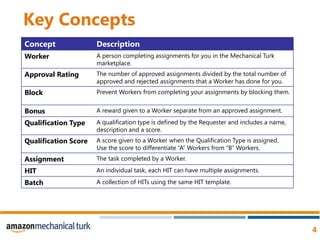
Key Concepts
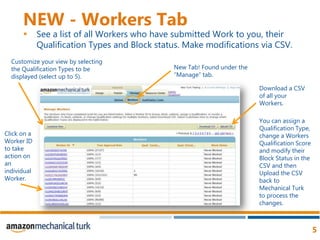
NEW - Workers TabSee a list of all Workers who have submitted Work to you, their Qualification Types and Block status. Make modifications via CSV. Customize your view by selecting the Qualification Types to be displayed (select up to 5). New Tab! Found under the “Manage” tab. Download a CSV of all your Workers. You can assign a Qualification Type, change a Workers Qualification Score and modify their Block Status in the CSV and then Upload the CSV back to Mechanical Turk to process the changes. Click on a Worker ID to take action on an individual Worker.
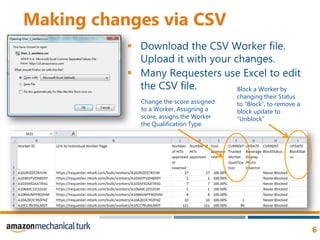
Making changes via CSVDownload the CSV Worker file. Upload it with your changes.Many Requesters use Excel to edit the CSV file. Block a Worker by changing their Status to “Block”, to remove a block update to “Unblock”Change the score assigned to a Worker. Assigning a score, assigns the Worker the Qualification Type.
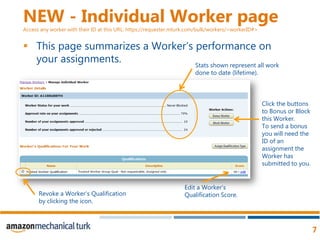
NEW - Individual Worker pageAccess any worker with their ID at this URL: https://requester.mturk.com/bulk/workers/<workerID#> This page summarizes a Worker’s performance on your assignments. Stats shown represent all work done to date (lifetime). Click the buttons to Bonus or Block this Worker. To send a bonus you will need the ID of an assignment the Worker has submitted to you.Edit a Worker’s Qualification Score. Revoke a Worker’s Qualification by clicking the icon.
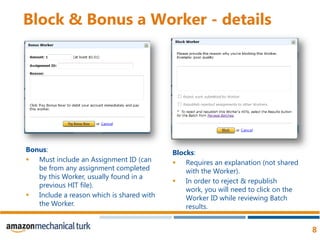
Block & Bonus a Worker - detailsBonus:Must include an Assignment ID (can be from any assignment completed by this Worker, usually found in a previous HIT file). Include a reason which is shared with the Worker. Blocks:Requires an explanation (not shared with the Worker).In order to reject & republish work, you will need to click on the Worker ID while reviewing Batch results.
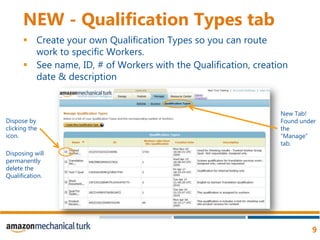
NEW - Qualification Types tabCreate your own Qualification Types so you can route work to specific Workers. See name, ID, # of Workers with the Qualification, creation date & description New Tab! Found under the “Manage” tab. Dispose by clicking the icon.Disposing will permanently delete the Qualification.
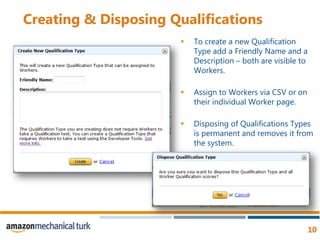
Creating & Disposing QualificationsTo create a new Qualification Type add a Friendly Name and a Description – both are visible to Workers. Assign to Workers via CSV or on their individual Worker page.Disposing of Qualifications Types is permanent and removes it from the system.
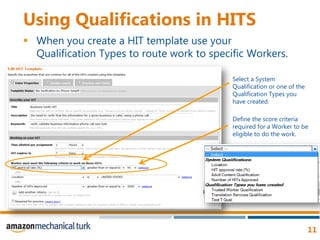
Using Qualifications in HITSWhen you create a HIT template use your Qualification Types to route work to specific Workers.Select a System Qualification or one of the Qualification Types you have created. Define the score criteria required for a Worker to be eligible to do the work.
Have Questions?Post to the Amazon Web Services (AWS) Mechanical Turk Forums:http://developer.amazonwebservices.com/connect/forum.jspa?forumID=11Contact Us https://requester.mturk.com/mturk/contactushttp://mturk.com

Manage your Workforce - Fall 2010 Requester Product Update

  • 1.
    Manage Your WorkforceWorkerManagement Features Fall 2010 Requester Product Updates
  • 2.
    What’s InsideAn overviewof the new features that are being introduced:Workers Statistics: Data on who is doing work for you, their performance on that work.Manage Qualification Types: Create new Qualification Types in the UI and assign them to Workers to create Qualified Worker groups. Worker Management Tools: Bonus, Block and assign qualifications for a specific Worker.
  • 3.
    Worker Management BenefitsOurgoal is to make it easier for you to find Workers who are good at your HITs.These new tools will:Identify good workers by giving you data on who’s in your workforce and how they perform so you can easily.Allow you to easily manage Workers and Qualification Types.Save you time by providing information so you can prioritize your audit systems and send work to your best Workers.
  • 4.
  • 5.
    NEW - WorkersTabSee a list of all Workers who have submitted Work to you, their Qualification Types and Block status. Make modifications via CSV. Customize your view by selecting the Qualification Types to be displayed (select up to 5). New Tab! Found under the “Manage” tab. Download a CSV of all your Workers. You can assign a Qualification Type, change a Workers Qualification Score and modify their Block Status in the CSV and then Upload the CSV back to Mechanical Turk to process the changes. Click on a Worker ID to take action on an individual Worker.
  • 6.
    Making changes viaCSVDownload the CSV Worker file. Upload it with your changes.Many Requesters use Excel to edit the CSV file. Block a Worker by changing their Status to “Block”, to remove a block update to “Unblock”Change the score assigned to a Worker. Assigning a score, assigns the Worker the Qualification Type.
  • 7.
    NEW - IndividualWorker pageAccess any worker with their ID at this URL: https://requester.mturk.com/bulk/workers/<workerID#> This page summarizes a Worker’s performance on your assignments. Stats shown represent all work done to date (lifetime). Click the buttons to Bonus or Block this Worker. To send a bonus you will need the ID of an assignment the Worker has submitted to you.Edit a Worker’s Qualification Score. Revoke a Worker’s Qualification by clicking the icon.
  • 8.
    Block & Bonusa Worker - detailsBonus:Must include an Assignment ID (can be from any assignment completed by this Worker, usually found in a previous HIT file). Include a reason which is shared with the Worker. Blocks:Requires an explanation (not shared with the Worker).In order to reject & republish work, you will need to click on the Worker ID while reviewing Batch results.
  • 9.
    NEW - QualificationTypes tabCreate your own Qualification Types so you can route work to specific Workers. See name, ID, # of Workers with the Qualification, creation date & description New Tab! Found under the “Manage” tab. Dispose by clicking the icon.Disposing will permanently delete the Qualification.
  • 10.
    Creating & DisposingQualificationsTo create a new Qualification Type add a Friendly Name and a Description – both are visible to Workers. Assign to Workers via CSV or on their individual Worker page.Disposing of Qualifications Types is permanent and removes it from the system.
  • 11.
    Using Qualifications inHITSWhen you create a HIT template use your Qualification Types to route work to specific Workers.Select a System Qualification or one of the Qualification Types you have created. Define the score criteria required for a Worker to be eligible to do the work.
  • 12.
    Have Questions?Post tothe Amazon Web Services (AWS) Mechanical Turk Forums:http://developer.amazonwebservices.com/connect/forum.jspa?forumID=11Contact Us https://requester.mturk.com/mturk/contactushttp://mturk.com