Rodney Buike Technology Advisor [email_address] http://www.thelazyadmin.com http://blogs.technet.com/canitpro Twitter: @rbuike
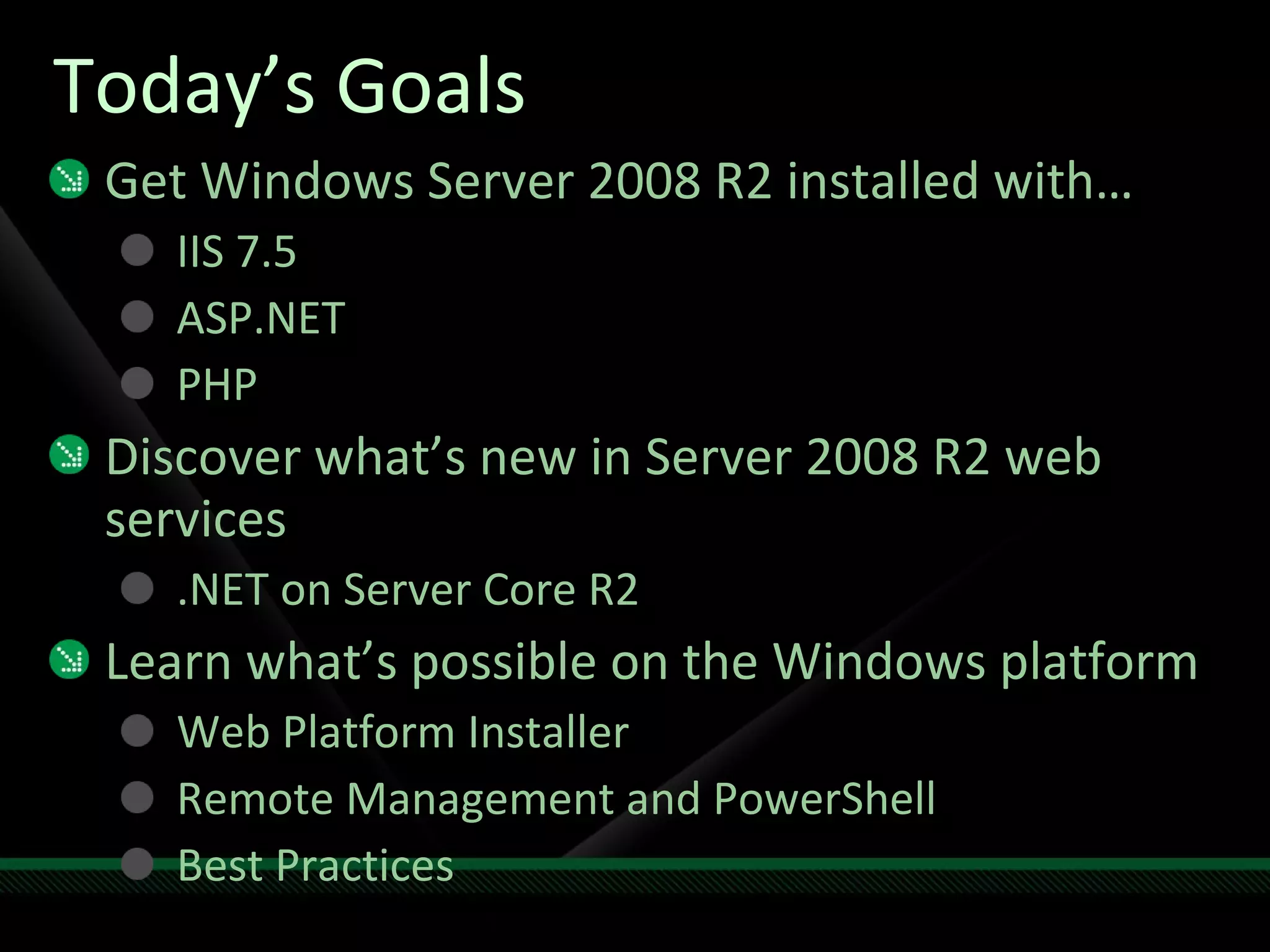
Today’s Goals Get Windows Server 2008 R2 installed  with… IIS 7.5 ASP.NET PHP Discover what’s new in Server 2008 R2 web services .NET on Server Core R2 Learn what’s possible on the Windows platform Web Platform Installer Remote Management and PowerShell Best Practices
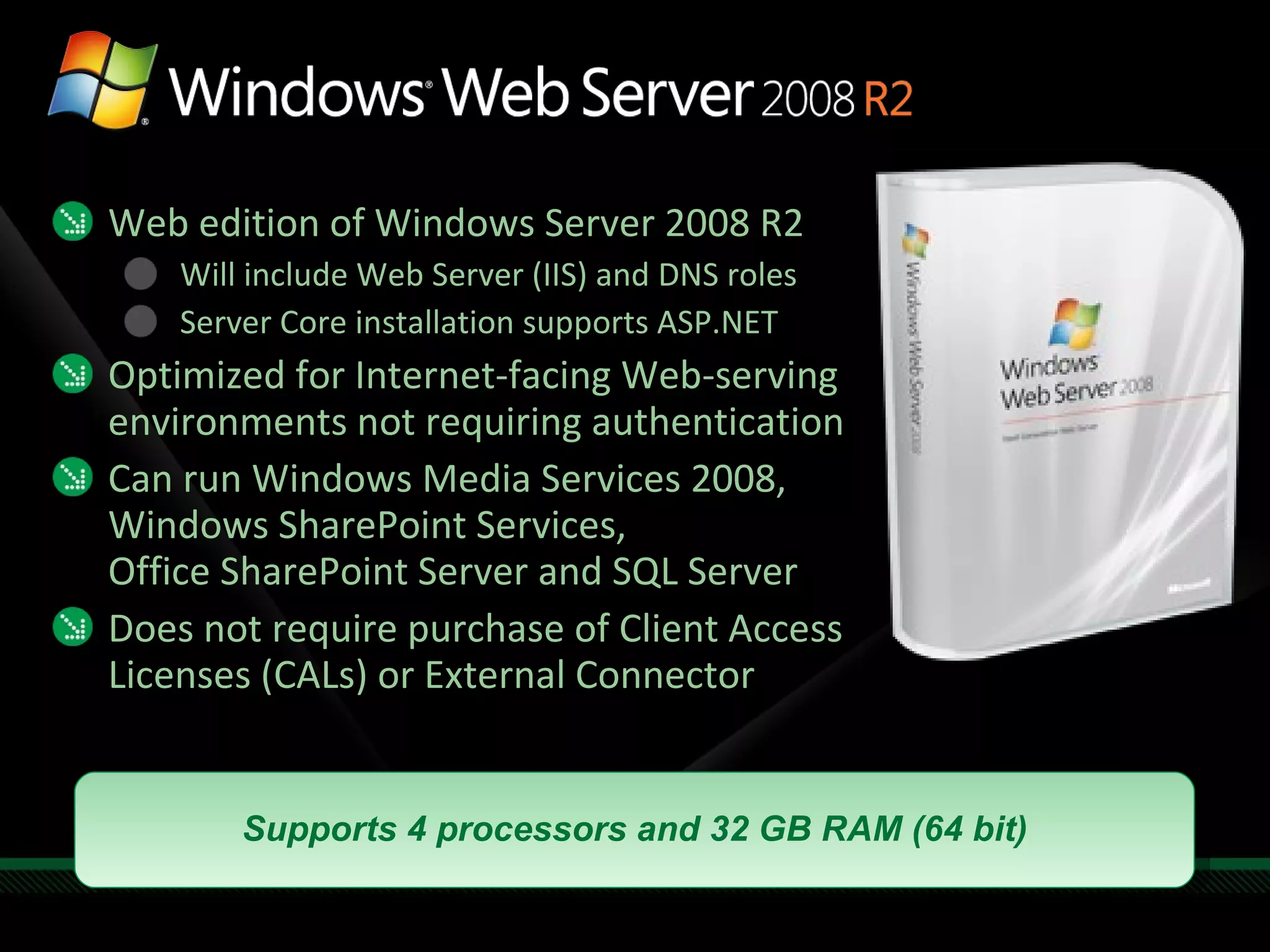
Web edition of Windows Server 2008 R2 Will include Web Server (IIS) and DNS roles Server Core installation supports ASP.NET Optimized for Internet-facing Web-serving environments not requiring authentication Can run Windows Media Services 2008,  Windows SharePoint Services, Office SharePoint Server and SQL Server Does not require purchase of Client Access Licenses (CALs) or External Connector Supports 4 processors and 32 GB RAM (64 bit)
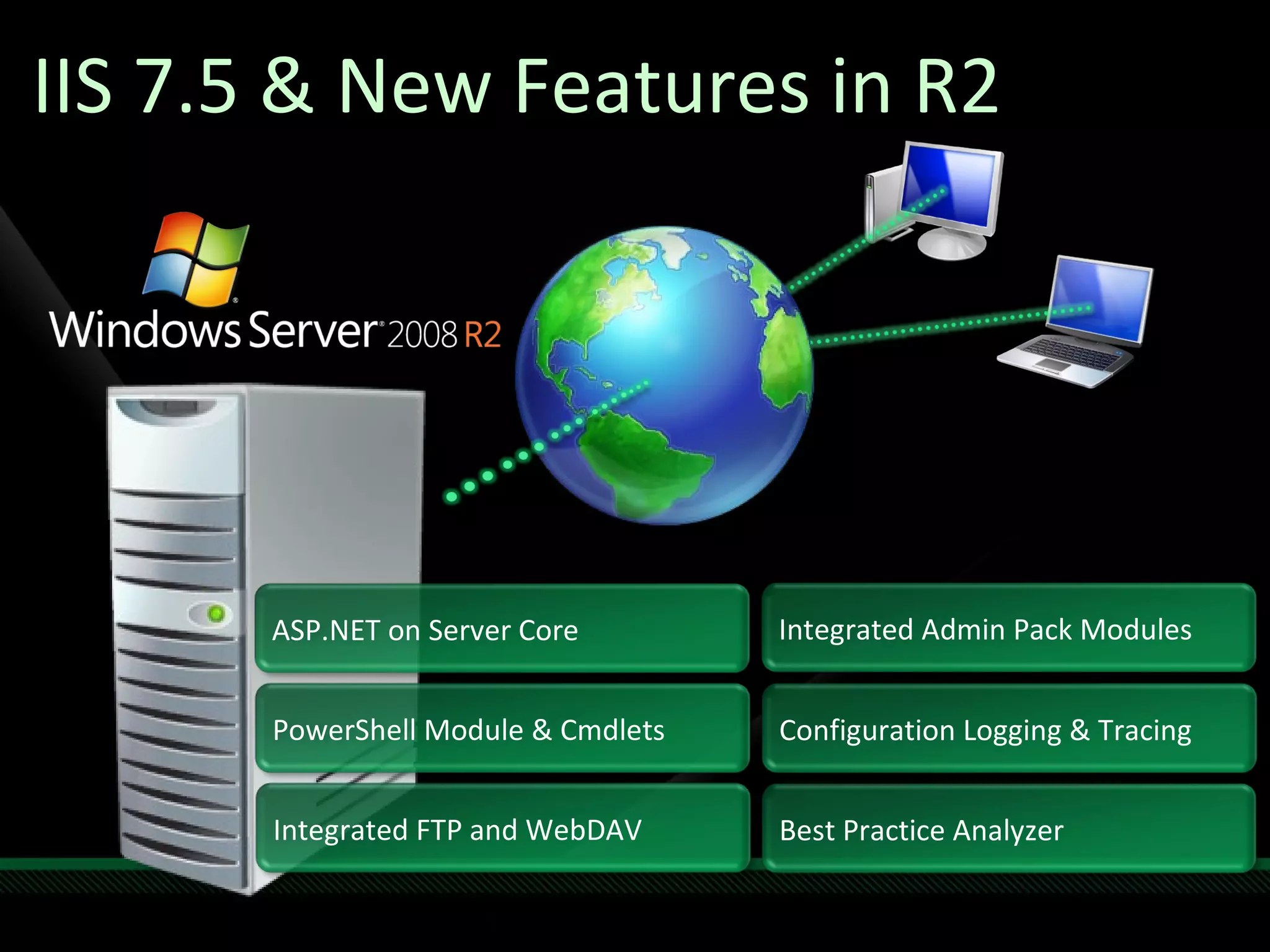
IIS 7.5 & New Features in R2 ASP.NET on Server Core PowerShell Module & Cmdlets Integrated FTP and WebDAV  Integrated Admin Pack Modules Configuration Logging & Tracing Best Practice Analyzer
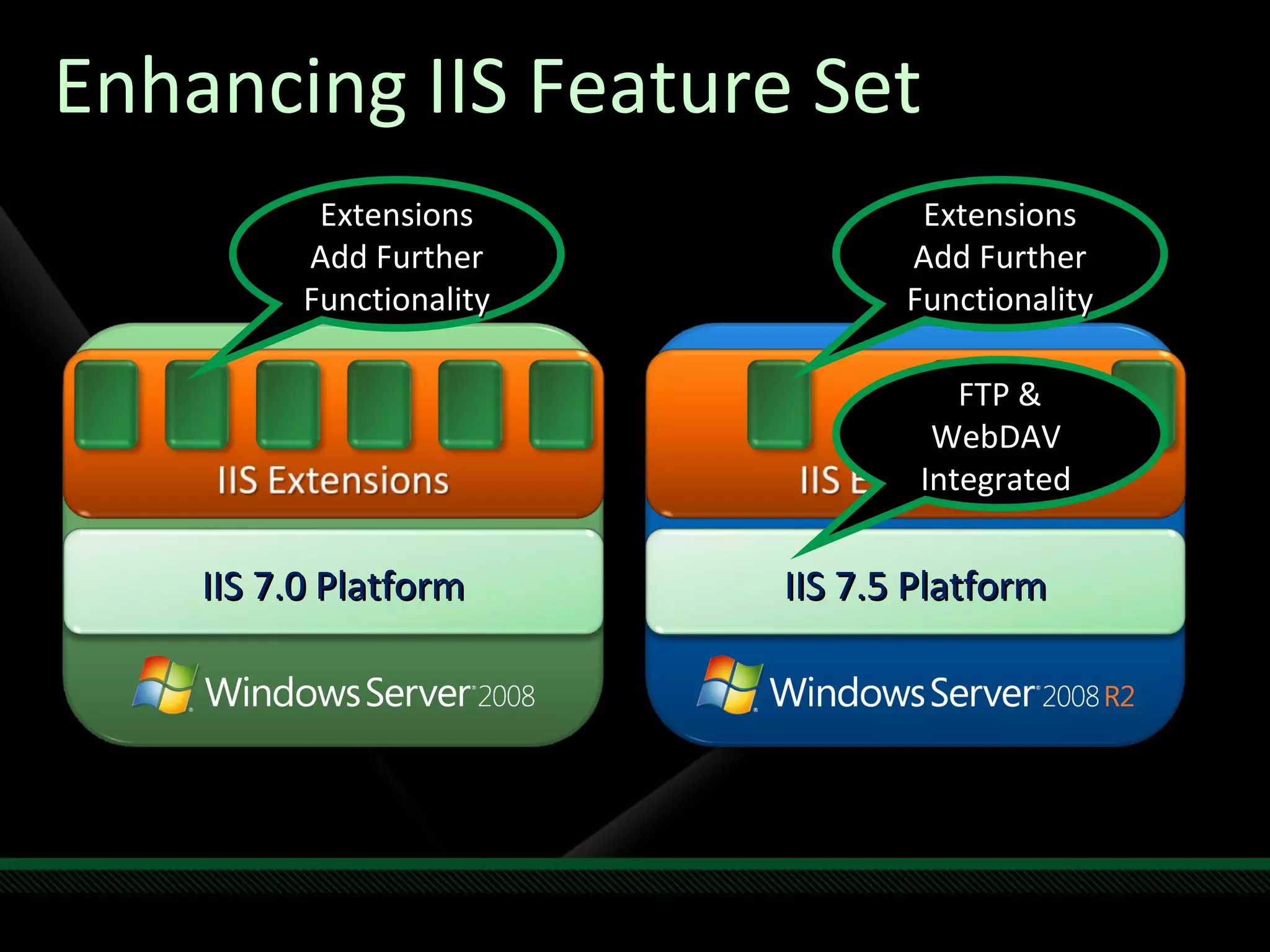
Enhancing IIS Feature Set Extensions Add Further Functionality Extensions Add Further Functionality FTP & WebDAV  Integrated  IIS 7.0 Platform IIS 7.5 Platform
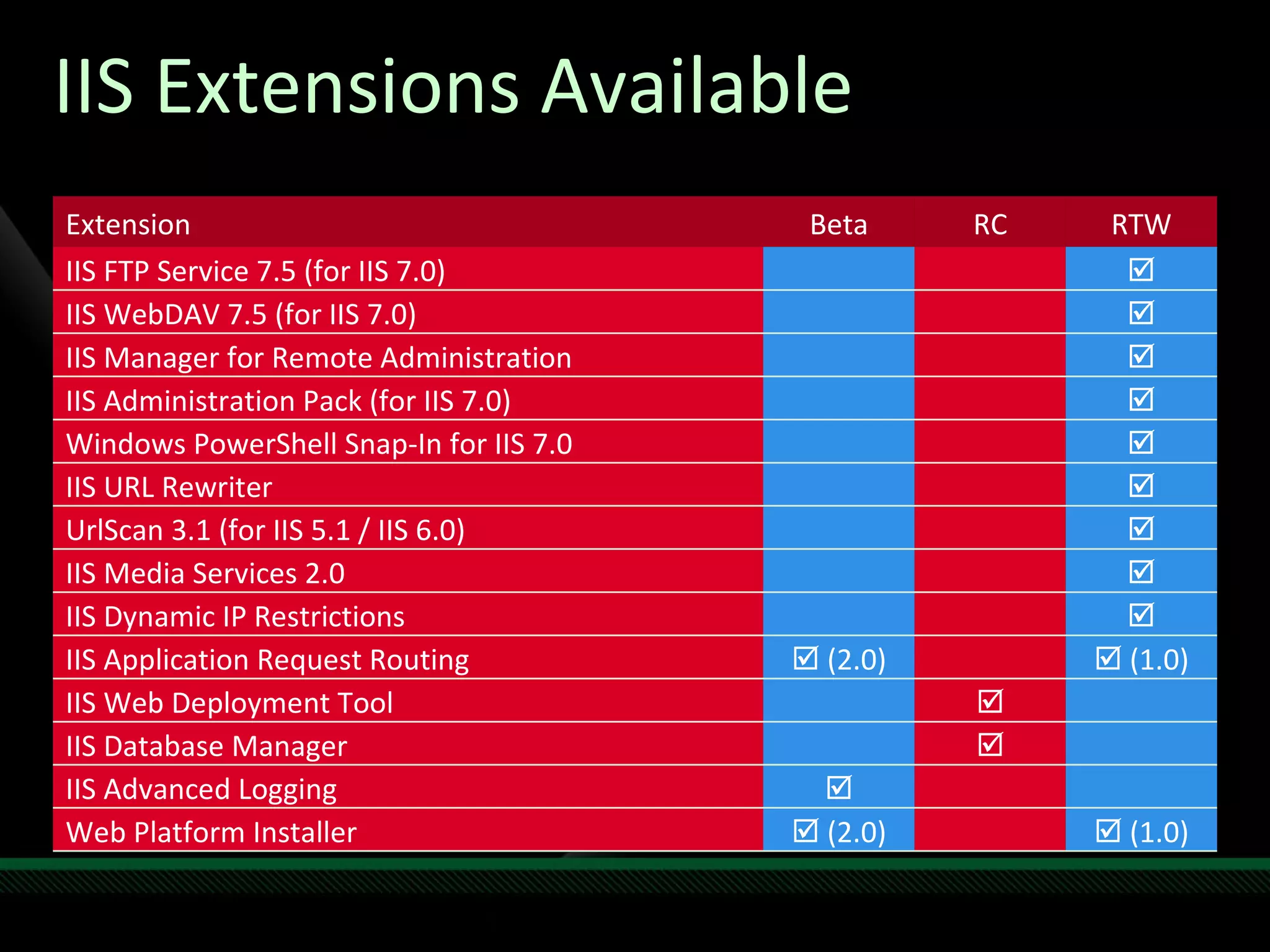
IIS Extensions Available Extension Beta RC RTW IIS FTP Service 7.5 (for IIS 7.0)  IIS WebDAV 7.5 (for IIS 7.0)  IIS Manager for Remote Administration  IIS Administration Pack (for IIS 7.0)  Windows PowerShell Snap-In for IIS 7.0  IIS URL Rewriter  UrlScan 3.1 (for IIS 5.1 / IIS 6.0)  IIS Media Services 2.0  IIS Dynamic IP Restrictions  IIS Application Request Routing    (2.0)    (1.0) IIS Web Deployment Tool  IIS Database Manager  IIS Advanced Logging  Web Platform Installer    (2.0)    (1.0)
 
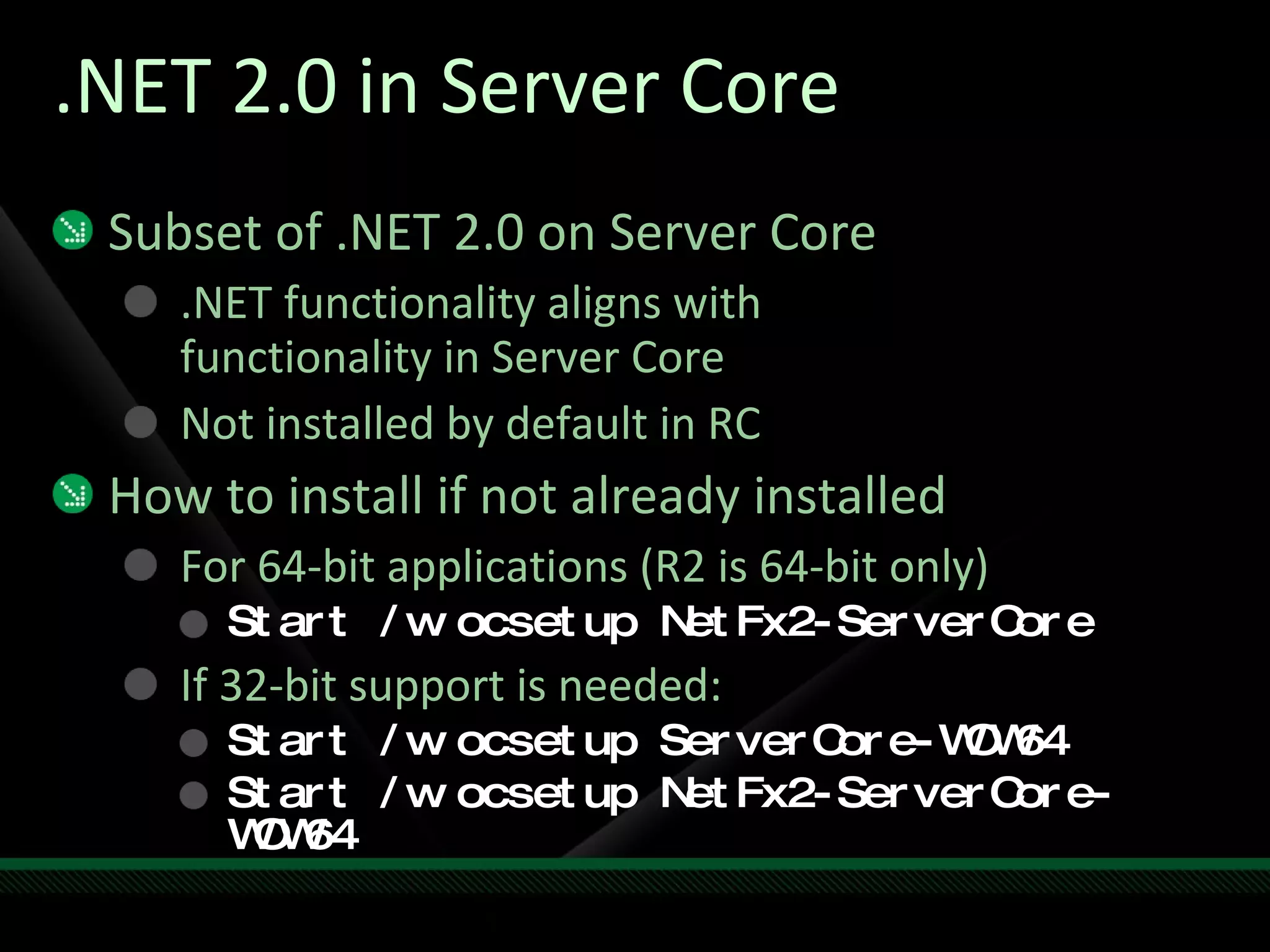
.NET 2.0 in Server Core Subset of .NET 2.0 on Server Core .NET functionality aligns with  functionality in Server Core Not installed by default in RC How to install if not already installed For 64-bit applications (R2 is 64-bit only) Start /w ocsetup NetFx2-ServerCore If 32-bit support is needed: Start /w ocsetup ServerCore-WOW64 Start /w ocsetup NetFx2-ServerCore-WOW64
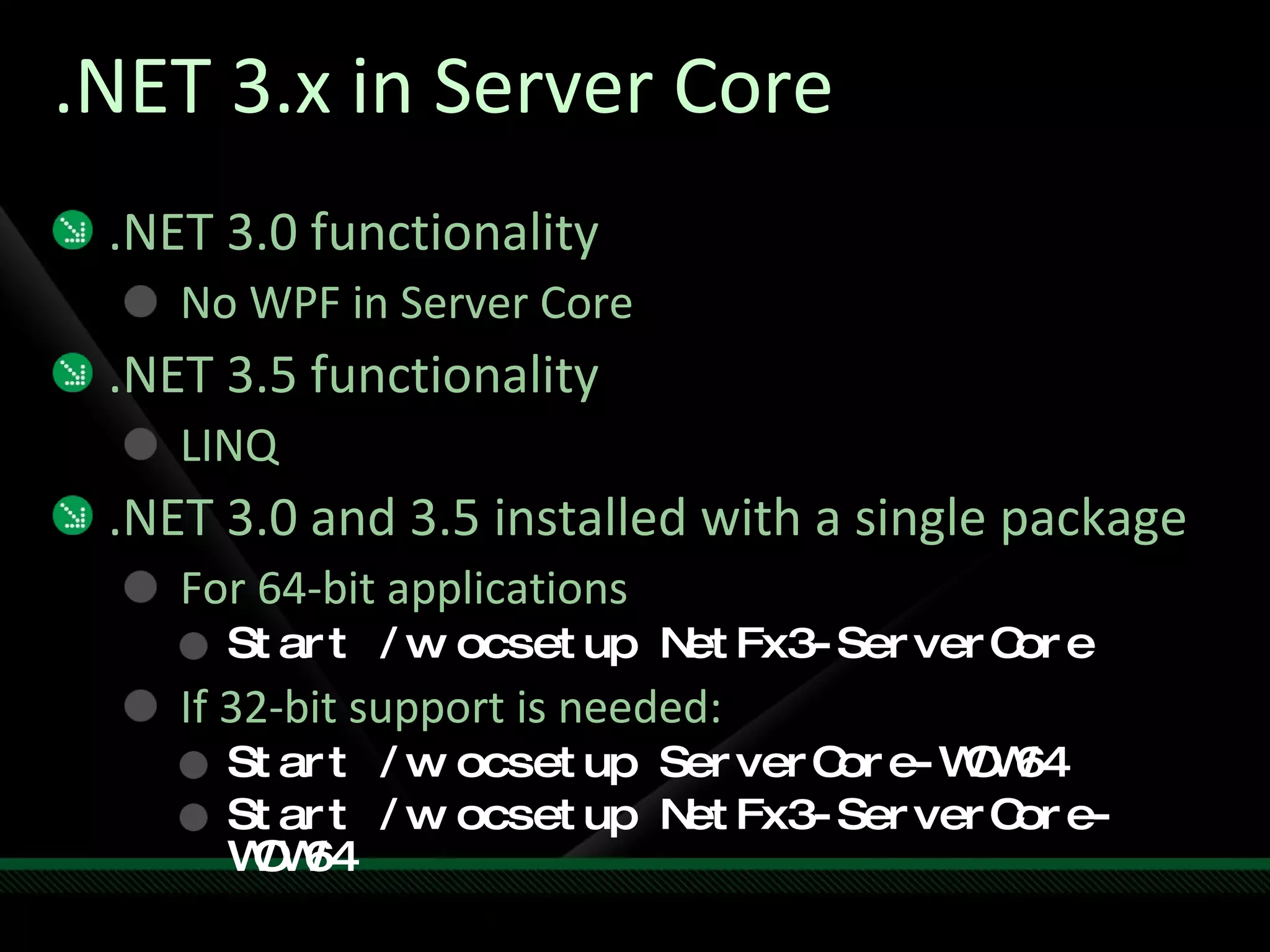
.NET 3.x in Server Core .NET 3.0 functionality No WPF in Server Core .NET 3.5 functionality LINQ .NET 3.0 and 3.5 installed with a single package For 64-bit applications Start /w ocsetup NetFx3-ServerCore If 32-bit support is needed: Start /w ocsetup ServerCore-WOW64 Start /w ocsetup NetFx3-ServerCore-WOW64
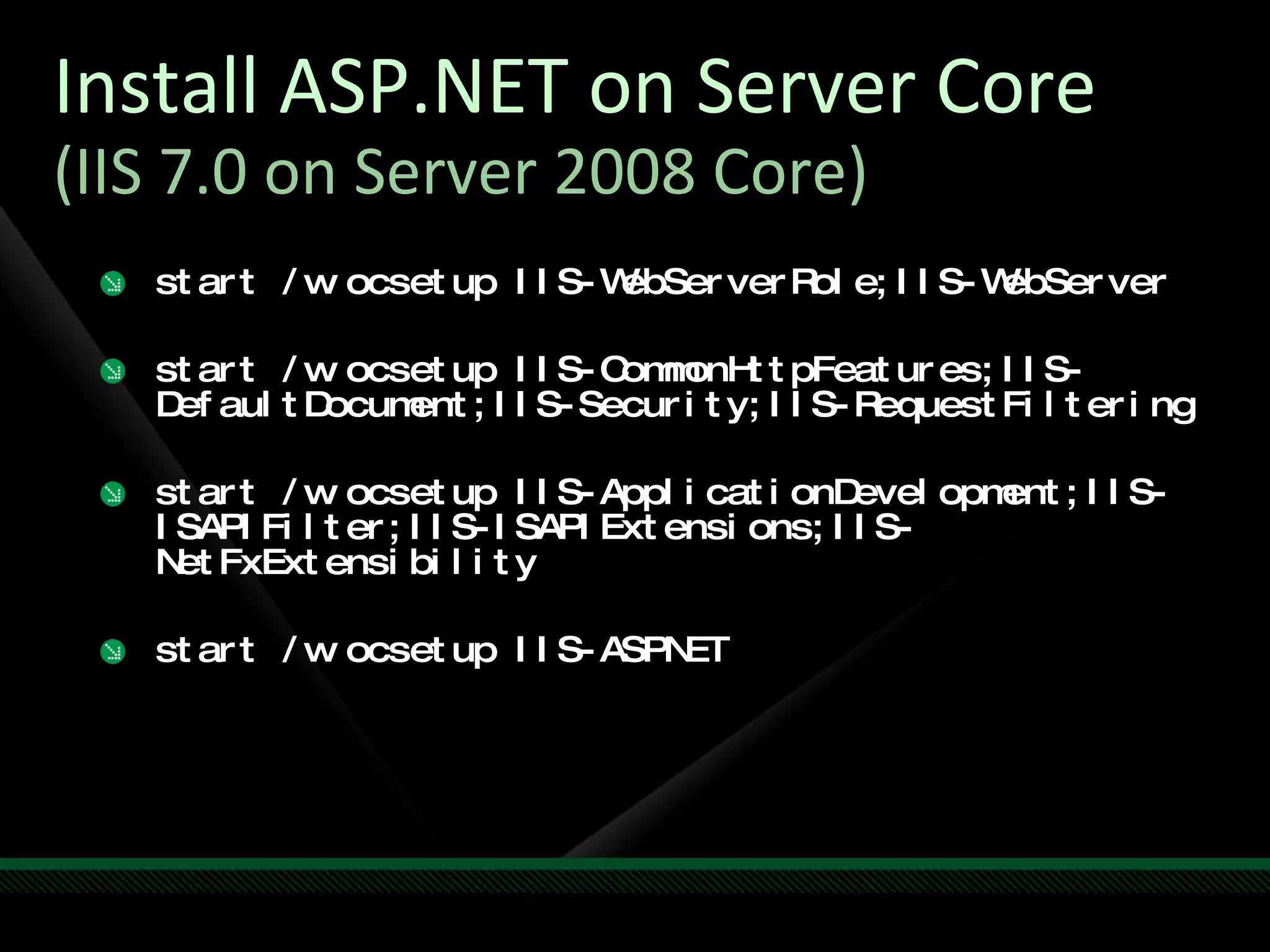
Install ASP.NET on Server Core (IIS 7.0 on Server 2008 Core) start /w ocsetup IIS-WebServerRole;IIS-WebServer start /w ocsetup IIS-CommonHttpFeatures;IIS-DefaultDocument;IIS-Security;IIS-RequestFiltering start /w ocsetup IIS-ApplicationDevelopment;IIS-ISAPIFilter;IIS-ISAPIExtensions;IIS-NetFxExtensibility start /w ocsetup IIS-ASPNET
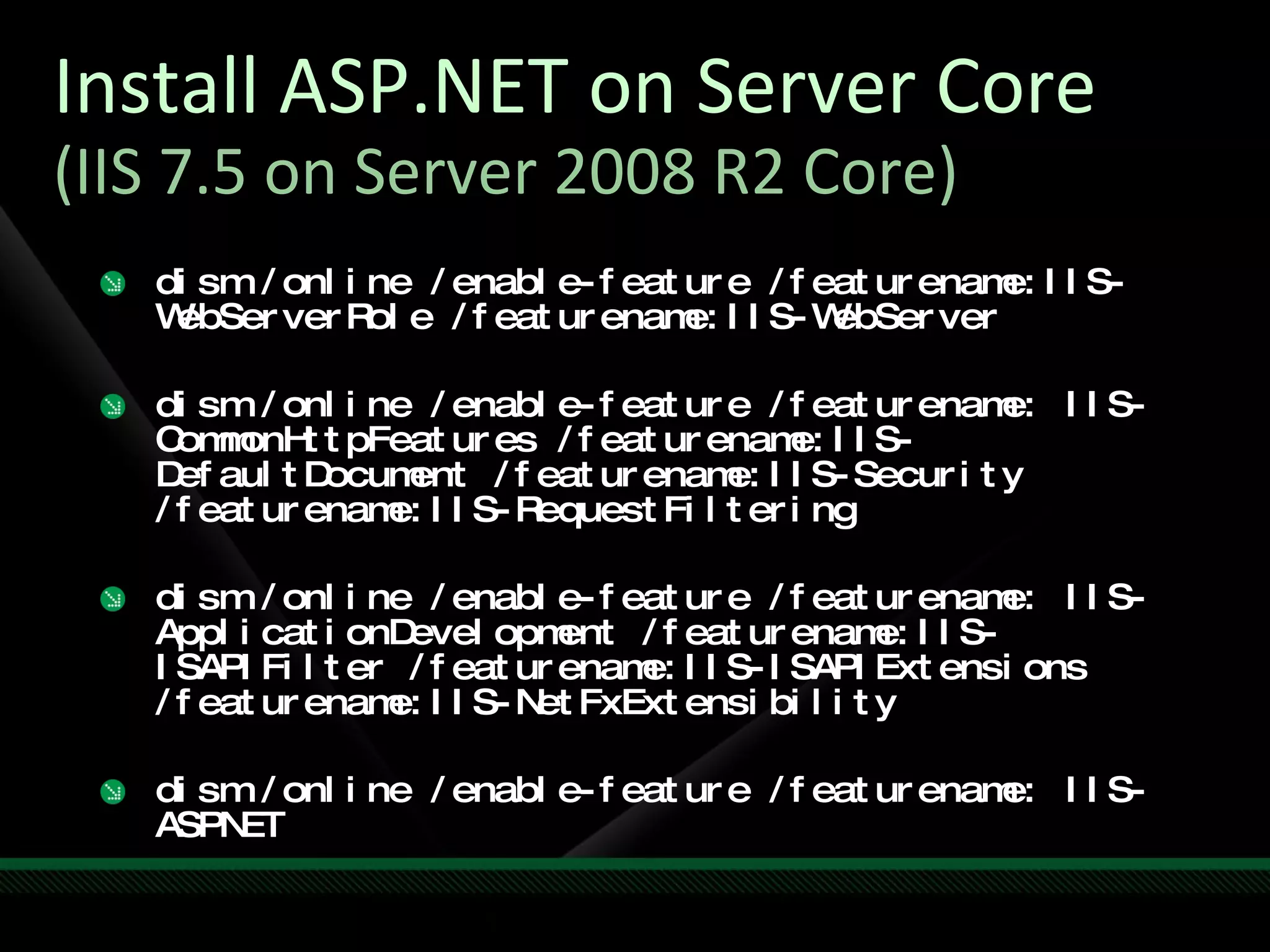
Install ASP.NET on Server Core (IIS 7.5 on Server 2008 R2 Core) dism /online /enable-feature /featurename:IIS-WebServerRole /featurename:IIS-WebServer dism /online /enable-feature /featurename: IIS-CommonHttpFeatures /featurename:IIS-DefaultDocument /featurename:IIS-Security /featurename:IIS-RequestFiltering dism /online /enable-feature /featurename: IIS-ApplicationDevelopment /featurename:IIS-ISAPIFilter /featurename:IIS-ISAPIExtensions /featurename:IIS-NetFxExtensibility dism /online /enable-feature /featurename: IIS-ASPNET
ASP.NET on Server Core
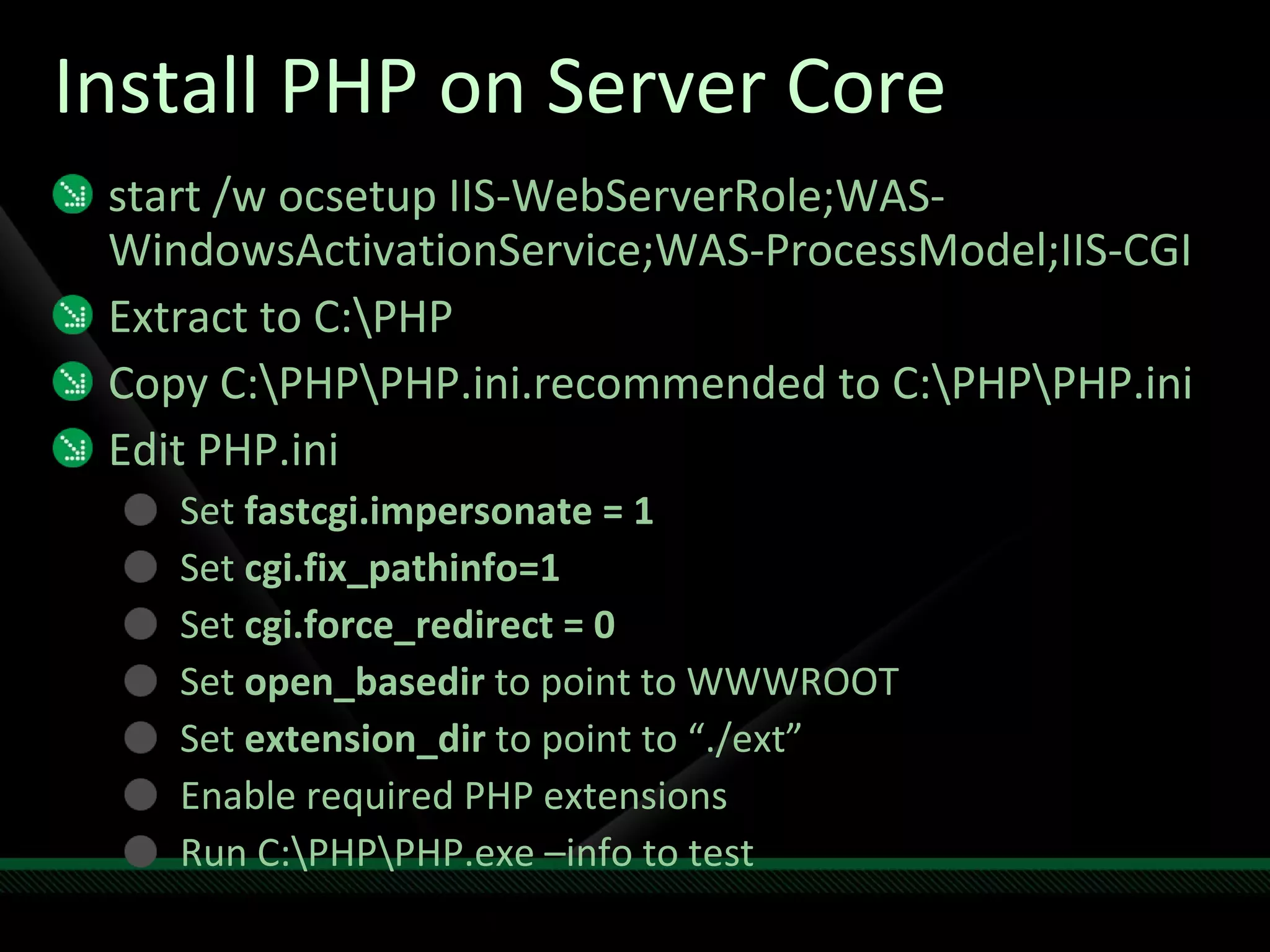
Install PHP on Server Core start /w ocsetup IIS-WebServerRole;WAS-WindowsActivationService;WAS-ProcessModel;IIS-CGI Extract to C:\PHP Copy C:\PHP\PHP.ini.recommended to C:\PHP\PHP.ini Edit PHP.ini Set  fastcgi.impersonate = 1 Set  cgi.fix_pathinfo=1 Set  cgi.force_redirect = 0 Set  open_basedir  to point to WWWROOT Set  extension_dir  to point to “./ext” Enable required PHP extensions Run C:\PHP\PHP.exe –info to test
PHP on Server Core
Web Platform Installer Download, install and update latest components of the Microsoft Web Platform Install open source .NET and PHP web applications
Install WordPress with WPI
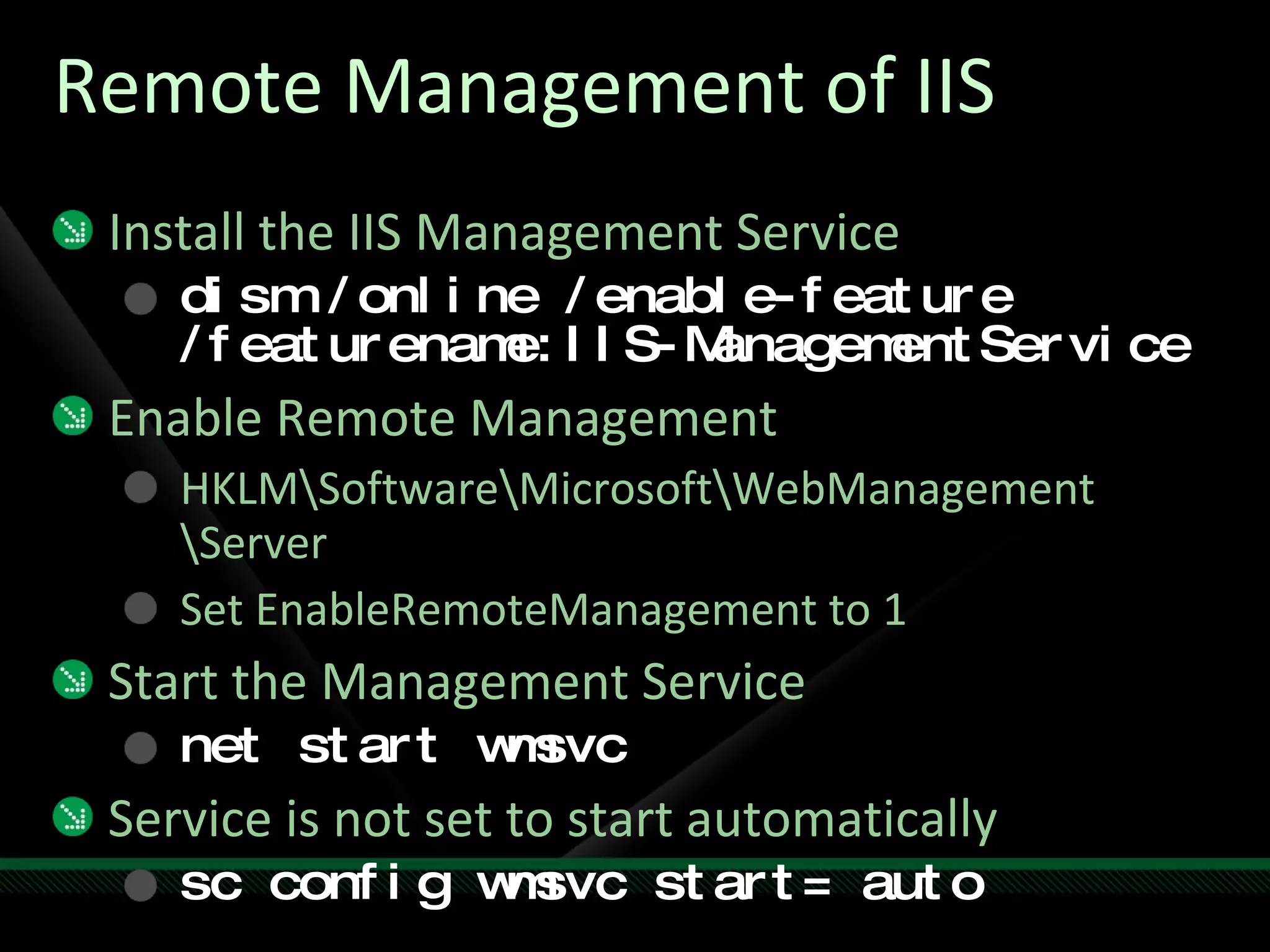
Remote Management of IIS Install the IIS Management Service dism /online /enable-feature /featurename:IIS-ManagementService Enable Remote Management HKLM\Software\Microsoft\WebManagement \Server Set EnableRemoteManagement to 1 Start the Management Service net start wmsvc Service is not set to start automatically sc config wmsvc start= auto
Remote Management of Server Core
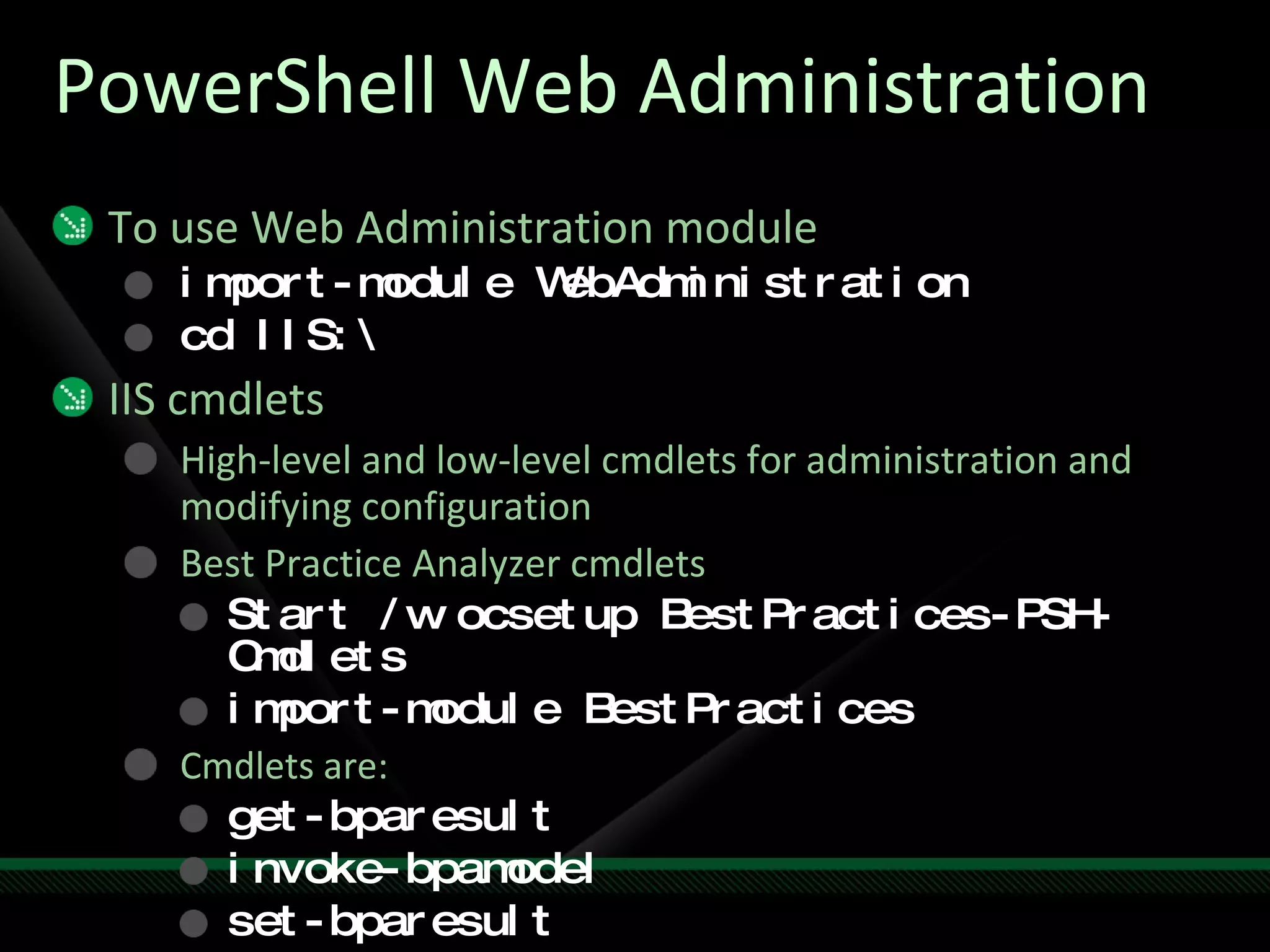
PowerShell Web Administration To use Web Administration module import-module WebAdministration cd IIS:\ IIS cmdlets High-level and low-level cmdlets for administration and modifying configuration Best Practice Analyzer cmdlets Start /w ocsetup BestPractices-PSH-Cmdlets import-module BestPractices Cmdlets are: get-bparesult invoke-bpamodel set-bparesult
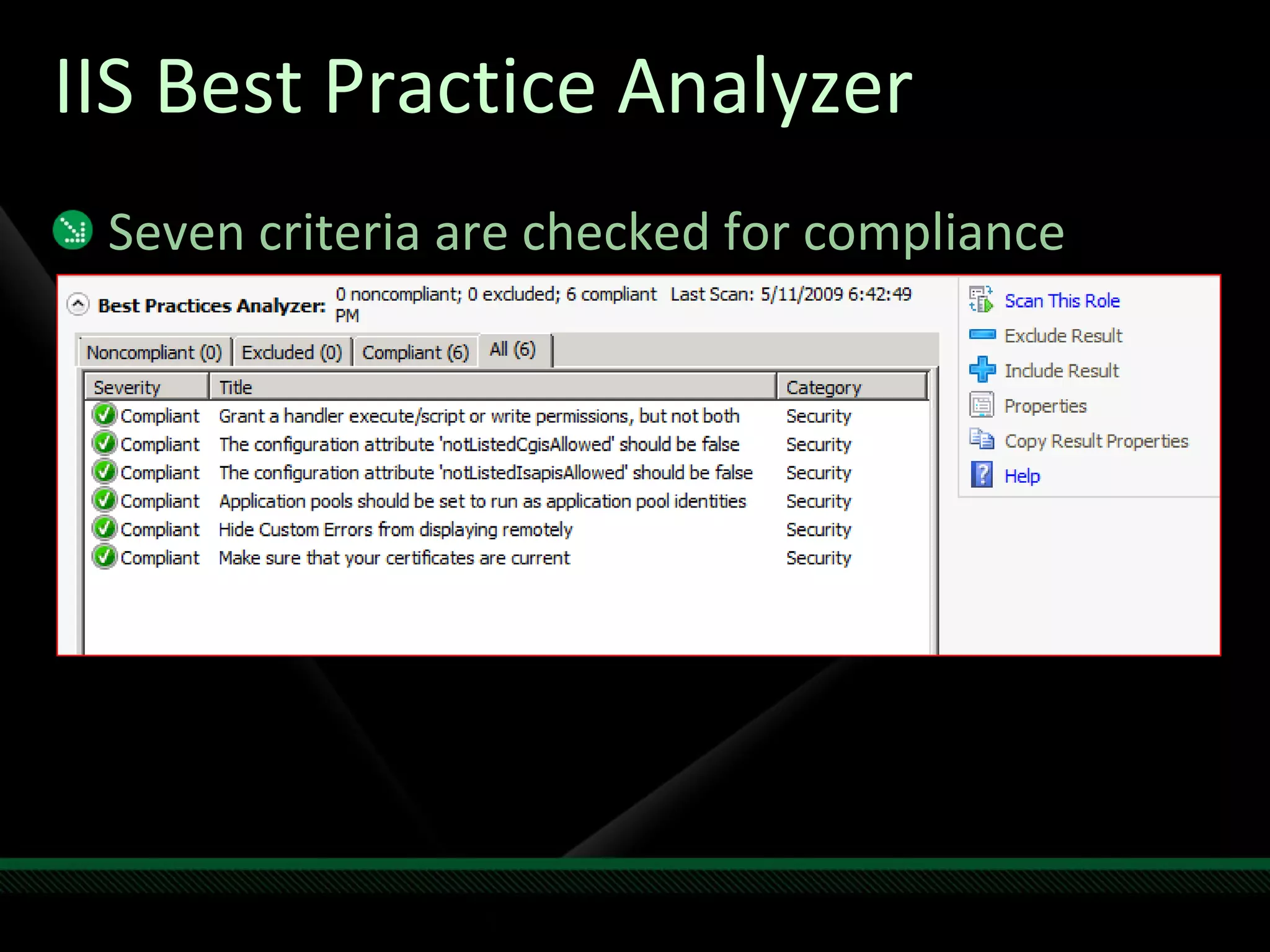
IIS Best Practice Analyzer Seven criteria are checked for compliance 1-7
Best Practices Analyzer
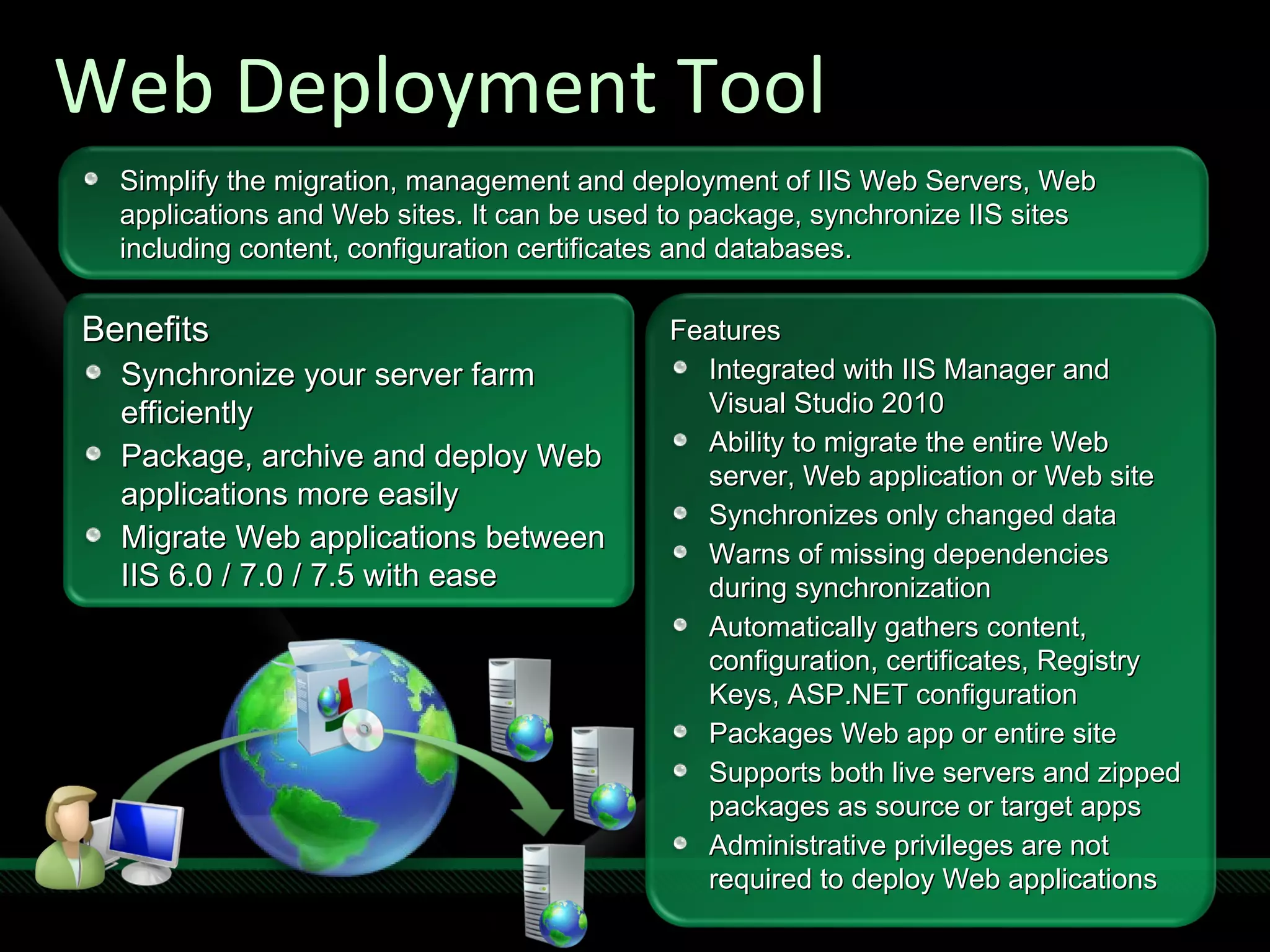
Web Deployment Tool Benefits Synchronize your server farm efficiently Package, archive and deploy Web applications more easily Migrate Web applications between IIS 6.0 / 7.0 / 7.5 with ease Features Integrated with IIS Manager and Visual Studio 2010 Ability to migrate the entire Web server, Web application or Web site Synchronizes only changed data Warns of missing dependencies during synchronization Automatically gathers content, configuration, certificates, Registry Keys, ASP.NET configuration Packages Web app or entire site Supports both live servers and zipped packages as source or target apps Administrative privileges are not required to deploy Web applications Simplify the migration, management and deployment of IIS Web Servers, Web applications and Web sites. It can be used to package, synchronize IIS sites including content, configuration certificates and databases.
Web Deployment Tool
Additional IIS Enhancements IIS Application Auto-Start CLR Settings per Application Pool Configuration Logging and Tracing New Application Pool Identities and Managed Service Accounts
Go Do’s Download Windows Server 2008 R2 RC microsoft.com/windowsserver2008 Install IIS, ASP.NET and PHP learn.iis.net Try the Web Platform Installer microsoft.com/web Tell us what you are doing! [email_address]
Rodney Buike Technology Advisor [email_address] http://www.thelazyadmin.com http://blogs.technet.com/canitpro
 
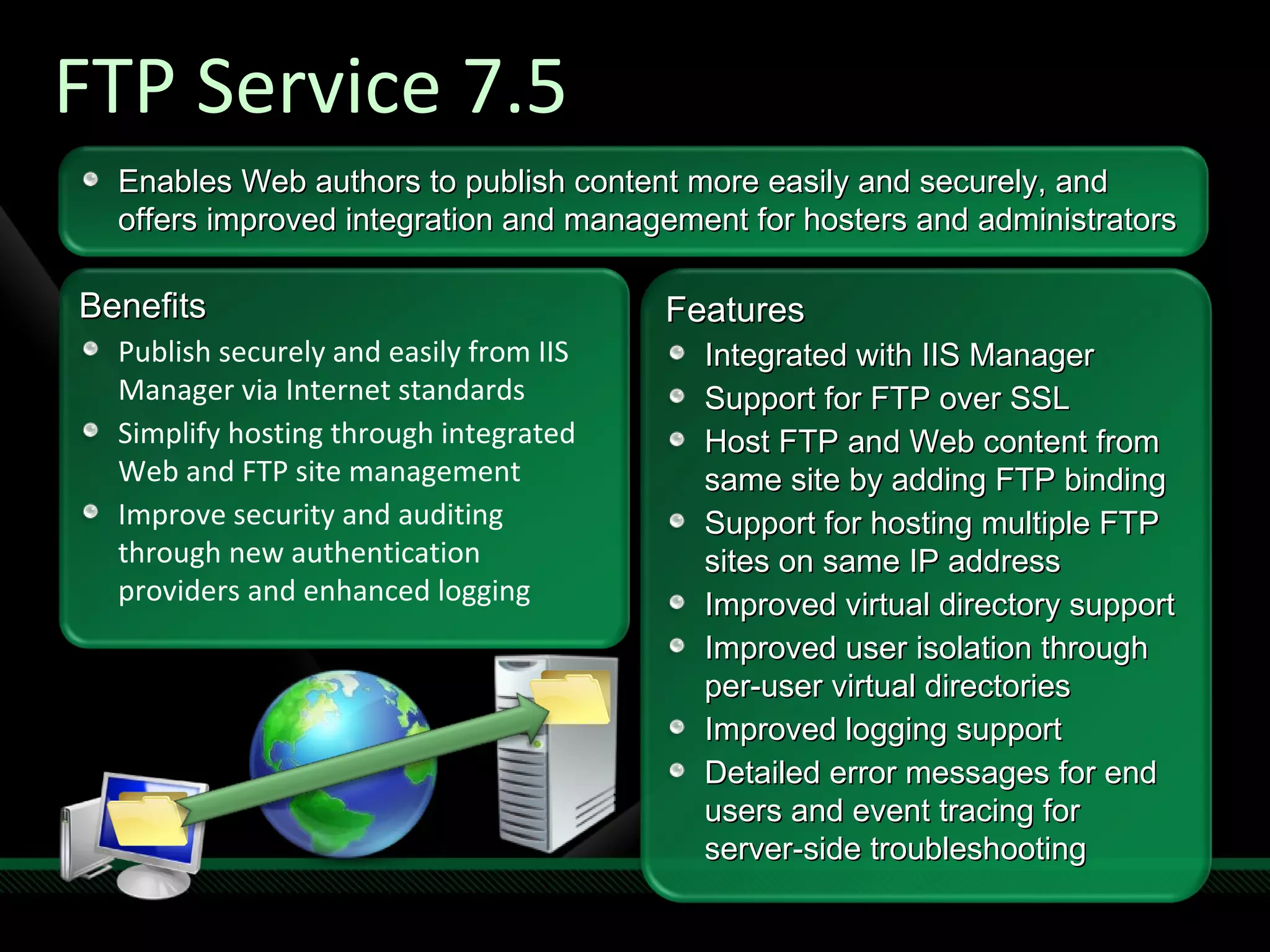
FTP Service 7.5 Benefits Publish securely and easily from IIS Manager via Internet standards Simplify hosting through integrated Web and FTP site management Improve security and auditing through new authentication providers and enhanced logging Features Integrated with IIS Manager Support for FTP over SSL Host FTP and Web content from same site by adding FTP binding  Support for hosting multiple FTP sites on same IP address Improved virtual directory support Improved user isolation through per-user virtual directories Improved logging support  Detailed error messages for end users and event tracing for server-side troubleshooting Enables Web authors to publish content more easily and securely, and offers improved integration and management for hosters and administrators
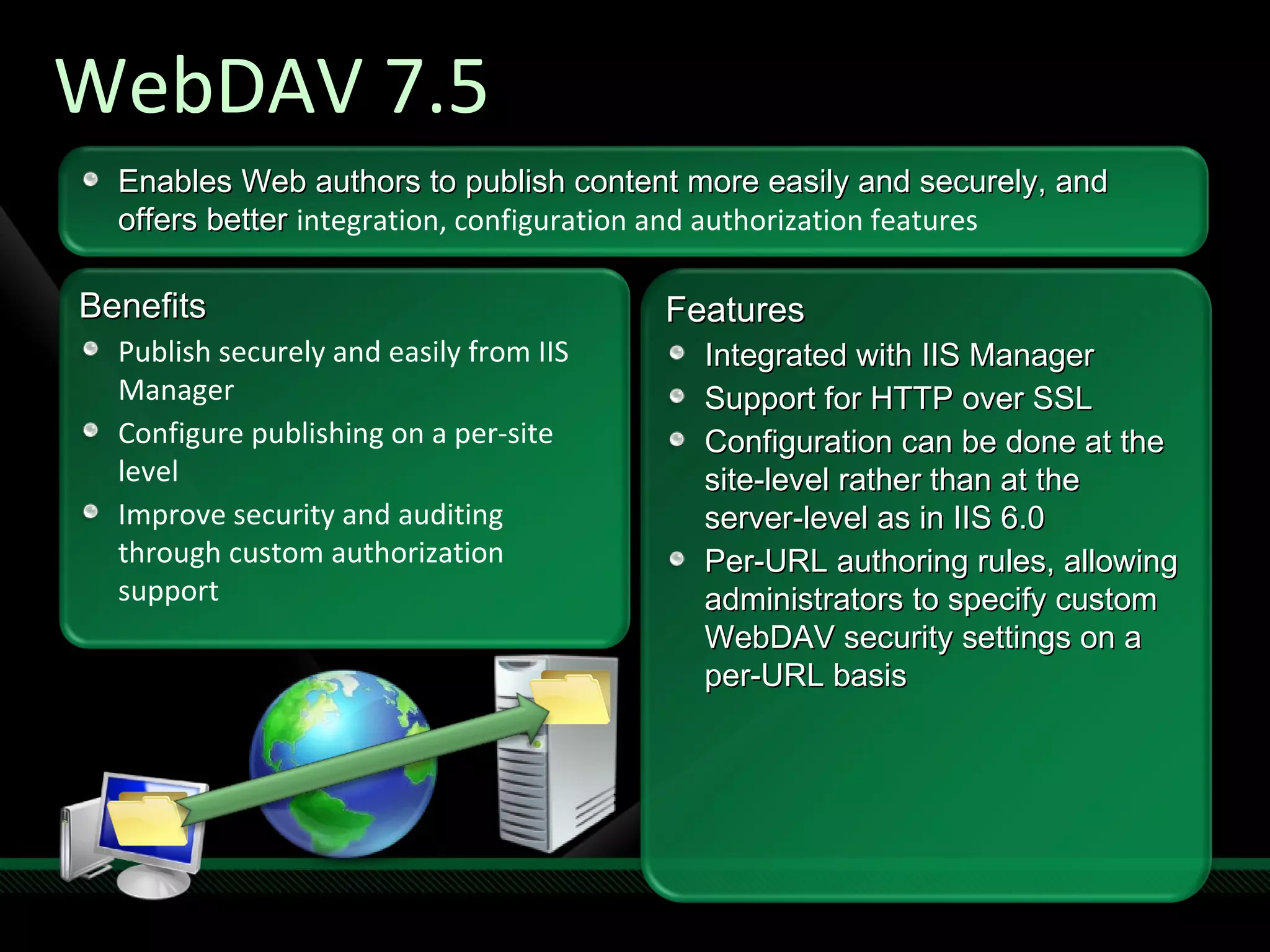
WebDAV 7.5 Benefits Publish securely and easily from IIS Manager Configure publishing on a per-site level Improve security and auditing through custom authorization support Features Integrated with IIS Manager Support for HTTP over SSL Configuration can be done at the site-level rather than at the server-level as in IIS 6.0 Per-URL authoring rules, allowing administrators to specify custom WebDAV security settings on a per-URL basis  Enables Web authors to publish content more easily and securely, and offers better  integration, configuration and authorization features
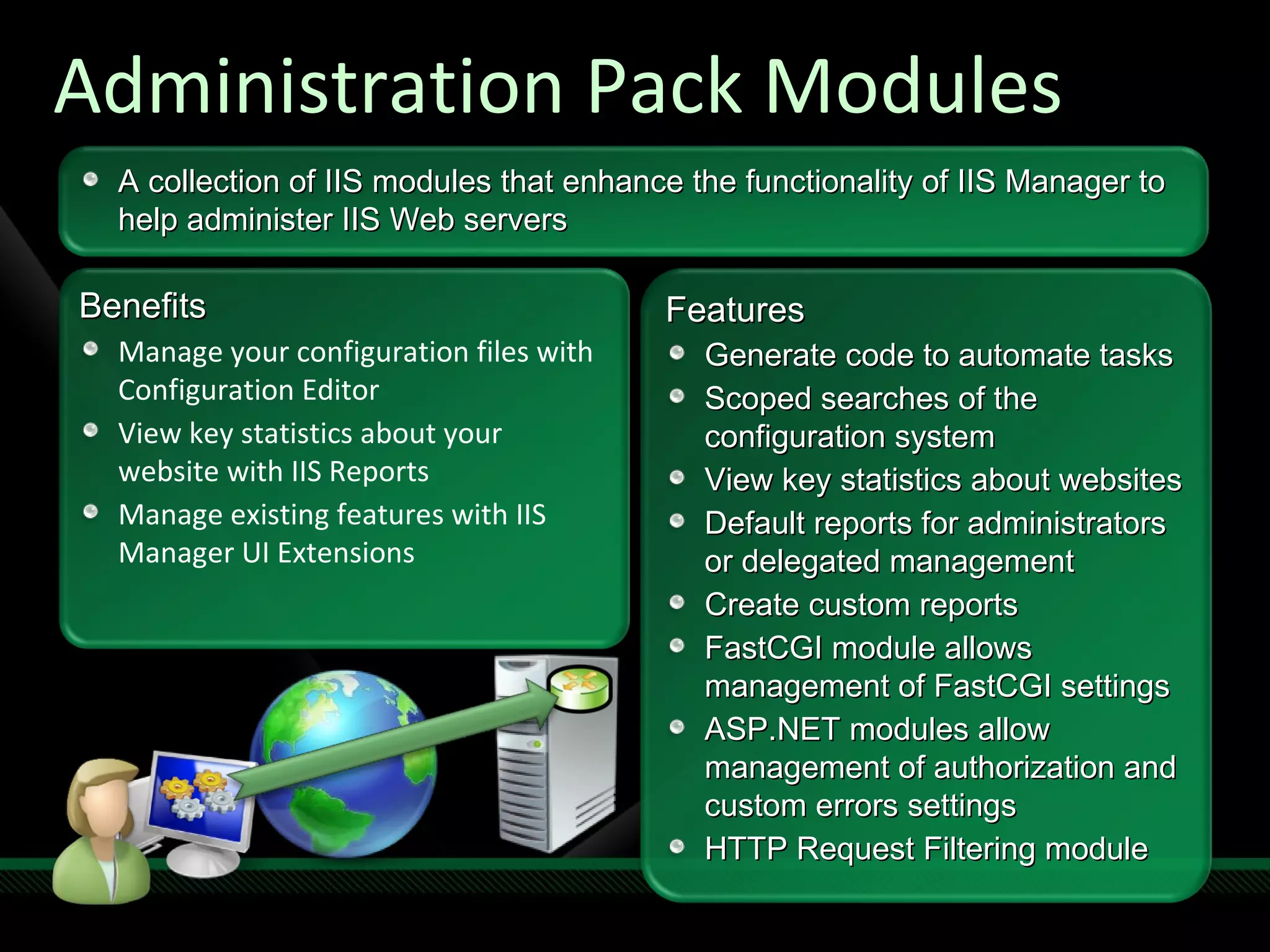
Administration Pack Modules Benefits Manage your configuration files with Configuration Editor View key statistics about your website with IIS Reports Manage existing features with IIS Manager UI Extensions Features Generate code to automate tasks Scoped searches of the configuration system View key statistics about websites Default reports for administrators or delegated management Create custom reports FastCGI module allows management of FastCGI settings ASP.NET modules allow management of authorization and custom errors settings HTTP Request Filtering module A collection of IIS modules that enhance the functionality of IIS Manager to help administer IIS Web servers
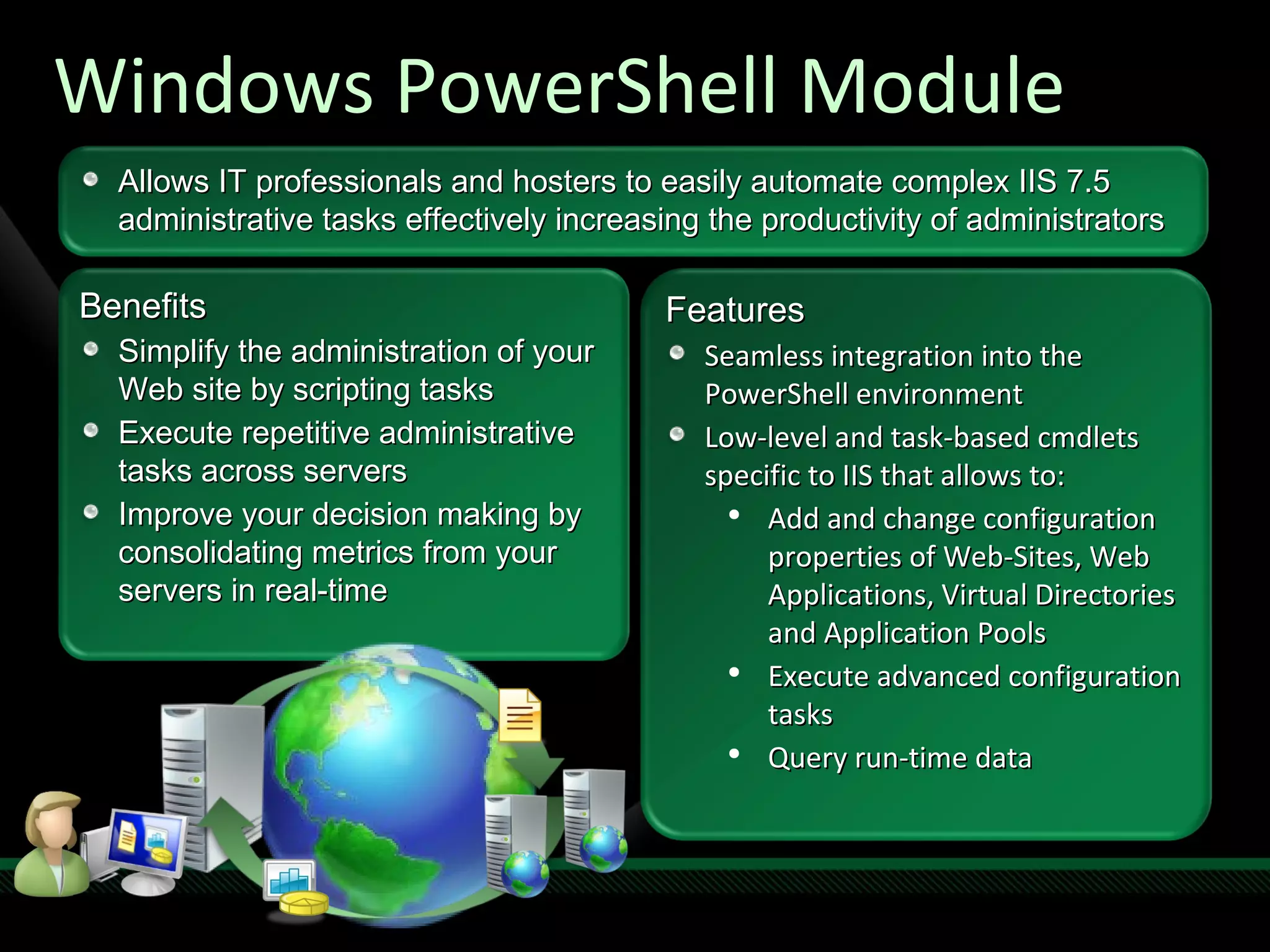
Windows PowerShell Module Benefits Simplify the administration of your Web site by scripting tasks Execute repetitive administrative tasks across servers Improve your decision making by consolidating metrics from your servers in real-time Features Seamless integration into the PowerShell environment Low-level and task-based cmdlets specific to IIS that allows to: Add and change configuration properties of Web-Sites, Web Applications, Virtual Directories and Application Pools Execute advanced configuration tasks Query run-time data  Allows IT professionals and hosters to easily automate complex IIS 7.5 administrative tasks effectively increasing the productivity of administrators
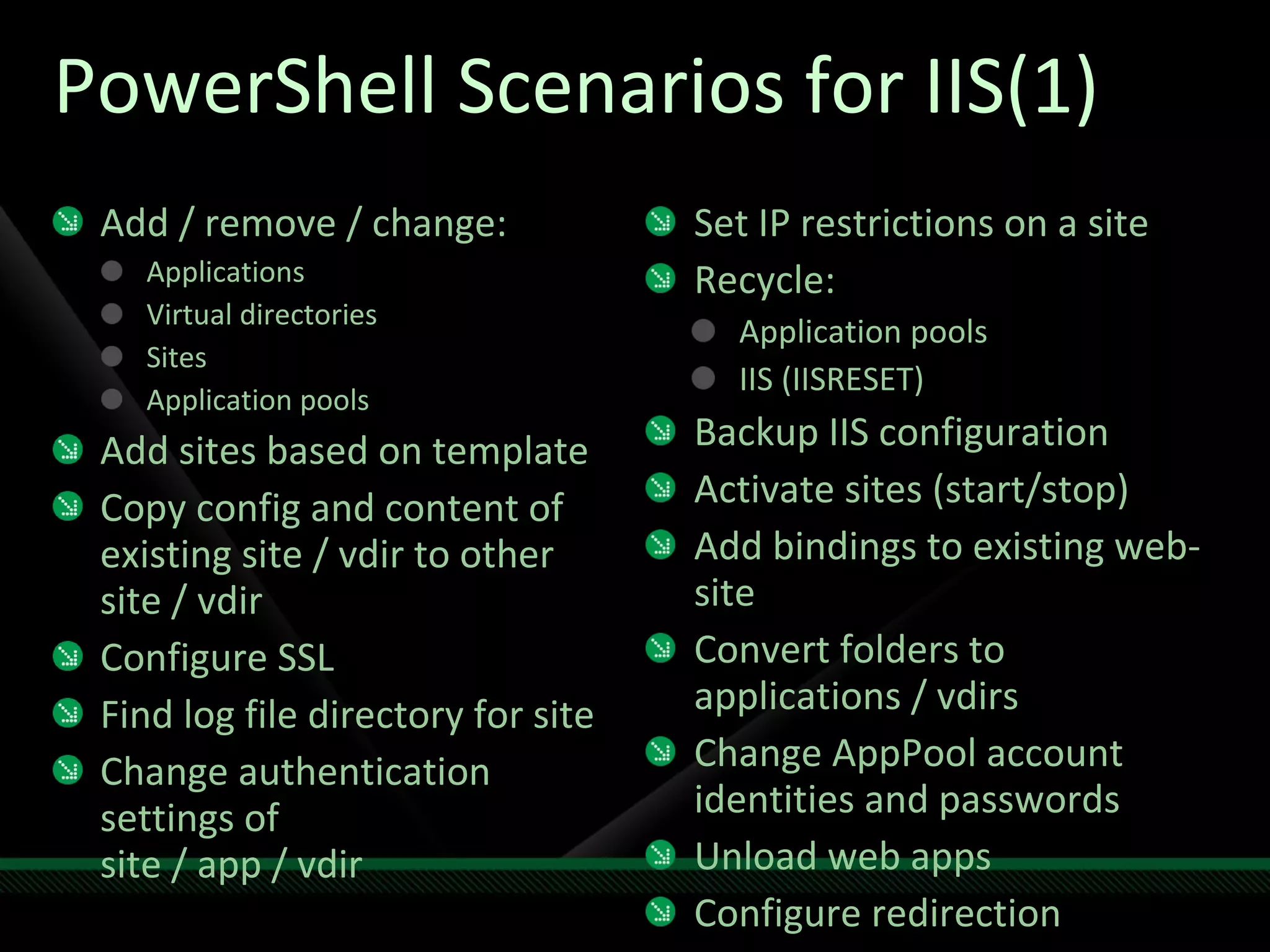
PowerShell Scenarios for IIS(1) Add / remove / change: Applications Virtual directories Sites Application pools Add sites based on template Copy config and content of existing site / vdir to other site / vdir Configure SSL Find log file directory for site Change authentication settings of site / app / vdir Set IP restrictions on a site Recycle: Application pools IIS (IISRESET) Backup IIS configuration Activate sites (start/stop) Add bindings to existing web-site Convert folders to applications / vdirs Change AppPool account identities and passwords Unload web apps Configure redirection
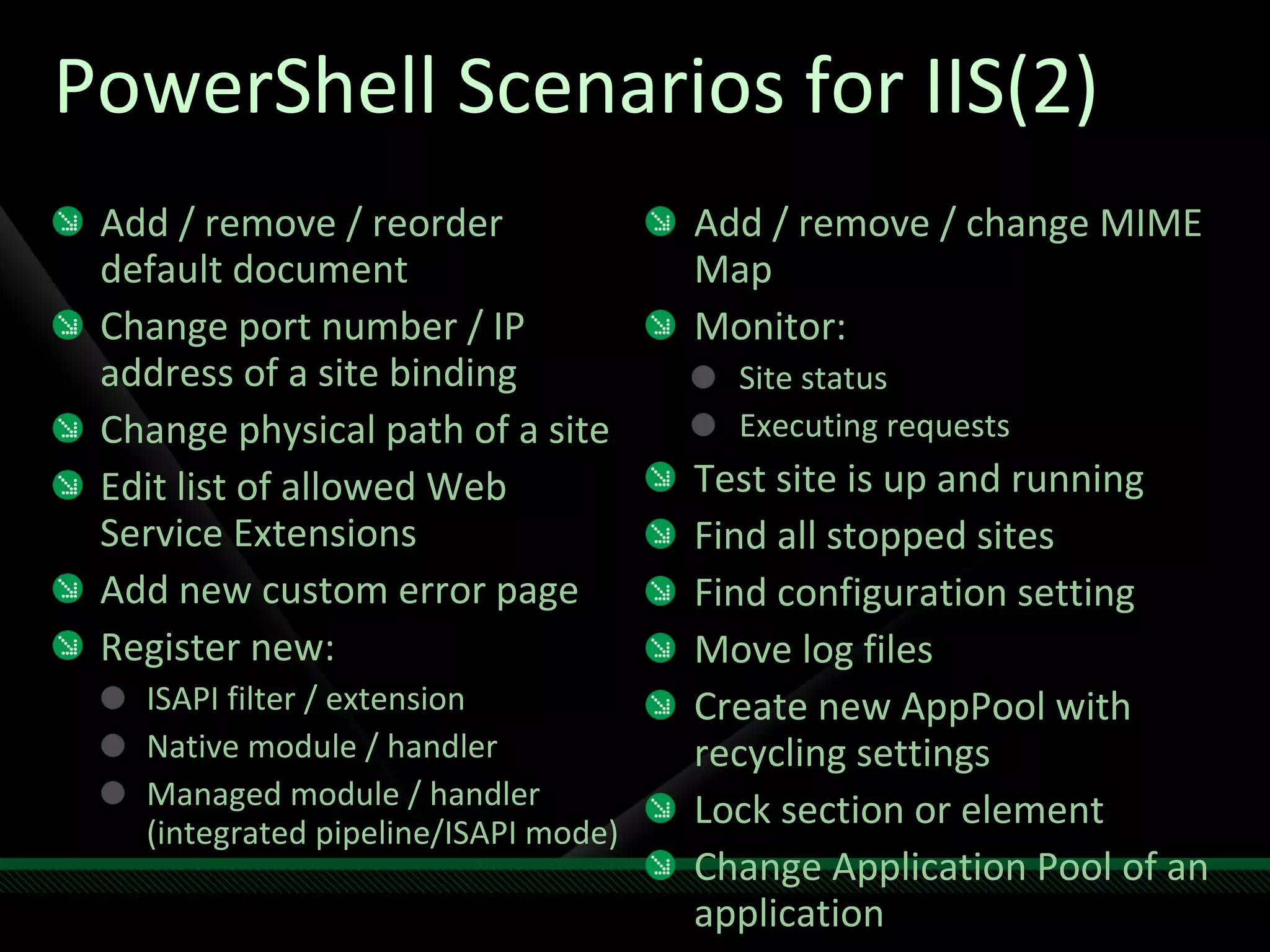
PowerShell Scenarios for IIS(2) Add / remove / reorder default document Change port number / IP address of a site binding Change physical path of a site Edit list of allowed Web Service Extensions Add new custom error page Register new: ISAPI filter / extension Native module / handler Managed module / handler (integrated pipeline/ISAPI mode) Add / remove / change MIME Map Monitor: Site status Executing requests  Test site is up and running Find all stopped sites Find configuration setting  Move log files Create new AppPool with recycling settings Lock section or element Change Application Pool of an application
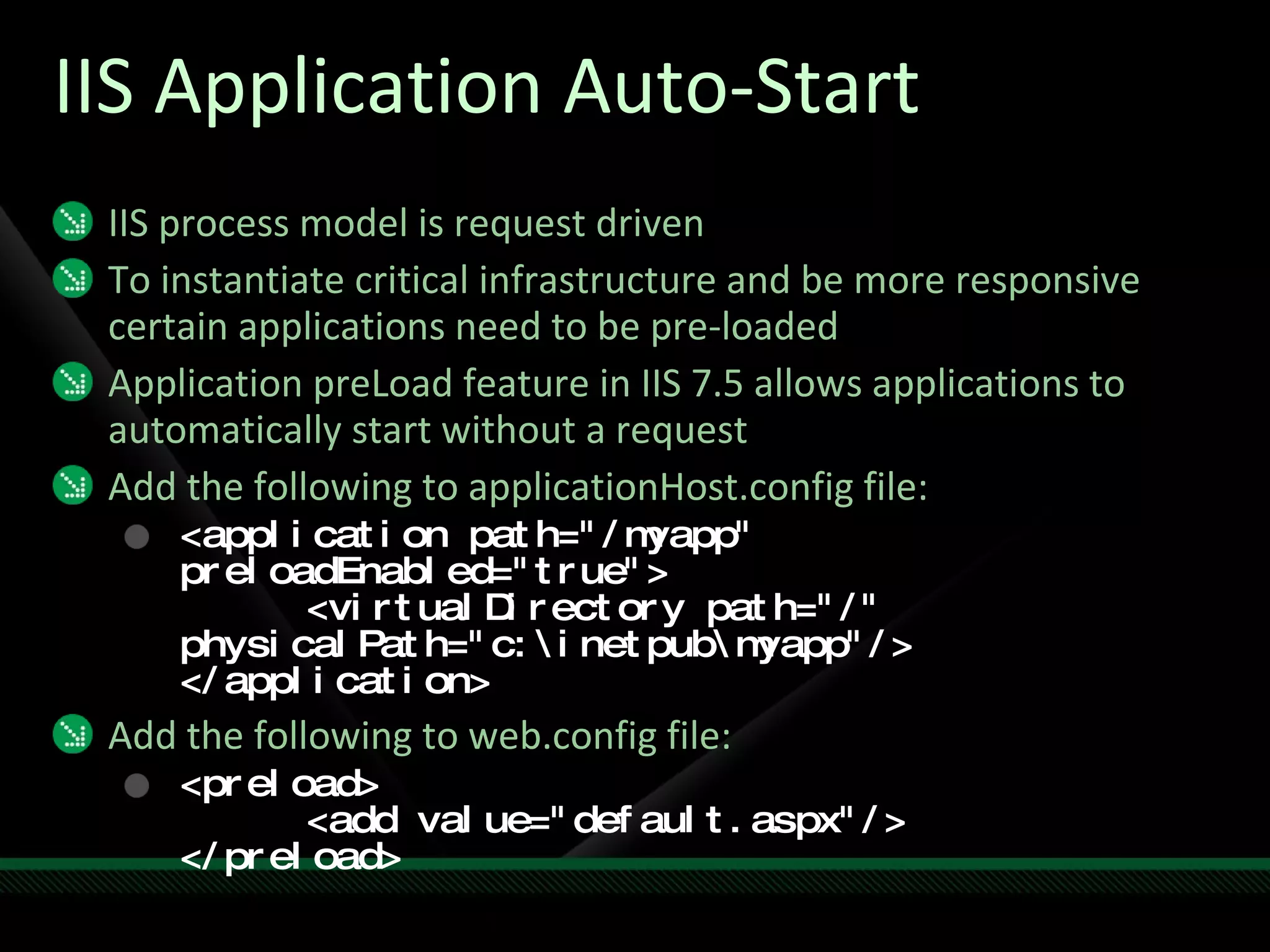
IIS Application Auto-Start IIS process model is request driven To instantiate critical infrastructure and be more responsive certain applications need to be pre-loaded Application preLoad feature in IIS 7.5 allows applications to automatically start without a request Add the following to applicationHost.config file: <application path=&quot;/myapp&quot; preloadEnabled=&quot;true&quot;> <virtualDirectory path=&quot;/&quot;  physicalPath=&quot;c:\inetpub\myapp&quot;/> </application> Add the following to web.config file: <preload> <add value=&quot;default.aspx&quot;/> </preload>
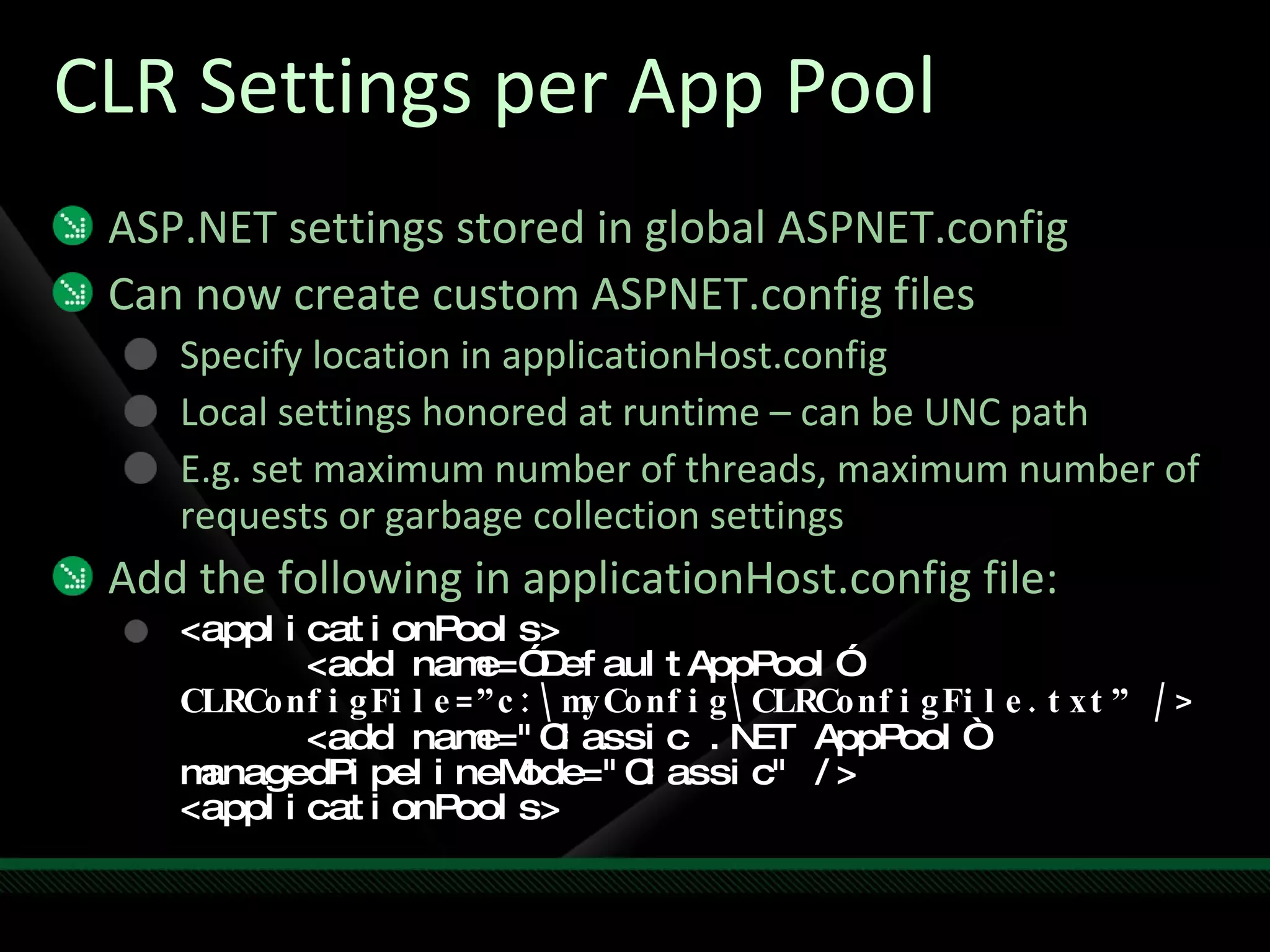
CLR Settings per App Pool ASP.NET settings stored in global ASPNET.config Can now create custom ASPNET.config files Specify location in applicationHost.config Local settings honored at runtime – can be UNC path E.g. set maximum number of threads, maximum number of requests or garbage collection settings Add the following in applicationHost.config file: <applicationPools> <add name=”DefaultAppPool”  CLRConfigFile=”c:\myConfig\CLRConfigFile.txt” /> <add name=&quot;Classic .NET AppPool“  managedPipelineMode=&quot;Classic&quot; /> <applicationPools>
Configuration Logging Tracing IIS 7.0 does not include any built-in tracing mechanism for configuration changes IIS in Windows Server 2008 R2 provides: Read / write auditing of configuration system  Logging of events unrelated to Reads / Writes Logs kept under Applications and Services Applications and Services Logs > Microsoft > Windows > IIS-Configuration Four logs: Administrative, Analytic, Debug, WriteAuditing By default, all logging is disabled
Application Pool Identities All application pools run as NetworkService Enables token kidnapping scenarios IIS in R2 (and backported to IIS 7.0) will allow use of new “AppPool” identity IIS in R2 will also allow domain accounts for running services without management of passwords – Managed Service Accounts Identity type in IIS in R2 will be set by default to 4 (App Pool Identity) versus 2 (Network Service) – NOT in IIS 7.0 / WS08
© 2009 Microsoft Corporation. All rights reserved. Microsoft, Windows, Windows Vista and other product names are or may be registered trademarks and/or trademarks in the U.S. and/or other countries. The information herein is for informational purposes only and represents the current view of Microsoft Corporation as of the date of this presentation.  Because Microsoft must respond to changing market conditions, it should not be interpreted to be a commitment on the part of Microsoft, and Microsoft cannot guarantee the accuracy of any information provided after the date of this presentation.  MICROSOFT MAKES NO WARRANTIES, EXPRESS, IMPLIED OR STATUTORY, AS TO THE INFORMATION IN THIS PRESENTATION.

Make Web, Not War - Installfest: Extend Your Web Server, Rodney Buike

  • 1.
    Rodney Buike TechnologyAdvisor [email_address] http://www.thelazyadmin.com http://blogs.technet.com/canitpro Twitter: @rbuike
  • 2.
    Today’s Goals GetWindows Server 2008 R2 installed with… IIS 7.5 ASP.NET PHP Discover what’s new in Server 2008 R2 web services .NET on Server Core R2 Learn what’s possible on the Windows platform Web Platform Installer Remote Management and PowerShell Best Practices
  • 3.
    Web edition ofWindows Server 2008 R2 Will include Web Server (IIS) and DNS roles Server Core installation supports ASP.NET Optimized for Internet-facing Web-serving environments not requiring authentication Can run Windows Media Services 2008, Windows SharePoint Services, Office SharePoint Server and SQL Server Does not require purchase of Client Access Licenses (CALs) or External Connector Supports 4 processors and 32 GB RAM (64 bit)
  • 4.
    IIS 7.5 &New Features in R2 ASP.NET on Server Core PowerShell Module & Cmdlets Integrated FTP and WebDAV Integrated Admin Pack Modules Configuration Logging & Tracing Best Practice Analyzer
  • 5.
    Enhancing IIS FeatureSet Extensions Add Further Functionality Extensions Add Further Functionality FTP & WebDAV Integrated IIS 7.0 Platform IIS 7.5 Platform
  • 6.
    IIS Extensions AvailableExtension Beta RC RTW IIS FTP Service 7.5 (for IIS 7.0)  IIS WebDAV 7.5 (for IIS 7.0)  IIS Manager for Remote Administration  IIS Administration Pack (for IIS 7.0)  Windows PowerShell Snap-In for IIS 7.0  IIS URL Rewriter  UrlScan 3.1 (for IIS 5.1 / IIS 6.0)  IIS Media Services 2.0  IIS Dynamic IP Restrictions  IIS Application Request Routing  (2.0)  (1.0) IIS Web Deployment Tool  IIS Database Manager  IIS Advanced Logging  Web Platform Installer  (2.0)  (1.0)
  • 7.
  • 8.
    .NET 2.0 inServer Core Subset of .NET 2.0 on Server Core .NET functionality aligns with functionality in Server Core Not installed by default in RC How to install if not already installed For 64-bit applications (R2 is 64-bit only) Start /w ocsetup NetFx2-ServerCore If 32-bit support is needed: Start /w ocsetup ServerCore-WOW64 Start /w ocsetup NetFx2-ServerCore-WOW64
  • 9.
    .NET 3.x inServer Core .NET 3.0 functionality No WPF in Server Core .NET 3.5 functionality LINQ .NET 3.0 and 3.5 installed with a single package For 64-bit applications Start /w ocsetup NetFx3-ServerCore If 32-bit support is needed: Start /w ocsetup ServerCore-WOW64 Start /w ocsetup NetFx3-ServerCore-WOW64
  • 10.
    Install ASP.NET onServer Core (IIS 7.0 on Server 2008 Core) start /w ocsetup IIS-WebServerRole;IIS-WebServer start /w ocsetup IIS-CommonHttpFeatures;IIS-DefaultDocument;IIS-Security;IIS-RequestFiltering start /w ocsetup IIS-ApplicationDevelopment;IIS-ISAPIFilter;IIS-ISAPIExtensions;IIS-NetFxExtensibility start /w ocsetup IIS-ASPNET
  • 11.
    Install ASP.NET onServer Core (IIS 7.5 on Server 2008 R2 Core) dism /online /enable-feature /featurename:IIS-WebServerRole /featurename:IIS-WebServer dism /online /enable-feature /featurename: IIS-CommonHttpFeatures /featurename:IIS-DefaultDocument /featurename:IIS-Security /featurename:IIS-RequestFiltering dism /online /enable-feature /featurename: IIS-ApplicationDevelopment /featurename:IIS-ISAPIFilter /featurename:IIS-ISAPIExtensions /featurename:IIS-NetFxExtensibility dism /online /enable-feature /featurename: IIS-ASPNET
  • 12.
  • 13.
    Install PHP onServer Core start /w ocsetup IIS-WebServerRole;WAS-WindowsActivationService;WAS-ProcessModel;IIS-CGI Extract to C:\PHP Copy C:\PHP\PHP.ini.recommended to C:\PHP\PHP.ini Edit PHP.ini Set fastcgi.impersonate = 1 Set cgi.fix_pathinfo=1 Set cgi.force_redirect = 0 Set open_basedir to point to WWWROOT Set extension_dir to point to “./ext” Enable required PHP extensions Run C:\PHP\PHP.exe –info to test
  • 14.
  • 15.
    Web Platform InstallerDownload, install and update latest components of the Microsoft Web Platform Install open source .NET and PHP web applications
  • 16.
  • 17.
    Remote Management ofIIS Install the IIS Management Service dism /online /enable-feature /featurename:IIS-ManagementService Enable Remote Management HKLM\Software\Microsoft\WebManagement \Server Set EnableRemoteManagement to 1 Start the Management Service net start wmsvc Service is not set to start automatically sc config wmsvc start= auto
  • 18.
  • 19.
    PowerShell Web AdministrationTo use Web Administration module import-module WebAdministration cd IIS:\ IIS cmdlets High-level and low-level cmdlets for administration and modifying configuration Best Practice Analyzer cmdlets Start /w ocsetup BestPractices-PSH-Cmdlets import-module BestPractices Cmdlets are: get-bparesult invoke-bpamodel set-bparesult
  • 20.
    IIS Best PracticeAnalyzer Seven criteria are checked for compliance 1-7
  • 21.
  • 22.
    Web Deployment ToolBenefits Synchronize your server farm efficiently Package, archive and deploy Web applications more easily Migrate Web applications between IIS 6.0 / 7.0 / 7.5 with ease Features Integrated with IIS Manager and Visual Studio 2010 Ability to migrate the entire Web server, Web application or Web site Synchronizes only changed data Warns of missing dependencies during synchronization Automatically gathers content, configuration, certificates, Registry Keys, ASP.NET configuration Packages Web app or entire site Supports both live servers and zipped packages as source or target apps Administrative privileges are not required to deploy Web applications Simplify the migration, management and deployment of IIS Web Servers, Web applications and Web sites. It can be used to package, synchronize IIS sites including content, configuration certificates and databases.
  • 23.
  • 24.
    Additional IIS EnhancementsIIS Application Auto-Start CLR Settings per Application Pool Configuration Logging and Tracing New Application Pool Identities and Managed Service Accounts
  • 25.
    Go Do’s DownloadWindows Server 2008 R2 RC microsoft.com/windowsserver2008 Install IIS, ASP.NET and PHP learn.iis.net Try the Web Platform Installer microsoft.com/web Tell us what you are doing! [email_address]
  • 26.
    Rodney Buike TechnologyAdvisor [email_address] http://www.thelazyadmin.com http://blogs.technet.com/canitpro
  • 27.
  • 28.
    FTP Service 7.5Benefits Publish securely and easily from IIS Manager via Internet standards Simplify hosting through integrated Web and FTP site management Improve security and auditing through new authentication providers and enhanced logging Features Integrated with IIS Manager Support for FTP over SSL Host FTP and Web content from same site by adding FTP binding Support for hosting multiple FTP sites on same IP address Improved virtual directory support Improved user isolation through per-user virtual directories Improved logging support Detailed error messages for end users and event tracing for server-side troubleshooting Enables Web authors to publish content more easily and securely, and offers improved integration and management for hosters and administrators
  • 29.
    WebDAV 7.5 BenefitsPublish securely and easily from IIS Manager Configure publishing on a per-site level Improve security and auditing through custom authorization support Features Integrated with IIS Manager Support for HTTP over SSL Configuration can be done at the site-level rather than at the server-level as in IIS 6.0 Per-URL authoring rules, allowing administrators to specify custom WebDAV security settings on a per-URL basis Enables Web authors to publish content more easily and securely, and offers better integration, configuration and authorization features
  • 30.
    Administration Pack ModulesBenefits Manage your configuration files with Configuration Editor View key statistics about your website with IIS Reports Manage existing features with IIS Manager UI Extensions Features Generate code to automate tasks Scoped searches of the configuration system View key statistics about websites Default reports for administrators or delegated management Create custom reports FastCGI module allows management of FastCGI settings ASP.NET modules allow management of authorization and custom errors settings HTTP Request Filtering module A collection of IIS modules that enhance the functionality of IIS Manager to help administer IIS Web servers
  • 31.
    Windows PowerShell ModuleBenefits Simplify the administration of your Web site by scripting tasks Execute repetitive administrative tasks across servers Improve your decision making by consolidating metrics from your servers in real-time Features Seamless integration into the PowerShell environment Low-level and task-based cmdlets specific to IIS that allows to: Add and change configuration properties of Web-Sites, Web Applications, Virtual Directories and Application Pools Execute advanced configuration tasks Query run-time data Allows IT professionals and hosters to easily automate complex IIS 7.5 administrative tasks effectively increasing the productivity of administrators
  • 32.
    PowerShell Scenarios forIIS(1) Add / remove / change: Applications Virtual directories Sites Application pools Add sites based on template Copy config and content of existing site / vdir to other site / vdir Configure SSL Find log file directory for site Change authentication settings of site / app / vdir Set IP restrictions on a site Recycle: Application pools IIS (IISRESET) Backup IIS configuration Activate sites (start/stop) Add bindings to existing web-site Convert folders to applications / vdirs Change AppPool account identities and passwords Unload web apps Configure redirection
  • 33.
    PowerShell Scenarios forIIS(2) Add / remove / reorder default document Change port number / IP address of a site binding Change physical path of a site Edit list of allowed Web Service Extensions Add new custom error page Register new: ISAPI filter / extension Native module / handler Managed module / handler (integrated pipeline/ISAPI mode) Add / remove / change MIME Map Monitor: Site status Executing requests Test site is up and running Find all stopped sites Find configuration setting Move log files Create new AppPool with recycling settings Lock section or element Change Application Pool of an application
  • 34.
    IIS Application Auto-StartIIS process model is request driven To instantiate critical infrastructure and be more responsive certain applications need to be pre-loaded Application preLoad feature in IIS 7.5 allows applications to automatically start without a request Add the following to applicationHost.config file: <application path=&quot;/myapp&quot; preloadEnabled=&quot;true&quot;> <virtualDirectory path=&quot;/&quot; physicalPath=&quot;c:\inetpub\myapp&quot;/> </application> Add the following to web.config file: <preload> <add value=&quot;default.aspx&quot;/> </preload>
  • 35.
    CLR Settings perApp Pool ASP.NET settings stored in global ASPNET.config Can now create custom ASPNET.config files Specify location in applicationHost.config Local settings honored at runtime – can be UNC path E.g. set maximum number of threads, maximum number of requests or garbage collection settings Add the following in applicationHost.config file: <applicationPools> <add name=”DefaultAppPool” CLRConfigFile=”c:\myConfig\CLRConfigFile.txt” /> <add name=&quot;Classic .NET AppPool“ managedPipelineMode=&quot;Classic&quot; /> <applicationPools>
  • 36.
    Configuration Logging TracingIIS 7.0 does not include any built-in tracing mechanism for configuration changes IIS in Windows Server 2008 R2 provides: Read / write auditing of configuration system Logging of events unrelated to Reads / Writes Logs kept under Applications and Services Applications and Services Logs > Microsoft > Windows > IIS-Configuration Four logs: Administrative, Analytic, Debug, WriteAuditing By default, all logging is disabled
  • 37.
    Application Pool IdentitiesAll application pools run as NetworkService Enables token kidnapping scenarios IIS in R2 (and backported to IIS 7.0) will allow use of new “AppPool” identity IIS in R2 will also allow domain accounts for running services without management of passwords – Managed Service Accounts Identity type in IIS in R2 will be set by default to 4 (App Pool Identity) versus 2 (Network Service) – NOT in IIS 7.0 / WS08
  • 38.
    © 2009 MicrosoftCorporation. All rights reserved. Microsoft, Windows, Windows Vista and other product names are or may be registered trademarks and/or trademarks in the U.S. and/or other countries. The information herein is for informational purposes only and represents the current view of Microsoft Corporation as of the date of this presentation. Because Microsoft must respond to changing market conditions, it should not be interpreted to be a commitment on the part of Microsoft, and Microsoft cannot guarantee the accuracy of any information provided after the date of this presentation. MICROSOFT MAKES NO WARRANTIES, EXPRESS, IMPLIED OR STATUTORY, AS TO THE INFORMATION IN THIS PRESENTATION.

Editor's Notes

  • #2 06/17/09 22:00 © 2007 Microsoft Corporation. All rights reserved. Microsoft, Windows, Windows Vista and other product names are or may be registered trademarks and/or trademarks in the U.S. and/or other countries. The information herein is for informational purposes only and represents the current view of Microsoft Corporation as of the date of this presentation. Because Microsoft must respond to changing market conditions, it should not be interpreted to be a commitment on the part of Microsoft, and Microsoft cannot guarantee the accuracy of any information provided after the date of this presentation. MICROSOFT MAKES NO WARRANTIES, EXPRESS, IMPLIED OR STATUTORY, AS TO THE INFORMATION IN THIS PRESENTATION.