
PLANNING AND
      MONITORING
   PROJECTS WITH
MICROSOFT OFFICE
     PROJECT 2010
              TRAINING
[
TRAINING


                              OBJECTIVE
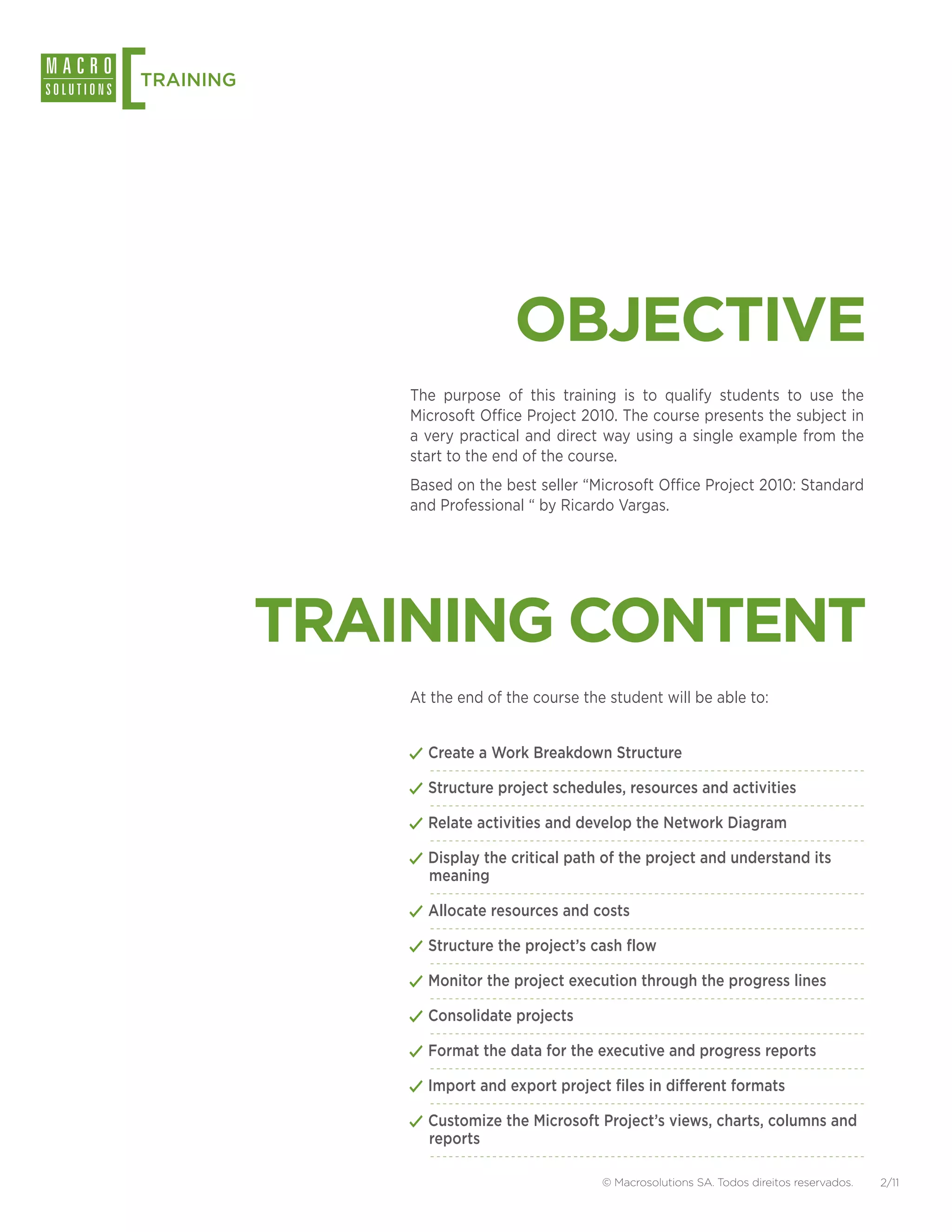
               The purpose of this training is to qualify students to use the
               Microsoft Office Project 2010. The course presents the subject in
               a very practical and direct way using a single example from the
               start to the end of the course.
               Based on the best seller “Microsoft Office Project 2010: Standard
               and Professional “ by Ricardo Vargas.


           TRAINING CONTENT
               At the end of the course the student will be able to:


               ✓✓Create a Work Breakdown Structure
               ✓✓Structure project schedules, resources and activities
               ✓✓Relate activities and develop the Network Diagram
               ✓✓Display the critical path of the project and understand its
                 meaning

               ✓✓Allocate resources and costs
               ✓✓Structure the project’s cash flow
               ✓✓Monitor the project execution through the progress lines
               ✓✓Consolidate projects
               ✓✓Format the data for the executive and progress reports
               ✓✓Import and export project files in different formats
               ✓✓Customize the Microsoft Project’s views, charts, columns and
                 reports

                                           © Macrosolutions SA. Todos direitos reservados.   2/11
[
TRAINING


                         FACT SHEET
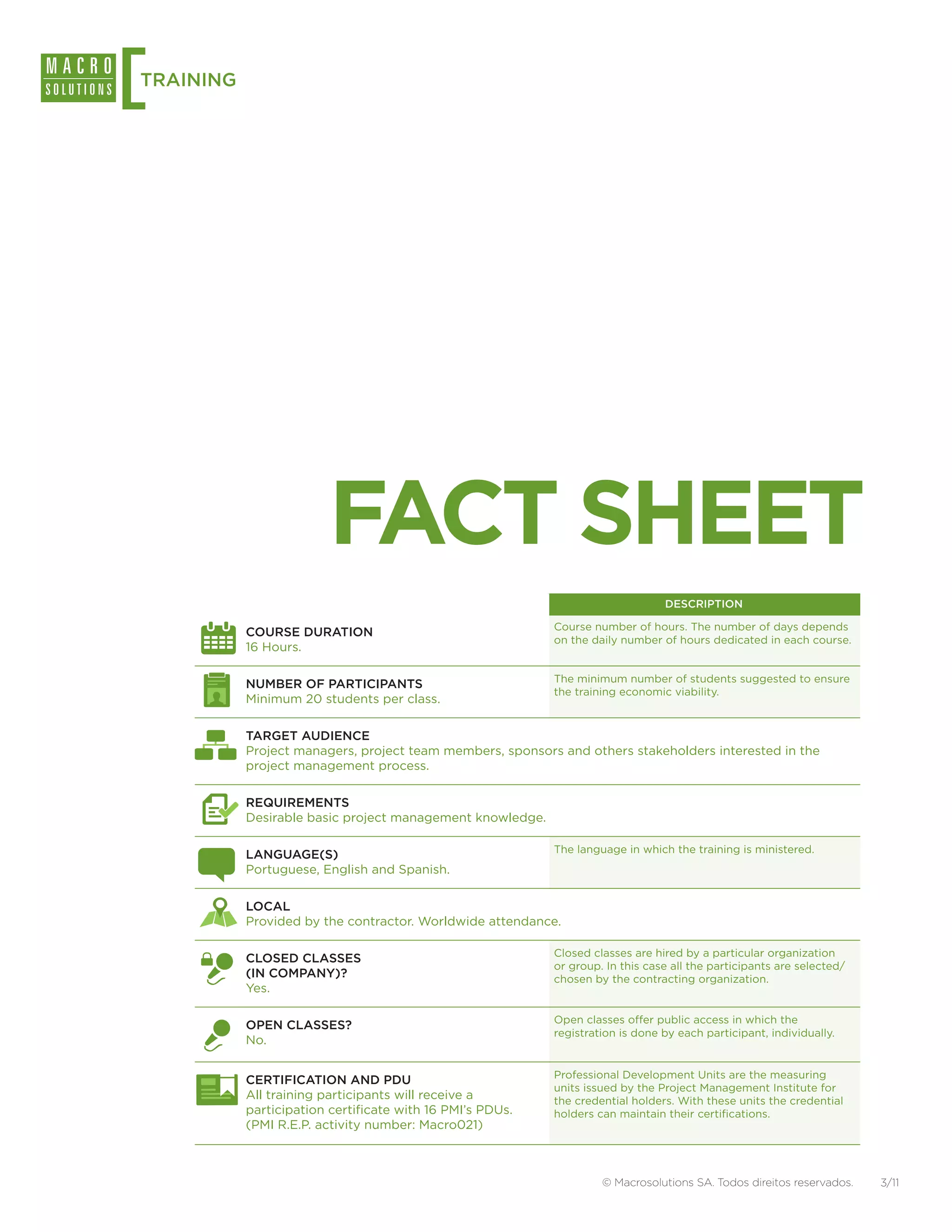
                                                                                DESCRIPTION

                                                           Course number of hours. The number of days depends
           COURSE DURATION
                                                           on the daily number of hours dedicated in each course.
           16 Hours.

                                                           The minimum number of students suggested to ensure
           NUMBER OF PARTICIPANTS
                                                           the training economic viability.
           Minimum 20 students per class.

           TARGET AUDIENCE
           Project managers, project team members, sponsors and others stakeholders interested in the
           project management process.

           REQUIREMENTS
           Desirable basic project management knowledge.

                                                           The language in which the training is ministered.
           LANGUAGE(S)
           Portuguese, English and Spanish.

           LOCAL
           Provided by the contractor. Worldwide attendance.

                                                           Closed classes are hired by a particular organization
           CLOSED CLASSES
                                                           or group. In this case all the participants are selected/
           (IN COMPANY)?                                   chosen by the contracting organization.
           Yes.

                                                           Open classes offer public access in which the
           OPEN CLASSES?
                                                           registration is done by each participant, individually.
           No.

                                                           Professional Development Units are the measuring
           CERTIFICATION AND PDU
                                                           units issued by the Project Management Institute for
           All training participants will receive a        the credential holders. With these units the credential
           participation certificate with 16 PMI’s PDUs.   holders can maintain their certifications.
           (PMI R.E.P. activity number: Macro021)


                                                                    © Macrosolutions SA. Todos direitos reservados.    3/11
[
TRAINING


STANDARDS AND
METHODOLOGIES
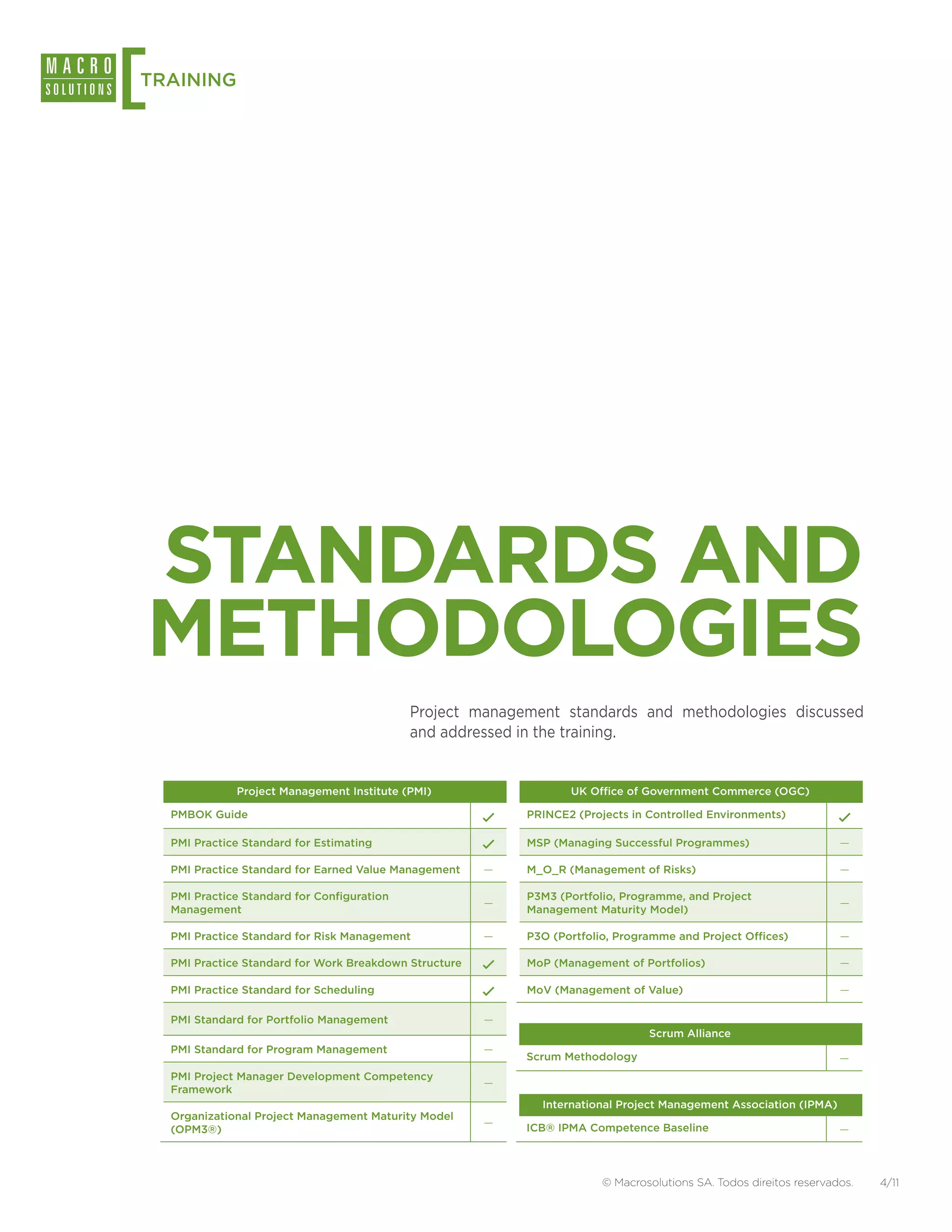
                                              Project management standards and methodologies discussed
                                              and addressed in the training.


               Project Management Institute (PMI)                   UK Office of Government Commerce (OGC)

    PMBOK Guide                                              PRINCE2 (Projects in Controlled Environments)

    PMI Practice Standard for Estimating                     MSP (Managing Successful Programmes)                     —

    PMI Practice Standard for Earned Value Management    —   M_O_R (Management of Risks)                              —

    PMI Practice Standard for Configuration                  P3M3 (Portfolio, Programme, and Project
                                                         —                                                            —
    Management                                               Management Maturity Model)

    PMI Practice Standard for Risk Management            —   P3O (Portfolio, Programme and Project Offices)           —

    PMI Practice Standard for Work Breakdown Structure       MoP (Management of Portfolios)                           —

    PMI Practice Standard for Scheduling                     MoV (Management of Value)                                —

    PMI Standard for Portfolio Management                —
                                                                                  Scrum Alliance
    PMI Standard for Program Management                  —
                                                             Scrum Methodology                                        —
    PMI Project Manager Development Competency
                                                         —
    Framework
                                                               International Project Management Association (IPMA)
    Organizational Project Management Maturity Model
                                                         —   ICB® IPMA Competence Baseline
    (OPM3®)                                                                                                           —


                                                                          © Macrosolutions SA. Todos direitos reservados.   4/11
[
TRAINING


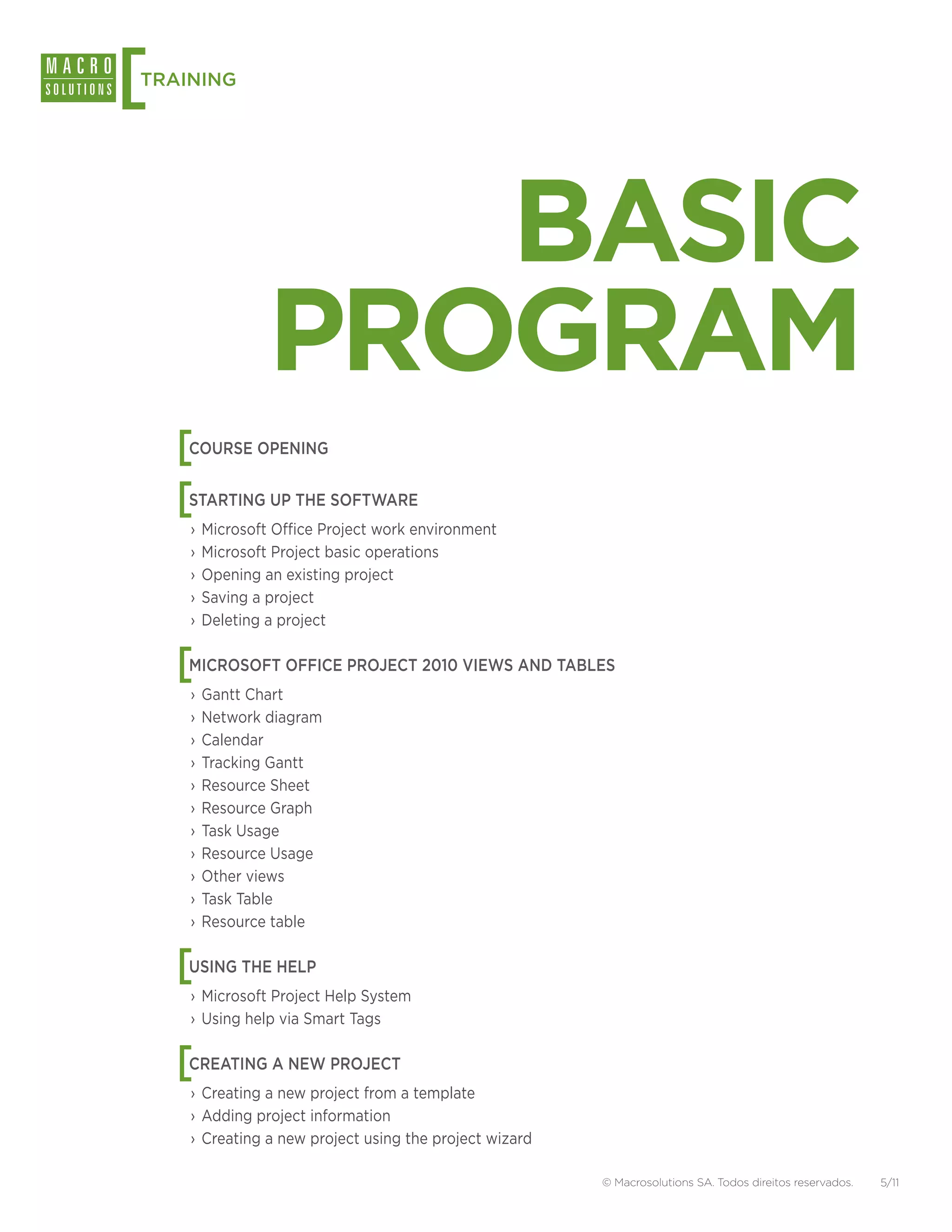
                  BASIC
               PROGRAM
    [
    COURSE OPENING


    [
    STARTING UP THE SOFTWARE
    ›› Microsoft Office Project work environment
    ›› Microsoft Project basic operations
    ›› Opening an existing project
    ›› Saving a project
    ›› Deleting a project


    [
    MICROSOFT OFFICE PROJECT 2010 VIEWS AND TABLES
    ›› Gantt Chart
    ›› Network diagram
    ›› Calendar
    ›› Tracking Gantt
    ›› Resource Sheet
    ›› Resource Graph
    ›› Task Usage
    ›› Resource Usage
    ›› Other views
    ›› Task Table
    ›› Resource table


    [
    USING THE HELP
    ›› Microsoft Project Help System
    ›› Using help via Smart Tags


    [
    CREATING A NEW PROJECT
    ›› Creating a new project from a template
    ›› Adding project information
    ›› Creating a new project using the project wizard

                                                         © Macrosolutions SA. Todos direitos reservados.   5/11
[
TRAINING
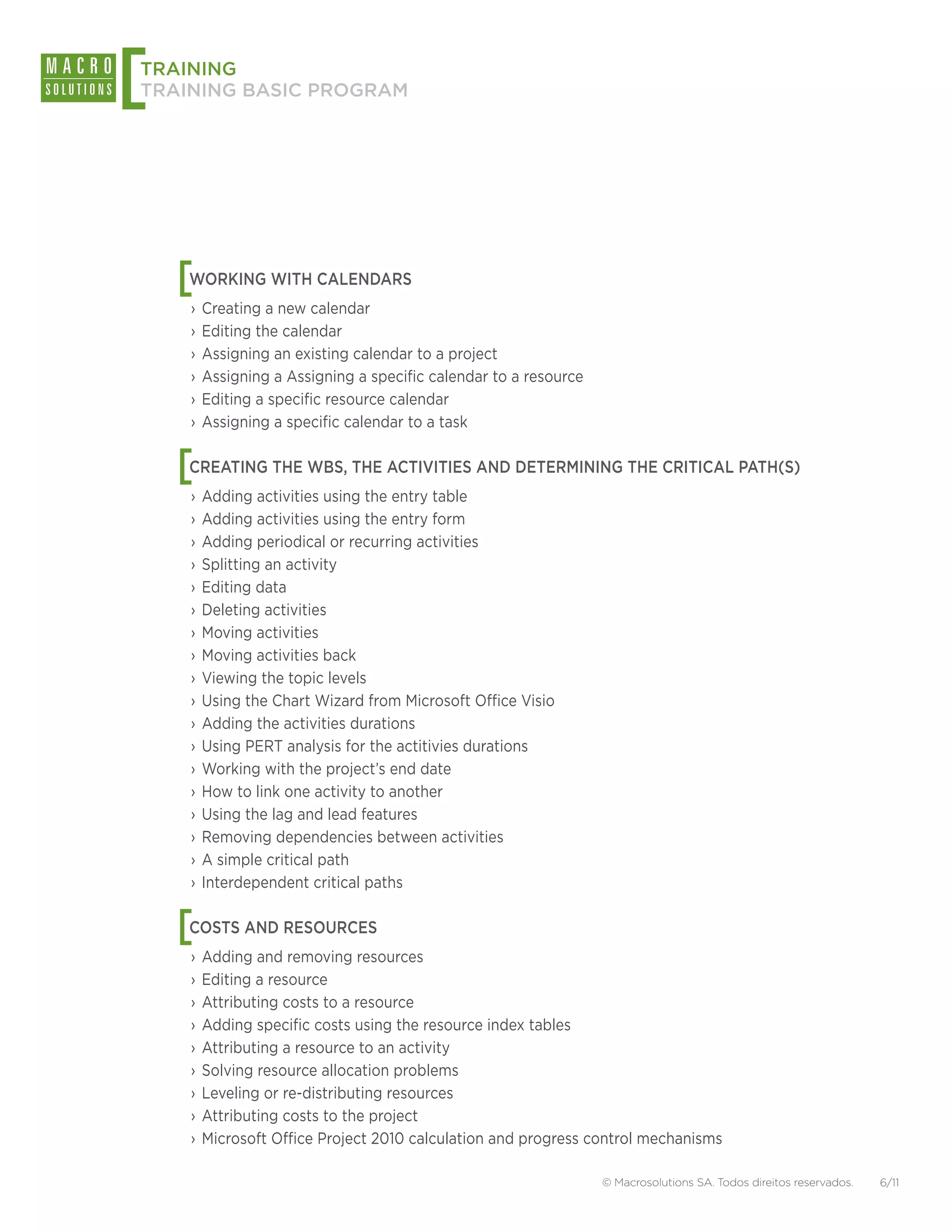
TRAINING BASIC PROGRAM


    [
    WORKING WITH CALENDARS
    ›› Creating a new calendar
    ›› Editing the calendar
    ›› Assigning an existing calendar to a project
    ›› Assigning a Assigning a specific calendar to a resource
    ›› Editing a specific resource calendar
    ›› Assigning a specific calendar to a task


    [
    CREATING THE WBS, THE ACTIVITIES AND DETERMINING THE CRITICAL PATH(S)
    ›› Adding activities using the entry table
    ›› Adding activities using the entry form
    ›› Adding periodical or recurring activities
    ›› Splitting an activity
    ›› Editing data
    ›› Deleting activities
    ›› Moving activities
    ›› Moving activities back
    ›› Viewing the topic levels
    ›› Using the Chart Wizard from Microsoft Office Visio
    ›› Adding the activities durations
    ›› Using PERT analysis for the actitivies durations
    ›› Working with the project’s end date
    ›› How to link one activity to another
    ›› Using the lag and lead features
    ›› Removing dependencies between activities
    ›› A simple critical path
    ›› Interdependent critical paths


    [
    COSTS AND RESOURCES
    ›› Adding and removing resources
    ›› Editing a resource
    ›› Attributing costs to a resource
    ›› Adding specific costs using the resource index tables
    ›› Attributing a resource to an activity
    ›› Solving resource allocation problems
    ›› Leveling or re-distributing resources
    ›› Attributing costs to the project
    ›› Microsoft Office Project 2010 calculation and progress control mechanisms

                                                                 © Macrosolutions SA. Todos direitos reservados.   6/11
[
TRAINING
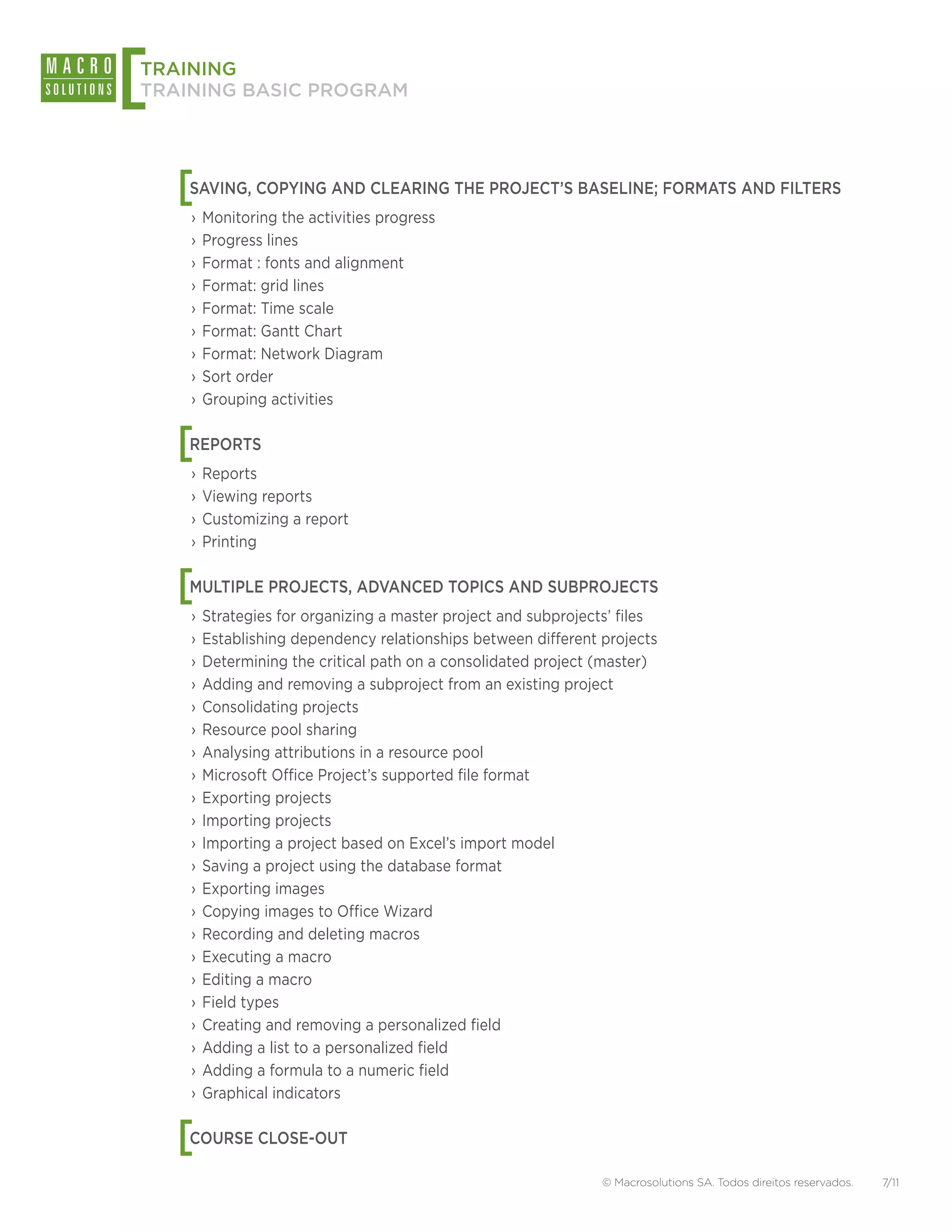
TRAINING BASIC PROGRAM


    [
    SAVING, COPYING AND CLEARING THE PROJECT’S BASELINE; FORMATS AND FILTERS
    ›› Monitoring the activities progress
    ›› Progress lines
    ›› Format : fonts and alignment
    ›› Format: grid lines
    ›› Format: Time scale
    ›› Format: Gantt Chart
    ›› Format: Network Diagram
    ›› Sort order
    ›› Grouping activities


    [
    REPORTS
    ›› Reports
    ›› Viewing reports
    ›› Customizing a report
    ›› Printing


    [
    MULTIPLE PROJECTS, ADVANCED TOPICS AND SUBPROJECTS
    ›› Strategies for organizing a master project and subprojects’ files
    ›› Establishing dependency relationships between different projects
    ›› Determining the critical path on a consolidated project (master)
    ›› Adding and removing a subproject from an existing project
    ›› Consolidating projects
    ›› Resource pool sharing
    ›› Analysing attributions in a resource pool
    ›› Microsoft Office Project’s supported file format
    ›› Exporting projects
    ›› Importing projects
    ›› Importing a project based on Excel’s import model
    ›› Saving a project using the database format
    ›› Exporting images
    ›› Copying images to Office Wizard
    ›› Recording and deleting macros
    ›› Executing a macro
    ›› Editing a macro
    ›› Field types
    ›› Creating and removing a personalized field
    ›› Adding a list to a personalized field
    ›› Adding a formula to a numeric field
    ›› Graphical indicators


    [
    COURSE CLOSE-OUT

                                                               © Macrosolutions SA. Todos direitos reservados.   7/11
[
TRAINING


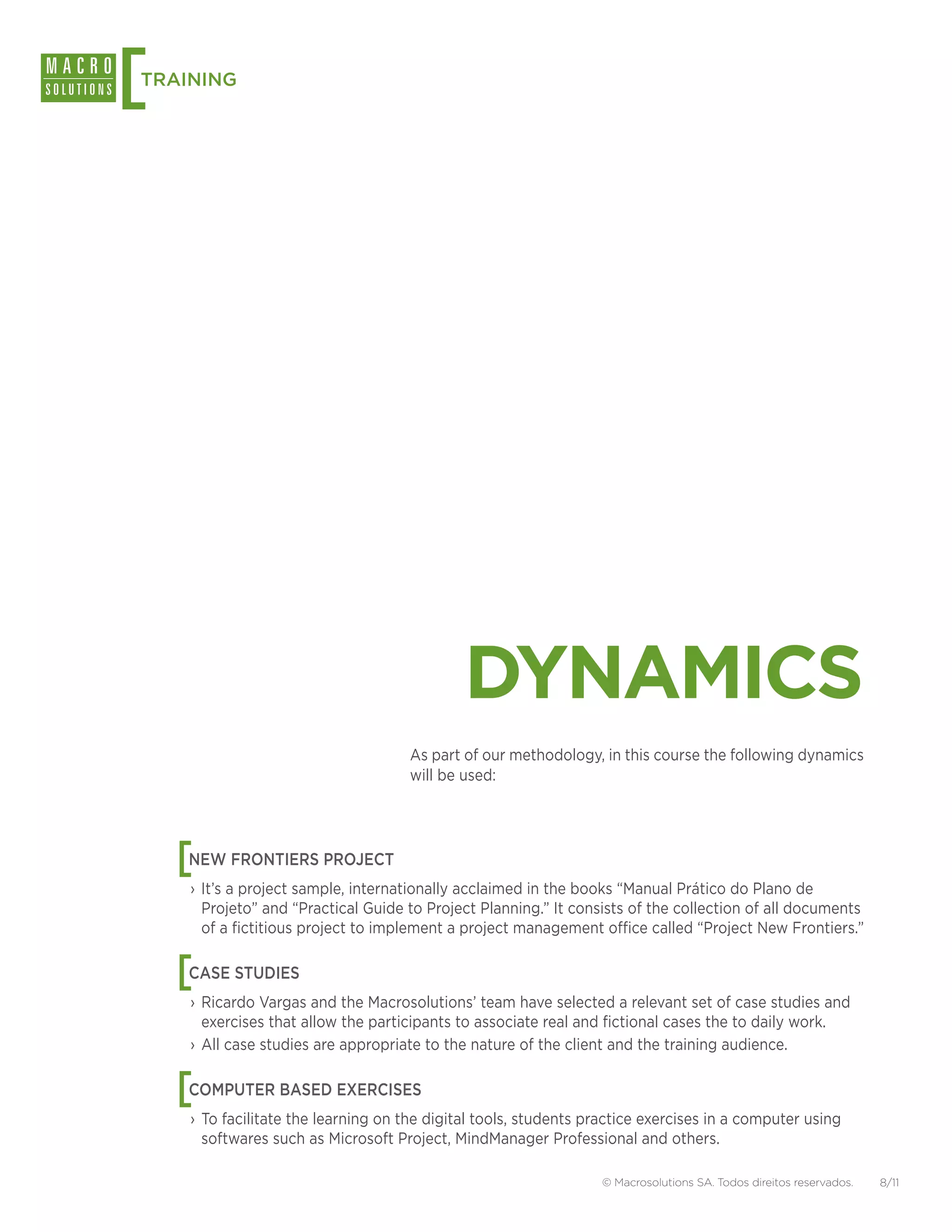
                                             DYNAMICS
                                     As part of our methodology, in this course the following dynamics
                                     will be used:


    [
    NEW FRONTIERS PROJECT
    › It’s a project sample, internationally acclaimed in the books “Manual Prático do Plano de
      Projeto” and “Practical Guide to Project Planning.” It consists of the collection of all documents
      of a fictitious project to implement a project management office called “Project New Frontiers.”


    [
    CASE STUDIES
    › Ricardo Vargas and the Macrosolutions’ team have selected a relevant set of case studies and
      exercises that allow the participants to associate real and fictional cases the to daily work.
    › All case studies are appropriate to the nature of the client and the training audience.


    [
    COMPUTER BASED EXERCISES
    › To facilitate the learning on the digital tools, students practice exercises in a computer using
      softwares such as Microsoft Project, MindManager Professional and others.

                                                                  © Macrosolutions SA. Todos direitos reservados.   8/11
[
TRAINING


EXCLUSIVE STUDENT
     ACCESS AREA
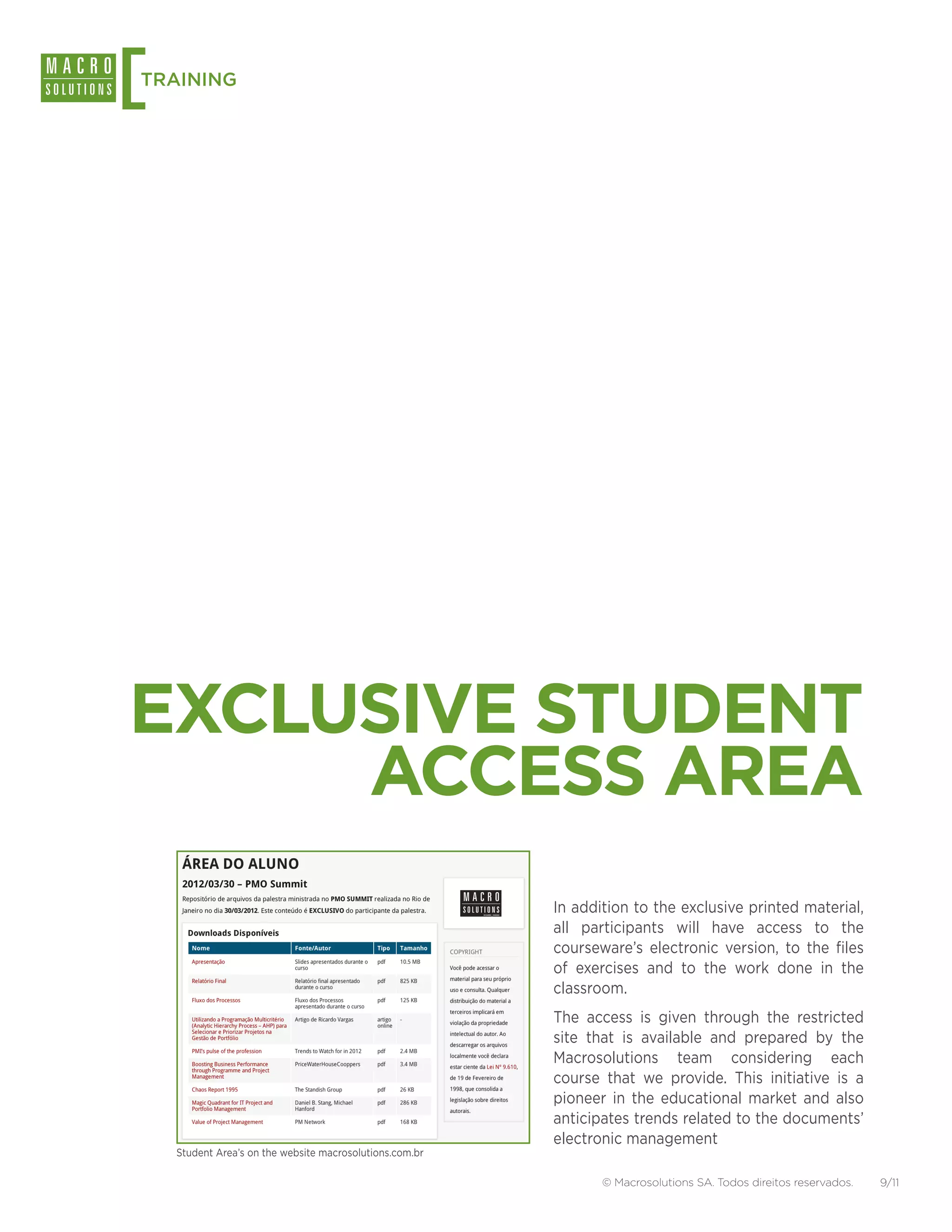
                                                          In addition to the exclusive printed material,
                                                          all participants will have access to the
                                                          courseware’s electronic version, to the files
                                                          of exercises and to the work done in the
                                                          classroom.
                                                          The access is given through the restricted
                                                          site that is available and prepared by the
                                                          Macrosolutions team considering each
                                                          course that we provide. This initiative is a
                                                          pioneer in the educational market and also
                                                          anticipates trends related to the documents’
                                                          electronic management
    Student Area’s on the website macrosolutions.com.br

                                                                 © Macrosolutions SA. Todos direitos reservados.   9/11
[
TRAINING


            REQUIRED
           EQUIPMENT
            The equipment required for the proper realization of the course is:


           [ HIGH RESOLUTION PROJECTOR (1024X768)


           [ SOUND SYSTEM FOR VIDEO DISPLAY


           [ INTERNET ACCESS


           [ VARIABLE ILLUMINATION INSIDE THE CLASSROOM


           [ 01 TABLE FOR EACH GROUP OF FIVE STUDENTS


           [ 01 FLIP CHART FOR EACH GROUP OF FIVE STUDENTS

                                        © Macrosolutions SA. Todos direitos reservados.   10/11
[
TRAINING


         FURTHER
     INFORMATION
           For further information about this course, please contact:


           Phone: +55 31 3024-3003
           Fax: +55 31 3024-3005
           email: info@macrosolutions.com.br

                                       © Macrosolutions SA. Todos direitos reservados.   11/11

Macrosolutions Training: Planning and Monitoring Projects with Microsoft Project 2010

  • 1.
    PLANNING AND MONITORING PROJECTS WITH MICROSOFT OFFICE PROJECT 2010 TRAINING
  • 2.
    [ TRAINING OBJECTIVE The purpose of this training is to qualify students to use the Microsoft Office Project 2010. The course presents the subject in a very practical and direct way using a single example from the start to the end of the course. Based on the best seller “Microsoft Office Project 2010: Standard and Professional “ by Ricardo Vargas. TRAINING CONTENT At the end of the course the student will be able to: ✓✓Create a Work Breakdown Structure ✓✓Structure project schedules, resources and activities ✓✓Relate activities and develop the Network Diagram ✓✓Display the critical path of the project and understand its meaning ✓✓Allocate resources and costs ✓✓Structure the project’s cash flow ✓✓Monitor the project execution through the progress lines ✓✓Consolidate projects ✓✓Format the data for the executive and progress reports ✓✓Import and export project files in different formats ✓✓Customize the Microsoft Project’s views, charts, columns and reports © Macrosolutions SA. Todos direitos reservados. 2/11
  • 3.
    [ TRAINING FACT SHEET DESCRIPTION Course number of hours. The number of days depends COURSE DURATION on the daily number of hours dedicated in each course. 16 Hours. The minimum number of students suggested to ensure NUMBER OF PARTICIPANTS the training economic viability. Minimum 20 students per class. TARGET AUDIENCE Project managers, project team members, sponsors and others stakeholders interested in the project management process. REQUIREMENTS Desirable basic project management knowledge. The language in which the training is ministered. LANGUAGE(S) Portuguese, English and Spanish. LOCAL Provided by the contractor. Worldwide attendance. Closed classes are hired by a particular organization CLOSED CLASSES or group. In this case all the participants are selected/ (IN COMPANY)? chosen by the contracting organization. Yes. Open classes offer public access in which the OPEN CLASSES? registration is done by each participant, individually. No. Professional Development Units are the measuring CERTIFICATION AND PDU units issued by the Project Management Institute for All training participants will receive a the credential holders. With these units the credential participation certificate with 16 PMI’s PDUs. holders can maintain their certifications. (PMI R.E.P. activity number: Macro021) © Macrosolutions SA. Todos direitos reservados. 3/11
  • 4.
    [ TRAINING STANDARDS AND METHODOLOGIES Project management standards and methodologies discussed and addressed in the training. Project Management Institute (PMI) UK Office of Government Commerce (OGC) PMBOK Guide PRINCE2 (Projects in Controlled Environments) PMI Practice Standard for Estimating MSP (Managing Successful Programmes) — PMI Practice Standard for Earned Value Management — M_O_R (Management of Risks) — PMI Practice Standard for Configuration P3M3 (Portfolio, Programme, and Project — — Management Management Maturity Model) PMI Practice Standard for Risk Management — P3O (Portfolio, Programme and Project Offices) — PMI Practice Standard for Work Breakdown Structure MoP (Management of Portfolios) — PMI Practice Standard for Scheduling MoV (Management of Value) — PMI Standard for Portfolio Management — Scrum Alliance PMI Standard for Program Management — Scrum Methodology — PMI Project Manager Development Competency — Framework International Project Management Association (IPMA) Organizational Project Management Maturity Model — ICB® IPMA Competence Baseline (OPM3®) — © Macrosolutions SA. Todos direitos reservados. 4/11
  • 5.
    [ TRAINING BASIC PROGRAM [ COURSE OPENING [ STARTING UP THE SOFTWARE ›› Microsoft Office Project work environment ›› Microsoft Project basic operations ›› Opening an existing project ›› Saving a project ›› Deleting a project [ MICROSOFT OFFICE PROJECT 2010 VIEWS AND TABLES ›› Gantt Chart ›› Network diagram ›› Calendar ›› Tracking Gantt ›› Resource Sheet ›› Resource Graph ›› Task Usage ›› Resource Usage ›› Other views ›› Task Table ›› Resource table [ USING THE HELP ›› Microsoft Project Help System ›› Using help via Smart Tags [ CREATING A NEW PROJECT ›› Creating a new project from a template ›› Adding project information ›› Creating a new project using the project wizard © Macrosolutions SA. Todos direitos reservados. 5/11
  • 6.
    [ TRAINING TRAINING BASIC PROGRAM [ WORKING WITH CALENDARS ›› Creating a new calendar ›› Editing the calendar ›› Assigning an existing calendar to a project ›› Assigning a Assigning a specific calendar to a resource ›› Editing a specific resource calendar ›› Assigning a specific calendar to a task [ CREATING THE WBS, THE ACTIVITIES AND DETERMINING THE CRITICAL PATH(S) ›› Adding activities using the entry table ›› Adding activities using the entry form ›› Adding periodical or recurring activities ›› Splitting an activity ›› Editing data ›› Deleting activities ›› Moving activities ›› Moving activities back ›› Viewing the topic levels ›› Using the Chart Wizard from Microsoft Office Visio ›› Adding the activities durations ›› Using PERT analysis for the actitivies durations ›› Working with the project’s end date ›› How to link one activity to another ›› Using the lag and lead features ›› Removing dependencies between activities ›› A simple critical path ›› Interdependent critical paths [ COSTS AND RESOURCES ›› Adding and removing resources ›› Editing a resource ›› Attributing costs to a resource ›› Adding specific costs using the resource index tables ›› Attributing a resource to an activity ›› Solving resource allocation problems ›› Leveling or re-distributing resources ›› Attributing costs to the project ›› Microsoft Office Project 2010 calculation and progress control mechanisms © Macrosolutions SA. Todos direitos reservados. 6/11
  • 7.
    [ TRAINING TRAINING BASIC PROGRAM [ SAVING, COPYING AND CLEARING THE PROJECT’S BASELINE; FORMATS AND FILTERS ›› Monitoring the activities progress ›› Progress lines ›› Format : fonts and alignment ›› Format: grid lines ›› Format: Time scale ›› Format: Gantt Chart ›› Format: Network Diagram ›› Sort order ›› Grouping activities [ REPORTS ›› Reports ›› Viewing reports ›› Customizing a report ›› Printing [ MULTIPLE PROJECTS, ADVANCED TOPICS AND SUBPROJECTS ›› Strategies for organizing a master project and subprojects’ files ›› Establishing dependency relationships between different projects ›› Determining the critical path on a consolidated project (master) ›› Adding and removing a subproject from an existing project ›› Consolidating projects ›› Resource pool sharing ›› Analysing attributions in a resource pool ›› Microsoft Office Project’s supported file format ›› Exporting projects ›› Importing projects ›› Importing a project based on Excel’s import model ›› Saving a project using the database format ›› Exporting images ›› Copying images to Office Wizard ›› Recording and deleting macros ›› Executing a macro ›› Editing a macro ›› Field types ›› Creating and removing a personalized field ›› Adding a list to a personalized field ›› Adding a formula to a numeric field ›› Graphical indicators [ COURSE CLOSE-OUT © Macrosolutions SA. Todos direitos reservados. 7/11
  • 8.
    [ TRAINING DYNAMICS As part of our methodology, in this course the following dynamics will be used: [ NEW FRONTIERS PROJECT › It’s a project sample, internationally acclaimed in the books “Manual Prático do Plano de Projeto” and “Practical Guide to Project Planning.” It consists of the collection of all documents of a fictitious project to implement a project management office called “Project New Frontiers.” [ CASE STUDIES › Ricardo Vargas and the Macrosolutions’ team have selected a relevant set of case studies and exercises that allow the participants to associate real and fictional cases the to daily work. › All case studies are appropriate to the nature of the client and the training audience. [ COMPUTER BASED EXERCISES › To facilitate the learning on the digital tools, students practice exercises in a computer using softwares such as Microsoft Project, MindManager Professional and others. © Macrosolutions SA. Todos direitos reservados. 8/11
  • 9.
    [ TRAINING EXCLUSIVE STUDENT ACCESS AREA In addition to the exclusive printed material, all participants will have access to the courseware’s electronic version, to the files of exercises and to the work done in the classroom. The access is given through the restricted site that is available and prepared by the Macrosolutions team considering each course that we provide. This initiative is a pioneer in the educational market and also anticipates trends related to the documents’ electronic management Student Area’s on the website macrosolutions.com.br © Macrosolutions SA. Todos direitos reservados. 9/11
  • 10.
    [ TRAINING REQUIRED EQUIPMENT The equipment required for the proper realization of the course is: [ HIGH RESOLUTION PROJECTOR (1024X768) [ SOUND SYSTEM FOR VIDEO DISPLAY [ INTERNET ACCESS [ VARIABLE ILLUMINATION INSIDE THE CLASSROOM [ 01 TABLE FOR EACH GROUP OF FIVE STUDENTS [ 01 FLIP CHART FOR EACH GROUP OF FIVE STUDENTS © Macrosolutions SA. Todos direitos reservados. 10/11
  • 11.
    [ TRAINING FURTHER INFORMATION For further information about this course, please contact: Phone: +55 31 3024-3003 Fax: +55 31 3024-3005 email: info@macrosolutions.com.br © Macrosolutions SA. Todos direitos reservados. 11/11