Supported by:
Connected Brains 2019
Power BI Deep-DiveWorkshop
Contact
• Thomas D’Hauwe
• Data Engineer / Data Architect
• thomas.dhauwe@loqutus.com
• Pieter-Jan Serlet
• Data Engineer
• pieter-jan.serlet@loqutus.com
• Tom De Roover
• Data Architect
• tom.deroover@loqutus.com
• SanderVan Driessche
• Data Analyst
• sander.vandriessche@loqutus.com
• Thomas Michem
• Lead Analytics & Insights
• thomas.michem@loqutus.com
Session
Promise
(hide)
A key tool in any Analytics toolset is a data visualisation tool.
While there are many good options, recently Microsoft Power
BI is taking a clear lead in the space.
But it can be hard to keep up! In this short session we will get
you up to speed with the basics and our pick of top features
that will make your data exploration efforts stand out.
From embedded machine learning with clustering, forecasting
and quick insights, to complex calculations and advanced
visualisations.
This session will be hands-on, you'll go through the key steps
and you'll walk out with a working dashboard and inspiration
to apply the lessons learned in your context.
Welcome! Our Goal
Today
• Deep Dive in Power BI
• Exploring a common case
• Highlighting top features
• Analytics FTW
• Take home examples!
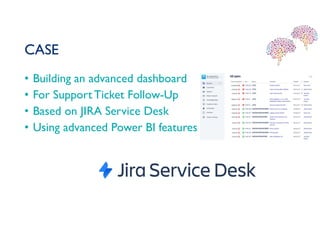
CASE
• Building an advanced dashboard
• For SupportTicket Follow-Up
• Based on JIRA Service Desk
• Using advanced Power BI features
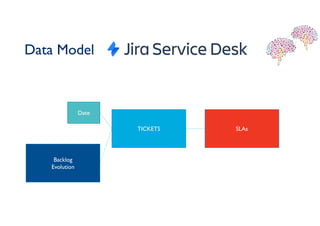
Data Model
TICKETS SLAs
Backlog
Evolution
Date
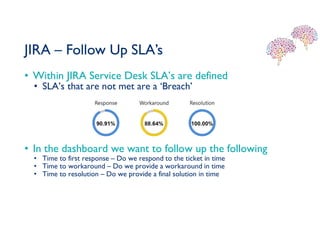
JIRA – Follow Up SLA’s
• Within JIRA Service Desk SLA’s are defined
• SLA’s that are not met are a ‘Breach’
• In the dashboard we want to follow up the following
• Time to first response – Do we respond to the ticket in time
• Time to workaround – Do we provide a workaround in time
• Time to resolution – Do we provide a final solution in time
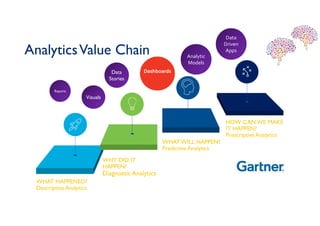
AnalyticsValue Chain
WHAT HAPPENED?
Descriptive Analytics
WHY DID IT
HAPPEN?
Diagnostic Analytics
WHATWILL HAPPEN?
Predictive Analytics
HOW CANWE MAKE
IT HAPPEN?
Prescriptive Analytics
Data
Stories
Data
Stories
DashboardsDashboardsDashboards
ReportsReports
VisualsVisuals
Analytic
Models
Analytic
Models
Data
Driven
Apps
Data
Driven
Apps
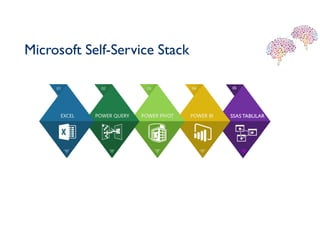
Microsoft Self-Service Stack
SSAS TABULAR
05
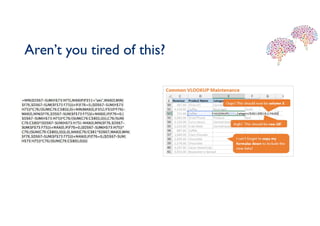
Aren’t you tired of this?
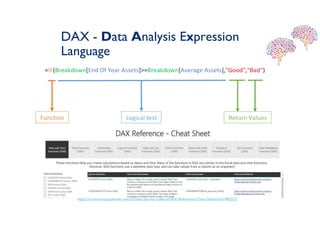
DAX - Data Analysis Expression
Language
https://community.powerbi.com/t5/Data-Stories-Gallery/DAX-Reference-Cheat-Sheet/td-p/483212
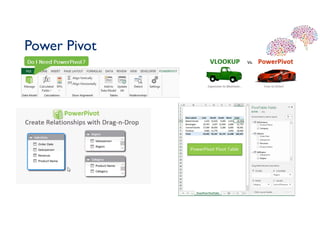
Power Pivot
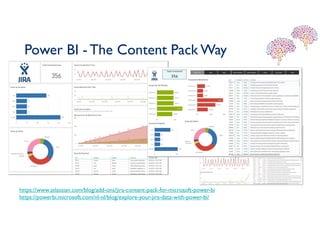
Power BI - The Content Pack Way
https://www.atlassian.com/blog/add-ons/jira-content-pack-for-microsoft-power-bi
https://powerbi.microsoft.com/nl-nl/blog/explore-your-jira-data-with-power-bi/
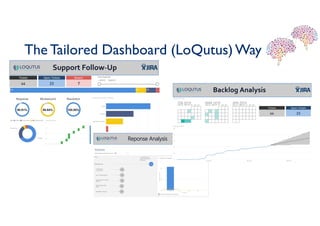
The Tailored Dashboard (LoQutus)Way
Advanced Power BI
• We’ll start from a template
with the basics already covered
• Deep Dive into the advanced
(but common) features
• Take home samples with
detailed instructions
Basic POWER BI CHECKLIST
‘Getting Started Is Easy’
 I can open Power BI desktop
 I can Get Data into Power BI
 I know how to edit my data
 I can do some Modelling (e.g. defining relations)
 I can create visualisations
 I can make them pretty
 I can publish my dashboard to power BI online
 I can get Quick Insights
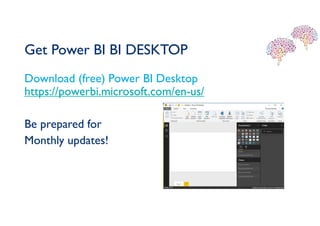
Get Power BI BI DESKTOP
Download (free) Power BI DesktopStep 1 – Download
https://powerbi.microsoft.com/en-us/
Be prepared for
Monthly updates!
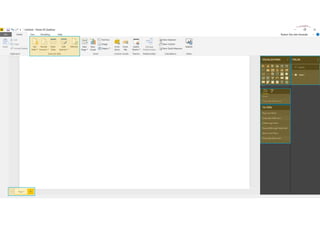
• Step 2 - Open
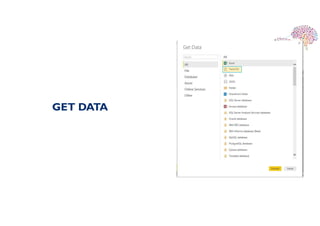
GET DATA
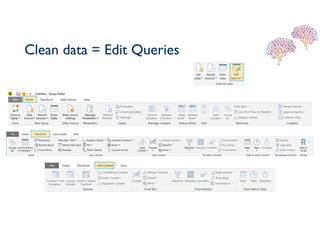
Clean data = Edit Queries
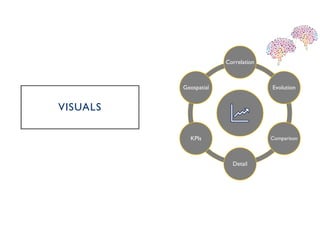
Correlation
Evolution
Comparison
Detail
KPIs
Geospatial
VISUALS
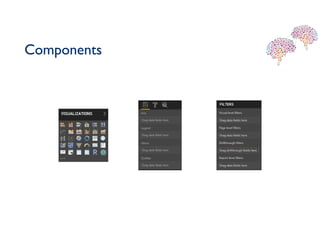
Components
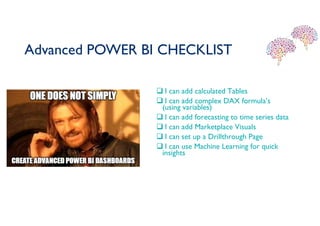
Advanced POWER BI CHECKLIST
 I can add calculated Tables
 I can add complex DAX formula’s
(using variables)
 I can add forecasting to time series data
 I can add Marketplace Visuals
 I can set up a Drillthrough Page
 I can use Machine Learning for quick
insights
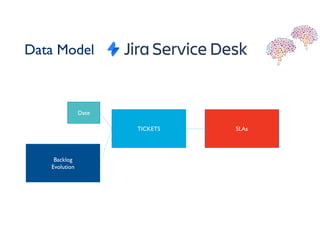
Data Model
TICKETS SLAs
Backlog
Evolution
Date
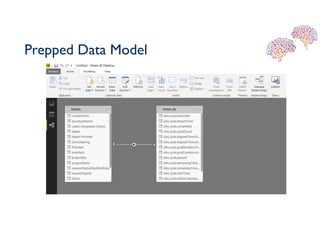
Prepped Data Model
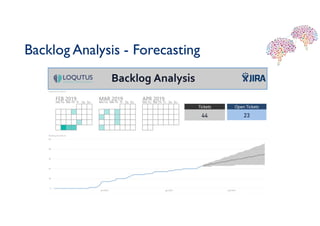
Backlog Analysis - Forecasting
Backlog Analysis
• Issue: from the list of tickets it’s hard to get the
‘backlog’ – the number of open tickets for a specific
date
• To perform the backlog analysis in Power BI:
• Add a date table to the data model
• Add the necessary calculations for the backlog
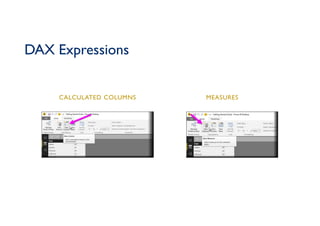
CALCULATED COLUMNS MEASURES
DAX Expressions
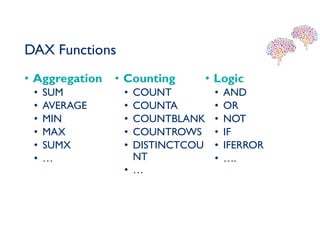
DAX Functions
• Aggregation
• SUM
• AVERAGE
• MIN
• MAX
• SUMX
• …
• Counting
• COUNT
• COUNTA
• COUNTBLANK
• COUNTROWS
• DISTINCTCOU
NT
• …
• Logic
• AND
• OR
• NOT
• IF
• IFERROR
• ….
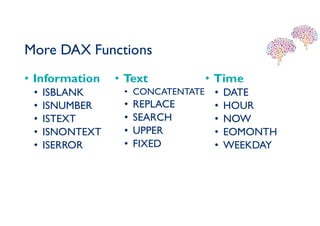
More DAX Functions
• Information
• ISBLANK
• ISNUMBER
• ISTEXT
• ISNONTEXT
• ISERROR
• Text
• CONCATENTATE
• REPLACE
• SEARCH
• UPPER
• FIXED
• Time
• DATE
• HOUR
• NOW
• EOMONTH
• WEEKDAY
Backlog – Date Table
Date =
ADDCOLUMNS (
CALENDAR (DATE(2000;1;1); DATE(2025;12;31));
"DateAsInteger"; FORMAT ( [Date]; "YYYYMMDD" );
"Year"; YEAR ( [Date] );
"Monthnumber"; FORMAT ( [Date]; "MM" );
"YearMonthnumber"; FORMAT ( [Date]; "YYYY/MM" );
"YearMonthShort"; FORMAT ( [Date]; "YYYY/mmm" );
"MonthNameShort"; FORMAT ( [Date]; "mmm" );
"MonthNameLong"; FORMAT ( [Date]; "mmmm" );
"DayOfWeekNumber"; WEEKDAY ( [Date] );
"DayOfWeek"; FORMAT ( [Date]; "dddd" );
"DayOfWeekShort"; FORMAT ( [Date]; "ddd" );
"Quarter"; "Q" & FORMAT ( [Date]; "Q" );
"YearQuarter"; FORMAT ( [Date]; "YYYY" ) & "/Q" & FORMAT ( [Date]; "Q" )
)
DAX – Calculating a Backlog
• Add the following columns to the date table:
• ‘Opened’/’Closed’ –The number of tickets opened/closed on that day
• ‘TotalOpened’/’TotalClosed’ – Number of tickets opened/closed up to that day
• The Backlog is nowTotal Opened minusTotal Closed
Opened = CALCULATE(
COUNT(Tickets[TicketNr]);
FILTER(Tickets;Tickets[DatumAangemaakt]=EARLIER('Date'[Date]))
)
TotalOpened = CALCULATE(
SUM('Date'[Opened]);
ALL('Date’);
'Date'[Date]<=EARLIER('Date'[Date])
)
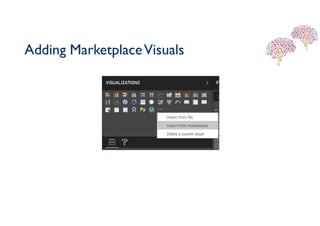
Adding MarketplaceVisuals
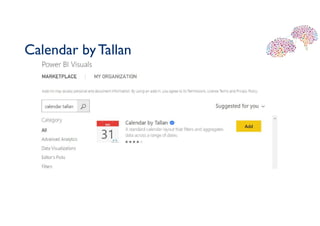
Calendar byTallan
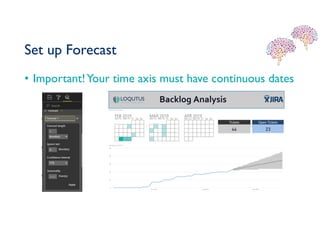
Set up Forecast
• Important!Your time axis must have continuous dates
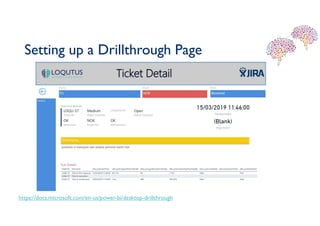
Setting up a Drillthrough Page
https://docs.microsoft.com/en-us/power-bi/desktop-drillthrough
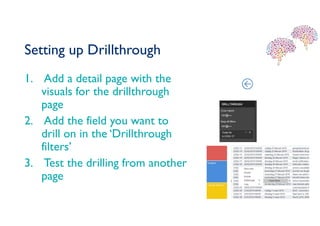
Setting up Drillthrough
1. Add a detail page with the
visuals for the drillthrough
page
2. Add the field you want to
drill on in the ‘Drillthrough
filters’
3. Test the drilling from another
page
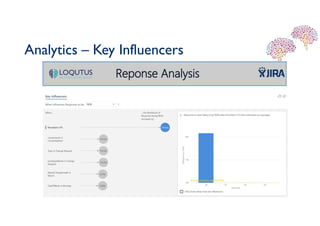
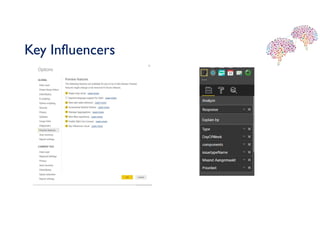
Analytics – Key Influencers
Key Influencers
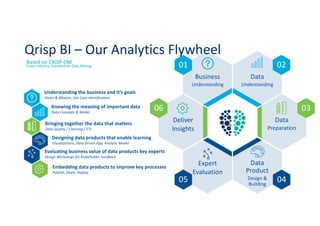
Data
Product
Design &
Building
Expert
Evaluation
Data
Understanding
Business
Understanding
Data
Preparation
Deliver
Insights
01 02
03
0405
06
Understanding the business and it’s goals
Vision & Mission, Use Case Identification
Knowing the meaning of important data
Data Concepts & Model
Bringing together the data that matters
Data Quality / Cleaning / ETL
Designing data products that enable learning
Visualizations, Data Driven App, Analytic Model
Evaluating business value of data products key experts
Design Workshops for Stakeholder Feedback
Embedding data products to improve key processes
Publish, Share, Deploy
Qrisp BI – Our Analytics Flywheel
Based on CRISP-DM
Cross-Industry Standard for Data Mining
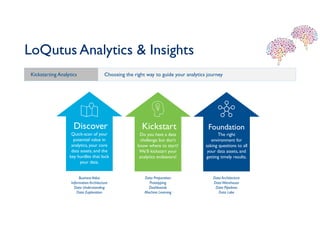
LoQutus Analytics & Insights
Kickstarting Analytics Choosing the right way to guide your analytics journey
Discover
Quick-scan of your
potential value in
analytics, your core
data assets, and the
key hurdles that lock
your data.
Kickstart
Do you have a data
challenge but don’t
know where to start?
We’ll kickstart your
analytics endeavors!
Foundation
The right
environment for
asking questions to all
your data assets, and
getting timely results.
BusinessValue
Information Architecture
Data Understanding
Data Exploration
Data Architecture
DataWarehouse
Data Pipelines
Data Lake
Data Preparation
Prototyping
Dashboards
Machine Learning
LoQutus: A deep-dive into Microsoft Power BI

LoQutus: A deep-dive into Microsoft Power BI

  • 1.
    Supported by: Connected Brains2019 Power BI Deep-DiveWorkshop
  • 2.
    Contact • Thomas D’Hauwe •Data Engineer / Data Architect • thomas.dhauwe@loqutus.com • Pieter-Jan Serlet • Data Engineer • pieter-jan.serlet@loqutus.com • Tom De Roover • Data Architect • tom.deroover@loqutus.com • SanderVan Driessche • Data Analyst • sander.vandriessche@loqutus.com • Thomas Michem • Lead Analytics & Insights • thomas.michem@loqutus.com
  • 3.
    Session Promise (hide) A key toolin any Analytics toolset is a data visualisation tool. While there are many good options, recently Microsoft Power BI is taking a clear lead in the space. But it can be hard to keep up! In this short session we will get you up to speed with the basics and our pick of top features that will make your data exploration efforts stand out. From embedded machine learning with clustering, forecasting and quick insights, to complex calculations and advanced visualisations. This session will be hands-on, you'll go through the key steps and you'll walk out with a working dashboard and inspiration to apply the lessons learned in your context.
  • 4.
    Welcome! Our Goal Today •Deep Dive in Power BI • Exploring a common case • Highlighting top features • Analytics FTW • Take home examples!
  • 5.
    CASE • Building anadvanced dashboard • For SupportTicket Follow-Up • Based on JIRA Service Desk • Using advanced Power BI features
  • 6.
  • 7.
    JIRA – FollowUp SLA’s • Within JIRA Service Desk SLA’s are defined • SLA’s that are not met are a ‘Breach’ • In the dashboard we want to follow up the following • Time to first response – Do we respond to the ticket in time • Time to workaround – Do we provide a workaround in time • Time to resolution – Do we provide a final solution in time
  • 8.
    AnalyticsValue Chain WHAT HAPPENED? DescriptiveAnalytics WHY DID IT HAPPEN? Diagnostic Analytics WHATWILL HAPPEN? Predictive Analytics HOW CANWE MAKE IT HAPPEN? Prescriptive Analytics Data Stories Data Stories DashboardsDashboardsDashboards ReportsReports VisualsVisuals Analytic Models Analytic Models Data Driven Apps Data Driven Apps
  • 10.
  • 11.
  • 12.
    DAX - DataAnalysis Expression Language https://community.powerbi.com/t5/Data-Stories-Gallery/DAX-Reference-Cheat-Sheet/td-p/483212
  • 13.
  • 14.
    Power BI -The Content Pack Way https://www.atlassian.com/blog/add-ons/jira-content-pack-for-microsoft-power-bi https://powerbi.microsoft.com/nl-nl/blog/explore-your-jira-data-with-power-bi/
  • 15.
  • 16.
    Advanced Power BI •We’ll start from a template with the basics already covered • Deep Dive into the advanced (but common) features • Take home samples with detailed instructions
  • 17.
    Basic POWER BICHECKLIST ‘Getting Started Is Easy’  I can open Power BI desktop  I can Get Data into Power BI  I know how to edit my data  I can do some Modelling (e.g. defining relations)  I can create visualisations  I can make them pretty  I can publish my dashboard to power BI online  I can get Quick Insights
  • 18.
    Get Power BIBI DESKTOP Download (free) Power BI DesktopStep 1 – Download https://powerbi.microsoft.com/en-us/ Be prepared for Monthly updates! • Step 2 - Open
  • 20.
  • 21.
    Clean data =Edit Queries
  • 22.
  • 23.
  • 24.
    Advanced POWER BICHECKLIST  I can add calculated Tables  I can add complex DAX formula’s (using variables)  I can add forecasting to time series data  I can add Marketplace Visuals  I can set up a Drillthrough Page  I can use Machine Learning for quick insights
  • 25.
  • 26.
  • 27.
    Backlog Analysis -Forecasting
  • 28.
    Backlog Analysis • Issue:from the list of tickets it’s hard to get the ‘backlog’ – the number of open tickets for a specific date • To perform the backlog analysis in Power BI: • Add a date table to the data model • Add the necessary calculations for the backlog
  • 29.
  • 30.
    DAX Functions • Aggregation •SUM • AVERAGE • MIN • MAX • SUMX • … • Counting • COUNT • COUNTA • COUNTBLANK • COUNTROWS • DISTINCTCOU NT • … • Logic • AND • OR • NOT • IF • IFERROR • ….
  • 31.
    More DAX Functions •Information • ISBLANK • ISNUMBER • ISTEXT • ISNONTEXT • ISERROR • Text • CONCATENTATE • REPLACE • SEARCH • UPPER • FIXED • Time • DATE • HOUR • NOW • EOMONTH • WEEKDAY
  • 32.
    Backlog – DateTable Date = ADDCOLUMNS ( CALENDAR (DATE(2000;1;1); DATE(2025;12;31)); "DateAsInteger"; FORMAT ( [Date]; "YYYYMMDD" ); "Year"; YEAR ( [Date] ); "Monthnumber"; FORMAT ( [Date]; "MM" ); "YearMonthnumber"; FORMAT ( [Date]; "YYYY/MM" ); "YearMonthShort"; FORMAT ( [Date]; "YYYY/mmm" ); "MonthNameShort"; FORMAT ( [Date]; "mmm" ); "MonthNameLong"; FORMAT ( [Date]; "mmmm" ); "DayOfWeekNumber"; WEEKDAY ( [Date] ); "DayOfWeek"; FORMAT ( [Date]; "dddd" ); "DayOfWeekShort"; FORMAT ( [Date]; "ddd" ); "Quarter"; "Q" & FORMAT ( [Date]; "Q" ); "YearQuarter"; FORMAT ( [Date]; "YYYY" ) & "/Q" & FORMAT ( [Date]; "Q" ) )
  • 33.
    DAX – Calculatinga Backlog • Add the following columns to the date table: • ‘Opened’/’Closed’ –The number of tickets opened/closed on that day • ‘TotalOpened’/’TotalClosed’ – Number of tickets opened/closed up to that day • The Backlog is nowTotal Opened minusTotal Closed Opened = CALCULATE( COUNT(Tickets[TicketNr]); FILTER(Tickets;Tickets[DatumAangemaakt]=EARLIER('Date'[Date])) ) TotalOpened = CALCULATE( SUM('Date'[Opened]); ALL('Date’); 'Date'[Date]<=EARLIER('Date'[Date]) )
  • 34.
  • 35.
  • 36.
    Set up Forecast •Important!Your time axis must have continuous dates
  • 37.
    Setting up aDrillthrough Page https://docs.microsoft.com/en-us/power-bi/desktop-drillthrough
  • 38.
    Setting up Drillthrough 1.Add a detail page with the visuals for the drillthrough page 2. Add the field you want to drill on in the ‘Drillthrough filters’ 3. Test the drilling from another page
  • 39.
    Analytics – KeyInfluencers
  • 40.
  • 41.
    Data Product Design & Building Expert Evaluation Data Understanding Business Understanding Data Preparation Deliver Insights 01 02 03 0405 06 Understandingthe business and it’s goals Vision & Mission, Use Case Identification Knowing the meaning of important data Data Concepts & Model Bringing together the data that matters Data Quality / Cleaning / ETL Designing data products that enable learning Visualizations, Data Driven App, Analytic Model Evaluating business value of data products key experts Design Workshops for Stakeholder Feedback Embedding data products to improve key processes Publish, Share, Deploy Qrisp BI – Our Analytics Flywheel Based on CRISP-DM Cross-Industry Standard for Data Mining
  • 42.
    LoQutus Analytics &Insights Kickstarting Analytics Choosing the right way to guide your analytics journey Discover Quick-scan of your potential value in analytics, your core data assets, and the key hurdles that lock your data. Kickstart Do you have a data challenge but don’t know where to start? We’ll kickstart your analytics endeavors! Foundation The right environment for asking questions to all your data assets, and getting timely results. BusinessValue Information Architecture Data Understanding Data Exploration Data Architecture DataWarehouse Data Pipelines Data Lake Data Preparation Prototyping Dashboards Machine Learning