1. Go to KPScholar.com
2. Enter Your username and password in the boxes on
the right side and click Log in.
The KP Portal
Upon your first log into Moodle, you should be prompted to change your
password. If no prompt appears, follow the instructions below to
manually change your password.
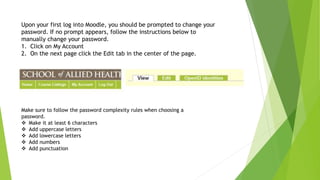
1. Click on My Account
2. On the next page click the Edit tab in the center of the page.
Make sure to follow the password complexity rules when choosing a
password.
 Make it at least 6 characters
 Add uppercase letters
 Add lowercase letters
 Add numbers
 Add punctuation
1. Enter your current password.
2. Enter your New password twice.
1. You can also change your city in
the City text box.
2. Make sure to set the correct time
zone.
3. When finished click the Save at the
bottom of the page.
Now you can go to your course by
selecting your course under the My
Courses block.

Logging into KPScholar

  • 1.
    1. Go toKPScholar.com 2. Enter Your username and password in the boxes on the right side and click Log in. The KP Portal
  • 2.
    Upon your firstlog into Moodle, you should be prompted to change your password. If no prompt appears, follow the instructions below to manually change your password. 1. Click on My Account 2. On the next page click the Edit tab in the center of the page. Make sure to follow the password complexity rules when choosing a password.  Make it at least 6 characters  Add uppercase letters  Add lowercase letters  Add numbers  Add punctuation
  • 3.
    1. Enter yourcurrent password. 2. Enter your New password twice.
  • 4.
    1. You canalso change your city in the City text box. 2. Make sure to set the correct time zone. 3. When finished click the Save at the bottom of the page. Now you can go to your course by selecting your course under the My Courses block.