Google Maps
                                    (maps.google.com)

Google Maps is a Google service offering powerful, user-friendly mapping technology
and local business information-including business locations, contact information, and
driving directions

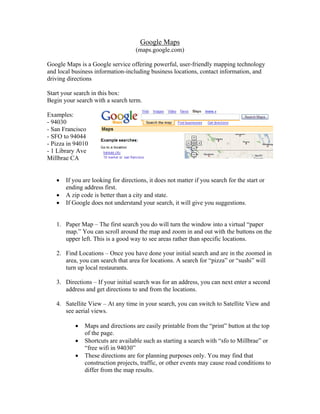
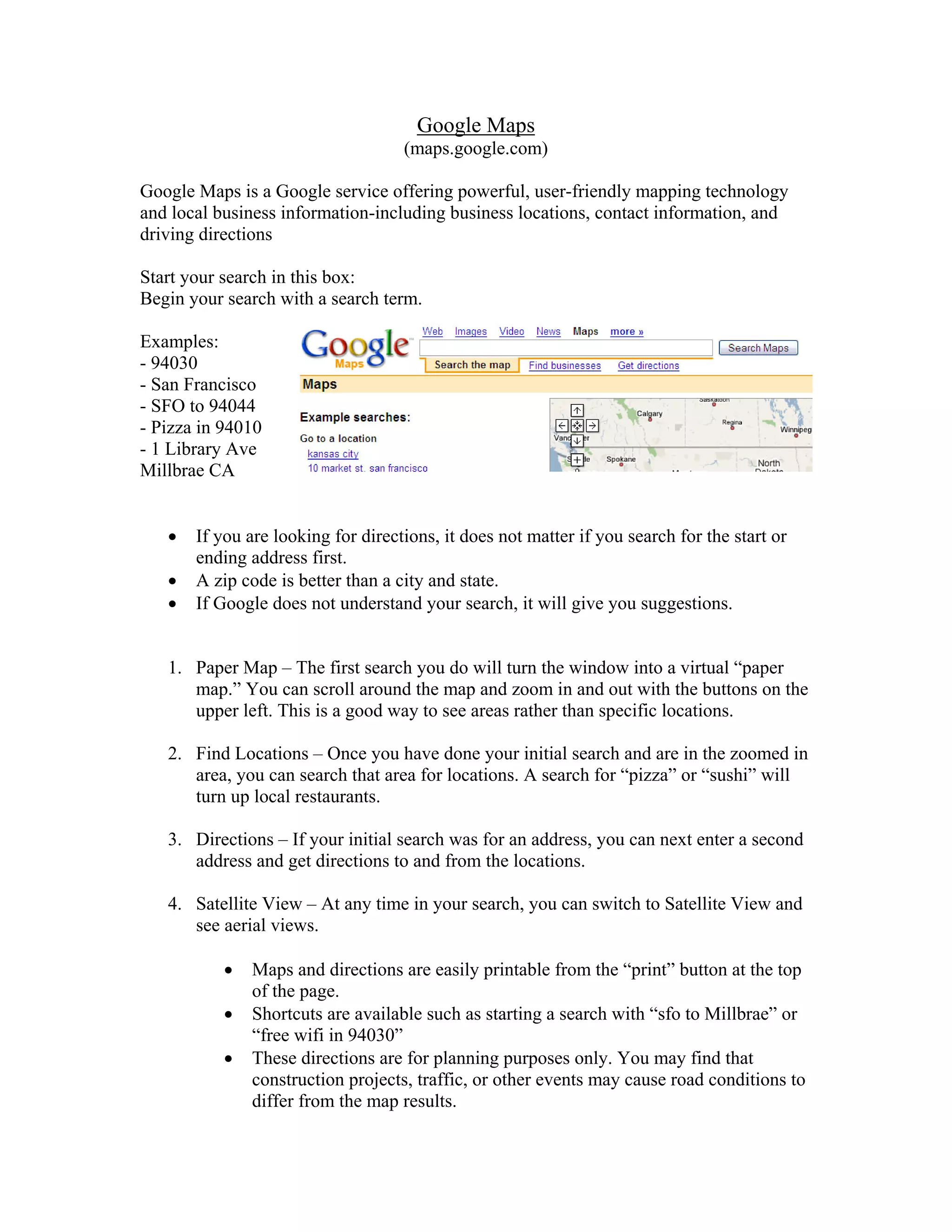
Start your search in this box:
Begin your search with a search term.

Examples:
- 94030
- San Francisco
- SFO to 94044
- Pizza in 94010
- 1 Library Ave
Millbrae CA


   •   If you are looking for directions, it does not matter if you search for the start or
       ending address first.
   •   A zip code is better than a city and state.
   •   If Google does not understand your search, it will give you suggestions.


   1. Paper Map – The first search you do will turn the window into a virtual “paper
      map.” You can scroll around the map and zoom in and out with the buttons on the
      upper left. This is a good way to see areas rather than specific locations.

   2. Find Locations – Once you have done your initial search and are in the zoomed in
      area, you can search that area for locations. A search for “pizza” or “sushi” will
      turn up local restaurants.

   3. Directions – If your initial search was for an address, you can next enter a second
      address and get directions to and from the locations.

   4. Satellite View – At any time in your search, you can switch to Satellite View and
      see aerial views.

           •   Maps and directions are easily printable from the “print” button at the top
               of the page.
           •   Shortcuts are available such as starting a search with “sfo to Millbrae” or
               “free wifi in 94030”
           •   These directions are for planning purposes only. You may find that
               construction projects, traffic, or other events may cause road conditions to
               differ from the map results.

Google Maps

  • 1.
    Google Maps (maps.google.com) Google Maps is a Google service offering powerful, user-friendly mapping technology and local business information-including business locations, contact information, and driving directions Start your search in this box: Begin your search with a search term. Examples: - 94030 - San Francisco - SFO to 94044 - Pizza in 94010 - 1 Library Ave Millbrae CA • If you are looking for directions, it does not matter if you search for the start or ending address first. • A zip code is better than a city and state. • If Google does not understand your search, it will give you suggestions. 1. Paper Map – The first search you do will turn the window into a virtual “paper map.” You can scroll around the map and zoom in and out with the buttons on the upper left. This is a good way to see areas rather than specific locations. 2. Find Locations – Once you have done your initial search and are in the zoomed in area, you can search that area for locations. A search for “pizza” or “sushi” will turn up local restaurants. 3. Directions – If your initial search was for an address, you can next enter a second address and get directions to and from the locations. 4. Satellite View – At any time in your search, you can switch to Satellite View and see aerial views. • Maps and directions are easily printable from the “print” button at the top of the page. • Shortcuts are available such as starting a search with “sfo to Millbrae” or “free wifi in 94030” • These directions are for planning purposes only. You may find that construction projects, traffic, or other events may cause road conditions to differ from the map results.