Operating System With Linux
2023-24
Yashwant Tandekar (BCA 3 rd
SEM) 1 | P a g e
Q.1 Change your shell environment– PATH, HOME, IFS, MAIL, PS1, PS2,
TERM, LOGNAME.
i) at command line
ii) at shell level
iii) at login level
Answer :-
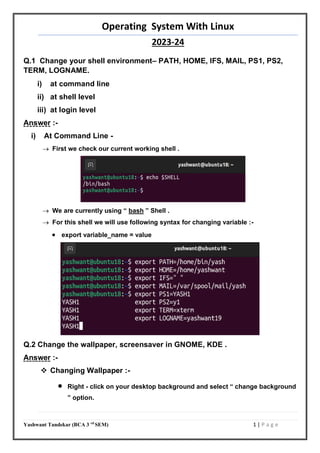
i) At Command Line -
 First we check our current working shell .
 We are currently using “ bash ” Shell .
 For this shell we will use following syntax for changing variable :-
 export variable_name = value
Q.2 Change the wallpaper, screensaver in GNOME, KDE .
Answer :-
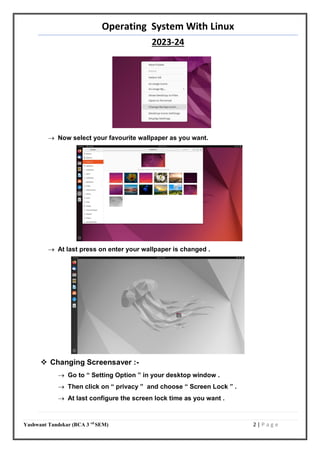
 Changing Wallpaper :-
 Right - click on your desktop background and select “ change background
” option.
Operating System With Linux
2023-24
Yashwant Tandekar (BCA 3 rd
SEM) 2 | P a g e
 Now select your favourite wallpaper as you want.
 At last press on enter your wallpaper is changed .
 Changing Screensaver :-
 Go to “ Setting Option ” in your desktop window .
 Then click on “ privacy ” and choose “ Screen Lock ” .
 At last configure the screen lock time as you want .
Operating System With Linux
2023-24
Yashwant Tandekar (BCA 3 rd
SEM) 3 | P a g e
Q.3 Install Linux with following specifications – username, password,
partitions for various directories such as /etc, /home, etc.
Answer :-
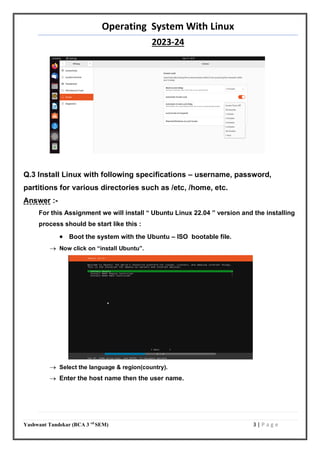
For this Assignment we will install “ Ubuntu Linux 22.04 ” version and the installing
process should be start like this :
 Boot the system with the Ubuntu – ISO bootable file.
 Now click on “install Ubuntu”.
 Select the language & region(country).
 Enter the host name then the user name.
Operating System With Linux
2023-24
Yashwant Tandekar (BCA 3 rd
SEM) 4 | P a g e
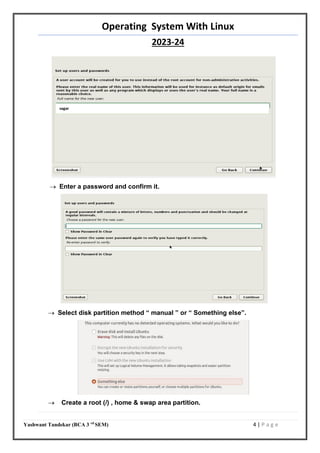
 Enter a password and confirm it.
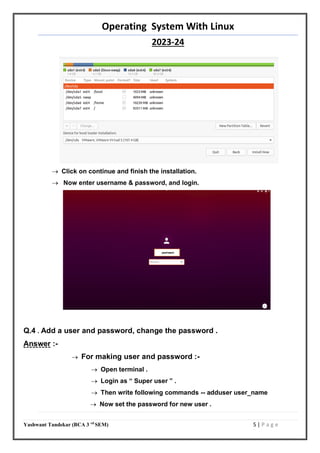
 Select disk partition method “ manual ” or “ Something else”.
 Create a root (/) , home & swap area partition.
sagar
yashwant
Operating System With Linux
2023-24
Yashwant Tandekar (BCA 3 rd
SEM) 5 | P a g e
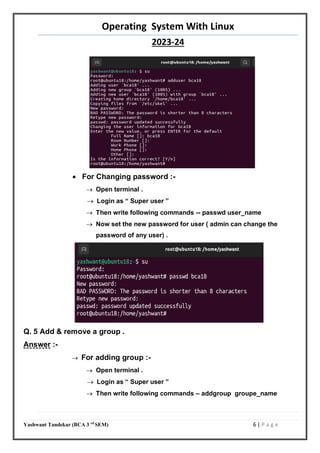
 Click on continue and finish the installation.
 Now enter username & password, and login.
Q.4 . Add a user and password, change the password .
Answer :-
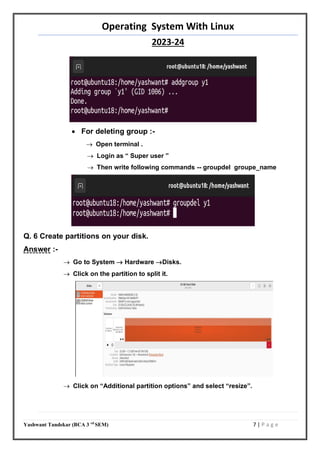
 For making user and password :-
 Open terminal .
 Login as “ Super user ” .
 Then write following commands -- adduser user_name
 Now set the password for new user .
yashwant
Operating System With Linux
2023-24
Yashwant Tandekar (BCA 3 rd
SEM) 6 | P a g e
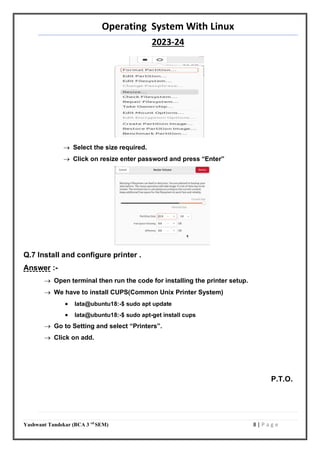
 For Changing password :-
 Open terminal .
 Login as “ Super user ”
 Then write following commands -- passwd user_name
 Now set the new password for user ( admin can change the
password of any user) .
Q. 5 Add & remove a group .
Answer :-
 For adding group :-
 Open terminal .
 Login as “ Super user ”
 Then write following commands – addgroup groupe_name
Operating System With Linux
2023-24
Yashwant Tandekar (BCA 3 rd
SEM) 7 | P a g e
 For deleting group :-
 Open terminal .
 Login as “ Super user ”
 Then write following commands -- groupdel groupe_name
Q. 6 Create partitions on your disk.
Answer :-
 Go to System  Hardware Disks.
 Click on the partition to split it.
 Click on “Additional partition options” and select “resize”.
Operating System With Linux
2023-24
Yashwant Tandekar (BCA 3 rd
SEM) 8 | P a g e
 Select the size required.
 Click on resize enter password and press “Enter”
Q.7 Install and configure printer .
Answer :-
 Open terminal then run the code for installing the printer setup.
 We have to install CUPS(Common Unix Printer System)
 lata@ubuntu18:-$ sudo apt update
 lata@ubuntu18:-$ sudo apt-get install cups
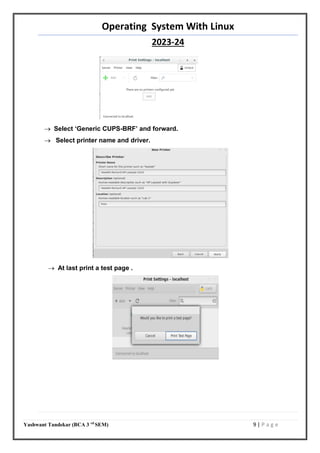
 Go to Setting and select “Printers”.
 Click on add.
P.T.O.
Operating System With Linux
2023-24
Yashwant Tandekar (BCA 3 rd
SEM) 9 | P a g e
 Select ‘Generic CUPS-BRF’ and forward.
 Select printer name and driver.
 At last print a test page .
Operating System With Linux
2023-24
Yashwant Tandekar (BCA 3 rd
SEM) 10 | P a g e
-: Using VI editor :-
Q .8 In a file :-
i) Replace the words ‘has’ with ‘has not’.
Answer :-
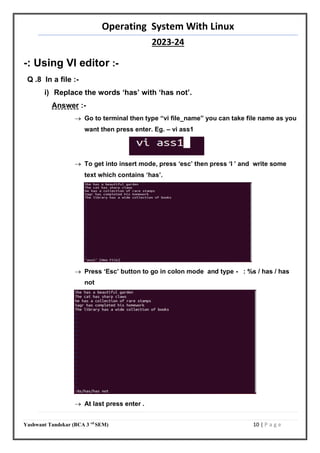
 Go to terminal then type “vi file_name” you can take file name as you
want then press enter. Eg. – vi ass1
 To get into insert mode, press ‘esc’ then press ‘I ’ and write some
text which contains ‘has’.
 Press ‘Esc’ button to go in colon mode and type - : %s / has / has
not
 At last press enter .
Operating System With Linux
2023-24
Yashwant Tandekar (BCA 3 rd
SEM) 11 | P a g e
ii) locate nth
character.
Answer :-
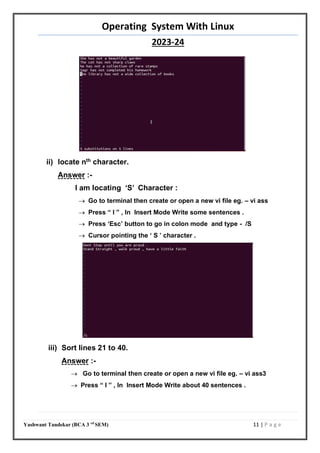
I am locating ‘S’ Character :
 Go to terminal then create or open a new vi file eg. – vi ass
 Press “ I ” , In Insert Mode Write some sentences .
 Press ‘Esc’ button to go in colon mode and type - /S
 Cursor pointing the ‘ S ’ character .
iii) Sort lines 21 to 40.
Answer :-
 Go to terminal then create or open a new vi file eg. – vi ass3
 Press “ I ” , In Insert Mode Write about 40 sentences .
Operating System With Linux
2023-24
Yashwant Tandekar (BCA 3 rd
SEM) 12 | P a g e
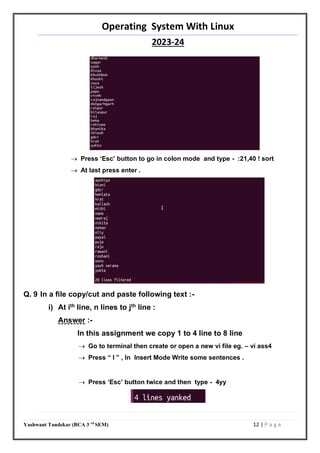
 Press ‘Esc’ button to go in colon mode and type - :21,40 ! sort
 At last press enter .
Q. 9 In a file copy/cut and paste following text :-
i) At ith
line, n lines to jth
line :
Answer :-
In this assignment we copy 1 to 4 line to 8 line
 Go to terminal then create or open a new vi file eg. – vi ass4
 Press “ I ” , In Insert Mode Write some sentences .
 Press ‘Esc’ button twice and then type - 4yy
Operating System With Linux
2023-24
Yashwant Tandekar (BCA 3 rd
SEM) 13 | P a g e
 4 lines copied and then press “ p ” to paste the copied text at your
required cursor position (8th
line).
 At last the sentence will be paste at 8 th
Line .
ii) Yank a few words :
Answer :-
 Go to terminal then create or open a new vi file eg. – vi ass5
 Press “ I ” , In Insert Mode Write some sentences .
 move the cursor on that word you want to Yank or Copied
 press “ ESC ” and type - 4yw [It will copy / yank 4 words]
 At last press “ p ” for pasting the yanked word .
iii)Cut and paste n words to i position in j line :
Answer :-
 Go to terminal then create or open a new vi file eg. – vi ass6
 Press “ I ” , In Insert Mode Write some sentences .
Operating System With Linux
2023-24
Yashwant Tandekar (BCA 3 rd
SEM) 14 | P a g e
 move the cursor on that word you want to cut or delete.
 press “ ESC ” and type – 8dw [It will cut 4 words]
 At last press “ p ” for pasting the cut word .
Q. 10 Open to files ‘txtfile’ and ‘newfile’ and copy/cut 5 lines from ‘txtfile’
and paste them in ‘newfile’ using vi editor.
Answer :-
 Go to terminal and create both files which is mentioned in question – vi txtfile
and vi newfile.
 In “txtfile” press “ ESC ” and then “I”.
 Now write some sentences .
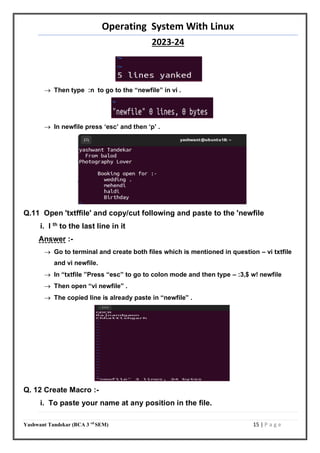
 Press “esc” and then type – 5yy [copy 5 lines]
Operating System With Linux
2023-24
Yashwant Tandekar (BCA 3 rd
SEM) 15 | P a g e
 Then type :n to go to the “newfile” in vi .
 In newfile press ‘esc’ and then ‘p’ .
Q.11 Open 'txtffile' and copy/cut following and paste to the 'newfile
i. I th
to the last line in it
Answer :-
 Go to terminal and create both files which is mentioned in question – vi txtfile
and vi newfile.
 In “txtfile ”Press “esc” to go to colon mode and then type – :3,$ w! newfile
 Then open “vi newfile” .
 The copied line is already paste in “newfile” .
Q. 12 Create Macro :-
i. To paste your name at any position in the file.
Operating System With Linux
2023-24
Yashwant Tandekar (BCA 3 rd
SEM) 16 | P a g e
Answer :-
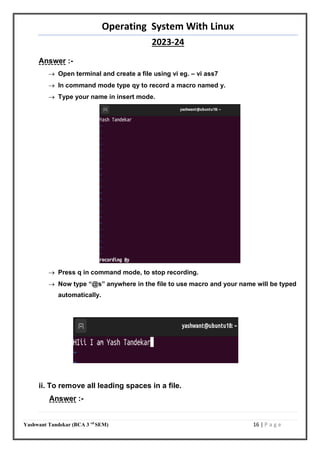
 Open terminal and create a file using vi eg. – vi ass7
 In command mode type qy to record a macro named y.
 Type your name in insert mode.
 Press q in command mode, to stop recording.
 Now type “@s” anywhere in the file to use macro and your name will be typed
automatically.
ii. To remove all leading spaces in a file.
Answer :-
@y
Operating System With Linux
2023-24
Yashwant Tandekar (BCA 3 rd
SEM) 17 | P a g e
 Open terminal and create a file using vi eg. – vi ass8
 Press “ I ” , In Insert Mode Write some sentences with paragraph space .
 Press “esc” in colon mode type - :map S :g/^$/d.
 Then press “esc”
 At last type “ S ” to remove all leading spaces in file .
iii. To save and quit vi editor in input mode.
Answer :-
 Open terminal and create a file using vi eg. – vi ass9
 In command mode type qd to record a macro named d.
 Press “esc” in colon mode type - :wq [To save and quit file]
 Press “esc”
 Then press q in command mode, to stop recording.
 Now type “@d” anywhere in the file to use macro
Operating System With Linux
2023-24
Yashwant Tandekar (BCA 3 rd
SEM) 18 | P a g e
:- Write commands :-
Q. 13 List all files that match a class .
Answer :-
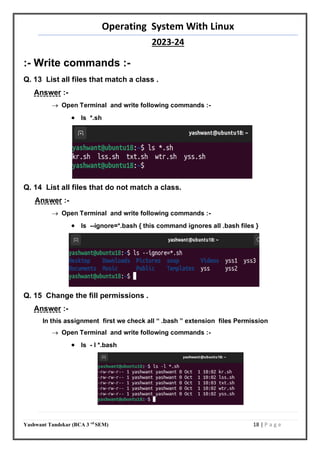
 Open Terminal and write following commands :-
 ls *.sh
Q. 14 List all files that do not match a class.
Answer :-
 Open Terminal and write following commands :-
 ls --ignore=*.bash { this command ignores all .bash files }
Q. 15 Change the fill permissions .
Answer :-
In this assignment first we check all “ .bash ” extension files Permission
 Open Terminal and write following commands :-
 ls - l *.bash
Operating System With Linux
2023-24
Yashwant Tandekar (BCA 3 rd
SEM) 19 | P a g e
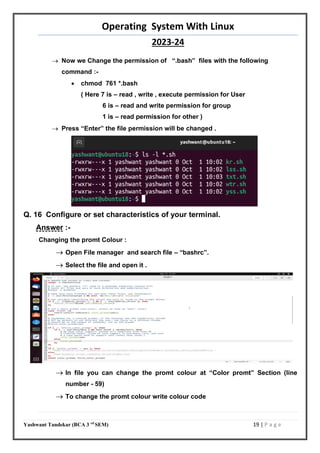
 Now we Change the permission of “.bash” files with the following
command :-
 chmod 761 *.bash
( Here 7 is – read , write , execute permission for User
6 is – read and write permission for group
1 is – read permission for other )
 Press “Enter” the file permission will be changed .
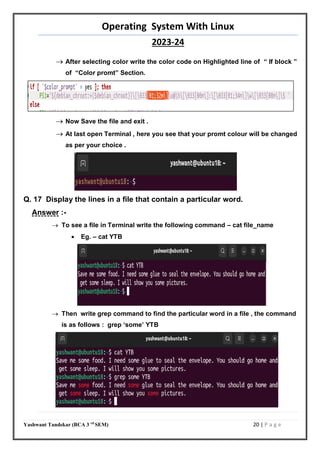
Q. 16 Configure or set characteristics of your terminal.
Answer :-
Changing the promt Colour :
 Open File manager and search file – “bashrc”.
 Select the file and open it .
 In file you can change the promt colour at “Color promt” Section (line
number - 59)
 To change the promt colour write colour code
Operating System With Linux
2023-24
Yashwant Tandekar (BCA 3 rd
SEM) 20 | P a g e
 After selecting color write the color code on Highlighted line of “ If block ”
of “Color promt” Section.
 Now Save the file and exit .
 At last open Terminal , here you see that your promt colour will be changed
as per your choice .
Q. 17 Display the lines in a file that contain a particular word.
Answer :-
 To see a file in Terminal write the following command – cat file_name
 Eg. – cat YTB
 Then write grep command to find the particular word in a file , the command
is as follows : grep ‘some’ YTB
Operating System With Linux
2023-24
Yashwant Tandekar (BCA 3 rd
SEM) 21 | P a g e
Q.18 Append the contents of two files in a file JABC.
Answer :-
 Open Terminal and create 2 files in vi editor eg. – file1 , file2
 To see the file in Terminal write the following command – cat file_name
 To Append the contents of 2 files in 1 file [JABC] write following command
 cat file1 file2 >> JABC
 At last to see the append file type – cat JABC.
Q. 19 Count the number of files in a directory.
Answer :-
 Open Terminal and write following commands :-
 ls -f -l | wc -l (it is for counting all files in root/ directory )
Operating System With Linux
2023-24
Yashwant Tandekar (BCA 3 rd
SEM) 22 | P a g e
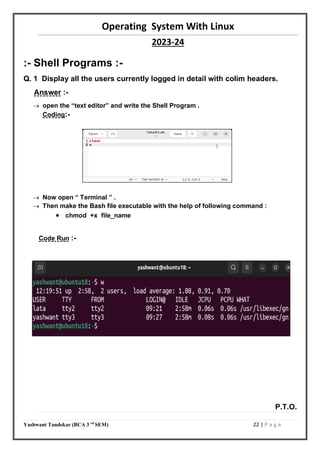
:- Shell Programs :-
Q. 1 Display all the users currently logged in detail with colim headers.
Answer :-
 open the “text editor” and write the Shell Program .
Coding:-
 Now open “ Terminal ” .
 Then make the Bash file executable with the help of following command :
 chmod +x file_name
Code Run :-
P.T.O.
20
Operating System With Linux
2023-24
Yashwant Tandekar (BCA 3 rd
SEM) 23 | P a g e
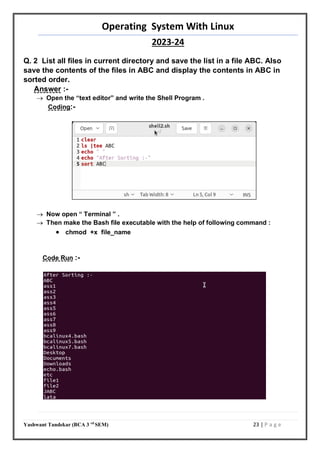
Q. 2 List all files in current directory and save the list in a file ABC. Also
save the contents of the files in ABC and display the contents in ABC in
sorted order.
Answer :-
 Open the “text editor” and write the Shell Program .
Coding:-
 Now open “ Terminal ” .
 Then make the Bash file executable with the help of following command :
 chmod +x file_name
Code Run :-
21
Operating System With Linux
2023-24
Yashwant Tandekar (BCA 3 rd
SEM) 24 | P a g e
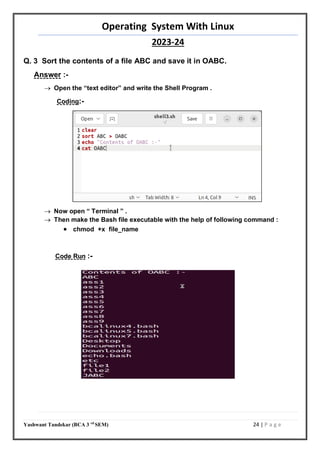
Q. 3 Sort the contents of a file ABC and save it in OABC.
Answer :-
 Open the “text editor” and write the Shell Program .
Coding:-
 Now open “ Terminal ” .
 Then make the Bash file executable with the help of following command :
 chmod +x file_name
Code Run :-
22
Operating System With Linux
2023-24
Yashwant Tandekar (BCA 3 rd
SEM) 25 | P a g e
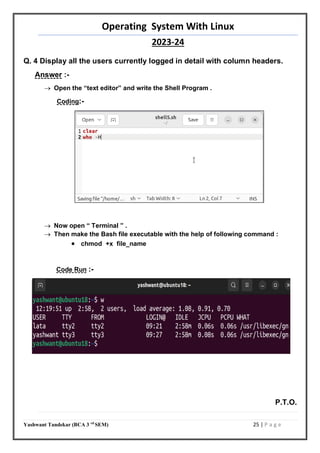
Q. 4 Display all the users currently logged in detail with column headers.
Answer :-
 Open the “text editor” and write the Shell Program .
Coding:-
 Now open “ Terminal ” .
 Then make the Bash file executable with the help of following command :
 chmod +x file_name
Code Run :-
P.T.O.
23
Operating System With Linux
2023-24
Yashwant Tandekar (BCA 3 rd
SEM) 26 | P a g e
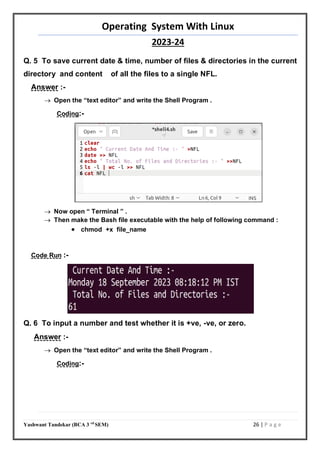
Q. 5 To save current date & time, number of files & directories in the current
directory and content of all the files to a single NFL.
Answer :-
 Open the “text editor” and write the Shell Program .
Coding:-
 Now open “ Terminal ” .
 Then make the Bash file executable with the help of following command :
 chmod +x file_name
Code Run :-
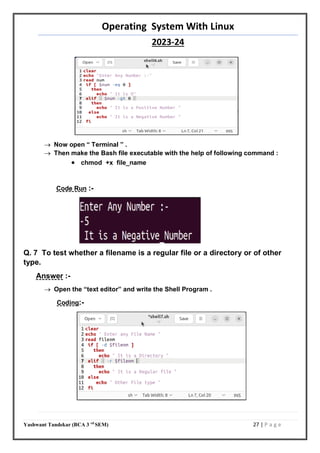
Q. 6 To input a number and test whether it is +ve, -ve, or zero.
Answer :-
 Open the “text editor” and write the Shell Program .
Coding:-
24
25
Operating System With Linux
2023-24
Yashwant Tandekar (BCA 3 rd
SEM) 27 | P a g e
 Now open “ Terminal ” .
 Then make the Bash file executable with the help of following command :
 chmod +x file_name
Code Run :-
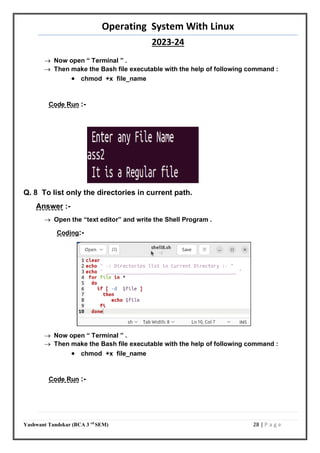
Q. 7 To test whether a filename is a regular file or a directory or of other
type.
Answer :-
 Open the “text editor” and write the Shell Program .
Coding:-
26
Operating System With Linux
2023-24
Yashwant Tandekar (BCA 3 rd
SEM) 28 | P a g e
 Now open “ Terminal ” .
 Then make the Bash file executable with the help of following command :
 chmod +x file_name
Code Run :-
Q. 8 To list only the directories in current path.
Answer :-
 Open the “text editor” and write the Shell Program .
Coding:-
 Now open “ Terminal ” .
 Then make the Bash file executable with the help of following command :
 chmod +x file_name
Code Run :-
27
Operating System With Linux
2023-24
Yashwant Tandekar (BCA 3 rd
SEM) 29 | P a g e
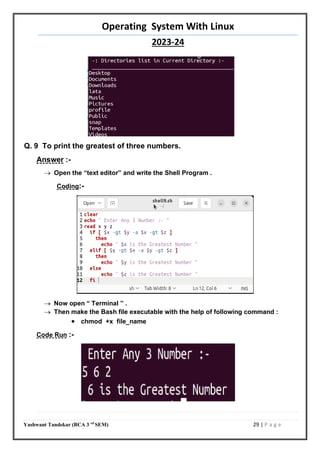
Q. 9 To print the greatest of three numbers.
Answer :-
 Open the “text editor” and write the Shell Program .
Coding:-
 Now open “ Terminal ” .
 Then make the Bash file executable with the help of following command :
 chmod +x file_name
Code Run :-
28
Operating System With Linux
2023-24
Yashwant Tandekar (BCA 3 rd
SEM) 30 | P a g e
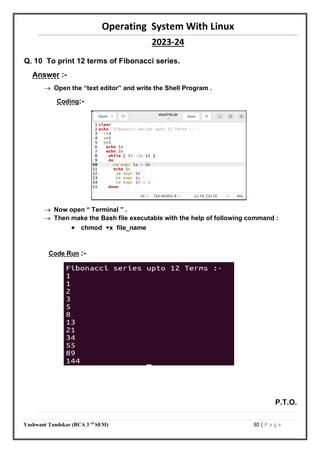
Q. 10 To print 12 terms of Fibonacci series.
Answer :-
 Open the “text editor” and write the Shell Program .
Coding:-
 Now open “ Terminal ” .
 Then make the Bash file executable with the help of following command :
 chmod +x file_name
Code Run :-
P.T.O.
29
Operating System With Linux
2023-24
Yashwant Tandekar (BCA 3 rd
SEM) 31 | P a g e
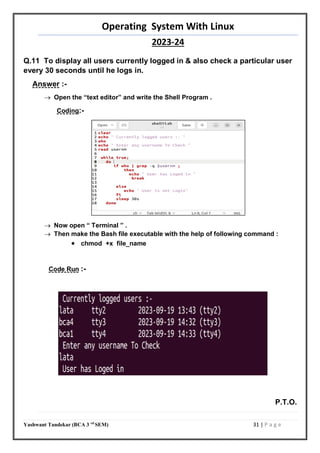
Q.11 To display all users currently logged in & also check a particular user
every 30 seconds until he logs in.
Answer :-
 Open the “text editor” and write the Shell Program .
Coding:-
 Now open “ Terminal ” .
 Then make the Bash file executable with the help of following command :
 chmod +x file_name
Code Run :-
P.T.O.
30
Operating System With Linux
2023-24
Yashwant Tandekar (BCA 3 rd
SEM) 32 | P a g e
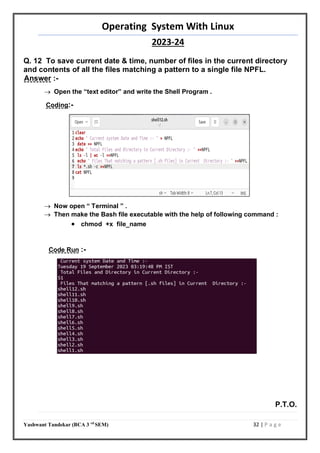
Q. 12 To save current date & time, number of files in the current directory
and contents of all the files matching a pattern to a single file NPFL.
Answer :-
 Open the “text editor” and write the Shell Program .
Coding:-
 Now open “ Terminal ” .
 Then make the Bash file executable with the help of following command :
 chmod +x file_name
Code Run :-
P.T.O.
31
Operating System With Linux
2023-24
Yashwant Tandekar (BCA 3 rd
SEM) 33 | P a g e
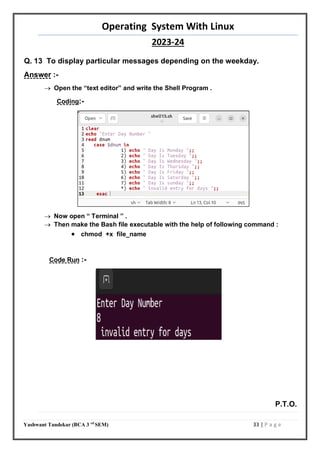
Q. 13 To display particular messages depending on the weekday.
Answer :-
 Open the “text editor” and write the Shell Program .
Coding:-
 Now open “ Terminal ” .
 Then make the Bash file executable with the help of following command :
 chmod +x file_name
Code Run :-
P.T.O.
32
Operating System With Linux
2023-24
Yashwant Tandekar (BCA 3 rd
SEM) 34 | P a g e
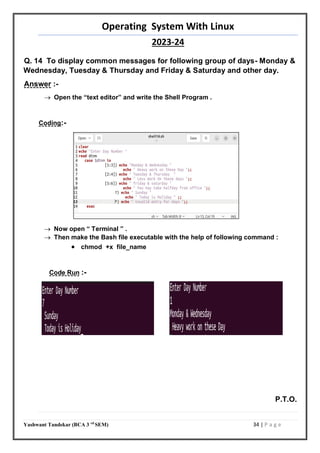
Q. 14 To display common messages for following group of days- Monday &
Wednesday, Tuesday & Thursday and Friday & Saturday and other day.
Answer :-
 Open the “text editor” and write the Shell Program .
Coding:-
 Now open “ Terminal ” .
 Then make the Bash file executable with the help of following command :
 chmod +x file_name
Code Run :-
P.T.O.
33
Operating System With Linux
2023-24
Yashwant Tandekar (BCA 3 rd
SEM) 35 | P a g e
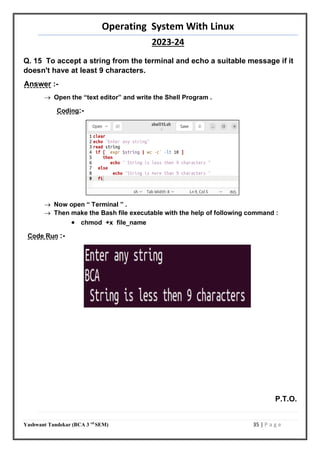
Q. 15 To accept a string from the terminal and echo a suitable message if it
doesn't have at least 9 characters.
Answer :-
 Open the “text editor” and write the Shell Program .
Coding:-
 Now open “ Terminal ” .
 Then make the Bash file executable with the help of following command :
 chmod +x file_name
Code Run :-
P.T.O.
34
Operating System With Linux
2023-24
Yashwant Tandekar (BCA 3 rd
SEM) 36 | P a g e
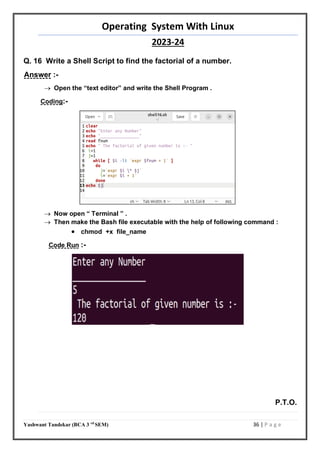
Q. 16 Write a Shell Script to find the factorial of a number.
Answer :-
 Open the “text editor” and write the Shell Program .
Coding:-
 Now open “ Terminal ” .
 Then make the Bash file executable with the help of following command :
 chmod +x file_name
Code Run :-
P.T.O.
35
Operating System With Linux
2023-24
Yashwant Tandekar (BCA 3 rd
SEM) 37 | P a g e
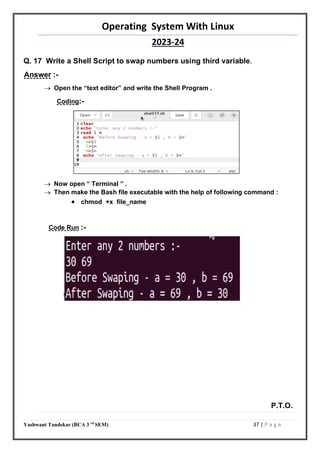
Q. 17 Write a Shell Script to swap numbers using third variable.
Answer :-
 Open the “text editor” and write the Shell Program .
Coding:-
 Now open “ Terminal ” .
 Then make the Bash file executable with the help of following command :
 chmod +x file_name
Code Run :-
P.T.O.
36
Operating System With Linux
2023-24
Yashwant Tandekar (BCA 3 rd
SEM) 38 | P a g e
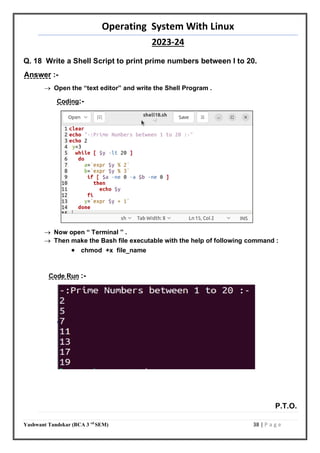
Q. 18 Write a Shell Script to print prime numbers between l to 20.
Answer :-
 Open the “text editor” and write the Shell Program .
Coding:-
 Now open “ Terminal ” .
 Then make the Bash file executable with the help of following command :
 chmod +x file_name
Code Run :-
P.T.O.
37
Operating System With Linux
2023-24
Yashwant Tandekar (BCA 3 rd
SEM) 39 | P a g e
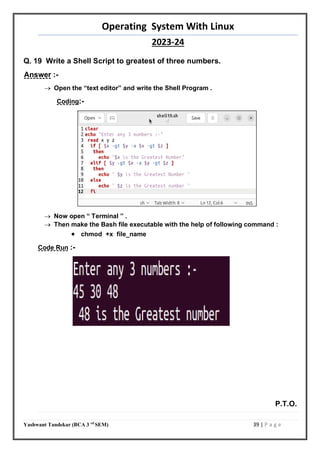
Q. 19 Write a Shell Script to greatest of three numbers.
Answer :-
 Open the “text editor” and write the Shell Program .
Coding:-
 Now open “ Terminal ” .
 Then make the Bash file executable with the help of following command :
 chmod +x file_name
Code Run :-
P.T.O.
38
Operating System With Linux
2023-24
Yashwant Tandekar (BCA 3 rd
SEM) 40 | P a g e
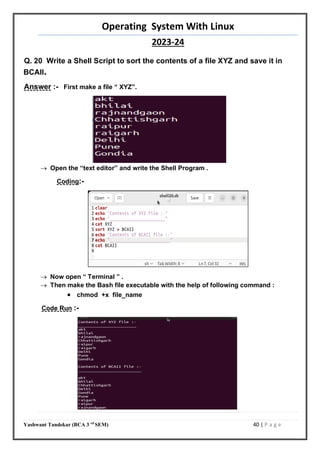
Q. 20 Write a Shell Script to sort the contents of a file XYZ and save it in
BCAII.
Answer :- First make a file “ XYZ”.
 Open the “text editor” and write the Shell Program .
Coding:-
 Now open “ Terminal ” .
 Then make the Bash file executable with the help of following command :
 chmod +x file_name
Code Run :-
39
Operating System With Linux
2023-24
Yashwant Tandekar (BCA 3 rd
SEM) 41 | P a g e
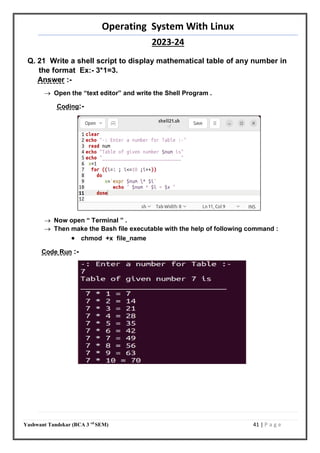
Q. 21 Write a shell script to display mathematical table of any number in
the format Ex:- 3*1=3.
Answer :-
 Open the “text editor” and write the Shell Program .
Coding:-
 Now open “ Terminal ” .
 Then make the Bash file executable with the help of following command :
 chmod +x file_name
Code Run :-
40

linux practical exam Digvajiya collage Rajnandgaon

  • 1.
    Operating System WithLinux 2023-24 Yashwant Tandekar (BCA 3 rd SEM) 1 | P a g e Q.1 Change your shell environment– PATH, HOME, IFS, MAIL, PS1, PS2, TERM, LOGNAME. i) at command line ii) at shell level iii) at login level Answer :- i) At Command Line -  First we check our current working shell .  We are currently using “ bash ” Shell .  For this shell we will use following syntax for changing variable :-  export variable_name = value Q.2 Change the wallpaper, screensaver in GNOME, KDE . Answer :-  Changing Wallpaper :-  Right - click on your desktop background and select “ change background ” option.
  • 2.
    Operating System WithLinux 2023-24 Yashwant Tandekar (BCA 3 rd SEM) 2 | P a g e  Now select your favourite wallpaper as you want.  At last press on enter your wallpaper is changed .  Changing Screensaver :-  Go to “ Setting Option ” in your desktop window .  Then click on “ privacy ” and choose “ Screen Lock ” .  At last configure the screen lock time as you want .
  • 3.
    Operating System WithLinux 2023-24 Yashwant Tandekar (BCA 3 rd SEM) 3 | P a g e Q.3 Install Linux with following specifications – username, password, partitions for various directories such as /etc, /home, etc. Answer :- For this Assignment we will install “ Ubuntu Linux 22.04 ” version and the installing process should be start like this :  Boot the system with the Ubuntu – ISO bootable file.  Now click on “install Ubuntu”.  Select the language & region(country).  Enter the host name then the user name.
  • 4.
    Operating System WithLinux 2023-24 Yashwant Tandekar (BCA 3 rd SEM) 4 | P a g e  Enter a password and confirm it.  Select disk partition method “ manual ” or “ Something else”.  Create a root (/) , home & swap area partition. sagar yashwant
  • 5.
    Operating System WithLinux 2023-24 Yashwant Tandekar (BCA 3 rd SEM) 5 | P a g e  Click on continue and finish the installation.  Now enter username & password, and login. Q.4 . Add a user and password, change the password . Answer :-  For making user and password :-  Open terminal .  Login as “ Super user ” .  Then write following commands -- adduser user_name  Now set the password for new user . yashwant
  • 6.
    Operating System WithLinux 2023-24 Yashwant Tandekar (BCA 3 rd SEM) 6 | P a g e  For Changing password :-  Open terminal .  Login as “ Super user ”  Then write following commands -- passwd user_name  Now set the new password for user ( admin can change the password of any user) . Q. 5 Add & remove a group . Answer :-  For adding group :-  Open terminal .  Login as “ Super user ”  Then write following commands – addgroup groupe_name
  • 7.
    Operating System WithLinux 2023-24 Yashwant Tandekar (BCA 3 rd SEM) 7 | P a g e  For deleting group :-  Open terminal .  Login as “ Super user ”  Then write following commands -- groupdel groupe_name Q. 6 Create partitions on your disk. Answer :-  Go to System  Hardware Disks.  Click on the partition to split it.  Click on “Additional partition options” and select “resize”.
  • 8.
    Operating System WithLinux 2023-24 Yashwant Tandekar (BCA 3 rd SEM) 8 | P a g e  Select the size required.  Click on resize enter password and press “Enter” Q.7 Install and configure printer . Answer :-  Open terminal then run the code for installing the printer setup.  We have to install CUPS(Common Unix Printer System)  lata@ubuntu18:-$ sudo apt update  lata@ubuntu18:-$ sudo apt-get install cups  Go to Setting and select “Printers”.  Click on add. P.T.O.
  • 9.
    Operating System WithLinux 2023-24 Yashwant Tandekar (BCA 3 rd SEM) 9 | P a g e  Select ‘Generic CUPS-BRF’ and forward.  Select printer name and driver.  At last print a test page .
  • 10.
    Operating System WithLinux 2023-24 Yashwant Tandekar (BCA 3 rd SEM) 10 | P a g e -: Using VI editor :- Q .8 In a file :- i) Replace the words ‘has’ with ‘has not’. Answer :-  Go to terminal then type “vi file_name” you can take file name as you want then press enter. Eg. – vi ass1  To get into insert mode, press ‘esc’ then press ‘I ’ and write some text which contains ‘has’.  Press ‘Esc’ button to go in colon mode and type - : %s / has / has not  At last press enter .
  • 11.
    Operating System WithLinux 2023-24 Yashwant Tandekar (BCA 3 rd SEM) 11 | P a g e ii) locate nth character. Answer :- I am locating ‘S’ Character :  Go to terminal then create or open a new vi file eg. – vi ass  Press “ I ” , In Insert Mode Write some sentences .  Press ‘Esc’ button to go in colon mode and type - /S  Cursor pointing the ‘ S ’ character . iii) Sort lines 21 to 40. Answer :-  Go to terminal then create or open a new vi file eg. – vi ass3  Press “ I ” , In Insert Mode Write about 40 sentences .
  • 12.
    Operating System WithLinux 2023-24 Yashwant Tandekar (BCA 3 rd SEM) 12 | P a g e  Press ‘Esc’ button to go in colon mode and type - :21,40 ! sort  At last press enter . Q. 9 In a file copy/cut and paste following text :- i) At ith line, n lines to jth line : Answer :- In this assignment we copy 1 to 4 line to 8 line  Go to terminal then create or open a new vi file eg. – vi ass4  Press “ I ” , In Insert Mode Write some sentences .  Press ‘Esc’ button twice and then type - 4yy
  • 13.
    Operating System WithLinux 2023-24 Yashwant Tandekar (BCA 3 rd SEM) 13 | P a g e  4 lines copied and then press “ p ” to paste the copied text at your required cursor position (8th line).  At last the sentence will be paste at 8 th Line . ii) Yank a few words : Answer :-  Go to terminal then create or open a new vi file eg. – vi ass5  Press “ I ” , In Insert Mode Write some sentences .  move the cursor on that word you want to Yank or Copied  press “ ESC ” and type - 4yw [It will copy / yank 4 words]  At last press “ p ” for pasting the yanked word . iii)Cut and paste n words to i position in j line : Answer :-  Go to terminal then create or open a new vi file eg. – vi ass6  Press “ I ” , In Insert Mode Write some sentences .
  • 14.
    Operating System WithLinux 2023-24 Yashwant Tandekar (BCA 3 rd SEM) 14 | P a g e  move the cursor on that word you want to cut or delete.  press “ ESC ” and type – 8dw [It will cut 4 words]  At last press “ p ” for pasting the cut word . Q. 10 Open to files ‘txtfile’ and ‘newfile’ and copy/cut 5 lines from ‘txtfile’ and paste them in ‘newfile’ using vi editor. Answer :-  Go to terminal and create both files which is mentioned in question – vi txtfile and vi newfile.  In “txtfile” press “ ESC ” and then “I”.  Now write some sentences .  Press “esc” and then type – 5yy [copy 5 lines]
  • 15.
    Operating System WithLinux 2023-24 Yashwant Tandekar (BCA 3 rd SEM) 15 | P a g e  Then type :n to go to the “newfile” in vi .  In newfile press ‘esc’ and then ‘p’ . Q.11 Open 'txtffile' and copy/cut following and paste to the 'newfile i. I th to the last line in it Answer :-  Go to terminal and create both files which is mentioned in question – vi txtfile and vi newfile.  In “txtfile ”Press “esc” to go to colon mode and then type – :3,$ w! newfile  Then open “vi newfile” .  The copied line is already paste in “newfile” . Q. 12 Create Macro :- i. To paste your name at any position in the file.
  • 16.
    Operating System WithLinux 2023-24 Yashwant Tandekar (BCA 3 rd SEM) 16 | P a g e Answer :-  Open terminal and create a file using vi eg. – vi ass7  In command mode type qy to record a macro named y.  Type your name in insert mode.  Press q in command mode, to stop recording.  Now type “@s” anywhere in the file to use macro and your name will be typed automatically. ii. To remove all leading spaces in a file. Answer :- @y
  • 17.
    Operating System WithLinux 2023-24 Yashwant Tandekar (BCA 3 rd SEM) 17 | P a g e  Open terminal and create a file using vi eg. – vi ass8  Press “ I ” , In Insert Mode Write some sentences with paragraph space .  Press “esc” in colon mode type - :map S :g/^$/d.  Then press “esc”  At last type “ S ” to remove all leading spaces in file . iii. To save and quit vi editor in input mode. Answer :-  Open terminal and create a file using vi eg. – vi ass9  In command mode type qd to record a macro named d.  Press “esc” in colon mode type - :wq [To save and quit file]  Press “esc”  Then press q in command mode, to stop recording.  Now type “@d” anywhere in the file to use macro
  • 18.
    Operating System WithLinux 2023-24 Yashwant Tandekar (BCA 3 rd SEM) 18 | P a g e :- Write commands :- Q. 13 List all files that match a class . Answer :-  Open Terminal and write following commands :-  ls *.sh Q. 14 List all files that do not match a class. Answer :-  Open Terminal and write following commands :-  ls --ignore=*.bash { this command ignores all .bash files } Q. 15 Change the fill permissions . Answer :- In this assignment first we check all “ .bash ” extension files Permission  Open Terminal and write following commands :-  ls - l *.bash
  • 19.
    Operating System WithLinux 2023-24 Yashwant Tandekar (BCA 3 rd SEM) 19 | P a g e  Now we Change the permission of “.bash” files with the following command :-  chmod 761 *.bash ( Here 7 is – read , write , execute permission for User 6 is – read and write permission for group 1 is – read permission for other )  Press “Enter” the file permission will be changed . Q. 16 Configure or set characteristics of your terminal. Answer :- Changing the promt Colour :  Open File manager and search file – “bashrc”.  Select the file and open it .  In file you can change the promt colour at “Color promt” Section (line number - 59)  To change the promt colour write colour code
  • 20.
    Operating System WithLinux 2023-24 Yashwant Tandekar (BCA 3 rd SEM) 20 | P a g e  After selecting color write the color code on Highlighted line of “ If block ” of “Color promt” Section.  Now Save the file and exit .  At last open Terminal , here you see that your promt colour will be changed as per your choice . Q. 17 Display the lines in a file that contain a particular word. Answer :-  To see a file in Terminal write the following command – cat file_name  Eg. – cat YTB  Then write grep command to find the particular word in a file , the command is as follows : grep ‘some’ YTB
  • 21.
    Operating System WithLinux 2023-24 Yashwant Tandekar (BCA 3 rd SEM) 21 | P a g e Q.18 Append the contents of two files in a file JABC. Answer :-  Open Terminal and create 2 files in vi editor eg. – file1 , file2  To see the file in Terminal write the following command – cat file_name  To Append the contents of 2 files in 1 file [JABC] write following command  cat file1 file2 >> JABC  At last to see the append file type – cat JABC. Q. 19 Count the number of files in a directory. Answer :-  Open Terminal and write following commands :-  ls -f -l | wc -l (it is for counting all files in root/ directory )
  • 22.
    Operating System WithLinux 2023-24 Yashwant Tandekar (BCA 3 rd SEM) 22 | P a g e :- Shell Programs :- Q. 1 Display all the users currently logged in detail with colim headers. Answer :-  open the “text editor” and write the Shell Program . Coding:-  Now open “ Terminal ” .  Then make the Bash file executable with the help of following command :  chmod +x file_name Code Run :- P.T.O. 20
  • 23.
    Operating System WithLinux 2023-24 Yashwant Tandekar (BCA 3 rd SEM) 23 | P a g e Q. 2 List all files in current directory and save the list in a file ABC. Also save the contents of the files in ABC and display the contents in ABC in sorted order. Answer :-  Open the “text editor” and write the Shell Program . Coding:-  Now open “ Terminal ” .  Then make the Bash file executable with the help of following command :  chmod +x file_name Code Run :- 21
  • 24.
    Operating System WithLinux 2023-24 Yashwant Tandekar (BCA 3 rd SEM) 24 | P a g e Q. 3 Sort the contents of a file ABC and save it in OABC. Answer :-  Open the “text editor” and write the Shell Program . Coding:-  Now open “ Terminal ” .  Then make the Bash file executable with the help of following command :  chmod +x file_name Code Run :- 22
  • 25.
    Operating System WithLinux 2023-24 Yashwant Tandekar (BCA 3 rd SEM) 25 | P a g e Q. 4 Display all the users currently logged in detail with column headers. Answer :-  Open the “text editor” and write the Shell Program . Coding:-  Now open “ Terminal ” .  Then make the Bash file executable with the help of following command :  chmod +x file_name Code Run :- P.T.O. 23
  • 26.
    Operating System WithLinux 2023-24 Yashwant Tandekar (BCA 3 rd SEM) 26 | P a g e Q. 5 To save current date & time, number of files & directories in the current directory and content of all the files to a single NFL. Answer :-  Open the “text editor” and write the Shell Program . Coding:-  Now open “ Terminal ” .  Then make the Bash file executable with the help of following command :  chmod +x file_name Code Run :- Q. 6 To input a number and test whether it is +ve, -ve, or zero. Answer :-  Open the “text editor” and write the Shell Program . Coding:- 24 25
  • 27.
    Operating System WithLinux 2023-24 Yashwant Tandekar (BCA 3 rd SEM) 27 | P a g e  Now open “ Terminal ” .  Then make the Bash file executable with the help of following command :  chmod +x file_name Code Run :- Q. 7 To test whether a filename is a regular file or a directory or of other type. Answer :-  Open the “text editor” and write the Shell Program . Coding:- 26
  • 28.
    Operating System WithLinux 2023-24 Yashwant Tandekar (BCA 3 rd SEM) 28 | P a g e  Now open “ Terminal ” .  Then make the Bash file executable with the help of following command :  chmod +x file_name Code Run :- Q. 8 To list only the directories in current path. Answer :-  Open the “text editor” and write the Shell Program . Coding:-  Now open “ Terminal ” .  Then make the Bash file executable with the help of following command :  chmod +x file_name Code Run :- 27
  • 29.
    Operating System WithLinux 2023-24 Yashwant Tandekar (BCA 3 rd SEM) 29 | P a g e Q. 9 To print the greatest of three numbers. Answer :-  Open the “text editor” and write the Shell Program . Coding:-  Now open “ Terminal ” .  Then make the Bash file executable with the help of following command :  chmod +x file_name Code Run :- 28
  • 30.
    Operating System WithLinux 2023-24 Yashwant Tandekar (BCA 3 rd SEM) 30 | P a g e Q. 10 To print 12 terms of Fibonacci series. Answer :-  Open the “text editor” and write the Shell Program . Coding:-  Now open “ Terminal ” .  Then make the Bash file executable with the help of following command :  chmod +x file_name Code Run :- P.T.O. 29
  • 31.
    Operating System WithLinux 2023-24 Yashwant Tandekar (BCA 3 rd SEM) 31 | P a g e Q.11 To display all users currently logged in & also check a particular user every 30 seconds until he logs in. Answer :-  Open the “text editor” and write the Shell Program . Coding:-  Now open “ Terminal ” .  Then make the Bash file executable with the help of following command :  chmod +x file_name Code Run :- P.T.O. 30
  • 32.
    Operating System WithLinux 2023-24 Yashwant Tandekar (BCA 3 rd SEM) 32 | P a g e Q. 12 To save current date & time, number of files in the current directory and contents of all the files matching a pattern to a single file NPFL. Answer :-  Open the “text editor” and write the Shell Program . Coding:-  Now open “ Terminal ” .  Then make the Bash file executable with the help of following command :  chmod +x file_name Code Run :- P.T.O. 31
  • 33.
    Operating System WithLinux 2023-24 Yashwant Tandekar (BCA 3 rd SEM) 33 | P a g e Q. 13 To display particular messages depending on the weekday. Answer :-  Open the “text editor” and write the Shell Program . Coding:-  Now open “ Terminal ” .  Then make the Bash file executable with the help of following command :  chmod +x file_name Code Run :- P.T.O. 32
  • 34.
    Operating System WithLinux 2023-24 Yashwant Tandekar (BCA 3 rd SEM) 34 | P a g e Q. 14 To display common messages for following group of days- Monday & Wednesday, Tuesday & Thursday and Friday & Saturday and other day. Answer :-  Open the “text editor” and write the Shell Program . Coding:-  Now open “ Terminal ” .  Then make the Bash file executable with the help of following command :  chmod +x file_name Code Run :- P.T.O. 33
  • 35.
    Operating System WithLinux 2023-24 Yashwant Tandekar (BCA 3 rd SEM) 35 | P a g e Q. 15 To accept a string from the terminal and echo a suitable message if it doesn't have at least 9 characters. Answer :-  Open the “text editor” and write the Shell Program . Coding:-  Now open “ Terminal ” .  Then make the Bash file executable with the help of following command :  chmod +x file_name Code Run :- P.T.O. 34
  • 36.
    Operating System WithLinux 2023-24 Yashwant Tandekar (BCA 3 rd SEM) 36 | P a g e Q. 16 Write a Shell Script to find the factorial of a number. Answer :-  Open the “text editor” and write the Shell Program . Coding:-  Now open “ Terminal ” .  Then make the Bash file executable with the help of following command :  chmod +x file_name Code Run :- P.T.O. 35
  • 37.
    Operating System WithLinux 2023-24 Yashwant Tandekar (BCA 3 rd SEM) 37 | P a g e Q. 17 Write a Shell Script to swap numbers using third variable. Answer :-  Open the “text editor” and write the Shell Program . Coding:-  Now open “ Terminal ” .  Then make the Bash file executable with the help of following command :  chmod +x file_name Code Run :- P.T.O. 36
  • 38.
    Operating System WithLinux 2023-24 Yashwant Tandekar (BCA 3 rd SEM) 38 | P a g e Q. 18 Write a Shell Script to print prime numbers between l to 20. Answer :-  Open the “text editor” and write the Shell Program . Coding:-  Now open “ Terminal ” .  Then make the Bash file executable with the help of following command :  chmod +x file_name Code Run :- P.T.O. 37
  • 39.
    Operating System WithLinux 2023-24 Yashwant Tandekar (BCA 3 rd SEM) 39 | P a g e Q. 19 Write a Shell Script to greatest of three numbers. Answer :-  Open the “text editor” and write the Shell Program . Coding:-  Now open “ Terminal ” .  Then make the Bash file executable with the help of following command :  chmod +x file_name Code Run :- P.T.O. 38
  • 40.
    Operating System WithLinux 2023-24 Yashwant Tandekar (BCA 3 rd SEM) 40 | P a g e Q. 20 Write a Shell Script to sort the contents of a file XYZ and save it in BCAII. Answer :- First make a file “ XYZ”.  Open the “text editor” and write the Shell Program . Coding:-  Now open “ Terminal ” .  Then make the Bash file executable with the help of following command :  chmod +x file_name Code Run :- 39
  • 41.
    Operating System WithLinux 2023-24 Yashwant Tandekar (BCA 3 rd SEM) 41 | P a g e Q. 21 Write a shell script to display mathematical table of any number in the format Ex:- 3*1=3. Answer :-  Open the “text editor” and write the Shell Program . Coding:-  Now open “ Terminal ” .  Then make the Bash file executable with the help of following command :  chmod +x file_name Code Run :- 40