Beyond the
Basics
brought to you by
Bruce A. Bennett
Career Coach Corner
July 10, 2019Employment Ministry
2
Notes & Outline for session
General Notes for Today
My contact info is on last slide
Workshop is interactive
Q/A & Parking lot
Red Arrows
Outline
Why LinkedIn?
Navigation tabs
Enhancing your profile
Best Practices
Building your network
Searching
Settings
3
LinkedIn - What is it & Why use it?
Over 610 million professionals use LinkedIn to
exchange information, ideas & opportunities!!
Virtual Resume
Create an Internet Presence
Business Social Networking Site
Connection referrals
Research Individual or Company
Norm Galvin at InsightsNow
Find Employment Opportunities
4
Optimize Your Important SKILLS
The first word in your headline gets the SEO results from
LinkedIn’s search algorithm.
Thus, it’s critical that you start your headline with your
most important SKILL.
Many members don’t understand this, so if you do it, you
will get powerful SEO results.
It matters because if you don’t come up high enough in
the search results, then you won’t get the chance to
convince someone to click through to your profile.
LinkedIn Profile Nuances
5
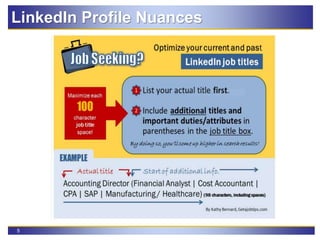
LinkedIn Profile Nuances
6
LinkedIn Best Practices
1. All Star profile with photo
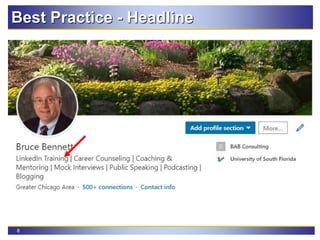
2. Headline – descriptive and accurate, not title
3. Summary section – call to action
4. Utilize Skills section and other key words
5. Jobs – create search agent
6. Activity updates using # Hashtag or
@BruceBennett, e.g. reading a book, view webinar
attending a seminar, trade show or conference
7. Build your network of connections
8. Recommendations
9. Companies – following & searching
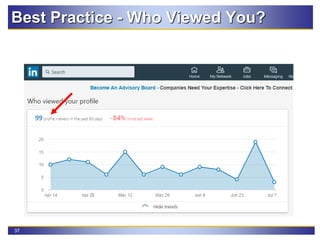
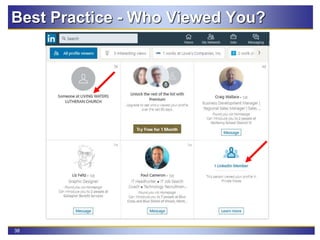
10. Who Viewed Your Profile?
11. Group – discussions & participation
7
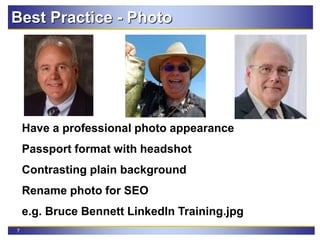
Have a professional photo appearance
Passport format with headshot
Contrasting plain background
Rename photo for SEO
e.g. Bruce Bennett LinkedIn Training.jpg
Best Practice - Photo
8
Best Practice - Headline
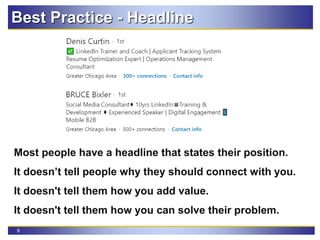
9
Most people have a headline that states their position.
It doesn’t tell people why they should connect with you.
It doesn't tell them how you add value.
It doesn't tell them how you can solve their problem.
Best Practice - Headline
10
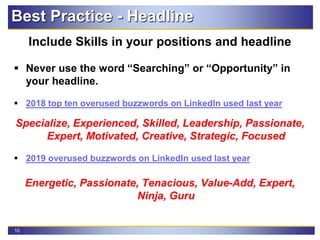
Best Practice - Headline
Include Skills in your positions and headline
 Never use the word “Searching” or “Opportunity” in
your headline.
 2018 top ten overused buzzwords on LinkedIn used last year
Specialize, Experienced, Skilled, Leadership, Passionate,
Expert, Motivated, Creative, Strategic, Focused
 2019 overused buzzwords on LinkedIn used last year
Energetic, Passionate, Tenacious, Value-Add, Expert,
Ninja, Guru
11
• Now being referred to as the About section
• Your summary could start with email address and
contact information on the very first line.
• Paragraph one should be about what you do, your
job title, work experience and keywords (your
defined skills).
• Paragraph two should show how you have added
value to a previous employer - tell a story (STAR).
• Paragraph three should tell how you will solve a
company’s problems - use a story (STAR).
• Close with a call to action, “Call me if……”
Best Practice - Summary Structure
12
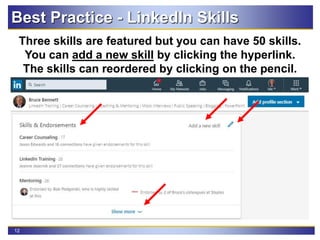
Three skills are featured but you can have 50 skills.
You can add a new skill by clicking the hyperlink.
The skills can reordered by clicking on the pencil.
Best Practice - LinkedIn Skills
13
Best Practice - LinkedIn Skills
It is imperative to add all your skills to your profile.
You might ask yourself “Why is it so important?”
This Is Why I Emphasize Skills
14
Best Practice - Job Search Agent
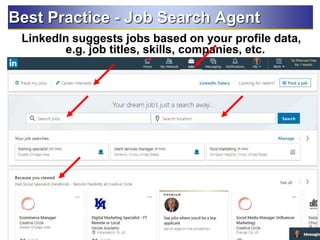
LinkedIn suggests jobs based on your profile data,
e.g. job titles, skills, companies, etc.
14
15
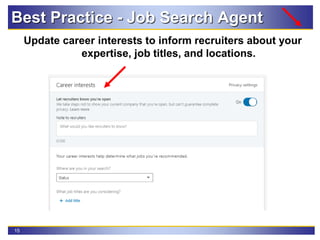
Update career interests to inform recruiters about your
expertise, job titles, and locations.
Best Practice - Job Search Agent
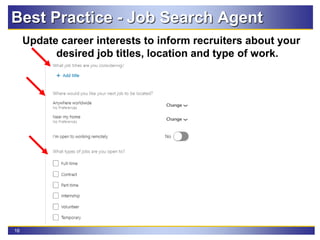
16
Update career interests to inform recruiters about your
desired job titles, location and type of work.
Best Practice - Job Search Agent
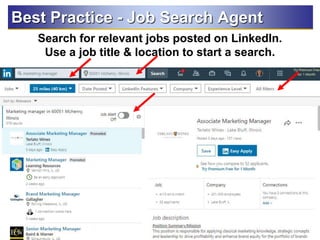
17
Search for relevant jobs posted on LinkedIn.
Use a job title & location to start a search.
Best Practice - Job Search Agent
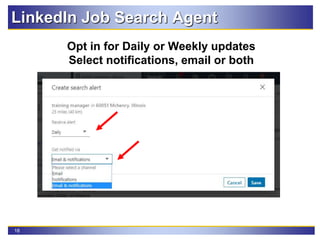
18
Opt in for Daily or Weekly updates
Select notifications, email or both
LinkedIn Job Search Agent
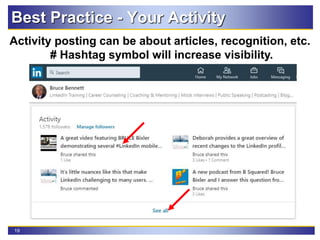
19
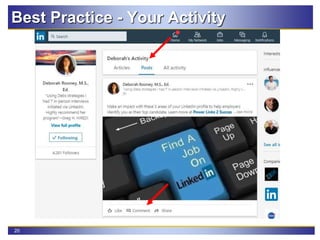
Best Practice - Your Activity
Activity posting can be about articles, recognition, etc.
# Hashtag symbol will increase visibility.
20
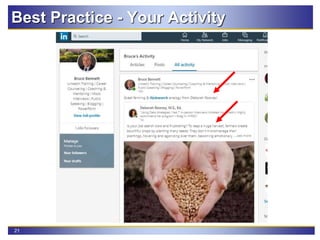
Best Practice - Your Activity
21
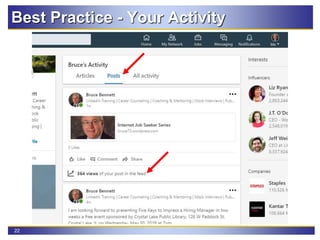
Best Practice - Your Activity
22
Best Practice - Your Activity
23
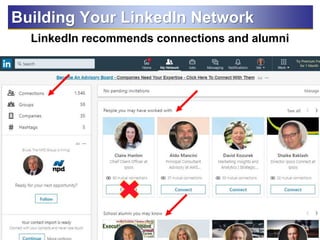
LinkedIn recommends connections and alumni
Building Your LinkedIn Network
24
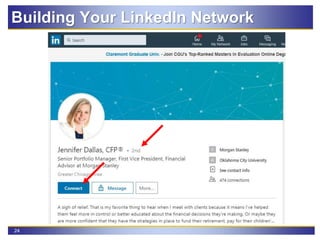
Click on blue Connect button
Building Your LinkedIn Network
25
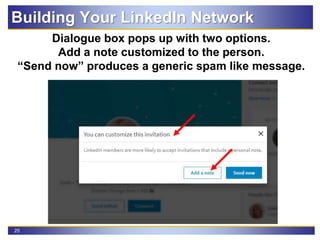
Dialogue box pops up with two options.
Add a note customized to the person.
“Send now” produces a generic spam like message.
Building Your LinkedIn Network
26
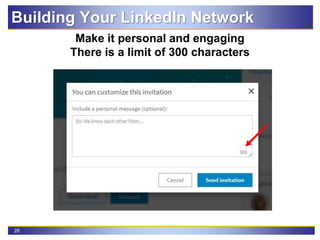
Make it personal and engaging
There is a limit of 300 characters
Building Your LinkedIn Network
27
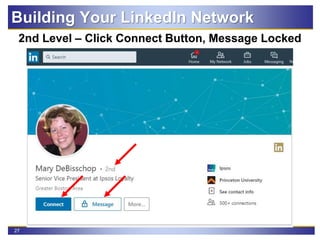
2nd Level – Click Connect Button, Message Locked
Building Your LinkedIn Network
28
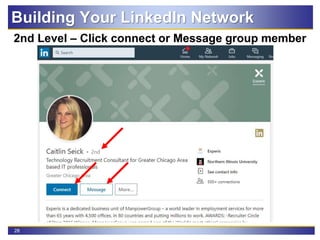
2nd Level – Click connect or Message group member
Building Your LinkedIn Network
29
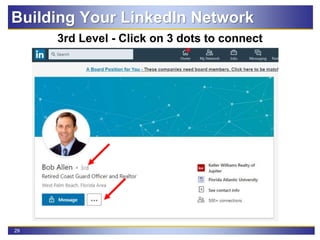
3rd Level - Click on 3 dots to connect
Building Your LinkedIn Network
30
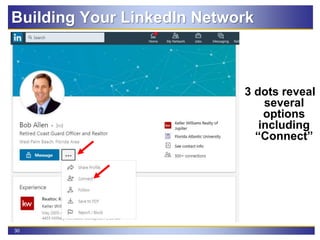
3 dots reveal
several
options
including
“Connect”
Building Your LinkedIn Network
31
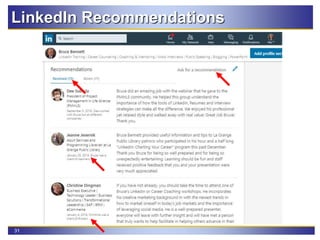
LinkedIn Recommendations
32
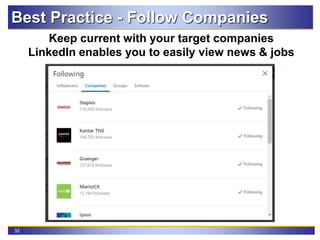
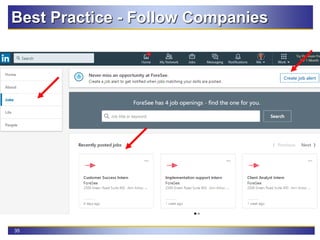
Best Practice - Follow Companies
Keep current with your target companies
LinkedIn enables you to easily view news & jobs
33
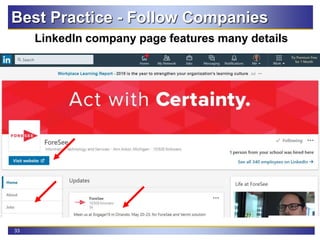
Best Practice - Follow Companies
LinkedIn company page features many details
34
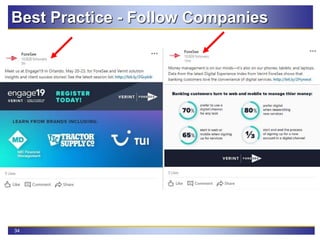
Best Practice - Follow Companies
35
Best Practice - Follow Companies
36
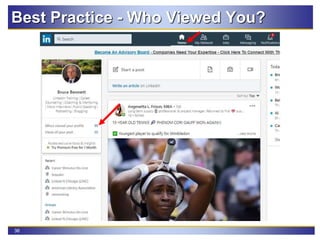
Best Practice - Who Viewed You?
37
Best Practice - Who Viewed You?
38
Best Practice - Who Viewed You?
39
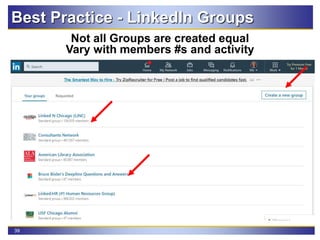
Best Practice - LinkedIn Groups
Not all Groups are created equal
Vary with members #s and activity
40
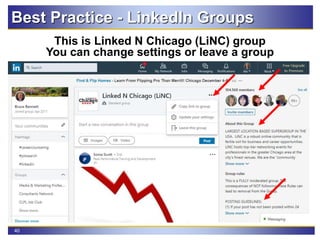
Best Practice - LinkedIn Groups
This is Linked N Chicago (LiNC) group
You can change settings or leave a group
41
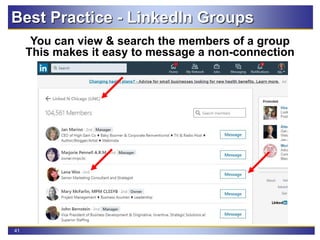
Best Practice - LinkedIn Groups
You can view & search the members of a group
This makes it easy to message a non-connection
42
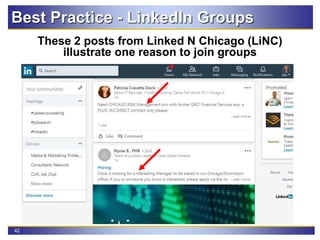
Best Practice - LinkedIn Groups
These 2 posts from Linked N Chicago (LiNC)
illustrate one reason to join groups
43
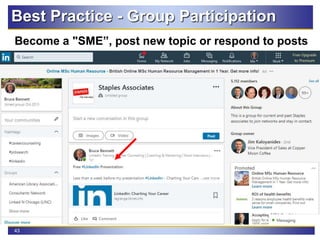
Best Practice - Group Participation
Become a "SME”, post new topic or respond to posts
44
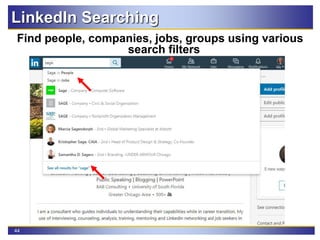
LinkedIn Searching
Find people, companies, jobs, groups using various
search filters
45
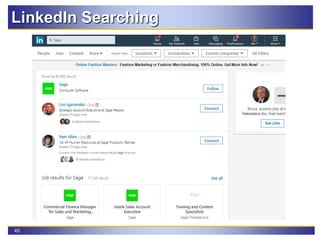
LinkedIn Searching
Searching has numerous filters
46
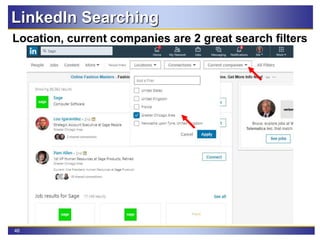
LinkedIn Searching
Location, current companies are 2 great search filters
47
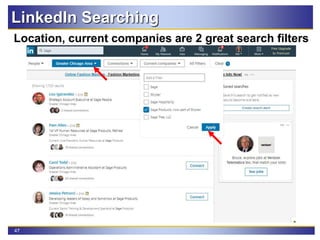
LinkedIn Searching
Location, current companies are 2 great search filters
48
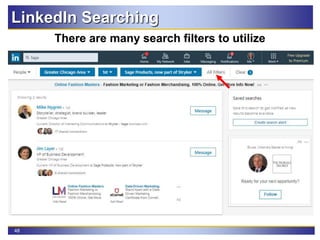
LinkedIn Searching
There are many search filters to utilize
49
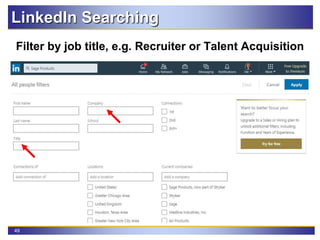
LinkedIn Searching
Filter by job title, e.g. Recruiter or Talent Acquisition
50
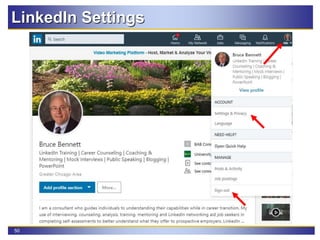
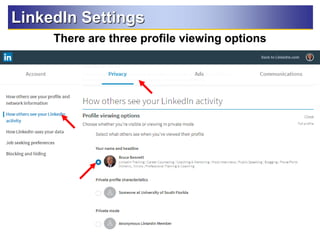
LinkedIn Settings
51
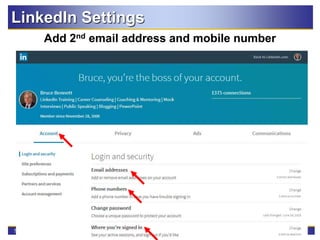
LinkedIn Settings
Add 2nd email address and mobile number
52
LinkedIn Settings
There are three profile viewing options
53
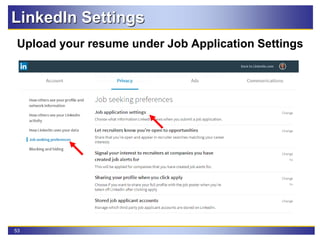
LinkedIn Settings
Upload your resume under Job Application Settings
54
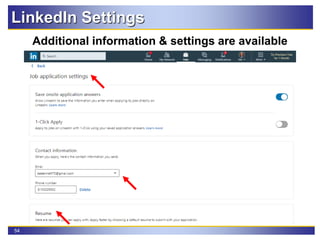
LinkedIn Settings
Additional information & settings are available
55
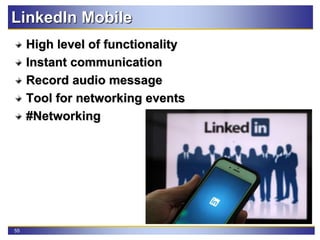
LinkedIn Mobile
High level of functionality
Instant communication
Record audio message
Tool for networking events
#Networking
56
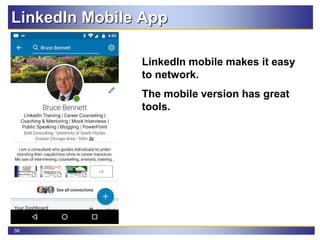
LinkedIn Mobile App
LinkedIn mobile makes it easy
to network.
The mobile version has great
tools.
57
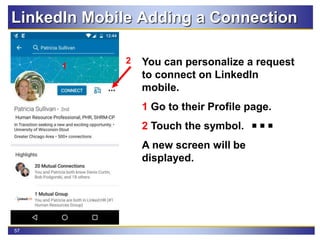
LinkedIn Mobile Adding a Connection
You can personalize a request
to connect on LinkedIn
mobile.
1 Go to their Profile page.
2 Touch the symbol.
A new screen will be
displayed.
2
1
58
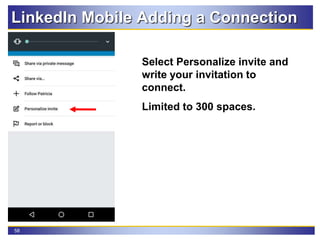
LinkedIn Mobile Adding a Connection
Select Personalize invite and
write your invitation to
connect.
Limited to 300 spaces.
59
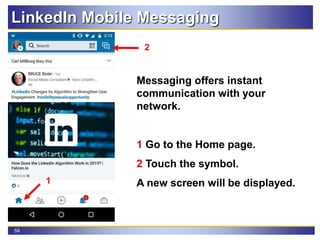
LinkedIn Mobile Messaging
Messaging offers instant
communication with your
network.
1 Go to the Home page.
2 Touch the symbol.
A new screen will be displayed.1
2
60
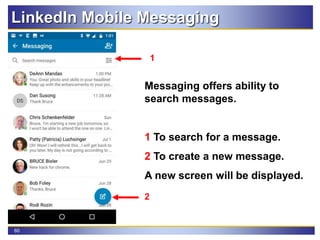
LinkedIn Mobile Messaging
Messaging offers ability to
search messages.
1 To search for a message.
2 To create a new message.
A new screen will be displayed.
2
1
61
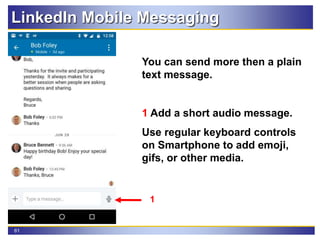
LinkedIn Mobile Messaging
You can send more then a plain
text message.
1 Add a short audio message.
Use regular keyboard controls
on Smartphone to add emoji,
gifs, or other media.
1
62
LinkedIn Mobile App
63
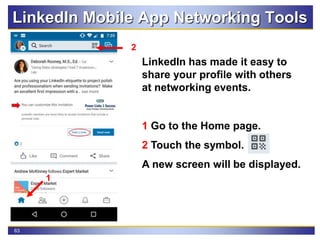
LinkedIn Mobile App Networking Tools
LinkedIn has made it easy to
share your profile with others
at networking events.
1 Go to the Home page.
2 Touch the symbol.
A new screen will be displayed.
1
2
64
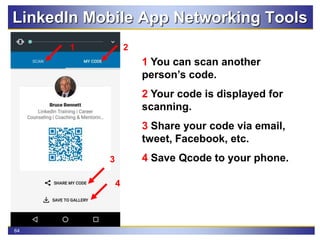
LinkedIn Mobile App Networking Tools
1 You can scan another
person’s code.
2 Your code is displayed for
scanning.
3 Share your code via email,
tweet, Facebook, etc.
4 Save Qcode to your phone.
21
4
3
65
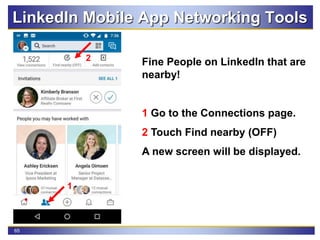
LinkedIn Mobile App Networking Tools
Fine People on LinkedIn that are
nearby!
1 Go to the Connections page.
2 Touch Find nearby (OFF)
A new screen will be displayed.
2
1
66
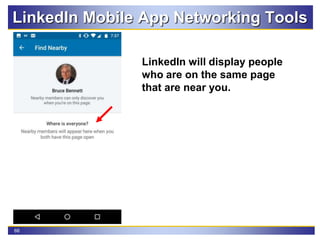
LinkedIn Mobile App Networking Tools
LinkedIn will display people
who are on the same page
that are near you.
67
McHenry County Workforce Network
July Newsletter of Events & Services
McHenry County Workforce Network Website
Personalized Job Search Assistance Services
To sign up, request the professional directly by email
Resume Reviews
Mock Interviews
LinkedIn Critiques
68
My Upcoming Events
McHenry County Workforce Network
500 Russel Court, Woodstock IL 60098
Start with a Resume and Finish with an Interview
Tentatively Scheduled for August 12, 12:30pm to 3:30pm
LinkedIn for Your Job Search
Tentatively Scheduled for August 26, 12:30pm to 3:30pm
Questions?
Feel free to follow up later or
connect with me on LinkedIn
Contact Info:
Bruce A. Bennett
Mobile: 815-302-9552
Email: BABennett73@gmail.com
LinkedIn: http://www.linkedin.com/in/bruceabennett
Career Coach Corner Blog: http://bruce73.wordpress.com/

LinkedIn - Beyond the Basics

  • 1.
    Beyond the Basics brought toyou by Bruce A. Bennett Career Coach Corner July 10, 2019Employment Ministry
  • 2.
    2 Notes & Outlinefor session General Notes for Today My contact info is on last slide Workshop is interactive Q/A & Parking lot Red Arrows Outline Why LinkedIn? Navigation tabs Enhancing your profile Best Practices Building your network Searching Settings
  • 3.
    3 LinkedIn - Whatis it & Why use it? Over 610 million professionals use LinkedIn to exchange information, ideas & opportunities!! Virtual Resume Create an Internet Presence Business Social Networking Site Connection referrals Research Individual or Company Norm Galvin at InsightsNow Find Employment Opportunities
  • 4.
    4 Optimize Your ImportantSKILLS The first word in your headline gets the SEO results from LinkedIn’s search algorithm. Thus, it’s critical that you start your headline with your most important SKILL. Many members don’t understand this, so if you do it, you will get powerful SEO results. It matters because if you don’t come up high enough in the search results, then you won’t get the chance to convince someone to click through to your profile. LinkedIn Profile Nuances
  • 5.
  • 6.
    6 LinkedIn Best Practices 1.All Star profile with photo 2. Headline – descriptive and accurate, not title 3. Summary section – call to action 4. Utilize Skills section and other key words 5. Jobs – create search agent 6. Activity updates using # Hashtag or @BruceBennett, e.g. reading a book, view webinar attending a seminar, trade show or conference 7. Build your network of connections 8. Recommendations 9. Companies – following & searching 10. Who Viewed Your Profile? 11. Group – discussions & participation
  • 7.
    7 Have a professionalphoto appearance Passport format with headshot Contrasting plain background Rename photo for SEO e.g. Bruce Bennett LinkedIn Training.jpg Best Practice - Photo
  • 8.
  • 9.
    9 Most people havea headline that states their position. It doesn’t tell people why they should connect with you. It doesn't tell them how you add value. It doesn't tell them how you can solve their problem. Best Practice - Headline
  • 10.
    10 Best Practice -Headline Include Skills in your positions and headline  Never use the word “Searching” or “Opportunity” in your headline.  2018 top ten overused buzzwords on LinkedIn used last year Specialize, Experienced, Skilled, Leadership, Passionate, Expert, Motivated, Creative, Strategic, Focused  2019 overused buzzwords on LinkedIn used last year Energetic, Passionate, Tenacious, Value-Add, Expert, Ninja, Guru
  • 11.
    11 • Now beingreferred to as the About section • Your summary could start with email address and contact information on the very first line. • Paragraph one should be about what you do, your job title, work experience and keywords (your defined skills). • Paragraph two should show how you have added value to a previous employer - tell a story (STAR). • Paragraph three should tell how you will solve a company’s problems - use a story (STAR). • Close with a call to action, “Call me if……” Best Practice - Summary Structure
  • 12.
    12 Three skills arefeatured but you can have 50 skills. You can add a new skill by clicking the hyperlink. The skills can reordered by clicking on the pencil. Best Practice - LinkedIn Skills
  • 13.
    13 Best Practice -LinkedIn Skills It is imperative to add all your skills to your profile. You might ask yourself “Why is it so important?” This Is Why I Emphasize Skills
  • 14.
    14 Best Practice -Job Search Agent LinkedIn suggests jobs based on your profile data, e.g. job titles, skills, companies, etc. 14
  • 15.
    15 Update career intereststo inform recruiters about your expertise, job titles, and locations. Best Practice - Job Search Agent
  • 16.
    16 Update career intereststo inform recruiters about your desired job titles, location and type of work. Best Practice - Job Search Agent
  • 17.
    17 Search for relevantjobs posted on LinkedIn. Use a job title & location to start a search. Best Practice - Job Search Agent
  • 18.
    18 Opt in forDaily or Weekly updates Select notifications, email or both LinkedIn Job Search Agent
  • 19.
    19 Best Practice -Your Activity Activity posting can be about articles, recognition, etc. # Hashtag symbol will increase visibility.
  • 20.
    20 Best Practice -Your Activity
  • 21.
    21 Best Practice -Your Activity
  • 22.
    22 Best Practice -Your Activity
  • 23.
    23 LinkedIn recommends connectionsand alumni Building Your LinkedIn Network
  • 24.
    24 Click on blueConnect button Building Your LinkedIn Network
  • 25.
    25 Dialogue box popsup with two options. Add a note customized to the person. “Send now” produces a generic spam like message. Building Your LinkedIn Network
  • 26.
    26 Make it personaland engaging There is a limit of 300 characters Building Your LinkedIn Network
  • 27.
    27 2nd Level –Click Connect Button, Message Locked Building Your LinkedIn Network
  • 28.
    28 2nd Level –Click connect or Message group member Building Your LinkedIn Network
  • 29.
    29 3rd Level -Click on 3 dots to connect Building Your LinkedIn Network
  • 30.
  • 31.
  • 32.
    32 Best Practice -Follow Companies Keep current with your target companies LinkedIn enables you to easily view news & jobs
  • 33.
    33 Best Practice -Follow Companies LinkedIn company page features many details
  • 34.
    34 Best Practice -Follow Companies
  • 35.
    35 Best Practice -Follow Companies
  • 36.
    36 Best Practice -Who Viewed You?
  • 37.
    37 Best Practice -Who Viewed You?
  • 38.
    38 Best Practice -Who Viewed You?
  • 39.
    39 Best Practice -LinkedIn Groups Not all Groups are created equal Vary with members #s and activity
  • 40.
    40 Best Practice -LinkedIn Groups This is Linked N Chicago (LiNC) group You can change settings or leave a group
  • 41.
    41 Best Practice -LinkedIn Groups You can view & search the members of a group This makes it easy to message a non-connection
  • 42.
    42 Best Practice -LinkedIn Groups These 2 posts from Linked N Chicago (LiNC) illustrate one reason to join groups
  • 43.
    43 Best Practice -Group Participation Become a "SME”, post new topic or respond to posts
  • 44.
    44 LinkedIn Searching Find people,companies, jobs, groups using various search filters
  • 45.
  • 46.
    46 LinkedIn Searching Location, currentcompanies are 2 great search filters
  • 47.
    47 LinkedIn Searching Location, currentcompanies are 2 great search filters
  • 48.
    48 LinkedIn Searching There aremany search filters to utilize
  • 49.
    49 LinkedIn Searching Filter byjob title, e.g. Recruiter or Talent Acquisition
  • 50.
  • 51.
    51 LinkedIn Settings Add 2ndemail address and mobile number
  • 52.
    52 LinkedIn Settings There arethree profile viewing options
  • 53.
    53 LinkedIn Settings Upload yourresume under Job Application Settings
  • 54.
  • 55.
    55 LinkedIn Mobile High levelof functionality Instant communication Record audio message Tool for networking events #Networking
  • 56.
    56 LinkedIn Mobile App LinkedInmobile makes it easy to network. The mobile version has great tools.
  • 57.
    57 LinkedIn Mobile Addinga Connection You can personalize a request to connect on LinkedIn mobile. 1 Go to their Profile page. 2 Touch the symbol. A new screen will be displayed. 2 1
  • 58.
    58 LinkedIn Mobile Addinga Connection Select Personalize invite and write your invitation to connect. Limited to 300 spaces.
  • 59.
    59 LinkedIn Mobile Messaging Messagingoffers instant communication with your network. 1 Go to the Home page. 2 Touch the symbol. A new screen will be displayed.1 2
  • 60.
    60 LinkedIn Mobile Messaging Messagingoffers ability to search messages. 1 To search for a message. 2 To create a new message. A new screen will be displayed. 2 1
  • 61.
    61 LinkedIn Mobile Messaging Youcan send more then a plain text message. 1 Add a short audio message. Use regular keyboard controls on Smartphone to add emoji, gifs, or other media. 1
  • 62.
  • 63.
    63 LinkedIn Mobile AppNetworking Tools LinkedIn has made it easy to share your profile with others at networking events. 1 Go to the Home page. 2 Touch the symbol. A new screen will be displayed. 1 2
  • 64.
    64 LinkedIn Mobile AppNetworking Tools 1 You can scan another person’s code. 2 Your code is displayed for scanning. 3 Share your code via email, tweet, Facebook, etc. 4 Save Qcode to your phone. 21 4 3
  • 65.
    65 LinkedIn Mobile AppNetworking Tools Fine People on LinkedIn that are nearby! 1 Go to the Connections page. 2 Touch Find nearby (OFF) A new screen will be displayed. 2 1
  • 66.
    66 LinkedIn Mobile AppNetworking Tools LinkedIn will display people who are on the same page that are near you.
  • 67.
    67 McHenry County WorkforceNetwork July Newsletter of Events & Services McHenry County Workforce Network Website Personalized Job Search Assistance Services To sign up, request the professional directly by email Resume Reviews Mock Interviews LinkedIn Critiques
  • 68.
    68 My Upcoming Events McHenryCounty Workforce Network 500 Russel Court, Woodstock IL 60098 Start with a Resume and Finish with an Interview Tentatively Scheduled for August 12, 12:30pm to 3:30pm LinkedIn for Your Job Search Tentatively Scheduled for August 26, 12:30pm to 3:30pm
  • 69.
    Questions? Feel free tofollow up later or connect with me on LinkedIn Contact Info: Bruce A. Bennett Mobile: 815-302-9552 Email: BABennett73@gmail.com LinkedIn: http://www.linkedin.com/in/bruceabennett Career Coach Corner Blog: http://bruce73.wordpress.com/