Strategic
Guidelines
brought to you by
Bruce A. Bennett
Career Coach Corner
September 23, 2020
2
Zoom Etiquette and Controls
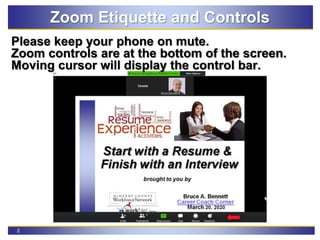
Please keep your phone on mute.
Zoom controls are at the bottom of the screen.
Moving cursor will display the control bar.
3
Zoom Etiquette and Controls
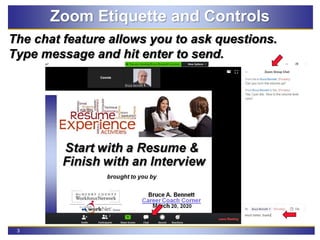
The chat feature allows you to ask questions.
Type message and hit enter to send.
4
Notes & Outline for session
General Notes for Today
My contact info is on last slide
Presentation will be available on SlideShare
Workshop is interactive, Q/A & Parking lot
Red Arrows
Outline
Why LinkedIn?
General tips
Enhancing your profile
Strategic Guidelines
Searching & Settings
Mobile App
5
Goals for session
Learn how to create and post content
Understand how to use the hashtags #
Understand how to use the ampersand @
Identify opportunities to market yourself
Learn the advantage of using the LinkedIn
mobile app
6
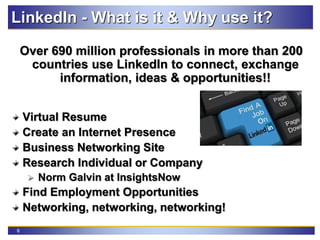
LinkedIn - What is it & Why use it?
Over 690 million professionals in more than 200
countries use LinkedIn to connect, exchange
information, ideas & opportunities!!
Virtual Resume
Create an Internet Presence
Business Networking Site
Research Individual or Company
 Norm Galvin at InsightsNow
Find Employment Opportunities
Networking, networking, networking!
7
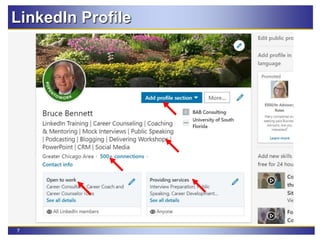
LinkedIn Profile
8
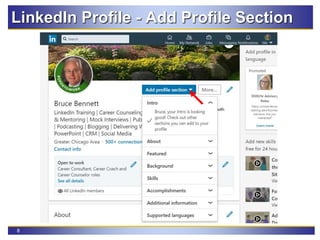
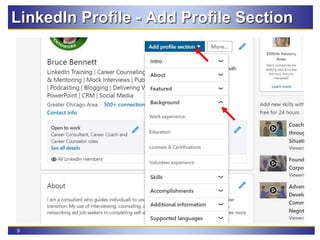
LinkedIn Profile - Add Profile Section
9
LinkedIn Profile - Add Profile Section
10
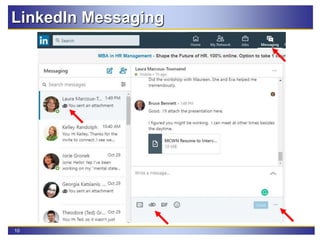
LinkedIn Messaging
11
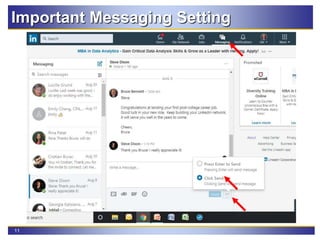
Important Messaging Setting
12
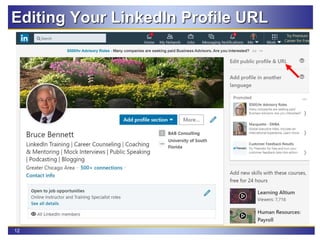
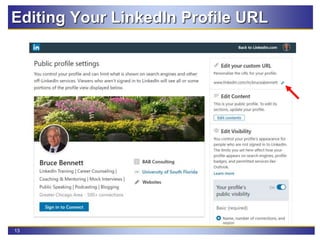
Editing Your LinkedIn Profile URL
13
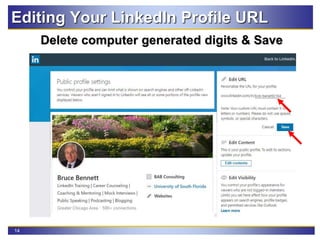
Editing Your LinkedIn Profile URL
14
Editing Your LinkedIn Profile URL
Delete computer generated digits & Save
15
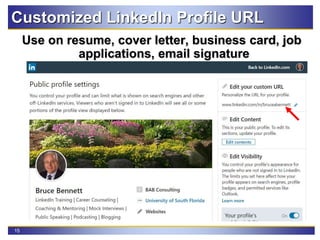
Customized LinkedIn Profile URL
Use on resume, cover letter, business card, job
applications, email signature
16
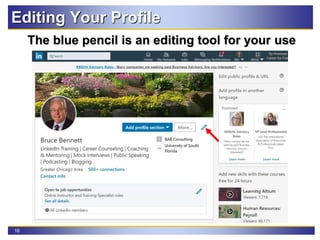
Editing Your Profile
The blue pencil is an editing tool for your use
17
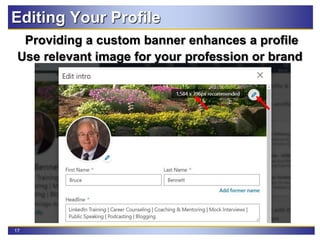
Editing Your Profile
Providing a custom banner enhances a profile
Use relevant image for your profession or brand
18
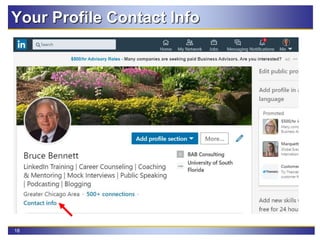
Your Profile Contact Info
19
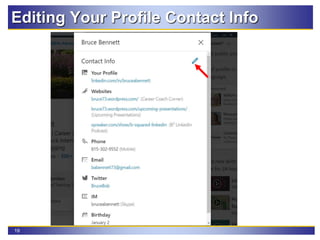
Editing Your Profile Contact Info
20
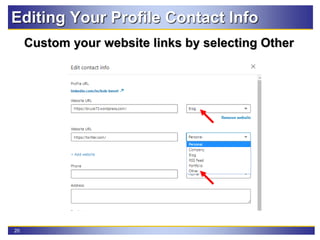
Editing Your Profile Contact Info
Custom your website links by selecting Other
21
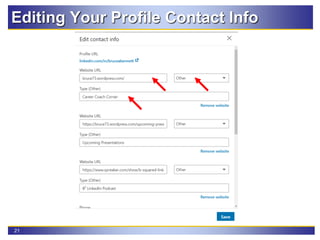
Editing Your Profile Contact Info
22
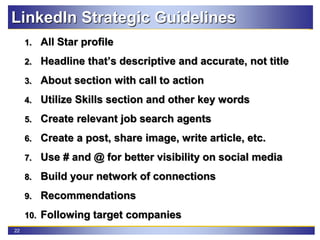
LinkedIn Strategic Guidelines
1. All Star profile
2. Headline that’s descriptive and accurate, not title
3. About section with call to action
4. Utilize Skills section and other key words
5. Create relevant job search agents
6. Create a post, share image, write article, etc.
7. Use # and @ for better visibility on social media
8. Build your network of connections
9. Recommendations
10. Following target companies
23
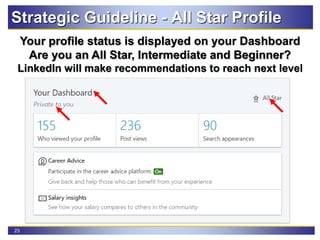
Your profile status is displayed on your Dashboard
Are you an All Star, Intermediate and Beginner?
LinkedIn will make recommendations to reach next level
Strategic Guideline - All Star Profile
24
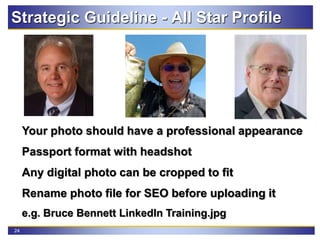
Your photo should have a professional appearance
Passport format with headshot
Any digital photo can be cropped to fit
Rename photo file for SEO before uploading it
e.g. Bruce Bennett LinkedIn Training.jpg
Strategic Guideline - All Star Profile
25
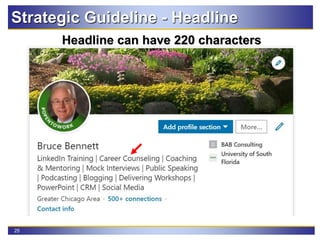
Strategic Guideline - Headline
Headline can have 220 characters
26
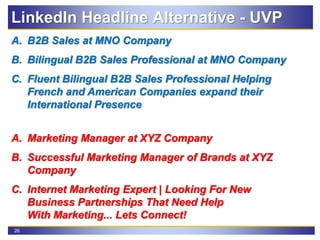
A. B2B Sales at MNO Company
B. Bilingual B2B Sales Professional at MNO Company
C. Fluent Bilingual B2B Sales Professional Helping
French and American Companies expand their
International Presence
A. Marketing Manager at XYZ Company
B. Successful Marketing Manager of Brands at XYZ
Company
C. Internet Marketing Expert | Looking For New
Business Partnerships That Need Help
With Marketing... Lets Connect!
LinkedIn Headline Alternative - UVP
27
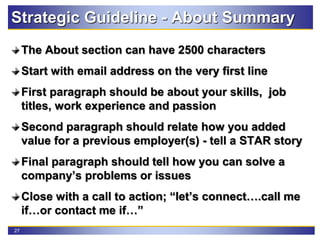
The About section can have 2500 characters
Start with email address on the very first line
First paragraph should be about your skills, job
titles, work experience and passion
Second paragraph should relate how you added
value for a previous employer(s) - tell a STAR story
Final paragraph should tell how you can solve a
company’s problems or issues
Close with a call to action; “let’s connect….call me
if…or contact me if…”
Strategic Guideline - About Summary
28
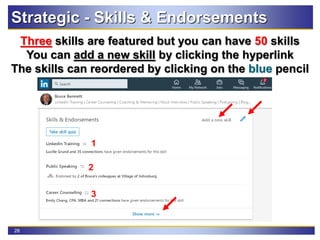
Three skills are featured but you can have 50 skills
You can add a new skill by clicking the hyperlink
The skills can reordered by clicking on the blue pencil
Strategic - Skills & Endorsements
2
1
3
29
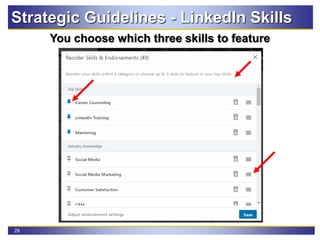
Strategic Guidelines - LinkedIn Skills
You choose which three skills to feature
30
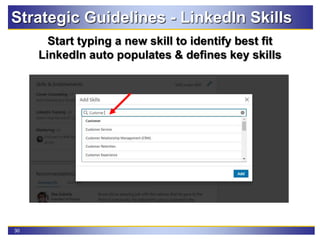
Strategic Guidelines - LinkedIn Skills
Start typing a new skill to identify best fit
LinkedIn auto populates & defines key skills
31
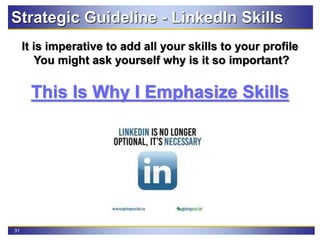
Strategic Guideline - LinkedIn Skills
It is imperative to add all your skills to your profile
You might ask yourself why is it so important?
This Is Why I Emphasize Skills
32
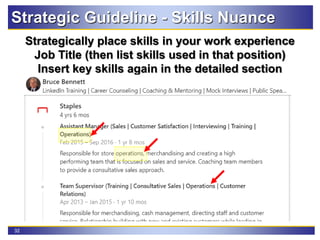
Strategic Guideline - Skills Nuance
Strategically place skills in your work experience
Job Title (then list skills used in that position)
Insert key skills again in the detailed section
33
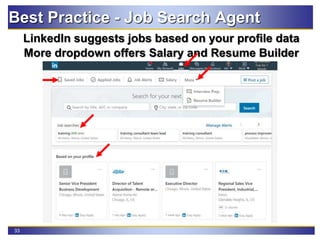
Best Practice - Job Search Agent
LinkedIn suggests jobs based on your profile data
More dropdown offers Salary and Resume Builder
34
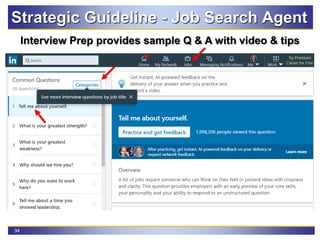
Interview Prep provides sample Q & A with video & tips
Strategic Guideline - Job Search Agent
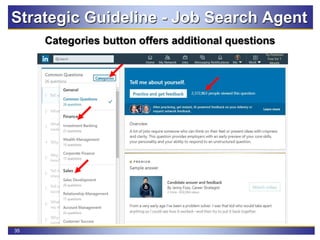
35
Categories button offers additional questions
Strategic Guideline - Job Search Agent
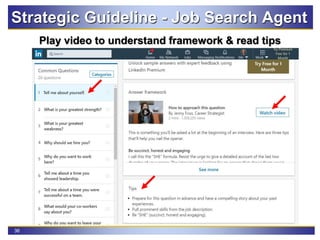
36
Play video to understand framework & read tips
Strategic Guideline - Job Search Agent
37
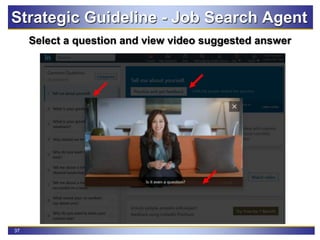
Select a question and view video suggested answer
Strategic Guideline - Job Search Agent
38
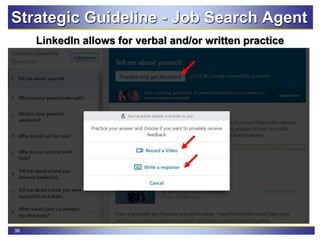
LinkedIn allows for verbal and/or written practice
Strategic Guideline - Job Search Agent
39
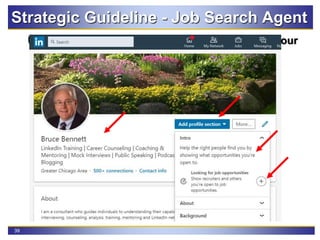
Update career interests to inform recruiters with your
expertise, job titles, and locations
Strategic Guideline - Job Search Agent
40
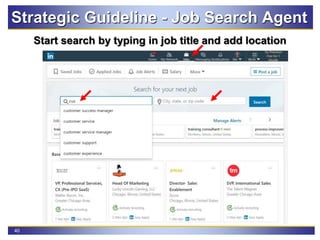
Start search by typing in job title and add location
Strategic Guideline - Job Search Agent
41
Strategic Guideline - Job Search Agent
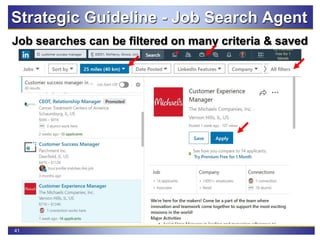
Job searches can be filtered on many criteria & saved
42
Strategic Guideline - Job Search Agent
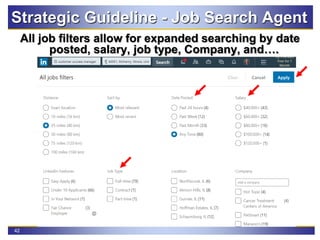
All job filters allow for expanded searching by date
posted, salary, job type, Company, and….
43
Strategic Guideline - Job Search Agent
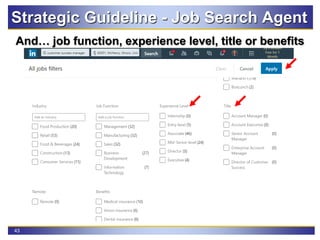
And… job function, experience level, title or benefits
44
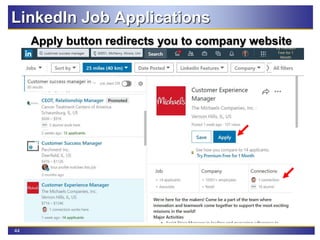
Apply button redirects you to company website
LinkedIn Job Applications
45
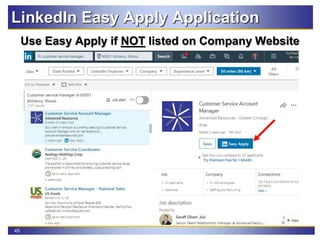
Use Easy Apply if NOT listed on Company Website
LinkedIn Easy Apply Application
46
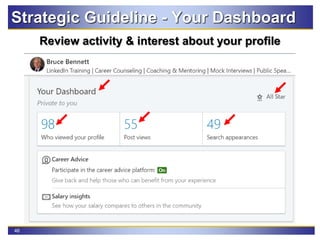
Strategic Guideline - Your Dashboard
Review activity & interest about your profile
47
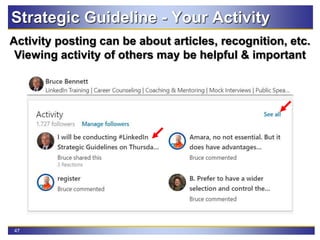
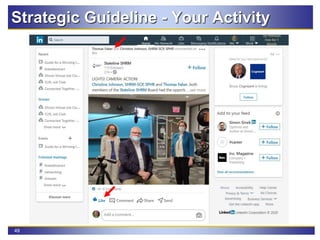
Strategic Guideline - Your Activity
Activity posting can be about articles, recognition, etc.
Viewing activity of others may be helpful & important
48
Strategic Guideline - Your Activity
49
Strategic Guideline - Your Activity
50
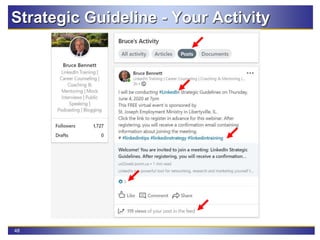
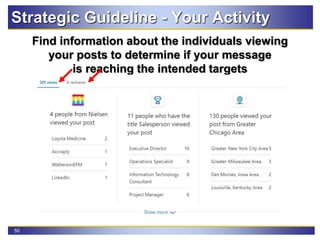
Strategic Guideline - Your Activity
Find information about the individuals viewing
your posts to determine if your message
is reaching the intended targets
51
Strategic Guideline – Hashtags & @
The hashtag # symbol is a powerful tool
Use it to reach a larger audience
Gain more visibility and/or marketing
Appropriate use is #LinkedInTips
Those individuals following #LinkedInTips
will have it appear in their feed
The ampersand @ symbol allows you to reach,
market to or recognize a specific person
Appropriate use .e.g. @MaureenMueller or
@BruceBixler
Both symbols work with other social media
Can A Company Use # and @??
52
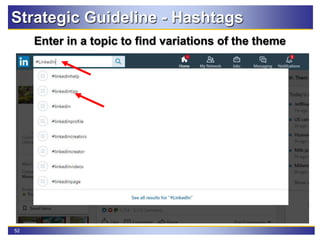
Strategic Guideline - Hashtags
Enter in a topic to find variations of the theme
53
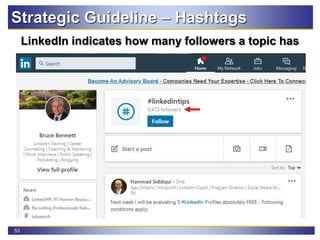
Strategic Guideline – Hashtags
LinkedIn indicates how many followers a topic has
54
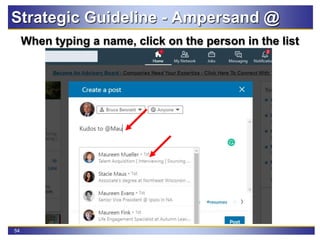
Strategic Guideline - Ampersand @
When typing a name, click on the person in the list
55
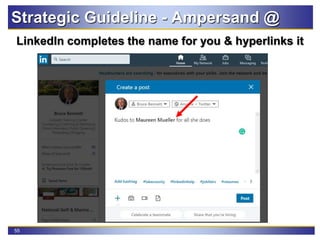
Strategic Guideline - Ampersand @
LinkedIn completes the name for you & hyperlinks it
56
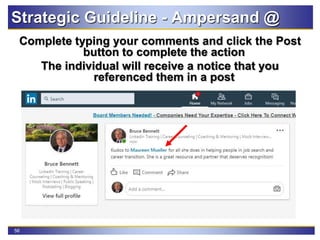
Strategic Guideline - Ampersand @
Complete typing your comments and click the Post
button to complete the action
The individual will receive a notice that you
referenced them in a post
57
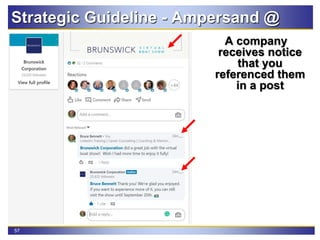
Strategic Guideline - Ampersand @
A company
receives notice
that you
referenced them
in a post
58
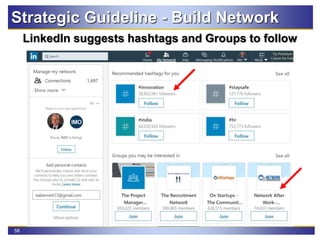
LinkedIn suggests hashtags and Groups to follow
Strategic Guideline - Build Network
59
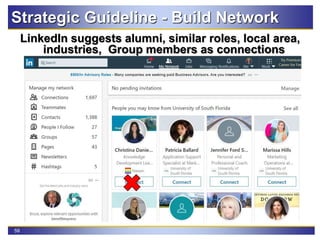
LinkedIn suggests alumni, similar roles, local area,
industries, Group members as connections
Strategic Guideline - Build Network
60
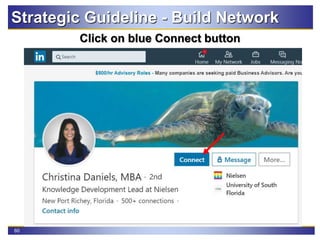
Click on blue Connect button
Strategic Guideline - Build Network
61
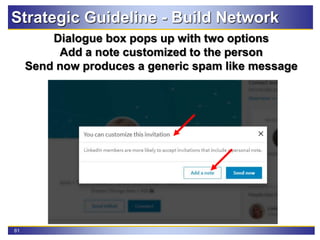
Dialogue box pops up with two options
Add a note customized to the person
Send now produces a generic spam like message
Strategic Guideline - Build Network
62
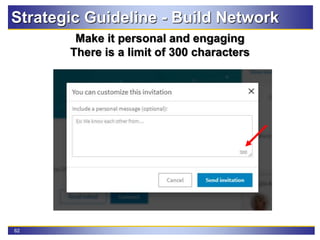
Make it personal and engaging
There is a limit of 300 characters
Strategic Guideline - Build Network
63
3 dots
reveal
several
options
including
Connect
Building Your LinkedIn Network
64
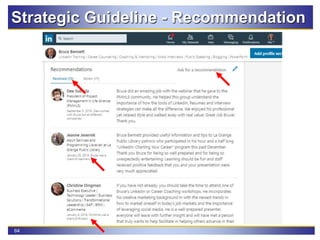
Strategic Guideline - Recommendation
65
Strategic Guideline - Follow Company
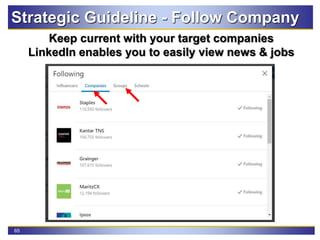
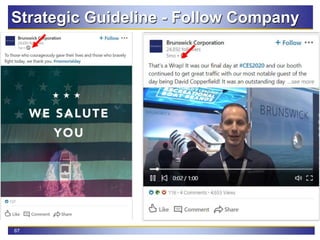
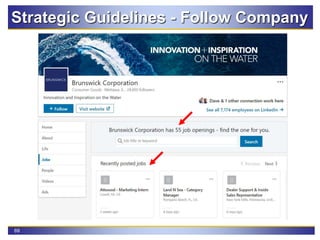
Keep current with your target companies
LinkedIn enables you to easily view news & jobs
66
Strategic Guideline - Follow Company
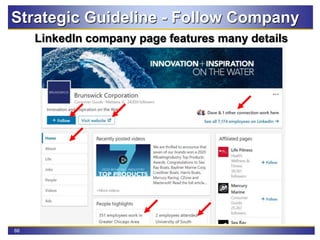
LinkedIn company page features many details
67
Strategic Guideline - Follow Company
68
Strategic Guideline - Follow Company
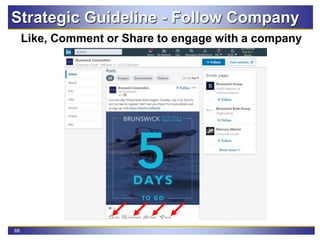
Like, Comment or Share to engage with a company
69
Strategic Guidelines - Follow Company
70
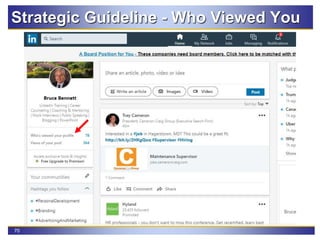
Strategic Guideline - Who Viewed You
71
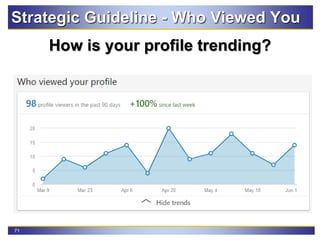
Strategic Guideline - Who Viewed You
How is your profile trending?
72
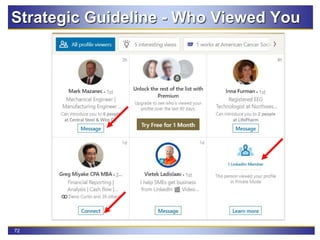
Strategic Guideline - Who Viewed You
73
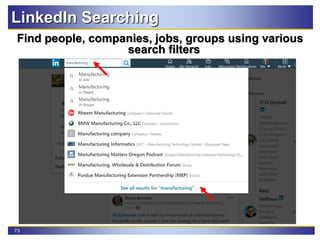
LinkedIn Searching
Find people, companies, jobs, groups using various
search filters
74
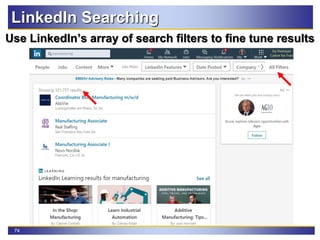
LinkedIn Searching
Use LinkedIn’s array of search filters to fine tune results
75
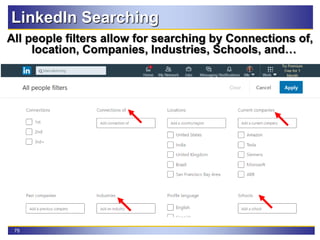
LinkedIn Searching
All people filters allow for searching by Connections of,
location, Companies, Industries, Schools, and…
76
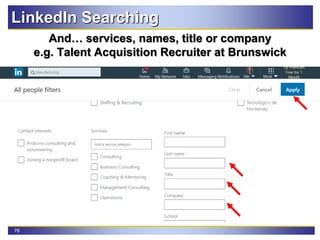
LinkedIn Searching
And… services, names, title or company
e.g. Talent Acquisition Recruiter at Brunswick
77
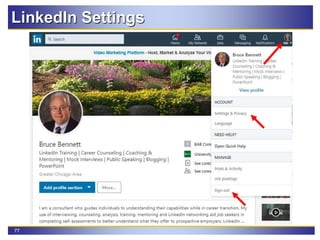
LinkedIn Settings
78
LinkedIn Settings
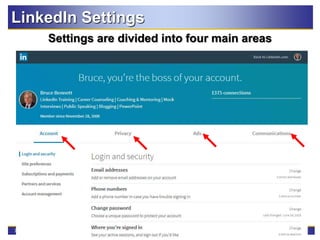
Settings are divided into four main areas
79
LinkedIn Settings
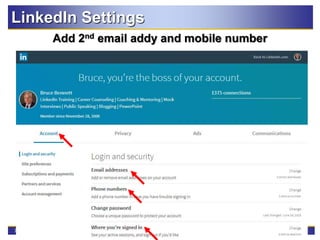
Add 2nd email addy and mobile number
80
LinkedIn Settings
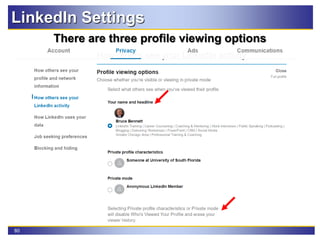
There are three profile viewing options
81
LinkedIn Settings
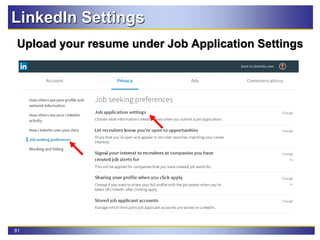
Upload your resume under Job Application Settings
82
LinkedIn Settings
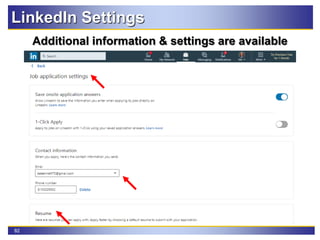
Additional information & settings are available
83
JobScan.co for LinkedIn
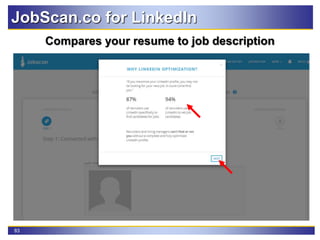
Compares your resume to job description
84
JobScan.co for LinkedIn
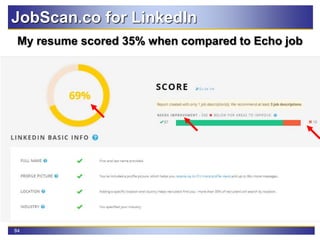
My resume scored 35% when compared to Echo job
85
JobScan.co for LinkedIn
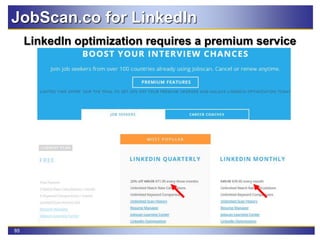
LinkedIn optimization requires a premium service
86
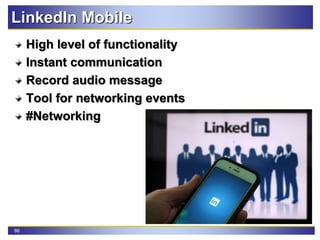
LinkedIn Mobile
High level of functionality
Instant communication
Record audio message
Tool for networking events
#Networking
87
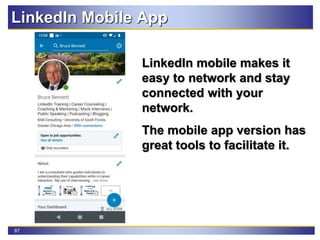
LinkedIn Mobile App
LinkedIn mobile makes it
easy to network and stay
connected with your
network.
The mobile app version has
great tools to facilitate it.
88
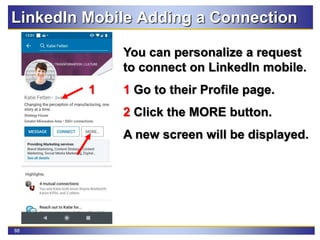
LinkedIn Mobile Adding a Connection
You can personalize a request
to connect on LinkedIn mobile.
1 Go to their Profile page.
2 Click the MORE button.
A new screen will be displayed.
2
1
89
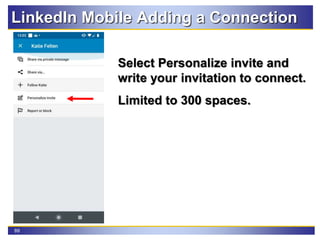
LinkedIn Mobile Adding a Connection
Select Personalize invite and
write your invitation to connect.
Limited to 300 spaces.
90
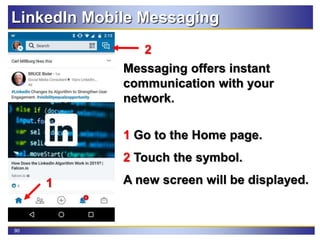
LinkedIn Mobile Messaging
Messaging offers instant
communication with your
network.
1 Go to the Home page.
2 Touch the symbol.
A new screen will be displayed.1
2
91
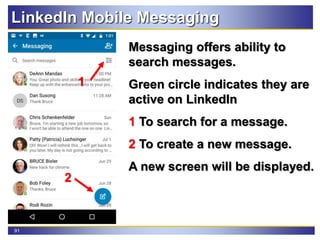
LinkedIn Mobile Messaging
Messaging offers ability to
search messages.
Green circle indicates they are
active on LinkedIn
1 To search for a message.
2 To create a new message.
A new screen will be displayed.
2
1
92
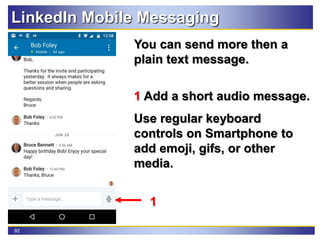
LinkedIn Mobile Messaging
You can send more then a
plain text message.
1 Add a short audio message.
Use regular keyboard
controls on Smartphone to
add emoji, gifs, or other
media.
1
93
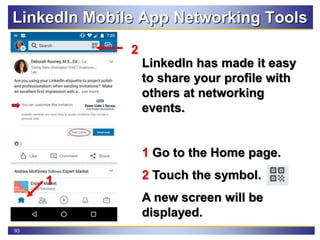
LinkedIn Mobile App Networking Tools
LinkedIn has made it easy
to share your profile with
others at networking
events.
1 Go to the Home page.
2 Touch the symbol.
A new screen will be
displayed.
1
2
94
LinkedIn Mobile App Networking Tools
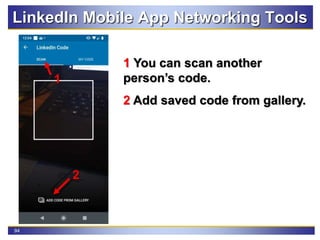
1 You can scan another
person’s code.
2 Add saved code from gallery.
4 3
1
2
95
LinkedIn Mobile App Networking Tools
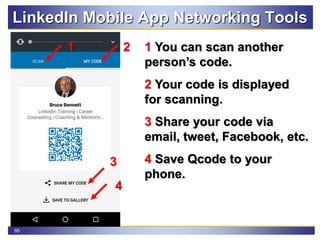
1 You can scan another
person’s code.
2 Your code is displayed
for scanning.
3 Share your code via
email, tweet, Facebook, etc.
4 Save Qcode to your
phone.
21
4
3
96
LinkedIn Mobile App Networking Tools
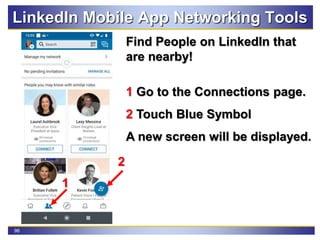
Find People on LinkedIn that
are nearby!
1 Go to the Connections page.
2 Touch Blue Symbol
A new screen will be displayed.
1
2
97
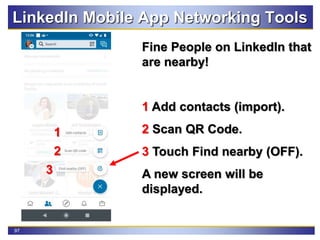
LinkedIn Mobile App Networking Tools
Fine People on LinkedIn that
are nearby!
1 Add contacts (import).
2 Scan QR Code.
3 Touch Find nearby (OFF).
A new screen will be
displayed.
1
2
3
98
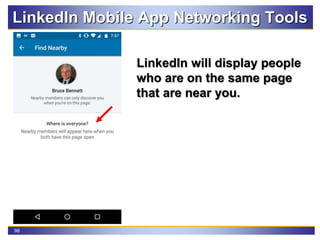
LinkedIn Mobile App Networking Tools
LinkedIn will display people
who are on the same page
that are near you.
99
LinkedIn Mobile App Networking Tools
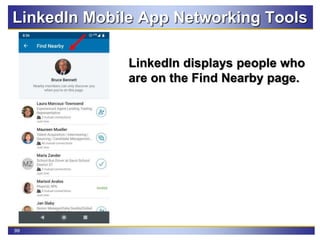
LinkedIn displays people who
are on the Find Nearby page.
100
Success Stories
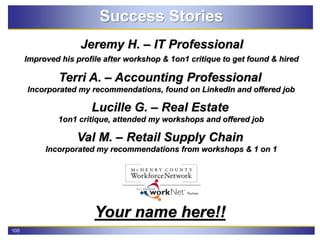
Jeremy H. – IT Professional
Improved his profile after workshop & 1on1 critique to get found & hired
Terri A. – Accounting Professional
Incorporated my recommendations, found on LinkedIn and offered job
Lucille G. – Real Estate
1on1 critique, attended my workshops and offered job
Val M. – Retail Supply Chain
Incorporated my recommendations from workshops & 1 on 1
Your name here!!
101
McHenry County Workforce Network
September Career Workshops & Services
McHenry County Workforce Network Website
Personalized Job Search Assistance Services
To sign up, request the professional directly by email
LinkedIn Critiques
60 minute session Virtual Session is a one on one
profile review and/or Q&A about LinkedIn usage
Email me to set up an appointment
mcwnbennett@hotmail.com
102
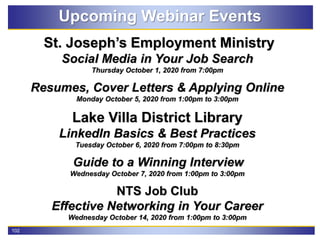
Upcoming Webinar Events
St. Joseph’s Employment Ministry
Social Media in Your Job Search
Thursday October 1, 2020 from 7:00pm
Resumes, Cover Letters & Applying Online
Monday October 5, 2020 from 1:00pm to 3:00pm
Lake Villa District Library
LinkedIn Basics & Best Practices
Tuesday October 6, 2020 from 7:00pm to 8:30pm
Guide to a Winning Interview
Wednesday October 7, 2020 from 1:00pm to 3:00pm
NTS Job Club
Effective Networking in Your Career
Wednesday October 14, 2020 from 1:00pm to 3:00pm
Feel free to follow up or
Connect with me on LinkedIn
Bruce A. Bennett
Mobile: 815-302-9552
Email: BABennett73@gmail.com
LinkedIn: http://www.linkedin.com/in/bruceabennett
Career Coach Corner Blog: http://bruce73.wordpress.com/
https://bruce73.wordpress.com/upcoming-presentations/
Podcast: https://www.spreaker.com/show/b-squared-linkedin

LinkedIn Strategic Guidelines

  • 1.
    Strategic Guidelines brought to youby Bruce A. Bennett Career Coach Corner September 23, 2020
  • 2.
    2 Zoom Etiquette andControls Please keep your phone on mute. Zoom controls are at the bottom of the screen. Moving cursor will display the control bar.
  • 3.
    3 Zoom Etiquette andControls The chat feature allows you to ask questions. Type message and hit enter to send.
  • 4.
    4 Notes & Outlinefor session General Notes for Today My contact info is on last slide Presentation will be available on SlideShare Workshop is interactive, Q/A & Parking lot Red Arrows Outline Why LinkedIn? General tips Enhancing your profile Strategic Guidelines Searching & Settings Mobile App
  • 5.
    5 Goals for session Learnhow to create and post content Understand how to use the hashtags # Understand how to use the ampersand @ Identify opportunities to market yourself Learn the advantage of using the LinkedIn mobile app
  • 6.
    6 LinkedIn - Whatis it & Why use it? Over 690 million professionals in more than 200 countries use LinkedIn to connect, exchange information, ideas & opportunities!! Virtual Resume Create an Internet Presence Business Networking Site Research Individual or Company  Norm Galvin at InsightsNow Find Employment Opportunities Networking, networking, networking!
  • 7.
  • 8.
    8 LinkedIn Profile -Add Profile Section
  • 9.
    9 LinkedIn Profile -Add Profile Section
  • 10.
  • 11.
  • 12.
  • 13.
  • 14.
    14 Editing Your LinkedInProfile URL Delete computer generated digits & Save
  • 15.
    15 Customized LinkedIn ProfileURL Use on resume, cover letter, business card, job applications, email signature
  • 16.
    16 Editing Your Profile Theblue pencil is an editing tool for your use
  • 17.
    17 Editing Your Profile Providinga custom banner enhances a profile Use relevant image for your profession or brand
  • 18.
  • 19.
  • 20.
    20 Editing Your ProfileContact Info Custom your website links by selecting Other
  • 21.
  • 22.
    22 LinkedIn Strategic Guidelines 1.All Star profile 2. Headline that’s descriptive and accurate, not title 3. About section with call to action 4. Utilize Skills section and other key words 5. Create relevant job search agents 6. Create a post, share image, write article, etc. 7. Use # and @ for better visibility on social media 8. Build your network of connections 9. Recommendations 10. Following target companies
  • 23.
    23 Your profile statusis displayed on your Dashboard Are you an All Star, Intermediate and Beginner? LinkedIn will make recommendations to reach next level Strategic Guideline - All Star Profile
  • 24.
    24 Your photo shouldhave a professional appearance Passport format with headshot Any digital photo can be cropped to fit Rename photo file for SEO before uploading it e.g. Bruce Bennett LinkedIn Training.jpg Strategic Guideline - All Star Profile
  • 25.
    25 Strategic Guideline -Headline Headline can have 220 characters
  • 26.
    26 A. B2B Salesat MNO Company B. Bilingual B2B Sales Professional at MNO Company C. Fluent Bilingual B2B Sales Professional Helping French and American Companies expand their International Presence A. Marketing Manager at XYZ Company B. Successful Marketing Manager of Brands at XYZ Company C. Internet Marketing Expert | Looking For New Business Partnerships That Need Help With Marketing... Lets Connect! LinkedIn Headline Alternative - UVP
  • 27.
    27 The About sectioncan have 2500 characters Start with email address on the very first line First paragraph should be about your skills, job titles, work experience and passion Second paragraph should relate how you added value for a previous employer(s) - tell a STAR story Final paragraph should tell how you can solve a company’s problems or issues Close with a call to action; “let’s connect….call me if…or contact me if…” Strategic Guideline - About Summary
  • 28.
    28 Three skills arefeatured but you can have 50 skills You can add a new skill by clicking the hyperlink The skills can reordered by clicking on the blue pencil Strategic - Skills & Endorsements 2 1 3
  • 29.
    29 Strategic Guidelines -LinkedIn Skills You choose which three skills to feature
  • 30.
    30 Strategic Guidelines -LinkedIn Skills Start typing a new skill to identify best fit LinkedIn auto populates & defines key skills
  • 31.
    31 Strategic Guideline -LinkedIn Skills It is imperative to add all your skills to your profile You might ask yourself why is it so important? This Is Why I Emphasize Skills
  • 32.
    32 Strategic Guideline -Skills Nuance Strategically place skills in your work experience Job Title (then list skills used in that position) Insert key skills again in the detailed section
  • 33.
    33 Best Practice -Job Search Agent LinkedIn suggests jobs based on your profile data More dropdown offers Salary and Resume Builder
  • 34.
    34 Interview Prep providessample Q & A with video & tips Strategic Guideline - Job Search Agent
  • 35.
    35 Categories button offersadditional questions Strategic Guideline - Job Search Agent
  • 36.
    36 Play video tounderstand framework & read tips Strategic Guideline - Job Search Agent
  • 37.
    37 Select a questionand view video suggested answer Strategic Guideline - Job Search Agent
  • 38.
    38 LinkedIn allows forverbal and/or written practice Strategic Guideline - Job Search Agent
  • 39.
    39 Update career intereststo inform recruiters with your expertise, job titles, and locations Strategic Guideline - Job Search Agent
  • 40.
    40 Start search bytyping in job title and add location Strategic Guideline - Job Search Agent
  • 41.
    41 Strategic Guideline -Job Search Agent Job searches can be filtered on many criteria & saved
  • 42.
    42 Strategic Guideline -Job Search Agent All job filters allow for expanded searching by date posted, salary, job type, Company, and….
  • 43.
    43 Strategic Guideline -Job Search Agent And… job function, experience level, title or benefits
  • 44.
    44 Apply button redirectsyou to company website LinkedIn Job Applications
  • 45.
    45 Use Easy Applyif NOT listed on Company Website LinkedIn Easy Apply Application
  • 46.
    46 Strategic Guideline -Your Dashboard Review activity & interest about your profile
  • 47.
    47 Strategic Guideline -Your Activity Activity posting can be about articles, recognition, etc. Viewing activity of others may be helpful & important
  • 48.
  • 49.
  • 50.
    50 Strategic Guideline -Your Activity Find information about the individuals viewing your posts to determine if your message is reaching the intended targets
  • 51.
    51 Strategic Guideline –Hashtags & @ The hashtag # symbol is a powerful tool Use it to reach a larger audience Gain more visibility and/or marketing Appropriate use is #LinkedInTips Those individuals following #LinkedInTips will have it appear in their feed The ampersand @ symbol allows you to reach, market to or recognize a specific person Appropriate use .e.g. @MaureenMueller or @BruceBixler Both symbols work with other social media Can A Company Use # and @??
  • 52.
    52 Strategic Guideline -Hashtags Enter in a topic to find variations of the theme
  • 53.
    53 Strategic Guideline –Hashtags LinkedIn indicates how many followers a topic has
  • 54.
    54 Strategic Guideline -Ampersand @ When typing a name, click on the person in the list
  • 55.
    55 Strategic Guideline -Ampersand @ LinkedIn completes the name for you & hyperlinks it
  • 56.
    56 Strategic Guideline -Ampersand @ Complete typing your comments and click the Post button to complete the action The individual will receive a notice that you referenced them in a post
  • 57.
    57 Strategic Guideline -Ampersand @ A company receives notice that you referenced them in a post
  • 58.
    58 LinkedIn suggests hashtagsand Groups to follow Strategic Guideline - Build Network
  • 59.
    59 LinkedIn suggests alumni,similar roles, local area, industries, Group members as connections Strategic Guideline - Build Network
  • 60.
    60 Click on blueConnect button Strategic Guideline - Build Network
  • 61.
    61 Dialogue box popsup with two options Add a note customized to the person Send now produces a generic spam like message Strategic Guideline - Build Network
  • 62.
    62 Make it personaland engaging There is a limit of 300 characters Strategic Guideline - Build Network
  • 63.
  • 64.
  • 65.
    65 Strategic Guideline -Follow Company Keep current with your target companies LinkedIn enables you to easily view news & jobs
  • 66.
    66 Strategic Guideline -Follow Company LinkedIn company page features many details
  • 67.
  • 68.
    68 Strategic Guideline -Follow Company Like, Comment or Share to engage with a company
  • 69.
  • 70.
  • 71.
    71 Strategic Guideline -Who Viewed You How is your profile trending?
  • 72.
  • 73.
    73 LinkedIn Searching Find people,companies, jobs, groups using various search filters
  • 74.
    74 LinkedIn Searching Use LinkedIn’sarray of search filters to fine tune results
  • 75.
    75 LinkedIn Searching All peoplefilters allow for searching by Connections of, location, Companies, Industries, Schools, and…
  • 76.
    76 LinkedIn Searching And… services,names, title or company e.g. Talent Acquisition Recruiter at Brunswick
  • 77.
  • 78.
    78 LinkedIn Settings Settings aredivided into four main areas
  • 79.
    79 LinkedIn Settings Add 2ndemail addy and mobile number
  • 80.
    80 LinkedIn Settings There arethree profile viewing options
  • 81.
    81 LinkedIn Settings Upload yourresume under Job Application Settings
  • 82.
  • 83.
    83 JobScan.co for LinkedIn Comparesyour resume to job description
  • 84.
    84 JobScan.co for LinkedIn Myresume scored 35% when compared to Echo job
  • 85.
    85 JobScan.co for LinkedIn LinkedInoptimization requires a premium service
  • 86.
    86 LinkedIn Mobile High levelof functionality Instant communication Record audio message Tool for networking events #Networking
  • 87.
    87 LinkedIn Mobile App LinkedInmobile makes it easy to network and stay connected with your network. The mobile app version has great tools to facilitate it.
  • 88.
    88 LinkedIn Mobile Addinga Connection You can personalize a request to connect on LinkedIn mobile. 1 Go to their Profile page. 2 Click the MORE button. A new screen will be displayed. 2 1
  • 89.
    89 LinkedIn Mobile Addinga Connection Select Personalize invite and write your invitation to connect. Limited to 300 spaces.
  • 90.
    90 LinkedIn Mobile Messaging Messagingoffers instant communication with your network. 1 Go to the Home page. 2 Touch the symbol. A new screen will be displayed.1 2
  • 91.
    91 LinkedIn Mobile Messaging Messagingoffers ability to search messages. Green circle indicates they are active on LinkedIn 1 To search for a message. 2 To create a new message. A new screen will be displayed. 2 1
  • 92.
    92 LinkedIn Mobile Messaging Youcan send more then a plain text message. 1 Add a short audio message. Use regular keyboard controls on Smartphone to add emoji, gifs, or other media. 1
  • 93.
    93 LinkedIn Mobile AppNetworking Tools LinkedIn has made it easy to share your profile with others at networking events. 1 Go to the Home page. 2 Touch the symbol. A new screen will be displayed. 1 2
  • 94.
    94 LinkedIn Mobile AppNetworking Tools 1 You can scan another person’s code. 2 Add saved code from gallery. 4 3 1 2
  • 95.
    95 LinkedIn Mobile AppNetworking Tools 1 You can scan another person’s code. 2 Your code is displayed for scanning. 3 Share your code via email, tweet, Facebook, etc. 4 Save Qcode to your phone. 21 4 3
  • 96.
    96 LinkedIn Mobile AppNetworking Tools Find People on LinkedIn that are nearby! 1 Go to the Connections page. 2 Touch Blue Symbol A new screen will be displayed. 1 2
  • 97.
    97 LinkedIn Mobile AppNetworking Tools Fine People on LinkedIn that are nearby! 1 Add contacts (import). 2 Scan QR Code. 3 Touch Find nearby (OFF). A new screen will be displayed. 1 2 3
  • 98.
    98 LinkedIn Mobile AppNetworking Tools LinkedIn will display people who are on the same page that are near you.
  • 99.
    99 LinkedIn Mobile AppNetworking Tools LinkedIn displays people who are on the Find Nearby page.
  • 100.
    100 Success Stories Jeremy H.– IT Professional Improved his profile after workshop & 1on1 critique to get found & hired Terri A. – Accounting Professional Incorporated my recommendations, found on LinkedIn and offered job Lucille G. – Real Estate 1on1 critique, attended my workshops and offered job Val M. – Retail Supply Chain Incorporated my recommendations from workshops & 1 on 1 Your name here!!
  • 101.
    101 McHenry County WorkforceNetwork September Career Workshops & Services McHenry County Workforce Network Website Personalized Job Search Assistance Services To sign up, request the professional directly by email LinkedIn Critiques 60 minute session Virtual Session is a one on one profile review and/or Q&A about LinkedIn usage Email me to set up an appointment mcwnbennett@hotmail.com
  • 102.
    102 Upcoming Webinar Events St.Joseph’s Employment Ministry Social Media in Your Job Search Thursday October 1, 2020 from 7:00pm Resumes, Cover Letters & Applying Online Monday October 5, 2020 from 1:00pm to 3:00pm Lake Villa District Library LinkedIn Basics & Best Practices Tuesday October 6, 2020 from 7:00pm to 8:30pm Guide to a Winning Interview Wednesday October 7, 2020 from 1:00pm to 3:00pm NTS Job Club Effective Networking in Your Career Wednesday October 14, 2020 from 1:00pm to 3:00pm
  • 103.
    Feel free tofollow up or Connect with me on LinkedIn Bruce A. Bennett Mobile: 815-302-9552 Email: BABennett73@gmail.com LinkedIn: http://www.linkedin.com/in/bruceabennett Career Coach Corner Blog: http://bruce73.wordpress.com/ https://bruce73.wordpress.com/upcoming-presentations/ Podcast: https://www.spreaker.com/show/b-squared-linkedin