Lecture 5
sed and awk
Last week
• Regular Expressions
– grep
– egrep
Today
• Stream manipulation:
– sed
– awk
Sed: Stream-oriented, Non-
Interactive, Text Editor
• Look for patterns one line at a time, like grep
• Change lines of the file
• Non-interactive text editor
– Editing commands come in as script
– There is an interactive editor ed which accepts the
same commands
• A Unix filter
– Superset of previously mentioned tools
Conceptual overview
· All editing commands in a sed script are applied in
order to each input line.
• If a command changes the input, subsequent
command address will be applied to the current
(modified) line in the pattern space, not the original
input line.
• The original input file is unchanged (sed is a filter),
and the results are sent to standard output (but can
be redirected to a file).
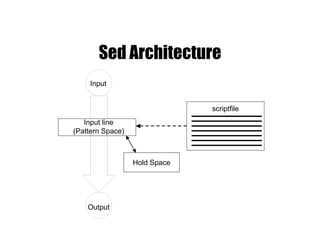
Sed Architecture
scriptfile
Input
Output
Input line
(Pattern Space)
Hold Space
Scripts
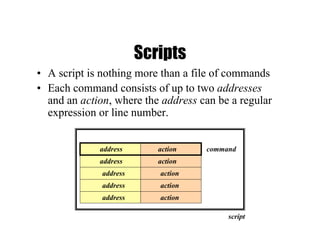
• A script is nothing more than a file of commands
• Each command consists of up to two addresses
and an action, where the address can be a regular
expression or line number.
address action command
address action
address action
address action
address action
script
Scripts (continued)
• As each line of the input file is read, sed reads the
first command of the script and checks the
address against the current input line:
– If there is a match, the command is executed
– If there is no match, the command is ignored
– sed then repeats this action for every command in the
script file
• When it has reached the end of the script, sed
outputs the current line (pattern space) unless
the -n option has been set
Sed Flow of Control
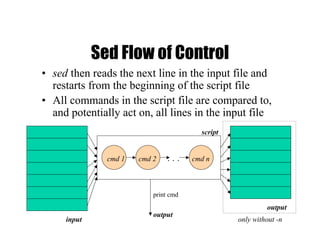
• sed then reads the next line in the input file and
restarts from the beginning of the script file
• All commands in the script file are compared to,
and potentially act on, all lines in the input file
. . .cmd 1 cmd ncmd 2
script
input
output
output
only without -n
print cmd
sed Commands
• sed commands have the general form
– [address[, address]][!]command [arguments]
• sed copies each input line into a pattern space
– If the address of the command matches the line in the
pattern space, the command is applied to that line
– If the command has no address, it is applied to each
line as it enters pattern space
– If a command changes the line in pattern space,
subsequent commands operate on the modified line
• When all commands have been read, the line in
pattern space is written to standard output and a
new line is read into pattern space
Addressing
• An address can be either a line number or a
pattern, enclosed in slashes ( /pattern/ )
• A pattern is described using regular
expressions (BREs, as in grep)
• If no pattern is specified, the command will
be applied to all lines of the input file
• To refer to the last line: $
Addressing (continued)
• Most commands will accept two addresses
– If only one address is given, the command operates
only on that line
– If two comma separated addresses are given, then the
command operates on a range of lines between the first
and second address, inclusively
• The ! operator can be used to negate an address,
ie; address!command causes command to be
applied to all lines that do not match address
Commands
• command is a single letter
• Example: Deletion: d
• [address1][,address2]d
– Delete the addressed line(s) from the pattern
space; line(s) not passed to standard output.
– A new line of input is read and editing resumes
with the first command of the script.
Address and Command Examples
• d deletes the all lines
• 6d deletes line 6
• /^$/d deletes all blank lines
• 1,10d deletes lines 1 through 10
• 1,/^$/d deletes from line 1 through the first blank line
• /^$/,$d deletes from the first blank line through
the last line of the file
• /^$/,10d deletes from the first blank line through line 10
• /^ya*y/,/[0-9]$/d deletes from the first line that begins
with yay, yaay, yaaay, etc. through
the first line that ends with a digit
Multiple Commands
• Braces {} can be used to apply multiple commands to an
address
[/pattern/[,/pattern/]]{
command1
command2
command3
}
• Strange syntax:
– The opening brace must be the last character on a line
– The closing brace must be on a line by itself
– Make sure there are no spaces following the braces
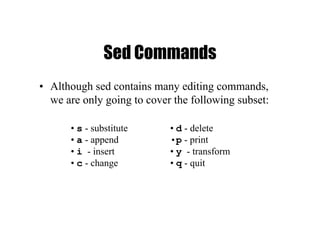
Sed Commands
• Although sed contains many editing commands,
we are only going to cover the following subset:
• d - delete
•p - print
• y - transform
• q - quit
• s - substitute
• a - append
• i - insert
• c - change
sed Syntax
• Syntax: sed [-n] [-e] [‘command’] [file…]
sed [-n] [-f scriptfile] [file…]
– -n - only print lines specified with the print command
(or the ‘p’ flag of the substitute (‘s’) command)
– -f scriptfile - next argument is a filename containing
editing commands
– -e command - the next argument is an editing
command rather than a filename, useful if multiple
commands are specified
– If the first line of a scriptfile is “#n”, sed acts as though
-n had been specified
Print
• The Print command (p) can be used to force the
pattern space to be output, useful if the -n option
has been specified
• Syntax: [address1[,address2]]p
• Note: if the -n or #n option has not been specified,
p will cause the line to be output twice!
• Examples:
1,5p will display lines 1 through 5
/^$/,$p will display the lines from the first
blank line through the last line of the file
Substitute
• Syntax:
[address(es)]s/pattern/replacement/[flags]
– pattern - search pattern
– replacement - replacement string for pattern
– flags - optionally any of the following
• n a number from 1 to 512 indicating which
occurrence of pattern should be
replaced
• g global, replace all occurrences of pattern
in pattern space
• p print contents of pattern space
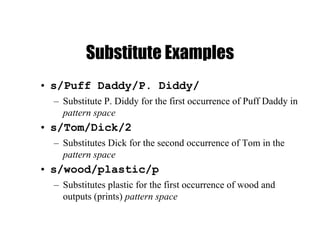
Substitute Examples
• s/Puff Daddy/P. Diddy/
– Substitute P. Diddy for the first occurrence of Puff Daddy in
pattern space
• s/Tom/Dick/2
– Substitutes Dick for the second occurrence of Tom in the
pattern space
• s/wood/plastic/p
– Substitutes plastic for the first occurrence of wood and
outputs (prints) pattern space
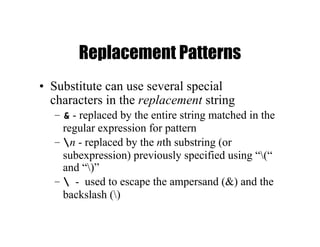
Replacement Patterns
• Substitute can use several special
characters in the replacement string
– & - replaced by the entire string matched in the
regular expression for pattern
– n - replaced by the nth substring (or
subexpression) previously specified using “(“
and “)”
–  - used to escape the ampersand (&) and the
backslash ()
Replacement Pattern Examples
"the UNIX operating system …"
s/.NI./wonderful &/
"the wonderful UNIX operating system …"
cat test1
first:second
one:two
sed 's/(.*):(.*)/2:1/' test1
second:first
two:one
sed 's/([[:alpha:]])([^ n]*)/21ay/g'
– Pig Latin ("unix is fun" -> "nixuay siay unfay")
Append, Insert, and Change
• Syntax for these commands is a little strange
because they must be specified on multiple lines
• append [address]a
text
• insert [address]i
text
• change [address(es)]c
text
• append/insert for single lines only, not range
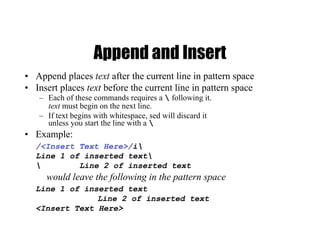
Append and Insert
• Append places text after the current line in pattern space
• Insert places text before the current line in pattern space
– Each of these commands requires a  following it.
text must begin on the next line.
– If text begins with whitespace, sed will discard it
unless you start the line with a 
• Example:
/<Insert Text Here>/i
Line 1 of inserted text
 Line 2 of inserted text
would leave the following in the pattern space
Line 1 of inserted text
Line 2 of inserted text
<Insert Text Here>
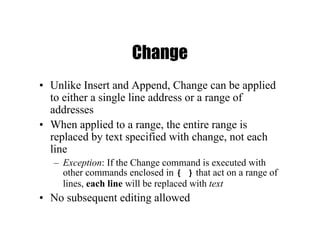
Change
• Unlike Insert and Append, Change can be applied
to either a single line address or a range of
addresses
• When applied to a range, the entire range is
replaced by text specified with change, not each
line
– Exception: If the Change command is executed with
other commands enclosed in { } that act on a range of
lines, each line will be replaced with text
• No subsequent editing allowed
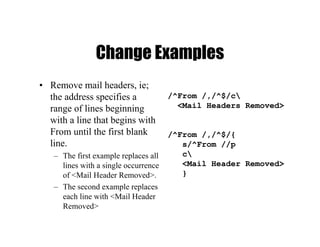
Change Examples
• Remove mail headers, ie;
the address specifies a
range of lines beginning
with a line that begins with
From until the first blank
line.
– The first example replaces all
lines with a single occurrence
of <Mail Header Removed>.
– The second example replaces
each line with <Mail Header
Removed>
/^From /,/^$/c
<Mail Headers Removed>
/^From /,/^$/{
s/^From //p
c
<Mail Header Removed>
}
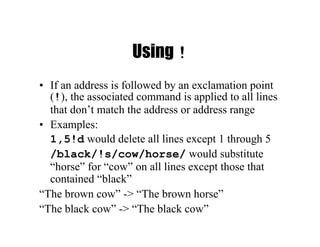
Using !
• If an address is followed by an exclamation point
(!), the associated command is applied to all lines
that don’t match the address or address range
• Examples:
1,5!d would delete all lines except 1 through 5
/black/!s/cow/horse/ would substitute
“horse” for “cow” on all lines except those that
contained “black”
“The brown cow” -> “The brown horse”
“The black cow” -> “The black cow”
Transform
• The Transform command (y) operates like tr, it
does a one-to-one or character-to-character
replacement
• Transform accepts zero, one or two addresses
• [address[,address]]y/abc/xyz/
– every a within the specified address(es) is transformed
to an x. The same is true for b to y and c to z
– y/abcdefghijklmnopqrstuvwxyz/ABCDEFGHIJKLMNO
PQRSTUVWXYZ/ changes all lower case characters on
the addressed line to upper case
– If you only want to transform specific characters (or a
word) in the line, it is much more difficult and requires
use of the hold space
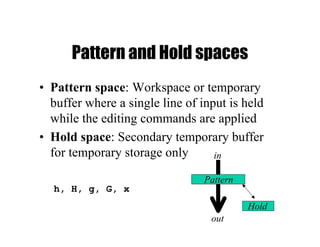
Pattern and Hold spaces
• Pattern space: Workspace or temporary
buffer where a single line of input is held
while the editing commands are applied
• Hold space: Secondary temporary buffer
for temporary storage only
Pattern
Hold
in
out
h, H, g, G, x
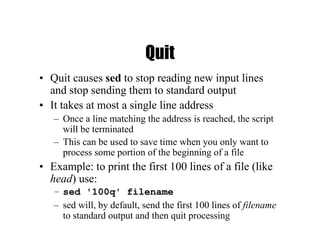
Quit
• Quit causes sed to stop reading new input lines
and stop sending them to standard output
• It takes at most a single line address
– Once a line matching the address is reached, the script
will be terminated
– This can be used to save time when you only want to
process some portion of the beginning of a file
• Example: to print the first 100 lines of a file (like
head) use:
– sed '100q' filename
– sed will, by default, send the first 100 lines of filename
to standard output and then quit processing
Sed Advantages
• Regular expressions
• Fast
• Concise
Sed Drawbacks
• Hard to remember text from one line to
another
• Not possible to go backward in the file
• No way to do forward references like
/..../+1
• No facilities to manipulate numbers
• Cumbersome syntax
Awk
Programmable Filters
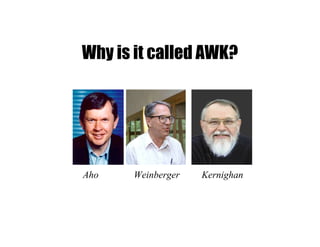
Aho Weinberger Kernighan
Why is it called AWK?
Awk Introduction
• awk's purpose: A general purpose programmable
filter that handles text (strings) as easily as numbers
– This makes awk one of the most powerful of the Unix
utilities
• awk processes fields while sed only processes lines
• nawk (new awk) is the new standard for awk
– Designed to facilitate large awk programs
– gawk is a free nawk clone from GNU
• awk gets it’s input from
– files
– redirection and pipes
– directly from standard input
AWK Highlights
• A programming language for handling common
data manipulation tasks with only a few lines of
code
• awk is a pattern-action language, like sed
• The language looks a little like C but
automatically handles input, field splitting,
initialization, and memory management
– Built-in string and number data types
– No variable type declarations
• awk is a great prototyping language
– Start with a few lines and keep adding until it does
what you want
Awk Features over Sed
• Convenient numeric processing
• Variables and control flow in the actions
• Convenient way of accessing fields within
lines
• Flexible printing
• Built-in arithmetic and string functions
• C-like syntax
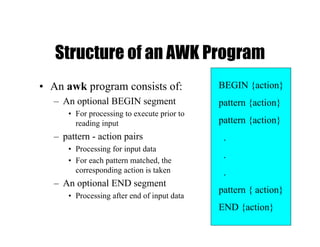
BEGIN {action}
pattern {action}
pattern {action}
.
.
.
pattern { action}
END {action}
Structure of an AWK Program
• An awk program consists of:
– An optional BEGIN segment
• For processing to execute prior to
reading input
– pattern - action pairs
• Processing for input data
• For each pattern matched, the
corresponding action is taken
– An optional END segment
• Processing after end of input data
Running an AWK Program
• There are several ways to run an Awk program
– awk 'program' input_file(s)
• program and input files are provided as command-line
arguments
– awk 'program'
• program is a command-line argument; input is taken from
standard input (yes, awk is a filter!)
– awk -f program_file input_files
• program is read from a file
Patterns and Actions
• Search a set of files for patterns.
• Perform specified actions upon lines or
fields that contain instances of patterns.
• Does not alter input files.
• Process one input line at a time
• This is similar to sed
Pattern-Action Structure
• Every program statement has to have a pattern or an
action or both
• Default pattern is to match all lines
• Default action is to print current record
• Patterns are simply listed; actions are enclosed in { }
• awk scans a sequence of input lines, or records, one
by one, searching for lines that match the pattern
– Meaning of match depends on the pattern
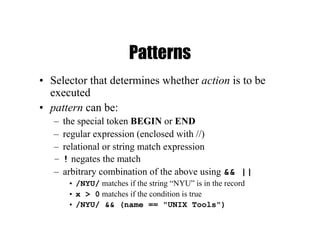
Patterns
• Selector that determines whether action is to be
executed
• pattern can be:
– the special token BEGIN or END
– regular expression (enclosed with //)
– relational or string match expression
– ! negates the match
– arbitrary combination of the above using && ||
• /NYU/ matches if the string “NYU” is in the record
• x > 0 matches if the condition is true
• /NYU/ && (name == "UNIX Tools")
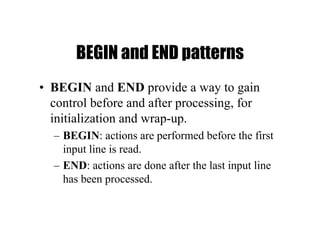
BEGIN and END patterns
• BEGIN and END provide a way to gain
control before and after processing, for
initialization and wrap-up.
– BEGIN: actions are performed before the first
input line is read.
– END: actions are done after the last input line
has been processed.
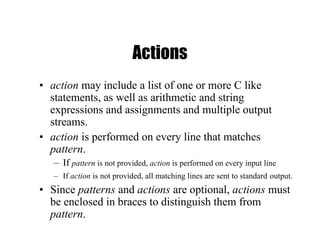
Actions
• action may include a list of one or more C like
statements, as well as arithmetic and string
expressions and assignments and multiple output
streams.
• action is performed on every line that matches
pattern.
– If pattern is not provided, action is performed on every input line
– If action is not provided, all matching lines are sent to standard output.
• Since patterns and actions are optional, actions must
be enclosed in braces to distinguish them from
pattern.
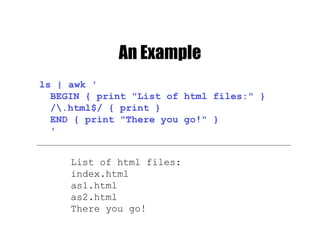
An Example
ls | awk '
BEGIN { print "List of html files:" }
/.html$/ { print }
END { print "There you go!" }
'
List of html files:
index.html
as1.html
as2.html
There you go!
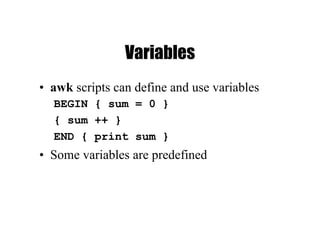
Variables
• awk scripts can define and use variables
BEGIN { sum = 0 }
{ sum ++ }
END { print sum }
• Some variables are predefined
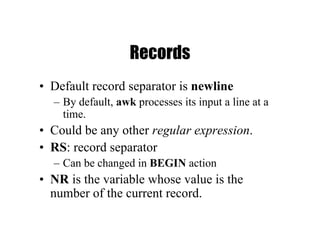
Records
• Default record separator is newline
– By default, awk processes its input a line at a
time.
• Could be any other regular expression.
• RS: record separator
– Can be changed in BEGIN action
• NR is the variable whose value is the
number of the current record.
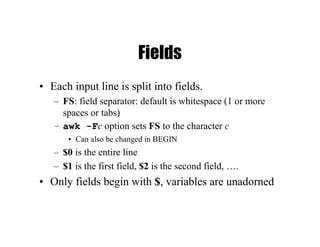
Fields
• Each input line is split into fields.
– FS: field separator: default is whitespace (1 or more
spaces or tabs)
– awk -Fc option sets FS to the character c
• Can also be changed in BEGIN
– $0 is the entire line
– $1 is the first field, $2 is the second field, ….
• Only fields begin with $, variables are unadorned
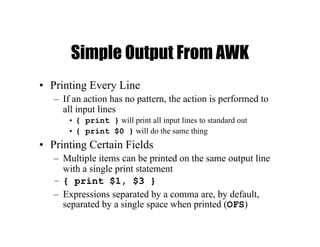
Simple Output From AWK
• Printing Every Line
– If an action has no pattern, the action is performed to
all input lines
• { print } will print all input lines to standard out
• { print $0 } will do the same thing
• Printing Certain Fields
– Multiple items can be printed on the same output line
with a single print statement
– { print $1, $3 }
– Expressions separated by a comma are, by default,
separated by a single space when printed (OFS)
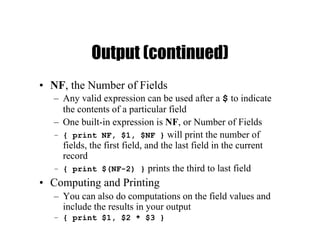
Output (continued)
• NF, the Number of Fields
– Any valid expression can be used after a $ to indicate
the contents of a particular field
– One built-in expression is NF, or Number of Fields
– { print NF, $1, $NF } will print the number of
fields, the first field, and the last field in the current
record
– { print $(NF-2) } prints the third to last field
• Computing and Printing
– You can also do computations on the field values and
include the results in your output
– { print $1, $2 * $3 }
Output (continued)
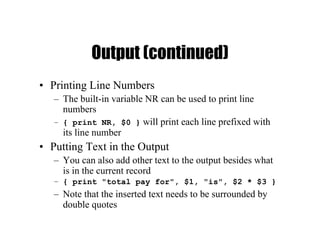
• Printing Line Numbers
– The built-in variable NR can be used to print line
numbers
– { print NR, $0 } will print each line prefixed with
its line number
• Putting Text in the Output
– You can also add other text to the output besides what
is in the current record
– { print "total pay for", $1, "is", $2 * $3 }
– Note that the inserted text needs to be surrounded by
double quotes
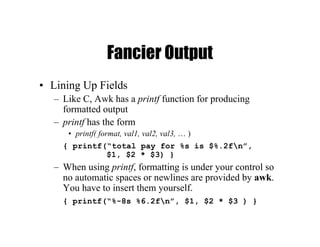
Fancier Output
• Lining Up Fields
– Like C, Awk has a printf function for producing
formatted output
– printf has the form
• printf( format, val1, val2, val3, … )
{ printf(“total pay for %s is $%.2fn”,
$1, $2 * $3) }
– When using printf, formatting is under your control so
no automatic spaces or newlines are provided by awk.
You have to insert them yourself.
{ printf(“%-8s %6.2fn”, $1, $2 * $3 ) }
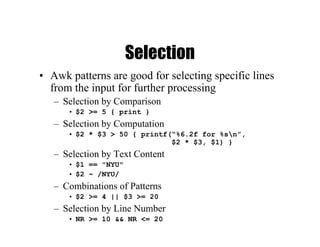
Selection
• Awk patterns are good for selecting specific lines
from the input for further processing
– Selection by Comparison
• $2 >= 5 { print }
– Selection by Computation
• $2 * $3 > 50 { printf(“%6.2f for %sn”,
$2 * $3, $1) }
– Selection by Text Content
• $1 == "NYU"
• $2 ~ /NYU/
– Combinations of Patterns
• $2 >= 4 || $3 >= 20
– Selection by Line Number
• NR >= 10 && NR <= 20
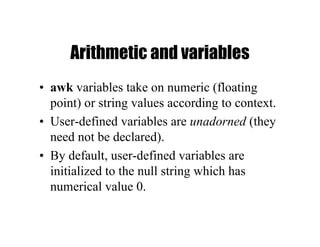
Arithmetic and variables
• awk variables take on numeric (floating
point) or string values according to context.
• User-defined variables are unadorned (they
need not be declared).
• By default, user-defined variables are
initialized to the null string which has
numerical value 0.
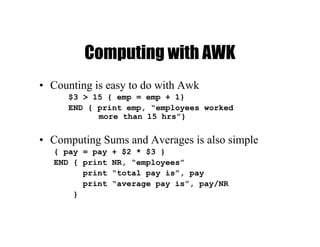
Computing with AWK
• Counting is easy to do with Awk
$3 > 15 { emp = emp + 1}
END { print emp, “employees worked
more than 15 hrs”}
• Computing Sums and Averages is also simple
{ pay = pay + $2 * $3 }
END { print NR, “employees”
print “total pay is”, pay
print “average pay is”, pay/NR
}
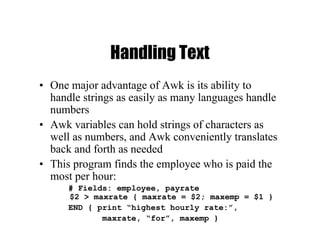
Handling Text
• One major advantage of Awk is its ability to
handle strings as easily as many languages handle
numbers
• Awk variables can hold strings of characters as
well as numbers, and Awk conveniently translates
back and forth as needed
• This program finds the employee who is paid the
most per hour:
# Fields: employee, payrate
$2 > maxrate { maxrate = $2; maxemp = $1 }
END { print “highest hourly rate:”,
maxrate, “for”, maxemp }
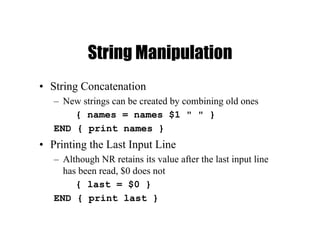
String Manipulation
• String Concatenation
– New strings can be created by combining old ones
{ names = names $1 " " }
END { print names }
• Printing the Last Input Line
– Although NR retains its value after the last input line
has been read, $0 does not
{ last = $0 }
END { print last }
Built-in Functions
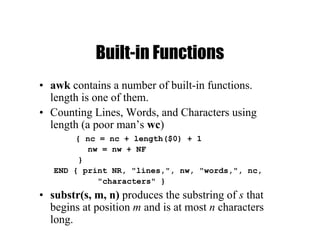
• awk contains a number of built-in functions.
length is one of them.
• Counting Lines, Words, and Characters using
length (a poor man’s wc)
{ nc = nc + length($0) + 1
nw = nw + NF
}
END { print NR, "lines,", nw, "words,", nc,
"characters" }
• substr(s, m, n) produces the substring of s that
begins at position m and is at most n characters
long.
Control Flow Statements
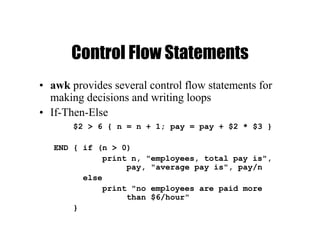
• awk provides several control flow statements for
making decisions and writing loops
• If-Then-Else
$2 > 6 { n = n + 1; pay = pay + $2 * $3 }
END { if (n > 0)
print n, "employees, total pay is",
pay, "average pay is", pay/n
else
print "no employees are paid more
than $6/hour"
}
Loop Control
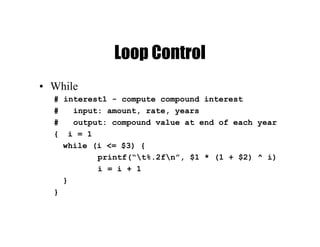
• While
# interest1 - compute compound interest
# input: amount, rate, years
# output: compound value at end of each year
{ i = 1
while (i <= $3) {
printf(“t%.2fn”, $1 * (1 + $2) ^ i)
i = i + 1
}
}
Do-While Loops
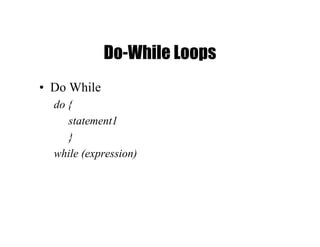
• Do While
do {
statement1
}
while (expression)
For statements
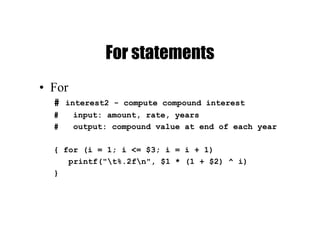
• For
# interest2 - compute compound interest
# input: amount, rate, years
# output: compound value at end of each year
{ for (i = 1; i <= $3; i = i + 1)
printf("t%.2fn", $1 * (1 + $2) ^ i)
}
Arrays
• Array elements are not declared
• Array subscripts can have any value:
– Numbers
– Strings! (associative arrays)
• Examples
– arr[3]="value"
– grade[”Mohri"]=40.3
Array Example
# reverse - print input in reverse order by line
{ line[NR] = $0 } # remember each line
END {
for (i=NR; (i > 0); i=i-1) {
print line[i]
}
}
• for loop to read associative array
– for (v in array) { … }
– Assigns to v each subscript of array (unordered)
– Element is array[v]
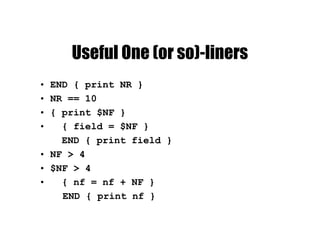
Useful One (or so)-liners
• END { print NR }
• NR == 10
• { print $NF }
• { field = $NF }
END { print field }
• NF > 4
• $NF > 4
• { nf = nf + NF }
END { print nf }
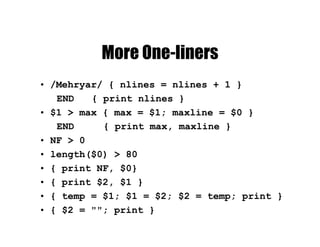
More One-liners
• /Mehryar/ { nlines = nlines + 1 }
END { print nlines }
• $1 > max { max = $1; maxline = $0 }
END { print max, maxline }
• NF > 0
• length($0) > 80
• { print NF, $0}
• { print $2, $1 }
• { temp = $1; $1 = $2; $2 = temp; print }
• { $2 = ""; print }
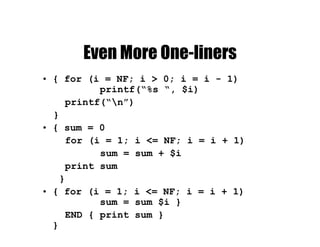
Even More One-liners
• { for (i = NF; i > 0; i = i - 1)
printf(“%s “, $i)
printf(“n”)
}
• { sum = 0
for (i = 1; i <= NF; i = i + 1)
sum = sum + $i
print sum
}
• { for (i = 1; i <= NF; i = i + 1)
sum = sum $i }
END { print sum }
}
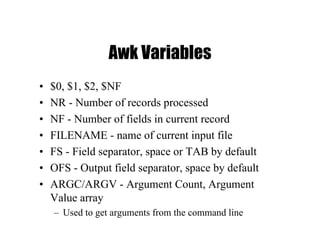
Awk Variables
• $0, $1, $2, $NF
• NR - Number of records processed
• NF - Number of fields in current record
• FILENAME - name of current input file
• FS - Field separator, space or TAB by default
• OFS - Output field separator, space by default
• ARGC/ARGV - Argument Count, Argument
Value array
– Used to get arguments from the command line
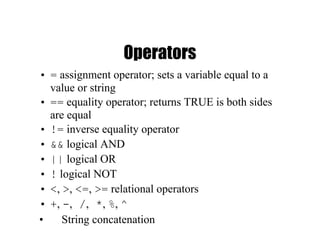
Operators
• = assignment operator; sets a variable equal to a
value or string
• == equality operator; returns TRUE is both sides
are equal
• != inverse equality operator
• && logical AND
• || logical OR
• ! logical NOT
• <, >, <=, >= relational operators
• +, -, /, *, %, ^
• String concatenation
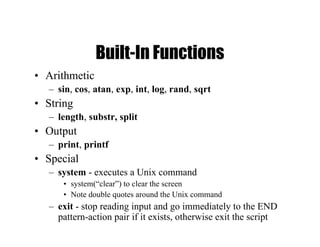
Built-In Functions
• Arithmetic
– sin, cos, atan, exp, int, log, rand, sqrt
• String
– length, substr, split
• Output
– print, printf
• Special
– system - executes a Unix command
• system(“clear”) to clear the screen
• Note double quotes around the Unix command
– exit - stop reading input and go immediately to the END
pattern-action pair if it exists, otherwise exit the script
More Information
on the website

Lect5

  • 1.
  • 2.
    Last week • RegularExpressions – grep – egrep
  • 3.
  • 4.
    Sed: Stream-oriented, Non- Interactive,Text Editor • Look for patterns one line at a time, like grep • Change lines of the file • Non-interactive text editor – Editing commands come in as script – There is an interactive editor ed which accepts the same commands • A Unix filter – Superset of previously mentioned tools
  • 5.
    Conceptual overview · Allediting commands in a sed script are applied in order to each input line. • If a command changes the input, subsequent command address will be applied to the current (modified) line in the pattern space, not the original input line. • The original input file is unchanged (sed is a filter), and the results are sent to standard output (but can be redirected to a file).
  • 6.
  • 7.
    Scripts • A scriptis nothing more than a file of commands • Each command consists of up to two addresses and an action, where the address can be a regular expression or line number. address action command address action address action address action address action script
  • 8.
    Scripts (continued) • Aseach line of the input file is read, sed reads the first command of the script and checks the address against the current input line: – If there is a match, the command is executed – If there is no match, the command is ignored – sed then repeats this action for every command in the script file • When it has reached the end of the script, sed outputs the current line (pattern space) unless the -n option has been set
  • 9.
    Sed Flow ofControl • sed then reads the next line in the input file and restarts from the beginning of the script file • All commands in the script file are compared to, and potentially act on, all lines in the input file . . .cmd 1 cmd ncmd 2 script input output output only without -n print cmd
  • 10.
    sed Commands • sedcommands have the general form – [address[, address]][!]command [arguments] • sed copies each input line into a pattern space – If the address of the command matches the line in the pattern space, the command is applied to that line – If the command has no address, it is applied to each line as it enters pattern space – If a command changes the line in pattern space, subsequent commands operate on the modified line • When all commands have been read, the line in pattern space is written to standard output and a new line is read into pattern space
  • 11.
    Addressing • An addresscan be either a line number or a pattern, enclosed in slashes ( /pattern/ ) • A pattern is described using regular expressions (BREs, as in grep) • If no pattern is specified, the command will be applied to all lines of the input file • To refer to the last line: $
  • 12.
    Addressing (continued) • Mostcommands will accept two addresses – If only one address is given, the command operates only on that line – If two comma separated addresses are given, then the command operates on a range of lines between the first and second address, inclusively • The ! operator can be used to negate an address, ie; address!command causes command to be applied to all lines that do not match address
  • 13.
    Commands • command isa single letter • Example: Deletion: d • [address1][,address2]d – Delete the addressed line(s) from the pattern space; line(s) not passed to standard output. – A new line of input is read and editing resumes with the first command of the script.
  • 14.
    Address and CommandExamples • d deletes the all lines • 6d deletes line 6 • /^$/d deletes all blank lines • 1,10d deletes lines 1 through 10 • 1,/^$/d deletes from line 1 through the first blank line • /^$/,$d deletes from the first blank line through the last line of the file • /^$/,10d deletes from the first blank line through line 10 • /^ya*y/,/[0-9]$/d deletes from the first line that begins with yay, yaay, yaaay, etc. through the first line that ends with a digit
  • 15.
    Multiple Commands • Braces{} can be used to apply multiple commands to an address [/pattern/[,/pattern/]]{ command1 command2 command3 } • Strange syntax: – The opening brace must be the last character on a line – The closing brace must be on a line by itself – Make sure there are no spaces following the braces
  • 16.
    Sed Commands • Althoughsed contains many editing commands, we are only going to cover the following subset: • d - delete •p - print • y - transform • q - quit • s - substitute • a - append • i - insert • c - change
  • 17.
    sed Syntax • Syntax:sed [-n] [-e] [‘command’] [file…] sed [-n] [-f scriptfile] [file…] – -n - only print lines specified with the print command (or the ‘p’ flag of the substitute (‘s’) command) – -f scriptfile - next argument is a filename containing editing commands – -e command - the next argument is an editing command rather than a filename, useful if multiple commands are specified – If the first line of a scriptfile is “#n”, sed acts as though -n had been specified
  • 18.
    Print • The Printcommand (p) can be used to force the pattern space to be output, useful if the -n option has been specified • Syntax: [address1[,address2]]p • Note: if the -n or #n option has not been specified, p will cause the line to be output twice! • Examples: 1,5p will display lines 1 through 5 /^$/,$p will display the lines from the first blank line through the last line of the file
  • 19.
    Substitute • Syntax: [address(es)]s/pattern/replacement/[flags] – pattern- search pattern – replacement - replacement string for pattern – flags - optionally any of the following • n a number from 1 to 512 indicating which occurrence of pattern should be replaced • g global, replace all occurrences of pattern in pattern space • p print contents of pattern space
  • 20.
    Substitute Examples • s/PuffDaddy/P. Diddy/ – Substitute P. Diddy for the first occurrence of Puff Daddy in pattern space • s/Tom/Dick/2 – Substitutes Dick for the second occurrence of Tom in the pattern space • s/wood/plastic/p – Substitutes plastic for the first occurrence of wood and outputs (prints) pattern space
  • 21.
    Replacement Patterns • Substitutecan use several special characters in the replacement string – & - replaced by the entire string matched in the regular expression for pattern – n - replaced by the nth substring (or subexpression) previously specified using “(“ and “)” – - used to escape the ampersand (&) and the backslash ()
  • 22.
    Replacement Pattern Examples "theUNIX operating system …" s/.NI./wonderful &/ "the wonderful UNIX operating system …" cat test1 first:second one:two sed 's/(.*):(.*)/2:1/' test1 second:first two:one sed 's/([[:alpha:]])([^ n]*)/21ay/g' – Pig Latin ("unix is fun" -> "nixuay siay unfay")
  • 23.
    Append, Insert, andChange • Syntax for these commands is a little strange because they must be specified on multiple lines • append [address]a text • insert [address]i text • change [address(es)]c text • append/insert for single lines only, not range
  • 24.
    Append and Insert •Append places text after the current line in pattern space • Insert places text before the current line in pattern space – Each of these commands requires a following it. text must begin on the next line. – If text begins with whitespace, sed will discard it unless you start the line with a • Example: /<Insert Text Here>/i Line 1 of inserted text Line 2 of inserted text would leave the following in the pattern space Line 1 of inserted text Line 2 of inserted text <Insert Text Here>
  • 25.
    Change • Unlike Insertand Append, Change can be applied to either a single line address or a range of addresses • When applied to a range, the entire range is replaced by text specified with change, not each line – Exception: If the Change command is executed with other commands enclosed in { } that act on a range of lines, each line will be replaced with text • No subsequent editing allowed
  • 26.
    Change Examples • Removemail headers, ie; the address specifies a range of lines beginning with a line that begins with From until the first blank line. – The first example replaces all lines with a single occurrence of <Mail Header Removed>. – The second example replaces each line with <Mail Header Removed> /^From /,/^$/c <Mail Headers Removed> /^From /,/^$/{ s/^From //p c <Mail Header Removed> }
  • 27.
    Using ! • Ifan address is followed by an exclamation point (!), the associated command is applied to all lines that don’t match the address or address range • Examples: 1,5!d would delete all lines except 1 through 5 /black/!s/cow/horse/ would substitute “horse” for “cow” on all lines except those that contained “black” “The brown cow” -> “The brown horse” “The black cow” -> “The black cow”
  • 28.
    Transform • The Transformcommand (y) operates like tr, it does a one-to-one or character-to-character replacement • Transform accepts zero, one or two addresses • [address[,address]]y/abc/xyz/ – every a within the specified address(es) is transformed to an x. The same is true for b to y and c to z – y/abcdefghijklmnopqrstuvwxyz/ABCDEFGHIJKLMNO PQRSTUVWXYZ/ changes all lower case characters on the addressed line to upper case – If you only want to transform specific characters (or a word) in the line, it is much more difficult and requires use of the hold space
  • 29.
    Pattern and Holdspaces • Pattern space: Workspace or temporary buffer where a single line of input is held while the editing commands are applied • Hold space: Secondary temporary buffer for temporary storage only Pattern Hold in out h, H, g, G, x
  • 30.
    Quit • Quit causessed to stop reading new input lines and stop sending them to standard output • It takes at most a single line address – Once a line matching the address is reached, the script will be terminated – This can be used to save time when you only want to process some portion of the beginning of a file • Example: to print the first 100 lines of a file (like head) use: – sed '100q' filename – sed will, by default, send the first 100 lines of filename to standard output and then quit processing
  • 31.
    Sed Advantages • Regularexpressions • Fast • Concise
  • 32.
    Sed Drawbacks • Hardto remember text from one line to another • Not possible to go backward in the file • No way to do forward references like /..../+1 • No facilities to manipulate numbers • Cumbersome syntax
  • 33.
  • 34.
  • 35.
    Awk Introduction • awk'spurpose: A general purpose programmable filter that handles text (strings) as easily as numbers – This makes awk one of the most powerful of the Unix utilities • awk processes fields while sed only processes lines • nawk (new awk) is the new standard for awk – Designed to facilitate large awk programs – gawk is a free nawk clone from GNU • awk gets it’s input from – files – redirection and pipes – directly from standard input
  • 36.
    AWK Highlights • Aprogramming language for handling common data manipulation tasks with only a few lines of code • awk is a pattern-action language, like sed • The language looks a little like C but automatically handles input, field splitting, initialization, and memory management – Built-in string and number data types – No variable type declarations • awk is a great prototyping language – Start with a few lines and keep adding until it does what you want
  • 37.
    Awk Features overSed • Convenient numeric processing • Variables and control flow in the actions • Convenient way of accessing fields within lines • Flexible printing • Built-in arithmetic and string functions • C-like syntax
  • 38.
    BEGIN {action} pattern {action} pattern{action} . . . pattern { action} END {action} Structure of an AWK Program • An awk program consists of: – An optional BEGIN segment • For processing to execute prior to reading input – pattern - action pairs • Processing for input data • For each pattern matched, the corresponding action is taken – An optional END segment • Processing after end of input data
  • 39.
    Running an AWKProgram • There are several ways to run an Awk program – awk 'program' input_file(s) • program and input files are provided as command-line arguments – awk 'program' • program is a command-line argument; input is taken from standard input (yes, awk is a filter!) – awk -f program_file input_files • program is read from a file
  • 40.
    Patterns and Actions •Search a set of files for patterns. • Perform specified actions upon lines or fields that contain instances of patterns. • Does not alter input files. • Process one input line at a time • This is similar to sed
  • 41.
    Pattern-Action Structure • Everyprogram statement has to have a pattern or an action or both • Default pattern is to match all lines • Default action is to print current record • Patterns are simply listed; actions are enclosed in { } • awk scans a sequence of input lines, or records, one by one, searching for lines that match the pattern – Meaning of match depends on the pattern
  • 42.
    Patterns • Selector thatdetermines whether action is to be executed • pattern can be: – the special token BEGIN or END – regular expression (enclosed with //) – relational or string match expression – ! negates the match – arbitrary combination of the above using && || • /NYU/ matches if the string “NYU” is in the record • x > 0 matches if the condition is true • /NYU/ && (name == "UNIX Tools")
  • 43.
    BEGIN and ENDpatterns • BEGIN and END provide a way to gain control before and after processing, for initialization and wrap-up. – BEGIN: actions are performed before the first input line is read. – END: actions are done after the last input line has been processed.
  • 44.
    Actions • action mayinclude a list of one or more C like statements, as well as arithmetic and string expressions and assignments and multiple output streams. • action is performed on every line that matches pattern. – If pattern is not provided, action is performed on every input line – If action is not provided, all matching lines are sent to standard output. • Since patterns and actions are optional, actions must be enclosed in braces to distinguish them from pattern.
  • 45.
    An Example ls |awk ' BEGIN { print "List of html files:" } /.html$/ { print } END { print "There you go!" } ' List of html files: index.html as1.html as2.html There you go!
  • 46.
    Variables • awk scriptscan define and use variables BEGIN { sum = 0 } { sum ++ } END { print sum } • Some variables are predefined
  • 47.
    Records • Default recordseparator is newline – By default, awk processes its input a line at a time. • Could be any other regular expression. • RS: record separator – Can be changed in BEGIN action • NR is the variable whose value is the number of the current record.
  • 48.
    Fields • Each inputline is split into fields. – FS: field separator: default is whitespace (1 or more spaces or tabs) – awk -Fc option sets FS to the character c • Can also be changed in BEGIN – $0 is the entire line – $1 is the first field, $2 is the second field, …. • Only fields begin with $, variables are unadorned
  • 49.
    Simple Output FromAWK • Printing Every Line – If an action has no pattern, the action is performed to all input lines • { print } will print all input lines to standard out • { print $0 } will do the same thing • Printing Certain Fields – Multiple items can be printed on the same output line with a single print statement – { print $1, $3 } – Expressions separated by a comma are, by default, separated by a single space when printed (OFS)
  • 50.
    Output (continued) • NF,the Number of Fields – Any valid expression can be used after a $ to indicate the contents of a particular field – One built-in expression is NF, or Number of Fields – { print NF, $1, $NF } will print the number of fields, the first field, and the last field in the current record – { print $(NF-2) } prints the third to last field • Computing and Printing – You can also do computations on the field values and include the results in your output – { print $1, $2 * $3 }
  • 51.
    Output (continued) • PrintingLine Numbers – The built-in variable NR can be used to print line numbers – { print NR, $0 } will print each line prefixed with its line number • Putting Text in the Output – You can also add other text to the output besides what is in the current record – { print "total pay for", $1, "is", $2 * $3 } – Note that the inserted text needs to be surrounded by double quotes
  • 52.
    Fancier Output • LiningUp Fields – Like C, Awk has a printf function for producing formatted output – printf has the form • printf( format, val1, val2, val3, … ) { printf(“total pay for %s is $%.2fn”, $1, $2 * $3) } – When using printf, formatting is under your control so no automatic spaces or newlines are provided by awk. You have to insert them yourself. { printf(“%-8s %6.2fn”, $1, $2 * $3 ) }
  • 53.
    Selection • Awk patternsare good for selecting specific lines from the input for further processing – Selection by Comparison • $2 >= 5 { print } – Selection by Computation • $2 * $3 > 50 { printf(“%6.2f for %sn”, $2 * $3, $1) } – Selection by Text Content • $1 == "NYU" • $2 ~ /NYU/ – Combinations of Patterns • $2 >= 4 || $3 >= 20 – Selection by Line Number • NR >= 10 && NR <= 20
  • 54.
    Arithmetic and variables •awk variables take on numeric (floating point) or string values according to context. • User-defined variables are unadorned (they need not be declared). • By default, user-defined variables are initialized to the null string which has numerical value 0.
  • 55.
    Computing with AWK •Counting is easy to do with Awk $3 > 15 { emp = emp + 1} END { print emp, “employees worked more than 15 hrs”} • Computing Sums and Averages is also simple { pay = pay + $2 * $3 } END { print NR, “employees” print “total pay is”, pay print “average pay is”, pay/NR }
  • 56.
    Handling Text • Onemajor advantage of Awk is its ability to handle strings as easily as many languages handle numbers • Awk variables can hold strings of characters as well as numbers, and Awk conveniently translates back and forth as needed • This program finds the employee who is paid the most per hour: # Fields: employee, payrate $2 > maxrate { maxrate = $2; maxemp = $1 } END { print “highest hourly rate:”, maxrate, “for”, maxemp }
  • 57.
    String Manipulation • StringConcatenation – New strings can be created by combining old ones { names = names $1 " " } END { print names } • Printing the Last Input Line – Although NR retains its value after the last input line has been read, $0 does not { last = $0 } END { print last }
  • 58.
    Built-in Functions • awkcontains a number of built-in functions. length is one of them. • Counting Lines, Words, and Characters using length (a poor man’s wc) { nc = nc + length($0) + 1 nw = nw + NF } END { print NR, "lines,", nw, "words,", nc, "characters" } • substr(s, m, n) produces the substring of s that begins at position m and is at most n characters long.
  • 59.
    Control Flow Statements •awk provides several control flow statements for making decisions and writing loops • If-Then-Else $2 > 6 { n = n + 1; pay = pay + $2 * $3 } END { if (n > 0) print n, "employees, total pay is", pay, "average pay is", pay/n else print "no employees are paid more than $6/hour" }
  • 60.
    Loop Control • While #interest1 - compute compound interest # input: amount, rate, years # output: compound value at end of each year { i = 1 while (i <= $3) { printf(“t%.2fn”, $1 * (1 + $2) ^ i) i = i + 1 } }
  • 61.
    Do-While Loops • DoWhile do { statement1 } while (expression)
  • 62.
    For statements • For #interest2 - compute compound interest # input: amount, rate, years # output: compound value at end of each year { for (i = 1; i <= $3; i = i + 1) printf("t%.2fn", $1 * (1 + $2) ^ i) }
  • 63.
    Arrays • Array elementsare not declared • Array subscripts can have any value: – Numbers – Strings! (associative arrays) • Examples – arr[3]="value" – grade[”Mohri"]=40.3
  • 64.
    Array Example # reverse- print input in reverse order by line { line[NR] = $0 } # remember each line END { for (i=NR; (i > 0); i=i-1) { print line[i] } } • for loop to read associative array – for (v in array) { … } – Assigns to v each subscript of array (unordered) – Element is array[v]
  • 65.
    Useful One (orso)-liners • END { print NR } • NR == 10 • { print $NF } • { field = $NF } END { print field } • NF > 4 • $NF > 4 • { nf = nf + NF } END { print nf }
  • 66.
    More One-liners • /Mehryar/{ nlines = nlines + 1 } END { print nlines } • $1 > max { max = $1; maxline = $0 } END { print max, maxline } • NF > 0 • length($0) > 80 • { print NF, $0} • { print $2, $1 } • { temp = $1; $1 = $2; $2 = temp; print } • { $2 = ""; print }
  • 67.
    Even More One-liners •{ for (i = NF; i > 0; i = i - 1) printf(“%s “, $i) printf(“n”) } • { sum = 0 for (i = 1; i <= NF; i = i + 1) sum = sum + $i print sum } • { for (i = 1; i <= NF; i = i + 1) sum = sum $i } END { print sum } }
  • 68.
    Awk Variables • $0,$1, $2, $NF • NR - Number of records processed • NF - Number of fields in current record • FILENAME - name of current input file • FS - Field separator, space or TAB by default • OFS - Output field separator, space by default • ARGC/ARGV - Argument Count, Argument Value array – Used to get arguments from the command line
  • 69.
    Operators • = assignmentoperator; sets a variable equal to a value or string • == equality operator; returns TRUE is both sides are equal • != inverse equality operator • && logical AND • || logical OR • ! logical NOT • <, >, <=, >= relational operators • +, -, /, *, %, ^ • String concatenation
  • 70.
    Built-In Functions • Arithmetic –sin, cos, atan, exp, int, log, rand, sqrt • String – length, substr, split • Output – print, printf • Special – system - executes a Unix command • system(“clear”) to clear the screen • Note double quotes around the Unix command – exit - stop reading input and go immediately to the END pattern-action pair if it exists, otherwise exit the script
  • 71.