Graphics 1
Graphics & Graphical
Programming
Lecture 2 - Graphics Fundamentals
Graphics 2
Fundamentals Outline
• Historical perspective
• Model of a Computer - Memory & Graphics
• Devices
• Raster Model & Bitmaps
• Coordinates
• Drawing Spaces
• Colours
• Graphics Libraries
Graphics 3
Brief History
• Teletypes(pre 1950s), Display Tubes(post
WW2), CRTs(last half of 20th century), Flat
Panels (modern era)
• Size and Quality (eg resolution) driven by
economics (eg 640x320…1024x768…)
• Vector (circa WW2) & Raster/Bitmap models
• Devices & Human / Machine Interaction
• Memory and Processing Speed limitations
Graphics 4
Computer Memory Model
• Main Memory
• Graphics memory
– Used to be limited to separate
amount on eg graphics card
– Modern idea is to partition
main memory dynamically
(ie by software instruction)
• Modern idea is to map
memory to the display
• Independent of display
hardware type
• CPU + Cache memory +
Main memory
• Cache memory is fast but
expensive so (still often)
only have small amount eg
512kBytes available
• Main memory relatively
plentiful (eg GBytes) but
slow
Graphics 5
Memory & Graphics
• Idea is that we can write
programs that interact
with the graphical
display device simply
by writing to a
predetermined area of the
computer’s memory
• Known as Bitmap graphics
• The bits are mapped to the
pixels
• Flexible, portable software
• Independent of Hardware &
Operating System
Graphics 6
Graphical Devices
• Devices eg mouse,
stereo glasses, tracker
ball, light pen, touch
screen, 3d-wand, “rat”,
sensor gloves, head
tracker, iris tracker,…
• Even Mouse varies in
form factor and number
of buttons
• Mouse - most well known
device
• Buttons, and scan movements
• Jargon ideas that have become
common:
– Drag
– Click
– Double-Click
– Left -Click
• Main idea is to let you specify a
location in a space eg x,y (or
x,y,z) coordinates
Graphics 7
Raster Model - Pixels
• Pixel or sometimes “pel”
Picture Element
• Each pixel is a sample
that can be rendered as a
dot or rectangle on the
screen
• Often try to design them
as squares but not always
• Might be implemented
as small area of
phosphor on a
monochrome monitor
• Or three areas of eg
red, green and blue
phosphors for colour
• Or simple a transistor
logic gate assembly
on a flat panel display
Graphics 8
Coordinate Systems
• Pixel Coordinate System -
rows and columns
• Rectilinear
• Usually for graphics, we
start at top left corner and
work our way across and
down
• Same as raster orientation
• Array[row][column]
• Row major used in C
and C+ ( last index
moves fastest in
memory)
• Not all languages do
it this way - eg Fortran
uses column major
(first index moves
fastest)
Graphics 9
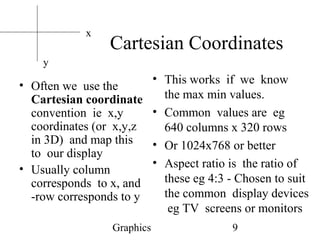
Cartesian Coordinates
• Often we use the
Cartesian coordinate
convention ie x,y
coordinates (or x,y,z
in 3D) and map this
to our display
• Usually column
corresponds to x, and
-row corresponds to y
• This works if we know
the max min values.
• Common values are eg
640 columns x 320 rows
• Or 1024x768 or better
• Aspect ratio is the ratio of
these eg 4:3 - Chosen to suit
the common display devices
eg TV screens or monitors
x
y
Graphics 10
Drawing Space or Canvas
• Coordinate Systems
• Drawing Primitives
• Library of utilities
– eg drawDot( int x, int y);
– Or drawLine( x1, y1, x2, y2 );
• Usually we have “Primitive”
Models for coordinate spaces
and colours
• We do not want to write
our application programs
worrying about pixel
resolutions
• We may have libraries
that allow us to do so, but
often they will support
more general coordinates
• Eg real space
“normalised” coordinates
[0.0,1.0]
Graphics 11
Colours in Brief
• Red Green Blue is not the
Only colour model although
still most common
• We specify separate RGB
values for each pixel
• They map to intensities
• All colours can be expressed
as combination of these
• Sometimes also an “alpha” or
transparency value
• These will conveniently pack
into a computer word of 4
bytes, one byte for each
entity
• 1 Byte gives us 256 values
- hence numbers of colours
• Need not use this resolution
• Can also use Look-up tables
to save memory
Graphics 12
Graphics Libraries and packages
• What is a graphics
system?
• A package or Library
that links to a Language
or environment and lets
us write programs that
are independent of the
graphics hardware and
devices
• Java Development Kit
and Java 2D and Java
3D libraries
• GL and OpenGL
(Graphics Library),
VOGL
• X11, DirectX, PHIGS,…
and lots of others
Graphics 13
Java Graphics Program Outline
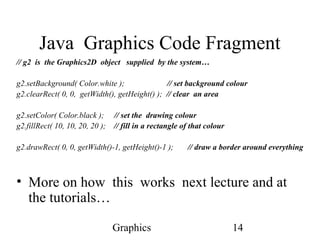
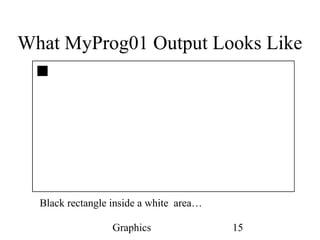
• A short example- MyProg01 draws a black
rectangle inside a white rectangle
• See the course web pages for these codes
• Use a text editor or your favourite text tool
(eg emacs or vi or notepad) to create
MyProg01.java
• Compile it using javac MyProg01.java
• Run using java Myprog01
Graphics 14
Java Graphics Code Fragment
// g2 is the Graphics2D object supplied by the system…
g2.setBackground( Color.white ); // set background colour
g2.clearRect( 0, 0, getWidth(), getHeight() ); // clear an area
g2.setColor( Color.black ); // set the drawing colour
g2.fillRect( 10, 10, 20, 20 ); // fill in a rectangle of that colour
g2.drawRect( 0, 0, getWidth()-1, getHeight()-1 ); // draw a border around everything
• More on how this works next lecture and at
the tutorials…
Graphics 15
What MyProg01 Output Looks Like
Black rectangle inside a white area…
Graphics 16
Summary
• Graphics has a varied
history
• Very technology driven
• Good advances in recent
years with adequate
memory and processing
power
• Primitives and library
layers approach is very
common
• Note devices and
memory model
• Colour models and
drawing spaces are
important ideas for our
programs
• We will use the Java
Development Kit graphics
libraries and primitives

fundamentals of Computer graphics(Computer graphics tutorials)

  • 1.
    Graphics 1 Graphics &Graphical Programming Lecture 2 - Graphics Fundamentals
  • 2.
    Graphics 2 Fundamentals Outline •Historical perspective • Model of a Computer - Memory & Graphics • Devices • Raster Model & Bitmaps • Coordinates • Drawing Spaces • Colours • Graphics Libraries
  • 3.
    Graphics 3 Brief History •Teletypes(pre 1950s), Display Tubes(post WW2), CRTs(last half of 20th century), Flat Panels (modern era) • Size and Quality (eg resolution) driven by economics (eg 640x320…1024x768…) • Vector (circa WW2) & Raster/Bitmap models • Devices & Human / Machine Interaction • Memory and Processing Speed limitations
  • 4.
    Graphics 4 Computer MemoryModel • Main Memory • Graphics memory – Used to be limited to separate amount on eg graphics card – Modern idea is to partition main memory dynamically (ie by software instruction) • Modern idea is to map memory to the display • Independent of display hardware type • CPU + Cache memory + Main memory • Cache memory is fast but expensive so (still often) only have small amount eg 512kBytes available • Main memory relatively plentiful (eg GBytes) but slow
  • 5.
    Graphics 5 Memory &Graphics • Idea is that we can write programs that interact with the graphical display device simply by writing to a predetermined area of the computer’s memory • Known as Bitmap graphics • The bits are mapped to the pixels • Flexible, portable software • Independent of Hardware & Operating System
  • 6.
    Graphics 6 Graphical Devices •Devices eg mouse, stereo glasses, tracker ball, light pen, touch screen, 3d-wand, “rat”, sensor gloves, head tracker, iris tracker,… • Even Mouse varies in form factor and number of buttons • Mouse - most well known device • Buttons, and scan movements • Jargon ideas that have become common: – Drag – Click – Double-Click – Left -Click • Main idea is to let you specify a location in a space eg x,y (or x,y,z) coordinates
  • 7.
    Graphics 7 Raster Model- Pixels • Pixel or sometimes “pel” Picture Element • Each pixel is a sample that can be rendered as a dot or rectangle on the screen • Often try to design them as squares but not always • Might be implemented as small area of phosphor on a monochrome monitor • Or three areas of eg red, green and blue phosphors for colour • Or simple a transistor logic gate assembly on a flat panel display
  • 8.
    Graphics 8 Coordinate Systems •Pixel Coordinate System - rows and columns • Rectilinear • Usually for graphics, we start at top left corner and work our way across and down • Same as raster orientation • Array[row][column] • Row major used in C and C+ ( last index moves fastest in memory) • Not all languages do it this way - eg Fortran uses column major (first index moves fastest)
  • 9.
    Graphics 9 Cartesian Coordinates •Often we use the Cartesian coordinate convention ie x,y coordinates (or x,y,z in 3D) and map this to our display • Usually column corresponds to x, and -row corresponds to y • This works if we know the max min values. • Common values are eg 640 columns x 320 rows • Or 1024x768 or better • Aspect ratio is the ratio of these eg 4:3 - Chosen to suit the common display devices eg TV screens or monitors x y
  • 10.
    Graphics 10 Drawing Spaceor Canvas • Coordinate Systems • Drawing Primitives • Library of utilities – eg drawDot( int x, int y); – Or drawLine( x1, y1, x2, y2 ); • Usually we have “Primitive” Models for coordinate spaces and colours • We do not want to write our application programs worrying about pixel resolutions • We may have libraries that allow us to do so, but often they will support more general coordinates • Eg real space “normalised” coordinates [0.0,1.0]
  • 11.
    Graphics 11 Colours inBrief • Red Green Blue is not the Only colour model although still most common • We specify separate RGB values for each pixel • They map to intensities • All colours can be expressed as combination of these • Sometimes also an “alpha” or transparency value • These will conveniently pack into a computer word of 4 bytes, one byte for each entity • 1 Byte gives us 256 values - hence numbers of colours • Need not use this resolution • Can also use Look-up tables to save memory
  • 12.
    Graphics 12 Graphics Librariesand packages • What is a graphics system? • A package or Library that links to a Language or environment and lets us write programs that are independent of the graphics hardware and devices • Java Development Kit and Java 2D and Java 3D libraries • GL and OpenGL (Graphics Library), VOGL • X11, DirectX, PHIGS,… and lots of others
  • 13.
    Graphics 13 Java GraphicsProgram Outline • A short example- MyProg01 draws a black rectangle inside a white rectangle • See the course web pages for these codes • Use a text editor or your favourite text tool (eg emacs or vi or notepad) to create MyProg01.java • Compile it using javac MyProg01.java • Run using java Myprog01
  • 14.
    Graphics 14 Java GraphicsCode Fragment // g2 is the Graphics2D object supplied by the system… g2.setBackground( Color.white ); // set background colour g2.clearRect( 0, 0, getWidth(), getHeight() ); // clear an area g2.setColor( Color.black ); // set the drawing colour g2.fillRect( 10, 10, 20, 20 ); // fill in a rectangle of that colour g2.drawRect( 0, 0, getWidth()-1, getHeight()-1 ); // draw a border around everything • More on how this works next lecture and at the tutorials…
  • 15.
    Graphics 15 What MyProg01Output Looks Like Black rectangle inside a white area…
  • 16.
    Graphics 16 Summary • Graphicshas a varied history • Very technology driven • Good advances in recent years with adequate memory and processing power • Primitives and library layers approach is very common • Note devices and memory model • Colour models and drawing spaces are important ideas for our programs • We will use the Java Development Kit graphics libraries and primitives