InclusiveTeaching and Learning
17th April 2014
Chris Barber and Eddie Gulc, Jisc RSCYH
Introduction to the session
Reasonable adjustments
Some useful websites
Further information
Scenarios
http://titanpad.com/RSCYH1704
Reasonable Adjustments
http://titanpad.com/RSCYH1704
Jisc Legal - http://jiscleg.al/EqualityOverview
• giving, or arranging for, training or
mentoring (whether for the disabled person
or any other person).
• acquiring or modifying equipment.
• modifying instruction or reference manuals.
• modifying procedures for testing or
assessment.
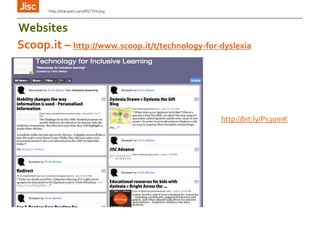
Scoop.it – http://www.scoop.it/t/technology-for-dyslexia
http://bit.ly/Ps3omK
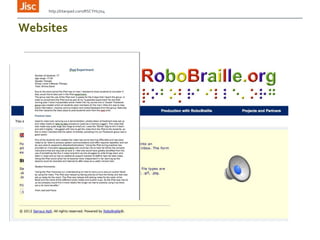
Websites
http://titanpad.com/RSCYH1704
Websites
http://titanpad.com/RSCYH1704
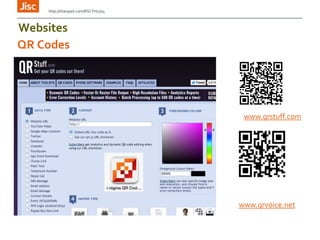
QR Codes
www.qrvoice.net
www.qrstuff.com
Websites
http://titanpad.com/RSCYH1704
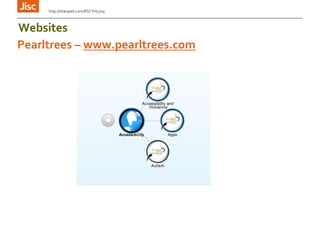
Pearltrees – www.pearltrees.com
Websites
http://titanpad.com/RSCYH1704
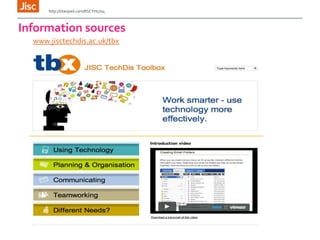
www.jisctechdis.ac.uk/tbx
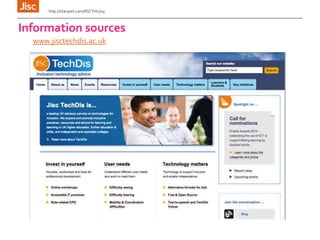
Information sources
http://titanpad.com/RSCYH1704
www.jisctechdis.ac.uk
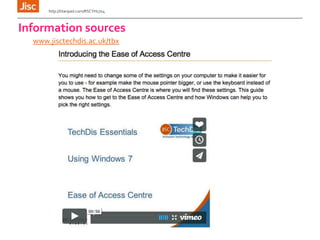
Information sources
http://titanpad.com/RSCYH1704
www.jisctechdis.ac.uk/tbx
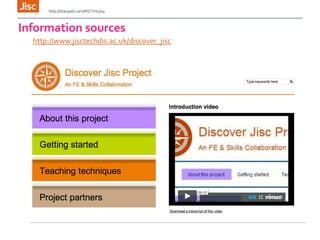
Information sources
http://titanpad.com/RSCYH1704
http://www.jisctechdis.ac.uk/discover_jisc
Information sources
http://titanpad.com/RSCYH1704
Evidencing learning via e-Books
• e-Books have become
increasingly popular because of
their portability, accessibility
and dynamic content
• Issuu and Creative Book Builder
can be used to create your own
e-Books or have learners create
their own e-Books as project
work
• Another online ‘book’ builder
is Creatavist -
www.creatavist.com - can
incorporate videos
http://titanpad.com/RSCYH1704
Scenarios
http://titanpad.com/RSCYH1704
• In 3 groups, consider the scenarios, note that
you don’t have to consider them all!
• How would you solve the issues using the
technology available? Discuss and prepare a
brief presentation.
• Present your findings to the group.
Contact
Chris Barber, Jisc RSCYH
c.p.barber@leeds.ac.uk
support@rsc-yh.ac.uk
www.jiscrsc.ac.uk/YH
0113 343 1000
http://titanpad.com/RSCYH1704

Learning Partnerships Accessibility Session

Editor's Notes

  • #2 Go to ‘View’ menu > ‘Header and Footer…’ to edit the footers on this slide (click ‘Apply’ to change only the currently selected slide, or ‘Apply to All’ to change the footers on all slides).To change the image on this slide:Click once on the image to select it, and then delete itDrag a replacement picture to the placeholder or click the icon in the centre of the placeholder to browse for & add another imageOnce you have added your replacement image, you may need to put it into the background so that it doesn’t cover other items on the slide. Do this by right-clicking on the new image and choosing ‘Arrange’ > ‘Send to Back’ from the contextual menu