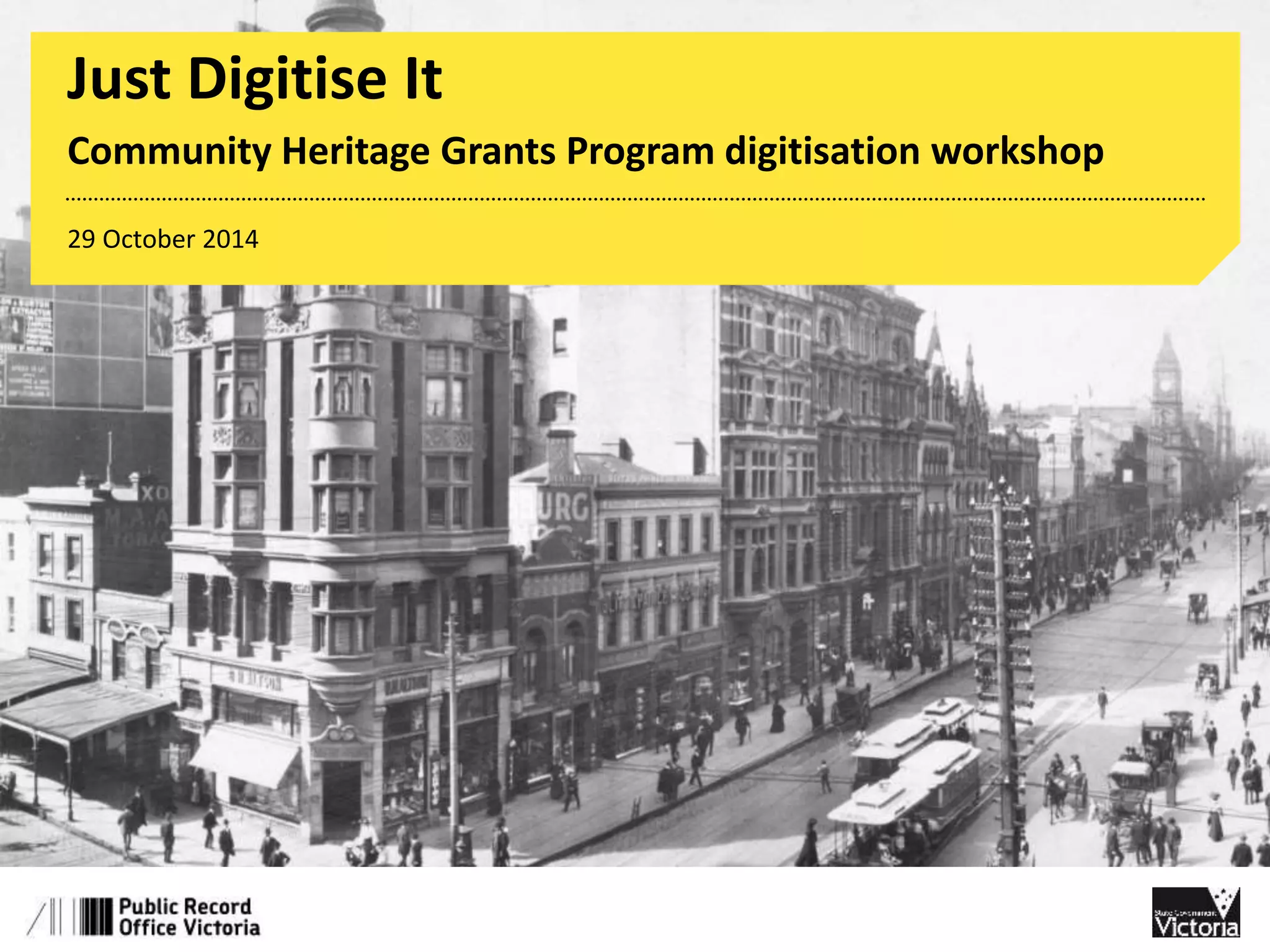
Just Digitise It 
Community Heritage Grants Program digitisation workshop 
29 October 2014
Session outline 
1.35 Arrival and welcome 
1.40 - 2.40 pm Planning a digitisation project 
• Setting standards 
• Resources needed 
• Care of your originals 
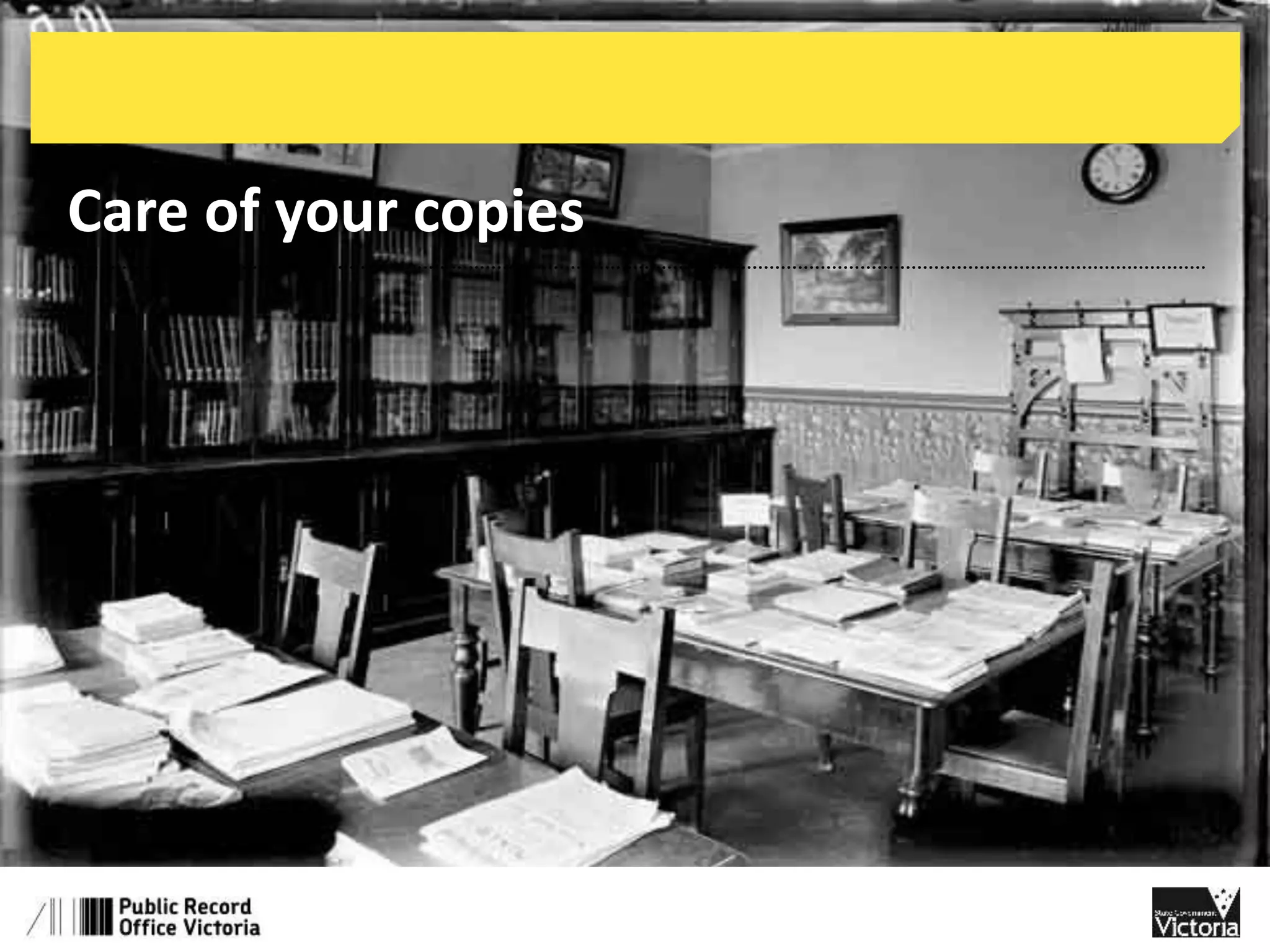
• Care of your copies 
2.40 - 3.00 pm Digitisation facility tour/ afternoon tea (first half) 
3.00 - 3.20 pm Digitisation facility tour/ afternoon tea (second half) 
3.30 - 4.00 pm Negotiating rights before you digitise 
Nicki Mackay-Sim, Curator of Pictures, NLA 
4.00 – 4.30 pm Providing access 
• Getting images online 
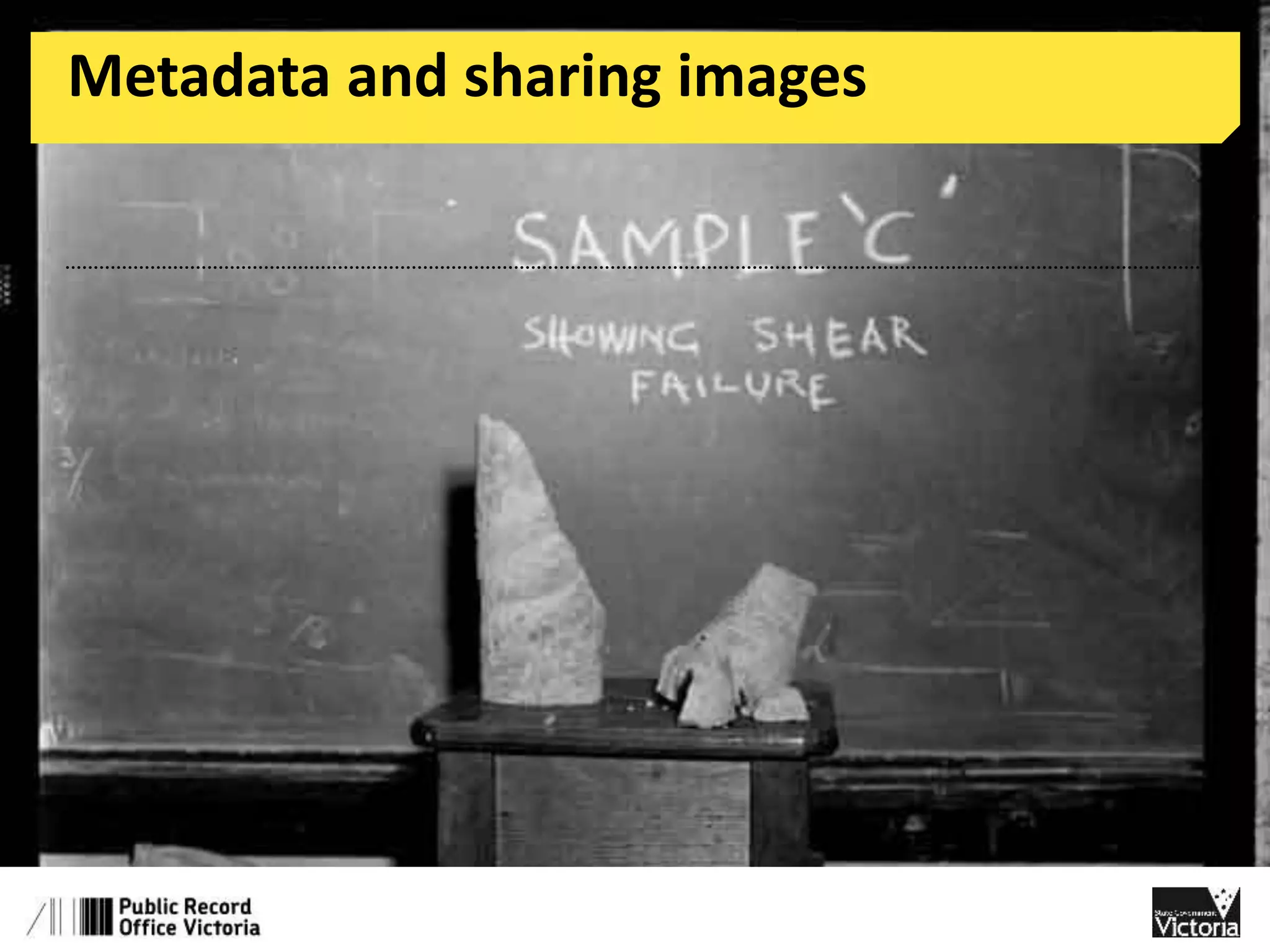
• Metadata and sharing images 
4.30 - 5.00 pm Q & A
Notes for the session 
http://prov.vic.gov.au/community-programs/training/just-digitise-it 
6 project stages described 
•Planning 
•Preparing 
•Creating 
•Describing 
•Editing 
•Publishing
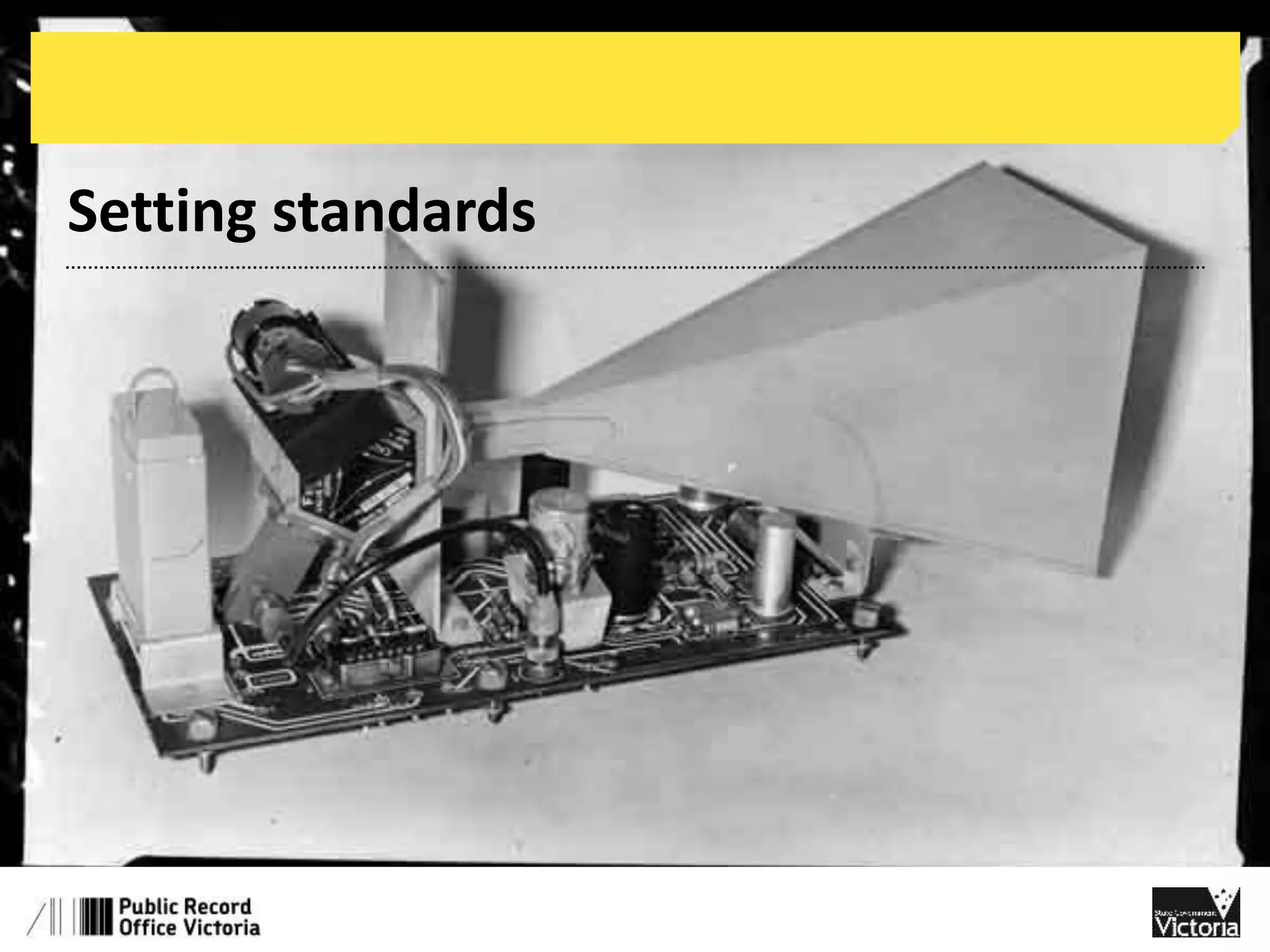
Setting standards
Setting standards 
Matching standards to the project 
Two main impetus…es for digitisation 
• Preservation 
– OHIO (only handle it once) 
– colour management, ‘master’ copies 
• Access 
– search/ discoverability 
– crowdsourcing
Setting standards 
Factors 
• How much material to copy? 
• What condition? (preservation needs assesment) 
• How much time/ money do you have? 
• Has somebody already digitised it? (books…) 
• What is its significance? (significance statement, etc.)
Setting standards 
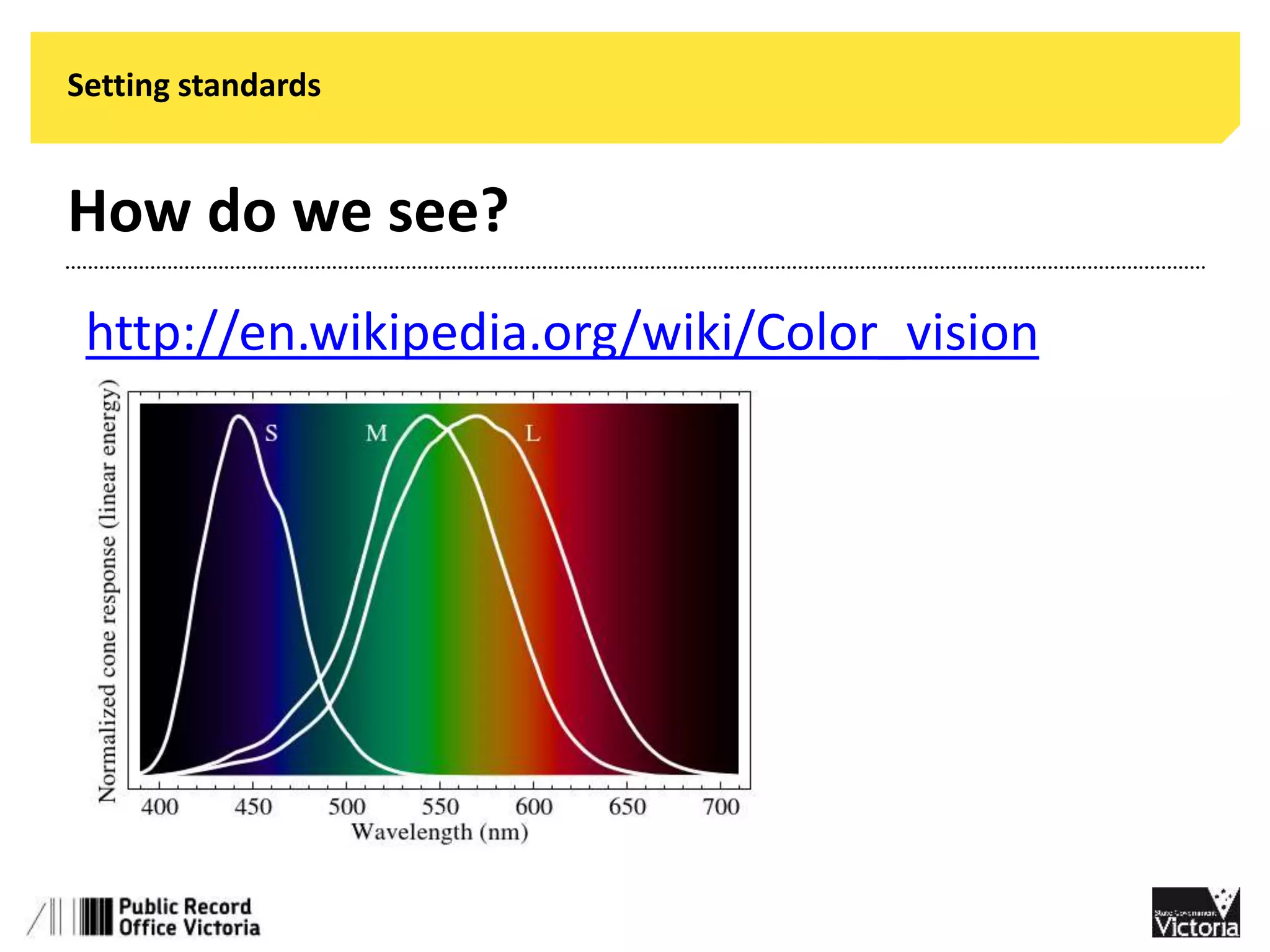
How do we see? 
http://en.wikipedia.org/wiki/Color_vision
Setting standards 
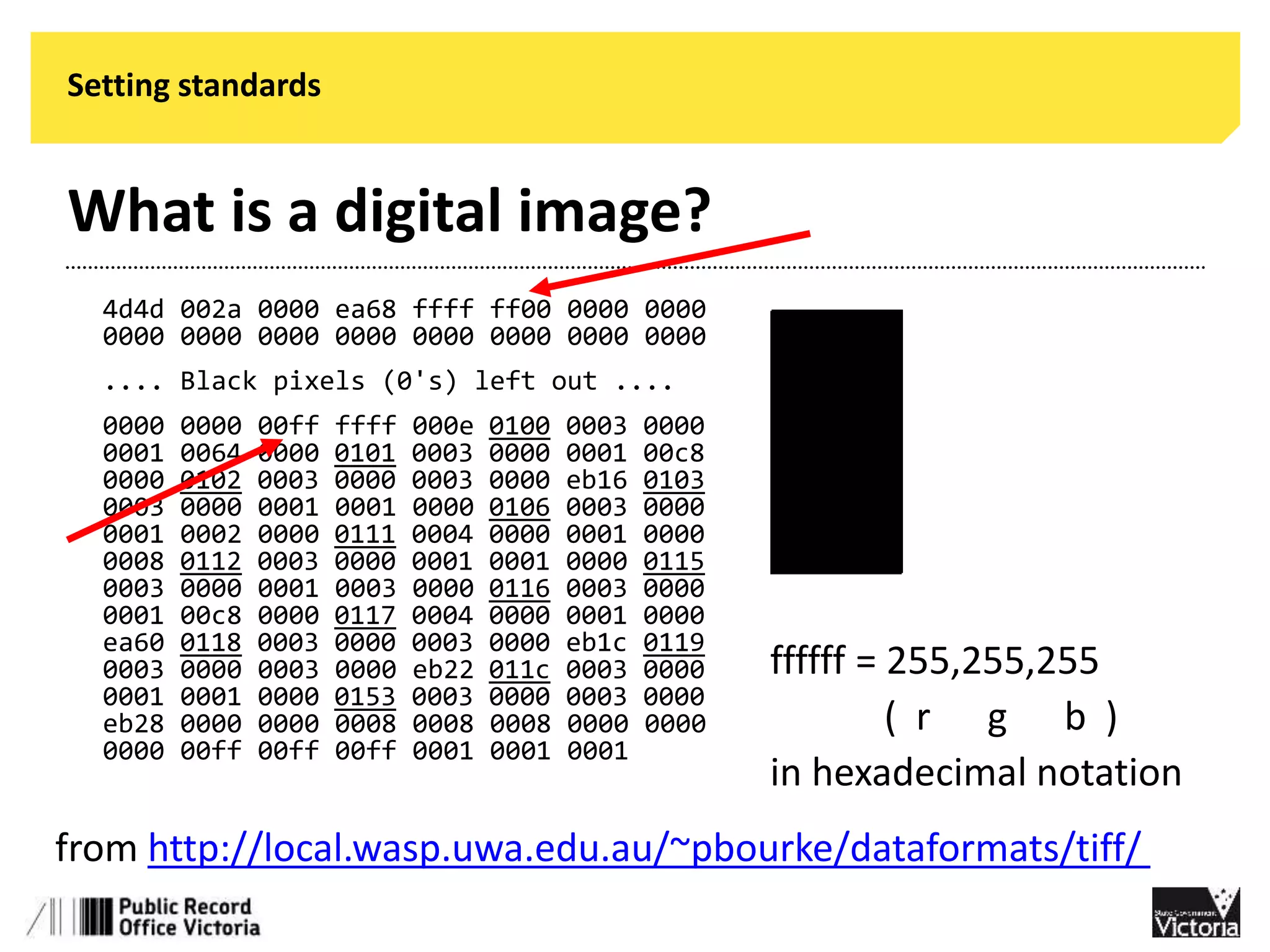
What is a digital image? 
4d4d 002a 0000 ea68 ffff ff00 0000 0000 
0000 0000 0000 0000 0000 0000 0000 0000 
.... Black pixels (0's) left out .... 
0000 0000 00ff ffff 000e 0100 0003 0000 
0001 0064 0000 0101 0003 0000 0001 00c8 
0000 0102 0003 0000 0003 0000 eb16 0103 
0003 0000 0001 0001 0000 0106 0003 0000 
0001 0002 0000 0111 0004 0000 0001 0000 
0008 0112 0003 0000 0001 0001 0000 0115 
0003 0000 0001 0003 0000 0116 0003 0000 
0001 00c8 0000 0117 0004 0000 0001 0000 
ea60 0118 0003 0000 0003 0000 eb1c 0119 
0003 0000 0003 0000 eb22 011c 0003 0000 
0001 0001 0000 0153 0003 0000 0003 0000 
eb28 0000 0000 0008 0008 0008 0000 0000 
0000 00ff 00ff 00ff 0001 0001 0001 
ffffff = 255,255,255 
( r g b ) 
in hexadecimal notation 
from http://local.wasp.uwa.edu.au/~pbourke/dataformats/tiff/
Setting standards 
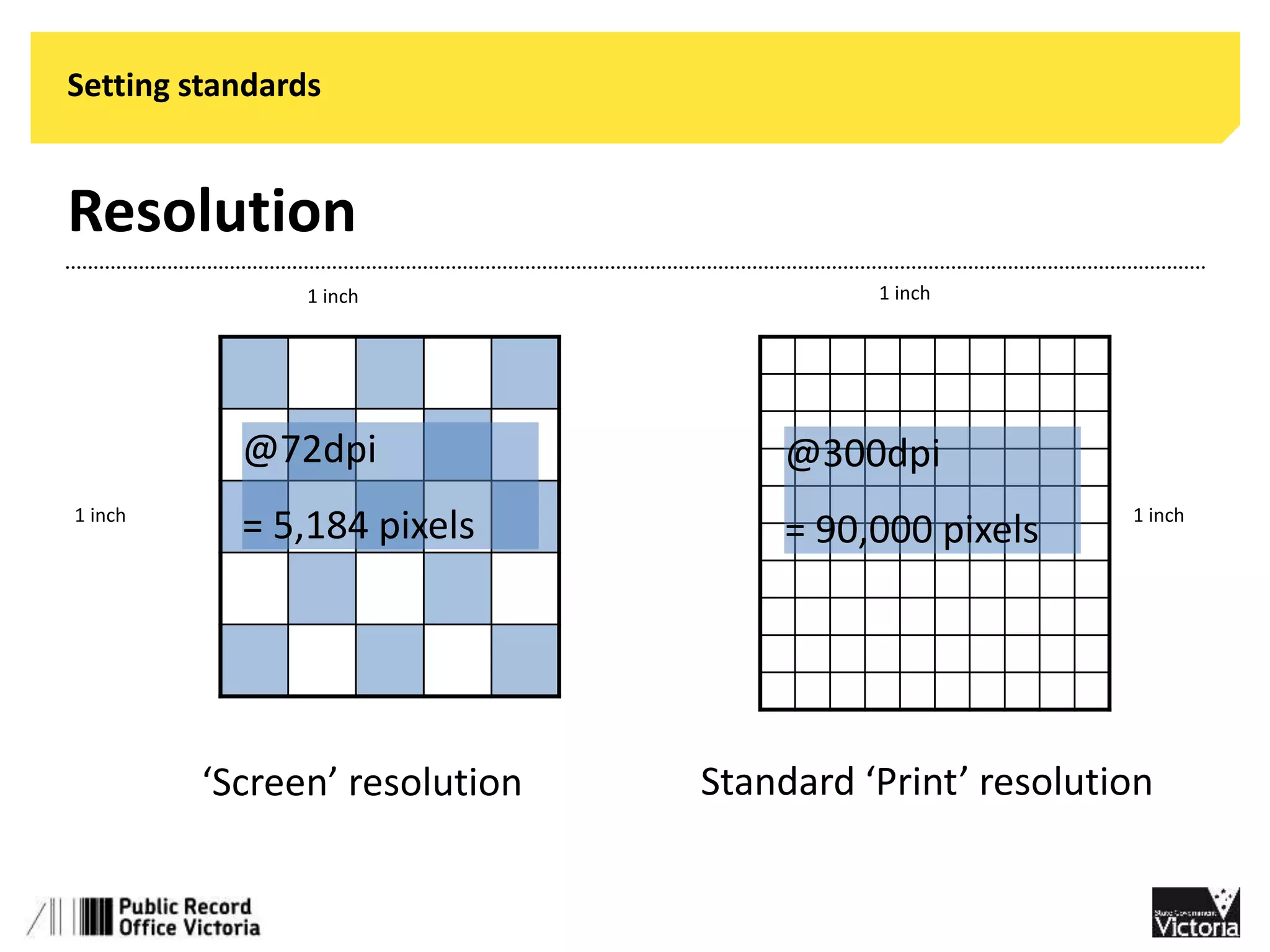
Resolution 
1 inch 1 inch 
@300dpi 
= 90,000 pixels 
@72dpi 
= 5,184 pixels 
1 inch 1 inch 
‘Screen’ resolution Standard ‘Print’ resolution
Setting standards 
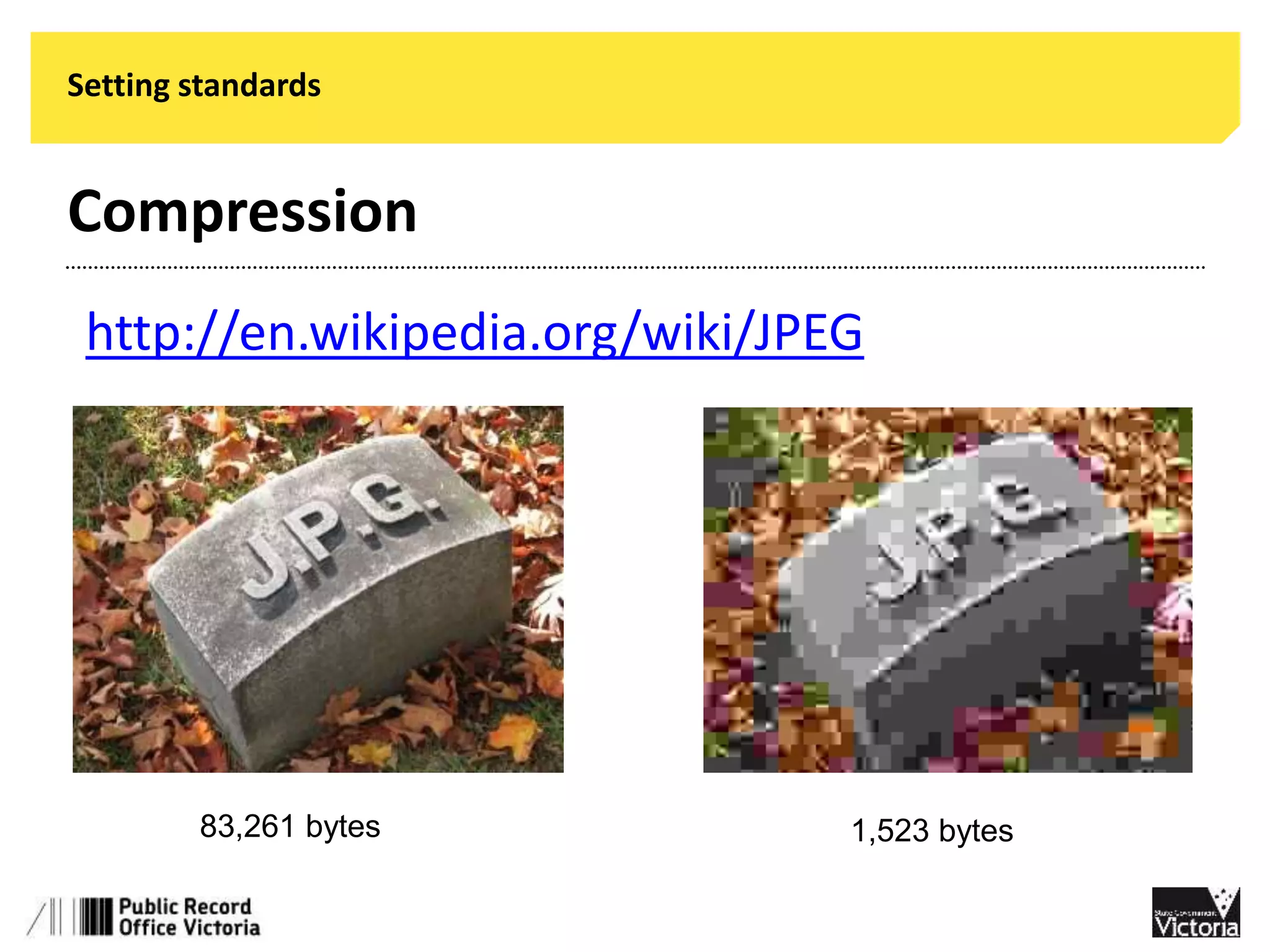
Compression 
http://en.wikipedia.org/wiki/JPEG 
83,261 bytes 1,523 bytes
Setting standards 
The short version 
National Library of Australia 
http://www.nla.gov.au/standards/image-capture 
Public Record Office Victoria 
http://prov.vic.gov.au/government/standards-and-policy/capture
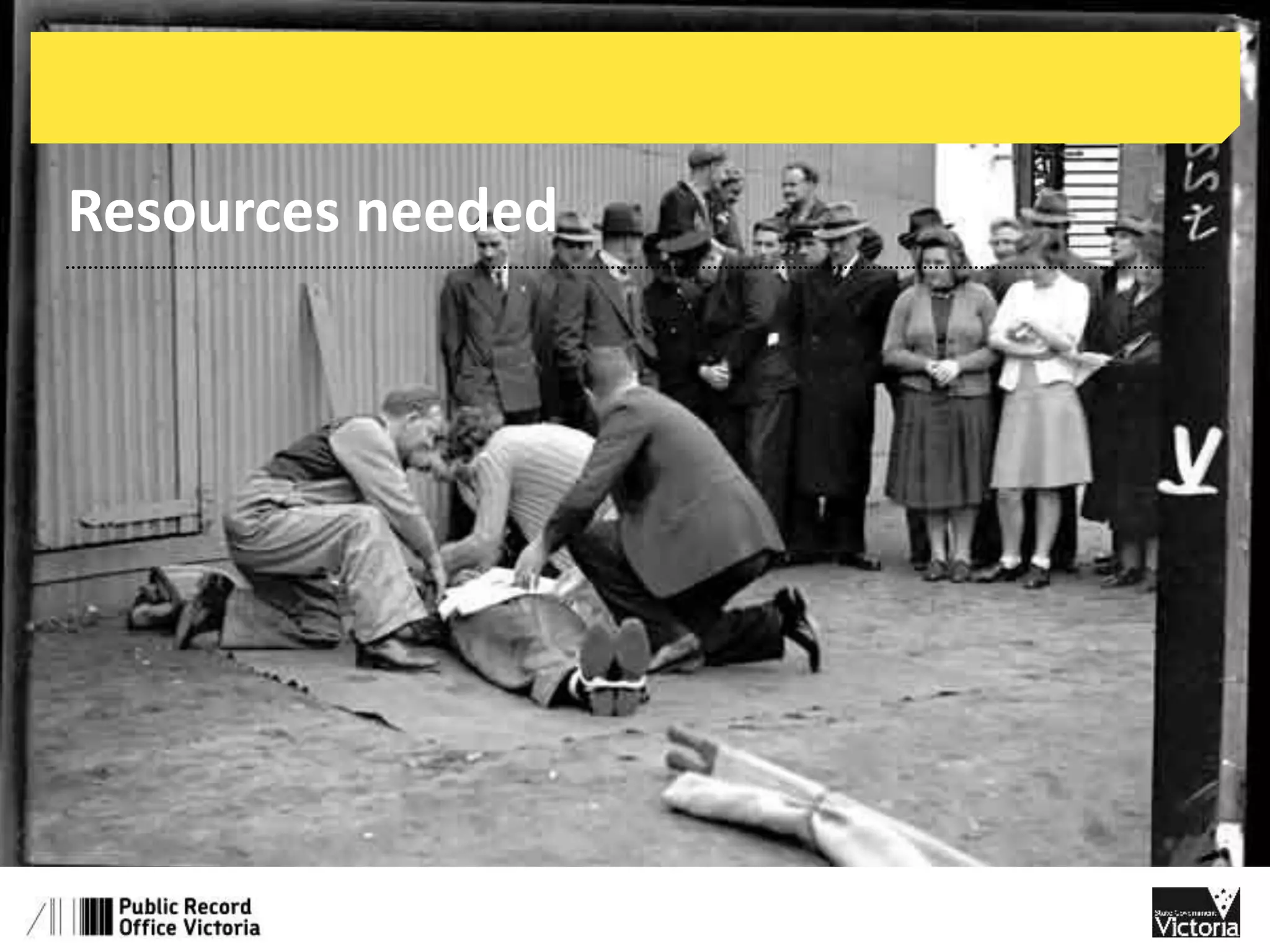
Resources needed
Resources needed 
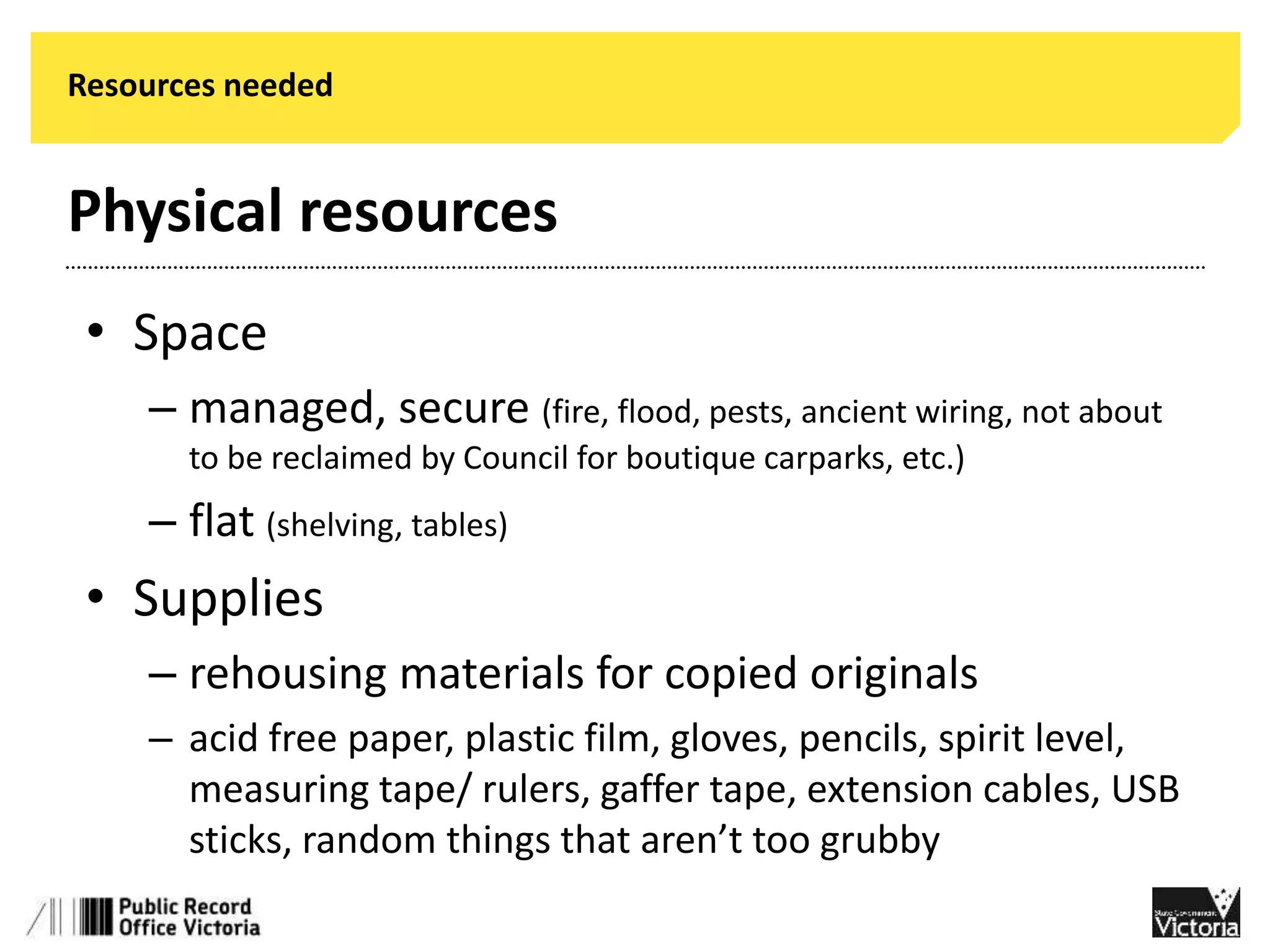
Physical resources 
• Space 
– managed, secure (fire, flood, pests, ancient wiring, not about 
to be reclaimed by Council for boutique carparks, etc.) 
– flat (shelving, tables) 
• Supplies 
– rehousing materials for copied originals 
– acid free paper, plastic film, gloves, pencils, spirit level, 
measuring tape/ rulers, gaffer tape, extension cables, USB 
sticks, random things that aren’t too grubby
Resources needed 
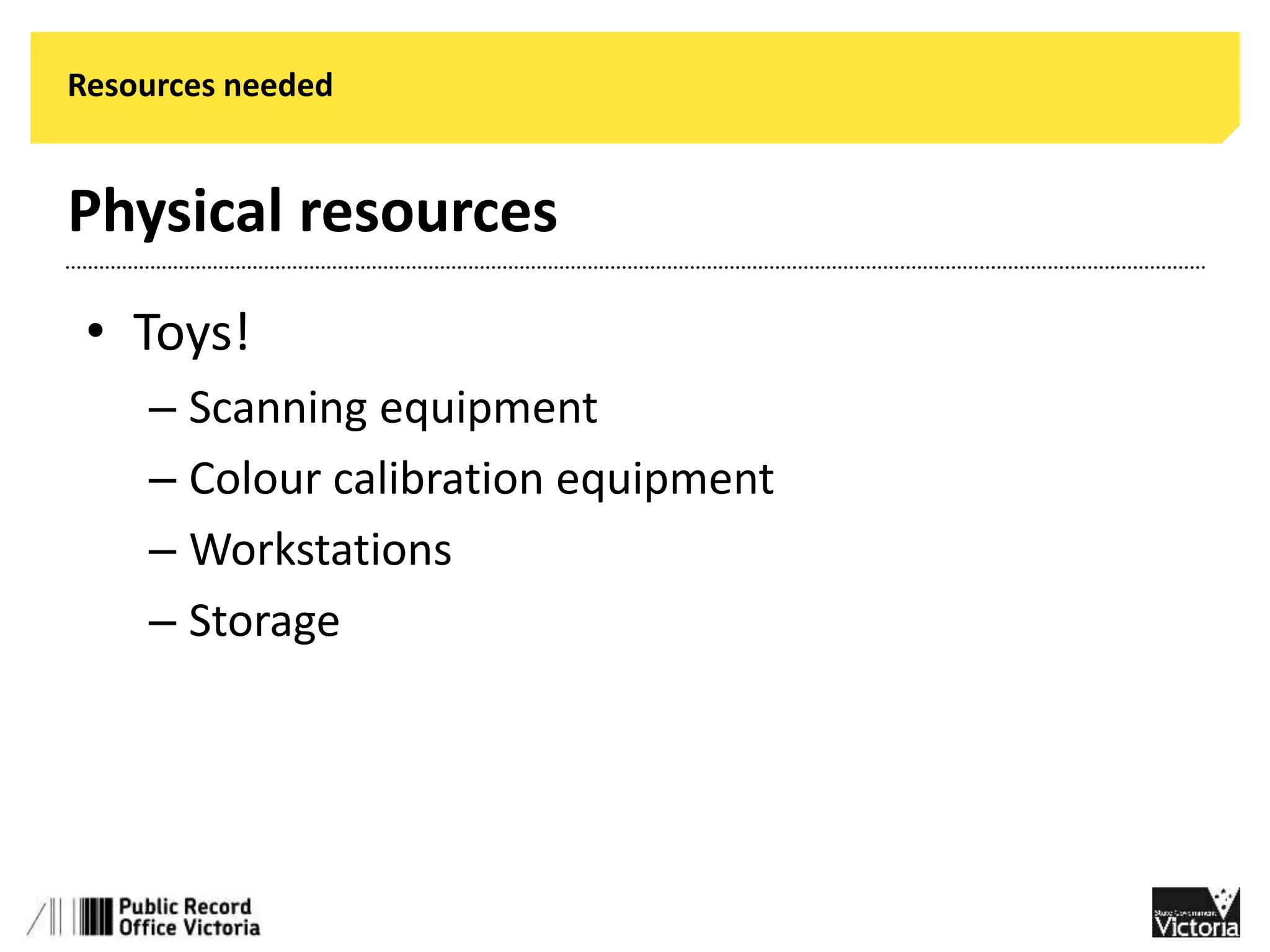
Physical resources 
• Toys! 
– Scanning equipment 
– Colour calibration equipment 
– Workstations 
– Storage
Resources needed 
Human resources 
• Project manager 
• Project committee 
(for when the manager heads off to Noosa) 
• Tame experts 
• Volunteers 
– what do you need from them? 
– what do they get out of it?
Resources needed 
Documentation 
• Digitisation policy/ strategy/ plan 
• Project statement/ plan 
• Risk management framework 
• Specific policies/ procedures 
• Written agreements with donors and 
digitisers 
• Passwords. Write them down.
Resources needed 
Permission 
• From your group 
• From your stakeholders 
• From your donors/ owners of the material 
• From your funders 
(ok, you need money as well – not this talk)
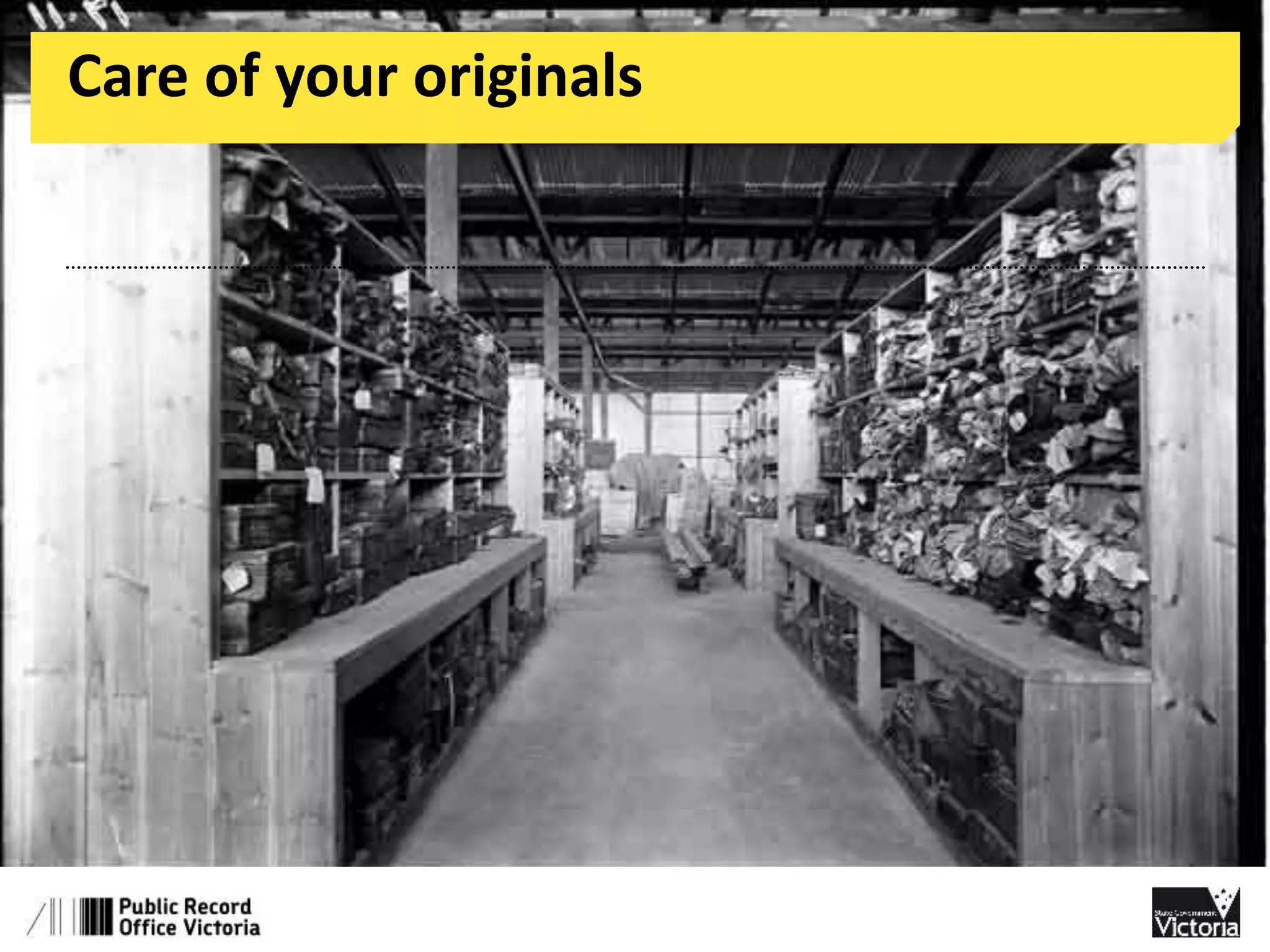
Care of your originals
Care of your originals 
Collection management 
• Are the items catalogued? (Does the catalogue make sense?) 
• Are they securely stored? 
• Do you know who owns what? 
… things go missing.
Care of your originals 
Preservation management 
• put it in a box (controls light, humidity, physical safety) 
• wrapped in plastic (anything except PVC) 
• write on the enclosure, not the object 
• only take it out when you have to 
… things get old.
Care of your originals 
Relationship management 
• have some handling rules (gloves, induction) 
• digitisation providers should be able to 
describe their security and preservation 
measures 
• don’t break the original to digitise it 
… things get dropped.
Care of your originals 
Further further reading 
National Standards for Museums and Galleries 
• http://www.collectionsaustralia.net/sector_info_item/107 
Keeping Archives
Care of your copies
Care of your copies 
Hardware failure 
• backups, offsite preferably 
• understand the limits of the storage 
technology 
• checksums – or just look at your images every 
so often
Care of your copies 
Hardware obsolescence 
• migration, vary your storage options 
• active management of collection
Care of your copies 
Software obsolescence 
• open formats 
(image formats have been stable for decades) 
• open applications 
(separate the data from the program) 
• plan for and budget migrations
Care of your copies 
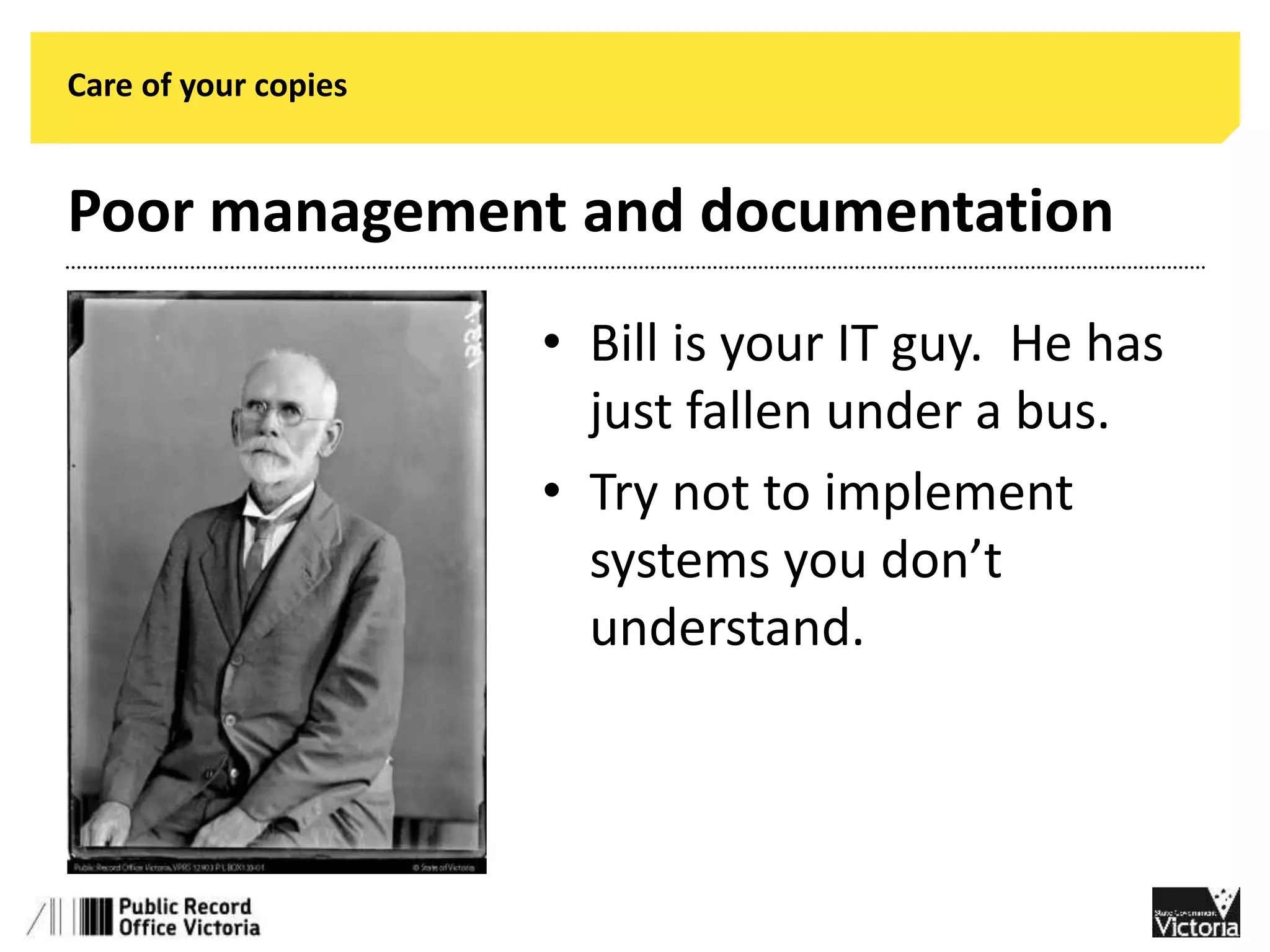
Poor management and documentation 
• Bill is your IT guy. He has 
just fallen under a bus. 
• Try not to implement 
systems you don’t 
understand.
Digital Preservation 
Hardware failure 
• backups, offsite preferably 
• understand the limits of the storage 
technology 
• checksums – or just look at your images every 
so often
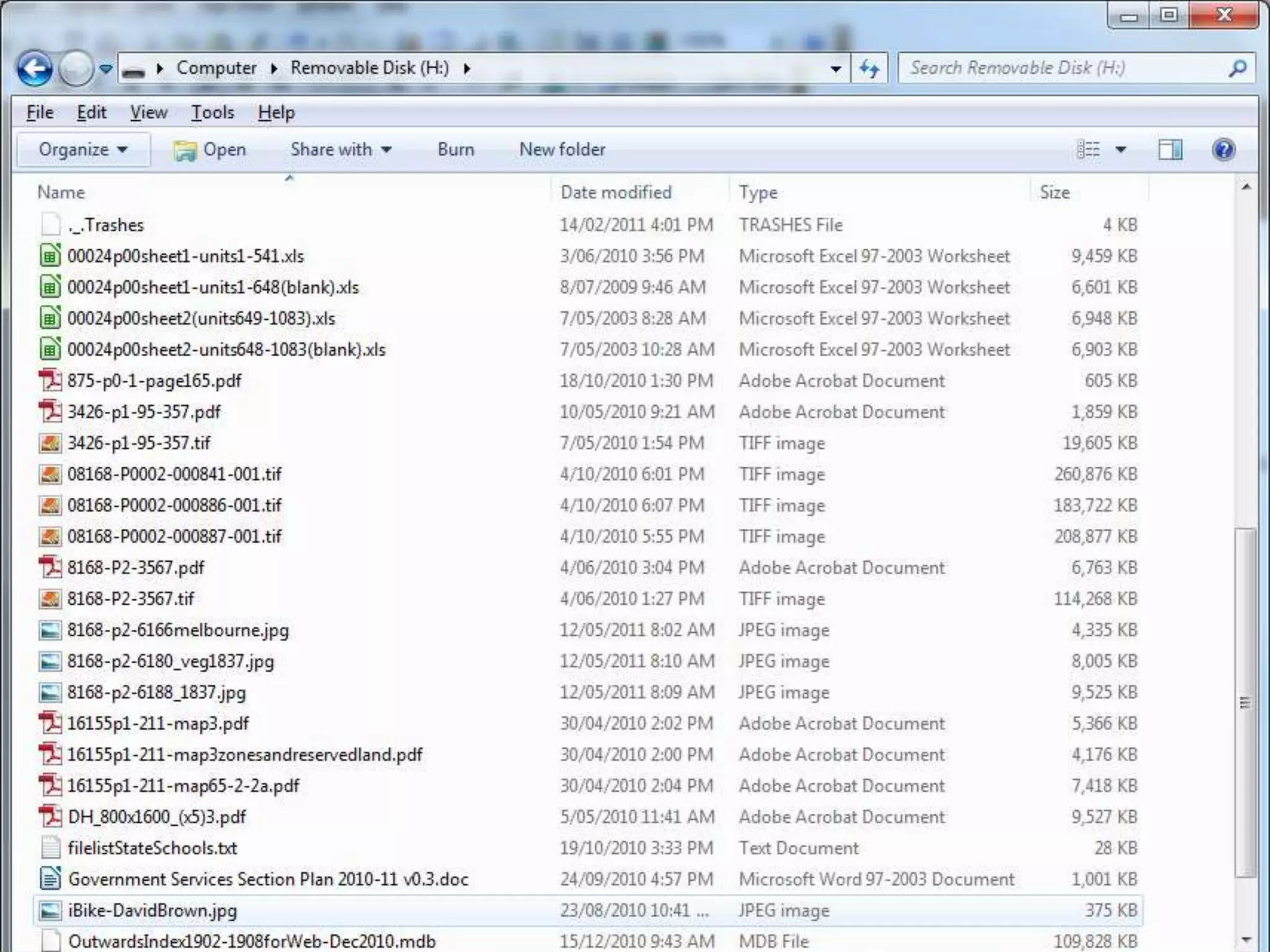
Metadata 
Summary 
• All of your data needs to be easily extractable from 
the software it’s in. 
• Create a simple file structure and make sure people 
stick to it. 
• Manage your backups properly (no lending to 
people, manage your risks, NO shortcuts).
Getting images online
Getting images online 
Originals and renditions 
• xyz
Getting images online 
Originals and renditions 
Constraints on delivering raw images 
• Connection speed and bandwidth 
• Screen size and resolution 
• Control over rights to the image
Getting images online 
Options for publishing 
• Don’t… 
• Use existing commercial tools and services (Flickr, 
Facebook, eHive) 
• Use existing community services (Victorian 
Collections) 
• Your own site (Wordpress, Omeka)
Getting images online 
What and why to put online 
• Marketing your organisation (‘going viral’) 
• Online archive (TROVE) 
• Storytelling 
• Online communities
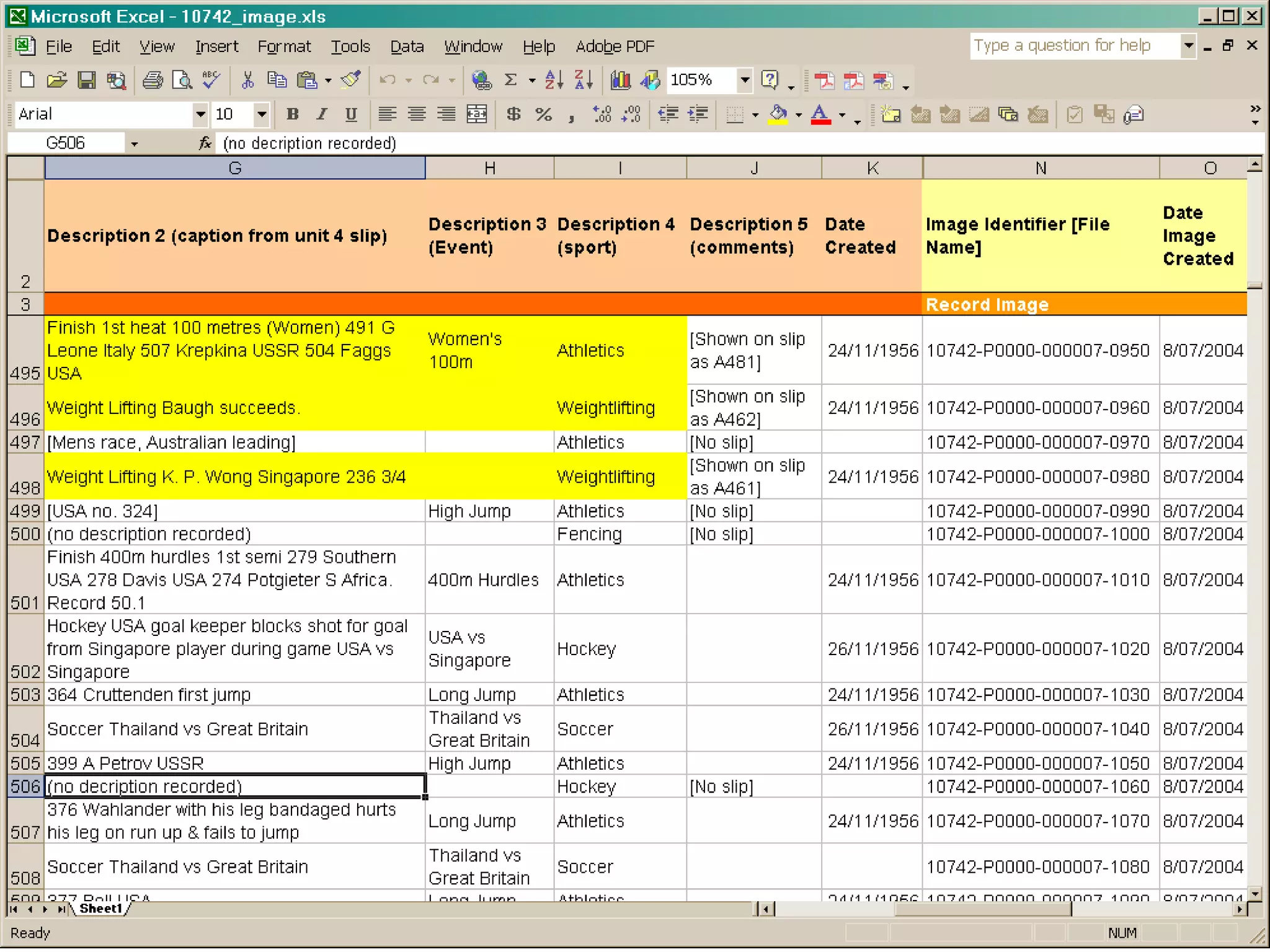
Metadata and sharing images
Metadata 
Definition 
• Data about data (and data systems) 
• Look at the data surrounding an image 
in Flickr: http://www.flickr.com/ 
• Explore the Powerhouse Museum: 
• http://www.powerhousemuseum.com/ 
• Metadata reading: 
• http://en.wikipedia.org/wiki/Metadata
Metadata 
• Think about how your existing data can be: 
• Categorised into different functions 
(descriptive, discovery, preservation, etc.) 
• Standardised (eg. Dublin Core) enabling 
matches with other collections and websites.
Metadata 
• Important things to record: 
– Identity (title, ‘control symbol’) 
– Classification (subject, function) 
– History (dates, purposes) 
– [Description]
Metadata 
Identity 
• Some items may not have titles. What is the thing 
that distinguishes one item from the next in a 
collection? 
• Remember physical cues not same as digital. 
Perhaps the filename of your image is the title? 
• ‘Control Symbol’: Catalogue / collection / record-keeping 
number.
Metadata 
Classification 
• Information to manage items and help 
narrow down searches. 
• Library: ‘subject’ – what is it about? 
• Archive: ‘function’ – what does it do? 
• Internet: ‘tagging’ – where did I put it again? 
• Subject/ topic list for images: 
http://www.picturethesaurus.gov.au/
Metadata 
History 
• Archive/ Museum: ‘provenance’ – where is it 
from? (which collection, which donor) 
• Management history: what has happened to 
it? ie., what date was it scanned? 
• Scanning is another layer to existing 
management history that might be recorded 
in your collection database.
Metadata 
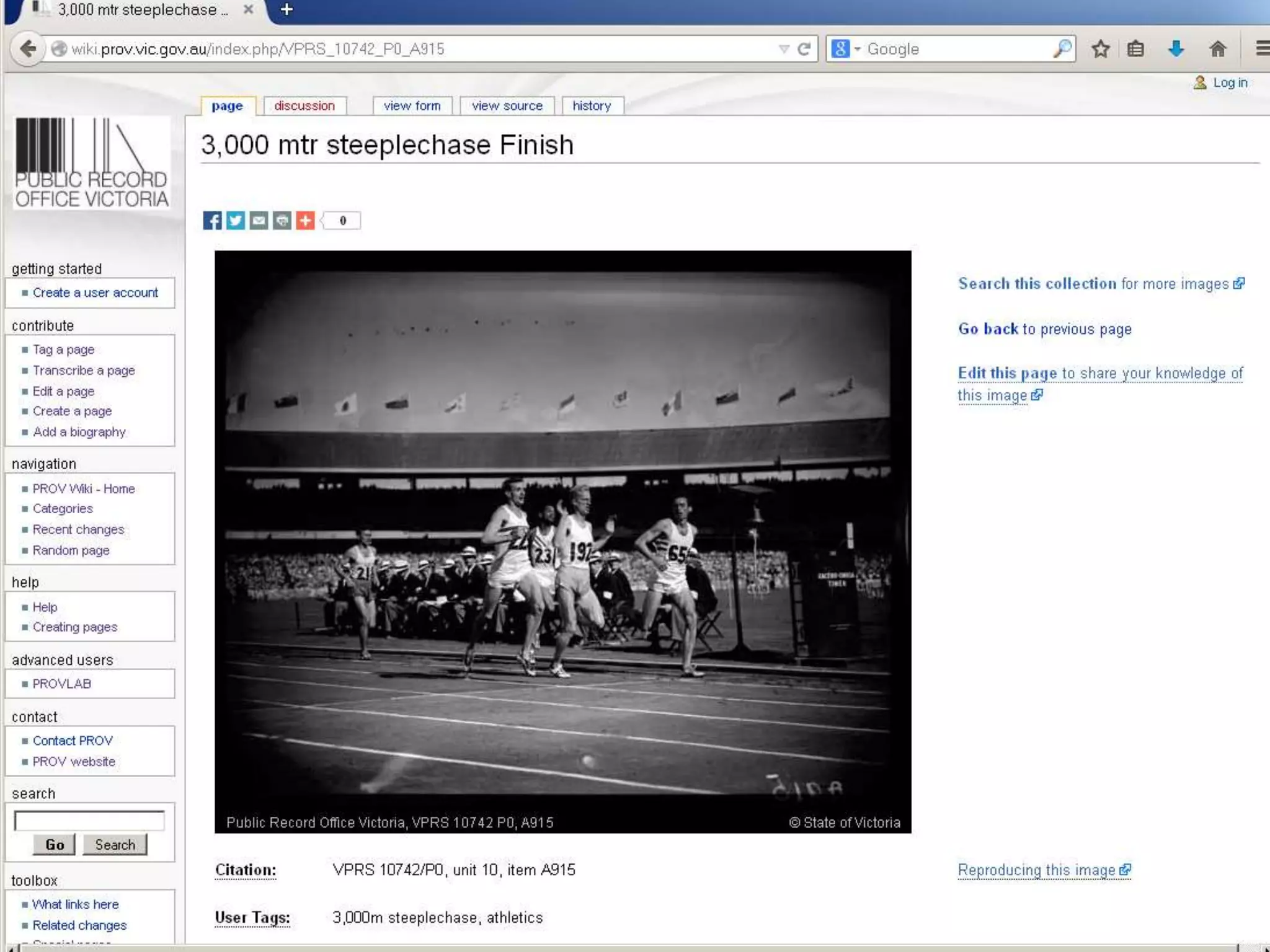
Description 
• Extended stories about item (mum on a bike) 
• Description of physical original – dimensions, 
special features 
• Description of digital copy – dpi, file format
Metadata 
Description 
• Extended stories about item (mum on a bike) 
• Description of physical original – dimensions, 
special features 
• Description of digital copy – dpi, file format
Metadata 
Description 
• Extended stories about item (mum on a bike) 
• Description of physical original – dimensions, 
special features 
• Description of digital copy – dpi, file format
Metadata 
Description 
• Extended stories about item (mum on a bike) 
• Description of physical original – dimensions, 
special features 
• Description of digital copy – dpi, file format
Q & A

Just Digitise It! - Daniel Wilksch

  • 1.
    Just Digitise It Community Heritage Grants Program digitisation workshop 29 October 2014
  • 2.
    Session outline 1.35Arrival and welcome 1.40 - 2.40 pm Planning a digitisation project • Setting standards • Resources needed • Care of your originals • Care of your copies 2.40 - 3.00 pm Digitisation facility tour/ afternoon tea (first half) 3.00 - 3.20 pm Digitisation facility tour/ afternoon tea (second half) 3.30 - 4.00 pm Negotiating rights before you digitise Nicki Mackay-Sim, Curator of Pictures, NLA 4.00 – 4.30 pm Providing access • Getting images online • Metadata and sharing images 4.30 - 5.00 pm Q & A
  • 3.
    Notes for thesession http://prov.vic.gov.au/community-programs/training/just-digitise-it 6 project stages described •Planning •Preparing •Creating •Describing •Editing •Publishing
  • 4.
  • 5.
    Setting standards Matchingstandards to the project Two main impetus…es for digitisation • Preservation – OHIO (only handle it once) – colour management, ‘master’ copies • Access – search/ discoverability – crowdsourcing
  • 6.
    Setting standards Factors • How much material to copy? • What condition? (preservation needs assesment) • How much time/ money do you have? • Has somebody already digitised it? (books…) • What is its significance? (significance statement, etc.)
  • 7.
    Setting standards Howdo we see? http://en.wikipedia.org/wiki/Color_vision
  • 8.
    Setting standards Whatis a digital image? 4d4d 002a 0000 ea68 ffff ff00 0000 0000 0000 0000 0000 0000 0000 0000 0000 0000 .... Black pixels (0's) left out .... 0000 0000 00ff ffff 000e 0100 0003 0000 0001 0064 0000 0101 0003 0000 0001 00c8 0000 0102 0003 0000 0003 0000 eb16 0103 0003 0000 0001 0001 0000 0106 0003 0000 0001 0002 0000 0111 0004 0000 0001 0000 0008 0112 0003 0000 0001 0001 0000 0115 0003 0000 0001 0003 0000 0116 0003 0000 0001 00c8 0000 0117 0004 0000 0001 0000 ea60 0118 0003 0000 0003 0000 eb1c 0119 0003 0000 0003 0000 eb22 011c 0003 0000 0001 0001 0000 0153 0003 0000 0003 0000 eb28 0000 0000 0008 0008 0008 0000 0000 0000 00ff 00ff 00ff 0001 0001 0001 ffffff = 255,255,255 ( r g b ) in hexadecimal notation from http://local.wasp.uwa.edu.au/~pbourke/dataformats/tiff/
  • 9.
    Setting standards Resolution 1 inch 1 inch @300dpi = 90,000 pixels @72dpi = 5,184 pixels 1 inch 1 inch ‘Screen’ resolution Standard ‘Print’ resolution
  • 10.
    Setting standards Compression http://en.wikipedia.org/wiki/JPEG 83,261 bytes 1,523 bytes
  • 11.
    Setting standards Theshort version National Library of Australia http://www.nla.gov.au/standards/image-capture Public Record Office Victoria http://prov.vic.gov.au/government/standards-and-policy/capture
  • 12.
  • 15.
    Resources needed Physicalresources • Space – managed, secure (fire, flood, pests, ancient wiring, not about to be reclaimed by Council for boutique carparks, etc.) – flat (shelving, tables) • Supplies – rehousing materials for copied originals – acid free paper, plastic film, gloves, pencils, spirit level, measuring tape/ rulers, gaffer tape, extension cables, USB sticks, random things that aren’t too grubby
  • 16.
    Resources needed Physicalresources • Toys! – Scanning equipment – Colour calibration equipment – Workstations – Storage
  • 17.
    Resources needed Humanresources • Project manager • Project committee (for when the manager heads off to Noosa) • Tame experts • Volunteers – what do you need from them? – what do they get out of it?
  • 18.
    Resources needed Documentation • Digitisation policy/ strategy/ plan • Project statement/ plan • Risk management framework • Specific policies/ procedures • Written agreements with donors and digitisers • Passwords. Write them down.
  • 19.
    Resources needed Permission • From your group • From your stakeholders • From your donors/ owners of the material • From your funders (ok, you need money as well – not this talk)
  • 20.
    Care of youroriginals
  • 21.
    Care of youroriginals Collection management • Are the items catalogued? (Does the catalogue make sense?) • Are they securely stored? • Do you know who owns what? … things go missing.
  • 22.
    Care of youroriginals Preservation management • put it in a box (controls light, humidity, physical safety) • wrapped in plastic (anything except PVC) • write on the enclosure, not the object • only take it out when you have to … things get old.
  • 23.
    Care of youroriginals Relationship management • have some handling rules (gloves, induction) • digitisation providers should be able to describe their security and preservation measures • don’t break the original to digitise it … things get dropped.
  • 24.
    Care of youroriginals Further further reading National Standards for Museums and Galleries • http://www.collectionsaustralia.net/sector_info_item/107 Keeping Archives
  • 25.
  • 26.
    Care of yourcopies Hardware failure • backups, offsite preferably • understand the limits of the storage technology • checksums – or just look at your images every so often
  • 27.
    Care of yourcopies Hardware obsolescence • migration, vary your storage options • active management of collection
  • 28.
    Care of yourcopies Software obsolescence • open formats (image formats have been stable for decades) • open applications (separate the data from the program) • plan for and budget migrations
  • 29.
    Care of yourcopies Poor management and documentation • Bill is your IT guy. He has just fallen under a bus. • Try not to implement systems you don’t understand.
  • 30.
    Digital Preservation Hardwarefailure • backups, offsite preferably • understand the limits of the storage technology • checksums – or just look at your images every so often
  • 31.
    Metadata Summary •All of your data needs to be easily extractable from the software it’s in. • Create a simple file structure and make sure people stick to it. • Manage your backups properly (no lending to people, manage your risks, NO shortcuts).
  • 32.
  • 33.
    Getting images online Originals and renditions • xyz
  • 34.
    Getting images online Originals and renditions Constraints on delivering raw images • Connection speed and bandwidth • Screen size and resolution • Control over rights to the image
  • 35.
    Getting images online Options for publishing • Don’t… • Use existing commercial tools and services (Flickr, Facebook, eHive) • Use existing community services (Victorian Collections) • Your own site (Wordpress, Omeka)
  • 36.
    Getting images online What and why to put online • Marketing your organisation (‘going viral’) • Online archive (TROVE) • Storytelling • Online communities
  • 37.
  • 38.
    Metadata Definition •Data about data (and data systems) • Look at the data surrounding an image in Flickr: http://www.flickr.com/ • Explore the Powerhouse Museum: • http://www.powerhousemuseum.com/ • Metadata reading: • http://en.wikipedia.org/wiki/Metadata
  • 39.
    Metadata • Thinkabout how your existing data can be: • Categorised into different functions (descriptive, discovery, preservation, etc.) • Standardised (eg. Dublin Core) enabling matches with other collections and websites.
  • 40.
    Metadata • Importantthings to record: – Identity (title, ‘control symbol’) – Classification (subject, function) – History (dates, purposes) – [Description]
  • 41.
    Metadata Identity •Some items may not have titles. What is the thing that distinguishes one item from the next in a collection? • Remember physical cues not same as digital. Perhaps the filename of your image is the title? • ‘Control Symbol’: Catalogue / collection / record-keeping number.
  • 42.
    Metadata Classification •Information to manage items and help narrow down searches. • Library: ‘subject’ – what is it about? • Archive: ‘function’ – what does it do? • Internet: ‘tagging’ – where did I put it again? • Subject/ topic list for images: http://www.picturethesaurus.gov.au/
  • 43.
    Metadata History •Archive/ Museum: ‘provenance’ – where is it from? (which collection, which donor) • Management history: what has happened to it? ie., what date was it scanned? • Scanning is another layer to existing management history that might be recorded in your collection database.
  • 44.
    Metadata Description •Extended stories about item (mum on a bike) • Description of physical original – dimensions, special features • Description of digital copy – dpi, file format
  • 45.
    Metadata Description •Extended stories about item (mum on a bike) • Description of physical original – dimensions, special features • Description of digital copy – dpi, file format
  • 46.
    Metadata Description •Extended stories about item (mum on a bike) • Description of physical original – dimensions, special features • Description of digital copy – dpi, file format
  • 47.
    Metadata Description •Extended stories about item (mum on a bike) • Description of physical original – dimensions, special features • Description of digital copy – dpi, file format
  • 48.