Unit 5
Event Handling
Event Handling
 What is an event?
 What is event handling?
What is an event in applet?
 Change in the state of an object is
known as event i.e. event describes the
change in state of source.
 Events are generated as result of user
interaction with the graphical user
interface components.
 For example, clicking on a button,
moving the mouse, entering a character
through keyboard, selecting an item
from list, scrolling the page are the
activities that causes an event to
What is an event handling?
 Event Handling is the mechanism that
controls the event and decides what
should happen if an event occurs.
 Java Uses the Delegation Event
Model to handle the events.
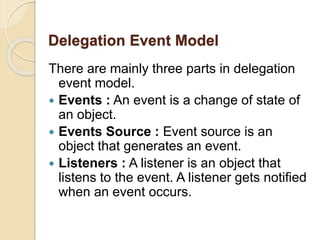
Delegation Event Model
There are mainly three parts in delegation
event model.
 Events : An event is a change of state of
an object.
 Events Source : Event source is an
object that generates an event.
 Listeners : A listener is an object that
listens to the event. A listener gets notified
when an event occurs.
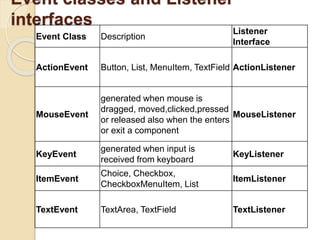
Event classes and Listener
interfaces
Event Class Description
Listener
Interface
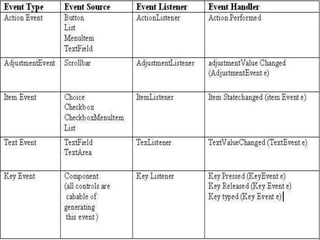
ActionEvent Button, List, MenuItem, TextField ActionListener
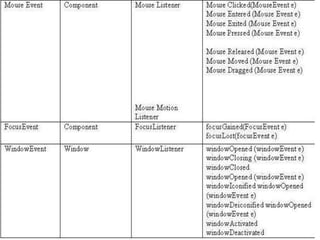
MouseEvent
generated when mouse is
dragged, moved,clicked,pressed
or released also when the enters
or exit a component
MouseListener
KeyEvent
generated when input is
received from keyboard
KeyListener
ItemEvent
Choice, Checkbox,
CheckboxMenuItem, List
ItemListener
TextEvent TextArea, TextField TextListener
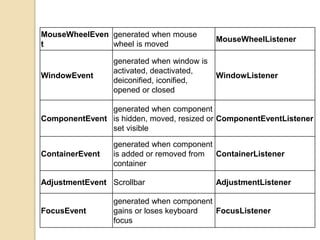
MouseWheelEven
t
generated when mouse
wheel is moved
MouseWheelListener
WindowEvent
generated when window is
activated, deactivated,
deiconified, iconified,
opened or closed
WindowListener
ComponentEvent
generated when component
is hidden, moved, resized or
set visible
ComponentEventListener
ContainerEvent
generated when component
is added or removed from
container
ContainerListener
AdjustmentEvent Scrollbar AdjustmentListener
FocusEvent
generated when component
gains or loses keyboard
focus
FocusListener
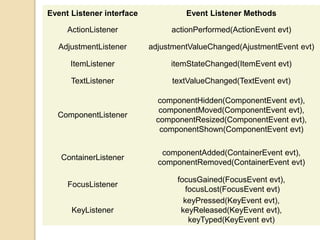
Event Listener interface Event Listener Methods
ActionListener actionPerformed(ActionEvent evt)
AdjustmentListener adjustmentValueChanged(AjustmentEvent evt)
ItemListener itemStateChanged(ItemEvent evt)
TextListener textValueChanged(TextEvent evt)
ComponentListener
componentHidden(ComponentEvent evt),
componentMoved(ComponentEvent evt),
componentResized(ComponentEvent evt),
componentShown(ComponentEvent evt)
ContainerListener
componentAdded(ContainerEvent evt),
componentRemoved(ContainerEvent evt)
FocusListener
focusGained(FocusEvent evt),
focusLost(FocusEvent evt)
KeyListener
keyPressed(KeyEvent evt),
keyReleased(KeyEvent evt),
keyTyped(KeyEvent evt)
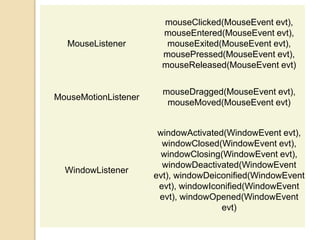
MouseListener
mouseClicked(MouseEvent evt),
mouseEntered(MouseEvent evt),
mouseExited(MouseEvent evt),
mousePressed(MouseEvent evt),
mouseReleased(MouseEvent evt)
MouseMotionListener
mouseDragged(MouseEvent evt),
mouseMoved(MouseEvent evt)
WindowListener
windowActivated(WindowEvent evt),
windowClosed(WindowEvent evt),
windowClosing(WindowEvent evt),
windowDeactivated(WindowEvent
evt), windowDeiconified(WindowEvent
evt), windowIconified(WindowEvent
evt), windowOpened(WindowEvent
evt)
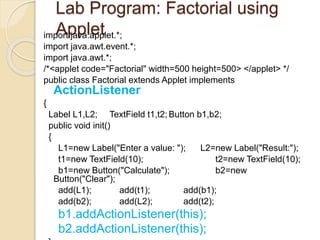
Lab Program: Factorial using
Appletimport java.applet.*;
import java.awt.event.*;
import java.awt.*;
/*<applet code="Factorial" width=500 height=500> </applet> */
public class Factorial extends Applet implements
ActionListener
{
Label L1,L2; TextField t1,t2; Button b1,b2;
public void init()
{
L1=new Label("Enter a value: "); L2=new Label("Result:");
t1=new TextField(10); t2=new TextField(10);
b1=new Button("Calculate"); b2=new
Button("Clear");
add(L1); add(t1); add(b1);
add(b2); add(L2); add(t2);
b1.addActionListener(this);
b2.addActionListener(this);
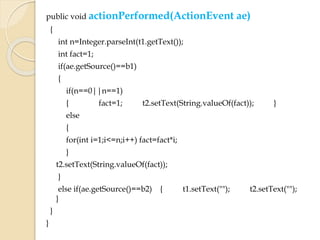
public void actionPerformed(ActionEvent ae)
{
int n=Integer.parseInt(t1.getText());
int fact=1;
if(ae.getSource()==b1)
{
if(n==0||n==1)
{ fact=1; t2.setText(String.valueOf(fact)); }
else
{
for(int i=1;i<=n;i++) fact=fact*i;
}
t2.setText(String.valueOf(fact));
}
else if(ae.getSource()==b2) { t1.setText(""); t2.setText("");
}
}
}
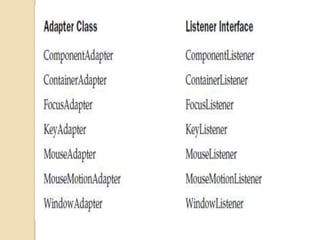
Adapter Class
 Java provides a special feature, called
an adapter class, that can simplify the
creation of event handlers in certain
situations.
 Adapter classes are useful when you
want to receive and process only
some of the events that are handled
by a particular eventlistener interface.
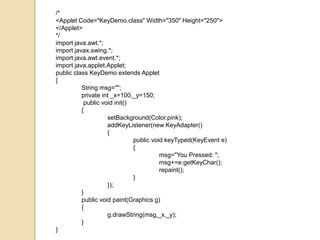
/*
<Applet Code="KeyDemo.class" Width="350" Height="250">
</Applet>
*/
import java.awt.*;
import javax.swing.*;
import java.awt.event.*;
import java.applet.Applet;
public class KeyDemo extends Applet
{
String msg="";
private int _x=100,_y=150;
public void init()
{
setBackground(Color.pink);
addKeyListener(new KeyAdapter()
{
public void keyTyped(KeyEvent e)
{
msg="You Pressed: ";
msg+=e.getKeyChar();
repaint();
}
});
}
public void paint(Graphics g)
{
g.drawString(msg,_x,_y);
}
}
Java Programming
Unit 6
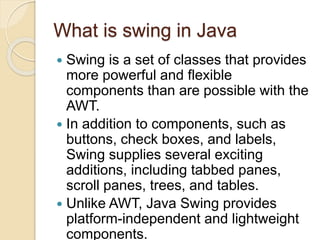
What is swing in Java
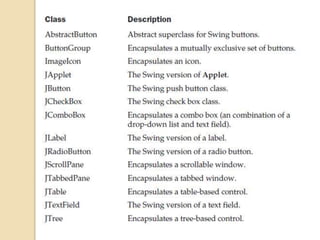
 Swing is a set of classes that provides
more powerful and flexible
components than are possible with the
AWT.
 In addition to components, such as
buttons, check boxes, and labels,
Swing supplies several exciting
additions, including tabbed panes,
scroll panes, trees, and tables.
 Unlike AWT, Java Swing provides
platform-independent and lightweight
components.
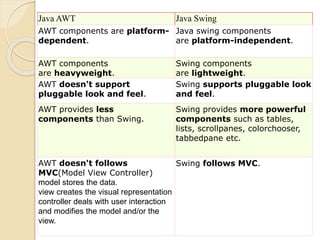
Java AWT Java Swing
AWT components are platform-
dependent.
Java swing components
are platform-independent.
AWT components
are heavyweight.
Swing components
are lightweight.
AWT doesn't support
pluggable look and feel.
Swing supports pluggable look
and feel.
AWT provides less
components than Swing.
Swing provides more powerful
components such as tables,
lists, scrollpanes, colorchooser,
tabbedpane etc.
AWT doesn't follows
MVC(Model View Controller)
model stores the data.
view creates the visual representation
controller deals with user interaction
and modifies the model and/or the
view.
Swing follows MVC.
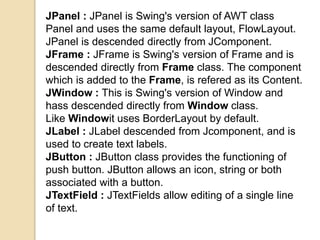
JPanel : JPanel is Swing's version of AWT class
Panel and uses the same default layout, FlowLayout.
JPanel is descended directly from JComponent.
JFrame : JFrame is Swing's version of Frame and is
descended directly from Frame class. The component
which is added to the Frame, is refered as its Content.
JWindow : This is Swing's version of Window and
hass descended directly from Window class.
Like Windowit uses BorderLayout by default.
JLabel : JLabel descended from Jcomponent, and is
used to create text labels.
JButton : JButton class provides the functioning of
push button. JButton allows an icon, string or both
associated with a button.
JTextField : JTextFields allow editing of a single line
of text.
JApplet
Creating a JFrame
 There are two way to create a JFrame
Window.
 By instantiating JFrame class.
 By extending JFrame class.
Creating JFrame window by
Instantiating JFrame class
 Jfirst.java
 Jsecond.java
TextField
 The Swing text field is encapsulated
by the JTextComponent class, which
extends JComponent.
constructors are shown here:
 JTextField( )
 JTextField(int cols)
 JTextField(String s, int cols)
 JTextField(String s)
 Here, s is the string to be presented,
and cols is the number of columns in
the text field.
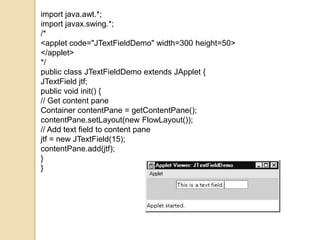
import java.awt.*;
import javax.swing.*;
/*
<applet code="JTextFieldDemo" width=300 height=50>
</applet>
*/
public class JTextFieldDemo extends JApplet {
JTextField jtf;
public void init() {
// Get content pane
Container contentPane = getContentPane();
contentPane.setLayout(new FlowLayout());
// Add text field to content pane
jtf = new JTextField(15);
contentPane.add(jtf);
}
}
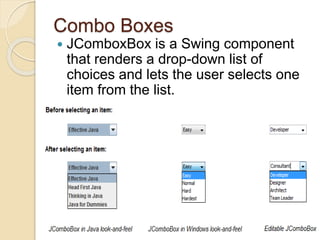
Combo Boxes
 JComboxBox is a Swing component
that renders a drop-down list of
choices and lets the user selects one
item from the list.
JComboBox Constructors
JComboBox()Creates a JComboBox with a default data
model.
JComboBox(ComboBoxModel aModel)Creates a
JComboBox that takes its items from an existing
ComboBoxModel.
JComboBox(Object[] items)Creates a JComboBox that
contains the elements in the specified array.
JComboBox(Vector<?> items)Creates a JComboBox
that contains the elements in the specified Vector.
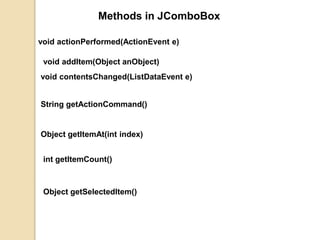
void actionPerformed(ActionEvent e)
void addItem(Object anObject)
Methods in JComboBox
void contentsChanged(ListDataEvent e)
String getActionCommand()
Object getItemAt(int index)
int getItemCount()
Object getSelectedItem()
Creating a new JComboBox component
JComboBox<String> comboLanguage = new JComboBox<String>();
comboLanguage.addItem("English");
comboLanguage.addItem(“Telugu");
comboLanguage.addItem(“Hindi");
comboLanguage.addItem(“Tamil");
comboLanguage.addItem(“Kannada");
String[] languages = new String[] {"English", “Telugu", “Hindi", “Tamil", “Kannada"};
JComboBox<String> comboLanguage = new JComboBox<String>(languages);
Vector<String> languages = new Vector<String>();
languages.addElement("English");
languages.addElement(“Telugu");
languages.addElement(“Hindi");
languages.addElement(“Tamil");
languages.addElement(“Kannada");
JComboBox<String> comboLanguage = new JComboBox<String>(languages);
myComboBox.setEditable(true);
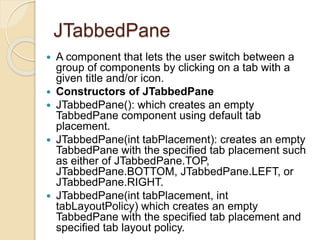
JTabbedPane
 A component that lets the user switch between a
group of components by clicking on a tab with a
given title and/or icon.
 Constructors of JTabbedPane
 JTabbedPane(): which creates an empty
TabbedPane component using default tab
placement.
 JTabbedPane(int tabPlacement): creates an empty
TabbedPane with the specified tab placement such
as either of JTabbedPane.TOP,
JTabbedPane.BOTTOM, JTabbedPane.LEFT, or
JTabbedPane.RIGHT.
 JTabbedPane(int tabPlacement, int
tabLayoutPolicy) which creates an empty
TabbedPane with the specified tab placement and
specified tab layout policy.
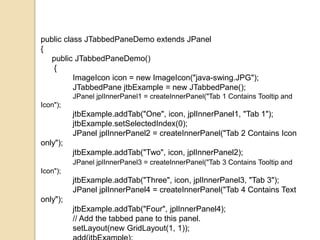
public class JTabbedPaneDemo extends JPanel
{
public JTabbedPaneDemo()
{
ImageIcon icon = new ImageIcon("java-swing.JPG");
JTabbedPane jtbExample = new JTabbedPane();
JPanel jplInnerPanel1 = createInnerPanel("Tab 1 Contains Tooltip and
Icon");
jtbExample.addTab("One", icon, jplInnerPanel1, "Tab 1");
jtbExample.setSelectedIndex(0);
JPanel jplInnerPanel2 = createInnerPanel("Tab 2 Contains Icon
only");
jtbExample.addTab("Two", icon, jplInnerPanel2);
JPanel jplInnerPanel3 = createInnerPanel("Tab 3 Contains Tooltip and
Icon");
jtbExample.addTab("Three", icon, jplInnerPanel3, "Tab 3");
JPanel jplInnerPanel4 = createInnerPanel("Tab 4 Contains Text
only");
jtbExample.addTab("Four", jplInnerPanel4);
// Add the tabbed pane to this panel.
setLayout(new GridLayout(1, 1));
protected JPanel createInnerPanel(String text) {
JPanel jplPanel = new JPanel();
JLabel jlbDisplay = new JLabel(text);
jlbDisplay.setHorizontalAlignment(JLabel.CENTER);
jplPanel.setLayout(new GridLayout(1, 1));
jplPanel.add(jlbDisplay);
return jplPanel;
}
public static void main(String[] args) {
JFrame frame = new JFrame("TabbedPane Source
Demo");
frame.addWindowListener(new WindowAdapter() {
public void windowClosing(WindowEvent e) {
System.exit(0);
}
});
frame.getContentPane().add(new
JTabbedPaneDemo(),BorderLayout.CENTER);
frame.setSize(400, 125);
frame.setVisible(true);
}
}
Introduction to JDBC
What is JDBC?
 JDBC stands for Java Database
Connectivity, which is a standard Java
API for database-independent
connectivity between the Java
programming language and a wide
range of databases.
44
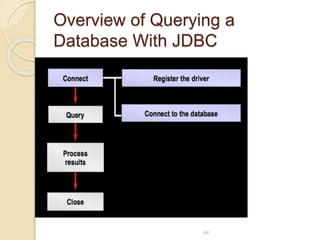
Overview of Querying a
Database With JDBC
JDBC Driver
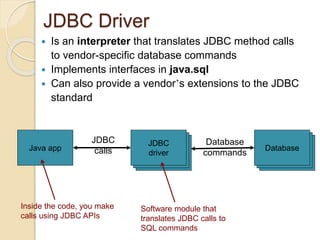
DatabaseDatabaseJDBC
driver
Java app Database
JDBC
calls
Database
commands
JDBC
driver
JDBC
driver
Inside the code, you make
calls using JDBC APIs
Software module that
translates JDBC calls to
SQL commands
 Is an interpreter that translates JDBC method calls
to vendor-specific database commands
 Implements interfaces in java.sql
 Can also provide a vendor’s extensions to the JDBC
standard
How to Make the Connection
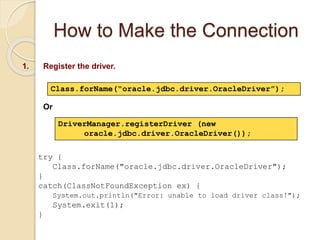
1. Register the driver.
DriverManager.registerDriver (new
oracle.jdbc.driver.OracleDriver());
Class.forName(“oracle.jdbc.driver.OracleDriver”);
Or
try {
Class.forName("oracle.jdbc.driver.OracleDriver");
}
catch(ClassNotFoundException ex) {
System.out.println("Error: unable to load driver class!");
System.exit(1);
}
How to Make the Connection
47
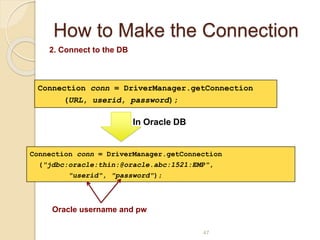
2. Connect to the DB
Connection conn = DriverManager.getConnection
(URL, userid, password);
Connection conn = DriverManager.getConnection
("jdbc:oracle:thin:@oracle.abc:1521:EMP",
"userid", "password");
In Oracle DB
Oracle username and pw
48
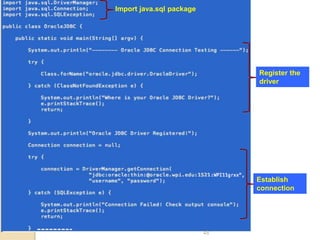
Import java.sql package
Register the
driver
Establish
connection
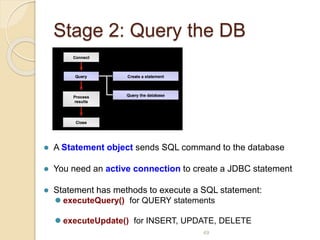
Stage 2: Query the DB
49
 A Statement object sends SQL command to the database
 You need an active connection to create a JDBC statement
 Statement has methods to execute a SQL statement:
 executeQuery() for QUERY statements
 executeUpdate() for INSERT, UPDATE, DELETE
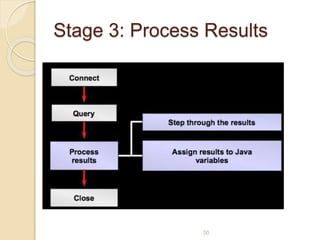
Stage 3: Process Results
50
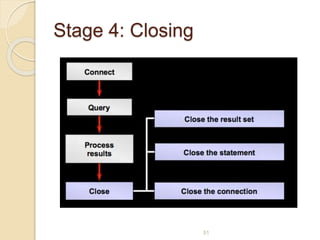
Stage 4: Closing
51
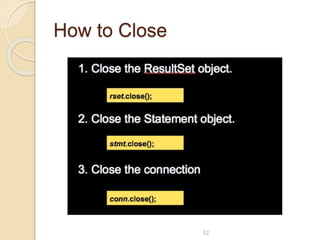
How to Close
52
Example: Connect to Microsoft
SQL Server via JDBC
 System contains Microsoft JDBC Driver.
 JDBC database URL for SQL Server
◦ The syntax of database URL for SQL Server
is as follows:
◦ jdbc:sqlserver://[serverName[instanceNa
me]
[:portNumber]][;property=value[;property=val
ue]]
Where:
serverName: host name or IP address of machine on which SQL server is
running.
instanceName: name of the instance to connect to on serverName. The default
instance is used if this parameter is not specified.
portNumber: port number of SQL server, default is 1433.
property=value: specify one or more additional connection properties.
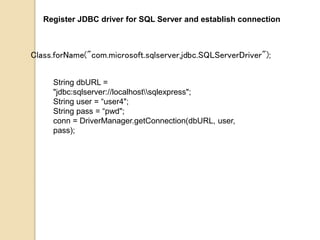
Register JDBC driver for SQL Server and establish connection
Class.forName("com.microsoft.sqlserver.jdbc.SQLServerDriver");
String dbURL =
"jdbc:sqlserver://localhostsqlexpress";
String user = “user4";
String pass = “pwd";
conn = DriverManager.getConnection(dbURL, user,
pass);
import java.sql.*;
public class Sqlselection {
public static void main(String[] args) {
try {
Class.forName("com.microsoft.jdbc.sqlserver.SQLServerDriver");
String userName = “user4";
String password = “pwd";
String url = "jdbc:sqlserver://localhostsqlexpress";
Connection con = DriverManager.getConnection(url, userName, password);
Statement s1 = con.createStatement();
ResultSet rs = s1.executeQuery("SELECT * FROM EMP");
String[ ] result = new String[20];
if(rs!=null) {
while (rs.next()) {
for(int i = 0; i <result.length ;i++) {
for(int j = 0; j <result.length;j++) { result[j]=rs.getString(i);
System.out.println(result[j]);
}
}
}
}
} catch (Exception e) { e.printStackTrace(); } } }

Jp notes

  • 1.
  • 2.
    Event Handling  Whatis an event?  What is event handling?
  • 3.
    What is anevent in applet?  Change in the state of an object is known as event i.e. event describes the change in state of source.  Events are generated as result of user interaction with the graphical user interface components.  For example, clicking on a button, moving the mouse, entering a character through keyboard, selecting an item from list, scrolling the page are the activities that causes an event to
  • 4.
    What is anevent handling?  Event Handling is the mechanism that controls the event and decides what should happen if an event occurs.  Java Uses the Delegation Event Model to handle the events.
  • 5.
    Delegation Event Model Thereare mainly three parts in delegation event model.  Events : An event is a change of state of an object.  Events Source : Event source is an object that generates an event.  Listeners : A listener is an object that listens to the event. A listener gets notified when an event occurs.
  • 7.
    Event classes andListener interfaces Event Class Description Listener Interface ActionEvent Button, List, MenuItem, TextField ActionListener MouseEvent generated when mouse is dragged, moved,clicked,pressed or released also when the enters or exit a component MouseListener KeyEvent generated when input is received from keyboard KeyListener ItemEvent Choice, Checkbox, CheckboxMenuItem, List ItemListener TextEvent TextArea, TextField TextListener
  • 8.
    MouseWheelEven t generated when mouse wheelis moved MouseWheelListener WindowEvent generated when window is activated, deactivated, deiconified, iconified, opened or closed WindowListener ComponentEvent generated when component is hidden, moved, resized or set visible ComponentEventListener ContainerEvent generated when component is added or removed from container ContainerListener AdjustmentEvent Scrollbar AdjustmentListener FocusEvent generated when component gains or loses keyboard focus FocusListener
  • 9.
    Event Listener interfaceEvent Listener Methods ActionListener actionPerformed(ActionEvent evt) AdjustmentListener adjustmentValueChanged(AjustmentEvent evt) ItemListener itemStateChanged(ItemEvent evt) TextListener textValueChanged(TextEvent evt) ComponentListener componentHidden(ComponentEvent evt), componentMoved(ComponentEvent evt), componentResized(ComponentEvent evt), componentShown(ComponentEvent evt) ContainerListener componentAdded(ContainerEvent evt), componentRemoved(ContainerEvent evt) FocusListener focusGained(FocusEvent evt), focusLost(FocusEvent evt) KeyListener keyPressed(KeyEvent evt), keyReleased(KeyEvent evt), keyTyped(KeyEvent evt)
  • 10.
    MouseListener mouseClicked(MouseEvent evt), mouseEntered(MouseEvent evt), mouseExited(MouseEventevt), mousePressed(MouseEvent evt), mouseReleased(MouseEvent evt) MouseMotionListener mouseDragged(MouseEvent evt), mouseMoved(MouseEvent evt) WindowListener windowActivated(WindowEvent evt), windowClosed(WindowEvent evt), windowClosing(WindowEvent evt), windowDeactivated(WindowEvent evt), windowDeiconified(WindowEvent evt), windowIconified(WindowEvent evt), windowOpened(WindowEvent evt)
  • 13.
    Lab Program: Factorialusing Appletimport java.applet.*; import java.awt.event.*; import java.awt.*; /*<applet code="Factorial" width=500 height=500> </applet> */ public class Factorial extends Applet implements ActionListener { Label L1,L2; TextField t1,t2; Button b1,b2; public void init() { L1=new Label("Enter a value: "); L2=new Label("Result:"); t1=new TextField(10); t2=new TextField(10); b1=new Button("Calculate"); b2=new Button("Clear"); add(L1); add(t1); add(b1); add(b2); add(L2); add(t2); b1.addActionListener(this); b2.addActionListener(this);
  • 14.
    public void actionPerformed(ActionEventae) { int n=Integer.parseInt(t1.getText()); int fact=1; if(ae.getSource()==b1) { if(n==0||n==1) { fact=1; t2.setText(String.valueOf(fact)); } else { for(int i=1;i<=n;i++) fact=fact*i; } t2.setText(String.valueOf(fact)); } else if(ae.getSource()==b2) { t1.setText(""); t2.setText(""); } } }
  • 15.
    Adapter Class  Javaprovides a special feature, called an adapter class, that can simplify the creation of event handlers in certain situations.  Adapter classes are useful when you want to receive and process only some of the events that are handled by a particular eventlistener interface.
  • 17.
    /* <Applet Code="KeyDemo.class" Width="350"Height="250"> </Applet> */ import java.awt.*; import javax.swing.*; import java.awt.event.*; import java.applet.Applet; public class KeyDemo extends Applet { String msg=""; private int _x=100,_y=150; public void init() { setBackground(Color.pink); addKeyListener(new KeyAdapter() { public void keyTyped(KeyEvent e) { msg="You Pressed: "; msg+=e.getKeyChar(); repaint(); } }); } public void paint(Graphics g) { g.drawString(msg,_x,_y); } }
  • 18.
  • 19.
    What is swingin Java  Swing is a set of classes that provides more powerful and flexible components than are possible with the AWT.  In addition to components, such as buttons, check boxes, and labels, Swing supplies several exciting additions, including tabbed panes, scroll panes, trees, and tables.  Unlike AWT, Java Swing provides platform-independent and lightweight components.
  • 20.
    Java AWT JavaSwing AWT components are platform- dependent. Java swing components are platform-independent. AWT components are heavyweight. Swing components are lightweight. AWT doesn't support pluggable look and feel. Swing supports pluggable look and feel. AWT provides less components than Swing. Swing provides more powerful components such as tables, lists, scrollpanes, colorchooser, tabbedpane etc. AWT doesn't follows MVC(Model View Controller) model stores the data. view creates the visual representation controller deals with user interaction and modifies the model and/or the view. Swing follows MVC.
  • 22.
    JPanel : JPanelis Swing's version of AWT class Panel and uses the same default layout, FlowLayout. JPanel is descended directly from JComponent. JFrame : JFrame is Swing's version of Frame and is descended directly from Frame class. The component which is added to the Frame, is refered as its Content. JWindow : This is Swing's version of Window and hass descended directly from Window class. Like Windowit uses BorderLayout by default. JLabel : JLabel descended from Jcomponent, and is used to create text labels. JButton : JButton class provides the functioning of push button. JButton allows an icon, string or both associated with a button. JTextField : JTextFields allow editing of a single line of text.
  • 23.
  • 24.
    Creating a JFrame There are two way to create a JFrame Window.  By instantiating JFrame class.  By extending JFrame class.
  • 25.
    Creating JFrame windowby Instantiating JFrame class  Jfirst.java  Jsecond.java
  • 26.
    TextField  The Swingtext field is encapsulated by the JTextComponent class, which extends JComponent. constructors are shown here:  JTextField( )  JTextField(int cols)  JTextField(String s, int cols)  JTextField(String s)  Here, s is the string to be presented, and cols is the number of columns in the text field.
  • 27.
    import java.awt.*; import javax.swing.*; /* <appletcode="JTextFieldDemo" width=300 height=50> </applet> */ public class JTextFieldDemo extends JApplet { JTextField jtf; public void init() { // Get content pane Container contentPane = getContentPane(); contentPane.setLayout(new FlowLayout()); // Add text field to content pane jtf = new JTextField(15); contentPane.add(jtf); } }
  • 28.
    Combo Boxes  JComboxBoxis a Swing component that renders a drop-down list of choices and lets the user selects one item from the list.
  • 29.
    JComboBox Constructors JComboBox()Creates aJComboBox with a default data model. JComboBox(ComboBoxModel aModel)Creates a JComboBox that takes its items from an existing ComboBoxModel. JComboBox(Object[] items)Creates a JComboBox that contains the elements in the specified array. JComboBox(Vector<?> items)Creates a JComboBox that contains the elements in the specified Vector.
  • 30.
    void actionPerformed(ActionEvent e) voidaddItem(Object anObject) Methods in JComboBox void contentsChanged(ListDataEvent e) String getActionCommand() Object getItemAt(int index) int getItemCount() Object getSelectedItem()
  • 31.
    Creating a newJComboBox component JComboBox<String> comboLanguage = new JComboBox<String>(); comboLanguage.addItem("English"); comboLanguage.addItem(“Telugu"); comboLanguage.addItem(“Hindi"); comboLanguage.addItem(“Tamil"); comboLanguage.addItem(“Kannada"); String[] languages = new String[] {"English", “Telugu", “Hindi", “Tamil", “Kannada"}; JComboBox<String> comboLanguage = new JComboBox<String>(languages); Vector<String> languages = new Vector<String>(); languages.addElement("English"); languages.addElement(“Telugu"); languages.addElement(“Hindi"); languages.addElement(“Tamil"); languages.addElement(“Kannada"); JComboBox<String> comboLanguage = new JComboBox<String>(languages); myComboBox.setEditable(true);
  • 32.
    JTabbedPane  A componentthat lets the user switch between a group of components by clicking on a tab with a given title and/or icon.  Constructors of JTabbedPane  JTabbedPane(): which creates an empty TabbedPane component using default tab placement.  JTabbedPane(int tabPlacement): creates an empty TabbedPane with the specified tab placement such as either of JTabbedPane.TOP, JTabbedPane.BOTTOM, JTabbedPane.LEFT, or JTabbedPane.RIGHT.  JTabbedPane(int tabPlacement, int tabLayoutPolicy) which creates an empty TabbedPane with the specified tab placement and specified tab layout policy.
  • 33.
    public class JTabbedPaneDemoextends JPanel { public JTabbedPaneDemo() { ImageIcon icon = new ImageIcon("java-swing.JPG"); JTabbedPane jtbExample = new JTabbedPane(); JPanel jplInnerPanel1 = createInnerPanel("Tab 1 Contains Tooltip and Icon"); jtbExample.addTab("One", icon, jplInnerPanel1, "Tab 1"); jtbExample.setSelectedIndex(0); JPanel jplInnerPanel2 = createInnerPanel("Tab 2 Contains Icon only"); jtbExample.addTab("Two", icon, jplInnerPanel2); JPanel jplInnerPanel3 = createInnerPanel("Tab 3 Contains Tooltip and Icon"); jtbExample.addTab("Three", icon, jplInnerPanel3, "Tab 3"); JPanel jplInnerPanel4 = createInnerPanel("Tab 4 Contains Text only"); jtbExample.addTab("Four", jplInnerPanel4); // Add the tabbed pane to this panel. setLayout(new GridLayout(1, 1));
  • 34.
    protected JPanel createInnerPanel(Stringtext) { JPanel jplPanel = new JPanel(); JLabel jlbDisplay = new JLabel(text); jlbDisplay.setHorizontalAlignment(JLabel.CENTER); jplPanel.setLayout(new GridLayout(1, 1)); jplPanel.add(jlbDisplay); return jplPanel; } public static void main(String[] args) { JFrame frame = new JFrame("TabbedPane Source Demo"); frame.addWindowListener(new WindowAdapter() { public void windowClosing(WindowEvent e) { System.exit(0); } }); frame.getContentPane().add(new JTabbedPaneDemo(),BorderLayout.CENTER); frame.setSize(400, 125); frame.setVisible(true); } }
  • 35.
  • 36.
    What is JDBC? JDBC stands for Java Database Connectivity, which is a standard Java API for database-independent connectivity between the Java programming language and a wide range of databases.
  • 37.
    44 Overview of Queryinga Database With JDBC
  • 38.
    JDBC Driver DatabaseDatabaseJDBC driver Java appDatabase JDBC calls Database commands JDBC driver JDBC driver Inside the code, you make calls using JDBC APIs Software module that translates JDBC calls to SQL commands  Is an interpreter that translates JDBC method calls to vendor-specific database commands  Implements interfaces in java.sql  Can also provide a vendor’s extensions to the JDBC standard
  • 39.
    How to Makethe Connection 1. Register the driver. DriverManager.registerDriver (new oracle.jdbc.driver.OracleDriver()); Class.forName(“oracle.jdbc.driver.OracleDriver”); Or try { Class.forName("oracle.jdbc.driver.OracleDriver"); } catch(ClassNotFoundException ex) { System.out.println("Error: unable to load driver class!"); System.exit(1); }
  • 40.
    How to Makethe Connection 47 2. Connect to the DB Connection conn = DriverManager.getConnection (URL, userid, password); Connection conn = DriverManager.getConnection ("jdbc:oracle:thin:@oracle.abc:1521:EMP", "userid", "password"); In Oracle DB Oracle username and pw
  • 41.
    48 Import java.sql package Registerthe driver Establish connection
  • 42.
    Stage 2: Querythe DB 49  A Statement object sends SQL command to the database  You need an active connection to create a JDBC statement  Statement has methods to execute a SQL statement:  executeQuery() for QUERY statements  executeUpdate() for INSERT, UPDATE, DELETE
  • 43.
    Stage 3: ProcessResults 50
  • 44.
  • 45.
  • 46.
    Example: Connect toMicrosoft SQL Server via JDBC  System contains Microsoft JDBC Driver.  JDBC database URL for SQL Server ◦ The syntax of database URL for SQL Server is as follows: ◦ jdbc:sqlserver://[serverName[instanceNa me] [:portNumber]][;property=value[;property=val ue]] Where: serverName: host name or IP address of machine on which SQL server is running. instanceName: name of the instance to connect to on serverName. The default instance is used if this parameter is not specified. portNumber: port number of SQL server, default is 1433. property=value: specify one or more additional connection properties.
  • 47.
    Register JDBC driverfor SQL Server and establish connection Class.forName("com.microsoft.sqlserver.jdbc.SQLServerDriver"); String dbURL = "jdbc:sqlserver://localhostsqlexpress"; String user = “user4"; String pass = “pwd"; conn = DriverManager.getConnection(dbURL, user, pass);
  • 48.
    import java.sql.*; public classSqlselection { public static void main(String[] args) { try { Class.forName("com.microsoft.jdbc.sqlserver.SQLServerDriver"); String userName = “user4"; String password = “pwd"; String url = "jdbc:sqlserver://localhostsqlexpress"; Connection con = DriverManager.getConnection(url, userName, password); Statement s1 = con.createStatement(); ResultSet rs = s1.executeQuery("SELECT * FROM EMP"); String[ ] result = new String[20]; if(rs!=null) { while (rs.next()) { for(int i = 0; i <result.length ;i++) { for(int j = 0; j <result.length;j++) { result[j]=rs.getString(i); System.out.println(result[j]); } } } } } catch (Exception e) { e.printStackTrace(); } } }