Applet
Applet
• applets are small applications that are
accessed on an Internet server, transported
over the Internet, automatically installed, and
run as part of a Web document
• An applet begins execution when the name of
its class is passed to an applet viewer or to a
network browser.
• Three steps:
– Edit a Java source file.
– Compile your program.
– Execute the applet viewer, specifying the name of
your applet’s source file. The applet viewer will
encounter the APPLET tag within the comment
and execute your applet.
• all applets must import java.applet.
• Applets must also import java.awt.
• Recall that AWT stands for the Abstract
Window Toolkit
• Applets are not executed by the console-
based Java run-time interpreter.
• They are executed by either a Web browser or
an applet viewer.
• Output to your applet’s window is not
performed by System.out.println( ).
• Rather, it is handled with various AWT
methods, such as drawString( ), which
outputs a string to a specified X,Y location.
• Once an applet has been compiled, it is
included in an HTML file using the APPLET tag.
• To view and test an applet more conveniently,
simply include a comment at the head of your
Java source code file that contains the APPLET
tag.
• This way, your code is documented with the
necessary HTML statements needed by your
applet, and you can test the compiled applet
by starting the applet viewer with your Java
source code file specified as the target
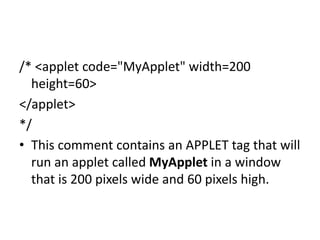
/* <applet code="MyApplet" width=200
height=60>
</applet>
*/
• This comment contains an APPLET tag that will
run an applet called MyApplet in a window
that is 200 pixels wide and 60 pixels high.
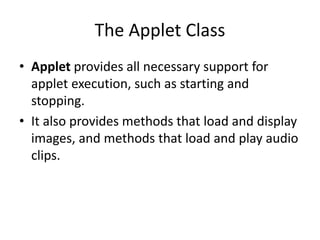
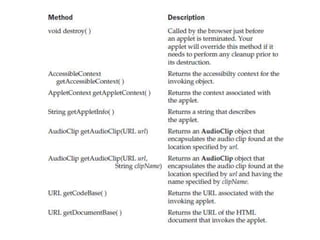
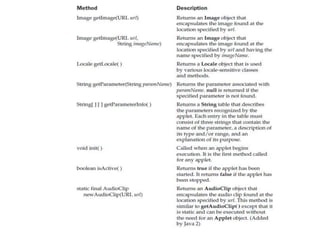
The Applet Class
• Applet provides all necessary support for
applet execution, such as starting and
stopping.
• It also provides methods that load and display
images, and methods that load and play audio
clips.
Applet Architecture
• Applets are event driven.
• An applet waits until an event occurs.
• The AWT notifies the applet about an event by
calling an event handler that has been
provided by the applet.
• Once this happens, the applet must take
appropriate action and then quickly return
control to the AWT.
• it must perform specific actions in response to
events and then return control to the AWT
run-time system.
• interactions are sent to the applet as events to
which the applet must respond.
• For example, when the user clicks a mouse
inside the applet’s window, a mouse-clicked
event is generated.
An Applet Skeleton
• init( ), start( ), stop( ), and destroy( )—are
defined by Applet. Another, paint( ), is defined
by the AWT Component class.
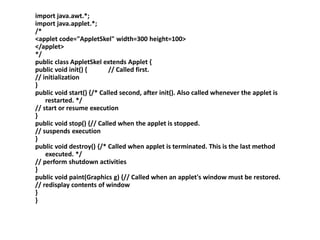
import java.awt.*;
import java.applet.*;
/*
<applet code="AppletSkel" width=300 height=100>
</applet>
*/
public class AppletSkel extends Applet {
public void init() { // Called first.
// initialization
}
public void start() {/* Called second, after init(). Also called whenever the applet is
restarted. */
// start or resume execution
}
public void stop() {// Called when the applet is stopped.
// suspends execution
}
public void destroy() {/* Called when applet is terminated. This is the last method
executed. */
// perform shutdown activities
}
public void paint(Graphics g) {// Called when an applet's window must be restored.
// redisplay contents of window
}
}
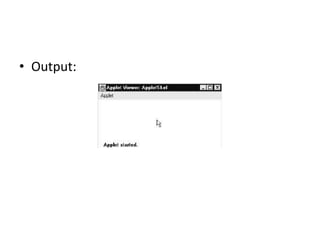
• Output:
• init( )
– The init( ) method is the first method to be called.
– This is where you should initialize variables.
– This method is called only once during the run
time of your applet.
• start( )
– The start( ) method is called after init( ).
– It is also called to restart an applet after it has
been stopped.
– It is called each time an applet’s HTML document
is displayed onscreen.
– So, if a user leaves a web page and comes back,
the applet resumes execution at start( ).
• paint( )
– The paint( ) method is called each time your
applet’s output must be redrawn.
– The paint( ) method has one parameter of type
Graphics.
– This parameter will contain the graphics context,
which describes the graphics environment in
which the applet is running.
– This context is used whenever output to the
applet is required.
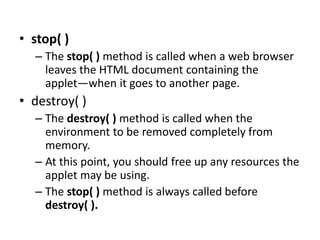
• stop( )
– The stop( ) method is called when a web browser
leaves the HTML document containing the
applet—when it goes to another page.
• destroy( )
– The destroy( ) method is called when the
environment to be removed completely from
memory.
– At this point, you should free up any resources the
applet may be using.
– The stop( ) method is always called before
destroy( ).
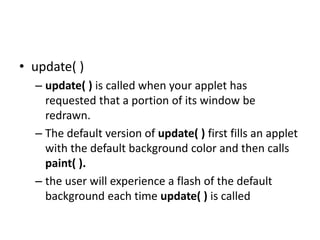
• update( )
– update( ) is called when your applet has
requested that a portion of its window be
redrawn.
– The default version of update( ) first fills an applet
with the default background color and then calls
paint( ).
– the user will experience a flash of the default
background each time update( ) is called
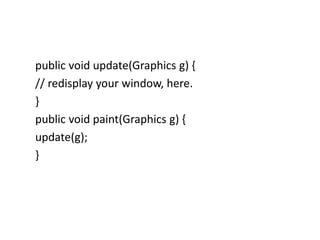
public void update(Graphics g) {
// redisplay your window, here.
}
public void paint(Graphics g) {
update(g);
}
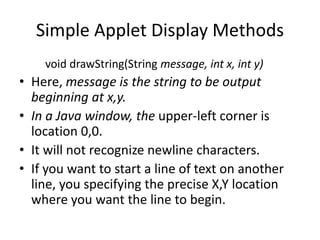
Simple Applet Display Methods
void drawString(String message, int x, int y)
• Here, message is the string to be output
beginning at x,y.
• In a Java window, the upper-left corner is
location 0,0.
• It will not recognize newline characters.
• If you want to start a line of text on another
line, you specifying the precise X,Y location
where you want the line to begin.
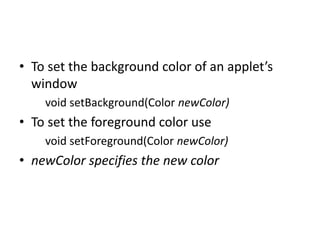
• To set the background color of an applet’s
window
void setBackground(Color newColor)
• To set the foreground color use
void setForeground(Color newColor)
• newColor specifies the new color
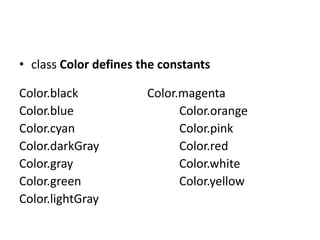
• class Color defines the constants
Color.black Color.magenta
Color.blue Color.orange
Color.cyan Color.pink
Color.darkGray Color.red
Color.gray Color.white
Color.green Color.yellow
Color.lightGray
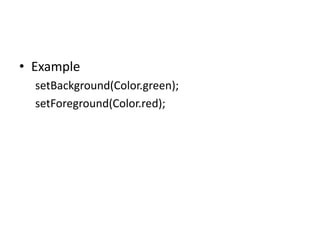
• Example
setBackground(Color.green);
setForeground(Color.red);
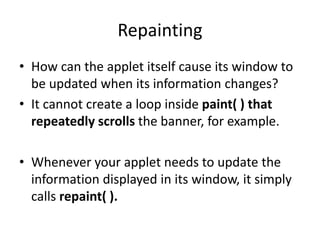
Repainting
• How can the applet itself cause its window to
be updated when its information changes?
• It cannot create a loop inside paint( ) that
repeatedly scrolls the banner, for example.
• Whenever your applet needs to update the
information displayed in its window, it simply
calls repaint( ).
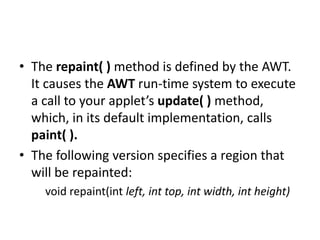
• The repaint( ) method is defined by the AWT.
It causes the AWT run-time system to execute
a call to your applet’s update( ) method,
which, in its default implementation, calls
paint( ).
• The following version specifies a region that
will be repainted:
void repaint(int left, int top, int width, int height)
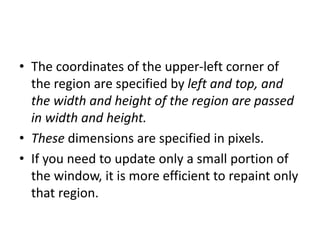
• The coordinates of the upper-left corner of
the region are specified by left and top, and
the width and height of the region are passed
in width and height.
• These dimensions are specified in pixels.
• If you need to update only a small portion of
the window, it is more efficient to repaint only
that region.
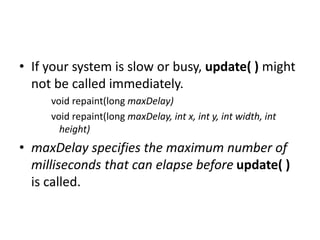
• If your system is slow or busy, update( ) might
not be called immediately.
void repaint(long maxDelay)
void repaint(long maxDelay, int x, int y, int width, int
height)
• maxDelay specifies the maximum number of
milliseconds that can elapse before update( )
is called.
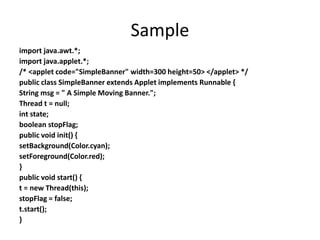
Sample
import java.awt.*;
import java.applet.*;
/* <applet code="SimpleBanner" width=300 height=50> </applet> */
public class SimpleBanner extends Applet implements Runnable {
String msg = " A Simple Moving Banner.";
Thread t = null;
int state;
boolean stopFlag;
public void init() {
setBackground(Color.cyan);
setForeground(Color.red);
}
public void start() {
t = new Thread(this);
stopFlag = false;
t.start();
}
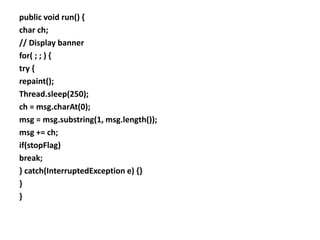
public void run() {
char ch;
// Display banner
for( ; ; ) {
try {
repaint();
Thread.sleep(250);
ch = msg.charAt(0);
msg = msg.substring(1, msg.length());
msg += ch;
if(stopFlag)
break;
} catch(InterruptedException e) {}
}
}
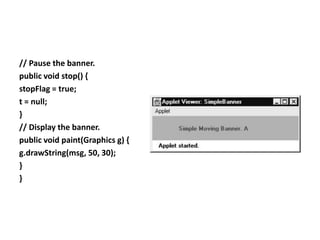
// Pause the banner.
public void stop() {
stopFlag = true;
t = null;
}
// Display the banner.
public void paint(Graphics g) {
g.drawString(msg, 50, 30);
}
}
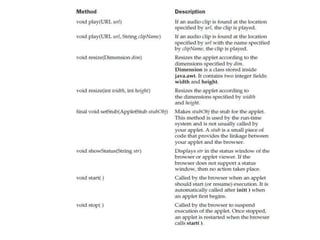
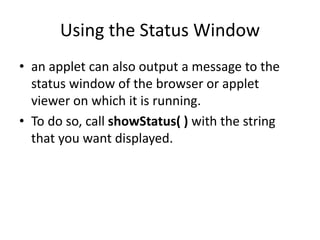
Using the Status Window
• an applet can also output a message to the
status window of the browser or applet
viewer on which it is running.
• To do so, call showStatus( ) with the string
that you want displayed.
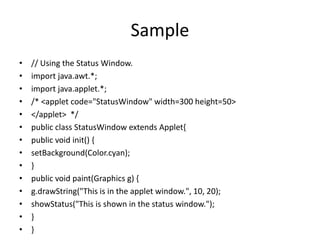
Sample
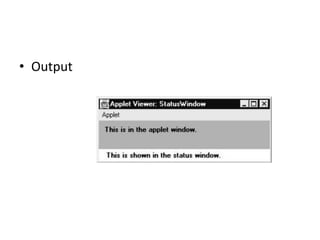
• // Using the Status Window.
• import java.awt.*;
• import java.applet.*;
• /* <applet code="StatusWindow" width=300 height=50>
• </applet> */
• public class StatusWindow extends Applet{
• public void init() {
• setBackground(Color.cyan);
• }
• public void paint(Graphics g) {
• g.drawString("This is in the applet window.", 10, 20);
• showStatus("This is shown in the status window.");
• }
• }
• Output
The HTML APPLET Tag
• An applet viewer will execute each APPLET tag that it
finds in a separate window, while web browsers like
Netscape Navigator, Internet Explorer, and HotJava
will allow many applets on a single page.
< APPLET
[CODEBASE = codebaseURL]
CODE = appletFile
[ALT = alternateText]
[NAME = appletInstanceName]
WIDTH = pixels HEIGHT = pixels
[ALIGN = alignment]
[VSPACE = pixels] [HSPACE = pixels]
>
[< PARAM NAME = AttributeName VALUE = AttributeValue>]
[< PARAM NAME = AttributeName2 VALUE = AttributeValue>]
. . .
</APPLET>
• CODEBASE
– CODEBASE is an optional attribute that specifies
the base URL of the applet code, which is the
directory that will be searched for the applet’s
executable class file (specified by the CODE tag).
– The HTML document’s URL directory is used as
the CODEBASE if this attribute is not specified.
• CODE
– CODE is a required attribute that gives the name
of the file containing your applet’s compiled .class
file.
– This file is relative to the code base URL of the
applet, which is the directory that the HTML file
was in or the directory indicated by CODEBASE if
set.
• ALT
– The ALT tag is an optional attribute used to specify
a short text message that should be displayed if
the browser understands the APPLET tag but can’t
currently run Java applets.
– This is distinct from the alternate HTML you
provide for browsers that don’t support applets.
• NAME
– NAME is an optional attribute used to specify a
name for the applet instance.
– Applets must be named in order for other applets
on the same page to find them by name and
communicate with them.
– To obtain an applet by name, use getApplet( ),
which is defined by the AppletContext interface.
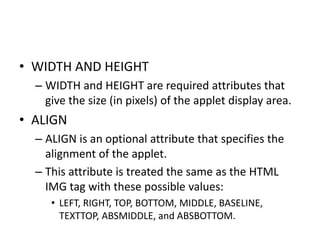
• WIDTH AND HEIGHT
– WIDTH and HEIGHT are required attributes that
give the size (in pixels) of the applet display area.
• ALIGN
– ALIGN is an optional attribute that specifies the
alignment of the applet.
– This attribute is treated the same as the HTML
IMG tag with these possible values:
• LEFT, RIGHT, TOP, BOTTOM, MIDDLE, BASELINE,
TEXTTOP, ABSMIDDLE, and ABSBOTTOM.
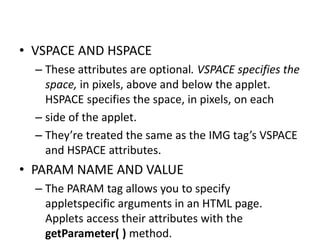
• VSPACE AND HSPACE
– These attributes are optional. VSPACE specifies the
space, in pixels, above and below the applet.
HSPACE specifies the space, in pixels, on each
– side of the applet.
– They’re treated the same as the IMG tag’s VSPACE
and HSPACE attributes.
• PARAM NAME AND VALUE
– The PARAM tag allows you to specify
appletspecific arguments in an HTML page.
Applets access their attributes with the
getParameter( ) method.
Passing Parameters to Applets
• the APPLET tag in HTML allows you to pass
parameters to your applet.
• To retrieve a parameter, use the
getParameter( ) method.
• It returns the value of the specified parameter
in the form of a String object.
• For numeric and boolean values, you will need
to convert their string representations into
their internal formats.
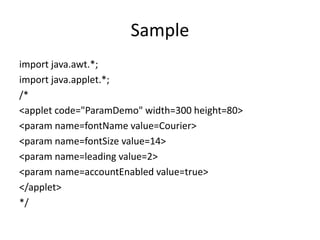
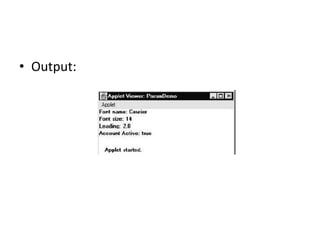
Sample
import java.awt.*;
import java.applet.*;
/*
<applet code="ParamDemo" width=300 height=80>
<param name=fontName value=Courier>
<param name=fontSize value=14>
<param name=leading value=2>
<param name=accountEnabled value=true>
</applet>
*/
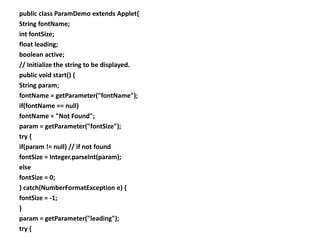
public class ParamDemo extends Applet{
String fontName;
int fontSize;
float leading;
boolean active;
// Initialize the string to be displayed.
public void start() {
String param;
fontName = getParameter("fontName");
if(fontName == null)
fontName = "Not Found";
param = getParameter("fontSize");
try {
if(param != null) // if not found
fontSize = Integer.parseInt(param);
else
fontSize = 0;
} catch(NumberFormatException e) {
fontSize = -1;
}
param = getParameter("leading");
try {
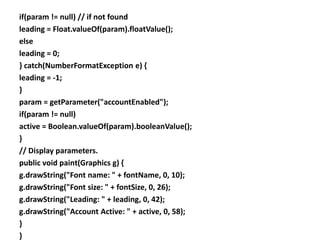
if(param != null) // if not found
leading = Float.valueOf(param).floatValue();
else
leading = 0;
} catch(NumberFormatException e) {
leading = -1;
}
param = getParameter("accountEnabled");
if(param != null)
active = Boolean.valueOf(param).booleanValue();
}
// Display parameters.
public void paint(Graphics g) {
g.drawString("Font name: " + fontName, 0, 10);
g.drawString("Font size: " + fontSize, 0, 26);
g.drawString("Leading: " + leading, 0, 42);
g.drawString("Account Active: " + active, 0, 58);
}
}
• Output:
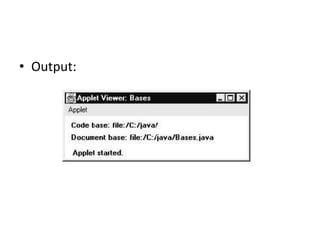
getDocumentBase( ) and
getCodeBase( )
• to load data from the directory holding the
HTML file that started the applet (the
document base)
• the directory from which the applet’s class file
was loaded (the code base).
• These directories are returned as URL objects
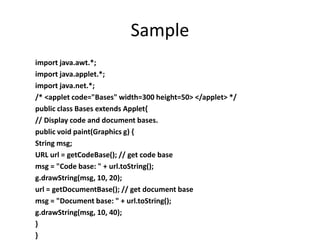
Sample
import java.awt.*;
import java.applet.*;
import java.net.*;
/* <applet code="Bases" width=300 height=50> </applet> */
public class Bases extends Applet{
// Display code and document bases.
public void paint(Graphics g) {
String msg;
URL url = getCodeBase(); // get code base
msg = "Code base: " + url.toString();
g.drawString(msg, 10, 20);
url = getDocumentBase(); // get document base
msg = "Document base: " + url.toString();
g.drawString(msg, 10, 40);
}
}
• Output:
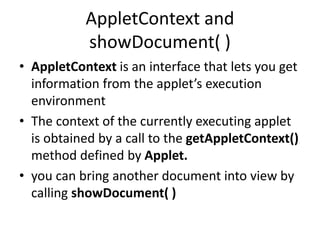
AppletContext and
showDocument( )
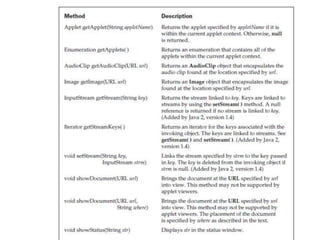
• AppletContext is an interface that lets you get
information from the applet’s execution
environment
• The context of the currently executing applet
is obtained by a call to the getAppletContext()
method defined by Applet.
• you can bring another document into view by
calling showDocument( )
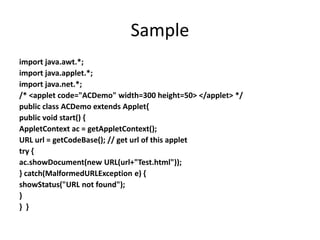
Sample
import java.awt.*;
import java.applet.*;
import java.net.*;
/* <applet code="ACDemo" width=300 height=50> </applet> */
public class ACDemo extends Applet{
public void start() {
AppletContext ac = getAppletContext();
URL url = getCodeBase(); // get url of this applet
try {
ac.showDocument(new URL(url+"Test.html"));
} catch(MalformedURLException e) {
showStatus("URL not found");
}
} }

Java applet

  • 1.
  • 2.
    Applet • applets aresmall applications that are accessed on an Internet server, transported over the Internet, automatically installed, and run as part of a Web document • An applet begins execution when the name of its class is passed to an applet viewer or to a network browser.
  • 3.
    • Three steps: –Edit a Java source file. – Compile your program. – Execute the applet viewer, specifying the name of your applet’s source file. The applet viewer will encounter the APPLET tag within the comment and execute your applet.
  • 4.
    • all appletsmust import java.applet. • Applets must also import java.awt. • Recall that AWT stands for the Abstract Window Toolkit • Applets are not executed by the console- based Java run-time interpreter. • They are executed by either a Web browser or an applet viewer.
  • 5.
    • Output toyour applet’s window is not performed by System.out.println( ). • Rather, it is handled with various AWT methods, such as drawString( ), which outputs a string to a specified X,Y location. • Once an applet has been compiled, it is included in an HTML file using the APPLET tag.
  • 6.
    • To viewand test an applet more conveniently, simply include a comment at the head of your Java source code file that contains the APPLET tag. • This way, your code is documented with the necessary HTML statements needed by your applet, and you can test the compiled applet by starting the applet viewer with your Java source code file specified as the target
  • 7.
    /* <applet code="MyApplet"width=200 height=60> </applet> */ • This comment contains an APPLET tag that will run an applet called MyApplet in a window that is 200 pixels wide and 60 pixels high.
  • 8.
    The Applet Class •Applet provides all necessary support for applet execution, such as starting and stopping. • It also provides methods that load and display images, and methods that load and play audio clips.
  • 12.
    Applet Architecture • Appletsare event driven. • An applet waits until an event occurs. • The AWT notifies the applet about an event by calling an event handler that has been provided by the applet. • Once this happens, the applet must take appropriate action and then quickly return control to the AWT.
  • 13.
    • it mustperform specific actions in response to events and then return control to the AWT run-time system. • interactions are sent to the applet as events to which the applet must respond. • For example, when the user clicks a mouse inside the applet’s window, a mouse-clicked event is generated.
  • 14.
    An Applet Skeleton •init( ), start( ), stop( ), and destroy( )—are defined by Applet. Another, paint( ), is defined by the AWT Component class.
  • 15.
    import java.awt.*; import java.applet.*; /* <appletcode="AppletSkel" width=300 height=100> </applet> */ public class AppletSkel extends Applet { public void init() { // Called first. // initialization } public void start() {/* Called second, after init(). Also called whenever the applet is restarted. */ // start or resume execution } public void stop() {// Called when the applet is stopped. // suspends execution } public void destroy() {/* Called when applet is terminated. This is the last method executed. */ // perform shutdown activities } public void paint(Graphics g) {// Called when an applet's window must be restored. // redisplay contents of window } }
  • 16.
  • 17.
    • init( ) –The init( ) method is the first method to be called. – This is where you should initialize variables. – This method is called only once during the run time of your applet.
  • 18.
    • start( ) –The start( ) method is called after init( ). – It is also called to restart an applet after it has been stopped. – It is called each time an applet’s HTML document is displayed onscreen. – So, if a user leaves a web page and comes back, the applet resumes execution at start( ).
  • 19.
    • paint( ) –The paint( ) method is called each time your applet’s output must be redrawn. – The paint( ) method has one parameter of type Graphics. – This parameter will contain the graphics context, which describes the graphics environment in which the applet is running. – This context is used whenever output to the applet is required.
  • 20.
    • stop( ) –The stop( ) method is called when a web browser leaves the HTML document containing the applet—when it goes to another page. • destroy( ) – The destroy( ) method is called when the environment to be removed completely from memory. – At this point, you should free up any resources the applet may be using. – The stop( ) method is always called before destroy( ).
  • 21.
    • update( ) –update( ) is called when your applet has requested that a portion of its window be redrawn. – The default version of update( ) first fills an applet with the default background color and then calls paint( ). – the user will experience a flash of the default background each time update( ) is called
  • 22.
    public void update(Graphicsg) { // redisplay your window, here. } public void paint(Graphics g) { update(g); }
  • 23.
    Simple Applet DisplayMethods void drawString(String message, int x, int y) • Here, message is the string to be output beginning at x,y. • In a Java window, the upper-left corner is location 0,0. • It will not recognize newline characters. • If you want to start a line of text on another line, you specifying the precise X,Y location where you want the line to begin.
  • 24.
    • To setthe background color of an applet’s window void setBackground(Color newColor) • To set the foreground color use void setForeground(Color newColor) • newColor specifies the new color
  • 25.
    • class Colordefines the constants Color.black Color.magenta Color.blue Color.orange Color.cyan Color.pink Color.darkGray Color.red Color.gray Color.white Color.green Color.yellow Color.lightGray
  • 26.
  • 27.
    Repainting • How canthe applet itself cause its window to be updated when its information changes? • It cannot create a loop inside paint( ) that repeatedly scrolls the banner, for example. • Whenever your applet needs to update the information displayed in its window, it simply calls repaint( ).
  • 28.
    • The repaint() method is defined by the AWT. It causes the AWT run-time system to execute a call to your applet’s update( ) method, which, in its default implementation, calls paint( ). • The following version specifies a region that will be repainted: void repaint(int left, int top, int width, int height)
  • 29.
    • The coordinatesof the upper-left corner of the region are specified by left and top, and the width and height of the region are passed in width and height. • These dimensions are specified in pixels. • If you need to update only a small portion of the window, it is more efficient to repaint only that region.
  • 30.
    • If yoursystem is slow or busy, update( ) might not be called immediately. void repaint(long maxDelay) void repaint(long maxDelay, int x, int y, int width, int height) • maxDelay specifies the maximum number of milliseconds that can elapse before update( ) is called.
  • 31.
    Sample import java.awt.*; import java.applet.*; /*<applet code="SimpleBanner" width=300 height=50> </applet> */ public class SimpleBanner extends Applet implements Runnable { String msg = " A Simple Moving Banner."; Thread t = null; int state; boolean stopFlag; public void init() { setBackground(Color.cyan); setForeground(Color.red); } public void start() { t = new Thread(this); stopFlag = false; t.start(); }
  • 32.
    public void run(){ char ch; // Display banner for( ; ; ) { try { repaint(); Thread.sleep(250); ch = msg.charAt(0); msg = msg.substring(1, msg.length()); msg += ch; if(stopFlag) break; } catch(InterruptedException e) {} } }
  • 33.
    // Pause thebanner. public void stop() { stopFlag = true; t = null; } // Display the banner. public void paint(Graphics g) { g.drawString(msg, 50, 30); } }
  • 34.
    Using the StatusWindow • an applet can also output a message to the status window of the browser or applet viewer on which it is running. • To do so, call showStatus( ) with the string that you want displayed.
  • 35.
    Sample • // Usingthe Status Window. • import java.awt.*; • import java.applet.*; • /* <applet code="StatusWindow" width=300 height=50> • </applet> */ • public class StatusWindow extends Applet{ • public void init() { • setBackground(Color.cyan); • } • public void paint(Graphics g) { • g.drawString("This is in the applet window.", 10, 20); • showStatus("This is shown in the status window."); • } • }
  • 36.
  • 37.
    The HTML APPLETTag • An applet viewer will execute each APPLET tag that it finds in a separate window, while web browsers like Netscape Navigator, Internet Explorer, and HotJava will allow many applets on a single page. < APPLET [CODEBASE = codebaseURL] CODE = appletFile [ALT = alternateText] [NAME = appletInstanceName] WIDTH = pixels HEIGHT = pixels [ALIGN = alignment] [VSPACE = pixels] [HSPACE = pixels] > [< PARAM NAME = AttributeName VALUE = AttributeValue>] [< PARAM NAME = AttributeName2 VALUE = AttributeValue>] . . . </APPLET>
  • 38.
    • CODEBASE – CODEBASEis an optional attribute that specifies the base URL of the applet code, which is the directory that will be searched for the applet’s executable class file (specified by the CODE tag). – The HTML document’s URL directory is used as the CODEBASE if this attribute is not specified.
  • 39.
    • CODE – CODEis a required attribute that gives the name of the file containing your applet’s compiled .class file. – This file is relative to the code base URL of the applet, which is the directory that the HTML file was in or the directory indicated by CODEBASE if set.
  • 40.
    • ALT – TheALT tag is an optional attribute used to specify a short text message that should be displayed if the browser understands the APPLET tag but can’t currently run Java applets. – This is distinct from the alternate HTML you provide for browsers that don’t support applets.
  • 41.
    • NAME – NAMEis an optional attribute used to specify a name for the applet instance. – Applets must be named in order for other applets on the same page to find them by name and communicate with them. – To obtain an applet by name, use getApplet( ), which is defined by the AppletContext interface.
  • 42.
    • WIDTH ANDHEIGHT – WIDTH and HEIGHT are required attributes that give the size (in pixels) of the applet display area. • ALIGN – ALIGN is an optional attribute that specifies the alignment of the applet. – This attribute is treated the same as the HTML IMG tag with these possible values: • LEFT, RIGHT, TOP, BOTTOM, MIDDLE, BASELINE, TEXTTOP, ABSMIDDLE, and ABSBOTTOM.
  • 43.
    • VSPACE ANDHSPACE – These attributes are optional. VSPACE specifies the space, in pixels, above and below the applet. HSPACE specifies the space, in pixels, on each – side of the applet. – They’re treated the same as the IMG tag’s VSPACE and HSPACE attributes. • PARAM NAME AND VALUE – The PARAM tag allows you to specify appletspecific arguments in an HTML page. Applets access their attributes with the getParameter( ) method.
  • 44.
    Passing Parameters toApplets • the APPLET tag in HTML allows you to pass parameters to your applet. • To retrieve a parameter, use the getParameter( ) method. • It returns the value of the specified parameter in the form of a String object. • For numeric and boolean values, you will need to convert their string representations into their internal formats.
  • 45.
    Sample import java.awt.*; import java.applet.*; /* <appletcode="ParamDemo" width=300 height=80> <param name=fontName value=Courier> <param name=fontSize value=14> <param name=leading value=2> <param name=accountEnabled value=true> </applet> */
  • 46.
    public class ParamDemoextends Applet{ String fontName; int fontSize; float leading; boolean active; // Initialize the string to be displayed. public void start() { String param; fontName = getParameter("fontName"); if(fontName == null) fontName = "Not Found"; param = getParameter("fontSize"); try { if(param != null) // if not found fontSize = Integer.parseInt(param); else fontSize = 0; } catch(NumberFormatException e) { fontSize = -1; } param = getParameter("leading"); try {
  • 47.
    if(param != null)// if not found leading = Float.valueOf(param).floatValue(); else leading = 0; } catch(NumberFormatException e) { leading = -1; } param = getParameter("accountEnabled"); if(param != null) active = Boolean.valueOf(param).booleanValue(); } // Display parameters. public void paint(Graphics g) { g.drawString("Font name: " + fontName, 0, 10); g.drawString("Font size: " + fontSize, 0, 26); g.drawString("Leading: " + leading, 0, 42); g.drawString("Account Active: " + active, 0, 58); } }
  • 48.
  • 49.
    getDocumentBase( ) and getCodeBase() • to load data from the directory holding the HTML file that started the applet (the document base) • the directory from which the applet’s class file was loaded (the code base). • These directories are returned as URL objects
  • 50.
    Sample import java.awt.*; import java.applet.*; importjava.net.*; /* <applet code="Bases" width=300 height=50> </applet> */ public class Bases extends Applet{ // Display code and document bases. public void paint(Graphics g) { String msg; URL url = getCodeBase(); // get code base msg = "Code base: " + url.toString(); g.drawString(msg, 10, 20); url = getDocumentBase(); // get document base msg = "Document base: " + url.toString(); g.drawString(msg, 10, 40); } }
  • 51.
  • 52.
    AppletContext and showDocument( ) •AppletContext is an interface that lets you get information from the applet’s execution environment • The context of the currently executing applet is obtained by a call to the getAppletContext() method defined by Applet. • you can bring another document into view by calling showDocument( )
  • 54.
    Sample import java.awt.*; import java.applet.*; importjava.net.*; /* <applet code="ACDemo" width=300 height=50> </applet> */ public class ACDemo extends Applet{ public void start() { AppletContext ac = getAppletContext(); URL url = getCodeBase(); // get url of this applet try { ac.showDocument(new URL(url+"Test.html")); } catch(MalformedURLException e) { showStatus("URL not found"); } } }