IPV6 Test Plan for OPNFV PoC v2.0 11/23/2015
Yardstick supporting Rally will need to ping6, tcpdump6 as part of VM creation or at least
scp/ftp capabilities for VM as well IPv6=serviceVM
Requirements:Totestthe IPv6Service VMwitha OPNFV IPv6setupusingOpenStackLiberty &SDN
controllerODLLithiumSR2
IPV6Testingforthe POC-X3referlink
https://wiki.opnfv.org/ipv6_opnfv_project
A Service VM in OpenStack+SDN controller[ODL or ONOS or OC] environmentthat is capable of
(1) advertisingIPv6 Router Advertisements(RA) to the VMson the internal tenant network (E-W
traffic)
(2) IPv6 Forwarding (i.e.,North-Southtraffic),i.e.capability of an IPv6 vRouter
The designdetailsare overlink
https://wiki.opnfv.org/ipv6_opnfv_project/poc_design
Testdesign:
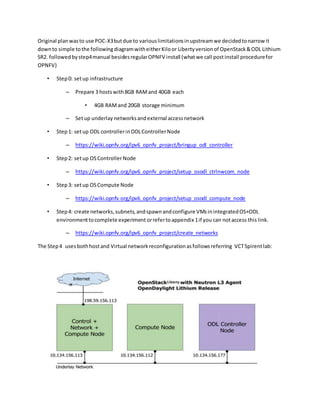
Original planwasto use POC-X3butdue to variouslimitationsinupstreamwe decidedtonarrow it
downto simple tothe followingdiagramwitheitherKiloor Liberty versionof OpenStack&ODL Lithium
SR2. followedbystep4manual besidesregularOPNFV install (whatwe call postinstall procedurefor
OPNFV)
• Step0: setup infrastructure
– Prepare 3 hostswith8GB RAMand 40GB each
• 4GB RAMand 20GB storage minimum
– Setup underlay networksandexternal accessnetwork
• Step1: setup ODL controllerinODLControllerNode
– https://wiki.opnfv.org/ipv6_opnfv_project/bringup_odl_controller
• Step2: setup OSControllerNode
– https://wiki.opnfv.org/ipv6_opnfv_project/setup_osodl_ctrlnwcom_node
• Step3: setup OSCompute Node
– https://wiki.opnfv.org/ipv6_opnfv_project/setup_osodl_compute_node
• Step4: create networks,subnets,andspawnandconfigure VMsinintegratedOS+ODL
environmenttocomplete experiment orrefertoappendix 1if you can notaccess this link.
– https://wiki.opnfv.org/ipv6_opnfv_project/create_networks
The Step4 uses bothhostand Virtual networkreconfigurationasfollowsreferring VCTSpirentlab:
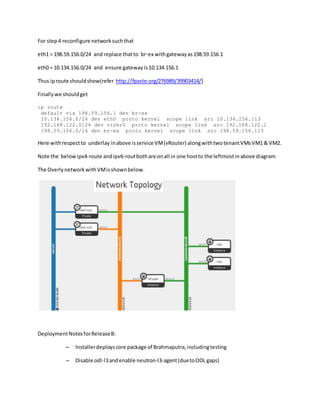
For step4 reconfigure networksuchthat
eth1 = 198.59.156.0/24 and replace thatto br-ex withgatewayas198.59.156.1
eth0 = 10.134.156.0/24 and ensure gatewayis10.134.156.1
Thus iproute shouldshow(refer http://fpaste.org/276989/39903414/)
Finallywe shouldget
ip route
default via 198.59.156.1 dev br-ex
10.134.156.0/24 dev eth0 proto kernel scope link src 10.134.156.113
192.168.122.0/24 dev virbr0 proto kernel scope link src 192.168.122.1
198.59.156.0/24 dev br-ex proto kernel scope link src 198.59.156.113
Here withrespectto underlay inabove isservice VM(vRouter) alongwithtwotenantVMsVM1 & VM2.
Note the belowipv4-route andipv6-routbothare onall in one hostto the leftmostinabove diagram
The OverlynetworkwithVMisshownbelow.
DeploymentNotesforReleaseB:
– Installerdeployscore package of Brahmaputra,includingtesting
– Disable odl-l3andenable neutron-l3-agent(duetoODL gaps)
– Our Step4 instructionstosetupIPv6 vRouter
Test:
variablesto be defined:
OS-C-Node=IPaddr1=10.134.156.113
ODL-C-Node=IPaddr2=10.134.156.177
Compute-Node1=IPaddr3=10.134.156.112
Compute -Node2=IPaddr4=?
ipv4-router1=20.0.0.1
ipv6-router2=10.0.0.1
ext-router-gateway-ip=198.159.156.1
IPv6-Service VM=20.0.0.3
VM1=20.0.0.6
VM2=20.0.0.7
DNS-8.8.8.8=8.8.8.8
ipv6-prefix-to-use:2001:db8:0:2::/64
IPVSIX_ST-01 : Testing IPv6 ping to the nodeson the tenant network (E-W traffic)
ssh to VM1
IPVSIX_ST-01-VM1-vR -ping6
(note now ping6 will use prfixas 2001:db8:0:2::/64)
ping6 -c 1 [IPV6-service-VM]
PING 2001:db8:0:2::1(::1) from...::1 : 56 data bytes
64 bytes from ...::1: icmp6_seq=0 hops=64 time=292 usec
--- ::1 ping statistics ---
1 packets transmitted, 1 packets received, 0% packet loss
IPVSIX_ST-01-VM1-VM2-ping6
ping6 -c 1 [V2M]
PING 2001:db8:0:2::1(::1) from...::1 : 56 data bytes
64 bytes from ...::1: icmp6_seq=0 hops=64 time=292 usec
--- ::1 ping statistics ---
1 packets transmitted, 1 packets received, 0% packet loss
IPVSIX_ST-01-VM1- ipv4-router1-ping
ping -c 1 [ipv4-router1]
PING 20.0.0.1(::1) from...::1 : 56 data bytes
64 bytes from ...::1: icmp6_seq=0 hops=64 time=292 usec
--- ::1 ping statistics ---
1 packets transmitted, 1 packets received, 0% packet loss
IPVSIX_ST-01-VM1- ipv6-router2-ping
ping6 -c 1 [ipv6-router2]
PING 2001:db8:0:2::1(::1) from...::1 : 56 data bytes
64 bytes from ...::1: icmp6_seq=0 hops=64 time=292 usec
--- ::1 ping statistics ---
1 packets transmitted, 1 packets received, 0% packet loss
IPVSIX_ST-01-VM1- ipv6-router2-traceroute
traceroute [ipv6-router2]
traceroute to 10.0.0.1 (30 hop max) , 60 byte packets
1 20.0.0.3..10 ms...
2.20.0.0.1 .. 1 ms
IPVSIX_ST-01-8.8.8.8-DNS-ping
ping -c 1 [DNS-8.8.8.8]
PING 8.8.8.8(::1) from...::1 : 56 data bytes
64 bytes from ...::1: icmp6_seq=0 hops=64 time=292 usec
--- ::1 ping statistics ---
1 packets transmitted, 1 packets received, 0% packet loss
TestingIPv6 & IPv4 Forwarding(N-Straffic)
ssh to : IPV6 Service VM
IPVSIX_ST-02 : vR-DNS-8.8.8.8-ping6
ping6 -c 1 [DNS-8.8.8.8]
PING ::1(::1) from ::1 : 56 data bytes
64 bytes from ::1: icmp_seq=0 hops=64 time=292 usec
--- ::1 ping statistics ---
1 packets transmitted, 1 packets received, 0% packet loss
IPVSIX_ST-02 : vR-DNS-8.8.8.8-ping
ping -c 1 [DNS-8.8.8.8]
PING ::1(::1) from ::1 : 56 data bytes
64 bytes from ::1: icmp_seq=0 hops=64 time=292 usec
--- ::1 ping statistics ---
1 packets transmitted, 1 packets received, 0% packet loss
All are positive tests and expected to PASS, refer table below.
Test From To Pass/Fail
IPVSIX_ST-01-VM1-vR -ping6 VM1 vR Positive Pass
IPVSIX_ST-01-VM1-VM2-ping6 VM1 VM2 Positive Pass
IPVSIX_ST-01-VM1- ipv4-router1-
ping
VM1 ipv4-router1 Positive Pass
IPVSIX_ST-01-VM1- ipv6-router2-
ping
VM1 ipv6-router2 Positive Pass
IPVSIX_ST-01-VM1- ipv6-router2-
traceroute
VM1 ipv6-router2 Positive Pass
IPVSIX_ST-01-8.8.8.8-DNS-ping Vm1 DNS-8.8.8.8 Positive Pass
IPVSIX_ST-02 : vR-DNS-8.8.8.8-
ping6
vR DNS-8.8.8.8 Positive Pass
IPVSIX_ST-02 : vR-DNS-8.8.8.8-
ping
vR DNS-8.8.8.8 Positive Pass
Negative testscan be set for
each of 8 above tests by test
developers.
*** *** Negative Pass
We can have commontestsfor all communitylabswithashell scriptwithabove 8 positive and
correspondingnegative testswithparametersandvariablesfromabove..
Appendix: references
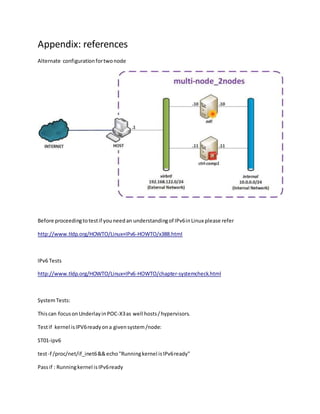
Alternate configurationfortwonode
Before proceedingtotestif youneedan understandingof IPv6inLinux please refer
http://www.tldp.org/HOWTO/Linux+IPv6-HOWTO/x388.html
IPv6 Tests
http://www.tldp.org/HOWTO/Linux+IPv6-HOWTO/chapter-systemcheck.html
SystemTests:
Thiscan focusonUnderlayinPOC-X3as well hosts/hypervisors.
Testif kernel isIPV6readyona givensystem/node:
ST01-ipv6
test-f /proc/net/if_inet6&&echo"Runningkernel isIPv6ready"
Passif : Runningkernel isIPv6ready
ST02-ipv6
VerifyInterfacesonsystemandrunpingtestsusingping6
ifconfig
add addr/prefixlen
Add an IPv6addressto an interface.
Sample test case 1 like
# /sbin/ip -6 addr add <ipv6address>/<prefixlength> dev <interface>
# /sbin/ifconfig eth0 inet6 add 2001:0db8:0:f101::1/64
Sample test case 2 like using ifconfig
# /sbin/ifconfig <interface> inet6 add <ipv6address>/<prefixlength>
# /sbin/ifconfig eth0 inet6 add 2001:0db8:0:f101::1/64
del addr/prefixlen
Remove anIPv6 addressfroman interface.
Sample testcase 1 like
# /sbin/ip -6 addr del <ipv6address>/<prefixlength> dev <interface>
# /sbin/ip -6 addr del 2001:0db8:0:f101::1/64 dev eth0
Sample testcase 2 usingifconfig
# /sbin/ifconfig <interface> inet6 del <ipv6address>/<prefixlength>
# /sbin/ifconfig eth0 inet6 del 2001:0db8:0:f101::1/64
tunnel aa.bb.cc.dd
Create a newSIT(IPv6-in-IPv4) device,tunnellingtothe given
destination.
1. Interface Testing:To verifyIPv6interfacesonhosts,routersorVMs
2. Ping6 Testing:Toverifythatping6 worksbetweenrequiredsource anddestinationinterfaces.
Referhttp://www.tldp.org/HOWTO/Linux+IPv6-HOWTO/x811.html
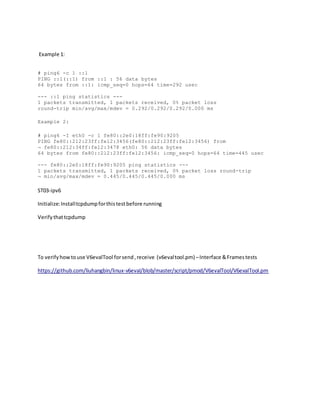
Example 1:
# ping6 -c 1 ::1
PING ::1(::1) from ::1 : 56 data bytes
64 bytes from ::1: icmp_seq=0 hops=64 time=292 usec
--- ::1 ping statistics ---
1 packets transmitted, 1 packets received, 0% packet loss
round-trip min/avg/max/mdev = 0.292/0.292/0.292/0.000 ms
Example 2:
# ping6 -I eth0 -c 1 fe80::2e0:18ff:fe90:9205
PING fe80::212:23ff:fe12:3456(fe80::212:23ff:fe12:3456) from
¬ fe80::212:34ff:fe12:3478 eth0: 56 data bytes
64 bytes from fe80::212:23ff:fe12:3456: icmp_seq=0 hops=64 time=445 usec
--- fe80::2e0:18ff:fe90:9205 ping statistics ---
1 packets transmitted, 1 packets received, 0% packet loss round-trip
¬ min/avg/max/mdev = 0.445/0.445/0.445/0.000 ms
ST03-ipv6
Initialize:Installtcpdumpforthistestbefore running
Verifythattcpdump
To verifyhowtouse V6evalTool forsend,receive (v6evaltool.pm) –Interface &Framestests
https://github.com/liuhangbin/linux-v6eval/blob/master/script/pmod/V6evalTool/V6evalTool.pm
vRouter creation and relation to ODL and OpenStack Neutron Configurations for VCT Spirent
Lab
vRouterVMwouldbe advertisingthe followingIPv6prefix 2001:db8:0:2::/64 [Ref:1]
The radvd daemon(whichwe are manuallyspawninginside the ipv6-routernamespace) wouldbe
advertisingthe prefix 2001:db8:0:1::/64 [Ref:2]
The actual IPv6 addressesthatwouldbe configuredinVM1/VM2 wouldbe basedonthe VMMAC
address(asit isconfiguredviaSLAAC).
JFYI,to knowthe EUI-64 IPv6 addressderivedfromIPv6prefix,youcanuse the followingonline
calculator[Ref:3]
Let me knowif you have anyquestions.
[Ref:1] http://fpaste.org/276989/39903414/
[Ref:2] Step12 of page - https://wiki.opnfv.org/ipv6_opnfv_project/create_networks
[Ref:3] http://tools.petrkadlec.com/lookup/ipv6eui64gen/
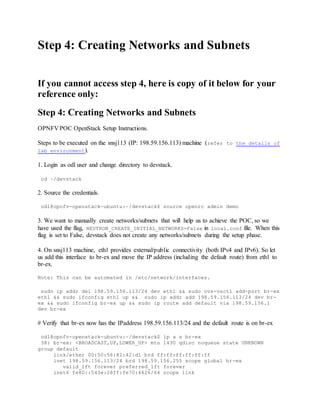
Step 4: Creating Networks and Subnets
If you cannot access step 4, here is copy of it below for your
reference only:
Step 4: Creating Networks and Subnets
OPNFV POC OpenStack Setup Instructions.
Steps to be executed on the snsj113 (IP: 198.59.156.113) machine (refer to the details of
lab environment).
1. Login as odl user and change directory to devstack.
cd ~/devstack
2. Source the credentials.
odl@opnfv-openstack-ubuntu:~/devstack$ source openrc admin demo
3. We want to manually create networks/subnets that will help us to achieve the POC, so we
have used the flag, NEUTRON_CREATE_INITIAL_NETWORKS=False in local.conf file. When this
flag is set to False, devstack does not create any networks/subnets during the setup phase.
4. On snsj113 machine, eth1 provides external/public connectivity (both IPv4 and IPv6). So let
us add this interface to br-ex and move the IP address (including the default route) from eth1 to
br-ex.
Note: This can be automated in /etc/network/interfaces.
sudo ip addr del 198.59.156.113/24 dev eth1 && sudo ovs-vsctl add-port br-ex
eth1 && sudo ifconfig eth1 up && sudo ip addr add 198.59.156.113/24 dev br-
ex && sudo ifconfig br-ex up && sudo ip route add default via 198.59.156.1
dev br-ex
# Verify that br-ex now has the IPaddress 198.59.156.113/24 and the default route is on br-ex
odl@opnfv-openstack-ubuntu:~/devstack$ ip a s br-ex
38: br-ex: <BROADCAST,UP,LOWER_UP> mtu 1430 qdisc noqueue state UNKNOWN
group default
link/ether 00:50:56:82:42:d1 brd ff:ff:ff:ff:ff:ff
inet 198.59.156.113/24 brd 198.59.156.255 scope global br-ex
valid_lft forever preferred_lft forever
inet6 fe80::543e:28ff:fe70:4426/64 scope link
valid_lft forever preferred_lft forever
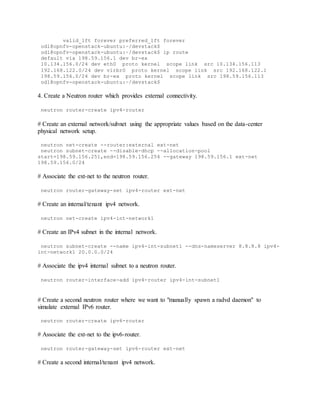
odl@opnfv-openstack-ubuntu:~/devstack$
odl@opnfv-openstack-ubuntu:~/devstack$ ip route
default via 198.59.156.1 dev br-ex
10.134.156.0/24 dev eth0 proto kernel scope link src 10.134.156.113
192.168.122.0/24 dev virbr0 proto kernel scope link src 192.168.122.1
198.59.156.0/24 dev br-ex proto kernel scope link src 198.59.156.113
odl@opnfv-openstack-ubuntu:~/devstack$
4. Create a Neutron router which provides external connectivity.
neutron router-create ipv4-router
# Create an external network/subnet using the appropriate values based on the data-center
physical network setup.
neutron net-create --router:external ext-net
neutron subnet-create --disable-dhcp --allocation-pool
start=198.59.156.251,end=198.59.156.254 --gateway 198.59.156.1 ext-net
198.59.156.0/24
# Associate the ext-net to the neutron router.
neutron router-gateway-set ipv4-router ext-net
# Create an internal/tenant ipv4 network.
neutron net-create ipv4-int-network1
# Create an IPv4 subnet in the internal network.
neutron subnet-create --name ipv4-int-subnet1 --dns-nameserver 8.8.8.8 ipv4-
int-network1 20.0.0.0/24
# Associate the ipv4 internal subnet to a neutron router.
neutron router-interface-add ipv4-router ipv4-int-subnet1
# Create a second neutron router where we want to "manually spawn a radvd daemon" to
simulate external IPv6 router.
neutron router-create ipv6-router
# Associate the ext-net to the ipv6-router.
neutron router-gateway-set ipv6-router ext-net
# Create a second internal/tenant ipv4 network.
neutron net-create ipv4-int-network2
# Create an IPv4 subnet for the ipv6-router internal network.
neutron subnet-create --name ipv4-int-subnet2 --dns-nameserver 8.8.8.8 ipv4-
int-network2 10.0.0.0/24
# Associate the ipv4 internal subnet2 to ipv6-router.
neutron router-interface-add ipv6-router ipv4-int-subnet2
5. Download fedora20 image which would be used as vRouter.
glance image-create --name 'Fedora20' --disk-format qcow2 --container-format
bare --is-public true --copy-from http://cloud.fedoraproject.org/fedora-
20.x86_64.qcow2
6. Create a keypair.
nova keypair-add vRouterKey > ~/vRouterKey
7. Copy the contents of the following url to metadata.txt (i.e., metadata which enables IPv6
router functionality inside vRouter)
http://fpaste.org/276989/39903414/
8. Boot the vRouter using Fedora20 image on the Compute node (hostname: opnfv-odl-ubuntu)
nova boot --image Fedora20 --flavor m1.small --user-data ./metadata.txt --
availability-zone nova:opnfv-odl-ubuntu --nic net-id=$(neutron net-list |
grep -w ipv4-int-network2 | awk '{print $2}') --nic net-id=$(neutron net-list
| grep -w ipv4-int-network1 | awk '{print $2}') --key-name vRouterKey vRouter
9. Verify that Fedora20 image boots up successfully and the ssh keys are properly injected.
Note: It may take few minutes for the necessary packages to get installed and
ssh keys to be injected.
nova list
nova console-log vRouter
# Sample output:
[ 762.884523] cloud-init[871]: ec2:
#############################################################
[ 762.909634] cloud-init[871]: ec2: -----BEGIN SSH HOST KEY FINGERPRINTS---
--
[ 762.931626] cloud-init[871]: ec2: 2048
e3:dc:3d:4a:bc:b6:b0:77:75:a1:70:a3:d0:2a:47:a9 (RSA)
[ 762.957380] cloud-init[871]: ec2: -----END SSH HOST KEY FINGERPRINTS-----
[ 762.979554] cloud-init[871]: ec2:
#############################################################
10. In order to verify that the setup is working, let's create two cirros VMs on the ipv4-int-
network1 (i.e., vRouter eth1 interface - internal network).
Note: VM1 is created on Control+Network node (i.e., opnfv-openstack-ubuntu)
nova boot --image cirros-0.3.4-x86_64-uec --flavor m1.tiny --nic net-
id=$(neutron net-list | grep -w ipv4-int-network1 | awk '{print $2}') --
availability-zone nova:opnfv-openstack-ubuntu --key-name vRouterKey VM1
Note: VM2 is created on Compute node (i.e., opnfv-odl-ubuntu). We will have
to configure appropriate mtu on the VM iface by taking into account the
tunneling overhead and any physical switch requirements. If so, push the mtu
to the VM either using dhcp options or via meta-data.
nova boot --image cirros-0.3.4-x86_64-uec --flavor m1.tiny --nic net-
id=$(neutron net-list | grep -w ipv4-int-network1 | awk '{print $2}') --
availability-zone nova:opnfv-odl-ubuntu --key-name vRouterKey VM2
11. Confirm that both the VMs are successfully booted.
nova list
nova console-log VM1
nova console-log VM2
12. Lets manually spawn a radvd daemon inside ipv6-router namespace (to simulate external
router). For this, we will have to identify the ipv6-router namespace and move to the namespace.
sudo ip netns exec qrouter-$(neutron router-list | grep -w ipv6-router |
awk '{print $2}') bash
# On successful execution of the above command, you will be in the router namespace.
# Configure the IPv6 address on the <qr-xxx> iface.
router_interface=$(ip a s | grep -w "global qr-*" | awk '{print $7}')
ip -6 addr add 2001:db8:0:1::1 dev $router_interface
# Copy the following contents to some file (say /tmp/br-ex.radvd.conf)
interface $router_interface
{
AdvSendAdvert on;
MinRtrAdvInterval 3;
MaxRtrAdvInterval 10;
prefix 2001:db8:0:1::/64
{
AdvOnLink on;
AdvAutonomous on;
};
};
# Spawn a radvd daemon to simulate an external router.
$radvd -C /tmp/br-ex.radvd.conf -p /tmp/br-ex.pid.radvd -m syslog
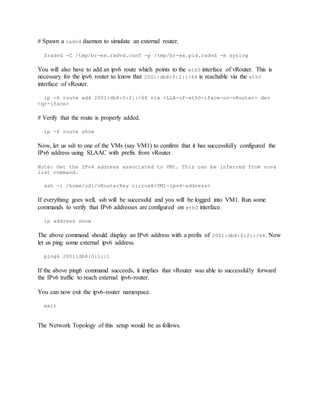
You will also have to add an ipv6 route which points to the eth0 interface of vRouter. This is
necessary for the ipv6 router to know that 2001:db8:0:2::/64 is reachable via the eth0
interface of vRouter.
ip -6 route add 2001:db8:0:2::/64 via <LLA-of-eth0-iface-on-vRouter> dev
<qr-iface>
# Verify that the route is properly added.
ip -6 route show
Now, let us ssh to one of the VMs (say VM1) to confirm that it has successfully configured the
IPv6 address using SLAAC with prefix from vRouter.
Note: Get the IPv4 address associated to VM1. This can be inferred from nova
list command.
ssh -i /home/odl/vRouterKey cirros@<VM1-ipv4-address>
If everything goes well, ssh will be successful and you will be logged into VM1. Run some
commands to verify that IPv6 addresses are configured on eth0 interface.
ip address show
The above command should display an IPv6 address with a prefix of 2001:db8:0:2::/64. Now
let us ping some external ipv6 address.
ping6 2001:db8:0:1::1
If the above ping6 command succeeds, it implies that vRouter was able to successfully forward
the IPv6 traffic to reach external ipv6-router.
You can now exit the ipv6-router namespace.
exit
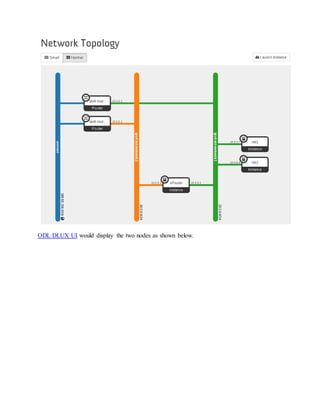
The Network Topology of this setup would be as follows.
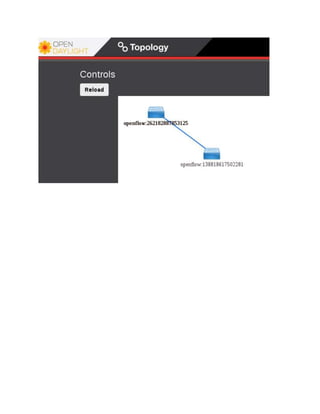
ODL DLUX UI would display the two nodes as shown below.
Ipv6 test plan for opnfv poc v2.2 spirent-vctlab

Ipv6 test plan for opnfv poc v2.2 spirent-vctlab

  • 1.
    IPV6 Test Planfor OPNFV PoC v2.0 11/23/2015 Yardstick supporting Rally will need to ping6, tcpdump6 as part of VM creation or at least scp/ftp capabilities for VM as well IPv6=serviceVM Requirements:Totestthe IPv6Service VMwitha OPNFV IPv6setupusingOpenStackLiberty &SDN controllerODLLithiumSR2 IPV6Testingforthe POC-X3referlink https://wiki.opnfv.org/ipv6_opnfv_project A Service VM in OpenStack+SDN controller[ODL or ONOS or OC] environmentthat is capable of (1) advertisingIPv6 Router Advertisements(RA) to the VMson the internal tenant network (E-W traffic) (2) IPv6 Forwarding (i.e.,North-Southtraffic),i.e.capability of an IPv6 vRouter The designdetailsare overlink https://wiki.opnfv.org/ipv6_opnfv_project/poc_design Testdesign:
  • 2.
    Original planwasto usePOC-X3butdue to variouslimitationsinupstreamwe decidedtonarrow it downto simple tothe followingdiagramwitheitherKiloor Liberty versionof OpenStack&ODL Lithium SR2. followedbystep4manual besidesregularOPNFV install (whatwe call postinstall procedurefor OPNFV) • Step0: setup infrastructure – Prepare 3 hostswith8GB RAMand 40GB each • 4GB RAMand 20GB storage minimum – Setup underlay networksandexternal accessnetwork • Step1: setup ODL controllerinODLControllerNode – https://wiki.opnfv.org/ipv6_opnfv_project/bringup_odl_controller • Step2: setup OSControllerNode – https://wiki.opnfv.org/ipv6_opnfv_project/setup_osodl_ctrlnwcom_node • Step3: setup OSCompute Node – https://wiki.opnfv.org/ipv6_opnfv_project/setup_osodl_compute_node • Step4: create networks,subnets,andspawnandconfigure VMsinintegratedOS+ODL environmenttocomplete experiment orrefertoappendix 1if you can notaccess this link. – https://wiki.opnfv.org/ipv6_opnfv_project/create_networks The Step4 uses bothhostand Virtual networkreconfigurationasfollowsreferring VCTSpirentlab:
  • 3.
    For step4 reconfigurenetworksuchthat eth1 = 198.59.156.0/24 and replace thatto br-ex withgatewayas198.59.156.1 eth0 = 10.134.156.0/24 and ensure gatewayis10.134.156.1 Thus iproute shouldshow(refer http://fpaste.org/276989/39903414/) Finallywe shouldget ip route default via 198.59.156.1 dev br-ex 10.134.156.0/24 dev eth0 proto kernel scope link src 10.134.156.113 192.168.122.0/24 dev virbr0 proto kernel scope link src 192.168.122.1 198.59.156.0/24 dev br-ex proto kernel scope link src 198.59.156.113 Here withrespectto underlay inabove isservice VM(vRouter) alongwithtwotenantVMsVM1 & VM2. Note the belowipv4-route andipv6-routbothare onall in one hostto the leftmostinabove diagram The OverlynetworkwithVMisshownbelow. DeploymentNotesforReleaseB: – Installerdeployscore package of Brahmaputra,includingtesting – Disable odl-l3andenable neutron-l3-agent(duetoODL gaps)
  • 4.
    – Our Step4instructionstosetupIPv6 vRouter Test: variablesto be defined: OS-C-Node=IPaddr1=10.134.156.113 ODL-C-Node=IPaddr2=10.134.156.177 Compute-Node1=IPaddr3=10.134.156.112 Compute -Node2=IPaddr4=? ipv4-router1=20.0.0.1 ipv6-router2=10.0.0.1 ext-router-gateway-ip=198.159.156.1 IPv6-Service VM=20.0.0.3 VM1=20.0.0.6 VM2=20.0.0.7 DNS-8.8.8.8=8.8.8.8 ipv6-prefix-to-use:2001:db8:0:2::/64 IPVSIX_ST-01 : Testing IPv6 ping to the nodeson the tenant network (E-W traffic) ssh to VM1 IPVSIX_ST-01-VM1-vR -ping6 (note now ping6 will use prfixas 2001:db8:0:2::/64) ping6 -c 1 [IPV6-service-VM] PING 2001:db8:0:2::1(::1) from...::1 : 56 data bytes 64 bytes from ...::1: icmp6_seq=0 hops=64 time=292 usec --- ::1 ping statistics --- 1 packets transmitted, 1 packets received, 0% packet loss IPVSIX_ST-01-VM1-VM2-ping6 ping6 -c 1 [V2M] PING 2001:db8:0:2::1(::1) from...::1 : 56 data bytes 64 bytes from ...::1: icmp6_seq=0 hops=64 time=292 usec
  • 5.
    --- ::1 pingstatistics --- 1 packets transmitted, 1 packets received, 0% packet loss IPVSIX_ST-01-VM1- ipv4-router1-ping ping -c 1 [ipv4-router1] PING 20.0.0.1(::1) from...::1 : 56 data bytes 64 bytes from ...::1: icmp6_seq=0 hops=64 time=292 usec --- ::1 ping statistics --- 1 packets transmitted, 1 packets received, 0% packet loss IPVSIX_ST-01-VM1- ipv6-router2-ping ping6 -c 1 [ipv6-router2] PING 2001:db8:0:2::1(::1) from...::1 : 56 data bytes 64 bytes from ...::1: icmp6_seq=0 hops=64 time=292 usec --- ::1 ping statistics --- 1 packets transmitted, 1 packets received, 0% packet loss IPVSIX_ST-01-VM1- ipv6-router2-traceroute traceroute [ipv6-router2] traceroute to 10.0.0.1 (30 hop max) , 60 byte packets 1 20.0.0.3..10 ms... 2.20.0.0.1 .. 1 ms IPVSIX_ST-01-8.8.8.8-DNS-ping ping -c 1 [DNS-8.8.8.8] PING 8.8.8.8(::1) from...::1 : 56 data bytes 64 bytes from ...::1: icmp6_seq=0 hops=64 time=292 usec --- ::1 ping statistics --- 1 packets transmitted, 1 packets received, 0% packet loss TestingIPv6 & IPv4 Forwarding(N-Straffic) ssh to : IPV6 Service VM IPVSIX_ST-02 : vR-DNS-8.8.8.8-ping6 ping6 -c 1 [DNS-8.8.8.8] PING ::1(::1) from ::1 : 56 data bytes
  • 6.
    64 bytes from::1: icmp_seq=0 hops=64 time=292 usec --- ::1 ping statistics --- 1 packets transmitted, 1 packets received, 0% packet loss IPVSIX_ST-02 : vR-DNS-8.8.8.8-ping ping -c 1 [DNS-8.8.8.8] PING ::1(::1) from ::1 : 56 data bytes 64 bytes from ::1: icmp_seq=0 hops=64 time=292 usec --- ::1 ping statistics --- 1 packets transmitted, 1 packets received, 0% packet loss All are positive tests and expected to PASS, refer table below. Test From To Pass/Fail IPVSIX_ST-01-VM1-vR -ping6 VM1 vR Positive Pass IPVSIX_ST-01-VM1-VM2-ping6 VM1 VM2 Positive Pass IPVSIX_ST-01-VM1- ipv4-router1- ping VM1 ipv4-router1 Positive Pass IPVSIX_ST-01-VM1- ipv6-router2- ping VM1 ipv6-router2 Positive Pass IPVSIX_ST-01-VM1- ipv6-router2- traceroute VM1 ipv6-router2 Positive Pass IPVSIX_ST-01-8.8.8.8-DNS-ping Vm1 DNS-8.8.8.8 Positive Pass IPVSIX_ST-02 : vR-DNS-8.8.8.8- ping6 vR DNS-8.8.8.8 Positive Pass IPVSIX_ST-02 : vR-DNS-8.8.8.8- ping vR DNS-8.8.8.8 Positive Pass Negative testscan be set for each of 8 above tests by test developers. *** *** Negative Pass We can have commontestsfor all communitylabswithashell scriptwithabove 8 positive and correspondingnegative testswithparametersandvariablesfromabove..
  • 7.
    Appendix: references Alternate configurationfortwonode Beforeproceedingtotestif youneedan understandingof IPv6inLinux please refer http://www.tldp.org/HOWTO/Linux+IPv6-HOWTO/x388.html IPv6 Tests http://www.tldp.org/HOWTO/Linux+IPv6-HOWTO/chapter-systemcheck.html SystemTests: Thiscan focusonUnderlayinPOC-X3as well hosts/hypervisors. Testif kernel isIPV6readyona givensystem/node: ST01-ipv6 test-f /proc/net/if_inet6&&echo"Runningkernel isIPv6ready" Passif : Runningkernel isIPv6ready
  • 8.
    ST02-ipv6 VerifyInterfacesonsystemandrunpingtestsusingping6 ifconfig add addr/prefixlen Add anIPv6addressto an interface. Sample test case 1 like # /sbin/ip -6 addr add <ipv6address>/<prefixlength> dev <interface> # /sbin/ifconfig eth0 inet6 add 2001:0db8:0:f101::1/64 Sample test case 2 like using ifconfig # /sbin/ifconfig <interface> inet6 add <ipv6address>/<prefixlength> # /sbin/ifconfig eth0 inet6 add 2001:0db8:0:f101::1/64 del addr/prefixlen Remove anIPv6 addressfroman interface. Sample testcase 1 like # /sbin/ip -6 addr del <ipv6address>/<prefixlength> dev <interface> # /sbin/ip -6 addr del 2001:0db8:0:f101::1/64 dev eth0 Sample testcase 2 usingifconfig # /sbin/ifconfig <interface> inet6 del <ipv6address>/<prefixlength> # /sbin/ifconfig eth0 inet6 del 2001:0db8:0:f101::1/64 tunnel aa.bb.cc.dd Create a newSIT(IPv6-in-IPv4) device,tunnellingtothe given destination. 1. Interface Testing:To verifyIPv6interfacesonhosts,routersorVMs 2. Ping6 Testing:Toverifythatping6 worksbetweenrequiredsource anddestinationinterfaces. Referhttp://www.tldp.org/HOWTO/Linux+IPv6-HOWTO/x811.html
  • 9.
    Example 1: # ping6-c 1 ::1 PING ::1(::1) from ::1 : 56 data bytes 64 bytes from ::1: icmp_seq=0 hops=64 time=292 usec --- ::1 ping statistics --- 1 packets transmitted, 1 packets received, 0% packet loss round-trip min/avg/max/mdev = 0.292/0.292/0.292/0.000 ms Example 2: # ping6 -I eth0 -c 1 fe80::2e0:18ff:fe90:9205 PING fe80::212:23ff:fe12:3456(fe80::212:23ff:fe12:3456) from ¬ fe80::212:34ff:fe12:3478 eth0: 56 data bytes 64 bytes from fe80::212:23ff:fe12:3456: icmp_seq=0 hops=64 time=445 usec --- fe80::2e0:18ff:fe90:9205 ping statistics --- 1 packets transmitted, 1 packets received, 0% packet loss round-trip ¬ min/avg/max/mdev = 0.445/0.445/0.445/0.000 ms ST03-ipv6 Initialize:Installtcpdumpforthistestbefore running Verifythattcpdump To verifyhowtouse V6evalTool forsend,receive (v6evaltool.pm) –Interface &Framestests https://github.com/liuhangbin/linux-v6eval/blob/master/script/pmod/V6evalTool/V6evalTool.pm
  • 10.
    vRouter creation andrelation to ODL and OpenStack Neutron Configurations for VCT Spirent Lab vRouterVMwouldbe advertisingthe followingIPv6prefix 2001:db8:0:2::/64 [Ref:1] The radvd daemon(whichwe are manuallyspawninginside the ipv6-routernamespace) wouldbe advertisingthe prefix 2001:db8:0:1::/64 [Ref:2] The actual IPv6 addressesthatwouldbe configuredinVM1/VM2 wouldbe basedonthe VMMAC address(asit isconfiguredviaSLAAC). JFYI,to knowthe EUI-64 IPv6 addressderivedfromIPv6prefix,youcanuse the followingonline calculator[Ref:3] Let me knowif you have anyquestions. [Ref:1] http://fpaste.org/276989/39903414/ [Ref:2] Step12 of page - https://wiki.opnfv.org/ipv6_opnfv_project/create_networks [Ref:3] http://tools.petrkadlec.com/lookup/ipv6eui64gen/
  • 11.
    Step 4: CreatingNetworks and Subnets If you cannot access step 4, here is copy of it below for your reference only: Step 4: Creating Networks and Subnets OPNFV POC OpenStack Setup Instructions. Steps to be executed on the snsj113 (IP: 198.59.156.113) machine (refer to the details of lab environment). 1. Login as odl user and change directory to devstack. cd ~/devstack 2. Source the credentials. odl@opnfv-openstack-ubuntu:~/devstack$ source openrc admin demo 3. We want to manually create networks/subnets that will help us to achieve the POC, so we have used the flag, NEUTRON_CREATE_INITIAL_NETWORKS=False in local.conf file. When this flag is set to False, devstack does not create any networks/subnets during the setup phase. 4. On snsj113 machine, eth1 provides external/public connectivity (both IPv4 and IPv6). So let us add this interface to br-ex and move the IP address (including the default route) from eth1 to br-ex. Note: This can be automated in /etc/network/interfaces. sudo ip addr del 198.59.156.113/24 dev eth1 && sudo ovs-vsctl add-port br-ex eth1 && sudo ifconfig eth1 up && sudo ip addr add 198.59.156.113/24 dev br- ex && sudo ifconfig br-ex up && sudo ip route add default via 198.59.156.1 dev br-ex # Verify that br-ex now has the IPaddress 198.59.156.113/24 and the default route is on br-ex odl@opnfv-openstack-ubuntu:~/devstack$ ip a s br-ex 38: br-ex: <BROADCAST,UP,LOWER_UP> mtu 1430 qdisc noqueue state UNKNOWN group default link/ether 00:50:56:82:42:d1 brd ff:ff:ff:ff:ff:ff inet 198.59.156.113/24 brd 198.59.156.255 scope global br-ex valid_lft forever preferred_lft forever inet6 fe80::543e:28ff:fe70:4426/64 scope link
  • 12.
    valid_lft forever preferred_lftforever odl@opnfv-openstack-ubuntu:~/devstack$ odl@opnfv-openstack-ubuntu:~/devstack$ ip route default via 198.59.156.1 dev br-ex 10.134.156.0/24 dev eth0 proto kernel scope link src 10.134.156.113 192.168.122.0/24 dev virbr0 proto kernel scope link src 192.168.122.1 198.59.156.0/24 dev br-ex proto kernel scope link src 198.59.156.113 odl@opnfv-openstack-ubuntu:~/devstack$ 4. Create a Neutron router which provides external connectivity. neutron router-create ipv4-router # Create an external network/subnet using the appropriate values based on the data-center physical network setup. neutron net-create --router:external ext-net neutron subnet-create --disable-dhcp --allocation-pool start=198.59.156.251,end=198.59.156.254 --gateway 198.59.156.1 ext-net 198.59.156.0/24 # Associate the ext-net to the neutron router. neutron router-gateway-set ipv4-router ext-net # Create an internal/tenant ipv4 network. neutron net-create ipv4-int-network1 # Create an IPv4 subnet in the internal network. neutron subnet-create --name ipv4-int-subnet1 --dns-nameserver 8.8.8.8 ipv4- int-network1 20.0.0.0/24 # Associate the ipv4 internal subnet to a neutron router. neutron router-interface-add ipv4-router ipv4-int-subnet1 # Create a second neutron router where we want to "manually spawn a radvd daemon" to simulate external IPv6 router. neutron router-create ipv6-router # Associate the ext-net to the ipv6-router. neutron router-gateway-set ipv6-router ext-net # Create a second internal/tenant ipv4 network.
  • 13.
    neutron net-create ipv4-int-network2 #Create an IPv4 subnet for the ipv6-router internal network. neutron subnet-create --name ipv4-int-subnet2 --dns-nameserver 8.8.8.8 ipv4- int-network2 10.0.0.0/24 # Associate the ipv4 internal subnet2 to ipv6-router. neutron router-interface-add ipv6-router ipv4-int-subnet2 5. Download fedora20 image which would be used as vRouter. glance image-create --name 'Fedora20' --disk-format qcow2 --container-format bare --is-public true --copy-from http://cloud.fedoraproject.org/fedora- 20.x86_64.qcow2 6. Create a keypair. nova keypair-add vRouterKey > ~/vRouterKey 7. Copy the contents of the following url to metadata.txt (i.e., metadata which enables IPv6 router functionality inside vRouter) http://fpaste.org/276989/39903414/ 8. Boot the vRouter using Fedora20 image on the Compute node (hostname: opnfv-odl-ubuntu) nova boot --image Fedora20 --flavor m1.small --user-data ./metadata.txt -- availability-zone nova:opnfv-odl-ubuntu --nic net-id=$(neutron net-list | grep -w ipv4-int-network2 | awk '{print $2}') --nic net-id=$(neutron net-list | grep -w ipv4-int-network1 | awk '{print $2}') --key-name vRouterKey vRouter 9. Verify that Fedora20 image boots up successfully and the ssh keys are properly injected. Note: It may take few minutes for the necessary packages to get installed and ssh keys to be injected. nova list nova console-log vRouter # Sample output: [ 762.884523] cloud-init[871]: ec2: ############################################################# [ 762.909634] cloud-init[871]: ec2: -----BEGIN SSH HOST KEY FINGERPRINTS--- -- [ 762.931626] cloud-init[871]: ec2: 2048 e3:dc:3d:4a:bc:b6:b0:77:75:a1:70:a3:d0:2a:47:a9 (RSA) [ 762.957380] cloud-init[871]: ec2: -----END SSH HOST KEY FINGERPRINTS-----
  • 14.
    [ 762.979554] cloud-init[871]:ec2: ############################################################# 10. In order to verify that the setup is working, let's create two cirros VMs on the ipv4-int- network1 (i.e., vRouter eth1 interface - internal network). Note: VM1 is created on Control+Network node (i.e., opnfv-openstack-ubuntu) nova boot --image cirros-0.3.4-x86_64-uec --flavor m1.tiny --nic net- id=$(neutron net-list | grep -w ipv4-int-network1 | awk '{print $2}') -- availability-zone nova:opnfv-openstack-ubuntu --key-name vRouterKey VM1 Note: VM2 is created on Compute node (i.e., opnfv-odl-ubuntu). We will have to configure appropriate mtu on the VM iface by taking into account the tunneling overhead and any physical switch requirements. If so, push the mtu to the VM either using dhcp options or via meta-data. nova boot --image cirros-0.3.4-x86_64-uec --flavor m1.tiny --nic net- id=$(neutron net-list | grep -w ipv4-int-network1 | awk '{print $2}') -- availability-zone nova:opnfv-odl-ubuntu --key-name vRouterKey VM2 11. Confirm that both the VMs are successfully booted. nova list nova console-log VM1 nova console-log VM2 12. Lets manually spawn a radvd daemon inside ipv6-router namespace (to simulate external router). For this, we will have to identify the ipv6-router namespace and move to the namespace. sudo ip netns exec qrouter-$(neutron router-list | grep -w ipv6-router | awk '{print $2}') bash # On successful execution of the above command, you will be in the router namespace. # Configure the IPv6 address on the <qr-xxx> iface. router_interface=$(ip a s | grep -w "global qr-*" | awk '{print $7}') ip -6 addr add 2001:db8:0:1::1 dev $router_interface # Copy the following contents to some file (say /tmp/br-ex.radvd.conf) interface $router_interface { AdvSendAdvert on; MinRtrAdvInterval 3; MaxRtrAdvInterval 10; prefix 2001:db8:0:1::/64 { AdvOnLink on; AdvAutonomous on; }; };
  • 15.
    # Spawn aradvd daemon to simulate an external router. $radvd -C /tmp/br-ex.radvd.conf -p /tmp/br-ex.pid.radvd -m syslog You will also have to add an ipv6 route which points to the eth0 interface of vRouter. This is necessary for the ipv6 router to know that 2001:db8:0:2::/64 is reachable via the eth0 interface of vRouter. ip -6 route add 2001:db8:0:2::/64 via <LLA-of-eth0-iface-on-vRouter> dev <qr-iface> # Verify that the route is properly added. ip -6 route show Now, let us ssh to one of the VMs (say VM1) to confirm that it has successfully configured the IPv6 address using SLAAC with prefix from vRouter. Note: Get the IPv4 address associated to VM1. This can be inferred from nova list command. ssh -i /home/odl/vRouterKey cirros@<VM1-ipv4-address> If everything goes well, ssh will be successful and you will be logged into VM1. Run some commands to verify that IPv6 addresses are configured on eth0 interface. ip address show The above command should display an IPv6 address with a prefix of 2001:db8:0:2::/64. Now let us ping some external ipv6 address. ping6 2001:db8:0:1::1 If the above ping6 command succeeds, it implies that vRouter was able to successfully forward the IPv6 traffic to reach external ipv6-router. You can now exit the ipv6-router namespace. exit The Network Topology of this setup would be as follows.
  • 16.
    ODL DLUX UIwould display the two nodes as shown below.