Internet search operators
Searching, researching and exploring
online contents
 Why do we need these Internet search operators (rather Google
search operators)?
The answer is simple---------Achieving precise results within no time, finding trustworthy/ethical
information/contents and access to reliable sites
Lets Begin…..!!!
Searching for a particular match
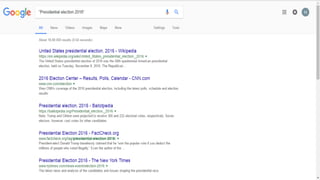
Enclose a word/phrase inside the quotes(“ ”). This gives you the sites
containing exact match for your query
Example: “the man who knew infinity”, “Presidential election 2016”, “A
gentleman in Moscow”, etc.
Filtering results using “+”, “–” and
“~” operators
 Use “+” operator to include things in your search
Example: taj +mahal +hotel (Refines the results by displaying links containing all the three terms
 Use “-” operator to exclude things in your search
Example: taj –mahal (refines your results by excluding pages having information about taj mahal)
 Use “~” i.e. tilde in your search, Google results in the word as well as synonyms for the term.
Example: ~demonetisation (refines your results and gives information from Wikipedia, Britannica,
encyclopedia, factmonster, etc.)
Search for a price or range
 Put ₹ (or any currency symbol) in front of a number/amount.
Example: smartphone ₹50000
 Searching within a specified range (Put .. between two
numbers/amount )
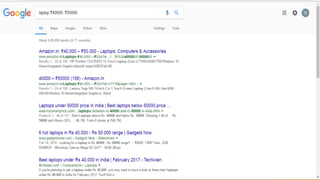
Example: laptop ₹40000..₹50000
Getting an appropriate definition
for a word/phrase
 Use define:word in order to get authentic definitions for the
word/phrase written after “define” from reliable sources
Example: define:Demonetization
Searching for wildcards or unknown
words
 Use * in your word or phrase you missed out or don’t remember
Example1: "Gone with the * “
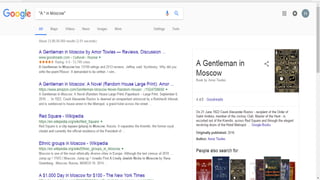
Example2: “A * in Moscow "
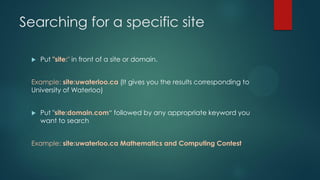
Searching for a specific site
 Put "site:" in front of a site or domain.
Example: site:uwaterloo.ca (It gives you the results corresponding to
University of Waterloo)
 Put "site:domain.com“ followed by any appropriate keyword you
want to search
Example: site:uwaterloo.ca Mathematics and Computing Contest
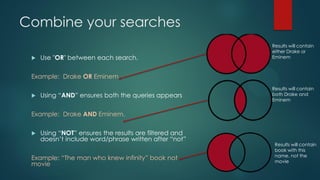
Combine your searches
 Use "OR" between each search.
Example: Drake OR Eminem
 Using “AND” ensures both the queries appears
Example: Drake AND Eminem.
 Using “NOT” ensures the results are filtered and
doesn’t include word/phrase written after “not”
Example: “The man who knew infinity” book not
movie
Results will contain
either Drake or
Eminem
Results will contain
both Drake and
Eminem
Results will contain
book with this
name, not the
movie
Searching for a specific file type to
use
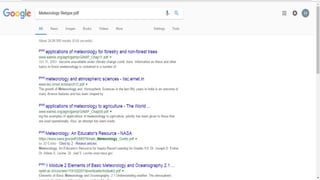
 Use “filetype:format" post the related topic you are searching for
Example: Meteorology filetype:pdf or Meteorology filetype:doc or
Meteorology filetype:ppt
Searching for related sites
 Put "related:" in front of a web address you know and querying to
find sites related to it.
Example: related:youtube.com (As a result of this query, you will
receive all the websites similar to youtube)
Searching for URL’s with the exact
word in it
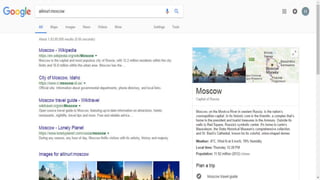
 Use allinurl: followed by the exact match you are searching for
Example: allinurl: Moscow (displays all the web pages with Moscow in
the URL)
Further reading
 https://bynd.com/news-ideas/google-advanced-search-comprehensive-list-google-
search-operators/
Happy Searching!

Internet Search Operators

  • 1.
  • 2.
    Searching, researching andexploring online contents  Why do we need these Internet search operators (rather Google search operators)? The answer is simple---------Achieving precise results within no time, finding trustworthy/ethical information/contents and access to reliable sites
  • 3.
  • 4.
    Searching for aparticular match Enclose a word/phrase inside the quotes(“ ”). This gives you the sites containing exact match for your query Example: “the man who knew infinity”, “Presidential election 2016”, “A gentleman in Moscow”, etc.
  • 6.
    Filtering results using“+”, “–” and “~” operators  Use “+” operator to include things in your search Example: taj +mahal +hotel (Refines the results by displaying links containing all the three terms  Use “-” operator to exclude things in your search Example: taj –mahal (refines your results by excluding pages having information about taj mahal)  Use “~” i.e. tilde in your search, Google results in the word as well as synonyms for the term. Example: ~demonetisation (refines your results and gives information from Wikipedia, Britannica, encyclopedia, factmonster, etc.)
  • 7.
    Search for aprice or range  Put ₹ (or any currency symbol) in front of a number/amount. Example: smartphone ₹50000  Searching within a specified range (Put .. between two numbers/amount ) Example: laptop ₹40000..₹50000
  • 9.
    Getting an appropriatedefinition for a word/phrase  Use define:word in order to get authentic definitions for the word/phrase written after “define” from reliable sources Example: define:Demonetization
  • 10.
    Searching for wildcardsor unknown words  Use * in your word or phrase you missed out or don’t remember Example1: "Gone with the * “ Example2: “A * in Moscow "
  • 12.
    Searching for aspecific site  Put "site:" in front of a site or domain. Example: site:uwaterloo.ca (It gives you the results corresponding to University of Waterloo)  Put "site:domain.com“ followed by any appropriate keyword you want to search Example: site:uwaterloo.ca Mathematics and Computing Contest
  • 13.
    Combine your searches Use "OR" between each search. Example: Drake OR Eminem  Using “AND” ensures both the queries appears Example: Drake AND Eminem.  Using “NOT” ensures the results are filtered and doesn’t include word/phrase written after “not” Example: “The man who knew infinity” book not movie Results will contain either Drake or Eminem Results will contain both Drake and Eminem Results will contain book with this name, not the movie
  • 14.
    Searching for aspecific file type to use  Use “filetype:format" post the related topic you are searching for Example: Meteorology filetype:pdf or Meteorology filetype:doc or Meteorology filetype:ppt
  • 16.
    Searching for relatedsites  Put "related:" in front of a web address you know and querying to find sites related to it. Example: related:youtube.com (As a result of this query, you will receive all the websites similar to youtube)
  • 17.
    Searching for URL’swith the exact word in it  Use allinurl: followed by the exact match you are searching for Example: allinurl: Moscow (displays all the web pages with Moscow in the URL)
  • 19.
  • 20.