IntelliJ IDEA
PLUGIN DEVELOPMENT
Plugin Components
Components are the fundamental concept of plugin
integration. There are three kinds of components:
 Application-level
 Project-level
 Module-level
Plugin Extensions and Extension Points
The IntelliJ Platform provides the concept of extensions
and extension points that allows a plugin to interact
with other plugins or with the IDE itself.
Plugin Services
A service is a plugin component loaded on demand.
IntelliJ Platform ensures that only one instance of a
service is loaded even though the service is called
several times.
Plugin Actions
Intellij IDEA provides the concept of actions. An action
is a class, derived from the AnAction class, whose
actionPerformed method is called when the menu item
or toolbar button is selected.
Plugin Content
.IntelliJIDEAx0
plugins
sample.jar/
com/foo/.....
...
...
META-INF
plugin.xml
Android Styler plugin development
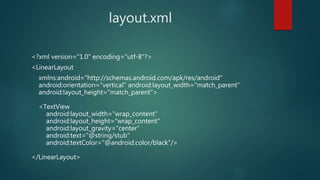
layout.xml
<?xml version="1.0" encoding="utf-8"?>
<LinearLayout
xmlns:android="http://schemas.android.com/apk/res/android"
android:orientation="vertical" android:layout_width="match_parent"
android:layout_height="match_parent">
<TextView
android:layout_width="wrap_content"
android:layout_height="wrap_content"
android:layout_gravity="center"
android:text="@string/stub"
android:textColor="@android:color/black"/>
</LinearLayout>
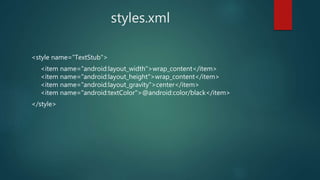
styles.xml
<style name="TextStub">
<item name="android:layout_width">wrap_content</item>
<item name="android:layout_height">wrap_content</item>
<item name="android:layout_gravity">center</item>
<item name="android:textColor">@android:color/black</item>
</style>
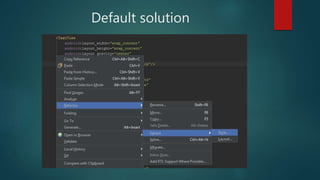
Default solution
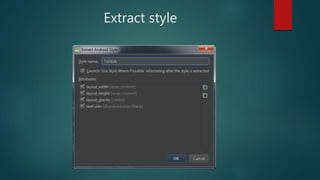
Extract style
Usage
 copy lines with future style from your layout.xml file
 paste it to styles.xml file with Ctrl+Shift+D
 enter name of new style in the modal window
 your style is prepared!
Plan
 Prepare environment
 Create project and implement functionality
 Build jar and upload it into Plugin Repository
Preparations
 Install IntellijIDEA Community Edition
 Download sources of IntellijIDEA Community Edition
(optional)
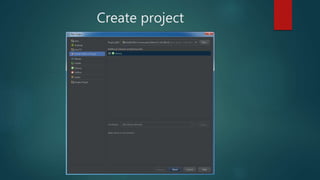
Create project
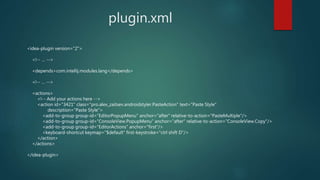
plugin.xml
<idea-plugin version="2">
<!-- … -->
<depends>com.intellij.modules.lang</depends>
<!-- … -->
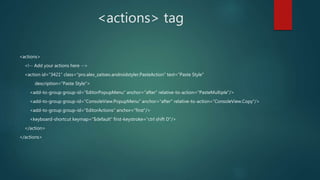
<actions>
<!-- Add your actions here -->
<action id="3421" class="pro.alex_zaitsev.androidstyler.PasteAction" text="Paste Style"
description="Paste Style">
<add-to-group group-id="EditorPopupMenu" anchor="after" relative-to-action="PasteMultiple"/>
<add-to-group group-id="ConsoleView.PopupMenu" anchor="after" relative-to-action="ConsoleView.Copy"/>
<add-to-group group-id="EditorActions" anchor="first"/>
<keyboard-shortcut keymap="$default" first-keystroke="ctrl shift D"/>
</action>
</actions>
</idea-plugin>
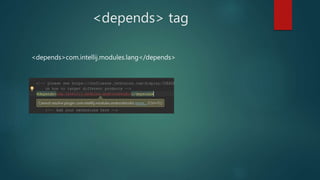
<depends> tag
<depends>com.intellij.modules.lang</depends>
<actions> tag
<actions>
<!-- Add your actions here -->
<action id="3421" class="pro.alex_zaitsev.androidstyler.PasteAction" text="Paste Style"
description="Paste Style">
<add-to-group group-id="EditorPopupMenu" anchor="after" relative-to-action="PasteMultiple"/>
<add-to-group group-id="ConsoleView.PopupMenu" anchor="after" relative-to-action="ConsoleView.Copy"/>
<add-to-group group-id="EditorActions" anchor="first"/>
<keyboard-shortcut keymap="$default" first-keystroke="ctrl shift D"/>
</action>
</actions>
PasteAction
public class PasteAction extends EditorAction {
public PasteAction(EditorActionHandler defaultHandler) {
super(defaultHandler);
}
public PasteAction() {
this(new StylePasteHandler());
}
private static class StylePasteHandler extends EditorWriteActionHandler {
private StylePasteHandler() {
}
@Override
public void executeWriteAction(Editor editor, DataContext dataContext) {
// implementation
}
}
}
Implementation
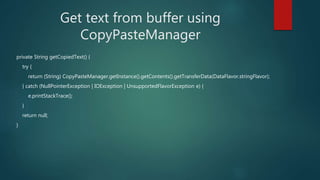
Get text from buffer using
CopyPasteManager
private String getCopiedText() {
try {
return (String) CopyPasteManager.getInstance().getContents().getTransferData(DataFlavor.stringFlavor);
} catch (NullPointerException | IOException | UnsupportedFlavorException e) {
e.printStackTrace();
}
return null;
}
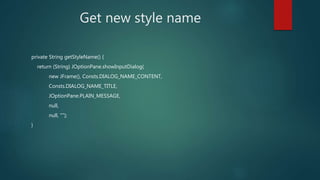
Get new style name
private String getStyleName() {
return (String) JOptionPane.showInputDialog(
new JFrame(), Consts.DIALOG_NAME_CONTENT,
Consts.DIALOG_NAME_TITLE,
JOptionPane.PLAIN_MESSAGE,
null,
null, "");
}
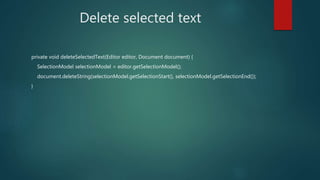
Delete selected text
private void deleteSelectedText(Editor editor, Document document) {
SelectionModel selectionModel = editor.getSelectionModel();
document.deleteString(selectionModel.getSelectionStart(), selectionModel.getSelectionEnd());
}
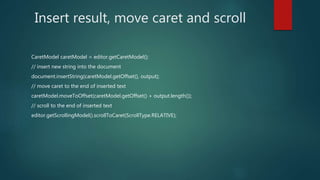
Insert result, move caret and scroll
CaretModel caretModel = editor.getCaretModel();
// insert new string into the document
document.insertString(caretModel.getOffset(), output);
// move caret to the end of inserted text
caretModel.moveToOffset(caretModel.getOffset() + output.length());
// scroll to the end of inserted text
editor.getScrollingModel().scrollToCaret(ScrollType.RELATIVE);
Publish
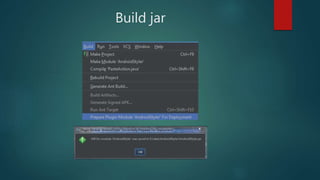
Build jar
Upload to JetBrains Plugin Repository
https://plugins.jetbrains.com/
Wait for approve (up to 3 work days)
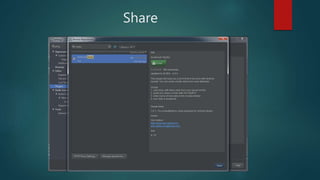
Share
Have a good plugin development!

IntelliJ IDEA Plugin Development

  • 1.
  • 2.
    Plugin Components Components arethe fundamental concept of plugin integration. There are three kinds of components:  Application-level  Project-level  Module-level
  • 3.
    Plugin Extensions andExtension Points The IntelliJ Platform provides the concept of extensions and extension points that allows a plugin to interact with other plugins or with the IDE itself.
  • 4.
    Plugin Services A serviceis a plugin component loaded on demand. IntelliJ Platform ensures that only one instance of a service is loaded even though the service is called several times.
  • 5.
    Plugin Actions Intellij IDEAprovides the concept of actions. An action is a class, derived from the AnAction class, whose actionPerformed method is called when the menu item or toolbar button is selected.
  • 6.
  • 7.
  • 8.
    layout.xml <?xml version="1.0" encoding="utf-8"?> <LinearLayout xmlns:android="http://schemas.android.com/apk/res/android" android:orientation="vertical"android:layout_width="match_parent" android:layout_height="match_parent"> <TextView android:layout_width="wrap_content" android:layout_height="wrap_content" android:layout_gravity="center" android:text="@string/stub" android:textColor="@android:color/black"/> </LinearLayout>
  • 9.
    styles.xml <style name="TextStub"> <item name="android:layout_width">wrap_content</item> <itemname="android:layout_height">wrap_content</item> <item name="android:layout_gravity">center</item> <item name="android:textColor">@android:color/black</item> </style>
  • 10.
  • 11.
  • 12.
    Usage  copy lineswith future style from your layout.xml file  paste it to styles.xml file with Ctrl+Shift+D  enter name of new style in the modal window  your style is prepared!
  • 13.
    Plan  Prepare environment Create project and implement functionality  Build jar and upload it into Plugin Repository
  • 14.
    Preparations  Install IntellijIDEACommunity Edition  Download sources of IntellijIDEA Community Edition (optional)
  • 15.
  • 16.
    plugin.xml <idea-plugin version="2"> <!-- …--> <depends>com.intellij.modules.lang</depends> <!-- … --> <actions> <!-- Add your actions here --> <action id="3421" class="pro.alex_zaitsev.androidstyler.PasteAction" text="Paste Style" description="Paste Style"> <add-to-group group-id="EditorPopupMenu" anchor="after" relative-to-action="PasteMultiple"/> <add-to-group group-id="ConsoleView.PopupMenu" anchor="after" relative-to-action="ConsoleView.Copy"/> <add-to-group group-id="EditorActions" anchor="first"/> <keyboard-shortcut keymap="$default" first-keystroke="ctrl shift D"/> </action> </actions> </idea-plugin>
  • 17.
  • 18.
    <actions> tag <actions> <!-- Addyour actions here --> <action id="3421" class="pro.alex_zaitsev.androidstyler.PasteAction" text="Paste Style" description="Paste Style"> <add-to-group group-id="EditorPopupMenu" anchor="after" relative-to-action="PasteMultiple"/> <add-to-group group-id="ConsoleView.PopupMenu" anchor="after" relative-to-action="ConsoleView.Copy"/> <add-to-group group-id="EditorActions" anchor="first"/> <keyboard-shortcut keymap="$default" first-keystroke="ctrl shift D"/> </action> </actions>
  • 19.
    PasteAction public class PasteActionextends EditorAction { public PasteAction(EditorActionHandler defaultHandler) { super(defaultHandler); } public PasteAction() { this(new StylePasteHandler()); } private static class StylePasteHandler extends EditorWriteActionHandler { private StylePasteHandler() { } @Override public void executeWriteAction(Editor editor, DataContext dataContext) { // implementation } } }
  • 20.
  • 21.
    Get text frombuffer using CopyPasteManager private String getCopiedText() { try { return (String) CopyPasteManager.getInstance().getContents().getTransferData(DataFlavor.stringFlavor); } catch (NullPointerException | IOException | UnsupportedFlavorException e) { e.printStackTrace(); } return null; }
  • 22.
    Get new stylename private String getStyleName() { return (String) JOptionPane.showInputDialog( new JFrame(), Consts.DIALOG_NAME_CONTENT, Consts.DIALOG_NAME_TITLE, JOptionPane.PLAIN_MESSAGE, null, null, ""); }
  • 23.
    Delete selected text privatevoid deleteSelectedText(Editor editor, Document document) { SelectionModel selectionModel = editor.getSelectionModel(); document.deleteString(selectionModel.getSelectionStart(), selectionModel.getSelectionEnd()); }
  • 24.
    Insert result, movecaret and scroll CaretModel caretModel = editor.getCaretModel(); // insert new string into the document document.insertString(caretModel.getOffset(), output); // move caret to the end of inserted text caretModel.moveToOffset(caretModel.getOffset() + output.length()); // scroll to the end of inserted text editor.getScrollingModel().scrollToCaret(ScrollType.RELATIVE);
  • 25.
  • 26.
  • 27.
    Upload to JetBrainsPlugin Repository https://plugins.jetbrains.com/ Wait for approve (up to 3 work days)
  • 28.
  • 29.
    Have a goodplugin development!