



Installing Maven on
Windows
APACHE-MAVEN-3.2.2
1
Thanks for sharing!
 My personal and contact details:
 Juan Carlos Perez Pardo
 perezpardojc@gmail.com
 I am living in Dublin
 Linkedin: www.linkedin.com/in/perezpardojc
 Twitter: https://twitter.com/perezpardojc
 And like always if you want to copy, paste, and collaborate feel
free to do it!
2
My lab:
 Laptop
 Dell Precision M4800 / Intel(R) Core(TM) i7-4900MQ CPU @ 2.80GHz / 16 GB
 Dell Latitude E6400 / Intel(R) Core(TM) 2 Duo P8400 CPU / 8GB
 Microsoft Windows 8.1 / Ubuntu 14.04 LTS
 Network
 TP-LINK’s AV500 Nano Powerline Adapter TL-PA4010KIT
 Technicolor TC7200 Modem / Router
 Internet connection:
 UPC Fibre Power 120Mb
3
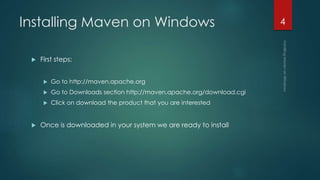
Installing Maven on Windows
 First steps:
 Go to http://maven.apache.org
 Go to Downloads section http://maven.apache.org/download.cgi
 Click on download the product that you are interested
 Once is downloaded in your system we are ready to install
4
Installing Maven on Windows
 Apache Maven is not require to install on Windows as a service
component, you just need to download the Maven’s zip file, extract
it and configure the Windows environment path variable.
 Tools Used :
 JDK 1.6
 Maven 2.2.1
 Windows 8.1
 P.S This works with Maven 3 also.
5
Installing Maven on Windows
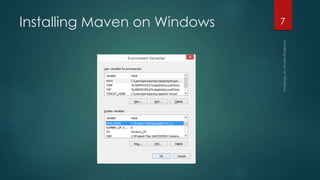
 JDK and JAVA_HOME
 Make sure JDK is installed, and “JAVA_HOME” variable is added in
Windows environment variable, and point to the JDK folder.
6
Installing Maven on Windows 7
Installing Maven on Windows
 Download Apache Maven
 Visit this Maven official website, choose a version and click on the
download link, e.g apache-maven-2.2.1-bin.zip.
 Extract It
 Extract the downloaded zip file. In this case, we extracted to d driver
and renamed the folder, in my case C:Program Filesmaven
8
Installing Maven on Windows
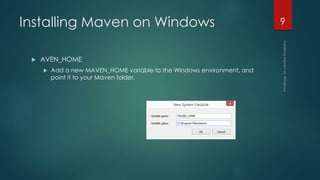
 AVEN_HOME
 Add a new MAVEN_HOME variable to the Windows environment, and
point it to your Maven folder.
9
Installing Maven on Windows 10
Installing Maven on Windows
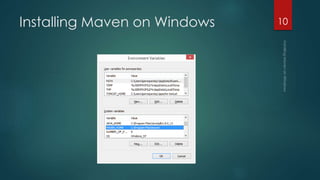
 Add PATH
 Update PATH variable, append “Maven bin folder” path, so that you
can run the Maven’s command everywhere.
11
Installing Maven on Windows
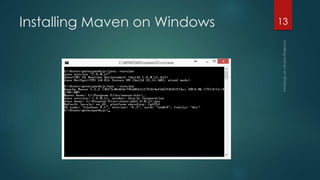
 Verification
 Done, to verify it, in command prompt, type “mvn –-version“.
12
Installing Maven on Windows 13
Links and References
 https://www.google.com
 http://www.apache.org
 http://maven.apache.org
 https://www.java.com
14
Thanks for sharing!
 My personal and contact details:
 Juan Carlos Perez Pardo
 perezpardojc@gmail.com
 I am living in Dublin
 Linkedin: www.linkedin.com/in/perezpardojc
 Twitter: https://twitter.com/perezpardojc
 And like always if you want to copy, paste, and collaborate feel
free to do it!
15
Thanks! 16

Installing maven on windows

  • 1.
  • 2.
    Thanks for sharing! My personal and contact details:  Juan Carlos Perez Pardo  perezpardojc@gmail.com  I am living in Dublin  Linkedin: www.linkedin.com/in/perezpardojc  Twitter: https://twitter.com/perezpardojc  And like always if you want to copy, paste, and collaborate feel free to do it! 2
  • 3.
    My lab:  Laptop Dell Precision M4800 / Intel(R) Core(TM) i7-4900MQ CPU @ 2.80GHz / 16 GB  Dell Latitude E6400 / Intel(R) Core(TM) 2 Duo P8400 CPU / 8GB  Microsoft Windows 8.1 / Ubuntu 14.04 LTS  Network  TP-LINK’s AV500 Nano Powerline Adapter TL-PA4010KIT  Technicolor TC7200 Modem / Router  Internet connection:  UPC Fibre Power 120Mb 3
  • 4.
    Installing Maven onWindows  First steps:  Go to http://maven.apache.org  Go to Downloads section http://maven.apache.org/download.cgi  Click on download the product that you are interested  Once is downloaded in your system we are ready to install 4
  • 5.
    Installing Maven onWindows  Apache Maven is not require to install on Windows as a service component, you just need to download the Maven’s zip file, extract it and configure the Windows environment path variable.  Tools Used :  JDK 1.6  Maven 2.2.1  Windows 8.1  P.S This works with Maven 3 also. 5
  • 6.
    Installing Maven onWindows  JDK and JAVA_HOME  Make sure JDK is installed, and “JAVA_HOME” variable is added in Windows environment variable, and point to the JDK folder. 6
  • 7.
  • 8.
    Installing Maven onWindows  Download Apache Maven  Visit this Maven official website, choose a version and click on the download link, e.g apache-maven-2.2.1-bin.zip.  Extract It  Extract the downloaded zip file. In this case, we extracted to d driver and renamed the folder, in my case C:Program Filesmaven 8
  • 9.
    Installing Maven onWindows  AVEN_HOME  Add a new MAVEN_HOME variable to the Windows environment, and point it to your Maven folder. 9
  • 10.
  • 11.
    Installing Maven onWindows  Add PATH  Update PATH variable, append “Maven bin folder” path, so that you can run the Maven’s command everywhere. 11
  • 12.
    Installing Maven onWindows  Verification  Done, to verify it, in command prompt, type “mvn –-version“. 12
  • 13.
  • 14.
    Links and References https://www.google.com  http://www.apache.org  http://maven.apache.org  https://www.java.com 14
  • 15.
    Thanks for sharing! My personal and contact details:  Juan Carlos Perez Pardo  perezpardojc@gmail.com  I am living in Dublin  Linkedin: www.linkedin.com/in/perezpardojc  Twitter: https://twitter.com/perezpardojc  And like always if you want to copy, paste, and collaborate feel free to do it! 15
  • 16.